

Presented by Adrian Roselli for Harbour Front
Vol. 230 October 2018
The Hive, Wan Chai, Hong Kong
Introductions
• I’ve written some stuff,
• Member of W3C,
• Building for the web
since 1993,
• Learn more at
AdrianRoselli.com,
• Avoid on Twitter
@aardrian.
About Adrian Roselli
Primer
What is a11y?
• A numeronym for “accessibility”:
• The first and last letter (accessibility),
• The number of characters omitted (a11y).
• Prominent on Twitter (character restrictions):
• #a11y
• Examples:
• l10n → localization
• i18n → internationalization
Accessibility Gets No Respect
Yay Statistics!
Any Disability
• In the United States:
• 10.4% aged 21-64 years old,
• 25% aged 65-74 years old,
• 50% aged 75+.
• Includes:
• Visual
• Hearing
• Mobility
• Cognitive
Vision Impairments
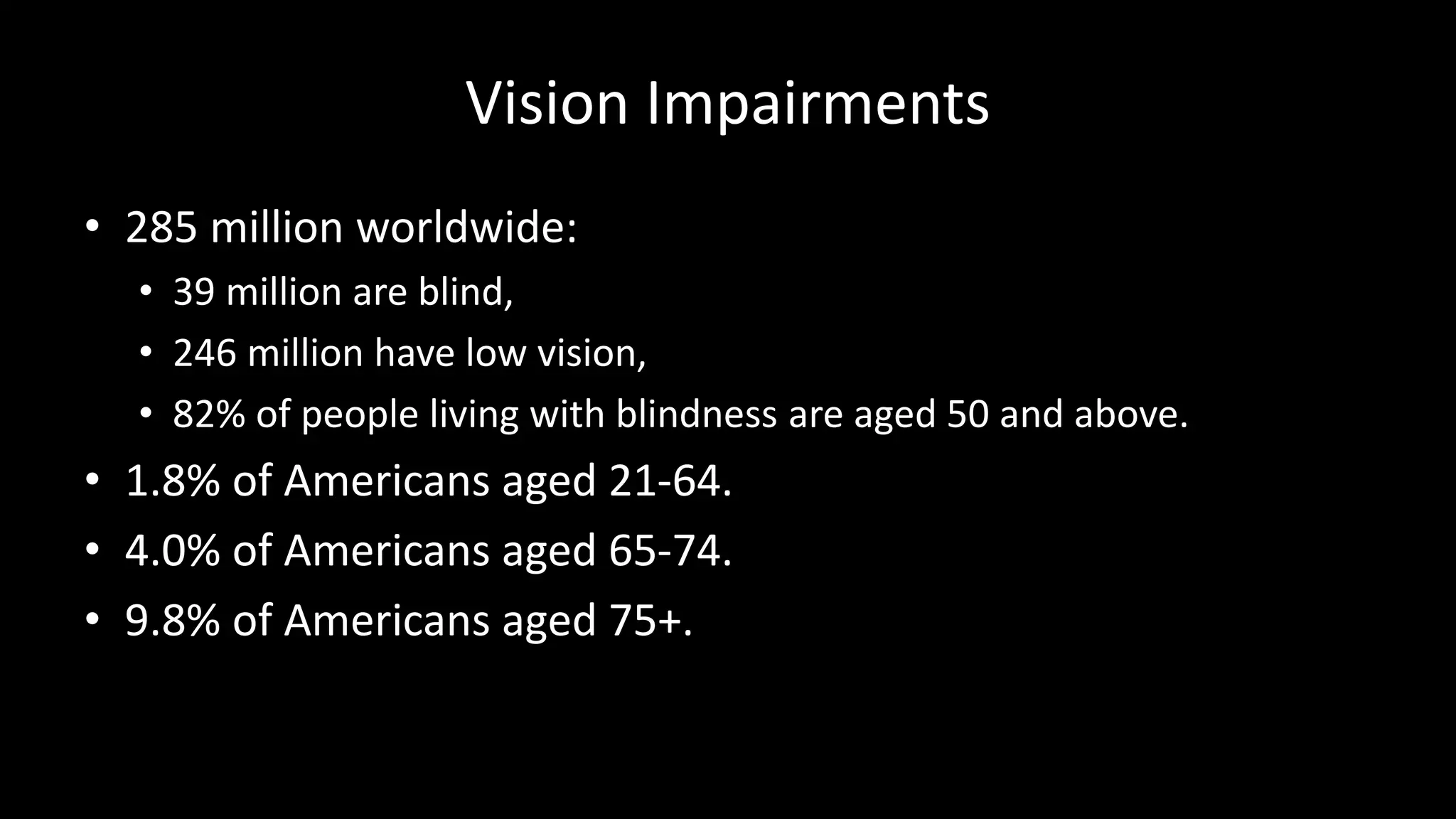
• 285 million worldwide:
• 39 million are blind,
• 246 million have low vision,
• 82% of people living with blindness are aged 50 and above.
• 1.8% of Americans aged 21-64.
• 4.0% of Americans aged 65-74.
• 9.8% of Americans aged 75+.
Hearing Impairments
• 360 million people worldwide have disabling
hearing loss.
• 17% (36 million) of American adults report some
degree of hearing loss:
• 18% aged 45-64 years old,
• 30% aged 65-74 years old,
• 47% aged 75+ years old.
Mobility Impairments
• In the United States:
• 5.5% aged 21-64 years old.
• 15.6% aged 65-74 years old.
• 32.9% aged 75+.
Cognitive Impairments
• Dyslexia,
• Dyscalculia,
• Memory issues,
• Distractions (ADD, ADHD),
• In the United States:
• 4.3% aged 21-64 years old.
• 5.4% aged 65-74 years old.
• 14.4% aged 75+.
Be Selfish
WebAIM’s Hierarchy for Motivating
Accessibility Change
My Hierarchy for Motivating Accessibility Change
Getting Older
• Affects (nearly) everyone,
• Carries risks and side effects,
• Is not for the young.
I’m still experimenting with it.
Rising Damp on Flickr.
Darren Baldwin on Flickr.
Accidents
• Broken limbs,
• Eye injuries,
• Hearing injuries,
• Head trauma.
All of these have happened to me, multiple times.
Rev Stan on Flickr.
Let Ideas Compete on Flickr.
Paul Townsend on Flickr.
But I’m Invincible!
• Multi-tasking,
• Sunlight,
• Eating at your desk,
• No headphones handy,
• Content is not in your native language.
The sun is trying to kill me.
Mariëlle on Flickr.
Seb on Flickr.
A.Davy on Flickr.
Steve Rhodes on Flickr.
SuperFantastic on Flickr.
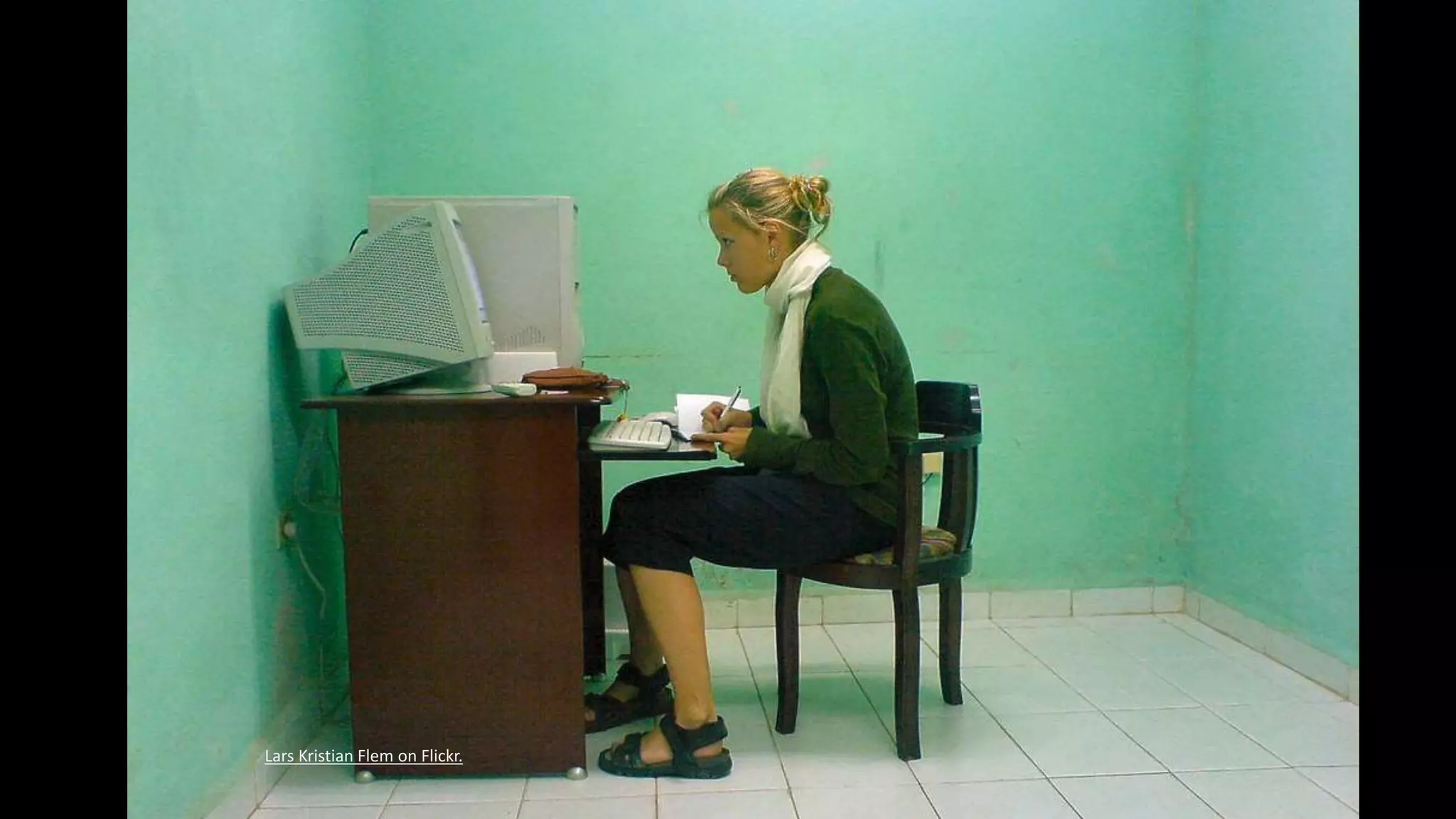
Lars Kristian Flem on Flickr.
Tech Support
• Think of your family!
• Think of your time spent helping them!
• Think of the wasted holidays!
This is why we hate the holidays.
Robert Simmons on Flickr.
Who Else?
• Everyone else
Look around.
Everyone Else!
User Experience Models
User Stories
• Components:
• User,
• Outcome,
• Value.
• Writing:
• As user, I want outcome.
• As user, I want outcome so that value.
• In order to get value as user, I want outcome.
How to Write User Stories for Web Accessibility
Selfish User Stories
• As a user on a sun-lit patio, I want to be able to
read the content and see the controls.
Add beer and as a user I may have trouble focusing.
Selfish User Stories
• As a user in bed with a sleeping spouse, I want to
watch a training video in silence so that I can get
caught up at work.
As a user who doesn’t want to get punched for having slacked off at work.
Selfish User Stories
• In order to click links as a user with no elbow room
in coach class with a tiny trackpad, I want click
areas to be large enough and adequately spaced.
As a user in coach class who also paid too much for the drink he’s spilling on his keyboard.
Selfish User Stories
• As a user distracted by the TV, I want clear
headings and labels so that I don’t lose my place.
As a user who really should be finishing his work in the office.
Personas
Book Excerpt: A Web for Everyone, by Sarah Horton, Whitney Quesenbery
Technical Bits
Text Alternatives for Images
• Can you still make sense of the page?
• Is content missing?
• Can you still use the site?
• Is your alt text useful?
• Do you account for CSS background images?
• What about SVGs?
• Or CSS-generated symbols / icons?
http://www.4syllables.com.au/2010/12/text-alternatives-decision-tree/
http://dev.w3.org/html5/alt-techniques/#tree
Text Alternatives for Images
Hyperlinks!
• Is there any “click here,” “more,” “link to…”?
• Are you using all-caps, URLs, emoticons?
• Do you warn before opening new windows?
• Do links to downloads provide helpful info?
• Are you using pagination links?
• Are your links underlined (or otherwise obvious)?
• Is there alt text for image links?
• Is the link text consistent?
http://adrianroselli.com/2014/03/i-dont-care-what-google-did-just-keep.html
Hyperlinks!
• You are not Google:
• Users know Google’s layout,
• Users probably don’t visit your site daily.
• Relying on color alone will not suffice (WCAG 1.4.1
[A], 1.4.3 [AA]),
• Necessary contrast values:
• 4.5:1 between text and its background for copy,
• 3:1 between text and its background for larger text,
• 3:1 between surrounding text and a hyperlink, plus an
additional visual cue (G183).
http://adrianroselli.com/2014/03/i-dont-care-what-google-did-just-keep.html
Hyperlinks!
http://www.sitepoint.com/15-rules-making-accessible-links/
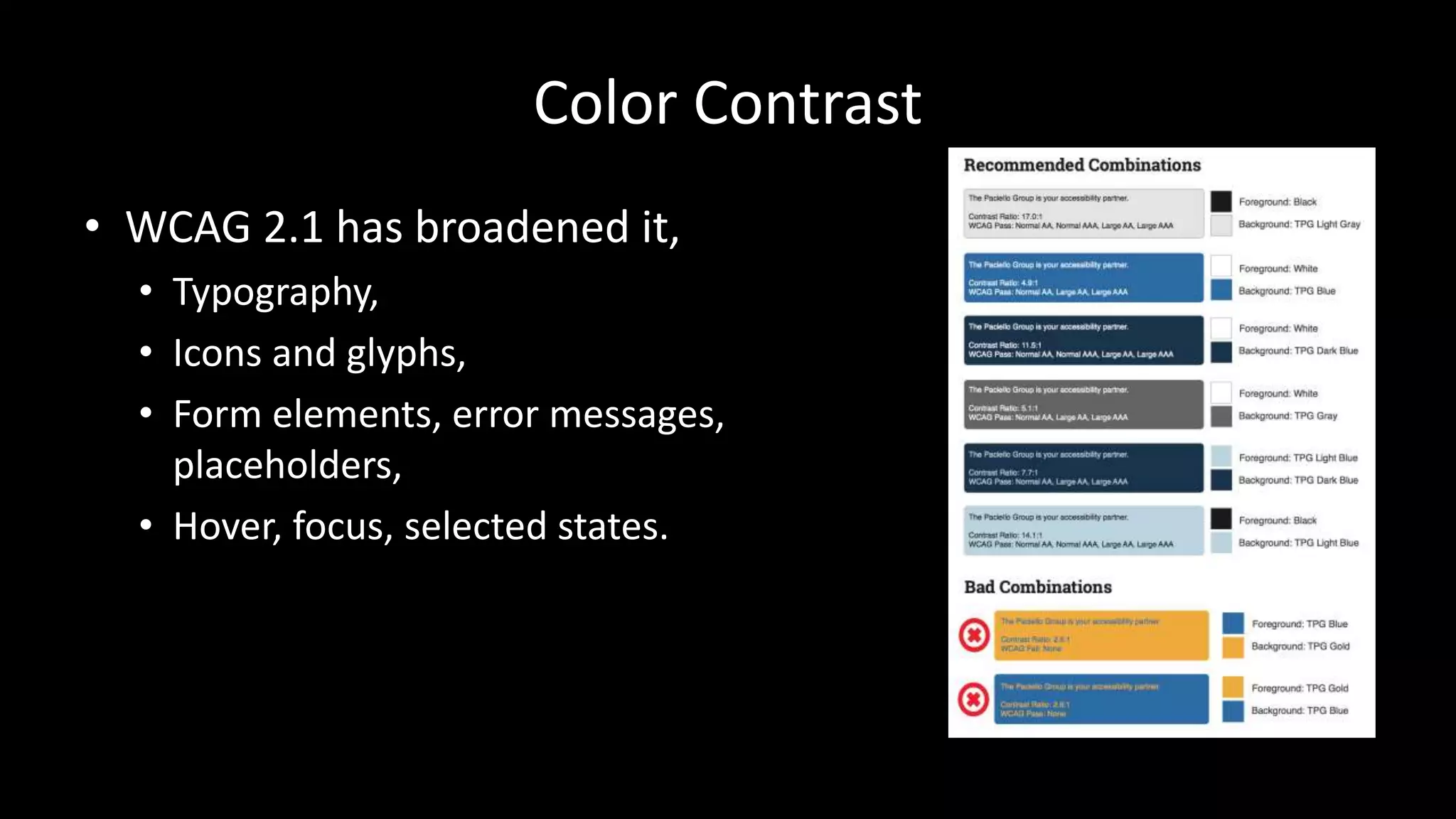
Color Contrast
• Is there enough contrast?
• Are hyperlinks, menus, etc. still visible?
• WCAG 2.0:
• 4.5:1 for normal text
• 3:1 for large text (14+pt & bold, or 18+pt)
• WCAG 2.1:
• 3:1 for UI components, graphical objects
Color Contrast
• WCAG 2.1 has broadened it,
• Typography,
• Icons and glyphs,
• Form elements, error messages,
placeholders,
• Hover, focus, selected states.
Label Your Fields
• Provide instructions for the entire form,
• Provide a programmatic indication of required fields,
• Provide formatting advice,
• Use ARIA to associate formatting advice,
• Avoid placeholder text,
• Associate error messages with fields.
Label Your Fields
• Match the for attribute to the corresponding field’s id
attribute.
• Label text provides a larger hit area for mouse / touch,
• Label text should appear above or the left of text inputs or
menus (for LTR languages),
• Label text should appear after checkboxes / radio buttons (for
LTR languages).
• Label grouped fields (<fieldset> / <legend>)
Label Your Fields
Structure Your Document
• Sectioning elements already have accessibility
built in. Use them.
• <header>
• <nav>
• <main> (one per page)
• <aside>
• <footer>
• <form> (a search form)
This stuff is baked in!
Structure Your Document
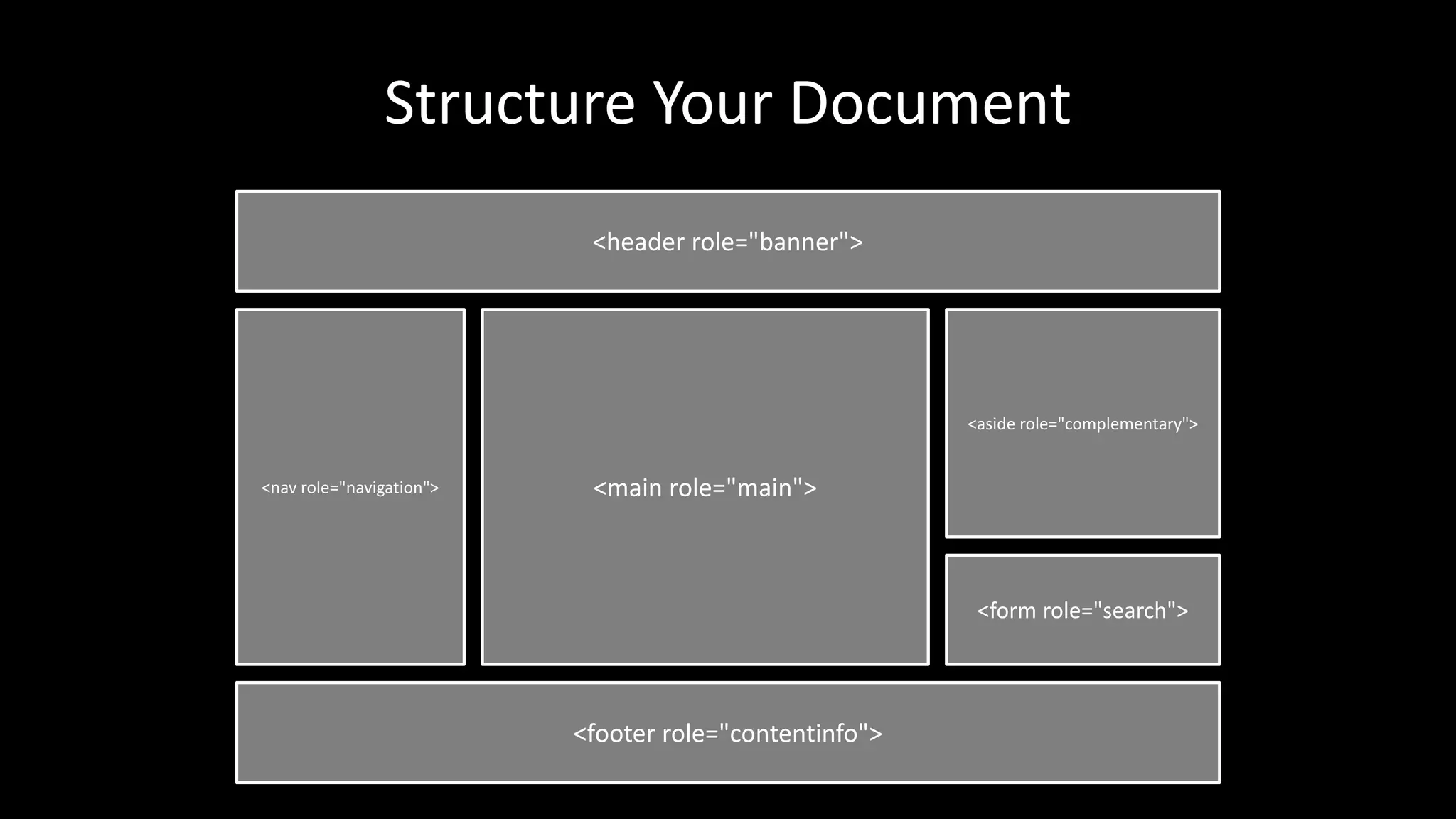
<header role="banner">
<nav role="navigation">
<aside role="complementary">
<form role="search">
<footer role="contentinfo">
<main role="main">
Structure Your
Document
“Mobile” often means narrow screen
in RWD, as well as this context.
<header role="banner">
<nav role="navigation">
<aside role="complementary">
<form role="search">
<footer role="contentinfo">
<main role="main">
“Mobile” often means narrow screen
in RWD, as well as this context.
Structure Your
Document
Structure Your Document
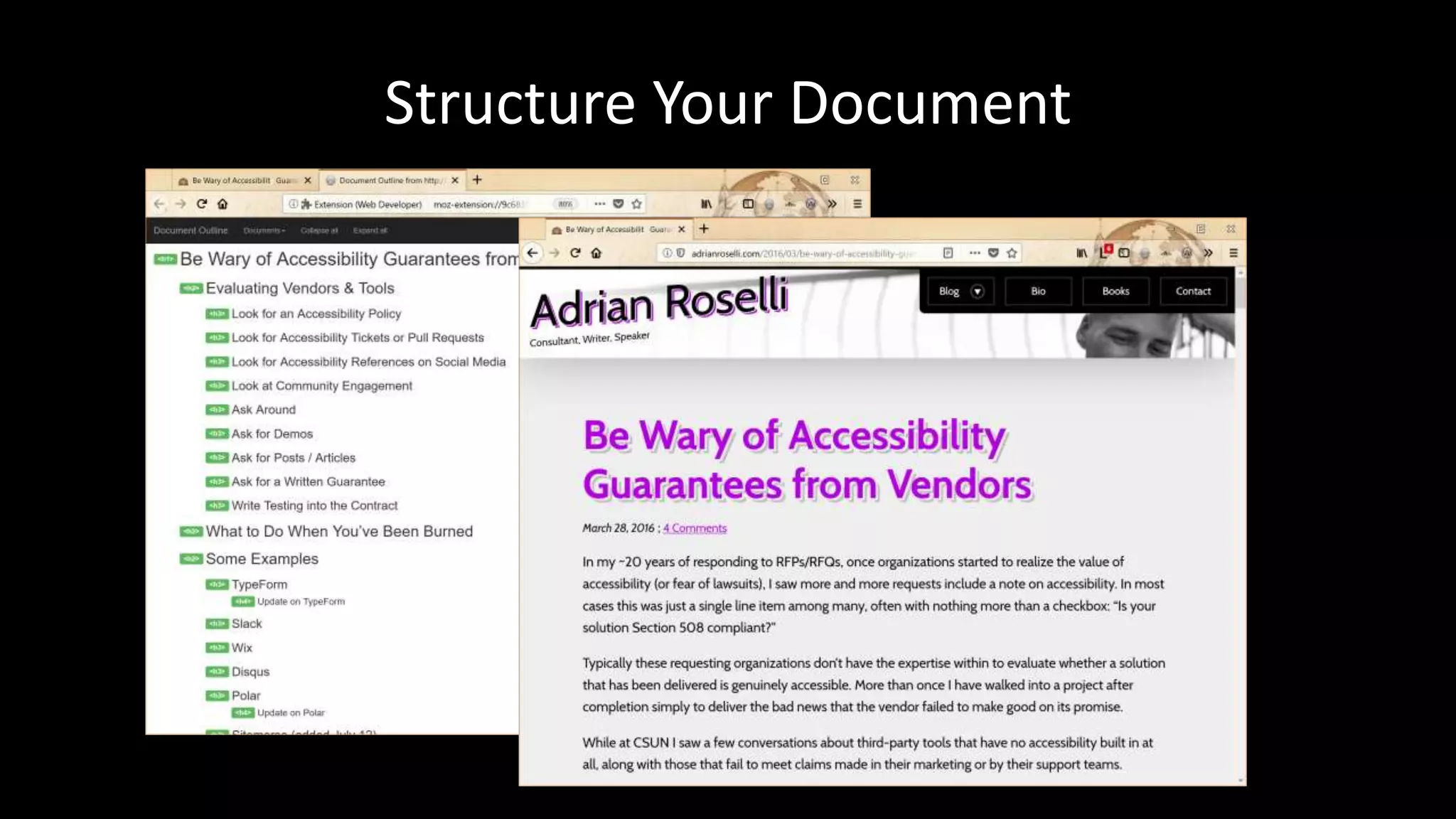
• Use only one <h1> per page,
• Don’t skip heading levels,
• Use appropriate nesting,
• There is no Document Outline Algorithm:
• Don’t use <h1> within every new <section> nor <article>,
• This will not affect your SEO.
http://adrianroselli.com/2013/12/the-truth-about-truth-about-multiple-h1.html
Structure Your Document
Be Keyboard Friendly
• Do you have scrolling content boxes?
• Keyboard users cannot access it.
• Do you have content that displays on hover?
• Keyboard users probably cannot access it.
• A technique:
• <div role="region" aria-label="[if appropriate]"
tabindex="0">
http://adrianroselli.com/2016/02/keyboard-and-overflow.html
Be Keyboard Friendly
http://adrianroselli.com/2016/02/keyboard-and-overflow.html
Be Keyboard Friendly
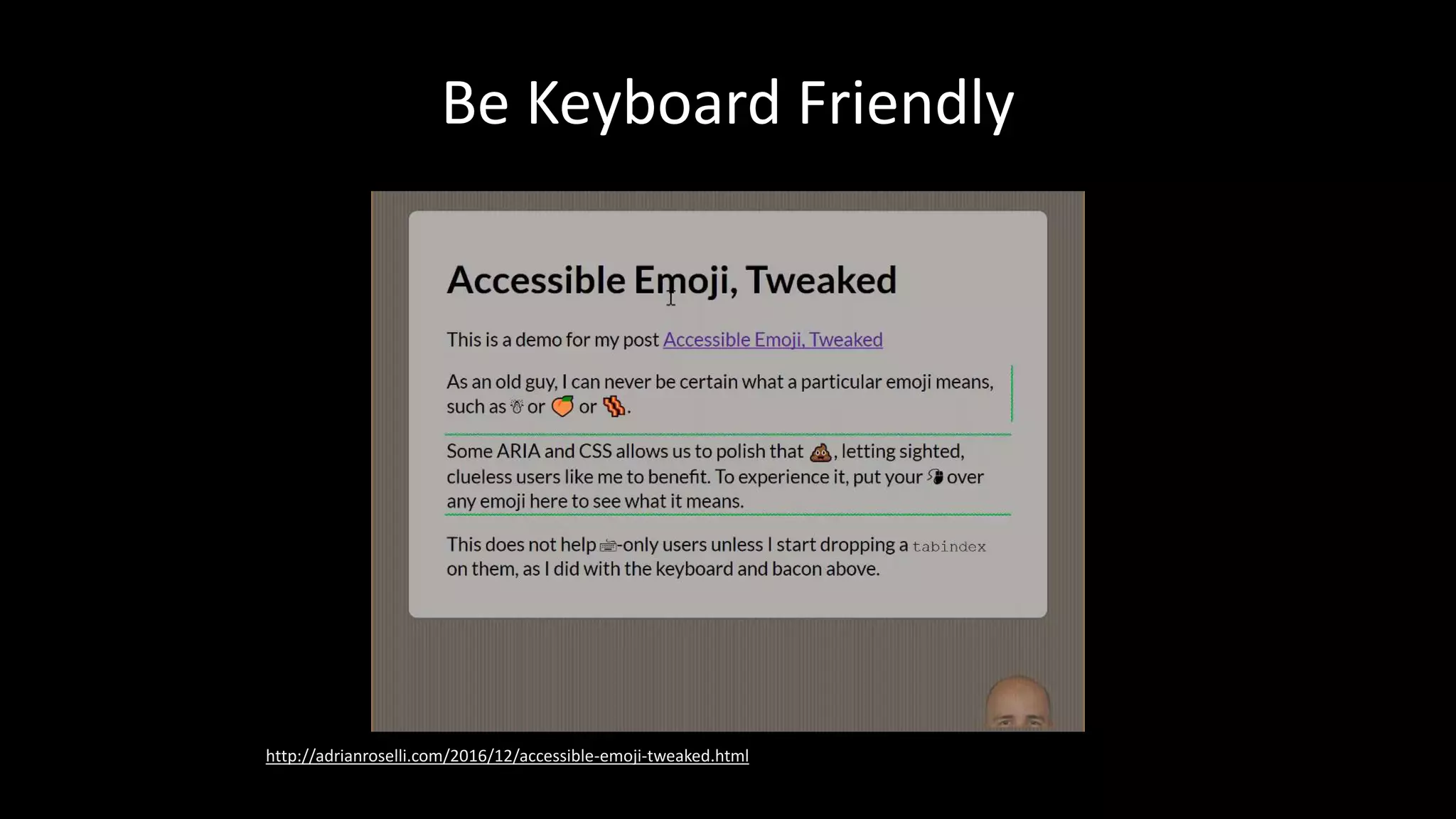
http://adrianroselli.com/2016/12/accessible-emoji-tweaked.html
Be Keyboard Friendly
• Do not use a <div> nor <span> as a control.
• Does the control take me to another URL?
• Use an <a href>.
• Note: does not fire on space-bar.
• Does the control change something on the current page?
• Use a <button type="button">.
• Does the control submit form fields?
• Use <input type="submit"> or <button type="submit">.
http://adrianroselli.com/2016/01/links-buttons-submits-and-divs-oh-hell.html
Be Keyboard Friendly
http://adrianroselli.com/2016/01/links-buttons-submits-and-divs-oh-hell.html
Be Keyboard Friendly
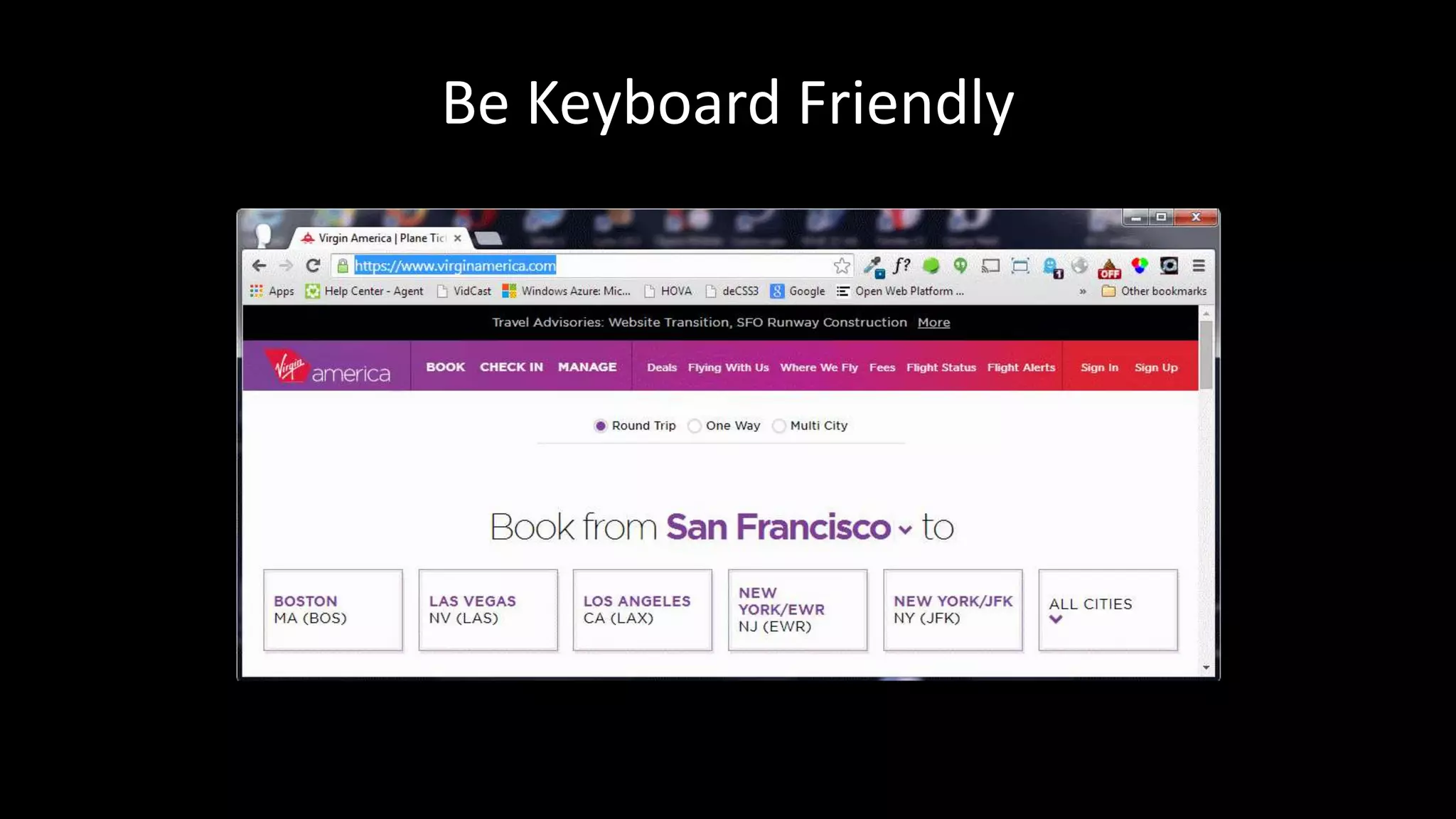
• Define :focus styles,
• Particularly if you removed link underlines,
• Everywhere you have :hover, add :focus,
• Look for :focus{outline:none;} in libraries:
• If you find it, remove it.
• Do not rely on browser defaults,
• Easy to test with the tab key.
http://adrianroselli.com/2014/06/keep-focus-outline.html
Be Keyboard Friendly
Wrap-up
The Message
• Supporting accessibility now helps to serve future
you.
Do or do not.
The Message
• Supporting accessibility now helps to serve future
you.
• Supporting accessibility now helps injured you,
encumbered you.
There is no try.
The Message
• Supporting accessibility now helps to serve future
you.
• Supporting accessibility now helps injured you,
encumbered you.
• Getting younger developers to buy in helps future
you – if you teach them well.
Always pass on what you have learned.
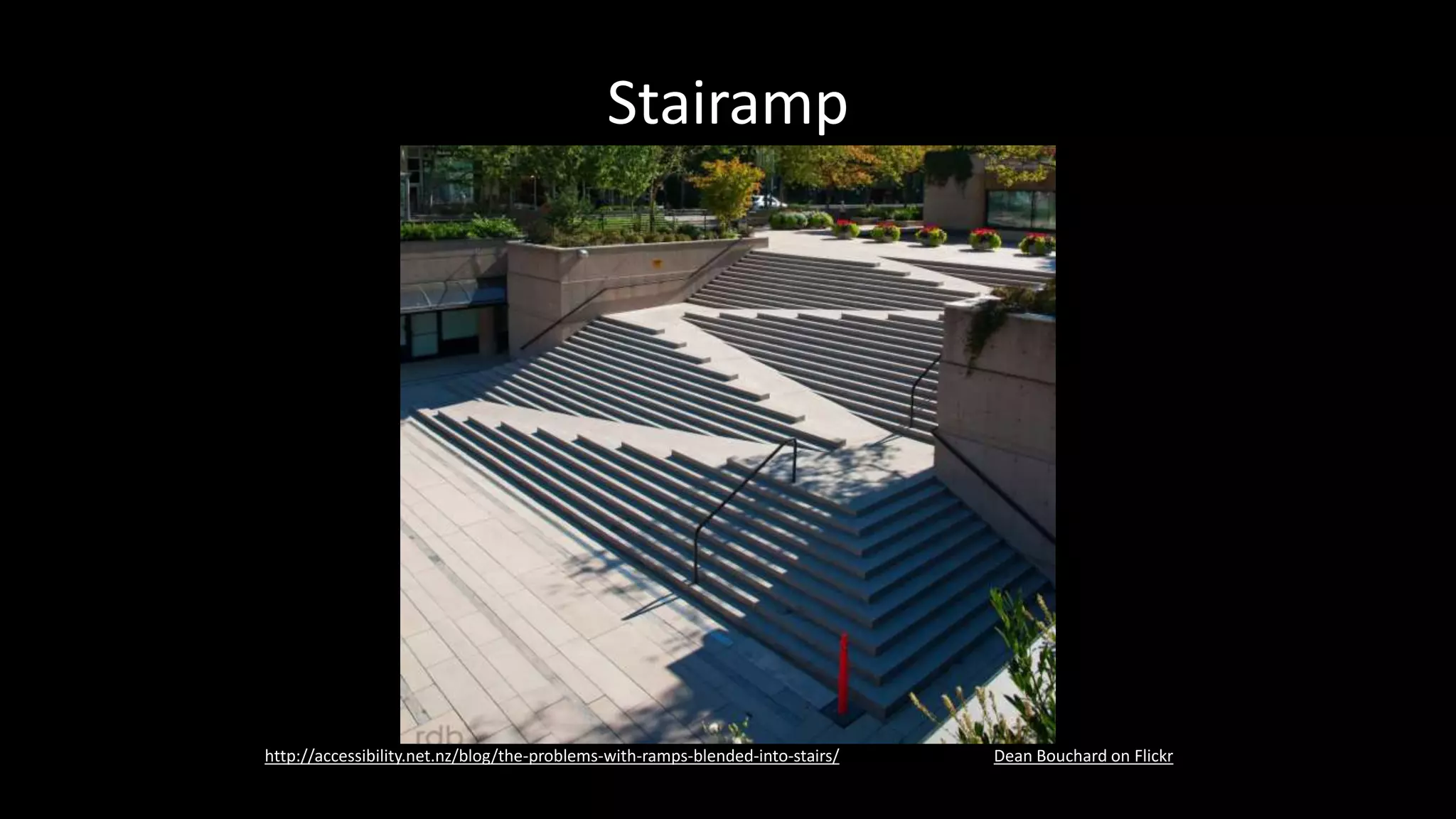
Stairamp
Dean Bouchard on Flickrhttp://accessibility.net.nz/blog/the-problems-with-ramps-blended-into-stairs/
≠ Checklist
• Accessibility is not a checklist.
Maintenance
Nicolas Steenhouthttps://twitter.com/vavroom/status/571092086365261824
“Wheelchair ramp at
pharmacy not only
hasn’t been cleared of
snow but has 2 potted
trees to ensure nobody
can pass.”
= Process
• Accessibility is not a checklist.
• Accessibility is an ongoing process.
Resources
Resources
• Web Accessibility and Older People:
Meeting the Needs of Ageing Web Users
http://www.w3.org/WAI/older-users/Overview.php
• Easy Checks - A First Review of Web Accessibility
http://www.w3.org/WAI/eval/preliminary
• How People with Disabilities Use the Web:
Overview
http://www.w3.org/WAI/intro/people-use-
web/Overview.html
Resources
• 2.11 ARIA Role, State, and Property Quick
Reference
http://www.w3.org/TR/aria-in-html/#aria-role-state-and-
property-quick-reference
• 2.12 Definitions of States and Properties (all aria-*
attributes)
http://www.w3.org/TR/aria-in-html/#definitions-of-
states-and-properties-all-aria--attributes
Resources
• Designing For The Elderly: Ways Older People Use
Digital Technology Differently
http://www.smashingmagazine.com/2015/02/05/designing-
digital-technology-for-the-elderly/
• How to Write User Stories for Web Accessibility
http://www.interactiveaccessibility.com/blog/how-write-
user-stories-accessibility-requirements
• Book Excerpt: A Web for Everyone
http://uxmag.com/articles/book-excerpt-a-web-for-
everyone
Presented by Adrian Roselli for Harbour Front
Vol. 230 October 2018
The Hive, Wan Chai, Hong Kong

Selfish Accessibility — Harbour Front HK

  • 1.
    Presented by AdrianRoselli for Harbour Front Vol. 230 October 2018 The Hive, Wan Chai, Hong Kong
  • 2.
  • 3.
    • I’ve writtensome stuff, • Member of W3C, • Building for the web since 1993, • Learn more at AdrianRoselli.com, • Avoid on Twitter @aardrian. About Adrian Roselli
  • 4.
  • 5.
    What is a11y? •A numeronym for “accessibility”: • The first and last letter (accessibility), • The number of characters omitted (a11y). • Prominent on Twitter (character restrictions): • #a11y • Examples: • l10n → localization • i18n → internationalization
  • 6.
  • 7.
  • 8.
    Any Disability • Inthe United States: • 10.4% aged 21-64 years old, • 25% aged 65-74 years old, • 50% aged 75+. • Includes: • Visual • Hearing • Mobility • Cognitive
  • 9.
    Vision Impairments • 285million worldwide: • 39 million are blind, • 246 million have low vision, • 82% of people living with blindness are aged 50 and above. • 1.8% of Americans aged 21-64. • 4.0% of Americans aged 65-74. • 9.8% of Americans aged 75+.
  • 10.
    Hearing Impairments • 360million people worldwide have disabling hearing loss. • 17% (36 million) of American adults report some degree of hearing loss: • 18% aged 45-64 years old, • 30% aged 65-74 years old, • 47% aged 75+ years old.
  • 11.
    Mobility Impairments • Inthe United States: • 5.5% aged 21-64 years old. • 15.6% aged 65-74 years old. • 32.9% aged 75+.
  • 12.
    Cognitive Impairments • Dyslexia, •Dyscalculia, • Memory issues, • Distractions (ADD, ADHD), • In the United States: • 4.3% aged 21-64 years old. • 5.4% aged 65-74 years old. • 14.4% aged 75+.
  • 13.
  • 14.
    WebAIM’s Hierarchy forMotivating Accessibility Change
  • 15.
    My Hierarchy forMotivating Accessibility Change
  • 16.
    Getting Older • Affects(nearly) everyone, • Carries risks and side effects, • Is not for the young. I’m still experimenting with it.
  • 17.
  • 18.
  • 19.
    Accidents • Broken limbs, •Eye injuries, • Hearing injuries, • Head trauma. All of these have happened to me, multiple times.
  • 20.
    Rev Stan onFlickr.
  • 21.
  • 22.
  • 23.
    But I’m Invincible! •Multi-tasking, • Sunlight, • Eating at your desk, • No headphones handy, • Content is not in your native language. The sun is trying to kill me.
  • 24.
  • 25.
  • 26.
  • 27.
  • 28.
  • 29.
  • 30.
    Tech Support • Thinkof your family! • Think of your time spent helping them! • Think of the wasted holidays! This is why we hate the holidays.
  • 31.
  • 32.
    Who Else? • Everyoneelse Look around.
  • 33.
  • 34.
  • 35.
    User Stories • Components: •User, • Outcome, • Value. • Writing: • As user, I want outcome. • As user, I want outcome so that value. • In order to get value as user, I want outcome. How to Write User Stories for Web Accessibility
  • 36.
    Selfish User Stories •As a user on a sun-lit patio, I want to be able to read the content and see the controls. Add beer and as a user I may have trouble focusing.
  • 37.
    Selfish User Stories •As a user in bed with a sleeping spouse, I want to watch a training video in silence so that I can get caught up at work. As a user who doesn’t want to get punched for having slacked off at work.
  • 38.
    Selfish User Stories •In order to click links as a user with no elbow room in coach class with a tiny trackpad, I want click areas to be large enough and adequately spaced. As a user in coach class who also paid too much for the drink he’s spilling on his keyboard.
  • 39.
    Selfish User Stories •As a user distracted by the TV, I want clear headings and labels so that I don’t lose my place. As a user who really should be finishing his work in the office.
  • 40.
    Personas Book Excerpt: AWeb for Everyone, by Sarah Horton, Whitney Quesenbery
  • 41.
  • 42.
    Text Alternatives forImages • Can you still make sense of the page? • Is content missing? • Can you still use the site? • Is your alt text useful? • Do you account for CSS background images? • What about SVGs? • Or CSS-generated symbols / icons? http://www.4syllables.com.au/2010/12/text-alternatives-decision-tree/ http://dev.w3.org/html5/alt-techniques/#tree
  • 43.
  • 44.
  • 45.
    Hyperlinks! • Is thereany “click here,” “more,” “link to…”? • Are you using all-caps, URLs, emoticons? • Do you warn before opening new windows? • Do links to downloads provide helpful info? • Are you using pagination links? • Are your links underlined (or otherwise obvious)? • Is there alt text for image links? • Is the link text consistent? http://adrianroselli.com/2014/03/i-dont-care-what-google-did-just-keep.html
  • 46.
    Hyperlinks! • You arenot Google: • Users know Google’s layout, • Users probably don’t visit your site daily. • Relying on color alone will not suffice (WCAG 1.4.1 [A], 1.4.3 [AA]), • Necessary contrast values: • 4.5:1 between text and its background for copy, • 3:1 between text and its background for larger text, • 3:1 between surrounding text and a hyperlink, plus an additional visual cue (G183). http://adrianroselli.com/2014/03/i-dont-care-what-google-did-just-keep.html
  • 47.
  • 48.
    Color Contrast • Isthere enough contrast? • Are hyperlinks, menus, etc. still visible? • WCAG 2.0: • 4.5:1 for normal text • 3:1 for large text (14+pt & bold, or 18+pt) • WCAG 2.1: • 3:1 for UI components, graphical objects
  • 49.
    Color Contrast • WCAG2.1 has broadened it, • Typography, • Icons and glyphs, • Form elements, error messages, placeholders, • Hover, focus, selected states.
  • 50.
    Label Your Fields •Provide instructions for the entire form, • Provide a programmatic indication of required fields, • Provide formatting advice, • Use ARIA to associate formatting advice, • Avoid placeholder text, • Associate error messages with fields.
  • 51.
    Label Your Fields •Match the for attribute to the corresponding field’s id attribute. • Label text provides a larger hit area for mouse / touch, • Label text should appear above or the left of text inputs or menus (for LTR languages), • Label text should appear after checkboxes / radio buttons (for LTR languages). • Label grouped fields (<fieldset> / <legend>)
  • 52.
  • 53.
    Structure Your Document •Sectioning elements already have accessibility built in. Use them. • <header> • <nav> • <main> (one per page) • <aside> • <footer> • <form> (a search form) This stuff is baked in!
  • 54.
  • 55.
    Structure Your Document <headerrole="banner"> <nav role="navigation"> <aside role="complementary"> <form role="search"> <footer role="contentinfo"> <main role="main">
  • 56.
    Structure Your Document “Mobile” oftenmeans narrow screen in RWD, as well as this context.
  • 57.
    <header role="banner"> <nav role="navigation"> <asiderole="complementary"> <form role="search"> <footer role="contentinfo"> <main role="main"> “Mobile” often means narrow screen in RWD, as well as this context. Structure Your Document
  • 58.
    Structure Your Document •Use only one <h1> per page, • Don’t skip heading levels, • Use appropriate nesting, • There is no Document Outline Algorithm: • Don’t use <h1> within every new <section> nor <article>, • This will not affect your SEO. http://adrianroselli.com/2013/12/the-truth-about-truth-about-multiple-h1.html
  • 59.
  • 60.
    Be Keyboard Friendly •Do you have scrolling content boxes? • Keyboard users cannot access it. • Do you have content that displays on hover? • Keyboard users probably cannot access it. • A technique: • <div role="region" aria-label="[if appropriate]" tabindex="0"> http://adrianroselli.com/2016/02/keyboard-and-overflow.html
  • 61.
  • 62.
  • 63.
    Be Keyboard Friendly •Do not use a <div> nor <span> as a control. • Does the control take me to another URL? • Use an <a href>. • Note: does not fire on space-bar. • Does the control change something on the current page? • Use a <button type="button">. • Does the control submit form fields? • Use <input type="submit"> or <button type="submit">. http://adrianroselli.com/2016/01/links-buttons-submits-and-divs-oh-hell.html
  • 64.
  • 65.
    Be Keyboard Friendly •Define :focus styles, • Particularly if you removed link underlines, • Everywhere you have :hover, add :focus, • Look for :focus{outline:none;} in libraries: • If you find it, remove it. • Do not rely on browser defaults, • Easy to test with the tab key. http://adrianroselli.com/2014/06/keep-focus-outline.html
  • 66.
  • 67.
  • 68.
  • 69.
    The Message • Supportingaccessibility now helps to serve future you. Do or do not.
  • 70.
    The Message • Supportingaccessibility now helps to serve future you. • Supporting accessibility now helps injured you, encumbered you. There is no try.
  • 71.
    The Message • Supportingaccessibility now helps to serve future you. • Supporting accessibility now helps injured you, encumbered you. • Getting younger developers to buy in helps future you – if you teach them well. Always pass on what you have learned.
  • 72.
    Stairamp Dean Bouchard onFlickrhttp://accessibility.net.nz/blog/the-problems-with-ramps-blended-into-stairs/
  • 73.
  • 74.
    Maintenance Nicolas Steenhouthttps://twitter.com/vavroom/status/571092086365261824 “Wheelchair rampat pharmacy not only hasn’t been cleared of snow but has 2 potted trees to ensure nobody can pass.”
  • 75.
    = Process • Accessibilityis not a checklist. • Accessibility is an ongoing process.
  • 76.
  • 77.
    Resources • Web Accessibilityand Older People: Meeting the Needs of Ageing Web Users http://www.w3.org/WAI/older-users/Overview.php • Easy Checks - A First Review of Web Accessibility http://www.w3.org/WAI/eval/preliminary • How People with Disabilities Use the Web: Overview http://www.w3.org/WAI/intro/people-use- web/Overview.html
  • 78.
    Resources • 2.11 ARIARole, State, and Property Quick Reference http://www.w3.org/TR/aria-in-html/#aria-role-state-and- property-quick-reference • 2.12 Definitions of States and Properties (all aria-* attributes) http://www.w3.org/TR/aria-in-html/#definitions-of- states-and-properties-all-aria--attributes
  • 79.
    Resources • Designing ForThe Elderly: Ways Older People Use Digital Technology Differently http://www.smashingmagazine.com/2015/02/05/designing- digital-technology-for-the-elderly/ • How to Write User Stories for Web Accessibility http://www.interactiveaccessibility.com/blog/how-write- user-stories-accessibility-requirements • Book Excerpt: A Web for Everyone http://uxmag.com/articles/book-excerpt-a-web-for- everyone
  • 80.
    Presented by AdrianRoselli for Harbour Front Vol. 230 October 2018 The Hive, Wan Chai, Hong Kong

Editor's Notes

  • #7 1980 definition: “In the context of health experience, a disability is any restriction or lack of ability (resulting from an impairment) to perform an activity in the manner or within the range considered normal for a human being.”
  • #18 As evidenced by how few young people are old
  • #21 As evidenced by how few young people are old
  • #32 You probably have some comfort level with technology
  • #35 Our inclusive design principles Recognize exclusion Exclusion happens when we solve problems using our own biases. As Microsoft designers, we seek out those exclusions, and use them as opportunities to create new ideas and inclusive designs. Learn from diversity Human beings are the real experts in adapting to diversity. Inclusive design puts people in the center from the very start of the process, and those fresh, diverse perspectives are the key to true insight. Solve for one, extend to many Everyone has abilities, and limits to those abilities. Designing for people with permanent disabilities actually results in designs that benefit people universally. Constraints are a beautiful thing.
  • #43 Fly thought this section.
  • #68 Screen shot of a link with the blue Chrome focus ring on the blue background of the Chrome help page.