# load libraries, scripts, data
shinyServer(function(input, output) {
# make user specific variables
output$text <- renderText({
input$title
})
output$plot <- renderPlot({
x <- mtcars[ , input$x]
y <- mtcars[ , input$y]
plot(x, y, pch = 16)
})
})
Shiny Cheat Sheet
learn more at shiny.rstudio.com
Shiny 0.10.0 Updated: 6/14
1. Structure Each app is a directory that
contains a server.R file and usually a ui.R file
(plus optional extra files)
app-name
!
!
!
!
!
.r
.r
"
server.R
ui.R
DESCRIPTION
README
<other files>
www
(optional) used in
showcase mode
(optional) data,
scripts, etc.
(optional) directory of files to share with
web browsers (images, CSS, .js, etc.)
Must be named "www"
The directory name is
the name of the app
C
B
D
E
F
A
3. Execution Place code where it will be
run the minimum necessary number of times
server.R
Run once - code placed outside of shinyServer will be run
once, when you first launch your app. Use this code to set
up the tools that your server will only need one copy of.
Run once per user - code placed inside shinyServer will
be run once each time a user visits your app (or refreshes
his or her browser). Use this code to set up the tools that
your server will need a unique copy of for each user.
Run often - code placed within a render*, reactive, or
observe function will be run many times. Place here only the
code that the server needs to rebuild a UI component after a
widget changes.
4. Reactivity When an
input changes, the server
will rebuild each output that
depends on it (even if the
dependence is indirect). You
can control this behavior by
shaping the chain of
dependence.
Reactive expression - use reactive to
create objects that will be used in
multiple outputs.
isolate - use use isolate to use an input
without depending on it. Shiny will not
rebuild the output when the isolated
input changes.
render* - An output will automatically
update whenever an input in its
render* function changes.
output$z <- renderText({
input$a
})
x <- reactive({
input$a
})
output$y <- renderText({
x()
})
output$z <- renderText({
x()
})
output$z <- renderText({
paste(
isolate(input$a),
input$b
)
)
input$a output$z input$a x
output$y
output$z
input$a
input$b
output$z
observe - use observe to create code
that runs when an input changes, but
does not create an output object.
input$a observer
observe({
input$a
# code to run
})
RStudio® and Shiny™ are trademarks of RStudio, Inc.
CC BY RStudio info@rstudio.com
844-448-1212 rstudio.com
2. server.R A set of instructions that build
the R components of your app. To write server.R:
• Provide server.R with the minimum necessary code,
shinyServer(function(input, output) {})
• Define the R components for your app between the
braces that follow function(input, output)
• Save each R component in your UI as
output$<component name>
• Create each output component with a render*
function.
• Give each render* function the R code the server
needs to build the component. The server will note
any reactive values that appear in the code and will
rebuild the component whenever these values
change.
• Refer to widget values with input$<widget name>
A
B
C
D
F
E
renderDataTable any table-like object DataTables.js table
renderImage list of image attributes HTML image
renderPlot plot plot
renderPrint any printed output text
renderTable any table-like object plain table
renderText character string text
renderUI Shiny tag object or
HTML
UI element (HTML)
function expects creates
render* functions
input values are reactive.
They must be surrounded with one of:
render* - creates a shiny UI component
reactive - creates a reactive expression
observe - creates a reactive observer
isolate - creates a non-reactive copy of a reactive object
ui.R
shinyUI(fluidPage(
titlePanel("mtcars data"),
sidebarLayout(
sidebarPanel(
textInput("title", "Plot title:",
value = "x v y"),
selectInput("x", "Choose an x var:",
choices = names(mtcars),
selected = "disp"),
selectInput("y", "Choose a y var:",
choices = names(mtcars),
selected = "mpg")
),
mainPanel(
h3(textOutput("text")),
plotOutput("plot")
)
)
))
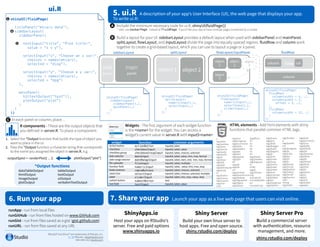
5. ui.R A description of your app’s User Interface (UI), the web page that displays your app.
To write ui.R:
creates
7. Share your app Launch your app as a live web page that users can visit online.6. Run your app
runApp - run from local files
runGitHub - run from files hosted on www.GitHub.com
runGist - run from files saved as a gist (gist.github.com)
runURL - run from files saved at any URL
ShinyApps.io
Host your apps on RStudio’s
server. Free and paid options
www.shinyapps.io
Shiny Server
Build your own linux server to
host apps. Free and open source.
shiny.rstudio.com/deploy
Shiny Server Pro
Build a commercial server
with authentication, resource
management, and more.
shiny.rstudio.com/deploy
• Include the minimum necessary code for ui.R, shinyUI(fluidPage())
* note: use navbarPage instead of fluidPage if you’d like your app to have multiple pages connected by a navbar
• Build a layout for your UI. sidebarLayout provides a default layout when used with sidebarPanel and mainPanel.
splitLayout, flowLayout, and inputLayout divide the page into equally spaced regions. fluidRow and column work
together to create a grid-based layout, which you can use to layout a page or a panel.
sidebarLayout
shinyUI(fluidPage(
sidebarLayout(
sidebarPanel(…),
mainPanel(…)
)
))
side
panel
fluidRow
shinyUI(fluidPage(
fluidRow(
column(width = 4, …),
column(width = 2,
offset = 3, …),
),
fluidRow(
column(width = 12, …)
)
))
main
panel
row
column
column col
HTML elements - Add html elements with shiny
functions that parallel common HTML tags.
• Widgets - The first argument of each widget function
is the <name> for the widget. You can access a
widget’s current value in server.R with input$<name>
Action button
checkbox
checkbox group
date selector
date range selector
file uploader
Number field
Radio buttons
select box
slider
submit button
text field
output$plot <- renderPlot({ ... }) plotOutput("plot")
R components - These are the output objects that
you defined in server.R. To place a component:
a
tags$abbr
tags$address
tags$area
tags$article
tags$aside
tags$audio
tags$b
tags$base
tags$bdi
tags$bdo
tags$blockquote
tags$body
br
tags$button
tags$canvas
tags$caption
tags$cite
code
tags$col
tags$colgroup
tags$command
tags$data
tags$datalist
tags$dd
tags$del
tags$details
tags$dfn
div
tags$dl
tags$dt
em
tags$embed
tags$eventsource
tags$fieldset
tags$figcaption
tags$figure
tags$footer
tags$form
h1
h2
h3
h4
h5
h6
tags$head
tags$header
tags$hgroup
hr
HTML
tags$i
tags$iframe
img
includeCSS
includeMarkdo
wn
includeScript
tags$input
tags$ins
tags$kbd
tags$keygen
tags$label
tags$legend
tags$li
tags$link
tags$mark
tags$map
tags$menu
tags$meta
tags$meter
tags$nav
tags$noscript
tags$object
tags$ol
tags$optgroup
tags$option
tags$output
p
tags$param
pre
tags$progress
tags$q
tags$ruby
tags$rp
tags$rt
tags$s
tags$samp
tags$script
tags$section
tags$select
tags$small
tags$source
span
strong
tags$style
tags$sub
tags$summary
tags$sup
tags$table
tags$tbody
tags$td
tags$textarea
tags$tfoot
tags$th
tags$thead
tags$time
tags$title
tags$tr
tags$track
tags$u
tags$ul
tags$var
tags$video
tags$wbr
In each panel or column, place…
1. Select the *Output function that builds the type of object you
want to place in the UI.
2. Pass the *Output function a character string that corresponds
to the name you assigned the object in server.R, e.g.
dataTableOutput
htmlOutput
imageOutput
plotOutput
tableOutput
textOutput
uiOutput
verbatimTextOutput
*Output functions
RStudio® and Shiny™ are trademarks of RStudio, Inc.
CC BY RStudio info@rstudio.com
844-448-1212 rstudio.com
actionButton
checkboxInput
checkboxGroupInput
dateInput
dateRangeInput
fileInput
numericInput
radioButtons
selectInput
sliderInput
submitButton
textInput
inputId, label
inputId, label, value
inputId, label, choices, selected
inputId, label, value, min, max, format
inputId, label, start, end, min, max, format
inputId, label, multiple
inputId, label, value, min, max, step
inputId, label, choices, selected
inputId, label, choices, selected, multiple
inputId, label, min, max, value, step
text
inputId, label, value
functionwidget common arguments
A
B
C
C
A
B
splitLayout flowLayout/inputPanel
shinyUI(fluidPage(
flowLayout(
numericInput(…),
selectInput(…),
sliderInput(…)
)
))
object
1
object
2
object
3
object
3
object 1 object 2
shinyUI(fluidPage(
splitLayout(
numericInput(…),
selectInput(…)
)
))

R-Shiny Cheat sheet

  • 1.
    # load libraries,scripts, data shinyServer(function(input, output) { # make user specific variables output$text <- renderText({ input$title }) output$plot <- renderPlot({ x <- mtcars[ , input$x] y <- mtcars[ , input$y] plot(x, y, pch = 16) }) }) Shiny Cheat Sheet learn more at shiny.rstudio.com Shiny 0.10.0 Updated: 6/14 1. Structure Each app is a directory that contains a server.R file and usually a ui.R file (plus optional extra files) app-name ! ! ! ! ! .r .r " server.R ui.R DESCRIPTION README <other files> www (optional) used in showcase mode (optional) data, scripts, etc. (optional) directory of files to share with web browsers (images, CSS, .js, etc.) Must be named "www" The directory name is the name of the app C B D E F A 3. Execution Place code where it will be run the minimum necessary number of times server.R Run once - code placed outside of shinyServer will be run once, when you first launch your app. Use this code to set up the tools that your server will only need one copy of. Run once per user - code placed inside shinyServer will be run once each time a user visits your app (or refreshes his or her browser). Use this code to set up the tools that your server will need a unique copy of for each user. Run often - code placed within a render*, reactive, or observe function will be run many times. Place here only the code that the server needs to rebuild a UI component after a widget changes. 4. Reactivity When an input changes, the server will rebuild each output that depends on it (even if the dependence is indirect). You can control this behavior by shaping the chain of dependence. Reactive expression - use reactive to create objects that will be used in multiple outputs. isolate - use use isolate to use an input without depending on it. Shiny will not rebuild the output when the isolated input changes. render* - An output will automatically update whenever an input in its render* function changes. output$z <- renderText({ input$a }) x <- reactive({ input$a }) output$y <- renderText({ x() }) output$z <- renderText({ x() }) output$z <- renderText({ paste( isolate(input$a), input$b ) ) input$a output$z input$a x output$y output$z input$a input$b output$z observe - use observe to create code that runs when an input changes, but does not create an output object. input$a observer observe({ input$a # code to run }) RStudio® and Shiny™ are trademarks of RStudio, Inc. CC BY RStudio info@rstudio.com 844-448-1212 rstudio.com 2. server.R A set of instructions that build the R components of your app. To write server.R: • Provide server.R with the minimum necessary code, shinyServer(function(input, output) {}) • Define the R components for your app between the braces that follow function(input, output) • Save each R component in your UI as output$<component name> • Create each output component with a render* function. • Give each render* function the R code the server needs to build the component. The server will note any reactive values that appear in the code and will rebuild the component whenever these values change. • Refer to widget values with input$<widget name> A B C D F E renderDataTable any table-like object DataTables.js table renderImage list of image attributes HTML image renderPlot plot plot renderPrint any printed output text renderTable any table-like object plain table renderText character string text renderUI Shiny tag object or HTML UI element (HTML) function expects creates render* functions input values are reactive. They must be surrounded with one of: render* - creates a shiny UI component reactive - creates a reactive expression observe - creates a reactive observer isolate - creates a non-reactive copy of a reactive object
  • 2.
    ui.R shinyUI(fluidPage( titlePanel("mtcars data"), sidebarLayout( sidebarPanel( textInput("title", "Plottitle:", value = "x v y"), selectInput("x", "Choose an x var:", choices = names(mtcars), selected = "disp"), selectInput("y", "Choose a y var:", choices = names(mtcars), selected = "mpg") ), mainPanel( h3(textOutput("text")), plotOutput("plot") ) ) )) 5. ui.R A description of your app’s User Interface (UI), the web page that displays your app. To write ui.R: creates 7. Share your app Launch your app as a live web page that users can visit online.6. Run your app runApp - run from local files runGitHub - run from files hosted on www.GitHub.com runGist - run from files saved as a gist (gist.github.com) runURL - run from files saved at any URL ShinyApps.io Host your apps on RStudio’s server. Free and paid options www.shinyapps.io Shiny Server Build your own linux server to host apps. Free and open source. shiny.rstudio.com/deploy Shiny Server Pro Build a commercial server with authentication, resource management, and more. shiny.rstudio.com/deploy • Include the minimum necessary code for ui.R, shinyUI(fluidPage()) * note: use navbarPage instead of fluidPage if you’d like your app to have multiple pages connected by a navbar • Build a layout for your UI. sidebarLayout provides a default layout when used with sidebarPanel and mainPanel. splitLayout, flowLayout, and inputLayout divide the page into equally spaced regions. fluidRow and column work together to create a grid-based layout, which you can use to layout a page or a panel. sidebarLayout shinyUI(fluidPage( sidebarLayout( sidebarPanel(…), mainPanel(…) ) )) side panel fluidRow shinyUI(fluidPage( fluidRow( column(width = 4, …), column(width = 2, offset = 3, …), ), fluidRow( column(width = 12, …) ) )) main panel row column column col HTML elements - Add html elements with shiny functions that parallel common HTML tags. • Widgets - The first argument of each widget function is the <name> for the widget. You can access a widget’s current value in server.R with input$<name> Action button checkbox checkbox group date selector date range selector file uploader Number field Radio buttons select box slider submit button text field output$plot <- renderPlot({ ... }) plotOutput("plot") R components - These are the output objects that you defined in server.R. To place a component: a tags$abbr tags$address tags$area tags$article tags$aside tags$audio tags$b tags$base tags$bdi tags$bdo tags$blockquote tags$body br tags$button tags$canvas tags$caption tags$cite code tags$col tags$colgroup tags$command tags$data tags$datalist tags$dd tags$del tags$details tags$dfn div tags$dl tags$dt em tags$embed tags$eventsource tags$fieldset tags$figcaption tags$figure tags$footer tags$form h1 h2 h3 h4 h5 h6 tags$head tags$header tags$hgroup hr HTML tags$i tags$iframe img includeCSS includeMarkdo wn includeScript tags$input tags$ins tags$kbd tags$keygen tags$label tags$legend tags$li tags$link tags$mark tags$map tags$menu tags$meta tags$meter tags$nav tags$noscript tags$object tags$ol tags$optgroup tags$option tags$output p tags$param pre tags$progress tags$q tags$ruby tags$rp tags$rt tags$s tags$samp tags$script tags$section tags$select tags$small tags$source span strong tags$style tags$sub tags$summary tags$sup tags$table tags$tbody tags$td tags$textarea tags$tfoot tags$th tags$thead tags$time tags$title tags$tr tags$track tags$u tags$ul tags$var tags$video tags$wbr In each panel or column, place… 1. Select the *Output function that builds the type of object you want to place in the UI. 2. Pass the *Output function a character string that corresponds to the name you assigned the object in server.R, e.g. dataTableOutput htmlOutput imageOutput plotOutput tableOutput textOutput uiOutput verbatimTextOutput *Output functions RStudio® and Shiny™ are trademarks of RStudio, Inc. CC BY RStudio info@rstudio.com 844-448-1212 rstudio.com actionButton checkboxInput checkboxGroupInput dateInput dateRangeInput fileInput numericInput radioButtons selectInput sliderInput submitButton textInput inputId, label inputId, label, value inputId, label, choices, selected inputId, label, value, min, max, format inputId, label, start, end, min, max, format inputId, label, multiple inputId, label, value, min, max, step inputId, label, choices, selected inputId, label, choices, selected, multiple inputId, label, min, max, value, step text inputId, label, value functionwidget common arguments A B C C A B splitLayout flowLayout/inputPanel shinyUI(fluidPage( flowLayout( numericInput(…), selectInput(…), sliderInput(…) ) )) object 1 object 2 object 3 object 3 object 1 object 2 shinyUI(fluidPage( splitLayout( numericInput(…), selectInput(…) ) ))