Quick Start Guide
New to Excel? Use this guide to learn the basics.
Quick Access Toolbar
Keep favorite commands
permanently visible.
Explore the ribbon
See what Excel can do by selecting the
ribbon tabs and exploring available tools.
Share your work with others
Invite other people to view and
edit cloud-based workbooks.
Excel
Discover contextual commands
Select tables, charts, or other objects
in a workbook to reveal additional tabs.
Find whatever you need
Look up Excel commands,
get Help, or search the Web.
Switch or create sheets
Select the + next to thee sheet
tabs to switch between workbook
sheets or to create new ones.
Insert and edit functions
Use the formula bar to view or
edit the selected cell or to insert
functions into your formulas.
Customize charts
Select a chart to quickly add,
change, or remove any existing
chart elements and formatting.
Change your view
Select the status bar buttons to
switch between view options,
or use the zoom slider to
magnify the sheet display to
your liking.
Show or hide the ribbon
Select the pin icon to keep the
ribbon displayed, or hide it
again by selecting the arrow.
Excel
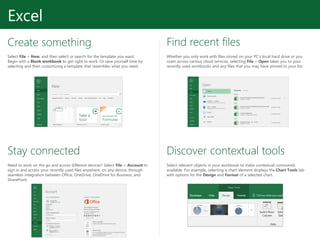
Create something
Select File > New, and then select or search for the template you want.
Begin with a Blank workbook to get right to work. Or save yourself time by
selecting and then customizing a template that resembles what you need.
Find recent files
Whether you only work with files stored on your PC’s local hard drive or you
roam across various cloud services, selecting File > Open takes you to your
recently used workbooks and any files that you may have pinned to your list.
Stay connected
Need to work on the go and across different devices? Select File > Account to
sign in and access your recently used files anywhere, on any device, through
seamless integration between Office, OneDrive, OneDrive for Business, and
SharePoint.
Discover contextual tools
Select relevant objects in your workbook to make contextual commands
available. For example, selecting a chart element displays the Chart Tools tab
with options for the Design and Format of a selected chart.
Excel
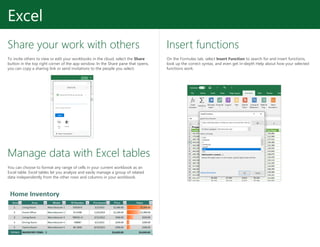
Share your work with others
To invite others to view or edit your workbooks in the cloud, select the Share
button in the top right corner of the app window. In the Share pane that opens,
you can copy a sharing link or send invitations to the people you select.
Insert functions
On the Formulas tab, select Insert Function to search for and insert functions,
look up the correct syntax, and even get in-depth Help about how your selected
functions work.
Manage data with Excel tables
You can choose to format any range of cells in your current workbook as an
Excel table. Excel tables let you analyze and easily manage a group of related
data independently from the other rows and columns in your workbook.
Excel
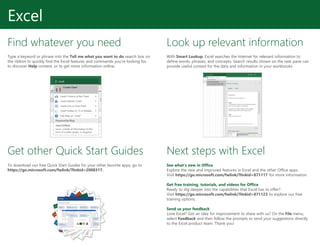
Find whatever you need
Type a keyword or phrase into the Tell me what you want to do search box on
the ribbon to quickly find the Excel features and commands you’re looking for,
to discover Help content, or to get more information online.
Look up relevant information
With Smart Lookup, Excel searches the Internet for relevant information to
define words, phrases, and concepts. Search results shown on the task pane can
provide useful context for the data and information in your workbooks.
Get other Quick Start Guides
To download our free Quick Start Guides for your other favorite apps, go to
https://go.microsoft.com/fwlink/?linkid=2008317.
Next steps with Excel
See what’s new in Office
Explore the new and improved features in Excel and the other Office apps.
Visit https://go.microsoft.com/fwlink/?linkid=871117 for more information.
Get free training, tutorials, and videos for Office
Ready to dig deeper into the capabilities that Excel has to offer?
Visit https://go.microsoft.com/fwlink/?linkid=871123 to explore our free
training options.
Send us your feedback
Love Excel? Got an idea for improvement to share with us? On the File menu,
select Feedback and then follow the prompts to send your suggestions directly
to the Excel product team. Thank you!

Excel Quick Start Guide

  • 1.
    Quick Start Guide Newto Excel? Use this guide to learn the basics. Quick Access Toolbar Keep favorite commands permanently visible. Explore the ribbon See what Excel can do by selecting the ribbon tabs and exploring available tools. Share your work with others Invite other people to view and edit cloud-based workbooks. Excel Discover contextual commands Select tables, charts, or other objects in a workbook to reveal additional tabs. Find whatever you need Look up Excel commands, get Help, or search the Web. Switch or create sheets Select the + next to thee sheet tabs to switch between workbook sheets or to create new ones. Insert and edit functions Use the formula bar to view or edit the selected cell or to insert functions into your formulas. Customize charts Select a chart to quickly add, change, or remove any existing chart elements and formatting. Change your view Select the status bar buttons to switch between view options, or use the zoom slider to magnify the sheet display to your liking. Show or hide the ribbon Select the pin icon to keep the ribbon displayed, or hide it again by selecting the arrow.
  • 2.
    Excel Create something Select File> New, and then select or search for the template you want. Begin with a Blank workbook to get right to work. Or save yourself time by selecting and then customizing a template that resembles what you need. Find recent files Whether you only work with files stored on your PC’s local hard drive or you roam across various cloud services, selecting File > Open takes you to your recently used workbooks and any files that you may have pinned to your list. Stay connected Need to work on the go and across different devices? Select File > Account to sign in and access your recently used files anywhere, on any device, through seamless integration between Office, OneDrive, OneDrive for Business, and SharePoint. Discover contextual tools Select relevant objects in your workbook to make contextual commands available. For example, selecting a chart element displays the Chart Tools tab with options for the Design and Format of a selected chart.
  • 3.
    Excel Share your workwith others To invite others to view or edit your workbooks in the cloud, select the Share button in the top right corner of the app window. In the Share pane that opens, you can copy a sharing link or send invitations to the people you select. Insert functions On the Formulas tab, select Insert Function to search for and insert functions, look up the correct syntax, and even get in-depth Help about how your selected functions work. Manage data with Excel tables You can choose to format any range of cells in your current workbook as an Excel table. Excel tables let you analyze and easily manage a group of related data independently from the other rows and columns in your workbook.
  • 4.
    Excel Find whatever youneed Type a keyword or phrase into the Tell me what you want to do search box on the ribbon to quickly find the Excel features and commands you’re looking for, to discover Help content, or to get more information online. Look up relevant information With Smart Lookup, Excel searches the Internet for relevant information to define words, phrases, and concepts. Search results shown on the task pane can provide useful context for the data and information in your workbooks. Get other Quick Start Guides To download our free Quick Start Guides for your other favorite apps, go to https://go.microsoft.com/fwlink/?linkid=2008317. Next steps with Excel See what’s new in Office Explore the new and improved features in Excel and the other Office apps. Visit https://go.microsoft.com/fwlink/?linkid=871117 for more information. Get free training, tutorials, and videos for Office Ready to dig deeper into the capabilities that Excel has to offer? Visit https://go.microsoft.com/fwlink/?linkid=871123 to explore our free training options. Send us your feedback Love Excel? Got an idea for improvement to share with us? On the File menu, select Feedback and then follow the prompts to send your suggestions directly to the Excel product team. Thank you!