Developing applications using Embedded Rich Client Platform (eRCP) Gorkem Ercan, Nokia, Finland Deeptendu Majumder, Nokia, USA
Agenda Introduction to eRCP Introduction to eSWT Creating an eWorkbench application Deploying to a real device Advanced eRCP example
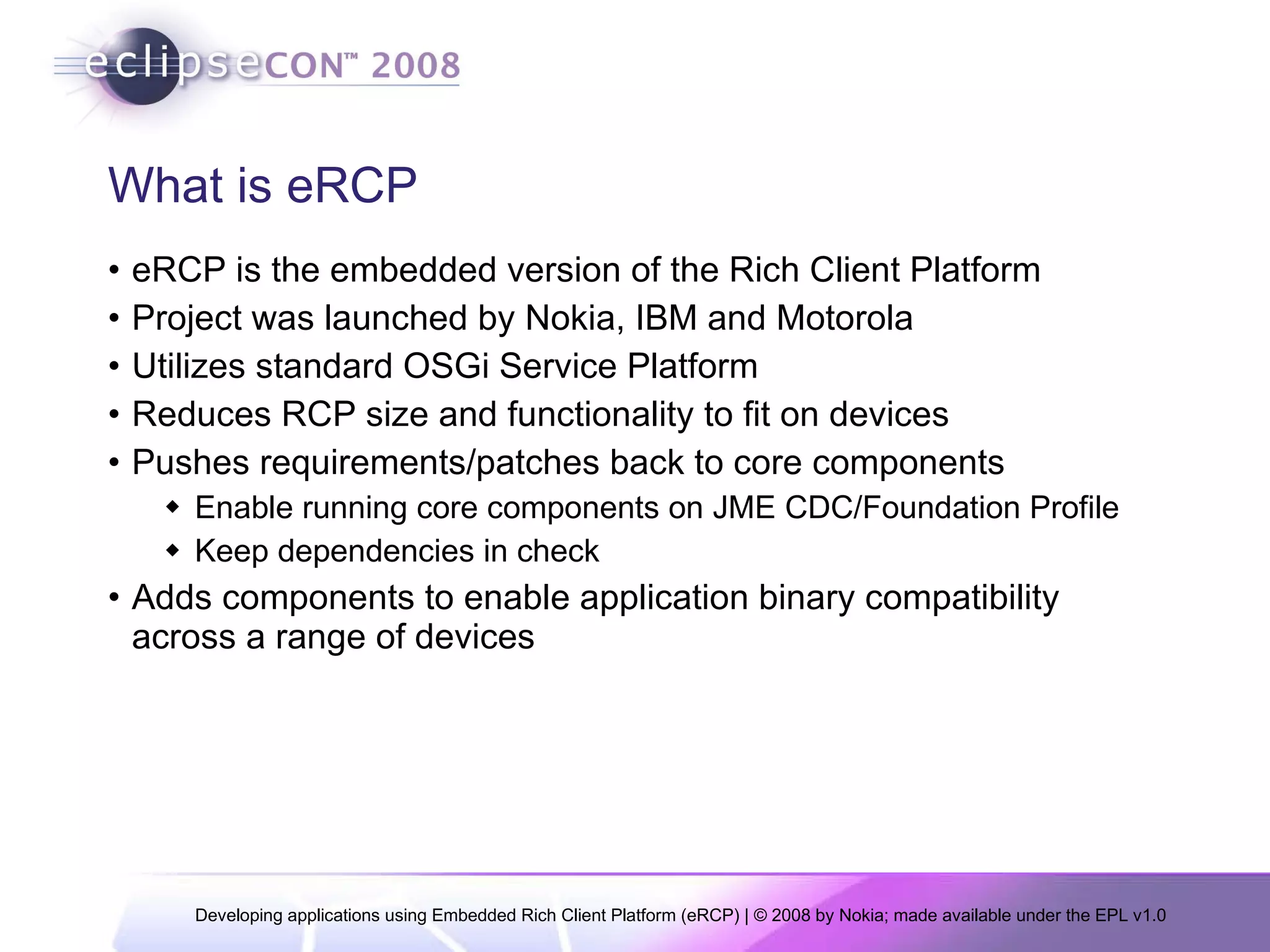
What is eRCP eRCP is the embedded version of the Rich Client Platform Project was launched by Nokia, IBM and Motorola Utilizes standard OSGi Service Platform  Reduces RCP size and functionality to fit on devices Pushes requirements/patches back to core components Enable running core components on JME CDC/Foundation Profile Keep dependencies in check Adds components to enable application binary compatibility across a range of devices
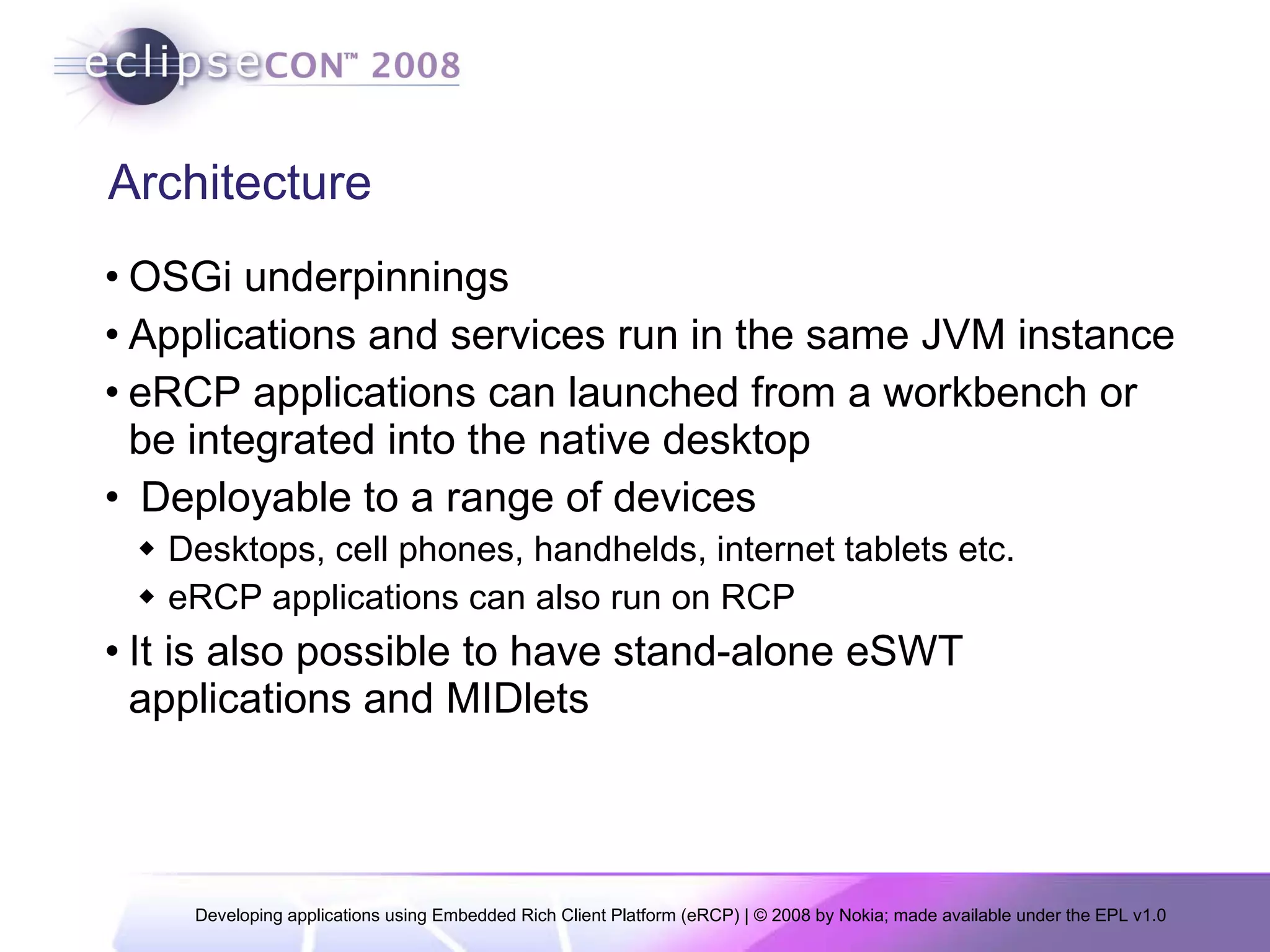
Architecture OSGi underpinnings Applications and services run in the same JVM instance eRCP applications can launched from a workbench or be integrated into the native desktop Deployable to a range of devices Desktops, cell phones, handhelds, internet tablets etc. eRCP applications can also run on RCP It is also possible to have stand-alone eSWT applications and MIDlets
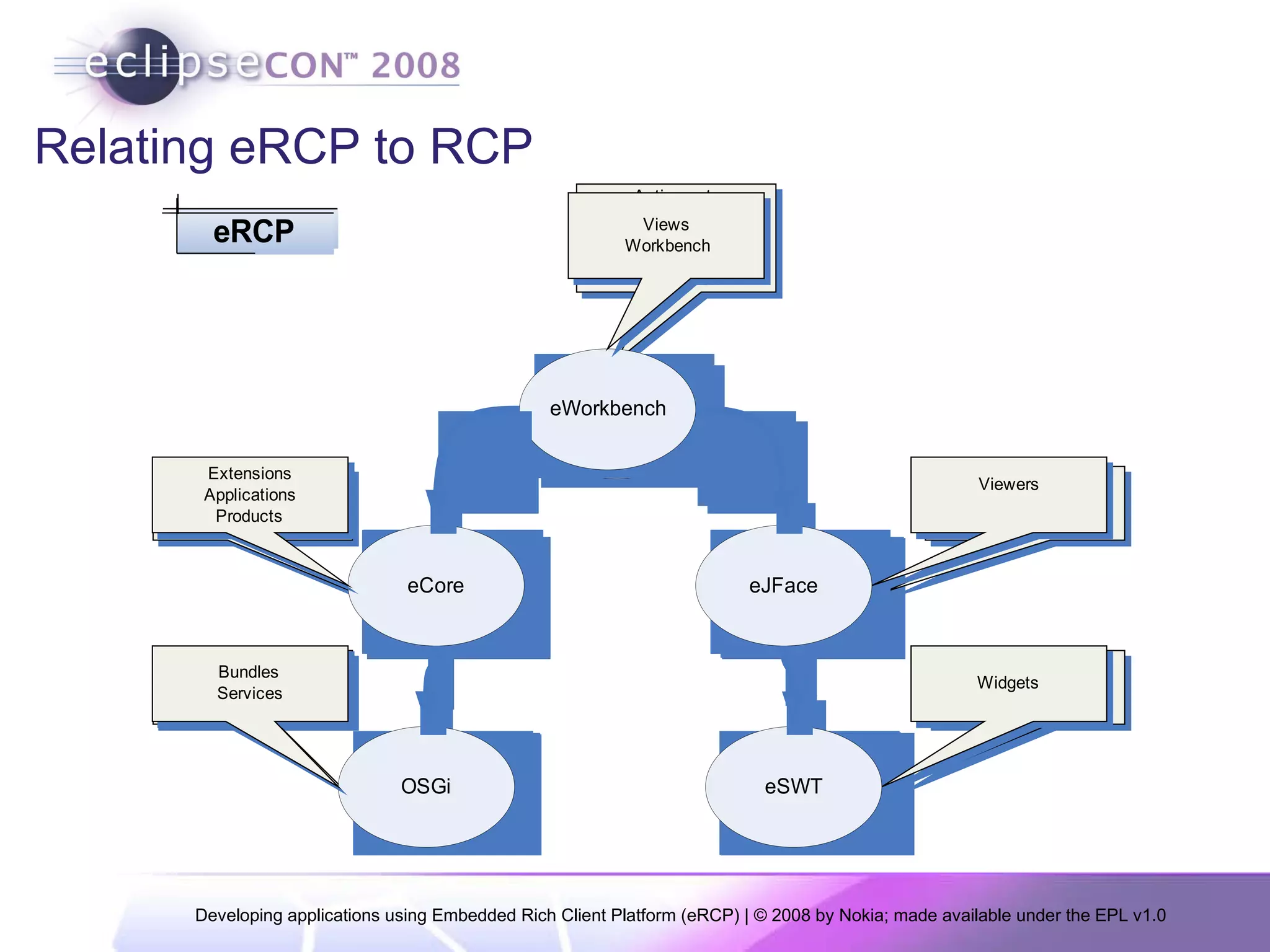
Parts of eRCP eWorkbench:  Responsible for managing the GUI thread and provides the main “container” for application views that are created by eRCP applications.  eSWT:  Embedded Standard Widget Toolkit. This is the embedded version of the SWT found in (RCP).  eJFace:  Provides a set of ready-to-use complex graphical components on top of eSWT, makes the development of sophisticated UI applications easier. Core Runtime:  Built around OSGi framework, provides extension point framework. eUpdate:  Provides the capability to download, install, and update eRCP software as Eclipse features.
Relating eRCP to RCP
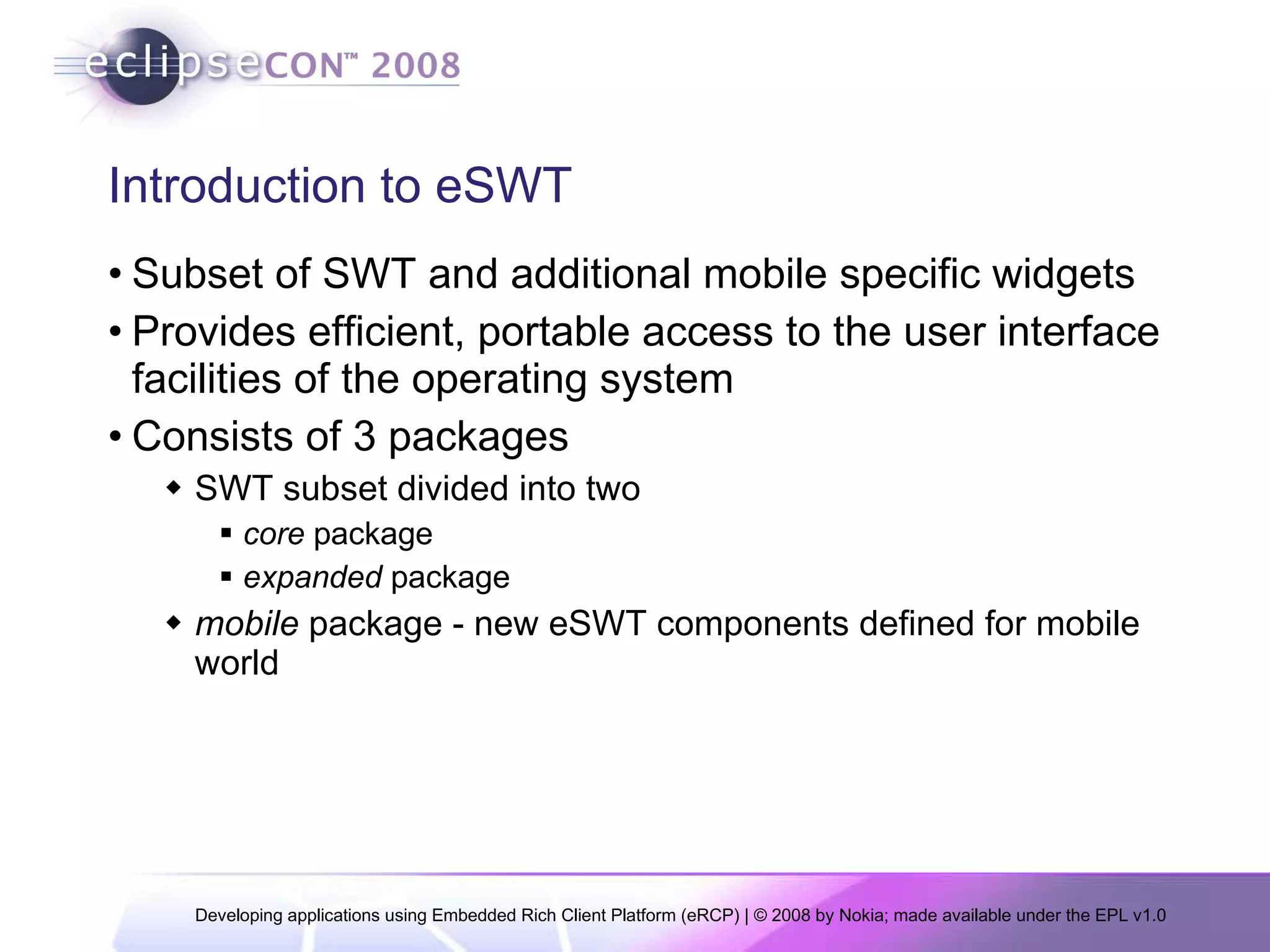
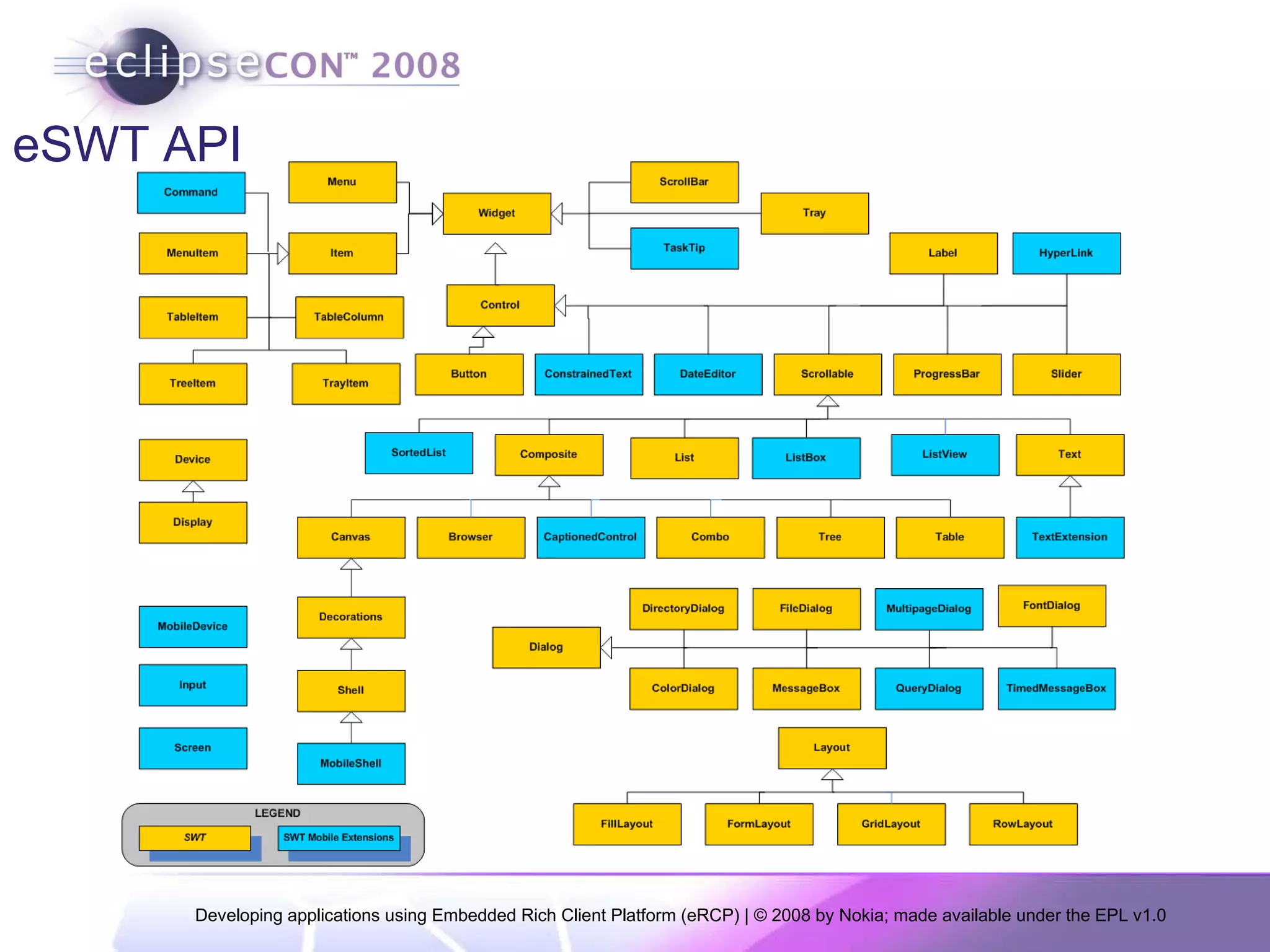
Introduction to eSWT Subset of SWT and additional mobile specific widgets Provides efficient, portable access to the user interface facilities of the operating system Consists of 3 packages SWT subset divided into two  core  package expanded  package mobile  package - new eSWT components defined for mobile world
eSWT API
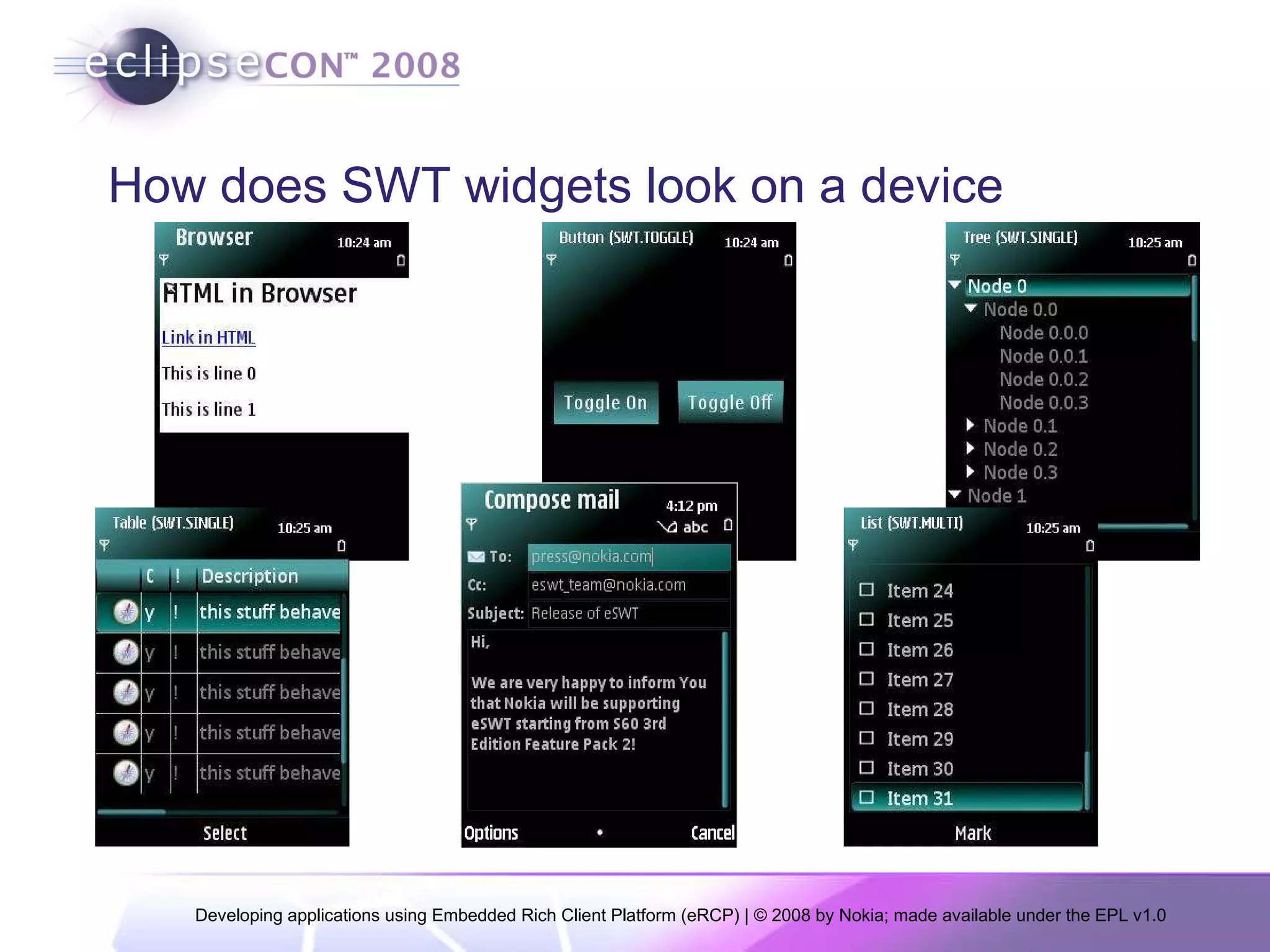
How does SWT widgets look on a device
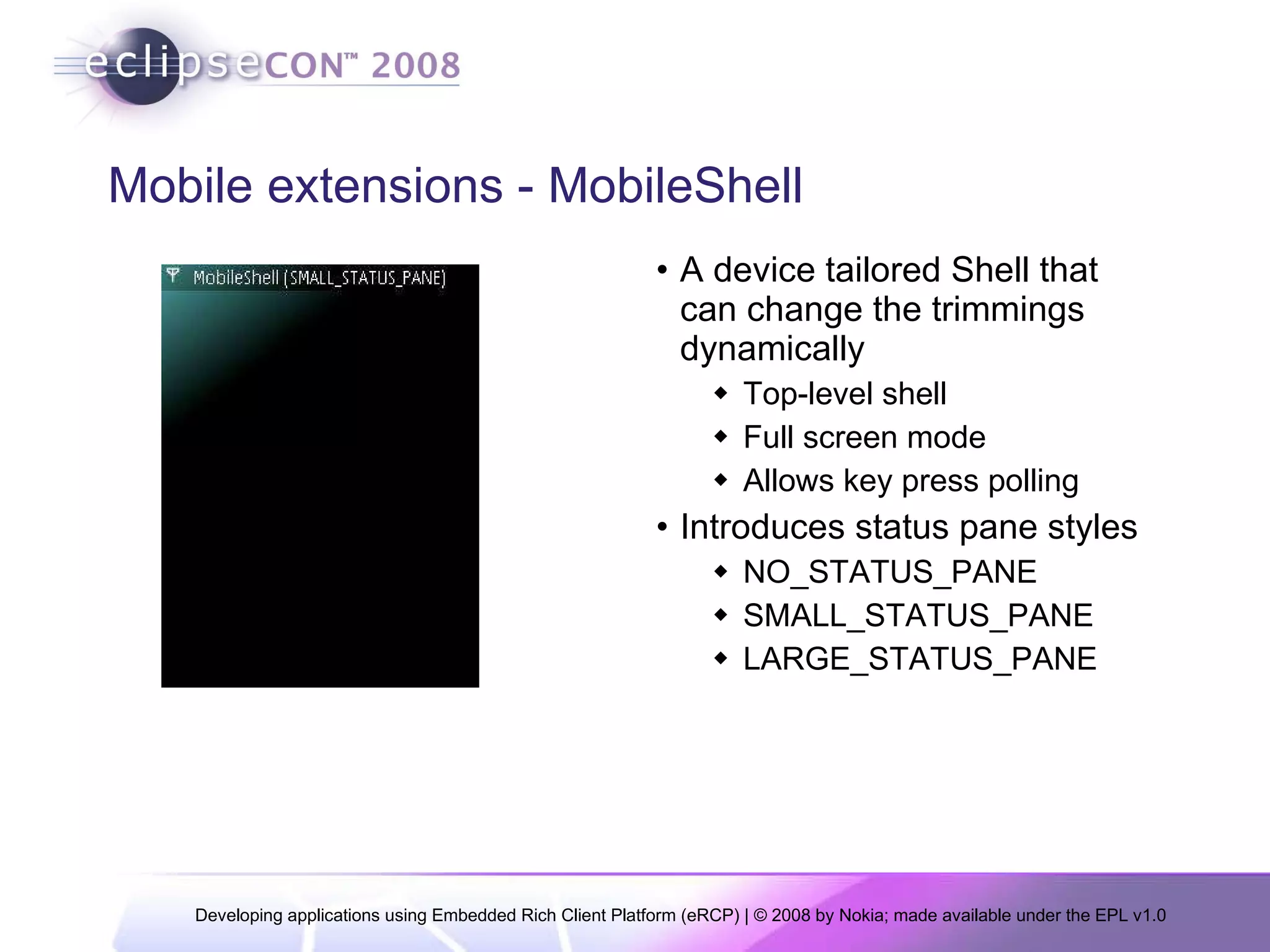
Mobile extensions - MobileShell A device tailored Shell that can change the trimmings dynamically Top-level shell Full screen mode Allows key press polling Introduces status pane styles NO_STATUS_PANE SMALL_STATUS_PANE LARGE_STATUS_PANE
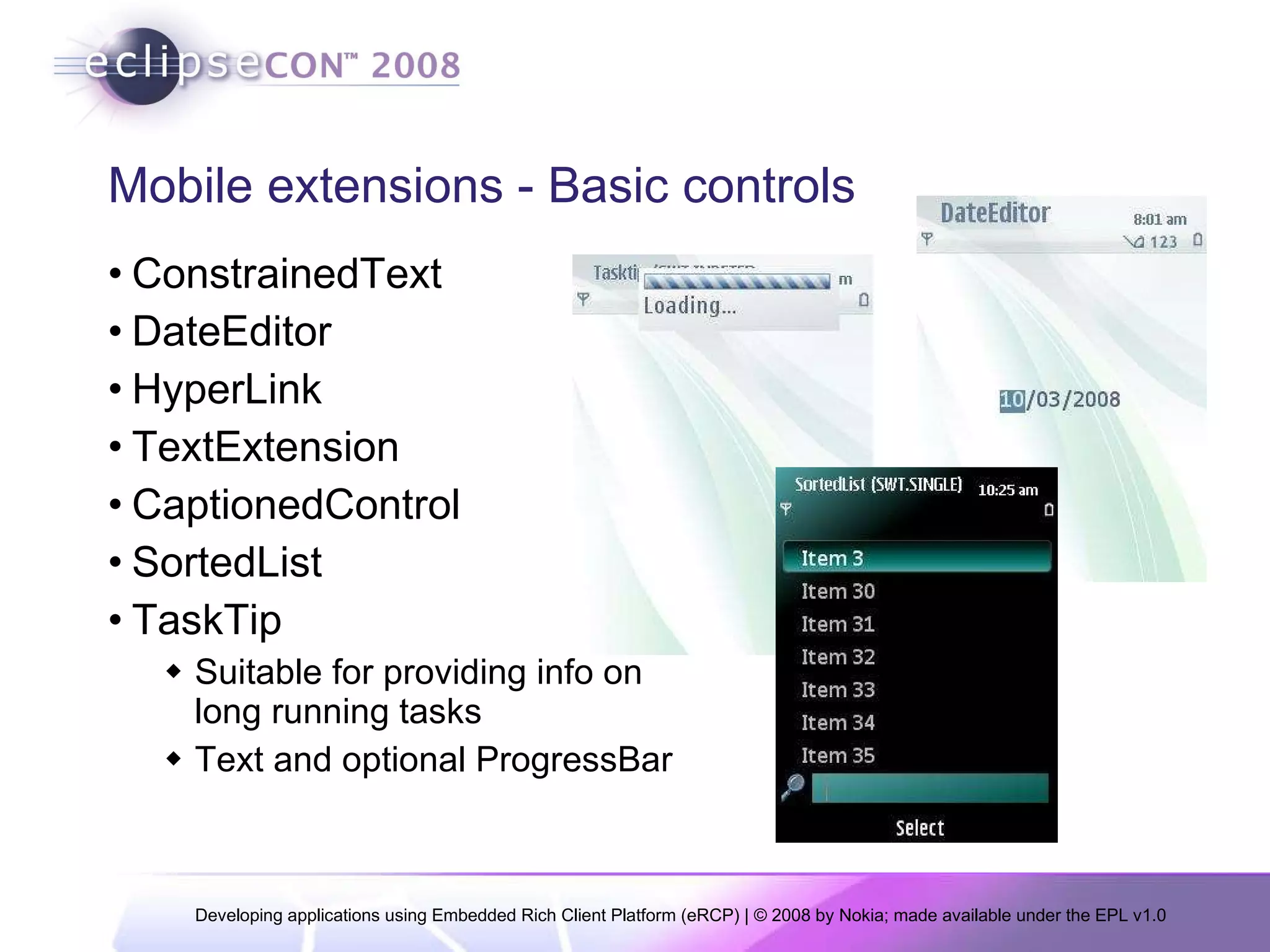
Mobile extensions - Basic controls ConstrainedText DateEditor HyperLink TextExtension CaptionedControl SortedList TaskTip Suitable for providing info on long running tasks Text and optional ProgressBar
Mobile extensions - Advanced Controls ListBox : A list control with enhanced capabilities to display icons  ListView : Selectable control that can display items in a multi-column way  MultipageDialog : A tabbed dialog
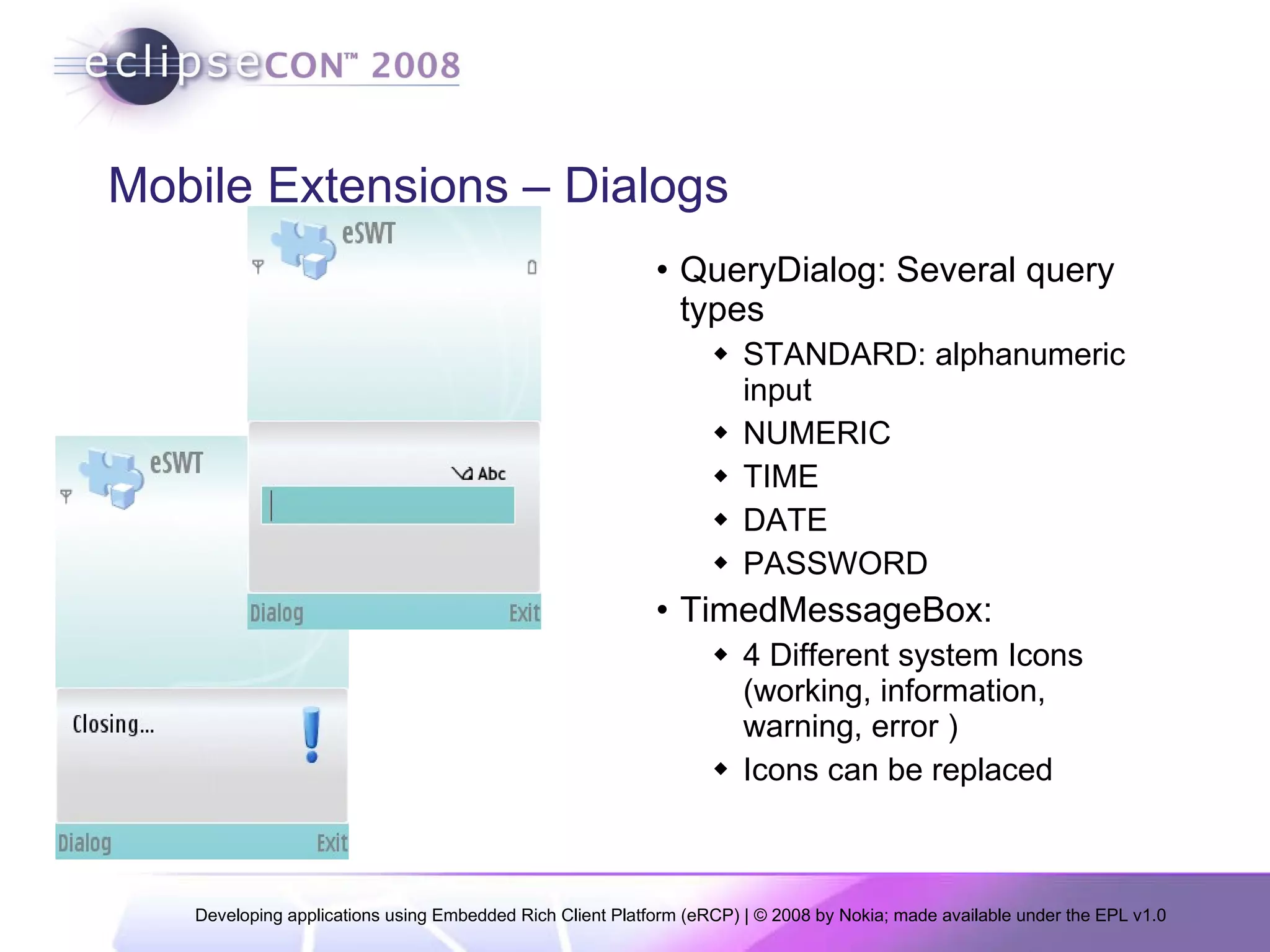
Mobile Extensions – Dialogs QueryDialog: Several query types STANDARD: alphanumeric input NUMERIC TIME DATE PASSWORD TimedMessageBox: 4 Different system Icons (working, information, warning, error ) Icons can be replaced
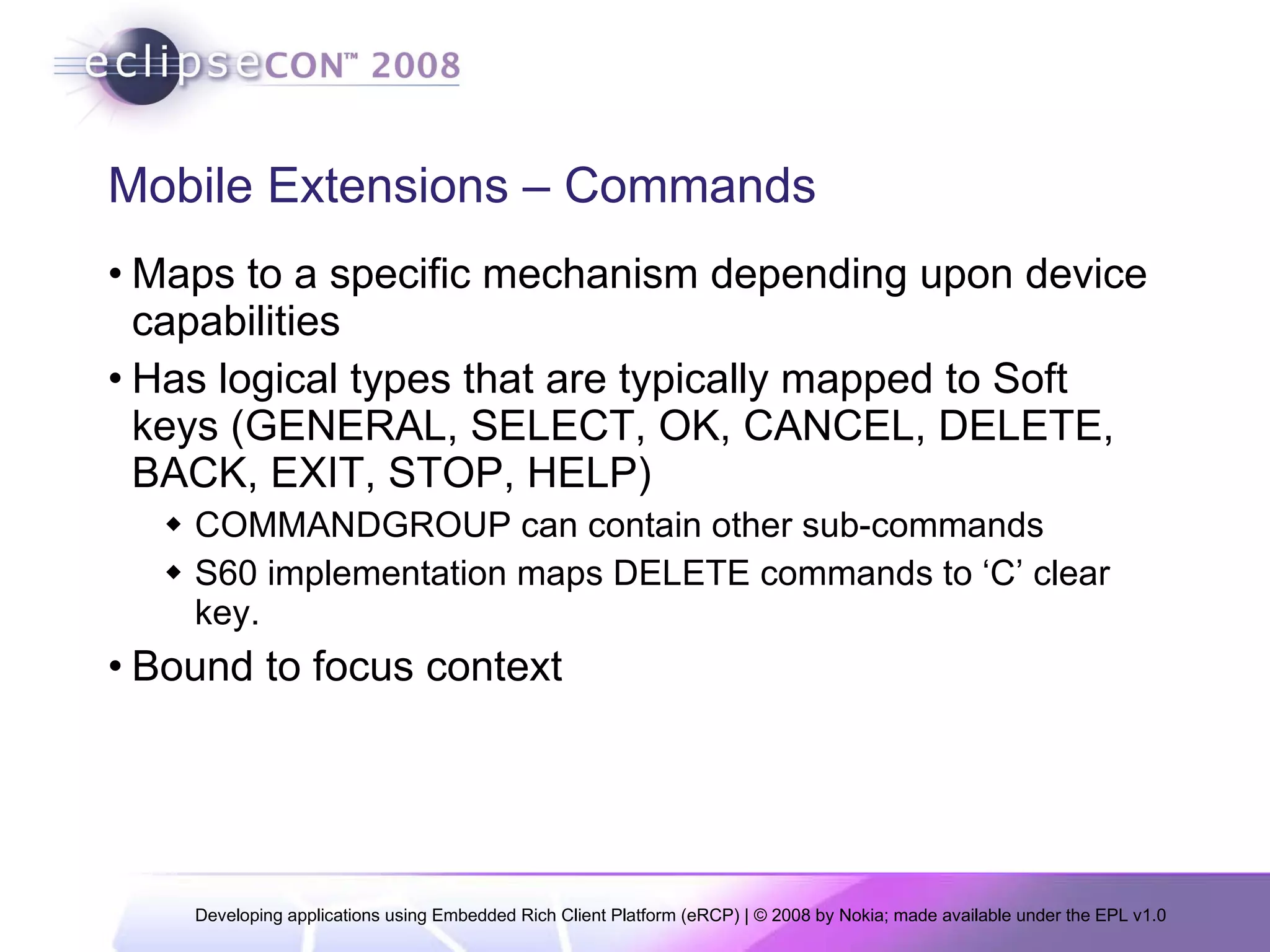
Mobile Extensions – Commands Maps to a specific mechanism depending upon device capabilities Has logical types that are typically mapped to Soft keys (GENERAL, SELECT, OK, CANCEL, DELETE, BACK, EXIT, STOP, HELP) COMMANDGROUP can contain other sub-commands S60 implementation maps DELETE commands to ‘C’ clear key. Bound to focus context
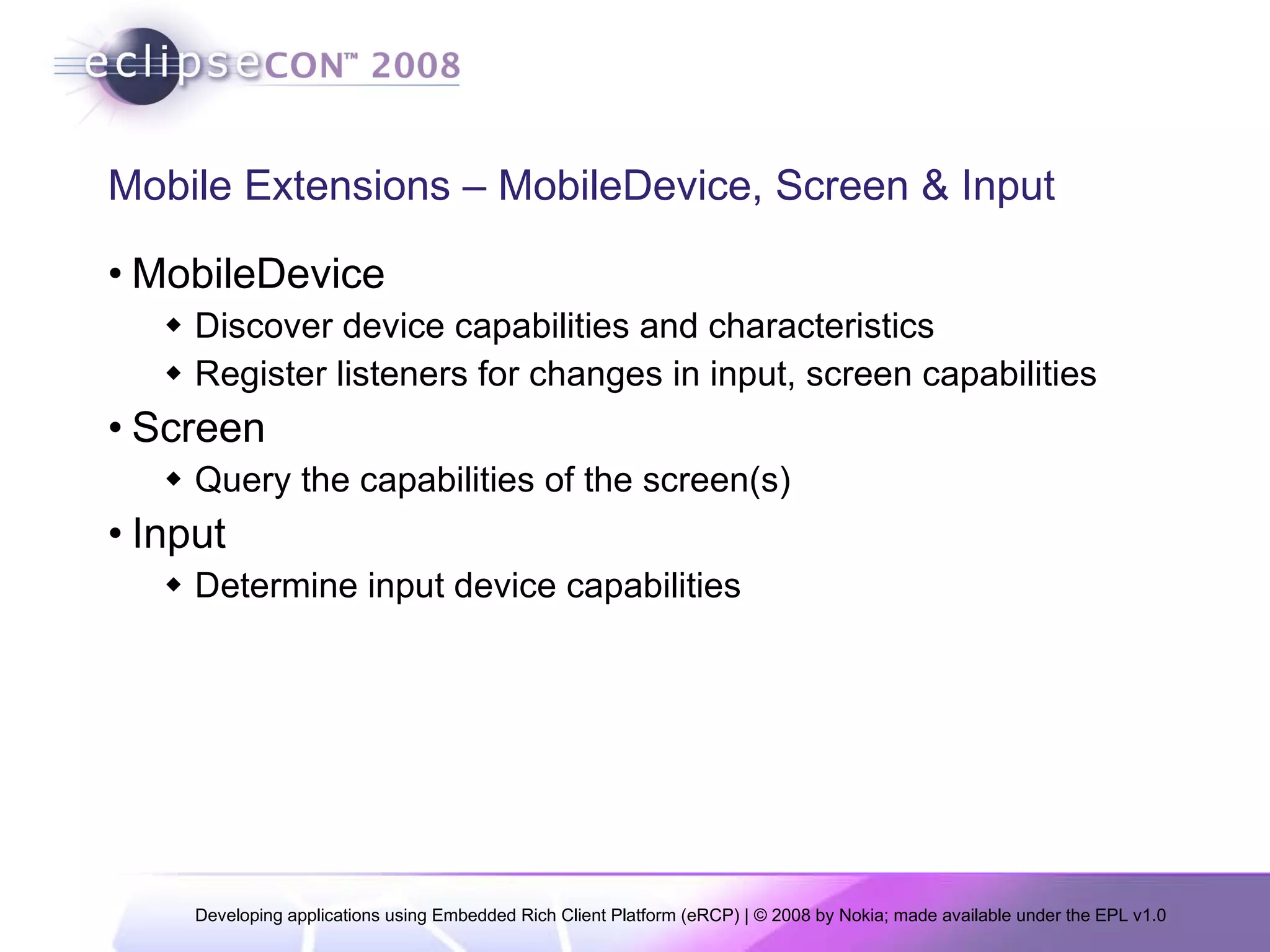
Mobile Extensions – MobileDevice, Screen & Input MobileDevice Discover device capabilities and characteristics Register listeners for changes in input, screen capabilities Screen Query the capabilities of the screen(s)  Input Determine input device capabilities
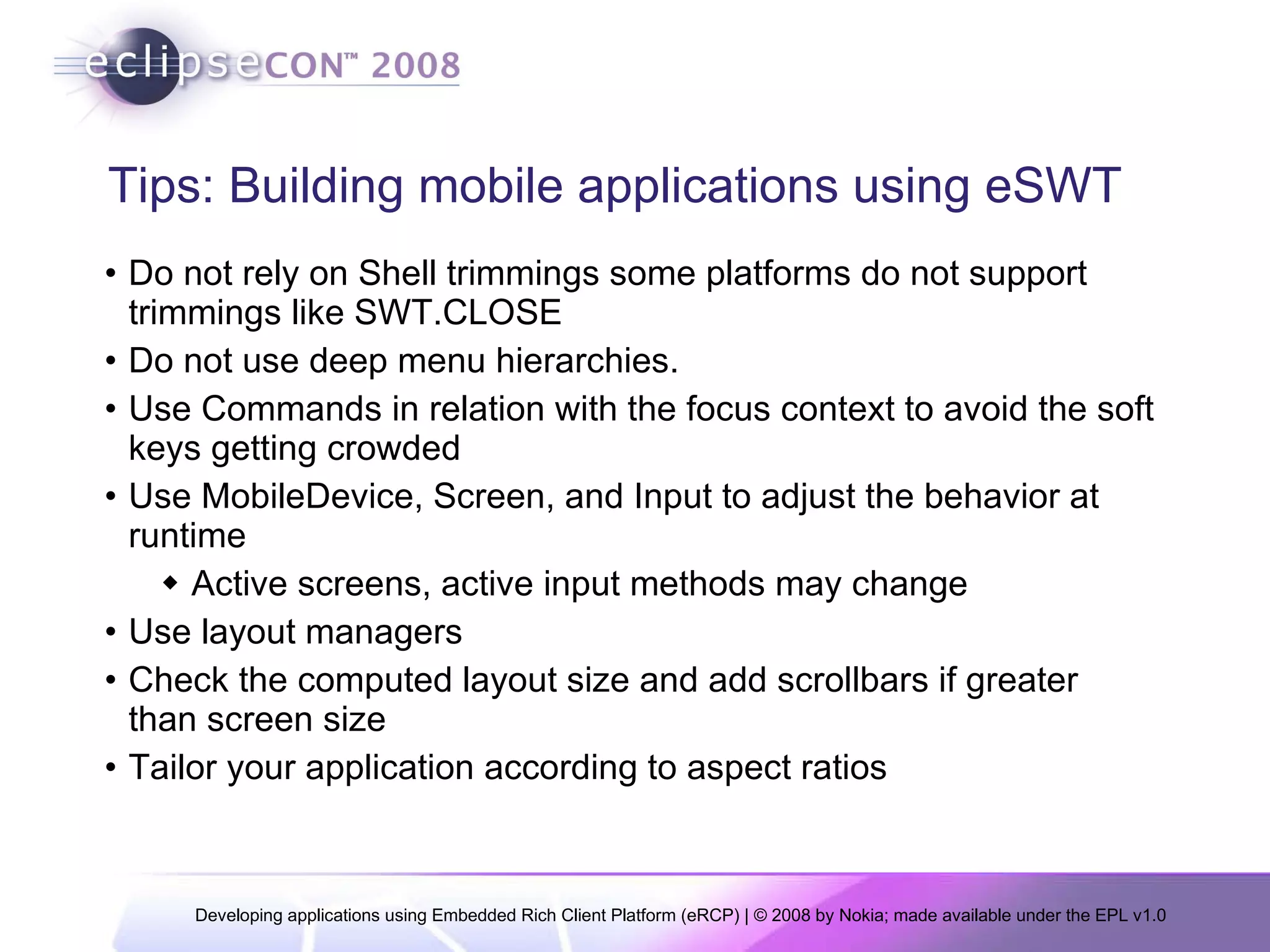
Tips: Building mobile applications using eSWT Do not rely on Shell trimmings some platforms do not support trimmings like SWT.CLOSE  Do not use deep menu hierarchies.  Use Commands in relation with the focus context to avoid the soft keys getting crowded Use MobileDevice, Screen, and Input to adjust the behavior at runtime Active screens, active input methods may change Use layout managers Check the computed layout size and add scrollbars if greater than screen size Tailor your application according to aspect ratios
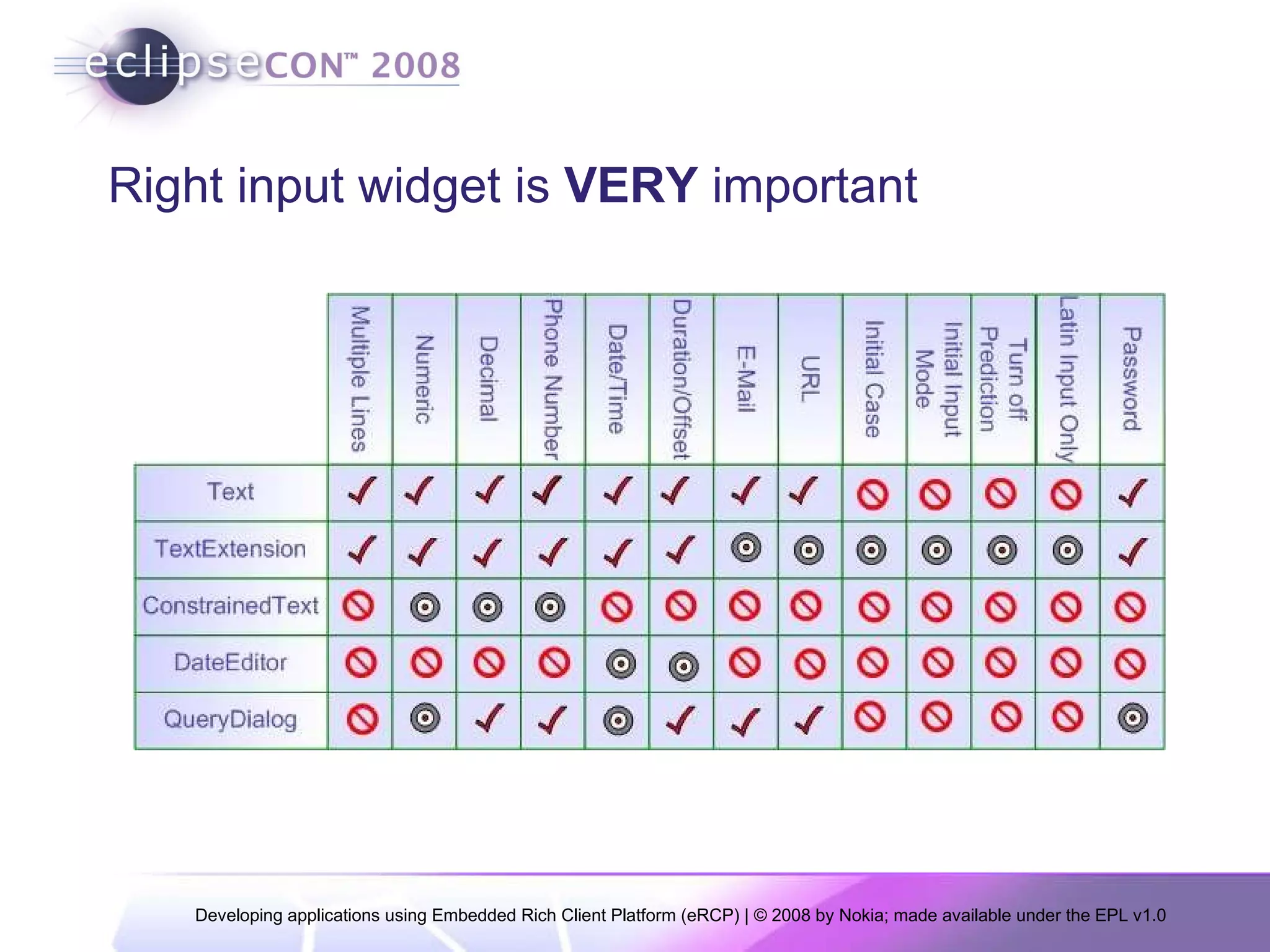
Right input widget is  VERY  important
Using eSWT with Java ME Midlets Java ME MIDP is the most common computing platform  700+ million java enabled phones 635+ java enabled phone models from 35+ vendors Alternate UI toolkit for Java ME applications Available on all Nokia S60 3 rd  Ed. FP2 devices
Using eSWT with a JavaME Midlets Required Software Eclipse IDE EclipseME plug-in (www.eclipseme.org) Nokia S60 3.2 SDK (forum.nokia.com) HelloWorld Midlet available in eRCP project’s wiki http://wiki.eclipse.org/How_to_use_eSWT_with_Midlets You can use NetBeans as well ??
eWorkbench Provides the main “container” for application views that are created by eRCP applications  Responsible for managing the UI thread  Applications and services run in the same JVM instance Fewer resources than separate JVMs Allows sharing of services Enables variety of life cycle models eRCP applications are created as Eclipse plug-ins for the eWorkbench
Adding applications to eWorkbench Plug-ins intended to run in the eWorkbench are required to contribute extensions towards the following extension points org.eclipse.ui.views This extension point allows applications to provide their views  org.eclipse.ercp.eworkbench.applications Introduces applications to eWorkbench To accommodate with devices with multiple displays, it can have three types of views – Normal, Large and Status. Only the Normal view is required. Each view type is defined into separate  view  element
Required development tools Eclipse 3.3 or later with Plug-in development environment (PDE) www.eclipse.org/downloads eRCP distribution for Windows Desktop www.eclipse.org/ercp And a java runtime http://java.sun.com/javase/downloads/index.jsp
Setting up Eclipse PDE for eRCP development Unzip eRCP distribution for Windows Desktop Set  Plug-in Development  target platform to be eRCP Window -> Preferences  expand the  Plug-in Development  node and choose the  Target Platform  sub-node In the  Location  field, specify the  <ercp_installation_dir>\win32\eRCP  directory
HelloWorld eWorkbench application (1) Create a plug-in project Call  File -> New  -> Project  and choose the  Plug-in Project A bundle Activator is not needed for this plug-in unselect it.  Select the execution environment as OSGi Minimum 1.1 (available in wizard only after 3.4)  Select Finish. Add required dependencies org.eclipse.core.runtime org.eclipse.ui org.eclipse.ercp.eworkbench
HelloWorld eWorkbench application (2) Create org.eclipse.ui.views Add from the  Extensions  tab select the  org.eclipse.ui.views To add a view right click on the  org.eclipse.ui.views  extension point and choose  New -> view  from the menu that appears Create a new class that extends  org.eclipse.ui.part.ViewPart Extend org.eclipse.ercp.eworkbench.applications add this extension point similar to above step Fill in the properties of the  application  and  views  elements
Testing the HelloWorld Call Run->Run Configurations Create a new Eclipse Application configuration Choose  org.eclipse.ercp.eworkbench.eWorkbench  for Run an Application option
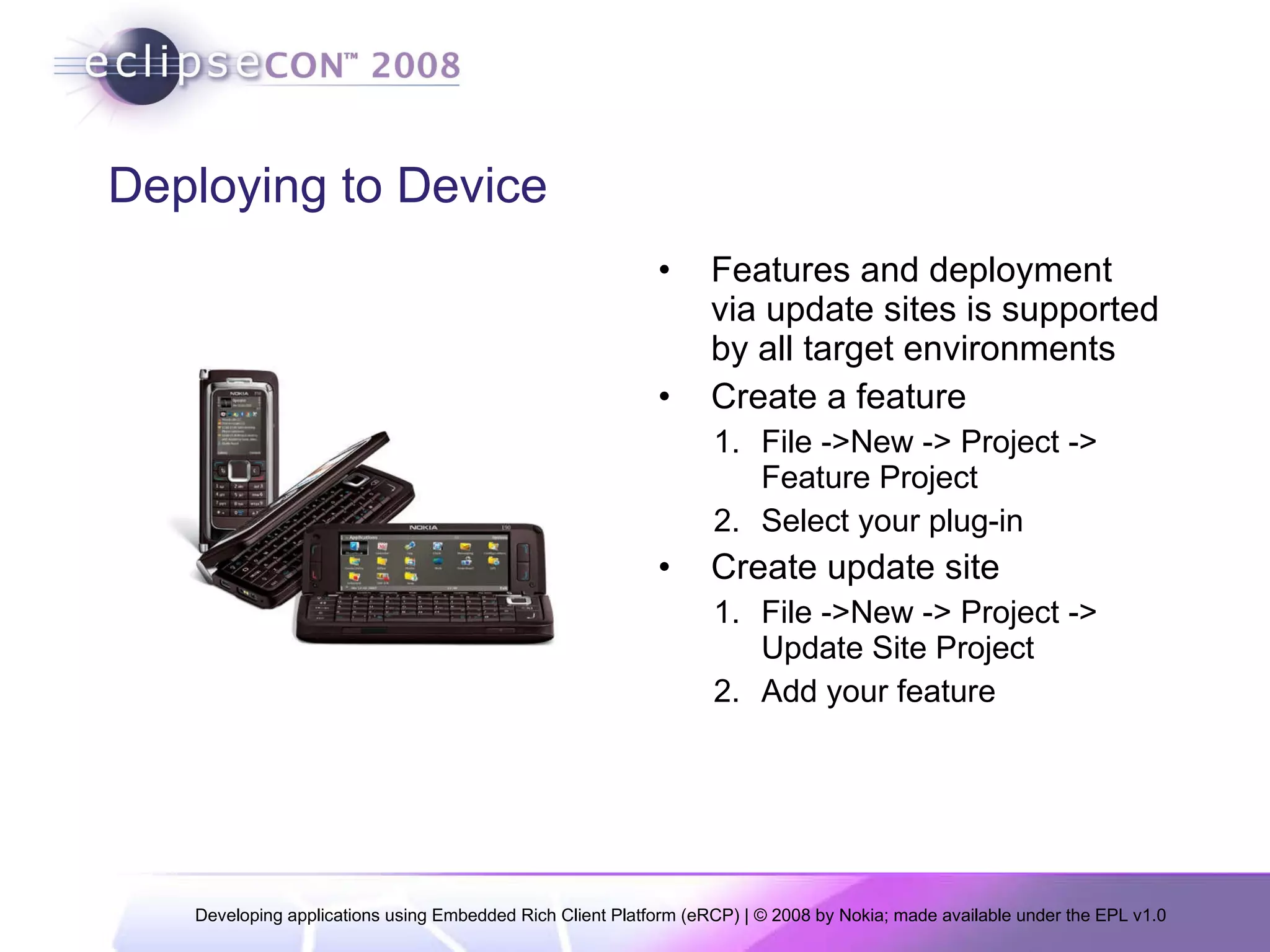
Deploying to Device Features and deployment via update sites is supported by all target environments Create a feature File ->New -> Project -> Feature Project Select your plug-in Create update site File ->New -> Project -> Update Site Project Add your feature
Conclusion eRCP brings the RCP paradigm to mobile devices Website http://www.eclipse.org/ercp Newsgroups news://news.eclipse.org/eclipse.dsdp.ercp Always looking for contributors!

Developing applications using Embedded Rich Client Platform (eRCP)

  • 1.
    Developing applications usingEmbedded Rich Client Platform (eRCP) Gorkem Ercan, Nokia, Finland Deeptendu Majumder, Nokia, USA
  • 2.
    Agenda Introduction toeRCP Introduction to eSWT Creating an eWorkbench application Deploying to a real device Advanced eRCP example
  • 3.
    What is eRCPeRCP is the embedded version of the Rich Client Platform Project was launched by Nokia, IBM and Motorola Utilizes standard OSGi Service Platform Reduces RCP size and functionality to fit on devices Pushes requirements/patches back to core components Enable running core components on JME CDC/Foundation Profile Keep dependencies in check Adds components to enable application binary compatibility across a range of devices
  • 4.
    Architecture OSGi underpinningsApplications and services run in the same JVM instance eRCP applications can launched from a workbench or be integrated into the native desktop Deployable to a range of devices Desktops, cell phones, handhelds, internet tablets etc. eRCP applications can also run on RCP It is also possible to have stand-alone eSWT applications and MIDlets
  • 5.
    Parts of eRCPeWorkbench: Responsible for managing the GUI thread and provides the main “container” for application views that are created by eRCP applications. eSWT: Embedded Standard Widget Toolkit. This is the embedded version of the SWT found in (RCP). eJFace: Provides a set of ready-to-use complex graphical components on top of eSWT, makes the development of sophisticated UI applications easier. Core Runtime: Built around OSGi framework, provides extension point framework. eUpdate: Provides the capability to download, install, and update eRCP software as Eclipse features.
  • 6.
  • 7.
    Introduction to eSWTSubset of SWT and additional mobile specific widgets Provides efficient, portable access to the user interface facilities of the operating system Consists of 3 packages SWT subset divided into two core package expanded package mobile package - new eSWT components defined for mobile world
  • 8.
  • 9.
    How does SWTwidgets look on a device
  • 10.
    Mobile extensions -MobileShell A device tailored Shell that can change the trimmings dynamically Top-level shell Full screen mode Allows key press polling Introduces status pane styles NO_STATUS_PANE SMALL_STATUS_PANE LARGE_STATUS_PANE
  • 11.
    Mobile extensions -Basic controls ConstrainedText DateEditor HyperLink TextExtension CaptionedControl SortedList TaskTip Suitable for providing info on long running tasks Text and optional ProgressBar
  • 12.
    Mobile extensions -Advanced Controls ListBox : A list control with enhanced capabilities to display icons ListView : Selectable control that can display items in a multi-column way MultipageDialog : A tabbed dialog
  • 13.
    Mobile Extensions –Dialogs QueryDialog: Several query types STANDARD: alphanumeric input NUMERIC TIME DATE PASSWORD TimedMessageBox: 4 Different system Icons (working, information, warning, error ) Icons can be replaced
  • 14.
    Mobile Extensions –Commands Maps to a specific mechanism depending upon device capabilities Has logical types that are typically mapped to Soft keys (GENERAL, SELECT, OK, CANCEL, DELETE, BACK, EXIT, STOP, HELP) COMMANDGROUP can contain other sub-commands S60 implementation maps DELETE commands to ‘C’ clear key. Bound to focus context
  • 15.
    Mobile Extensions –MobileDevice, Screen & Input MobileDevice Discover device capabilities and characteristics Register listeners for changes in input, screen capabilities Screen Query the capabilities of the screen(s) Input Determine input device capabilities
  • 16.
    Tips: Building mobileapplications using eSWT Do not rely on Shell trimmings some platforms do not support trimmings like SWT.CLOSE Do not use deep menu hierarchies. Use Commands in relation with the focus context to avoid the soft keys getting crowded Use MobileDevice, Screen, and Input to adjust the behavior at runtime Active screens, active input methods may change Use layout managers Check the computed layout size and add scrollbars if greater than screen size Tailor your application according to aspect ratios
  • 17.
    Right input widgetis VERY important
  • 18.
    Using eSWT withJava ME Midlets Java ME MIDP is the most common computing platform 700+ million java enabled phones 635+ java enabled phone models from 35+ vendors Alternate UI toolkit for Java ME applications Available on all Nokia S60 3 rd Ed. FP2 devices
  • 19.
    Using eSWT witha JavaME Midlets Required Software Eclipse IDE EclipseME plug-in (www.eclipseme.org) Nokia S60 3.2 SDK (forum.nokia.com) HelloWorld Midlet available in eRCP project’s wiki http://wiki.eclipse.org/How_to_use_eSWT_with_Midlets You can use NetBeans as well ??
  • 20.
    eWorkbench Provides themain “container” for application views that are created by eRCP applications Responsible for managing the UI thread Applications and services run in the same JVM instance Fewer resources than separate JVMs Allows sharing of services Enables variety of life cycle models eRCP applications are created as Eclipse plug-ins for the eWorkbench
  • 21.
    Adding applications toeWorkbench Plug-ins intended to run in the eWorkbench are required to contribute extensions towards the following extension points org.eclipse.ui.views This extension point allows applications to provide their views org.eclipse.ercp.eworkbench.applications Introduces applications to eWorkbench To accommodate with devices with multiple displays, it can have three types of views – Normal, Large and Status. Only the Normal view is required. Each view type is defined into separate view element
  • 22.
    Required development toolsEclipse 3.3 or later with Plug-in development environment (PDE) www.eclipse.org/downloads eRCP distribution for Windows Desktop www.eclipse.org/ercp And a java runtime http://java.sun.com/javase/downloads/index.jsp
  • 23.
    Setting up EclipsePDE for eRCP development Unzip eRCP distribution for Windows Desktop Set Plug-in Development target platform to be eRCP Window -> Preferences expand the Plug-in Development node and choose the Target Platform sub-node In the Location field, specify the <ercp_installation_dir>\win32\eRCP directory
  • 24.
    HelloWorld eWorkbench application(1) Create a plug-in project Call File -> New -> Project and choose the Plug-in Project A bundle Activator is not needed for this plug-in unselect it. Select the execution environment as OSGi Minimum 1.1 (available in wizard only after 3.4) Select Finish. Add required dependencies org.eclipse.core.runtime org.eclipse.ui org.eclipse.ercp.eworkbench
  • 25.
    HelloWorld eWorkbench application(2) Create org.eclipse.ui.views Add from the Extensions tab select the org.eclipse.ui.views To add a view right click on the org.eclipse.ui.views extension point and choose New -> view from the menu that appears Create a new class that extends org.eclipse.ui.part.ViewPart Extend org.eclipse.ercp.eworkbench.applications add this extension point similar to above step Fill in the properties of the application and views elements
  • 26.
    Testing the HelloWorldCall Run->Run Configurations Create a new Eclipse Application configuration Choose org.eclipse.ercp.eworkbench.eWorkbench for Run an Application option
  • 27.
    Deploying to DeviceFeatures and deployment via update sites is supported by all target environments Create a feature File ->New -> Project -> Feature Project Select your plug-in Create update site File ->New -> Project -> Update Site Project Add your feature
  • 28.
    Conclusion eRCP bringsthe RCP paradigm to mobile devices Website http://www.eclipse.org/ercp Newsgroups news://news.eclipse.org/eclipse.dsdp.ercp Always looking for contributors!

Editor's Notes

  • #21 Unlike Workbench in RCP where applications are standalone applications. eWorkbench ensures that the UI is shared between multiple applications through their views.
  • #25 A bundle Activator is a class implementing an org.osgi.framework.BundleActivator interface for the created plug-in. Plug-ins should implement this interface if they use or provide OSGi-specific functionality. If you are using an eclipse development environment earlier than 3.4 execution environment selection is not part of the Plug-in Project creation wizard. In this case edit the Manifest.mf file of your plug-in and add the execution environments required by the plug-in in the Execution Environments pane of the Overview tab of the manifest editor. The environments are CDC-1.1/Foundation 1.1 and OSGi/Minimum 1.1.