







Developing on Windows 8


       Power point template by
          Colin Eberhardt
Agenda

WinRT Platform Basics

Best practices

Pickers

Contracts

Tiles

Notifications

Process Lifetime Management
Who am I


                           Einar Ingebrigtsen


       @einari           einar@dolittle.com


                        http://blog.dolittle.com
                 http://www.ingebrigtsen.info
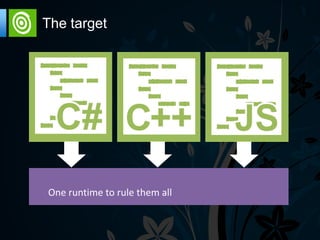
The target
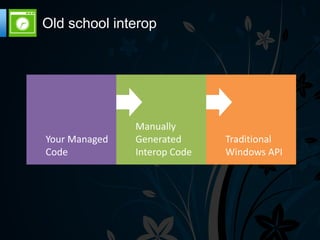
Old school interop
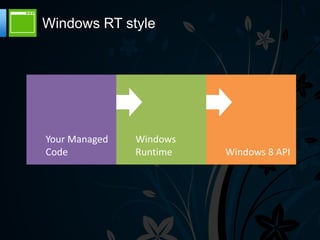
Windows RT style
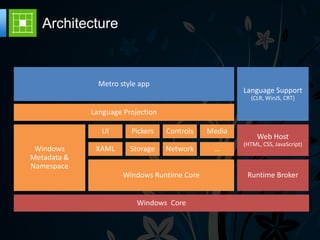
Architecture
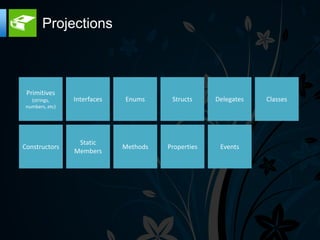
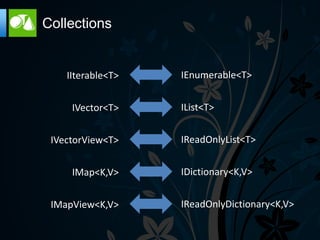
Projections
Collections
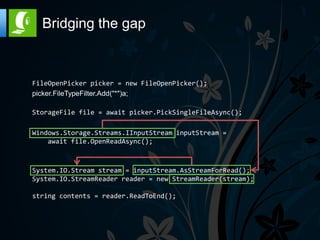
Bridging the gap


FileOpenPicker picker = new FileOpenPicker();
picker.FileTypeFilter.Add("*")a;

StorageFile file = await picker.PickSingleFileAsync();

Windows.Storage.Streams.IInputStream inputStream =
    await file.OpenReadAsync();


System.IO.Stream stream = inputStream.AsStreamForRead();
System.IO.StreamReader reader = new StreamReader(stream);

string contents = reader.ReadToEnd();
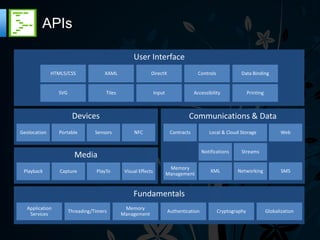
APIs
Missing things


Reflection API changed
 Type details through GetTypeInfo() – extension
 method
 Emit namespace practically empty - security
XAML


Originally developed for Windows Vista and
exposed as WPF

Defines what you see

Layout is by default not flowing, as in HTML

Can observe changes (Active View)
Tools
Dependency Object


Contains property bag for
DependencyProperties on object

Holds attached Dependency Properties

DataContext aware
Dependency Properties


A bindable property that can hold binding
expressions

Registered on a DependencyObject

Callback when data changes
Attached Dependency Properties


Cross cutting properties

Extend other dependency objects with
properties they don‟t have
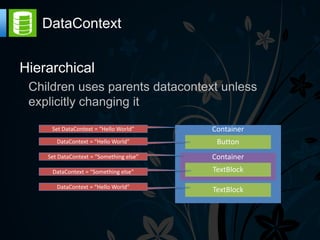
DataContext


Hierarchical
 Children uses parents datacontext unless
 explicitly changing it

     Set DataContext = “Hello World”

       DataContext = “Hello World”

    Set DataContext = “Something else”

     DataContext = “Something else”

       DataContext = “Hello World”
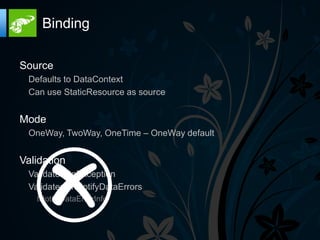
Binding

Source
 Defaults to DataContext
 Can use StaticResource as source


Mode
 OneWay, TwoWay, OneTime – OneWay default


Validation
 ValidatesOnException
 ValidatesOnNotifyDataErrors
   INotifyDataErrorInfo
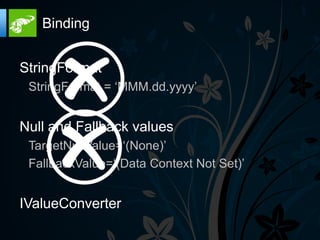
Binding


StringFormat
 StringFormat = „MMM.dd.yyyy‟


Null and Fallback values
 TargetNullValue=„(None)‟
 FallbackValue=„(Data Context Not Set)‟


IValueConverter
Element to Element


Can bind directly to other elements
properties

Binds by name of element
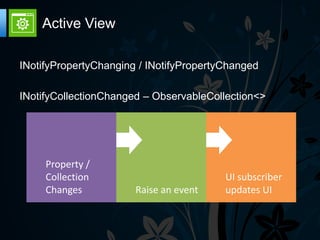
Active View

INotifyPropertyChanging / INotifyPropertyChanged

INotifyCollectionChanged – ObservableCollection<>
ValueConverter


Simple interface; IValueConverter
 Convert
 ConvertBack


Converts values during databinding
TypeConverter


Converts data from XAML to CLR types and back

XAML will always give string

Can be defined on a DependencyProperty or on an object
with attributes pointing to the converter
Events


You still have events as before – buttons can
be clicked and raise an event

RoutedEvents – bubbles through the UI
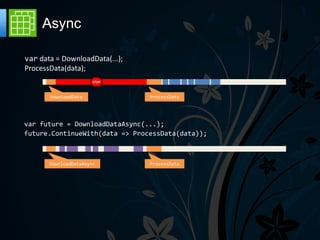
Async

var data = DownloadData(...);
ProcessData(data);
                       STOP


       DownloadData             ProcessData


var future = DownloadDataAsync(...);
future.ContinueWith(data => ProcessData(data));


       DownloadDataAsync        ProcessData
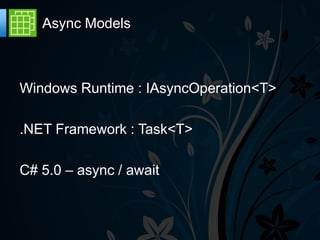
Async Models


Windows Runtime : IAsyncOperation<T>

.NET Framework : Task<T>

C# 5.0 – async / await
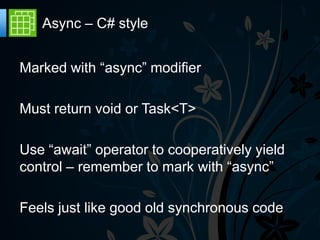
Async – C# style


Marked with “async” modifier

Must return void or Task<T>

Use “await” operator to cooperatively yield
control – remember to mark with “async”

Feels just like good old synchronous code
Patterns & Practices

MVVM
 Inspired by PresentationModel by Martin Fowler
 Good for decoupling – promotes testability


Compositioning

Commands

Actions / Triggers / Behaviors
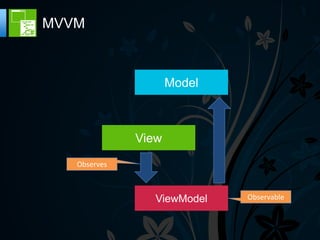
MVVM


                     Model


              View
   Observes


                 ViewModel   Observable
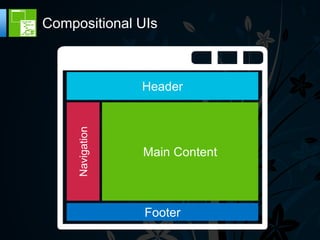
Compositional UIs


     Navigation   Header


                  Main Content


                  Footer
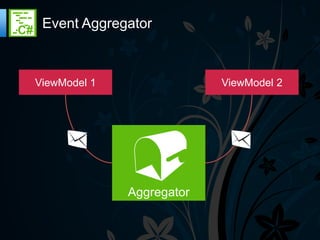
Event Aggregator


ViewModel 1                ViewModel 2


              Aggregator
Tiles

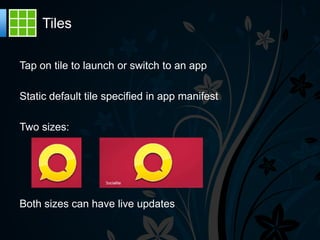
Tap on tile to launch or switch to an app

Static default tile specified in app manifest

Two sizes:


Both sizes can have live updates
Live Tiles


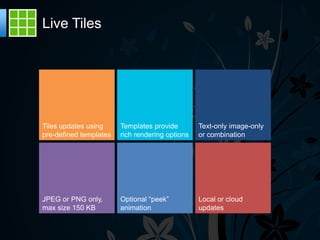
Tiles updates using     Templates provide        Text-only image-only
pre-defined templates   rich rendering options   or combination


JPEG or PNG only,       Optional “peek”          Local or cloud
max size 150 KB         animation                updates
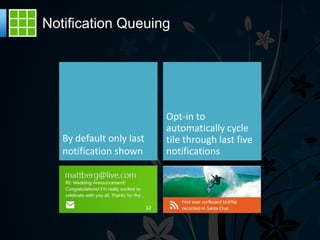
Notification Queuing
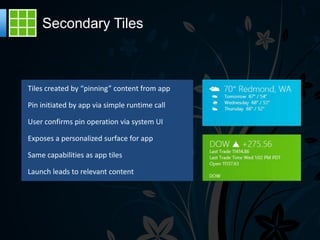
Secondary Tiles
Process Lifetime Management


System manages application lifetime

One foreground full screen window

Apps are quickly suspended to preserve
battery life
Suspend


System resources focused on the app that
the user is interacting with in the foreground

Inactive apps have no impact on battery life
or responsiveness, they are suspended by
the OS

Enables instant switching between apps
Suspend details

Suspended apps are not scheduled by the NT Kernel

No CPU, Disk or Network consumed

All threads are suspended

Apps remain in memory

Kernel ensures apps are not suspended in critical sections that could
cause system wide deadlocks

Apps instantly resumed from suspend
when brought to foreground
Session State


SuspensionManager
 SessionState
   Property bag that is automatically serialized and saved when suspended
   Reloads property bag from disk on activation
   Does not reload state if app crashed


Only save and restore user session metadata

Tip: Don‟t wait till suspension to put data into SessionState
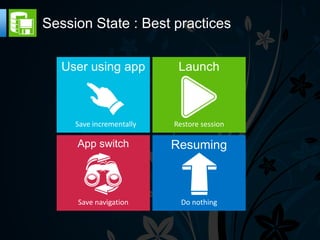
Session State : Best practices

   User using app          Launch


     Save incrementally   Restore session

     App switch           Resuming


     Save navigation        Do nothing
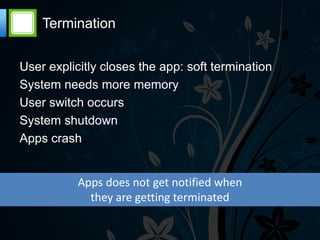
Termination

User explicitly closes the app: soft termination
System needs more memory
User switch occurs
System shutdown
Apps crash


           Apps does not get notified when
             they are getting terminated
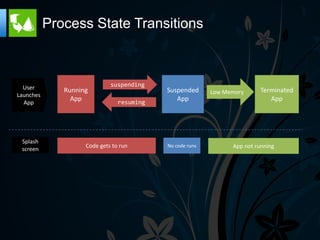
Process State Transitions


  User                       suspending
              Running                      Suspended      Low Memory      Terminated
Launches
                App             resuming
                                              App                            App
  App


 Splash
                    Code gets to run       No code runs         App not running
 screen
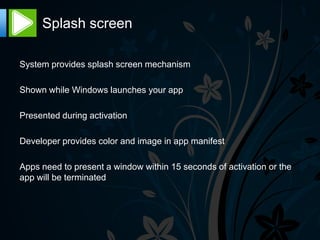
Splash screen

System provides splash screen mechanism

Shown while Windows launches your app

Presented during activation

Developer provides color and image in app manifest

Apps need to present a window within 15 seconds of activation or the
app will be terminated
Background Audio Playback


Apps can play audio in the background

Developers must specify background audio in the app
manifest

Each audio stream is given a type (communication, media,
game)

Onle one audio stream type may play at a given time
Upload/Download in the background


Use the BackgroundTransfer API to upload or download
data over HTTP in the background

Initiate upload / download from the foreground and it can
continue though your app is suspended
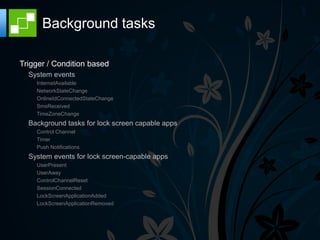
Background tasks

Trigger / Condition based
  System events
    InternetAvailable
    NetworkStateChange
    OnlineIdConnectedStateChange
    SmsReceived
    TimeZoneChange
  Background tasks for lock screen capable apps
    Control Channel
    Timer
    Push Notifications
  System events for lock screen-capable apps
    UserPresent
    UserAway
    ControlChannelReset
    SessionConnected
    LockScreenApplicationAdded
    LockScreenApplicationRemoved
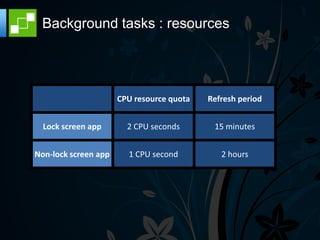
Background tasks : resources


                      CPU resource quota   Refresh period


  Lock screen app


Non-lock screen app
Windows Notification Service

Enables delivery of tile and toast notification over the
internet

Tile updates and notifications shown to the user even if
your app is not running

WNS handles communication with your app

Scales to millions of users

WNS is a free service for your app to use
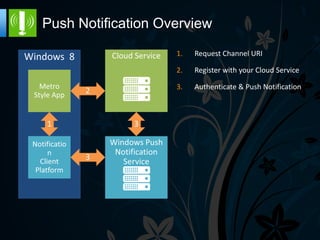
Push Notification Overview
                    1.   Request Channel URI

                    2.   Register with your Cloud Service

                    3.   Authenticate & Push Notification
Toast Notifications

Toast notifications deliver transient messages outside the context of the
app

Use toast notifications to get user‟s attention immediately

User is in control and can permanently turn off toast notifications from
your app

Allows quick navigation to a contextually relevant location in your app

Toast notifications are easy to invoke from your app or from the cloud
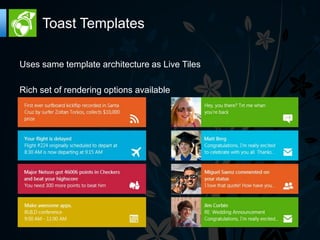
Toast Templates

Uses same template architecture as Live Tiles

Rich set of rendering options available
Contracts


Contracts enable integrating the Windows 8
         experience into your app

    Yields a consistent UI for all apps
Search


Enables your app to interact and respond to
 Suggestions
 Search Query
Settings


Consistently given one place to get search
 Context sensitive to the front facing app
Share


Your app can share anything (text, images, binaries)
  Automatically filters available applications to share to


Your app can be a share target – receive sharing from others
  Add sharing target as a capability and you can receive share requests
Play To


Ability to stream media to compatible devices
Data


Isolated Storage is the key
 http://metrostoragehelper.codeplex.com


Database
 SQL Lite
   http://timheuer.com/blog/archive/2012/05/20/using-sqlite-in-metro-style-app.aspx
Summarized


Windows RT is a huge leap, both in faith but also technically

Consistent API that feels mature from day one

Well architected solutions putting the user first

Makes us as developers focus on adding the business value
Resources

The samples of today
 http://github.com/einari/toodeloo


INPC Weaver
 http://github.com/SimonCropp/NotifyPropertyWeaver


WinRT Toolkit
 http://jupitertoolkit.codeplex.com


Tiny IoC container - WinRT Compatible
 http://microsliver.codeplex.com/
Resources

MVVM Light
  http://mvvmlight.codeplex.com/


Setting up push notifications – registering your app
  https://manage.dev.live.com/build


WAT for Windows 8 + WnsRecipe
  http://watwindows8.codeplex.com/releases/view/73334


Calisto – UI Framework for WinRT
  https://github.com/timheuer/callisto


Get into the store – register as a deveveloper
  http://msdn.microsoft.com/en-us/windows/apps/
Thanks for your
   attention
Windows 8 BootCamp

Windows 8 BootCamp

  • 2.
    Developing on Windows8 Power point template by Colin Eberhardt
  • 3.
    Agenda WinRT Platform Basics Bestpractices Pickers Contracts Tiles Notifications Process Lifetime Management
  • 4.
    Who am I Einar Ingebrigtsen @einari einar@dolittle.com http://blog.dolittle.com http://www.ingebrigtsen.info
  • 5.
  • 6.
  • 7.
  • 8.
  • 9.
  • 10.
  • 11.
    Bridging the gap FileOpenPickerpicker = new FileOpenPicker(); picker.FileTypeFilter.Add("*")a; StorageFile file = await picker.PickSingleFileAsync(); Windows.Storage.Streams.IInputStream inputStream = await file.OpenReadAsync(); System.IO.Stream stream = inputStream.AsStreamForRead(); System.IO.StreamReader reader = new StreamReader(stream); string contents = reader.ReadToEnd();
  • 12.
  • 13.
    Missing things Reflection APIchanged Type details through GetTypeInfo() – extension method Emit namespace practically empty - security
  • 14.
    XAML Originally developed forWindows Vista and exposed as WPF Defines what you see Layout is by default not flowing, as in HTML Can observe changes (Active View)
  • 15.
  • 16.
    Dependency Object Contains propertybag for DependencyProperties on object Holds attached Dependency Properties DataContext aware
  • 17.
    Dependency Properties A bindableproperty that can hold binding expressions Registered on a DependencyObject Callback when data changes
  • 18.
    Attached Dependency Properties Crosscutting properties Extend other dependency objects with properties they don‟t have
  • 19.
    DataContext Hierarchical Children usesparents datacontext unless explicitly changing it Set DataContext = “Hello World” DataContext = “Hello World” Set DataContext = “Something else” DataContext = “Something else” DataContext = “Hello World”
  • 20.
    Binding Source Defaults toDataContext Can use StaticResource as source Mode OneWay, TwoWay, OneTime – OneWay default Validation ValidatesOnException ValidatesOnNotifyDataErrors INotifyDataErrorInfo
  • 21.
    Binding StringFormat StringFormat =„MMM.dd.yyyy‟ Null and Fallback values TargetNullValue=„(None)‟ FallbackValue=„(Data Context Not Set)‟ IValueConverter
  • 22.
    Element to Element Canbind directly to other elements properties Binds by name of element
  • 23.
    Active View INotifyPropertyChanging /INotifyPropertyChanged INotifyCollectionChanged – ObservableCollection<>
  • 24.
    ValueConverter Simple interface; IValueConverter Convert ConvertBack Converts values during databinding
  • 25.
    TypeConverter Converts data fromXAML to CLR types and back XAML will always give string Can be defined on a DependencyProperty or on an object with attributes pointing to the converter
  • 26.
    Events You still haveevents as before – buttons can be clicked and raise an event RoutedEvents – bubbles through the UI
  • 27.
    Async var data =DownloadData(...); ProcessData(data); STOP DownloadData ProcessData var future = DownloadDataAsync(...); future.ContinueWith(data => ProcessData(data)); DownloadDataAsync ProcessData
  • 28.
    Async Models Windows Runtime: IAsyncOperation<T> .NET Framework : Task<T> C# 5.0 – async / await
  • 29.
    Async – C#style Marked with “async” modifier Must return void or Task<T> Use “await” operator to cooperatively yield control – remember to mark with “async” Feels just like good old synchronous code
  • 30.
    Patterns & Practices MVVM Inspired by PresentationModel by Martin Fowler Good for decoupling – promotes testability Compositioning Commands Actions / Triggers / Behaviors
  • 31.
    MVVM Model View Observes ViewModel Observable
  • 32.
    Compositional UIs Navigation Header Main Content Footer
  • 33.
    Event Aggregator ViewModel 1 ViewModel 2 Aggregator
  • 35.
    Tiles Tap on tileto launch or switch to an app Static default tile specified in app manifest Two sizes: Both sizes can have live updates
  • 36.
    Live Tiles Tiles updatesusing Templates provide Text-only image-only pre-defined templates rich rendering options or combination JPEG or PNG only, Optional “peek” Local or cloud max size 150 KB animation updates
  • 37.
  • 38.
  • 40.
    Process Lifetime Management Systemmanages application lifetime One foreground full screen window Apps are quickly suspended to preserve battery life
  • 41.
    Suspend System resources focusedon the app that the user is interacting with in the foreground Inactive apps have no impact on battery life or responsiveness, they are suspended by the OS Enables instant switching between apps
  • 42.
    Suspend details Suspended appsare not scheduled by the NT Kernel No CPU, Disk or Network consumed All threads are suspended Apps remain in memory Kernel ensures apps are not suspended in critical sections that could cause system wide deadlocks Apps instantly resumed from suspend when brought to foreground
  • 43.
    Session State SuspensionManager SessionState Property bag that is automatically serialized and saved when suspended Reloads property bag from disk on activation Does not reload state if app crashed Only save and restore user session metadata Tip: Don‟t wait till suspension to put data into SessionState
  • 44.
    Session State :Best practices User using app Launch Save incrementally Restore session App switch Resuming Save navigation Do nothing
  • 45.
    Termination User explicitly closesthe app: soft termination System needs more memory User switch occurs System shutdown Apps crash Apps does not get notified when they are getting terminated
  • 46.
    Process State Transitions User suspending Running Suspended Low Memory Terminated Launches App resuming App App App Splash Code gets to run No code runs App not running screen
  • 47.
    Splash screen System providessplash screen mechanism Shown while Windows launches your app Presented during activation Developer provides color and image in app manifest Apps need to present a window within 15 seconds of activation or the app will be terminated
  • 48.
    Background Audio Playback Appscan play audio in the background Developers must specify background audio in the app manifest Each audio stream is given a type (communication, media, game) Onle one audio stream type may play at a given time
  • 49.
    Upload/Download in thebackground Use the BackgroundTransfer API to upload or download data over HTTP in the background Initiate upload / download from the foreground and it can continue though your app is suspended
  • 50.
    Background tasks Trigger /Condition based System events InternetAvailable NetworkStateChange OnlineIdConnectedStateChange SmsReceived TimeZoneChange Background tasks for lock screen capable apps Control Channel Timer Push Notifications System events for lock screen-capable apps UserPresent UserAway ControlChannelReset SessionConnected LockScreenApplicationAdded LockScreenApplicationRemoved
  • 51.
    Background tasks :resources CPU resource quota Refresh period Lock screen app Non-lock screen app
  • 53.
    Windows Notification Service Enablesdelivery of tile and toast notification over the internet Tile updates and notifications shown to the user even if your app is not running WNS handles communication with your app Scales to millions of users WNS is a free service for your app to use
  • 54.
    Push Notification Overview 1. Request Channel URI 2. Register with your Cloud Service 3. Authenticate & Push Notification
  • 55.
    Toast Notifications Toast notificationsdeliver transient messages outside the context of the app Use toast notifications to get user‟s attention immediately User is in control and can permanently turn off toast notifications from your app Allows quick navigation to a contextually relevant location in your app Toast notifications are easy to invoke from your app or from the cloud
  • 56.
    Toast Templates Uses sametemplate architecture as Live Tiles Rich set of rendering options available
  • 58.
    Contracts Contracts enable integratingthe Windows 8 experience into your app Yields a consistent UI for all apps
  • 59.
    Search Enables your appto interact and respond to Suggestions Search Query
  • 60.
    Settings Consistently given oneplace to get search Context sensitive to the front facing app
  • 61.
    Share Your app canshare anything (text, images, binaries) Automatically filters available applications to share to Your app can be a share target – receive sharing from others Add sharing target as a capability and you can receive share requests
  • 62.
    Play To Ability tostream media to compatible devices
  • 64.
    Data Isolated Storage isthe key http://metrostoragehelper.codeplex.com Database SQL Lite http://timheuer.com/blog/archive/2012/05/20/using-sqlite-in-metro-style-app.aspx
  • 65.
    Summarized Windows RT isa huge leap, both in faith but also technically Consistent API that feels mature from day one Well architected solutions putting the user first Makes us as developers focus on adding the business value
  • 66.
    Resources The samples oftoday http://github.com/einari/toodeloo INPC Weaver http://github.com/SimonCropp/NotifyPropertyWeaver WinRT Toolkit http://jupitertoolkit.codeplex.com Tiny IoC container - WinRT Compatible http://microsliver.codeplex.com/
  • 67.
    Resources MVVM Light http://mvvmlight.codeplex.com/ Setting up push notifications – registering your app https://manage.dev.live.com/build WAT for Windows 8 + WnsRecipe http://watwindows8.codeplex.com/releases/view/73334 Calisto – UI Framework for WinRT https://github.com/timheuer/callisto Get into the store – register as a deveveloper http://msdn.microsoft.com/en-us/windows/apps/
  • 68.

Editor's Notes

  • #16 Visual Studio : Code editor w/ IntellisenseUI Designer DebuggersSimulator Platform window Blend : Code editor WYSIGYG designer Animation Better properties window SimulatorPlatform window
  • #36 Metro App = one foreground full screen window that allows the user to work more efficientlyThe other Metro Apps are quickly suspended to preserve battery lifeAs a developer, you have to know how Windows manages your App lifetime and how to be a good citizenApps are suspended 5 seconds after leaving foreground.However, you get 10 seconds instead when you switch from one App to another.You can check it if you launch an App in Snap view and keep the Task Manager in the Filled view (I’m not able to find a workflow that ends up to the 5 seconds…)
  • #37 Metro App = one foreground full screen window that allows the user to work more efficientlyThe other Metro Apps are quickly suspended to preserve battery lifeAs a developer, you have to know how Windows manages your App lifetime and how to be a good citizenApps are suspended 5 seconds after leaving foreground.However, you get 10 seconds instead when you switch from one App to another.You can check it if you launch an App in Snap view and keep the Task Manager in the Filled view (I’m not able to find a workflow that ends up to the 5 seconds…)
  • #41 Metro App = one foreground full screen window that allows the user to work more efficientlyThe other Metro Apps are quickly suspended to preserve battery lifeAs a developer, you have to know how Windows manages your App lifetime and how to be a good citizenApps are suspended 5 seconds after leaving foreground.However, you get 10 seconds instead when you switch from one App to another.You can check it if you launch an App in Snap view and keep the Task Manager in the Filled view (I’m not able to find a workflow that ends up to the 5 seconds…)
  • #42 = “tombstoning” in Windows phone (read http://msdn.microsoft.com/en-us/library/ff817008(v=vs.92).aspx for the execution model in WP)This also visible with SysInternals Process Explorer (http://technet.microsoft.com/en-us/sysinternals/bb896653.aspx) where you see the same “Suspended” in the CPU column. It was possible to “suspend” a process in Windows 7 with Process Explorer: this is now done by Windows itself for Metro Apps.NOTE: Process Explorer is fully aware of Metro Apps = “Immersive” has new blue color. See Options | Configure Colors | Immersive Process + see package in tooltipWhen you right-click | Resume on a Suspended Metro App, it gets back automatically Suspending immediately by Windows
  • #46 The user can still decide to explicitly “close”/”end” an App by using ALT+F4 or the following touch gesture = “drag the top of the App and drag it down to the bottom of the screen”: in that case, the App gets the suspend notification after 5 secondsThe system is also allowed to “terminate” the apps.. [users can do it too via task manager or Process Explorer]There is no event fired during termination… you should save all your stuff by “suspending” or even better, along the user navigation in the AppDEMO: use Testlimit64 –d 1024 to consume as much memory (working set) as possible and see that first the Metro App working set are trimmed and then some Apps get terminated (download the tool from http://technet.microsoft.com/en-us/sysinternals/bb963901.aspx)Watch http://channel9.msdn.com/Events/TechEd/NorthAmerica/2011/WCL405 for Mark Russinovich talk about Windows memory management + demos of Testlimit
  • #48 Splashscreen and background colors are set in the App manifest.It’s used by Windows to display the first screen before the App code starts to runSame during activation through Contracts
  • #49 Splashscreen and background colors are set in the App manifest.It’s used by Windows to display the first screen before the App code starts to runSame during activation through Contracts
  • #50 Ex: update cache on a regular basis such as for weekly TV programs
  • #51 You can control when the background task runs, even after it is triggered, by adding a condition. Once triggered, a background task will not run until all of its conditions are met. The following conditions (represented by the SystemConditionType enumeration) can be used.For instance : InternetAvailable, InternetNotAvailable,SessionConnected, SessionDisconnected, UserNotPresent, UserPresentControl Channel : Background Tasks can keep a connection alive– ControlChannelTriggerTimer : Background tasks can run as frequently as every 15 minutesPush Notification : Background tasks respond to PushNotificationTrigger to receive raw push notifications
  • #52 Resources for background tasks are throttled to make sure the background task is not consuming too much battery (both CPU time and network bandwidth)The throtting is tough for us (humans) to measure because it is CPU time.. When CPU is idle (e.g. making a network call) that does not count against you.. The way the metering happens is that you are allowed a quota within a period and as long as you do not exceed it, you are OK.. Once you exceed it, the system flat out ignores the triggers until the right amount of time has passed  so you can’t assume that you’ll be timely called if you exceed your limit-- Network resource constraints are a function of the amount of energy used by the network interface, which is modeled as the amount of time the network is used to transfer bytes (for download or upload); it is not based on any throughput metrics. The throughput and energy usage of a network interface varies based on factors like link capacity, physical position of the device, or the current load on the WiFi network. WiFi networks typically have lower energy consumption per byte sent and received when compared to cellular mobile networks.