Project 2
The Paper
 Research Paper – document used to communicate the
  results of research findings
 Two main types of research papers – the information is
  the same in each, the format is different
   Modern Language Association (MLA)
   American Psychological Association (APA)
 This chapter covers MLA style which is also the style
 used here – Wilmington High School
MLA Style Formatting
 Parenthetical References – this means sources are
  noted with in the body of paper, not at bottom of page
  or at end of paper
 Content Notes – these are used to elaborate on points
  within paper or to direct reader to notes about a
  source: uses a superscript font to identify
 Works Cited page – list of sources at end of paper
Styles
 Word offers users a variety of different styles or
  formatting characteristics
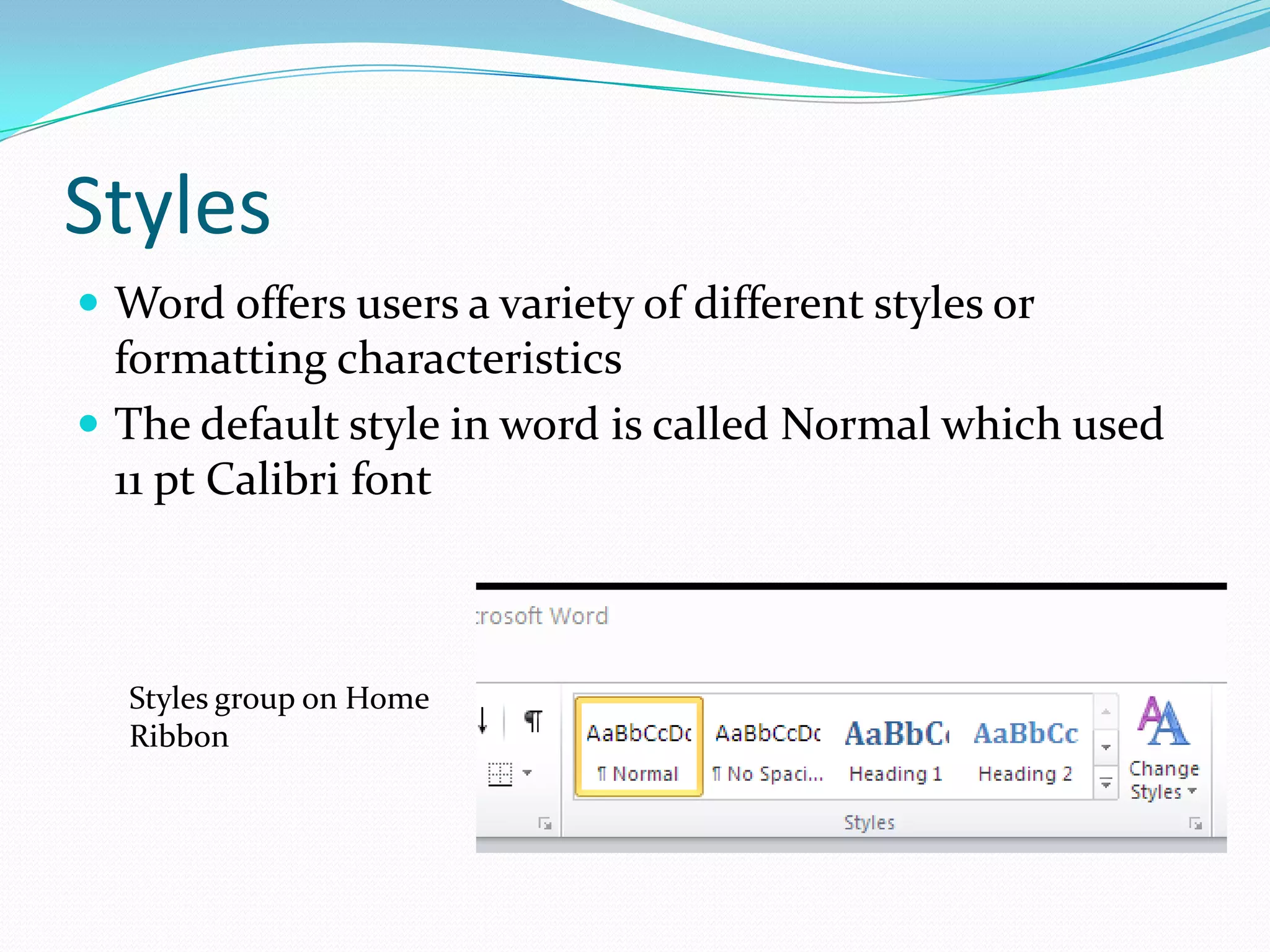
 The default style in word is called Normal which used
  11 pt Calibri font


  Styles group on Home
  Ribbon
Line & Paragraph Spacing
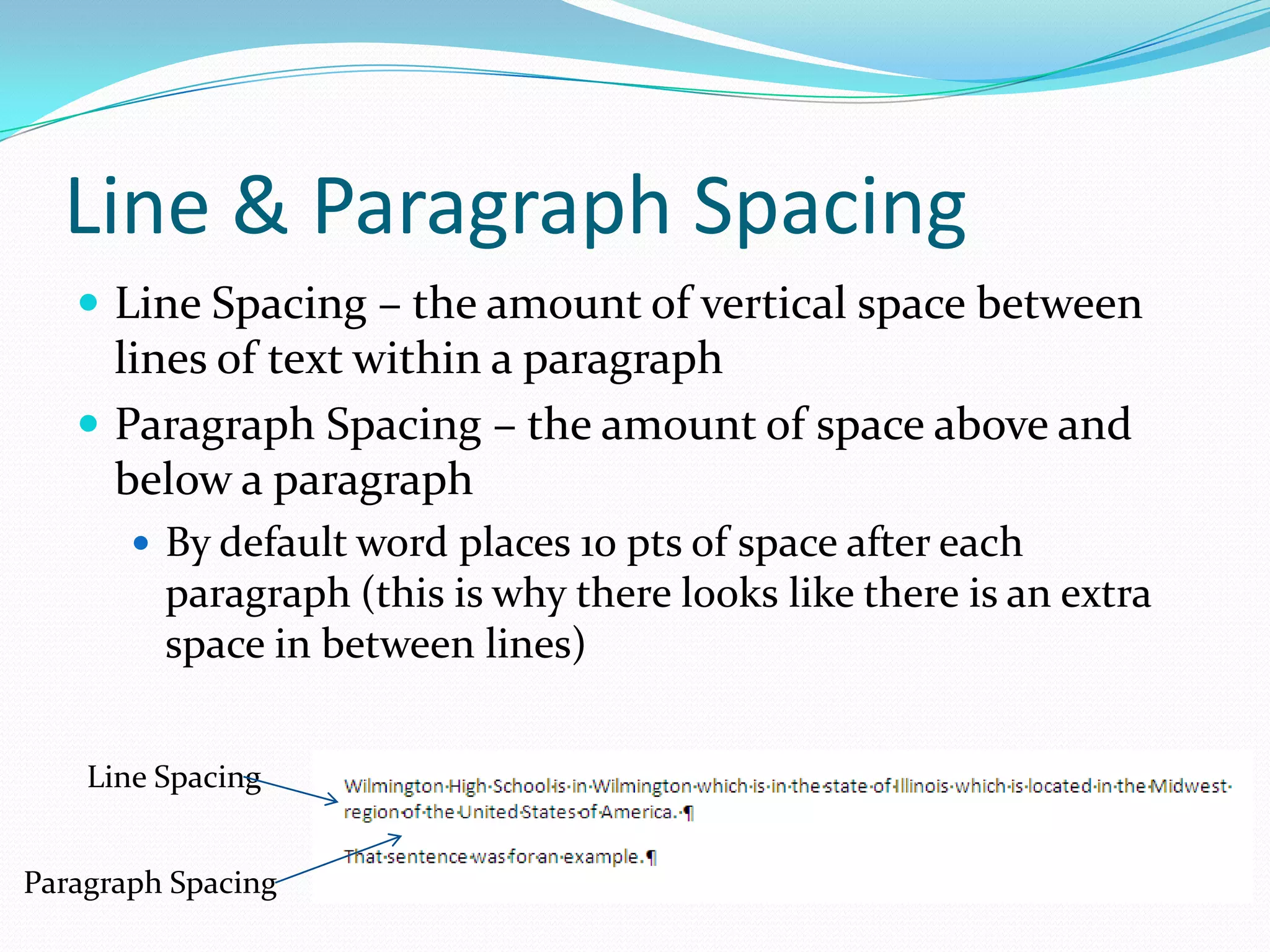
    Line Spacing – the amount of vertical space between
     lines of text within a paragraph
    Paragraph Spacing – the amount of space above and
     below a paragraph
        By default word places 10 pts of space after each
         paragraph (this is why there looks like there is an extra
         space in between lines)


    Line Spacing


Paragraph Spacing
Header / Footer
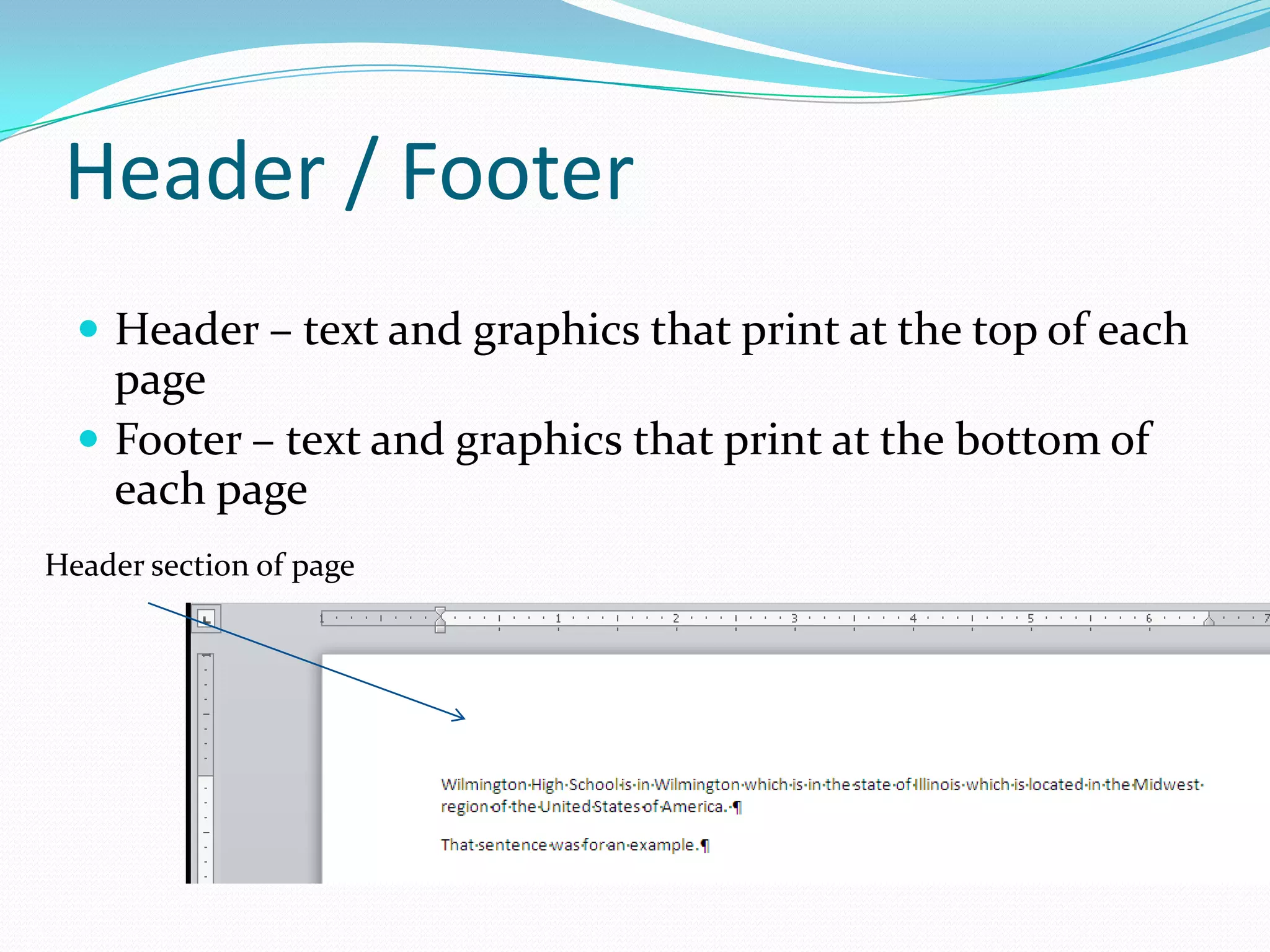
   Header – text and graphics that print at the top of each
    page
   Footer – text and graphics that print at the bottom of
    each page
Header section of page
Header vs. Heading
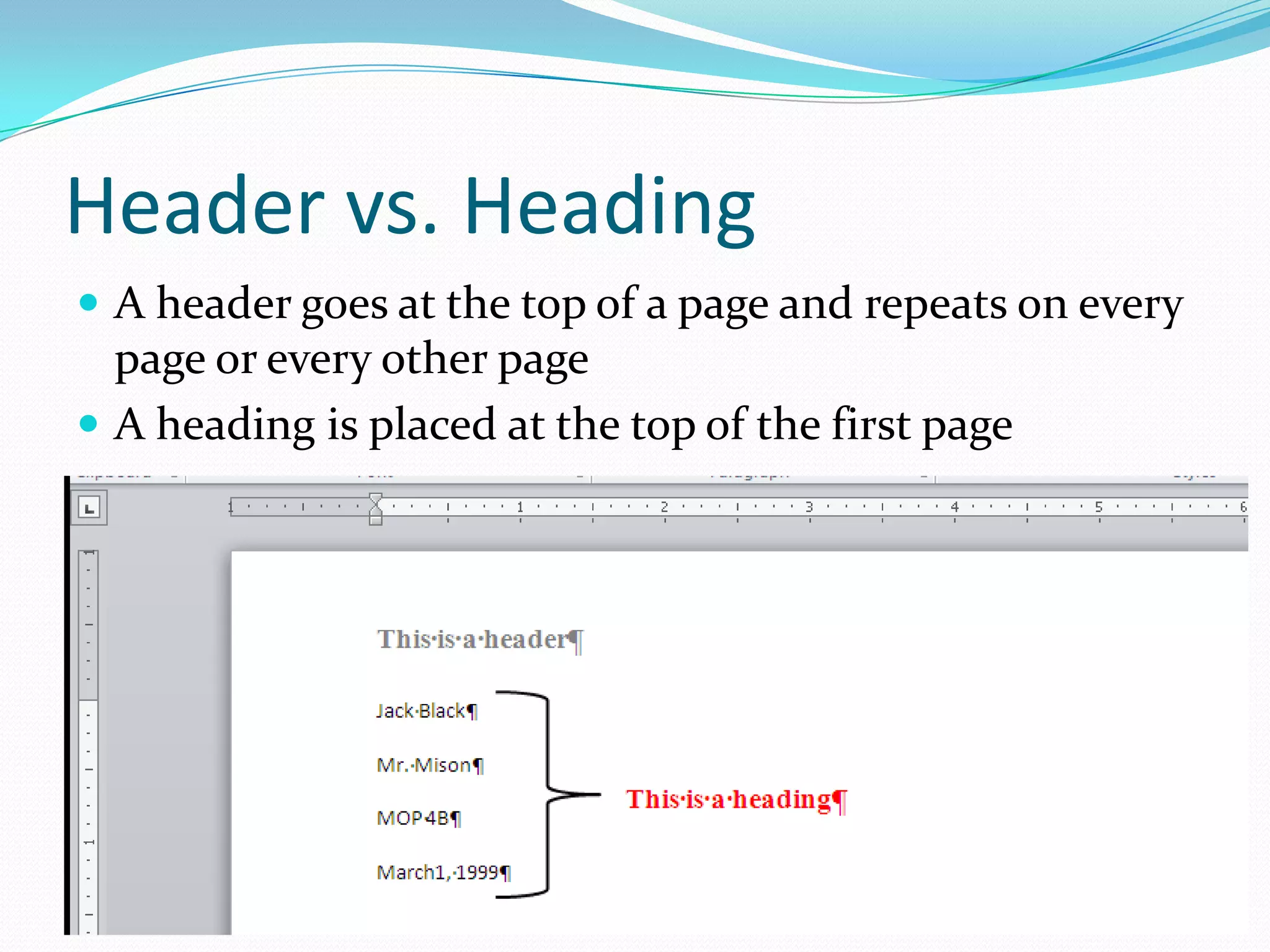
 A header goes at the top of a page and repeats on every
  page or every other page
 A heading is placed at the top of the first page
Alignment
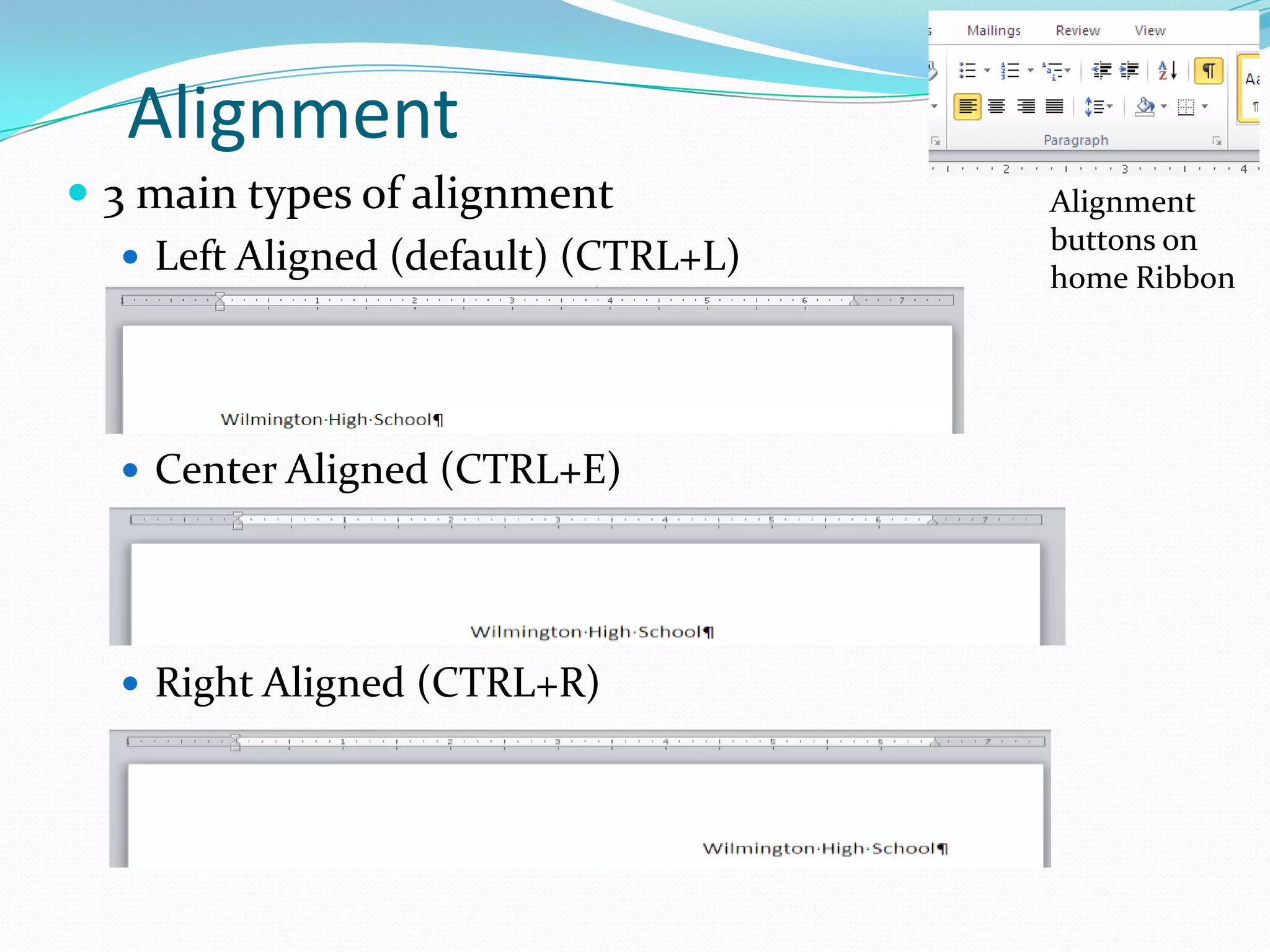
 3 main types of alignment            Alignment
                                       buttons on
    Left Aligned (default) (CTRL+L)
                                       home Ribbon


   Center Aligned (CTRL+E)


   Right Aligned (CTRL+R)
AutoCorrect
 Word autocorrect corrects many common
  typing, spelling, grammar, and capitalization errors as
  you type
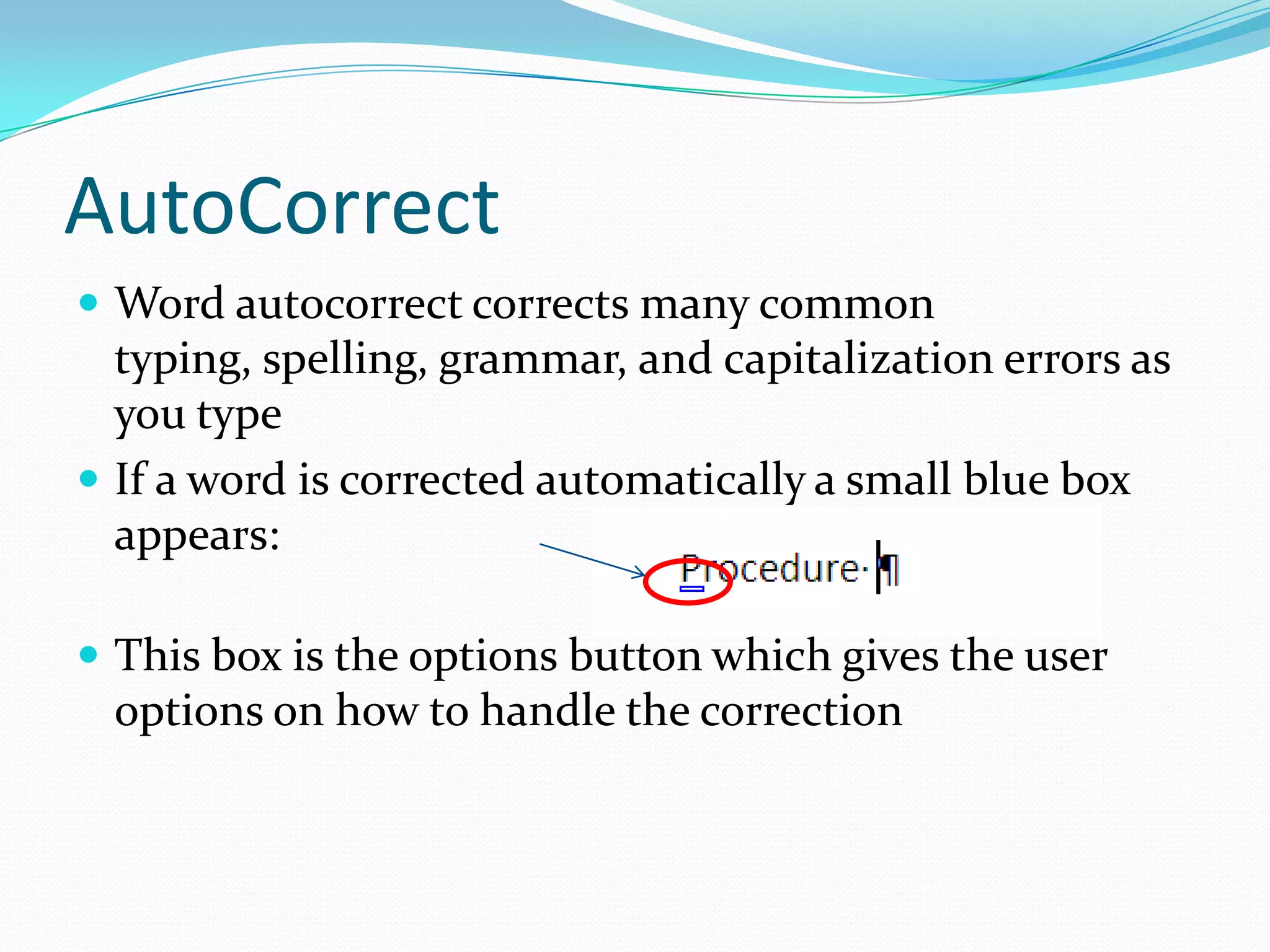
 If a word is corrected automatically a small blue box
  appears:

 This box is the options button which gives the user
 options on how to handle the correction
Citations
 Citations are the in-text references that MLA style uses
  for sources. The full source would then be at the end of
  the paper on the page called Works Cited
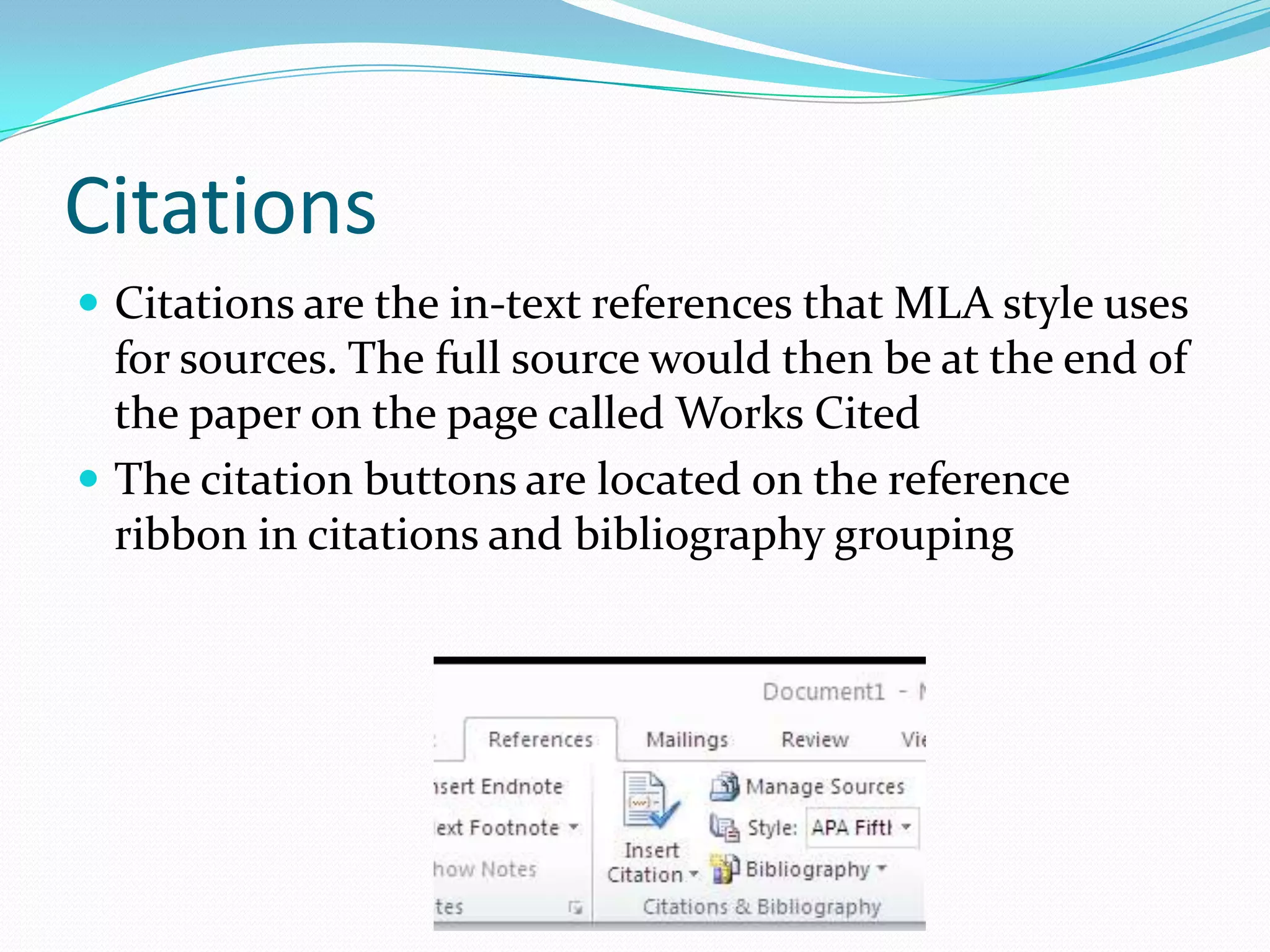
 The citation buttons are located on the reference
  ribbon in citations and bibliography grouping
Footnotes / Endnotes
 Footnotes are notes placed at the bottom of a page
 Endnotes are notes placed at the end of a document
 Footnotes and endnotes contain information that
  detail points discussed in the paper
 A note reference mark is used to signal the presence of
  a footnote or endnote
   A superscript is used as the mark (ex: 1)
Page Breaks
 Soft page break – a page break that is inserted
 automatically by Word when one page has been filled
   Sometimes called automatic page break
   Causes repagination – Word decides what lines go on
    what page
 Hard Page Break – a page break that has been forced
 into the document by the user
   Sometimes called a manual page break
   Button is located on the insert ribbon in the pages group
Work Cited
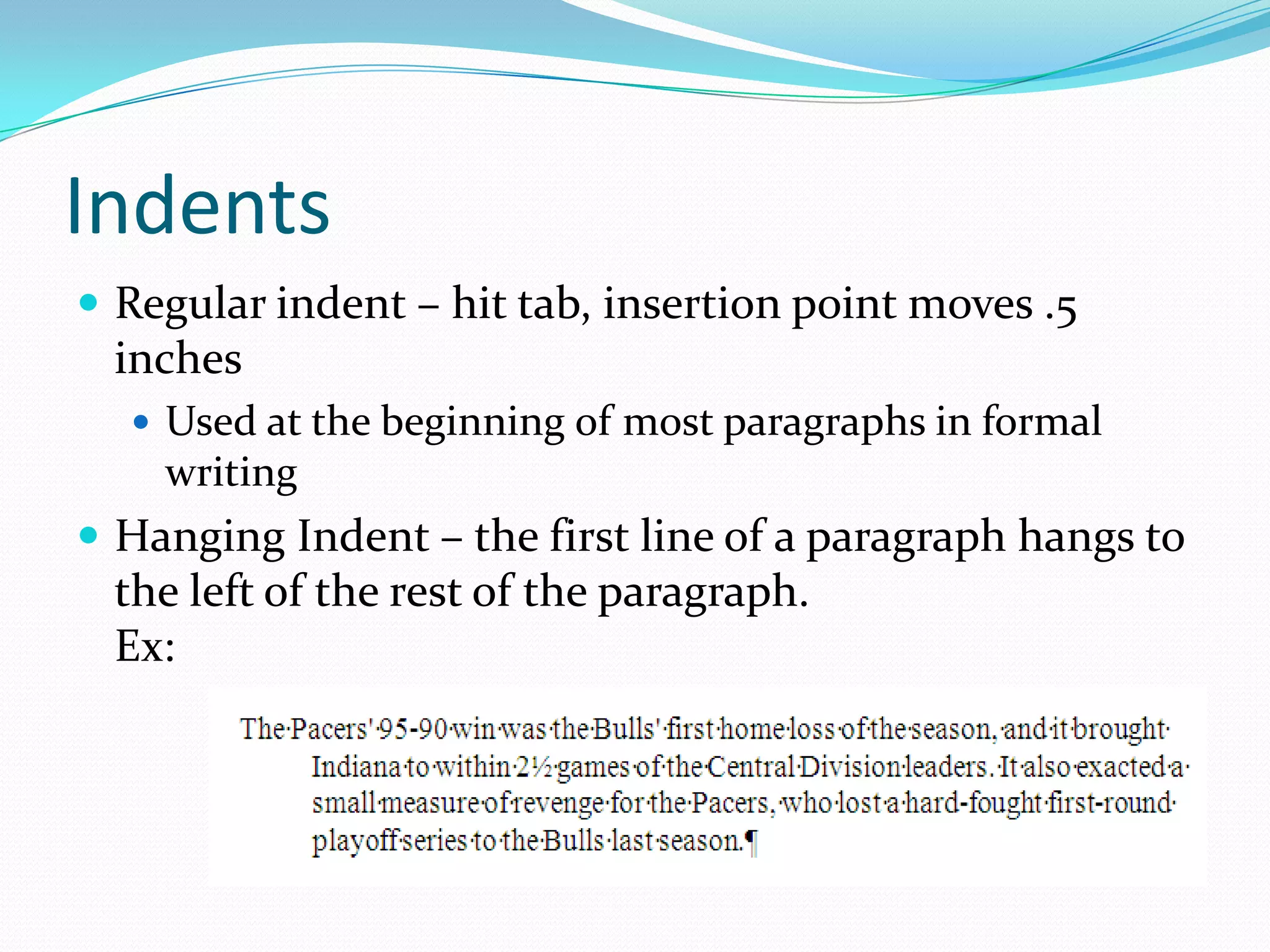
 MLA style used a work cited page to list the sources
 that are directly referenced in the paper
   This is a separate page from the paper itself
 APA uses bibliography – not work cited
Indents
 Regular indent – hit tab, insertion point moves .5
 inches
   Used at the beginning of most paragraphs in formal
    writing
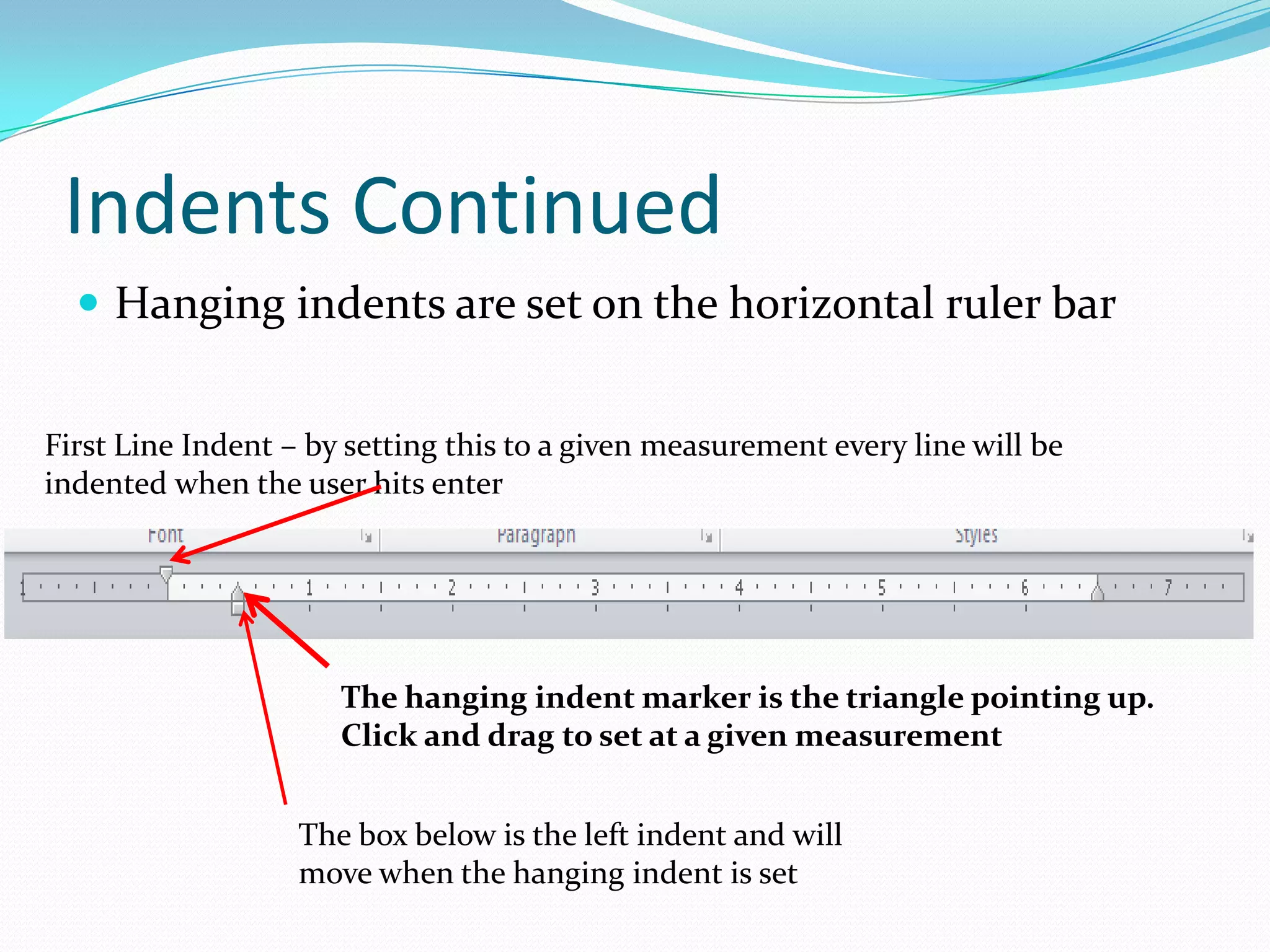
 Hanging Indent – the first line of a paragraph hangs to
 the left of the rest of the paragraph.
 Ex:
Indents Continued
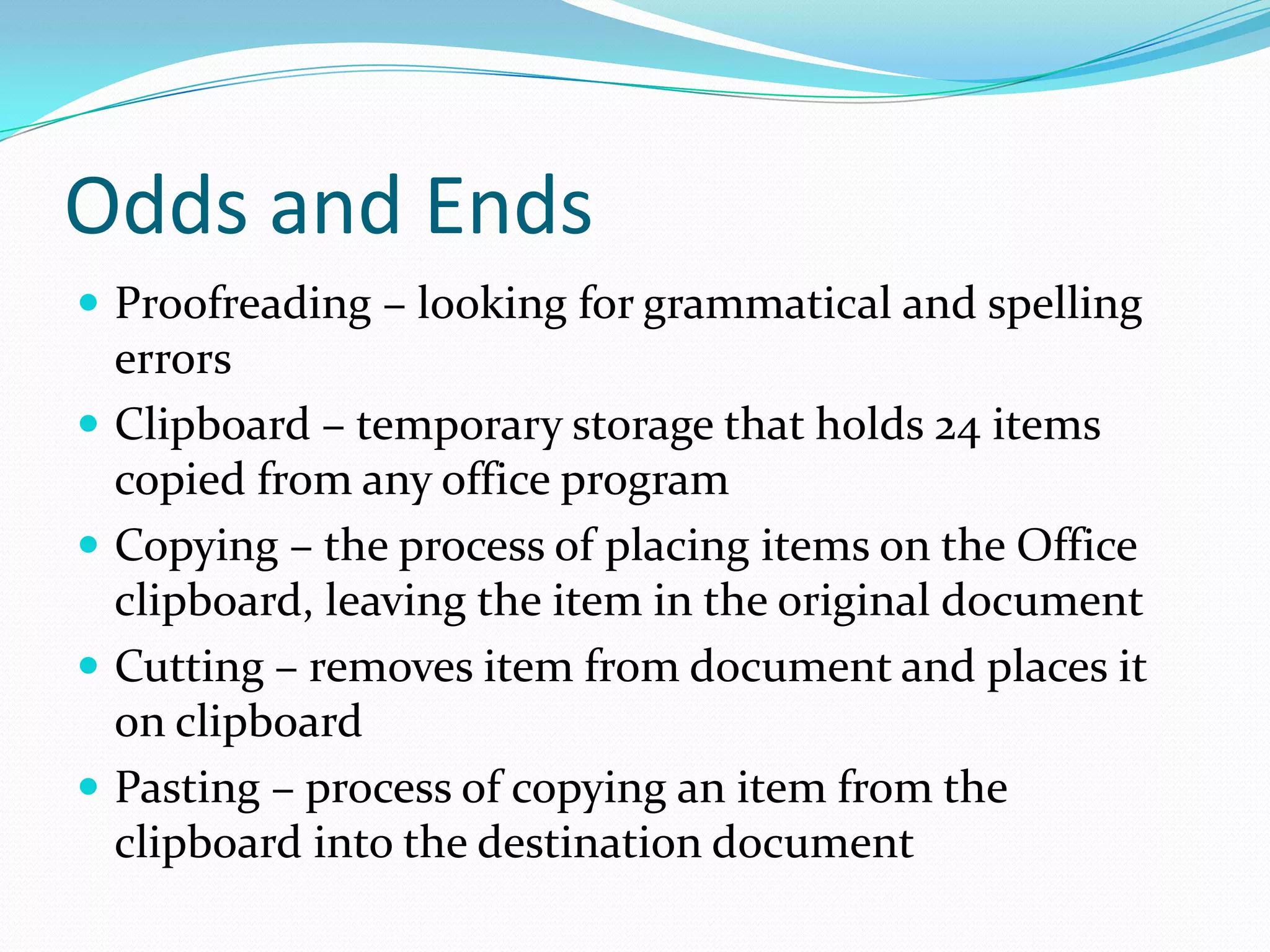
   Hanging indents are set on the horizontal ruler bar


First Line Indent – by setting this to a given measurement every line will be
indented when the user hits enter


                      The hanging indent marker is the triangle pointing up.
                      Click and drag to set at a given measurement


                   The box below is the left indent and will
                   move when the hanging indent is set
Odds and Ends
 Proofreading – looking for grammatical and spelling
    errors
   Clipboard – temporary storage that holds 24 items
    copied from any office program
   Copying – the process of placing items on the Office
    clipboard, leaving the item in the original document
   Cutting – removes item from document and places it
    on clipboard
   Pasting – process of copying an item from the
    clipboard into the destination document
More Odds and Ends
 Synonym – a word similar in meaning to the current
 word being used
   Ex: like / enjoy
 Thesaurus – a book of synonums
That’s It
 Definitions and concepts are at a minimum in this
  chapter
 Please remember to read between each step as you are
  completing the walk through

Creating a research paper with citations and references

  • 1.
  • 2.
    The Paper  ResearchPaper – document used to communicate the results of research findings  Two main types of research papers – the information is the same in each, the format is different  Modern Language Association (MLA)  American Psychological Association (APA)  This chapter covers MLA style which is also the style used here – Wilmington High School
  • 3.
    MLA Style Formatting Parenthetical References – this means sources are noted with in the body of paper, not at bottom of page or at end of paper  Content Notes – these are used to elaborate on points within paper or to direct reader to notes about a source: uses a superscript font to identify  Works Cited page – list of sources at end of paper
  • 4.
    Styles  Word offersusers a variety of different styles or formatting characteristics  The default style in word is called Normal which used 11 pt Calibri font Styles group on Home Ribbon
  • 5.
    Line & ParagraphSpacing  Line Spacing – the amount of vertical space between lines of text within a paragraph  Paragraph Spacing – the amount of space above and below a paragraph  By default word places 10 pts of space after each paragraph (this is why there looks like there is an extra space in between lines) Line Spacing Paragraph Spacing
  • 6.
    Header / Footer  Header – text and graphics that print at the top of each page  Footer – text and graphics that print at the bottom of each page Header section of page
  • 7.
    Header vs. Heading A header goes at the top of a page and repeats on every page or every other page  A heading is placed at the top of the first page
  • 8.
    Alignment  3 maintypes of alignment Alignment buttons on  Left Aligned (default) (CTRL+L) home Ribbon  Center Aligned (CTRL+E)  Right Aligned (CTRL+R)
  • 9.
    AutoCorrect  Word autocorrectcorrects many common typing, spelling, grammar, and capitalization errors as you type  If a word is corrected automatically a small blue box appears:  This box is the options button which gives the user options on how to handle the correction
  • 10.
    Citations  Citations arethe in-text references that MLA style uses for sources. The full source would then be at the end of the paper on the page called Works Cited  The citation buttons are located on the reference ribbon in citations and bibliography grouping
  • 11.
    Footnotes / Endnotes Footnotes are notes placed at the bottom of a page  Endnotes are notes placed at the end of a document  Footnotes and endnotes contain information that detail points discussed in the paper  A note reference mark is used to signal the presence of a footnote or endnote  A superscript is used as the mark (ex: 1)
  • 12.
    Page Breaks  Softpage break – a page break that is inserted automatically by Word when one page has been filled  Sometimes called automatic page break  Causes repagination – Word decides what lines go on what page  Hard Page Break – a page break that has been forced into the document by the user  Sometimes called a manual page break  Button is located on the insert ribbon in the pages group
  • 13.
    Work Cited  MLAstyle used a work cited page to list the sources that are directly referenced in the paper  This is a separate page from the paper itself  APA uses bibliography – not work cited
  • 14.
    Indents  Regular indent– hit tab, insertion point moves .5 inches  Used at the beginning of most paragraphs in formal writing  Hanging Indent – the first line of a paragraph hangs to the left of the rest of the paragraph. Ex:
  • 15.
    Indents Continued  Hanging indents are set on the horizontal ruler bar First Line Indent – by setting this to a given measurement every line will be indented when the user hits enter The hanging indent marker is the triangle pointing up. Click and drag to set at a given measurement The box below is the left indent and will move when the hanging indent is set
  • 16.
    Odds and Ends Proofreading – looking for grammatical and spelling errors  Clipboard – temporary storage that holds 24 items copied from any office program  Copying – the process of placing items on the Office clipboard, leaving the item in the original document  Cutting – removes item from document and places it on clipboard  Pasting – process of copying an item from the clipboard into the destination document
  • 17.
    More Odds andEnds  Synonym – a word similar in meaning to the current word being used  Ex: like / enjoy  Thesaurus – a book of synonums
  • 18.
    That’s It  Definitionsand concepts are at a minimum in this chapter  Please remember to read between each step as you are completing the walk through