Creating a Word Document
   When inserting a picture make sure of the
    location of your insertion point. The insertion
    point identifies where the picture will be
    inserted
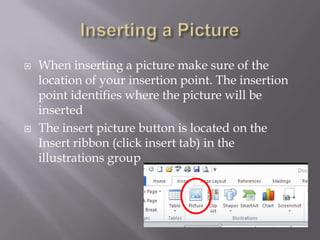
   The insert picture button is located on the
    Insert ribbon (click insert tab) in the
    illustrations group
    Note - when you click on the Insert tab the buttons
     and groupings change from what appeared on the
     Home ribbon
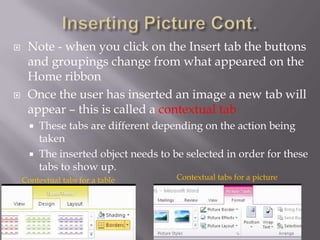
    Once the user has inserted an image a new tab will
     appear – this is called a contextual tab
         These tabs are different depending on the action being
          taken
         The inserted object needs to be selected in order for these
          tabs to show up.
    Contextual tabs for a table         Contextual tabs for a picture
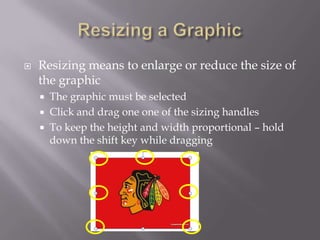
   Resizing means to enlarge or reduce the size of
    the graphic
       The graphic must be selected
       Click and drag one one of the sizing handles
       To keep the height and width proportional – hold
        down the shift key while dragging
   A style is a named group of formatting
    characteristics
       There are over 25 picture styles to choose from in MS
        Word
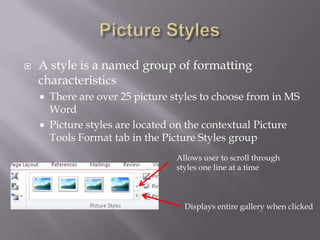
       Picture styles are located on the contextual Picture
        Tools Format tab in the Picture Styles group
                                  Allows user to scroll through
                                  styles one line at a time


                                    Displays entire gallery when clicked
   Picture effects enable a user to further
    customize a graphic
       Effects included in MS Word: shadows, reflections,
        glow, soft edges, bevel, and 3-D rotation
   The difference between styles and effects are
    the options available – each effect has several
    different options to change whereas a style
    does not
   Picture Effects can be selected
    from the Picture Tools Format
    contextual ribbon
   A page border is a line or artistic effect that
    goes around the entire document
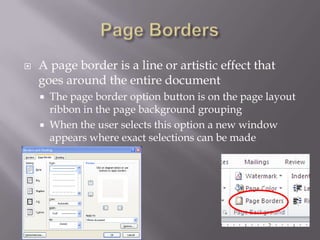
       The page border option button is on the page layout
        ribbon in the page background grouping
       When the user selects this option a new window
        appears where exact selections can be made
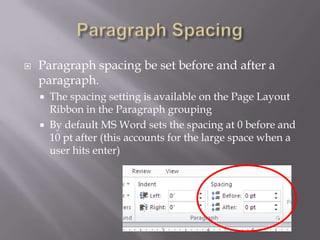
   Paragraph spacing be set before and after a
    paragraph.
       The spacing setting is available on the Page Layout
        Ribbon in the Paragraph grouping
       By default MS Word sets the spacing at 0 before and
        10 pt after (this accounts for the large space when a
        user hits enter)
   There are several ways to delete text from a
    document:
       The delete key – when this is pressed it will delete
        one character to the right
       The backspace key – this will erase one character to
        the left
       Selecting an entire word or sentence and then
        pressing delete or backspace will erase the selection
   When moving text the user should use the
    drag-and-drop method
       Select the text to be moved | click and hold on that
        text | move the text to the desired location | release
        the mouse button
   Document properties are the details about a file
       To get to the document properties window click the
        file tab | click info
       Another word for the properties of a document is
        metadata
   A Keyword is a word or phrase that further
    describes the document
   Topics covered in this chapter:
     Enter text in a document
     Format text
     Insert a picture
     Format a picture
     Add a page border
     Print a document

Word project 1 part 2

  • 1.
  • 2.
    When inserting a picture make sure of the location of your insertion point. The insertion point identifies where the picture will be inserted  The insert picture button is located on the Insert ribbon (click insert tab) in the illustrations group
  • 3.
    Note - when you click on the Insert tab the buttons and groupings change from what appeared on the Home ribbon  Once the user has inserted an image a new tab will appear – this is called a contextual tab  These tabs are different depending on the action being taken  The inserted object needs to be selected in order for these tabs to show up. Contextual tabs for a table Contextual tabs for a picture
  • 4.
    Resizing means to enlarge or reduce the size of the graphic  The graphic must be selected  Click and drag one one of the sizing handles  To keep the height and width proportional – hold down the shift key while dragging
  • 5.
    A style is a named group of formatting characteristics  There are over 25 picture styles to choose from in MS Word  Picture styles are located on the contextual Picture Tools Format tab in the Picture Styles group Allows user to scroll through styles one line at a time Displays entire gallery when clicked
  • 6.
    Picture effects enable a user to further customize a graphic  Effects included in MS Word: shadows, reflections, glow, soft edges, bevel, and 3-D rotation  The difference between styles and effects are the options available – each effect has several different options to change whereas a style does not  Picture Effects can be selected from the Picture Tools Format contextual ribbon
  • 7.
    A page border is a line or artistic effect that goes around the entire document  The page border option button is on the page layout ribbon in the page background grouping  When the user selects this option a new window appears where exact selections can be made
  • 8.
    Paragraph spacing be set before and after a paragraph.  The spacing setting is available on the Page Layout Ribbon in the Paragraph grouping  By default MS Word sets the spacing at 0 before and 10 pt after (this accounts for the large space when a user hits enter)
  • 9.
    There are several ways to delete text from a document:  The delete key – when this is pressed it will delete one character to the right  The backspace key – this will erase one character to the left  Selecting an entire word or sentence and then pressing delete or backspace will erase the selection  When moving text the user should use the drag-and-drop method  Select the text to be moved | click and hold on that text | move the text to the desired location | release the mouse button
  • 10.
    Document properties are the details about a file  To get to the document properties window click the file tab | click info  Another word for the properties of a document is metadata  A Keyword is a word or phrase that further describes the document
  • 11.
    Topics covered in this chapter:  Enter text in a document  Format text  Insert a picture  Format a picture  Add a page border  Print a document