HP Project and Portfolio Management Center
Software Version: 7.5
Commands, Tokens, and Validations Guide and Reference
Document Release Date: June 2008
Software Release Date: June 2008
Legal Notices
Warranty
The only warranties for HP products and services are set forth in the express warranty statements accompanying such
products and services. Nothing herein should be construed as constituting an additional warranty. HP shall not be
liable for technical or editorial errors or omissions contained herein.
The information contained herein is subject to change without notice.
Restricted Rights Legend
Confidential computer software. Valid license from HP required for possession, use or copying. Consistent with FAR
12.211 and 12.212, Commercial Computer Software, Computer Software Documentation, and Technical Data for
Commercial Items are licensed to the U.S. Government under vendor's standard commercial license.
Copyright Notices
© Copyright 1997-2008 Hewlett-Packard Development Company, L.P.
Trademark Notices
Adobe® is a trademark of Adobe Systems Incorporated.
Intel®, Intel® Itanium®, Intel® Xeon™, and Pentium® are trademarks or registered trademarks of Intel Corporation
or its subsidiaries in the United States and other countries.
Java™ is a U.S. trademark of Sun Microsystems, Inc.
Microsoft®, Windows®, and Windows® XP are U.S. registered trademarks of Microsoft Corporation.
Microsoft Vista® is either a registered trademark or trademark of Microsoft Corporation in the United States and/or
other countries.
Oracle® is a registered U.S. trademark of Oracle Corporation, Redwood City, California.
UNIX® is a registered trademark of The Open Group.
2
Documentation Updates
This manual’s title page contains the following identifying information:
Software version number, which indicates the software version
Document release date, which changes each time the document is updated
Software release date, which indicates the release date of this version of the software
To check for recent updates, or to verify that you are using the most recent edition of a document, go to:
h20230.www2.hp.com/selfsolve/manuals.
You will also receive updated or new editions if you subscribe to the appropriate product support service. Contact
your HP sales representative for details.
3
Support
You can visit the HP Software Support Web site at hp.com/go/hpsoftwaresupport.
HP Software Support Online provides an efficient way to access interactive technical support tools. As a valued
support customer, you can benefit by using the support site to:
Search for knowledge documents of interest
Submit and track support cases and enhancement requests
Download software patches
Manage support contracts
Look up HP support contacts
Review information about available services
Enter into discussions with other software customers
Research and register for software training
Most of the support areas require that you register as an HP Passport user and sign in. Many also require a support
contract.
To find more information about access levels, go to: h20230.www2.hp.com/new_access_levels.jsp.
To register for an HP Passport ID, go to: h20229.www2.hp.com/passport-registration.html.
4
Contents
5
1 Getting Started with Commands, Tokens, and Validations. . . . . . . . . . . . . . . . . . . . . . . . . . . . . . . . . . . . . . . . 11
Related Documents . . . . . . . . . . . . . . . . . . . . . . . . . . . . . . . . . . . . . . . . . . . . . . . . . . . . . . . . . . . . . . . . . . . . . . . . 12
2 Using Commands . . . . . . . . . . . . . . . . . . . . . . . . . . . . . . . . . . . . . . . . . . . . . . . . . . . . . . . . . . . . . . . . . . . . . . . . . 13
About Commands . . . . . . . . . . . . . . . . . . . . . . . . . . . . . . . . . . . . . . . . . . . . . . . . . . . . . . . . . . . . . . . . . . . . . . . . . 13
Object Type Commands and Workflows . . . . . . . . . . . . . . . . . . . . . . . . . . . . . . . . . . . . . . . . . . . . . . . . . . . . 14
Request Type Commands and Workflows . . . . . . . . . . . . . . . . . . . . . . . . . . . . . . . . . . . . . . . . . . . . . . . . . . . 15
Special Commands . . . . . . . . . . . . . . . . . . . . . . . . . . . . . . . . . . . . . . . . . . . . . . . . . . . . . . . . . . . . . . . . . . . . . 16
Command Language . . . . . . . . . . . . . . . . . . . . . . . . . . . . . . . . . . . . . . . . . . . . . . . . . . . . . . . . . . . . . . . . . . . . 16
Command Conditions . . . . . . . . . . . . . . . . . . . . . . . . . . . . . . . . . . . . . . . . . . . . . . . . . . . . . . . . . . . . . . . . . . . 17
About the Commands Tab. . . . . . . . . . . . . . . . . . . . . . . . . . . . . . . . . . . . . . . . . . . . . . . . . . . . . . . . . . . . . . . . 18
Configuring Commands . . . . . . . . . . . . . . . . . . . . . . . . . . . . . . . . . . . . . . . . . . . . . . . . . . . . . . . . . . . . . . . . . . . . 19
Examples of Command Uses . . . . . . . . . . . . . . . . . . . . . . . . . . . . . . . . . . . . . . . . . . . . . . . . . . . . . . . . . . . . . . . . 23
3 Using Special Commands . . . . . . . . . . . . . . . . . . . . . . . . . . . . . . . . . . . . . . . . . . . . . . . . . . . . . . . . . . . . . . . . . . 25
About Special Commands. . . . . . . . . . . . . . . . . . . . . . . . . . . . . . . . . . . . . . . . . . . . . . . . . . . . . . . . . . . . . . . . . . . 25
Special Command Parameters. . . . . . . . . . . . . . . . . . . . . . . . . . . . . . . . . . . . . . . . . . . . . . . . . . . . . . . . . . . . . 27
Special Command Language. . . . . . . . . . . . . . . . . . . . . . . . . . . . . . . . . . . . . . . . . . . . . . . . . . . . . . . . . . . . . . 28
Nesting Special Commands. . . . . . . . . . . . . . . . . . . . . . . . . . . . . . . . . . . . . . . . . . . . . . . . . . . . . . . . . . . . . . . 28
Special Command Conditions . . . . . . . . . . . . . . . . . . . . . . . . . . . . . . . . . . . . . . . . . . . . . . . . . . . . . . . . . . . . . 28
Using the PPM Workbench to List Special Commands . . . . . . . . . . . . . . . . . . . . . . . . . . . . . . . . . . . . . . . . . 29
About the Special Command Builder . . . . . . . . . . . . . . . . . . . . . . . . . . . . . . . . . . . . . . . . . . . . . . . . . . . . . . . 30
Configuring Special Commands . . . . . . . . . . . . . . . . . . . . . . . . . . . . . . . . . . . . . . . . . . . . . . . . . . . . . . . . . . . . . . 30
Using the Special Command Builder . . . . . . . . . . . . . . . . . . . . . . . . . . . . . . . . . . . . . . . . . . . . . . . . . . . . . . . . . . 36
Using the Special Command Details Report to List Special Commands . . . . . . . . . . . . . . . . . . . . . . . . . . . . . . . 38
Special Commands for Processing of Requests . . . . . . . . . . . . . . . . . . . . . . . . . . . . . . . . . . . . . . . . . . . . . . . . . . 39
ksc_copy_request . . . . . . . . . . . . . . . . . . . . . . . . . . . . . . . . . . . . . . . . . . . . . . . . . . . . . . . . . . . . . . . . . . . . . . 39
ksc_move_request_workflow . . . . . . . . . . . . . . . . . . . . . . . . . . . . . . . . . . . . . . . . . . . . . . . . . . . . . . . . . . . . . 42
Examples of Using Special Commands . . . . . . . . . . . . . . . . . . . . . . . . . . . . . . . . . . . . . . . . . . . . . . . . . . . . . . . . 45
6
4 Using Tokens. . . . . . . . . . . . . . . . . . . . . . . . . . . . . . . . . . . . . . . . . . . . . . . . . . . . . . . . . . . . . . . . . . . . . . . . . . . . . 47
About Tokens . . . . . . . . . . . . . . . . . . . . . . . . . . . . . . . . . . . . . . . . . . . . . . . . . . . . . . . . . . . . . . . . . . . . . . . . . . . . 47
Where to Use Tokens . . . . . . . . . . . . . . . . . . . . . . . . . . . . . . . . . . . . . . . . . . . . . . . . . . . . . . . . . . . . . . . . . . . 48
Token Evaluation. . . . . . . . . . . . . . . . . . . . . . . . . . . . . . . . . . . . . . . . . . . . . . . . . . . . . . . . . . . . . . . . . . . . . . . 49
About the Token Builder. . . . . . . . . . . . . . . . . . . . . . . . . . . . . . . . . . . . . . . . . . . . . . . . . . . . . . . . . . . . . . . . . 50
Token Formats. . . . . . . . . . . . . . . . . . . . . . . . . . . . . . . . . . . . . . . . . . . . . . . . . . . . . . . . . . . . . . . . . . . . . . . . . . . . 51
Default Format. . . . . . . . . . . . . . . . . . . . . . . . . . . . . . . . . . . . . . . . . . . . . . . . . . . . . . . . . . . . . . . . . . . . . . . . . 54
Explicit Entity Format . . . . . . . . . . . . . . . . . . . . . . . . . . . . . . . . . . . . . . . . . . . . . . . . . . . . . . . . . . . . . . . . . . . 55
Nesting Explicit Entity Tokens within Other Tokens . . . . . . . . . . . . . . . . . . . . . . . . . . . . . . . . . . . . . . . . 57
User Data Format . . . . . . . . . . . . . . . . . . . . . . . . . . . . . . . . . . . . . . . . . . . . . . . . . . . . . . . . . . . . . . . . . . . . . . 58
Parameter Format . . . . . . . . . . . . . . . . . . . . . . . . . . . . . . . . . . . . . . . . . . . . . . . . . . . . . . . . . . . . . . . . . . . . . . 59
Request Field Tokens . . . . . . . . . . . . . . . . . . . . . . . . . . . . . . . . . . . . . . . . . . . . . . . . . . . . . . . . . . . . . . . . 60
Request Field Token Prefixes . . . . . . . . . . . . . . . . . . . . . . . . . . . . . . . . . . . . . . . . . . . . . . . . . . . . . . . . . . 60
Tokens in Request Table Components . . . . . . . . . . . . . . . . . . . . . . . . . . . . . . . . . . . . . . . . . . . . . . . . . . . 61
Sub-Entity Format . . . . . . . . . . . . . . . . . . . . . . . . . . . . . . . . . . . . . . . . . . . . . . . . . . . . . . . . . . . . . . . . . . . . . . 63
Environment and Environment Application Tokens. . . . . . . . . . . . . . . . . . . . . . . . . . . . . . . . . . . . . . . . . . . . 64
Using the Token Builder . . . . . . . . . . . . . . . . . . . . . . . . . . . . . . . . . . . . . . . . . . . . . . . . . . . . . . . . . . . . . . . . . . . . 67
5 Using Validations . . . . . . . . . . . . . . . . . . . . . . . . . . . . . . . . . . . . . . . . . . . . . . . . . . . . . . . . . . . . . . . . . . . . . . . . . 69
About Validations . . . . . . . . . . . . . . . . . . . . . . . . . . . . . . . . . . . . . . . . . . . . . . . . . . . . . . . . . . . . . . . . . . . . . . . . . 69
Validations and Special Characters. . . . . . . . . . . . . . . . . . . . . . . . . . . . . . . . . . . . . . . . . . . . . . . . . . . . . . . . . 69
Validation Component Types . . . . . . . . . . . . . . . . . . . . . . . . . . . . . . . . . . . . . . . . . . . . . . . . . . . . . . . . . . . . . 70
Accessing Validations Through Packages and Requests . . . . . . . . . . . . . . . . . . . . . . . . . . . . . . . . . . . . . . . . . . . 73
Viewing System Validations. . . . . . . . . . . . . . . . . . . . . . . . . . . . . . . . . . . . . . . . . . . . . . . . . . . . . . . . . . . . . . . . . 75
Configuring Validations . . . . . . . . . . . . . . . . . . . . . . . . . . . . . . . . . . . . . . . . . . . . . . . . . . . . . . . . . . . . . . . . . . . . 76
Configuring Text Field Validations . . . . . . . . . . . . . . . . . . . . . . . . . . . . . . . . . . . . . . . . . . . . . . . . . . . . . . . . . . . 79
Sample Telephone Data Mask Formats. . . . . . . . . . . . . . . . . . . . . . . . . . . . . . . . . . . . . . . . . . . . . . . . . . . . . . 84
Sample Custom Data Mask . . . . . . . . . . . . . . . . . . . . . . . . . . . . . . . . . . . . . . . . . . . . . . . . . . . . . . . . . . . . . . . 84
Configuring Static List Validations. . . . . . . . . . . . . . . . . . . . . . . . . . . . . . . . . . . . . . . . . . . . . . . . . . . . . . . . . . . . 85
Configuring Dynamic List Validations. . . . . . . . . . . . . . . . . . . . . . . . . . . . . . . . . . . . . . . . . . . . . . . . . . . . . . . . . 87
SQL Validation Tips . . . . . . . . . . . . . . . . . . . . . . . . . . . . . . . . . . . . . . . . . . . . . . . . . . . . . . . . . . . . . . . . . . . . 88
Auto-Complete Matching Tips . . . . . . . . . . . . . . . . . . . . . . . . . . . . . . . . . . . . . . . . . . . . . . . . . . . . . . . . . 89
Auto-Complete Values . . . . . . . . . . . . . . . . . . . . . . . . . . . . . . . . . . . . . . . . . . . . . . . . . . . . . . . . . . . . . . . 90
Configuring SQL Validations . . . . . . . . . . . . . . . . . . . . . . . . . . . . . . . . . . . . . . . . . . . . . . . . . . . . . . . . . . . . . 91
SQL Validated Drop Down Lists . . . . . . . . . . . . . . . . . . . . . . . . . . . . . . . . . . . . . . . . . . . . . . . . . . . . . . . 91
SQL Validated Auto-Complete Lists. . . . . . . . . . . . . . . . . . . . . . . . . . . . . . . . . . . . . . . . . . . . . . . . . . . . . 92
Adding Search Fields to Auto-Complete Validations. . . . . . . . . . . . . . . . . . . . . . . . . . . . . . . . . . . . . . . . . . . 95
Configuring the Filter Field Layout . . . . . . . . . . . . . . . . . . . . . . . . . . . . . . . . . . . . . . . . . . . . . . . . . . . . . . . . 98
7
Configuring Validations by Commands . . . . . . . . . . . . . . . . . . . . . . . . . . . . . . . . . . . . . . . . . . . . . . . . . . . . . 99
Configuring Text Area Validations. . . . . . . . . . . . . . . . . . . . . . . . . . . . . . . . . . . . . . . . . . . . . . . . . . . . . . . . . . . 105
Configuring 1800 Character Text Areas . . . . . . . . . . . . . . . . . . . . . . . . . . . . . . . . . . . . . . . . . . . . . . . . . . . . 107
Configuring Date Field Validations . . . . . . . . . . . . . . . . . . . . . . . . . . . . . . . . . . . . . . . . . . . . . . . . . . . . . . . . . . 108
Configuring File and Directory Chooser Validations . . . . . . . . . . . . . . . . . . . . . . . . . . . . . . . . . . . . . . . . . . . . . 110
Configuring the Table Component . . . . . . . . . . . . . . . . . . . . . . . . . . . . . . . . . . . . . . . . . . . . . . . . . . . . . . . . . . . 112
Configuring User-Defined Multi-Select Auto-Complete Fields. . . . . . . . . . . . . . . . . . . . . . . . . . . . . . . . . . . . . 119
Example of Token Evaluation and Validation by Command with Delimited Output . . . . . . . . . . . . . . . . . . . . 121
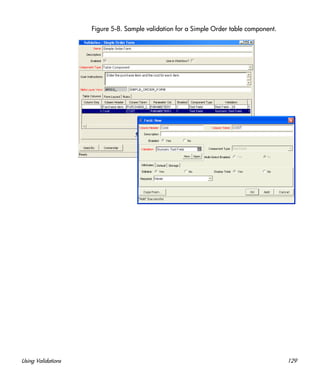
Example of Using a Table Component on an Order Form . . . . . . . . . . . . . . . . . . . . . . . . . . . . . . . . . . . . . . . . . 125
Example Calculating Column Totals. . . . . . . . . . . . . . . . . . . . . . . . . . . . . . . . . . . . . . . . . . . . . . . . . . . . . . . 128
A Tokens . . . . . . . . . . . . . . . . . . . . . . . . . . . . . . . . . . . . . . . . . . . . . . . . . . . . . . . . . . . . . . . . . . . . . . . . . . . . . . . . . 131
Application Server Tokens . . . . . . . . . . . . . . . . . . . . . . . . . . . . . . . . . . . . . . . . . . . . . . . . . . . . . . . . . . . . . . . . . 131
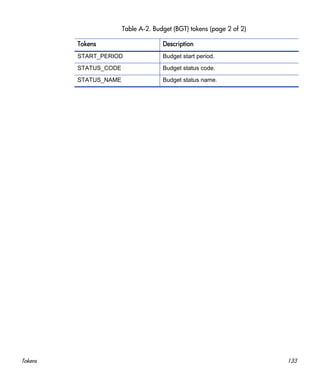
Budget Tokens. . . . . . . . . . . . . . . . . . . . . . . . . . . . . . . . . . . . . . . . . . . . . . . . . . . . . . . . . . . . . . . . . . . . . . . . . . . 132
Contact Tokens . . . . . . . . . . . . . . . . . . . . . . . . . . . . . . . . . . . . . . . . . . . . . . . . . . . . . . . . . . . . . . . . . . . . . . . . . . 134
Distribution Tokens. . . . . . . . . . . . . . . . . . . . . . . . . . . . . . . . . . . . . . . . . . . . . . . . . . . . . . . . . . . . . . . . . . . . . . . 135
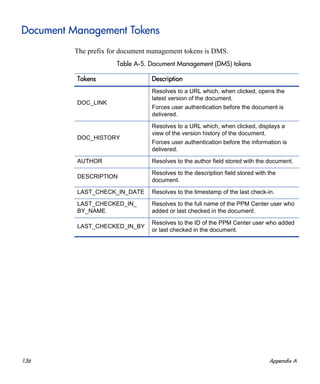
Document Management Tokens . . . . . . . . . . . . . . . . . . . . . . . . . . . . . . . . . . . . . . . . . . . . . . . . . . . . . . . . . . . . . 136
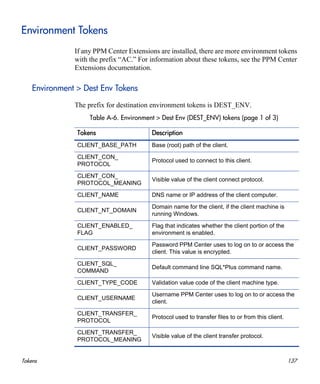
Environment Tokens . . . . . . . . . . . . . . . . . . . . . . . . . . . . . . . . . . . . . . . . . . . . . . . . . . . . . . . . . . . . . . . . . . . . . . 137
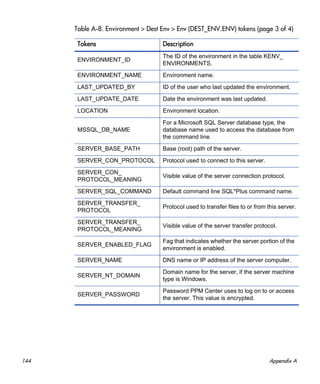
Environment > Dest Env Tokens . . . . . . . . . . . . . . . . . . . . . . . . . . . . . . . . . . . . . . . . . . . . . . . . . . . . . . . . . 137
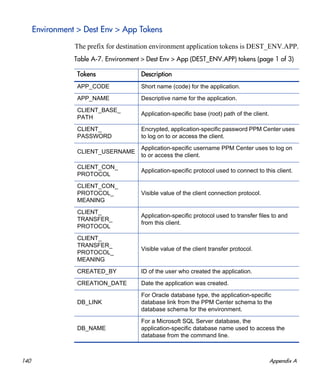
Environment > Dest Env > App Tokens . . . . . . . . . . . . . . . . . . . . . . . . . . . . . . . . . . . . . . . . . . . . . . . . . . . . 140
Environment > Dest Env > Env Tokens . . . . . . . . . . . . . . . . . . . . . . . . . . . . . . . . . . . . . . . . . . . . . . . . . . . . 142
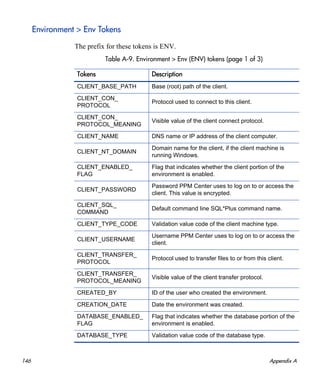
Environment > Env Tokens. . . . . . . . . . . . . . . . . . . . . . . . . . . . . . . . . . . . . . . . . . . . . . . . . . . . . . . . . . . . . . 146
Environment > Env > App Tokens . . . . . . . . . . . . . . . . . . . . . . . . . . . . . . . . . . . . . . . . . . . . . . . . . . . . . . . . 149
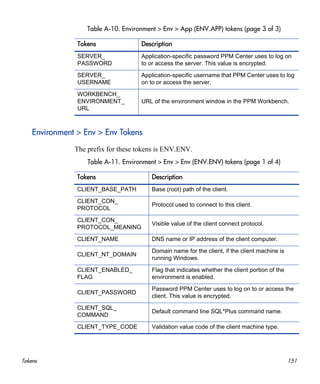
Environment > Env > Env Tokens . . . . . . . . . . . . . . . . . . . . . . . . . . . . . . . . . . . . . . . . . . . . . . . . . . . . . . . . 151
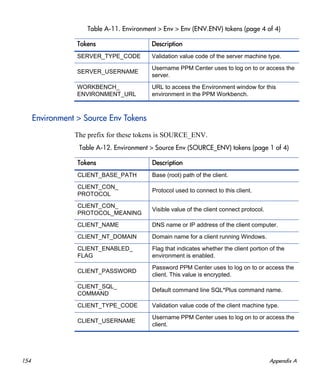
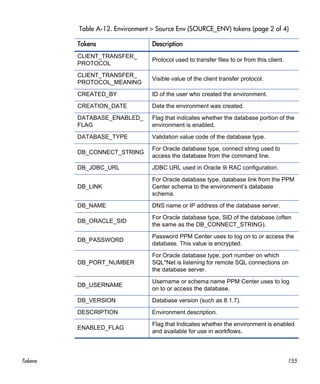
Environment > Source Env Tokens. . . . . . . . . . . . . . . . . . . . . . . . . . . . . . . . . . . . . . . . . . . . . . . . . . . . . . . . 154
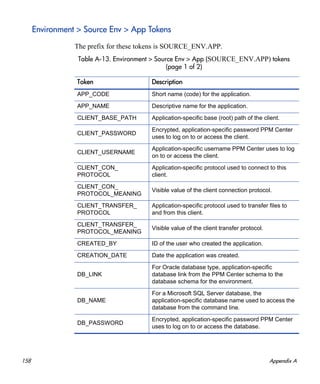
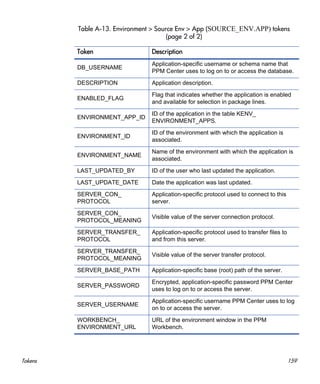
Environment > Source Env > App Tokens . . . . . . . . . . . . . . . . . . . . . . . . . . . . . . . . . . . . . . . . . . . . . . . . . . 158
Environment > Source Env > Env Tokens . . . . . . . . . . . . . . . . . . . . . . . . . . . . . . . . . . . . . . . . . . . . . . . . . . 160
Command Tokens . . . . . . . . . . . . . . . . . . . . . . . . . . . . . . . . . . . . . . . . . . . . . . . . . . . . . . . . . . . . . . . . . . . . . . . . 164
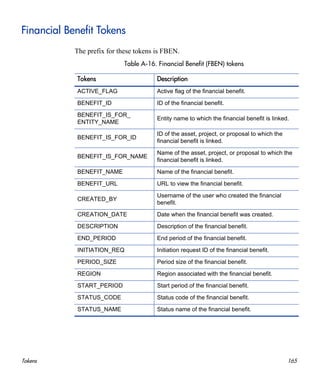
Financial Benefit Tokens . . . . . . . . . . . . . . . . . . . . . . . . . . . . . . . . . . . . . . . . . . . . . . . . . . . . . . . . . . . . . . . . . . 165
Notification Tokens. . . . . . . . . . . . . . . . . . . . . . . . . . . . . . . . . . . . . . . . . . . . . . . . . . . . . . . . . . . . . . . . . . . . . . . 166
Organization Unit Tokens . . . . . . . . . . . . . . . . . . . . . . . . . . . . . . . . . . . . . . . . . . . . . . . . . . . . . . . . . . . . . . . . . . 167
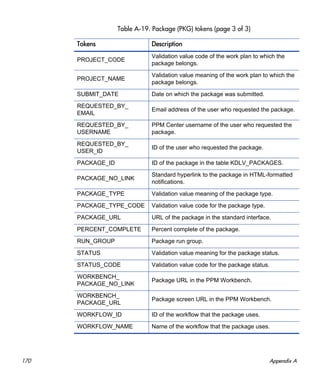
Package Tokens. . . . . . . . . . . . . . . . . . . . . . . . . . . . . . . . . . . . . . . . . . . . . . . . . . . . . . . . . . . . . . . . . . . . . . . . . . 168
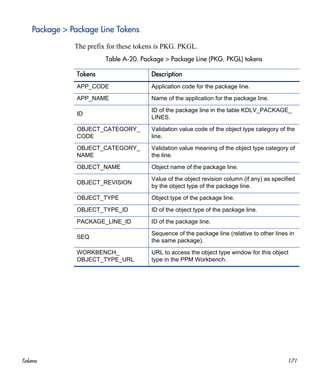
Package > Package Line Tokens . . . . . . . . . . . . . . . . . . . . . . . . . . . . . . . . . . . . . . . . . . . . . . . . . . . . . . . . . . 171
Package > Pending Reference Tokens . . . . . . . . . . . . . . . . . . . . . . . . . . . . . . . . . . . . . . . . . . . . . . . . . . . . . 172
Package Line Tokens . . . . . . . . . . . . . . . . . . . . . . . . . . . . . . . . . . . . . . . . . . . . . . . . . . . . . . . . . . . . . . . . . . . . . 173
Program Tokens . . . . . . . . . . . . . . . . . . . . . . . . . . . . . . . . . . . . . . . . . . . . . . . . . . . . . . . . . . . . . . . . . . . . . . . . . 174
Project Tokens. . . . . . . . . . . . . . . . . . . . . . . . . . . . . . . . . . . . . . . . . . . . . . . . . . . . . . . . . . . . . . . . . . . . . . . . . . . 175
8
Project Detail Tokens . . . . . . . . . . . . . . . . . . . . . . . . . . . . . . . . . . . . . . . . . . . . . . . . . . . . . . . . . . . . . . . . . . . . . 179
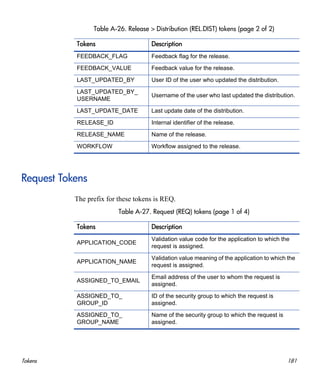
Release Tokens . . . . . . . . . . . . . . . . . . . . . . . . . . . . . . . . . . . . . . . . . . . . . . . . . . . . . . . . . . . . . . . . . . . . . . . . . . 179
Release > Distribution Tokens . . . . . . . . . . . . . . . . . . . . . . . . . . . . . . . . . . . . . . . . . . . . . . . . . . . . . . . . . . . 180
Request Tokens . . . . . . . . . . . . . . . . . . . . . . . . . . . . . . . . . . . . . . . . . . . . . . . . . . . . . . . . . . . . . . . . . . . . . . . . . . 181
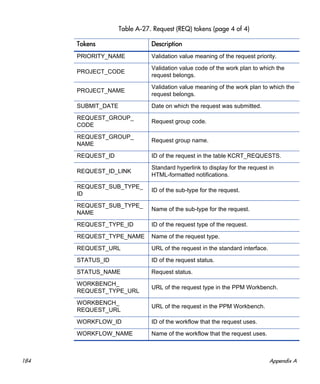
Request > Pending Reference Tokens. . . . . . . . . . . . . . . . . . . . . . . . . . . . . . . . . . . . . . . . . . . . . . . . . . . . . . 185
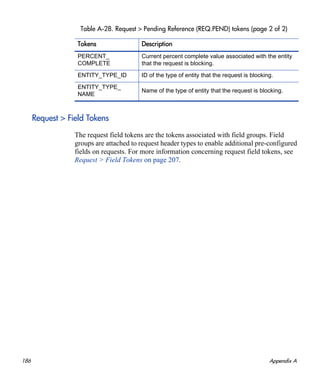
Request > Field Tokens. . . . . . . . . . . . . . . . . . . . . . . . . . . . . . . . . . . . . . . . . . . . . . . . . . . . . . . . . . . . . . . . . 186
Request Detail Tokens . . . . . . . . . . . . . . . . . . . . . . . . . . . . . . . . . . . . . . . . . . . . . . . . . . . . . . . . . . . . . . . . . . . . 187
Request Detail > Field Tokens . . . . . . . . . . . . . . . . . . . . . . . . . . . . . . . . . . . . . . . . . . . . . . . . . . . . . . . . . . . 187
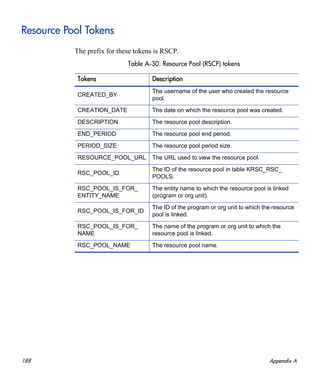
Resource Pool Tokens. . . . . . . . . . . . . . . . . . . . . . . . . . . . . . . . . . . . . . . . . . . . . . . . . . . . . . . . . . . . . . . . . . . . . 188
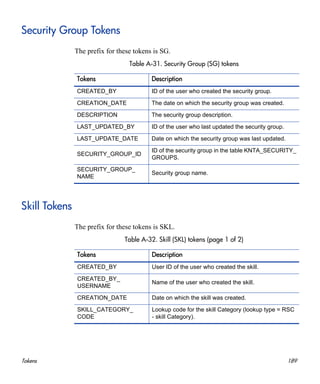
Security Group Tokens . . . . . . . . . . . . . . . . . . . . . . . . . . . . . . . . . . . . . . . . . . . . . . . . . . . . . . . . . . . . . . . . . . . . 189
Skill Tokens. . . . . . . . . . . . . . . . . . . . . . . . . . . . . . . . . . . . . . . . . . . . . . . . . . . . . . . . . . . . . . . . . . . . . . . . . . . . . 189
Staffing Profile Tokens . . . . . . . . . . . . . . . . . . . . . . . . . . . . . . . . . . . . . . . . . . . . . . . . . . . . . . . . . . . . . . . . . . . . 190
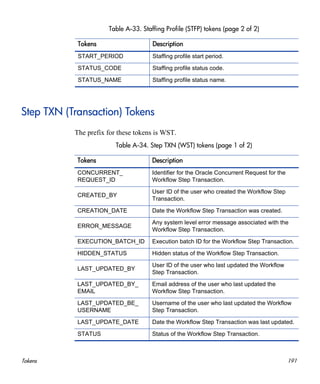
Step TXN (Transaction) Tokens . . . . . . . . . . . . . . . . . . . . . . . . . . . . . . . . . . . . . . . . . . . . . . . . . . . . . . . . . . . . . 191
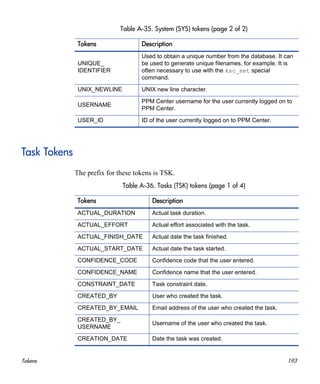
System Tokens . . . . . . . . . . . . . . . . . . . . . . . . . . . . . . . . . . . . . . . . . . . . . . . . . . . . . . . . . . . . . . . . . . . . . . . . . . 192
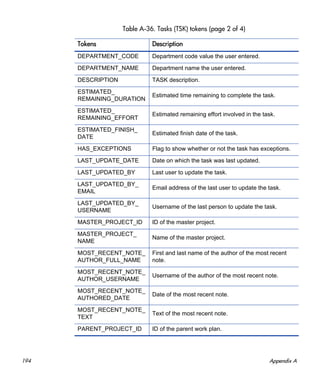
Task Tokens . . . . . . . . . . . . . . . . . . . . . . . . . . . . . . . . . . . . . . . . . . . . . . . . . . . . . . . . . . . . . . . . . . . . . . . . . . . . 193
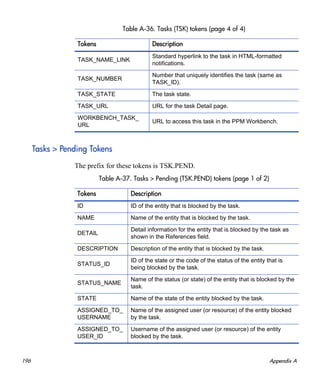
Tasks > Pending Tokens . . . . . . . . . . . . . . . . . . . . . . . . . . . . . . . . . . . . . . . . . . . . . . . . . . . . . . . . . . . . . . . . 196
Time Management Notification Tokens . . . . . . . . . . . . . . . . . . . . . . . . . . . . . . . . . . . . . . . . . . . . . . . . . . . . . . . 198
User Tokens. . . . . . . . . . . . . . . . . . . . . . . . . . . . . . . . . . . . . . . . . . . . . . . . . . . . . . . . . . . . . . . . . . . . . . . . . . . . . 198
Validation Tokens . . . . . . . . . . . . . . . . . . . . . . . . . . . . . . . . . . . . . . . . . . . . . . . . . . . . . . . . . . . . . . . . . . . . . . . . 200
Validation > Value Tokens . . . . . . . . . . . . . . . . . . . . . . . . . . . . . . . . . . . . . . . . . . . . . . . . . . . . . . . . . . . . . . 201
Workflow Tokens . . . . . . . . . . . . . . . . . . . . . . . . . . . . . . . . . . . . . . . . . . . . . . . . . . . . . . . . . . . . . . . . . . . . . . . . 202
Workflow > Workflow Step Tokens . . . . . . . . . . . . . . . . . . . . . . . . . . . . . . . . . . . . . . . . . . . . . . . . . . . . . . . 203
Workflow Step Tokens . . . . . . . . . . . . . . . . . . . . . . . . . . . . . . . . . . . . . . . . . . . . . . . . . . . . . . . . . . . . . . . . . . . . 206
Request > Field Tokens. . . . . . . . . . . . . . . . . . . . . . . . . . . . . . . . . . . . . . . . . . . . . . . . . . . . . . . . . . . . . . . . . . . . 209
CMBD Application Tokens. . . . . . . . . . . . . . . . . . . . . . . . . . . . . . . . . . . . . . . . . . . . . . . . . . . . . . . . . . . . . . 209
Demand Management SLA Tokens . . . . . . . . . . . . . . . . . . . . . . . . . . . . . . . . . . . . . . . . . . . . . . . . . . . . . . . 209
Demand Management Scheduling Tokens . . . . . . . . . . . . . . . . . . . . . . . . . . . . . . . . . . . . . . . . . . . . . . . . . . 210
MAM Impact Analysis Tokens . . . . . . . . . . . . . . . . . . . . . . . . . . . . . . . . . . . . . . . . . . . . . . . . . . . . . . . . . . . 210
Portfolio Management Asset Tokens . . . . . . . . . . . . . . . . . . . . . . . . . . . . . . . . . . . . . . . . . . . . . . . . . . . . . . 211
Portfolio Management Project Tokens . . . . . . . . . . . . . . . . . . . . . . . . . . . . . . . . . . . . . . . . . . . . . . . . . . . . . 212
Portfolio Management Proposal Tokens . . . . . . . . . . . . . . . . . . . . . . . . . . . . . . . . . . . . . . . . . . . . . . . . . . . . 213
Program Issue Tokens . . . . . . . . . . . . . . . . . . . . . . . . . . . . . . . . . . . . . . . . . . . . . . . . . . . . . . . . . . . . . . . . . . 214
Program Reference Tokens . . . . . . . . . . . . . . . . . . . . . . . . . . . . . . . . . . . . . . . . . . . . . . . . . . . . . . . . . . . . . . 214
Project Issue Tokens . . . . . . . . . . . . . . . . . . . . . . . . . . . . . . . . . . . . . . . . . . . . . . . . . . . . . . . . . . . . . . . . . . . 214
Project Reference Tokens . . . . . . . . . . . . . . . . . . . . . . . . . . . . . . . . . . . . . . . . . . . . . . . . . . . . . . . . . . . . . . . 214
Project Risk Tokens. . . . . . . . . . . . . . . . . . . . . . . . . . . . . . . . . . . . . . . . . . . . . . . . . . . . . . . . . . . . . . . . . . . . 215
Project Scope Change Tokens. . . . . . . . . . . . . . . . . . . . . . . . . . . . . . . . . . . . . . . . . . . . . . . . . . . . . . . . . . . . 215
9
Quality Center Defect Information Tokens. . . . . . . . . . . . . . . . . . . . . . . . . . . . . . . . . . . . . . . . . . . . . . . . . . 215
Quality Center Information Tokens. . . . . . . . . . . . . . . . . . . . . . . . . . . . . . . . . . . . . . . . . . . . . . . . . . . . . . . . 216
Resource Management Work Item Tokens . . . . . . . . . . . . . . . . . . . . . . . . . . . . . . . . . . . . . . . . . . . . . . . . . . 217
Index. . . . . . . . . . . . . . . . . . . . . . . . . . . . . . . . . . . . . . . . . . . . . . . . . . . . . . . . . . . . . . . . . . . . . . . . . . . . . . . . . . . . . 219
10
11
1 Getting Started with Commands, Tokens,
and Validations
Commands, tokens, and validations are used throughout HP Project and
Portfolio Management Center to enable advanced automation and defaulting.
Commands are at the heart of the execution layer within the deployment
system. They determine which actions are executed at specific workflow steps.
Actions performed at a workflow step can include file migration, script
execution, data analysis, or code compilation. Chapter 2, Using Commands,
on page 13 provides an overview of commands, and examples of how to use
them.
Special commands are commands with variable parameters and are used in
object types, request types, report types, workflows, and validation command
steps. Workflows use special commands in their workflow step sources. These
command steps perform a variety of functions, such as copying files between
environments and establishing connections to environments for remote
command execution. Chapter 3, Using Special Commands, on page 25
contains information about how to create, edit, and use special commands in
PPM Center.
Tokens are variables that PPM Center entities use to reference information that
is undefined until the entity is used in a specific context. For example, entities
use tokens to set variables in commands or within notifications to specify
recipients.
12 Chapter 1
Field validations determine the field types (for example, a text field or
drop-down list) and the values the field can accept. Workflow step validation
controls the possible results of exiting steps. PPM Center uses the following
types of tokens:
Standard
Custom
Chapter 4, Using Tokens, on page 47 shows how to use tokens.
Validations determine the valid input values for user-defined fields, such as
object type or request type fields. Validations also determine the possible
results that a workflow step can return. Validations are used for the field
component type and workflow step results. Chapter 5, Using Validations,
on page 69 provides detailed information on how to use tokens.
Related Documents
The following documents also include information related to using commands,
tokens, and validations:
HP Demand Management Configuration Guide
HP Deployment Management Configuration Guide
To access the user interface components described in this document, you must be
granted the Configuration license.
13
2 Using Commands
About Commands
Commands are at the heart of the execution layer within PPM Center. They
determine which actions are executed at specific workflow steps. Actions
performed at workflow steps can include file migration, script execution, data
analysis, field behavior, or code compilation. The following PPM Center
entities use commands:
Object types
Request types
Report types
Validations
Workflow step sources
Special commands
14 Chapter 2
Object Type Commands and Workflows
Object type commands are tightly integrated with the workflow engine. The
commands in an object type are executed at execution workflow steps in HP
Deployment Management package lines.
Keep in mind the following concepts regarding command and workflow
interaction:
To execute object type commands at a given workflow step, configure the
workflow step as follows:
o Make the workflow step an execution type step.
o Set the following parameter values:
Workflow Scope = Packages
Execution Type = Built-in Workflow Event
Workflow Command = execute_object_commands
When the object reaches the workflow step (Workflow Command =
execute_object_commands), all object type commands with conditions
satisfied are run in the order in which they are listed on the command field
for the object type.
You can configure the object type to run only certain commands at a given
step. To do this, specify command conditions. For information about how
to specify command conditions, see Command Conditions on page 17.
Using Commands 15
Request Type Commands and Workflows
Like object type commands, request type commands define the execution layer
within HP Demand Management. While most of the resolution process for a
request is analytically based, cases may arise for specific request types for
which system changes are required. In such cases, you can use request type
commands to make these changes automatically.
Request type commands are tightly integrated with the workflow engine. The
commands in a request type are executed at execution workflow steps. Keep in
mind the following concepts regarding the interactions between command and
workflow:
To execute request type commands at a given workflow step, configure the
workflow step as follows:
o Make the workflow step an execution type step.
o Set the following parameter values:
Workflow Scope = Requests
Execution Type = Built-in Workflow Event
Workflow Command = execute_request_commands
When the request reaches the workflow step (Workflow Command =
execute_request_commands), all commands with all conditions satisfied
are run in the listed order in which they are listed on the command field for
the request type.
To set up command conditions so that the request type runs only certain
commands at a given step, specify command conditions. For information
about how to specify command conditions, see Command Conditions
on page 17.
16 Chapter 2
Special Commands
Object types, request types, report types, workflows and validations all use
commands to access the execution layer. To simplify the use of command
executions, PPM Center provides a predefined set of special commands.
Special commands are commands with variable parameters, and are used in
object type, request type, report type, workflow, and validation command
steps. These command steps perform a variety of functions, such as copying
files between environments and establishing connections to environments for
remote command execution.
PPM Center features the following two types of special commands:
System special commands are shipped with PPM Center. System special
commands are read-only and have the naming convention ksc_command_
name.
User-defined special commands have the naming convention sc_
command_name.
Special commands act as modules that you can reuse. It it often more efficient
to create a special command for a program that you can reuse than to place an
individual command into every object type or request type that requires it.
Command Language
The command steps in a command define the system-level executions that
must be performed to realize the command function. Command steps can be
UNIX® commands, third-party application commands, or special commands.
Special commands are reusable routines defined in PPM Center.
PPM Center also supplies several system special commands that you can use to
perform common events (such as connecting to environments or copying files).
For more information about special commands, see Chapter 3, Using Special
Commands, on page 25.
For more information about special commands, see Chapter 3, Using Special
Commands, on page 25.
Using Commands 17
Command Conditions
In many situations, it may be necessary to run a different set of commands,
depending on the context of execution. To achieve this flexibility, you use
conditional commands. To define the situation under which the associated
command steps execute, you use the Condition field in the Edit Command or
New Command window.
Conditions are evaluated as boolean expressions. If the expression evaluates to
TRUE, the command is executed. If it evaluates to FALSE, the command is
skipped and the next command is evaluated. If no condition is specified, the
command is always executed. The syntax of a condition is identical to the
WHERE clause in an SQL statement. It provide enormous flexibility in
evaluating scenarios. Table 2-1 lists some example conditions. The condition
can include tokens. For more information, see Chapter 4, Using Tokens,
on page 47.
Table 2-1. Example conditions
Condition Evaluates to
BLANK Command is executed in all situations.
'[P.P_VERSION_LABEL]' IS NOT NULL
Command is executed if the
parameter with the token P_
VERSION_LABEL in the package line
is not null.
'[DEST_ENV.ENVIRONMENT_NAME]’ =
'Archive'
Command is executed when the
destination environment is named
Archive.
'[AS.SERVER_TYPE_CODE]'= 'UNIX'
Command is executed if the
application server is installed on a
UNIX machine.
You must place single quotes around string literals or tokens that are used to evaluate
strings.
18 Chapter 2
About the Commands Tab
Within PPM Center, commands are configured using the Commands tab for
the following entities:
Object types
Request types
Report types
Validations
Workflow step sources
Special commands
You can access the tab by opening one of the listed entities, and then selecting
the Commands tab. Figure 2-1 shows the Commands tab in the Object Type
window.
Figure 2-1. Commands tab
Using Commands 19
The Commands tab is divided into two sections. The Commands section
defines the command-line directive or special command to be issued. The
Command Steps section displays the steps specified to execute the commands.
A command step can be an actual command-line directive that is sent to the
PPM Server or target machine, or it can be one of the many special commands.
Configuring Commands
Each object type, request type, validation, workflow step source, or report type
can have many commands, and each command can include many steps. You
can think of a command as a particular function for an object. Copying a file
can be one command, and checking that file into version control can be
another. For these functions to operate, a series of events must take place. You
define these events in the command steps. To define the events, you must
configure commands using the Commands tab.
You configure commands using the Commands tab in the following PPM
Center entity windows:
Object Type
Request Type
Report Type
Validation
Workflow Step Source
Special Command
The execution engine executes the commands and command steps in the order in
which they listed on the Commands tab. To change the order of the commands or the
command steps:
On the Commands tab, click the command or command step.
Use the up and down arrow buttons to change the placement of the selected item.
20 Chapter 2
Commands consist of command information and command steps. In the
examples presented in this chapter, commands are accessed through the HP
Deployment Management Object Type window. However, the controls are the
same in the other entity windows that you can use to configure commands.
To configure commands associated with an object type:
1. Log on to PPM Center.
2. From the menu bar, select Administration > Open Workbench.
The PPM Workbench opens.
3. From the shortcut bar, select Deployment Mgmt > Object Types.
The Object Type Workbench window opens.
4. Open an existing object type.
5. In the Object Type window, click the Commands tab.
Using Commands 21
6. Click New Cmd.
The New Command window opens.
7. Complete the fields described in the following table.
Field Name Description
Command Command name.
Condition
Specific conditions under which the command steps are
to be executed. This step is optional. For more
information, see Command Conditions on page 17.
Description
Command description. This step is optional. For more
information, see Command Conditions on page 17.
Timeout(s)
Length of time (in minutes) to run the command before
stopping. This setting is useful if a command hangs or
takes too long to execute.
Steps Enter at least one command step.
Enable
Use the Yes and No option buttons to enable and disable
the command.
22 Chapter 2
Click Tokens to open the Token Builder window and find a token to
add to the command step. For information about tokens, see Chapter 4,
Using Tokens, on page 47.
Click Special Cmds to open the Special Command Builder and find a
special command to add to a command step. For information about
special commands, see Chapter 3, Using Special Commands,
on page 25.
To show or hide a Descriptions field in the Steps field, click Show
Desc or Hide Desc.
8. Do one of the following:
To add the command to the Commands tab and close the New
Command window, click OK.
To add the command to the Commands tab and leave the New
Command window open, click Add.
Using Commands 23
Examples of Command Uses
This section provides examples of commands that can be defined using the
New Command window.
To copy a file from one environment to another use the following command:
copy_client_client
Command Steps:
ksc_connect_dest_client
if [ ! d [P.P_SUB_PATH] ];
then mkdir -p [P.P_SUB_PATH]; fi
ksc_exit
ksc_copy_client_client SUB_PATH="[P.P_SUB_PATH]"
FILENAME="[P.P_FILENAME]" FILE_TYPE="[P.P_FILE_TYPE]"
To automatically update the staffing profile status to “In Planning,” use the following
command:
Update Staffing Profile Status
Command Steps:
ksc_set_staffing_profile_status USE_NAMES_FLAG="N"
STAFF_PROF_IDS="[REQ.P.KNTA_STAFFING_PROFILE]"
STATUS_NAME="In Planning"
24 Chapter 2
To execute Oracle SQL script against an Oracle Database using JDBC, use the following
command:
Execute SQL
Command Steps:
ksc_run_java com.kintana.core.server.execution.KSCSQLQuery
jdbc:oracle:thin:@[ENV="[ENV_NAME]".DB_NAME]:
[ENV="[ENV_NAME]".DB_PORT_NUMBER]:
[ENV="[ENV_NAME]".DB_ORACLE_SID]
[ENV="[ENV_NAME]".DB_USERNAME]
"[ENV="[ENV_NAME]".DB_PASSWORD]" "[QUERY_STRING]"
-token SQL_OUTPUT -delimiter "~" -file
[AS.PKG_TRANSFER_PATH][SYS.USER_ID].txt
[EXCEPTION_OPTION]
To log a program issue using a request type, use the following command:
ksc_store
Command Steps:
ksc_store KNTA_ESCALATION_LEVEL="PROGRAM", "Program"
To run a report using UNIX, use the following command:
Run report.
Command Steps:
ksc_local_exec [AS.ORACLE_HOME]/bin/[AS.SQLPLUS]
[AS.DB_USERNAME]/[AS.DB_PASSWORD]@[AS.DB_CONNECTION_STRING]
@./scripts/kntarpt_special_com
"[AS.REPORT_DIR]" "[RP.FILENAME]" "[P.P_FROM_COM]"
"[P.P_TO_COM]" "[P.P_SHOW_REF]"
To run a report using Windows, use the following command:
Run report.
Command Steps:
ksc_local_exec [AS.ORACLE_HOME]/bin/[AS.SQLPLUS]
[AS.DB_USERNAME]/[AS.DB_PASSWORD]@[AS.DB_CONNECTION_STRING]
@./scripts/kntarpt_special_com
'[AS.REPORT_DIR]' '[RP.FILENAME]' '[P.P_FROM_COM]'
'[P.P_TO_COM]' '[P.P_SHOW_REF]'
ksc_run_java
com.kintana.core.server.execution.CvtFileNameToLowerCaseCommand
"[AS.REPORT_DIR][RP.FILENAME].html"
25
3 Using Special Commands
About Special Commands
Object types, request types, report types, workflows, and validations all use
commands to access the execution layer. To simplify command execution,
PPM Center provides a predefined set of special commands. Users can also
create their own special commands.
Special commands are commands with variable parameters and are used in
object types, request types, report types, workflows, and validation command
steps. Workflows use special commands in their workflow step sources. These
command steps perform various functions, such as copying files between
environments and establishing connections to environments for remote
command execution. PPM Center features two types of special commands:
System special commands are shipped with the PPM Center. System
special commands are read-only and have the naming convention ksc_
command_name.
User-defined special commands have the naming convention sc_
command_name.
This chapter provides information about how to create, edit, and use special
commands in PPM Center.
Special commands are added to command steps directly in the entity windows
(for object types, request types, report types, validations and workflows). For
example, Figure 3-1 shows an example of an object type that was generated
using a combination of special commands.
26 Chapter 3
Figure 3-1. RCS File Migration object type
Using Special Commands 27
Special Command Parameters
Most special commands have parameters to override standard behavior. The
Parameters tab displays these. Nearly all parameters are optional.
If a parameter is not passed to a special command and the default value for the
parameter is a custom token, the entity using the command must contain a field
with that token.
For example, the ksc_copy_server_server special command is used in an
object type. The parameter FILENAME is not specified and defaults to [P.P_
FILENAME] because it is not explicitly passed.
ksc_copy_server_server
This makes ksc_copy_server_server equivalent to:
ksc_copy_server_server FILENAME="[P.P_FILENAME]"
because [P.P_FILENAME] is the default token for the parameter FILENAME.
The command execution engine evaluates the token [P.P_FILENAME] so it
must be defined for the entity (the specific object type, report type or request
type).
To override the default token, pass in another value for the parameter. A few
examples are:
ksc_copy_server_server FILENAME="document.txt"
ksc_copy_server_server FILENAME="[P.DOCUMENT_NAME]"
This method of passing parameters is explained in more detail in the section
entitled About the Special Command Builder on page 30.
Custom tokens are defined for specific object types, request types, and report types,
and are referenced using the [P.TOKEN_NAME] syntax.
28 Chapter 3
Special Command Language
The command steps in a special command define the system-level executions
that must be performed to realize the command function. Command steps can
be UNIX commands, third-party application commands, or special commands.
Special commands are reusable routines defined in PPM Center.
PPM Center also supplies several system special commands that you can use to
perform common events such as connecting to environments or copying files.
Nesting Special Commands
You can use special commands within other special commands, but only
within a command step. However, a special command cannot refer to itself.
Special Command Conditions
Depending on the context in which commands are executed, you may need to
run a different set of commands. For example, one command may update a
Web page, while another may set up an account on the Sales Automation
application.
To achieve this flexibility, you use conditional commands. You can use the
Condition field for an object command to specify the conditions under which
the associated command steps are to be executed.
Conditions are evaluated as Boolean expressions. If the expression evaluates to
TRUE, the command is executed. If it evaluates to FALSE, the command is
skipped and the next command is evaluated to see if it should be run. If no
condition is specified, the command is always executed.
The syntax of a condition is identical to the WHERE clause of a SQL
statement, which allows flexibility when evaluating scenarios. Table 3-1
provides some example conditions.
Using Special Commands 29
A condition can include a token. For information on how to include tokens in
conditions, see Chapter 4, Using Tokens, on page 47 for more information.
Using the PPM Workbench to List Special Commands
To see a list of the special commands on your PPM Center instance:
1. Log on to PPM Center.
2. From the menu bar, select Administration > Open Workbench.
The PPM Workbench opens.
3. From the shortcut bar, select Configuration > Special Commands.
The Special Command Workbench window opens.
4. Click List.
The Special Command Workbench window lists descriptions of all the special
commands and indicates the status (enabled or not) of each.
Table 3-1. Example conditions
Condition Evaluates to
BLANK Command executes in all situations.
'[REQ.DEPARTMENT]' = 'SALES'
Command executes if the department for the
request is named SALES.
'[REQ.PRIORITY]' = 'HIGH'
Command executes if the priority assigned to
the request is HIGH.
In conditional commands, you must use single quotes to enclose strings.
You can also use the Special Command Details report to view a list of special
commands on your PPM Center instance. For information on how to access and run
this report, see Using the Special Command Details Report to List Special Commands
on page 38.
30 Chapter 3
About the Special Command Builder
The Special Command Builder (Figure 3-2) helps you format command steps
quickly and correctly. After you select a special command and specify its
parameters, the Special Command Builder populates the Command field with a
line of text that you can use as a command step.
Figure 3-2. Special Command Builder
For information about how to use the Special Command Builder, see Using the
Special Command Builder on page 36.
Configuring Special Commands
To configure a new special command:
1. Log on to PPM Center.
2. From the menu bar, select Administration > Open Workbench.
The PPM Workbench opens.
3. From the shortcut bar, select Configuration > Special Commands.
The Special Command Workbench opens.
Using Special Commands 31
4. Click New.
The Special Command window opens.
5. Complete the fields as specified in the following table.
Field Name Description
Command
Name
The name of the special command. This can only be
updated when generating or editing a user-defined
special command.
Enabled?
Determines whether or not the special command is
enabled for use in workflows, object types, report types,
request types, and validations.
Description
A description of the special command. This can only be
updated when generating or editing a user-defined
special command.
32 Chapter 3
6. Configure a new parameter, as follows:
a. Click the Parameters tab.
b. Click New.
The Parameter: New window opens.
c. Complete the fields as specified in the following table.
d. In the Name field, type a name for the new parameter.
Field Name Description
Name The name of the new parameter.
Description A description of the new parameter.
Token
The default token name. Type the token name, or
click Token to open the Token Builder and select
the name.
Using Special Commands 33
e. To add the field to the Parameters tab, click OK.
7. Click the Commands tab.
a. Click New Cmd.
The New Command window opens.
34 Chapter 3
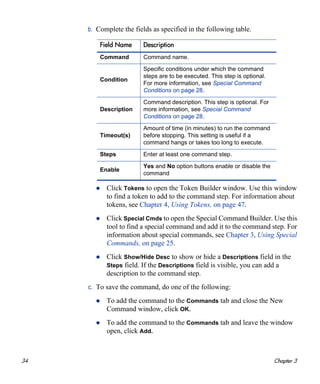
b. Complete the fields as specified in the following table.
Click Tokens to open the Token Builder window. Use this window
to find a token to add to the command step. For information about
tokens, see Chapter 4, Using Tokens, on page 47.
Click Special Cmds to open the Special Command Builder. Use this
tool to find a special command and add it to the command step. For
information about special commands, see Chapter 3, Using Special
Commands, on page 25.
Click Show/Hide Desc to show or hide a Descriptions field in the
Steps field. If the Descriptions field is visible, you can add a
description to the command step.
c. To save the command, do one of the following:
To add the command to the Commands tab and close the New
Command window, click OK.
To add the command to the Commands tab and leave the window
open, click Add.
Field Name Description
Command Command name.
Condition
Specific conditions under which the command
steps are to be executed. This step is optional.
For more information, see Special Command
Conditions on page 28.
Description
Command description. This step is optional. For
more information, see Special Command
Conditions on page 28.
Timeout(s)
Amount of time (in minutes) to run the command
before stopping. This setting is useful if a
command hangs or takes too long to execute.
Steps Enter at least one command step.
Enable
Yes and No option buttons enable or disable the
command
Using Special Commands 35
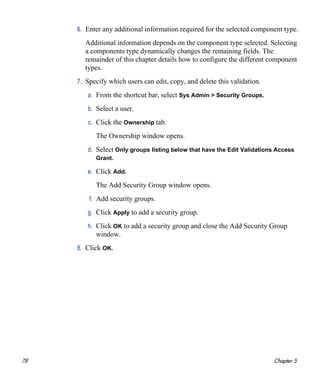
8. Click the Ownership tab.
9. Under Give ability to edit this Special Command to, select Only groups
listed below that have the Edit Special Commands Access Grant.
10. Click Add.
The Add Security Groups window opens.
11. Select the security groups.
12. Click OK.
The security groups are listed on the Ownership tab.
13. To add the security group to the special command:
To save the security group and close the Special Command window,
click OK.
To save the security group and leave the window open, click Save.
14. To see a list of entities that reference the selected special command, click
the Used By tab.
15. To save the special command, click OK.
36 Chapter 3
Using the Special Command Builder
You can add special commands to any set of command steps in the following
entities:
Object types
Request types
Report types
Validations
Workflow step sources
Other special commands
You can access the Special Command Builder on the Commands tab for each
of these entities.
To build a command step using the Special Command Builder:
1. Log on to PPM Center.
2. From the menu bar, select Administration > Open Workbench.
The PPM Workbench opens.
3. From the shortcut bar, select Change Mgmt > Object Types.
The Object Type Workbench opens.
4. Open an object type.
5. In the Object Type Window, click the Commands tab.
6. Click New Cmd or Edit Cmd.
The Command window opens.
7. Click Special Cmd.
The Special Command Builder window opens.
Using Special Commands 37
8. From the Command Name list, select the special command.
If you select a command name from the auto-complete, the Special
Command Builder lists the command parameters.
9. Replace the associated default token value with parameter information.
a. To view the default tokens, click Show Default Tokens.
b. Copy the text in the Special Command Builder window Command field
to the Command window Steps field.
10. Enter information in the remaining fields in the Command window.
11. For the Enabled option, click Yes.
12. To add the command step to the Command tab, click OK.
You can now use the new special command in an object type, request type,
report type, validation, or workflow.
You can use predefined (ksc_command) and user-defined (sc_command) special
commands to build the command steps line.
You can use special commands in an execution workflow step source. After you
create the workflow step source (which contains the special commands), you can drag
and drop it into a workflow.
38 Chapter 3
Using the Special Command Details Report to List Special
Commands
PPM Center comes with pre-configured special commands. To see a list of all
special commands in your system, run the Special Commands Detail report.
This report provides information on special commands, how to use them, the
parameters of the special command, and where the special command is used.
To view the special commands on your instance:
1. Log on to PPM Center.
2. From the menu bar, select Reports > Create a Report.
The Reports window opens.
3. In the Report Category list, select Administrative.
4. From the displayed list of administrative reports, select Special Command
Details Report.
The Special Command Details Report window opens.
5. To view all special commands, leave the Special Command From and
Special Command To fields empty.
6. Under Report Parameters, select Yes for Show References.
7. Click Submit, and then wait to see the report displayed.
You can also use the Special Command Workbench to list the special commands
on your PPM Center instance. For information on how to access the Special
Command Workbench, see Using the PPM Workbench to List Special Commands
on page 29.
Using Special Commands 39
Special Commands for Processing of Requests
To facilitate automated processing of HP Demand Management requests, you
can use the ksc_copy_request and ksc_move_request_workflow special
commands.
ksc_copy_request
This special command makes a copy of a specified request automatically, with
no user intervention. As distinct from the “create request” workflow command
which raises the standard request form in the user interface for the user to
manually fill in and submit.
In addition, when the ksc_copy_request special command is run, the
resulting ID of the new request must be made available so that it can be
captured and used in subsequent commands. This is similar to the ksc_set
command, in which you can specify a “temporary token” and assign a value to
it. In this case, a temporary token named “[COPIED_REQUEST_ID]” holds the
ID of the new request, and is available within the same run context. If it is
necessary to persist this new request ID on the existing request driving the
commands, then it should be stored to a request field using the ksc_store
special command.
40 Chapter 3
Table 3-2. ksc_copy_request parameters (page 1 of 2)
Parameter Description
FROM_REQUEST_ID
The ID of the request from which to make the copy. This
is a required parameter, and should default to the token
for the ID of the current request (“[REQ.REQUEST_
ID]”).
REQUEST_TYPE_ID
The ID of the request type to use when creating the new
request. This is an optional parameter, and should be
specified only if it is desired that the new request be of a
request type different than that of the request being
copied (specified by the FROM_REQUEST_ID
parameter). If this parameter is left blank, then the new
request created by this special command will be of the
same request type as the one specified by the FROM_
REQUEST_ID parameter.
WORKFLOW_ID
The ID of the workflow to use when creating the new
request. This is an optional parameter, and should be
NULL by default.
COPY_FIELDS
Valid values are “Y” or “N.” If “Y” then copy the values of
every field whose token maps to a token in the new
request. Default value is “Y.”
COPY_NOTES
Valid values are “Y” or “N.” If “Y” then copy all the notes
from the original request to the new request. The default
value is “N” since it is reasoned that the notes from the
original request are typically not relevant for the new
request, and thus will not be copied in most cases.
CREATE_
REFERENCE
Valid values are “Y” or “N.” If “Y” then create a reference
between the new request and the original request. The
default value is “Y.”
Using Special Commands 41
REFERENCE_
RELATIONSHIP
Specifies the relationship of the reference, if CREATE_
REFERENCE=Y, otherwise this parameter is ignored.
Valid values (case-insensitive) are:
Child of this Request (this is the default value)
Related to this Request
Parent of this Request
Duplicate Request
Original of Duplicate Requests
Successor
Predecessor
SUBMIT
Valid values are “Y” or “N.” If “Y,” then submit the new
request. The default value is “Y.”
STATUS_NAME
The status name to set for the new request. The default
value is NULL and typical configurations will want to use
the initial status name specified by the new request’s type
configurations. Note that if a status name is provided, its
value should be set after the request is submitted (if
SUBMIT=Y).
Table 3-2. ksc_copy_request parameters (page 2 of 2)
Parameter Description
42 Chapter 3
ksc_move_request_workflow
This special command causes a workflow event to occur on the specified
request.
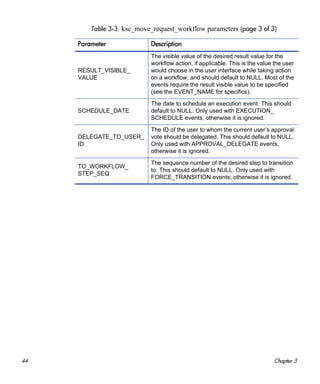
Table 3-3. ksc_move_request_workflow parameters (page 1 of 3)
Parameter Description
REQUEST_ID
The ID of the request to take action on. This is a
required parameter, and should default to the token for
the ID of the current request (“[REQ.REQUEST_ID]”).
FROM_WORKFLOW_
STEP_SEQ
The sequence number of the step to take action on.
This is a required parameter, and should default to the
token for the active step of the current request
(“[WFS.STEP_NO]”).
Using Special Commands 43
EVENT_NAME
The type of workflow event to start.This is a required
parameter. The following events are supported (same
as the workflow transition database open interface):
INSTANCE_SET_CREATE. For request
submission.
APPROVAL_VOTE. For decision step. If this event
is specified, then the RESULT_VISIBLE_VALUE
parameter should also be specified to indicate which
of the step’s outcomes to choose.
APPROVAL_DELEGATE. For decision step being
delegated. If this event is specified, then the
DELEGATE_TO_USERNAME parameter should
also be provided.
EXECUTION_EXECUTE. For execution step.
EXECUTION_SCHEDULE. For execution step
being scheduled. If this event is specified, then the
SCHEDULE_DATE parameter must be provided.
BYPASS_EXECUTION. For execution step being
bypassed. If this event is specified, then the
RESULT_VISIBLE_VALUE parameter should also
be specified to indicate which result value to
override the execution step with.
RESULT_OVERRIDE. For an active step being
overridden. If this event is specified, then the
RESULT_VISIBLE_VALUE parameter must be
specified to indicate which of the step’s outcomes to
choose.
INSTANCE_SET_CANCEL. For cancelling the
request.
FORCE_TRANSITION. For forcing a transition from
the step specified in FROM_WORKFLOW_STEP_
SEQ to an arbitrary destination step, which may not
have a valid transition in the workflow configuration.
If this event is specified, then you must specify the
RESULT_VISIBLE_VALUE and TO_WORKFLOW_
STEP_SEQ parameters, to indicate the result value
shown for the source step, and which step should be
the destination of the forced transition.
Table 3-3. ksc_move_request_workflow parameters (page 2 of 3)
Parameter Description
44 Chapter 3
RESULT_VISIBLE_
VALUE
The visible value of the desired result value for the
workflow action, if applicable. This is the value the user
would choose in the user interface while taking action
on a workflow, and should default to NULL. Most of the
events require the result visible value to be specified
(see the EVENT_NAME for specifics).
SCHEDULE_DATE
The date to schedule an execution event. This should
default to NULL. Only used with EXECUTION_
SCHEDULE events, otherwise it is ignored.
DELEGATE_TO_USER_
ID
The ID of the user to whom the current user’s approval
vote should be delegated. This should default to NULL.
Only used with APPROVAL_DELEGATE events,
otherwise it is ignored.
TO_WORKFLOW_
STEP_SEQ
The sequence number of the desired step to transition
to. This should default to NULL. Only used with
FORCE_TRANSITION events, otherwise it is ignored.
Table 3-3. ksc_move_request_workflow parameters (page 3 of 3)
Parameter Description
Using Special Commands 45
Examples of Using Special Commands
This section provides examples of special commands.
To copy a file from one server to another server, use the following command:
copy_server_server
Special Command Example:
ksc_connect_dest_server
if [ ! -d [P.P_SUB_PATH] ]; then mkdir -p [P.P_SUB_PATH]; fi
ksc_exit
ksc_copy_server_server SUB_PATH="[P.P_SUB_PATH]"
FILENAME="[P.P_FILENAME]" FILE_TYPE="[P.P_FILE_TYPE]"
To import using a given password, use the following command:
ksc_mig_import
Special Command Example:
ksc_mig_import PASSWD="[P.DEST_PASSWD]"
To change the status of a project, use the following command:
Special Command Name:
ksc_run_java
Special Command Example:
ksc_run_java com.kintana.core.server.execution.SetProjectStatus
-project [REQ.P.KNTA_PROJECT_PLAN] -status [P.P_STATUS]
-user [SYS.USER_ID]
To connect to a server and change permissions of a file, use the following command:
ksc_connect_dest_server
Special Command Example:
ksc_connect_dest_server DEST_ENV="[DEST_ENV.ENVIRONMENT_NAME]"
# 444 is read-only. if the locked flag
# is no this is the permission set
# the user requested
chmod 0444 "[P.P_FILENAME]"
ksc_exit
46 Chapter 3
47
4 Using Tokens
About Tokens
PPM Center uses variables to facilitate the creation of general objects that can
be used in a variety of contexts. These variables are called tokens.
PPM Center uses the following types of tokens:
Standard tokens come with the product.
Custom tokens are generated to suit specific needs.
You can reference the fields of the following entities as custom tokens:
Object types
Request types and request header types
Report types
User data
Workflow parameters
Many standard tokens are available to provide information related to the
system. For example, PPM Center has a token that represents the users
currently logged onto the system.
48 Chapter 4
Where to Use Tokens
You can use tokens in the following entity windows:
Object type commands
Request type commands
Validation commands and SQL statements
Report type commands
Executions and notifications for a workflow
Workflow step commands
Notifications in a report submissions
Special command commands
Notifications for tasks and time management
Notes for request details
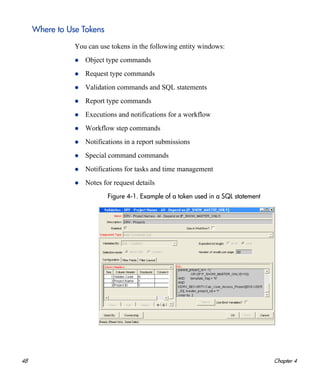
Figure 4-1. Example of a token used in a SQL statement
Using Tokens 49
Token Evaluation
Tokens are evaluated at the point when PPM Center must know their
context-specific values. At the time of evaluation, the token evaluation engine
gathers information from the current context and tries to derive the value for
the token. Values can only be derived for specific, known contexts. The current
context is defined as the current package, package line, request, work plan,
workflow step, or source and destination environments.
The token evaluation engine takes as many passes as necessary to evaluate all
tokens, so one token can be nested within another token. During each pass, if
the evaluation engine finds a valid token, it replaces that token with its derived
value. Invalid tokens are ignored. For example, if the token name is misspelled
or no context is available.
For example, an object type command has the following Bourne-shell script
segment as one of its command steps:
if [ ! -f [PKGL.P.P_SUB_PATH]/[PKGL.P.P_BASE_FILENAME].fmx ];
then exit 1; fi
When the command is executed, [PKGL.P.P_SUB_PATH] = Forms and
[PKGL.P.P_BASE_FILENAME] = obj_maint. After token evaluation, this
command step reduces to:
if [ ! -f Forms/obj_maint.fmx ]; then exit 1; fi
As another example, a user data field is generated for all users called
MANAGER. You could find the email address of the manager of the person
who generated a request by using the following token:
[USR="[USR="[REQ.CREATED_BY_NAME]".VUD.MANAGER]".EMAIL_ADDRESS]
The token evaluation engine first evaluates the innermost token
([REQ.CREATED_BY_NAME]), then the next token
([USR="<name>".VUD.MANAGER]), and finally evaluates the outermost
token, which provides the email address.
Tokens are evaluated at different points based on the token type. Tokens used
in object type parameters and commands are evaluated during command
execution. Tokens in a validation SQL statement are evaluated just before that
50 Chapter 4
statement is executed (such as generating a new package line). Tokens in an
email notification are evaluated when a notification is generated.
About the Token Builder
From each of the entity windows listed in Where to Use Tokens on page 48,
you can open the Token Builder window (Figure 4-2) to create a token. The
tokens available in the token builder are limited to those that you can build for
that entity. For example, if you open the token builder from the Request Type
Workbench, package tokens are excluded.
Figure 4-2. Token Builder window
The folders displayed in the left pane of the Token Builder window contain
groups of tokens that correspond to entities defined in PPM Center. For
instance, the Packages folder contains tokens that reference various package
attributes. If you select the Packages folder, the available package tokens are
listed in the right pane.
Some entities (folders) have sub-entities (sub-folders) that can be referenced
by tokens. To view a list of sub-entities for an entity, click the plus character
(+) next to the entity. Each sub-entity also has tokens, and you can reference
Using Tokens 51
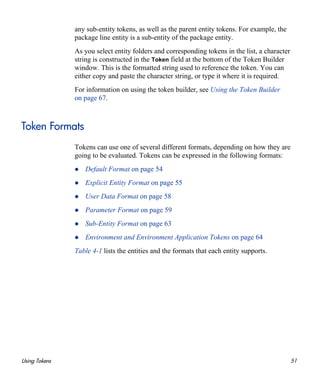
any sub-entity tokens, as well as the parent entity tokens. For example, the
package line entity is a sub-entity of the package entity.
As you select entity folders and corresponding tokens in the list, a character
string is constructed in the Token field at the bottom of the Token Builder
window. This is the formatted string used to reference the token. You can
either copy and paste the character string, or type it where it is required.
For information on using the token builder, see Using the Token Builder
on page 67.
Token Formats
Tokens can use one of several different formats, depending on how they are
going to be evaluated. Tokens can be expressed in the following formats:
Default Format on page 54
Explicit Entity Format on page 55
User Data Format on page 58
Parameter Format on page 59
Sub-Entity Format on page 63
Environment and Environment Application Tokens on page 64
Table 4-1 lists the entities and the formats that each entity supports.
52 Chapter 4
Table 4-1. Entities (page 1 of 3)
Prefix (Entity) Entity and Description User Data
Format
Parameter
Format
AS Application server N N
BGT Budget Y N
CON Contact Y N
DEST_ENV
Destination environment. If an app code is
specified, it is used. Otherwise, use only
values from ENV.
Y N
DEST_
ENV.APP
Destination environment (for the
environment application). Only use app
code values, even if they are null.
Y N
DEST_
ENV.ENV
Destination environment. Ignores app
codes and only uses the ENV values.
Y N
DIST Distribution Y N
ENV Environment Y N
ENV.APP
Environment (for the environment
application). Only use app code values,
even if they are null.
Y N
ENV.ENV
Environment. Ignores app codes and only
uses the ENV values.
Y N
EXEC Execution N N
FBEN Financial benefit Y N
NOTIF Notification N N
ORG Organization Unit Y N
PKG Package Y N
PKG.PKGL Package (package line) Y N
PKG.PEND Package (pending package) Y N
PKGL Package line Y Y
PRG Program Y N
Using Tokens 53
PRJ Work plan Y N
PRJD Work plan details N Y
REL Release N N
REL.DIST Release (distribution) Y N
REQ Request Y Y
REQ.FIELDS Request field groups N Y
REQ.PEND Request (pending) N N
REQD Request details N Y
REQD.P Request details N Y
RP Report submission N Y
RSCP Resource pool Y N
SG Security group Y N
SKL Skill Y N
STFP Staffing profile Y N
SOURCE_
ENV
Source environment Y N
SOURCE_
ENV.APP
Source environment (for environment
application). Only use app code values,
even if they are null.
Y N
SOURCE_
ENV.ENV
Source environment. Ignores app codes
and only uses the ENV values.
Y N
SYS System N N
TMG Time Management N N
TSK Task Y N
TSK.PEND Task (pending) N N
USR (User) User Y N
Table 4-1. Entities (page 2 of 3)
Prefix (Entity) Entity and Description User Data
Format
Parameter
Format
54 Chapter 4
Default Format
Tokens are expressed as a prefix (a short name for the entity) followed by a
token name. The prefix and token name are separated by a period and enclosed
in square brackets with no spaces:
[PREFIX.TOKEN_NAME]
For example:
The token for the package number is expressed as:
[PKG.NUMBER]
The token for a request's workflow name is expressed as:
[REQ.WORKFLOW_NAME]
Certain tokens also support a sub-format. This sub-format is required for
certain entities to evaluate to the correct context. For example, WF tokens
resolve to information related to the workflow, whereas WF.WFS tokens resolve
to workflow step information. Token sub-formats are included in the prefix,
appended to the parent prefix, and separated by a period:
[PREFIX.SUB-PREFIX.TOKEN_NAME]
Tokens are evaluated according to the current context of PPM Center, which is
derived based on information known at the time of evaluation. For more
information, see Token Evaluation on page 49.
VAL Validation N N
WF Workflow Y N
WF.WFS
Workflow (step). Use this format to
specify a specific workflow.
N Y
WFS Workflow step Y N
Table 4-1. Entities (page 3 of 3)
Prefix (Entity) Entity and Description User Data
Format
Parameter
Format
Using Tokens 55
Explicit Entity Format
You can provide a specific context value for an entity so that the default
context can be overridden. Some tokens can never be evaluated in the default
context. In these cases, you must use the following explicit entity format to set
the context:
[PREFIX="<entity name>".<TOKEN_NAME>]
The token builder generates tokens in the explicit entity format by providing a
list of possible values. When such a list is available, the Context Value field at
the bottom of the Token Builder window is enabled. You can do one of the
following:
Type in the field to reduce the list
Click the auto-complete icon to open the Validate window
The value you select is placed in the token in the Token field to generate an
explicit entity token.
For example, to reference the email address for jsmith, the token would be:
[USR="jsmith".EMAIL_ADDRESS]
56 Chapter 4
To construct the token [USR="jsmith".EMAIL_ADDRESS] in the Token
Builder window:
1. Open the Token Builder window.
See About the Token Builder on page 50.
2. In the Token Builder window, select the User folder.
Available tokens are listed in the Tokens column, and the Context Value
field is enabled.
The Token field displays the string [USR.].
3. In the Context Value field, select jsmith.
The Token field displays the string [USR="jsmith"].
4. In the Tokens column, click EMAIL_ADDRESS.
The Token field displays the string [USR="jsmith".EMAIL_ADDRESS].
This is the complete token. Because the token is now complete, the Token
field becomes enabled.
5. Select and copy the text in the Token field.
6. Paste the text into another field.
For a list of all explicit entity format tokens, see Appendix A, Tokens, on page 131.
Using Tokens 57
Nesting Explicit Entity Tokens within Other Tokens
The explicit entity format can be used to nest tokens within other tokens to
generate a value. For example, to print the description of the workflow that is
associated with package #10203, the token would be:
[WF="[PKG="10203".WORKFLOW_NAME]".DESCRIPTION]
This token is built using the following steps:
1. Build the Description token for the workflow.
2. Copy and paste the Description token into another field.
3. Build the Workflow Name token for the package.
4. Copy and paste the Workflow Name token within the Description token.
Internally, this token is evaluated in two stages. The inner token is evaluated
and the token has the following internal representation:
[WF="Workflow_Name".DESCRIPTION]
The remaining token is evaluated and the final result is printed:
description of my workflow
58 Chapter 4
User Data Format
User data fields use the following tokens format:
[<Prefix>.<DataType>.<Token>]
For example, suppose that a field for package user data is generated, and its
token is GAP_NUMBER. In the default format, the token would be:
[PKG.UD.GAP_NUMBER]
PKG indicates that the package entity is referenced, UD indicates that user data is
referenced, and GAP_NUMBER is the token name.
When user data fields are generated, a validation that has both a hidden and
visible value can be used. For example, if the validation KNTA - Usernames -
All is used, the hidden value is the user ID and the displayed value is the
username.
If context can be determined, user data tokens are displayed with the
system-defined tokens in the Token Builder window.
where
<Prefix> Represents the name of the entity that has user data. For
values, see Table 4-1 on page 52.
<DataType> Represents the type of user data being referenced.
Specify:
UD for user data
VUD for visible user data
<Token> Represents the name of the token for the specific user data
field.
Drop-down lists and auto-completes may have different hidden and displayed values.
For all other validations, hidden and displayed values are identical.
Using Tokens 59
Parameter Format
Object type custom fields, request type custom fields, request header type
fields, work plan fields, and workflow parameters use the following parameter
format for tokens:
[<Prefix>.<DataType>.<Token>]
For example, suppose a field for an object type named Gap Number is been
generated for use on package lines. In the default format, the token would be:
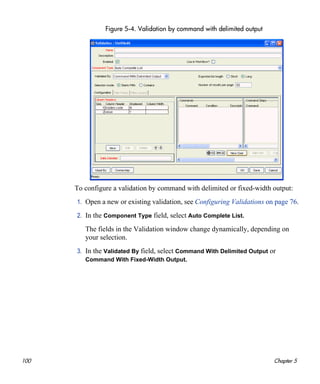
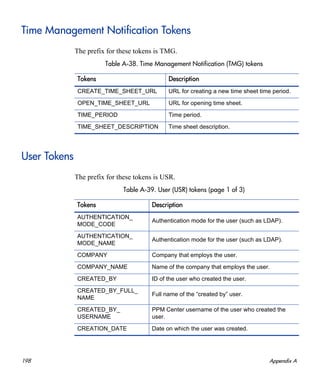
[PKGL.P.GAP_NUMBER]
PKGL is the prefix, because the package lines entity is referenced, P indicates
that parameters are referenced, and GAP_NUMBER is the token name.
Custom fields store both a hidden and visible value. For example, if the field
uses the validation KNTA - Usernames - All, the hidden value is the user ID
and the displayed value is the username. The previous syntax references the
hidden value only.
where
<Prefix> Represents the name of the entity that uses a custom field.
For values, see Table 4-1 on page 52.
<DataType> Represents the type of user data being referenced.
Specify:
P for an entity that is referenced and hidden
VP for an entity that is visible
<Token> Represents the name of the token for the specific parameter
field.
Drop-down lists and auto-completes may have different hidden and displayed values.
For all other validations, the hidden and displayed values are identical.
60 Chapter 4
Request Field Tokens
Tokens can access information on custom fields included on a request. These
fields can be defined in a:
Custom request type field
Request header field (standard)
Request header field (custom fields)
Request header field (field groups)
Table component field
Request Field Token Prefixes
All fields defined in the request header type (field group fields, custom header
fields, and standard header fields) use the REQ prefix. The following examples
could use P or VP.
REQ.<standard header Token>
REQ.DEPARTMENT_CODE
REQ.P.<custom header field Token>
REQ.P.BUSINESS_UNIT
REQ.P.<field group Token starting with KNTA_>
REQ.P.KNTA_SKILL
Fields defined in the request type use the REQD prefix. You can also access
standard header fields using the REQD prefix. For example:
REQD.P.<custom detail field>
REQD.<standard header Token>
Using Tokens 61
Tokens in Request Table Components
To refer to items in a table component, tokens must follow specific formats.
The formats used depends on the table item referenced. Figure 4-3 on page 61
shows the basic elements of a sample table. These elements are used as
examples for referencing data within the table using tokens.
Figure 4-3. Table component formats
The format [REQD.T.<TABLE_TOKEN>] is used to represent the table. The
format [REQD.T.<TABLE_TOKEN>.<SPECIFIC TOKENS>] is used to represent
specific tokens. The following sections provide examples of the formats used
for tokens that reference items related to the table component:
To access the table row count from a Request context:
To access the Salary Column Total value from a Request context:
To access the Name of the first employee in the table from a Request:
To access the Code of the first employee in the table from a Request:
To access the Department Cell value of the current row (Table Row
Context):
To obtain a delimited list of a column’s contents (Request Context):
62 Chapter 4
In these examples, a table component named Employee has the following four
columns:
Employee Name
Years of Service
Department
Employee Salary
These columns are defined as follows:
Table Component "Employee" table with [EMPLOYEE] as the Token.
Column 1 - Employee Name; Token = [NAME]
Column 2 - Years of Service; Token = [YEARS_OF_SERVICE]
Column 3 - Department; Token = [DEPARTMENT]
Column 4 - Employee Salary; Token = [SALARY]
To access the table row count from a Request context:
[REQD.P.EMPLOYEE] - returns the raw row count without any
descriptive information.
[REQD.VP.EMPLOYEE] - returns the row count with descriptive
information. Example "13 Entries".
WHERE: EMPLOYEE is the Token given to a table component type.
To access the Salary Column Total value from a Request context:
[REQD.T.EMPLOYEE.TC.VP.SALARY.TOTAL]
WHERE: EMPLOYEE is the Token given to a table component type and
SALARY is the Token name given the table's first column.
To access the Name of the first employee in the table from a Request:
[REQD.T.EMPLOYEE.TE="1".VP.NAME]
To access the Code of the first employee in the table from a Request:
[REQD.T.EMPLOYEE.TE="1".P.NAME]
To access the Department Cell value of the current row (Table Row Context):
[TE.VP.DEPARTMENT]
You can use this table component token in a Table Column Header validation
SQL or in a table component rule SQL.
Using Tokens 63
To obtain a delimited list of a column’s contents (Request Context):
[REQD.T.EMPLOYEE.TC.VP.NAME]
where EMPLOYEE is the token given to a table component type and SALARY is
the token name given the first column of the table. This is very useful if a
column lists user names. This list can be used to send the users notification.
Sub-Entity Format
Some entities have sub-entities that can be referenced. In the rare case that you
need to, you can reference specific sub-entities using the explicit entity syntax
To see a list of sub-entities for an entity, in the Token Builder window, click
the plus character (+) next to the entity. To reference a token from a sub-entity,
in the context of a parent entity, use the following syntax:
[<Prefix>.<Sub-entity>.<Token>]
For example, to reference the step name of the workflow step in the current
context, both of the following tokens have the same meaning:
[WFS.STEP_NAME]
[WF.WFS.STEP_NAME]
where
<Prefix> Represents the name of the entity. For values, see Table 4-1
on page 52.
<Sub-entity> Represents the name of the sub-entity. For values, see
Table 4-1 on page 52.
<Token> Represents the name of the token for the specific field.
64 Chapter 4
To reference the step name of the first workflow step for the current workflow,
use the following token:
[WF.WFS="1".STEP_NAME]
By not using the explicit entity format for the workflow entity, the token
indicates that the workflow in the current context should be used. But by using
the explicit entity format for the workflow step entity, the current context is
overridden and a specific workflow step is referenced.
To reference the step name of the first workflow step in a workflow whose
name is 'my workflow,' use the following token:
[WF="<workflow_name>".WFS="1".STEP_NAME]
With this token, the current context for the workflow and the workflow step are
overridden.
Environment and Environment Application Tokens
Tokens for the environments and environment application entities can have
many different forms depending on the information to be referenced. During
object type command execution, there is generally a source and a destination
environment. The following example shows token prefixes SOURCE_ENV and
DEST_ENV used to reference the current source and destination:
[SOURCE_ENV.DB_USERNAME]
[DEST_ENV.SERVER_BASE_PATH]
You can use a general ENV prefix in the explicit entity format to reference
specific environments, as shown in the following example:
[ENV="Prod".CLIENT_USERNAME]
During normal environment token evaluation, the evaluation engine first
evaluates the app code on the package line (if one is specified). If the
corresponding app code token has a value, then the value is used. Otherwise, if
no app code was specified or the app code token has no value, the
corresponding base environment information is used.
Using Tokens 65
To override the normal environment token evaluation and only evaluate the
environment information (without first checking for the app code), construct
the SOURCE_ENV and DEST_ENV tokens as shown in the following examples:
[SOURCE_ENV.ENV.DB_USERNAME]
[DEST_ENV.ENV.SERVER_BASE_PATH]
[ENV="Prod".ENV.CLIENT_USERNAME]
The evaluation engine can be instructed to look only at the app code
information (without checking the base environment information if the app
code token has no value). Construct the SOURCE_ENV and DEST_ENV tokens as
shown in the following example:
[SOURCE_ENV.APP.DB_USERNAME]
[DEST_ENV.APP.SERVER_BASE_PATH]
[ENV="Prod".APP.CLIENT_USERNAME]
You can only use the prefix APP in the sub-entity format. For example, the
following token is invalid because a context environment that includes the app
code has not been specified.
[APP.SERVER_BASE_PATH]
You can use the explicit entity format with the app code entity to reference a
specific app code, as shown in the following examples:
[SOURCE_ENV.APP="AR".DB_USERNAME]
[DEST_ENV.APP="OE".SERVER_BASE_PATH]
[ENV="Prod".APP="HR".CLIENT_USERNAME]
For example, suppose objects are migrated on a package line at a given
workflow step, and the line uses the app code HR. The workflow step has QA as
the source environment, and Prod as the destination environment. Table 4-2
shows other attributes of the environments and applications.
Table 4-2. Sample environment and application attributes (page 1 of 2)
Environment App Code Server Base Paths
QA /qa
QA OE /qa/oe
QA HR /qa/hr
66 Chapter 4
Table 4-3 lists some sample tokens and the evaluation of each within the
sample environment.
Prod /prod
Prod OE /prod/oe
Prod HR no value
Table 4-3. Sample environment tokens
Token Evaluation
[SOURCE_ENV.SERVER_BASE_PATH] /qa/hr
[DEST_ENV.SERVER_BASE_PATH] /prod
[SOURCE_ENV.ENV.SERVER_BASE_PATH] /qa
[DEST_ENV.ENV.SERVER_BASE_PATH] /prod
[SOURCE_ENV.APP.SERVER_BASE_PATH] /qa/hr
[DEST_ENV.APP.SERVER_BASE_PATH] no value
[ENV="QA".APP="OE".SERVER_BASE_PATH] /qa/oe
Table 4-2. Sample environment and application attributes (page 2 of 2)
Environment App Code Server Base Paths
If PPM Center Extensions are installed, there are more environment tokens with the
prefix ‘AC.’ For information about these tokens, see the documentation for the PPM
Center Extensions.
Using Tokens 67
Using the Token Builder
Some tokens can never be evaluated in the default format. In these cases, you
must use the explicit entity format to set the context, such as:
[PREFIX="<entity name>".<TOKEN_NAME>]
Token Builder generates tokens in the explicit entity format by providing a list
of possible entity name values. When such a list is available, the Context Value
field at the bottom of the Token Builder is enabled. You can either type in the
field to reduce the list, or click the auto-complete icon to open the Validate
window. For more information, see About the Token Builder on page 50. The
selected value is inserted into the token in the Token field to generate an
explicit entity token.
For example, you need to reference the email address for jsmith. The token to
specify this reference is:
[USR="jsmith".EMAIL_ADDRESS]
To configure the token [USR="jsmith".EMAIL_ADDRESS] in the Token Builder
window:
1. Log on to PPM Center.
2. From the menu bar, select Administration > Open Workbench.
The PPM Workbench opens.
3. From the shortcut bar, select Demand Mgmt > Request Types.
The Request Types Workbench opens.
4. Open a new or existing request type.
The Request Type window opens.
5. Click the Commands tab.
6. Click New Cmd.
The Commands window opens.
68 Chapter 4
7. Click Tokens.
The Token Builder window opens.
8. Select the User folder.
Available tokens are listed in the right pane, and the Context Value field is
available at the bottom of the window The Token field displays the string:
[USR].
9. Click the auto-complete icon in the Context Value field.
A Validate window opens.
10. In the list of users, scroll down to and select jsmith.
11. Click OK.
The Token field displays the string: [USR="jsmith"].
12. In the Tokens column, select EMAIL_ADDRESS.
The Token field displays the string: [USR="jsmith".EMAIL_
ADDRESS].Because this is the complete token, the Token field is enabled.
13. Copy the text in the Token field, and then paste it into another field.
69
5 Using Validations
About Validations
Validations determine the acceptable input values for user-defined fields, such
as object type or request type fields. Validations also determine the possible
results that a workflow step can return. Validations are used for the following
functions:
Field component type. Users can create fields for several entities,
including object types, request types, request header types, and user data.
Validations determine the field component type (for example, text field or
list) and define possible field values.
Workflow step results. Validations determine the possible results of
exiting a workflow step. For example, the validation WF - Standard
Execution Results contains the possible execution step results of
Succeeded or Failed.
Every PPM Center installation includes predefined system validations, which
you can use as you configure your system. If no system validation meets your
requirements, you can use the Validation Workbench to create your own
validation. For details, see Configuring Validations on page 76.
Validations and Special Characters
You cannot enter the question mark character (?) in the validation Name field.
The PPM Workbench prevents users from typing this character in the field.
70 Chapter 5
Validation Component Types
You can only use certain component types in a workflow step source
validation. Table 5-1 summarizes the field component types available.
Table 5-1. Component types (page 1 of 3)
Component Type Use In Workflow?
Description, Example, and Configuration
instructions
Text field Yes
Text entry fields displayed on a single line. You can
configure text fields to display the data in a specific
format. For example, you can configure a text field to
accept and format a hyphenated nine-digit social
security number or a ten-digit phone number.
Configuring Text Field Validations on page 79.
Drop-down list Yes
Field that displays a list of values.
Configuring Static List Validations on page 85.
Configuring Dynamic List Validations on page 87.
Radio buttons (yes/No) No
Field that accepts binary input.
There is nothing to configure for this component
type.
Auto-complete list Yes
Field that lets you open a dialog box that lists
choices.
Configuring Static List Validations on page 85.
Configuring Dynamic List Validations on page 87.
Text area No
Text entry field that can include multiple lines.
Configuring Text Area Validations on page 105.
Using Validations 71
Date field No
Field that lets you specify date format.
Configuring Date Field Validations on page 108.
Web address (URL) No
Text entry field for entering a URL. Clicking U opens
a browser window to the specified Web address.
Accessing Validations Through Packages and
Requests on page 73.
File chooser No
Used only in object types. Requires that two fields be
defined with the tokens P_FILE_LOCATION and P_
SUB_PATH.
Accessing Validations Through Packages and
Requests on page 73.
Configuring File and Directory Chooser Validations
on page 110
Directory chooser No
Used only in object types. Requires a parameter field
defined with the token P_FILE_LOCATION.
Configuring File and Directory Chooser Validations
on page 110.
Attachment No
Field used to locate and attach files.
Accessing Validations Through Packages and
Requests on page 73
Table 5-1. Component types (page 2 of 3)
Component Type Use In Workflow?
Description, Example, and Configuration
instructions
72 Chapter 5
Password field No
Field used to capture passwords.
There is nothing to configure for this component
type.
Table component No
Used to enter multiple records into a single
component. The table component can be configured
to include multiple columns of varied data types. This
component supports rules for populating elements
within the table and provides functionality for
capturing column totals.
You can only add fields of this component type to the
Request Details page.
Configuring the Table Component on page 112
Budget, staffing profile,
financial benefit, link
No
Field that you can add to the request type to enable
access to view, edit or create budgets, staffing
profiles, or financial benefits associated with a
request, project, or work plan.
Accessing Validations Through Packages and
Requests on page 73
Table 5-1. Component types (page 3 of 3)
Component Type Use In Workflow?
Description, Example, and Configuration
instructions
Using Validations 73
Accessing Validations Through Packages and Requests
You can access the package and request group validations directly. You do not
have to use the Validation Workbench to specify that a package belongs to a
new or unique package group that is not named in the auto-complete validation
list.
To access the package and request groups validation window from the Package
Workbench:
1. Log on to PPM Center.
2. From the menu bar, select Administration > Open Workbench.
The PPM Workbench opens.
3. From the shortcut bar, select Deployment Mgmt > Packages.
4. From the menu, select Package > New Package Group.
Although all users can view this window, only users with the required security
privileges can change the package and request groups validation list.
74 Chapter 5
To access the CRT - Request Type Category validation directly from the
Request Types Workbench:
1. Log on to PPM Center.
2. From the menu bar, select Administration > Open Workbench.
The PPM Workbench opens.
3. From the shortcut bar, select Demand Mgmt > Request Types.
4. From the menu bar, select Request Type > Request Type Category Setup.
The Validation window opens and lists the existing request type categories.
Although all users can view this window, only users with the required security
privileges can change the CRT - Request Type Category validation list.
Using Validations 75
Viewing System Validations
PPM Center comes with several pre-configured validations.
To view the existing validations on your instance:
1. Log on to PPM Center.
2. From the menu bar, select Reports > Create a Report.
The Reports window opens.
3. In the Report Category list, select Administrative.
The Reports window lists the Administrative reports.
4. Select Validations Report.
The Validations Report window opens.
5. Provide the following information:
To view all of the special commands, leave the fields Validations From
and Validations To empty.
Under Report Parameters:
o For Show Validation Values, select Yes.
o For Show Validation Commands, select Yes.
o For Expand Special Commands, select Yes.
6. Click Submit, and then wait to see the report displayed.
Some of these validations may have been altered to match the specific business
needs of your organization. To see a list of all validations in your system, run
the Validations report. This report provides information on validation values
and commands.
76 Chapter 5
Configuring Validations
You can create, edit, and delete validations using the Validations Workbench.
Be sure to exercise caution if you edit existing validations that are in use by
fields or workflow step sources. Both field and workflow step validations can
be tied to workflow logic. Changing the validation values can invalidate a
process. To create, edit, or delete a validation requires the correct access
grants. For more information about access grants, see the Security Model
Guide and Reference.
You cannot delete a validation if it is:
A system validation (delivered with the product as seed data).
Currently used by a workflow step source.
Currently used by a field in a product entity (object type, request type, user
data, report type, or project template field).
You can only disable validations referenced by:
workflow step sources
entity fields.
Although a disabled validation continues to function in existing workflow
steps and fields, you cannot use it to define a new step source or field.
To configure a validation:
1. Log on to PPM Center.
2. From the menu bar, select Administration > Open Workbench.
The PPM Workbench opens.
3. From the shortcut bar, select Configuration > Validations.
The Validations Workbench opens.
Although you may not be able to delete a custom validation, you can disable it. This
allows any active workflows or product entities to use the validation, but keeps it from
being used in new workflows or entity definitions.
Using Validations 77
4. Click New Validation or open an existing validation.
The Validation window opens.
5. Provide the information described in the following table:
Field Name Description
Name Name of the new validation.
Description Brief description of the validation.
Enabled Select this checkbox to enable the validation.
Use in Workflow
Select this checkbox to use the validation in a workflow
step source. For a list of components that can be used
in workflow steps, see Table 5-1 on page 70.
Component
Type
Select a validation type. Selecting a listed value
dynamically updates the Validation window to display
fields used to configure the selected validation type.
For a list of components types that can be used, see
Table 5-1 on page 70.
78 Chapter 5
6. Enter any additional information required for the selected component type.
Additional information depends on the component type selected. Selecting
a components type dynamically changes the remaining fields. The
remainder of this chapter details how to configure the different component
types.
7. Specify which users can edit, copy, and delete this validation.
a. From the shortcut bar, select Sys Admin > Security Groups.
b. Select a user.
c. Click the Ownership tab.
The Ownership window opens.
d. Select Only groups listing below that have the Edit Validations Access
Grant.
e. Click Add.
The Add Security Group window opens.
f. Add security groups.
g. Click Apply to add a security group.
h. Click OK to add a security group and close the Add Security Group
window.
8. Click OK.
Using Validations 79
Configuring Text Field Validations
Text fields are displayed on a single line. Text fields can be configured to
display the data according to a certain format. For example, you can configure
a text field to accept and format a ten-digit telephone number or display a
specific number of decimal places for a percentage.
To create a text field validation:
1. Open a new or existing validation; see Configuring Validations on page 76.
2. In the Component Type field, select Text Field.
3. In the Data Mask field, select one of the following data masks:
Alphanumeric
Alphanumeric Uppercase
Numeric
Currency
Percentage
Telephone
Custom
80 Chapter 5
Figure 5-1. Validation window for the currency data mask
4. Optionally, configure the data mask. Depending on your data mask type,
the field you see varies. Use the following table to help you determine how
to configure your data mask:
Data Mask Type Field Name Description
Alphanumeric
and
Alphanumeric
Uppercase
Max Length
Specify the maximum field length for
fields using this validation.
Currency Region
The INSTALLATION_CURRENCY
server parameter determines the
currency symbol displayed in the
field and the position of the text in
the field. For example, the following
parameter setting specifies the dollar
currency sign, and right-aligned text:
INSTALLATION_
CURRENCY=$;RIGHT
For help with changing this setting,
contact your system administrator.
Using Validations 81
Currency,
Numeric, and
Percentage
Maximum
Value
Largest value allowed for this field.
You can specify a positive or
negative number.
Currency,
Numeric, and
Percentage
Minimum
Value
Smallest accepted value for the field.
You can specify positive or negative
number.
Currency,
Numeric, and
Percentage
If Data not
Entered, then
display a zero
Determines whether a field with no
data displays a zero.
Currency,
Numeric, and
Percentage
Use Group
Separator
Determines if the field uses a group
separator (such as a comma) to
divide characters within large
numbers. For example, display
1000000 as 1,000,000.
The default character used as the
separator depends on the locale
setting for the machine. You can set
the delimiter, by using the Regional
Settings window in the PPM
Workbench:
Select Edit > Regional Settings
Currency,
Numeric, and
Percentage
Negative
Number looks
like
Determines the text used to display
negative numbers. Options are:
(1000)—parentheses and black
text
(1000)—parentheses and red text
-1000—minus character (-) and
black text
-1000—minus character (-) and
red text
Currency,
Numeric, and
Percentage
Number of
Decimal
Places
The maximum number of decimal
places displayed.
Data Mask Type Field Name Description
82 Chapter 5
Telephone Format
The rule that determines how digits
are formatted, including the use of
spaces or delimiters. The format
definition can include the following
delimiters:
Parentheses ( )
Period (.)
Dash (-)
Space
Plus character (+)
For telephone format examples, see
Sample Telephone Data Mask
Formats on page 84.
Telephone
Maximum # of
Digits
The maximum number of digits that
the field accepts.
Telephone
Minimum # of
Digits
The minimum number of digits that
the field accepts.
Custom Format
Type a combination of the following
symbols.
Use D to specify that the user
must enter a numeric value
between 0 and 9.
Use L to specify that the user
must enter an alphabetic
character between A and Z.
Use A to specify that the user
must type a character or space.
Use a  (backslash) to specify
that the next character is to be
displayed as the literal character.
For example: “A” is displayed as
“A”.
For custom format examples, see
Sample Custom Data Mask
on page 84.
Data Mask Type Field Name Description
Using Validations 83
5. To view the results of your data mask settings:
a. In the Sample Input field, enter a value to preview based on your
settings.
b. Click Format.
The Formatted Output window displays the results.
6. Click OK.
84 Chapter 5
Sample Telephone Data Mask Formats
Use the telephone data masks to specify telephone number display.
If you define a format that lets users enter a range of number of characters any
extra characters entered are always grouped with the first set of characters.
For example, if you configure the telephone data mask with a minimum of 10
characters and a maximum of 15 characters, the results are as follows:
Sample Custom Data Mask
You can customize the field to accept numeric values, alphabetic characters,
spaces, and custom delimiters.
Table 5-2. Sample telephone data mask formats
Format Rule User Input Output
D-DDD-DDD-DDDD 15555555555 1-555-555-5555
DDD DDD DDDD 5555555555 555 555 5555
(DDD) DDD-DDDD 5555555555 (555) 555-5555
Table 5-3. Sample extra character telephone data mask formats
Format Rule User Input Output
DDD-DDD-DDDD 1234567890 123-456-7890
DDD-DDD-DDDD 12345678901 1234-567-8901
Table 5-4. Sample custom data mask formats
Format Rule User Input Output
DDD-DD-DDDD 555555555 555-55-5555
AA-DDD BC349 BC-349
Using Validations 85
Configuring Static List Validations
A static list validation can be a drop-down list or an auto-complete component.
You can create static list validations that provide a static list of options to the
user. For example, XYZ Corporation creates a validation called Engineering
Teams for its engineering teams. The validation consists of the values New
Product Introduction, Product One, and Product Two.
Be careful when creating validations (drop-down lists and auto-complete
fields) that are validated by lists. Each time the set of values changes, you must
update the validation. HP recommends validating using an SQL query or PL/
SQL function to obtain the values from a database table.
For example, XYZ Corporation needs a field validation that lists all users on
their support team. They have a static validation that is validated by a list of
users, but any time members join or leave the support team, the list must be
manually updated.
To create a static list validation:
1. Open a new or existing validation, see Configuring Validations on page 76.
2. In the Component Type field, select Drop Down List or Auto Complete List.
The fields in the Validation window change dynamically, depending on
your selection.
3. In the Validated By field, select List.
4. For Selection mode, select one of the following:
Selection Description
Starts with
Type characters and then type the Tab key. The selection
window opens and lists entries that begin with the specified
characters.
Contains
Type characters, and then type the Tab key. The selection
window opens and lists entries that contain the specified
character string. This is the same behavior as a wild card
search, which uses the% character at the beginning of the
search text.
86 Chapter 5
5. Click New.
The Add Validation Window opens.
6. Provide the information for the validation value as described in the
following table.
7. To add more values and keep the Add Validation Value window open,
click Add.
8. To save your changes and close the window, click OK.
9. To change the order in which validation values are listed, use the up and
down arrow buttons. The sequence of the validation values determines the
order that the values are displayed in the list.
Field Name Description
Code
Underlying code for the validation value. The code is the
value stored in the database or passed to any internal
functions, and is rarely displayed. For example, 123.
Meaning
Displayed meaning for the validation value in the
drop-down list or auto-complete. For example, western
region.
Desc
More complete description of the value entered in the
Meaning field.
Enable?
Select to ensure that the value is displayed in the list of
values.
Default
Default value for the list. This value is initially displayed in
drop-down lists (it is not used for auto-completes). There
can be only one default value per list.
Using Validations 87
10. To copy existing values defined in other validations, click Copy From and
query an existing list-validated validation and choose any of the validation
values. Click Add or OK in the Copy From window and the selected value
or values are added to the list.
11. To delete list validations, select the row you want to delete and click
Delete.
12. Click Save.
Configuring Dynamic List Validations
You can create validations that provide a dynamic list to the user. HP
recommends using dynamic list validations. Dynamic list validations can be
constructed to automatically pick up and display changed values. A dynamic
list validation can be created using a drop-down or an auto-complete
component.
For example, XYZ decides to create a dynamic list validation. To do this, they
create an auto-complete validation that is validated by an SQL statement. The
SQL statement returns the names of all users who belong to the Support Team
security group. If Security Team membership changes, the validation is
automatically updated with the current values.
88 Chapter 5
SQL Validation Tips
The following information can be helpful when writing an SQL statement for
an SQL-validated validation:
The SQL statement must query at least two columns.
o The first column is a hidden value that is never displayed, and is
typically stored in the database or passed to internal functions.
o The second column is the value that is displayed in the field.
o All other columns are for information purposes and are only displayed
in the auto-complete window. Extra columns are not displayed for
drop-down lists.
When something is typed into an auto-complete field, the values displayed
in the auto-complete window are constrained by what was first typed in the
field. Typically, the constraint is case-insensitive. To constrain the list,
write the SQL statement to query only values that match text that was
typed.
Before the auto-complete list is displayed, all question marks in the SQL
statement are replaced by the text that the user typed. Typically, if the
following conditions are added to the WHERE clause in an SQL statement,
the values in the auto-complete window are constrained by what the user
typed.
where UPPER(<displayed_column>) like UPPER('?%')
and (<displayed_column> like upper(substr('?',1,1)) || '%'
or <displayed_column> like lower(substr('?',1,1)) || '%')
Any column aliases included directly in the SQL statement are not used.
The names of the columns, as displayed in auto-completes, are determined
from the section Column Headers. Drop-down lists do not have column
headers.
Using Validations 89
Auto-Complete Matching Tips
Auto-complete field behavior can be divided into the following areas:
Field behavior. A user types a character in the field and type the Tab key.
If an exact match is not available, the Select page opens.
Select page behavior. For lists that are configured appropriately, when a
user types a character or characters into the field at the top of the page, the
results are automatically limited to display only matching entries.
Consider the following tips as you configure the “starts with” or “contains”
functionality for auto-complete fields and the Select page:
Auto-completes should be configured such that the field matching behavior
works the same way as the Select page matching behavior. Specifically, if
the auto-complete field uses the STARTING WITH clauses in the SQL,
then the selection window should use the “Starts With” Selection Mode.
Consider using the “Contains” selection mode for fields with multi-word
values. For example, possible values for the request type auto-complete
field are:
Development Bug
Development Enhancement
Development Issue
Development Change Request
IS Bug
IS Enhancement
IS Issue
IS Change Request
Support Issue
The user must log a bug against one of the IS-supported financial
applications. The user types “bug” into the auto-complete field and types
the Tab key. The following items are returned:
Development Bug
IS Bug
The user selects “IS Bug.” Without the “contains” feature enabled, typing
“bug” would have returned the entire list. Typing “Financial,” to find
potential separate request type used for each type of supported application
would have returned the entire list. And, the user would be forced to try
another “starts with” phrase or read a long list.
90 Chapter 5
Auto-Complete Values
The values in an auto-complete Validate By field, are as follows:
List. Used to enter specific values.
SQL. Uses an SQL statement to build the contents of the list.
SQL - User. Identical to SQL configuration, but includes a few additional
preconfigured filter fields.
Command With Delimited Output. Uses a system command to produce a
character-delimited text string and uses the results to define the list.
Command With Fixed Width Output. Uses a system command to
produce a text file and parses the result on the basis of the width of
columns, as well as the headers.
Figure 5-2. Auto-complete list
Using Validations 91
Configuring SQL Validations
You can use an SQL statement to generate the values in a validation. SQL can
be used as a validation method for drop-down lists and auto-complete
components.
A validation may already exist that meets your process requirements. If it does,
consider using that validation in your process. Also consider copying and
modifying validations that are similar to the validation you want. For a
complete list of validations that are delivered with the product, see Viewing
System Validations on page 75.
SQL Validated Drop Down Lists
To define a dynamic list for a drop down list:
1. Open a new or existing validation, see Configuring Validations on page 76.
2. In the Component Type field, select Drop Down List.
The fields in the Validation window change dynamically, depending on
your selection.
3. In the Validated By field, select SQL.
4. In the SQL field, enter the Select statement that queries the necessary
database information. An ending semicolon is not necessary.
5. To add token to your SQL statement, click Tokens, select the token text
that you want, copy the text, close the Tokens window, and paste the text
into the SQL statement where it is needed.
92 Chapter 5
SQL Validated Auto-Complete Lists
Custom auto-completes or validations (Validated by: SQL-Custom) can be
configured for short or long list formats.
User auto-completes or validations (Validated by: SQL-User) have the
following default filter fields:
Primary field - this field takes the name of the auto-complete field
First name
Last name
The user auto-complete always appears in the long list format, which uses the
paging interface to display the items. Additionally, user auto-completes
display a different icon.
1. Open a new or existing validation, see Configuring Validations on page 76.
2. In the Component Type field, select Auto Complete List.
The fields in the Validation window change dynamically, depending on
your selection.
3. In the Validated By field, select SQL - Custom or SQL - User.
4. For SQL - Custom, Selection mode, select one of the following:
This setting only controls the matching on the Select page. Matching in the
auto-complete field is controlled by including specific clauses in the
auto-complete's SQL.
Selection Description
Starts with
Type characters and if the list is not automatically filtered,
then type the Tab key. The selection window opens and lists
entries that begin with the specified characters.
Contains
Type characters, and if the list is not automatically filtered,
then type the Tab key. The selection window opens and lists
entries that contain the specified character string. This is the
same behavior as a wild card search, which uses the %
character at the beginning of the search text.
Using Validations 93
5. For SQL - Custom, in the Expected list length field, select one of the
following:
6. If you selected a long list, in the Number of results per page, indicate the
number of results you want displayed on each page.
7. On the Configuration tab, in the SQL field, enter the Select statement that
queries the necessary database information. An ending semicolon is not
necessary.
Selection Description
Short
Auto-completes configured as short lists load all values when
the window is opened. This can adversely affect
performance.
Long
Auto-completes configured as long lists load a limited set of
values when the window is opened. By default, 50 results are
shown per page. End users can page through the results or
further limit the results by specifying text in one of the
available filter fields at the top of the page.
94 Chapter 5
For example, XYZ Corporation creates an auto-complete field that lists all
users in the Engineering department and is validated by SQL.
SELECT U.USER_ID, U.USERNAME, U.FIRST_NAME, U.LAST_NAME
FROM KNTA_USERS U, KNTA_SECURITY_GROUPS SG, KNTA_USER_
SECURITY US
WHERE SG.SECURITY_GROUP_ID = US.SECURITY_GROUP_ID AND
US.USER_ID = U.USER_ID
AND SG.SECURITY_GROUP_NAME = 'Engineering'
and UPPER(u.username) like UPPER('?%')
and (u.username like upper(substr('?',1,1)) || '%'
or u.username like lower(substr('?',1,1)) || '%')
order by 2
After a new user account is created and added to the Engineering security
group, that user is automatically included in the auto-complete. If you are
using an auto-complete component, you can define headers for the selected
columns. These column headers are used in the window that opens if a
value from an auto-complete is selected.
8. To configure “starts with” matching from the auto-complete window to the
selection window, add the following to the SQL WHERE clause:
UPPER(value) like UPPER('?%') and (value like
upper(substr('?',1,1)) || '%' or value like
lower(substr('?',1,1)) || '%')
9. To configure “contains” matching from the auto-complete window to the
selection window, add the following to the SQL WHERE clause:
UPPER(value) like UPPER('%?%') and (value like '%' ||
upper(substr('?',1,1)) || '%' or value like '%' ||
lower(substr('?',1,1)) || '%')
10. Under the Column Headers table, click New.
11. Enter values for the following:
Field Name Description
Column
Header
Column name to display in the auto-complete window.
Display
Determines whether or not the column is visible. The
first column is never visible and the second column is
always visible.
Using Validations 95
12. For short lists, you are done, click Save.
13. For long lists and for SQL - User, you can continue with Adding Search
Fields to Auto-Complete Validationss.
Adding Search Fields to Auto-Complete Validations
Auto-completes can be configured to display additional filter fields in the
Select window. These fields can be used to search other properties than the
primary values in the list. Users can enter values in the filter fields, and then
click Find to display only the values that match the search criteria. The
following shows the Select window with additional filter fields:
Figure 5-3. Filter fields in the auto-complete select window
Filter fields offer a powerful way to efficiently locate specific values. As you add
filter fields to an auto-complete validation, consider the following:
Ensure that the filter fields are functionally related to the listed values. For
example, a validation that provides a list of request types can include a filter
field for a specific Department associated with the request types.
Consider reusing (copying) an auto-complete validation and modifying the filter
fields to display a subset of the list. Use the Displayed, Display Only, and
Default fields in the Filter Field window, to configure the auto-complete values
to automatically limit the results.
Performance can degrade if you join tables over database links.
Use this functionality only for complex fields.
96 Chapter 5
To add a filter field to the auto-complete validation:
1. Click the Filter Fields tab.
2. Click New.
The Field: New window opens.
3. Enter the required and any optional information for the following:
Field Name Description
Field Prompt
Name displayed for the field in the auto-complete Select
window.
Product PPM Center product that uses the field.
Validation
Validation for the filter field. You can select any type of
validation, except for auto-complete type validations.
Valid values are appended to the WHERE clause in the
SQL query that determines the ultimate auto-complete
display.
New
Opens the Validation window, where you can construct a
new validation for the filter field. Note that you cannot
use an auto-complete type validation for the filter field.
Open
Opens the Validation window and displays the definition
of the validation specified in the Validation field.
Using Validations 97
4. Click OK.
You are returned to the Validation window.
5. Continue adding filter fields.
6. When you are done, click Save.
7. Optionally continue with Configuring the Filter Field Layout.
Token
Token for the field value. The token value is appended to
the WHERE clause in the SQL query that determines the
ultimate auto-complete display.
Description Filter field description.
Component
Type
Component type for the filter field, determined by its
validation.
Default Value
Default value for the filter field, determined by its
validation.
Enabled Determines whether the filter field is enabled.
Display
Determines whether the filter field is visible to the user in
the auto-complete’s Select window.
Display Only
Determines whether the filter field is updatable. When
Display Only is set to Yes, the field can not be updated.
When the
auto-complete
user chooses
a value for
this field,
append to
WHERE
clause:
AND clause appended to the portlet’s WHERE clause if
the user enters a value in this filter field. The value in this
field must start with 'AND'.
Each filter field appends its term to the portlet query if
the user enters a value in the Select window.
For example, if the filter field uses the
CRT-Priority-Enabled validation and a filter field token of
P_PRIORITY, enter the following:
AND R.PRIORITY_CODE = '[P.P_PRIORITY]'
View Full
Query
Opens a window that displays the full query.
Field Name Description
98 Chapter 5
Configuring the Filter Field Layout
To modify the filter field layout:
1. Follow the instructions in Configuring SQL Validations and Adding Search
Fields to Auto-Complete Validations.
2. Click the Filter Layout tab.
The Filter Layout tab lists the primary field and all filter fields that have
been defined for the auto-complete list. The primary field, which is named
Field Value, holds the selected value.
3. Select the field that you would like to move.
To select more than one field, type the Shift key while selecting a range.
It is only possible to select a continuous set of fields (multiple selection
using Ctrl key is not supported).
4. Use the arrow pointers to move the fields to the desired location in the
layout builder.
A field or a set of fields cannot be moved to an area where other fields already
exist. The other fields must be moved out of the way first.
Using Validations 99
5. To switch the positions of two fields:
a. Select the first field, and then and select the Swap Mode option.
An S is displayed in the checkbox area of the selected field.
b. Double-click the second field that you want to reposition.
The two fields switch positions and the Swap Mode option is cleared.
6. To preview the layout, click Preview.
A window opens and shows the fields as they are to be displayed.
Configuring Validations by Commands
Validating by commands with delimited or fixed-width output can be used to
get data from an alternate source, and that data can be used to populate an
auto-complete. This functionality provides additional flexibility when
designing auto-completes.
Many enterprises need to use alternate sources of data within their
applications. Examples of these sources are a flat file, an alternate database
source, or output from a command line execution. Special commands may be
used with these alternate data sources, in the context of a validation, to provide
a list of values.
Rows with no fields are ignored. They are not displayed as blank lines.
Hidden fields are treated the same as blank fields, and do not affect the layout.
100 Chapter 5
Figure 5-4. Validation by command with delimited output
To configure a validation by command with delimited or fixed-width output:
1. Open a new or existing validation, see Configuring Validations on page 76.
2. In the Component Type field, select Auto Complete List.
The fields in the Validation window change dynamically, depending on
your selection.
3. In the Validated By field, select Command With Delimited Output or
Command With Fixed-Width Output.
Using Validations 101
4. For Selection mode, select one of the following:
5. In the Expected list length field, select one of the following:
6. If you selected a long list, in the Number of results per page, indicate the
number of results you want displayed on each page.
7. Click New Command.
The New Command window opens.
Selection Description
Starts with
Type characters and if the list is not automatically
filtered, then type the Tab key. The selection window
opens and lists entries that begin with the specified
characters.
Contains
Type characters, and if the list is not automatically
filtered, then type the Tab key. The selection window
opens and lists entries that contain the specified
character string. This is the same behavior as a wild
card search, which uses the% character at the
beginning of the search text.
Selection Description
Short
Auto-completes configured as short lists load all values
when the window is opened. This can adversely affect
performance.
Long
Auto-completes configured as long lists only load a limited
set of values when the window is opened. By default, 50
results are shown per page. End users can page through the
results or further limit the results by specifying text in one of
the available filter fields at the top of the page.
102 Chapter 5
8. Complete the fields described in the following table.
Click Tokens to open the Token Builder window and find a token to
add to the command step. For information about tokens, see Chapter 4,
Using Tokens, on page 47.
Click Special Cmd to open the Special Command Builder and find a
special command to add to a command step. For information about
special commands, see Chapter 3, Using Special Commands,
on page 25.
To show or hide a Descriptions field in the Steps field, click Show
Desc or Hide Desc.
Field Name Description
Command Command name.
Condition
Specific conditions under which the command
steps are to be executed. This step is optional.
For more information, see Command Conditions
on page 17.
Description
Command description. This step is optional. For
more information, see Command Conditions
on page 17.
Timeout(s)
Length of time (in minutes) to run the command
before stopping. This setting is useful if a
command hangs or takes too long to execute.
Steps
Enter at least one command step.
These can include PPM Center special
commands. Include the special command
ksc_capture_output, which captures and
parses the delimited command output. If you
place the ksc_capture_output special
command between the ksc_connect and
ksc_disconnect commands, the command
is run on the remote system. Otherwise, the
command is run locally on the PPM Server
(like ksc_local_exec).
Enable
Use the Yes and No option buttons to enable
and disable the command.
Using Validations 103
9. Click OK, Add or Cancel.
10. For delimited data, in the Data Delimiter field, indicate the character or key
by which the file is separated into the validation columns.
You can also define headers for the selected columns. These column
headers are used in the window that opens when a value is selected from an
auto-complete. To define a new header, click New in the Column Header
section. If you do not define a column header for each column in a
command, a default header is used.
11. Under the Column Headers table, click New.
12. Enter values for the following:
13. Click Save.
The following example uses a comma as the delimiter and includes the
validation values red, blue, and green. The script places the validations into the
newfile.txt file, and then uses the special command ksc_capture_output
to process the text in the file.
ksc_begin_script[AS.PKG_TRANSFER_PATH]newfile.txt
red,red
blue,blue
green,green
ksc_end_script
ksc_capture_output cat[AS.PKG_TRANSFER_PATH]newfile.txt
Field Name Description
Column Header
Column name to display in the auto-complete
window.
Display
Determines whether or not the column is visible. The
first column is never visible and the second column is
always visible.
104 Chapter 5
The following example includes the validations red, blue, and green. The
column width of the red, green, and blue columns is set to 6. The script places
the validations into the newfile.txt file.
ksc_begin_script[AS.PKG_TRANSFER_PATH]newfile.txt
red red
blue blue
green green
ksc_end_script
ksc_capture_output cat[AS.PKG_TRANSFER_PATH]newfile.txt
Figure 5-5. Validation by command with fixed-width output
Using Validations 105
Configuring Text Area Validations
Text areas vary in size. You can create a text field or area of length 40, 200,
1800, or 4000. Text fields can be configured to display the data according to a
certain format.
To create a text area validation:
1. Open a new or existing validation, see Configuring Validations on page 76.
2. In the Component Type field, select Text Area.
3. In the Data Mask field, select and optionally configure one of the following
data masks:
4. For the Numeric data mask, configure the following;
Data Mask Description
Alphanumeric Field allows all alphanumeric characters.
Alphanumeric
Uppercase
Field allows alphanumeric characters and formats all
characters as uppercase text.
Numeric Field allows numeric values.
Field Name Description
Maximum Value
Largest value allowed for this field. You can specify
a positive or negative number.
Minimum Value
Smallest accepted value for the field. You can
specify positive or negative number.
If Data not
Entered, then
display a zero
Determines whether a field with no data displays a
zero.
106 Chapter 5
5. Click Save.
Use Group
Separator
Determines if the field uses a group separator (such
as a comma) to divide characters within large
numbers. For example, display 1000000 as
1,000,000.
The default character used as the separator
depends on the locale setting for the machine. You
can set the delimiter, by using the Regional Settings
window in the PPM Workbench:
select Edit > Regional Settings
Negative Number
looks like
Determines the text used to display negative
numbers. Options are:
(1000)—parentheses and black text
(1000)—parentheses and red text
-1000—minus character (-) and black text
-1000—minus character (-) and red text
Number of
Decimal Places
The maximum number of decimal places displayed.
Field Name Description
Using Validations 107
Configuring 1800 Character Text Areas
Standard text areas are either 40 or 200 characters. You can, however, create a
Text Area validation with a character length of 1800.
To create a validation with a character length of 1800:
1. From the PPM Workbench shortcut bar, select Configuration > Validations.
The Validations Workbench opens.
2. Search for Text Area - 1800.
3. On the Results tab, select Text Area - 1800.
4. Click Copy.
5. Rename the validation.
6. Edit the validation if necessary.
7. Click Save.
You can use the Text Area validation (1800 characters long) as you define a
custom field in the product.
108 Chapter 5
Configuring Date Field Validations
Date fields can accept a variety of formats. The current date field validations
are separated into two categories: all systems and systems using only the
English language.
To create a date field validation:
1. Open a new or existing validation, see Configuring Validations on page 76.
2. In the Component Type field, select Date Field.
3. Configure the date and time formats as necessary, using the following:
Field Name Systems Description
Date Format All
Formats for the date part of the field.
Choices are:
Long—January 2, 1999
Medium—02-Jan-99
Short—1/2/99
None—Date is not displayed.
Date Format
English
Only
Available formats for the date section of the
field are:
MM/DD/YY (06/16/99)
DD-MON-YY (16-Jun-99)
MONTH DD, YYYY (June 16, 1999)
Day, Month DD, YYYY (Monday, June 16,
1999)
DD-MON (16-JUN, defaults to current
year)
DD-MON-YYYY (16-JUN-1999)
MM-DD-YYYY (06-16-1999)
MM-DD-YY (06-16-99)
DD (Defaults to the current month and
year)
MM/DD (06/16, defaults to current year)
MM/DD/YYYY (06/16/1999)
Using Validations 109
4. Click Save.
Time Format All
Available formats for the time section of the
field are:
Long—12:00:00 PM PST
Medium—12:00:00 PM
Short—12:00 PM
None—Time is not displayed.
Field Name Systems Description
110 Chapter 5
Configuring File and Directory Chooser Validations
A File Chooser field and Directory Chooser field can be used by object types to
select a valid file or directory from an environment. HP Deployment
Management connects to the first source environment on a workflow and
provides the ability to do one of the following:
View all files within a specific directory and select one from the list.
Navigate through the directory structure and the selection of a directory
from the list.
File Chooser requires the following:
A field defining the file location for the directory chooser, described
Configuring File and Directory Chooser Validations on page 110.
A field whose token is P_SUB_PATH. This field is the directory from which
the file is selected and is usually a directory chooser field.
Directory Chooser has the following requirements:
You can only use the Directory Chooser field on an object type.
On every object type where a Directory Chooser is chosen, it is also
necessary to have a field whose token is P_FILE_LOCATION and whose
validation is DLV - File Location. The possible values for this field are
Client and Server. If Client is chosen, the Directory Chooser connects to the
Client Base Path of the source environment. If Server is chosen, the
Directory Chooser connects to the Server Base Path of the source
environment.
Using Validations 111
To create a file or directory chooser validation:
1. Open a new or existing validation, see Configuring Validations on page 76.
2. In the Component Type field, select File Chooser or Directory Chooser.
3. For file chooser validations, use the Base File Name Only check box to
define whether the base file name only (without its suffix) or the complete
name is displayed.
4. In the Environment Override Behavior field, select one of the following:
Depending on your selection the fields you see vary.
5. For static and token-based selections you need to specify values for the
following fields as appropriate:
6. Click Save.
Selection Description
Default Behavior
Used to select files from the default
environment.
Static Environment Override
Lets you override one environment at a
time.
Token-based Environment
Override
Provides the ability to select a token that
is to resolve to the overriding
environment.
Field Name For Description
Environment
Token
token-based
Select the token that is to resolve to
the overriding environment.
Overriding
Environment
static
Select the environment to be
overridden.
Overriding
Client Basepath
both
Specify a basepath to override the
client basepath of the environment.
Overriding
Server Basepath
both
Specify a basepath to override the
server basepath of the environment.
112 Chapter 5
Configuring the Table Component
The table component is used to enter multiple records into a single field on a
request. You can configure the table component to include multiple columns of
varied data types. This component also supports rules for populating elements
within the table and provides functionality for capturing column totals.
For example, XYZ Corporation creates a request type to request quotes and
parts for hardware. Each entry of this type has the following elements:
Product
Quantity
Price
Total.
To collect this information, XYZ creates a table component field labeled
Hardware Information.
When the user logs a request for new hardware, the request displays the
Hardware Information field. The user opens the Hardware Information window
and selects a product, which triggers a rule to populate the fields in the Price
and Total columns. He submits the request, which now contains all of the
information required to successfully order the hardware.
Figure 5-6. Hardware information window
Using Validations 113
You can only add fields of this component to request types, request header
types, and request user data.
To create a table component field for the Request Details page:
1. Open a new or existing validation, see Configuring Validations on page 76.
2. From the Component Type list, select Table Component.
3. Enter a validation name and description.
4. Enter any user instructions to display at the top of the table entry page.
114 Chapter 5
5. To create the table columns, on the Table Columns tab, click New.
The Field window opens.
Define the type of information to store in that column.
This may require that you create a validation for the column.
You cannot use file attachments in a table component column.
Element Description
Column
Header
Enter a name for the table column.
Column
Token
Enter the token syntax for the table column. For a list of all
explicit entity format tokens, see Appendix A, Tokens,
on page 131.
Each column in the table component has an associated
token. You can use these tokens in the same manner as
other field tokens, such as for commands, notifications, or
advanced field defaulting. For detailed information about
referencing tokens related to table components, see
Chapter 4, Using Tokens, on page 47.
Description Enter a description of the data held in the column.
Enabled Select Yes or No.
Using Validations 115
Validation
Click the auto-complete button to retrieve a list of
validations.
New
Click to obtain the Validation window so you can define a
new validation.
Component
Type
Displays the component type associated with the
validation.
Multi-Select
Enabled
Button availability depends on validation and component
type. Select Yes to allow user to multi-select values for
the field.
Attributes tab
Editable—Use to indicate if the field is editable or
read-only.
Display Total—Use to indicate if the total for the column is
displayed at the bottom of the table or not.
Required—Use to indicate if the field is required or
optional.
Default tab
Default Type—Choose Constant, to enter a default value
for the field.
Visible Value—Enter the default value for the field.
Storage tab
Max Length—Select the maximum length of the column.
Parameter Col—Select a parameter from the list of
values.
Copy From
Use to query for and copy an existing column into this
table.
OK
Use to close the Field window and save your changes
after you finish adding columns.
Add
Use to save the column information and add another
column.
Cancel Use to close the window without saving changes.
Element Description
116 Chapter 5
6. To configure the form layout, click the Form Layout tab.
Element Description
list of column
headers
Select the columns for which you want to apply layout
rules.
Field Width Select a value from the list. For example, 1,2,3.
Component
Lines
Enter a number.
Arrows
To move a field, select it, and then use the arrows to
change its orientation on the table.
Preview
Use to see the layout you configured. You may have to
save you changes before you can preview the table
component.
Note: The preview loads a window in the PPM
Workbench, but the table component itself is only
available to those using the standard (HTML) interface.
OK
Use to close the Field window and save your changes
after you finish adding columns
Add
Use to save the column information and add another
column.
Using Validations 117
7. To set up rules for advanced defaulting behavior or calculating column
totals, configure any required table logic, as follows:
You can configure table rules in the same way you configure advanced
request type rules. That is, you can configure fields (columns) in the table
to default to certain values based on an event or value in another field in the
table. Because the table component rules are configured using an SQL
statement, you have enormous flexibility for the data that populates the
table cells.
a. Click the Rules tab.
b. Click New.
Cancel Use to close the window without saving changes.
Element Description
118 Chapter 5
c. Create a rule.
For detailed examples, see Example of Using a Table Component on an
Order Form on page 125.
8. Click OK or Add.
Field Name Description
Rule Name Enter a name for the rule.
Description Enter a description of the rule.
Enabled Indicate whether this rule is active or not.
Rule Event Select a value from the list.
Process
cascading
rules?
This rule could trigger other rules, indicate if the
triggered rules should be followed or ignored.
Dependencies
Use the New, Edit, and Remove buttons to
indicate column dependencies. For example:
Column = Price [All Values = Yes]
Column = Quantity [All Values = Yes]
Results
Use to indicate results columns.
Column Header = Total
Logic
Define the logic associated with the rule. Can
be SQL Default or UI Rules.
For example, the SQL could be:
SELECT [TE.P.PRICE] *
[TE.P.QUANTITY], [TE.P.PRICE] *
[TE.P.QUANTITY]
FROM sys.dual
For information on how to work with UI Rules,
see the HP Demand Management User’s
Guide.
Using Validations 119
Configuring User-Defined Multi-Select Auto-Complete Fields
A number of auto-completes in the PPM Workbench have been pre-configured
to allow users to open a separate window for selecting multiple values from a
list. Users can also define custom auto-completes to have multi-select
capability when creating various product entities.
To use this feature when creating a new entity, users must:
Select a validation for the new entity that has Auto-Complete List as the
Component Type. This enables the Multi-Select Enabled field in the Field:
New window.
In the Field: New window, users must click Yes for the Multi-Select
Enabled option.
The step-by-step procedure for defining multi-select capability in user data,
report type, request type, or project template fields is similar.
To define a multi-select auto-complete for a request type:
1. From the PPM Workbench shortcut bar, select Demand Mgmt > Request
Types.
The Request Types Workbench opens.
2. Open a Request Type.
The Request Type window opens.
Table 5-5. user-defined multi-select capability
Field Type Supported
User data fields Yes
Report type fields Yes
Request type fields Yes
Project template fields Yes
Request header types No
Object types No
120 Chapter 5
3. Click New.
The Field: New window opens.
4. Select a validation of type Auto-Complete List from the Validation field.
The Multi-Select Enabled option is enabled.
5. To the right of Multi-Select Enabled, click Yes.
The Possible Conflicts window opens and displays a warning not to use a
multi-select auto-complete for advanced queries, workflow transitions, and
reports. If this field is not to be used in advanced queries, workflow
transitions or reports, click Yes.
6. Configure any other optional settings for the new request type.
7. Click OK.
The field is now enabled for multi-select auto-complete.
Using Validations 121
Example of Token Evaluation and Validation by Command with
Delimited Output
The validation functionality can be extended to include field-dependent token
evaluation. You can configure validations to change dynamically, depending
on the client-side value entered in another field.
To use field dependent token evaluation, you must configure a validation with
an object type, request type, report type, project template, or user data
definition.
Sample set up of and object type using field-dependent tokens:
1. Generate a validation and set the following parameters:
a. Name: demo_client_token_parsing
b. Component Type: Auto Complete List
c. Validated By: Command With Delimited Output
d. Data Delimiter: | (bar)
122 Chapter 5
e. Command
Command: Validate_from_file
Steps
ksc_connect_source_server SOURCE_ENV="Your Env"
ksc_capture_output cat [P.P_FILENAME]
ksc_exit
When called, this validation connects to an environment called “Your Env”
and retrieves data from a file specified by the token P_FILENAME. The file
resides in the directory specified in the Base Path in the Environment
window.
Using Validations 123
2. Generate an object type named token_parsing_demo.
a. Generate a new field with the following parameter settings:
Name: Filename
Token: P_FILENAME
Validation: Text Field - 40
b. Generate a new field with the following parameter settings:
Name: AutoComp
Token: P_AUTOCOMP
Validation: demo_client_token_parsing (defined in step 2)
3. To return values in the auto-complete, generate a file named parse_
test1.txt in the directory specified in the Base Path in the Environment
Detail of “Your Env” environment that contains the following:
DELIMITED_TEXT1|Parameter 1
DELIMITED_TEXT2|Parameter 2
DELIMITED_TEXT3|Parameter 3
DELIMITED_TEXT4|Parameter 4
The object type token_parsing_demo can now use this token evaluation.
124 Chapter 5
To test the configuration sample:
1. From the PPM Workbench shortcut bar, select Deploy Mgmt > Packages.
The Packages Workbench opens.
2. Open a new package.
3. In the Package window, select a workflow, and click Add Line.
The Add Line window opens.
4. In the Object Type field, select token_parsing_demo.
The Filename and AutoComp fields are displayed.
5. In the Filename field, type parse_test1.txt.
6. In the AutoComp field, select parse_test1.txt.
Using Validations 125
Example of Using a Table Component on an Order Form
The following example shows the table component and rules functionality.
XYZ Corporation uses a request for creating and tracking employee computer
hardware equipment orders. XYZ has included a table component field on their
request type for gathering the order information. When the employee selects a
product, the unit price is automatically updated. Then, when they update the
quantity, the total line cost is automatically calculated and displayed in the
table.
To enable this functionality, XYZ must first configure a new validation with
the following specifications:
Table 5-6. Example, table component validation settings
Setting Value / Description
Validation Name Product Order Information
Component Type Table Component
Column 1
Column Header = Products
Column Token = PRODUCTS
Validation = Auto-complete with the following list values:
PC, MOUSE, MONITOR, KEYBOARD
Column 2
Column Header = Quantity
Column Token = QUANTITY
Validation = Numeric Text Field
Column 3
Column Header = Price
Column Token = PRICE
Validation = Numeric Text Field
Column 4
Column Header = Total
Column Token = TOTAL
Validation = Numeric Text Field
126 Chapter 5
Figure 5-7. Validations window
Next XYZ Corporation uses the Rules tab to set the default unit price based on
the product selected.
Table 5-7. Example, Set Unit Price rule settings (page 1 of 2)
Setting Value / Description
Rule Name Set Unit Price
Rule Event Apply on Field Change
Using Validations 127
Then XYZ Corporation adds another rule to calculate and display the total line
price in the Total column based on the values in the Products and Quantity
fields.
Dependencies
Column = Products
All Values = Yes
Results Column Header = Price
SQL
SELECT DECODE('[TE.P.PRODUCTS]', 'PC', 1200,
'Mouse', 50,
'Monitor', 560,
'Keyboard', 110, 0),
DECODE('[TE.P.PRODUCTS]', 'PC', 1200,
'Mouse', 50,
'Monitor', 560,
'Keyboard', 110, 0)
FROM sys.dual
Table 5-8. Example, Calculate total rule settings
Setting Value / Description
Rule Name Calculate Total
Rule Event Apply on Field Change
Dependencies
Column = Price [All Values = Yes]
Column = Quantity [All Values = Yes]
Results Column Header = Total
SQL
SELECT [TE.P.PRICE] * [TE.P.QUANTITY],
[TE.P.PRICE] * [TE.P.QUANTITY]
from sys.dual
Table 5-7. Example, Set Unit Price rule settings (page 2 of 2)
Setting Value / Description
128 Chapter 5
Example Calculating Column Totals
The following example shows how to configure a column to calculate and
display the column total.
XYZ Corporation uses a request for creating and tracking employee equipment
orders. XYZ has included a table component field on their request type for
gathering the order information. Employees enter the Purchase Items and Cost
for each item. The table component automatically calculates the total cost for
the Cost column.
XYZ creates a validation with the following settings:
Component Type = Table Component
Column 1 = Purchase Item of Validation text field
Column 2 = Cost of Validation number
In the Field window for the Cost column, Display Total = Yes
The Display Total field is only enabled if the field’s validation is a number.
Using Validations 129
Figure 5-8. Sample validation for a Simple Order table component.
130 Chapter 5
XYZ Corporation adds a field to their Order request type that uses this
validation. If a user creates a request of that type, he can click the table
component icon next to the field to open the order form. The total for the Cost
column is displayed at the bottom of the table.
Figure 5-9. Sample table component displaying a column total
131
A Tokens
PPM Center uses variables to facilitate the creation of general objects that can
be applied to a variety of contexts. These variables are called tokens.
The Token Builder generates tokens in the explicit entity format by providing a
list of possible values. When such a list is available, the Context Value
auto-complete field at the bottom of the Token Builder is enabled and the
appropriate prefix is assigned. You then select the token from the list of
provided tokens.
Application Server Tokens
The prefix for application server tokens is AS.
Other application server properties tokens are generated from the parameters in
the server.conf file. For a description of each server parameter, see the
System Administration Guide and Reference.
Table A-1. Application server (AS) tokens
Tokens Description
PKG_TRANSFER_PATH
Temporary directory used for files during command
executions.
132 Appendix A
Budget Tokens
The prefix for budget tokens is BGT.
Table A-2. Budget (BGT) tokens (page 1 of 2)
Tokens Description
ACTIVE_FLAG Active flag for the budget.
BUDGET_ID
ID of the budget (defined in the table KCST_
BUDGETS).
BUDGET_IS_FOR_ENTITY_
NAME
Entity name (work plan, program, or org unit) to
which the budget is linked.
BUDGET_IS_FOR_ID
ID of the work plan/program/org unit to which the
budget is linked.
BUDGET_IS_FOR_NAME
Name of the work plan/program/org unit to which
the budget is linked.
BUDGET_NAME Name of the budget.
BUDGET_ROLLS_UP_TO_
ID
ID of the budget into which this budget rolls up.
BUDGET_ROLLS_UP_TO_
NAME
Name of the budget into which this budget rolls up.
BUDGET_URL URL used to view this budget.
CREATED_BY Username of the user who created the budget.
CREATION_DATE Date the budget was created.
DESCRIPTION Budget description.
END_PERIOD Budget end period.
INITIATION_REQ Budget initiation request ID.
PERIOD_SIZE Budget period size.
REGION Region associated with the budget.
Tokens 133
START_PERIOD Budget start period.
STATUS_CODE Budget status code.
STATUS_NAME Budget status name.
Table A-2. Budget (BGT) tokens (page 2 of 2)
Tokens Description
134 Appendix A
Contact Tokens
The prefix for contact tokens is CON.
Table A-3. Contact (CON) tokens
Tokens Description
COMPANY Company ID for which the contact works.
COMPANY_NAME Name of the company for which the contact works.
CONTACT_ID
Contact ID (defined in the table KCRT_
CONTACTS).
CREATED_BY ID of the user who created the contact.
CREATION_DATE Date the contact was created.
EMAIL_ADDRESS Email address of the contact.
FIRST_NAME First name of the contact.
FULL_NAME Full name of the contact.
LAST_NAME Last name of the contact.
LAST_UPDATED_BY ID of the user who last updated the contact.
LAST_UPDATE_DATE Date the contact was last updated.
PHONE_NUMBER Phone number of the contact.
USERNAME
Contact username (if applicable). This can be the
username for an external system, and not PPM
Center.
USER_ID
UserID of the contact, if the contact is a PPM Center
user.
Tokens 135
Distribution Tokens
The prefix for distribution tokens is DIST.
Table A-4. Distribution (DIST) tokens
Tokens Description
CREATED_BY ID of the user who created the distribution.
CREATED_BY_
USERNAME
PPM Center username for the user who created the
distribution.
DESCRIPTION Release description.
DISTRIBUTION_ID
Distribution ID (defined in table KREL_
DISTRIBUTION).
DISTRIBUTION_NAME Distribution name.
DISTRIBUTION_STATUS Distribution workflow status.
FEEDBACK_FLAG
Determines whether the distribution has fed back a
specified value to the package lines being distributed.
FEEDBACK_VALUE Value to be returned to the original package lines.
LAST_UPDATED_BY ID of the user who last updated the distribution.
LAST_UPDATED_BY_
USERNAME
PPM Center username for the user who last updated
the distribution.
LAST_UPDATE_DATE Date the distribution was last updated.
RELEASE_ID ID of the release that created this distribution.
RELEASE_NAME Name of the release that created this distribution.
WORKFLOW Workflow used to process the distribution.
136 Appendix A
Document Management Tokens
The prefix for document management tokens is DMS.
Table A-5. Document Management (DMS) tokens
Tokens Description
DOC_LINK
Resolves to a URL which, when clicked, opens the
latest version of the document.
Forces user authentication before the document is
delivered.
DOC_HISTORY
Resolves to a URL which, when clicked, displays a
view of the version history of the document.
Forces user authentication before the information is
delivered.
AUTHOR Resolves to the author field stored with the document.
DESCRIPTION
Resolves to the description field stored with the
document.
LAST_CHECK_IN_DATE Resolves to the timestamp of the last check-in.
LAST_CHECKED_IN_
BY_NAME
Resolves to the full name of the PPM Center user who
added or last checked in the document.
LAST_CHECKED_IN_BY
Resolves to the ID of the PPM Center user who added
or last checked in the document.
Tokens 137
Environment Tokens
If any PPM Center Extensions are installed, there are more environment tokens
with the prefix “AC.” For information about these tokens, see the PPM Center
Extensions documentation.
Environment > Dest Env Tokens
The prefix for destination environment tokens is DEST_ENV.
Table A-6. Environment > Dest Env (DEST_ENV) tokens (page 1 of 3)
Tokens Description
CLIENT_BASE_PATH Base (root) path of the client.
CLIENT_CON_
PROTOCOL
Protocol used to connect to this client.
CLIENT_CON_
PROTOCOL_MEANING
Visible value of the client connect protocol.
CLIENT_NAME DNS name or IP address of the client computer.
CLIENT_NT_DOMAIN
Domain name for the client, if the client machine is
running Windows.
CLIENT_ENABLED_
FLAG
Flag that indicates whether the client portion of the
environment is enabled.
CLIENT_PASSWORD
Password PPM Center uses to log on to or access the
client. This value is encrypted.
CLIENT_SQL_
COMMAND
Default command line SQL*Plus command name.
CLIENT_TYPE_CODE Validation value code of the client machine type.
CLIENT_USERNAME
Username PPM Center uses to log on to or access the
client.
CLIENT_TRANSFER_
PROTOCOL
Protocol used to transfer files to or from this client.
CLIENT_TRANSFER_
PROTOCOL_MEANING
Visible value of the client transfer protocol.
138 Appendix A
CREATED_BY ID of the user who created the environment.
CREATION_DATE Date the environment was created.
DATABASE_ENABLED_
FLAG
Flag that indicates whether the database portion of the
environment is enabled.
DATABASE_TYPE Validation value code of the database type.
DB_CONNECT_STRING
For Oracle database type, the connect string used to
access the database from the command line.
DB_JDBC_URL JDBC URL used in Oracle 9i RAC configuration.
DB_LINK
For Oracle database type, the database link from the
PPM Center schema to the environment’s database
schema.
DB_NAME DNS name or IP address of the database server.
DB_ORACLE_SID
For Oracle database type, the SID of the database
(often the same as the DB_CONNECT_STRING).
DB_PASSWORD
Password PPM Center uses to log on to or access the
database. This value is encrypted.
DB_PORT_NUMBER
For Oracle database type, the port number on which
SQL*Net is listening for remote SQL connections on
the database server.
DB_USERNAME
Username or schema name PPM Center uses to log on
to or access the database.
DB_VERSION Database version (for example, 8.1.7).
DESCRIPTION Environment description.
ENABLED_FLAG
Flag that indicates whether the environment is enabled
and available for use in workflows.
ENVIRONMENT_ID
ID of the environment in the table KENV_
ENVIRONMENTS.
ENVIRONMENT_NAME Environment name.
LAST_UPDATED_BY ID of the user who last updated the environment.
Table A-6. Environment > Dest Env (DEST_ENV) tokens (page 2 of 3)
Tokens Description
Tokens 139
LAST_UPDATE_DATE Date the environment was last updated.
LOCATION Environment location.
MSSQL_DB_NAME
For a Microsoft® SQL Server database type, the
database name used to access the database from the
command line.
SERVER_BASE_PATH Base (root) path of the server.
SERVER_CON_
PROTOCOL
Protocol used to connect to this server.
SERVER_CON_
PROTOCOL_MEANING
Visible value of the server connection protocol.
SERVER_SQL_
COMMAND
Default command line SQL*Plus command name.
SERVER_TRANSFER_
PROTOCOL
Protocol used to transfer files to or from this server.
SERVER_TRANSFER_
PROTOCOL_MEANING
Visible value of the server transfer protocol.
SERVER_ENABLED_
FLAG
Flag that indicates whether the server portion of the
environment is enabled.
SERVER_NAME DNS name or IP address of the server computer.
SERVER_NT_DOMAIN
Domain name for the server, if the server machine type
is Windows.
SERVER_PASSWORD
Password PPM Center uses to log on to or access the
server. This value is encrypted.
SERVER_TYPE_CODE Validation value code of the server machine type.
SERVER_USERNAME
Username PPM Center uses to log on to or access the
server.
WORKBENCH_
ENVIRONMENT_URL
URL to access the Environment window for this
environment in the PPM Workbench.
Table A-6. Environment > Dest Env (DEST_ENV) tokens (page 3 of 3)
Tokens Description
140 Appendix A
Environment > Dest Env > App Tokens
The prefix for destination environment application tokens is DEST_ENV.APP.
Table A-7. Environment > Dest Env > App (DEST_ENV.APP) tokens (page 1 of 3)
Tokens Description
APP_CODE Short name (code) for the application.
APP_NAME Descriptive name for the application.
CLIENT_BASE_
PATH
Application-specific base (root) path of the client.
CLIENT_
PASSWORD
Encrypted, application-specific password PPM Center uses
to log on to or access the client.
CLIENT_USERNAME
Application-specific username PPM Center uses to log on
to or access the client.
CLIENT_CON_
PROTOCOL
Application-specific protocol used to connect to this client.
CLIENT_CON_
PROTOCOL_
MEANING
Visible value of the client connection protocol.
CLIENT_
TRANSFER_
PROTOCOL
Application-specific protocol used to transfer files to and
from this client.
CLIENT_
TRANSFER_
PROTOCOL_
MEANING
Visible value of the client transfer protocol.
CREATED_BY ID of the user who created the application.
CREATION_DATE Date the application was created.
DB_LINK
For Oracle database type, the application-specific
database link from the PPM Center schema to the
database schema for the environment.
DB_NAME
For a Microsoft SQL Server database, the
application-specific database name used to access the
database from the command line.
Tokens 141
DB_PASSWORD
Encrypted, application-specific password PPM Center uses
to log on to or access the database.
DB_USERNAME
Application-specific username or schema name that PPM
Center uses to log on to or access the database.
DESCRIPTION Application description.
ENABLED_FLAG
Flag that indicates whether the application is enabled and
available for selection in package lines.
ENVIRONMENT_
APP_ID
ID of the application in the table KENV_ENVIRONMENT_
APPS.
ENVIRONMENT_ID
ID of the environment with which the application is
associated.
ENVIRONMENT_
NAME
Name of the environment with which the application is
associated.
LAST_UPDATED_BY ID of the user who last updated the application.
LAST_UPDATE_
DATE
Date the application was last updated.
SERVER_CON_
PROTOCOL
Application-specific protocol used to connect to this server.
SERVER_CON_
PROTOCOL_
MEANING
Visible value of the server connection protocol.
SERVER_
TRANSFER_
PROTOCOL
Application-specific protocol used to transfer files to and
from this server.
SERVER_
TRANSFER_
PROTOCOL_
MEANING
Visible value of the server transfer protocol.
SERVER_BASE_
PATH
Application-specific base (root) path of the server.
Table A-7. Environment > Dest Env > App (DEST_ENV.APP) tokens (page 2 of 3)
Tokens Description
142 Appendix A
Environment > Dest Env > Env Tokens
The prefix for these tokens is DEST_ENV.ENV.
SERVER_
PASSWORD
Encrypted, application-specific password PPM Center uses
to log on to or access the server.
SERVER_
USERNAME
Application-specific username PPM Center uses to log on
to or access the server.
WORKBENCH_
ENVIRONMENT_
URL
URL of the environment window in the PPM Workbench.
Table A-7. Environment > Dest Env > App (DEST_ENV.APP) tokens (page 3 of 3)
Tokens Description
Table A-8. Environment > Dest Env > Env (DEST_ENV.ENV) tokens (page 1 of 4)
Tokens Description
CLIENT_BASE_PATH Base (root) path of the client.
CLIENT_CON_PROTOCOL Protocol used to connect to this client.
CLIENT_CON_PROTOCOL_
MEANING
Visible value of the client connect protocol.
CLIENT_NAME DNS name or IP address of the client computer.
CLIENT_NT_DOMAIN
Domain name for the client, if the client machine is
running Windows.
CLIENT_ENABLED_FLAG
Flag that indicates whether the client portion of the
environment is enabled.
CLIENT_PASSWORD
Encrypted Password that PPM Center uses to log
on to or access the client.
CLIENT_SQL_COMMAND Default command line SQL*Plus command name.
CLIENT_TYPE_CODE Validation value code of the client machine type.
CLIENT_USERNAME
Username PPM Center uses to log on to or access
the client.
Tokens 143
CLIENT_TRANSFER_
PROTOCOL
Protocol used to transfer files to or from this client.
CLIENT_TRANSFER_
PROTOCOL_MEANING
Visible value of the client transfer protocol.
CREATED_BY ID of the user who created the environment.
CREATION_DATE Date the environment was created.
DATABASE_ENABLED_
FLAG
Flag that indicates whether the database portion of
the environment is enabled.
DATABASE_TYPE Validation value code of the database type.
DB_CONNECT_STRING
For Oracle database type, the connect string used
to access the database from the command line.
DB_JDBC_URL JDBC URL used in Oracle 9i RAC configuration.
DB_LINK
For Oracle database type, the database link from
the PPM Center schema to the environment’s
database schema.
DB_NAME DNS name or IP address of the database server.
DB_ORACLE_SID
For Oracle database type, the SID of the database
(often the same as the DB_CONNECT_STRING).
DB_PASSWORD
Encrypted password that PPM Center uses to log
on to or access the database.
DB_PORT_NUMBER
For Oracle database type, the port number on
which SQL*Net listens for remote SQL connections
on the database server.
DB_USERNAME
Username or schema name PPM Center uses to
log on to or access the database.
DB_VERSION Database version (such as 8.1.7).
DESCRIPTION Environment description.
ENABLED_FLAG
Flag that Indicates whether the environment is
enabled and available for use in workflows.
Table A-8. Environment > Dest Env > Env (DEST_ENV.ENV) tokens (page 2 of 4)
Tokens Description
144 Appendix A
ENVIRONMENT_ID
The ID of the environment in the table KENV_
ENVIRONMENTS.
ENVIRONMENT_NAME Environment name.
LAST_UPDATED_BY ID of the user who last updated the environment.
LAST_UPDATE_DATE Date the environment was last updated.
LOCATION Environment location.
MSSQL_DB_NAME
For a Microsoft SQL Server database type, the
database name used to access the database from
the command line.
SERVER_BASE_PATH Base (root) path of the server.
SERVER_CON_PROTOCOL Protocol used to connect to this server.
SERVER_CON_
PROTOCOL_MEANING
Visible value of the server connection protocol.
SERVER_SQL_COMMAND Default command line SQL*Plus command name.
SERVER_TRANSFER_
PROTOCOL
Protocol used to transfer files to or from this server.
SERVER_TRANSFER_
PROTOCOL_MEANING
Visible value of the server transfer protocol.
SERVER_ENABLED_FLAG
Fag that indicates whether the server portion of the
environment is enabled.
SERVER_NAME DNS name or IP address of the server computer.
SERVER_NT_DOMAIN
Domain name for the server, if the server machine
type is Windows.
SERVER_PASSWORD
Password PPM Center uses to log on to or access
the server. This value is encrypted.
Table A-8. Environment > Dest Env > Env (DEST_ENV.ENV) tokens (page 3 of 4)
Tokens Description
Tokens 145
SERVER_TYPE_CODE Validation value code of the server machine type.
SERVER_USERNAME
Username PPM Center uses to log on to or access
the server.
WORKBENCH_
ENVIRONMENT_URL
URL to access the Environment window for this
environment in the PPM Workbench.
Table A-8. Environment > Dest Env > Env (DEST_ENV.ENV) tokens (page 4 of 4)
Tokens Description
146 Appendix A
Environment > Env Tokens
The prefix for these tokens is ENV.
Table A-9. Environment > Env (ENV) tokens (page 1 of 3)
Tokens Description
CLIENT_BASE_PATH Base (root) path of the client.
CLIENT_CON_
PROTOCOL
Protocol used to connect to this client.
CLIENT_CON_
PROTOCOL_MEANING
Visible value of the client connect protocol.
CLIENT_NAME DNS name or IP address of the client computer.
CLIENT_NT_DOMAIN
Domain name for the client, if the client machine is
running Windows.
CLIENT_ENABLED_
FLAG
Flag that indicates whether the client portion of the
environment is enabled.
CLIENT_PASSWORD
Password PPM Center uses to log on to or access the
client. This value is encrypted.
CLIENT_SQL_
COMMAND
Default command line SQL*Plus command name.
CLIENT_TYPE_CODE Validation value code of the client machine type.
CLIENT_USERNAME
Username PPM Center uses to log on to or access the
client.
CLIENT_TRANSFER_
PROTOCOL
Protocol used to transfer files to or from this client.
CLIENT_TRANSFER_
PROTOCOL_MEANING
Visible value of the client transfer protocol.
CREATED_BY ID of the user who created the environment.
CREATION_DATE Date the environment was created.
DATABASE_ENABLED_
FLAG
Flag that indicates whether the database portion of the
environment is enabled.
DATABASE_TYPE Validation value code of the database type.
Tokens 147
DB_CONNECT_STRING
For Oracle database type, the connect string used to
access the database from the command line.
DB_JDBC_URL JDBC URL used in Oracle 9i RAC configuration.
DB_LINK
For Oracle database type, the database link from the
PPM Center schema to the environment’s database
schema.
DB_NAME DNS name or IP address of the database server.
DB_ORACLE_SID
For Oracle database type, the SID of the database
(often the same as the DB_CONNECT_STRING).
DB_PASSWORD
Encrypted password that PPM Center uses to log on to
or access the database.
DB_PORT_NUMBER
For Oracle database type, the port number on which
SQL*Net is listening for remote SQL connections on
the database server.
DB_USERNAME
Username or schema name PPM Center uses to log on
to or access the database.
DB_VERSION Database version (such as 8.1.7).
DESCRIPTION Environment description.
ENABLED_FLAG
Flag that Indicates whether the environment is enabled
and available for use in workflows.
ENVIRONMENT_ID
ID of the environment in the table KENV_
ENVIRONMENTS.
ENVIRONMENT_NAME Environment name.
LAST_UPDATED_BY ID of the user who last updated the environment.
LAST_UPDATE_DATE Date the environment was last updated.
LOCATION Environment location.
MSSQL_DB_NAME
For a Microsoft SQL Server database type, the
database name used to access the database from the
command line.
Table A-9. Environment > Env (ENV) tokens (page 2 of 3)
Tokens Description
148 Appendix A
SERVER_BASE_PATH Base (root) path of the server.
SERVER_CON_
PROTOCOL
Protocol used to connect to this server.
SERVER_CON_
PROTOCOL_MEANING
Visible value of the server connection protocol.
SERVER_SQL_
COMMAND
Default command line SQL*Plus command name.
SERVER_TRANSFER_
PROTOCOL
Protocol used to transfer files to or from this server.
SERVER_TRANSFER_
PROTOCOL_MEANING
Visible value of the server transfer protocol.
SERVER_ENABLED_
FLAG
Flag that indicates whether the server portion of the
environment is enabled.
SERVER_NAME DNS name or IP address of the server computer.
SERVER_NT_DOMAIN
Domain name for the server, if the server machine type
is Windows.
SERVER_PASSWORD
Encrypted password that PPM Center uses to log on to
or access the server.
SERVER_TYPE_CODE Validation value code of the server machine type.
SERVER_USERNAME
Username PPM Center uses to log on to or access the
server.
WORKBENCH_
ENVIRONMENT_URL
URL to access the Environment window for this
environment in the PPM Workbench.
Table A-9. Environment > Env (ENV) tokens (page 3 of 3)
Tokens Description
Tokens 149
Environment > Env > App Tokens
The prefix for these tokens is ENV.APP.
Table A-10. Environment > Env > App (ENV.APP) tokens (page 1 of 3)
Tokens Description
APP_CODE Short name (code) for the application.
APP_NAME Descriptive name for the application.
CLIENT_BASE_
PATH
Application-specific base (root) path of the client.
CLIENT_
PASSWORD
Encrypted application-specific password PPM Center uses
to log on to or access the client. This value is encrypted.
CLIENT_USERNAME
Application-specific username PPM Center uses to log on
to or access the client.
CLIENT_CON_
PROTOCOL
Application-specific protocol used to connect to this client.
CLIENT_CON_
PROTOCOL_
MEANING
Visible value of the client connection protocol.
CLIENT_
TRANSFER_
PROTOCOL
Application-specific protocol used to transfer files to and
from this client.
CLIENT_
TRANSFER_
PROTOCOL_
MEANING
Visible value of the client transfer protocol.
CREATED_BY ID of the user who created the application.
CREATION_DATE Date the application was created.
DB_LINK
For Oracle database type, the application-specific
database link from the PPM Center schema to the
database schema for the environment.
DB_NAME
For a Microsoft SQL Server database, the
application-specific database name used to access the
database from the command line.
150 Appendix A
DB_PASSWORD
Encrypted, application-specific password PPM Center uses
to log on to or access the database.
DB_USERNAME
Application-specific username or schema name that PPM
Center uses to log on to or access the database.
DESCRIPTION Application description.
ENABLED_FLAG
Flag that indicates whether the application is enabled and
available for selection in package lines.
ENVIRONMENT_
APP_ID
ID of the application in the table KENV_ENVIRONMENT_
APPS.
ENVIRONMENT_ID
ID of the environment with which the application is
associated.
ENVIRONMENT_
NAME
Name of the environment with which the application is
associated.
LAST_UPDATED_BY ID of the user who last updated the application.
LAST_UPDATE_
DATE
Date the application was last updated.
SERVER_CON_
PROTOCOL
Application-specific protocol used to connect to this server.
SERVER_CON_
PROTOCOL_
MEANING
Visible value of the server connection protocol.
SERVER_
TRANSFER_
PROTOCOL
Application-specific protocol used to transfer files to and
from this server.
SERVER_
TRANSFER_
PROTOCOL_
MEANING
Visible value of the server transfer protocol.
SERVER_BASE_
PATH
Application-specific base (root) path of the server.
Table A-10. Environment > Env > App (ENV.APP) tokens (page 2 of 3)
Tokens Description
Tokens 151
Environment > Env > Env Tokens
The prefix for these tokens is ENV.ENV.
SERVER_
PASSWORD
Application-specific password PPM Center uses to log on
to or access the server. This value is encrypted.
SERVER_
USERNAME
Application-specific username that PPM Center uses to log
on to or access the server.
WORKBENCH_
ENVIRONMENT_
URL
URL of the environment window in the PPM Workbench.
Table A-10. Environment > Env > App (ENV.APP) tokens (page 3 of 3)
Tokens Description
Table A-11. Environment > Env > Env (ENV.ENV) tokens (page 1 of 4)
Tokens Description
CLIENT_BASE_PATH Base (root) path of the client.
CLIENT_CON_
PROTOCOL
Protocol used to connect to this client.
CLIENT_CON_
PROTOCOL_MEANING
Visible value of the client connect protocol.
CLIENT_NAME DNS name or IP address of the client computer.
CLIENT_NT_DOMAIN
Domain name for the client, if the client machine is
running Windows.
CLIENT_ENABLED_
FLAG
Flag that indicates whether the client portion of the
environment is enabled.
CLIENT_PASSWORD
Password PPM Center uses to log on to or access the
client. This value is encrypted.
CLIENT_SQL_
COMMAND
Default command line SQL*Plus command name.
CLIENT_TYPE_CODE Validation value code of the client machine type.
152 Appendix A
CLIENT_USERNAME
Username PPM Center uses to log on to or access the
client.
CLIENT_TRANSFER_
PROTOCOL
Protocol used to transfer files to or from this client.
CLIENT_TRANSFER_
PROTOCOL_MEANING
Visible value of the client transfer protocol.
CREATED_BY ID of the user who created the environment.
CREATION_DATE Date the environment was created.
DATABASE_ENABLED_
FLAG
Flag that indicates whether the database portion of the
environment is enabled.
DATABASE_TYPE Validation value code of the database type.
DB_CONNECT_STRING
For Oracle database type, the connect string used to
access the database from the command line.
DB_JDBC_URL JDBC URL used in Oracle 9i RAC configuration.
DB_LINK
For Oracle database type, the database link from the
PPM Center schema to the environment’s database
schema.
DB_NAME DNS name or IP address of the database server.
DB_ORACLE_SID
For Oracle database type, the SID of the database
(often the same as the DB_CONNECT_STRING).
DB_PASSWORD
Password PPM Center uses to log on to or access the
database. This value is encrypted.
DB_PORT_NUMBER
For Oracle database type, the port number on which
SQL*Net is listening for remote SQL connections on
the database server.
DB_USERNAME
Username or schema name PPM Center uses to log on
to or access the database.
DB_VERSION Database version (such as 8.1.7).
DESCRIPTION Environment description.
Table A-11. Environment > Env > Env (ENV.ENV) tokens (page 2 of 4)
Tokens Description
Tokens 153
ENABLED_FLAG
Flag that Indicates whether the environment is enabled
and available for use in workflows.
ENVIRONMENT_ID
ID of the environment in the table KENV_
ENVIRONMENTS.
ENVIRONMENT_NAME Environment name.
LAST_UPDATED_BY ID of the user who last updated the environment.
LAST_UPDATE_DATE Date the environment was last updated.
LOCATION Environment location.
MSSQL_DB_NAME
For a Microsoft SQL Server database type, database
name used to access the database from the command
line.
SERVER_BASE_PATH Base (root) path of the server.
SERVER_CON_
PROTOCOL
Protocol used to connect to this server.
SERVER_CON_
PROTOCOL_MEANING
Visible value of the server connection protocol.
SERVER_SQL_
COMMAND
Default command line SQL*Plus command name.
SERVER_TRANSFER_
PROTOCOL
Protocol used to transfer files to or from this server.
SERVER_TRANSFER_
PROTOCOL_MEANING
Visible value of the server transfer protocol.
SERVER_ENABLED_
FLAG
Flag that indicates whether the server portion of the
environment is enabled.
SERVER_NAME DNS name or IP address of the server computer.
SERVER_NT_DOMAIN
Domain name for the server, if the server machine type
is Windows.
SERVER_PASSWORD
Password PPM Center uses to log on to or access the
server. This value is encrypted.
Table A-11. Environment > Env > Env (ENV.ENV) tokens (page 3 of 4)
Tokens Description
154 Appendix A
Environment > Source Env Tokens
The prefix for these tokens is SOURCE_ENV.
SERVER_TYPE_CODE Validation value code of the server machine type.
SERVER_USERNAME
Username PPM Center uses to log on to or access the
server.
WORKBENCH_
ENVIRONMENT_URL
URL to access the Environment window for this
environment in the PPM Workbench.
Table A-11. Environment > Env > Env (ENV.ENV) tokens (page 4 of 4)
Tokens Description
Table A-12. Environment > Source Env (SOURCE_ENV) tokens (page 1 of 4)
Tokens Description
CLIENT_BASE_PATH Base (root) path of the client.
CLIENT_CON_
PROTOCOL
Protocol used to connect to this client.
CLIENT_CON_
PROTOCOL_MEANING
Visible value of the client connect protocol.
CLIENT_NAME DNS name or IP address of the client computer.
CLIENT_NT_DOMAIN Domain name for a client running Windows.
CLIENT_ENABLED_
FLAG
Flag that indicates whether the client portion of the
environment is enabled.
CLIENT_PASSWORD
Password PPM Center uses to log on to or access the
client. This value is encrypted.
CLIENT_SQL_
COMMAND
Default command line SQL*Plus command name.
CLIENT_TYPE_CODE Validation value code of the client machine type.
CLIENT_USERNAME
Username PPM Center uses to log on to or access the
client.
Tokens 155
CLIENT_TRANSFER_
PROTOCOL
Protocol used to transfer files to or from this client.
CLIENT_TRANSFER_
PROTOCOL_MEANING
Visible value of the client transfer protocol.
CREATED_BY ID of the user who created the environment.
CREATION_DATE Date the environment was created.
DATABASE_ENABLED_
FLAG
Flag that indicates whether the database portion of the
environment is enabled.
DATABASE_TYPE Validation value code of the database type.
DB_CONNECT_STRING
For Oracle database type, connect string used to
access the database from the command line.
DB_JDBC_URL JDBC URL used in Oracle 9i RAC configuration.
DB_LINK
For Oracle database type, database link from the PPM
Center schema to the environment’s database
schema.
DB_NAME DNS name or IP address of the database server.
DB_ORACLE_SID
For Oracle database type, SID of the database (often
the same as the DB_CONNECT_STRING).
DB_PASSWORD
Password PPM Center uses to log on to or access the
database. This value is encrypted.
DB_PORT_NUMBER
For Oracle database type, port number on which
SQL*Net is listening for remote SQL connections on
the database server.
DB_USERNAME
Username or schema name PPM Center uses to log
on to or access the database.
DB_VERSION Database version (such as 8.1.7).
DESCRIPTION Environment description.
ENABLED_FLAG
Flag that Indicates whether the environment is enabled
and available for use in workflows.
Table A-12. Environment > Source Env (SOURCE_ENV) tokens (page 2 of 4)
Tokens Description
156 Appendix A
ENVIRONMENT_ID
ID of the environment in the table KENV_
ENVIRONMENTS.
ENVIRONMENT_NAME Environment name.
LAST_UPDATED_BY ID of the user who last updated the environment.
LAST_UPDATE_DATE Date the environment was last updated.
LOCATION Environment location.
MSSQL_DB_NAME
For a Microsoft SQL Server database type, the
database name used to access the database from the
command line.
SERVER_BASE_PATH Base (root) path of the server.
SERVER_CON_
PROTOCOL
Protocol used to connect to this server.
SERVER_CON_
PROTOCOL_MEANING
Visible value of the server connection protocol.
SERVER_SQL_
COMMAND
Default command line SQL*Plus command name.
SERVER_TRANSFER_
PROTOCOL
Protocol used to transfer files to or from this server.
SERVER_TRANSFER_
PROTOCOL_MEANING
Visible value of the server transfer protocol.
SERVER_ENABLED_
FLAG
Flag that indicates whether the server portion of the
environment is enabled.
SERVER_NAME DNS name or IP address of the server computer.
SERVER_NT_DOMAIN
Domain name for the server, if the server machine type
is Windows.
SERVER_PASSWORD
Encrypted password PPM Center uses to log on to or
access the server.
Table A-12. Environment > Source Env (SOURCE_ENV) tokens (page 3 of 4)
Tokens Description
Tokens 157
SERVER_TYPE_CODE Validation value code of the server machine type.
SERVER_USERNAME
Username PPM Center uses to log on to or access the
server.
WORKBENCH_
ENVIRONMENT_URL
URL to access the Environment window for this
environment in the PPM Workbench.
Table A-12. Environment > Source Env (SOURCE_ENV) tokens (page 4 of 4)
Tokens Description
158 Appendix A
Environment > Source Env > App Tokens
The prefix for these tokens is SOURCE_ENV.APP.
Table A-13. Environment > Source Env > App (SOURCE_ENV.APP) tokens
(page 1 of 2)
Token Description
APP_CODE Short name (code) for the application.
APP_NAME Descriptive name for the application.
CLIENT_BASE_PATH Application-specific base (root) path of the client.
CLIENT_PASSWORD
Encrypted, application-specific password PPM Center
uses to log on to or access the client.
CLIENT_USERNAME
Application-specific username PPM Center uses to log
on to or access the client.
CLIENT_CON_
PROTOCOL
Application-specific protocol used to connect to this
client.
CLIENT_CON_
PROTOCOL_MEANING
Visible value of the client connection protocol.
CLIENT_TRANSFER_
PROTOCOL
Application-specific protocol used to transfer files to
and from this client.
CLIENT_TRANSFER_
PROTOCOL_MEANING
Visible value of the client transfer protocol.
CREATED_BY ID of the user who created the application.
CREATION_DATE Date the application was created.
DB_LINK
For Oracle database type, application-specific
database link from the PPM Center schema to the
database schema for the environment.
DB_NAME
For a Microsoft SQL Server database, the
application-specific database name used to access the
database from the command line.
DB_PASSWORD
Encrypted, application-specific password PPM Center
uses to log on to or access the database.
Tokens 159
DB_USERNAME
Application-specific username or schema name that
PPM Center uses to log on to or access the database.
DESCRIPTION Application description.
ENABLED_FLAG
Flag that indicates whether the application is enabled
and available for selection in package lines.
ENVIRONMENT_APP_ID
ID of the application in the table KENV_
ENVIRONMENT_APPS.
ENVIRONMENT_ID
ID of the environment with which the application is
associated.
ENVIRONMENT_NAME
Name of the environment with which the application is
associated.
LAST_UPDATED_BY ID of the user who last updated the application.
LAST_UPDATE_DATE Date the application was last updated.
SERVER_CON_
PROTOCOL
Application-specific protocol used to connect to this
server.
SERVER_CON_
PROTOCOL_MEANING
Visible value of the server connection protocol.
SERVER_TRANSFER_
PROTOCOL
Application-specific protocol used to transfer files to
and from this server.
SERVER_TRANSFER_
PROTOCOL_MEANING
Visible value of the server transfer protocol.
SERVER_BASE_PATH Application-specific base (root) path of the server.
SERVER_PASSWORD
Encrypted, application-specific password PPM Center
uses to log on to or access the server.
SERVER_USERNAME
Application-specific username PPM Center uses to log
on to or access the server.
WORKBENCH_
ENVIRONMENT_URL
URL of the environment window in the PPM
Workbench.
Table A-13. Environment > Source Env > App (SOURCE_ENV.APP) tokens
(page 2 of 2)
Token Description
160 Appendix A
Environment > Source Env > Env Tokens
The prefix for thee tokens is SOURCE_ENV.ENV.
Table A-14. Environment Source Env > Env (SOURCE_ENV.ENV) tokens
(page 1 of 4)
Tokens Description
CLIENT_BASE_
PATH
Base (root) path of the client.
CLIENT_CON_
PROTOCOL
Protocol used to connect to this client.
CLIENT_CON_
PROTOCOL_
MEANING
Visible value of the client connect protocol.
CLIENT_NAME DNS name or IP address of the client computer.
CLIENT_NT_
DOMAIN
Domain name for the client, if the client machine is running
Windows.
CLIENT_ENABLED_
FLAG
Flag that indicates whether the client portion of the
environment is enabled.
CLIENT_
PASSWORD
Encrypted password PPM Center uses to log on to or
access the client.
CLIENT_SQL_
COMMAND
Default command-line SQL*Plus command name.
CLIENT_TYPE_
CODE
Validation value code of the client machine type.
CLIENT_USERNAME
Username PPM Center uses to log on to or access the
client.
CLIENT_
TRANSFER_
PROTOCOL
Protocol used to transfer files to or from this client.
CLIENT_
TRANSFER_
PROTOCOL_
MEANING
Visible value of the client transfer protocol.
Tokens 161
CREATED_BY ID of the user who created the environment.
CREATION_DATE Date the environment was created.
DATABASE_
ENABLED_FLAG
Flag that indicates whether the database portion of the
environment is enabled.
DATABASE_TYPE Validation value code of the database type.
DB_CONNECT_
STRING
For Oracle database type, the connect string used to
access the database from the command line.
DB_JDBC_URL JDBC URL used in Oracle 9i RAC configuration.
DB_LINK
For Oracle database type, the database link from the PPM
Center schema to the environment’s database schema.
DB_NAME DNS name or IP address of the database server.
DB_ORACLE_SID
For Oracle database type, the SID of the database (often
the same as the DB_CONNECT_STRING).
DB_PASSWORD
Encrypted password PPM Center uses to log on to or
access the database.
DB_PORT_NUMBER
For Oracle database type, the port number on which
SQL*Net is listening for remote SQL connections on the
database server.
DB_USERNAME
Username or schema name PPM Center uses to log on to
or access the database.
DB_VERSION Database version (such as 8.1.7).
DESCRIPTION Environment description.
ENABLED_FLAG
Flag that Indicates whether the environment is enabled and
available for use in workflows.
ENVIRONMENT_ID
ID of the environment in the table KENV_
ENVIRONMENTS.
ENVIRONMENT_
NAME
Environment name.
Table A-14. Environment Source Env > Env (SOURCE_ENV.ENV) tokens
(page 2 of 4)
Tokens Description
162 Appendix A
LAST_UPDATED_BY ID of the user who last updated the environment.
LAST_UPDATE_
DATE
Date the environment was last updated.
LOCATION Environment location.
MSSQL_DB_NAME
For a Microsoft SQL Server database type, the database
name used to access the database from the command line.
SERVER_BASE_
PATH
Base (root) path of the server.
SERVER_CON_
PROTOCOL
Protocol used to connect to this server.
SERVER_CON_
PROTOCOL_
MEANING
Visible value of the server connection protocol.
SERVER_SQL_
COMMAND
Default command line SQL*Plus command name.
SERVER_
TRANSFER_
PROTOCOL
Protocol used to transfer files to or from this server.
SERVER_
TRANSFER_
PROTOCOL_
MEANING
Visible value of the server transfer protocol.
SERVER_
ENABLED_FLAG
The flag that indicates whether the server portion of the
environment is enabled.
SERVER_NAME DNS name or IP address of the server computer.
SERVER_NT_
DOMAIN
Domain name for the server, if the server machine type is
Windows.
SERVER_
PASSWORD
Password that PPM Center uses to log on to or access the
server. This value is encrypted.
Table A-14. Environment Source Env > Env (SOURCE_ENV.ENV) tokens
(page 3 of 4)
Tokens Description
Tokens 163
SERVER_TYPE_
CODE
Validation value code of the server machine type.
SERVER_
USERNAME
Username PPM Center uses to log on to or access the
server.
WORKBENCH_
ENVIRONMENT_
URL
URL to access the Environment window for this
environment in the PPM Workbench.
Table A-14. Environment Source Env > Env (SOURCE_ENV.ENV) tokens
(page 4 of 4)
Tokens Description
164 Appendix A
Command Tokens
You can use the command execution tokens, [EXEC.OUTPUT] and
[EXEC.EXIT_CODE]in the following contexts:
Inside command step segments that use the ksc_connect and ksc_exit
special commands.
Immediately after command step segments that use the ksc_local_exec
special command.
For example, the following code segment demonstrates how to use both of
these command execution tokens to retrieve the output and exit code
immediately upon execution. The tokens are used immediately after the ksc_
local_exec special command.
ksc_local_exec pwd
ksc_set MY_PATH="[EXEC.OUTPUT]"
ksc_set MY_EXIT_CODE="[EXEC.EXIT_CODE]"
ksc_local_exec echo '[MY_PATH]/bin'
ksc_local_exec echo '[MY_EXIT_CODE]'
Table A-15. Command tokens
Prefix Tokens Description
EXEC EXIT_CODE Exit code of a command execution.
EXEC OUTPUT Last line of output from a command execution.
Tokens 165
Financial Benefit Tokens
The prefix for these tokens is FBEN.
Table A-16. Financial Benefit (FBEN) tokens
Tokens Description
ACTIVE_FLAG Active flag of the financial benefit.
BENEFIT_ID ID of the financial benefit.
BENEFIT_IS_FOR_
ENTITY_NAME
Entity name to which the financial benefit is linked.
BENEFIT_IS_FOR_ID
ID of the asset, project, or proposal to which the
financial benefit is linked.
BENEFIT_IS_FOR_NAME
Name of the asset, project, or proposal to which the
financial benefit is linked.
BENEFIT_NAME Name of the financial benefit.
BENEFIT_URL URL to view the financial benefit.
CREATED_BY
Username of the user who created the financial
benefit.
CREATION_DATE Date when the financial benefit was created.
DESCRIPTION Description of the financial benefit.
END_PERIOD End period of the financial benefit.
INITIATION_REQ Initiation request ID of the financial benefit.
PERIOD_SIZE Period size of the financial benefit.
REGION Region associated with the financial benefit.
START_PERIOD Start period of the financial benefit.
STATUS_CODE Status code of the financial benefit.
STATUS_NAME Status name of the financial benefit.
166 Appendix A
Notification Tokens
The prefix for these tokens is NOTIF.
Table A-17. Notification (NOTIF) tokens
Tokens Description
CC_USERS List of users on the Cc: header of the notification.
CHANGED_FIELD Field that changed to trigger a notification.
EXCEPTION_RULE
Exception rule that was met by the task exception
that caused the notification to be sent.
EXCEPTION_RULE_NAME
Name of the task exception that caused the
notification to be sent.
EXCEPTION_VIOLATION
Specific violation of the exception that caused the
notification to be sent.
NEW_VALUE New value of the changed field.
NOTIFICATION_DETAILS Notification details for linked tokens.
OLD_VALUE Previous value of the changed field.
TO_USERS List of users on the To: header of the notification.
Tokens 167
Organization Unit Tokens
The prefix for these tokens is ORG.
Table A-18. Organization Unit (ORG) tokens (page 1 of 2)
Tokens Description
BUDGET_ID ID of the budget linked to this org unit.
BUDGET_NAME Name of the budget linked to this org unit.
CATEGORY_CODE
Lookup code of the org unit category (lookup type
= RSC - org unit Category)
CATEGORY_NAME Category name of the org unit.
CREATED_BY ID of the user who created the org unit.
CREATED_BY_USERNAME Name of the user who created the org unit.
CREATION_DATE Date on which the org unit was created.
DEPARTMENT_CODE
Lookup code of the org unit department (lookup
type = DEPT)
DEPARTMENT_NAME Department name of the org unit.
LOCATION_CODE
Lookup code of the org unit location (lookup type =
RSC - Location)
LOCATION_NAME Location name of the org unit.
MANAGER_ID ID of the org unit manager.
MANAGER_USERNAME Name of the org unit manager.
ORG_UNIT_ID Org unit ID (defined in table KRSC_ORG_UNITS).
ORG_UNIT_NAME Org unit name.
PARENT_ORG_UNIT_ID Parent org unit ID.
PARENT_ORG_UNIT_NAME Parent org unit name.
REGIONAL_CALENDAR Name of the regional calendar for the org unit.
168 Appendix A
Package Tokens
The prefix for these tokens is (PKG).
REGION Region associated with the Org Unit.
TYPE_CODE
Lookup code of the org unit category (lookup type
= RSC - org unit Category)
TYPE_NAME Type name of the org unit.
Table A-18. Organization Unit (ORG) tokens (page 2 of 2)
Tokens Description
Table A-19. Package (PKG) tokens (page 1 of 3)
Tokens Description
ASSIGNED_TO_EMAIL
Email address of the user to whom the package is
assigned.
ASSIGNED_TO_
GROUP_ID
ID of the security group to which the package is
assigned.
ASSIGNED_TO_
GROUP_NAME
Security group to which the package is assigned.
ASSIGNED_TO_
USERNAME
Name of the user to whom the package is assigned.
ASSIGNED_TO_USER_
ID
ID of the user to whom the package is assigned.
CREATED_BY ID of the user who created the package.
CREATED_BY_EMAIL Email address of the user who created the package.
CREATED_BY_
USERNAME
PPM Center username of the user who created the
package.
CREATION_DATE Date the package was created.
DESCRIPTION Package description.
Tokens 169
ID Package ID in the table KDLV_PACKAGES.
LAST_UPDATED_BY ID of the user who last updated the package.
LAST_UPDATED_BY_
EMAIL
Email address of the user who last updated the
package.
LAST_UPDATED_BY_
USERNAME
PPM Center username of the user who last updated
the package.
LAST_UPDATE_DATE Date the package was last updated.
MOST_RECENT_NOTE_
AUTHOR_FULL_NAME
First and last names of the author of the most recent
note.
MOST_RECENT_NOTE_
AUTHOR_USERNAME
Username of the author of the most recent note.
MOST_RECENT_NOTE_
AUTHORED_DATE
Date of the most recent note.
MOST_RECENT_NOTE_
TEXT
Text of the most recent note.
NOTES All notes for the package.
NUMBER Package name/number.
PACKAGE_GROUP_
CODE
Package group code.
PACKAGE_GROUP_
NAME
Package group name.
PARENT_REQUEST_ID
ID of the request that created this package (if
applicable).
PRIORITY Package priority.
PRIORITY_CODE Validation value code for the package priority.
PRIORITY_NAME Validation value meaning of the package priority.
PRIORITY_SEQ Package priority sequence.
Table A-19. Package (PKG) tokens (page 2 of 3)
Tokens Description
170 Appendix A
PROJECT_CODE
Validation value code of the work plan to which the
package belongs.
PROJECT_NAME
Validation value meaning of the work plan to which the
package belongs.
SUBMIT_DATE Date on which the package was submitted.
REQUESTED_BY_
EMAIL
Email address of the user who requested the package.
REQUESTED_BY_
USERNAME
PPM Center username of the user who requested the
package.
REQUESTED_BY_
USER_ID
ID of the user who requested the package.
PACKAGE_ID ID of the package in the table KDLV_PACKAGES.
PACKAGE_NO_LINK
Standard hyperlink to the package in HTML-formatted
notifications.
PACKAGE_TYPE Validation value meaning of the package type.
PACKAGE_TYPE_CODE Validation value code for the package type.
PACKAGE_URL URL of the package in the standard interface.
PERCENT_COMPLETE Percent complete of the package.
RUN_GROUP Package run group.
STATUS Validation value meaning for the package status.
STATUS_CODE Validation value code for the package status.
WORKBENCH_
PACKAGE_NO_LINK
Package URL in the PPM Workbench.
WORKBENCH_
PACKAGE_URL
Package screen URL in the PPM Workbench.
WORKFLOW_ID ID of the workflow that the package uses.
WORKFLOW_NAME Name of the workflow that the package uses.
Table A-19. Package (PKG) tokens (page 3 of 3)
Tokens Description
Tokens 171
Package > Package Line Tokens
The prefix for these tokens is PKG. PKGL.
Table A-20. Package > Package Line (PKG. PKGL) tokens
Tokens Description
APP_CODE Application code for the package line.
APP_NAME Name of the application for the package line.
ID
ID of the package line in the table KDLV_PACKAGE_
LINES.
OBJECT_CATEGORY_
CODE
Validation value code of the object type category of the
line.
OBJECT_CATEGORY_
NAME
Validation value meaning of the object type category of
the line.
OBJECT_NAME Object name of the package line.
OBJECT_REVISION
Value of the object revision column (if any) as specified
by the object type of the package line.
OBJECT_TYPE Object type of the package line.
OBJECT_TYPE_ID ID of the object type of the package line.
PACKAGE_LINE_ID ID of the package line.
SEQ
Sequence of the package line (relative to other lines in
the same package).
WORKBENCH_
OBJECT_TYPE_URL
URL to access the object type window for this object
type in the PPM Workbench.
172 Appendix A
Package > Pending Reference Tokens
The prefix for these tokens is PKG.PEND.
Package > Pending Reference (PKG.PEND) tokens (page 1 of 2)
Tokens Description
ID ID of the entity that is blocked by the package.
NAME Name of the entity that is blocked by the package.
DETAIL
Detail information for the entity that is blocked by the
package.
DESCRIPTION
Description of the entity that is blocked by the
package.
STATUS_ID
ID of the state or code of the status of the entity
blocked by the package.
STATUS_NAME
Name of the status (or state) of the entity blocked by
the package.
STATE
Name of the state of the entity of the request blocked
by the package.
ASSIGNED_TO_
USERNAME
Name of the assigned user (or resource) of the entity
blocked by the package.
ASSIGNED_TO_USER_
ID
Username of the assigned user (or resource) of the
entity blocked by the package.
ASSIGNED_TO_
GROUP_NAME
Name of the assigned group (or resource group) of the
entity that is blocked by the package.
ASSIGNED_TO_
GROUP_ID
ID of the assigned group (or resource group) of the
entity that is blocked by the package.
RESOURCE_
USERNAME
Name of the resource associated with the entity that is
blocked by the package.
RESOURCE_ID
Username of the assigned user (or resource)
associated with the entity that is blocked by the
package.
RESOURCE_GROUP_
NAME
Name of the assigned group (or resource group)
associated with the entity blocked by the package.
Tokens 173
Package Line Tokens
The prefix for these tokens is PKGL.
RESOURCE_GROUP_ID
ID of the assigned group (or resource group)
associated with the entity that is blocked by the
package.
PERCENT_COMPLETE
Current percent complete value associated with the
entity that is blocked by the package.
ENTITY_TYPE_ID ID of the type of entity that is blocked by the package.
ENTITY_TYPE_NAME Name of the type of entity blocked by the package.
Package > Pending Reference (PKG.PEND) tokens (page 2 of 2)
Tokens Description
Table A-21. Package Line (PKGL) tokens (page 1 of 2)
Tokens Description
APP_CODE Application code for the package line.
APP_NAME Name of the application for the package line.
ID
ID of the package line in the table KDLV_
PACKAGE_LINES.
OBJECT_CATEGORY_CODE
Validation value code of the object type category of
the line.
OBJECT_CATEGORY_NAME
Validation value meaning of the object type
category of the line.
OBJECT_NAME Object name of the package line.
OBJECT_REVISION
Value of the object revision column (if any) as
specified by the object type of the package line.
OBJECT_TYPE Object type of the package line.
OBJECT_TYPE_ID ID of the object type of the package line.
174 Appendix A
Program Tokens
The prefix for these tokens is PRG.
PACKAGE_LINE_ID ID of the package line.
SEQ
Sequence of the package line (relative to other
lines in the same package).
WORKBENCH_OBJECT_
TYPE_URL
URL to access the object type window for this
object type in the PPM Workbench.
Table A-21. Package Line (PKGL) tokens (page 2 of 2)
Tokens Description
Table A-22. Program (PRG) tokens
Tokens Description
CREATED_BY ID of the user who created the program.
CREATED_BY_
USERNAME
Name of the user who created the program.
LAST_UPDATED_BY ID of the user who last updated the program.
LAST_UPDATED_BY_
USERNAME
Name of the user who last updated the program.
MOST_RECENT_NOTE_
AUTHOR_FULL_NAME
First and last name of the author of the most recent
note.
MOST_RECENT_NOTE_
AUTHOR_USERNAME
Username of the author of the most recent note.
MOST_RECENT_NOTE_
AUTHORED_DATE
Date of the most recent note.
MOST_RECENT_NOTE_
TEXT
Text of the most recent note.
PROGRAM_MANAGER IDs of the users assigned to manage the program.
Tokens 175
Project Tokens
The prefix for these tokens is PRJ.
Table A-23. Project (PRJ) tokens (page 1 of 4)
Tokens Description
ACTUAL_DURATION Actual duration of the work plan.
ACTUAL_EFFORT Actual effort associated with the work plan.
ACTUAL_FINISH_DATE Actual finish date of the work plan.
ACTUAL_START_DATE Actual start date of the work plan.
BUDGET_ID ID of the budget linked to the work plan.
BUDGET_NAME Name of the budget linked to the work plan.
CONFIDENCE_CODE Code of the confidence value entered by the user.
CONFIDENCE_NAME Name of the confidence value entered by the user.
CREATED_BY User who created the work plan.
CREATED_BY_EMAIL Email address of the user who created the work plan.
CREATED_BY_
USERNAME
Username of the person who created the work plan.
CREATION_DATE Creation date of the work plan.
DEPARTMENT_CODE Code of the department value entered by the user.
DEPARTMENT_NAME Name of the department value entered by the user.
DESCRIPTION Description of the work plan.
ESTIMATED_
REMAINING_DURATION
Estimated time remaining for the work plan.
ESTIMATED_
REMAINING_EFFORT
Estimated remaining effort involved in the work plan.
ESTIMATED_FINISH_
DATE
Estimated finish date of the work plan.
LAST_UPDATE_DATE Date on which the work plan was last updated.
176 Appendix A
LAST_UPDATED_BY Last person to update the work plan.
LAST_UPDATED_BY_
EMAIL
Email address of the last person to update the project
plan.
LAST_UPDATED_BY_
USERNAME
Username of the last person to update the work plan.
MASTER_PROJECT_ID ID of the master project.
MASTER_PROJECT_
NAME
Name of the master project.
MOST_RECENT_NOTE_
AUTHOR_FULL_NAME
First and last names of the author of the most recent
note.
MOST_RECENT_NOTE_
AUTHOR_USERNAME
Username of the author of the most recent note.
MOST_RECENT_NOTE_
AUTHORED_DATE
Date of the most recent note.
MOST_RECENT_NOTE_
TEXT
Text of the most recent note.
MOST_RECENT_NOTE_
TYPE
Type of the most recent note (USER or FIELD
CHANGE).
MOST_RECENT_USER_
NOTE_AUTHOR_FULL_
NAME
First and last name of the author of the most recent
user note.
MOST_RECENT_USER_
NOTE_AUTHOR_
USERNAME
Username of the author of the most recent user note.
MOST_RECENT_USER_
NOTE_AUTHORED_
DATE
Date of the most recent user note.
MOST_RECENT_USER_
NOTE_TEXT
Text of the most recent user note.
PARENT_PROJECT_ID ID of the parent work plan.
Table A-23. Project (PRJ) tokens (page 2 of 4)
Tokens Description
Tokens 177
PARENT_PROJECT_
NAME
Name of the parent work plan.
PERCENT_COMPLETE Percent of the work plan completed.
PRIORITY Priority of the work plan.
PROGRAM_ID
Delimited list of program ids of all programs associated
with the project.
PROGRAM_ID_
MANAGER
Delimited list of manager ids of all programs associated
with the project.
PROGRAM_ID_
MANAGER_USERNAME
Delimited list of manager usernames of all programs
associated with the project.
PROGRAM_NAME
Delimited list of program names of all programs
associated with the project.
PROJECT_ID
Number that uniquely identifies the work plan (same as
PROJECT_NUMBER) in the table KDRV_PROJECTS.
PROJECT_MANAGER
Manager of the work plan. Use this token to get the
project manager information from the project container.
PROJECT_MANAGER_
EMAIL
Email address of the project manager.
PROJECT_MANAGER_
USERNAME
Username of the project manager.
PROJECT_NAME Work plan name.
PROJECT_NAME_LINK
Standard hyperlink to the work plan in HTML-formatted
notifications.
PROJECT_NUMBER
Number that uniquely identifies the work plan (same as
PROJECT_ID).
PROJECT_PATH
Work plan path. This is a hierarchy of parent work plans
that contain this work plan.
PROJECT_REQUEST_
ID
Request ID for this project. Returns the request_id
associated with the project. You can feed this into a
request token to get at all the request details.
Table A-23. Project (PRJ) tokens (page 3 of 4)
Tokens Description
178 Appendix A
PROJECT_
STAKEHOLDER
Delimited list of user ids of the project stakeholders.
PROJECT_
STAKEHOLDER_EMAIL
Delimited list of emails of the project stakeholders.
PROJECT_
STAKEHOLDER_
USERNAME
DelimIted list of usernames of the project stakeholders.
PROJECT_STATE Work plan state.
PROJECT_TEMPLATE
Name of the project template used to create the project
plan.
PROJECT_TYPE_CODE Returns TASK for tasks and PROJECT for work plans.
PROJECT_URL URL for the Project Overview page of the work plan.
REGIONAL_CALENDAR Name of the regional calendar for the work plan
SCHEDULED_EFFORT Scheduled effort defined in the work plan.
SCHEDULED_
DURATION
Scheduled duration for the work plan.
SCHEDULED_FINISH_
DATE
Finish date scheduled for the work plan.
SCHEDULED_START_
DATE
Start date scheduled for the work plan.
SUMMARY_CONDITION Summary condition of the work plan.
WORKBENCH_
PROJECT_URL
URL used to access this work plan in the PPM
Workbench.
Table A-23. Project (PRJ) tokens (page 4 of 4)
Tokens Description
Tokens 179
Project Detail Tokens
The prefix for these tokens is PRJD.
Parameters are accessible with this prefix (similar to request detail):
[PRJD.P.CUSTOM_TOKEN].
Release Tokens
The prefix for these tokens is REL.
Table A-24. Project Detail (PRJD) tokens
Tokens Description
PROJECT_DETAIL_ID
Project detail ID of the work plan in the table KDRV_
PROJECTS.
PROJECT_ID
Project ID of the work plan in the table KDRV_
PROJECTS.
Table A-25. Release (REL) tokens (page 1 of 2)
Tokens Description
RELEASE_ID ID of the release in the KREL_RELEASES table.
RELEASE_NAME Release name.
RELEASE_STATUS Release status.
CREATED_BY ID of the user who created the release.
CREATED_BY_
USERNAME
PPM Center username of the user who created the
release.
LAST_UPDATED_BY ID of the user who last updated the release.
LAST_UPDATED_BY_
USERNAME
PPM Center username of the user who last updated
the release.
LAST_UPDATE_DATE Date on which the release was last updated.
180 Appendix A
Release > Distribution Tokens
The prefix for these tokens is REL.DIST.
MOST_RECENT_NOTE_
AUTHOR_FULL_NAME
First and last name of the author of the most recent
note.
MOST_RECENT_NOTE_
AUTHOR_USERNAME
Username of the author of the most recent note.
MOST_RECENT_NOTE_
AUTHORED_DATE
Date of the most recent note.
MOST_RECENT_NOTE_
TEXT
Text of the most recent note.
RELEASE_MANAGER PPM Center user designated as the release manager.
RELEASE_TEAM
Group of PPM Center users associated with the
release.
RELEASE_GROUP High-level categorization of the release.
DESCRIPTION Release description.
NOTES Notes contained within the release.
Table A-25. Release (REL) tokens (page 2 of 2)
Tokens Description
Table A-26. Release > Distribution (REL.DIST) tokens (page 1 of 2)
Tokens Description
CREATED_BY User ID of the user who created the distribution.
CREATE_BE_
USERNAME
Username of the user who created the distribution.
DESCRIPTION Description of the release.
DISTRIBUTION_ID Internal identifier of the distribution for the release.
DISTRIBUTION_NAME Name of the distribution for the release.
DISTRIBUTION_STATUS Status of the distribution for the release.
Tokens 181
Request Tokens
The prefix for these tokens is REQ.
FEEDBACK_FLAG Feedback flag for the release.
FEEDBACK_VALUE Feedback value for the release.
LAST_UPDATED_BY User ID of the user who updated the distribution.
LAST_UPDATED_BY_
USERNAME
Username of the user who last updated the distribution.
LAST_UPDATE_DATE Last update date of the distribution.
RELEASE_ID Internal identifier of the release.
RELEASE_NAME Name of the release.
WORKFLOW Workflow assigned to the release.
Table A-26. Release > Distribution (REL.DIST) tokens (page 2 of 2)
Tokens Description
Table A-27. Request (REQ) tokens (page 1 of 4)
Tokens Description
APPLICATION_CODE
Validation value code for the application to which the
request is assigned.
APPLICATION_NAME
Validation value meaning of the application to which the
request is assigned.
ASSIGNED_TO_EMAIL
Email address of the user to whom the request is
assigned.
ASSIGNED_TO_
GROUP_ID
ID of the security group to which the request is
assigned.
ASSIGNED_TO_
GROUP_NAME
Name of the security group to which the request is
assigned.
182 Appendix A
ASSIGNED_TO_
USERNAME
PPM Center username of the user to whom the request
is assigned.
ASSIGNED_TO_NAME Full name of the assigned user.
ASSIGNED_TO_USER_
ID
ID of the user to whom the request is assigned.
COMPANY Company employing the user who created the request.
COMPANY_NAME
Name of the company employing the user who created
the request.
CONTACT_EMAIL Email address of the contact for the request.
CONTACT_NAME Full name of the contact for the request.
CONTACT_PHONE_
NUMBER
Phone number of the contact for the request.
CREATED_BY ID of the user who created the request.
CREATED_BY_EMAIL Email address of the user who created the request.
CREATED_BY_NAME Full name of the created by user.
CREATED_BY_
USERNAME
PPM Center username of the user who last updated the
request.
CREATION_DATE Date on which the request was created.
DEPARTMENT_CODE Validation value code of the department for the request.
DEPARTMENT_NAME
Validation value meaning of the department for the
request.
DESCRIPTION Request description.
LAST_UPDATED_BY ID of the user who last updated the request.
LAST_UPDATED_BY_
EMAIL
Email address of the user who last updated the
request.
LAST_UPDATED_BY_
USERNAME
PPM Center username of the user who last updated the
request.
LAST_UPDATE_DATE Date on which the request was last updated.
Table A-27. Request (REQ) tokens (page 2 of 4)
Tokens Description
Tokens 183
MOST_RECENT_NOTE_
AUTHOR_FULL_NAME
First and last name of the author of the most recent
note.
MOST_RECENT_NOTE_
AUTHOR_USERNAME
Username of the author of the most recent note.
MOST_RECENT_NOTE_
AUTHORED_DATE
Date of the most recent note.
MOST_RECENT_NOTE_
TEXT
Text of the most recent note.
MOST_RECENT_NOTE_
TYPE
Type of the most recent note (USER or FIELD
CHANGE).
MOST_RECENT_NOTE_
CONTEXT
In the case of requests, this is the request status; blank
in all other cases.
MOST_RECENT_USER_
NOTE_AUTHOR_FULL_
NAME
First and last names of the author of the most recent
user note.
MOST_RECENT_USER_
NOTE_AUTHOR_
USERNAME
Username of the author of the most recent user note.
MOST_RECENT_USER_
NOTE_AUTHORED_
DATE
Date of the most recent user note.
MOST_RECENT_USER_
NOTE_TEXT
Text of the most recent user note.
MOST_RECENT_USER_
NOTE_TYPE
Type of the most recent user note (USER or FIELD
CHANGE).
MOST_RECENT_USER_
NOTE_CONTEXT
Request status.
NOTES All notes for the request.
PERCENT_COMPLETE Percent of the request that is completed.
PRIORITY_CODE Validation value code of the request priority.
Table A-27. Request (REQ) tokens (page 3 of 4)
Tokens Description
184 Appendix A
PRIORITY_NAME Validation value meaning of the request priority.
PROJECT_CODE
Validation value code of the work plan to which the
request belongs.
PROJECT_NAME
Validation value meaning of the work plan to which the
request belongs.
SUBMIT_DATE Date on which the request was submitted.
REQUEST_GROUP_
CODE
Request group code.
REQUEST_GROUP_
NAME
Request group name.
REQUEST_ID ID of the request in the table KCRT_REQUESTS.
REQUEST_ID_LINK
Standard hyperlink to display for the request in
HTML-formatted notifications.
REQUEST_SUB_TYPE_
ID
ID of the sub-type for the request.
REQUEST_SUB_TYPE_
NAME
Name of the sub-type for the request.
REQUEST_TYPE_ID ID of the request type of the request.
REQUEST_TYPE_NAME Name of the request type.
REQUEST_URL URL of the request in the standard interface.
STATUS_ID ID of the request status.
STATUS_NAME Request status.
WORKBENCH_
REQUEST_TYPE_URL
URL of the request type in the PPM Workbench.
WORKBENCH_
REQUEST_URL
URL of the request in the PPM Workbench.
WORKFLOW_ID ID of the workflow that the request uses.
WORKFLOW_NAME Name of the workflow that the request uses.
Table A-27. Request (REQ) tokens (page 4 of 4)
Tokens Description
Tokens 185
Request > Pending Reference Tokens
The prefix for these tokens is REQ.PEND.
Table A-28. Request > Pending Reference (REQ.PEND) tokens (page 1 of 2)
Tokens Description
ID ID of the entity that the request is blocking.
NAME Name of the entity that the request is blocking.
DETAIL Detail information for the entity that the request is blocking.
DESCRIPTION Description of the entity that the request is blocking.
STATUS_ID
ID of the state or code of the status of the entity that the
request is blocking.
STATUS_NAME
Name of the status (or state) of the entity that the request
is blocking.
STATE
Name of the state of the entity of the request that is
blocked by the request.
ASSIGNED_TO_
USERNAME
Name of the assigned user (or resource) of the entity that
the request is blocking.
ASSIGNED_TO_
USER_ID
Username of the assigned user (or resource) of the entity
that the request is blocking.
ASSIGNED_TO_
GROUP_NAME
Name of the assigned group (or resource group) of the
entity that the request is blocking.
ASSIGNED_TO_
GROUP_ID
ID of the assigned group (or resource group) of the entity
that the request is blocking.
RESOURCE_
USERNAME
Name of the resource associated with the entity that the
request is blocking.
RESOURCE_ID
Username of the assigned user (or resource) associated
with the entity that the request is blocking.
RESOURCE_
GROUP_NAME
Name of the assigned group (or resource group)
associated with the entity that is blocked by the request.
RESOURCE_
GROUP_ID
ID of the assigned group (or resource group) associated
with the entity that is being blocked by the request.
186 Appendix A
Request > Field Tokens
The request field tokens are the tokens associated with field groups. Field
groups are attached to request header types to enable additional pre-configured
fields on requests. For more information concerning request field tokens, see
Request > Field Tokens on page 207.
PERCENT_
COMPLETE
Current percent complete value associated with the entity
that the request is blocking.
ENTITY_TYPE_ID ID of the type of entity that the request is blocking.
ENTITY_TYPE_
NAME
Name of the type of entity that the request is blocking.
Table A-28. Request > Pending Reference (REQ.PEND) tokens (page 2 of 2)
Tokens Description
Tokens 187
Request Detail Tokens
The prefix for these tokens is REQD.
The REQD prefix is typically used for accessing custom fields, such as:
[REQD.P.CUSTOM_TOKEN].
Request Detail > Field Tokens
Within the token builder, Request Detail Field is an empty folder.
Table A-29. Request Detail (REQD) tokens
Tokens Description
CREATED_BY ID of the user who created the request detail.
CREATION_DATE Date on which the request detail was created.
LAST_UPDATED_BY ID of the user who last updated the request detail.
LAST_UPDATE_DATE Date on which request detail was last updated.
REQUEST_DETAIL_ID
ID for the request detail in the table KCRT_
REQUEST_DETAILS.
REQUEST_ID ID of the request for the request detail.
REQUEST_TYPE_ID ID of the request type for the request detail.
188 Appendix A
Resource Pool Tokens
The prefix for these tokens is RSCP.
Table A-30. Resource Pool (RSCP) tokens
Tokens Description
CREATED_BY
The username of the user who created the resource
pool.
CREATION_DATE The date on which the resource pool was created.
DESCRIPTION The resource pool description.
END_PERIOD The resource pool end period.
PERIOD_SIZE The resource pool period size.
RESOURCE_POOL_URL The URL used to view the resource pool.
RSC_POOL_ID
The ID of the resource pool in table KRSC_RSC_
POOLS.
RSC_POOL_IS_FOR_
ENTITY_NAME
The entity name to which the resource pool is linked
(program or org unit).
RSC_POOL_IS_FOR_ID
The ID of the program or org unit to which the resource
pool is linked.
RSC_POOL_IS_FOR_
NAME
The name of the program or org unit to which the
resource pool is linked.
RSC_POOL_NAME The resource pool name.
Tokens 189
Security Group Tokens
The prefix for these tokens is SG.
Skill Tokens
The prefix for these tokens is SKL.
Table A-31. Security Group (SG) tokens
Tokens Description
CREATED_BY ID of the user who created the security group.
CREATION_DATE The date on which the security group was created.
DESCRIPTION The security group description.
LAST_UPDATED_BY ID of the user who last updated the security group.
LAST_UPDATE_DATE Date on which the security group was last updated.
SECURITY_GROUP_ID
ID of the security group in the table KNTA_SECURITY_
GROUPS.
SECURITY_GROUP_
NAME
Security group name.
Table A-32. Skill (SKL) tokens (page 1 of 2)
Tokens Description
CREATED_BY User ID of the user who created the skill.
CREATED_BY_
USERNAME
Name of the user who created the skill.
CREATION_DATE Date on which the skill was created.
SKILL_CATEGORY_
CODE
Lookup code for the skill Category (lookup type = RSC
- skill Category).
190 Appendix A
Staffing Profile Tokens
The prefix for these tokens is STFP.
SKILL_CATEGORY_
NAME
Name of the skill category.
SKILL_ID ID of the skill in table KRSC_SKILLS.
SKILL_NAME Skill name.
Table A-32. Skill (SKL) tokens (page 2 of 2)
Tokens Description
Table A-33. Staffing Profile (STFP) tokens (page 1 of 2)
Tokens Description
CREATED_BY Username of the user who created the staffing profile.
CREATION_DATE Date on which the staffing profile was created.
DESCRIPTION Description of the staffing profile.
END_PERIOD End period of the staffing profile.
STAFFING_PROFILE_
URL
URL to view this staffing profile.
STAFF_PROF_ID
ID of the staffing profile in table KRSC_STAFF_
PROFS.
STAFF_PROF_IS_FOR_
ENTITY_NAME
Entity name to which the staffing profile is linked.
STAFF_PROF_IS_FOR_
ID
ID of the work plan, program or org unit to which the
staffing profile is linked.
STAFF_PROFL_IS_
FOR_NAME
Name of the work plan, program or org unit to which
the staffing profile is linked (work plan, program, or org
unit).
STAFF_PROF_NAME Staffing profile name.
Tokens 191
Step TXN (Transaction) Tokens
The prefix for these tokens is WST.
START_PERIOD Staffing profile start period.
STATUS_CODE Staffing profile status code.
STATUS_NAME Staffing profile status name.
Table A-33. Staffing Profile (STFP) tokens (page 2 of 2)
Tokens Description
Table A-34. Step TXN (WST) tokens (page 1 of 2)
Tokens Description
CONCURRENT_
REQUEST_ID
Identifier for the Oracle Concurrent Request for the
Workflow Step Transaction.
CREATED_BY
User ID of the user who created the Workflow Step
Transaction.
CREATION_DATE Date the Workflow Step Transaction was created.
ERROR_MESSAGE
Any system level error message associated with the
Workflow Step Transaction.
EXECUTION_BATCH_ID Execution batch ID for the Workflow Step Transaction.
HIDDEN_STATUS Hidden status of the Workflow Step Transaction.
LAST_UPDATED_BY
User ID of the user who last updated the Workflow
Step Transaction.
LAST_UPDATED_BY_
EMAIL
Email address of the user who last updated the
Workflow Step Transaction.
LAST_UPDATED_BE_
USERNAME
Username of the user who last updated the Workflow
Step Transaction.
LAST_UPDATE_DATE Date the Workflow Step Transaction was last updated.
STATUS Status of the Workflow Step Transaction.
192 Appendix A
System Tokens
The prefix for these tokens is SYS.
STEP_TRANSACTION_
ID
Transaction ID for the Workflow Step Transaction.
TIMEOUT_DATE
Date of the last timeout on the Workflow Step
Transaction.
USER_COMMENT
Any comments a user added to the Workflow Step
Transaction.
WORKFLOW_ID Workflow ID for the Workflow Step Transaction.
WORKFLOW_STEP_ID Workflow step ID for the Workflow Step Transaction.
NEW_HIDDEN_STATUS New hidden status of the Workflow Step Transaction.
OLD_HIDDEN_STATUS Old hidden status of the Workflow Step Transaction.
NEW_STATUS New status of the Workflow Step Transaction.
OLD_STATUS Old status of the Workflow Step Transaction.
Table A-34. Step TXN (WST) tokens (page 2 of 2)
Tokens Description
Table A-35. System (SYS) tokens (page 1 of 2)
Tokens Description
DATE Date on which the token is parsed.
FULL_NAME Full name of the PPM Center user.
ITG_TIME_STAMP
Date and time stamp when the token is parsed. You can
use this token with the ksc_store command.
NEWLINE New line character.
TIME_STAMP Date and time stamp. (Deprecated)
Tokens 193
Task Tokens
The prefix for these tokens is TSK.
UNIQUE_
IDENTIFIER
Used to obtain a unique number from the database. It can
be used to generate unique filenames, for example. It is
often necessary to use with the ksc_set special
command.
UNIX_NEWLINE UNIX new line character.
USERNAME
PPM Center username for the user currently logged on to
PPM Center.
USER_ID ID of the user currently logged on to PPM Center.
Table A-35. System (SYS) tokens (page 2 of 2)
Tokens Description
Table A-36. Tasks (TSK) tokens (page 1 of 4)
Tokens Description
ACTUAL_DURATION Actual task duration.
ACTUAL_EFFORT Actual effort associated with the task.
ACTUAL_FINISH_DATE Actual date the task finished.
ACTUAL_START_DATE Actual date the task started.
CONFIDENCE_CODE Confidence code that the user entered.
CONFIDENCE_NAME Confidence name that the user entered.
CONSTRAINT_DATE Task constraint date.
CREATED_BY User who created the task.
CREATED_BY_EMAIL Email address of the user who created the task.
CREATED_BY_
USERNAME
Username of the user who created the task.
CREATION_DATE Date the task was created.
194 Appendix A
DEPARTMENT_CODE Department code value the user entered.
DEPARTMENT_NAME Department name the user entered.
DESCRIPTION TASK description.
ESTIMATED_
REMAINING_DURATION
Estimated time remaining to complete the task.
ESTIMATED_
REMAINING_EFFORT
Estimated remaining effort involved in the task.
ESTIMATED_FINISH_
DATE
Estimated finish date of the task.
HAS_EXCEPTIONS Flag to show whether or not the task has exceptions.
LAST_UPDATE_DATE Date on which the task was last updated.
LAST_UPDATED_BY Last user to update the task.
LAST_UPDATED_BY_
EMAIL
Email address of the last user to update the task.
LAST_UPDATED_BY_
USERNAME
Username of the last person to update the task.
MASTER_PROJECT_ID ID of the master project.
MASTER_PROJECT_
NAME
Name of the master project.
MOST_RECENT_NOTE_
AUTHOR_FULL_NAME
First and last name of the author of the most recent
note.
MOST_RECENT_NOTE_
AUTHOR_USERNAME
Username of the author of the most recent note.
MOST_RECENT_NOTE_
AUTHORED_DATE
Date of the most recent note.
MOST_RECENT_NOTE_
TEXT
Text of the most recent note.
PARENT_PROJECT_ID ID of the parent work plan.
Table A-36. Tasks (TSK) tokens (page 2 of 4)
Tokens Description
Tokens 195
PARENT_PROJECT_
NAME
Name of the parent work plan.
PERCENT_COMPLETE Percentage of the task completed.
PRIORITY Task priority.
PROJECT_PATH
Work plan path. Hierarchy of parent work plans that
contain this task.
PROJECT_TEMPLATE
Name of the project template used to create the work
plan that contains the task.
PROJECT_TYPE_CODE Returns TASK for tasks and PROJECT for work plans.
RESOURCE_ID ID of the resource assigned to the task.
RESOURCE_EMAIL Email address of the resource.
RESOURCE_GROUP_ID ID of the resource group assigned to the task.
RESOURCE_GROUP_
NAME
Name of the resource group assigned to the task.
RESOURCE_
USERNAME
Username of the resource.
SCHEDULED_EFFORT Scheduled effort involved in the task.
SCHEDULED_
DURATION
Duration scheduled for the task.
SCHEDULED_FINISH_
DATE
Finish date scheduled for the task.
SCHEDULED_START_
DATE
Start date scheduled for the task.
SCHEDULING
CONSTRAINT
Scheduling constraint for the task.
TASK_ID
The number that uniquely identifies the task (same as
TASK_NUMBER). This corresponds to the PROJECT_
ID column in table KDRV_PROJECTS.
TASK_NAME Task name.
Table A-36. Tasks (TSK) tokens (page 3 of 4)
Tokens Description
196 Appendix A
Tasks > Pending Tokens
The prefix for these tokens is TSK.PEND.
TASK_NAME_LINK
Standard hyperlink to the task in HTML-formatted
notifications.
TASK_NUMBER
Number that uniquely identifies the task (same as
TASK_ID).
TASK_STATE The task state.
TASK_URL URL for the task Detail page.
WORKBENCH_TASK_
URL
URL to access this task in the PPM Workbench.
Table A-36. Tasks (TSK) tokens (page 4 of 4)
Tokens Description
Table A-37. Tasks > Pending (TSK.PEND) tokens (page 1 of 2)
Tokens Description
ID ID of the entity that is blocked by the task.
NAME Name of the entity that is blocked by the task.
DETAIL
Detail information for the entity that is blocked by the task as
shown in the References field.
DESCRIPTION Description of the entity that is blocked by the task.
STATUS_ID
ID of the state or the code of the status of the entity that is
being blocked by the task.
STATUS_NAME
Name of the status (or state) of the entity that is blocked by the
task.
STATE Name of the state of the entity blocked by the task.
ASSIGNED_TO_
USERNAME
Name of the assigned user (or resource) of the entity blocked
by the task.
ASSIGNED_TO_
USER_ID
Username of the assigned user (or resource) of the entity
blocked by the task.
Tokens 197
ASSIGNED_TO_
GROUP_NAME
Name of the assigned group (or resource group) of the entity
blocked by the task.
ASSIGNED_TO_
GROUP_ID
ID of the assigned group (or resource group) of the entity that is
being blocked by the task.
RESOURCE_
USERNAME
Name of the resource associated with the entity that is blocked
by the task.
RESOURCE_ID
Username of the resource (or assigned user) associated with
the entity blocked by the task.
RESOURCE_
GROUP_NAME
Name of the resource group (or assigned user) associated with
the entity blocked by the task.
RESOURCE_
GROUP_ID
ID of the resource group (or assigned group) associated with
the entity blocked by the task.
PERCENT_
COMPLETE
Current percent complete value associated with the entity
blocked by the task.
ENTITY_TYPE_
ID
ID of the type of entity blocked by the task.
ENTITY_TYPE_
NAME
Name of the type of entity that is being blocked by the task.
Table A-37. Tasks > Pending (TSK.PEND) tokens (page 2 of 2)
Tokens Description
198 Appendix A
Time Management Notification Tokens
The prefix for these tokens is TMG.
User Tokens
The prefix for these tokens is USR.
Table A-38. Time Management Notification (TMG) tokens
Tokens Description
CREATE_TIME_SHEET_URL URL for creating a new time sheet time period.
OPEN_TIME_SHEET_URL URL for opening time sheet.
TIME_PERIOD Time period.
TIME_SHEET_DESCRIPTION Time sheet description.
Table A-39. User (USR) tokens (page 1 of 3)
Tokens Description
AUTHENTICATION_
MODE_CODE
Authentication mode for the user (such as LDAP).
AUTHENTICATION_
MODE_NAME
Authentication mode for the user (such as LDAP).
COMPANY Company that employs the user.
COMPANY_NAME Name of the company that employs the user.
CREATED_BY ID of the user who created the user.
CREATED_BY_FULL_
NAME
Full name of the “created by” user.
CREATED_BY_
USERNAME
PPM Center username of the user who created the
user.
CREATION_DATE Date on which the user was created.
Tokens 199
DEPARTMENT_CODE
Lookup code of the department the user belongs to
(lookup type = DEPT).
DEPARTMENT_NAME Name of the department to which the user belongs.
EMAIL_ADDRESS Email address of the user.
END_DATE
Date on which the user is made inactive in the
application.
FIRST_NAME First name of the user.
LAST_NAME Last name of the user.
LAST_UPDATED_BY ID of the user who last updated the user.
LAST_UPDATE_BY_
FULL_NAME
Full name of the last updated by user.
LAST_UPDATED_BY_
USERNAME
PPM Center username of the user who last updated
the user.
LAST_UPDATE_DATE Date the user was last updated.
LOCATION_CODE
Lookup code of the user’s location (lookup type = RSC
- Location).
LOCATION_NAME Name of the user’s location.
MANAGER_USERNAME Username of the user’s manager.
MANAGER_USER_ID ID of the user’s manager.
PASSWORD
Password for the user to use to log on to PPM Center.
This value is encrypted.
PASSWORD_
EXPIRATION_DATE
Date the password needs to be reset for the user.
PASSWORD_
EXPIRATION_DAYS
Number of days until the password must be reset for
the user.
PHONE_NUMBER Phone number of the user.
PRIMARY_ROLE_ID ID of the primary role associated with the user.
PRIMARY_ROLE_NAME Name of the primary role associated with the user.
Table A-39. User (USR) tokens (page 2 of 3)
Tokens Description
200 Appendix A
Validation Tokens
The prefix for these tokens is VAL.
REGION Region associated with the user.
REGIONAL_CALENDAR Name of the regional calendar for the user.
RESOURCE_
CATEGORY_CODE
Lookup code of resource category (lookup type = RSC
- Category) to which the user belongs.
RESOURCE_
CATEGORY_NAME
Name of the category to which the user belongs.
RESOURCE_TITLE_
CODE
Lookup code of the user’s resource title (lookup type =
RSC - Resource Title).
RESOURCE_TITLE_
NAME
Name of the user’s resource title.
START_DATE Date the user is made active in the application.
USERNAME Username for the user to use to log on to PPM Center.
USER_ID ID of the user in the table KNTA_USERS.
WORKLOAD_CAPACITY Workload capacity of the user (% of FTE)
Table A-39. User (USR) tokens (page 3 of 3)
Tokens Description
Table A-40. Validation (VAL) tokens (page 1 of 2)
Tokens Description
COMPONENT_TYPE Component type associated with the validation.
CREATED_BY ID of the user who created the validation.
CREATION_DATE Date the validation was created.
DESCRIPTION Description of the validation.
LAST_UPDATED_BY ID of the user who last updated the validation.
Tokens 201
Validation > Value Tokens
The prefix for these tokens is VAL.VALUE.
LAST_UPDATE_DATE Date the validation was last updated.
LOOKUP_TYPE
Lookup type associated with the validation (if
applicable).
VALIDATION_ID ID of the validation in the table KNTA_VALIDATIONS.
VALIDATION_NAME Name of the validation.
VALIDATION_SQL
SQL statement associated with the validation (if
applicable).
WORKBENCH_
VALIDATION_URL
URL for the validation in the PPM Workbench.
Table A-40. Validation (VAL) tokens (page 2 of 2)
Tokens Description
Table A-41. Validation > Value (VAL.VALUE) tokens (page 1 of 2)
Tokens Description
CREATED_BY ID of the user who created the value.
CREATION_DATE Date the value was created.
DEFAULT_FLAG
Flag to indicate whether the value is the default value for
the associated lookup type.
DESCRIPTION Description of the value.
ENABLED_FLAG
Flag that indicates whether the value is available for
selection in a list.
LAST_UPDATED_BY ID of the user who last updated the value.
LAST_UPDATE_
DATE
Date the value was last updated.
LOOKUP_CODE Code associated with the value.
202 Appendix A
Workflow Tokens
The prefix for these tokens is WF.
LOOKUP_TYPE Value lookup type.
MEANING Meaning associated with the value.
SEQ
Sequence relative to other values in the associated lookup
type in which this value is to be displayed as a list item.
Table A-41. Validation > Value (VAL.VALUE) tokens (page 2 of 2)
Tokens Description
Table A-42. Workflow (WF) tokens (page 1 of 2)
Tokens Description
CREATED_BY ID of the user who created the workflow.
CREATION_DATE Date on which the workflow was created.
DESCRIPTION Workflow description.
ENABLED_FLAG
Flag that indicates whether the workflow is enabled
for use in packages and/or requests.
FIRST_WORKFLOW_
STEP_ID
ID of the first workflow step in the workflow.
FIRST_WORKFLOW_
STEP_NAME
Name of the first workflow step in the workflow.
ICON_NAME Name of the workflow step icon.
LAST_UPDATED_BY ID of the user who last updated the workflow.
LAST_UPDATE_DATE Date the workflow was last updated.
PRODUCT_SCOPE_
CODE
Validation value code for the product scope of the
workflow.
REOPEN_WORKFLOW_
STEP_ID
ID of the reopened workflow step.
Tokens 203
Workflow > Workflow Step Tokens
The prefix for these tokens is WF.WFS.
REOPEN_WORKFLOW_
STEP_NAME
Name of the reopened workflow step.
SUBWORKFLOW_FLAG
Specifies whether this workflow can be used as a
subworkflow.
WORKFLOW_ID
ID of the workflow defined in the table KWFL_
WORKFLOWS.
WORKFLOW_NAME Name of the workflow.
WORKBENCH_
WORKFLOW_URL
URL to open the workflow in the PPM Workbench.
Table A-42. Workflow (WF) tokens (page 2 of 2)
Tokens Description
Table A-43. Workflow > Workflow Step (WF.WFS) tokens (page 1 of 3)
Tokens Description
ACTION_BUTTON_
LABEL
Label displayed on the package or request action
button for the workflow step.
AVERAGE_LEAD_TIME
Average lead time in days defined for the workflow
step.
CREATED_BY ID of the user who created the workflow step.
CREATION_DATE Date the workflow step was created.
DESCRIPTION Workflow step description.
DEST_ENV_GROUP_ID
ID of the destination environment group for the
workflow step.
DEST_ENV_GROUP_
NAME
Name of the destination environment group for the
workflow step.
DEST_ENVIRONMENT_
ID
ID of destination environment for the workflow step.
204 Appendix A
DEST_ENVIRONMENT_
NAME
Name of the destination environment for the workflow
step.
ENABLED_FLAG
Flag that indicates whether the workflow step is
enabled and can be traversed in a package or
request.
GL_ARCHIVE_FLAG
For GL object migration, a flag that indicates whether
to save the GL object being migrated to the HP GL
Migrator archive.
INFORMATION_URL Workflow step information URL.
JUMP_RECEIVE_
LABEL_CODE
Code for a Jump/Receive workflow step.
JUMP_RECEIVE_
LABEL_NAME
Name of a Jump/Receive workflow step.
LAST_UPDATED_BY ID of the user who last updated the workflow step.
LAST_UPDATE_DATE Date the workflow step was last updated.
OM_ARCHIVE_FLAG
For AOL object migration, a flag that indicates whether
to save the AOL object being migrated to the
Object*Migrator archive.
PARENT_ASSIGNED_
TO_GROUP_ID
ID of the security group that the current package or
request is assigned to (determined by context at time
of evaluation).
PARENT_ASSIGNED_
TO_GROUP_NAME
Security group that the current package or request is
assigned to (determined by context at time of
evaluation).
PARENT_ASSIGNED_
TO_USERNAME
Name of the user to whom the current package or
request is assigned (determined by context at time of
evaluation).
PARENT_ASSIGNED_
TO_USER_ID
ID of the user to whom the current package or request
is assigned (determined by context at time of
evaluation).
PARENT_STATUS
Validation value code of the status of the request that
is using the workflow step.
Table A-43. Workflow > Workflow Step (WF.WFS) tokens (page 2 of 3)
Tokens Description
Tokens 205
PARENT_STATUS_
NAME
Validation value meaning of the status of the request
that is using the workflow step.
PRODUCT_SCOPE_
CODE
Validation value code for the product scope of the
workflow containing the workflow step.
RESULT_WORKFLOW_
PARAMETER_ID
ID of the workflow parameter to which the result of the
workflow step is written.
RESULT_WORKFLOW_
PARAMETER_NAME
Name of the workflow parameter to which the result of
the workflow step is written.
SORT_ORDER
Display sequence of the workflow step relative to all
other steps in the workflow.
SOURCE_ENV_GROUP_
ID
ID of the source environment group for the workflow
step.
SOURCE_ENV_GROUP_
NAME
Name of the source environment group for the
workflow step.
SOURCE_
ENVIRONMENT_ID
ID of the source environment for the workflow step.
SOURCE_
ENVIRONMENT_NAME
Name of the source environment for the workflow
step.
STEP_NAME Workflow step name.
STEP_NO
Display sequence of the workflow step relative to all
other steps in the workflow.
STEP_SOURCE_NAME Name of the workflow step source.
STEP_TYPE_NAME Name of the workflow step source type.
WORKFLOW_ID ID of the workflow containing the workflow step.
WORKFLOW_NAME Name of the workflow containing the workflow step.
WORKFLOW_STEP_ID
ID of the workflow step in the table KWFL_
WORKFLOW_STEPS.
Table A-43. Workflow > Workflow Step (WF.WFS) tokens (page 3 of 3)
Tokens Description
206 Appendix A
Workflow Step Tokens
The prefix for these tokens is WFS.
Table A-44. Workflow Step (WFS) tokens (page 1 of 3)
Tokens Description
ACTION_BUTTON_LABEL
Label displayed on the package or request action
button for the workflow step.
AVERAGE_LEAD_TIME
Average lead time in days defined for the workflow
step.
CREATED_BY ID of the user who created the workflow step.
CREATION_DATE Date the workflow step was created.
DESCRIPTION Description of the workflow step.
DEST_ENV_GROUP_ID
ID of the destination environment group for the
workflow step.
DEST_ENV_GROUP_
NAME
Name of the destination environment group for the
workflow step.
DEST_ENVIRONMENT_ID ID of destination environment for the workflow step.
DEST_ENVIRONMENT_
NAME
Name of the destination environment for the
workflow step.
ENABLED_FLAG
Flag that indicates whether the workflow step is
enabled and can be traversed in a package or
request.
GL_ARCHIVE_FLAG
For GL object migration, a flag that indicates whether
to save the GL object being migrated to the HP GL
Migrator archive.
INFORMATION_URL Workflow step information URL.
JUMP_RECEIVE_LABEL_
CODE
Code for a Jump/Receive workflow step.
JUMP_RECEIVE_LABEL_
NAME
Name of a Jump/Receive workflow step.
LAST_UPDATED_BY ID of the user who last updated the workflow step.
Tokens 207
LAST_UPDATE_DATE Date the workflow step was last updated.
OM_ARCHIVE_FLAG
For AOL object migration, the flag that indicates
whether to save the AOL object being migrated to
the Object*Migrator archive.
PARENT_ASSIGNED_TO_
GROUP_ID
ID of the security group to which the current package
or request is assigned (determined by context at time
of evaluation).
PARENT_ASSIGNED_TO_
GROUP_NAME
Security group to which the current package or
request is assigned to (determined by context at time
of evaluation).
PARENT_ASSIGNED_TO_
USERNAME
Name of the user to whom the current package or
request is assigned (determined by context at time of
evaluation).
PARENT_ASSIGNED_TO_
USER_ID
ID of the user to whom the current package or
request is assigned (determined by context at time of
evaluation).
PARENT_STATUS
Validation value code of the status of the request that
is using the workflow step.
PARENT_STATUS_NAME
Validation value meaning of the status of the request
that is using the workflow step.
PRODUCT_SCOPE_CODE
Validation value code for the product scope of the
workflow containing the workflow step.
RESULT_WORKFLOW_
PARAMETER_ID
ID of the workflow parameter to which the result of
the workflow step is written.
RESULT_WORKFLOW_
PARAMETER_NAME
Name of the workflow parameter to which the result
of the workflow step is written.
SORT_ORDER
Display sequence of the workflow step relative to all
other steps in the workflow.
SOURCE_ENV_GROUP_
ID
ID of the source environment group for the workflow
step.
SOURCE_ENV_GROUP_
NAME
Name of the source environment group for the
workflow step.
Table A-44. Workflow Step (WFS) tokens (page 2 of 3)
Tokens Description
208 Appendix A
SOURCE_
ENVIRONMENT_ID
ID of the source environment for the workflow step.
SOURCE_
ENVIRONMENT_NAME
Name of the source environment for the workflow
step.
STEP_NAME W workflow step name.
STEP_NO
Display sequence of the workflow step relative to all
other steps in the workflow.
STEP_SOURCE_NAME Name of the workflow step source.
STEP_TYPE_NAME Name of the workflow step source type.
WORKFLOW_ID ID of the workflow containing the workflow step.
WORKFLOW_NAME Name of the workflow containing the workflow step.
WORKFLOW_STEP_ID
ID of the workflow step in the table KWFL_
WORKFLOW_STEPS.
Table A-44. Workflow Step (WFS) tokens (page 3 of 3)
Tokens Description
Tokens 209
Request > Field Tokens
The request field tokens are the tokens associated with field groups. Field
groups are attached to request header types to enable additional pre-configured
fields on requests. Field groups are often delivered as a part of PPM Center
best practice functionality. You only have access to field groups associated
with products that are licensed at your site.
CMBD Application Tokens
The prefix for these tokens is REQ.P.
Demand Management SLA Tokens
The prefix for these tokens is REQ.P.
Table A-45. CMBD Application (REQ.P) tokens
Prefix Tokens Description
REQ.P
KNTA_CMDB_
APPLICATION
CMDB application referenced by the
request.
Table A-46. Demand Management SLA (REQ.P) tokens
Tokens Description
KNTA_SLA_LEVEL SLA level.
KNTA_SLA_VIOLATION_DATE SLA violation date.
KNTA_SLA_SERV_REQUESTED_ON Service request date.
KNTA_SLA_SERV_SATISFIED_ON Service satisfied date.
210 Appendix A
Demand Management Scheduling Tokens
The prefix for these tokens is REQ.P.
MAM Impact Analysis Tokens
The prefix for these tokens is REQ.P.
Table A-47. Demand Management Scheduling (REQ.P) tokens
Tokens Description
KNTA_EST_START_DATE Estimated start date.
KNTA_EFFORT Estimated effort.
KNTA_REJECTED_DATE Reject date.
KNTA_DEMAND_SATISFIED_DATE Demand satisfied date.
Table A-48. MAM Impact Analysis (REQ.P) tokens
Tokens Description
KNTA_MAM_RFC_ID MAM RFC ID number.
KNTA_MAM_IMPACT_RESULT MAM impact results.
Tokens 211
Portfolio Management Asset Tokens
The prefix for these tokens is REQ.P.
Table A-49. Portfolio Management Asset (REQ.P) tokens
Tokens Description
KNTA_ASSET_DEPENDENCIES Asset Dependencies.
KNTA_BUSINESS_UNIT Business Unit.
KNTA_PROJECT_NAME Asset Name.
KNTA_PROJECT_HEALTH Asset Health.
KNTA_PROJECT_CLASS Project Class.
KNTA_ASSET_CLASS Asset Class.
KNTA_BUSINESS_OBJECTIVE Business Objective.
KNTA_PROJECT_MANAGER Project Manager.
KNTA_PROJECT_PLAN Work Plan.
KNTA_BUDGET Budget.
KNTA_FINANCIAL_BENEFIT Financial Benefit.
KNTA_STAFFING_PROFILE Staffing Profile.
KNTA_NPV Net Present Value.
KNTA_VALUE_RATING Value Rating.
KNTA_RISK_RATING Risk Rating.
KNTA_ROI Return on Investment.
KNTA_CUSTOM_FIELD_VALUE Custom Field Value.
KNTA_TOTAL_SCORE Total Score.
KNTA_DISCOUNT_RATE Discount Rate.
212 Appendix A
Portfolio Management Project Tokens
The prefix for these tokens is REQ.P.
Table A-50. Portfolio Management Project (REQ.P) tokens
Tokens Description
KNTA_BUSINESS_UNIT Business Unit.
KNTA_PROJECT_DEPENDENCIES Project Dependencies.
KNTA_PROJECT_NAME Project Name.
KNTA_PROJECT_HEALTH Project Health.
KNTA_PROJECT_CLASS Project Class.
KNTA_ASSET_CLASS Asset Class.
KNTA_BUSINESS_OBJECTIVE Business Objective.
KNTA_PROJECT_PLAN Work Plan.
KNTA_PROJECT_MANAGER Project Manager.
KNTA_BUDGET Budget.
KNTA_FINANCIAL_BENEFIT Financial Benefit.
KNTA_STAFFING_PROFILE Staffing Profile.
KNTA_NPV Net Present Value.
KNTA_VALUE_RATING Value Rating.
KNTA_RISK_RATING Risk Rating.
KNTA_CUSTOM_FIELD_VALUE Custom Field Value.
KNTA_ROI Return on Investment.
KNTA_TOTAL_SCORE Total Score.
KNTA_DISCOUNT_RATE Discount Rate.
KNTA_PLAN_START_DATE Start Date.
KNTA_PLAN_FINISH_DATE Finish Date.
Tokens 213
Portfolio Management Proposal Tokens
The prefix for these tokens is REQ.P.
Table A-51. Portfolio Management Proposal (REQ.P) tokens
Tokens Description
KNTA_BUSINESS_UNIT Business Unit.
KNTA_PROJECT_NAME Project Name.
KNTA_PROJECT_CLASS Project Class.
KNTA_ASSET_CLASS Asset Class.
KNTA_BUSINESS_OBJECTIVE Business Objective.
KNTA_PROJECT_PLAN Project Plan.
KNTA_PROJECT_DEPENDENCIES Project Dependencies.
KNTA_PROJECT_MANAGER Project Manager.
KNTA_PROJECT_TYPE Project Type.
KNTA_BUDGET Budget.
KNTA_FINANCIAL_BENEFIT Expected Benefit.
KNTA_STAFFING_PROFILE Staffing Profile.
KNTA_NET_PRESENT_VALUE Net Present Value.
KNTA_VALUE_RATING Value Rating.
KNTA_RISK_RATING Risk Rating.
KNTA_RETURN_ON_INVESTMENT Return on Investment.
KNTA_CUSTOM_FIELD_VALUE Custom Field Value.
KNTA_TOTAL_SCORE Total Score.
KNTA_DISCOUNT_RATE Discount Rate.
KNTA_PLAN_START_DATE Start Date.
KNTA_PLAN_FINISH_DATE Finish Date.
214 Appendix A
Program Issue Tokens
Within token builder, Program Issue is an empty folder.
Program Reference Tokens
The prefix for these tokens is REQ.P.
Project Issue Tokens
The prefix for these tokens is non-app.
Project Reference Tokens
The prefix for these tokens is REQ.P.
Table A-52. Program Reference (REQ.P) tokens
Tokens Description
KNTA_PROGRAM_REFERENCE Program reference.
Table A-53. Project Issue (non-app) tokens
Tokens Description
KNTA_ESCALATION_LEVEL Escalation level.
Table A-54. Project Issue (REQ.P) tokens
Tokens Description
KNTA_MASTER_PROJ_REF Master project reference.
Tokens 215
Project Risk Tokens
The prefix for these tokens is REQ.P.
Project Scope Change Tokens
The prefix for these tokens is non-app.
Quality Center Defect Information Tokens
The prefix for these tokens is REQ.P.
Table A-55. Project Issue (REQ.P) tokens
Tokens Description
KNTA_IMPACT_LEVEL Impact level.
KNTA_PROBABILITY Probability level.
Table A-56. Project Scope Change (non-app) tokens
Tokens Description
KNTA_CR_LEVEL Critical level.
KNTA_IMPACT_LEVEL Impact level.
Table A-57. Quality Center Defect Information (REQ.P) tokens (page 1 of 2)
Tokens Description
KNTA_QC_DEECT_DOMAIN Quality Center domain name.
KNTA_QC_DEFECT_PROJECT Quality Center project.
KNTA_QC_DEFECT_ASSIGNED_TO Quality Center defect assigned to.
KNTA_QC_DEFECT_NO Quality Center defect number.
KNTA_QC_DEFECT_STATUS Quality Center defect status.
216 Appendix A
Quality Center Information Tokens
The prefix for these tokens is REQ.P.
KNTA_QC_DEFECT_ATT_URL Quality Center defect ATT URL.
KNTA_QC_DEFECT_INT_MSG Quality Center defect instant message.
KNTA_QC_DEFECT_INSTANCE Quality Center defect instance.
Table A-57. Quality Center Defect Information (REQ.P) tokens (page 2 of 2)
Tokens Description
Table A-58. Quality Center Information (REQ.P) tokens
Tokens Description
KNTA_QC_DOMAIN Quality Center domain name.
KNTA_QC_ASSIGNED_TO Quality Center assigned to user.
KNTA_QC_PROJECT Quality Center project.
KNTA_QC_REQUIREMENT_NO Quality Center requirement number.
KNTA_QC_REQUIREMENT_STATUS Quality Center requirement status.
KNTA_QC_REQUIREMENT_ATT_URL Quality Center requirement ATT URL.
KNTA_QC_REQUIREMENT_INT_MSG
Quality Center requirement instant
messaging.
KNTA_QC_INSTANCE Quality Center instance.
KNTA_QC_DASHBOARD_SUBJECT Quality Center dashboard subject.
KNTA_QC_REQUIREMENT_
COVERAGE
Quality Center requirement coverage.
KNTA_QC_OPEN_DEFECTS Quality Center open defects.
Tokens 217
Resource Management Work Item Tokens
The prefix for these tokens is REQ.P.
Table A-59. Resource Management Work Item (REQ.P) tokens
Tokens Description
KNTA_USR_SCHED_START_DATE Scheduled Start Date
KNTA_USR_ACTUAL_START_DATE Actual Start Date
KNTA_USR_SCHED_FINISH_DATE Scheduled Finish Date
KNTA_USR_ACTUAL_FINISH_DATE Actual Finish Date
KNTA_SCHED_DURATION Scheduled Duration
KNTA_ACTUAL_DURATION Actual Duration
KNTA_SCHED_EFFORT Scheduled Effort
KNTA_ACTUAL_EFFORT Actual Effort
KNTA_WORKLOAD Workload
KNTA_WORKLOAD_CATEGORY Workload Category
KNTA_ROLE Role
KNTA_ALLOW_EXTERNAL_UPDATE Allow External Update of Actual Effort
KNTA_SCHED_START_DATE Scheduled Start Date
KNTA_ACTUAL_START_DATE Actual Start Date
KNTA_SCHED_FINISH_DATE Scheduled Finish Date
KNTA_ACTUAL_FINISH_DATE Actual Finish Date
KNTA_SCHED_EFF_OVER_DUR Scheduled Effort Over Duration
218 Appendix A
219
Index
A
application server properties, 131
auto-complete
commands
delimited output, 99
fixed width output, 99
configuring the values, 90
example, 121
list of users, 92
long lists, 93, 101
search fields, 95
short lists, 93, 101
user-defined multi-select, 119
C
command conditions, 17, 28
examples, 17
command language, 16
command tokens, 164
commands
creating, 21, 33
delimited output, 99
fixed width output, 99
special, 16
triggering from workflow, 14
component types
auto-complete, 119
directory chooser, 110
file chooser, 110
file chooser (static environment override),
111
file chooser (token-based environment
override), 111
configuring
filter field layout, 98
contact, 132, 134
contains matching, 94
creating, 76
custom data masks, 82
currency data mask, 80
custom data masks
creating, 82
D
date field
valid format, 108
directory chooser, 110
dynamic list validations, 87
SQL, 91
E
entity token
application server properties, 131
command execution, 164
contacts, 132, 134
demand management fields, 209, 210
distributions, 135
document management, 136
220
environment applications, 140
environments, 137, 142
extension, 66
notifications, 165, 166, 180
organization units, 167
package lines, 171, 173
package pending, 172
program, 174, 179
project plan, 175
releases, 179
requests, 181
requests pending, 185
resource pools, 188
security groups, 189
skills, 189
staffing profile, 190, 191, 198
tasks, 193
tasks pending, 196
users, 198
workflow steps, 203, 206
workflows, 202
entity tokens
validation values, 201
validations, 200
F
field group tokens, 209
asset, 211
demand management, 209, 210
PMO, 209, 210, 215, 216
program reference, 214, 215
project, 212
proposal, 213
work item, 217
fields
preview layout, 99
file chooser, 110
static environment override, 111
token-based environment override, 111
filter field layout
configuring, 98
formats
for tokens, 51
N
nesting tokens, 57
New Command window, 21, 23, 33
numeric data mask, 81
O
object types
commands and workflow, 14
R
request field tokens, 60
prefixes, 60
table components, 61
S
special command
parameters tab, 27
special command builder, 30
using to build steps, 36
special commands, 16
about, 25
building steps with command builder, 36
language, 28
nesting, 28
using, 25
viewing, 29
SQL validations, 91
tips, 88
starts with matching, 94
static list validations
configuring, 85
swap mode, 99
system special commands, 16
T
table component validations, 112
221
column totals, 128
creating rules, 117
defining, 112
rules example, 125
tokens, 114
table components
using tokens in, 61
telephone data mask, 82
text area
configuring, 105
text fields
configuring, 79
currency, 79
custom format, 79
numeric, 79, 105
percentage, 79
telephone, 79
token
evaluation example, 121
Token Builder
using, 67
token builder
about, 50
token evaluation, 49
tokens, 47
building, 56, 67
default format, 54
environment tokens, 64
explicit entity format, 55
field groups, 209
for use with commands, 164
formats, 51
nesting within tokens, 57
parameter format, 59
request fields, 60
sub-entity format, 63
user data format, 58
where to use, 48
U
user-defined special commands, 16
V
validations, 76
accessing through packages and requests,
73
commands
delimited output, 99
fixed width output, 99
component types, 70
configuring for static lists, 85
creating, 76
date format, 108
defined, 69
directory chooser, 110
dynamic list, 87
file chooser, 110
file chooser (static environment override),
111
file chooser (token-based environment
override), 111
list of all, 75
seeded, 75
special characters and, 69
SQL, 91
SQL tips, 88
system, 75
table component, 112
text area 1800, 107
222

Ppm7.5 cmd tokval

  • 1.
    HP Project andPortfolio Management Center Software Version: 7.5 Commands, Tokens, and Validations Guide and Reference Document Release Date: June 2008 Software Release Date: June 2008
  • 2.
    Legal Notices Warranty The onlywarranties for HP products and services are set forth in the express warranty statements accompanying such products and services. Nothing herein should be construed as constituting an additional warranty. HP shall not be liable for technical or editorial errors or omissions contained herein. The information contained herein is subject to change without notice. Restricted Rights Legend Confidential computer software. Valid license from HP required for possession, use or copying. Consistent with FAR 12.211 and 12.212, Commercial Computer Software, Computer Software Documentation, and Technical Data for Commercial Items are licensed to the U.S. Government under vendor's standard commercial license. Copyright Notices © Copyright 1997-2008 Hewlett-Packard Development Company, L.P. Trademark Notices Adobe® is a trademark of Adobe Systems Incorporated. Intel®, Intel® Itanium®, Intel® Xeon™, and Pentium® are trademarks or registered trademarks of Intel Corporation or its subsidiaries in the United States and other countries. Java™ is a U.S. trademark of Sun Microsystems, Inc. Microsoft®, Windows®, and Windows® XP are U.S. registered trademarks of Microsoft Corporation. Microsoft Vista® is either a registered trademark or trademark of Microsoft Corporation in the United States and/or other countries. Oracle® is a registered U.S. trademark of Oracle Corporation, Redwood City, California. UNIX® is a registered trademark of The Open Group. 2
  • 3.
    Documentation Updates This manual’stitle page contains the following identifying information: Software version number, which indicates the software version Document release date, which changes each time the document is updated Software release date, which indicates the release date of this version of the software To check for recent updates, or to verify that you are using the most recent edition of a document, go to: h20230.www2.hp.com/selfsolve/manuals. You will also receive updated or new editions if you subscribe to the appropriate product support service. Contact your HP sales representative for details. 3
  • 4.
    Support You can visitthe HP Software Support Web site at hp.com/go/hpsoftwaresupport. HP Software Support Online provides an efficient way to access interactive technical support tools. As a valued support customer, you can benefit by using the support site to: Search for knowledge documents of interest Submit and track support cases and enhancement requests Download software patches Manage support contracts Look up HP support contacts Review information about available services Enter into discussions with other software customers Research and register for software training Most of the support areas require that you register as an HP Passport user and sign in. Many also require a support contract. To find more information about access levels, go to: h20230.www2.hp.com/new_access_levels.jsp. To register for an HP Passport ID, go to: h20229.www2.hp.com/passport-registration.html. 4
  • 5.
    Contents 5 1 Getting Startedwith Commands, Tokens, and Validations. . . . . . . . . . . . . . . . . . . . . . . . . . . . . . . . . . . . . . . . 11 Related Documents . . . . . . . . . . . . . . . . . . . . . . . . . . . . . . . . . . . . . . . . . . . . . . . . . . . . . . . . . . . . . . . . . . . . . . . . 12 2 Using Commands . . . . . . . . . . . . . . . . . . . . . . . . . . . . . . . . . . . . . . . . . . . . . . . . . . . . . . . . . . . . . . . . . . . . . . . . . 13 About Commands . . . . . . . . . . . . . . . . . . . . . . . . . . . . . . . . . . . . . . . . . . . . . . . . . . . . . . . . . . . . . . . . . . . . . . . . . 13 Object Type Commands and Workflows . . . . . . . . . . . . . . . . . . . . . . . . . . . . . . . . . . . . . . . . . . . . . . . . . . . . 14 Request Type Commands and Workflows . . . . . . . . . . . . . . . . . . . . . . . . . . . . . . . . . . . . . . . . . . . . . . . . . . . 15 Special Commands . . . . . . . . . . . . . . . . . . . . . . . . . . . . . . . . . . . . . . . . . . . . . . . . . . . . . . . . . . . . . . . . . . . . . 16 Command Language . . . . . . . . . . . . . . . . . . . . . . . . . . . . . . . . . . . . . . . . . . . . . . . . . . . . . . . . . . . . . . . . . . . . 16 Command Conditions . . . . . . . . . . . . . . . . . . . . . . . . . . . . . . . . . . . . . . . . . . . . . . . . . . . . . . . . . . . . . . . . . . . 17 About the Commands Tab. . . . . . . . . . . . . . . . . . . . . . . . . . . . . . . . . . . . . . . . . . . . . . . . . . . . . . . . . . . . . . . . 18 Configuring Commands . . . . . . . . . . . . . . . . . . . . . . . . . . . . . . . . . . . . . . . . . . . . . . . . . . . . . . . . . . . . . . . . . . . . 19 Examples of Command Uses . . . . . . . . . . . . . . . . . . . . . . . . . . . . . . . . . . . . . . . . . . . . . . . . . . . . . . . . . . . . . . . . 23 3 Using Special Commands . . . . . . . . . . . . . . . . . . . . . . . . . . . . . . . . . . . . . . . . . . . . . . . . . . . . . . . . . . . . . . . . . . 25 About Special Commands. . . . . . . . . . . . . . . . . . . . . . . . . . . . . . . . . . . . . . . . . . . . . . . . . . . . . . . . . . . . . . . . . . . 25 Special Command Parameters. . . . . . . . . . . . . . . . . . . . . . . . . . . . . . . . . . . . . . . . . . . . . . . . . . . . . . . . . . . . . 27 Special Command Language. . . . . . . . . . . . . . . . . . . . . . . . . . . . . . . . . . . . . . . . . . . . . . . . . . . . . . . . . . . . . . 28 Nesting Special Commands. . . . . . . . . . . . . . . . . . . . . . . . . . . . . . . . . . . . . . . . . . . . . . . . . . . . . . . . . . . . . . . 28 Special Command Conditions . . . . . . . . . . . . . . . . . . . . . . . . . . . . . . . . . . . . . . . . . . . . . . . . . . . . . . . . . . . . . 28 Using the PPM Workbench to List Special Commands . . . . . . . . . . . . . . . . . . . . . . . . . . . . . . . . . . . . . . . . . 29 About the Special Command Builder . . . . . . . . . . . . . . . . . . . . . . . . . . . . . . . . . . . . . . . . . . . . . . . . . . . . . . . 30 Configuring Special Commands . . . . . . . . . . . . . . . . . . . . . . . . . . . . . . . . . . . . . . . . . . . . . . . . . . . . . . . . . . . . . . 30 Using the Special Command Builder . . . . . . . . . . . . . . . . . . . . . . . . . . . . . . . . . . . . . . . . . . . . . . . . . . . . . . . . . . 36 Using the Special Command Details Report to List Special Commands . . . . . . . . . . . . . . . . . . . . . . . . . . . . . . . 38 Special Commands for Processing of Requests . . . . . . . . . . . . . . . . . . . . . . . . . . . . . . . . . . . . . . . . . . . . . . . . . . 39 ksc_copy_request . . . . . . . . . . . . . . . . . . . . . . . . . . . . . . . . . . . . . . . . . . . . . . . . . . . . . . . . . . . . . . . . . . . . . . 39 ksc_move_request_workflow . . . . . . . . . . . . . . . . . . . . . . . . . . . . . . . . . . . . . . . . . . . . . . . . . . . . . . . . . . . . . 42 Examples of Using Special Commands . . . . . . . . . . . . . . . . . . . . . . . . . . . . . . . . . . . . . . . . . . . . . . . . . . . . . . . . 45
  • 6.
    6 4 Using Tokens.. . . . . . . . . . . . . . . . . . . . . . . . . . . . . . . . . . . . . . . . . . . . . . . . . . . . . . . . . . . . . . . . . . . . . . . . . . . . 47 About Tokens . . . . . . . . . . . . . . . . . . . . . . . . . . . . . . . . . . . . . . . . . . . . . . . . . . . . . . . . . . . . . . . . . . . . . . . . . . . . 47 Where to Use Tokens . . . . . . . . . . . . . . . . . . . . . . . . . . . . . . . . . . . . . . . . . . . . . . . . . . . . . . . . . . . . . . . . . . . 48 Token Evaluation. . . . . . . . . . . . . . . . . . . . . . . . . . . . . . . . . . . . . . . . . . . . . . . . . . . . . . . . . . . . . . . . . . . . . . . 49 About the Token Builder. . . . . . . . . . . . . . . . . . . . . . . . . . . . . . . . . . . . . . . . . . . . . . . . . . . . . . . . . . . . . . . . . 50 Token Formats. . . . . . . . . . . . . . . . . . . . . . . . . . . . . . . . . . . . . . . . . . . . . . . . . . . . . . . . . . . . . . . . . . . . . . . . . . . . 51 Default Format. . . . . . . . . . . . . . . . . . . . . . . . . . . . . . . . . . . . . . . . . . . . . . . . . . . . . . . . . . . . . . . . . . . . . . . . . 54 Explicit Entity Format . . . . . . . . . . . . . . . . . . . . . . . . . . . . . . . . . . . . . . . . . . . . . . . . . . . . . . . . . . . . . . . . . . . 55 Nesting Explicit Entity Tokens within Other Tokens . . . . . . . . . . . . . . . . . . . . . . . . . . . . . . . . . . . . . . . . 57 User Data Format . . . . . . . . . . . . . . . . . . . . . . . . . . . . . . . . . . . . . . . . . . . . . . . . . . . . . . . . . . . . . . . . . . . . . . 58 Parameter Format . . . . . . . . . . . . . . . . . . . . . . . . . . . . . . . . . . . . . . . . . . . . . . . . . . . . . . . . . . . . . . . . . . . . . . 59 Request Field Tokens . . . . . . . . . . . . . . . . . . . . . . . . . . . . . . . . . . . . . . . . . . . . . . . . . . . . . . . . . . . . . . . . 60 Request Field Token Prefixes . . . . . . . . . . . . . . . . . . . . . . . . . . . . . . . . . . . . . . . . . . . . . . . . . . . . . . . . . . 60 Tokens in Request Table Components . . . . . . . . . . . . . . . . . . . . . . . . . . . . . . . . . . . . . . . . . . . . . . . . . . . 61 Sub-Entity Format . . . . . . . . . . . . . . . . . . . . . . . . . . . . . . . . . . . . . . . . . . . . . . . . . . . . . . . . . . . . . . . . . . . . . . 63 Environment and Environment Application Tokens. . . . . . . . . . . . . . . . . . . . . . . . . . . . . . . . . . . . . . . . . . . . 64 Using the Token Builder . . . . . . . . . . . . . . . . . . . . . . . . . . . . . . . . . . . . . . . . . . . . . . . . . . . . . . . . . . . . . . . . . . . . 67 5 Using Validations . . . . . . . . . . . . . . . . . . . . . . . . . . . . . . . . . . . . . . . . . . . . . . . . . . . . . . . . . . . . . . . . . . . . . . . . . 69 About Validations . . . . . . . . . . . . . . . . . . . . . . . . . . . . . . . . . . . . . . . . . . . . . . . . . . . . . . . . . . . . . . . . . . . . . . . . . 69 Validations and Special Characters. . . . . . . . . . . . . . . . . . . . . . . . . . . . . . . . . . . . . . . . . . . . . . . . . . . . . . . . . 69 Validation Component Types . . . . . . . . . . . . . . . . . . . . . . . . . . . . . . . . . . . . . . . . . . . . . . . . . . . . . . . . . . . . . 70 Accessing Validations Through Packages and Requests . . . . . . . . . . . . . . . . . . . . . . . . . . . . . . . . . . . . . . . . . . . 73 Viewing System Validations. . . . . . . . . . . . . . . . . . . . . . . . . . . . . . . . . . . . . . . . . . . . . . . . . . . . . . . . . . . . . . . . . 75 Configuring Validations . . . . . . . . . . . . . . . . . . . . . . . . . . . . . . . . . . . . . . . . . . . . . . . . . . . . . . . . . . . . . . . . . . . . 76 Configuring Text Field Validations . . . . . . . . . . . . . . . . . . . . . . . . . . . . . . . . . . . . . . . . . . . . . . . . . . . . . . . . . . . 79 Sample Telephone Data Mask Formats. . . . . . . . . . . . . . . . . . . . . . . . . . . . . . . . . . . . . . . . . . . . . . . . . . . . . . 84 Sample Custom Data Mask . . . . . . . . . . . . . . . . . . . . . . . . . . . . . . . . . . . . . . . . . . . . . . . . . . . . . . . . . . . . . . . 84 Configuring Static List Validations. . . . . . . . . . . . . . . . . . . . . . . . . . . . . . . . . . . . . . . . . . . . . . . . . . . . . . . . . . . . 85 Configuring Dynamic List Validations. . . . . . . . . . . . . . . . . . . . . . . . . . . . . . . . . . . . . . . . . . . . . . . . . . . . . . . . . 87 SQL Validation Tips . . . . . . . . . . . . . . . . . . . . . . . . . . . . . . . . . . . . . . . . . . . . . . . . . . . . . . . . . . . . . . . . . . . . 88 Auto-Complete Matching Tips . . . . . . . . . . . . . . . . . . . . . . . . . . . . . . . . . . . . . . . . . . . . . . . . . . . . . . . . . 89 Auto-Complete Values . . . . . . . . . . . . . . . . . . . . . . . . . . . . . . . . . . . . . . . . . . . . . . . . . . . . . . . . . . . . . . . 90 Configuring SQL Validations . . . . . . . . . . . . . . . . . . . . . . . . . . . . . . . . . . . . . . . . . . . . . . . . . . . . . . . . . . . . . 91 SQL Validated Drop Down Lists . . . . . . . . . . . . . . . . . . . . . . . . . . . . . . . . . . . . . . . . . . . . . . . . . . . . . . . 91 SQL Validated Auto-Complete Lists. . . . . . . . . . . . . . . . . . . . . . . . . . . . . . . . . . . . . . . . . . . . . . . . . . . . . 92 Adding Search Fields to Auto-Complete Validations. . . . . . . . . . . . . . . . . . . . . . . . . . . . . . . . . . . . . . . . . . . 95 Configuring the Filter Field Layout . . . . . . . . . . . . . . . . . . . . . . . . . . . . . . . . . . . . . . . . . . . . . . . . . . . . . . . . 98
  • 7.
    7 Configuring Validations byCommands . . . . . . . . . . . . . . . . . . . . . . . . . . . . . . . . . . . . . . . . . . . . . . . . . . . . . 99 Configuring Text Area Validations. . . . . . . . . . . . . . . . . . . . . . . . . . . . . . . . . . . . . . . . . . . . . . . . . . . . . . . . . . . 105 Configuring 1800 Character Text Areas . . . . . . . . . . . . . . . . . . . . . . . . . . . . . . . . . . . . . . . . . . . . . . . . . . . . 107 Configuring Date Field Validations . . . . . . . . . . . . . . . . . . . . . . . . . . . . . . . . . . . . . . . . . . . . . . . . . . . . . . . . . . 108 Configuring File and Directory Chooser Validations . . . . . . . . . . . . . . . . . . . . . . . . . . . . . . . . . . . . . . . . . . . . . 110 Configuring the Table Component . . . . . . . . . . . . . . . . . . . . . . . . . . . . . . . . . . . . . . . . . . . . . . . . . . . . . . . . . . . 112 Configuring User-Defined Multi-Select Auto-Complete Fields. . . . . . . . . . . . . . . . . . . . . . . . . . . . . . . . . . . . . 119 Example of Token Evaluation and Validation by Command with Delimited Output . . . . . . . . . . . . . . . . . . . . 121 Example of Using a Table Component on an Order Form . . . . . . . . . . . . . . . . . . . . . . . . . . . . . . . . . . . . . . . . . 125 Example Calculating Column Totals. . . . . . . . . . . . . . . . . . . . . . . . . . . . . . . . . . . . . . . . . . . . . . . . . . . . . . . 128 A Tokens . . . . . . . . . . . . . . . . . . . . . . . . . . . . . . . . . . . . . . . . . . . . . . . . . . . . . . . . . . . . . . . . . . . . . . . . . . . . . . . . . 131 Application Server Tokens . . . . . . . . . . . . . . . . . . . . . . . . . . . . . . . . . . . . . . . . . . . . . . . . . . . . . . . . . . . . . . . . . 131 Budget Tokens. . . . . . . . . . . . . . . . . . . . . . . . . . . . . . . . . . . . . . . . . . . . . . . . . . . . . . . . . . . . . . . . . . . . . . . . . . . 132 Contact Tokens . . . . . . . . . . . . . . . . . . . . . . . . . . . . . . . . . . . . . . . . . . . . . . . . . . . . . . . . . . . . . . . . . . . . . . . . . . 134 Distribution Tokens. . . . . . . . . . . . . . . . . . . . . . . . . . . . . . . . . . . . . . . . . . . . . . . . . . . . . . . . . . . . . . . . . . . . . . . 135 Document Management Tokens . . . . . . . . . . . . . . . . . . . . . . . . . . . . . . . . . . . . . . . . . . . . . . . . . . . . . . . . . . . . . 136 Environment Tokens . . . . . . . . . . . . . . . . . . . . . . . . . . . . . . . . . . . . . . . . . . . . . . . . . . . . . . . . . . . . . . . . . . . . . . 137 Environment > Dest Env Tokens . . . . . . . . . . . . . . . . . . . . . . . . . . . . . . . . . . . . . . . . . . . . . . . . . . . . . . . . . 137 Environment > Dest Env > App Tokens . . . . . . . . . . . . . . . . . . . . . . . . . . . . . . . . . . . . . . . . . . . . . . . . . . . . 140 Environment > Dest Env > Env Tokens . . . . . . . . . . . . . . . . . . . . . . . . . . . . . . . . . . . . . . . . . . . . . . . . . . . . 142 Environment > Env Tokens. . . . . . . . . . . . . . . . . . . . . . . . . . . . . . . . . . . . . . . . . . . . . . . . . . . . . . . . . . . . . . 146 Environment > Env > App Tokens . . . . . . . . . . . . . . . . . . . . . . . . . . . . . . . . . . . . . . . . . . . . . . . . . . . . . . . . 149 Environment > Env > Env Tokens . . . . . . . . . . . . . . . . . . . . . . . . . . . . . . . . . . . . . . . . . . . . . . . . . . . . . . . . 151 Environment > Source Env Tokens. . . . . . . . . . . . . . . . . . . . . . . . . . . . . . . . . . . . . . . . . . . . . . . . . . . . . . . . 154 Environment > Source Env > App Tokens . . . . . . . . . . . . . . . . . . . . . . . . . . . . . . . . . . . . . . . . . . . . . . . . . . 158 Environment > Source Env > Env Tokens . . . . . . . . . . . . . . . . . . . . . . . . . . . . . . . . . . . . . . . . . . . . . . . . . . 160 Command Tokens . . . . . . . . . . . . . . . . . . . . . . . . . . . . . . . . . . . . . . . . . . . . . . . . . . . . . . . . . . . . . . . . . . . . . . . . 164 Financial Benefit Tokens . . . . . . . . . . . . . . . . . . . . . . . . . . . . . . . . . . . . . . . . . . . . . . . . . . . . . . . . . . . . . . . . . . 165 Notification Tokens. . . . . . . . . . . . . . . . . . . . . . . . . . . . . . . . . . . . . . . . . . . . . . . . . . . . . . . . . . . . . . . . . . . . . . . 166 Organization Unit Tokens . . . . . . . . . . . . . . . . . . . . . . . . . . . . . . . . . . . . . . . . . . . . . . . . . . . . . . . . . . . . . . . . . . 167 Package Tokens. . . . . . . . . . . . . . . . . . . . . . . . . . . . . . . . . . . . . . . . . . . . . . . . . . . . . . . . . . . . . . . . . . . . . . . . . . 168 Package > Package Line Tokens . . . . . . . . . . . . . . . . . . . . . . . . . . . . . . . . . . . . . . . . . . . . . . . . . . . . . . . . . . 171 Package > Pending Reference Tokens . . . . . . . . . . . . . . . . . . . . . . . . . . . . . . . . . . . . . . . . . . . . . . . . . . . . . 172 Package Line Tokens . . . . . . . . . . . . . . . . . . . . . . . . . . . . . . . . . . . . . . . . . . . . . . . . . . . . . . . . . . . . . . . . . . . . . 173 Program Tokens . . . . . . . . . . . . . . . . . . . . . . . . . . . . . . . . . . . . . . . . . . . . . . . . . . . . . . . . . . . . . . . . . . . . . . . . . 174 Project Tokens. . . . . . . . . . . . . . . . . . . . . . . . . . . . . . . . . . . . . . . . . . . . . . . . . . . . . . . . . . . . . . . . . . . . . . . . . . . 175
  • 8.
    8 Project Detail Tokens. . . . . . . . . . . . . . . . . . . . . . . . . . . . . . . . . . . . . . . . . . . . . . . . . . . . . . . . . . . . . . . . . . . . . 179 Release Tokens . . . . . . . . . . . . . . . . . . . . . . . . . . . . . . . . . . . . . . . . . . . . . . . . . . . . . . . . . . . . . . . . . . . . . . . . . . 179 Release > Distribution Tokens . . . . . . . . . . . . . . . . . . . . . . . . . . . . . . . . . . . . . . . . . . . . . . . . . . . . . . . . . . . 180 Request Tokens . . . . . . . . . . . . . . . . . . . . . . . . . . . . . . . . . . . . . . . . . . . . . . . . . . . . . . . . . . . . . . . . . . . . . . . . . . 181 Request > Pending Reference Tokens. . . . . . . . . . . . . . . . . . . . . . . . . . . . . . . . . . . . . . . . . . . . . . . . . . . . . . 185 Request > Field Tokens. . . . . . . . . . . . . . . . . . . . . . . . . . . . . . . . . . . . . . . . . . . . . . . . . . . . . . . . . . . . . . . . . 186 Request Detail Tokens . . . . . . . . . . . . . . . . . . . . . . . . . . . . . . . . . . . . . . . . . . . . . . . . . . . . . . . . . . . . . . . . . . . . 187 Request Detail > Field Tokens . . . . . . . . . . . . . . . . . . . . . . . . . . . . . . . . . . . . . . . . . . . . . . . . . . . . . . . . . . . 187 Resource Pool Tokens. . . . . . . . . . . . . . . . . . . . . . . . . . . . . . . . . . . . . . . . . . . . . . . . . . . . . . . . . . . . . . . . . . . . . 188 Security Group Tokens . . . . . . . . . . . . . . . . . . . . . . . . . . . . . . . . . . . . . . . . . . . . . . . . . . . . . . . . . . . . . . . . . . . . 189 Skill Tokens. . . . . . . . . . . . . . . . . . . . . . . . . . . . . . . . . . . . . . . . . . . . . . . . . . . . . . . . . . . . . . . . . . . . . . . . . . . . . 189 Staffing Profile Tokens . . . . . . . . . . . . . . . . . . . . . . . . . . . . . . . . . . . . . . . . . . . . . . . . . . . . . . . . . . . . . . . . . . . . 190 Step TXN (Transaction) Tokens . . . . . . . . . . . . . . . . . . . . . . . . . . . . . . . . . . . . . . . . . . . . . . . . . . . . . . . . . . . . . 191 System Tokens . . . . . . . . . . . . . . . . . . . . . . . . . . . . . . . . . . . . . . . . . . . . . . . . . . . . . . . . . . . . . . . . . . . . . . . . . . 192 Task Tokens . . . . . . . . . . . . . . . . . . . . . . . . . . . . . . . . . . . . . . . . . . . . . . . . . . . . . . . . . . . . . . . . . . . . . . . . . . . . 193 Tasks > Pending Tokens . . . . . . . . . . . . . . . . . . . . . . . . . . . . . . . . . . . . . . . . . . . . . . . . . . . . . . . . . . . . . . . . 196 Time Management Notification Tokens . . . . . . . . . . . . . . . . . . . . . . . . . . . . . . . . . . . . . . . . . . . . . . . . . . . . . . . 198 User Tokens. . . . . . . . . . . . . . . . . . . . . . . . . . . . . . . . . . . . . . . . . . . . . . . . . . . . . . . . . . . . . . . . . . . . . . . . . . . . . 198 Validation Tokens . . . . . . . . . . . . . . . . . . . . . . . . . . . . . . . . . . . . . . . . . . . . . . . . . . . . . . . . . . . . . . . . . . . . . . . . 200 Validation > Value Tokens . . . . . . . . . . . . . . . . . . . . . . . . . . . . . . . . . . . . . . . . . . . . . . . . . . . . . . . . . . . . . . 201 Workflow Tokens . . . . . . . . . . . . . . . . . . . . . . . . . . . . . . . . . . . . . . . . . . . . . . . . . . . . . . . . . . . . . . . . . . . . . . . . 202 Workflow > Workflow Step Tokens . . . . . . . . . . . . . . . . . . . . . . . . . . . . . . . . . . . . . . . . . . . . . . . . . . . . . . . 203 Workflow Step Tokens . . . . . . . . . . . . . . . . . . . . . . . . . . . . . . . . . . . . . . . . . . . . . . . . . . . . . . . . . . . . . . . . . . . . 206 Request > Field Tokens. . . . . . . . . . . . . . . . . . . . . . . . . . . . . . . . . . . . . . . . . . . . . . . . . . . . . . . . . . . . . . . . . . . . 209 CMBD Application Tokens. . . . . . . . . . . . . . . . . . . . . . . . . . . . . . . . . . . . . . . . . . . . . . . . . . . . . . . . . . . . . . 209 Demand Management SLA Tokens . . . . . . . . . . . . . . . . . . . . . . . . . . . . . . . . . . . . . . . . . . . . . . . . . . . . . . . 209 Demand Management Scheduling Tokens . . . . . . . . . . . . . . . . . . . . . . . . . . . . . . . . . . . . . . . . . . . . . . . . . . 210 MAM Impact Analysis Tokens . . . . . . . . . . . . . . . . . . . . . . . . . . . . . . . . . . . . . . . . . . . . . . . . . . . . . . . . . . . 210 Portfolio Management Asset Tokens . . . . . . . . . . . . . . . . . . . . . . . . . . . . . . . . . . . . . . . . . . . . . . . . . . . . . . 211 Portfolio Management Project Tokens . . . . . . . . . . . . . . . . . . . . . . . . . . . . . . . . . . . . . . . . . . . . . . . . . . . . . 212 Portfolio Management Proposal Tokens . . . . . . . . . . . . . . . . . . . . . . . . . . . . . . . . . . . . . . . . . . . . . . . . . . . . 213 Program Issue Tokens . . . . . . . . . . . . . . . . . . . . . . . . . . . . . . . . . . . . . . . . . . . . . . . . . . . . . . . . . . . . . . . . . . 214 Program Reference Tokens . . . . . . . . . . . . . . . . . . . . . . . . . . . . . . . . . . . . . . . . . . . . . . . . . . . . . . . . . . . . . . 214 Project Issue Tokens . . . . . . . . . . . . . . . . . . . . . . . . . . . . . . . . . . . . . . . . . . . . . . . . . . . . . . . . . . . . . . . . . . . 214 Project Reference Tokens . . . . . . . . . . . . . . . . . . . . . . . . . . . . . . . . . . . . . . . . . . . . . . . . . . . . . . . . . . . . . . . 214 Project Risk Tokens. . . . . . . . . . . . . . . . . . . . . . . . . . . . . . . . . . . . . . . . . . . . . . . . . . . . . . . . . . . . . . . . . . . . 215 Project Scope Change Tokens. . . . . . . . . . . . . . . . . . . . . . . . . . . . . . . . . . . . . . . . . . . . . . . . . . . . . . . . . . . . 215
  • 9.
    9 Quality Center DefectInformation Tokens. . . . . . . . . . . . . . . . . . . . . . . . . . . . . . . . . . . . . . . . . . . . . . . . . . 215 Quality Center Information Tokens. . . . . . . . . . . . . . . . . . . . . . . . . . . . . . . . . . . . . . . . . . . . . . . . . . . . . . . . 216 Resource Management Work Item Tokens . . . . . . . . . . . . . . . . . . . . . . . . . . . . . . . . . . . . . . . . . . . . . . . . . . 217 Index. . . . . . . . . . . . . . . . . . . . . . . . . . . . . . . . . . . . . . . . . . . . . . . . . . . . . . . . . . . . . . . . . . . . . . . . . . . . . . . . . . . . . 219
  • 10.
  • 11.
    11 1 Getting Startedwith Commands, Tokens, and Validations Commands, tokens, and validations are used throughout HP Project and Portfolio Management Center to enable advanced automation and defaulting. Commands are at the heart of the execution layer within the deployment system. They determine which actions are executed at specific workflow steps. Actions performed at a workflow step can include file migration, script execution, data analysis, or code compilation. Chapter 2, Using Commands, on page 13 provides an overview of commands, and examples of how to use them. Special commands are commands with variable parameters and are used in object types, request types, report types, workflows, and validation command steps. Workflows use special commands in their workflow step sources. These command steps perform a variety of functions, such as copying files between environments and establishing connections to environments for remote command execution. Chapter 3, Using Special Commands, on page 25 contains information about how to create, edit, and use special commands in PPM Center. Tokens are variables that PPM Center entities use to reference information that is undefined until the entity is used in a specific context. For example, entities use tokens to set variables in commands or within notifications to specify recipients.
  • 12.
    12 Chapter 1 Fieldvalidations determine the field types (for example, a text field or drop-down list) and the values the field can accept. Workflow step validation controls the possible results of exiting steps. PPM Center uses the following types of tokens: Standard Custom Chapter 4, Using Tokens, on page 47 shows how to use tokens. Validations determine the valid input values for user-defined fields, such as object type or request type fields. Validations also determine the possible results that a workflow step can return. Validations are used for the field component type and workflow step results. Chapter 5, Using Validations, on page 69 provides detailed information on how to use tokens. Related Documents The following documents also include information related to using commands, tokens, and validations: HP Demand Management Configuration Guide HP Deployment Management Configuration Guide To access the user interface components described in this document, you must be granted the Configuration license.
  • 13.
    13 2 Using Commands AboutCommands Commands are at the heart of the execution layer within PPM Center. They determine which actions are executed at specific workflow steps. Actions performed at workflow steps can include file migration, script execution, data analysis, field behavior, or code compilation. The following PPM Center entities use commands: Object types Request types Report types Validations Workflow step sources Special commands
  • 14.
    14 Chapter 2 ObjectType Commands and Workflows Object type commands are tightly integrated with the workflow engine. The commands in an object type are executed at execution workflow steps in HP Deployment Management package lines. Keep in mind the following concepts regarding command and workflow interaction: To execute object type commands at a given workflow step, configure the workflow step as follows: o Make the workflow step an execution type step. o Set the following parameter values: Workflow Scope = Packages Execution Type = Built-in Workflow Event Workflow Command = execute_object_commands When the object reaches the workflow step (Workflow Command = execute_object_commands), all object type commands with conditions satisfied are run in the order in which they are listed on the command field for the object type. You can configure the object type to run only certain commands at a given step. To do this, specify command conditions. For information about how to specify command conditions, see Command Conditions on page 17.
  • 15.
    Using Commands 15 RequestType Commands and Workflows Like object type commands, request type commands define the execution layer within HP Demand Management. While most of the resolution process for a request is analytically based, cases may arise for specific request types for which system changes are required. In such cases, you can use request type commands to make these changes automatically. Request type commands are tightly integrated with the workflow engine. The commands in a request type are executed at execution workflow steps. Keep in mind the following concepts regarding the interactions between command and workflow: To execute request type commands at a given workflow step, configure the workflow step as follows: o Make the workflow step an execution type step. o Set the following parameter values: Workflow Scope = Requests Execution Type = Built-in Workflow Event Workflow Command = execute_request_commands When the request reaches the workflow step (Workflow Command = execute_request_commands), all commands with all conditions satisfied are run in the listed order in which they are listed on the command field for the request type. To set up command conditions so that the request type runs only certain commands at a given step, specify command conditions. For information about how to specify command conditions, see Command Conditions on page 17.
  • 16.
    16 Chapter 2 SpecialCommands Object types, request types, report types, workflows and validations all use commands to access the execution layer. To simplify the use of command executions, PPM Center provides a predefined set of special commands. Special commands are commands with variable parameters, and are used in object type, request type, report type, workflow, and validation command steps. These command steps perform a variety of functions, such as copying files between environments and establishing connections to environments for remote command execution. PPM Center features the following two types of special commands: System special commands are shipped with PPM Center. System special commands are read-only and have the naming convention ksc_command_ name. User-defined special commands have the naming convention sc_ command_name. Special commands act as modules that you can reuse. It it often more efficient to create a special command for a program that you can reuse than to place an individual command into every object type or request type that requires it. Command Language The command steps in a command define the system-level executions that must be performed to realize the command function. Command steps can be UNIX® commands, third-party application commands, or special commands. Special commands are reusable routines defined in PPM Center. PPM Center also supplies several system special commands that you can use to perform common events (such as connecting to environments or copying files). For more information about special commands, see Chapter 3, Using Special Commands, on page 25. For more information about special commands, see Chapter 3, Using Special Commands, on page 25.
  • 17.
    Using Commands 17 CommandConditions In many situations, it may be necessary to run a different set of commands, depending on the context of execution. To achieve this flexibility, you use conditional commands. To define the situation under which the associated command steps execute, you use the Condition field in the Edit Command or New Command window. Conditions are evaluated as boolean expressions. If the expression evaluates to TRUE, the command is executed. If it evaluates to FALSE, the command is skipped and the next command is evaluated. If no condition is specified, the command is always executed. The syntax of a condition is identical to the WHERE clause in an SQL statement. It provide enormous flexibility in evaluating scenarios. Table 2-1 lists some example conditions. The condition can include tokens. For more information, see Chapter 4, Using Tokens, on page 47. Table 2-1. Example conditions Condition Evaluates to BLANK Command is executed in all situations. '[P.P_VERSION_LABEL]' IS NOT NULL Command is executed if the parameter with the token P_ VERSION_LABEL in the package line is not null. '[DEST_ENV.ENVIRONMENT_NAME]’ = 'Archive' Command is executed when the destination environment is named Archive. '[AS.SERVER_TYPE_CODE]'= 'UNIX' Command is executed if the application server is installed on a UNIX machine. You must place single quotes around string literals or tokens that are used to evaluate strings.
  • 18.
    18 Chapter 2 Aboutthe Commands Tab Within PPM Center, commands are configured using the Commands tab for the following entities: Object types Request types Report types Validations Workflow step sources Special commands You can access the tab by opening one of the listed entities, and then selecting the Commands tab. Figure 2-1 shows the Commands tab in the Object Type window. Figure 2-1. Commands tab
  • 19.
    Using Commands 19 TheCommands tab is divided into two sections. The Commands section defines the command-line directive or special command to be issued. The Command Steps section displays the steps specified to execute the commands. A command step can be an actual command-line directive that is sent to the PPM Server or target machine, or it can be one of the many special commands. Configuring Commands Each object type, request type, validation, workflow step source, or report type can have many commands, and each command can include many steps. You can think of a command as a particular function for an object. Copying a file can be one command, and checking that file into version control can be another. For these functions to operate, a series of events must take place. You define these events in the command steps. To define the events, you must configure commands using the Commands tab. You configure commands using the Commands tab in the following PPM Center entity windows: Object Type Request Type Report Type Validation Workflow Step Source Special Command The execution engine executes the commands and command steps in the order in which they listed on the Commands tab. To change the order of the commands or the command steps: On the Commands tab, click the command or command step. Use the up and down arrow buttons to change the placement of the selected item.
  • 20.
    20 Chapter 2 Commandsconsist of command information and command steps. In the examples presented in this chapter, commands are accessed through the HP Deployment Management Object Type window. However, the controls are the same in the other entity windows that you can use to configure commands. To configure commands associated with an object type: 1. Log on to PPM Center. 2. From the menu bar, select Administration > Open Workbench. The PPM Workbench opens. 3. From the shortcut bar, select Deployment Mgmt > Object Types. The Object Type Workbench window opens. 4. Open an existing object type. 5. In the Object Type window, click the Commands tab.
  • 21.
    Using Commands 21 6.Click New Cmd. The New Command window opens. 7. Complete the fields described in the following table. Field Name Description Command Command name. Condition Specific conditions under which the command steps are to be executed. This step is optional. For more information, see Command Conditions on page 17. Description Command description. This step is optional. For more information, see Command Conditions on page 17. Timeout(s) Length of time (in minutes) to run the command before stopping. This setting is useful if a command hangs or takes too long to execute. Steps Enter at least one command step. Enable Use the Yes and No option buttons to enable and disable the command.
  • 22.
    22 Chapter 2 ClickTokens to open the Token Builder window and find a token to add to the command step. For information about tokens, see Chapter 4, Using Tokens, on page 47. Click Special Cmds to open the Special Command Builder and find a special command to add to a command step. For information about special commands, see Chapter 3, Using Special Commands, on page 25. To show or hide a Descriptions field in the Steps field, click Show Desc or Hide Desc. 8. Do one of the following: To add the command to the Commands tab and close the New Command window, click OK. To add the command to the Commands tab and leave the New Command window open, click Add.
  • 23.
    Using Commands 23 Examplesof Command Uses This section provides examples of commands that can be defined using the New Command window. To copy a file from one environment to another use the following command: copy_client_client Command Steps: ksc_connect_dest_client if [ ! d [P.P_SUB_PATH] ]; then mkdir -p [P.P_SUB_PATH]; fi ksc_exit ksc_copy_client_client SUB_PATH="[P.P_SUB_PATH]" FILENAME="[P.P_FILENAME]" FILE_TYPE="[P.P_FILE_TYPE]" To automatically update the staffing profile status to “In Planning,” use the following command: Update Staffing Profile Status Command Steps: ksc_set_staffing_profile_status USE_NAMES_FLAG="N" STAFF_PROF_IDS="[REQ.P.KNTA_STAFFING_PROFILE]" STATUS_NAME="In Planning"
  • 24.
    24 Chapter 2 Toexecute Oracle SQL script against an Oracle Database using JDBC, use the following command: Execute SQL Command Steps: ksc_run_java com.kintana.core.server.execution.KSCSQLQuery jdbc:oracle:thin:@[ENV="[ENV_NAME]".DB_NAME]: [ENV="[ENV_NAME]".DB_PORT_NUMBER]: [ENV="[ENV_NAME]".DB_ORACLE_SID] [ENV="[ENV_NAME]".DB_USERNAME] "[ENV="[ENV_NAME]".DB_PASSWORD]" "[QUERY_STRING]" -token SQL_OUTPUT -delimiter "~" -file [AS.PKG_TRANSFER_PATH][SYS.USER_ID].txt [EXCEPTION_OPTION] To log a program issue using a request type, use the following command: ksc_store Command Steps: ksc_store KNTA_ESCALATION_LEVEL="PROGRAM", "Program" To run a report using UNIX, use the following command: Run report. Command Steps: ksc_local_exec [AS.ORACLE_HOME]/bin/[AS.SQLPLUS] [AS.DB_USERNAME]/[AS.DB_PASSWORD]@[AS.DB_CONNECTION_STRING] @./scripts/kntarpt_special_com "[AS.REPORT_DIR]" "[RP.FILENAME]" "[P.P_FROM_COM]" "[P.P_TO_COM]" "[P.P_SHOW_REF]" To run a report using Windows, use the following command: Run report. Command Steps: ksc_local_exec [AS.ORACLE_HOME]/bin/[AS.SQLPLUS] [AS.DB_USERNAME]/[AS.DB_PASSWORD]@[AS.DB_CONNECTION_STRING] @./scripts/kntarpt_special_com '[AS.REPORT_DIR]' '[RP.FILENAME]' '[P.P_FROM_COM]' '[P.P_TO_COM]' '[P.P_SHOW_REF]' ksc_run_java com.kintana.core.server.execution.CvtFileNameToLowerCaseCommand "[AS.REPORT_DIR][RP.FILENAME].html"
  • 25.
    25 3 Using SpecialCommands About Special Commands Object types, request types, report types, workflows, and validations all use commands to access the execution layer. To simplify command execution, PPM Center provides a predefined set of special commands. Users can also create their own special commands. Special commands are commands with variable parameters and are used in object types, request types, report types, workflows, and validation command steps. Workflows use special commands in their workflow step sources. These command steps perform various functions, such as copying files between environments and establishing connections to environments for remote command execution. PPM Center features two types of special commands: System special commands are shipped with the PPM Center. System special commands are read-only and have the naming convention ksc_ command_name. User-defined special commands have the naming convention sc_ command_name. This chapter provides information about how to create, edit, and use special commands in PPM Center. Special commands are added to command steps directly in the entity windows (for object types, request types, report types, validations and workflows). For example, Figure 3-1 shows an example of an object type that was generated using a combination of special commands.
  • 26.
    26 Chapter 3 Figure3-1. RCS File Migration object type
  • 27.
    Using Special Commands27 Special Command Parameters Most special commands have parameters to override standard behavior. The Parameters tab displays these. Nearly all parameters are optional. If a parameter is not passed to a special command and the default value for the parameter is a custom token, the entity using the command must contain a field with that token. For example, the ksc_copy_server_server special command is used in an object type. The parameter FILENAME is not specified and defaults to [P.P_ FILENAME] because it is not explicitly passed. ksc_copy_server_server This makes ksc_copy_server_server equivalent to: ksc_copy_server_server FILENAME="[P.P_FILENAME]" because [P.P_FILENAME] is the default token for the parameter FILENAME. The command execution engine evaluates the token [P.P_FILENAME] so it must be defined for the entity (the specific object type, report type or request type). To override the default token, pass in another value for the parameter. A few examples are: ksc_copy_server_server FILENAME="document.txt" ksc_copy_server_server FILENAME="[P.DOCUMENT_NAME]" This method of passing parameters is explained in more detail in the section entitled About the Special Command Builder on page 30. Custom tokens are defined for specific object types, request types, and report types, and are referenced using the [P.TOKEN_NAME] syntax.
  • 28.
    28 Chapter 3 SpecialCommand Language The command steps in a special command define the system-level executions that must be performed to realize the command function. Command steps can be UNIX commands, third-party application commands, or special commands. Special commands are reusable routines defined in PPM Center. PPM Center also supplies several system special commands that you can use to perform common events such as connecting to environments or copying files. Nesting Special Commands You can use special commands within other special commands, but only within a command step. However, a special command cannot refer to itself. Special Command Conditions Depending on the context in which commands are executed, you may need to run a different set of commands. For example, one command may update a Web page, while another may set up an account on the Sales Automation application. To achieve this flexibility, you use conditional commands. You can use the Condition field for an object command to specify the conditions under which the associated command steps are to be executed. Conditions are evaluated as Boolean expressions. If the expression evaluates to TRUE, the command is executed. If it evaluates to FALSE, the command is skipped and the next command is evaluated to see if it should be run. If no condition is specified, the command is always executed. The syntax of a condition is identical to the WHERE clause of a SQL statement, which allows flexibility when evaluating scenarios. Table 3-1 provides some example conditions.
  • 29.
    Using Special Commands29 A condition can include a token. For information on how to include tokens in conditions, see Chapter 4, Using Tokens, on page 47 for more information. Using the PPM Workbench to List Special Commands To see a list of the special commands on your PPM Center instance: 1. Log on to PPM Center. 2. From the menu bar, select Administration > Open Workbench. The PPM Workbench opens. 3. From the shortcut bar, select Configuration > Special Commands. The Special Command Workbench window opens. 4. Click List. The Special Command Workbench window lists descriptions of all the special commands and indicates the status (enabled or not) of each. Table 3-1. Example conditions Condition Evaluates to BLANK Command executes in all situations. '[REQ.DEPARTMENT]' = 'SALES' Command executes if the department for the request is named SALES. '[REQ.PRIORITY]' = 'HIGH' Command executes if the priority assigned to the request is HIGH. In conditional commands, you must use single quotes to enclose strings. You can also use the Special Command Details report to view a list of special commands on your PPM Center instance. For information on how to access and run this report, see Using the Special Command Details Report to List Special Commands on page 38.
  • 30.
    30 Chapter 3 Aboutthe Special Command Builder The Special Command Builder (Figure 3-2) helps you format command steps quickly and correctly. After you select a special command and specify its parameters, the Special Command Builder populates the Command field with a line of text that you can use as a command step. Figure 3-2. Special Command Builder For information about how to use the Special Command Builder, see Using the Special Command Builder on page 36. Configuring Special Commands To configure a new special command: 1. Log on to PPM Center. 2. From the menu bar, select Administration > Open Workbench. The PPM Workbench opens. 3. From the shortcut bar, select Configuration > Special Commands. The Special Command Workbench opens.
  • 31.
    Using Special Commands31 4. Click New. The Special Command window opens. 5. Complete the fields as specified in the following table. Field Name Description Command Name The name of the special command. This can only be updated when generating or editing a user-defined special command. Enabled? Determines whether or not the special command is enabled for use in workflows, object types, report types, request types, and validations. Description A description of the special command. This can only be updated when generating or editing a user-defined special command.
  • 32.
    32 Chapter 3 6.Configure a new parameter, as follows: a. Click the Parameters tab. b. Click New. The Parameter: New window opens. c. Complete the fields as specified in the following table. d. In the Name field, type a name for the new parameter. Field Name Description Name The name of the new parameter. Description A description of the new parameter. Token The default token name. Type the token name, or click Token to open the Token Builder and select the name.
  • 33.
    Using Special Commands33 e. To add the field to the Parameters tab, click OK. 7. Click the Commands tab. a. Click New Cmd. The New Command window opens.
  • 34.
    34 Chapter 3 b.Complete the fields as specified in the following table. Click Tokens to open the Token Builder window. Use this window to find a token to add to the command step. For information about tokens, see Chapter 4, Using Tokens, on page 47. Click Special Cmds to open the Special Command Builder. Use this tool to find a special command and add it to the command step. For information about special commands, see Chapter 3, Using Special Commands, on page 25. Click Show/Hide Desc to show or hide a Descriptions field in the Steps field. If the Descriptions field is visible, you can add a description to the command step. c. To save the command, do one of the following: To add the command to the Commands tab and close the New Command window, click OK. To add the command to the Commands tab and leave the window open, click Add. Field Name Description Command Command name. Condition Specific conditions under which the command steps are to be executed. This step is optional. For more information, see Special Command Conditions on page 28. Description Command description. This step is optional. For more information, see Special Command Conditions on page 28. Timeout(s) Amount of time (in minutes) to run the command before stopping. This setting is useful if a command hangs or takes too long to execute. Steps Enter at least one command step. Enable Yes and No option buttons enable or disable the command
  • 35.
    Using Special Commands35 8. Click the Ownership tab. 9. Under Give ability to edit this Special Command to, select Only groups listed below that have the Edit Special Commands Access Grant. 10. Click Add. The Add Security Groups window opens. 11. Select the security groups. 12. Click OK. The security groups are listed on the Ownership tab. 13. To add the security group to the special command: To save the security group and close the Special Command window, click OK. To save the security group and leave the window open, click Save. 14. To see a list of entities that reference the selected special command, click the Used By tab. 15. To save the special command, click OK.
  • 36.
    36 Chapter 3 Usingthe Special Command Builder You can add special commands to any set of command steps in the following entities: Object types Request types Report types Validations Workflow step sources Other special commands You can access the Special Command Builder on the Commands tab for each of these entities. To build a command step using the Special Command Builder: 1. Log on to PPM Center. 2. From the menu bar, select Administration > Open Workbench. The PPM Workbench opens. 3. From the shortcut bar, select Change Mgmt > Object Types. The Object Type Workbench opens. 4. Open an object type. 5. In the Object Type Window, click the Commands tab. 6. Click New Cmd or Edit Cmd. The Command window opens. 7. Click Special Cmd. The Special Command Builder window opens.
  • 37.
    Using Special Commands37 8. From the Command Name list, select the special command. If you select a command name from the auto-complete, the Special Command Builder lists the command parameters. 9. Replace the associated default token value with parameter information. a. To view the default tokens, click Show Default Tokens. b. Copy the text in the Special Command Builder window Command field to the Command window Steps field. 10. Enter information in the remaining fields in the Command window. 11. For the Enabled option, click Yes. 12. To add the command step to the Command tab, click OK. You can now use the new special command in an object type, request type, report type, validation, or workflow. You can use predefined (ksc_command) and user-defined (sc_command) special commands to build the command steps line. You can use special commands in an execution workflow step source. After you create the workflow step source (which contains the special commands), you can drag and drop it into a workflow.
  • 38.
    38 Chapter 3 Usingthe Special Command Details Report to List Special Commands PPM Center comes with pre-configured special commands. To see a list of all special commands in your system, run the Special Commands Detail report. This report provides information on special commands, how to use them, the parameters of the special command, and where the special command is used. To view the special commands on your instance: 1. Log on to PPM Center. 2. From the menu bar, select Reports > Create a Report. The Reports window opens. 3. In the Report Category list, select Administrative. 4. From the displayed list of administrative reports, select Special Command Details Report. The Special Command Details Report window opens. 5. To view all special commands, leave the Special Command From and Special Command To fields empty. 6. Under Report Parameters, select Yes for Show References. 7. Click Submit, and then wait to see the report displayed. You can also use the Special Command Workbench to list the special commands on your PPM Center instance. For information on how to access the Special Command Workbench, see Using the PPM Workbench to List Special Commands on page 29.
  • 39.
    Using Special Commands39 Special Commands for Processing of Requests To facilitate automated processing of HP Demand Management requests, you can use the ksc_copy_request and ksc_move_request_workflow special commands. ksc_copy_request This special command makes a copy of a specified request automatically, with no user intervention. As distinct from the “create request” workflow command which raises the standard request form in the user interface for the user to manually fill in and submit. In addition, when the ksc_copy_request special command is run, the resulting ID of the new request must be made available so that it can be captured and used in subsequent commands. This is similar to the ksc_set command, in which you can specify a “temporary token” and assign a value to it. In this case, a temporary token named “[COPIED_REQUEST_ID]” holds the ID of the new request, and is available within the same run context. If it is necessary to persist this new request ID on the existing request driving the commands, then it should be stored to a request field using the ksc_store special command.
  • 40.
    40 Chapter 3 Table3-2. ksc_copy_request parameters (page 1 of 2) Parameter Description FROM_REQUEST_ID The ID of the request from which to make the copy. This is a required parameter, and should default to the token for the ID of the current request (“[REQ.REQUEST_ ID]”). REQUEST_TYPE_ID The ID of the request type to use when creating the new request. This is an optional parameter, and should be specified only if it is desired that the new request be of a request type different than that of the request being copied (specified by the FROM_REQUEST_ID parameter). If this parameter is left blank, then the new request created by this special command will be of the same request type as the one specified by the FROM_ REQUEST_ID parameter. WORKFLOW_ID The ID of the workflow to use when creating the new request. This is an optional parameter, and should be NULL by default. COPY_FIELDS Valid values are “Y” or “N.” If “Y” then copy the values of every field whose token maps to a token in the new request. Default value is “Y.” COPY_NOTES Valid values are “Y” or “N.” If “Y” then copy all the notes from the original request to the new request. The default value is “N” since it is reasoned that the notes from the original request are typically not relevant for the new request, and thus will not be copied in most cases. CREATE_ REFERENCE Valid values are “Y” or “N.” If “Y” then create a reference between the new request and the original request. The default value is “Y.”
  • 41.
    Using Special Commands41 REFERENCE_ RELATIONSHIP Specifies the relationship of the reference, if CREATE_ REFERENCE=Y, otherwise this parameter is ignored. Valid values (case-insensitive) are: Child of this Request (this is the default value) Related to this Request Parent of this Request Duplicate Request Original of Duplicate Requests Successor Predecessor SUBMIT Valid values are “Y” or “N.” If “Y,” then submit the new request. The default value is “Y.” STATUS_NAME The status name to set for the new request. The default value is NULL and typical configurations will want to use the initial status name specified by the new request’s type configurations. Note that if a status name is provided, its value should be set after the request is submitted (if SUBMIT=Y). Table 3-2. ksc_copy_request parameters (page 2 of 2) Parameter Description
  • 42.
    42 Chapter 3 ksc_move_request_workflow Thisspecial command causes a workflow event to occur on the specified request. Table 3-3. ksc_move_request_workflow parameters (page 1 of 3) Parameter Description REQUEST_ID The ID of the request to take action on. This is a required parameter, and should default to the token for the ID of the current request (“[REQ.REQUEST_ID]”). FROM_WORKFLOW_ STEP_SEQ The sequence number of the step to take action on. This is a required parameter, and should default to the token for the active step of the current request (“[WFS.STEP_NO]”).
  • 43.
    Using Special Commands43 EVENT_NAME The type of workflow event to start.This is a required parameter. The following events are supported (same as the workflow transition database open interface): INSTANCE_SET_CREATE. For request submission. APPROVAL_VOTE. For decision step. If this event is specified, then the RESULT_VISIBLE_VALUE parameter should also be specified to indicate which of the step’s outcomes to choose. APPROVAL_DELEGATE. For decision step being delegated. If this event is specified, then the DELEGATE_TO_USERNAME parameter should also be provided. EXECUTION_EXECUTE. For execution step. EXECUTION_SCHEDULE. For execution step being scheduled. If this event is specified, then the SCHEDULE_DATE parameter must be provided. BYPASS_EXECUTION. For execution step being bypassed. If this event is specified, then the RESULT_VISIBLE_VALUE parameter should also be specified to indicate which result value to override the execution step with. RESULT_OVERRIDE. For an active step being overridden. If this event is specified, then the RESULT_VISIBLE_VALUE parameter must be specified to indicate which of the step’s outcomes to choose. INSTANCE_SET_CANCEL. For cancelling the request. FORCE_TRANSITION. For forcing a transition from the step specified in FROM_WORKFLOW_STEP_ SEQ to an arbitrary destination step, which may not have a valid transition in the workflow configuration. If this event is specified, then you must specify the RESULT_VISIBLE_VALUE and TO_WORKFLOW_ STEP_SEQ parameters, to indicate the result value shown for the source step, and which step should be the destination of the forced transition. Table 3-3. ksc_move_request_workflow parameters (page 2 of 3) Parameter Description
  • 44.
    44 Chapter 3 RESULT_VISIBLE_ VALUE Thevisible value of the desired result value for the workflow action, if applicable. This is the value the user would choose in the user interface while taking action on a workflow, and should default to NULL. Most of the events require the result visible value to be specified (see the EVENT_NAME for specifics). SCHEDULE_DATE The date to schedule an execution event. This should default to NULL. Only used with EXECUTION_ SCHEDULE events, otherwise it is ignored. DELEGATE_TO_USER_ ID The ID of the user to whom the current user’s approval vote should be delegated. This should default to NULL. Only used with APPROVAL_DELEGATE events, otherwise it is ignored. TO_WORKFLOW_ STEP_SEQ The sequence number of the desired step to transition to. This should default to NULL. Only used with FORCE_TRANSITION events, otherwise it is ignored. Table 3-3. ksc_move_request_workflow parameters (page 3 of 3) Parameter Description
  • 45.
    Using Special Commands45 Examples of Using Special Commands This section provides examples of special commands. To copy a file from one server to another server, use the following command: copy_server_server Special Command Example: ksc_connect_dest_server if [ ! -d [P.P_SUB_PATH] ]; then mkdir -p [P.P_SUB_PATH]; fi ksc_exit ksc_copy_server_server SUB_PATH="[P.P_SUB_PATH]" FILENAME="[P.P_FILENAME]" FILE_TYPE="[P.P_FILE_TYPE]" To import using a given password, use the following command: ksc_mig_import Special Command Example: ksc_mig_import PASSWD="[P.DEST_PASSWD]" To change the status of a project, use the following command: Special Command Name: ksc_run_java Special Command Example: ksc_run_java com.kintana.core.server.execution.SetProjectStatus -project [REQ.P.KNTA_PROJECT_PLAN] -status [P.P_STATUS] -user [SYS.USER_ID] To connect to a server and change permissions of a file, use the following command: ksc_connect_dest_server Special Command Example: ksc_connect_dest_server DEST_ENV="[DEST_ENV.ENVIRONMENT_NAME]" # 444 is read-only. if the locked flag # is no this is the permission set # the user requested chmod 0444 "[P.P_FILENAME]" ksc_exit
  • 46.
  • 47.
    47 4 Using Tokens AboutTokens PPM Center uses variables to facilitate the creation of general objects that can be used in a variety of contexts. These variables are called tokens. PPM Center uses the following types of tokens: Standard tokens come with the product. Custom tokens are generated to suit specific needs. You can reference the fields of the following entities as custom tokens: Object types Request types and request header types Report types User data Workflow parameters Many standard tokens are available to provide information related to the system. For example, PPM Center has a token that represents the users currently logged onto the system.
  • 48.
    48 Chapter 4 Whereto Use Tokens You can use tokens in the following entity windows: Object type commands Request type commands Validation commands and SQL statements Report type commands Executions and notifications for a workflow Workflow step commands Notifications in a report submissions Special command commands Notifications for tasks and time management Notes for request details Figure 4-1. Example of a token used in a SQL statement
  • 49.
    Using Tokens 49 TokenEvaluation Tokens are evaluated at the point when PPM Center must know their context-specific values. At the time of evaluation, the token evaluation engine gathers information from the current context and tries to derive the value for the token. Values can only be derived for specific, known contexts. The current context is defined as the current package, package line, request, work plan, workflow step, or source and destination environments. The token evaluation engine takes as many passes as necessary to evaluate all tokens, so one token can be nested within another token. During each pass, if the evaluation engine finds a valid token, it replaces that token with its derived value. Invalid tokens are ignored. For example, if the token name is misspelled or no context is available. For example, an object type command has the following Bourne-shell script segment as one of its command steps: if [ ! -f [PKGL.P.P_SUB_PATH]/[PKGL.P.P_BASE_FILENAME].fmx ]; then exit 1; fi When the command is executed, [PKGL.P.P_SUB_PATH] = Forms and [PKGL.P.P_BASE_FILENAME] = obj_maint. After token evaluation, this command step reduces to: if [ ! -f Forms/obj_maint.fmx ]; then exit 1; fi As another example, a user data field is generated for all users called MANAGER. You could find the email address of the manager of the person who generated a request by using the following token: [USR="[USR="[REQ.CREATED_BY_NAME]".VUD.MANAGER]".EMAIL_ADDRESS] The token evaluation engine first evaluates the innermost token ([REQ.CREATED_BY_NAME]), then the next token ([USR="<name>".VUD.MANAGER]), and finally evaluates the outermost token, which provides the email address. Tokens are evaluated at different points based on the token type. Tokens used in object type parameters and commands are evaluated during command execution. Tokens in a validation SQL statement are evaluated just before that
  • 50.
    50 Chapter 4 statementis executed (such as generating a new package line). Tokens in an email notification are evaluated when a notification is generated. About the Token Builder From each of the entity windows listed in Where to Use Tokens on page 48, you can open the Token Builder window (Figure 4-2) to create a token. The tokens available in the token builder are limited to those that you can build for that entity. For example, if you open the token builder from the Request Type Workbench, package tokens are excluded. Figure 4-2. Token Builder window The folders displayed in the left pane of the Token Builder window contain groups of tokens that correspond to entities defined in PPM Center. For instance, the Packages folder contains tokens that reference various package attributes. If you select the Packages folder, the available package tokens are listed in the right pane. Some entities (folders) have sub-entities (sub-folders) that can be referenced by tokens. To view a list of sub-entities for an entity, click the plus character (+) next to the entity. Each sub-entity also has tokens, and you can reference
  • 51.
    Using Tokens 51 anysub-entity tokens, as well as the parent entity tokens. For example, the package line entity is a sub-entity of the package entity. As you select entity folders and corresponding tokens in the list, a character string is constructed in the Token field at the bottom of the Token Builder window. This is the formatted string used to reference the token. You can either copy and paste the character string, or type it where it is required. For information on using the token builder, see Using the Token Builder on page 67. Token Formats Tokens can use one of several different formats, depending on how they are going to be evaluated. Tokens can be expressed in the following formats: Default Format on page 54 Explicit Entity Format on page 55 User Data Format on page 58 Parameter Format on page 59 Sub-Entity Format on page 63 Environment and Environment Application Tokens on page 64 Table 4-1 lists the entities and the formats that each entity supports.
  • 52.
    52 Chapter 4 Table4-1. Entities (page 1 of 3) Prefix (Entity) Entity and Description User Data Format Parameter Format AS Application server N N BGT Budget Y N CON Contact Y N DEST_ENV Destination environment. If an app code is specified, it is used. Otherwise, use only values from ENV. Y N DEST_ ENV.APP Destination environment (for the environment application). Only use app code values, even if they are null. Y N DEST_ ENV.ENV Destination environment. Ignores app codes and only uses the ENV values. Y N DIST Distribution Y N ENV Environment Y N ENV.APP Environment (for the environment application). Only use app code values, even if they are null. Y N ENV.ENV Environment. Ignores app codes and only uses the ENV values. Y N EXEC Execution N N FBEN Financial benefit Y N NOTIF Notification N N ORG Organization Unit Y N PKG Package Y N PKG.PKGL Package (package line) Y N PKG.PEND Package (pending package) Y N PKGL Package line Y Y PRG Program Y N
  • 53.
    Using Tokens 53 PRJWork plan Y N PRJD Work plan details N Y REL Release N N REL.DIST Release (distribution) Y N REQ Request Y Y REQ.FIELDS Request field groups N Y REQ.PEND Request (pending) N N REQD Request details N Y REQD.P Request details N Y RP Report submission N Y RSCP Resource pool Y N SG Security group Y N SKL Skill Y N STFP Staffing profile Y N SOURCE_ ENV Source environment Y N SOURCE_ ENV.APP Source environment (for environment application). Only use app code values, even if they are null. Y N SOURCE_ ENV.ENV Source environment. Ignores app codes and only uses the ENV values. Y N SYS System N N TMG Time Management N N TSK Task Y N TSK.PEND Task (pending) N N USR (User) User Y N Table 4-1. Entities (page 2 of 3) Prefix (Entity) Entity and Description User Data Format Parameter Format
  • 54.
    54 Chapter 4 DefaultFormat Tokens are expressed as a prefix (a short name for the entity) followed by a token name. The prefix and token name are separated by a period and enclosed in square brackets with no spaces: [PREFIX.TOKEN_NAME] For example: The token for the package number is expressed as: [PKG.NUMBER] The token for a request's workflow name is expressed as: [REQ.WORKFLOW_NAME] Certain tokens also support a sub-format. This sub-format is required for certain entities to evaluate to the correct context. For example, WF tokens resolve to information related to the workflow, whereas WF.WFS tokens resolve to workflow step information. Token sub-formats are included in the prefix, appended to the parent prefix, and separated by a period: [PREFIX.SUB-PREFIX.TOKEN_NAME] Tokens are evaluated according to the current context of PPM Center, which is derived based on information known at the time of evaluation. For more information, see Token Evaluation on page 49. VAL Validation N N WF Workflow Y N WF.WFS Workflow (step). Use this format to specify a specific workflow. N Y WFS Workflow step Y N Table 4-1. Entities (page 3 of 3) Prefix (Entity) Entity and Description User Data Format Parameter Format
  • 55.
    Using Tokens 55 ExplicitEntity Format You can provide a specific context value for an entity so that the default context can be overridden. Some tokens can never be evaluated in the default context. In these cases, you must use the following explicit entity format to set the context: [PREFIX="<entity name>".<TOKEN_NAME>] The token builder generates tokens in the explicit entity format by providing a list of possible values. When such a list is available, the Context Value field at the bottom of the Token Builder window is enabled. You can do one of the following: Type in the field to reduce the list Click the auto-complete icon to open the Validate window The value you select is placed in the token in the Token field to generate an explicit entity token. For example, to reference the email address for jsmith, the token would be: [USR="jsmith".EMAIL_ADDRESS]
  • 56.
    56 Chapter 4 Toconstruct the token [USR="jsmith".EMAIL_ADDRESS] in the Token Builder window: 1. Open the Token Builder window. See About the Token Builder on page 50. 2. In the Token Builder window, select the User folder. Available tokens are listed in the Tokens column, and the Context Value field is enabled. The Token field displays the string [USR.]. 3. In the Context Value field, select jsmith. The Token field displays the string [USR="jsmith"]. 4. In the Tokens column, click EMAIL_ADDRESS. The Token field displays the string [USR="jsmith".EMAIL_ADDRESS]. This is the complete token. Because the token is now complete, the Token field becomes enabled. 5. Select and copy the text in the Token field. 6. Paste the text into another field. For a list of all explicit entity format tokens, see Appendix A, Tokens, on page 131.
  • 57.
    Using Tokens 57 NestingExplicit Entity Tokens within Other Tokens The explicit entity format can be used to nest tokens within other tokens to generate a value. For example, to print the description of the workflow that is associated with package #10203, the token would be: [WF="[PKG="10203".WORKFLOW_NAME]".DESCRIPTION] This token is built using the following steps: 1. Build the Description token for the workflow. 2. Copy and paste the Description token into another field. 3. Build the Workflow Name token for the package. 4. Copy and paste the Workflow Name token within the Description token. Internally, this token is evaluated in two stages. The inner token is evaluated and the token has the following internal representation: [WF="Workflow_Name".DESCRIPTION] The remaining token is evaluated and the final result is printed: description of my workflow
  • 58.
    58 Chapter 4 UserData Format User data fields use the following tokens format: [<Prefix>.<DataType>.<Token>] For example, suppose that a field for package user data is generated, and its token is GAP_NUMBER. In the default format, the token would be: [PKG.UD.GAP_NUMBER] PKG indicates that the package entity is referenced, UD indicates that user data is referenced, and GAP_NUMBER is the token name. When user data fields are generated, a validation that has both a hidden and visible value can be used. For example, if the validation KNTA - Usernames - All is used, the hidden value is the user ID and the displayed value is the username. If context can be determined, user data tokens are displayed with the system-defined tokens in the Token Builder window. where <Prefix> Represents the name of the entity that has user data. For values, see Table 4-1 on page 52. <DataType> Represents the type of user data being referenced. Specify: UD for user data VUD for visible user data <Token> Represents the name of the token for the specific user data field. Drop-down lists and auto-completes may have different hidden and displayed values. For all other validations, hidden and displayed values are identical.
  • 59.
    Using Tokens 59 ParameterFormat Object type custom fields, request type custom fields, request header type fields, work plan fields, and workflow parameters use the following parameter format for tokens: [<Prefix>.<DataType>.<Token>] For example, suppose a field for an object type named Gap Number is been generated for use on package lines. In the default format, the token would be: [PKGL.P.GAP_NUMBER] PKGL is the prefix, because the package lines entity is referenced, P indicates that parameters are referenced, and GAP_NUMBER is the token name. Custom fields store both a hidden and visible value. For example, if the field uses the validation KNTA - Usernames - All, the hidden value is the user ID and the displayed value is the username. The previous syntax references the hidden value only. where <Prefix> Represents the name of the entity that uses a custom field. For values, see Table 4-1 on page 52. <DataType> Represents the type of user data being referenced. Specify: P for an entity that is referenced and hidden VP for an entity that is visible <Token> Represents the name of the token for the specific parameter field. Drop-down lists and auto-completes may have different hidden and displayed values. For all other validations, the hidden and displayed values are identical.
  • 60.
    60 Chapter 4 RequestField Tokens Tokens can access information on custom fields included on a request. These fields can be defined in a: Custom request type field Request header field (standard) Request header field (custom fields) Request header field (field groups) Table component field Request Field Token Prefixes All fields defined in the request header type (field group fields, custom header fields, and standard header fields) use the REQ prefix. The following examples could use P or VP. REQ.<standard header Token> REQ.DEPARTMENT_CODE REQ.P.<custom header field Token> REQ.P.BUSINESS_UNIT REQ.P.<field group Token starting with KNTA_> REQ.P.KNTA_SKILL Fields defined in the request type use the REQD prefix. You can also access standard header fields using the REQD prefix. For example: REQD.P.<custom detail field> REQD.<standard header Token>
  • 61.
    Using Tokens 61 Tokensin Request Table Components To refer to items in a table component, tokens must follow specific formats. The formats used depends on the table item referenced. Figure 4-3 on page 61 shows the basic elements of a sample table. These elements are used as examples for referencing data within the table using tokens. Figure 4-3. Table component formats The format [REQD.T.<TABLE_TOKEN>] is used to represent the table. The format [REQD.T.<TABLE_TOKEN>.<SPECIFIC TOKENS>] is used to represent specific tokens. The following sections provide examples of the formats used for tokens that reference items related to the table component: To access the table row count from a Request context: To access the Salary Column Total value from a Request context: To access the Name of the first employee in the table from a Request: To access the Code of the first employee in the table from a Request: To access the Department Cell value of the current row (Table Row Context): To obtain a delimited list of a column’s contents (Request Context):
  • 62.
    62 Chapter 4 Inthese examples, a table component named Employee has the following four columns: Employee Name Years of Service Department Employee Salary These columns are defined as follows: Table Component "Employee" table with [EMPLOYEE] as the Token. Column 1 - Employee Name; Token = [NAME] Column 2 - Years of Service; Token = [YEARS_OF_SERVICE] Column 3 - Department; Token = [DEPARTMENT] Column 4 - Employee Salary; Token = [SALARY] To access the table row count from a Request context: [REQD.P.EMPLOYEE] - returns the raw row count without any descriptive information. [REQD.VP.EMPLOYEE] - returns the row count with descriptive information. Example "13 Entries". WHERE: EMPLOYEE is the Token given to a table component type. To access the Salary Column Total value from a Request context: [REQD.T.EMPLOYEE.TC.VP.SALARY.TOTAL] WHERE: EMPLOYEE is the Token given to a table component type and SALARY is the Token name given the table's first column. To access the Name of the first employee in the table from a Request: [REQD.T.EMPLOYEE.TE="1".VP.NAME] To access the Code of the first employee in the table from a Request: [REQD.T.EMPLOYEE.TE="1".P.NAME] To access the Department Cell value of the current row (Table Row Context): [TE.VP.DEPARTMENT] You can use this table component token in a Table Column Header validation SQL or in a table component rule SQL.
  • 63.
    Using Tokens 63 Toobtain a delimited list of a column’s contents (Request Context): [REQD.T.EMPLOYEE.TC.VP.NAME] where EMPLOYEE is the token given to a table component type and SALARY is the token name given the first column of the table. This is very useful if a column lists user names. This list can be used to send the users notification. Sub-Entity Format Some entities have sub-entities that can be referenced. In the rare case that you need to, you can reference specific sub-entities using the explicit entity syntax To see a list of sub-entities for an entity, in the Token Builder window, click the plus character (+) next to the entity. To reference a token from a sub-entity, in the context of a parent entity, use the following syntax: [<Prefix>.<Sub-entity>.<Token>] For example, to reference the step name of the workflow step in the current context, both of the following tokens have the same meaning: [WFS.STEP_NAME] [WF.WFS.STEP_NAME] where <Prefix> Represents the name of the entity. For values, see Table 4-1 on page 52. <Sub-entity> Represents the name of the sub-entity. For values, see Table 4-1 on page 52. <Token> Represents the name of the token for the specific field.
  • 64.
    64 Chapter 4 Toreference the step name of the first workflow step for the current workflow, use the following token: [WF.WFS="1".STEP_NAME] By not using the explicit entity format for the workflow entity, the token indicates that the workflow in the current context should be used. But by using the explicit entity format for the workflow step entity, the current context is overridden and a specific workflow step is referenced. To reference the step name of the first workflow step in a workflow whose name is 'my workflow,' use the following token: [WF="<workflow_name>".WFS="1".STEP_NAME] With this token, the current context for the workflow and the workflow step are overridden. Environment and Environment Application Tokens Tokens for the environments and environment application entities can have many different forms depending on the information to be referenced. During object type command execution, there is generally a source and a destination environment. The following example shows token prefixes SOURCE_ENV and DEST_ENV used to reference the current source and destination: [SOURCE_ENV.DB_USERNAME] [DEST_ENV.SERVER_BASE_PATH] You can use a general ENV prefix in the explicit entity format to reference specific environments, as shown in the following example: [ENV="Prod".CLIENT_USERNAME] During normal environment token evaluation, the evaluation engine first evaluates the app code on the package line (if one is specified). If the corresponding app code token has a value, then the value is used. Otherwise, if no app code was specified or the app code token has no value, the corresponding base environment information is used.
  • 65.
    Using Tokens 65 Tooverride the normal environment token evaluation and only evaluate the environment information (without first checking for the app code), construct the SOURCE_ENV and DEST_ENV tokens as shown in the following examples: [SOURCE_ENV.ENV.DB_USERNAME] [DEST_ENV.ENV.SERVER_BASE_PATH] [ENV="Prod".ENV.CLIENT_USERNAME] The evaluation engine can be instructed to look only at the app code information (without checking the base environment information if the app code token has no value). Construct the SOURCE_ENV and DEST_ENV tokens as shown in the following example: [SOURCE_ENV.APP.DB_USERNAME] [DEST_ENV.APP.SERVER_BASE_PATH] [ENV="Prod".APP.CLIENT_USERNAME] You can only use the prefix APP in the sub-entity format. For example, the following token is invalid because a context environment that includes the app code has not been specified. [APP.SERVER_BASE_PATH] You can use the explicit entity format with the app code entity to reference a specific app code, as shown in the following examples: [SOURCE_ENV.APP="AR".DB_USERNAME] [DEST_ENV.APP="OE".SERVER_BASE_PATH] [ENV="Prod".APP="HR".CLIENT_USERNAME] For example, suppose objects are migrated on a package line at a given workflow step, and the line uses the app code HR. The workflow step has QA as the source environment, and Prod as the destination environment. Table 4-2 shows other attributes of the environments and applications. Table 4-2. Sample environment and application attributes (page 1 of 2) Environment App Code Server Base Paths QA /qa QA OE /qa/oe QA HR /qa/hr
  • 66.
    66 Chapter 4 Table4-3 lists some sample tokens and the evaluation of each within the sample environment. Prod /prod Prod OE /prod/oe Prod HR no value Table 4-3. Sample environment tokens Token Evaluation [SOURCE_ENV.SERVER_BASE_PATH] /qa/hr [DEST_ENV.SERVER_BASE_PATH] /prod [SOURCE_ENV.ENV.SERVER_BASE_PATH] /qa [DEST_ENV.ENV.SERVER_BASE_PATH] /prod [SOURCE_ENV.APP.SERVER_BASE_PATH] /qa/hr [DEST_ENV.APP.SERVER_BASE_PATH] no value [ENV="QA".APP="OE".SERVER_BASE_PATH] /qa/oe Table 4-2. Sample environment and application attributes (page 2 of 2) Environment App Code Server Base Paths If PPM Center Extensions are installed, there are more environment tokens with the prefix ‘AC.’ For information about these tokens, see the documentation for the PPM Center Extensions.
  • 67.
    Using Tokens 67 Usingthe Token Builder Some tokens can never be evaluated in the default format. In these cases, you must use the explicit entity format to set the context, such as: [PREFIX="<entity name>".<TOKEN_NAME>] Token Builder generates tokens in the explicit entity format by providing a list of possible entity name values. When such a list is available, the Context Value field at the bottom of the Token Builder is enabled. You can either type in the field to reduce the list, or click the auto-complete icon to open the Validate window. For more information, see About the Token Builder on page 50. The selected value is inserted into the token in the Token field to generate an explicit entity token. For example, you need to reference the email address for jsmith. The token to specify this reference is: [USR="jsmith".EMAIL_ADDRESS] To configure the token [USR="jsmith".EMAIL_ADDRESS] in the Token Builder window: 1. Log on to PPM Center. 2. From the menu bar, select Administration > Open Workbench. The PPM Workbench opens. 3. From the shortcut bar, select Demand Mgmt > Request Types. The Request Types Workbench opens. 4. Open a new or existing request type. The Request Type window opens. 5. Click the Commands tab. 6. Click New Cmd. The Commands window opens.
  • 68.
    68 Chapter 4 7.Click Tokens. The Token Builder window opens. 8. Select the User folder. Available tokens are listed in the right pane, and the Context Value field is available at the bottom of the window The Token field displays the string: [USR]. 9. Click the auto-complete icon in the Context Value field. A Validate window opens. 10. In the list of users, scroll down to and select jsmith. 11. Click OK. The Token field displays the string: [USR="jsmith"]. 12. In the Tokens column, select EMAIL_ADDRESS. The Token field displays the string: [USR="jsmith".EMAIL_ ADDRESS].Because this is the complete token, the Token field is enabled. 13. Copy the text in the Token field, and then paste it into another field.
  • 69.
    69 5 Using Validations AboutValidations Validations determine the acceptable input values for user-defined fields, such as object type or request type fields. Validations also determine the possible results that a workflow step can return. Validations are used for the following functions: Field component type. Users can create fields for several entities, including object types, request types, request header types, and user data. Validations determine the field component type (for example, text field or list) and define possible field values. Workflow step results. Validations determine the possible results of exiting a workflow step. For example, the validation WF - Standard Execution Results contains the possible execution step results of Succeeded or Failed. Every PPM Center installation includes predefined system validations, which you can use as you configure your system. If no system validation meets your requirements, you can use the Validation Workbench to create your own validation. For details, see Configuring Validations on page 76. Validations and Special Characters You cannot enter the question mark character (?) in the validation Name field. The PPM Workbench prevents users from typing this character in the field.
  • 70.
    70 Chapter 5 ValidationComponent Types You can only use certain component types in a workflow step source validation. Table 5-1 summarizes the field component types available. Table 5-1. Component types (page 1 of 3) Component Type Use In Workflow? Description, Example, and Configuration instructions Text field Yes Text entry fields displayed on a single line. You can configure text fields to display the data in a specific format. For example, you can configure a text field to accept and format a hyphenated nine-digit social security number or a ten-digit phone number. Configuring Text Field Validations on page 79. Drop-down list Yes Field that displays a list of values. Configuring Static List Validations on page 85. Configuring Dynamic List Validations on page 87. Radio buttons (yes/No) No Field that accepts binary input. There is nothing to configure for this component type. Auto-complete list Yes Field that lets you open a dialog box that lists choices. Configuring Static List Validations on page 85. Configuring Dynamic List Validations on page 87. Text area No Text entry field that can include multiple lines. Configuring Text Area Validations on page 105.
  • 71.
    Using Validations 71 Datefield No Field that lets you specify date format. Configuring Date Field Validations on page 108. Web address (URL) No Text entry field for entering a URL. Clicking U opens a browser window to the specified Web address. Accessing Validations Through Packages and Requests on page 73. File chooser No Used only in object types. Requires that two fields be defined with the tokens P_FILE_LOCATION and P_ SUB_PATH. Accessing Validations Through Packages and Requests on page 73. Configuring File and Directory Chooser Validations on page 110 Directory chooser No Used only in object types. Requires a parameter field defined with the token P_FILE_LOCATION. Configuring File and Directory Chooser Validations on page 110. Attachment No Field used to locate and attach files. Accessing Validations Through Packages and Requests on page 73 Table 5-1. Component types (page 2 of 3) Component Type Use In Workflow? Description, Example, and Configuration instructions
  • 72.
    72 Chapter 5 Passwordfield No Field used to capture passwords. There is nothing to configure for this component type. Table component No Used to enter multiple records into a single component. The table component can be configured to include multiple columns of varied data types. This component supports rules for populating elements within the table and provides functionality for capturing column totals. You can only add fields of this component type to the Request Details page. Configuring the Table Component on page 112 Budget, staffing profile, financial benefit, link No Field that you can add to the request type to enable access to view, edit or create budgets, staffing profiles, or financial benefits associated with a request, project, or work plan. Accessing Validations Through Packages and Requests on page 73 Table 5-1. Component types (page 3 of 3) Component Type Use In Workflow? Description, Example, and Configuration instructions
  • 73.
    Using Validations 73 AccessingValidations Through Packages and Requests You can access the package and request group validations directly. You do not have to use the Validation Workbench to specify that a package belongs to a new or unique package group that is not named in the auto-complete validation list. To access the package and request groups validation window from the Package Workbench: 1. Log on to PPM Center. 2. From the menu bar, select Administration > Open Workbench. The PPM Workbench opens. 3. From the shortcut bar, select Deployment Mgmt > Packages. 4. From the menu, select Package > New Package Group. Although all users can view this window, only users with the required security privileges can change the package and request groups validation list.
  • 74.
    74 Chapter 5 Toaccess the CRT - Request Type Category validation directly from the Request Types Workbench: 1. Log on to PPM Center. 2. From the menu bar, select Administration > Open Workbench. The PPM Workbench opens. 3. From the shortcut bar, select Demand Mgmt > Request Types. 4. From the menu bar, select Request Type > Request Type Category Setup. The Validation window opens and lists the existing request type categories. Although all users can view this window, only users with the required security privileges can change the CRT - Request Type Category validation list.
  • 75.
    Using Validations 75 ViewingSystem Validations PPM Center comes with several pre-configured validations. To view the existing validations on your instance: 1. Log on to PPM Center. 2. From the menu bar, select Reports > Create a Report. The Reports window opens. 3. In the Report Category list, select Administrative. The Reports window lists the Administrative reports. 4. Select Validations Report. The Validations Report window opens. 5. Provide the following information: To view all of the special commands, leave the fields Validations From and Validations To empty. Under Report Parameters: o For Show Validation Values, select Yes. o For Show Validation Commands, select Yes. o For Expand Special Commands, select Yes. 6. Click Submit, and then wait to see the report displayed. Some of these validations may have been altered to match the specific business needs of your organization. To see a list of all validations in your system, run the Validations report. This report provides information on validation values and commands.
  • 76.
    76 Chapter 5 ConfiguringValidations You can create, edit, and delete validations using the Validations Workbench. Be sure to exercise caution if you edit existing validations that are in use by fields or workflow step sources. Both field and workflow step validations can be tied to workflow logic. Changing the validation values can invalidate a process. To create, edit, or delete a validation requires the correct access grants. For more information about access grants, see the Security Model Guide and Reference. You cannot delete a validation if it is: A system validation (delivered with the product as seed data). Currently used by a workflow step source. Currently used by a field in a product entity (object type, request type, user data, report type, or project template field). You can only disable validations referenced by: workflow step sources entity fields. Although a disabled validation continues to function in existing workflow steps and fields, you cannot use it to define a new step source or field. To configure a validation: 1. Log on to PPM Center. 2. From the menu bar, select Administration > Open Workbench. The PPM Workbench opens. 3. From the shortcut bar, select Configuration > Validations. The Validations Workbench opens. Although you may not be able to delete a custom validation, you can disable it. This allows any active workflows or product entities to use the validation, but keeps it from being used in new workflows or entity definitions.
  • 77.
    Using Validations 77 4.Click New Validation or open an existing validation. The Validation window opens. 5. Provide the information described in the following table: Field Name Description Name Name of the new validation. Description Brief description of the validation. Enabled Select this checkbox to enable the validation. Use in Workflow Select this checkbox to use the validation in a workflow step source. For a list of components that can be used in workflow steps, see Table 5-1 on page 70. Component Type Select a validation type. Selecting a listed value dynamically updates the Validation window to display fields used to configure the selected validation type. For a list of components types that can be used, see Table 5-1 on page 70.
  • 78.
    78 Chapter 5 6.Enter any additional information required for the selected component type. Additional information depends on the component type selected. Selecting a components type dynamically changes the remaining fields. The remainder of this chapter details how to configure the different component types. 7. Specify which users can edit, copy, and delete this validation. a. From the shortcut bar, select Sys Admin > Security Groups. b. Select a user. c. Click the Ownership tab. The Ownership window opens. d. Select Only groups listing below that have the Edit Validations Access Grant. e. Click Add. The Add Security Group window opens. f. Add security groups. g. Click Apply to add a security group. h. Click OK to add a security group and close the Add Security Group window. 8. Click OK.
  • 79.
    Using Validations 79 ConfiguringText Field Validations Text fields are displayed on a single line. Text fields can be configured to display the data according to a certain format. For example, you can configure a text field to accept and format a ten-digit telephone number or display a specific number of decimal places for a percentage. To create a text field validation: 1. Open a new or existing validation; see Configuring Validations on page 76. 2. In the Component Type field, select Text Field. 3. In the Data Mask field, select one of the following data masks: Alphanumeric Alphanumeric Uppercase Numeric Currency Percentage Telephone Custom
  • 80.
    80 Chapter 5 Figure5-1. Validation window for the currency data mask 4. Optionally, configure the data mask. Depending on your data mask type, the field you see varies. Use the following table to help you determine how to configure your data mask: Data Mask Type Field Name Description Alphanumeric and Alphanumeric Uppercase Max Length Specify the maximum field length for fields using this validation. Currency Region The INSTALLATION_CURRENCY server parameter determines the currency symbol displayed in the field and the position of the text in the field. For example, the following parameter setting specifies the dollar currency sign, and right-aligned text: INSTALLATION_ CURRENCY=$;RIGHT For help with changing this setting, contact your system administrator.
  • 81.
    Using Validations 81 Currency, Numeric,and Percentage Maximum Value Largest value allowed for this field. You can specify a positive or negative number. Currency, Numeric, and Percentage Minimum Value Smallest accepted value for the field. You can specify positive or negative number. Currency, Numeric, and Percentage If Data not Entered, then display a zero Determines whether a field with no data displays a zero. Currency, Numeric, and Percentage Use Group Separator Determines if the field uses a group separator (such as a comma) to divide characters within large numbers. For example, display 1000000 as 1,000,000. The default character used as the separator depends on the locale setting for the machine. You can set the delimiter, by using the Regional Settings window in the PPM Workbench: Select Edit > Regional Settings Currency, Numeric, and Percentage Negative Number looks like Determines the text used to display negative numbers. Options are: (1000)—parentheses and black text (1000)—parentheses and red text -1000—minus character (-) and black text -1000—minus character (-) and red text Currency, Numeric, and Percentage Number of Decimal Places The maximum number of decimal places displayed. Data Mask Type Field Name Description
  • 82.
    82 Chapter 5 TelephoneFormat The rule that determines how digits are formatted, including the use of spaces or delimiters. The format definition can include the following delimiters: Parentheses ( ) Period (.) Dash (-) Space Plus character (+) For telephone format examples, see Sample Telephone Data Mask Formats on page 84. Telephone Maximum # of Digits The maximum number of digits that the field accepts. Telephone Minimum # of Digits The minimum number of digits that the field accepts. Custom Format Type a combination of the following symbols. Use D to specify that the user must enter a numeric value between 0 and 9. Use L to specify that the user must enter an alphabetic character between A and Z. Use A to specify that the user must type a character or space. Use a (backslash) to specify that the next character is to be displayed as the literal character. For example: “A” is displayed as “A”. For custom format examples, see Sample Custom Data Mask on page 84. Data Mask Type Field Name Description
  • 83.
    Using Validations 83 5.To view the results of your data mask settings: a. In the Sample Input field, enter a value to preview based on your settings. b. Click Format. The Formatted Output window displays the results. 6. Click OK.
  • 84.
    84 Chapter 5 SampleTelephone Data Mask Formats Use the telephone data masks to specify telephone number display. If you define a format that lets users enter a range of number of characters any extra characters entered are always grouped with the first set of characters. For example, if you configure the telephone data mask with a minimum of 10 characters and a maximum of 15 characters, the results are as follows: Sample Custom Data Mask You can customize the field to accept numeric values, alphabetic characters, spaces, and custom delimiters. Table 5-2. Sample telephone data mask formats Format Rule User Input Output D-DDD-DDD-DDDD 15555555555 1-555-555-5555 DDD DDD DDDD 5555555555 555 555 5555 (DDD) DDD-DDDD 5555555555 (555) 555-5555 Table 5-3. Sample extra character telephone data mask formats Format Rule User Input Output DDD-DDD-DDDD 1234567890 123-456-7890 DDD-DDD-DDDD 12345678901 1234-567-8901 Table 5-4. Sample custom data mask formats Format Rule User Input Output DDD-DD-DDDD 555555555 555-55-5555 AA-DDD BC349 BC-349
  • 85.
    Using Validations 85 ConfiguringStatic List Validations A static list validation can be a drop-down list or an auto-complete component. You can create static list validations that provide a static list of options to the user. For example, XYZ Corporation creates a validation called Engineering Teams for its engineering teams. The validation consists of the values New Product Introduction, Product One, and Product Two. Be careful when creating validations (drop-down lists and auto-complete fields) that are validated by lists. Each time the set of values changes, you must update the validation. HP recommends validating using an SQL query or PL/ SQL function to obtain the values from a database table. For example, XYZ Corporation needs a field validation that lists all users on their support team. They have a static validation that is validated by a list of users, but any time members join or leave the support team, the list must be manually updated. To create a static list validation: 1. Open a new or existing validation, see Configuring Validations on page 76. 2. In the Component Type field, select Drop Down List or Auto Complete List. The fields in the Validation window change dynamically, depending on your selection. 3. In the Validated By field, select List. 4. For Selection mode, select one of the following: Selection Description Starts with Type characters and then type the Tab key. The selection window opens and lists entries that begin with the specified characters. Contains Type characters, and then type the Tab key. The selection window opens and lists entries that contain the specified character string. This is the same behavior as a wild card search, which uses the% character at the beginning of the search text.
  • 86.
    86 Chapter 5 5.Click New. The Add Validation Window opens. 6. Provide the information for the validation value as described in the following table. 7. To add more values and keep the Add Validation Value window open, click Add. 8. To save your changes and close the window, click OK. 9. To change the order in which validation values are listed, use the up and down arrow buttons. The sequence of the validation values determines the order that the values are displayed in the list. Field Name Description Code Underlying code for the validation value. The code is the value stored in the database or passed to any internal functions, and is rarely displayed. For example, 123. Meaning Displayed meaning for the validation value in the drop-down list or auto-complete. For example, western region. Desc More complete description of the value entered in the Meaning field. Enable? Select to ensure that the value is displayed in the list of values. Default Default value for the list. This value is initially displayed in drop-down lists (it is not used for auto-completes). There can be only one default value per list.
  • 87.
    Using Validations 87 10.To copy existing values defined in other validations, click Copy From and query an existing list-validated validation and choose any of the validation values. Click Add or OK in the Copy From window and the selected value or values are added to the list. 11. To delete list validations, select the row you want to delete and click Delete. 12. Click Save. Configuring Dynamic List Validations You can create validations that provide a dynamic list to the user. HP recommends using dynamic list validations. Dynamic list validations can be constructed to automatically pick up and display changed values. A dynamic list validation can be created using a drop-down or an auto-complete component. For example, XYZ decides to create a dynamic list validation. To do this, they create an auto-complete validation that is validated by an SQL statement. The SQL statement returns the names of all users who belong to the Support Team security group. If Security Team membership changes, the validation is automatically updated with the current values.
  • 88.
    88 Chapter 5 SQLValidation Tips The following information can be helpful when writing an SQL statement for an SQL-validated validation: The SQL statement must query at least two columns. o The first column is a hidden value that is never displayed, and is typically stored in the database or passed to internal functions. o The second column is the value that is displayed in the field. o All other columns are for information purposes and are only displayed in the auto-complete window. Extra columns are not displayed for drop-down lists. When something is typed into an auto-complete field, the values displayed in the auto-complete window are constrained by what was first typed in the field. Typically, the constraint is case-insensitive. To constrain the list, write the SQL statement to query only values that match text that was typed. Before the auto-complete list is displayed, all question marks in the SQL statement are replaced by the text that the user typed. Typically, if the following conditions are added to the WHERE clause in an SQL statement, the values in the auto-complete window are constrained by what the user typed. where UPPER(<displayed_column>) like UPPER('?%') and (<displayed_column> like upper(substr('?',1,1)) || '%' or <displayed_column> like lower(substr('?',1,1)) || '%') Any column aliases included directly in the SQL statement are not used. The names of the columns, as displayed in auto-completes, are determined from the section Column Headers. Drop-down lists do not have column headers.
  • 89.
    Using Validations 89 Auto-CompleteMatching Tips Auto-complete field behavior can be divided into the following areas: Field behavior. A user types a character in the field and type the Tab key. If an exact match is not available, the Select page opens. Select page behavior. For lists that are configured appropriately, when a user types a character or characters into the field at the top of the page, the results are automatically limited to display only matching entries. Consider the following tips as you configure the “starts with” or “contains” functionality for auto-complete fields and the Select page: Auto-completes should be configured such that the field matching behavior works the same way as the Select page matching behavior. Specifically, if the auto-complete field uses the STARTING WITH clauses in the SQL, then the selection window should use the “Starts With” Selection Mode. Consider using the “Contains” selection mode for fields with multi-word values. For example, possible values for the request type auto-complete field are: Development Bug Development Enhancement Development Issue Development Change Request IS Bug IS Enhancement IS Issue IS Change Request Support Issue The user must log a bug against one of the IS-supported financial applications. The user types “bug” into the auto-complete field and types the Tab key. The following items are returned: Development Bug IS Bug The user selects “IS Bug.” Without the “contains” feature enabled, typing “bug” would have returned the entire list. Typing “Financial,” to find potential separate request type used for each type of supported application would have returned the entire list. And, the user would be forced to try another “starts with” phrase or read a long list.
  • 90.
    90 Chapter 5 Auto-CompleteValues The values in an auto-complete Validate By field, are as follows: List. Used to enter specific values. SQL. Uses an SQL statement to build the contents of the list. SQL - User. Identical to SQL configuration, but includes a few additional preconfigured filter fields. Command With Delimited Output. Uses a system command to produce a character-delimited text string and uses the results to define the list. Command With Fixed Width Output. Uses a system command to produce a text file and parses the result on the basis of the width of columns, as well as the headers. Figure 5-2. Auto-complete list
  • 91.
    Using Validations 91 ConfiguringSQL Validations You can use an SQL statement to generate the values in a validation. SQL can be used as a validation method for drop-down lists and auto-complete components. A validation may already exist that meets your process requirements. If it does, consider using that validation in your process. Also consider copying and modifying validations that are similar to the validation you want. For a complete list of validations that are delivered with the product, see Viewing System Validations on page 75. SQL Validated Drop Down Lists To define a dynamic list for a drop down list: 1. Open a new or existing validation, see Configuring Validations on page 76. 2. In the Component Type field, select Drop Down List. The fields in the Validation window change dynamically, depending on your selection. 3. In the Validated By field, select SQL. 4. In the SQL field, enter the Select statement that queries the necessary database information. An ending semicolon is not necessary. 5. To add token to your SQL statement, click Tokens, select the token text that you want, copy the text, close the Tokens window, and paste the text into the SQL statement where it is needed.
  • 92.
    92 Chapter 5 SQLValidated Auto-Complete Lists Custom auto-completes or validations (Validated by: SQL-Custom) can be configured for short or long list formats. User auto-completes or validations (Validated by: SQL-User) have the following default filter fields: Primary field - this field takes the name of the auto-complete field First name Last name The user auto-complete always appears in the long list format, which uses the paging interface to display the items. Additionally, user auto-completes display a different icon. 1. Open a new or existing validation, see Configuring Validations on page 76. 2. In the Component Type field, select Auto Complete List. The fields in the Validation window change dynamically, depending on your selection. 3. In the Validated By field, select SQL - Custom or SQL - User. 4. For SQL - Custom, Selection mode, select one of the following: This setting only controls the matching on the Select page. Matching in the auto-complete field is controlled by including specific clauses in the auto-complete's SQL. Selection Description Starts with Type characters and if the list is not automatically filtered, then type the Tab key. The selection window opens and lists entries that begin with the specified characters. Contains Type characters, and if the list is not automatically filtered, then type the Tab key. The selection window opens and lists entries that contain the specified character string. This is the same behavior as a wild card search, which uses the % character at the beginning of the search text.
  • 93.
    Using Validations 93 5.For SQL - Custom, in the Expected list length field, select one of the following: 6. If you selected a long list, in the Number of results per page, indicate the number of results you want displayed on each page. 7. On the Configuration tab, in the SQL field, enter the Select statement that queries the necessary database information. An ending semicolon is not necessary. Selection Description Short Auto-completes configured as short lists load all values when the window is opened. This can adversely affect performance. Long Auto-completes configured as long lists load a limited set of values when the window is opened. By default, 50 results are shown per page. End users can page through the results or further limit the results by specifying text in one of the available filter fields at the top of the page.
  • 94.
    94 Chapter 5 Forexample, XYZ Corporation creates an auto-complete field that lists all users in the Engineering department and is validated by SQL. SELECT U.USER_ID, U.USERNAME, U.FIRST_NAME, U.LAST_NAME FROM KNTA_USERS U, KNTA_SECURITY_GROUPS SG, KNTA_USER_ SECURITY US WHERE SG.SECURITY_GROUP_ID = US.SECURITY_GROUP_ID AND US.USER_ID = U.USER_ID AND SG.SECURITY_GROUP_NAME = 'Engineering' and UPPER(u.username) like UPPER('?%') and (u.username like upper(substr('?',1,1)) || '%' or u.username like lower(substr('?',1,1)) || '%') order by 2 After a new user account is created and added to the Engineering security group, that user is automatically included in the auto-complete. If you are using an auto-complete component, you can define headers for the selected columns. These column headers are used in the window that opens if a value from an auto-complete is selected. 8. To configure “starts with” matching from the auto-complete window to the selection window, add the following to the SQL WHERE clause: UPPER(value) like UPPER('?%') and (value like upper(substr('?',1,1)) || '%' or value like lower(substr('?',1,1)) || '%') 9. To configure “contains” matching from the auto-complete window to the selection window, add the following to the SQL WHERE clause: UPPER(value) like UPPER('%?%') and (value like '%' || upper(substr('?',1,1)) || '%' or value like '%' || lower(substr('?',1,1)) || '%') 10. Under the Column Headers table, click New. 11. Enter values for the following: Field Name Description Column Header Column name to display in the auto-complete window. Display Determines whether or not the column is visible. The first column is never visible and the second column is always visible.
  • 95.
    Using Validations 95 12.For short lists, you are done, click Save. 13. For long lists and for SQL - User, you can continue with Adding Search Fields to Auto-Complete Validationss. Adding Search Fields to Auto-Complete Validations Auto-completes can be configured to display additional filter fields in the Select window. These fields can be used to search other properties than the primary values in the list. Users can enter values in the filter fields, and then click Find to display only the values that match the search criteria. The following shows the Select window with additional filter fields: Figure 5-3. Filter fields in the auto-complete select window Filter fields offer a powerful way to efficiently locate specific values. As you add filter fields to an auto-complete validation, consider the following: Ensure that the filter fields are functionally related to the listed values. For example, a validation that provides a list of request types can include a filter field for a specific Department associated with the request types. Consider reusing (copying) an auto-complete validation and modifying the filter fields to display a subset of the list. Use the Displayed, Display Only, and Default fields in the Filter Field window, to configure the auto-complete values to automatically limit the results. Performance can degrade if you join tables over database links. Use this functionality only for complex fields.
  • 96.
    96 Chapter 5 Toadd a filter field to the auto-complete validation: 1. Click the Filter Fields tab. 2. Click New. The Field: New window opens. 3. Enter the required and any optional information for the following: Field Name Description Field Prompt Name displayed for the field in the auto-complete Select window. Product PPM Center product that uses the field. Validation Validation for the filter field. You can select any type of validation, except for auto-complete type validations. Valid values are appended to the WHERE clause in the SQL query that determines the ultimate auto-complete display. New Opens the Validation window, where you can construct a new validation for the filter field. Note that you cannot use an auto-complete type validation for the filter field. Open Opens the Validation window and displays the definition of the validation specified in the Validation field.
  • 97.
    Using Validations 97 4.Click OK. You are returned to the Validation window. 5. Continue adding filter fields. 6. When you are done, click Save. 7. Optionally continue with Configuring the Filter Field Layout. Token Token for the field value. The token value is appended to the WHERE clause in the SQL query that determines the ultimate auto-complete display. Description Filter field description. Component Type Component type for the filter field, determined by its validation. Default Value Default value for the filter field, determined by its validation. Enabled Determines whether the filter field is enabled. Display Determines whether the filter field is visible to the user in the auto-complete’s Select window. Display Only Determines whether the filter field is updatable. When Display Only is set to Yes, the field can not be updated. When the auto-complete user chooses a value for this field, append to WHERE clause: AND clause appended to the portlet’s WHERE clause if the user enters a value in this filter field. The value in this field must start with 'AND'. Each filter field appends its term to the portlet query if the user enters a value in the Select window. For example, if the filter field uses the CRT-Priority-Enabled validation and a filter field token of P_PRIORITY, enter the following: AND R.PRIORITY_CODE = '[P.P_PRIORITY]' View Full Query Opens a window that displays the full query. Field Name Description
  • 98.
    98 Chapter 5 Configuringthe Filter Field Layout To modify the filter field layout: 1. Follow the instructions in Configuring SQL Validations and Adding Search Fields to Auto-Complete Validations. 2. Click the Filter Layout tab. The Filter Layout tab lists the primary field and all filter fields that have been defined for the auto-complete list. The primary field, which is named Field Value, holds the selected value. 3. Select the field that you would like to move. To select more than one field, type the Shift key while selecting a range. It is only possible to select a continuous set of fields (multiple selection using Ctrl key is not supported). 4. Use the arrow pointers to move the fields to the desired location in the layout builder. A field or a set of fields cannot be moved to an area where other fields already exist. The other fields must be moved out of the way first.
  • 99.
    Using Validations 99 5.To switch the positions of two fields: a. Select the first field, and then and select the Swap Mode option. An S is displayed in the checkbox area of the selected field. b. Double-click the second field that you want to reposition. The two fields switch positions and the Swap Mode option is cleared. 6. To preview the layout, click Preview. A window opens and shows the fields as they are to be displayed. Configuring Validations by Commands Validating by commands with delimited or fixed-width output can be used to get data from an alternate source, and that data can be used to populate an auto-complete. This functionality provides additional flexibility when designing auto-completes. Many enterprises need to use alternate sources of data within their applications. Examples of these sources are a flat file, an alternate database source, or output from a command line execution. Special commands may be used with these alternate data sources, in the context of a validation, to provide a list of values. Rows with no fields are ignored. They are not displayed as blank lines. Hidden fields are treated the same as blank fields, and do not affect the layout.
  • 100.
    100 Chapter 5 Figure5-4. Validation by command with delimited output To configure a validation by command with delimited or fixed-width output: 1. Open a new or existing validation, see Configuring Validations on page 76. 2. In the Component Type field, select Auto Complete List. The fields in the Validation window change dynamically, depending on your selection. 3. In the Validated By field, select Command With Delimited Output or Command With Fixed-Width Output.
  • 101.
    Using Validations 101 4.For Selection mode, select one of the following: 5. In the Expected list length field, select one of the following: 6. If you selected a long list, in the Number of results per page, indicate the number of results you want displayed on each page. 7. Click New Command. The New Command window opens. Selection Description Starts with Type characters and if the list is not automatically filtered, then type the Tab key. The selection window opens and lists entries that begin with the specified characters. Contains Type characters, and if the list is not automatically filtered, then type the Tab key. The selection window opens and lists entries that contain the specified character string. This is the same behavior as a wild card search, which uses the% character at the beginning of the search text. Selection Description Short Auto-completes configured as short lists load all values when the window is opened. This can adversely affect performance. Long Auto-completes configured as long lists only load a limited set of values when the window is opened. By default, 50 results are shown per page. End users can page through the results or further limit the results by specifying text in one of the available filter fields at the top of the page.
  • 102.
    102 Chapter 5 8.Complete the fields described in the following table. Click Tokens to open the Token Builder window and find a token to add to the command step. For information about tokens, see Chapter 4, Using Tokens, on page 47. Click Special Cmd to open the Special Command Builder and find a special command to add to a command step. For information about special commands, see Chapter 3, Using Special Commands, on page 25. To show or hide a Descriptions field in the Steps field, click Show Desc or Hide Desc. Field Name Description Command Command name. Condition Specific conditions under which the command steps are to be executed. This step is optional. For more information, see Command Conditions on page 17. Description Command description. This step is optional. For more information, see Command Conditions on page 17. Timeout(s) Length of time (in minutes) to run the command before stopping. This setting is useful if a command hangs or takes too long to execute. Steps Enter at least one command step. These can include PPM Center special commands. Include the special command ksc_capture_output, which captures and parses the delimited command output. If you place the ksc_capture_output special command between the ksc_connect and ksc_disconnect commands, the command is run on the remote system. Otherwise, the command is run locally on the PPM Server (like ksc_local_exec). Enable Use the Yes and No option buttons to enable and disable the command.
  • 103.
    Using Validations 103 9.Click OK, Add or Cancel. 10. For delimited data, in the Data Delimiter field, indicate the character or key by which the file is separated into the validation columns. You can also define headers for the selected columns. These column headers are used in the window that opens when a value is selected from an auto-complete. To define a new header, click New in the Column Header section. If you do not define a column header for each column in a command, a default header is used. 11. Under the Column Headers table, click New. 12. Enter values for the following: 13. Click Save. The following example uses a comma as the delimiter and includes the validation values red, blue, and green. The script places the validations into the newfile.txt file, and then uses the special command ksc_capture_output to process the text in the file. ksc_begin_script[AS.PKG_TRANSFER_PATH]newfile.txt red,red blue,blue green,green ksc_end_script ksc_capture_output cat[AS.PKG_TRANSFER_PATH]newfile.txt Field Name Description Column Header Column name to display in the auto-complete window. Display Determines whether or not the column is visible. The first column is never visible and the second column is always visible.
  • 104.
    104 Chapter 5 Thefollowing example includes the validations red, blue, and green. The column width of the red, green, and blue columns is set to 6. The script places the validations into the newfile.txt file. ksc_begin_script[AS.PKG_TRANSFER_PATH]newfile.txt red red blue blue green green ksc_end_script ksc_capture_output cat[AS.PKG_TRANSFER_PATH]newfile.txt Figure 5-5. Validation by command with fixed-width output
  • 105.
    Using Validations 105 ConfiguringText Area Validations Text areas vary in size. You can create a text field or area of length 40, 200, 1800, or 4000. Text fields can be configured to display the data according to a certain format. To create a text area validation: 1. Open a new or existing validation, see Configuring Validations on page 76. 2. In the Component Type field, select Text Area. 3. In the Data Mask field, select and optionally configure one of the following data masks: 4. For the Numeric data mask, configure the following; Data Mask Description Alphanumeric Field allows all alphanumeric characters. Alphanumeric Uppercase Field allows alphanumeric characters and formats all characters as uppercase text. Numeric Field allows numeric values. Field Name Description Maximum Value Largest value allowed for this field. You can specify a positive or negative number. Minimum Value Smallest accepted value for the field. You can specify positive or negative number. If Data not Entered, then display a zero Determines whether a field with no data displays a zero.
  • 106.
    106 Chapter 5 5.Click Save. Use Group Separator Determines if the field uses a group separator (such as a comma) to divide characters within large numbers. For example, display 1000000 as 1,000,000. The default character used as the separator depends on the locale setting for the machine. You can set the delimiter, by using the Regional Settings window in the PPM Workbench: select Edit > Regional Settings Negative Number looks like Determines the text used to display negative numbers. Options are: (1000)—parentheses and black text (1000)—parentheses and red text -1000—minus character (-) and black text -1000—minus character (-) and red text Number of Decimal Places The maximum number of decimal places displayed. Field Name Description
  • 107.
    Using Validations 107 Configuring1800 Character Text Areas Standard text areas are either 40 or 200 characters. You can, however, create a Text Area validation with a character length of 1800. To create a validation with a character length of 1800: 1. From the PPM Workbench shortcut bar, select Configuration > Validations. The Validations Workbench opens. 2. Search for Text Area - 1800. 3. On the Results tab, select Text Area - 1800. 4. Click Copy. 5. Rename the validation. 6. Edit the validation if necessary. 7. Click Save. You can use the Text Area validation (1800 characters long) as you define a custom field in the product.
  • 108.
    108 Chapter 5 ConfiguringDate Field Validations Date fields can accept a variety of formats. The current date field validations are separated into two categories: all systems and systems using only the English language. To create a date field validation: 1. Open a new or existing validation, see Configuring Validations on page 76. 2. In the Component Type field, select Date Field. 3. Configure the date and time formats as necessary, using the following: Field Name Systems Description Date Format All Formats for the date part of the field. Choices are: Long—January 2, 1999 Medium—02-Jan-99 Short—1/2/99 None—Date is not displayed. Date Format English Only Available formats for the date section of the field are: MM/DD/YY (06/16/99) DD-MON-YY (16-Jun-99) MONTH DD, YYYY (June 16, 1999) Day, Month DD, YYYY (Monday, June 16, 1999) DD-MON (16-JUN, defaults to current year) DD-MON-YYYY (16-JUN-1999) MM-DD-YYYY (06-16-1999) MM-DD-YY (06-16-99) DD (Defaults to the current month and year) MM/DD (06/16, defaults to current year) MM/DD/YYYY (06/16/1999)
  • 109.
    Using Validations 109 4.Click Save. Time Format All Available formats for the time section of the field are: Long—12:00:00 PM PST Medium—12:00:00 PM Short—12:00 PM None—Time is not displayed. Field Name Systems Description
  • 110.
    110 Chapter 5 ConfiguringFile and Directory Chooser Validations A File Chooser field and Directory Chooser field can be used by object types to select a valid file or directory from an environment. HP Deployment Management connects to the first source environment on a workflow and provides the ability to do one of the following: View all files within a specific directory and select one from the list. Navigate through the directory structure and the selection of a directory from the list. File Chooser requires the following: A field defining the file location for the directory chooser, described Configuring File and Directory Chooser Validations on page 110. A field whose token is P_SUB_PATH. This field is the directory from which the file is selected and is usually a directory chooser field. Directory Chooser has the following requirements: You can only use the Directory Chooser field on an object type. On every object type where a Directory Chooser is chosen, it is also necessary to have a field whose token is P_FILE_LOCATION and whose validation is DLV - File Location. The possible values for this field are Client and Server. If Client is chosen, the Directory Chooser connects to the Client Base Path of the source environment. If Server is chosen, the Directory Chooser connects to the Server Base Path of the source environment.
  • 111.
    Using Validations 111 Tocreate a file or directory chooser validation: 1. Open a new or existing validation, see Configuring Validations on page 76. 2. In the Component Type field, select File Chooser or Directory Chooser. 3. For file chooser validations, use the Base File Name Only check box to define whether the base file name only (without its suffix) or the complete name is displayed. 4. In the Environment Override Behavior field, select one of the following: Depending on your selection the fields you see vary. 5. For static and token-based selections you need to specify values for the following fields as appropriate: 6. Click Save. Selection Description Default Behavior Used to select files from the default environment. Static Environment Override Lets you override one environment at a time. Token-based Environment Override Provides the ability to select a token that is to resolve to the overriding environment. Field Name For Description Environment Token token-based Select the token that is to resolve to the overriding environment. Overriding Environment static Select the environment to be overridden. Overriding Client Basepath both Specify a basepath to override the client basepath of the environment. Overriding Server Basepath both Specify a basepath to override the server basepath of the environment.
  • 112.
    112 Chapter 5 Configuringthe Table Component The table component is used to enter multiple records into a single field on a request. You can configure the table component to include multiple columns of varied data types. This component also supports rules for populating elements within the table and provides functionality for capturing column totals. For example, XYZ Corporation creates a request type to request quotes and parts for hardware. Each entry of this type has the following elements: Product Quantity Price Total. To collect this information, XYZ creates a table component field labeled Hardware Information. When the user logs a request for new hardware, the request displays the Hardware Information field. The user opens the Hardware Information window and selects a product, which triggers a rule to populate the fields in the Price and Total columns. He submits the request, which now contains all of the information required to successfully order the hardware. Figure 5-6. Hardware information window
  • 113.
    Using Validations 113 Youcan only add fields of this component to request types, request header types, and request user data. To create a table component field for the Request Details page: 1. Open a new or existing validation, see Configuring Validations on page 76. 2. From the Component Type list, select Table Component. 3. Enter a validation name and description. 4. Enter any user instructions to display at the top of the table entry page.
  • 114.
    114 Chapter 5 5.To create the table columns, on the Table Columns tab, click New. The Field window opens. Define the type of information to store in that column. This may require that you create a validation for the column. You cannot use file attachments in a table component column. Element Description Column Header Enter a name for the table column. Column Token Enter the token syntax for the table column. For a list of all explicit entity format tokens, see Appendix A, Tokens, on page 131. Each column in the table component has an associated token. You can use these tokens in the same manner as other field tokens, such as for commands, notifications, or advanced field defaulting. For detailed information about referencing tokens related to table components, see Chapter 4, Using Tokens, on page 47. Description Enter a description of the data held in the column. Enabled Select Yes or No.
  • 115.
    Using Validations 115 Validation Clickthe auto-complete button to retrieve a list of validations. New Click to obtain the Validation window so you can define a new validation. Component Type Displays the component type associated with the validation. Multi-Select Enabled Button availability depends on validation and component type. Select Yes to allow user to multi-select values for the field. Attributes tab Editable—Use to indicate if the field is editable or read-only. Display Total—Use to indicate if the total for the column is displayed at the bottom of the table or not. Required—Use to indicate if the field is required or optional. Default tab Default Type—Choose Constant, to enter a default value for the field. Visible Value—Enter the default value for the field. Storage tab Max Length—Select the maximum length of the column. Parameter Col—Select a parameter from the list of values. Copy From Use to query for and copy an existing column into this table. OK Use to close the Field window and save your changes after you finish adding columns. Add Use to save the column information and add another column. Cancel Use to close the window without saving changes. Element Description
  • 116.
    116 Chapter 5 6.To configure the form layout, click the Form Layout tab. Element Description list of column headers Select the columns for which you want to apply layout rules. Field Width Select a value from the list. For example, 1,2,3. Component Lines Enter a number. Arrows To move a field, select it, and then use the arrows to change its orientation on the table. Preview Use to see the layout you configured. You may have to save you changes before you can preview the table component. Note: The preview loads a window in the PPM Workbench, but the table component itself is only available to those using the standard (HTML) interface. OK Use to close the Field window and save your changes after you finish adding columns Add Use to save the column information and add another column.
  • 117.
    Using Validations 117 7.To set up rules for advanced defaulting behavior or calculating column totals, configure any required table logic, as follows: You can configure table rules in the same way you configure advanced request type rules. That is, you can configure fields (columns) in the table to default to certain values based on an event or value in another field in the table. Because the table component rules are configured using an SQL statement, you have enormous flexibility for the data that populates the table cells. a. Click the Rules tab. b. Click New. Cancel Use to close the window without saving changes. Element Description
  • 118.
    118 Chapter 5 c.Create a rule. For detailed examples, see Example of Using a Table Component on an Order Form on page 125. 8. Click OK or Add. Field Name Description Rule Name Enter a name for the rule. Description Enter a description of the rule. Enabled Indicate whether this rule is active or not. Rule Event Select a value from the list. Process cascading rules? This rule could trigger other rules, indicate if the triggered rules should be followed or ignored. Dependencies Use the New, Edit, and Remove buttons to indicate column dependencies. For example: Column = Price [All Values = Yes] Column = Quantity [All Values = Yes] Results Use to indicate results columns. Column Header = Total Logic Define the logic associated with the rule. Can be SQL Default or UI Rules. For example, the SQL could be: SELECT [TE.P.PRICE] * [TE.P.QUANTITY], [TE.P.PRICE] * [TE.P.QUANTITY] FROM sys.dual For information on how to work with UI Rules, see the HP Demand Management User’s Guide.
  • 119.
    Using Validations 119 ConfiguringUser-Defined Multi-Select Auto-Complete Fields A number of auto-completes in the PPM Workbench have been pre-configured to allow users to open a separate window for selecting multiple values from a list. Users can also define custom auto-completes to have multi-select capability when creating various product entities. To use this feature when creating a new entity, users must: Select a validation for the new entity that has Auto-Complete List as the Component Type. This enables the Multi-Select Enabled field in the Field: New window. In the Field: New window, users must click Yes for the Multi-Select Enabled option. The step-by-step procedure for defining multi-select capability in user data, report type, request type, or project template fields is similar. To define a multi-select auto-complete for a request type: 1. From the PPM Workbench shortcut bar, select Demand Mgmt > Request Types. The Request Types Workbench opens. 2. Open a Request Type. The Request Type window opens. Table 5-5. user-defined multi-select capability Field Type Supported User data fields Yes Report type fields Yes Request type fields Yes Project template fields Yes Request header types No Object types No
  • 120.
    120 Chapter 5 3.Click New. The Field: New window opens. 4. Select a validation of type Auto-Complete List from the Validation field. The Multi-Select Enabled option is enabled. 5. To the right of Multi-Select Enabled, click Yes. The Possible Conflicts window opens and displays a warning not to use a multi-select auto-complete for advanced queries, workflow transitions, and reports. If this field is not to be used in advanced queries, workflow transitions or reports, click Yes. 6. Configure any other optional settings for the new request type. 7. Click OK. The field is now enabled for multi-select auto-complete.
  • 121.
    Using Validations 121 Exampleof Token Evaluation and Validation by Command with Delimited Output The validation functionality can be extended to include field-dependent token evaluation. You can configure validations to change dynamically, depending on the client-side value entered in another field. To use field dependent token evaluation, you must configure a validation with an object type, request type, report type, project template, or user data definition. Sample set up of and object type using field-dependent tokens: 1. Generate a validation and set the following parameters: a. Name: demo_client_token_parsing b. Component Type: Auto Complete List c. Validated By: Command With Delimited Output d. Data Delimiter: | (bar)
  • 122.
    122 Chapter 5 e.Command Command: Validate_from_file Steps ksc_connect_source_server SOURCE_ENV="Your Env" ksc_capture_output cat [P.P_FILENAME] ksc_exit When called, this validation connects to an environment called “Your Env” and retrieves data from a file specified by the token P_FILENAME. The file resides in the directory specified in the Base Path in the Environment window.
  • 123.
    Using Validations 123 2.Generate an object type named token_parsing_demo. a. Generate a new field with the following parameter settings: Name: Filename Token: P_FILENAME Validation: Text Field - 40 b. Generate a new field with the following parameter settings: Name: AutoComp Token: P_AUTOCOMP Validation: demo_client_token_parsing (defined in step 2) 3. To return values in the auto-complete, generate a file named parse_ test1.txt in the directory specified in the Base Path in the Environment Detail of “Your Env” environment that contains the following: DELIMITED_TEXT1|Parameter 1 DELIMITED_TEXT2|Parameter 2 DELIMITED_TEXT3|Parameter 3 DELIMITED_TEXT4|Parameter 4 The object type token_parsing_demo can now use this token evaluation.
  • 124.
    124 Chapter 5 Totest the configuration sample: 1. From the PPM Workbench shortcut bar, select Deploy Mgmt > Packages. The Packages Workbench opens. 2. Open a new package. 3. In the Package window, select a workflow, and click Add Line. The Add Line window opens. 4. In the Object Type field, select token_parsing_demo. The Filename and AutoComp fields are displayed. 5. In the Filename field, type parse_test1.txt. 6. In the AutoComp field, select parse_test1.txt.
  • 125.
    Using Validations 125 Exampleof Using a Table Component on an Order Form The following example shows the table component and rules functionality. XYZ Corporation uses a request for creating and tracking employee computer hardware equipment orders. XYZ has included a table component field on their request type for gathering the order information. When the employee selects a product, the unit price is automatically updated. Then, when they update the quantity, the total line cost is automatically calculated and displayed in the table. To enable this functionality, XYZ must first configure a new validation with the following specifications: Table 5-6. Example, table component validation settings Setting Value / Description Validation Name Product Order Information Component Type Table Component Column 1 Column Header = Products Column Token = PRODUCTS Validation = Auto-complete with the following list values: PC, MOUSE, MONITOR, KEYBOARD Column 2 Column Header = Quantity Column Token = QUANTITY Validation = Numeric Text Field Column 3 Column Header = Price Column Token = PRICE Validation = Numeric Text Field Column 4 Column Header = Total Column Token = TOTAL Validation = Numeric Text Field
  • 126.
    126 Chapter 5 Figure5-7. Validations window Next XYZ Corporation uses the Rules tab to set the default unit price based on the product selected. Table 5-7. Example, Set Unit Price rule settings (page 1 of 2) Setting Value / Description Rule Name Set Unit Price Rule Event Apply on Field Change
  • 127.
    Using Validations 127 ThenXYZ Corporation adds another rule to calculate and display the total line price in the Total column based on the values in the Products and Quantity fields. Dependencies Column = Products All Values = Yes Results Column Header = Price SQL SELECT DECODE('[TE.P.PRODUCTS]', 'PC', 1200, 'Mouse', 50, 'Monitor', 560, 'Keyboard', 110, 0), DECODE('[TE.P.PRODUCTS]', 'PC', 1200, 'Mouse', 50, 'Monitor', 560, 'Keyboard', 110, 0) FROM sys.dual Table 5-8. Example, Calculate total rule settings Setting Value / Description Rule Name Calculate Total Rule Event Apply on Field Change Dependencies Column = Price [All Values = Yes] Column = Quantity [All Values = Yes] Results Column Header = Total SQL SELECT [TE.P.PRICE] * [TE.P.QUANTITY], [TE.P.PRICE] * [TE.P.QUANTITY] from sys.dual Table 5-7. Example, Set Unit Price rule settings (page 2 of 2) Setting Value / Description
  • 128.
    128 Chapter 5 ExampleCalculating Column Totals The following example shows how to configure a column to calculate and display the column total. XYZ Corporation uses a request for creating and tracking employee equipment orders. XYZ has included a table component field on their request type for gathering the order information. Employees enter the Purchase Items and Cost for each item. The table component automatically calculates the total cost for the Cost column. XYZ creates a validation with the following settings: Component Type = Table Component Column 1 = Purchase Item of Validation text field Column 2 = Cost of Validation number In the Field window for the Cost column, Display Total = Yes The Display Total field is only enabled if the field’s validation is a number.
  • 129.
    Using Validations 129 Figure5-8. Sample validation for a Simple Order table component.
  • 130.
    130 Chapter 5 XYZCorporation adds a field to their Order request type that uses this validation. If a user creates a request of that type, he can click the table component icon next to the field to open the order form. The total for the Cost column is displayed at the bottom of the table. Figure 5-9. Sample table component displaying a column total
  • 131.
    131 A Tokens PPM Centeruses variables to facilitate the creation of general objects that can be applied to a variety of contexts. These variables are called tokens. The Token Builder generates tokens in the explicit entity format by providing a list of possible values. When such a list is available, the Context Value auto-complete field at the bottom of the Token Builder is enabled and the appropriate prefix is assigned. You then select the token from the list of provided tokens. Application Server Tokens The prefix for application server tokens is AS. Other application server properties tokens are generated from the parameters in the server.conf file. For a description of each server parameter, see the System Administration Guide and Reference. Table A-1. Application server (AS) tokens Tokens Description PKG_TRANSFER_PATH Temporary directory used for files during command executions.
  • 132.
    132 Appendix A BudgetTokens The prefix for budget tokens is BGT. Table A-2. Budget (BGT) tokens (page 1 of 2) Tokens Description ACTIVE_FLAG Active flag for the budget. BUDGET_ID ID of the budget (defined in the table KCST_ BUDGETS). BUDGET_IS_FOR_ENTITY_ NAME Entity name (work plan, program, or org unit) to which the budget is linked. BUDGET_IS_FOR_ID ID of the work plan/program/org unit to which the budget is linked. BUDGET_IS_FOR_NAME Name of the work plan/program/org unit to which the budget is linked. BUDGET_NAME Name of the budget. BUDGET_ROLLS_UP_TO_ ID ID of the budget into which this budget rolls up. BUDGET_ROLLS_UP_TO_ NAME Name of the budget into which this budget rolls up. BUDGET_URL URL used to view this budget. CREATED_BY Username of the user who created the budget. CREATION_DATE Date the budget was created. DESCRIPTION Budget description. END_PERIOD Budget end period. INITIATION_REQ Budget initiation request ID. PERIOD_SIZE Budget period size. REGION Region associated with the budget.
  • 133.
    Tokens 133 START_PERIOD Budgetstart period. STATUS_CODE Budget status code. STATUS_NAME Budget status name. Table A-2. Budget (BGT) tokens (page 2 of 2) Tokens Description
  • 134.
    134 Appendix A ContactTokens The prefix for contact tokens is CON. Table A-3. Contact (CON) tokens Tokens Description COMPANY Company ID for which the contact works. COMPANY_NAME Name of the company for which the contact works. CONTACT_ID Contact ID (defined in the table KCRT_ CONTACTS). CREATED_BY ID of the user who created the contact. CREATION_DATE Date the contact was created. EMAIL_ADDRESS Email address of the contact. FIRST_NAME First name of the contact. FULL_NAME Full name of the contact. LAST_NAME Last name of the contact. LAST_UPDATED_BY ID of the user who last updated the contact. LAST_UPDATE_DATE Date the contact was last updated. PHONE_NUMBER Phone number of the contact. USERNAME Contact username (if applicable). This can be the username for an external system, and not PPM Center. USER_ID UserID of the contact, if the contact is a PPM Center user.
  • 135.
    Tokens 135 Distribution Tokens Theprefix for distribution tokens is DIST. Table A-4. Distribution (DIST) tokens Tokens Description CREATED_BY ID of the user who created the distribution. CREATED_BY_ USERNAME PPM Center username for the user who created the distribution. DESCRIPTION Release description. DISTRIBUTION_ID Distribution ID (defined in table KREL_ DISTRIBUTION). DISTRIBUTION_NAME Distribution name. DISTRIBUTION_STATUS Distribution workflow status. FEEDBACK_FLAG Determines whether the distribution has fed back a specified value to the package lines being distributed. FEEDBACK_VALUE Value to be returned to the original package lines. LAST_UPDATED_BY ID of the user who last updated the distribution. LAST_UPDATED_BY_ USERNAME PPM Center username for the user who last updated the distribution. LAST_UPDATE_DATE Date the distribution was last updated. RELEASE_ID ID of the release that created this distribution. RELEASE_NAME Name of the release that created this distribution. WORKFLOW Workflow used to process the distribution.
  • 136.
    136 Appendix A DocumentManagement Tokens The prefix for document management tokens is DMS. Table A-5. Document Management (DMS) tokens Tokens Description DOC_LINK Resolves to a URL which, when clicked, opens the latest version of the document. Forces user authentication before the document is delivered. DOC_HISTORY Resolves to a URL which, when clicked, displays a view of the version history of the document. Forces user authentication before the information is delivered. AUTHOR Resolves to the author field stored with the document. DESCRIPTION Resolves to the description field stored with the document. LAST_CHECK_IN_DATE Resolves to the timestamp of the last check-in. LAST_CHECKED_IN_ BY_NAME Resolves to the full name of the PPM Center user who added or last checked in the document. LAST_CHECKED_IN_BY Resolves to the ID of the PPM Center user who added or last checked in the document.
  • 137.
    Tokens 137 Environment Tokens Ifany PPM Center Extensions are installed, there are more environment tokens with the prefix “AC.” For information about these tokens, see the PPM Center Extensions documentation. Environment > Dest Env Tokens The prefix for destination environment tokens is DEST_ENV. Table A-6. Environment > Dest Env (DEST_ENV) tokens (page 1 of 3) Tokens Description CLIENT_BASE_PATH Base (root) path of the client. CLIENT_CON_ PROTOCOL Protocol used to connect to this client. CLIENT_CON_ PROTOCOL_MEANING Visible value of the client connect protocol. CLIENT_NAME DNS name or IP address of the client computer. CLIENT_NT_DOMAIN Domain name for the client, if the client machine is running Windows. CLIENT_ENABLED_ FLAG Flag that indicates whether the client portion of the environment is enabled. CLIENT_PASSWORD Password PPM Center uses to log on to or access the client. This value is encrypted. CLIENT_SQL_ COMMAND Default command line SQL*Plus command name. CLIENT_TYPE_CODE Validation value code of the client machine type. CLIENT_USERNAME Username PPM Center uses to log on to or access the client. CLIENT_TRANSFER_ PROTOCOL Protocol used to transfer files to or from this client. CLIENT_TRANSFER_ PROTOCOL_MEANING Visible value of the client transfer protocol.
  • 138.
    138 Appendix A CREATED_BYID of the user who created the environment. CREATION_DATE Date the environment was created. DATABASE_ENABLED_ FLAG Flag that indicates whether the database portion of the environment is enabled. DATABASE_TYPE Validation value code of the database type. DB_CONNECT_STRING For Oracle database type, the connect string used to access the database from the command line. DB_JDBC_URL JDBC URL used in Oracle 9i RAC configuration. DB_LINK For Oracle database type, the database link from the PPM Center schema to the environment’s database schema. DB_NAME DNS name or IP address of the database server. DB_ORACLE_SID For Oracle database type, the SID of the database (often the same as the DB_CONNECT_STRING). DB_PASSWORD Password PPM Center uses to log on to or access the database. This value is encrypted. DB_PORT_NUMBER For Oracle database type, the port number on which SQL*Net is listening for remote SQL connections on the database server. DB_USERNAME Username or schema name PPM Center uses to log on to or access the database. DB_VERSION Database version (for example, 8.1.7). DESCRIPTION Environment description. ENABLED_FLAG Flag that indicates whether the environment is enabled and available for use in workflows. ENVIRONMENT_ID ID of the environment in the table KENV_ ENVIRONMENTS. ENVIRONMENT_NAME Environment name. LAST_UPDATED_BY ID of the user who last updated the environment. Table A-6. Environment > Dest Env (DEST_ENV) tokens (page 2 of 3) Tokens Description
  • 139.
    Tokens 139 LAST_UPDATE_DATE Datethe environment was last updated. LOCATION Environment location. MSSQL_DB_NAME For a Microsoft® SQL Server database type, the database name used to access the database from the command line. SERVER_BASE_PATH Base (root) path of the server. SERVER_CON_ PROTOCOL Protocol used to connect to this server. SERVER_CON_ PROTOCOL_MEANING Visible value of the server connection protocol. SERVER_SQL_ COMMAND Default command line SQL*Plus command name. SERVER_TRANSFER_ PROTOCOL Protocol used to transfer files to or from this server. SERVER_TRANSFER_ PROTOCOL_MEANING Visible value of the server transfer protocol. SERVER_ENABLED_ FLAG Flag that indicates whether the server portion of the environment is enabled. SERVER_NAME DNS name or IP address of the server computer. SERVER_NT_DOMAIN Domain name for the server, if the server machine type is Windows. SERVER_PASSWORD Password PPM Center uses to log on to or access the server. This value is encrypted. SERVER_TYPE_CODE Validation value code of the server machine type. SERVER_USERNAME Username PPM Center uses to log on to or access the server. WORKBENCH_ ENVIRONMENT_URL URL to access the Environment window for this environment in the PPM Workbench. Table A-6. Environment > Dest Env (DEST_ENV) tokens (page 3 of 3) Tokens Description
  • 140.
    140 Appendix A Environment> Dest Env > App Tokens The prefix for destination environment application tokens is DEST_ENV.APP. Table A-7. Environment > Dest Env > App (DEST_ENV.APP) tokens (page 1 of 3) Tokens Description APP_CODE Short name (code) for the application. APP_NAME Descriptive name for the application. CLIENT_BASE_ PATH Application-specific base (root) path of the client. CLIENT_ PASSWORD Encrypted, application-specific password PPM Center uses to log on to or access the client. CLIENT_USERNAME Application-specific username PPM Center uses to log on to or access the client. CLIENT_CON_ PROTOCOL Application-specific protocol used to connect to this client. CLIENT_CON_ PROTOCOL_ MEANING Visible value of the client connection protocol. CLIENT_ TRANSFER_ PROTOCOL Application-specific protocol used to transfer files to and from this client. CLIENT_ TRANSFER_ PROTOCOL_ MEANING Visible value of the client transfer protocol. CREATED_BY ID of the user who created the application. CREATION_DATE Date the application was created. DB_LINK For Oracle database type, the application-specific database link from the PPM Center schema to the database schema for the environment. DB_NAME For a Microsoft SQL Server database, the application-specific database name used to access the database from the command line.
  • 141.
    Tokens 141 DB_PASSWORD Encrypted, application-specificpassword PPM Center uses to log on to or access the database. DB_USERNAME Application-specific username or schema name that PPM Center uses to log on to or access the database. DESCRIPTION Application description. ENABLED_FLAG Flag that indicates whether the application is enabled and available for selection in package lines. ENVIRONMENT_ APP_ID ID of the application in the table KENV_ENVIRONMENT_ APPS. ENVIRONMENT_ID ID of the environment with which the application is associated. ENVIRONMENT_ NAME Name of the environment with which the application is associated. LAST_UPDATED_BY ID of the user who last updated the application. LAST_UPDATE_ DATE Date the application was last updated. SERVER_CON_ PROTOCOL Application-specific protocol used to connect to this server. SERVER_CON_ PROTOCOL_ MEANING Visible value of the server connection protocol. SERVER_ TRANSFER_ PROTOCOL Application-specific protocol used to transfer files to and from this server. SERVER_ TRANSFER_ PROTOCOL_ MEANING Visible value of the server transfer protocol. SERVER_BASE_ PATH Application-specific base (root) path of the server. Table A-7. Environment > Dest Env > App (DEST_ENV.APP) tokens (page 2 of 3) Tokens Description
  • 142.
    142 Appendix A Environment> Dest Env > Env Tokens The prefix for these tokens is DEST_ENV.ENV. SERVER_ PASSWORD Encrypted, application-specific password PPM Center uses to log on to or access the server. SERVER_ USERNAME Application-specific username PPM Center uses to log on to or access the server. WORKBENCH_ ENVIRONMENT_ URL URL of the environment window in the PPM Workbench. Table A-7. Environment > Dest Env > App (DEST_ENV.APP) tokens (page 3 of 3) Tokens Description Table A-8. Environment > Dest Env > Env (DEST_ENV.ENV) tokens (page 1 of 4) Tokens Description CLIENT_BASE_PATH Base (root) path of the client. CLIENT_CON_PROTOCOL Protocol used to connect to this client. CLIENT_CON_PROTOCOL_ MEANING Visible value of the client connect protocol. CLIENT_NAME DNS name or IP address of the client computer. CLIENT_NT_DOMAIN Domain name for the client, if the client machine is running Windows. CLIENT_ENABLED_FLAG Flag that indicates whether the client portion of the environment is enabled. CLIENT_PASSWORD Encrypted Password that PPM Center uses to log on to or access the client. CLIENT_SQL_COMMAND Default command line SQL*Plus command name. CLIENT_TYPE_CODE Validation value code of the client machine type. CLIENT_USERNAME Username PPM Center uses to log on to or access the client.
  • 143.
    Tokens 143 CLIENT_TRANSFER_ PROTOCOL Protocol usedto transfer files to or from this client. CLIENT_TRANSFER_ PROTOCOL_MEANING Visible value of the client transfer protocol. CREATED_BY ID of the user who created the environment. CREATION_DATE Date the environment was created. DATABASE_ENABLED_ FLAG Flag that indicates whether the database portion of the environment is enabled. DATABASE_TYPE Validation value code of the database type. DB_CONNECT_STRING For Oracle database type, the connect string used to access the database from the command line. DB_JDBC_URL JDBC URL used in Oracle 9i RAC configuration. DB_LINK For Oracle database type, the database link from the PPM Center schema to the environment’s database schema. DB_NAME DNS name or IP address of the database server. DB_ORACLE_SID For Oracle database type, the SID of the database (often the same as the DB_CONNECT_STRING). DB_PASSWORD Encrypted password that PPM Center uses to log on to or access the database. DB_PORT_NUMBER For Oracle database type, the port number on which SQL*Net listens for remote SQL connections on the database server. DB_USERNAME Username or schema name PPM Center uses to log on to or access the database. DB_VERSION Database version (such as 8.1.7). DESCRIPTION Environment description. ENABLED_FLAG Flag that Indicates whether the environment is enabled and available for use in workflows. Table A-8. Environment > Dest Env > Env (DEST_ENV.ENV) tokens (page 2 of 4) Tokens Description
  • 144.
    144 Appendix A ENVIRONMENT_ID TheID of the environment in the table KENV_ ENVIRONMENTS. ENVIRONMENT_NAME Environment name. LAST_UPDATED_BY ID of the user who last updated the environment. LAST_UPDATE_DATE Date the environment was last updated. LOCATION Environment location. MSSQL_DB_NAME For a Microsoft SQL Server database type, the database name used to access the database from the command line. SERVER_BASE_PATH Base (root) path of the server. SERVER_CON_PROTOCOL Protocol used to connect to this server. SERVER_CON_ PROTOCOL_MEANING Visible value of the server connection protocol. SERVER_SQL_COMMAND Default command line SQL*Plus command name. SERVER_TRANSFER_ PROTOCOL Protocol used to transfer files to or from this server. SERVER_TRANSFER_ PROTOCOL_MEANING Visible value of the server transfer protocol. SERVER_ENABLED_FLAG Fag that indicates whether the server portion of the environment is enabled. SERVER_NAME DNS name or IP address of the server computer. SERVER_NT_DOMAIN Domain name for the server, if the server machine type is Windows. SERVER_PASSWORD Password PPM Center uses to log on to or access the server. This value is encrypted. Table A-8. Environment > Dest Env > Env (DEST_ENV.ENV) tokens (page 3 of 4) Tokens Description
  • 145.
    Tokens 145 SERVER_TYPE_CODE Validationvalue code of the server machine type. SERVER_USERNAME Username PPM Center uses to log on to or access the server. WORKBENCH_ ENVIRONMENT_URL URL to access the Environment window for this environment in the PPM Workbench. Table A-8. Environment > Dest Env > Env (DEST_ENV.ENV) tokens (page 4 of 4) Tokens Description
  • 146.
    146 Appendix A Environment> Env Tokens The prefix for these tokens is ENV. Table A-9. Environment > Env (ENV) tokens (page 1 of 3) Tokens Description CLIENT_BASE_PATH Base (root) path of the client. CLIENT_CON_ PROTOCOL Protocol used to connect to this client. CLIENT_CON_ PROTOCOL_MEANING Visible value of the client connect protocol. CLIENT_NAME DNS name or IP address of the client computer. CLIENT_NT_DOMAIN Domain name for the client, if the client machine is running Windows. CLIENT_ENABLED_ FLAG Flag that indicates whether the client portion of the environment is enabled. CLIENT_PASSWORD Password PPM Center uses to log on to or access the client. This value is encrypted. CLIENT_SQL_ COMMAND Default command line SQL*Plus command name. CLIENT_TYPE_CODE Validation value code of the client machine type. CLIENT_USERNAME Username PPM Center uses to log on to or access the client. CLIENT_TRANSFER_ PROTOCOL Protocol used to transfer files to or from this client. CLIENT_TRANSFER_ PROTOCOL_MEANING Visible value of the client transfer protocol. CREATED_BY ID of the user who created the environment. CREATION_DATE Date the environment was created. DATABASE_ENABLED_ FLAG Flag that indicates whether the database portion of the environment is enabled. DATABASE_TYPE Validation value code of the database type.
  • 147.
    Tokens 147 DB_CONNECT_STRING For Oracledatabase type, the connect string used to access the database from the command line. DB_JDBC_URL JDBC URL used in Oracle 9i RAC configuration. DB_LINK For Oracle database type, the database link from the PPM Center schema to the environment’s database schema. DB_NAME DNS name or IP address of the database server. DB_ORACLE_SID For Oracle database type, the SID of the database (often the same as the DB_CONNECT_STRING). DB_PASSWORD Encrypted password that PPM Center uses to log on to or access the database. DB_PORT_NUMBER For Oracle database type, the port number on which SQL*Net is listening for remote SQL connections on the database server. DB_USERNAME Username or schema name PPM Center uses to log on to or access the database. DB_VERSION Database version (such as 8.1.7). DESCRIPTION Environment description. ENABLED_FLAG Flag that Indicates whether the environment is enabled and available for use in workflows. ENVIRONMENT_ID ID of the environment in the table KENV_ ENVIRONMENTS. ENVIRONMENT_NAME Environment name. LAST_UPDATED_BY ID of the user who last updated the environment. LAST_UPDATE_DATE Date the environment was last updated. LOCATION Environment location. MSSQL_DB_NAME For a Microsoft SQL Server database type, the database name used to access the database from the command line. Table A-9. Environment > Env (ENV) tokens (page 2 of 3) Tokens Description
  • 148.
    148 Appendix A SERVER_BASE_PATHBase (root) path of the server. SERVER_CON_ PROTOCOL Protocol used to connect to this server. SERVER_CON_ PROTOCOL_MEANING Visible value of the server connection protocol. SERVER_SQL_ COMMAND Default command line SQL*Plus command name. SERVER_TRANSFER_ PROTOCOL Protocol used to transfer files to or from this server. SERVER_TRANSFER_ PROTOCOL_MEANING Visible value of the server transfer protocol. SERVER_ENABLED_ FLAG Flag that indicates whether the server portion of the environment is enabled. SERVER_NAME DNS name or IP address of the server computer. SERVER_NT_DOMAIN Domain name for the server, if the server machine type is Windows. SERVER_PASSWORD Encrypted password that PPM Center uses to log on to or access the server. SERVER_TYPE_CODE Validation value code of the server machine type. SERVER_USERNAME Username PPM Center uses to log on to or access the server. WORKBENCH_ ENVIRONMENT_URL URL to access the Environment window for this environment in the PPM Workbench. Table A-9. Environment > Env (ENV) tokens (page 3 of 3) Tokens Description
  • 149.
    Tokens 149 Environment >Env > App Tokens The prefix for these tokens is ENV.APP. Table A-10. Environment > Env > App (ENV.APP) tokens (page 1 of 3) Tokens Description APP_CODE Short name (code) for the application. APP_NAME Descriptive name for the application. CLIENT_BASE_ PATH Application-specific base (root) path of the client. CLIENT_ PASSWORD Encrypted application-specific password PPM Center uses to log on to or access the client. This value is encrypted. CLIENT_USERNAME Application-specific username PPM Center uses to log on to or access the client. CLIENT_CON_ PROTOCOL Application-specific protocol used to connect to this client. CLIENT_CON_ PROTOCOL_ MEANING Visible value of the client connection protocol. CLIENT_ TRANSFER_ PROTOCOL Application-specific protocol used to transfer files to and from this client. CLIENT_ TRANSFER_ PROTOCOL_ MEANING Visible value of the client transfer protocol. CREATED_BY ID of the user who created the application. CREATION_DATE Date the application was created. DB_LINK For Oracle database type, the application-specific database link from the PPM Center schema to the database schema for the environment. DB_NAME For a Microsoft SQL Server database, the application-specific database name used to access the database from the command line.
  • 150.
    150 Appendix A DB_PASSWORD Encrypted,application-specific password PPM Center uses to log on to or access the database. DB_USERNAME Application-specific username or schema name that PPM Center uses to log on to or access the database. DESCRIPTION Application description. ENABLED_FLAG Flag that indicates whether the application is enabled and available for selection in package lines. ENVIRONMENT_ APP_ID ID of the application in the table KENV_ENVIRONMENT_ APPS. ENVIRONMENT_ID ID of the environment with which the application is associated. ENVIRONMENT_ NAME Name of the environment with which the application is associated. LAST_UPDATED_BY ID of the user who last updated the application. LAST_UPDATE_ DATE Date the application was last updated. SERVER_CON_ PROTOCOL Application-specific protocol used to connect to this server. SERVER_CON_ PROTOCOL_ MEANING Visible value of the server connection protocol. SERVER_ TRANSFER_ PROTOCOL Application-specific protocol used to transfer files to and from this server. SERVER_ TRANSFER_ PROTOCOL_ MEANING Visible value of the server transfer protocol. SERVER_BASE_ PATH Application-specific base (root) path of the server. Table A-10. Environment > Env > App (ENV.APP) tokens (page 2 of 3) Tokens Description
  • 151.
    Tokens 151 Environment >Env > Env Tokens The prefix for these tokens is ENV.ENV. SERVER_ PASSWORD Application-specific password PPM Center uses to log on to or access the server. This value is encrypted. SERVER_ USERNAME Application-specific username that PPM Center uses to log on to or access the server. WORKBENCH_ ENVIRONMENT_ URL URL of the environment window in the PPM Workbench. Table A-10. Environment > Env > App (ENV.APP) tokens (page 3 of 3) Tokens Description Table A-11. Environment > Env > Env (ENV.ENV) tokens (page 1 of 4) Tokens Description CLIENT_BASE_PATH Base (root) path of the client. CLIENT_CON_ PROTOCOL Protocol used to connect to this client. CLIENT_CON_ PROTOCOL_MEANING Visible value of the client connect protocol. CLIENT_NAME DNS name or IP address of the client computer. CLIENT_NT_DOMAIN Domain name for the client, if the client machine is running Windows. CLIENT_ENABLED_ FLAG Flag that indicates whether the client portion of the environment is enabled. CLIENT_PASSWORD Password PPM Center uses to log on to or access the client. This value is encrypted. CLIENT_SQL_ COMMAND Default command line SQL*Plus command name. CLIENT_TYPE_CODE Validation value code of the client machine type.
  • 152.
    152 Appendix A CLIENT_USERNAME UsernamePPM Center uses to log on to or access the client. CLIENT_TRANSFER_ PROTOCOL Protocol used to transfer files to or from this client. CLIENT_TRANSFER_ PROTOCOL_MEANING Visible value of the client transfer protocol. CREATED_BY ID of the user who created the environment. CREATION_DATE Date the environment was created. DATABASE_ENABLED_ FLAG Flag that indicates whether the database portion of the environment is enabled. DATABASE_TYPE Validation value code of the database type. DB_CONNECT_STRING For Oracle database type, the connect string used to access the database from the command line. DB_JDBC_URL JDBC URL used in Oracle 9i RAC configuration. DB_LINK For Oracle database type, the database link from the PPM Center schema to the environment’s database schema. DB_NAME DNS name or IP address of the database server. DB_ORACLE_SID For Oracle database type, the SID of the database (often the same as the DB_CONNECT_STRING). DB_PASSWORD Password PPM Center uses to log on to or access the database. This value is encrypted. DB_PORT_NUMBER For Oracle database type, the port number on which SQL*Net is listening for remote SQL connections on the database server. DB_USERNAME Username or schema name PPM Center uses to log on to or access the database. DB_VERSION Database version (such as 8.1.7). DESCRIPTION Environment description. Table A-11. Environment > Env > Env (ENV.ENV) tokens (page 2 of 4) Tokens Description
  • 153.
    Tokens 153 ENABLED_FLAG Flag thatIndicates whether the environment is enabled and available for use in workflows. ENVIRONMENT_ID ID of the environment in the table KENV_ ENVIRONMENTS. ENVIRONMENT_NAME Environment name. LAST_UPDATED_BY ID of the user who last updated the environment. LAST_UPDATE_DATE Date the environment was last updated. LOCATION Environment location. MSSQL_DB_NAME For a Microsoft SQL Server database type, database name used to access the database from the command line. SERVER_BASE_PATH Base (root) path of the server. SERVER_CON_ PROTOCOL Protocol used to connect to this server. SERVER_CON_ PROTOCOL_MEANING Visible value of the server connection protocol. SERVER_SQL_ COMMAND Default command line SQL*Plus command name. SERVER_TRANSFER_ PROTOCOL Protocol used to transfer files to or from this server. SERVER_TRANSFER_ PROTOCOL_MEANING Visible value of the server transfer protocol. SERVER_ENABLED_ FLAG Flag that indicates whether the server portion of the environment is enabled. SERVER_NAME DNS name or IP address of the server computer. SERVER_NT_DOMAIN Domain name for the server, if the server machine type is Windows. SERVER_PASSWORD Password PPM Center uses to log on to or access the server. This value is encrypted. Table A-11. Environment > Env > Env (ENV.ENV) tokens (page 3 of 4) Tokens Description
  • 154.
    154 Appendix A Environment> Source Env Tokens The prefix for these tokens is SOURCE_ENV. SERVER_TYPE_CODE Validation value code of the server machine type. SERVER_USERNAME Username PPM Center uses to log on to or access the server. WORKBENCH_ ENVIRONMENT_URL URL to access the Environment window for this environment in the PPM Workbench. Table A-11. Environment > Env > Env (ENV.ENV) tokens (page 4 of 4) Tokens Description Table A-12. Environment > Source Env (SOURCE_ENV) tokens (page 1 of 4) Tokens Description CLIENT_BASE_PATH Base (root) path of the client. CLIENT_CON_ PROTOCOL Protocol used to connect to this client. CLIENT_CON_ PROTOCOL_MEANING Visible value of the client connect protocol. CLIENT_NAME DNS name or IP address of the client computer. CLIENT_NT_DOMAIN Domain name for a client running Windows. CLIENT_ENABLED_ FLAG Flag that indicates whether the client portion of the environment is enabled. CLIENT_PASSWORD Password PPM Center uses to log on to or access the client. This value is encrypted. CLIENT_SQL_ COMMAND Default command line SQL*Plus command name. CLIENT_TYPE_CODE Validation value code of the client machine type. CLIENT_USERNAME Username PPM Center uses to log on to or access the client.
  • 155.
    Tokens 155 CLIENT_TRANSFER_ PROTOCOL Protocol usedto transfer files to or from this client. CLIENT_TRANSFER_ PROTOCOL_MEANING Visible value of the client transfer protocol. CREATED_BY ID of the user who created the environment. CREATION_DATE Date the environment was created. DATABASE_ENABLED_ FLAG Flag that indicates whether the database portion of the environment is enabled. DATABASE_TYPE Validation value code of the database type. DB_CONNECT_STRING For Oracle database type, connect string used to access the database from the command line. DB_JDBC_URL JDBC URL used in Oracle 9i RAC configuration. DB_LINK For Oracle database type, database link from the PPM Center schema to the environment’s database schema. DB_NAME DNS name or IP address of the database server. DB_ORACLE_SID For Oracle database type, SID of the database (often the same as the DB_CONNECT_STRING). DB_PASSWORD Password PPM Center uses to log on to or access the database. This value is encrypted. DB_PORT_NUMBER For Oracle database type, port number on which SQL*Net is listening for remote SQL connections on the database server. DB_USERNAME Username or schema name PPM Center uses to log on to or access the database. DB_VERSION Database version (such as 8.1.7). DESCRIPTION Environment description. ENABLED_FLAG Flag that Indicates whether the environment is enabled and available for use in workflows. Table A-12. Environment > Source Env (SOURCE_ENV) tokens (page 2 of 4) Tokens Description
  • 156.
    156 Appendix A ENVIRONMENT_ID IDof the environment in the table KENV_ ENVIRONMENTS. ENVIRONMENT_NAME Environment name. LAST_UPDATED_BY ID of the user who last updated the environment. LAST_UPDATE_DATE Date the environment was last updated. LOCATION Environment location. MSSQL_DB_NAME For a Microsoft SQL Server database type, the database name used to access the database from the command line. SERVER_BASE_PATH Base (root) path of the server. SERVER_CON_ PROTOCOL Protocol used to connect to this server. SERVER_CON_ PROTOCOL_MEANING Visible value of the server connection protocol. SERVER_SQL_ COMMAND Default command line SQL*Plus command name. SERVER_TRANSFER_ PROTOCOL Protocol used to transfer files to or from this server. SERVER_TRANSFER_ PROTOCOL_MEANING Visible value of the server transfer protocol. SERVER_ENABLED_ FLAG Flag that indicates whether the server portion of the environment is enabled. SERVER_NAME DNS name or IP address of the server computer. SERVER_NT_DOMAIN Domain name for the server, if the server machine type is Windows. SERVER_PASSWORD Encrypted password PPM Center uses to log on to or access the server. Table A-12. Environment > Source Env (SOURCE_ENV) tokens (page 3 of 4) Tokens Description
  • 157.
    Tokens 157 SERVER_TYPE_CODE Validationvalue code of the server machine type. SERVER_USERNAME Username PPM Center uses to log on to or access the server. WORKBENCH_ ENVIRONMENT_URL URL to access the Environment window for this environment in the PPM Workbench. Table A-12. Environment > Source Env (SOURCE_ENV) tokens (page 4 of 4) Tokens Description
  • 158.
    158 Appendix A Environment> Source Env > App Tokens The prefix for these tokens is SOURCE_ENV.APP. Table A-13. Environment > Source Env > App (SOURCE_ENV.APP) tokens (page 1 of 2) Token Description APP_CODE Short name (code) for the application. APP_NAME Descriptive name for the application. CLIENT_BASE_PATH Application-specific base (root) path of the client. CLIENT_PASSWORD Encrypted, application-specific password PPM Center uses to log on to or access the client. CLIENT_USERNAME Application-specific username PPM Center uses to log on to or access the client. CLIENT_CON_ PROTOCOL Application-specific protocol used to connect to this client. CLIENT_CON_ PROTOCOL_MEANING Visible value of the client connection protocol. CLIENT_TRANSFER_ PROTOCOL Application-specific protocol used to transfer files to and from this client. CLIENT_TRANSFER_ PROTOCOL_MEANING Visible value of the client transfer protocol. CREATED_BY ID of the user who created the application. CREATION_DATE Date the application was created. DB_LINK For Oracle database type, application-specific database link from the PPM Center schema to the database schema for the environment. DB_NAME For a Microsoft SQL Server database, the application-specific database name used to access the database from the command line. DB_PASSWORD Encrypted, application-specific password PPM Center uses to log on to or access the database.
  • 159.
    Tokens 159 DB_USERNAME Application-specific usernameor schema name that PPM Center uses to log on to or access the database. DESCRIPTION Application description. ENABLED_FLAG Flag that indicates whether the application is enabled and available for selection in package lines. ENVIRONMENT_APP_ID ID of the application in the table KENV_ ENVIRONMENT_APPS. ENVIRONMENT_ID ID of the environment with which the application is associated. ENVIRONMENT_NAME Name of the environment with which the application is associated. LAST_UPDATED_BY ID of the user who last updated the application. LAST_UPDATE_DATE Date the application was last updated. SERVER_CON_ PROTOCOL Application-specific protocol used to connect to this server. SERVER_CON_ PROTOCOL_MEANING Visible value of the server connection protocol. SERVER_TRANSFER_ PROTOCOL Application-specific protocol used to transfer files to and from this server. SERVER_TRANSFER_ PROTOCOL_MEANING Visible value of the server transfer protocol. SERVER_BASE_PATH Application-specific base (root) path of the server. SERVER_PASSWORD Encrypted, application-specific password PPM Center uses to log on to or access the server. SERVER_USERNAME Application-specific username PPM Center uses to log on to or access the server. WORKBENCH_ ENVIRONMENT_URL URL of the environment window in the PPM Workbench. Table A-13. Environment > Source Env > App (SOURCE_ENV.APP) tokens (page 2 of 2) Token Description
  • 160.
    160 Appendix A Environment> Source Env > Env Tokens The prefix for thee tokens is SOURCE_ENV.ENV. Table A-14. Environment Source Env > Env (SOURCE_ENV.ENV) tokens (page 1 of 4) Tokens Description CLIENT_BASE_ PATH Base (root) path of the client. CLIENT_CON_ PROTOCOL Protocol used to connect to this client. CLIENT_CON_ PROTOCOL_ MEANING Visible value of the client connect protocol. CLIENT_NAME DNS name or IP address of the client computer. CLIENT_NT_ DOMAIN Domain name for the client, if the client machine is running Windows. CLIENT_ENABLED_ FLAG Flag that indicates whether the client portion of the environment is enabled. CLIENT_ PASSWORD Encrypted password PPM Center uses to log on to or access the client. CLIENT_SQL_ COMMAND Default command-line SQL*Plus command name. CLIENT_TYPE_ CODE Validation value code of the client machine type. CLIENT_USERNAME Username PPM Center uses to log on to or access the client. CLIENT_ TRANSFER_ PROTOCOL Protocol used to transfer files to or from this client. CLIENT_ TRANSFER_ PROTOCOL_ MEANING Visible value of the client transfer protocol.
  • 161.
    Tokens 161 CREATED_BY IDof the user who created the environment. CREATION_DATE Date the environment was created. DATABASE_ ENABLED_FLAG Flag that indicates whether the database portion of the environment is enabled. DATABASE_TYPE Validation value code of the database type. DB_CONNECT_ STRING For Oracle database type, the connect string used to access the database from the command line. DB_JDBC_URL JDBC URL used in Oracle 9i RAC configuration. DB_LINK For Oracle database type, the database link from the PPM Center schema to the environment’s database schema. DB_NAME DNS name or IP address of the database server. DB_ORACLE_SID For Oracle database type, the SID of the database (often the same as the DB_CONNECT_STRING). DB_PASSWORD Encrypted password PPM Center uses to log on to or access the database. DB_PORT_NUMBER For Oracle database type, the port number on which SQL*Net is listening for remote SQL connections on the database server. DB_USERNAME Username or schema name PPM Center uses to log on to or access the database. DB_VERSION Database version (such as 8.1.7). DESCRIPTION Environment description. ENABLED_FLAG Flag that Indicates whether the environment is enabled and available for use in workflows. ENVIRONMENT_ID ID of the environment in the table KENV_ ENVIRONMENTS. ENVIRONMENT_ NAME Environment name. Table A-14. Environment Source Env > Env (SOURCE_ENV.ENV) tokens (page 2 of 4) Tokens Description
  • 162.
    162 Appendix A LAST_UPDATED_BYID of the user who last updated the environment. LAST_UPDATE_ DATE Date the environment was last updated. LOCATION Environment location. MSSQL_DB_NAME For a Microsoft SQL Server database type, the database name used to access the database from the command line. SERVER_BASE_ PATH Base (root) path of the server. SERVER_CON_ PROTOCOL Protocol used to connect to this server. SERVER_CON_ PROTOCOL_ MEANING Visible value of the server connection protocol. SERVER_SQL_ COMMAND Default command line SQL*Plus command name. SERVER_ TRANSFER_ PROTOCOL Protocol used to transfer files to or from this server. SERVER_ TRANSFER_ PROTOCOL_ MEANING Visible value of the server transfer protocol. SERVER_ ENABLED_FLAG The flag that indicates whether the server portion of the environment is enabled. SERVER_NAME DNS name or IP address of the server computer. SERVER_NT_ DOMAIN Domain name for the server, if the server machine type is Windows. SERVER_ PASSWORD Password that PPM Center uses to log on to or access the server. This value is encrypted. Table A-14. Environment Source Env > Env (SOURCE_ENV.ENV) tokens (page 3 of 4) Tokens Description
  • 163.
    Tokens 163 SERVER_TYPE_ CODE Validation valuecode of the server machine type. SERVER_ USERNAME Username PPM Center uses to log on to or access the server. WORKBENCH_ ENVIRONMENT_ URL URL to access the Environment window for this environment in the PPM Workbench. Table A-14. Environment Source Env > Env (SOURCE_ENV.ENV) tokens (page 4 of 4) Tokens Description
  • 164.
    164 Appendix A CommandTokens You can use the command execution tokens, [EXEC.OUTPUT] and [EXEC.EXIT_CODE]in the following contexts: Inside command step segments that use the ksc_connect and ksc_exit special commands. Immediately after command step segments that use the ksc_local_exec special command. For example, the following code segment demonstrates how to use both of these command execution tokens to retrieve the output and exit code immediately upon execution. The tokens are used immediately after the ksc_ local_exec special command. ksc_local_exec pwd ksc_set MY_PATH="[EXEC.OUTPUT]" ksc_set MY_EXIT_CODE="[EXEC.EXIT_CODE]" ksc_local_exec echo '[MY_PATH]/bin' ksc_local_exec echo '[MY_EXIT_CODE]' Table A-15. Command tokens Prefix Tokens Description EXEC EXIT_CODE Exit code of a command execution. EXEC OUTPUT Last line of output from a command execution.
  • 165.
    Tokens 165 Financial BenefitTokens The prefix for these tokens is FBEN. Table A-16. Financial Benefit (FBEN) tokens Tokens Description ACTIVE_FLAG Active flag of the financial benefit. BENEFIT_ID ID of the financial benefit. BENEFIT_IS_FOR_ ENTITY_NAME Entity name to which the financial benefit is linked. BENEFIT_IS_FOR_ID ID of the asset, project, or proposal to which the financial benefit is linked. BENEFIT_IS_FOR_NAME Name of the asset, project, or proposal to which the financial benefit is linked. BENEFIT_NAME Name of the financial benefit. BENEFIT_URL URL to view the financial benefit. CREATED_BY Username of the user who created the financial benefit. CREATION_DATE Date when the financial benefit was created. DESCRIPTION Description of the financial benefit. END_PERIOD End period of the financial benefit. INITIATION_REQ Initiation request ID of the financial benefit. PERIOD_SIZE Period size of the financial benefit. REGION Region associated with the financial benefit. START_PERIOD Start period of the financial benefit. STATUS_CODE Status code of the financial benefit. STATUS_NAME Status name of the financial benefit.
  • 166.
    166 Appendix A NotificationTokens The prefix for these tokens is NOTIF. Table A-17. Notification (NOTIF) tokens Tokens Description CC_USERS List of users on the Cc: header of the notification. CHANGED_FIELD Field that changed to trigger a notification. EXCEPTION_RULE Exception rule that was met by the task exception that caused the notification to be sent. EXCEPTION_RULE_NAME Name of the task exception that caused the notification to be sent. EXCEPTION_VIOLATION Specific violation of the exception that caused the notification to be sent. NEW_VALUE New value of the changed field. NOTIFICATION_DETAILS Notification details for linked tokens. OLD_VALUE Previous value of the changed field. TO_USERS List of users on the To: header of the notification.
  • 167.
    Tokens 167 Organization UnitTokens The prefix for these tokens is ORG. Table A-18. Organization Unit (ORG) tokens (page 1 of 2) Tokens Description BUDGET_ID ID of the budget linked to this org unit. BUDGET_NAME Name of the budget linked to this org unit. CATEGORY_CODE Lookup code of the org unit category (lookup type = RSC - org unit Category) CATEGORY_NAME Category name of the org unit. CREATED_BY ID of the user who created the org unit. CREATED_BY_USERNAME Name of the user who created the org unit. CREATION_DATE Date on which the org unit was created. DEPARTMENT_CODE Lookup code of the org unit department (lookup type = DEPT) DEPARTMENT_NAME Department name of the org unit. LOCATION_CODE Lookup code of the org unit location (lookup type = RSC - Location) LOCATION_NAME Location name of the org unit. MANAGER_ID ID of the org unit manager. MANAGER_USERNAME Name of the org unit manager. ORG_UNIT_ID Org unit ID (defined in table KRSC_ORG_UNITS). ORG_UNIT_NAME Org unit name. PARENT_ORG_UNIT_ID Parent org unit ID. PARENT_ORG_UNIT_NAME Parent org unit name. REGIONAL_CALENDAR Name of the regional calendar for the org unit.
  • 168.
    168 Appendix A PackageTokens The prefix for these tokens is (PKG). REGION Region associated with the Org Unit. TYPE_CODE Lookup code of the org unit category (lookup type = RSC - org unit Category) TYPE_NAME Type name of the org unit. Table A-18. Organization Unit (ORG) tokens (page 2 of 2) Tokens Description Table A-19. Package (PKG) tokens (page 1 of 3) Tokens Description ASSIGNED_TO_EMAIL Email address of the user to whom the package is assigned. ASSIGNED_TO_ GROUP_ID ID of the security group to which the package is assigned. ASSIGNED_TO_ GROUP_NAME Security group to which the package is assigned. ASSIGNED_TO_ USERNAME Name of the user to whom the package is assigned. ASSIGNED_TO_USER_ ID ID of the user to whom the package is assigned. CREATED_BY ID of the user who created the package. CREATED_BY_EMAIL Email address of the user who created the package. CREATED_BY_ USERNAME PPM Center username of the user who created the package. CREATION_DATE Date the package was created. DESCRIPTION Package description.
  • 169.
    Tokens 169 ID PackageID in the table KDLV_PACKAGES. LAST_UPDATED_BY ID of the user who last updated the package. LAST_UPDATED_BY_ EMAIL Email address of the user who last updated the package. LAST_UPDATED_BY_ USERNAME PPM Center username of the user who last updated the package. LAST_UPDATE_DATE Date the package was last updated. MOST_RECENT_NOTE_ AUTHOR_FULL_NAME First and last names of the author of the most recent note. MOST_RECENT_NOTE_ AUTHOR_USERNAME Username of the author of the most recent note. MOST_RECENT_NOTE_ AUTHORED_DATE Date of the most recent note. MOST_RECENT_NOTE_ TEXT Text of the most recent note. NOTES All notes for the package. NUMBER Package name/number. PACKAGE_GROUP_ CODE Package group code. PACKAGE_GROUP_ NAME Package group name. PARENT_REQUEST_ID ID of the request that created this package (if applicable). PRIORITY Package priority. PRIORITY_CODE Validation value code for the package priority. PRIORITY_NAME Validation value meaning of the package priority. PRIORITY_SEQ Package priority sequence. Table A-19. Package (PKG) tokens (page 2 of 3) Tokens Description
  • 170.
    170 Appendix A PROJECT_CODE Validationvalue code of the work plan to which the package belongs. PROJECT_NAME Validation value meaning of the work plan to which the package belongs. SUBMIT_DATE Date on which the package was submitted. REQUESTED_BY_ EMAIL Email address of the user who requested the package. REQUESTED_BY_ USERNAME PPM Center username of the user who requested the package. REQUESTED_BY_ USER_ID ID of the user who requested the package. PACKAGE_ID ID of the package in the table KDLV_PACKAGES. PACKAGE_NO_LINK Standard hyperlink to the package in HTML-formatted notifications. PACKAGE_TYPE Validation value meaning of the package type. PACKAGE_TYPE_CODE Validation value code for the package type. PACKAGE_URL URL of the package in the standard interface. PERCENT_COMPLETE Percent complete of the package. RUN_GROUP Package run group. STATUS Validation value meaning for the package status. STATUS_CODE Validation value code for the package status. WORKBENCH_ PACKAGE_NO_LINK Package URL in the PPM Workbench. WORKBENCH_ PACKAGE_URL Package screen URL in the PPM Workbench. WORKFLOW_ID ID of the workflow that the package uses. WORKFLOW_NAME Name of the workflow that the package uses. Table A-19. Package (PKG) tokens (page 3 of 3) Tokens Description
  • 171.
    Tokens 171 Package >Package Line Tokens The prefix for these tokens is PKG. PKGL. Table A-20. Package > Package Line (PKG. PKGL) tokens Tokens Description APP_CODE Application code for the package line. APP_NAME Name of the application for the package line. ID ID of the package line in the table KDLV_PACKAGE_ LINES. OBJECT_CATEGORY_ CODE Validation value code of the object type category of the line. OBJECT_CATEGORY_ NAME Validation value meaning of the object type category of the line. OBJECT_NAME Object name of the package line. OBJECT_REVISION Value of the object revision column (if any) as specified by the object type of the package line. OBJECT_TYPE Object type of the package line. OBJECT_TYPE_ID ID of the object type of the package line. PACKAGE_LINE_ID ID of the package line. SEQ Sequence of the package line (relative to other lines in the same package). WORKBENCH_ OBJECT_TYPE_URL URL to access the object type window for this object type in the PPM Workbench.
  • 172.
    172 Appendix A Package> Pending Reference Tokens The prefix for these tokens is PKG.PEND. Package > Pending Reference (PKG.PEND) tokens (page 1 of 2) Tokens Description ID ID of the entity that is blocked by the package. NAME Name of the entity that is blocked by the package. DETAIL Detail information for the entity that is blocked by the package. DESCRIPTION Description of the entity that is blocked by the package. STATUS_ID ID of the state or code of the status of the entity blocked by the package. STATUS_NAME Name of the status (or state) of the entity blocked by the package. STATE Name of the state of the entity of the request blocked by the package. ASSIGNED_TO_ USERNAME Name of the assigned user (or resource) of the entity blocked by the package. ASSIGNED_TO_USER_ ID Username of the assigned user (or resource) of the entity blocked by the package. ASSIGNED_TO_ GROUP_NAME Name of the assigned group (or resource group) of the entity that is blocked by the package. ASSIGNED_TO_ GROUP_ID ID of the assigned group (or resource group) of the entity that is blocked by the package. RESOURCE_ USERNAME Name of the resource associated with the entity that is blocked by the package. RESOURCE_ID Username of the assigned user (or resource) associated with the entity that is blocked by the package. RESOURCE_GROUP_ NAME Name of the assigned group (or resource group) associated with the entity blocked by the package.
  • 173.
    Tokens 173 Package LineTokens The prefix for these tokens is PKGL. RESOURCE_GROUP_ID ID of the assigned group (or resource group) associated with the entity that is blocked by the package. PERCENT_COMPLETE Current percent complete value associated with the entity that is blocked by the package. ENTITY_TYPE_ID ID of the type of entity that is blocked by the package. ENTITY_TYPE_NAME Name of the type of entity blocked by the package. Package > Pending Reference (PKG.PEND) tokens (page 2 of 2) Tokens Description Table A-21. Package Line (PKGL) tokens (page 1 of 2) Tokens Description APP_CODE Application code for the package line. APP_NAME Name of the application for the package line. ID ID of the package line in the table KDLV_ PACKAGE_LINES. OBJECT_CATEGORY_CODE Validation value code of the object type category of the line. OBJECT_CATEGORY_NAME Validation value meaning of the object type category of the line. OBJECT_NAME Object name of the package line. OBJECT_REVISION Value of the object revision column (if any) as specified by the object type of the package line. OBJECT_TYPE Object type of the package line. OBJECT_TYPE_ID ID of the object type of the package line.
  • 174.
    174 Appendix A ProgramTokens The prefix for these tokens is PRG. PACKAGE_LINE_ID ID of the package line. SEQ Sequence of the package line (relative to other lines in the same package). WORKBENCH_OBJECT_ TYPE_URL URL to access the object type window for this object type in the PPM Workbench. Table A-21. Package Line (PKGL) tokens (page 2 of 2) Tokens Description Table A-22. Program (PRG) tokens Tokens Description CREATED_BY ID of the user who created the program. CREATED_BY_ USERNAME Name of the user who created the program. LAST_UPDATED_BY ID of the user who last updated the program. LAST_UPDATED_BY_ USERNAME Name of the user who last updated the program. MOST_RECENT_NOTE_ AUTHOR_FULL_NAME First and last name of the author of the most recent note. MOST_RECENT_NOTE_ AUTHOR_USERNAME Username of the author of the most recent note. MOST_RECENT_NOTE_ AUTHORED_DATE Date of the most recent note. MOST_RECENT_NOTE_ TEXT Text of the most recent note. PROGRAM_MANAGER IDs of the users assigned to manage the program.
  • 175.
    Tokens 175 Project Tokens Theprefix for these tokens is PRJ. Table A-23. Project (PRJ) tokens (page 1 of 4) Tokens Description ACTUAL_DURATION Actual duration of the work plan. ACTUAL_EFFORT Actual effort associated with the work plan. ACTUAL_FINISH_DATE Actual finish date of the work plan. ACTUAL_START_DATE Actual start date of the work plan. BUDGET_ID ID of the budget linked to the work plan. BUDGET_NAME Name of the budget linked to the work plan. CONFIDENCE_CODE Code of the confidence value entered by the user. CONFIDENCE_NAME Name of the confidence value entered by the user. CREATED_BY User who created the work plan. CREATED_BY_EMAIL Email address of the user who created the work plan. CREATED_BY_ USERNAME Username of the person who created the work plan. CREATION_DATE Creation date of the work plan. DEPARTMENT_CODE Code of the department value entered by the user. DEPARTMENT_NAME Name of the department value entered by the user. DESCRIPTION Description of the work plan. ESTIMATED_ REMAINING_DURATION Estimated time remaining for the work plan. ESTIMATED_ REMAINING_EFFORT Estimated remaining effort involved in the work plan. ESTIMATED_FINISH_ DATE Estimated finish date of the work plan. LAST_UPDATE_DATE Date on which the work plan was last updated.
  • 176.
    176 Appendix A LAST_UPDATED_BYLast person to update the work plan. LAST_UPDATED_BY_ EMAIL Email address of the last person to update the project plan. LAST_UPDATED_BY_ USERNAME Username of the last person to update the work plan. MASTER_PROJECT_ID ID of the master project. MASTER_PROJECT_ NAME Name of the master project. MOST_RECENT_NOTE_ AUTHOR_FULL_NAME First and last names of the author of the most recent note. MOST_RECENT_NOTE_ AUTHOR_USERNAME Username of the author of the most recent note. MOST_RECENT_NOTE_ AUTHORED_DATE Date of the most recent note. MOST_RECENT_NOTE_ TEXT Text of the most recent note. MOST_RECENT_NOTE_ TYPE Type of the most recent note (USER or FIELD CHANGE). MOST_RECENT_USER_ NOTE_AUTHOR_FULL_ NAME First and last name of the author of the most recent user note. MOST_RECENT_USER_ NOTE_AUTHOR_ USERNAME Username of the author of the most recent user note. MOST_RECENT_USER_ NOTE_AUTHORED_ DATE Date of the most recent user note. MOST_RECENT_USER_ NOTE_TEXT Text of the most recent user note. PARENT_PROJECT_ID ID of the parent work plan. Table A-23. Project (PRJ) tokens (page 2 of 4) Tokens Description
  • 177.
    Tokens 177 PARENT_PROJECT_ NAME Name ofthe parent work plan. PERCENT_COMPLETE Percent of the work plan completed. PRIORITY Priority of the work plan. PROGRAM_ID Delimited list of program ids of all programs associated with the project. PROGRAM_ID_ MANAGER Delimited list of manager ids of all programs associated with the project. PROGRAM_ID_ MANAGER_USERNAME Delimited list of manager usernames of all programs associated with the project. PROGRAM_NAME Delimited list of program names of all programs associated with the project. PROJECT_ID Number that uniquely identifies the work plan (same as PROJECT_NUMBER) in the table KDRV_PROJECTS. PROJECT_MANAGER Manager of the work plan. Use this token to get the project manager information from the project container. PROJECT_MANAGER_ EMAIL Email address of the project manager. PROJECT_MANAGER_ USERNAME Username of the project manager. PROJECT_NAME Work plan name. PROJECT_NAME_LINK Standard hyperlink to the work plan in HTML-formatted notifications. PROJECT_NUMBER Number that uniquely identifies the work plan (same as PROJECT_ID). PROJECT_PATH Work plan path. This is a hierarchy of parent work plans that contain this work plan. PROJECT_REQUEST_ ID Request ID for this project. Returns the request_id associated with the project. You can feed this into a request token to get at all the request details. Table A-23. Project (PRJ) tokens (page 3 of 4) Tokens Description
  • 178.
    178 Appendix A PROJECT_ STAKEHOLDER Delimitedlist of user ids of the project stakeholders. PROJECT_ STAKEHOLDER_EMAIL Delimited list of emails of the project stakeholders. PROJECT_ STAKEHOLDER_ USERNAME DelimIted list of usernames of the project stakeholders. PROJECT_STATE Work plan state. PROJECT_TEMPLATE Name of the project template used to create the project plan. PROJECT_TYPE_CODE Returns TASK for tasks and PROJECT for work plans. PROJECT_URL URL for the Project Overview page of the work plan. REGIONAL_CALENDAR Name of the regional calendar for the work plan SCHEDULED_EFFORT Scheduled effort defined in the work plan. SCHEDULED_ DURATION Scheduled duration for the work plan. SCHEDULED_FINISH_ DATE Finish date scheduled for the work plan. SCHEDULED_START_ DATE Start date scheduled for the work plan. SUMMARY_CONDITION Summary condition of the work plan. WORKBENCH_ PROJECT_URL URL used to access this work plan in the PPM Workbench. Table A-23. Project (PRJ) tokens (page 4 of 4) Tokens Description
  • 179.
    Tokens 179 Project DetailTokens The prefix for these tokens is PRJD. Parameters are accessible with this prefix (similar to request detail): [PRJD.P.CUSTOM_TOKEN]. Release Tokens The prefix for these tokens is REL. Table A-24. Project Detail (PRJD) tokens Tokens Description PROJECT_DETAIL_ID Project detail ID of the work plan in the table KDRV_ PROJECTS. PROJECT_ID Project ID of the work plan in the table KDRV_ PROJECTS. Table A-25. Release (REL) tokens (page 1 of 2) Tokens Description RELEASE_ID ID of the release in the KREL_RELEASES table. RELEASE_NAME Release name. RELEASE_STATUS Release status. CREATED_BY ID of the user who created the release. CREATED_BY_ USERNAME PPM Center username of the user who created the release. LAST_UPDATED_BY ID of the user who last updated the release. LAST_UPDATED_BY_ USERNAME PPM Center username of the user who last updated the release. LAST_UPDATE_DATE Date on which the release was last updated.
  • 180.
    180 Appendix A Release> Distribution Tokens The prefix for these tokens is REL.DIST. MOST_RECENT_NOTE_ AUTHOR_FULL_NAME First and last name of the author of the most recent note. MOST_RECENT_NOTE_ AUTHOR_USERNAME Username of the author of the most recent note. MOST_RECENT_NOTE_ AUTHORED_DATE Date of the most recent note. MOST_RECENT_NOTE_ TEXT Text of the most recent note. RELEASE_MANAGER PPM Center user designated as the release manager. RELEASE_TEAM Group of PPM Center users associated with the release. RELEASE_GROUP High-level categorization of the release. DESCRIPTION Release description. NOTES Notes contained within the release. Table A-25. Release (REL) tokens (page 2 of 2) Tokens Description Table A-26. Release > Distribution (REL.DIST) tokens (page 1 of 2) Tokens Description CREATED_BY User ID of the user who created the distribution. CREATE_BE_ USERNAME Username of the user who created the distribution. DESCRIPTION Description of the release. DISTRIBUTION_ID Internal identifier of the distribution for the release. DISTRIBUTION_NAME Name of the distribution for the release. DISTRIBUTION_STATUS Status of the distribution for the release.
  • 181.
    Tokens 181 Request Tokens Theprefix for these tokens is REQ. FEEDBACK_FLAG Feedback flag for the release. FEEDBACK_VALUE Feedback value for the release. LAST_UPDATED_BY User ID of the user who updated the distribution. LAST_UPDATED_BY_ USERNAME Username of the user who last updated the distribution. LAST_UPDATE_DATE Last update date of the distribution. RELEASE_ID Internal identifier of the release. RELEASE_NAME Name of the release. WORKFLOW Workflow assigned to the release. Table A-26. Release > Distribution (REL.DIST) tokens (page 2 of 2) Tokens Description Table A-27. Request (REQ) tokens (page 1 of 4) Tokens Description APPLICATION_CODE Validation value code for the application to which the request is assigned. APPLICATION_NAME Validation value meaning of the application to which the request is assigned. ASSIGNED_TO_EMAIL Email address of the user to whom the request is assigned. ASSIGNED_TO_ GROUP_ID ID of the security group to which the request is assigned. ASSIGNED_TO_ GROUP_NAME Name of the security group to which the request is assigned.
  • 182.
    182 Appendix A ASSIGNED_TO_ USERNAME PPMCenter username of the user to whom the request is assigned. ASSIGNED_TO_NAME Full name of the assigned user. ASSIGNED_TO_USER_ ID ID of the user to whom the request is assigned. COMPANY Company employing the user who created the request. COMPANY_NAME Name of the company employing the user who created the request. CONTACT_EMAIL Email address of the contact for the request. CONTACT_NAME Full name of the contact for the request. CONTACT_PHONE_ NUMBER Phone number of the contact for the request. CREATED_BY ID of the user who created the request. CREATED_BY_EMAIL Email address of the user who created the request. CREATED_BY_NAME Full name of the created by user. CREATED_BY_ USERNAME PPM Center username of the user who last updated the request. CREATION_DATE Date on which the request was created. DEPARTMENT_CODE Validation value code of the department for the request. DEPARTMENT_NAME Validation value meaning of the department for the request. DESCRIPTION Request description. LAST_UPDATED_BY ID of the user who last updated the request. LAST_UPDATED_BY_ EMAIL Email address of the user who last updated the request. LAST_UPDATED_BY_ USERNAME PPM Center username of the user who last updated the request. LAST_UPDATE_DATE Date on which the request was last updated. Table A-27. Request (REQ) tokens (page 2 of 4) Tokens Description
  • 183.
    Tokens 183 MOST_RECENT_NOTE_ AUTHOR_FULL_NAME First andlast name of the author of the most recent note. MOST_RECENT_NOTE_ AUTHOR_USERNAME Username of the author of the most recent note. MOST_RECENT_NOTE_ AUTHORED_DATE Date of the most recent note. MOST_RECENT_NOTE_ TEXT Text of the most recent note. MOST_RECENT_NOTE_ TYPE Type of the most recent note (USER or FIELD CHANGE). MOST_RECENT_NOTE_ CONTEXT In the case of requests, this is the request status; blank in all other cases. MOST_RECENT_USER_ NOTE_AUTHOR_FULL_ NAME First and last names of the author of the most recent user note. MOST_RECENT_USER_ NOTE_AUTHOR_ USERNAME Username of the author of the most recent user note. MOST_RECENT_USER_ NOTE_AUTHORED_ DATE Date of the most recent user note. MOST_RECENT_USER_ NOTE_TEXT Text of the most recent user note. MOST_RECENT_USER_ NOTE_TYPE Type of the most recent user note (USER or FIELD CHANGE). MOST_RECENT_USER_ NOTE_CONTEXT Request status. NOTES All notes for the request. PERCENT_COMPLETE Percent of the request that is completed. PRIORITY_CODE Validation value code of the request priority. Table A-27. Request (REQ) tokens (page 3 of 4) Tokens Description
  • 184.
    184 Appendix A PRIORITY_NAMEValidation value meaning of the request priority. PROJECT_CODE Validation value code of the work plan to which the request belongs. PROJECT_NAME Validation value meaning of the work plan to which the request belongs. SUBMIT_DATE Date on which the request was submitted. REQUEST_GROUP_ CODE Request group code. REQUEST_GROUP_ NAME Request group name. REQUEST_ID ID of the request in the table KCRT_REQUESTS. REQUEST_ID_LINK Standard hyperlink to display for the request in HTML-formatted notifications. REQUEST_SUB_TYPE_ ID ID of the sub-type for the request. REQUEST_SUB_TYPE_ NAME Name of the sub-type for the request. REQUEST_TYPE_ID ID of the request type of the request. REQUEST_TYPE_NAME Name of the request type. REQUEST_URL URL of the request in the standard interface. STATUS_ID ID of the request status. STATUS_NAME Request status. WORKBENCH_ REQUEST_TYPE_URL URL of the request type in the PPM Workbench. WORKBENCH_ REQUEST_URL URL of the request in the PPM Workbench. WORKFLOW_ID ID of the workflow that the request uses. WORKFLOW_NAME Name of the workflow that the request uses. Table A-27. Request (REQ) tokens (page 4 of 4) Tokens Description
  • 185.
    Tokens 185 Request >Pending Reference Tokens The prefix for these tokens is REQ.PEND. Table A-28. Request > Pending Reference (REQ.PEND) tokens (page 1 of 2) Tokens Description ID ID of the entity that the request is blocking. NAME Name of the entity that the request is blocking. DETAIL Detail information for the entity that the request is blocking. DESCRIPTION Description of the entity that the request is blocking. STATUS_ID ID of the state or code of the status of the entity that the request is blocking. STATUS_NAME Name of the status (or state) of the entity that the request is blocking. STATE Name of the state of the entity of the request that is blocked by the request. ASSIGNED_TO_ USERNAME Name of the assigned user (or resource) of the entity that the request is blocking. ASSIGNED_TO_ USER_ID Username of the assigned user (or resource) of the entity that the request is blocking. ASSIGNED_TO_ GROUP_NAME Name of the assigned group (or resource group) of the entity that the request is blocking. ASSIGNED_TO_ GROUP_ID ID of the assigned group (or resource group) of the entity that the request is blocking. RESOURCE_ USERNAME Name of the resource associated with the entity that the request is blocking. RESOURCE_ID Username of the assigned user (or resource) associated with the entity that the request is blocking. RESOURCE_ GROUP_NAME Name of the assigned group (or resource group) associated with the entity that is blocked by the request. RESOURCE_ GROUP_ID ID of the assigned group (or resource group) associated with the entity that is being blocked by the request.
  • 186.
    186 Appendix A Request> Field Tokens The request field tokens are the tokens associated with field groups. Field groups are attached to request header types to enable additional pre-configured fields on requests. For more information concerning request field tokens, see Request > Field Tokens on page 207. PERCENT_ COMPLETE Current percent complete value associated with the entity that the request is blocking. ENTITY_TYPE_ID ID of the type of entity that the request is blocking. ENTITY_TYPE_ NAME Name of the type of entity that the request is blocking. Table A-28. Request > Pending Reference (REQ.PEND) tokens (page 2 of 2) Tokens Description
  • 187.
    Tokens 187 Request DetailTokens The prefix for these tokens is REQD. The REQD prefix is typically used for accessing custom fields, such as: [REQD.P.CUSTOM_TOKEN]. Request Detail > Field Tokens Within the token builder, Request Detail Field is an empty folder. Table A-29. Request Detail (REQD) tokens Tokens Description CREATED_BY ID of the user who created the request detail. CREATION_DATE Date on which the request detail was created. LAST_UPDATED_BY ID of the user who last updated the request detail. LAST_UPDATE_DATE Date on which request detail was last updated. REQUEST_DETAIL_ID ID for the request detail in the table KCRT_ REQUEST_DETAILS. REQUEST_ID ID of the request for the request detail. REQUEST_TYPE_ID ID of the request type for the request detail.
  • 188.
    188 Appendix A ResourcePool Tokens The prefix for these tokens is RSCP. Table A-30. Resource Pool (RSCP) tokens Tokens Description CREATED_BY The username of the user who created the resource pool. CREATION_DATE The date on which the resource pool was created. DESCRIPTION The resource pool description. END_PERIOD The resource pool end period. PERIOD_SIZE The resource pool period size. RESOURCE_POOL_URL The URL used to view the resource pool. RSC_POOL_ID The ID of the resource pool in table KRSC_RSC_ POOLS. RSC_POOL_IS_FOR_ ENTITY_NAME The entity name to which the resource pool is linked (program or org unit). RSC_POOL_IS_FOR_ID The ID of the program or org unit to which the resource pool is linked. RSC_POOL_IS_FOR_ NAME The name of the program or org unit to which the resource pool is linked. RSC_POOL_NAME The resource pool name.
  • 189.
    Tokens 189 Security GroupTokens The prefix for these tokens is SG. Skill Tokens The prefix for these tokens is SKL. Table A-31. Security Group (SG) tokens Tokens Description CREATED_BY ID of the user who created the security group. CREATION_DATE The date on which the security group was created. DESCRIPTION The security group description. LAST_UPDATED_BY ID of the user who last updated the security group. LAST_UPDATE_DATE Date on which the security group was last updated. SECURITY_GROUP_ID ID of the security group in the table KNTA_SECURITY_ GROUPS. SECURITY_GROUP_ NAME Security group name. Table A-32. Skill (SKL) tokens (page 1 of 2) Tokens Description CREATED_BY User ID of the user who created the skill. CREATED_BY_ USERNAME Name of the user who created the skill. CREATION_DATE Date on which the skill was created. SKILL_CATEGORY_ CODE Lookup code for the skill Category (lookup type = RSC - skill Category).
  • 190.
    190 Appendix A StaffingProfile Tokens The prefix for these tokens is STFP. SKILL_CATEGORY_ NAME Name of the skill category. SKILL_ID ID of the skill in table KRSC_SKILLS. SKILL_NAME Skill name. Table A-32. Skill (SKL) tokens (page 2 of 2) Tokens Description Table A-33. Staffing Profile (STFP) tokens (page 1 of 2) Tokens Description CREATED_BY Username of the user who created the staffing profile. CREATION_DATE Date on which the staffing profile was created. DESCRIPTION Description of the staffing profile. END_PERIOD End period of the staffing profile. STAFFING_PROFILE_ URL URL to view this staffing profile. STAFF_PROF_ID ID of the staffing profile in table KRSC_STAFF_ PROFS. STAFF_PROF_IS_FOR_ ENTITY_NAME Entity name to which the staffing profile is linked. STAFF_PROF_IS_FOR_ ID ID of the work plan, program or org unit to which the staffing profile is linked. STAFF_PROFL_IS_ FOR_NAME Name of the work plan, program or org unit to which the staffing profile is linked (work plan, program, or org unit). STAFF_PROF_NAME Staffing profile name.
  • 191.
    Tokens 191 Step TXN(Transaction) Tokens The prefix for these tokens is WST. START_PERIOD Staffing profile start period. STATUS_CODE Staffing profile status code. STATUS_NAME Staffing profile status name. Table A-33. Staffing Profile (STFP) tokens (page 2 of 2) Tokens Description Table A-34. Step TXN (WST) tokens (page 1 of 2) Tokens Description CONCURRENT_ REQUEST_ID Identifier for the Oracle Concurrent Request for the Workflow Step Transaction. CREATED_BY User ID of the user who created the Workflow Step Transaction. CREATION_DATE Date the Workflow Step Transaction was created. ERROR_MESSAGE Any system level error message associated with the Workflow Step Transaction. EXECUTION_BATCH_ID Execution batch ID for the Workflow Step Transaction. HIDDEN_STATUS Hidden status of the Workflow Step Transaction. LAST_UPDATED_BY User ID of the user who last updated the Workflow Step Transaction. LAST_UPDATED_BY_ EMAIL Email address of the user who last updated the Workflow Step Transaction. LAST_UPDATED_BE_ USERNAME Username of the user who last updated the Workflow Step Transaction. LAST_UPDATE_DATE Date the Workflow Step Transaction was last updated. STATUS Status of the Workflow Step Transaction.
  • 192.
    192 Appendix A SystemTokens The prefix for these tokens is SYS. STEP_TRANSACTION_ ID Transaction ID for the Workflow Step Transaction. TIMEOUT_DATE Date of the last timeout on the Workflow Step Transaction. USER_COMMENT Any comments a user added to the Workflow Step Transaction. WORKFLOW_ID Workflow ID for the Workflow Step Transaction. WORKFLOW_STEP_ID Workflow step ID for the Workflow Step Transaction. NEW_HIDDEN_STATUS New hidden status of the Workflow Step Transaction. OLD_HIDDEN_STATUS Old hidden status of the Workflow Step Transaction. NEW_STATUS New status of the Workflow Step Transaction. OLD_STATUS Old status of the Workflow Step Transaction. Table A-34. Step TXN (WST) tokens (page 2 of 2) Tokens Description Table A-35. System (SYS) tokens (page 1 of 2) Tokens Description DATE Date on which the token is parsed. FULL_NAME Full name of the PPM Center user. ITG_TIME_STAMP Date and time stamp when the token is parsed. You can use this token with the ksc_store command. NEWLINE New line character. TIME_STAMP Date and time stamp. (Deprecated)
  • 193.
    Tokens 193 Task Tokens Theprefix for these tokens is TSK. UNIQUE_ IDENTIFIER Used to obtain a unique number from the database. It can be used to generate unique filenames, for example. It is often necessary to use with the ksc_set special command. UNIX_NEWLINE UNIX new line character. USERNAME PPM Center username for the user currently logged on to PPM Center. USER_ID ID of the user currently logged on to PPM Center. Table A-35. System (SYS) tokens (page 2 of 2) Tokens Description Table A-36. Tasks (TSK) tokens (page 1 of 4) Tokens Description ACTUAL_DURATION Actual task duration. ACTUAL_EFFORT Actual effort associated with the task. ACTUAL_FINISH_DATE Actual date the task finished. ACTUAL_START_DATE Actual date the task started. CONFIDENCE_CODE Confidence code that the user entered. CONFIDENCE_NAME Confidence name that the user entered. CONSTRAINT_DATE Task constraint date. CREATED_BY User who created the task. CREATED_BY_EMAIL Email address of the user who created the task. CREATED_BY_ USERNAME Username of the user who created the task. CREATION_DATE Date the task was created.
  • 194.
    194 Appendix A DEPARTMENT_CODEDepartment code value the user entered. DEPARTMENT_NAME Department name the user entered. DESCRIPTION TASK description. ESTIMATED_ REMAINING_DURATION Estimated time remaining to complete the task. ESTIMATED_ REMAINING_EFFORT Estimated remaining effort involved in the task. ESTIMATED_FINISH_ DATE Estimated finish date of the task. HAS_EXCEPTIONS Flag to show whether or not the task has exceptions. LAST_UPDATE_DATE Date on which the task was last updated. LAST_UPDATED_BY Last user to update the task. LAST_UPDATED_BY_ EMAIL Email address of the last user to update the task. LAST_UPDATED_BY_ USERNAME Username of the last person to update the task. MASTER_PROJECT_ID ID of the master project. MASTER_PROJECT_ NAME Name of the master project. MOST_RECENT_NOTE_ AUTHOR_FULL_NAME First and last name of the author of the most recent note. MOST_RECENT_NOTE_ AUTHOR_USERNAME Username of the author of the most recent note. MOST_RECENT_NOTE_ AUTHORED_DATE Date of the most recent note. MOST_RECENT_NOTE_ TEXT Text of the most recent note. PARENT_PROJECT_ID ID of the parent work plan. Table A-36. Tasks (TSK) tokens (page 2 of 4) Tokens Description
  • 195.
    Tokens 195 PARENT_PROJECT_ NAME Name ofthe parent work plan. PERCENT_COMPLETE Percentage of the task completed. PRIORITY Task priority. PROJECT_PATH Work plan path. Hierarchy of parent work plans that contain this task. PROJECT_TEMPLATE Name of the project template used to create the work plan that contains the task. PROJECT_TYPE_CODE Returns TASK for tasks and PROJECT for work plans. RESOURCE_ID ID of the resource assigned to the task. RESOURCE_EMAIL Email address of the resource. RESOURCE_GROUP_ID ID of the resource group assigned to the task. RESOURCE_GROUP_ NAME Name of the resource group assigned to the task. RESOURCE_ USERNAME Username of the resource. SCHEDULED_EFFORT Scheduled effort involved in the task. SCHEDULED_ DURATION Duration scheduled for the task. SCHEDULED_FINISH_ DATE Finish date scheduled for the task. SCHEDULED_START_ DATE Start date scheduled for the task. SCHEDULING CONSTRAINT Scheduling constraint for the task. TASK_ID The number that uniquely identifies the task (same as TASK_NUMBER). This corresponds to the PROJECT_ ID column in table KDRV_PROJECTS. TASK_NAME Task name. Table A-36. Tasks (TSK) tokens (page 3 of 4) Tokens Description
  • 196.
    196 Appendix A Tasks> Pending Tokens The prefix for these tokens is TSK.PEND. TASK_NAME_LINK Standard hyperlink to the task in HTML-formatted notifications. TASK_NUMBER Number that uniquely identifies the task (same as TASK_ID). TASK_STATE The task state. TASK_URL URL for the task Detail page. WORKBENCH_TASK_ URL URL to access this task in the PPM Workbench. Table A-36. Tasks (TSK) tokens (page 4 of 4) Tokens Description Table A-37. Tasks > Pending (TSK.PEND) tokens (page 1 of 2) Tokens Description ID ID of the entity that is blocked by the task. NAME Name of the entity that is blocked by the task. DETAIL Detail information for the entity that is blocked by the task as shown in the References field. DESCRIPTION Description of the entity that is blocked by the task. STATUS_ID ID of the state or the code of the status of the entity that is being blocked by the task. STATUS_NAME Name of the status (or state) of the entity that is blocked by the task. STATE Name of the state of the entity blocked by the task. ASSIGNED_TO_ USERNAME Name of the assigned user (or resource) of the entity blocked by the task. ASSIGNED_TO_ USER_ID Username of the assigned user (or resource) of the entity blocked by the task.
  • 197.
    Tokens 197 ASSIGNED_TO_ GROUP_NAME Name ofthe assigned group (or resource group) of the entity blocked by the task. ASSIGNED_TO_ GROUP_ID ID of the assigned group (or resource group) of the entity that is being blocked by the task. RESOURCE_ USERNAME Name of the resource associated with the entity that is blocked by the task. RESOURCE_ID Username of the resource (or assigned user) associated with the entity blocked by the task. RESOURCE_ GROUP_NAME Name of the resource group (or assigned user) associated with the entity blocked by the task. RESOURCE_ GROUP_ID ID of the resource group (or assigned group) associated with the entity blocked by the task. PERCENT_ COMPLETE Current percent complete value associated with the entity blocked by the task. ENTITY_TYPE_ ID ID of the type of entity blocked by the task. ENTITY_TYPE_ NAME Name of the type of entity that is being blocked by the task. Table A-37. Tasks > Pending (TSK.PEND) tokens (page 2 of 2) Tokens Description
  • 198.
    198 Appendix A TimeManagement Notification Tokens The prefix for these tokens is TMG. User Tokens The prefix for these tokens is USR. Table A-38. Time Management Notification (TMG) tokens Tokens Description CREATE_TIME_SHEET_URL URL for creating a new time sheet time period. OPEN_TIME_SHEET_URL URL for opening time sheet. TIME_PERIOD Time period. TIME_SHEET_DESCRIPTION Time sheet description. Table A-39. User (USR) tokens (page 1 of 3) Tokens Description AUTHENTICATION_ MODE_CODE Authentication mode for the user (such as LDAP). AUTHENTICATION_ MODE_NAME Authentication mode for the user (such as LDAP). COMPANY Company that employs the user. COMPANY_NAME Name of the company that employs the user. CREATED_BY ID of the user who created the user. CREATED_BY_FULL_ NAME Full name of the “created by” user. CREATED_BY_ USERNAME PPM Center username of the user who created the user. CREATION_DATE Date on which the user was created.
  • 199.
    Tokens 199 DEPARTMENT_CODE Lookup codeof the department the user belongs to (lookup type = DEPT). DEPARTMENT_NAME Name of the department to which the user belongs. EMAIL_ADDRESS Email address of the user. END_DATE Date on which the user is made inactive in the application. FIRST_NAME First name of the user. LAST_NAME Last name of the user. LAST_UPDATED_BY ID of the user who last updated the user. LAST_UPDATE_BY_ FULL_NAME Full name of the last updated by user. LAST_UPDATED_BY_ USERNAME PPM Center username of the user who last updated the user. LAST_UPDATE_DATE Date the user was last updated. LOCATION_CODE Lookup code of the user’s location (lookup type = RSC - Location). LOCATION_NAME Name of the user’s location. MANAGER_USERNAME Username of the user’s manager. MANAGER_USER_ID ID of the user’s manager. PASSWORD Password for the user to use to log on to PPM Center. This value is encrypted. PASSWORD_ EXPIRATION_DATE Date the password needs to be reset for the user. PASSWORD_ EXPIRATION_DAYS Number of days until the password must be reset for the user. PHONE_NUMBER Phone number of the user. PRIMARY_ROLE_ID ID of the primary role associated with the user. PRIMARY_ROLE_NAME Name of the primary role associated with the user. Table A-39. User (USR) tokens (page 2 of 3) Tokens Description
  • 200.
    200 Appendix A ValidationTokens The prefix for these tokens is VAL. REGION Region associated with the user. REGIONAL_CALENDAR Name of the regional calendar for the user. RESOURCE_ CATEGORY_CODE Lookup code of resource category (lookup type = RSC - Category) to which the user belongs. RESOURCE_ CATEGORY_NAME Name of the category to which the user belongs. RESOURCE_TITLE_ CODE Lookup code of the user’s resource title (lookup type = RSC - Resource Title). RESOURCE_TITLE_ NAME Name of the user’s resource title. START_DATE Date the user is made active in the application. USERNAME Username for the user to use to log on to PPM Center. USER_ID ID of the user in the table KNTA_USERS. WORKLOAD_CAPACITY Workload capacity of the user (% of FTE) Table A-39. User (USR) tokens (page 3 of 3) Tokens Description Table A-40. Validation (VAL) tokens (page 1 of 2) Tokens Description COMPONENT_TYPE Component type associated with the validation. CREATED_BY ID of the user who created the validation. CREATION_DATE Date the validation was created. DESCRIPTION Description of the validation. LAST_UPDATED_BY ID of the user who last updated the validation.
  • 201.
    Tokens 201 Validation >Value Tokens The prefix for these tokens is VAL.VALUE. LAST_UPDATE_DATE Date the validation was last updated. LOOKUP_TYPE Lookup type associated with the validation (if applicable). VALIDATION_ID ID of the validation in the table KNTA_VALIDATIONS. VALIDATION_NAME Name of the validation. VALIDATION_SQL SQL statement associated with the validation (if applicable). WORKBENCH_ VALIDATION_URL URL for the validation in the PPM Workbench. Table A-40. Validation (VAL) tokens (page 2 of 2) Tokens Description Table A-41. Validation > Value (VAL.VALUE) tokens (page 1 of 2) Tokens Description CREATED_BY ID of the user who created the value. CREATION_DATE Date the value was created. DEFAULT_FLAG Flag to indicate whether the value is the default value for the associated lookup type. DESCRIPTION Description of the value. ENABLED_FLAG Flag that indicates whether the value is available for selection in a list. LAST_UPDATED_BY ID of the user who last updated the value. LAST_UPDATE_ DATE Date the value was last updated. LOOKUP_CODE Code associated with the value.
  • 202.
    202 Appendix A WorkflowTokens The prefix for these tokens is WF. LOOKUP_TYPE Value lookup type. MEANING Meaning associated with the value. SEQ Sequence relative to other values in the associated lookup type in which this value is to be displayed as a list item. Table A-41. Validation > Value (VAL.VALUE) tokens (page 2 of 2) Tokens Description Table A-42. Workflow (WF) tokens (page 1 of 2) Tokens Description CREATED_BY ID of the user who created the workflow. CREATION_DATE Date on which the workflow was created. DESCRIPTION Workflow description. ENABLED_FLAG Flag that indicates whether the workflow is enabled for use in packages and/or requests. FIRST_WORKFLOW_ STEP_ID ID of the first workflow step in the workflow. FIRST_WORKFLOW_ STEP_NAME Name of the first workflow step in the workflow. ICON_NAME Name of the workflow step icon. LAST_UPDATED_BY ID of the user who last updated the workflow. LAST_UPDATE_DATE Date the workflow was last updated. PRODUCT_SCOPE_ CODE Validation value code for the product scope of the workflow. REOPEN_WORKFLOW_ STEP_ID ID of the reopened workflow step.
  • 203.
    Tokens 203 Workflow >Workflow Step Tokens The prefix for these tokens is WF.WFS. REOPEN_WORKFLOW_ STEP_NAME Name of the reopened workflow step. SUBWORKFLOW_FLAG Specifies whether this workflow can be used as a subworkflow. WORKFLOW_ID ID of the workflow defined in the table KWFL_ WORKFLOWS. WORKFLOW_NAME Name of the workflow. WORKBENCH_ WORKFLOW_URL URL to open the workflow in the PPM Workbench. Table A-42. Workflow (WF) tokens (page 2 of 2) Tokens Description Table A-43. Workflow > Workflow Step (WF.WFS) tokens (page 1 of 3) Tokens Description ACTION_BUTTON_ LABEL Label displayed on the package or request action button for the workflow step. AVERAGE_LEAD_TIME Average lead time in days defined for the workflow step. CREATED_BY ID of the user who created the workflow step. CREATION_DATE Date the workflow step was created. DESCRIPTION Workflow step description. DEST_ENV_GROUP_ID ID of the destination environment group for the workflow step. DEST_ENV_GROUP_ NAME Name of the destination environment group for the workflow step. DEST_ENVIRONMENT_ ID ID of destination environment for the workflow step.
  • 204.
    204 Appendix A DEST_ENVIRONMENT_ NAME Nameof the destination environment for the workflow step. ENABLED_FLAG Flag that indicates whether the workflow step is enabled and can be traversed in a package or request. GL_ARCHIVE_FLAG For GL object migration, a flag that indicates whether to save the GL object being migrated to the HP GL Migrator archive. INFORMATION_URL Workflow step information URL. JUMP_RECEIVE_ LABEL_CODE Code for a Jump/Receive workflow step. JUMP_RECEIVE_ LABEL_NAME Name of a Jump/Receive workflow step. LAST_UPDATED_BY ID of the user who last updated the workflow step. LAST_UPDATE_DATE Date the workflow step was last updated. OM_ARCHIVE_FLAG For AOL object migration, a flag that indicates whether to save the AOL object being migrated to the Object*Migrator archive. PARENT_ASSIGNED_ TO_GROUP_ID ID of the security group that the current package or request is assigned to (determined by context at time of evaluation). PARENT_ASSIGNED_ TO_GROUP_NAME Security group that the current package or request is assigned to (determined by context at time of evaluation). PARENT_ASSIGNED_ TO_USERNAME Name of the user to whom the current package or request is assigned (determined by context at time of evaluation). PARENT_ASSIGNED_ TO_USER_ID ID of the user to whom the current package or request is assigned (determined by context at time of evaluation). PARENT_STATUS Validation value code of the status of the request that is using the workflow step. Table A-43. Workflow > Workflow Step (WF.WFS) tokens (page 2 of 3) Tokens Description
  • 205.
    Tokens 205 PARENT_STATUS_ NAME Validation valuemeaning of the status of the request that is using the workflow step. PRODUCT_SCOPE_ CODE Validation value code for the product scope of the workflow containing the workflow step. RESULT_WORKFLOW_ PARAMETER_ID ID of the workflow parameter to which the result of the workflow step is written. RESULT_WORKFLOW_ PARAMETER_NAME Name of the workflow parameter to which the result of the workflow step is written. SORT_ORDER Display sequence of the workflow step relative to all other steps in the workflow. SOURCE_ENV_GROUP_ ID ID of the source environment group for the workflow step. SOURCE_ENV_GROUP_ NAME Name of the source environment group for the workflow step. SOURCE_ ENVIRONMENT_ID ID of the source environment for the workflow step. SOURCE_ ENVIRONMENT_NAME Name of the source environment for the workflow step. STEP_NAME Workflow step name. STEP_NO Display sequence of the workflow step relative to all other steps in the workflow. STEP_SOURCE_NAME Name of the workflow step source. STEP_TYPE_NAME Name of the workflow step source type. WORKFLOW_ID ID of the workflow containing the workflow step. WORKFLOW_NAME Name of the workflow containing the workflow step. WORKFLOW_STEP_ID ID of the workflow step in the table KWFL_ WORKFLOW_STEPS. Table A-43. Workflow > Workflow Step (WF.WFS) tokens (page 3 of 3) Tokens Description
  • 206.
    206 Appendix A WorkflowStep Tokens The prefix for these tokens is WFS. Table A-44. Workflow Step (WFS) tokens (page 1 of 3) Tokens Description ACTION_BUTTON_LABEL Label displayed on the package or request action button for the workflow step. AVERAGE_LEAD_TIME Average lead time in days defined for the workflow step. CREATED_BY ID of the user who created the workflow step. CREATION_DATE Date the workflow step was created. DESCRIPTION Description of the workflow step. DEST_ENV_GROUP_ID ID of the destination environment group for the workflow step. DEST_ENV_GROUP_ NAME Name of the destination environment group for the workflow step. DEST_ENVIRONMENT_ID ID of destination environment for the workflow step. DEST_ENVIRONMENT_ NAME Name of the destination environment for the workflow step. ENABLED_FLAG Flag that indicates whether the workflow step is enabled and can be traversed in a package or request. GL_ARCHIVE_FLAG For GL object migration, a flag that indicates whether to save the GL object being migrated to the HP GL Migrator archive. INFORMATION_URL Workflow step information URL. JUMP_RECEIVE_LABEL_ CODE Code for a Jump/Receive workflow step. JUMP_RECEIVE_LABEL_ NAME Name of a Jump/Receive workflow step. LAST_UPDATED_BY ID of the user who last updated the workflow step.
  • 207.
    Tokens 207 LAST_UPDATE_DATE Datethe workflow step was last updated. OM_ARCHIVE_FLAG For AOL object migration, the flag that indicates whether to save the AOL object being migrated to the Object*Migrator archive. PARENT_ASSIGNED_TO_ GROUP_ID ID of the security group to which the current package or request is assigned (determined by context at time of evaluation). PARENT_ASSIGNED_TO_ GROUP_NAME Security group to which the current package or request is assigned to (determined by context at time of evaluation). PARENT_ASSIGNED_TO_ USERNAME Name of the user to whom the current package or request is assigned (determined by context at time of evaluation). PARENT_ASSIGNED_TO_ USER_ID ID of the user to whom the current package or request is assigned (determined by context at time of evaluation). PARENT_STATUS Validation value code of the status of the request that is using the workflow step. PARENT_STATUS_NAME Validation value meaning of the status of the request that is using the workflow step. PRODUCT_SCOPE_CODE Validation value code for the product scope of the workflow containing the workflow step. RESULT_WORKFLOW_ PARAMETER_ID ID of the workflow parameter to which the result of the workflow step is written. RESULT_WORKFLOW_ PARAMETER_NAME Name of the workflow parameter to which the result of the workflow step is written. SORT_ORDER Display sequence of the workflow step relative to all other steps in the workflow. SOURCE_ENV_GROUP_ ID ID of the source environment group for the workflow step. SOURCE_ENV_GROUP_ NAME Name of the source environment group for the workflow step. Table A-44. Workflow Step (WFS) tokens (page 2 of 3) Tokens Description
  • 208.
    208 Appendix A SOURCE_ ENVIRONMENT_ID IDof the source environment for the workflow step. SOURCE_ ENVIRONMENT_NAME Name of the source environment for the workflow step. STEP_NAME W workflow step name. STEP_NO Display sequence of the workflow step relative to all other steps in the workflow. STEP_SOURCE_NAME Name of the workflow step source. STEP_TYPE_NAME Name of the workflow step source type. WORKFLOW_ID ID of the workflow containing the workflow step. WORKFLOW_NAME Name of the workflow containing the workflow step. WORKFLOW_STEP_ID ID of the workflow step in the table KWFL_ WORKFLOW_STEPS. Table A-44. Workflow Step (WFS) tokens (page 3 of 3) Tokens Description
  • 209.
    Tokens 209 Request >Field Tokens The request field tokens are the tokens associated with field groups. Field groups are attached to request header types to enable additional pre-configured fields on requests. Field groups are often delivered as a part of PPM Center best practice functionality. You only have access to field groups associated with products that are licensed at your site. CMBD Application Tokens The prefix for these tokens is REQ.P. Demand Management SLA Tokens The prefix for these tokens is REQ.P. Table A-45. CMBD Application (REQ.P) tokens Prefix Tokens Description REQ.P KNTA_CMDB_ APPLICATION CMDB application referenced by the request. Table A-46. Demand Management SLA (REQ.P) tokens Tokens Description KNTA_SLA_LEVEL SLA level. KNTA_SLA_VIOLATION_DATE SLA violation date. KNTA_SLA_SERV_REQUESTED_ON Service request date. KNTA_SLA_SERV_SATISFIED_ON Service satisfied date.
  • 210.
    210 Appendix A DemandManagement Scheduling Tokens The prefix for these tokens is REQ.P. MAM Impact Analysis Tokens The prefix for these tokens is REQ.P. Table A-47. Demand Management Scheduling (REQ.P) tokens Tokens Description KNTA_EST_START_DATE Estimated start date. KNTA_EFFORT Estimated effort. KNTA_REJECTED_DATE Reject date. KNTA_DEMAND_SATISFIED_DATE Demand satisfied date. Table A-48. MAM Impact Analysis (REQ.P) tokens Tokens Description KNTA_MAM_RFC_ID MAM RFC ID number. KNTA_MAM_IMPACT_RESULT MAM impact results.
  • 211.
    Tokens 211 Portfolio ManagementAsset Tokens The prefix for these tokens is REQ.P. Table A-49. Portfolio Management Asset (REQ.P) tokens Tokens Description KNTA_ASSET_DEPENDENCIES Asset Dependencies. KNTA_BUSINESS_UNIT Business Unit. KNTA_PROJECT_NAME Asset Name. KNTA_PROJECT_HEALTH Asset Health. KNTA_PROJECT_CLASS Project Class. KNTA_ASSET_CLASS Asset Class. KNTA_BUSINESS_OBJECTIVE Business Objective. KNTA_PROJECT_MANAGER Project Manager. KNTA_PROJECT_PLAN Work Plan. KNTA_BUDGET Budget. KNTA_FINANCIAL_BENEFIT Financial Benefit. KNTA_STAFFING_PROFILE Staffing Profile. KNTA_NPV Net Present Value. KNTA_VALUE_RATING Value Rating. KNTA_RISK_RATING Risk Rating. KNTA_ROI Return on Investment. KNTA_CUSTOM_FIELD_VALUE Custom Field Value. KNTA_TOTAL_SCORE Total Score. KNTA_DISCOUNT_RATE Discount Rate.
  • 212.
    212 Appendix A PortfolioManagement Project Tokens The prefix for these tokens is REQ.P. Table A-50. Portfolio Management Project (REQ.P) tokens Tokens Description KNTA_BUSINESS_UNIT Business Unit. KNTA_PROJECT_DEPENDENCIES Project Dependencies. KNTA_PROJECT_NAME Project Name. KNTA_PROJECT_HEALTH Project Health. KNTA_PROJECT_CLASS Project Class. KNTA_ASSET_CLASS Asset Class. KNTA_BUSINESS_OBJECTIVE Business Objective. KNTA_PROJECT_PLAN Work Plan. KNTA_PROJECT_MANAGER Project Manager. KNTA_BUDGET Budget. KNTA_FINANCIAL_BENEFIT Financial Benefit. KNTA_STAFFING_PROFILE Staffing Profile. KNTA_NPV Net Present Value. KNTA_VALUE_RATING Value Rating. KNTA_RISK_RATING Risk Rating. KNTA_CUSTOM_FIELD_VALUE Custom Field Value. KNTA_ROI Return on Investment. KNTA_TOTAL_SCORE Total Score. KNTA_DISCOUNT_RATE Discount Rate. KNTA_PLAN_START_DATE Start Date. KNTA_PLAN_FINISH_DATE Finish Date.
  • 213.
    Tokens 213 Portfolio ManagementProposal Tokens The prefix for these tokens is REQ.P. Table A-51. Portfolio Management Proposal (REQ.P) tokens Tokens Description KNTA_BUSINESS_UNIT Business Unit. KNTA_PROJECT_NAME Project Name. KNTA_PROJECT_CLASS Project Class. KNTA_ASSET_CLASS Asset Class. KNTA_BUSINESS_OBJECTIVE Business Objective. KNTA_PROJECT_PLAN Project Plan. KNTA_PROJECT_DEPENDENCIES Project Dependencies. KNTA_PROJECT_MANAGER Project Manager. KNTA_PROJECT_TYPE Project Type. KNTA_BUDGET Budget. KNTA_FINANCIAL_BENEFIT Expected Benefit. KNTA_STAFFING_PROFILE Staffing Profile. KNTA_NET_PRESENT_VALUE Net Present Value. KNTA_VALUE_RATING Value Rating. KNTA_RISK_RATING Risk Rating. KNTA_RETURN_ON_INVESTMENT Return on Investment. KNTA_CUSTOM_FIELD_VALUE Custom Field Value. KNTA_TOTAL_SCORE Total Score. KNTA_DISCOUNT_RATE Discount Rate. KNTA_PLAN_START_DATE Start Date. KNTA_PLAN_FINISH_DATE Finish Date.
  • 214.
    214 Appendix A ProgramIssue Tokens Within token builder, Program Issue is an empty folder. Program Reference Tokens The prefix for these tokens is REQ.P. Project Issue Tokens The prefix for these tokens is non-app. Project Reference Tokens The prefix for these tokens is REQ.P. Table A-52. Program Reference (REQ.P) tokens Tokens Description KNTA_PROGRAM_REFERENCE Program reference. Table A-53. Project Issue (non-app) tokens Tokens Description KNTA_ESCALATION_LEVEL Escalation level. Table A-54. Project Issue (REQ.P) tokens Tokens Description KNTA_MASTER_PROJ_REF Master project reference.
  • 215.
    Tokens 215 Project RiskTokens The prefix for these tokens is REQ.P. Project Scope Change Tokens The prefix for these tokens is non-app. Quality Center Defect Information Tokens The prefix for these tokens is REQ.P. Table A-55. Project Issue (REQ.P) tokens Tokens Description KNTA_IMPACT_LEVEL Impact level. KNTA_PROBABILITY Probability level. Table A-56. Project Scope Change (non-app) tokens Tokens Description KNTA_CR_LEVEL Critical level. KNTA_IMPACT_LEVEL Impact level. Table A-57. Quality Center Defect Information (REQ.P) tokens (page 1 of 2) Tokens Description KNTA_QC_DEECT_DOMAIN Quality Center domain name. KNTA_QC_DEFECT_PROJECT Quality Center project. KNTA_QC_DEFECT_ASSIGNED_TO Quality Center defect assigned to. KNTA_QC_DEFECT_NO Quality Center defect number. KNTA_QC_DEFECT_STATUS Quality Center defect status.
  • 216.
    216 Appendix A QualityCenter Information Tokens The prefix for these tokens is REQ.P. KNTA_QC_DEFECT_ATT_URL Quality Center defect ATT URL. KNTA_QC_DEFECT_INT_MSG Quality Center defect instant message. KNTA_QC_DEFECT_INSTANCE Quality Center defect instance. Table A-57. Quality Center Defect Information (REQ.P) tokens (page 2 of 2) Tokens Description Table A-58. Quality Center Information (REQ.P) tokens Tokens Description KNTA_QC_DOMAIN Quality Center domain name. KNTA_QC_ASSIGNED_TO Quality Center assigned to user. KNTA_QC_PROJECT Quality Center project. KNTA_QC_REQUIREMENT_NO Quality Center requirement number. KNTA_QC_REQUIREMENT_STATUS Quality Center requirement status. KNTA_QC_REQUIREMENT_ATT_URL Quality Center requirement ATT URL. KNTA_QC_REQUIREMENT_INT_MSG Quality Center requirement instant messaging. KNTA_QC_INSTANCE Quality Center instance. KNTA_QC_DASHBOARD_SUBJECT Quality Center dashboard subject. KNTA_QC_REQUIREMENT_ COVERAGE Quality Center requirement coverage. KNTA_QC_OPEN_DEFECTS Quality Center open defects.
  • 217.
    Tokens 217 Resource ManagementWork Item Tokens The prefix for these tokens is REQ.P. Table A-59. Resource Management Work Item (REQ.P) tokens Tokens Description KNTA_USR_SCHED_START_DATE Scheduled Start Date KNTA_USR_ACTUAL_START_DATE Actual Start Date KNTA_USR_SCHED_FINISH_DATE Scheduled Finish Date KNTA_USR_ACTUAL_FINISH_DATE Actual Finish Date KNTA_SCHED_DURATION Scheduled Duration KNTA_ACTUAL_DURATION Actual Duration KNTA_SCHED_EFFORT Scheduled Effort KNTA_ACTUAL_EFFORT Actual Effort KNTA_WORKLOAD Workload KNTA_WORKLOAD_CATEGORY Workload Category KNTA_ROLE Role KNTA_ALLOW_EXTERNAL_UPDATE Allow External Update of Actual Effort KNTA_SCHED_START_DATE Scheduled Start Date KNTA_ACTUAL_START_DATE Actual Start Date KNTA_SCHED_FINISH_DATE Scheduled Finish Date KNTA_ACTUAL_FINISH_DATE Actual Finish Date KNTA_SCHED_EFF_OVER_DUR Scheduled Effort Over Duration
  • 218.
  • 219.
    219 Index A application server properties,131 auto-complete commands delimited output, 99 fixed width output, 99 configuring the values, 90 example, 121 list of users, 92 long lists, 93, 101 search fields, 95 short lists, 93, 101 user-defined multi-select, 119 C command conditions, 17, 28 examples, 17 command language, 16 command tokens, 164 commands creating, 21, 33 delimited output, 99 fixed width output, 99 special, 16 triggering from workflow, 14 component types auto-complete, 119 directory chooser, 110 file chooser, 110 file chooser (static environment override), 111 file chooser (token-based environment override), 111 configuring filter field layout, 98 contact, 132, 134 contains matching, 94 creating, 76 custom data masks, 82 currency data mask, 80 custom data masks creating, 82 D date field valid format, 108 directory chooser, 110 dynamic list validations, 87 SQL, 91 E entity token application server properties, 131 command execution, 164 contacts, 132, 134 demand management fields, 209, 210 distributions, 135 document management, 136
  • 220.
    220 environment applications, 140 environments,137, 142 extension, 66 notifications, 165, 166, 180 organization units, 167 package lines, 171, 173 package pending, 172 program, 174, 179 project plan, 175 releases, 179 requests, 181 requests pending, 185 resource pools, 188 security groups, 189 skills, 189 staffing profile, 190, 191, 198 tasks, 193 tasks pending, 196 users, 198 workflow steps, 203, 206 workflows, 202 entity tokens validation values, 201 validations, 200 F field group tokens, 209 asset, 211 demand management, 209, 210 PMO, 209, 210, 215, 216 program reference, 214, 215 project, 212 proposal, 213 work item, 217 fields preview layout, 99 file chooser, 110 static environment override, 111 token-based environment override, 111 filter field layout configuring, 98 formats for tokens, 51 N nesting tokens, 57 New Command window, 21, 23, 33 numeric data mask, 81 O object types commands and workflow, 14 R request field tokens, 60 prefixes, 60 table components, 61 S special command parameters tab, 27 special command builder, 30 using to build steps, 36 special commands, 16 about, 25 building steps with command builder, 36 language, 28 nesting, 28 using, 25 viewing, 29 SQL validations, 91 tips, 88 starts with matching, 94 static list validations configuring, 85 swap mode, 99 system special commands, 16 T table component validations, 112
  • 221.
    221 column totals, 128 creatingrules, 117 defining, 112 rules example, 125 tokens, 114 table components using tokens in, 61 telephone data mask, 82 text area configuring, 105 text fields configuring, 79 currency, 79 custom format, 79 numeric, 79, 105 percentage, 79 telephone, 79 token evaluation example, 121 Token Builder using, 67 token builder about, 50 token evaluation, 49 tokens, 47 building, 56, 67 default format, 54 environment tokens, 64 explicit entity format, 55 field groups, 209 for use with commands, 164 formats, 51 nesting within tokens, 57 parameter format, 59 request fields, 60 sub-entity format, 63 user data format, 58 where to use, 48 U user-defined special commands, 16 V validations, 76 accessing through packages and requests, 73 commands delimited output, 99 fixed width output, 99 component types, 70 configuring for static lists, 85 creating, 76 date format, 108 defined, 69 directory chooser, 110 dynamic list, 87 file chooser, 110 file chooser (static environment override), 111 file chooser (token-based environment override), 111 list of all, 75 seeded, 75 special characters and, 69 SQL, 91 SQL tips, 88 system, 75 table component, 112 text area 1800, 107
  • 222.