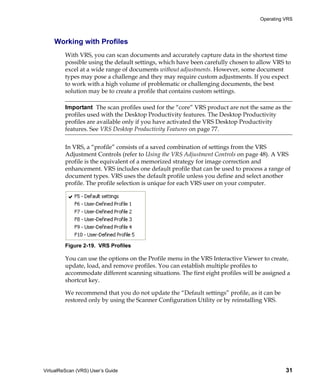
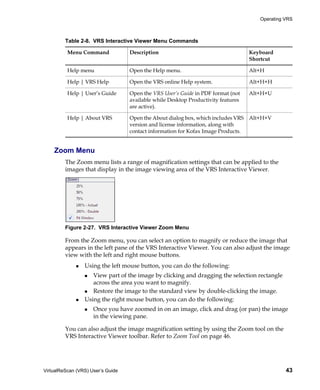
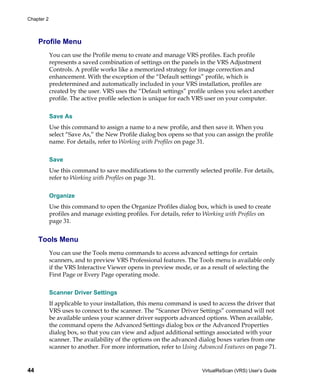
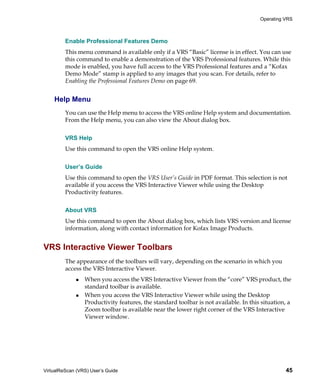
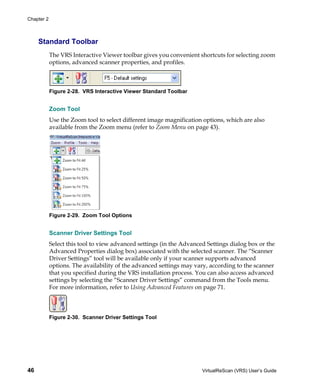
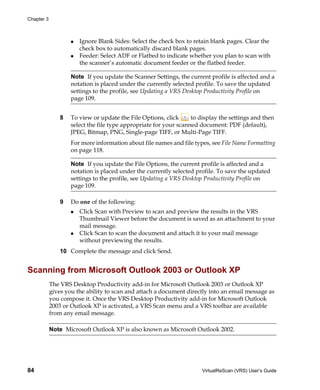
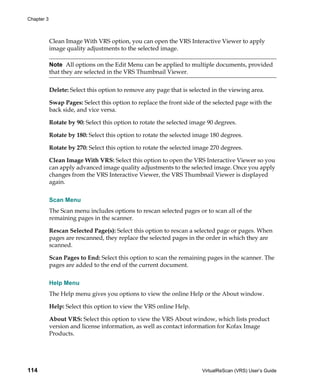
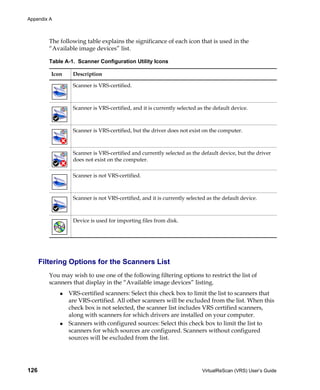
VirtualReScan 4.2
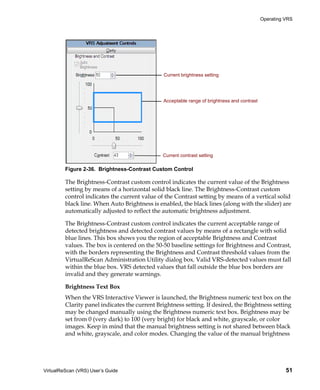
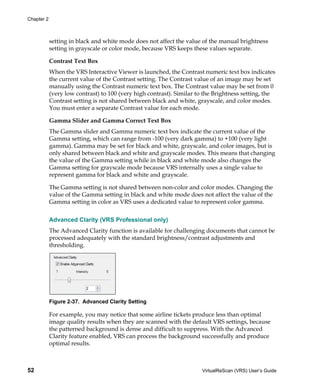
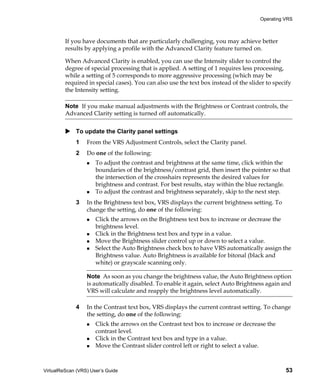
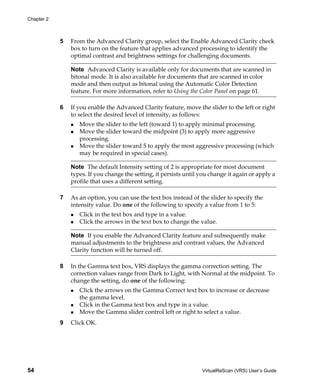
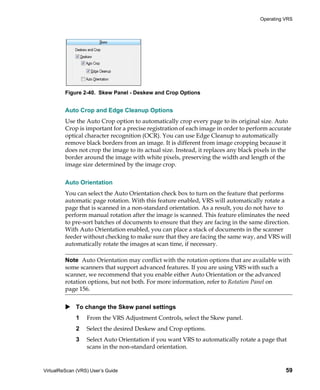
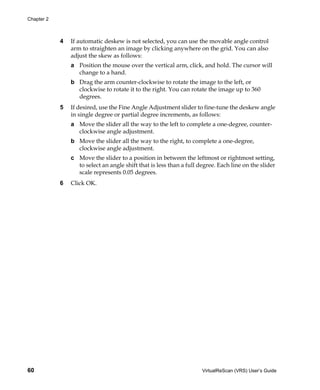
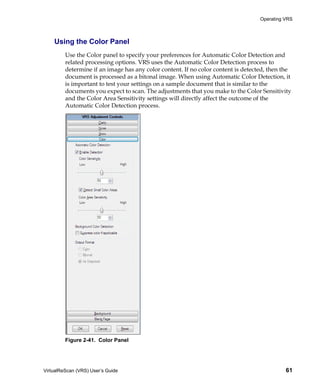
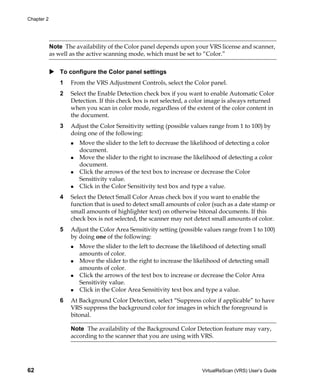
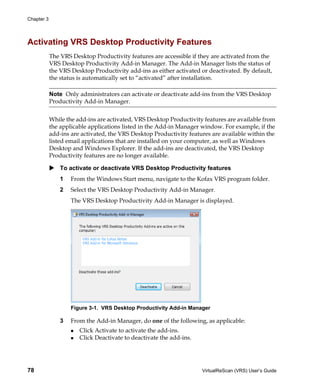
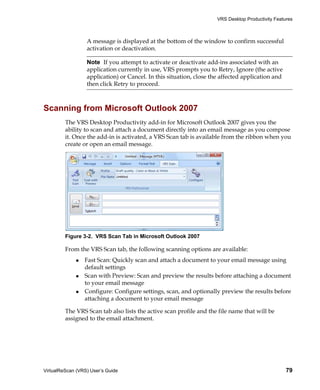
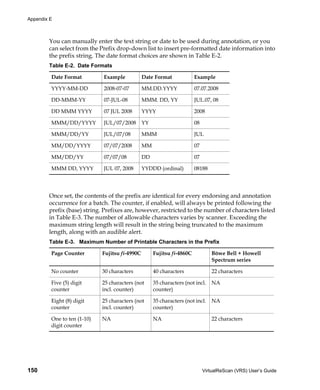
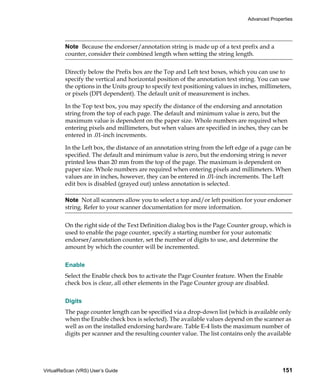
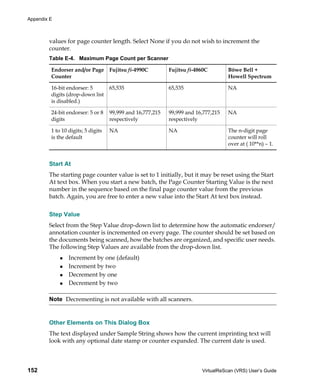
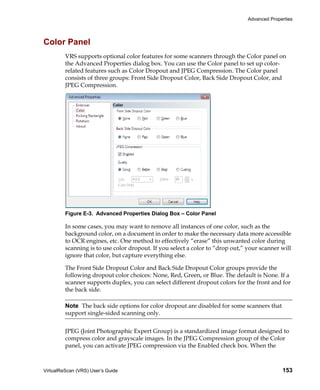
     User’s Guide


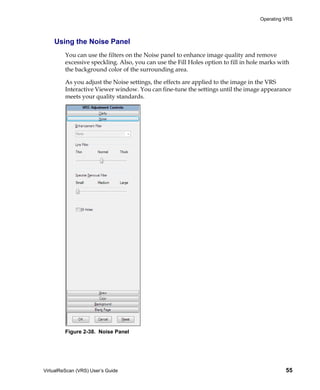
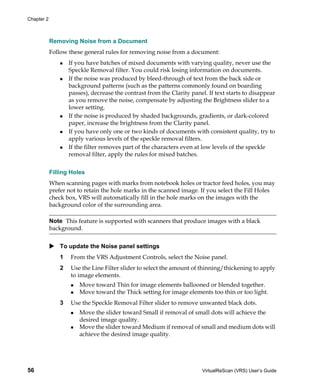
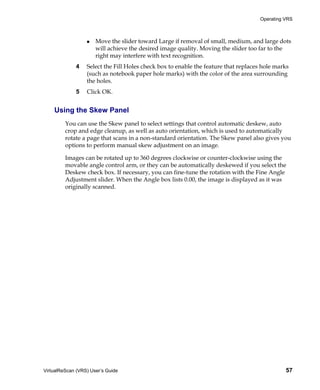
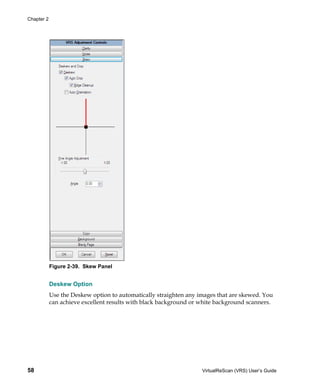
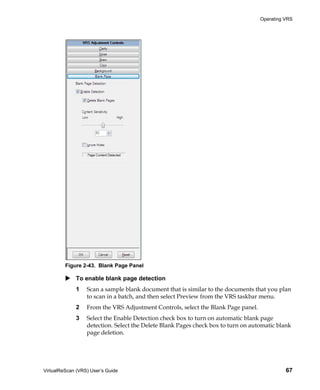
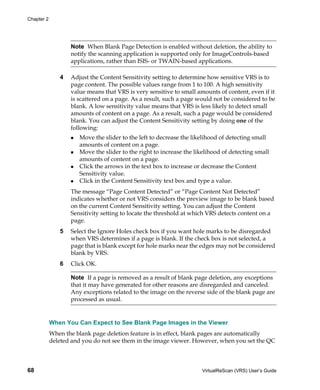
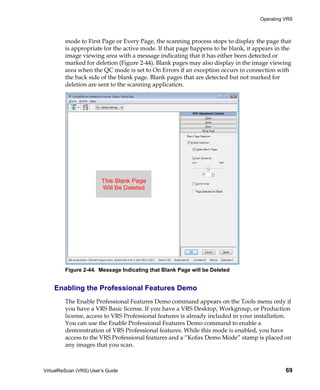
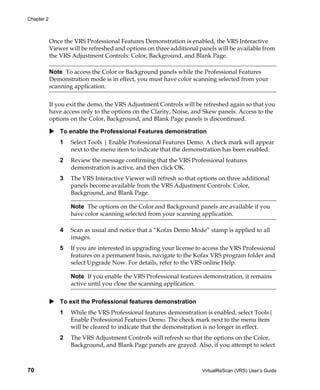
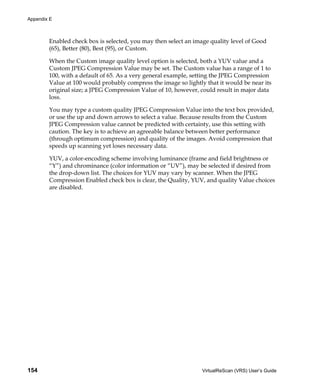
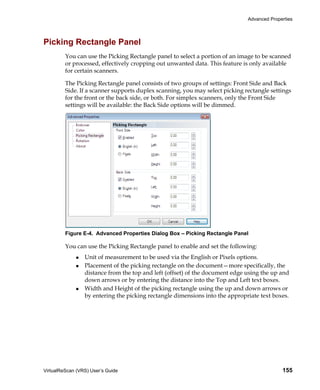
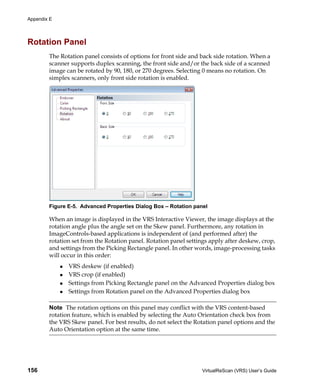
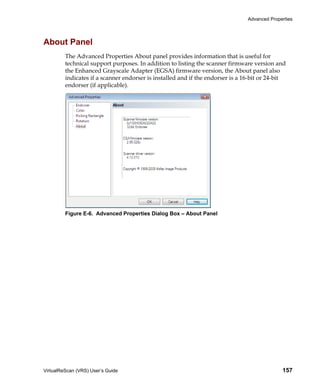
          10300700-000 Revision A
© 2008 Kofax Image Products, Inc., 16245 Laguna Canyon Road, Irvine, California
92618, U.S.A. All rights reserved. Use is subject to license terms.

Third-party software is copyrighted and licensed from Kofax’s suppliers.

This product is protected by U.S. Patent No. 6,370,277.

THIS SOFTWARE CONTAINS CONFIDENTIAL INFORMATION AND TRADE
SECRETS OF KOFAX IMAGE PRODUCTS, INC. USE, DISCLOSURE OR
REPRODUCTION IS PROHIBITED WITHOUT THE PRIOR EXPRESS WRITTEN
PERMISSION OF KOFAX IMAGE PRODUCTS, INC.

Kofax Image Products, Kofax, the Kofax logo, VirtualReScan, the “VRS
VirtualReScan” logo, and VRS are trademarks or registered trademarks of Kofax
Image Products, Inc. in the U.S. and other countries. All other trademarks are the
trademarks or registered trademarks of their respective owners.

U.S. Government Rights Commercial software. Government users are subject to the
Kofax Image Products, Inc. standard license agreement and applicable provisions of
the FAR and its supplements.

You agree that you do not intend to and will not, directly or indirectly, export or
transmit the Software or related documentation and technical data to any country to
which such export or transmission is restricted by any applicable U.S. regulation or
statute, without the prior written consent, if required, of the Bureau of Export
Administration of the U.S. Department of Commerce, or such other governmental
entity as may have jurisdiction over such export or transmission. You represent and
warrant that you are not located in, under the control of, or a national or resident of
any such country.

DOCUMENTATION IS PROVIDED “AS IS” AND ALL EXPRESS OR IMPLIED
CONDITIONS, REPRESENTATIONS AND WARRANTIES, INCLUDING ANY
IMPLIED WARRANTY OF MERCHANTABILITY, FITNESS FOR A PARTICULAR
PURPOSE OR NON-INFRINGEMENT, ARE DISCLAIMED, EXCEPT TO THE
EXTENT THAT SUCH DISCLAIMERS ARE HELD TO BE LEGALLY INVALID.
Contents


    How to Use This Guide . . . . . . . . . . . . . . . . . . . . . . . . . . . . . . . . . . . . . . . . . . . . . . . . . . ix
          Related Documentation . . . . . . . . . . . . . . . . . . . . . . . . . . . . . . . . . . . . . . . . . . . . . . . . . . . .ix
          Training . . . . . . . . . . . . . . . . . . . . . . . . . . . . . . . . . . . . . . . . . . . . . . . . . . . . . . . . . . . . . . . . . . x
          Kofax Technical Support . . . . . . . . . . . . . . . . . . . . . . . . . . . . . . . . . . . . . . . . . . . . . . . . . . . . x

1   Overview . . . . . . . . . . . . . . . . . . . . . . . . . . . . . . . . . . . . . . . . . . . . . . . . . . . . . . . . . . . . . 1
         VRS Image Processing Workflow . . . . . . . . . . . . . . . . . . . . . . . . . . . . . . . . . . . . . . . . . . . . 2
         Basic Features . . . . . . . . . . . . . . . . . . . . . . . . . . . . . . . . . . . . . . . . . . . . . . . . . . . . . . . . . . . . . 2
         VRS Professional Features . . . . . . . . . . . . . . . . . . . . . . . . . . . . . . . . . . . . . . . . . . . . . . . . . . 4
         Certified Scanning Applications . . . . . . . . . . . . . . . . . . . . . . . . . . . . . . . . . . . . . . . . . . . . . 4
         Certified vs. Non-Certified Scanners . . . . . . . . . . . . . . . . . . . . . . . . . . . . . . . . . . . . . . . . . 4

2   Operating VRS. . . . . . . . . . . . . . . . . . . . . . . . . . . . . . . . . . . . . . . . . . . . . . . . . . . . . . . . . 7
         Selecting a VRS Scan Source . . . . . . . . . . . . . . . . . . . . . . . . . . . . . . . . . . . . . . . . . . . . . . . . . 7
             SVRS and HVRS Scan Sources . . . . . . . . . . . . . . . . . . . . . . . . . . . . . . . . . . . . . . . . . . . 7
         Kofax VRS Scanning Interfaces . . . . . . . . . . . . . . . . . . . . . . . . . . . . . . . . . . . . . . . . . . . . .                    10
            Kofax VRS ImageControls Interface . . . . . . . . . . . . . . . . . . . . . . . . . . . . . . . . . . . . .                             10
            Kofax VRS ISIS Interface . . . . . . . . . . . . . . . . . . . . . . . . . . . . . . . . . . . . . . . . . . . . . . .                  13
            Kofax VRS TWAIN Interface . . . . . . . . . . . . . . . . . . . . . . . . . . . . . . . . . . . . . . . . . . .                         15
         Configuring VRS Before You Scan . . . . . . . . . . . . . . . . . . . . . . . . . . . . . . . . . . . . . . . . . .                        18
            Using the VirtualReScan Administration Utility . . . . . . . . . . . . . . . . . . . . . . . . . . .                                    18
                Warnings Tab . . . . . . . . . . . . . . . . . . . . . . . . . . . . . . . . . . . . . . . . . . . . . . . . . . . . .              20
                Errors Tab . . . . . . . . . . . . . . . . . . . . . . . . . . . . . . . . . . . . . . . . . . . . . . . . . . . . . . . .          23
                Accelerated Scanning Tab . . . . . . . . . . . . . . . . . . . . . . . . . . . . . . . . . . . . . . . . . .                        25
                Updating the VirtualReScan Administration Utility Dialog Box . . . . . . . . . .                                                    27
            Setting the VRS Operating Mode . . . . . . . . . . . . . . . . . . . . . . . . . . . . . . . . . . . . . . . .                          29
                On Errors . . . . . . . . . . . . . . . . . . . . . . . . . . . . . . . . . . . . . . . . . . . . . . . . . . . . . . . .           29


VirtualReScan (VRS) User’s Guide                                                                                                                    iii
Contents


                     First Page . . . . . . . . . . . . . . . . . . . . . . . . . . . . . . . . . . . . . . . . . . . . . . . . . . . . . . . . . 29
                     Every Page . . . . . . . . . . . . . . . . . . . . . . . . . . . . . . . . . . . . . . . . . . . . . . . . . . . . . . . . 29
                     QC Later (available to Kofax Capture users) . . . . . . . . . . . . . . . . . . . . . . . . . . . 29
                     Disabled . . . . . . . . . . . . . . . . . . . . . . . . . . . . . . . . . . . . . . . . . . . . . . . . . . . . . . . . . . 30
                     Hardware Warnings . . . . . . . . . . . . . . . . . . . . . . . . . . . . . . . . . . . . . . . . . . . . . . . 30
                 Working with Profiles . . . . . . . . . . . . . . . . . . . . . . . . . . . . . . . . . . . . . . . . . . . . . . . . . 31
                     Creating a Profile . . . . . . . . . . . . . . . . . . . . . . . . . . . . . . . . . . . . . . . . . . . . . . . . . . 32
                     Changing the Active Profile . . . . . . . . . . . . . . . . . . . . . . . . . . . . . . . . . . . . . . . . . 34
                     Updating a Profile . . . . . . . . . . . . . . . . . . . . . . . . . . . . . . . . . . . . . . . . . . . . . . . . . 35
                     Removing a Profile . . . . . . . . . . . . . . . . . . . . . . . . . . . . . . . . . . . . . . . . . . . . . . . . 35
                 Previewing Images . . . . . . . . . . . . . . . . . . . . . . . . . . . . . . . . . . . . . . . . . . . . . . . . . . . . 36
                     Using the Status and Analysis Information . . . . . . . . . . . . . . . . . . . . . . . . . . . . 37
           Using the VRS Interactive Viewer . . . . . . . . . . . . . . . . . . . . . . . . . . . . . . . . . . . . . . . . . . . 38
               Scroll Bars . . . . . . . . . . . . . . . . . . . . . . . . . . . . . . . . . . . . . . . . . . . . . . . . . . . . . . . . . . . . 41
               Persistence . . . . . . . . . . . . . . . . . . . . . . . . . . . . . . . . . . . . . . . . . . . . . . . . . . . . . . . . . . . 41
               Focus . . . . . . . . . . . . . . . . . . . . . . . . . . . . . . . . . . . . . . . . . . . . . . . . . . . . . . . . . . . . . . . . 41
               Minimize / Maximize / Close . . . . . . . . . . . . . . . . . . . . . . . . . . . . . . . . . . . . . . . . . . 41
               Button Controls . . . . . . . . . . . . . . . . . . . . . . . . . . . . . . . . . . . . . . . . . . . . . . . . . . . . . . . 41
                   OK . . . . . . . . . . . . . . . . . . . . . . . . . . . . . . . . . . . . . . . . . . . . . . . . . . . . . . . . . . . . . . 41
                   Cancel . . . . . . . . . . . . . . . . . . . . . . . . . . . . . . . . . . . . . . . . . . . . . . . . . . . . . . . . . . . . 42
                   Reset . . . . . . . . . . . . . . . . . . . . . . . . . . . . . . . . . . . . . . . . . . . . . . . . . . . . . . . . . . . . . 42
           VRS Interactive Viewer Menu Bar . . . . . . . . . . . . . . . . . . . . . . . . . . . . . . . . . . . . . . . . . . . 42
              Zoom Menu . . . . . . . . . . . . . . . . . . . . . . . . . . . . . . . . . . . . . . . . . . . . . . . . . . . . . . . . . . 43
              Profile Menu . . . . . . . . . . . . . . . . . . . . . . . . . . . . . . . . . . . . . . . . . . . . . . . . . . . . . . . . . . 44
                  Save As . . . . . . . . . . . . . . . . . . . . . . . . . . . . . . . . . . . . . . . . . . . . . . . . . . . . . . . . . . 44
                  Save . . . . . . . . . . . . . . . . . . . . . . . . . . . . . . . . . . . . . . . . . . . . . . . . . . . . . . . . . . . . . 44
                  Organize . . . . . . . . . . . . . . . . . . . . . . . . . . . . . . . . . . . . . . . . . . . . . . . . . . . . . . . . . 44
              Tools Menu . . . . . . . . . . . . . . . . . . . . . . . . . . . . . . . . . . . . . . . . . . . . . . . . . . . . . . . . . . . 44
                  Scanner Driver Settings . . . . . . . . . . . . . . . . . . . . . . . . . . . . . . . . . . . . . . . . . . . . . 44
                  Enable Professional Features Demo . . . . . . . . . . . . . . . . . . . . . . . . . . . . . . . . . . 45
              Help Menu . . . . . . . . . . . . . . . . . . . . . . . . . . . . . . . . . . . . . . . . . . . . . . . . . . . . . . . . . . . 45
                  VRS Help . . . . . . . . . . . . . . . . . . . . . . . . . . . . . . . . . . . . . . . . . . . . . . . . . . . . . . . . . 45
                  User’s Guide . . . . . . . . . . . . . . . . . . . . . . . . . . . . . . . . . . . . . . . . . . . . . . . . . . . . . . 45
                  About VRS . . . . . . . . . . . . . . . . . . . . . . . . . . . . . . . . . . . . . . . . . . . . . . . . . . . . . . . . 45
           VRS Interactive Viewer Toolbars . . . . . . . . . . . . . . . . . . . . . . . . . . . . . . . . . . . . . . . . . . . . 45
              Standard Toolbar . . . . . . . . . . . . . . . . . . . . . . . . . . . . . . . . . . . . . . . . . . . . . . . . . . . . . . 46
                  Zoom Tool . . . . . . . . . . . . . . . . . . . . . . . . . . . . . . . . . . . . . . . . . . . . . . . . . . . . . . . . 46
                  Scanner Driver Settings Tool . . . . . . . . . . . . . . . . . . . . . . . . . . . . . . . . . . . . . . . . 46
                  Profile Selection List . . . . . . . . . . . . . . . . . . . . . . . . . . . . . . . . . . . . . . . . . . . . . . . 47
              Zoom Toolbar . . . . . . . . . . . . . . . . . . . . . . . . . . . . . . . . . . . . . . . . . . . . . . . . . . . . . . . . 47
           Using the VRS Adjustment Controls . . . . . . . . . . . . . . . . . . . . . . . . . . . . . . . . . . . . . . . . . 48


iv                                                                                                       VirtualReScan (VRS) User’s Guide
Contents


               Using the Clarity Panel . . . . . . . . . . . . . . . . . . . . . . . . . . . . . . . . . . . . . . . . . . . . . . . .             49
                   Brightness and Contrast . . . . . . . . . . . . . . . . . . . . . . . . . . . . . . . . . . . . . . . . . . . .                 50
                   Manual Image Adjustment . . . . . . . . . . . . . . . . . . . . . . . . . . . . . . . . . . . . . . . . .                       50
                   Advanced Clarity (VRS Professional only) . . . . . . . . . . . . . . . . . . . . . . . . . . . .                                52
               Using the Noise Panel . . . . . . . . . . . . . . . . . . . . . . . . . . . . . . . . . . . . . . . . . . . . . . . . .             55
                   Removing Noise from a Document . . . . . . . . . . . . . . . . . . . . . . . . . . . . . . . . . .                              56
                   Filling Holes . . . . . . . . . . . . . . . . . . . . . . . . . . . . . . . . . . . . . . . . . . . . . . . . . . . . . .       56
               Using the Skew Panel . . . . . . . . . . . . . . . . . . . . . . . . . . . . . . . . . . . . . . . . . . . . . . . . . .            57
                   Deskew Option . . . . . . . . . . . . . . . . . . . . . . . . . . . . . . . . . . . . . . . . . . . . . . . . . . .             58
                   Auto Crop and Edge Cleanup Options . . . . . . . . . . . . . . . . . . . . . . . . . . . . . . .                                59
                   Auto Orientation . . . . . . . . . . . . . . . . . . . . . . . . . . . . . . . . . . . . . . . . . . . . . . . . . .            59
               Using the Color Panel . . . . . . . . . . . . . . . . . . . . . . . . . . . . . . . . . . . . . . . . . . . . . . . . .             61
               Using the Background Panel . . . . . . . . . . . . . . . . . . . . . . . . . . . . . . . . . . . . . . . . . . . .                  63
               Using the Blank Page Panel . . . . . . . . . . . . . . . . . . . . . . . . . . . . . . . . . . . . . . . . . . . .                  65
                   When You Can Expect to See Blank Page Images in the Viewer . . . . . . . . . .                                                  68
               Enabling the Professional Features Demo . . . . . . . . . . . . . . . . . . . . . . . . . . . . . . . .                             69
         Using Advanced Features . . . . . . . . . . . . . . . . . . . . . . . . . . . . . . . . . . . . . . . . . . . . . . . . . 71
         Using the Auto Resolve Manager . . . . . . . . . . . . . . . . . . . . . . . . . . . . . . . . . . . . . . . . . . . 72
         Kofax VRS Program Folder . . . . . . . . . . . . . . . . . . . . . . . . . . . . . . . . . . . . . . . . . . . . . . . .                  73
            Activate VRS . . . . . . . . . . . . . . . . . . . . . . . . . . . . . . . . . . . . . . . . . . . . . . . . . . . . . . . . .         73
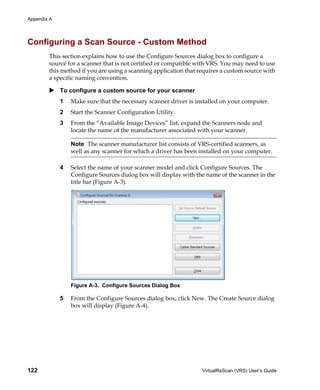
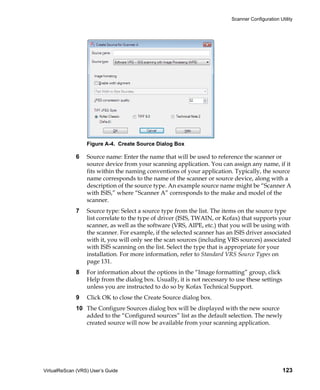
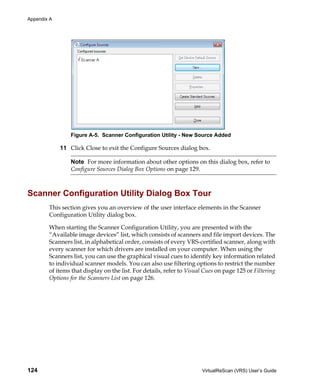
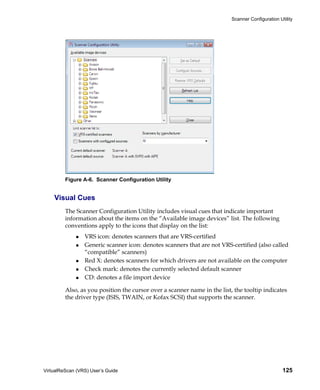
            Deactivate VRS . . . . . . . . . . . . . . . . . . . . . . . . . . . . . . . . . . . . . . . . . . . . . . . . . . . . . . .           74
            Register VRS . . . . . . . . . . . . . . . . . . . . . . . . . . . . . . . . . . . . . . . . . . . . . . . . . . . . . . . . .         74
            Buy Now . . . . . . . . . . . . . . . . . . . . . . . . . . . . . . . . . . . . . . . . . . . . . . . . . . . . . . . . . . . .        74
            Upgrade Now . . . . . . . . . . . . . . . . . . . . . . . . . . . . . . . . . . . . . . . . . . . . . . . . . . . . . . . .            74
            Check for Updates . . . . . . . . . . . . . . . . . . . . . . . . . . . . . . . . . . . . . . . . . . . . . . . . . . . .              74
            VRS Desktop Productivity Add-in Manager . . . . . . . . . . . . . . . . . . . . . . . . . . . . . .                                    75
            Scanner Configuration Utility . . . . . . . . . . . . . . . . . . . . . . . . . . . . . . . . . . . . . . . . . . .                    75
            VCDemo . . . . . . . . . . . . . . . . . . . . . . . . . . . . . . . . . . . . . . . . . . . . . . . . . . . . . . . . . . . . .       75
            VRS Quick Start Guide . . . . . . . . . . . . . . . . . . . . . . . . . . . . . . . . . . . . . . . . . . . . . . . .                  75

3   VRS Desktop Productivity Features . . . . . . . . . . . . . . . . . . . . . . . . . . . . . . . . . . . . . . 77
         Activating VRS Desktop Productivity Features . . . . . . . . . . . . . . . . . . . . . . . . . . . . . . . 78
         Scanning from Microsoft Outlook 2007 . . . . . . . . . . . . . . . . . . . . . . . . . . . . . . . . . . . . . .                          79
             Fast Scan . . . . . . . . . . . . . . . . . . . . . . . . . . . . . . . . . . . . . . . . . . . . . . . . . . . . . . . . . . . . .   80
             Scan with Preview . . . . . . . . . . . . . . . . . . . . . . . . . . . . . . . . . . . . . . . . . . . . . . . . . . . .             81
             Configure . . . . . . . . . . . . . . . . . . . . . . . . . . . . . . . . . . . . . . . . . . . . . . . . . . . . . . . . . . . .     82
         Scanning from Microsoft Outlook 2003 or Outlook XP . . . . . . . . . . . . . . . . . . . . . . . . .                                      84
             Fast Scan . . . . . . . . . . . . . . . . . . . . . . . . . . . . . . . . . . . . . . . . . . . . . . . . . . . . . . . . . . . . .   86
             Scan with Preview . . . . . . . . . . . . . . . . . . . . . . . . . . . . . . . . . . . . . . . . . . . . . . . . . . . .             86
             Scan with Profile . . . . . . . . . . . . . . . . . . . . . . . . . . . . . . . . . . . . . . . . . . . . . . . . . . . . . .         88


VirtualReScan (VRS) User’s Guide                                                                                                                   v
Contents


                 Configure . . . . . . . . . . . . . . . . . . . . . . . . . . . . . . . . . . . . . . . . . . . . . . . . . . . . . . . . . . . . 88
           Scanning from Lotus Notes . . . . . . . . . . . . . . . . . . . . . . . . . . . . . . . . . . . . . . . . . . . . . . . . . 91
               Fast Scan . . . . . . . . . . . . . . . . . . . . . . . . . . . . . . . . . . . . . . . . . . . . . . . . . . . . . . . . . . . . . 91
               Scan with Preview . . . . . . . . . . . . . . . . . . . . . . . . . . . . . . . . . . . . . . . . . . . . . . . . . . . . . 92
               Configure . . . . . . . . . . . . . . . . . . . . . . . . . . . . . . . . . . . . . . . . . . . . . . . . . . . . . . . . . . . . 93
               Scan Using Profile . . . . . . . . . . . . . . . . . . . . . . . . . . . . . . . . . . . . . . . . . . . . . . . . . . . . . 96
           Scanning from Your Windows Desktop . . . . . . . . . . . . . . . . . . . . . . . . . . . . . . . . . . . . . . 96
               Fast Scan . . . . . . . . . . . . . . . . . . . . . . . . . . . . . . . . . . . . . . . . . . . . . . . . . . . . . . . . . . . . . 97
               Scan with Preview . . . . . . . . . . . . . . . . . . . . . . . . . . . . . . . . . . . . . . . . . . . . . . . . . . . . . 97
               Configure . . . . . . . . . . . . . . . . . . . . . . . . . . . . . . . . . . . . . . . . . . . . . . . . . . . . . . . . . . . . 98
               Scan Using Profile . . . . . . . . . . . . . . . . . . . . . . . . . . . . . . . . . . . . . . . . . . . . . . . . . . . . 100
           Scanning from Windows Explorer . . . . . . . . . . . . . . . . . . . . . . . . . . . . . . . . . . . . . . . . . . 101
               Fast Scan . . . . . . . . . . . . . . . . . . . . . . . . . . . . . . . . . . . . . . . . . . . . . . . . . . . . . . . . . . . . 101
               Scan with Preview . . . . . . . . . . . . . . . . . . . . . . . . . . . . . . . . . . . . . . . . . . . . . . . . . . . . 102
               Configure . . . . . . . . . . . . . . . . . . . . . . . . . . . . . . . . . . . . . . . . . . . . . . . . . . . . . . . . . . . 103
               Scan Using Profile . . . . . . . . . . . . . . . . . . . . . . . . . . . . . . . . . . . . . . . . . . . . . . . . . . . . 105
           VRS Desktop Productivity Profiles . . . . . . . . . . . . . . . . . . . . . . . . . . . . . . . . . . . . . . . . . 106
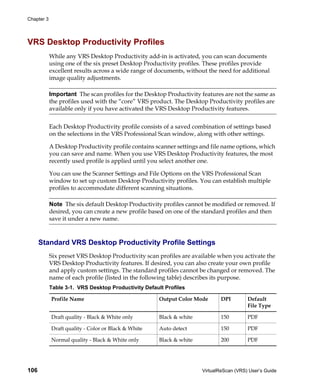
              Standard VRS Desktop Productivity Profile Settings . . . . . . . . . . . . . . . . . . . . . . 106
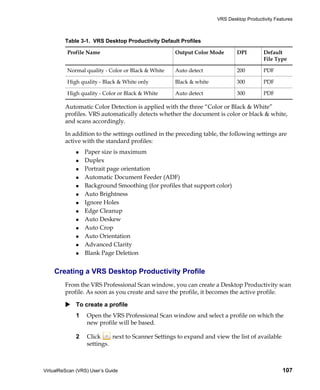
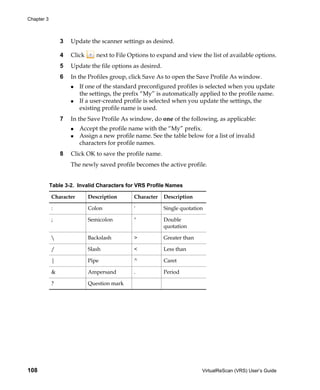
              Creating a VRS Desktop Productivity Profile . . . . . . . . . . . . . . . . . . . . . . . . . . . . . 107
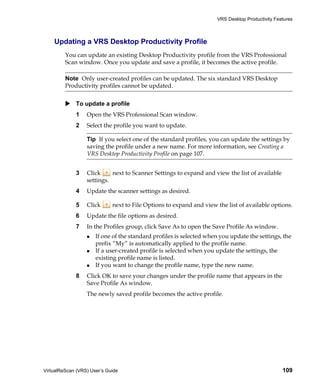
              Updating a VRS Desktop Productivity Profile . . . . . . . . . . . . . . . . . . . . . . . . . . . . 109
              Changing the Active Desktop Productivity Profile . . . . . . . . . . . . . . . . . . . . . . . . 110
                  Windows Desktop . . . . . . . . . . . . . . . . . . . . . . . . . . . . . . . . . . . . . . . . . . . . . . . . 110
                  Windows Explorer . . . . . . . . . . . . . . . . . . . . . . . . . . . . . . . . . . . . . . . . . . . . . . . . 110
                  Microsoft Outlook 2007 . . . . . . . . . . . . . . . . . . . . . . . . . . . . . . . . . . . . . . . . . . . . 110
                  Microsoft Outlook 2003 or Outlook XP . . . . . . . . . . . . . . . . . . . . . . . . . . . . . . 110
                  Lotus Notes . . . . . . . . . . . . . . . . . . . . . . . . . . . . . . . . . . . . . . . . . . . . . . . . . . . . . . 111
              Removing a VRS Desktop Productivity Profile . . . . . . . . . . . . . . . . . . . . . . . . . . . 111
           VRS Thumbnail Viewer . . . . . . . . . . . . . . . . . . . . . . . . . . . . . . . . . . . . . . . . . . . . . . . . . . . 112
              VRS Thumbnail Viewer Menu Bar . . . . . . . . . . . . . . . . . . . . . . . . . . . . . . . . . . . . . . 113
                 File Menu . . . . . . . . . . . . . . . . . . . . . . . . . . . . . . . . . . . . . . . . . . . . . . . . . . . . . . . . 113
                 Edit Menu . . . . . . . . . . . . . . . . . . . . . . . . . . . . . . . . . . . . . . . . . . . . . . . . . . . . . . . 113
                 Scan Menu . . . . . . . . . . . . . . . . . . . . . . . . . . . . . . . . . . . . . . . . . . . . . . . . . . . . . . . 114
                 Help Menu . . . . . . . . . . . . . . . . . . . . . . . . . . . . . . . . . . . . . . . . . . . . . . . . . . . . . . 114
              VRS Thumbnail Viewer Toolbar . . . . . . . . . . . . . . . . . . . . . . . . . . . . . . . . . . . . . . . . 115
           VRS Professional Scan . . . . . . . . . . . . . . . . . . . . . . . . . . . . . . . . . . . . . . . . . . . . . . . . . . . . 116
           File Name Formatting . . . . . . . . . . . . . . . . . . . . . . . . . . . . . . . . . . . . . . . . . . . . . . . . . . . . 118
                File Type . . . . . . . . . . . . . . . . . . . . . . . . . . . . . . . . . . . . . . . . . . . . . . . . . . . . . . . . . . . . 118

A    Scanner Configuration Utility . . . . . . . . . . . . . . . . . . . . . . . . . . . . . . . . . . . . . . . . . . .119


vi                                                                                                     VirtualReScan (VRS) User’s Guide
Contents


         Configuring a Scan Source - Quick Start Method . . . . . . . . . . . . . . . . . . . . . . . . . . . . . 120
         Configuring a Scan Source - Custom Method . . . . . . . . . . . . . . . . . . . . . . . . . . . . . . . . 122
         Scanner Configuration Utility Dialog Box Tour . . . . . . . . . . . . . . . . . . . . . . . . . . . . . .                             124
             Visual Cues . . . . . . . . . . . . . . . . . . . . . . . . . . . . . . . . . . . . . . . . . . . . . . . . . . . . . . . . .     125
             Filtering Options for the Scanners List . . . . . . . . . . . . . . . . . . . . . . . . . . . . . . . . . .                       126
             Scanner Configuration Utility Dialog Box Options . . . . . . . . . . . . . . . . . . . . . . . .                                  127
             Configure Sources Dialog Box Options . . . . . . . . . . . . . . . . . . . . . . . . . . . . . . . . . .                          129
         Restoring VRS Default Settings . . . . . . . . . . . . . . . . . . . . . . . . . . . . . . . . . . . . . . . . . . . . 130
         Standard VRS Source Types . . . . . . . . . . . . . . . . . . . . . . . . . . . . . . . . . . . . . . . . . . . . . . . 131
         Restoring VRS Default Settings . . . . . . . . . . . . . . . . . . . . . . . . . . . . . . . . . . . . . . . . . . . . 132

B   Long Paper Support . . . . . . . . . . . . . . . . . . . . . . . . . . . . . . . . . . . . . . . . . . . . . . . . . . 135
         Activating Long Paper Support . . . . . . . . . . . . . . . . . . . . . . . . . . . . . . . . . . . . . . . . . . . . 135

C   Enhanced Bar Code Engine . . . . . . . . . . . . . . . . . . . . . . . . . . . . . . . . . . . . . . . . . . . . 137
         Standard vs. Enhanced Bar Code . . . . . . . . . . . . . . . . . . . . . . . . . . . . . . . . . . . . . . . . . .                    137
             How to Switch Between Bar Code Engines . . . . . . . . . . . . . . . . . . . . . . . . . . . . . .                                139
             Accessing the Bar Code Properties Dialog Box . . . . . . . . . . . . . . . . . . . . . . . . . . .                                140
             Using the Bar Code Properties Dialog Box . . . . . . . . . . . . . . . . . . . . . . . . . . . . . . .                            140
                 Recognition Group . . . . . . . . . . . . . . . . . . . . . . . . . . . . . . . . . . . . . . . . . . . . . . .               140
                 Interpret Bar Code Group . . . . . . . . . . . . . . . . . . . . . . . . . . . . . . . . . . . . . . . . .                    141
                 Bar Size Group . . . . . . . . . . . . . . . . . . . . . . . . . . . . . . . . . . . . . . . . . . . . . . . . . . .          141
                 Search Direction Group . . . . . . . . . . . . . . . . . . . . . . . . . . . . . . . . . . . . . . . . . . .                  142
                 Quality Group . . . . . . . . . . . . . . . . . . . . . . . . . . . . . . . . . . . . . . . . . . . . . . . . . . .           142
                 Checksum Group . . . . . . . . . . . . . . . . . . . . . . . . . . . . . . . . . . . . . . . . . . . . . . . . .              143

D   Patch Code Recognition. . . . . . . . . . . . . . . . . . . . . . . . . . . . . . . . . . . . . . . . . . . . . . . 145
         Using the Patch Code Properties Dialog Box . . . . . . . . . . . . . . . . . . . . . . . . . . . . . . . . 146

E   Advanced Properties . . . . . . . . . . . . . . . . . . . . . . . . . . . . . . . . . . . . . . . . . . . . . . . . . 147
         Endorser Panel . . . . . . . . . . . . . . . . . . . . . . . . . . . . . . . . . . . . . . . . . . . . . . . . . . . . . . . . . .    148
            Text Definition Dialog Box . . . . . . . . . . . . . . . . . . . . . . . . . . . . . . . . . . . . . . . . . . . .                 149
                Prefix . . . . . . . . . . . . . . . . . . . . . . . . . . . . . . . . . . . . . . . . . . . . . . . . . . . . . . . . . . .   149
                Enable . . . . . . . . . . . . . . . . . . . . . . . . . . . . . . . . . . . . . . . . . . . . . . . . . . . . . . . . . .     151
                Digits . . . . . . . . . . . . . . . . . . . . . . . . . . . . . . . . . . . . . . . . . . . . . . . . . . . . . . . . . . .   151
                Start At . . . . . . . . . . . . . . . . . . . . . . . . . . . . . . . . . . . . . . . . . . . . . . . . . . . . . . . . .     152
                Step Value . . . . . . . . . . . . . . . . . . . . . . . . . . . . . . . . . . . . . . . . . . . . . . . . . . . . . . .       152
                Other Elements on This Dialog Box . . . . . . . . . . . . . . . . . . . . . . . . . . . . . . . . .                            152


VirtualReScan (VRS) User’s Guide                                                                                                               vii
Contents


             Color Panel . . . . . . . . . . . . . . . . . . . . . . . . . . . . . . . . . . . . . . . . . . . . . . . . . . . . . . . . . . . . . 153
             Picking Rectangle Panel . . . . . . . . . . . . . . . . . . . . . . . . . . . . . . . . . . . . . . . . . . . . . . . . . . . 155
             Rotation Panel . . . . . . . . . . . . . . . . . . . . . . . . . . . . . . . . . . . . . . . . . . . . . . . . . . . . . . . . . . . 156
             About Panel . . . . . . . . . . . . . . . . . . . . . . . . . . . . . . . . . . . . . . . . . . . . . . . . . . . . . . . . . . . . . 157

       Index . . . . . . . . . . . . . . . . . . . . . . . . . . . . . . . . . . . . . . . . . . . . . . . . . . . . . . . . . . . . . . .159


viii                                                                                                     VirtualReScan (VRS) User’s Guide
How to Use This Guide


Introduction
         The VRS User’s Guide, which gives instructions for using VirtualReScan (VRS), is
         intended for all potential scan operators. Whether you are an expert at image
         processing or have no special knowledge of scanning, this guide provides the
         information you need to make the best use of VRS features and functionality.

         This guide is written with the assumption that your VRS product has been installed
         and tested according to the instructions in the VRS Installation Guide.


Related Documentation
         The VRS User’s Guide is just one piece in the VRS documentation set. Your VRS
         product includes related documentation, as outlined in this section.


         VRS Installation Guide
         The VRS Installation Guide includes detailed instructions for installing VRS and
         activating the product license. The guide is intended for system administrators who
         are responsible for installing the application and configuring VRS. This guide also
         explains how to install Adrenaline SCSI scanner controllers.

         The VRS Installation Guide is available in PDF format on your VRS installation CD.
         The guide is also available from the Kofax Web site at www.kofax.com when you
         select Support | Online Documentation.


         VRS Online Help
         VRS online Help provides online assistance with your application. You can access the
         online Help by pressing F1 from the VRS user interface or by selecting the Help menu
         from the VRS Thumbnail Viewer or the VRS Interactive Viewer.


VirtualReScan (VRS) User’s Guide                                                              ix
VRS Release Notes
     Late-breaking product information is available from the release notes. You should
     read the release notes carefully, as they contain information that may not be included
     in the other VRS documentation.

     The VRS Release Notes are available in PDF format from the Kofax Web site at
     www.kofax.com when you select Support| Online Documentation.


Training
     Kofax offers both classroom and computer-based training that will help you make the
     most of your Kofax solution. Visit the Kofax Web site at www.kofax.com for complete
     details about the available training options and schedules.


Kofax Technical Support
     For additional technical information about Kofax products, visit the Kofax Web site at
     www.kofax.com and select an appropriate option from the Support menu. The Kofax
     Support pages provide product-specific information, such as current revision levels,
     the latest drivers and software patches, online documentation and user manuals,
     updates to product release notes (if any), technical tips, and an extensive searchable
     knowledgebase. You can find VRS FAQs on the VRS Support pages.

     The Kofax Web site also contains information that describes support options for Kofax
     products. Please review the site for details about the available support options.

     If you need to contact Kofax Technical Support, please have the following information
     available, as applicable:
            VRS software version and build number
            Scanning application or email application name, as applicable
            Operating system and service pack version
            Scanner make and model
            SCSI scanner controller
            Special/custom configuration or integration information


x                                                              VirtualReScan (VRS) User’s Guide
Chapter 1

                                                                       Overview


Introduction
         VirtualReScan (VRS) is an image enhancement tool intended to provide the best
         possible image quality across the widest range of document types. VRS is an
         extremely effective and versatile imaging tool that is easy to use for beginners and
         experts alike. VRS works hand-in-hand with your scanning application. By giving
         you access to the VRS interactive controls, VRS offers the ability to drive your image
         processing with true power. VRS keeps it simple, though. Basically, VRS can be used
         in three ways:
             1    Default Settings—You can use VRS to scan documents and accurately
                  capture data effortlessly using the default settings. These default settings
                  have been carefully chosen so that VRS will produce excellent image quality
                  for a wide range of documents without adjustments.
             2    Automatic Image Enhancement—VRS also monitors images, detecting poor
                  image quality and performing automatic image enhancements that greatly
                  reduce errors related to image quality or recognition.
             3    Manual Image Enhancement—VRS provides interactive controls for cases in
                  which you want the ability to modify an image manually. You determine the
                  best settings only once for the documents you scan, and VRS does the rest.

         Whether you choose to let VRS work completely on its own using the superior default
         settings, or make image adjustments yourself, you can be certain that every scanned
         image will meet the highest standards.

         Note VRS is equipped with context-sensitive online Help. Press F1 to get on-screen
         assistance with crucial tasks, without leaving the application.


VirtualReScan (VRS) User’s Guide                                                                 1
Chapter 1


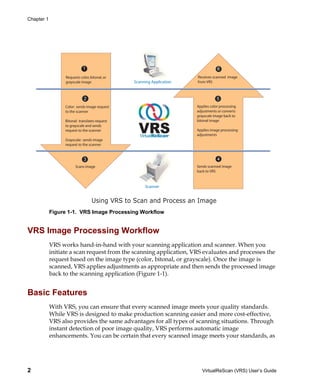
            Figure 1-1. VRS Image Processing Workflow


VRS Image Processing Workflow
            VRS works hand-in-hand with your scanning application and scanner. When you
            initiate a scan request from the scanning application, VRS evaluates and processes the
            request based on the image type (color, bitonal, or grayscale). Once the image is
            scanned, VRS applies adjustments as appropriate and then sends the processed image
            back to the scanning application (Figure 1-1).


Basic Features
            With VRS, you can ensure that every scanned image meets your quality standards.
            While VRS is designed to make production scanning easier and more cost-effective,
            VRS also provides the same advantages for all types of scanning situations. Through
            instant detection of poor image quality, VRS performs automatic image
            enhancements. You can be certain that every scanned image meets your standards, as


2                                                                     VirtualReScan (VRS) User’s Guide
Overview


         VRS provides a set of interactive adjustment controls to eliminate guesswork with
         easy, real-time image correction. The VRS “Basic” feature set does the following:
                 Scans batches that consist of multiple document sizes or varying degrees of
                 quality. This means you won't have to pre-sort mixed batches. VRS will
                 deskew images and crop them to the size of the original documents.
                 Detects and alerts you to paper jams and equipment conflicts automatically.
                 This saves time and increases post-processing accuracy.
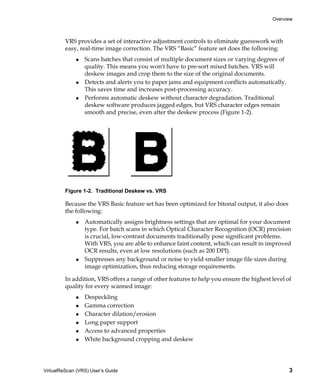
                 Performs automatic deskew without character degradation. Traditional
                 deskew software produces jagged edges, but VRS character edges remain
                 smooth and precise, even after the deskew process (Figure 1-2).


         Figure 1-2. Traditional Deskew vs. VRS

         Because the VRS Basic feature set has been optimized for bitonal output, it also does
         the following:
                 Automatically assigns brightness settings that are optimal for your document
                 type. For batch scans in which Optical Character Recognition (OCR) precision
                 is crucial, low-contrast documents traditionally pose significant problems.
                 With VRS, you are able to enhance faint content, which can result in improved
                 OCR results, even at low resolutions (such as 200 DPI).
                 Suppresses any background or noise to yield smaller image file sizes during
                 image optimization, thus reducing storage requirements.

         In addition, VRS offers a range of other features to help you ensure the highest level of
         quality for every scanned image:
                 Despeckling
                 Gamma correction
                 Character dilation/erosion
                 Long paper support
                 Access to advanced properties
                 White background cropping and deskew


VirtualReScan (VRS) User’s Guide                                                                 3
Chapter 1


VRS Professional Features
            In addition to the basic feature set, VRS supports a set of “Professional” features,
            which include the following:
                   Desktop Productivity
                   Automatic color detection
                   Background smoothing
                   Auto orientation
                   Blank page detection and deletion
                   Automatic checking for product updates
                   Advanced clarity setting
                   QC Later mode for Kofax Capture (formerly Ascent Capture) users

            Unlimited access to VRS Professional features is available to all users with the
            following VRS license categories: Desktop, Workgroup, and Production. Limited
            access to VRS Professional features is available to users who have the VRS Basic
            license. With a VRS Basic license, you can preview the VRS Professional features by
            using them in demonstration mode. For details, refer to Enabling the Professional
            Features Demo on page 69. For details about individual VRS Professional features,
            refer to Operating VRS on page 7. For information on the Desktop Productivity
            features, refer to VRS Desktop Productivity Features on page 77.

            Note If you enable all of the VRS Professional features at the same time, there is some
            potential for performance degradation.


Certified Scanning Applications
            As part of the certification process, Kofax tests VRS compatibility with a wide range of
            scanning applications. While the list of certified scanning applications is updated on a
            regular basis, it is important to know that VRS is designed to work with any
            application based on the Kofax ImageControls toolkit, an ISIS programming interface,
            or a TWAIN programming interface.


Certified vs. Non-Certified Scanners
            When a scanner is certified for VRS, it goes through a rigorous testing process during
            which the best default settings are identified and selected. For this reason, we
            recommend that you use VRS only with certified scanners. Also, Kofax Technical
            Support is available only for VRS-certified scanners. You can use the links on the VRS


4                                                                       VirtualReScan (VRS) User’s Guide
Overview


         product pages on the Kofax Web site at www.kofax.com to view the list of VRS-
         certified scanners. In addition to listing the scanner name and manufacturer, the VRS
         product pages include the following information:
                 Driver used for VRS (TWAIN, ISIS, or Kofax SCSI)
                 Black or white background support
                 Additional memory required for optimal performance (if applicable)
                 Interface certified by VRS (SCSI, USB, or FireWire)

         VRS is capable of working with some non-certified or “compatible” scanners, if they
         have been configured with the Scanner Configuration Utility. It is important to be
         aware that you may experience less than optimal image quality when using a non-
         certified scanner with VRS. Not every scanner can be used with VRS. To be
         compatible with VRS, a non-certified scanner must meet the following requirements:
                 Ability to output a 256-level grayscale image as a single image
                 TWAIN driver or ISIS driver support

                  Note While VRS works best with an ISIS driver, it also supports some
                  scanners with TWAIN drivers.


         For more information about using non-certified scanners with VRS, refer to the VRS
         Installation Guide.


VirtualReScan (VRS) User’s Guide                                                              5
Chapter 1


6           VirtualReScan (VRS) User’s Guide
Chapter 2

                                                        Operating VRS


Introduction
         This chapter explains how to operate VRS using the default settings, how to set up
         custom profiles, and how to use the VRS Adjustment Controls to configure and use
         the manual image enhancement features. This chapter also gives you information
         about advanced features and other options that are available from the VRS user
         interface.

         If you intend to use the Desktop Productivity features, refer to VRS Desktop
         Productivity Features on page 77.


Selecting a VRS Scan Source
         VRS will be active once you start your scanning application and select a VRS scan
         source, as described in the following procedure.


    SVRS and HVRS Scan Sources
         Each VRS scan source includes either “SVRS” or “HVRS” in its name. Sources with
         “SVRS” refer to Software VRS, while sources with “HVRS” refer to Hardware VRS.
         HVRS sources are required for high-speed, production class scanners in which a
         special board is installed to support VRS functionality. Based on the scanner that you
         specify during the VRS installation process, the appropriate source (SVRS or HVRS) is
         made available for selection from your scanning application. Although SVRS sources
         are shown in the procedure below, your list may consist of HVRS sources if a
         production class scanner has been specified during the VRS installation process.

             To select a VRS scan source
             1    Turn on your scanner and your computer.
             2    Start your scanning application.


VirtualReScan (VRS) User’s Guide                                                              7
Chapter 2


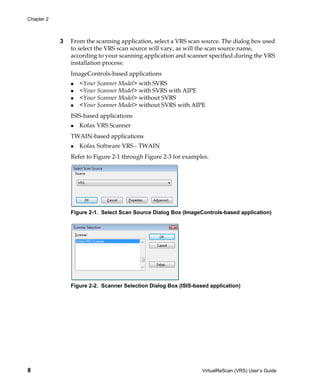
            3   From the scanning application, select a VRS scan source. The dialog box used
                to select the VRS scan source will vary, as will the scan source name,
                according to your scanning application and scanner specified during the VRS
                installation process:
                ImageControls-based applications
                   <Your Scanner Model> with SVRS
                   <Your Scanner Model> with SVRS with AIPE
                   <Your Scanner Model> without SVRS
                   <Your Scanner Model> without SVRS with AIPE
                ISIS-based applications
                   Kofax VRS Scanner
                TWAIN-based applications
                   Kofax Software VRS - TWAIN
                Refer to Figure 2-1 through Figure 2-3 for examples.


                Figure 2-1. Select Scan Source Dialog Box (ImageControls-based application)


                Figure 2-2. Scanner Selection Dialog Box (ISIS-based application)


8                                                                 VirtualReScan (VRS) User’s Guide
Operating VRS


                  Figure 2-3. Select Scanner Dialog Box (TWAIN-based application)

             4    Click the OK or Scan button, as applicable to your scanning application.
             5    For ImageControls-based applications, the VRS icon (Figure 2-4) will display
                  in the Windows taskbar as soon as you select the scan source. For ISIS and
                  TWAIN applications, the VRS icon will display when the scanner interface
                  dialog box is displayed, or when you start scanning. Refer to Kofax VRS
                  Scanning Interfaces on page 10 for more information.


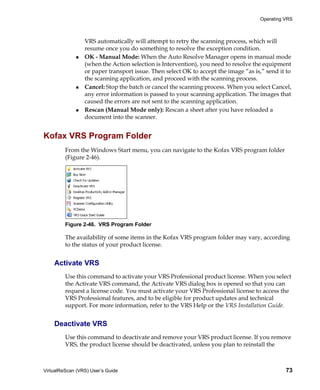
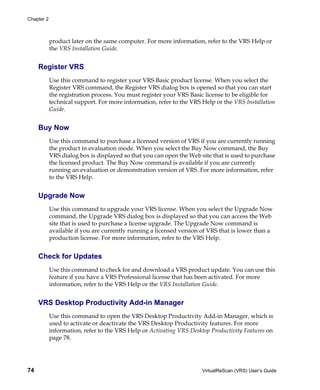
                              VRS Taskbar Icon


                  Figure 2-4. VRS Taskbar Icon

                  The scanner associated with the Kofax VRS TWAIN or Kofax VRS ISIS source
                  is the default scanner. The default VRS scanner is set when you do either of
                  the following:
                      Select a scanner during the VRS installation process
                      Select a default scanner from the Scanner Configuration Utility

                  Note For more information about the VRS installation process, refer to the
                  VRS Installation Guide. For information about the Scanner Configuration
                  Utility, refer to Scanner Configuration Utility on page 119 of this guide.

             6    Follow your scanning application instructions and scan as usual.


VirtualReScan (VRS) User’s Guide                                                                9
Chapter 2


Kofax VRS Scanning Interfaces
            The scanning interface consists of basic scanner property settings, along with an
            option for accessing VRS. The scanning interface serves as a connection between VRS
            and your scanning application. Depending on the type of scanning application
            (ImageControls-based, ISIS-based, TWAIN-based), the options that appear on the
            VRS scanning interface will vary. For example, the ImageControls scanning interface
            does not include an option that you can select to start scanning, but the ISIS and
            TWAIN scanning interfaces both include a Scan option.

            Most scanning applications support one scanning interface type, but some do support
            more than one. For applications that support multiple scanning interfaces, the
            preferred interface is the one that provides direct access to VRS. For best results, we
            recommend that the Kofax ImageControls interface be your first choice, followed by
            the ISIS interface and then the TWAIN interface.


     Kofax VRS ImageControls Interface
            The Kofax VRS ImageControls interface serves as a connection between VRS and your
            ImageControls scanning application. Once you select the scan source from the
            scanning application, you can access an ImageControls scanning interface. Then the
            scanner properties will be available from a custom dialog box created by the
            application or in a standard ImageControls dialog box. In Figure 2-5, you can see the
            Scanner Properties dialog box that is available in VCDemo, the ImageControls-based
            demonstration scanning application that is included with every VRS installation.

            Note For more information about VCDemo, refer to Using VCDemo in your VRS
            Installation Guide.


            Figure 2-5. Kofax VRS ImageControls Interface


10                                                                    VirtualReScan (VRS) User’s Guide
Operating VRS


         You can use the Kofax VRS ImageControls interface to control scanner functions.
         Under General, you can select from the following options:
                 Source: Lists the available input paper source as Flatbed, ADF, Manual, or
                 Panel. Depending upon the capabilities of the selected scanner, some sources
                 may not be available.
                 Destination: Lists the output tray (usually Bin 1 or Bin 2) for the pages to be
                 scanned. Depending upon the capabilities of the selected scanner, some trays
                 may not be available.
                 Resolution (DPI): Select an option for scan resolution or DPI.
                 Paper Size: Lists the paper size (Letter, Legal, A5, etc.) supported by the
                 selected scanner.
                 Orientation: Lists the paper orientation (portrait or landscape) for the
                 documents that you plan to scan.

         Other options on the ImageControls scanning interface include the following:
                 Timeout: Select the number of seconds allowed for you to load paper into the
                 scanner after starting a scan operation. Once the timeout interval is exceeded,
                 the operation will time out and report an out of paper error.
                 Color Mode: Select the color mode (color, black and white, grayscale) for the
                 scan operation. The color mode determines the number of colors or shades of
                 gray into which the scanned page is translated. The availability of the color
                 modes is dependent upon the capability of the selected scanner. The color
                 mode selection also affects the availability of VRS features.
                 Other: Select options associated with automatic length detection, continuous
                 sheet operation, and manual start. The availability of these options is
                 dependent upon the capability of the selected scanner. For more information,
                 press F1 from the Scanner Properties dialog box.
                 Sides: Select either single-sided or duplex, according the number of sides that
                 will be scanned at one time. Some scanners do not support duplex scanning.

         Click the Options button to access a Source Properties dialog box, which is used to
         specify preferences for your image source. For more information, press F1 from the
         Scanner Properties dialog box.

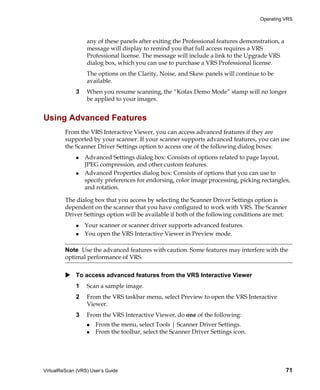
         Click the Advanced button to open the VRS Interactive Viewer.

         With ImageControls scanning applications, the option that you select to start
         scanning is usually available as a menu command that is separate from the scanner
         property settings.

         Note For more information, refer to your ImageControls documentation.


VirtualReScan (VRS) User’s Guide                                                               11
Chapter 2


            To scan using the Kofax VRS ImageControls interface
            1   Open your scanning application.
            2   Select a VRS scan source and click OK. The scan source is typically named as
                “<Your Scanner Model> with SVRS,” where “<Your Scanner Model>”
                corresponds to the make and model of your scanner.


                Figure 2-6. Kofax VRS ImageControls Interface – Select Source

            3   Select Source | Properties to open the Scanner Properties dialog box
                associated with the selected scan source.


                Figure 2-7. Scanner Properties Dialog Box

            4   From the Scanner Properties dialog box, select the desired options and click
                OK. For more information about individual settings, press F1 from the dialog
                box.
            5   Start the scanning process by selecting either Source | Process Image or
                Source | Process Batch, as appropriate.


12                                                               VirtualReScan (VRS) User’s Guide
Operating VRS


    Kofax VRS ISIS Interface
         The Kofax VRS ISIS interface serves as a connection between VRS and your ISIS
         scanning application. In most cases, the Kofax VRS ISIS interface will automatically
         display whenever you select the “Kofax VRS Scanner” source from your ISIS scanning
         application.


         Figure 2-8. Kofax VRS ISIS Interface

         Some ISIS applications hide the Kofax VRS ISIS interface and use their own interfaces
         instead. You can use the Kofax VRS ISIS interface to control scanner features made
         available via the ISIS driver. The interface consists of settings associated with scanner
         presets (profiles), as well as general settings related to the scanner.

         Use the Scanner Presets group to create and manage scanner preset settings. You type
         in the name of a new preset which can then be saved, restored, or removed using the
         New, Save, Restore, or Delete buttons.

         Note The scanner presets that you create from the Kofax VRS ISIS interface differ
         from the profiles created in VRS. For details, refer to Working with Profiles on page 31.


VirtualReScan (VRS) User’s Guide                                                                13
Chapter 2


            Under General, you can select the following options:
                    Paper Source: Select from the available input paper sources: Flatbed or ADF.
                    Dots Per Inch: Select an option for scan resolution or DPI.
                    Mode: Select from the color modes supported by the scanner, which may
                    include black and white, grayscale, or color. The mode selection also affects
                    the availability of VRS features.
                    Page Size: Select a paper size, such as Letter, Legal, A5, etc.
                    Orientation: Select the paper orientation (portrait or landscape).
                    Simplex/Duplex: Select single-sided or double-sided scanning.

            You can access the VRS Interactive Viewer by clicking the Advanced button, and you
            can access the VirtualReScan Administration Utility by clicking the VRS Admin
            button.

                To scan using the Kofax VRS ISIS interface
                1   Open your scanning application.
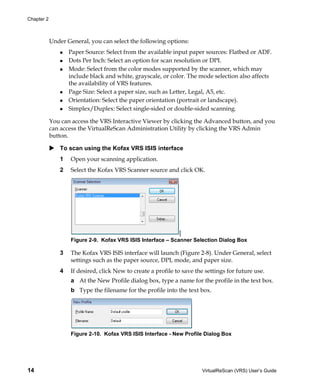
                2   Select the Kofax VRS Scanner source and click OK.


                                                               [
                    Figure 2-9. Kofax VRS ISIS Interface – Scanner Selection Dialog Box

                3   The Kofax VRS ISIS interface will launch (Figure 2-8). Under General, select
                    settings such as the paper source, DPI, mode, and paper size.
                4   If desired, click New to create a profile to save the settings for future use.
                    a At the New Profile dialog box, type a name for the profile in the text box.
                    b Type the filename for the profile into the text box.


                    Figure 2-10. Kofax VRS ISIS Interface - New Profile Dialog Box


14                                                                      VirtualReScan (VRS) User’s Guide
Operating VRS


             5    Click OK to close the New Profile dialog box, or click Cancel to exit without
                  making any changes. In the future, you can change a profile by selecting it,
                  updating the settings under General, and then clicking Save. You may also
                  load a profile by selecting it and clicking Restore from the Kofax VRS ISIS
                  interface. Likewise, you remove a profile by selecting it and clicking Delete.
             6    Start the scanning process.


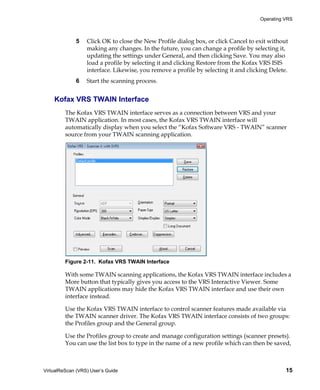
    Kofax VRS TWAIN Interface
         The Kofax VRS TWAIN interface serves as a connection between VRS and your
         TWAIN application. In most cases, the Kofax VRS TWAIN interface will
         automatically display when you select the “Kofax Software VRS - TWAIN” scanner
         source from your TWAIN scanning application.


         Figure 2-11. Kofax VRS TWAIN Interface

         With some TWAIN scanning applications, the Kofax VRS TWAIN interface includes a
         More button that typically gives you access to the VRS Interactive Viewer. Some
         TWAIN applications may hide the Kofax VRS TWAIN interface and use their own
         interface instead.

         Use the Kofax VRS TWAIN interface to control scanner features made available via
         the TWAIN scanner driver. The Kofax VRS TWAIN interface consists of two groups:
         the Profiles group and the General group.

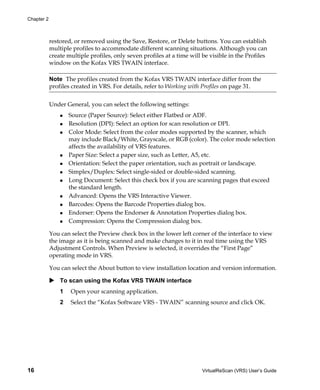
         Use the Profiles group to create and manage configuration settings (scanner presets).
         You can use the list box to type in the name of a new profile which can then be saved,


VirtualReScan (VRS) User’s Guide                                                               15
Chapter 2


            restored, or removed using the Save, Restore, or Delete buttons. You can establish
            multiple profiles to accommodate different scanning situations. Although you can
            create multiple profiles, only seven profiles at a time will be visible in the Profiles
            window on the Kofax VRS TWAIN interface.

            Note The profiles created from the Kofax VRS TWAIN interface differ from the
            profiles created in VRS. For details, refer to Working with Profiles on page 31.


            Under General, you can select the following settings:
                    Source (Paper Source): Select either Flatbed or ADF.
                    Resolution (DPI): Select an option for scan resolution or DPI.
                    Color Mode: Select from the color modes supported by the scanner, which
                    may include Black/White, Grayscale, or RGB (color). The color mode selection
                    affects the availability of VRS features.
                    Paper Size: Select a paper size, such as Letter, A5, etc.
                    Orientation: Select the paper orientation, such as portrait or landscape.
                    Simplex/Duplex: Select single-sided or double-sided scanning.
                    Long Document: Select this check box if you are scanning pages that exceed
                    the standard length.
                    Advanced: Opens the VRS Interactive Viewer.
                    Barcodes: Opens the Barcode Properties dialog box.
                    Endorser: Opens the Endorser & Annotation Properties dialog box.
                    Compression: Opens the Compression dialog box.

            You can select the Preview check box in the lower left corner of the interface to view
            the image as it is being scanned and make changes to it in real time using the VRS
            Adjustment Controls. When Preview is selected, it overrides the “First Page”
            operating mode in VRS.

            You can select the About button to view installation location and version information.

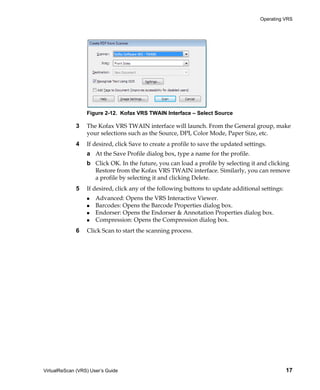
                To scan using the Kofax VRS TWAIN interface
                1   Open your scanning application.
                2   Select the “Kofax Software VRS - TWAIN” scanning source and click OK.


16                                                                       VirtualReScan (VRS) User’s Guide
Operating VRS


                  Figure 2-12. Kofax VRS TWAIN Interface – Select Source

             3    The Kofax VRS TWAIN interface will launch. From the General group, make
                  your selections such as the Source, DPI, Color Mode, Paper Size, etc.
             4    If desired, click Save to create a profile to save the updated settings.
                  a At the Save Profile dialog box, type a name for the profile.
                  b Click OK. In the future, you can load a profile by selecting it and clicking
                    Restore from the Kofax VRS TWAIN interface. Similarly, you can remove
                    a profile by selecting it and clicking Delete.
             5    If desired, click any of the following buttons to update additional settings:
                      Advanced: Opens the VRS Interactive Viewer.
                      Barcodes: Opens the Barcode Properties dialog box.
                      Endorser: Opens the Endorser & Annotation Properties dialog box.
                      Compression: Opens the Compression dialog box.
             6    Click Scan to start the scanning process.


VirtualReScan (VRS) User’s Guide                                                                  17
Chapter 2


Configuring VRS Before You Scan
            The VRS default settings produce superior results for most document types, and in
            most cases, you can use VRS successfully without changing anything. VRS does give
            you the flexibility to configure operating preferences and adjust the default settings if
            necessary. This section explains some configuration options that are available to you:
                   Using the VirtualReScan Administration Utility to customize the way that VRS
                   responds to exception images. For details, refer to the next section.
                   Selecting an operating mode to control how often the VRS Interactive Viewer
                   will display during a scanning session. Refer to Setting the VRS Operating Mode
                   on page 29.
                   Selecting a profile that will produce the best possible image quality for the
                   documents that you scan. Refer to Working with Profiles on page 31.
                   Previewing a sample image to confirm that the selected profile is the best
                   choice for your documents. Refer to Previewing Images on page 36.


     Using the VirtualReScan Administration Utility
            While you may want to scan until all pages have been processed successfully, there
            are cases in which scanning may stop before a batch is completed. You can use the
            VirtualReScan Administration Utility settings to control scanning behavior under
            specific image and scanner conditions. Most of the settings are used to specify how
            VRS responds to exception images and reports problems to your scanning
            application. The choices vary, according to different warning or error types.

            The VirtualReScan Administration Utility dialog box consists of three tabs:
                   Warnings tab: settings related to image quality conditions
                   Errors tab: settings that affect the VRS response to errors that occur in
                   connection with equipment conflicts and paper transport issues
                   Accelerated Scanning tab: settings that you can use to maximize the speed of
                   your scanner


18                                                                      VirtualReScan (VRS) User’s Guide
Operating VRS


         Figure 2-13. VirtualReScan Administration Utility Dialog Box

         The default settings for VRS provide optimal scanning and accurate data capture for a
         wide range of documents. For most situations, it should not be necessary to adjust the
         default settings, which are listed in Table 2-1.
         Table 2-1. VirtualReScan Administration Utility Dialog Box Default Settings

          Tab            Warning/Error     Threshold   Action                Setting
                         Type

          Warnings       Brightness Out of 30          Interactive           NA
                         Range
                                                       Ignore Error1

          Warnings       Contrast Out of   40          Interactive           NA
                         Range

          Warnings       Color Confidence 50           Interactive           NA
                         Out of Range

          Errors         Auto Crop         NA          Ignore Error          NA
                         Failure - Page
                         Boundary Not
                         Detected

          Errors         Auto Deskew       NA          Ignore Error          NA
                         Failure

          Errors         Paper Jam         NA          Auto Resolve          NA

          Errors         Out of Paper      NA          Auto Resolve          NA

          Errors         Cover Open        NA          Auto Resolve          NA


VirtualReScan (VRS) User’s Guide                                                                 19
Chapter 2


            Table 2-1. VirtualReScan Administration Utility Dialog Box Default Settings (continued)

            Tab            Warning/Error        Threshold          Action                   Setting
                           Type

            Errors         Multifeed1           NA                 Auto Resolve             NA

            Errors         Scanner Offline1     NA                 Auto Resolve             NA

            Errors         Feeder Timeout1      NA                 Auto Resolve             NA

            Errors         Scanner Stop         NA                 Auto Resolve             NA
                           Key1

            Errors         Scanner Page         NA                 Auto Resolve             NA
                           Sensor Error1

            Accelerated    NA                   NA                 NA                       Image quality: Best
            Scanning                                                                        Acceleration: None

            1   Böwe Bell + Howell Spectrum series scanners only

            If desired, you can modify the VirtualReScan Administration Utility settings
            according to your requirements for image quality and exception handling. To modify
            the settings, open the VirtualReScan Administration Utility dialog box by selecting
            the Admin Utility command from the VRS taskbar menu.

            From the Warnings and Errors tabs, you define settings that tell VRS exactly how to
            respond when it detects an exception image, an equipment conflict, or a paper
            transport issue. You can use the default settings on the Warnings and Errors tabs, or
            customize how VRS handles each exception type. Once you are satisfied with the
            settings, click Save. Changes that you have made on any of the tabs are saved and
            they take effect at the start of the next scan operation. When you click Cancel to
            dismiss the dialog box, changes made on any of the tabs are automatically discarded.

            For detailed information on how to modify settings on the VirtualReScan
            Administration Utility, refer to the next section, Warnings Tab, the Errors Tab section
            on page 23, or the Accelerated Scanning Tab section on page 25.


            Warnings Tab
            The Warnings tab lists exception conditions associated with image quality. For each
            warning condition, you set a threshold value. This threshold value defines the
            acceptable range that VRS tolerates for brightness, contrast, and color confidence. VRS
            intercepts any image with values that fall outside the acceptable range, and then
            handles the image according to the response that you select from the Action column.


20                                                                                VirtualReScan (VRS) User’s Guide
Operating VRS


         Figure 2-14. Warnings Tab

         Table 2-2 lists the types of warnings and their causes.
         Table 2-2. Warning Types

          Warning                              Cause

          Brightness Out of Range              Brightness value for the image falls outside the
                                               acceptable range.

          Contrast Out of Range                Contrast value for the image falls outside the acceptable
                                               range.

          Color Confidence Out of Range        Color confidence value for the image is lower than the
                                               acceptable range.

         Table 2-3 lists the actions that you can select as responses to the warnings on the
         Warnings tab.
         Table 2-3. Action Types for Warnings

          Action Type      Description

          Ignore Error     VRS does not notify you of the warning or take any action to correct it. VRS
                           accepts the image “as is,” passes it to the scanning application, and then
                           resumes the scanning session.

          Return Error     VRS notifies you of the warning, but does not send the image to the scanning
                           application. The scanning session is then terminated.

          Interactive      The VRS Interactive Viewer opens and displays the image, so that you can
                           apply adjustments to correct the condition that caused the warning.


VirtualReScan (VRS) User’s Guide                                                                        21
Chapter 2


            Brightness Out of Range
            Use the Brightness Out of Range threshold to define the valid range for brightness
            values. When a document is scanned, VRS evaluates the resulting image to determine
            its brightness. Then, VRS compares the actual brightness value to the user-defined
            acceptable range. The acceptable range is determined by starting with 50 and adding
            and subtracting the Brightness Out of Range threshold value listed on the Warnings
            tab. Based on this real-time evaluation, VRS either accepts the image and allows it to
            be passed on to the scanning application, or intercepts it and responds according to
            the Action setting in the Warnings tab. The detected value for brightness is reported
            on the status bar in the VRS Interactive Viewer.

            For example, if the Brightness Out of Range threshold is 10 on the Warnings tab, VRS
            accepts any image with a detected brightness value ranging from 40 to 60. The range
            starts at 40, which is 10 less than 50, and it ends at 60, which is 10 more than 50.
            Therefore, an image with a brightness value of 70 would fall outside the valid range.
            VRS would respond by taking the action listed on the Warnings tab for Brightness
            Out of Range. Refer to Figure 2-14 on page 21.

            Contrast Out of Range
            Use the threshold to define the valid range for contrast values. When a document is
            scanned, VRS evaluates the resulting image to determine its contrast. Then, VRS
            compares it to the user-defined acceptable range. The acceptable range is determined
            by starting with 50 and adding and subtracting the Contrast Out of Range threshold
            value listed on the Warnings tab. Based on this real-time evaluation, VRS either
            accepts the image and allows it to be passed on to the scanning application, or
            intercepts it and responds according to the Contrast Out of Range action setting in the
            Warnings tab. The detected contrast value is listed on the status bar in the VRS
            Interactive Viewer.

            For example, if the Contrast Out of Range threshold is 15 on the Warnings tab, VRS
            accepts any image with a contrast value ranging from 35 to 65. The range starts at 35,
            which is 15 less than 50, and it ends at 65, which is 15 more than 50. Therefore, an
            image with a contrast value of 25 would fall outside the valid range and generate a
            warning. VRS would respond by taking the action listed on the Warnings tab for
            Contrast Out of Range. Refer to Figure 2-14 on page 21.

            Color Confidence Out of Range
            Use this threshold to define the valid range for color confidence values. When a
            document is scanned, VRS evaluates the image to determine if it is color or bitonal.
            VRS also determines how confident it is that the correct assessment was made. The
            confidence level is expressed as a percentage that appears in the status bar of the VRS
            Interactive Viewer.


22                                                                    VirtualReScan (VRS) User’s Guide
Operating VRS


         VRS compares the percentage to the user-defined acceptable value, which is the Color
         Confidence Out of Range threshold setting on the Warnings tab. Based on this real-
         time evaluation, VRS either accepts the image and allows it to be passed on to the
         scanning application, or intercepts it and responds according to the Color Confidence
         Out of Range action in the Warnings tab.

         For example, if the threshold is 50 on the Warnings tab, VRS accepts any image with a
         color confidence value of 50 or higher. Therefore, an image with a color confidence
         value lower than 50 would fall below the valid range and generate a warning. VRS
         would respond by taking the action listed on the Warnings tab for Color Confidence
         Out of Range. Refer to Figure 2-14 on page 21.


         Errors Tab
         The Errors tab lists exception conditions such as errors caused by equipment conflicts
         or paper transport issues, along with the VRS response to each condition.

         Note The list of error types on the Errors tab may vary, according to the scanner that
         you are using with VRS.


         In the Action column, select the desired VRS response for each error type. To change
         the setting, click in the Action box and select the new setting from the list.


         Figure 2-15. VirtualReScan Administration Utility - Errors Tab

         Table 2-4. Error Types

          Error                    Description

          Paper Jam                Paper jam occurs in the scanner paper path.

          Multifeed1               Multiple pages have been pulled into the transport.


VirtualReScan (VRS) User’s Guide                                                                   23
Chapter 2


            Table 2-4. Error Types (continued)

            Error                   Description

            Out of Paper            No paper is available to scan.

            Cover Open              Scanner cover is not closed securely.

            Scanner Offline1        The scanner is not ready to scan.

            Feeder Timeout1         The document feeder tries, but is unable to move the page for a
                                    period of time that exceeds the ADF timeout setting.

            Scanner Stop Key1       The user presses the “OI STOP” key on the scanner, causing an
                                    immediate transport stop, and pages are left somewhere in the
                                    transport.

            Scanner Page Sensor1    The sensor detects an unexpected page sensor transition during
                                    scanning, such as a hole in the document or a ragged page edge. The
                                    transport continues to run until it clears and all pages are in the exit
                                    tray.

            Auto Crop Failure -     Due to excessive skew or other condition, VRS is unable to detect the
            Page Boundary Not       edges of the scanned document.
            Detected

            Auto Deskew Failure     The image does not contain sufficient horizontal or vertical lines to
                                    perform a correct deskew. Use the Skew panel to make a manual
                                    correction. Refer to Using the Skew Panel on page 57.

            1   Scanner dependent errors


            Table 2-5 lists the action types that are available from the Errors tab.
            Table 2-5. Action Types for Errors

            Action Type     Description

            Ignore Error    VRS does not notify you of the error or take any action to correct it. VRS
                            accepts the image “as is,” passes it to the scanning application, and resumes
                            the scanning session.

            Return Error    VRS notifies you of the error, but does not send the image to the scanning
                            application. The scan session is then terminated.

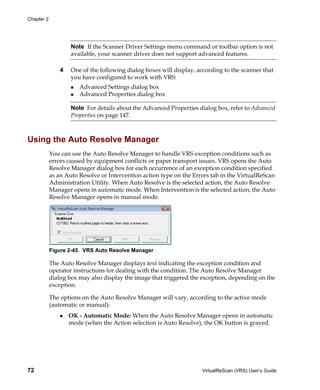
            Auto Resolve    VRS opens the Auto Resolve Manager in automatic mode. As a result, the
                            scanner automatically attempts to retry the scan until the user resolves an
                            equipment or paper transport impediment, such as a paper jam or out of
                            paper condition. Refer to Using the Auto Resolve Manager on page 72.


24                                                                           VirtualReScan (VRS) User’s Guide
Operating VRS


         Table 2-5. Action Types for Errors

          Action Type      Description

          Interactive      The VRS Interactive Viewer opens and displays the image in the VRS
                           Interactive Viewer, so that you can apply new settings to the current image.


         Accelerated Scanning Tab
         When used with a scanning application that requests a bitonal image, VRS requests a
         grayscale image from the scanner. VRS analyzes the grayscale image and produces a
         clean, clear, bitonal image that is passed to the application. This means that, when
         used with VRS, the scanner never actually produces a bitonal image. Historically,
         scanners run at their optimum speed when scanning in bitonal mode and more slowly
         when scanning grayscale or color images. This has changed in the last few years,
         because nearly all scanners now scan in grayscale mode as fast as they scan in bitonal
         mode. In fact, some scanners can even scan in color mode as fast as they do in
         grayscale or bitonal modes.

         When used with some scanners (old or new) that run more slowly while scanning in
         grayscale mode, VRS may appear to be responsible for the slowdown. The perception
         is that the application is requesting a bitonal image and VRS is causing the scanner to
         run more slowly than usual. In reality, the scanner is running at its rated speed in
         grayscale mode, rather than bitonal mode. Most users accept this slight slowdown
         because the image quality produced by VRS far outweighs the reduced throughput.

         If you prefer your scanner to run at, or near, rated bitonal speed, you can use the
         setting on the Accelerated Scanning tab to accelerate the scanner and experience only
         a slight reduction in image quality.

         Note With some scanners, the Accelerated Scanning setting has no effect.


VirtualReScan (VRS) User’s Guide                                                                      25
Chapter 2


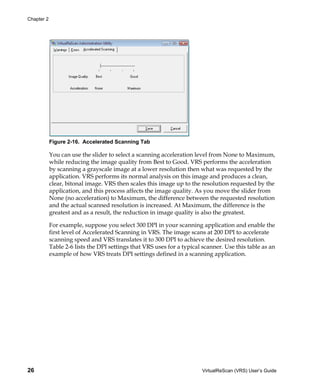
            Figure 2-16. Accelerated Scanning Tab

            You can use the slider to select a scanning acceleration level from None to Maximum,
            while reducing the image quality from Best to Good. VRS performs the acceleration
            by scanning a grayscale image at a lower resolution then what was requested by the
            application. VRS performs its normal analysis on this image and produces a clean,
            clear, bitonal image. VRS then scales this image up to the resolution requested by the
            application, and this process affects the image quality. As you move the slider from
            None (no acceleration) to Maximum, the difference between the requested resolution
            and the actual scanned resolution is increased. At Maximum, the difference is the
            greatest and as a result, the reduction in image quality is also the greatest.

            For example, suppose you select 300 DPI in your scanning application and enable the
            first level of Accelerated Scanning in VRS. The image scans at 200 DPI to accelerate
            scanning speed and VRS translates it to 300 DPI to achieve the desired resolution.
            Table 2-6 lists the DPI settings that VRS uses for a typical scanner. Use this table as an
            example of how VRS treats DPI settings defined in a scanning application.


26                                                                      VirtualReScan (VRS) User’s Guide
Operating VRS


         Note When you select the first level of accelerated scanning, the image quality is
         virtually equivalent to non-accelerated scanning. However, higher levels of
         acceleration affect the image quality. Not all scanners increase in speed when you
         select accelerated scanning. If your scanner does not offer lower resolutions than the
         resolution selected in your scanning application, accelerated scanning will have no
         effect.

         Table 2-6. Accelerated Scanning DPI Settings for the Typical Scanner

          DPI Setting as           Actual Scan DPI Actual Scan DPI Actual Scan DPI   Image Output
          Defined in               Setting Level 1 Setting Level 2 Setting Level 3   DPI Setting
          Scanning                 Acceleration    Acceleration    Acceleration
          Application

          300                      240             150             100               300

          240                      200             150             100               240

          200                      150             100             75                200

          150                      150             75              75                150

          100                      75              75              75                100

          75                       75              75              75                75


         Updating the VirtualReScan Administration Utility Dialog Box
         Use these instructions to update the VirtualReScan Administration Utility settings.

                To update the VirtualReScan Administration Utility settings
                1   Right-click on the VRS taskbar icon to open the VRS menu.


VirtualReScan (VRS) User’s Guide                                                                    27
Chapter 2


            2   From the VRS taskbar menu, select Admin Utility.


                Figure 2-17. VirtualReScan Administration Utility

            3   When the VirtualReScan Administration Utility displays, select and adjust
                the settings for the following tabs:
                   Warnings tab - Threshold. Type directly into the Threshold text box, or
                   click the arrows to select a new threshold setting. For more information,
                   refer to Warnings Tab on page 20.
                   Warnings tab/Errors tab - Action. Define a VRS response to each
                   exception type by clicking in the Action option and selecting from the list.
                   For more information, refer to Warnings Tab on page 20 and Errors Tab on
                   page 23.
                   Accelerated Scanning tab. Click and drag the slider to make your
                   selection. For details, refer to Accelerated Scanning Tab on page 25.
            4   Once you are satisfied with the settings, click Save. Changes that you have
                made on any of the tabs are saved and they take effect at the start of the next
                scanning operation.


28                                                                  VirtualReScan (VRS) User’s Guide
Operating VRS


    Setting the VRS Operating Mode
         You can configure settings that control how often the VRS Interactive Viewer will be
         displayed during a scanning session. By selecting the QC Modes command from the
         VRS menu, you can set the VRS Interactive Viewer to open under different conditions.

         The default QC mode is “On Errors.” The default value for the Hardware Warnings
         setting is on (checked). Once selected, a QC mode setting and the Hardware Warnings
         setting stay in effect until they are changed, even across scanning sessions. The
         operating mode selections are unique for each VRS user on your computer.


         On Errors
         The VRS Interactive Viewer will open only in connection with exception conditions
         for which the action selection in the VirtualReScan Administration Utility is
         “Interactive” (refer to Using the VirtualReScan Administration Utility on page 18). After
         you install VRS, “On Errors” is the default operating mode selection.

         Exception images typically account for five percent or fewer of the documents that are
         scanned with VRS.


         First Page
         The VRS Interactive Viewer will always open when you scan the first page of a batch.
         You can use this mode to verify the effect of the active VRS profile, or to make
         adjustments before proceeding with subsequent documents in a batch. In this mode,
         you use the first page in the batch to verify the VRS Adjustment Controls settings.


         Every Page
         The VRS Interactive Viewer will open after each document scans, or with duplex
         scanning, after each document side scans. This mode can be used for small batches of
         extremely complex documents that require individual adjustments. The need to select
         Every Page operating mode is unusual because VRS has the ability to process a wide
         range of document types without requiring any adjustments.


         QC Later (available to Kofax Capture users)
         The VRS Interactive Viewer will remain out of view until it is invoked from the
         Quality Control or Scan modules in the Kofax Capture (formerly Ascent Capture)
         application. VRS QC Later gives Kofax Capture users the option to postpone VRS
         image quality adjustments associated with exception processing. VRS QC Later is


VirtualReScan (VRS) User’s Guide                                                               29
Chapter 2


            available to Kofax Capture users, provided that the proper VRS Professional license is
            in place. For more information, refer to the Kofax Capture documentation.


            Disabled
            The VRS Interactive Viewer will not open, even if exception conditions occur.


            Hardware Warnings
            Use the Hardware Warnings option to specify how VRS should respond to hardware
            conditions such as Paper Jam, Out of Paper, and Cover Open. Selecting the Hardware
            Warnings option means that you are choosing to handle these errors exactly as
            defined by the “Action” settings in the VirtualReScan Administration Utility. When
            this option is not selected, it is the equivalent of choosing “Return Error” as the action
            for all hardware error conditions in the VirtualReScan Administration Utility. Refer to
            Table 2-5 on page 24.

                To change the operating mode
                1   Right-click on the VRS taskbar icon.
                2   From the VRS taskbar menu, select QC Modes.
                3   From the QC Modes submenu, select the desired operating mode. A check
                    mark will appear next to your selection.


                    Figure 2-18. QC Modes

                4   Proceed with your scanning session.


30                                                                      VirtualReScan (VRS) User’s Guide
Operating VRS


    Working with Profiles
         With VRS, you can scan documents and accurately capture data in the shortest time
         possible using the default settings, which have been carefully chosen to allow VRS to
         excel at a wide range of documents without adjustments. However, some document
         types may pose a challenge and they may require custom adjustments. If you expect
         to work with a high volume of problematic or challenging documents, the best
         solution may be to create a profile that contains custom settings.

         Important The scan profiles used for the “core” VRS product are not the same as the
         profiles used with the Desktop Productivity features. The Desktop Productivity
         profiles are available only if you have activated the VRS Desktop Productivity
         features. See VRS Desktop Productivity Features on page 77.


         In VRS, a “profile” consists of a saved combination of settings from the VRS
         Adjustment Controls (refer to Using the VRS Adjustment Controls on page 48). A VRS
         profile is the equivalent of a memorized strategy for image correction and
         enhancement. VRS includes one default profile that can be used to process a range of
         document types. VRS uses the default profile unless you define and select another
         profile. The profile selection is unique for each VRS user on your computer.


         Figure 2-19. VRS Profiles

         You can use the options on the Profile menu in the VRS Interactive Viewer to create,
         update, load, and remove profiles. You can establish multiple profiles to
         accommodate different scanning situations. The first eight profiles will be assigned a
         shortcut key.

         We recommend that you do not update the “Default settings” profile, as it can be
         restored only by using the Scanner Configuration Utility or by reinstalling VRS.


VirtualReScan (VRS) User’s Guide                                                             31
Chapter 2


            Creating a Profile
            You can create a profile by doing either of the following:
                    Saving the current VRS Adjustment Controls settings under a new profile
                    name
                    Creating a profile from the Organize Profiles dialog box

            Before creating a profile, note the characters that are not acceptable for profile names,
            as shown in Table 2-7.
            Table 2-7. Invalid Characters for VRS Profile Names

            Character      Description       Character    Description

            :              Colon             '            Single quotation

            ;              Semicolon         "            Double
                                                          quotation

                          Backslash         >            Greater than

            /              Slash             <            Less than

            |              Pipe              ^            Caret

            &              Ampersand         .            Period

            ?              Question mark

                To save the current VRS Adjustment Controls settings under a new profile
                name
                1   Scan a sample image.
                2   Open the VRS Interactive Viewer and make selections from the VRS
                    Adjustment Controls to achieve the desired adjustments.
                3   Select Profile | Save As to open the New Profile dialog box.


                    Figure 2-20. New Profile Dialog Box


32                                                                       VirtualReScan (VRS) User’s Guide
Operating VRS


             4    In the New Profile text box, assign a name to the new profile. Be sure to assign
                  a profile name with alphanumeric characters and avoid the characters listed
                  in Table 2-7.
             5    Click OK to save the profile and close the New Profile dialog box.
                  The new profile name will be added to the list of profiles, and it will also
                  become the active profile.

             To create a new profile from the Organize Profiles dialog box
             1    Scan a sample image.
             2    Open the VRS Interactive Viewer and make selections from the VRS
                  Adjustment Controls to achieve the desired adjustments.
             3    From the VRS Interactive Viewer, select Profile | Organize. The Organize
                  Profiles dialog box will display (Figure 2-21).


                  Figure 2-21. Organize Profiles Dialog Box

             4    Click Save As to open the New Profile dialog box, as shown in Figure 2-20 on
                  the previous page.
             5    In the New Profile text box, assign a name to the new profile. Be sure to assign
                  a profile name with alphanumeric characters and avoid the characters listed
                  in Table 2-7.
             6    Click OK to save the profile name and close the New Profile dialog box.
             7    Click Close to exit the Organize Profiles dialog box.

         VRS automatically associates a function key to the first eight profiles that you create.
         You can change the sequence of any profile and its associated function key by moving


VirtualReScan (VRS) User’s Guide                                                                 33
Chapter 2


            a profile up or down with the Up and Down controls that are available in the
            Organize Profiles dialog box. The function keys for profiles are available only when
            the VRS Interactive Viewer is active. If the list of profiles exceeds the available
            viewing area in the Organize Profiles dialog box, you can use scroll bars to bring
            additional profiles into view.


            Changing the Active Profile
            You can change the active profile from the Organize Profiles dialog box, the VRS
            Interactive Viewer toolbar, or the Profile submenu on the VRS taskbar menu.

            Note If an image is open in the VRS Interactive Viewer when you change the active
            profile, the image is refreshed with the new settings.


                To change the active profile from the Organize Profiles dialog box
                1   From the VRS Interactive Viewer, select Profile | Organize. The Organize
                    Profiles dialog box will be displayed.
                2   From the list, select the profile you want to use.
                3   Click Load. (This step is important; clicking Close without clicking Load will
                    not change the active profile.)
                4   Click Close to exit the dialog box.
                    The profile selection stays in effect until you change it again.

                To change the active profile from the VRS Interactive Viewer toolbar
                1   From the VRS Interactive Viewer toolbar, place your cursor in the profiles list
                    to expand the list of saved profiles.


                    Figure 2-22. VRS Profile Selection List

                2   Do one of the following:
                       From the list of profiles, select the profile that you want to use.
                       Press the function key associated with the profile that you want to use.
                    The profile selection stays in effect until you change it again.


34                                                                       VirtualReScan (VRS) User’s Guide
Operating VRS


             To change the active profile from the VRS taskbar menu
             1    From the VRS taskbar menu, select the Profile command.
             2    When the Profiles submenu opens, select the name of the profile you want to
                  use.
                  The profile selection stays in effect until you change it again.


         Updating a Profile
         If desired, you can update and save the settings associated with an existing profile.

             To update a profile
             1    From the VRS Interactive Viewer toolbar, select a profile name.
             2    From the VRS Adjustment Controls, update the settings associated with the
                  currently selected profile.
             3    Select Profile | Save.
                  - or -
             4    From the VRS Adjustment Controls, update the settings associated with the
                  currently selected profile.
             5    From the VRS Interactive Viewer, select Profile | Organize Profiles. The
                  Organize Profiles dialog box is displayed.
             6    Make sure that the appropriate profile is selected from the profile list and
                  then click Save.
             7    Click Close to exit the Organize Profiles dialog box.


         Removing a Profile
         You can use the Organize Profiles dialog box to delete a profile. If desired, multiple
         profiles can be deleted at once.

         We recommend that you do not remove the “Default settings” profile, because it can
         be restored only by using the Scanner Configuration Utility or by reinstalling VRS.
         For more information, refer to Scanner Configuration Utility on page 119.

             To remove a profile
             1    From the VRS Interactive Viewer, select the Profile | Organize. The Organize
                  Profiles dialog box will display.


VirtualReScan (VRS) User’s Guide                                                                 35
Chapter 2


                2   From the profiles list, select the profile you want to remove. If desired, you
                    can select multiple profiles for removal.
                3   Click Delete. The profile name clears from the list.
                4   If the deleted profile was the last profile in use, select another profile from the
                    list and then click Load to make it active.
                5   Click Close to exit the Organize Profiles dialog box.


     Previewing Images
            If desired, you can use the preview process to scan a sample image to ensure that it
            meets your quality requirements and to validate the settings in the current profile. If
            necessary, you can make adjustments to the profile. If your scanner supports
            advanced features, you can use the preview process to test settings such as color
            dropout, JPEG compression, etc. Use the Preview feature before you scan a batch of
            documents, or to adjust the settings between batches.

            When you select Preview, VRS opens the most recently scanned image in the VRS
            Interactive Viewer. For this reason, the Preview function is available only if a scanned
            image exists in the VRS cache (if you are using VRS with a production class scanner,
            the last image may not be available). As you apply property changes from the VRS
            Interactive Viewer, the preview image is refreshed so you can evaluate the impact of
            the adjustments. Be aware that the changes to the preview image are not sent to your
            scanning application; the image is intended only for preview purposes. You can
            invoke the preview process by selecting the following:
                    Preview from the VRS taskbar menu
                    First Page from the QC Modes menu
                    Preview check box from the TWAIN scanning interface

            For information on the VRS Interactive Viewer window and using the Zoom options,
            refer to Using the VRS Interactive Viewer on page 38. For information on updating
            image properties, refer to Using the VRS Adjustment Controls on page 48.

                To preview an image
                1   Scan a document that is similar to the type you plan to scan in a batch.
                2   From the VRS taskbar menu, select Preview. The VRS Interactive Viewer will
                    open and display the image that you scanned.
                3   If desired, select a zoom option to adjust the magnification level.


36                                                                       VirtualReScan (VRS) User’s Guide
Operating VRS


             4    If necessary, use the VRS Adjustment Controls to adjust the image property
                  settings to suit your preferences. For more information, refer to Using the VRS
                  Adjustment Controls on page 48.
             5    If you expect to use the updated settings on a regular basis, you can save
                  them as a profile. Refer to Working with Profiles on page 31.
             6    When you are satisfied with the preview image, select OK from the VRS
                  Adjustment Controls. The property settings are saved and put into effect for
                  the next batch of documents that you scan with VRS. Note that the preview
                  image is discarded; it is not sent to the scanning application.


         Using the Status and Analysis Information
         The VRS Interactive Viewer gives you image status information, along with analysis
         statistics that summarize the properties for the current image in the viewing pane.
         The image status message appears in the title bar and indicates the status of the
         current image, such as “Status: OK” or “Brightness Out of Range.”


         Figure 2-23. Image Status Information

         The image analysis information appears in the VRS Interactive Viewer status bar and
         includes the following properties:
                 Size: Lists the image dimensions in pixels.
                 Skew: Lists the detected skew angle in degrees.
                 Brightness: Lists the detected brightness value as a percentage.
                 Contrast: Lists the detected contrast value as a percentage.
                 Color: Lists the detected image type as “color” or “bitonal,” along with a
                 confidence value expressed as a percentage. The percentage is listed only if
                 Automatic Color Detection is enabled.
                 Speckles: Lists the number of pixels that are removed from the image when
                 Speckle Removal is selected from the Noise panel.

         The analysis information can help you identify appropriate threshold values for
         contrast, brightness, and color confidence on the Warnings tab in the VirtualReScan
         Administration Utility, as well as for settings for the VRS Adjustment Controls.You
         cannot edit the analysis information on the status bar (Figure 2-24).


         Figure 2-24. Image Analysis Information


VirtualReScan (VRS) User’s Guide                                                                37
Chapter 2


Using the VRS Interactive Viewer
            The VRS Interactive Viewer displays scanned images for your inspection and gives
            you access to the VRS Adjustment Controls, which can be used to apply changes to
            image properties (refer to Using the VRS Adjustment Controls on page 48). The purpose
            of the viewer is to show you what the image looks like when it scans, and to refresh
            the image as you apply changes.

            From the “core” VRS product, the VRS Interactive Viewer is displayed under the
            following conditions:
                   You select Preview from the VRS taskbar menu. Refer to Previewing Images on
                   page 36.
                   VRS intercepts or “traps” an exception image for which the response is
                   defined as “Interactive.” Refer to Using the VirtualReScan Administration Utility
                   on page 18.
                   As appropriate for the active operating mode. Refer to Setting the VRS
                   Operating Mode on page 29.

            While you are using the VRS Desktop Productivity features, the VRS Interactive
            Viewer is displayed under the following conditions:
                   You select the Clean Image with VRS option from the VRS Thumbnail Viewer
                   menu. Refer to VRS Thumbnail Viewer Menu Bar on page 113
                   You select the Clean Image option from the VRS Thumbnail Viewer toolbar.
                   Refer to VRS Thumbnail Viewer Toolbar on page 115.
                   You select Advanced from the Scanner Settings group in the VRS Professional
                   Scan window. Refer to VRS Professional Scan on page 116.

            In addition to the VRS Adjustment Controls, the VRS Interactive Viewer consists of
            other components: a menu, a toolbar, and a status bar. The appearance of the VRS
            Interactive Viewer is slightly different if you access it while using the Desktop
            Productivity features, as described in subsequent sections.


38                                                                     VirtualReScan (VRS) User’s Guide
Operating VRS


         Figure 2-25. VRS Interactive Viewer


                  Image status information (Page 37)

                  VRS Interactive Viewer menu bar (Page 42)

                  VRS Interactive Viewer toolbar (Page 45)

                  Image viewing area

                  VRS Adjustment Controls (Page 48)

                  Image analysis information (Page 37)


VirtualReScan (VRS) User’s Guide                                        39
Chapter 2


            Figure 2-26. VRS Interactive Viewer with Desktop Productivity Features Active


                    VRS Interactive Viewer Help menu (Page 42)

                    Image viewing area

                    VRS Adjustment Controls (Page 48)

                    Zoom toolbar (Page 47)

                    Image analysis information (Page 37)


40                                                                    VirtualReScan (VRS) User’s Guide
Operating VRS


    Scroll Bars
         If you resize the VRS Interactive Viewer so that the individual controls do not fit
         within the available space, horizontal and/or vertical scroll bars are displayed so that
         you can navigate to the controls that are not in view.


    Persistence
         The size and state of the VRS Interactive Viewer are maintained from one scanning
         session to another.


    Focus
         To navigate among the panels that make up the VRS Adjustment Controls, you can
         use Ctrl + to navigate to the panels below the one that is currently selected. You can
         use Ctrl + to navigate to the panels that precede the one that is currently selected.


    Minimize / Maximize / Close
         At the upper right corner of the VRS Interactive Viewer, the Minimize, Maximize, and
         Close buttons work as follows:
                 If you select Minimize, the VRS Interactive Viewer window is minimized to
                 the taskbar.
                 If you select Maximize, the VRS Interactive Viewer window covers the full
                 computer screen.
                 If you select Close, it is the same as selecting Cancel.


    Button Controls
         Three button controls (OK, Cancel, Reset) are available from the VRS Interactive
         Viewer.


         OK
         Click OK to transmit the current settings to your scanning application. If the VRS
         Interactive Viewer opened because of an exception, the settings will only apply to the
         image in question. If the viewer appeared as the result of a First Page QC mode, or in
         connection with the Preview option, then the changes apply to subsequent scans or
         batches. If the VRS Interactive Viewer is opened while using the Desktop Productivity
         features, the settings are applied only to the document displayed in the viewing area.


VirtualReScan (VRS) User’s Guide                                                              41
Chapter 2


            Cancel
            Click Cancel in Preview to close the VRS Interactive Viewer without applying any
            changes. If an exception is detected when scanning, click Cancel to return an error
            (without the error image itself) to the scanning application. In addition, the batch scan
            will be stopped.


            Reset
            Click Reset to clear any changes and restore all VRS Adjustment Controls settings to
            their original values. After selecting Reset, you can continue by updating or saving
            the original values.


VRS Interactive Viewer Menu Bar
            This section explains each command that is available from the VRS Interactive Viewer
            menu bar. The availability of some commands may vary, according to the features
            supported by your VRS license and your scanner. If you access the VRS Interactive
            Viewer while using the Desktop Productivity features, Help is the only selection on
            the menu bar.
            Table 2-8. VRS Interactive Viewer Menu Commands

            Menu Command             Description                                      Keyboard
                                                                                      Shortcut

            Zoom menu                Open the Zoom menu.                              Alt+Z

            Profile menu             Open the Profile menu.                           Alt+P

            Profile | Save As        Open the New Profile dialog box.                 Alt+P+A
                                                                                      Ctrl+N

            Profile | Save           Save a profile.                                  Alt+P+S
                                                                                      Ctrl+S

            Profile | Organize       Open the Organize Profiles dialog box.           Alt+P+O
                                                                                      Ctrl+O

            Tools menu               Open the Tools menu.                             Alt+T

            Tools | Scanner Driver   Open the Advanced Settings dialog box or the     Alt+T+S
            Settings                 Advanced Properties dialog box.

            Tools | Enable           Activate VRS Professional features in            Alt+T+P
            Professional Features    demonstration mode.
            Demo


42                                                                       VirtualReScan (VRS) User’s Guide
Operating VRS


         Table 2-8. VRS Interactive Viewer Menu Commands

          Menu Command             Description                                     Keyboard
                                                                                   Shortcut

          Help menu                Open the Help menu.                             Alt+H

          Help | VRS Help          Open the VRS online Help system.                Alt+H+H

          Help | User’s Guide      Open the VRS User’s Guide in PDF format (not    Alt+H+U
                                   available while Desktop Productivity features
                                   are active).

          Help | About VRS         Open the About dialog box, which includes VRS   Alt+H+V
                                   version and license information, along with
                                   contact information for Kofax Image Products.


    Zoom Menu
         The Zoom menu lists a range of magnification settings that can be applied to the
         images that display in the image viewing area of the VRS Interactive Viewer.


         Figure 2-27. VRS Interactive Viewer Zoom Menu

         From the Zoom menu, you can select an option to magnify or reduce the image that
         appears in the left pane of the VRS Interactive Viewer. You can also adjust the image
         view with the left and right mouse buttons.
                 Using the left mouse button, you can do the following:
                    View part of the image by clicking and dragging the selection rectangle
                    across the area you want to magnify.
                    Restore the image to the standard view by double-clicking the image.
                 Using the right mouse button, you can do the following:
                     Once you have zoomed in on an image, click and drag (or pan) the image
                     in the viewing pane.

         You can also adjust the image magnification setting by using the Zoom tool on the
         VRS Interactive Viewer toolbar. Refer to Zoom Tool on page 46.


VirtualReScan (VRS) User’s Guide                                                                43
Chapter 2


     Profile Menu
            You can use the Profile menu to create and manage VRS profiles. Each profile
            represents a saved combination of settings on the panels in the VRS Adjustment
            Controls. A profile works like a memorized strategy for image correction and
            enhancement. With the exception of the “Default settings” profile, which is
            predetermined and automatically included in your VRS installation, profiles are
            created by the user. VRS uses the “Default settings” profile unless you select another
            profile. The active profile selection is unique for each VRS user on your computer.


            Save As
            Use this command to assign a name to a new profile, and then save it. When you
            select “Save As,” the New Profile dialog box opens so that you can assign the profile
            name. For details, refer to Working with Profiles on page 31.


            Save
            Use this command to save modifications to the currently selected profile. For details,
            refer to Working with Profiles on page 31.


            Organize
            Use this command to open the Organize Profiles dialog box, which is used to create
            profiles and manage existing profiles. For details, refer to Working with Profiles on
            page 31.


     Tools Menu
            You can use the Tools menu commands to access advanced settings for certain
            scanners, and to preview VRS Professional features. The Tools menu is available only
            if the VRS Interactive Viewer opens in preview mode, or as a result of selecting the
            First Page or Every Page operating mode.


            Scanner Driver Settings
            If applicable to your installation, this menu command is used to access the driver that
            VRS uses to connect to the scanner. The “Scanner Driver Settings” command will not
            be available unless your scanner driver supports advanced options. When available,
            the command opens the Advanced Settings dialog box or the Advanced Properties
            dialog box, so that you can view and adjust additional settings associated with your
            scanner. The availability of the options on the advanced dialog boxes varies from one
            scanner to another. For more information, refer to Using Advanced Features on page 71.


44                                                                    VirtualReScan (VRS) User’s Guide
Operating VRS


         Enable Professional Features Demo
         This menu command is available only if a VRS “Basic” license is in effect. You can use
         this command to enable a demonstration of the VRS Professional features. While this
         mode is enabled, you have full access to the VRS Professional features and a “Kofax
         Demo Mode” stamp is applied to any images that you scan. For details, refer to
         Enabling the Professional Features Demo on page 69.


    Help Menu
         You can use the Help menu to access the VRS online Help system and documentation.
         From the Help menu, you can also view the About dialog box.


         VRS Help
         Use this command to open the VRS online Help system.


         User’s Guide
         Use this command to open the VRS User’s Guide in PDF format. This selection is not
         available if you access the VRS Interactive Viewer while using the Desktop
         Productivity features.


         About VRS
         Use this command to open the About dialog box, which lists VRS version and license
         information, along with contact information for Kofax Image Products.


VRS Interactive Viewer Toolbars
         The appearance of the toolbars will vary, depending on the scenario in which you
         access the VRS Interactive Viewer.
                 When you access the VRS Interactive Viewer from the “core” VRS product, the
                 standard toolbar is available.
                 When you access the VRS Interactive Viewer while using the Desktop
                 Productivity features, the standard toolbar is not available. In this situation, a
                 Zoom toolbar is available near the lower right corner of the VRS Interactive
                 Viewer window.


VirtualReScan (VRS) User’s Guide                                                                45
Chapter 2


     Standard Toolbar
            The VRS Interactive Viewer toolbar gives you convenient shortcuts for selecting zoom
            options, advanced scanner properties, and profiles.


            Figure 2-28. VRS Interactive Viewer Standard Toolbar


            Zoom Tool
            Use the Zoom tool to select different image magnification options, which are also
            available from the Zoom menu (refer to Zoom Menu on page 43).


            Figure 2-29. Zoom Tool Options


            Scanner Driver Settings Tool
            Select this tool to view advanced settings (in the Advanced Settings dialog box or the
            Advanced Properties dialog box) associated with the selected scanner. The “Scanner
            Driver Settings” tool will be available only if your scanner supports advanced
            options. The availability of the advanced settings may vary, according to the scanner
            that you specified during the VRS installation process. You can also access advanced
            settings by selecting the “Scanner Driver Settings” command from the Tools menu.
            For more information, refer to Using Advanced Features on page 71.


            Figure 2-30. Scanner Driver Settings Tool


46                                                                    VirtualReScan (VRS) User’s Guide
Operating VRS


         Profile Selection List
         Use the profile selection list on the toolbar to view or change the active profile
         selection. You can also select a profile from the Organize Profiles dialog box or the
         Profile submenu that is available from the VRS taskbar menu. For more information,
         refer to Working with Profiles on page 31.


         Figure 2-31. VRS Profile Selection List


    Zoom Toolbar
         When you access the VRS Interactive Viewer while using the VRS Desktop
         Productivity features, a Zoom toolbar appears near the lower right corner of the
         viewer window.


         Figure 2-32. Zoom Toolbar for Desktop Productivity

         The toolbar gives you convenient zoom shortcuts to adjust the magnification of the
         image in the viewing area.


VirtualReScan (VRS) User’s Guide                                                              47
Chapter 2


Using the VRS Adjustment Controls
            The VRS Adjustment Controls consist of six panels that give you options for adjusting
            image properties. The default settings are saved to a VRS profile called “Default
            settings.” Once you identify a set of adjustments that work well for a particular
            document type, you can save them in a custom profile that can be used in place of the
            default profile. For more information, refer to Working with Profiles on page 31.


            Figure 2-33. VRS Adjustment Controls


48                                                                   VirtualReScan (VRS) User’s Guide
Operating VRS


    Using the Clarity Panel
         This section gives you details about the Clarity panel, which gives you options to
         adjust the contrast, brightness, and gamma values for an image. In general, a high
         Contrast value enhances faint text and lines in your documents. Since brightness
         increases or decreases the overall density of your images, increasing the brightness
         level can clear up dark shaded documents. Gamma Correct is used to adjust images
         created with incorrect gamma encoding.


         Figure 2-34. Clarity Panel


VirtualReScan (VRS) User’s Guide                                                            49
Chapter 2


            Brightness and Contrast
            When the Auto Brightness check box is selected, VRS automatically assigns optimal
            values for brightness and displays those values in the manual Brightness slider and
            numeric text box. The Auto Brightness setting is not applicable when you scan in
            color mode.

            Moving the Brightness slider, entering a value in the Brightness numeric text box, or
            clicking in the Brightness-Contrast custom control turns off Auto Brightness.


            Figure 2-35. Auto Brightness Check Box

            Edge Detection
            Edge detection in VRS is controlled with the Contrast slider. Edge detection, or edge
            finding as it is sometimes called, is a technology that can recognize transitions of one
            gray level to another level. The larger the difference between the levels of gray, the
            more “edgy” the object is. With a low contrast level, only very edgy objects become
            black (such as black text on a white background); very faint text and lines would still
            not appear because the transition from a white background to light gray is relatively
            minor. Faint text and lines are therefore not “edgy.” A background, because it does
            not have transitions from one level of gray to another, would not be edgy. A gradient,
            because there are no sudden transitions from one level of gray to another, would not
            be edgy.
            Even something that is technically invisible to the eye, such as a piece of transparent
            tape placed on a document, could be detected when contrast is set high enough, since
            there is ultimately a transition from the tape to the paper surrounding it.


            Manual Image Adjustment
            VRS provides the option to manually adjust the settings for an image or images. You
            can use the Clarity panel to make the adjustments.

            Brightness-Contrast Custom Control
            The Clarity panel includes custom controls (visual markers) to assist you in
            identifying the optimal range for brightness and contrast.


50                                                                     VirtualReScan (VRS) User’s Guide
Operating VRS


                                                Current brightness setting


                                                Acceptable range of brightness and contrast


                                               Current contrast setting

         Figure 2-36. Brightness-Contrast Custom Control

         The Brightness-Contrast custom control indicates the current value of the Brightness
         setting by means of a horizontal solid black line. The Brightness-Contrast custom
         control indicates the current value of the Contrast setting by means of a vertical solid
         black line. When Auto Brightness is enabled, the black lines (along with the slider) are
         automatically adjusted to reflect the automatic brightness adjustment.

         The Brightness-Contrast custom control indicates the current acceptable range of
         detected brightness and detected contrast values by means of a rectangle with solid
         blue lines. This box shows you the region of acceptable Brightness and Contrast
         values. The box is centered on the 50-50 baseline settings for Brightness and Contrast,
         with the borders representing the Brightness and Contrast threshold values from the
         VirtualReScan Administration Utility dialog box. Valid VRS-detected values must fall
         within the blue box. VRS detected values that fall outside the blue box borders are
         invalid and they generate warnings.

         Brightness Text Box
         When the VRS Interactive Viewer is launched, the Brightness numeric text box on the
         Clarity panel indicates the current Brightness setting. If desired, the Brightness setting
         may be changed manually using the Brightness numeric text box. Brightness may be
         set from 0 (very dark) to 100 (very bright) for black and white, grayscale, or color
         images. Keep in mind that the manual brightness setting is not shared between black
         and white, grayscale, and color modes. Changing the value of the manual brightness


VirtualReScan (VRS) User’s Guide                                                                        51
Chapter 2


            setting in black and white mode does not affect the value of the manual brightness
            setting in grayscale or color mode, because VRS keeps these values separate.

            Contrast Text Box
            When the VRS Interactive Viewer is launched, the Contrast numeric text box indicates
            the current value of the Contrast setting. The Contrast value of an image may be set
            manually using the Contrast numeric text box. The Contrast value may be set from 0
            (very low contrast) to 100 (very high contrast). Similar to the Brightness setting, the
            Contrast setting is not shared between black and white, grayscale, and color modes.
            You must enter a separate Contrast value for each mode.

            Gamma Slider and Gamma Correct Text Box
            The Gamma slider and Gamma numeric text box indicate the current value of the
            Gamma setting, which can range from -100 (very dark gamma) to +100 (very light
            gamma). Gamma may be set for black and white, grayscale, and color images, but is
            only shared between black and white and grayscale modes. This means that changing
            the value of the Gamma setting while in black and white mode also changes the
            Gamma setting for grayscale mode because VRS internally uses a single value to
            represent gamma for black and white and grayscale.

            The Gamma setting is not shared between non-color and color modes. Changing the
            value of the Gamma setting in black and white mode does not affect the value of the
            Gamma setting in color as VRS uses a dedicated value to represent color gamma.


            Advanced Clarity (VRS Professional only)
            The Advanced Clarity function is available for challenging documents that cannot be
            processed adequately with the standard brightness/contrast adjustments and
            thresholding.


            Figure 2-37. Advanced Clarity Setting

            For example, you may notice that some airline tickets produce less than optimal
            image quality results when they are scanned with the default VRS settings, because
            the patterned background is dense and difficult to suppress. With the Advanced
            Clarity feature enabled, VRS can process the background successfully and produce
            optimal results.


52                                                                    VirtualReScan (VRS) User’s Guide
Operating VRS


         If you have documents that are particularly challenging, you may achieve better
         results by applying a profile with the Advanced Clarity feature turned on.

         When Advanced Clarity is enabled, you can use the Intensity slider to control the
         degree of special processing that is applied. A setting of 1 requires less processing,
         while a setting of 5 corresponds to more aggressive processing (which may be
         required in special cases). You can also use the text box instead of the slider to specify
         the Intensity setting.

         Note If you make manual adjustments with the Brightness or Contrast controls, the
         Advanced Clarity setting is turned off automatically.


             To update the Clarity panel settings
             1    From the VRS Adjustment Controls, select the Clarity panel.
             2    Do one of the following:
                      To adjust the contrast and brightness at the same time, click within the
                      boundaries of the brightness/contrast grid, then insert the pointer so that
                      the intersection of the crosshairs represents the desired values for
                      brightness and contrast. For best results, stay within the blue rectangle.
                      To adjust the contrast and brightness separately, skip to the next step.
             3    In the Brightness text box, VRS displays the current brightness setting. To
                  change the setting, do one of the following:
                      Click the arrows on the Brightness text box to increase or decrease the
                      brightness level.
                      Click in the Brightness text box and type in a value.
                      Move the Brightness slider control up or down to select a value.
                      Select the Auto Brightness check box to have VRS automatically assign the
                      Brightness value. Auto Brightness is available for bitonal (black and
                      white) or grayscale scanning only.

                  Note As soon as you change the brightness value, the Auto Brightness option
                  is automatically disabled. To enable it again, select Auto Brightness again and
                  VRS will calculate and reapply the brightness level automatically.

             4    In the Contrast text box, VRS displays the current contrast setting. To change
                  the setting, do one of the following:
                      Click the arrows on the Contrast text box to increase or decrease the
                      contrast level.
                      Click in the Contrast text box and type in a value.
                      Move the Contrast slider control left or right to select a value.


VirtualReScan (VRS) User’s Guide                                                                53
Chapter 2


            5   From the Advanced Clarity group, select the Enable Advanced Clarity check
                box to turn on the feature that applies advanced processing to identify the
                optimal contrast and brightness settings for challenging documents.

                Note Advanced Clarity is available only for documents that are scanned in
                bitonal mode. It is also available for documents that are scanned in color
                mode and then output as bitonal using the Automatic Color Detection
                feature. For more information, refer to Using the Color Panel on page 61.

            6   If you enable the Advanced Clarity feature, move the slider to the left or right
                to select the desired level of intensity, as follows:
                   Move the slider to the left (toward 1) to apply minimal processing.
                   Move the slider toward the midpoint (3) to apply more aggressive
                   processing.
                   Move the slider toward 5 to apply the most aggressive processing (which
                   may be required in special cases).

                Note The default Intensity setting of 2 is appropriate for most document
                types. If you change the setting, it persists until you change it again or apply a
                profile that uses a different setting.

            7   As an option, you can use the text box instead of the slider to specify the
                intensity value. Do one of the following to specify a value from 1 to 5:
                   Click in the text box and type in a value.
                   Click the arrows in the text box to change the value.

                Note If you enable the Advanced Clarity feature and subsequently make
                manual adjustments to the brightness and contrast values, the Advanced
                Clarity function will be turned off.

            8   In the Gamma text box, VRS displays the gamma correction setting. The
                correction values range from Dark to Light, with Normal at the midpoint. To
                change the setting, do one of the following:
                   Click the arrows on the Gamma Correct text box to increase or decrease
                   the gamma level.
                   Click in the Gamma text box and type in a value.
                   Move the Gamma slider control left or right to select a value.
            9   Click OK.


54                                                                  VirtualReScan (VRS) User’s Guide
Operating VRS


    Using the Noise Panel
         You can use the filters on the Noise panel to enhance image quality and remove
         excessive speckling. Also, you can use the Fill Holes option to fill in hole marks with
         the background color of the surrounding area.

         As you adjust the Noise settings, the effects are applied to the image in the VRS
         Interactive Viewer window. You can fine-tune the settings until the image appearance
         meets your quality standards.


         Figure 2-38. Noise Panel


VirtualReScan (VRS) User’s Guide                                                              55
Chapter 2


            Removing Noise from a Document
            Follow these general rules for removing noise from a document:
                    If you have batches of mixed documents with varying quality, never use the
                    Speckle Removal filter. You could risk losing information on documents.
                    If the noise was produced by bleed-through of text from the back side or
                    background patterns (such as the patterns commonly found on boarding
                    passes), decrease the contrast from the Clarity panel. If text starts to disappear
                    as you remove the noise, compensate by adjusting the Brightness slider to a
                    lower setting.
                    If the noise is produced by shaded backgrounds, gradients, or dark-colored
                    paper, increase the brightness from the Clarity panel.
                    If you have only one or two kinds of documents with consistent quality, try to
                    apply various levels of the speckle removal filters.
                    If the filter removes part of the characters even at low levels of the speckle
                    removal filter, apply the rules for mixed batches.


            Filling Holes
            When scanning pages with marks from notebook holes or tractor feed holes, you may
            prefer not to retain the hole marks in the scanned image. If you select the Fill Holes
            check box, VRS will automatically fill in the hole marks on the images with the
            background color of the surrounding area.

            Note This feature is supported with scanners that produce images with a black
            background.


                To update the Noise panel settings
                1   From the VRS Adjustment Controls, select the Noise panel.
                2   Use the Line Filter slider to select the amount of thinning/thickening to apply
                    to image elements.
                        Move toward Thin for image elements ballooned or blended together.
                        Move toward the Thick setting for image elements too thin or too light.
                3   Use the Speckle Removal Filter slider to remove unwanted black dots.
                        Move the slider toward Small if removal of small dots will achieve the
                        desired image quality.
                        Move the slider toward Medium if removal of small and medium dots will
                        achieve the desired image quality.


56                                                                       VirtualReScan (VRS) User’s Guide
Operating VRS


                      Move the slider toward Large if removal of small, medium, and large dots
                      will achieve the desired image quality. Moving the slider too far to the
                      right may interfere with text recognition.
             4    Select the Fill Holes check box to enable the feature that replaces hole marks
                  (such as notebook paper hole marks) with the color of the area surrounding
                  the holes.
             5    Click OK.


    Using the Skew Panel
         You can use the Skew panel to select settings that control automatic deskew, auto
         crop and edge cleanup, as well as auto orientation, which is used to automatically
         rotate a page that scans in a non-standard orientation. The Skew panel also gives you
         options to perform manual skew adjustment on an image.

         Images can be rotated up to 360 degrees clockwise or counter-clockwise using the
         movable angle control arm, or they can be automatically deskewed if you select the
         Deskew check box. If necessary, you can fine-tune the rotation with the Fine Angle
         Adjustment slider. When the Angle box lists 0.00, the image is displayed as it was
         originally scanned.


VirtualReScan (VRS) User’s Guide                                                               57
Chapter 2


            Figure 2-39. Skew Panel


            Deskew Option
            Use the Deskew option to automatically straighten any images that are skewed. You
            can achieve excellent results with black background or white background scanners.


58                                                                 VirtualReScan (VRS) User’s Guide
Operating VRS


         Figure 2-40. Skew Panel - Deskew and Crop Options


         Auto Crop and Edge Cleanup Options
         Use the Auto Crop option to automatically crop every page to its original size. Auto
         Crop is important for a precise registration of each image in order to perform accurate
         optical character recognition (OCR). You can use Edge Cleanup to automatically
         remove black borders from an image. It is different from image cropping because it
         does not crop the image to its actual size. Instead, it replaces any black pixels in the
         border around the image with white pixels, preserving the width and length of the
         image size determined by the image crop.


         Auto Orientation
         You can select the Auto Orientation check box to turn on the feature that performs
         automatic page rotation. With this feature enabled, VRS will automatically rotate a
         page that is scanned in a non-standard orientation. As a result, you do not have to
         perform manual rotation after the image is scanned. This feature eliminates the need
         to pre-sort batches of documents to ensure that they are facing in the same direction.
         With Auto Orientation enabled, you can place a stack of documents in the scanner
         feeder without checking to make sure that they are facing the same way, and VRS will
         automatically rotate the images at scan time, if necessary.

         Note Auto Orientation may conflict with the rotation options that are available with
         some scanners that support advanced features. If you are using VRS with such a
         scanner, we recommend that you enable either Auto Orientation or the advanced
         rotation options, but not both. For more information, refer to Rotation Panel on
         page 156.


             To change the Skew panel settings
             1    From the VRS Adjustment Controls, select the Skew panel.
             2    Select the desired Deskew and Crop options.
             3    Select Auto Orientation if you want VRS to automatically rotate a page that
                  scans in the non-standard orientation.


VirtualReScan (VRS) User’s Guide                                                              59
Chapter 2


            4   If automatic deskew is not selected, you can use the movable angle control
                arm to straighten an image by clicking anywhere on the grid. You can also
                adjust the skew as follows:
                a Position the mouse over the vertical arm, click, and hold. The cursor will
                  change to a hand.
                b Drag the arm counter-clockwise to rotate the image to the left, or
                  clockwise to rotate it to the right. You can rotate the image up to 360
                  degrees.
            5   If desired, use the Fine Angle Adjustment slider to fine-tune the deskew angle
                in single degree or partial degree increments, as follows:
                a Move the slider all the way to the left to complete a one-degree, counter-
                  clockwise angle adjustment.
                b Move the slider all the way to the right, to complete a one-degree,
                  clockwise angle adjustment.
                c Move the slider to a position in between the leftmost or rightmost setting,
                  to select an angle shift that is less than a full degree. Each line on the slider
                  scale represents 0.05 degrees.
            6   Click OK.


60                                                                   VirtualReScan (VRS) User’s Guide
Operating VRS


    Using the Color Panel
         Use the Color panel to specify your preferences for Automatic Color Detection and
         related processing options. VRS uses the Automatic Color Detection process to
         determine if an image has any color content. If no color content is detected, then the
         document is processed as a bitonal image. When using Automatic Color Detection, it
         is important to test your settings on a sample document that is similar to the
         documents you expect to scan. The adjustments that you make to the Color Sensitivity
         and the Color Area Sensitivity settings will directly affect the outcome of the
         Automatic Color Detection process.


         Figure 2-41. Color Panel


VirtualReScan (VRS) User’s Guide                                                             61
Chapter 2


            Note The availability of the Color panel depends upon your VRS license and scanner,
            as well as the active scanning mode, which must be set to “Color.”


               To configure the Color panel settings
               1   From the VRS Adjustment Controls, select the Color panel.
               2   Select the Enable Detection check box if you want to enable Automatic Color
                   Detection. If this check box is not selected, a color image is always returned
                   when you scan in color mode, regardless of the extent of the color content in
                   the document.
               3   Adjust the Color Sensitivity setting (possible values range from 1 to 100) by
                   doing one of the following:
                       Move the slider to the left to decrease the likelihood of detecting a color
                       document.
                       Move the slider to the right to increase the likelihood of detecting a color
                       document.
                       Click the arrows of the text box to increase or decrease the Color
                       Sensitivity value.
                       Click in the Color Sensitivity text box and type a value.
               4   Select the Detect Small Color Areas check box if you want to enable the
                   function that is used to detect small amounts of color (such as a date stamp or
                   small amounts of highlighter text) on otherwise bitonal documents. If this
                   check box is not selected, the scanner may not detect small amounts of color.
               5   Adjust the Color Area Sensitivity setting (possible values range from 1 to 100)
                   by doing one of the following:
                       Move the slider to the left to decrease the likelihood of detecting small
                       amounts of color.
                       Move the slider to the right to increase the likelihood of detecting small
                       amounts of color.
                       Click the arrows of the text box to increase or decrease the Color Area
                       Sensitivity value.
                       Click in the Color Area Sensitivity text box and type a value.
               6   At Background Color Detection, select “Suppress color if applicable” to have
                   VRS suppress the background color for images in which the foreground is
                   bitonal.

                   Note The availability of the Background Color Detection feature may vary,
                   according to the scanner that you are using with VRS.


62                                                                     VirtualReScan (VRS) User’s Guide
Operating VRS


             7    You can use the Output Format settings to override the results of Automatic
                  Color Detection. These settings apply only to the current image in a batch.
                  These settings are available only if Automatic Color Detection is enabled. You
                  can select the following options:
                      Color: Image is processed in color, regardless of the results of the
                      automatic color detection process.
                      Bitonal: Image is processed in black and white, regardless of the results of
                      the automatic color detection process.
                      As Detected: Image color is processed according to the results of the
                      automatic color detection process. This is the default selection.
             8    If you make adjustments that you do not want to save, click Reset to clear
                  them and restore the default values. Then continue by adjusting or saving the
                  original values.


    Using the Background Panel
         Use the Background panel to select preferences that affect the way that the
         background region of a color image will be processed by VRS. You can use the
         options on the Background panel to convert and smooth the background region to
         black, white, or to a color that represents an “average” of the detected background
         colors.

         Note The availability of the Background panel depends upon your VRS license and
         your scanner, as well as the active scanning mode, which must be set to “Color.”


VirtualReScan (VRS) User’s Guide                                                               63
Chapter 2


            Figure 2-42. Background Panel

               To configure the Background panel settings
               1   From the VRS Adjustment Controls, select the Background panel.
               2   Select the Enable Smoothing check box to turn on the background smoothing
                   feature, which you can use to modify the background of a color image. If this
                   check box is not selected, the background region of a color image is not
                   altered when it is processed.
               3   Select an option for processing images with color backgrounds:
                      White: All background color is changed to white.


64                                                                  VirtualReScan (VRS) User’s Guide
Operating VRS


                      Black: All background color is changed to black.
                      Automatic: All background pixels are smoothed to the same value,
                      representing an average of the detected background colors. This selection
                      is appropriate only when minor variations exist in the background color.

                  Note If you select Automatic, the results may vary, according to the color
                  detected in the background region of the scanned document.

             4    If you selected Automatic in the previous step, the results will be directly
                  affected by the Snap to White setting, as follows:
                      If Snap to White is selected and the image background is close to white,
                      the resulting background color is white.
                      If Snap to White is selected and the background is not close to white, the
                      background color is set to a smoothed color value determined by the
                      scanner.
                      If Snap to White is not selected, the background color is set to a smoothed
                      color value representing an aggregate of the detected background colors.

                  Note The Snap to White feature is not available with all scanners.

             5    Do one of the following to adjust the Background Color Sensitivity setting:
                      Move the slider to the left to decrease the level of background region
                      processing in color documents. A low value decreases the likelihood that a
                      pixel will be determined to be part of the image background.
                      Move the slider to the right to increase the level of background region
                      processing in color documents. A high value increases the likelihood that
                      a pixel will be determined to be part of the image background.
                      Click the arrows of the text box to increase or decrease the Background
                      Color Sensitivity value.
                      Click in the Background Color Sensitivity text box and type a value.
             6    Click OK.


    Using the Blank Page Panel
         Use the Blank Page panel to enable automatic detection and deletion of blank pages, a
         feature that is especially useful for batch scanning in duplex mode. VRS can detect
         and delete a blank page, based on its assessment of the content.

         You use the Content Sensitivity setting to control how sensitive VRS is to page
         content. For example, you can configure VRS to ignore small amounts of content, such
         as speckles. As a result, a speckled page is considered blank, resulting in automatic


VirtualReScan (VRS) User’s Guide                                                                 65
Chapter 2


            removal if blank page deletion is enabled. You can also configure VRS to detect small
            amounts of content, in which case the same speckled page may not be considered
            blank and it would not be deleted. When VRS evaluates the page content, the
            background color is ignored.

            Depending on the content sensitivity setting, VRS may fail to identify a blank page if
            it contains marks caused by holes (such as notebook paper holes) near the edge of the
            paper. You can avoid this issue by selecting the Ignore Holes option. With Ignore
            Holes selected, VRS can successfully detect a blank page, even if it contains hole
            marks near the edges.

            Some scanner and scanning applications include their own blank page deletion
            feature. If you are using VRS with such a scanner, we do not recommend that both
            blank page deletion features be enabled at the same time. For best results, select blank
            page deletion from VRS and turn off the counterpart feature.

            With ImageControls scanning applications, you can enable VRS blank page detection
            without deletion. In this case, the scanning application receives a notification from
            VRS that a blank page has been detected. Instead of deleting the page, VRS sends it to
            the scanning application, which can be configured to handle the page according to
            your preference.

            When the VRS QC mode is set to First Page and the first page is blank, it is clearly
            identified in the VRS Interactive Viewer as a detected blank page or a page to be
            deleted. Similarly, if the QC mode is set to Every Page, any blank page that appears in
            the viewer is identified the same way (Figure 2-44). Blank pages that are not marked
            for deletion are sent to the scanning application.

            If a page is removed as a result of blank page deletion, any exceptions that it may
            have generated for other reasons are disregarded and canceled. Any exceptions
            related to the image on the reverse side of the blank page are processed as usual.


66                                                                     VirtualReScan (VRS) User’s Guide
Operating VRS


         Figure 2-43. Blank Page Panel

             To enable blank page detection
             1    Scan a sample blank document that is similar to the documents that you plan
                  to scan in a batch, and then select Preview from the VRS taskbar menu.
             2    From the VRS Adjustment Controls, select the Blank Page panel.
             3    Select the Enable Detection check box to turn on automatic blank page
                  detection. Select the Delete Blank Pages check box to turn on automatic blank
                  page deletion.


VirtualReScan (VRS) User’s Guide                                                             67
Chapter 2


                   Note When Blank Page Detection is enabled without deletion, the ability to
                   notify the scanning application is supported only for ImageControls-based
                   applications, rather than ISIS- or TWAIN-based applications.

               4   Adjust the Content Sensitivity setting to determine how sensitive VRS is to
                   page content. The possible values range from 1 to 100. A high sensitivity
                   value means that VRS is very sensitive to small amounts of content, even if it
                   is scattered on a page. As a result, such a page would not be considered to be
                   blank. A low sensitivity value means that VRS is less likely to detect small
                   amounts of content on a page. As a result, such a page would be considered
                   blank. You can adjust the Content Sensitivity setting by doing one of the
                   following:
                      Move the slider to the left to decrease the likelihood of detecting small
                      amounts of content on a page.
                      Move the slider to the right to increase the likelihood of detecting small
                      amounts of content on a page.
                      Click the arrows in the text box to increase or decrease the Content
                      Sensitivity value.
                      Click in the Content Sensitivity text box and type a value.
                   The message “Page Content Detected” or “Page Content Not Detected”
                   indicates whether or not VRS considers the preview image to be blank based
                   on the current Content Sensitivity setting. You can adjust the Content
                   Sensitivity setting to locate the threshold at which VRS detects content on a
                   page.
               5   Select the Ignore Holes check box if you want hole marks to be disregarded
                   when VRS determines if a page is blank. If the check box is not selected, a
                   page that is blank except for hole marks near the edges may not be considered
                   blank by VRS.
               6   Click OK.

                   Note If a page is removed as a result of blank page deletion, any exceptions
                   that it may have generated for other reasons are disregarded and canceled.
                   Any exceptions related to the image on the reverse side of the blank page are
                   processed as usual.


            When You Can Expect to See Blank Page Images in the Viewer
            When the blank page deletion feature is in effect, blank pages are automatically
            deleted and you do not see them in the image viewer. However, when you set the QC


68                                                                   VirtualReScan (VRS) User’s Guide
Operating VRS


         mode to First Page or Every Page, the scanning process stops to display the page that
         is appropriate for the active mode. If that page happens to be blank, it appears in the
         image viewing area with a message indicating that it has either been detected or
         marked for deletion (Figure 2-44). Blank pages may also display in the image viewing
         area when the QC mode is set to On Errors if an exception occurs in connection with
         the back side of the blank page. Blank pages that are detected but not marked for
         deletion are sent to the scanning application.


         Figure 2-44. Message Indicating that Blank Page will be Deleted


    Enabling the Professional Features Demo
         The Enable Professional Features Demo command appears on the Tools menu only if
         you have a VRS Basic license. If you have a VRS Desktop, Workgroup, or Production
         license, access to VRS Professional features is already included in your installation.
         You can use the Enable Professional Features Demo command to enable a
         demonstration of VRS Professional features. While this mode is enabled, you have
         access to the VRS Professional features and a “Kofax Demo Mode” stamp is placed on
         any images that you scan.


VirtualReScan (VRS) User’s Guide                                                              69
Chapter 2


            Once the VRS Professional Features Demonstration is enabled, the VRS Interactive
            Viewer will be refreshed and options on three additional panels will be available from
            the VRS Adjustment Controls: Color, Background, and Blank Page.

            Note To access the Color or Background panels while the Professional Features
            Demonstration mode is in effect, you must have color scanning selected from your
            scanning application.


            If you exit the demo, the VRS Adjustment Controls will be refreshed again so that you
            have access only to the options on the Clarity, Noise, and Skew panels. Access to the
            options on the Color, Background, and Blank Page panels is discontinued.

                To enable the Professional Features demonstration
                1   Select Tools | Enable Professional Features Demo. A check mark will appear
                    next to the menu item to indicate that the demonstration has been enabled.
                2   Review the message confirming that the VRS Professional features
                    demonstration is active, and then click OK.
                3   The VRS Interactive Viewer will refresh so that options on three additional
                    panels become available from the VRS Adjustment Controls: Color,
                    Background, and Blank Page.

                    Note The options on the Color and Background panels are available if you
                    have color scanning selected from your scanning application.

                4   Scan as usual and notice that a “Kofax Demo Mode” stamp is applied to all
                    images.
                5   If you are interested in upgrading your license to access the VRS Professional
                    features on a permanent basis, navigate to the Kofax VRS program folder and
                    select Upgrade Now. For details, refer to the VRS online Help.

                    Note If you enable the VRS Professional features demonstration, it remains
                    active until you close the scanning application.


                To exit the Professional features demonstration
                1   While the VRS Professional features demonstration is enabled, select Tools|
                    Enable Professional Features Demo. The check mark next to the menu item
                    will be cleared to indicate that the demonstration is no longer in effect.
                2   The VRS Adjustment Controls will refresh so that the options on the Color,
                    Background, and Blank Page panels are grayed. Also, if you attempt to select


70                                                                    VirtualReScan (VRS) User’s Guide
Operating VRS


                  any of these panels after exiting the Professional features demonstration, a
                  message will display to remind you that full access requires a VRS
                  Professional license. The message will include a link to the Upgrade VRS
                  dialog box, which you can use to purchase a VRS Professional license.
                  The options on the Clarity, Noise, and Skew panels will continue to be
                  available.
             3    When you resume scanning, the “Kofax Demo Mode” stamp will no longer
                  be applied to your images.


Using Advanced Features
         From the VRS Interactive Viewer, you can access advanced features if they are
         supported by your scanner. If your scanner supports advanced features, you can use
         the Scanner Driver Settings option to access one of the following dialog boxes:
                 Advanced Settings dialog box: Consists of options related to page layout,
                 JPEG compression, and other custom features.
                 Advanced Properties dialog box: Consists of options that you can use to
                 specify preferences for endorsing, color image processing, picking rectangles,
                 and rotation.

         The dialog box that you access by selecting the Scanner Driver Settings option is
         dependent on the scanner that you have configured to work with VRS. The Scanner
         Driver Settings option will be available if both of the following conditions are met:
                 Your scanner or scanner driver supports advanced features.
                 You open the VRS Interactive Viewer in Preview mode.

         Note Use the advanced features with caution. Some features may interfere with the
         optimal performance of VRS.


             To access advanced features from the VRS Interactive Viewer
             1    Scan a sample image.
             2    From the VRS taskbar menu, select Preview to open the VRS Interactive
                  Viewer.
             3    From the VRS Interactive Viewer, do one of the following:
                      From the menu, select Tools | Scanner Driver Settings.
                      From the toolbar, select the Scanner Driver Settings icon.


VirtualReScan (VRS) User’s Guide                                                                 71
Chapter 2


                    Note If the Scanner Driver Settings menu command or toolbar option is not
                    available, your scanner driver does not support advanced features.

                4   One of the following dialog boxes will display, according to the scanner that
                    you have configured to work with VRS:
                       Advanced Settings dialog box
                       Advanced Properties dialog box

                    Note For details about the Advanced Properties dialog box, refer to Advanced
                    Properties on page 147.


Using the Auto Resolve Manager
            You can use the Auto Resolve Manager to handle VRS exception conditions such as
            errors caused by equipment conflicts or paper transport issues. VRS opens the Auto
            Resolve Manager dialog box for each occurrence of an exception condition specified
            as an Auto Resolve or Intervention action type on the Errors tab in the VirtualReScan
            Administration Utility. When Auto Resolve is the selected action, the Auto Resolve
            Manager opens in automatic mode. When Intervention is the selected action, the Auto
            Resolve Manager opens in manual mode.


            Figure 2-45. VRS Auto Resolve Manager

            The Auto Resolve Manager displays text indicating the exception condition and
            operator instructions for dealing with the condition. The Auto Resolve Manager
            dialog box may also display the image that triggered the exception, depending on the
            exception.

            The options on the Auto Resolve Manager will vary, according to the active mode
            (automatic or manual):
                    OK - Automatic Mode: When the Auto Resolve Manager opens in automatic
                    mode (when the Action selection is Auto Resolve), the OK button is grayed.


72                                                                   VirtualReScan (VRS) User’s Guide
Operating VRS


                 VRS automatically will attempt to retry the scanning process, which will
                 resume once you do something to resolve the exception condition.
                 OK - Manual Mode: When the Auto Resolve Manager opens in manual mode
                 (when the Action selection is Intervention), you need to resolve the equipment
                 or paper transport issue. Then select OK to accept the image “as is,” send it to
                 the scanning application, and proceed with the scanning process.
                 Cancel: Stop the batch or cancel the scanning process. When you select Cancel,
                 any error information is passed to your scanning application. The images that
                 caused the errors are not sent to the scanning application.
                 Rescan (Manual Mode only): Rescan a sheet after you have reloaded a
                 document into the scanner.


Kofax VRS Program Folder
         From the Windows Start menu, you can navigate to the Kofax VRS program folder
         (Figure 2-46).


         Figure 2-46. VRS Program Folder

         The availability of some items in the Kofax VRS program folder may vary, according
         to the status of your product license.


    Activate VRS
         Use this command to activate your VRS Professional product license. When you select
         the Activate VRS command, the Activate VRS dialog box is opened so that you can
         request a license code. You must activate your VRS Professional license to access the
         VRS Professional features, and to be eligible for product updates and technical
         support. For more information, refer to the VRS Help or the VRS Installation Guide.


    Deactivate VRS
         Use this command to deactivate and remove your VRS product license. If you remove
         VRS, the product license should be deactivated, unless you plan to reinstall the


VirtualReScan (VRS) User’s Guide                                                              73
Chapter 2


            product later on the same computer. For more information, refer to the VRS Help or
            the VRS Installation Guide.


     Register VRS
            Use this command to register your VRS Basic product license. When you select the
            Register VRS command, the Register VRS dialog box is opened so that you can start
            the registration process. You must register your VRS Basic license to be eligible for
            technical support. For more information, refer to the VRS Help or the VRS Installation
            Guide.


     Buy Now
            Use this command to purchase a licensed version of VRS if you are currently running
            the product in evaluation mode. When you select the Buy Now command, the Buy
            VRS dialog box is displayed so that you can open the Web site that is used to purchase
            the licensed product. The Buy Now command is available if you are currently
            running an evaluation or demonstration version of VRS. For more information, refer
            to the VRS Help.


     Upgrade Now
            Use this command to upgrade your VRS license. When you select the Upgrade Now
            command, the Upgrade VRS dialog box is displayed so that you can access the Web
            site that is used to purchase a license upgrade. The Upgrade Now command is
            available if you are currently running a licensed version of VRS that is lower than a
            production license. For more information, refer to the VRS Help.


     Check for Updates
            Use this command to check for and download a VRS product update. You can use this
            feature if you have a VRS Professional license that has been activated. For more
            information, refer to the VRS Help or the VRS Installation Guide.


     VRS Desktop Productivity Add-in Manager
            Use this command to open the VRS Desktop Productivity Add-in Manager, which is
            used to activate or deactivate the VRS Desktop Productivity features. For more
            information, refer to the VRS Help or Activating VRS Desktop Productivity Features on
            page 78.


74                                                                    VirtualReScan (VRS) User’s Guide
Operating VRS


    Scanner Configuration Utility
         Use this command to start the Scanner Configuration Utility, which is used to
         configure scan or file import sources and to set VRS default scanners. For more
         information, refer to Scanner Configuration Utility on page 119.


    VCDemo
         Use this command to start VCDemo, a sample ImageControls-based scanning
         application that is installed automatically with VRS. For more information, refer to
         the VCDemo section of the VRS Installation Guide.


    VRS Quick Start Guide
         Use this command to view basic instructions that explain how to access VRS features.
         More detailed instructions are available from the VRS Help or from this guide.


VirtualReScan (VRS) User’s Guide                                                                75
Chapter 2


76          VirtualReScan (VRS) User’s Guide
Chapter 3

  VRS Desktop Productivity Features


Introduction
         This chapter explains how to use the Desktop Productivity features, which extend
         VRS scanning functionality to commonly used email applications, as well as your
         Windows Desktop and Windows Explorer. These features give you the ability to do
         the following:
                 Scan directly from an email message: While composing an email message, you
                 can scan and save a document as an attachment without leaving your email
                 screen.
                 Scan directly from your Windows Desktop or Windows Explorer: Using the
                 options on the context menu, you can scan and save a document to your
                 Windows Desktop or to a folder in Windows Explorer.

         These capabilities are available as soon as you activate them; a separate scanning
         application is not required. For more information, see Activating VRS Desktop
         Productivity Features on page 78.


VirtualReScan (VRS) User’s Guide                                                              77
Chapter 3


Activating VRS Desktop Productivity Features
            The VRS Desktop Productivity features are accessible if they are activated from the
            VRS Desktop Productivity Add-in Manager. The Add-in Manager lists the status of
            the VRS Desktop Productivity add-ins as either activated or deactivated. By default,
            the status is automatically set to “activated” after installation.

            Note Only administrators can activate or deactivate add-ins from the VRS Desktop
            Productivity Add-in Manager.


            While the add-ins are activated, VRS Desktop Productivity features are available from
            the applicable applications listed in the Add-in Manager window. For example, if the
            add-ins are activated, the VRS Desktop Productivity features are available within the
            listed email applications that are installed on your computer, as well as Windows
            Desktop and Windows Explorer. If the add-ins are deactivated, the VRS Desktop
            Productivity features are no longer available.

                To activate or deactivate VRS Desktop Productivity features
                1   From the Windows Start menu, navigate to the Kofax VRS program folder.
                2   Select the VRS Desktop Productivity Add-in Manager.
                    The VRS Desktop Productivity Add-in Manager is displayed.


                    Figure 3-1. VRS Desktop Productivity Add-in Manager

                3   From the Add-in Manager, do one of the following, as applicable:
                       Click Activate to activate the add-ins.
                       Click Deactivate to deactivate the add-ins.


78                                                                   VirtualReScan (VRS) User’s Guide
VRS Desktop Productivity Features


                  A message is displayed at the bottom of the window to confirm successful
                  activation or deactivation.

                  Note If you attempt to activate or deactivate add-ins associated with an
                  application currently in use, VRS prompts you to Retry, Ignore (the active
                  application) or Cancel. In this situation, close the affected application and
                  then click Retry to proceed.


Scanning from Microsoft Outlook 2007
         The VRS Desktop Productivity add-in for Microsoft Outlook 2007 gives you the
         ability to scan and attach a document directly into an email message as you compose
         it. Once the add-in is activated, a VRS Scan tab is available from the ribbon when you
         create or open an email message.


         Figure 3-2. VRS Scan Tab in Microsoft Outlook 2007

         From the VRS Scan tab, the following scanning options are available:
                 Fast Scan: Quickly scan and attach a document to your email message using
                 default settings
                 Scan with Preview: Scan and preview the results before attaching a document
                 to your email message
                 Configure: Configure settings, scan, and optionally preview the results before
                 attaching a document to your email message

         The VRS Scan tab also lists the active scan profile and the file name that will be
         assigned to the email attachment.


VirtualReScan (VRS) User’s Guide                                                                   79
Chapter 3


            Note The VRS Desktop Productivity add-in for Microsoft Office Outlook 2007 must
            be activated to access the VRS Scan tab as you compose an email message. For details,
            see Activating VRS Desktop Productivity Features on page 78.


     Fast Scan
            With Fast Scan, you use default settings to quickly scan a document and attach it to an
            email message.

                To use Fast Scan
                1   Place your document in the scanner.
                2   Start Microsoft Outlook 2007.
                3   Create or open a mail message, and then select the VRS Scan tab.
                4   From the Profile list, select a scanning profile that is appropriate for the type
                    of document to be scanned.
                5   From the File Name list, do one of the following to specify the name for the
                    attachment:
                       Accept the name as shown.
                       Enter a new name.

                    Note The first time you use the VRS Desktop Productivity features, the base
                    file name “Untitled” is listed by default. As you scan subsequent documents,
                    VRS appends a numeric sequence to the base file name (Untitled_0001,
                    Untitled_0002, and so on). Thereafter, unless you update the base file name,
                    the selection defaults to the most recently used name. For more information,
                    see File Name Formatting on page 118.


                6   Click       Fast Scan.
                    The document is scanned and automatically saved as an attachment to the
                    email message you are composing.
                7   Complete the message and click Send.


80                                                                      VirtualReScan (VRS) User’s Guide
VRS Desktop Productivity Features


    Scan with Preview
         With Scan with Preview, you can scan and preview the results before attaching a
         document to your email message. The document is displayed in the VRS Thumbnail
         Viewer, where you can optionally apply image quality adjustments before the
         document is attached automatically to your email message. For more information,
         refer to VRS Thumbnail Viewer on page 112.

         The document is scanned using the profile and file name that are currently selected in
         the message ribbon.

         Note Scan settings and attachment file name options cannot be modified using Scan
         with Preview. The settings for the selected profile are applied, and the scanned
         document is assigned the name of the selected file name. The Configure option in the
         message ribbon supports the ability to adjust scan settings and file name options.


             To use Scan with Preview
             1    Place your document in the scanner.
             2    Start Microsoft Outlook 2007.
             3    Create or open a mail message, and then select the VRS Scan tab.
             4    From the Profile list, select a scanning profile that is appropriate for the type
                  of document to be scanned.
             5    From the File Name list, do one of the following to specify the name for the
                  attachment:
                      Accept the name as shown.
                      Enter a new name.

                  Note The first time you use the VRS Desktop Productivity features, the base
                  file name “Untitled” is selected by default. As you scan subsequent
                  documents, VRS appends a numeric sequence to the base file name
                  (Untitled_0001, Untitled_0002, and so on). Thereafter, unless you update the
                  base file name, the selection defaults to the most recently used name. For
                  more information, see File Name Formatting on page 118


             6    Click            Scan with Preview.
                  The document is scanned and displayed in the VRS Thumbnail Viewer for
                  preview purposes. For more information, refer to VRS Thumbnail Viewer on
                  page 112.


VirtualReScan (VRS) User’s Guide                                                                    81
Chapter 3


               7   From the VRS Thumbnail Viewer, do one of the following:
                       If you are satisfied with the preview results, click Accept to save the
                       document and attach it to your mail message.
                       If you want to apply image quality adjustments, use the controls in the
                       VRS Thumbnail Viewer menu or toolbar, and then click Accept to save
                       and attach the document to your mail message.
                       If the preview results are unacceptable, click Reject to discard the
                       document and close the VRS Thumbnail Viewer.

                   Tip While the VRS Thumbnail Viewer is open, you can select Rescan or Scan
                   to End from the toolbar to scan additional pages into the current document.
                   The same functions are also available from the Scan menu.

               8   Once the scanned document is accepted and attached to your mail message,
                   complete the message and click Send.


     Configure
            This option gives you access to the VRS Professional Scan window, which serves as a
            single-screen scanning application. From the VRS Professional Scan window, you can
            modify profile settings, scanner settings, and file name options before scanning a
            document. You can also scan and optionally preview the results in the VRS
            Thumbnail Viewer before attaching the document to your email message. For more
            information, refer to VRS Professional Scan on page 116.

               To use Configure
               1   Place your document in the scanner.
               2   Start Microsoft Outlook 2007.
               3   Create or open a mail message, and then select the VRS Scan tab.

               4   Click      Configure.
                   The VRS Professional Scan window is displayed.


82                                                                   VirtualReScan (VRS) User’s Guide
VRS Desktop Productivity Features


                  Figure 3-3. VRS Professional Scan window

             5    Use the Profiles list to select a profile that is appropriate for the type of
                  document to be scanned.

                  Note To update or remove a profile, see Updating a VRS Desktop Productivity
                  Profile on page 109 or Removing a VRS Desktop Productivity Profile on page 111.

             6    In the File Name field, do one of the following to specify the name for the
                  attachment:
                      Accept the name as shown.
                      Enter a new name.

                  Note The first time you use the VRS Desktop Productivity features, the base
                  file name “Untitled” is selected by default. As you scan subsequent
                  documents, VRS appends a numeric sequence to the base file name
                  (Untitled_0001, Untitled_0002, and so on). Thereafter, unless you update the
                  base file name, the selection defaults to the most recently used name. For
                  more information, see File Name Formatting on page 118.


             7    To view or update the scanner settings, click        to display the options and
                  adjust the following settings as appropriate:
                      Color: Select the option that corresponds to the mode in which you want
                      to save the document: Color, Black & White, or Grayscale.
                      Quality: Select the desired resolution as Draft (150 dpi), Normal (200 dpi),
                      or High (300 dpi).
                      Sides: Select Single to scan one side of a document; select Double to scan
                      both sides of a document.


VirtualReScan (VRS) User’s Guide                                                                     83
Chapter 3


                       Ignore Blank Sides: Select the check box to retain blank pages. Clear the
                       check box to automatically discard blank pages.
                       Feeder: Select ADF or Flatbed to indicate whether you plan to scan with
                       the scanner’s automatic document feeder or the flatbed feeder.

                    Note If you update the Scanner Settings, the current profile is affected and a
                    notation is placed under the currently selected profile. To save the updated
                    settings to the profile, see Updating a VRS Desktop Productivity Profile on
                    page 109.


                8   To view or update the File Options, click      to display the settings and then
                    select the file type appropriate for your scanned document: PDF (default),
                    JPEG, Bitmap, PNG, Single-page TIFF, or Multi-Page TIFF.
                    For more information about file names and file types, see File Name Formatting
                    on page 118.

                    Note If you update the File Options, the current profile is affected and a
                    notation is placed under the currently selected profile. To save the updated
                    settings to the profile, see Updating a VRS Desktop Productivity Profile on
                    page 109.

                9   Do one of the following:
                       Click Scan with Preview to scan and preview the results in the VRS
                       Thumbnail Viewer before the document is saved as an attachment to your
                       mail message.
                       Click Scan to scan the document and attach it to your mail message
                       without previewing the results.
                10 Complete the message and click Send.


Scanning from Microsoft Outlook 2003 or Outlook XP
            The VRS Desktop Productivity add-in for Microsoft Outlook 2003 or Outlook XP
            gives you the ability to scan and attach a document directly into an email message as
            you compose it. Once the VRS Desktop Productivity add-in for Microsoft Outlook
            2003 or Outlook XP is activated, a VRS Scan menu and a VRS toolbar are available
            from any email message.

            Note Microsoft Outlook XP is also known as Microsoft Outlook 2002.


84                                                                     VirtualReScan (VRS) User’s Guide
VRS Desktop Productivity Features


         Figure 3-4. VRS Scan Menu in Microsoft Outlook

         From the VRS Scan menu, the following scanning options are available:
                 Fast Scan: Quickly scan and attach a document to your email message using
                 default settings
                 Scan with Preview: Scan and preview the results before attaching a document
                 to your email message
                 Scan with Profile: Select a scanning profile and quickly scan a document to be
                 saved as an attachment to your email message
                 Configure: Configure settings, scan, and optionally preview the results before
                 attaching a document to your email message

         The same functions (with one variation) are also available from the VRS toolbar,
         which is available when you create or open an email message. In place of Scan with
         Profile, the VRS toolbar lists the active scanning profile and the attachment file name.


         Figure 3-5. VRS Toolbar in Microsoft Outlook


         Note The VRS Desktop Productivity add-in for Microsoft Outlook 2003 or
         Outlook XP must be activated to access the VRS Scan menu and VRS toolbar as you
         compose an email message. For details, see Activating VRS Desktop Productivity
         Features on page 78.


         Important If you select Microsoft Word as your email editor in either Microsoft
         Outlook 2003 or Outlook XP, VRS Desktop Productivity features are not available
         within Microsoft Outlook. The Desktop Productivity options become available within
         Microsoft Outlook as soon as you turn off the option to use Microsoft Word as your
         email editor. To locate this option, select Tools | Options and then select the Mail
         Format tab.


VirtualReScan (VRS) User’s Guide                                                                  85
Chapter 3


     Fast Scan
            With Fast Scan, you can use default settings to quickly scan a document and attach it
            to an email message.

                To use Fast Scan
                1   Place your document in the scanner.
                2   Start Microsoft Outlook 2003 or Outlook XP.
                3   Create or open a mail message.
                4   From the Profile list in the VRS toolbar, select a scanning profile that is
                    appropriate for the type of document to be scanned.
                5   From the File Name list in the VRS toolbar, do one of the following to specify
                    the name for the attachment:
                        Accept the name as shown.
                        Enter a new name.

                    Note The first time you use the VRS Desktop Productivity features, the base
                    file name “Untitled” is selected by default. As you scan subsequent
                    documents, VRS appends a numeric sequence to the base file name
                    (Untitled_0001, Untitled_0002, and so on). Thereafter, unless you update the
                    base file name, the selection defaults to the most recently used name. For more
                    information, see File Name Formatting on page 118.

                6   Do one of the following:

                        From the VRS Scan menu, select         Fast Scan.
                        From the VRS toolbar, click       Fast Scan.
                    The document is scanned and automatically saved as an attachment to the
                    mail message you are composing.
                7   Complete the message and click Send.


     Scan with Preview
            With Scan with Preview, you can scan and preview the results before attaching a
            scanned document to your email message. The document is displayed in the VRS
            Thumbnail Viewer, where you can optionally apply image quality adjustments before
            the document is attached automatically to your email message.


86                                                                      VirtualReScan (VRS) User’s Guide
VRS Desktop Productivity Features


         The document is scanned using the profile and attachment file name that are
         currently listed in the VRS toolbar within the email message.

         Note Scan settings and attachment file name options cannot be modified using Scan
         with Preview. The settings for the selected profile are applied, and the selected file
         name is assigned to the attachment. The Configure option in the toolbar supports the
         ability to update scan settings and file name options.


             To use Scan with Preview
             1    Place your document in the scanner.
             2    Start Microsoft Outlook 2003 or Outlook XP.
             3    Create or open a mail message.
             4    From the Profile list in the VRS toolbar, select a scanning profile that is
                  appropriate for the type of document to be scanned.
             5    From the File Name list in the VRS toolbar, do one of the following to specify
                  the name for the attachment:
                      Accept the name as shown.
                      Enter a new name.

                  Note The first time you use the VRS Desktop Productivity features, the base
                  file name “Untitled” is selected by default. As you scan subsequent
                  documents, VRS appends a numeric sequence to the base file name
                  (Untitled_0001, Untitled_0002, and so on). Thereafter, unless you update the
                  base file name, the selection defaults to the most recently used name. For
                  more information, see File Name Formatting on page 118.


             6    Click            Scan with Preview.
                  The document is scanned and displayed in the VRS Thumbnail Viewer for
                  preview purposes.
             7    From the VRS Thumbnail Viewer, do one of the following:
                      If you are satisfied with the preview results, click Accept to save the
                      document and attach it to your mail message.
                      If you want to apply image quality adjustments, use the controls in the
                      VRS Thumbnail Viewer menu or toolbar, and then click Accept to save
                      and attach the document to your mail message.


VirtualReScan (VRS) User’s Guide                                                                    87
Chapter 3


                       If the preview results are unacceptable, click Reject to discard the
                       document and close the VRS Thumbnail Viewer.

                    Tip While the VRS Thumbnail Viewer is open, you can select Rescan or Scan
                    to End from the toolbar to scan additional pages into the current document.
                    The same functions are also available from the Scan menu.

                8   Once the scanned document is accepted and attached to your mail message,
                    complete the message and click Send.


     Scan with Profile
            You can use Scan with Profile to apply a profile and quickly scan a document to be
            saved as an attachment to your email message.

            Note Scan settings and attachment file name options cannot be modified using Scan
            with Profile. The settings for the selected profile are applied, and the selected file
            name is assigned to the attachment. The Configure option in the toolbar supports the
            ability to update scan settings and file name options.


                To use Scan with Profile
                1   Place your document in the scanner.
                2   Start Microsoft Outlook 2003 or Outlook XP.
                3   Create or open a mail message.
                4   From the VRS Scan menu, select Scan with Profile to view the list of available
                    scan profiles.
                5   Select the profile that is that is appropriate for the type of document to be
                    scanned.
                    The document is scanned and automatically saved as an attachment to the
                    email message you are composing.


     Configure
            This option gives you access to the VRS Professional Scan window, which serves as a
            single-screen scanning application. From the VRS Professional Scan window, you can
            modify profile settings, scanner settings, and attachment options before scanning a
            document. You can also scan and optionally preview the results in the VRS
            Thumbnail Viewer before attaching the document to your email message.


88                                                                     VirtualReScan (VRS) User’s Guide
VRS Desktop Productivity Features


             To use Configure
             1    Place your document in the scanner.
             2    Start Microsoft Outlook 2003 or Outlook XP.
             3    Create or open a mail message.
             4    Do one of the following:

                      From the VRS Scan menu, select          Configure.
                      From the VRS toolbar, click        Configure.
                  The VRS Professional Scan window is displayed.


                  Figure 3-6. VRS Professional Scan window

             5    Use the Profiles list to select a profile that is appropriate for the type of
                  document to be scanned.

                  Note To update or remove a profile, see Updating a VRS Desktop Productivity
                  Profile on page 109 or Removing a VRS Desktop Productivity Profile on page 111.

             6    In the File Name field, do one of the following to specify the name for the
                  attachment:
                      Accept the name as shown.
                      Enter a new name.


VirtualReScan (VRS) User’s Guide                                                                     89
Chapter 3


                Note The first time you use the VRS Desktop Productivity features, the base
                file name “Untitled” is selected by default. As you scan subsequent
                documents, VRS appends a numeric sequence to the base file name
                (Untitled_0001, Untitled_0002, and so on). Thereafter, unless you update the
                base file name, the selection defaults to the most recently used name. For
                more information, see File Name Formatting on page 118.


            7   To view or update the scanner settings, click     to display the options and
                adjust the following settings as appropriate:
                   Color: Select the option that corresponds to the mode in which you want
                   to save the document: Color, Black & White, or Grayscale.
                   Quality: Select the desired resolution as Draft (150 dpi), Normal (200 dpi),
                   or High (300 dpi).
                   Sides: Select Single to scan one side of a document; select Double to scan
                   both sides of a document.
                   Ignore Blank Sides: Select the check box to retain blank pages. Clear the
                   check box to automatically discard blank pages.
                   Feeder: Select ADF or Flatbed to indicate whether you plan to scan with
                   the scanner’s automatic document feeder or the flatbed feeder.

                Note If you update the Scanner Settings, the current profile is affected and a
                notation is placed under the currently selected profile. To save the updated
                settings to the profile, see Updating a VRS Desktop Productivity Profile on
                page 109.


            8   To view or update the File Options, click      to display the settings and then
                select the file type appropriate for your scanned document: PDF (default),
                JPEG, Bitmap, PNG, Single-page TIFF, or Multi-Page TIFF.
                For more information about file names and file types, see File Name Formatting
                on page 118.

                Note If you update the File Options, the current profile is affected and a
                notation is placed under the currently selected profile. To save the updated
                settings to the profile, see Updating a VRS Desktop Productivity Profile on
                page 109.

            9   Do one of the following:
                   Click Scan with Preview to scan and preview the results in the VRS
                   Thumbnail Viewer before the document is saved as an attachment to your
                   mail message.


90                                                                 VirtualReScan (VRS) User’s Guide
VRS Desktop Productivity Features


                      Click Scan to scan the document and attach it to your mail message
                      without previewing the results.
             10 Complete the message and click Send.


Scanning from Lotus Notes
         The VRS Desktop Productivity add-in for Lotus Notes gives you the ability to scan a
         document and save it automatically as an attachment to an email message. Once the
         add-in is activated, the following VRS scanning options are available from the Actions
         menu in Lotus Notes:
                 Fast Scan: Quickly scan and attach a document to a new email message using
                 default settings
                 Scan with Preview: Scan and preview the results before attaching a document
                 to a new email message
                 Configure: Configure settings, scan, and optionally preview the results before
                 attaching a document to a new email message
                 Scan Using Profile: Select a scanning profile and then quickly scan and attach a
                 scanned document to a new email message

         Note The VRS Desktop Productivity add-in for Lotus Notes must be activated to
         access the VRS Desktop Productivity items on the Actions menu in Lotus Notes. The
         Desktop Productivity features are supported for Lotus Notes version 6.5 or later. For
         details, see Activating VRS Desktop Productivity Features on page 78.


         Important A new mail message is created automatically when you select any of the
         VRS Desktop Productivity scanning options in Lotus Notes. For best results, do not
         create or open a mail message before you select a scanning option from the Actions
         menu. Otherwise, an extra mail message is created.


    Fast Scan
         With Fast Scan, you can scan a document and attach it quickly to an email message.

         Note Scan settings and attachment file name options cannot be modified using Scan
         with Preview. The settings for the selected profile are applied, and the selected file
         name is assigned to the attachment. The Configure option supports the ability to
         update scan settings and file name options.


VirtualReScan (VRS) User’s Guide                                                                  91
Chapter 3


                To use Fast Scan
                1   Place your document in the scanner.
                2   Start Lotus Notes.
                3   From the menu bar, select Actions| Fast Scan.
                    As the document is scanned, a new mail message is created. The scanned
                    document is automatically saved as an attachment to the new message.

                    Note The first time you use the VRS Desktop Productivity features, the base
                    file “Untitled” is selected by default. As you scan subsequent documents,
                    VRS appends numeric sequence to the base file name (Untitled_0001,
                    Untitled_0002, and so on), unless you update the base file name, the selection
                    defaults to the most recently used name. For more information, see File Name
                    Formatting on page 118.

                4   Complete the message and click Send.


     Scan with Preview
            With Scan with Preview, you can scan and preview the results before attaching a
            document to a new email message. The document is displayed in the VRS Thumbnail
            Viewer, where you can optionally apply image quality adjustments before the
            document is attached automatically to your email message.

            Note You cannot use Scan with Preview to update scan settings and attachment file
            name options. The Configure option supports the ability to update scan settings and
            file name options.


                To use Scan with Preview
                1   Place your document in the scanner.
                2   Start Lotus Notes.
                3   From the menu bar, select Actions| Scan with Preview.
                    The document is scanned and displayed in the VRS Thumbnail Viewer for
                    preview purposes.
                4   From the VRS Thumbnail Viewer, do one of the following:
                       If you are satisfied with the preview results, click Accept to save the
                       document and attach it to your mail message.


92                                                                     VirtualReScan (VRS) User’s Guide
VRS Desktop Productivity Features


                      If you want to apply image quality adjustments, use the controls in the
                      VRS Thumbnail Viewer menu or toolbar, and then click Accept to save
                      and attach the document to your mail message.
                      If the preview results are unacceptable, click Reject to discard the
                      document and close the VRS Thumbnail Viewer.

                 Tip While the VRS Thumbnail Viewer is open, you can select Rescan or Scan
                 to End from the toolbar to scan additional pages into the current document.
                 The same functions are also available from the Scan menu.

             5    Once the scanned document is accepted, a new mail message is created. The
                  scanned document is automatically saved as an attachment to the new
                  message.

                  Note The first time you use the VRS Desktop Productivity features, the base
                  file “Untitled” is selected by default. As you scan subsequent documents,
                  VRS appends numeric sequence to the base file name (Untitled_0001,
                  Untitled_0002, and so on), unless you update the base file name, the selection
                  defaults to the most recently used name. For more information, see File Name
                  Formatting on page 118.

             6    Complete the message and click Send.


    Configure
         The Configure option gives you access to the VRS Professional Scan window, which
         serves as a single-screen scanning application. From the VRS Professional Scan
         window, you can modify profile settings, scanner settings, and attachment options
         before scanning a document. Also, you can optionally preview the results in the VRS
         Thumbnail Viewer before the document is attached to a new email message.

             To use Configure
             1    Place your document in the scanner.
             2    Start Lotus Notes.
             3    From the menu bar, select Actions| Configure.
                  The VRS Professional Scan window is displayed.


VirtualReScan (VRS) User’s Guide                                                                 93
Chapter 3


                Figure 3-7. VRS Professional Scan window

            4   Use the Profiles list to select a profile that is appropriate for the type of
                document to be scanned.

                Note To update or remove a profile, see Updating a VRS Desktop Productivity
                Profile on page 109 or Removing a VRS Desktop Productivity Profile on page 111.

            5   In the File Name field, do one of the following to specify the name for the
                attachment:
                   Accept the name as shown.
                   Enter a new name.

                Note The first time you use the VRS Desktop Productivity features, the base
                file name “Untitled” is selected by default. As you scan subsequent
                documents, VRS appends a numeric sequence to the base file name
                (Untitled_0001, Untitled_0002, and so on). Thereafter, unless you update the
                base file name, the selection defaults to the most recently used name. For
                more information, see File Name Formatting on page 118.


            6   To view or update the scanner settings, click        to display the options and
                adjust the following settings as appropriate:
                   Color: Select the option that corresponds to the mode in which you want
                   to save the document: Color, Black & White, or Grayscale.
                   Quality: Select the desired resolution as Draft (150 dpi), Normal (200 dpi),
                   or High (300 dpi).
                   Sides: Select Single to scan one side of a document; select Double to scan
                   both sides of a document.


94                                                                   VirtualReScan (VRS) User’s Guide
VRS Desktop Productivity Features


                      Ignore Blank Sides: Select the check box to retain blank pages. Clear the
                      check box to automatically discard blank pages.
                      Feeder: Select ADF or Flatbed to indicate whether you plan to scan with
                      the scanner’s automatic document feeder or the flatbed feeder.

                  Note If you update the Scanner Settings, the current profile is affected and a
                  notation is placed under the currently selected profile. To save the updated
                  settings to the profile, see Updating a VRS Desktop Productivity Profile on
                  page 109.


             7    To view or update the File Options, click      to display the settings and then
                  select the file type appropriate for your scanned document: PDF (default),
                  JPEG, Bitmap, PNG, Single-page TIFF, or Multi-Page TIFF.
                  For more information about file names and file types, see File Name Formatting
                  on page 118.

                  Note If you update the File Options, the current profile is affected and a
                  notation is placed under the currently selected profile. To save the updated
                  settings to the profile, see Updating a VRS Desktop Productivity Profile on
                  page 109.

             8    Do one of the following:
                      Click Scan with Preview to scan and preview the results in the VRS
                      Thumbnail Viewer.
                      Click Scan to scan the document and attach it to your mail message
                      without previewing the results.
                  If you select Scan with Preview, a new message is created as soon as you click
                  Accept in the VRS Thumbnail Viewer.
                  If you select Scan, a new message is created automatically.
                  The scanned document is saved as an attachment to the new message.
             9    Complete the message and click Send.


VirtualReScan (VRS) User’s Guide                                                                  95
Chapter 3


     Scan Using Profile
            You can use Scan Using Profile to apply a preset profile and quickly scan a document.
            The document is saved automatically as an attachment to a new email message.

            Note You cannot use Scan with Preview to update scan settings and attachment file
            name options. The Configure option supports the ability to update scan settings and
            file name options.


                To select Scan Using Profile
                1   Place your document in the scanner.
                2   Start Lotus Notes.
                3   From the menu bar, select Actions | Scan Using Profile to display a list of
                    available scan profiles.
                4   Select the profile that is that is appropriate for the type of document to be
                    scanned.
                    A new mail message is created automatically. The selected profile is applied
                    as the document is scanned and saved as an attachment to the new message.
                5   Complete the message and click Send.


Scanning from Your Windows Desktop
            Once the VRS Desktop Productivity add-in for Microsoft Windows is activated, you
            can use the following options on the context menu to scan directly from your
            Windows Desktop:
                    Fast Scan: Quickly scan and save a scanned document to your Windows
                    Desktop using default settings
                    Scan with Preview: Scan and preview the results before saving a document to
                    your Windows Desktop
                    Configure: Configure settings, scan, and optionally preview the results before
                    saving a document to your Windows Desktop
                    Scan Using Profile: Select a scanning profile and then quickly scan and save a
                    document to your Windows Desktop

            Note The VRS Desktop Productivity add-in for Microsoft Windows must be
            activated to access the VRS Desktop Productivity features from your Windows
            Desktop. For details, see Activating VRS Desktop Productivity Features on page 78.


96                                                                     VirtualReScan (VRS) User’s Guide
VRS Desktop Productivity Features


    Fast Scan
         With Fast Scan, you can quickly scan a document and save it to your Windows
         Desktop.

         Note The document is scanned using the most recent profile and file name to be used
         with the VRS Desktop Productivity features. The Configure option supports the ability
         to update scan settings and file name options.


             To use Fast Scan
             1    Place your document in the scanner.
             2    Right-click your Windows Desktop to open the context menu.
             3    From the context menu, select Fast Scan.
                  The document is scanned and saved automatically to a file on your Windows
                  Desktop.


    Scan with Preview
         With Scan with Preview, you can scan and preview the results before the document is
         saved to a file on your Windows Desktop. The document is displayed in the VRS
         Thumbnail Viewer, where you can optionally apply image quality adjustments before
         the document is saved.

         Note The document is scanned using the most recent profile and file name to be used
         with the VRS Desktop Productivity features. The Configure option supports the ability
         to update scan settings and file name options.


             To use Scan with Preview
             1    Place your document in the scanner.
             2    Right-click your Windows Desktop to open the context menu.
             3    From the context menu, select Scan with Preview.
                  The document is scanned and displayed in the VRS Thumbnail Viewer for
                  preview purposes.
             4    From the VRS Thumbnail Viewer, do one of the following:
                      If you are satisfied with the preview results, click Accept to save the
                      document to a file on your Windows Desktop.


VirtualReScan (VRS) User’s Guide                                                                   97
Chapter 3


                       If you want to apply image quality adjustments, use the controls in the
                       VRS Thumbnail Viewer menu or toolbar, and then click Accept to save the
                       document to your Windows Desktop.
                       If the preview results are unacceptable, click Reject to discard the
                       document and close the VRS Thumbnail Viewer.

                   Tip While the VRS Thumbnail Viewer is open, you can select Rescan or Scan
                   to End from the toolbar to scan additional pages into the current document.
                   The same functions are also available from the Scan menu.

                   Once you accept the document, it is saved to a file on your Windows Desktop.


     Configure
            This option gives you access to the VRS Professional Scan window, which serves as a
            single-screen scanning application. From the VRS Professional Scan window, you can
            modify profile settings, scanner settings, and file name options before scanning a
            document. You can also scan and optionally preview the results in the VRS
            Thumbnail Viewer before the document is saved to your Windows Desktop.

               To use Configure
               1   Place your document in the scanner.
               2   Right-click your Windows Desktop to open the context menu.
               3   From the context menu, select Configure.
                   The VRS Professional Scan window is displayed.


                   Figure 3-8. VRS Professional Scan window


98                                                                  VirtualReScan (VRS) User’s Guide
VRS Desktop Productivity Features


             4    Use the Profiles list to select a profile that is appropriate for the type of
                  document to be scanned.

                  Note To update or remove a profile, see Updating a VRS Desktop Productivity
                  Profile on page 109 or Removing a VRS Desktop Productivity Profile on page 111.

             5    In the File Name field, do one of the following to specify the name for the
                  attachment:
                      Accept the name as shown.
                      Enter a new name.

                  Note The first time you use the VRS Desktop Productivity features, the base
                  file name “Untitled” is selected by default. As you scan subsequent
                  documents, VRS appends a numeric sequence to the base file name
                  (Untitled_0001, Untitled_0002, and so on). Thereafter, unless you update the
                  base file name, the selection defaults to the most recently used name. For
                  more information, see File Name Formatting on page 118.


             6    To view or update the scanner settings, click        to display the options and
                  adjust the following settings as appropriate:
                      Color: Select the option that corresponds to the mode in which you want
                      to save the document: Color, Black & White, or Grayscale.
                      Quality: Select the desired resolution as Draft (150 dpi), Normal (200 dpi),
                      or High (300 dpi).
                      Sides: Select Single to scan one side of a document; select Double to scan
                      both sides of a document.
                      Ignore Blank Sides: Select the check box to retain blank pages. Clear the
                      check box to automatically discard blank pages.
                      Feeder: Select ADF or Flatbed to indicate whether you plan to scan with
                      the scanner’s automatic document feeder or the flatbed feeder.

                  Note If you update the Scanner Settings, the current profile is affected and a
                  notation is placed under the currently selected profile. To save the updated
                  settings to the profile, see Updating a VRS Desktop Productivity Profile on
                  page 109.


             7    To view or update the File Options, click      to display the settings and then
                  select the file type appropriate for your scanned document: PDF (default),
                  JPEG, Bitmap, PNG, Single-page TIFF, or Multi-Page TIFF.


VirtualReScan (VRS) User’s Guide                                                                     99
Chapter 3


                    For more information about file names and file types, see File Name Formatting
                    on page 118.

                    Note If you update the File Options, the current profile is affected and a
                    notation is placed under the currently selected profile. To save the updated
                    settings to the profile, see Updating a VRS Desktop Productivity Profile on
                    page 109.

                8   Do one of the following:
                       Click Scan with Preview to scan and preview the results in the VRS
                       Thumbnail Viewer.
                       Click Scan to scan the document and attach it to your mail message
                       without previewing the results.
                    If you select Scan with Preview, the document is saved to your Windows
                    Desktop as soon as you click Accept in the VRS Thumbnail Viewer.
                    If you select Scan, the document is saved immediately to your Windows
                    Desktop.


      Scan Using Profile
            You can use Scan Using Profile to apply a profile and quickly scan a document that is
            saved to a file on your Windows Desktop.

                To select Scan Using Profile
                1   Place your document in the scanner.
                2   Right-click your Windows Desktop to open the context menu.
                3   From the context menu, select Scan Using Profile to view the list of available
                    scan profiles.
                4   Select the profile that is that is appropriate for the type of document to be
                    scanned.
                    The profile is applied as the document is scanned and saved to a file on your
                    Windows Desktop.


100                                                                    VirtualReScan (VRS) User’s Guide
VRS Desktop Productivity Features


Scanning from Windows Explorer
         Once the VRS Desktop Productivity add-in for Microsoft Windows is activated, you
         can use the following options on the context menu to scan directly from a folder in
         Windows Explorer:
                 Fast Scan: Quickly scan and save a scanned document to a folder in Windows
                 Explorer using default settings
                 Scan with Preview: Scan and preview the results before saving a document to
                 a folder in Windows Explorer
                 Configure: Configure settings, scan, and optionally preview the results before
                 saving a document to a folder in Windows Explorer
                 Scan Using Profile: Select a scanning profile and quickly scan and save a
                 document to a folder in Windows Explorer

         Note The VRS Desktop Productivity add-in for Microsoft Windows must be
         activated to access the VRS Desktop Productivity features from Windows Explorer.
         For details, see Activating VRS Desktop Productivity Features on page 78.


    Fast Scan
         With Fast Scan, you can quickly scan a document and save it to a folder in Windows
         Explorer.

         Note The document is scanned using the most recent profile and file name to be used
         with the VRS Desktop Productivity features. The Configure option supports the ability
         to update scan settings and file name options.


             To use Fast Scan
             1    Place your document in the scanner.
             2    Start Windows Explorer.
             3    Navigate to the folder where you want to save the scanned document, and
                  then right-click to open the context menu.
             4    From the context menu, select Fast Scan.
                  The document is scanned and automatically saved to the specified folder.


VirtualReScan (VRS) User’s Guide                                                               101
Chapter 3


      Scan with Preview
            With Scan with Preview, you can scan and preview the results before the document is
            saved to a folder in Windows Explorer. The document is displayed in the VRS
            Thumbnail Viewer, where you can optionally apply image quality adjustments before
            the document is saved.

            Note The document is scanned using the most recent profile and file name to be used
            with the VRS Desktop Productivity features. The Configure option supports the ability
            to update scan settings and file name options.


                To use Scan with Preview
                1   Place your document in the scanner.
                2   Start Windows Explorer.
                3   Navigate to the folder where you want to save the scanned document, and
                    then right-click to open the context menu.
                4   From the context menu, select Scan with Preview.
                    The document is scanned and displayed in the VRS Thumbnail Viewer for
                    preview purposes.
                5   From the Thumbnail Viewer, do one of the following:
                       If you are satisfied with the preview results, click Accept to save the
                       document to the specified folder.
                       If you want to apply image quality adjustments, use the controls in the
                       VRS Thumbnail Viewer menu or toolbar, and then click Accept to save the
                       document to the specified folder.
                       If the preview results are unacceptable, click Reject to discard the
                       document and close the Thumbnail Viewer.

                    Tip While the VRS Thumbnail Viewer is open, you can select Rescan or Scan
                    to End from the toolbar to scan additional pages into the current document.
                    The same options are also available from the Scan menu.

                    Once you accept the document, it is saved to the folder that you specified.


102                                                                   VirtualReScan (VRS) User’s Guide
VRS Desktop Productivity Features


    Configure
         This option gives you access to the VRS Professional Scan window, which serves as a
         single-screen scanning application. From the VRS Professional Scan window, you can
         modify profile settings, scanner settings, and file name options before scanning a
         document. You can also scan and optionally preview the results in the VRS
         Thumbnail Viewer before the document is saved to a folder in Windows Explorer.

             To use Configure
             1    Place your document in the scanner.
             2    Start Windows Explorer.
             3    Navigate to the folder where you want to save the scanned document, and
                  then right-click to open the context menu.
             4    From the context menu, select Configure.
                  The VRS Professional Scan window is displayed.


                  Figure 3-9. VRS Professional Scan window

             5    Use the Profiles list to select a profile that is appropriate for the type of
                  document to be scanned.

                  Note To update or remove a profile, see Updating a VRS Desktop Productivity
                  Profile on page 109 or Removing a VRS Desktop Productivity Profile on page 111.

             6    In the File Name field, do one of the following to specify the name for the
                  attachment:
                      Accept the name as shown.
                      Enter a new name.


VirtualReScan (VRS) User’s Guide                                                                   103
Chapter 3


                Note The first time you use the VRS Desktop Productivity features, the base
                file name “Untitled” is selected by default. As you scan subsequent
                documents, VRS appends a numeric sequence to the base file name
                (Untitled_0001, Untitled_0002, and so on). Thereafter, unless you update the
                base file name, the selection defaults to the most recently used name. For
                more information, see File Name Formatting on page 118.


            7   To view or update the scanner settings, click     to display the options and
                adjust the following settings as appropriate:
                   Color: Select the option that corresponds to the mode in which you want
                   to save the document: Color, Black & White, or Grayscale.
                   Quality: Select the desired resolution as Draft (150 dpi), Normal (200 dpi),
                   or High (300 dpi).
                   Sides: Select Single to scan one side of a document; select Double to scan
                   both sides of a document.
                   Ignore Blank Sides: Select the check box to retain blank pages. Clear the
                   check box to automatically discard blank pages.
                   Feeder: Select ADF or Flatbed to indicate whether you plan to scan with
                   the scanner’s automatic document feeder or the flatbed feeder.

                Note If you update the Scanner Settings, the current profile is affected and a
                notation is placed under the currently selected profile. To save the updated
                settings to the profile, see Updating a VRS Desktop Productivity Profile on
                page 109.


            8   To view or update the File Options, click      to display the settings and then
                select the file type appropriate for your scanned document: PDF (default),
                JPEG, Bitmap, PNG, Single-page TIFF, or Multi-Page TIFF.
                For more information about file names and file types, see File Name Formatting
                on page 118.

                Note If you update the File Options, the current profile is affected and a
                notation is placed under the currently selected profile. To save the updated
                settings to the profile, see Updating a VRS Desktop Productivity Profile on
                page 109.

            9   Do one of the following:
                   Click Scan with Preview to scan and preview the results in the VRS
                   Thumbnail Viewer.


104                                                                VirtualReScan (VRS) User’s Guide
VRS Desktop Productivity Features


                      Click Scan to scan the document and attach it to your mail message
                      without previewing the results.
                  If you select Scan with Preview, the document is saved to the specified folder
                  as soon as you click Accept in the VRS Thumbnail Viewer.
                  If you select Scan, the document is saved immediately to the folder that you
                  specified.


    Scan Using Profile
         You can use Scan Using Profile to apply a profile and quickly scan a document that is
         saved to a folder in Windows Explorer.

             To select Scan Using Profile
             1    Place your document in the scanner.
             2    Start Windows Explorer and navigate to the folder where you want to save
                  the scanned document.
             3    Right-click to open the context menu.
             4    From the context menu, select Scan Using Profile to view the list of available
                  scan profiles.
             5    Select the profile that is that is appropriate for the type of document to be
                  scanned.
                  The profile is applied as the document is scanned and saved to the folder that
                  you specified.


VirtualReScan (VRS) User’s Guide                                                                  105
Chapter 3


VRS Desktop Productivity Profiles
            While any VRS Desktop Productivity add-in is activated, you can scan documents
            using one of the six preset Desktop Productivity profiles. These profiles provide
            excellent results across a wide range of documents, without the need for additional
            image quality adjustments.

            Important The scan profiles for the Desktop Productivity features are not the same as
            the profiles used with the “core” VRS product. The Desktop Productivity profiles are
            available only if you have activated the VRS Desktop Productivity features.


            Each Desktop Productivity profile consists of a saved combination of settings based
            on the selections in the VRS Professional Scan window, along with other settings.

            A Desktop Productivity profile contains scanner settings and file name options, which
            you can save and name. When you use VRS Desktop Productivity features, the most
            recently used profile is applied until you select another one.

            You can use the Scanner Settings and File Options on the VRS Professional Scan
            window to set up custom Desktop Productivity profiles. You can establish multiple
            profiles to accommodate different scanning situations.

            Note The six default Desktop Productivity profiles cannot be modified or removed. If
            desired, you can create a new profile based on one of the standard profiles and then
            save it under a new name.


      Standard VRS Desktop Productivity Profile Settings
            Six preset VRS Desktop Productivity scan profiles are available when you activate the
            VRS Desktop Productivity features. If desired, you can also create your own profile
            and apply custom settings. The standard profiles cannot be changed or removed. The
            name of each profile (listed in the following table) describes its purpose.
            Table 3-1. VRS Desktop Productivity Default Profiles

            Profile Name                              Output Color Mode       DPI        Default
                                                                                         File Type

            Draft quality - Black & White only        Black & white           150        PDF

            Draft quality - Color or Black & White    Auto detect             150        PDF

            Normal quality - Black & White only       Black & white           200        PDF


106                                                                   VirtualReScan (VRS) User’s Guide
VRS Desktop Productivity Features


         Table 3-1. VRS Desktop Productivity Default Profiles

          Profile Name                              Output Color Mode       DPI         Default
                                                                                        File Type

          Normal quality - Color or Black & White   Auto detect             200         PDF

          High quality - Black & White only         Black & white           300         PDF

          High quality - Color or Black & White     Auto detect             300         PDF

         Automatic Color Detection is applied with the three “Color or Black & White”
         profiles. VRS automatically detects whether the document is color or black & white,
         and scans accordingly.

         In addition to the settings outlined in the preceding table, the following settings are
         active with the standard profiles:
                 Paper size is maximum
                 Duplex
                 Portrait page orientation
                 Automatic Document Feeder (ADF)
                 Background Smoothing (for profiles that support color)
                 Auto Brightness
                 Ignore Holes
                 Edge Cleanup
                 Auto Deskew
                 Auto Crop
                 Auto Orientation
                 Advanced Clarity
                 Blank Page Deletion


    Creating a VRS Desktop Productivity Profile
         From the VRS Professional Scan window, you can create a Desktop Productivity scan
         profile. As soon as you create and save the profile, it becomes the active profile.

             To create a profile
             1    Open the VRS Professional Scan window and select a profile on which the
                  new profile will be based.

             2    Click     next to Scanner Settings to expand and view the list of available
                  settings.


VirtualReScan (VRS) User’s Guide                                                                107
Chapter 3


                3   Update the scanner settings as desired.

                4   Click      next to File Options to expand and view the list of available options.
                5   Update the file options as desired.
                6   In the Profiles group, click Save As to open the Save Profile As window.
                        If one of the standard preconfigured profiles is selected when you update
                        the settings, the prefix “My” is automatically applied to the profile name.
                        If a user-created profile is selected when you update the settings, the
                        existing profile name is used.
                7   In the Save Profile As window, do one of the following, as applicable:
                        Accept the profile name with the “My” prefix.
                        Assign a new profile name. See the table below for a list of invalid
                        characters for profile names.
                8   Click OK to save the profile name.
                    The newly saved profile becomes the active profile.


            Table 3-2. Invalid Characters for VRS Profile Names

            Character       Description      Character    Description

            :               Colon            '            Single quotation

            ;               Semicolon        "            Double
                                                          quotation

                           Backslash        >            Greater than

            /               Slash            <            Less than

            |               Pipe             ^            Caret

            &               Ampersand        .            Period

            ?               Question mark


108                                                                      VirtualReScan (VRS) User’s Guide
VRS Desktop Productivity Features


    Updating a VRS Desktop Productivity Profile
         You can update an existing Desktop Productivity profile from the VRS Professional
         Scan window. Once you update and save a profile, it becomes the active profile.

         Note Only user-created profiles can be updated. The six standard VRS Desktop
         Productivity profiles cannot be updated.


             To update a profile
             1    Open the VRS Professional Scan window.
             2    Select the profile you want to update.

                  Tip If you select one of the standard profiles, you can update the settings by
                  saving the profile under a new name. For more information, see Creating a
                  VRS Desktop Productivity Profile on page 107.


             3    Click     next to Scanner Settings to expand and view the list of available
                  settings.
             4    Update the scanner settings as desired.

             5    Click      next to File Options to expand and view the list of available options.
             6    Update the file options as desired.
             7    In the Profiles group, click Save As to open the Save Profile As window.
                      If one of the standard profiles is selected when you update the settings, the
                      prefix “My” is automatically applied to the profile name.
                      If a user-created profile is selected when you update the settings, the
                      existing profile name is listed.
                      If you want to change the profile name, type the new name.
             8    Click OK to save your changes under the profile name that appears in the
                  Save Profile As window.
                  The newly saved profile becomes the active profile.


VirtualReScan (VRS) User’s Guide                                                                 109
Chapter 3


      Changing the Active Desktop Productivity Profile
            When you scan with the VRS Desktop Productivity features, the most recently used
            profile is selected as the active profile. You can change the active profile from the VRS
            Professional Scan window or from the Profile list in your email application.

            You can also change it by selecting the Scan Using Profile option, which is available
            from your Windows Desktop or Windows Explorer, as well as Microsoft Outlook
            2003 and Outlook XP.


            Windows Desktop
            To change the active profile from your Windows Desktop, do one of the following:
                   Right-click and select Configure to open the VRS Professional Scan window,
                   and then select a profile from the Profiles list.
                   Right-click and select Scan Using Profile, and then select a profile from the list.


            Windows Explorer
            To change the active profile from Windows Explorer, do one of the following:
                   Right-click and select Configure to open the VRS Professional Scan window,
                   and then select a profile from the Profiles list.
                   Right-click and select Scan Using Profile, and then select a profile from the list.


            Microsoft Outlook 2007
            To change the active profile from Microsoft Outlook 2007, open a new mail message,
            select the VRS Scan tab, and do one of the following:
                   In the message ribbon, from the Profile field, select another profile from the
                   list.
                   Click Configure to open the VRS Professional Scan window, and then change
                   the selection in the Profiles list.


            Microsoft Outlook 2003 or Outlook XP
            To change the active profile from Microsoft Outlook 2003 or Outlook XP, open a new
            mail message, and do one of the following from the message toolbar:
                   From the Profile field, and select another profile from the list.
                   Click Configure to open the VRS Professional Scan window, and then change
                   the selection in the Profiles list.


110                                                                     VirtualReScan (VRS) User’s Guide
VRS Desktop Productivity Features


         Lotus Notes
         To change the active profile from Lotus Notes, do one of the following from the menu
         bar:
                 Select Actions | Scan Using Profile and select another profile from the list.
                 Select Actions | Configure to open the VRS Professional Scan window, and
                 then change the selection in the Profiles list.


    Removing a VRS Desktop Productivity Profile
         You can use the VRS Professional Scan window to remove a custom VRS Desktop
         Productivity profile.

         Note Only user-created profiles can be removed. The six standard VRS Desktop
         Productivity profiles cannot be removed.


             To remove a VRS Desktop Productivity profile
             1    Open the VRS Professional Scan window.
             2    From the Profiles list, select the user-created profile you want to remove.
             3    Click Delete.
             4    Click Yes in response to the confirmation prompt.
                  The profile name is cleared from the list. If the deleted profile was the last
                  profile to be used, the next available recently used profile is selected as the
                  active profile.
                  Otherwise, the default profile (Normal quality - Color or Black & White) is
                  selected as the active profile.


VirtualReScan (VRS) User’s Guide                                                                  111
Chapter 3


VRS Thumbnail Viewer
            When you select the Scan with Preview option while using the VRS Desktop
            Productivity features, your document is scanned and the results are displayed in the
            VRS Thumbnail Viewer. In the Thumbnail Viewer, you can zoom in or zoom out to
            inspect the results and then apply image quality adjustments if necessary. You can
            also scan additional pages from the VRS Thumbnail Viewer.


            Figure 3-10. VRS Thumbnail Viewer

               Menu Bar: Use the menu bar to select options that affect the appearance of the
            thumbnail images.

               Toolbar: Use the toolbar to select shortcuts to the options that affect the
            appearance of the thumbnail images.

                Viewing Area: The viewing area displays thumbnails that represent the pages in
            the scanned document.


112                                                                    VirtualReScan (VRS) User’s Guide
VRS Desktop Productivity Features


         You can edit the thumbnails using the functions in the menu bar or toolbar.

         You can also rearrange the order of the thumbnails by using the mouse to drag and
         drop them.

             Zoom Slider: Use the zoom slider to increase or decrease the magnification of the
         thumbnail images in the viewer. Move the slider to the right to zoom in; move the
         slider to the left to zoom out.

            Accept / Reject: Once you are satisfied with the quality of the images in the
         viewing area, click Accept to save them.

         If the results in the viewing area are not acceptable to you, click Reject to discard the
         images and close the Thumbnail Viewer.


    VRS Thumbnail Viewer Menu Bar
         The VRS Thumbnail Viewer menu bar gives you access to the File menu, Edit menu,
         Scan menu, and the Help menu.


         File Menu
         The File menu includes options to accept or reject a document after it has scanned.

         When you accept a document, it is saved either as an attachment to your email
         message, or it is saved to your Windows Desktop or to a folder in Windows Explorer.

         You can use the Refresh option to update the document to reflect any adjustments
         applied while the document is displayed in the Thumbnail Viewer.

         Accept Document: Select this option to accept the document (all pages) currently
         displayed in the VRS Thumbnail Viewer.

         Reject Document: Select this option to reject the document (all pages) currently
         displayed in the VRS Thumbnail Viewer.

         Refresh: Select this option (or select F5) to refresh the displayed document to reflect
         any changes that you have applied from the VRS Thumbnail Viewer.


         Edit Menu
         The Edit menu includes options to delete and rotate that page that is selected in the
         Thumbnail Viewer. You can also swap the front and back sides of a page. Using the


VirtualReScan (VRS) User’s Guide                                                                 113
Chapter 3


            Clean Image With VRS option, you can open the VRS Interactive Viewer to apply
            image quality adjustments to the selected image.

            Note All options on the Edit Menu can be applied to multiple documents, provided
            that they are selected in the VRS Thumbnail Viewer.


            Delete: Select this option to remove any page that is selected in the viewing area.

            Swap Pages: Select this option to replace the front side of the selected page with the
            back side, and vice versa.

            Rotate by 90: Select this option to rotate the selected image 90 degrees.

            Rotate by 180: Select this option to rotate the selected image 180 degrees.

            Rotate by 270: Select this option to rotate the selected image 270 degrees.

            Clean Image With VRS: Select this option to open the VRS Interactive Viewer so you
            can apply advanced image quality adjustments to the selected image. Once you apply
            changes from the VRS Interactive Viewer, the VRS Thumbnail Viewer is displayed
            again.


            Scan Menu
            The Scan menu includes options to rescan selected pages or to scan all of the
            remaining pages in the scanner.

            Rescan Selected Page(s): Select this option to rescan a selected page or pages. When
            pages are rescanned, they replace the selected pages in the order in which they are
            scanned.

            Scan Pages to End: Select this option to scan the remaining pages in the scanner. The
            pages are added to the end of the current document.


            Help Menu
            The Help menu gives you options to view the online Help or the About window.

            Help: Select this option to view the VRS online Help.

            About VRS: Select this option to view the VRS About window, which lists product
            version and license information, as well as contact information for Kofax Image
            Products.


114                                                                    VirtualReScan (VRS) User’s Guide
VRS Desktop Productivity Features


    VRS Thumbnail Viewer Toolbar
         The Thumbnail Viewer toolbar gives you shortcuts to functions that can be applied to
         the document displayed in the viewing area.


         Figure 3-11. VRS Thumbnail Viewer Toolbar


         Note Most of the image editing functions can be applied to multiple pages, provided
         they are selected in the viewing area.


         Accept: Click to accept and save the document (all pages) as it currently appears in
         the VRS Thumbnail Viewer.

         Reject: Click to reject the document (all pages) and close the VRS Thumbnail Viewer.

         Refresh: Click to refresh the displayed document to reflect any changes that you have
         applied from the VRS Thumbnail Viewer.

         Rescan: Click to rescan the selected pages.

         Scan to End: Click to scan any pages that are remaining in the scanner. The pages are
         appended to the document that is currently displayed in the viewing area.

         Delete: Click to remove the selected pages.

         Swap: Click to trade the front side and back side of the selected page.

         Rotate 90, 180, and 270: Click to rotate a selected page 90, 180, or 270 degrees, as
         applicable.

         VRS Clean Image: Click to open the VRS Interactive Viewer to apply image quality
         adjustments. Once you apply changes from the VRS Interactive Viewer, the VRS
         Thumbnail Viewer is displayed again.

         Help: Click to open the online Help.


VirtualReScan (VRS) User’s Guide                                                                 115
Chapter 3


VRS Professional Scan
            The VRS Professional Scan window serves as a single-screen scanning application
            with options to configure scan settings or launch a scanning operation. The VRS
            Professional Scan window is available when you select the Configure option from any
            of the following:
                   Microsoft Outlook email message
                   Lotus Notes email message
                   Windows Desktop context menu
                   Windows Explorer context menu

            The settings that you configure from the VRS Professional Scan window are applied
            when you select the Fast Scan, Scan with Preview, or Scan Using Profile options from
            any application in the preceding list.


            Figure 3-12. VRS Professional Scan Window

                Profiles: Select the scan profile that is most appropriate for the document type
            that you plan to scan. For more information, see VRS Desktop Productivity Profiles on
            page 106.

                File Name: Type a file name for the attachment or file in which your scanned
            document will be saved. Use the currently listed name or enter another name. The
            current name corresponds to the name that was applied to the most recently scanned
            document. For more information, see File Name Formatting on page 118.


116                                                                   VirtualReScan (VRS) User’s Guide
VRS Desktop Productivity Features


             Scanner Settings: Click      to expand and view the list of scanner settings.


         Figure 3-13. Scanner Settings

         If desired, you can adjust the following settings as appropriate for the documents that
         you plan to scan:
                 Color: Select the option that corresponds to the mode in which you want to
                 save the document: Color, Black & White, or Grayscale.
                 Quality: Select the desired resolution as Draft (150 dpi), Normal (200 dpi), or
                 High (300 dpi).
                 Sides: Select Single to scan one side of a document; select Double to scan both
                 sides of a document.
                 Ignore Blank Sides: Select the check box to retain blank pages. Clear the check
                 box to automatically discard blank pages.
                 Feeder: Select ADF or Flatbed to indicate whether you plan to scan with the
                 scanner’s automatic document feeder or the flatbed feeder.

         Note If you change any of the default settings, the current profile is affected and a
         notation is placed under the currently selected profile. When you select a scanning
         option, you will be prompted to resave the profile.


             File Options: Click   to expand and view the list of file options, which affect the
         format in which the scanned document is saved.

         File Type: Select the file type appropriate for your scanned document: PDF (default),
         JPEG, Bitmap, PNG, Single-page TIFF, or Multi-Page TIFF. By default, the Desktop
         Productivity profiles are set to save documents in PDF format.

         When you scan, the document is saved in the format specified here. If you select PDF
         or Multi-page TIFF, all images are saved in a single file, regardless of the number of
         pages in the document. If you select any of the other file types, a separate file is
         produced for each page in the scanned document.


VirtualReScan (VRS) User’s Guide                                                               117
Chapter 3


            For more information about file names and file types, see File Name Formatting on
            page 118.

                Scan with Preview / Scan: Select Scan with Preview to scan and preview the
            results in the VRS Thumbnail Viewer before you save or attach the document. Select
            Scan to scan a document without previewing the results.


File Name Formatting
            When you use the VRS Desktop Productivity features to scan a document, it is saved
            to a file named “Untitled” by default. If desired, you can rename the file. With email
            applications, the file name serves as the name of the attachment in which the scanned
            document is saved. With Windows Desktop and Windows Explorer, the file name is
            applied to the file in which the scanned document is saved.

            The file name actually serves as a “base” file name. The first time you use a VRS
            Desktop Productivity scanning option, the default base file name “Untitled” is
            applied.

            As you scan subsequent documents, VRS appends a numeric sequence to the base file
            name (Untitled_0001, Untitled_0002, and so on).

            If desired, you can rename the file by doing one of the following:
                   Type another name in the File Name combo box that is available with some of
                   the email applications
                   Type another name in the File Name field in the VRS Professional Scan
                   window that is available when you select the Configure option from any of the
                   add-ins

            Unless you update it, the current file name stays in effect. The File Name selection
            always defaults to the most recently used name.


      File Type
            When you use the VRS Desktop Productivity scanning options, the document is saved
            in the format specified in the VRS Professional Scan window. By default, the selected
            format is PDF. When the PDF or Multi-page TIFF file type is selected, all images are
            saved in a single file, regardless of the number of images in the document. If you
            select any of the other file types (JPEG, Bitmap, PNG, or Single-page TIFF), a separate
            file is produced for each image in the scanned document.


118                                                                    VirtualReScan (VRS) User’s Guide
Appendix A

                     Scanner Configuration Utility


Introduction
         You can use the Kofax Scanner Configuration Utility to create and configure scan and
         image device sources, and set VRS default scanners. The Scanner Configuration
         Utility is available from the Kofax VRS program folder.

         From your scanning application, you select a scan source to ensure that the
         appropriate drivers are used during your scanning session. As explained earlier in
         this guide, a VRS scan source must be selected in order to run VRS with your
         scanning application.

         If you have installed either VRS or an Adrenaline SCSI scanner controller and selected
         a scanner, several preconfigured scan sources are already available for use with your
         scanning application. Scan sources are also available if you have installed a VRS
         Component Installer. Therefore, in most cases, you will not need to use the Scanner
         Configuration Utility to create a scan source.

         You may need to use the utility to create an additional scan source if one of the
         following situations is applicable to your installation:
                 You are using VRS with a “compatible” scanner, which is a scanner that has
                 not gone through the VRS certification process.
                 You are using a Kofax Adrenaline SCSI scanner controller (without VRS) with a
                 “compatible” scanner, and you want to create a source other than the default
                 source named “<XYZ Scanner> without SVRS.”

         Using the Scanner Configuration Utility, you can do the following:
                 Create and configure scan sources
                 Select a scanner and set it as the VRS default scanner
                 Restore the VRS default settings for a specific scanner
                 Set source properties
                 Create and manage import sources


VirtualReScan (VRS) User’s Guide                                                              119
Appendix A


        Note With earlier versions of VRS, the Kofax Source Manager (KSM) utility and the
        Restore Default Values (RDV) utility were used to configure scan sources and apply
        VRS default settings. If you still have KSM and attempt to use it in connection with
        VRS 4.2, you will be redirected automatically to the Scanner Configuration Utility.
        The RDV utility is automatically removed when you install VRS 4.2.


Configuring a Scan Source - Quick Start Method
        There are a number of ways to create and configure sources with the Scanner
        Configuration Utility. For most VRS users, the procedure in this section will provide
        the easiest approach to configuring a scan source. If you need to configure a custom
        source for a scanner that is not certified or compatible with VRS, refer to Configuring a
        Scan Source - Custom Method on page 122. If you need additional information, please
        click Help from the utility.

             To configure a scan source
             1   From the Start menu, navigate to the Kofax VRS program folder and select the
                 Scanner Configuration Utility. The Scanner Configuration Utility dialog box
                 will display (Figure A-1).


                 Figure A-1. Scanner Configuration Utility Dialog Box


120                                                                 VirtualReScan (VRS) User’s Guide
Scanner Configuration Utility


             2    Expand the Scanners node to locate the name of your scanner manufacturer.
             3    Expand the manufacturer node to locate and select the name of your scanner
                  model (Figure A-2).


                  Figure A-2. Scanner Manufacturer List


                  Note The scanner manufacturer list consists of VRS-certified scanners, as
                  well as any scanner for which a driver has been installed on your computer.

             4    Click Set as Default, which accomplishes the following:
                      Creates a set of standard sources (if they do not already exist) for the
                      selected scanner
                      Sets the selected scanner as the default scanner
                      Sets the default source for the default scanner (the selection will be based
                      on the license that is currently in effect)
                      Sets default image processing properties that go into effect when the
                      default scanner is in use with your VRS software
             5    Notice that the entries for the “Current default scanner” and “Current default
                  source” are updated at the bottom of the Scanner Configuration Utility dialog
                  box.
             6    Click Close to exit the utility.
                  The newly created source(s) will be available from your scanning application.


VirtualReScan (VRS) User’s Guide                                                                   121
Appendix A


Configuring a Scan Source - Custom Method
        This section explains how to use the Configure Sources dialog box to configure a
        source for a scanner that is not certified or compatible with VRS. You may need to use
        this method if you are using a scanning application that requires a custom source with
        a specific naming convention.

             To configure a custom source for your scanner
             1   Make sure that the necessary scanner driver is installed on your computer.
             2   Start the Scanner Configuration Utility.
             3   From the “Available Image Devices” list, expand the Scanners node and
                 locate the name of the manufacturer associated with your scanner.

                 Note The scanner manufacturer list consists of VRS-certified scanners, as
                 well as any scanner for which a driver has been installed on your computer.

             4   Select the name of your scanner model and click Configure Sources. The
                 Configure Sources dialog box will display with the name of the scanner in the
                 title bar (Figure A-3).


                 Figure A-3. Configure Sources Dialog Box

             5   From the Configure Sources dialog box, click New. The Create Source dialog
                 box will display (Figure A-4).


122                                                               VirtualReScan (VRS) User’s Guide
Scanner Configuration Utility


                  Figure A-4. Create Source Dialog Box

             6    Source name: Enter the name that will be used to reference the scanner or
                  source device from your scanning application. You can assign any name, if it
                  fits within the naming conventions of your application. Typically, the source
                  name corresponds to the name of the scanner or source device, along with a
                  description of the source type. An example source name might be “Scanner A
                  with ISIS,” where “Scanner A” corresponds to the make and model of the
                  scanner.
             7    Source type: Select a source type from the list. The items on the source type
                  list correlate to the type of driver (ISIS, TWAIN, or Kofax) that supports your
                  scanner, as well as the software (VRS, AIPE, etc.) that you will be using with
                  the scanner. For example, if the selected scanner has an ISIS driver associated
                  with it, you will only see the scan sources (including VRS sources) associated
                  with ISIS scanning on the list. Select the type that is appropriate for your
                  installation. For more information, refer to Standard VRS Source Types on
                  page 131.
             8    For information about the options in the “Image formatting” group, click
                  Help from the dialog box. Usually, it is not necessary to use these settings
                  unless you are instructed to do so by Kofax Technical Support.
             9    Click OK to close the Create Source dialog box.
             10 The Configure Sources dialog box will be displayed with the new source
                added to the “Configured sources” list as the default selection. The newly
                created source will now be available from your scanning application.


VirtualReScan (VRS) User’s Guide                                                                  123
Appendix A


                 Figure A-5. Scanner Configuration Utility - New Source Added

             11 Click Close to exit the Configure Sources dialog box.

                 Note For more information about other options on this dialog box, refer to
                 Configure Sources Dialog Box Options on page 129.


Scanner Configuration Utility Dialog Box Tour
        This section gives you an overview of the user interface elements in the Scanner
        Configuration Utility dialog box.

        When starting the Scanner Configuration Utility, you are presented with the
        “Available image devices” list, which consists of scanners and file import devices. The
        Scanners list, in alphabetical order, consists of every VRS-certified scanner, along with
        every scanner for which drivers are installed on your computer. When using the
        Scanners list, you can use the graphical visual cues to identify key information related
        to individual scanner models. You can also use filtering options to restrict the number
        of items that display on the list. For details, refer to Visual Cues on page 125 or Filtering
        Options for the Scanners List on page 126.


124                                                                   VirtualReScan (VRS) User’s Guide
Scanner Configuration Utility


         Figure A-6. Scanner Configuration Utility


    Visual Cues
         The Scanner Configuration Utility includes visual cues that indicate important
         information about the items on the “Available image devices” list. The following
         conventions apply to the icons that display on the list:
                 VRS icon: denotes scanners that are VRS-certified
                 Generic scanner icon: denotes scanners that are not VRS-certified (also called
                 “compatible” scanners)
                 Red X: denotes scanners for which drivers are not available on the computer
                 Check mark: denotes the currently selected default scanner
                 CD: denotes a file import device

         Also, as you position the cursor over a scanner name in the list, the tooltip indicates
         the driver type (ISIS, TWAIN, or Kofax SCSI) that supports the scanner.


VirtualReScan (VRS) User’s Guide                                                                  125
Appendix A


         The following table explains the significance of each icon that is used in the
         “Available image devices” list.

         Table A-1. Scanner Configuration Utility Icons

         Icon     Description

                  Scanner is VRS-certified.


                  Scanner is VRS-certified, and it is currently selected as the default device.


                  Scanner is VRS-certified, but the driver does not exist on the computer.


                  Scanner is VRS-certified and currently selected as the default device, but the driver
                  does not exist on the computer.

                  Scanner is not VRS-certified.


                  Scanner is not VRS-certified, and it is currently selected as the default device.


                  Device is used for importing files from disk.


      Filtering Options for the Scanners List
         You may wish to use one of the following filtering options to restrict the list of
         scanners that display in the “Available image devices” listing.
                VRS-certified scanners: Select this check box to limit the list to scanners that
                are VRS-certified. All other scanners will be excluded from the list. When this
                check box is not selected, the scanner list includes VRS certified scanners,
                along with scanners for which drivers are installed on your computer.
                Scanners with configured sources: Select this check box to limit the list to
                scanners for which sources are configured. Scanners without configured
                sources will be excluded from the list.


126                                                                       VirtualReScan (VRS) User’s Guide
Scanner Configuration Utility


         As another option, you can specify one of the following to indicate your preferences
         for viewing the list of scanners:
                 All: Select this option if you prefer an unrestricted list that includes every
                 scanner manufacturer.
                 Manufacturer name: Select this option if you prefer to restrict the list to
                 include scanners from a specific manufacturer. You select the manufacturer
                 name.

         Note As you position the cursor over a scanner name in the list, a tooltip will display
         to indicate the driver type (ISIS, TWAIN, or Kofax SCSI) that supports the scanner.


         If desired, you can combine your selection for scanner manufacturer with the other
         filtering options to restrict the list to suit your preferences. For example, you could
         restrict the list to display only VRS-certified scanners with configured sources for a
         specific manufacturer.


    Scanner Configuration Utility Dialog Box Options
         This section explains the options that you can select from the Scanner Configuration
         Utility dialog box (Figure A-7).


VirtualReScan (VRS) User’s Guide                                                                  127
Appendix A


        Figure A-7. Scanner Configuration Utility Dialog Box Options

               Set as Default: Use this option to set the currently selected item in the
               “Available image devices” list as the default device. If the device is a certified
               or compatible VRS scanner, the appropriate sources are automatically created
               and configured (if they don’t exist already). If the selected item is a file import
               device, the default source “My Kofax File Import with AIPE” is created.
               Additionally, the default VRS settings are set and saved to the default profile
               for the selected scanner.
               Configure Sources: Use this option to open the Configure Sources dialog box,
               which is used to create, configure, or view the sources for the device that is
               currently selected in the “Available image devices” list. For more information,
               refer to Configuring a Scan Source - Custom Method on page 122.
               Restore VRS Defaults: Use this option to restore the VRS default settings for
               the selected scanner and set it as the default VRS source. Before selecting this
               option, sources must already exist for the specified device. For details, refer to
               Restoring VRS Default Settings on page 132.
               Refresh List: Use this option to update the list of devices. This option is useful
               if changes affecting the list (such as addition or deletion of drivers) have been
               made during the current session.
               Help: Use this option to access the online Help topic for the Scanner
               Configuration Utility dialog box.
               Close: Use this option to exit the Scanner Configuration Utility.


128                                                                 VirtualReScan (VRS) User’s Guide
Scanner Configuration Utility


    Configure Sources Dialog Box Options
         In previous sections, the procedures were described for creating standard VRS
         sources, as well as custom sources. Regardless of the source type, you can use the
         Configure Sources dialog box (Figure A-8) to view the list of sources that have been
         configured for the device that is currently selected in the “Available image devices”
         list in the Scanner Configuration Utility dialog box.


         Figure A-8. Configure Sources Dialog Box Options

         If your sources were created by selecting the “Set as Default” option on the Scanner
         Configuration Utility dialog box, you may not need to use the Configure Sources
         dialog box unless you want to use one of the following options:
                 Set Device Default Source: Use this option to specify the source in the
                 “Configured sources” list as the default source for the currently selected
                 device. Each device has its own default source, which may differ from the
                 default source associated with the current default device.
                 New: Use this option to open the Create Source dialog box, which is used to
                 add a new source. For instructions, refer to Configuring a Scan Source - Custom
                 Method on page 122.
                 Delete: Use this option to remove the source that is currently selected in the
                 “Configured sources” list.
                 Properties: Use this option to display or update image formatting properties
                 associated with options such as JPEG compression. Typically, it is not
                 necessary to use these settings unless you are instructed to do so by Kofax
                 Technical Support.
                 Create Standard Sources: Use this option to create a set of standard VRS
                 sources for the selected device. You can also create a set of standard VRS


VirtualReScan (VRS) User’s Guide                                                                 129
Appendix A


                 sources by selecting the “Set as Default” option from the Scanner
                 Configuration Utility dialog box.
                 Help: Use this option to access the online Help topic for the Configure Sources
                 dialog box.
                 Close: Use this option to exit the Configure Sources dialog box.


Restoring VRS Default Settings
        The VRS default settings have been carefully chosen to ensure that VRS excels with a
        wide range of documents and scanners without requiring adjustments. A unique set
        of VRS property settings is available for each VRS-certified scanner, and they go into
        effect when that scanner is in use. In the day-to-day use of VRS, the default settings
        may inadvertently be altered. From the Scanner Configuration Utility, you can use the
        Restore VRS Defaults function to restore the VRS original default settings for the
        selected device and also set it as the default scanner source.

        In earlier versions of VRS, the Restore Default Values (RDV) utility was used to reset
        VRS default values. The RDV utility has been discontinued and replaced with the
        “Restore Default Values” function in the Scanner Configuration Utility.

        If you have a copy of the RDV utility from an earlier release, the utility will
        automatically be removed when you install Kofax Capture 8.0 or VRS 4.2.

             To restore VRS default settings
             1   From the Scanner Configuration Utility dialog box, use the “Available image
                 devices” list to locate the scanner that you have configured for use with VRS.
             2   Select your scanner from the list.
             3   Click Restore VRS Defaults.

                 Note The Restore VRS Defaults function is not available unless sources have
                 been configured for the selected scanner.

                 Notice that the “Current default scanner” and “Current default source”
                 entries will be updated at the bottom of the Scanner Configuration Utility
                 dialog box.
             4   Click Close to exit the Scanner Configuration Utility.
                 When you start VRS, you will notice that the panels in the VRS Adjustment
                 Controls will be updated with the original default settings.


130                                                                 VirtualReScan (VRS) User’s Guide
Scanner Configuration Utility


Standard VRS Source Types
         This section lists the standard VRS source types and source naming conventions,
         which are based on the type of device (scanner or file import) that is used in your
         installation.

         The source types listed here are available for certified and compatible VRS scanners.
         The scanner source types depend on the drivers (ISIS, TWAIN, or Kofax) that are
         required to support a particular scanner. Other factors include support for AIPE
         (Adrenaline Image Processing Engine) and HVRS (Hardware VirtualReScan) in a
         high-volume production scanning environment.

         Table A-2. ISIS Source Types

          Source Type                                  Source Naming Convention

          Software VRS - ISIS scanning with image      <ScannerName> with SVRS with AIPE
          processing (AIPE)

          Software VRS - ISIS scanning                 <ScannerName> with SVRS

          ISIS scanning with image processing (AIPE)   <ScannerName> without SVRS with AIPE

          ISIS scanning                                <ScannerName> without SVRS


         Table A-3. TWAIN Source Types

          Source Type                                  Source Naming Convention

          Software VRS - TWAIN scanning with image     <ScannerName> with SVRS with AIPE
          processing (AIPE)

          Software VRS - TWAIN scanning                <ScannerName> with SVRS

          TWAIN scanning with image processing         <ScannerName> without SVRS with AIPE
          (AIPE)

          TWAIN scanning                               <ScannerName> without SVRS


VirtualReScan (VRS) User’s Guide                                                                 131
Appendix A


        Table A-4. HVRS SCSI Source Types

         Source Type                                    Source Naming Convention

         Hardware VRS - SCSI scanning with image        <ScannerName> with SVRS with AIPE
         processing (AIPE)

         Hardware VRS - SCSI scanning                   <ScannerName> with SVRS


        Table A-5. HVRS TWAIN Source Types

         Source Type                                    Source Naming Convention

         Hardware VRS - TWAIN scanning with image       <ScannerName> with SVRS with AIPE
         processing (AIPE)

         Hardware VRS - TWAIN scanning                  <ScannerName> with SVRS


        Table A-6. File Import Source Types

         Source Type                                    Source Naming Convention

         Kofax Software - Import from disk with image   My Kofax File Import with AIPE
         processing

         Kofax Software - Import from disk without      My Kofax File Import without AIPE
         image processing


Restoring VRS Default Settings
        The VRS default settings have been carefully chosen to ensure that VRS excels with a
        wide range of documents without requiring adjustments. In the day-to-day use of
        VRS, the default settings may inadvertently be altered. From the Scanner
        Configuration Utility, you can use the Restore VRS Defaults function to restore the
        VRS default settings for the selected device and set it as the default VRS scan source.

             To restore VRS default settings
             1   From the Scanner Configuration Utility dialog box, use the “Available image
                 devices” list to locate the scanner that you have configured for use with VRS.
             2   Select your scanner from the list.


132                                                                  VirtualReScan (VRS) User’s Guide
Scanner Configuration Utility


             3    Click Restore VRS Defaults.

                  Note The Restore VRS Defaults function is not available unless sources have
                  been configured for the selected scanner.

                  Notice that the “Current default scanner” and “Current default source”
                  entries will be updated at the bottom of the dialog box. When you start VRS,
                  you will notice also that the panels in the VRS Adjustment Controls will be
                  updated with the original default settings.
             4    Click Close to exit the Scanner Configuration Utility.


VirtualReScan (VRS) User’s Guide                                                                   133
Appendix A


134          VirtualReScan (VRS) User’s Guide
Appendix B

                                          Long Paper Support


Introduction
         VRS supports long paper scanning for some production-class scanners. You can use
         the instructions in this appendix to configure VRS for long paper support.


Activating Long Paper Support
         Using VRS, you can scan duplex long documents in black and white mode at 300 DPI
         and below. With long paper support activated, images may not be rotated.

             To scan long paper in VRS
             1    Start your scanning application (VCDemo is used in this example) and select
                  Source | Properties.
             2    From the Scanner Properties dialog box, select Continuous Sheet.


                  Figure B-1. Scanner Properties Dialog Box

             3    Click OK.
                  You may now scan long documents.


VirtualReScan (VRS) User’s Guide                                                          135
Appendix B


136          VirtualReScan (VRS) User’s Guide
Appendix C

                         Enhanced Bar Code Engine


Introduction
         Access to the Kofax Standard bar code recognition engine is provided through your
         scanning application. Access to the Enhanced Bar Code features is available if you
         have activated a VRS Professional Workgroup or VRS Professional Production
         license, or if you have installed an Adrenaline 650i adapter.

         Note The Enhanced Bar Code engine may also be licensed through the Kofax
         Capture licensing scheme. For more information, refer to the Kofax Capture
         documentation.


         This appendix gives information on the bar code types supported, the differences
         between the Standard Bar Code engine and the Enhanced Bar Code engine, and
         instructions on how to switch between the two. Refer to Using the Bar Code Properties
         Dialog Box on page 140 for more information.


Standard vs. Enhanced Bar Code
         With the Adrenaline Image Processing Engine, the ability to capture and read bar
         codes has been expanded through the application of color technology. Because color
         images provide more information to assist in bar code interpretation, the enhanced
         bar code reader is able to achieve more accurate readings of all supported bar code
         types at low dpi levels and varying levels of quality. The enhanced bar code also has
         the ability to work with grayscale images in addition to having improved bitonal
         recognition capability. Another significant advancement is the support of two-
         dimensional (2D) bar codes.

         If you are not familiar with this dialog box, refer to Using the Bar Code Properties Dialog
         Box on page 140.


VirtualReScan (VRS) User’s Guide                                                                137
Appendix C


        Figure C-1. Bar Code Properties Dialog Box

        With the Enhanced Bar Code engine, you will be able to scan all the standard bar code
        types with improved recognition, in addition to the 2D bar codes. The Enhanced Bar
        Code engine supports the following bar codes:
               Aztec
               Codabar
               Code 128
               Code 39 (3 of 9)
               Code 93
               DataMatrix
               EAN
               Interleaved 2 of 5
               Maxi Code
               PDF 417
               Postnet
               QR
               UPC-A
               UPC-E


138                                                              VirtualReScan (VRS) User’s Guide
Enhanced Bar Code Engine


         Standard bar codes include the following:
                 Codabar
                 Code 128
                 Code 39 (3 of 9)
                 Code 93
                 EAN
                 Interleaved 2 of 5
                 Linear 2 of 5
                 Postnet
                 UPC-A
                 UPC-E


    How to Switch Between Bar Code Engines
         While the Kofax Enhanced Bar Code recognition engine offers many advantages over
         the standard bar code recognition engines, in some cases the processing speed may
         vary. For those who wish to focus on processing speed rather than quality of
         recognition, the Standard Bar Code algorithm may be preferable. Both algorithms are
         available for selection at any time without restarting the scanning application.

             To switch the active bar code engine
             1    From the Bar Code Properties dialog box, select the Bar Code Algorithm
                  group.
             2    Select one of the following:
                      Standard Bar Codes
                      Enhanced Bar Codes
                  The corresponding bar code types will immediately become available.
             3    Select the desired bar code type and click Add to move it from the Available
                  list to the In Use list. Hold down the Control key to select multiple bar codes
                  at once.
             4    Click OK.

                  Note The 2D bar codes are not supported when you switch to the Standard
                  Bar Codes algorithm.


VirtualReScan (VRS) User’s Guide                                                              139
Appendix C


      Accessing the Bar Code Properties Dialog Box
         How you access the Bar Code Properties dialog box varies according to your scanning
         application. From the VCDemo demonstration application, you can select the Bar
         Code Properties dialog box from the Imaging menu to enable your scanning
         application to automatically recognize certain bar codes during scanning.

         Note VCDemo is available from the Kofax VRS program folder.


         From the Bar Code Properties dialog box, you can customize how bar codes are
         handled. When a potential bar code is found, your application examines the bar code
         and determines if it meets the requirements you have selected. If so, it is decoded and
         bar code data is returned to your scanning application. This bar code data can then be
         used, for example, in indexing and workflow operations, or for tracking inventory.


      Using the Bar Code Properties Dialog Box
         This section describes the options on the Bar Code Properties dialog box.


         Recognition Group
         The Recognition group of the Bar Code Properties dialog box gives you the ability to
         enable bar code recognition, to select scanner-specific bar code recognition (if
         available), and to implement the bar code “Learn” feature.

         Enable
         Select the Enable check box to enable bar code recognition. Clear the check box to
         disable bar code recognition.

         Use Scanner
         The Use Scanner option is reserved for scanners that have bar code recognition ability.

         Learn
         The bar code Learn feature automatically ascertains the most appropriate values
         associated with bar codes on an image. It uses the selected bar code type(s) and search


140                                                                VirtualReScan (VRS) User’s Guide
Enhanced Bar Code Engine


         direction(s) to detect bar codes on the current image, and updates the following
         values:
                  Height
                  Width
                  Ratio
                  Quality

         For best results, bar codes should be “learned” using the same scanner and scanner
         settings that will be used to process images. In addition, you must know the type of
         bar codes you are using for the Learn feature to work properly.

         Note The Learn feature does not work with Postnet bar codes. In addition, the Learn
         mode operates on one bar code at a time. You cannot “learn” multiple bar codes or
         mixed bar code types with a single Learn operation.


         Interpret Bar Code Group
         Using the Interpret Bar Code option, you may translate bar codes as patch code.
         Choose a patch code from the list, or select No Patch Code to disable this feature.
                  Patch I
                  Patch II
                  Patch III
                  Patch IV
                  Patch T
                  Patch VI


         Bar Size Group
         Under Bar Size, you can type or select the Height and Width of the bar size.

         Height
         The height of a bar code is the distance between the top of the bars and the bottom of
         the bars. The minimum height is .015 inch and the maximum is 1.25 inches. You can
         type or select the bar code height from the list.

         Width
         The bar width, the physical thickness of the narrowest element in a bar code, ranges
         from 0.010 to 0.050 inches. Type or select the width from the list.


VirtualReScan (VRS) User’s Guide                                                               141
Appendix C


        Any Width
        When the bar width is unknown, select this check box to allow the application to
        automatically determine the bar width as it searches for potential bar codes.

        2 to 1 Ratio
        Some bar code types support an optional ratio between the narrowest element and the
        larger elements in the code. In a 2 to 1 ratio, the width of the largest elements is two
        times larger than the narrowest element. For example, if the width of the narrowest
        element is .20 inches, the width of the largest elements will be .40 inches.

        Note The ratio setting only has meaning for Codabar, Code 39, Code 93, Interleaved
        2 of 5, and Linear 2 of 5.


        Search Direction Group
        The application searches for bar codes in a linear fashion, examining the search area
        for potential bar codes. With vertical bar codes, for example, it works across the image
        starting on the top edge and searches top to bottom. Bar codes can be oriented on an
        image in four general directions. You can select the 0, 90, 180, or 270 check box for the
        direction you would like to search.
        Table C-1. Search Direction Options

         Orientation              Direction on the Image

         0                        Rotated 0 degrees, reads in all directions

         90                       Vertical, rotated 90 degrees, reads top to bottom

         180                      Horizontal, rotated 180 degrees to the right, reads right to left

         270                      Vertical, rotated 270 degrees to the right, reads bottom to top


        Quality Group
        The bar code Quality refers to the condition of bar code elements on an image. For
        example, sometimes the bar code elements are well defined; the black bars are clearly
        delineated, and very little noise exists on the image. In some cases, the black bars are
        too light, or noise exists in the bar code’s quiet zone. Because these factors can affect


142                                                                    VirtualReScan (VRS) User’s Guide
Enhanced Bar Code Engine


         the application’s ability to accurately read the bar code, you can specify the quality of
         the bar codes being read.
                 Good—Well delineated, have smooth edges, and are noise-free.
                 Normal—Generally well delineated, but may have some noise and rough
                 edges.
                 Poor—Have jagged edges or other characteristics that might make them hard
                 to read.

         Note For optimal results, the default setting of “Good” should be selected.


         Checksum Group

         Note Checksum verification only has meaning for Code 39, Interleaved 2 of 5, and
         Linear 2 of 5 bar code types. It is ignored for all other bar code types.


         Usually the last character in the bar code, the checksum character helps to ensure that
         the bar code is valid. Selecting the Enable check box in the Checksum group allows
         the application to perform checksum verification.


VirtualReScan (VRS) User’s Guide                                                              143
Appendix C


144          VirtualReScan (VRS) User’s Guide
Appendix D

                                   Patch Code Recognition


Introduction
         Patch codes can be used to separate documents, stop the scanner, or change the
         scanner mode. The patch code itself is a pattern of horizontal black bars resembling a
         bar code the size of a full page. VRS supports patch code recognition in
         ImageControls applications with a VRS Workgroup license or a VRS Production
         license. In addition, any configuration that includes an Adrenaline 650i scanner
         controller will support patch code recognition in ImageControls applications.

         The Patch Code Properties dialog box (Figure D-1) can be used to enable, disable, or
         specify the location of a patch code. In VCDemo, the Patch Code dialog box is
         accessed via the Imaging menu. Other patch code options are set from the Units
         option on the File menu in VCDemo.

         Note When using VRS with a certified scanner, the options will be grayed in the
         “Stop On Patch Code” group (Figure D-1).


         Figure D-1. Patch Code Properties (Advanced) Dialog Box


VirtualReScan (VRS) User’s Guide                                                           145
Appendix D


Using the Patch Code Properties Dialog Box
        Use the following options to enable patch code detection.


        Enable
        Select the Enable check box to take advantage of the patch code detection feature.


        Left Offset to Center of Patch Code
        The Left Offset to Center of Patch Code is a value you select from the left edge of the
        page to define a point near the center of the patch code. The offset value allows the
        patch code detection feature to quickly locate the patch code on the page. This offset
        can be any value in inches between 0 and the maximum page width. A value of 0
        specifies searching anywhere in the horizontal direction for a patch code.

        All patch codes are made up of narrow and wide bars as follows:
               The narrow bars must be 0.08 inch in height.
               The wide bars must be 0.20 inch in height.
               The entire patch code must be 0.80 inch in height.
               The entire patch code should be at least 2.0 inches in width.

        To be detected, patch codes must be positioned correctly on the page:
               The patch code must be horizontal.
               It must be located at least 0.20 inches from the leading edge of the image.
               It must not extend beyond 3.75 inches from the leading edge of the image.

        In compliance with the patch code specification for duplex scanning operations, patch
        codes are only detected on the front side of a page. Patch codes on the back side of a
        page are ignored.

        Note As an alternative to using patch codes, you can specify that a bar code be
        interpreted as a patch code, as well as a bar code. This might be useful, for example, if
        there is always a bar code on the first page of each document. The Bar Code Properties
        dialog box is used to configure bar codes for use as patch codes. For more
        information, refer to Using the Bar Code Properties Dialog Box on page 140.


146                                                                 VirtualReScan (VRS) User’s Guide
Appendix E

                                   Advanced Properties


Introduction
     This appendix gives you information about the Advanced Properties dialog box,
     which can be accessed by selecting the Scanner Driver Settings option from the Tools
     menu while the VRS Interactive Viewer is in Preview mode.

     Note The availability of the Advanced Properties dialog box is dependent on the
     scanner that you have configured to work with VRS.


     Figure E-1. Advanced Properties Dialog Box

     When an image is processed, some settings from the VRS Adjustment Controls take
     precedence over the settings on the Advanced Properties dialog box. Image
     processing tasks will occur in this order:
         1   Deskew settings from the Skew panel (if enabled)
Appendix E


             2   Auto Crop settings from the Skew panel (if enabled)
             3   Settings from the Advanced Properties Picking Rectangle panel
             4   Settings from the Advanced Properties Rotation panel


Endorser Panel
        VRS supports basic endorsing and annotation. For VRS production-class scanners
        that are equipped with endorsers, you can set up endorsing properties using the
        Endorser panel on the Advanced Properties dialog box. Through the Endorser panel,
        you will be able to build a text string from a text prefix and numeric counter value,
        and then use the string to endorse and/or annotate pages and images. Once added to
        the page or image, however, endorser and annotation strings are permanent.

        The Endorser panel consists of two groups: the Options group and the Annotation
        Options group. In the Options group, you can select from the following options:
                 Endorsing Off, Annotation Off (default setting)
                 Endorsing On, Annotation Off (mechanical endorsing only)
                 Endorsing On, Annotation On (mechanical endorsing with electronic
                 annotation)

        When No Endorser and No Annotation are selected, no string is created on either the
        scanned page or on the resulting image. Selecting Enable Mechanical Endorser Only
        means that the endorsing string is physically printed on the scanned page, but is not
        placed on the image. By selecting Enable Mechanical Endorser and Electronic
        Annotation, you are choosing to have the endorsing string appear both on the
        document being scanned as well as on the resulting image.

        When the Enable Mechanical Endorser and Electronic Annotation option is selected,
        the options in the Annotation Options group become available. Annotation can be
        performed on the document front, document back, and on both sides of a document,
        but the default setting is to annotate the front side only.

        Also available on the Advanced Properties dialog box is a Text Definition option,
        which you can use to set and/or modify the contents of the endorser string. The Text
        Definition button is disabled unless endorsing and/or annotation is selected.


148                                                              VirtualReScan (VRS) User’s Guide
Advanced Properties


    Text Definition Dialog Box
         When the options for either Enable Mechanical Endorser Only or Enable Mechanical
         Endorser and Electronic Annotation are enabled, selecting the Text Definition button
         from the Advanced Properties dialog box launches the Text Definition dialog box.
         Use this dialog box to customize the endorser and/or annotation string. You can use
         the Text Definition dialog box to specify endorsing string settings, such as:
                  Prefix (selection of text and date format)
                  Location of the string relative to the top and left of the page
                  Number of digits in the page counter
                  Start number for the page counter
                  Step Value (increment or decrement values) for the page counter


         Figure E-2. Text Definition Dialog Box


         Prefix
         The Prefix is an optional sequence of characters that you can set to precede the rest of
         your imprinting string. Typically, the prefix consists of a text string and a date. If no
         prefix is manually entered into the Prefix box, an empty string will be returned. When
         creating a text string, you need to limit it to the characters in Table E-1.
         Table E-1. Acceptable Prefix Text String Characters

          space

          0-9

          % - _/#.][()=+< > &

          A-Z

          a-z


VirtualReScan (VRS) User’s Guide                                                              149
Appendix E


        You can manually enter the text string or date to be used during annotation, or you
        can select from the Prefix drop-down list to insert pre-formatted date information into
        the prefix string. The date format choices are shown in Table E-2.
        Table E-2. Date Formats

         Date Format         Example            Date Format             Example

         YYYY-MM-DD          2008-07-07         MM.DD.YYYY              07.07.2008

         DD-MMM-YY           07-JUL-08          MMM. DD, YY             JUL.07, 08

         DD MMM YYYY         07 JUL 2008        YYYY                    2008

         MMM/DD/YYYY         JUL/07/2008        YY                      08

         MMM/DD/YY           JUL/07/08          MMM                     JUL

         MM/DD/YYYY          07/07/2008         MM                      07

         MM/DD/YY            07/07/08           DD                      07

         MMM DD, YYYY        JUL 07, 2008       YYDDD (ordinal)         08188


        Once set, the contents of the prefix are identical for every endorsing and annotation
        occurrence for a batch. The counter, if enabled, will always be printed following the
        prefix (base) string. Prefixes are, however, restricted to the number of characters listed
        in Table E-3. The number of allowable characters varies by scanner. Exceeding the
        maximum string length will result in the string being truncated to the maximum
        length, along with an audible alert.
        Table E-3. Maximum Number of Printable Characters in the Prefix

         Page Counter        Fujitsu fi-4990C        Fujitsu fi-4860C            Böwe Bell + Howell
                                                                                 Spectrum series

         No counter          30 characters           40 characters               22 characters

         Five (5) digit      25 characters (not      35 characters (not incl.    NA
         counter             incl. counter)          counter)

         Eight (8) digit     25 characters (not      35 characters (not incl.    NA
         counter             incl. counter)          counter)

         One to ten (1-10)   NA                      NA                          22 characters
         digit counter


150                                                                          VirtualReScan (VRS) User’s Guide
Advanced Properties


         Note Because the endorser/annotation string is made up of a text prefix and a
         counter, consider their combined length when setting the string length.


         Directly below the Prefix box are the Top and Left text boxes, which you can use to
         specify the vertical and horizontal position of the annotation text string. You can use
         the options in the Units group to specify text positioning values in inches, millimeters,
         or pixels (DPI dependent). The default unit of measurement is inches.

         In the Top text box, you may specify the distance of the endorsing and annotation
         string from the top of each page. The default and minimum value is zero, but the
         maximum value is dependent on the paper size. Whole numbers are required when
         entering pixels and millimeters, but when values are specified in inches, they can be
         entered in .01-inch increments.

         In the Left box, the distance of an annotation string from the left edge of a page can be
         specified. The default and minimum value is zero, but the endorsing string is never
         printed less than 20 mm from the top of the page. The maximum is dependent on
         paper size. Whole numbers are required when entering pixels and millimeters. When
         values are in inches, however, they can be entered in .01-inch increments. The Left
         edit box is disabled (grayed out) unless annotation is selected.

         Note Not all scanners allow you to select a top and/or left position for your endorser
         string. Refer to your scanner documentation for more information.


         On the right side of the Text Definition dialog box is the Page Counter group, which is
         used to enable the page counter, specify a starting number for your automatic
         endorser/annotation counter, set the number of digits to use, and determine the
         amount by which the counter will be incremented.


         Enable
         Select the Enable check box to activate the Page Counter feature. When the Enable
         check box is clear, all other elements in the Page Counter group are disabled.


         Digits
         The page counter length can be specified via a drop-down list (which is available only
         when the Enable check box is selected). The available values depend on the scanner as
         well as on the installed endorsing hardware. Table E-4 lists the maximum number of
         digits per scanner and the resulting counter value. The list contains only the available


VirtualReScan (VRS) User’s Guide                                                              151
Appendix E


        values for page counter length. Select None if you do not wish to increment the
        counter.
        Table E-4. Maximum Page Count per Scanner

         Endorser and/or Page Fujitsu fi-4990C              Fujitsu fi-4860C        Böwe Bell +
         Counter                                                                    Howell Spectrum

         16-bit endorser: 5         65,535                  65,535                  NA
         digits (drop-down list
         is disabled.)

         24-bit endorser: 5 or 8    99,999 and 16,777,215   99,999 and 16,777,215   NA
         digits                     respectively            respectively

         1 to 10 digits; 5 digits   NA                      NA                      The n-digit page
         is the default                                                             counter will roll
                                                                                    over at ( 10**n) – 1.


        Start At
        The starting page counter value is set to 1 initially, but it may be reset using the Start
        At text box. When you start a new batch, the Page Counter Starting Value is the next
        number in the sequence based on the final page counter value from the previous
        batch. Again, you are free to enter a new value into the Start At text box instead.


        Step Value
        Select from the Step Value drop-down list to determine how the automatic endorser/
        annotation counter is incremented on every page. The counter should be set based on
        the documents being scanned, how the batches are organized, and specific user needs.
        The following Step Values are available from the drop-down list.
                 Increment by one (default)
                 Increment by two
                 Decrement by one
                 Decrement by two

        Note Decrementing is not available with all scanners.


        Other Elements on This Dialog Box
        The text displayed under Sample String shows how the current imprinting text will
        look with any optional date stamp or counter expanded. The current date is used.


152                                                                      VirtualReScan (VRS) User’s Guide
Advanced Properties


Color Panel
         VRS supports optional color features for some scanners through the Color panel on
         the Advanced Properties dialog box. You can use the Color panel to set up color-
         related features such as Color Dropout and JPEG Compression. The Color panel
         consists of three groups: Front Side Dropout Color, Back Side Dropout Color, and
         JPEG Compression.


         Figure E-3. Advanced Properties Dialog Box – Color Panel

         In some cases, you may want to remove all instances of one color, such as the
         background color, on a document in order to make the necessary data more accessible
         to OCR engines, etc. One method to effectively “erase” this unwanted color during
         scanning is to use color dropout. If you select a color to “drop out,” your scanner will
         ignore that color, but capture everything else.

         The Front Side Dropout Color and Back Side Dropout Color groups provide the
         following dropout color choices: None, Red, Green, or Blue. The default is None. If a
         scanner supports duplex, you can select different dropout colors for the front and for
         the back side.

         Note The back side options for color dropout are disabled for some scanners that
         support single-sided scanning only.


         JPEG (Joint Photographic Expert Group) is a standardized image format designed to
         compress color and grayscale images. In the JPEG Compression group of the Color
         panel, you can activate JPEG compression via the Enabled check box. When the


VirtualReScan (VRS) User’s Guide                                                              153
Appendix E


        Enabled check box is selected, you may then select an image quality level of Good
        (65), Better (80), Best (95), or Custom.

        When the Custom image quality level option is selected, both a YUV value and a
        Custom JPEG Compression Value may be set. The Custom value has a range of 1 to
        100, with a default of 65. As a very general example, setting the JPEG Compression
        Value at 100 would probably compress the image so lightly that it would be near its
        original size; a JPEG Compression Value of 10, however, could result in major data
        loss.

        You may type a custom quality JPEG Compression Value into the text box provided,
        or use the up and down arrows to select a value. Because results from the Custom
        JPEG Compression value cannot be predicted with certainty, use this setting with
        caution. The key is to achieve an agreeable balance between better performance
        (through optimum compression) and quality of the images. Avoid compression that
        speeds up scanning yet loses necessary data.

        YUV, a color-encoding scheme involving luminance (frame and field brightness or
        “Y”) and chrominance (color information or “UV”), may be selected if desired from
        the drop-down list. The choices for YUV may vary by scanner. When the JPEG
        Compression Enabled check box is clear, the Quality, YUV, and quality Value choices
        are disabled.


154                                                              VirtualReScan (VRS) User’s Guide
Advanced Properties


Picking Rectangle Panel
         You can use the Picking Rectangle panel to select a portion of an image to be scanned
         or processed, effectively cropping out unwanted data. This feature is only available
         for certain scanners.

         The Picking Rectangle panel consists of two groups of settings: Front Side and Back
         Side. If a scanner supports duplex scanning, you may select picking rectangle settings
         for the front or the back side, or both. For simplex scanners, only the Front Side
         settings will be available: the Back Side options will be dimmed.


         Figure E-4. Advanced Properties Dialog Box – Picking Rectangle Panel

         You can use the Picking Rectangle panel to enable and set the following:
                 Unit of measurement to be used via the English or Pixels options.
                 Placement of the picking rectangle on the document—more specifically, the
                 distance from the top and left (offset) of the document edge using the up and
                 down arrows or by entering the distance into the Top and Left text boxes.
                 Width and Height of the picking rectangle using the up and down arrows or
                 by entering the picking rectangle dimensions into the appropriate text boxes.


VirtualReScan (VRS) User’s Guide                                                            155
Appendix E


Rotation Panel
        The Rotation panel consists of options for front side and back side rotation. When a
        scanner supports duplex scanning, the front side and/or the back side of a scanned
        image can be rotated by 90, 180, or 270 degrees. Selecting 0 means no rotation. On
        simplex scanners, only front side rotation is enabled.


        Figure E-5. Advanced Properties Dialog Box – Rotation panel

        When an image is displayed in the VRS Interactive Viewer, the image displays at the
        rotation angle plus the angle set on the Skew panel. Furthermore, any rotation in
        ImageControls-based applications is independent of (and performed after) the
        rotation set from the Rotation panel. Rotation panel settings apply after deskew, crop,
        and settings from the Picking Rectangle panel. In other words, image-processing tasks
        will occur in this order:
               VRS deskew (if enabled)
               VRS crop (if enabled)
               Settings from Picking Rectangle panel on the Advanced Properties dialog box
               Settings from Rotation panel on the Advanced Properties dialog box

        Note The rotation options on this panel may conflict with the VRS content-based
        rotation feature, which is enabled by selecting the Auto Orientation check box from
        the VRS Skew panel. For best results, do not select the Rotation panel options and the
        Auto Orientation option at the same time.


156                                                               VirtualReScan (VRS) User’s Guide
Advanced Properties


About Panel
         The Advanced Properties About panel provides information that is useful for
         technical support purposes. In addition to listing the scanner firmware version and
         the Enhanced Grayscale Adapter (EGSA) firmware version, the About panel also
         indicates if a scanner endorser is installed and if the endorser is a 16-bit or 24-bit
         endorser (if applicable).


         Figure E-6. Advanced Properties Dialog Box – About Panel


VirtualReScan (VRS) User’s Guide                                                              157
Appendix E


158          VirtualReScan (VRS) User’s Guide
Index

A                                                  B
About VRS dialog box, 45                           Background color detection, 61
Accelerated Scanning tab, 18, 25                   Background color sensitivity, 65
Action types, 21, 24                               Background panel
  Auto Resolve, 24                                   background color, 63
  Ignore Error, 21, 24                               background color sensitivity, 63
  Interactive, 21, 25                                smoothing, 63
  Return Error, 21, 24                               snap to white, 63
Activate VRS, 73                                   Background smoothing, 64
Activating Desktop Productivity features, 75, 78   Bar code algorithm, 139
Activating VRS Professional license, 73            Bar code engine, enhanced, 137
Add-in Manager, 75, 78                             Bar code engines, 139
Admin Utility, 18                                  Bar code properties
Advanced Clarity, 52                                 bar size, 141
Advanced features, 44, 46, 71                        codabar, 142
Advanced Properties dialog box, 147                  Interpret Bar Code, 141
  About panel, 157                                   search attributes, 142
  Color panel, 153                                 Bar Code Properties dialog box, 138, 140
  Endorser panel, 148                              Bar code recognition, 140
  Picking Rectangle panel, 155                       Checksum, 143
  Rotation panel, 156                                Code 39, 142
Analysis information, 37                             Code 93, 142
Annotation, 148                                      Interleaved 2 of 5, 142
Annotation string                                    Learn, 140
  customizing, 149                                   Linear 2 of 5, 142
Ascent Capture                                       Quality, 142
  See Kofax Capture                                  Search direction, 142
Auto Brightness, 50                                Bar codes
Auto Crop, 57                                        Enhanced Bar Code engine, 138
Auto Crop Failure error, 24                          search direction, 142
Auto Deskew Failure error, 24                        standard bar code engine, 139
Auto Orientation, 59                                 standard vs. enhanced, 137
Auto Resolve action, 24                            Blank Page panel
Auto Resolve Manager, 72                             blank page deletion, 65
Automatic color detection, 61                        blank page detection, 65
Automatic image enhancement, 1                       content sensitivity, 65


VirtualReScan (VRS) User’s Guide                                                              159
Index


  Ignore Holes, 65                           Cover Open error, 24
Brightness, 50                               Cropping unwanted data, 155
Brightness Out of Range warning, 21
Brightness-Contrast custom control, 51       D
Buy Now, 74
                                             Deactivate VRS, 74
                                             Deactivating Desktop Productivity features, 75, 78
C
                                             Default profile, 31, 48
Certified scanners, 4                        Default scanners, 75
Check for Updates, 74                        Default settings, 1
Checksum, 143                                  Admin Utility, 19
Clarity panel                                Deskew, 57
  Advanced Clarity, 49                       Desktop Productivity add-ins, 78
  Auto Brightness, 50                        Desktop Productivity features, 77
  brightness, 49                             Desktop Productivity profiles, 106
  contrast, 49                                 changing, 110
  edge detection, 50                           creating, 107
  gamma, 49                                    removing, 111
Clarity, advanced, 52                          updating, 109
Codabar, 139                                 Documentation, ix
Code 128, 139                                Downloading product updates, 74
Code 39 (3 of 9), 139                        Dropout color, 153
Code 93, 139
Color area sensitivity, 62                   E
Color Confidence Out of Range warning, 21
Color detection, automatic, 61               EAN, 139
Color dropout, 153                           Edge cleanup, 57
Color panel                                  Edge detection, 50
  Advanced Properties dialog box, 153        EGSA firmware version, 157
  background color detection, 61             Endorser string
  color sensitivity, 61                        customizing, 149
  output format, 61                          Endorsing, 148
  small color areas, 61                      Enhanced bar code engine, 137
Color sensitivity, 62                        Error types, 23, 150
Compatible scanners, 4, 119                    auto crop failure, 24
Configure                                      auto deskew failure, 24
  Lotus Notes, 93                              cover open, 24
  Microsoft Outlook 2003 or Outlook XP, 88     feeder timeout, 24
  Microsoft Outlook 2007, 82                   multifeed, 23
  Windows Desktop, 98                          out of paper, 24
  Windows Explorer, 103                        paper jam, 23
Configuring scanners, 75                       scanner offline, 24
Configuring VRS, 18                            scanner page sensor, 24
Content sensitivity, 68                        scanner stop key, 24
Continuous Sheet setting, 135                Errors tab, 18, 23
Contrast, 50
Contrast Out of Range warning, 21


160                                                            VirtualReScan (VRS) User’s Guide
Index


F                                                L
Fast Scan                                        Learn option, 140
   Lotus Notes, 91                               License activation, 73
   Microsoft Outlook 2003 or Outlook XP, 86      License deactivation, 74
   Microsoft Outlook 2007, 80                    License information, 45
   Windows Desktop, 97                           License registration, 74
   Windows Explorer, 101                         License upgrade, 74
Feeder Timeout error, 24                         Line filter, 56
File import source types, 131                    Linear 2 of 5, 139
File names                                       Long paper support, 135
   Desktop Productivity, 118                     Lotus Notes
File types                                         Configure, 93
   Desktop Productivity, 118                       Fast Scan, 91
Fill holes, 56                                     overview, 91
Firmware versions, 157                             Scan Using Profile, 96
                                                   Scan with Preview, 92
H
                                                 M
Hardware Warnings option, 29, 30
Help, online, ix, 45                             Manual image enhancement, 1, 50
Hole filling, 56                                 Microsoft Outlook 2003 or Outlook XP
                                                  Configure, 88
I                                                 Fast Scan, 86
                                                  overview, 84
Ignore Error action, 21, 24                       Scan with Preview, 86
Ignore Holes, 68                                  Scan with Profile, 88
Image analysis information, 37                   Microsoft Outlook 2007
Image status information, 37                      Configure, 82
Installation guide, ix                            Fast Scan, 79
Interactive action, 21, 25                        Scan with Preview, 81
Interfaces                                       Multifeed error, 23
   ISIS, 13
   scan, 10
                                                 N
   TWAIN, 15
Interleaved 2 of 5, 139                          Naming profiles, 32, 108
Interpret Bar Code option, 141                   Noise panel, 55
ISIS, 15                                          hole filling, 56
   interface, 13                                  line filter, 56
                                                  speckle removal, 56
K                                                Non-certified scanners, 4

Kofax Capture (formerly Ascent Capture), 4, 29
Kofax contact information, 45
                                                 O
Kofax Demo stamp, 69                             Online Help, ix, 45
Kofax Scanner Configuration Utility, 119         Operating mode, 29
Kofax VRS program folder, 73                     Operating VRS, 7
Kofax VRS scan interfaces, 10                    Organize Profiles dialog box, 33


VirtualReScan (VRS) User’s Guide                                                        161
Index


Out of Paper error, 24                        S
Output format
 automatic color detection, 63                Scan interfaces, 10
                                              Scan profile settings, 106
                                              Scan profiles for Desktop Productivity, 106
P                                             Scan Using Profile
Page count, 152                                 Lotus Notes, 96
Page counter, 149                               Windows Desktop, 100
Paper Jam error, 23                             Windows Explorer, 105
Patch code                                    Scan with Preview
  left offset to center, 146                    Lotus Notes, 92
Patch Code Properties dialog box, 145           Microsoft Outlook 2003 or Outlook XP, 86
Patch code recognition, 141                     Microsoft Outlook 2007, 81
Picking rectangle, 155                          Windows Desktop, 97
Postnet, 139                                    Windows Explorer, 102
Previewing images, 36                         Scan with Profile
Product updates, 74                             Microsoft Outlook 2003 or Outlook XP, 88
Professional features demo, 42, 45, 69        Scanner Configuration Utility, 75, 119
Profile menu, 44                              Scanner Driver Settings tool, 46
Profile settings, Desktop Productivity, 106   Scanner Offline error, 24
Profiles, 31, 44                              Scanner Page Sensor error, 24
  changing active, 34, 110                    Scanner Properties dialog box, 135
  creating, 32                                Scanner Stop Key error, 24
  creating for Desktop Productivity, 107      Scanners
  Desktop Productivity, 106                     certified, 4
  naming, 32                                    compatible, 4
  naming conventions, 32, 108                   driver version, 157
  removing, 35, 111                             non-certified, 4
  updating, 35                                Scanning from Lotus Notes, 91
  updating for Desktop Productivity, 109      Scanning from Microsoft Outlook 2003 or Outlook
                                              XP, 84
Q                                             Scanning from Microsoft Outlook 2007, 79
                                              Scanning from Windows Desktop, 96
QC Later, 4, 29                               Scanning from Windows Explorer, 101
QC modes, 29                                  Skew panel
Quick Start Guide, 75                           auto crop, 57
                                                auto orientation, 57
R                                               deskew, 57
                                                edge cleanup, 57
Register VRS, 74                                fine angle adjustments, 57
Registering VRS Basic license                 Small color area detection, 62
  Register VRS, 74                            Snap to White setting, 65
Release notes, ix                             Source type list, 131
Return Error action, 21, 24                   Speckle removal filters, 56
Rotation, 156                                 Standard vs. enhanced bar codes, 137
                                              Status information, 37
                                              Support options, x


162                                                            VirtualReScan (VRS) User’s Guide
Index


T                                          Endorser panel, 148
                                           Picking Rectangle panel, 155
Technical support, x                       Rotation panel, 156
Text Definition dialog box, 149           VRS Desktop Productivity Add-in
Thumbnail Viewer, 112                     Manager, 75, 78
  menu bar, 113                           VRS Desktop Productivity profile settings, 106
  toolbar, 115                            VRS Desktop Productivity profiles, 106
Tools menu                                 changing, 110
  Enable Professional Features Demo, 44    creating, 107
  Scanner Driver Settings, 44              removing, 111
TWAIN                                      updating, 109
  interface, 15                           VRS Interactive Viewer, 21, 25
TWAIN source types, 131                   VRS ISIS interface, 13
                                          VRS Professional features
U                                          Kofax Demo stamp, 69
                                          VRS Professional Scan, 116
UPC-A, 139
                                          VRS Quick Start Guide, 75
UPC-E, 139
                                          VRS Scan menu
Upgrade Now, 74
                                           Microsoft Outlook 2003 or XP, 85
User’s guide, 45
                                          VRS Scan tab
                                           Microsoft Outlook 2007, 79
V                                         VRS Thumbnail Viewer, 112
VCDemo, 75                                 menu bar, 113
Version information, 45                    toolbar, 115
VRS                                       VRS TWAIN interface, 15
  automatic image enhancement, 1          VRS workflow diagram, 2
  configuration, 18
  default settings, 1                     W
  documentation set, ix
                                          Warning types, 21
  manual image enhancement, 1
                                           Brightness Out of Range, 21
  operating, 7
                                           Color Confidence Out of Range, 21
  Professional features, 42, 45
                                           Contrast Out of Range, 21
VRS Adjustment Controls
                                          Warnings tab, 18, 20
  Background panel, 63
                                          Windows Desktop
  Blank Page panel, 65
                                           Configure, 98
  Clarity panel, 49
                                           Fast Scan, 97
  Color panel, 61
                                           overview, 96
  Noise panel, 55
                                           Scan Using Profile, 100
  Skew panel, 57
                                           Scan with Preview, 97
VRS Administration Utility
                                          Windows Explorer
  Accelerated Scanning tab, 18, 25
                                           Configure, 103
  Errors tab, 18, 23
                                           Fast Scan, 101
  Warnings tab, 18, 20
                                           overview, 101
VRS Advanced Properties dialog box
                                           Scan Using Profile, 105
  About panel, 157
                                           Scan with Preview, 102
  Color panel, 153


VirtualReScan (VRS) User’s Guide                                                       163
Index


Z
Zoom menu, 43
Zoom tool, 46


164             VirtualReScan (VRS) User’s Guide

Vrs User Guide

  • 1.
    VirtualReScan 4.2 User’s Guide 10300700-000 Revision A
  • 2.
    © 2008 KofaxImage Products, Inc., 16245 Laguna Canyon Road, Irvine, California 92618, U.S.A. All rights reserved. Use is subject to license terms. Third-party software is copyrighted and licensed from Kofax’s suppliers. This product is protected by U.S. Patent No. 6,370,277. THIS SOFTWARE CONTAINS CONFIDENTIAL INFORMATION AND TRADE SECRETS OF KOFAX IMAGE PRODUCTS, INC. USE, DISCLOSURE OR REPRODUCTION IS PROHIBITED WITHOUT THE PRIOR EXPRESS WRITTEN PERMISSION OF KOFAX IMAGE PRODUCTS, INC. Kofax Image Products, Kofax, the Kofax logo, VirtualReScan, the “VRS VirtualReScan” logo, and VRS are trademarks or registered trademarks of Kofax Image Products, Inc. in the U.S. and other countries. All other trademarks are the trademarks or registered trademarks of their respective owners. U.S. Government Rights Commercial software. Government users are subject to the Kofax Image Products, Inc. standard license agreement and applicable provisions of the FAR and its supplements. You agree that you do not intend to and will not, directly or indirectly, export or transmit the Software or related documentation and technical data to any country to which such export or transmission is restricted by any applicable U.S. regulation or statute, without the prior written consent, if required, of the Bureau of Export Administration of the U.S. Department of Commerce, or such other governmental entity as may have jurisdiction over such export or transmission. You represent and warrant that you are not located in, under the control of, or a national or resident of any such country. DOCUMENTATION IS PROVIDED “AS IS” AND ALL EXPRESS OR IMPLIED CONDITIONS, REPRESENTATIONS AND WARRANTIES, INCLUDING ANY IMPLIED WARRANTY OF MERCHANTABILITY, FITNESS FOR A PARTICULAR PURPOSE OR NON-INFRINGEMENT, ARE DISCLAIMED, EXCEPT TO THE EXTENT THAT SUCH DISCLAIMERS ARE HELD TO BE LEGALLY INVALID.
  • 3.
    Contents How to Use This Guide . . . . . . . . . . . . . . . . . . . . . . . . . . . . . . . . . . . . . . . . . . . . . . . . . . ix Related Documentation . . . . . . . . . . . . . . . . . . . . . . . . . . . . . . . . . . . . . . . . . . . . . . . . . . . .ix Training . . . . . . . . . . . . . . . . . . . . . . . . . . . . . . . . . . . . . . . . . . . . . . . . . . . . . . . . . . . . . . . . . . x Kofax Technical Support . . . . . . . . . . . . . . . . . . . . . . . . . . . . . . . . . . . . . . . . . . . . . . . . . . . . x 1 Overview . . . . . . . . . . . . . . . . . . . . . . . . . . . . . . . . . . . . . . . . . . . . . . . . . . . . . . . . . . . . . 1 VRS Image Processing Workflow . . . . . . . . . . . . . . . . . . . . . . . . . . . . . . . . . . . . . . . . . . . . 2 Basic Features . . . . . . . . . . . . . . . . . . . . . . . . . . . . . . . . . . . . . . . . . . . . . . . . . . . . . . . . . . . . . 2 VRS Professional Features . . . . . . . . . . . . . . . . . . . . . . . . . . . . . . . . . . . . . . . . . . . . . . . . . . 4 Certified Scanning Applications . . . . . . . . . . . . . . . . . . . . . . . . . . . . . . . . . . . . . . . . . . . . . 4 Certified vs. Non-Certified Scanners . . . . . . . . . . . . . . . . . . . . . . . . . . . . . . . . . . . . . . . . . 4 2 Operating VRS. . . . . . . . . . . . . . . . . . . . . . . . . . . . . . . . . . . . . . . . . . . . . . . . . . . . . . . . . 7 Selecting a VRS Scan Source . . . . . . . . . . . . . . . . . . . . . . . . . . . . . . . . . . . . . . . . . . . . . . . . . 7 SVRS and HVRS Scan Sources . . . . . . . . . . . . . . . . . . . . . . . . . . . . . . . . . . . . . . . . . . . 7 Kofax VRS Scanning Interfaces . . . . . . . . . . . . . . . . . . . . . . . . . . . . . . . . . . . . . . . . . . . . . 10 Kofax VRS ImageControls Interface . . . . . . . . . . . . . . . . . . . . . . . . . . . . . . . . . . . . . 10 Kofax VRS ISIS Interface . . . . . . . . . . . . . . . . . . . . . . . . . . . . . . . . . . . . . . . . . . . . . . . 13 Kofax VRS TWAIN Interface . . . . . . . . . . . . . . . . . . . . . . . . . . . . . . . . . . . . . . . . . . . 15 Configuring VRS Before You Scan . . . . . . . . . . . . . . . . . . . . . . . . . . . . . . . . . . . . . . . . . . 18 Using the VirtualReScan Administration Utility . . . . . . . . . . . . . . . . . . . . . . . . . . . 18 Warnings Tab . . . . . . . . . . . . . . . . . . . . . . . . . . . . . . . . . . . . . . . . . . . . . . . . . . . . . 20 Errors Tab . . . . . . . . . . . . . . . . . . . . . . . . . . . . . . . . . . . . . . . . . . . . . . . . . . . . . . . . 23 Accelerated Scanning Tab . . . . . . . . . . . . . . . . . . . . . . . . . . . . . . . . . . . . . . . . . . 25 Updating the VirtualReScan Administration Utility Dialog Box . . . . . . . . . . 27 Setting the VRS Operating Mode . . . . . . . . . . . . . . . . . . . . . . . . . . . . . . . . . . . . . . . . 29 On Errors . . . . . . . . . . . . . . . . . . . . . . . . . . . . . . . . . . . . . . . . . . . . . . . . . . . . . . . . 29 VirtualReScan (VRS) User’s Guide iii
  • 4.
    Contents First Page . . . . . . . . . . . . . . . . . . . . . . . . . . . . . . . . . . . . . . . . . . . . . . . . . . . . . . . . . 29 Every Page . . . . . . . . . . . . . . . . . . . . . . . . . . . . . . . . . . . . . . . . . . . . . . . . . . . . . . . . 29 QC Later (available to Kofax Capture users) . . . . . . . . . . . . . . . . . . . . . . . . . . . 29 Disabled . . . . . . . . . . . . . . . . . . . . . . . . . . . . . . . . . . . . . . . . . . . . . . . . . . . . . . . . . . 30 Hardware Warnings . . . . . . . . . . . . . . . . . . . . . . . . . . . . . . . . . . . . . . . . . . . . . . . 30 Working with Profiles . . . . . . . . . . . . . . . . . . . . . . . . . . . . . . . . . . . . . . . . . . . . . . . . . 31 Creating a Profile . . . . . . . . . . . . . . . . . . . . . . . . . . . . . . . . . . . . . . . . . . . . . . . . . . 32 Changing the Active Profile . . . . . . . . . . . . . . . . . . . . . . . . . . . . . . . . . . . . . . . . . 34 Updating a Profile . . . . . . . . . . . . . . . . . . . . . . . . . . . . . . . . . . . . . . . . . . . . . . . . . 35 Removing a Profile . . . . . . . . . . . . . . . . . . . . . . . . . . . . . . . . . . . . . . . . . . . . . . . . 35 Previewing Images . . . . . . . . . . . . . . . . . . . . . . . . . . . . . . . . . . . . . . . . . . . . . . . . . . . . 36 Using the Status and Analysis Information . . . . . . . . . . . . . . . . . . . . . . . . . . . . 37 Using the VRS Interactive Viewer . . . . . . . . . . . . . . . . . . . . . . . . . . . . . . . . . . . . . . . . . . . 38 Scroll Bars . . . . . . . . . . . . . . . . . . . . . . . . . . . . . . . . . . . . . . . . . . . . . . . . . . . . . . . . . . . . 41 Persistence . . . . . . . . . . . . . . . . . . . . . . . . . . . . . . . . . . . . . . . . . . . . . . . . . . . . . . . . . . . 41 Focus . . . . . . . . . . . . . . . . . . . . . . . . . . . . . . . . . . . . . . . . . . . . . . . . . . . . . . . . . . . . . . . . 41 Minimize / Maximize / Close . . . . . . . . . . . . . . . . . . . . . . . . . . . . . . . . . . . . . . . . . . 41 Button Controls . . . . . . . . . . . . . . . . . . . . . . . . . . . . . . . . . . . . . . . . . . . . . . . . . . . . . . . 41 OK . . . . . . . . . . . . . . . . . . . . . . . . . . . . . . . . . . . . . . . . . . . . . . . . . . . . . . . . . . . . . . 41 Cancel . . . . . . . . . . . . . . . . . . . . . . . . . . . . . . . . . . . . . . . . . . . . . . . . . . . . . . . . . . . . 42 Reset . . . . . . . . . . . . . . . . . . . . . . . . . . . . . . . . . . . . . . . . . . . . . . . . . . . . . . . . . . . . . 42 VRS Interactive Viewer Menu Bar . . . . . . . . . . . . . . . . . . . . . . . . . . . . . . . . . . . . . . . . . . . 42 Zoom Menu . . . . . . . . . . . . . . . . . . . . . . . . . . . . . . . . . . . . . . . . . . . . . . . . . . . . . . . . . . 43 Profile Menu . . . . . . . . . . . . . . . . . . . . . . . . . . . . . . . . . . . . . . . . . . . . . . . . . . . . . . . . . . 44 Save As . . . . . . . . . . . . . . . . . . . . . . . . . . . . . . . . . . . . . . . . . . . . . . . . . . . . . . . . . . 44 Save . . . . . . . . . . . . . . . . . . . . . . . . . . . . . . . . . . . . . . . . . . . . . . . . . . . . . . . . . . . . . 44 Organize . . . . . . . . . . . . . . . . . . . . . . . . . . . . . . . . . . . . . . . . . . . . . . . . . . . . . . . . . 44 Tools Menu . . . . . . . . . . . . . . . . . . . . . . . . . . . . . . . . . . . . . . . . . . . . . . . . . . . . . . . . . . . 44 Scanner Driver Settings . . . . . . . . . . . . . . . . . . . . . . . . . . . . . . . . . . . . . . . . . . . . . 44 Enable Professional Features Demo . . . . . . . . . . . . . . . . . . . . . . . . . . . . . . . . . . 45 Help Menu . . . . . . . . . . . . . . . . . . . . . . . . . . . . . . . . . . . . . . . . . . . . . . . . . . . . . . . . . . . 45 VRS Help . . . . . . . . . . . . . . . . . . . . . . . . . . . . . . . . . . . . . . . . . . . . . . . . . . . . . . . . . 45 User’s Guide . . . . . . . . . . . . . . . . . . . . . . . . . . . . . . . . . . . . . . . . . . . . . . . . . . . . . . 45 About VRS . . . . . . . . . . . . . . . . . . . . . . . . . . . . . . . . . . . . . . . . . . . . . . . . . . . . . . . . 45 VRS Interactive Viewer Toolbars . . . . . . . . . . . . . . . . . . . . . . . . . . . . . . . . . . . . . . . . . . . . 45 Standard Toolbar . . . . . . . . . . . . . . . . . . . . . . . . . . . . . . . . . . . . . . . . . . . . . . . . . . . . . . 46 Zoom Tool . . . . . . . . . . . . . . . . . . . . . . . . . . . . . . . . . . . . . . . . . . . . . . . . . . . . . . . . 46 Scanner Driver Settings Tool . . . . . . . . . . . . . . . . . . . . . . . . . . . . . . . . . . . . . . . . 46 Profile Selection List . . . . . . . . . . . . . . . . . . . . . . . . . . . . . . . . . . . . . . . . . . . . . . . 47 Zoom Toolbar . . . . . . . . . . . . . . . . . . . . . . . . . . . . . . . . . . . . . . . . . . . . . . . . . . . . . . . . 47 Using the VRS Adjustment Controls . . . . . . . . . . . . . . . . . . . . . . . . . . . . . . . . . . . . . . . . . 48 iv VirtualReScan (VRS) User’s Guide
  • 5.
    Contents Using the Clarity Panel . . . . . . . . . . . . . . . . . . . . . . . . . . . . . . . . . . . . . . . . . . . . . . . . 49 Brightness and Contrast . . . . . . . . . . . . . . . . . . . . . . . . . . . . . . . . . . . . . . . . . . . . 50 Manual Image Adjustment . . . . . . . . . . . . . . . . . . . . . . . . . . . . . . . . . . . . . . . . . 50 Advanced Clarity (VRS Professional only) . . . . . . . . . . . . . . . . . . . . . . . . . . . . 52 Using the Noise Panel . . . . . . . . . . . . . . . . . . . . . . . . . . . . . . . . . . . . . . . . . . . . . . . . . 55 Removing Noise from a Document . . . . . . . . . . . . . . . . . . . . . . . . . . . . . . . . . . 56 Filling Holes . . . . . . . . . . . . . . . . . . . . . . . . . . . . . . . . . . . . . . . . . . . . . . . . . . . . . . 56 Using the Skew Panel . . . . . . . . . . . . . . . . . . . . . . . . . . . . . . . . . . . . . . . . . . . . . . . . . . 57 Deskew Option . . . . . . . . . . . . . . . . . . . . . . . . . . . . . . . . . . . . . . . . . . . . . . . . . . . 58 Auto Crop and Edge Cleanup Options . . . . . . . . . . . . . . . . . . . . . . . . . . . . . . . 59 Auto Orientation . . . . . . . . . . . . . . . . . . . . . . . . . . . . . . . . . . . . . . . . . . . . . . . . . . 59 Using the Color Panel . . . . . . . . . . . . . . . . . . . . . . . . . . . . . . . . . . . . . . . . . . . . . . . . . 61 Using the Background Panel . . . . . . . . . . . . . . . . . . . . . . . . . . . . . . . . . . . . . . . . . . . . 63 Using the Blank Page Panel . . . . . . . . . . . . . . . . . . . . . . . . . . . . . . . . . . . . . . . . . . . . 65 When You Can Expect to See Blank Page Images in the Viewer . . . . . . . . . . 68 Enabling the Professional Features Demo . . . . . . . . . . . . . . . . . . . . . . . . . . . . . . . . 69 Using Advanced Features . . . . . . . . . . . . . . . . . . . . . . . . . . . . . . . . . . . . . . . . . . . . . . . . . 71 Using the Auto Resolve Manager . . . . . . . . . . . . . . . . . . . . . . . . . . . . . . . . . . . . . . . . . . . 72 Kofax VRS Program Folder . . . . . . . . . . . . . . . . . . . . . . . . . . . . . . . . . . . . . . . . . . . . . . . . 73 Activate VRS . . . . . . . . . . . . . . . . . . . . . . . . . . . . . . . . . . . . . . . . . . . . . . . . . . . . . . . . . 73 Deactivate VRS . . . . . . . . . . . . . . . . . . . . . . . . . . . . . . . . . . . . . . . . . . . . . . . . . . . . . . . 74 Register VRS . . . . . . . . . . . . . . . . . . . . . . . . . . . . . . . . . . . . . . . . . . . . . . . . . . . . . . . . . 74 Buy Now . . . . . . . . . . . . . . . . . . . . . . . . . . . . . . . . . . . . . . . . . . . . . . . . . . . . . . . . . . . . 74 Upgrade Now . . . . . . . . . . . . . . . . . . . . . . . . . . . . . . . . . . . . . . . . . . . . . . . . . . . . . . . . 74 Check for Updates . . . . . . . . . . . . . . . . . . . . . . . . . . . . . . . . . . . . . . . . . . . . . . . . . . . . 74 VRS Desktop Productivity Add-in Manager . . . . . . . . . . . . . . . . . . . . . . . . . . . . . . 75 Scanner Configuration Utility . . . . . . . . . . . . . . . . . . . . . . . . . . . . . . . . . . . . . . . . . . . 75 VCDemo . . . . . . . . . . . . . . . . . . . . . . . . . . . . . . . . . . . . . . . . . . . . . . . . . . . . . . . . . . . . . 75 VRS Quick Start Guide . . . . . . . . . . . . . . . . . . . . . . . . . . . . . . . . . . . . . . . . . . . . . . . . 75 3 VRS Desktop Productivity Features . . . . . . . . . . . . . . . . . . . . . . . . . . . . . . . . . . . . . . 77 Activating VRS Desktop Productivity Features . . . . . . . . . . . . . . . . . . . . . . . . . . . . . . . 78 Scanning from Microsoft Outlook 2007 . . . . . . . . . . . . . . . . . . . . . . . . . . . . . . . . . . . . . . 79 Fast Scan . . . . . . . . . . . . . . . . . . . . . . . . . . . . . . . . . . . . . . . . . . . . . . . . . . . . . . . . . . . . . 80 Scan with Preview . . . . . . . . . . . . . . . . . . . . . . . . . . . . . . . . . . . . . . . . . . . . . . . . . . . . 81 Configure . . . . . . . . . . . . . . . . . . . . . . . . . . . . . . . . . . . . . . . . . . . . . . . . . . . . . . . . . . . . 82 Scanning from Microsoft Outlook 2003 or Outlook XP . . . . . . . . . . . . . . . . . . . . . . . . . 84 Fast Scan . . . . . . . . . . . . . . . . . . . . . . . . . . . . . . . . . . . . . . . . . . . . . . . . . . . . . . . . . . . . . 86 Scan with Preview . . . . . . . . . . . . . . . . . . . . . . . . . . . . . . . . . . . . . . . . . . . . . . . . . . . . 86 Scan with Profile . . . . . . . . . . . . . . . . . . . . . . . . . . . . . . . . . . . . . . . . . . . . . . . . . . . . . . 88 VirtualReScan (VRS) User’s Guide v
  • 6.
    Contents Configure . . . . . . . . . . . . . . . . . . . . . . . . . . . . . . . . . . . . . . . . . . . . . . . . . . . . . . . . . . . . 88 Scanning from Lotus Notes . . . . . . . . . . . . . . . . . . . . . . . . . . . . . . . . . . . . . . . . . . . . . . . . . 91 Fast Scan . . . . . . . . . . . . . . . . . . . . . . . . . . . . . . . . . . . . . . . . . . . . . . . . . . . . . . . . . . . . . 91 Scan with Preview . . . . . . . . . . . . . . . . . . . . . . . . . . . . . . . . . . . . . . . . . . . . . . . . . . . . . 92 Configure . . . . . . . . . . . . . . . . . . . . . . . . . . . . . . . . . . . . . . . . . . . . . . . . . . . . . . . . . . . . 93 Scan Using Profile . . . . . . . . . . . . . . . . . . . . . . . . . . . . . . . . . . . . . . . . . . . . . . . . . . . . . 96 Scanning from Your Windows Desktop . . . . . . . . . . . . . . . . . . . . . . . . . . . . . . . . . . . . . . 96 Fast Scan . . . . . . . . . . . . . . . . . . . . . . . . . . . . . . . . . . . . . . . . . . . . . . . . . . . . . . . . . . . . . 97 Scan with Preview . . . . . . . . . . . . . . . . . . . . . . . . . . . . . . . . . . . . . . . . . . . . . . . . . . . . . 97 Configure . . . . . . . . . . . . . . . . . . . . . . . . . . . . . . . . . . . . . . . . . . . . . . . . . . . . . . . . . . . . 98 Scan Using Profile . . . . . . . . . . . . . . . . . . . . . . . . . . . . . . . . . . . . . . . . . . . . . . . . . . . . 100 Scanning from Windows Explorer . . . . . . . . . . . . . . . . . . . . . . . . . . . . . . . . . . . . . . . . . . 101 Fast Scan . . . . . . . . . . . . . . . . . . . . . . . . . . . . . . . . . . . . . . . . . . . . . . . . . . . . . . . . . . . . 101 Scan with Preview . . . . . . . . . . . . . . . . . . . . . . . . . . . . . . . . . . . . . . . . . . . . . . . . . . . . 102 Configure . . . . . . . . . . . . . . . . . . . . . . . . . . . . . . . . . . . . . . . . . . . . . . . . . . . . . . . . . . . 103 Scan Using Profile . . . . . . . . . . . . . . . . . . . . . . . . . . . . . . . . . . . . . . . . . . . . . . . . . . . . 105 VRS Desktop Productivity Profiles . . . . . . . . . . . . . . . . . . . . . . . . . . . . . . . . . . . . . . . . . 106 Standard VRS Desktop Productivity Profile Settings . . . . . . . . . . . . . . . . . . . . . . 106 Creating a VRS Desktop Productivity Profile . . . . . . . . . . . . . . . . . . . . . . . . . . . . . 107 Updating a VRS Desktop Productivity Profile . . . . . . . . . . . . . . . . . . . . . . . . . . . . 109 Changing the Active Desktop Productivity Profile . . . . . . . . . . . . . . . . . . . . . . . . 110 Windows Desktop . . . . . . . . . . . . . . . . . . . . . . . . . . . . . . . . . . . . . . . . . . . . . . . . 110 Windows Explorer . . . . . . . . . . . . . . . . . . . . . . . . . . . . . . . . . . . . . . . . . . . . . . . . 110 Microsoft Outlook 2007 . . . . . . . . . . . . . . . . . . . . . . . . . . . . . . . . . . . . . . . . . . . . 110 Microsoft Outlook 2003 or Outlook XP . . . . . . . . . . . . . . . . . . . . . . . . . . . . . . 110 Lotus Notes . . . . . . . . . . . . . . . . . . . . . . . . . . . . . . . . . . . . . . . . . . . . . . . . . . . . . . 111 Removing a VRS Desktop Productivity Profile . . . . . . . . . . . . . . . . . . . . . . . . . . . 111 VRS Thumbnail Viewer . . . . . . . . . . . . . . . . . . . . . . . . . . . . . . . . . . . . . . . . . . . . . . . . . . . 112 VRS Thumbnail Viewer Menu Bar . . . . . . . . . . . . . . . . . . . . . . . . . . . . . . . . . . . . . . 113 File Menu . . . . . . . . . . . . . . . . . . . . . . . . . . . . . . . . . . . . . . . . . . . . . . . . . . . . . . . . 113 Edit Menu . . . . . . . . . . . . . . . . . . . . . . . . . . . . . . . . . . . . . . . . . . . . . . . . . . . . . . . 113 Scan Menu . . . . . . . . . . . . . . . . . . . . . . . . . . . . . . . . . . . . . . . . . . . . . . . . . . . . . . . 114 Help Menu . . . . . . . . . . . . . . . . . . . . . . . . . . . . . . . . . . . . . . . . . . . . . . . . . . . . . . 114 VRS Thumbnail Viewer Toolbar . . . . . . . . . . . . . . . . . . . . . . . . . . . . . . . . . . . . . . . . 115 VRS Professional Scan . . . . . . . . . . . . . . . . . . . . . . . . . . . . . . . . . . . . . . . . . . . . . . . . . . . . 116 File Name Formatting . . . . . . . . . . . . . . . . . . . . . . . . . . . . . . . . . . . . . . . . . . . . . . . . . . . . 118 File Type . . . . . . . . . . . . . . . . . . . . . . . . . . . . . . . . . . . . . . . . . . . . . . . . . . . . . . . . . . . . 118 A Scanner Configuration Utility . . . . . . . . . . . . . . . . . . . . . . . . . . . . . . . . . . . . . . . . . . .119 vi VirtualReScan (VRS) User’s Guide
  • 7.
    Contents Configuring a Scan Source - Quick Start Method . . . . . . . . . . . . . . . . . . . . . . . . . . . . . 120 Configuring a Scan Source - Custom Method . . . . . . . . . . . . . . . . . . . . . . . . . . . . . . . . 122 Scanner Configuration Utility Dialog Box Tour . . . . . . . . . . . . . . . . . . . . . . . . . . . . . . 124 Visual Cues . . . . . . . . . . . . . . . . . . . . . . . . . . . . . . . . . . . . . . . . . . . . . . . . . . . . . . . . . 125 Filtering Options for the Scanners List . . . . . . . . . . . . . . . . . . . . . . . . . . . . . . . . . . 126 Scanner Configuration Utility Dialog Box Options . . . . . . . . . . . . . . . . . . . . . . . . 127 Configure Sources Dialog Box Options . . . . . . . . . . . . . . . . . . . . . . . . . . . . . . . . . . 129 Restoring VRS Default Settings . . . . . . . . . . . . . . . . . . . . . . . . . . . . . . . . . . . . . . . . . . . . 130 Standard VRS Source Types . . . . . . . . . . . . . . . . . . . . . . . . . . . . . . . . . . . . . . . . . . . . . . . 131 Restoring VRS Default Settings . . . . . . . . . . . . . . . . . . . . . . . . . . . . . . . . . . . . . . . . . . . . 132 B Long Paper Support . . . . . . . . . . . . . . . . . . . . . . . . . . . . . . . . . . . . . . . . . . . . . . . . . . 135 Activating Long Paper Support . . . . . . . . . . . . . . . . . . . . . . . . . . . . . . . . . . . . . . . . . . . . 135 C Enhanced Bar Code Engine . . . . . . . . . . . . . . . . . . . . . . . . . . . . . . . . . . . . . . . . . . . . 137 Standard vs. Enhanced Bar Code . . . . . . . . . . . . . . . . . . . . . . . . . . . . . . . . . . . . . . . . . . 137 How to Switch Between Bar Code Engines . . . . . . . . . . . . . . . . . . . . . . . . . . . . . . 139 Accessing the Bar Code Properties Dialog Box . . . . . . . . . . . . . . . . . . . . . . . . . . . 140 Using the Bar Code Properties Dialog Box . . . . . . . . . . . . . . . . . . . . . . . . . . . . . . . 140 Recognition Group . . . . . . . . . . . . . . . . . . . . . . . . . . . . . . . . . . . . . . . . . . . . . . . 140 Interpret Bar Code Group . . . . . . . . . . . . . . . . . . . . . . . . . . . . . . . . . . . . . . . . . 141 Bar Size Group . . . . . . . . . . . . . . . . . . . . . . . . . . . . . . . . . . . . . . . . . . . . . . . . . . . 141 Search Direction Group . . . . . . . . . . . . . . . . . . . . . . . . . . . . . . . . . . . . . . . . . . . 142 Quality Group . . . . . . . . . . . . . . . . . . . . . . . . . . . . . . . . . . . . . . . . . . . . . . . . . . . 142 Checksum Group . . . . . . . . . . . . . . . . . . . . . . . . . . . . . . . . . . . . . . . . . . . . . . . . . 143 D Patch Code Recognition. . . . . . . . . . . . . . . . . . . . . . . . . . . . . . . . . . . . . . . . . . . . . . . 145 Using the Patch Code Properties Dialog Box . . . . . . . . . . . . . . . . . . . . . . . . . . . . . . . . 146 E Advanced Properties . . . . . . . . . . . . . . . . . . . . . . . . . . . . . . . . . . . . . . . . . . . . . . . . . 147 Endorser Panel . . . . . . . . . . . . . . . . . . . . . . . . . . . . . . . . . . . . . . . . . . . . . . . . . . . . . . . . . . 148 Text Definition Dialog Box . . . . . . . . . . . . . . . . . . . . . . . . . . . . . . . . . . . . . . . . . . . . 149 Prefix . . . . . . . . . . . . . . . . . . . . . . . . . . . . . . . . . . . . . . . . . . . . . . . . . . . . . . . . . . . 149 Enable . . . . . . . . . . . . . . . . . . . . . . . . . . . . . . . . . . . . . . . . . . . . . . . . . . . . . . . . . . 151 Digits . . . . . . . . . . . . . . . . . . . . . . . . . . . . . . . . . . . . . . . . . . . . . . . . . . . . . . . . . . . 151 Start At . . . . . . . . . . . . . . . . . . . . . . . . . . . . . . . . . . . . . . . . . . . . . . . . . . . . . . . . . 152 Step Value . . . . . . . . . . . . . . . . . . . . . . . . . . . . . . . . . . . . . . . . . . . . . . . . . . . . . . . 152 Other Elements on This Dialog Box . . . . . . . . . . . . . . . . . . . . . . . . . . . . . . . . . 152 VirtualReScan (VRS) User’s Guide vii
  • 8.
    Contents Color Panel . . . . . . . . . . . . . . . . . . . . . . . . . . . . . . . . . . . . . . . . . . . . . . . . . . . . . . . . . . . . . 153 Picking Rectangle Panel . . . . . . . . . . . . . . . . . . . . . . . . . . . . . . . . . . . . . . . . . . . . . . . . . . . 155 Rotation Panel . . . . . . . . . . . . . . . . . . . . . . . . . . . . . . . . . . . . . . . . . . . . . . . . . . . . . . . . . . . 156 About Panel . . . . . . . . . . . . . . . . . . . . . . . . . . . . . . . . . . . . . . . . . . . . . . . . . . . . . . . . . . . . . 157 Index . . . . . . . . . . . . . . . . . . . . . . . . . . . . . . . . . . . . . . . . . . . . . . . . . . . . . . . . . . . . . . .159 viii VirtualReScan (VRS) User’s Guide
  • 9.
    How to UseThis Guide Introduction The VRS User’s Guide, which gives instructions for using VirtualReScan (VRS), is intended for all potential scan operators. Whether you are an expert at image processing or have no special knowledge of scanning, this guide provides the information you need to make the best use of VRS features and functionality. This guide is written with the assumption that your VRS product has been installed and tested according to the instructions in the VRS Installation Guide. Related Documentation The VRS User’s Guide is just one piece in the VRS documentation set. Your VRS product includes related documentation, as outlined in this section. VRS Installation Guide The VRS Installation Guide includes detailed instructions for installing VRS and activating the product license. The guide is intended for system administrators who are responsible for installing the application and configuring VRS. This guide also explains how to install Adrenaline SCSI scanner controllers. The VRS Installation Guide is available in PDF format on your VRS installation CD. The guide is also available from the Kofax Web site at www.kofax.com when you select Support | Online Documentation. VRS Online Help VRS online Help provides online assistance with your application. You can access the online Help by pressing F1 from the VRS user interface or by selecting the Help menu from the VRS Thumbnail Viewer or the VRS Interactive Viewer. VirtualReScan (VRS) User’s Guide ix
  • 10.
    VRS Release Notes Late-breaking product information is available from the release notes. You should read the release notes carefully, as they contain information that may not be included in the other VRS documentation. The VRS Release Notes are available in PDF format from the Kofax Web site at www.kofax.com when you select Support| Online Documentation. Training Kofax offers both classroom and computer-based training that will help you make the most of your Kofax solution. Visit the Kofax Web site at www.kofax.com for complete details about the available training options and schedules. Kofax Technical Support For additional technical information about Kofax products, visit the Kofax Web site at www.kofax.com and select an appropriate option from the Support menu. The Kofax Support pages provide product-specific information, such as current revision levels, the latest drivers and software patches, online documentation and user manuals, updates to product release notes (if any), technical tips, and an extensive searchable knowledgebase. You can find VRS FAQs on the VRS Support pages. The Kofax Web site also contains information that describes support options for Kofax products. Please review the site for details about the available support options. If you need to contact Kofax Technical Support, please have the following information available, as applicable: VRS software version and build number Scanning application or email application name, as applicable Operating system and service pack version Scanner make and model SCSI scanner controller Special/custom configuration or integration information x VirtualReScan (VRS) User’s Guide
  • 11.
    Chapter 1 Overview Introduction VirtualReScan (VRS) is an image enhancement tool intended to provide the best possible image quality across the widest range of document types. VRS is an extremely effective and versatile imaging tool that is easy to use for beginners and experts alike. VRS works hand-in-hand with your scanning application. By giving you access to the VRS interactive controls, VRS offers the ability to drive your image processing with true power. VRS keeps it simple, though. Basically, VRS can be used in three ways: 1 Default Settings—You can use VRS to scan documents and accurately capture data effortlessly using the default settings. These default settings have been carefully chosen so that VRS will produce excellent image quality for a wide range of documents without adjustments. 2 Automatic Image Enhancement—VRS also monitors images, detecting poor image quality and performing automatic image enhancements that greatly reduce errors related to image quality or recognition. 3 Manual Image Enhancement—VRS provides interactive controls for cases in which you want the ability to modify an image manually. You determine the best settings only once for the documents you scan, and VRS does the rest. Whether you choose to let VRS work completely on its own using the superior default settings, or make image adjustments yourself, you can be certain that every scanned image will meet the highest standards. Note VRS is equipped with context-sensitive online Help. Press F1 to get on-screen assistance with crucial tasks, without leaving the application. VirtualReScan (VRS) User’s Guide 1
  • 12.
    Chapter 1 Figure 1-1. VRS Image Processing Workflow VRS Image Processing Workflow VRS works hand-in-hand with your scanning application and scanner. When you initiate a scan request from the scanning application, VRS evaluates and processes the request based on the image type (color, bitonal, or grayscale). Once the image is scanned, VRS applies adjustments as appropriate and then sends the processed image back to the scanning application (Figure 1-1). Basic Features With VRS, you can ensure that every scanned image meets your quality standards. While VRS is designed to make production scanning easier and more cost-effective, VRS also provides the same advantages for all types of scanning situations. Through instant detection of poor image quality, VRS performs automatic image enhancements. You can be certain that every scanned image meets your standards, as 2 VirtualReScan (VRS) User’s Guide
  • 13.
    Overview VRS provides a set of interactive adjustment controls to eliminate guesswork with easy, real-time image correction. The VRS “Basic” feature set does the following: Scans batches that consist of multiple document sizes or varying degrees of quality. This means you won't have to pre-sort mixed batches. VRS will deskew images and crop them to the size of the original documents. Detects and alerts you to paper jams and equipment conflicts automatically. This saves time and increases post-processing accuracy. Performs automatic deskew without character degradation. Traditional deskew software produces jagged edges, but VRS character edges remain smooth and precise, even after the deskew process (Figure 1-2). Figure 1-2. Traditional Deskew vs. VRS Because the VRS Basic feature set has been optimized for bitonal output, it also does the following: Automatically assigns brightness settings that are optimal for your document type. For batch scans in which Optical Character Recognition (OCR) precision is crucial, low-contrast documents traditionally pose significant problems. With VRS, you are able to enhance faint content, which can result in improved OCR results, even at low resolutions (such as 200 DPI). Suppresses any background or noise to yield smaller image file sizes during image optimization, thus reducing storage requirements. In addition, VRS offers a range of other features to help you ensure the highest level of quality for every scanned image: Despeckling Gamma correction Character dilation/erosion Long paper support Access to advanced properties White background cropping and deskew VirtualReScan (VRS) User’s Guide 3
  • 14.
    Chapter 1 VRS ProfessionalFeatures In addition to the basic feature set, VRS supports a set of “Professional” features, which include the following: Desktop Productivity Automatic color detection Background smoothing Auto orientation Blank page detection and deletion Automatic checking for product updates Advanced clarity setting QC Later mode for Kofax Capture (formerly Ascent Capture) users Unlimited access to VRS Professional features is available to all users with the following VRS license categories: Desktop, Workgroup, and Production. Limited access to VRS Professional features is available to users who have the VRS Basic license. With a VRS Basic license, you can preview the VRS Professional features by using them in demonstration mode. For details, refer to Enabling the Professional Features Demo on page 69. For details about individual VRS Professional features, refer to Operating VRS on page 7. For information on the Desktop Productivity features, refer to VRS Desktop Productivity Features on page 77. Note If you enable all of the VRS Professional features at the same time, there is some potential for performance degradation. Certified Scanning Applications As part of the certification process, Kofax tests VRS compatibility with a wide range of scanning applications. While the list of certified scanning applications is updated on a regular basis, it is important to know that VRS is designed to work with any application based on the Kofax ImageControls toolkit, an ISIS programming interface, or a TWAIN programming interface. Certified vs. Non-Certified Scanners When a scanner is certified for VRS, it goes through a rigorous testing process during which the best default settings are identified and selected. For this reason, we recommend that you use VRS only with certified scanners. Also, Kofax Technical Support is available only for VRS-certified scanners. You can use the links on the VRS 4 VirtualReScan (VRS) User’s Guide
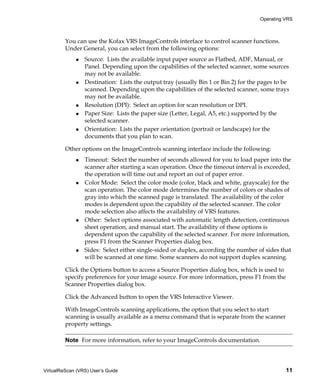
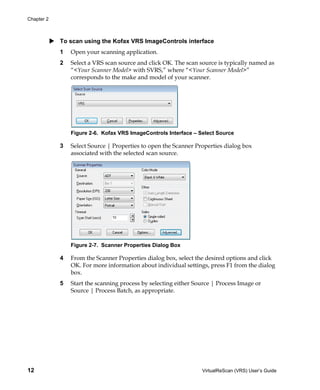
  • 15.
    Overview product pages on the Kofax Web site at www.kofax.com to view the list of VRS- certified scanners. In addition to listing the scanner name and manufacturer, the VRS product pages include the following information: Driver used for VRS (TWAIN, ISIS, or Kofax SCSI) Black or white background support Additional memory required for optimal performance (if applicable) Interface certified by VRS (SCSI, USB, or FireWire) VRS is capable of working with some non-certified or “compatible” scanners, if they have been configured with the Scanner Configuration Utility. It is important to be aware that you may experience less than optimal image quality when using a non- certified scanner with VRS. Not every scanner can be used with VRS. To be compatible with VRS, a non-certified scanner must meet the following requirements: Ability to output a 256-level grayscale image as a single image TWAIN driver or ISIS driver support Note While VRS works best with an ISIS driver, it also supports some scanners with TWAIN drivers. For more information about using non-certified scanners with VRS, refer to the VRS Installation Guide. VirtualReScan (VRS) User’s Guide 5
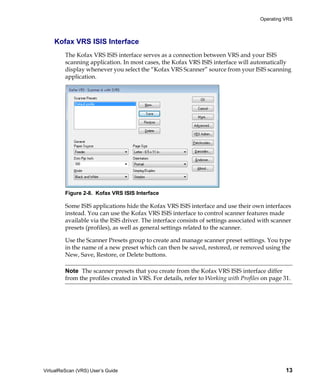
  • 16.
    Chapter 1 6 VirtualReScan (VRS) User’s Guide
  • 17.
    Chapter 2 Operating VRS Introduction This chapter explains how to operate VRS using the default settings, how to set up custom profiles, and how to use the VRS Adjustment Controls to configure and use the manual image enhancement features. This chapter also gives you information about advanced features and other options that are available from the VRS user interface. If you intend to use the Desktop Productivity features, refer to VRS Desktop Productivity Features on page 77. Selecting a VRS Scan Source VRS will be active once you start your scanning application and select a VRS scan source, as described in the following procedure. SVRS and HVRS Scan Sources Each VRS scan source includes either “SVRS” or “HVRS” in its name. Sources with “SVRS” refer to Software VRS, while sources with “HVRS” refer to Hardware VRS. HVRS sources are required for high-speed, production class scanners in which a special board is installed to support VRS functionality. Based on the scanner that you specify during the VRS installation process, the appropriate source (SVRS or HVRS) is made available for selection from your scanning application. Although SVRS sources are shown in the procedure below, your list may consist of HVRS sources if a production class scanner has been specified during the VRS installation process. To select a VRS scan source 1 Turn on your scanner and your computer. 2 Start your scanning application. VirtualReScan (VRS) User’s Guide 7
  • 18.
    Chapter 2 3 From the scanning application, select a VRS scan source. The dialog box used to select the VRS scan source will vary, as will the scan source name, according to your scanning application and scanner specified during the VRS installation process: ImageControls-based applications <Your Scanner Model> with SVRS <Your Scanner Model> with SVRS with AIPE <Your Scanner Model> without SVRS <Your Scanner Model> without SVRS with AIPE ISIS-based applications Kofax VRS Scanner TWAIN-based applications Kofax Software VRS - TWAIN Refer to Figure 2-1 through Figure 2-3 for examples. Figure 2-1. Select Scan Source Dialog Box (ImageControls-based application) Figure 2-2. Scanner Selection Dialog Box (ISIS-based application) 8 VirtualReScan (VRS) User’s Guide
  • 19.
    Operating VRS Figure 2-3. Select Scanner Dialog Box (TWAIN-based application) 4 Click the OK or Scan button, as applicable to your scanning application. 5 For ImageControls-based applications, the VRS icon (Figure 2-4) will display in the Windows taskbar as soon as you select the scan source. For ISIS and TWAIN applications, the VRS icon will display when the scanner interface dialog box is displayed, or when you start scanning. Refer to Kofax VRS Scanning Interfaces on page 10 for more information. VRS Taskbar Icon Figure 2-4. VRS Taskbar Icon The scanner associated with the Kofax VRS TWAIN or Kofax VRS ISIS source is the default scanner. The default VRS scanner is set when you do either of the following: Select a scanner during the VRS installation process Select a default scanner from the Scanner Configuration Utility Note For more information about the VRS installation process, refer to the VRS Installation Guide. For information about the Scanner Configuration Utility, refer to Scanner Configuration Utility on page 119 of this guide. 6 Follow your scanning application instructions and scan as usual. VirtualReScan (VRS) User’s Guide 9
  • 20.
    Chapter 2 Kofax VRSScanning Interfaces The scanning interface consists of basic scanner property settings, along with an option for accessing VRS. The scanning interface serves as a connection between VRS and your scanning application. Depending on the type of scanning application (ImageControls-based, ISIS-based, TWAIN-based), the options that appear on the VRS scanning interface will vary. For example, the ImageControls scanning interface does not include an option that you can select to start scanning, but the ISIS and TWAIN scanning interfaces both include a Scan option. Most scanning applications support one scanning interface type, but some do support more than one. For applications that support multiple scanning interfaces, the preferred interface is the one that provides direct access to VRS. For best results, we recommend that the Kofax ImageControls interface be your first choice, followed by the ISIS interface and then the TWAIN interface. Kofax VRS ImageControls Interface The Kofax VRS ImageControls interface serves as a connection between VRS and your ImageControls scanning application. Once you select the scan source from the scanning application, you can access an ImageControls scanning interface. Then the scanner properties will be available from a custom dialog box created by the application or in a standard ImageControls dialog box. In Figure 2-5, you can see the Scanner Properties dialog box that is available in VCDemo, the ImageControls-based demonstration scanning application that is included with every VRS installation. Note For more information about VCDemo, refer to Using VCDemo in your VRS Installation Guide. Figure 2-5. Kofax VRS ImageControls Interface 10 VirtualReScan (VRS) User’s Guide
  • 21.
    Operating VRS You can use the Kofax VRS ImageControls interface to control scanner functions. Under General, you can select from the following options: Source: Lists the available input paper source as Flatbed, ADF, Manual, or Panel. Depending upon the capabilities of the selected scanner, some sources may not be available. Destination: Lists the output tray (usually Bin 1 or Bin 2) for the pages to be scanned. Depending upon the capabilities of the selected scanner, some trays may not be available. Resolution (DPI): Select an option for scan resolution or DPI. Paper Size: Lists the paper size (Letter, Legal, A5, etc.) supported by the selected scanner. Orientation: Lists the paper orientation (portrait or landscape) for the documents that you plan to scan. Other options on the ImageControls scanning interface include the following: Timeout: Select the number of seconds allowed for you to load paper into the scanner after starting a scan operation. Once the timeout interval is exceeded, the operation will time out and report an out of paper error. Color Mode: Select the color mode (color, black and white, grayscale) for the scan operation. The color mode determines the number of colors or shades of gray into which the scanned page is translated. The availability of the color modes is dependent upon the capability of the selected scanner. The color mode selection also affects the availability of VRS features. Other: Select options associated with automatic length detection, continuous sheet operation, and manual start. The availability of these options is dependent upon the capability of the selected scanner. For more information, press F1 from the Scanner Properties dialog box. Sides: Select either single-sided or duplex, according the number of sides that will be scanned at one time. Some scanners do not support duplex scanning. Click the Options button to access a Source Properties dialog box, which is used to specify preferences for your image source. For more information, press F1 from the Scanner Properties dialog box. Click the Advanced button to open the VRS Interactive Viewer. With ImageControls scanning applications, the option that you select to start scanning is usually available as a menu command that is separate from the scanner property settings. Note For more information, refer to your ImageControls documentation. VirtualReScan (VRS) User’s Guide 11
  • 22.
    Chapter 2 To scan using the Kofax VRS ImageControls interface 1 Open your scanning application. 2 Select a VRS scan source and click OK. The scan source is typically named as “<Your Scanner Model> with SVRS,” where “<Your Scanner Model>” corresponds to the make and model of your scanner. Figure 2-6. Kofax VRS ImageControls Interface – Select Source 3 Select Source | Properties to open the Scanner Properties dialog box associated with the selected scan source. Figure 2-7. Scanner Properties Dialog Box 4 From the Scanner Properties dialog box, select the desired options and click OK. For more information about individual settings, press F1 from the dialog box. 5 Start the scanning process by selecting either Source | Process Image or Source | Process Batch, as appropriate. 12 VirtualReScan (VRS) User’s Guide
  • 23.
    Operating VRS Kofax VRS ISIS Interface The Kofax VRS ISIS interface serves as a connection between VRS and your ISIS scanning application. In most cases, the Kofax VRS ISIS interface will automatically display whenever you select the “Kofax VRS Scanner” source from your ISIS scanning application. Figure 2-8. Kofax VRS ISIS Interface Some ISIS applications hide the Kofax VRS ISIS interface and use their own interfaces instead. You can use the Kofax VRS ISIS interface to control scanner features made available via the ISIS driver. The interface consists of settings associated with scanner presets (profiles), as well as general settings related to the scanner. Use the Scanner Presets group to create and manage scanner preset settings. You type in the name of a new preset which can then be saved, restored, or removed using the New, Save, Restore, or Delete buttons. Note The scanner presets that you create from the Kofax VRS ISIS interface differ from the profiles created in VRS. For details, refer to Working with Profiles on page 31. VirtualReScan (VRS) User’s Guide 13
  • 24.
    Chapter 2 Under General, you can select the following options: Paper Source: Select from the available input paper sources: Flatbed or ADF. Dots Per Inch: Select an option for scan resolution or DPI. Mode: Select from the color modes supported by the scanner, which may include black and white, grayscale, or color. The mode selection also affects the availability of VRS features. Page Size: Select a paper size, such as Letter, Legal, A5, etc. Orientation: Select the paper orientation (portrait or landscape). Simplex/Duplex: Select single-sided or double-sided scanning. You can access the VRS Interactive Viewer by clicking the Advanced button, and you can access the VirtualReScan Administration Utility by clicking the VRS Admin button. To scan using the Kofax VRS ISIS interface 1 Open your scanning application. 2 Select the Kofax VRS Scanner source and click OK. [ Figure 2-9. Kofax VRS ISIS Interface – Scanner Selection Dialog Box 3 The Kofax VRS ISIS interface will launch (Figure 2-8). Under General, select settings such as the paper source, DPI, mode, and paper size. 4 If desired, click New to create a profile to save the settings for future use. a At the New Profile dialog box, type a name for the profile in the text box. b Type the filename for the profile into the text box. Figure 2-10. Kofax VRS ISIS Interface - New Profile Dialog Box 14 VirtualReScan (VRS) User’s Guide
  • 25.
    Operating VRS 5 Click OK to close the New Profile dialog box, or click Cancel to exit without making any changes. In the future, you can change a profile by selecting it, updating the settings under General, and then clicking Save. You may also load a profile by selecting it and clicking Restore from the Kofax VRS ISIS interface. Likewise, you remove a profile by selecting it and clicking Delete. 6 Start the scanning process. Kofax VRS TWAIN Interface The Kofax VRS TWAIN interface serves as a connection between VRS and your TWAIN application. In most cases, the Kofax VRS TWAIN interface will automatically display when you select the “Kofax Software VRS - TWAIN” scanner source from your TWAIN scanning application. Figure 2-11. Kofax VRS TWAIN Interface With some TWAIN scanning applications, the Kofax VRS TWAIN interface includes a More button that typically gives you access to the VRS Interactive Viewer. Some TWAIN applications may hide the Kofax VRS TWAIN interface and use their own interface instead. Use the Kofax VRS TWAIN interface to control scanner features made available via the TWAIN scanner driver. The Kofax VRS TWAIN interface consists of two groups: the Profiles group and the General group. Use the Profiles group to create and manage configuration settings (scanner presets). You can use the list box to type in the name of a new profile which can then be saved, VirtualReScan (VRS) User’s Guide 15
  • 26.
    Chapter 2 restored, or removed using the Save, Restore, or Delete buttons. You can establish multiple profiles to accommodate different scanning situations. Although you can create multiple profiles, only seven profiles at a time will be visible in the Profiles window on the Kofax VRS TWAIN interface. Note The profiles created from the Kofax VRS TWAIN interface differ from the profiles created in VRS. For details, refer to Working with Profiles on page 31. Under General, you can select the following settings: Source (Paper Source): Select either Flatbed or ADF. Resolution (DPI): Select an option for scan resolution or DPI. Color Mode: Select from the color modes supported by the scanner, which may include Black/White, Grayscale, or RGB (color). The color mode selection affects the availability of VRS features. Paper Size: Select a paper size, such as Letter, A5, etc. Orientation: Select the paper orientation, such as portrait or landscape. Simplex/Duplex: Select single-sided or double-sided scanning. Long Document: Select this check box if you are scanning pages that exceed the standard length. Advanced: Opens the VRS Interactive Viewer. Barcodes: Opens the Barcode Properties dialog box. Endorser: Opens the Endorser & Annotation Properties dialog box. Compression: Opens the Compression dialog box. You can select the Preview check box in the lower left corner of the interface to view the image as it is being scanned and make changes to it in real time using the VRS Adjustment Controls. When Preview is selected, it overrides the “First Page” operating mode in VRS. You can select the About button to view installation location and version information. To scan using the Kofax VRS TWAIN interface 1 Open your scanning application. 2 Select the “Kofax Software VRS - TWAIN” scanning source and click OK. 16 VirtualReScan (VRS) User’s Guide
  • 27.
    Operating VRS Figure 2-12. Kofax VRS TWAIN Interface – Select Source 3 The Kofax VRS TWAIN interface will launch. From the General group, make your selections such as the Source, DPI, Color Mode, Paper Size, etc. 4 If desired, click Save to create a profile to save the updated settings. a At the Save Profile dialog box, type a name for the profile. b Click OK. In the future, you can load a profile by selecting it and clicking Restore from the Kofax VRS TWAIN interface. Similarly, you can remove a profile by selecting it and clicking Delete. 5 If desired, click any of the following buttons to update additional settings: Advanced: Opens the VRS Interactive Viewer. Barcodes: Opens the Barcode Properties dialog box. Endorser: Opens the Endorser & Annotation Properties dialog box. Compression: Opens the Compression dialog box. 6 Click Scan to start the scanning process. VirtualReScan (VRS) User’s Guide 17
  • 28.
    Chapter 2 Configuring VRSBefore You Scan The VRS default settings produce superior results for most document types, and in most cases, you can use VRS successfully without changing anything. VRS does give you the flexibility to configure operating preferences and adjust the default settings if necessary. This section explains some configuration options that are available to you: Using the VirtualReScan Administration Utility to customize the way that VRS responds to exception images. For details, refer to the next section. Selecting an operating mode to control how often the VRS Interactive Viewer will display during a scanning session. Refer to Setting the VRS Operating Mode on page 29. Selecting a profile that will produce the best possible image quality for the documents that you scan. Refer to Working with Profiles on page 31. Previewing a sample image to confirm that the selected profile is the best choice for your documents. Refer to Previewing Images on page 36. Using the VirtualReScan Administration Utility While you may want to scan until all pages have been processed successfully, there are cases in which scanning may stop before a batch is completed. You can use the VirtualReScan Administration Utility settings to control scanning behavior under specific image and scanner conditions. Most of the settings are used to specify how VRS responds to exception images and reports problems to your scanning application. The choices vary, according to different warning or error types. The VirtualReScan Administration Utility dialog box consists of three tabs: Warnings tab: settings related to image quality conditions Errors tab: settings that affect the VRS response to errors that occur in connection with equipment conflicts and paper transport issues Accelerated Scanning tab: settings that you can use to maximize the speed of your scanner 18 VirtualReScan (VRS) User’s Guide
  • 29.
    Operating VRS Figure 2-13. VirtualReScan Administration Utility Dialog Box The default settings for VRS provide optimal scanning and accurate data capture for a wide range of documents. For most situations, it should not be necessary to adjust the default settings, which are listed in Table 2-1. Table 2-1. VirtualReScan Administration Utility Dialog Box Default Settings Tab Warning/Error Threshold Action Setting Type Warnings Brightness Out of 30 Interactive NA Range Ignore Error1 Warnings Contrast Out of 40 Interactive NA Range Warnings Color Confidence 50 Interactive NA Out of Range Errors Auto Crop NA Ignore Error NA Failure - Page Boundary Not Detected Errors Auto Deskew NA Ignore Error NA Failure Errors Paper Jam NA Auto Resolve NA Errors Out of Paper NA Auto Resolve NA Errors Cover Open NA Auto Resolve NA VirtualReScan (VRS) User’s Guide 19
  • 30.
    Chapter 2 Table 2-1. VirtualReScan Administration Utility Dialog Box Default Settings (continued) Tab Warning/Error Threshold Action Setting Type Errors Multifeed1 NA Auto Resolve NA Errors Scanner Offline1 NA Auto Resolve NA Errors Feeder Timeout1 NA Auto Resolve NA Errors Scanner Stop NA Auto Resolve NA Key1 Errors Scanner Page NA Auto Resolve NA Sensor Error1 Accelerated NA NA NA Image quality: Best Scanning Acceleration: None 1 Böwe Bell + Howell Spectrum series scanners only If desired, you can modify the VirtualReScan Administration Utility settings according to your requirements for image quality and exception handling. To modify the settings, open the VirtualReScan Administration Utility dialog box by selecting the Admin Utility command from the VRS taskbar menu. From the Warnings and Errors tabs, you define settings that tell VRS exactly how to respond when it detects an exception image, an equipment conflict, or a paper transport issue. You can use the default settings on the Warnings and Errors tabs, or customize how VRS handles each exception type. Once you are satisfied with the settings, click Save. Changes that you have made on any of the tabs are saved and they take effect at the start of the next scan operation. When you click Cancel to dismiss the dialog box, changes made on any of the tabs are automatically discarded. For detailed information on how to modify settings on the VirtualReScan Administration Utility, refer to the next section, Warnings Tab, the Errors Tab section on page 23, or the Accelerated Scanning Tab section on page 25. Warnings Tab The Warnings tab lists exception conditions associated with image quality. For each warning condition, you set a threshold value. This threshold value defines the acceptable range that VRS tolerates for brightness, contrast, and color confidence. VRS intercepts any image with values that fall outside the acceptable range, and then handles the image according to the response that you select from the Action column. 20 VirtualReScan (VRS) User’s Guide
  • 31.
    Operating VRS Figure 2-14. Warnings Tab Table 2-2 lists the types of warnings and their causes. Table 2-2. Warning Types Warning Cause Brightness Out of Range Brightness value for the image falls outside the acceptable range. Contrast Out of Range Contrast value for the image falls outside the acceptable range. Color Confidence Out of Range Color confidence value for the image is lower than the acceptable range. Table 2-3 lists the actions that you can select as responses to the warnings on the Warnings tab. Table 2-3. Action Types for Warnings Action Type Description Ignore Error VRS does not notify you of the warning or take any action to correct it. VRS accepts the image “as is,” passes it to the scanning application, and then resumes the scanning session. Return Error VRS notifies you of the warning, but does not send the image to the scanning application. The scanning session is then terminated. Interactive The VRS Interactive Viewer opens and displays the image, so that you can apply adjustments to correct the condition that caused the warning. VirtualReScan (VRS) User’s Guide 21
  • 32.
    Chapter 2 Brightness Out of Range Use the Brightness Out of Range threshold to define the valid range for brightness values. When a document is scanned, VRS evaluates the resulting image to determine its brightness. Then, VRS compares the actual brightness value to the user-defined acceptable range. The acceptable range is determined by starting with 50 and adding and subtracting the Brightness Out of Range threshold value listed on the Warnings tab. Based on this real-time evaluation, VRS either accepts the image and allows it to be passed on to the scanning application, or intercepts it and responds according to the Action setting in the Warnings tab. The detected value for brightness is reported on the status bar in the VRS Interactive Viewer. For example, if the Brightness Out of Range threshold is 10 on the Warnings tab, VRS accepts any image with a detected brightness value ranging from 40 to 60. The range starts at 40, which is 10 less than 50, and it ends at 60, which is 10 more than 50. Therefore, an image with a brightness value of 70 would fall outside the valid range. VRS would respond by taking the action listed on the Warnings tab for Brightness Out of Range. Refer to Figure 2-14 on page 21. Contrast Out of Range Use the threshold to define the valid range for contrast values. When a document is scanned, VRS evaluates the resulting image to determine its contrast. Then, VRS compares it to the user-defined acceptable range. The acceptable range is determined by starting with 50 and adding and subtracting the Contrast Out of Range threshold value listed on the Warnings tab. Based on this real-time evaluation, VRS either accepts the image and allows it to be passed on to the scanning application, or intercepts it and responds according to the Contrast Out of Range action setting in the Warnings tab. The detected contrast value is listed on the status bar in the VRS Interactive Viewer. For example, if the Contrast Out of Range threshold is 15 on the Warnings tab, VRS accepts any image with a contrast value ranging from 35 to 65. The range starts at 35, which is 15 less than 50, and it ends at 65, which is 15 more than 50. Therefore, an image with a contrast value of 25 would fall outside the valid range and generate a warning. VRS would respond by taking the action listed on the Warnings tab for Contrast Out of Range. Refer to Figure 2-14 on page 21. Color Confidence Out of Range Use this threshold to define the valid range for color confidence values. When a document is scanned, VRS evaluates the image to determine if it is color or bitonal. VRS also determines how confident it is that the correct assessment was made. The confidence level is expressed as a percentage that appears in the status bar of the VRS Interactive Viewer. 22 VirtualReScan (VRS) User’s Guide
  • 33.
    Operating VRS VRS compares the percentage to the user-defined acceptable value, which is the Color Confidence Out of Range threshold setting on the Warnings tab. Based on this real- time evaluation, VRS either accepts the image and allows it to be passed on to the scanning application, or intercepts it and responds according to the Color Confidence Out of Range action in the Warnings tab. For example, if the threshold is 50 on the Warnings tab, VRS accepts any image with a color confidence value of 50 or higher. Therefore, an image with a color confidence value lower than 50 would fall below the valid range and generate a warning. VRS would respond by taking the action listed on the Warnings tab for Color Confidence Out of Range. Refer to Figure 2-14 on page 21. Errors Tab The Errors tab lists exception conditions such as errors caused by equipment conflicts or paper transport issues, along with the VRS response to each condition. Note The list of error types on the Errors tab may vary, according to the scanner that you are using with VRS. In the Action column, select the desired VRS response for each error type. To change the setting, click in the Action box and select the new setting from the list. Figure 2-15. VirtualReScan Administration Utility - Errors Tab Table 2-4. Error Types Error Description Paper Jam Paper jam occurs in the scanner paper path. Multifeed1 Multiple pages have been pulled into the transport. VirtualReScan (VRS) User’s Guide 23
  • 34.
    Chapter 2 Table 2-4. Error Types (continued) Error Description Out of Paper No paper is available to scan. Cover Open Scanner cover is not closed securely. Scanner Offline1 The scanner is not ready to scan. Feeder Timeout1 The document feeder tries, but is unable to move the page for a period of time that exceeds the ADF timeout setting. Scanner Stop Key1 The user presses the “OI STOP” key on the scanner, causing an immediate transport stop, and pages are left somewhere in the transport. Scanner Page Sensor1 The sensor detects an unexpected page sensor transition during scanning, such as a hole in the document or a ragged page edge. The transport continues to run until it clears and all pages are in the exit tray. Auto Crop Failure - Due to excessive skew or other condition, VRS is unable to detect the Page Boundary Not edges of the scanned document. Detected Auto Deskew Failure The image does not contain sufficient horizontal or vertical lines to perform a correct deskew. Use the Skew panel to make a manual correction. Refer to Using the Skew Panel on page 57. 1 Scanner dependent errors Table 2-5 lists the action types that are available from the Errors tab. Table 2-5. Action Types for Errors Action Type Description Ignore Error VRS does not notify you of the error or take any action to correct it. VRS accepts the image “as is,” passes it to the scanning application, and resumes the scanning session. Return Error VRS notifies you of the error, but does not send the image to the scanning application. The scan session is then terminated. Auto Resolve VRS opens the Auto Resolve Manager in automatic mode. As a result, the scanner automatically attempts to retry the scan until the user resolves an equipment or paper transport impediment, such as a paper jam or out of paper condition. Refer to Using the Auto Resolve Manager on page 72. 24 VirtualReScan (VRS) User’s Guide
  • 35.
    Operating VRS Table 2-5. Action Types for Errors Action Type Description Interactive The VRS Interactive Viewer opens and displays the image in the VRS Interactive Viewer, so that you can apply new settings to the current image. Accelerated Scanning Tab When used with a scanning application that requests a bitonal image, VRS requests a grayscale image from the scanner. VRS analyzes the grayscale image and produces a clean, clear, bitonal image that is passed to the application. This means that, when used with VRS, the scanner never actually produces a bitonal image. Historically, scanners run at their optimum speed when scanning in bitonal mode and more slowly when scanning grayscale or color images. This has changed in the last few years, because nearly all scanners now scan in grayscale mode as fast as they scan in bitonal mode. In fact, some scanners can even scan in color mode as fast as they do in grayscale or bitonal modes. When used with some scanners (old or new) that run more slowly while scanning in grayscale mode, VRS may appear to be responsible for the slowdown. The perception is that the application is requesting a bitonal image and VRS is causing the scanner to run more slowly than usual. In reality, the scanner is running at its rated speed in grayscale mode, rather than bitonal mode. Most users accept this slight slowdown because the image quality produced by VRS far outweighs the reduced throughput. If you prefer your scanner to run at, or near, rated bitonal speed, you can use the setting on the Accelerated Scanning tab to accelerate the scanner and experience only a slight reduction in image quality. Note With some scanners, the Accelerated Scanning setting has no effect. VirtualReScan (VRS) User’s Guide 25
  • 36.
    Chapter 2 Figure 2-16. Accelerated Scanning Tab You can use the slider to select a scanning acceleration level from None to Maximum, while reducing the image quality from Best to Good. VRS performs the acceleration by scanning a grayscale image at a lower resolution then what was requested by the application. VRS performs its normal analysis on this image and produces a clean, clear, bitonal image. VRS then scales this image up to the resolution requested by the application, and this process affects the image quality. As you move the slider from None (no acceleration) to Maximum, the difference between the requested resolution and the actual scanned resolution is increased. At Maximum, the difference is the greatest and as a result, the reduction in image quality is also the greatest. For example, suppose you select 300 DPI in your scanning application and enable the first level of Accelerated Scanning in VRS. The image scans at 200 DPI to accelerate scanning speed and VRS translates it to 300 DPI to achieve the desired resolution. Table 2-6 lists the DPI settings that VRS uses for a typical scanner. Use this table as an example of how VRS treats DPI settings defined in a scanning application. 26 VirtualReScan (VRS) User’s Guide
  • 37.
    Operating VRS Note When you select the first level of accelerated scanning, the image quality is virtually equivalent to non-accelerated scanning. However, higher levels of acceleration affect the image quality. Not all scanners increase in speed when you select accelerated scanning. If your scanner does not offer lower resolutions than the resolution selected in your scanning application, accelerated scanning will have no effect. Table 2-6. Accelerated Scanning DPI Settings for the Typical Scanner DPI Setting as Actual Scan DPI Actual Scan DPI Actual Scan DPI Image Output Defined in Setting Level 1 Setting Level 2 Setting Level 3 DPI Setting Scanning Acceleration Acceleration Acceleration Application 300 240 150 100 300 240 200 150 100 240 200 150 100 75 200 150 150 75 75 150 100 75 75 75 100 75 75 75 75 75 Updating the VirtualReScan Administration Utility Dialog Box Use these instructions to update the VirtualReScan Administration Utility settings. To update the VirtualReScan Administration Utility settings 1 Right-click on the VRS taskbar icon to open the VRS menu. VirtualReScan (VRS) User’s Guide 27
  • 38.
    Chapter 2 2 From the VRS taskbar menu, select Admin Utility. Figure 2-17. VirtualReScan Administration Utility 3 When the VirtualReScan Administration Utility displays, select and adjust the settings for the following tabs: Warnings tab - Threshold. Type directly into the Threshold text box, or click the arrows to select a new threshold setting. For more information, refer to Warnings Tab on page 20. Warnings tab/Errors tab - Action. Define a VRS response to each exception type by clicking in the Action option and selecting from the list. For more information, refer to Warnings Tab on page 20 and Errors Tab on page 23. Accelerated Scanning tab. Click and drag the slider to make your selection. For details, refer to Accelerated Scanning Tab on page 25. 4 Once you are satisfied with the settings, click Save. Changes that you have made on any of the tabs are saved and they take effect at the start of the next scanning operation. 28 VirtualReScan (VRS) User’s Guide
  • 39.
    Operating VRS Setting the VRS Operating Mode You can configure settings that control how often the VRS Interactive Viewer will be displayed during a scanning session. By selecting the QC Modes command from the VRS menu, you can set the VRS Interactive Viewer to open under different conditions. The default QC mode is “On Errors.” The default value for the Hardware Warnings setting is on (checked). Once selected, a QC mode setting and the Hardware Warnings setting stay in effect until they are changed, even across scanning sessions. The operating mode selections are unique for each VRS user on your computer. On Errors The VRS Interactive Viewer will open only in connection with exception conditions for which the action selection in the VirtualReScan Administration Utility is “Interactive” (refer to Using the VirtualReScan Administration Utility on page 18). After you install VRS, “On Errors” is the default operating mode selection. Exception images typically account for five percent or fewer of the documents that are scanned with VRS. First Page The VRS Interactive Viewer will always open when you scan the first page of a batch. You can use this mode to verify the effect of the active VRS profile, or to make adjustments before proceeding with subsequent documents in a batch. In this mode, you use the first page in the batch to verify the VRS Adjustment Controls settings. Every Page The VRS Interactive Viewer will open after each document scans, or with duplex scanning, after each document side scans. This mode can be used for small batches of extremely complex documents that require individual adjustments. The need to select Every Page operating mode is unusual because VRS has the ability to process a wide range of document types without requiring any adjustments. QC Later (available to Kofax Capture users) The VRS Interactive Viewer will remain out of view until it is invoked from the Quality Control or Scan modules in the Kofax Capture (formerly Ascent Capture) application. VRS QC Later gives Kofax Capture users the option to postpone VRS image quality adjustments associated with exception processing. VRS QC Later is VirtualReScan (VRS) User’s Guide 29
  • 40.
    Chapter 2 available to Kofax Capture users, provided that the proper VRS Professional license is in place. For more information, refer to the Kofax Capture documentation. Disabled The VRS Interactive Viewer will not open, even if exception conditions occur. Hardware Warnings Use the Hardware Warnings option to specify how VRS should respond to hardware conditions such as Paper Jam, Out of Paper, and Cover Open. Selecting the Hardware Warnings option means that you are choosing to handle these errors exactly as defined by the “Action” settings in the VirtualReScan Administration Utility. When this option is not selected, it is the equivalent of choosing “Return Error” as the action for all hardware error conditions in the VirtualReScan Administration Utility. Refer to Table 2-5 on page 24. To change the operating mode 1 Right-click on the VRS taskbar icon. 2 From the VRS taskbar menu, select QC Modes. 3 From the QC Modes submenu, select the desired operating mode. A check mark will appear next to your selection. Figure 2-18. QC Modes 4 Proceed with your scanning session. 30 VirtualReScan (VRS) User’s Guide
  • 41.
    Operating VRS Working with Profiles With VRS, you can scan documents and accurately capture data in the shortest time possible using the default settings, which have been carefully chosen to allow VRS to excel at a wide range of documents without adjustments. However, some document types may pose a challenge and they may require custom adjustments. If you expect to work with a high volume of problematic or challenging documents, the best solution may be to create a profile that contains custom settings. Important The scan profiles used for the “core” VRS product are not the same as the profiles used with the Desktop Productivity features. The Desktop Productivity profiles are available only if you have activated the VRS Desktop Productivity features. See VRS Desktop Productivity Features on page 77. In VRS, a “profile” consists of a saved combination of settings from the VRS Adjustment Controls (refer to Using the VRS Adjustment Controls on page 48). A VRS profile is the equivalent of a memorized strategy for image correction and enhancement. VRS includes one default profile that can be used to process a range of document types. VRS uses the default profile unless you define and select another profile. The profile selection is unique for each VRS user on your computer. Figure 2-19. VRS Profiles You can use the options on the Profile menu in the VRS Interactive Viewer to create, update, load, and remove profiles. You can establish multiple profiles to accommodate different scanning situations. The first eight profiles will be assigned a shortcut key. We recommend that you do not update the “Default settings” profile, as it can be restored only by using the Scanner Configuration Utility or by reinstalling VRS. VirtualReScan (VRS) User’s Guide 31
  • 42.
    Chapter 2 Creating a Profile You can create a profile by doing either of the following: Saving the current VRS Adjustment Controls settings under a new profile name Creating a profile from the Organize Profiles dialog box Before creating a profile, note the characters that are not acceptable for profile names, as shown in Table 2-7. Table 2-7. Invalid Characters for VRS Profile Names Character Description Character Description : Colon ' Single quotation ; Semicolon " Double quotation Backslash > Greater than / Slash < Less than | Pipe ^ Caret & Ampersand . Period ? Question mark To save the current VRS Adjustment Controls settings under a new profile name 1 Scan a sample image. 2 Open the VRS Interactive Viewer and make selections from the VRS Adjustment Controls to achieve the desired adjustments. 3 Select Profile | Save As to open the New Profile dialog box. Figure 2-20. New Profile Dialog Box 32 VirtualReScan (VRS) User’s Guide
  • 43.
    Operating VRS 4 In the New Profile text box, assign a name to the new profile. Be sure to assign a profile name with alphanumeric characters and avoid the characters listed in Table 2-7. 5 Click OK to save the profile and close the New Profile dialog box. The new profile name will be added to the list of profiles, and it will also become the active profile. To create a new profile from the Organize Profiles dialog box 1 Scan a sample image. 2 Open the VRS Interactive Viewer and make selections from the VRS Adjustment Controls to achieve the desired adjustments. 3 From the VRS Interactive Viewer, select Profile | Organize. The Organize Profiles dialog box will display (Figure 2-21). Figure 2-21. Organize Profiles Dialog Box 4 Click Save As to open the New Profile dialog box, as shown in Figure 2-20 on the previous page. 5 In the New Profile text box, assign a name to the new profile. Be sure to assign a profile name with alphanumeric characters and avoid the characters listed in Table 2-7. 6 Click OK to save the profile name and close the New Profile dialog box. 7 Click Close to exit the Organize Profiles dialog box. VRS automatically associates a function key to the first eight profiles that you create. You can change the sequence of any profile and its associated function key by moving VirtualReScan (VRS) User’s Guide 33
  • 44.
    Chapter 2 a profile up or down with the Up and Down controls that are available in the Organize Profiles dialog box. The function keys for profiles are available only when the VRS Interactive Viewer is active. If the list of profiles exceeds the available viewing area in the Organize Profiles dialog box, you can use scroll bars to bring additional profiles into view. Changing the Active Profile You can change the active profile from the Organize Profiles dialog box, the VRS Interactive Viewer toolbar, or the Profile submenu on the VRS taskbar menu. Note If an image is open in the VRS Interactive Viewer when you change the active profile, the image is refreshed with the new settings. To change the active profile from the Organize Profiles dialog box 1 From the VRS Interactive Viewer, select Profile | Organize. The Organize Profiles dialog box will be displayed. 2 From the list, select the profile you want to use. 3 Click Load. (This step is important; clicking Close without clicking Load will not change the active profile.) 4 Click Close to exit the dialog box. The profile selection stays in effect until you change it again. To change the active profile from the VRS Interactive Viewer toolbar 1 From the VRS Interactive Viewer toolbar, place your cursor in the profiles list to expand the list of saved profiles. Figure 2-22. VRS Profile Selection List 2 Do one of the following: From the list of profiles, select the profile that you want to use. Press the function key associated with the profile that you want to use. The profile selection stays in effect until you change it again. 34 VirtualReScan (VRS) User’s Guide
  • 45.
    Operating VRS To change the active profile from the VRS taskbar menu 1 From the VRS taskbar menu, select the Profile command. 2 When the Profiles submenu opens, select the name of the profile you want to use. The profile selection stays in effect until you change it again. Updating a Profile If desired, you can update and save the settings associated with an existing profile. To update a profile 1 From the VRS Interactive Viewer toolbar, select a profile name. 2 From the VRS Adjustment Controls, update the settings associated with the currently selected profile. 3 Select Profile | Save. - or - 4 From the VRS Adjustment Controls, update the settings associated with the currently selected profile. 5 From the VRS Interactive Viewer, select Profile | Organize Profiles. The Organize Profiles dialog box is displayed. 6 Make sure that the appropriate profile is selected from the profile list and then click Save. 7 Click Close to exit the Organize Profiles dialog box. Removing a Profile You can use the Organize Profiles dialog box to delete a profile. If desired, multiple profiles can be deleted at once. We recommend that you do not remove the “Default settings” profile, because it can be restored only by using the Scanner Configuration Utility or by reinstalling VRS. For more information, refer to Scanner Configuration Utility on page 119. To remove a profile 1 From the VRS Interactive Viewer, select the Profile | Organize. The Organize Profiles dialog box will display. VirtualReScan (VRS) User’s Guide 35
  • 46.
    Chapter 2 2 From the profiles list, select the profile you want to remove. If desired, you can select multiple profiles for removal. 3 Click Delete. The profile name clears from the list. 4 If the deleted profile was the last profile in use, select another profile from the list and then click Load to make it active. 5 Click Close to exit the Organize Profiles dialog box. Previewing Images If desired, you can use the preview process to scan a sample image to ensure that it meets your quality requirements and to validate the settings in the current profile. If necessary, you can make adjustments to the profile. If your scanner supports advanced features, you can use the preview process to test settings such as color dropout, JPEG compression, etc. Use the Preview feature before you scan a batch of documents, or to adjust the settings between batches. When you select Preview, VRS opens the most recently scanned image in the VRS Interactive Viewer. For this reason, the Preview function is available only if a scanned image exists in the VRS cache (if you are using VRS with a production class scanner, the last image may not be available). As you apply property changes from the VRS Interactive Viewer, the preview image is refreshed so you can evaluate the impact of the adjustments. Be aware that the changes to the preview image are not sent to your scanning application; the image is intended only for preview purposes. You can invoke the preview process by selecting the following: Preview from the VRS taskbar menu First Page from the QC Modes menu Preview check box from the TWAIN scanning interface For information on the VRS Interactive Viewer window and using the Zoom options, refer to Using the VRS Interactive Viewer on page 38. For information on updating image properties, refer to Using the VRS Adjustment Controls on page 48. To preview an image 1 Scan a document that is similar to the type you plan to scan in a batch. 2 From the VRS taskbar menu, select Preview. The VRS Interactive Viewer will open and display the image that you scanned. 3 If desired, select a zoom option to adjust the magnification level. 36 VirtualReScan (VRS) User’s Guide
  • 47.
    Operating VRS 4 If necessary, use the VRS Adjustment Controls to adjust the image property settings to suit your preferences. For more information, refer to Using the VRS Adjustment Controls on page 48. 5 If you expect to use the updated settings on a regular basis, you can save them as a profile. Refer to Working with Profiles on page 31. 6 When you are satisfied with the preview image, select OK from the VRS Adjustment Controls. The property settings are saved and put into effect for the next batch of documents that you scan with VRS. Note that the preview image is discarded; it is not sent to the scanning application. Using the Status and Analysis Information The VRS Interactive Viewer gives you image status information, along with analysis statistics that summarize the properties for the current image in the viewing pane. The image status message appears in the title bar and indicates the status of the current image, such as “Status: OK” or “Brightness Out of Range.” Figure 2-23. Image Status Information The image analysis information appears in the VRS Interactive Viewer status bar and includes the following properties: Size: Lists the image dimensions in pixels. Skew: Lists the detected skew angle in degrees. Brightness: Lists the detected brightness value as a percentage. Contrast: Lists the detected contrast value as a percentage. Color: Lists the detected image type as “color” or “bitonal,” along with a confidence value expressed as a percentage. The percentage is listed only if Automatic Color Detection is enabled. Speckles: Lists the number of pixels that are removed from the image when Speckle Removal is selected from the Noise panel. The analysis information can help you identify appropriate threshold values for contrast, brightness, and color confidence on the Warnings tab in the VirtualReScan Administration Utility, as well as for settings for the VRS Adjustment Controls.You cannot edit the analysis information on the status bar (Figure 2-24). Figure 2-24. Image Analysis Information VirtualReScan (VRS) User’s Guide 37
  • 48.
    Chapter 2 Using theVRS Interactive Viewer The VRS Interactive Viewer displays scanned images for your inspection and gives you access to the VRS Adjustment Controls, which can be used to apply changes to image properties (refer to Using the VRS Adjustment Controls on page 48). The purpose of the viewer is to show you what the image looks like when it scans, and to refresh the image as you apply changes. From the “core” VRS product, the VRS Interactive Viewer is displayed under the following conditions: You select Preview from the VRS taskbar menu. Refer to Previewing Images on page 36. VRS intercepts or “traps” an exception image for which the response is defined as “Interactive.” Refer to Using the VirtualReScan Administration Utility on page 18. As appropriate for the active operating mode. Refer to Setting the VRS Operating Mode on page 29. While you are using the VRS Desktop Productivity features, the VRS Interactive Viewer is displayed under the following conditions: You select the Clean Image with VRS option from the VRS Thumbnail Viewer menu. Refer to VRS Thumbnail Viewer Menu Bar on page 113 You select the Clean Image option from the VRS Thumbnail Viewer toolbar. Refer to VRS Thumbnail Viewer Toolbar on page 115. You select Advanced from the Scanner Settings group in the VRS Professional Scan window. Refer to VRS Professional Scan on page 116. In addition to the VRS Adjustment Controls, the VRS Interactive Viewer consists of other components: a menu, a toolbar, and a status bar. The appearance of the VRS Interactive Viewer is slightly different if you access it while using the Desktop Productivity features, as described in subsequent sections. 38 VirtualReScan (VRS) User’s Guide
  • 49.
    Operating VRS Figure 2-25. VRS Interactive Viewer Image status information (Page 37) VRS Interactive Viewer menu bar (Page 42) VRS Interactive Viewer toolbar (Page 45) Image viewing area VRS Adjustment Controls (Page 48) Image analysis information (Page 37) VirtualReScan (VRS) User’s Guide 39
  • 50.
    Chapter 2 Figure 2-26. VRS Interactive Viewer with Desktop Productivity Features Active VRS Interactive Viewer Help menu (Page 42) Image viewing area VRS Adjustment Controls (Page 48) Zoom toolbar (Page 47) Image analysis information (Page 37) 40 VirtualReScan (VRS) User’s Guide
  • 51.
    Operating VRS Scroll Bars If you resize the VRS Interactive Viewer so that the individual controls do not fit within the available space, horizontal and/or vertical scroll bars are displayed so that you can navigate to the controls that are not in view. Persistence The size and state of the VRS Interactive Viewer are maintained from one scanning session to another. Focus To navigate among the panels that make up the VRS Adjustment Controls, you can use Ctrl + to navigate to the panels below the one that is currently selected. You can use Ctrl + to navigate to the panels that precede the one that is currently selected. Minimize / Maximize / Close At the upper right corner of the VRS Interactive Viewer, the Minimize, Maximize, and Close buttons work as follows: If you select Minimize, the VRS Interactive Viewer window is minimized to the taskbar. If you select Maximize, the VRS Interactive Viewer window covers the full computer screen. If you select Close, it is the same as selecting Cancel. Button Controls Three button controls (OK, Cancel, Reset) are available from the VRS Interactive Viewer. OK Click OK to transmit the current settings to your scanning application. If the VRS Interactive Viewer opened because of an exception, the settings will only apply to the image in question. If the viewer appeared as the result of a First Page QC mode, or in connection with the Preview option, then the changes apply to subsequent scans or batches. If the VRS Interactive Viewer is opened while using the Desktop Productivity features, the settings are applied only to the document displayed in the viewing area. VirtualReScan (VRS) User’s Guide 41
  • 52.
    Chapter 2 Cancel Click Cancel in Preview to close the VRS Interactive Viewer without applying any changes. If an exception is detected when scanning, click Cancel to return an error (without the error image itself) to the scanning application. In addition, the batch scan will be stopped. Reset Click Reset to clear any changes and restore all VRS Adjustment Controls settings to their original values. After selecting Reset, you can continue by updating or saving the original values. VRS Interactive Viewer Menu Bar This section explains each command that is available from the VRS Interactive Viewer menu bar. The availability of some commands may vary, according to the features supported by your VRS license and your scanner. If you access the VRS Interactive Viewer while using the Desktop Productivity features, Help is the only selection on the menu bar. Table 2-8. VRS Interactive Viewer Menu Commands Menu Command Description Keyboard Shortcut Zoom menu Open the Zoom menu. Alt+Z Profile menu Open the Profile menu. Alt+P Profile | Save As Open the New Profile dialog box. Alt+P+A Ctrl+N Profile | Save Save a profile. Alt+P+S Ctrl+S Profile | Organize Open the Organize Profiles dialog box. Alt+P+O Ctrl+O Tools menu Open the Tools menu. Alt+T Tools | Scanner Driver Open the Advanced Settings dialog box or the Alt+T+S Settings Advanced Properties dialog box. Tools | Enable Activate VRS Professional features in Alt+T+P Professional Features demonstration mode. Demo 42 VirtualReScan (VRS) User’s Guide
  • 53.
    Operating VRS Table 2-8. VRS Interactive Viewer Menu Commands Menu Command Description Keyboard Shortcut Help menu Open the Help menu. Alt+H Help | VRS Help Open the VRS online Help system. Alt+H+H Help | User’s Guide Open the VRS User’s Guide in PDF format (not Alt+H+U available while Desktop Productivity features are active). Help | About VRS Open the About dialog box, which includes VRS Alt+H+V version and license information, along with contact information for Kofax Image Products. Zoom Menu The Zoom menu lists a range of magnification settings that can be applied to the images that display in the image viewing area of the VRS Interactive Viewer. Figure 2-27. VRS Interactive Viewer Zoom Menu From the Zoom menu, you can select an option to magnify or reduce the image that appears in the left pane of the VRS Interactive Viewer. You can also adjust the image view with the left and right mouse buttons. Using the left mouse button, you can do the following: View part of the image by clicking and dragging the selection rectangle across the area you want to magnify. Restore the image to the standard view by double-clicking the image. Using the right mouse button, you can do the following: Once you have zoomed in on an image, click and drag (or pan) the image in the viewing pane. You can also adjust the image magnification setting by using the Zoom tool on the VRS Interactive Viewer toolbar. Refer to Zoom Tool on page 46. VirtualReScan (VRS) User’s Guide 43
  • 54.
    Chapter 2 Profile Menu You can use the Profile menu to create and manage VRS profiles. Each profile represents a saved combination of settings on the panels in the VRS Adjustment Controls. A profile works like a memorized strategy for image correction and enhancement. With the exception of the “Default settings” profile, which is predetermined and automatically included in your VRS installation, profiles are created by the user. VRS uses the “Default settings” profile unless you select another profile. The active profile selection is unique for each VRS user on your computer. Save As Use this command to assign a name to a new profile, and then save it. When you select “Save As,” the New Profile dialog box opens so that you can assign the profile name. For details, refer to Working with Profiles on page 31. Save Use this command to save modifications to the currently selected profile. For details, refer to Working with Profiles on page 31. Organize Use this command to open the Organize Profiles dialog box, which is used to create profiles and manage existing profiles. For details, refer to Working with Profiles on page 31. Tools Menu You can use the Tools menu commands to access advanced settings for certain scanners, and to preview VRS Professional features. The Tools menu is available only if the VRS Interactive Viewer opens in preview mode, or as a result of selecting the First Page or Every Page operating mode. Scanner Driver Settings If applicable to your installation, this menu command is used to access the driver that VRS uses to connect to the scanner. The “Scanner Driver Settings” command will not be available unless your scanner driver supports advanced options. When available, the command opens the Advanced Settings dialog box or the Advanced Properties dialog box, so that you can view and adjust additional settings associated with your scanner. The availability of the options on the advanced dialog boxes varies from one scanner to another. For more information, refer to Using Advanced Features on page 71. 44 VirtualReScan (VRS) User’s Guide
  • 55.
    Operating VRS Enable Professional Features Demo This menu command is available only if a VRS “Basic” license is in effect. You can use this command to enable a demonstration of the VRS Professional features. While this mode is enabled, you have full access to the VRS Professional features and a “Kofax Demo Mode” stamp is applied to any images that you scan. For details, refer to Enabling the Professional Features Demo on page 69. Help Menu You can use the Help menu to access the VRS online Help system and documentation. From the Help menu, you can also view the About dialog box. VRS Help Use this command to open the VRS online Help system. User’s Guide Use this command to open the VRS User’s Guide in PDF format. This selection is not available if you access the VRS Interactive Viewer while using the Desktop Productivity features. About VRS Use this command to open the About dialog box, which lists VRS version and license information, along with contact information for Kofax Image Products. VRS Interactive Viewer Toolbars The appearance of the toolbars will vary, depending on the scenario in which you access the VRS Interactive Viewer. When you access the VRS Interactive Viewer from the “core” VRS product, the standard toolbar is available. When you access the VRS Interactive Viewer while using the Desktop Productivity features, the standard toolbar is not available. In this situation, a Zoom toolbar is available near the lower right corner of the VRS Interactive Viewer window. VirtualReScan (VRS) User’s Guide 45
  • 56.
    Chapter 2 Standard Toolbar The VRS Interactive Viewer toolbar gives you convenient shortcuts for selecting zoom options, advanced scanner properties, and profiles. Figure 2-28. VRS Interactive Viewer Standard Toolbar Zoom Tool Use the Zoom tool to select different image magnification options, which are also available from the Zoom menu (refer to Zoom Menu on page 43). Figure 2-29. Zoom Tool Options Scanner Driver Settings Tool Select this tool to view advanced settings (in the Advanced Settings dialog box or the Advanced Properties dialog box) associated with the selected scanner. The “Scanner Driver Settings” tool will be available only if your scanner supports advanced options. The availability of the advanced settings may vary, according to the scanner that you specified during the VRS installation process. You can also access advanced settings by selecting the “Scanner Driver Settings” command from the Tools menu. For more information, refer to Using Advanced Features on page 71. Figure 2-30. Scanner Driver Settings Tool 46 VirtualReScan (VRS) User’s Guide
  • 57.
    Operating VRS Profile Selection List Use the profile selection list on the toolbar to view or change the active profile selection. You can also select a profile from the Organize Profiles dialog box or the Profile submenu that is available from the VRS taskbar menu. For more information, refer to Working with Profiles on page 31. Figure 2-31. VRS Profile Selection List Zoom Toolbar When you access the VRS Interactive Viewer while using the VRS Desktop Productivity features, a Zoom toolbar appears near the lower right corner of the viewer window. Figure 2-32. Zoom Toolbar for Desktop Productivity The toolbar gives you convenient zoom shortcuts to adjust the magnification of the image in the viewing area. VirtualReScan (VRS) User’s Guide 47
  • 58.
    Chapter 2 Using theVRS Adjustment Controls The VRS Adjustment Controls consist of six panels that give you options for adjusting image properties. The default settings are saved to a VRS profile called “Default settings.” Once you identify a set of adjustments that work well for a particular document type, you can save them in a custom profile that can be used in place of the default profile. For more information, refer to Working with Profiles on page 31. Figure 2-33. VRS Adjustment Controls 48 VirtualReScan (VRS) User’s Guide
  • 59.
    Operating VRS Using the Clarity Panel This section gives you details about the Clarity panel, which gives you options to adjust the contrast, brightness, and gamma values for an image. In general, a high Contrast value enhances faint text and lines in your documents. Since brightness increases or decreases the overall density of your images, increasing the brightness level can clear up dark shaded documents. Gamma Correct is used to adjust images created with incorrect gamma encoding. Figure 2-34. Clarity Panel VirtualReScan (VRS) User’s Guide 49
  • 60.
    Chapter 2 Brightness and Contrast When the Auto Brightness check box is selected, VRS automatically assigns optimal values for brightness and displays those values in the manual Brightness slider and numeric text box. The Auto Brightness setting is not applicable when you scan in color mode. Moving the Brightness slider, entering a value in the Brightness numeric text box, or clicking in the Brightness-Contrast custom control turns off Auto Brightness. Figure 2-35. Auto Brightness Check Box Edge Detection Edge detection in VRS is controlled with the Contrast slider. Edge detection, or edge finding as it is sometimes called, is a technology that can recognize transitions of one gray level to another level. The larger the difference between the levels of gray, the more “edgy” the object is. With a low contrast level, only very edgy objects become black (such as black text on a white background); very faint text and lines would still not appear because the transition from a white background to light gray is relatively minor. Faint text and lines are therefore not “edgy.” A background, because it does not have transitions from one level of gray to another, would not be edgy. A gradient, because there are no sudden transitions from one level of gray to another, would not be edgy. Even something that is technically invisible to the eye, such as a piece of transparent tape placed on a document, could be detected when contrast is set high enough, since there is ultimately a transition from the tape to the paper surrounding it. Manual Image Adjustment VRS provides the option to manually adjust the settings for an image or images. You can use the Clarity panel to make the adjustments. Brightness-Contrast Custom Control The Clarity panel includes custom controls (visual markers) to assist you in identifying the optimal range for brightness and contrast. 50 VirtualReScan (VRS) User’s Guide
  • 61.
    Operating VRS Current brightness setting Acceptable range of brightness and contrast Current contrast setting Figure 2-36. Brightness-Contrast Custom Control The Brightness-Contrast custom control indicates the current value of the Brightness setting by means of a horizontal solid black line. The Brightness-Contrast custom control indicates the current value of the Contrast setting by means of a vertical solid black line. When Auto Brightness is enabled, the black lines (along with the slider) are automatically adjusted to reflect the automatic brightness adjustment. The Brightness-Contrast custom control indicates the current acceptable range of detected brightness and detected contrast values by means of a rectangle with solid blue lines. This box shows you the region of acceptable Brightness and Contrast values. The box is centered on the 50-50 baseline settings for Brightness and Contrast, with the borders representing the Brightness and Contrast threshold values from the VirtualReScan Administration Utility dialog box. Valid VRS-detected values must fall within the blue box. VRS detected values that fall outside the blue box borders are invalid and they generate warnings. Brightness Text Box When the VRS Interactive Viewer is launched, the Brightness numeric text box on the Clarity panel indicates the current Brightness setting. If desired, the Brightness setting may be changed manually using the Brightness numeric text box. Brightness may be set from 0 (very dark) to 100 (very bright) for black and white, grayscale, or color images. Keep in mind that the manual brightness setting is not shared between black and white, grayscale, and color modes. Changing the value of the manual brightness VirtualReScan (VRS) User’s Guide 51
  • 62.
    Chapter 2 setting in black and white mode does not affect the value of the manual brightness setting in grayscale or color mode, because VRS keeps these values separate. Contrast Text Box When the VRS Interactive Viewer is launched, the Contrast numeric text box indicates the current value of the Contrast setting. The Contrast value of an image may be set manually using the Contrast numeric text box. The Contrast value may be set from 0 (very low contrast) to 100 (very high contrast). Similar to the Brightness setting, the Contrast setting is not shared between black and white, grayscale, and color modes. You must enter a separate Contrast value for each mode. Gamma Slider and Gamma Correct Text Box The Gamma slider and Gamma numeric text box indicate the current value of the Gamma setting, which can range from -100 (very dark gamma) to +100 (very light gamma). Gamma may be set for black and white, grayscale, and color images, but is only shared between black and white and grayscale modes. This means that changing the value of the Gamma setting while in black and white mode also changes the Gamma setting for grayscale mode because VRS internally uses a single value to represent gamma for black and white and grayscale. The Gamma setting is not shared between non-color and color modes. Changing the value of the Gamma setting in black and white mode does not affect the value of the Gamma setting in color as VRS uses a dedicated value to represent color gamma. Advanced Clarity (VRS Professional only) The Advanced Clarity function is available for challenging documents that cannot be processed adequately with the standard brightness/contrast adjustments and thresholding. Figure 2-37. Advanced Clarity Setting For example, you may notice that some airline tickets produce less than optimal image quality results when they are scanned with the default VRS settings, because the patterned background is dense and difficult to suppress. With the Advanced Clarity feature enabled, VRS can process the background successfully and produce optimal results. 52 VirtualReScan (VRS) User’s Guide
  • 63.
    Operating VRS If you have documents that are particularly challenging, you may achieve better results by applying a profile with the Advanced Clarity feature turned on. When Advanced Clarity is enabled, you can use the Intensity slider to control the degree of special processing that is applied. A setting of 1 requires less processing, while a setting of 5 corresponds to more aggressive processing (which may be required in special cases). You can also use the text box instead of the slider to specify the Intensity setting. Note If you make manual adjustments with the Brightness or Contrast controls, the Advanced Clarity setting is turned off automatically. To update the Clarity panel settings 1 From the VRS Adjustment Controls, select the Clarity panel. 2 Do one of the following: To adjust the contrast and brightness at the same time, click within the boundaries of the brightness/contrast grid, then insert the pointer so that the intersection of the crosshairs represents the desired values for brightness and contrast. For best results, stay within the blue rectangle. To adjust the contrast and brightness separately, skip to the next step. 3 In the Brightness text box, VRS displays the current brightness setting. To change the setting, do one of the following: Click the arrows on the Brightness text box to increase or decrease the brightness level. Click in the Brightness text box and type in a value. Move the Brightness slider control up or down to select a value. Select the Auto Brightness check box to have VRS automatically assign the Brightness value. Auto Brightness is available for bitonal (black and white) or grayscale scanning only. Note As soon as you change the brightness value, the Auto Brightness option is automatically disabled. To enable it again, select Auto Brightness again and VRS will calculate and reapply the brightness level automatically. 4 In the Contrast text box, VRS displays the current contrast setting. To change the setting, do one of the following: Click the arrows on the Contrast text box to increase or decrease the contrast level. Click in the Contrast text box and type in a value. Move the Contrast slider control left or right to select a value. VirtualReScan (VRS) User’s Guide 53
  • 64.
    Chapter 2 5 From the Advanced Clarity group, select the Enable Advanced Clarity check box to turn on the feature that applies advanced processing to identify the optimal contrast and brightness settings for challenging documents. Note Advanced Clarity is available only for documents that are scanned in bitonal mode. It is also available for documents that are scanned in color mode and then output as bitonal using the Automatic Color Detection feature. For more information, refer to Using the Color Panel on page 61. 6 If you enable the Advanced Clarity feature, move the slider to the left or right to select the desired level of intensity, as follows: Move the slider to the left (toward 1) to apply minimal processing. Move the slider toward the midpoint (3) to apply more aggressive processing. Move the slider toward 5 to apply the most aggressive processing (which may be required in special cases). Note The default Intensity setting of 2 is appropriate for most document types. If you change the setting, it persists until you change it again or apply a profile that uses a different setting. 7 As an option, you can use the text box instead of the slider to specify the intensity value. Do one of the following to specify a value from 1 to 5: Click in the text box and type in a value. Click the arrows in the text box to change the value. Note If you enable the Advanced Clarity feature and subsequently make manual adjustments to the brightness and contrast values, the Advanced Clarity function will be turned off. 8 In the Gamma text box, VRS displays the gamma correction setting. The correction values range from Dark to Light, with Normal at the midpoint. To change the setting, do one of the following: Click the arrows on the Gamma Correct text box to increase or decrease the gamma level. Click in the Gamma text box and type in a value. Move the Gamma slider control left or right to select a value. 9 Click OK. 54 VirtualReScan (VRS) User’s Guide
  • 65.
    Operating VRS Using the Noise Panel You can use the filters on the Noise panel to enhance image quality and remove excessive speckling. Also, you can use the Fill Holes option to fill in hole marks with the background color of the surrounding area. As you adjust the Noise settings, the effects are applied to the image in the VRS Interactive Viewer window. You can fine-tune the settings until the image appearance meets your quality standards. Figure 2-38. Noise Panel VirtualReScan (VRS) User’s Guide 55
  • 66.
    Chapter 2 Removing Noise from a Document Follow these general rules for removing noise from a document: If you have batches of mixed documents with varying quality, never use the Speckle Removal filter. You could risk losing information on documents. If the noise was produced by bleed-through of text from the back side or background patterns (such as the patterns commonly found on boarding passes), decrease the contrast from the Clarity panel. If text starts to disappear as you remove the noise, compensate by adjusting the Brightness slider to a lower setting. If the noise is produced by shaded backgrounds, gradients, or dark-colored paper, increase the brightness from the Clarity panel. If you have only one or two kinds of documents with consistent quality, try to apply various levels of the speckle removal filters. If the filter removes part of the characters even at low levels of the speckle removal filter, apply the rules for mixed batches. Filling Holes When scanning pages with marks from notebook holes or tractor feed holes, you may prefer not to retain the hole marks in the scanned image. If you select the Fill Holes check box, VRS will automatically fill in the hole marks on the images with the background color of the surrounding area. Note This feature is supported with scanners that produce images with a black background. To update the Noise panel settings 1 From the VRS Adjustment Controls, select the Noise panel. 2 Use the Line Filter slider to select the amount of thinning/thickening to apply to image elements. Move toward Thin for image elements ballooned or blended together. Move toward the Thick setting for image elements too thin or too light. 3 Use the Speckle Removal Filter slider to remove unwanted black dots. Move the slider toward Small if removal of small dots will achieve the desired image quality. Move the slider toward Medium if removal of small and medium dots will achieve the desired image quality. 56 VirtualReScan (VRS) User’s Guide
  • 67.
    Operating VRS Move the slider toward Large if removal of small, medium, and large dots will achieve the desired image quality. Moving the slider too far to the right may interfere with text recognition. 4 Select the Fill Holes check box to enable the feature that replaces hole marks (such as notebook paper hole marks) with the color of the area surrounding the holes. 5 Click OK. Using the Skew Panel You can use the Skew panel to select settings that control automatic deskew, auto crop and edge cleanup, as well as auto orientation, which is used to automatically rotate a page that scans in a non-standard orientation. The Skew panel also gives you options to perform manual skew adjustment on an image. Images can be rotated up to 360 degrees clockwise or counter-clockwise using the movable angle control arm, or they can be automatically deskewed if you select the Deskew check box. If necessary, you can fine-tune the rotation with the Fine Angle Adjustment slider. When the Angle box lists 0.00, the image is displayed as it was originally scanned. VirtualReScan (VRS) User’s Guide 57
  • 68.
    Chapter 2 Figure 2-39. Skew Panel Deskew Option Use the Deskew option to automatically straighten any images that are skewed. You can achieve excellent results with black background or white background scanners. 58 VirtualReScan (VRS) User’s Guide
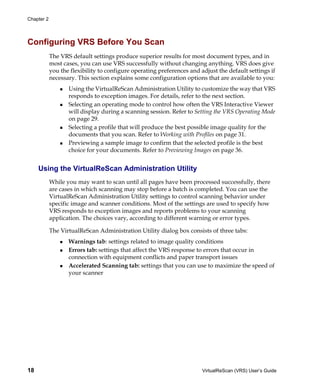
  • 69.
    Operating VRS Figure 2-40. Skew Panel - Deskew and Crop Options Auto Crop and Edge Cleanup Options Use the Auto Crop option to automatically crop every page to its original size. Auto Crop is important for a precise registration of each image in order to perform accurate optical character recognition (OCR). You can use Edge Cleanup to automatically remove black borders from an image. It is different from image cropping because it does not crop the image to its actual size. Instead, it replaces any black pixels in the border around the image with white pixels, preserving the width and length of the image size determined by the image crop. Auto Orientation You can select the Auto Orientation check box to turn on the feature that performs automatic page rotation. With this feature enabled, VRS will automatically rotate a page that is scanned in a non-standard orientation. As a result, you do not have to perform manual rotation after the image is scanned. This feature eliminates the need to pre-sort batches of documents to ensure that they are facing in the same direction. With Auto Orientation enabled, you can place a stack of documents in the scanner feeder without checking to make sure that they are facing the same way, and VRS will automatically rotate the images at scan time, if necessary. Note Auto Orientation may conflict with the rotation options that are available with some scanners that support advanced features. If you are using VRS with such a scanner, we recommend that you enable either Auto Orientation or the advanced rotation options, but not both. For more information, refer to Rotation Panel on page 156. To change the Skew panel settings 1 From the VRS Adjustment Controls, select the Skew panel. 2 Select the desired Deskew and Crop options. 3 Select Auto Orientation if you want VRS to automatically rotate a page that scans in the non-standard orientation. VirtualReScan (VRS) User’s Guide 59
  • 70.
    Chapter 2 4 If automatic deskew is not selected, you can use the movable angle control arm to straighten an image by clicking anywhere on the grid. You can also adjust the skew as follows: a Position the mouse over the vertical arm, click, and hold. The cursor will change to a hand. b Drag the arm counter-clockwise to rotate the image to the left, or clockwise to rotate it to the right. You can rotate the image up to 360 degrees. 5 If desired, use the Fine Angle Adjustment slider to fine-tune the deskew angle in single degree or partial degree increments, as follows: a Move the slider all the way to the left to complete a one-degree, counter- clockwise angle adjustment. b Move the slider all the way to the right, to complete a one-degree, clockwise angle adjustment. c Move the slider to a position in between the leftmost or rightmost setting, to select an angle shift that is less than a full degree. Each line on the slider scale represents 0.05 degrees. 6 Click OK. 60 VirtualReScan (VRS) User’s Guide
  • 71.
    Operating VRS Using the Color Panel Use the Color panel to specify your preferences for Automatic Color Detection and related processing options. VRS uses the Automatic Color Detection process to determine if an image has any color content. If no color content is detected, then the document is processed as a bitonal image. When using Automatic Color Detection, it is important to test your settings on a sample document that is similar to the documents you expect to scan. The adjustments that you make to the Color Sensitivity and the Color Area Sensitivity settings will directly affect the outcome of the Automatic Color Detection process. Figure 2-41. Color Panel VirtualReScan (VRS) User’s Guide 61
  • 72.
    Chapter 2 Note The availability of the Color panel depends upon your VRS license and scanner, as well as the active scanning mode, which must be set to “Color.” To configure the Color panel settings 1 From the VRS Adjustment Controls, select the Color panel. 2 Select the Enable Detection check box if you want to enable Automatic Color Detection. If this check box is not selected, a color image is always returned when you scan in color mode, regardless of the extent of the color content in the document. 3 Adjust the Color Sensitivity setting (possible values range from 1 to 100) by doing one of the following: Move the slider to the left to decrease the likelihood of detecting a color document. Move the slider to the right to increase the likelihood of detecting a color document. Click the arrows of the text box to increase or decrease the Color Sensitivity value. Click in the Color Sensitivity text box and type a value. 4 Select the Detect Small Color Areas check box if you want to enable the function that is used to detect small amounts of color (such as a date stamp or small amounts of highlighter text) on otherwise bitonal documents. If this check box is not selected, the scanner may not detect small amounts of color. 5 Adjust the Color Area Sensitivity setting (possible values range from 1 to 100) by doing one of the following: Move the slider to the left to decrease the likelihood of detecting small amounts of color. Move the slider to the right to increase the likelihood of detecting small amounts of color. Click the arrows of the text box to increase or decrease the Color Area Sensitivity value. Click in the Color Area Sensitivity text box and type a value. 6 At Background Color Detection, select “Suppress color if applicable” to have VRS suppress the background color for images in which the foreground is bitonal. Note The availability of the Background Color Detection feature may vary, according to the scanner that you are using with VRS. 62 VirtualReScan (VRS) User’s Guide
  • 73.
    Operating VRS 7 You can use the Output Format settings to override the results of Automatic Color Detection. These settings apply only to the current image in a batch. These settings are available only if Automatic Color Detection is enabled. You can select the following options: Color: Image is processed in color, regardless of the results of the automatic color detection process. Bitonal: Image is processed in black and white, regardless of the results of the automatic color detection process. As Detected: Image color is processed according to the results of the automatic color detection process. This is the default selection. 8 If you make adjustments that you do not want to save, click Reset to clear them and restore the default values. Then continue by adjusting or saving the original values. Using the Background Panel Use the Background panel to select preferences that affect the way that the background region of a color image will be processed by VRS. You can use the options on the Background panel to convert and smooth the background region to black, white, or to a color that represents an “average” of the detected background colors. Note The availability of the Background panel depends upon your VRS license and your scanner, as well as the active scanning mode, which must be set to “Color.” VirtualReScan (VRS) User’s Guide 63
  • 74.
    Chapter 2 Figure 2-42. Background Panel To configure the Background panel settings 1 From the VRS Adjustment Controls, select the Background panel. 2 Select the Enable Smoothing check box to turn on the background smoothing feature, which you can use to modify the background of a color image. If this check box is not selected, the background region of a color image is not altered when it is processed. 3 Select an option for processing images with color backgrounds: White: All background color is changed to white. 64 VirtualReScan (VRS) User’s Guide
  • 75.
    Operating VRS Black: All background color is changed to black. Automatic: All background pixels are smoothed to the same value, representing an average of the detected background colors. This selection is appropriate only when minor variations exist in the background color. Note If you select Automatic, the results may vary, according to the color detected in the background region of the scanned document. 4 If you selected Automatic in the previous step, the results will be directly affected by the Snap to White setting, as follows: If Snap to White is selected and the image background is close to white, the resulting background color is white. If Snap to White is selected and the background is not close to white, the background color is set to a smoothed color value determined by the scanner. If Snap to White is not selected, the background color is set to a smoothed color value representing an aggregate of the detected background colors. Note The Snap to White feature is not available with all scanners. 5 Do one of the following to adjust the Background Color Sensitivity setting: Move the slider to the left to decrease the level of background region processing in color documents. A low value decreases the likelihood that a pixel will be determined to be part of the image background. Move the slider to the right to increase the level of background region processing in color documents. A high value increases the likelihood that a pixel will be determined to be part of the image background. Click the arrows of the text box to increase or decrease the Background Color Sensitivity value. Click in the Background Color Sensitivity text box and type a value. 6 Click OK. Using the Blank Page Panel Use the Blank Page panel to enable automatic detection and deletion of blank pages, a feature that is especially useful for batch scanning in duplex mode. VRS can detect and delete a blank page, based on its assessment of the content. You use the Content Sensitivity setting to control how sensitive VRS is to page content. For example, you can configure VRS to ignore small amounts of content, such as speckles. As a result, a speckled page is considered blank, resulting in automatic VirtualReScan (VRS) User’s Guide 65
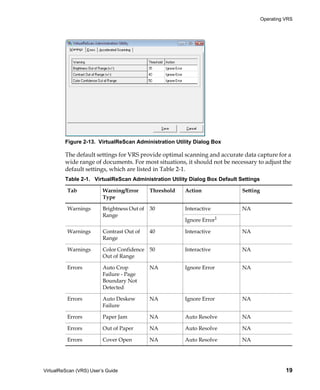
  • 76.
    Chapter 2 removal if blank page deletion is enabled. You can also configure VRS to detect small amounts of content, in which case the same speckled page may not be considered blank and it would not be deleted. When VRS evaluates the page content, the background color is ignored. Depending on the content sensitivity setting, VRS may fail to identify a blank page if it contains marks caused by holes (such as notebook paper holes) near the edge of the paper. You can avoid this issue by selecting the Ignore Holes option. With Ignore Holes selected, VRS can successfully detect a blank page, even if it contains hole marks near the edges. Some scanner and scanning applications include their own blank page deletion feature. If you are using VRS with such a scanner, we do not recommend that both blank page deletion features be enabled at the same time. For best results, select blank page deletion from VRS and turn off the counterpart feature. With ImageControls scanning applications, you can enable VRS blank page detection without deletion. In this case, the scanning application receives a notification from VRS that a blank page has been detected. Instead of deleting the page, VRS sends it to the scanning application, which can be configured to handle the page according to your preference. When the VRS QC mode is set to First Page and the first page is blank, it is clearly identified in the VRS Interactive Viewer as a detected blank page or a page to be deleted. Similarly, if the QC mode is set to Every Page, any blank page that appears in the viewer is identified the same way (Figure 2-44). Blank pages that are not marked for deletion are sent to the scanning application. If a page is removed as a result of blank page deletion, any exceptions that it may have generated for other reasons are disregarded and canceled. Any exceptions related to the image on the reverse side of the blank page are processed as usual. 66 VirtualReScan (VRS) User’s Guide
  • 77.
    Operating VRS Figure 2-43. Blank Page Panel To enable blank page detection 1 Scan a sample blank document that is similar to the documents that you plan to scan in a batch, and then select Preview from the VRS taskbar menu. 2 From the VRS Adjustment Controls, select the Blank Page panel. 3 Select the Enable Detection check box to turn on automatic blank page detection. Select the Delete Blank Pages check box to turn on automatic blank page deletion. VirtualReScan (VRS) User’s Guide 67
  • 78.
    Chapter 2 Note When Blank Page Detection is enabled without deletion, the ability to notify the scanning application is supported only for ImageControls-based applications, rather than ISIS- or TWAIN-based applications. 4 Adjust the Content Sensitivity setting to determine how sensitive VRS is to page content. The possible values range from 1 to 100. A high sensitivity value means that VRS is very sensitive to small amounts of content, even if it is scattered on a page. As a result, such a page would not be considered to be blank. A low sensitivity value means that VRS is less likely to detect small amounts of content on a page. As a result, such a page would be considered blank. You can adjust the Content Sensitivity setting by doing one of the following: Move the slider to the left to decrease the likelihood of detecting small amounts of content on a page. Move the slider to the right to increase the likelihood of detecting small amounts of content on a page. Click the arrows in the text box to increase or decrease the Content Sensitivity value. Click in the Content Sensitivity text box and type a value. The message “Page Content Detected” or “Page Content Not Detected” indicates whether or not VRS considers the preview image to be blank based on the current Content Sensitivity setting. You can adjust the Content Sensitivity setting to locate the threshold at which VRS detects content on a page. 5 Select the Ignore Holes check box if you want hole marks to be disregarded when VRS determines if a page is blank. If the check box is not selected, a page that is blank except for hole marks near the edges may not be considered blank by VRS. 6 Click OK. Note If a page is removed as a result of blank page deletion, any exceptions that it may have generated for other reasons are disregarded and canceled. Any exceptions related to the image on the reverse side of the blank page are processed as usual. When You Can Expect to See Blank Page Images in the Viewer When the blank page deletion feature is in effect, blank pages are automatically deleted and you do not see them in the image viewer. However, when you set the QC 68 VirtualReScan (VRS) User’s Guide
  • 79.
    Operating VRS mode to First Page or Every Page, the scanning process stops to display the page that is appropriate for the active mode. If that page happens to be blank, it appears in the image viewing area with a message indicating that it has either been detected or marked for deletion (Figure 2-44). Blank pages may also display in the image viewing area when the QC mode is set to On Errors if an exception occurs in connection with the back side of the blank page. Blank pages that are detected but not marked for deletion are sent to the scanning application. Figure 2-44. Message Indicating that Blank Page will be Deleted Enabling the Professional Features Demo The Enable Professional Features Demo command appears on the Tools menu only if you have a VRS Basic license. If you have a VRS Desktop, Workgroup, or Production license, access to VRS Professional features is already included in your installation. You can use the Enable Professional Features Demo command to enable a demonstration of VRS Professional features. While this mode is enabled, you have access to the VRS Professional features and a “Kofax Demo Mode” stamp is placed on any images that you scan. VirtualReScan (VRS) User’s Guide 69
  • 80.
    Chapter 2 Once the VRS Professional Features Demonstration is enabled, the VRS Interactive Viewer will be refreshed and options on three additional panels will be available from the VRS Adjustment Controls: Color, Background, and Blank Page. Note To access the Color or Background panels while the Professional Features Demonstration mode is in effect, you must have color scanning selected from your scanning application. If you exit the demo, the VRS Adjustment Controls will be refreshed again so that you have access only to the options on the Clarity, Noise, and Skew panels. Access to the options on the Color, Background, and Blank Page panels is discontinued. To enable the Professional Features demonstration 1 Select Tools | Enable Professional Features Demo. A check mark will appear next to the menu item to indicate that the demonstration has been enabled. 2 Review the message confirming that the VRS Professional features demonstration is active, and then click OK. 3 The VRS Interactive Viewer will refresh so that options on three additional panels become available from the VRS Adjustment Controls: Color, Background, and Blank Page. Note The options on the Color and Background panels are available if you have color scanning selected from your scanning application. 4 Scan as usual and notice that a “Kofax Demo Mode” stamp is applied to all images. 5 If you are interested in upgrading your license to access the VRS Professional features on a permanent basis, navigate to the Kofax VRS program folder and select Upgrade Now. For details, refer to the VRS online Help. Note If you enable the VRS Professional features demonstration, it remains active until you close the scanning application. To exit the Professional features demonstration 1 While the VRS Professional features demonstration is enabled, select Tools| Enable Professional Features Demo. The check mark next to the menu item will be cleared to indicate that the demonstration is no longer in effect. 2 The VRS Adjustment Controls will refresh so that the options on the Color, Background, and Blank Page panels are grayed. Also, if you attempt to select 70 VirtualReScan (VRS) User’s Guide
  • 81.
    Operating VRS any of these panels after exiting the Professional features demonstration, a message will display to remind you that full access requires a VRS Professional license. The message will include a link to the Upgrade VRS dialog box, which you can use to purchase a VRS Professional license. The options on the Clarity, Noise, and Skew panels will continue to be available. 3 When you resume scanning, the “Kofax Demo Mode” stamp will no longer be applied to your images. Using Advanced Features From the VRS Interactive Viewer, you can access advanced features if they are supported by your scanner. If your scanner supports advanced features, you can use the Scanner Driver Settings option to access one of the following dialog boxes: Advanced Settings dialog box: Consists of options related to page layout, JPEG compression, and other custom features. Advanced Properties dialog box: Consists of options that you can use to specify preferences for endorsing, color image processing, picking rectangles, and rotation. The dialog box that you access by selecting the Scanner Driver Settings option is dependent on the scanner that you have configured to work with VRS. The Scanner Driver Settings option will be available if both of the following conditions are met: Your scanner or scanner driver supports advanced features. You open the VRS Interactive Viewer in Preview mode. Note Use the advanced features with caution. Some features may interfere with the optimal performance of VRS. To access advanced features from the VRS Interactive Viewer 1 Scan a sample image. 2 From the VRS taskbar menu, select Preview to open the VRS Interactive Viewer. 3 From the VRS Interactive Viewer, do one of the following: From the menu, select Tools | Scanner Driver Settings. From the toolbar, select the Scanner Driver Settings icon. VirtualReScan (VRS) User’s Guide 71
  • 82.
    Chapter 2 Note If the Scanner Driver Settings menu command or toolbar option is not available, your scanner driver does not support advanced features. 4 One of the following dialog boxes will display, according to the scanner that you have configured to work with VRS: Advanced Settings dialog box Advanced Properties dialog box Note For details about the Advanced Properties dialog box, refer to Advanced Properties on page 147. Using the Auto Resolve Manager You can use the Auto Resolve Manager to handle VRS exception conditions such as errors caused by equipment conflicts or paper transport issues. VRS opens the Auto Resolve Manager dialog box for each occurrence of an exception condition specified as an Auto Resolve or Intervention action type on the Errors tab in the VirtualReScan Administration Utility. When Auto Resolve is the selected action, the Auto Resolve Manager opens in automatic mode. When Intervention is the selected action, the Auto Resolve Manager opens in manual mode. Figure 2-45. VRS Auto Resolve Manager The Auto Resolve Manager displays text indicating the exception condition and operator instructions for dealing with the condition. The Auto Resolve Manager dialog box may also display the image that triggered the exception, depending on the exception. The options on the Auto Resolve Manager will vary, according to the active mode (automatic or manual): OK - Automatic Mode: When the Auto Resolve Manager opens in automatic mode (when the Action selection is Auto Resolve), the OK button is grayed. 72 VirtualReScan (VRS) User’s Guide
  • 83.
    Operating VRS VRS automatically will attempt to retry the scanning process, which will resume once you do something to resolve the exception condition. OK - Manual Mode: When the Auto Resolve Manager opens in manual mode (when the Action selection is Intervention), you need to resolve the equipment or paper transport issue. Then select OK to accept the image “as is,” send it to the scanning application, and proceed with the scanning process. Cancel: Stop the batch or cancel the scanning process. When you select Cancel, any error information is passed to your scanning application. The images that caused the errors are not sent to the scanning application. Rescan (Manual Mode only): Rescan a sheet after you have reloaded a document into the scanner. Kofax VRS Program Folder From the Windows Start menu, you can navigate to the Kofax VRS program folder (Figure 2-46). Figure 2-46. VRS Program Folder The availability of some items in the Kofax VRS program folder may vary, according to the status of your product license. Activate VRS Use this command to activate your VRS Professional product license. When you select the Activate VRS command, the Activate VRS dialog box is opened so that you can request a license code. You must activate your VRS Professional license to access the VRS Professional features, and to be eligible for product updates and technical support. For more information, refer to the VRS Help or the VRS Installation Guide. Deactivate VRS Use this command to deactivate and remove your VRS product license. If you remove VRS, the product license should be deactivated, unless you plan to reinstall the VirtualReScan (VRS) User’s Guide 73
  • 84.
    Chapter 2 product later on the same computer. For more information, refer to the VRS Help or the VRS Installation Guide. Register VRS Use this command to register your VRS Basic product license. When you select the Register VRS command, the Register VRS dialog box is opened so that you can start the registration process. You must register your VRS Basic license to be eligible for technical support. For more information, refer to the VRS Help or the VRS Installation Guide. Buy Now Use this command to purchase a licensed version of VRS if you are currently running the product in evaluation mode. When you select the Buy Now command, the Buy VRS dialog box is displayed so that you can open the Web site that is used to purchase the licensed product. The Buy Now command is available if you are currently running an evaluation or demonstration version of VRS. For more information, refer to the VRS Help. Upgrade Now Use this command to upgrade your VRS license. When you select the Upgrade Now command, the Upgrade VRS dialog box is displayed so that you can access the Web site that is used to purchase a license upgrade. The Upgrade Now command is available if you are currently running a licensed version of VRS that is lower than a production license. For more information, refer to the VRS Help. Check for Updates Use this command to check for and download a VRS product update. You can use this feature if you have a VRS Professional license that has been activated. For more information, refer to the VRS Help or the VRS Installation Guide. VRS Desktop Productivity Add-in Manager Use this command to open the VRS Desktop Productivity Add-in Manager, which is used to activate or deactivate the VRS Desktop Productivity features. For more information, refer to the VRS Help or Activating VRS Desktop Productivity Features on page 78. 74 VirtualReScan (VRS) User’s Guide
  • 85.
    Operating VRS Scanner Configuration Utility Use this command to start the Scanner Configuration Utility, which is used to configure scan or file import sources and to set VRS default scanners. For more information, refer to Scanner Configuration Utility on page 119. VCDemo Use this command to start VCDemo, a sample ImageControls-based scanning application that is installed automatically with VRS. For more information, refer to the VCDemo section of the VRS Installation Guide. VRS Quick Start Guide Use this command to view basic instructions that explain how to access VRS features. More detailed instructions are available from the VRS Help or from this guide. VirtualReScan (VRS) User’s Guide 75
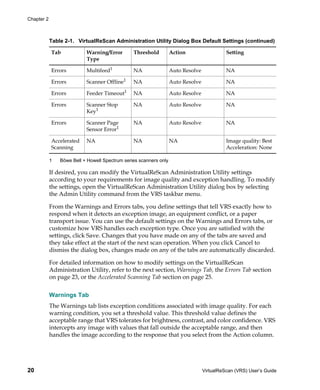
  • 86.
    Chapter 2 76 VirtualReScan (VRS) User’s Guide
  • 87.
    Chapter 3 VRS Desktop Productivity Features Introduction This chapter explains how to use the Desktop Productivity features, which extend VRS scanning functionality to commonly used email applications, as well as your Windows Desktop and Windows Explorer. These features give you the ability to do the following: Scan directly from an email message: While composing an email message, you can scan and save a document as an attachment without leaving your email screen. Scan directly from your Windows Desktop or Windows Explorer: Using the options on the context menu, you can scan and save a document to your Windows Desktop or to a folder in Windows Explorer. These capabilities are available as soon as you activate them; a separate scanning application is not required. For more information, see Activating VRS Desktop Productivity Features on page 78. VirtualReScan (VRS) User’s Guide 77
  • 88.
    Chapter 3 Activating VRSDesktop Productivity Features The VRS Desktop Productivity features are accessible if they are activated from the VRS Desktop Productivity Add-in Manager. The Add-in Manager lists the status of the VRS Desktop Productivity add-ins as either activated or deactivated. By default, the status is automatically set to “activated” after installation. Note Only administrators can activate or deactivate add-ins from the VRS Desktop Productivity Add-in Manager. While the add-ins are activated, VRS Desktop Productivity features are available from the applicable applications listed in the Add-in Manager window. For example, if the add-ins are activated, the VRS Desktop Productivity features are available within the listed email applications that are installed on your computer, as well as Windows Desktop and Windows Explorer. If the add-ins are deactivated, the VRS Desktop Productivity features are no longer available. To activate or deactivate VRS Desktop Productivity features 1 From the Windows Start menu, navigate to the Kofax VRS program folder. 2 Select the VRS Desktop Productivity Add-in Manager. The VRS Desktop Productivity Add-in Manager is displayed. Figure 3-1. VRS Desktop Productivity Add-in Manager 3 From the Add-in Manager, do one of the following, as applicable: Click Activate to activate the add-ins. Click Deactivate to deactivate the add-ins. 78 VirtualReScan (VRS) User’s Guide
  • 89.
    VRS Desktop ProductivityFeatures A message is displayed at the bottom of the window to confirm successful activation or deactivation. Note If you attempt to activate or deactivate add-ins associated with an application currently in use, VRS prompts you to Retry, Ignore (the active application) or Cancel. In this situation, close the affected application and then click Retry to proceed. Scanning from Microsoft Outlook 2007 The VRS Desktop Productivity add-in for Microsoft Outlook 2007 gives you the ability to scan and attach a document directly into an email message as you compose it. Once the add-in is activated, a VRS Scan tab is available from the ribbon when you create or open an email message. Figure 3-2. VRS Scan Tab in Microsoft Outlook 2007 From the VRS Scan tab, the following scanning options are available: Fast Scan: Quickly scan and attach a document to your email message using default settings Scan with Preview: Scan and preview the results before attaching a document to your email message Configure: Configure settings, scan, and optionally preview the results before attaching a document to your email message The VRS Scan tab also lists the active scan profile and the file name that will be assigned to the email attachment. VirtualReScan (VRS) User’s Guide 79
  • 90.
    Chapter 3 Note The VRS Desktop Productivity add-in for Microsoft Office Outlook 2007 must be activated to access the VRS Scan tab as you compose an email message. For details, see Activating VRS Desktop Productivity Features on page 78. Fast Scan With Fast Scan, you use default settings to quickly scan a document and attach it to an email message. To use Fast Scan 1 Place your document in the scanner. 2 Start Microsoft Outlook 2007. 3 Create or open a mail message, and then select the VRS Scan tab. 4 From the Profile list, select a scanning profile that is appropriate for the type of document to be scanned. 5 From the File Name list, do one of the following to specify the name for the attachment: Accept the name as shown. Enter a new name. Note The first time you use the VRS Desktop Productivity features, the base file name “Untitled” is listed by default. As you scan subsequent documents, VRS appends a numeric sequence to the base file name (Untitled_0001, Untitled_0002, and so on). Thereafter, unless you update the base file name, the selection defaults to the most recently used name. For more information, see File Name Formatting on page 118. 6 Click Fast Scan. The document is scanned and automatically saved as an attachment to the email message you are composing. 7 Complete the message and click Send. 80 VirtualReScan (VRS) User’s Guide
  • 91.
    VRS Desktop ProductivityFeatures Scan with Preview With Scan with Preview, you can scan and preview the results before attaching a document to your email message. The document is displayed in the VRS Thumbnail Viewer, where you can optionally apply image quality adjustments before the document is attached automatically to your email message. For more information, refer to VRS Thumbnail Viewer on page 112. The document is scanned using the profile and file name that are currently selected in the message ribbon. Note Scan settings and attachment file name options cannot be modified using Scan with Preview. The settings for the selected profile are applied, and the scanned document is assigned the name of the selected file name. The Configure option in the message ribbon supports the ability to adjust scan settings and file name options. To use Scan with Preview 1 Place your document in the scanner. 2 Start Microsoft Outlook 2007. 3 Create or open a mail message, and then select the VRS Scan tab. 4 From the Profile list, select a scanning profile that is appropriate for the type of document to be scanned. 5 From the File Name list, do one of the following to specify the name for the attachment: Accept the name as shown. Enter a new name. Note The first time you use the VRS Desktop Productivity features, the base file name “Untitled” is selected by default. As you scan subsequent documents, VRS appends a numeric sequence to the base file name (Untitled_0001, Untitled_0002, and so on). Thereafter, unless you update the base file name, the selection defaults to the most recently used name. For more information, see File Name Formatting on page 118 6 Click Scan with Preview. The document is scanned and displayed in the VRS Thumbnail Viewer for preview purposes. For more information, refer to VRS Thumbnail Viewer on page 112. VirtualReScan (VRS) User’s Guide 81
  • 92.
    Chapter 3 7 From the VRS Thumbnail Viewer, do one of the following: If you are satisfied with the preview results, click Accept to save the document and attach it to your mail message. If you want to apply image quality adjustments, use the controls in the VRS Thumbnail Viewer menu or toolbar, and then click Accept to save and attach the document to your mail message. If the preview results are unacceptable, click Reject to discard the document and close the VRS Thumbnail Viewer. Tip While the VRS Thumbnail Viewer is open, you can select Rescan or Scan to End from the toolbar to scan additional pages into the current document. The same functions are also available from the Scan menu. 8 Once the scanned document is accepted and attached to your mail message, complete the message and click Send. Configure This option gives you access to the VRS Professional Scan window, which serves as a single-screen scanning application. From the VRS Professional Scan window, you can modify profile settings, scanner settings, and file name options before scanning a document. You can also scan and optionally preview the results in the VRS Thumbnail Viewer before attaching the document to your email message. For more information, refer to VRS Professional Scan on page 116. To use Configure 1 Place your document in the scanner. 2 Start Microsoft Outlook 2007. 3 Create or open a mail message, and then select the VRS Scan tab. 4 Click Configure. The VRS Professional Scan window is displayed. 82 VirtualReScan (VRS) User’s Guide
  • 93.
    VRS Desktop ProductivityFeatures Figure 3-3. VRS Professional Scan window 5 Use the Profiles list to select a profile that is appropriate for the type of document to be scanned. Note To update or remove a profile, see Updating a VRS Desktop Productivity Profile on page 109 or Removing a VRS Desktop Productivity Profile on page 111. 6 In the File Name field, do one of the following to specify the name for the attachment: Accept the name as shown. Enter a new name. Note The first time you use the VRS Desktop Productivity features, the base file name “Untitled” is selected by default. As you scan subsequent documents, VRS appends a numeric sequence to the base file name (Untitled_0001, Untitled_0002, and so on). Thereafter, unless you update the base file name, the selection defaults to the most recently used name. For more information, see File Name Formatting on page 118. 7 To view or update the scanner settings, click to display the options and adjust the following settings as appropriate: Color: Select the option that corresponds to the mode in which you want to save the document: Color, Black & White, or Grayscale. Quality: Select the desired resolution as Draft (150 dpi), Normal (200 dpi), or High (300 dpi). Sides: Select Single to scan one side of a document; select Double to scan both sides of a document. VirtualReScan (VRS) User’s Guide 83
  • 94.
    Chapter 3 Ignore Blank Sides: Select the check box to retain blank pages. Clear the check box to automatically discard blank pages. Feeder: Select ADF or Flatbed to indicate whether you plan to scan with the scanner’s automatic document feeder or the flatbed feeder. Note If you update the Scanner Settings, the current profile is affected and a notation is placed under the currently selected profile. To save the updated settings to the profile, see Updating a VRS Desktop Productivity Profile on page 109. 8 To view or update the File Options, click to display the settings and then select the file type appropriate for your scanned document: PDF (default), JPEG, Bitmap, PNG, Single-page TIFF, or Multi-Page TIFF. For more information about file names and file types, see File Name Formatting on page 118. Note If you update the File Options, the current profile is affected and a notation is placed under the currently selected profile. To save the updated settings to the profile, see Updating a VRS Desktop Productivity Profile on page 109. 9 Do one of the following: Click Scan with Preview to scan and preview the results in the VRS Thumbnail Viewer before the document is saved as an attachment to your mail message. Click Scan to scan the document and attach it to your mail message without previewing the results. 10 Complete the message and click Send. Scanning from Microsoft Outlook 2003 or Outlook XP The VRS Desktop Productivity add-in for Microsoft Outlook 2003 or Outlook XP gives you the ability to scan and attach a document directly into an email message as you compose it. Once the VRS Desktop Productivity add-in for Microsoft Outlook 2003 or Outlook XP is activated, a VRS Scan menu and a VRS toolbar are available from any email message. Note Microsoft Outlook XP is also known as Microsoft Outlook 2002. 84 VirtualReScan (VRS) User’s Guide
  • 95.
    VRS Desktop ProductivityFeatures Figure 3-4. VRS Scan Menu in Microsoft Outlook From the VRS Scan menu, the following scanning options are available: Fast Scan: Quickly scan and attach a document to your email message using default settings Scan with Preview: Scan and preview the results before attaching a document to your email message Scan with Profile: Select a scanning profile and quickly scan a document to be saved as an attachment to your email message Configure: Configure settings, scan, and optionally preview the results before attaching a document to your email message The same functions (with one variation) are also available from the VRS toolbar, which is available when you create or open an email message. In place of Scan with Profile, the VRS toolbar lists the active scanning profile and the attachment file name. Figure 3-5. VRS Toolbar in Microsoft Outlook Note The VRS Desktop Productivity add-in for Microsoft Outlook 2003 or Outlook XP must be activated to access the VRS Scan menu and VRS toolbar as you compose an email message. For details, see Activating VRS Desktop Productivity Features on page 78. Important If you select Microsoft Word as your email editor in either Microsoft Outlook 2003 or Outlook XP, VRS Desktop Productivity features are not available within Microsoft Outlook. The Desktop Productivity options become available within Microsoft Outlook as soon as you turn off the option to use Microsoft Word as your email editor. To locate this option, select Tools | Options and then select the Mail Format tab. VirtualReScan (VRS) User’s Guide 85
  • 96.
    Chapter 3 Fast Scan With Fast Scan, you can use default settings to quickly scan a document and attach it to an email message. To use Fast Scan 1 Place your document in the scanner. 2 Start Microsoft Outlook 2003 or Outlook XP. 3 Create or open a mail message. 4 From the Profile list in the VRS toolbar, select a scanning profile that is appropriate for the type of document to be scanned. 5 From the File Name list in the VRS toolbar, do one of the following to specify the name for the attachment: Accept the name as shown. Enter a new name. Note The first time you use the VRS Desktop Productivity features, the base file name “Untitled” is selected by default. As you scan subsequent documents, VRS appends a numeric sequence to the base file name (Untitled_0001, Untitled_0002, and so on). Thereafter, unless you update the base file name, the selection defaults to the most recently used name. For more information, see File Name Formatting on page 118. 6 Do one of the following: From the VRS Scan menu, select Fast Scan. From the VRS toolbar, click Fast Scan. The document is scanned and automatically saved as an attachment to the mail message you are composing. 7 Complete the message and click Send. Scan with Preview With Scan with Preview, you can scan and preview the results before attaching a scanned document to your email message. The document is displayed in the VRS Thumbnail Viewer, where you can optionally apply image quality adjustments before the document is attached automatically to your email message. 86 VirtualReScan (VRS) User’s Guide
  • 97.
    VRS Desktop ProductivityFeatures The document is scanned using the profile and attachment file name that are currently listed in the VRS toolbar within the email message. Note Scan settings and attachment file name options cannot be modified using Scan with Preview. The settings for the selected profile are applied, and the selected file name is assigned to the attachment. The Configure option in the toolbar supports the ability to update scan settings and file name options. To use Scan with Preview 1 Place your document in the scanner. 2 Start Microsoft Outlook 2003 or Outlook XP. 3 Create or open a mail message. 4 From the Profile list in the VRS toolbar, select a scanning profile that is appropriate for the type of document to be scanned. 5 From the File Name list in the VRS toolbar, do one of the following to specify the name for the attachment: Accept the name as shown. Enter a new name. Note The first time you use the VRS Desktop Productivity features, the base file name “Untitled” is selected by default. As you scan subsequent documents, VRS appends a numeric sequence to the base file name (Untitled_0001, Untitled_0002, and so on). Thereafter, unless you update the base file name, the selection defaults to the most recently used name. For more information, see File Name Formatting on page 118. 6 Click Scan with Preview. The document is scanned and displayed in the VRS Thumbnail Viewer for preview purposes. 7 From the VRS Thumbnail Viewer, do one of the following: If you are satisfied with the preview results, click Accept to save the document and attach it to your mail message. If you want to apply image quality adjustments, use the controls in the VRS Thumbnail Viewer menu or toolbar, and then click Accept to save and attach the document to your mail message. VirtualReScan (VRS) User’s Guide 87
  • 98.
    Chapter 3 If the preview results are unacceptable, click Reject to discard the document and close the VRS Thumbnail Viewer. Tip While the VRS Thumbnail Viewer is open, you can select Rescan or Scan to End from the toolbar to scan additional pages into the current document. The same functions are also available from the Scan menu. 8 Once the scanned document is accepted and attached to your mail message, complete the message and click Send. Scan with Profile You can use Scan with Profile to apply a profile and quickly scan a document to be saved as an attachment to your email message. Note Scan settings and attachment file name options cannot be modified using Scan with Profile. The settings for the selected profile are applied, and the selected file name is assigned to the attachment. The Configure option in the toolbar supports the ability to update scan settings and file name options. To use Scan with Profile 1 Place your document in the scanner. 2 Start Microsoft Outlook 2003 or Outlook XP. 3 Create or open a mail message. 4 From the VRS Scan menu, select Scan with Profile to view the list of available scan profiles. 5 Select the profile that is that is appropriate for the type of document to be scanned. The document is scanned and automatically saved as an attachment to the email message you are composing. Configure This option gives you access to the VRS Professional Scan window, which serves as a single-screen scanning application. From the VRS Professional Scan window, you can modify profile settings, scanner settings, and attachment options before scanning a document. You can also scan and optionally preview the results in the VRS Thumbnail Viewer before attaching the document to your email message. 88 VirtualReScan (VRS) User’s Guide
  • 99.
    VRS Desktop ProductivityFeatures To use Configure 1 Place your document in the scanner. 2 Start Microsoft Outlook 2003 or Outlook XP. 3 Create or open a mail message. 4 Do one of the following: From the VRS Scan menu, select Configure. From the VRS toolbar, click Configure. The VRS Professional Scan window is displayed. Figure 3-6. VRS Professional Scan window 5 Use the Profiles list to select a profile that is appropriate for the type of document to be scanned. Note To update or remove a profile, see Updating a VRS Desktop Productivity Profile on page 109 or Removing a VRS Desktop Productivity Profile on page 111. 6 In the File Name field, do one of the following to specify the name for the attachment: Accept the name as shown. Enter a new name. VirtualReScan (VRS) User’s Guide 89
  • 100.
    Chapter 3 Note The first time you use the VRS Desktop Productivity features, the base file name “Untitled” is selected by default. As you scan subsequent documents, VRS appends a numeric sequence to the base file name (Untitled_0001, Untitled_0002, and so on). Thereafter, unless you update the base file name, the selection defaults to the most recently used name. For more information, see File Name Formatting on page 118. 7 To view or update the scanner settings, click to display the options and adjust the following settings as appropriate: Color: Select the option that corresponds to the mode in which you want to save the document: Color, Black & White, or Grayscale. Quality: Select the desired resolution as Draft (150 dpi), Normal (200 dpi), or High (300 dpi). Sides: Select Single to scan one side of a document; select Double to scan both sides of a document. Ignore Blank Sides: Select the check box to retain blank pages. Clear the check box to automatically discard blank pages. Feeder: Select ADF or Flatbed to indicate whether you plan to scan with the scanner’s automatic document feeder or the flatbed feeder. Note If you update the Scanner Settings, the current profile is affected and a notation is placed under the currently selected profile. To save the updated settings to the profile, see Updating a VRS Desktop Productivity Profile on page 109. 8 To view or update the File Options, click to display the settings and then select the file type appropriate for your scanned document: PDF (default), JPEG, Bitmap, PNG, Single-page TIFF, or Multi-Page TIFF. For more information about file names and file types, see File Name Formatting on page 118. Note If you update the File Options, the current profile is affected and a notation is placed under the currently selected profile. To save the updated settings to the profile, see Updating a VRS Desktop Productivity Profile on page 109. 9 Do one of the following: Click Scan with Preview to scan and preview the results in the VRS Thumbnail Viewer before the document is saved as an attachment to your mail message. 90 VirtualReScan (VRS) User’s Guide
  • 101.
    VRS Desktop ProductivityFeatures Click Scan to scan the document and attach it to your mail message without previewing the results. 10 Complete the message and click Send. Scanning from Lotus Notes The VRS Desktop Productivity add-in for Lotus Notes gives you the ability to scan a document and save it automatically as an attachment to an email message. Once the add-in is activated, the following VRS scanning options are available from the Actions menu in Lotus Notes: Fast Scan: Quickly scan and attach a document to a new email message using default settings Scan with Preview: Scan and preview the results before attaching a document to a new email message Configure: Configure settings, scan, and optionally preview the results before attaching a document to a new email message Scan Using Profile: Select a scanning profile and then quickly scan and attach a scanned document to a new email message Note The VRS Desktop Productivity add-in for Lotus Notes must be activated to access the VRS Desktop Productivity items on the Actions menu in Lotus Notes. The Desktop Productivity features are supported for Lotus Notes version 6.5 or later. For details, see Activating VRS Desktop Productivity Features on page 78. Important A new mail message is created automatically when you select any of the VRS Desktop Productivity scanning options in Lotus Notes. For best results, do not create or open a mail message before you select a scanning option from the Actions menu. Otherwise, an extra mail message is created. Fast Scan With Fast Scan, you can scan a document and attach it quickly to an email message. Note Scan settings and attachment file name options cannot be modified using Scan with Preview. The settings for the selected profile are applied, and the selected file name is assigned to the attachment. The Configure option supports the ability to update scan settings and file name options. VirtualReScan (VRS) User’s Guide 91
  • 102.
    Chapter 3 To use Fast Scan 1 Place your document in the scanner. 2 Start Lotus Notes. 3 From the menu bar, select Actions| Fast Scan. As the document is scanned, a new mail message is created. The scanned document is automatically saved as an attachment to the new message. Note The first time you use the VRS Desktop Productivity features, the base file “Untitled” is selected by default. As you scan subsequent documents, VRS appends numeric sequence to the base file name (Untitled_0001, Untitled_0002, and so on), unless you update the base file name, the selection defaults to the most recently used name. For more information, see File Name Formatting on page 118. 4 Complete the message and click Send. Scan with Preview With Scan with Preview, you can scan and preview the results before attaching a document to a new email message. The document is displayed in the VRS Thumbnail Viewer, where you can optionally apply image quality adjustments before the document is attached automatically to your email message. Note You cannot use Scan with Preview to update scan settings and attachment file name options. The Configure option supports the ability to update scan settings and file name options. To use Scan with Preview 1 Place your document in the scanner. 2 Start Lotus Notes. 3 From the menu bar, select Actions| Scan with Preview. The document is scanned and displayed in the VRS Thumbnail Viewer for preview purposes. 4 From the VRS Thumbnail Viewer, do one of the following: If you are satisfied with the preview results, click Accept to save the document and attach it to your mail message. 92 VirtualReScan (VRS) User’s Guide
  • 103.
    VRS Desktop ProductivityFeatures If you want to apply image quality adjustments, use the controls in the VRS Thumbnail Viewer menu or toolbar, and then click Accept to save and attach the document to your mail message. If the preview results are unacceptable, click Reject to discard the document and close the VRS Thumbnail Viewer. Tip While the VRS Thumbnail Viewer is open, you can select Rescan or Scan to End from the toolbar to scan additional pages into the current document. The same functions are also available from the Scan menu. 5 Once the scanned document is accepted, a new mail message is created. The scanned document is automatically saved as an attachment to the new message. Note The first time you use the VRS Desktop Productivity features, the base file “Untitled” is selected by default. As you scan subsequent documents, VRS appends numeric sequence to the base file name (Untitled_0001, Untitled_0002, and so on), unless you update the base file name, the selection defaults to the most recently used name. For more information, see File Name Formatting on page 118. 6 Complete the message and click Send. Configure The Configure option gives you access to the VRS Professional Scan window, which serves as a single-screen scanning application. From the VRS Professional Scan window, you can modify profile settings, scanner settings, and attachment options before scanning a document. Also, you can optionally preview the results in the VRS Thumbnail Viewer before the document is attached to a new email message. To use Configure 1 Place your document in the scanner. 2 Start Lotus Notes. 3 From the menu bar, select Actions| Configure. The VRS Professional Scan window is displayed. VirtualReScan (VRS) User’s Guide 93
  • 104.
    Chapter 3 Figure 3-7. VRS Professional Scan window 4 Use the Profiles list to select a profile that is appropriate for the type of document to be scanned. Note To update or remove a profile, see Updating a VRS Desktop Productivity Profile on page 109 or Removing a VRS Desktop Productivity Profile on page 111. 5 In the File Name field, do one of the following to specify the name for the attachment: Accept the name as shown. Enter a new name. Note The first time you use the VRS Desktop Productivity features, the base file name “Untitled” is selected by default. As you scan subsequent documents, VRS appends a numeric sequence to the base file name (Untitled_0001, Untitled_0002, and so on). Thereafter, unless you update the base file name, the selection defaults to the most recently used name. For more information, see File Name Formatting on page 118. 6 To view or update the scanner settings, click to display the options and adjust the following settings as appropriate: Color: Select the option that corresponds to the mode in which you want to save the document: Color, Black & White, or Grayscale. Quality: Select the desired resolution as Draft (150 dpi), Normal (200 dpi), or High (300 dpi). Sides: Select Single to scan one side of a document; select Double to scan both sides of a document. 94 VirtualReScan (VRS) User’s Guide
  • 105.
    VRS Desktop ProductivityFeatures Ignore Blank Sides: Select the check box to retain blank pages. Clear the check box to automatically discard blank pages. Feeder: Select ADF or Flatbed to indicate whether you plan to scan with the scanner’s automatic document feeder or the flatbed feeder. Note If you update the Scanner Settings, the current profile is affected and a notation is placed under the currently selected profile. To save the updated settings to the profile, see Updating a VRS Desktop Productivity Profile on page 109. 7 To view or update the File Options, click to display the settings and then select the file type appropriate for your scanned document: PDF (default), JPEG, Bitmap, PNG, Single-page TIFF, or Multi-Page TIFF. For more information about file names and file types, see File Name Formatting on page 118. Note If you update the File Options, the current profile is affected and a notation is placed under the currently selected profile. To save the updated settings to the profile, see Updating a VRS Desktop Productivity Profile on page 109. 8 Do one of the following: Click Scan with Preview to scan and preview the results in the VRS Thumbnail Viewer. Click Scan to scan the document and attach it to your mail message without previewing the results. If you select Scan with Preview, a new message is created as soon as you click Accept in the VRS Thumbnail Viewer. If you select Scan, a new message is created automatically. The scanned document is saved as an attachment to the new message. 9 Complete the message and click Send. VirtualReScan (VRS) User’s Guide 95
  • 106.
    Chapter 3 Scan Using Profile You can use Scan Using Profile to apply a preset profile and quickly scan a document. The document is saved automatically as an attachment to a new email message. Note You cannot use Scan with Preview to update scan settings and attachment file name options. The Configure option supports the ability to update scan settings and file name options. To select Scan Using Profile 1 Place your document in the scanner. 2 Start Lotus Notes. 3 From the menu bar, select Actions | Scan Using Profile to display a list of available scan profiles. 4 Select the profile that is that is appropriate for the type of document to be scanned. A new mail message is created automatically. The selected profile is applied as the document is scanned and saved as an attachment to the new message. 5 Complete the message and click Send. Scanning from Your Windows Desktop Once the VRS Desktop Productivity add-in for Microsoft Windows is activated, you can use the following options on the context menu to scan directly from your Windows Desktop: Fast Scan: Quickly scan and save a scanned document to your Windows Desktop using default settings Scan with Preview: Scan and preview the results before saving a document to your Windows Desktop Configure: Configure settings, scan, and optionally preview the results before saving a document to your Windows Desktop Scan Using Profile: Select a scanning profile and then quickly scan and save a document to your Windows Desktop Note The VRS Desktop Productivity add-in for Microsoft Windows must be activated to access the VRS Desktop Productivity features from your Windows Desktop. For details, see Activating VRS Desktop Productivity Features on page 78. 96 VirtualReScan (VRS) User’s Guide
  • 107.
    VRS Desktop ProductivityFeatures Fast Scan With Fast Scan, you can quickly scan a document and save it to your Windows Desktop. Note The document is scanned using the most recent profile and file name to be used with the VRS Desktop Productivity features. The Configure option supports the ability to update scan settings and file name options. To use Fast Scan 1 Place your document in the scanner. 2 Right-click your Windows Desktop to open the context menu. 3 From the context menu, select Fast Scan. The document is scanned and saved automatically to a file on your Windows Desktop. Scan with Preview With Scan with Preview, you can scan and preview the results before the document is saved to a file on your Windows Desktop. The document is displayed in the VRS Thumbnail Viewer, where you can optionally apply image quality adjustments before the document is saved. Note The document is scanned using the most recent profile and file name to be used with the VRS Desktop Productivity features. The Configure option supports the ability to update scan settings and file name options. To use Scan with Preview 1 Place your document in the scanner. 2 Right-click your Windows Desktop to open the context menu. 3 From the context menu, select Scan with Preview. The document is scanned and displayed in the VRS Thumbnail Viewer for preview purposes. 4 From the VRS Thumbnail Viewer, do one of the following: If you are satisfied with the preview results, click Accept to save the document to a file on your Windows Desktop. VirtualReScan (VRS) User’s Guide 97
  • 108.
    Chapter 3 If you want to apply image quality adjustments, use the controls in the VRS Thumbnail Viewer menu or toolbar, and then click Accept to save the document to your Windows Desktop. If the preview results are unacceptable, click Reject to discard the document and close the VRS Thumbnail Viewer. Tip While the VRS Thumbnail Viewer is open, you can select Rescan or Scan to End from the toolbar to scan additional pages into the current document. The same functions are also available from the Scan menu. Once you accept the document, it is saved to a file on your Windows Desktop. Configure This option gives you access to the VRS Professional Scan window, which serves as a single-screen scanning application. From the VRS Professional Scan window, you can modify profile settings, scanner settings, and file name options before scanning a document. You can also scan and optionally preview the results in the VRS Thumbnail Viewer before the document is saved to your Windows Desktop. To use Configure 1 Place your document in the scanner. 2 Right-click your Windows Desktop to open the context menu. 3 From the context menu, select Configure. The VRS Professional Scan window is displayed. Figure 3-8. VRS Professional Scan window 98 VirtualReScan (VRS) User’s Guide
  • 109.
    VRS Desktop ProductivityFeatures 4 Use the Profiles list to select a profile that is appropriate for the type of document to be scanned. Note To update or remove a profile, see Updating a VRS Desktop Productivity Profile on page 109 or Removing a VRS Desktop Productivity Profile on page 111. 5 In the File Name field, do one of the following to specify the name for the attachment: Accept the name as shown. Enter a new name. Note The first time you use the VRS Desktop Productivity features, the base file name “Untitled” is selected by default. As you scan subsequent documents, VRS appends a numeric sequence to the base file name (Untitled_0001, Untitled_0002, and so on). Thereafter, unless you update the base file name, the selection defaults to the most recently used name. For more information, see File Name Formatting on page 118. 6 To view or update the scanner settings, click to display the options and adjust the following settings as appropriate: Color: Select the option that corresponds to the mode in which you want to save the document: Color, Black & White, or Grayscale. Quality: Select the desired resolution as Draft (150 dpi), Normal (200 dpi), or High (300 dpi). Sides: Select Single to scan one side of a document; select Double to scan both sides of a document. Ignore Blank Sides: Select the check box to retain blank pages. Clear the check box to automatically discard blank pages. Feeder: Select ADF or Flatbed to indicate whether you plan to scan with the scanner’s automatic document feeder or the flatbed feeder. Note If you update the Scanner Settings, the current profile is affected and a notation is placed under the currently selected profile. To save the updated settings to the profile, see Updating a VRS Desktop Productivity Profile on page 109. 7 To view or update the File Options, click to display the settings and then select the file type appropriate for your scanned document: PDF (default), JPEG, Bitmap, PNG, Single-page TIFF, or Multi-Page TIFF. VirtualReScan (VRS) User’s Guide 99
  • 110.
    Chapter 3 For more information about file names and file types, see File Name Formatting on page 118. Note If you update the File Options, the current profile is affected and a notation is placed under the currently selected profile. To save the updated settings to the profile, see Updating a VRS Desktop Productivity Profile on page 109. 8 Do one of the following: Click Scan with Preview to scan and preview the results in the VRS Thumbnail Viewer. Click Scan to scan the document and attach it to your mail message without previewing the results. If you select Scan with Preview, the document is saved to your Windows Desktop as soon as you click Accept in the VRS Thumbnail Viewer. If you select Scan, the document is saved immediately to your Windows Desktop. Scan Using Profile You can use Scan Using Profile to apply a profile and quickly scan a document that is saved to a file on your Windows Desktop. To select Scan Using Profile 1 Place your document in the scanner. 2 Right-click your Windows Desktop to open the context menu. 3 From the context menu, select Scan Using Profile to view the list of available scan profiles. 4 Select the profile that is that is appropriate for the type of document to be scanned. The profile is applied as the document is scanned and saved to a file on your Windows Desktop. 100 VirtualReScan (VRS) User’s Guide
  • 111.
    VRS Desktop ProductivityFeatures Scanning from Windows Explorer Once the VRS Desktop Productivity add-in for Microsoft Windows is activated, you can use the following options on the context menu to scan directly from a folder in Windows Explorer: Fast Scan: Quickly scan and save a scanned document to a folder in Windows Explorer using default settings Scan with Preview: Scan and preview the results before saving a document to a folder in Windows Explorer Configure: Configure settings, scan, and optionally preview the results before saving a document to a folder in Windows Explorer Scan Using Profile: Select a scanning profile and quickly scan and save a document to a folder in Windows Explorer Note The VRS Desktop Productivity add-in for Microsoft Windows must be activated to access the VRS Desktop Productivity features from Windows Explorer. For details, see Activating VRS Desktop Productivity Features on page 78. Fast Scan With Fast Scan, you can quickly scan a document and save it to a folder in Windows Explorer. Note The document is scanned using the most recent profile and file name to be used with the VRS Desktop Productivity features. The Configure option supports the ability to update scan settings and file name options. To use Fast Scan 1 Place your document in the scanner. 2 Start Windows Explorer. 3 Navigate to the folder where you want to save the scanned document, and then right-click to open the context menu. 4 From the context menu, select Fast Scan. The document is scanned and automatically saved to the specified folder. VirtualReScan (VRS) User’s Guide 101
  • 112.
    Chapter 3 Scan with Preview With Scan with Preview, you can scan and preview the results before the document is saved to a folder in Windows Explorer. The document is displayed in the VRS Thumbnail Viewer, where you can optionally apply image quality adjustments before the document is saved. Note The document is scanned using the most recent profile and file name to be used with the VRS Desktop Productivity features. The Configure option supports the ability to update scan settings and file name options. To use Scan with Preview 1 Place your document in the scanner. 2 Start Windows Explorer. 3 Navigate to the folder where you want to save the scanned document, and then right-click to open the context menu. 4 From the context menu, select Scan with Preview. The document is scanned and displayed in the VRS Thumbnail Viewer for preview purposes. 5 From the Thumbnail Viewer, do one of the following: If you are satisfied with the preview results, click Accept to save the document to the specified folder. If you want to apply image quality adjustments, use the controls in the VRS Thumbnail Viewer menu or toolbar, and then click Accept to save the document to the specified folder. If the preview results are unacceptable, click Reject to discard the document and close the Thumbnail Viewer. Tip While the VRS Thumbnail Viewer is open, you can select Rescan or Scan to End from the toolbar to scan additional pages into the current document. The same options are also available from the Scan menu. Once you accept the document, it is saved to the folder that you specified. 102 VirtualReScan (VRS) User’s Guide
  • 113.
    VRS Desktop ProductivityFeatures Configure This option gives you access to the VRS Professional Scan window, which serves as a single-screen scanning application. From the VRS Professional Scan window, you can modify profile settings, scanner settings, and file name options before scanning a document. You can also scan and optionally preview the results in the VRS Thumbnail Viewer before the document is saved to a folder in Windows Explorer. To use Configure 1 Place your document in the scanner. 2 Start Windows Explorer. 3 Navigate to the folder where you want to save the scanned document, and then right-click to open the context menu. 4 From the context menu, select Configure. The VRS Professional Scan window is displayed. Figure 3-9. VRS Professional Scan window 5 Use the Profiles list to select a profile that is appropriate for the type of document to be scanned. Note To update or remove a profile, see Updating a VRS Desktop Productivity Profile on page 109 or Removing a VRS Desktop Productivity Profile on page 111. 6 In the File Name field, do one of the following to specify the name for the attachment: Accept the name as shown. Enter a new name. VirtualReScan (VRS) User’s Guide 103
  • 114.
    Chapter 3 Note The first time you use the VRS Desktop Productivity features, the base file name “Untitled” is selected by default. As you scan subsequent documents, VRS appends a numeric sequence to the base file name (Untitled_0001, Untitled_0002, and so on). Thereafter, unless you update the base file name, the selection defaults to the most recently used name. For more information, see File Name Formatting on page 118. 7 To view or update the scanner settings, click to display the options and adjust the following settings as appropriate: Color: Select the option that corresponds to the mode in which you want to save the document: Color, Black & White, or Grayscale. Quality: Select the desired resolution as Draft (150 dpi), Normal (200 dpi), or High (300 dpi). Sides: Select Single to scan one side of a document; select Double to scan both sides of a document. Ignore Blank Sides: Select the check box to retain blank pages. Clear the check box to automatically discard blank pages. Feeder: Select ADF or Flatbed to indicate whether you plan to scan with the scanner’s automatic document feeder or the flatbed feeder. Note If you update the Scanner Settings, the current profile is affected and a notation is placed under the currently selected profile. To save the updated settings to the profile, see Updating a VRS Desktop Productivity Profile on page 109. 8 To view or update the File Options, click to display the settings and then select the file type appropriate for your scanned document: PDF (default), JPEG, Bitmap, PNG, Single-page TIFF, or Multi-Page TIFF. For more information about file names and file types, see File Name Formatting on page 118. Note If you update the File Options, the current profile is affected and a notation is placed under the currently selected profile. To save the updated settings to the profile, see Updating a VRS Desktop Productivity Profile on page 109. 9 Do one of the following: Click Scan with Preview to scan and preview the results in the VRS Thumbnail Viewer. 104 VirtualReScan (VRS) User’s Guide
  • 115.
    VRS Desktop ProductivityFeatures Click Scan to scan the document and attach it to your mail message without previewing the results. If you select Scan with Preview, the document is saved to the specified folder as soon as you click Accept in the VRS Thumbnail Viewer. If you select Scan, the document is saved immediately to the folder that you specified. Scan Using Profile You can use Scan Using Profile to apply a profile and quickly scan a document that is saved to a folder in Windows Explorer. To select Scan Using Profile 1 Place your document in the scanner. 2 Start Windows Explorer and navigate to the folder where you want to save the scanned document. 3 Right-click to open the context menu. 4 From the context menu, select Scan Using Profile to view the list of available scan profiles. 5 Select the profile that is that is appropriate for the type of document to be scanned. The profile is applied as the document is scanned and saved to the folder that you specified. VirtualReScan (VRS) User’s Guide 105
  • 116.
    Chapter 3 VRS DesktopProductivity Profiles While any VRS Desktop Productivity add-in is activated, you can scan documents using one of the six preset Desktop Productivity profiles. These profiles provide excellent results across a wide range of documents, without the need for additional image quality adjustments. Important The scan profiles for the Desktop Productivity features are not the same as the profiles used with the “core” VRS product. The Desktop Productivity profiles are available only if you have activated the VRS Desktop Productivity features. Each Desktop Productivity profile consists of a saved combination of settings based on the selections in the VRS Professional Scan window, along with other settings. A Desktop Productivity profile contains scanner settings and file name options, which you can save and name. When you use VRS Desktop Productivity features, the most recently used profile is applied until you select another one. You can use the Scanner Settings and File Options on the VRS Professional Scan window to set up custom Desktop Productivity profiles. You can establish multiple profiles to accommodate different scanning situations. Note The six default Desktop Productivity profiles cannot be modified or removed. If desired, you can create a new profile based on one of the standard profiles and then save it under a new name. Standard VRS Desktop Productivity Profile Settings Six preset VRS Desktop Productivity scan profiles are available when you activate the VRS Desktop Productivity features. If desired, you can also create your own profile and apply custom settings. The standard profiles cannot be changed or removed. The name of each profile (listed in the following table) describes its purpose. Table 3-1. VRS Desktop Productivity Default Profiles Profile Name Output Color Mode DPI Default File Type Draft quality - Black & White only Black & white 150 PDF Draft quality - Color or Black & White Auto detect 150 PDF Normal quality - Black & White only Black & white 200 PDF 106 VirtualReScan (VRS) User’s Guide
  • 117.
    VRS Desktop ProductivityFeatures Table 3-1. VRS Desktop Productivity Default Profiles Profile Name Output Color Mode DPI Default File Type Normal quality - Color or Black & White Auto detect 200 PDF High quality - Black & White only Black & white 300 PDF High quality - Color or Black & White Auto detect 300 PDF Automatic Color Detection is applied with the three “Color or Black & White” profiles. VRS automatically detects whether the document is color or black & white, and scans accordingly. In addition to the settings outlined in the preceding table, the following settings are active with the standard profiles: Paper size is maximum Duplex Portrait page orientation Automatic Document Feeder (ADF) Background Smoothing (for profiles that support color) Auto Brightness Ignore Holes Edge Cleanup Auto Deskew Auto Crop Auto Orientation Advanced Clarity Blank Page Deletion Creating a VRS Desktop Productivity Profile From the VRS Professional Scan window, you can create a Desktop Productivity scan profile. As soon as you create and save the profile, it becomes the active profile. To create a profile 1 Open the VRS Professional Scan window and select a profile on which the new profile will be based. 2 Click next to Scanner Settings to expand and view the list of available settings. VirtualReScan (VRS) User’s Guide 107
  • 118.
    Chapter 3 3 Update the scanner settings as desired. 4 Click next to File Options to expand and view the list of available options. 5 Update the file options as desired. 6 In the Profiles group, click Save As to open the Save Profile As window. If one of the standard preconfigured profiles is selected when you update the settings, the prefix “My” is automatically applied to the profile name. If a user-created profile is selected when you update the settings, the existing profile name is used. 7 In the Save Profile As window, do one of the following, as applicable: Accept the profile name with the “My” prefix. Assign a new profile name. See the table below for a list of invalid characters for profile names. 8 Click OK to save the profile name. The newly saved profile becomes the active profile. Table 3-2. Invalid Characters for VRS Profile Names Character Description Character Description : Colon ' Single quotation ; Semicolon " Double quotation Backslash > Greater than / Slash < Less than | Pipe ^ Caret & Ampersand . Period ? Question mark 108 VirtualReScan (VRS) User’s Guide
  • 119.
    VRS Desktop ProductivityFeatures Updating a VRS Desktop Productivity Profile You can update an existing Desktop Productivity profile from the VRS Professional Scan window. Once you update and save a profile, it becomes the active profile. Note Only user-created profiles can be updated. The six standard VRS Desktop Productivity profiles cannot be updated. To update a profile 1 Open the VRS Professional Scan window. 2 Select the profile you want to update. Tip If you select one of the standard profiles, you can update the settings by saving the profile under a new name. For more information, see Creating a VRS Desktop Productivity Profile on page 107. 3 Click next to Scanner Settings to expand and view the list of available settings. 4 Update the scanner settings as desired. 5 Click next to File Options to expand and view the list of available options. 6 Update the file options as desired. 7 In the Profiles group, click Save As to open the Save Profile As window. If one of the standard profiles is selected when you update the settings, the prefix “My” is automatically applied to the profile name. If a user-created profile is selected when you update the settings, the existing profile name is listed. If you want to change the profile name, type the new name. 8 Click OK to save your changes under the profile name that appears in the Save Profile As window. The newly saved profile becomes the active profile. VirtualReScan (VRS) User’s Guide 109
  • 120.
    Chapter 3 Changing the Active Desktop Productivity Profile When you scan with the VRS Desktop Productivity features, the most recently used profile is selected as the active profile. You can change the active profile from the VRS Professional Scan window or from the Profile list in your email application. You can also change it by selecting the Scan Using Profile option, which is available from your Windows Desktop or Windows Explorer, as well as Microsoft Outlook 2003 and Outlook XP. Windows Desktop To change the active profile from your Windows Desktop, do one of the following: Right-click and select Configure to open the VRS Professional Scan window, and then select a profile from the Profiles list. Right-click and select Scan Using Profile, and then select a profile from the list. Windows Explorer To change the active profile from Windows Explorer, do one of the following: Right-click and select Configure to open the VRS Professional Scan window, and then select a profile from the Profiles list. Right-click and select Scan Using Profile, and then select a profile from the list. Microsoft Outlook 2007 To change the active profile from Microsoft Outlook 2007, open a new mail message, select the VRS Scan tab, and do one of the following: In the message ribbon, from the Profile field, select another profile from the list. Click Configure to open the VRS Professional Scan window, and then change the selection in the Profiles list. Microsoft Outlook 2003 or Outlook XP To change the active profile from Microsoft Outlook 2003 or Outlook XP, open a new mail message, and do one of the following from the message toolbar: From the Profile field, and select another profile from the list. Click Configure to open the VRS Professional Scan window, and then change the selection in the Profiles list. 110 VirtualReScan (VRS) User’s Guide
  • 121.
    VRS Desktop ProductivityFeatures Lotus Notes To change the active profile from Lotus Notes, do one of the following from the menu bar: Select Actions | Scan Using Profile and select another profile from the list. Select Actions | Configure to open the VRS Professional Scan window, and then change the selection in the Profiles list. Removing a VRS Desktop Productivity Profile You can use the VRS Professional Scan window to remove a custom VRS Desktop Productivity profile. Note Only user-created profiles can be removed. The six standard VRS Desktop Productivity profiles cannot be removed. To remove a VRS Desktop Productivity profile 1 Open the VRS Professional Scan window. 2 From the Profiles list, select the user-created profile you want to remove. 3 Click Delete. 4 Click Yes in response to the confirmation prompt. The profile name is cleared from the list. If the deleted profile was the last profile to be used, the next available recently used profile is selected as the active profile. Otherwise, the default profile (Normal quality - Color or Black & White) is selected as the active profile. VirtualReScan (VRS) User’s Guide 111
  • 122.
    Chapter 3 VRS ThumbnailViewer When you select the Scan with Preview option while using the VRS Desktop Productivity features, your document is scanned and the results are displayed in the VRS Thumbnail Viewer. In the Thumbnail Viewer, you can zoom in or zoom out to inspect the results and then apply image quality adjustments if necessary. You can also scan additional pages from the VRS Thumbnail Viewer. Figure 3-10. VRS Thumbnail Viewer Menu Bar: Use the menu bar to select options that affect the appearance of the thumbnail images. Toolbar: Use the toolbar to select shortcuts to the options that affect the appearance of the thumbnail images. Viewing Area: The viewing area displays thumbnails that represent the pages in the scanned document. 112 VirtualReScan (VRS) User’s Guide
  • 123.
    VRS Desktop ProductivityFeatures You can edit the thumbnails using the functions in the menu bar or toolbar. You can also rearrange the order of the thumbnails by using the mouse to drag and drop them. Zoom Slider: Use the zoom slider to increase or decrease the magnification of the thumbnail images in the viewer. Move the slider to the right to zoom in; move the slider to the left to zoom out. Accept / Reject: Once you are satisfied with the quality of the images in the viewing area, click Accept to save them. If the results in the viewing area are not acceptable to you, click Reject to discard the images and close the Thumbnail Viewer. VRS Thumbnail Viewer Menu Bar The VRS Thumbnail Viewer menu bar gives you access to the File menu, Edit menu, Scan menu, and the Help menu. File Menu The File menu includes options to accept or reject a document after it has scanned. When you accept a document, it is saved either as an attachment to your email message, or it is saved to your Windows Desktop or to a folder in Windows Explorer. You can use the Refresh option to update the document to reflect any adjustments applied while the document is displayed in the Thumbnail Viewer. Accept Document: Select this option to accept the document (all pages) currently displayed in the VRS Thumbnail Viewer. Reject Document: Select this option to reject the document (all pages) currently displayed in the VRS Thumbnail Viewer. Refresh: Select this option (or select F5) to refresh the displayed document to reflect any changes that you have applied from the VRS Thumbnail Viewer. Edit Menu The Edit menu includes options to delete and rotate that page that is selected in the Thumbnail Viewer. You can also swap the front and back sides of a page. Using the VirtualReScan (VRS) User’s Guide 113
  • 124.
    Chapter 3 Clean Image With VRS option, you can open the VRS Interactive Viewer to apply image quality adjustments to the selected image. Note All options on the Edit Menu can be applied to multiple documents, provided that they are selected in the VRS Thumbnail Viewer. Delete: Select this option to remove any page that is selected in the viewing area. Swap Pages: Select this option to replace the front side of the selected page with the back side, and vice versa. Rotate by 90: Select this option to rotate the selected image 90 degrees. Rotate by 180: Select this option to rotate the selected image 180 degrees. Rotate by 270: Select this option to rotate the selected image 270 degrees. Clean Image With VRS: Select this option to open the VRS Interactive Viewer so you can apply advanced image quality adjustments to the selected image. Once you apply changes from the VRS Interactive Viewer, the VRS Thumbnail Viewer is displayed again. Scan Menu The Scan menu includes options to rescan selected pages or to scan all of the remaining pages in the scanner. Rescan Selected Page(s): Select this option to rescan a selected page or pages. When pages are rescanned, they replace the selected pages in the order in which they are scanned. Scan Pages to End: Select this option to scan the remaining pages in the scanner. The pages are added to the end of the current document. Help Menu The Help menu gives you options to view the online Help or the About window. Help: Select this option to view the VRS online Help. About VRS: Select this option to view the VRS About window, which lists product version and license information, as well as contact information for Kofax Image Products. 114 VirtualReScan (VRS) User’s Guide
  • 125.
    VRS Desktop ProductivityFeatures VRS Thumbnail Viewer Toolbar The Thumbnail Viewer toolbar gives you shortcuts to functions that can be applied to the document displayed in the viewing area. Figure 3-11. VRS Thumbnail Viewer Toolbar Note Most of the image editing functions can be applied to multiple pages, provided they are selected in the viewing area. Accept: Click to accept and save the document (all pages) as it currently appears in the VRS Thumbnail Viewer. Reject: Click to reject the document (all pages) and close the VRS Thumbnail Viewer. Refresh: Click to refresh the displayed document to reflect any changes that you have applied from the VRS Thumbnail Viewer. Rescan: Click to rescan the selected pages. Scan to End: Click to scan any pages that are remaining in the scanner. The pages are appended to the document that is currently displayed in the viewing area. Delete: Click to remove the selected pages. Swap: Click to trade the front side and back side of the selected page. Rotate 90, 180, and 270: Click to rotate a selected page 90, 180, or 270 degrees, as applicable. VRS Clean Image: Click to open the VRS Interactive Viewer to apply image quality adjustments. Once you apply changes from the VRS Interactive Viewer, the VRS Thumbnail Viewer is displayed again. Help: Click to open the online Help. VirtualReScan (VRS) User’s Guide 115
  • 126.
    Chapter 3 VRS ProfessionalScan The VRS Professional Scan window serves as a single-screen scanning application with options to configure scan settings or launch a scanning operation. The VRS Professional Scan window is available when you select the Configure option from any of the following: Microsoft Outlook email message Lotus Notes email message Windows Desktop context menu Windows Explorer context menu The settings that you configure from the VRS Professional Scan window are applied when you select the Fast Scan, Scan with Preview, or Scan Using Profile options from any application in the preceding list. Figure 3-12. VRS Professional Scan Window Profiles: Select the scan profile that is most appropriate for the document type that you plan to scan. For more information, see VRS Desktop Productivity Profiles on page 106. File Name: Type a file name for the attachment or file in which your scanned document will be saved. Use the currently listed name or enter another name. The current name corresponds to the name that was applied to the most recently scanned document. For more information, see File Name Formatting on page 118. 116 VirtualReScan (VRS) User’s Guide
  • 127.
    VRS Desktop ProductivityFeatures Scanner Settings: Click to expand and view the list of scanner settings. Figure 3-13. Scanner Settings If desired, you can adjust the following settings as appropriate for the documents that you plan to scan: Color: Select the option that corresponds to the mode in which you want to save the document: Color, Black & White, or Grayscale. Quality: Select the desired resolution as Draft (150 dpi), Normal (200 dpi), or High (300 dpi). Sides: Select Single to scan one side of a document; select Double to scan both sides of a document. Ignore Blank Sides: Select the check box to retain blank pages. Clear the check box to automatically discard blank pages. Feeder: Select ADF or Flatbed to indicate whether you plan to scan with the scanner’s automatic document feeder or the flatbed feeder. Note If you change any of the default settings, the current profile is affected and a notation is placed under the currently selected profile. When you select a scanning option, you will be prompted to resave the profile. File Options: Click to expand and view the list of file options, which affect the format in which the scanned document is saved. File Type: Select the file type appropriate for your scanned document: PDF (default), JPEG, Bitmap, PNG, Single-page TIFF, or Multi-Page TIFF. By default, the Desktop Productivity profiles are set to save documents in PDF format. When you scan, the document is saved in the format specified here. If you select PDF or Multi-page TIFF, all images are saved in a single file, regardless of the number of pages in the document. If you select any of the other file types, a separate file is produced for each page in the scanned document. VirtualReScan (VRS) User’s Guide 117
  • 128.
    Chapter 3 For more information about file names and file types, see File Name Formatting on page 118. Scan with Preview / Scan: Select Scan with Preview to scan and preview the results in the VRS Thumbnail Viewer before you save or attach the document. Select Scan to scan a document without previewing the results. File Name Formatting When you use the VRS Desktop Productivity features to scan a document, it is saved to a file named “Untitled” by default. If desired, you can rename the file. With email applications, the file name serves as the name of the attachment in which the scanned document is saved. With Windows Desktop and Windows Explorer, the file name is applied to the file in which the scanned document is saved. The file name actually serves as a “base” file name. The first time you use a VRS Desktop Productivity scanning option, the default base file name “Untitled” is applied. As you scan subsequent documents, VRS appends a numeric sequence to the base file name (Untitled_0001, Untitled_0002, and so on). If desired, you can rename the file by doing one of the following: Type another name in the File Name combo box that is available with some of the email applications Type another name in the File Name field in the VRS Professional Scan window that is available when you select the Configure option from any of the add-ins Unless you update it, the current file name stays in effect. The File Name selection always defaults to the most recently used name. File Type When you use the VRS Desktop Productivity scanning options, the document is saved in the format specified in the VRS Professional Scan window. By default, the selected format is PDF. When the PDF or Multi-page TIFF file type is selected, all images are saved in a single file, regardless of the number of images in the document. If you select any of the other file types (JPEG, Bitmap, PNG, or Single-page TIFF), a separate file is produced for each image in the scanned document. 118 VirtualReScan (VRS) User’s Guide
  • 129.
    Appendix A Scanner Configuration Utility Introduction You can use the Kofax Scanner Configuration Utility to create and configure scan and image device sources, and set VRS default scanners. The Scanner Configuration Utility is available from the Kofax VRS program folder. From your scanning application, you select a scan source to ensure that the appropriate drivers are used during your scanning session. As explained earlier in this guide, a VRS scan source must be selected in order to run VRS with your scanning application. If you have installed either VRS or an Adrenaline SCSI scanner controller and selected a scanner, several preconfigured scan sources are already available for use with your scanning application. Scan sources are also available if you have installed a VRS Component Installer. Therefore, in most cases, you will not need to use the Scanner Configuration Utility to create a scan source. You may need to use the utility to create an additional scan source if one of the following situations is applicable to your installation: You are using VRS with a “compatible” scanner, which is a scanner that has not gone through the VRS certification process. You are using a Kofax Adrenaline SCSI scanner controller (without VRS) with a “compatible” scanner, and you want to create a source other than the default source named “<XYZ Scanner> without SVRS.” Using the Scanner Configuration Utility, you can do the following: Create and configure scan sources Select a scanner and set it as the VRS default scanner Restore the VRS default settings for a specific scanner Set source properties Create and manage import sources VirtualReScan (VRS) User’s Guide 119
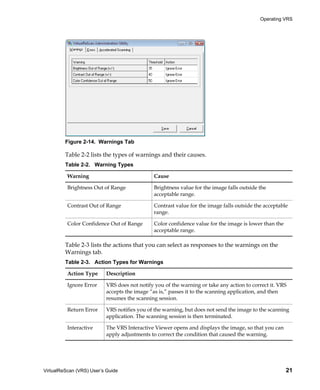
  • 130.
    Appendix A Note With earlier versions of VRS, the Kofax Source Manager (KSM) utility and the Restore Default Values (RDV) utility were used to configure scan sources and apply VRS default settings. If you still have KSM and attempt to use it in connection with VRS 4.2, you will be redirected automatically to the Scanner Configuration Utility. The RDV utility is automatically removed when you install VRS 4.2. Configuring a Scan Source - Quick Start Method There are a number of ways to create and configure sources with the Scanner Configuration Utility. For most VRS users, the procedure in this section will provide the easiest approach to configuring a scan source. If you need to configure a custom source for a scanner that is not certified or compatible with VRS, refer to Configuring a Scan Source - Custom Method on page 122. If you need additional information, please click Help from the utility. To configure a scan source 1 From the Start menu, navigate to the Kofax VRS program folder and select the Scanner Configuration Utility. The Scanner Configuration Utility dialog box will display (Figure A-1). Figure A-1. Scanner Configuration Utility Dialog Box 120 VirtualReScan (VRS) User’s Guide
  • 131.
    Scanner Configuration Utility 2 Expand the Scanners node to locate the name of your scanner manufacturer. 3 Expand the manufacturer node to locate and select the name of your scanner model (Figure A-2). Figure A-2. Scanner Manufacturer List Note The scanner manufacturer list consists of VRS-certified scanners, as well as any scanner for which a driver has been installed on your computer. 4 Click Set as Default, which accomplishes the following: Creates a set of standard sources (if they do not already exist) for the selected scanner Sets the selected scanner as the default scanner Sets the default source for the default scanner (the selection will be based on the license that is currently in effect) Sets default image processing properties that go into effect when the default scanner is in use with your VRS software 5 Notice that the entries for the “Current default scanner” and “Current default source” are updated at the bottom of the Scanner Configuration Utility dialog box. 6 Click Close to exit the utility. The newly created source(s) will be available from your scanning application. VirtualReScan (VRS) User’s Guide 121
  • 132.
    Appendix A Configuring aScan Source - Custom Method This section explains how to use the Configure Sources dialog box to configure a source for a scanner that is not certified or compatible with VRS. You may need to use this method if you are using a scanning application that requires a custom source with a specific naming convention. To configure a custom source for your scanner 1 Make sure that the necessary scanner driver is installed on your computer. 2 Start the Scanner Configuration Utility. 3 From the “Available Image Devices” list, expand the Scanners node and locate the name of the manufacturer associated with your scanner. Note The scanner manufacturer list consists of VRS-certified scanners, as well as any scanner for which a driver has been installed on your computer. 4 Select the name of your scanner model and click Configure Sources. The Configure Sources dialog box will display with the name of the scanner in the title bar (Figure A-3). Figure A-3. Configure Sources Dialog Box 5 From the Configure Sources dialog box, click New. The Create Source dialog box will display (Figure A-4). 122 VirtualReScan (VRS) User’s Guide
  • 133.
    Scanner Configuration Utility Figure A-4. Create Source Dialog Box 6 Source name: Enter the name that will be used to reference the scanner or source device from your scanning application. You can assign any name, if it fits within the naming conventions of your application. Typically, the source name corresponds to the name of the scanner or source device, along with a description of the source type. An example source name might be “Scanner A with ISIS,” where “Scanner A” corresponds to the make and model of the scanner. 7 Source type: Select a source type from the list. The items on the source type list correlate to the type of driver (ISIS, TWAIN, or Kofax) that supports your scanner, as well as the software (VRS, AIPE, etc.) that you will be using with the scanner. For example, if the selected scanner has an ISIS driver associated with it, you will only see the scan sources (including VRS sources) associated with ISIS scanning on the list. Select the type that is appropriate for your installation. For more information, refer to Standard VRS Source Types on page 131. 8 For information about the options in the “Image formatting” group, click Help from the dialog box. Usually, it is not necessary to use these settings unless you are instructed to do so by Kofax Technical Support. 9 Click OK to close the Create Source dialog box. 10 The Configure Sources dialog box will be displayed with the new source added to the “Configured sources” list as the default selection. The newly created source will now be available from your scanning application. VirtualReScan (VRS) User’s Guide 123
  • 134.
    Appendix A Figure A-5. Scanner Configuration Utility - New Source Added 11 Click Close to exit the Configure Sources dialog box. Note For more information about other options on this dialog box, refer to Configure Sources Dialog Box Options on page 129. Scanner Configuration Utility Dialog Box Tour This section gives you an overview of the user interface elements in the Scanner Configuration Utility dialog box. When starting the Scanner Configuration Utility, you are presented with the “Available image devices” list, which consists of scanners and file import devices. The Scanners list, in alphabetical order, consists of every VRS-certified scanner, along with every scanner for which drivers are installed on your computer. When using the Scanners list, you can use the graphical visual cues to identify key information related to individual scanner models. You can also use filtering options to restrict the number of items that display on the list. For details, refer to Visual Cues on page 125 or Filtering Options for the Scanners List on page 126. 124 VirtualReScan (VRS) User’s Guide
  • 135.
    Scanner Configuration Utility Figure A-6. Scanner Configuration Utility Visual Cues The Scanner Configuration Utility includes visual cues that indicate important information about the items on the “Available image devices” list. The following conventions apply to the icons that display on the list: VRS icon: denotes scanners that are VRS-certified Generic scanner icon: denotes scanners that are not VRS-certified (also called “compatible” scanners) Red X: denotes scanners for which drivers are not available on the computer Check mark: denotes the currently selected default scanner CD: denotes a file import device Also, as you position the cursor over a scanner name in the list, the tooltip indicates the driver type (ISIS, TWAIN, or Kofax SCSI) that supports the scanner. VirtualReScan (VRS) User’s Guide 125
  • 136.
    Appendix A The following table explains the significance of each icon that is used in the “Available image devices” list. Table A-1. Scanner Configuration Utility Icons Icon Description Scanner is VRS-certified. Scanner is VRS-certified, and it is currently selected as the default device. Scanner is VRS-certified, but the driver does not exist on the computer. Scanner is VRS-certified and currently selected as the default device, but the driver does not exist on the computer. Scanner is not VRS-certified. Scanner is not VRS-certified, and it is currently selected as the default device. Device is used for importing files from disk. Filtering Options for the Scanners List You may wish to use one of the following filtering options to restrict the list of scanners that display in the “Available image devices” listing. VRS-certified scanners: Select this check box to limit the list to scanners that are VRS-certified. All other scanners will be excluded from the list. When this check box is not selected, the scanner list includes VRS certified scanners, along with scanners for which drivers are installed on your computer. Scanners with configured sources: Select this check box to limit the list to scanners for which sources are configured. Scanners without configured sources will be excluded from the list. 126 VirtualReScan (VRS) User’s Guide
  • 137.
    Scanner Configuration Utility As another option, you can specify one of the following to indicate your preferences for viewing the list of scanners: All: Select this option if you prefer an unrestricted list that includes every scanner manufacturer. Manufacturer name: Select this option if you prefer to restrict the list to include scanners from a specific manufacturer. You select the manufacturer name. Note As you position the cursor over a scanner name in the list, a tooltip will display to indicate the driver type (ISIS, TWAIN, or Kofax SCSI) that supports the scanner. If desired, you can combine your selection for scanner manufacturer with the other filtering options to restrict the list to suit your preferences. For example, you could restrict the list to display only VRS-certified scanners with configured sources for a specific manufacturer. Scanner Configuration Utility Dialog Box Options This section explains the options that you can select from the Scanner Configuration Utility dialog box (Figure A-7). VirtualReScan (VRS) User’s Guide 127
  • 138.
    Appendix A Figure A-7. Scanner Configuration Utility Dialog Box Options Set as Default: Use this option to set the currently selected item in the “Available image devices” list as the default device. If the device is a certified or compatible VRS scanner, the appropriate sources are automatically created and configured (if they don’t exist already). If the selected item is a file import device, the default source “My Kofax File Import with AIPE” is created. Additionally, the default VRS settings are set and saved to the default profile for the selected scanner. Configure Sources: Use this option to open the Configure Sources dialog box, which is used to create, configure, or view the sources for the device that is currently selected in the “Available image devices” list. For more information, refer to Configuring a Scan Source - Custom Method on page 122. Restore VRS Defaults: Use this option to restore the VRS default settings for the selected scanner and set it as the default VRS source. Before selecting this option, sources must already exist for the specified device. For details, refer to Restoring VRS Default Settings on page 132. Refresh List: Use this option to update the list of devices. This option is useful if changes affecting the list (such as addition or deletion of drivers) have been made during the current session. Help: Use this option to access the online Help topic for the Scanner Configuration Utility dialog box. Close: Use this option to exit the Scanner Configuration Utility. 128 VirtualReScan (VRS) User’s Guide
  • 139.
    Scanner Configuration Utility Configure Sources Dialog Box Options In previous sections, the procedures were described for creating standard VRS sources, as well as custom sources. Regardless of the source type, you can use the Configure Sources dialog box (Figure A-8) to view the list of sources that have been configured for the device that is currently selected in the “Available image devices” list in the Scanner Configuration Utility dialog box. Figure A-8. Configure Sources Dialog Box Options If your sources were created by selecting the “Set as Default” option on the Scanner Configuration Utility dialog box, you may not need to use the Configure Sources dialog box unless you want to use one of the following options: Set Device Default Source: Use this option to specify the source in the “Configured sources” list as the default source for the currently selected device. Each device has its own default source, which may differ from the default source associated with the current default device. New: Use this option to open the Create Source dialog box, which is used to add a new source. For instructions, refer to Configuring a Scan Source - Custom Method on page 122. Delete: Use this option to remove the source that is currently selected in the “Configured sources” list. Properties: Use this option to display or update image formatting properties associated with options such as JPEG compression. Typically, it is not necessary to use these settings unless you are instructed to do so by Kofax Technical Support. Create Standard Sources: Use this option to create a set of standard VRS sources for the selected device. You can also create a set of standard VRS VirtualReScan (VRS) User’s Guide 129
  • 140.
    Appendix A sources by selecting the “Set as Default” option from the Scanner Configuration Utility dialog box. Help: Use this option to access the online Help topic for the Configure Sources dialog box. Close: Use this option to exit the Configure Sources dialog box. Restoring VRS Default Settings The VRS default settings have been carefully chosen to ensure that VRS excels with a wide range of documents and scanners without requiring adjustments. A unique set of VRS property settings is available for each VRS-certified scanner, and they go into effect when that scanner is in use. In the day-to-day use of VRS, the default settings may inadvertently be altered. From the Scanner Configuration Utility, you can use the Restore VRS Defaults function to restore the VRS original default settings for the selected device and also set it as the default scanner source. In earlier versions of VRS, the Restore Default Values (RDV) utility was used to reset VRS default values. The RDV utility has been discontinued and replaced with the “Restore Default Values” function in the Scanner Configuration Utility. If you have a copy of the RDV utility from an earlier release, the utility will automatically be removed when you install Kofax Capture 8.0 or VRS 4.2. To restore VRS default settings 1 From the Scanner Configuration Utility dialog box, use the “Available image devices” list to locate the scanner that you have configured for use with VRS. 2 Select your scanner from the list. 3 Click Restore VRS Defaults. Note The Restore VRS Defaults function is not available unless sources have been configured for the selected scanner. Notice that the “Current default scanner” and “Current default source” entries will be updated at the bottom of the Scanner Configuration Utility dialog box. 4 Click Close to exit the Scanner Configuration Utility. When you start VRS, you will notice that the panels in the VRS Adjustment Controls will be updated with the original default settings. 130 VirtualReScan (VRS) User’s Guide
  • 141.
    Scanner Configuration Utility StandardVRS Source Types This section lists the standard VRS source types and source naming conventions, which are based on the type of device (scanner or file import) that is used in your installation. The source types listed here are available for certified and compatible VRS scanners. The scanner source types depend on the drivers (ISIS, TWAIN, or Kofax) that are required to support a particular scanner. Other factors include support for AIPE (Adrenaline Image Processing Engine) and HVRS (Hardware VirtualReScan) in a high-volume production scanning environment. Table A-2. ISIS Source Types Source Type Source Naming Convention Software VRS - ISIS scanning with image <ScannerName> with SVRS with AIPE processing (AIPE) Software VRS - ISIS scanning <ScannerName> with SVRS ISIS scanning with image processing (AIPE) <ScannerName> without SVRS with AIPE ISIS scanning <ScannerName> without SVRS Table A-3. TWAIN Source Types Source Type Source Naming Convention Software VRS - TWAIN scanning with image <ScannerName> with SVRS with AIPE processing (AIPE) Software VRS - TWAIN scanning <ScannerName> with SVRS TWAIN scanning with image processing <ScannerName> without SVRS with AIPE (AIPE) TWAIN scanning <ScannerName> without SVRS VirtualReScan (VRS) User’s Guide 131
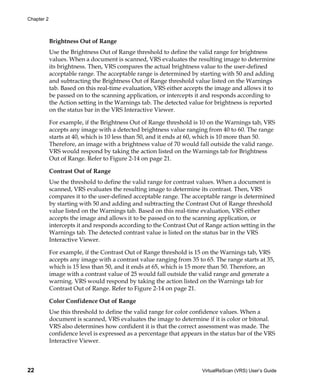
  • 142.
    Appendix A Table A-4. HVRS SCSI Source Types Source Type Source Naming Convention Hardware VRS - SCSI scanning with image <ScannerName> with SVRS with AIPE processing (AIPE) Hardware VRS - SCSI scanning <ScannerName> with SVRS Table A-5. HVRS TWAIN Source Types Source Type Source Naming Convention Hardware VRS - TWAIN scanning with image <ScannerName> with SVRS with AIPE processing (AIPE) Hardware VRS - TWAIN scanning <ScannerName> with SVRS Table A-6. File Import Source Types Source Type Source Naming Convention Kofax Software - Import from disk with image My Kofax File Import with AIPE processing Kofax Software - Import from disk without My Kofax File Import without AIPE image processing Restoring VRS Default Settings The VRS default settings have been carefully chosen to ensure that VRS excels with a wide range of documents without requiring adjustments. In the day-to-day use of VRS, the default settings may inadvertently be altered. From the Scanner Configuration Utility, you can use the Restore VRS Defaults function to restore the VRS default settings for the selected device and set it as the default VRS scan source. To restore VRS default settings 1 From the Scanner Configuration Utility dialog box, use the “Available image devices” list to locate the scanner that you have configured for use with VRS. 2 Select your scanner from the list. 132 VirtualReScan (VRS) User’s Guide
  • 143.
    Scanner Configuration Utility 3 Click Restore VRS Defaults. Note The Restore VRS Defaults function is not available unless sources have been configured for the selected scanner. Notice that the “Current default scanner” and “Current default source” entries will be updated at the bottom of the dialog box. When you start VRS, you will notice also that the panels in the VRS Adjustment Controls will be updated with the original default settings. 4 Click Close to exit the Scanner Configuration Utility. VirtualReScan (VRS) User’s Guide 133
  • 144.
    Appendix A 134 VirtualReScan (VRS) User’s Guide
  • 145.
    Appendix B Long Paper Support Introduction VRS supports long paper scanning for some production-class scanners. You can use the instructions in this appendix to configure VRS for long paper support. Activating Long Paper Support Using VRS, you can scan duplex long documents in black and white mode at 300 DPI and below. With long paper support activated, images may not be rotated. To scan long paper in VRS 1 Start your scanning application (VCDemo is used in this example) and select Source | Properties. 2 From the Scanner Properties dialog box, select Continuous Sheet. Figure B-1. Scanner Properties Dialog Box 3 Click OK. You may now scan long documents. VirtualReScan (VRS) User’s Guide 135
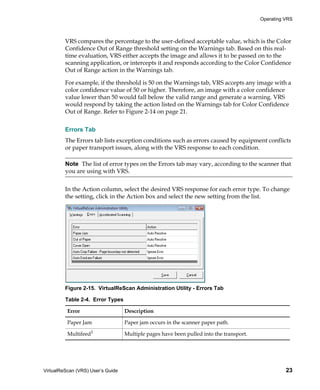
  • 146.
    Appendix B 136 VirtualReScan (VRS) User’s Guide
  • 147.
    Appendix C Enhanced Bar Code Engine Introduction Access to the Kofax Standard bar code recognition engine is provided through your scanning application. Access to the Enhanced Bar Code features is available if you have activated a VRS Professional Workgroup or VRS Professional Production license, or if you have installed an Adrenaline 650i adapter. Note The Enhanced Bar Code engine may also be licensed through the Kofax Capture licensing scheme. For more information, refer to the Kofax Capture documentation. This appendix gives information on the bar code types supported, the differences between the Standard Bar Code engine and the Enhanced Bar Code engine, and instructions on how to switch between the two. Refer to Using the Bar Code Properties Dialog Box on page 140 for more information. Standard vs. Enhanced Bar Code With the Adrenaline Image Processing Engine, the ability to capture and read bar codes has been expanded through the application of color technology. Because color images provide more information to assist in bar code interpretation, the enhanced bar code reader is able to achieve more accurate readings of all supported bar code types at low dpi levels and varying levels of quality. The enhanced bar code also has the ability to work with grayscale images in addition to having improved bitonal recognition capability. Another significant advancement is the support of two- dimensional (2D) bar codes. If you are not familiar with this dialog box, refer to Using the Bar Code Properties Dialog Box on page 140. VirtualReScan (VRS) User’s Guide 137
  • 148.
    Appendix C Figure C-1. Bar Code Properties Dialog Box With the Enhanced Bar Code engine, you will be able to scan all the standard bar code types with improved recognition, in addition to the 2D bar codes. The Enhanced Bar Code engine supports the following bar codes: Aztec Codabar Code 128 Code 39 (3 of 9) Code 93 DataMatrix EAN Interleaved 2 of 5 Maxi Code PDF 417 Postnet QR UPC-A UPC-E 138 VirtualReScan (VRS) User’s Guide
  • 149.
    Enhanced Bar CodeEngine Standard bar codes include the following: Codabar Code 128 Code 39 (3 of 9) Code 93 EAN Interleaved 2 of 5 Linear 2 of 5 Postnet UPC-A UPC-E How to Switch Between Bar Code Engines While the Kofax Enhanced Bar Code recognition engine offers many advantages over the standard bar code recognition engines, in some cases the processing speed may vary. For those who wish to focus on processing speed rather than quality of recognition, the Standard Bar Code algorithm may be preferable. Both algorithms are available for selection at any time without restarting the scanning application. To switch the active bar code engine 1 From the Bar Code Properties dialog box, select the Bar Code Algorithm group. 2 Select one of the following: Standard Bar Codes Enhanced Bar Codes The corresponding bar code types will immediately become available. 3 Select the desired bar code type and click Add to move it from the Available list to the In Use list. Hold down the Control key to select multiple bar codes at once. 4 Click OK. Note The 2D bar codes are not supported when you switch to the Standard Bar Codes algorithm. VirtualReScan (VRS) User’s Guide 139
  • 150.
    Appendix C Accessing the Bar Code Properties Dialog Box How you access the Bar Code Properties dialog box varies according to your scanning application. From the VCDemo demonstration application, you can select the Bar Code Properties dialog box from the Imaging menu to enable your scanning application to automatically recognize certain bar codes during scanning. Note VCDemo is available from the Kofax VRS program folder. From the Bar Code Properties dialog box, you can customize how bar codes are handled. When a potential bar code is found, your application examines the bar code and determines if it meets the requirements you have selected. If so, it is decoded and bar code data is returned to your scanning application. This bar code data can then be used, for example, in indexing and workflow operations, or for tracking inventory. Using the Bar Code Properties Dialog Box This section describes the options on the Bar Code Properties dialog box. Recognition Group The Recognition group of the Bar Code Properties dialog box gives you the ability to enable bar code recognition, to select scanner-specific bar code recognition (if available), and to implement the bar code “Learn” feature. Enable Select the Enable check box to enable bar code recognition. Clear the check box to disable bar code recognition. Use Scanner The Use Scanner option is reserved for scanners that have bar code recognition ability. Learn The bar code Learn feature automatically ascertains the most appropriate values associated with bar codes on an image. It uses the selected bar code type(s) and search 140 VirtualReScan (VRS) User’s Guide
  • 151.
    Enhanced Bar CodeEngine direction(s) to detect bar codes on the current image, and updates the following values: Height Width Ratio Quality For best results, bar codes should be “learned” using the same scanner and scanner settings that will be used to process images. In addition, you must know the type of bar codes you are using for the Learn feature to work properly. Note The Learn feature does not work with Postnet bar codes. In addition, the Learn mode operates on one bar code at a time. You cannot “learn” multiple bar codes or mixed bar code types with a single Learn operation. Interpret Bar Code Group Using the Interpret Bar Code option, you may translate bar codes as patch code. Choose a patch code from the list, or select No Patch Code to disable this feature. Patch I Patch II Patch III Patch IV Patch T Patch VI Bar Size Group Under Bar Size, you can type or select the Height and Width of the bar size. Height The height of a bar code is the distance between the top of the bars and the bottom of the bars. The minimum height is .015 inch and the maximum is 1.25 inches. You can type or select the bar code height from the list. Width The bar width, the physical thickness of the narrowest element in a bar code, ranges from 0.010 to 0.050 inches. Type or select the width from the list. VirtualReScan (VRS) User’s Guide 141
  • 152.
    Appendix C Any Width When the bar width is unknown, select this check box to allow the application to automatically determine the bar width as it searches for potential bar codes. 2 to 1 Ratio Some bar code types support an optional ratio between the narrowest element and the larger elements in the code. In a 2 to 1 ratio, the width of the largest elements is two times larger than the narrowest element. For example, if the width of the narrowest element is .20 inches, the width of the largest elements will be .40 inches. Note The ratio setting only has meaning for Codabar, Code 39, Code 93, Interleaved 2 of 5, and Linear 2 of 5. Search Direction Group The application searches for bar codes in a linear fashion, examining the search area for potential bar codes. With vertical bar codes, for example, it works across the image starting on the top edge and searches top to bottom. Bar codes can be oriented on an image in four general directions. You can select the 0, 90, 180, or 270 check box for the direction you would like to search. Table C-1. Search Direction Options Orientation Direction on the Image 0 Rotated 0 degrees, reads in all directions 90 Vertical, rotated 90 degrees, reads top to bottom 180 Horizontal, rotated 180 degrees to the right, reads right to left 270 Vertical, rotated 270 degrees to the right, reads bottom to top Quality Group The bar code Quality refers to the condition of bar code elements on an image. For example, sometimes the bar code elements are well defined; the black bars are clearly delineated, and very little noise exists on the image. In some cases, the black bars are too light, or noise exists in the bar code’s quiet zone. Because these factors can affect 142 VirtualReScan (VRS) User’s Guide
  • 153.
    Enhanced Bar CodeEngine the application’s ability to accurately read the bar code, you can specify the quality of the bar codes being read. Good—Well delineated, have smooth edges, and are noise-free. Normal—Generally well delineated, but may have some noise and rough edges. Poor—Have jagged edges or other characteristics that might make them hard to read. Note For optimal results, the default setting of “Good” should be selected. Checksum Group Note Checksum verification only has meaning for Code 39, Interleaved 2 of 5, and Linear 2 of 5 bar code types. It is ignored for all other bar code types. Usually the last character in the bar code, the checksum character helps to ensure that the bar code is valid. Selecting the Enable check box in the Checksum group allows the application to perform checksum verification. VirtualReScan (VRS) User’s Guide 143
  • 154.
    Appendix C 144 VirtualReScan (VRS) User’s Guide
  • 155.
    Appendix D Patch Code Recognition Introduction Patch codes can be used to separate documents, stop the scanner, or change the scanner mode. The patch code itself is a pattern of horizontal black bars resembling a bar code the size of a full page. VRS supports patch code recognition in ImageControls applications with a VRS Workgroup license or a VRS Production license. In addition, any configuration that includes an Adrenaline 650i scanner controller will support patch code recognition in ImageControls applications. The Patch Code Properties dialog box (Figure D-1) can be used to enable, disable, or specify the location of a patch code. In VCDemo, the Patch Code dialog box is accessed via the Imaging menu. Other patch code options are set from the Units option on the File menu in VCDemo. Note When using VRS with a certified scanner, the options will be grayed in the “Stop On Patch Code” group (Figure D-1). Figure D-1. Patch Code Properties (Advanced) Dialog Box VirtualReScan (VRS) User’s Guide 145
  • 156.
    Appendix D Using thePatch Code Properties Dialog Box Use the following options to enable patch code detection. Enable Select the Enable check box to take advantage of the patch code detection feature. Left Offset to Center of Patch Code The Left Offset to Center of Patch Code is a value you select from the left edge of the page to define a point near the center of the patch code. The offset value allows the patch code detection feature to quickly locate the patch code on the page. This offset can be any value in inches between 0 and the maximum page width. A value of 0 specifies searching anywhere in the horizontal direction for a patch code. All patch codes are made up of narrow and wide bars as follows: The narrow bars must be 0.08 inch in height. The wide bars must be 0.20 inch in height. The entire patch code must be 0.80 inch in height. The entire patch code should be at least 2.0 inches in width. To be detected, patch codes must be positioned correctly on the page: The patch code must be horizontal. It must be located at least 0.20 inches from the leading edge of the image. It must not extend beyond 3.75 inches from the leading edge of the image. In compliance with the patch code specification for duplex scanning operations, patch codes are only detected on the front side of a page. Patch codes on the back side of a page are ignored. Note As an alternative to using patch codes, you can specify that a bar code be interpreted as a patch code, as well as a bar code. This might be useful, for example, if there is always a bar code on the first page of each document. The Bar Code Properties dialog box is used to configure bar codes for use as patch codes. For more information, refer to Using the Bar Code Properties Dialog Box on page 140. 146 VirtualReScan (VRS) User’s Guide
  • 157.
    Appendix E Advanced Properties Introduction This appendix gives you information about the Advanced Properties dialog box, which can be accessed by selecting the Scanner Driver Settings option from the Tools menu while the VRS Interactive Viewer is in Preview mode. Note The availability of the Advanced Properties dialog box is dependent on the scanner that you have configured to work with VRS. Figure E-1. Advanced Properties Dialog Box When an image is processed, some settings from the VRS Adjustment Controls take precedence over the settings on the Advanced Properties dialog box. Image processing tasks will occur in this order: 1 Deskew settings from the Skew panel (if enabled)
  • 158.
    Appendix E 2 Auto Crop settings from the Skew panel (if enabled) 3 Settings from the Advanced Properties Picking Rectangle panel 4 Settings from the Advanced Properties Rotation panel Endorser Panel VRS supports basic endorsing and annotation. For VRS production-class scanners that are equipped with endorsers, you can set up endorsing properties using the Endorser panel on the Advanced Properties dialog box. Through the Endorser panel, you will be able to build a text string from a text prefix and numeric counter value, and then use the string to endorse and/or annotate pages and images. Once added to the page or image, however, endorser and annotation strings are permanent. The Endorser panel consists of two groups: the Options group and the Annotation Options group. In the Options group, you can select from the following options: Endorsing Off, Annotation Off (default setting) Endorsing On, Annotation Off (mechanical endorsing only) Endorsing On, Annotation On (mechanical endorsing with electronic annotation) When No Endorser and No Annotation are selected, no string is created on either the scanned page or on the resulting image. Selecting Enable Mechanical Endorser Only means that the endorsing string is physically printed on the scanned page, but is not placed on the image. By selecting Enable Mechanical Endorser and Electronic Annotation, you are choosing to have the endorsing string appear both on the document being scanned as well as on the resulting image. When the Enable Mechanical Endorser and Electronic Annotation option is selected, the options in the Annotation Options group become available. Annotation can be performed on the document front, document back, and on both sides of a document, but the default setting is to annotate the front side only. Also available on the Advanced Properties dialog box is a Text Definition option, which you can use to set and/or modify the contents of the endorser string. The Text Definition button is disabled unless endorsing and/or annotation is selected. 148 VirtualReScan (VRS) User’s Guide
  • 159.
    Advanced Properties Text Definition Dialog Box When the options for either Enable Mechanical Endorser Only or Enable Mechanical Endorser and Electronic Annotation are enabled, selecting the Text Definition button from the Advanced Properties dialog box launches the Text Definition dialog box. Use this dialog box to customize the endorser and/or annotation string. You can use the Text Definition dialog box to specify endorsing string settings, such as: Prefix (selection of text and date format) Location of the string relative to the top and left of the page Number of digits in the page counter Start number for the page counter Step Value (increment or decrement values) for the page counter Figure E-2. Text Definition Dialog Box Prefix The Prefix is an optional sequence of characters that you can set to precede the rest of your imprinting string. Typically, the prefix consists of a text string and a date. If no prefix is manually entered into the Prefix box, an empty string will be returned. When creating a text string, you need to limit it to the characters in Table E-1. Table E-1. Acceptable Prefix Text String Characters space 0-9 % - _/#.][()=+< > & A-Z a-z VirtualReScan (VRS) User’s Guide 149
  • 160.
    Appendix E You can manually enter the text string or date to be used during annotation, or you can select from the Prefix drop-down list to insert pre-formatted date information into the prefix string. The date format choices are shown in Table E-2. Table E-2. Date Formats Date Format Example Date Format Example YYYY-MM-DD 2008-07-07 MM.DD.YYYY 07.07.2008 DD-MMM-YY 07-JUL-08 MMM. DD, YY JUL.07, 08 DD MMM YYYY 07 JUL 2008 YYYY 2008 MMM/DD/YYYY JUL/07/2008 YY 08 MMM/DD/YY JUL/07/08 MMM JUL MM/DD/YYYY 07/07/2008 MM 07 MM/DD/YY 07/07/08 DD 07 MMM DD, YYYY JUL 07, 2008 YYDDD (ordinal) 08188 Once set, the contents of the prefix are identical for every endorsing and annotation occurrence for a batch. The counter, if enabled, will always be printed following the prefix (base) string. Prefixes are, however, restricted to the number of characters listed in Table E-3. The number of allowable characters varies by scanner. Exceeding the maximum string length will result in the string being truncated to the maximum length, along with an audible alert. Table E-3. Maximum Number of Printable Characters in the Prefix Page Counter Fujitsu fi-4990C Fujitsu fi-4860C Böwe Bell + Howell Spectrum series No counter 30 characters 40 characters 22 characters Five (5) digit 25 characters (not 35 characters (not incl. NA counter incl. counter) counter) Eight (8) digit 25 characters (not 35 characters (not incl. NA counter incl. counter) counter) One to ten (1-10) NA NA 22 characters digit counter 150 VirtualReScan (VRS) User’s Guide
  • 161.
    Advanced Properties Note Because the endorser/annotation string is made up of a text prefix and a counter, consider their combined length when setting the string length. Directly below the Prefix box are the Top and Left text boxes, which you can use to specify the vertical and horizontal position of the annotation text string. You can use the options in the Units group to specify text positioning values in inches, millimeters, or pixels (DPI dependent). The default unit of measurement is inches. In the Top text box, you may specify the distance of the endorsing and annotation string from the top of each page. The default and minimum value is zero, but the maximum value is dependent on the paper size. Whole numbers are required when entering pixels and millimeters, but when values are specified in inches, they can be entered in .01-inch increments. In the Left box, the distance of an annotation string from the left edge of a page can be specified. The default and minimum value is zero, but the endorsing string is never printed less than 20 mm from the top of the page. The maximum is dependent on paper size. Whole numbers are required when entering pixels and millimeters. When values are in inches, however, they can be entered in .01-inch increments. The Left edit box is disabled (grayed out) unless annotation is selected. Note Not all scanners allow you to select a top and/or left position for your endorser string. Refer to your scanner documentation for more information. On the right side of the Text Definition dialog box is the Page Counter group, which is used to enable the page counter, specify a starting number for your automatic endorser/annotation counter, set the number of digits to use, and determine the amount by which the counter will be incremented. Enable Select the Enable check box to activate the Page Counter feature. When the Enable check box is clear, all other elements in the Page Counter group are disabled. Digits The page counter length can be specified via a drop-down list (which is available only when the Enable check box is selected). The available values depend on the scanner as well as on the installed endorsing hardware. Table E-4 lists the maximum number of digits per scanner and the resulting counter value. The list contains only the available VirtualReScan (VRS) User’s Guide 151
  • 162.
    Appendix E values for page counter length. Select None if you do not wish to increment the counter. Table E-4. Maximum Page Count per Scanner Endorser and/or Page Fujitsu fi-4990C Fujitsu fi-4860C Böwe Bell + Counter Howell Spectrum 16-bit endorser: 5 65,535 65,535 NA digits (drop-down list is disabled.) 24-bit endorser: 5 or 8 99,999 and 16,777,215 99,999 and 16,777,215 NA digits respectively respectively 1 to 10 digits; 5 digits NA NA The n-digit page is the default counter will roll over at ( 10**n) – 1. Start At The starting page counter value is set to 1 initially, but it may be reset using the Start At text box. When you start a new batch, the Page Counter Starting Value is the next number in the sequence based on the final page counter value from the previous batch. Again, you are free to enter a new value into the Start At text box instead. Step Value Select from the Step Value drop-down list to determine how the automatic endorser/ annotation counter is incremented on every page. The counter should be set based on the documents being scanned, how the batches are organized, and specific user needs. The following Step Values are available from the drop-down list. Increment by one (default) Increment by two Decrement by one Decrement by two Note Decrementing is not available with all scanners. Other Elements on This Dialog Box The text displayed under Sample String shows how the current imprinting text will look with any optional date stamp or counter expanded. The current date is used. 152 VirtualReScan (VRS) User’s Guide
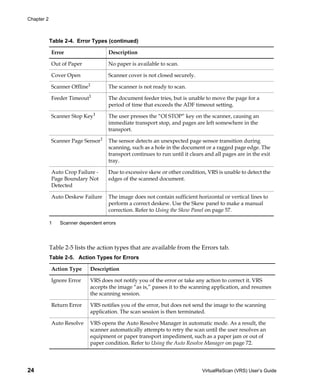
  • 163.
    Advanced Properties Color Panel VRS supports optional color features for some scanners through the Color panel on the Advanced Properties dialog box. You can use the Color panel to set up color- related features such as Color Dropout and JPEG Compression. The Color panel consists of three groups: Front Side Dropout Color, Back Side Dropout Color, and JPEG Compression. Figure E-3. Advanced Properties Dialog Box – Color Panel In some cases, you may want to remove all instances of one color, such as the background color, on a document in order to make the necessary data more accessible to OCR engines, etc. One method to effectively “erase” this unwanted color during scanning is to use color dropout. If you select a color to “drop out,” your scanner will ignore that color, but capture everything else. The Front Side Dropout Color and Back Side Dropout Color groups provide the following dropout color choices: None, Red, Green, or Blue. The default is None. If a scanner supports duplex, you can select different dropout colors for the front and for the back side. Note The back side options for color dropout are disabled for some scanners that support single-sided scanning only. JPEG (Joint Photographic Expert Group) is a standardized image format designed to compress color and grayscale images. In the JPEG Compression group of the Color panel, you can activate JPEG compression via the Enabled check box. When the VirtualReScan (VRS) User’s Guide 153
  • 164.
    Appendix E Enabled check box is selected, you may then select an image quality level of Good (65), Better (80), Best (95), or Custom. When the Custom image quality level option is selected, both a YUV value and a Custom JPEG Compression Value may be set. The Custom value has a range of 1 to 100, with a default of 65. As a very general example, setting the JPEG Compression Value at 100 would probably compress the image so lightly that it would be near its original size; a JPEG Compression Value of 10, however, could result in major data loss. You may type a custom quality JPEG Compression Value into the text box provided, or use the up and down arrows to select a value. Because results from the Custom JPEG Compression value cannot be predicted with certainty, use this setting with caution. The key is to achieve an agreeable balance between better performance (through optimum compression) and quality of the images. Avoid compression that speeds up scanning yet loses necessary data. YUV, a color-encoding scheme involving luminance (frame and field brightness or “Y”) and chrominance (color information or “UV”), may be selected if desired from the drop-down list. The choices for YUV may vary by scanner. When the JPEG Compression Enabled check box is clear, the Quality, YUV, and quality Value choices are disabled. 154 VirtualReScan (VRS) User’s Guide
  • 165.
    Advanced Properties Picking RectanglePanel You can use the Picking Rectangle panel to select a portion of an image to be scanned or processed, effectively cropping out unwanted data. This feature is only available for certain scanners. The Picking Rectangle panel consists of two groups of settings: Front Side and Back Side. If a scanner supports duplex scanning, you may select picking rectangle settings for the front or the back side, or both. For simplex scanners, only the Front Side settings will be available: the Back Side options will be dimmed. Figure E-4. Advanced Properties Dialog Box – Picking Rectangle Panel You can use the Picking Rectangle panel to enable and set the following: Unit of measurement to be used via the English or Pixels options. Placement of the picking rectangle on the document—more specifically, the distance from the top and left (offset) of the document edge using the up and down arrows or by entering the distance into the Top and Left text boxes. Width and Height of the picking rectangle using the up and down arrows or by entering the picking rectangle dimensions into the appropriate text boxes. VirtualReScan (VRS) User’s Guide 155
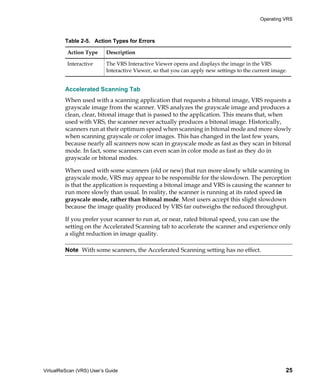
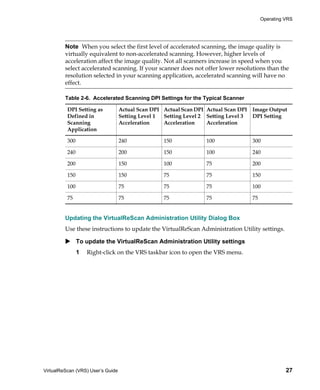
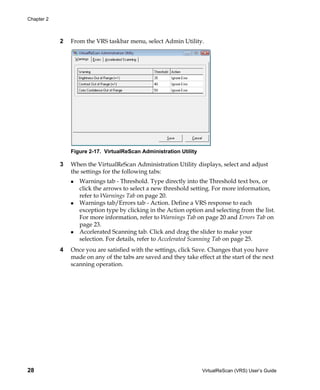
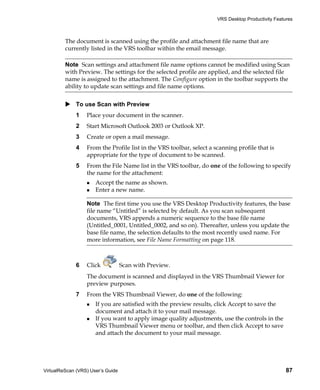
  • 166.
    Appendix E Rotation Panel The Rotation panel consists of options for front side and back side rotation. When a scanner supports duplex scanning, the front side and/or the back side of a scanned image can be rotated by 90, 180, or 270 degrees. Selecting 0 means no rotation. On simplex scanners, only front side rotation is enabled. Figure E-5. Advanced Properties Dialog Box – Rotation panel When an image is displayed in the VRS Interactive Viewer, the image displays at the rotation angle plus the angle set on the Skew panel. Furthermore, any rotation in ImageControls-based applications is independent of (and performed after) the rotation set from the Rotation panel. Rotation panel settings apply after deskew, crop, and settings from the Picking Rectangle panel. In other words, image-processing tasks will occur in this order: VRS deskew (if enabled) VRS crop (if enabled) Settings from Picking Rectangle panel on the Advanced Properties dialog box Settings from Rotation panel on the Advanced Properties dialog box Note The rotation options on this panel may conflict with the VRS content-based rotation feature, which is enabled by selecting the Auto Orientation check box from the VRS Skew panel. For best results, do not select the Rotation panel options and the Auto Orientation option at the same time. 156 VirtualReScan (VRS) User’s Guide
  • 167.
    Advanced Properties About Panel The Advanced Properties About panel provides information that is useful for technical support purposes. In addition to listing the scanner firmware version and the Enhanced Grayscale Adapter (EGSA) firmware version, the About panel also indicates if a scanner endorser is installed and if the endorser is a 16-bit or 24-bit endorser (if applicable). Figure E-6. Advanced Properties Dialog Box – About Panel VirtualReScan (VRS) User’s Guide 157
  • 168.
    Appendix E 158 VirtualReScan (VRS) User’s Guide
  • 169.
    Index A B About VRS dialog box, 45 Background color detection, 61 Accelerated Scanning tab, 18, 25 Background color sensitivity, 65 Action types, 21, 24 Background panel Auto Resolve, 24 background color, 63 Ignore Error, 21, 24 background color sensitivity, 63 Interactive, 21, 25 smoothing, 63 Return Error, 21, 24 snap to white, 63 Activate VRS, 73 Background smoothing, 64 Activating Desktop Productivity features, 75, 78 Bar code algorithm, 139 Activating VRS Professional license, 73 Bar code engine, enhanced, 137 Add-in Manager, 75, 78 Bar code engines, 139 Admin Utility, 18 Bar code properties Advanced Clarity, 52 bar size, 141 Advanced features, 44, 46, 71 codabar, 142 Advanced Properties dialog box, 147 Interpret Bar Code, 141 About panel, 157 search attributes, 142 Color panel, 153 Bar Code Properties dialog box, 138, 140 Endorser panel, 148 Bar code recognition, 140 Picking Rectangle panel, 155 Checksum, 143 Rotation panel, 156 Code 39, 142 Analysis information, 37 Code 93, 142 Annotation, 148 Interleaved 2 of 5, 142 Annotation string Learn, 140 customizing, 149 Linear 2 of 5, 142 Ascent Capture Quality, 142 See Kofax Capture Search direction, 142 Auto Brightness, 50 Bar codes Auto Crop, 57 Enhanced Bar Code engine, 138 Auto Crop Failure error, 24 search direction, 142 Auto Deskew Failure error, 24 standard bar code engine, 139 Auto Orientation, 59 standard vs. enhanced, 137 Auto Resolve action, 24 Blank Page panel Auto Resolve Manager, 72 blank page deletion, 65 Automatic color detection, 61 blank page detection, 65 Automatic image enhancement, 1 content sensitivity, 65 VirtualReScan (VRS) User’s Guide 159
  • 170.
    Index IgnoreHoles, 65 Cover Open error, 24 Brightness, 50 Cropping unwanted data, 155 Brightness Out of Range warning, 21 Brightness-Contrast custom control, 51 D Buy Now, 74 Deactivate VRS, 74 Deactivating Desktop Productivity features, 75, 78 C Default profile, 31, 48 Certified scanners, 4 Default scanners, 75 Check for Updates, 74 Default settings, 1 Checksum, 143 Admin Utility, 19 Clarity panel Deskew, 57 Advanced Clarity, 49 Desktop Productivity add-ins, 78 Auto Brightness, 50 Desktop Productivity features, 77 brightness, 49 Desktop Productivity profiles, 106 contrast, 49 changing, 110 edge detection, 50 creating, 107 gamma, 49 removing, 111 Clarity, advanced, 52 updating, 109 Codabar, 139 Documentation, ix Code 128, 139 Downloading product updates, 74 Code 39 (3 of 9), 139 Dropout color, 153 Code 93, 139 Color area sensitivity, 62 E Color Confidence Out of Range warning, 21 Color detection, automatic, 61 EAN, 139 Color dropout, 153 Edge cleanup, 57 Color panel Edge detection, 50 Advanced Properties dialog box, 153 EGSA firmware version, 157 background color detection, 61 Endorser string color sensitivity, 61 customizing, 149 output format, 61 Endorsing, 148 small color areas, 61 Enhanced bar code engine, 137 Color sensitivity, 62 Error types, 23, 150 Compatible scanners, 4, 119 auto crop failure, 24 Configure auto deskew failure, 24 Lotus Notes, 93 cover open, 24 Microsoft Outlook 2003 or Outlook XP, 88 feeder timeout, 24 Microsoft Outlook 2007, 82 multifeed, 23 Windows Desktop, 98 out of paper, 24 Windows Explorer, 103 paper jam, 23 Configuring scanners, 75 scanner offline, 24 Configuring VRS, 18 scanner page sensor, 24 Content sensitivity, 68 scanner stop key, 24 Continuous Sheet setting, 135 Errors tab, 18, 23 Contrast, 50 Contrast Out of Range warning, 21 160 VirtualReScan (VRS) User’s Guide
  • 171.
    Index F L Fast Scan Learn option, 140 Lotus Notes, 91 License activation, 73 Microsoft Outlook 2003 or Outlook XP, 86 License deactivation, 74 Microsoft Outlook 2007, 80 License information, 45 Windows Desktop, 97 License registration, 74 Windows Explorer, 101 License upgrade, 74 Feeder Timeout error, 24 Line filter, 56 File import source types, 131 Linear 2 of 5, 139 File names Long paper support, 135 Desktop Productivity, 118 Lotus Notes File types Configure, 93 Desktop Productivity, 118 Fast Scan, 91 Fill holes, 56 overview, 91 Firmware versions, 157 Scan Using Profile, 96 Scan with Preview, 92 H M Hardware Warnings option, 29, 30 Help, online, ix, 45 Manual image enhancement, 1, 50 Hole filling, 56 Microsoft Outlook 2003 or Outlook XP Configure, 88 I Fast Scan, 86 overview, 84 Ignore Error action, 21, 24 Scan with Preview, 86 Ignore Holes, 68 Scan with Profile, 88 Image analysis information, 37 Microsoft Outlook 2007 Image status information, 37 Configure, 82 Installation guide, ix Fast Scan, 79 Interactive action, 21, 25 Scan with Preview, 81 Interfaces Multifeed error, 23 ISIS, 13 scan, 10 N TWAIN, 15 Interleaved 2 of 5, 139 Naming profiles, 32, 108 Interpret Bar Code option, 141 Noise panel, 55 ISIS, 15 hole filling, 56 interface, 13 line filter, 56 speckle removal, 56 K Non-certified scanners, 4 Kofax Capture (formerly Ascent Capture), 4, 29 Kofax contact information, 45 O Kofax Demo stamp, 69 Online Help, ix, 45 Kofax Scanner Configuration Utility, 119 Operating mode, 29 Kofax VRS program folder, 73 Operating VRS, 7 Kofax VRS scan interfaces, 10 Organize Profiles dialog box, 33 VirtualReScan (VRS) User’s Guide 161
  • 172.
    Index Out of Papererror, 24 S Output format automatic color detection, 63 Scan interfaces, 10 Scan profile settings, 106 Scan profiles for Desktop Productivity, 106 P Scan Using Profile Page count, 152 Lotus Notes, 96 Page counter, 149 Windows Desktop, 100 Paper Jam error, 23 Windows Explorer, 105 Patch code Scan with Preview left offset to center, 146 Lotus Notes, 92 Patch Code Properties dialog box, 145 Microsoft Outlook 2003 or Outlook XP, 86 Patch code recognition, 141 Microsoft Outlook 2007, 81 Picking rectangle, 155 Windows Desktop, 97 Postnet, 139 Windows Explorer, 102 Previewing images, 36 Scan with Profile Product updates, 74 Microsoft Outlook 2003 or Outlook XP, 88 Professional features demo, 42, 45, 69 Scanner Configuration Utility, 75, 119 Profile menu, 44 Scanner Driver Settings tool, 46 Profile settings, Desktop Productivity, 106 Scanner Offline error, 24 Profiles, 31, 44 Scanner Page Sensor error, 24 changing active, 34, 110 Scanner Properties dialog box, 135 creating, 32 Scanner Stop Key error, 24 creating for Desktop Productivity, 107 Scanners Desktop Productivity, 106 certified, 4 naming, 32 compatible, 4 naming conventions, 32, 108 driver version, 157 removing, 35, 111 non-certified, 4 updating, 35 Scanning from Lotus Notes, 91 updating for Desktop Productivity, 109 Scanning from Microsoft Outlook 2003 or Outlook XP, 84 Q Scanning from Microsoft Outlook 2007, 79 Scanning from Windows Desktop, 96 QC Later, 4, 29 Scanning from Windows Explorer, 101 QC modes, 29 Skew panel Quick Start Guide, 75 auto crop, 57 auto orientation, 57 R deskew, 57 edge cleanup, 57 Register VRS, 74 fine angle adjustments, 57 Registering VRS Basic license Small color area detection, 62 Register VRS, 74 Snap to White setting, 65 Release notes, ix Source type list, 131 Return Error action, 21, 24 Speckle removal filters, 56 Rotation, 156 Standard vs. enhanced bar codes, 137 Status information, 37 Support options, x 162 VirtualReScan (VRS) User’s Guide
  • 173.
    Index T Endorser panel, 148 Picking Rectangle panel, 155 Technical support, x Rotation panel, 156 Text Definition dialog box, 149 VRS Desktop Productivity Add-in Thumbnail Viewer, 112 Manager, 75, 78 menu bar, 113 VRS Desktop Productivity profile settings, 106 toolbar, 115 VRS Desktop Productivity profiles, 106 Tools menu changing, 110 Enable Professional Features Demo, 44 creating, 107 Scanner Driver Settings, 44 removing, 111 TWAIN updating, 109 interface, 15 VRS Interactive Viewer, 21, 25 TWAIN source types, 131 VRS ISIS interface, 13 VRS Professional features U Kofax Demo stamp, 69 VRS Professional Scan, 116 UPC-A, 139 VRS Quick Start Guide, 75 UPC-E, 139 VRS Scan menu Upgrade Now, 74 Microsoft Outlook 2003 or XP, 85 User’s guide, 45 VRS Scan tab Microsoft Outlook 2007, 79 V VRS Thumbnail Viewer, 112 VCDemo, 75 menu bar, 113 Version information, 45 toolbar, 115 VRS VRS TWAIN interface, 15 automatic image enhancement, 1 VRS workflow diagram, 2 configuration, 18 default settings, 1 W documentation set, ix Warning types, 21 manual image enhancement, 1 Brightness Out of Range, 21 operating, 7 Color Confidence Out of Range, 21 Professional features, 42, 45 Contrast Out of Range, 21 VRS Adjustment Controls Warnings tab, 18, 20 Background panel, 63 Windows Desktop Blank Page panel, 65 Configure, 98 Clarity panel, 49 Fast Scan, 97 Color panel, 61 overview, 96 Noise panel, 55 Scan Using Profile, 100 Skew panel, 57 Scan with Preview, 97 VRS Administration Utility Windows Explorer Accelerated Scanning tab, 18, 25 Configure, 103 Errors tab, 18, 23 Fast Scan, 101 Warnings tab, 18, 20 overview, 101 VRS Advanced Properties dialog box Scan Using Profile, 105 About panel, 157 Scan with Preview, 102 Color panel, 153 VirtualReScan (VRS) User’s Guide 163
  • 174.
    Index Z Zoom menu, 43 Zoomtool, 46 164 VirtualReScan (VRS) User’s Guide