Writing a Blog Post
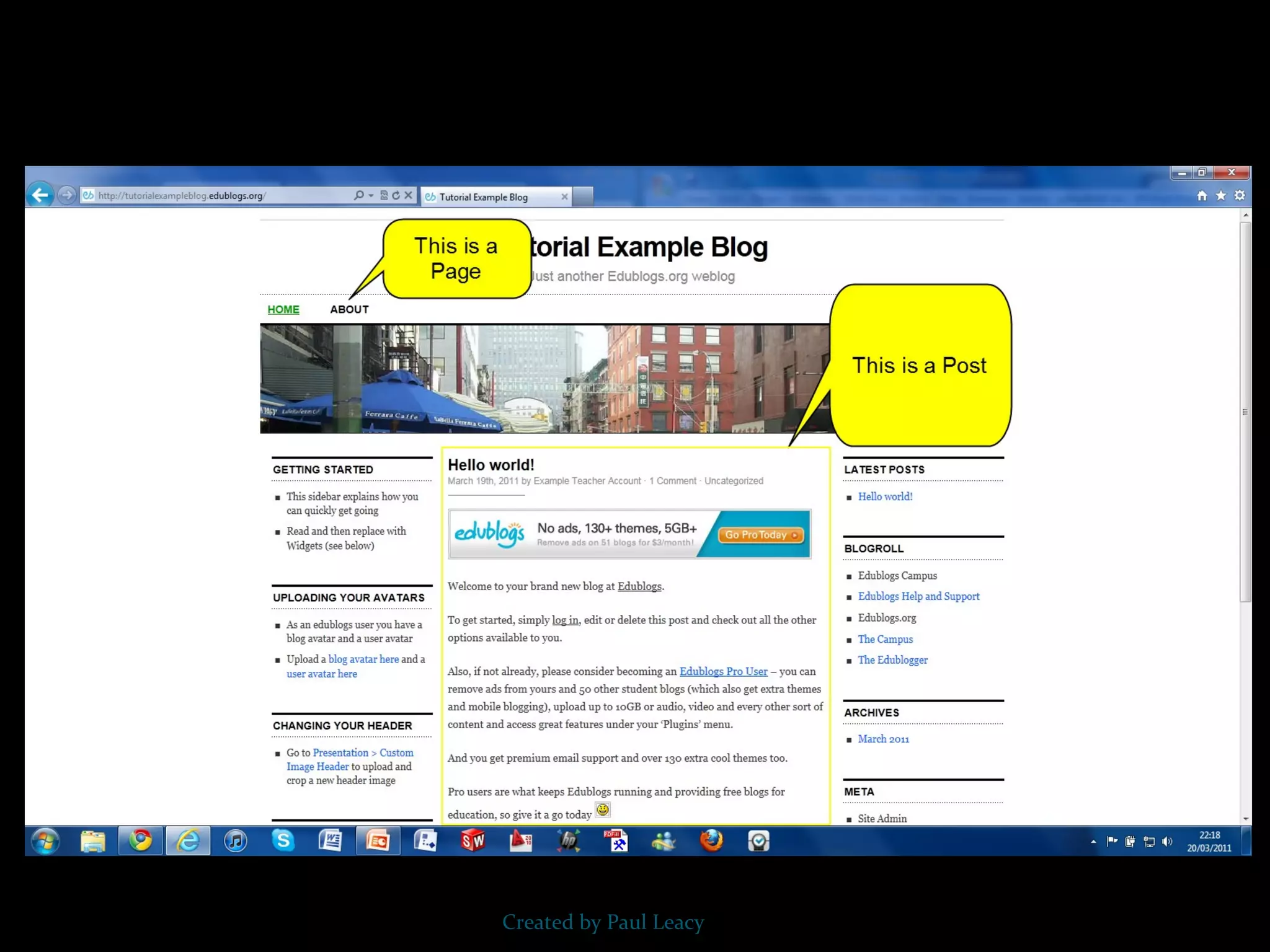
Writing your First Blog Post Blogs are composed of two main structures: posts and pages.  Every newly created blog has the same default layout with posts displayed on it’s front page (“home”) with a “Hello World” post and an “About Page” When you publish posts they are displayed in reverse chronological order with your most recent post at the top of your post page Created by Paul Leacy
How Your Blog looks by Default Created by Paul Leacy
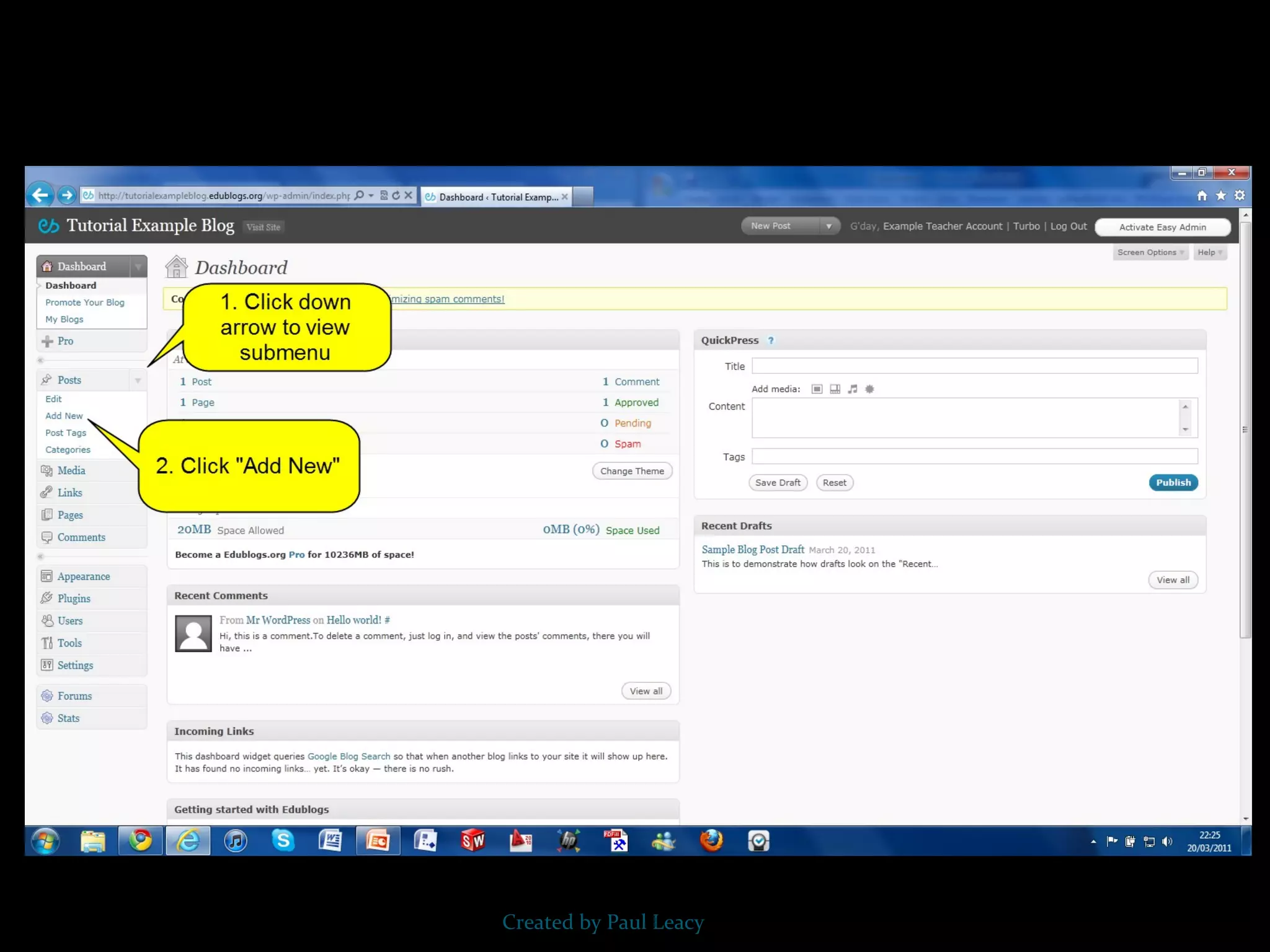
Writing Your First Blog Post There are two main ways to write a new post: The “Add New Post” Screen The “QuickPress” Module on your Dashboard Created by Paul Leacy
Created by Paul Leacy
“ Add New Post” Screen Method The “Add New Post” Screen is a more advanced post editor compared to using the “QuickPress” module and is the main screen where you’ll write most posts. Besides providing more post options it is better suited to writing longer posts Created by Paul Leacy
Created by Paul Leacy
“ Add New Post” Screen Created by Paul Leacy
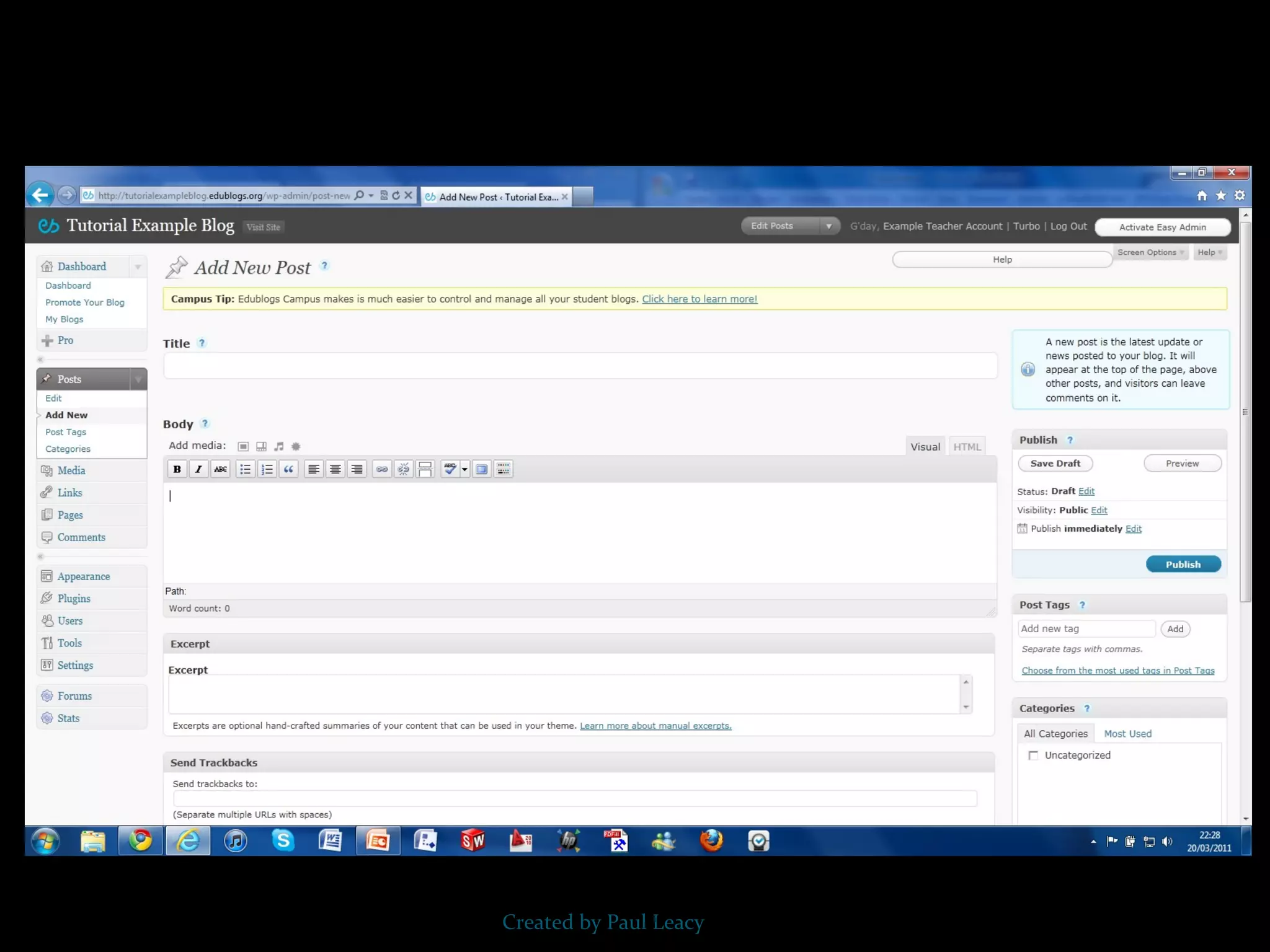
Overview of “Your Add New Post” Screen The area where you write your post is by default in the Visual Editing mode which uses WYSIWYG (What You See Is What You Get) option for formatting It works similar to any Word Processing software Simply write your post, highlight any text you want to format and then click the appropriate button in the toolbar to add formatting such as bold, italics, number list The “Show/Hide Kitchen Sink” button is used to view the advance formatting options including heading styles, underlining, font colour, custom characters, undo, redo. Created by Paul Leacy
Created by Paul Leacy
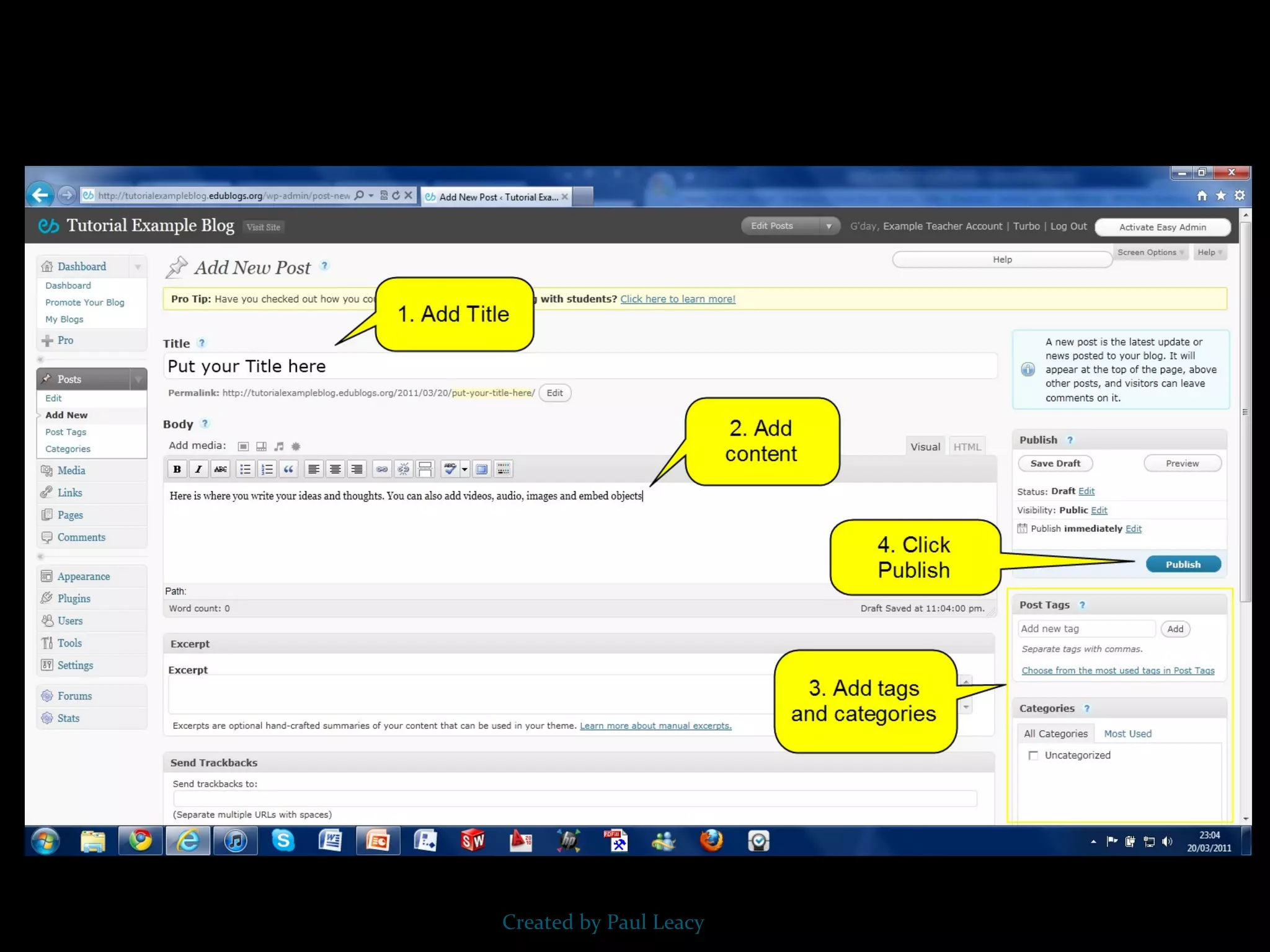
Writing Your Post Now all you need to do to write a post is: Give your post a Title Add your content Add your tags and categories When finished writing click “Publish” Created by Paul Leacy
Created by Paul Leacy
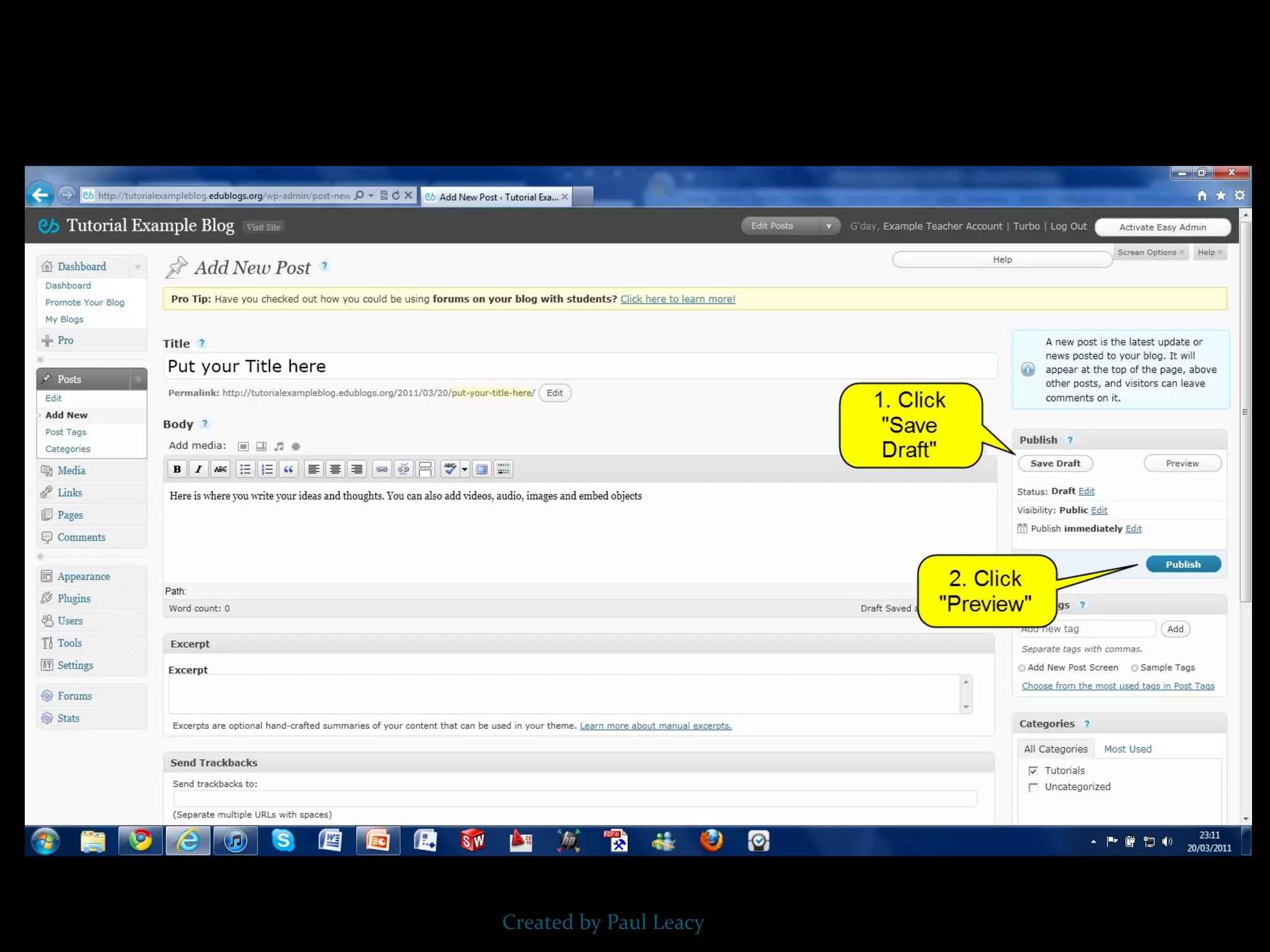
Previewing your Draft Before you publish your post it is a good idea to use the “Preview” option to see what it looks like to your readers You preview a post by clicking on “Save Draft” and the “Preview” This opens up a draft version of your post in a new tab To make edits just go back to your “Add New Post” screen Created by Paul Leacy
Created by Paul Leacy

Writing a blog post (edublogs)

  • 1.
  • 2.
    Writing your FirstBlog Post Blogs are composed of two main structures: posts and pages. Every newly created blog has the same default layout with posts displayed on it’s front page (“home”) with a “Hello World” post and an “About Page” When you publish posts they are displayed in reverse chronological order with your most recent post at the top of your post page Created by Paul Leacy
  • 3.
    How Your Bloglooks by Default Created by Paul Leacy
  • 4.
    Writing Your FirstBlog Post There are two main ways to write a new post: The “Add New Post” Screen The “QuickPress” Module on your Dashboard Created by Paul Leacy
  • 5.
  • 6.
    “ Add NewPost” Screen Method The “Add New Post” Screen is a more advanced post editor compared to using the “QuickPress” module and is the main screen where you’ll write most posts. Besides providing more post options it is better suited to writing longer posts Created by Paul Leacy
  • 7.
  • 8.
    “ Add NewPost” Screen Created by Paul Leacy
  • 9.
    Overview of “YourAdd New Post” Screen The area where you write your post is by default in the Visual Editing mode which uses WYSIWYG (What You See Is What You Get) option for formatting It works similar to any Word Processing software Simply write your post, highlight any text you want to format and then click the appropriate button in the toolbar to add formatting such as bold, italics, number list The “Show/Hide Kitchen Sink” button is used to view the advance formatting options including heading styles, underlining, font colour, custom characters, undo, redo. Created by Paul Leacy
  • 10.
  • 11.
    Writing Your PostNow all you need to do to write a post is: Give your post a Title Add your content Add your tags and categories When finished writing click “Publish” Created by Paul Leacy
  • 12.
  • 13.
  • 14.
    Previewing your DraftBefore you publish your post it is a good idea to use the “Preview” option to see what it looks like to your readers You preview a post by clicking on “Save Draft” and the “Preview” This opens up a draft version of your post in a new tab To make edits just go back to your “Add New Post” screen Created by Paul Leacy
  • 15.