GETTING
ACCLIMATED TO
WORDPRESS
Hello!
I am Anthony Montalbano
WordPress developer since 2007.
Hosted the first 3 WordCamps in
Detroit. Cofounder of AMBR Detroit.
You can find me at:
@italianst4 or ambrdetroit.com
Let’s craft the perfect story.
1.
The Basics of
Content Creation
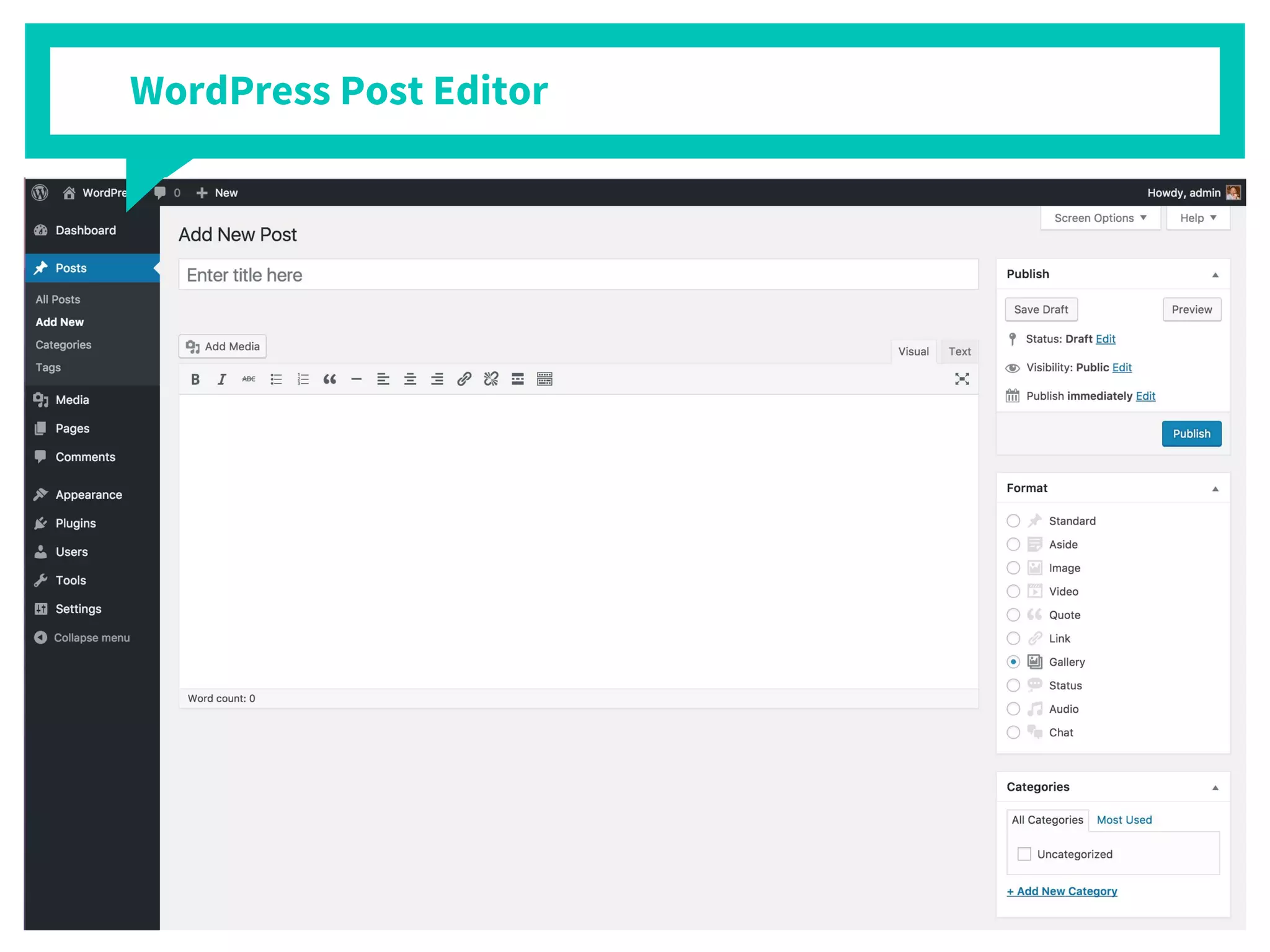
WordPress Post Editor
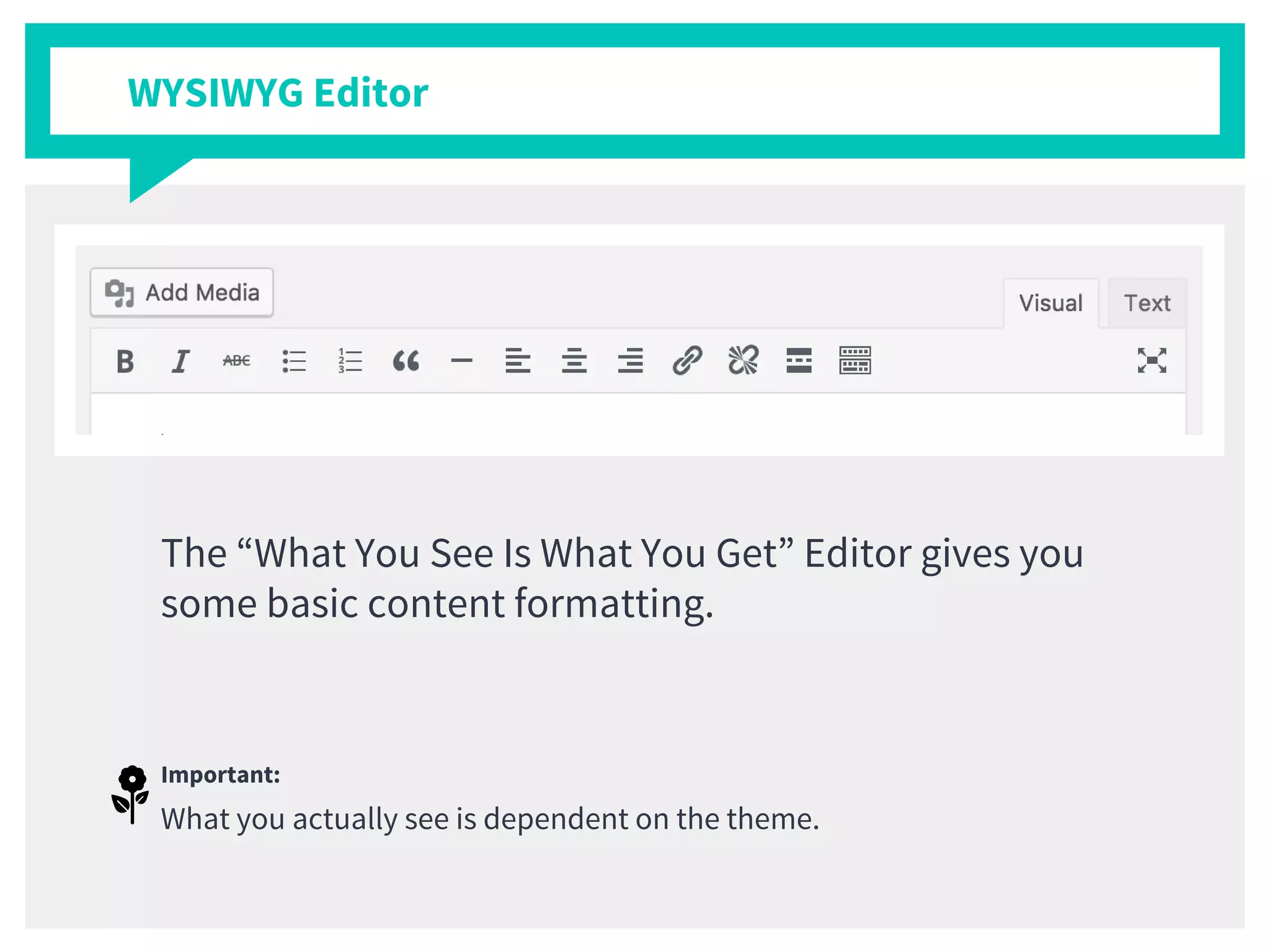
The “What You See Is What You Get” Editor gives you
some basic content formatting.
Important:
What you actually see is dependent on the theme.
WYSIWYG Editor
WYSIWYG Editor
WYSIWYG Editor
Start the demo
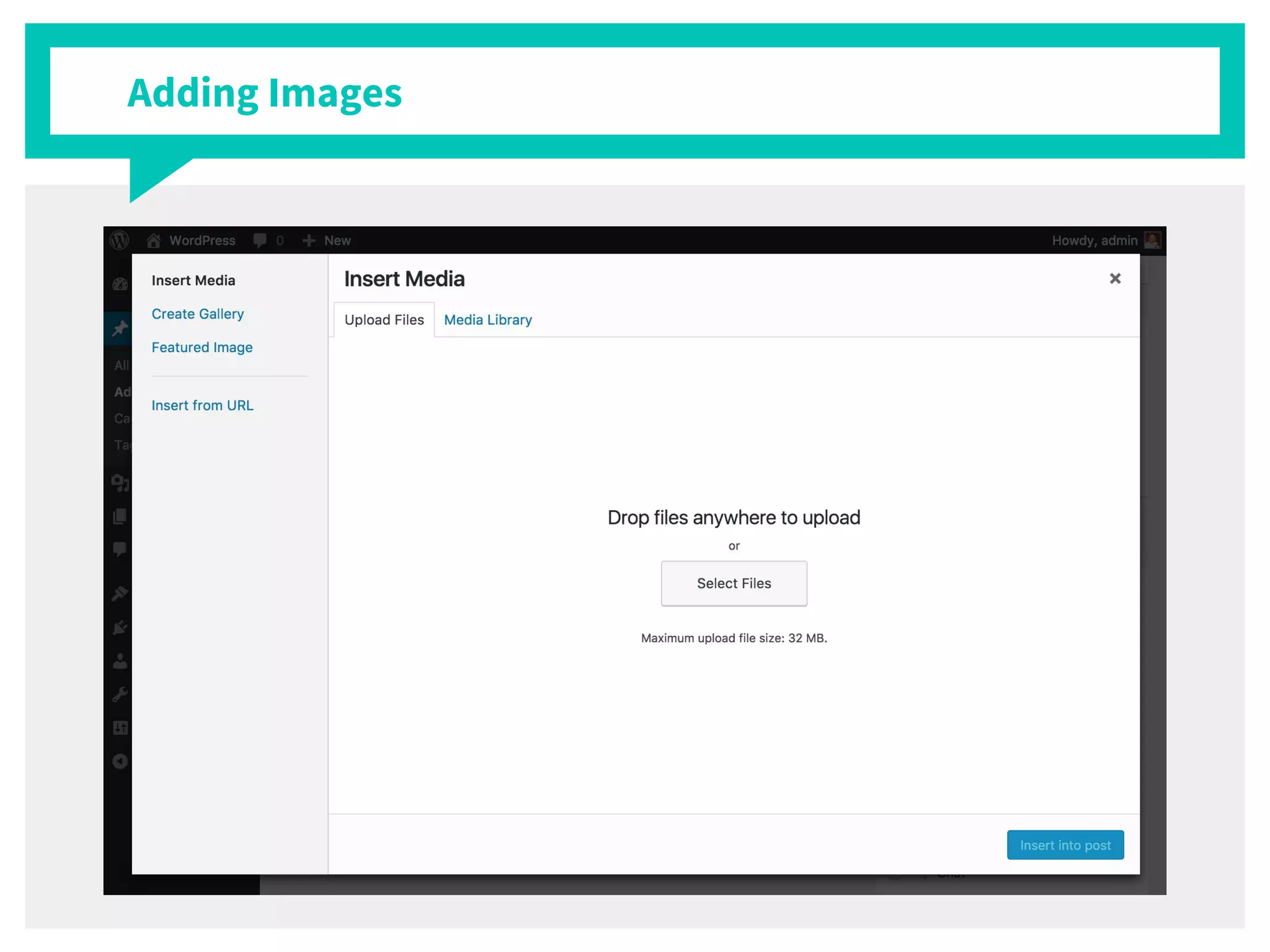
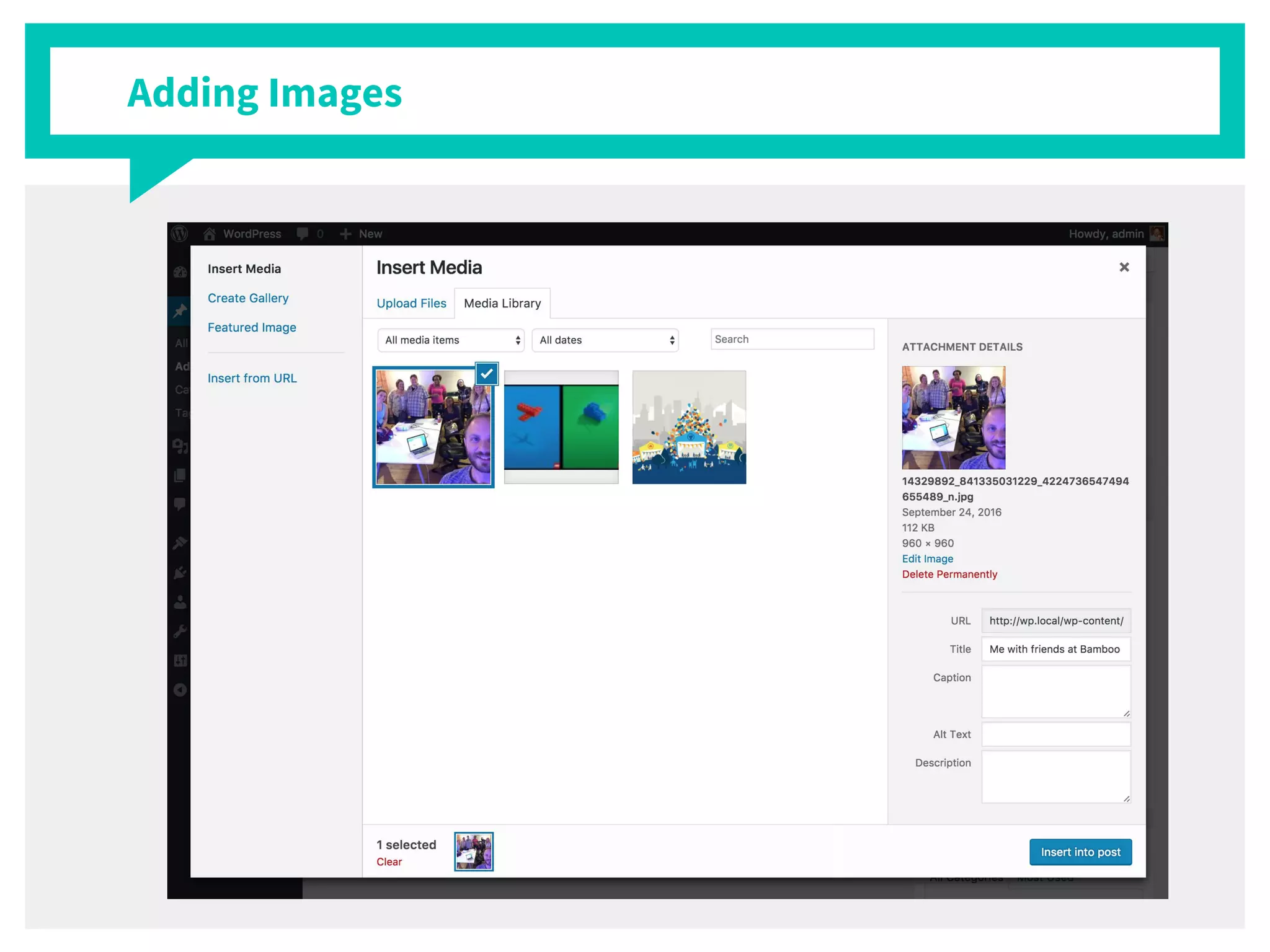
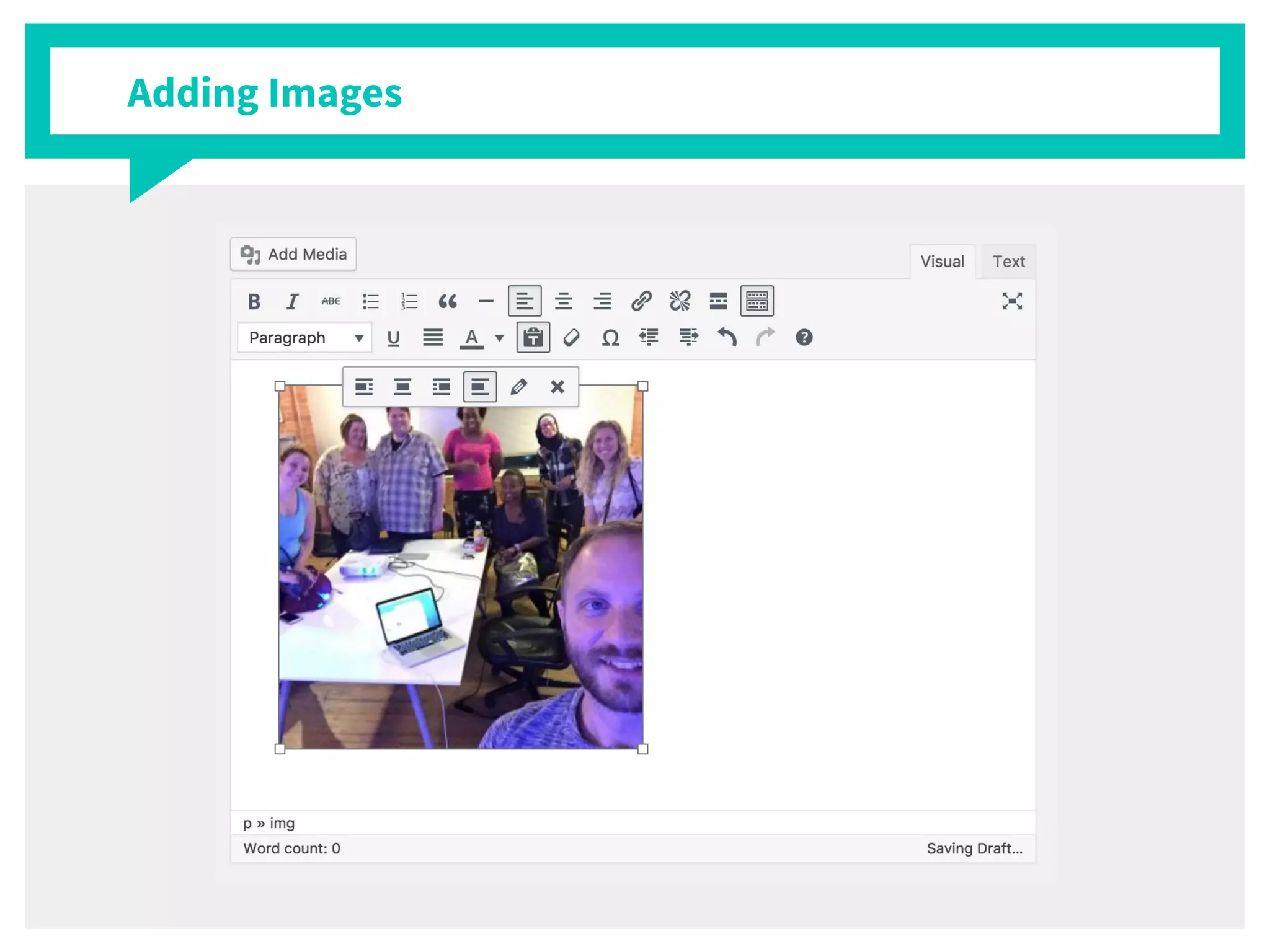
Adding Images
Adding Images
Adding Images
Adding Images
Adding Images
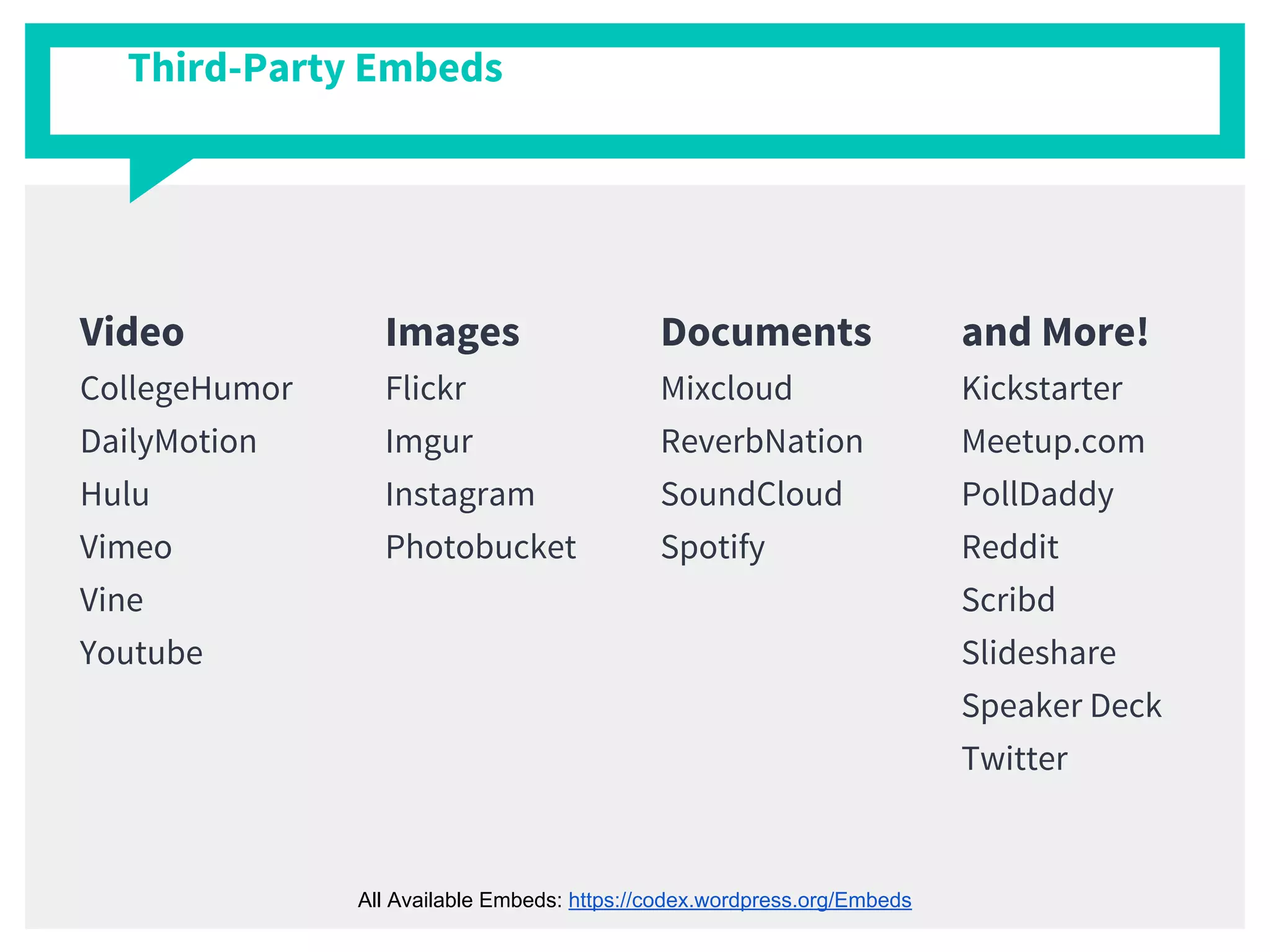
Third-Party Embeds
Third-Party Embeds
Third-Party Embeds
Third-Party Embeds
Third-Party Embeds
Documents
Mixcloud
ReverbNation
SoundCloud
Spotify
Video
CollegeHumor
DailyMotion
Hulu
Vimeo
Vine
Youtube
Images
Flickr
Imgur
Instagram
Photobucket
Third-Party Embeds
and More!
Kickstarter
Meetup.com
PollDaddy
Reddit
Scribd
Slideshare
Speaker Deck
Twitter
All Available Embeds: https://codex.wordpress.org/Embeds
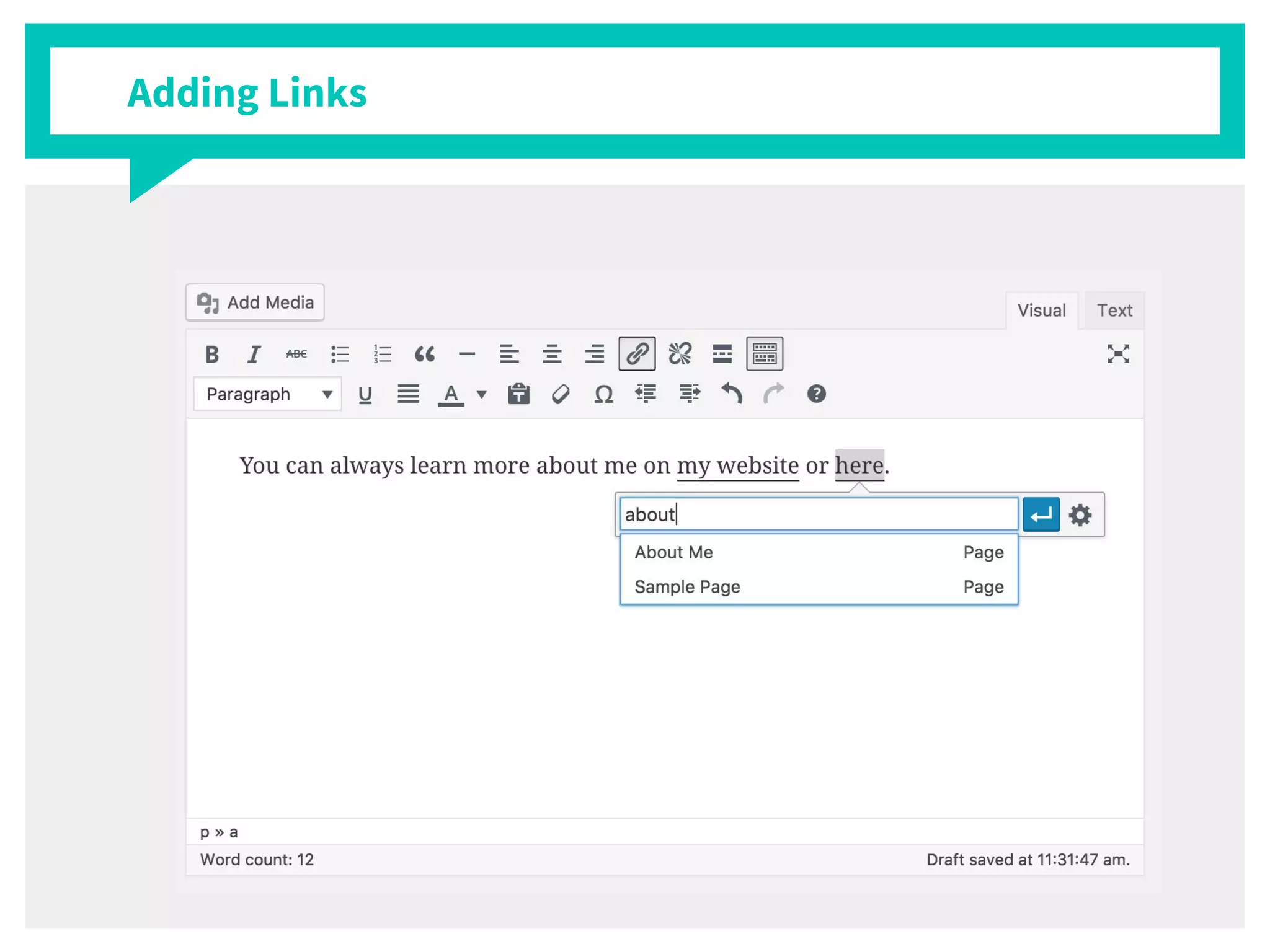
Adding Links
Adding Links
Adding Links
Visual vs Text Editors
For Advanced/Technical Users Only!
Post Formats can
display a post
differently based on its
format.
Important:
You may not see some or any
Post Formats. If feature is
theme dependent. Not all
themes support Post Formats.
Post Formats
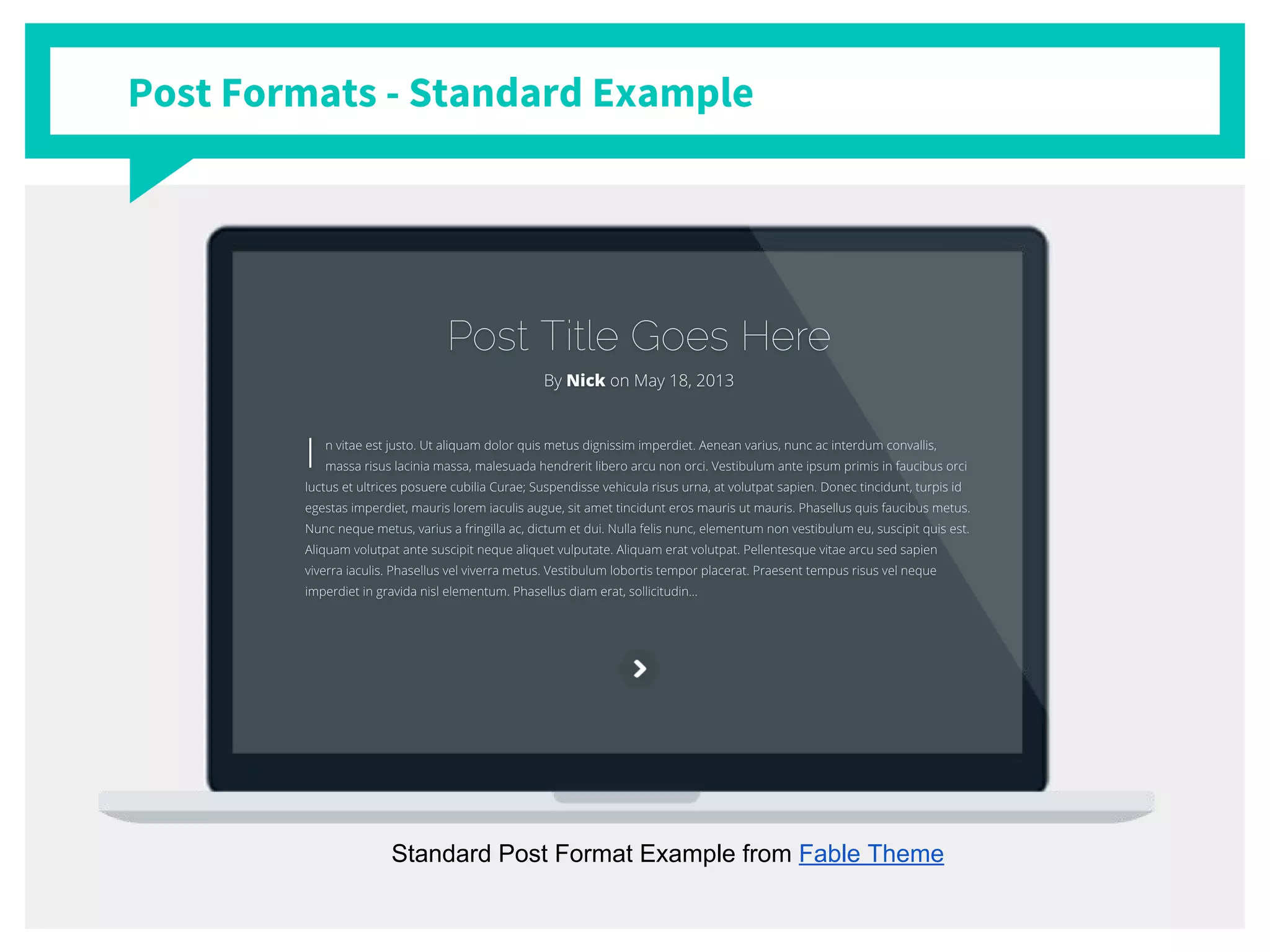
Post Formats - Standard Example
Standard Post Format Example from Fable Theme
Post Formats - Quote Example
Quote Post Format Example from Fable Theme
Post Formats - Gallery Example
Gallery Post Format Example from Fable Theme
Post Formats - Video Example
Video Post Format Example from Fable Theme
Let’s tell the world.
2.
Publishing
The Publish Box - Preview
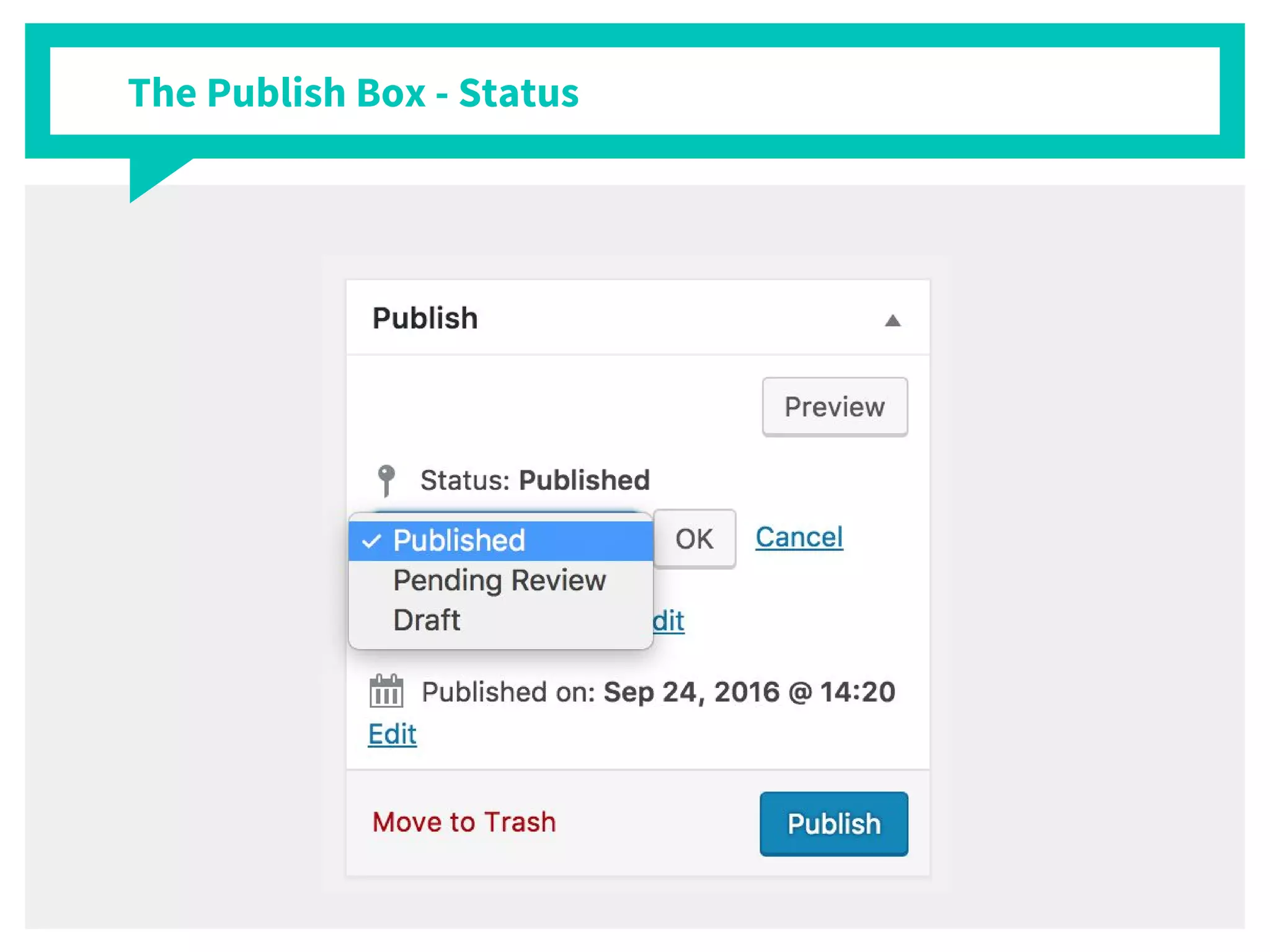
The Publish Box - Status
The Publish Box - Visibility
The Publish Box - Post Date
The Publish Box - Permalinks
The Publish Box - The Trash
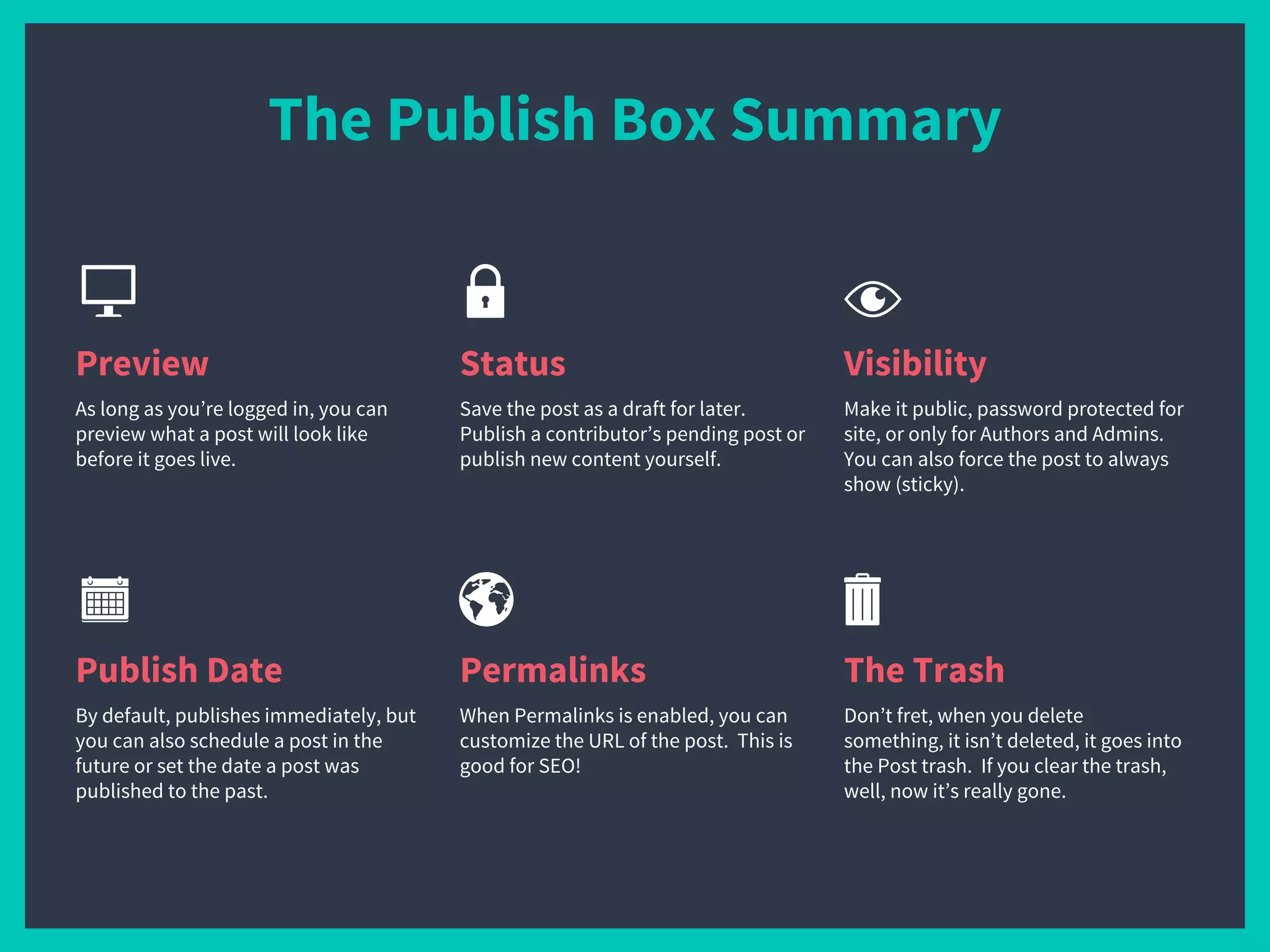
The Trash
Don’t fret, when you delete
something, it isn’t deleted, it goes into
the Post trash. If you clear the trash,
well, now it’s really gone.
Permalinks
When Permalinks is enabled, you can
customize the URL of the post. This is
good for SEO!
The Publish Box Summary
Preview
As long as you’re logged in, you can
preview what a post will look like
before it goes live.
Visibility
Make it public, password protected for
site, or only for Authors and Admins.
You can also force the post to always
show (sticky).
Publish Date
By default, publishes immediately, but
you can also schedule a post in the
future or set the date a post was
published to the past.
Status
Save the post as a draft for later.
Publish a contributor’s pending post or
publish new content yourself.
Let’s paint a masterpiece.
3.
Media Library
and Management
Media Library and Management
Editing an Image
Editing an Image
Image Manipulation by
● Crop
● Rotate Left/Right
● Flip Horizontal/Vertical
● Undo/redo
● Scale
● Aspect Ratio
● Fine Tuning
Important:
Changing image sizes does not affect existing images. Try using a plugin
such as Regenerate Thumbnails by ViperBond007
Image Sizes
4.
Understanding Post
Types and Taxonomies
Let’s get organized.
Posts vs Pages
Posts vs Pages
“
Posts.
Pages.
Notice a difference?
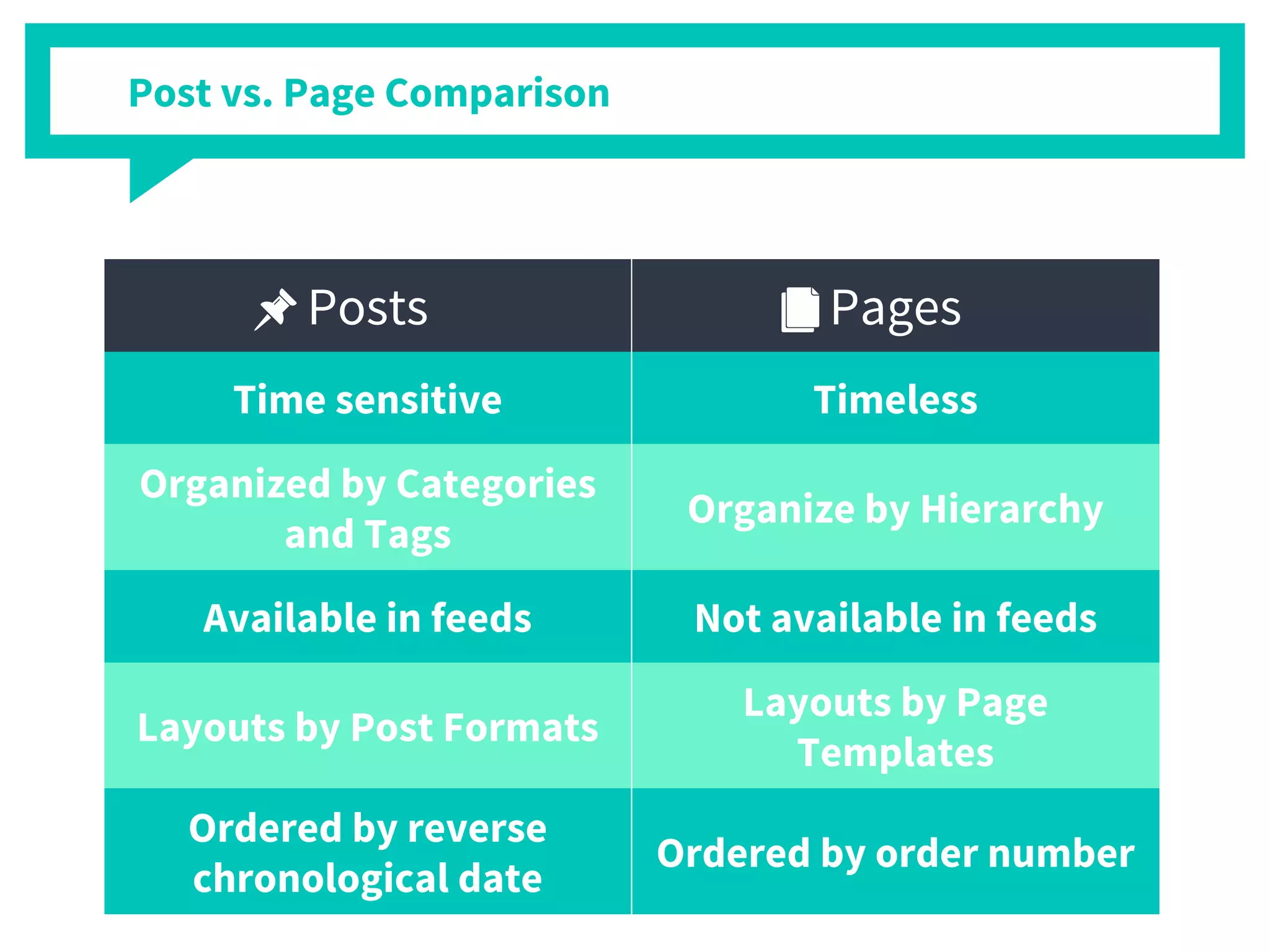
Posts Pages
Time sensitive Timeless
Organized by Categories
and Tags
Organize by Hierarchy
Available in feeds Not available in feeds
Layouts by Post Formats
Layouts by Page
Templates
Ordered by reverse
chronological date
Ordered by order number
Post vs. Page Comparison
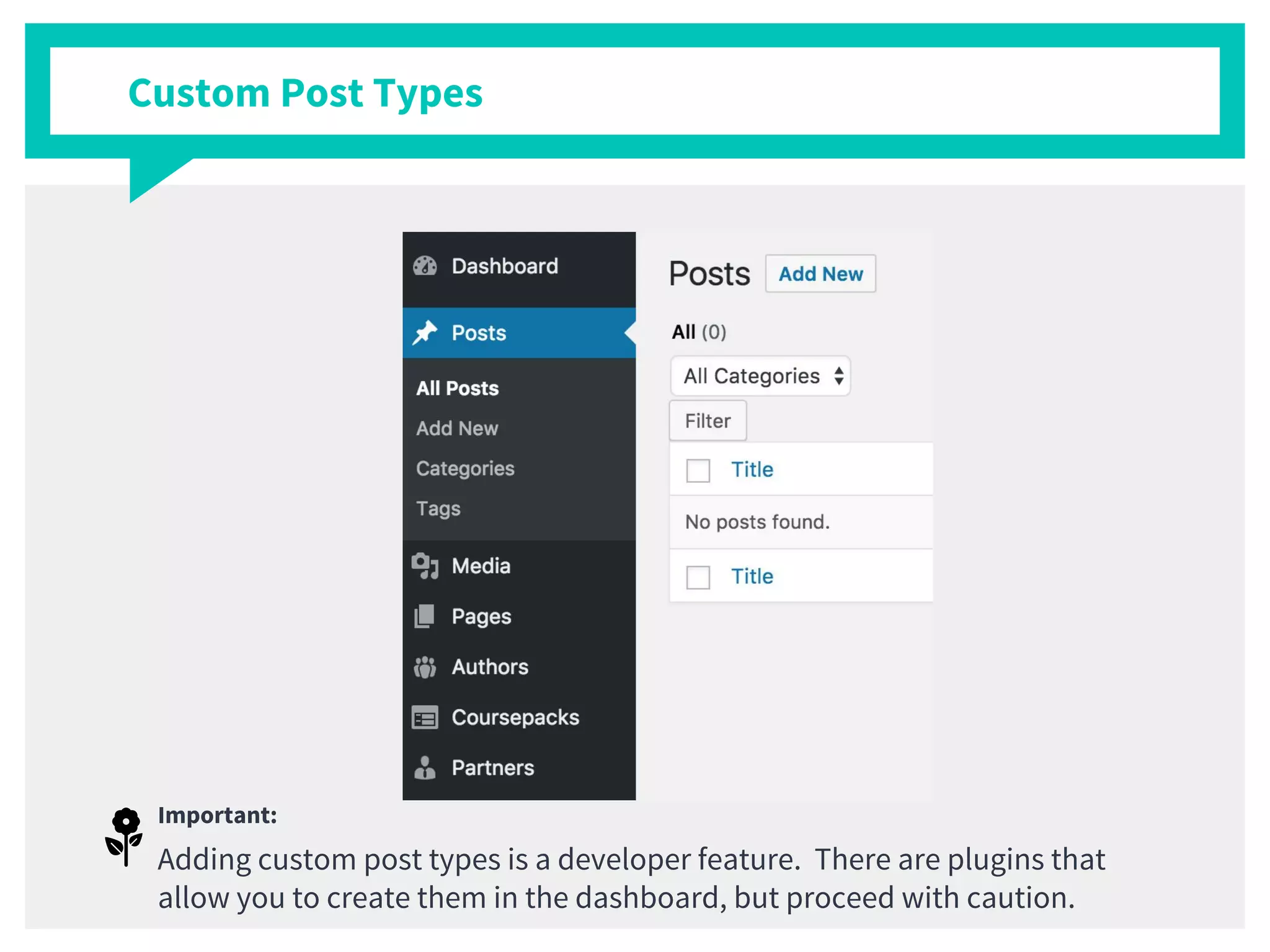
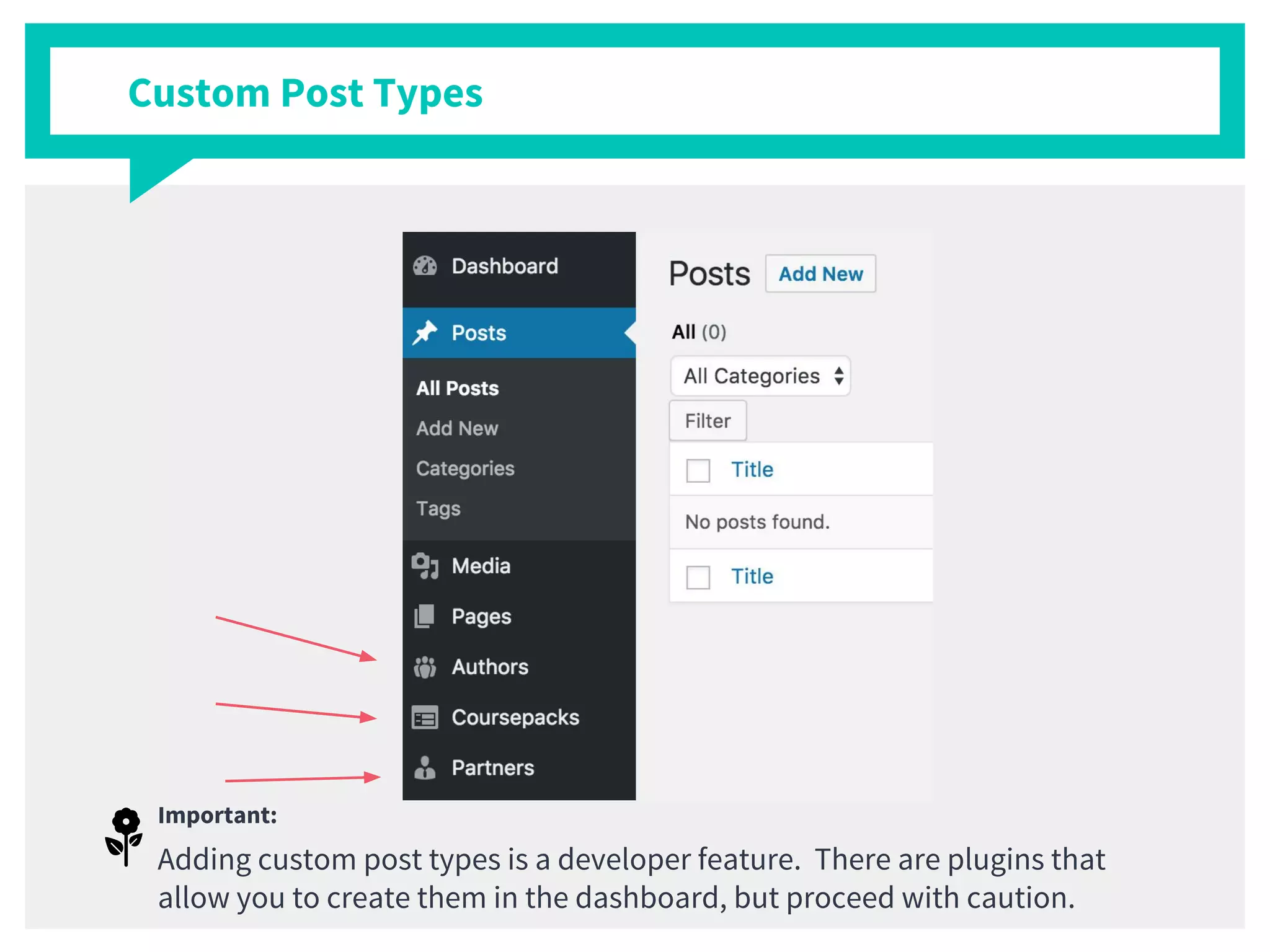
Important:
Adding custom post types is a developer feature. There are plugins that
allow you to create them in the dashboard, but proceed with caution.
Custom Post Types
Important:
Adding custom post types is a developer feature. There are plugins that
allow you to create them in the dashboard, but proceed with caution.
Custom Post Types
Important:
The main difference between Categories and Tags is Categories are
hierarchical.
Post Taxonomies
5.
Advanced
Content Creation
Let’s be power users.
Important:
Featured images are only available on themes that support this.
Featured Image
Quick Edit
Bulk Edit
Bulk Edit
Keyboard Shortcuts
Keyboard Shortcuts
Keyboard Shortcuts
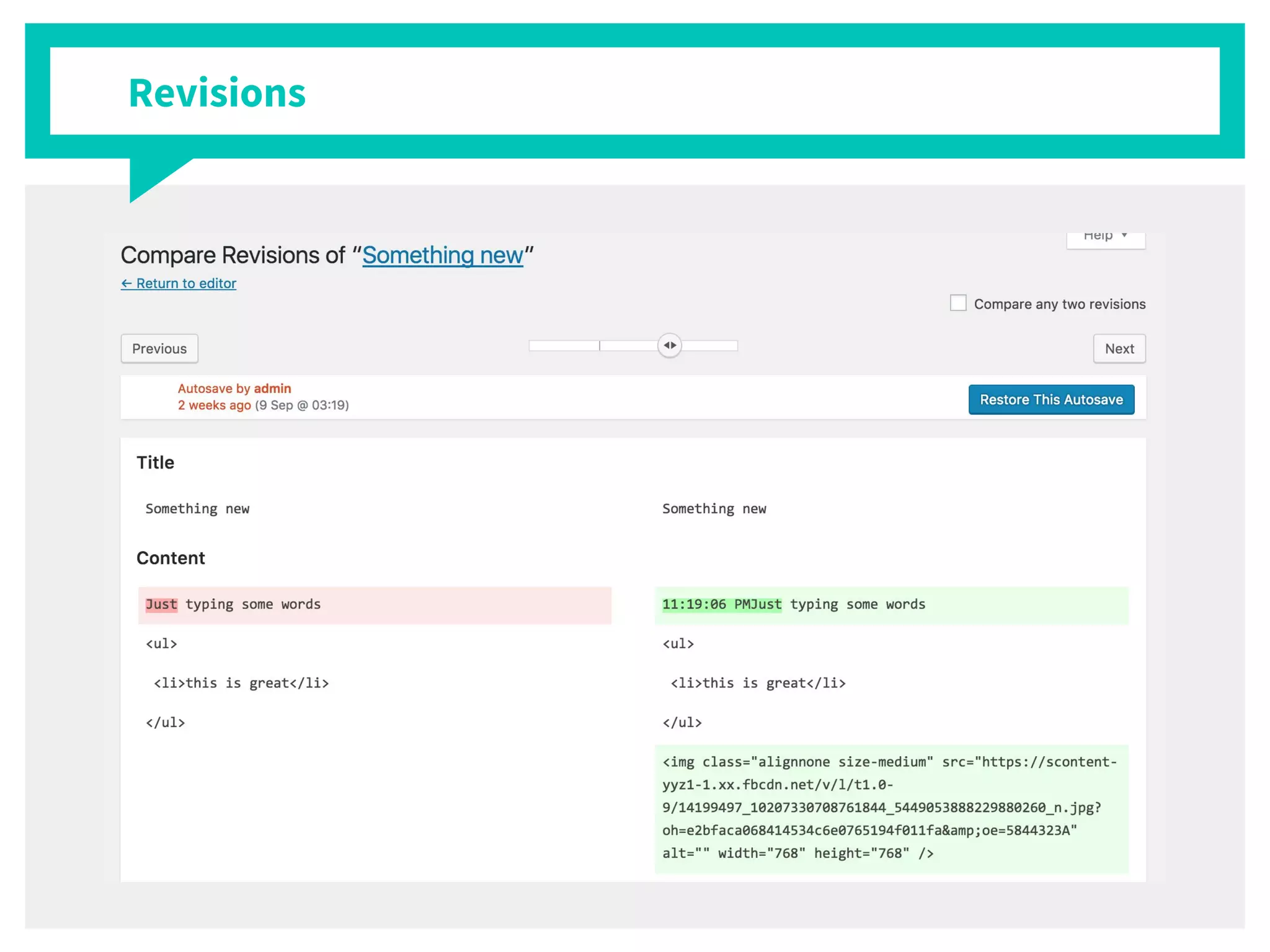
Revisions
Important:
Press This also has a bookmark for mobile devices to quickly add found
content on the go.
Press This
Press This
6.
Additional
Resources
Let’s keep learning.
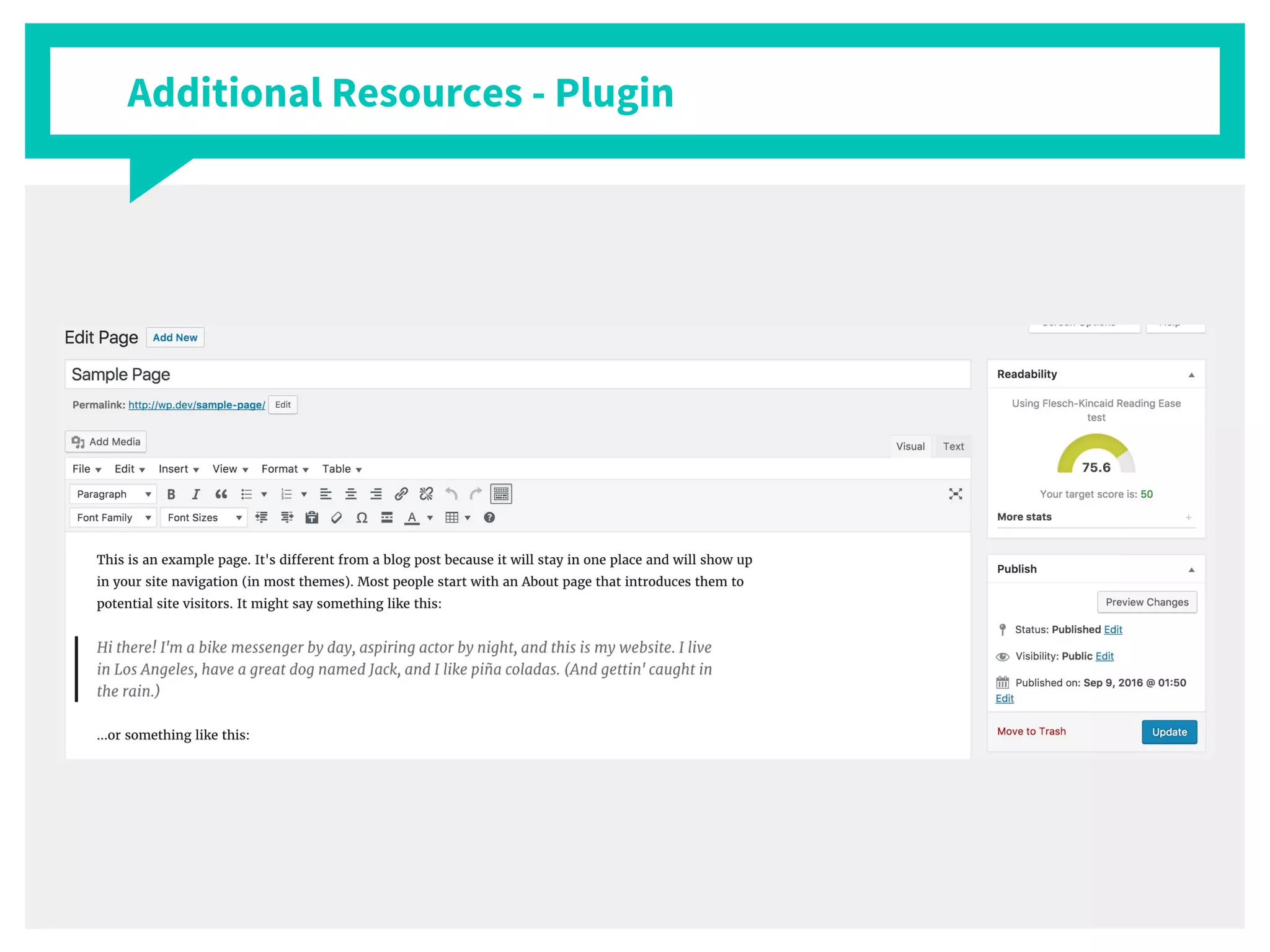
Additional Resources - Plugin
http://www.problogger.net/create-content
-portal/
https://www.linkedin.com/pulse/20140602
121530-3161863-20-quick-tips-on-writing-g
reat-blog-posts
http://www.problogger.net/ideas
Additional Resources - Content Creation
Learn to create great content
Thank you!
Any questions?
You can find me at:
@italianst4
anthony@ambrdetroit.com
Download these slides
http://bit.ly/wp101-oct2016

Getting Acclimated to WordPress