Wrapping with PhoneGap
Learning from my
barely-competent fumbling
Karl Bunyan, Wedu Games
Overview
• Building the app
• Setting up PhoneGap
• Customising
• Available Features
• Testing
• Gotchas
• Submitting
About PhoneGap
Allows you to package HTML apps for the App
Store and Google Play
• PhoneGap: generates files locally
• PhoneGap Build: upload your files, download
store-ready packages
• Apache Cordova: the root of PhoneGap
About me
• Long-time web developer since late 90s
• Ad-hoc game developer since late 80s
• Involved in social* apps and games since 2007
• Worked for GSN making games for Facebook
• Currently doing my own thing
* and anti-social
The App: PPL Tutor
Building the App
• Regular HTML, JavaScript, CSS, images
• Develop and test in a desktop browser
alongside devices
• Use responsive CSS (media queries) for
different screen sizes and aspect ratios:
– Tablet landscape; tablet portrait; phone portrait
Things you’ll need
• A computer
• A Mac, if you’re building for iOS
– With Xcode installed. It comes with emulators.
• The Android SDK
– The Eclipse package is pretty good
• Accounts and certificates:
– iTunes Connect, Certificates, Provisioning Profiles,
Google Wallet, Google Developer
Setting up PhoneGap
• Install NodeJS, Git, JDK and Ant. Set PATHs.
• Download files with Git
• Use NodeJS Package Manager to install
• Create the app on the command line
• Add platforms
• Run a build command
• Sit back and admire your files
The File Structure: Pre-build
Root
merges
platforms
plugins
www
Platform-specific files (never worked this out)
Where files end up after build
Extra features go here
Your HTML source files live here
The File Structure: Post-build
assets: where your HTML ends up
platform-specific source files
platform_www: platform-specific HTML/JS
platforms
android
ios
assets
PhoneGap
folders
platform_www
Config
files
config files (depending on the platform)
The Build/Test Cycle
• Add platform(s)
• Run build command
– Generates platform-specific folder + source code
– Copies from root/www to
root/platforms/[platform]/assets/www
• Changes made to assets/www are overwritten
• Open the project in Xcode
• Run it on the device or emulator
Customising 1: Config Files
• Limit screen orientation
• Specify splash screen
• Specify file to load: index.html
• App icons
Config files are different for each platform,
although (in theory) generated from a single
source
Customising 2: Source Code
E.g. Preventing the iOS 7 battery meter from
overlapping your application
• Open XCode
• Tweak the Objective-C
except
• Next time you run build your changes will be
overwritten
Available Features
Includes:
• Camera
• Accelerometer
• Geolocation
• Network connectivity
• In-app purchases
• Local storage
Plug-ins
Plugins are a mixture of Objective-C or Java
source code and JavaScript. E.g.:
• Network connectivity:
– Cross-platform plug-in
• In-app Purchases
– Different plug-in for iOS and Android
Plug-ins
Installing a plug-in:
• Use Git to download
• Command line to install
• Re-run build
– Which may lose your customisation changes
Or install by hand:
• Installing a plug-in by hand is not fun
Aside: My Code Management
• Run build only once, and then customise
• Set launch to
index.html?platform=[platform]
• platforms/[platform]/platform_www
symlinked to a single app file source
• Detect “platform=“ on the query string to
include the correct JS plug-in config file
• Include object detection in JavaScript to
determine how to deliver a feature
In-app purchases
• Make sure they’re set-up correctly in iTunes
Connect/Google Play
• Make sure test accounts are set up
• Download and install the plug-ins:
– iOS: cc.fovea.plugins.inapppurchase
– Android: com.smartmobilesoftware.inappbilling
• Follow the documentation religiously
Testing your code
• Install the plug-in for console logging
• Use simulators in Xcode
• Android emulators via device manager:
– GUI started from command line or from Eclipse
• Test directly on plugged-in devices
• Android: build and e-mail APKs
• iOS: archive in Xcode, build for Ad-hoc
distribution, use TestFlight
Testing in-app purchases
• Black-box systems: reports success or failure
• iOS test accounts
– Do not add credit card details
– Test on emulators or device
• Android test accounts
– do not use the e-mail address on your device for
developer or Wallet accounts
– Have to test on live devices: no emulators
Other gotchas
• Never skim the docs
• Android failed to load some folders that
started with underscores
• Do not try to download JavaScript in-app
• For first-time setup, use test namespaces in
iTunes Connect: you will mess it up
• Never ever skim the docs
Submitting
Google Play
• Remove debug settings
• Increment version number
• Build and upload
• Wait 15 minutes or so
Submitting
iOS App Store
• Set up certificates and provisioning
• Log into iTunes Connect:
– Add a new version of the app
– Add any in-app purchases for this version
– Mark as “Waiting for upload”
• Archive in Xcode and distribute
• Submit, wait and hope
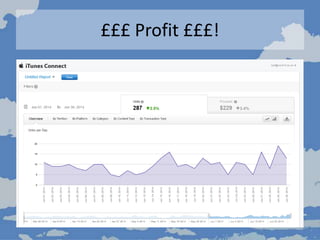
£££ Profit £££!
Questions
PPL Tutor is free on
iTunes and Google Play
karl@wedugames.com
twitter.com/karlbunyan

Wrapping with PhoneGap

  • 1.
    Wrapping with PhoneGap Learningfrom my barely-competent fumbling Karl Bunyan, Wedu Games
  • 2.
    Overview • Building theapp • Setting up PhoneGap • Customising • Available Features • Testing • Gotchas • Submitting
  • 3.
    About PhoneGap Allows youto package HTML apps for the App Store and Google Play • PhoneGap: generates files locally • PhoneGap Build: upload your files, download store-ready packages • Apache Cordova: the root of PhoneGap
  • 4.
    About me • Long-timeweb developer since late 90s • Ad-hoc game developer since late 80s • Involved in social* apps and games since 2007 • Worked for GSN making games for Facebook • Currently doing my own thing * and anti-social
  • 5.
  • 6.
    Building the App •Regular HTML, JavaScript, CSS, images • Develop and test in a desktop browser alongside devices • Use responsive CSS (media queries) for different screen sizes and aspect ratios: – Tablet landscape; tablet portrait; phone portrait
  • 7.
    Things you’ll need •A computer • A Mac, if you’re building for iOS – With Xcode installed. It comes with emulators. • The Android SDK – The Eclipse package is pretty good • Accounts and certificates: – iTunes Connect, Certificates, Provisioning Profiles, Google Wallet, Google Developer
  • 8.
    Setting up PhoneGap •Install NodeJS, Git, JDK and Ant. Set PATHs. • Download files with Git • Use NodeJS Package Manager to install • Create the app on the command line • Add platforms • Run a build command • Sit back and admire your files
  • 9.
    The File Structure:Pre-build Root merges platforms plugins www Platform-specific files (never worked this out) Where files end up after build Extra features go here Your HTML source files live here
  • 10.
    The File Structure:Post-build assets: where your HTML ends up platform-specific source files platform_www: platform-specific HTML/JS platforms android ios assets PhoneGap folders platform_www Config files config files (depending on the platform)
  • 11.
    The Build/Test Cycle •Add platform(s) • Run build command – Generates platform-specific folder + source code – Copies from root/www to root/platforms/[platform]/assets/www • Changes made to assets/www are overwritten • Open the project in Xcode • Run it on the device or emulator
  • 12.
    Customising 1: ConfigFiles • Limit screen orientation • Specify splash screen • Specify file to load: index.html • App icons Config files are different for each platform, although (in theory) generated from a single source
  • 13.
    Customising 2: SourceCode E.g. Preventing the iOS 7 battery meter from overlapping your application • Open XCode • Tweak the Objective-C except • Next time you run build your changes will be overwritten
  • 14.
    Available Features Includes: • Camera •Accelerometer • Geolocation • Network connectivity • In-app purchases • Local storage
  • 15.
    Plug-ins Plugins are amixture of Objective-C or Java source code and JavaScript. E.g.: • Network connectivity: – Cross-platform plug-in • In-app Purchases – Different plug-in for iOS and Android
  • 16.
    Plug-ins Installing a plug-in: •Use Git to download • Command line to install • Re-run build – Which may lose your customisation changes Or install by hand: • Installing a plug-in by hand is not fun
  • 17.
    Aside: My CodeManagement • Run build only once, and then customise • Set launch to index.html?platform=[platform] • platforms/[platform]/platform_www symlinked to a single app file source • Detect “platform=“ on the query string to include the correct JS plug-in config file • Include object detection in JavaScript to determine how to deliver a feature
  • 18.
    In-app purchases • Makesure they’re set-up correctly in iTunes Connect/Google Play • Make sure test accounts are set up • Download and install the plug-ins: – iOS: cc.fovea.plugins.inapppurchase – Android: com.smartmobilesoftware.inappbilling • Follow the documentation religiously
  • 19.
    Testing your code •Install the plug-in for console logging • Use simulators in Xcode • Android emulators via device manager: – GUI started from command line or from Eclipse • Test directly on plugged-in devices • Android: build and e-mail APKs • iOS: archive in Xcode, build for Ad-hoc distribution, use TestFlight
  • 20.
    Testing in-app purchases •Black-box systems: reports success or failure • iOS test accounts – Do not add credit card details – Test on emulators or device • Android test accounts – do not use the e-mail address on your device for developer or Wallet accounts – Have to test on live devices: no emulators
  • 21.
    Other gotchas • Neverskim the docs • Android failed to load some folders that started with underscores • Do not try to download JavaScript in-app • For first-time setup, use test namespaces in iTunes Connect: you will mess it up • Never ever skim the docs
  • 22.
    Submitting Google Play • Removedebug settings • Increment version number • Build and upload • Wait 15 minutes or so
  • 23.
    Submitting iOS App Store •Set up certificates and provisioning • Log into iTunes Connect: – Add a new version of the app – Add any in-app purchases for this version – Mark as “Waiting for upload” • Archive in Xcode and distribute • Submit, wait and hope
  • 24.
  • 25.
    Questions PPL Tutor isfree on iTunes and Google Play karl@wedugames.com twitter.com/karlbunyan