PREPARED AND PRESENTED BY
Dr.Saajid Abuluaih, PhD
3ed of April, 2021
J I S T & A R C H E P R E S E N T S
Web−Based Second−Life
School Management System
Workshop
Team: "Fantastic−Team”, Project: "GatherRound”
[ G I T ]
© 2021 arche1.co.jp | jaist.ac.jp
All rights reserved.
P A G E 2
Few Things to Complete First
A D O B E X D
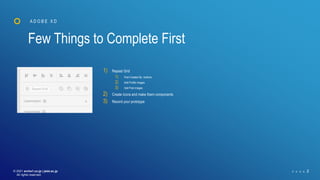
1) Repeat Grid
1) Post Created By Authors
2) Add Profile images
3) Add Post images
2) Create Icons and make them components
3) Record your prototype
© 2021 arche1.co.jp | jaist.ac.jp
All rights reserved.
P A G E 3
GIT
Introduction
© 2021 Arche1.co.jp All rights reserved. P A G E 4
Git is software for tracking changes in any set of files, usually used for coordinating work
among programmers collaboratively developing source code during software development.
Its goals include speed, data integrity, and support for distributed, non-linear workflows.
[Source]
What is “version control”, and why should you care? Version control is a system that
records changes to a file or set of files over time so that you can recall specific versions
later. For the examples in this book, you will use software source code as the files being
version controlled, though in reality you can do this with nearly any type of file on a
computer. [Source]
GIT
G e t t i n g s t a r t e d w i t h G I T R e p o s
If you installed git already, check its version: $ git --version
© 2021 Arche1.co.jp All rights reserved. P A G E 5
you can easily set up an alias for each command using git config. Check the
examples that you may want to set up for your own, [source]:
GIT CONFIG GLOBAL
G e t t i n g s t a r t e d w i t h G I T R e p o s
$ git config --global user.name “MyFirstName MyLastName"
$ git config --global user.email MyEmailAddress@example.com
$ git config --global -l
$ git config --global alias.co checkout
$ git config --global alias.br branch
$ git config --global alias.ci commit
$ git config --global alias.st status
Git uses a series of configuration files to determine non-default behavior that
you may want. The first place Git looks for these values is in the system-wide
[path]/etc/gitconfig file, which contains settings that are applied to every user
on the system and all of their repositories. If you pass the option --system to git
config, it reads and writes from this file specifically. [source]
© 2021 Arche1.co.jp All rights reserved. P A G E 6
Now add a new file called hi.txt and check get status
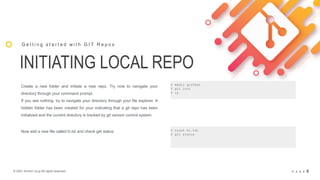
INITIATING LOCAL REPO
G e t t i n g s t a r t e d w i t h G I T R e p o s
$ mkdir gitTest
$ git init
$ ls
$ touch hi.txt
$ git status
Create a new folder and initiate a new repo. Try now to navigate your
directory through your command prompt.
If you see nothing, try to navigate your directory through your file explorer. A
hidden folder has been created for your indicating that a git repo has been
initialized and the current directory is tracked by git version control system
© 2021 Arche1.co.jp All rights reserved. P A G E 7
To stage your files, use the command “add”, as follows:
STAGING FILES BY
ADDING THEM
G e t t i n g s t a r t e d w i t h G I T R e p o s
$ git status
$ git add hi.txt
When you check your files with git using “git status” command, you’ll see
some files were colored with red, those are untracked files. YOU NEED TO
STAGE THEM.
$ git status
Check the status again now:
$ git add hi.txt
Now add new content to the file, and add new file called
© 2021 Arche1.co.jp All rights reserved. P A G E 8
Stage them all using the command “add --all”:
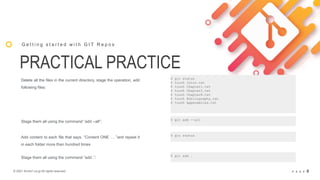
PRACTICAL PRACTICE
G e t t i n g s t a r t e d w i t h G I T R e p o s
$ git status
$ touch Intro.txt
$ touch Chapter1.txt
$ touch Chapter2.txt
$ touch ChapterN.txt
$ touch Bibliography.txt
$ touch Appendecies.txt
$ git add --all
Delete all the files in the current directory, stage the operation, add
following files:
$ git status
Add content to each file that says, “Content ONE … ”and repeat it
in each folder more than hundred times
$ git add .
Stage them all using the command “add .”:
© 2021 Arche1.co.jp All rights reserved. P A G E 9
TAKE SNAPSHOT,
COMMIT YOUR WORK
G e t t i n g s t a r t e d w i t h G I T R e p o s
$ git commit –m”I am writing a custom message now: this is my first commit”
In order to preserve all current staged files, you need to commit.
Use the command “commit” followed by a message that
$ git log
Check out the log, and see your current commit
© 2021 Arche1.co.jp All rights reserved. P A G E 10
CHANGE THE CONTENTS
G e t t i n g s t a r t e d w i t h G I T R e p o s
Change all the contents of the created files and stage them all
$ git log
Check out the logs and see your current commit
© 2021 Arche1.co.jp All rights reserved. P A G E 11
Again, TAKE SNAPSHOT
COMMIT YOUR WORK
G e t t i n g s t a r t e d w i t h G I T R e p o s
$ git commit –m”I have updated the contents of my files”
Again, commit the staged files (Check the status first).
Use the command “commit” followed by a message that
$ git log
Check out the logs, and see your current commits
© 2021 Arche1.co.jp All rights reserved. P A G E 12
GO BACK IN HISTORY
G e t t i n g s t a r t e d w i t h G I T R e p o s
“checkout” command is used to change the current prance or to go
back in history using the commit ID.
$ git log
$ git checkout qewrasdf!!!!!!!!!???????!!!!
Check the logs and checkout the previous commit
© 2021 Arche1.co.jp All rights reserved. P A G E 13
PUSH AND PULL
G e t t i n g s t a r t e d w i t h G I T R e p o s
$ git pull
$ git push
The most common command that we will use very frequently along
with “add”, and “commit” are:
• “pull”: which is used to fetch and download content for a remote
repository and immediately update the local repository to match
the coming-in content. [source]
• “push”: is used to upload local repository content to a remote
repository. Pushing is the function of transferring commits from
local to a remote repos. It is the counterpart to git fetch (pull)
[source]
Distributed version control
[source]
© 2021 arche1.co.jp | jaist.ac.jp
All rights reserved.
P A G E 14
SLOW DOWN,
CATCH YOUR
BREATH
You have crossed a milestone,
give yourself a round of applause
© 2021 Arche1.co.jp All rights reserved. P A G E 15
CLONE OUR AZURE REPO
TO YOUR LOCAL MACHINE
L E T ’ S B E M O R E P R A C T I C A L
I am going to clone the repo using “clone” command and create a
new folder called “Notes”. In the folder, I will create a file with my
name “Saajid.GR” and save the content “Handshake” in my file.
I, then will push back to the repo
$ git clone www.!!!!!!!!!!!!!!!
$ mkdir Notes
$ cd Notes
$ touch Saajid.GR
$ git add .
$ git commit –m”Handshak”
© 2021 Arche1.co.jp All rights reserved. P A G E 16
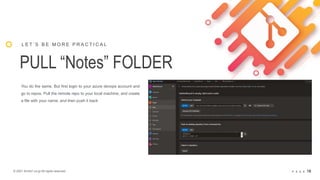
PULL “Notes” FOLDER
L E T ’ S B E M O R E P R A C T I C A L
You do the same. But first login to your azure devops account and
go to repos. Pull the remote repo to your local machine, and create
a file with your name, and then push it back
© 2021 Arche1.co.jp All rights reserved. P A G E 17
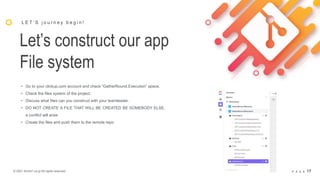
Let’s construct our app
File system
L E T ’ S j o u r n e y b e g i n !
• Go to your clickup.com account and check “GatherRound.Execution” space.
• Check the files system of the project.
• Discuss what files can you construct with your teamleader.
• DO NOT CREATE A FILE THAT WILL BE CREATED BE SOMEBODY ELSE,
a conflict will arise
• Create the files and push them to the remote repo
© 2021 Arche1.co.jp All rights reserved. P A G E 18
CONGRATS,
YOU ARE ALL SET
L E T ’ S G E T S T A R T E D
Let’s all have fun using GIT
© 2021 arche1.co.jp | jaist.ac.jp
All rights reserved.
P A G E 19
T H A N K S F O R Y O U R
AT T E N T O N

Workshop[3ed Apr]-[Git]

  • 1.
    PREPARED AND PRESENTEDBY Dr.Saajid Abuluaih, PhD 3ed of April, 2021 J I S T & A R C H E P R E S E N T S Web−Based Second−Life School Management System Workshop Team: "Fantastic−Team”, Project: "GatherRound” [ G I T ]
  • 2.
    © 2021 arche1.co.jp| jaist.ac.jp All rights reserved. P A G E 2 Few Things to Complete First A D O B E X D 1) Repeat Grid 1) Post Created By Authors 2) Add Profile images 3) Add Post images 2) Create Icons and make them components 3) Record your prototype
  • 3.
    © 2021 arche1.co.jp| jaist.ac.jp All rights reserved. P A G E 3 GIT Introduction
  • 4.
    © 2021 Arche1.co.jpAll rights reserved. P A G E 4 Git is software for tracking changes in any set of files, usually used for coordinating work among programmers collaboratively developing source code during software development. Its goals include speed, data integrity, and support for distributed, non-linear workflows. [Source] What is “version control”, and why should you care? Version control is a system that records changes to a file or set of files over time so that you can recall specific versions later. For the examples in this book, you will use software source code as the files being version controlled, though in reality you can do this with nearly any type of file on a computer. [Source] GIT G e t t i n g s t a r t e d w i t h G I T R e p o s If you installed git already, check its version: $ git --version
  • 5.
    © 2021 Arche1.co.jpAll rights reserved. P A G E 5 you can easily set up an alias for each command using git config. Check the examples that you may want to set up for your own, [source]: GIT CONFIG GLOBAL G e t t i n g s t a r t e d w i t h G I T R e p o s $ git config --global user.name “MyFirstName MyLastName" $ git config --global user.email MyEmailAddress@example.com $ git config --global -l $ git config --global alias.co checkout $ git config --global alias.br branch $ git config --global alias.ci commit $ git config --global alias.st status Git uses a series of configuration files to determine non-default behavior that you may want. The first place Git looks for these values is in the system-wide [path]/etc/gitconfig file, which contains settings that are applied to every user on the system and all of their repositories. If you pass the option --system to git config, it reads and writes from this file specifically. [source]
  • 6.
    © 2021 Arche1.co.jpAll rights reserved. P A G E 6 Now add a new file called hi.txt and check get status INITIATING LOCAL REPO G e t t i n g s t a r t e d w i t h G I T R e p o s $ mkdir gitTest $ git init $ ls $ touch hi.txt $ git status Create a new folder and initiate a new repo. Try now to navigate your directory through your command prompt. If you see nothing, try to navigate your directory through your file explorer. A hidden folder has been created for your indicating that a git repo has been initialized and the current directory is tracked by git version control system
  • 7.
    © 2021 Arche1.co.jpAll rights reserved. P A G E 7 To stage your files, use the command “add”, as follows: STAGING FILES BY ADDING THEM G e t t i n g s t a r t e d w i t h G I T R e p o s $ git status $ git add hi.txt When you check your files with git using “git status” command, you’ll see some files were colored with red, those are untracked files. YOU NEED TO STAGE THEM. $ git status Check the status again now: $ git add hi.txt Now add new content to the file, and add new file called
  • 8.
    © 2021 Arche1.co.jpAll rights reserved. P A G E 8 Stage them all using the command “add --all”: PRACTICAL PRACTICE G e t t i n g s t a r t e d w i t h G I T R e p o s $ git status $ touch Intro.txt $ touch Chapter1.txt $ touch Chapter2.txt $ touch ChapterN.txt $ touch Bibliography.txt $ touch Appendecies.txt $ git add --all Delete all the files in the current directory, stage the operation, add following files: $ git status Add content to each file that says, “Content ONE … ”and repeat it in each folder more than hundred times $ git add . Stage them all using the command “add .”:
  • 9.
    © 2021 Arche1.co.jpAll rights reserved. P A G E 9 TAKE SNAPSHOT, COMMIT YOUR WORK G e t t i n g s t a r t e d w i t h G I T R e p o s $ git commit –m”I am writing a custom message now: this is my first commit” In order to preserve all current staged files, you need to commit. Use the command “commit” followed by a message that $ git log Check out the log, and see your current commit
  • 10.
    © 2021 Arche1.co.jpAll rights reserved. P A G E 10 CHANGE THE CONTENTS G e t t i n g s t a r t e d w i t h G I T R e p o s Change all the contents of the created files and stage them all $ git log Check out the logs and see your current commit
  • 11.
    © 2021 Arche1.co.jpAll rights reserved. P A G E 11 Again, TAKE SNAPSHOT COMMIT YOUR WORK G e t t i n g s t a r t e d w i t h G I T R e p o s $ git commit –m”I have updated the contents of my files” Again, commit the staged files (Check the status first). Use the command “commit” followed by a message that $ git log Check out the logs, and see your current commits
  • 12.
    © 2021 Arche1.co.jpAll rights reserved. P A G E 12 GO BACK IN HISTORY G e t t i n g s t a r t e d w i t h G I T R e p o s “checkout” command is used to change the current prance or to go back in history using the commit ID. $ git log $ git checkout qewrasdf!!!!!!!!!???????!!!! Check the logs and checkout the previous commit
  • 13.
    © 2021 Arche1.co.jpAll rights reserved. P A G E 13 PUSH AND PULL G e t t i n g s t a r t e d w i t h G I T R e p o s $ git pull $ git push The most common command that we will use very frequently along with “add”, and “commit” are: • “pull”: which is used to fetch and download content for a remote repository and immediately update the local repository to match the coming-in content. [source] • “push”: is used to upload local repository content to a remote repository. Pushing is the function of transferring commits from local to a remote repos. It is the counterpart to git fetch (pull) [source] Distributed version control [source]
  • 14.
    © 2021 arche1.co.jp| jaist.ac.jp All rights reserved. P A G E 14 SLOW DOWN, CATCH YOUR BREATH You have crossed a milestone, give yourself a round of applause
  • 15.
    © 2021 Arche1.co.jpAll rights reserved. P A G E 15 CLONE OUR AZURE REPO TO YOUR LOCAL MACHINE L E T ’ S B E M O R E P R A C T I C A L I am going to clone the repo using “clone” command and create a new folder called “Notes”. In the folder, I will create a file with my name “Saajid.GR” and save the content “Handshake” in my file. I, then will push back to the repo $ git clone www.!!!!!!!!!!!!!!! $ mkdir Notes $ cd Notes $ touch Saajid.GR $ git add . $ git commit –m”Handshak”
  • 16.
    © 2021 Arche1.co.jpAll rights reserved. P A G E 16 PULL “Notes” FOLDER L E T ’ S B E M O R E P R A C T I C A L You do the same. But first login to your azure devops account and go to repos. Pull the remote repo to your local machine, and create a file with your name, and then push it back
  • 17.
    © 2021 Arche1.co.jpAll rights reserved. P A G E 17 Let’s construct our app File system L E T ’ S j o u r n e y b e g i n ! • Go to your clickup.com account and check “GatherRound.Execution” space. • Check the files system of the project. • Discuss what files can you construct with your teamleader. • DO NOT CREATE A FILE THAT WILL BE CREATED BE SOMEBODY ELSE, a conflict will arise • Create the files and push them to the remote repo
  • 18.
    © 2021 Arche1.co.jpAll rights reserved. P A G E 18 CONGRATS, YOU ARE ALL SET L E T ’ S G E T S T A R T E D Let’s all have fun using GIT
  • 19.
    © 2021 arche1.co.jp| jaist.ac.jp All rights reserved. P A G E 19 T H A N K S F O R Y O U R AT T E N T O N