GIT BASIC
git init
This will create a .git repository in project. A repository or "repo" is a collection of
all the changes we’ve made to our project over time and will build a history of
these changes. This is the first thing we want to do with a new project.
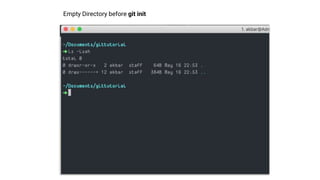
Empty Directory before git init
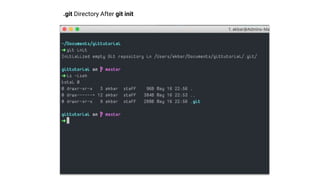
.git Directory After git init
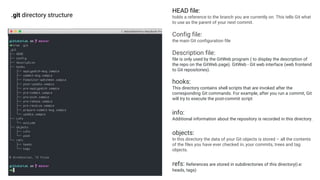
.git directory structure
HEAD file:
holds a reference to the branch you are currently on. This tells Git what
to use as the parent of your next commit.
Config file:
the main Git configuration file
Description file:
file is only used by the GitWeb program ( to display the description of
the repo on the GitWeb page). GitWeb - Git web interface (web frontend
to Git repositories).
hooks:
This directory contains shell scripts that are invoked after the
corresponding Git commands. For example, after you run a commit, Git
will try to execute the post-commit script
info:
Additional information about the repository is recorded in this directory.
objects:
In this directory the data of your Git objects is stored – all the contents
of the files you have ever checked in, your commits, trees and tag
objects.
refs: References are stored in subdirectories of this directory(i.e:
heads, tags)
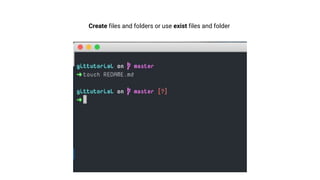
Create files and folders or use exist files and folder
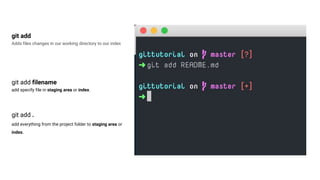
git add
Adds files changes in our working directory to our index
git add filename
add specify file in staging area or index.
git add .
add everything from the project folder to staging area or
index.
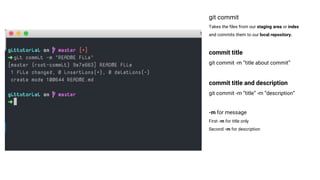
git commit
Takes the files from our staging area or index
and commits them to our local repository.
commit title
git commit -m “title about commit”
commit title and description
git commit -m “title” -m “description”
-m for message
First -m for title only
Second -m for description
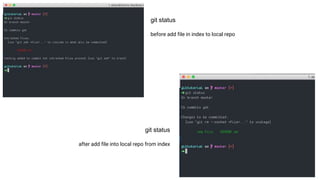
git status
Shows you the status of files in the index versus the working directory. It will list out files
that are untracked (only in your working directory), modified (tracked but not yet updated
in your index), and staged (added to your index and ready for committing).
git status
before add file in index to local repo
git status
after add file into local repo from index
Create github Repo
Code hosting platform
1. Github: https://github.com
2. Bitbucket: https://bitbucket.org/
3. Gitlab: https://about.gitlab.com/
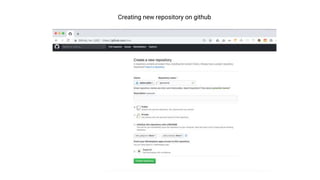
Creating new repository on github
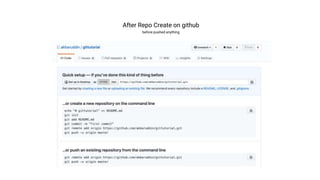
After Repo Create on github
before pushed anything
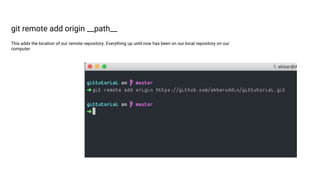
git remote add origin __path__
This adds the location of our remote repository. Everything up until now has been on our local repository on our
computer
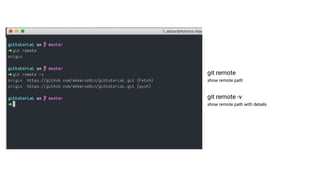
git remote
show remote path
git remote -v
show remote path with details
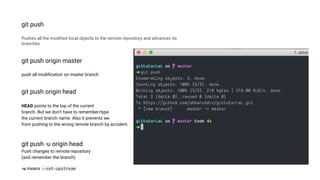
git push
Pushes all the modified local objects to the remote repository and advances its
branches
git push origin master
push all modification on master branch
git push origin head
HEAD points to the top of the current
branch. But we don't have to remember/type
the current branch name. Also it prevents we
from pushing to the wrong remote branch by accident.
git push -u origin head
Push changes to remote repository
(and remember the branch)
-u means --set-upstream
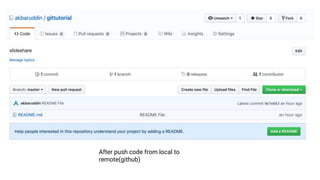
After push code from local to
remote(github)
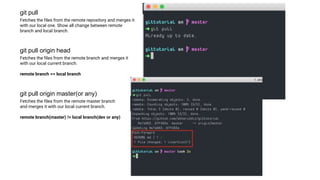
git pull
Fetches the files from the remote repository and merges it
with our local one. Show all change between remote
branch and local branch.
git pull origin head
Fetches the files from the remote branch and merges it
with our local current branch.
remote branch == local branch
git pull origin master(or any)
Fetches the files from the remote master branch
and merges it with our local current branch.
remote branch(master) != local branch(dev or any)
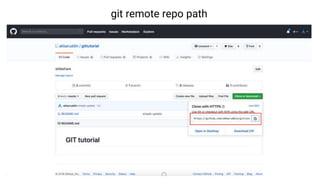
git remote repo path
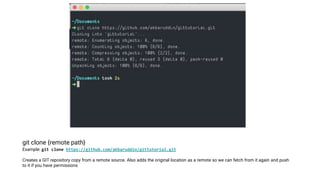
git clone {remote path}
Example: git clone https://github.com/akbaruddin/gittutorial.git
Creates a GIT repository copy from a remote source. Also adds the original location as a remote so we can fetch from it again and push
to it if you have permissions
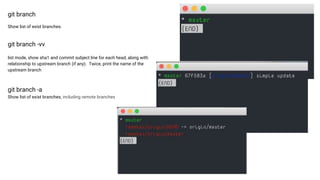
git branch
Show list of exist branches.
git branch -vv
list mode, show sha1 and commit subject line for each head, along with
relationship to upstream branch (if any). Twice, print the name of the
upstream branch
git branch -a
Show list of exist branches, including remote branches
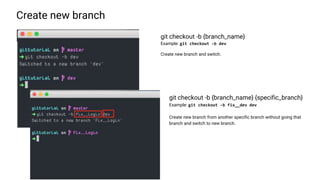
Create new branch
git checkout -b {branch_name}
Example: git checkout -b dev
Create new branch and switch.
git checkout -b {branch_name} {specific_branch}
Example: git checkout -b fix__dev dev
Create new branch from another specific branch without going that
branch and switch to new branch.
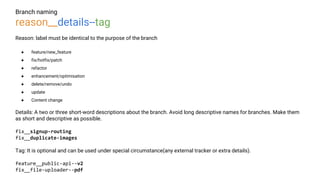
Branch naming
reason__details--tag
Reason: label must be identical to the purpose of the branch
● feature/new_feature
● fix/hotfix/patch
● refactor
● enhancement/optimisation
● delete/remove/undo
● update
● Content change
Details: A two or three short-word descriptions about the branch. Avoid long descriptive names for branches. Make them
as short and descriptive as possible.
fix__signup-routing
fix__duplicate-images
Tag: It is optional and can be used under special circumstance(any external tracker or extra details).
feature__public-api--v2
fix__file-uploader--pdf
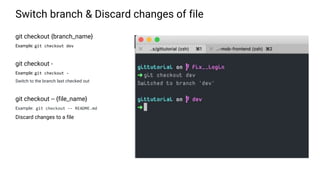
Switch branch & Discard changes of file
git checkout {branch_name}
Example: git checkout dev
git checkout -
Example: git checkout -
Switch to the branch last checked out
git checkout -- {file_name}
Example: git checkout -- README.md
Discard changes to a file
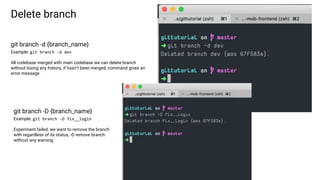
Delete branch
git branch -d {branch_name}
Example: git branch -d dev
All codebase merged with main codebase we can delete branch
without losing any history, if hasn’t been merged, command gives an
error message.
git branch -D {branch_name}
Example: git branch -D fix__login
Experiment failed, we want to remove the branch
with regardless of its status, -D remove branch
without any warning
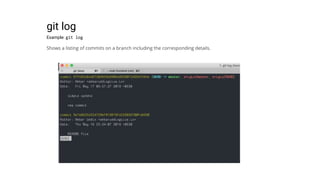
git log
Example: git log
Shows a listing of commits on a branch including the corresponding details.
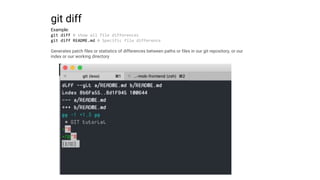
git diff
Example:
git diff # show all file differences
git diff README.md # Specific file difference
Generates patch files or statistics of differences between paths or files in our git repository, or our
index or our working directory
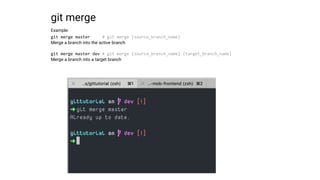
git merge
Example:
git merge master # git merge {source_branch_name}
Merge a branch into the active branch
git merge master dev # git merge {source_branch_name} {target_branch_name}
Merge a branch into a target branch
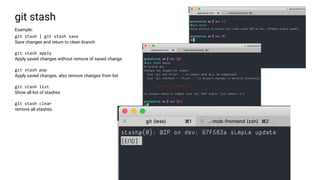
git stash
Example:
git stash | git stash save
Save changes and return to clean branch
git stash apply
Apply saved changes without remove of saved change
git stash pop
Apply saved changes, also remove changes from list
git stash list
Show all list of stashes
git stash clear
remove all stashes
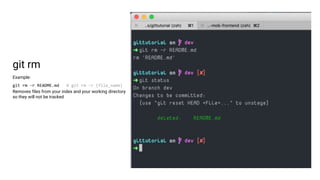
git rm
Example:
git rm -r README.md # git rm -r {file_name}
Removes files from your index and your working directory
so they will not be tracked
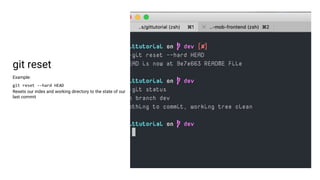
git reset
Example:
git reset --hard HEAD
Resets our index and working directory to the state of our
last commit

Git basic

  • 1.
  • 2.
    git init This willcreate a .git repository in project. A repository or "repo" is a collection of all the changes we’ve made to our project over time and will build a history of these changes. This is the first thing we want to do with a new project.
  • 3.
  • 4.
  • 5.
    .git directory structure HEADfile: holds a reference to the branch you are currently on. This tells Git what to use as the parent of your next commit. Config file: the main Git configuration file Description file: file is only used by the GitWeb program ( to display the description of the repo on the GitWeb page). GitWeb - Git web interface (web frontend to Git repositories). hooks: This directory contains shell scripts that are invoked after the corresponding Git commands. For example, after you run a commit, Git will try to execute the post-commit script info: Additional information about the repository is recorded in this directory. objects: In this directory the data of your Git objects is stored – all the contents of the files you have ever checked in, your commits, trees and tag objects. refs: References are stored in subdirectories of this directory(i.e: heads, tags)
  • 6.
    Create files andfolders or use exist files and folder
  • 7.
    git add Adds fileschanges in our working directory to our index git add filename add specify file in staging area or index. git add . add everything from the project folder to staging area or index.
  • 8.
    git commit Takes thefiles from our staging area or index and commits them to our local repository. commit title git commit -m “title about commit” commit title and description git commit -m “title” -m “description” -m for message First -m for title only Second -m for description
  • 9.
    git status Shows youthe status of files in the index versus the working directory. It will list out files that are untracked (only in your working directory), modified (tracked but not yet updated in your index), and staged (added to your index and ready for committing).
  • 10.
    git status before addfile in index to local repo git status after add file into local repo from index
  • 11.
    Create github Repo Codehosting platform 1. Github: https://github.com 2. Bitbucket: https://bitbucket.org/ 3. Gitlab: https://about.gitlab.com/
  • 12.
  • 13.
    After Repo Createon github before pushed anything
  • 14.
    git remote addorigin __path__ This adds the location of our remote repository. Everything up until now has been on our local repository on our computer
  • 15.
    git remote show remotepath git remote -v show remote path with details
  • 16.
    git push Pushes allthe modified local objects to the remote repository and advances its branches git push origin master push all modification on master branch git push origin head HEAD points to the top of the current branch. But we don't have to remember/type the current branch name. Also it prevents we from pushing to the wrong remote branch by accident. git push -u origin head Push changes to remote repository (and remember the branch) -u means --set-upstream
  • 17.
    After push codefrom local to remote(github)
  • 18.
    git pull Fetches thefiles from the remote repository and merges it with our local one. Show all change between remote branch and local branch. git pull origin head Fetches the files from the remote branch and merges it with our local current branch. remote branch == local branch git pull origin master(or any) Fetches the files from the remote master branch and merges it with our local current branch. remote branch(master) != local branch(dev or any)
  • 19.
  • 20.
    git clone {remotepath} Example: git clone https://github.com/akbaruddin/gittutorial.git Creates a GIT repository copy from a remote source. Also adds the original location as a remote so we can fetch from it again and push to it if you have permissions
  • 21.
    git branch Show listof exist branches. git branch -vv list mode, show sha1 and commit subject line for each head, along with relationship to upstream branch (if any). Twice, print the name of the upstream branch git branch -a Show list of exist branches, including remote branches
  • 22.
    Create new branch gitcheckout -b {branch_name} Example: git checkout -b dev Create new branch and switch. git checkout -b {branch_name} {specific_branch} Example: git checkout -b fix__dev dev Create new branch from another specific branch without going that branch and switch to new branch.
  • 23.
    Branch naming reason__details--tag Reason: labelmust be identical to the purpose of the branch ● feature/new_feature ● fix/hotfix/patch ● refactor ● enhancement/optimisation ● delete/remove/undo ● update ● Content change Details: A two or three short-word descriptions about the branch. Avoid long descriptive names for branches. Make them as short and descriptive as possible. fix__signup-routing fix__duplicate-images Tag: It is optional and can be used under special circumstance(any external tracker or extra details). feature__public-api--v2 fix__file-uploader--pdf
  • 24.
    Switch branch &Discard changes of file git checkout {branch_name} Example: git checkout dev git checkout - Example: git checkout - Switch to the branch last checked out git checkout -- {file_name} Example: git checkout -- README.md Discard changes to a file
  • 25.
    Delete branch git branch-d {branch_name} Example: git branch -d dev All codebase merged with main codebase we can delete branch without losing any history, if hasn’t been merged, command gives an error message. git branch -D {branch_name} Example: git branch -D fix__login Experiment failed, we want to remove the branch with regardless of its status, -D remove branch without any warning
  • 26.
    git log Example: gitlog Shows a listing of commits on a branch including the corresponding details.
  • 27.
    git diff Example: git diff# show all file differences git diff README.md # Specific file difference Generates patch files or statistics of differences between paths or files in our git repository, or our index or our working directory
  • 28.
    git merge Example: git mergemaster # git merge {source_branch_name} Merge a branch into the active branch git merge master dev # git merge {source_branch_name} {target_branch_name} Merge a branch into a target branch
  • 29.
    git stash Example: git stash| git stash save Save changes and return to clean branch git stash apply Apply saved changes without remove of saved change git stash pop Apply saved changes, also remove changes from list git stash list Show all list of stashes git stash clear remove all stashes
  • 30.
    git rm Example: git rm-r README.md # git rm -r {file_name} Removes files from your index and your working directory so they will not be tracked
  • 31.
    git reset Example: git reset--hard HEAD Resets our index and working directory to the state of our last commit