Game Project
Unity
Petri Lankoski
aalto.fi
Getting Started
• Creating a new project
– Select File -> New Project
• Write the project name
• Select (at least) the following Packages to the project
– Character Controller
– Scripts
– Terrain Assets
• Click Create Project
Getting Started with Unity
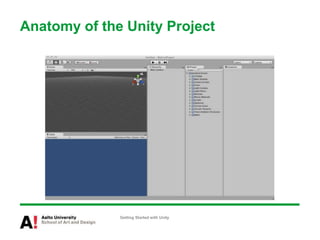
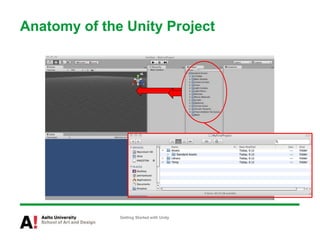
Anatomy of the Unity Project
Getting Started with Unity
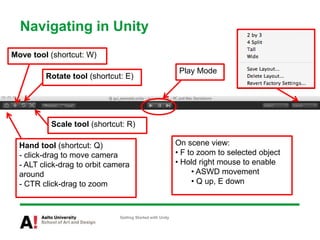
Navigating in Unity
Getting Started with Unity
Hand tool (shortcut: Q)
- click-drag to move camera
- ALT click-drag to orbit camera
around
- CTR click-drag to zoom
Move tool (shortcut: W)
Rotate tool (shortcut: E)
Scale tool (shortcut: R)
On scene view:
• F to zoom to selected object
• Hold right mouse to enable
• ASWD movement
• Q up, E down
Play Mode
Anatomy of the Unity Project
Getting Started with Unity
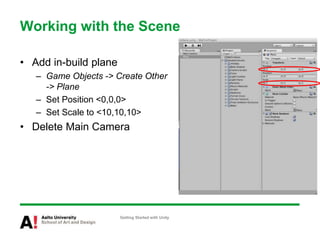
Working with the Scene
• Add in-build plane
– Game Objects -> Create Other
-> Plane
– Set Position <0,0,0>
– Set Scale to <10,10,10>
• Delete Main Camera
Getting Started with Unity
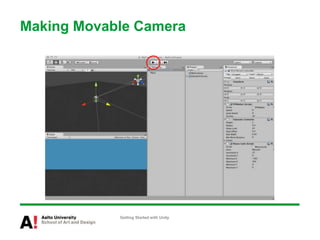
Making Movable Camera
• Hierarchy: select Main Camera
• Project: Open Standard Assets / Prefabs
• Drag First Person Controller to Hierarchy
• Set Position to <0,2,0> if the First Person Controller
drops thought the Plane
• (Save Scene: File->Save Scene)
Getting Started with Unity
Making Movable Camera
Getting Started with Unity
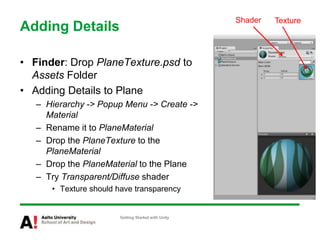
Adding Details
• Finder: Drop PlaneTexture.psd to
Assets Folder
• Adding Details to Plane
– Hierarchy -> Popup Menu -> Create ->
Material
– Rename it to PlaneMaterial
– Drop the PlaneTexture to the
PlaneMaterial
– Drop the PlaneMaterial to the Plane
– Try Transparent/Diffuse shader
• Texture should have transparency
Getting Started with Unity
Shader Texture
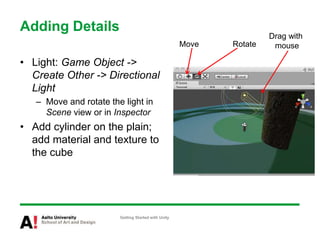
Adding Details
• Light: Game Object ->
Create Other -> Directional
Light
– Move and rotate the light in
Scene view or in Inspector
• Add cylinder on the plain;
add material and texture to
the cube
Getting Started with Unity
RotateMove
Drag with
mouse
Adding Sounds
• Finder: drop a sound file to Assets folder
• Add an Game Object to Scene
• Drag and Drop the sound file to the Game Object
– Rolloff factor determines how fast sound fades when distance
grows
Getting Started with Unity
Adding Animated Model
• Finder: Drop the model (e.g., Abby.fbx) to Assets folder
• Drag and Drop the model to Scene (or Hierarchy)
– Set Position <8,1.1,0)
Getting Started with Unity
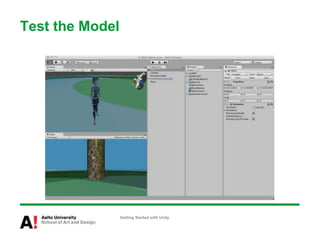
Test the Model
Getting Started with Unity
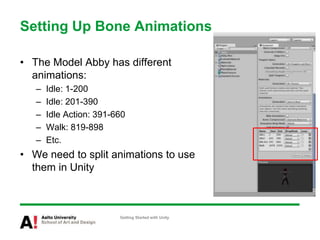
Setting Up Bone Animations
• The Model Abby has different
animations:
– Idle: 1-200
– Idle: 201-390
– Idle Action: 391-660
– Walk: 819-898
– Etc.
• We need to split animations to use
them in Unity
Getting Started with Unity
Creating Prefab
• Create a New Scene
– File -> New Scene
• Add Plane and scale it bigger (x & z)
• Rename “Abby” to “Abby Model” (project view)
• Create Abby prefab
– Project Popup -> Create -> Prefab
– Rename “New Prefab” to “Abby”
– Drag-and-drop Abby Model to Abby
Getting Started with Unity
Creating Prefab
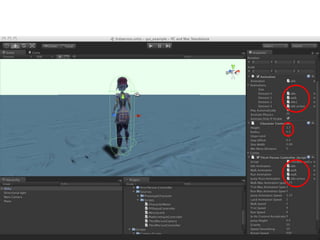
• Adding control scripts to Abby
– Drag-and-drop ThirdPersonController to Abby
– Change values of CharacterController of Abby
• Height: 1.7
• Radius: 0.3
– Add animations to the scripts
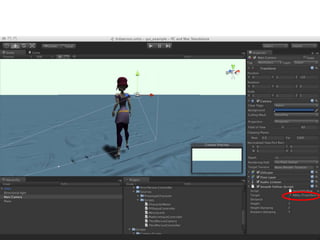
• Add SmootFollow to Main Camera
• Drag-and-drop Abby to Scene view
– Make her stand on the plain
• Drag-and-drop Abby to Main
Camera/SmoothFollow/Target
Getting Started with Unity
• xx
Getting Started with Unity
• xx
Getting Started with Unity
Adding New Animation Control
• Create new C# script AbbyAnim
• Attach the script to Abby (on Scene view)
• Add idle action animation clip to the Abby/AbbyAnim
• Apply changes to prefab
Getting Started with Unity
More about character animation,
http://unity3d.com/support/documentation/Manual/Character-Animation.html
public class AbbyAnim : MonoBehaviour {
private Animation _animation;
public AnimationClip action;
void Awake() {
_animation = GetComponent(typeof(Animation)) as Animation;
if (! _animation) { Debug.LogError(“…”); }
if (! action) { Debug.LogError(“…”); return;}
_animation[action.name].wrapMode = WrapMode.Once;
}
…
Getting Started with Unity
…
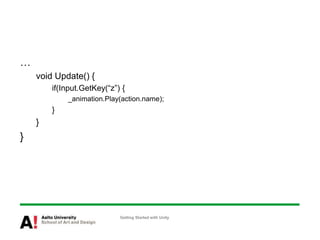
void Update() {
if(Input.GetKey(“z”) {
_animation.Play(action.name);
}
}
}
Getting Started with Unity
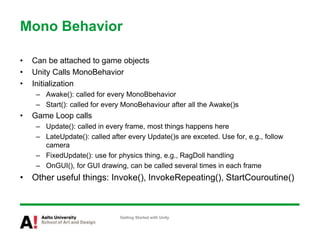
Mono Behavior
• Can be attached to game objects
• Unity Calls MonoBehavior
• Initialization
– Awake(): called for every MonoBbehavior
– Start(): called for every MonoBehaviour after all the Awake()s
• Game Loop calls
– Update(): called in every frame, most things happens here
– LateUpdate(): called after every Update()s are exceted. Use for, e.g., follow
camera
– FixedUpdate(): use for physics thing, e.g., RagDoll handling
– OnGUI(), for GUI drawing, can be called several times in each frame
• Other useful things: Invoke(), InvokeRepeating(), StartCouroutine()
Getting Started with Unity
User Interface
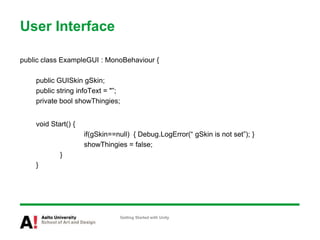
public class ExampleGUI : MonoBehaviour {
public GUISkin gSkin;
public string infoText = "”;
private bool showThingies;
void Start() {
if(gSkin==null) { Debug.LogError(“ gSkin is not set”); }
showThingies = false;
}
}
Getting Started with Unity
User Interface…
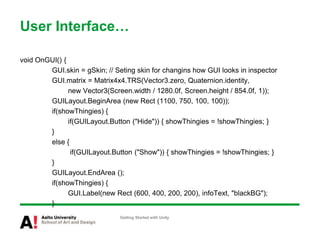
void OnGUI() {
GUI.skin = gSkin; // Seting skin for changins how GUI looks in inspector
GUI.matrix = Matrix4x4.TRS(Vector3.zero, Quaternion.identity,
new Vector3(Screen.width / 1280.0f, Screen.height / 854.0f, 1));
GUILayout.BeginArea (new Rect (1100, 750, 100, 100));
if(showThingies) {
if(GUILayout.Button ("Hide")) { showThingies = !showThingies; }
}
else {
if(GUILayout.Button ("Show")) { showThingies = !showThingies; }
}
GUILayout.EndArea ();
if(showThingies) {
GUI.Label(new Rect (600, 400, 200, 200), infoText, "blackBG");
}
Getting Started with Unity
User Interface
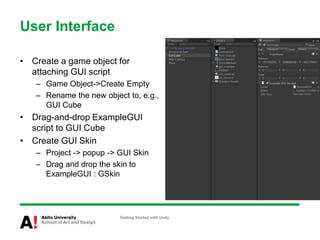
• Create a game object for
attaching GUI script
– Game Object->Create Empty
– Rename the new object to, e.g.,
GUI Cube
• Drag-and-drop ExampleGUI
script to GUI Cube
• Create GUI Skin
– Project -> popup -> GUI Skin
– Drag and drop the skin to
ExampleGUI : GSkin
Getting Started with Unity
User Interface
• Experiment with GUI Skin settings
– Play to see how the settings changes GUI
Getting Started with Unity
Models and Animations
• Characters
– 15-60 bones
• Hierarchy!
• Consistent naming (the same names for same type of things)
– 2500-5000 triangles
• Textures
– Optimal size: 2nx2m (1x1, 2x2, …, 128x256, … 256x256, …,
256x1024, …, 1024x1024,)
• In some cases SoftImage does texture optimizing
– Optimal size: small as possible
• Older cards do not support over 1024x1024
Getting Started with Unity
Material – Shader – Texture
• Material defines
– Shader
• Defines method to render an object, texture properties, etc.
– Texture(s)
– Color definitions
– Other assets
• E.g., cubemap required for rendering
Getting Started with Unity
Models and Animations
• Object needs to be
drawn for every of its
texture
– Object with 4 textures
will be draw 4 times
– Combine textures in
SoftImage
– Use different textures
only if you, e.g., need
different shaders
• Unity and SoftImage
have different shaders
• Use simplest possible
shader in Unity
– Opt for shaders without
bumbs, transparencies
unless you use these
Getting Started with Unity
Code Optimizing
• Keep Update(), FixedUpdate(), LateUpdate(), OnGUI() clean
• Avoid object lookups, e.g., GameObject.Find() calls within these
– Cache lookup results when possible
• Use MonoBehaviour.enabled to disable/enable MonoBehavior if
you do not want to execute Update(), …
– MonoBehaviour.Invoke(), MonoBehaviour.InvokeRepeating()
and Couroutines are alternative to Update()
• Functionality is not needed to execute in every frame
– E.g., use InvokeRepeating() to execute of function for every 0.5s
– Do not add empty Update(), FixedUpdate(), LateUpdate(), OnGUI()
• Call overhead!
Getting Started with Unity
Version Control
• External version control with Pro
– Needs to be enabled from Edit->Project Settings->Editor
– Set up the system:
http://unity3d.com/support/documentation/Manual/ExternalVersionControlSyste
mSupport.html
– CVS, Perforce, Subversion, …
• Binary files, (textures, models, sounds) do not work work well with these
– Unity Pro project will be incompatible with Unity
• DropBox as version control
– Drop the project folder to a DropBox folder to check in a version and vice versa
– CVS, Perforce, Subversion for version control for scripts
– Unity and Unity Pro projects will be compable
• Unity Pro only features will be automatically disabled in Unity
• Regular backup (e.g., zip the project folder)
– Archive backups to have snapshop of the project to rollback
Getting Started with Unity
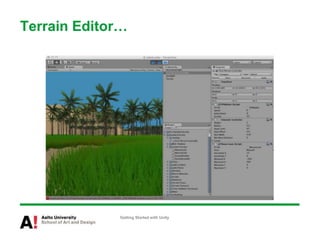
Terrain Editor
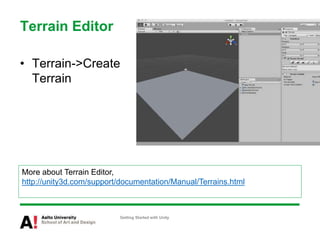
• Terrain->Create
Terrain
Getting Started with Unity
More about Terrain Editor,
http://unity3d.com/support/documentation/Manual/Terrains.html
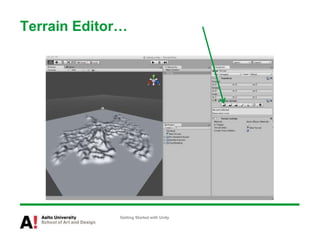
Terrain Editor…
Getting Started with Unity
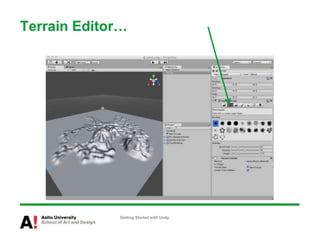
Terrain Editor…
Getting Started with Unity
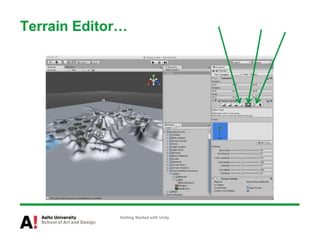
Terrain Editor…
Getting Started with Unity
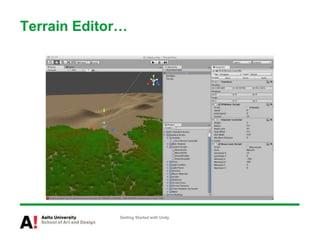
Terrain Editor…
Getting Started with Unity
Terrain Editor…
Getting Started with Unity
More Information
• Unity manual
– http://unity3d.com/support/documentation/Manual/
• Unity scripting reference
– http://unity3d.com/support/documentation/ScriptReference/
• Unity Scripts and Tips Wiki
– http://www.unifycommunity.com/wiki/
• Unity Tutorials
– http://unity3d.com/support/resources/tutorials/
• Lies and Seductions source code
– http://mlab.taik.fi/~plankosk/blog/?p=308
Getting Started with Unity

Workingwithunity 110519054824-phpapp01

  • 1.
  • 2.
    Getting Started • Creatinga new project – Select File -> New Project • Write the project name • Select (at least) the following Packages to the project – Character Controller – Scripts – Terrain Assets • Click Create Project Getting Started with Unity
  • 3.
    Anatomy of theUnity Project Getting Started with Unity
  • 4.
    Navigating in Unity GettingStarted with Unity Hand tool (shortcut: Q) - click-drag to move camera - ALT click-drag to orbit camera around - CTR click-drag to zoom Move tool (shortcut: W) Rotate tool (shortcut: E) Scale tool (shortcut: R) On scene view: • F to zoom to selected object • Hold right mouse to enable • ASWD movement • Q up, E down Play Mode
  • 5.
    Anatomy of theUnity Project Getting Started with Unity
  • 6.
    Working with theScene • Add in-build plane – Game Objects -> Create Other -> Plane – Set Position <0,0,0> – Set Scale to <10,10,10> • Delete Main Camera Getting Started with Unity
  • 7.
    Making Movable Camera •Hierarchy: select Main Camera • Project: Open Standard Assets / Prefabs • Drag First Person Controller to Hierarchy • Set Position to <0,2,0> if the First Person Controller drops thought the Plane • (Save Scene: File->Save Scene) Getting Started with Unity
  • 8.
  • 9.
    Adding Details • Finder:Drop PlaneTexture.psd to Assets Folder • Adding Details to Plane – Hierarchy -> Popup Menu -> Create -> Material – Rename it to PlaneMaterial – Drop the PlaneTexture to the PlaneMaterial – Drop the PlaneMaterial to the Plane – Try Transparent/Diffuse shader • Texture should have transparency Getting Started with Unity Shader Texture
  • 10.
    Adding Details • Light:Game Object -> Create Other -> Directional Light – Move and rotate the light in Scene view or in Inspector • Add cylinder on the plain; add material and texture to the cube Getting Started with Unity RotateMove Drag with mouse
  • 11.
    Adding Sounds • Finder:drop a sound file to Assets folder • Add an Game Object to Scene • Drag and Drop the sound file to the Game Object – Rolloff factor determines how fast sound fades when distance grows Getting Started with Unity
  • 12.
    Adding Animated Model •Finder: Drop the model (e.g., Abby.fbx) to Assets folder • Drag and Drop the model to Scene (or Hierarchy) – Set Position <8,1.1,0) Getting Started with Unity
  • 13.
    Test the Model GettingStarted with Unity
  • 14.
    Setting Up BoneAnimations • The Model Abby has different animations: – Idle: 1-200 – Idle: 201-390 – Idle Action: 391-660 – Walk: 819-898 – Etc. • We need to split animations to use them in Unity Getting Started with Unity
  • 15.
    Creating Prefab • Createa New Scene – File -> New Scene • Add Plane and scale it bigger (x & z) • Rename “Abby” to “Abby Model” (project view) • Create Abby prefab – Project Popup -> Create -> Prefab – Rename “New Prefab” to “Abby” – Drag-and-drop Abby Model to Abby Getting Started with Unity
  • 16.
    Creating Prefab • Addingcontrol scripts to Abby – Drag-and-drop ThirdPersonController to Abby – Change values of CharacterController of Abby • Height: 1.7 • Radius: 0.3 – Add animations to the scripts • Add SmootFollow to Main Camera • Drag-and-drop Abby to Scene view – Make her stand on the plain • Drag-and-drop Abby to Main Camera/SmoothFollow/Target Getting Started with Unity
  • 17.
  • 18.
  • 19.
    Adding New AnimationControl • Create new C# script AbbyAnim • Attach the script to Abby (on Scene view) • Add idle action animation clip to the Abby/AbbyAnim • Apply changes to prefab Getting Started with Unity More about character animation, http://unity3d.com/support/documentation/Manual/Character-Animation.html
  • 20.
    public class AbbyAnim: MonoBehaviour { private Animation _animation; public AnimationClip action; void Awake() { _animation = GetComponent(typeof(Animation)) as Animation; if (! _animation) { Debug.LogError(“…”); } if (! action) { Debug.LogError(“…”); return;} _animation[action.name].wrapMode = WrapMode.Once; } … Getting Started with Unity
  • 21.
    … void Update() { if(Input.GetKey(“z”){ _animation.Play(action.name); } } } Getting Started with Unity
  • 22.
    Mono Behavior • Canbe attached to game objects • Unity Calls MonoBehavior • Initialization – Awake(): called for every MonoBbehavior – Start(): called for every MonoBehaviour after all the Awake()s • Game Loop calls – Update(): called in every frame, most things happens here – LateUpdate(): called after every Update()s are exceted. Use for, e.g., follow camera – FixedUpdate(): use for physics thing, e.g., RagDoll handling – OnGUI(), for GUI drawing, can be called several times in each frame • Other useful things: Invoke(), InvokeRepeating(), StartCouroutine() Getting Started with Unity
  • 23.
    User Interface public classExampleGUI : MonoBehaviour { public GUISkin gSkin; public string infoText = "”; private bool showThingies; void Start() { if(gSkin==null) { Debug.LogError(“ gSkin is not set”); } showThingies = false; } } Getting Started with Unity
  • 24.
    User Interface… void OnGUI(){ GUI.skin = gSkin; // Seting skin for changins how GUI looks in inspector GUI.matrix = Matrix4x4.TRS(Vector3.zero, Quaternion.identity, new Vector3(Screen.width / 1280.0f, Screen.height / 854.0f, 1)); GUILayout.BeginArea (new Rect (1100, 750, 100, 100)); if(showThingies) { if(GUILayout.Button ("Hide")) { showThingies = !showThingies; } } else { if(GUILayout.Button ("Show")) { showThingies = !showThingies; } } GUILayout.EndArea (); if(showThingies) { GUI.Label(new Rect (600, 400, 200, 200), infoText, "blackBG"); } Getting Started with Unity
  • 25.
    User Interface • Createa game object for attaching GUI script – Game Object->Create Empty – Rename the new object to, e.g., GUI Cube • Drag-and-drop ExampleGUI script to GUI Cube • Create GUI Skin – Project -> popup -> GUI Skin – Drag and drop the skin to ExampleGUI : GSkin Getting Started with Unity
  • 26.
    User Interface • Experimentwith GUI Skin settings – Play to see how the settings changes GUI Getting Started with Unity
  • 27.
    Models and Animations •Characters – 15-60 bones • Hierarchy! • Consistent naming (the same names for same type of things) – 2500-5000 triangles • Textures – Optimal size: 2nx2m (1x1, 2x2, …, 128x256, … 256x256, …, 256x1024, …, 1024x1024,) • In some cases SoftImage does texture optimizing – Optimal size: small as possible • Older cards do not support over 1024x1024 Getting Started with Unity
  • 28.
    Material – Shader– Texture • Material defines – Shader • Defines method to render an object, texture properties, etc. – Texture(s) – Color definitions – Other assets • E.g., cubemap required for rendering Getting Started with Unity
  • 29.
    Models and Animations •Object needs to be drawn for every of its texture – Object with 4 textures will be draw 4 times – Combine textures in SoftImage – Use different textures only if you, e.g., need different shaders • Unity and SoftImage have different shaders • Use simplest possible shader in Unity – Opt for shaders without bumbs, transparencies unless you use these Getting Started with Unity
  • 30.
    Code Optimizing • KeepUpdate(), FixedUpdate(), LateUpdate(), OnGUI() clean • Avoid object lookups, e.g., GameObject.Find() calls within these – Cache lookup results when possible • Use MonoBehaviour.enabled to disable/enable MonoBehavior if you do not want to execute Update(), … – MonoBehaviour.Invoke(), MonoBehaviour.InvokeRepeating() and Couroutines are alternative to Update() • Functionality is not needed to execute in every frame – E.g., use InvokeRepeating() to execute of function for every 0.5s – Do not add empty Update(), FixedUpdate(), LateUpdate(), OnGUI() • Call overhead! Getting Started with Unity
  • 31.
    Version Control • Externalversion control with Pro – Needs to be enabled from Edit->Project Settings->Editor – Set up the system: http://unity3d.com/support/documentation/Manual/ExternalVersionControlSyste mSupport.html – CVS, Perforce, Subversion, … • Binary files, (textures, models, sounds) do not work work well with these – Unity Pro project will be incompatible with Unity • DropBox as version control – Drop the project folder to a DropBox folder to check in a version and vice versa – CVS, Perforce, Subversion for version control for scripts – Unity and Unity Pro projects will be compable • Unity Pro only features will be automatically disabled in Unity • Regular backup (e.g., zip the project folder) – Archive backups to have snapshop of the project to rollback Getting Started with Unity
  • 32.
    Terrain Editor • Terrain->Create Terrain GettingStarted with Unity More about Terrain Editor, http://unity3d.com/support/documentation/Manual/Terrains.html
  • 33.
  • 34.
  • 35.
  • 36.
  • 37.
  • 38.
    More Information • Unitymanual – http://unity3d.com/support/documentation/Manual/ • Unity scripting reference – http://unity3d.com/support/documentation/ScriptReference/ • Unity Scripts and Tips Wiki – http://www.unifycommunity.com/wiki/ • Unity Tutorials – http://unity3d.com/support/resources/tutorials/ • Lies and Seductions source code – http://mlab.taik.fi/~plankosk/blog/?p=308 Getting Started with Unity

Editor's Notes

  • #6 Unity Project in the filesystem is a folder that contains folders Assets, Library, and Temp. Models, textures, scripts etc. goes to Assets folder. Assets folder can contain subfolders. Just drag and drop in Finder assets were you want to put them. BUT, rename things in Unity, NOT in Finder, because renaming in Finder will break dependencies in Unity.
  • #9 Test by hitting PLAY. You can test and see your game in Game window . Controls: ASDW or cursor keys + mouse
  • #14 By default, as Play Automatically is selected, the animations of the model are played, but we do now we do not have any control over them