WordPress For
Beginners
Lesson 3
Settings
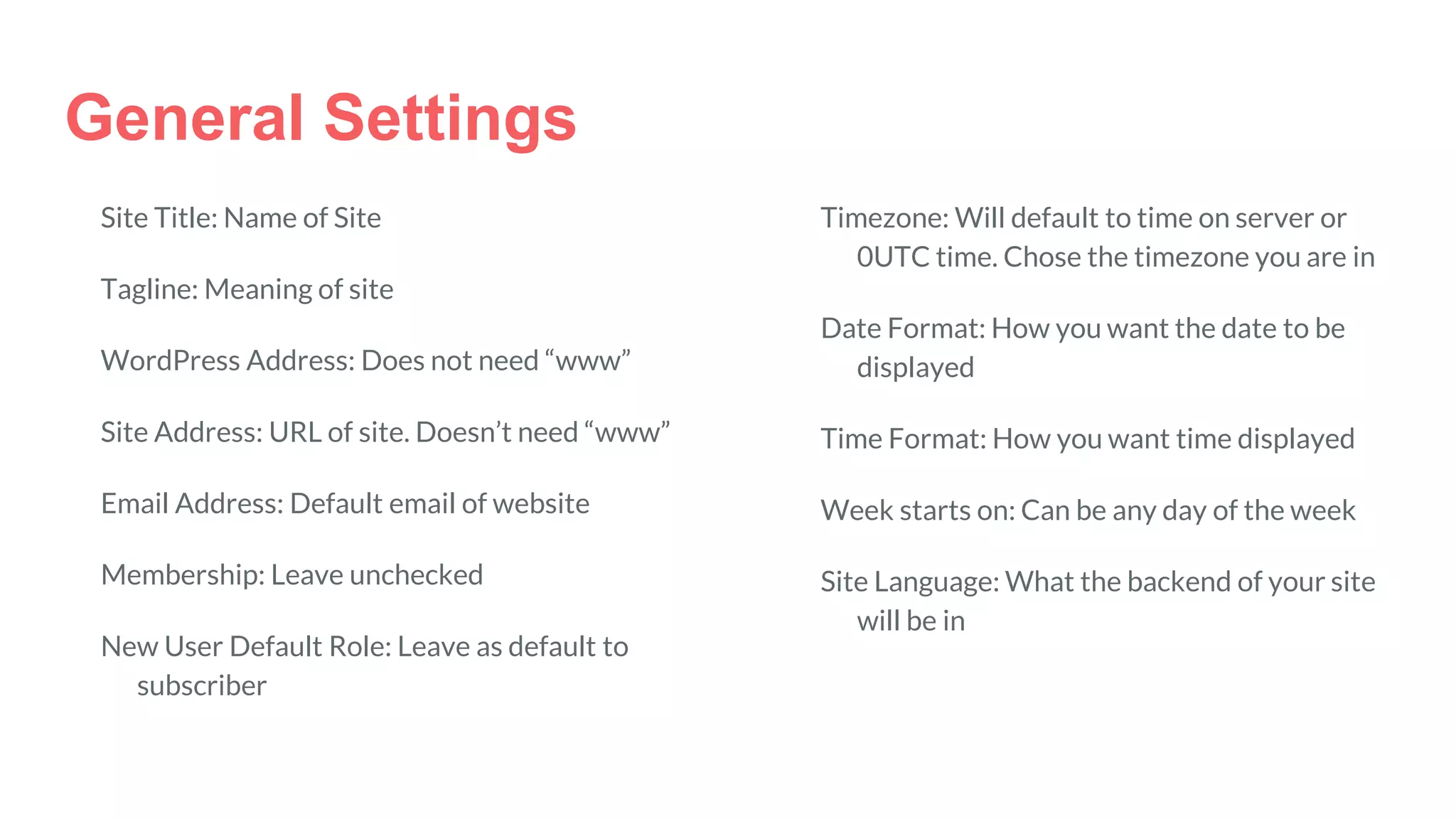
General Settings
Site Title: Name of Site
Tagline: Meaning of site
WordPress Address: Does not need “www”
Site Address: URL of site. Doesn’t need “www”
Email Address: Default email of website
Membership: Leave unchecked
New User Default Role: Leave as default to
subscriber
Timezone: Will default to time on server or
0UTC time. Chose the timezone you are in
Date Format: How you want the date to be
displayed
Time Format: How you want time displayed
Week starts on: Can be any day of the week
Site Language: What the backend of your site
will be in
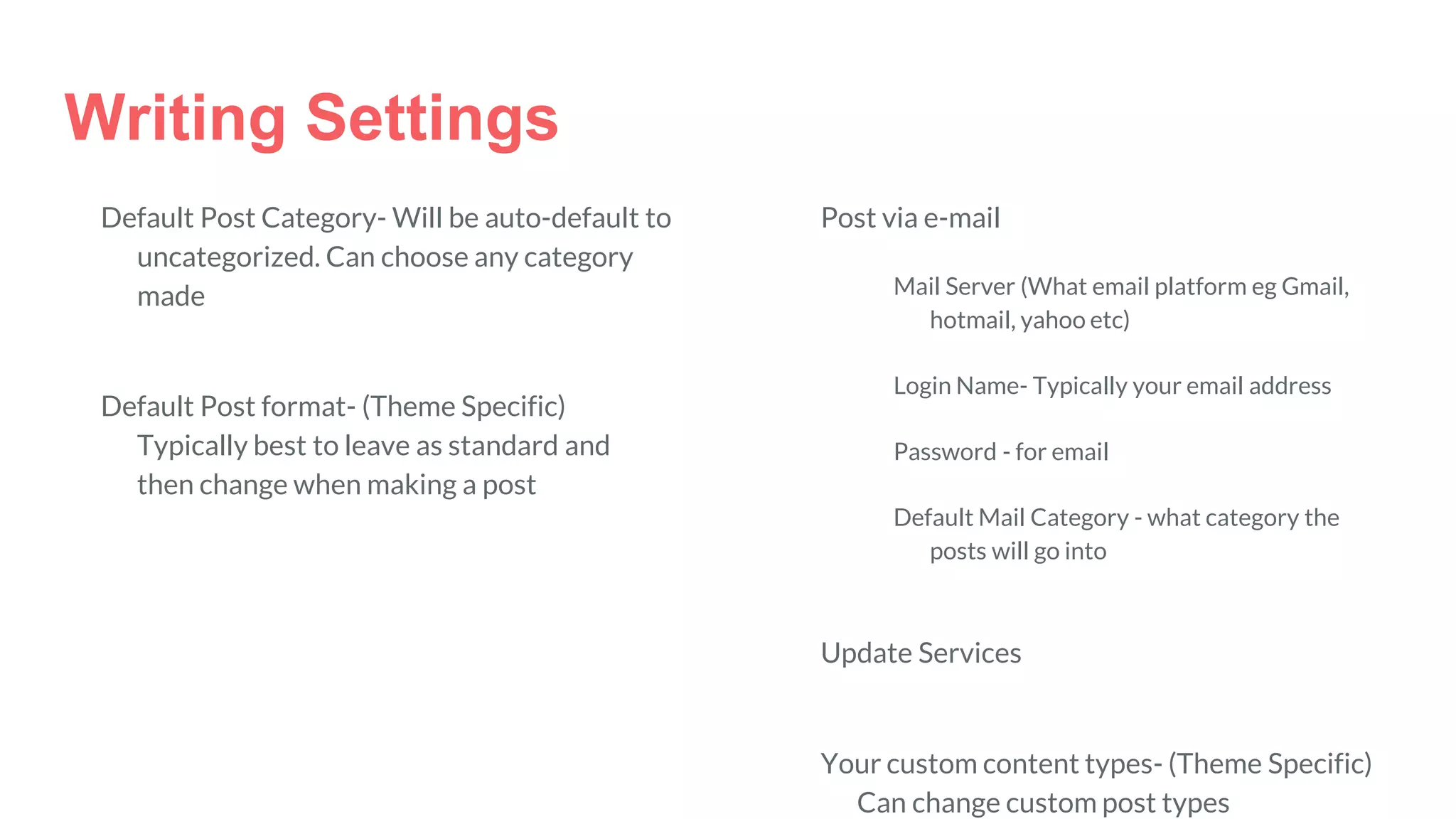
Writing Settings
Default Post Category- Will be auto-default to
uncategorized. Can choose any category
made
Default Post format- (Theme Specific)
Typically best to leave as standard and
then change when making a post
Post via e-mail
Mail Server (What email platform eg Gmail,
hotmail, yahoo etc)
Login Name- Typically your email address
Password - for email
Default Mail Category - what category the
posts will go into
Update Services
Your custom content types- (Theme Specific)
Can change custom post types
Reading Settings
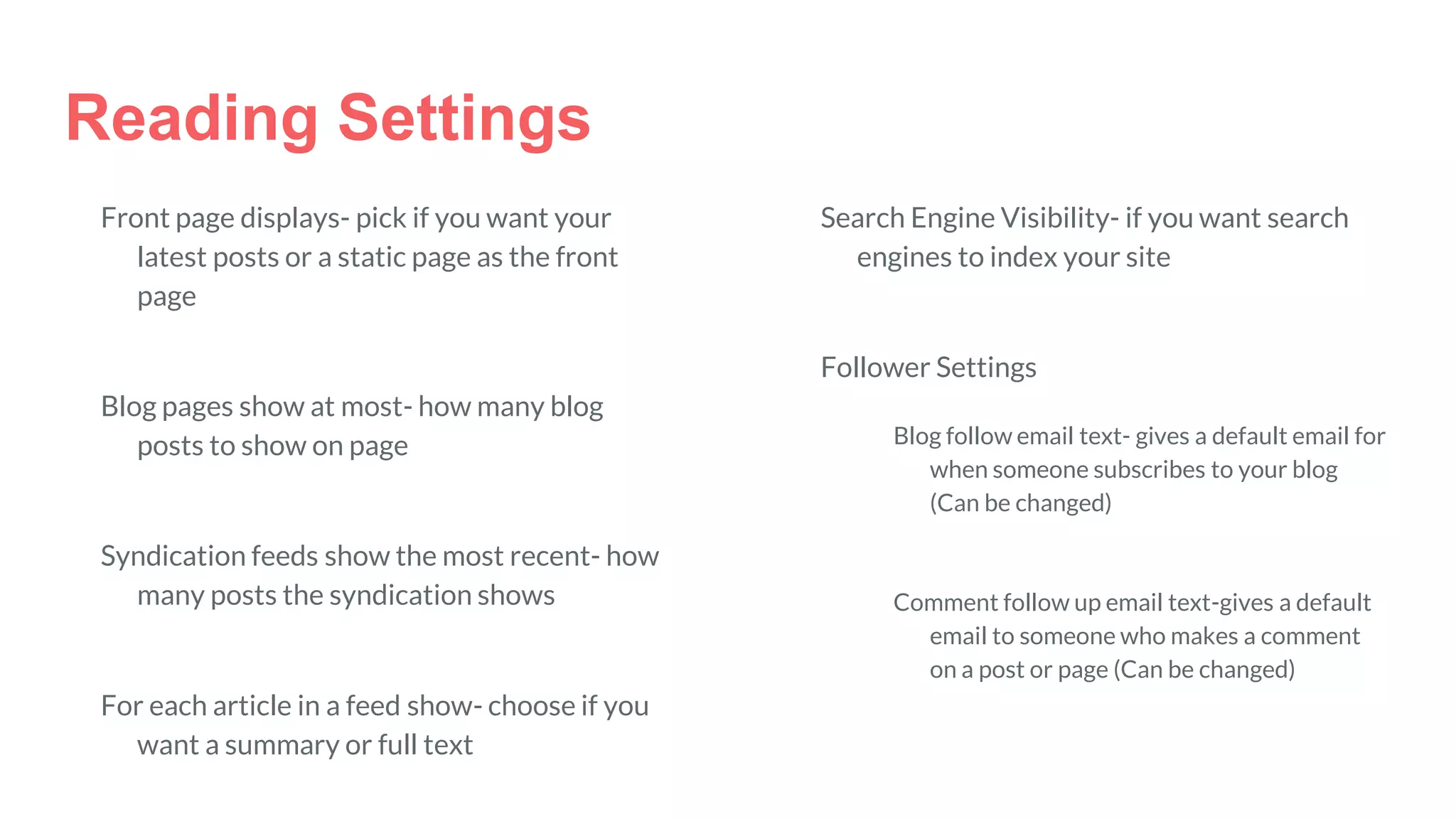
Front page displays- pick if you want your
latest posts or a static page as the front
page
Blog pages show at most- how many blog
posts to show on page
Syndication feeds show the most recent- how
many posts the syndication shows
For each article in a feed show- choose if you
want a summary or full text
Search Engine Visibility- if you want search
engines to index your site
Follower Settings
Blog follow email text- gives a default email for
when someone subscribes to your blog
(Can be changed)
Comment follow up email text-gives a default
email to someone who makes a comment
on a post or page (Can be changed)
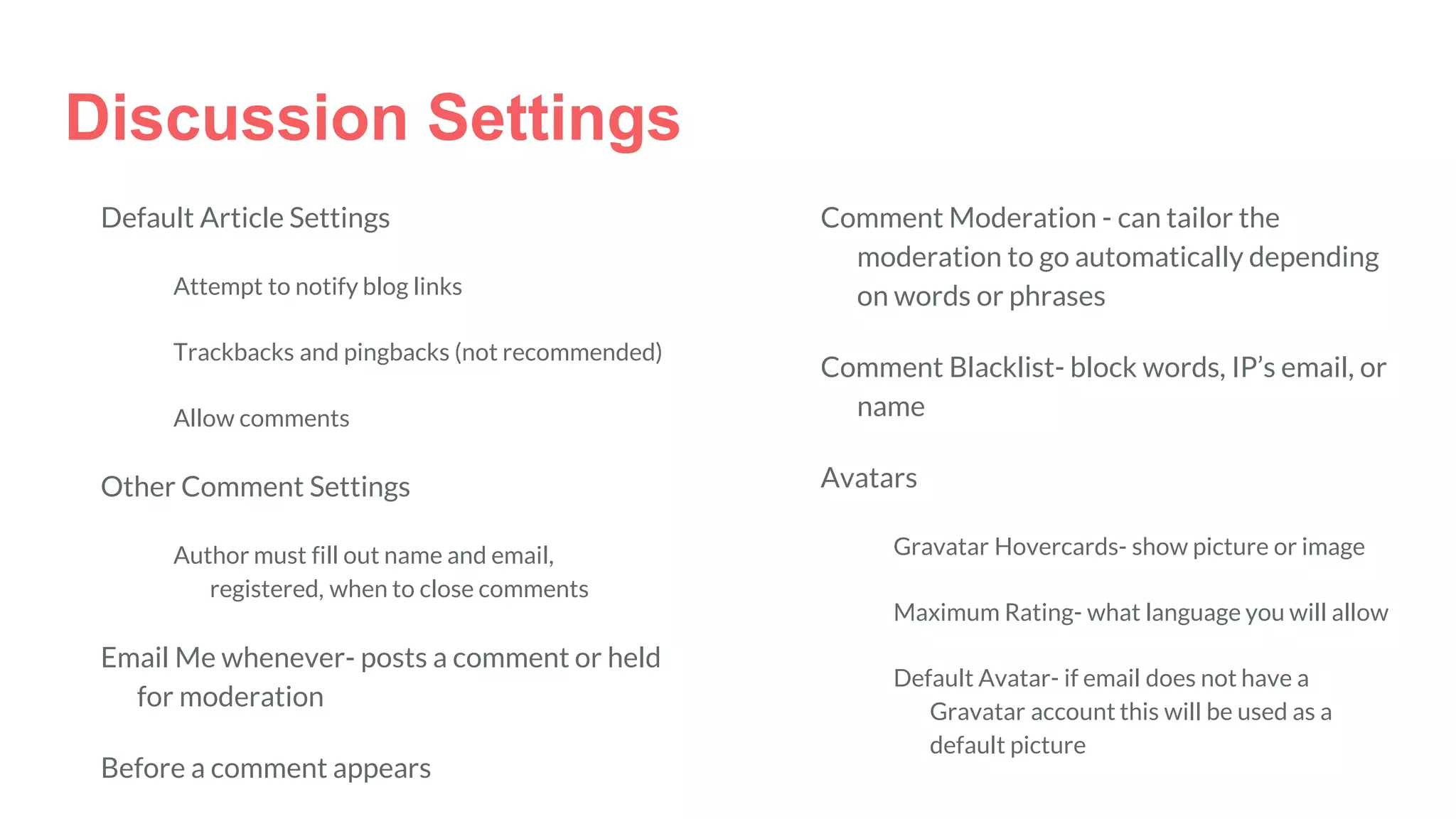
Discussion Settings
Default Article Settings
Attempt to notify blog links
Trackbacks and pingbacks (not recommended)
Allow comments
Other Comment Settings
Author must fill out name and email,
registered, when to close comments
Email Me whenever- posts a comment or held
for moderation
Before a comment appears
Comment Moderation - can tailor the
moderation to go automatically depending
on words or phrases
Comment Blacklist- block words, IP’s email, or
name
Avatars
Gravatar Hovercards- show picture or image
Maximum Rating- what language you will allow
Default Avatar- if email does not have a
Gravatar account this will be used as a
default picture
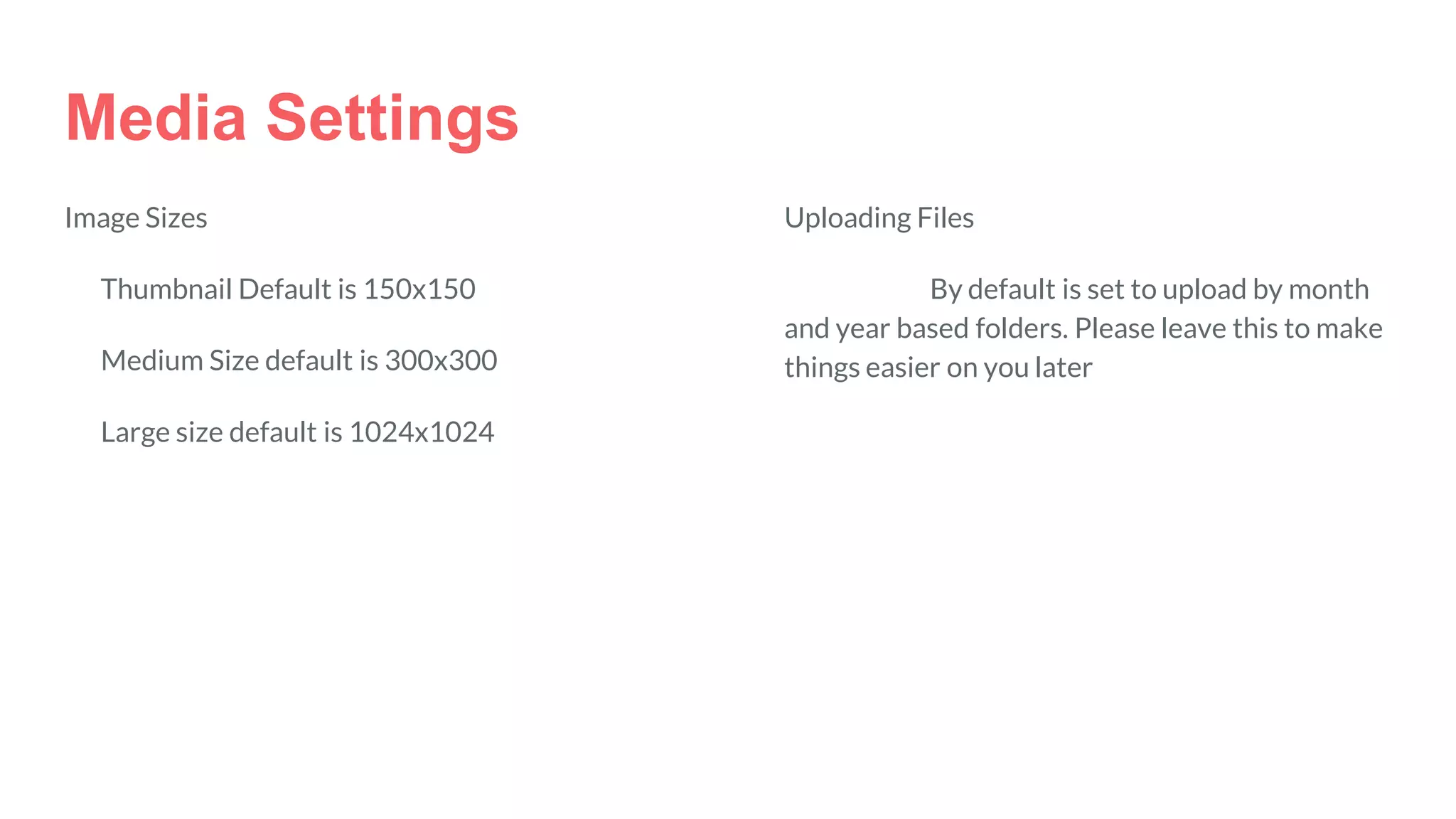
Media Settings
Image Sizes
Thumbnail Default is 150x150
Medium Size default is 300x300
Large size default is 1024x1024
Uploading Files
By default is set to upload by month
and year based folders. Please leave this to make
things easier on you later
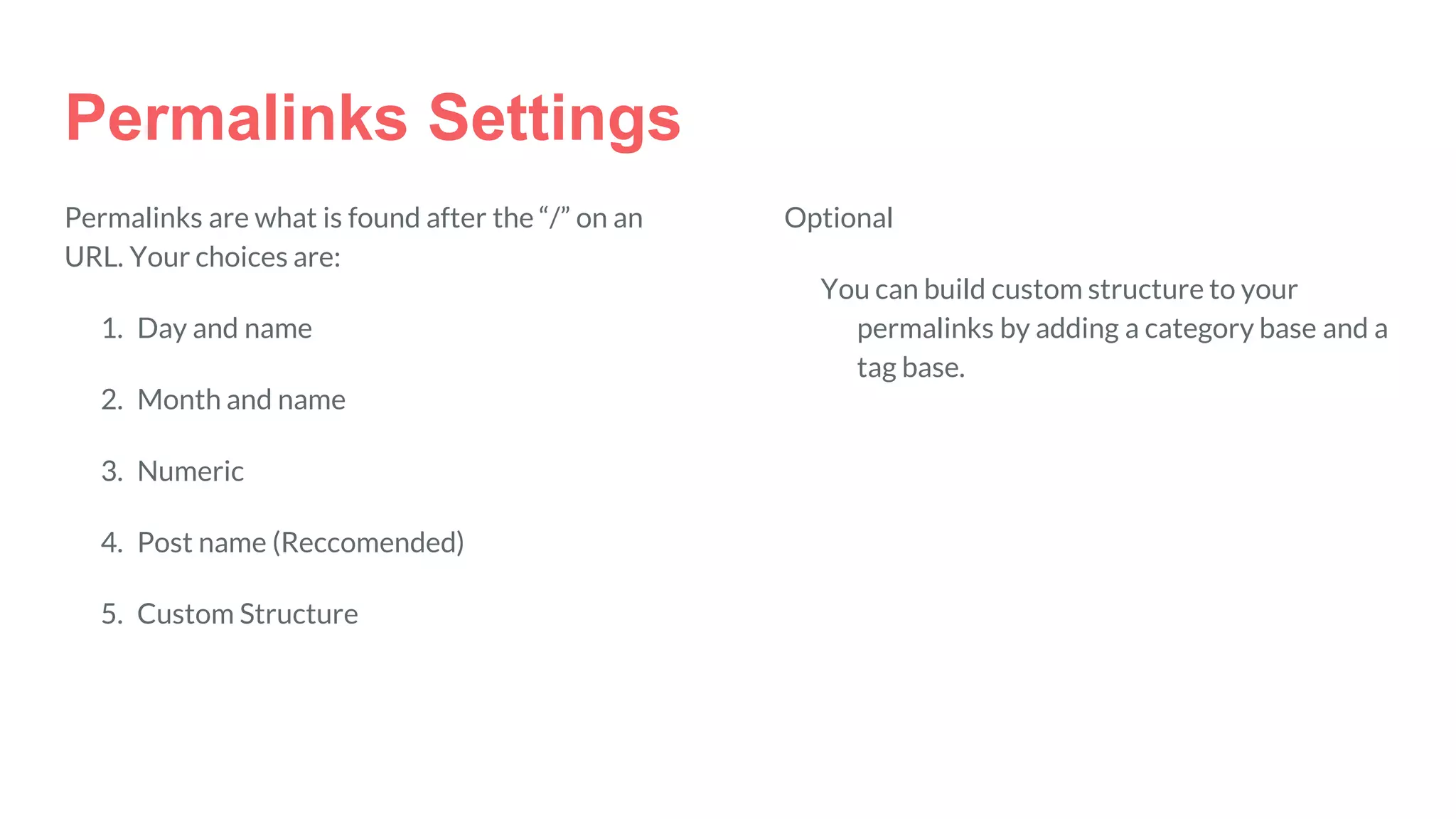
Permalinks Settings
Permalinks are what is found after the “/” on an
URL. Your choices are:
1. Day and name
2. Month and name
3. Numeric
4. Post name (Reccomended)
5. Custom Structure
Optional
You can build custom structure to your
permalinks by adding a category base and a
tag base.
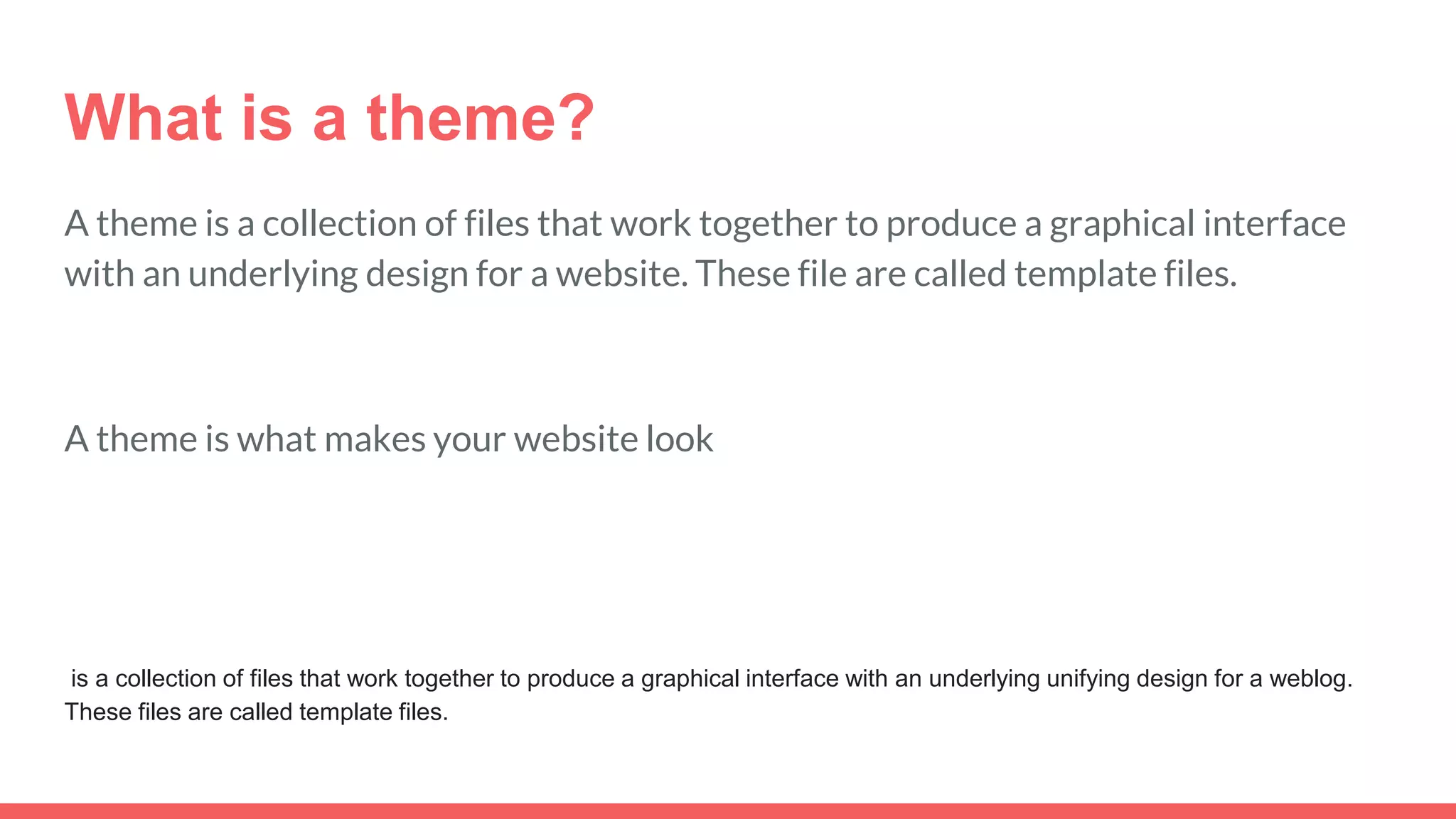
What is a theme?
A theme is a collection of files that work together to produce a graphical interface
with an underlying design for a website. These file are called template files.
A theme is what makes your website look
is a collection of files that work together to produce a graphical interface with an underlying unifying design for a weblog.
These files are called template files.
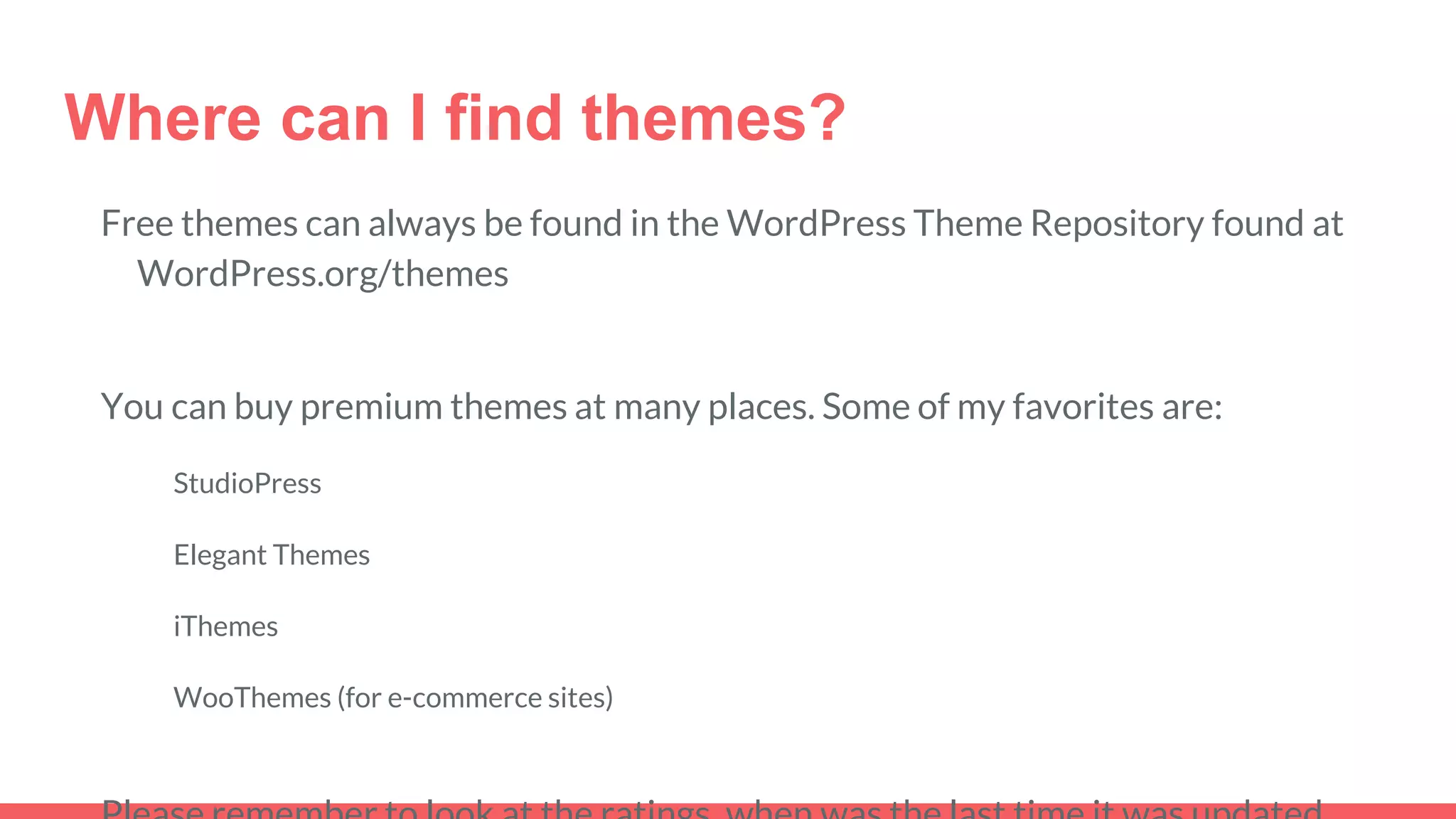
Where can I find themes?
Free themes can always be found in the WordPress Theme Repository found at
WordPress.org/themes
You can buy premium themes at many places. Some of my favorites are:
StudioPress
Elegant Themes
iThemes
WooThemes (for e-commerce sites)
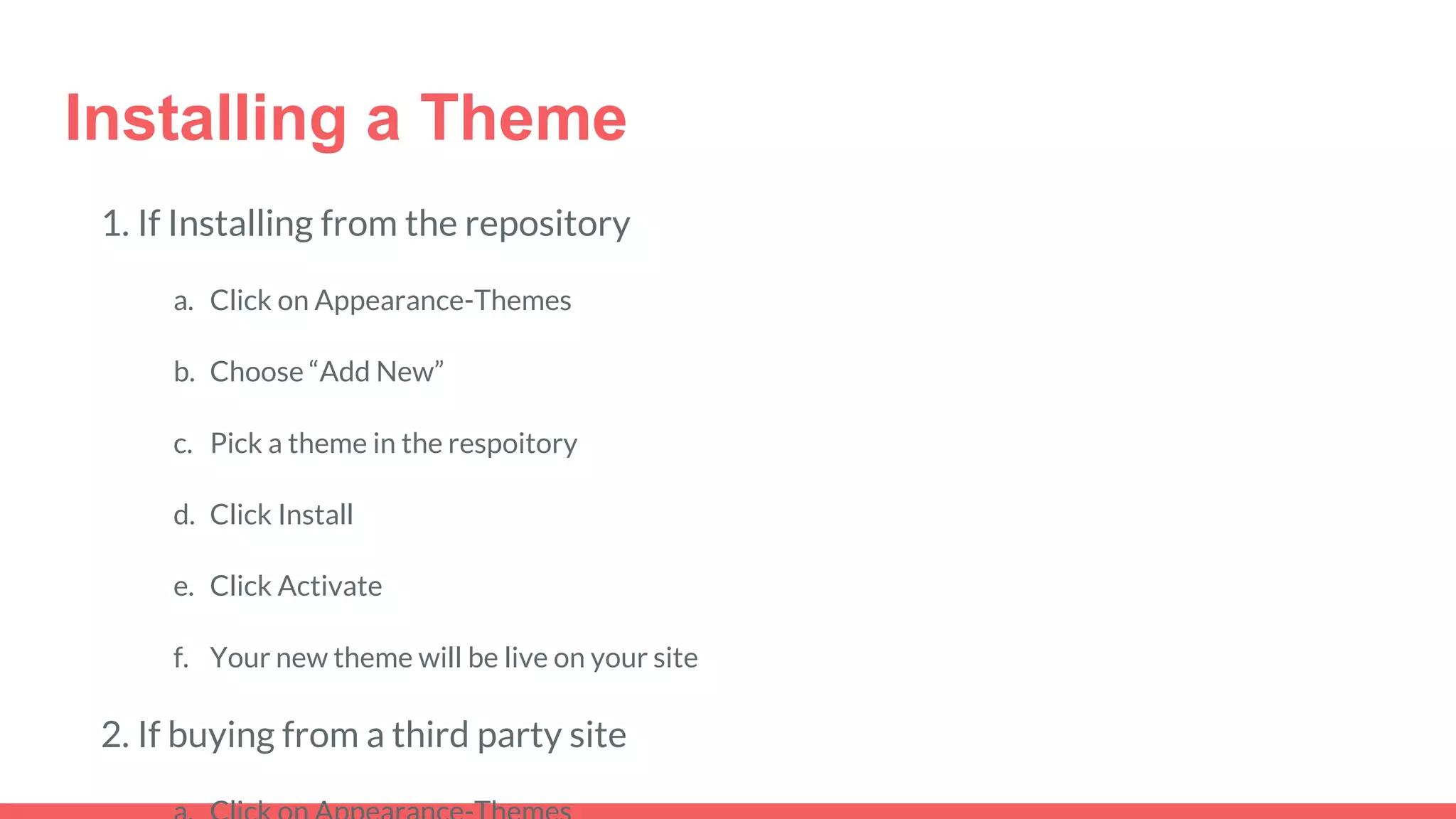
Installing a Theme
1. If Installing from the repository
a. Click on Appearance-Themes
b. Choose “Add New”
c. Pick a theme in the respoitory
d. Click Install
e. Click Activate
f. Your new theme will be live on your site
2. If buying from a third party site
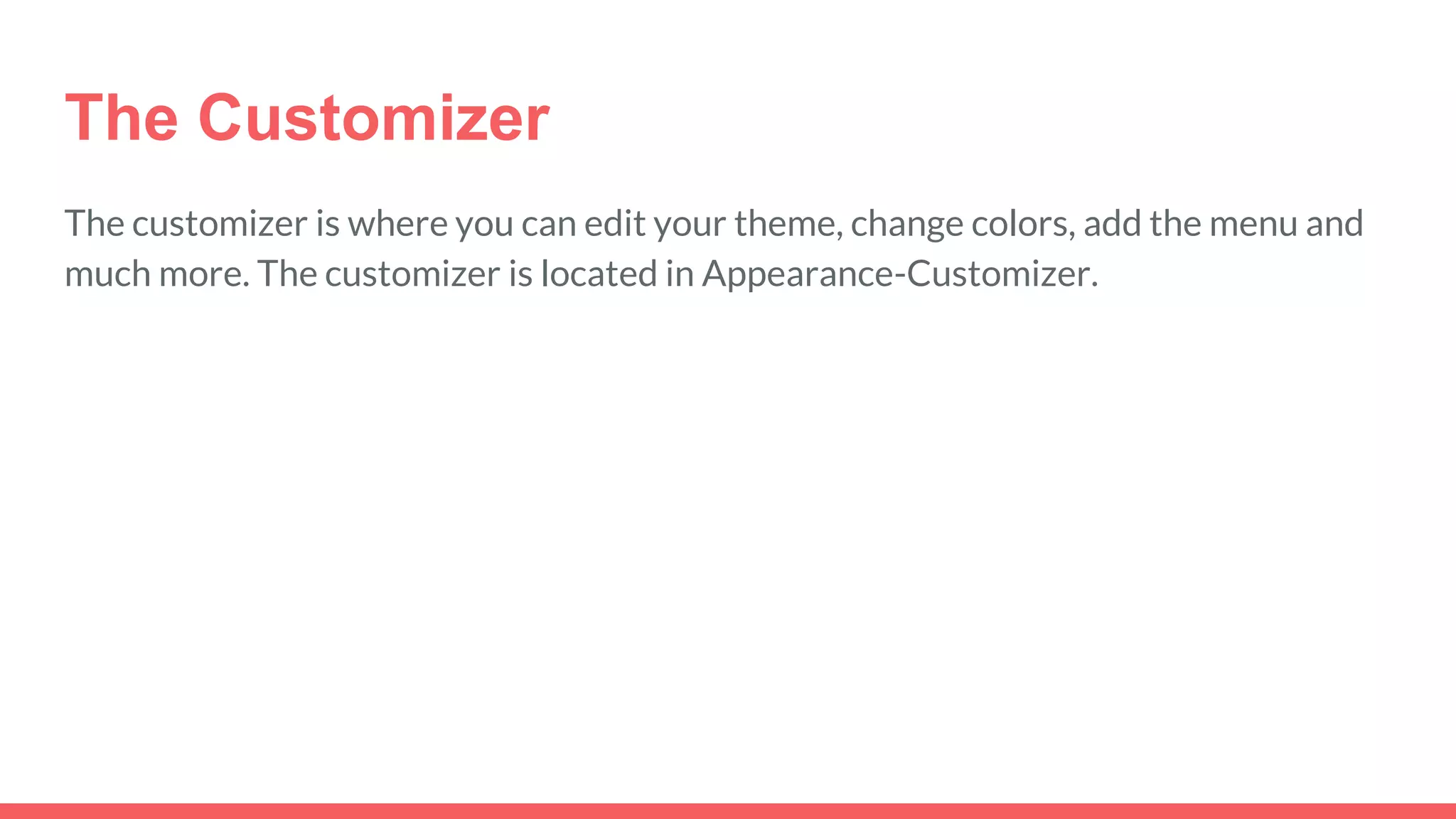
The Customizer
The customizer is where you can edit your theme, change colors, add the menu and
much more. The customizer is located in Appearance-Customizer.
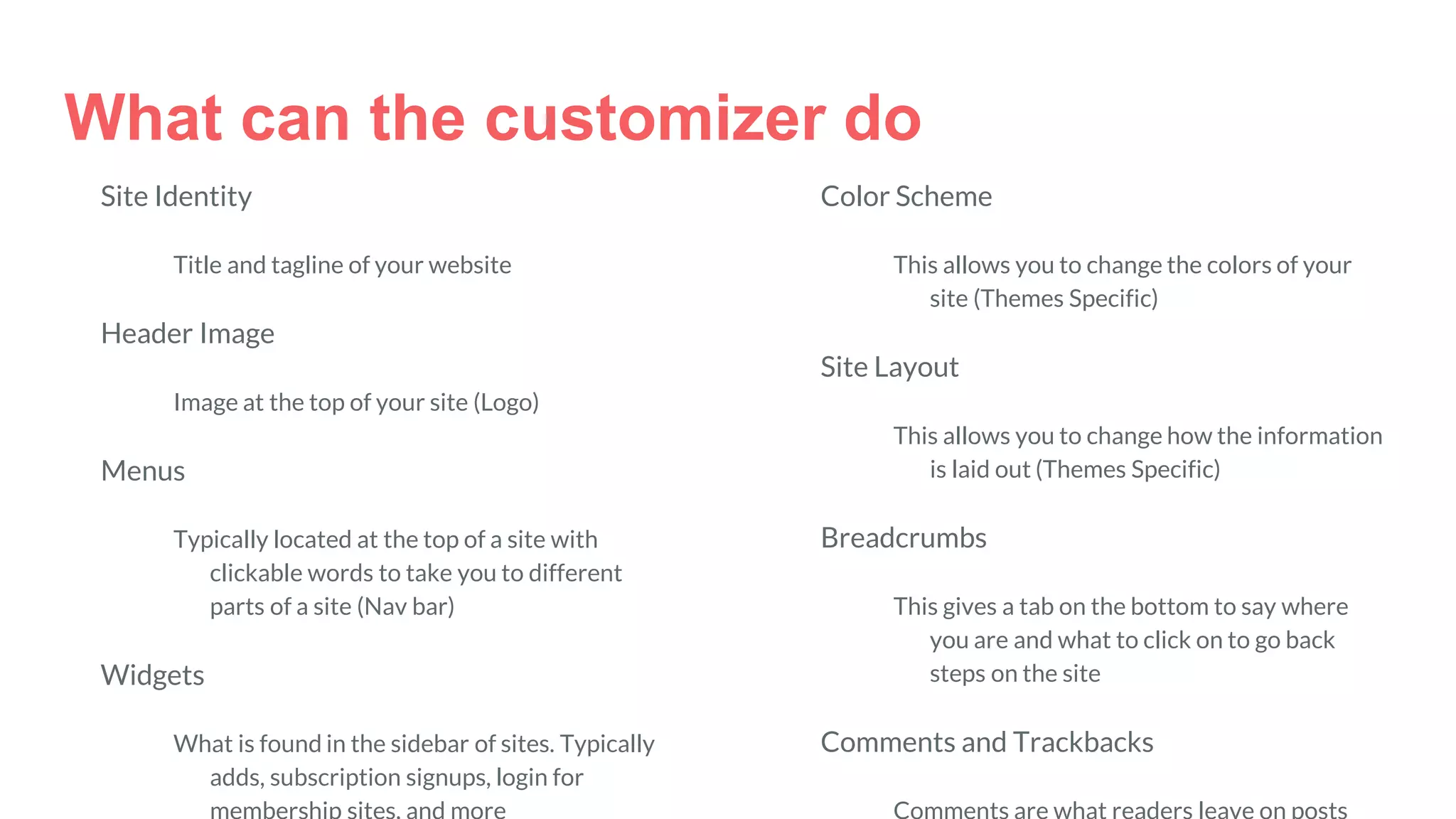
What can the customizer do
Site Identity
Title and tagline of your website
Header Image
Image at the top of your site (Logo)
Menus
Typically located at the top of a site with
clickable words to take you to different
parts of a site (Nav bar)
Widgets
What is found in the sidebar of sites. Typically
adds, subscription signups, login for
Color Scheme
This allows you to change the colors of your
site (Themes Specific)
Site Layout
This allows you to change how the information
is laid out (Themes Specific)
Breadcrumbs
This gives a tab on the bottom to say where
you are and what to click on to go back
steps on the site
Comments and Trackbacks
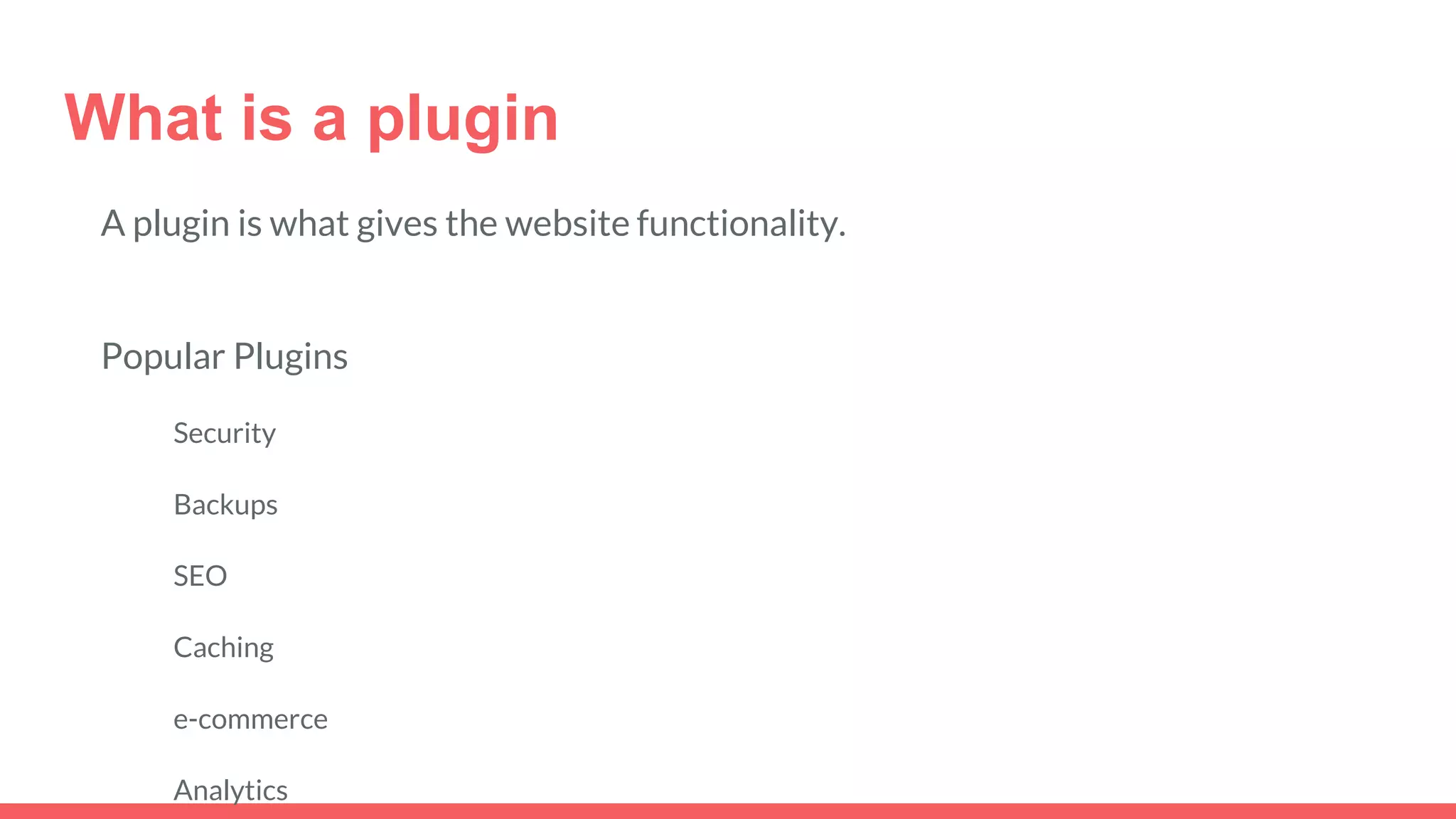
What is a plugin
A plugin is what gives the website functionality.
Popular Plugins
Security
Backups
SEO
Caching
e-commerce
Analytics
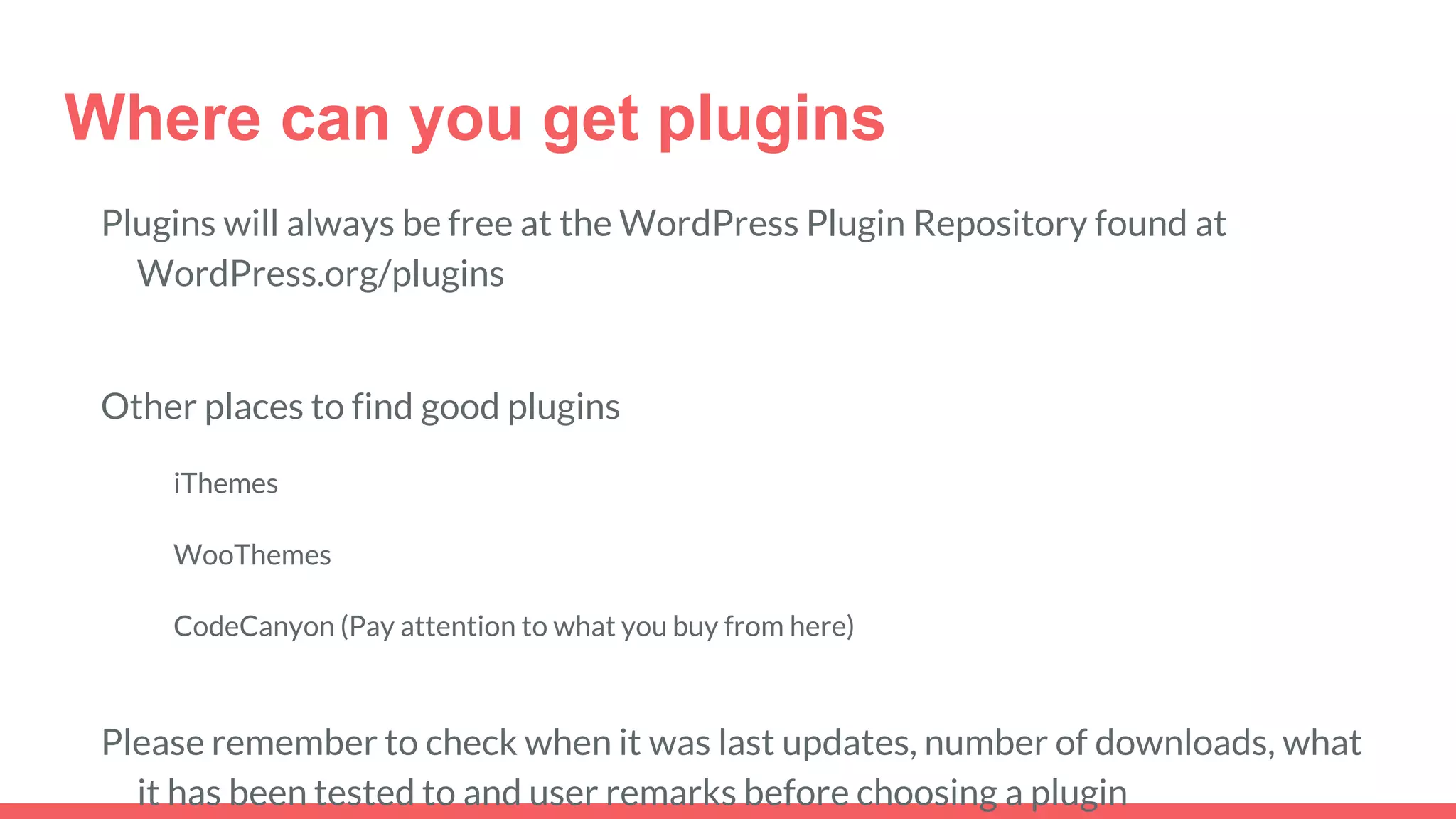
Where can you get plugins
Plugins will always be free at the WordPress Plugin Repository found at
WordPress.org/plugins
Other places to find good plugins
iThemes
WooThemes
CodeCanyon (Pay attention to what you buy from here)
Please remember to check when it was last updates, number of downloads, what
it has been tested to and user remarks before choosing a plugin
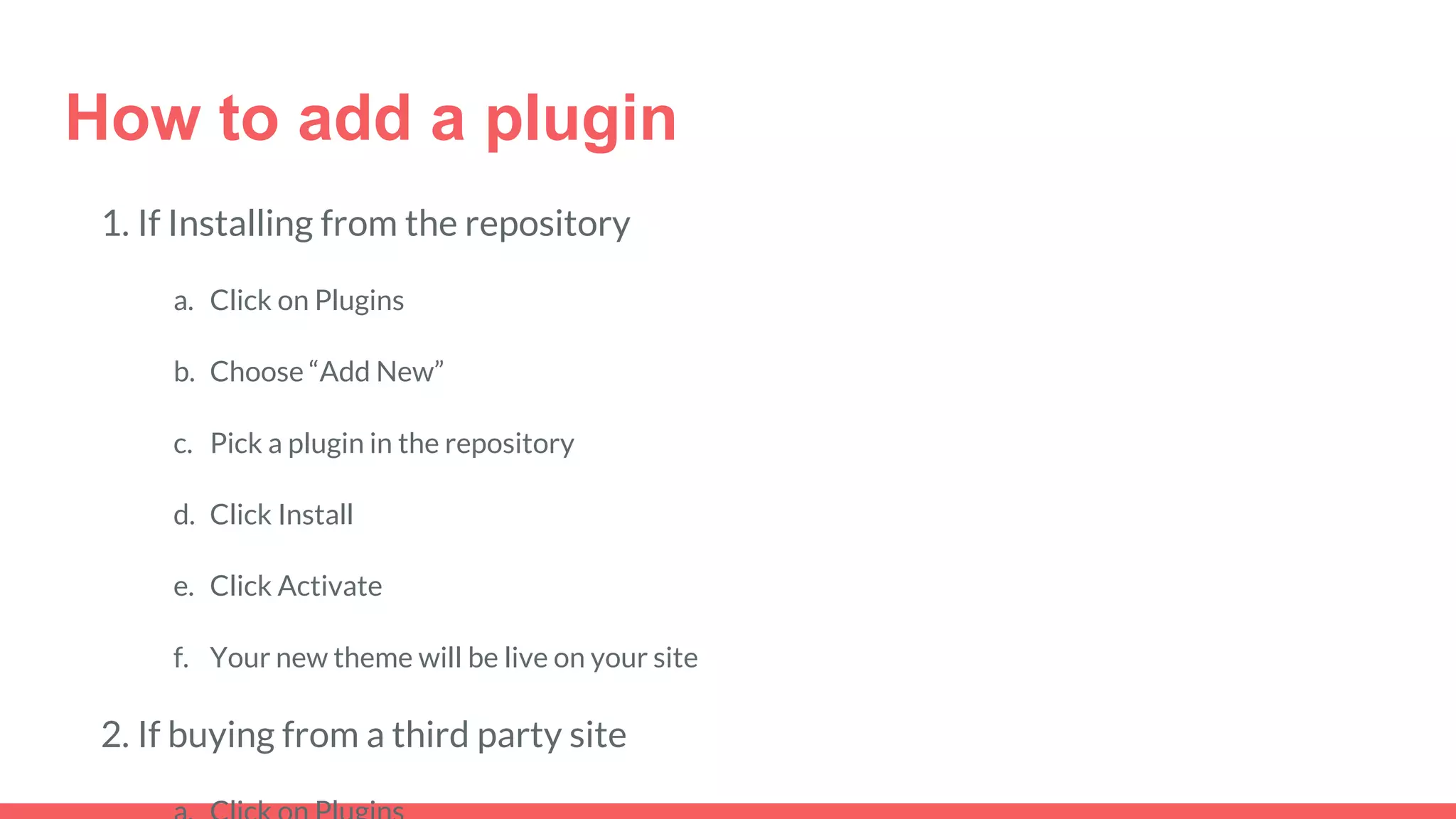
How to add a plugin
1. If Installing from the repository
a. Click on Plugins
b. Choose “Add New”
c. Pick a plugin in the repository
d. Click Install
e. Click Activate
f. Your new theme will be live on your site
2. If buying from a third party site
Please remember before you
start updating your site,
please run a backup and save
a copy to your computer.

Word press for beginners lesson 3 jalc fall 2015

  • 1.
  • 2.
  • 3.
    General Settings Site Title:Name of Site Tagline: Meaning of site WordPress Address: Does not need “www” Site Address: URL of site. Doesn’t need “www” Email Address: Default email of website Membership: Leave unchecked New User Default Role: Leave as default to subscriber Timezone: Will default to time on server or 0UTC time. Chose the timezone you are in Date Format: How you want the date to be displayed Time Format: How you want time displayed Week starts on: Can be any day of the week Site Language: What the backend of your site will be in
  • 4.
    Writing Settings Default PostCategory- Will be auto-default to uncategorized. Can choose any category made Default Post format- (Theme Specific) Typically best to leave as standard and then change when making a post Post via e-mail Mail Server (What email platform eg Gmail, hotmail, yahoo etc) Login Name- Typically your email address Password - for email Default Mail Category - what category the posts will go into Update Services Your custom content types- (Theme Specific) Can change custom post types
  • 5.
    Reading Settings Front pagedisplays- pick if you want your latest posts or a static page as the front page Blog pages show at most- how many blog posts to show on page Syndication feeds show the most recent- how many posts the syndication shows For each article in a feed show- choose if you want a summary or full text Search Engine Visibility- if you want search engines to index your site Follower Settings Blog follow email text- gives a default email for when someone subscribes to your blog (Can be changed) Comment follow up email text-gives a default email to someone who makes a comment on a post or page (Can be changed)
  • 6.
    Discussion Settings Default ArticleSettings Attempt to notify blog links Trackbacks and pingbacks (not recommended) Allow comments Other Comment Settings Author must fill out name and email, registered, when to close comments Email Me whenever- posts a comment or held for moderation Before a comment appears Comment Moderation - can tailor the moderation to go automatically depending on words or phrases Comment Blacklist- block words, IP’s email, or name Avatars Gravatar Hovercards- show picture or image Maximum Rating- what language you will allow Default Avatar- if email does not have a Gravatar account this will be used as a default picture
  • 7.
    Media Settings Image Sizes ThumbnailDefault is 150x150 Medium Size default is 300x300 Large size default is 1024x1024 Uploading Files By default is set to upload by month and year based folders. Please leave this to make things easier on you later
  • 8.
    Permalinks Settings Permalinks arewhat is found after the “/” on an URL. Your choices are: 1. Day and name 2. Month and name 3. Numeric 4. Post name (Reccomended) 5. Custom Structure Optional You can build custom structure to your permalinks by adding a category base and a tag base.
  • 9.
    What is atheme? A theme is a collection of files that work together to produce a graphical interface with an underlying design for a website. These file are called template files. A theme is what makes your website look is a collection of files that work together to produce a graphical interface with an underlying unifying design for a weblog. These files are called template files.
  • 10.
    Where can Ifind themes? Free themes can always be found in the WordPress Theme Repository found at WordPress.org/themes You can buy premium themes at many places. Some of my favorites are: StudioPress Elegant Themes iThemes WooThemes (for e-commerce sites)
  • 11.
    Installing a Theme 1.If Installing from the repository a. Click on Appearance-Themes b. Choose “Add New” c. Pick a theme in the respoitory d. Click Install e. Click Activate f. Your new theme will be live on your site 2. If buying from a third party site
  • 12.
    The Customizer The customizeris where you can edit your theme, change colors, add the menu and much more. The customizer is located in Appearance-Customizer.
  • 13.
    What can thecustomizer do Site Identity Title and tagline of your website Header Image Image at the top of your site (Logo) Menus Typically located at the top of a site with clickable words to take you to different parts of a site (Nav bar) Widgets What is found in the sidebar of sites. Typically adds, subscription signups, login for Color Scheme This allows you to change the colors of your site (Themes Specific) Site Layout This allows you to change how the information is laid out (Themes Specific) Breadcrumbs This gives a tab on the bottom to say where you are and what to click on to go back steps on the site Comments and Trackbacks
  • 14.
    What is aplugin A plugin is what gives the website functionality. Popular Plugins Security Backups SEO Caching e-commerce Analytics
  • 15.
    Where can youget plugins Plugins will always be free at the WordPress Plugin Repository found at WordPress.org/plugins Other places to find good plugins iThemes WooThemes CodeCanyon (Pay attention to what you buy from here) Please remember to check when it was last updates, number of downloads, what it has been tested to and user remarks before choosing a plugin
  • 16.
    How to adda plugin 1. If Installing from the repository a. Click on Plugins b. Choose “Add New” c. Pick a plugin in the repository d. Click Install e. Click Activate f. Your new theme will be live on your site 2. If buying from a third party site
  • 17.
    Please remember beforeyou start updating your site, please run a backup and save a copy to your computer.