SoCal WordPress Meetup
iWeb to WordPress
a.k.a. WP99
October 2013
Apple Store, Santa Monica
– Third Street Promenade
SoCalWP.org / l@SoCalWP / f/SoCalWP
Special thanks
Apple Store –
and a word from our hosts
Our usual sponsors:
WP Engine
WooThemes
Who are we?
Noel Saw, Presenter
Founder of Neochrome, Inc.
Natalie MacLees,
Founder of Purple Pen
Productions, LLC +
Lead Organizer, WordCamp LA
Who are we?
Both our companies provide WP
design/development services.
Clients with WordPress projects
have included Red
Bull, Vons/Safeway, and Murad.
A Disclaimer…
I (Noel Saw) am not a CSS, HTML, or
PHP expert - so if I can do this, so can
you with some practice and research.
I have my designers/developers to do the
technical work for me 
I have been managing web projects since
2006 so I am familiar with web
technology concepts.
Some notes…
There’s a lot to cover, so we will only
take questions near the end.
We apologize, otherwise we’ll be here a
long time.
The slides will be available on
SlideShare.net later tonight posted on
SoCalWP.org, Twitter, and Facebook.
Questions for the audience…
How many already use WordPress?

How many of you have iWeb sites?
How many of you have have another
web hosting account?
Questions for the audience…
How many existing WordPress users
consider themselves as a…
• Beginner
• Intermediate
• Expert
Assumptions on our part
We’re assuming you have some
knowledge of:
• Domain name registration
• HTML/CSS code
• How web pages or iWeb works in
general
What is WordPress?
WordPress (WP) is a content
management system that can be
installed on a web hosting server
account like on companies like:
• Dreamhost
• MediaTemple
• HostGator
• GoDaddy (we don’t judge)
What WordPress needs
Your web hosting provider needs to
support PHP 5+ and MySQL.
You’ll install WordPress usually with a
“one click” installer.
Most web hosts support WordPress.
What can WP do for you?
WordPress makes it easy for you to
publish your web pages including the
home page, contact page, and of
course blog pages.
WordPress democratizes web site
publishing and up keep/maintenance.
WP’s content - editable areas
1.) Posts: Blog or News but can also be
other information “snippets”.
2.) Pages: Mostly “static” pages that are
not frequently updated. Ex: Contact Us
page
WP’s content areas
3.) Widget Areas: Sidebar and Footers
Usually built into the theme
4.) Navigation (Menu) Bar
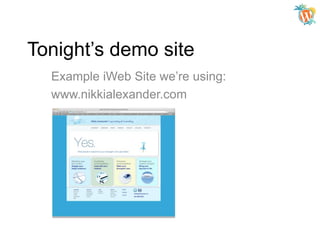
Tonight’s demo site
Example iWeb Site we’re using:
www.nikkialexander.com
Tonight’s demo site
We didn’t have access to the iWeb example
site user password.
It was pure/copy paste operation.
Tonight’s demo site
Alternatively, you may want to try a WP
plugin to “import” text content into your site
like this one: http://bit.ly/synplugin
Tonight’s demo site
We’re not going to be able to make an
exact copy of the site but it will be close
enough for you to see possibilities.
Tonight’s demo site
At the end of the demo, I’ll show you what
an exact copy looks like with a bit more
work and different method.
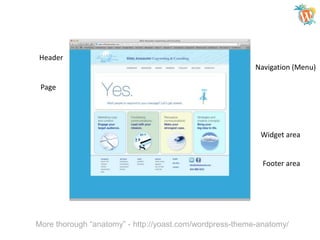
Header
Navigation (Menu)
Page
(Body)

Widget area

Footer area
Header
Navigation (Menu)
Page

Widget area

Footer area

More thorough “anatomy” - http://yoast.com/wordpress-theme-anatomy/
Steps
1. Setup domain in cPanel
2. Setup WordPress and login
3. Install Theme (http://bit.ly/ostheme)
4. Setup header
5. Customize header
6. Setup widget areas
7. Setup pages with Bulk Creator plugin
8. Setup Home page slider
Real World
Demo time!
WordPress Do’s and Don’ts
Do update WP core, themes, and
plugins frequently
Do run and download frequent backups
– ex: BackupBuddy commercial plugin
Do change “Permalinks” to “Month and
Name” in WP admin settings
WordPress Do’s & Don’ts
Do only install themes and plugins from
reputable companies or from
WordPress.org
Buy subscription to WP101.com and
Lynda.com or YouTube (get what you
pay for)

Buy subscription to Akismet.com to
block spam posts
WordPress Do’s & Don’ts
And finally, do not edit WordPress core
files via FTP or WP admin editor
otherwise when WP core is
updated, you’ll lose changes.

Editing these files could also crash your
site in seconds.
Demo links
• OpenStrap theme:
http://bit.ly/ostheme

•
•
•
•
•

PageLines theme
Google Fonts plugin
WordFence plugin
Bulk Creator plugin
Anatomy of a WP theme:
http://yoast.com/wordpress-theme-anatomy/
Learn more links…
• WordPress.org – themes and
plugins
• WP101.com – training videos
• Lynda.com – general HTML/CSS
learning videos
• “Firebug” extension – Google it!
• Other awesome WP plugins:
http://bit.ly/wwlakb
Thanks for Listening to Me!

The End!
Follow me:
l@wpverse
Thanks again to:

Apple Store
And our other sponsors:
WP Engine
WooThemes

SoCalWP.org / l@SoCalWP / f/SoCalWP
SoCal WordPress Meetup - iWeb to WordPress aka WP99

SoCal WordPress Meetup - iWeb to WordPress aka WP99

  • 1.
    SoCal WordPress Meetup iWebto WordPress a.k.a. WP99 October 2013 Apple Store, Santa Monica – Third Street Promenade SoCalWP.org / l@SoCalWP / f/SoCalWP
  • 2.
    Special thanks Apple Store– and a word from our hosts Our usual sponsors: WP Engine WooThemes
  • 3.
    Who are we? NoelSaw, Presenter Founder of Neochrome, Inc. Natalie MacLees, Founder of Purple Pen Productions, LLC + Lead Organizer, WordCamp LA
  • 4.
    Who are we? Bothour companies provide WP design/development services. Clients with WordPress projects have included Red Bull, Vons/Safeway, and Murad.
  • 5.
    A Disclaimer… I (NoelSaw) am not a CSS, HTML, or PHP expert - so if I can do this, so can you with some practice and research. I have my designers/developers to do the technical work for me  I have been managing web projects since 2006 so I am familiar with web technology concepts.
  • 6.
    Some notes… There’s alot to cover, so we will only take questions near the end. We apologize, otherwise we’ll be here a long time. The slides will be available on SlideShare.net later tonight posted on SoCalWP.org, Twitter, and Facebook.
  • 7.
    Questions for theaudience… How many already use WordPress? How many of you have iWeb sites? How many of you have have another web hosting account?
  • 8.
    Questions for theaudience… How many existing WordPress users consider themselves as a… • Beginner • Intermediate • Expert
  • 9.
    Assumptions on ourpart We’re assuming you have some knowledge of: • Domain name registration • HTML/CSS code • How web pages or iWeb works in general
  • 10.
    What is WordPress? WordPress(WP) is a content management system that can be installed on a web hosting server account like on companies like: • Dreamhost • MediaTemple • HostGator • GoDaddy (we don’t judge)
  • 11.
    What WordPress needs Yourweb hosting provider needs to support PHP 5+ and MySQL. You’ll install WordPress usually with a “one click” installer. Most web hosts support WordPress.
  • 12.
    What can WPdo for you? WordPress makes it easy for you to publish your web pages including the home page, contact page, and of course blog pages. WordPress democratizes web site publishing and up keep/maintenance.
  • 13.
    WP’s content -editable areas 1.) Posts: Blog or News but can also be other information “snippets”. 2.) Pages: Mostly “static” pages that are not frequently updated. Ex: Contact Us page
  • 14.
    WP’s content areas 3.)Widget Areas: Sidebar and Footers Usually built into the theme 4.) Navigation (Menu) Bar
  • 15.
    Tonight’s demo site ExampleiWeb Site we’re using: www.nikkialexander.com
  • 16.
    Tonight’s demo site Wedidn’t have access to the iWeb example site user password. It was pure/copy paste operation.
  • 17.
    Tonight’s demo site Alternatively,you may want to try a WP plugin to “import” text content into your site like this one: http://bit.ly/synplugin
  • 18.
    Tonight’s demo site We’renot going to be able to make an exact copy of the site but it will be close enough for you to see possibilities.
  • 19.
    Tonight’s demo site Atthe end of the demo, I’ll show you what an exact copy looks like with a bit more work and different method.
  • 20.
  • 21.
    Header Navigation (Menu) Page Widget area Footerarea More thorough “anatomy” - http://yoast.com/wordpress-theme-anatomy/
  • 22.
    Steps 1. Setup domainin cPanel 2. Setup WordPress and login 3. Install Theme (http://bit.ly/ostheme) 4. Setup header 5. Customize header 6. Setup widget areas 7. Setup pages with Bulk Creator plugin 8. Setup Home page slider
  • 23.
  • 24.
    WordPress Do’s andDon’ts Do update WP core, themes, and plugins frequently Do run and download frequent backups – ex: BackupBuddy commercial plugin Do change “Permalinks” to “Month and Name” in WP admin settings
  • 25.
    WordPress Do’s &Don’ts Do only install themes and plugins from reputable companies or from WordPress.org Buy subscription to WP101.com and Lynda.com or YouTube (get what you pay for) Buy subscription to Akismet.com to block spam posts
  • 26.
    WordPress Do’s &Don’ts And finally, do not edit WordPress core files via FTP or WP admin editor otherwise when WP core is updated, you’ll lose changes. Editing these files could also crash your site in seconds.
  • 27.
    Demo links • OpenStraptheme: http://bit.ly/ostheme • • • • • PageLines theme Google Fonts plugin WordFence plugin Bulk Creator plugin Anatomy of a WP theme: http://yoast.com/wordpress-theme-anatomy/
  • 28.
    Learn more links… •WordPress.org – themes and plugins • WP101.com – training videos • Lynda.com – general HTML/CSS learning videos • “Firebug” extension – Google it! • Other awesome WP plugins: http://bit.ly/wwlakb
  • 29.
    Thanks for Listeningto Me! The End! Follow me: l@wpverse
  • 30.
    Thanks again to: AppleStore And our other sponsors: WP Engine WooThemes SoCalWP.org / l@SoCalWP / f/SoCalWP