Wireshark Lab:
Getting Started v6.0
Supplement to Computer Networking: A Top-Down
Approach, 6th ed., J.F. Kurose and K.W. Ross
“Tell me and I forget. Show me and I remember. Involve me and
I
understand.” Chinese proverb
© 2005-21012, J.F Kurose and K.W. Ross, All Rights Reserved
One’s understanding of network protocols can often be greatly
deepened by “seeing
protocols in action” and by “playing around with protocols” –
observing the sequence of
messages exchanged between two protocol entities, delving
down into the details of
protocol operation, and causing protocols to perform certain
actions and then observing
these actions and their consequences. This can be done in
simulated scenarios or in a
“real” network environment such as the Internet. In the
Wireshark labs you’ll be doing in
this course, you’ll be running various network applications in
different scenarios using
your own computer (or you can borrow a friends; let me know if
you don’t have access to
a computer where you can install/run Wireshark). You’ll
observe the network protocols
in your computer “in action,” interacting and exchanging
messages with protocol entities
executing elsewhere in the Internet. Thus, you and your
computer will be an integral
part of these “live” labs. You’ll observe, and you’ll learn, by
doing.
In this first Wireshark lab, you’ll get acquainted with
Wireshark, and make some simple
packet captures and observations.
The basic tool for observing the messages exchanged between
executing protocol entities
is called a packet sniffer. As the name suggests, a packet
sniffer captures (“sniffs”)
messages being sent/received from/by your computer; it will
also typically store and/or
display the contents of the various protocol fields in these
captured messages. A packet
sniffer itself is passive. It observes messages being sent and
received by applications and
protocols running on your computer, but never sends packets
itself. Similarly, received
packets are never explicitly addressed to the packet sniffer.
Instead, a packet sniffer
receives a copy of packets that are sent/received from/by
application and protocols
executing on your machine.
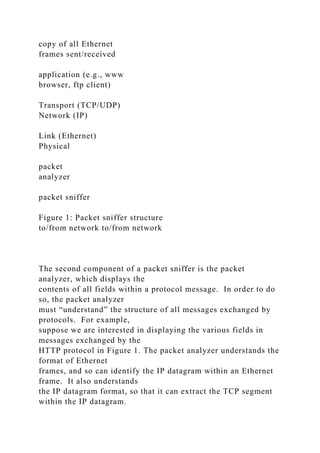
Figure 1 shows the structure of a packet sniffer. At the right of
Figure 1 are the protocols
(in this case, Internet protocols) and applications (such as a web
browser or ftp client)
that normally run on your computer. The packet sniffer, shown
within the dashed
rectangle in Figure 1 is an addition to the usual software in your
computer, and consists
of two parts. The packet capture library receives a copy of
every link-layer frame that
is sent from or received by your computer. Recall from the
discussion from section 1.5 in
the text (Figure 1.241) that messages exchanged by higher layer
protocols such as HTTP,
FTP, TCP, UDP, DNS, or IP all are eventually encapsulated in
link-layer frames that are
transmitted over physical media such as an Ethernet cable. In
Figure 1, the assumed
physical media is an Ethernet, and so all upper-layer protocols
are eventually
encapsulated within an Ethernet frame. Capturing all link-layer
frames thus gives you all
messages sent/received from/by all protocols and applications
executing in your
computer.
operating
system
application
packet
capture
(pcap)
copy of all Ethernet
frames sent/received
application (e.g., www
browser, ftp client)
Transport (TCP/UDP)
Network (IP)
Link (Ethernet)
Physical
packet
analyzer
packet sniffer
Figure 1: Packet sniffer structure
to/from network to/from network
The second component of a packet sniffer is the packet
analyzer, which displays the
contents of all fields within a protocol message. In order to do
so, the packet analyzer
must “understand” the structure of all messages exchanged by
protocols. For example,
suppose we are interested in displaying the various fields in
messages exchanged by the
HTTP protocol in Figure 1. The packet analyzer understands the
format of Ethernet
frames, and so can identify the IP datagram within an Ethernet
frame. It also understands
the IP datagram format, so that it can extract the TCP segment
within the IP datagram.
Finally, it understands the TCP segment structure, so it can
extract the HTTP message
contained in the TCP segment. Finally, it understands the
HTTP protocol and so, for
example, knows that the first bytes of an HTTP message will
contain the string “GET,”
“POST,” or “HEAD,” as shown in Figure 2.8 in the text.
We will be using the Wireshark packet sniffer
[http://www.wireshark.org/] for these labs,
allowing us to display the contents of messages being
sent/received from/by protocols at
different levels of the protocol stack. (Technically speaking,
Wireshark is a packet
analyzer that uses a packet capture library in your computer).
Wireshark is a free network
protocol analyzer that runs on Windows, Linux/Unix, and Mac
computers. It’s an ideal
packet analyzer for our labs – it is stable, has a large user base
and well-documented
support that includes a user-guide
(http://www.wireshark.org/docs/wsug_html_chunked/),
1 References to figures and sections are for the 6th edition of
our text, Computer Networks, A Top-down
Approach, 6th ed., J.F. Kurose and K.W. Ross, Addison-
Wesley/Pearson, 2012.
man pages (http://www.wireshark.org/docs/man-pages/), and a
detailed FAQ
(http://www.wireshark.org/faq.html), rich functionality that
includes the capability to
analyze hundreds of protocols, and a well-designed user
interface. It operates in
computers using Ethernet, serial (PPP and SLIP), 802.11
wireless LANs, and many other
link-layer technologies (if the OS on which it's running allows
Wireshark to do so).
Getting Wireshark
In order to run Wireshark, you will need to have access to a
computer that supports both
Wireshark and the libpcap or WinPCap packet capture library.
The libpcap software will
be installed for you, if it is not installed within your operating
system, when you install
Wireshark. See http://www.wireshark.org/download.html for a
list of supported
operating systems and download sites
Download and install the Wireshark software:
• Go to http://www.wireshark.org/download.html and download
and install the
Wireshark binary for your computer.
The Wireshark FAQ has a number of helpful hints and
interesting tidbits of information,
particularly if you have trouble installing or running Wireshark.
Running Wireshark
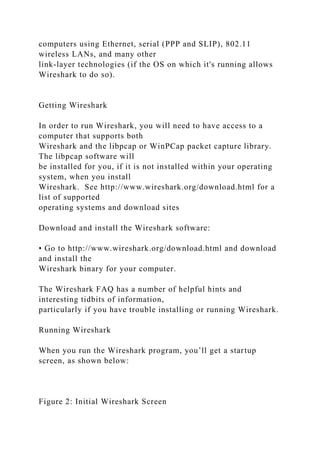
When you run the Wireshark program, you’ll get a startup
screen, as shown below:
Figure 2: Initial Wireshark Screen
Take a look at the upper left hand side of the screen – you’ll see
an “Interface list”. This
is the list of network interfaces on your computer. Once you
choose an interface,
Wireshark will capture all packets on that interface. In the
example above, there is an
Ethernet interface (Gigabit network Connection) and a wireless
interface (“Microsoft”).
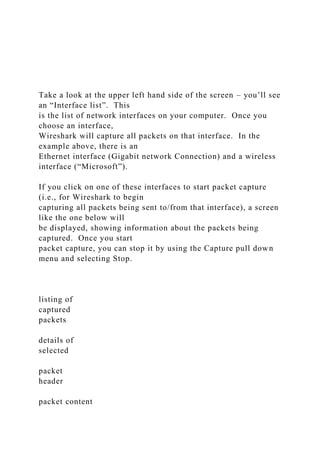
If you click on one of these interfaces to start packet capture
(i.e., for Wireshark to begin
capturing all packets being sent to/from that interface), a screen
like the one below will
be displayed, showing information about the packets being
captured. Once you start
packet capture, you can stop it by using the Capture pull down
menu and selecting Stop.
listing of
captured
packets
details of
selected
packet
header
packet content
in hexadecimal
and ASCII
display filter
specification
command
menus
Figure 3: Wireshark Graphical User Interface, during packet
capture and analysis
The Wireshark interface has five major components:
• The command menus are standard pulldown menus located at
the top of the
window. Of interest to us now are the File and Capture menus.
The File menu
allows you to save captured packet data or open a file
containing previously
captured packet data, and exit the Wireshark application. The
Capture menu
allows you to begin packet capture.
• The packet-listing window displays a one-line summary for
each packet
captured, including the packet number (assigned by Wireshark;
this is not a
packet number contained in any protocol’s header), the time at
which the packet
was captured, the packet’s source and destination addresses, the
protocol type,
and protocol-specific information contained in the packet. The
packet listing can
be sorted according to any of these categories by clicking on a
column name. The
protocol type field lists the highest-level protocol that sent or
received this packet,
i.e., the protocol that is the source or ultimate sink for this
packet.
• The packet-header details window provides details about the
packet selected
(highlighted) in the packet-listing window. (To select a packet
in the packet-
listing window, place the cursor over the packet’s one-line
summary in the
packet-listing window and click with the left mouse button.).
These details
include information about the Ethernet frame (assuming the
packet was
sent/received over an Ethernet interface) and IP datagram that
contains this
packet. The amount of Ethernet and IP-layer detail displayed
can be expanded or
minimized by clicking on the plus minus boxes to the left of the
Ethernet frame or
IP datagram line in the packet details window. If the packet has
been carried over
TCP or UDP, TCP or UDP details will also be displayed, which
can similarly be
expanded or minimized. Finally, details about the highest-level
protocol that sent
or received this packet are also provided.
• The packet-contents window displays the entire contents of the
captured frame,
in both ASCII and hexadecimal format.
• Towards the top of the Wireshark graphical user interface, is
the packet display
filter field, into which a protocol name or other information can
be entered in
order to filter the information displayed in the packet-listing
window (and hence
the packet-header and packet-contents windows). In the
example below, we’ll
use the packet-display filter field to have Wireshark hide (not
display) packets
except those that correspond to HTTP messages.
Taking Wireshark for a Test Run
The best way to learn about any new piece of software is to try
it out! We’ll assume that
your computer is connected to the Internet via a wired Ethernet
interface. Indeed, I
recommend that you do this first lab on a computer that has a
wired Ethernet connection,
rather than just a wireless connection. Do the following
1. Start up your favorite web browser, which will display your
selected homepage.
2. Start up the Wireshark software. You will initially see a
window similar to that
shown in Figure 2. Wireshark has not yet begun capturing
packets.
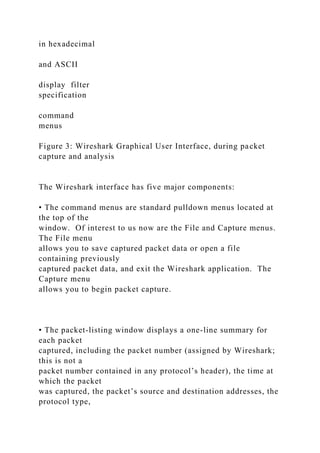
3. To begin packet capture, select the Capture pull down menu
and select Interfaces.
This will cause the “Wireshark: Capture Interfaces” window to
be displayed, as
shown in Figure 4.
Figure 4: Wireshark Capture Interface Window
4. You’ll see a list of the interfaces on your computer as well as
a count of the
packets that have been observed on that interface so far. Click
on Start for the
interface on which you want to begin packet capture (in the
case, the Gigabit
network Connection). Packet capture will now begin -
Wireshark is now
capturing all packets being sent/received from/by your
computer!
5. Once you begin packet capture, a window similar to that
shown in Figure 3 will
appear. This window shows the packets being captured. By
selecting Capture
pulldown menu and selecting Stop, you can stop packet capture.
But don’t stop
packet capture yet. Let’s capture some interesting packets first.
To do so, we’ll
need to generate some network traffic. Let’s do so using a web
browser, which
will use the HTTP protocol that we will study in detail in class
to download
content from a website.
6. While Wireshark is running, enter the URL:
http://gaia.cs.umass.edu/wireshark-labs/INTRO-wireshark-
file1.html
and have that page displayed in your browser. In order to
display this page, your
browser will contact the HTTP server at gaia.cs.umass.edu and
exchange HTTP
messages with the server in order to download this page, as
discussed in section
2.2 of the text. The Ethernet frames containing these HTTP
messages (as well as
all other frames passing through your Ethernet adapter) will be
captured by
Wireshark.
7. After your browser has displayed the INTRO-wireshark-
file1.html page (it is a
simple one line of congratulations), stop Wireshark packet
capture by selecting
stop in the Wireshark capture window. The main Wireshark
window should now
look similar to Figure 3. You now have live packet data that
contains all protocol
messages exchanged between your computer and other network
entities! The
HTTP message exchanges with the gaia.cs.umass.edu web
server should appear
somewhere in the listing of packets captured. But there will be
many other types
of packets displayed as well (see, e.g., the many different
protocol types shown in
the Protocol column in Figure 3). Even though the only action
you took was to
download a web page, there were evidently many other
protocols running on your
computer that are unseen by the user. We’ll learn much more
about these
protocols as we progress through the text! For now, you should
just be aware that
there is often much more going on than “meet’s the eye”!
8. Type in “http” (without the quotes, and in lower case – all
protocol names are in
lower case in Wireshark) into the display filter specification
window at the top of
the main Wireshark window. Then select Apply (to the right of
where you entered
“http”). This will cause only HTTP message to be displayed in
the packet-listing
window.
9. Find the HTTP GET message that was sent from your
computer to the
gaia.cs.umass.edu HTTP server. (Look for an HTTP GET
message in the “listing
of captured packets” portion of the Wireshark window (see
Figure 3) that shows
“GET” followed by the gaia.cs.umass.edu URL that you entered.
When you
select the HTTP GET message, the Ethernet frame, IP datagram,
TCP segment,
and HTTP message header information will be displayed in the
packet-header
window2. By clicking on ‘+’ and ‘-‘ right-pointing and down-
pointing arrowheads
to the left side of the packet details window, minimize the
amount of Frame,
Ethernet, Internet Protocol, and Transmission Control Protocol
information
displayed. Maximize the amount information displayed about
the HTTP protocol.
Your Wireshark display should now look roughly as shown in
Figure 5. (Note, in
particular, the minimized amount of protocol information for all
protocols except
HTTP, and the maximized amount of protocol information for
HTTP in the
packet-header window).
10. Exit Wireshark
Congratulations! You’ve now completed the first lab.
2 Recall that the HTTP GET message that is sent to the
gaia.cs.umass.edu web server is contained within a
TCP segment, which is contained (encapsulated) in an IP
datagram, which is encapsulated in an Ethernet
frame. If this process of encapsulation isn’t quite clear yet,
review section 1.5 in the text
Figure 5: Wireshark window after step 9
What to hand in
The goal of this first lab was primarily to introduce you to
Wireshark. The following
questions will demonstrate that you’ve been able to get
Wireshark up and running, and
have explored some of its capabilities. Answer the following
questions, based on your
Wireshark experimentation:
1. List 3 different protocols that appear in the protocol column
in the unfiltered
packet-listing window in step 7 above.
2. How long did it take from when the HTTP GET message was
sent until the HTTP
OK reply was received? (By default, the value of the Time
column in the packet-
listing window is the amount of time, in seconds, since
Wireshark tracing began.
To display the Time field in time-of-day format, select the
Wireshark View pull
down menu, then select Time Display Format, then select Time-
of-day.)
3. What is the Internet address of the gaia.cs.umass.edu (also
known as www-
net.cs.umass.edu)? What is the Internet address of your
computer?
4. Print the two HTTP messages (GET and OK) referred to in
question 2 above. To
do so, select Print from the Wireshark File command menu, and
select the
“Selected Packet Only” and “Print as displayed” radial buttons,
and then click
OK.

Wireshark Lab Getting Started v6.0 Supplement to Co.docx

  • 1.
    Wireshark Lab: Getting Startedv6.0 Supplement to Computer Networking: A Top-Down Approach, 6th ed., J.F. Kurose and K.W. Ross “Tell me and I forget. Show me and I remember. Involve me and I understand.” Chinese proverb © 2005-21012, J.F Kurose and K.W. Ross, All Rights Reserved One’s understanding of network protocols can often be greatly deepened by “seeing protocols in action” and by “playing around with protocols” – observing the sequence of messages exchanged between two protocol entities, delving down into the details of protocol operation, and causing protocols to perform certain actions and then observing these actions and their consequences. This can be done in simulated scenarios or in a “real” network environment such as the Internet. In the Wireshark labs you’ll be doing in this course, you’ll be running various network applications in different scenarios using
  • 2.
    your own computer(or you can borrow a friends; let me know if you don’t have access to a computer where you can install/run Wireshark). You’ll observe the network protocols in your computer “in action,” interacting and exchanging messages with protocol entities executing elsewhere in the Internet. Thus, you and your computer will be an integral part of these “live” labs. You’ll observe, and you’ll learn, by doing. In this first Wireshark lab, you’ll get acquainted with Wireshark, and make some simple packet captures and observations. The basic tool for observing the messages exchanged between executing protocol entities is called a packet sniffer. As the name suggests, a packet sniffer captures (“sniffs”) messages being sent/received from/by your computer; it will also typically store and/or display the contents of the various protocol fields in these captured messages. A packet sniffer itself is passive. It observes messages being sent and received by applications and protocols running on your computer, but never sends packets itself. Similarly, received packets are never explicitly addressed to the packet sniffer. Instead, a packet sniffer receives a copy of packets that are sent/received from/by application and protocols executing on your machine. Figure 1 shows the structure of a packet sniffer. At the right of Figure 1 are the protocols (in this case, Internet protocols) and applications (such as a web
  • 3.
    browser or ftpclient) that normally run on your computer. The packet sniffer, shown within the dashed rectangle in Figure 1 is an addition to the usual software in your computer, and consists of two parts. The packet capture library receives a copy of every link-layer frame that is sent from or received by your computer. Recall from the discussion from section 1.5 in the text (Figure 1.241) that messages exchanged by higher layer protocols such as HTTP, FTP, TCP, UDP, DNS, or IP all are eventually encapsulated in link-layer frames that are transmitted over physical media such as an Ethernet cable. In Figure 1, the assumed physical media is an Ethernet, and so all upper-layer protocols are eventually encapsulated within an Ethernet frame. Capturing all link-layer frames thus gives you all messages sent/received from/by all protocols and applications executing in your computer. operating system application packet capture (pcap)
  • 4.
    copy of allEthernet frames sent/received application (e.g., www browser, ftp client) Transport (TCP/UDP) Network (IP) Link (Ethernet) Physical packet analyzer packet sniffer Figure 1: Packet sniffer structure to/from network to/from network The second component of a packet sniffer is the packet analyzer, which displays the contents of all fields within a protocol message. In order to do so, the packet analyzer must “understand” the structure of all messages exchanged by protocols. For example, suppose we are interested in displaying the various fields in messages exchanged by the HTTP protocol in Figure 1. The packet analyzer understands the format of Ethernet frames, and so can identify the IP datagram within an Ethernet frame. It also understands the IP datagram format, so that it can extract the TCP segment within the IP datagram.
  • 5.
    Finally, it understandsthe TCP segment structure, so it can extract the HTTP message contained in the TCP segment. Finally, it understands the HTTP protocol and so, for example, knows that the first bytes of an HTTP message will contain the string “GET,” “POST,” or “HEAD,” as shown in Figure 2.8 in the text. We will be using the Wireshark packet sniffer [http://www.wireshark.org/] for these labs, allowing us to display the contents of messages being sent/received from/by protocols at different levels of the protocol stack. (Technically speaking, Wireshark is a packet analyzer that uses a packet capture library in your computer). Wireshark is a free network protocol analyzer that runs on Windows, Linux/Unix, and Mac computers. It’s an ideal packet analyzer for our labs – it is stable, has a large user base and well-documented support that includes a user-guide (http://www.wireshark.org/docs/wsug_html_chunked/), 1 References to figures and sections are for the 6th edition of our text, Computer Networks, A Top-down Approach, 6th ed., J.F. Kurose and K.W. Ross, Addison- Wesley/Pearson, 2012. man pages (http://www.wireshark.org/docs/man-pages/), and a detailed FAQ (http://www.wireshark.org/faq.html), rich functionality that includes the capability to analyze hundreds of protocols, and a well-designed user interface. It operates in
  • 6.
    computers using Ethernet,serial (PPP and SLIP), 802.11 wireless LANs, and many other link-layer technologies (if the OS on which it's running allows Wireshark to do so). Getting Wireshark In order to run Wireshark, you will need to have access to a computer that supports both Wireshark and the libpcap or WinPCap packet capture library. The libpcap software will be installed for you, if it is not installed within your operating system, when you install Wireshark. See http://www.wireshark.org/download.html for a list of supported operating systems and download sites Download and install the Wireshark software: • Go to http://www.wireshark.org/download.html and download and install the Wireshark binary for your computer. The Wireshark FAQ has a number of helpful hints and interesting tidbits of information, particularly if you have trouble installing or running Wireshark. Running Wireshark When you run the Wireshark program, you’ll get a startup screen, as shown below: Figure 2: Initial Wireshark Screen
  • 7.
    Take a lookat the upper left hand side of the screen – you’ll see an “Interface list”. This is the list of network interfaces on your computer. Once you choose an interface, Wireshark will capture all packets on that interface. In the example above, there is an Ethernet interface (Gigabit network Connection) and a wireless interface (“Microsoft”). If you click on one of these interfaces to start packet capture (i.e., for Wireshark to begin capturing all packets being sent to/from that interface), a screen like the one below will be displayed, showing information about the packets being captured. Once you start packet capture, you can stop it by using the Capture pull down menu and selecting Stop. listing of captured packets details of selected packet header packet content
  • 8.
    in hexadecimal and ASCII displayfilter specification command menus Figure 3: Wireshark Graphical User Interface, during packet capture and analysis The Wireshark interface has five major components: • The command menus are standard pulldown menus located at the top of the window. Of interest to us now are the File and Capture menus. The File menu allows you to save captured packet data or open a file containing previously captured packet data, and exit the Wireshark application. The Capture menu allows you to begin packet capture. • The packet-listing window displays a one-line summary for each packet captured, including the packet number (assigned by Wireshark; this is not a packet number contained in any protocol’s header), the time at which the packet was captured, the packet’s source and destination addresses, the protocol type,
  • 9.
    and protocol-specific informationcontained in the packet. The packet listing can be sorted according to any of these categories by clicking on a column name. The protocol type field lists the highest-level protocol that sent or received this packet, i.e., the protocol that is the source or ultimate sink for this packet. • The packet-header details window provides details about the packet selected (highlighted) in the packet-listing window. (To select a packet in the packet- listing window, place the cursor over the packet’s one-line summary in the packet-listing window and click with the left mouse button.). These details include information about the Ethernet frame (assuming the packet was sent/received over an Ethernet interface) and IP datagram that contains this packet. The amount of Ethernet and IP-layer detail displayed can be expanded or minimized by clicking on the plus minus boxes to the left of the Ethernet frame or IP datagram line in the packet details window. If the packet has been carried over TCP or UDP, TCP or UDP details will also be displayed, which can similarly be expanded or minimized. Finally, details about the highest-level protocol that sent or received this packet are also provided. • The packet-contents window displays the entire contents of the captured frame, in both ASCII and hexadecimal format.
  • 10.
    • Towards thetop of the Wireshark graphical user interface, is the packet display filter field, into which a protocol name or other information can be entered in order to filter the information displayed in the packet-listing window (and hence the packet-header and packet-contents windows). In the example below, we’ll use the packet-display filter field to have Wireshark hide (not display) packets except those that correspond to HTTP messages. Taking Wireshark for a Test Run The best way to learn about any new piece of software is to try it out! We’ll assume that your computer is connected to the Internet via a wired Ethernet interface. Indeed, I recommend that you do this first lab on a computer that has a wired Ethernet connection, rather than just a wireless connection. Do the following 1. Start up your favorite web browser, which will display your selected homepage. 2. Start up the Wireshark software. You will initially see a window similar to that shown in Figure 2. Wireshark has not yet begun capturing packets. 3. To begin packet capture, select the Capture pull down menu and select Interfaces.
  • 11.
    This will causethe “Wireshark: Capture Interfaces” window to be displayed, as shown in Figure 4. Figure 4: Wireshark Capture Interface Window 4. You’ll see a list of the interfaces on your computer as well as a count of the packets that have been observed on that interface so far. Click on Start for the interface on which you want to begin packet capture (in the case, the Gigabit network Connection). Packet capture will now begin - Wireshark is now capturing all packets being sent/received from/by your computer! 5. Once you begin packet capture, a window similar to that shown in Figure 3 will appear. This window shows the packets being captured. By selecting Capture pulldown menu and selecting Stop, you can stop packet capture. But don’t stop packet capture yet. Let’s capture some interesting packets first. To do so, we’ll need to generate some network traffic. Let’s do so using a web browser, which will use the HTTP protocol that we will study in detail in class
  • 12.
    to download content froma website. 6. While Wireshark is running, enter the URL: http://gaia.cs.umass.edu/wireshark-labs/INTRO-wireshark- file1.html and have that page displayed in your browser. In order to display this page, your browser will contact the HTTP server at gaia.cs.umass.edu and exchange HTTP messages with the server in order to download this page, as discussed in section 2.2 of the text. The Ethernet frames containing these HTTP messages (as well as all other frames passing through your Ethernet adapter) will be captured by Wireshark. 7. After your browser has displayed the INTRO-wireshark- file1.html page (it is a simple one line of congratulations), stop Wireshark packet capture by selecting stop in the Wireshark capture window. The main Wireshark window should now look similar to Figure 3. You now have live packet data that contains all protocol messages exchanged between your computer and other network entities! The HTTP message exchanges with the gaia.cs.umass.edu web server should appear somewhere in the listing of packets captured. But there will be many other types of packets displayed as well (see, e.g., the many different
  • 13.
    protocol types shownin the Protocol column in Figure 3). Even though the only action you took was to download a web page, there were evidently many other protocols running on your computer that are unseen by the user. We’ll learn much more about these protocols as we progress through the text! For now, you should just be aware that there is often much more going on than “meet’s the eye”! 8. Type in “http” (without the quotes, and in lower case – all protocol names are in lower case in Wireshark) into the display filter specification window at the top of the main Wireshark window. Then select Apply (to the right of where you entered “http”). This will cause only HTTP message to be displayed in the packet-listing window. 9. Find the HTTP GET message that was sent from your computer to the gaia.cs.umass.edu HTTP server. (Look for an HTTP GET message in the “listing of captured packets” portion of the Wireshark window (see Figure 3) that shows “GET” followed by the gaia.cs.umass.edu URL that you entered. When you select the HTTP GET message, the Ethernet frame, IP datagram,
  • 14.
    TCP segment, and HTTPmessage header information will be displayed in the packet-header window2. By clicking on ‘+’ and ‘-‘ right-pointing and down- pointing arrowheads to the left side of the packet details window, minimize the amount of Frame, Ethernet, Internet Protocol, and Transmission Control Protocol information displayed. Maximize the amount information displayed about the HTTP protocol. Your Wireshark display should now look roughly as shown in Figure 5. (Note, in particular, the minimized amount of protocol information for all protocols except HTTP, and the maximized amount of protocol information for HTTP in the packet-header window). 10. Exit Wireshark Congratulations! You’ve now completed the first lab. 2 Recall that the HTTP GET message that is sent to the gaia.cs.umass.edu web server is contained within a TCP segment, which is contained (encapsulated) in an IP datagram, which is encapsulated in an Ethernet frame. If this process of encapsulation isn’t quite clear yet, review section 1.5 in the text
  • 15.
    Figure 5: Wiresharkwindow after step 9 What to hand in The goal of this first lab was primarily to introduce you to Wireshark. The following questions will demonstrate that you’ve been able to get Wireshark up and running, and have explored some of its capabilities. Answer the following questions, based on your Wireshark experimentation: 1. List 3 different protocols that appear in the protocol column in the unfiltered packet-listing window in step 7 above. 2. How long did it take from when the HTTP GET message was sent until the HTTP OK reply was received? (By default, the value of the Time column in the packet- listing window is the amount of time, in seconds, since Wireshark tracing began. To display the Time field in time-of-day format, select the Wireshark View pull down menu, then select Time Display Format, then select Time- of-day.) 3. What is the Internet address of the gaia.cs.umass.edu (also known as www- net.cs.umass.edu)? What is the Internet address of your computer?
  • 16.
    4. Print thetwo HTTP messages (GET and OK) referred to in question 2 above. To do so, select Print from the Wireshark File command menu, and select the “Selected Packet Only” and “Print as displayed” radial buttons, and then click OK.