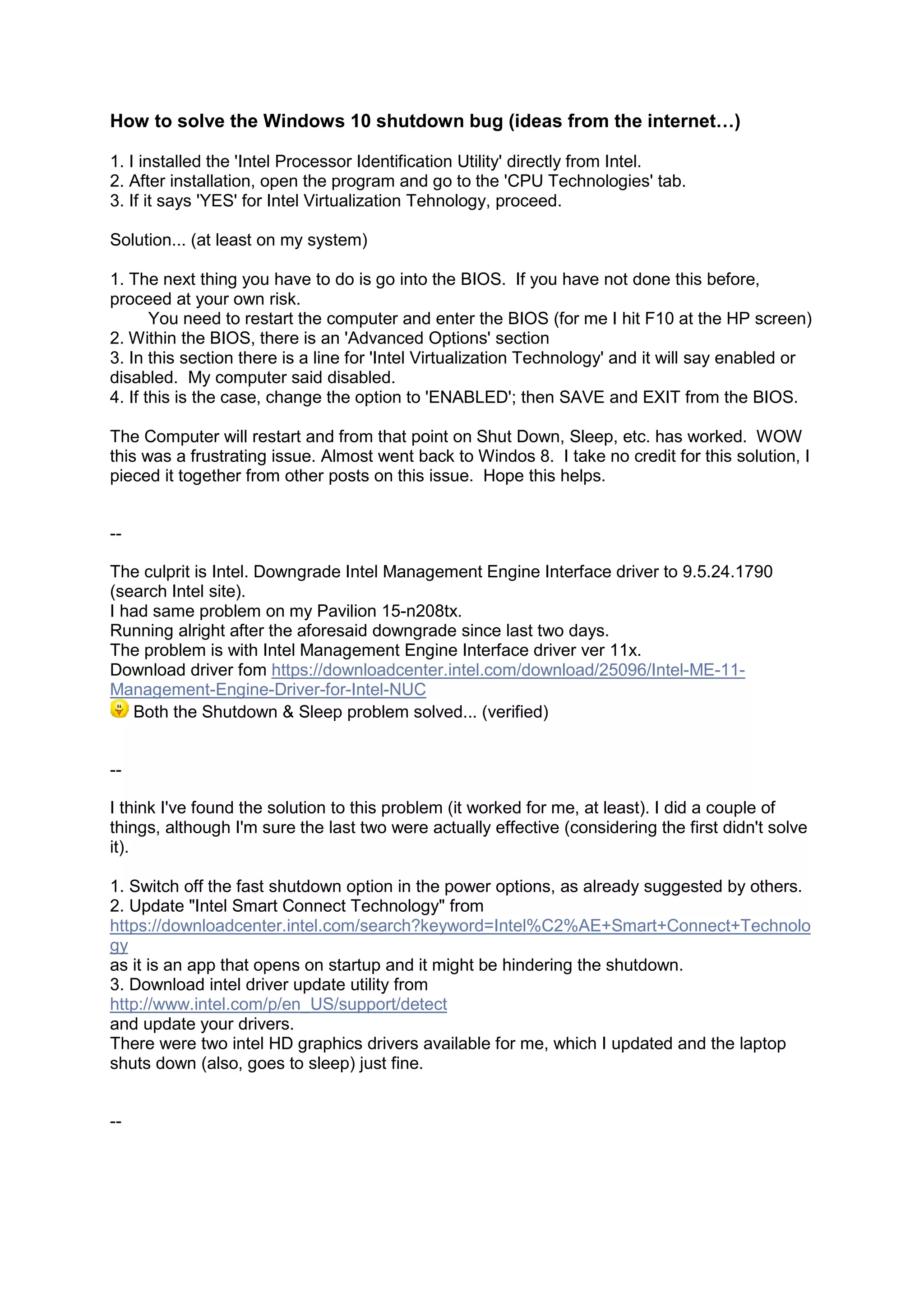
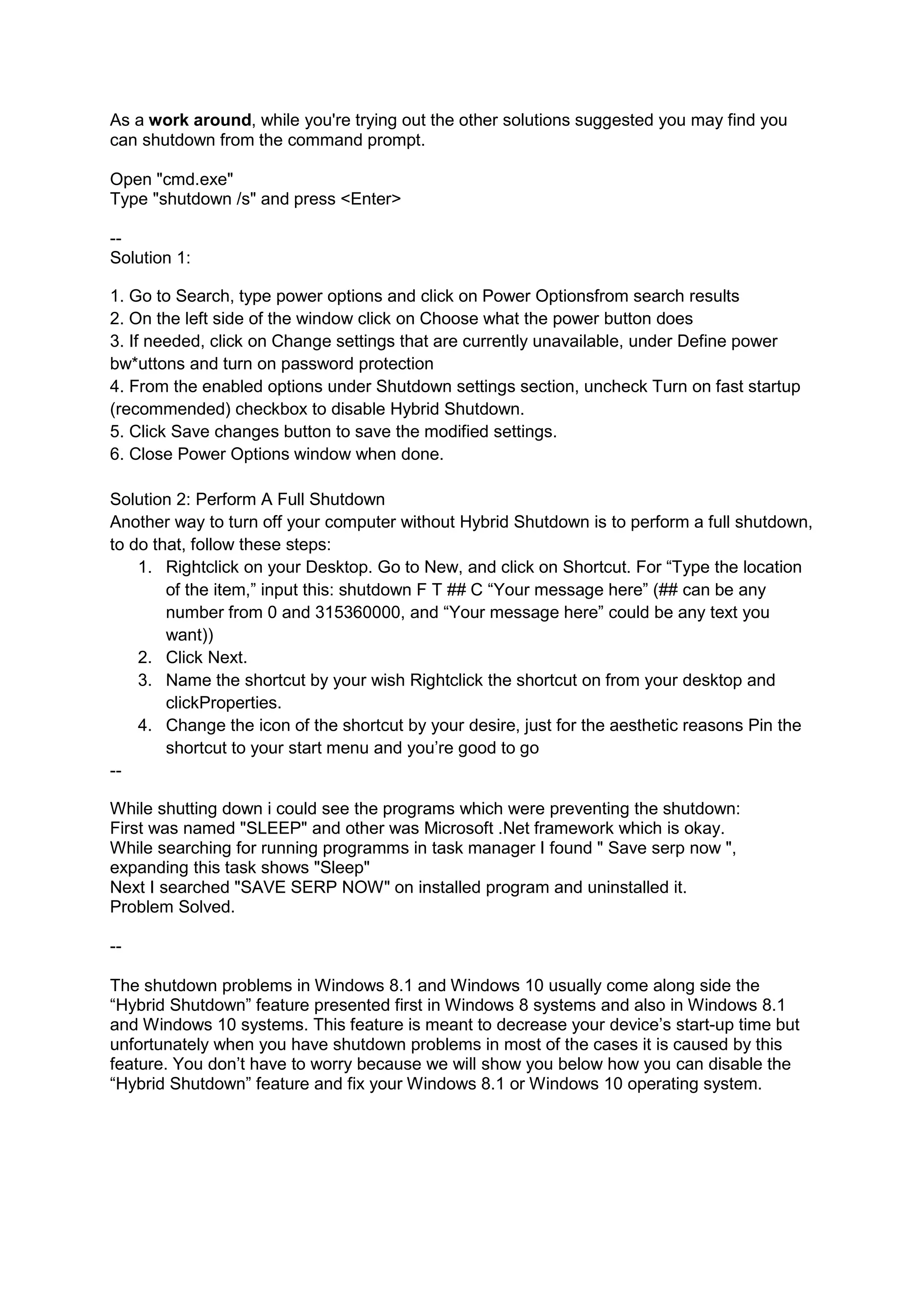
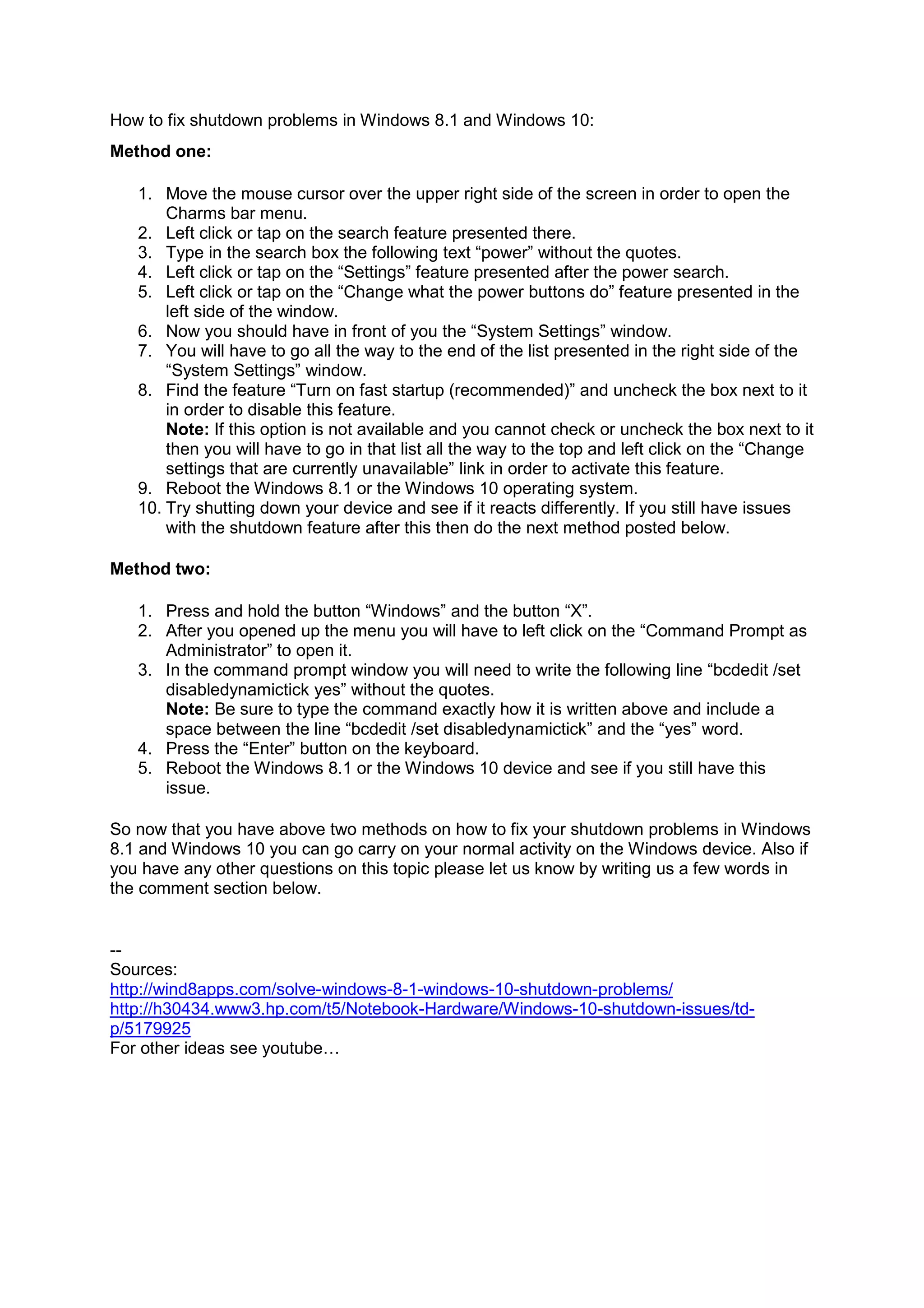
How to solve the Windows 10 shutdown bug (ideas from the internet…)
1. I installed the 'Intel Processor Identification Utility' directly from Intel.
2. After installation, open the program and go to the 'CPU Technologies' tab.
3. If it says 'YES' for Intel Virtualization Tehnology, proceed.
Solution... (at least on my system)
1. The next thing you have to do is go into the BIOS. If you have not done this before,
proceed at your own risk.
You need to restart the computer and enter the BIOS (for me I hit F10 at the HP screen)
2. Within the BIOS, there is an 'Advanced Options' section
3. In this section there is a line for 'Intel Virtualization Technology' and it will say enabled or
disabled. My computer said disabled.
4. If this is the case, change the option to 'ENABLED'; then SAVE and EXIT from the BIOS.
The Computer will restart and from that point on Shut Down, Sleep, etc. has worked. WOW
this was a frustrating issue. Almost went back to Windos 8. I take no credit for this solution, I
pieced it together from other posts on this issue. Hope this helps.
--
The culprit is Intel. Downgrade Intel Management Engine Interface driver to 9.5.24.1790
(search Intel site).
I had same problem on my Pavilion 15-n208tx.
Running alright after the aforesaid downgrade since last two days.
The problem is with Intel Management Engine Interface driver ver 11x.
Download driver fom https://downloadcenter.intel.com/download/25096/Intel-ME-11-
Management-Engine-Driver-for-Intel-NUC
Both the Shutdown & Sleep problem solved... (verified)
--
I think I've found the solution to this problem (it worked for me, at least). I did a couple of
things, although I'm sure the last two were actually effective (considering the first didn't solve
it).
1. Switch off the fast shutdown option in the power options, as already suggested by others.
2. Update "Intel Smart Connect Technology" from
https://downloadcenter.intel.com/search?keyword=Intel%C2%AE+Smart+Connect+Technolo
gy
as it is an app that opens on startup and it might be hindering the shutdown.
3. Download intel driver update utility from
http://www.intel.com/p/en_US/support/detect
and update your drivers.
There were two intel HD graphics drivers available for me, which I updated and the laptop
shuts down (also, goes to sleep) just fine.
--
As a work around, while you're trying out the other solutions suggested you may find you
can shutdown from the command prompt.
Open "cmd.exe"
Type "shutdown /s" and press <Enter>
--
Solution 1:
1. Go to Search, type power options and click on Power Optionsfrom search results
2. On the left side of the window click on Choose what the power button does
3. If needed, click on Change settings that are currently unavailable, under Define power
bw*uttons and turn on password protection
4. From the enabled options under Shutdown settings section, uncheck Turn on fast startup
(recommended) checkbox to disable Hybrid Shutdown.
5. Click Save changes button to save the modified settings.
6. Close Power Options window when done.
Solution 2: Perform A Full Shutdown
Another way to turn off your computer without Hybrid Shutdown is to perform a full shutdown,
to do that, follow these steps:
1. Rightclick on your Desktop. Go to New, and click on Shortcut. For “Type the location
of the item,” input this: shutdown F T ## C “Your message here” (## can be any
number from 0 and 315360000, and “Your message here” could be any text you
want))
2. Click Next.
3. Name the shortcut by your wish Rightclick the shortcut on from your desktop and
clickProperties.
4. Change the icon of the shortcut by your desire, just for the aesthetic reasons Pin the
shortcut to your start menu and you’re good to go
--
While shutting down i could see the programs which were preventing the shutdown:
First was named "SLEEP" and other was Microsoft .Net framework which is okay.
While searching for running programms in task manager I found " Save serp now ",
expanding this task shows "Sleep"
Next I searched "SAVE SERP NOW" on installed program and uninstalled it.
Problem Solved.
--
The shutdown problems in Windows 8.1 and Windows 10 usually come along side the
“Hybrid Shutdown” feature presented first in Windows 8 systems and also in Windows 8.1
and Windows 10 systems. This feature is meant to decrease your device’s start-up time but
unfortunately when you have shutdown problems in most of the cases it is caused by this
feature. You don’t have to worry because we will show you below how you can disable the
“Hybrid Shutdown” feature and fix your Windows 8.1 or Windows 10 operating system.
How to fix shutdown problems in Windows 8.1 and Windows 10:
Method one:
1. Move the mouse cursor over the upper right side of the screen in order to open the
Charms bar menu.
2. Left click or tap on the search feature presented there.
3. Type in the search box the following text “power” without the quotes.
4. Left click or tap on the “Settings” feature presented after the power search.
5. Left click or tap on the “Change what the power buttons do” feature presented in the
left side of the window.
6. Now you should have in front of you the “System Settings” window.
7. You will have to go all the way to the end of the list presented in the right side of the
“System Settings” window.
8. Find the feature “Turn on fast startup (recommended)” and uncheck the box next to it
in order to disable this feature.
Note: If this option is not available and you cannot check or uncheck the box next to it
then you will have to go in that list all the way to the top and left click on the “Change
settings that are currently unavailable” link in order to activate this feature.
9. Reboot the Windows 8.1 or the Windows 10 operating system.
10. Try shutting down your device and see if it reacts differently. If you still have issues
with the shutdown feature after this then do the next method posted below.
Method two:
1. Press and hold the button “Windows” and the button “X”.
2. After you opened up the menu you will have to left click on the “Command Prompt as
Administrator” to open it.
3. In the command prompt window you will need to write the following line “bcdedit /set
disabledynamictick yes” without the quotes.
Note: Be sure to type the command exactly how it is written above and include a
space between the line “bcdedit /set disabledynamictick” and the “yes” word.
4. Press the “Enter” button on the keyboard.
5. Reboot the Windows 8.1 or the Windows 10 device and see if you still have this
issue.
So now that you have above two methods on how to fix your shutdown problems in Windows
8.1 and Windows 10 you can go carry on your normal activity on the Windows device. Also if
you have any other questions on this topic please let us know by writing us a few words in
the comment section below.
--
Sources:
http://wind8apps.com/solve-windows-8-1-windows-10-shutdown-problems/
http://h30434.www3.hp.com/t5/Notebook-Hardware/Windows-10-shutdown-issues/td-
p/5179925
For other ideas see youtube…

Win 10: Shutdown problems and possible workarounds

  • 1.
    How to solvethe Windows 10 shutdown bug (ideas from the internet…) 1. I installed the 'Intel Processor Identification Utility' directly from Intel. 2. After installation, open the program and go to the 'CPU Technologies' tab. 3. If it says 'YES' for Intel Virtualization Tehnology, proceed. Solution... (at least on my system) 1. The next thing you have to do is go into the BIOS. If you have not done this before, proceed at your own risk. You need to restart the computer and enter the BIOS (for me I hit F10 at the HP screen) 2. Within the BIOS, there is an 'Advanced Options' section 3. In this section there is a line for 'Intel Virtualization Technology' and it will say enabled or disabled. My computer said disabled. 4. If this is the case, change the option to 'ENABLED'; then SAVE and EXIT from the BIOS. The Computer will restart and from that point on Shut Down, Sleep, etc. has worked. WOW this was a frustrating issue. Almost went back to Windos 8. I take no credit for this solution, I pieced it together from other posts on this issue. Hope this helps. -- The culprit is Intel. Downgrade Intel Management Engine Interface driver to 9.5.24.1790 (search Intel site). I had same problem on my Pavilion 15-n208tx. Running alright after the aforesaid downgrade since last two days. The problem is with Intel Management Engine Interface driver ver 11x. Download driver fom https://downloadcenter.intel.com/download/25096/Intel-ME-11- Management-Engine-Driver-for-Intel-NUC Both the Shutdown & Sleep problem solved... (verified) -- I think I've found the solution to this problem (it worked for me, at least). I did a couple of things, although I'm sure the last two were actually effective (considering the first didn't solve it). 1. Switch off the fast shutdown option in the power options, as already suggested by others. 2. Update "Intel Smart Connect Technology" from https://downloadcenter.intel.com/search?keyword=Intel%C2%AE+Smart+Connect+Technolo gy as it is an app that opens on startup and it might be hindering the shutdown. 3. Download intel driver update utility from http://www.intel.com/p/en_US/support/detect and update your drivers. There were two intel HD graphics drivers available for me, which I updated and the laptop shuts down (also, goes to sleep) just fine. --
  • 2.
    As a workaround, while you're trying out the other solutions suggested you may find you can shutdown from the command prompt. Open "cmd.exe" Type "shutdown /s" and press <Enter> -- Solution 1: 1. Go to Search, type power options and click on Power Optionsfrom search results 2. On the left side of the window click on Choose what the power button does 3. If needed, click on Change settings that are currently unavailable, under Define power bw*uttons and turn on password protection 4. From the enabled options under Shutdown settings section, uncheck Turn on fast startup (recommended) checkbox to disable Hybrid Shutdown. 5. Click Save changes button to save the modified settings. 6. Close Power Options window when done. Solution 2: Perform A Full Shutdown Another way to turn off your computer without Hybrid Shutdown is to perform a full shutdown, to do that, follow these steps: 1. Rightclick on your Desktop. Go to New, and click on Shortcut. For “Type the location of the item,” input this: shutdown F T ## C “Your message here” (## can be any number from 0 and 315360000, and “Your message here” could be any text you want)) 2. Click Next. 3. Name the shortcut by your wish Rightclick the shortcut on from your desktop and clickProperties. 4. Change the icon of the shortcut by your desire, just for the aesthetic reasons Pin the shortcut to your start menu and you’re good to go -- While shutting down i could see the programs which were preventing the shutdown: First was named "SLEEP" and other was Microsoft .Net framework which is okay. While searching for running programms in task manager I found " Save serp now ", expanding this task shows "Sleep" Next I searched "SAVE SERP NOW" on installed program and uninstalled it. Problem Solved. -- The shutdown problems in Windows 8.1 and Windows 10 usually come along side the “Hybrid Shutdown” feature presented first in Windows 8 systems and also in Windows 8.1 and Windows 10 systems. This feature is meant to decrease your device’s start-up time but unfortunately when you have shutdown problems in most of the cases it is caused by this feature. You don’t have to worry because we will show you below how you can disable the “Hybrid Shutdown” feature and fix your Windows 8.1 or Windows 10 operating system.
  • 3.
    How to fixshutdown problems in Windows 8.1 and Windows 10: Method one: 1. Move the mouse cursor over the upper right side of the screen in order to open the Charms bar menu. 2. Left click or tap on the search feature presented there. 3. Type in the search box the following text “power” without the quotes. 4. Left click or tap on the “Settings” feature presented after the power search. 5. Left click or tap on the “Change what the power buttons do” feature presented in the left side of the window. 6. Now you should have in front of you the “System Settings” window. 7. You will have to go all the way to the end of the list presented in the right side of the “System Settings” window. 8. Find the feature “Turn on fast startup (recommended)” and uncheck the box next to it in order to disable this feature. Note: If this option is not available and you cannot check or uncheck the box next to it then you will have to go in that list all the way to the top and left click on the “Change settings that are currently unavailable” link in order to activate this feature. 9. Reboot the Windows 8.1 or the Windows 10 operating system. 10. Try shutting down your device and see if it reacts differently. If you still have issues with the shutdown feature after this then do the next method posted below. Method two: 1. Press and hold the button “Windows” and the button “X”. 2. After you opened up the menu you will have to left click on the “Command Prompt as Administrator” to open it. 3. In the command prompt window you will need to write the following line “bcdedit /set disabledynamictick yes” without the quotes. Note: Be sure to type the command exactly how it is written above and include a space between the line “bcdedit /set disabledynamictick” and the “yes” word. 4. Press the “Enter” button on the keyboard. 5. Reboot the Windows 8.1 or the Windows 10 device and see if you still have this issue. So now that you have above two methods on how to fix your shutdown problems in Windows 8.1 and Windows 10 you can go carry on your normal activity on the Windows device. Also if you have any other questions on this topic please let us know by writing us a few words in the comment section below. -- Sources: http://wind8apps.com/solve-windows-8-1-windows-10-shutdown-problems/ http://h30434.www3.hp.com/t5/Notebook-Hardware/Windows-10-shutdown-issues/td- p/5179925 For other ideas see youtube…