Windows 8 Problems and Solutions
Get 24x7 support by 1akal Expert
Call +1 888 439 2525
www.1akal.com 1
www.1akal.com 2
Windows 8 is a new operating system so chances are there
to get surprised with errors. Do not get obsessed, here are
bunch of common errors and their solution:
Window Restarts by itself
If Window is Shutting Down by itself or rebooting by itself,
don’t worry, Its not about hardware, but, its a Windows
issue. When Windows 8 restarts after approaching the
login screen, at most of the times this issue is due to new
Hybrid Feature, which is introduced to lessen the Windows
Loading time, on the other side, it is causing this auto-
restart problem too.
www.1akal.com 3
You can resolve this issue with these
steps:
• Step 1: Goto START Menu and type POWER
• Step 2: Click SETTINGS > This will lead you to Power
Options Window
• Step 3: Scroll Down to option ‘Turn on fast startup
(recommended)’
• Step 4: Uncheck the option and Click SAVE button.
www.1akal.com 4
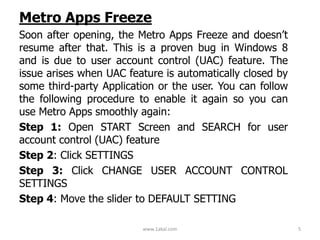
Metro Apps Freeze
Soon after opening, the Metro Apps Freeze and doesn’t
resume after that. This is a proven bug in Windows 8
and is due to user account control (UAC) feature. The
issue arises when UAC feature is automatically closed by
some third-party Application or the user. You can follow
the following procedure to enable it again so you can
use Metro Apps smoothly again:
Step 1: Open START Screen and SEARCH for user
account control (UAC) feature
Step 2: Click SETTINGS
Step 3: Click CHANGE USER ACCOUNT CONTROL
SETTINGS
Step 4: Move the slider to DEFAULT SETTING
www.1akal.com 5
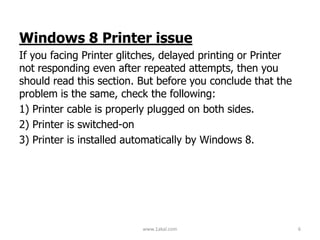
Windows 8 Printer issue
If you facing Printer glitches, delayed printing or Printer
not responding even after repeated attempts, then you
should read this section. But before you conclude that the
problem is the same, check the following:
1) Printer cable is properly plugged on both sides.
2) Printer is switched-on
3) Printer is installed automatically by Windows 8.
www.1akal.com 6
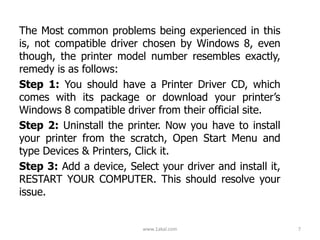
The Most common problems being experienced in this
is, not compatible driver chosen by Windows 8, even
though, the printer model number resembles exactly,
remedy is as follows:
Step 1: You should have a Printer Driver CD, which
comes with its package or download your printer’s
Windows 8 compatible driver from their official site.
Step 2: Uninstall the printer. Now you have to install
your printer from the scratch, Open Start Menu and
type Devices & Printers, Click it.
Step 3: Add a device, Select your driver and install it,
RESTART YOUR COMPUTER. This should resolve your
issue.
www.1akal.com 7

Windows 8 problems and solutions

  • 1.
    Windows 8 Problemsand Solutions Get 24x7 support by 1akal Expert Call +1 888 439 2525 www.1akal.com 1
  • 2.
    www.1akal.com 2 Windows 8is a new operating system so chances are there to get surprised with errors. Do not get obsessed, here are bunch of common errors and their solution:
  • 3.
    Window Restarts byitself If Window is Shutting Down by itself or rebooting by itself, don’t worry, Its not about hardware, but, its a Windows issue. When Windows 8 restarts after approaching the login screen, at most of the times this issue is due to new Hybrid Feature, which is introduced to lessen the Windows Loading time, on the other side, it is causing this auto- restart problem too. www.1akal.com 3
  • 4.
    You can resolvethis issue with these steps: • Step 1: Goto START Menu and type POWER • Step 2: Click SETTINGS > This will lead you to Power Options Window • Step 3: Scroll Down to option ‘Turn on fast startup (recommended)’ • Step 4: Uncheck the option and Click SAVE button. www.1akal.com 4
  • 5.
    Metro Apps Freeze Soonafter opening, the Metro Apps Freeze and doesn’t resume after that. This is a proven bug in Windows 8 and is due to user account control (UAC) feature. The issue arises when UAC feature is automatically closed by some third-party Application or the user. You can follow the following procedure to enable it again so you can use Metro Apps smoothly again: Step 1: Open START Screen and SEARCH for user account control (UAC) feature Step 2: Click SETTINGS Step 3: Click CHANGE USER ACCOUNT CONTROL SETTINGS Step 4: Move the slider to DEFAULT SETTING www.1akal.com 5
  • 6.
    Windows 8 Printerissue If you facing Printer glitches, delayed printing or Printer not responding even after repeated attempts, then you should read this section. But before you conclude that the problem is the same, check the following: 1) Printer cable is properly plugged on both sides. 2) Printer is switched-on 3) Printer is installed automatically by Windows 8. www.1akal.com 6
  • 7.
    The Most commonproblems being experienced in this is, not compatible driver chosen by Windows 8, even though, the printer model number resembles exactly, remedy is as follows: Step 1: You should have a Printer Driver CD, which comes with its package or download your printer’s Windows 8 compatible driver from their official site. Step 2: Uninstall the printer. Now you have to install your printer from the scratch, Open Start Menu and type Devices & Printers, Click it. Step 3: Add a device, Select your driver and install it, RESTART YOUR COMPUTER. This should resolve your issue. www.1akal.com 7