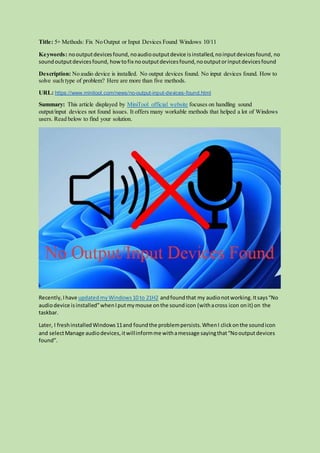
Title: 5+ Methods: Fix No Output or Input Devices Found Windows 10/11
Keywords: nooutputdevicesfound, noaudiooutputdevice isinstalled,noinputdevicesfound, no
soundoutputdevicesfound, howtofix nooutputdevicesfound,nooutputorinputdevicesfound
Description: No audio device is installed. No output devices found. No input devices found. How to
solve such type of problem? Here are more than five methods.
URL: https://www.minitool.com/news/no-output-input-devices-found.html
Summary: This article displayed by MiniTool official website focuses on handling sound
output/input devices not found issues. It offers many workable methods that helped a lot of Windows
users. Read below to find your solution.
Recently,I have updatedmyWindows10 to 21H2 andfoundthat my audionotworking.Itsays“No
audiodevice isinstalled”whenIputmymouse onthe soundicon (withacross icon onit) on the
taskbar.
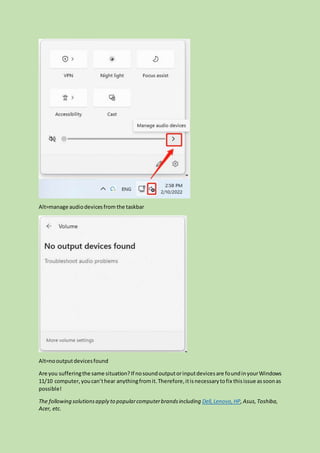
Later, I freshinstalledWindows11and foundthe problempersists.WhenI clickonthe soundicon
and selectManage audiodevices,itwillinformme withamessage sayingthat“Nooutputdevices
found”.
Alt=manage audiodevicesfrom the taskbar
Alt=nooutputdevicesfound
Are you sufferingthe same situation?If nosoundoutputorinputdevicesare foundinyourWindows
11/10 computer, youcan’thear anythingfromit.Therefore,itisnecessarytofix thisissue assoonas
possible!
The following solutionsapply to popularcomputerbrandsincluding Dell,Lenovo,HP,Asus,Toshiba,
Acer, etc.
#1 Add Output Device
As described inthe errormessage,youmayreallyhave nosoundoutputdevice connected.Then,
youneedto connectan audiooutputdevice toyourcomputer.
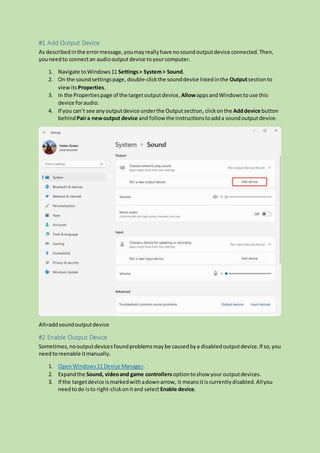
1. Navigate toWindows11 Settings> System> Sound.
2. On the soundsettingspage, double-clickthe sounddevice listedinthe Outputsectionto
view itsProperties.
3. In the Propertiespage of the targetoutputdevice, AllowappsandWindowstouse this
device foraudio.
4. If you can’t see anyoutputdevice underthe Outputsection, clickonthe Adddevice button
behind Paira newoutput device and follow the instructionstoadda soundoutputdevice.
Alt=addsoundoutputdevice
#2 Enable Output Device
Sometimes,nooutputdevicesfoundproblemsmay be causedbya disabledoutputdevice.If so,you
needtoreenable itmanually.
1. OpenWindows11 Device Manager.
2. Expandthe Sound, videoand game controllers optiontoshow your outputdevices.
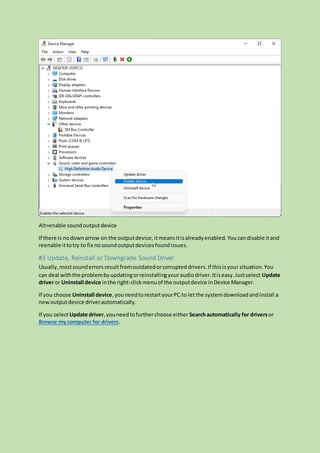
3. If the targetdevice ismarkedwithadownarrow, it meansitiscurrentlydisabled.Allyou
needtodo isto right-clickonitand select Enable device.
Alt=enable soundoutputdevice
If there is nodownarrow on the outputdevice,itmeansitisalreadyenabled.Youcandisable itand
reenable ittotry to fix nosoundoutputdevicesfoundissues.
#3 Update, Reinstall or Downgrade Sound Driver
Usually,mostsounderrors resultfromoutdatedorcorrupteddrivers.If thisisyour situation.You
can deal withthe problembyupdatingorreinstallingyouraudiodriver.Itiseasy.Justselect Update
driver or Uninstall device inthe right-clickmenuof the outputdevice inDevice Manager.
If you choose Uninstall device,youneedtorestartyourPC to let the systemdownloadandinstall a
newoutputdevice driverautomatically.
If you selectUpdate driver,youneedtofurtherchoose either Searchautomatically for driversor
Browse my computer for drivers.
Alt=howdoyou wantto searchfor derivers
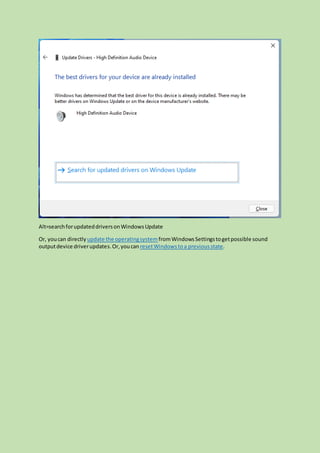
If it says thatyou have alreadyinstalledthe bestdriversforyourdevices,youcanfurtherSearch for
updated driverson WindowsUpdate or manuallylookforbetterdriversonthe device
manufacturer’swebsite.
Alt=searchforupdateddriversonWindowsUpdate
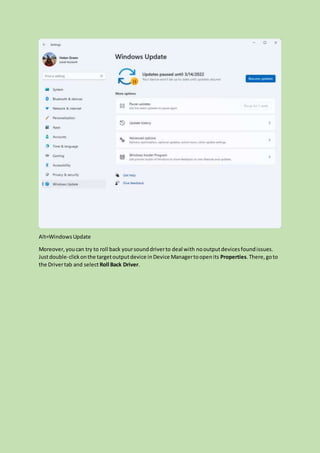
Or, youcan directly update the operatingsystem fromWindowsSettingstogetpossible sound
outputdevice driverupdates.Or,youcan resetWindowstoa previousstate.
Alt=WindowsUpdate
Moreover,youcan try to roll back yoursounddriverto deal with nooutputdevicesfoundissues.
Justdouble-clickonthe targetoutputdevice inDevice Managertoopenits Properties.There,goto
the Drivertab and select Roll Back Driver.
Alt=roll backdriver
If the Roll Back Driveroptionisunavailable,itmeansthere isnopreviousversiondriver.
#4 Troubleshoot Playing Audio
Besides,youcantroubleshootyour soundequipmenttodetectandfix the issue.Justright-clickon
the soundicon in the taskbar andchoose Troubleshootsound problems.
ALT=troubleshootsoundproblems
#5 Scan for Virus
Finally,itmaydue to virusesormalware thatpreventsyoufromusingyoursound device onyour
machine.Toverifythat,youneedtoperforma virusscan.
1. OpenWindows11 commandprompt(CMD).
2. Inputsfc / scannowandpressEnter.
3. Wait until itfinishes.
If there is virusanddamagedsystemfilesonyourPC,thiscommandwill repairit bythe way.Or, you
can relyon antivirustohelpyoufix the issue andremove viruses.
Fix No Input Devices Found Issue
The ways to solve the “noinputdevicesfound”or“noaudioinputdevice isinstalled”problem are
the same as those for “no audiooutputdevice isinstalled”or“outputdevice notfound” issues.
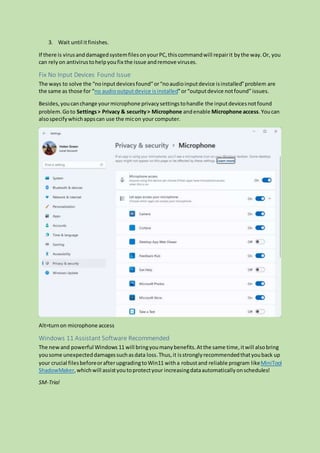
Besides,youcanchange yourmicrophone privacysettingstohandle the inputdevicesnotfound
problem.Goto Settings> Privacy & security> Microphone andenable Microphone access.Youcan
alsospecifywhichappscan use the micon your computer.
Alt=turnon microphone access
Windows 11 Assistant Software Recommended
The newand powerful Windows 11 will bringyoumanybenefits.Atthe same time,itwill alsobring
yousome unexpecteddamagessuchasdata loss.Thus,it isstronglyrecommendedthatyouback up
your crucial filesbeforeorafterupgradingtoWin11 witha robustand reliable program likeMiniTool
ShadowMaker,whichwill assistyoutoprotectyour increasingdataautomaticallyonschedules!
SM-Trial

no output input devices found

  • 1.
    Title: 5+ Methods:Fix No Output or Input Devices Found Windows 10/11 Keywords: nooutputdevicesfound, noaudiooutputdevice isinstalled,noinputdevicesfound, no soundoutputdevicesfound, howtofix nooutputdevicesfound,nooutputorinputdevicesfound Description: No audio device is installed. No output devices found. No input devices found. How to solve such type of problem? Here are more than five methods. URL: https://www.minitool.com/news/no-output-input-devices-found.html Summary: This article displayed by MiniTool official website focuses on handling sound output/input devices not found issues. It offers many workable methods that helped a lot of Windows users. Read below to find your solution. Recently,I have updatedmyWindows10 to 21H2 andfoundthat my audionotworking.Itsays“No audiodevice isinstalled”whenIputmymouse onthe soundicon (withacross icon onit) on the taskbar. Later, I freshinstalledWindows11and foundthe problempersists.WhenI clickonthe soundicon and selectManage audiodevices,itwillinformme withamessage sayingthat“Nooutputdevices found”.
  • 2.
    Alt=manage audiodevicesfrom thetaskbar Alt=nooutputdevicesfound Are you sufferingthe same situation?If nosoundoutputorinputdevicesare foundinyourWindows 11/10 computer, youcan’thear anythingfromit.Therefore,itisnecessarytofix thisissue assoonas possible! The following solutionsapply to popularcomputerbrandsincluding Dell,Lenovo,HP,Asus,Toshiba, Acer, etc.
  • 3.
    #1 Add OutputDevice As described inthe errormessage,youmayreallyhave nosoundoutputdevice connected.Then, youneedto connectan audiooutputdevice toyourcomputer. 1. Navigate toWindows11 Settings> System> Sound. 2. On the soundsettingspage, double-clickthe sounddevice listedinthe Outputsectionto view itsProperties. 3. In the Propertiespage of the targetoutputdevice, AllowappsandWindowstouse this device foraudio. 4. If you can’t see anyoutputdevice underthe Outputsection, clickonthe Adddevice button behind Paira newoutput device and follow the instructionstoadda soundoutputdevice. Alt=addsoundoutputdevice #2 Enable Output Device Sometimes,nooutputdevicesfoundproblemsmay be causedbya disabledoutputdevice.If so,you needtoreenable itmanually. 1. OpenWindows11 Device Manager. 2. Expandthe Sound, videoand game controllers optiontoshow your outputdevices. 3. If the targetdevice ismarkedwithadownarrow, it meansitiscurrentlydisabled.Allyou needtodo isto right-clickonitand select Enable device.
  • 4.
    Alt=enable soundoutputdevice If thereis nodownarrow on the outputdevice,itmeansitisalreadyenabled.Youcandisable itand reenable ittotry to fix nosoundoutputdevicesfoundissues. #3 Update, Reinstall or Downgrade Sound Driver Usually,mostsounderrors resultfromoutdatedorcorrupteddrivers.If thisisyour situation.You can deal withthe problembyupdatingorreinstallingyouraudiodriver.Itiseasy.Justselect Update driver or Uninstall device inthe right-clickmenuof the outputdevice inDevice Manager. If you choose Uninstall device,youneedtorestartyourPC to let the systemdownloadandinstall a newoutputdevice driverautomatically. If you selectUpdate driver,youneedtofurtherchoose either Searchautomatically for driversor Browse my computer for drivers.
  • 5.
    Alt=howdoyou wantto searchforderivers If it says thatyou have alreadyinstalledthe bestdriversforyourdevices,youcanfurtherSearch for updated driverson WindowsUpdate or manuallylookforbetterdriversonthe device manufacturer’swebsite.
  • 6.
    Alt=searchforupdateddriversonWindowsUpdate Or, youcan directlyupdate the operatingsystem fromWindowsSettingstogetpossible sound outputdevice driverupdates.Or,youcan resetWindowstoa previousstate.
  • 7.
    Alt=WindowsUpdate Moreover,youcan try toroll back yoursounddriverto deal with nooutputdevicesfoundissues. Justdouble-clickonthe targetoutputdevice inDevice Managertoopenits Properties.There,goto the Drivertab and select Roll Back Driver.
  • 8.
    Alt=roll backdriver If theRoll Back Driveroptionisunavailable,itmeansthere isnopreviousversiondriver. #4 Troubleshoot Playing Audio Besides,youcantroubleshootyour soundequipmenttodetectandfix the issue.Justright-clickon the soundicon in the taskbar andchoose Troubleshootsound problems. ALT=troubleshootsoundproblems #5 Scan for Virus Finally,itmaydue to virusesormalware thatpreventsyoufromusingyoursound device onyour machine.Toverifythat,youneedtoperforma virusscan. 1. OpenWindows11 commandprompt(CMD). 2. Inputsfc / scannowandpressEnter.
  • 9.
    3. Wait untilitfinishes. If there is virusanddamagedsystemfilesonyourPC,thiscommandwill repairit bythe way.Or, you can relyon antivirustohelpyoufix the issue andremove viruses. Fix No Input Devices Found Issue The ways to solve the “noinputdevicesfound”or“noaudioinputdevice isinstalled”problem are the same as those for “no audiooutputdevice isinstalled”or“outputdevice notfound” issues. Besides,youcanchange yourmicrophone privacysettingstohandle the inputdevicesnotfound problem.Goto Settings> Privacy & security> Microphone andenable Microphone access.Youcan alsospecifywhichappscan use the micon your computer. Alt=turnon microphone access Windows 11 Assistant Software Recommended The newand powerful Windows 11 will bringyoumanybenefits.Atthe same time,itwill alsobring yousome unexpecteddamagessuchasdata loss.Thus,it isstronglyrecommendedthatyouback up your crucial filesbeforeorafterupgradingtoWin11 witha robustand reliable program likeMiniTool ShadowMaker,whichwill assistyoutoprotectyour increasingdataautomaticallyonschedules! SM-Trial