8th Edition
Financial Analysis
withMicrosoft®
Excel®
2016
Timothy R. Mayes
Financial
Analysis
with
Microsoft
®
Excel
®
2016
Mayes
8th
Edition
8th Edition
Financial Analysis
withMicrosoft®
Excel®
2016
Timothy R. Mayes
To register or access your online learning solution or purchase materials
for your course, visit www.cengagebrain.com.
Financial Analysis
with Microsoft®
Excel®
EIGHTH EDITION
Timothy R. Mayes
Metropolitan State College of Denver
Australia • Brazil • Mexico • Singapore • United Kingdom • United States
Financial Analysis with Microsoft® Excel®,
Eighth Edition
Timothy R. Mayes
SVP, GM Social Science and Qualitative Business:
Erin Joyner
Executive Product Director: Mike Schenk
Sr. Product Team Manager: Joe Sabatino
Project Manager: Julie Dierig
Content Developer: Tara Slagle,
MPS North America LLC
Product Assistant: Renee Schnee
Sr. Marketing Manager: Nate Anderson
Manufacturing Planner: Kevin Kluck
Intellectual Property Analysts: Brittani Morgan and
Ashley Maynard
Intellectual Property Project Manager:
Kathryn Kucharek
Art and Cover Direction, Production Management,
and Composition: Lumina Datamatics Inc.
Sr. Art Director: Michelle Kunkler
Cover Image: Cover Screenshots are used with
permission from Microsoft Corporation,
Microsoft Excel®
is a registered trademark
of Microsoft Corporation.
© 2016 Microsoft.
© 2018, 2015 Cengage Learning®
Unless otherwise noted, all content is © Cengage
Microsoft Excel: Microsoft Excel is a registered trademark of Microsoft
Corporation. 2014 Microsoft
ALL RIGHTS RESERVED. No part of this work covered by the copyright
herein may be reproduced or distributed in any form or by any means,
except as permitted by U.S. copyright law, without the prior written
permission of the copyright owner.
For product information and technology assistance, contact us at
Cengage Learning Customer & Sales Support, 1-800-354-9706.
For permission to use material from this text or product,
submit all requests online at www.cengage.com/permissions.
Further permissions questions can be emailed to
permissionrequest@cengage.com.
Library of Congress Control Number: 2017934413
ISBN: 978-1-337-29804-9
Cengage Learning
20 Channel Center Street
Boston, MA 02210
USA
Cengage Learning is a leading provider of customized learning
solutions with employees residing in nearly 40 different
countries and sales in more than 125 countries around the
world. Find your local representative at
www.cengage.com/global
Cengage Learning products are represented in Canada by
Nelson Education, Ltd.
To learn more about Cengage Learning Solutions, visit
www.cengage.com.
Purchase any of our products at your local college store or at our
preferred online store www.cengagebrain.com.
Printed in the United States of America
Print Number: 01 Print Year: 2017
iii
Preface xiii
Purpose of the Book xiv
Target Audience xiv
A Note to Students xv
Organization of the Book xv
Outstanding Features xvi
Pedagogical Features xvii
Supplements xvii
Typography Conventions xviii
Changes from the 7th Edition xix
A Note on the Internet xix
Acknowledgments xx
CHAPTER 1 Introduction to Excel 2016 1
Spreadsheet Uses 2
Starting Microsoft Excel 2
Parts of the Excel Screen 3
The File Tab and Quick Access Toolbar 3
The Home Tab 4
The Formula Bar 6
The Worksheet Area 6
Sheet Tabs 7
Status Bar 7
Navigating the Worksheet 8
Selecting a Range of Cells 9
Using Defined Names 9
Entering Text and Numbers 10
Formatting and Alignment Options 11
Formatting Numbers 13
Adding Borders and Shading 14
Entering Formulas 14
Copying and Moving Formulas 17
Mathematical Operators 18
Parentheses and the Order of Operations 18
Contents
Contents
iv
Using Excel’s Built-In Functions 20
Using the Insert Function Dialog Box 21
“Dot Functions” in Excel 2016 23
Using User-Defined Functions 24
Creating Graphics 26
Creating Charts in a Chart Sheet 26
Creating Embedded Charts 27
Formatting Charts 28
Changing the Chart Type 29
Creating Sparkline Charts 31
Printing 32
Using Excel with Other Applications 33
Quitting Excel 34
Best Practices for Spreadsheet Models 35
Summary 36
Problems 37
Internet Exercise 40
CHAPTER 2 The Basic Financial Statements 41
The Income Statement 42
Building an Income Statement in Excel 42
The Balance Sheet 47
Building a Balance Sheet in Excel 47
Improving Readability: Custom Number Formats 49
Common-Size Financial Statements 52
Creating Common-Size Income Statements 52
Creating a Common-Size Balance Sheet 54
Building a Statement of Cash Flows 55
Using Excel’s Outliner 60
Common-Size Statement of Cash Flows 62
Summary 65
Problems 66
Internet Exercise 68
CHAPTER 3 Financial Statement Analysis Tools 69
Liquidity Ratios 70
The Current Ratio 71
The Quick Ratio 72
v
Contents
Efficiency Ratios 73
Inventory Turnover Ratio 73
Accounts Receivable Turnover Ratio 74
Average Collection Period 74
Fixed Asset Turnover Ratio 75
Total Asset Turnover Ratio 76
Leverage Ratios 77
The Total Debt Ratio 77
The Long-Term Debt Ratio 78
The Long-Term Debt to Total Capitalization Ratio 78
The Debt to Equity Ratio 79
The Long-Term Debt to Equity Ratio 80
Coverage Ratios 80
The Times Interest Earned Ratio 80
The Cash Coverage Ratio 81
Profitability Ratios 82
The Gross Profit Margin 82
The Operating Profit Margin 83
The Net Profit Margin 83
Return on Total Assets 84
Return on Equity 84
Return on Common Equity 85
DuPont Analysis 85
Analysis of EPI’s Profitability Ratios 87
Financial Distress Prediction 88
The Original Z-Score Model 88
The Z-Score Model for Private Firms 90
Using Financial Ratios 90
Trend Analysis 90
Comparing to Industry Averages 91
Company Goals and Debt Covenants 93
Automating Ratio Analysis 93
Economic Profit Measures of Performance 95
Summary 98
Problems 101
Internet Exercise 102
CHAPTER 4 The Cash Budget 103
The Worksheet Area 105
Using Date Functions 105
Contents
vi
Calculating Text Strings 106
Sales and Collections 107
Purchases and Payments 109
Collections and Disbursements 110
Calculating the Ending Cash Balance 112
Repaying Short-Term Borrowing 114
Using the Cash Budget for What-If Analysis 115
The Scenario Manager 117
Adding Interest and Investment of Excess Cash 121
Calculating Current Borrowing 123
Using the Formula Auditing Tools to Avoid Errors 123
Calculating Current Investing 127
Working Through the Example 128
Summary 131
Problems 133
CHAPTER 5 Financial Statement Forecasting 139
The Percent of Sales Method 140
Forecasting the Income Statement 140
Forecasting Assets on the Balance Sheet 144
Forecasting Liabilities on the Balance Sheet 146
Discretionary Financing Needed 147
Using Iteration to Eliminate DFN 149
Other Forecasting Methods 152
Linear Trend Extrapolation 152
Regression Analysis 156
Statistical Significance 160
Summary 163
Problems 164
Internet Exercises 166
CHAPTER 6 Forecasting Sales with Time Series Methods 167
Time Series Decomposition 168
Smoothing a Time Series with Moving Averages 169
Isolating the Seasonality of a Time Series 171
Extracting the Irregular Component 172
Time Series Forecasting Techniques 173
Measuring Forecast Errors 174
Exponential Smoothing Methods 174
vii
Contents
Simple Exponential Smoothing 175
Holt’s Linear Trend Exponential Smoothing Model 177
Forecasting Time Series with Both Trend and Seasonality 179
Holt-Winters Additive Seasonal Model 180
Using the Built-in ETS Model 182
Holt-Winters Multiplicative Seasonal Model 184
Time Series Forecasting Using Regression Analysis 186
Forecasting the Trend Using Regression 186
Using Seasonal Dummy Variables to Account for Seasonality 188
Summary 191
Problems 192
Internet Exercise 193
CHAPTER 7 Break-Even and Leverage Analysis 195
Break-Even Points 196
Calculating Break-Even Points in Excel 197
Other Break-Even Points 199
Using Goal Seek to Calculate Break-Even Points 201
Leverage Analysis 202
The Degree of Operating Leverage 203
The Degree of Financial Leverage 205
The Degree of Combined Leverage 207
Extending the Example 208
Linking Break-Even Points and Leverage Measures 209
Summary 210
Problems 212
Internet Exercise 213
CHAPTER 8 The Time Value of Money 215
Future Value 216
Using Excel to Find Future Values 217
Present Value 218
Annuities 219
Present Value of an Annuity 220
Future Value of an Annuity 222
Solving for the Annuity Payment 224
Solving for the Number of Periods in an Annuity 225
Solving for the Interest Rate in an Annuity 226
Deferred Annuities 228
Contents
viii
Graduated Annuities 230
Present Value of a Graduated Annuity 230
Future Value of a Graduated Annuity 233
Solving for the Graduated Annuity Payment 234
Uneven Cash Flow Streams 234
Solving for the Yield in an Uneven Cash Flow Stream 236
Nonannual Compounding Periods 237
Continuous Compounding 241
Summary 242
Problems 243
CHAPTER 9 Common Stock Valuation 247
What Is Value? 248
Fundamentals of Valuation 249
Determining the Required Rate of Return 250
A Simple Risk Premium Model 251
CAPM: A More Scientific Model 251
Valuing Common Stocks 254
The Constant-Growth Dividend Discount Model 255
The Two-Stage Growth Model 260
Three-Stage Growth Models 262
Alternative Discounted Cash Flow Models 266
The Earnings Model 266
The Free Cash Flow Model 270
Relative Value Models 273
Preferred Stock Valuation 275
Summary 277
Problems 278
Internet Exercise 280
CHAPTER 10 Bond Valuation 283
Bond Valuation 284
Valuing Bonds between Coupon Dates 286
Using Excel’s Advanced Bond Functions 288
Bond Return Measures 291
Current Yield 291
Yield to Maturity 292
ix
Contents
Yield to Call 294
Returns on Discounted Debt Securities 296
The U.S. Treasury Yield Curve 298
Bond Price Sensitivities 300
Changes in the Required Return 300
Changes in Term to Maturity 302
Comparing Two Bonds with Different Maturities 305
Comparing Two Bonds with Different Coupon Rates 307
Duration and Convexity 308
Duration 308
Modified Duration 310
Visualizing the Predicted Price Change 311
Convexity 313
Summary 315
Problems 318
Internet Exercise 320
CHAPTER 11 The Cost of Capital 321
The Appropriate Hurdle Rate 322
The Weighted Average Cost of Capital 323
Determining the Weights 324
WACC Calculations in Excel 325
Calculating the Component Costs 326
The Cost of Common Equity 327
The Cost of Preferred Equity 328
The Cost of Debt 329
Using Excel to Calculate the Component Costs 330
The After-Tax Cost of Debt 330
The Cost of Preferred Stock 332
The Cost of Common Stock 332
The Role of Flotation Costs 333
Adding Flotation Costs to Our Worksheet 334
The Cost of Retained Earnings 335
The Marginal WACC Curve 336
Finding the Break-Points 336
Creating the Marginal WACC Chart 340
Summary 342
Problems 342
Internet Exercise 344
Contents
x
CHAPTER 12 Capital Budgeting 347
Estimating the Cash Flows 348
The Initial Outlay 349
The Annual After-Tax Operating Cash Flows 350
The Terminal Cash Flow 351
Estimating the Cash Flows: An Example 352
Calculating the Relevant Cash Flows 357
Making the Decision 358
The Payback Method 359
The Discounted Payback Period 361
Net Present Value 363
The Profitability Index 365
The Internal Rate of Return 366
Problems with the IRR 367
The Modified Internal Rate of Return 369
Sensitivity and Scenario Analysis 372
NPV Profile Charts 372
Scenario Analysis 373
The Optimal Capital Budget 376
Optimal Capital Budget without Capital Rationing 376
Optimal Capital Budget under Capital Rationing 378
Other Techniques 383
Summary 383
Problems 384
CHAPTER 13 Risk and Capital Budgeting 389
Review of Some Useful Statistical Concepts 390
The Expected Value 390
Measures of Dispersion 392
Using Excel to Measure Risk 395
The Freshly Frozen Fish Company Example 395
Introducing Uncertainty 399
Sensitivity Analysis 399
Scenario Analysis 404
Calculating the Expected NPV from the Scenarios 406
Calculating the Variance and Standard Deviation 407
Calculating the Probability of a Negative NPV 409
Monte Carlo Simulation 410
The Risk-Adjusted Discount Rate Method 417
The Certainty-Equivalent Approach 418
xi
Contents
Summary 420
Problems 422
CHAPTER 14 Portfolio Statistics and Diversification 425
Portfolio Diversification Effects 426
Determining Portfolio Risk and Return 428
Portfolio Standard Deviation 429
Changing the Weights 432
Portfolios with More than Two Securities 434
Creating a Variance/Covariance Matrix 434
Calculating the Portfolio Standard Deviation 438
The Efficient Frontier 439
Locating Portfolios on the Efficient Frontier in Excel 440
Charting the Efficient Frontier 443
The Capital Market Line 445
Charting the Capital Market Line 448
Identifying the Market Portfolio 449
Utility Functions and the Optimal Portfolio 452
Charting Indifference Curves 452
The Capital Asset Pricing Model 454
The Security Market Line 455
Summary 457
Problems 458
Internet Exercise 461
CHAPTER 15 Writing User-Defined Functions with VBA 463
What Is a Macro? 464
Two Types of Macros 464
The Visual Basic Editor 466
The Project Explorer 467
The Code Window 468
The Parts of a Function 468
Writing Your First User-Defined Function 469
Writing More Complicated Functions 473
Variables and Data Types 473
The If-Then-Else Statement 475
Looping Statements 478
Using Worksheet Functions in VBA 481
Using Optional Arguments 482
Contents
xii
Using ParamArray for Unlimited Arguments 483
Debugging VBA Code 484
Breakpoints and Code Stepping 484
The Watch Window 485
The Immediate Window 486
Creating Excel Add-Ins 487
Best Practices for VBA 488
Summary 489
Problems 490
CHAPTER 16 Analyzing Datasets with Tables and Pivot Tables 493
Creating and Using an Excel Table 494
Removing Duplicate Records from the Table 496
Filtering the Table 497
Sorting and Filtering Numeric Fields 498
Structured Referencing for Formulas in Tables 500
Using Get & Transform 501
Cleaning the Dataset 503
An Example Data Query 503
Using Pivot Tables 505
Creating a Pivot Table 505
Formatting the Pivot Table 507
Rearranging the Pivot Table and Adding Fields 510
Transforming the Data Field Presentation 511
Calculations in Pivot Tables 512
Pivot Tables for Financial Statements 513
Grouping Data by Date 515
Using Pivot Charts to Show Trends Over Time 517
Displaying Multiple Subtotals 518
Using Calculated Fields for Financial Ratios 519
Filtering Data with Slicers and Timelines 521
Extracting Data from a Pivot Table 522
Summary 523
Problems 524
Internet Exercise 527
APPENDIX Directory of User-Defined Functions in
FameFncs.xlam 529
INDEX 533
xiii
Preface
Electronic spreadsheets have been available for microcomputers since the introduction of
VisiCalc® for the Apple I in June 1979. The first version of Lotus 1-2-3® in January 1983
convinced businesses that the IBM PC was a truly useful productivity-enhancing tool.
Today, any student who leaves business school without at least basic spreadsheet skills is
truly at a disadvantage. Much as earlier generations had to be adept at using a slide rule or
financial calculator, today’s manager needs to be proficient in the use of a spreadsheet.
International competition means that companies must be as efficient as possible. No longer
can managers count on having a large staff of “number crunchers” at their disposal.
Microsoft first introduced Excel in 1985 for the Apple Macintosh and showed the world that
spreadsheets could be both powerful and easy to use, not to mention fun. Excel 2.0 was
introduced to the PC world in 1987 for Microsoft Windows version 1.0, where it enjoyed
something of a cult following. With the introduction of version 3.0 of Windows, sales of
Excel exploded so that today it is the leading spreadsheet on the market.
As of this writing, Excel 2016 (also known as Excel version 16) is the current version.
Unlike Excel 2007, which introduced the Ribbon interface, Excel 2016 is more evolutionary
than revolutionary. The changes are mostly cosmetic, though the addition of Get &
Transform is a truly valuable new feature (see Chapter 16). While the book has been written
with the current version in mind, it can be used with older versions, if allowances are made
for minor interface differences.
The user interface has always been different on the Apple Mac, but Excel 2016 for Mac
supports virtually all of the features discussed in this book (the Analysis ToolPak add-in was
finally added in this version). The major missing features are pivot charts and the Get &
Preface
xiv
Transform tools. Both of those features are used in Chapter 16, but Get & Transform is also
used in Chapter 10 to get yield curve data from the U.S. Treasury Web site. Mac users can
access the yield curve data by using the From Web tool in Get External Data instead. I have
made a document, Fame 8e Guide for Mac Users.pdf, that is available on the Financial
Analysis with Microsoft Excel, 8th ed. Instructor Companion Web site.
Purpose of the Book
Financial Analysis with Microsoft Excel, 8th ed. was written to demonstrate useful
spreadsheet techniques and tools in a financial context. This allows readers to see the
material in a way with which they are familiar. For students just beginning their education in
finance, the book provides a thorough explanation of all of the concepts and equations that
are usually covered. In other words, it is a corporate finance textbook, but it uses Excel
instead of financial calculators.
Students with no prior experience with spreadsheets will find that using Excel is very
intuitive, especially if they have used other Windows applications. For these students,
Financial Analysis with Microsoft Excel, 8th ed. will provide a thorough introduction to the
use of spreadsheets from basic screen navigation skills to building fairly complex financial
models. I have found that even students with good spreadsheet skills have learned a great
deal more about using Excel than they expected.
Finally, I feel strongly that providing pre-built spreadsheet templates for students to use is a
disservice. For this reason, this book concentrates on spreadsheet building skills. I believe
that students can gain valuable insights and a deeper understanding of financial analysis by
actually building their own spreadsheets. By creating their own spreadsheets, students will
have to confront many issues that might otherwise be swept under the carpet. It continually
amazes me how thankful students are when they are actually forced to think rather than just
to “plug and go.” For this reason the book concentrates on spreadsheet building skills
(though all of the templates are included for instructors) so that students will be encouraged
to think and truly understand the problems on which they are working.
Target Audience
Financial Analysis with Microsoft Excel is aimed at a wide variety of students and
practitioners of finance. The topics covered generally follow those in an introductory
financial management course for undergraduates or first-year MBA students. Because of the
emphasis on spreadsheet building skills, the book is also appropriate as a reference for case-
oriented courses in which the spreadsheet is used extensively. I have been using the book in
xv
Organization of the Book
my Financial Modeling course since 1995, and students consistently say that it is the most
useful course they have taken. A sizable number of my former students have landed jobs due
to their superior spreadsheet skills.
I have tried to make the book complete enough that it may also be used for self-paced
learning, and, if my e-mail is any guide, many have successfully taken this route. I assume,
however, that the reader has some familiarity with the basic concepts of accounting and
statistics. Instructors will find that their students can use this book on their own time to learn
Excel, thereby minimizing the amount of class time required for teaching the rudiments of
spreadsheets. Practitioners will find that the book will help them transfer skills from other
spreadsheets to Excel and, at the same time, refresh their knowledge of corporate finance.
A Note to Students
As I have noted, this book is designed to help you learn finance and understand spreadsheets
at the same time. Learning finance alone can be a daunting task, but I hope that learning to
use Excel at the same time will make your job easier and more fun. Be sure to experiment
with the examples by changing numbers and creating charts.
You will likely find that learning the material and skills presented is more difficult if you do
not work the examples presented in each chapter. While this will be somewhat time
consuming, I encourage you to work along with, rather than just read, the book as each
example is discussed. Further, I suggest that you try to avoid the trap of memorizing Excel
formulas. Instead, try to understand the logic of the formula so that you can more easily
apply it in other, slightly different, situations in the future.
Make sure that you save your work often, and keep a current backup.
Organization of the Book
Financial Analysis with Microsoft Excel, 8th ed. is organized along the lines of an
introductory financial management textbook. The book can stand alone or be used as an
adjunct to a regular text, but it is not “just a spreadsheet book” and shouldn’t be treated as a
cookbook with recipes. In most cases, topics are covered at the same depth as the material in
conventional textbooks; in many cases, the topics are covered in greater depth. For this
reason, I believe that Financial Analysis with Microsoft Excel, 8th ed. can be used as a
comprehensive primary text. The book is organized as follows:
• Chapter 1: Introduction to Excel 2016
• Chapter 2: The Basic Financial Statements
Preface
xvi
• Chapter 3: Financial Statement Analysis Tools
• Chapter 4: The Cash Budget
• Chapter 5: Financial Statement Forecasting
• Chapter 6: Forecasting Sales with Time Series Methods
• Chapter 7: Break-Even and Leverage Analysis
• Chapter 8: The Time Value of Money
• Chapter 9: Common Stock Valuation
• Chapter 10: Bond Valuation
• Chapter 11: The Cost of Capital
• Chapter 12: Capital Budgeting
• Chapter 13: Risk and Capital Budgeting
• Chapter 14: Portfolio Statistics and Diversification
• Chapter 15: Writing User-Defined Functions with VBA
• Chapter 16: Analyzing Datasets with Tables and Pivot Tables
• Appendix: Directory of User-Defined Functions in FameFncs.xlam
Extensive use of built-in functions, charts, and other tools (e.g., Scenario Manager and
Solver) throughout the book encourages a much deeper exploration of the models presented
than do more traditional methods. Questions such as, “What would happen if...” are easily
answered with the tools and techniques taught in this book.
Outstanding Features
The most outstanding feature of Financial Analysis with Microsoft Excel, 8th ed. is its use of
Excel as a learning tool rather than just a fancy calculator. Students using the book will be
able to demonstrate to themselves how and why things are the way they are. Once students
create a worksheet, they understand how it works and the assumptions behind the
calculations. Thus, unlike the traditional “template” approach, students gain a deeper
understanding of the material. In addition, the book greatly facilitates the professors’ use of
spreadsheets in their courses.
The text takes a self-teaching approach used by many other “how-to” spreadsheet books, but
it provides opportunities for much more in-depth experimentation than the competition. For
xvii
Outstanding Features
example, scenario analysis is an often recommended technique, but it is rarely demonstrated
in any depth. This book uses the tools that are built into Excel to greatly simplify
computation-intensive techniques, eliminating the boredom of tedious calculation. Other
examples include regression analysis, linear and nonlinear programming, and Monte Carlo
simulation. The book encourages students to actually use the tools that they have learned
about in their statistics and management science classes.
Pedagogical Features
Financial Analysis with Microsoft Excel, 8th ed. begins by teaching the basics of Excel.
Then, the text uses Excel to build the basic financial statements that students encounter in all
levels of financial management courses. This coverage then acts as a “springboard” into
more advanced material such as performance evaluation, forecasting, valuation, capital
budgeting, and modern portfolio theory. Each chapter builds upon the techniques learned in
prior chapters so that the student becomes familiar with Excel and finance at the same time.
This type of approach facilitates the professor’s incorporation of Excel into a financial
management course since it reduces, or eliminates, the necessity of teaching spreadsheet
usage in class. It also helps students to see how this vital “tool” is used to solve the financial
problems faced by practitioners.
The chapters are organized so that a problem is introduced, solved by traditional methods,
and then solved using Excel. I believe that this approach relieves much of the quantitative
complexity while enhancing student understanding through repetition and experimentation.
This approach also generates interest in the subject matter that a traditional lecture cannot
(especially for nonfinance business majors who are required to take a course in financial
management). Once they are familiar with Excel, my students typically enjoy using it and
spend more time with the subject than they otherwise would. In addition, since charts are
used extensively (and are created by the student), the material may be better retained.
A list of learning objectives precedes each chapter, and a summary of the major Excel
functions discussed in the chapter is included at the end. In addition, each chapter contains
homework problems, and many include Internet Exercises that introduce students to sources
of information on the Internet.
Supplements
The Instructor’s Manual and other resources, available online, contain the following:
(These materials are available to registered instructors at the Instructor Companion Web site
for Financial Analysis with Microsoft Excel, 8th ed., www.cengagebrain.com).
• The completed worksheets with solutions to all problems covered in the text. Having this
material on the Instructor Companion Web site (www.cengagebrain.com) allows the
instructor to easily create transparencies or give live demonstrations via computer projec-
tions in class without having to build the spreadsheets from scratch.
Preface
xviii
• Additional Excel spreadsheet problems for each chapter that relate directly to the con-
cepts covered in that chapter. Each problem requires the student to build a worksheet to
solve a common financial management problem. Often the problems require solutions in
a graphical format.
• Complete solutions to the in-text homework problems and those in the Instructor’s Manual
and on the Instructor Companion Web site, along with clarifying notes on techniques used.
• An Excel add-in program that contains some functions that simplify complex calcula-
tions such as the two-stage common stock valuation model and the payback period,
among many others (see the Appendix for a complete listing of the functions). Also
included is an add-in program for performing Monte-Carlo simulations discussed exten-
sively in Chapter 13, and an add-in to create “live” variance/covariance matrices. These
add-ins are available on the Web site.
Typography Conventions
The main text of this book is set in the 10-point Times New Roman True Type font. Text or
numbers that readers are expected to enter are set in the 10 point Courier New True Type
font.
The names of built-in functions are set in small caps and boldface. Function arguments can
be either required or optional. Required inputs are set in small caps and are italicized and
boldface. Optional inputs are set in small caps and italicized. As an example, consider the PV
function (introduced in Chapter 8):
PV(RATE, NPER, PMT, FV, TYPE)
In this example, PV is the name of the function, RATE, NPER, and PMT, are the required
arguments, while FV and TYPE are optional.
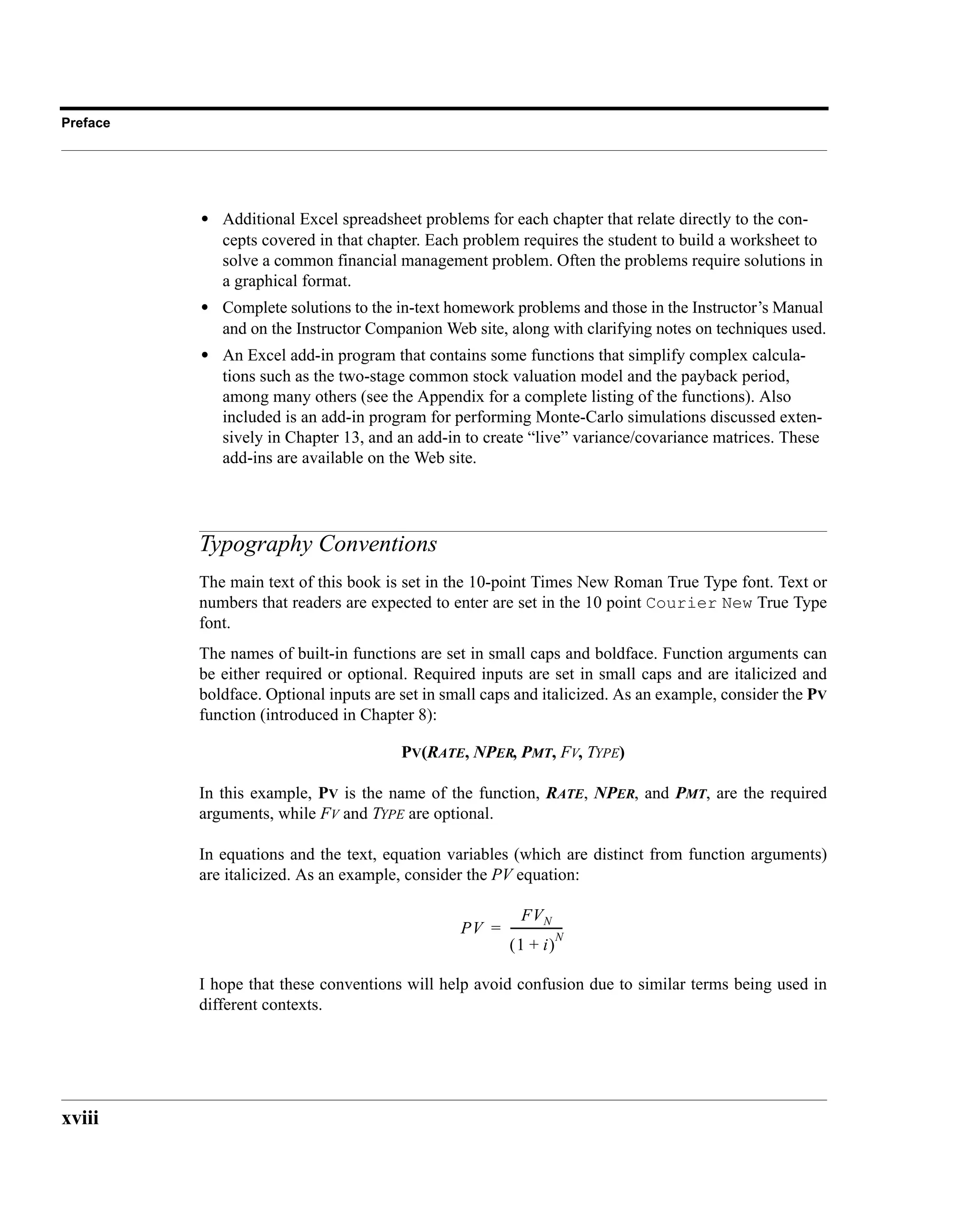
In equations and the text, equation variables (which are distinct from function arguments)
are italicized. As an example, consider the PV equation:
I hope that these conventions will help avoid confusion due to similar terms being used in
different contexts.
PV
FVN
1 i
+
( )
N
------------------
=
xix
A Note on the Internet
Changes from the 7th Edition
The overall organization of the book remains similar, but there have been many changes
throughout the book. All of the chapters have been updated, but the more important changes
include:
Chapter 1—Updated for Excel 2016, including coverage of the new charting interface that
uses buttons for chart elements and panels for formatting.
Chapter 6—This is a completely new chapter covering the use of time series forecasting
techniques for forecasting revenue. It includes a method of decomposing a time series into its
component parts, as well as forecasting techniques that deal with trends and seasonality.
Chapter 8—Added to the coverage of graduated annuities with a discussion of how to
calculate the payment amount. In addition, the existing user-defined functions were
reworked so as to be more consistent with the built-in time value functions.
Chapter 10—Added a method of calculating the convexity of a bond on any date using the
built-in PRICE function. This method is simple but is still a close approximation. I have also
updated the FAME_CONVEXITY function to calculate exact convexity on any date.
Additionally, I have used the Get & Transform (see below) tools to query the U.S. Treasury
Web site for data used to create the yield curve.
Chapter 16—Added coverage of the new Get & Transform tool that is available on the Data
tab. This is a very powerful tool that is used to query database files, Excel worksheets, and
Web sites. It is essentially a built-in ETL (Extract, Transform, and Load) tool that makes
processing internal or external data much easier than before.
In addition, I swapped the positions of Chapters 3 and 4 so that coverage of financial ratios now
follows coverage of financial statements.
A Note on the Internet
I have tried to incorporate Internet Exercises into those chapters where the use of the Internet
is applicable. In many cases, the necessary data simply is not available to the public or very
difficult to obtain online (e.g., cash budgeting), so some chapters do not have Internet
Exercises. For those chapters that do, I have tried to describe the steps necessary to obtain the
data—primarily from either the SEC’s Edgar System or Yahoo! Finance. It should be noted
that Web sites change frequently and these instructions and URLs may change in the future. I
chose the Edgar System and Yahoo! Finance because I believe that these sites are the least
likely to undergo severe changes and/or disappear completely. In many cases, there are
alternative sites from which the data can be obtained if it is no longer available from the given
site. All Excel spreadsheets for students’ and instructors’ use (as referenced in the book) are
available at the Student and Instructor Companion Web sites (www.cengagebrain.com).
Preface
xx
Acknowledgments
All books are collaborative projects, with input from more than just the listed authors. This
is true in this case as well. I wish to thank those colleagues and students who have reviewed
and tested the book to this point. Any remaining errors are my sole responsibility, and they
may be reported to me by e-mail.
For this edition, I would like to thank two of my colleagues at Metro State: Qiongqi Xiao
and Su-Jane Chen were very kind to review chapters or sections of chapters. Douglas Jordan
of Sonoma State University also provided valuable input, particularly the suggestion of
swapping Chapters 3 and 4. The input of the anonymous reviewers who responded to
surveys is also greatly appreciated. I would also like to thank Debra Dalgleish, an author of
several books on pivot tables, Microsoft Excel MVP, and a blogger at blog.contextures.com,
for answering some technical questions about pivot tables.
I would also like to thank the several reviewers who spent a great deal of time and effort reading
over the previous editions. These reviewers are Tom Arnold of the University of Richmond,
Denise Bloom of Viterbo University, David Suk of Rider College, Mark Holder of Kent State
University, Scott Ballantyne of Alvernia College, John Stephens of Tri State University, Jong Yi of
California State University Los Angeles, and Saiyid Islam of Virginia Tech. I sincerely appreciate
their efforts. In particular, I would like to thank Nancy Jay of Mercer University–Atlanta for her
scrupulous editing of the chapters and homework problems in the first three editions.
Many people long ago provided invaluable help on the first and second editions of this text,
and their assistance is still appreciated. Professional colleagues include Ezra Byler, Anthony
Crawford, Charles Haley, David Hua, Stuart Michelson, Mohammad Robbani, Gary McClure,
and John Settle. In addition, several of my now former students at Metropolitan State
University of Denver were helpful—most especially, Peter Ormsbee, Marjo Turkki, Kevin
Hatch, Ron LeClere, Christine Schouten, Edson Holland, Mitch Cohen, and Theresa
Lewingdon.
Finally, I wish to express my gratitude to Joe Sabatino (Senior Product Team Manager), Julie
Dierig (Project Manager), and Tara Slagle (Senior Content Project Manager) of the Cengage
Learning team. Without their help, confidence, and support, this book would never have
been written. To anybody I have forgotten, I heartily apologize.
I encourage you to send your comments and suggestions, however minor they may seem to
you, to mayest@msudenver.edu.
Timothy R. Mayes
December 2016
1
CHAPTER 1 Introduction to Excel 2016
The term “spreadsheet” covers a wide variety of elements useful for quantitative analysis of
all kinds. Essentially, a spreadsheet is a simple tool consisting of a matrix of cells that can
store numbers, text, or formulas. The spreadsheet’s power comes from its ability to
recalculate results as you change the contents of other cells. No longer does the user need to
do these calculations by hand or on a calculator. Instead, with a properly constructed
spreadsheet, changing a single number (say, a sales forecast) can result in literally thousands
of automatic changes in the model. The freedom and productivity enhancement provided by
modern spreadsheets present an unparalleled opportunity for learning financial analysis.
After studying this chapter, you should be able to:
1. Explain the basic purpose of a spreadsheet program.
2. Identify the various components of the Excel screen.
3. Navigate the Excel worksheet (entering, correcting, and moving data within
the worksheet).
4. Explain the purpose and usage of Excel’s built-in functions and user-defined
functions.
5. Create graphics and know how to print and save files in Excel.
CHAPTER 1: Introduction to Excel 2016
2
Spreadsheet Uses
Spreadsheets today contain built-in analytical capabilities previously unavailable in a single
package. Years ago, users often had to learn a variety of specialized software packages to do
any relatively complex analysis. With the newest versions of Microsoft Excel, users can
perform tasks ranging from the routine maintenance of financial statements to multivariate
regression analysis to Monte Carlo simulations of hedging strategies.
It is impossible to enumerate all of the possible applications for spreadsheets. You should
keep in mind that spreadsheets are useful not only for financial analysis but also for any type
of quantitative analysis whether your specialty is in marketing, management, engineering,
statistics, or economics. For that matter, a spreadsheet can also prove valuable for personal
uses. With Excel, it is a fairly simple matter to build a spreadsheet to monitor your
investment portfolio, plan for retirement, experiment with various mortgage options when
buying a house, create and maintain a mailing list, and so on. The possibilities are quite
literally endless. The more comfortable you become with the spreadsheet, the more uses you
will find. Using a spreadsheet can help you find solutions that you never would have
imagined on your own. Above all, feel free to experiment and try new things as you gain
more experience working with spreadsheet programs, particularly Excel.
The above is not meant to suggest that Excel is the only analytical tool you’ll ever need. For
example, Excel is not meant to be a relational database, though it has some tools that allow it
to work well for small databases (see Chapter 16). For bigger projects, however, Excel can
serve as a very effective “front-end” interface to a database. It also isn’t a complete
replacement for a dedicated statistics program, though it can work well for many statistical
problems. Although Excel can be made to do just about anything, it isn’t always the best tool
for the job. Still, it may well be the best tool that you or your colleagues know how to use.
Starting Microsoft Excel
Start Excel by double-clicking on the program’s icon. The location of the Excel icon will
depend on the organization of your system. You may have the Excel icon (at left) on the
desktop or in the taskbar. Otherwise, you can start Excel by clicking the Start button and then
clicking the Excel 2016 tile, or type Excel into the search box at the bottom of the Start
menu. If you have Windows 10 and a microphone, then you can even tell Cortana to “start
Excel 2016.”
For easier access, you may wish to create a Desktop or Taskbar shortcut. To do this, click on
the Excel icon in the All Apps menu and drag the icon to the Desktop or Taskbar. Remember
that a shortcut is not the program itself, so you can safely delete the shortcut if you later
decide that you no longer need it.
Excel 2016 Icon
3
Parts of the Excel Screen
If you have used any recent version of Excel, then you will be familiar with most of the user
interface in Excel 2016. In Figure 1-1, note the labeled parts of the Excel screen. We will
examine most of these parts separately. Please refer to Figure 1-1 as you read through each
of the sections that follow.
FIGURE 1-1
MICROSOFT EXCEL 2016
The File Tab and Quick Access Toolbar
The File tab in Excel 2016 is similar to the File menu in most other Windows programs. It
can be opened either by clicking the tab or by pressing Alt-F. Click the File tab when you
need to open, save, print, or create a new file.
The File tab also contains additional functionality. It opens in what is known as Backstage
View, which takes over the entire window. This additional space, compared to a menu, allows
for much more information to be displayed. For example, if you click the Print tab on the left
side, you get access not only to all of the print settings but also to print preview on the same
page. The Info tab is where you can set the document properties (author, keywords, etc.),
inspect the document for hidden data that may reveal private details, encrypt the spreadsheet,
and so on.
CHAPTER 1: Introduction to Excel 2016
4
Finally, the File tab is the pathway to setting the program options. At the bottom of the tabs
on the left you will find a link to Options. This launches the Excel Options dialog box where
you can set all of the available options. It is advisable to go through the Excel Options to
familiarize yourself with some of the things that you can control. While you may not
understand all of the choices, at least you will know where to go when you need to change
something (e.g., the user name, macro security level, or the default file locations).
You also have the ability to customize the Ribbon. Click the File tab, choose Options, and
then select Customize Ribbon in the dialog box. Here you can create new tabs, move buttons
from one tab to another, remove them completely, and even export your customizations so
that others can use them.
The Quick Access toolbar (typically abbreviated as QAT) is located above the File tab and,
by default, provides a button to save the current file as well as the Undo and Redo buttons. If
you regularly use commands that aren’t located on the Home tab, you can easily customize
the Quick Access toolbar to add those commands by right-clicking the QAT and choosing
“Customize Quick Access Toolbar….” The dialog box is self-explanatory. You can also add
or remove commands, such as Print Preview, by clicking the arrow to the right of the QAT.
The Home Tab
FIGURE 1-2
EXCEL 2016 HOME TAB
Immediately below the title bar, Excel displays the various tabs in what is known as the
Ribbon. Tabs are the toolbars that replaced the menus of pre-2007 versions. The Home tab
contains the most commonly used commands, including the Cut, Copy, and Paste buttons,
and the various cell formatting buttons. You can learn what function each button performs by
letting the mouse pointer hover over a button. After a few seconds, a message will appear
that informs you of the button’s function. This message is known as a ToolTip. ToolTips are
used frequently by Excel to help you identify the function of various items on the screen.
Note that several of the buttons (e.g., the Copy and Paste buttons) on the Ribbon have a
downward-pointing arrow. This is a signal that the button has options besides the default
behavior. For example, by clicking the arrow on the Paste button you will find that there are
several choices regarding what to paste (e.g., just the formula, or the value without the
formula). Clicking the upper half of a split button invokes the default purpose.
5
Parts of the Excel Screen
The other tabs are named according to their functionality, and you will quickly learn which
one to choose in order to carry out a command. Table 1-1 shows the other tabs and a short
description of what they do.
Note that another set of tabs will appear when you are working on charts. The Design and
Format tabs contain all of the options that you will need for working with charts (see
“Creating Graphics” on page 26). Furthermore, add-in programs may create additional tabs.
TABLE 1-1
OTHER TABS IN THE EXCEL 2016 RIBBON
Tab What It Does
File File management features (open, save, close, print, etc.) and options.
Insert
Contains buttons for inserting pivot tables, charts, pictures, shapes,
text boxes, equations, and other objects.
Page Layout
Has choices that control the look of the worksheet on the screen and
when printed. You can change the document theme, the page
margins and orientation, and so on.
Formulas
This is where to go when you want to insert a formula, create a
defined name for a cell or range, or use the formula auditing tools to
find errors.
Data
Contains buttons to guide you through getting data from other
sources (such as an Access database, a Web site, or a text file).
Launch tools such as the Scenario Manager, Goal Seek, Solver, and
the Analysis Toolpak.
Review
Here you will find spell check, the thesaurus, and also commands
for working with cell comments and worksheet protection.
View
Contains commands that control the worksheet views, zoom
controls, and the visibility of various objects on the screen (such as
gridlines and the formula bar).
Developer
Has tools that allow you to access the VBA editor, insert controls
(e.g., dropdown lists), and work with XML. This tab is not visible
by default, but can be enabled in Options.
Add-ins
This is where older Excel add-ins that create custom tool bars and
menus will be located. Not visible unless older add-ins are installed.
Power Pivot
Power Pivot is an add-in for certain versions of Excel. It allows you
to work with data files that are much larger than Excel can normally
handle.
CHAPTER 1: Introduction to Excel 2016
6
The Formula Bar
As you work more in Excel to create financial models, you will find that the formula bar is
one of its most useful features. The formula bar displays information about the currently
selected cell, which is referred to as the active cell. The left part of the formula bar indicates
the name or address of the selected cell (H9 in Figure 1-3). The right part of the formula bar
displays the contents of the selected cell. If the cell contains a formula, the formula bar
displays the formula while the cell itself displays the result of the formula. If text or numbers
have been entered, then the text or numbers are displayed.
FIGURE 1-3
THE EXCEL 2016 FORMULA BAR
The fx button on the formula bar is used to show the Insert Function dialog box. This dialog
box helps you to find and enter functions without having to memorize them. It works the
same as the Insert Function button on the Formulas tab. See page 21 for more information.
The chevron at the right of the formula bar is used to expand the formula bar. This is useful
if you have long formulas that occupy more than one line. You can break long formulas
across multiple lines by pressing Alt+Enter where you want the line to break. If you do this,
then you can expand the formula bar even further by dragging its lower edge.
The Worksheet Area
The worksheet area is where the real work of the spreadsheet is done. The worksheet is a
matrix of cells (1,048,576 rows by 16,384 columns),1
each of which can contain text,
numbers, or formulas. Each cell is referred to by a column letter and a row number. Column
letters (A, B, C, …, XFD) are listed at the top of each column, and row numbers (1, 2, 3, …,
1048576) are listed to the left of each row. The cell in the upper left corner of the worksheet
is therefore referred to as cell A1, the cell immediately below A1 is referred to as cell A2,
the cell to the right of A1 is cell B1, and so on. This naming convention is common to all
spreadsheet programs. If not already, you will become comfortable with it once you have
gained some experience working in Excel.
The active cell can be identified by a solid black border around the cell. Note that the active
cell is not always visible on the screen, but its address is always named in the leftmost
portion of the formula bar. In the lower-right corner is the AutoFill handle (see page 11).
1. This is known as the “big grid” because it is much larger than in pre-2007 versions of Excel, which
only supported up to 65,536 rows and 256 columns.
7
Parts of the Excel Screen
Sheet Tabs
FIGURE 1-4
THE SHEET TABS
Excel worksheets are stored in a format that allows you to combine multiple worksheets into
one file known as a workbook. This allows several related worksheets to be contained in one
file for easy access. The sheet tabs, near the bottom of the screen, enable you to move easily
from one sheet to another in a workbook. You may rename, copy, or delete any existing sheet
or insert a new sheet by right-clicking a sheet tab with the mouse and making a choice from
the resulting menu. You can change the order of the sheet tabs by clicking a tab and dragging
it to a new position, or you can press the Ctrl key (option on Mac) and drag to copy it. To
insert a new worksheet, click the New Sheet button to the right of the last worksheet.
It is easy to do any of these operations on multiple worksheets at once, except for renaming.
Simply click the first sheet and then Ctrl+click each of the others. (You can select a
contiguous group of sheets by selecting the first and then Shift+click the last.) Now, right-
click one of the selected sheets and select the appropriate option from the pop-up menu.
When sheets are grouped, anything you do to one sheet gets done to all. This feature is
useful if, for example, you need to enter identical data into multiple sheets or need to
perform identical formatting on several sheets. To ungroup the sheets, either click on any
nongrouped sheet or right-click a sheet tab and choose Ungroup Sheets from the pop-up
menu. Another feature in Excel 2016 allows you to choose a color for each sheet tab by
right-clicking the tab and choosing a Tab Color from the pop-up menu.
The transport buttons to the left of the sheet tabs allow you to scroll through the list of sheet
tabs. Right-clicking either of these buttons will display a pop-up menu that allows you to
quickly jump to any sheet tab in the workbook. This is especially helpful when you have too
many tabs for them all to be shown.
Status Bar
The status bar, located below the sheet tabs, contains information regarding the current state
of Excel, as well as certain messages. For example, most of the time the only message is
“Ready” indicating that Excel is waiting for input. At other times, Excel may add “Calculate”
to the status bar to indicate that it needs to recalculate the worksheet because of changes. You
can also direct Excel to do certain calculations on the status bar. For example, in Figure 1-5,
Excel is showing the average, count, and sum of the highlighted cells in the worksheet.
CHAPTER 1: Introduction to Excel 2016
8
FIGURE 1-5
THE STATUS BAR
By right-clicking on this area of the status bar, you can also get Excel to calculate the count
of numbers only, the minimum, or the maximum of any highlighted cells. This is useful
when you need a quick calculation that doesn’t need to be in the worksheet.
The right side of the status bar contains buttons to change the view of the worksheet (normal,
page layout, and page break preview) as well as the zoom level.
Navigating the Worksheet
There are two principal ways for moving around within the worksheet area: the arrow keys
and the mouse (or touchpad). For small distances the arrow keys provide an easy method of
changing the active cell, but moving to more distant cells is usually easier with the mouse.
Most keyboards have a separate keypad containing arrows pointing up, down, left, and right.
If yours does not, then the numeric keypad can be used if the Num Lock function is off. You
can use the Tab key to move one cell to the right. The Page Up and Page Down keys also
work as you would expect.
The mouse is even easier to use. When the mouse pointer is over the worksheet area, it will
be in the shape of a fat cross. To change the active cell, move the mouse pointer over the
destination cell and click. To move to a cell that is not currently displayed on the screen,
click on the scroll bars until the cell is visible and then click on it. For example, if the active
cell is A1 and you wish to make A100 the active cell, click on the scroll bar on the right hand
part of the screen until A100 is visible. Move the mouse pointer over cell A100 and click
with the left button. Each click on the scroll bar moves the worksheet up or down one page.
If you wish to move up, click above the thumb. If down, click beneath the thumb. The thumb
(or slider) is the button that moves up and down the scroll bar to indicate your position in the
worksheet. To move more quickly, you can drag the thumb to the desired position.
If you know the name or address of the cell to which you wish to move (for large worksheets
remembering the cell address isn’t easy, but you can use named ranges), use the Go To
command. The Go To command will change the active cell to whatever cell you indicate.
The Go To dialog box can be used by clicking the Find & Select button on the Home tab and
then choosing the Go To… command, by pressing the F5 function key, or by pressing the
Ctrl+G key combination. To move to cell A50, simply press F5, type: A50 in the Reference
box, and then press Enter. You will notice that cell A50 is now highlighted and visible on the
9
Navigating the Worksheet
screen. You can also use Go To to find certain special cells (e.g., the last cell that has data in
it) by pressing the Special… button in the Go To dialog box.
Selecting a Range of Cells
Many times you will need to select more than one cell at a time. For example, you may wish
to apply a particular number format to a whole range of cells, or you might want to clear a
whole range. Because it would be cumbersome to do this one cell at a time, especially for a
large range, Excel allows you to simultaneously select a whole range and perform various
functions on all of the cells at once. The easiest way to select a contiguous range of cells is to
use the mouse. Simply point to the cell in the upper left corner of the range, and click and
drag the mouse until the entire range is highlighted. As you drag the mouse, watch the left
side of the formula bar. Excel will inform you of the number of selected rows and columns.
In addition, the row and column headers will be highlighted for the selected cells.
You can also use the keyboard to select a range. First change the active cell to the upper left
corner of the range to be selected, press and hold down the Shift key, and use the arrow keys
to highlight the entire range. Note that if you release the Shift key while pressing an arrow
key, you will lose the selection. A very useful keyboard shortcut is the Shift+Ctrl+Arrow
(any arrow key will work) combination. This is used to select all of the cells from the active
cell up to, but not including, the first blank cell. For example, if you have 100 numbers in a
column and need to apply a format, just select the first cell and then press Shift+Ctrl+Down
arrow to select them all. This is faster and more accurate than using the mouse.
Often it is also useful to select a discontiguous range (i.e., two or more unconnected ranges)
of cells. To do this, simply select the first range as usual and then hold down the Ctrl key as
you select the other ranges.
Using Defined Names
A named range is a cell, or group of cells, for which you have supplied a name. Named
ranges can be useful in a number of different ways, but locating a range on a big worksheet
is probably the most common use. To name a range of cells, start by selecting the range. For
example, select A1:C5 and then choose Define Name from the Formulas tab. At the top of
the New Name dialog box, enter a name, say MyRange (note that a range name cannot
contain spaces or most special characters). Figure 1-6 shows how the dialog box should
look. Note that the Refers to edit box shows the address to which the name refers.2
2. The name is actually defined as a formula. This is important for some of the more advanced uses of
named ranges. For example, we can use a name to define constants, do calculations, or to create a
reference to a range that grows as data is added.
CHAPTER 1: Introduction to Excel 2016
10
FIGURE 1-6
THE DEFINE NAME DIALOG BOX
You can also enter a comment that provides more details about the range and control the
scope of the name. Scope refers to the location within which the name doesn’t need to be
qualified by a sheet name. For example, MyRange was defined to have Workbook scope.
Therefore, we can refer to that range from any cell of the entire workbook by just using its
name (=MyRange). However, if the scope had been restricted to Sheet1, then from Sheet2
we would refer to the name with =Sheet1!MyRange. Note that defined names must be
unique within their scope. So you can only have one workbook-scoped range named
MyRange, but you could have one MyRange per worksheet if it is scoped to the sheet level.
Once the range is named, you can select it using the Go To command (Find & Select then Go
To…, or press F5). The name will appear in the list on the Go To dialog box. An even faster
method is to use the Name Box on the left side of the formula bar. Simply drop the list and
choose the named range that you wish to select.
Named ranges can be used in formulas in place of cell addresses and can be used in the
SERIES function for charts. Defined names don’t have to refer to a cell or range. They can be
used to define a constant or formula instead. For example, you might create the name Pi and
in the Refers to box enter: =3.14159 instead of a cell or range address. You can use that
name in formulas whenever you need the value of Pi, though Excel already has a PI
function. As useful as they can be, there is no requirement for you to ever use defined names.
Entering Text and Numbers
Each cell in an Excel worksheet can be thought of as a miniature word processor. Text can be
entered directly into the cell and then formatted in a variety of ways. To enter a text string,
first select the cell where you want the text to appear and then begin typing. It is that simple.
11
Navigating the Worksheet
Excel is smart enough to know the difference between numbers and text, so there are no
extra steps for entering numbers. Let’s try the following example of entering numbers and
text into the worksheet.
Select cell A1 and type: Microsoft Corporation Sales. In cell A2, enter:
(Millions of Dollars). Select A3 and type: 2011 to 2016. Note that the entry in
cell A3 will be treated as text by Excel because of the spaces and letters included. In cells A4
to F4, we now want to enter the years. In A4 type: 2016, in B4 type: 2015, select A4:B4,
and move the mouse pointer over the lower right corner of the selection. The mouse pointer
will now change to a skinny cross indicating that you can use the AutoFill feature.3
Click
and drag the mouse to the right to fill in the remaining years. Notice that the most recent data
is entered at the left and the most distant data at the right. This convention allows us to easily
recognize and concentrate on what is usually the most important data.
We have set up the headings for our first worksheet. Now let’s add Microsoft’s sales (in
millions of dollars) for the years 2011 to 2016 into cells A5 to F5 as shown in Exhibit 1-1.
EXHIBIT 1-1
THE FIRST WORKSHEET
Formatting and Alignment Options
The worksheet in Exhibit 1-1 isn’t very attractive. Notice that the text is displayed at the left
side of the cells, while the numbers are at the right. By default, this is the way that Excel
aligns text and numbers. However, we can easily change the way that these entries are
displayed through the use of the formatting and alignment options.
Before continuing, we should define a few typographical terms. A “typeface” is a particular
style of drawing letters and numbers. For example, the main text of this book is set in the
Times New Roman typeface. However, the text that you are expected to enter into a
worksheet is displayed in the Courier New typeface. Typeface also refers to whether the
text is drawn in bold, italics, or perhaps bold italics.
3. AutoFill can be used to fill any series that Excel can recognize. For example, type January in a
cell and drag the AutoFill handle to automatically fill in month names. You can define your own
series by clicking the Edit Custom Lists button under General in the Advanced category of Options.
CHAPTER 1: Introduction to Excel 2016
12
The term “type size” refers to the size of the typeface. We normally refer to the type size in
“points.” Each point represents an increment of 1/72nd of an inch, so there are 72 points
to the inch. A typeface printed at a 12-point size is larger than the same typeface printed at a
size of 10 points.
Informally, we refer to the typeface and type size combination as a font. So when we say
“change the font to 12-point bold Times New Roman,” it is understood that we are referring
to a particular typeface (Times New Roman, bolded) and type size (12 points).
For text entries, the term “format” refers to the typeface, size, text color, and cell alignment
used to display the text. Let’s change the font of the text that was entered to Times New
Roman, 12 points, bold. First, select the range A1:A3. Now, on the Home tab, click on the Font
list so that the font choices are displayed and then select Times New Roman from the list.
Next, click the Bold button and then choose 12 from the font size list. Notice that as you
scroll through the Font and Size lists, the selected text is displayed as will look on the
worksheet. This is known as Live Preview, and it works for many, but not all, of the
formatting features in Excel 2016. Because none of these changes actually take effect until
you validate them by clicking, you can scroll through the choices until the text looks exactly
right. You can also make these changes by right-clicking the selected cells and choosing
Format Cells… from the menu. The choices that we made can be found on the Font tab.
We can just as easily change the font for numbers. Suppose that we want to change the years in
cells A4:F4 to 12-point italic Times New Roman. First select the range A4:F4. Select the
proper attributes from the Home tab, or right-click and choose Format Cells. Note that this
change could also have been made at the same time as the text was changed, or you could now
press Ctrl+Y to repeat the last action. You could also add the Repeat button to the Quick
Access toolbar. Just click arrow at the right of the Quick Access toolbar and choose More
Commands…. Now select the Repeat button and then click the Add button in the dialog box.
Our worksheet is now beginning to take on a nicer look, but it still isn’t quite right. We are
used to seeing titles nicely centered over the table, but our title is way over at the left. We can
remedy this by using Excel’s alignment options. Excel provides for seven different
horizontal alignments within a cell. We can have the text (or numbers) aligned with the left
or right sides of the cell or centered within the cell boundaries. Excel also allows centering
text across a range of cells.
Let’s change the alignment of our year numbers first. Highlight cells A4:F4 and then click
the Center button in the Alignment section of the Home tab. Notice that the numbers are all
centered within their respective cells.
Next, we will center our table title across the whole range of numbers that we have entered.
To do this, select the entire range across which we want to center our titles. Highlight cells
A1:F3 and select Format Cells from the right-click menu. Click on the Alignment tab and
then select “Center across selection” from the Horizontal alignment list. Click on the OK
button and notice that the titles are indeed centered across columns A to F.
13
Navigating the Worksheet
Be aware that there is also a button on the Home tab that will “Merge and Center” the
selected cells. This button will have the appearance of doing the same thing as “Center
across selection,” but it doesn’t. In addition to centering the text, it also merges all of the
selected cells into one big cell that spans multiple columns and/or rows. In the process of
merging cells, all data that isn’t in the upper-left cell will be lost. Furthermore, merged cells
make it difficult to select, sort, or filter a range. Generally speaking, it is better not to use the
Merge and Center button. If needed, there is an Unmerge Cells command in the same button.
Formatting Numbers
Aside from changing the typeface and type size, when dealing with numbers we can also
change their appearance by adding commas and dollar signs and by altering the number of
decimal places displayed. Furthermore, we can make the numbers appear differently depending
on whether they are positive or negative. For example, we might want negative numbers to be
red in color and displayed in parentheses rather than using the negative sign. You can also
experiment with designing custom number formats, but for now we will stick to the more
common predefined formats.
Microsoft is a large company, and its sales have ranged from nearly $70 billion to over $93
billion during 2011 to 2016. Numbers this large can be difficult to read unless they are
written with commas separating every third digit. Let’s format our sales numbers so that they
are easier to read.
Select the range of sales numbers (A5:F5) and choose Format Cells from the right-click
menu, and then click on the Number tab. You are presented with the Number Format dialog
box that contains a list of formatting categories. For now, select Number from the Category
list. This will give you the option to choose the number of decimal places displayed, choose
whether or not to use a 1000 separator, and select the format of negative numbers. We want
to display the sales numbers with commas separating every third digit and two decimal
places, so change the decimal places to 2 and check the box to add a 1000 separator.4 Click
on the OK button and notice that the numbers are now displayed in a more readable format.
You could accomplish almost exactly the same format by clicking the Comma Style button
on the Ribbon (there is a slight alignment difference between the two methods—you cannot
center numbers formatted with the comma style).
We have made several formatting changes to the Microsoft Sales worksheet and your’s
should look like the one in Exhibit 1-2. All of this formatting may seem tedious at the
moment, but it will become easy as you get more familiar with the choices. Furthermore, the
payoff will be worth far more than a few seconds spent formatting the worksheet.
4. In the U.S. we use a comma as the 1000 separator. In many other countries a decimal point is used
instead. Excel determines which to use based on settings in the Windows Control Panel.
CHAPTER 1: Introduction to Excel 2016
14
EXHIBIT 1-2
ORIGINAL WORKSHEET REFORMATTED
Adding Borders and Shading
Text formatting is not the only design element available in Excel. We can also liven up
worksheets by placing borders around cells and shading them. In your worksheet, select A4:F4
(the years). Right-click the selection and choose Format Cells, and then select the Border tab
from the dialog box. There are 13 different line styles that can be applied, and you can change
the color of the lines. Click on the thick solid line (fifth down on the right side) and then click
on both of the top and bottom lines in the sample view. Click the OK button to see the change.
Next, with A4:F4 still selected, we will add shading. As before, choose Format Cells from
the menu, but this time select the Fill tab. This tab allows you to set the background color
and pattern of the cells. Click on a light gray color and then press the OK button. Now, to
make the numbers more readable, make them bold. Your worksheet should now look like the
one in Exhibit 1-3.
EXHIBIT 1-3
THE WORKSHEET WITH BORDERS AND SHADING
Entering Formulas
So far, we haven’t done anything that couldn’t just as easily be done in a table in Microsoft
Word. The real power of spreadsheets becomes obvious when formulas are used. Formulas
will enable us to convert the data that we have entered into useful information.
At the moment, our sample worksheet contains only sales data for Microsoft. Suppose,
however, that we are interested in performing a simple analysis of the profitability of
Microsoft over the 2011 to 2016 time period. In this case, we would also need to see the net
15
Entering Formulas
income for each of the years under study. Let’s make some modifications to the worksheet to
make it more useful.
Add the data from Table 1-2 to the sample worksheet in cells A6:F6, immediately below the
sales data, and apply the same formatting. Now, we have a couple of problems. The title of
our worksheet, in cell A1, is no longer accurate. We are now putting together a profitability
analysis, so we should change the title to reflect this change of focus. Select cell A1 (even
though the title is centered across A1:F1, Excel still keeps the data in A1) by clicking on it.
Notice that the text appears in the right hand side of the formula bar. To edit the title, click on
the formula bar just to the right of the word “Sales.” Backspace over the word “Sales” and
then type: Profitability Analysis, and press Enter to accept the change.
Our only remaining problem is that the data in the worksheet are not clearly identified.
Ideally, we would like to have the data labeled in the column just to the left of the first data
point. But, there is no column to the left of the data! There are several ways to overcome this
problem. The easiest is to simply insert a column to the left of column A. To accomplish this,
select column A entirely by clicking on the column header where it has an “A.” Notice that
the whole column is highlighted (we can do this with rows as well). Now, click the Insert
button on the Home tab and choose Insert Sheet Columns. The new column is magically
inserted, and all of our data have been moved one column to the right. In cell A5, type:
Sales and in A6 type: Net Income.
If you are following the examples exactly, the words “Net Income” probably do not fit
exactly into A6. Instead, part of the text is cut off so as not to overflow onto the data in B6.
We can easily remedy this by changing the width of column A. Click the Format button on
the Home tab and choose Column Width. In the edit box type: 20 and press the Enter key.
Column A should now be wide enough to hold the text that we have added and will add later.
We can now proceed with our profitability analysis. Because of the change in sales over the
years, it isn’t immediately clear from the data whether Microsoft’s profitability has
TABLE 1-2
MICROSOFT NET INCOME 2011 TO 2016
Year Net Income
2016 16,798.00
2015 12,193.00
2014 22,074.00
2013 21,863.00
2012 16,978.00
2011 23,150.00
CHAPTER 1: Introduction to Excel 2016
16
improved or not, as net income has varied as well. In this type of situation, it is often
preferable to look at net income as a percentage of sales (the net profit margin) instead of
dollar net income. Thankfully, we don’t have to type in more data to do this. Instead, we can
let Excel calculate these percentages for us. All we need to do is to enter the formulas.
Formulas in Excel are based on cell addresses. To add two cells together, we simply tell
Excel to take the contents of the first cell and add it to the contents of the second. The result
of the formula will be placed in the cell in which the formula is entered. In our problem, we
need to find net income as a percentage of sales. We will do this first for 2016.
Before entering our first formula, we should insert a label identifying the data. In cell A7,
type: Net Profit Margin. Change the active cell to B7 where we want to place the result
of the calculation. The problem that we want to solve is to take the number in cell B6 (net
income) and divide it by the number in B5 (sales). In Excel, division is represented by the
forward slash (/), so in B7 type: =B6/B5. The equals sign must precede all formulas in
Excel, otherwise it will treat the formula as text and will not calculate the result. Press the
Enter key to calculate the result of the formula. You should get 0.1969 as the result.
In this example, we typed the formula directly into the cell because the small size of our
worksheet made it easy to know what cells we wanted to use in the formula. In many
instances, this is not the case. In more complicated worksheets, it is usually easier to use
pointer mode to enter formulas. In pointer mode, we use the mouse to point to the cells that
we want to be included, and Excel inserts them into the formula. Move to C7 and we will
enter the formula using pointer mode. First, type = to place Excel in edit mode. Now, instead
of typing C6, click on C6 with the mouse. Notice that C6 appears in the formula bar to the
right of the equals sign. Press the forward slash key to indicate division and then click on C5.
In the formula bar you should see the formula “=C6/C5.” Press the Enter key to calculate the
result of the formula. The result should be 0.1303.
Let’s change the format of these cells so that they are easier to read. In this case, it would be
nice to see them in percentage format with two decimal places. First, highlight cells B7:C7.
Right-click and choose Format Cells, and click on the Number tab. From the Category list,
click on Percentage and then set the Decimal places to 2. Press the Enter key or click the OK
button. You could also apply this format by using the Percent Style button on the Ribbon. To
get two decimal places, you would then need to click the Increase Decimal button in the
same group. Figure 1-7 shows these and other formatting icons.
FIGURE 1-7
NUMBER FORMATTING ICONS
17
Entering Formulas
Copying and Moving Formulas
We have now calculated the net profit margin for 2016 and 2015, but that still leaves four
years for which we need to enter formulas. Repeatedly typing essentially the same formula
can get tedious. Fortunately, we can simply copy the formula, and Excel will update the cell
addresses to maintain the same relative relationships. For example, we know that for 2014
the formula should read “=D6/D5.” If we copy the formula from C7 to D7, Excel will
change the formula from “=C6/C5” to “=D6/D5” automatically.
This works because Excel treats all cell references as relative. When you typed the formula
in cell B7 (=B6/B5), Excel read that as “take the contents of the cell that is one row above
the current cell and divide that by the contents of the cell that is two rows above the current
cell.” When copying formulas, Excel maintains the same relative cell relationships so that
the formulas are updated. When we copy to the left or right, Excel updates the columns in
the formulas. When we copy up or down, Excel changes the rows.
To change this behavior, we use absolute references instead. An absolute reference always
refers to the same cell, no matter where you copy it. To create an absolute reference, type
dollar signs before the column letter and row number. For example, $B$6 will always refer
to cell B6. The “$” tells Excel to not change the reference. We can also create mixed
references. In a mixed reference only the column or row remains constant, not both. For
example, $B6 is a mixed reference (column absolute, row relative). If the formula is copied
down, it will change to $B7, but if it is copied across it will still be $B6. On the other hand,
B$6 (column relative, row absolute) will still be B$6 if copied down, but will change to C$6
if copied across. We will make heavy use of absolute and mixed references in later chapters.
Note that you can use the F4 key (a-T on a Mac) to cycle through every possible reference
type. Simply enter a cell address and repeatedly press F4 until you get the type of reference
you need (e.g., $B$6, B$6, $B6, or B6).
Rather than retyping the formula for our other cells, let’s simply copy from C7. First, select C7
and then click the Copy button (or Ctrl-C) on the Ribbon. Now highlight cells D7:G7 and click
the Paste button. At this point, your worksheet should closely resemble the one in Exhibit 1-4.
EXHIBIT 1-4
A PROFITABILITY ANALYSIS FOR MICROSOFT
CHAPTER 1: Introduction to Excel 2016
18
We can see from Exhibit 1-4 that Microsoft’s net profit margin has varied somewhat over
this period, but the margins are quite high compared to those of many other companies.
In addition to copying formulas (which maintains the relative cell references), they can also
be moved. Moving a formula to a different cell has no effect on the cell references. For
example, we could move the formula in B7 (=B6/B5) to B8. To do this, select B7 and then
click the Cut button. Next, select B8 and then click Paste. Notice that the result in B8 is
exactly the same as B7 because the formula is unchanged. Now click the Undo button on the
Quick Access toolbar to return the formula to B7.
Formulas (or anything else) may also be moved with the mouse. Simply select the cells
containing the data that you want to move, position the mouse pointer at the edge of the cell
so that it changes to an arrow, and then click the left mouse button and drag the cell to its
new location. Now move the formula back to B7. The worksheet should again resemble the
one pictured in Exhibit 1-4.
Mathematical Operators
Aside from division, which we have already seen, there are four additional primary
mathematical operations: addition, subtraction, multiplication, and exponentiation. Table 1-3
summarizes the five basic operations and the result that you should get from entering the
example formula into cell B8.
Parentheses and the Order of Operations
Using the mathematical operators provided by Excel is straightforward in most instances.
However, there are times when it gets a bit complicated. For example, let’s calculate the rates of
growth of Microsoft’s sales and net income. To calculate the growth rates, we usually want the
compound annual growth rate (CAGR, which is also known as the geometric mean growth rate)
rather than the arithmetic average growth rate.
TABLE 1-3
MATHEMATICAL OPERATIONS
Operation Key Formula Result in B8
Addition + =B5+B6 99,712
Subtraction – =B5–B6 55,986
Multiplication * =B5*B7 21,863
Division / =B6/B7 77,849
Exponentiation ^ =15^2 225
19
Entering Formulas
The equation for the CAGR is:
(1-1)
where N is the count of the numbers in the series, Sales0 is the first number in the series
(2011 sales in our example), and SalesN is the last number in the series (2016 sales).
Translating this equation into Excel is not as simple as it may at first appear. Doing this
correctly requires knowledge of operator precedence. In other words, Excel doesn’t
necessarily evaluate formulas from left to right. Instead, some operations are performed
before others. Exponentiation is usually performed first. Multiplication and division are
usually performed next, but they are considered equal in precedence, so any multiplication
and division are evaluated from left to right. Finally, addition and subtraction are evaluated
and they are also considered equal in precedence to each other. These are the same rules that
you learned in your first algebra class.
We can modify the order of operations by using parentheses. Operations enclosed in
parentheses are always evaluated first. As a simple example, how would you evaluate the
following expression?
Is X equal to 2 or 3.33? Algebraically, X is equal to 3.33 because the division should be
performed before the addition as Excel would do. If the answer we were seeking was 2, we
could rewrite the expression using parentheses to clarify:
The parentheses clearly indicate that the addition should be performed first, so the answer is 2.
When in doubt, always use parentheses because using them unnecessarily will not cause any
problems.
To calculate the compound annual growth rate of sales, move to cell A8 and type: Sales
Growth. Now, enter the following into B8 using equation (1-1): =(B5/G5)^(1/5)-1.
Pressing the Enter key will reveal that the growth rate of sales for the five-year period was
4.05% per year (you may have to reformat the cell to display as a percentage with two decimal
places). To determine the average growth rate of net income, type: Net Income Growth into
A9, and then copy the formula from B8 to B9. You should find that the compound annual rate of
growth of net income has been −6.21% per year and that the formula in B9 is: =(B6/
G6)^(1/5)-1. Notice how the row references were updated when you copied the formula down.
CAGR
SalesN
Sales0
----------------
-
N 1
–
( ) 1
–
SalesN
Sales0
----------------
-
⎝ ⎠
⎛ ⎞
1
N 1
–
( )
-----------------
1
–
= =
X 2 4 3
⁄
+
=
X 2 4
+
( ) 3
⁄
=
CHAPTER 1: Introduction to Excel 2016
20
Using Excel’s Built-In Functions
We could build some pretty impressive worksheets with the techniques that we have
examined so far. But why should we have to build all of our formulas from scratch,
especially when some of them can be quite complex and therefore error-prone? Excel comes
with hundreds of built-in functions, and more than 50 of them are financial functions. These
functions are ready to go; all they need is for you to supply cell references as inputs. We will
be demonstrating the use of many of these functions throughout the book, but for now let’s
redo our growth rate calculations using the built-in functions.
Because we want to know the compound annual rate of growth, we can use Excel’s built-in
GEOMEAN function.5 To use this function the syntax is:
=GEOMEAN(NUMBER1, NUMBER2, …)
The GEOMEAN function takes up to 255 cell addresses (or ranges) separated by commas. As
is usual in Excel, we can also supply a range of cells rather than specifying the cells
individually. Remember, we want to find the geometric mean rate of growth of sales (i.e.,
CAGR), not the geometric mean of the dollar amount of sales. Because the GEOMEAN
function simply calculates the N th root of the product of the inputs, we need to redefine our
inputs (we used the dollar amount of sales in our custom-built formula). Let’s add a row of
percentage changes in sales to our worksheet (this is called a helper row).
Move to A10 and enter the label: % Change in Sales, then select B10 and enter the
formula: =B5/C5-1. The result in B10 should be −0.0883, indicating that sales decreased
by 8.83% from 2015 to 2016. Now copy the formula from B10 to each cell in the C10:F10
range. Note that we don’t copy the formula into G10 because that would cause an error since
H10 doesn’t contain any data (try it, and you will see #DIV/0! in G10, meaning that your
formula tried to divide by zero).
Now, to calculate the compound average annual rate of sales growth, we need to enter the
GEOMEAN function into B11: =GEOMEAN(B10:F10). Because our data points are in one
contiguous range, we chose to specify the range rather than each individual cell. Let’s also
supply a label so that when we come back later we can recall what this cell represents. Move
to A11 and enter: Sales Growth.
Have you noticed any problems with the result of the GEOMEAN function? The result
was a #NUM! error, rather than the 4.05% that we got when using our custom formula.
Either our custom formula is incorrect or we have misused the GEOMEAN function.
5. We could calculate the arithmetic mean using the AVERAGE function, but this would ignore the
compounding and overstate the true average growth rate. This function is defined as
=AVERAGE(NUMBER1, NUMBER2, . . .).
21
Using Excel’s Built-In Functions
Actually, this type of error is common and easily overlooked. What has happened is that
when using the GEOMEAN function, we didn’t fully understand what goes on behind the
scenes. GEOMEAN simply takes the N th root of the product of the numbers. That single
negative number has caused the entire product to be negative, and you can’t calculate a
root of a negative number. What we should have done is calculated the geometric mean
of the price relative changes (i.e., one plus the percentage change).
To correct the error, replace the formula in B10 with: =B5/C5 and copy it to the other cells.
Now replace the formula in B11 with: =GEOMEAN(B10:F10)-1. The result is 4.05%,
exactly the same as our previous result. To avoid errors like this one, you must absolutely
understand what the built-in formula is doing. Never blindly accept results just because
Excel has calculated them for you. There is an old saying in computer science: “garbage in,
garbage out.”
At this point, your worksheet should closely resemble the one pictured in Exhibit 1-5.
EXHIBIT 1-5
ANALYSIS OF MICROSOFT’S GROWTH RATES
Using the Insert Function Dialog Box
With the hundreds of built-in functions available in Excel, it can be difficult to remember the
name of the one that you want to use or the order of the arguments. To help you with this
problem, Excel provides the Insert Function dialog box, a series of dialog boxes that guide
you through the process of selecting and entering a built-in formula.
Let’s use Insert Function to insert the GEOMEAN function into B11. First, select cell B11 and
then clear the current formula by clicking the Clear button on the Home tab and then
choosing Clear Contents (or, press the Delete key on the keyboard). Click the Insert
Function button on the Formulas tab to launch the first Insert Function dialog box.
In the first dialog box click on Statistical in the “Or select a category” list. The “Select a
function” list will now contain all of the built-in statistical functions. Scroll down this list
CHAPTER 1: Introduction to Excel 2016
22
and click on GEOMEAN. Notice that there is a definition of the function at the bottom of the
dialog box. Click OK to go to the next dialog box, which is pictured in Figure 1-8.6
In the Function Arguments dialog box, you will see prompts and definitions for each of the
inputs to the selected function. Click and drag the mouse over the B10:F10 range. This range
will appear in the “Number 1” edit box. Click on the OK button to have the function entered.
The result is 104.05%, not the 4.05% that we expected. We need to subtract 1 from the result
of the function, so click in the Formula bar and type -1 after the GEOMEAN function and
then press Enter. The formula in B11 should be: =GEOMEAN(B10:F10)-1. Note that the 1
that we are subtracting represents 100% of the starting value.
FIGURE 1-8
THE EXCEL 2016 FUNCTION ARGUMENTS DIALOG BOX
Insert Function is an easy way to discover new functions and to use familiar ones. You can
also find functions by using the function category buttons on the Formulas tab. Choosing a
function from one of those lists will lead to the same Function Arguments dialog box.
However you get there, using it will make Excel much easier for you to learn and use.
If you know the name of the function that you need, you can skip the Insert Function dialog
box. Just type = and then start typing the function name or any part of the name. Excel will
automatically create a Formula AutoComplete menu listing functions that match what you
have typed. Figure 1-9 shows the result from typing =ge in a cell. You could also type
=mean or any other part of the function name to get a similar list.
When you see the function name that you want, you can use the arrow keys to select it and
then press the Tab key to begin entering the arguments. As you enter the function arguments,
you will see a ToolTip that reminds you of their order.
6. Note that this dialog box frequently blocks your work. You can click and drag it out of the way.
23
Using Excel’s Built-In Functions
FIGURE 1-9
FORMULA AUTOCOMPLETE
“Dot Functions” in Excel 2016
In Excel 2010, Microsoft introduced a new naming convention for some functions. The new
functions contain a “dot” in their names. For example, the STDEV.S function calculates a
sample standard deviation and is identical to the STDEV function that has been in all earlier
versions of Excel. In this case, the new naming convention is meant to more clearly convey
the purpose of the function. In other cases, a dot function uses a new algorithm to calculate
more precise results.
In all cases, the older versions of the functions are available for compatibility with older
versions of Excel. If a file is created using the dot functions in Excel 2016 and then opened
in Excel 2007 or earlier, the result will be a #NAME! error. That happens because older
versions aren’t aware of the existence of new functions.
If a worksheet that you create may be used on older versions of Excel, you should run the
Compatibility Checker before saving the file. This will warn of compatibility problems,
including the use of the new dot functions. To use the Compatibility Checker, click the File
tab and then Info. Click the Check for Issues button and then choose Check Compatibility.
This will launch a dialog box like that shown in Figure 1-10, which is showing that there is a
potential problem in Sheet1 of the workbook due to the use of functions that are
incompatible with versions from Excel 97 to Excel 2007. Note that the dialog box shows the
number of occurrences of each problem and the sheet on which they are located. If there is
only one problem, then clicking the Find link will take you to that cell. If there is more than
one problem, then the easiest way to find them is by clicking the Copy to New Sheet button.
This will create a new worksheet with a report that identifies each cell with a problem,
including a hyperlink that will take you straight to that cell.
CHAPTER 1: Introduction to Excel 2016
24
FIGURE 1-10
THE COMPATIBILITY CHECKER
Using User-Defined Functions
There are times when you need to calculate a complex formula and Excel doesn’t have a
built-in function that will do the job. In this case, you can either type the formula into a cell
(which can be very tedious) or use a user-defined function. A user-defined function is similar
to a built-in function, except that it was created by somebody other than the Excel
development team at Microsoft. User-defined functions can be purchased, downloaded from
the Internet, or created on your own. Writing them in Excel’s macro language (Visual Basic
for Applications, see Chapter 15) is beyond the scope of this chapter, but we have included
several functions in the Famefncs.xlam file, which can be found on the official Web site for
this book.7
Download the file and save it in an easy-to-remember location. These functions
will be used occasionally throughout the book, especially in later chapters.
Before using a user-defined function you must open Famefncs.xlam. This file is a special
type of Excel file known as an add-in. An add-in can be opened just like any other Excel file,
or it can be set to open automatically every time you start Excel. To make the functions in
this file available at all times, click the File tab and then Options. Click Add-ins and then
choose Excel Add-ins from the Manage list and click the Go button. This will open the Add-
ins dialog box as pictured in Figure 1-11. If you have enabled the Developer tab, then you
can also click the Excel Add-ins button located in the Add-ins group.
7. In Excel 2007 and later, file names with extensions that are .xlsm or .xlam contain macros. These
files may require special security settings before Excel will allow the macros to run. Go to the File
tab, then Options, and set up your Trusted Locations in the Trust Center. You may still receive
warnings for some files, but if you are sure that they are safe then allow the macros to run.
25
Using Excel’s Built-In Functions
FIGURE 1-11
THE ADD-INS DIALOG BOX
Click the Browse button, navigate to where you saved the file, and choose Famefncs.xlam. It
will be added to the Add-ins dialog box as shown above, and the functions in the file will
now be available to use in all of your workbooks. If you can’t access the functions, be sure
that you saved the file in one of your trusted locations as mentioned in footnote 7.
Using a user-defined function is almost exactly the same as using a built-in function. The
only difference is that the file containing the functions must be opened in order for the
functions to be known to Excel. You can even use the Insert Function dialog box (select the
User Defined function category, which is only available when user-defined functions are
installed).
As an example of the use of user-defined functions, we have created one to calculate the
compound average annual rate of growth of sales from the dollar amounts instead of the
price relatives that we used earlier. The function is defined as:8
FAME_CAGR(SALES)
FAME_CAGR is the name of the function, and SALES is the required range of cells that
contain the sales figures. The function automatically calculates the formula given in
equation (1-1) on page 19.
Now, in your original worksheet, select cell B12 and then bring up the Insert Function dialog
box. Choose the User Defined category to display the list of functions that were supplied
8. This function was written specifically to calculate a compound average growth rate from dollar
values. It does not duplicate Excel’s GEOMEAN function, so do not use it in place of that function.
CHAPTER 1: Introduction to Excel 2016
26
with this book. In the “Select a function” list, select FAME_CAGR and then click the OK
button. In the edit box for Sales enter B5:G5, which is the range that contains
Microsoft’s sales. Click on the OK button and see that the answer is exactly the same as
before. The function in B12 is: =FAME_CAGR(B5:G5).
We will use more of the user-defined functions from this add-in in later chapters.
Creating Graphics
In our simple profitability analysis, it is obvious that Microsoft’s profit margins have been
somewhat volatile over the past six years. Many times, you will build much more
complicated worksheets where the key trends are not so easy to spot, especially by others
who haven’t spent as much time with the data. You may also find that you need to give a
presentation, perhaps to a group of investors to convince them to invest in your firm. In
cases such as these, tables full of numbers may actually obscure your point. People (and
students too!) tend to get a glazed look in their eyes when examining tables of numbers. The
solution to this problem is to present a chart of the numbers to illustrate your point.
Fortunately, high-quality graphics are a snap with Excel.
There are three ways that charts can be created in Excel: in separate chart sheets, embedded
in the worksheet, or as in-cell charts known as Sparklines. We will cover each of these
methods in turn.
Creating Charts in a Chart Sheet
When you want to focus only on a chart, then it is best to create it in its own chart sheet. We
can create a chart separate from the worksheet by selecting the data and inserting a new chart
sheet. Let’s try creating a graph of Sales versus Net Income for Microsoft.
First select the data in the A4:G6 range and then right-click the tab for the current worksheet.
From the menu that appears, choose Insert. You will now be presented with a list of different
file types from which to select. Because we want to create a chart, select Chart from the list
and press Enter or click OK.
A chart sheet will open with your data displayed automatically in a Column chart. It will
have a default chart title, no axis titles, and will require a few other enhancements. Note that
you now have two additional tabs in the Ribbon (Design and Format) that are specific to
working with charts. These are known as contextual tabs because they only appear when
editing a chart. If you want another type of chart, click the Change Chart Type button on the
Design tab.
27
Creating Graphics
Let’s begin to fix our chart by adding a title. Select the chart and then click the Chart
Elements button that appears near the upper-right corner of the chart (Microsoft calls these
buttons the Proximal UI). Click the Chart Title item and choose the Centered Overlay
option. In the text box that appears, type: Microsoft Sales vs. Net Income and then
click outside the box to lock in the title.
EXHIBIT 1-6
A STAND-ALONE CHART
You will follow a similar procedure for the axis titles. Click the Axis Titles item in the Chart
Elements button to insert both the x and y axis titles. For the x-axis double click the “Axis
Text” label and then type: Years, and for the y-axis type: Millions of Dollars for the
title. Your chart should now resemble the one in Exhibit 1-6. We will see how to fix the
reversed x-axis after the next section.
Creating Embedded Charts
You may want to create a chart that will be saved and displayed within the worksheet itself.
Such a chart is referred to as an “embedded chart” because it appears within the worksheet.
Unlike a separate chart sheet, embedded charts can be displayed and printed on the same page as
the worksheet data. If necessary, embedded charts can be printed separately from the worksheet.
To create an embedded chart, first switch to your worksheet. Now select A4:G6 as before
and then click the Insert tab. Click the Column button in the Charts group and then choose
the first type listed under 2-D Column. The chart will appear in the middle of your
worksheet. To resize the chart, click and drag any of the selection boxes on its perimeter. To
move the chart, click on a blank area inside the chart and drag it to wherever you want it to
be. If you hold down the Alt button (a on Mac) while dragging or resizing the chart, it will
snap to the gridlines. Your worksheet should now resemble the one in Exhibit 1-7, except for
some minor formatting changes. Enter the chart and axis titles exactly as before.
CHAPTER 1: Introduction to Excel 2016
28
EXHIBIT 1-7
A WORKSHEET WITH AN EMBEDDED CHART
Note that you can move your embedded chart into a separate chart sheet and vice versa. Just
right-click in the chart and choose Move Chart from the shortcut menu. There is also a Move
Chart button on the Design tab. You can even move your chart to a different worksheet in
this way.
Formatting Charts
We have now created a basic chart of Sales versus Net Income, but it probably isn’t quite
what you expected. First, we normally expect that the most recent data in a chart is on the
right side and the oldest on the left. Because we have created our worksheet data in the
opposite direction (a common convention), our chart is backward and a quick glance might
suggest that sales and profits have been declining.
In Excel, every element of a chart is treated as a separate “object.” This means that each
element can be selected and edited separately from the other elements. In addition, these
chart objects are somewhat intelligent. They “know” what actions can be performed on them
and will present a menu of these actions if you right-click on them. The major objects in any
chart include each data series, the plot area, the gridlines, the axes, each axis title, the chart
title, and any text boxes entered into the chart. To select an object, all that you need to do is
to click on it. Once the object is selected, it will have small squares (selection handles)
29
Creating Graphics
surrounding it. In some cases this will result in the selection of multiple items (e.g., the
entire data series, or the entire legend), but you can often narrow the selection with a second
click (not a double-click). With this knowledge, let’s edit our chart.
First, we want to turn the x-axis around so that the data are presented in the order that we
normally expect. Right-click on the x-axis (or the axis labels) to show the shortcut menu.
Once the menu appears, choose Format Axis. This will launch the Format Axis panel on the
right side of the window. Under Axis Options, choose the Date Axis type so that Excel
understands that our year numbers are dates. It will flip the axis so that it reads left to right as
we would expect. If we had entered full dates in the heading (e.g., 6/30/2016), then Excel
would have recognized the dates and created a date axis that we wouldn’t need to flip.
We could also flip the axis by selecting “Categories in reverse order” from the same panel.
This will reverse the x-axis, but also move the y-axis to the right side of the chart. If that isn’t
what you want, click on “At maximum category” in the same dialog box to move the y-axis
back to the left side. This method is best used when your x-axis labels are text. If they are
dates, then the previous method is better.
Now suppose that we wanted to change the chart title so that it shows the years that are
covered by the data. Simply click on the chart title to select it, then click at the end of the
title. You could begin typing immediately, but we want to put the new text on a second line.
Press Enter to begin a new line and then type: 2011 to 2016 and press the Esc key or
click anywhere else on the chart. You may need to resize the font to make the title fit.
Next, let’s move the legend to the bottom of the chart to see if it looks better there. Right-
click on the legend and choose Format Legend from the shortcut menu. Select Bottom from
the choices presented. Close the Format Legend panel and return to the chart. If things don’t
look quite right, click in the plot area to select it and drag the selection handles until the plot
area is the proper size. Your worksheet should now resemble the one in Exhibit 1-8.
Changing the Chart Type
Excel offers many different types of charts: everything from the column chart that we have
created to Box and Whisker charts and Waterfall charts. Some of these chart types are very
sophisticated. Despite potential complexities, changing the chart type is very simple.
Let’s assume that we would prefer to see the data in our chart presented as two lines, rather
than as columns. To make this change, right-click anywhere inside the chart and choose
Change Chart Type from the menu (or the button on the Design tab). Select a type of Line
chart and click OK. The chart is now displayed as a line chart. You can even change the type
of an individual data series. For example, you might want to see Sales as a Column chart and
Net Income as a Line on the same chart. Give it a try. Right-click on the Sales data series,
choose “Change Series Chart Type…,” and change the chart type to Clustered Column.
CHAPTER 1: Introduction to Excel 2016
30
EXHIBIT 1-8
WORKSHEET WITH REFORMATTED CHART
Another option would be to create an XY Scatter chart, where each point represents an (X,Y)
coordinate. This type of chart would be more appropriate for our data because the x-axis data
(the years) is numerical, and it would also eliminate the need to flip the x-axis. Column and
Line charts are best suited to categorical data, and Scatter charts are best for numerical data.
One exception is when you have dates as the x-axis data. As we saw, Line and Column
charts allow for a date axis that gives great flexibility. Figure 1-12 shows the Scatter chart.
FIGURE 1-12
SALES VS. NET INCOME AS A SCATTER CHART
You can also change other formatting in the chart very easily. Excel has many built-in chart
styles, and you can choose one from the Chart Styles button next to the chart (or the Chart
31
Creating Graphics
Styles group on the Design tab). These styles were created with complimentary colors so
that they look nice, even if you don’t have any design skills.
If you want to change just the color of the columns (or line) for Sales, simply right-click on
one of the data points and choose Format Data Series. Click the Fill & Line button and then
Solid Fill. You can now choose the exact color that you want to apply to the data series. You
can also change the border around the bars and add a shadow for a 3-D effect.
Be careful about applying too much “eye candy.” Excel 2016’s charting ability makes it easy
to fill the chart with effects that add nothing to the viewer’s understanding of the data.
Typically, excessive formatting distracts from the message of the chart (e.g., see just about
any so-called info-graphic on the Internet). Excel charting and data visualization experts9
generally recommend that you use the correct type of chart and keep the formatting as
simple as possible. After all, the purpose of a chart is to make data easier to understand; it
isn’t supposed to be a work of art.
Creating Sparkline Charts
Sparklines are a type of “word” chart created by Edward Tufte, a statistician and data
visualization expert. They are tiny charts that are intended to be presented as a “word” in a
line of text or next to data in a table. Their chief purpose is to display trends and variability
in a very compact space.
Let’s add a few sparklines to our worksheet to show the trend in sales, net income, and net
profit margin over time. Select cell H5 and then click the Insert tab and choose the Line
button in the Sparklines group. In the dialog box choose B5:G5 as the Data Range and then
click OK.
You will now have the sparkline chart in H5, but notice that it seems to indicate that sales
have been declining. As before, this is because our data is listed from newest to oldest, so we
need to flip the x-axis. On the Design tab for the sparkline, click the Axis button and choose
Plot Data Right-to-left. Now we can easily see, in a very compact space, that sales have been
mostly trending upward for the past six years.
You can follow the same steps to create sparklines for net income and the net profit margin,
or you can simply use the AutoFill handle to copy the sparkline from H5. We can now apply
additional formatting, such as adding markers to each data point, by using the options
available on the Design tab.
9. For example, see Jon Peltier, an Excel charting expert who maintains the PTS blog at
peltiertech.com. Stephen Few is a data visualization expert and author who maintains the Visual
Business Intelligence blog at www.perceptualedge.com/blog.
CHAPTER 1: Introduction to Excel 2016
32
EXHIBIT 1-9
PROFITABILITY ANALYSIS WITH SPARKLINES
If you want to change the type of Sparkline chart, simply select the Sparklines and then click
the type of chart that you want in the Design tab. Note that you cannot delete Sparklines by
pressing the Delete key. Instead, click the Clear button in the Design tab, or right-click them
and delete them using the shortcut menu.
Printing
There are many times when a worksheet displayed on screen accomplishes all that you need.
Other times there is no escaping the need for a printed copy. Excel makes printing a
worksheet both easy and flexible. For small worksheets all that needs to be done is to click
the File tab, and then on the Print tab click the Print button. This will print the worksheet
immediately, using the default printer and settings. Note that the preview of the printout is
shown in this tab instead of a separate window as in older versions of Excel.
Larger printing tasks are only slightly more complex. Suppose that our profitability analysis
of Microsoft needs to be printed so that it can be distributed at a meeting. As a first step, we
need to decide if we want to print the entire worksheet or only a portion of it. In this case,
let’s assume that we wish to print the whole worksheet, except that we want to print the
graph on a separate page so that it can more easily be converted to an overhead transparency.
Because we wish to print the numbers and chart separately, we need to tell Excel the range of
cells that we want printed. Select the range A1:G11, choose Print Area on the Page Layout
tab, and then Set Print Area. Notice that a light gray line now surrounds the range that we
have selected for printing. Before actually printing a worksheet, it is good practice to
preview the output to make sure that it looks exactly as we want. This will save both time
and paper. From the File tab choose the Print tab. Excel will now display a likeness of the
33
Using Excel with Other Applications
actual printed page. If it doesn’t look exactly the way that you want, you can change some
options. For example, if the gridlines appear on the print preview, you can turn them off on
the Page Layout tab by unchecking the Print option under Gridlines.
If you have followed the examples to this point, you might, depending on the type of printer
you are using and the font size, notice that our worksheet is too wide to fit on one page.
Because we would ideally like to fit the whole worksheet on one page, we have some
adjustments to make. Essentially we have two options: either change the page orientation to
print sideways (i.e., landscape mode) or have Excel reduce the printout to fit on one page.
Each of these methods is equally viable, but let’s go for the reduction to one page.
From the Print tab, we can click the button that shows the current scaling choice (probably
No Scaling) and choose an option from the list. You can also set custom scaling options by
clicking the Page Setup link, which will launch the Page Setup dialog box. In the Fit to:
pages wide by tall and enter a 1 in both boxes. We also don’t want the gridlines to print.
Click on the Sheet tab and make sure that the Gridlines option is deselected (no check mark
in the box). Click OK to return to Print Preview.
At this point, everything should be ready for printing, so click on the Print button. Excel now
returns to the normal view and presents you with the print dialog box. Because we want to
print the whole range that we have selected, make sure your printer is ready (turned on, has
paper, etc.) and click OK. Your page should look nearly identical to the on-screen version.
To print the chart on a separate page, we first need to click on it so that it is selected. Now, to
print the chart, simply select Print from the File tab. Presto! The chart prints out on its own
page. Of course, you will still see the Print Preview and be able to use the page setup options
for charts just as we did for the worksheet.
What if you wanted to print the chart on the same page as the worksheet? Simple, just select
the entire range that you want to print, including the chart. Now repeat the steps from above
(resetting the print area), and the worksheet and chart will print on the same page. An easier
alternative is to select the range to print, choose Print from the File tab, and make sure that
Print Selection is selected in the Settings section.
Using Excel with Other Applications
Suppose that you are writing a report on the profitability of Microsoft for the past six years.
Chances are good that you are writing the report in one of the major word processing
programs. Your word processor probably allows for the creation of tables that can display all
of the information that you have created in Excel, but it lacks the computational
CHAPTER 1: Introduction to Excel 2016
34
sophistication and graphics power of Excel. Similarly, Excel lacks the text processing power
that you need to write the report. Fortunately, it is very easy to harness the strengths of both
programs and combine the results.
While some word processors will read Excel files directly from your disk, this is not usually
the easiest way to incorporate spreadsheets into your word processing files. Instead, it is
usually easiest to use some variant of copy and paste, just like we’ve used within Excel
itself. Every time you copy data from Excel, it goes to the clipboard. The contents of the
clipboard are available to any other application that cares to access them. All you need to
do is copy the data from within Excel, switch to the other application, and then paste from
its menus.
Simply pasting the Excel data into a word processor may result in the word processor
reading the data and creating a table. While this may be all that you need, many times it
would be more convenient if you could still edit the data in its native environment. In other
words, it would be nice if you could still take advantage of Excel’s built-in functions and
recalculation ability. You can. Instead of using the paste command, use Paste Special.
The Paste Special command allows much more freedom in how the data is stored inside the
word processor. For example, if you choose to paste the data as a “Microsoft Excel
Worksheet Object,” you will be able to edit the data from within the word processor by
simply double-clicking on it. If you are using Microsoft Word 2016, the Ribbon will change
to that of Excel, and you can edit the data exactly as if you were in Excel.
Alternatively, you can link the data to your worksheet so that when you make changes in
Excel, they are automatically reflected in your word processor. Finally, you can paste a
noneditable picture of your data into your document. Either of these last two methods will
consume less memory than embedding the worksheet.
Quitting Excel
In previous versions, you could exit from Excel by selecting Exit from the File tab.
However, due to user confusion between closing files and exiting, this option was eliminated
in Excel 2010. Now to close the workbook and exit, you must repeatedly click the Close
button in the upper right corner of the Excel window to close each open workbook and
eventually the program itself. Note that if you attempt to close a file without saving your
work, Excel will warn you and ask if you would like to save the file.
35
Best Practices for Spreadsheet Models
A spreadsheet model (specifically a financial model in this book) is simply a spreadsheet
designed to solve a particular problem. A properly designed model requires a good deal of
thought before the first formula is written. It should be functional, flexible, well-organized,
easy to use, and nice looking. While we cannot tell you what font you should use, we can
provide several rules that are common to good spreadsheet design.
1. Create an area specifically for the variables (inputs) in the model. The
input area should be separate from the calculation area whenever possible.
If there are lots of variables, then the input area should be on a separate
worksheet (usually the first worksheet in the workbook). This will make it
easy to change the assumptions behind the model. Further, cells containing
formulas that should not be modified by end users should be protected
(Review tab, Protect Sheet).
2. Do not enter numbers directly into a formula, unless they will never
change. Numbers that may be changed should be entered into the input
area, or calculated if possible. This will help to minimize errors in the
model and greatly simplify the changing of assumptions. It is much better
to change a number in one cell than to have to remember to change it in
five formulas.
3. Your model should be well organized and nicely formatted. This will not
only help you to minimize errors, but will also make it easier for others to
understand. A haphazardly created model may return the correct answers,
but it will be difficult to understand. Even if nobody else will ever see your
spreadsheet, you will probably have to look it over in the future. The effort
that you expend in designing the model will be paid back many times over
in future time savings.
4. If your formulas are long or use complex logic, be sure to document them.
A simple explanatory cell comment (choose New Comment from the
Review tab) or a textbox describing the logic of the model can save
enormous effort when debugging formulas. Writing your own user-
defined functions in Visual Basic for Applications (VBA, see Chapter 14)
can help to simplify your model, particularly if the formula is needed in
several places.
5. Always test your model thoroughly before declaring it finished. While
your model may produce correct answers for your expected input values,
it may not work properly in every conceivable case. It is important to
change your inputs several times and to verify the output. Make sure to
use some numbers that don’t seem realistic to see what happens. This will
CHAPTER 1: Introduction to Excel 2016
36
often uncover errors in formula logic. Your formulas should be written so
that they can handle anything that you may throw at them. IF statements,
Data Validation, and Conditional Formatting are useful in this regard.
Keep these five rules in mind when building your models, and you will be much more
productive and less likely to create flawed models.10
Summary
In this chapter, we have discussed the basics of Microsoft Excel 2016. You should have
gained a basic understanding of such topics as entering text and numbers, entering formulas,
formatting, graphics, and printing. We have also discussed some important considerations
for designing spreadsheet models.
In the chapters ahead, we will cover many of these topics in more depth. You will, at the
same time, be introduced to financial analysis and see how Excel can make this analysis
easier and more productive. Along the way, we hope to help you develop the reasoning,
critical thinking, and quantitative skills that are so necessary in the field of finance today. It
takes quite a lot of time, energy, and practice to become skilled with Excel, but all of that
practice is an excellent investment in your future.
10. The IT Faculty of The Institute of Chartered Accountants in England and Wales (ICAEW) has
published “Twenty Principles for Good Spreadsheet Practice” that is worth reading. It is available
at www.ion.icaew.com/itcounts/post/twenty-principles-for-good-spreadsheet-practice.
TABLE 1-4
FUNCTIONS INTRODUCED IN THIS CHAPTER
Purpose Function Page
Calculate the geometric mean GEOMEAN(NUMBER1, NUMBER2,…) 20
Calculate the arithmetic mean AVERAGE(NUMBER1, NUMBER2,…) 20
An alternate way to calculate
the geometric mean using
dollar values
FAME_CAGR(SALES) 25
37
Problems
Problems
1. Suppose that at the end of August 2011 you purchased shares in Fastenal,
Co. (Nasdaq: FAST). It is now five years later and you decide to evaluate
your holdings to see if you have done well with this investment. The table
below shows the end of August market prices of FAST.
a. Enter the data into a worksheet and format the table as shown.
b. Add a new column and use a formula to calculate your rate of return
for each year. Format the data as percentages with two decimal places.
c. Add another column and use a formula to calculate the cumulative
total return from August 2011 to the end of August of each year.
Format the data as above.
d. Calculate the total return for the entire five-year holding period. What
is the compound average annual rate of return?
e. Create a Line chart showing the stock price from August 2011 to
August 2016. Make sure to title the chart and label the axes. Now,
create an XY Scatter chart of the same data. What are the differences
between these types of charts? Which type of chart is more
appropriate for this data?
f. Experiment with the formatting possibilities of the chart. For
example, you might try changing it to a 3-D Line chart and fill the
plot area with a marble background. Is there any reason to use this
type of chart to display this data? Do the “enhancements” help you to
understand the data?
FAST Stock Prices
Date Price
2011 33.47
2012 43.09
2013 43.99
2014 45.28
2015 38.54
2016 43.11
CHAPTER 1: Introduction to Excel 2016
38
2. In your position as research assistant to a portfolio manager, you need to
analyze the profitability of the companies in the portfolio. Using the data
for Electronic Arts, Inc. (NASDAQ: EA) below:
a. Calculate the net profit margin for each year.
b. Calculate the compound average annual growth rates (CAGR) for
revenue and net income using the GEOMEAN function. Is net income
growing more slowly or faster than total revenue? Is this a positive for
your investment in the company?
c. Calculate the average annual growth rate of total revenue using the
AVERAGE function. Is this result more or less accurate than your
result in the previous question? Why?
d. Create a Column chart of total revenue and net income. Be sure to
change the chart so that the x-axis labels contain the year numbers,
and format the axis so that 2016 is on the far right side of the axis.
3. Repeat Problem 2 using the data below for Kroger Co (NYSE: KR).
However, this time you should create a copy of your worksheet to use as a
template. Replace the data for Electronic Arts with that of Kroger.
a. Which company’s sales were growing faster over this period? Which
one had the faster net income growth?
b. Which company was more profitable in 2016? Which was more
profitable if you take a longer view? Would the volatility of the net
profit margin affect your desire to invest in one company or the other?
Fiscal Year 2016 2015 2014 2013 2012
Total Revenue 4,396 4,515 3,575 3,797 4,143
Net Income 1,156 875 8 98 76
Fiscal Year 2016 2015 2014 2013 2012
Total Revenue 109,830 108,465 98,375 96,619 90,269
Net Income 2,039 1,728 1,519 1,497 602
39
Problems
4. Using the data for Clorox Company (NYSE: CLX), presented below:
a. Calculate the ratio of each years’ data to the previous year for each of
the above items for Clorox. For example, for the year 2016, the ratio
for sales is $5,761/$5,655 = 1.0187.
b. From your calculations in part a, calculate each year’s rate of growth.
Using the example in part a, the ratio is 1.0187, so the percentage
growth in sales for 2016 is 1.0187 – 1 or 1.87%.
c. Calculate the average growth rate (using the AVERAGE function) of
each of the above items using the results you calculated in part b.
These averages are arithmetic averages.
d. Use the GEOMEAN function to estimate the compound annual average
growth rate (CAGR) for each of the above items using the results that
you calculated in part a. Be sure to subtract 1 from the result to arrive
at a percent change. These are geometric averages.
e. Compare the results from part c to those for part d for each item. Is it
true that the arithmetic average growth rate is always greater than or
equal to the geometric average (CAGR)?
Fiscal Year 2016 2015 2014 2013 2012
Sales $5,761 $5,655 $5,591 $5,623 $5,468
EBIT 1,068 1,002 954 966 888
Interest Expense 82 95 99 119 123
Total Net Income 648 606 562 574 543
Basic EPS from
Total Operations
4.97 4.39 4.26 4.30 4.09
Total Assets 4,518 4,164 4,258 4,311 4,355
Accounts Payable 490 431 440 413 412
Total Liabilities 4,221 4,046 4,104 4,165 4,490
Retained Earnings 2,163 1,923 1,739 1,561 1,350
Net Cash from
Operating Activities
778 874 767 775 612
Free Cash Flow 606 749 629 581 420
CHAPTER 1: Introduction to Excel 2016
40
f. Contrast the results for the geometric averages to those for the
arithmetic average for the variables listed below. What do you
observe about the differences in the two growth estimates for Sales
and Retained Earnings? What do you observe about the differences in
the two estimates for Net Cash from Operations and Free Cash Flow?
Hint: Look at the results from part b (the individual yearly growth
rates) for each variable to draw some conclusions about the variation
between the arithmetic and geometric averages.
1. Sales
2. Retained Earnings
3. Total Assets
4. Net Cash from Operations
5. Free Cash Flow
Internet Exercise
1. Choose your own company and repeat the analysis from Problem 3. You
can get the data from MSN Money at money.msn.com/investing. To
retrieve the data for your company, enter the ticker symbol. Now choose
Financials and then Income Statement from the menu. Display the annual
income statement and copy the sales and net income data. Now enter the
data into your template.
41
CHAPTER 2 The Basic Financial
Statements
Much of financial analysis takes as its starting point the basic financial statements of the
firm. It is therefore crucial that the analyst have a strong fundamental understanding of these
statements. There are three basic financial statements:
1. The income statement summarizes the results of the firm’s operations over a
period of time. The income statement tells us the total revenues and
expenses for the time period and also contains several different measures of
the accounting profits earned by the firm. Typically, income statements are
prepared for different time periods, usually monthly, quarterly, and annually.
After studying this chapter, you should be able to:
1. Explain the purpose and format of the firm’s three basic financial statements: the
income statement, the balance sheet, and the statement of cash flows.
2. Build these statements in Excel with data for any company, and create
common-size versions of them.
3. Link worksheets together so that formulas in one worksheet can reference data
in another and update automatically when changes are made.
4. Use Excel’s Outline tool to selectively display or hide parts of a financial statement.
5. Use Data Validation to prevent data entry errors.
CHAPTER 2: The Basic Financial Statements
42
2. The balance sheet describes the assets, liabilities, and equity of the firm at
a specific point in time. Assets are the (tangible or intangible) things that a
firm owns. Liabilities are the firm’s debts. Equity is the difference
between what the firm owns and what it owes to others. Because the
balance sheet is specific to a point in time, it is much like a photograph.
What it shows was true when the snapshot was taken, but is not
necessarily true when it is viewed.
3. The statement of cash flows outlines the sources of the firm’s cash inflows
and shows where the cash outflows went. Activities that bring cash into
the firm are referred to as sources of cash, while those that take cash out of
the firm are referred to as uses of cash.
In this chapter, we will build each of these three statements for Elvis Products International,
a small producer of Elvis memorabilia. Each financial statement will be created in its own
worksheet in the workbook, and we will create links between the sheets as necessary. Before
beginning, open a new workbook.
The Income Statement
The income statement is a fairly simple document that begins by listing a firm’s revenues
(perhaps by sources or in total) followed by all of the firm’s expenses. The result of the
income statement is the net income for the period. Net income represents the accounting
profit left over after all expenses and taxes have been paid from the revenue for the period.
Building an Income Statement in Excel
Exhibit 2-1 presents the income statement for Elvis Products International (EPI) for the year
ending December 31, 2016. We will build this income statement first and then use it as a
base for creating the 2015 income statement.
While we are building the income statement, we want to keep a couple of general principles
in mind. Principle 1 says that we want to make Excel do as much of the work as possible.
Any time a value can be calculated, we should use Excel to do so. The reasoning behind this
principle is that we want to avoid mistakes and increase productivity. A little thought before
beginning the design of a worksheet can help minimize data entry errors and increase
productivity by reducing the amount of data that needs to be entered.
Principle 2 says that we should format the worksheet in such a way as to make it easy to
comprehend. There are many times that you will create a worksheet for others to use or for
your own use at a later date.
Principle 1:
Make Excel do as
much of the work as
possible. Whenever
possible, a formula
should be used rather
than entering numbers.
In the long run this
will minimize errors.
Principle 2:
Format the worksheet
so that it is easy to
understand. Borders,
shading, and font
choices are more than
just decorations.
Properly chosen, they
can make important
numbers stand out and
get the attention they
deserve.
43
The Income Statement
EXHIBIT 2-1
EPI’S INCOME STATEMENT FOR 2016 AND 2015
Properly organizing the data and the judicious use of color and fonts can make the worksheet
easier to use and modify.1
Worksheets that are disorganized and sloppily formatted waste the
time of the audience and do not engender faith in their results.
It is usually helpful when working with multiple worksheets in a workbook for each sheet to
be given a name other than the default. Worksheets can be renamed using the Format button
on the Home tab or by right-clicking the sheet tab. Right-click “Sheet1,” choose Rename,
and then type Income Statement over the existing name. This step is important because
when we later begin referencing data on this sheet, the references will require the name of
the sheet in addition to the cell reference. Note, however, that you can always rename the
sheet later and any formulas referencing it will automatically be updated.2
We will begin building the income statement with the titles in A1:A3. Remember, if the need
arises, we can always insert new rows or columns into the worksheet at a later time. In A1
1. We would like to emphasize the word “judicious.” Some people overuse fonts and end up
producing documents with the appearance of a ransom note. Do yourself, and others, a favor by
limiting your use of fonts to one or two per document.
2. This is always true for references within the same workbook. However, suppose that we have two
workbooks called X and Y. If X contains a reference to a cell in Y, it will be updated automatically
as long as both workbooks are open. If X is closed when the sheet name is changed in Y, then you
will see a #REF! error the next time you open X and will have to manually change the reference.
CHAPTER 2: The Basic Financial Statements
44
type: Elvis Products International; in A2: Income Statement; in A3: For
the Year Ended Dec. 31, 2016. The first line of the title identifies the company, the
second identifies the type of statement, and the third identifies the time period that the
statement covers. Now center the titles by selecting A1:C3. Choose Format Cells, select the
Alignment tab, and then select “Center Across Selection” under Horizontal. Note that Excel
provides an icon in the Alignment group of the Home tab that is titled “Merge and Center” and
accomplishes a similar alignment. However, in addition to centering the titles over the selected
columns, it also merges the cells into one. This can create problems if we later decide to insert
a new column, sort the range, change formatting, use a formula, or create a pivot table. In
general, you should never use the Merge and Center icon.
How to proceed from this point is largely a matter of preference. We could move line by line
through the income statement, entering a label followed by the value. An alternative is to
enter all of the labels and then all of the numbers. The second method seems preferable at
this point so that we may concentrate on the numbers. The labels are going to be in column A
and the numbers in column B. It is good practice to enter a label indicating the end of the
period above the data, so move to B4 and type: 2016.
Beginning in A5, enter the labels exactly as they appear in Exhibit 2-1. It is likely that you
will find that some of these labels are too long to fit in only one cell. To fix this problem, we
need to change the width of column A. There are several ways to accomplish this in Excel.
The slowest method is to select a cell in column A and then click the Format button on the
Home tab. Next, choose Column Width and enter: 30 in the edit box. If you are using some
font other than 12-point Times New Roman, you will have to experiment with different
numbers to find the appropriate width for the column. Alternatively, we could let Excel
determine the appropriate width. Select column A, and click the Format button. Now choose
Autofit Column Width, and Excel will automatically make the column wide enough to
accommodate the longest text in the column.
As usual, there is a shortcut available. Move the mouse pointer over the column headers,
and you will notice that the pointer changes its shape (to that pictured at left) as it passes
over the boundary between columns. Click while the pointer is over this boundary and drag
until the column is wide enough to accommodate the text. You can also double-click on the
column boundary, and Excel will set the column width to the best fit for the data. Each of
these techniques can also be used to change the height of a row.
When entering large numbers, it is often preferable to display them in thousands or millions
of dollars, instead of the full amount. For EPI, we will enter the numbers in full precision
and later apply a custom number format. Move to B5 and enter: 3,850,000.3
3. There is no need for you to type the commas. However, Excel will accept numbers with commas if
you type them in. If you don’t type them, you will need to apply a format that includes commas.
45
The Income Statement
Keeping principle 2 in mind, we would like the numbers to display with commas and no
decimal places. Because each cell can maintain a number format, regardless of whether it
contains any numbers, we will preformat the cells that we are going to use. Select cells
B5:C15 and click the Comma Style button in Home tab. Now click the Decrease Decimal
button twice so that no decimal places are displayed. When we enter numbers into these
cells, they will automatically take on the format that we want.
Move to B6 and type: 3,250,000 for cost of goods sold. This is the total cost of the
products sold to customers, including inventory shrinkage and write-downs for damaged or
outdated products. Notice that, as promised, the number in B6 appears with commas.
Gross profit is the amount left over after paying for the goods that were sold. To calculate
gross profit, we subtract cost of goods sold from sales. Again, we want Excel to make all of
the calculations, so in B7 type: =B5-B6. Selling, general and administrative (SG&A)
expense is an input, so enter: 330,300 in B8. Fixed expenses (rent, salaries, etc.) for the
period are an input, so enter: 100,000 in B9. Depreciation is also an input in this case, so
in B10 enter: 20,000.
Earnings before interest and taxes (EBIT) is gross profit less all remaining expenses other
than interest and taxes. Any of several formulas could be used for this calculation, for
example, the obvious formula for EBIT in B11 is: =B7-B8-B9-B10. However, obvious
formulas aren’t always the best. We could simplify this equation somewhat by making use of
the SUM function. The new formula would be: =B7-SUM(B8:B10). SUM is a built-in
Excel function that returns the summation of the arguments. SUM is defined as:
SUM(NUMBER1, NUMBER2, …)
where NUMBER1 is the first number (or cell address), NUMBER2 is the second, and so on. Excel
will also accept ranges in place of any individual cell reference. There are two advantages of
using the SUM function in this case: (1) It is more compact and (2) the range will automatically
expand if we insert a new row. The second advantage is the most important. If we add another
category of expense by adding another row above row 9, for example, our formula would
automatically incorporate the new row by changing to: B7 – Sum (B8:B11). If we used the
original formula, we would have to remember to change it after adding the new row.
SUM is one of the more commonly used built-in functions, so common that Microsoft has
included the AutoSum button (pictured at left) in the Editing group on the Home tab to
automate the summation of rows or columns of numbers. To use the AutoSum button,
simply select the cell where you want the formula to be placed and then click the button. Or,
you can use the Alt+= keyboard shortcut. Excel will make an intelligent guess about which
cells you want included, and it is usually correct. If it guesses wrongly, simply select the
CHAPTER 2: The Basic Financial Statements
46
range that you wish to include and Excel will make the change. Note that the AutoSum
button doesn’t work when you are editing a formula in the formula bar.
The AutoSum button has proved so popular that its functionality has been improved. If you
click the little arrow to the right of the AutoSum button, it will drop down a list of alternative
functions. Now you can more quickly use the AVERAGE, COUNT, MAX, or MIN functions
just by choosing a function from the menu.
In B12 enter 76,000 for the interest expense. Next, we will calculate earnings before taxes
with the formula: =B11-B12 in cell B13. EPI pays taxes at the rate of 40% on taxable
income, so in B18 type 40%. We will calculate the dollar amount of taxes in B14 with:
=B13*$B18. Note that this lets us easily change the tax rate without having to edit
formulas. Finally, net income is the profit earned by the firm after all revenues and expenses
have been taken into account. To calculate net income, enter =B13-B14 in cell B15.
As you can see, EPI’s net income for the fiscal year 2016 was $44,220. However, for
analysis purposes, we normally are not overly concerned with net income. Net income does
not accurately represent the funds that a firm has available to spend. In the calculation of net
income, we include depreciation expense (and/or other noncash expenses such as depletion
or amortization), which ostensibly accounts for the decline in the value of the long-term
assets of the firm. Because nobody actually wrote a check for the depreciation expense, it
should be added back to the net income number to give a better, though not complete, picture
of the cash flow for the period. Cash flow is the number one concern for financial analysts.
Creating EPI’s income statement for 2015 doesn’t take nearly as much work. First, select
B4:B15 and copy the cells using the Copy button on the Home tab. Select C4 and click the
Paste button. Don’t forget to change C4 to: 2015. Now you have an exact copy of the 2016
income statement. Enter the numbers from Table 2-1 into the appropriate cells.
Notice that you only had to enter the new numbers. The formulas are updated and
recalculated automatically. So instead of entering 11 cells of formulas or numbers, you only
TABLE 2-1
EPI’S 2015 INCOME AND EXPENSES
Category Value
Sales 3,432,000
Cost of Goods Sold 2,864,000
SG&A Expenses 240,000
Depreciation Expense 18,900
Interest Expense 62,500
47
The Balance Sheet
had to enter six numbers and no formulas at all. Your worksheet should now resemble the
one in Exhibit 2-1, page 43.
The layout of the income statement that we have seen is the one normally used by analysts
outside the firm. Those inside the firm will have more information and may find that Excel’s
Outline display will make the worksheet easier to understand and maintain. To learn about
outlining, see page 60.
The Balance Sheet
The balance sheet is usually depicted in two sections: the assets section at the top or left side,
and the liabilities and owner’s equity section at the bottom or right side. It is important to
realize that the balance sheet must balance (thus the name). That is, total assets must equal
the sum of total liabilities and total owner’s equity. Each of these sections is usually further
divided into subsections.
On the asset side, there are two subsections. The current assets section describes the value of
the firm’s short-term assets. Short-term, in this case, is defined as one year or the time it
takes for the asset to go through one operating cycle (i.e., from purchase of raw materials to
sale to collection of cash). Typical current assets are cash, accounts receivable, and
inventories. Fixed assets are those assets with lives longer than one year. Examples of fixed
assets include vehicles, property, and buildings.
Like assets, liabilities can be subdivided into two sections. Current liabilities are those
liabilities that are expected to be retired in one year or less. Examples are items such as
accounts payable and wages payable. Long-term liabilities are those that will not be paid off
within the current year. Generally, long-term liabilities are made up of various types of
bonds, bank loans, and so on.
Owner’s equity represents the difference between the value of the total assets and liabilities
of the firm. This part of the balance sheet is subdivided into contributed capital and retained
earnings. Contributed capital is the investment made by the common and preferred
stockholders of the firm. Retained earnings is the accumulation of the undistributed profits
of the firm.
Building a Balance Sheet in Excel
The process of building a balance sheet in Excel is very similar to building the income
statement. EPI’s 2016 and 2015 balance sheets, as shown in Exhibit 2-2, will serve as
an example.
CHAPTER 2: The Basic Financial Statements
48
EXHIBIT 2-2
EPI’S BALANCE SHEET
We will keep EPI’s balance sheets in the same workbook, but on a different worksheet, as
the income statement. Keeping related data in the same workbook allows for easy
referencing. Using separate worksheets allows us to keep the worksheets uncluttered and
makes it easier to design the worksheets. Right-click on the Sheet2 tab and select
Rename from the menu. Type Balance Sheet as the new name for this worksheet.
Enter the labels from Exhibit 2-2 into the blank worksheet. Notice that many of the labels in
the balance sheet are indented. There are two ways to accomplish this effect. The method
that we usually use, and are using here, is to first type the text into the cell and then click the
“Increase Indent” button (pictured at left) in the Alignment group of the Home tab.
An alternative method would be to insert the indented labels into column B instead of
column A. This way, by controlling the width of column A, we could control the depth of the
indentation. The labels in column A will simply overlap into column B as long as there is no
text in the cell to the right. However, this method can cause problems if a new column is
inserted between A and B, so the increase indent button method is a better choice.
In EPI’s balance sheet, nearly everything is a direct input, so we won’t discuss every cell.
The italicized entries are formulas that we will discuss for 2016. The formulas for the 2015
49
Improving Readability: Custom Number Formats
balance sheet can be copied from the 2016 balance sheet. As with the income statement, you
should enter the numbers as shown and apply the same number format.
In the asset section, the first formula is for total current assets in B8. This is simply the sum
of all of the current asset accounts, so the formula is: =SUM(B5:B7). Next, we calculate
EPI’s net fixed assets. This is equal to plant and equipment less accumulated depreciation, so
in B11 enter: =B9-B10. Finally, calculate total assets by adding the current assets and net
fixed assets with the formula: =B8+B11.
The liabilities and owner’s equity section is similar. We will calculate several subtotals and
then a grand total in B23. Total current liabilities in B17 is calculated with:
=SUM(B14:B16). Total liabilities is calculated with the formula: =B17+B18 in B19.
Total shareholder’s equity is calculated in B22 with: =B20+B21. And, finally, we calculate
the total liabilities and owner’s equity in B23 with: =B19+B22. Copy these formulas into
the appropriate cells in column C and enter the numbers from Exhibit 2-2 to create the 2015
balance sheet.
To achieve the underlining and shading effects pictured in the exhibits, select the cells and
then choose Format Cells from the shortcut menu and click on the Border tab. To set the type
of border, first click on the line style on the left side of the dialog, and then click on the
location of the line in the Border area of the dialog. If you want to shade the selection, click
on the Fill tab and then select the color and pattern for the shading. It is usually best to make
the text in a shaded cell bold so that it can be clearly seen. Before continuing, make sure that
your worksheet looks like the one in Exhibit 2-2.
Improving Readability: Custom Number Formats
When the dollar amounts on a financial statement are very large, they can be a little
confusing and hard to read. To make the numbers easier to read, we can display them in
thousands (or millions) of dollars using a custom number format. For example, EPI’s sales
for 2016 were 3,850,000. We can apply a custom number format that will display this
amount as 3,850.00. This is commonly done in annual reports or any other report that lists
large dollar amounts.
Return to the Income Statement worksheet and select B5:C15. To create the custom number
format, choose Format Cells from the shortcut menu. On the Number tab choose the
Custom category, which is where we will define our own number format. We can begin by
choosing a predefined number format. Here we will choose the “#,##0.00” format from the
list. If we add a comma after the format, then Excel will display the numbers as if they
have been divided by 1,000. Two commas would display the numbers as if they had been
divided by 1,000,000 and so on. In the Type edit box add a single comma after the chosen
CHAPTER 2: The Basic Financial Statements
50
EXHIBIT 2-3
THE INCOME STATEMENT WITH A CUSTOM NUMBER FORMAT
format so that it looks like “#,##0.00,”. You will see an example of what your formatted
numbers will look like in the Sample area of the dialog box. The numbers that you have
entered will appear to have been divided by 1,000, but this affects only the appearance of the
numbers. You should always enter the full number and then format it to look the way that
you wish. The manner in which Excel displays numbers will not affect any calculations.
Regardless of the format, numbers are always saved with full precision. The format only
changes what we see on the screen, not what is kept in memory. To see the full number,
select the cell and look in the formula bar.
Before continuing, edit cell A3 so that it says: For the Year Ended Dec. 31, 2016 ($
in 000's). This will allow anyone looking at your worksheet to instantly understand that
the numbers are displayed in thousands of dollars. Your income statement should now look
like the one in Exhibit 2-3.
Because the income statement has been reformatted, it makes sense to use the same number
format on the balance sheet for consistency. Switch to the Balance Sheet worksheet and
select cells B5:C23 (see Exhibit 2-2, page 48). Now, choose Format Cells and go to the
Custom category. Select the format that you just created from the list (it should be at the
bottom of the list). Finally, change the title in A3 so that it indicates that the dollar amounts
are shown in thousands. Your balance sheet should now look like the one in Exhibit 2-4.
51
Improving Readability: Custom Number Formats
EXHIBIT 2-4
THE BALANCE SHEET WITH A CUSTOM NUMBER FORMAT
Creating your own number formats in Excel is easy, if you understand a few key points. The
number format code is a series of wildcard characters. Both the # sign and 0 work as a stand-
in for any digit. The difference between them is how leading and trailing zeros are handled.
The # sign will not display leading or trailing zeros, while 0 will. Generally, use # signs to the
left of the decimal point and 0 to the right. For example, to display 1542.2 with a thousand
separator and two decimal places, we might use a format code of “#,###.00” and see
1,542.20. If we left off the last 0 in the code, the result would be 1,542.2 (notice that the
trailing zero is missing). If some of your numbers will be less than one, then using
“#,##0.00” would be better because that will preserve the zero to the left of the decimal point.
Custom formats can do many other tricks. You can add color that varies based on the sign of
the number, have different formats for positive and negative numbers, add text, and make
numbers align on the decimal point. Note that custom formats are saved with the workbook,
not at the application level, so you will have to recreate them in any future workbooks. To
learn more about creating custom formats, search for “create or delete a custom number
format” in the online help.
CHAPTER 2: The Basic Financial Statements
52
Common-Size Financial Statements
A technique widely used by financial analysts is to examine common-size financial
statements, which display the data not as dollar amounts, but as percentages. These
statements provide the analyst with two key benefits:
1. They allow for easy comparisons between firms of different sizes.
2. They can aid in spotting important trends, which otherwise might not be
obvious when looking at dollar amounts.
As we’ll see, common-size financial statements are easy to create and make it simple to
glean important insights that are not immediately obvious when looking at dollar amounts.
Creating Common-Size Income Statements
A common-size income statement is one that shows all of the data as a percentage of the
firm’s total revenues. Before beginning, remember that we want to make full use of Excel’s
capabilities to be as productive as possible. Instead of creating a new, blank worksheet and
retyping all of the labels, we will make a copy of the Income Statement worksheet. Right-
click on the sheet tab and choose Move or Copy… from the shortcut menu. To create a copy,
be sure to click on “Create a copy” at the bottom of the dialog box. Note that the copy can be
placed anywhere in the current workbook, in a new workbook, or any other open workbook.
Place it before the Balance Sheet workbook. Right-click on the sheet tab and rename the
worksheet to Common-Size Income Statement.
We now have a perfect copy of the income statement that we can convert into a common-
size income statement. The formulas that we use will reference data from the Income
Statement worksheet; so it is helpful to understand how these references are created. In order
for Excel to know where to get the data, it has to be told the location and name of the file, the
name of the worksheet, and the cell address. For example, a reference to a cell in another
workbook would look something like the following:
=C:'[File Name.xlsx]Sheet1'!A1
Notice that the path to the file is listed first, then the name of the file is in brackets. This
allows Excel to find the file on your computer. The file name is followed by the name of the
worksheet, then an exclamation point, and then the cell address. If the path, file name, or
worksheet name contains spaces, then everything after the equals sign and before the
exclamation point will be enclosed in single quotes. Fortunately, you won’t have to type all
of this. Instead, just type an equals sign and then switch to the appropriate worksheet and
click on the cell you want to reference. Excel will fill in all of the details. If the data in the
original worksheet changes, then the data will be updated automatically in the worksheet
with the reference.
53
Common-Size Financial Statements
We can now create the common-size income statement with only two simple changes. First,
in B5 type = and then switch to the Income Statement worksheet. Now click on B5 and type /
and then click on B5 again. Finally, press the Enter key and your formula will be: ='Income
Statement'!B5/'Income Statement'!B5. Now, change the number format to a
Percentage format with 2 decimal places. You should now see that the result is 100.00%.
We are going to copy that formula to every cell in the income statement, so we need to use a
mixed reference (see page 17) in the denominator so that it will update appropriately.
Therefore, you will need to edit the reference in the denominator so that it will always
reference row 5. Change the formula by adding a $ before the 5, so that it becomes:
='Income Statement'!B5/'Income Statement'!B$5.
At this point, we want to copy this formula to every other cell in the worksheet. However, if
we do a normal copy and paste, our underline formatting will be destroyed. To get around
this problem, copy the cell and then select all of the other cells (B6:C15 and C5). Now,
instead of pasting, choose Paste Special from bottom of the Paste menu on the Home tab. As
shown in Figure 2-1, this allows us to choose exactly what and how to paste the data. In the
list of options, choose Formulas and number formats.
FIGURE 2-1
THE PASTE SPECIAL DIALOG BOX
You have now created a common-size income statement with a minimum number of steps. It
should resemble the one shown in Exhibit 2-5. You can easily see why this is a useful tool
for analysts. At a glance, you can see that Cost of Goods Sold has risen by about 1% and that
SG&A expense has risen by about 1.5% in 2016 relative to sales. Also, looking at row 15
instantly shows that the net profit margin (see page 83) has decreased by more than half.
We can see how the changes in each of the items contributed to the decline in net income by
doing a contribution analysis. Simply calculate the change in each item and sum them to get
the change in net income. In E4 type: Contribution and then select C4 and click the
CHAPTER 2: The Basic Financial Statements
54
Format Painter on the Home tab to copy the format. Now click E4 to paste that format. In E6
enter the formula: =C6-B6 and then copy it to the other cells shown in Exhibit 2-5. From
this we can easily see that the changes in Cost of Goods and SG&A were the largest
contributors to the decline in net income.
EXHIBIT 2-5
EPI’S COMMON-SIZE INCOME STATEMENTS
Creating a Common-Size Balance Sheet
The common-size balance sheet can be created just as we did for the income statement. The
only difference is that the balance sheet entries are displayed as a percentage of the firm’s
total assets instead of total revenues.
To make the common-size balance sheets for EPI, proceed in the same manner as for the
common-size income statements. Create a copy of the existing Balance Sheet worksheet and
rename the sheet to Common-Size Balance Sheet. In cell B5 enter: ='Balance
Sheet'!B5/'Balance Sheet'!B$12. That formula will calculate the cash balance as a
percentage of total assets. We want to do the same for every item, so copy the formula and then
select all of the cells on the balance sheet. Use Paste Special to paste only the Formulas and
number formats. Your common-size balance sheet should look like the one in Exhibit 2-6.
55
Building a Statement of Cash Flows
EXHIBIT 2-6
EPI’S COMMON-SIZE BALANCE SHEET
Building a Statement of Cash Flows
Boiled down to its essence, a firm participates in two kinds of financial transactions: those
that increase the cash balance (cash inflows, or sources of funds) and those that decrease the
cash balance (cash outflows, or uses of funds).
One way that a financial analyst can determine how well a firm’s management is performing
is to examine how they are managing the shareholder’s money. The accounting profession
has developed the Statement of Cash Flows, which is useful for this type of analysis. The
statement of cash flows summarizes the causes of changes in the firm’s cash balance.
Essentially, it converts the accrual-based net income into cash flow.4
4. We present the indirect method of constructing the statement of cash flows because this method is
used by most companies. The alternative is known as the direct method, but it is rarely used.
CHAPTER 2: The Basic Financial Statements
56
Changes in the cash balance can be determined as shown in Table 2-2:
The statement of cash flows is organized into three sections according to how the cash flows
were generated:
1. Cash Flows from Operations—cash flows that are generated by the firm in
the ordinary course of conducting its business.
2. Cash Flows from Investing—cash flows that result from buying and/or
selling long-term assets such as land, buildings, machinery, and long-term
securities.
3. Cash Flows from Financing—cash flows resulting from obtaining or
repaying long-term capital. This includes changes in long-term debt,
common equity (but not retained earnings), and the payment of dividends.
The most obvious source of operating cash flow is sales and other revenues. Similarly, the
most obvious uses of cash are the firm’s expenses. However, we already have this
information on the income statement and don’t need to repeat it in the statement of cash
flows. Therefore, instead of putting nearly the entire income statement into the Cash Flows
from Operations section, we will only enter net income, which is a summary of the entire
income statement. In addition, we will add back the depreciation expense (and other noncash
charges) because, in reality, there was no cash outflow associated with depreciation. The rest
of the entries on the statement of cash flows will be changes in balance sheet items, though a
few will be left out for reasons that we will discuss later.
Unlike the income statement and balance sheet, which are mostly exercises in data entry, the
statement of cash flows is primarily made up of formulas. Because these formulas reference
many different cells in the workbook, it is generally easiest to use Excel’s pointer mode
when entering them. To begin, insert a new worksheet and rename it to Statement of
Cash Flows. Enter the labels as shown in Exhibit 2-7 and then apply our custom number
format to the cells in B5:C21.
TABLE 2-2
DETERMINING THE CHANGE IN THE CASH BALANCE
Beginning Cash Balance
+ Cash inflows (sources)
– Cash outflows (uses)
= Ending Cash Balance
57
Building a Statement of Cash Flows
EXHIBIT 2-7
STATEMENT OF CASH FLOWS FOR EPI
The first two items under Cash Flows from Operations are Net Income and Depreciation
Expense. As previously mentioned, these are unique items because they are the only ones on
the statement of cash flows that come from the income statement and are also the only items
that are not represented as changes from a previous period.5
Also realize that Net Income
summarizes every other item on the income statement. Therefore, if we were to include
Sales, for example, we would be double counting. To enter the net income first type an = in
B5 and then (before pressing the Enter key) click on the sheet tab for the Income Statement.
Excel will change to the worksheet containing the income statement. Now click on B15 and
press Enter. At this point, Excel will switch back to the Statement of Cash Flows worksheet
and your formula in B5 should read: ='Income Statement'!B15. This formula directs
Excel to pull the value from cell B15 on the Income Statement worksheet into B5. If we
change some values in the income statement, any change in net income will automatically be
reflected in the statement of cash flows.
We can make referencing other sheets slightly easier if we display two or more sheets on the
screen at once. We will use this technique to complete the statement of cash flows.
5. Actually, we could calculate depreciation expense as the change in accumulated depreciation.
CHAPTER 2: The Basic Financial Statements
58
First, switch to the Income Statement sheet and then click the New Window button on the View
tab. This will open a second copy of the workbook. Click the Arrange All button and then choose
Vertical from the dialog box. You should now see two identical copies of the workbook. In one of
the copies, click on the sheet tab for the Statement of Cash Flows. In B6, type = and then click
anywhere on the income statement. Now scroll down so that cell B10 is visible and click on it and
press the Enter key. The formula in B6 of the Statement of Cash Flows should read: ='Income
Statement'!B10, and the value should be 20,000. If you didn’t already apply the custom
number format that we used on the income statement, then you will need to apply it now. Select
B5:C21 and then select Format Cells from the right-click menu and apply the same custom format.
Alternatively, you can click on any cell in the Income Statement worksheet and then click the
Format Painter icon on the Home tab to copy the format. Now, select B5:C21 on the Statement of
Cash Flows worksheet to paste the format. Regardless of the method you use, the value in B6 will
be displayed as 20.00, although the actual value in the cell is 20,000.
The rest of the statement of cash flows can be completed in a similar manner, except that we
will be calculating changes in balance sheet items. Because we are done with the income
statement, we now want to display the balance sheet in that copy of the workbook. Click on
the sheet tab labeled Balance Sheet. You should now have both the Statement of Cash Flows
sheet and the Balance Sheet displayed.
At this point, we must be careful with respect to the signs of the numbers entered into the
statement of cash flows. In general, an increase in an asset represents a cash outflow (i.e., a
use of funds). A decrease in an asset represents a cash inflow (i.e., a source of funds).
Liability and equity items are exactly the opposite. We represent uses of funds as negative
numbers and sources of funds as positive numbers on the statement of cash flows.
Table 2-3 shows how to always get the sign correct. As an example, EPI’s accounts
receivable balance increased from $351,200 in 2015 to $402,000 in 2016. Because the firm
invested in accounts receivable by making more loans to customers, it represents a use of
funds and should be indicated with a negative sign on the statement of cash flows. On the
other hand, the accounts payable balance increased and, because it is a liability, represents a
source of funds. It will have a positive sign on the statement of cash flows.
TABLE 2-3
SIGNS OF CASH FLOWS FOR THE STATEMENT OF CASH FLOWS
Direction of Change Order of
Subtraction
Type of Item Increase Decrease
Asset – + Older – Newer
Liability or Equity + – Newer – Older
59
Building a Statement of Cash Flows
The formula for the change in accounts receivable in B7 should be: ='Balance
Sheet'!C6-'Balance Sheet'!B6. Because it is an asset, we are subtracting the
newer value from the older value as shown in Table 2-3. The change in inventories can be
found by simply copying this formula down to B8. For liability and equity items the
direction of the subtraction will be reversed. This will ensure that the sign is always correct
no matter how the numbers change.
The formula to calculate the change in accounts payable in B9 is: ='Balance
Sheet'!B14-'Balance Sheet'!C14. In B10, to get the change in other current
liabilities, we use the formula: ='Balance Sheet'!B16-'Balance Sheet'!C16.
Now we calculate the total cash flows from operations in C11 with: =SUM(B5:B10). Note
that we have skipped over the short-term notes payable. That is because notes payable is not
an operating current liability. Generally, any interest-bearing liability is included in the Cash
Flows from Financing section. Similarly, changes in interest-bearing assets would be
included in the Cash Flows from Investing section.
If you are paying close attention, then you probably noticed that we haven’t included the
change in the cash balance in this section. The reason is that the change in the cash balance is
the final result of the statement of cash flows. We will calculate that by summing the
subtotals from each of the three sections (see C21 in Exhibit 2-7). Remember, the purpose of
the statement of cash flows is to explain the actions that resulted in the new cash balance, so
including the change in cash would be double counting.
Cash flows from investing are those cash flows generated from investments (or dis-
investments) in long-term assets. In the case of EPI, that means plant and equipment.6
This
change can be calculated in B13 by the formula: ='Balance Sheet'!C9-'Balance
Sheet'!B9. Even though we only have one number in this section, for consistency we will
calculate the total cash flows from investing in C14 with: =B13.
For the final section, our first item is the change in notes payable. This item increased from
$200,000 in 2015 to $225,000 in 2016, representing a cash inflow of $25,000. In B16 enter
the formula: ='Balance Sheet'!B15-'Balance Sheet'!C15. Next, we can
calculate the change in long-term debt with the formula: ='Balance Sheet'!B18-
'Balance Sheet'!C18. Even though common stock didn’t change during the year, it
should still be included. In B18, enter: ='Balance Sheet'!B20-'Balance
Sheet'!C20.
Cash dividends paid to shareholders in 2016 were $22,000. This is calculated with the
formula:
6. We do not use Net Fixed Assets, as that would result in double-counting depreciation expense.
Dividends Paid Net Income Change in Retained Earnings
–
=
CHAPTER 2: The Basic Financial Statements
60
Dividends paid are always a use of funds, so in B19 enter the formula: =-('Income
Statement'!B15-('Balance Sheet'!B21-'Balance Sheet'!C21)). Note that
the parentheses are important in this case and that the result should be –22,000. Again, we can
total the cash flows from financing in C20 with: =SUM(B16:B19).
Finally, in C21 we calculate the net change in the cash balance by adding up the subtotals, so
the formula is: =SUM(C11:C20). Note that this should exactly equal the actual change in the
cash balance from 2015 to 2016, otherwise you have made an error. The most common errors
are likely to be either a wrong sign or an omitted item.
Because you no longer need the second copy of the worksheet, you may close either copy by
clicking the Close button in the upper right corner of the window. Note that if you save the
workbook with more than one view open, it will retain that setting and both views will be
visible when you reopen the workbook.
Before continuing, make sure that your worksheet resembles that pictured in Exhibit 2-7 on
page 57.
Using Excel’s Outliner
Most people were first introduced to outlining as a tool to help organize a paper by
considering the major ideas first and progressively moving to the details. Excel’s outliner
works similarly, except that it is not really a tool for organizing ideas, but a tool to show or
hide whatever level of detail is appropriate in a spreadsheet. It is reminiscent of the
“directory tree” that is used in Windows Explorer for browsing through directories.
Excel can automatically build an outline based on the formulas that you have entered. It
looks for cells that summarize information in other cells and considers those to be top level.
For example, consider the statement of cash flows that we created in Exhibit 2-7. Once an
outline is applied to this sheet, we can collapse it so that it appears like the screen fragment
in Exhibit 2-8.
Excel is sometimes smart enough to apply an outline automatically, but we will do it
manually to get exactly the result that we want. Select A4:C10 on the Statement of Cash
Flows worksheet and then press Shift+Alt+Right arrow (or click the top half of the Group
button on the Data tab). In this case we want to group by rows, so just press Enter when the
dialog box appears. You will see an outline symbol appear at the left of the selected cells. If
you click on the symbol, the outline will collapse so that it shows only the summary cell.
Clicking the outline symbol again will restore the display. To create the other parts of the
outline, select A12:C13 and A15:C19 and repeat the above steps for each range.
If you decide that you don’t like the outline feature, you can clear the outline by clicking the
lower half of the Ungroup button and choosing Clear Outline from the menu.
61
Building a Statement of Cash Flows
EXHIBIT 2-8
STATEMENT OF CASH FLOWS WITH ONLY LEVEL 1 DISPLAYED
Outlining is especially useful for presentations to people who don’t need to see all of the
details. It frees you from creating a separate summary worksheet. For example, we could
create an outline of an income statement. Suppose that the income statement worksheet that
we use inside the firm contains a breakdown of sales by product, several categories of cost of
goods sold, and so on. When we need to provide the income statement to those outside the
firm, we may not wish to provide all of those details. Instead, simply print a copy from the
outline with the appropriate level of detail. Note that if you print an outlined worksheet, only
the levels displayed on-screen will print. However, if you copy an outlined worksheet, all of
those details will be copied and will be visible to anybody who has the copy.
Distributing workbooks with “hidden” data has been the source of many embarrassing, and
potentially costly, stories. For example, a lawyer working for Barclays Capital on its agreement
to purchase some of the assets of Lehman Brothers reformatted a worksheet and accidentally
exposed 179 hidden rows before creating a PDF file for submission to the bankruptcy court.
Those previously hidden rows contained information regarding contracts that Barclays did not
want to purchase but that were inadvertently included in the offer. A reporter noted, “as we all
know, they don’t teach ‘Excel’ in law school and they really, really should.”7
Excel 2016 has a feature designed to avoid this and similar errors. Before distributing a
workbook, use the Inspect Document feature to search for and remove, if necessary, hidden
data. This feature can be found in the Info tab under the File tab. Click the Check for Issues
button and choose Inspect Document.
7. See abovethelaw.com/2008/10/the-case-for-sleep-what-happens-in-excel-after-dark.
CHAPTER 2: The Basic Financial Statements
62
Common-Size Statement of Cash Flows
Earlier we saw that the common-size income statement and balance sheet were useful
analysis tools. We can also create a common-size statement of cash flows, though they are
less commonly used.
Unlike the income statement and balance sheet, there are at least two different numbers that
are used as denominators: sales or the beginning cash balance. We will start with sales and
then create a worksheet that can be toggled between the two different versions.
As before, create an exact copy of your statement of cash flows worksheet. In B4 enter: % of
Sales so that it is clear that we are using sales in the denominator. Now for each item,
except the subtotals, divide the original formula by the 2016 sales from the income
statement. For example, in B5 our original formula was ='Income Statement'!B15. We want
to change this to be a percentage of sales, so edit the formula to: ='Income
Statement'!B15/'Income Statement'!$B$5. When you have changed each
formula in this way, your worksheet should look like the one in Exhibit 2-9.
EXHIBIT 2-9
COMMON-SIZE STATEMENT OF CASH FLOWS USING SALES
It can also be useful for the beginning cash balance to be the denominator. We can create
another copy of the statement of cash flows and proceed as before, or we can change this one
so that it can toggle between the two versions. This is what we will do.
63
Building a Statement of Cash Flows
We need to be able to switch the denominator in our formulas, depending on which version
the user wants to view. The CHOOSE function picks a value based on an index number and is
defined as:
CHOOSE(INDEX, VALUE1, VALUE2,…)
where INDEX is a number between 1 and 254, and the VALUE arguments are the items from
which to choose. The VALUE arguments can be numbers, text, cell references, defined
names, and so on. We will use CHOOSE to select the cell to use in the denominator based on
an index number entered by the user in cell F1. Enter: Denominator as a label into E1,
and 2 into cell F1 before proceeding.
Change the denominator in cell B5 so that the formula is: ='Income Statement'!B15/
CHOOSE($F$1,'Income Statement'!$B$5,'Balance Sheet'!$C$5). Now, copy the
CHOOSE function from the denominator and then paste it into the denominator of each of the
other items. Your worksheet should now resemble Exhibit 2-10.8
EXHIBIT 2-10
COMMON-SIZE STATEMENT OF CASH FLOWS USING BEGINNING CASH
8. We could also use the SWITCH function, which is new in Excel 2016. The denominator would be:
SWITCH($F$1,2,'Balance Sheet'!$C$5,'Income Statement'!$B$5). This will
default to the use of Sales in the denominator so that Data Validation may not be required.
CHAPTER 2: The Basic Financial Statements
64
Finally, we need to change the label in B4 so that it shows the correct denominator. We can
use the same idea, so in B4 enter: ="% of "&CHOOSE($F$1,"Sales","Beginning
Cash"). Note that we are using a text formula here to build a text string. This concept is
fully explained in “Calculating Text Strings” on page 106.
One other number could be used as the basis of the common-size statement of cash flows:
the net change in the cash balance (cell C21). We leave this as an exercise for the reader.
Using Data Validation to Prevent Input Errors
A user of your common-size statement of cash flows could enter anything into cell F1, but
we would like to restrict them to entering only a 1 or 2 (or 3, if you completed the exercise
above). This can be done by applying a Data Validation rule to the cell.
Excel allows for seven different types of validation rules, or you can write a formula to test
for valid entries. Select cell F1 and then go to the Data tab and click the Data Validation
button. This will launch a dialog box where you can set the rule for the cell (Figure 2-2).
FIGURE 2-2
THE DATA VALIDATION DIALOG BOX
We want to restrict the user’s choices to a list of numbers, so from the Allow drop-down
choose List, and enter 1, 2 in Source. This will create a drop-down list when the cell is
selected so that the user can make a valid choice. Because the user can still type in the cell,
we will also show a prompt and, if necessary, an error message.
Set a prompt for the user by going to the Input Message tab and typing Enter 1 for a
Sales-based statement, or 2 for a beginning cash balance-based
statement in the Input message box. This message will appear whenever cell F1 is
selected. Finally, go to the Error Alert tab and type Only 1 or 2 are allowed in the
Error message box. If the user enters anything else in the cell, then a message box will
appear alerting them to the error.
65
Summary
Summary
In this chapter, we have discussed the three primary financial statements: the income
statement, the balance sheet, the statement of cash flows, and common-size versions of each.
You should have a basic understanding of the purpose of each of these statements and know
how to build them in Excel.
We have demonstrated how worksheets can be linked so that formulas in one worksheet can
reference data on another sheet. Custom number formatting was introduced, and we saw an
outline can be a useful tool for selectively displaying or hiding data. Finally, we have shown
how Data Validation can be used to prevent users from making data entry errors.
Make sure that you have saved a copy of the EPI workbook because we will be making use
of the data in the workbook in future chapters.
TABLE 2-4
FUNCTIONS INTRODUCED IN THIS CHAPTER
Purpose Function Page
Total numbers or a
range of cells
SUM(NUMBER1, NUMBER2, …) 45
Average numbers or a
range of cells
AVERAGE(NUMBER1, NUMBER2,…) 46
Count the numbers in
a range
COUNT(VALUE1, VALUE2, …) 46
Find the maximum of
numbers in a range
MAX(NUMBER1, NUMBER2, …) 46
Find the minimum of
numbers in a range
MIN(NUMBER1, NUMBER2,…) 46
Select a value based
on an index number
CHOOSE(INDEX, VALUE1, VALUE2,…) 63
Return a result based
on the first matched
value, or the default
value
SWITCH(EXPRESSION, VALUE1,
RESULT1, DEFAULT OR VALUE2,
RESULT2, …)
63
CHAPTER 2: The Basic Financial Statements
66
Problems
1. Using the data presented below:
67
Problems
a. Recreate the income statement and balance sheet using formulas
wherever possible. Each statement should be on a separate worksheet.
Try to duplicate the formatting exactly.
b. On another worksheet, create a statement of cash flows for 2016. Do
not enter any numbers directly on this worksheet. All formulas should
be linked directly to the source on previous worksheets.
c. Using Excel’s outlining feature, create an outline on the statement of
cash flows that, when collapsed, shows only the subtotals for each
section.
d. Suppose that sales were $400,000 in 2016 rather than $369,300. What
is the 2016 net income and retained earnings?
e. Undo the changes from part d, and change the tax rate to 35%. What
is the 2016 net income and retained earnings?
2. Using the data from the previous problem:
a. Create a common-size income statement for 2015 and 2016. This
statement should be created on a separate worksheet with all formulas
linked directly to the income statement.
b. Create a common-size balance sheet for 2015 and 2016. This
statement should be created on a separate worksheet with all formulas
linked directly to the balance sheet.
c. Create a common-size statement of cash flows for 2016 that can be
switched between using sales and the 2015 cash balance in the
denominator.
3. Download the file named “Chapter 2 Problem 3.xlsx” from the text
support Web site. (www.cengagebrain.com)
a. Fill in the blanks on the financial statements for Winter Park Web
Design with formulas. Some of the formulas will require links to data
given in other worksheets in the workbook.
b. Create a common-size income statement and balance sheet using your
answers from above. Using the techniques you have learned in this
chapter, you should be able to do these statements in less than one
minute with formatting that is identical to the original worksheets.
CHAPTER 2: The Basic Financial Statements
68
Internet Exercise
1. Choose your own company and repeat the analysis from Problems 1 and 2.
Get the data from Google Finance at www.google.com/finance. To retrieve the
data for your company, enter the name or ticker symbol in the search box at
the top of the page. Then, click Financials in the menu on the left side. Finally,
select the statement type and click the Annual Data link.
a. On the page that appears, click on the link for the Income Statement
and copy the data to a new worksheet. Reformat the data so that it is
more readable, and insert formulas in place of the numbers where
possible.
b. Repeat part a for the Balance Sheet.
c. Create a common-size income statement and balance sheet based on
the data from parts a and b.
69
CHAPTER 3 Financial Statement
Analysis Tools
In Chapter 2, we have seen how the firm’s basic financial statements are constructed. In this
chapter, we will see how financial analysts can use the information contained in the income
statement and balance sheet for various purposes.
Many tools are available for use when evaluating a company, but some of the most valuable
are financial ratios. Ratios are an analyst’s microscope; they allow us to get a better view of
the firm’s financial health than just looking at the raw financial statements. A ratio is simply a
comparison of two numbers by division. We could also compare numbers by subtraction, but
a ratio is superior in most cases because it is a measure of relative size. Relative measures
are easier to compare to other time periods or to other firms than changes in dollar amounts.
After studying this chapter, you should be able to:
1. Describe the purpose of financial ratios and who uses them.
2. Define the five major categories of ratios (liquidity, efficiency, leverage,
coverage, and profitability).
3. Calculate the common ratios for any firm using financial statement data.
4. Use financial ratios to assess a firm’s past performance, identify its current
problems, and suggest strategies for dealing with these problems.
5. Calculate the economic profit earned by a firm.
CHAPTER 3: Financial Statement Analysis Tools
70
Ratios are useful to both internal and external analysts of the firm. For internal purposes,
ratios can be useful in planning for the future, setting goals, and evaluating the performance
of managers. External analysts use ratios to decide whether or not to grant credit, to monitor
financial performance, to forecast financial performance, and to decide whether to invest in
the company.
We will look at many different ratios, but you should be aware that these are, of necessity,
only a sampling of the ratios that might be useful. Furthermore, different analysts may
calculate ratios slightly differently, so you will need to know exactly how the ratios are
calculated in a given situation. The keys to understanding ratio analysis are experience and
an analytical mind.
We will divide our discussion of the ratios into five categories based on the information
provided:
1. Liquidity ratios describe the ability of a firm to meets its short-term
obligations. They compare current assets to current liabilities.
2. Efficiency ratios describe how well the firm is using its investment in
various types of assets to produce sales. They may also be called asset
management ratios.
3. Leverage ratios reveal the degree to which debt has been used to finance
the firm’s asset purchases. These ratios are also known as debt
management ratios.
4. Coverage ratios are similar to liquidity ratios in that they describe the
ability of a firm to pay certain expenses.
5. Profitability ratios provide indications of how profitable a firm has been
over a period of time.
One additional category, relative value ratios, will be discussed in Chapter 9 on page 273.
Before we begin the discussion of individual financial ratios, open your Elvis Products
International (EPI) workbook from Chapter 2 and add a new worksheet named “Ratios.”
Liquidity Ratios
The term “liquidity” refers to the speed with which an asset can be converted into cash
without large discounts to its value. Some assets, such as accounts receivable, can easily be
converted into cash with only small discounts. Other assets, such as buildings, can be
converted into cash very quickly only if large price concessions are given. We therefore say
that accounts receivable are more liquid than buildings.
All other things being equal, a firm with more liquid assets will be more able to meet its
maturing obligations (e.g., its accounts payable and other short-term debts) than a firm with
71
Liquidity Ratios
fewer liquid assets. As you might imagine, creditors are particularly concerned with a firm’s
ability to pay its bills. To assess this ability, it is common to use the current ratio and/or the
quick ratio.
The Current Ratio
Generally, a firm’s current assets are converted to cash (e.g., collecting on accounts
receivable or selling its inventories) and this cash is used to retire its current liabilities.
Therefore, it is logical to assess a firm’s ability to pay its bills by comparing the size of its
current assets to the size of its current liabilities:
(3-1)
Obviously, the higher the current ratio, the higher the likelihood that a firm will be able to
pay its bills. So, from the creditor’s point of view, higher is better. However, from a
shareholder’s point of view, this is not always the case. Current assets usually have a lower
expected return than do fixed assets, so the shareholders would like to see that only the
minimum amount of the company’s capital is invested in current assets. Of course, too little
investment in current assets could be disastrous for both creditors and owners of the firm.
We can calculate the current ratio for 2016 for EPI by looking at the balance sheet (Exhibit 2-3,
page 50). In this case, we have:
meaning that EPI has 2.39 times as many current assets as current liabilities. We will
determine later whether this is sufficient or not.
EXHIBIT 3-1
RATIO WORKSHEET FOR EPI
Exhibit 3-1 shows the beginnings of our “Ratios” worksheet. Enter the labels as shown. We
can calculate the current ratio for 2016 in B5 with the formula: ='Balance Sheet'!B8/
'Balance Sheet'!B17. After formatting to show two decimal places, you will see that
the current ratio is 2.39. Copy the formula to C5.
Current Ratio
Current Assets
Current Liabilities
-------------------------------------------
-
=
Current Ratio
1,290.00
540.20
--------------------
- 2.39 times
= =
CHAPTER 3: Financial Statement Analysis Tools
72
Notice that we have applied a custom number format (see page 49 to refresh your memory)
to the result in B5. In this case, the custom format is 0.00”x”. Any text that you include in
quotes will be shown along with the number. However, the presence of the text in the display
does not affect the fact that it is still a number and may be used for calculations. As an
experiment, in B6 enter the formula: =B5*2. The result will be 4.78 just as if we had not
applied the custom format. Now, in B7 type: 2.39x and then copy the formula from B6 to
B8. You will get a #VALUE! error because the value in B7 is a text string, not a number.
This is one of the great advantages to custom number formatting: We can have both text and
numbers in a cell and still use the number for calculations. Delete B6:B8 so that we can use
the cells in the next section.
The Quick Ratio
Inventories are often the least liquid of the firm’s current assets.1 For this reason, many
believe that a better measure of liquidity can be obtained by excluding inventories. The
result is known as the quick ratio (sometimes called the acid-test ratio) and is calculated as:
(3-2)
For EPI in 2016 the quick ratio is:
The quick ratio will always be less than the current ratio, unless the firm has no inventory. This
is by design. However, a quick ratio that is too low relative to the current ratio may indicate that
inventories are higher than they should be. As we will see later, this can only be determined by
comparing the ratio to previous periods or to similar companies in the same industry.
We can calculate EPI’s 2016 quick ratio in B6 with the formula: =('Balance
Sheet'!B8-'Balance Sheet'!B7)/'Balance Sheet'!B17. Copying this
formula to C6 reveals that the 2015 quick ratio was 0.85. Be sure to remember to enter a
label in column A for all of the ratios.
1. That is why you so often see 50% off sales when firms are going out of business.
Quick Ratio
Current Assets Inventories
–
Current Liabilities
-------------------------------------------------------------------
-
=
Quick Ratio
1,290.00 836.00
–
540.20
------------------------------------------- 0.84 times
= =
73
Efficiency Ratios
Efficiency Ratios
Efficiency ratios, also called asset management ratios, provide information about how well
the company is using its assets to generate sales. For example, if two firms have the same
level of sales, but one has a lower investment in inventories, we would say that the firm with
lower inventories is more efficient with respect to its inventory management.
There are many different types of efficiency ratios that could be defined. However, we will
illustrate five of the most common.
Inventory Turnover Ratio
The inventory turnover ratio measures the number of dollars of sales that are generated per
dollar of inventory. It can also be interpreted as the number of times that a firm replaces (or
turns over) its inventories during a year. It is calculated as:
(3-3)
Note that it is also common to use sales in the numerator. Because the only difference
between sales and cost of goods sold is a markup (i.e., profit margin), this causes no
problems. In addition, you will frequently see the average level of inventories throughout the
year in the denominator. Whenever using ratios, you need to be aware of the method of
calculation to be sure that you are comparing “apples to apples.”
For 2016, EPI’s inventory turnover ratio was:
meaning that EPI replaced its inventories about 3.89 times during the year. Alternatively, we
could say that EPI generated $3.89 in sales for each dollar invested in inventories. Both
interpretations are valid, though the latter is probably more generally useful.
To calculate the inventory turnover ratio for EPI, enter the formula: ='Income
Statement'!B6/'Balance Sheet'!B7 into B8 and copy this formula to C8. Notice
that this ratio has deteriorated somewhat from 4 times in 2015 to 3.89 times in 2016.
Generally, high inventory turnover is considered to be good because it means that the
opportunity costs of holding inventory are low, but if it is too high the firm may be risking
inventory outages and the loss of customers.
Inventory Turnover Ratio
Cost of Goods Sold
Inventory
----------------------------------------------
-
=
Inventory Turnover Ratio
3,250.00
836.00
--------------------
- 3.89 times
= =
CHAPTER 3: Financial Statement Analysis Tools
74
Accounts Receivable Turnover Ratio
Businesses grant credit to customers for one main reason: to increase sales. It is important,
therefore, to know how well the firm is managing its accounts receivable. The accounts
receivable turnover ratio (and the average collection period) provides us with this information.
It is calculated by:
(3-4)
For EPI, the 2016 accounts receivable turnover ratio is (assuming all sales are credit sales):
So each dollar invested in accounts receivable generated $9.58 in sales. In cell B9 of your
worksheet, enter: ='Income Statement'!B5/'Balance Sheet'!B6. The result is
9.58, which is the same as we found above. Copy this formula to C9 to get the 2015 accounts
receivable turnover ratio.
Whether or not 9.58 is a good accounts receivable turnover ratio is difficult to know at this
point. We can say that higher is generally better, but too high might indicate that the firm is
denying credit to creditworthy customers (thereby losing sales). If the ratio is too low, it
would suggest that the firm might be having difficulty collecting on its sales. We would have
to see if the growth rate in accounts receivable exceeds the growth rate in sales to determine
whether the firm is having difficulty in this area. We can see that is the case by looking at the
common-size balance sheet in Exhibit 2-6 on page 55. Accounts receivable has grown from
23.91% of sales to 24.35%; a slight increase, but an increase nonetheless.
Average Collection Period
The average collection period (also known as days sales outstanding, or DSO) tells us how
many days, on average, it takes to collect on a credit sale. It is calculated as follows:
(3-5)
Note that the denominator is simply credit sales per day.2
In 2016, it took EPI an average of
37.59 days to collect on their credit sales:
2. The use of a 360-day year dates back to the days before computers. It was derived by assuming that
there are 12 months, each with 30 days (known as a “Banker’s Year”). You may also use 365 days;
the difference is irrelevant as long as you are consistent.
Accounts Receivable Turnover Ratio
Credit Sales
Accounts Receivable
--------------------------------------------------
=
Accounts Receivable Turnover Ratio
3,850.00
402.00
--------------------
- 9.58 times
= =
Average Collection Period
Accounts Receivable
Credit Sales 360
⁄
--------------------------------------------------
=
75
Efficiency Ratios
We can calculate the 2016 average collection period in B10 with the formula: ='Balance
Sheet'!B6/('Income Statement'!B5/360). Copy this to C10 to find that in 2015
the average collection period was 36.84 days, which was slightly better than in 2016.
Note that this ratio actually provides us with the same information as the accounts receivable
turnover ratio. In fact, it can easily be demonstrated by simple algebraic manipulation:
Or alternatively:
Because the average collection period is (in a sense) the inverse of the accounts receivable
turnover ratio, it should be apparent that the inverse criteria apply to judging this ratio. In
other words, lower is usually better, but too low may indicate lost sales.
Many firms offer a discount for fast payment in order to get customers to pay more quickly.
For example, the credit terms on an invoice might specify 2/10n30, which means that there
is a 2% discount for paying within 10 days otherwise the entire balance is due in 30 days.
Such a discount is very attractive for customers, but whether it makes sense for a particular
firm is for them to decide. Remember that accounts receivable represents short-term loans
made to customers, and those funds have an opportunity cost. Regardless, offering a
discount will almost certainly reduce the average collection period and increase the accounts
receivable turnover. You should always compare the average collection period to the credit
terms that the company offers its customers.
Fixed Asset Turnover Ratio
The fixed asset turnover ratio describes the dollar amount of sales that are generated by each
dollar invested in fixed assets. It is given by:
(3-6)
For EPI, the 2016 fixed asset turnover is:
Average Collection Period
402.00
3,850.00 360
⁄
---------------------------------
- 37.59 days
= =
Accounts Receivable Turnover Ratio
360
Average Collection Period
---------------------------------------------------------------
-
=
Average Collection Period
360
Accounts Receivable Turnover Ratio
----------------------------------------------------------------------------------------
-
=
Fixed Asset Turnover
Sales
Net Fixed Assets
----------------------------------------
-
=
Fixed Asset Turnover
3,850.00
360.80
--------------------
- 10.67 times
= =
CHAPTER 3: Financial Statement Analysis Tools
76
So, EPI generated $10.67 in revenue for each dollar invested in fixed assets. In your
“Ratios” worksheet, entering: ='Income Statement'!B5/'Balance Sheet'!B11
into B11 will confirm that the fixed asset turnover was 10.67 times in 2016. Again, copy this
formula to C11 to get the 2015 ratio.
Note that because we use net fixed assets in the denominator, a firm can improve its fixed
asset turnover ratio by simply delaying the replacement of its long-term assets. As
accumulated depreciation increases, net fixed assets will decrease, all other things being the
same. However, this is a short-term gimmick since those assets will eventually wear out.
Total Asset Turnover Ratio
Like the other ratios discussed in this section, the total asset turnover ratio describes how
efficiently the firm is using all of its assets to generate sales. In this case, we look at the
firm’s total asset investment:
(3-7)
In 2016, EPI generated $2.33 in sales for each dollar invested in total assets:
This ratio can be calculated in B12 on your worksheet with: ='Income Statement'
!B5/'Balance Sheet'!B12. After copying this formula to C12, you should see that
the 2015 value was 2.34, essentially the same as 2016.
We can interpret the asset turnover ratios as follows: Higher turnover ratios indicate more
efficient usage of the assets and are therefore preferred to lower ratios. However, you should
be aware that some industries will naturally have lower turnover ratios than others. For
example, a consulting business will almost surely have a very small investment in fixed
assets and therefore a high fixed asset turnover ratio. On the other hand, an electric utility
will have a large investment in fixed assets and a low fixed asset turnover ratio. This does
not mean, necessarily, that the utility company is more poorly managed than the consulting
firm. Rather, each is simply responding to the demands of their very different industries.
At this point, this part of your worksheet should resemble the one in Exhibit 3-2. We have
applied a custom format, discussed previously, to most of these ratios. In B10:C10, however,
we used the format 0.00” days” because the average collection period is measured in days.
Total Asset Turnover
Sales
Total Assets
-----------------------------
=
Total Asset Turnover
3,850.00
1,650.80
--------------------
- 2.33 times
= =
77
Leverage Ratios
EXHIBIT 3-2
EPI’S EFFICIENCY RATIOS
Leverage Ratios
In physics, leverage refers to a multiplication of force. Using a lever and fulcrum, you can
press down on one end of a lever with a given force and get a larger force at the other end.
The amount of leverage depends on the length of the lever and the position of the fulcrum. In
finance, leverage refers to a multiplication of changes in profitability measures. For
example, a 10% increase in sales might lead to a 20% increase in net income.3
The amount
of leverage depends on the amount of debt that a firm uses to finance its operations, so a firm
that uses a lot of debt is said to be “highly leveraged.”
Leverage ratios describe the degree to which the firm uses debt in its capital structure. This
is important information for creditors and investors in the firm. Creditors might be
concerned that a firm has too much debt and will therefore have difficulty in repaying loans.
Investors might be concerned because a large amount of debt can lead to high volatility in
the firm’s earnings. However, most firms use some debt because the tax deductibility of
interest can increase the stock price. We will examine several ratios that measure the amount
of debt that a firm is using. How much is too much depends on the nature of the business.
The Total Debt Ratio
The total debt ratio measures the total amount of debt (long-term and short-term) that the
firm uses to finance its assets:
(3-8)
3. As we will see in Chapter 7, this would mean that the degree of combined leverage is 2.
Total Debt Ratio
Total Liabilities
Total Assets
-------------------------------------
-
Total Assets Total Equity
–
Total Assets
-----------------------------------------------------------------
-
= =
CHAPTER 3: Financial Statement Analysis Tools
78
Calculating the total debt ratio for EPI, we find that debt financing makes up about 58.45%
of the firm’s capital structure:
The formula for the total debt ratio in B14 is: ='Balance Sheet'!B19/'Balance
Sheet'!B12. The result for 2016 is 58.45%, which is higher than the 54.81% in 2015.
The Long-Term Debt Ratio
Many analysts believe that it is more useful to focus on just the long-term debt (LTD) instead
of total debt. The long-term debt ratio is the same as the total debt ratio, except that the
numerator includes only long-term debt:
(3-9)
EPI’s long-term debt ratio is:
In B15, the formula to calculate the long-term debt ratio for 2016 is: ='Balance
Sheet'!B18/'Balance Sheet'!B12. Copying this formula to C15 reveals that in
2015 the ratio was only 22.02%. Obviously, EPI has increased its long-term debt at a faster
rate than it has added assets.
The Long-Term Debt to Total Capitalization Ratio
Similar to the previous two ratios, the long-term debt to total capitalization ratio tells us the
percentage of long-term sources of capital4
that is provided by long-term debt (LTD). It is
calculated by:
(3-10)
For EPI, we have:
4. Some analysts will include notes payable and the LTD due in one year in total capitalization.
Total Debt Ratio
964.81
1,650.80
--------------------
- 58.45%
= =
Long-Term Debt Ratio
Long-Term Debt
Total Assets
----------------------------------------
=
Long-Term Debt Ratio
424.61
1,650.80
--------------------
- 25.72%
= =
LTD to Total Capitalization
LTD
LTD Preferred Equity Common Equity
+ +
-------------------------------------------------------------------------------------------------------
-
=
LTD to Total Capitalization
424.61
424.61 685.99
+
--------------------------------------
- 38.23%
= =
79
Leverage Ratios
Because EPI has no preferred equity, its total capitalization consists of long-term debt and
common equity. Note that common equity is the total of common stock and retained
earnings. We can calculate this ratio in B16 of the worksheet with: ='Balance
Sheet'!B18/('Balance Sheet'!B18+'Balance Sheet'!B22). In 2015 this
ratio was only 32.76%.
The Debt to Equity Ratio
The debt to equity ratio provides exactly the same information as the total debt ratio, but in a
slightly different form that some analysts prefer:
(3-11)
For EPI, the debt to equity ratio is:
In B17, this is calculated as: ='Balance Sheet'!B19/'Balance Sheet'!B22.
Copy this to C17 to find that the debt to equity ratio in 2015 was 1.21 times.
To see that the total debt ratio and the debt to equity ratio provide the same information,
realize that:
(3-12)
but from rearranging equation (3-8) we know that:
(3-13)
so, by substitution we have:
(3-14)
We can convert the total debt ratio into the debt to equity ratio without any additional
information (the result is not exact due to rounding):
Debt to Equity
Total Debt
Total Equity
-----------------------------
-
=
Debt to Equity
964.81
685.99
---------------
- 1.41 times
= =
Total Debt
Total Equity
-----------------------------
-
Total Debt
Total Assets
-----------------------------
Total Assets
Total Equity
-----------------------------
-
×
=
Total Assets
Total Equity
-----------------------------
-
1
1 Total Debt Ratio
–
------------------------------------------------
-
=
Total Debt
Total Equity
-----------------------------
-
Total Debt
Total Assets
-----------------------------
1
1
Total Debt
Total Assets
-----------------------------
–
--------------------------------------
-
×
=
Total Debt
Total Equity
-----------------------------
- 0.5845
1
1 0.5845
–
------------------------
-
× 1.41
= =
CHAPTER 3: Financial Statement Analysis Tools
80
The Long-Term Debt to Equity Ratio
Once again, some analysts prefer to focus on the amount of long-term debt that a firm
carries. For this reason, they may use the long-term debt to total equity ratio:
(3-15)
EPI’s long-term debt to equity ratio is:
The formula to calculate EPI’s 2016 long-term debt to equity ratio in B18 is: ='Balance
Sheet'!B18/'Balance Sheet'!B22. After copying this formula to C18, note that
the ratio was only 48.73% in 2015.
This portion of your worksheet should now look like the one in Exhibit 3-3.
EXHIBIT 3-3
EPI’S LEVERAGE RATIOS
Coverage Ratios
The coverage ratios are similar to liquidity ratios in that they describe the quantity of funds
available to “cover” certain expenses. We will examine two very similar ratios that describe
the firm’s ability to meet its interest payment obligations. In both cases, higher ratios are
desirable to a degree. However, if they are too high, it may indicate that the firm is under-
utilizing its debt capacity and therefore not maximizing shareholder wealth.
The Times Interest Earned Ratio
The times interest earned ratio measures the ability of the firm to pay its interest obligations
by comparing earnings before interest and taxes (EBIT) to interest expense:
Long-Term Debt to Equity
LTD
Preferred Equity Common Equity
+
-------------------------------------------------------------------------------------
-
=
Long-Term Debt to Equity
424.61
685.99
---------------
- 61.90%
= =
81
Coverage Ratios
(3-16)
For EPI in 2016, the times interest earned ratio is:
In your worksheet, the times interest earned ratio can be calculated in B20 with the formula:
='Income Statement'!B11/'Income Statement'!B12. Copy the formula to
C20 and notice that this ratio has declined rather precipitously from 3.35 in 2015.
The Cash Coverage Ratio
EBIT does not really reflect the cash that is available to pay the firm’s interest expense. That
is because a noncash expense (depreciation) has been subtracted in the calculation of EBIT.
To correct for this deficiency, some analysts like to use the cash coverage ratio instead of
times interest earned. This ratio (also known as the EBITDA coverage ratio) is calculated as:
(3-17)
The calculation for EPI in 2016 is:
Note that the cash coverage ratio will always be higher than the times interest earned ratio.
The difference depends on the amount of depreciation expense and therefore the amount and
age of fixed assets.
The cash coverage ratio can be calculated in cell B21 of your “Ratios” worksheet
with: =('Income Statement'!B11+'Income Statement'!B10)/'Income
Statement'!B12. In 2015, the ratio was 3.65.
EXHIBIT 3-4
EPI’S COVERAGE RATIOS
Times Interest Earned
EBIT
Interest Expense
---------------------------------------
=
Times Interest Earned
149.70
76.00
---------------
- 1.97 times
= =
Cash Coverage Ratio
EBIT Noncash Expenses
+
Interest Expense
----------------------------------------------------------------
=
Cash Coverage Ratio
149.70 20.00
+
76.00
-----------------------------------
- 2.23 times
= =
CHAPTER 3: Financial Statement Analysis Tools
82
Profitability Ratios
Investors, and therefore managers, are particularly interested in the profitability of the firms
that they own. As we’ll see, there are many ways to measure profits. Profitability ratios
provide an easy way to compare profits to earlier periods or to other firms. Furthermore, by
simultaneously examining the first three profitability ratios, an analyst can discover
categories of expenses that may be out of line.
Profitability ratios are the easiest of all the ratios to analyze. Without exception, higher ratios
are preferred. However, the definition of high depends on the industry in which the firm
operates. Generally, firms in mature industries with lots of competition will have lower
profitability measures than firms in faster growing industries with less competition.
For example, grocery stores have lower profit margins than software companies. In the
grocery business, a net profit margin of 3% would be quite good. The same margin would be
abysmal in the software business, where 15% or higher is common. However, grocery
stores, on average, have a higher return on equity (17.43% vs. 12.30% for the past five
years) because they typically have about twice as much debt as measured by the total debt
ratio.5
The Gross Profit Margin
The gross profit margin measures the gross profit relative to sales. It indicates the amount of
funds available to pay the firm’s expenses other than its cost of sales. The gross profit
margin is calculated by:
(3-18)
In 2016, EPI’s gross profit margin was:
which means that cost of goods sold consumed about 84.42% ( ) of sales
revenue. We can calculate this ratio in B23 with: ='Income Statement'!B7/
'Income Statement'!B5. After copying this formula to C23, you will see that the
gross profit margin has declined from 16.55% in 2015.
5. Results from author conducted screen of grocery and software companies in the S&P 900 index.
Gross Profit Margin
Gross Profit
Sales
----------------------------
-
=
Gross Profit Margin
600.00
3,850.00
--------------------
- 15.58%
= =
1 0.1558
–
=
83
Profitability Ratios
The Operating Profit Margin
Moving down the income statement, we can calculate the profits that remain after the firm
has paid all of its operating (nonfinancial) expenses. The operating profit margin is
calculated as:
(3-19)
For EPI in 2016:
The operating profit margin can be calculated in B24 with the formula: ='Income
Statement'!B11/'Income Statement'!B5. Note that this is significantly lower
than the 6.09% from 2015, indicating that EPI seems to be having problems controlling its
operating costs.
The Net Profit Margin
The net profit margin relates net income to sales. Because net income is profit after all
expenses, the net profit margin tells us the percentage of sales that remains for the
shareholders of the firm (either dividends or retained earnings):
(3-20)
The net profit margin for EPI in 2016 is:
which can be calculated on your worksheet in B25 with: ='Income Statement'!B15/
'Income Statement'!B5. This is lower than the 2.56% in 2015. If you take a look at
the common-size income statement (Exhibit 2-5, page 54), you can see that profitability has
declined because cost of goods sold, SG&A expense, and interest expense have risen more
quickly than sales.
Taken together, the three profit margin ratios that we have examined show a company that
may be losing control over its costs. Of course, high expenses mean lower returns for
investors, and we’ll see this confirmed by the next three profitability ratios.
Operating Profit Margin
Net Operating Income
Sales
----------------------------------------------------
-
=
Operating Profit Margin
149.70
3,850.00
--------------------
- 3.89%
= =
Net Profit Margin
Net Income
Sales
---------------------------
-
=
Net Profit Margin
44.22
3,850.00
--------------------
- 1.15%
= =
CHAPTER 3: Financial Statement Analysis Tools
84
Return on Total Assets
The total assets of a firm are the investment that the shareholders have made. Much like you
might be interested in the returns generated by your investments, analysts are often
interested in the return that a firm is able to get from its investments. The return on total
assets (ROA) is:
(3-21)
In 2016, EPI earned about 2.68% on its assets:
For 2016, we can calculate the return on total assets in cell B26 with the formula:
='Income Statement'!B15/'Balance Sheet'!B12. Notice that this is more than
50% lower than the 5.99% recorded in 2015. Obviously, EPI’s total assets increased in 2016
at a faster rate than its net income (which actually declined).
Return on Equity
While total assets represent the total investment in the firm, the owners’ investment
(preferred stock, common stock, and retained earnings) usually represent only a portion of
this amount (some is debt). For this reason, it is useful to calculate the rate of return on the
shareholder’s invested funds. We can calculate the return on equity (ROE) as:
(3-22)
Note that if a firm uses no debt, then its return on equity will be the same as its return on
assets. The more debt a firm uses, the higher its return on equity will be relative to its return
on assets (see DuPont Analysis on page 85).
In 2016, EPI’s return on equity was:
which can be calculated in B27 with: ='Income Statement'!B15/'Balance
Sheet'!B22. Again, copying this formula to C27 reveals that this ratio has declined from
13.25% in 2015.
Return on Total Assets
Net Income
Total Assets
-----------------------------
=
Return on Total Assets
44.22
1,650.80
--------------------
- 2.68%
= =
Return on Equity
Net Income
Total Equity
-----------------------------
-
=
Return on Equity
44.22
685.99
---------------
- 6.45%
= =
85
Profitability Ratios
Return on Common Equity
For firms that have issued preferred stock in addition to common stock, it is often helpful to
determine the rate of return on just the common stockholders’ investment:
(3-23)
Net income available to common is net income less preferred dividends. In the case of EPI,
this ratio is the same as the return on equity because it has no preferred shareholders:
For EPI, the worksheet formula for the return on common equity is exactly the same as for
the return on equity.
DuPont Analysis
The return on equity (ROE) is important to both managers and investors. The effectiveness
of managers is often measured by changes in ROE over time, and their compensation may be
tied to ROE-based goals. Therefore, it is important that they understand what they can do to
improve the firm’s ROE and that requires knowledge of what causes changes in ROE over
time. For example, we can see that EPI’s return on equity dropped precipitously from 2015
to 2016. As you might imagine, both investors and managers are probably trying to figure
out why this happened. The DuPont system is one way to look at this problem.
The DuPont system is a way to break down the ROE into its components so that
management can understand how to improve the firm’s ROE. Let’s first take another look at
the return on assets (ROA):
(3-24)
So, the ROA shows the combined effects of profitability (as measured by the net profit
margin) and the efficiency of asset usage (the total asset turnover). Therefore, ROA could be
improved by increasing profitability or by using assets more efficiently.
As mentioned earlier, the amount of leverage that a firm uses is the link between ROA and
ROE. Specifically:
(3-25)
Note that the second term in (3-25) is sometimes called the “equity multiplier” and from (3-
13) we know it is equal to:
Return on Common Equity
Net Income Available to Common
Common Equity
----------------------------------------------------------------------------------
-
=
Return on Common Equity
44.22 0
–
685.99
---------------------
- 6.45%
= =
ROA
Net Income
Total Assets
-----------------------------
Net Income
Sales
---------------------------
-
Sales
Total Assets
-----------------------------
×
= =
ROE
Net Income
Equity
---------------------------
-
Net Income
Total Assets
-----------------------------
Total Assets
Equity
-----------------------------
×
= =
CHAPTER 3: Financial Statement Analysis Tools
86
(3-26)
Substituting (3-26) into (3-25) and rearranging, we have:
(3-27)
We can now see that the ROE is a function of the firm’s ROA and the total debt ratio. If two
firms have the same ROA, the one using more debt will have a higher ROE.
We can make one more substitution to completely break down the ROE into its components.
Because the first term in (3-27) is the ROA, we can replace it with (3-24):
(3-28)
Or, to simplify it somewhat:
(3-29)
To prove this to yourself, in A30 enter the label: DuPont ROE. Now, in B30 enter the
formula: =(B25*B12)/(1-B14). The result will be 6.45% as we found earlier. Note that
if a firm uses no debt, then the denominator of equation (3-29) will be 1, and the ROE will
be the same as the ROA.
Extended DuPont Analysis
We can take the decomposition of ROE one step further by breaking the net profit margin
into three components:
1. The operating profit margin, which measures the basic profitability from
the firm’s day-to-day operations.
2. The interest burden, which measures the impact of interest expense on
pre-tax earnings.
3. The tax burden, which shows the effect that taxes have on net income.
We have already discussed the operating profit margin in equation (3-19) on page 83.
The interest burden is calculated as:
Total Assets
Total Equity
-----------------------------
-
1
1 Total Debt Ratio
–
------------------------------------------------
-
1
1
Total Debt
Total Assets
-----------------------------
–
--------------------------------------
-
= =
ROE
Net Income
Total Assets
----------------------------- 1
Total Debt
Total Assets
------------------------------
-
–
⎝ ⎠
⎛ ⎞
÷
=
ROE
Net Income
Sales
---------------------------
- Sales
Total Assets
-----------------------------
×
1
Total Debt
Total Assets
-----------------------------
–
----------------------------------------------------------------
=
ROE
Net Profit Margin Total Asset Turnover
×
1 Total Debt Ratio
–
---------------------------------------------------------------------------------------------------
-
=
87
Profitability Ratios
(3-30)
and the tax burden is calculated as:
(3-31)
Multiplying these three ratios together gives us the net profit margin:
(3-32)
Finally, if we substitute equation (3-32) into the numerator of (3-28), we have:
(3-33)
The extended DuPont system for calculating the ROE, equation (3-33), tells us that the
return on equity is a function of operating profitability, the interest rate, the tax rate, the
efficiency with which the firm uses its assets, and the amount of debt that it uses. At this
point, this part of your worksheet should resemble Exhibit 3-5.
EXHIBIT 3-5
EPI’S PROFITABILITY RATIO AND DUPONT ROE
Analysis of EPI’s Profitability Ratios
Obviously, EPI’s profitability has slipped rather dramatically in the past year. The sources of
these declines can be seen most clearly if we look at all of EPI’s ratios.
Interest Burden
Earnings Before Taxes
Earnings Before Interest and Taxes
-----------------------------------------------------------------------------------
-
EBT
EBIT
------------
-
= =
Tax Burden
Net Income
Earnings Before Taxes
------------------------------------------------------
-
NI
EBT
----------
-
= =
Net Profit Margin
Net Income
Sales
---------------------------
-
EBIT
Sales
------------
-
EBT
EBIT
------------
-
×
NI
EBT
----------
-
×
= =
Extended DuPont ROE
EBIT
Sales
------------
-
EBT
EBIT
------------
-
×
NI
EBT
----------
-
×
Sales
Total Assets
-----------------------------
×
1
Total Debt
Total Assets
-----------------------------
–
--------------------------------------------------------------------------------------
-
=
CHAPTER 3: Financial Statement Analysis Tools
88
The gross profit margin in 2016 is lower than in 2015, but not significantly (at least
compared to the declines in the other ratios). The operating profit margin, however, is
significantly lower in 2016 than in 2015. This indicates potential problems in controlling the
firm’s operating expenses, particularly SG&A expenses. The other profitability ratios are
lower than in 2015 partly because of the “trickle down” effect of the increase in operating
expenses. However, they are also lower because EPI has taken on a lot of extra debt in 2016,
resulting in interest expense increasing faster than sales. This can be confirmed by
examining EPI’s common-size income statement (Exhibit 2-5, page 54).
Finally, the DuPont analysis of the firm’s ROE has shown us that it could be improved by
any of the following: (1) increasing the net profit margin, (2) increasing the total asset
turnover, or (3) increasing the amount of debt relative to equity. Our ratio analysis has shown
that operating expenses have grown considerably, leading to the decline in the net profit
margin. Reducing these expenses should be the primary objective of management. Because
the total asset turnover ratio is near the industry average, as we’ll soon see, it may be
difficult to increase this ratio. However, the firm’s inventory turnover ratio is considerably
below the industry average and inventory control may provide one method of improving the
total asset turnover. An increase in debt is not called for because the firm already has
somewhat more debt than the industry average.
Financial Distress Prediction
The last thing that any investor wants to do is to invest in a firm that is nearing a bankruptcy
filing or about to suffer through a period of severe financial distress. Starting in the late
1960s and continuing today, scholars and credit analysts have spent considerable time and
effort trying to develop models that could identify such companies in advance. The best-
known of these models was created by Professor Edward Altman in 1968. We will discuss
Altman’s original model and a later one developed for privately held companies.
The Original Z-Score Model6
The Z-score model was developed using a statistical technique known as multiple
discriminant analysis. This technique creates a quantitative model that places a company
into one of two (or more) groups depending on the score. If the score is below the cutoff
6. See E. Altman, “Financial Ratios, Discriminant Analysis and the Prediction of Corporate
Bankruptcy,” Journal of Finance, September 1968, pp. 589–609. The models discussed in this
section are from an updated version of this paper written in July 2000: E. Altman, “Predicting
Financial Distress of Companies: Revisiting the Z-Score and ZETA Models,” pp. 1–54. This paper
can be obtained from www.defaultrisk.com/pp_score_14.htm.
89
Financial Distress Prediction
point, it is placed into group 1 (soon to be bankrupt), otherwise it is placed into group 2. In
fact, Altman also identified a third group that fell into a so-called gray zone. These
companies could go either way, but should be considered greater credit risks than those in
group 2. The lower the Z-score, the higher the risk of financial distress or bankruptcy within
the next two years.
The original Z-score model for publicly traded companies is:
(3-34)
where the variables are the following financial ratios:
Altman reports that this model is 80–90% accurate if we use a cutoff point of 2.675. That is,
a firm with a Z-score below 2.675 can reasonably be expected to experience severe financial
distress, and possibly bankruptcy, within the next two years. The predictive ability of the
model is even better if we use a cutoff of 1.81. There are, therefore, three ranges of Z-scores:
We can easily apply this model to EPI in the Ratios worksheet. However, first note that we haven’t
supplied information regarding the market value of EPI’s common stock. In A31, enter the label:
Market Value of Equity and in B31 enter 884,400. The market value of the equity is
found by multiplying the share price by the number of shares outstanding. Next, enter: Z-Score
into A32, and in B32 enter the formula:
=1.2*('Balance Sheet'!B8-'Balance Sheet'!B17)/'Balance Sheet'
!B12+1.4*('Balance Sheet'!B21/'Balance Sheet'!B12)+3.3*('Income
Statement'!B11/'Balance Sheet'!B12)+0.6*(B31/'Balance Sheet'
!B19)+('Income Statement'!B5/'Balance Sheet'!B12).
If you’ve entered the equation correctly, you will find that EPI’s Z-score in 2016 is 3.92,
which is safely above 2.675, so bankruptcy isn’t predicted.
X1 = net working capital/total assets
X2 = retained earnings/total assets
X3 = EBIT/total assets
X4 = market value of all equity/book value of total liabilities
X5 = sales/total assets
Group 1: Z < 1.81 Bankruptcy predicted within one year
Gray Zone: 1.81 < Z < 2.675 Financial distress, possible bankruptcy
Group 2: Z > 2.675 No financial distress predicted
Z 1.2X1 1.4X2 3.3X3 0.6X4 X5
+ + + +
=
CHAPTER 3: Financial Statement Analysis Tools
90
The Z-Score Model for Private Firms
Because variable X4 in equation (3-34) requires knowledge of the firm’s market
capitalization (including both common and preferred equity), we cannot easily use the model
for privately held firms. Estimates of the market value of these firms can be made, but the
result is necessarily very uncertain. Alternatively, we could substitute the book value of
equity for its market value, but that wouldn’t be correct. Most publicly traded firms trade for
several times their book value, so such a substitution would seem to call for a new
coefficient for X4. In fact, all of the coefficients in the model changed when Altman
reestimated it for privately held firms.
The new model for privately held firms is:
(3-35)
where all of the variables are defined as before, except that X4 uses the book value of equity
instead of market value. Altman reports that this model is only slightly less accurate than the
one for publicly traded firms when we use the new cutoff points shown below.
If we treat EPI as a privately held firm, its Z-score for 2016 is 3.35 and for 2015 is 3.55.
These scores show that EPI is not likely to file for bankruptcy anytime soon.
Using Financial Ratios
Calculating financial ratios is a pointless exercise unless you understand how to use them.
One overriding rule of ratio analysis is this: A single ratio provides very little information
and may be misleading. You should never draw conclusions from a single ratio. Instead,
several ratios and other information should support any conclusions that you make. With that
precaution in mind, there are several ways that ratios can be used to draw important
conclusions.
Trend Analysis
Trend analysis involves the examination of ratios over time. Trends, or the lack thereof, can
help managers gauge their progress toward a goal. Further, trends can highlight areas in need
of attention. While we don’t really have enough information on EPI to perform a trend
analysis, it is obvious that many of its ratios are moving in the wrong direction.
Group 1: Bankruptcy predicted within one year
Gray Zone: Financial distress, possible bankruptcy
Group 2: No financial distress predicted
Z′ 0.717X1 0.847X2 3.107X3 0.420X4 0.998X5
+ + + +
=
Z′ 1.21
<
1.23 Z′ 2.90
< <
Z′ 2.90
>
91
Using Financial Ratios
For example, all of EPI’s profitability ratios have declined in 2016 relative to 2015, some
rather dramatically. Management should immediately try to isolate the problem areas. For
example, the gross profit margin has declined only slightly, indicating that increasing
materials costs are not a major problem, though a price increase may be called for. The
operating profit margin has fallen by about 36%, and since we can’t blame increasing costs
of goods sold, we must conclude that operating costs have increased at a more rapid rate than
revenues. The common-size income statement (Exhibit 2-5, page 54) shows that the culprit
is SG&A expense. This increase in operating costs has led, to a large degree, to the decline
in the other profitability ratios.
One potential problem area for trend analysis is seasonality. We must be careful to compare
similar time periods. For example, many firms generate most of their sales during the
holidays in the fourth quarter of the year. For this reason they may begin building inventories
in the third quarter when sales are low. In this situation, comparing the third-quarter
inventory turnover ratio to the fourth-quarter inventory turnover would be misleading.
Comparing to Industry Averages
Aside from trend analysis, one of the most beneficial uses of financial ratios is to compare
similar firms within a single industry. This can be done by comparing to industry average
ratios, which are published by organizations such as the Risk Management Association
(RMA) and Standard & Poor’s. Industry averages provide a standard of comparison so that
we can determine how well a firm is performing relative to its peers.
Consider Exhibit 3-6, which shows EPI’s ratios and the industry averages for 2016. You can
enter the industry averages into your worksheet starting in D3 with the label: Industry
2016. Now select D5:D28, type 2.70 into D5, and then press the Enter key. Notice that the
active cell will change to D6 when the Enter key is pressed. This is an efficient method of
entering a lot of numbers because your fingers never have to leave the number keypad. It is
especially helpful when entering numbers into multiple columns and discontiguous cells.
It should be obvious that EPI is not being managed as well as the average firm in the
industry. From the liquidity ratios, we can see that EPI is less able to meet its short-term
obligations than the average firm, though they are probably not in imminent danger of
missing payments. The efficiency ratios show us that EPI is not managing its assets as well
as would be expected, especially inventories. It is also obvious that EPI is using substantially
more debt than its peers. The coverage ratios indicate that EPI has less cash to pay its interest
expense than the industry average. This is due to carrying more than average debt. Finally,
all of these problems have led to subpar profitability measures, which seem to be getting
worse, rather than better.
CHAPTER 3: Financial Statement Analysis Tools
92
EXHIBIT 3-6
EPI’S RATIOS VS. INDUSTRY AVERAGES
It is important to note that industry averages may not be appropriate in all cases. In many
cases, it is probably more accurate to define the “industry” as the target company’s most
closely related competitors. This group is probably far smaller (maybe only three to five
companies) than the entire industry as defined by the 4-digit SIC code. The newer 6-digit
NAICS code7
improves, but doesn’t eliminate, this situation.
7. North American Industry Classification System. This system was created by the U.S. Census
Bureau and its Canadian and Mexican counterparts in 1997 and is replacing the SIC codes. See
www.census.gov/eos/www/naics for more information.
93
Using Financial Ratios
Company Goals and Debt Covenants
Financial ratios are often the basis of company goal setting. For example, a CEO might
decide that a goal of the firm should be to earn an ROE of at least 15%. Obviously, whether
or not this goal is achieved can be determined by calculating the return on equity. Further, by
using trend analysis, managers can gauge progress toward meeting goals, and they can
determine whether the goals are realistic or not.
Another use of financial ratios can be found in covenants to loan contracts. When companies
borrow money, the lenders (bondholders, banks, or other lenders) place restrictions on the
company, very often tied to the values of certain ratios. For example, the lender may require
that the borrowing firm maintain a current ratio of at least 2.0. Or, it may require that the
firm’s total debt ratio not exceed 40%. Whatever the restrictions are, it is important that the
firm monitor its ratios for compliance, or the loan may be due immediately.
Automating Ratio Analysis
Ratio analysis is as much art as science, and different analysts are likely to render somewhat
different judgments on a firm. Nonetheless, you can have Excel do a rudimentary analysis
for you. Actually, the analysis could be made quite sophisticated if you are willing to put in
the effort. The technique that we will illustrate is analogous to creating an expert system,
though we wouldn’t call it a true expert system at this point.
An expert system is a computer program that can diagnose problems or provide an analysis
by using the same techniques as an expert in the field. For example, a medical doctor might
use an expert system (such as IBM’s Watson) to diagnose a patient’s illness. The doctor
would tell the system about the symptoms, and the expert system would consult its rules to
generate a likely diagnosis.
Building a true ratio analysis expert system in Excel would be very time-consuming, and
there are better tools available. However, we can build a very simple system using only a
few functions. Our system will analyze each ratio separately and will only determine
whether a ratio is “Good,” “Ok,” or “Bad.” To be really useful, the system would need to
consider the interrelationships between the ratios, the industry that the company is in, and so
on. We leave it to you to improve the system.
As a first step in developing our expert system, we need to specify the rules that will be used
to categorize the ratios. In most cases, we have seen that the higher the ratio the better.
Therefore, we would like to see that the ratio is higher in 2016 than in 2015 and that the 2016
ratio is greater than the industry average.
We can use Excel’s built-in IF statement to implement our automatic analysis. The IF
statement returns one of two values, depending on whether a statement is true or false:
CHAPTER 3: Financial Statement Analysis Tools
94
IF(LOGICAL_TEST, VALUE_IF_TRUE, VALUE_IF_FALSE)
Where LOGICAL_TEST is any statement that can be evaluated as true or false, and
VALUE_IF_TRUE and VALUE_IF_FALSE are the return values, which depend on whether
LOGICAL_TEST was true or false.
We actually want to make two tests to determine whether a ratio is “Good,” “Ok,” or “Bad.”
First, we will test to see if the 2016 ratio is greater than the 2015 ratio. To do this, we divide
the 2016 value by the 2015 value. If the result is greater than 1, then the 2016 ratio is higher
than the 2015 ratio. Using only this test, our formula for the current ratio would be:
=IF(B5/C5>=1,"Good","Bad") in E5. In this case, the result should be “Good”
because the 2016 value is greater than the 2015 value. If you copy this formula to E6, the
result will be “Bad” because the 2016 quick ratio is lower than the 2015 quick ratio.
We can modify this formula to also take account of the industry average. If the 2016 ratio is
greater than the 2015 ratio and the 2016 ratio is greater than the industry average, then the
ratio is “Good.” To accomplish this we need to use the AND function. This function will
return true only if all arguments are true:
AND(LOGICAL1, LOGICAL2, .. .)
In this function, LOGICAL1 and LOGICAL2 are the arguments to be evaluated as either true or
false. You can have up to 255 arguments, but only one is required. The modified function in
E5 is now: =IF(And(B5/C5>=1,B5/D5>=1),"Good","Bad"). Now, the ratio will
only be judged as “Good” if both conditions are true. Note that they are not for the current
ratio, so the result is “Bad.”
One final improvement can be made by adding “Ok” to the possible outcomes. We will say
that the ratio is “Ok” if the 2016 value is greater than the 2015 value, or the 2016 value is
greater than the industry average. We can accomplish this by nesting a second IF statement
inside the first in place of “Bad.” For the second IF statement, we will use the OR function:
OR(LOGICAL1, LOGICAL2,. ..)
This function is identical to the AND function, except that it returns true if any of its
arguments are true. The final form of our equation is: =IF(AND(B5/C5>=1,B5/
D5>=1),"Good",IF(OR(B5/D5>=1,B5/C5>=1),"Ok","Bad")). For the current
ratio, this will evaluate to “Ok.” You can now evaluate all of EPI’s ratios by copying this
formula to E6:E28.
One more change is necessary. Recall that for leverage ratios, lower is generally better.
Therefore, change all of the “>=” to “<=” in E14:E18. You also need to make the same
95
Economic Profit Measures of Performance
change in E10 for the average collection period. Your worksheet should now resemble that
shown in Exhibit 3-7.
You should see that nearly all of EPI’s ratios are judged to be “Bad.” This is exactly what our
previous analysis has determined, except that Excel has done it automatically. There are
many changes that could be made to improve on this simple ratio analyzer, but we will leave
that job as an exercise for you.
EXHIBIT 3-7
EPI’S RATIOS WITH AUTOMATIC ANALYSIS
Economic Profit Measures of Performance
Economic profit is the profit earned in excess of the firm’s costs, including its implicit
opportunity costs (primarily its cost of equity). Accounting profit (net income), however,
measures profit as revenues minus all of the firm’s explicit costs. It takes into account a
firm’s cost of debt capital (interest expense), but it ignores the implicit cost of the firm’s
CHAPTER 3: Financial Statement Analysis Tools
96
equity capital. The concept of economic profit is an old one, but it has been revived by
consulting firms promising to improve the financial performance and executive
compensation practices of their clients.8 Some large firms have switched to various
measures of economic profit—some with good results and some not. In any case, the method
has generated a lot of interest, and we will include a short discussion of measuring economic
profit in this section.
The basic idea behind economic profit measures is that the firm cannot increase shareholder
wealth unless it makes a profit in excess of its cost of capital.9 Because we will be taking
account of the cost of capital explicitly, we cannot use the normal accounting measures of
profit directly. The adjustments to the financial statements vary depending on the firm and
who is doing the calculations. At the moment, there is no completely accepted standard.
With this in mind, we will present a simplified economic profit calculation.
Mathematically, economic profit is:
(3-36)
where NOPAT is net operating profit after taxes. The after-tax cost of operating capital
(WACC) is the dollar cost of all interest-bearing debt instruments (i.e., bonds and notes
payable) plus the dollar cost of preferred and common equity. Generally, the firm’s after-tax
cost of capital (a percentage amount) is calculated and then multiplied by the amount of
operating capital to obtain the dollar cost.
To calculate the economic profit, we must first calculate NOPAT, total operating capital, and
the firm’s cost of capital. For our purposes in this chapter, the cost of capital will be given
(see Chapter 10 for the calculations). NOPAT is the after-tax operating profit of the firm:
(3-37)
Note that the NOPAT calculation does not include interest expense because it will be
explicitly accounted for when we subtract the cost of all capital.
Total operating capital is the sum of noninterest-bearing current assets and net fixed assets,
less noninterest-bearing current liabilities. We ignore interest-bearing current assets because
8. The leader in this effort is the consulting firm Stern Stewart and Company who refer to economic
profit by the copyrighted name Economic Value Added (EVA).
9. Economic profit is also measured by net present value (NPV), which is introduced in Chapter 12.
The difference is that in this chapter we are trying to calculate the actual economic profit that was
earned over some previous time period (usually the previous year). NPV measures the expected
economic profit of a future investment.
Economic Profit NOPAT After-tax cost of operating capital
–
=
NOPAT Total Net Operating Capital WACC
×
( )
–
=
NOPAT EBIT 1 Tax Rate)
–
( )
=
97
Economic Profit Measures of Performance
they are not operating assets, and we ignore interest-bearing current liabilities (e.g., notes
payable) because the cost of these liabilities is included in the cost of capital.
We will demonstrate the calculation of economic profit using the EPI data for 2015 and
2016. Make sure that the workbook containing EPI’s financial statements is open, and insert
a new worksheet for our economic profit calculations. Set up the worksheet as shown in
Exhibit 3-8 and rename it “Economic Profit.”
EXHIBIT 3-8
ECONOMIC PROFIT CALCULATION FOR EPI
Note that we are assuming that the firm’s cost of capital is 13%, and the tax rate should be
pulled from the income statement with the formula: ='Income Statement'!$B18. All
of the other numbers must be calculated as discussed previously.
Recall that NOPAT is simply EBIT times 1 - the tax rate, so in B5 enter the formula:
='Income Statement'!B11*(1-B4). You should see that EPI has generated an after-
tax operating profit of $89,820 in 2016. Copy this formula to C5 to get the NOPAT for 2015.
The next step is to calculate the amount of operating capital. Because EPI has no short-term
investments, we merely add current assets to net fixed assets and then subtract current
liabilities less notes payable. In B6 enter the formula: ='Balance
Sheet'!B8+'Balance Sheet'!B11-('Balance Sheet'!B17-'Balance
Sheet'!B15). Your result should show that the total operating capital for 2016 was
$1,335,600. Copy the formula to C6.
To calculate the dollar cost of capital in B8, enter the formula: =B7*B6; copy this to C8.
Recall that economic profit is simply NOPAT minus the dollar cost of capital, so we can
calculate the economic profit in B9 with the formula: =B5-B8. You should find that EPI
earned an economic profit of –$83,808 in 2016. Copy this formula to C9, and you will see
that EPI’s economic profit in 2015 was –$28,876.
This example shows how misleading accounting measures of profit (particularly net income)
can be. In this case, EPI reported profits in both 2015 and 2016, but it was actually reducing
CHAPTER 3: Financial Statement Analysis Tools
98
shareholder wealth over the past two years. This mirrors the results from our ratio analysis.
EPI’s management has not been doing a good job, at least over this period. Your economic
profit worksheet should now look like the one shown in Exhibit 3-9.
EXHIBIT 3-9
EPI’S COMPLETED ECONOMIC PROFIT WORKSHEET
Summary
In this chapter, we have seen how various financial ratios can be used to evaluate the
financial health of a company and therefore the performance of the managers of the firm.
You have also seen how Excel can make the calculation of ratios quicker and easier than
doing it manually. We looked at five categories of ratios: Liquidity ratios measure the ability
of a firm to pay its bills; efficiency ratios measure how well the firm is making use of its
assets to generate sales; leverage ratios describe how much debt the firm is using to finance
its assets; coverage ratios tell how much cash the firm has available to pay specific
expenses; and profitability ratios measure how profitable the firm has been over a period of
time.
We have also seen how Excel can be programmed to do a rudimentary ratio analysis
automatically, using only a few of the built-in logical functions. Table 3-1 provides a
summary of the ratio formulas presented in this chapter. Finally, we looked at the concept of
economic profit and how it can give a much clearer picture of a firm’s financial health than
traditional accounting profit measures.
99
Summary
TABLE 3-1
SUMMARY OF FINANCIAL RATIOS
Name of Ratio Formula Page
Liquidity Ratios
Current Ratio 71
Quick Ratio 72
Efficiency Ratios
Inventory Turnover 73
Accounts Receivable
Turnover
74
Average Collection
Period
74
Fixed Asset Turnover 75
Total Asset Turnover 76
Leverage Ratios
Total Debt Ratio 77
Long-Term Debt
Ratio
78
LTD to Total
Capitalization
78
Debt to Equity 79
LTD to Equity 80
Current Assets
Current Liabilities
-------------------------------------------
-
Current Assets Inventories
–
Current Liabilities
-------------------------------------------------------------------
-
Cost of Goods Sold
Inventory
----------------------------------------------
-
Credit Sales
Accounts Receivable
--------------------------------------------------
Accounts Receivable
Annual Credit Sales360
⁄
------------------------------------------------------------
-
Sales
Net Fixed Assets
----------------------------------------
-
Sales
Total Assets
-----------------------------
Total Debt
Total Assets
-----------------------------
Long-Term Debt
Total Assets
----------------------------------------
LTD
LTD Preferred Equity Common Equity
+ +
-------------------------------------------------------------------------------------------------------
-
Total Debt
Total Equity
-----------------------------
-
LTD
Preferred Equity Common Equity
+
-------------------------------------------------------------------------------------
-
CHAPTER 3: Financial Statement Analysis Tools
100
Coverage Ratios
Times Interest Earned 81
Cash Coverage Ratio 81
Profitability Ratios
Gross Profit Margin 82
Operating Profit
Margin
83
Net Profit Margin 83
Return on Total
Assets
84
Return on Equity 84
Return on Common
Equity
85
DuPont Analysis of
ROE
86
TABLE 3-2
FUNCTIONS INTRODUCED IN THIS CHAPTER
Purpose Function Page
Return a value dependent on test
IF(LOGICAL_TEST, VALUE_IF_TRUE,
VALUE_IF_FALSE)
94
Returns true if all arguments true AND(LOGICAL1, LOGICAL2,…) 94
Returns true if one argument is
true
OR(LOGICAL1, LOGICAL2,…) 94
TABLE 3-1 (CONTINUED)
SUMMARY OF FINANCIAL RATIOS
Name of Ratio Formula Page
EBIT
Interest Expense
---------------------------------------
EBIT Noncash Expenses
+
Interest Expense
----------------------------------------------------------------
Gross Profit
Sales
----------------------------
-
Net Operating Income
Sales
----------------------------------------------------
-
Net Income
Sales
---------------------------
-
Net Income
Total Assets
-----------------------------
Net Income
Total Equity
-----------------------------
-
Net Income Available to Common
Common Equity
----------------------------------------------------------------------------------
-
Net Profit Margin Total Asset Turnover
×
1 Total Debt Ratio
–
---------------------------------------------------------------------------------------------------
-
101
Problems
Problems
1. Copy the Big Rock Candy Mountain Mining financial statements from
Problem 1 in Chapter 2 into a new workbook.
a. Set up a ratio worksheet similar to the one in Exhibit 3-6, page 92,
and calculate all of the ratios for the firm.
b. Identify at least two areas of potential concern using the ratios.
Identify at least two areas that have shown improvement.
c. In 2016 the ROE increased. Explain, in words, why this increase
occurred using the DuPont method from equation (3-29). Now use the
extended DuPont method from equation (3-33).
d. Big Rock Candy Mountain Mining has shown an accounting profit in
each of the past two years. Calculate the economic profit for these
years and compare it to net income. The WACC is 9%.
e. Using Altman’s model for privately held firms, calculate the Z-score
for Mike Owjai Manufacturing. Does it appear that the firm is in
imminent danger of bankruptcy?
2. A computer problem at Mike Owjai Finance has resulted in incomplete
financial statements. Management of the company has asked you to see if
you can fill in the missing data.
CHAPTER 3: Financial Statement Analysis Tools
102
a. Recreate the financial statements as shown using formulas with the
ratios given below to fill in the cells with the word “Ratio.” Use the
ROUND function to round each of these answers to the nearest $10.
b. Complete the financial statements by using formulas that refer to
existing data to fill in the remaining cells.
Internet Exercise
1. Choose your own company and repeat the analysis from Problem 1. Get
the data from SEC’s Edgar System at www.sec.gov/edgar/searchedgar/
companysearch.html. To retrieve the data for your company, enter the name or
ticker symbol in a search box. Then, enter 10-k in the Filing Type box and
click the Search button. Click the Interactive Data button next to the most
recent 10-k, and then select Financial Statements in the menu on the left side.
Choose Consolidated Statement of Operations (the income statement) and
paste this data directly into a new worksheet. The data will be pasted in
HTML format and a Smart Tag will appear that will allow you to either
“Keep Source Formatting” or “Match Destination Formatting.” Try both
to see which one you like best. Either way, you will need reformat.
Repeat these steps for the Consolidated Statements of Financial Position
(balance sheet).
Ratio Value
Current Ratio 1.832716
Inventory Turnover*
* Uses Cost of Goods Sold in numerator.
4.414239
A/R Turnover 8.333333
Fixed Asset Turnover 1.657982
LTD to Equity 0.843090
Times Interest Earned 1.833333
Net Profit Margin 0.016000
Return on Total Assets 0.018061
Return on Equity 0.040307
103
CHAPTER 4 The Cash Budget
Of all the topics covered in this book, perhaps no other task benefits so much from the use of
spreadsheets as the cash budget. As we’ll see, the cash budget can be a complex document
with many interrelated entries. Manually updating a cash budget, especially for a large firm,
is not a chore for which one volunteers. However, once the initial cash budget is set up in a
spreadsheet, updating and playing “what if” becomes very easy.
A cash budget is simply a listing of the firm’s anticipated cash inflows and outflows over a
specified period. Unlike a pro forma income statement (discussed in Chapter 5), the cash
budget includes only actual cash flows. For example, depreciation expense (a noncash
expense) does not appear on the cash budget, but principal payments on debt obligations
After studying this chapter, you should be able to:
1. Explain the purpose of the cash budget and how it differs from an income statement.
2. Calculate a firm’s expected total cash collections and disbursements for a
particular month.
3. Calculate a firm’s expected ending cash balance and short-term borrowing needs.
4. Demonstrate how Excel can be used to determine the optimal timing of major
cash expenditures.
5. Use the Scenario Manager to evaluate different assumptions in a model.
6. Use the debugging tools that Excel provides to find and fix errors in formulas.
CHAPTER 4: The Cash Budget
104
(which are not on the income statement) do. Because of its emphasis on cash income and
expenditures, the cash budget is particularly useful for planning short-term borrowing and
the timing of expenditures. As with all budgets, another important benefit of the cash budget
comes from reconciling actual after-the-fact cash flows with those from the forecast.
We’ll see that a cash budget is composed of three parts:
1. The worksheet area, where we will do some preliminary calculations.
2. A listing of each of the cash inflows (collections) and outflows
(disbursements).
3. Calculation of the ending cash balance and short-term borrowing needs.
We are simplifying things somewhat. In reality, many of the given variables in this chapter
would come from other budgets. For example, a firm would usually have at least a sales
budget from which the sales forecasts are taken, a salary budget, a capital expenditure
budget, and so on. All of these different budgets would be created before the final cash
budget and require a great deal of thought and research. The cash budget worksheet would
then pull values from those other budgeting worksheets.
Throughout the chapter, we will create a complete cash budget for June to September 2017
for Bithlo Barbecues, a small manufacturer of barbecue grills. The financial staff of the firm
has compiled the following set of assumptions and forecasts to be used in the cash budgeting
process:
1. Actual and expected sales through October are as given in Table 4-1 on
page 107.
2. 40% of sales are for cash. Of the remaining 60% of sales, 75% is collected
in the following month and 25% is collected two months after the sale.
3. Raw materials inventory purchases are equal to 50% of the following
month’s sales (e.g., June purchases are 50% of expected July sales). 60%
of purchases are paid for in the month following the purchase, and the
remainder are paid in the following month.
4. Wages are forecasted to be equal to 20% of expected sales.
5. Payments on leases for equipment are $10,000 per month.
6. Interest payments of $30,000 on long-term debt are due in June and
September.
7. A $50,000 dividend will be paid to shareholders in June.
8. Tax prepayments of $25,000 will be paid in June and September.
9. $200,000 is scheduled to be paid in July for a capital investment, but
management is flexible on the scheduling of this outlay.
10. Bithlo Barbecues must keep a minimum cash balance of $15,000 by
agreement with its bank. Its cash balance at the end of May was $20,000.
105
The Worksheet Area
The Worksheet Area
The worksheet area is not necessarily a part of the cash budget. However, it is useful because
it summarizes some of the most important calculations in the budget. This section includes a
breakdown of expected sales, collections on accounts receivable, and payments for materials
(inventory) purchases. This section could, perhaps should, be included on a separate
worksheet along with all of the assumptions. Alternatively, the values could be drawn from
separate budget worksheets (e.g., the expected sales figure could be linked to the sales
budget worksheet, which would include a sales forecast for each product line). It might also
include some other preliminary calculations. Because our model is small, we will keep all of
the assumptions and preliminary calculations on one worksheet.
Open a new workbook and rename Sheet1 to Cash Budget. Like any other financial
statement, we begin the cash budget with the titles. In A1 enter: Bithlo Barbecues; in
A2 type: Cash Budget; and in A3 enter: For the Period June to September
2017. Center these titles across columns A to I. Next, enter the names of the months from
Exhibit 4-1 in C4:I4 using the AutoFill feature (see page 11).
EXHIBIT 4-1
CASH BUDGET HEADINGS
Using Date Functions
As we will see, a cash budget spreadsheet is ideally suited for reuse in future budget cycles.
After all, why should you recreate the entire worksheet just because the dates and numbers
will be different in the future? With a little bit of planning, we can set up the worksheet to
make it easy to use for future budgets.
Let’s start by considering how we enter the dates into row 4. Instead of typing the names of
the months, we can automate them with formulas. In particular, we would like to be able to
change the date in C4 and have the other dates automatically update. To do so, we will need
to use the DATE function in combination with the YEAR, MONTH, and DAY functions.
Recall that Excel treats dates as the number of days that have elapsed since January 1, 1900
(or, 1904 on the Mac, a difference of 1,462 days). The DATE function calculates the serial
number for any date and is defined as:
CHAPTER 4: The Cash Budget
106
DATE(YEAR, MONTH, DAY)
For example, enter the formula =Date(2017,2,4) into a blank cell (say, K4). This will
return 42,770, which is the serial number for February 4, 2017. This number can be
formatted using any built-in or custom date format to be displayed as a date instead of an
integer. In fact, Excel will automatically apply the Short Date format to the result.
We can also reference a cell that contains a date and extract the year, month, or day using the
appropriately named functions:
YEAR(SERIAL_NUMBER)
MONTH(SERIAL_NUMBER)
DAY(SERIAL_NUMBER)
In each case, SERIAL_NUMBER represents a date serial number. For example, type
=Year(K4) into K5 and the result will be 2017. Similarly, =Month(K4) would return 2,
and =Day(K4) would return 4.
With that as background, enter 4/1/2017 into C4. This is the date that will control the
others. In D4 enter the formula: =DATE(YEAR(C4),MONTH(C4)+1,DAY(C4)). That
formula looks at the date in the cell C4 and returns a date that is exactly one month later.
Now copy the formula from D4 to E4:I4.
If you now change the date in C4, the others will update automatically. Since we are using
dates instead of text, we can use these cells as the basis for calculations. For example, an
entry in the budget might vary based on the month of the year. We can now calculate that
automatically so that it is always correct, no matter how the dates change. Apply the custom
number format “mmmm” to the values in C4:I4 so that only the month names are displayed.
Calculating Text Strings
It is often useful to calculate text results, just as we calculate numeric results. For example, it
would be helpful if the heading in A3, which shows the relevant period for the cash budget,
was updated when the date in C4 is changed. We can accomplish this by using string
concatenation and the TEXT function.
Concatenation is the process of joining two or more text strings into one. Excel has a built-in
function to perform this task:1
CONCATENATE(TEXT1, TEXT2, …)
1. The TEXTJOIN function is new in Excel 2016 and is much more flexible than CONCATENATE.
107
The Worksheet Area
but it is rarely used. Instead, the & operator is used because it performs the same task and is
much more economical to type. For example, type Hello into K8 and World into K9. In
K10 enter the formula: =K8&" "&K9 and the result will be the string Hello World. Note
that to produce a space between the words, we had to include an empty string.
The TEXT function takes a number (or the result of a formula) as an argument and converts it
to text with a particular number format. It is defined as:
TEXT(VALUE, FORMAT_TEXT)
where VALUE is a number and FORMAT_TEXT is a custom format mask (see page 49).
Finally, enter the formula: ="For the Period "&TEXT(E4,"mmmm")&" to
"&TEXT(H4,"mmmm yyyy") into A3. Now change the date in C4 a few times to
understand how it works.
Sales and Collections
The starting point for a cash budget is the sales forecast. Many of the other forecasts in the
cash budget are driven (at least indirectly) by this forecast. The sales forecast has been
provided for us by Bithlo’s marketing department in Table 4-1. In A5 enter the label Sales
and then copy the expected sales from the table into C5:I5 in your worksheet.
Note that sales have a strong seasonal component. In this case, barbecuing is mostly a
summer phenomenon, and we expect that sales will peak in June before falling dramatically
in the fall and winter months. Such seasonality is important in many types of business: for
example, sales in the fourth quarter (October to December) may be 30% or more of annual
TABLE 4-1
BITHLO BARBECUES ACTUAL AND EXPECTED SALES FOR 2017*
* April and May sales are actual.
Month Sales
April 291,000
May 365,000
June 387,000
July 329,000
August 238,000
September 145,000
October 92,000
CHAPTER 4: The Cash Budget
108
sales for many retailers.2 Seasonal patterns must be included in your sales forecast if your
cash budget is to be accurate.
At most firms, a portion of sales are made on credit. It is therefore important to know how
quickly the sales can be collected. For Bithlo Barbecues, experience has shown that about
40% of its sales are cash and 60% are on credit. Of the 60% of sales made on credit, about
75% will be collected during the month following the sale and the remaining 25% will be
collected two months after the sale. Therefore, 45% (= 0.60 × 0.75) of total sales will be
collected in the following month, and 15% (= 0.60 × 0.25) will be collected in two months.3
Our goal is to determine the total expected cash collections in each month. In A6 type:
Collections:, and then in A7 enter the label: Cash. This will indicate the cash sales for
the month. In A8 enter: First Month to indicate collections from the sales made in the
previous month. In A9 enter: Second Month to indicate collections on sales made two
months earlier. Because our estimates of the collection percentages may change, it is
important that they not be entered directly into the formulas. Instead, enter these percentages
into B7:B9 so that we can reference these cells in our formulas.
Because the budget is for June to September, we will begin our estimates of collections in
E7. (April and May sales are included here only because we need to reference sales from the
two previous months to determine the collections from credit sales.) To calculate the cash
collections for June, we multiply the expected June sales by the percentage of cash sales, so
enter: =E5*$B7 into E7. To calculate collections from cash sales for the other months,
simply copy this formula to F7:H7.
Collections on credit sales can be calculated similarly. In E8, we will calculate June
collections from May sales with the formula: =D5*$B8. Copy this formula to F8:H8.
Finally, collections from sales two months ago, in E9, can be calculated with the formula:
=C5*$B9. After copying this formula to F9:H9, calculate the total collections in row 10 for
each month by using the SUM function. Check your numbers against those in Exhibit 4-2 and
format your worksheet to match. This is a good time to save your workbook.
2. As an example, at Target Corp. fourth-quarter revenues averaged 30.52% of full year sales in the
years 2006 to 2016. The comparable first-quarter average was only 22.80%.
3. For simplicity, we assume that 100% of sales will be collected. Most firms would include an
allowance for “bad debts” or returns based on historical patterns.
109
The Worksheet Area
EXHIBIT 4-2
CALCULATING COLLECTIONS AND PAYMENTS IN THE WORKSHEET AREA
Purchases and Payments
In this section of the worksheet area, we calculate the payments made for inventory
purchases. Bithlo Barbecues purchases inventory (equal to 50% of sales) the month before
the sale is made. For example, June inventory purchases will be 50% of expected July sales.
However, it does not pay for the inventory immediately. Instead, 60% of the purchase price
is paid in the following month, and the other 40% is paid two months after the purchase.
We first need to calculate the amount of inventory purchased in each month. As noted, this is
50% of the following month’s sales. So in A11 type: Purchases and in B11 enter: 50%.
We will calculate April purchases in C11 with the formula: =$B11*D5. Copying this
formula to D11:H11 completes the calculation of each month’s budgeted purchases.
Credit purchases are not cash outflows, so we need to calculate the actual cash payments for
inventory in each month. This is very similar to the way we calculated total cash collections.
First, enter labels. In A12 type: Payments:. In A13 and A14, enter: First Month and
Second Month, respectively, and enter: Total Payments in A15. Now enter 60% in
B13 and 40% in B14. In June, Bithlo Barbecues will pay for 60% of purchases made in May,
so the formula in E13 is: =$B13*D11. Copy this to F13:H13 to complete the first month’s
payments. To calculate the June payment for April purchases in E14, use the formula:
=$B14*C11. Copy this to F14:H14 and calculate total payments for each month in row 15.
Your worksheet should look like the one in Exhibit 4-2. To clarify the logic of these
formulas, examine Exhibit 4-3, which is the same as Exhibit 4-2, except it has arrows drawn
in to show the references for June.
CHAPTER 4: The Cash Budget
110
EXHIBIT 4-3
THE WORKSHEET AREA OF A CASH BUDGET
Because this portion of the cash budget contains only preliminary calculations, it isn’t
necessary that it be visible at all times. Therefore, we can hide it using Excel’s group and
outline feature as discussed on page 60. Select rows 5:16 and then go to the Data tab. In the
Outline group, click the upper portion of the Group button and then collapse the outline.
When it is necessary to view this area we can simply expand the outline.
Collections and Disbursements
This section of the cash budget is easy to set up because there are no complex relationships
between the cells as there are in the worksheet area. The collections and disbursements area
is very much like a cash-based income statement. However, note that there are no noncash
expenses listed, and certain items (e.g., principal payments or common dividends) that are
not on the income statement will be on the cash budget. We need to list all of the actual cash
flows that are expected for each month, whether they are on the income statement or not.
We will begin by summarizing the cash collections for each month. Enter the label:
Collections in A17. In E17:H17, the formulas simply reference the total collections that
were calculated in E10:H10. So, for example, the formula in E17 is: =E10. Copy this
formula to F17:H17. Had there been other cash inflows expected, for example proceeds from
a loan, then they would also be listed in this section.
In A18, enter the label: Less Disbursements:. The first cash outflow that we will enter
is the inventory payment, which was calculated in the worksheet area. Enter Inventory
Payments as the label in A19 and the formula in E19 is: =E15. Wages are assumed to be
111
Collections and Disbursements
equal to 20% of sales. In A20 add the label: Wages and in B20 type: 20%, which will be
used to calculate the expected monthly wage expense. The formula to calculate wages in
E20 is: =$B20*E5. Now copy this formula to F20:H20. By now, you should be able to
finish this section by entering the remaining labels and numbers as pictured in Exhibit 4-4.
EXHIBIT 4-4
COLLECTIONS AND DISBURSEMENTS
There are a couple of points to note about this portion of the cash budget. First, we assumed
that the only cash inflows are from selling the firm’s products. In other cases, however, it is
possible that the firm might plan to sell some assets or issue bonds or stock. Any of these
actions would bring cash into the firm and should be included under collections.
Second, we have included dividend payments, which do not appear on the income statement,
on row 23. The reason that they are on the cash budget is that dividends represent a very real
cash expenditure for the firm. They don’t appear on the income statement because dividends
are paid from after-tax dollars. In other problems, there may be similar outlays, such as a
principal payment on a loan. Remember, the cash budget is not an income statement. For the
cash budget, we do not use accrual accounting; we include all cash inflows and outflows
when they are expected to occur, whether they will be on the income statement or not.
Finally, Bithlo Barbecues has scheduled capital outlays of $200,000 in July. Even though
they are paying the full cost in July, it is unlikely that they would be allowed to expense this
entire amount during 2017. Instead, the income statement would reflect the depreciation of
these assets over a longer period of time. Regardless of tax laws or accounting conventions,
it is important to include all expected cash inflows and outflows on the cash budget when
they are scheduled to occur.
CHAPTER 4: The Cash Budget
112
Calculating the Ending Cash Balance
The last section of the cash budget calculates the expected ending cash balance at the end of
each month. This is important because it helps the manager understand how the firm’s cash
balance will fluctuate and thus its short-term borrowing needs. Knowing the borrowing
requirements in advance allows managers to arrange for financing before they need it and
provides the time necessary to evaluate possible alternatives. Managers can also use this
information to determine the best timing for major expenditures.
Table 4-2 shows the series of calculations necessary to determine the firm’s ending cash
balance. Essentially, this is the same procedure we saw in Table 2-2 on page 56 with the
addition of short-term borrowing. In the next section, we will add a few steps to this
calculation, but the basic procedure is always as outlined in Table 4-2.
We have already made most of the calculations necessary to complete the cash budget.
Before we finish this last section, however, we need to add another detail. The management
of Bithlo Barbecues has decided that they would like to keep a minimum cash balance of
$15,000 to meet any unexpected expenses. If the projected cash balance falls below this
amount, they will need to borrow to bring the balance back to this minimum. In A32 enter
the label: Notes:. We will use cells below A32 to list important assumptions about our
cash budget. The first of these is the minimum cash balance requirement. In A33 enter the
label: Minimum Acceptable Cash and in B33 enter: 15,000.
In cells A27:A31 enter the labels as shown in Exhibit 4-5. (Notice that this is exactly the
same as was outlined in Table 4-2.) We start with the ending cash balance in May. Enter:
20,000 into D31. The ending cash balance for the month is simply the unadjusted cash
balance plus current borrowing, so the formula in E31 is: =SUM(E29:E30). This formula
will be the same for each month, so copy it across to F31:H31.
TABLE 4-2
CALCULATING THE ENDING CASH BALANCE
Beginning Cash Balance
+ Total Collections
– Total Disbursements
= Unadjusted Cash Balance
+ Current Borrowing
= Ending Cash Balance
113
Calculating the Ending Cash Balance
EXHIBIT 4-5
ENDING CASH BALANCE CALCULATION
The beginning cash balance for any month is the same as the ending cash balance from the
previous month. Therefore, we can simply reference the previous month’s ending cash
balance calculation. In E27 enter the formula: =D31 and copy this across to F27:H27. At
this point, your beginning cash balance for each month, except for June, will be 0 because
we have not yet entered any formulas in E28:H30.
Because we have already calculated the total collections and total disbursements, there is no
need to have separate rows for those calculations in this section. Instead, we will calculate
the net collections for June in E28 with the formula: =E17-E26. Copy this formula to
F28:H28. For June, the result is –$18,800, which indicates that the firm expects to spend
more than it will collect. In other words, the cash balance is expected to decline by $18,800
in June. This decline will be reflected in the unadjusted cash balance.
The unadjusted cash balance is what the cash balance would be if the firm did not have any
short-term borrowing during the month. We add the beginning cash balance and the net
collections for the month. The formula in E29 is: =SUM(E27:E28). The result is $1,200,
which is less than the firm’s minimum acceptable cash balance of $15,000. Therefore, Bithlo
Barbecues will need to borrow $13,800 to bring the balance up to this minimum.
How did we know that the firm needs to borrow $13,800? It is probably obvious to you even
without giving it much thought. However, you must think it through carefully to create a
formula that will work under all circumstances. We could use the following equation:
Current Borrowing = Minimum Cash – Unadjusted Cash (4-1)
Using this equation, we find that Bithlo Barbecues needs to borrow:
$13,800 = $15,000 – $1,200
Equation (3-1) works in this case, but it is not appropriate in all circumstances. Suppose, for
example, that the unadjusted cash balance had been $20,000. This would suggest that the
CHAPTER 4: The Cash Budget
114
firm needs to borrow –$5,000, which is absurd.4 In a case such as this, we would like to see
current borrowing at 0.
The calculation that we need can be stated as follows: “If the unadjusted cash balance is less
than the minimum, then we borrow an amount equal to minimum cash – unadjusted cash.
Otherwise, current borrowing is zero.” With the formulas that we have used so far, this type
of calculation is impossible. However, Excel has a built-in function that can handle
situations where the result depends on some condition—the IF statement.
The IF statement returns one of two values, depending on whether a statement is true or
false:
IF (LOGICAL_TEST, VALUE_IF_TRUE, VALUE_IF_FALSE)
LOGICAL_TEST is any statement that can be evaluated as being either true or false (i.e.,
boolean), and VALUE_IF_TRUE and VALUE_IF_FALSE are the return values that depend on
whether LOGICAL_TEST was true or false. If you are familiar with computer programming,
you will recognize this as the equivalent of the If-Then-Else construct that is supported by
most programming languages.
The formula to calculate the firm’s borrowing needs for June, in E30, is: =IF(E29<=
$B33,$B33-E29,0). Because the unadjusted cash balance is only $1,200, the result
should indicate the need to borrow $13,800 as we found earlier. Copy this formula to
F30:H30 to complete the calculation of current borrowing. Notice that, because of large
positive net collections, the firm does not need to borrow funds in August or September.
We have already entered formulas for the ending cash balance in each month. You should
now check your numbers and formatting against those in Exhibit 4-5.
Repaying Short-Term Borrowing
In the previous section, we calculated the amount that the firm needs to borrow each month,
but it wasn’t repaid when excess cash was available. For example, in August the firm is
expecting to have a large unadjusted cash balance that could be used to reduce the loan
balance. It should be obvious that keeping the outstanding short-term loan balance as small
as possible is a good idea.
Before altering our formulas to account for loan repayment, we need to know the cumulative
outstanding loan balance at the end of each month. Select row 32 and insert a row. In A32
enter the label: Cumulative Borrowing. In D32 enter the formula: =C32+D30, which
4. Unless, of course, you assume that negative borrowing is the same as investing. But we will
consider investing excess funds in the next section.
115
Calculating the Ending Cash Balance
determines the cumulative loan balance by adding the previous balance to any new
borrowing during the month. Copy this formula across E32:H32.
We can now change the formula in E30 so that it incorporates repayment. Note that the
VALUE_IF_FALSE part of the formula was set to 0 if the firm doesn’t need to borrow. This is
where we will calculate the amount to repay whenever there is excess cash.
Look at the unadjusted cash balance for August in Exhibit 4-5. This is the first month in
which the firm has a short-term loan balance and also excess cash. How much can they
afford to pay back without going below the minimum cash balance? Obviously, they can
repay the entire $105,200. However, we can’t just assume that repaying the entire loan will
always be the correct decision as that will sometimes leave the firm with a cash balance
below the minimum, or negative. Instead, we need to figure out which is smaller: the loan
balance or the amount of excess cash. In order to do this we will use the MIN function,
which returns the smallest of the arguments and is defined as:
MIN(NUMBER1, NUMBER2,…)
In E30 our new formula is: =IF(E29<=$B34,$B34-E29,-MIN(D32,E29-
$B$34)). Note that the second part of the IF statement will be triggered only if there is
excess cash available, and that it will never overpay the loan. That is, Current Borrowing
will be 0 whenever there is excess cash without a loan balance.
At this point, the managers of Bithlo Barbecues know that they will need to arrange to
borrow $13,800 before June and $91,400 before July. It is also obvious that they will have
enough cash to pay off these borrowings in August. Your worksheet should look like the one
in Exhibit 4-6.
Using the Cash Budget for What-If Analysis
Besides being useful for planning the firm’s short-term borrowing needs, the cash budget
can be useful in timing collections and expenditures. For example, suppose that the firm is
concerned about the amount of borrowing that will be necessary in June and July. What we
may want to do is to see what happens if we make certain changes in our assumptions.
One way that the firm may be able to reduce borrowing needs is to try to speed up
collections on sales and to slow down the payments for inventory purchases (it will
effectively be borrowing from suppliers instead of the bank). Suppose that the firm is able to
collect 50% of sales during the first month, thereby reducing collections in the second month
to 10%. Furthermore, assume that it can slow down its payments for inventory purchases to
50% in the first month after the purchase instead of the current 60%.
CHAPTER 4: The Cash Budget
116
EXHIBIT 4-6
A COMPLETED SIMPLE CASH BUDGET
Change B8 to 50%, B9 to 10%, B13 to 50%, and B14 to 50%. You will see that borrowing
will fall in June to $9,000 from $13,800. Borrowing in July will rise to $93,200 from
$91,400. Therefore, the total amount of borrowing will decrease from the original $105,200
to $102,200. This has two benefits: It reduces the interest cost of borrowing (which we will
consider in the next section), and it shifts that interest expense to a later point in time. Of
course, there may also be an opportunity cost in the form of lost discounts due to paying
suppliers later, and customers may go to competitors who offer better credit terms. Before
moving on, make sure to change the percentages back to their original values.
As another example, consider Bithlo Barbecues’ $200,000 capital expenditure currently
planned for July 2017. This expenditure is the primary cause of the borrowing needed in
July. Indeed, without this $200,000 outlay, the firm wouldn’t need to borrow in July at all.
Assuming that there is some flexibility in scheduling this outlay, in which month should the
expenditure be made? The answer, of course, depends on a number of factors, but we might
decide to make the decision based on minimizing borrowing needs. That is, schedule the
project such that the firm’s short-term borrowing needs are minimized. This might be
especially important if the firm expected borrowing needs in excess of its line of credit in a
given month.
117
Calculating the Ending Cash Balance
You can experiment a bit by changing the month in which the capital expenditure is made.
First, however, it would be helpful to know the maximum expected borrowing for the four-
month period. To do this we can make use of the MAX function, which is similar to MIN
except that it returns the largest of the arguments:
MAX(NUMBER1, NUMBER2,…)
In J32, enter the formula: =MAX(D32:H32) to calculate maximum borrowing. Now, by
moving the capital expenditure to different months, you should be able to verify the numbers
in Table 4-3.
Obviously, by this criteria, the best time to schedule the outlay would be in either August or
September. Before continuing, be sure to move the $200,000 outlay back to July.
The Scenario Manager
In the previous section, we performed what has come to be called a “What if?” analysis.
That is, we changed the timing of the large capital expenditure to see what would happen to
the total amount of borrowing for the period. The problem with doing it “by hand” as we did
is that you lose the original results of your analysis after it is done. Also, every person who
uses your spreadsheet will need to perform that same analysis for themselves. Excel
provides a better way—the Scenario Manager.
This tool allows us to store several scenarios (alternative input values) in the spreadsheet and
to display them at will. Once the scenario inputs are defined, we simply select a scenario
from a list and Excel will enter the appropriate numbers into the spreadsheet and recalculate.
Figure 4-1 shows the Scenario Manager dialog box before any scenarios have been created.
TABLE 4-3
OPTIMAL SCHEDULING FOR A CAPITAL EXPENDITURE
Month of
Outlay
Total Four-Month
Borrowing
June $213,800
July 105,200
August 13,800
September 13,800
CHAPTER 4: The Cash Budget
118
FIGURE 4-1
SCENARIO MANAGER DIALOG BOX WITH NO SCENARIOS DEFINED
To launch this tool, go to the Data tab. In the Data Tools group, click the What-If Analysis
button and then choose Scenario Manager. When the dialog box is displayed, we can create
our four scenarios. To begin, click the Add button. In the next dialog box enter:
Expenditure in June for the Scenario name. The Changing cells are those cells that
will contain different numbers under each scenario. In this case, they will be the capital
outlay for each month, so enter: E25:H25 and click the OK button.
You will now be prompted to enter values for each of the changing cells for this scenario.
Because our first scenario calls for the expenditure to be made in June, enter 200000 in the
first box and 0 in each of the others. The Scenario Values dialog box should look like that in
Figure 4-2.
FIGURE 4-2
SCENARIO VALUES DIALOG BOX FOR JUNE EXPENDITURE
Click the Add button to create the next scenario. Repeat these steps until you have four
scenarios with the expenditure occurring in different months.
Note that the Scenario Values dialog box prompts you for values by using the cell
addresses as labels. That can be confusing, especially if the cells are not visible on the
119
Calculating the Ending Cash Balance
screen. One way to make this situation better is to use defined names for the cells, as was
discussed in Chapter 1 (page 9). Close the Scenario Manager and then select E25. On the
Formulas tab, click the Define Name button. Now, type June in the Name edit box. Select
the worksheet name from the Scope drop-down list to limit this name to this worksheet and
then click the OK button. Name the other cells similarly. Launch the Scenario Manager
and select the “Expenditure in June” scenario. Click the Edit button, then the OK button on
the Edit Scenario dialog, and your Scenario Values dialog box should look like the one in
Figure 4-3.
FIGURE 4-3
SCENARIO VALUES DIALOG BOX WITH DEFINED NAMES
Many of the other tools supplied with Excel work with range names in a similar way. This is
a useful trick to remember as it can simplify entering data. As we will see shortly, using
range names will also improve the Scenario Summary sheets. After creating your scenarios,
the Scenario Manager dialog box will look like the one in Figure 4-4.
FIGURE 4-4
SCENARIO MANAGER DIALOG BOX WITH FOUR SCENARIOS
To display a particular scenario, simply select it from the list and click the Show button.
Excel will alter the contents of your changing cells to reflect the values that you entered. Of
course, the entire worksheet will be recalculated and you can see the results of the selected
CHAPTER 4: The Cash Budget
120
scenario. Note that to be able to scroll around and see the entire worksheet you must click
the Close button on the Scenario Manager dialog box. Take a look at the results of each
scenario, but remember to reset the scenario to “Expenditure in July” (our default case)
before continuing. If you forget to reset to the default scenario, Excel will always display the
last chosen scenario. This can cause confusion when you later open your workbook.
Being able to quickly change between scenarios is quite helpful, but the real advantage of
the Scenario Manager is its ability to summarize the results of all of your scenarios. In this
case, we would like to compare the total borrowing that results under each scenario to
determine the best time for the expenditure. Recall that we added a formula in J32 to
calculate the maximum borrowing for the period. Before continuing, define a name for this
cell such as “Max_Borrowing.” (Remember that we use the underscore in place of a space
because spaces are not allowed in range names.)
Return to the Scenario Manager and click on the Summary button. You will be asked to enter
Result cells. A result cell is a cell (or several cells) that shows the end result of each
scenario. In this case, we are interested in maximum borrowing, so enter: J32 as the Result
cell and click the OK button. Excel will now create a new worksheet that summarizes your
scenario results. For our scenarios, the results are in Exhibit 4-7. Note that these results are
exactly the same as those in Table 4-3.
EXHIBIT 4-7
SCENARIO SUMMARY
Column D contains the values that were active when the scenario summary was created. In
most cases that will just be a repeat of one of the existing scenarios. It is a good practice to
make sure that one of your scenarios reflects the default assumptions so that you can return
to the defaults easily. In this example, the numbers in columns D and F are identical, so
column D can be safely deleted.
121
Adding Interest and Investment of Excess Cash
In the previous section you created a basic cash budget for Bithlo Barbecues. In this section
we will refine the calculation of the ending cash balance by considering two additional
factors. First, we will add interest payments on borrowed funds and then we will consider
the investment of excess cash.
Before beginning, let’s create a copy of the previous cash budget in the same workbook.
Right-click the sheet tab labeled “Cash Budget” and select Move or Copy… from the menu.
In the dialog box make sure to check the box labeled Create a copy and select “(move to
end)” from the list. The copied sheet will now be named Cash Budget (2). Right-click the
sheet tab and rename the new sheet to Complex Cash Budget.
Next, we will need to make a few additions to the notes at the bottom of the worksheet. We
will now assume that Bithlo Barbecues will invest any cash in excess of $40,000. In A35 add
the label: Maximum Acceptable Cash and in B35 enter: 40,000. Furthermore, the
firm will have to pay interest on its short-term borrowings and will earn interest on invested
funds. In A36 type: Borrowing Rate (Annual) and in B36 enter: 8%. In A37 add the
label: Lending Rate (Annual) and enter: 6% in B37.
Because we are working with monthly time periods, we need to convert these annual rates
into monthly rates of interest. So, in C36 and C37 enter the label: Monthly. We will
convert the annual rate to a monthly rate by dividing by 12. In D36 enter the formula:
=B36/12, and copy this to D37.5
You should see that the monthly borrowing rate is 0.67%,
and the monthly lending rate is 0.50%.
We are now ready to expand the cash budget to include investing and the interest expense
and income. Before entering any new formulas we need to insert a few new rows. Select row
23 (the dividend), and then click the upper half of the Insert button on the Home tab. This
will insert a row above the selection. In A23 enter the label: Short-Term Interest
Expense (Inc.). Next, select row 32 (the ending cash balance), insert a row, and enter:
Current Investing into A32. Finally, select row 35 and insert a row. In A34 change the
label to: Cumulative Borrowing (Investing) and in A35 type: Cumulative
Interest Expense (Inc.). We need to keep track of the cumulative amount that is
borrowed/invested so that we can calculate the monthly short-term interest expense/income.
We will enter the formula to calculate the cumulative amount of borrowing (investing) in
D34. Positive amounts will represent borrowing, while negative numbers will represent
investing. To calculate the cumulative amount, add the previous period’s cumulative amount
to current borrowing and subtract current investing. For May, in D34, the formula is:
5. Entering 12 into the denominator might seem to violate our prohibition on entering numbers into
formulas. However, there will always be 12 months in a year, so this number will never change.
CHAPTER 4: The Cash Budget
122
=C34+D31-D32, and the result should be 0. Copy this formula to E34:H34. Note that at
this point the result for each month should be equal to the cumulative current borrowing.
Short-term interest expense (income) can now be calculated by multiplying the cumulative
amount of borrowing (investing) from the previous month by the appropriate interest rate.
So, in E23 we will use an IF statement to determine which rate to use. If the cumulative
amount of borrowing (investing) is positive, we will multiply it by the borrowing rate.
Otherwise, use the lending rate. The formula for June, E23, is: =IF(D34>0,D34*
$D$39,D34*$D$40). For June, because the firm has not had previous borrowing or
lending, the result should be 0. Copy this across to F23:H23.
We can now calculate the cumulative interest expense (income) in E35. To do this, we simply
add the previous month’s interest expense (income) to the current month’s interest expense
(income). For June, the formula is: =D35+E23. This formula should be copied across to
F35:H35. The only purpose of this row is to help evaluate the results of a scenario that we
will examine later. At this point, your worksheet should resemble the one in Exhibit 4-8.
EXHIBIT 4-8
THE WORKSHEET WITH INTEREST CALCULATIONS
123
Adding Interest and Investment of Excess Cash
Calculating Current Borrowing
Determining the amount of current borrowing and current investing is the most complex part
of this cash budget. We have already calculated current borrowing, but because we are now
considering investments and interest, the formula will need to be changed. For current
borrowing, the logic can be explained this way: “If the unadjusted cash balance is less than
the minimum acceptable cash, then borrow enough to bring the balance to the minimum.
However, if the firm has some investments, reduce the amount of borrowing by the amount
of the investments (or total borrowing needs, whichever is less). If the unadjusted cash
balance is greater than the minimum and the firm has previous borrowing, then use the cash
above the minimum to reduce the outstanding borrowing.” Writing a formula to implement
this logic is complex, and it should be built in small pieces. After each piece, verify the result
and then add on the next piece.
Writing this formula requires the use of nested IF statements. That is, we embed additional
IF statements within the first. In pseudocode this is:
If Unadjusted Cash < Minimum Cash then {Firm needs to raise funds}
If Cumulative Borrowing (Investing) < 0 then {Firm has investments it can sell}
Current Borrowing = Max(Minimum Cash + Cumulative Borrowing (Investing) – Unadjusted Cash, 0)
Else Current Borrowing = Minimum Cash – Unadjusted Cash {Must Borrow it all}
Else {Firm doesn’t need to raise funds}
If Cumulative Borrowing (Investing) > 0 then {Use excess funds to reduce previous borrowings}
Current Borrowing = –Min(Cumulative Borrowing (Investing), Unadjusted Cash – Minimum Cash)
Else Current Borrowing = 0
End If
The formula to calculate current borrowing in June, E31, is:
=IF(E30<$B$37,IF(D34<0,MAX($B$37+D34-E30,0),$B$37-E30),
IF(D34>0,-MIN(D34,E30-$B$37),0)). Type this formula carefully and then copy
it to F31:H31. Note that we have also used the built-in MAX and MIN functions as discussed
earlier in the chapter. In this formula, the MAX function is required to be sure that we don’t
end up with negative borrowing if the investments are more than sufficient to cover cash
needs (i.e., we don’t want to sell all of the investments if we don’t need to). The MIN
function is used when the firm has excess cash and has some outstanding loans to pay off. It
finds the minimum of either (1) the cumulative amount of borrowing outstanding or (2) the
difference between the unadjusted cash balance and the minimum acceptable cash balance.
Note that we had to negate the result of the MIN function in order to get the correct result.
Using the Formula Auditing Tools to Avoid Errors
Sometimes the logic that you need to solve a problem can get a bit complicated, as above. It
is important to carefully think it through and build your formulas one small piece at a time.
In this way we can slowly build up to a large, complex formula that always works. That’s
CHAPTER 4: The Cash Budget
124
exactly how the aforementioned formula was created. However, no matter how careful you
are in building a complex formula there is always the possibility of errors creeping in.
Fortunately, there are several ways to identify these errors before they become serious
problems (i.e., cost you or your company real money).
One of the best ways to avoid errors is to thoroughly test your formulas. The easiest way to
do this is to change some numbers that the formula depends on and make sure that you are
still getting correct answers. For example, we might temporarily change our ending cash
balance in May. Then, carefully work through the ending cash balance calculations to make
sure that they are working correctly.
Finding errors in the first version of a complex formula is very common. Fortunately, Excel
provides several tools to help find and correct the cause. In the following subsections, we
will take a short detour from our example to discuss these tools.
Using the F9 Function Key
One of Excel’s first, most useful, and probably least known debugging tools is the F9
function key. Normally, pressing F9 (a + = on the Mac) causes a worksheet to recalculate,
but when you use it in the formula bar it shows the contents of a cell address or the result
of a calculation. For example, select E31 and highlight the first condition in the IF
statement as shown in Figure 4-5.
FIGURE 4-5
USING THE F9 KEY IN THE FORMULA BAR
When you press F9, Excel evaluates the expression “E30<$B$37” and then reports that the
result is true (E30 is, in fact, less than B37). Note that we also could have highlighted just the
“E30” part of this expression and, after pressing F9, Excel would show that the value in E30
is equal to 1,200. Now, applying the same technique to the other part of the expression
would show that B37 is equal to 15,000. At this point, the first part of the formula would
show as “1200<15000” that is obviously true. This technique is very useful for checking
parts of a formula to make sure that they are accurate.
One important caveat is that if you now press Enter to return to the worksheet, your formula
will be changed to include the results instead of reverting to the cell addresses. It is crucial to
press the Esc key rather than Enter in order to avoid locking in the changes you’ve made.
125
Adding Interest and Investment of Excess Cash
Color-Coded Cell Addresses
Another member of the error-checking toolkit is the use of color coding in formulas. When
you create or edit a formula, Excel colors the cell addresses and highlights each of those
cells in that same color. This makes it easy to see which cells are being used. If you notice
that you’ve used an incorrect cell or range, you can grab the colored outline and expand,
contract, or move it to another location. This will change the appropriate cell or range of
cells in your formula.
Formula Auditing Tools
The tools in the Formula Auditing group help you to trace errors, step through a calculation
sequence, and watch the result in one cell as you edit another. To access these tools, click the
Formulas tab of the Ribbon and look for the group shown in Figure 4-6.
FIGURE 4-6
THE FORMULA AUDITING TOOLBAR
Tracing Precedent and Dependent Cells
The three buttons on the left side of the Formula Auditing group are for tracing precedent or
dependent cells. A precedent cell is one upon which a formula depends, while a dependent
cell is one that depends on the result of the formula in the active cell. If the active cell
contains a formula, clicking Trace Precedents will display arrows from the precedent cells.
The arrows in Exhibit 4-3 (page 110) were created in this way. The Trace Dependents icon
works in the same way, except that the arrows point to dependent cells.
To remove all of the arrows, click the Remove Arrows button, or save the file. Note that this
button is also a drop-down list that allows you to remove only the precedent or dependent arrows.
CHAPTER 4: The Cash Budget
126
Background Error Checking
Unless this option is disabled, Excel will examine the worksheet for common types of errors
as you work. If background error checking is on, a green triangle will appear in the upper left
corner of the cell along with a Smart Tag that explains the error and offers a solution. Errors
in logic cannot, of course, be detected, but it can identify many other types of errors.
Be aware that in some cases Excel will think that you’ve made an error when you have not.
Don’t automatically accept the proposed fix. If this happens repeatedly, you can tell Excel to
stop checking for that type of error, or turn off background error checking completely. To
change the error checking rules, go to the Formulas area in Options from the File tab.
The Watch Window
When working on a large worksheet, it is common to find yourself changing a value in one
location and then scrolling to another to check the result. The Watch Window is a powerful
tool that helps speed up formula debugging by letting you watch distant cells without having
to scroll. It even works with cells in other worksheets, but only in the same workbook. To
activate this tool, click on the Watch Window button in the Formula Auditing group.
FIGURE 4-7
THE WATCH WINDOW
Once the Watch Window is displayed, you can choose one or more cells to watch by clicking
the Add Watch button and choosing the cell. In Figure 4-7, we have selected E31. With this
window displayed, you can scroll to any part of the worksheet, change a cell value, and see
what happens to E31. Note that if you close the Watch Window (or even save and close the
workbook), the watch cells are not cleared. That allows you to open it again to continue
watching the cell.
The Evaluate Formula Tool
Finally, perhaps the best feature for formula debugging is the Evaluate Formula tool. This
tool lets you step through a formula piece by piece as Excel evaluates it. It works much like
the F9 function key, except that it will step through the entire formula one step at a time. To
activate this tool, click the Evaluate Formula button shown in Figure 4-6.
127
Adding Interest and Investment of Excess Cash
Figure 4-8 shows the Evaluate Formula dialog box with the formula in E31 ready to be
evaluated. Note that E30 is underlined, indicating that it will be evaluated first. Simply click
the Evaluate button and “E30” will be replaced with “1200.” Now, $B$37 will be underlined
and ready to be evaluated. You can continue to click the Evaluate button to work through the
entire formula.
FIGURE 4-8
THE EVALUATE FORMULA TOOL
An additional feature is the Step In function. For those expressions that themselves are the
result of a formula, you can “step in” to the previous formula and evaluate it. For example,
D34 is actually the result of the formula =C34+D31–D32. When D34 is underlined, clicking
the Step In button will allow you to evaluate this formula and then return to evaluating the
rest of the original formula.
One of the most difficult tasks in the process of building a spreadsheet model is making sure
that it works correctly under all conditions. Using the tips and tools discussed here can make
the job much simpler. Let’s now return to our cash budgeting example.
Calculating Current Investing
If Bithlo Barbecues has cash in excess of the maximum ($40,000 in this case), then the
excess cash should be invested in short-term securities. This is the essential idea behind the
current investing item. Note that because we have added the Current Investing line, we must
adjust our ending cash balance formula to take investing into account. The correct formula,
in E33, is: =SUM(E30:E31)-E32. That is, our ending cash balance is now going to be the
Unadjusted Cash Balance plus Current Borrowing minus Current Investing. (Investing is a
cash outflow so it must be subtracted.) Copy this formula to F33:H33.
The current borrowing formula (page 123) was constructed so that the firm will first sell any
existing short-term investments before borrowing. Therefore, if the sum of the unadjusted
CHAPTER 4: The Cash Budget
128
cash balance and current borrowing is less than the minimum required cash, the firm needs
to sell some investments. Otherwise, if the unadjusted cash balance plus current borrowing is
greater than the maximum acceptable cash, the firm must invest the excess.
To implement this logic we will again use nested IF statements. We also need to use the AND
function, which allows us to evaluate several conditions instead of just one. This function
will return true if, and only if, all of the arguments are true. If even one argument is false,
then the function will return false.6 The AND statement is defined as follows:
AND(LOGICAL1, LOGICAL2, …)
In this function, LOGICAL1, LOGICAL2, and so on are up to 255 arguments, each of which
can be evaluated as true or false. We will use this function to determine if both of the
following conditions are true: (1) unadjusted cash + current borrowing is less than the
minimum cash, and (2) cumulative borrowing (investing) is negative (meaning that the firm
has investments).
The formula that we will use to calculate the amount of current investing, in E32, is:
=IF(AND(E30+E31<$B$37,D34<0),E30+E31-$B$37,IF(E30+E31>$B$38,
E30+E31-$B$38,0)). Enter this formula and copy it across to F32:H32. Again, this is a
complex formula, but it can be broken down into more understandable components:
If Unadjusted Cash + Borrowing < Minimum Cash AND Cumulative Borrowing (Investing) < 0 then
Current Investing = Unadjusted Cash + Borrowing – Minimum Cash
Else
If Unadjusted Cash + Borrowing > Maximum Cash then
Current Investing = Unadjusted Cash + Borrowing – Maximum Cash
Else
Current Investing = 0
End.
The lower portion of your cash budget should now resemble that in Exhibit 4-9.
Working Through the Example
In order to understand the complex cash budget, you must work through it line by line. In
this section, we will do just that. Follow along in Exhibit 4-9.
June (column E): The unadjusted cash in June is projected to be only $1,200. Because
this is less than the $15,000 minimum, the firm needs to raise funds. It has no invest-
ments to sell, so it must borrow $13,800 to bring the ending cash balance to $15,000.
6. Excel also has an OR function, which is defined similarly. However, it will return true when one, or
more, of the arguments is true.
129
Adding Interest and Investment of Excess Cash
EXHIBIT 4-9
CALCULATING THE CASH BALANCE WITH BORROWING AND INVESTING
July (column F): The firm is projecting that it will be overdrawn by $76,492. Again, it
has no investments to sell and must borrow an additional $91,492. Note that the cumula-
tive borrowing is now $105,292.
August (column G): The firm is projecting an unadjusted cash balance of $120,798,
well in excess of the maximum allowable cash. Before investing the excess, however, it
needs to pay off the $105,292 of existing short-term debt. In this case, the firm can pay
off the entire balance and still remain above the minimum cash requirement. However,
after paying down the loans, its cash balance is not high enough to cause investment of
excess funds.
September (column H): The firm is projecting that the unadjusted cash balance will be
$44,856. In this case, there is no borrowing balance, so the $4,856 in excess of the max-
imum allowable cash can be invested and the ending cash balance will be $40,000. Note
that the Cumulative Borrowing (Investing) in H34 is negative, indicating that the funds
represent investments.
In any complex worksheet, such as this one, it is important that you work through the
calculations by hand to check the results. Never accept the output until you are sure that it is
absolutely correct. With this in mind, let’s make two changes: First, set the maximum
acceptable cash in B38 to $15,000. Now, set the unadjusted cash balance for May to
$20,000 and copy E31:E33 to D31:D33. Make sure that this portion of your worksheet is
the same as that in Exhibit 4-10 and then carefully go over the worksheet.
CHAPTER 4: The Cash Budget
130
EXHIBIT 4-10
CASH BALANCE AFTER CHANGING MAXIMUM CASH TO $15,000
May (column D): The unadjusted cash balance is greater than the minimum cash, so it
does not need to borrow. In fact, it has $5,000 more than the maximum allowable cash
that can be invested. The ending cash balance is $15,000.
June (column E): The firm is projecting the unadjusted cash balance to be –$3,775, but
it does not borrow $18,775 because it has $5,000 in investments from May that reduce
the borrowing need to only $13,775. Current Investing, therefore, is –$5,000.
July (column F): The unadjusted cash balance is projected to be –$76,492, and there are
no investments that can be sold. Therefore, the firm must borrow $91,492. The cumula-
tive borrowing is now $105,267.
August (column G): The firm is expected to have a large surplus of funds, which can be
used to pay off the entire loan balance. Furthermore, it will have $531 in excess of the
maximum allowable cash that is available to invest.
September (column H): The unadjusted cash balance is expected to be $44,353, which
is $29,353 in excess of the maximum. This amount can be invested.
You are encouraged to experiment by changing values throughout the cash budget to see
what happens. In particular, changing the projected sales and/or the payment schedule can be
very enlightening. For example, suppose that Bithlo Barbecues’ management decides to
slow down payments for inventory purchases. Specifically, assume that it decides to pay
only 40% in the month after the purchase and 60% two months after the purchase. You
should find that this is not as good an idea as it sounds. Table 4-4 shows Cumulative
Borrowing (Investing) before and after the change, assuming that the maximum cash is still
131
Summary
$15,000. Note that the firm would end up borrowing a little more under this scenario, and the
total interest paid would be higher.
Summary
In this chapter, we have seen that the cash budget is simply a listing of the firm’s expected
cash inflows and outflows over a period of time. Cash budgets are useful in determining the
firm’s short-term borrowing and investing needs as well as scheduling transactions.
Furthermore, it can be used when forecasting the financial statements. The cash budget is
composed of three sections: (1) the worksheet area; (2) a listing of collections and
disbursements; and (3) the ending cash balance calculation. We also saw how Excel’s
Scenario Manager tool can greatly simplify “What if?” analysis and display the results.
One of the most important lessons in this chapter is that complex spreadsheets should be
built up from simpler spreadsheets. In other words, start by building a simple version of the
worksheet that covers the basics and then gradually add the complex details. In this chapter,
we started with a very simple cash budget, then added borrowing, interest on borrowing, and
finally investing and the interest on invested funds. This method will make building the
worksheet much easier and it will be less likely to contain errors. If you do find errors, we
have covered some of the tools that Excel provides to help you find and fix them quickly.
The Watch Window and Evaluate Formula tools are especially helpful in this regard.
TABLE 4-4
CUMULATIVE BORROWING (INVESTING)
Month Before After
May (5,000) (5,000)
June 13,775 11,575
July 105,267 108,852
August (531) 12,178
September (29,984) (7,791)
Cumulative Interest Expense
Through September
766 859
CHAPTER 4: The Cash Budget
132
TABLE 4-5
FUNCTIONS INTRODUCED IN THIS CHAPTER
Purpose Function Page
Calculate a date serial number DATE(YEAR, MONTH, DAY) 106
Extract year from a date YEAR(SERIAL_NUMBER) 106
Extract month from a date MONTH(SERIAL_NUMBER) 106
Extract day from a date DAY(SERIAL_NUMBER) 106
Join text strings CONCATENATE(TEXT1, TEXT2, …) 106
Join strings with a specified
delimiter
TEXTJOIN(DELIMITER, IGNORE_EMPTY,
TEXT1, TEXT2, …)
106
Convert a number to
formatted text
TEXT(VALUE, FORMAT_TEXT) 107
Return a value based on a
logical test
IF(LOGICAL_TEST, VALUE_IF_TRUE,
VALUE_IF_FALSE)
114
Determines the minimum of a
list of arguments
MIN(NUMBER1, NUMBER2, …) 115
Determine the maximum of a
list of arguments
MAX(NUMBER1, NUMBER2, …) 117
Returns true only if all
arguments are true
AND(LOGICAL1, LOGICAL2, …) 128
Returns true if any argument
is true
OR(LOGICAL1, LOGICAL2, …) 128
133
Problems
Problems
1. Lakewood Laser SkinCare’s ending cash balance as of January 31, 2018
(the end of its fiscal year 2017) was $15,000. Its expected cash collections
and payments for the next six months are given in the following table.
a. Calculate the firm’s expected ending cash balance for each month.
b. Assuming that the firm must maintain an ending cash balance of at
least $12,000, how much must they borrow during each month?
c. If the firm must pay 5% annual interest on its short-term borrowing,
what are your ending cash balances for each month?
d. What are the ending cash balances if the firm uses any cash in excess
of the minimum to pay off its short-term borrowing in each month?
2. Loblaw Manufacturing has asked you to create a cash budget in order to
determine its borrowing needs for the June to October period. You have
gathered the following information.
Month Collections Payments
February $37,125 $43,650
March 41,175 46,800
April 51,075 48,600
May 65,475 54,675
June 73,125 60,075
July 81,000 61,200
Month Sales Other Payments
June 2017 $279,500 $130,000
July 230,750 121,875
August 196,625 113,750
September 151,125 81,250
October 123,500 73,000
November 131,625
CHAPTER 4: The Cash Budget
134
April and May sales were $186,875 and $219,375, respectively. The firm
collects 15% of its sales during the month, 75% the following month, and
10% two months after the sale. Each month it purchases inventory equal to
55% of the next month’s expected sales. The company pays for 40% of its
inventory purchases in the same month and 60% in the following month.
However, the firm’s suppliers give it a 2% discount if it pays during the
same month as the purchase. A minimum cash balance of $25,000 must be
maintained each month, and the firm pays 4% annually for short-term
borrowing from its bank.
a. Create a cash budget for June to October 2017. The cash budget
should account for short-term borrowing and payback of outstanding
loans as well as the interest expense. The firm ended May with a
$30,000 unadjusted cash balance.
b. Bob Loblaw, the president, is considering stretching out its inventory
payments. He believes that it may be less expensive to borrow from
suppliers than from the bank. He has asked you to use the Scenario
Manager to see what the total interest cost for this time period would
be if the company paid for 0%, 10%, 30%, or 40% of its inventory
purchases in the same month. The remainder would be paid in the
following month. Create a scenario summary and describe whether
the results support Bob’s beliefs.
3. Camp and Fevurly Financial Planners have forecasted revenues for the
first six months of 2017, as shown in the following table.
The firm collects 70% of its sales immediately, 29% one month after the
sale, and 1% are written off as bad debts two months after the sale. The
firm assumes that wages and benefits paid to clerical personnel will be
$8,050 per month, while commissions to sales associates average 25% of
collectable sales. Each of the two partners is paid $5,000 per month or
20% of net sales, whichever is greater. Commissions and partner salaries
are paid one month after the revenue is earned. Rent expense for their
office space is $4,025 per month, and lease expense for office equipment
Month Revenue Month Revenue
November 2016 $44,160 March $27,600
December 41,400 April 34,960
January 2017 23,000 May 36,800
February 24,840 June 41,400
135
Problems
is $920. Utilities average $288 per month, except in May and June when
they average only $173. The ending cash balance in December 2016 was
$12,000.
a. Create a cash budget for January to June 2017, and determine the
firm’s ending cash balance in each month assuming that the partners
wish to maintain a minimum cash balance of $10,000.
b. Camp and Fevurly are thinking of obtaining a line of credit from their
bank. Based on their forecast for the first six months of the year, what
is the minimum amount that would be necessary? Round your answer
to the next highest $1,000 and ignore interest charges on short-term
debt. (Hint: Look up the ROUNDUP function in the online help.)
c. Create three scenarios (best case, base case, and worst case) assuming
that revenues are 10% better than expected, exactly as expected, or
10% worse than expected. What is the maximum that the firm would
need to borrow to maintain its minimum cash balance in all three
cases? Use the Scenario Manager and create a summary of your
results. Would this change your answer in part b?
4. You were recently hired to improve the financial condition of Idaho
Springs Hardware, a small chain of three hardware stores in Colorado. On
your first day the owner, Chuck Vitaska, told you that the biggest problem
facing the firm has been periodic unexpected cash shortages that have
made it necessary for him to delay wage payments to his employees.
Having recently received a degree in finance, you immediately realize that
your first priority is to develop a cash budget and to arrange for a short-
term borrowing agreement with the firm’s bank. After looking at the
firm’s past financial records, you developed a sales forecast for the
remainder of the year, as is presented in the following table.
In addition to the seasonality of sales, you have observed several other
patterns. Individuals account for 40% of the firm’s sales, and they pay in
cash. The other 60% of sales are to contractors with credit accounts, and
they have up to 60 days to pay. As a result, about 20% of sales to
Month Sales Month Sales
June 2017 $68,200 October $64,900
July 80,300 November 51,700
August 83,600 December 45,100
September 77,000
CHAPTER 4: The Cash Budget
136
contractors are paid one month after the sale, and the other 80% is paid
two months after the sale. Each month the firm purchases inventory equal
to about 45% of the following month’s sales. About 30% of this inventory
is paid for in the month of delivery, while the remaining 70% is paid one
month later.
Each month the company pays its hourly employees a total of $10,000,
including benefits. Its salaried employees are paid $14,000, also including
benefits. In the past, the company had to borrow to build its stores and for the
initial inventories. This debt has resulted in monthly interest payments of
$4,000 and monthly principal payments of $221. On average, maintenance at
the stores is expected to cost about $800 per month, except October to
December when snow removal costs will add about $200 per month. Sales
taxes are 7% of quarterly sales and must be paid in June, September, and
December. Other taxes are also paid during those months and are expected to
be about 4% of quarterly sales in each of those months. The owner wishes to
maintain a cash balance of at least $12,000 to limit the risk of cash shortages.
The cash balance at the end of May is expected to be $15,000 (before any
borrowing or investing).
a. Create a simple cash budget for Idaho Springs Hardware for June to
December. Note that your records indicate that sales in April and May
were $56,100 and $62,700, respectively. January 2018 sales are
expected to be $39,600. What would be the ending cash balances if
the firm does not borrow to maintain its $12,000 minimum?
b. Now assume that the firm can borrow from the bank at a rate of 6%
per annum to maintain its liquidity and meet its required minimum
cash balance. In addition, if the firm has funds in excess of the
minimum, it will use the excess to pay off any previous balance.
c. While negotiating a line of credit, the firm’s bank offered to sweep
any cash in excess of the minimum into a money market fund that will
return an average of 4% per year after expenses. If you accept this
offer, how will it affect the firm’s ending cash balances and need to
borrow in each month? Note that the firm must have paid off all short-
term loans before any excess cash can be invested, and invested funds
will be used instead of borrowing when needed.
d. After completing the cash budget, you begin to think of ways to
further reduce the firm’s borrowing needs. One idea that comes to
mind is changing the firm’s credit policy with contractors because
they seem to always pay at the last minute. Three scenarios come to
137
Problems
mind: (1) In the best case, contractors are required to pay for 100% of
their purchases during the month after the sale. You believe that this
would cause a 5% decline in sales. (2) In the base case, everything
remains as already outlined. (3) In the worst case, contractors would
be required to pay for 100% of their purchases during the month after
the sale, and you believe that this would cause a 20% drop in sales.
You decide to use the Scenario Manager to evaluate these scenarios.
To summarize the impact of the change, you will examine the impact
on the firm’s maximum borrowing needs and cumulative net interest
cost (after accounting for investment earnings). In your opinion,
should the firm change its credit policy?
138
139
CHAPTER 5 Financial Statement
Forecasting
Forecasting is an important activity for a wide variety of business people. Nearly all of the
decisions made by financial managers are made on the basis of forecasts of one kind or
another. For example, in Chapter 4 we’ve seen how the cash budget can be used to forecast
short-term borrowing and investing needs. Every item in the cash budget is itself a forecast.
Further, the ratios that we saw in Chapter 3 can be combined with forecasts to help achieve
company goals. In this chapter, we will examine several methods of forecasting. The first,
the percent of sales method, is the simplest. We will also look at more advanced techniques,
such as regression analysis.
After studying this chapter, you should be able to:
1. Explain how the “percent of sales” method is used to develop pro forma financial
statements and how to construct such statements in Excel.
2. Use circular references to perform iterative calculations.
3. Use the TREND function for forecasting sales or any other trending variables.
4. Perform a regression analysis using Excel’s regression tools in the Analysis
ToolPak add-in.
5. Determine if a variable is statistically significant in a regression analysis.
CHAPTER 5: Financial Statement Forecasting
140
The Percent of Sales Method
Forecasting financial statements is important for a number of reasons. Among these are
planning for the future and providing information to the company’s investors. The simplest
method of forecasting income statements and balance sheets is the percent of sales method.
This method has the added advantage of requiring relatively little data to make a forecast.
The fundamental premise of the percent of sales method is that some, but not all, income
statement and balance sheet items maintain a constant relationship with the level of sales.
For example, if the cost of goods sold has averaged 65% of sales over the past several years,
we would assume that this relationship would hold for the next year. If sales are expected
to be $10 million next year, our cost of goods forecast would be $6.5 million
.
Of course, this method assumes that the forecasted level of sales is already known. There are
several methods of forecasting sales. The top-down method relies on forecasts of
macroeconomic variables (e.g., GDP, inflation rates) and of the condition of the industry as a
whole. These expectations are then converted into a sales forecast for the entire firm, and
sales targets for each division or product. The bottom-up method involves discussions with
customers to determine the expected demand for each product and expectations regarding
prices, which are then used to create a firm-wide sales forecast. A time series approach (see
Chapter 6) may look only at historical sales and create a forecast that extrapolates the trend.
Of course, firms can use a combination of methods. We will take the sales forecast as a given.
Forecasting the Income Statement
As an example of income statement forecasting, consider the Elvis Products International
(EPI) statements that you created in Chapter 2. The income statement is recreated here in
Exhibit 5-1. Recall that we have used a custom number format to display this data in
thousands of dollars, but that the full-precision numbers are there. Open the workbook that
you created for Chapter 2 and make a copy of the Income Statement worksheet. Rename the
new worksheet to PF Income Statement, where PF stands for pro forma.1
The level of detail in an income statement will affect the number of items that will
fluctuate directly with sales. In general, we will proceed through the income statement line
by line asking the question, “Is it likely that this item will change proportionally with
sales?” If the answer is yes, then we calculate the percentage of sales and multiply the
result by the sales forecast for the next period. Otherwise, we will take one of two actions:
1. Pro forma is a Latin word that, for our purposes, can be interpreted to mean “as if.” That is, these
forecasted financial statements are presented as if the forecast time period has already happened.
(10 million 0.65
× 6.5 million)
=
141
The Percent of Sales Method
EXHIBIT 5-1
EPI’S INCOME STATEMENTS FOR 2015 AND 2016
Leave the item unchanged, or use other information to change the item.2
If you don’t
know the answer, then you can create a chart that compares the item to sales over the past
several quarters or years. It should be obvious if there is a relationship, though you may
need to use some of the statistical tools, discussed on page 152, to determine the form of
the relationship.
For EPI, only one income statement item will clearly change with sales: the cost of goods
sold. Another item, SG&A (selling, general, and administrative) expense, is an aggregation
of many things, some of which will probably change with sales and some that won’t. For our
purposes we choose to believe that, on balance, SG&A will change along with sales (i.e., we
assume that SG&A is mostly variable costs).
Changes in the other items are not directly related to a change in sales in the short term.
Depreciation expense, for example, depends on the amount and age of the firm’s fixed
assets. Interest expense is a function of the amount and maturity structure of the firm’s debt,
as well as the interest rates on that debt. These items may, and probably will, change but we
will need additional information to forecast them. Taxes depend directly on the firm’s
taxable income, though this indirectly depends on the level of sales. All of the other items on
the income statement are calculated directly as usual.
Before getting started with the forecast, insert a column to the left of column B. Select a cell
in column B and click the Insert button on the Home tab and then choose Insert Sheet
2. For example, if you know that the lease for the company’s headquarters building has a scheduled
increase, then you should be sure to include this information in your forecast for fixed costs.
CHAPTER 5: Financial Statement Forecasting
142
Columns. Note that a Smart Tag will appear that will give you three choices: (1) Format
Same As Left; (2) Format Same As Right; or (3) Clear Formatting. Choose the second
option so that the custom number formats and column width will automatically be applied.
So that we can experiment later if we choose, enter 40% for the tax rate in B18 and C18.
To generate our income statement forecast, we first determine the percentage of sales for
each of the prior years for each item that changes. In this case, for 2016 we have:
The 2015 percentages (83.45% and 6.99%, respectively) can be found in exactly the same
manner. We now calculate the average of these percentages over the past few years and use
this average as our estimate of the 2017 percentage of sales. The forecast is then found by
multiplying these percentages by the next year’s sales forecast. Assuming that sales are
forecasted to be $4,300,000 in 2017 we have:
To calculate the arithmetic average in Excel use the AVERAGE function, which is defined as
Average(NUMBER1, NUMBER2, …)
where NUMBER1 is required, and you may have as many as 255 numbers or ranges.
Exhibit 5-2 shows a forecast of the complete 2017 income statement. To create this forecast
in your worksheet, in B4 enter: 2017.3
Because the 2017 income statement will be
calculated in exactly the same way as 2016, the easiest way to proceed is to copy C5:C15
into B5:B15. This will save you from entering formulas to calculate subtotals (e.g., EBIT)
and will apply the cell borders. Insert a row above row 17, and in A16 type: *Forecast.
Cost of Goods Sold 2016 Percentage of Sales
SG&A Expense 2016 Percentage of Sales
Cost of Goods Sold 2017 Forecast
SG&A Expense 2017 Forecast
3. We have chosen to apply a custom format so that the number has an asterisk to indicate a footnote
that informs the reader that these are forecasts. The custom format is #”*”.
$3,250,000
3,850,000
--------------------------
- 0.8442 84.42%
= =
$330,300
3,850,000
-----------------------
- 0.0858 8.58%
= =
$4,300,000 0.8393
× 3,609,108
=
$4,300,000 0.0779
× 334,803
=
143
The Percent of Sales Method
EXHIBIT 5-2
PERCENT OF SALES FORECAST FOR 2017
First, in B5 enter the sales forecast: 4,300,000. Now, we can calculate the 2017 cost of
goods forecast in B6 with the formula: =AVERAGE(C6/C$5,D6/D$5)*B$5. This
formula calculates the average of the cost of goods as a percentage of sales for the past two
years and then multiplies it by the sales forecast. The result should be as shown above. Now
copy this formula and paste it into B8 (using Paste Special Formulas to avoid pasting the
underline) to get the forecast for SG&A expense.
Instead of performing the entire calculation in cells B6 and B8, we could have used a helper
column. A helper column is used to do intermediate calculations and is sometimes useful. In
this case, we could have calculated the average percentage of sales for each item in, say,
column K. We would then use these values to perform the final calculation in column B. For
example, K6 might contain the formula: =AVERAGE(C6/C$5,D6/D$5). Then the
formula in B6 would be: =K6*B$5. This technique would allow you to easily see the
average percentages (as in a common-size income statement) that are being used to generate
the forecast. Although this might be useful, it can be an inefficient use of the spreadsheet
unless it is necessary and may be confusing to others who view your work.
Assume that we do not have any information regarding changes in fixed expenses, so copy
the value from C9. However, we have been informed that the firm intends to invest $50,000
in fixed assets in 2017. This will cause depreciation expense to rise by $5,000. We need to
document this assumption, so in A20 type: Additional Depreciation, and in B20
CHAPTER 5: Financial Statement Forecasting
144
enter: 5,000. We will come back to add a formula in B20 in the next section. Don’t forget
to apply the same custom number format to this cell that we used in the others.
The formula to calculate depreciation expense in B10 is: =C10+B20. Because we don’t yet
know how the firm will finance these investments, leave the interest expense at the same
level as 2016. To calculate the taxes, in B14, use the formula: =B19*B13. Your worksheet
should now look like the one in Exhibit 5-2, page 143.
Forecasting Assets on the Balance Sheet
We can forecast the balance sheet in exactly the same way as the income statement, with
some major exceptions. For those items that can be expected to vary directly with sales, our
formulas will be similar to those we have already seen. We will explain how to handle the
other items below. Make a copy of the Balance Sheet and rename it PF Balance Sheet.
Create the percent of sales balance sheet for 2017 by selecting column B and inserting a new
column. Change the heading to say Pro Forma Balance Sheet so that it is clear that we
are working with a forecast. In B4 type: 2017. As before, apply a custom number format to
display an asterisk after the number. Like we did with the income statement, we will move,
line by line, through the balance sheet to determine which items will vary with sales.
The firm’s cash balance is the first, and perhaps the most difficult, item with which we need
to work. Does the cash balance vary, in constant proportion, with sales? Your first response
might be, “Of course it does. As the firm sells more goods, it accumulates cash.” This line of
reasoning neglects two important facts. The firm has other things to do with its cash besides
accumulating it, and because cash is a low-return asset, firms should seek to minimize the
amount of their cash balance.4
For these reasons, even though the cash balance will probably
change, it probably will not change by the same percentage as sales and cash levels tend to
be volatile. Therefore, we will simply use the cash balance from 2016 as our forecast, so
enter: =C5 into cell B5.
The next two items, accounts receivable and inventory, are much easier. Both of these are
likely to fluctuate roughly in proportion to sales. Using the same methodology that we used
for the pro forma income statement, we will find the average percentage of sales for the past
two years and multiply that amount by our sales forecast for 2017. For accounts receivable,
the formula in B6 is: =AVERAGE(C6/'PF Income Statement'!C$5,D6/'PF
Income Statement'!D$5)*'PF Income Statement'!$B$5. Instead of typing
the references to the pro forma income statement, it is easier to insert them by displaying
both the income statement and the balance sheet and selecting the appropriate cells with the
4. Within reason, of course. Firms need some amount of cash to operate, but the amount needed does
not necessarily vary directly with the level of sales.
145
The Percent of Sales Method
mouse. Click the View tab and select New Window. This will create an additional view of
the workbook. Next, click on the Arrange All button and choose how you would like the
worksheets arranged. In the second view, change to the PF Income Statement worksheet.
Now that both worksheets are visible, it is easier to select cells. Because we will use the
same formula for inventory, we can simply copy this formula down to B7. Total current
assets in B8 is a calculated value, so we can copy the formula directly from cell C8.
In B9, we have the 2017 gross plant and equipment. This is the historical purchase price of
the buildings and equipment that the firm owns. As noted earlier, the firm plans to make net
new investments of $50,000 in 2017. We will document this assumption by entering Net
Addition to Plant and Equipment in A28 and 50,000 in B28. The formula in B9
is: =C9+B28. Note that this increase is not necessarily due to the expected increase in sales.
Although gross fixed assets may rise or fall in any given year, most companies always
operate with spare capacity so the changes are not, in the short run, directly related to sales.
We now need to calculate the additional depreciation. We will assume that the expected life
of the new equipment is 10 years and that it will be depreciated using the straight-line
method to a salvage value of zero. In A29 enter the label: Life of New Equipment in
Years, and in B29 enter 10. In A30 enter: New Depreciation (Straight-line).
In B30 we will calculate the depreciation using the SLN function, which is defined as:
SLN(COST, SALVAGE, LIFE)
where the arguments are defined as you would expect. In B30 enter: =SLN(B28,0,B29).
The additional depreciation expense will be $5,000. Now, return to the pro forma income
statement where we will enter a formula in B20: ='PF Balance Sheet'!B30. This last
step allows us to change the amount of the new investment and have the additional
depreciation expense reflected on the pro forma income statement.
Now, return to the pro forma balance sheet. Accumulated depreciation will definitely
increase in 2017 but not because of the forecasted change in sales. Instead, accumulated
depreciation will increase by the amount of the depreciation expense for 2017. To determine
the accumulated depreciation for 2017, we will add 2017’s depreciation expense to 2016’s
accumulated depreciation. The formula is: =C10+'PF Income Statement'!B10.
To complete the asset side of the balance sheet, we note that both net fixed assets and total
assets are calculated values. We can simply copy the formulas from C11:C12 and paste them
into B11:B12.
CHAPTER 5: Financial Statement Forecasting
146
Forecasting Liabilities on the Balance Sheet
Once the assets are completed, the rest of the balance sheet is comparatively simple because
we can mostly copy formulas already entered. Before continuing, however, we need to
distinguish among the types of financing sources. We have already seen that the types of
financing that a firm uses can be divided into three categories:
• Current liabilities
• Long-term liabilities
• Owner’s equity
These categories are not sufficiently distinguished for our purposes here. Instead, we will
divide the liabilities and equity of a firm into two categories:
• Spontaneous sources of financing—these are the sources of financing that
arise during the ordinary course of doing business. One example is
accounts payable. After a credit account is established with a supplier, no
additional work is required to obtain credit; it just happens spontaneously
when the firm makes a purchase. Note that not all current liabilities are
spontaneous sources of financing (e.g., short-term notes payable, and
long-term debt due in one year).
• Discretionary sources of financing—these are the financing sources that
require a large effort on the part of the firm to obtain. In other words, the
firm must make a conscious decision to obtain these funds. Furthermore,
the firm’s upper-level management will use its discretion to determine the
appropriate type of financing to use. Examples of this type of financing
include any type of bank loan, bonds, preferred stock, and common stock
(but not retained earnings).
Generally speaking, spontaneous sources of financing can be expected to vary directly with
sales. Changes in discretionary sources, on the other hand, will not have a direct relationship
with changes in sales. We always leave discretionary sources of financing unchanged for
reasons that will soon become clear.
Returning now to our forecasting problem, the first item to consider is accounts payable. As
noted above, accounts payable is a spontaneous source of financing and will, therefore,
change directly with sales. To enter the formula, all that is necessary is to copy the formula
from one of the other items that we have already completed. Copy the contents of B6 (or B7,
it doesn’t matter which) and paste it into B14. The result should indicate a forecasted
accounts payable of $189.05.
The next item to consider is short-term notes payable. Because this is a discretionary source
of financing, we will leave it unchanged from 2016. In reality, we might handle this item
differently if we had more information. For example, if we knew that the notes would be
147
The Percent of Sales Method
retired before the end of 2017, we would change our forecast to zero. Alternatively, if the
payments on the notes include both principal and interest, our forecast would be the 2016
amount less principal payments that we expect to make in 2017. Because we are leaving it
unchanged, the formula in B15 is: =C15.
If we assume that the “other current liabilities” item represents primarily accrued expenses,
then it is a spontaneous source of financing. We can, therefore, simply copy the formula
from B14 and paste it into B16. The forecasted amount is $163.38.
Long-term debt, in B18, and common stock, in B20, are both discretionary sources of
financing. We will leave these balances unchanged from 2016. In B18 the formula is: =C18
and in B20 the formula is: =C20.
The final item that we must consider is retained earnings. Recall that retained earnings
accumulates over time. That is, the balance in any year is the accumulated amount from the
previous year plus any new additions. The amount that will be added to retained earnings is
given by:
Change in Retained Earnings = Forecasted Net Income – Forecasted Dividends
where the dividends are those paid to both the common and preferred stockholders. The
formula for retained earnings will require that we reference forecasted 2017 net income from
the income statement and the dividends from the statement of cash flows (see Exhibit 2-7,
page 57). Note that we are assuming that 2017 dividends will be the same as the 2016
dividends. We can reference these cells in exactly the same way as before, so the formula is:
=C21+'PF Income Statement'!B15+'Statement of Cash Flows'!B19. The
results should show that we are forecasting retained earnings to be $297.04 in 2017.
At this point, you should go back and calculate the subtotals in B17, B19, and B22. Finally,
we calculate the total liabilities and owner’s equity in B23 with =B19+B22.
Discretionary Financing Needed
Sharp-eyed readers will notice that our pro forma balance sheet does not balance. Although
this appears to be a serious problem, it actually represents one of the purposes of the pro
forma balance sheet. The difference between total assets and total liabilities and owner’s
equity is referred to as discretionary financing needed (DFN, also called additional funds
needed or required new funds). In other words, this is the amount of discretionary financing
that the firm thinks it will need to raise in the next year. Because of the amount of time and
effort required to raise these funds, it is important that the firm be aware of its needs well in
advance. The pro forma balance sheet fills this need. Frequently, the firm will find that it is
forecasting a higher level of assets than liabilities and equity. In this case, the managers
would need to arrange for more liabilities and/or equity to finance the level of assets needed
to support the volume of sales expected. This is referred to as a deficit of discretionary funds.
CHAPTER 5: Financial Statement Forecasting
148
If the forecast shows that there will be a higher level of liabilities and equity than assets, the
firm is said to have a surplus of discretionary funds. Remember that, in the end, the balance
sheet must balance. The “plug figure” necessary to make this happen is the DFN.
We will add an extra line at the bottom of the pro forma balance sheet to calculate the
DFN. Type Discretionary Financing Needed in A25, and in B25 add the
formula =B12-B23. This tells us that EPI expects to need $38,119.50 (displayed as
38.12 with the custom number format) more in discretionary funds to support its
forecasted level of assets. In this case, EPI is forecasting a deficit of discretionary funds.
Apply the custom number format to this number and to the rest of the balance sheet.
EXHIBIT 5-3
EPI’S PRO FORMA BALANCE SHEET FOR 2017
To make clear that this amount is a deficit (note that the sign is the opposite of what might be
expected when using that word), we can have Excel inform us whether we will have a
surplus or deficit of discretionary funds. Use an IF statement and realize that if the DFN is a
149
Using Iteration to Eliminate DFN
positive number, then we have a deficit; otherwise we have a surplus or DFN is zero. So the
formula in C25 is: =IF(B25>0,"Deficit", IF(B25<0,"Surplus",
"Balanced")).5
Your balance sheet should now resemble that in Exhibit 5-3.
Using Iteration to Eliminate DFN
Circular errors result when a formula refers back to itself, either directly or indirectly
through another formula. A simple example would be if the formula in B18 was =B18. Excel
cannot calculate this because the result depends on itself (it is self-referential). In most cases,
this is undesirable even if the formula eventually converges to a solution. However, there are
circumstances that are necessarily self-referential and cannot be solved in any other way.
For example, if we wish to eliminate the DFN deficit, then the firm must raise that amount of
money. Suppose that any discretionary funds will be raised with long-term debt. Simply
adding $38.12 to the long-term debt in B18 will not quite solve the problem because that will
lead to other changes. Specifically, additional long-term debt will increase interest expense
resulting in lower net income. In turn, this will reduce retained earnings and still leave us
with a (smaller) deficit of funding. This new DFN can then be added to long-term debt
again, setting off the same chain of calculations. We repeat this cycle as many times as
necessary until DFN is equal to zero (or within some allowable tolerance).
By default, Excel will not allow such calculations because the result may not converge. This
would lead to an infinite loop of calculations that would tie up your computer in an endless
series of calculations. However, if we know that the result will converge (as it will in this
case), we can enable these kinds of self-referential, or iterative, calculations. To do so, click
Options in the File tab and then go to Formulas. Check the Enable iterative calculation
option. Note that we can set the maximum number of iterations as well as the convergence
criteria. The default settings will cause the calculation to stop after 100 iterations or if the
change in the result is 0.001 or less. Because we should need only a few iterations, leave
these at their default settings.
Before we can eliminate the DFN, we need to make a few changes to the pro forma income
statement and balance sheet. On the pro forma income statement, we need to add an interest
rate. In A21 add the label: Interest Rate and then type 11.70% into B21. This will
allow us to calculate the total interest expense as the amount of debt changes. In B12 we will
calculate the interest expense for 2017 with the formula: =B21*('PF Balance
Sheet'!B15+'PF Balance Sheet'!B18). Note that the interest expense is 11.70%
5. You could also design a custom number format. One possible format is: #,###.00,
"Deficit";#,###.00, "Surplus". The benefits of this approach are that you don’t need
to use a separate cell and you don’t need to enter a formula.
CHAPTER 5: Financial Statement Forecasting
150
of the sum of short-term notes payable and long-term debt. At this point, the value in B12
should be the same as before (76.00).
On the pro forma balance sheet, we need to add our self-referential formula. Our goal is to
have the long-term debt (in B18) increase by the amount of the DFN (in B25). However, we
can’t just set the formula in B18 to =B25. If we did, then the long-term debt would be 38.12,
which would lead to a bigger DFN. This would then cause the debt to grow and the DFN to
shrink, which would then cause the debt to shrink and the DFN to grow. It will never
converge and will bounce back and forth until it hits the limit on the number of iterations.
To solve this problem by hand, we would start with the current amount of long-term debt
(424.61) and then add the DFN to that. This will increase long-term debt, increase interest
expense, lower net income, and reduce retained earnings leading to a lower DFN. We now
start over again by adding the new DFN amount to long-term debt and the cycle will repeat.
If we do this three or four times, DFN will get very close to zero. It may take 20 or 30 cycles
for DFN to converge to exactly zero.6
Fortunately, we don’t have to do this by hand. With the right formula for long-term debt, we
can make the amount accumulate over many cycles. In B18 enter the formula: =B18+B25.
This formula will take the current amount of long-term debt and add the DFN. This will lead
to a chain of calculations that will lead to lower DFN. This amount will then be added to the
long-term debt, and so on. Eventually, it will converge so that DFN equals zero and long-
term debt is 465.61. Note also that interest expense is 80.80, net income is 90.17, and
retained earnings is 294.16. The pro forma balance sheet should now look like the one in
Exhibit 5-4 on page 151, except that we have a couple of important modifications to make.
This whole process will occur very rapidly, and you may not even see the changes taking
place. It will be instructive to step through the process one iteration at a time. To do this, go
to the Formulas tab in Options and set the Maximum Iterations to 1 (the default is 100).
Now, reenter the formula in B18 (you must do this to reset the calculation). You should see
that long-term debt is now 0.00, and DFN is 465.61. To step through the calculation, simply
press the F9 key. This will cause the workbook to recalculate one cycle of the iterative
formula. Long-term debt will now be 465.61 and DFN will be −32.69. Press F9 again to
repeat the calculation and you will see how the numbers change. Keep pressing F9 until
DFN goes to zero for several keystrokes. Make sure to go back and reset the maximum
number of iterations to 100 or more before continuing.
Let’s now improve our iterative calculations a bit. It is very helpful to have the capability to
enable or disable the iterative calculations. This can be done as discussed above, but that is
tedious. Instead, we can use a cell value (0 or 1) combined with IF statements to do the job.
6. You are strongly urged to try doing this by hand. This exercise will greatly improve your
understanding of the process.
151
Using Iteration to Eliminate DFN
In A31 enter: Iteration, and in B31 enter: 0. This will disable iteration, while a 1 will
enable iteration. Now, in B18 change the formula for long-term debt so that it is:
=IF(B31=1,B18+B25,C18). If iteration is turned on (B31 = 1), then the formula will be
the same as before. If iteration is off, then long-term debt will be the same as it was in 2016.
It can also be helpful to have a note appear when iteration is on. So, in C31 enter the
formula: =IF(B31=1,"Iteration is ON","").
EXHIBIT 5-4
THE PRO FORMA BALANCE SHEET AFTER ITERATION
One final change is necessary. We would like to know exactly how much new financing is
required. It should be clear that the original $38.12 is not the correct answer because each
time that we iterate we add more long-term debt. So, we need a cell to calculate the
accumulated DFN. Select row 26 and insert a new row. Now, in A26 enter the label: Total
Accumulated DFN, and in B26 enter the formula: =IF(B32=1,B26+B25,B25). If
iteration is on, this formula will keep track of the additions to DFN. Otherwise, it will be
CHAPTER 5: Financial Statement Forecasting
152
equal to the DFN without iteration. Experiment by changing B32 to 0 and back to 1 to see
the effect of these changes. You will see that the total DFN is $41.00.
This worksheet could be further refined in several ways. As one example, instead of raising
all of the DFN using long-term debt, we could allocate some of it to new equity. In this case,
we might use the long-term debt ratio to determine how much should be long-term debt. The
balance would be allocated to equity. Note that additional equity would result in more
dividends, which would complicate the situation a bit.
Using circular references should be the last resort. They should be used only when
absolutely necessary, as in this case. If your calculation does not converge to a single value,
then Excel will eventually stop trying to calculate it and you will have wrong answers.
Furthermore, this technique is quite calculation intensive and will cause recalculation of a
large spreadsheet to slow to a crawl. If at all possible, you should try to find another method
of solving the problem that doesn’t involve circular references.7
Other Forecasting Methods
The advantage of the percent of sales forecasting method is its simplicity. There are more
sophisticated forecasting techniques that can be implemented in a spreadsheet program. In
the rest of this chapter, we will look at methods based on linear regression analysis.
Linear Trend Extrapolation
Suppose that you were asked to perform the percent of sales forecast for EPI. The first step
in that analysis requires a sales forecast. Because EPI is a small company, nobody regularly
makes such forecasts and you will have to generate your own. Where do you start?
Your first idea might be to see if there has been a clear trend in sales over the past several
years and to extrapolate that trend, if it exists, to 2017. To see if there has been a trend, you
first gather data on sales for EPI for the past five years. Table 5-1 presents the data that you
have gathered. Add a new worksheet to your EPI workbook and rename it “Trend Forecast”
so that it can be easily identified. Enter the data from Table 5-1 into your worksheet
beginning in A1.
7. For an alternative to iterative calculations, see T. Arnold and P.C. Eismann, “Debt Financing Does
NOT Create Circularity Within Pro Forma Analysis,” Advances in Financial Education, Vol. 6,
Summer 2008, pp. 96–102.
153
Other Forecasting Methods
The easiest way to see if there has been a trend in sales is to create a chart that plots the sales
data versus the years. Select A1:B6, and then insert a scatter chart8
by clicking the Insert tab,
then Insert Scatter (X,Y) or Bubble Chart, and choosing “Scatter with Straight Lines and
Markers” as the type. Once the chart is created, click the title and type: EPI Sales for
2012 to 2016. Your worksheet should resemble Exhibit 5-5.
EXHIBIT 5-5
EPI TREND FORECAST WORKSHEET
Examining the chart leads to the conclusion that sales have definitely been increasing over
the past five years, but not at a constant rate. There are several ways to generate a forecast
from this data, even though the sales are not increasing at a constant rate.
One method is to let Excel draw a linear trend line. That is, let Excel fit a straight line to the
data and extrapolate that line to 2017 (or beyond). The line generated is in the form of:
TABLE 5-1
EPI SALES FROM 2012 TO 2016
Year Sales
2012 1,890,532
2013 2,098,490
2014 2,350,308
2015 3,432,000
2016 3,850,000
8. A line chart would also work. However, because our x-axis labels (years) are numeric, a scatter
chart is the better choice.
Y mX b
+
=
CHAPTER 5: Financial Statement Forecasting
154
which you should recognize as the same equation used in algebra courses to describe a
straight line. In this equation, m is the slope and b is the intercept.
To determine the parameters for this line (m and b) Excel uses regression analysis, which we
will examine later. To generate a forecast based on the trend, we need to use the TREND
function, which is defined as:
TREND(KNOWN_Y’S, KNOWN_X’S, NEW_X’S, CONST)
In the TREND function definition, KNOWN_Y’S is the range of the data that we wish to
forecast (the dependent variable) and KNOWN_X’S is the optional range of data (the
independent variables) that we want to use to determine the trend in the dependent variable.9
Because the TREND function is generally used to forecast a time-based trend, KNOWN_X’S
will usually be a range of years, though it can be any set of consecutive numbers (e.g., 1, 2,
3,…). NEW_X’S is a continuation of the KNOWN_X’S for which we don’t yet know the value of
the dependent variable. CONST is a boolean (True/False) variable that tells Excel whether or not
to include an intercept in its calculations (generally this should be set to true or omitted).
To generate a forecast for 2017, first enter 2017 into A7. This will provide us with the
NEW_X’S value that we will use to forecast 2017 sales. Next, enter the TREND function as:
=TREND(B$2:B$6,A$2:A$6,A7,TRUE) into B7. The result is a sales forecast of
$4,300,000, which is the same sales forecast that we used in the percent of sales forecasting
method for the financial statements.
We can extend our forecast to 2018 and 2019 quite easily. To do this, first enter 2018 into
A8 and 2019 into A9. Now copy the formula from B7 to B8:B9. You should see that the
forecasted sales for 2018 and 2019 are $4,825,244 and $5,350,489, respectively.
Adding Trend Lines to Charts
An interesting feature of charts in Excel is that we can tell Excel to add a trend line to the
chart. Adding this line requires no more work than making a menu choice; we do not have to
calculate the data ourselves. To add a trend line to our chart, right-click the data series in the
chart and then choose Add Trendline from the shortcut menu to see the default linear trend
line. In the Format Trendline panel, you can set the formatting options for the line. You can
also show trend lines that aren’t linear. For example, if sales had been increasing at an
increasing rate, you might want to fit an exponential trend instead of a linear one. There are
five other trend lines available, including a moving average of user-determined length.
9. While KNOWN_X’S and NEW_X’S are technically optional arguments, they should not be omitted in
most cases. If both are omitted, then TREND returns an array of values on the trend line instead of
the next forecasted value. In this case, if you neglect to array enter (Ctrl+Shift+Enter) and select
multiple cells, then the result will be the first value that is on the trend line.
155
Other Forecasting Methods
Excel can even do a forecast automatically in the chart, though you will not get the actual
numerical forecast using this method. First, right-click the trend line and choose Format
Trendline. In the Forecast section, set Forward to 1 unit. After clicking on the Close button,
you will see a trend line that extends to 2017. We could also extend the forecast to 2018 or
2019 by setting Forward to 2 or 3. If you decide that you no longer want to see the trend line,
simply right-click on it and choose Delete from the shortcut menu.
Recall that we said that Excel generates an equation for the trend line and uses this equation
to make the forecast. We can have Excel show this equation on the chart by selecting the
appropriate options. Right-click on the trend line and choose Format Trendline from the
shortcut menu. Near the bottom of the panel click on Display Equation on Chart. You can
choose to display the R2
on the chart at the same time.10
The equation that Excel displays, using scientific notation, is:
which is Excel’s way of saying:
However, you should be suspicious of rounding problems any time you see scientific
notation. In some cases the rounding isn’t important, but in this case it is. We can fix the
problem by right-clicking on the equation and choosing Format Trendline Label from the
shortcut menu. Apply another format in the Label Options section and you should now see
that the equation is:
We can see that this equation does indeed generate the forecast for 2017 by substituting 2017
for x in the equation. Your worksheet should look like the one in Exhibit 5-6.
EXHIBIT 5-6
EPI TREND FORECAST WORKSHEET
10. R2 tells us the percentage of the total variability in the y-variable that is explained by the equation.
y 525245x 1E+09
–
=
y 525,245x 1,000,000,000
–
=
y 525,244.60x 1,055,118,358.40
–
=
CHAPTER 5: Financial Statement Forecasting
156
Regression Analysis
The term regression analysis (also known as ordinary least squares or OLS regression) is a
sophisticated-sounding term for a rather simple concept: fitting the best line to a data set. As
simple as it sounds, the mathematics behind regression analysis is beyond the scope of this
chapter. Excel can easily handle quite complex regression models, and we will make use of
Excel’s regression tools without delving too deeply into the underlying mathematics.
As we’ve noted, regression analysis is a technique for fitting the best line to a data set: a very
powerful tool for understanding the relationship between variables and for forecasting. You
could simply plot the data and draw a line that appears to best fit the data, but there is no
guarantee that the line you draw is actually the best line. Furthermore, you would have to
guess at the parameters. In regression analysis, the best line is defined as the one that
minimizes the sum of the squared errors (SSE). The errors are the difference between the
actual data points and those predicted by the equation for the line.
In our previous example, we used regression analysis (disguised within the TREND function)
to forecast EPI’s level of sales for 2017. Aside from forecasting, the second major use of
regression analysis is to understand the relationship between variables. In this section, we
will see how to use Excel’s regression tool to make a forecast.11
Consider the following example in which we will make use of regression analysis to try to
get an alternative forecast of next year’s cost of goods sold for EPI. Table 5-2 provides the
historical data for sales and cost of goods sold.
Note that the data for the variables must be in columns when using the regression tool. Excel
will misinterpret the data if it is in rows.
11. The regression tool is not a built-in function in the same sense as TREND. Instead, it is a part of the
data analysis tools included with Excel. There is a regression function, LINEST. However, this
function is more complex to use because it returns an array of values instead of a single value.
Furthermore, the return values are not labeled. See the online help for more information.
TABLE 5-2
EPI’S HISTORICAL SALES AND COST OF GOODS
Year Sales Cost of Goods
2012 $ 1,890,532 $ 1,570,200
2013 2,098,490 1,695,694
2014 2,350,308 1,992,400
2015 3,432,000 2,864,000
2016 3,850,000 3,250,000
157
Other Forecasting Methods
Recall that we previously calculated the average percentage of sales for 2015 and 2016 and
used that average to generate our forecast for 2017. Suppose, however, that you are
concerned that there may possibly be a more systematic relationship between sales and cost
of goods sold. For example, it is entirely possible that as sales rise, cost of goods sold will
rise at a slower rate. This may be due to efficiencies in the production process, quantity
discounts on materials, and so on. Alternatively, there may be another relationship, or none
at all. Regression analysis can help us to gain a better understanding of the historical
relationship and, hopefully, generate better forecasts of the future cost of goods sold.
Before running the regression, let’s create a chart of the data to help get a visual picture of
the historical relationship. Enter the data from Table 5-2 into a new worksheet beginning in
cell A1. Now select B1:C6 and create a scatter chart of the data.
To facilitate our visualization, change the scale on each axis as follows: Right-click the y-
axis and choose Format Axis. On the Axis Options tab, under Bounds, change the Minimum
to 1,000,000, the Maximum to 4,000,000, and the Major unit to 1,000,000. Repeat
those settings for the x-axis. This will ensure that the scale of each axis is the same, which
makes it much easier to see the relationship between our two variables. Note that you will
probably need to change the width of the chart so that the distance between tick marks is the
about the same on the x-axis as on the y-axis. This can be done in the Size group on the
Chart Tools Format tab of the Ribbon, or by resizing the plot area with the mouse.
FIGURE 5-1
CHART OF COST OF GOODS SOLD VS. SALES
The chart in Figure 5-1 shows what appears to be a fairly consistent relationship.
Furthermore, the slope of the line is something less than 45 degrees so we know that a
change in sales of $1 will lead to a change of less than $1 in cost of goods sold (as we would
CHAPTER 5: Financial Statement Forecasting
158
expect). We can’t know the exact relationship just by reading the chart, but we can run a
regression on the data to find the exact slope and intercept of the best-fitting line.
Excel provides several functions to calculate the parameters of a regression equation. For
example, the INTERCEPT, SLOPE, and LINEST functions all return the parameters of a
regression line, while the TREND and FORECAST functions use linear regression to generate
forecasts. There are also functions for nonlinear regression (e.g., GROWTH and LOGEST).
However, Excel also includes another method that we will cover here: the regression tool in
the Analysis ToolPak add-in. This tool works very much like any statistical program that you
may have used. It will ask for the data and then output a table of the regression results,
including diagnostic data that is used to determine whether the relationship between the
variables is statistically significant.
Make sure that the Analysis ToolPak add-in is installed and enabled on your PC. Click the
File tab and go to Options, and then click Add-Ins. Look for Analysis ToolPak under “Active
Application Add-ins.” If it is listed, then the add-in is ready to use. If it isn’t, then check to
see if it is listed under “Inactive Application Add-ins.” If so, then you will need to enable the
add-in by clicking the Go button and then placing a check mark next to the add-in name.
To run the regression tool, click the Data Analysis button on the Data tab.12
Next, select
Regression from the list of analysis tools that are available. Figure 5-2 shows the dialog box
with the data ranges and other options already entered.
FIGURE 5-2
THE REGRESSION TOOL FROM THE ANALYSIS TOOLPAK
12. Good news for Mac users! The Analysis ToolPak is now available in Excel 2016 for Mac. It was
not available in Excel for Mac 2011. It can be found on the Data tab as described above.
159
Other Forecasting Methods
Before running the analysis, we need to determine the theoretical relationship between the
variables of interest. In this case, we are hypothesizing that the level of sales can be used to
predict cost of goods sold. Therefore, we say that cost of goods sold is dependent on sales.
So cost of goods sold is referred to as the dependent (Y ) variable, and sales is the
independent (X ) variable.13
Our mathematical model is:
(5-1)
where is the intercept, is the slope, and is the random error term in period t.
There are many options on this dialog box, but for our simple problem we are only
concerned with four of them. First, we need to tell Excel where the dependent (Y ) variable
data are located. In the “Input Y Range” edit box enter $C$1:$C$6. In the “Input X
Range” edit box enter $B$1:$B$6. Because we have included the labels in our input
ranges, we must make sure to check the Labels box.14
Finally, we want to tell Excel to create
a new worksheet within the current workbook for the output. Click the radio button to the
left of “New Worksheet Ply:” in the Output options section, and type Regression
Results in the edit box to name the new worksheet.
After clicking the OK button, Excel will calculate the regression statistics and create a new
worksheet named “Regression Results.” We could also have Excel enter the output in the
same worksheet by specifying the desired Output Range. (Beware that Excel has a minor
bug. When you click on the radio button for any of the output options, the cursor will return
to the edit box for the Y range. Before selecting your output range, you must click in the
proper edit box, otherwise you will overwrite your Y range.)
Exhibit 5-7 shows the output of the regression tool (it has been reformatted to make it a bit
easier to read). The output may appear to be complex if you are not familiar with regression
analysis. However, we are primarily concerned with the part of the output that gives the
parameters of the regression line.15
In cells B17:B18 are the parameters of the regression
equation. If we substitute these numbers into equation (5-1), we find:
13. Many regression models have more than one X variable. These models are known as multiple
regressions, and Excel can handle them just as easily as our example. The only restriction is that
your X variables must be in a single contiguous range (i.e., the columns must be next to each other).
14. Be careful with the Labels checkbox. If you check it when you have not selected any labels, then
Excel will assume that the first data points are labels and they will be excluded from the regression.
15. We are not trying to minimize the importance of this other output. On the contrary, it would be
foolish to attempt to use regression methods for any important purpose without understanding the
model completely. We are merely trying to illustrate how Excel can be used for this type of
analysis as simply as possible.
Cost of Goods Soldt α β Salest
( ) ẽt
+
+
=
α β ẽt
Cost of Goods Soldt 63,680.8247
– 0.8583 Salest
( ) ẽt
+ +
=
CHAPTER 5: Financial Statement Forecasting
160
EXHIBIT 5-7
REGRESSION RESULTS
The equation tells us that, all other things being equal, each $1 increase in sales will on
average lead to an $0.8583 increase in cost of goods sold.
Statistical Significance
Before we use this equation to make our forecast, we should make sure that there is a
statistically significant relationship between the variables. If the relationship is not
significant, then any forecast would be of dubious quality. Furthermore, in a multiple
regression it is possible that some X variables are significant, while others are not.
We will begin by looking at the R Square (R2
) in cell B5. The R2
is the coefficient of
determination and tells us the proportion of the total variation in the dependent variable that
is explained by the independent variable(s). In this case, changes in sales are able to explain
nearly 100% of the variability in the cost of goods sold. That is a stronger relationship than
you will normally find, but it indicates that this equation is likely to work very well, as long
as we have a good forecast of next years’ sales.
It is important to understand that R2
does not indicate statistical significance. Indeed, it can
be increased by simply adding an additional independent variable; even a random variable.
This problem can be avoided by using the adjusted R2
, which modifies the original R2
to
account for the number of independent variables. The adjusted R2
will only increase if the
additional variables actually improve the predictive abilities of the model.
161
Other Forecasting Methods
To judge the statistical significance of the individual X variables, we look at the t-statistics for our
regression coefficients (D18; normally we aren’t too concerned with the significance of the
intercept). Usually we want to know whether a coefficient is statistically distinguishable from
zero (i.e., “statistically significant”). Note that the magnitude of the coefficient is not the issue. If
the coefficient for sales is significantly different from zero, then we know that sales is useful in
predicting cost of goods sold. The t-statistic tells us how many standard errors the coefficient is
away from zero. The higher this number, the more confidence we have that the coefficient is
different from zero. In this case, the t-statistic is 41.81. A general rule of thumb is that, for large
samples, a t-statistic greater than about 2.00 is significant at the 95% confidence level or
more. Even though we don’t have a large sample, we can be quite sure that the coefficient
for sales is significant. Note that we can also use the p-value (E18) to determine the exact
confidence level. Simply subtract the p-value from 1 to find the confidence level. Here, the
p-value is 0.00003, so we are essentially 100% (actually, 99.997%) confident that our
coefficient is significant.
In a multiple regression analysis we can judge the significance of the entire model, as
opposed to individual variables, by looking at the F statistic. A high F statistic indicates that
the model is significant. To judge the F statistic without consulting statistical tables, Excel
provides the Significance F in F12. As with the p-value, discussed above, the closer this
value is to 0, the better the model. Generally, we look for Significance F to be less than 0.05.
In the case of a single X variable, the F statistic provides the same information as the t-
statistic. Like the adjusted R2
, the F statistic will only increase if additional variables add
value to the model.
We are very confident that the coefficient for sales is not zero, but we don’t know for sure if
the correct value is 0.8583. That number is simply the best point estimate given our set of
sample data. Note that in F18:G18 we have numbers labeled “Lower 95%” and “Upper
95%.” This gives us a range of values between which we can be 95% sure that the true value
of this coefficient lies. In other words, we can be 95% confident that the true change in cost
of goods sold per dollar change in sales is between $0.7929 and $0.9236. Of course, there is
a small chance (5%) that the true value lies outside of this range.16
As an aside, note that the 95% confidence range for the intercept contains 0. This indicates
that we cannot statistically distinguish the intercept coefficient from zero. This is also
confirmed by the rather high p-value, and low t-statistic, for the intercept. However, because
we are using this model for forecasting, the significance of the intercept is not important.
16. Again, we are using quite a small sample with only five observations. This reduces our confidence
somewhat and widens the 95% confidence interval. It would be preferable to use higher frequency
data such as quarterly sales and cost of goods sold.
CHAPTER 5: Financial Statement Forecasting
162
We are now quite confident that our model is useful for forecasting cost of goods sold. To
make a forecast for the 2017 cost of goods sold, we simply plug the 2017 sales forecast into
the equation:
Recall that using the percent of sales method, our forecast for 2017 cost of goods sold was
$3,609,107.56. Our regression result agrees fairly closely with this number, so either number
is probably usable for a forecast. However, note that both of these methods depend critically
on our sales forecast. Without a good sales forecast, our other forecasts are questionable.
To generate this forecast yourself, return to your worksheet with the data from Table 5-2. In A7
enter: 2017 for the year, and in B7 enter the sales forecast of 4,300,000. Now, calculate
the forecast by using the regression output. The equation in C7 is: ='Regression
Results'!B17+'Regression Results'!B18*B7.
As we did with the TREND function, we can replicate this regression directly in the chart that
was completed earlier. Right-click on data series and choose Add Trendline. Now, place the
equation and R2
on the chart. Your worksheet should now look like the one in Exhibit 5-8,
and the equation in the chart should match the results of the regression analysis.
EXHIBIT 5-8
COMPLETED REGRESSION WORKSHEET WITH FORECAST
Cost of Goods Sold2017 63,680.82
– 0.8583 4,300,000
( )
+ 3,626,854.68
= =
163
Summary
Using Built-in Functions for Regression Parameters
As noted earlier, Excel has several functions that can perform regression analysis directly in
the worksheet without needing to use the Analysis ToolPak add-in. These functions are often
convenient, though they do not provide the statistics that we need to evaluate the statistical
significance of the coefficients.
The chart in Exhibit 5-8 shows a more or less linear relationship, so we can use the
INTERCEPT and SLOPE functions to find the parameters of the regression equation. These
functions do exactly what their names imply and are defined as:
INTERCEPT(KNOWN_Y’S, KNOWN_X’S)
SLOPE(KNOWN_Y’S, KNOWN_X’S)
On the same worksheet that you used for Exhibit 5-8, enter the labels Intercept and
Slope into cells E2:E3. In F2 enter the formula: =INTERCEPT(C2:C6,B2:B6), and in
F3 enter: =SLOPE(C2:C6,B2:B6). You will find that you get the same results as above.
To use these results to forecast cost of goods sold in C7, enter: =F2+F3*B7. Check to be
sure that your answer matches that in Exhibit 5-8.
Summary
In this chapter, we have examined three methods of forecasting financial statements and
variables. We used the percent of sales technique to forecast the firm’s income statement and
balance sheet based upon an estimated level of sales. We used a time-trend technique to
forecast sales as an input to the percent of sales method. Finally, we looked at regression
analysis to help generate a better forecast of the cost of goods sold by using the relationship
between that and sales over the past five years.
We have barely scratched the surface of forecasting methodologies. However, we hope that
this chapter has stimulated an interest in this important subject. If so, be assured that Excel,
either alone or through an add-in program, can be made to handle nearly all of your
forecasting problems. Please remember that any forecast is almost assuredly wrong. We can
only hope to get reasonably close to the actual future outcome. How close you get depends
upon the quality of your model and the inputs to that model.
CHAPTER 5: Financial Statement Forecasting
164
Problems
1. Using the data in the student spreadsheet file Ethan Allen Financials.xlsx
(to find the student spreadsheets for Financial Analysis with Microsoft
Excel, eighth edition, go to www.cengagebrain.com) forecast the June 30,
2017 income statement and balance sheet for Ethan Allen. Use the percent
of sales method and the following assumptions: (1) sales in FY 2017 will
be $797.3359; (2) the tax rate will be 35%; (3) each item that changes with
sales will be the five-year average percentage of sales; (4) net fixed assets
will increase to $300; and (5) the common dividend will be $0.75 per
share. Use your judgment on all other items.
a. What is the discretionary financing needed in 2017? Is this a surplus
or deficit?
b. Assume that the DFN will be absorbed by long-term debt and that the
interest rate is 4% of LTD. Set up an iterative worksheet to eliminate it.
c. Create a chart of cash versus sales and add a trend line. Is cash a
consistent percentage of sales? Does this fit your expectations?
TABLE 5-3
FUNCTIONS INTRODUCED IN THIS CHAPTER
Purpose Function Page
Calculate an
arithmetic average
Average(NUMBER1, NUMBER2, …) 142
Calculate straight-line
depreciation
SLN(COST, SALVAGE, LIFE) 145
Forecast future
outcomes based on a
time trend
TREND(KNOWN_Y’S, KNOWN_X’S, NEW_X’S, CONST) 154
Find the intercept of a
regression equation
INTERCEPT(KNOWN_Y’S, KNOWN_X’S) 163
Find the slope of a
regression equation
SLOPE(KNOWN_Y’S, KNOWN_X’S) 163
165
Problems
d. Use the regression tool to verify your results from part c. Is the trend
statistically significant? Use at least three methods from the
regression output to show why or why not.
e. Turn off iteration and use the Scenario Manager to set up three
scenarios:
1) Best Case—Sales are 5% higher than expected.
2) Base Case—Sales are exactly as expected.
3) Worst Case—Sales are 5% less than expected.
What is the DFN under each scenario?
2. Use the same data as in Problem 1.
a. Recalculate the percentage of sales income statement, but this time
use the TREND function to forecast other income and interest expense.
b. Recalculate the percentage of sales balance sheet, but this time use the
TREND function to forecast cash, other long-term assets, and other
liabilities.
c. Do these new values appear to be more realistic than the original
values? Does this make sense for each of these items? Might other
income statement or balance sheet items be forecasted in this way?
3. The spreadsheet file “Chapter 5 Problem 3.xlsx” (to find the student
spreadsheets for Financial Analysis with Microsoft Excel, eighth edition, go
to www.cengagebrain.com) contains monthly total returns for the S&P 500
index, Apple, Inc. (AAPL), and Fidelity Contrafund (FCNTX) from
September 2011 to August 2016 (60 months).
a. Create a scatter plot to show the relationship between the returns on
AAPL and the S&P 500. Describe, in words, the relationship between
the returns of AAPL and the S&P 500. Estimate the slope of a
regression equation of this data. Repeat for FCNTX.
b. Add a linear trend line to the chart, and place the equation and R2 on
the chart. Does this equation confirm your guess from part a? How
much of the variability in AAPL returns can be explained by
variability in the broad market? Repeat for FCNTX.
CHAPTER 5: Financial Statement Forecasting
166
c. Using the Analysis ToolPak add-in, run a regression analysis on this
data. Your dependent variable is the AAPL returns, and the
independent variable is the S&P 500 returns. Does this confirm the
earlier results? The slope coefficient is AAPL’s beta. Is the beta of this
stock statistically significant? Explain.
d. Repeat part c using the returns on FCNTX and the S&P 500. Compare
the R2 from both regressions. What conclusions can you draw from
the difference?
Internet Exercises
1. Because you are reading this after the end of Ethan Allen’s fiscal year
2017, how do your forecasts from the previous problems compare to the
actual FY 2017 results? Does it appear that more information would have
helped to generate better forecasts? Insert the actual sales for 2017 into
your forecast. Does this improve your forecast of earnings?
2. Choose your own company and repeat Problem 3. The data can be
obtained from Yahoo! Finance (finance.yahoo.com). Enter a ticker
symbol and get a stock price quote. Click the “Historical Prices” link,
set the dates for a five-year period and the frequency to monthly. Click the
“Download Data” link at the top of the page to load the data into Excel.
Now, repeat the steps using the ticker symbol SPY (an exchange traded
fund that mimics the S&P 500). Combine the monthly closing prices onto
one worksheet and calculate the monthly percentage changes. You now
have the data necessary to answer the questions from Problem 3. Note that
to improve your results, you can also get the dividends and calculate the
monthly total returns.
167
CHAPTER 6 Forecasting Sales with
Time Series Methods
In the previous chapter, we used the percent of sales method to forecast financial statements.
We took the next year’s sales as a given in order to forecast the other items. In this chapter,
we will examine some classical time series techniques that can be used to forecast a
company’s revenues, taking into account prior trends and seasonality.
A time series is a sequence of observations of a variable ordered by time period. Examples
of economic time series abound and include things such as quarterly gross domestic product
(GDP) for a country, the monthly consumer price index (CPI), monthly housing starts, and
so on. The type of time series of most interest in this chapter is a company’s quarterly sales
revenue. Keep in mind, though, that the techniques shown in this chapter can be used for any
After studying this chapter, you should be able to:
1. Identify the parts of a time series and decompose it into those parts.
2. Use simple exponential smoothing to create forecasts of stationary time series.
3. Extend the exponential smoothing model to handle both trends and seasonality.
4. Use the Solver to optimize model parameters.
5. Use the built-in Forecast Sheet to generate a time series forecast.
6. Use Excel’s regression tool to forecast time series with trends and seasonality.
7. Explain the purpose of dummy variables in regression analysis.
CHAPTER 6: Forecasting Sales with Time Series Methods
168
time series. In the pages ahead, we will see how to decompose a time series into its
component parts, several ways of predicting future values of the time series, and how to
measure the accuracy of the forecasts.
Time Series Decomposition
A time series can be said to be composed of four parts:
• The trend component is the long-term behavior of the data. It can be
increasing, decreasing, or constant over time. As we will see shortly, there
is an upward trend in the sales of Amazon.com.
• The seasonal component represents periodic fluctuations in the data that
are related to some event or time period during a year. For example,
temperatures tend to be lower during the winter months and warmer
during the summer months. Similarly, sales at retailers tend to be higher
during the fourth quarter of the year due to the holidays and lower during
the first quarter of the year.
• The cyclical component represents fluctuations that have a periodicity of
more than a year and vary in length from one cycle to the next. For
example, the business cycle has a trough-to-trough length of about 69.5
months (about 5 to 6 years), on average, during the post-war period.1
• The irregular component is the part of the time series that cannot be
explained by any of the above components and is assumed to be random.
The irregular component, unlike the others, cannot be predicted.
Since we will be dealing with shorter-term times series, we will not encounter any
identifiable cyclical component and will ignore it in what follows. Therefore, a time series,
, can be represented as:
(6-1)
which says that a time series is some function of its trend, seasonal, and irregular components.
Generally, the functional form of equation (6-1) is either additive or multiplicative.
An additive decomposition of a time series is appropriate when the seasonal component is
relatively constant over the entire time series. A multiplicative model is appropriate when
the seasonal fluctuations grow (or shrink) with the level of the time series. The revenues of
many companies will display seasonality that is consistent with a multiplicative model.
1. See www.nber.org/cycles.html for more information, including the exact dates.
Yt
Yt f Tt St It
, ,
( )
=
169
Time Series Decomposition
FIGURE 6-1
AMAZON.COM QUARTERLY AND ANNUAL SALES CHARTS
Figure 6-1 shows both quarterly and annual sales for Amazon.com over 2009 to 2016 from
the Revenues.xlsx file.2 Notice that annual sales displays a very clear upward trend over this
period. Quarterly sales shows the same trend, but also seasonality with peaks appearing in
the fourth quarter of each year due to holiday sales. Further, note that the amplitude of the
seasonal fluctuations appears to be getting larger as sales grow. This indicates that a
multiplicative model may be more appropriate than an additive model, so our decomposition
will be multiplicative.
Smoothing a Time Series with Moving Averages
The first step in decomposing a time series is to smooth out the seasonal fluctuations so that
we can identify the trend. This can be done with moving averages, which are an average of a
specified number of observations where the averaging window moves over time. That is, in
each period a new value is added, and the oldest value is dropped from the average. For
example, the first value of a four-period moving average would be calculated as:
where is the first value of the moving average, and to are the first four
observations of the series. The second value of the moving average is:
The moving average should be plotted over the middle of the values that are included in the
average. That is, should be plotted (i.e., centered) in between the second and third
2. The file is available on the official Web site. We will use it throughout the chapter.
Y1
Y1 Y2 Y3 Y4
+ + +
4
-----------------------------------------
=
Y1 Y1 Y4
Y2
Y2 Y3 Y4 Y5
+ + +
4
-----------------------------------------
=
Y1
CHAPTER 6: Forecasting Sales with Time Series Methods
170
observations, and should be plotted between the third and fourth observations of the
original series. Obviously, this isn’t possible with an even number of observations in the
moving average. So, we will instead calculate a two-period moving average of the four-
period moving average (this is known as a 2 × 4 moving average). This creates a centered
moving average with its initial value being plotted at the third observation (the average of
2.5 and 3.5) of the original time series. Note that with any moving average we will lose some
values at the beginning and end of the series. With our 2 × 4 moving average, we will lose
two values at the beginning and two at the end of the series.
Open the Revenues.xlsx file and go to the AMZN Quarterly Revenue worksheet so that we
can calculate the four-period centered moving average. Column A contains the dates of each
observation, and column B contains the quarterly sales in millions of dollars. In C4 enter the
formula: =AVERAGE(AVERAGE(B2:B5),AVERAGE(B3:B6)), and copy it down to
C30 to create our four-period centered moving average.
EXHIBIT 6-1
FOUR-PERIOD CENTERED MOVING AVERAGE OF SALES
Exhibit 6-1 shows a portion of the worksheet along with a line chart that shows quarterly
sales and the four-period centered moving average. In particular, notice that the moving
average has smoothed out the quarterly seasonality in the data. This highlights the fact that a
moving average allows us to focus on the trend of the data.
An N-period moving average filters out all fluctuations of N periods or less. This explains
why we chose a four-period moving average; the seasonality that we wish to filter out is four
periods in length. If our data had been monthly, with 12-period seasonality, then we would
have used a 12-period moving average.
The four-period centered moving average represents the trend of the data, and it will help us
to isolate the other two components of the time series.
Y2
171
Time Series Decomposition
Isolating the Seasonality of a Time Series
In order to isolate seasonality, we will first compare sales in each quarter to the trend value
as determined above. In D1 enter the label: Raw Seasonals, and in D4 enter: =B4/C4,
and copy the formula down to D30. We refer to these values as the raw seasonals, and they
will be used to calculate the seasonal factors for each quarter. The seasonal factors tell us, on
average, how much the values in each seasonal period (quarters in our example) tend to vary
from the trend. Therefore, the seasonal factor for the first quarter will be equal to the average
of the raw seasonal values for each first quarter observation, and so on for each quarter. If
the first quarter seasonal factor is, for example, 0.944, then that tells us that first quarter sales
tend to be about 94.40% of the trend value.
Before we can calculate the seasonal factors, we need to know which quarter of the year
each of the sales observations is in. Insert a column to the left of column B and enter QTR in
B1. In B2, we will calculate the quarter number based on the date in A2 with the formula:
=MONTH(A2)/3. Note that this technique will only work for companies whose fiscal year
is the same as the calendar year. Excel may automatically apply a date format to the result,
so format it as a number and copy the formula down through B32.
We will set up a small table within the worksheet to calculate the seasonal factors for each
quarter. In H2:H5, enter the values 1 to 4 to represent each of the four quarters of the year.
Next, in column I, we will calculate the average of the raw seasonals for each quarter. To do
so requires that we somehow average only those values from the appropriate quarter. We can
do this with the AVERAGEIF function, which is defined as:
AVERAGEIF(RANGE, CRITERIA, AVERAGE_RANGE)
where RANGE is the range of cells to match against the CRITERIA, and AVERAGE_RANGE is
the range of cells used to compute the average. In this case, we first want to average all of
the first quarter raw seasonals, so the formula in I2 is: =AVERAGEIF($B$4:$B$30,H2,
$E$4:$E$30). This formula will look at the number of the quarters in B4:B30 and check
to see if they are equal to 1. This will then create a list of first quarter raw seasonals that will
then be averaged together to create the unadjusted seasonal index for the first quarter. This
process will need to be repeated for each quarter, so copy the formula to the range I3:I5.
Notice that the unadjusted seasonal factors do not add up to four as we should expect.
Therefore, we need to normalize them to create the seasonal factors. Doing this is simply a
matter of dividing each unadjusted seasonal factor by the average of all of the unadjusted
seasonal factors. So, in J2 enter the formula: =I2/AVERAGE($I$2:$I$5), and copy it
down to J5. Note that the sum of J2:J5 is now equal to four, as we would expect. We now
have our final seasonal factors.
CHAPTER 6: Forecasting Sales with Time Series Methods
172
We now want to list the seasonal factors in column F. This will require that we look up the
correct factor from the table using the VLOOKUP function (where “V” is for vertical):
VLookup(LOOKUP_VALUE, TABLE_ARRAY, COL_INDEX_NUM, RANGE_LOOKUP)
where LOOKUP_VALUE is the number or text value to look for in the first column of the table,
TABLE_ARRAY is the entire range that contains the table, COL_INDEX_NUM is the column
from which the answer is to be returned, and RANGE_LOOKUP is an optional argument that
specifies the type of lookup to perform.
In F4 we want to find the seasonal factor for the third quarter of the year. So, in F4 enter the
formula: =VLOOKUP(B4,$H$2:$J$5,3). This formula will search the first column of
the seasonal factors table for the value in B4 (3), and return 0.886 from the third column.
Copy this formula down the range F5:F30. Your worksheet should look like Exhibit 6-2.
EXHIBIT 6-2
DECOMPOSITION WORKSHEET WITH SEASONAL FACTORS
Extracting the Irregular Component
We have now extracted the trend values (the four-period centered moving average) and the
seasonality. What is left is the irregular component of the time series. Recall that we are
using a multiplicative decomposition technique, so each time series observation is the
product of the three components:
(6-2)
We know, for each period, sales ( ) as well as the trend value ( ) and seasonal index ( ).
Therefore, we can calculate the irregular component as:
(6-3)
Yt Tt St It
×
×
=
Yt Tt St
It
Yt
Tt St
×
--------------
-
=
173
Time Series Forecasting Techniques
Insert a column before column G, and in G1 enter the label: Irregular. In G4 enter the
formula: =C4/(D4*F4), and then copy it through G5:G30.
Now that we have decomposed the time series, we should be able to reconstruct it. Using
equation (6-2), we can do exactly that. Insert another new column before column H, and in
H4 enter the formula: =D4*F4*G4. Copy that formula down the range H5:H30, and note
that the results are exactly equal to the original sales numbers. Exhibit 6-3 shows the
completed decomposition worksheet, along with line charts of each of the component parts.
Note that we have hidden column E as the raw seasonal indices aren’t relevant at this point.
EXHIBIT 6-3
COMPLETED DECOMPOSITION OF SALES
Time Series Forecasting Techniques
There are many techniques for forecasting time series; some quite simple, and others very
advanced. Due to the irregular component of time series, no forecasting technique will ever
be 100% accurate, so the best that we can hope to do is to minimize errors. For this reason,
we will begin this section by discussing how to measure forecast errors.
As we have shown, a firm’s sales are likely to exhibit both trends and seasonality (i.e., they
are nonstationary). We will focus on methods that are most useful for forecasting such
series without the need to transform the data to achieve stationarity and that are amenable
to spreadsheets.
CHAPTER 6: Forecasting Sales with Time Series Methods
174
Measuring Forecast Errors
The primary purpose of forecasting is to generate accurate forecasts. This can be quite
different from obtaining the best fit to historical data. For this reason, it is important to focus
primarily on evaluating a model against a holdout sample of the data, and to continually
evaluate the model’s forecasts against new data as it becomes available.
There are many potential measures of forecast error, but the following are most common
(note that , where is the forecast in period t):
1.
2.
3.
4.
5.
Which error measure to use depends on the cost of forecast errors. All of the above methods,
except MAPE, equally penalize forecasts that are too high and too low. MAPE is asymmetric
in that it favors forecasts that are below the actual value. Other asymmetric error measures
are beyond the scope of this book. In the examples that follow, we will calculate the MSE
and MAPE for each of the forecast methods.
Exponential Smoothing Methods
Exponential smoothing refers to a type of weighted average where largest weight is given to
the most recent observation, and the weights on the prior observations decline exponentially
over time. Intuitively, weighting the most recent observations more heavily should make
sense, since the next level of the time series is likely to be closer to more recent values rather
than older values.
The term exponential smoothing actually refers to a large family of smoothing techniques,
with at least 15 separate methods. In this section we will examine a few of them.
et Yt Ŷt
–
= Ŷt
Sum of Squared Errors SSE et
2
t 1
=
N
∑
= =
Mean Squared Error MSE
1
N
---
- et
2
t 1
=
N
∑
= =
Root Mean Squared Error RMSE
1
N
---
- et
2
t 1
=
N
∑
= =
Mean Absolute Error MAE
1
N
---
- et
t 1
=
N
∑
= =
Mean Absolute Percentage Error MAPE
1
N
---
-
et
Yt
------
-
t 1
=
N
∑
= =
175
Exponential Smoothing Methods
Simple Exponential Smoothing
Simple exponential smoothing (SES) is the most basic of the techniques presented here, but
the idea behind it forms the basis for the other techniques. One caveat is that this method is
not really appropriate for nonstationary time series (i.e., those with a trend and/or
seasonality). You can apply SES to such series, but it may not give the best forecasts.
Given an actual and forecast value for the previous period, we can calculate a forecast for the
next period as follows:
(6-4)
That is, the forecast value in period is equal to the previous forecast value plus
some fraction of the error from the previous forecast. The second term on the right side of
equation (6-4) is meant as a correction factor, and α is referred to as a smoothing parameter.
Note that, while it doesn’t have to be, α is usually restricted to be between 0 and 1. Before
continuing, make a copy of the worksheet that contains Amazon’s quarterly sales. If
necessary, delete any columns other than the date and sales columns.
Before we can use equation (6-4), we will need to have a starting value for . The first
forecast value is typically set to the first value of the time series, though there are other
possible choices. In this case, we will begin with 4,889, which is the first value for
Amazon’s sales. We also need a value for α, the smoothing constant. For the moment, we
will use 0.25, but we will find the optimal value shortly.
Begin by setting up your worksheet. In E1 enter the label: Alpha, in E2 enter: MSE, and in
E3 enter: MAPE. In F1:F3, we will have our smoothing constant and two measures of the
error. In F1, enter: 0.25. We will fill in formulas for the MSE and MAPE after completing
the fit of the data. In C2, we will enter the formula for the initial value: =B2. In C3, we will
enter equation (6-4) as: =C2+$F$1*(B2-C2) and then copy it down to C33.
The values in column C represent the fit of the historical data using , plus one
forecast period (in C33). Before we can find the optimal α, we need to calculate the error
measures. The MSE can be calculated using the SUMXMY2 function, which calculates the
sum of the squared differences between two ranges of values (in this case it will be the sum
of squared errors), and is defined as:
SUMXMY2(ARRAY_X, ARRAY_Y)
Note that the function name can be remembered as “sum of X minus Y squared.” Because
we want the mean squared error, we will divide the result of the function by the count of the
observations, not including the forecast. In F2 enter: =SUMXMY2(B2:B32,C2:C32)/
COUNT(C2:C32), and note that the MSE is 20,856,471.
Ŷt 1
+ Ŷt α Yt Ŷt
–
( )
+
=
t 1
+
Ŷt
α 0.25
=
CHAPTER 6: Forecasting Sales with Time Series Methods
176
We can also look at the mean absolute percentage error. This is simply the average of the
absolute values of the percentage errors. In F3, enter: =AVERAGE(ABS(B2:B32-
C2:C32)/B2:B32). Note that this is an array formula, so you must press
Ctrl+Shift+Enter in order for Excel to interpret the formula correctly. You should find that
the MAPE is 16.82%. After adding a line chart with the actual sales and the exponential
smoothing fit of the data, your worksheet should now look like the one in Exhibit 6-4.
EXHIBIT 6-4
INITIAL WORKSHEET FOR SIMPLE EXPONENTIAL SMOOTHING
The chart in Exhibit 6-4 makes it clear that the fit to the data isn’t very good because we
chose a random value for α. We are now ready to find the optimal value for α using the
Solver Add-in, which comes with Excel, but may not be enabled by default. To enable it, go
to File and then Options. In the list of options on the left, choose Add-ins and then click the
Go button at the bottom of the dialog box. This will launch a dialog box that lists the
installed Add-ins. Make sure that there is a check mark next to Solver Add-in. Once it is
enabled, you will see a button for the Solver on the Data tab of the Ribbon.
The Solver is an optimization tool that allows us to define constraints on a problem. In this
case, we want to find the value of α that minimizes the MSE, subject to the constraint that α
must be between 0 and 1. Launch the Solver and enter F2 in the Set Objective text box.
Next, select the Min radio button so that Solver will minimize the MSE, and set By
Changing Variable Cells to F1. Finally, we need to set constraints on the possible solutions
so that and . To add these constraints, click the Add button and set F1 ≥ 0 and
then click Add again and set F1 ≤ 1. The dialog box should look like the one in Figure 6-2.
When you click the Solve button, Solver will report that it has found a solution. Choose to
Keep Solver Solution, and you will see that the optimal value for α is about 0.5125. This
results in an MSE of 15,503,689, and a MAPE of 13.07%, both of which are considerably
better than the earlier result.
α 0
≥ α 1
≤
177
Exponential Smoothing Methods
FIGURE 6-2
THE SOLVER DIALOG BOX FOR SIMPLE EXPONENTIAL SMOOTHING
Holt’s Linear Trend Exponential Smoothing Model
As noted above, simple exponential smoothing is not ideal for data that has a sustained
trend. Holt’s linear trend exponential smoothing model (LES) is similar, but it allows for
both an estimate of the level and trend of the data. Therefore, in addition to the smoothing
constant for the level of the series (α), there is also one for the trend (β). Because our data
has a trend, we would expect to get a better fit using LES than we did with SES.
(6-5)
(6-6)
(6-7)
Notice that the level of the series in period t ( ) is very similar to the SES forecast, except
that we also include the previous estimate of the trend. The trend in period t ( ) is based on
the change in the level. Therefore, the trend estimate isn’t a long-term trend, but a local
trend. The LES forecast ( ) for n-periods ahead is given by the last known level of the
series plus n times the last known trend, where n is the number of periods. So, unlike SES,
the LES forecast will follow the last trend for as many periods as you desire (though it
should be used for only a few periods).
Levelt Lt αYt 1 α
–
( ) Lt 1
– Tt 1
–
+
( )
+
= =
Trendt Tt β Lt Lt 1
–
–
( ) 1 β
–
( )Tt 1
–
+
= =
Forecastt n
+ Ŷt n
+ Lt nTt
+
= =
Lt
Tt
Ŷt n
+
CHAPTER 6: Forecasting Sales with Time Series Methods
178
To implement LES, copy the dates and Amazon’s sales onto a new worksheet. In C1 enter:
Level, in D1 enter: Trend, and in E1 enter: Forecast. Before beginning, we need to
initialize the level and trend values. We will set the initial value of the level to the value of
sales in period 1, so in C2 enter: =B2. We can’t estimate the trend at the beginning, so we
will set D2 to: 0. Similarly, we cannot forecast a value for period 1, so set E2 to: =NA().
We will calculate the level, trend, and forecast using equations (6-5) to (6-7). For the level in
C3, the formula is: =$H$1*B3+(1-$H$1)*(C2+D2). The trend in D3 is: =$H$2*(C3-
C2)+(1-$H$2)*D2, and the forecast in E3 is given by: =SUM(C2:D2). Select C3:E3
and copy these formulas down through row 32.
Set up the model parameters and error measures in G1:H4. In G1:G2 enter the labels:
Alpha and Beta for the parameters. In H1:H2 enter 0.25 in both cells for the initial values
of the parameters. (Remember that these are simply initial values. We will optimize them
shortly.) In G3:G4 enter the labels: MSE and MAPE for the error measures. In H3, the
formula for MSE is: =SUMXMY2(B3:B32,E3:E32)/COUNT(B3:B32). In H4, the
formula for MAPE is: =AVERAGE(ABS(B3:B32-E3:E32)/B3:B32). These formulas
are the same as we used previously, except that some of the cell references are different.
As with SES, we can use the Solver to find the optimal values for α and β. Again, we will seek
to minimize the MSE, but this time we will constrain both α and β to be between 0 and 1.
Otherwise, the procedure is the same. Figure 6-3 shows the Solver settings.
FIGURE 6-3
SOLVER SETTINGS FOR HOLT’S LINEAR EXPONENTIAL SMOOTHING
179
Exponential Smoothing Methods
After clicking the Solve button, you will find that the optimal α is 0.1159, and the optimal β
is 1.0000. These values result in an MSE of 10,721,645, which is a much better fit than that
of the SES model. Note, though, that this model still misses the seasonality in the data.
EXHIBIT 6-5
HOLT’S LES MODEL FOR AMAZON.COM’S SALES
We can generate forecasts along the trend line using equation (6-7). The last known
estimates of the level and trend are in C32 and D32, respectively. So, the forecasts for
December 2016 and March 2017 are:
We can, of course, implement formulas in the worksheet to generate the forecasts. First,
extend the dates in column A out to September 2017. Now, in E33 enter the formula:
=$C$32+$D$32*(ROW()-ROW($E$32)), and copy it down through E36 to generate
forecasts for the next four quarters. We have used the ROW function, which is defined as:
ROW(REFERENCE)
where REFERENCE is optional. If a cell reference is not given, it returns the current row.
Forecasting Time Series with Both Trend and Seasonality
Up to now, the techniques used are best suited for stationary data (SES), or data with a trend,
but no seasonality (LES). However, the Amazon sales data has both a trend and seasonality.
In this section, we will discuss some methods that can handle trends and seasonality. We
begin with three methods that are extensions of the exponential smoothing methods that we
have seen previously.
ŶDec 2016
32,873.12 1,693.27 1
( )
+ 34,566.39
= =
ŶMar 2017
32,873.12 1,693.27 2
( )
+ 36,259.66
= =
CHAPTER 6: Forecasting Sales with Time Series Methods
180
FIGURE 6-4
ADDITIVE AND MULTIPLICATIVE SEASONALITY
Recall that there are two models for seasonality: additive and multiplicative. As shown in
Figure 6-4 multiplicative seasonality grows over time, while additive seasonality does not.
Holt-Winters Additive Seasonal Model
The Holt-Winters additive seasonal model (HWAS) is similar to Holt’s linear exponential
smoothing model, except that the level is adjusted for seasonality, and there is a third
smoothing parameter to account for seasonality. Because this model can handle seasonality,
we should expect to get better forecasts than we did with the LES model.
The equations for HWAS are:
(6-8)
(6-9)
(6-10)
(6-11)
where is the seasonal parameter and is the number of seasons in a year (typically 4 for
quarterly data or 12 for monthly data).
Let’s begin by making a copy of the worksheet that you created for Exhibit 6-5, since this
one will be quite similar. Add a new column before column E, and then in E1 enter the label:
Seasonal. Next, select H3:I3 and right-click and then choose Insert… and shift the cells
down. Finally, type Gamma in H3. The worksheet is now ready, except for the formulas.
We will start with the level of the series in C5, where we will initialize it by averaging the
first four observations: =AVERAGE(B2:B5). The first actual level forecast will be in
C6, where we will use equation (6-8). The formula is: =$I$1*(B6-E2)+(1-
$I$1)*(C5+D5). Obviously, this formula is referencing two empty cells (D5 and E2),
but we will fill them in next.
Levelt Lt α Yt St p
–
–
( ) 1 α
–
( ) Lt 1
– Tt 1
–
+
( )
+
= =
Trendt Tt β Lt Lt 1
–
–
( ) 1 β
–
( )Tt 1
–
+
= =
Seasonalityt St γ Yt Lt
–
( ) 1 γ
–
( )St p
–
+
= =
Forecastt n
+ Ŷt n
+ Lt nTt St n p
–
+
+ +
= =
γ p
181
Exponential Smoothing Methods
As before, we will initialize the trend in D5 with 0. The formula in D6, using equation (6-9),
is identical to the LES trend formula: =$I$2*(C6-C5)+(1-$I$2)*D5. We need four
estimates of seasonality to begin our calculations, so we will initialize seasonality by
calculating the difference between sales in each of the first four periods and our initial
estimate of the level. In E2 enter the formula: =B2-$C$5, and then copy the formula down
through E3:E5. This will initialize seasonality for the first four periods. Finally, we will
calculate seasonality in E6 using equation (6-10): =$I$3*(B6-C6)+(1-$I$3)*E2.
Now, we can calculate the one-period ahead forecast in F6. Because this is an additive
model, the forecast is simply the level (C5) plus the trend (D5) plus the seasonality from four
periods ago (E2). Note that we are currently forecasting the March 2010 quarter, and our
seasonality reference is to March 2009 (i.e., exactly one year earlier). So, the formula in F6
is: =SUM(C5:D5)+E2.
As we have done previously, each of our smoothing constants will be constrained to be
between 0 and 1. Set each of them (I1:I3) to be 0.25 as a starting point. Clearly, these aren’t
yet the optimal values. Now, update the MSE and MAPE formulas in I4:I5 so that they
reference the ranges B6:B32 and F6:F32. This is much simpler than retyping the formulas.
Given these values for the smoothing constants, you should see that the MSE is 2,193,387
and the MAPE is 7.95%. Note that even with randomly chosen smoothing parameters, these
measures of fit are much better than we got with the SES and LES methodologies.
Our next step is to optimize the smoothing parameters. Because we made a copy of the LES
worksheet, the Solver should be set up in almost the way that we need. All that you need to
do is to set the By Changing Variable Cells to I1:I3 and to use the Change button to edit the
two constraints so that they also refer to I1:I3. Click the Solve button and compare your
worksheet to that in Exhibit 6-6.
The chart in Exhibit 6-6 appears to show a pretty good fit to the data, though the seasonal
adjustment seems to be a bit too small in some of the periods. As we did before, we can
forecast the next four periods (December 2016 to September 2017) in F33:F36 using
equation (6-11). In F33 enter: =$C$32+$D$32*(ROW()-ROW($F$32))+E29. This is
the same formula that we used to make the forecasts for the LES model, with the addition of
the seasonal component from one year earlier. You should see that the forecast for December
2016 is 43,063.65 and for March 2017 the forecast value is 36,384.03.
Of course, you can forecast further into the future if you wish. However, doing so is
somewhat dangerous as we don’t have updated values for the level, trend, or seasonal
components. Doing this is the equivalent of extending a trend far into the future; you would
be ignoring the fact that the trend could change at any time.
CHAPTER 6: Forecasting Sales with Time Series Methods
182
EXHIBIT 6-6
HOLT-WINTERS ADDITIVE SEASONAL MODEL RESULTS
Using the Built-in ETS Model
Excel 2016 has a built-in ETS (error, trend, seasonal) forecasting model that implements a
more advanced version of the Holt-Winters additive seasonal model that we used in the
previous section. You can access it with the FORECAST.ETS function, which is defined as:
FORECAST.ETS(TARGET_DATE, VALUES, TIMELINE, SEASONALITY,
DATA_COMPLETION, AGGREGATION)
where TARGET_DATE is the forecast date, VALUES is the range of time series observations,
and TIMELINE is the range of dates that correspond to the observations. The optional
SEASONALITY argument can be set to 1 to have the function automatically determine the
seasonality or to the actual seasonal frequency if it is known. The other two arguments relate
to missing and duplicate values.
Generally, you will not use the FORECAST.ETS function directly, because there is a user-
interface for it that we will see next. However, we can calculate a forecast for December
2016 using the function in the worksheet used for Exhibit 6-6. In G33 enter:
=FORECAST.ETS(A33,B2:B32,A2:A32,4), and you will get a forecast of 43,462.59,
which is a bit higher than we got with HWAS.
More typically, you will use the Forecast Sheet button on the Data tab to generate forecasts
that use the FORECAST.ETS function. This will create a new worksheet that contains the
data, forecasted values, error statistics, and a chart of the data. It is much like what we have
done previously, except that it is all created automatically.
183
Exponential Smoothing Methods
FIGURE 6-5
THE CREATE FORECAST WORKSHEET DIALOG BOX
On the worksheet that was created for Exhibit 6-6, select A1:B32 (the dates and sales data)
and then click the Forecast Sheet button on the Data tab. This will launch the Create Forecast
Worksheet dialog box as shown in Figure 6-5.
In Figure 6-5, you can see the default options. The forecast period is from September 2016 to
September 2018, and the output will include a 95% confidence interval for the forecasts. The
seasonal frequency will be automatically detected using a sophisticated algorithm. The only
non-default choice that we have made is to check the Include forecast statistics box so that the
smoothing constants and error statistics are included. The output is shown in Exhibit 6-7.
Notice that the smoothing constants are different than we got with the HWAS model. As
mentioned previously, this is because FORECAST.ETS uses a more sophisticated algorithm.
The error measures are also different from those that we have calculated. If we square the
RMSE, then it is converted into the MSE. Doing so gives an MSE of 922,827.35, which is
higher than the MSE we got earlier. However, the data that were used to calculate the RMSE
on the forecast worksheet aren’t given, so it isn’t clear if the two MSEs are comparable.
CHAPTER 6: Forecasting Sales with Time Series Methods
184
EXHIBIT 6-7
THE FORECAST WORKSHEET
Holt-Winters Multiplicative Seasonal Model
As mentioned earlier, sales at many companies will exhibit multiplicative seasonality. That
is, the seasonal component gets progressively larger as sales grow. In a previous section, we
used the HWAS model for Amazon’s sales and got quite a good fit. However, examining a
chart of sales over this period reveals that the seasonal effects seem to be getting larger. This
suggests that a multiplicative model may be even better.
The Holt-Winters multiplicative seasonal model (HWMS) is a simple modification of the
HWAS model. The difference between additive and multiplicative models is that wherever
we add in an additive model, we multiply in a multiplicative model. Similarly, wherever we
subtract in an additive model, we divide in a multiplicative model. Note that only the
seasonality terms are affected by the type of model. The trend is calculated in the same way.
The equations for HWMS are:
(6-12)
(6-13)
Levelt Lt α
Yt
St p
–
---------
- 1 α
–
( ) Lt 1
– Tt 1
–
+
( )
+
= =
Trendt Tt β Lt Lt 1
–
–
( ) 1 β
–
( )Tt 1
–
+
= =
185
Exponential Smoothing Methods
(6-14)
(6-15)
where all of the variables are the same as before.
Make a copy of the worksheet that you created for the HWAS model. Only a few minor
changes to the worksheet are required. As noted, we simply change five subtractions into
divisions and a single addition into a multiplication. The initialization of the level and trend
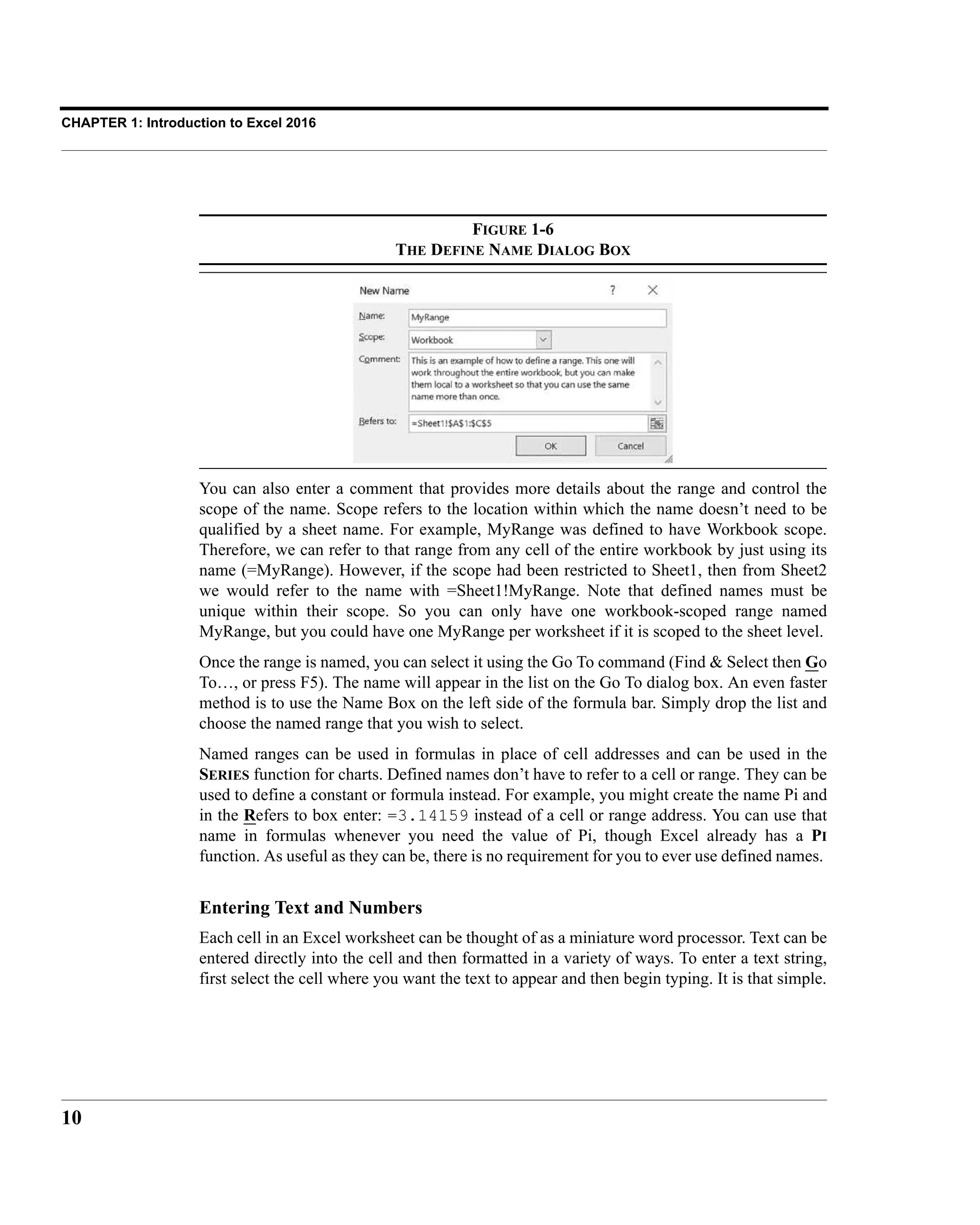
will remain the same. So, in C6 edit the formula so that it is: =$I$1*(B6/E2)+(1-
$I$1)*(C5+D5). The formula for the trend component, in D6, stays the same. Copy these
formulas down through row 32.
The initial values for the seasonal components need to be converted into ratios instead of
differences. So, the formula in E2 should be: =B2/$C$5. Copy that formula to E3:E5. In
E6, we will calculate the seasonal component with: =$I$3*(B6/C6)+(1-$I$3)*E2.
Again, copy this to all cells from E7 to E32. Finally, the formula to get the first within
sample forecast in F6 is: =SUM(C5:D5)*E2. Copy this over the range F7:F32.
The final step is to find the optimal values for the smoothing parameters. In this case,
because we made a copy of the HWAS worksheet, the Solver will already be set up properly
to do this optimization. So, launch the Solver, check the settings, and click the Solve button.
EXHIBIT 6-8
HOLT-WINTERS MULTIPLICATIVE SEASONAL MODEL RESULTS
You should find that the MSE is 845,866 and the MAPE is 4.89% as shown in Exhibit 6-8.
Both of these values are somewhat higher than those for the additive model. So, despite the
appearance of growing seasonality in the chart, the additive model actually fits the data
slightly better. We should caution, however, that this does not necessarily mean that the
Seasonalityt St γ
Yt
Lt
---
- 1 γ
–
( )St p
–
+
= =
Forecastt n
+ Ŷt n
+ Lt nTt
+
( )St n p
–
+
= =
CHAPTER 6: Forecasting Sales with Time Series Methods
186
additive model will provide better forecasts than the multiplicative model. We will only
know in the fullness of time.
Time Series Forecasting Using Regression Analysis
In Chapter 5, we discussed the use of regression analysis as a way to understand the
relationship between two variables over time (see page 156). In this section, we will show
how we can use regression analysis to forecast future sales, including a technique that can
handle seasonality.
Forecasting the Trend Using Regression
We have seen that the time series of sales for Amazon.com exhibits a strong upward trend
over the period covered by our data. Initially, when decomposing the time series, we
modeled this trend using a four-period centered moving average. Now, we will model it
using regression analysis, with the time period as the independent variable.
Recall that regression analysis is a method for finding the best linear fit to the data. In this
case, our dependent variable is the sales for Amazon, and we will have a single independent
variable (the time period). The parameters of the regression line are found by minimizing the
sum of the squared errors, which is similar to what we have been doing with our other time
series models. The slope of the regression line will be our measure of the trend of the data.
Make a copy of the AMZN Quarterly Revenue worksheet, and insert a new column before
column B. In B1 enter the label: Period. This column will contain a simple sequence of
numbers from 1 to 31, representing the time period of each data point. Type a 1 in B2, and
then enter the rest of the series using Fill Series on the Home tab of the Ribbon.
We are now ready to create a regression equation of the following form:
Salest (Periodt) (6-16)
where is the y-intercept, is the slope of the regression line, and is a random error.
Make sure that the Analysis ToolPak add-in is installed, then launch it by clicking the Data
Analysis button on the Data tab and selecting Regression from the dialog box.
Fill in the text boxes in the dialog box as shown in Figure 6-6. For Input Y Range enter:
C1:C32, and for Input X Range enter: B1:B32. Because we have selected the column
labels as a part of those ranges, be sure to check the Labels box. Finally, select Output
Range and choose to place the output in cell F1. Click the OK button to generate the
regression results.
α β
+
= ẽt
+
α β ẽt
187
Time Series Forecasting Using Regression Analysis
FIGURE 6-6
THE REGRESSION DIALOG BOX FOR THE TIME TREND
You should see that the y-intercept ( ) is 2,516.08 and the slope ( ) is 912.46. The slope
coefficient tells us that Amazon’s sales increase, on average, by 912.46 per period.
Furthermore, we can tell that the slope is statistically significantly different from zero (i.e.,
no slope) by examining the diagnostic output. For example, the t-statistic is 15.34, which is
well above the critical value of 2.
We can generate the fit of the data, as well as forecasts, by using equation (6-16) and the
regression coefficients. In D2, enter the formula: =$G$17+$G$18*B2, and copy it down
through D32. Exhibit 6-9 shows the regression output as well as the fit of the data. Note that
the MSE is given in I13, though it is calculated slightly differently than what we have done
previously. Specifically, the denominator is instead of , otherwise it is the same.
EXHIBIT 6-9
TIME TREND REGRESSION RESULTS
α β
N 2
– N
CHAPTER 6: Forecasting Sales with Time Series Methods
188
We can generate forecasts for the next four periods by extending the data in columns A and
B, and copying the formula from D32 to D33:D36. Using this data, the forecast for
December 2016 is 31,714.76, which is well below the forecasts that we got from the HWAS
and HWMS models. However, this is to be expected since this model only accounts for the
trend. We will account for seasonality in the next section.
The R2 of the regression is 0.89, which means that the time trend explains about 89% of the
variability in Amazon’s sales over this period. However, this is misleading, as the chart of
sales versus the time trend in Figure 6-7 shows. Clearly, the trend line is missing the
seasonal spikes.
FIGURE 6-7
CHART OF AMAZON.COM SALES AND LINEAR TIME TREND
Using Seasonal Dummy Variables to Account for Seasonality
At first glance, it would seem impossible for linear regression, which typically produces a
straight line fit, to account for the seasonal spikes in sales. However, we can use dummy
variables to account for the quarters of the year. A dummy variable is an independent
variable that is typically coded as either 0 or 1, indicating the absence or presence of some
effect or condition. For example, a medical study might use a dummy variable to indicate
whether a patient was given the placebo (0) or the actual drug (1). Note that the dummy
variable doesn’t measure anything. It simply indicates a category of interest.
We will use dummy variables to account for each of the quarters of the year. Note that if
there are categories, then there will be dummy variables. Because there are four
quarters in a year, we will need three dummy variables defined as:
Setting all three of the seasonal dummy variables to 0 would indicate that the data point is in
the fourth quarter of the year.
k k 1
–
x2
1 if first quarter
0 otherwise
, x3
1 if second quarter
0 otherwise
, x4
1 if third quarter
0 otherwise
⎩
⎨
⎧
=
⎩
⎨
⎧
=
⎩
⎨
⎧
=
189
Time Series Forecasting Using Regression Analysis
We wish to create a regression line that follows the trend and that also accounts for
seasonality. Make a copy of the worksheet that you used for the previous section so that we
can modify it by adding the seasonal dummy variables.
In the new worksheet, insert three columns between columns B and C. In C1:E1 enter the
labels Q1, Q2, and Q3. These columns will hold the formulas for the dummy variables.
Notice that we can refer to the dates in column A to determine which quarter the data point is
from. For example, the first data point is in March, so it is from the first quarter. Therefore,
we would like a 1 in C2 and a 0 in D2 and E2. So, in C2 enter the formula:
=IF(MONTH($A2)=3,1,0). This formula will look at the month in A2 and check to see
if it equals 3 (i.e., March). If so, then the result will be set to 1, otherwise it will be 0.
We need similar formulas in D2 and E2, so copy the formula from C2 to D2:E2. Now edit
those formulas so that they check to see if the month equals 6 (in D2) or 9 (in E2). Finally,
copy the formulas down to row 32. If you look at row 5, you should see that all three dummy
variables are set to 0, which indicates that December 2009 was in the fourth quarter.
We can now run the regression. As before, the dependent variable is the sales in F1:F32. The
independent variables are the period and the dummy variables (B1:E32). Place the output in
I1. Figure 6-8 shows the regression dialog box.
FIGURE 6-8
THE REGRESSION DIALOG BOX FOR THE TIME TREND WITH SEASONAL DUMMIES
Exhibit 6-10 shows the results of the regression. Note that the R2 has improved to 0.97 (from
0.89), and each of the independent variables is statistically significant (i.e., the absolute
values of the t-statistics are all above the critical value of about 2). Also, the MSE is much
lower than we got with the time trend alone.
CHAPTER 6: Forecasting Sales with Time Series Methods
190
EXHIBIT 6-10
REGRESSION RESULTS FOR THE TIME TREND WITH SEASONAL DUMMIES
As before, we can use the regression coefficients (in J17:J21) to fit the regression to the data.
In G2, enter: =$J$17+$J$18*B2+$J$19*C2+$J$20*D2+$J$21*E2. Copy that
formula to G3:G32. We can also generate forecasts for December 2016 to September 2017
(or more). Copy A32:E32 down four rows, and then copy G32 down four rows as well. You
should see that the forecast for September 2017 is 33,131.88.
Exhibit 6-11 shows the data used in the regression, along with the fitted data and a chart.
EXHIBIT 6-11
REGRESSION DATA WITH FIT AND CHART
191
Summary
Clearly, the regression with both a time trend and seasonal dummy variables outperforms the
time trend alone. The chart in Exhibit 6-11 shows that the seasonal fluctuations are
accounted for, though not nearly as well as with the HWAS or HWMS models.
Summary
In this chapter, we described what a time series is and how to decompose a time series into
three components: trend, seasonality, and irregular. In the decomposition process, we
demonstrated how to calculate a centered moving average to isolate the trend and
normalized seasonal factors for isolating seasonality.
We also demonstrated several ways of forecasting time series:
Simple exponential smoothing (SES) is a straightforward method of forecasting a time series
that does not have trend or seasonal components. It is essentially a weighted moving
average, where the weights decline exponentially as the observations fade into the past.
Aside from not dealing well with trend and seasonality, this method suffers from the fact that
its forecasts are constant.
Holt’s linear trend exponential smoothing model (LES) is an extension of SES with an
additional smoothing constant, which improves its performance on data that is trending. For
forecasting sales, this method suffers from the fact that it does not account for seasonality.
Further, its forecasts simply follow the most recent trend of the data.
For time series with trend and seasonality, we first looked at three more extensions of the
exponential smoothing method: the Holt-Winters additive seasonal model (HWAS), the
built-in ETS model (Forecast Sheet), and the Holt-Winters multiplicative seasonal model
(HWMS). These models add a third smoothing constant to handle seasonality and generally
perform quite well for quarterly sales.
The final methods that we examined are based on regression analysis. Initially, we used
regression to fit a time trend to the data. This method doesn’t handle seasonality, so we next
introduced seasonal dummy variables. This method improved greatly on the time trend
alone, but it didn’t perform as well as the Holt-Winters models.
In addition to the above, we also showed several ways to measure forecast (or fit) errors and
how to optimize smoothing constants for the exponential smoothing models using the
Solver. We will see the Solver again in later chapters.
CHAPTER 6: Forecasting Sales with Time Series Methods
192
Problems
Note: All of the data for these problems is in the Revenues.xlsx file that is available on the
official Web site for this book.
1. Using the TGT Quarterly Sales (Target Corp.) data:
a. Create a line chart of sales. Do you see a trend? Do you see any
seasonality? If so, what is the frequency?
b. Using the procedures detailed in the chapter, decompose the time
series into the trend, seasonality, and irregular components.
c. Which of the time series methodologies discussed in the chapter
would likely be the most appropriate for forecasting Target’s sales?
2. Using the TGT Quarterly Sales (Target Corp.) data:
a. Fit the sales data using the Holt-Winters Additive Seasonal model,
and optimize the smoothing constants with the Solver.
b. Use the Forecast Sheet button to create a forecast worksheet.
c. Which model performs better based on the MSE?
TABLE 6-1
FUNCTIONS INTRODUCED IN THIS CHAPTER
Purpose Function Page
Calculate an average
using criteria
AVERAGEIF(RANGE, CRITERIA, AVERAGE_RANGE) 171
Look up values in a
table
VLookup(LOOKUP_VALUE, TABLE_ARRAY,
COL_INDEX_NUM, RANGE_LOOKUP)
172
Calculate the sum of
squared errors
SUMXMY2(ARRAY_X, ARRAY_Y) 175
Return the row number ROW(REFERENCE) 179
Create a time series
forecast
FORECAST.ETS(TARGET_DATE, VALUES,
TIMELINE, SEASONALITY, DATA_COMPLETION,
AGGREGATION)
182
193
Internet Exercise
3. Using the TGT Quarterly Sales (Target Corp.) data:
a. Fit a regression model with a time trend and seasonal dummy
variables to the sales data.
b. Is the time trend coefficient statistically significant? How can you
tell?
c. Are the seasonal dummy variables statistically significant? How can
you tell?
4. Using the UNH Quarterly Sales data (UnitedHealth Group):
a. Create a line chart of sales. Do you see a trend?
b. Do you see any seasonality? If so, what is the frequency and what
quarter typically has the highest sales?
c. Create a forecast for UnitedHealth Group’s sales for December 2016
using the SES model.
d. Create a forecast for UnitedHealth Group’s sales for December 2016
using the LES model.
e. Which of the two models fits the data better based on MSE?
5. Using the Forecast.ETS.Seasonality function, calculate the frequency of
seasonality, if any, for AMZN, TGT, UNH, BMY, and JNJ.
a. Do you get same result for each company? Why, or why not? Hint:
Think about the type of business that each company is in.
Internet Exercise
1. Using Yahoo! Finance (finance.yahoo.com), find the actual fiscal fourth
quarter 2016 sales (period ending January 31, 2017) for Target Corp.
Which of the models that were used in problems 2 and 3 came closest to
predicting the actual sales?
CHAPTER 6: Forecasting Sales with Time Series Methods
194
195
CHAPTER 7 Break-Even
and Leverage Analysis
In this chapter, we will consider the decisions that managers make regarding the cost
structure of the firm. These decisions will, in turn, impact the decisions they make regarding
methods of financing the firm’s assets (i.e., its capital structure) and pricing the firm’s
products.
In general, we will assume that the firm faces two kinds of costs:
1. Variable costs are those costs that are expected to change at the same rate
as the firm’s sales. Variable costs are constant per unit, so as more units are
sold, the total variable costs rise. Examples of variable costs include sales
commissions, costs of raw materials, hourly wages, and so on.
After studying this chapter, you should be able to:
1. Differentiate between fixed and variable costs.
2. Calculate operating, cash, and total break-even points, and find the number of
units that need to be sold to reach a target level of EBIT.
3. Define the terms “business risk” and “financial risk,” and describe the origins
of each of these risks.
4. Use Excel to calculate the DOL, DFL, and DCL, and explain the significance
of each of these risk measures.
5. Explain how the DOL, DFL, and DCL are related to the break-even points.
CHAPTER 7: Break-Even and Leverage Analysis
196
2. Fixed costs are those costs that are constant regardless of the quantity
produced, over some relevant range of production. Total fixed cost per
unit will decline as the number of units increases. Examples of fixed costs
include rent, salaries, and depreciation.
Figure 7-1 illustrates these costs.1
FIGURE 7-1
TOTAL FIXED AND TOTAL VARIABLE COSTS
Break-Even Points
We can define the break-even point as the level of sales (either units or dollars) that causes
profits, however measured, to equal zero. Most commonly, we define the break-even point
as the unit sales required for earnings before interest and taxes (EBIT) to be equal to zero.
This point is often referred to as the operating break-even point.
Define Q as the quantity sold, P as the price per unit, V as the variable cost per unit, and F as
total fixed costs. With these definitions, we can say:
(7-1)
which is a standard income statement relationship.
If we set EBIT in equation (7-1) to zero, we can solve for the break-even quantity (Q*
):
1. Most firms will also have some semi-variable costs that are fixed over a certain range of output, but
will change if output rises above that level. For simplicity, we will assume that these costs are fixed.
Q P V
–
( ) F
– EBIT
=
197
Break-Even Points
(7-2)
Assume, for example, that a firm is selling widgets for $30 per unit, while variable costs are
$20 per unit and fixed costs total $100,000. The firm must sell 10,000 units to break even:
The quantity P – V is often referred to as the contribution margin per unit because this is
the amount that each unit sold contributes to covering the firm’s fixed costs. Using
equation (7-1), you can verify that the firm will break even if it sells 10,000 widgets:
We can now calculate the firm’s break-even point in dollars by simply multiplying Q* by the
price per unit:
(7-3)
In this example, the firm must sell $300,000 worth of widgets to break even.
Note that we can substitute equation (7-2) into (7-3):
(7-4)
So, if we know the contribution margin as a percentage of the selling price (CM%), we can
easily calculate the break-even point in dollars. In the previous example, CM% is 33.33%,
so the break-even point in dollars must be:
which confirms our earlier result.
Calculating Break-Even Points in Excel
We can, of course, calculate break-even points in Excel. Consider the income statement for
Spuds and Suds, a very popular sports bar that serves only one product: a plate of gourmet
french fries and a pitcher of imported beer for $16 per serving. The income statement is
presented in Exhibit 7-1.
Q* F
P V
–
------------
-
=
Q* 100,000
30 20
–
------------------
- 10,000 units
= =
10,000 30 20
–
( ) 100,000
– 0
=
$BE P Q*
×
=
$BE P
F
P V
–
( )
-----------------
-
×
F
P V
–
( ) P
⁄
-------------------------
F
CM%
--------------
-
= = =
$BE
100,000
0.3333
------------------
- $300,000
= =
CHAPTER 7: Break-Even and Leverage Analysis
198
EXHIBIT 7-1
INCOME STATEMENT FOR SPUDS AND SUDS
Before calculating the break-even point, enter the labels into a new worksheet as shown in
Exhibit 7-1. Because we will be expanding this example, it is important that you enter
formulas where appropriate. Before doing any calculations, enter the numbers in B20:B23.
We will first calculate the dollar amount of sales (in B5) by multiplying the per unit price by
the number of units sold: =B20*B21. Variable costs are always 60% of sales (as shown
in B22), so the formula in B6 is: =B22*B5. Both fixed costs (in B7) and interest expense
(in B9) are constants, so they are simply entered directly. The simple subtraction and
multiplication required to complete the income statement through B12 should be obvious.
In B14:B17, we have added information that is not immediately useful, but the figures will
become central when we discuss operating and financial leverage. In cell B14, we have
added preferred dividends, which will be subtracted from net income. The result (in B15) is
net income available to the common shareholders. Preferred dividends are simply input into
B14, and the formula in B15 is: =B12-B14. In B16, enter the number of common shares
outstanding: 1,000,000. Earnings per share is then calculated as: =B15/B16 in cell B17.
Now we can calculate the break-even points. In A25 enter the label: Operating Break-
even Point (Units). Next, copy this label to A26, and change the word “Units” to
Dollars. In B25, we can calculate the break-even point in units using equation (7-2). The
199
Break-Even Points
formula is: =B7/(B20-B6/B21). Notice that we have to calculate the variable cost per
unit by dividing total variable costs (B6) by the number of units sold (B21). You can see that
Spuds and Suds must sell 62,500 units in order to break even and that they are well above
this level. We can calculate the break-even point in dollars simply by multiplying the unit
break-even point by the price per unit. In B26, enter the formula: =B25*B20. You will see
that the result is $1,000,000.
Other Break-Even Points
Recall that we found the break-even point by setting EBIT, in equation (7-1), equal to zero.
However, there is no reason that we can’t set EBIT equal to any amount that we might
desire. For example, if we define EBITTarget as the target level of EBIT, we find that the firm
can earn the target EBIT amount by selling:
(7-5)
Consider that Spuds and Suds might want to know the number of units that they need to sell in
order to have EBIT equal $800,000. Mathematically, we can see that:
need to be sold to reach this target. You can verify that this number is correct by typing 187,500
into B21 and checking the value in B8. To return the worksheet to its original values, press Ctrl+Z
(a+Z on Mac) or reenter 156,250 into B21.
We can do the same thing, with more flexibility, by modifying our worksheet. Select row 22
and insert a new row. In A22 enter the label: Target EBIT, and in B22 enter: 800,000.
In A29 type: Units to Meet EBIT Target, and then in B29 enter the formula:
=(B7+B22)/(B20-B6/B21). The result will be 187,500 units as before. However, we
can now easily change the target EBIT and see the unit sales required to reach the goal. Your
worksheet should now look like the one in Exhibit 7-2.
Recall from page 46 that we defined cash flow as net income plus noncash expenses. We do
this because the presence of noncash expenses (principally depreciation) in the accounting
numbers distort the actual cash flows. We can make a similar adjustment to our break-even
calculations by setting EBITTarget equal to the negative of the depreciation expense. This
results in a type of break even that we refer to as the cash break-even point:
(7-6)
Q*
Target
F EBITTarget
+
P V
–
---------------------------------
-
=
Q*
800,000
400,000 800,000
+
16 9.60
–
--------------------------------------------
- 187,500 units
= =
Q*
Cash
F Depreciation
–
P V
–
---------------------------------------
-
=
CHAPTER 7: Break-Even and Leverage Analysis
200
EXHIBIT 7-2
BREAK-EVEN POINTS
Note that the cash break-even point will always be lower than the operating break-even point
because we don’t have to cover the depreciation expense.
Similarly, we can calculate the break-even point where EPS = 0:
(7-7)
Note that we are adding both interest expense and preferred dividends back to fixed costs to
get the total fixed costs (operating and financial). Preferred dividends are not tax deductible,
so we adjust them to determine the number of pre-tax dollars that are needed to pay the
preferred dividends after taxes.
In A29 enter: Total Break-even Point (Units), and in B29 enter the formula:
=(B7+B9+B14/(1-B25))/(B20-B6/B21). You should see that sales of 104,166.67
units will lead to EPS being equal to zero.
QTotal
*
F Interest Exp.
PD
1 t
–
( )
--------------
-
+ +
P V
–
--------------------------------------------------------------
=
201
Using Goal Seek to Calculate Break-Even Points
As we’ve shown, the break-even point can be defined in numerous ways, and we don’t even
need to define it in terms of EBIT. For example, in equation (7-7) we showed a formula to
calculate how many units need to be sold to break even in terms of earnings per share.
However, we don’t really need an equation and you may someday want to define break-even
in terms for which we haven’t derived an equation.
Excel has a tool, called Goal Seek, to help with problems like this.2
To use Goal Seek, you
must have a target cell with a formula and another cell on which it depends. For example,
earnings per share in B17 depends indirectly on the unit sales in B21. So, changing B21
changes B17. When we use Goal Seek, we’ll simply tell it to keep changing B21 until B17
equals zero.
Launch the Goal Seek tool by clicking What-If Analysis on the Data tab. In the dialog box,
the Set Cell is the cell that you want to take on a particular value, To value is the target value,
and the By changing cell is the cell that can be changed until the target cell takes on the
desired value. Essentially, Goal Seek mimics what you might do if you were using trial and
error to find the number of units to make EPS equal to zero.
Fill in the dialog box as shown in Figure 7-2 and click the OK button. You should find that,
as we previously calculated, unit sales of 104,166.67 will cause EPS to be equal to zero. You
can experiment with this tool to find the other break-even points. Set B21 back to 156,250.
FIGURE 7-2
THE GOAL SEEK TOOL
2. For more complicated problems, use the Solver add-in.
CHAPTER 7: Break-Even and Leverage Analysis
202
Leverage Analysis
In Chapter 3 (page 77), we defined leverage as a multiplication of changes in sales into even
larger changes in profitability measures. Firms that use large amounts of operating leverage
will find that their EBIT will be more variable than firms that do not. We would say that such
a firm has high business risk. Business risk is one of the major risks faced by a firm and can
be defined as the variability of EBIT.3 The more variable a firm’s revenues, relative to its
costs, the more variable its EBIT will be. Also, the likelihood that the firm won’t be able to
pay its expenses will be higher. As an example, consider a software company and a grocery
chain. It should be apparent that the future revenues of the software company are much more
uncertain than those of the grocery chain. This uncertainty in revenues causes the software
company to have a much greater amount of business risk than the grocery chain. The
software company’s management can do little about this business risk; it is simply a function
of the industry in which they operate. Software is not a necessity of life. People do, however,
need to eat. For this reason, the grocery business has much lower business risk.
Business risk results from the environment in which the firm operates. Factors such as the
competitive position of the firm in its industry, the state of its labor relations, and the
variability of demand for its products all affect the amount of business risk a firm faces. In
addition, as we will see, the degree to which the firm’s costs are fixed (as opposed to
variable) will affect the amount of business risk. Many of the components of business risk
are beyond the control of the firm’s managers. However, managers do have some control.
For example, when making investment decisions, managers may be able to choose between
labor-intensive and capital-intensive production methods, or they may choose between
methods that have differing levels of fixed costs.
In contrast, the amount of financial risk is determined directly by management. Financial
risk refers to the probability that the firm will be unable to meet its fixed financing
obligations (which includes both interest and preferred dividends). Obviously, all other
things being equal, the more debt a firm uses to finance its assets, the higher its interest cost
will be. Higher interest costs lead directly to a higher probability that the firm won’t be able
to pay. Furthermore, the use of debt financing concentrates the firm’s business risk onto
fewer shareholders, making the stock riskier. Because the amount of debt is determined by
managerial choice, the financial risk that a firm faces is also determined by management.
Managers need to be aware that they face both business risk and financial risk, and that both
affect the stock’s beta. Therefore, these risks also affect the value of the stock and the firm’s
cost of capital. If they are in an industry with high business risk, they should control the
3. The use of EBIT for this analysis assumes that the firm has no extraordinary income or expenses.
Extraordinary items are one-time events that are not a part of the firm’s ordinary business
operations. If the firm does have these items, use its net operating income (NOI) instead of EBIT.
203
Leverage Analysis
overall amount of risk by limiting the amount of financial risk that they face. Alternatively,
firms that face low levels of business risk can better afford more financial risk.
We examine these concepts in more detail by continuing with our Spuds and Suds example.
The Degree of Operating Leverage
Earlier we mentioned that a firm’s business risk can be measured by the variability of its
earnings before interest and taxes. If a firm’s operating costs are all variable, then any
variation in sales will be reflected by exactly the same variation in EBIT. However, if a firm
has some fixed operating expenses, then EBIT will be more variable than sales. We refer to
this concept as operating leverage.
We can measure operating leverage by comparing the percentage change in EBIT to a given
percentage change in sales. This measure is called the degree of operating leverage (DOL):
(7-8)
So, if a 10% change in sales results in a 20% change in EBIT, we would say that the DOL is
2. As we will see, this is a symmetrical concept. As long as sales are increasing, a high DOL
is desirable. However, if sales begin to decline, a high DOL will result in EBIT declining at
an even faster pace than sales.
To make this concept more concrete, let’s extend the Spuds and Suds example. Assume that
management believes that unit sales will increase by 10% in 2017. Furthermore, they expect
that variable costs will remain at 60% of sales and fixed costs will stay at $400,000. Copy
B4:B27 to C4:C27. Now, insert a row above the tax rate in row 24. Enter the label:
Projected Sales Growth, and in C24 enter: 10%. We need to have the 2017 unit sales
in C21, so enter: =B21*(1+C24) into C21. (Note that you have just created a percent of
sales income statement forecast for 2017, just as we did in Chapter 5.) Change the label in
C4 to 2017 and you have completed the changes.
Before continuing, notice that the operating break-even points (C27:C28) have not changed.
This will always be the case if fixed costs are constant and variable costs are a constant
percentage of sales. The break-even point is always driven by the level of fixed costs.
Because we wish to calculate the DOL for 2016, we first need to calculate the percentage
changes in EBIT and sales. In A32 enter the label: % Change in Sales from Prior
Year, and in A33 enter: % Change in EBIT from Prior Year. To calculate the
percentage changes, enter: =C5/B5-1 in cell C32 and then: =C8/B8-1 in C33. You
should see that sales increased by 10%, while EBIT increased by 16.67%. According to
equation (7-8), the DOL for Spuds and Suds in 2016 is:
DOL
%Δ in EBIT
%Δ in Sales
-----------------------------
-
=
CHAPTER 7: Break-Even and Leverage Analysis
204
So, any change in sales will be magnified by 1.667 times in EBIT. To see this, recall that the
formula in C21 increased the 2016 unit sales by 10%. Temporarily, change the value in C24
to 20%. You should see that if sales increase by 20%, EBIT will increase by 33.33%.
Recalculating the DOL, we see that it is unchanged:
Furthermore, if we change the value in C24 to −10%, so that sales decline by 10%, we find
that EBIT declines by 16.67%. In this case the DOL is:
So leverage is indeed a double-edged sword. You can see that a high DOL would be
desirable as long as sales are increasing, but very undesirable when sales are decreasing.
Unfortunately, most businesses don’t have the luxury of altering their DOL immediately
before a change in sales.
Calculating the DOL with equation (7-8) is actually more cumbersome than is required.
With that equation we needed to use two income statements. However, a more direct method
of calculating the DOL is to use the following equation:
(7-9)
For Spuds and Suds in 2016, we can calculate the DOL using equation (7-9):
which is exactly as we found with equation (7-8).
Continuing with our example, enter the label: Degree of Operating Leverage in
A36. In B36, we will calculate the DOL for 2016 with the formula: =(B5-B6)/B8. You
should get the same result as before. If you copy the formula from B36 to C36, you will find
that in 2017 the DOL will decline to 1.57. We will examine this decline in the DOL later.
Before continuing, it is worth discussing a refinement of the formula in B36. The formula
that we entered could potentially cause a division by zero (#DIV/0!) error if EBIT is zero
(i.e., if the firm is operating exactly at its break-even point). We could use an IF statement to
avoid this error. If EBIT = 0, then the function will return #N/A (Not Available) as the result.
This is better than having a #DIV/0! error or simply returning zero or a blank as the result.
DOL
16.67%
10.00%
-----------------
- 1.667
= =
DOL
33.33%
20.00%
-----------------
- 1.667
= =
DOL
16.67%
–
10.00%
–
--------------------
- 1.667
= =
DOL
Q P V
–
( )
Q P V
–
( ) F
–
-------------------------------
- Sales Variable Costs
–
EBIT
-----------------------------------------------------
-
= =
DOL
2,500,000 1,500,000
–
600,000
-----------------------------------------------------
- 1.667
= =
205
Leverage Analysis
Returning a zero can throw off the results of other formulas. For example, the COUNT
function would count a zero, but not an #N/A. To return #N/A as a result in the case of an
error, we can use the NA function. This function takes no arguments, but you must put a
closed pair of parentheses after it:
NA( )
Instead of using an IF statement and calculating the formula twice, we can modify the
formula in B36 as follows: =IFERROR((B5-B6)/B8,NA()). Note that we have used
the IFERROR function to check if the result will be an error. This function will return the first
argument if it doesn’t result in an error, or the second if it does. It is defined as:
IFERROR(VALUE, VALUE_IF_ERROR)
where VALUE is any statement or formula that can be evaluated by Excel. This technique is
useful anytime a formula could result in an error that might render any dependent formulas
incorrect. It is better to see a result of #N/A than to see an incorrect result.
Your worksheet should now appear similar to the one in Exhibit 7-3.
The Degree of Financial Leverage
Financial leverage is similar to operating leverage, but the fixed costs that we are
interested in are the fixed financing costs—interest expense and preferred dividends.4
We can measure financial leverage by relating percentage changes in EPS to percentage
changes in EBIT. This measure is referred to as the degree of financial leverage (DFL):
(7-10)
For Spuds and Suds, we have already calculated the percentage change in EBIT, so all that
remains is to calculate the percentage change in EPS. In A34 add the label: % Change in
EPS from Prior Year, and in C34 add the formula: =C17/B17-1. Note that EPS is
expected to increase by 30% in 2017 compared to only 16.67% for EBIT. Using equation (7-10)
we find that the degree of financial leverage employed by Spuds and Suds in 2016 is:
4. Preferred stock, as we’ll see in Chapter 9, is a hybrid security, similar to both debt and equity
securities. How it is treated is determined by one’s goals. When discussing financial leverage, we
treat preferred stock as if it were a debt security.
DFL
%Δ in EPS
%Δ in EBIT
-----------------------------
-
=
DFL
30.00%
16.67%
-----------------
- 1.80
= =
CHAPTER 7: Break-Even and Leverage Analysis
206
EXHIBIT 7-3
SPUDS AND SUDS BREAK-EVEN AND LEVERAGE WORKSHEET
Therefore, any change in EBIT will be multiplied by 1.80 times in earnings per share. Like
operating leverage, financial leverage works both ways. When EBIT is increasing, EPS will
increase even more. And when EBIT decreases, EPS will decline by a larger percentage.
As with the DOL, there is a more direct method of calculating the DFL:
(7-11)
In equation (7-11), PD is the amount of preferred dividends paid by the firm and t is the tax
rate. The second term in the denominator, , requires some explanation. Because
DFL
Q P V
–
( ) F
–
Q P V
–
( ) F Interest Exp.
PD
1 t
–
( )
--------------
-
+ +
⎝ ⎠
⎛ ⎞
–
------------------------------------------------------------------------------------------------
-
EBIT
EBT
PD
1 t
–
( )
--------------
-
–
---------------------------------
= =
PD 1 t
–
( )
⁄
207
Leverage Analysis
preferred dividends are paid out of after-tax dollars, we must determine how many pre-tax
dollars are required to meet this expense. In this case, Spuds and Suds pays taxes at a rate of
40%, so they require $166,666.67 in pre-tax dollars to pay $100,000 in preferred dividends:
We can use equation (7-11) in the worksheet to calculate the DFL for Spuds and Suds. In cell
A37, enter the label: Degree of Financial Leverage. In B37, enter:
=IFERROR(B8/(B10-B14/(1-B25)),NA()). You should find that the DFL is 1.80,
which is the same as we found by using equation (7-10). Copying this formula to C37
reveals that in 2017 we expect the DFL to decline to 1.62.
The Degree of Combined Leverage
Most firms make use of both operating and financial leverage. Because they are using two
types of leverage, it is useful to understand the combined effect. We can measure the total
leverage employed by the firm by comparing the percentage change in sales to the
percentage change in earnings per share. This measure is called the degree of combined
leverage (DCL):
(7-12)
Because we have already calculated the relevant percentage changes, it is a simple matter to
determine that the DCL for Spuds and Suds in 2016 was:
Therefore, any change in sales will be multiplied threefold in EPS. Recall that we earlier
said that the DCL was a combination of operating and financial leverage. You can see this if
we rewrite equation (7-12) as follows:
Therefore, the combined effect of using both operating and financial leverage is
multiplicative rather than simply additive. Managers should take note of this and use caution
in increasing one type of leverage while ignoring the other. They may end up with more total
leverage than anticipated. As we have just seen, the DCL is the product of DOL and DFL, so
we can rewrite equation (7-12) as:
(7-13)
100,000
1 0.40
–
( )
-----------------------
- 166,666.67
=
DCL
%Δ in EPS
%Δ in Sales
----------------------------
-
=
DCL
30.00%
10.00%
-----------------
- 3.00
= =
DCL
%Δ in EPS
%Δ in Sales
----------------------------
-
%Δ in EBIT
%Δ in Sales
-----------------------------
-
%Δ in EPS
%Δ in EBIT
-----------------------------
-
×
= =
DCL DOL DFL
×
=
CHAPTER 7: Break-Even and Leverage Analysis
208
To calculate the DCL for Spuds and Suds in your worksheet, first enter the label: Degree
of Combined Leverage into A38. In B38, enter the formula: =B36*B37, and copy this
to C38 to find the expected DCL for 2017. At this point, the lower part of your worksheet
should look like Exhibit 7-4.
EXHIBIT 7-4
SPUDS AND SUDS WORKSHEET WITH THREE MEASURES OF LEVERAGE
Extending the Example
Comparing the three leverage measures for 2016 and 2017 shows that in all cases the firm
will be using less leverage in 2017. Recall that the only change in 2017 was that sales were
increased by 10% over their 2016 level. The reason for the decline in leverage is that fixed
costs (both operating and financial) have become a smaller portion of the total costs of the
firm. This will always be the case: As sales increase above the break-even point, leverage
will decline regardless of the measure that is used.
We can see this by extending our Spuds and Suds example. Suppose that management is
forecasting that sales will increase by 10% each year for the foreseeable future. Furthermore,
because of contractual agreements, the firm’s fixed costs will remain constant through at
least 2020. In order to see the changes in the leverage measures under these conditions, copy
C4:C38 and paste into D4:F38. This will create pro forma income statements for three
additional years. Change the labels in D4:F4 to 2018, 2019, and 2020.
You should see that the DOL, DFL, and DCL are all decreasing as sales increase. This is
easier to see if we create a chart. Select A36:F38 and then create a Line chart of the data. Be
sure to set B4:F4 as the x-axis labels by right-clicking the chart and choosing Select Data.
Under Horizontal (Category) Axis Labels click the Edit button and select the range. You
should end up with a chart that resembles the one in Figure 7-3.
209
Linking Break-Even Points and Leverage Measures
FIGURE 7-3
CHART OF VARIOUS LEVERAGE MEASURES AS SALES INCREASE
Obviously, as we stated earlier, the amount of leverage declines as the sales level increases.
One caveat to this is that in the real world, fixed costs are not necessarily the same year after
year. Furthermore, variable costs do not always maintain an exact percentage of sales. For
these reasons, leverage may not decline as smoothly as depicted in our example. However,
the general principle is sound and should be understood by all managers.
Linking Break-Even Points and Leverage Measures
While it may not be obvious, there is a connection between the break-even points and the
various measures of leverage that we have defined. In this section we will reveal the links.5
Recall our definition of the operating break-even point in equation (7-2), page 197. Using
that definition, we can solve for fixed costs (F):
(7-14)
Substituting the definition of F from equation (7-14) into our definition of the DOL in
equation (7-9) from page 204 results in:
(7-15)
5. See T. Zivney and J. Goebel, “The Relationship Between the Breakeven Point and Degrees of
Leverage,” Advances in Financial Education, Vol. 11, 2013, pp. 122–126. I expand on that to
include preferred dividends when calculating the DFL.
F QOperating
*
P V
–
( )
×
=
DOL
Q P V
–
( )
Q P V
–
( ) QOperating
*
P V
–
( )
–
----------------------------------------------------------------------
-
Q
Q QOperating
*
–
---------------------------------
-
= =
CHAPTER 7: Break-Even and Leverage Analysis
210
So, we can clearly see (as was shown in Figure 7-3) that as sales rise above the operating
break-even point, the DOL will decline.
In a similar fashion, we can derive the DFL in terms of the total break-even point as defined
in equation (7-7), page 200. First, solve for the total fixed operating and financial costs:
(7-16)
Now, substitute into equation (7-11) on page 206:
(7-17)
Finally, recall from equation (7-13) on page 207 that the DCL is the product of the DOL and
DFL. Therefore, using the results from equations (7-15) and (7-17):
(7-18)
So, the DCL will decline as the unit sales rises above the total break-even point.
To verify that these results are correct, return to your worksheet and copy the labels from
A36:A38 and paste them into A41:A43. In B41 enter the formula: =B21/(B21-B27) to
calculate the DOL. In B42 enter: =(B21-B27)/(B21-B29) for the DFL. Finally, in B43
enter: =B21/(B21-B29) for the DCL. You should find that all of your answers match
those that were previously calculated.
Summary
We started this chapter by discussing the firm’s operating break-even point. The break-even
point is determined by a product’s price and the amount of fixed and variable costs. The
amount of fixed costs also played an important role in the determination of the amount of
leverage a firm employs. We studied three measures of leverage:
1. The degree of operating leverage (DOL) measures the degree to which the
presence of fixed costs multiplies changes in sales into even larger
changes in EBIT.
2. The degree of financial leverage (DFL) measures the change in EPS
relative to a change in EBIT. Financial leverage is a direct result of
managerial decisions about how the firm should be financed.
F Interest Exp.
PD
1 t
–
( )
--------------
-
+ + QTotal
*
P V
–
( )
×
=
DFL
Q P V
–
( ) QOperating
*
P V
–
( )
–
Q P V
–
( ) QTotal
*
P V
–
( )
–
----------------------------------------------------------------------
-
Q QOperating
*
–
Q QTotal
*
–
---------------------------------
-
= =
DCL
Q
Q QOperating
*
–
---------------------------------
-
Q QOperating
*
–
Q QTotal
*
–
---------------------------------
-
×
Q
Q QTotal
*
–
------------------------
-
= =
211
Summary
3. The degree of combined leverage (DCL) provides a measure of the total
leverage used by the firm. This is the product of the DOL and DFL.
We also introduced the Goal Seek tool, which is very useful whenever you know the result
that you want but not the input value required to get that result.
TABLE 7-1
FUNCTIONS INTRODUCED IN THIS CHAPTER
Purpose Function Page
Return #N/A NA( ) 205
Determine if a formula
returns an error value
IFERROR(VALUE, VALUE_IF_ERROR) 205
TABLE 7-2
SUMMARY OF EQUATIONS
Name Equation Page
Operating Break-Even
Level in Units
197
Operating Break-Even
Level in Dollars
197
Cash Break-Even Point
in Units
199
Total Break-Even Point
where EPS = 0
200
Degree of Operating
Leverage (DOL)
203
Degree of Financial
Leverage (DFL)
205
Degree of Combined
Leverage (DCL)
207
QOperating
* F
P V
–
------------
-
=
$BE P QOperating
*
×
F
CM%
--------------
-
= =
Q*
Cash
F Depreciation
–
P V
–
---------------------------------------
-
=
QTotal
*
F Interest Exp.
PD
1 t
–
( )
--------------
-
+ +
P V
–
--------------------------------------------------------------
=
DOL
%Δ in EBIT
%Δ in Sales
-----------------------------
-
Q P V
–
( )
Q P V
–
( ) F
–
-------------------------------
-
= =
DFL
%Δ in EPS
%Δ in EBIT
-----------------------------
-
EBIT
EBT
PD
1 t
–
( )
--------------
-
–
--------------------------------
-
= =
DCL
%Δ in EPS
%Δ in Sales
----------------------------
- DOL DFL
×
= =
CHAPTER 7: Break-Even and Leverage Analysis
212
Problems
1. Meyerson’s Bakery is considering the addition of a new line of pies to its
product offerings. It is expected that each pie will sell for $15 and the
variable costs per pie will be $9. Total fixed operating costs are expected
to be $25,000. Meyerson’s faces a marginal tax rate of 35%, will have
interest expense associated with this line of $3,500, and expects to sell
about 4,200 pies in the first year.
a. Create an income statement for the pie line’s first year. Is the line
expected to be profitable?
b. Calculate the operating break-even point in both units and dollars.
c. How many pies would Meyerson’s need to sell in order to achieve
EBIT of $20,000?
d. Use the Goal Seek tool to determine the selling price per pie that
would allow Meyerson’s to break even in terms of its net income.
e. Calculate the DOL, DFL, and DCL for the new pie line.
2. Income statements for Siam Foods, Inc. from 2014 to 2016 appear below.
a. Enter the data into your worksheet and calculate the degree of
operating leverage for each year.
b. Calculate the degree of financial leverage for each year.
213
Internet Exercise
c. Calculate the degree of combined leverage for each of the three years.
Does it appear that Siam Food’s leverage measures have been
increasing or decreasing over this period?
d. Create a line chart that shows how the various leverage measures have
changed over this three-year period.
3. The following is information for three local auto dealers:
a. Using the information given in the above table, construct income
statements for each company and the industry average. Assume that
each company faces a tax rate of 35%.
b. Calculate the break-even points and the degrees of operating,
financial, and combined leverage for each company and the industry
average.
c. Compare the companies to each other and the industry average. What
conclusions can you draw about each operation?
Internet Exercise
1. Following the instructions from Internet Exercise 1 in Chapter 3, get the
income statements for the company of your choice for the past three years
from the SEC’s Edgar System web site. Now repeat the analysis from
Problem 2, assuming that cost of revenue and SG&A expense are variable
costs and all other operating expenses are fixed costs.
Bell’s
Domestics
Junior’s
Used
Europe’s
Best
Industry
Average
Average Selling Price $38,115 $29,403 $56,628 $32,670
Unit Sales 1,485 1,832 842 1,238
Interest Expense 816,750 1,089,000 3,267,000 1,633,500
Variable Costs (% of Sales) 60% 45% 40% 48%
Fixed Costs 9,900,000 6,930,000 19,800,000 10,890,000
Preferred Dividends 990,000 0 594,000 297,000
Common Shares 4,500,000 7,200,000 2,700,000 6,300,000
CHAPTER 7: Break-Even and Leverage Analysis
214
215
CHAPTER 8 The Time Value of
Money
“A bird in the hand is worth more than two in the bush.” That old aphorism, when translated
into the language of finance, becomes “A dollar today is worth more than a dollar
tomorrow.” Intuitively, it probably makes sense, but why? Stated very simply, you can take
that dollar today and invest it with the expectation of having more than a dollar tomorrow.
Because money can be invested to grow to a larger amount in the future, we say that money
has a “time value.” This concept of a time value of money underlies much of the theory of
financial decision making, and you will be required to understand this material in order to
complete the remaining chapters.
After studying this chapter, you should be able to:
1. Explain the concept of the time value of money.
2. Calculate the present value and future value of cash flows using Excel.
3. Explain the types of cash flows encountered in financial analysis and how to
adjust for each type in making time value calculations in Excel.
4. Differentiate between alternative compounding periods, and use Excel to
compare present and future values under different compounding schemes.
CHAPTER 8: The Time Value of Money
216
Future Value
Imagine that you have $1,000 available to invest. If you earn interest at the rate of 10% per
year, then you will have $1,100 at the end of one year. The mathematics behind this example
is quite simple:
In other words, after one year you will have your original $1,000 (the principal amount) plus
the 10% interest earned on the principal. Because you won’t have the $1,100 until one year
in the future, we refer to this amount as the future value. The amount that you have today,
$1,000, is referred to as the present value. If, at the end of the year, you choose to make the
same investment again, then at the end of the second year you will have:
The $1,210 at the end of the second year can be broken down into its components: the
original principal, the first year’s interest, the interest earned in the second year on the first
year’s interest, and the second year’s interest on the original principal. Note that we could
restate the second year calculation to be:
Or, by factoring out the 1,100 we get:
Notice that in the second year the interest is earned on both the original principal and the
interest earned during the first year. The idea of earning interest on previously earned
interest is known as compounding. This is why the total interest earned in the second year is
$110 versus only $100 the first year.
Returning to our original one-year example, we can generalize the formula for any one-year
investment as follows:
where FV1 is the future value at the end of year 1, PV is the present value, and i is the one-
year interest rate (compounding rate). The above equation is not in its simplest form. We can
factor PV from both terms on the right-hand side, simplifying the future value equation to:
(8-1)
Recall that in our two-year example, we earned interest on both the principal and interest
from the first year. In other words, the first year FV became the second year PV.
Symbolically, the second year FV is:
1,000 1,000 0.10
( )
+ 1,100
=
1,000 1,000 0.10
( ) 100 0.10
( ) 1,000 0.10
( )
+ +
+ 1,210
=
1,100 1,100 0.10
( )
+ 1,210
=
1,100 1 0.10
+
( ) 1,210
=
FV1 PV PV i
( )
+
=
FV1 PV 1 i
+
( )
=
217
Future Value
Substituting PV(1 + i) for FV1 and simplifying, we have:
We can actually further generalize our future value equation. Realize that the exponent (on the
right-hand side) is the same as the subscript (on the left-hand side) in the future value equation.
When we were solving for the future value at the end of the first year, the exponent was 1. When
we were solving for the future value at the end of the second year, the exponent was 2. In general,
the exponent will be equal to the number of the period for which we wish to find the future value.
(8-2)
Equation (8-2) is the basis for all of the time value equations that we will look at in the
sections ahead. Using this version of the equation, you can see that investing $1,000 for two
years at 10% per year will leave you with $1,210 at the end of two years. In other words:
Using Excel to Find Future Values
It is easy enough to calculate future values with a hand calculator, especially a financial
calculator. But, as we will see in the sections and chapters ahead, it is often necessary to use
future values in worksheets. Excel makes these calculations easy with its FV function:
FV(RATE, NPER, PMT, PV, TYPE)
There are five arguments to the Fv function. RATE is the interest rate per period (year,
month, day, etc.), NPER is the total number of periods, and PV is the present value. PMT and
TYPE are included to handle annuities (a series of equal payments, equally spaced over time),
which we will deal with later. For the problem types we are currently solving, we will set
both PMT and TYPE to 0.1
Let’s set up a simple worksheet to calculate the future value of a single sum. Starting with a
blank worksheet, enter the labels and numbers as shown in Exhibit 8-1.
1. The TYPE argument tells Excel whether the cash flows occur at the end (0) or beginning (1) of the
period.
FV2 FV1 1 i
+
( )
=
FV2 PV 1 i
+
( ) 1 i
+
( ) PV 1 i
+
( )2
= =
FVN PV 1 i
+
( )N
=
FV2 1,000 1.10
( )2 1,210
= =
CHAPTER 8: The Time Value of Money
218
EXHIBIT 8-1
FUTURE VALUE OF A SINGLE CASH FLOW
We want to use the FV function to calculate the future value of $1,000 for one year at 10%
per year. In B5 enter the formula: =FV(B4,B3,0,-B2,0). The result, $1,100, is exactly
the same as we found earlier. Note that we have entered –B2 for the PV argument. The reason
for the negative sign is because Excel realizes that either the PV or the FV must be a cash
outflow. If we had not used the negative sign, the result (FV) would have been negative.
Users of financial calculators will recognize this as the cash flow sign convention.
You can experiment with different values for the arguments. Try replacing the 1 in B3 with a
2. Excel immediately updates the result in B5 with $1,210, just as we found in the second
part of our example. To see just how powerful compounding can be, insert 30 into B3. The
result indicates that each $1,000 invested at 10% per year will grow to $17,449.40 after just
30 years. If we double the investment in B2 to $2,000, then we should double the future
value. Try it; you should get a result of $34,898.80, exactly twice what we got with a $1,000
investment. In general, money invested for 30 years at 10% per year will grow to 17.449
times its initial value. For even more powerful examples, try increasing the interest rate.
Present Value
Our future value equation can be solved for any of its variables. We may wish to turn our
example problem around to solve for the present value. Suppose that the problem is restated
as, “What initial investment is required so that you will accumulate $1,210 after two years if
you expect to earn an interest rate of 10% per year?” In this case, we want to solve for the
present value—we already know the future value.
Mathematically, all that we need to do is to solve the future value equation (8-2) for the
present value:
(8-3)
Of course, we already know that the answer must be $1,000:
PV
FVN
1 i
+
( )N
------------------
-
=
219
Annuities
In Excel, we can solve problems of this type by using the built-in PV function:
PV(RATE, NPER, PMT, FV, TYPE)
The arguments to the PV function are exactly the same as those for the FV function, except
that PV is replaced by FV. For this example, modify your worksheet by entering data into
cells D1:E5 as shown in Exhibit 8-2.
EXHIBIT 8-2
PRESENT VALUE OF A SINGLE CASH FLOW
In cell E5 place the formula: =PV(E4,E3,0,-E2,0). Again, we enter the future value
reference as negative so that the present value result will be positive. The result will be
$1,000, exactly as expected.
We have purposely constructed our future value and present value examples side by side in
the worksheet to demonstrate that present value and future value are inverse functions. Let’s
change our worksheet to make this concept clear. We want to link the references in the
present value function to the cells used in the future value function. This will allow changes
in the future value arguments to change the present value arguments. First, select E2 and
enter: =B5, in E3 type: =B3, and in E4 enter: =B4. Now, regardless of the changes made to
the future value side of the worksheet, the present value should be equal to the value in B2.
Try making some changes to the inputs in B2, B3, and B4. No matter what changes you
make, the calculated present value (in E5) is always the same as the present value input in
B2. This is because the present value and future value are inverse functions of each other.
Annuities
Thus far, we have examined the present and future values of single cash flows (also referred
to as lump sums). These are powerful concepts that will allow us to deal with more complex
cash flows. Annuities are a series of nominally equal cash flows, equally spaced in time.
PV
1,210
1.10
( )2
----------------
- 1,000
= =
CHAPTER 8: The Time Value of Money
220
Examples of annuities abound. Your car payment is an annuity, so is your mortgage (or rent)
payment. If you don’t already, you may someday own annuities as part of a retirement
program. The cash flow pictured in Figure 8-1 is another example.
FIGURE 8-1
A TIMELINE FOR AN ANNUITY CASH FLOW
How do we find the value of a stream of cash flows such as that pictured in Figure 8-1? The
answer involves the principle of value additivity. This principle says that “the value of a
stream of cash flows is equal to the sum of the values of the components.” As long as the
cash flows occur at the same time, they can be added together. Therefore, if we can move
each of the cash flows to the same time period (any time period), we can add them to find the
value as of that time period. Cash flows can be moved around in time by compounding or
discounting.
Present Value of an Annuity
One way to find the present value of an annuity is to find the present value of each of the
cash flows separately and then add them together. Equation (8-4) summarizes this method:
(8-4)
where PVA is the present value of the annuity, t is the time period, N is the total number of
payments, Pmtt is the payment in period t, and i is the discount rate.
Of course, this equation works fine for any annuity (or any stream of cash flows), but it can
be very tedious for annuities with more than just a few payments. Imagine finding the
current balance (i.e., present value) of a mortgage with more than 300 payments to go before
it is paid off! We can find a closed-form solution (the above equation is an “open-form”
solution because the number of additions is indefinite) by taking the summation:
(8-5)
PVA
Pmtt
1 i
+
( )
t
----------------
-
t 1
=
N
∑
=
PVA Pmt
1
1
1 i
+
( )N
------------------
-
–
i
---------------------------
-
=
221
Annuities
where all terms are as previously defined. Notice that we have dropped the subscript t
because this solution does not depend on our taking the present values separately. Instead,
because each payment is the same, we can value the entire stream of cash flows in one step.
Let’s find the present value of the cash flow pictured in Figure 8-1. Assuming that the
discount rate for this cash flow is 8%, the equation is:
This means that if you were to deposit $399.27 into an account today that pays 8% interest
per year, you could withdraw $100 at the end of each year and be left with a balance of $0.00
at the end of the five years.
Recall from our earlier discussion of single cash flows that we can use Excel’s built-in PV
function to find present values. To recap, the PV function is defined as:
PV(RATE, NPER, PMT, FV, TYPE)
When dealing with single cash flows, we set PMT and TYPE to 0. Those arguments are used
only in the case of annuities where PMT will be set to the dollar amount of the periodic
payment. TYPE is an optional binary (0 or 1) variable that controls whether Excel assumes the
payment occurs at the end (0) or the beginning (1) of the period. For the time being, we will
assume that all payments occur at the end of the period (i.e., they are regular annuities).
EXHIBIT 8-3
PRESENT VALUE OF AN ANNUITY
Set up a worksheet with the data pictured in Exhibit 8-3 in cells A1:B5. In B5, we wish to
find the present value of the annuity presented in Figure 8-1, so enter:
=PV(B3,B4,B2,0,0). Note that we have entered the payment as a positive number and
the result is –$399.27. The interpretation is that if you were to make a deposit (a cash
outflow) of $399.27 today, you could make a withdrawal (a cash inflow) of $100 each year
for the next five years. Had we made the payment (B2) negative instead, the present value
would have been a positive $399.27. The answer is the same, except for the sign, but the
PVA 100
1
1
1.08
( )5
----------------
-
–
0.08
--------------------------
- 399.27
= =
CHAPTER 8: The Time Value of Money
222
interpretation is different. In this case, the interpretation is that if you were to take out a loan
of $399.27 (a cash inflow) today, you would need to repay $100 (a cash outflow) per year for
each of the next five years to retire the loan.
We can, of course, experiment with various arguments. For example, suppose that instead of
five withdrawals of $100 each you wanted to make ten withdrawals of $50 each. How much
would you need to deposit into this account in order to deplete the account after 10
withdrawals? Change the number of payments in B4 to 10 and the payment in B2 to 50. You
should see that an initial deposit of only $335.50 will allow you to achieve your goal.
Returning now to our original example, reset the payment amount to 100 and the number of
payments to 5. How much would you have to deposit if you want to make your first
withdrawal today, rather than one year from today? (An annuity that begins paying
immediately is known as annuity due.) To answer this question, realize that the only thing we
have changed is the timing of the first withdrawal. We will still make a total of five
withdrawals of $100 each, but they occur at the beginning of each period. In B5, change the
TYPE argument to 1, from 0 originally, so that the formula is now: =PV(B3,B4,B2,0,1).
The result is –$431.21, indicating that, because the first withdrawal occurs immediately, you
will have to make a larger initial deposit. Note that the amount of the deposit must be larger
because you will not earn the first year’s interest before making the first withdrawal.
Another way to look at this is that we are effectively depositing $331.21 (= $431.21 deposit
–$100 withdrawal) in order to be able to make four future withdrawals of $100 each. To see
that this is the case, change the PV formula back to its original form (set TYPE = 0) and
change the number of payments to 4. The present value is then $331.21, exactly as claimed.
Future Value of an Annuity
Imagine that you have recently begun planning for retirement. One of the attractive options
available is to set up a traditional Individual Retirement Account (IRA). What makes the
IRA so attractive is that you can deposit up to $5,500 per year, and the investment gains will
accrue tax-free until you begin to make withdrawals after age 59½. Furthermore, depending
on your situation, the IRA deposits may reduce your taxable income.
To determine the amount that you will have accumulated in your IRA at retirement, you need
to understand the future value of an annuity. Recalling the principle of value additivity, we
could simply find the future value of each year’s investment and add them together at
retirement. Mathematically this is:
(8-6)
FVA Pmtt 1 i
+
( )N t
–
t 1
=
N
∑
=
223
Annuities
Alternatively, we could use the closed-form solution of equation (8-6):
(8-7)
Assume that you are planning on retirement in 30 years. If you deposit $5,500 at the end of
each year into an IRA account that will earn an average of 7.5% per year, how much will you
have after 30 years? Because of the large number of deposits, equation (8-7) will be easier to
use than equation (8-6), though we could use either one. The solution is:
As usual, Excel provides a built-in function to handle problems such as this one. The FV
function, which we used to find the future value of a single sum earlier, will also find the
future value of an annuity. Its use is nearly identical to the PV function; the only difference is
the substitution of PV for FV. Set up a new worksheet like the one in Exhibit 8-4.
EXHIBIT 8-4
FUTURE VALUE OF AN ANNUITY
In B5 place the formula: =FV(B3,B4,-B2,0,0). The result of $568,696.71 agrees
exactly with the result from the formula. What if that amount is less than what you had
hoped for? One solution is to start making the investments this year, rather than next (i.e., the
beginning of this period rather than the end of this period). To see the effect of this change,
all that needs to be done is to change the TYPE argument to 1 so that the formula is now:
=FV(B3,B4,-B2,0,1). That minor change in your investment strategy will net you
about $42,652 extra at retirement. Perhaps a better alternative is to accept a little extra risk
(we assume that you are young enough that this makes sense) by investing in stock mutual
funds that will return an average of about 10% per year over the 30-year horizon. In this case,
still assuming that you start investing right now, you will have $995,188.84 at retirement.
Significantly better! The extra 2.5% return each year added more than $400,000 to your
retirement fund. This is the magic of compounding.
FVA Pmt
1 i
+
( )N 1
–
i
---------------------------
-
=
FVA 5,500
1.075
( )30 1
–
0.075
------------------------------- 568,696.71
= =
CHAPTER 8: The Time Value of Money
224
Solving for the Annuity Payment
Suppose that you want to know the amount that must be deposited in order to accumulate a
given sum after a number of years. For example, assume that you are planning to purchase a
house five years from now. Because you are currently a student, you will begin saving for the
$10,000 down payment one year from today. How much will you need to save each year, if
your savings will earn interest at a rate of 4% per year? Figure 8-2 diagrams the problem.
FIGURE 8-2
A TIMELINE FOR ANNUAL SAVINGS TO OBTAIN $10,000 IN FIVE YEARS
In this case, we wish to solve for the payment that you would have to make each year. The
future value of the annuity is already known, so the FV function would be inappropriate.
What we need is Excel’s PMT function:
PMT(RATE, NPER, PV, FV, TYPE)
The arguments for the PMT function are similar to those for the PV and FV functions, except
that it has both the PV and FV arguments in place of the PMT argument.
Enter the information from Exhibit 8-5 into cells A1:B6 of a new worksheet. In cell B6 enter
the PMT function: =PMT(B5,B4,-B2,B3,0). The result indicates that you will have to
save $1,846.27 per year (a cash outflow) in order to accumulate $10,000 for the down
payment in five years.
EXHIBIT 8-5
ANNUITY PAYMENT WHEN PV OR FV IS KNOWN
The PMT function allows both PV and FV to be inputs. In the previous example, it was
assumed that PV was 0. However, let’s suppose that you have recently received a gift of
$3,000 from your uncle and that you want to use this money to begin saving now for that
down payment. Because the $3,000 will grow to only $3,649.96 after five years at 4% per
year (this can be verified by using the worksheet created for Exhibit 8-1), you will still need
225
Annuities
to save some amount every year. How much will you need to save each year? To find out,
simply set the present value, in B2, to 3,000 leaving the other values unchanged. Because the
initial investment reduces the total amount that you need to save to $6,350.04 (why?), your
annual saving requirement is reduced to $1,172.39.
Solving for the Number of Periods in an Annuity
Solving for the present value, future value, and payment for annuities is fairly a simple
problem. That is, the formulas are straightforward and easy to apply. Solving for the number
of periods, N, is not as obvious mathematically. To do so requires knowledge of logarithms.
If you know the present value, then solving equation (8-5) for N we get:
(8-8)
where ln(·) is the natural logarithm operator. If you know the future value, then solving
equation (8-7) for N results in:
(8-9)
Return now to our original example of saving for the down payment for a house. Recall that
it was determined that by saving $1,846.27 per year you could afford the down payment after
five years, assuming no initial investment. Set up the worksheet in Exhibit 8-6.
EXHIBIT 8-6
NUMBER OF ANNUITY PAYMENTS WHEN PV OR FV IS KNOWN
We can solve this problem using equation (8-9) and the built-in LN function:2
2. Logarithms are often useful tools, and Excel offers functions to handle them. In addition to LN, the
other logarithm functions are LOG10 and LOG. The former calculates the base 10 logarithm, and
the latter can calculate a logarithm with any base.
N
1
iPVA
Pmt
-----------
-
–
⎝ ⎠
⎛ ⎞
ln
1 i
+
( )
ln
–
--------------------------------
=
N
1
iFVA
Pmt
-----------
-
+
⎝ ⎠
⎛ ⎞
ln
1 i
+
( )
ln
--------------------------------
-
=
CHAPTER 8: The Time Value of Money
226
LN(NUMBER)
In B6 enter the formula: =LN(B5*B3/B4+1)/LN(1+B5). The result is five years as we
would expect.
Excel offers the built-in NPER function, which also works with lump sums, to solve
problems of this type directly. This function is defined as:
NPER(RATE, PMT, PV, FV, TYPE)
where all of the arguments are as previously defined. To use this function, you must know
the payment, per period interest rate, and either the present value or future value or both.
Because we want to solve for the number of periods, insert the NPER function into B6:
=NPER(B5,-B4,-B2,B3,0). Notice that both the PV and PMT arguments are made
negative in this function. Again, this is because of the cash flow sign convention. In this case,
we wish to be able to withdraw the future value (a cash inflow and, therefore, positive) and
deposit the PV and PMTs (cash outflows, therefore negative). The result is five years, exactly
as we would expect. If you enter the $3,000 gift into B2, then you will have the down
payment in only 3.39 years.
Solving for the Interest Rate in an Annuity
Unlike the present value, future value, payment, and number of periods, there is no closed-
form solution for the rate of interest of an annuity. The only way to solve this problem is to
use a trial-and-error approach, perhaps an intelligent one such as the Newton–Raphson
technique or the bisection method.3
Excel, however, offers the RATE function that will solve for the interest rate. It is defined as:
RATE(NPER, PMT, PV, FV, TYPE, GUESS)
where the arguments are as defined earlier, and GUESS is your optional first guess at the
correct answer. Ordinarily, the GUESS can be safely omitted. Let’s look at a new example:
Suppose that you are approached with an offer to purchase an investment
that will provide cash flows of $1,500 per year for 10 years. The cost of
3. These are powerful techniques for solving this type of problem. The bisection method, briefly,
involves choosing two initial guesses at the answer that are sure to bracket the true answer. Each
successive guess is halfway between the two previous guesses that bracket the solution. The
Newton–Raphson technique requires calculus and is beyond the scope of this book. For more
information, consult any numerical methods textbook.
227
Annuities
purchasing this investment is $10,500. If you have an alternative investment
opportunity, of equal risk, that will yield 8% per year, which one should you
accept?
There are actually several ways that a problem such as this could be solved. One method is
to realize that 8% is the opportunity cost of funds and should therefore be used as your
discount rate. Using the worksheet created in Exhibit 8-3, we find that the present value (i.e.,
current worth to you) of the investment is only $10,065.12. Because the price ($10,500) is
greater than the value, you should reject the investment and accept your alternative.4
Another method of solving this dilemma is to compare the yields (i.e., compound annual
return) offered by the investments. All other things being equal, the investment with the
highest yield should be accepted. We already know that your alternative investment offers an
8% yield, but what is the yield of your new opportunity?
Create a new worksheet and enter the data as shown in Exhibit 8-7. Note that we are entering
the PV, in B2, as a negative number in order to allow the function to work regardless of the
direction of the cash flows. This is to maintain flexibility so that you can change the numbers
in the worksheet without editing the function. Just remember to use the correct signs.
EXHIBIT 8-7
YIELD ON AN ANNUITY
In B6 place the function: =RATE(B5,B4,B2,B3,0,0.1). The result is 7.07% per year,
so you should reject the new investment in favor of the alternative that offers 8% per year.
This is the same result we obtained with the present value methodology, as expected. Later,
we will see that this will always be the case when comparing mutually investments.5
Note
that we included a guess of 10% (the last argument) for completeness. This is not usually
necessary, and if you omit it you will get the same answer.
4. We are simply comparing the cost of the investment to its perceived benefit (present value). If the
cost is greater than the benefit, the investment should be rejected. We will expand on this method in
future chapters.
5. Mutually exclusive investment opportunities are those in which you may choose one investment or
the other, but not both. That is, the choice of one precludes you also choosing the other.
CHAPTER 8: The Time Value of Money
228
Deferred Annuities
Not all annuities begin their payments during the year following the analysis period. For
example, if you are planning for your retirement, you will probably start by determining the
amount of income that you will need each year during retirement. However, if you are a
student, you will probably not retire for many years. Your retirement income, then, is an
annuity that won’t begin until you retire. In other words, it is a deferred annuity. How do we
determine the value of a deferred annuity?
Assume that you own a time machine (made of a super-strong futuristic metal that can
withstand the gravitational forces of a black hole in space). This machine can transport you
to any time period that you choose. If we use this time machine to transport you to the year
just prior to retirement, then valuing the stream of retirement income becomes a simple
matter. Just use Excel’s PV function as we did earlier. The year before the first withdrawal is
now considered to be year 0, the first year of retirement is year 1, and so on. Figure 8-3
demonstrates this time-shifting technique.
FIGURE 8-3
TIME-SHIFTING AS A FIRST STEP IN SOLVING DEFERRED ANNUITY PROBLEMS
In constructing Figure 8-3, we have assumed that you will retire 30 years from now, and will
require an income of $125,000 per year during retirement. If we further assume that you will
need your retirement income for 35 years and expect to earn 6% per year, then you will need
to have accumulated $1,812,280.80 by year 30 to provide this income. In other words,
$1,812,280.80 is the present value, at year 30, of $125,000 per year for 35 years at 6%. You
can use the worksheet created for Exhibit 8-3 to verify these numbers.6
The problem in Figure 8-3 is that knowing the amount that we will need 30 years from now
doesn’t directly tell us how much we need to save today. The present value function in
Excel, or the PVA equation (8-5), must be thought of as a transformation function. That is, it
transforms a series of payments into a lump sum. That lump sum ($1,812,280.80 in our
example) is then placed one period before the first payment occurs. In our earlier examples,
the annuities began payment at the end of period 1, so the present value was at time period 0
6. Although $125,000 per year may seem like a lot of money, we arrived at this figure by assuming
that you would need $50,000 per year in today’s dollars. We then adjusted that amount for an
average inflation rate of 3% per year for 31 years to arrive at $125,000. In fact, that won’t be enough
because inflation will continue during retirement. So, your retirement income will need to rise each
year to keep pace with inflation. We will deal with this in the next section.
229
Annuities
(one period earlier than period 1). In the current example, the present value is at time period
30, also one period before the first payment.
In order to determine the amount that we need to invest today, we must treat the required
savings at retirement as a future value. This sum must then be discounted back to period 0.
For example, if we assume that you can earn 8% per year before retirement, then you would
need to invest $180,099.63 today in order to meet your retirement goals.
Exhibit 8-8 presents a simple worksheet to determine the investment required today in order
to provide a particular income during retirement. Open a new worksheet and enter the data
and labels from Exhibit 8-8.
EXHIBIT 8-8
PLANNING FOR RETIREMENT
To complete our retirement worksheet, we need to enter functions into cells B7:B9. Recall
that the first step in our retirement income problem was to determine the present value of
your retirement income at period 30. To do this in our worksheet, enter the PV function into
B7: =PV(B6,B4,-B2,0,0). The result, $1,812,280.80, tells us that you will need to have
saved this amount in order to provide the income indicated in B2 for the number of years
indicated in B4. To determine the amount that you would need to invest today (a lump sum),
you need to determine the present value, at time period 0, of the amount in B7. To do this, in
B8 enter the formula: =PV(B5,B3,0,-B7,0). As before, the amount is $180,099.63.
Another feature of the retirement planning worksheet is that it will calculate the annual
savings required to reach your goal. To make Excel do this calculation, we need to use the
PMT function. In B9 enter: =PMT(B5,B3,0,-B7,0). The result is $15,997.79, which
means that if you can save this amount each year for the next 30 years, and earn an average
of 8% interest each year, you will reach your goal. As difficult as that may be, it is much
easier than investing the lump sum today.
We have ignored the effects of inflation and taxes on your retirement planning for this
worksheet. But if we assume that you save the amount in B9 in a tax-deferred account, the
results are a bit more realistic. Experiment with this worksheet. You may be surprised at the
difficulty of saving for a comfortable retirement.
CHAPTER 8: The Time Value of Money
230
Graduated Annuities
Previously, we defined an annuity as a series of nominally equal cash flows, equally spaced
in time. However, not everything that is called an annuity has equal cash flows each period.
For example, it is common for people to invest a lump sum today in exchange for a series of
payments that will escalate over time to maintain constant purchasing power. An insurance
company may offer such an investment opportunity to retirees who are concerned about
future inflation, and some lotteries offer an “annuitized” payout that increases each year.
Return to our example in the previous section. Your stated goal was to receive $125,000 each
year for the 35 years that you expect to spend in retirement. However, if your income doesn’t
rise each year, then your purchasing power will decline dramatically by the end of the 35
years. In fact, if inflation averages 3% per year, your income in the last year will have the
same purchasing power as only about $44,423 (about one-third as much as needed) would
have had at the beginning of your retirement. Clearly, then, it would be beneficial if your
retirement income would grow to keep up with the rate of inflation.
Present Value of a Graduated Annuity
Suppose that you expect inflation to be 3% per year during retirement, and you have revised
your retirement income needs so that your income grows by 3% each year. Figure 8-4 shows
the revised timeline.
FIGURE 8-4
RETIREMENT INCOME GROWING AT 3% PER YEAR
How do we find the present value of such a cash flow stream? It would appear that we cannot
use the PV function because it assumes that all of the cash flows are the same in each period.
That leaves us with the fallback position of using the principle of value additivity. In other
words, calculate the present value of each cash flow separately and then add them together to
get the total present value. This method requires a table that lists all of the cash flows and the
use of equation (8-4) on page 220.
Fortunately, if we can assume that the growth rate of the cash flows will be constant, as it is
in this case, then there is a closed-form solution for the present value of a graduated annuity
when the first payment occurs one period from now:
231
Graduated Annuities
(8-10)
where Pmt1 is the first cash flow, FV is the future value, i is the interest rate, g is the growth
rate, and N is the number of cash flows. Typically, as in our example, FV = 0 so we can leave
it out:
As before, if we assume that you will earn 6% per year during retirement and your
withdrawals grow 3% per year to keep up with inflation, then you will need to accumulate
$2,641,257.55 in order to meet your income goals.
We can use the PV function to calculate the same result, but only after modifying the interest
rate. In the case of a graduated annuity we have two rates: a discount rate and a growth rate.
These rates work against each other, so you might expect that we could use a “net” interest
rate. In this case that would be 6% – 3% = 3%, but that won’t work properly because interest
rates compound. In other words, they are multiplicative instead of additive. Therefore, we
need a slightly more complicated formula:
(8-11)
Instead of subtracting, we need to divide. In this case, the net interest rate is:
One final adjustment is necessary; we must also divide the PMT argument by (1 + g). This
changes the payment at period 1 into its inflation-adjusted value at period 0.
We can now easily modify the retirement worksheet presented in Exhibit 8-8 to handle our
new assumption regarding inflation. Make a copy of that worksheet, and then select row 5
and insert a new row. In A5 enter the label: Expected Inflation Rate, and in B5
enter: 3%. Now, we need to change the formula in B8 to: =-PV((1+B7)/(1+B5)-
1,B4,B2/(1+B5)). You will see that the result is $2,641,257.55, exactly the same as
before. Furthermore, the results in B9:B10 have automatically updated to include our new
assumption. As you can see, you will now need to save $23,315.53 per year before
retirement. That is about $7,318 more per year than the original projection, but this will
allow you to maintain constant purchasing power during retirement. Exhibit 8-9 shows the
new retirement planning worksheet.
PVGA
Pmt1
i g
–
-----------
- 1
1 g
+
1 i
+
-----------
-
⎝ ⎠
⎛ ⎞
N
–
FV
1 i
+
( )
N
------------------
+
=
PVGA
125,000
0.06 0.03
–
--------------------------
- 1
1.03
1.06
---------
-
⎝ ⎠
⎛ ⎞
35
– 2,641,257.55
= =
Net Rate
1 i
+
( )
1 g
+
( )
----------------
- 1
–
=
Net Rate
1.06
1.03
---------
- 1
– 0.02913
≅
=
CHAPTER 8: The Time Value of Money
232
EXHIBIT 8-9
PLANNING FOR RETIREMENT ADJUSTED FOR INFLATION
In this example, the annuity payments begin at the end of the period. However, in many cases
(such as lotteries) the first cash flow occurs immediately. This type of cash flow is called a
graduated annuity due. We can easily modify equation (8-10) using the principle of value
additivity to handle cash flows that start immediately.
Realize that we can treat a graduated annuity due as a regular graduated annuity with one
less payment plus an additional payment today:
(8-12)
where Pmt0 is the cash flow that occurs immediately. Again, we can use the interest rate
adjustment from equation (8-11) in the PV function. In this case, we need to use only the
interest rate adjustment and set the TYPE argument to 1. So, if you plan to start withdrawals
on the day of your retirement, you can change the formula in B8 to: =-PV((1+B7)/
(1+B5)-1,B4,B2,0,1). Because you will be making the first withdrawal one year
earlier, you will need to have accumulated $2,799,733 at retirement, and you will need to
save more each year.
Because equations (8-10) and (8-12) are complex, we have written an add-in function to do
the calculations. An add-in function is similar to a built-in function, but you must have the
add-in installed and open to use the function.7 The FAME_PVGA function is defined as:
FAME_PVGA(RATE, GROWTHRATE, NPER, PMT, FV, BEGEND)
7. You can download the Famefncs.xlam add-in from the official Web site www.cengagebrain.com.
Installation of the add-in is described in Chapter 1 on page 24 and in the Appendix.
PVGAD Pmt0
Pmt0 1 g
+
( )
i g
–
-----------------------------
- 1
1 g
+
1 i
+
-----------
-
⎝ ⎠
⎛ ⎞
N 1
–
–
+
=
233
Graduated Annuities
Where all of the arguments are the same as the PV function, except that GROWTHRATE is the
rate at which the cash flows grow each period. BEGEND is an optional argument that
specifies if the cash flow occurs at the end (0) or beginning (1) of the period. (Note that
BEGEND works just like the TYPE argument in the built-in PV function.)
Using this add-in function, you can replace the formula in B8 with: =FAME_PVGA(B7,B5,B4,-
B2,0,0). You will get the same answer, but it is a bit easier to use the add-in function.
Future Value of a Graduated Annuity
Recall that the principle of value additivity states that we can find the value of a series of
cash flows by moving the cash flows to a given period and then summing them together. The
resulting lump sum is economically equivalent to the original series of cash flows. We can
make use of this fact (further illustrated in the next section) to derive a formula for the future
value of a graduated annuity. Specifically, we will first find the present value using equation
(8-10) and then multiply it by . After rearranging, the formula is:
(8-13)
Let’s look at an example:
Imagine that you are going to make an investment of $1,000 next year and
then increase your investment each year by 6% per year for four additional
years. If you can earn 8% per year on your investment, how much will you
have accumulated at the end of year 5?
Using equation (8-13) and noting that PV = 0, we can see that the answer is $6,555.12:
As before, we have created a user-defined function to do this calculation:
FAME_FVGA(RATE, GROWTHRATE, NPER, PMT, PV, BEGEND)
All of the arguments are defined identically to those for the FAME_PVGA function.
1 i
+
( )N
FVGA
Pmt1 1 i
+
( )
N
i g
–
-------------------------------
- 1
1 g
+
1 i
+
-----------
-
⎝ ⎠
⎛ ⎞
N
– PV 1 i
+
( )
N
+
=
FVGA
1,000 1.08
( )
5
0.08 0.06
–
------------------------------
- 1
1.06
1.08
---------
-
⎝ ⎠
⎛ ⎞
5
– 6,555.12
= =
CHAPTER 8: The Time Value of Money
234
Solving for the Graduated Annuity Payment
We have just seen how to calculate the present and future values of graduated annuities, so
now we can see how to calculate the payment amount. We can do this by solving either
equation (8-10) or (8-13) for the payment. Either way, the formula is:
(8-14)
Using (8-14) you can solve either of the previous examples for the payment amount, but let’s
look at a new example:
Imagine that you work for AssureCo Insurance and are approached by a
potential client. The client has $500,000 and wishes to purchase an
immediate fixed annuity for a term of 15 years with a 2% annual increase
option. If AssureCo assumes a 5% annual return, and the first payment
will occur one year from now, for how much will that first payment be?
Using equation (8-14) and noting that FV = 0, we can see that the first payment would be
$42,539.40:
Again, we have written a user-defined function to do the calculation:
FAME_PMTGA(RATE, GROWTHRATE, NPER, PV, FV, BEGEND)
where all of the arguments are as previously defined. The function makes it easy to verify
that if the first payment was to be made today, then it would be $40,513.71.
Uneven Cash Flow Streams
Annuities are very neat from a cash flow point of view, but most investments don’t have cash
flows that are the same in each period. When the cash flows are different in each period, we
refer to them as uneven cash flow streams. Investments of this type are not as easy to deal
with, though conceptually they are the same.
Pmt1
PVGA
FVGA
1 i
+
( )
N
------------------
–
⎝ ⎠
⎛ ⎞ i g
–
( )
1
1 g
+
1 i
+
-----------
-
⎝ ⎠
⎛ ⎞
N
–
-----------------------------------------------------------
-
=
Pmt1
500,000 0.05 0.02
–
( )
1
1.02
1.05
---------
-
⎝ ⎠
⎛ ⎞
15
–
--------------------------------------------------
- 42,539.40
= =
235
Uneven Cash Flow Streams
Recall our earlier discussion of the principle of value additivity. This principle says that as
long as cash flows occur in the same period, we can add them together to determine their
combined value. The principle applies to any time period, not just to time period 0. So, to
determine the present value of an uneven stream of cash flows, one option is to determine the
present value of each cash flow separately and then add them together. The same technique
applies to the future value of an uneven stream. Simply find the future value of each cash
flow separately and then add them together.
Excel’s PV and FV functions cannot be directly used for uneven cash flow streams because
they assume equal (annuity) payments or a lump sum (though they can be used as array
functions). Set up the worksheet in Exhibit 8-10 and we’ll see what needs to be done.
EXHIBIT 8-10
PV AND FV FOR UNEVEN CASH FLOWS
First, we want to solve for the present value of the cash flows in B3:B7. To do this, we will
use the net present value (NPV) function. This function will be especially valuable for
capital budgeting in Chapter 12. The NPV function is defined as:
NPV(RATE, VALUE1, VALUE2, …)
where RATE is the per period rate of return (i.e., the discount rate), VALUE1 is the first cash
flow (or range of cash flows), VALUE2 is the second cash flow, and so on. Excel will accept
up to 255 cash flows in the list. To find the present value of the cash flows, enter:
=NPV(B8,B3:B7) into B9.8
Note that we have entered the cash flows as a range, rather
than as individual values. Excel will accept the arguments either way, though a range is
generally easier to enter. The result is $10,319.90. To verify this result, you can find the
present value of each cash flow at 11% per year and then add them together.
8. If you are familiar with the definition of net present value (NPV), you should know that Excel’s
NPV function does not calculate the NPV as it is normally defined. Instead, it merely calculates the
present value of uneven cash flows. This is covered in more depth in Chapter 12.
CHAPTER 8: The Time Value of Money
236
Finding the future value of an uneven stream is a bit more difficult because Excel has no
built-in function to perform this calculation. Recall, however, the principle of value
additivity. If we can get all of the cash flows into the same period, we can add them together
and then move the result to the desired period. Figure 8-5 shows this solution.
FIGURE 8-5
FINDING THE FUTURE VALUE OF AN UNEVEN CASH FLOW STREAM
First, we find the present value of the uneven stream of cash flows, perhaps using the NPV
function, and then we find the future value of the present value of the cash flows. The easiest
way to implement this method in Excel is to use the NPV function nested within the FV
function. A nested function is one that is used as an input to another function. In B10 enter:
=FV(B8,A7,0,-NPV(B8,B3:B7),0). The future value is found to be $17,389.63.
Notice that we have used the NPV function inside the FV function. As an alternative, we
could have entered –B9 for the present value argument because we have already calculated
it, but the result would be the same. Using nested functions can often simplify a worksheet
by making use of fewer cells, though the formulas tend to be more complex.
Solving for the Yield in an Uneven Cash Flow Stream
Often in financial analysis, it is necessary to determine the yield of an investment given its
price and cash flows. For example, we have seen that one way to choose between alternative
investments is to compare their yields, and we will see more examples in Chapter 12. This
was easy when dealing with annuities and lump-sum investments, where we could use the
RATE function. But, what about the case of uneven cash flow investments? We will use the
worksheet in Exhibit 8-11 to find out.
To solve for the yield we need to use of the IRR (internal rate of return) function. The IRR is
defined as the rate of return that equates the present value of future cash flows with the cost
of the investment ($10,319.90 in this problem). In Excel, the IRR function is defined as:
IRR(VALUES, GUESS)
where VALUES is a range of cash flows (including the cost), and GUESS is the optional first
guess at the correct interest rate. We will study this function in depth in Chapter 12, but for
now we will just make use of it.
237
Nonannual Compounding Periods
EXHIBIT 8-11
YIELD ON AN UNEVEN CASH FLOW STREAM
Before we find the solution, notice a couple of things about the worksheet. The cash flows
are listed separately, so we cannot use the IRR function like we used the FV, PV, and PMT
functions. Also, we must include the cost of the investment as one of the cash flows. To find
the yield on this investment, insert into B9: =IRR(B3:B8,0.10). The result is 11%,
which means that if you buy this investment you will earn a compound annual rate of 11%.
We have used one form of the IRR function in B9. Another option is to omit the GUESS (0.10
in our example). In this case, either form will work. Sometimes, however, Excel will not be
able to converge on a solution without GUESS being specified. Remember that this is a trial-
and-error process, and sometimes Excel needs a little help to go in the right direction.
A few situations may cause an error when using the IRR function. One that we’ve already
discussed is that Excel may not converge to a solution. In this case, you can usually find the
answer by supplying Excel with a different GUESS. Another occurs if you have no negative
cash flows. As an example, change the purchase price to a positive 10,319.90. Excel will
return the #NUM! error message indicating that there is a problem. In this case the problem
is that your return is infinite (why?). A third problem can result from more than one negative
cash flow in the stream. In general, there can be one solution to the problem for each sign
change in the cash flow stream. In our original example, there is only one sign change (from
negative to positive after the initial purchase), so there is only one solution.
Nonannual Compounding Periods
There is no reason why we should restrict our analyses to investments that pay cash flows
annually. Many investments make payments (e.g., interest) semiannually, monthly, daily, or
even more frequently. Everything that we have learned to this point still applies, with only a
minor change.
Recall our basic time value of money formula (8-2):
CHAPTER 8: The Time Value of Money
238
Originally, we defined i as the annual rate of interest and N as the number of years. Actually,
i is the periodic rate of interest and N is the total number of periods. As an example, i might
be the weekly interest rate and N the total number of weeks for which we will hold the
investment. Because rates are usually quoted in terms of simple (i.e., not compounded)
annual rates, we can restate our basic formula as:
(8-15)
where i is the annual rate, N is the number of years, and m is the number of periods per year.
Because there are 52 weeks in a year (m = 52), we would calculate the weekly rate as the
annual rate divided by 52. Similarly, the number of weeks would be calculated by
multiplying the number of years (perhaps a fractional number of years) by 52.
Excel can handle nonannual compounding just as easily as annual compounding. Just enter
the rate and number of periods adjusted for the length of the compounding period. Let’s look
at an example.
Assume that you are shopping for a new bank to set up a savings account.
As you start shopping, you notice that all of the banks offer the same
stated annual interest rate, but different compounding periods.
To help make your decision, you set up the worksheet in Exhibit 8-12.
EXHIBIT 8-12
NONANNUAL COMPOUNDING PERIODS
Notice that all of the banks are advertising a 10% annual rate. The only difference is how
often they credit the interest to your account (i.e., the frequency of compounding). Being
economically rational, you will choose the bank that will provide the highest balance at the
FVN PV 1 i
+
( )N
=
FVN PV 1 i
m
---
-
+
⎝ ⎠
⎛ ⎞
Nm
=
239
Nonannual Compounding Periods
end of the year. To determine the end-of-year balances, enter the FV formula in B7:
=FV($B$3/B6,$B$4*B6,0,-$B$2). Copy the formula from B7 to both B10 and B13.
Note that we have again made use of nested functions. In this case, the rate is defined as the
annual rate divided by the number of periods in a year, and the number of periods is the
number of years times the number of periods in a year.
The choice is clear. You should choose the Third National Bank because it offers the highest
end-of-year balance ($1,104.71). All other things being equal, more frequent compounding
will lead to higher future values. To see this set up the worksheet shown in Exhibit 8-13.
To finish the worksheet, use the FV formula in C6: =FV(B$3/B6,B6*$B$4,0,-
B$2)and copy it down to the other cells. It is important that you insert the dollar signs as
indicated so that the references to the present value and interest rate remain fixed when
copying.
EXHIBIT 8-13
COMPARING VARIOUS NONANNUAL COMPOUNDING PERIODS
As before, more frequent compounding leads to higher future values. Furthermore, the
future value increases at a decreasing rate as the number of compounding periods increases.
This can be seen more easily if we create a chart of the future values. Select the labels in
A5:A14 and the numbers in C5:C14 (remember, you can select discontiguous ranges by
holding down the Ctrl key while dragging the mouse). Note that you are selecting one extra
row because we will use this worksheet again later to add one more data point. Now, click the
Insert tab and create a Column chart formatted as shown in Exhibit 8-14.
CHAPTER 8: The Time Value of Money
240
EXHIBIT 8-14
NONANNUAL COMPOUNDING RESULTS
Effective Annual Interest Rates
Another way that we can look at the results of changing the compounding frequency is by
calculating the effective annual interest rate (EAR). The EAR is the rate that is actually
earned when compounding is more frequent than annual. It is calculated as:
(8-16)
where i is the stated annual rate and m is the number of compounding periods per year.
Return to our example of the three banks, in Exhibit 8-12, all of which were promising a
10% interest rate. The Second National Bank was compounding interest semiannually, so it
was offering an effective annual rate of 10.25%:
Excel offers the EFFECT function to calculate the effective annual interest rate:
EFFECT(NOMINAL_RATE, NPERY)
where NOMINAL_RATE is the stated annual interest rate and NPERY is the number of
compounding periods per year. To calculate the EAR being offered by the Second National
Bank, return to that worksheet and enter the formula: =EFFECT($B$3,B9). You should
get a result of 10.25% as above. Doing the same for the Third National Bank will return an
EAR of 10.47% per year.
EAR 1
i
m
---
-
+
⎝ ⎠
⎛ ⎞
m
1
–
=
EAR 1
0.10
2
---------
-
+
⎝ ⎠
⎛ ⎞
2
1
– 0.1025
= =
241
Nonannual Compounding Periods
Less commonly, you will know the EAR and need to determine the simple (or nominal)
annual rate. In these cases you can use the NOMINAL function:
NOMINAL(EFFECT_RATE, NPERY)
where EFFECT_RATE is the EAR. Applying this function to the EARs that were just
calculated will return 10% for all three banks.
Continuous Compounding
We have seen that more frequent compounding leads to higher future values. However, our
examples extended this idea only as far as daily compounding. There is no reason that we
can’t also compound every half-day, every hour, or even every minute. In fact, this concept
can be extended to the smallest imaginable time period: the instant. This type of
compounding is referred to as continuous compounding.
Continuous compounding is an extension of what we have seen already. To recap, recall that
we changed the basic future value function:
The more frequently we compound, the larger m is going to be. For example, with
semiannual compounding m = 2, but with daily compounding m = 365. What if we set m
equal to infinity? We can’t do that because i/∞ is effectively equal to zero. Instead we can
take the limit as m approaches infinity. When we do this, we get:
(8-17)
where e is the base of the natural logarithm and is approximately equal to 2.718.
Excel does not offer functions to solve for the present or future value when compounding is
continuous. However, we can easily create the formulas using the EXP function, which raises
e to a specified power.9
This function is defined as:
EXP(NUMBER)
Using the worksheet in Exhibit 8-14, we can add in cell C14: =B2*exp(B3*B4). Because
we assumed a one-year period, the power to which e is raised is simply the interest rate. Add
the label: Continuous in A14 and the worksheet is complete. Continuous compounding
doesn’t offer much of an increase over daily compounding. The advantage gets larger as the
9. e is the base of the natural logarithm, so exp(·) is the inverse of ln(·). In other words, exp(ln(x)) = x.
FVN PV 1
i
m
---
-
+
⎝ ⎠
⎛ ⎞
Nm
=
FVN
m ∞
→
lim PVeiN
=
CHAPTER 8: The Time Value of Money
242
amount invested grows, but it would take huge sums to make a significant difference. Note
that we can get a good approximation of continuous compounding by using the EFFECT
function with a large number for NPERY. To see this, change the formula in C14 to:
=B2*(1+EFFECT(B3,100000)) and notice that the answer is essentially the same.
We can also calculate the present value of a continuously compounded sum. All that needs to
be done is to solve equation (8-17) for PV:10
(8-18)
Summary
In this chapter, we have discussed the concept of the time value of money. Present value
represents the amount of money that needs to be invested today in order to purchase a future
cash flow or stream of cash flows. Future value represents the amount of money that will be
accumulated if we invest known cash flows at known interest rates. Further, we have
discussed various types of cash flows. Annuities are equal cash flows, equally spaced
through time. Graduated annuities are similar to normal annuities, but the cash flows grow
by a certain amount each period. Uneven cash flows are those in which the periodic cash
flows are not equal.
Before continuing with future chapters, you should be comfortable with these concepts.
Practice by changing the worksheets presented in this chapter until you develop a sense for
the type of results that you will obtain.
10. Many students find that the continuous compounding equations are easier to recall if we change
the notation slightly. Specifically, let P be the present value, F be the future value, r is the annual
rate of interest, and T is the number of years (which can be fractional). With this notation, equation
(8-17) becomes: , and equation (8-18) becomes: . This is easier because
the formulas can be pronounced. For example, equation (8-17) is pronounced “Pert.”
TABLE 8-1
FINANCIAL FUNCTIONS USED IN THIS CHAPTER
Purpose Function Page
Find the future value FV(RATE, NPER, PMT, PV, TYPE) 217
Find the present value PV(RATE, NPER, PMT, FV, TYPE) 219
Payment of an annuity PMT(RATE, NPER, PV, FV, TYPE) 224
F PerT
= P Fe rT
–
=
PV
m ∞
→
lim FVNe i
– N
=
243
Problems
Problems
1. You have decided to purchase a house for $225,000 and are evaluating
your options for the mortgage. Assume that your downpayment will be
20% of the purchase price, payments will be made monthly, and the first
payment will be made one month from today.
a. What is the mortgage amount?
b. If you select the 30-year mortgage, the interest rate will be 4.50%
annually. What is the monthly payment?
c. Suppose that the bank is also offering a 15-year mortgage at 4.25%
annually. What is the monthly payment on this mortgage?
d. What is the total of all payments for each mortgage? Which one costs
you the least over the life of the mortgage?
Number of periods NPER(RATE, PMT, PV, FV, TYPE) 226
Natural logarithm LN(NUMBER) 226
Yield of an annuity RATE(NPER, PMT, PV, FV, TYPE, GUESS) 226
Present value of a graduated
annuity
FAME_PVGA(RATE, GROWTHRATE, NPER,
PMT, FV, BEGEND)
232
Future value of a graduated
annuity
FAME_FVGA(RATE, GROWTHRATE, NPER,
PMT, PV, BEGEND)
233
Payment of a graduated
annuity
FAME_PMTGA(RATE, GROWTHRATE,
NPER, PV, FV, BEGEND)
234
Present value of uneven
cash flows
NPV(RATE,VALUE1, VALUE2,…) 235
Yield of uneven cash flows IRR(VALUES, GUESS) 236
Effective annual rate EFFECT(NOMINAL_RATE, NPERY) 240
Nominal annual rate NOMINAL(EFFECT_RATE, NPERY) 241
Raise e to a power EXP(NUMBER) 241
TABLE 8-1 (CONTINUED)
FINANCIAL FUNCTIONS USED IN THIS CHAPTER
Purpose Function Page
CHAPTER 8: The Time Value of Money
244
2. Upon starting your new job after college, you’ve been confronted with
selecting the investments for your 401(k) retirement plan. You have four
choices for investing your money:
• A money market fund that has historically returned about 0.50% per year.
• A long-term bond fund that has earned an average annual return of 4.0%.
• A conservative common-stock fund that has earned 6.0% per year.
• An aggressive common-stock fund that has earned 9.0% per year.
a. If you were to contribute $5,500 per year for the next 35 years, how
much would you accumulate in each of the above funds?
b. Now, change your worksheet so that it allows for less than annual
investments (monthly, biweekly, etc.). The annual investment will be
the same, but it will be made in smaller, more frequent, amounts.
c. Set up a scenario analysis that shows your accumulated value in each
fund if you were to invest quarterly, monthly, biweekly, and weekly.
Create a scenario summary of your results.
d. What relationship do you notice between the frequency of investment
and the future value? Create a Column chart of the results that more
clearly shows the outcome from more frequently investing.
3. Given the following set of cash flows:
a. If your required rate of return is 9% per year, what is the present value
of the above cash flows? Future value?
b. Now, suppose that you are offered another investment that is
identical, except that the cash flows are reversed (i.e., cash flow 1 is
45,000, cash flow 2 is 50,000, etc.). Is this worth more, or less, than
the original investment? Why?
Period Cash Flow
1 $ 65,000
2 60,000
3 55,000
4 50,000
5 45,000
245
Problems
c. If you paid $200,000 for the original investment, what average annual
rate of return would you earn? What return would you earn on the
reversed cash flows? Use the IRR function.
d. Still assuming that your required return is 9%, would you be willing
to purchase either of these investments? Explain why, or why not.
4. Your five-year-old daughter has just announced that she would like to
attend college. The College Board has reported that the average cost of
tuition, room, board, and other expenses at public four-year colleges is
$19,548 in the 2015–2016 academic year.11
The cost has risen 3.3% over
the last year. You believe that you can earn a rate of 8% on investments to
meet this goal.
a. If costs continue to rise at 3.3% per year, how much will it cost for the
first year of tuition in 13 years?
b. Assuming that you plan to have enough money saved in 13 years to
cover all four years of college costs, how much will you need to have
accumulated by that time? Note that the cost of tuition, room, and
board is a graduated annuity growing 3.3% per year, and assume that
you will pay all costs at the beginning of each year.
c. If you were to invest a lump sum today in hopes of covering your
daughter’s college costs, how much would you have to invest?
d. If you decided to invest annually instead, how much would you have
to invest each year? What if you make investments monthly?
e. You just learned of a $10,000 inheritance and plan to invest it in your
daughter’s college fund. Given this new source of funds, how much
will you now have to invest each year?
5. You have decided to invest in a small commercial office building that has
one tenant. The tenant has a lease that calls for annual rent payments of
$15,000 per year for the next three years. However, after that lease expires
you expect to be able to increase the rent by 4% per year for the next seven
years. You plan to sell the building for $325,000 ten years from now.
a. Create a table showing the projected cash flows for this investment
assuming that the next lease payment will be made in one year.
11. See trends.collegeboard.org/college_pricing for the full results.
CHAPTER 8: The Time Value of Money
246
b. Assuming that you need to earn 9% per year on this investment, what
is the maximum price that you would be willing to pay for the
building today? Use the NPV function.
c. Notice that the cash flow stream starts out as a three-year regular
annuity, but it then changes into a seven-year graduated annuity plus a
lump sum in year 10. Use the principle of value additivity to calculate
the present value of the cash flows.
d. Suppose that the current owner of the building is asking $250,000 for
the building. If you paid this price, what annual rate of return would
you earn? Should you buy the building at this price?
6. Congratulations! You have just won the State Lottery. The lottery prize
was advertised as an annuitized $245 million paid out in 30 equal annual
payments beginning immediately. The annual payment is determined by
dividing the advertised prize by the number of payments. You now have up
to 60 days to determine whether to take the cash prize or the annuity.
a. If you were to choose the annuitized prize, how much would you
receive each year?
b. The cash prize is the present value of the annuity payments. If interest
rates are 2.5%, how much will you receive before taxes if you choose
the cash option?
c. Now suppose that, as many lotteries do, the annuitized cash flows will
grow by 3% per year to keep up with inflation, but they still add up to
$245 million. In this case, the first payment will be $5,149,718.53
today. If you took the cash prize instead, how much would you receive
(before taxes)?
247
CHAPTER 9 Common Stock Valuation
Determining the value of financial assets is important to both investors and corporate
financial managers. The obvious reason is that nobody wants to pay more than an asset is
worth because such behavior would lead to lower returns. Less obvious, but equally
important, is that we can draw some valuable conclusions from the observed prices of assets.
We will examine one of these conclusions in detail in Chapter 11 when we use the market
value of corporate securities to determine the required rate of return on investments.
In this chapter we will look at several models that can be used to determine the value of a
share of common or preferred stock.
After studying this chapter, you should be able to:
1. Differentiate among the definitions of “value,” and explain the importance of
intrinsic value in making financial decisions.
2. Explain how intrinsic value is calculated by considering the size, timing, and
perceived riskiness of the cash flows.
3. Explain the concept of “required rate of return,” and calculate this rate using
the Capital Asset Pricing Model (CAPM).
4. Use several discounted cash flow (DCF) models to value a common stock.
5. Use relative valuation models, especially for stocks that do not meet the
assumptions of DCF models.
CHAPTER 9: Common Stock Valuation
248
What Is Value?
The term “value” has many different meanings depending on the context in which it is used.
For our purposes, there are four important types of value.
Most generally, value can be defined as the amount that a willing and able buyer agrees to
pay for an asset to a willing and able seller. In order to establish the value of an asset, it is
important that both the buyer and seller be willing and able. Otherwise, no legitimate
transaction can take place, and value cannot be determined without a voluntary exchange.
Notice that we did not say that the value of an asset is always the same as its price. Price and
value are distinct, though related, concepts. The price of an asset can be greater than its value
(in which case we say that the asset is overvalued), less than its value (undervalued), or
equal to its value (fairly valued).
Book value is the original purchase price of an asset less its accumulated depreciation.
Depreciation is a systematic method of accounting for the reduction in the value of an asset
over its useful life. Because of the systematic nature of depreciation (i.e., it is determined in
advance according to some well-defined formula), book value does not necessarily fairly
represent the actual current market value of the asset. Because of this and other distortions of
value, so-called value investors exist. These investors seek out the stocks of companies that
they believe to be undervalued, in hopes that the market will eventually recognize the true
value of the company thereby causing the price to rise.
Intrinsic value is the value of an asset to a particular investor. Intrinsic value can be
determined by calculating the present value of the expected future cash flows at that
investor’s required rate of return. Because we use the investor’s required rate of return in the
calculation, and because each investor has different preferences and perceptions, intrinsic
value is unique to each individual. Without these differences in intrinsic values, markets
would not function smoothly.
Market value is the price of an asset as determined in a competitive marketplace. The market
price is the price that the marginal investor is willing to pay and will fluctuate (sometimes
wildly) throughout the trading day. Investors will purchase assets with market values below
their intrinsic values (undervalued assets) and sell assets with market values above their
intrinsic values (overvalued assets). It is easy to determine the market value of securities
traded in the public markets, but not so easy for many other types of assets. Houses, for
example, are traded only rarely, so it is difficult to determine their true market value. In these
cases, we must rely on estimates of market value made by experts (e.g., appraisers).
Unless otherwise modified, or obvious from the context, all references to the term “value”
from this point forward will refer to the individual’s intrinsic value.
249
Fundamentals of Valuation
As noted earlier, the intrinsic value of an asset is the present value of the expected future
cash flows provided by the asset. Mathematically, intrinsic value is given by:
(9-1)
where Cft is the expected cash flow in period t and i is the required rate of return for the
investor performing the calculation.1
If N is finite, then the last cash flow will include the
expected selling price of the asset.
The most important components of value are likely to be the size and timing of the expected
cash flows. The larger the expected cash flows and the more quickly they are to be received,
the higher the value will be. In other words, there is a positive relationship between the size
of the cash flows and value and a negative relationship between the time until the cash flows
are received and value.
The other component of value is the investor’s required rate of return. The required return is
affected by the rates of return offered by competing investment vehicles and the riskiness of
the investment. For example, if bonds are offering higher returns than stocks, we would
expect that the prices of stocks would drop (and the prices of bonds would rise) as investors
moved their money out of stocks and into bonds. This would occur because investors would
recognize that bonds are less risky than stocks, and they would raise their required returns
for stocks. Because an increase in the required return will decrease value, investors would
sell stocks, thereby driving down the prices. This process would continue until the prices of
stocks had fallen enough and bond prices risen enough, so that the expected returns reverted
to the equilibrium relationship.
To determine the value of a security, then, we must first determine three things:
1. What are the expected future cash flows?
2. When will the cash flows occur?
3. What is the required rate of return for this particular stream of cash flows?
As we discuss the methods of valuing securities, keep these ideas in mind as they are the
fundamentals of all security valuation.
1. At this point, we will assume that all future cash flows are known with certainty. In Chapter 13, we
will examine what happens when future cash flows are uncertain.
V
Cft
1 i
+
( )t
----------------
-
t 1
=
N
∑
=
CHAPTER 9: Common Stock Valuation
250
Determining the Required Rate of Return
As mentioned earlier, one of the determinants of the required return for any stream of cash
flows is the perceived riskiness of those cash flows. We will leave an in-depth discussion of
risk for Chapter 13, but for now we will assume that the risk of a security is known.
In general, each investor can be classified by risk preference into one of three categories:
1. Risk Averse—The risk-averse investor prefers less risk for a given rate of
return. The risk averter can be encouraged to accept nearly any level of
risk, but only if the rate of return is expected to compensate him or her
fairly. In other words, he or she must be paid in order to accept risk.
2. Risk Neutral—The risk-neutral investor is indifferent to the level of risk.
His or her required rate of return will not change, regardless of the risk
involved.
3. Risk Lover—The risk-loving investor will actually lower his or her
required rate of return as the risk increases. In other words, he or she is
willing to pay to take on extra risk.
Under ordinary circumstances, we assume that all investors are risk averse and must receive
a higher rate of return in order to accept a higher risk. Realize, however, that even investors
in the same category can have different risk preferences, so two risk-averse investors will
likely have different required returns for the same asset.
FIGURE 9-1
THEORETICAL RISK-RETURN TRADE-OFF FOR TWO RISK-AVERSE INVESTORS
Figure 9-1 illustrates the ex-ante (expected) risk-return trade-off for two risk-averse investors.
We know that they are risk averse because the lines have a positive slope. In this case,
security B is riskier than A and therefore has the higher expected return for both investors.
Investor I1 can be seen to be more risk averse than I2 because the slope of the risk-return line
is steeper. In other words, the risk premium grows at a faster rate for I1 than it does for I2.
251
Determining the Required Rate of Return
A Simple Risk Premium Model
An easy method of determining the required rate of return for a security can be derived by
assuming that the relationship pictured in Figure 9-1 is constant. If this is the case, then we
can define the expected rate of return for an asset as a base rate (y-axis intercept) plus a
premium that is based on the riskiness of the security. In equation form:
E(Ri) = Base Rate + Risk Premium
where E(Ri) is the expected rate of return for security i, the base rate is the rate of return on
some benchmark security, and the risk premium is subjectively determined (though it must
be greater than zero).
The problem with this model is that it is entirely subjective. Both the security chosen to provide
the base rate and the risk premium are defined by the individual using the model. For example,
one individual might choose the rate of return on bonds issued by his or her company as the base
rate, while another might choose the average rate paid on AAA-rated corporate bonds.
Furthermore, because of individual differences in risk preferences, each individual is likely to
assign a different value to the risk premium. Obviously, what is needed is a more objective
approach that applies to the entire market instead of just to individual investors if we are to
develop an explanation of security values.
CAPM: A More Scientific Model
The Capital Asset Pricing Model (CAPM) provides us with a more objective version of the
simple risk premium model for determining expected returns. For our purposes, we can
consider the CAPM to be a version of the simple risk premium model, with its inputs more
rigorously defined. The CAPM is given by (we will see how to derive this equation in
Chapter 13):
(9-2)
where Rf is the risk-free rate of interest, βi is a measure of the riskiness of security i relative
to the riskiness of the market portfolio, and E(Rm) is the expected rate of return on the
market portfolio.
In the CAPM, Rf serves as the base rate of interest. It is defined as the rate of return on a
security with zero risk. Sometimes Rf is referred to as the “pure time value of money,” or,
in other words, the rate of return earned for agreeing to delay consumption but not
accepting any risk. Because it is risk-free, we know Rf with certainty in advance.
Ordinarily, Rf is assumed to be the rate of return on a U.S. Treasury security with time to
maturity equal to the expected holding period of the security in question. Treasury
securities are chosen as a proxy for the theoretical risk-free rate because they are free of
default risk and are therefore the closest of all securities to being truly risk-free.
E Ri
( ) Rf βi E Rm
( ) Rf
–
[ ]
+
=
CHAPTER 9: Common Stock Valuation
252
The second term in the CAPM is the risk premium and is more complex. The market
portfolio is a portfolio that contains all risky assets. Because no such portfolio exists, it is
usually proxied by a stock index such as the S&P 500, which serves as a sort of benchmark
against which other portfolios are measured. Subtracting the risk-free rate of return from the
expected market return gives the expected market risk premium, which can be thought of as
the risk premium of an average risk security. Beta (β) is an index of systematic risk.2 It
measures the risk of a particular security relative to the market portfolio. If a stock has a beta
of 2, then we could say that the stock is twice as risky as the market portfolio. If it is twice as
risky, then common sense (and the CAPM) tells us that the risk premium for this stock should be
twice that of the market. Likewise, a stock with a beta of 0.5 should carry half of the risk
premium of the market.
So the CAPM is no more than a sophisticated version of the simple risk premium model,
which applies to all assets. With this in mind, we can redraw the risk-return trade-off graph
(known as the security market line) in Figure 9-2.
FIGURE 9-2
THE SECURITY MARKET LINE
To see the CAPM in action, consider the following example:
As a security analyst for Dewey, Cheatham, and Howe Securities you are
preparing a report detailing your firm’s expectations regarding two stocks
for the year to come. Your report is to include the expected returns for
these stocks and a graph illustrating the expected risk-return trade-off.
2. In the world of CAPM, there are two types of risk: systematic and unsystematic. Systematic risk is
the market-related risk that affects all assets. An example would be unexpected changes in interest
rates. Unsystematic risk is the company-specific risk such as the risk of a strike or of losing a major
contract. As we will see in Chapter 13, through proper diversification, unsystematic risk can often
be eliminated from a portfolio.
253
Determining the Required Rate of Return
Other analysts at DCH have informed you that the firm expects the S&P
500 to earn a return of 11% in the year ahead, and that the risk-free rate is
5%. According to Morningstar, the betas for stocks X and Y are 0.5 and
1.5, respectively. What are the expected returns for X and Y?
To work this example, open a new workbook and enter the data so that it resembles the
worksheet in Exhibit 9-1.
EXHIBIT 9-1
CALCULATING EXPECTED RETURNS WITH THE CAPM
Before continuing, it is important to understand some of these inputs. The example problem
did not mention the betas of the risk-free asset or of the market portfolio. How did we know
that the beta of the risk-free asset is 0? Recall that beta measures the riskiness of the asset
relative to the market. Because the risk-free asset has no risk, by definition, any measure of
risk must be equal to zero. By definition, the market has a beta of 1.00 because the risk is
measured relative to the market itself.
To complete this example, we need to enter the formula for the CAPM, equation (9-2), into
C4 and E4. In C4 enter: =$B$4+C3*($D$4-$B$4) and then copy this cell to E4. You
should see that security X has an expected return of 8% and Y has an expected return of
14%. Notice that the expected return of X is not one-half that of the market, nor is the
expected return of Y 50% greater than that of the market. Instead, it is the risk premium of
these securities that is one-half (for X) or one and one-half (for Y) the risk premium of the
market. The portion of the expected return that comes from delaying consumption (the risk-
free rate) is the same for both securities.
Finally, we can create a graph of the security market line (SML) with these data points.
Select B3:E4 and then click the Insert Scatter (X,Y) button on the Insert tab. Choose a
scatter chart with straight lines and markers. The betas in the first row will be placed on the
x-axis automatically.
You can experiment with the SML by changing the expected return for the market or the
risk-free rate. You will notice that the slope of the SML changes as you change the market
risk premium. In other words, the slope changes as market participants become more, or
less, risk averse. At this point, your worksheet should match the one in Exhibit 9-2.
CHAPTER 9: Common Stock Valuation
254
EXHIBIT 9-2
EXPECTED RETURNS AND THE SECURITY MARKET LINE
Valuing Common Stocks
The first question to ask when attempting to value any security is, “What are the expected
cash flows?” In the case of common stocks, there are two types of cash flows: dividends and
the price received at the time of the sale. Consider the following problem:
Suppose that you are interested in purchasing shares of the common stock
of the XYZ Corporation. XYZ recently paid a dividend of $2.40, and you
expect that this dividend will continue to be paid into the foreseeable
future. Furthermore, you believe (for reasons that will become clear) that
you will be able to sell this stock in three years for $20 per share. If your
required return is 12% per year, what is the maximum amount that you
should be willing to pay for a share of XYZ common stock?
To clarify the problem, it helps to examine it in terms of a timeline as in Figure 9-3.
FIGURE 9-3
TIMELINE FOR XYZ COMMON STOCK
Calculating the value of this stock is a simple matter of calculating the present value of its
cash flows [equation (9-1)]. Given your required return of 12%, the intrinsic value must be:
255
Valuing Common Stocks
Of course, we could also use the PV function to find the intrinsic value in this case. That will
not generally be so for other examples because the dividend won’t be constant and we
usually won’t know the future selling price.
If the stock is currently selling for $24 (the market value), would you purchase any shares?
Obviously not, because the market value exceeds your intrinsic value by $4. If you did
purchase the shares, and your cash flow expectations were realized, your average annual rate
of return would be less than your required return.
Of course, the XYZ example problem is somewhat contrived because there is no way to
know, for sure, what the dividends and selling price are going to be in the future. With
dividends this is not so much of a problem, because firms tend to have a somewhat stable
dividend policy and are reluctant to cut dividends. The advanced knowledge of the selling
price is a different matter. It is impossible to know exactly what the market price will be
tomorrow and even more difficult to know the price three years hence.
The Constant-Growth Dividend Discount Model
To eliminate these problems, we can make a couple of assumptions. The first assumption is
that dividends will grow at a constant rate.3 With this assumption, knowing the most recent
dividend (D0) is equivalent to knowing all future dividends. Also assume that we have an
infinite holding period. In other words, we will never sell the stock, so we don’t have to
forecast the selling price. While the second assumption may sound ludicrous, we will see
that it is little more than a mathematical trick that allows us to develop a model.
These assumptions lead to a model for the valuation of common stock that is known as the
constant-growth dividend discount model (DDM) or the Gordon Growth Model. Recall that
we have defined the value of a common stock as the present value of future dividends plus
the present value of the selling price. Because the stock will never be sold, due to the infinite
holding period, the model becomes:
3. Note that this is not an assumption that the dividend stream will always get larger. The growth rate
could be negative, in which case the dividends would be shrinking over time. Furthermore, the
growth rate could be zero, which means that the dividends are constant.
V
2.40
1.12
---------
-
2.40
1.12
( )2
----------------
-
2.40 20
+
1.12
( )3
----------------------
+ + 20
= =
VCS
D1
1 kCS
+
( )
---------------------
-
D2
1 kCS
+
( )2
-----------------------
-
D3
1 kCS
+
( )3
-----------------------
- . . . D∞
1 kCS
+
( )∞
------------------------
-
+ + + +
=
CHAPTER 9: Common Stock Valuation
256
where VCS is the value of the common stock, the D’s are the dividends in each period, and
kCS is the required return.4 Because the dividends are growing at a constant rate, they can be
expressed as a function of the most recently paid dividend (D0):
This equation can be restated in closed form as:
(9-3)
Returning to the example, realize that XYZ’s dividend growth rate is 0% (i.e., the dividend
stream is not growing). Therefore, the value of a share is:
which is exactly the same value as was found when assuming that you knew the value of the
stock three years hence.
To see how you knew that the value of the stock would be $20 in three years, we can again
use the time-shifting technique from Figure 8-3 (page 228). Let’s look at another example.
Suppose you are interested in purchasing a share of the common stock of
the ABC Corporation. ABC has not recently paid any dividends, nor is it
expected to do so for the next three years. However, ABC is expected to
begin paying a dividend of $1.50 per share four years from now. In the
future, that dividend is expected to grow at a rate of 7% per year. If your
required return is 15% per year, what is the maximum amount that you
should be willing to pay for a share of ABC common stock?
In order to determine the value of ABC common stock as of today (period 0), we must first
find the value as of some future time period. The constant-growth DDM can be used at any
time period and will always provide the value of the stock at the time period that is one
period before the dividend that is used in the numerator:
(9-4)
4. kCS is the same as i, but is the more common notation for this model. This notation also helps to
distinguish between the investor’s required return for the different securities issued by the firm.
VCS
D0 1 g
+
( )
1 kCS
+
( )
-----------------------
-
D0 1 g
+
( )2
1 kCS
+
( )2
-------------------------
-
D0 1 g
+
( )3
1 kCS
+
( )3
-------------------------
- ... D0 1 g
+
( )∞
1 kCS
+
( )∞
--------------------------
-
+ + + +
=
VCS
D0 1 g
+
( )
kCS g
–
-----------------------
-
D1
kCS g
–
----------------
-
= =
VCS
2.40 1 0
+
( )
0.12 0
–
---------------------------
- 20
= =
VN
DN 1
+
kCS g
–
( )
---------------------
=
257
Valuing Common Stocks
FIGURE 9-4
VALUING ABC COMMON STOCK WITH TIME-SHIFTING
For this particular problem, the future time period we choose is somewhat arbitrary as long
as it is period 3 or later (but period 3 is the easiest). In this case, let’s find the value as of
period 3 (using the period 4 dividend) as shown in Figure 9-4:
So we know that the stock will be worth $18.75 per share three years from today.
Remembering that the value of a stock is the present value of its cash flows and that the only
relevant cash flow in this case is the value at year 3 (which encapsulates the value of all
future dividends), the value as of today must be:
We could also begin the valuation process at period 5 (or any other period). In this case, the
value at period 5 (using the period 6 dividend) is:
Next, find the present value of all future cash flows (in this case: D4, D5, and V5):
The $0.02 difference in values is due to rounding. Incidentally, note that had we only
discounted back to period 3, the value at that time would have been $18.75.
Earlier we said that the assumption of an infinite holding period was not as ludicrous as it
sounds. Let’s examine this assumption in more detail. Open a new worksheet and enter the
labels as shown so that it matches the fragment of a worksheet in Exhibit 9-3.
V3
D4
kCS g
–
----------------
-
1.50
0.15 0.07
–
--------------------------
- 18.75
= = =
V0
18.75
1.153
------------
- 12.33
= =
V5
1.72
0.15 0.07
–
--------------------------
- 21.50
= =
V0
1.50
1.154
------------
1.61 21.50
+
1.155
-----------------------------
-
+ 12.35
= =
CHAPTER 9: Common Stock Valuation
258
EXHIBIT 9-3
WORKSHEET TO TEST THE INFINITE HOLDING PERIOD ASSUMPTION
Note that the series of numbers representing the periods extends from 1 to 120 in cells
A3:A122. To easily input these numbers, enter a 1 in A3 and then click the Fill button in the
Editing group on the Home tab, and choose Series from the drop-down menu. In the Series
dialog box, set the Step value to 1 and the Stop value to 120. Also be sure to set the series
Type to Linear and Series in to Columns. The dialog box should look like Figure 9-5.
FIGURE 9-5
THE SERIES DIALOG BOX
In this worksheet, we want to calculate the value of the stock with various numbers of
dividends included. From the example problem, we know that ABC will first pay a dividend
of $1.50 in period 4 and that the dividend will grow at a 7% (cell E2) rate each year. Before
continuing, enter the dividends into the worksheet as follows: First, enter a 0 for each of the
first three dividends. For period 4, enter: 1.50 in B6. In B7, we want to calculate the period
5 dividend, so enter: =B6*(1+E$2). Now copy this formula to each cell in the range
B8:B122. To make sure that the copy was successful, note that the value in B122 should be
3,842.46 (the power of compounding!).
259
Valuing Common Stocks
Now, in C3:C122, we want to find the cumulative present values of the dividends as we add
more and more of them. We will use the NPV function to calculate the present values of the
dividends. In C3 enter: =NPV(E$3,B$3:B3). The dollar sign will effectively freeze the
first cell reference, so if we copy this formula down the range will expand. Copy the formula
over the range C4:C122. Column C gives the value of the stock if we include only the
dividends through the selected period. For example, the value in C20 ($8.15) is the value of
the stock if we consider only the first 18 dividends. Similarly, the value in C50 ($11.85) is
the value of the stock if we consider only the first 48 dividends.
Notice how the present value of the dividends converges to the value of the stock ($12.33) as
we include more and more dividends in the calculation. It is not necessary to include more
than about 120 dividends because the present value of all dividends beyond that point is
effectively zero. This is easier to see if we create a graph of the values versus the number of
dividends. Highlight the ranges A3:A122 and C3:C122. Now click the Insert tab and choose
a scatter chart with straight lines and no markers.
EXHIBIT 9-4
THE INFINITE HOLDING PERIOD IS JUST FOR SIMPLICITY
Your worksheet should now resemble the one in Exhibit 9-4, except that we have added a
dotted line to represent the known value of the stock ($12.33). If you wish to add the same
dotted straight line, remember that it only takes two points to define a line. So, choose an
empty area of the worksheet, say D6:E7. In D6 enter 0, and in D7 enter 120. These cells
represent the two x values for the line. In E6 calculate the value of the stock with the
formula: =B6/(E3-E2)/(1+E3)^3. In E7 enter: =E6 because the y values for the line
are the same (that’s what makes it horizontal).
There are a couple of ways to get this new line into the chart. First, right-click in the chart
and choose Select Data. Click the Add button, and select D6:D7 for the x values and E6:E7
CHAPTER 9: Common Stock Valuation
260
for the y values. The second method is to copy D6:E7 and then select the chart and use Paste
Special (Ctrl+Alt+V on PC, or a+Option+V on Mac) to paste the new series into the chart.
Note that in Exhibit 9-4 we have moved the chart so that it hides the data for this line
because it doesn’t need to be visible.
The Two-Stage Growth Model
Assuming that the dividends will grow at a constant rate forever is convenient from a
mathematical perspective, but it isn’t very realistic. Other dividend-based valuation models
have been developed, which are more true to life. For example, there is a two-stage growth
model that allows for a period of supranormal growth followed by constant growth forever.5
In addition, there are several three-stage models that modify the two-stage model to allow
for some pattern of decline into the constant-growth stage. All of these models are more
complex than the constant-growth model, but keep in mind that they are still present value
calculations. The only thing that has changed is the pattern of the future cash flows.
The two-stage valuation model allows for the dividend to grow at one rate for several
periods and then to grow at a (usually, but not necessarily) slower rate from that point
onward. This is a much more realistic model because a firm’s dividends may be growing at a
fast rate now, but that rate of growth is unlikely to be continued forever. All companies will
eventually mature and find that their earnings growth slows so their dividend growth rate
must slow as well. The two-stage model assumes that the change in the dividend growth rate
will happen instantaneously at some point.
Let g1 represent the dividend growth rate from period 1 to n, and g2 be the dividend growth
rate for the remainder of time. Assuming that D0 ≠ 0, g1 ≠ kCS, and g2 < kCS, the model is:
(9-5)
Note that the first term in equation (9-5) is simply the present value of the first n dividends
growing at a rate of g1 (a graduated annuity, see equation (8-10) on page 231). The second
term is the present value of all the remaining dividends growing at a constant rate of g2. This
is exactly the same procedure we used earlier to value ABC’s common stock, except that
ABC not only had two growth rates (0% and 7%), but also was not originally paying a
dividend.6
Note that if g1 = g2, then equation (9-5) simplifies to equation (9-3).
5. Actually, the growth rate in the first phase can be less than the long-run constant rate.
6. Note that we cannot use equation (9-5) in that case because D0 was equal to $0.00. Plugging in
$0.00 for D0 would give a value of $0.00 for the stock.
VCS
D0 1 g1
+
( )
kCS g1
–
-------------------------
- 1
1 g1
+
1 kCS
+
----------------
-
⎝ ⎠
⎛ ⎞
n
–
D0 1 g1
+
( )
n
1 g2
+
( )
kCS g2
–
------------------------------------------------
1 kCS
+
( )
n
------------------------------------------------
-
+
=
261
Valuing Common Stocks
To demonstrate the use of this model, let’s use an example.
Oviedo Paper, Inc. is a major producer of paper products. Due to its
immensely popular new stationery product, analysts expect that the
firm’s earnings and dividends will grow at a rate of 15% per year for the
next five years. After that, analysts expect that the firm’s growth rate will
decline to its historical value of 8% per year as competitors launch
similar products. If Oviedo Paper recently paid a dividend (D0) of $0.35
and your required return is 12%, what is the value of the stock today?
To find the value, use equation (9-5):
While quite long, we can use the formula: =B2*(1+B3)/(B6-B3)*(1-((1+B3)/
(1+B6))^B5)+((B2*(1+B3)^B5*(1+B4))/(B6-B4))/(1+B6)^B5 to verify
that the value is $12.68 per share. We could also use the PV function to value the dividends
in the first growth phase (see page 231 for the technique), though it doesn’t really simplify
things in this case since we still have to value the constant-growth phase with a formula.
Because this equation is quite tedious, and Excel has no built-in function for this model, we
have written a user-defined function to do the calculations. Make sure that you have the
FameFncs.xlam add-in installed so that you have access to the function. Now, return to your
original workbook and open a new worksheet. The user-defined function we will use is
called FAME_TWOSTAGEVALUE and is defined as:
FAME_TwoStageValue(DIV1, REQRATE, GROWTHRATE1, GROWTHRATE2, G1PERIODS)
where DIV1 is the dividend to be paid at the end of period 1, REQRATE is the required return,
GROWTHRATE1 and GROWTHRATE2 are the two growth rates, and G1PERIODS is the length
of the first growth period.
Set up your new worksheet to look like the one in Exhibit 9-5. To get the value in B8, use the
Insert Function dialog box. Choose the User Defined category and then select
FAME_TWOSTAGEVALUE from the list. After entering the appropriate addresses, the
formula in B8 should be: =FAME_TwoStageValue(B2*(1+B3),B6,B3,B4,B5).
Note that to get the dividend at period 1 (DIV1), we need to multiply the period 0 dividend
by 1 + B3, which is the first growth rate. Your answer in B8 should confirm the calculations
we made using equation (9-5).
As noted earlier, if both growth rates are the same (i.e., we have a single, constant-growth
rate), then this model will give the same value as equation (9-3). Let’s assume that the long-
VCS
0.35 1.15
( )
0.12 0.15
–
--------------------------
- 1
1.15
1.12
---------
-
⎝ ⎠
⎛ ⎞
5
–
0.35 1.15
( )
5
1.08
( )
0.12 0.08
–
-------------------------------------------
-
1.12
( )
5
-------------------------------------------
-
+ 12.68
= =
CHAPTER 9: Common Stock Valuation
262
run growth rate is 8%. Change the value in B3 to 8%, and you will see that the constant-
growth value of the stock is $9.45. Obviously, then, the higher initial growth rate in the early
years adds a bit over $3 per share in value to the stock.
EXHIBIT 9-5
THE TWO-STAGE GROWTH MODEL
Three-Stage Growth Models
There are any number of growth phases that could be assumed for a firm’s dividends, but
three is the typical limit used in practice. In this section, we will see three different three-
stage models, each of which makes slightly different assumptions about how the growth rate
changes. The three-stage growth models are very similar in concept to the two-stage model.
The difference is that the two-stage model assumes that the change in the growth rate occurs
instantaneously, whereas the three-stage models assume a more gradual decline in the
growth rate over some period. This is a more realistic assumption. Figure 9-6 shows a
comparison of the growth rate assumptions compared to the two-stage model.
FIGURE 9-6
MULTI-STAGE GROWTH MODELS
263
Valuing Common Stocks
The Three-Step Model
The three-step model is very similar to the two-stage model, except that it has a transition
phase with constant growth (generally between g1 and g2, but it could be any rate).
Therefore, we have three steps: two graduated annuities followed by a constant-growth
perpetuity, which is how we will value the stock. Assuming that D0 ≠ 0, g1 ≠ kCS, gT ≠ kCS,
and g2 < kCS, the three-step model is given by:
(9-6)
where gt is the growth rate during the transition step, T is the length of the transition step,
and all other variables are as previously defined. While equation (9-6) looks intimidating, it
is just the present value of this particular pattern of cash flows.
Again, because of the length of equation (9-6), we have written a user-defined function to
perform the calculations:
FAME_THREESTEPVALUE(DIV1, REQRATE, GROWTHRATE1, TRANSGROWTHRATE,
GROWTHRATE2, G1PERIODS, TRANSPERIODS)
where the arguments are the same as for FAME_TWOSTAGEVALUE, except for the inclusion
of another growth rate (TRANSGROWTHRATE is the growth rate during the transition phase).
Let’s change our worksheet to assume that there will now be a three-year transition period
with a growth rate of 10% per year. Modify your worksheet by inserting a row above row 4,
and entering Transition Growth Rate in A4, and 10% in B4. Insert another row above
row 7 and enter Transition Period Length in A7, and 3 in B7. In A11, enter the
label: Three-Step Value of Stock.
In B11 enter: =FAME_ThreeStepValue(B2*(1+B3),B8,B3,B4,B5,B6,B7). You
should find that the value of the stock using this model is $13.27 per share, which is about
$0.59 higher than the two-stage model due to the higher average growth rate.
The Three-Stage Model
The three-stage model differs from the three-step model because it assumes that the growth
rate declines linearly in each year of the transition period. So, instead of one rate in the
transition phase, the growth rate differs in each year as can be seen in Figure 9-6 (page 262).
VCS
D0 1 g1
+
( )
kCS g1
–
-------------------------
- 1
1 g1
+
1 kCS
+
----------------
-
⎝ ⎠
⎛ ⎞
n
–
D0 1 g1
+
( )
n
1 gt
+
( ) 1
1 gt
+
1 kCS
+
----------------
-
⎝ ⎠
⎛ ⎞
T
–
kCS gt
–
( ) 1 kCS
+
( )
n
---------------------------------------------------------------------------------------
-
+
=
D0 1 g1
+
( )
n
1 gt
+
( )
T
1 g2
+
( )
kCS g2
–
( ) 1 kCS
+
( )
n T
+
---------------------------------------------------------------------
-
+
CHAPTER 9: Common Stock Valuation
264
The declining growth rate complicates the model because we have to calculate each dividend
during the transition phase. The formula is:
(9-7)
where all variables are as defined earlier, and the transition phase goes from period n+1 to
n + T. Note that T is the length of the transition phase. The growth rates in the transition
are given by:
Because of the changing growth rates during the transition, this model is very difficult to use
in a spreadsheet without a user-defined function. Therefore, we have included one:
FAME_THREESTAGEVALUE(DIV1, REQRATE, GROWTHRATE1, GROWTHRATE2,
G1PERIODS, TRANSPERIODS)
where all arguments are the same as in the FAME_TWOSTAGEVALUE function, except for
TRANSPERIODS, which is the length of the transition phase.
Our spreadsheet already has all of the needed information, so we only need to add a label
and the calculation. In A12 enter the label: Three-Stage Value of Stock, and in B12
enter: =FAME_ThreeStageValue(B2*(1+B3),B8,B3,B5,B6,B7). The value
using this model is $13.38, slightly higher than the result of the three-step model.
The H-Model
Because of the complexity of the three-stage model (as well as the three-step model), Fuller
and Hsia developed the H-Model as an approximation.7
This model assumes that the growth
rate declines linearly from the first period to the beginning of the constant-growth phase.
The “H” in the name refers to the “halfway” point between now and the constant-growth
phase. Mathematically, the H-Model is given by:
(9-8)
where H is often substituted for the term.
7. R. J. Fuller and C.-C. Hsia, “A Simplified Common Stock Valuation Model,” Financial Analysts
Journal, September–October 1984, pp. 49–56.
VCS
D0 1 g1
+
( )
kCS g1
–
-------------------------
- 1
1 g1
+
1 kCS
+
----------------
-
⎝ ⎠
⎛ ⎞
n
–
Dt 1
– 1 gt
+
( )
1 kCS
+
( )
t
------------------------------
-
t n 1
+
=
n T
+
∑
Dn T
+ 1 g2
+
( )
kCS g2
–
( ) 1 kCS
+
( )
n T
+
-------------------------------------------------------
-
+ +
=
gt g1 g1 g2
–
( )
t n
–
( )
T
--------------
-
–
=
VCS
D0
kCS g2
–
------------------
- 1 g2
+
( ) n T 2
⁄
+
( ) g1 g2
–
( )
+
[ ]
=
n T 2
⁄
+
( )
265
Valuing Common Stocks
Note that equation (9-8) looks quite similar to the constant-growth equation (9-3). The
difference is that rather than using a single growth rate, the term in brackets in the H-Model
represents a factor by which the constant-growth model must be multiplied to account for
the higher initial growth rates.
It should be obvious that the average growth rate in the H-Model will be higher than the
average growth rate in the two-stage model. For this reason, the H-Model will always give a
somewhat higher valuation than the two-stage model. How much higher depends on the
length of the transition period. It will tend to be near the values given by the three-step and
three-stage models (sometimes higher, sometimes lower).
Let’s return to our example using Oviedo Paper, Inc. Recall that the growth rate will
transition from 15% to 8% over a three-year period. That makes the time in the first stage
five years (n), and the transition phase (T) equals three. Using equation (9-8), we find that
the value of the stock is:
As with the other models, we have written a user-defined function to do the calculations for
the H-Model. This function is defined as:
FAME_HModelValue(DIV1, REQRATE, GROWTHRATE1, GROWTHRATE2,
G1PERIODS,TRANSPERIODS)
All of the function’s arguments are the same as before. Note that even though equation (9-8)
uses D0, we have set up the function to ask for D1 for consistency with the other user-defined
functions.
In A13 enter: H-Model Value of Stock. In B13, use the Insert Function dialog box to
enter the function (note that you will have to scroll down in the dialog box to enter the last
argument). It is: =FAME_HModelValue(B2*(1+B3),B8,B3,B5,B6,B7). As you
can see in Exhibit 9-6, the three-year transition period adds $0.75 to the value of the stock as
compared to the two-stage model.
Ultimately, it’s important to remember that all of these common stock valuation models are nothing
more than present value functions. Each uses a different assumption about the growth pattern of
the dividends, but they are still present value calculations. When faced with a problem that
doesn’t fit the assumptions of any of these models, simply forecast the dividends in the future
using whatever growth assumptions are appropriate. Then, calculate the present value of the
future dividends using the NPV function. This is the method that was used to find the value of
ABC common stock in the example problem on page 256.
VCS
0.35
0.12 0.08
–
--------------------------
- 1.08 5 3 2
⁄
+
( ) 0.15 0.08
–
( )
+
[ ] 13.43
= =
CHAPTER 9: Common Stock Valuation
266
EXHIBIT 9-6
MULTI-STAGE DIVIDEND GROWTH MODEL RESULTS
Alternative Discounted Cash Flow Models
As noted previously, the value of a stock is given by the present value of its expected future
cash flows—that is, the dividends that it will pay. However, we can restructure these models
in a way that provides some additional insight into the valuation process. The two models
presented in this section do just that.
The Earnings Model
Imagine a company that pays out 100% of its earnings as dividends. In this case, the
dividend is equal to earnings per share (EPS), and the growth rate must be 0% because it is
investing only enough (through the depreciation charge) to maintain the assets it currently
owns. Using the constant-growth dividend discount model with g = 0%, equation (9-3), the
value of the common stock would be:
This is the value of the stock if the firm doesn’t reinvest and therefore doesn’t grow. Most
firms do reinvest at least some of their earnings, so the value of the stock must be equal to
the value if it doesn’t grow plus the present value of its future growth opportunities (PVGO):
(9-9)
VCS
EPS1
k
------------
-
=
VCS
EPS1
k
------------
- PVGO
+
=
267
Alternative Discounted Cash Flow Models
The future earnings growth rate will be driven by the rate of return that is generated by the
reinvested earnings (the ROE). If we let b = the retention ratio and r = the return on equity,
then the growth rate (g) will be:8
(9-10)
Incidentally, recall the extended DuPont method of calculating the ROE from Chapter 3 on
page 86. From this, we know that the growth rate depends on the operating profit margin, the
interest rate on debt, the tax rate, the efficiency with which the firm uses its assets, and the
amount of debt that it has in addition to its dividend payout ratio. Thus, the value of the stock
always depends on how well run the firm is.
The value of the stock will increase only if the firm’s ROE (r) is greater than its required
return (k). In other words, if the firm generates a positive net present value (NPV).9
PVGO is
equal to the present value of the future NPVs generated by the reinvested earnings (RE). If
we assume that the NPV is a perpetuity and that it will grow at a constant rate of g, then:
(9-11)
The NPV in any given year is the present value of the earnings generated by the investment
less the cost of the investment. Mathematically, the NPV is given by:
By substituting this result into equation (9-11), it can be rewritten as:
(9-12)
Now substitute equation (9-12) into equation (9-9) and we have the earnings model:
(9-13)
This model is important because it directly links the company’s ROE to the value of the
stock. Specifically, note that the stock price can only rise if r > k. In fact, if r < k (the
8. Note that if b = 0% (100% payout ratio), then g must also be 0%.
9. Net present value is discussed in detail in Chapter 12 beginning on page 363.
g br
=
PVGO
NPVt
1 k
+
( )
t
-----------------
-
t 1
=
∞
∑
NPV1
k g
–
-------------
-
= =
NPV1
RE1 r
×
k
-----------------
- RE1
–
=
PVGO
RE1 r
×
k
-----------------
- RE1
–
k g
–
----------------------------------
RE1
r
k
-
- 1
–
⎝ ⎠
⎛ ⎞
k g
–
--------------------------
-
= =
VCS
EPS1
k
------------
-
RE1
r
k
-
- 1
–
⎝ ⎠
⎛ ⎞
k g
–
--------------------------
-
+
=
CHAPTER 9: Common Stock Valuation
268
company earns less than its required return), then the value of the stock will fall. Let’s look
at an example:
Analysts expect that Aurora Foods will earn $1.40 per share in the coming
year and pay a dividend of $0.49 per share. Historically, the firm’s ROE
has been 15%, and its required return on investments is 12%. What is the
value of the stock?
Note that RE1 will be equal to EPS1 – D1, or $0.91 per share, and that the retention ratio is
65%. The growth rate is . So, using equation (9-13), we see that the
value of the stock is:
We can create a worksheet that will make it easy to change the assumptions in the problem.
Exhibit 9-7 shows the worksheet.
EXHIBIT 9-7
THE EARNINGS MODEL
The values given in the example are in B2:B5. In B7:B9 are the intermediate calculations
that need to be done before using the model. Retained earnings is calculated in B7 with the
formula: =B2-B3. The retention ratio, in B8, is found with: =1-B3/B2, and the growth
rate is: =B4*B8.
We have chosen to separate the components of the value into cells B11:B12 to highlight
them separately. In B11 add the formula: =B2/B5. The value of the growth opportunities is
given in B12 by the formula: =B7*(B4/B5-1)/(B5-B9). The total value of the stock is
the sum of B11:B12. You should find that it is $21.78, exactly as we found earlier.
0.65 0.15
× 0.0975
=
VCS
1.40
0.12
---------
-
0.91
0.15
0.12
---------
- 1
–
⎝ ⎠
⎛ ⎞
0.12 0.0975
–
-----------------------------------
-
+ 11.67 10.11
+ 21.78
= = =
269
Alternative Discounted Cash Flow Models
Using this worksheet, you can experiment with some of the assumptions. In particular,
notice that if you change the ROE so that it is less than the required return, then the value of
the growth opportunities will be negative. For example, if you change the ROE to 10%, then
the value of the growth opportunities is –$2.76 and the total value of the stock declines to
$8.91. This demonstrates that growth just for the sake of growth doesn’t make economic
sense; only profitable growth opportunities (r > k) are worth pursuing.
Using Data Tables
Instead of randomly plugging numbers into the spreadsheet to understand how this model
works, we can use an Excel feature known as a data table. Essentially, a data table tells
Excel to plug various numbers into the model and recalculate the result. To see how this
works, set up a data table to calculate the growth rate and stock value as the ROE changes.
In D2 enter the label: ROE, and then in D3:D8 enter a series of numbers from 10% to 20% in
2% increments. In E2:F2 we need formulas that Excel will use to calculate the results of
changing the ROE. Because we already have our model set up, we can simply reference the
growth rate and stock value. In E2 enter: =B9 and in F2 enter: =B13. Apply a custom
number format of just the name. Excel will plug the new ROEs into B4 and then record the
values from B9 and B13 in the data table. This will not affect your original model at all.
To create the data table, select D2:F8 (the data table range) and then choose Data Table from
the What-If Analysis button on the Data tab. Since our ROEs are in a column, we will enter
B4 as the Column input cell. After clicking the OK button, you should see the data table
populated with the results. Exhibit 9-8 shows the data table that was created.
EXHIBIT 9-8
A DATA TABLE SHOWING GROWTH RATE AND VALUE AS ROE CHANGES
Note that the stock value rises as ROE increases, until the growth rate exceeds the required
return. At that point, the model fails and says that the value is negative.
Before leaving the earnings model, note that it is mathematically equivalent to the constant-
growth dividend discount model. In this case, the company will pay a dividend of $0.49 next
year, and its growth rate is 9.75%. Therefore, the value of the stock must be $21.78:
CHAPTER 9: Common Stock Valuation
270
The Free Cash Flow Model
Free cash flow is defined as total operating cash flow after taxes less the reinvestment in
operating assets that is required to maintain the firm’s growth rate.10 Recall from our
discussion of economic profit in Chapter 3 (see page 96) that we defined net operating profit
after tax (NOPAT) as:
We can now define after-tax operating cash flow as:
Where “noncash expenses” are depreciation, amortization, and sometimes other noncash
charges. Operating cash flow (after tax) is the cash flow available for the firm to reinvest in
assets and/or pay out to investors (interest, principal, dividends, share repurchases).
Therefore, operating cash flow belongs to both the creditors and the shareholders of the firm.
As was noted earlier, all firms must reinvest in the business to maintain a positive growth
rate. To calculate the required investment in operating assets, we first forecast the level of
operating assets for the next period (see Chapter 5) and then calculate the current level of
those assets. The difference is the required investment:
where NOWC is net operating working capital (operating current assets less operating
current liabilities). Note that we are referring to operating assets as defined on page 96.
Therefore, we need to exclude any nonoperating assets and current liabilities (e.g.,
marketable securities and notes payable) from our calculations. We will account for these
nonoperating items later.
If we subtract the required reinvestment in operating assets from the operating cash flow,
then we have free cash flow (FCF):
(9-14)
10. Free cash flow is a non-GAAP financial metric, so definitions can vary. Some are very complex
and some are quite simple. For example, Morningstar defines it as Cash Flows from Operations
less Capital Expenditures. Both numbers are available on the statement of cash flows.
VCS
0.49
0.12 0.0975
–
( )
------------------------------------- 21.78
= =
NOPAT EBIT 1 Tax Rate
–
( )
=
After-Tax Operating Cash Flow NOPAT Noncash Expenses
+
=
Δ Operating Assets Δ NOWC Δ Operating Fixed Assets
+
=
Free Cash Flow Operating Cash Flow Δ Operating Assets
–
=
271
Alternative Discounted Cash Flow Models
This free cash flow belongs to all of the firm’s capital providers. Therefore, the value of the
firm’s operating assets is the present value of the future free cash flows, discounted at the
firm’s WACC. However, we have omitted any nonoperating assets from our calculations,
and these assets have value too. For this reason, we must add the value of these nonoperating
assets to the present value of the FCF in order to arrive at the value of the entire firm:11
(9-15)
where WACC is the firm’s weighted average cost of capital. Now, if we assume (as we did
for dividends in earlier models) that the FCF will grow at a constant rate (g) forever, then the
value of the entire firm (VF) is:
(9-16)
Note that we can make other assumptions about the growth pattern of FCF. For example, we
might forecast FCF for each year over the next five years and assume constant growth
thereafter. In that case, we would use the general nonconstant-growth model developed
earlier. Or, we could assume that it will grow in two or three stages. In those cases, we could
use the two-stage or one of the three-stage models to find the present value, instead of the
single-stage constant-growth model, for the first term in equation (9-16).
Ultimately, we are trying to get to the per share value of the common stock. The value of the
entire firm is also given by:
(9-17)
where VD is the market value of the debt, VP is the value of the preferred equity, and VC is
the value of the common equity. Note that equation (9-17) is nothing more than a
restatement of the familiar balance sheet equation:
except that equation (9-17) is stated in terms of current market values instead of book values.
If we substitute equation (9-16) into equation (9-17) and solve for VC, then we have the free
cash flow model:
(9-18)
11. Note that value of the nonoperating assets is the PV of their future cash flows. However, especially
for short-term investments, the values on the balance sheet are very close to their market value.
VF
FCFt
1 WACC
+
( )
t
--------------------------------
-
t 1
=
∞
∑ Nonoperating Assets
+
=
VF
FCF1
WACC g
–
( )
------------------------------
- Nonoperating Assets
+
=
VF VD VP VC
+ +
=
Total Assets Total Liabilities Total Equity
+
=
VC
FCF1
WACC g
–
( )
------------------------------
- Nonoperating Assets VD VP
–
–
+
=
CHAPTER 9: Common Stock Valuation
272
Equation (9-18) gives the total market value of the common equity. Typically, however, we
want to know the per share value. For this reason, we would divide VC by the number of
common shares outstanding.
To make this clear, let’s look at an example:
Analysts project that Front Range Mountaineering Supplies will generate
pre-tax operating profits (EBIT) of $160,000 in the coming year. The firm
will have $40,000 in depreciation expense and a tax rate of 30%.
Management has told analysts that it expects to make net new investments
of $30,000 in operating assets over the next year. It has $25,000 in
marketable securities on the books, and the market value of its debt is
$450,000. The analysts believe that the WACC is 12% and that free cash
flow can grow at about 7% per year. If the company has 350,000 common
shares outstanding, what is the intrinsic value per share?
First, note that NOPAT is equal to:
and by adding the depreciation expense we get the operating cash flow after tax:
Free cash flow is equal to the operating cash flow less the change in total operating assets:
Using equation (9-18), the total market value of the firm’s equity, after adding the marketable
securities and subtracting the market value of the debt, is:
Finally, to find the per share value of the stock we divide by the number of common shares:
Exhibit 9-9 shows a worksheet for performing the valuation. The data in A3:B11 are taken
directly from the example problem. Once the data and labels are entered, the formulas are
quite simple. As we did earlier, the first step is to calculate NOPAT in B13 with the formula:
=B3*(1-B5). Operating cash flow, in B14, is: =B13+B4 and free cash flow is: =B14-B6.
Again, the value of the entire firm, including debt, is the present value of the free cash flow
plus the value of the nonoperating assets. We assume that free cash flow is growing at a
constant rate forever, so the formula in B17 is: =B15/(B9-B10)+B7. To calculate the
NOPAT 160,000 1 0.30
–
( ) 112,000
= =
Operating Cash Flow 112,000 40,000
+ 152,000
= =
Free Cash Flow 152,000 30,000
– 122,000
= =
VC
122,000
0.12 0.07
–
--------------------------
- 25,000 450,000
–
+ 2,015,000
= =
VC
2,015,000
350,000
-----------------------
- 5.76
= =
273
Relative Value Models
value of the firm’s equity in B18, we subtract debt: =B17-B8. Finally, the per share value of
the stock is determined by dividing the market value of the equity by the number of shares
outstanding: =B18/B11. The result is $5.76 per share, exactly as we got from the formulas.
EXHIBIT 9-9
FREE CASH FLOW VALUATION MODEL
We have assumed that the company is in a constant-growth phase, but this may not be
correct for less mature companies. In that case, an analyst will typically create a model of the
company over the next five years or so and then assume constant growth after that. In this
case, the nonconstant-growth model should be used. The procedure is similar to that shown
in Figure 9-4, except that we substitute free cash flow estimates for the dividends and get the
value of the entire firm instead of the value of the stock. At that point, proceed as we did
earlier by adding the current value of nonoperating assets and subtracting the current value
of the debt to get the market value of the equity.
Relative Value Models
The models presented earlier are generally known as DCF (discounted cash flow) models.
Although these models are commonly used by analysts, they rely on forecasts of future cash
flows that are often very uncertain. We can mitigate that problem somewhat by using
scenario analysis, with several alternative growth rates giving a range of values. However,
we can also use a different kind of model altogether: relative value models.
CHAPTER 9: Common Stock Valuation
274
Relative value models provide a way to value a stock relative to other similar stocks using
valuation ratios such as the Price to Earnings (P/E) ratio. These models have two major
advantages: They are easy to use, and they can be used to value stocks for which the DCF
models fail. For example, it is difficult to use the dividend discount models for stocks that
don’t currently pay a dividend and may not for the foreseeable future. However, as long as
the company has positive earnings, you can use the P/E model. If the company is losing
money, then you can (with great care) use the Price to Sales (P/S) or Price to Book Value
(P/B) models instead.
The P/E ratio is defined as the current stock price divided by the expected earnings per share
over the next year (often called the forward P/E):
(9-19)
The essential idea is that the P/E ratio tells us how much investors are willing to pay for each
dollar of expected earnings. Therefore, all we need is an estimate of earnings and a
“justified” P/E ratio. For two identical companies, the P/E ratio should be the same. No two
companies are ever identical, but if they are similar (in the same industry and share other
characteristics), then their P/E ratios should be in the same general area. The justified P/E
ratio is often calculated by averaging the P/E ratios of comparable firms. To value a stock
using this model, we merely multiply the expected earnings by the justified P/E ratio:
(9-20)
Any differences in P/E ratios should be explained by differences in perceived risk or growth
rates. If we substitute equation (9-3) into the numerator of equation (9-19), then we can see
how the growth rate and required return (which is influenced by risk from a number of
sources) affect the P/E ratio:
(9-21)
Note that a higher required return, as would be used for a riskier firm, will lead to a lower
P/E ratio. Also, a company with a higher growth rate should have a higher P/E ratio. Now
we can determine if a stock is undervalued or overvalued by comparing its P/E ratio to the
average of its peers. If it has a higher than average P/E that doesn’t seem to be justified by
lower risk or higher growth, then the stock is overvalued relative to its peers. We can also
compare the current P/E to the historical average for the firm to determine if it undervalued
or overvalued compared to the past.
Now suppose that the company doesn’t have any earnings. A negative P/E ratio is
meaningless, so we can’t use that model. However, we can use the P/S ratio or the P/B ratios
instead. In addition to the above ratios, several others can be used. For example, the
Price to Earnings
Price per Share
Earnings per Share
--------------------------------------------
-
=
V EPS1 PE
×
=
P/E
D1 kCS g
–
( )
⁄
EPS1
-------------------------------
-
=
275
Preferred Stock Valuation
Enterprise Value to EBIT (or EBITDA) ratio is commonly used by analysts, particularly to
compute the takeover value of a company. Enterprise value is defined as the market value of
the equity (both common and preferred) plus the market value of debt plus minority interest
less the amount of cash and equivalents on the balance sheet. In other words, it is the net
cash outlay that would be required to purchase the firm at current prices.
The relative value models are very commonly used by analysts these days, but they are not
without their drawbacks. One of the problems is that there is no way to know what absolute
value of a P/E ratio is appropriate. Instead, the models are relative. Therefore, if you are
comparing one company to several other overvalued stocks, you will come up with a value
that is too high. Another problem is that no two companies are the same, and it can be
difficult to figure out whether valuation differences are due to expectations about risk,
growth rates, or both. Finally, the relationship that should exist between earnings growth,
risk, and P/E ratio is not clear and may change over time. Still, used with caution, relative
value models can be used to validate the results of a DCF analysis.
Preferred Stock Valuation
Preferred stock is a kind of hybrid security. It represents an ownership claim on the assets of
the firm, like common stock, but holders of preferred stock do not benefit from increases in
the firm’s earnings and they generally cannot vote in corporate elections, like bonds. Further,
like a bond, preferred stock generally pays a fixed dividend payment each period. Also, like
a common stock, there is no maturity date, so the life of a share is effectively infinite.
With the complex nature of preferred stock, it is natural to assume that it must be difficult to
value. As we will see, preferred stock valuation is actually quite easy. To see how we can
derive the valuation formula for preferred stock, consider the following example:
The XYZ Corporation has issued preferred stock that pays a 10% annual
dividend on its $50 par value. If your required return is 12%, what is the
value of a share of XYZ preferred?
As usual, the first step in valuing preferred stock is to determine the cash flows. In the case
of XYZ preferred, we have an infinite stream of dividends that are 10% of the par value.
That is, we have a perpetual annuity, or perpetuity, of $5 per year. Figure 9-7 illustrates the
expected cash flows for XYZ preferred stock.
FIGURE 9-7
TIMELINE FOR XYZ PREFERRED STOCK
CHAPTER 9: Common Stock Valuation
276
One way that we can arrive at a valuation formula for preferred stock is to realize that the
cash flows resemble those of common stock. Preferred stock pays a dividend and never
matures, just like common stock. The only difference, as far as the cash flows are concerned,
is that the dividend never changes. In other words, the growth rate is zero. Therefore, we can
say that the value of preferred stock is:
But because the growth rate is 0, we can simplify this to:
(9-22)
Notice that the subscript has been dropped on the dividend because all dividends are equal.
As an alternative, we can value the preferred stock as an annuity with an infinite life using
equation (8-5). In this case, we have:
But any number divided by infinity is effectively equal to 0, so this equation reduces to:12
which is exactly the same as equation (9-22).
So, for valuation purposes, regardless of whether we treat preferred stock like common stock
or perpetuity, we arrive at exactly the same valuation formula. To find the value of a share of
preferred stock, we simply need to divide its dividend payment by our required rate of
return. Therefore, the value of XYZ’s preferred stock must be:
You can prove this by recreating Exhibit 9-4 (page 259), with all of the dividends set to 5.
12. Actually, we can’t divide by infinity. Instead, we should take the limit as N approaches infinity.
VP
D0 1 g
+
( )
kP g
–
-----------------------
-
=
VP
D
kP
----
-
=
VP D
1
1
1 kP
+
( )∞
----------------------
-
–
kP
-------------------------------
- D
1
1
∞
---
-
–
kP
------------
-
= =
VP
D
kP
----
-
=
VP
5
0.12
---------
- 41.66
= =
277
Summary
Summary
The valuation process is important to both financial managers and investors. As we will see
in future chapters, understanding the valuation process is crucial to making sound financial
decisions.
In this chapter, we found that the value of a security depends on several factors:
• The size of the expected future cash flows
• The timing of the expected cash flows
• The perceived riskiness of the expected cash flows
Once the cash flows and required rate of return have been determined, we can value the
security by finding the present value of its future cash flows. We presented several dividend
discount models that differ only in the expected pattern of dividend growth. They all reduce
to the present value of future cash flows to the stockholders.
We also derived the earnings model, which is important because it shows that the firm must
make productive investments (ROE > k) in order to increase the stock price. The free cash
flow model shows that the value of the entire firm is the present value of the expected future
operating cash flows less expected investments.
Finally, we examined relative value models. These models do not rely (at least directly) on
the present value of future cash flows. Instead, they attempt to value a stock much like
houses are valued: by looking at “comparables” and then assuming that the valuation should
be similar, though some adjustments can be made.
TABLE 9-1
SELECTED FORMULAS USED IN THIS CHAPTER
Model Formula Page
Constant-growth
common stock
256
Two-stage
growth common
stock
260
H-Model
common stock
264
VCS
D0 1 g
+
( )
kCS g
–
-----------------------
-
D1
kCS g
–
----------------
-
= =
VCS
D0 1 g1
+
( )
kCS g1
–
-------------------------
- 1
1 g1
+
1 kCS
+
----------------
-
⎝ ⎠
⎛ ⎞
n
–
D0 1 g1
+
( )
n
1 g2
+
( )
kCS g2
–
------------------------------------------------
1 kCS
+
( )
n
------------------------------------------------
-
+
=
VCS
D0
kCS g2
–
------------------
- 1 g2
+
( ) n T 2
⁄
+
( ) g1 g2
–
( )
+
[ ]
=
CHAPTER 9: Common Stock Valuation
278
Problems
1. Bob’s Rawhide Company has a dividend payout ratio of 65%. Next year it
will earn $1.25 per share and have a return on equity of 11%. The
shareholders’ required return is 8%.
a. Calculate the company’s growth rate of EPS.
b. Using the earnings model, what is the value of the stock?
Earnings model 267
Free cash flow
model
271
Preferred stock 276
TABLE 9-2
FUNCTIONS INTRODUCED IN THIS CHAPTER
Purpose Function Page
Two-stage model FAME_TwoStageValue(DIV1, REQRATE,GROWTHRATE1,
GROWTHRATE2,G1PERIODS)
261
Three-step model
FAME_THREESTEPVALUE(DIV1, REQRATE, GROWTHRATE1,
TRANSGROWTHRATE, GROWTHRATE2, G1PERIODS,
TRANSPERIODS)
263
Three-stage model
FAME_ThreeStageValue(DIV1, REQRATE,
GROWTHRATE1,GROWTHRATE2,G1PERIODS,TRANSPERIODS)
264
H-Model
FAME_HModelValue(DIV1, REQRATE, GROWTHRATE1,
GROWTHRATE2,G1PERIODS,TRANSPERIODS)
265
TABLE 9-1 (CONTINUED)
SELECTED FORMULAS USED IN THIS CHAPTER
Model Formula Page
V
EPS1
k
------------
-
RE1
r
k
-
- 1
–
⎝ ⎠
⎛ ⎞
k g
–
--------------------------
-
+
=
VC
FCF1
WACC g
–
( )
------------------------------
- Nonoperating Assets VD VP
–
–
+
=
VP
D
kP
----
-
=
279
Problems
c. Construct a data table that shows how the growth rate and value of the
stock will change if the ROE ranges between 10% and 30%, in 1%
increments. Now, using that data, create a scatter chart to show the
relationship between the value of the stock and the ROE. Is the
relationship linear? At what point does the model break down?
d. Using the constant-growth model, what is the value of the stock?
2. As a broker at Churnem & Burnem Securities, you recommend stocks to
your clients. After gathering data on Furniture Factory, you have found
that its dividend has been growing at a rate of 3% per year to the current
(D0) $1.25 per share. The stock is now selling for $30 per share, and you
believe that an appropriate rate of return for this stock is 9% per year.
a. If you expect that the dividend will grow at a 3% rate into the
foreseeable future, what is the highest price at which you would
recommend purchasing this stock to your clients?
b. Suppose now that you believe that the company’s new product line
will cause much higher growth in the near future. Your new estimate
is for a three-year period of 12% annual growth to be followed by a
return to the historical 3% growth rate. Under these new assumptions,
what is the value using the two-stage dividend growth model?
c. You now realize that it is likely that the growth will transition from
12% down to 3% gradually, rather than instantaneously. If you believe
that the transition will take five years, what is the value of the stock?
Use the three-stage and H-Model valuation methods.
d. For each of the answers from above, create an IF statement that shows
whether the stock is undervalued, overvalued, or fairly valued.
e. Create a data table showing the stock value using the above models
for long-run growth rates between 0% and 10% in 1% increments.
Use an XY Scatter chart to visualize the results.
CHAPTER 9: Common Stock Valuation
280
3. Autonomous Vehicles, Inc. has some new products that it expects to lead
to high growth in the near future. It has given analysts the following
forecasts for the next three years:
The firm’s debt has a current market value of $900,000 and it has $75,000
in marketable securities. There are 500,000 common shares outstanding.
The expected tax rate is 35%, and the WACC is estimated to be 10%.
a. Calculate the free cash flow for each of the next three years.
b. After 2019 free cash flow growth is expected to slow to 7% per year
permanently. What is the value of the stock today?
c. Without the new products, free cash flow in 2017 would be $100,000
and it would grow at 7% per year forever. What is the value of the
stock if the new products aren’t introduced?
Internet Exercise
1. Using the Yahoo! Finance Web site (finance.yahoo.com) get the current
price and five-year dividend history for Intel. To gather this data, enter the
ticker symbol (INTC) in the search box at the top of the page, and select
Intel Corporation from the list. Record the current price from this page.
Now, click on the Historical Data link. To get a table of previous
dividends, select Dividends Only in the Show list, set the Time Period to
five years prior to today’s date, and click the Apply button. Click the
Download Data link to download a file with this data. You may have the
choice of either saving the file or opening it directly in Excel. It is easier to
let it open in Excel. Otherwise, save the .csv (comma separated variables)
file and then open it with Excel. It shouldn’t need any further processing.
You now have the dividends in a worksheet.
a. Because INTC pays dividends quarterly, for each quarter calculate the
percentage change in the dividends. Now, calculate the compound
quarterly growth rate of the dividends using the GEOMEAN function.
b. Now, annualize the quarterly dividend growth rate.
2017 2018 2019
Depreciation 30,375 42,525 54,675
EBIT 253,125 293,625 334,125
Investment in Operating Assets 70,500 51,000 22,500
281
Internet Exercise
c. Calculate the intrinsic value of the stock using an 8% required rate of
return and the calculated annual growth rate. Use the sum of the most
recent four dividends as D0.
d. Now assume that INTC’s dividend growth rate will remain the same
for the next five years, and then fall to 75% of its current rate. What is
the value of the stock using the two-stage dividend discount model?
e. If the dividend growth rate begins declining immediately from the
current level to its long-term rate over 20 years (15-year transition
plus the initial five years), what is the value of the stock according to
the H-Model? What is the value using the three-stage model? Use the
same assumptions as in part d.
f. How does the calculated intrinsic value compare to the actual market
price of the stock for each of the models used? Use an IF statement to
display whether the stock is undervalued, overvalued, or fairly
valued. Would you buy the stock at its current price?
282
283
CHAPTER 10 Bond Valuation
Fixed-income securities have long been an important source of capital for governments and
corporations, and a relatively secure investment for both individual and institutional
investors (pension funds, mutual funds, and insurance companies, to name a few). Bonds are
secure for investors because they are contractual obligations of the issuer. In the case of
corporate bonds, they are much safer than common stock of the same firm because in the
event of liquidation the bondholders will be paid before the shareholders.
Bonds are the focus of this chapter, but you should understand that much of the material in
this chapter applies to any kind of cash flow. For example, we can calculate the duration of a
mortgage or a common stock.
After studying this chapter, you should be able to:
1. Calculate the value of a bond using formulas and built-in functions.
2. Describe the factors that determine the price of a bond.
3. Calculate various bond return measures in Excel.
4. Create a U.S. Treasury yield curve using live data from the Internet.
5. Understand and demonstrate Malkiel’s five bond pricing theorems.
6. Calculate duration and convexity, and use them to make investment decisions.
CHAPTER 10: Bond Valuation
284
Bond Valuation
A bond is an interest-bearing security that obligates the issuer to pay the bondholder periodic
interest payments and to repay the principal at maturity. Discounted securities are typically
short-term debt obligations that do not pay interest.1 Instead, they are sold for less than face
value and redeemed for the full face value at maturity. Bonds and discounted securities are
valued in the same manner as most other securities. That is, the value of a bond is the present
value of its future cash flows.
Bond cash flows consist of periodic (usually semiannual) interest payments and the return of
the principal at maturity. The cash flow at maturity will therefore consist of both the last
interest payment and the principal repayment. Often, but not always, the principal (usually
called the face value) of the bond is $1,000. For a four-year semiannual payment bond, the
timeline is shown in Figure 10-1.
FIGURE 10-1
TIMELINE FOR A FOUR-YEAR BOND WITH SEMIANNUAL INTEREST PAYMENTS
As Figure 10-1 makes clear, a bond consists of two types of cash flows: an annuity (the
interest payments) and a lump sum (the principal). Recalling the principle of value additivity
from Chapter 8, we know that this stream of cash flows can be valued by adding the present
values of its components. Therefore, the value of the bond (VB) is given by:
(10-1)
where Pmt is the periodic interest payment, kB is the periodic required rate of return for the
bond, N is the number of periods, and FV is the face value. The first term in equation (10-1)
is the present value of the stream of interest payments, and the second is the present value of
the principal. A word of warning is in order: This formula is valid only on an interest
payment date. We will soon discuss the adjustments necessary to fix this problem.
1. There are many types of discounted securities such as Treasury bills, commercial paper, certificates
of deposit, and banker’s acceptances. The term to maturity is typically less than one year.
VB Pmt
1
1
1 kB
+
( )N
----------------------
–
kB
-------------------------------
-
FV
1 kB
+
( )N
---------------------
-
+
=
285
Bond Valuation
Consider an example problem:
Nanoterials, Inc. has issued bonds with 20 years to maturity, an 8%
coupon rate, and $1,000 face value. If your required rate of return is 9%
and the bonds pay interest semiannually, what is the value of these bonds?
Before solving this problem, some definitions are required. Historically, bonds were printed
on ornately decorated paper with small detachable coupons around the edges. These coupons
were to be presented to the issuer in order to collect the periodic interest payments. Because
of this practice, the interest payment has come to be known as the coupon payment, and the
rate of interest that the issuer has promised to pay is referred to as the coupon rate. The
annual interest payment is determined by multiplying the face value (principal) by the
coupon rate. For bonds that pay interest more frequently than annually, the annual interest
payment is divided by the number of payments per year. Most often, interest is paid twice
per year, so the annual interest payment must be divided by two.
For the Nanoterials bonds, the annual interest payment is $80 (= ), but the
semiannual payment is $40 (= ). Furthermore, because the interest is paid twice per
year, we must also adjust the required return and number of periods to a semiannual basis.
The required return is 9% per year, which is 4.5% (= ) per six-month period.
Because there are 20 years to maturity, there are 40 (= ) six-month periods to maturity.
Therefore, the value of the bonds is:
As you have probably guessed, we can use Excel’s PV function to find the value of this
bond. Recall that this function allows for both annuity payments and a future value. Now, set
up the worksheet shown in Exhibit 10-1.
EXHIBIT 10-1
BOND VALUATION USING THE PV FUNCTION
0.08 1,000
×
80 2
÷
0.09 2
÷
20 2
×
VB 40
1
1
1.04540
-----------------
-
–
0.045
--------------------------
-
1,000
1.04540
-----------------
-
+ 907.99
= =
CHAPTER 10: Bond Valuation
286
Notice that we have added the payment frequency in row 5. This will allow us to change the
bond to annual, quarterly, or monthly payments, if necessary. To complete the worksheet, in
B8 add the formula: =PV(B4/B5,B2*B5,-B3*B6/B5,-B6). Take note of the fact that
we have made adjustments for the semiannual nature of the payments. Specifically, the
required return and payment amount have been divided by the frequency, and the time to
maturity was multiplied by the frequency. Also, the payment amount and the face value were
made negative so that the resulting bond value will be a positive number. As expected, the
result is a value of $907.99.
Valuing Bonds between Coupon Dates
As noted earlier, equation (10-1) works only on coupon payment dates (it is correct twice a
year!). The cause of the problem is accrued interest. Specifically, interest does not
compound between coupon dates. Instead, interest accrues equally on each day. For
example, three months into a coupon period, the Nanoterials bond will have accrued (i.e.,
earned but not yet paid) interest equal to one-half of the full-period interest, or $20.
Before continuing, let’s calculate the value of the bond at the end of period 1. Realize that
after one period has elapsed, the bond will now have 39 periods remaining to maturity. The
bond will be worth:
The price has increased by $0.86 (about 0.095%), but your required return is 4.5% per
period. Where is the rest of your return? You have also earned $40 in interest, so your total
income is $40.86, or 4.5% (= ). Equation (10-1) assumes that the bond is being
valued instantaneously after the interest payment is made. So, the total value of your
investment, including interest earned, at the end of period 1 is $948.85. Note that we can
also arrive at this price by using the future value formula:
This provides the necessary clue to valuing bonds between coupon dates: If we value the
bond as of the previous coupon date and then move it forward by the amount of time
elapsed, we will find the total value of the bond. This is known as the invoice price (or dirty
price) of the bond. It is the amount that you would actually pay, including the accrued
interest, to the previous owner of the bond. However, bond dealers in the United States quote
prices without the accrued interest (the clean, or quoted, price). If we subtract the accrued
interest from the invoice price ($948.85), we get the quoted price ($908.85) at the end of
period 1.
VB 40
1
1
1.04539
-----------------
-
–
0.045
--------------------------
-
1,000
1.04539
-----------------
-
+ 908.85
= =
40.86 907.99
⁄
907.99 1.045
( )
1
948.85
=
287
Bond Valuation
So, what is the value of the Nanoterials bond if two months (1/3 of a period) have elapsed
since the last coupon was paid? The invoice price (VB,Invoice) would be:
and, to get the quoted price (VB,Quoted), we subtract the accrued interest:
Note that if you change your worksheet to reflect the fact that there are 39 2/3 periods
(19.83333 years) remaining, you will get the wrong answer ($908.27, off by about $0.19). We
can fix this by modifying our worksheet. Make a copy of your bond valuation worksheet and
change the label in A2 to Time to Maturity (Periods). In B2, enter 39 2/3 (Excel will
interpret this as 39.666…). Switching to periods, rather than years, will make things a bit easier.
Before entering the formulas, we need to discuss the ROUNDUP function. This function
rounds a number upward and is defined as:
ROUNDUP(NUMBER, NUM_DIGITS)
where NUMBER is the number to be rounded and NUM_DIGITS is the number of digits to
round to. If NUM_DIGITS is negative, the NUMBER will be rounded to that power of 10. For
example, 100
= 1, so if NUM_DIGITS is 0, the number will be rounded to the next highest
integer. If NUM_DIGITS is –1, the number will be rounded to the next highest 10, and so on.
You are encouraged to experiment with this function until you understand how it works.
Now, change the label in A8 to Invoice Price. The formula, in B8, will be: =PV(B4/
B5,ROUNDUP(B2,0),-B3*B6/B5,-B6)*(1+B4/B5)^(ROUNDUP(B2,0)-B2). This
looks complicated, but the ROUNDUP function is being used to adjust the number of periods so
that it is equal to the remaining number of periods as of the last coupon date. In this case, 39 2/3
gets rounded up to 40. The resulting invoice price is $921.41.
In A9 enter the label Accrued Interest, and then in B9 enter the formula:
=(ROUNDUP(B2,0)-B2)*B3*B6/B5. Here, the first part of the formula calculates the
fractional portion of the period that has elapsed and then multiplies that by the periodic
coupon payment.* Finally, to get the quoted price in B10, enter the formula: =B8-B9. The
final answer is $908.08, exactly as we found earlier. Your new worksheet should look like
the one in Exhibit 10-2.
* For more information on calculating accrued interest, see www.tvmcalcs.com/calculators/apps/
calculate-accrued-interest-on-a-bond-in-excel-3-ways.
VB Invoice
, 40
1
1
1.04540
-----------------
-
–
0.045
--------------------------
-
1,000
1.04540
-----------------
-
+
⎝ ⎠
⎜ ⎟
⎜ ⎟
⎛ ⎞
1.045
( )
1 3
⁄
921.41
= =
VB Quoted
, 921.41
1
3
--
- 40
( )
– 908.08
= =
CHAPTER 10: Bond Valuation
288
EXHIBIT 10-2
VALUING A BOND BETWEEN COUPON DATES
The worksheet that we have just created is complex, but it is actually too simple. In the real
world, we need to worry about exact dates, not abstract periods. This leads to a couple of
additional headaches that our worksheet can’t handle. Fortunately, Excel has functions that
can handle these situations without the need for complicated formulas.
Using Excel’s Advanced Bond Functions
To find the value of a coupon-bearing bond, Excel provides the PRICE function. Note that,
unlike the PV function or equation (10-1), the PRICE function works even on nonpayment
dates and returns the quoted price of the bond. The PRICE function is defined as:
PRICE(SETTLEMENT, MATURITY, RATE, YLD, REDEMPTION, FREQUENCY, BASIS)
SETTLEMENT is the date on which money and securities actually change hands,2
and
MATURITY is the date on which the last coupon payment is made and the principal is
returned. Excel uses the system date format to determine if what you have entered is a date.
The Windows date format can be changed in the Control Panel if necessary, but most users
will accept the default for their country. In the United States, the default is the Month/Day/Year
format, so Excel will recognize, say, 2/4/2017 as February 4, 2017, and treat it as a date. You
could also enter this date as Feb 4, 2017, and Excel will convert it to a date. Unrecognized
date formats are treated as text strings. Dates are converted to a number that represents the
number of days since January 1, 1900 (or January 1, 1904, on the Macintosh). In the 1900
date system the serial number 1 corresponds to January 1, 1900. In the 1904 date system the
serial number 1 corresponds to January 2, 1904 (January 1, 1904, is 0). To see the actual
serial number, you can use the General number format. The difference in date systems is
2. Settlement is generally three business days after the trade. This policy is known as T+3. This is
scheduled to change to T+2 in the third quarter of 2017. For government securities, settlement is T+1.
289
Bond Valuation
important to those transferring files from PCs to Macs. Using serial numbers makes date
math quite simple. For example, you can determine the number of days between two dates
with simple subtraction.3
Also, note that the date serial number is independent of the date
format applied.
RATE is the annual coupon rate and YLD is the annual required rate of return. In Excel
functions, rates are always entered in decimal form, which is different from the convention
for financial calculators. If the coupon rate is 10%, you must enter it as 0.10, although Excel
will convert a number followed by a percent sign (%) to this format. The effect of the
percent sign is to cause Excel to divide the preceding number by 100.
REDEMPTION is the amount to be received per $100 of face value when the bond is
redeemed. It is important to realize that the redemption price can be different than the face
value of the bond. This might be the case, for example, if the bond was called by the issuer.
Calling a bond issue is very similar to refinancing a mortgage, in that the issuer usually
wishes to reissue debt at a lower interest rate. There is often a premium paid to bondholders
when bonds are called, and this premium plus the face value is the redemption price. If a
bond issue has a 4% call premium, then REDEMPTION would be set to 104. For noncallable
bonds, this will be set to 100.
FREQUENCY is the number of coupons paid in a year. Most often this will be 2, though other
values are possible. Excel will return the #NUM! error if FREQUENCY is any value other than
1, 2, or 4 (annual, semiannual, or quarterly, respectively). Note that bonds that pay interest
on a monthly basis, while rare, do exist.4
This function does not work with such bonds.
BASIS describes the assumption regarding the number of days in a month and year.
Historically, different financial markets have made different assumptions regarding the
number of days in a month and a year. In the United States, corporate, agency, and municipal
bonds are priced assuming that there are 30 days in a month and 360 days in a year
(a “bankers year”). Treasury bonds are priced assuming a 365-day year (366 days in a leap
year) and the actual number of days in a month.5
3. As an interesting demonstration of the power of serial date numbers and custom formatting,
consider the following: To determine exactly how old you are, enter your birth date in a blank cell
of a worksheet, say A1. In A2 enter the formula: =TODAY()-A1. The TODAY() function returns
the serial number of the current date. Now, choose the Custom category in the Number Format
dialog box and type the following format in the Type box: y" years,"m" months, and "d"
days" and click on OK.
4. For example, York Water Company has a 5% bond that matures on 10/01/2040 and pays monthly
coupons. The CUSIP number is 987184AA6. Monthly payment bonds are most often issued by
firms in the financial services industry.
5. For more information on day count conventions, see J.J. Lynch, Jr. and J.H. Mayle (1986), Standard
Securities Calculation Methods. New York: Securities Industry Association.
CHAPTER 10: Bond Valuation
290
*Any other number will return an error.
For corporate and municipal bonds in the United States, use a basis of 0, and for U.S.
Treasury bonds use a basis of 1.
It is easy to determine the number of days between two dates using both the actual/actual
and 30/360 day count techniques. Recall that Excel stores dates as a serial number that
represents the number of days since January 1, 1900 (1904 on the Mac). Therefore, we can
calculate the actual number of days between any two dates using simple subtraction, even in
a leap year. For the 30/360 day count basis, Excel provides the DAYS360 function:
DAYS360(START_DATE, END_DATE, METHOD)
where the first two arguments are obvious, and METHOD is an optional argument specifying
whether to use the U.S. (0, or omitted) or European (1) standard. You can see the difference
between actual/actual and 30/360 by entering two dates, at least a few months apart. For our
purposes, the basis is unlikely to make a difference in the calculated price. However, if you
are trading in large numbers of bonds, the basis can make a significant difference.
To see how the PRICE function works, open a new worksheet and enter the data displayed in
Exhibit 10-3, which is taken from the example. The settlement date should be entered by
simply typing the date as it appears. As noted earlier, Excel will automatically recognize it as
a date. Recall that the Nanoterials bonds mature in 20 years. We have assumed that the
settlement date is 2/15/2017 and that the maturity date is 2/15/2037. In actual practice, the
maturity date of the bond could be found in the indenture, by asking a broker, or by viewing
the appropriate Form 424B2 in the SEC’s Edgar database.6
TABLE 10-1
ALLOWED VALUES FOR THE DAY COUNT BASIS
Day Count Basis Code for Basis Argument*
30/360 0 (or omitted)
Actual/Actual 1
Actual/360 2
Actual/365 3
European 30/360 4
6. This site may be accessed at www.sec.gov/edgar/searchedgar/companysearch.html. Select the
company of interest and then enter 424B2 into the Filing Type box in the search area. Note that
older bonds may not be in the system.
291
Bond Return Measures
EXHIBIT 10-3
BOND VALUATION WORKSHEET USING THE PRICE FUNCTION
The current value of the bond can now be found by entering the function:
=PRICE(B2,B3,B4,B5,B6/B6*100,B7,B8)/100*B6 in B10. Because the PRICE
function returns the price as a percentage of the face value (90.799), we must divide by 100
and multiply by the face value in order to convert it to a dollar amount. The result is $907.99,
exactly as we found manually. Notice that we have not made any adjustment for the fact that
the bond pays interest semiannually. Excel automatically makes this adjustment for you
based on the function’s FREQUENCY argument.
What is the value of the bond two months after the settlement date? Earlier, we found that
the quoted price was $908.08, but that required a complicated formula using both the PV and
ROUNDUP functions. The PRICE function will automatically calculate the quoted price
between coupon dates, so all we need to do is set the settlement date to 4/15/2017 in B2. The
answer is $908.08, as we found earlier.
Bond Return Measures
Most often, investors don’t decide to buy a bond just because the price is below some
calculated intrinsic value. Instead, they will examine available alternative investments and
compare bonds on the basis of the returns that they offer. There are several ways to calculate
the returns offered by bonds. In this section, we will cover three return measures for bonds
and two additional measures for discounted debt securities.
Before starting, modify your worksheet by entering Return Measures in A11. This will
serve to separate these results from the previous calculations.
Current Yield
The current yield is the annual coupon payment divided by the current price of the bond:
CHAPTER 10: Bond Valuation
292
(10-2)
The current yield is a rough measure of the return earned over the next year. We say that it is
rough because it ignores compounding and the change in price that may occur over the life
of the bond. The current yield measures the income yield only; like a stock’s dividend yield,
it ignores capital gains.
Excel has no built-in function to calculate the current yield, but it is a simple matter to write the
formula yourself. On your worksheet, move to A12 and type: Current Yield. Now, in B12
enter: =(B4*B6)/B10. In our example the current yield is 8.81%, which is, in fact, the return
that you would earn over the next year if you received $80 in interest on an investment of
$907.99. However, if interest rates remain unchanged over the year, the value of the bond will
increase to $909.75. The capital gain of $1.76 is ignored in the current yield calculation. Note that
when a bond is selling at a discount to its face value, the current yield will understate the total
return. If the bond is selling at a premium, then the current yield will overstate the total return.
Yield to Maturity
The yield to maturity is the compound annual rate of return that can be expected if the bond
is held to maturity. The yield to maturity is not without its problems as a return measure, but
it is superior to the current yield because it accounts for both interest payments and capital
gains. It is also more complex to calculate.
Essentially, the yield to maturity is found by taking the bond price as given and solving the
valuation equation for the required return (kB).7 No method exists, however, to solve directly
for the yield to maturity. The yield can be found by using a trial-and-error approach, but that
is a bit tedious. Excel makes the yield calculation simple with its built-in YIELD function,
which is defined as:
YIELD(SETTLEMENT, MATURITY, RATE, PR, REDEMPTION, FREQUENCY, BASIS)
All of the variables are the same as previously defined with the exception of PR, which is the
price of the bond as a percentage of the face value.
7. It should be noted that for most purposes, the terms “required return” and “yield to maturity” can be
used interchangeably and often are. However, there is a slight, but important, difference between
the terms. Specifically, the required return is specified by the investor and can be different for other
investors. The yield to maturity is not under the control of the investor; instead it is merely a
function of the current bond price and cash flows promised from the bond. As such, the yield to
maturity will be the same regardless of who calculates it.
CY
Annual Pmt
VB
----------------------------
=
293
Bond Return Measures
To make the calculation, first place the label: Yield to Maturity in A13 and then enter:
=YIELD(B2,B3,B4,B10/B6*100,B6/B6*100,B7,B8) in B13. Note that the only
difference from the PRICE function is that we replaced YLD with the current price of the
bond as a percentage of par. In this case, we had to convert the bond price (in B10) back to a
percentage of par by dividing it by the face value and multiplying by 100. The result, as
should be expected, is 9%.
We could also use the RATE function (see page 226) to find the yield to maturity if we
assume that the settlement date is also an interest payment date for the bond. This technique
is especially useful if you don’t know the exact settlement and maturity dates for the bond,
and if you are calculating the yield on a payment date. Rather than replace our YIELD
function, we’ll simply insert the RATE function in B14 so that we can compare the results. In
A14 type the label Yield Using Rate Function. In B14 enter the function:
=RATE(YEARFRAC(B2,B3,B8)*B7,B4*B6/B7,-B10,B6)*B7.
In order to use this function, we’ve had to embed several calculations. For the number of
periods, we are using the YEARFRAC function, which calculates the fraction of a year
between any two dates using an appropriate day count basis. This function is defined as:
YEARFRAC(START_DATE, END_DATE, METHOD)
YEARFRAC returns the number of years between the settlement and maturity dates, and we
then multiply by the payment frequency to get the number of periods. The payment amount
is simply the coupon rate times the face (redemption) value divided by two. You’ll note that
after annualizing the result by doubling (because it pays semiannually), the answer is the
same 9% as before. Again, it is important to remember that the RATE function will provide
the correct answer only on a payment date. If the bond is between payment dates, then use
the YIELD function.
As mentioned earlier, there are a few potential problems with the yield to maturity. Implicit
in the calculation are some key assumptions: (1) that you hold the bond to maturity; and
(2) that you reinvest the cash flows for the rest of the life of the bond at a rate equal to the
yield to maturity. Note that if market returns change, and you have to sell the bond before it
matures, you will receive a price that is different than you expected. This is known as price
risk. Furthermore, if market rates change, you will be reinvesting the cash flows at a
different rate than expected. This is known as reinvestment risk. Either or both of these
factors can cause your realized return to be different from the yield to maturity that was
calculated when you purchased the bond. Thus, the combination of price and reinvestment
risk is known as interest rate risk (see page 308 for more information).
CHAPTER 10: Bond Valuation
294
EXHIBIT 10-4
CURRENT YIELD AND YIELD TO MATURITY
Yield to Call
One other common measure of return is the yield to call. As noted earlier, many issuers
reserve the right to buy back the bonds that they sell if it serves their interests. In most cases,
bonds will be called if interest rates drop substantially so that the firm will save money by
refinancing at a lower rate. If we calculate the yield to maturity assuming that the bond will
be called at the first opportunity, we will have calculated the yield to call. Because it is
common to have a contractual obligation to pay a premium over par value if the bonds are
called, this must be taken into account in our calculation. Note that the call schedule
specifies the exact call dates (typically, once per year on an anniversary date) and the
premiums on those dates. The premiums typically fall over time to zero.
In order to make this calculation, we must add a couple of lines to our worksheet. First,
insert a row above row 4. To do this, highlight row 4 and click the top of the Insert button on
the Home tab. Now, in A4 type: First Call Date to indicate that this is the first date at
which the firm has the option of calling the bonds. In B4 enter: 2/15/2022. This date
reflects the fact that the first call date is often a few years after the issue date (which we are
assuming is the same as the settlement date in this case). Next, insert a row above row 8 and
label it in A8: Call Price. Cell B8 will be the price at which the bonds can be called, in
this case 5% over par value, so enter: 1050. In A17, enter the label: Yield to Call.
Finally, we will calculate the yield to call in B17 with the formula: =YIELD(B2,B4,B5,
B12/B7*100,B8/B7*100,B9,B10). This is exactly the same formula as the yield to
maturity, except that we have changed the maturity date to the call date and the redemption
295
Bond Return Measures
EXHIBIT 10-5
BOND VALUATION WORKSHEET WITH YIELD TO CALL ADDED
value to the call price. Note that the call premium plus the earlier receipt of the face value
has caused the yield to call to be 11.23%. Of course, the issuer would never call the bond
under these circumstances because interest rates have risen since the bond was originally
issued. Your worksheet should now resemble the one in Exhibit 10-5.
Make-Whole Call Provisions
The type of call provision that we have demonstrated is known as a regular call feature and
was typical until about 20 years ago. Recently, though, most callable corporate bonds have
been issued with a make-whole call feature.8 In a regular call the bond is typically called at a
price below market value because interest rates have declined (i.e., the price is above the
face value plus the call premium). Thus, investors are worse off than if the bond hadn’t been
called. In a make-whole call, however, the call provision specifies that investors will be paid
the present value of all remaining cash flows, or the par value, whichever is greater. The
discount rate used in the calculation is the current Treasury rate with a maturity equal to the
remaining life of the bond plus a spread—typically 15 to 50 basis points, depending on
credit rating. The spread is specified in the bond’s indenture and is set at issuance.
8. For more in-depth discussion, see S.V. Mann and E.A. Powers, “Indexing a Bond’s Call Price:
An Analysis of Make-Whole Call Provisions,” Journal of Corporate Finance, Vol. 9, 2003,
pp. 535–554.
CHAPTER 10: Bond Valuation
296
Using this method, investors are no worse off than if the bond hadn’t been called. Because
the make-whole call feature makes calling a bond more expensive for the issuer, it is only
rarely invoked. However, the bonds are continuously callable, on short notice, as opposed to
only once a year.
The yield to call isn’t very useful for bonds with a make-whole feature, though we can
calculate it using the YIELD function. The REDEMPTION argument would be calculated using
the PRICE function, with its YLD argument being equal to the Treasury rate plus the spread.*
Returns on Discounted Debt Securities
Not all debt instruments are bonds of the type that we have discussed earlier. Money market
securities are short-term, high-quality, debt instruments sold on a discounted basis. That is,
they do not pay interest; instead, they are sold for less than their face value. Because the full
face value is returned to the investor at maturity, the interest is the difference between the
face value and the purchase price. Examples of this type of security would include U.S.
Treasury Bills, commercial paper, banker’s acceptances, and short-term municipals.
Returns on discounted securities are usually quoted on a bank discount basis. The bank
discount rate (BDR) is calculated as follows:
(10-3)
where FV is the face value of the security, P0 is the purchase price, and M is the number of
days until maturity. For example, if you purchase a 26-week (181-day) T-Bill for $985, the
bank discount rate is:
We can calculate the bank discount rate in Excel using the DISC function:
DISC(SETTLEMENT, MATURITY, PR, REDEMPTION, BASIS)
All of the variables are as previously defined. To see how this function works, insert a new
worksheet into your workbook and enter the data in Exhibit 10-6.
Notice that both the redemption value and purchase price are entered as a percentage of par,
though we could enter the actual values. In B8 enter the DISC function as:
=DISC(B2,B3,B5,B4,2). Note that we have set the BASIS to 2 because equation (10-3)
uses the actual/360 day count convention. The answer is 2.983%, exactly as we calculated
using the equation.
* For more information on calculating the call price of a bond with a make-whole call feature, see
www.tvmcalcs.com/calculators/apps/make_whole_call_provision_in_excel.
BDR
FV P0
–
FV
------------------
- 360
M
--------
-
×
=
BDR
1,000 985
–
1,000
---------------------------
- 360
181
--------
-
× 0.02983 2.983%
= = =
297
Bond Return Measures
EXHIBIT 10-6
CALCULATING THE BANK DISCOUNT RATE
The bank discount rate is the method used to quote discount securities in the market.
However, it does have a couple of problems: (1) It uses the face value as the basis for
calculating the return, but you have only paid the purchase price, not the face value. (2) It
assumes that there are only 360 days in a year, instead of 365 (366 in a leap year). We can
solve these problems by calculating the bond equivalent yield:
(10-4)
The bond equivalent yield is simply a “fixed” version of the bank discount rate: We are using
the purchase price as the basis for calculating the return and changing the day count
convention to actual/actual. This allows us to compare the yield to yields on coupon-bearing
bonds. In this example the bond equivalent yield is:
As you might expect, Excel has a built-in function to calculate the bond equivalent yield:
YIELDDISC(SETTLEMENT, MATURITY, PR, REDEMPTION, BASIS)
In A9 of your worksheet enter the label: Bond Equivalent Yield, and in B9 enter the
formula: =YIELDDISC(B2,B3,B5,B4,1). Note that the BASIS is set to 1 (actual/actual)
in this case. The answer is 3.071% as we found using the equation.
BEY BDR
FV
P0
------
-
365
360
--------
-
×
×
FV P0
–
P0
------------------
-
365
M
--------
-
×
= =
BEY 0.02983
1,000
985
------------
-
365
360
--------
-
×
×
1,000 985
–
985
---------------------------
-
365
181
--------
-
× 0.03071 3.071%
= = = =
CHAPTER 10: Bond Valuation
298
The U.S. Treasury Yield Curve
A yield curve is a chart that shows yields across the maturity spectrum and is useful for
giving investors an idea of the yields that are currently available in the market. Professionals
use the U.S. Treasury yield curve,9 along with information about yield spreads for various
types of bonds, to determine the required yield on the bonds that they are trying to value.
We can create yield curves for different types of securities (e.g., Treasuries, corporates,
municipals). One should be careful that the securities used to construct the yield curve differ
as little as possible, except for term to maturity. U.S. Treasury securities are almost ideal for
this purpose because they are all free of default risk. In this section, we will show how to
construct a U.S. Treasury yield curve using data that is freely available on the Internet.
Excel provides tools that can be used to obtain data directly from databases, text files, or
Web sites. For our purposes, we will use Get & Transform (formerly Power Query) to gather
data from a table on a Web site. Specifically, Treasury yields from the U.S. Department of
the Treasury. The query can be refreshed to grab the most recent data from the site.
Open a new workbook, select the Data tab, and then click the New Query button in the
Get & Transform group.10
Select From Web in the From Other Sources menu. This will
launch the From Web dialog box where you will paste in a web address. Enter the URL:
https://www.treasury.gov/resource-center/data-chart-center
/interest-rates/Pages/TextView.aspx?data=yield and click OK. In the
Navigator, select Table 0 and then click the Load button as shown in Figure 10-2.
You have now created a link to this table, and it can be refreshed at any time by clicking the
Refresh button on the Query tab. Furthermore, you now have access to the powerful query
editing tools available in Get & Transform. For example, you can click the Edit button on
the Query tab to change the query so that it only returns the yields from the latest date.
We can now format the table and create the yield curve chart. In order to have the data
points properly spaced on the chart, we need to convert the maturities from text (e.g., 1
mo) to numbers. We cannot place formulas inside the query results (A1:L9), so we will
create the data for our chart to the right of the query results. In O3:P13 enter the number of
years. For example, in O3 enter 0.0833 because one month is equal to 0.0833 years. Do the
same for the other maturities (e.g., 0.5 for 6 months). In P3:P13 we will calculate today’s yields.
So, in P3 enter: =B7/100 and format the result as a percentage. Repeat this for each of the
other maturities.
9. Technically, we should use a curve constructed from the yields available on U.S. Treasury coupon
STRIPS. This data is available from the Wall Street Journal at online.wsj.com/mdc/public/page/
2_3020-tstrips.html. Using this source requires considerably more work to transform the data.
10. Mac users do not have Get & Transform. Use From HTML in Get External Data instead.
299
The U.S. Treasury Yield Curve
FIGURE 10-2
GET & TRANSFORM FROM WEB DIALOG BOX
Finally, select O3:P13 and insert a scatter chart with straight lines and markers. For the chart
title, use a text formula in P1: ="U.S. Treasury Yield Curve "&CHAR(10)&
TEXT(A7,"m/dd/yyyy"). (The Char(10) inserts a new line character.) Insert a chart
title, select it, and then click on cell P1. The result should look like Exhibit 10-7.
EXHIBIT 10-7
THE U.S. TREASURY YIELD CURVE USING GET & TRANSFORM
CHAPTER 10: Bond Valuation
300
Bond Price Sensitivities
As should be clear, bond values are a function of several variables: coupon rate, face value,
term to maturity, and the required return. It is useful to understand how changes in these
variables lead to changes in bond prices because these relationships help identify investment
strategies and guide choices that corporations make when making capital structure decisions.
Burton Malkiel set forth, and rigorously proved, five bond pricing theorems that will help us
understand how bond prices react to changing circumstances:11
1. Bond prices move inversely with interest rates.
2. For a given change in yield, long-term bond prices will change more than
short-term bond prices.
3. The sensitivity of bond prices to yield changes increases at a decreasing
rate as term to maturity increases.
4. For a given change in yields, bond prices will respond asymmetrically.
That is, bond prices will rise more when rates fall than they will fall when
rates rise.
5. High-coupon bonds are less sensitive to changes in yields than are low-
coupon bonds.
In this section, we will examine these theorems in detail.
Changes in the Required Return
Because the value of a bond is the present value of its future cash flows, you probably expect
that the value will increase as the interest rate declines, and vice versa. And you would be
correct. Let’s examine this idea to fix it in your mind and to point out a factor that you may
not have considered.
Return to the bond valuation worksheet (Exhibit 10-5). We want to create a new section on
this worksheet that will show the value of the bond at various interest rates. Move to A20
and enter: YTM, and in B20 enter: Bond Value. Starting in A21, we want a column of
interest rates ranging from 1% to 15% in steps of 1% (i.e., 0.01). Create this data series using
the Fill Series command on the Home tab. In B21 we need the value of the bond, using 1%
as the required return. Using the PRICE function, this can be done with the formula:
=PRICE(B$2,B$3,B$5,A21,B$7/B$7*100,B$9,B$10)/100*B$7. This is the
same formula as we used previously in B12, except that we have replaced the YLD argument
11. B.G. Malkiel, “Expectations, Bond Prices, and the Term Structure of Interest Rates,” Quarterly
Journal of Economics, Vol. 76(2), May 1962, pp. 197–218.
301
Bond Price Sensitivities
with the value in A21. Further, we have added dollar signs to fix most of the cell references
so that they do not change as we copy this formula down. The yield is not fixed because we
want it to change in each row. Copy the formula over the range B22:B35.
If you now create a scatter chart with the yield on the x-axis and the bond value on the
y-axis, your worksheet should look similar to the one in Exhibit 10-8. We have embellished
our graph to show the current price and the required rate of return. If you wish to add the
same dotted straight lines, remember that it takes only two points to define a line. We need
two lines, one horizontal and one vertical. Choose an empty area of the worksheet, say
E20:F24. In E20 enter 0, and in E21 enter: =B6. These cells represent the two x values for
the horizontal line. In F20:F21 enter: =B12 (the current price) for the y coordinates. Create
the points for the vertical line in a similar fashion using cells E23:F24. Finally, right-click in
the chart and choose Select Data. Click the Add button, and add a new data series using the
newly entered data. You can also copy the data and then use Paste Special in the chart.
EXHIBIT 10-8
BOND VALUE FOR VARIOUS REQUIRED RETURNS
If you wish to replicate the data labels on the chart in Exhibit 10-8, simply click once on the
new data series, and then click a second time on one of the end points. This will select only
one point on the line. Right-click the point and choose Add Data Label (there is no need to
choose it a second time from the flyout menu). Next, right-click the data label and choose
Format Data Labels. In the Format Data Label panel under Label Options, you can choose
the options that you wish to display. Note that “Leader Lines” are the lines that connect the
data point to the label.
CHAPTER 10: Bond Valuation
302
Confirming Malkiel’s first theorem, we can see that the price is inversely related to the
required return. Furthermore, the relationship is not linear; instead it is convex to the origin.
As we will see, this nonlinear relationship (known as convexity) also demonstrates the fourth
theorem.
Move the chart to the right so that column C is exposed. In C20 enter the label: Change. In
C21:C35 we want to enter the change in the bond price from the current price. In other
words, the numbers in this range will be the gain or loss that would be experienced if you
purchased the bond and then interest rates changed from the original 9% to the value in
column A. In C21 enter the formula: =B21-$B$29 (which will fix the subtracted price at
B29). Now copy the formula down the entire range.
Figure 10-3 shows how the bond price will change. Examine cells C21:C35 in your
worksheet carefully. In particular, notice that the price changes are not symmetric. For
example, if the yield falls by 4% (to 5%), the price rises by $468.55. However, if the rate
rises by 4% (to 13%), the price falls by only $261.63. In other words, as yields drop the
price rises by more than it falls if yields rise a similar amount. This confirms Malkiel’s
fourth theorem.
FIGURE 10-3
CHANGE IN BOND VALUE AS YIELD CHANGES
Changes in Term to Maturity
As a bond approaches its maturity date, the price must approach its face value (ignoring
accrued interest). Because a bond can sell at a premium (above face value), at face value, or
at a discount (below face value), investors may realize a capital loss, no gain or loss, or a
capital gain if they hold the bond to maturity.
303
Bond Price Sensitivities
To see how the price changes as maturity approaches, move to A37 and enter the labels so
that your worksheet resembles the one in Exhibit 10-9. Create a series in A39:A59 from 20
down to 0. Use the Fill Series command with a step value of –1. Notice that we have
included a column for a second bond. Copy the original data (in B2:B11) and place it in
C2:C11. The only difference between the two bonds is the required return. For the second
bond, set the required return to 7% and notice that the price of this bond is $1,106.78. This
allows us to compare bonds selling at a discount and premium as they move toward
maturity.12
In B39, we want to enter the PRICE function for the first bond, allowing only the time to
maturity to change. The formula to do this is: =PRICE(B$2,EDATE(B$2,$A39*12),
B$5,B$6,B$7/B$7*100,B$9,B$10)/100*B$7. Because the second argument is the
maturity date, we must calculate it based on the number of years that is given in A39.
EXHIBIT 10-9
BOND PRICES VS. TIME TO MATURITY
12. This is a contrived situation. The “law of one price” guarantees that identical cash flows, with the
same level of risk, will have identical prices and thus identical yields. If this situation actually
existed, arbitrageurs would buy Bond 1 (driving its price up) and short sell Bond 2 (driving its
price down) until the prices were the same.
CHAPTER 10: Bond Valuation
304
To do this we used the EDATE function, which returns a date that is a number of months after the
START_DATE:
EDATE(START_DATE, MONTHS)
In this case, we are using the settlement date for the START_DATE, and the number of months
is the number of remaining years to maturity multiplied by 12 to convert it to months. Copy
this formula to C39 to find the price of the second bond and then copy both of these down
the entire range. Note that the PRICE function will return a #NUM! error when the term to
maturity is 0. Therefore, in B59 and C59 enter the formula: =B$7 to get the face value. The
numbers in your worksheet should be the same as those in Exhibit 10-9.
Notice that the first bond slowly increases in price as the time to maturity declines. The
second bond’s price, however, slowly decreases as time to maturity declines. This
demonstration assumes that yields remain constant for the next 20 years. In actuality,
required yields change on a daily basis, so the change in price will not be as smooth as the
worksheet shows.
To see this more clearly, create a scatter chart of this data by selecting A38:C59. Once the
chart is created, you may want to adjust the scale of the y-axis. Right-click the y-axis and
choose Format Axis. Now set the Minimum edit box to 850. This will change the scale so
that the origin of the y-axis is at 850, effectively magnifying the area of the chart that we are
interested in. Note that we have also added a line to indicate the par value of the bond. In cell
D39 enter 1000 and copy it down to the rest of the range. Now, right-click the chart and
choose Select Data. Click the Add button and add a series with A39:A59 as the x values, and
D39:D59 as the y values. After adding labels to the chart, this part of your worksheet should
look like Figure 10-4.
FIGURE 10-4
BOND PRICE VS. TIME TO MATURITY
305
Bond Price Sensitivities
Comparing Two Bonds with Different Maturities
When investors decide to purchase bonds, they have myriad choices, including many
combinations of term to maturity and coupon rates. Malkiel’s second theorem says that long-
term bond prices will change more than short-term bond prices when yields change. To see
this, make a copy of A1:C12 from your worksheet and paste it into a new worksheet.
Our first goal is to set up the worksheet so that both bonds are identical, and then we will
change the maturity date of the second bond. Previously, the only difference between the
bonds was the required return. So, change that to 9% for the second bond (cell C6). Now, set
the maturity date for the second bond, in C3, to 2/15/2027. It is now a 10-year bond,
while the first is a 20-year bond. Set up the rest of the worksheet as shown in Exhibit 10-10.
In B15:C16 we will calculate the prices of the two bonds at the yields given in A15:A16.
This will allow us to see how the prices change at different yields. In B15, enter the formula:
=PRICE(B$2,B$3,B$5,$A15,B$7/B$7*100,B$9,B$10)/100*B$7, and then
copy it to the other cells. In B17:C17 we want to calculate the price changes, so the formula
in B17 is: =B16-B15. Copy that to C17. Finally, calculate the percentage change in B18
with: =B16/B15-1 and copy that formula to C18.
EXHIBIT 10-10
PRICE CHANGES WITH DIFFERENT MATURITIES
Notice that our starting yield is 9%, as before. If you purchased either bond and then
rates instantaneously rose to 12%, the prices would fall by $208.92 (–23.01%) and $164.36
(–17.58%), respectively. Recall that the bonds are identical, except for their terms to
maturity. The price of Bond 1 fell by more because it is a longer term bond. Now, change the
CHAPTER 10: Bond Valuation
306
yield in A16 to 6%, so that the prices will now rise. Note that the price of Bond 1 rises by
more than the price of Bond 2, as expected.
Now, change the maturity date on Bond 2 to 2/15/2022 so that it has only five years to
maturity. Note how the price of Bond 2 now changes by even less than it did as a 10-year
bond. This is just as Malkiel’s second theorem claims: Long-term bond prices will change by
more (in percentage terms) than short-term bonds when yields change.
Malkiel’s third theorem says that the sensitivity to yield changes increases at a decreasing
rate as maturity lengthens. This means that, for example, when compared to a 20-year bond,
a 30-year bond isn’t that much more sensitive to yield changes. However, a 10-year bond
will be considerably less sensitive to yield changes than the 20-year bond.
We can see this in our worksheet very easily. Bond 1 will serve as our point of comparison.
First, change the maturity of Bond 2 to 2/15/2027, and note that its price will rise by
22.87% when yields fall from 9% to 6%. This compares to a 35.59% for Bond 1, which has
10 additional years to maturity. That is a difference of about 12.72%.
Now, change the maturity date of Bond 2 (in C3) to 2/15/2047. Note that the price change
is 42.37%. That is a difference of only 6.78% compared to Bond 1. Finally, change the
maturity date to 2/15/2057. Table 10-2 shows the results.
This confirms Malkiel’s third theorem. While longer term bonds change more when yields
change, the sensitivity decreases as the term increases. So, the difference in interest rate
sensitivity between a 30-year and a 40-year bond is much less than the difference between a
10-year and a 20-year bond.
TABLE 10-2
CHANGES IN PRICE WHEN YIELDS DROP FROM 9% TO 6%
Maturity Date
(Term) Change in Price
Difference from
20-Year Bond
2/15/2027 (10) 22.87% 12.72%
2/15/2037 (20) 35.59% 0.00%
2/15/2047 (30) 42.37% 6.78%
2/15/2057 (40) 45.94% 10.35%
307
Bond Price Sensitivities
Comparing Two Bonds with Different Coupon Rates
The fifth theorem says that high-coupon bonds are less sensitive to yield changes than low-
coupon bonds. We can use a slightly modified version of our worksheet to demonstrate this
theorem. Make a copy of the previous worksheet, and reset the maturity date of Bond 2 to
2/15/2037. Change the coupon rate of Bond 2 to 4% so that the bonds are identical,
except that Bond 2 has a lower coupon rate.
Again, we will modify the yield in A16 to see how the changing yields affect the prices of
bonds with different coupon rates. Enter 12% in A16, and notice that Bond 2 (with a lower
coupon rate) has a larger percentage loss than Bond 1 (with a higher coupon rate). Now,
change A15 to 6% and see that Bond 2 shows a greater percentage gain than Bond 1.
Exhibit 10-11 shows this result.
In both cases, Bond 1 actually had a larger change in dollar terms. However, that is
misleading because the price of Bond 2 starts out at a much lower price (only $539.96)
because of its lower coupon rate. It is the percentage change that matters most, so this
confirms theorem five.
EXHIBIT 10-11
PRICE CHANGES WITH DIFFERENT COUPON RATES
CHAPTER 10: Bond Valuation
308
Duration and Convexity
We have just demonstrated that long-term bonds and those with low coupon rates are much
more sensitive to changes in yields than are short-term bonds and those with high coupon
rates. This suggests a trading strategy for bond investors: If you believe that interest rates
will rise, you should move into short-term bonds with high coupon rates. On the other hand,
if you think that rates will fall, you should move into long-term bonds with low coupon rates.
Investors frequently make such directional trades based on interest rate forecasts. However,
there are many combinations of coupon rates and maturities. Suppose that you have to
choose between two bonds: a long-term bond with a high coupon rate or a short-term bond
with a low coupon rate. Which bond will lose less if interest rates rise? Which one will gain
more if rates fall? In other words, which bond has the most interest rate risk?
Duration
It is difficult to answer those questions without doing the actual calculations. However, in
1938 Frederick Macaulay developed a measure of interest rate risk that can answer this
question.13
Duration is a weighted average of the time to receive the cash flows of the bond
in present value terms.
Duration combines the effects of maturity, coupon rate, and yield into a single number that
we can use to measure the interest rate sensitivity of a bond. The longer the duration, the
greater the interest rate risk of the bond. As you might imagine, this allows investors to
quickly determine which bond will better suit their portfolio, given their expectations about
future interest rate movements. Mathematically, Macaulay’s duration is calculated as:
(10-5)
where Pmtt is the cash flow in period t, YTM is the per period (usually semiannual) yield
to maturity, and VB is the current price. The fractional part of the numerator is the
present value of each cash flow as a percentage of the bond’s price, which serves as the
weighting in the average, and t is the number of periods until each cash flow is received.
As with equation (10-1), this formula is only accurate on a payment date.
13. F.R. Macaulay (1938), Some Theoretical Problems Suggested by the Movements of Interest Rates,
Bond Yields and Stock Prices in the United States Since 1856. New York: National Bureau of
Economic Research.
DMac
Pmtt
1 YTM
+
( )
t
---------------------------
- t
( )
t 1
=
N
∑
VB
-------------------------------------------
-
=
309
Duration and Convexity
Let’s calculate the Macaulay duration (DMac) of Bond 1 from our previous example:
Note that the semiannual payment is $40, the semiannual yield is 4.5% (=9%/2), and the
current bond price is $907.99. This results in a duration of 19.67 semiannual periods.
Duration is actually expressed in years, so we need to divide the result by the payment
frequency. Therefore, the Macaulay duration of Bond 1 is 9.83 years.
Excel has a built-in function called, naturally, DURATION:
DURATION(SETTLEMENT, MATURITY, COUPON, YLD, FREQUENCY, BASIS)
Using the worksheet from Exhibit 10-11, let’s calculate the duration of both bonds. In A20
type the label: Macaulay Duration, and in B20 enter the formula: =DURATION(B2,
B3,B5,B6,B9,B10). Now copy the formula to C20 to find the duration of Bond 2.
EXHIBIT 10-12
CALCULATING THE MACAULAY DURATION
Duration is accurate only for very small changes in the yield, so change the yield in A16 to
10% so that the change in yield is 1%. The duration of Bond 1 is 9.83 years, and for Bond 2
it is 11.45 years. Note that as we left things, the only difference between the two bonds is the
coupon rate. In this case, Bond 2 has a longer duration so it should be more sensitive to
DMac
40
1.045
1
--------------- 1
( )
40
1.045
2
--------------- 2
( )
40
1.045
3
--------------- 3
( ) … 1040
1.045
40
----------------- 40
( )
+ + + +
907.99
------------------------------------------------------------------------------------------------------------------------------------- 19.67 periods
= =
CHAPTER 10: Bond Valuation
310
interest rate changes than Bond 1. If you look at the percentage changes in row 18, you will
see that Bond 2 does change more than Bond 1.
If you make changes to the coupon rates and maturity dates, you will see how the duration
changes. Pay particular attention to the fact that the bond with the longer duration always has
the bigger percentage price change. So, you can see that duration can be a useful tool for
investors trying to gauge interest rate risk.
Modified Duration
If you paid careful attention to the previous exercise, you may have noticed that the
Macaulay duration is close to the percentage change in the bond’s price. In our original
example, changing the yield in A16 to 10% from the original 9% caused a –8.76% change in
the price of Bond 1. That isn’t too different from the duration of 9.83 years. So, the duration
can be used to estimate the percentage change in the value if interest rates change by 1%.
We can get a closer approximation to the percentage change in the bond price by using the
modified duration (DMod):
(10-6)
where m is the payment frequency. In this case, the modified duration of Bond 1 is:
Excel has the MDURATION function to calculate modified duration. It is defined as:
MDURATION(SETTLEMENT, MATURITY, COUPON, YLD, FREQUENCY, BASIS)
All of the arguments are identical to those in the DURATION function. Let’s add this function
to our worksheet. In A21 the label is: Modified Duration, and in B21 the formula is:
=MDURATION(B2,B3,B5,B6,B9,B10). This gives the same result that we got from
the equation above. Now copy this formula to C21.
This is closer to the percentage change in the bond’s price, but it still isn’t very accurate for a
1% change in the yield. The reason is that the approximation holds only for very small
changes in yields (it is a linear approximation to a nonlinear function). For small yield
changes, we can get a very good approximation by using the following formula:
(10-7)
DMod
DMac
1
YTM
m
-----------
-
+
⎝ ⎠
⎛ ⎞
--------------------------
-
=
DMod
9.83
1
0.09
2
---------
-
+
⎝ ⎠
⎛ ⎞
------------------------
- 9.41
= =
% Change in Price DMod
– ΔYTM
×
≈
311
Duration and Convexity
If we change the yield by 0.10% (say, from 9% to 9.1%), then the price of Bond 1 will
change by:
This is very close to the actual price change of –0.934%. We can easily see this in our
worksheet. First, change the yield in A16 to 9.10%. Now, in A22 add the label:
Predicted % Change, and in B22 the formula is: =-B21*($A16-$A15). Copy that
formula to C22, and then notice how similar the values in B22:C22 are to the exact
calculations in B18:C18.
EXHIBIT 10-13
CALCULATING THE PERCENTAGE PRICE CHANGE USING MODIFIED DURATION
Visualizing the Predicted Price Change
The modified duration is the slope of the price/yield function (at the current price and yield)
divided by the price of the bond. In calculus terms we would write the formula as:
(10-8)
That is, modified duration is equal to the partial derivative of the price function with respect
to the yield, divided by the price. The slope of the price/yield curve, at any particular point,
is given by the first term of equation (10-8). We can calculate the slope by multiplying the
modified duration by the price of the bond:
(10-9)
Recalling from your math classes that the slope of a line is defined as “rise over run,” you
will see that equation (10-9) gives a hint as to how we can visualize the modified duration in
a chart. We will simply create a chart of the price/yield relationship and then add a chart of a
line with the same slope that is tangent to the curve at a point representing the current price
and yield. The slope of the tangent line is given by equation (10-9), so we simply construct a
% Change in Price 9.41
– 0.001
×
≈ 0.0094
– 0.94%
–
= =
DMod
P
∂
Y
∂
-----
-
1
P
--
-
×
=
Slope DMod P
×
Rise
Run
---------
-
= =
CHAPTER 10: Bond Valuation
312
line with the same slope that also passes through the point that represents the current price
and yield. This line will show the predicted price for any yield that you choose.
We have already created a chart of the price/yield function in Exhibit 10-8 (page 301).
Return to that worksheet and make a copy of it so that we can add a line to the chart. We
need only two points to draw the line, but it is helpful to have a third point in this case. The
middle point will be the current price and yield. The two end points will be offsets from this
point. Starting in H1, enter the text shown in Exhibit 10-14.
EXHIBIT 10-14
DATA FOR TANGENT LINE
In I2, we calculate the slope of our line as described in equation (10-9): =MDURATION(B2,
B3,B5,B6,B9,B10)*B12. The x values, which are simply three yields, are in column I.
The “High Point” in I3 is the bond yield less 6%: =B6-0.06. The 6% offset is an arbitrary
amount to extend the line leftward. Similarly, in I5 enter: =B6+0.06. This will extend the
line rightward. In I4 enter: =B6 for the mid point. In column J we have the y values for the
line. In J3 enter the formula: =($I$4-I3)*$I$2+$B$12 and copy it down. This gives us
the prices on the line with the slope that was calculated in I2.
To add this line to the chart, right-click the chart and choose Select Data. Add a new
series with the x values in I3:I5 and the y values in J3:J5. The result should look like
Figure 10-5.
FIGURE 10-5
PRICE PREDICTED BY CHANGE IN YIELD
313
Duration and Convexity
We can now change the yield and see how it affects the slope of the line. For example,
decreasing the yield (in B6) will result in the line having a greater slope. So, when yields
decrease, modified duration (and Macaulay duration) will increase. Conversely, increasing
the yield will result in a flatter line, implying a lower modified duration.
Convexity
As noted earlier, equation (10-7) works well only for small changes in the yield. The reason
is that it is a linear approximation to a nonlinear function. Take another look at Figure 10-5,
and recall that the price/yield function is curved. More specifically, it is convex to the origin.
Notice how our straight line approximation departs from the price/yield function for large
changes in the yield. A measure of this curvature is called convexity, and it can be used to
improve our approximation of the change in price. Convexity (C) can be calculated with:
(10-10)
Again, as usual, YTM is the per period yield to maturity, and equation (10-10) works only on
a payment date. We can calculate the convexity of Bond 1 as follows:
As with the duration, we need to convert the convexity to an annual number. To do this, we
divide by the payment frequency squared. So, the annual convexity is:
What does this number mean? Technically, convexity is the second derivative of the price
function with respect to the yield, divided by the price of the bond. Therefore, it can be
thought of as the rate of change of the bond’s duration. In practice, it is a measure of the
curvature in the price/yield function. The higher the convexity, the more curved the function.
Excel does not have a built-in function to calculate convexity. However, we can get a very
close approximation of it using the PRICE function in the following formula:14
14.This is based on the central difference approximation for the second derivative of the price/yield
formula and then dividing by the dirty price.
C
1
1 YTM
+
( )
2
----------------------------
Pmtt
1 YTM
+
( )
t
---------------------------
- t
2
t
+
( )
t 1
=
N
∑
VB
----------------------------------------------------------------------------------------
-
=
C
1
1.045
2
--------------- 40
1.045
1
--------------- 1
2
1
+
( )
40
1.045
2
--------------- 2
2
2
+
( ) … 1 040
,
1.045
40
----------------- 40
2
40
+
( )
+ + +
907.99
------------------------------------------------------------------------------------------------------------------------------------------------------------------
- 545.92
= =
C
545.92
2
2
---------------
- 136.48
= =
CHAPTER 10: Bond Valuation
314
(10-11)
where PriceYld is the PRICE function using the yield to maturity, and h is a very small (say,
0.00001) change in the yield. This approximation has the advantage of being usable on any
date without resorting to user-defined functions. To use the approximation, type the formula:
=((PRICE(B2,B3,B5,B6+0.00001,B7/10,B9,B10)+PRICE(B2,B3,B5,B6-
0.00001,B7/10,B9,B10)-2*B12/10)/(0.00001^2*(B12/10))). The result
is the same as before to four decimal places, so it is quite a good approximation.
In order to provide an exact calculation of convexity, we have included the
FAME_CONVEXITY function in the Famefncs.xlam add-in. It will calculate convexity on any
date and is defined as:
FAME_CONVEXITY(SETTLEMENT, MATURITY, COUPON, YLD, FREQUENCY, BASIS)
where all of the arguments are the same as those in the MDURATION function.
Return to the worksheet created for Exhibit 10-13 (page 311). Select row 22 in your
worksheet and insert a new row. In A22 enter: Convexity. Now, enter the formula:
=FAME_Convexity(B2,B3,B5,B6,B9,B10) in B22. Copy this formula to C22. The
convexity of Bond 1 is 136.48, and for Bond 2 it is 174.52.
We can use the convexity to improve our approximation of the percentage change in price
because it accounts for the curvature of the price/yield function. To do this, we will modify
equation (10-7) as follows:
(10-12)
In your worksheet, change the formula in B22 to: =-B21*($A16-$A15)+0.5*B22*
($A16-$A15)^2, and copy this formula to C22. Note that our approximation is now
correct to two decimal places. For bigger changes in the yield, the approximation improves
dramatically over using only modified duration. For example, change the yield in A16 to
10%, and notice how close the approximation is to the exact result. Exhibit 10-15 shows the
final worksheet.
Convexity is not only useful for improving the estimate of the percentage change in bond
prices. Frankly, with computers we can easily calculate the exact change. Instead, convexity
is very useful when comparing bonds that have the same, or similar, durations. The more
convex bond will gain more, or lose less, if yields change. Therefore, more convexity is
preferred to less.
Approximate Convexity
PriceYld h
+ PriceYld h
– 2PriceYld
–
+
h
2
PriceYld Accrued Interest
+
( )
×
------------------------------------------------------------------------------------
-
=
% Change in Price DMod
– ΔYTM
1
2
--
-C ΔYTM
2
×
+
×
≈
315
Summary
EXHIBIT 10-15
USING CONVEXITY TO IMPROVE THE ESTIMATED PRICE CHANGE
Summary
We have seen that the value of a bond is a function of its term to maturity, coupon rate,
required return, and face value. More specifically, as with other securities, the value of a
bond is the present value of its future cash flows. The required return (yield) relative to the
coupon rate determines whether the bond sells at par value or at a discount or premium to
par. We have seen how to determine the value of a bond either on or between payment dates
using the PV and PRICE functions.
The rate of return that is expected for a bond may be computed in several ways. The current
yield measures only the income portion of the return, while the yield to maturity takes both
income and capital gains (or losses) into account. Therefore, the yield to maturity is superior
to the current yield for most purposes. When a bond is callable by the issuer, the yield to call
informs us about the return that would be earned if the bond is called at the next call date.
Interest rate risk comprises both price risk and reinvestment rate risk. If yields rise, then
prices will fall. However, rising yields also mean that interest payments can be reinvested at
higher returns. Duration can be used as a measure of the sensitivity of a bond’s value to
changes in interest rates. The longer the duration, the more the bond price will fluctuate in
response to changing rates. Duration takes account of the term to maturity, the coupon rate,
and the yield to determine interest rate sensitivity.
Convexity measures the curvature of the price/yield relationship. When comparing bonds
with identical durations, more convexity equates to less risk. We can also use convexity to
improve estimates of the change in a bond’s price when yields change.
CHAPTER 10: Bond Valuation
316
TABLE 10-3
FORMULAS USED IN THIS CHAPTER
Purpose Formula Page
Value of a
bond on a
coupon date
284
Current
yield
292
Bank
discount
rate
296
Bond
equivalent
yield
297
Macaulay
duration
308
Modified
duration
310
VB Pmt
1
1
1 kB
+
( )N
----------------------
–
kB
-------------------------------
-
FV
1 kB
+
( )N
---------------------
-
+
=
CY
Annual Pmt
VB
----------------------------
=
BDR
FV P0
–
FV
------------------
- 360
M
--------
-
×
=
BEY BDY
FV
P0
------
-
365
360
--------
-
×
×
FV P0
–
P0
------------------
-
365
M
--------
-
×
= =
DMac
Pmtt
1 YTM
+
( )
t
---------------------------
- t
( )
t 1
=
N
∑
VB
-------------------------------------------
-
=
DMod
DMac
1
YTM
m
-----------
-
+
⎝ ⎠
⎛ ⎞
--------------------------
-
=
317
Summary
% Change
in price
using DMod
310
Convexity
on a
payment
date
313
% Change
in price
using
convexity
314
TABLE 10-4
FUNCTIONS INTRODUCED IN THIS CHAPTER
Purpose Function Page
Round a number up,
away from 0
ROUNDUP(NUMBER, NUM_DIGITS) 287
Value of a bond
PRICE(SETTLEMENT, MATURITY, YLD,
REDEMPTION, FREQUENCY, BASIS)
288
Count days using the
30/360 method
DAYS360(START_DATE, END_DATE,
METHOD)
290
Yield to maturity of a
bond
YIELD(SETTLEMENT, MATURITY, RATE,
PR, REDEMPTION, FREQUENCY, BASIS)
292
Calculate the fraction of
a year using a day count
method
YEARFRAC(START_DATE, END_DATE,
METHOD)
293
Bank discount rate
DISC(SETTLEMENT, MATURITY, PR,
REDEMPTION, BASIS)
296
Bond equivalent yield
YIELDDISC(SETTLEMENT, MATURITY, PR,
REDEMPTION, BASIS)
297
Find a date months after
a specified date
EDATE(START_DATE, MONTHS) 304
TABLE 10-3 (CONTINUED)
FORMULAS USED IN THIS CHAPTER
Purpose Formula Page
% Change in Price DMod
– ΔYTM
×
≈
C
1
1 YTM
+
( )
2
----------------------------
Pmtt
1 YTM
+
( )
t
---------------------------
- t
2
t
+
( )
t 1
=
N
∑
VB
----------------------------------------------------------------------------------------
-
=
% Change in Price DMod
– ΔYTM
1
2
--
-C ΔYTM
2
×
+
×
≈
CHAPTER 10: Bond Valuation
318
Problems
1. You are considering an investment in the bonds of the Front Range
Electric Company. The bonds pay interest quarterly, will mature in 15
years, and have a coupon rate of 4.50% on a face value of $1,000.
Currently, the bonds are selling for $950.
a. If your required return is 4.80% for bonds in this risk class, what is
the highest price you would be willing to pay? (Use the PV function.)
b. What is the current yield of these bonds?
c. What is the yield to maturity on these bonds if you purchase them at
the current price? (Use the RATE function.)
d. If you hold the bonds for one year, and interest rates do not change,
what total rate of return will you earn, assuming that you pay the
market price? Why is this different from the current yield and YTM?
e. If the bonds can be called in three years with a call premium of 4% of
the face value, what is the yield to call? (Use the RATE function.)
f. Now assume that the settlement date for your purchase is 7/30/2017,
the maturity date is 7/30/2032, and the first call date is 7/30/2020.
Using PRICE and YIELD recalculate your answers to parts a, c, and d.
g. If market interest rates remain unchanged, do you think it is likely that
the bond will be called in three years? Why or why not?
h. Create a chart that shows the relationship of the bond’s price to your
required return. Use a range of 0% to 15% in calculating the prices.
Macaulay duration
DURATION(SETTLEMENT, MATURITY,
COUPON, YLD, FREQUENCY, BASIS)
309
Modified duration
MDURATION(SETTLEMENT, MATURITY,
COUPON, YLD, FREQUENCY, BASIS)
310
Convexity on a payment
date
FAME_CONVEXITY(SETTLEMENT,
MATURITY, FV, COUPON, YLD,
FREQUENCY)
314
TABLE 10-4 (CONTINUED)
FUNCTIONS INTRODUCED IN THIS CHAPTER
Purpose Function Page
319
Problems
2. After recently receiving a bonus, you have decided to add some bonds to
your investment portfolio. You have narrowed your choice down to the
following bonds (assume semiannual payments):
a. Using the PRICE function, calculate the intrinsic value of each bond.
Are any of the bonds currently undervalued? How much accrued
interest would you have to pay for each bond?
b. Calculate the current yield of each bond. Is this the total return that
you would earn each year? If you were on a fixed income, would you
care about this number?
c. Using the YIELD function, calculate the yield to maturity of each
bond using the current market prices. How do the YTMs compare to
the current yields of the bonds?
d. Calculate the duration and modified duration of each bond. Create a
chart that shows both measures versus term to maturity. Does duration
increase linearly with term? If not, what relationship do you see?
e. Calculate the convexity of each of the three bonds using the
approximate convexity formula (10-11) from page 314. Now use the
FAME_Convexity function. Do you get the same results?
f. Which bond would you rather own if you expect market rates to fall
by 2% for all bonds? What if rates will rise by 2%? Why?
Bond A Bond B Bond C
Settlement Date 2/15/2017 2/15/2017 2/15/2017
Maturity Date 8/15/2027 5/15/2037 6/15/2047
Coupon Rate 4.00% 6.25% 7.40%
Market Price $975 $1,062 $1,103
Face Value $1,000 $1,000 $1,000
Required Return 4.35% 5.50% 6.50%
CHAPTER 10: Bond Valuation
320
3. In late September 2016, the U.S. Treasury issued three T-Bills, and they
had issued a one-year T-Bill on September 15, 2016:
a. Calculate the bank discount rate for each security using the formula
given in the chapter and using the DISC function.
b. Calculate the bond equivalent yield for each security using the
formula given in the chapter and using the YIELDDISC function.
c. Find the most recent T-Bill auction results from:
www.treasurydirect.gov/instit/annceresult/annceresult.htm. You will
need to click the CUSIP numbers to get the auction prices. Repeat
parts a and b.
Internet Exercise
1. Using the FINRA Advanced Bond Search tool
(finra-markets.morningstar.com/BondCenter/Screener.jsp?type=advanced), find a
AA to AAA-rated noncallable corporate bond with at least 12 years to
maturity. Click the link to get more detailed information on your bond, and
then set up a worksheet to answer the following questions. Note that
because we are using corporate bonds, the basis should be 0 (30/360).
a. Calculate the value of the bond using the PRICE function.
b. Calculate the current yield.
c. Calculate the yield to maturity using the YIELD function.
d. Calculate the duration of the bond using the DURATION function, and
the modified duration using MDURATION. If interest rates rise by 1%,
how much will the price change?
4-Week 13-Week 26-Week 52-Week
Issue Date 9/29/2016 9/29/2016 9/29/2016 9/15/2016
Maturity Date 10/27/2016 12/29/2016 3/30/2017 9/14/2017
Face Value per $100 100 100 100 100
Price per $100 99.987556 99.936806 99.787667 99.363000
321
CHAPTER 11 The Cost of Capital
Suppose that you are offered an investment opportunity that you believe will earn a return of
8%. If your required rate of return is 10% for assets of this type, would you make this
investment? Clearly not. Even though you might earn a profit, in the accounting sense of the
word, you wouldn’t be making as much as required to make the investment attractive.
Presumably, you have other investment alternatives, with similar risk, that will earn your
required return. So, 10% is the opportunity cost of your funds, and you will reject
investments that earn less than this rate. This rate is also known as your cost of capital, and
corporations use this concept every day to make investment decisions.
After studying this chapter, you should be able to:
1. Define “hurdle rate” and show how it relates to the firm’s weighted average
cost of capital (WACC).
2. Calculate the WACC using both book- and market-value weights.
3. Calculate component costs of capital with flotation costs and taxes.
4. Explain why a firm’s WACC changes as total capital requirements change.
5. Use Excel to calculate the “break-points” in a firm’s marginal WACC curve,
and graph this curve in Excel.
CHAPTER 11: The Cost of Capital
322
Knowledge of a firm’s cost of capital is vital if managers are to make appropriate decisions
regarding the use of the firm’s funds. Without this knowledge, poor investments may be
made that actually reduce shareholder wealth. In this chapter, you will learn what the cost of
capital is and how to calculate it.
The Appropriate Hurdle Rate
A firm’s required rate of return on investments is often referred to as the hurdle rate because
all projects must earn a rate of return high enough to clear this rate. Otherwise, while the
project may earn an accounting profit (covering its operating and interest costs), it may not
earn enough to cover its cost of equity. It will, therefore, earn a negative economic profit and
reduce shareholder wealth. But what is the appropriate rate to use when evaluating
investment opportunities? Let’s look at an example:
The managers of Rocky Mountain Motors (RMM) are considering the
purchase of a new tract of land that will be held for one year. The price of
the land is $10,000. RMM’s current capital structure is 40% debt, 10%
preferred stock, and 50% common equity. Because this capital structure is
considered to be optimal, any new financing will be raised in the same
proportions. RMM must raise the new funds as shown in Table 11-1.
Before making the decision, RMM’s managers must determine what rate
of return will simultaneously satisfy all of their capital providers. What is
the minimum rate of return that will accomplish this goal?
Looking at the third column of Table 11-1, it is clear that the total financing cost is $980. So,
the project must generate at least $980 in excess of its cost in order to cover the financing
costs. This represents a minimum required return of 9.8% on the investment of $10,000.
Table 11-2 shows what would happen under three alternative rate of return scenarios.
TABLE 11-1
FUNDING FOR RMM’S LAND PURCHASE
Source of Funds Amount Dollar Cost
After-Tax
Cost
Debt $ 4,000 $ 280 7%
Preferred Stock 1,000 100 10%
Common Stock 5,000 600 12%
Total 10,000 980 9.8%
323
The Appropriate Hurdle Rate
Recall that the common shareholders’ required rate of return is 12% on the $5,000 that they
provided. This means that the shareholders expect to get back at least $5,600. If RMM earns
only 8%, the common shareholders will receive only $5,420, $180 less than required. We
assume that common shareholders have equally risky alternative investment opportunities
that would return 12%. Therefore, if the project can earn only 8%, the best decision would
be to reject the project and allow the common shareholders to keep their money.
On the other hand, if the project is expected to return 9.8%, the common shareholders will
receive exactly the amount that they require. If the project returns 11%, they will be more
than satisfied. Under these latter two scenarios, the project should be accepted because
shareholder wealth will be either increased by the amount required ($600) or increased by
more than required ($720).1
The Weighted Average Cost of Capital
It remains to determine, in a general way, what required rate of return will simultaneously
satisfy all of the firm’s stakeholders. Recall that 40% of RMM’s funds were provided by the
debt holders. Therefore, 40% of this minimum required rate of return must go to satisfy the
debt holders. For the same reason, 10% of this minimum required rate of return must go to
the preferred stockholders, and 50% will be needed for the common stockholders.
In general, the minimum required rate of return must be a weighted average of the individual
required rates of return on each form of capital provided. Therefore, we refer to this
minimum required rate of return as the weighted average cost of capital (WACC). The
WACC can be found as follows:
(11-1)
TABLE 11-2
ALTERNATIVE SCENARIOS FOR RMM
Rate of Return 8% 9.8% 11%
Total Funds Available $ 10,800 $ 10,980 $ 11,100
Less: Debt Costs 4,280 4,280 4,280
Less: Preferred Costs 1,100 1,100 1,100
Available to Common Shareholders 5,420 5,600 5,720
1. The difference between the amount that is available to the common shareholders and the amount
required is known as the net present value (NPV). This concept will be explored in Chapter 12.
WACC wdkd wPkP wcskcs
+ +
=
CHAPTER 11: The Cost of Capital
324
where the w’s are the weights of each source of capital and the k’s are the costs (required
returns) for each source of capital. In the case of RMM, the WACC is:
which is exactly the required return that we found earlier.
Determining the Weights
The weights that one uses in the calculation of the WACC will obviously affect the result.
Therefore, an important question is, “Where do the weights come from?” Actually, there are
three possible answers to this question. Perhaps the most obvious answer is to find the
weights on the balance sheet.
The balance sheet weights (usually referred to as the book-value weights) can be obtained by
the following procedure: Find the total long-term debt, total preferred equity, and the total
common equity. Add together each of these to arrive at the grand total of the long-term
sources of capital. Finally, divide each component by the grand total to discover the
percentage that each source is of total capital. Table 11-3 shows these calculations for RMM.
The problem with book-value weights is that they represent the weights as they were when
the securities were originally sold. That is, the book-value weights represent historical
weights. The WACC would better represent current reality if we used the present weights.
Because the market constantly revalues the firm’s securities, and we assume that the capital
markets are efficient, we can find the weights by using the market values of the securities.
The procedure for determining the market-value weights is similar to that used to find the
book-value weights. First, determine the total market value of each type of security. Total the
results and then divide the market value of each source of capital by the total to determine
the weights.
TABLE 11-3
CALCULATION OF BOOK-VALUE WEIGHTS FOR RMM
Source of Capital Total Book Value Percentage of Total
Long-Term Debt $ 400,000 40%
Preferred Equity 100,000 10%
Common Stock 500,000 50%
Grand Total 1,000,000 100%
WACC 0.40 0.07
( ) 0.10 0.10
( ) 0.50 0.12
( )
+ + 0.098 9.80%
= = =
325
WACC Calculations in Excel
Table 11-4 shows RMM’s current capital structure in market-value terms. Note that the
percentage of common equity has risen considerably compared to the book value weights,
while the percentages of debt and preferred equity have fallen. Using these weights we can
see that their WACC is:
The third type of weights that may be used are the target capital structure weights. If
management believes that the current capital structure is less than optimal, then they may
have an optimal capital structure in mind. Presumably, over time, the firm will raise capital
in a manner that ultimately results in the firm achieving its target capital structure. These
target weights are ideal for calculating the WACC because we care most about the cost of
capital over the life of a project.
In this example, the book-value WACC and the market-value WACC are quite close
together. This is not always the case. Whenever possible, use the target weights or the
market-value weights to determine the WACC.
WACC Calculations in Excel
We can easily set up a worksheet to do the calculations for the WACC as in Table 11-4. To
do this, first copy the data from Table 11-4 into a new worksheet, starting with the headings
in A1.
In column D we want to calculate the total market value of the securities, which is the price
times the number of units outstanding. So, in D2 enter: =B2*C2 and copy the formula down
to D3 and D4. Cell D5 should have the total market value of the securities, so enter:
=Sum(D2:D4). In column E we need the percentage that each security represents of the total
market value. These are the weights that we will use to calculate the WACC. In E2 enter:
=D2/D$5 and copy down to E3 and E4. As a check, calculate the total in E5.
TABLE 11-4
CALCULATION OF MARKET-VALUE WEIGHTS FOR RMM
Source
Price
per Unit Units
Total
Market Value
Percentage
of Total
Debt $ 904.53 400 $ 361,812 31.14%
Preferred 100.00 1,000 100,000 8.61%
Common 70.00 10,000 700,000 60.25%
Totals 1,161,812 100.00%
WACC 0.3114 0.07
( ) 0.0861 0.10
( ) 0.6025 0.12
( )
+ + 0.1027 10.27%
= = =
CHAPTER 11: The Cost of Capital
326
Next, we want a column for the after-tax costs of each source of capital and the WACC. In
F1 enter the label: After-Tax Cost. Now, in F2:F4 enter the after-tax cost of each
component from Table 11-1. We could calculate the WACC in F5 with the formula:
=E2*F2+E3*F3+E4*F4. Even easier would be to use the SUMPRODUCT function, which
is defined as:
SUMPRODUCT(ARRAY1, ARRAY2, …)
where ARRAY1, ARRAY2, and so on are up to 255 ranges. This function multiplies the
corresponding values in each array and then adds together the results. It is perfect for
calculating weighted averages, as we are doing here. We can calculate the WACC in cell F5
with the formula: =SUMPRODUCT(E2:E4,F2:F4).2
The completed worksheet appears in Exhibit 11-1. Note that the WACC is exactly as we
calculated earlier. You are encouraged to experiment by changing the market prices of the
securities to see how the weights and the WACC change.
EXHIBIT 11-1
WORKSHEET TO CALCULATE RMM’S WACC
Calculating the Component Costs
Up to this point, we have taken the component costs of capital as a given. In reality, these
costs are anything but given, and, in fact, change continuously. How we calculate these costs
is the subject of this section.
To begin, note that the obvious way of determining the required rates of return is to simply
ask capital providers what their required rate of return is for the particular security that they
own. For all but the most closely held of firms, this would be exceedingly impractical and
you would likely get some outlandish responses. However, there is a way by which we can
accomplish the same end result—by looking at security prices.
2. We could use an array formula: =SUM(E2:E4*F2:F4); just remember to press Ctrl+Shift+Enter
when entering this formula.
327
Calculating the Component Costs
Recall from Chapter 9 that the market value of a security is equal to its intrinsic value to the
marginal investor. Further, if investors are rational, they will buy (sell) securities as the
expected return rises above (falls below) their required return. Therefore, we can say that the
investors in the firm “vote with their dollars” on the issue of the firm’s cost of capital. This
force operates in all markets.3
So at any given moment, the price of a security will reflect the
overall required rate of return for that security. All we need, then, is a method of converting
the observed market prices of securities into required rates of return.
Because we have already discussed the valuation of securities (common stock, preferred
stock, and bonds), you should recall that a major input was the investor’s required rate of
return. As we will see, we can simply take the market price as a given and then solve the
valuation equations for the required rate of return.
The Cost of Common Equity
Because of complexities in the real world, finding a company’s cost of common equity is not
always straightforward. In this section, we will look at two approaches to this problem, both
of which we have seen previously in other guises.
Using the Dividend Discount Model
Recall that a share of common stock is a perpetual security, which we assume will
periodically pay a cash flow that grows over time. We have previously demonstrated that the
present value of such a stream of cash flows is given by equation (9-3):
assuming an infinite holding period and a constant rate of growth for the cash flows.
If we know the current market price of the stock, we can use this knowledge to solve for the
common shareholder’s required rate of return. Simple algebraic manipulation will reveal
that this rate of return is given by:
(11-2)
Note that this equation says that the required rate of return on common equity is equal to the
sum of the expected dividend yield and the growth rate of the dividend stream. We could
3. Anybody who isn’t convinced should check the history of stock prices for companies such as
SunEdison and Republic Airways. They fell long before the firms filed for bankruptcy.
VCS
D0 1 g
+
( )
kCS g
–
-----------------------
-
D1
kCS g
–
----------------
-
= =
kCS
D0 1 g
+
( )
VCS
-----------------------
- g
+
D1
VCS
--------
- g
+
= =
CHAPTER 11: The Cost of Capital
328
also use any of the other common stock valuation models (see Chapter 9), though solving for
the required return is slightly more complicated.
Using the CAPM
Not all common stocks will meet the assumptions of the dividend discount models. In
particular, many companies do not pay dividends. An alternative approach to determining
the cost of equity is to use the Capital Asset Pricing Model (CAPM).
The CAPM gives the expected rate of return for a security if we know the risk-free rate of
interest, the market risk premium, and the riskiness of the security relative to the market
portfolio (i.e., the security’s beta). The CAPM, you will recall, is the equation for the
security market line:
Assuming that the stockholders are all price-takers, their expected return is the same as the
firm’s required rate of return.4
Therefore, we can use the CAPM to determine the required
rate of return on equity.
The Cost of Preferred Equity
Preferred stock, for valuation purposes, can be viewed as a special case of the common
stock, with the growth rate of dividends equal to zero. We can carry this idea to the process
of solving for the preferred stockholders’ required rate of return. First, recall that the value
of a share of preferred stock was given by equation (9-22):
As with common stock, we can algebraically manipulate this equation to solve for the
required return if the market price is known:
(11-3)
4. A price-taker cannot materially affect the price of an asset through individual buying or selling.
This situation generally exists in the stock market because most investors are small when compared
to the market value of the firm’s common stock.
E Ri
( ) Rf βi E Rm
( ) Rf
–
( )
+
=
VP
D
kP
----
-
=
kP
D
VP
-----
-
=
329
Calculating the Component Costs
The Cost of Debt
Finding the cost of debt is more difficult than finding the cost of either preferred or common
equity because there is no formula (except for trivial cases). Instead, we must use an
algorithm. The process is similar: Get the market price of the security, and then find the
discount rate that makes the present value of the expected future cash flows equal to the
current price. This rate is the same as the yield to maturity (see page 292). However, we
cannot directly solve for this rate. Instead, we must use an iterative trial-and-error process.
Recall that the value of a bond is given by equation (10-1):
The problem is to find kd such that the equality holds between the left and right sides of the
equation. Suppose that, as in Exhibit 11-1, the current price of RMM’s bonds is $904.53, the
coupon rate is 10%, the face value of the bonds is $1,000, and the bonds will mature in 10
years. If the bonds pay interest annually, our equation looks as follows:
We must make an initial, but intelligent, guess as to the value of kd. Because the bond is
selling at a discount to its face value, we know that the yield to maturity (kd) must be greater
than the coupon rate. Therefore, our first guess should be something greater than 10%. If we
choose 12%, we will find that the price would be $886.99, which is lower than the actual
price. Our first guess was incorrect, but we now know that the answer must lie between 10%
and 12%. The next logical guess is 11%, which is the halfway point. Inserting this for kd we
get a price of $941.11, which is too high, but not by much. Further, we have narrowed the
range of possible answers to those between 11% and 12%. Again, we choose the halfway
point, 11.5%, as our next guess. This results in an answer of $913.48. Continuing this
process we will eventually find the correct answer to be 11.67%.5
5. The method presented here is the bisection method. Briefly, the idea is to quickly bracket the
solution and then choose as the next approximation the answer that is halfway between the previous
possibilities. This method can rapidly converge to the solution if a good initial guess is used.
VB Pmt
1
1
1 kd
+
( )N
---------------------
-
–
kd
------------------------------
-
FV
1 kd
+
( )N
---------------------
-
+
=
904.53 100
1
1
1 kd
+
( )10
----------------------
-
–
kd
--------------------------------
1,000
1 kd
+
( )10
----------------------
-
+
=
CHAPTER 11: The Cost of Capital
330
Of course, as we will soon see, we can use Excel’s RATE or YIELD function instead of
manually solving for the before-tax cost of debt.
Making an Adjustment for Taxes
Notice that the answer that we found for the cost of debt, 11.67%, is not the same as that
listed in Exhibit 11-1. Because interest is a tax-deductible expense, interest payments
actually cost the firm less than the full amount of the payment. In this case, if RMM were to
make an interest payment of $116.70 and the marginal tax rate is 40%, it would cost them
only $70.02 ( ). Observe that , or 7%, which is the
after-tax cost of debt listed in Exhibit 11-1.
In general, we need to adjust the cost of debt to account for the deductibility of the interest
expense by multiplying the before-tax cost of debt (i.e., the yield to maturity) by 1 – t, where
t is the marginal tax rate.6 Note that we do not make the same adjustment for the cost of
common or preferred equity because dividends are not tax deductible.
Using Excel to Calculate the Component Costs
A general principle that we have relied on in constructing our worksheets is that we should
make Excel do the calculations whenever possible. We will now make changes to our
worksheet in Exhibit 11-1 to allow Excel to calculate the component costs of capital.
The After-Tax Cost of Debt
We cannot calculate any of the component costs on our worksheet without adding some
additional information. We will first add information that will be used to calculate the after-
tax cost of debt. Beginning in A7 with the label: Additional Bond Data, add the
information from Table 11-5 into your worksheet. For simplicity, we assume that the bonds
pay interest annually.
6. This is just a close approximation, but close enough for most purposes because the cost of capital is
an estimate anyway. It would be more accurate to use the after-tax cash flows in the equation. This
will result in the after-tax cost of debt with no adjustment required and will differ slightly from that
given earlier. Due to uncertainty regarding future tax rates, this is unlikely to be more “exact.”
116.70 1 0.40
–
( )
×
= 70.02 1000
⁄ 0.07
≅
331
Using Excel to Calculate the Component Costs
With this information entered, we now need a function to find the cost of debt. Excel
provides two built-in functions that will do the job: RATE and YIELD. We have already seen
both of these functions. Because YIELD (defined on page 292) requires more information
than we have supplied for this example (e.g., exact dates), we will use RATE. Recall that
RATE, which works only on a payment date, will solve for the yield for an annuity-type
stream of cash flows and allows for a different present value and future value. Specifically,
RATE is defined as:
RATE(NPER, PMT, PV, FV, TYPE, GUESS)
We will be supplying both a PV and an FV. Specifically, PV is the current bond price and FV
is the face value of the bond. In F2 enter the RATE function as: =RATE(B11,B9*B10,
-B2,B10).The result is 11.67%, which we found to be the pre-tax cost of debt. Remember
that we must also make an adjustment for taxes, so we need to multiply by 1 – t. The final
form of the formula in F2 then is: =RATE(B11,B9*B10,
-B2,B10)*(1-B8)
, and the
result is 7.00%. If we knew the settlement and maturity dates, then the YIELD function
would be a better choice because it works on any date. With the new bond information, your
worksheet should resemble Exhibit 11-2.
EXHIBIT 11-2
RMM WORKSHEET WITH ADDITIONAL BOND DATA
TABLE 11-5
ADDITIONAL DATA FOR CALCULATING THE COST OF DEBT FOR RMM
Additional Bond Data
Tax Rate 40%
Coupon Rate 10%
Face Value $1,000
Maturity 10
CHAPTER 11: The Cost of Capital
332
The Cost of Preferred Stock
Compared to calculating the after-tax cost of debt, finding the cost of preferred stock is easy.
We need to add only one piece of information: the preferred dividend. In C7 type:
Additional Preferred Data. In C8 type: Dividend and in D8 enter: 10.
We know from equation (11-3) that we need to divide the preferred dividend by the current
price of the stock. Therefore, the equation in F3 is: =D8/B3.
The Cost of Common Stock
To calculate the cost of common stock, we need to know the most recent dividend and the
dividend growth rate in addition to the current market price of the stock. In E7 type:
Additional Common Data. In E8 type: Dividend 0 and in F8 enter: 3.96. In E9
enter the label: Growth Rate and in F9 enter: 6%.
Finally, we will use equation (11-2) to calculate the cost of common stock in F4. Because we
know the most recent dividend (D0), we need to multiply that by 1 + g. The formula in F4 is:
=(F8*(1+F9))/B4+F9, and the result is 12% as we found earlier.
As you will see, we have not yet completed the calculation of the component costs for
RMM. We have left out one crucial piece that we will discuss in the next section. At this
point, your worksheet should resemble that in Exhibit 11-3.
EXHIBIT 11-3
RMM COST OF CAPITAL WORKSHEET
333
The Role of Flotation Costs
Any action that a corporation takes has costs associated with it. Up to this point, we have
implicitly assumed that securities can be issued without cost, but this is not the case. Selling
securities directly to the public is a complicated procedure, generally requiring a lot of
management time as well as the services of an investment bank. An investment bank is a
firm that serves as an intermediary between the issuing firm and the public, which usually
buys the securities from the firm at a discount (the underwriting spread). In addition to
forming the underwriting syndicate to sell the securities, the investment banker also
functions as a consultant to the firm. As a consultant, the investment banker usually advises
the firm on the pricing of the issue and is responsible for preparing the registration statement
for the Securities and Exchange Commission (SEC).
The cost of the investment banker’s services and other costs of issuance are referred to as
flotation costs. (The term derives from the fact that the process of selling a new issue is
generally referred to as floating a new issue.) Flotation costs add to the total cost of the new
securities to the firm, so we must increase the component cost of capital to account for them.
There are two methods of accounting for flotation costs. The most popular method is the cost
of capital adjustment. Under this method, the market price of new securities is decreased by
the per unit flotation costs. This results in the net amount that the company receives from the
sale of the securities. The component costs are then calculated in the usual way except that
the net amount received, not the market price, is used in the equation.
A less common technique is the investment cost adjustment. Under this methodology,
we increase the initial outlay for the project under consideration to account for the total
flotation costs. Component costs are then calculated as we did earlier. The primary
disadvantage of this technique is that, because it assigns all flotation costs to one project, it
implicitly assumes that the securities used to finance a project will be retired when the
project is completed.7
Because it is more common, and its assumptions are more realistic, we will use the cost of
capital adjustment technique. When flotation costs are included in the analysis, the equations
for the component costs are given in Table 11-6.
7. For more information on both methods, see E. F. Brigham and L. C. Gapenski, “Flotation Cost
Adjustments,” Financial Practice and Education, Vol. 1, No. 2, Fall/Winter 1991, pp. 29–34.
CHAPTER 11: The Cost of Capital
334
* In these equations, the flotation costs (f) are a dollar amount per unit. It is also common for
flotation costs to be stated as a percentage of the unit price.
Adding Flotation Costs to Our Worksheet
We can easily incorporate the adjustment for flotation costs into our worksheet. All that we
need to do is change the references to the current price in each of our formulas to the current
price minus the per unit flotation costs. These costs are given in Table 11-7.
Enter the information from Table 11-7 into your worksheet. For each security, we have
added the information at the end of the “Additional Information” section. For example, in
A12 enter: Flotation Cost and then in B12 enter: 1%, which is the flotation cost for
bonds. Add similar entries for preferred and common stock.
TABLE 11-6
COST OF CAPITAL EQUATIONS WITH FLOTATION COST ADJUSTMENT
Component Equation*
Cost of new common equity
Cost of preferred equity
Pre-tax cost of debt (solve for kd)
TABLE 11-7
FLOTATION COSTS AS A PERCENTAGE OF SELLING PRICE FOR RMM
Security Flotation Cost
Bonds 1%
Preferred Stock 2%
Common Stock 5%
kCS
D0 1 g
+
( )
VCS f
–
-----------------------
- g
+
D1
VCS f
–
---------------
- g
+
= =
kP
D
VP f
–
-------------
-
=
VB f
– Pmt
1
1
1 kd
+
( )N
---------------------
-
–
kd
------------------------------
- FV
1 kd
+
( )N
---------------------
-
+
=
335
The Role of Flotation Costs
To account for flotation costs, change your formulas to the following:
Once these changes have been made, you will notice that the cost of each component has
risen. The overall WACC has increased from 10.27% to 10.51% as a result of the flotation
costs. Your worksheet should now resemble the one shown in Exhibit 11-4.
EXHIBIT 11-4
COST OF CAPITAL WORKSHEET WITH FLOTATION COSTS
The Cost of Retained Earnings
We have shown how to calculate the required returns for purchasers of new common equity,
preferred stock, and bonds, but firms also have another source of long-term capital: retained
earnings. Is there a cost to such internally generated funding, or is it free? Consider that
managers generally have two options as to what they do with the firm’s internally generated
funds: They can either reinvest them in profitable projects or return them to the shareholders
in the form of dividends or a share repurchase. Because these funds belong to the common
shareholders alone, the definition of a “profitable project” is one that earns at least the
common shareholder’s required rate of return. If these funds will not be invested to earn at
least this return, they should be returned to the common shareholders. So there is a cost (an
opportunity cost) to internally generated funds: the cost of common equity.
Note that the only difference between retained earnings (internally generated common
equity) and new common equity is that the firm must pay flotation costs on the sale of new
common equity. Because no flotation costs are paid for retained earnings, we can find the
F2 =RATE(B11,B9*B10,-B2*(1-B12),B10)*(1-B8)
F3 =D8/(B3*(1-D9))
F4 =(F8*(1+F9))/(B4*(1-F10))+F9
CHAPTER 11: The Cost of Capital
336
cost of retained earnings in the same way we did before learning about flotation costs. In
other words,
(11-4)
This notion of an opportunity cost for retained earnings is important for a couple of reasons.
Most importantly, managers should be disabused of the notion that the funds on hand are
“free.” As you now know, there is a cost to these funds, and it should be accounted for when
making decisions. In addition, there may be times when a project that otherwise appears to
be profitable is really unprofitable when the cost of retained earnings is correctly accounted
for. Accepting such a project is contrary to the principle of shareholder wealth maximization
and will result in the firm’s stock price falling.
The Marginal WACC Curve
A firm’s WACC is not constant. Changes can occur in the WACC for a number of reasons.
As a firm raises more and more new capital, its WACC will likely increase due to an increase
in supply relative to demand for the firm’s securities. Furthermore, total flotation costs may
increase as more capital is raised. Additionally, no firm has an unlimited supply of projects
that will return more than the cost of capital, so the risk that new funds will be invested
unprofitably increases.
We will see in Chapter 12 that these increases in the WACC play an important role in
determining the firm’s optimal capital budget. For the remainder of this chapter, we will
concentrate on determining the WACC at varying levels of total capital.
Finding the Break-Points
We can model a firm’s marginal WACC curve with a step function. This type of function
resembles a staircase when plotted. They are commonly used as a linear (though
discontinuous) approximation to nonlinear functions. The accuracy of the approximation
improves as the number of steps increases.
Estimating the marginal WACC (MCC) curve is a two-step process:
1. Determine the levels of total capital at which the marginal WACC is
expected to increase. These points are referred to as break-points.
2. Determine the marginal WACC at each break-point.
Figure 11-1 illustrates what a marginal WACC curve might look like for RMM. Notice that
the break-points are measured in terms of dollars of total capital. In this section, we will
estimate where these break-points are likely to occur and the WACC at the break-points.
kRE
D0 1 g
+
( )
VCS
-----------------------
- g
+
D1
VCS
--------
- g
+
= =
337
The Marginal WACC Curve
FIGURE 11-1
THE MARGINAL WACC (MCC) CURVE AS A STEP FUNCTION
After consulting with their investment bankers, the managers of RMM have determined that
they can raise new money at the costs indicated in Table 11-8. Open a new worksheet and
enter the data from Table 11-8 beginning in cell A1. The percentages in the “% of Total”
column should be referenced from the worksheet that was created for Exhibit 11-4.
Note that you should enter just the numbers from the “Amounts That Can Be Sold” column.
You can define custom formats, so the numbers are displayed with the text. This allows us to
have the text and still use the numbers for the calculations that follow. For example, you can
format the first cell (100,000) as “Up to “#,##0. The second number (500,000) can be
formatted with “100,001 to “#,##0 so that it will display as shown.
RMM feels that its current capital structure is optimal, so any new money will be raised in
the same proportions. For example, if the firm decides to raise $200,000 in total capital, then
$120,500 (60.25% of $200,000) will come from common equity, $62,280 (31.14%) will be
debt, and $17,220 (8.61%) will be preferred equity.
TABLE 11-8
ROCKY MOUNTAIN MOTORS INFORMATION
Source % of Total
Amounts That Can
Be Sold
Marginal
After-Tax Cost
Common 60.25% Up to 100,000 12.31%
100,001 to 500,000 15.00%
More than 500,000 17.00%
Preferred 8.61% Up to 50,000 10.20%
More than 50,000 13.00%
Debt 31.14% Up to 250,000 7.10%
More than 250,000 8.00%
CHAPTER 11: The Cost of Capital
338
Using the information in Table 11-8, we can determine the location of the break-points in
RMM’s marginal WACC curve. To do this, first realize that a break will occur whenever the
cost of an individual source of capital changes because that will cause the WACC to rise.
There will be a break-point associated with the issuance of $100,000 in common stock, for
example. But recall that break-points are measured in dollars of total capital. So the question
is, “How do we convert this $100,000 in common stock into the amount of total capital?”
Since the capital will be raised in constant proportions, we can use the following equation:
(11-5)
In this case, we can see that if RMM raised $100,000 in new common stock, then it must
have raised $165,973 in total capital. Using equation (11-5):
We can use this information to see that if RMM issued $100,000 in new common stock, then
it must also have raised $51,684 ( ) in new debt and $14,290
( ) in new preferred stock.
To locate all of the break-points, all we need to do is find the points at which the cost of each
source of capital changes, and then convert those into dollars of total capital using the same
idea as expressed in equation (11-5).
Table 11-9, using the information from Table 11-8, shows how to find these break-points.
In your worksheet enter Break-Points in cell E1. The first break-point is associated with
the $100,000 level of new common stock. In E2, enter the formula =C2/B$2. The result is
$165,973, exactly as we found in Table 11-9. Copy this formula to E3. In E5, the formula is:
TABLE 11-9
FINDING THE BREAK-POINTS IN RMM’S MARGINAL WACC CURVE
Source Calculation* Break-Point
Common Stock $ 165,973
Common Stock 829,866
Preferred Stock 580,906
Debt 802,773
* The weights are rounded to four decimal places. The actual
calculation uses the weights as calculated in Exhibit 11-4.
$ Total Capital
$ Common Stock
% Common Stock
-------------------------------------------
-
=
$165,973
$100,000
0.6025
---------------------
-
≈
$165,973 0.3114
×
=
$165,973 0.0861
×
=
100,000 0.6025
⁄
500,000 0.6025
⁄
50,000 0.0861
⁄
250,000 0.3114
⁄
339
The Marginal WACC Curve
=C5/B$5. In E7, your formula will be: =C7/$B$7. Note that the denominator changes as
the source of the break-point changes.
The next step is to determine the WACC at each of the break-points. To find the WACC, we
must convert each break-point into its components and then determine the cost of each
component. There are a number of ways we might approach this problem in the worksheet.
Because we would ultimately like to generate a chart of the marginal WACC, we will set up
a table that shows the amount of total capital, the cost of each component, and the WACC at
that level of total capital.
Begin by entering the labels in A10:E10. In A10, enter: Total Capital. In B10, enter:
Cost of Equity. In C10, enter: Cost of Preferred. In D10, enter: Cost of Debt.
In E10, enter: WACC. Now, in A11, enter: 0 for the starting total capital. In A12, we want to
enter the first break-point. We could just reference E2, which has the smallest break-point,
but that may not be the smallest of the break-points if the weights or other data change. To
ensure that A12 always has the smallest break-point, we should use the SMALL function:
SMALL(ARRAY, K)
where ARRAY is a range of numbers and K is the position that you want to return. In A12,
enter: =SMALL(E2:E7,1) to get the smallest of the break-points. In A13, enter
=SMALL(E2:E7,2) to get the second smallest break-point, and so on. To finish this series
with a round number, in A16 enter: =ROUNDUP(MAX(E2:E7),-5). This will round the
largest break-point up to the next $100,000.
Next, we will determine the cost of each source for each level of total capital. In B11, we
need to find the cost of equity at $0 of total capital. To facilitate later copying, we will set up
a nested IF statement. In this case, the formula is: =IF(A11*$B$2<=$C$2,$D$2,
IF(A11*$B$2<=$C$3,$D$3,$D$4)). In words, this formula says, “If the amount of
total capital (in A11) times the percentage of common stock (B2) is less than or equal to
$100,000 (C2) then the cost is 12.31% (D2). Otherwise, if the amount is less than or equal to
$500,000 then the cost is 15% (D3). Otherwise, the cost is 17% (D4).”
We use similar, but less complicated, formulas to determine the cost of preferred stock and
debt at each level of total capital. For preferred stock, enter the formula: =IF(A11*$B$5
<=$C$5,$D$5,$D$6) into C11. In D11, enter the formula: =IF(A11*$B$7<=$C$7,
$D$7,$D$8) to determine the appropriate cost of debt. At this point, the cost of each source
of funds should be at its lowest level.
Finally, we can calculate the marginal WACC (in E11), with the formula: =$B$2*B11+
$B$5*C11+$B$7*D11. This formula calculates a weighted average of the costs calculated
in B11:D11. Make sure that you have entered the formulas exactly as given, and then copy
them down through B12:E16. Your worksheet should now match the one in Exhibit 11-5.
CHAPTER 11: The Cost of Capital
340
EXHIBIT 11-5
THE WACC AT EACH BREAK-POINT
Creating the Marginal WACC Chart
Recall that we want to create a chart of the marginal cost of capital, approximated by a step
function. To create this chart, we need the WACCs and the break-points created earlier.
Select A10:A16 and then hold down the Ctrl key while selecting E10:E16. Insert a scatter
chart with straight lines.8
We don’t need, or want, markers for this chart.
The chart in Figure 11-2 obviously does not depict a perfect step function, as shown in
Figure 11-1. With a little trick, we can easily change this chart into a perfect step function.
First, realize that we want the line to be perfectly vertical at each break-point. In order to do
that, we must have two y values (WACC) corresponding to each particular x value (amount
of total capital). However, if we use the exact break-point twice, then our calculated WACC
will be the same. To get the WACC to increase, we need to increase the break-point by a very
tiny amount. To see this, select row 13 and insert a new row. Now, in A13 enter the formula:
=A12+0.01. Then copy the other formulas in row 12 down to row 13. The WACC in E13
is now higher than that in E12. Look at the chart and see that you now have a nice step for
the first break-point. If you zoomed far enough into the chart, you would see that the step is
slightly sloped, but at normal size the slope isn’t visible.
8. The most common error in making this type of chart correctly is choosing the wrong type of scatter
chart. If you choose a scatter chart with smoothed lines, the result will be a little too smooth. Try it.
Also note that you will not get a good step function using a line chart.
341
The Marginal WACC Curve
FIGURE 11-2
THE MARGINAL WACC CURVE FOR RMM
Repeat these steps with the other three break-points, and then your chart should look like the
one in Exhibit 11-6.
EXHIBIT 11-6
RMM’S MARGINAL WACC CURVE AS A STEP FUNCTION
CHAPTER 11: The Cost of Capital
342
Summary
We began this chapter with a discussion of the appropriate required rate of return to use in
the evaluation of a company’s scarce capital resources. We demonstrated that a weighted
average of the cost of each source of capital would be sufficient to simultaneously satisfy all
of the providers of capital. In addition, we showed that the costs of the sources of capital can
be found by simply inverting the valuation equations from Chapters 9 and 10 and including
flotation costs (except for retained earnings). Finally, we saw that the firm’s marginal WACC
changes as the amount of total capital changes. We showed how to determine the location of
the break-points and how to plot the marginal WACC curve as a step function.
Problems
1. Chen Chocolate Company’s EPS in 2016 was $1.25, and in 2011 it was
$0.75. The company’s payout ratio is 50%, and the stock is currently
valued at $37.75. Flotation costs for new equity will be 15%. Net income
in 2017 is expected to be $18 million.
The company’s investment banker estimates that it could sell 10-year
semiannual bonds with a coupon rate of 5%. The face value would be
$1,000 and the flotation costs for a bond issue would be 1%. The market-
value weights of the firm’s debt and equity are 25% and 75%, respectively.
The firm faces a 35% tax rate.
a. Based on the five-year track record, what is Chen’s EPS growth rate?
What will the dividend be in 2017?
b. Calculate the firm’s cost of retained earnings and the cost of new
common equity.
c. Calculate the break-point associated with retained earnings.
TABLE 11-10
FUNCTIONS INTRODUCED IN THIS CHAPTER
Purpose Function Page
Calculate the sum of the
product of corresponding cells
SUMPRODUCT(ARRAY1, ARRAY2, …) 326
Return the Kth smallest number
in a range
SMALL(ARRAY, K) 339
343
Problems
d. What is the firm’s after-tax cost of new debt?
e. What is the firm’s WACC with retained earnings? With new common
equity?
f. Create a scatter chart that shows the firm’s marginal WACC as a step
function. The x-axis should go to at least $20 million. Be sure to fully
label the chart, including a data label with leader lines that shows the
value of the break-point.
2. TRM Consulting Services currently has the following capital structure:
New debt would mature on June 30, 2047, have a coupon rate of 6.5%,
and would be sold for their par value of $1,000. The bonds pay interest
semiannually, and flotation costs would be 2% of the selling price. The
bonds would be issued on June 30, 2017.
The preferred stock pays a $3 dividend annually and is currently valued at
$64.30 per share. Flotation costs on preferred would be 4% of the price.
The common stock, which can be bought for $32.00, has experienced a
6% annual growth rate in dividends and is expected to pay a $1.45
dividend next year. Flotation costs on new common equity would be 8%.
The stock has a beta of 1.25, the risk-free rate is 3%, and the expected
market risk premium is 6%.
In addition, the firm expects to generate $150,000 of retained earnings.
Assume that TRM’s marginal tax rate is 35%.
a. Set up a worksheet with all of the data from the problem in a well-
organized input area.
b. Calculate the book-value weights for each source of capital.
c. Calculate the market-value weights for each source of capital.
Source Book Value Quantity
Common Stock $ 25,000,000 1,250,000
Preferred Stock 5,000,000 100,000
Debt 8,600,000 8,600
CHAPTER 11: The Cost of Capital
344
d. Calculate the component costs of capital (i.e., debt, preferred equity,
retained earnings, and new common equity). Use the YIELD function
(see page 292) when finding the after-tax cost of debt. Use the CAPM
to find the cost of retained earnings, and the constant growth model
for new common equity.
e. Calculate the weighted average costs of capital using both the market-
value and book-value weights with retained earnings and also new
common equity.
3. Suppose that TRM Consulting Services has discussed its need for capital
with its investment bankers. The bankers have estimated that TRM can
raise new funds in the capital markets under the following conditions:
a. Using the information from the previous problem, calculate each of
the break-points, including the break-point due to retained earnings.
b. Create a chart of TRM’s marginal WACC curve using the market-
value weights. Make sure that it is a perfect step function.
Internet Exercise
1. Using the Yahoo! Finance Web site (finance.yahoo.com) get the current
price and five-year dividend history for PPG Industries, Inc. (NYSE:
PPG). Use the same procedure as in the Internet Exercise of Chapter 9 to
gather this data. In addition, get the beta for PPG from its Summary
Source Range
After-Tax
Cost
Retained Earnings Up to 150,000 10.50%
Common Equity Up to 1,000,000 10.93%
1,000,001 to 3,000,000 11.26%
More than 3,000,000 11.85%
Preferred Equity Up to 200,000 4.86%
More than 200,000 6.25%
Debt Up to 1,000,000 4.33%
1,000,001 to 2,000,000 4.86%
More than 2,000,000 5.12%
345
Internet Exercise
page on Yahoo! Finance, and the five-year U.S. Treasury yield (ticker:
^FVX). Note that you will need to divide the index value by 100 to get
the yield.
a. Calculate the annualized dividend growth rate from the five-year
dividend history using the same procedure as in Chapter 9.
b. Using the stock’s current price, dividend, and growth rate, calculate
the cost of retained earnings for PPG.
c. Assuming that the average market return over the next five years will
be 8%, calculate the cost of retained earnings using the CAPM. Use
the actual beta and five-year Treasury yield (risk-free rate) in the
model.
d. To get your final estimate of the cost of retained earnings, simply
average the results from parts b and c.
CHAPTER 11: The Cost of Capital
346
347
CHAPTER 12 Capital Budgeting
Capital budgeting is the term used to describe the process of determining how a firm should
allocate scarce capital resources to available long-term investment opportunities. Some of
these opportunities are expected to be profitable, while others are not. Because the goal of
the firm is to maximize shareholder’s wealth, the financial manager is responsible for
selecting only those investments that are expected to increase shareholder wealth. As we will
see, capital budgeting is simply a comparison of costs versus benefits; and only projects
where the benefit equals or exceeds the cost should be accepted.
The techniques that you will learn in this chapter have wide applicability beyond corporate
asset management. Lease analysis, bond refunding decisions, mergers and acquisition
After studying this chapter, you should be able to:
1. Identify the relevant cash flows in capital budgeting.
2. Demonstrate the use of Excel in calculating the after-tax cash flows used as
inputs to the various decision-making techniques.
3. Calculate depreciation expense using the straight-line method and MACRS.
4. Compare and contrast the six major capital budgeting decision techniques
(payback period, discounted payback, NPV, PI, IRR, and MIRR).
5. Explain scenario analysis, and show how it can be done in Excel.
6. Use Solver to find the firm’s optimal capital budget under capital rationing.
CHAPTER 12: Capital Budgeting
348
analysis, corporate restructuring, and new product decisions are all examples of where these
techniques are used. On a more personal level, decisions regarding mortgage refinancing,
renting versus buying, and choosing a credit card are but a few examples of where these
techniques are useful.
On the surface, capital budgeting decisions are simple. If the benefits exceed the costs, then
the project should be accepted, otherwise it should be rejected. Unfortunately, quantifying
costs and benefits is not always straightforward. We will examine this process in this chapter
and then extend it to decision making under conditions of uncertainty in Chapter 13.
Estimating the Cash Flows
Before we can determine whether an investment will increase shareholder wealth or not, we
need to estimate the cash flows that it will generate. Although this is usually easier said than
done, there are some general guidelines to keep in mind. There are two important conditions
that a cash flow must meet in order to be included in our analysis.
The cash flows must be:
1. Incremental—The cash flows must be in addition to those that the firm
already has. For example, a firm may be considering an addition to an
existing product line. But the new product may cause some current
customers to switch from another of the firm’s products. In this case, we
must consider both the cash flow increase from the new product and the
cash flow decrease from the existing product. In other words, only the net
new cash flows are considered.
2. After-tax—The cash flows must be considered on an after-tax basis. The
shareholders are not concerned with before-tax cash flows because they
can’t be reinvested or paid out as dividends until the taxes have been paid.
Remember that the relevant tax rate is the marginal tax rate because we are
evaluating additional cash flows.
But we should disregard cash flows that are:
1. Sunk costs—These are cash flows that have occurred in the past and
cannot be recovered regardless of the investment decision. Because value
is defined as the present value of the expected future cash flows, we are
only concerned with the future cash flows. Therefore, sunk costs are
irrelevant for capital budgeting purposes.
2. Financing costs—The cost of financing is obviously important in the
analysis, but it will be implicitly included in the discount rate used to
evaluate the profitability of the project. Explicitly including the dollar
349
Estimating the Cash Flows
amount of financing costs (e.g., extra interest expense) would amount to
double-counting. For example, suppose that you discovered an investment
that promised a sure 15% return. If you could borrow money at 10% to
finance the purchase of this investment, it obviously makes sense because
you will earn 5% over your cost. The dollar interest cost is implicitly
included since you must earn at least 10% to cover your financing costs.
With these points in mind, we can move on to discuss the estimation of the relevant
cash flows. We will classify all cash flows as a part of one of the three groups illustrated in
Figure 12-1.
FIGURE 12-1
TIMELINE ILLUSTRATING PROJECT CASH FLOWS
The Initial Outlay
The initial outlay (abbreviated IO in Figure 12-1) represents the net up-front cost of the
project. Though we will presume that the initial outlay occurs at time period 0 (today), there are
many cases, perhaps most, in which the cost of a project is spread out over several periods.
For example, the contractor in large construction projects is usually paid some percentage
when construction begins, with additional monies being paid as the project reaches various
stages of completion. Furthermore, there is usually some delay between the analysis phase of
a project and its implementation. So to be technically correct, the initial outlay actually
occurs over some near-term future time period.
The initial outlay comprises several cash flows. It is impossible to enumerate all of the
components for all possible projects, but we will provide some basic principles. The most
obvious is the cash outlay required to purchase the project. The prices of a piece of
machinery or of a building are clear examples. There are other components however. Any
shipping expenses, labor costs to install machinery, or initial employee training costs should
be included. Together, the costs to get a project up and running are referred to as the
depreciable base for the project because this is the amount that we will depreciate over the
life of the project.
There may also be cash flows that serve to reduce the initial outlay. For example, in a
replacement decision (e.g., replacing an existing machine with a newer model), there is often
some salvage value for the old machine. This amount will be deducted from the initial
outlay. However, there may be taxes associated with the sale of the old equipment.
CHAPTER 12: Capital Budgeting
350
Whenever an asset is sold for an amount that differs from its book value, there are tax
consequences. If an asset is sold for more than its book value, tax is owed on the difference.
If it is sold for less than book value, the difference is used to offset the firm’s taxable income,
thus resulting in a tax savings. These extra taxes (tax savings) will increase (decrease) the
initial outlay.
Finally, there may be costs that are not at all obvious. For example, suppose that a company
is considering an investment in a new machine that is substantially faster than the older
model currently being used. Because of the extra speed, the company may find that it needs
to increase its investment in raw materials. The portion of the cost of these extra raw
materials that is financed by long-term sources of funds should be included as an increase in
the initial outlay because they would not be purchased unless the project is undertaken. This
cost is referred to as the change in net operating working capital (NOWC).
The calculation of the initial outlay can be summarized by the following equation:
IO = Price of Project + Shipping + Installation + Training – (Salvage Value – Taxes on
Salvage) + ΔNOWC
Again, every project is different. The formula given is merely a summary of the possible
components of the initial outlay. The key is to focus on any nonoperating cash flows that
occur at the beginning of the project’s life.
The Annual After-Tax Operating Cash Flows
Calculating the initial outlay, as complicated as it may appear, is relatively easy compared
with accurately calculating the annual after-tax operating cash flows (ATCF). The reason is
that we really can’t be sure of the cash flows in the future. For the time being, we will
assume that we do know exactly what the future cash flows will be, and in Chapter 13 we
will consider the complications of uncertainty.
Generally, the annual after-tax cash flows are made up of five components, but not
necessarily all five:
1. Additional revenue—New or improved products can lead to net new
revenue. Remember that we must consider only the incremental revenues.
2. Cost savings—There may be some savings that will accompany the
acceptance of a project. For example, the firm may decide to replace a
manually operated machine with a fully automated version. Part of the
savings would be the salary and benefits of the operators of the old
machine. Other savings might come from lower maintenance costs, lower
power consumption, or fewer defects.
351
Estimating the Cash Flows
3. Additional expenses—Instead of purchasing a fully automated machine,
the firm might opt for a process that is more labor intensive. This would
allow the company more flexibility to adjust to changes in the market, but
the extra labor costs must be considered when determining the cash flows.
4. Investments in net operating working capital—If sales are expected to
increase each year, then it is likely that net operating working capital will
also increase each year. These investments represent negative cash flows
and must be included.
5. Additional depreciation benefits—Whenever the asset mix of the firm
changes, there is likely to be a change in the amount of depreciation
expense. Because depreciation expense is a noncash expense that serves to
reduce taxes, we need to consider the tax savings, or extra taxes, due
changes in depreciation expense.
We must be careful to remember that the only relevant cash flows are those that are after-tax
and incremental. Keeping this in mind, we can summarize the calculation of the after-tax
cash flows as follows:
ATCF = (ΔRevenues + Savings – Expenses) × (1 – tax rate) + (ΔDepreciation × tax rate) –
ΔNOWC
Or, equivalently, we could write that equation as follows:
ATCF = (ΔRevenues – ΔNet Expenses – ΔDepreciation) × (1 – tax rate) + ΔDepreciation –
ΔNOWC
The difference is whether we treat the depreciation tax benefit explicitly, or implicitly. The
second version looks rather like the income statement, except that it only has incremental
operating cash flows. For this reason, we refer to it as an operating cash flow statement. We
will demonstrate this method in Exhibit 13-2 (page 398).
The Terminal Cash Flow
The terminal cash flow consists of those nonoperating cash flows that occur only in the final
time period of the project. Normally, there will also be operating cash flows that occur
during this period, but we have categorized those as the final period after-tax cash flows. The
terminal cash flow will consist of things such as the expected salvage value of the new
machine, any tax effects associated with the sale of the machine, recovery of any
investments in net working capital, and perhaps some shut-down costs.
TCF = Recovery of ΔNOWC – (Shut-down Expenses × (1 – tax rate)) + Salvage Value
– Taxes on Salvage of New Machine
CHAPTER 12: Capital Budgeting
352
Estimating the Cash Flows: An Example
Throughout this chapter, we will demonstrate the concepts with the following example.
The Supreme Shoe Company is considering the purchase of a new, fully
automated machine to replace a manually operated one. The machine being
replaced, now five years old, originally had an expected life of 10 years, is
being depreciated using the straight-line method from $40,000 down to $0
and can now be sold for $22,000. It takes one person to operate the machine
and he earns $29,000 per year in salary and benefits. The annual costs of
maintenance and defects on the old machine are $6,000 and $4,000,
respectively. The replacement machine being considered has a purchase
price of $75,000 and an expected salvage value of $15,000 at the end of its
five-year life. There will also be shipping and installation expenses of
$6,000. Because the new machine would work faster, investment in net
working capital would increase by a total of $3,000. The company expects
that annual maintenance costs on the new machine will be $5,000 while
defects will cost $2,000.
Before considering this project, the company undertook an engineering
analysis of the facilities to decide if other changes would be necessitated
by the purchase of this machine. The study cost the company $5,000 and
determined that existing facilities could support this new machine with no
other changes. In order to purchase the new machine, the company would
have to take on new debt of $30,000 at 10% interest, resulting in increased
interest expense of $3,000 per year. The required rate of return for this
project is 15% and the company’s marginal tax rate is 34%. Furthermore,
management has determined that the maximum allowable time to recover
its investment is three years. Is this project acceptable?
For this type of problem, it is generally easiest to separate the important data from the text.
This is true regardless of whether you are doing problems by hand or with a spreadsheet
program. Of course, a spreadsheet offers many advantages that we will examine later. For
now, open a new worksheet and enter the data displayed in Exhibit 12-1.
Notice that in creating Exhibit 12-1 we have simply listed all of the relevant data from the
Supreme Shoe problem. There are also some minor calculations entered. Remember, it is
important that you set up your worksheets so that Excel does all of the possible calculations
for you. This will allow us to more easily experiment with different values (i.e., perform a
“what-if” analysis) or change assumptions later.
We have left the cost of the engineering study out of our model. Because the $5,000 was
spent before our analysis, it is considered to be a sunk cost. That is, there is no way to
recover that money, so it is irrelevant to any future decisions. Adding this to the cost of the
353
Estimating the Cash Flows
project would unnecessarily penalize the project. Furthermore, we haven’t considered the
$3,000 in extra interest expense that will be incurred each year. The money spent to finance
a project must be ignored because we will account for it in the required return. In addition,
Supreme Shoe has decided to take on the debt for 10 years, which is longer than the expected
life of the new machine. Therefore, it wouldn’t be correct to apply all of the interest expense
to this one project.
EXHIBIT 12-1
RELEVANT CASH FLOWS FOR SUPREME SHOE
We calculate the book value of the current machine in B10 because the book value and the
salvage value together will determine the tax liability from the sale of this machine. Book
value is calculated as the difference between the depreciable base and the accumulated
depreciation. In this instance, the depreciable base is found by adding B4 and B5. The
accumulated depreciation is the annual depreciation expense times the number of years of
the original life that have passed. In our worksheet, this is B12*(B6–B7). So the formula in
B10 is: =B4+B5-B12*(B6-B7)
. For informational purposes, copy the formula to C10.
The difference column presents the savings that the new machine will provide. The formulas
are simply the difference between the expenses of the current machine and those of the
proposed machine. In D12, place the formula: =B12-C12 and then copy it to cells
D13:D15. To avoid confusion, we only calculate differences for the relevant cells. Your
worksheet should now resemble Exhibit 12-1.
CHAPTER 12: Capital Budgeting
354
Calculating Straight-Line Depreciation Expense
Supreme Shoe uses the straight-line method for analysis purposes. Straight-line depreciation
applies the depreciation expense equally throughout the expected useful life of the project
and is calculated as follows:
Excel has built-in functions for calculating depreciation in five different ways: straight-line
(SLN), double-declining balance (DDB), fixed-declining balance (DB), sum of the years’ digits
(SYD), and variable-declining balance (VDB). We will use the VDB function to calculate MACRS
depreciation in the next section. Because Supreme Shoe uses the straight-line method, we will
use the SLN function that is defined as:
SLN(COST, SALVAGE, LIFE)
where COST is the depreciable base of the asset, SALVAGE is the estimated salvage value, and
LIFE is the number of years over which the asset is to be depreciated.
Recall that the depreciable base includes the price of the asset plus the shipping and
installation costs. For the old machine, then, in cell B12 enter: =SLN(B4+B5,B8,B6)
.
Because the annual depreciation will be calculated the same way for the new machine,
simply copy the formula in B12 to C12.
Calculating Depreciation Expense Using MACRS
An alternative to using straight-line depreciation is MACRS (Modified Accelerated Cost
Recovery System). As the name suggests, MACRS accelerates the depreciation allowance
compared to straight-line. This allows firms to receive the tax savings from depreciation
more quickly, which improves the profitability of a project and incentivizes investment.
Unlike straight-line depreciation, MACRS doesn’t directly use the economic life of an asset
to determine the recovery period. Instead, the IRS provides guidance on the types of assets
that fall into the allowable recovery periods.1
Also, all assets are depreciated to a terminal
value of zero, so an estimated salvage value is unnecessary for MACRS purposes.
For recovery periods that are 10 years or less, MACRS starts by depreciating at twice the
straight-line rate. For the 15- and 20-year classes, the rate is 150% of straight-line. MACRS
switches to the straight-line rates when that becomes advantageous. One complication is the
1. Most assets will fall into the 3-, 5-, 7-, 10-, 15-, or 20-year classes. Some assets may be depreciated
over longer periods. See IRS Publication 946 at www.irs.gov/publications/p946/ch04.html.
Depreciable Base Salvage Value
–
Useful Life
----------------------------------------------------------------------------------
-
355
Estimating the Cash Flows
half-year convention, which assumes that the asset was acquired exactly half way through
the year, regardless of the actual date. This means that the first year’s depreciation is only
half of what it would otherwise be and that there is an extra half-year of depreciation at the
end of the class life. That is, an asset is actually depreciated over a period that is one year
longer than the class life.
The IRS provides tables of percentages for each year’s depreciation, as shown in Table 12-1.
We could use the VLOOKUP function to find the correct percentage and calculate a given
year’s depreciation. This function performs a vertical lookup in the first column of a table
and then returns the result from that row in the specified column. VLOOKUP is defined as:
VLOOKUP(LOOKUP_VALUE, TABLE_ARRAY, COL_INDEX_NUM, RANGE_LOOKUP)
where LOOKUP_VALUE is the value to look for in the first column, TABLE_ARRAY is the
address of the table data, COL_INDEX_NUM is the column from which the result should be
returned, and RANGE_LOOKUP is an optional argument that tells the function to return an
exact or approximate match. As an example, assume that a copy of Table 11-1 is located in
A2:E12, and we wish to find the percentage for the third year of a project in the 7-year class.
We could use this function: =VLOOKUP(3,A2:E12,4). This would find 3 in the first column
and then return 17.49% from the fourth column. That percentage would then be multiplied
by the depreciable base to determine the depreciation amount.
We can calculate the depreciation more easily (no table required) and accurately using
Excel’s VDB function. VDB stands for “variable-declining balance,” and this function allows
us to specify the rate at which the depreciable base is written off. It also allows us to switch
TABLE 12-1
MACRS PERCENTAGES BY CLASS LIFE
Year 3-Year 5-Year 7-Year 10-Year
1 33.33% 20.00% 14.29% 10.00%
2 44.45% 32.00% 24.49% 18.00%
3 14.81% 19.20% 17.49% 14.40%
4 7.41% 11.52% 12.49% 11.52%
5 11.52% 8.93% 9.22%
6 5.76% 8.92% 7.37%
7 8.93% 6.55%
8 4.46% 6.55%
9 6.56%
10 6.55%
11 3.28%
CHAPTER 12: Capital Budgeting
356
to straight-line depreciation in the period where that would be advantageous. The VDB
function is defined as:
VDB(COST, SALVAGE, LIFE, START_PERIOD, END_PERIOD, FACTOR, NO_SWITCH)
The COST, SALVAGE, and LIFE arguments are the same as in the SLN function. The
START_PERIOD and END_PERIOD arguments must be specified because this function can be
used to calculate the accumulated depreciation between two periods. FACTOR specifies the
rate of decline (1 for straight-line, 2 for double-declining balance, etc.), and NO_SWITCH is an
optional argument that specifies whether to switch over to straight-line or not.
For MACRS, SALVAGE is always 0, LIFE is equal to the class life, FACTOR will be 2 (or 1.5
for 15- or 20-year classes), and we can omit NO_SWITCH. Because of the half-year
convention, specifying the starting and ending periods is a bit complicated. For the first year,
the start period must be 0, and end period must be 0.50. For the last year, the start period is
the year minus 1.50, and the end period is the class life. For the periods in between, the
starting period is the year minus 1.5, and the ending period is the year minus 0.5. So, for
example, in the second year START_PERIOD would be 0.5 and END_PERIOD would be 1.5.
For the moment, assume that the example project was being depreciated using the MACRS
3-year class. Enter the data shown in Exhibit 12-2.
EXHIBIT 12-2
MACRS CALCULATIONS
To calculate the MACRS depreciation for year 1, enter this formula in I12: VDB($I$10,
0,$I$9,MAX(0,I11-1.5),MIN($I$9,I11-0.5),2)
. Notice that we can calculate
the starting period using the MAX function. It will return 0 in year 1, 0.5 in year 2, and so on.
We calculate the ending period using the MIN function. It will return either the class life or
the year minus 0.5, whichever is less. This way, we can just copy the formula across and get
the correct depreciation for each year.
If you copy the formula to M12, which is beyond the class life, then you will get a #NUM!
error message. The VDB function will return an error if you try to calculate depreciation after
the asset is fully depreciated. We can get around this problem by wrapping the function in
the IFERROR function. This function will test a calculation for an error. If no error is found,
it will return the result of the calculation. Otherwise, it will return an alternate value that you
specify. This function is defined as:
357
Calculating the Relevant Cash Flows
IFERROR(VALUE, VALUE_IF_ERROR)
In this case, we wish to return a zero if the asset has been fully depreciated. So, in I12
enter: =IFERROR(VDB($I$10,0,$I$9,MAX(0,I11-1.5),MIN($I$9,I11-0.5),
2,0)
. Now copy that across J12:M12, and your results should match those shown in Exhibit
12-2. Try extending the formula to more cells and changing the MACRS class in I9.
Because the above formula is hard to remember, we have provided a user-defined function
named FAME_MACRS in the FameFncs.xlam add-in. It will calculate MACRS depreciation
for class lives from 3 to 20 years and is defined as:
FAME_MACRS(COST, MACRSCLASS, YEAR, TABLE)
where TABLE is an optional argument that tells the function whether to use the exact
calculation or the table percentages. This function, like VDB, will return an error for periods
beyond the class life. If you have the add-in installed, you can replace the formula in I12
with: =IFERROR(FAME_MACRS($I$10,$I$9,I11,0),0).
Because the Supreme Shoe Company uses straight-line depreciation for project evaluation,
we will return to that method for the remainder of this chapter.
Calculating the Relevant Cash Flows
Return now to the example problem with the data as presented in Exhibit 12-1 (page 353).
We will use that data to calculate the cash flows that we will need to use when evaluating
this potential investment.
The initial outlay consists of the price of the new machine, the shipping and installation
costs, and the salvage value of the old machine and any taxes that might be due from that
sale. We will calculate the initial outlay in B19 as: =-(C4+C5-B9+(B9-B10)*B16+C11).
The formula is less complex than it looks. The first three terms simply represent the total
cost of the new machine less the salvage value of the old machine. The next part of the
formula calculates the tax due on the sale of the old machine. Notice that if the book value
were less than the salvage value, this formula will add a negative value thus reducing the
initial outlay. Finally, we add the increase in net working capital because this investment
would not be necessary unless the new machine was purchased.
Next, we need to calculate the annual after-tax cash flows for this project. We will separate
the calculation of the depreciation tax benefit from the other cash flows because it is
informative to see the savings generated by the increased depreciation (also because, as we
will see in Chapter 12, the depreciation tax benefit is a less risky cash flow than the others).
In B20, we calculate the annual after-tax savings as: =SUM(D13:D15)*(1-B16). We
CHAPTER 12: Capital Budgeting
358
have used the SUM function because it is more compact than simply adding the three cell
addresses individually. Also, if we later discover any other savings (or extra costs), we can
insert them into the range and the formula will automatically reflect the change. Note that
this project will not have any impact on overall revenues.
The depreciation tax benefit represents the savings in taxes that we will have because of the
extra depreciation expense. Remember that depreciation is a noncash expense so that the
only result of increasing depreciation is to reduce taxes and thereby increase cash flow. To
calculate the depreciation tax benefit in cell B21, enter the formula: =-D12*B16. We make
the depreciation amount negative because the change in depreciation in D12 is negative
(indicating extra expense). In B22, we total the annual after-tax savings and the depreciation
tax benefit with the formula: =SUM(B20:B21)
.
Finally, the terminal cash flow consists of any nonoperating cash flows that occur only in the
final period. For the Supreme Shoe project, the additional cash flows are the after-tax
salvage value and the recovery of the investment in raw materials. In this case, there is no
tax consequence of salvaging the machine for $15,000 because that is the same as the book
value, but we will calculate the taxes regardless because we may later wish to make changes.
The formula in B23 is: =C8-(C8-(SUM(C4:C5)-C12*C6))*B16+C11.
Don’t forget that the terminal cash flow is only the nonoperating part of the total cash flow in
year 5. We will have to add on the annual after-tax cash flow (operating cash flows) in year 5
before analyzing the profitability of the project. At this point, your worksheet should
resemble the one shown in Exhibit 12-3.
EXHIBIT 12-3
CASH FLOWS FOR SUPREME SHOE
Making the Decision
We are now ready to make a decision as to the profitability of this project. Financial
managers have a number of tools at their disposal to evaluate profitability. We will examine
six of these. Before beginning the analysis, examine the timeline presented in Figure 12-2,
which summarizes the cash flows for the Supreme Shoe replacement decision.
359
Making the Decision
FIGURE 12-2
TIMELINE FOR THE SUPREME SHOE REPLACEMENT DECISION
The Payback Method
The payback method answers the question, “How long will it take to recoup the initial
investment?” If the answer is less than or equal to the maximum allowable period, the
project is considered to be acceptable. If the payback period is longer than is acceptable,
then the project is rejected. The payback period serves as a kind of break-even period, and
thus provides some information regarding the liquidity of the project under analysis.
We can calculate the payback period in two ways. The easiest, which we can use for the
Supreme Shoe problem, is used when the cash flows are an annuity. To calculate the payback
for these types of cash flows, simply divide the initial outlay by the annuity payment:
For Supreme Shoe, the cash flows are not strictly an annuity, except for the first four years.
If the payback period is less than four years, then we can use this method. For this project,
the payback period is calculated as:
Since Supreme Shoe requires that projects have a maximum payback period of three years,
the replacement machine is acceptable by this criteria. In A25, enter the label: Payback
Period and in B25 enter the formula: =-B19/B22. Your result should be 2.58 years.
An alternative way to calculate the payback period, which must be used if the cash flows are
not an annuity, subtracts the cash flows from the initial outlay until the outlay is recovered.
This method is much easier to demonstrate than to describe. So let’s look at the Supreme
Shoe problem using this method. Table 12-2 illustrates this procedure.
Payback Period
Initial Outlay
Annuity Payment
-----------------------------------------
-
=
Payback Period
62,680
24,248
---------------
- 2.58 years
= =
CHAPTER 12: Capital Budgeting
360
At this point, we know that the payback period must be between two and three years and that
the remainder will be recovered during the third year. Assuming that the cash flow in year 3
is earned evenly through the year, we can simply divide the amount yet to be recovered by
the cash flow in year 3 to arrive at the fraction of the year required to recover this amount. In
this case, it will take 0.58 years (= ). Add this to the two years that we have
already counted, and we arrive at 2.58 years, exactly as before.
We can use a series of IF statements to implement the logic shown in Table 12-2, but first we
must set up a table of cash flows and a helper column for some preliminary calculations. In
C18:D24, enter the data shown in Exhibit 12-4. When entering the cash flows, be sure to
reference the original calculations. For example, in D19 the formula should be: =B19, and in
D20 enter: =B$22, and so on. Finally, the formula in D24 is: =B22+B23. We will fill in the
helper column (column E) next.
EXHIBIT 12-4
CASH FLOWS FOR CALCULATING THE PAYBACK PERIOD
The IF statement that we will use in E20:E24 repeatedly tests the sum of the cash flows up to
the current period to see if it is greater than zero. If it is, then we will know that we have
passed the payback period. At that point we can calculate the payback period as the count of
the number of periods prior to the year of payback minus the remainder divided by the next
years’ cash flow. In E20, enter: =IF(SUM(D$19:D20)>0,COUNT(D$19:D19)
+ABS(SUM(D$19:D19))/D20-1) and copy it down to the rest of the cells. Note that we
subtract 1 so as to not count period 0. The result should look like Exhibit 12-5.
TABLE 12-2
CALCULATING THE PAYBACK PERIOD
Calculation Comments Cumulative Payback
62,680 Initial outlay
– 24,248 minus first cash flow 1 year
= 38,432 left to be recovered
– 24,248 minus second cash flow 2 years
= 14,184 left to be recovered 2 years < payback < 3 years
14,184 24,248
÷
361
Making the Decision
EXHIBIT 12-5
HELPER COLUMN FOR CALCULATING THE PAYBACK PERIOD
The payback period is the smallest of the numbers in E20:E24, which we can calculate with
the MIN function. This function will ignore any Boolean (true/false) values that appear
because we did not supply a third argument for the IF statement. In E25 replace the existing
formula with: =MIN(E20:E24), and note that the result is 2.58 years as we found before.
Although the payback period makes a great deal of sense intuitively, it is not without its
problems. Specifically, the principal problem is that the payback method ignores the time
value of money. You know, from the discussion of time value in Chapter 8, that we cannot
simply add cash flows that occur in different time periods. Furthermore, it should be obvious
that most investments become increasingly attractive as the firm’s required return (WACC)
falls and less attractive when the required return rises. However, the payback period doesn’t
change when the WACC changes. We will address this problem shortly.
A second difficulty with the payback period is that it does not take all of the cash flows into
account. Because it ignores all cash flows beyond the payback period, it can lead to less than
optimal decisions. Suppose, for example, that the year 5 cash flow for the Supreme Shoe
project was –$100,000 instead of $42,248. The payback period is still 2.58 years, which
suggests that it should be accepted, but anybody taking even a cursory look at the cash flows
would reject the project immediately. This second problem will be remedied when we look
at the NPV, PI, IRR, and MIRR techniques.
The Discounted Payback Period
We can fix the time value of money problem by using the discounted payback period. This
method is identical to the payback period, except that we use the present value of the cash
flows instead of the nominal values. Because present values are always less than nominal
values, the discounted payback period will always be longer than the regular payback period.
For Supreme Shoe, the discounted payback period is 3.53 years. Calculating this number is
slightly more difficult than calculating the regular payback period because the present values
of the cash flows are different in each period. For this reason, we must use the method shown
in Table 12-2 and in the IF statement to calculate the discounted payback period.
CHAPTER 12: Capital Budgeting
362
Because Excel does not have a payback function, we have included one in the
FameFncs.xlam add-in.2 It contains a function called FAME_PAYBACK that can be used
exactly like a built-in function, as long as the add-in is active. The function is defined as:
FAME_PAYBACK(CASHFLOWS, RATE)
where CASHFLOWS is a contiguous range of cash flows, and RATE is the optional discount
rate to be used to calculate the present values of the cash flows. If RATE is left out the default
discount rate is 0%, so this function will calculate the regular payback period. Be aware that
the initial outlay (i.e., the first cash flow in the list) must be negative, or else you will get
unpredictable results. All other cash flows may be either positive or negative.
The FAME_PAYBACK function requires a table of cash flows, which we have already created
in D19:D24. Using the function to calculate the discounted payback period is a simple
matter. In cell B26, enter the formula: =FAME_Payback(D19:D24,B17)
. The
discounted payback period is 3.53 years, which is longer than the maximum acceptable
payback. You should verify this result by hand. Note that you could also use the IF statement
that we used for the regular payback period provided that you replace the values in D19:D24
with the present values of the cash flows, or create a new range with the present values.3
The three-year benchmark is problematic in this case because it was determined under the
assumptions of the regular payback period. Some allowance must be made for the fact that
the discounted payback period will always be greater than the regular payback period.
Suppose that management decides that the discounted payback must be 3.75 years or less to
be acceptable. With the new criteria, the project is acceptable under both payback methods.
However, the benefit of the discounted payback period technique is that the acceptability of
a project will change as required returns change. If the required return should rise to 18%,
the discounted payback period will rise to 3.80 years and the project would be rejected.
Because the regular payback period ignores the time value of money it would still suggest
that the project is acceptable, regardless of the required return. Try changing the required
return in B17 to verify this for yourself.
Note that the discounted payback period still ignores cash flows beyond the period where
payback is achieved. All of the remaining techniques that we will introduce are considered
to be superior because they recognize the time value of money and all of the cash flows are
considered in the analysis.
2. Please see “Using User-Defined Functions” on page 24 to learn more about the add-in.
3. In the case where all of the nominal cash flows are equal (an annuity), we could use the NPER
function. This function calculates the number of periods that an annuity must pay to have the
present value of the cash flows equal to the price. We can also use this function to calculate the
regular payback period for an annuity if we set the discount rate to zero.
363
Making the Decision
Net Present Value
Neither the regular payback period nor the discounted payback period is an economically
correct decision criterion. Even with the discounted payback method we are ignoring cash
flows beyond the payback period. How then can the financial analyst make the correct
decision? In this section, we will cover the net present value decision criteria, which is the
most theoretically correct method.
Most people would agree that purchasing an asset for less than its value is a good deal.
Further, purchasing an asset for exactly its value isn’t bad. What most people try to avoid is
purchasing an asset for more than its value.4
If we define value as the present value of future
cash flows (see Chapter 9), then the net present value (NPV) represents the excess value
(i.e., economic profit) captured by purchasing an asset. More specifically:
NPV = PVCF – IO = Value – Cost
Or more mathematically:
(12-1)
There are a couple of important things to note about the NPV. Most importantly, because
value can be greater than, equal to, or less than cost, the NPV can be greater than, equal to,
or less than zero. If the value is less than the cost, the NPV will be negative, and the project
will be rejected. Otherwise, the project will be accepted because the value is greater than (or
equal to) the cost. In the latter case, the wealth of the shareholders will be increased (or at
least unchanged) by the acceptance of the project. So NPV really represents the change in
shareholder wealth that accompanies the acceptance of an investment. Because the goal of
the firm is to maximize shareholder wealth, all projects where the NPV is greater than or
equal to zero should be accepted.
Why does NPV represent a change in shareholder wealth? To see this important point,
remember that any cash flows in excess of expenses accrue to the common stockholders of
the firm. Therefore, any project that generates cash flows sufficient to cover its costs will
result in an increase in shareholder wealth. Consider the following example:
Huey and Louie are considering the purchase of a lemonade stand that
will operate during the summer months. It will cost them $100 to build
and operate the stand. Because they have only $50 of their own (common
4. Theoretically, nobody would ever purchase an asset for more than it is worth to them at the time the
decision is made. Purchasing an asset proves, ipso facto, that the cost is, at most, equal to the value
to that individual at that moment (assuming a voluntary exchange).
NPV
CFt
1 i
+
( )t
----------------
- IO
–
1 t
=
N
∑
=
CHAPTER 12: Capital Budgeting
364
equity) they will need to raise the additional capital elsewhere. Huey’s
father agrees to loan the pair $30 (debt) with the understanding that they
will repay him a total of $33 at the end of the summer. The other $20 can
be raised in a preferred stock offering to several of the other kids in the
neighborhood. The preferred stock is sold with the promise to pay a $3
dividend at the end of the summer. Huey and Louie would have to earn at
least $10 in order to compensate them for their time, effort, and money
invested. Assuming that the stand will be demolished, and all capital
returned, at the end of the summer, should they undertake this project?
The answer to this question depends on the cash flows that Huey and Louie expect the
lemonade stand to generate. Note that the weighted average cost of capital is 16%:
The three scenarios in Table 12-3 will demonstrate the possibilities.
Notice that the required returns of each of the stakeholders is unchanged in each scenario.
The only variable is the cash inflow after operating expenses and taxes (NOPAT). In the first
scenario, all of the capital providers are exactly satisfied, even Huey and Louie get the $10
return that they have demanded. Therefore, the project is acceptable, and it has a net present
value of zero (as indicated by the remainder). Under the second scenario, everybody is
satisfied and there is an extra $4 that goes directly to Huey and Louie (the shareholders).
This is an example of a positive NPV.
Finally, in scenario 3, the debtholder and the preferred stockholders are satisfied, but there is
a shortfall of $8 that will reduce Huey and Louie’s return to only $2. Notice that in the last
case, the return to the common stockholders is positive (i.e., they get back $2 more than they
TABLE 12-3
POSSIBLE SCENARIOS FOR THE LEMONADE STAND
Scenario 1
16% Return
Scenario 2
20% Return
Scenario 3
8% Return
Total cash inflow after
operating expenses and taxes
$116 $120 $108
Less: cost of debt (33) (33) (33)
Less: cost of preferred stock (23) (23) (23)
Less: cost of common equity (60) (60) (60)
Remainder to common
stockholders (NPV)
0 4 –8
WACC 0.30
3
30
-----
-
⎝ ⎠
⎛ ⎞ 0.20
3
20
-----
-
⎝ ⎠
⎛ ⎞ 0.50
10
50
-----
-
⎝ ⎠
⎛ ⎞
+
+ 0.16
= =
365
Making the Decision
invested), but less than required. This is an example of a negative NPV and will cause Huey
and Louie to reject the project.5
Returning now to our Supreme Shoe example, the NPV of this project can be determined by
taking the present value of the after-tax cash flows and subtracting the initial outlay. In this
case, performing the calculations by hand poses no great difficulty. However, Excel can
calculate the NPV just as easily and allow us to experiment later. You have already made use
of the built-in NPV function in Chapter 8 on page 235. At that point, we did not make clear
the misleading nature of this function. It does not really calculate the NPV as we have
defined it. Instead, it simply calculates the present values of the cash flows as of one period
before the first cash flow. It is vital that you understand this point before using this function.
To use the NPV function for this problem, insert: =NPV(B17,D20:D24)+B19 into B27.
We do not include the initial outlay in the NPV function. Instead, we use the NPV function to
determine the present value of the cash flows and then add the (negative) initial outlay to this
result. The net present value is shown to be $27,552.24, so the project is acceptable.
An alternative method is to include the initial outlay and then adjust the result. In this
case, the present value would be as of time period –1, so multiplying by (1 + WACC) will
bring it to time period 0. The alternative, then, is to place the formula: =NPV(B17,
D19:D24)*(1+B17) into B27. This will give exactly the same result.
The Profitability Index
The beauty of the net present value is that it reports the dollar increase in shareholder wealth
that would result from acceptance of a project. Mostly, this is desirable, but there is one
problem: Comparing projects of differing size can be misleading when a firm is operating
with a fixed amount of investment capital. If both projects are acceptable and mutually
exclusive, the larger project will likely have a higher NPV. The profitability index (PI) is a
measure of the dollar benefit per dollar of cost (“bang for the buck”). PI is calculated by:
(12-2)
As indicated in the equation, the benefit is calculated as the present value of the after-
tax cash flows and the cost is the initial outlay. Obviously, if the PI is greater than or
equal to 1, the project is acceptable because the benefits exceed, or at least equal, the
5. We are talking about the economic costs, not just the accounting costs. Economists consider the
cost of the equity and other opportunity costs. Accounting costs ignore the cost of equity and other
opportunity costs. Therefore, NPV is the same thing as the economic profit generated by the project.
PI
$ Benefit
$ Cost
---------------------
-
CFt
1 i
+
( )t
----------------
-
t 1
=
N
∑
IO
-------------------------
-
PVCF
IO
---------------
-
= = =
CHAPTER 12: Capital Budgeting
366
costs. Otherwise, the benefits are less than the costs and the project would be rejected.
The profitability index will always result in the same accept/reject answer as NPV for an
individual project.
There are two ways that we can calculate the PI in Excel. The most apparent is to use the
NPV function and to divide that result by the initial outlay. In other words, in B28 type:
=NPV(B17,D20:D24)/-B19. This will give 1.4396 as the result, indicating that the
project is acceptable. The alternative is to make use of the following relationship:
NPV = PVCF – IO
Or by rearranging we get:
PVCF = NPV + IO
Therefore, because we have already calculated the NPV in B27, we can calculate the PI
with: =(B27-B19)/-B19. This method will be slightly faster because Excel doesn’t have
to recalculate the present values. In all but the largest problems, the increase in speed
probably won’t be noticeable on a PC, but the technique is especially helpful when doing
problems by hand.
The Internal Rate of Return
The internal rate of return (IRR) provides a measure of the compound average annual rate of
return that a project will provide. If the IRR equals, or exceeds, the required return for a
project, the project will be accepted. Because it is a measure of the percentage return, many
analysts prefer it to the other methods that we have discussed, but there are problems with
the IRR.
The IRR is the discount rate that makes the net present value equal to zero. An alternative,
but equivalent, definition is that the IRR is the discount rate that equates the present value of
the cash flows to the initial outlay. In other words, the IRR is the discount rate that makes the
following equality hold:
(12-3)
Unfortunately, in most cases there is no closed-form method for solving for the IRR. The
primary method of solving this equation is an iterative trial-and-error approach. Although
this may sound tedious, generally a solution can be found within three or four iterations if
some intelligence is used. However, there is little need for this procedure because Excel has
a built-in function that performs this operation.
IO
CFt
1 IRR
+
( )
t
------------------------
-
t 1
=
N
∑
=
367
Making the Decision
The built-in RATE function in Excel will find the IRR for an annuity type of cash flow
stream, but it cannot accept a series of uneven cash flows. To deal with uneven cash flows,
Excel provides the IRR function that is defined as:
IRR(VALUES, GUESS)
where VALUES is the contiguous range of cash flows and GUESS is the optional initial
guess at the true IRR. The cash flow stream must include at least one negative cash flow,
or else the IRR would be infinite (why?). Because solving for the IRR is an iterative
process, it is possible that Excel will not converge to a solution. Excel will indicate this
situation by displaying #NUM! in the cell rather than an answer. If this error occurs, one
possible solution is to change your GUESS until Excel can converge to a solution.
To calculate the IRR for the Supreme Shoe example, enter: =IRR(D19:D24) into B29.
The result is 30.95%, which is greater than the WACC of 15%. So the project is acceptable.
At this point, let’s try an experiment to prove our definition of the IRR. Recall that the IRR
was defined as the discount rate that makes the NPV equal zero. To prove this, temporarily
change the value in B17 to: =B29. Notice that the net present value in B27 changes to $0.00,
which proves the point. Note also that the profitability index changes to 1.00. Before
continuing, change the required return back to its original value of 15%.
Problems with the IRR
The internal rate of return is a popular profitability measure because, as a percentage, it is
easy to understand and easy to compare to the required return. However, the IRR suffers
from several problems that could potentially lead to less-than-optimal decisions. In this
section, we will discuss these difficulties and solutions where they exist.
Earlier, we mentioned that the NPV will almost always lead you to the economically correct
decision. Unfortunately, the IRR and NPV will not always lead to the same decision when
projects are mutually exclusive. Mutually exclusive projects are those where the selection of
one project precludes the acceptance of another. When projects being compared are mutually
exclusive, a ranking conflict may arise between the NPV and IRR.6
In other words, the NPV
method may suggest that Project A be accepted, while the IRR may suggest Project B. If you
can’t select both, which profitability measure do you believe?
There are two causes of this type of problem: (1) The projects are of greatly different sizes;
or (2) the timing of the cash flows is different. To see the size problem more clearly, consider
the following question: “Would you rather earn a 100% return on a $10 investment (Project A),
6. This is not a problem with independent projects because all independent projects with a positive
NPV (IRR > WACC) will be accepted, so ranking is not required.
CHAPTER 12: Capital Budgeting
368
or a 10% return on a $1,000 investment (Project B)?” Obviously, most of us would be
more concerned with the dollar amounts and would choose the 10% return because that
would provide $100 versus only $10 in the other case. The solution to this problem is
actually quite simple. If you can raise $1,000 for Project B, then the correct comparison is
not between A and B but between B and A plus whatever you could do with the other $990
(call it Project C) that is available if you choose Project A. If Project C would return 10%,
then you could earn $109 by investing in both A and C, which is preferable to investing in B.
The timing problem is more difficult to deal with. Suppose you are given the task of
evaluating the two mutually exclusive projects in Table 12-4, with a 10% required return.
Which would you choose? Obviously there is a conflict because Project A would be selected
under the NPV criteria, but Project B would be selected by the IRR criteria. We can use logic
similar to that used for the size problem to see that NPV is the correct criteria. If Project B is
accepted, we must reject Project A and the differential cash flows (Project C). If the
differential cash flows provide a positive NPV, then they should not be rejected. In effect,
what we are arguing is that Project A is equivalent to Project B plus the differential cash
flows. So choosing between these projects is effectively deciding whether the differential
cash flows are profitable or not. Conveniently, all that we really need to do is accept the
project with the highest NPV. Note that Project A would be preferred as long as the discount
rate is less than 12.48%. At higher discount rates, Project B would be preferred. A useful
tool for these kinds of problems is the NPV profile chart, which is introduced on page 372.
Yet another problem with the IRR is that there may be more than one IRR. Specifically,
because the general equation for the IRR is an Nth degree polynomial, it will potentially
have as many as N solutions. In the usual case, where there is one cash outflow followed by
several inflows, there will be only one solution. However, when there are net cash outflows
TABLE 12-4
CASH FLOW TIMING CAN CAUSE A RANKING CONFLICT
Period Project A Project B
Project C
(=A – B)
0 (1,000) (1,000) 0
1 0 400 (400)
2 200 400 (200)
3 300 300 0
4 500 300 200
5 900 200 700
NPV $291.02 $248.70 $42.32
IRR 17.32% 20.49% 12.48%
369
Making the Decision
in the outlying periods (nonnormal cash flows), we may be able to find more than one
solution. In particular, there can be, at most, one real solution per sign change in the cash
flow stream.7
FIGURE 12-3
NONNORMAL CASH FLOWS MAY HAVE MULTIPLE IRRS
Consider, as an example, the cash flows depicted in Figure 12-3. Solving for the IRR in this
example will lead to three solutions: 207.82%, –31.54%, and –76.27%. The answer that you
get from Excel will depend on the initial GUESS that you supply. If you don’t provide Excel
with a GUESS, it will give –31.54% as the answer. Any GUESS of 11.8% or greater will get an
answer of 207.82%, and a guess of –68.35% will get an answer of –76.27%. It is impossible
to say which of these answers is correct because all will result in an NPV of zero if used as
the discount rate (try it!). So, even though these IRRs are mathematically correct, they have
no economic meaning. The IRR should be ignored whenever there are multiple results.
The Modified Internal Rate of Return
An easy solution to the problems of the IRR is to simply use the NPV instead. This is not
likely to please everyone, however. Despite its problems, executives continue to prefer the
IRR to the NPV because, as a percentage, it is easy to compare to the firm’s cost of capital.
To understand how we can use an IRR-type calculation and still arrive at correct answers
requires that you understand the root cause of the problems with the IRR.
Implicit in the calculation of the IRR is the assumption that the cash flows are reinvested at
the IRR. In other words, the IRR method assumes that as each cash flow is received, it is
reinvested for the remaining life of the project at a rate that is the same as the IRR.8
For
projects with a very high or very low IRR, this assumption is likely to be violated. If the cash
flows are reinvested at some other rate, the actual average annual rate of return will be
different than the IRR. To see this assumption at work, consider again our Supreme Shoe
project. The timeline is pictured in Figure 12-4 with the explicit reinvestment of the cash
flows at the IRR of 30.945%.
7. The interested reader is advised to study Descartes’ Rule of Signs.
8. This also explains why we cannot solve directly for the IRR: We must know the IRR to know the
reinvestment rate, and without knowing the reinvestment rate we can’t solve for the IRR.
CHAPTER 12: Capital Budgeting
370
FIGURE 12-4
SUPREME SHOE CASH FLOWS WITH EXPLICIT REINVESTMENT AT THE IRR
Assuming that the cash flows are reinvested at 30.945% per year, at the end of year 5
Supreme Shoe will have accumulated $241,310 from its original investment of $62,680. The
compound average annual return, then, must be:
which is exactly the same as the IRR. Note that we have used the geometric mean, equation (1-1)
from Chapter 1, though you could use the RATE function.
It seems unlikely that Supreme Shoe can earn a rate this high over a five-year period. If we
change the reinvestment rate to a more reasonable 15% (the WACC), then we have the
timeline in Figure 12-5.
FIGURE 12-5
SUPREME SHOE CASH FLOWS WITH EXPLICIT REINVESTMENT AT 15%
In this case, Supreme Shoe will have accumulated only $181,489 by the end of the fifth year.
Its average annual rate of return with a 15% reinvestment rate will be:
which is substantially lower than the 30.95% IRR. When we calculate the average annual
return with a reinvestment rate that is different than the IRR, we refer to it as the modified
internal rate of return, or MIRR. For Supreme Shoe, the MIRR is 23.69%, which is greater
than the required return of 15%, so the project should be accepted.
241,310
62,680
------------------
-
5 1 30.945%
≈
–
181,489
62,680
------------------
-
5 1 23.69%
≈
–
371
Making the Decision
Excel has a built-in function to calculate the MIRR. The function is defined as:
MIRR(VALUES, FINANCE_RATE, REINVEST_RATE)
where VALUES is the range of cash flows, FINANCE_RATE is the required rate of return, and
REINVEST_RATE is the rate at which the cash flows are to be reinvested. To calculate the
MIRR in your Supreme Shoe worksheet, enter: =MIRR(D19:D24,B17,B17) into B30.
Exactly as we calculated earlier, the answer is 23.69%. In this example, we have used the
same rate for the required return and the reinvestment rate. This is normally the appropriate
assumption to make (it is the same assumption that is implicit within the NPV calculation).
But if you have other information that suggests a different reinvestment rate, then that
different rate should be used.
An alternative calculation method shows the relationship between the profitability index
(and therefore the NPV) and the MIRR:9
(12-4)
So, for this example we have:
This method will not give the same answer as Excel’s MIRR function if you have nonnormal
cash flows, given the way that we have defined PI [see equation (12-2) on page 365]. That is
because there is more than one methodology for calculating MIRR and PI when you have
cash outflows after the initial outlay. Excel calculates the MIRR by finding the discount rate
that equates the present value of the outflows to the future value of the cash inflows.
The methodology used in equation (12-4) is different from the one used by Excel. It finds the
discount rate that equates the initial outlay to the future value of all other cash flows,
regardless of the sign. This methodology, while different, is just as valid and is preferred by
some (your author included). Both methodologies will give the same accept/reject decision
(though different numbers for nonnormal cash flows), and this useful equation will always
give the same answer as Excel’s MIRR function when you have normal cash flows.
9. See T. Arnold and T. Nixon, “An Easy Method to Introduce MIRR into Introductory Finance,”
Advances in Financial Education, Vol 11 (2013), pp. 70–74.
MIRR PI
N 1 WACC
+
( ) 1
–
×
NPV
IO
-----------
- 1
+
⎝ ⎠
⎛ ⎞
N 1 WACC
+
( ) 1
–
×
= =
MIRR 1.4396
5 1.15 1
–
× 0.2369
= =
CHAPTER 12: Capital Budgeting
372
Sensitivity and Scenario Analysis
Probably the most important benefit of using a spreadsheet program is that it allows us to
play “what-if” games with the data. That is, we can experiment with different values to
determine how our results would change if there are changes in the assumptions.
NPV Profile Charts
One useful technique that we can use is referred to as the NPV profile. This is simply a chart
of the NPV at various discount rates. The analyst can determine, at a glance, how sensitive
the NPV is to the assumed discount rate. To create an NPV profile chart, we merely set up a
range of discount rates and NPV calculations and then create a chart.
To create an NPV profile chart for Supreme Shoe, let’s create a range of discount rates from
0% to 35% in 5% increments. Move to cell A36 and enter: 0. To create the range of discount
rates, select A36:A43 and then click Fill on the Home tab and then choose Series. In the
dialog box, change the Step Value to: 0.05 (you could type 5% instead) and then click the
OK button. You should now have a range of discount rates from 0% to 35%. We will use
these rates in our NPV calculations.
To calculate the NPV at each discount rate, enter: =NPV(A36,D$20:D$24)+D$19 in
B36. This is exactly the same formula as in B27, except that we have added a few dollar
signs to freeze the references and we changed the discount rate to reference A36. Copying
this formula to B37:B43 will calculate the NPV at each discount rate. Note that the NPV
becomes negative at a discount rate somewhere between 30% and 35%. Of course, we knew
this already because the IRR is 30.95%. Finally, to create the chart select the A36:B43 and
insert a scatter chart with straight lines. Your worksheet should now resemble Exhibit 12-6.
EXHIBIT 12-6
NPV PROFILE FOR SUPREME SHOE
Observe that the chart clearly shows the IRR is just over 30%. This is the point where the
NPV line crosses the x-axis of the NPV profile chart. Furthermore, it is obvious that for any
373
Sensitivity and Scenario Analysis
discount rate below 30% the project has a positive NPV; thus it is acceptable. In fact, it is
obviously acceptable at any reasonable discount rate.
Typically, an NPV profile chart is used to compare two mutually exclusive projects.
Whenever there is a ranking conflict, the NPV profiles will cross at a rate at which the firm
would be indifferent between the two projects. You can try this by entering the data for
projects A and B from Table 12-4 and then creating an NPV profile chart for the projects.
FIGURE 12-6
NPV PROFILE CHART FOR TWO PROJECTS
This “crossover rate,” where the NPVs are the same, can be found by calculating the IRR of
the difference between the cash flows of the two projects. If you placed the cash flows for the
projects into B2:C7, then this formula will calculate the crossover rate: =IRR(B2:B7–C2:C7).
Note that this is the rate found in the lower right corner of Table 12-4 on page 368.
Scenario Analysis
Excel contains a very powerful tool called the Scenario Manager that helps in analyzing the
effects of different assumptions. Scenario Manager can be used to toggle your worksheet
between various alternative scenarios, or it can create a summary of the effects of changing
the assumptions. We will create three scenarios in which the estimates of maintenance and
defect costs are different than expected. The three scenarios are listed in Table 12-5.
In the Best Case scenario, both maintenance and defects are lower than those in the Expected
Case (which represents the original estimates). In the Worst Case, both are higher than
TABLE 12-5
THREE POSSIBLE SCENARIOS FOR SUPREME SHOE
Best Case Expected Case Worst Case
Maintenance $ 2,000 $ 5,000 $ 8,000
Defects 1,000 2,000 5,000
CHAPTER 12: Capital Budgeting
374
expected. Because we are going to be changing our assumed values for maintenance and
defects, it will be helpful to first define range names for these cells. Select C14 and then
click the Formulas tab and choose Define Name. Assign the name Maintenance to this
cell, give a worksheet-level scope, and enter a comment about its purpose. Now define the
name Defects for cell C15 (see page 9 for a discussion of named ranges).
The Scenario Manager can be found by clicking the What-If Analysis button on the Data tab.
Because no scenarios are defined at this point, the first dialog box will ask you to click the
Add button to define your scenarios. In this case, we want the maintenance and defect
estimates to change, so click the Add button and then enter: Best Case for the scenario
name. Click in the Changing cells edit box, highlight cells C14:C15, and then click OK.
The next dialog box will ask you to supply the new values for the changing cells like in
Figure 11-7. In the edit box labeled “Maintenance:” enter: 2000, and in the edit box labeled
“Defects:” type: 1000. Note that this dialog box prompts you for the values using the names
that we earlier defined for these cells. If you didn’t define the names, then you will be
prompted with the cell addresses instead of names.
FIGURE 12-7
THE SCENARIO VALUES DIALOG BOX
Click the Add button to enter the next scenario. Now, repeat these steps for the other two
cases using the names “Expected Case” and “Worst Case” and the values from Table 12-5.
Figure 12-8 shows how the dialog box will look when you have entered all three scenarios.
At this point, you can change the worksheet to display the scenario of your choice by
highlighting the name of the case and clicking the Show button. For example, if you
highlight “Worst Case” and click the Show button, the maintenance and defect cells will
change and the worksheet will update. You can now see the effects of these changes on the
cash flows and profitability measures (e.g., the NPV is $14,277.70 under the Worst Case
scenario).
Return to the original data by choosing “Expected Case” from the list and pressing the Show
button. This type of flexibility is one of the promised results of proper worksheet design.
Scenario analysis will not work properly unless you are diligent about using formulas, rather
than retyping values, whenever possible.
375
Sensitivity and Scenario Analysis
FIGURE 12-8
THE SCENARIO MANAGER
It would be nice to see a summary of the different scenarios, and we can do just that. But
first, exit from the Scenario Manager and define a name for each cell in B25:B30 so that the
output will be easier to understand. Launch the Scenario Manager again and click the
Summary button. When the Scenario Summary dialog box appears, select cells B25:B30 for
the Result cells and click OK. Excel will then create a new worksheet that displays the
changed values and the profitability measures. Exhibit 12-7 shows the summary worksheet.
EXHIBIT 12-7
SCENARIO SUMMARY REPORT FOR SUPREME SHOE
We have defined three simple scenarios, but other problems may require more scenarios or
more changing variables. You can define as many scenarios as your PC’s memory will hold,
but only the first 251 will be displayed on the scenario summary worksheet. There is also a
limit of 32 changing cells per scenario. Note that you can safely delete the “Current Values”
column since it shows the same data as our “Expected Case.” It is a good idea to define a
scenario that uses the default values so that you can easily return to the original values.
CHAPTER 12: Capital Budgeting
376
The Optimal Capital Budget
How large a firm’s capital budget should be is a serious problem that confronts financial
managers. One solution that is often chosen is capital rationing. Capital rationing is the
arbitrary limiting of the amount of capital available for investment purposes. This solution
is, in theory, contrary to the goal of the firm. In order to maximize shareholder wealth, the
firm must accept all positive NPV projects. Remember that a positive NPV project is one
that will cover the cost of financing (i.e., the weighted average cost of capital). In effect, a
positive NPV project is self-liquidating, so there should be no problem raising the required
funds to make the investment. No matter how much must be raised, as long as positive NPV
projects exist, a firm should continue to invest until the cost of investing exceeds the benefits
to be gained.10
Optimal Capital Budget without Capital Rationing
We have seen in Chapter 11 (page 336) that a firm’s weighted average cost of capital will
increase as the amount of capital to be raised increases. We can make use of this fact to
determine exactly what a firm’s optimal capital budget should be in the absence of capital
rationing. Briefly, we rank all projects by their IRR and compare this ranking to the marginal
WACC schedule.
Recall the Rocky Mountain Motors (RMM) example from Chapter 11, and create a copy of
the worksheet used for Exhibit 11-6 (page 341). Assume that RMM has found ten potential
new projects, each of which would be profitable at their current WACC of 10.51% (i.e., all
have IRRs > 10.51%). The projects are listed in Table 12-6.
Enter the data from Table 12-6 into your RMM worksheet beginning with the labels in
A22:C22. The cumulative cost can be calculated by entering: =SUM(A$23:A23) into B23
and then copying the formula to the other cells. The first step in determining the optimal
capital budget is to sort all of the projects by their IRR. Select A22:C32 and click the Sort &
Filter button on the Home tab. Because we want to sort based on the third column (instead of
the first column, which is the default), we need to choose Custom Sort from the menu.
Choose IRR from the “Sort by” list and Largest to Smallest in the Order list. This sorted list
of IRRs is known as the Investment Opportunity Schedule (IOS).
10. From your economics classes, recall that to maximize profits a firm should continue to produce
until the marginal cost equals the marginal revenue. This is the same idea, but in a different
context. Furthermore, we are evaluating costs and benefits in present value terms and, as we will
see in Chapter 13, we are taking risk into account.
377
The Optimal Capital Budget
Next, we want to add the project IRRs to the marginal WACC chart created earlier
(see Exhibit 11-6 on page 341). To add the new data, right-click in the chart area and choose
Select Data from the shortcut menu. In the dialog box, click on the Add button to create a
new data series. For the Series name type: IOS, and then enter B23:B32 for the X Values
and C23:C32 for the Y Values. Finally, notice that the MCC schedule goes out only to
$900,000, but the IOS extends out to over $2,700,000. To fix this, change the value in A20
to: 3,000,000. Your worksheet should look like the one in Exhibit 12-8.
EXHIBIT 12-8
MARGINAL WACC AND THE IOS FOR RMM
As was shown on page 340, we can make the IOS line into a step function. The process is
exactly the same as before: We must add additional data points for the cumulative cost and
TABLE 12-6
ROCKY MOUNTAIN MOTORS PROJECTS
Cost Cumulative Cost IRR
$445,529 $445,529 15.02%
439,207 884,736 15.87%
407,769 1,292,505 16.51%
396,209 1,688,714 16.16%
271,477 1,960,191 15.38%
201,843 2,162,034 11.69%
189,921 2,351,955 13.82%
146,661 2,498,616 12.19%
138,298 2,636,914 11.48%
74,950 2,711,864 13.00%
CHAPTER 12: Capital Budgeting
378
IRR, so that we have two points at each change in the IRR. Once that is finished we can
simply edit the data series by right-clicking the IOS and choosing Select Data from the
menu. Now, edit the X and Y data ranges to the new ones. Once complete, your chart should
look like the one in Exhibit 12-9.
The optimal capital budget without capital rationing is the level of total capital at which the
marginal WACC schedule and the IOS cross. In this case, that would be $1,960,191. In other
words, the five projects with the highest IRRs should be selected.
EXHIBIT 12-9
COMPLETED MCC AND IOS CHART
Optimal Capital Budget under Capital Rationing
Though technically irrational, capital rationing is common. How then can we determine the
optimal capital budget in the presence of restricted capital? In this situation, we find the mix
of projects that maximizes the total net present value subject to the spending constraint.
This can be a tedious exercise when there are a large number of positive NPV projects from
which to choose. For example, assume that we have four positive NPV projects available. At
a minimum we must select one project, but we can select up to four. If we look at every
possible combination of these four projects, then we will examine 16 possible combinations.
As the number of projects grows, the number of combinations grows even faster. In general,
there are 2N
possible combinations, where N is the number of positive NPV projects. Note
that negative NPV projects are excluded from this calculation and further consideration
because we cannot increase the total NPV by adding a negative NPV project.11
11. Strictly speaking, this is not always true. Under a multi-period capital budgeting scenario with
multi-period cash flow constraints, it is possible that adding negative NPV projects could increase
the total NPV if they provide needed cash flows at the right time.
379
The Optimal Capital Budget
Excel provides a tool called the Solver that can be used in any type of constrained
maximization or minimization problem. The Solver provides a dialog box in which you
specify a cell to be optimized, the cells that may be changed, and the constraints under which
the Solver must operate. It then finds the optimal solution. Let’s look at an example.
Because of declining demand for high-pressure frammis valves, the
Frammis Valve Corporation of America (FVCA) is considering expanding
into a number of other businesses. The managers of FVCA have
determined that it has 13 potential new investments (see Exhibit 12-10).
The total cost of these investments would be $7,611,990, but they are
limited to a maximum total investment of only $3,000,000. Your job is to
determine the combination of the projects the company should choose.
Because there are 13 acceptable projects, you will have to examine each of the 8,192 (=213
)
possible combinations and determine which provides the highest total NPV, while keeping
the total cost less than $3,000,000. This is obviously going to be time consuming if you have
to do it by hand. Enter the data from Exhibit 12-10 into a new worksheet.
To solve this problem, we need a way to determine the sum of the costs and NPVs for only
those projects that are selected. Because each project will either be selected or not, this is a
perfect use for a binary variable. A binary variable can take on one of two values, most
commonly 0 or 1. We will set up a column with 0s and 1s, where 1 indicates that a project is
selected, and 0 indicates rejection. Your worksheet should resemble that in Exhibit 12-10.
EXHIBIT 12-10
FVCA’S CAPITAL BUDGETING PROBLEM
CHAPTER 12: Capital Budgeting
380
Note that we have initially set each cell in D4:D16 to 1 (selected). Due to the nature of the
problem, we cannot use an ordinary SUM function to total columns B and C. Recall that we
want only the sum of the costs and NPVs of the projects that are to be selected. There are
several ways to do this, but we will use array formula.12
An array formula is one that operates on each element in a range, but without specifying
each element separately. Array formulas are therefore easier to write and save space. To
calculate the total cost of the accepted projects in B17, we want to write a formula that
multiplies the costs in column B by the corresponding 0 or 1 in column D and keeps a
running total of the results. One way to do this is to write a formula such as: =B4*D4 +
B5*D5 + B6*D6… However, this would be a long formula to enter. The equivalent array
formula is: =Sum(B4:B16*$D4:$D16)
. This is much shorter and easier to understand.
Excel will not understand this formula unless you enter it in a specific way. You must enter
array formulas with the Shift+Ctrl+Enter key combination. After correctly entering an array
formula, it will appear in the formula bar surrounded by a pair of curly braces ({}). The
formula in B17 will be displayed as: {=SUM(B4:B16*$D4:$D16)}. Note that you do not
type the braces. They are displayed as an indicator that the formula is an array formula. If
you see a #VALUE! error in B17, then you probably did not hold down Shift+Ctrl when
pressing the Enter key. Copy the formula from B17 to C17, and your totals should be the
same as those in Exhibit 12-10.
To restate the problem, we want to maximize the total NPV in C17 by changing the cells in
D4:D16 subject to two constraints. The first constraint is that the total cost, in B17, must be
less than or equal to 3,000,000. Next we must constrain the values in D4:D16 to be either 0
or 1, but they cannot take on any noninteger values (i.e., they must be binary values).
Launch the Solver from the Analysis group on the Data tab.13
In the Set Target Cell edit box
enter: C17 and then click on the Max radio button. This tells the Solver that we want to
maximize the formula in C17. Note that, under different circumstances, we could also
minimize this formula or force it to a specific value. Next we need to tell Solver which cells
it may change to find a solution. In the By Changing Cells edit box enter: D4:D16.
The hardest part of solving many optimization problems is setting up the appropriate
constraints. In this problem we have two constraints, and it will take only two statements to
fully specify them. In other cases, it may take more than one statement to fully specify a
single constraint. To add a constraint, click on the Add button. This will bring up a second
dialog box in which we can enter a cell reference (or range) and the constraint. Note that the
dialog box contains a drop-down list in the center that describes the possible relationships.
12. We could also use the SUMIF or SUMPRODUCT functions.
13. If you don’t see the Solver button, then you need to activate the Solver add-in. Click the File tab
and then click Options. You can activate Solver from the Add-Ins section.
381
The Optimal Capital Budget
FIGURE 12-9
THE SOLVER DIALOG BOX
These are <=, =, >=, int, bin, and dif. The last three are all integer constraints. “int” tells the
Solver that the values in the cells must be an integer, and “bin” that they must be either 0 or
1. “dif” is a type of integer constraint that allows you to specify that all cells in the range
must be different.
Add the first constraint by entering B17 in the Cell Reference edit box, select <=, and enter
B18 in the constraint exit box. This will make sure that the total cost is less than the
$3,000,000 constraint. For the second constraint, we must constrain the cells in D4:D16 to
be binary (0 or 1). Add this constraint and the problem is almost ready to solve.
Because of the large number of possible solutions, the default configuration of the Solver
may not find the solution, or it may find a less than optimal solution. In the main Solver
dialog box, choose the Simplex LP method because this is a linear programming problem.
Now, click on the Options button. This will bring up another dialog box containing the
options that you can set. Most of these are beyond the scope of this text. Set the Max Time to
at least 500 seconds (higher if you have a very slow PC) and Iterations to at least 500. These
two options control how long the Solver will try to solve the problem (they are maximums,
and Solver will stop as soon as it finds the solution). Because our binary constraint is really
CHAPTER 12: Capital Budgeting
382
an integer constraint, make sure that Ignore Integer Constraints is not checked and that
Integer Optimality (%) is set to 0. The latter is a convergence tolerance requirement and the
default of 5% is too loose to find the optimal solution in the problem.
Finally, to start the Solver working on the problem click the Solve button. When Solver finds
the solution, it will present you with a dialog box that asks if you would like to save the
solution or return to the original values. If you choose to save the optimal solution, your
worksheet will resemble the one in Exhibit 12-11. Note that projects A, C, D, F, H, and L are
selected; we know this because they have a 1 in the Include column.
EXHIBIT 12-11
THE OPTIMAL SOLUTION FOR THE FVCA CAPITAL BUDGET
One final point about the Solver: You can easily change the constraint of $3,000,000 to any
other value and then run the Solver again. Because the Solver settings are saved, you do not
need to reenter the data every time.
EXHIBIT 12-12
SCENARIO SUMMARY FOR OPTIMAL CAPITAL BUDGETING PROBLEM
383
Summary
Once the optimal solution is found you can save it as a named scenario and then use the
Scenario Analysis tool to view all of the different scenarios. For example, we could create
scenarios with total investment constraints of $3 million, $5 million, and $7 million. Once
you’ve run the Solver with each of those constraints, choose What-If Analysis from the Data
tab and view the scenarios. You can also create a scenario summary as shown in Exhibit 12-
12. In this case, we have edited the worksheet a bit to label the result cells (B17:D17) and
hidden the changing cells to improve readability.
Other Techniques
For those who don’t have a computer or the skills required to maximize the total NPV, other
techniques can be used to approximate the optimal capital budget. The first is to select the
projects with the highest profitability indices. You may have to discard some high PI
projects, and you will likely not achieve the maximum NPV, but the solution can often be
found with less work than maximizing NPV. As an alternative, we could choose the projects
with the highest IRRs. However, this could be misleading if the projects are of greatly
different sizes (as in the RMM example).
Summary
Capital budgeting is one of the most important functions of the corporate financial manager.
In this chapter, we have seen how to calculate the relevant cash flows and how to evaluate
those cash flows to determine the profitability of accepting the project. We have
demonstrated six profitability measures that are summarized in Table 12-7.
In addition, we introduced the Scenario Analysis and Solver tools provided by Excel. The
Scenario Analysis tool allows us to easily compare the outcomes based on various inputs.
The Solver allows us to find optimal values for a cell in a model.
TABLE 12-7
SUMMARY OF PROFITABILITY MEASURES
Profitability Measure Acceptance Criteria
Payback Period <= Maximum allowable period
Discounted Payback <= Maximum allowable period
Net Present Value >= 0
Profitability Index >= 1
Internal Rate of Return >= WACC
Modified IRR >= WACC
CHAPTER 12: Capital Budgeting
384
Problems
1. You are considering an investment in two projects, A and B. Both projects
will cost $115,000, and the projected cash flows are as follows:
a. Assuming that the WACC is 9.4%, calculate the payback period,
discounted payback period, NPV, PI, IRR, and MIRR. If the projects
are mutually exclusive, which project should be selected?
b. Create an NPV profile chart for projects A and B. What is the exact
crossover rate for these two projects?
TABLE 12-8
FUNCTIONS INTRODUCED IN THIS CHAPTER
Purpose Function Page
Calculate Straight-
Line Depreciation
SLN(COST, SALVAGE, LIFE) 354
Vertical Lookup
VLOOKUP(LOOKUP_VALUE, TABLE_ARRAY,
COL_INDEX_NUM, RANGE_LOOKUP)
355
Calculate Variable
Depreciation
VDB(COST, SALVAGE, LIFE, START_PERIOD,
END_PERIOD, FACTOR, NO_SWITCH)
356
Handle Errors IFERROR(VALUE, VALUE_IF_ERROR) 357
Calculate MACRS
Depreciation
FAME_MACRS(COST, MACRSCLASS, YEAR, TABLE) 357
Calculate the Payback
Period
FAME_PAYBACK(CASHFLOWS,RATE) 362
Calculate the IRR IRR(VALUES,GUESS) 367
Calculate the MIRR MIRR(VALUES, FINANCE_RATE, REINVEST_RATE) 371
Year Project A Project B
1 $ 7,188 $ 51,750
2 21,562 38,812
3 40,250 28,750
4 50,315 21,563
5 57,500 14,375
385
Problems
2. The Ocean City water park is considering the purchase of a new log flume
ride. The cost to purchase the equipment is $5,000,000, and it will cost an
additional $380,000 to have it installed. The equipment has an expected
life of six years, and it will be depreciated using a MACRS 7-year class
life. Management expects to run about 150 rides per day, with each ride
averaging 25 riders. The season will last for 120 days per year. In the first
year, the ticket price per rider is expected to be $5.25, and it will be
increased by 4% per year. The variable cost per rider will be $1.40, and
total fixed costs will be $425,000 per year. After six years, the ride will be
dismantled at a cost of $215,000 and the parts will be sold for $450,000.
The cost of capital is 8.5%, and its marginal tax rate is 35%.
a. Calculate the initial outlay, annual after-tax cash flow for each year,
and the terminal cash flow.
b. Calculate the NPV, IRR, and MIRR of the new equipment. Is the
project acceptable?
c. Create a Data Table that shows the NPV, IRR, and MIRR for MACRS
classes of 3, 5, 7, 10, 15, and 20 years. What do you conclude about
the speed of depreciation and the profitability of an investment?
d. Using Goal Seek, calculate the minimum ticket price that must be
charged in the first year in order to make the project acceptable.
3. Arroy Snackfoods is considering replacing a five-year-old machine that
originally cost $50,000. It was being depreciated using straight-line to an
expected salvage value of zero over its original 10-year life and could now
be sold for $40,000. The replacement machine would cost $190,000 and
have a five-year expected life. It would be depreciated using the MACRS
5-year class life. The actual expected salvage value of this machine after
five years is $20,000. The new machine is expected to operate much more
efficiently, saving $6,000 per year in energy costs. In addition, it will
eliminate one salaried position saving another $54,000 annually. The
firm’s marginal tax rate is 35% and the WACC is 7.5%.
a. Set up an operating cash flow statement, and calculate the payback,
discounted payback, NPV, IRR, and MIRR of the replacement
project. Should the project be accepted?
b. At what discount rate would you be indifferent between keeping the
existing equipment and purchasing the new equipment?
CHAPTER 12: Capital Budgeting
386
4. Chicago Turkey is considering a new turkey farm to service its western
region stores. The stores currently require 650,000 turkeys per year, and
they are purchased from various local turkey farms for an average price of
$8 per bird. The managers believe that their new farm would lower the
cost per bird to $7, while maintaining the average selling price of $10 per
bird. However, due to the centralized structure of this operation, shipping
expenses will increase to $1.25 per bird from the current $1.00. The firm
will need to increase its inventory of live turkeys by $45,000. It will cost
$150,000 to purchase the land and $300,000 to construct the buildings and
purchase equipment. In addition, labor expense will rise by $250,000 per
year. The buildings and equipment will be depreciated using the straight-
line method over five years to a salvage value of $100,000. After five
years, the company will sell the farm for $300,000 ($100,000 for the
buildings and equipment, $200,000 for the land). The firm’s marginal tax
rate is 35%, and note that land is not depreciable.
a. Calculate the initial outlay, after-tax cash flows, and terminal cash
flow for this project.
b. If the WACC is 11%, calculate the payback period, discounted
payback period, NPV, PI, IRR, and MIRR.
c. Management is uncertain about several of the variables in your
analysis and have asked you to provide three different scenarios.
Create a scenario analysis showing the profitability measures for this
investment using the information in the table above. (Note: The salvage
value of the buildings is the actual forecasted salvage value, not that used
for depreciation.)
Scenario
Labor
Expense
Salvage Value
of Buildings
Salvage Value
of Land
Best Case $200,000 $150,000 $300,000
Expected Case 250,000 100,000 200,000
Worst Case 350,000 20,000 40,000
387
Problems
5. The Chief Financial Officer of Eaton Medical Devices has determined that
the firm’s capital investment budget will be $5,000,000 for the upcoming
year. Unfortunately, this amount is not sufficient to cover all of the
positive NPV projects available to the firm.
You have been asked to choose which investments should be made.
a. Using the Solver, determine which of the above projects should be
included in the budget if the firm’s goal is to maximize shareholder
wealth. (Note: Set the Solver to use the Simplex LP method, and turn
off the Ignore Integer Constraints setting.)
b. Now assume that the CFO has informed you that projects A and B are
mutually exclusive, but one of them must be selected. Change your
Solver constraints to account for this new information and find the
new solution. (Use the same options as in part a.)
c. Ignore the constraints from part b. The CFO has now informed you
that Project I is of great strategic importance to the survival of the
firm. It must be accepted. Which projects should be accepted?
d. Explain why the different constraints in parts a, b, and c cause
different results. Which one results in the highest total investment?
Which one has the highest overall NPV?
e. If you rank the projects by profitability index and then select them
until you reach a total cost near $5,000,000, do you get the same
results as when optimizing by NPV? Use the RANK.AVG function to
rank the projects by profitability index in descending order.
Project Cost NPV
A $922,775 $106,728
B 488,486 50,524
C 1,432,913 244,053
D 892,192 77,709
E 166,844 15,277
F 1,159,674 66,922
G 2,697,950 107,166
H 239,625 69,015
I 1,777,453 52,614
J 884,841 49,296
CHAPTER 12: Capital Budgeting
388
389
CHAPTER 13 Risk and Capital
Budgeting
Risk is a difficult concept to define, but most people recognize such obvious risks as
swimming in shark-infested waters. If you consider risky situations for a moment, you will
realize that the thing that they all have in common is uncertainty about the outcome and the
possibility of a loss. Many times, we face the loss of life or money. In this chapter, we are
concerned with the possibility of a financial loss. Specifically, we will say that the larger the
possibility of loss, the larger the risk.
We will begin by attempting to measure the riskiness of an investment, and then we will
consider how we can adjust our decision-making process to account for the risk that we have
measured. In Chapter 14, we will see how we can reduce risk through diversification.
After studying this chapter, you should be able to:
1. Define the five major statistical measures used in finance, and calculate them
manually and in Excel.
2. Explain five techniques for incorporating risk into the capital budgeting
decision process.
3. Perform sensitivity and scenario analysis using data tables and the Scenario
Manager.
4. Perform a Monte Carlo simulation to determine the expected NPV of an
investment.
CHAPTER 13: Risk and Capital Budgeting
390
Review of Some Useful Statistical Concepts
Any situation that has an uncertain outcome can be said to have a probability distribution,
which is simply a listing of the potential outcomes and their associated probabilities.
A probability distribution is said to be discrete if there are a limited number of potential
outcomes and continuous if an infinite number of possible outcomes can occur. Figure 13-1
illustrates both continuous and discrete probability distributions. Continuous distributions
can be approximated by discrete distributions if we have enough possible outcomes. To keep
things simple, in this chapter we will use only discrete distributions in our examples.
FIGURE 13-1
CONTINUOUS VS. DISCRETE PROBABILITY DISTRIBUTIONS
One type of probability distribution has numerous properties that make it especially
attractive for our use: the normal distribution. In particular, the normal distribution can be
completely described by its mean and variance, which will prove useful in our efforts to
understand risk.
The Expected Value
The expected value of a distribution is a weighted average of all possible outcomes where
the weights are the probabilities of occurrence. The expected value can be thought of as the
most likely outcome or the average outcome if we could run an experiment thousands of
times. For any discrete probability distribution, the expected value is given by:
(13-1)
where E(X) is the expected or most likely X, Xt is the tth possible outcome, and ρt is the
probability that Xt will occur. For the normal distribution, the expected value is the same as
the more familiar arithmetic mean.
E X
( ) ρt Xt
t 1
=
N
∑
=
391
Review of Some Useful Statistical Concepts
To illustrate the calculation of the expected value, suppose that you have been offered an
opportunity to participate in a game of chance. The rules of this particular game are such that
you must pay $200 to play, and Table 13-1 describes the possible payoffs.
To determine whether you should play this game, we must compare the expected payoff to
the cost of playing. If the expected cash flow exceeds your cost, then it makes sense to play.
The expected cash flow, E(Cf ), of this game is:
so that you expect to break even after paying to play (this is known as a fair bet and would
be rejected by a risk averse investor). Note that in actuality, if the game is played only once
you could lose as much as $100 or win as much as $100 net of your cost of entry. However,
the most likely outcome is a net gain of $0.00. The arithmetic mean of cash flows (Cf) is:
and subtracting your cost, you can see that they are the same. Again, in this case, the
expected value and the arithmetic mean are the same because the outcomes of this game are
symmetrically distributed.
It is important to understand that many times the assumption of a symmetrical distribution is
not accurate, and in this case the arithmetic mean and the expected value will not be the
same. This is particularly true in many financial situations where your maximum loss is
limited to 100% of the investment, but your potential gain is unlimited. This results in a
distribution that is skewed to the right. In this type of situation it is often helpful to transform
the data. For example, with financial assets we often calculate log-price relatives instead of
the usual percentage changes:
(13-2)
where Ln is the natural logarithm operator, P1 is the ending price, and P0 is the beginning
price. This transformation converts a skewed variable into a normally distributed variable, at
least approximately, and allows us to use statistics that assume normality.
TABLE 13-1
PROBABILITY DISTRIBUTION FOR A GAME OF CHANCE
Probability Cash Flow
0.25 $ 100
0.50 200
0.25 300
E Cf
( ) 0.25 100
( ) 0.50 200
( ) 0.25 300
( )
+ + 200
= =
Cf
100 200 300
+ +
3
--------------------------------------
- 200
= =
Log-Price Relative Ln
P1
P0
-----
⎝ ⎠
⎛ ⎞
=
CHAPTER 13: Risk and Capital Budgeting
392
Measures of Dispersion
Whenever we use an expected value, it is useful to know how much, on average, the actual
outcome might deviate from the expected outcome. The larger these potential deviations, the
less confidence we have that the expected outcome, or something near it, will actually occur.
Another way of saying this is that the larger the potential deviations from the expected value,
the higher the probability of an outcome far away from the expected outcome.
Recall that we earlier said that high probabilities of loss indicate a high-risk situation.
Therefore, when comparing distributions, we can say that the distribution with the larger
potential deviations has a higher probability of greater loss and so it is more risky.
The Variance and Standard Deviation
To measure risk, we need a way to measure the size of the potential deviations from the
mean. One measure that we could use is the average deviation from the mean:
(13-3)
But the average deviation is, by definition, always zero. So we need another measure of
dispersion that doesn’t suffer from this flaw. We could calculate the average of the
absolute values of the deviations, but historically we have used the variance and standard
deviation. The variance is the average of the squared deviations from the mean and is
calculated as:1
(13-4)
Because we are squaring the deviations from the mean, and the result of squaring a number
is always positive, the variance must be positive.2
The larger the variance, the less likely it is
that the actual outcome will be near the expected outcome and the riskier it is considered to
be. Figure 13-2 illustrates this by comparing two normal distributions.
1. Note that in your beginning statistics class, you probably defined the population variance as:
Our definition is equivalent if we assume that all outcomes are equally likely.
2. It is possible that the variance could be zero, but only if just one possible outcome exists.
D ρt Xt X
–
( )
t 1
=
N
∑
=
σX
2 1
N
---
- Xt X
–
( )
2
t 1
=
N
∑
=
σX
2
ρt Xt X
–
( )
2
t 1
=
N
∑
=
393
Review of Some Useful Statistical Concepts
FIGURE 13-2
COMPARISON OF THE RISKINESS OF TWO DISTRIBUTIONS
Returning to the example in Table 13-1, we can calculate the variance of possible outcomes
as follows:
So the variance of possible outcomes is 5,000. But 5,000 in what units? In this case the units
are squared dollars, an unusual unit of measurement to be sure. In order to make this
measurement more understandable we take the square root of the variance, which gives us
the standard deviation in the original units:
(13-5)
The standard deviation of potential outcomes in our game example is:
which means that about 68% of all outcomes will be within one standard deviation of the
mean (200 ± 70.71), and about 95.5% will be within two standard deviations (200 ± 141.42).
Furthermore, it is exceedingly unlikely (<0.30%), but not impossible, that the actual
outcome will fall beyond three standard deviations from the mean.3
3. This is known as the empirical rule. For nonnormal distributions, Chebyshev’s Theorem gives
similar (though not as precise) results.
σ
2
0.25 100 200
–
( )2 0.50 200 200
–
( )2 0.25 300 200
–
( )2
+ + 5,000
= =
σX
2
ρt Xt X
–
( )
2
t 1
=
N
∑
=
σ 5,000 70.71
= =
CHAPTER 13: Risk and Capital Budgeting
394
The Coefficient of Variation
Suppose that after playing the original game, you are offered a chance to play the game
again. This time, though, the game is 10 times larger and so is your cost to play. The possible
outcomes are presented in Table 13-2.
Is this game riskier than the old game? Let’s look at the standard deviation to see:
Because the standard deviation is 10 times larger, it appears that the new game is much
riskier. Recall, however, that we said that high risk was associated with a high probability of
loss. In the new game, your probability of loss is unchanged (25%). Since the probability of
loss is unchanged, the risk should be the same.
Apparently the standard deviation has a scale problem. That is, larger numbers cause larger
standard deviations, even if the relative dispersion is unchanged. The coefficient of variation
handles the scale problem by dividing the standard deviation by the mean, so it is a measure
of risk per unit of return:
(13-6)
If the new game is truly riskier than the old game, it will have a higher coefficient of
variation. Let’s compare the coefficients of variation for both games:
Because , both games must be equally risky. The coefficient of variation is useful
any time the expected values of two distributions are significantly different. The standard
deviation has no meaning without reference to the expected value. Because it provides a
TABLE 13-2
SAME GAME, BUT 10 TIMES LARGER
Probability Cash Flow
0.25 $ 1,000
0.50 2,000
0.25 3,000
σ 0.25 1,000 2,000
–
( )2 0.50 2,000 2,000
–
( )2 0.25 3,000 2,000
–
( )2
+ +
σ 707.106
=
=
γX
σX
E X
( )
-----------
-
=
γ1
70.7106
200
------------------
- 0.3535
γ2
707.106
2,000
------------------
- 0.3535
= =
= =
γ1
γ2
=
395
Using Excel to Measure Risk
measure of risk relative to return, the coefficient of variation can always be used to compare
investments without regard to the size of the investment.
Using Excel to Measure Risk
Now that we understand how risk can be evaluated, let’s look at how Excel can be used to
simplify the calculations. In this section, we introduce several of Excel’s built-in functions
and user-defined functions that are contained in the file FameFncs.xlam. Before continuing,
make sure that the add-in is enabled and open a new workbook, into which we will enter data
from an example of a capital budgeting project.
The Freshly Frozen Fish Company Example
The Freshly Frozen Fish Company currently markets frozen fish fillets
and other related products. While seeking expansion ideas, management
of the company decided to look into the possibility of a line of frozen
catfish fillets. Entry into this business would require the purchase of an
existing 80-acre catfish farm in western Alabama at a cost of $250,000 for
the land and $400,000 for the buildings and equipment. The buildings and
equipment will be depreciated using MACRS with a class life of 20 years.
At the end of the five years, management anticipates that the farm will be
sold for $550,000 ($350,000 for the land and $200,000 for the buildings
and equipment).
The marketing department estimates that the firm will be able to sell
200,000 pounds of fillets at an average wholesale price of $2.50 per pound
during the first year. Unit demand is expected to grow at a rate of 8%
annually thereafter. Variable operating expenses are expected to average
60% of gross sales, and fixed costs (not including depreciation) will be
$80,000 per year. The company’s marginal tax rate is 35% and its WACC
is 10%.
Before we can determine the riskiness of this project, we must determine its cost and annual
cash flows. Let’s begin by entering all the data from the problem into the worksheet starting
in cell A1. The easiest way to extract data from a problem such as this is to take it as it comes
and enter it into the worksheet in that order, being careful to label every row. This way, you
are less likely to overlook an important piece of data. That is exactly what we’ve done in
Exhibit 13-1. If necessary, we can rearrange this table later.
CHAPTER 13: Risk and Capital Budgeting
396
Recall from Chapter 12 (page 349) that our first task is to determine the initial outlay. The
example problem in that chapter was a little different than this one because it was a
replacement problem. However, exactly the same techniques can be used to determine the
cash flows. Just realize that in the case of this entirely new project we aren’t replacing
anything, so any cash flows associated with old equipment are set to zero. Otherwise, the
methodology is exactly the same.
EXHIBIT 13-1
FRESHLY FROZEN FISH COMPANY INPUTS
Before continuing, let’s take a little time to set up our calculation area on the worksheet.
Realize that the annual after-tax cash flows are going to be different in each of the five years.
To keep things as simple as possible, we will set up the calculations in an operating cash
flow format, which is similar to an income statement but includes only operating cash flows.
In A16 enter: Annual Cash Flows for Frozen Catfish Fillet Project, and
center this title over A16:G16. Next, in B17 enter: 0 and use AutoFill to extend that to 5 in
G17. Now apply a custom number format of: “Year “0 to the range.
We have purposely simplified this example, so we have no shipping, installation, training, or
construction costs. The initial outlay is simply the cost of the land and buildings. In A18
enter: Initial Outlay, and in B18 enter: =-(B2+B3). This will give us the initial
outlay as a negative number. The result is –$650,000.
Our next step is to calculate the annual after-tax cash flows for each year. As noted earlier,
the cash flows will be different each year because sales and variable operating expenses are
expected to increase every year by 8%. Additionally, the depreciation expense will differ
each year because we are using MACRS instead of straight-line depreciation. We will
calculate the ATCF for each year as:
ATCFN SN VN
– FN
– DN
–
( ) 1 t
–
( ) DN
+
=
397
Using Excel to Measure Risk
where SN is the total sales in year N, VN is the total variable costs, FN is the fixed costs, DN is
the annual depreciation expense, and t is the marginal tax rate. This is exactly the same
equation as shown on page 351, except that it has been modified slightly to suit this problem.
The operating cash flow statement uses this equation, but in a vertical format.
In A19 enter: Sales as the label. We will calculate the first year sales in C19 by
multiplying unit sales (200,000 pounds) by the selling price ($2.50), so the equation is:
=B8*B9. This gives us $500,000 in sales revenue for the first year. Each additional year’s
sales will be 8% greater than previous sales, so in D19 enter: =C19*(1+$B$10). Now
copy this formula over the range E19:G19. As a check, note that under these assumptions
sales will grow to $680,244.48 by year 5.
Next, to calculate the annual variable costs enter: =C19*$B$11 into C20, and copy it
across D20:G20. In A20 enter: Variable Costs as the label for the row. In A21
enter: Fixed Costs for the label, and then in C21 enter: =$B$12. Copy this across the
range D21:G21.
We will calculate the depreciation expense in row 22, so enter: Depreciation
Expense in A22. Because we are using MACRS depreciation (see page 354), we will use
the FAME_MACRS function included in the FameFncs.xlam add-in. Recall that this function
is defined as:
FAME_MACRS(COST, MACRSCLASS, YEAR, TABLE)
where TABLE is an optional argument that tells the function whether to use the exact
calculation or the table percentages. In this case, we will use the exact calculation, so in C22
enter: =IFERROR(FAME_MACRS($B$3,$B$4,C17,FALSE),0). Remember that we
cannot depreciate land, only the buildings and equipment. Note that we are referencing the
year number in row 17, which explains why we used a custom number format in that row.
Copy the formula from C22 to D22:G22. The depreciation expense will be $15,000 in year 1
and $22,853 in year 5.
We can now calculate the taxable cash flows in row 23. In A23 add the label: Taxable
Cash Flows. Subtract the total costs from sales in C23 with the formula: =C19-
SUM(C20:C22) and copy this across the other columns. In A24 enter the label: Taxes,
and in C24 enter: =C23*$B$13 and copy it to D24:G24.
At this point, to get the ATCF we need to add back the depreciation expense that was
previously subtracted. In A25 enter: Add: Depreciation as the label and then in C25:
=C22. Copy this to the remaining cells, and then in A26 enter: Annual After-Tax Cash
Flows. Finally, in C26 we can enter: =C23-C24+C25. Copy this to the other cells in
D26:G26. The ATCF for year 1 should be $83,250.
CHAPTER 13: Risk and Capital Budgeting
398
The last cash flow that we must calculate is the terminal cash flow, so in A27 enter the label:
Terminal Cash Flow. Recall that this is the sum of the nonoperating cash flows that
occur at the end of the life of the project. In this problem, those would be the sale of the land
and buildings as well as any taxes required on the gains. The land is not depreciable, so any
gain on the sale of land is taxable. We will start building this formula in G27 by calculating
the after-tax proceeds from selling the land with the formula: =B6-(B6-B2)*B13.
To calculate the tax on the buildings and equipment, we must first determine the book value
in year 5 so that we can compare that to the salvage value. The book value is the original cost
less the accumulated depreciation. If this is different from the salvage value, the difference is
taxable. Therefore, the cash inflow from selling the buildings and equipment can be
calculated with the formula: =B7-(B7-(B3-SUM(C22:G22)))*B13.
The terminal cash flow will be the sum of the after-tax cash flows received from selling the
land and from selling the buildings. So, in G27 your formula is: =B6-(B6-B2)*B13+B7-
(B7-(B3-SUM(C22:G22)))*B13.
In order to summarize our calculations, we will add one more row. In A28 enter: Total
Annual Cash Flows. In B28 enter: =B18. In C28 enter: =C26+C27 and copy it across.
Check your worksheet against Exhibit 13-2 to be sure that your calculations are correct.
EXHIBIT 13-2
CALCULATION OF THE ANNUAL AFTER-TAX CASH FLOWS
At this point, we are ready to calculate the net present value to give a preliminary assessment
of the merits of this project. In A30 enter: Net Present Value, and in B30 enter:
=NPV(B14,C28:G28)+B28. The NPV is $91,272.55, which would seem to indicate that
the project is acceptable. If you calculate the other profitability measures, you will find that
the IRR is 13.77%, the MIRR is 12.93%, the profitability index is 1.14, the payback period
is 4.35 years, and the discounted payback is 4.78 years.
399
Introducing Uncertainty
If we lived in a world of perfect certainty, the catfish fillet project would be accepted without
question. After all, it appears that it will increase shareholder wealth by $91,272.55.
Unfortunately, the world is not certain. Even in this simplified example, it should be clear
that many sources of uncertainty may arise. For example, the marketing department doesn’t
really know that the firm will sell 200,000 pounds of catfish fillets in the first year. Likewise,
it doesn’t know that it will be able to get the assumed $2.50 per pound or that demand will
grow at an annual rate of 8% per year. Demand may be far less than expected. This could
lead to a double whammy: Not only would demand be less than expected, but the price
would likely be less than $2.50 per pound. Poor first year acceptance may also mean lower
subsequent growth rates. These and other uncertainties naturally result in doubt about our
expected annual cash flows that, in turn, results in uncertainty around the estimated NPV.
In such an uncertain world, it is helpful to develop models that allow us to determine how
much uncertainty surrounds our estimate of the NPV. For example, we might like to make an
educated guess as to the probability that the NPV will actually turn out to be less than zero.
The following sections will lead us to an answer to this question.
Sensitivity Analysis
As noted earlier, many uncertain variables exist in our catfish fillet example. In fact, we
could say that virtually all of the variables are uncertain, as are many others that we have not
explicitly considered. However, some of these variables have more of an impact on the NPV
than others. Because it would take a lot of time and effort to generate precise forecasts of
every variable, it is helpful to concentrate on only the most important variables. Sensitivity
analysis is the tool that helps us to identify the variables that deserve the most attention.
The idea is to make small changes in variables, one at a time, and observe the effect on the
NPV (or any other decision criteria). For example, we might change the selling price from
$2.50 per pound to $2.25 (a change of –10%) and then calculate that the NPV would decline
to $34,291.68. Record this fact and reset the selling price to its original value. Now, reduce
the terminal value of the land to $315,000 (a change of –10%) and note that the NPV
declines to $77,146.59. Reducing the selling price by 10% leads to a much bigger decline in
the NPV than does a similar reduction in the terminal value of the land. Therefore, we
should devote more resources to accurately determining the selling price, and not spend
much time estimating the value of the land.
There are two problems with the procedure outlined above. First, by making only a single
small change to each variable, we may miss nonlinear relationships. Second, carrying out
this procedure for each uncertain variable would be cumbersome. We would have to change
a variable, write down the NPV, reset the variable to its original value, change another
CHAPTER 13: Risk and Capital Budgeting
400
variable, write down the NPV, and so on. To solve the first problem, we can simply make
several changes in each variable, both up and down. For example, we could change the
selling price per pound by –30% to +30% in, say, 10% increments. This, however,
exacerbates the second problem by making the analysis even more onerous. Fortunately,
Excel provides a solution.
Using Data Tables
A data table is an Excel tool that automatically performs the process described previously.
To see how it works, let’s set up a simple example. Suppose that we wish to see what
happens to the expected NPV as the selling price varies from $1.50 to $3.50 per pound. To
start, enter $1.50 in G5 and $2.00 in H5.4 Now use AutoFill to create the rest of the price
series. The next step is to enter a formula into F6. In this case, we are interested in the NPV,
so we need to enter: =NPV(B14,C28:G28)+B28.
FIGURE 13-3
THE DATA TABLE DIALOG BOX
When we execute the data table command, Excel will automatically substitute the values
from G5:K5 into our model (in cell B9) one at a time and record the resulting NPVs in the
table. Select F5:K6 (this is the entire area of the table, including the NPV formula) and then
choose Data Table… from the What-If Analysis button on the Data tab. In the resulting
dialog box, type B9 into the Row input cell edit box as shown in Figure 13-3. After clicking
the OK button, this section of your worksheet should look like the one in Exhibit 13-3.
EXHIBIT 13-3
THE DATA TABLE FOR DIFFERENT PRICES
4. The data table can be created anywhere on this worksheet, but it cannot be in another worksheet.
You can get around this limitation by carefully constructing your formulas.
401
Introducing Uncertainty
The values in G6:K6 are the NPVs. For example, if the price per pound was $1.50, the NPV
would be –$136,650.91. Similarly, if the price was $3.50, the NPV would be $319,196. If
needed, you can change any of the prices in row 5 and the table will automatically update.
The original NPV formula in F6 is not a part of the table per se, and it might confuse some
people. It is only there so that Excel knows what formula to use when calculating the table.
We can easily hide this value by simply selecting F6 and changing the font color to white, or
using a custom number format with just a semicolon. This will make the table easier to read.
Excel allows for other types of data tables than we have demonstrated here. The data table in
Exhibit 13-3 is called a row-oriented one-variable table because our prices are in a row. If
the prices were in a column instead, we could create a column-oriented one-variable table.
To create a column-oriented table, the only difference is that you would enter the changing
cell (B9) into the Column input cell edit box (see Figure 13-3). The result would be exactly
the same, except for the orientation table. We can also create two-variable data tables that
allow for two changing variables. The process is similar, but check the help for the details.
Because we have more than one uncertain variable in our catfish fillet problem, we will need
several data tables. It will also be helpful, for comparison purposes, to deviate a bit from the
methodology described earlier. Specifically, we can set up several data tables based on
percentage changes in our uncertain variables. This will make it easier to compare the result
from a change in unit sales to the result from a change in the growth rate.
Let’s start by changing the input area of the worksheet so that it can accommodate this type
of sensitivity analysis more easily. In D5 enter: Sensitivity %, and then in D6:D11
enter: 0% in each cell. Change B6 so that it has a formula rather than a number:
=350000*(1+D6). Now if we put 10% into D6, for example, the terminal value of the
land will change from $350,000 to $385,000. Make similar changes in cells B7:B11 so that
those values change as we change the corresponding percentages. Your input area should
now look like the one in Exhibit 13-4. Note that we will be doing the sensitivity analysis on
only six of the variables.
At this point, we can proceed in a similar manner as we did earlier. Let’s first create a
percentage-based data table for the terminal value of the land. Go to A38 and enter:
Terminal Value of Land. In B38:H38 enter a series of numbers from –30% to +30% in
10% increments (–30%, –20%, –10%, etc.). In A39, enter the NPV function as:
=NPV(B14,C28:G28)+B28.
We have now set up the table and all that remains is to select it and execute the Data Table…
command. In this case the row input cell is D6, which is the percentage that corresponds to
the terminal value of the land. The data table will plug –30% into D6, which will change the
terminal land value in B6 resulting in a different NPV. Next, it will plug in –20%, and so on.
CHAPTER 13: Risk and Capital Budgeting
402
EXHIBIT 13-4
THE INPUT AREA SET UP FOR SENSITIVITY ANALYSIS
Using the same procedure, create data tables for each of the uncertain variables, each time
changing the row input cell (D7, D8, etc.). You should end up with six data tables as shown
in Exhibit 13-5. Note that, as mentioned earlier, we have hidden the original NPV formula so
that the table is easier to read.
EXHIBIT 13-5
DATA TABLES FOR THE UNCERTAIN VARIABLES
403
Introducing Uncertainty
Sensitivity Diagrams
Some people can look at the data tables and see at a glance that the most important variables
are the unit sales, price per pound, and the variable cost as a percentage of sales. Others,
however, find it helpful to create charts of the data. We can either create a separate chart for
each variable or put all of the variables in one chart.
To create one chart that shows all of the variables, select B38:H39 and then Ctrl+click each
of the other NPV series (B42:H42, B45:H45, etc.). Create a scatter chart and place it
somewhere in the worksheet. In this problem, some of the lines overlap, so it is impossible to
tell them apart on the chart. This is not always the case. However, even when we don’t have
this problem, it can be much easier to see which variables are most important if they are all
in separate charts. This is particularly true when we have a lot of variables.
Creating a separate chart for each variable is more time consuming, and you need to make
sure that the scaling of the axes is the same in each chart so that you can compare the slopes.
The advantage to this approach is that it is much easier to identify the individual data series.
As can be seen in Figure 13-4, the lines with the steepest slopes are the same as those
previously identified as the most important variables.
FIGURE 13-4
SENSITIVITY DIAGRAMS FOR EACH VARIABLE
To make this comparison, it is vital that the axis scaling is identical in each chart. To make
creating these charts easier, you can copy and paste the first one and then simply change the
data ranges. To change the data series in a chart, right-click in the chart and choose Select
Data… then select the series and then click the Edit button to change the data ranges.
CHAPTER 13: Risk and Capital Budgeting
404
An alternative to the visual approach is to use the SLOPE function to determine the slope of
each line. This function calculates a regression equation and returns the slope. It is defined as:
SLOPE(KNOWN_Y’S, KNOWN_X’S)
where KNOWN_Y’S and KNOWN_X’S are the Y and X data ranges, respectively. For our
purpose, the Y variables are the NPVs and the X variables are the percentage changes. For
example, we can use =SLOPE(B39:H39,B38:H38) to find that the slope of the line for
the terminal land value is 141,259.60. This can then be numerically compared to the slopes
of the other lines. The larger the slope, the more important the variable. If any of the slopes
might be negative, then it is helpful to use the ABS function to return the absolute value of
the slope. This will change the formula to: =ABS(SLOPE(B39:H39,B38:H38)). Using
ABS allows us to compare magnitudes without regard to signs.
Clearly, the most important variables are the unit sales, price per pound, and the variable cost
as a percentage of sales. We will use these variables in our scenario analysis.
Scenario Analysis
The sensitivity analysis has identified the three most important variables, but we’ve only
seen their impact on the NPV in isolation. A scenario analysis will allow us to see the
combined effects of changing all of these variables simultaneously. Suppose that after seeing
the sensitivity analysis report, a meeting was held to determine three possible scenarios. The
best and worst cases are shown in Table 13-3 along with the base case, which represents the
original expectations. It also shows the probability that each scenario will actually occur.
The worst-case scenario is one in which all of the variables are at their worst possible values.
Similarly, the best case assumes that all of the variables take on their best possible values
simultaneously. Although such outcomes are unlikely, they are useful for determining the
extreme boundaries around the expected NPV. It is common to add a few additional, and
more realistic, scenarios to these.
TABLE 13-3
THREE SCENARIOS
Variable
Worst Case
20%
Base Case
60%
Best Case
20%
Unit Sales 125,000 200,000 275,000
Price per Pound $2.25 $2.50 $2.65
Variable Cost % 65% 60% 55%
405
Introducing Uncertainty
Excel provides the Scenario Manager to help us analyze such scenarios. In Chapter 4
(page 117), we used the Scenario Manager to perform a sensitivity analysis to see the effect
of the timing of a large capital expenditure on total borrowing. In Chapter 12 (page 373), we
performed a scenario analysis to determine the combined effect of changing maintenance
and defect costs on the profitability measures of a replacement project.5
In this section, we will again use the Scenario Manager, but our goal is to get a better
understanding of the riskiness of the frozen catfish product. Specifically, we want to get an
idea of the probability distribution around the expected NPV, especially the range of possible
outcomes. Before using the Scenario Manager, it is helpful to define names for the changing
cells. Set up the scenarios given in Table 13-3, and create a scenario summary report with the
NPV as the result cell.
EXHIBIT 13-6
SCENARIO SUMMARY REPORT
Exhibit 13-6 shows the scenario summary report, with the “Current Values” column deleted.
Note that in the worst case, where the price and unit sales are low and variable costs are
high, the NPV is significantly negative. On the other hand, the NPV is very high in the best
case. So far, the scenario analysis has shown a risk of a negative NPV. However, we haven’t
yet quantified that risk.
Assume that the experts who defined the three scenarios were also asked to assign the
probabilities of occurrence to each scenario. Feeling that the extreme scenarios are relatively
unlikely, they assigned a probability of 20% to the best and worst cases. This leaves 60% for
the base case. On your Scenario Summary worksheet, enter: Probabilities in C12,
20% in D12, 60% in E12, and 20% in F12. Figure 13-5 shows a histogram of the probability
distribution.
5. We could have used the Scenario Manager to do the sensitivity analysis, but that would have
required 42 different scenarios. It is much easier to use data tables for sensitivity analysis, but they
are not adequate for scenario analysis because data tables allow only (at most) two variables to
change at the same time.
CHAPTER 13: Risk and Capital Budgeting
406
FIGURE 13-5
PROBABILITY DISTRIBUTION OF NPV
Calculating the Expected NPV from the Scenarios
With this information, we can now calculate the expected NPV for the project. Your first
thought might be to try using the AVERAGE function. Recall from Chapter 1 that the
AVERAGE function calculates the arithmetic (equally weighted) average of the observations.
However, a glance at Figure 13-5 shows that the distribution is somewhat skewed to the
right, and the possible outcomes are not all equally likely, so the average will overstate the
expected value (as was discussed on page 391).
It would be more appropriate to calculate the expected value (see page 390). Recall that the
expected value is found by multiplying each possible outcome by its associated probability
and summing the results. In C13 of the Scenario Summary worksheet, enter: Expected
NPV. We can make this calculation in any of several different ways. For example, in D13 we
could enter: =D10*D12+E10*E12+F10*F12, but that’s not the best way. A better way
would be to use an array formula: =SUM(D10:F10*D12:F12), just remember to hold
down the Shift+Ctrl keys when pressing the Enter key. Finally, we have supplied a user-
defined function called FAME_EXPVALUE that will calculate the expected value of a
probability distribution. It is defined as:
FAME_EXPVALUE(VALUES, PROBABILITIES)
where VALUES is the range of possible outcomes and PROBABILITIES is the range of
probabilities. To use this function, make sure that the FameFncs.xlam add-in is installed and
enabled, and then enter: =Fame_ExpValue(D10:F10,D12:F12) into D13. As an
alternative, you can use the Insert Function dialog box that will list this function in the “User
Defined” category.
407
Introducing Uncertainty
Whichever way you choose to calculate it, the expected NPV for this project is $106,301.25.
This means that, if our assumptions are correct, it is likely that this project is a good
investment. If we could repeat this investment thousands of times under the same conditions,
the average NPV would be $106,301.25. Unfortunately, we get only one chance, so it would
be nice to know a little more about the dispersion of the possible outcomes around the
expected value.
Calculating the Variance and Standard Deviation
The scenario summary report makes it obvious that a negative NPV is possible. The question
to ask is, “How risky is this project, and what is the likelihood that the NPV will be
negative?” The first step toward answering this question is to calculate one or more of the
measures of dispersion (variance, standard deviation, or coefficient of variation) mentioned
earlier in this chapter.
Excel provides two functions for calculating the variance of a range of numbers: VAR.S (or
VAR if you are using the older functions) calculates a sample variance, while VAR.P (or
VARP) calculates a population variance.6
These functions are defined as:
VAR.S(NUMBER1, NUMBER2, …)
and
VAR.P(NUMBER1, NUMBER2,…)
Again, we can substitute a range of numbers for the individual numbers in the definition. For
our purposes, we should use VAR.P because we know the entire set of possible outcomes. In
C14 enter: Variance, and in D14 enter: =VAR.P(D10:F10). The result is
71,568,179,048.23, which is a huge number!
One problem with this is that it ignores the probabilities that we assigned to the scenarios,
and ignoring valuable information is never a good idea. To calculate the variance correctly,
using all of the available information, we can use equation (13-4). Again, we have some
choices about how to implement the equation. One way is to use an array formula:
=SUM(D12:F12*(D10:F10-AVERAGE(D10:F10))^2). If you can remember the
formula for the variance, this will give the correct answer of 43,191,865,100.43.
6. The difference between a sample statistic and a population parameter is that the sample statistic
includes an adjustment to account for the bias introduced because we aren’t dealing with the full
population. In this case, the adjustment is to divide by N–1 instead of N.
CHAPTER 13: Risk and Capital Budgeting
408
We can make this calculation easier by using a user-defined function from FameFncs.xlam
called FAME_VAR. The function, which will use the probabilities, is defined as:
FAME_VAR(VALUES, PROBABILITIES)
and the inputs are the same as with the FAME_EXPVALUE function. To use this function
enter: =FAME_Var(D10:F10,D12:F12) into D14. Whether you use the array formula
or the macro, you will get the correct answer of 43,191,865,100.43.
Of course, the problem with the variance is that it is difficult to interpret because the basic
units (dollars) are squared. The standard deviation will correct this problem. As with the
variance, Excel provides two functions: STDEV.P (or STDEVP) and STDEV.S (or STDEV).
These functions are defined as:
STDEV.P(NUMBER1, NUMBER2,…)
and
STDEV.S(NUMBER1, NUMBER2, …)
However, these functions do not take into account the probabilities that have been provided.7
Because we have already calculated the variance in D14, the easiest way to calculate the
standard deviation is to enter: =SQRT(D14) into D15. Alternatively, we could use an array
function or FAME_STDDEV:
FAME_STDDEV(VALUES, PROBABILITIES)
where the arguments are the same as with FAME_VAR. To use this function, enter:
=Fame_StdDev(D10:F10,D12:F12) in D15. The result is 207,826.53.
Now we know quite a bit more about the distribution around the expected NPV. For
example, we know that the 95.5% confidence interval for the NPV is from –$309,352 to
$521,954 (plus or minus two standard deviations). Implied by that wide confidence interval is
the fact that the probability of a negative NPV is quite high.
7. That’s not to say that VAR.S, VAR.P, STDEV.S, and STDEV.P are useless functions. Anytime you
don’t have information regarding probabilities (say, historical data), or anytime you can safely
assume that your data are normally distributed, they are very useful.
409
Introducing Uncertainty
Calculating the Probability of a Negative NPV
Given the expected NPV and its standard deviation, we can calculate the probability of a
negative NPV using a test statistic. Specifically, we would like to know the probability of the
NPV being less than zero, so the test statistic is:
(13-7)
Equation (13-7) tells us how many standard deviations 0 is away from the mean. Using the
expected NPV and the standard deviation from the scenario analysis, we find:
This means that zero is 0.5115 standard deviations below the expected value. We can look up
this value in a statistical table showing the area under a standard normal curve to determine
the probability that the NPV is less than or equal to zero. Go ahead, pull out your dusty old
statistics textbook, and you’ll see that the probability is about 30.45% (–0.5115 isn’t in the
table, so look up –0.51 as an approximation).
Of course, we can automate this calculation. Excel provides the NORM.S.DIST (or
NORMSDIST) function that calculates the area under a standard normal curve. This function
is defined as:
NORM.S.DIST(Z, CUMULATIVE)
where Z is calculated as done earlier and measures the number of standard deviations above
or below the expected value. CUMULATIVE tells the function whether to use the cumulative
distribution function (true) or the probability mass function (false). In C16 enter:
Prob(NPV <= 0) as the label, and in D16 enter: =NORM.S.DIST((0-D13)/D15,
TRUE)
. The result is that we have a 30.45% chance of the NPV being less than zero.
Obviously, we have learned a lot more about the nature of this project than we knew before.
But, what are we to make of this 30% chance of a negative NPV? Should we accept the
project because it has a positive expected NPV or reject it because there is a relatively high
probability of a negative NPV? There is no easy answer. The individual decision maker must
decide. However, this result certainly suggests that it would be prudent to go back and
expend more effort to firm up the estimates of the uncertain variables, which would reduce
the uncertainty surrounding the estimated NPV.
z
0 E NPV
( )
–
σNPV
-----------------------------
=
z
0 106,301.25
–
207,826.53
-----------------------------------
- –0.5115
= =
CHAPTER 13: Risk and Capital Budgeting
410
EXHIBIT 13-7
COMPLETED SCENARIO SUMMARY WORKSHEET
Monte Carlo Simulation
Still another method for dealing with risk is Monte Carlo simulation. A simulation is similar
to a scenario analysis, but a computer generates thousands of scenarios automatically. Each
of the uncertain variables in the model is assumed to be a random variable with a known
probability distribution. So, we can create a scenario by randomly drawing a value for each
of the uncertain variables from their respective probability distributions and plugging those
numbers into the model. The model is then recalculated and the model outputs (e.g., NPV)
are collected and stored. This process is then repeated thousands of times, resulting in
thousands of potential NPVs.
From this long list of potential NPVs, we can get a much better understanding of the
expected NPV of the project and the amount of uncertainty surrounding it. As we saw in the
scenario analysis, we can learn about the range of potential NPVs, the standard deviation of
the NPVs, and the probability that the NPV will actually turn out to be negative (or positive,
depending on how you choose to look at it). Furthermore, instead of seeing just unlikely
best- and worst-case scenarios, we can see many of the potential in-between scenarios. The
result is that we better understand the risks of the project. An additional benefit of simulation
over scenario analysis is that it should result in less uncertainty (standard deviation around
the expected NPV) because we have many more, and more realistic, possible outcomes.
The key to getting good results from a simulation is to choose the correct probability
distributions and correlation structure for the variables. This can be difficult and may require
a good deal of judgment on the part of the analyst, especially when historical data is not
available. On occasion, the analyst can use general principles or theoretical knowledge to
411
Introducing Uncertainty
determine the correct distribution of a variable. For example, any variable that is the product
of two normally distributed variables will be lognormally distributed. Suppose that we need
to make a guess at the distribution of total revenue. Because total revenue is the product of
unit sales and the price per unit, and because it could be very large but never fall below zero,
a lognormal distribution would seem to be appropriate.
Excel does not have any built-in simulation tools, though it does have a random number
generator, and Data Tables can be made to do simple simulations. However, we have
included an add-in to do simulations on the book’s Web site. Download the add-in and save
it on your PC. Install it through Excel Options in the same way that you have installed
FameFncs.xlam. We will use this add-in to perform a Monte Carlo simulation on the catfish
fillet problem. Make sure that your workbook is on the catfish fillet worksheet that you used
to do the scenario analysis and then open the ExcelSim.xlam file.8
When the add-in is active,
a new “ExcelSim 2017” button will appear on the Data tab.
Before beginning the simulation, let’s define the problem. We have identified three
important uncertain variables in the model: Unit sales in the first year, price per unit, and the
variable costs as a percentage of sales. Further, let’s assume that management has specified
the probability distributions for each of these variables as shown in Table 13-4.
The distributions were chosen primarily to demonstrate three of the most commonly used
distributions, but also with some logic. We assume that unit sales will tend to cluster around
200,000 pounds in the first year. Even though the distribution of sales will be skewed to the
right (it can be very high, but not below 0), it was felt that the skewness will be so minor as
to be safely ignored. Therefore, a normal distribution seems appropriate. A triangular
distribution was chosen for the unit price because management feels confident that it can
8. See the “ExcelSim 2017 Documentation” file on the Web site for more on installing and using this
add-in. The add-in is intended for educational purposes only. It is missing several features, such as
the ability to specify correlations between variables, that make it inappropriate for real-world usage.
TABLE 13-4
PROBABILITY DISTRIBUTIONS FOR SIMULATION
Variable Probability Distribution
Unit sales in pounds Normal with mean 200,000 and standard
deviation of 25,000.
Price per pound Triangular with minimum of 2.25, most
likely of 2.50, and maximum of 2.65.
Variable cost as % of sales Uniform with minimum of 55% and
maximum of 65%.
CHAPTER 13: Risk and Capital Budgeting
412
identify the minimum, maximum, and most likely prices but is not confident in choosing any
particular distribution. Finally, a uniform distribution was chosen for variable costs because
management feels that it could be between 55% and 65%, but isn’t comfortable in saying
that one value is more likely than another. Figure 13-6 shows the distributions graphically.
FIGURE 13-6
GRAPHS OF PROBABILITY DISTRIBUTIONS
Again, make sure that your catfish fillet worksheet is open and then click the ExcelSim
button on the Data tab. The main ExcelSim dialog box will appear. The first edit box is for
the “Changing Cells.” These are the cells that contain the uncertain variables (unit sales,
etc.). Type B8,B9,B11 into this edit box, or you may select the cells with the mouse (hold
down the Ctrl key as you click on each cell). Next we need to select the “Watch Cells,”
which are the cells that will be stored after each trial. In this case, we would like to keep
track of the NPV for each trial, so enter B30 into the edit box. The “Watch Names” edit box
is optional. You can use it to specify a cell that contains a descriptive label for each of the
watch cells. Type A30 into this edit box.
At this point, all that remains is to tell ExcelSim how many trials to run and what to name the
worksheet that will be created for the output (this is optional). Keep in mind that the more
trials you run, the more accurate the simulation will be. The maximum number of iterations
is 30,000 but we will run only 500 to keep the output more manageable. Type 500 into the
“Iterations” edit box. Finally, enter Frozen Catfish Simulation into the “Sheet
Name” edit box. If you choose not to enter a sheet name for the output, it will be named
“Simulation Report” by default. Figure 13-7 shows the main dialog box with data entered.
413
Introducing Uncertainty
FIGURE 13-7
EXCELSIM MAIN DIALOG BOX
After clicking the OK button, you will be presented with the first of the distribution dialog
boxes. These dialog boxes are where you will describe the probability distribution for the
uncertain variables. There will be one for each changing cell. Note that if you have used
defined names for the changing cells (as we have already done before running the
scenario analysis), the names will be shown in the title bar. The first variable is the unit
sales. Table 13-4 tells us that the distribution is normal with a mean of 200,000 and
standard deviation of 25,000. So, select “Normal” from the distribution list. At this point,
the dialog box will change to prompt you for a mean and standard deviation for the
distribution. Enter 200,000 for the mean, and 25,000 for the standard deviation.
Figure 13-8 shows the completed dialog box.
FIGURE 13-8
DISTRIBUTION DIALOG BOX FOR UNIT SALES
CHAPTER 13: Risk and Capital Budgeting
414
Click the OK button, and we will repeat this process for the other two changing cells. The
next dialog box is for the unit price. Note that the dialog box is, at first, showing the exact
settings as were previously entered. This is helpful if the distribution is the same, but we
need to choose a different distribution. Choose a triangular distribution from the drop-down
list. You will now be prompted for the left side, mode (or most likely), and right side of this
distribution. Enter 2.25 for the left side, 2.50 for the mode, and 2.65 for the right side, as
shown in Figure 13-9, and then click the OK button.
FIGURE 13-9
DISTRIBUTION DIALOG BOX FOR PRICE PER POUND
Finally, choose a uniform distribution for the variable costs. In this case, you will be asked to
supply the lower and upper limits of the distribution. Because variable costs are expected to
be somewhere between 55% and 65% of sales, enter 0.55 for the lower limit and 0.65 for
the upper limit (Figure 13-10).
FIGURE 13-10
DISTRIBUTION DIALOG BOX FOR VARIABLE COSTS
415
Introducing Uncertainty
When you click the OK button, the simulation will begin to run. You can follow the progress
by watching the status bar at the lower left corner of the Excel window. (If you re-run the
simulation, uncheck the Screen Updating Off box and you can watch the spreadsheet
change.) After a few seconds, a new worksheet containing the output will be displayed.
EXHIBIT 13-8
THE SIMULATION OUTPUT
The output consists of the 500 NPVs generated during the simulation and some descriptive
statistics at the bottom. Exhibit 13-8 shows the results of the first three and last three trials
(the rest are hidden to save space), as well as the summary statistics. Because these results
are based on random draws from the probability distributions, your results will be somewhat
different. However, the mean and standard deviation of the NPVs should be similar.
Just as we did with the output from the scenario analysis, we can draw some important
conclusions from this data. It will also be useful to compare the results of the simulation to
the scenario analysis. First, note that the mean NPV was $83,959, while the minimum and
maximum NPVs were –$165,059 and $394,119, respectively. Second, the minimum and
maximum NPVs are not as extreme as the worst-case and best-case NPVs from the scenario
analysis. This suggests that the additional information provided by the simulation has
reduced the uncertainty.
The standard deviation of the NPVs is $83,764, which is considerably less than the standard
deviation from the scenario analysis. The reason for the reduction in uncertainty is that we
have run many more scenarios, and most of them are not nearly as extreme as the best- and
worst-case scenarios. The reduction in uncertainty is also reflected in the probability that the
CHAPTER 13: Risk and Capital Budgeting
416
NPV is less than or equal to zero. Recall that we can use the NORM.S.DIST function to
calculate this probability as we did for the scenario analysis. In D506 enter the label
Prob(NPV <= 0)
, and in E506 enter the formula =NORM.S.DIST((0-B506)/
B510,TRUE). The result shows a 15.81% chance of a negative NPV (again, your results
will vary depending on the mean and standard deviation from your simulation). We can also
verify this by doing an actual count of the NPVs that are less than 0. Copy the label from
D506 and paste it into D507. Excel has a useful function called COUNTIF that is defined as:
COUNTIF(RANGE, CRITERIA)
where RANGE is the range of numbers and CRITERIA is the particular counting rule that you
wish to apply. In this case, we wish to count the number of NPVs that are less than or equal
to 0, so in E507 enter the formula: =COUNTIF(B4:B503,"<=0")/500. From our
simulation of 500 trials, there were 79 negative NPVs, or 15.80%, which agrees with the
previous result.9
The project appears to be far less risky than was originally suggested.
Finally, we can use Excel’s built-in Histogram chart to get a visual look at the probability
distribution.10
Select the NPVs in B4:B503 and then go to the Insert tab and click Insert
Statistic Chart and choose Histogram. Figure 13-11 shows the histogram with the default
settings. You can change the binning options (width, number of bins, etc.) by right-clicking
the x-axis and choosing Format Axis… Note that, at the time of this writing, the Histogram
chart is not quite as flexible as most chart types. For example, you cannot change the size of
the plot area, or force hidden cells to be plotted. This may be changed in the future.
FIGURE 13-11
HISTOGRAM OF NPVS FROM THE SIMULATION
9. The array formula =SUM((B4:B503<=0)*1)/500 will give the same result.
10. The Histogram chart is new in Excel 2016. Previous versions used the Analysis ToolPak add-in.
417
Introducing Uncertainty
The Risk-Adjusted Discount Rate Method
Yet another method of incorporating risk into our capital budgeting decision process is to use
a risk-adjusted discount rate (RADR). When we discussed how to determine the required
rate of return in Chapter 9, we mentioned a model referred to as a “simple risk premium
model.” The RADR is an example of this model. Recall that the simple risk premium model
was defined as:
Required Return = Base Rate + Risk Premium
and that the base rate and risk premium are subjectively determined. The idea behind this
model is that the investor (or firm) has some minimum required return for tying up her funds
to which a premium is added in order to compensate for risk. Projects with greater risk
require larger risk premiums. In using the RADR technique, we will modify this model so
that it becomes:
RADR = WACC + Risk Premium
Note that the risk premium is still subjectively determined, but the base rate is the firm’s
WACC. The correct discount rate for average risk projects is the WACC, but for riskier-than-
average projects, a positive risk premium is added. This higher discount rate is meant to
penalize the riskier project and will result in a lower, and possibly negative, NPV. If the
project still has a positive NPV, then the project is expected to more than compensate the
shareholders for the extra risk, and it should be accepted. For projects with less risk than
average, the risk premium would be negative.
Normally, the risk premium will be determined according to a schedule that has been
approved by the firm’s upper management. This schedule will typically assign risk
premiums according to the type of project. For example, if the firm is analyzing the
possibility of replacing an existing machine, it would probably be considered a very low-risk
project and the risk premium might be –2%. On the other hand, a new product line, such as
the one we are examining in this chapter, would be considered quite risky and might require
a 3% risk premium. Expansion of an existing and successful project would probably be
considered an average risk and the WACC with no risk premium would be used as the
discount rate. Ultimately, the risk premium will be determined by managerial judgment. This
judgment may be based on experience, some statistical measure of risk, or the outcome of a
scenario analysis or a Monte Carlo simulation.
In our Freshly Frozen Fish problem, suppose that management has determined that a 3% risk
premium is required. Because the WACC for the firm is 10%, the required return for this
project would be 13%. Plugging this rate into your frozen catfish fillet worksheet reveals
that the risk-adjusted NPV is $17,379.29. The fact that the NPV is still positive suggests that
this is a good investment. It will likely more than compensate shareholders for the extra risk.
CHAPTER 13: Risk and Capital Budgeting
418
We can also look at the IRR of the project and turn the question around. Instead of asking
what risk premium is required, we can ask if the expected risk premium is sufficient. Under
the original assumptions, the IRR was calculated to be 13.77%. Recall that the IRR is the
discount rate that would result in the NPV being equal to zero. Because the IRR is 3.77%
greater than the WACC, this is the expected risk premium. The project will obviously have a
positive NPV for any risk premium up to 3.77%. Therefore, the question is, “Is an extra
3.77% per year enough of a risk premium to compensate for the extra risk of this project?” If
the answer is “yes,” then the project should be accepted.
The Certainty-Equivalent Approach
The problem with the RADR approach to adjusting for risk is that it combines two
adjustments: one for risk and another for time. This approach implicitly assumes that risk is
an increasing function of time. In many cases this may be true. Cash flow forecasts five
years from now are generally less certain than are forecasts for next year. However, such is
not necessarily the case. For example, suppose that a firm has a maintenance contract that
calls for a major overhaul of a machine in three years. If the cost of this overhaul is specified
in the contract, this is a very low-risk cost, even though it occurs in three years.
The certainty-equivalent (CE) approach separates the adjustments for time and risk. Where
the RADR technique increases the discount rate to adjust for risk, the CE approach decreases
the cash flow. To adjust for risk with the CE approach, we multiply the cash flow by the
certainty-equivalent coefficient. The net result is the same: The cash flow is penalized for
risk. To adjust for time, we discount the cash flows at the risk-free rate of interest. This is the
basis for the theoretical superiority of the CE approach: It makes separate adjustments for
risk and time, rather than the intermingled adjustments of the RADR.
Certainty-equivalent coefficients are determined as follows: Decision makers are asked what
guaranteed cash flow they would be willing to accept in exchange for the risky cash flow at
some point in the future. The ratio of these cash flows determines the CE coefficient (α).
(13-8)
As an example, assume that you are willing to accept $95 dollars for sure in place of a risky
$100 one year from now. Your CE coefficient for this cash flow would be:
Riskier cash flows will be deflated with lower CE coefficients. In effect, this
is the amount that you would be willing to pay for an
insurance policy to guarantee that you receive the risky cash flow (we are ignoring the time
α
Riskless cash flow
Risky cash flow
-------------------------------------------
-
=
α
95
100
--------
- 0.95
= =
risky cash flow times 1 α
–
( )
419
Introducing Uncertainty
value of money for the moment). The CE coefficient will always be between 0 and 1 and
will usually decrease with time because of increased risk. To use the CE approach, each cash
flow is multiplied by the appropriate coefficient, αn, and then the net present value is found
using the risk-free rate of interest as the discount rate. The risk-free rate is used to discount
the cash flows because all of the risk has been removed by the CE adjustment. Effectively,
the CE technique converts a risky stream of cash flows into a risk-free stream of cash flows.
Let’s remake our Freshly Frozen Fish worksheet to see how the CE approach works. First,
make a copy of your worksheet. Now, in the new worksheet, change A14 to: Risk-Free
Rate and B14 to: 4%. Assume that management has given you the CE coefficients shown in
Table 13-5:
Select rows 29 and 30 and then insert two new rows just below the annual cash flows. In
A29 enter Certainty Equivalent Coefficients and then enter the CE coefficients
from the table into B28:G28. In A30 enter Risk-Adjusted Cash Flows. In B30 enter
the formula =B28*B29 and copy it across. To calculate the risk-adjusted NPV, in B32 enter
the formula: =NPV(B14,C30:G30)+B30. Note that the risk-adjusted NPV is $89,737.37,
which is very close to our previous result. We don’t need to calculate the risk-adjusted cash
flows in separate cells (B30:G30). Instead, we could calculate the NPV with the array
formula: =NPV(B14,C28:G28*C29:G29)+B28. Just remember to enter that formula
using Shift+Ctrl+Enter.
We can also calculate the IRR and MIRR of the risk-adjusted cash flows. The formula for
the IRR in B33 is: =IRR(B30:G30). Similarly, the formula for the MIRR is:
=MIRR(B30:G30,B14,B14). Remember that these measures must now be compared to
the risk-free rate of interest, not to the firm’s WACC. Because both are greater than the 4%
risk-free rate, the project is acceptable. Exhibit 13-9 shows the completed worksheet.
TABLE 13-5
FRESHLY FROZEN FISH CE COEFFICIENTS
Year CE Coefficient (α)
0 1.00
1 0.95
2 0.90
3 0.85
4 0.80
5 0.75
CHAPTER 13: Risk and Capital Budgeting
420
EXHIBIT 13-9
THE CATFISH FILLET WORKSHEET USING THE CE METHOD
If the certainty equivalents and the RADR are correctly determined, the decision that results
from both methods will usually be the same. However, the CE technique suffers from the
need to understand the utility function of the decision maker and thus is very difficult to
correctly implement in practice. At best, the CE coefficients could be found by interviewing
the relevant decision maker as described earlier. Unfortunately, most modern corporations
are owned by many shareholders and it is their risk preferences that we need to be concerned
about, not those of some individual corporate officer. For this reason, the CE method is not
generally used in practice.
Summary
We began this chapter with a discussion of risk and determined that it is roughly equivalent
to the probability of a loss. The higher the probability of a loss, the higher the risk. We also
found that we could measure risk in any of several ways, but that the standard deviation or
coefficient of variation are the generally preferred methods.
Risk can be incorporated into the analysis of capital investments in many ways. We’ve
demonstrated that sensitivity analysis is an important first step in order to identify the
variables that most impact the NPV. Once identified, we can focus our efforts on getting
421
Summary
good estimates of these variables. Next, we can perform a scenario analysis or a Monte
Carlo simulation to better understand the uncertainty surrounding the expected NPV.
Although Monte Carlo simulation is beginning to be more widely used, the primary method
of incorporating risk into capital budgeting is the risk-adjusted discount rate technique. This
technique involves the addition of a premium to the WACC in order to account for the
riskiness of the investment. We also discussed the certainty-equivalent method whereby the
risky cash flows are deflated according to a decision maker’s utility function. This method is
superior to the RADR in theory but is difficult to use in practice.
* Functions starting in FAME_ are in FameFncs.xlam, which is available on the official Web site.
TABLE 13-6
FUNCTIONS INTRODUCED IN THIS CHAPTER*
Purpose Function Page
Calculate MACRS
depreciation expense
FAME_MACRS(COST, MACRSCLASS, YEAR,
TABLE)
397
Calculate the slope of a
regression line
SLOPE(KNOWN_Y’S, KNOWN_X’S) 404
Calculate the expected value FAME_EXPVALUE(VALUES, PROBABILITIES) 406
Calculate a population
variance
VAR.P(NUMBER1, NUMBER2,…) 407
Calculate a sample variance VAR.S(NUMBER1, NUMBER2,…) 407
Calculate variance when the
probabilities are given
FAME_VAR(VALUES, PROBABILITIES) 408
Calculate a population
standard deviation
STDEV.P(NUMBER1, NUMBER2, …) 408
Calculate a sample standard
deviation
STDEV.S(NUMBER1, NUMBER2, …) 408
Calculate standard deviation
when probabilities are given
FAME_STDDEV(VALUES, PROBABILITIES) 408
Calculate CV when
probabilities are given
FAME_CV(VALUES, PROBABILITIES) N/A
Calculate the area under a
standard normal curve
NORM.S.DIST(Z, CUMULATIVE) 409
Count the numbers in a
range that meet a criteria
COUNTIF(RANGE,CRITERIA) 416
CHAPTER 13: Risk and Capital Budgeting
422
Problems
1. Telluride Tours is currently evaluating two mutually exclusive investments.
After doing a scenario analysis and applying probabilities to each scenario,
it has determined that the investments have the following distributions
around the expected NPVs.
Several members of the management team have suggested that Project A
should be selected because it has a higher potential NPV. Other members
have suggested that Project B appears to be more conservative and should
be selected. They have asked you to resolve this question.
a. Calculate the expected NPV for both projects. Can the question be
resolved with this information alone?
b. Calculate the variance and standard deviation of the NPVs for both
projects. Which project appears to be riskier?
c. Calculate the coefficient of variation for both projects. Does this
change your opinion from part b?
d. Calculate the probability of a negative NPV for both projects.
e. Which project should be accepted? Why?
2. The Salida Salt Company is considering making a bid to supply the
highway department with rock salt to drop on roads in the county during
the winter. The contract will guarantee a minimum of 50,000 tons in each
year, but the actual quantity may be above that amount if conditions
warrant. Management believes that the actual quantity will average
80,000 tons per year. The firm will need an initial $1,600,000 investment
in processing equipment to get the project started. The contract will last for
five years and is not expected to be renewed. The accounting department
has estimated that annual fixed costs will be $500,000 and that variable
Probability NPVA NPVB
10% –$39,780 –$14,918
20% –9,945 2,486
40% 19,890 19,890
20% 49,725 37,294
10% 79,560 54,698
423
Problems
costs should be about $45 per ton of the final product. The new equipment
will be depreciated using MACRS with a class life of five years. At the
end of the project, it is estimated that the equipment could be sold for
$150,000. The marketing department estimates that the state will grant the
contract at a selling price of $60 per ton, though it may get some lower
bids if the contract is opened for competitive bidding. The engineering
department estimates that the project will need an initial net working
capital investment of $115,000. The firm’s WACC is 10%, and the
marginal tax rate is 35%.
a. Set up a worksheet containing all of the relevant information in this
problem, and operating cash flow statement that shows the total
annual cash flows for each year, including the initial outlay.
b. Calculate the payback period, discounted payback period, NPV, IRR,
and MIRR of this project. Is the project acceptable?
c. If the state decides to open the project for competitive bidding, what
is the lowest bid price that you can enter without reducing shareholder
wealth? Explain why your answer is correct.
d. Perform a Monte Carlo simulation with 1,000 trials to determine the
expected NPV and the standard deviation of the expected NPV. The
uncertain variables and their probability distributions are given below.
The quantity of rock salt sold should be simulated for each year
independently of the others (i.e., it is five separate variables).
e. Create a histogram showing the probability distribution of NPV.
f. Using the output of the simulation, what is the probability that the
NPV will be less than or equal to zero? Would you suggest that the
project be accepted?
Variable Distribution
Tons of rock salt in
each year
Triangular with a minimum of 50,000,
most likely of 80,000, and maximum
of 95,000.
Variable cost per ton
Normal with a mean of $45 and a
standard deviation of $3.
Salvage value of
equipment
Uniform with a minimum of $70,000
and a maximum of $200,000.
CHAPTER 13: Risk and Capital Budgeting
424
3. Montrose Manufacturing is considering two potential investments. Each
project will cost $115,000 and have an expected life of five years. The CFO
has estimated the probability distributions for each project’s cash flows as
shown in the following table:
The company believes that the probability distributions apply to each year
of the five years of the projects’ lives. Montrose Manufacturing uses the
risk-adjusted discount rate technique to evaluate potential investments.
As a guide for assigning the risk premiums, the CFO has put together the
following table based on the coefficient of variation.
a. Calculate the expected cash flows, standard deviation, and coefficient
of variation for each project.
b. If the firm’s WACC for average risk projects is 10%, what is the
appropriate risk-adjusted discount rate for each project? Use the
VLOOKUP function to calculate the project WACC.
c. Using the appropriate discount rates, calculate the payback period,
discounted payback period, NPV, PI, IRR, and MIRR for each
project.
d. If the projects are mutually exclusive, which should be accepted?
What if they are independent?
Potential Cash Flows
Probability Project 1 Project 2
30% $18,000 $15,000
40% 40,500 45,000
30% 54,000 69,000
Coefficient of Variation Risk Premium
0.00 –1.50%
0.20 0.00%
0.30 1.00%
0.40 1.50%
0.50 2.50%
425
CHAPTER 14 Portfolio Statistics and
Diversification
In the previous chapter, we examined investment risk in isolation. However, investments are
rarely held in isolation. Instead, investors (whether individuals, money managers, or
corporations) typically own many investments simultaneously. In a world without any
uncertainty, an investor would choose to own the investment that will provide the highest
return over their holding period. In the real world, fraught with uncertainty, investors cannot
possibly know which investment will provide the highest return, or even if an investment
will earn a profit. Therefore, it makes sense to spread one’s funds across several investments
in the hope that some will be profitable enough to more than offset the losses of others. This
is known as diversification, and it is the subject of the current chapter.
After studying this chapter, you should be able to:
1. Define the concept of diversification and explain why it reduces risk.
2. Calculate the expected return and standard deviation of a portfolio with any
number of securities.
3. Create a variance/covariance matrix using two different methods.
4. Explain the concept of the efficient frontier, and locate portfolios that are on
the frontier so that they can be charted.
5. Explain why adding a risk-free asset into the universe of securities used to
create the efficient frontier results in the CML and CAPM.
6. Use a utility function to identify the optimal portfolio for an investor.
CHAPTER 14: Portfolio Statistics and Diversification
426
Portfolio Diversification Effects
A portfolio is a collection of assets. An individual’s portfolio consists of all of the assets that
the individual owns. For the manager of a mutual fund, the portfolio comprises all assets
under management, whether they are stocks, bonds, real estate, another asset class, or a
combination of asset classes. From the stockholder’s point of view, a corporation is similar
to a mutual fund. That is, a corporation is simply a portfolio of investments (projects)
managed by a professional management team.
Why do investors, whether individuals or corporations, typically own portfolios that consist
of more than one asset? Because a portfolio of multiple investments typically offers lower
risk than owning a single asset. Often, a portfolio will have less risk than any of the
individual investments that it contains. There may be a cost, in the form of a somewhat
lower expected return when compared to the highest return alternative, but the overall risk/
return trade-off is improved. This reduction in risk is known as the diversification effect.
It will be helpful to examine the effect that the addition of risky assets has on the overall risk
of the portfolio. Let’s look at an example using stock selection (though the same concept
applies to capital investment projects).
Suppose that you have $10,000 available for investment purposes. Your
stockbroker has suggested that you invest in either stock A or stock B, but
you are concerned about the riskiness of these stocks. During your
investigation you gathered the historical returns shown in Table 14-1.
To quantify your concerns about the riskiness of these stocks, you open a new worksheet and
enter the data from Table 14-1 beginning in A1.
Because both firms have had their ups and downs, you want to calculate the average annual
return for the last five years. Further, to get a feeling for their riskiness, you want to
calculate the standard deviation of these returns. Assuming that you have entered the data
from Table 14-1 starting with the labels in row 1, you can calculate the average return for
TABLE 14-1
HISTORICAL ANNUAL RETURNS FOR A AND B
Year
Stock A
Returns
Stock B
Returns
2013 10.30% 10.71%
2014 –0.10% 25.00%
2015 23.30% 0.38%
2016 2.20% 26.20%
2017 14.00% 11.52%
427
Portfolio Diversification Effects
stock A in B7 with: =AVERAGE(B2:B6). Copying this to C7 will calculate the average
return for stock B. Exhibit 14-1 shows that stock A has earned an average of 9.94% per year
over the last five years, while stock B has earned 14.76% per year.1
Note that because we are
using historical returns we assume that all returns are equally likely, so we can use the built-
in AVERAGE function instead of calculating a probability-weighted average.
Obviously, if the average historical return reflects the expected future average return, stock B is
to be preferred. Recall, however, that higher returns are generally accompanied by higher
risk. We can measure the riskiness of these returns with the standard deviation. To calculate
the sample standard deviation of stock A’s returns enter: =STDEV.S(B2:B6)in B8 and
copy it to C8. We can use Excel’s built-in formula in this case because we do not have
information regarding the probability distribution of returns, so we assume that each one is
equally likely. The results show that the standard deviation of returns is 9.43% for stock A
and 10.83% for stock B.
EXHIBIT 14-1
RISK AND RETURN FOR STOCKS A AND B
Now you have a problem. Stock B provides a higher return, but stock A is less risky. Which
should you choose? The answer depends on your risk/return preferences. Investors who are
very risk averse would likely prefer stock A, while others who are more risk willing would
prefer stock B. Fortunately, you have another alternative.
Suppose that you decide to purchase both stocks instead of just one of them. You will put
50% of your funds in stock A and 50% in stock B. We can determine the returns that this
portfolio would have earned in each year by calculating a weighted average of each stock’s
return. In D1, enter: Portfolio, and in D2, enter the formula: =0.5*B2+0.5*C2. This
shows that our portfolio would have earned 10.51% in the year 2013. Copy this formula to
each cell in the range D3:D6, and then copy the expected return formula from C7 to D7.
1. We are calculating the arithmetic mean because it gives us the “typical” annual return. In this case,
we have no interest in the geometric mean.
CHAPTER 14: Portfolio Statistics and Diversification
428
Notice that the expected portfolio return is 12.35%, exactly halfway between the returns on
the individual stocks (remember that you put 50% into each stock). Now, let’s see what
happens to the standard deviation. Copy the formula from C8 to D8. Notice that the standard
deviation of the portfolio is only 1.35%—significantly less than the standard deviation of
either stock alone! This is a demonstration of the benefits of diversification. Exhibit 14-2
shows these results.
EXHIBIT 14-2
PORTFOLIO OF STOCKS A AND B
Because the portfolio provides a higher return and less risk than stock A, you would
certainly prefer the portfolio over stock A alone. We cannot, however, definitively say that
you would prefer the portfolio to stock B. To determine which you would pick, we would
need information regarding your risk/return preferences as indicated by your utility function
(see page 452). In this case, most people would probably prefer the portfolio because the
difference in returns is slight, but the difference in risk is relatively large.
Determining Portfolio Risk and Return
As you have seen in the previous example, combining assets into a portfolio (whether that
portfolio consists of stocks or equipment or product lines) may result in the reduction of risk
below that of any individual asset. You have also seen that the expected return for a portfolio
will be between the lowest return asset and the highest return asset. In general, we can say
that the expected return of a portfolio is a weighted average of the expected returns of the
individual assets. The weights are given by the proportion of total portfolio value that each
asset represents. In mathematical terms:
(14-1)
E RP
( ) wt E Rt
( )
t 1
=
N
∑
=
429
Determining Portfolio Risk and Return
where wt is the weight and E(Rt) is the expected return of the tth
asset. Equation (14-1) is
applicable regardless of the number of assets in the portfolio. From the previous example,
the expected return for the portfolio is:
which is exactly the result we got when we calculated it in D7 using a different
methodology. The difference with equation (14-1) is that we can use it without needing to
know each year’s returns. All that we need are the expected returns for each asset.
Portfolio Standard Deviation
While the expected return of the portfolio is a weighted average of the expected returns of
the assets, the portfolio standard deviation is not so simple. If we calculated a weighted
average of the standard deviations of stocks A and B, we would get:
But we know that the portfolio standard deviation is 1.35% from our previous calculations.
Obviously, there is something else going on here.
What is going on is that we have ignored the correlation between these two stocks. Because
the returns don’t always move in exactly the same direction, some of the volatility in one
stock tends to cancel out volatility in the other. Correlation describes how strongly the
returns of two assets tend to move together through time. We can measure this with the
correlation coefficient (r):
(14-2)
The correlation coefficient can range from –1 to +1. With perfect negative correlation, the
returns always move in exactly the opposite direction. When returns always move in exactly
the same direction, they are said to be perfectly positively correlated. Figure 14-1 illustrates
the extremes that the correlation coefficient can have.
E RP
( ) 0.5 0.0994
( ) 0.5 0.1476
( )
+ 0.1235 12.35%
= = =
Weighted average σ 0.5 0.0943
( ) 0.5 0.1083
( )
+ 0.1013 10.13%
= = =
rX Y
,
ρt Xt X
–
( ) Yt Y
–
( )
t 1
=
N
∑
σXσY
----------------------------------------------------
=
CHAPTER 14: Portfolio Statistics and Diversification
430
FIGURE 14-1
PERFECT POSITIVE AND PERFECT NEGATIVE CORRELATION
The extremes shown in Figure 14-1 are rarely seen in practice. Instead, the correlation for
any two investments will be somewhere in between.2
In fact, most investments tend to be
positively correlated, but to varying degrees. This positive correlation is due to the fact that
most investments tend to move in the same direction as the overall economy. However,
industry and company-specific factors tend to lower the correlations. For example, imagine a
furniture manufacturer is considering the purchase of another company. If that other
company is also in the furniture business, then the correlation with the existing assets is
likely to be quite high (close to 1). However, if the other company is in a completely
unrelated industry, then the correlation is likely to be lower (though probably still positive).
A closely related way to measure the co-movement of returns is the covariance. The
covariance is similar to the variance, except that we have two return series rather than one.
The covariance is calculated as:
(14-3)
Note that equation (14-3) is the numerator of equation (14-2). The covariance is a very
useful statistic, but it is difficult to interpret because it is not scaled. The correlation
coefficient is related to the covariance as follows:
(14-4)
The correlation coefficient measures the same thing as the covariance, but it has been
transformed so that it will always be between –1 and +1, which makes it much easier to
2. At the time of this writing, the average correlation between companies in the S&P 500 index was
22.15% based on the last three years of monthly returns.
σX Y
, ρt Xt X
–
( ) Yt Y
–
( )
t 1
=
N
∑
=
rX Y
,
σX Y
,
σXσY
------------
=
431
Determining Portfolio Risk and Return
interpret. However, the covariance has its advantages, especially when computing portfolio
statistics because it reduces the number of calculations that must be done.
Assume that you wish to form a portfolio consisting of 50% in stock 1 and 50% in stock 2
(from Figure 14-1). Because these stocks are perfectly positively correlated, a plot of the
portfolio returns would be exactly halfway between the plots of the returns for stocks 1 and
2. Your portfolio returns would be just as volatile as if you owned either stock alone. There
is no diversification of risk when the correlation is perfectly positive.
On the other hand, a similar portfolio of stocks 3 and 4 would result in a substantial
reduction in volatility. Notice that the volatility of the returns of stock 3 is canceled out by
the volatility of the returns of stock 4. This is an extreme example, but the lesson is that
whenever the correlation is less than +1, there will be some risk reduction.
The correlation is obviously important in the calculation of the portfolio risk. For a portfolio
of two securities, the variance is given by:
(14-5)
where the w’s are the weights of each security, and r1,2 is the correlation coefficient for the
two securities. The standard deviation of a two-security portfolio is the square root of its
variance:
(14-6)
Holding all other variables constant, it is clear that the lower the correlation (r1,2) between
the securities, the lower the risk of the portfolio will be. In other words, the lower the
correlation, the greater the benefits of diversification.
Returning to our example with stocks A and B, we can calculate the correlation coefficient
with Excel’s built-in function CORREL. This function is defined as:
CORREL(ARRAY1, ARRAY2)
where ARRAY1 and ARRAY2 are the two ranges containing the stocks’ returns. Before using
the CORREL function, create a chart of the returns to see if you can guess the correlation
coefficient. Select A1:C6 and then create a scatter chart of the returns.
Examining the chart, it is clear that when stock A’s returns are high, stock B’s returns are
low, and vice versa. The correlation coefficient is obviously negative and probably near
–1. We can confirm this by using the CORREL function. In B9, enter the formula:
=CORREL(B2:B6,C2:C6). Note that the answer is –0.9741, so our suspicions are
confirmed. This low correlation is the reason that the standard deviation of the portfolio is
so low.
σP
2
w1
2
σ1
2
w2
2
σ2
2
2w1w2r1 2
, σ1σ2
+ +
=
σP w1
2
σ1
2
w2
2
σ2
2
2w1w2r1 2
, σ1σ2
+ + σP
2
= =
CHAPTER 14: Portfolio Statistics and Diversification
432
EXHIBIT 14-3
WORKSHEET DEMONSTRATING LOW CORRELATION BETWEEN STOCKS A AND B
Now copy D1:D6, select the chart, and then use Paste Special… to add the portfolio returns
as a new data series. Your worksheet should now resemble that in Exhibit 14-3.
We can compute the standard deviation with the covariance instead of the correlation:
(14-7)
Equation (14-7) is mathematically equivalent to equation (14-6), but is slightly easier to
calculate. Referring back to equation (14-4), you can see that in order to calculate the
correlation coefficient you must first calculate the covariance. That means that it is more
computationally efficient to use the covariance.
Just as with the correlation, Excel has a built-in function to calculate the sample covariance:
COVARIANCE.S(ARRAY1, ARRAY2)
We can calculate the covariance between the returns on stocks A and B in B10 with the formula:
=COVARIANCE.S(B2:B6,C2:C6). The result is –0.00995. Using equation (14-7), the
portfolio standard deviation is:
Changing the Weights
In the example above, the weights were such that half of your money was invested in each
stock. We can examine how the portfolio standard deviation changes as we change the
weights of A and B. Place the following labels in your worksheet. In A13: Stock A, in B13:
Stock B, and in C13: Port Std Dev. Enter a series in A14:A24 ranging from 100% down
to 0% in increments of 10%. These will represent the weights allocated to stock A.
σP w1
2
σ1
2
w2
2
σ2
2
2w1w2σ1 2
,
+ +
=
σP 0.5
2
0.0943
2
× 0.5
2
0.1083
2
× 2 0.5
( ) 0.5
( ) 0.00995
–
( )
+ + 0.0135 1.35%
= = =
433
Determining Portfolio Risk and Return
EXHIBIT 14-4
PORTFOLIO STANDARD DEVIATION AS WEIGHTS CHANGE
Because the weights must sum to 100%, we can calculate the weight of stock B in B14 with:
=1-A14. The portfolio standard deviation, in cell C14, can be found using equation (14-7):
=SQRT(A14^2*B$8^2+B14^2*C$8^2+2*A14*B14*$B$10). Now simply copy the
formulas in B14:C14 down to the rest of the range. If you create a scatter chart of the data
(use the ranges: A13:A24, C13:C24), your worksheet should resemble that in Exhibit 14-4.
It is instructive to examine the extremes in the chart in Exhibit 14-4. First, note that when
100% of your funds are allocated to stock A, the portfolio standard deviation is equal to that
of stock A. Similarly, if 100% is allocated to stock B, the portfolio standard deviation is
equal to that of stock B. Also, notice that the minimum standard deviation is achieved with
about one-half of your funds allocated to each stock.3
The benefits of diversification in an individual’s investment portfolio should be clear. By
selecting securities that are less than perfectly positively correlated (in different industries,
different countries, etc.), you can reduce risk significantly while reducing return slightly.
Diversification works exactly the same way within corporations. A firm that invests in
projects that are not perfectly correlated will reduce the volatility of its earnings. However,
although diversification is undoubtedly a good idea for individuals, many believe that
corporations should not seek to diversify. The reason is that the shareholders are perfectly
capable of diversifying away company-specific risks on their own, and they can do it in a
way that suits their unique purposes. On the other hand, a firm’s managers, employees, and
other stakeholders will benefit if the company diversifies because of a lower possibility of
financial distress. Whether or not a firm should diversify is, however, an open question.
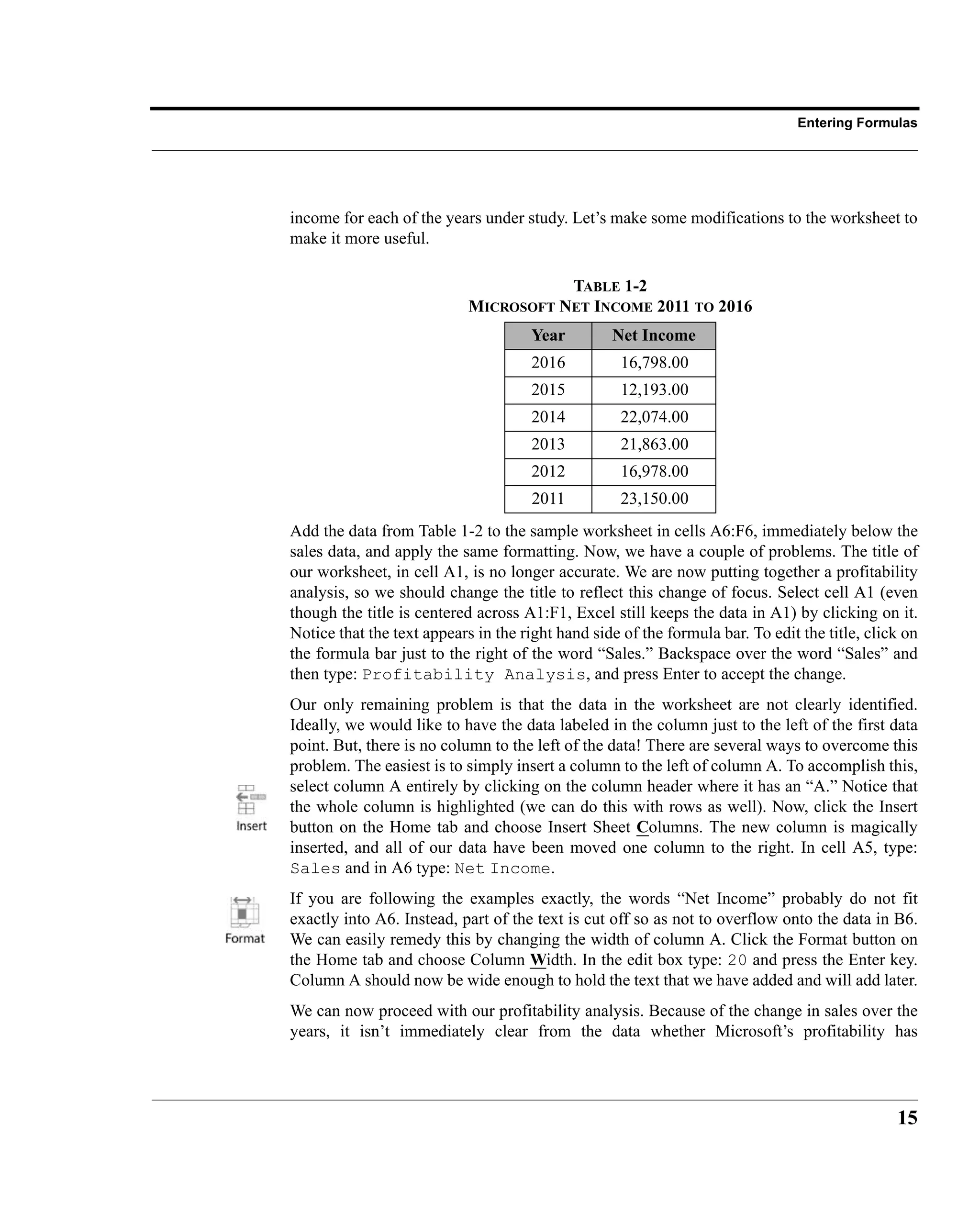
3. The actual weights are 53.50% in stock A and 46.50% in stock B. We leave it as an exercise for you
to find these weights using the Solver.
CHAPTER 14: Portfolio Statistics and Diversification
434
Portfolios with More than Two Securities
Obviously, we can create portfolios of more than two securities. Most individuals who own
stocks own more than two. Corporations have many ongoing projects and multiple brands,
and many mutual funds own hundreds of stocks and/or other securities.
Regardless of the number of securities in a portfolio, the expected return is always a
weighted average of the individual expected returns. The standard deviation is, however,
more complicated. Recall that when we were evaluating the standard deviation of the two-
stock portfolio, we had to account for the covariance between the two stocks. Similarly,
when we have a three-stock portfolio, we must account for the covariance between each pair
of stocks. The standard deviation of a three-stock portfolio is thus given by (using the
covariance form):
(14-8)
Obviously, the expression for the portfolio standard deviation gets to be cumbersome for
more than two securities. To add a fourth security to equation (14-8) would require four
additional terms. Therefore, when more than two securities are included, the expression is
usually written as:
(14-9)
or, in the equivalent covariance form:
(14-10)
Equations (14-9) and (14-10), while not exactly simple, will calculate the standard deviation
of a portfolio of any number of securities.
Creating a Variance/Covariance Matrix
As we have seen, in order to calculate the standard deviation (or variance) of a portfolio, we
need to know the weights allocated to each security, standard deviation (or variance) of each
security, and the covariance between each pair of securities. We have already demonstrated
how to calculate all of these items; however, the pairwise covariances are most easily
displayed in a matrix. The variance/covariance matrix also makes the calculation of the
portfolio standard deviation much easier.
σP w1
2
σ1
2
w2
2
σ2
2
w3
2
σ3
2
2w1w2σ1 2
, 2w1w3σ1 3
, 2w2w3σ2 3
,
+ + + + +
=
σP wiwjri j
, σiσj
j 1
=
N
∑
i 1
=
N
∑
=
σP wiwjσi j
,
j 1
=
N
∑
i 1
=
N
∑
=
435
Portfolios with More than Two Securities
EXHIBIT 14-5
STOCK RETURN DATA FOR VARIANCE/COVARIANCE MATRIX
Excel has a built-in tool to create a variance/covariance matrix. Before seeing how it works,
create a new worksheet with the returns for the four stocks shown in Exhibit 14-5 and
rename it Stock Data. Be sure to calculate the expected returns and standard deviations
because they will be required later.
FIGURE 14-2
THE COVARIANCE DIALOG BOX
To create the covariance matrix, click the Data Analysis button on the Data tab and then
choose Covariance from the list. This will launch the dialog box shown in Figure 14-2.
Enter B1:E6 in the Input Range edit box. We have included the labels in the first row. This
isn’t required, but it makes the output easier to read. Make sure to check the Labels in first
row box, otherwise you will get an error message. Place the output in H1.
Exhibit 14-6 shows the resulting covariance matrix. The covariance between any two stocks
can be read at the intersection of the appropriate row and column. For example, cell J4
contains the covariance between UFO and SOP (0.0082). The numbers along the diagonal
are the variances of the returns for each stock.4
4. The covariance of a variable with itself is the same as the variance of that variable.
CHAPTER 14: Portfolio Statistics and Diversification
436
EXHIBIT 14-6
THE POPULATION VARIANCE/COVARIANCE MATRIX
Note that the upper half of the matrix is empty. That is because the covariance matrix is
symmetric, so those cells would be a mirror image of those in the lower diagonal.
Unfortunately, Excel’s covariance tool calculates the population covariances, and we are
using sample covariances. So, this tool is not as useful as we would like. We will see how to
fix this in the next section.
Using Matrix Algebra to Calculate the Variance/Covariance Matrix
Excel’s covariance tool has three drawbacks: (1) It only creates the lower diagonal; (2) it
only calculates population covariances; and (3) it uses formulas for the variances, but not the
covariances. The last point means that the variance/covariance matrix won’t update correctly
if the returns are changed. To fix these problems, we could edit the matrix so that it uses
formulas (the COVARIANCE.S function) in all of the cells or we could use matrix algebra.
Because Excel has built-in functions to do matrix calculations, it is straightforward to create
the variance/covariance matrix using a single array formula. This has the benefit of
eliminating the deficiencies of the covariance tool, and it is faster as well. Using matrix
notation, the sample variance/covariance matrix (V) is calculated as:
(14-11)
where D is the difference matrix, D' is the transpose of D, and n is the number of returns for
each security. The difference matrix is a matrix of the returns less the expected return. Matrix
multiplication can be done using the MMULT function:
MMULT(ARRAY1, ARRAY2)
where both arguments are ranges on the worksheet or in memory. Following the rules of
matrix algebra, the number of columns in ARRAY1 must be equal to the number of rows in
V
D′D
n 1
–
-----------
-
=
437
Portfolios with More than Two Securities
ARRAY2. We also need to calculate the transpose of the difference matrix, so we can use the
TRANSPOSE function:
TRANSPOSE(ARRAY)
where ARRAY is a range on the worksheet or in memory. Because MMULT and TRANSPOSE
inherently return multiple values, they are array functions. Therefore, you must select a
range that will hold all of the output (instead of a single cell) and press Shift+Ctrl+Enter
when entering them from the formula bar. This also means that you only need to enter the
formula once to get all of the results.
Because we are using an array formula, we can calculate the difference array in memory,
rather than creating it on the worksheet. To create the covariance matrix, select I2:L5 and
then enter: =MMULT(TRANSPOSE(B2:E6-B7:E7),(B2:E6-B7:E7))/4. This will
create the output shown in Exhibit 14-7. If you get a #VALUE! error instead, then you need
to remember to enter the formula using Shift+Ctrl+Enter.5
EXHIBIT 14-7
THE SAMPLE VARIANCE/COVARIANCE MATRIX
This is similar to the output of the covariance tool, except that it is the full sample variance/
covariance matrix and will update automatically if any of the returns are changed. It will also
facilitate the calculation of the portfolio standard deviation in the next section.
In this example, because we are using historical data, we are assuming that all possible
outcomes are equally likely. However, we often have probability distributions with unequal
probabilities. In that case, assuming that the probabilities are in A2:A6, we would change the
above formula to: =MMULT(TRANSPOSE(A2:A6*(B2:E6-B7:E7)),(B2:E6-B7:E7)). Try it
by replacing each of the years in A2:A6 with 0.20 (20% probability). This will give the same
population covariance matrix as Exhibit 14-6 but with the flexibility of changing the
probabilities. Remember to reset the formula to match Exhibit 14-7 before continuing.
5. On the official Web site www.cengagebrain.com/, you can download the cov-matrix.xlam add-in
that creates a variance/covariance matrix with some additional capabilities and options. Once
installed, it will appear on the Data tab. You can learn more at: www.tvmcalcs.com/blog/comments
/update_to_variance_covariance_matrix_builder_for_excel_2010_and_2013.
CHAPTER 14: Portfolio Statistics and Diversification
438
Calculating the Portfolio Standard Deviation
We have seen earlier that we can use equation (14-10) to calculate the portfolio standard
deviation. However, the number of terms in that equation grows very quickly as the number
of securities increases. It simply isn’t practical to type in that equation if there are more than
two or three securities. The total number of covariances (including variances) required in the
formula is given by:
(14-12)
Equation (14-12) counts only the lower half of the covariance matrix as shown in Exhibit 14-6
(there are covariances). The full covariance matrix in Exhibit 14-7 requires
N
2
covariances to fill the entire matrix.
Therefore, it is impractical to try to create a normal worksheet formula to calculate the
portfolio standard deviation of a portfolio with more than a few securities. Not only would
the formula be very long but the chance of making an error is high. Therefore, we should
either use matrix algebra or a user-defined function to do the calculation. We will
demonstrate both techniques in this section.
We have all the data required to calculate the portfolio standard deviation, except for the
weights. Let’s begin by assuming that our portfolio will hold all four stocks in equal
proportions (i.e., 25% in each). Starting in A10, set up the data as shown in Exhibit 14-8.
In any portfolio, the weights of the individual securities must sum to 100%. So, as a check,
in B15 enter the formula: =SUM(B11:B14). To calculate the expected return of the
portfolio in B16 enter: =SUM(TRANSPOSE(B11:B14)*$B$7:$E$7) as an array
formula. Note that we need to transpose one of the ranges because their orientation differs.
The expected return of the equally weighted portfolio is 9.77%.
EXHIBIT 14-8
CALCULATING THE PORTFOLIO STANDARD DEVIATION
We can restate equation (14-10) to calculate the portfolio standard deviation in matrix
notation:
Number of Covariances
N N 1
+
( )
2
---------------------
-
=
4 4 1
+
( ) 2
⁄ 10
=
439
The Efficient Frontier
(14-13)
where W is the column vector (range) of weights, V is the variance/covariance matrix, and
W' is the transpose of the weight vector. In B17 enter the formula: =SQRT(MMULT(
MMULT(TRANSPOSE(B11:B14),$I$2:$L$5),B11:B14)). Remember to enter the
formula using Shift+Ctrl+Enter because it is an array formula. You should find that the
portfolio standard deviation is 8.56%.
Instead of using the matrix functions, we can use the FAME_PORTVAR1 user-defined
function from the FameFncs.xlam add-in. This function calculates the portfolio variance
given the variance/covariance matrix and the weights. It is defined as:
FAME_PORTVAR1(VARCOVMAT,WEIGHTS)
where VARCOVMAT is the variance/covariance matrix and WEIGHTS is the range of weights for
each security. To calculate the standard deviation in B17, replace the formula with:
=SQRT(FAME_PortVar1($I$2:$L$5,B11:B14)). Your answer should be the same.
You can experiment by changing the weights to see how the expected return and standard
deviation changes. There are an infinite number of portfolios that can be created from these
stocks by varying the weights.
The Efficient Frontier
As noted above, an infinite number of portfolios can be constructed from any universe of
securities. Some will be better than others. If we were to create a graph showing the risk and
return combination for every possible portfolio, it would be known as the feasible set.
FIGURE 14-3
THE FEASIBLE SET AND EFFICIENT FRONTIER
σP W′VW
=
CHAPTER 14: Portfolio Statistics and Diversification
440
Figure 14-3 shows the feasible set and some additional information. Notice that portfolios A,
B, and C are within the feasible set, so they could be created. However, portfolio B is on the
edge of the feasible set and has the same expected return as A, but with less risk. Therefore,
given a choice, any investor would prefer B over A. Similarly, portfolio C has the same amount
of risk as A, but it has a much higher return. So, any investor would prefer C over A.
Portfolios B and C are both on the upper edge of the feasible set, which is known as the
efficient frontier. Portfolios that are located on the efficient frontier will always be preferred
over portfolios that are inside the feasible set because they offer either (1) a higher return
with the same risk or (2) the same return with less risk. For this reason, investors will always
choose from among the portfolios that lie on the efficient frontier.
Unless we know an investor’s utility function, however, we cannot determine which
portfolio on the efficient frontier would be chosen by that investor. For example, we cannot
say whether you would prefer B or C (or some other portfolio on the efficient frontier)
without knowing your utility function. We will examine the process of choosing the optimal
portfolio with a utility function in a later section.
Finally, note the portfolio labeled “Minimum Variance Portfolio.” This is the least risky
portfolio that is located on the efficient frontier.
Locating Portfolios on the Efficient Frontier in Excel
Finding the portfolios that lie on the efficient frontier is a quadratic (nonlinear) optimization
problem. Specifically, we want to find the set of portfolios that minimize the risk for each
feasible expected return subject to two (sometimes three or more) constraints: (1) The sum
of the weights must equal 1; (2) the calculated return must equal the specified target return;
and, sometimes, (3) each of the weights must be between 0 and 1. The third constraint
specifies that short sales are not allowed, which is a common constraint for individual and
institutional investors. Also note that corporations cannot short sell their projects, so that
constraint would often be appropriate. For our theoretical purposes, we will allow short sales
and, therefore, disregard constraint 3. We will also assume that the proceeds from the
shorted securities can be used to purchase more of the long positions.
In Chapter 12 (pages 378 to 382), we used the Solver to find the solution to an optimal capital
budgeting problem. We can use the Solver for any type of optimization, so we will use it to
locate a couple of the portfolios on the efficient frontier. Because the efficient frontier begins
at the minimum variance portfolio, we will first solve for the set of weights for our four stocks
that result in the smallest possible portfolio standard deviation, without regard to the return.
This is the minimum variance portfolio that was pictured in Figure 14-3.
Click the Solver button on the Data tab to get the Solver dialog box as shown in Figure 14-4.
441
The Efficient Frontier
FIGURE 14-4
USING THE SOLVER TO GET THE MINIMUM VARIANCE PORTFOLIO
For the minimum variance portfolio, we are seeking to minimize the portfolio standard
deviation in B17, so that is the Target Cell. Select the Min radio button so that the Solver
will minimize the function. The By Changing Variable Cells should be the weights in
B11:B14. Now, click the Add button so that we can add the constraint: B15= 1. This assures
that the weights will add up to 1 (i.e., 100% of your money will be invested).
Because we are solving a nonlinear optimization problem, we cannot use the Simplex LP
solver as we did in Chapter 12. Instead, be sure to set the solving method to use the GRG
Nonlinear solver. The default options should work fine, so we don’t need to change them, but
be sure that Make Unconstrained Variables Non-Negative is not checked.
Make sure that your dialog box looks like the one in Figure 14-4 and then click the Solve
button. After a few seconds, you should be notified that Solver has found a solution. Choose
to keep that solution, and you will see that the expected return of the minimum variance
portfolio is 8.84% and the standard deviation is 5.87%.6
6. When allowing short sales, as we are here, we can analytically solve for the weights of the
minimum variance portfolio directly using:
where V--1
is the inverse of the variance/covariance matrix and e is a column vector of ones. See Grinold,
R.C. & Kahn, R.N. (1995), Active Portfolio Management. Chicago: Irwin Professional Publishing.
Min Var Weights
V
1
–
e
e′V
1
–
e
---------------
-
=
CHAPTER 14: Portfolio Statistics and Diversification
442
We will follow an almost identical process to find one more portfolio on the efficient
frontier. We only need one more because every portfolio on the frontier can be calculated
directly from any two frontier portfolios.
We need to specify the target return for this other portfolio and add another constraint. First,
copy B10:B17 across to column C. This will set up the formulas for the other portfolio. In
C10 change the name of the portfolio to: Max Return.
Now that we have the cells set up, relaunch the Solver. Change the Target Cell to C17, the
Changing Cells to C11:C14, and then change the existing constraint to: C15 = 1. We also
need to add a new constraint so that: C16 = C7. This ensures that the calculated return (C16)
is equal to our target return (C7) for this portfolio. The target return will be the same as that
of the stock with the highest return (UFO in this example).7
The main Solver dialog box
should now look like the one in Figure 14-5.
FIGURE 14-5
SOLVING FOR THE WEIGHTS FOR PORTFOLIO 2
Click the Solve button and you should find that the standard deviation of the Max Return
portfolio is 15.39%. Your worksheet should look like the one in Exhibit 14-9. The
negative weights indicate stocks that should be sold short, with the proceeds being used
7. This is just a convenience, and we could set it to any other value. In fact, because we are allowing
short sales, just about any return is achievable in theory. If we did not allow short sales, then the
highest achievable return would be equal to that of the highest returning stock.
443
The Efficient Frontier
to purchase more of the other stocks. Now compare the riskiness of the Max Return
portfolio to that of UFO. Both have exactly the same expected return (11.02%), but our
new portfolio achieves that return with less risk. This is a good example of
diversification in action.
EXHIBIT 14-9
TWO EFFICIENT FRONTIER PORTFOLIOS
Charting the Efficient Frontier
We have located two portfolios that are on the efficient frontier, and we could create a chart
now. However, having only two portfolios will produce a line, not a smooth curve, so we
will create several more before charting the frontier. Before beginning, select C10:C17 and
move it to L10:L17 by dragging. This will give us some space to create the other portfolios.
We will now make use of a special property of portfolios on the efficient frontier: Every
portfolio on the frontier is a combination of two other portfolios that are on the frontier, so
the weights are a weighted average of the weights in the other two portfolios:
(14-14)
We have the weights for two portfolios already, so we’ll start by creating a portfolio that is
exactly 90% invested in the Minimum Variance portfolio and 10% invested in the Max
Return portfolio (though we could use any two portfolios for which we know the weights).
This will be located toward the left part of the efficient frontier.
In C9 enter the weight: 90%. Enter a formula to calculate the weight of LOON in C11:
=C$9*$B11+(1-C$9)*$L11. You should see that LOON will have a weight of 18.87%
in this new frontier portfolio. Copy this formula down through C14 to get the weights of the
other stocks. The weight in row 9 is the proportion that is invested in the minimum variance
portfolio, and the remainder of your funds will be invested in the maximum return portfolio.
To get the weights, returns, and standard deviations for the remaining portfolios, simply
copy C11:C17 across to D11:K17. Your worksheet should match Exhibit 14-10.
WP xWMin Var 1 x
–
( )WMax Return
+
=
CHAPTER 14: Portfolio Statistics and Diversification
444
EXHIBIT 14-10
WEIGHTS FOR PORTFOLIOS ON THE EFFICIENT FRONTIER
Once the portfolios are located, then creating a chart of the efficient frontier is as easy as
creating a scatter chart. If you refer back to Figure 14-3, you will see that we want the
expected returns on the y-axis and the standard deviations on the x-axis. Select A16:L17 and
insert a scatter chart with straight lines and markers. At first, your chart will have the
variables on the wrong axes, so we need to edit the chart to fix this problem.
FIGURE 14-6
A CHART OF THE EFFICIENT FRONTIER
Right-click in the chart and choose Select Data… from the shortcut menu. In the Select Data
Source dialog box, click the Edit button. Now change the Series X values so that it points to
B17:L17. Change the Series Y values to B16:L16. This will “flip” the chart so that the
values are on the correct axes. After adding the appropriate chart title and axis titles, your
chart should look like the one in Figure 14-6.
The efficient frontier in the chart isn’t quite a smooth curve. This is because we have only
plotted 11 portfolios. If we had found, say, 20 portfolios with more of them near the apex of
the curve, then it would be much smoother. Another way is to change the chart type to
scatter with smooth lines. This is generally not recommended because it applies artificial
smoothing to the data so that the chart is not necessarily a good representation of the data.
445
The Capital Market Line
So far, we have included only risky assets in the portfolios. Now imagine that a risk-free
asset is also available. This is an asset with a standard deviation of returns of zero and an
expected return equal to the risk-free rate. Of course, this asset exists only in theory. In the
real world, U.S. Treasury bills come closest to being risk-free assets because they are free of
default risk. We will use a risk-free asset with an expected return of 7%. We want to see how
the efficient frontier changes when a risk-free asset is added to the universe of securities.
To begin, create a copy of the worksheet that you used to create Exhibit 14-9. We will make
a few modifications to include this additional asset. In F1 enter Risk-Free for the name of
the asset and then enter 7% as the return for each year. Now copy E7:E8 to F7:F8 to calculate
the expected return and standard deviation of the risk-free asset. This section of your
worksheet should now look like the one in Exhibit 14-11.
EXHIBIT 14-11
DATA INCLUDING THE RISK-FREE ASSET
We also need to add the risk-free asset to the variance/covariance matrix. In M1 and H6
enter the label: Risk-Free. Now select I2:M6 and enter the formula: =MMULT(
TRANSPOSE(B2:F6-B7:F7),(B2:F6-B7:F7))/4. This is the same formula that we
used previously, except that the ranges have been expanded to include the risk-free asset.
The variance/covariance matrix is shown in Exhibit 14-12.
EXHIBIT 14-12
THE VARIANCE/COVARIANCE MATRIX WITH THE RISK-FREE ASSET
CHAPTER 14: Portfolio Statistics and Diversification
446
Note that the covariance (and correlation) of the risk-free asset with any other asset is 0.
Because the returns on the risk-free asset don’t vary, they certainly can’t vary with the
returns on any other asset. It is this fact that makes the risk-free asset so good for
diversification purposes, as we will see shortly.
Finally, we need to add the risk-free asset into the portfolio section of the worksheet. Select
row 15 and insert a new row. Type Risk-Free into A15, and then edit the formulas in
B16, B17, and B18 so that they include the new data. The new formulas are:
Remember that the formulas in B17 and B18 are array formulas, so they must be entered
using Shift+Ctrl+Enter.
Now, we will run the Solver exactly as before. Remember that we are allowing unlimited
short sales because that is one of the assumptions made in the derivation of the capital
market line (CML). Furthermore, we assume that the proceeds from short sales can be used
to purchase additional long positions in other assets.
The minimum variance portfolio will be 100% invested in the risk-free asset because the
portfolio standard deviation can never be below 0. Therefore, set the weights in B11:B14 to
0% and B15 to 100%. You should see that the return on this portfolio is 7% and the standard
deviation is 0%. We don’t need to use the Solver for this portfolio, though you could use it.
As before, we will minimize the standard deviation of the Max Return portfolio, so the Target
Cell is L18. The Changing Cells are the weights in L11:L15. Because we are allowing short
sales, we only need to set two constraints. The first is that the sum of the weights must equal 1,
so click the Add button and enter the constraint: L16 = 1. The second is that the calculated
portfolio return must equal the target return (11.02%), so enter the constraint: L17 = C7.
B16: =SUM(B11:B15)
B17: =SUM(TRANSPOSE(B11:B15)*$B$7:$F$7)
B18: =SQRT(MMULT(MMULT(TRANSPOSE(B11:B15),$I$2:$M$6),B11:B15))
447
The Capital Market Line
FIGURE 14-7
SOLVER SETTINGS FOR THE MAX RETURN PORTFOLIO
Make sure that your Solver dialog box matches the one shown in Figure 14-7, and then click
the Solve button. You should find that the expected return for the Max Return portfolio is
11.02% and the standard deviation is 11.51%. The other portfolios should have updated
automatically. Your worksheet should look like the one pictured in Exhibit 14-13.
EXHIBIT 14-13
PORTFOLIOS ON THE CML
CHAPTER 14: Portfolio Statistics and Diversification
448
Charting the Capital Market Line
We can now create a chart of the CML. First, return to your efficient frontier worksheet and
copy the chart of the efficient frontier (Figure 14-6). Paste the chart into the CML worksheet.
This will maintain the links to the original data, so the chart should look the same.
We want to add the CML to this chart so that we can directly compare the efficient frontier
with the CML. Right-click in the chart and choose Select Data. Next, click the Add button so
that we can add the new series. In the Series name edit box, type: =”CML” to name the
series. For the Series X values select B18:F18, and for the Series Y values select B17:F17.
Your chart should now look like the one in Figure 14-8.
FIGURE 14-8
CHART OF THE CML AND THE EFFICIENT FRONTIER
There are several important points to note about this chart. First, notice that the CML is a
straight line. That is, adding a risk-free asset to our universe of securities creates a linear
risk/return trade-off.
Second, notice that the CML provides a better risk/return trade-off than the efficient frontier.
For any portfolio that lies on the efficient frontier, there is a superior portfolio on the CML.
This is important because it means that if a risk-free asset (such as Treasury bills) is
available, then investors will no longer choose portfolios from among those on the efficient
frontier. Rather, they will choose a portfolio that lies on the CML.
Finally, notice that there is one point of commonality between the CML and the efficient
frontier. The CML is tangent to the efficient frontier at the location of a very special
portfolio known as the market portfolio. The market portfolio contains all risky assets in
proportion to their market values. In other words, it is a capitalization-weighted portfolio.
The market portfolio does not hold the risk-free asset. Every other portfolio on the CML is
made up of some portion of the risk-free asset and the market portfolio. Therefore, all
investors will invest in a portfolio that holds the market portfolio and the risk-free asset
(i.e., somewhere on the CML).
449
The Capital Market Line
This means that the investment decision is the same for all investors—they all invest in the
market portfolio. The only choice that they have to make is how much of the risk-free asset
to own. This is known as the financing decision. A long position is equivalent to lending at
the risk-free rate, while a short position in the risk-free asset is equivalent to borrowing at the
risk-free rate and using the proceeds to purchase more of the market portfolio. In other
words, by introducing a risk-free asset, we have separated the investing and financing
decisions. This is known as the Tobin’s separation theorem and is illustrated in Figure 14-9.
FIGURE 14-9
THE CML AND THE SEPARATION THEOREM
Identifying the Market Portfolio
The market portfolio plays a central role in modern portfolio theory. It would be helpful if
we could identify its exact location on the efficient frontier. By looking at Figure 14-9, you
should be able to see that the equation (in slope-intercept form) of the CML is:
(14-15)
The slope of the CML is known as the market price of risk and is given by:
(14-16)
The market price of risk is a measure of the excess return per unit of risk (i.e., the risk/return
tradeoff) that is available in the market. Because the CML is a straight line, it has the same
slope at every point. Therefore, we can generalize that to any portfolio by substituting for
RM and σM. This gives us the Sharpe ratio, which is a well-known portfolio performance
metric. The equation for the Sharpe ratio is:
E RP
( ) RF
RM RF
–
( )
σM
-----------------------
-σP
+
=
Slope of CML
RM RF
–
( )
σM
-----------------------
-
=
CHAPTER 14: Portfolio Statistics and Diversification
450
(14-17)
In Figure 14-8, it appears that the market portfolio is very close to portfolio 7 on the efficient
frontier, but we don’t know for sure what the weights are. We can find its exact position on
the efficient frontier by using the Solver to find the weights for the portfolio that maximizes
the Sharpe ratio.
The risk-free asset could be combined with any portfolio on the efficient frontier, with the
resulting line known as a capital allocation line. Investors will prefer portfolios on the
steepest capital allocation line, which is the one with the highest Sharpe ratio (i.e., the CML).
We will use M10:M19 to solve for the market portfolio. So, select L10:L19 and copy the
range to M10:M19. Change the label in M10 to: Market Portfolio, and in A19 enter:
Sharpe Ratio. In B19 enter the formula: =IFERROR((B17-$B$17)/B18,0) and
then copy it across C19:M19. We are using the IFERROR function to avoid a #DIV/0! error
for the minimum variance portfolio.
Our goal is to use the Solver to maximize the Sharpe ratio in M19 by changing the weights
in M11:M15, subject to the constraints that M16 = 1 and M15 = 0 (the market portfolio does
not hold the risk-free asset). Launch the Solver and set up the dialog box so that it matches
Figure 14-10.
FIGURE 14-10
SOLVER DIALOG BOX TO FIND THE MARKET PORTFOLIO
Sharpe Ratio
RP RF
–
( )
σP
----------------------
-
=
451
The Capital Market Line
After running the Solver, you will find that the market portfolio has a Sharpe ratio of 0.3494,
which is also the slope of the CML. Your output should match Exhibit 14-14 (some columns
are hidden).
EXHIBIT 14-14
THE MARKET PORTFOLIO AND OTHERS ON THE EFFICIENT FRONTIER
The market portfolio is located at the point of tangency between the CML and the efficient
frontier because that is the point at which their slopes are equal. We have now exactly
identified the market portfolio. We know how much of each stock it holds, and we know its
return and standard deviation.
As noted earlier, the market portfolio is located very close to portfolio 7 on the efficient
frontier. You can add it to the chart of the efficient frontier and CML (Figure 14-8). Right-
click the chart and choose Select Data. Click the Add button and set the Series name to
Market Portfolio, the X value to the market portfolio’s standard deviation, and the Y
value to its expected return. Figure 14-11 shows the result.
FIGURE 14-11
THE MARKET PORTFOLIO WITH THE CML AND EFFICIENT FRONTIER
CHAPTER 14: Portfolio Statistics and Diversification
452
Utility Functions and the Optimal Portfolio
Each investor will prefer a different portfolio; which one depends upon their preferences
regarding risk and return. As noted in Chapter 9, some investors are more tolerant of risk
than others, and we would expect these investors to choose a riskier portfolio with a higher
expected return. In order to identify the optimal portfolio we need to know the investor’s
utility function and degree of risk aversion. For our purposes, we will use the following
utility function (which is just one of many possible utility functions):
(14-18)
where E(R) is the expected return of the portfolio, σ2 is the variance, and A is the coefficient
of relative risk aversion (-∞ ≤ A ≤ ∞). When A > 0 the investor is risk averse, and higher
values of A indicate greater risk aversion (i.e., less risk tolerance). When A = 0, the investor
is risk neutral. Equation (14-18) will allow us to calculate the utility of a portfolio on the
efficient frontier, and to find the portfolio that maximizes the utility for any given investor.
Charting Indifference Curves
An indifference curve shows all possible combinations of risk and return that would provide
the same amount of utility for a given investor. We can rearrange equation (14-18) as
follows:
(14-19)
which will allow us to specify levels of utility, risk aversion, and risk and then solve for the
return. We can then plot the combinations that result in the specified level of utility. When
we plot multiple indifference curves, we call it an indifference map.
Create a new worksheet and name it Indifference Curves. In A1 enter: Risk Aversion,
and in B1 enter: 2.5. In A2 enter: Utility, and in B2:D2 enter 7%, 8%, and 9%. In
A4:A19 enter a series going from 0 to 15% in 1% increments. In B4 enter the formula to
calculate the return: =B$2+0.5*$B$1*$A4^2, and copy it over the range. Now copy the
chart that you created for Figure 14-6 into this worksheet, and add each of the indifference
curves. Your worksheet should look like the one in Exhibit 14-15.
We could add many more indifference curves, as there are an infinite number of them.
However, we are seeking the portfolio on the efficient frontier that maximizes the expected
utility for the investor. This portfolio will be located at the point where an indifference curve
is tangent to the efficient frontier. Indifference curve 3 is close to the frontier, but outside of
the feasible set. So, the investor cannot quite achieve that level of utility.
E U
( ) E R
( )
1
2
--
-Aσ
2
–
=
E R
( ) E U
( )
1
2
--
-Aσ
2
+
=
453
Utility Functions and the Optimal Portfolio
EXHIBIT 14-15
THE EFFICIENT FRONTIER AND THREE INDIFFERENCE CURVES
To find the optimal portfolio, return to the worksheet that you used to create the CML. Copy
M10:M19 over to column N. In A20 enter the label: Utility, and then in B20 enter the
formula: =B17-0.5*'Indifference Curves'!$B$1*B18^2. Copy this across
C20:N20 to calculate the utility for each portfolio.
Finally, launch the Solver and set it to maximize cell N20 by changing N11:N15 with a
constraint of N16 = 1. You should find that the portfolio with the highest utility has an
expected return of 11.88% and a standard deviation of 13.98%. This is the optimal portfolio
for the investor with a risk aversion coefficient of 2.5. You can easily change the risk
aversion coefficient and then find the optimal portfolio for a different investor.
Exhibit 14-16 shows the CML and the efficient frontier along with the indifference curve for
the highest achievable level of utility (0.0944) for this investor. It was created in the same
way as Exhibit 14-15, except that only the tangency indifference curve was calculated.
Notice that the optimal portfolio is well above the efficient frontier. This portfolio is only
available because we added the risk-free asset. Without the risk-free asset, the optimal
portfolio would have an expected return of 9.78% and utility of 0.0888. We leave it as an
exercise for you to find this portfolio using the Solver.
CHAPTER 14: Portfolio Statistics and Diversification
454
EXHIBIT 14-16
OPTIMAL PORTFOLIO FOR THE INVESTOR
The Capital Asset Pricing Model
One of the best known models in finance is the capital asset pricing model (CAPM). In this
section, we will see how to derive this model and its famous risk measure, beta (β). Recall
that the market portfolio sits at the tangency point of the CML and the efficient frontier. So,
at that point, the slopes are equal. The slope of the efficient frontier at point M is given by:
(14-20)
where RP is the expected return on a portfolio, and σP,M is the covariance between that
portfolio and the market portfolio. If we now set equation (14-20) equal to equation (14-16),
then we get:
Now, cross multiply and simplify to solve for RP and the solution is:
Slope of frontier at M
RP RM
–
( )σM
σP M
, σM
2
–
( )
-------------------------------
-
=
RP RM
–
( )σM
σP M
, σM
2
–
( )
-------------------------------
-
RM RF
–
( )
σM
-----------------------
-
=
455
The Capital Asset Pricing Model
(14-21)
Note that beta is defined as:
(14-22)
Finally, substitute equation (14-22) into equation (14-21) to get the familiar form of the
CAPM with beta as its measure of risk:
(14-23)
According to modern portfolio theory, there are two types of risk: (1) market (or systematic)
risk and (2) company-specific (or unsystematic) risk. Market risk is the risk associated with
market-wide factors, such as unexpected changes in GDP or inflation rates. Market risk
affects all investments to some degree. Company-specific risk factors (such as increased
competition or employees going on strike) affect only specific individual investments. When
we create a diversified portfolio, the risk that we are eliminating is the company-specific, or
diversifiable, risk. Market risk cannot be diversified away.
The CAPM says that the portfolio return is equal to the risk-free rate plus a risk premium. The
risk premium is determined by the product of the market risk premium and the portfolio beta.
Beta is an index of market risk, so it tells us how sensitive the portfolio is to market risk factors.
Note that the CAPM does not contain a risk premium associated with company-specific risk.
Because company-specific risks can be diversified away, investors will not receive any
additional return for holding a less than perfectly diversified portfolio.
The Security Market Line
When we create a chart of the CAPM equation, it is referred to as the security market line
(SML). In this section, we will calculate the betas of our four stocks and create a chart of the
SML. To begin, return to the worksheet that you used to create Exhibit 14-14.
We have already determined the weights of each of the stocks in the market portfolio and the
expected return and standard deviation of that portfolio. We will now work backward to
calculate the market portfolio’s return in each year. In F1 enter the label: Market.
Remember that the return on a portfolio is a weighted average of the returns of the individual
securities. So, we can calculate the rate of return on the market portfolio in 2013 by entering:
=MMULT(B2:E2,$M$11:$M$14) into F2. Copy that formula to F3:F6 to complete the
calculations. Now we can copy E7:E8 to F7:F8 to get the expected return and standard
deviation of the market portfolio. You should get the same values as we previously
calculated in M16:M17.
RP RF
σP M
,
σM
2
-----------
- RM RF
–
( )
+
=
βP
σP M
,
σM
2
-----------
-
=
RP RF βP RM RF
–
( )
+
=
CHAPTER 14: Portfolio Statistics and Diversification
456
We can calculate the betas for each of the stocks using equation (14-22). In A9 enter: Beta,
and calculate the beta for LOON in B9 with the formula: =COVARIANCE.S(B2:B6,
$F$2:$F$6)/$F$8^2. You should find that LOON’s beta is 1.339. Now copy that
formula across C9:F9 to calculate the other betas. Your worksheet should match the one in
Exhibit 14-17.
EXHIBIT 14-17
BETAS FOR THE STOCKS AND THE MARKET PORTFOLIO
To chart the SML, we will need to add the data for the risk-free asset. In A21 type: Beta
and in A22 type: Exp. Return. In B20 enter: Risk-Free, in B21 enter: 0.000, and in
B22 enter: 7.00%. Now copy the labels from B1:F1 and paste them into C20:G20. In C21
enter the formula: =B9, and in C22 enter: =B7. Copy the formulas from C21:C22 across
D21:G22.
To create the chart, select A21:G22 and insert a scatter chart. Your chart should now look
like the one in Figure 14-12.
FIGURE 14-12
THE SECURITY MARKET LINE
457
Summary
Summary
Diversification is the process of allocating capital across multiple investments in order to
reduce the riskiness of the portfolio. Diversification reduces risk because assets are not
perfectly positively correlated, so volatility in one asset tends to cancel out volatility in
another. Therefore, it is important to choose assets that are not highly correlated.
We demonstrated that the expected return of a portfolio is a weighted average of the
expected returns of the individual assets, but that the standard deviation is more complicated.
When calculating the portfolio standard deviation, we have to include each of the pairwise
covariances. We showed how to calculate the variance/covariance matrix and then how to
use it to calculate the portfolio standard deviation.
We then discussed the efficient frontier and why investors will choose only from among the
portfolios that are located on it when only risky assets exist. We used the Solver to find a
sample of the portfolios on the efficient frontier and then created a chart of it.
Next, we added a risk-free asset to our universe of securities and showed how the efficient
frontier changes into the CML. Portfolios on the CML provide a better risk/return trade-off
than those on the efficient frontier. When a risk-free asset is available, investors will choose
to hold it in some combination with the market portfolio. The exact portfolio chosen will
depend upon the investor’s utility function.
Finally, we derived the CAPM by equating the slopes of the CML and the efficient frontier.
This provided us with an important way to view the risk/return trade-off and a measure
of risk known as beta. Beta is an index of systematic risk and shows how sensitive an asset
is to market risk factors. We also saw that if the CAPM is correct investors are only
rewarded for taking on market risk. There is no reward for holding a less than perfectly
diversified portfolio.
TABLE 14-2
FUNCTIONS INTRODUCED IN THIS CHAPTER*
Purpose Function Page
Calculate the correlation
coefficient
CORREL(ARRAY1, ARRAY2) 431
Calculate the covariance COVARIANCE.S(ARRAY1, ARRAY2) 432
Matrix multiplication MMULT(ARRAY1, ARRAY2) 436
Matrix transpose TRANSPOSE(ARRAY) 437
Calculate the portfolio
variance
FAME_PORTVAR1(VARCOVMAT,WEIGHTS) 439
CHAPTER 14: Portfolio Statistics and Diversification
458
Problems
1. You are considering an investment in the stock market and have identified
two potential stocks (XYZ and ABC) to purchase. The historical returns for
the past five years are shown in the table below.
a. Calculate the average return and standard deviation of returns for each
stock over the past five years. Which stock would you prefer to own?
Would everyone make the same choice?
b. Calculate the correlation coefficient between the two stocks. Does it
appear that a portfolio consisting of XYZ and ABC would provide
good diversification?
c. Calculate the annual returns that would have been achieved had you
owned a portfolio consisting of 50% in XYZ and 50% in ABC over
the past five years.
Calculate the portfolio
variance
FAME_PORTVAR2(CORRMAT,WEIGHTS) N/A
Calculate covariance
using probabilities
FAME_COVAR(VALUES1, VALUES2,
PROBABILITIES)
N/A
Calculate correlation
using probabilities
FAME_CORR(VALUES1, VALUES2,
PROBABILITIES)
N/A
* All functions with names beginning in FAME_ are macros supplied in the FameFncs.xlam
add-in, which is available from the official Web site.
Year XYZ Returns ABC Returns
2013 11.12% 20.05%
2014 15.31% 7.88%
2015 11.86% 16.00%
2016 7.66% 17.69%
2017 15.17% 3.63%
TABLE 14-2 (CONTINUED)
FUNCTIONS INTRODUCED IN THIS CHAPTER*
Purpose Function Page
459
Problems
d. Calculate the average return and standard deviation of returns for the
portfolio. How does the portfolio compare with the individual stocks?
Would you prefer the portfolio to owning either of the stocks alone?
e. Create a chart that shows how the standard deviation of the portfolio’s
returns changes as the weight of XYZ changes.
f. Using the Solver, what is the minimum standard deviation that could
be achieved by combining these stocks into a portfolio? What are the
weights of the stocks that result in this minimum standard deviation?
2. You have decided to investigate a number of exchange-traded funds
(ETFs) in an attempt to build a diversified portfolio. You believe that the
transportation, consumer goods, energy, financials, and health care sectors
are the best in which to invest. To begin, you have gathered the monthly
total returns for the last five years from some ETFs (IYT, IYK, IYE, IYF,
IYH) in each of these sectors.
a. Download the Five ETFs Monthly Returns.xlsx file from the official
Web site www.cengagebrain.com. This contains the data for this, and
the next two problems.
b. What are the average monthly returns and standard deviations for
each of the ETFs?
c. Which performed best on a risk/return basis during this period?
Which was the worst? Use the Sharpe ratio and assume that the risk-
free rate averaged 0.10% per month during this period.
d. Create an equally weighted portfolio of all the ETFs. Calculate the
expected return and standard deviation of this portfolio.
CHAPTER 14: Portfolio Statistics and Diversification
460
3. Using the ETF data from the previous problem:
a. Create a sample variance/covariance matrix using the ETF returns.
Use the matrix algebra functions or the COVARIANCE.S function.
(Hint: The matrix function will be less work.)
b. Using the Solver, find the weights for the minimum variance
portfolio.
c. Using the Solver, find the optimal weights for a portfolio with a return
of 2.0% per month. Now, create nine additional portfolios with
returns between that of the minimum variance and maximum return
portfolios.
d. Create a chart of the efficient frontier. Now add a new series that
shows the returns and standard deviations of the individual ETFs.
How does the efficient frontier compare to the ETFs?
e. Find the weights for the market portfolio. What is its return and
standard deviation?
f. Add the capital market line (CML) to your chart.
4. Do problem 3 again, but this time do not allow short sales (i.e., no
negative weights). You will need to run the Solver for each portfolio on
the efficient frontier.
a. Create a new chart that shows the efficient frontiers from this problem
and problem 3.
b. From which frontier would you prefer to choose your investments?
5. You are considering investing in the following securities and have
developed the probability distributions for their returns over the next year.
a. Calculate the expected return and standard deviation of each security.
Economic
Outlook Probability
Expected Returns
OMG BRB NOOB T-bills
Recession 0.10 –29% –9% 16% 3%
Slow growth 0.20 –14% 3% 11% 3%
Average 0.40 14% 7% 4% 3%
Fast growth 0.20 23% 11% –7% 3%
Boom 0.10 34% 14% –14% 3%
461
Internet Exercise
b. Create a variance/covariance matrix for the four securities. See
page 437 for an example of how to create a formula that uses
probabilities instead of historical (equally weighted) data.
c. Using the Solver, create a set of 11 portfolios that make up the capital
market line. Create a chart of the CML from your results, and add a
plot of the original securities.
d. Find the weights of each security in the market portfolio by
maximizing the Sharpe ratio.
e. How does the risk/return trade-off of the original securities compare
to that available on the CML?
Internet Exercise
1. Choose two stocks from different industries that you think would have a
low correlation. Get the closing prices for each month over the past five
years for both stocks. To get the prices from Yahoo! Finance
(finance.yahoo.com), follow the same procedure as was used in the Chapter 9
Internet Exercise to get the dividends, but this time select Historical Prices
with Monthly frequency rather than Dividends Only. Download the data
into Excel.
a. Calculate the returns for both stocks in each month during the
five-year period using log-price relatives (see equation (13-2) on
page 391).
b. Calculate the average monthly return and standard deviation of
monthly returns for each stock. Using only this information, which of
the two stocks would you have preferred to own over this period?
c. Calculate the correlation coefficient for the two sets of returns using
the CORREL function. Is it as low as you expected?
d. If the historical returns, standard deviations, and correlation fairly
represent the future, calculate the expected return and standard
deviation of a portfolio consisting of 50% invested in each stock.
How does the portfolio compare with the individual stocks?
e. Using the Solver, find the weights for each stock that would result in
the minimum portfolio standard deviation.
462
463
CHAPTER 15 Writing User-Defined
Functions with VBA
Despite its hundreds of built-in functions, Excel doesn’t always have the one you need.
Fortunately, it does provide a method by which you can add your own functions to the
program and use them in your worksheets or distribute them for others to use.
In previous chapters, we have used several custom functions from the FameFncs.xlam add-
in that extend Excel in ways that are useful. Those custom functions, known as user-defined
functions (UDFs), are written in the Visual Basic for Applications (VBA) programming
language. VBA is available in all of the Microsoft Office applications and in some third-
party applications.
After studying this chapter, you should be able to:
1. Describe the two types of “macros” and explain the difference between them.
2. Identify and explain the parts of the VB editor.
3. Write your own VBA user-defined function for any given formula.
4. Write a user-defined function that allows for optional arguments.
5. Use the debugging tools that are available in the VB editor.
6. Create an Excel add-in program.
CHAPTER 15: Writing User-Defined Functions with VBA
464
In this chapter, we will provide a brief demonstration of how to use VBA to create functions
that meet your needs. If you have ever done any computer programming, you will find it
easy to learn. If not, don’t worry. If you can understand a mathematical formula, it is likely
that you will be able to convert it into a user-defined function without much trouble after
reading this chapter.
VBA is quite powerful and can be used for everything from something as simple as
changing the formatting of a cell in a worksheet to writing complete applications that don’t
appear to be Excel worksheets, and everything in between.
Before continuing, be sure to enable the Developer tab in the Ribbon. Click the File tab and
then go to Options. In the Customize Ribbon category, choose Main Tabs in the Customize
the Ribbon drop-down on the right side of the dialog box and place a checkmark next to
Developer in the right-side pane. Click OK, and you will see the tab pictured in Figure 15-1
FIGURE 15-1
THE DEVELOPER TAB
What Is a Macro?
In computer science, a macro is a word or keystroke that serves as a substitute for a long
series of commands. Excel has many built-in macros of this type. For example, you can
press Ctrl+B to make the font in a cell, or range, bold. This is a shortcut for the series of
steps that would otherwise be required. When you press Ctrl+B, Excel will automatically
perform all of those steps behind the scenes. This type of macro is a keystroke macro.
Although we can create VBA programs that replicate the functionality of keystroke macros,
VBA is not, strictly speaking, a macro language. Instead, it is a fully functional object-
oriented programming language. Still, in common usage, VBA programs are often called
macros.
Two Types of Macros
In Excel, there are two types of macros. Closest to the traditional definition of keystroke
macros are procedure macros (also known as subroutines). Procedure macros can do things
such as activating another worksheet, opening a file, formatting a range of cells, and so on.
465
What Is a Macro?
As an example, I have written a procedure macro called “ConvertIS” that I use to reformat
income statements that are imported from a particular database. It does several things, very
quickly and consistently, that would be time consuming to do manually:
1. Deletes several blank rows.
2. Sets the font size, borders, and background colors for each of the cells.
3. Changes some text to my preference.
Because the income statements from this database are all similar, this macro can be used on
every income statement that I import. It saves lots of time and reduces tedium.
Macros such as this one are more easily recorded, and then edited, than written from scratch.
Excel has a macro recorder that will record everything that you do while recording and
convert it into the VBA language. The recorded macro will be saved into a code module
within the VB Editor. Once it is recorded, you can easily assign a key combination to run the
macro, and you can edit it to make it better suit your purposes. Editing recorded macros is an
excellent way to learn the VBA language. You can launch the macro recorder by clicking the
Record Macro button on the Developer tab or by clicking the button on the left side of the
status bar (below the sheet tabs).
Procedure macros can be incredibly useful, but they are not the focus of this chapter. Instead,
we are more concerned with writing functions. Function macros (more correctly called user-
defined functions) cannot modify Excel worksheets like procedure macros. Instead, all that
they can do is to take some inputs (arguments), process them through an algorithm, and then
return a result to the spreadsheet. User-defined functions (UDFs) are identical to the built-in
functions like SUM, PV, GEOMEAN, and so on. The difference is that you can create your
own UDFs that calculate results for which there are no built-in functions.
UDFs are useful for frequently used formulas that would require an excessive amount of
time to type into a cell. A good example of this would be the FAME_TWOSTAGEVALUE
function that is included in the FameFncs.xlam add-in. If you look back to equation (9-5) on
page 260, you will see that this equation would be time consuming to accurately type into a
cell. The UDF saves time and effort and assures accuracy.
In other cases, UDFs can calculate results that would be difficult, or impossible, to perform
in a single cell formula. For example, try to write a worksheet formula to calculate the
payback period for any set of cash flows. Although it is easy to write such a formula for a
particular set of cash flows, making it generic enough to work for any stream of cash flows is
much more difficult. In this case, it is far easier to write a UDF to do the job. That is exactly
what the FAME_PAYBACK function does.
In the next section, we will introduce you to the VB editor that is used to create both types of
macros. Later, we will focus on how to write your own UDFs.
CHAPTER 15: Writing User-Defined Functions with VBA
466
The Visual Basic Editor
Visual Basic macros are not written in worksheets. Instead, they are created in the Visual
Basic editor, which provides many useful tools for writing code, keeping track of it, and
debugging it. The editor can be thought of as a word processor that was specifically designed
for writing macro code. You can open the editor by clicking the Visual Basic button on the
Developer tab or by using Alt+F11 (option+F11 on Mac). The Alt+F11 keystroke will allow
you to easily move back and forth between Excel and the VB editor.
FIGURE 15-2
THE VISUAL BASIC EDITOR
Figure 15-2 shows the VB editor with several useful windows open. Most of your work will
be done in the Code Window, as that is where the macros are written. The Project Explorer
allows you to choose the project and particular code module to work on. The Properties
Window allows you to set properties (names, visibility, behavior) of code modules and
worksheets. The Watch Window allows you to monitor the values of variables as you are
debugging your code, much like the Watch Window in a spreadsheet as shown in Figure 4-7
(page 126). Finally, the Immediate Window is used like a scratchpad to test or evaluate lines
of code that are typed into it. If these windows are not visible on the screen, you can enable
them by selecting them in the View menu of the VB editor.
467
The Visual Basic Editor
The Project Explorer
The Project Explorer shows a list of all of the open VBA projects. A VBA project is part of
an ordinary Excel workbook, but it may also have VBA code modules attached. Note that
any VBA code that you write for a project is saved with the workbook, not in a separate file.
However, you can easily export the code to a text file for backup purposes or so that you can
import it into another workbook.
FIGURE 15-3
THE VBA PROJECT EXPLORER
In Figure 15-3, you can see that there are seven open projects. Each one has a name and a
collapsible outline to show or hide its components. Note that every open workbook will have
an associated project, and every worksheet will have a code module. For example, you will
see that Book1 is an open workbook with one worksheet (Sheet1).
The first project shown in Figure 15-3 is FameFncs.xlam, which contains one worksheet, the
ThisWorkbook code module, and another code module named “FAME_Functions.” All of
this is hidden from the casual user. Since FameFncs.xlam is an add-in, its worksheet is
invisible outside of the VB editor, though it is available for macros to use for various
purposes (e.g., storing the MACRS table for the FAME_MACRS function). ThisWorkbook
is a special code module used for procedures that respond to workbook-level events, such as
a right-click, when the workbook is deactivated, or when the workbook is about to be closed.
The real work in FameFncs.xlam is done in the FAME_Functions code module. This is
where the user-defined functions reside. To see what the functions look like, make sure that
the FameFncs.xlam add-in is enabled. Now, open the VB editor and double-click on the
FameFncs project. To see the code for all of the user-defined functions, simply double-click
the FAME_Functions code module. The code will appear in the code window.
CHAPTER 15: Writing User-Defined Functions with VBA
468
The Code Window
As mentioned above, the code window is a sort of specialized word processor. It has many
features that are specially designed to make writing macros easier. For example, some text
will be color-coded to make it easier to understand: Reserved keywords are shown in blue
and comments are shown in green. Of course, this can be customized to your preferences.
FIGURE 15-4
THE CODE WINDOW
Figure 15-4 shows the code window with three user-defined functions visible. These are
three of the least complex UDFs in the add-in, but they contain all of the required elements
to calculate and return a result to your worksheet. Even without any programming
experience, you can probably understand what each function does because they are like
Excel’s built-in functions in that they take arguments, do calculations, and return a result.
Take note of the procedure drop-down list in the upper right corner of the editor. This list
contains the names of all the procedures and functions in the current code module. By
selecting a particular function from the list, you can immediately jump to the code for that
function. This is especially useful if you prefer to use the code window in its Procedure
View, which shows only one function at a time in the editor. Figure 15-4 shows the editor in
its Full Module View, which shows the entire contents of the module. In this view, you can
either jump directly to a function or scroll through the code module until you find the one
that you want to work on. The icons in the lower left corner are used to switch between the
different views.
The Parts of a Function
Every user-defined function must have at least five elements in order to work:
469
Writing Your First User-Defined Function
1. The keyword “Function” at the beginning of the first line. This tells VBA
that you are beginning a new function, as opposed to a procedure that
begins with the keyword “Sub.”
2. The name of the function. You can choose nearly any name for your
functions, except that they must be unique within a code module. Also, the
name cannot contain spaces and must not be a reserved keyword. The
name will be used when calling the function from your worksheets, so
make it meaningful.
3. A list of the function arguments, surrounded by parentheses. These
arguments are the variables that must be passed to the function from your
worksheet. Even if your function doesn’t require any arguments, it still
needs to have a set of closed parentheses after the function name.
4. An assignment of the result of the calculations to the name of the function.
This tells VBA the value to return to the cell on your worksheet from
which the function was called.
5. The last part is the “End Function” statement. This informs VBA that it
has reached the end of the function.
This is nearly everything that you need to know in order to write simple functions. However,
just as we suggested in Chapter 1 (page 35) that you should document the complex formulas
in your spreadsheets, you should do the same with your user-defined functions. In VBA, you
can use comments to provide explanations of how your functions work. Comments begin
with an apostrophe and can contain any text that you require. Comments are ignored by
VBA, but they are invaluable to the humans who may read your code. You cannot use too
many comments, so make liberal use of them. This simple step will avoid many difficulties
when you revisit your code in the future.
Writing Your First User-Defined Function
Let’s begin by writing a very simple function to calculate a firm’s net profit margin, which
was the first worksheet formula discussed in Chapter 1. There is really no need for a function
like this because it is so easy to create a worksheet formula to do the job, but it will serve as
an easy starting point.
Start by opening a new workbook, and then open the VB editor. In the Project Explorer
window, you should see a list of open VBA projects, including one named “VBAProject
(Book1),” or something similar. The part of the name in parentheses will match the name of
the workbook, so it may be Book2 or Book3 depending on how many other workbooks you
have opened previously in this session. Now, right-click on the project name and select
Insert Module from the shortcut menu. This will insert a new code module named Module1
CHAPTER 15: Writing User-Defined Functions with VBA
470
into your project. The code window will now be available to enter new code into this
module, and the VB editor should look very much like Figure 15-2. Note that you can easily
tell which code module you are working on by checking the text in the title bar of the editor.
Recall that the net profit margin is calculated by dividing sales by net income. We will call
our user-defined function “NetProfitMargin,” and it will require two arguments: net income
and sales. The easiest way to begin a new function is to let the VB editor insert a function
template for you, though you are free to do the typing for yourself. Choose Insert Procedure
from the menu. This will launch the Add Procedure dialog box where you can specify some
basic information about the function as shown in Figure 15-5.
FIGURE 15-5
THE ADD PROCEDURE DIALOG BOX
Make sure that you type the name and specify that the type of procedure is “Function.”
When you click the OK button, the following text will appear in the code window:1
Public Function NetProfitMargin()
End Function
All that remains is to type in the arguments after the function name and add the code to
calculate the result. In this case, we need two arguments: net income and sales. We can name
these arguments nearly anything, but it is best to use descriptive names. So, inside the
parentheses type: NetIncome, Sales. Just like function names, the names of the
arguments cannot contain spaces, though you could use an underscore character if you feel
that it would improve readability (e.g., Net_Income). At this point, your function looks like
this:
Public Function NetProfitMargin(NetIncome, Sales)
End Function
1. The keyword “Public” indicates that the function may be called from outside the current module.
Functions are public by default, so this is not required. You may also use the keyword “Private.”
471
Writing Your First User-Defined Function
So far, the function doesn’t actually do anything, but we can now call it from a worksheet.
Set up the worksheet pictured in Exhibit 15-1 (this is the same as Exhibit 1-4, on page 17)
and save it as “Chapter 15 Worksheets.xlsm.”
EXHIBIT 15-1
MICROSOFT PROFITABILITY ANALYSIS WORKSHEET
Now select B7 and bring up the Insert Function dialog box. Choose the User Defined
category, and scroll down the list to NetProfitMargin and select it. This will launch the
Function Arguments dialog box (see Figure 15-6) just as it would for any built-in Excel
function. Notice how you are prompted for the arguments with the names that you supplied in
the function definition. This is why it is important to give meaningful names to the arguments.
FIGURE 15-6
THE FUNCTION ARGUMENTS DIALOG BOX FOR NETPROFITMARGIN
Enter B6 for NetIncome and B5 for Sales. When you press the OK button, the function will
be inserted into cell B7 as =NetProfitMargin(B6,B5). However, the answer will be 0.00
because the function doesn’t yet do any calculations.
Recall that every function must assign a value to the function name in order to return a value
to the worksheet. Let’s now add the calculation to our function:
Public Function NetProfitMargin(NetIncome, Sales)
NetProfitMargin = NetIncome / Sales
End Function
CHAPTER 15: Writing User-Defined Functions with VBA
472
In VBA, the “=” is the assignment operator.2 That is, it assigns the value of the right side
to the variable on the left side. In this case, we are assigning the result of dividing net
income by sales to the name of the function. This is how we pass the result to the
worksheet.
Finally, let’s add a comment that describes the purpose of the function so that anybody who
reads the code can easily figure out what it does. Remember that comments are denoted by
an apostrophe at the beginning of the comment:
Public Function NetProfitMargin(NetIncome, Sales)
'Calculates Net Profit Margin given Net Income and Sales
NetProfitMargin = NetIncome / Sales
End Function
Return to your worksheet, and notice that the result is still 0.00. Whenever you change a
function, you must force the worksheet to recalculate in order to see the new result. To do
this, simply select B7, then click in the formula bar at the end of the formula, and then press
the Enter key. You should now see that the result is 19.69%, exactly as we had originally
calculated using a worksheet formula. You can now copy the formula to C7:G7.
The NetProfitMargin function is available for use in any workbook, as long as the workbook
that contains the code is open. As an example, create a copy of this worksheet in a new
workbook. Right-click on the sheet tab and choose Move or Copy from the shortcut menu.
In the “To Book:” drop-down list, choose (new book) and check the “Create a copy” box.
The first thing you should notice in the new workbook is that the NetProfitMargin function
returns the #NAME! error. This is because Excel doesn’t recognize the name of the function
because it isn’t contained in this workbook. We need to change the reference to the function
name so that it contains the name of the file that contains the function. We can do this either
by re-entering the function using the Insert Function dialog box or by typing the full path
and file name. It is easiest to reenter the function through the Insert Function dialog box.
After you have done that, you should see that the formula now contains the file name as well
as the name of the function: ='Chapter 15 Worksheets.xlsm'!NetProfitMargin(B6,B5).
When ever you link to an external worksheet, or a function in an external worksheet, Excel
needs to know the name and location of the file to which you are linking. This is so that it
can find the function or data. If it cannot find the file, it will give the #NAME! error in every
cell that contains a broken link and others that are dependent on those cells.
Typically, this problem arises because the source file has been moved or deleted. Save this new
workbook, and then close both workbooks. Now, move “Chapter 15 Worksheets.xlsm” into a
different directory. When you reopen the workbooks, you should see the #NAME! error in the
2. It can also be used as a comparison operator to compare the values of two variables. For example,
we can use a statement such as: If X = Y Then Z = 2*Y Else Z = 2*X
473
Writing More Complicated Functions
new workbook. If you look at the formula, you will see a reference to “Chapter 15
Worksheets.xlsm,” but the path to the file will be incorrect.
FIGURE 15-7
THE EDIT LINKS DIALOG BOX
To fix this problem, choose Edit Links from the Data tab and tell Excel where to find
“Chapter 15 Worksheets.xlsm.” Figure 15-7 shows the Edit Links dialog box. Click on the
Change Source… button and then navigate to the file location. Be aware that the file that
contains the function must also be opened in order for the function to recalculate.
As we will see later, one easy way around this problem is to create an Excel add-in from the
workbook that contains your functions. As you know, add-ins can be “installed” through the
Add-Ins dialog box so that they are always opened automatically when you start Excel. That
way the functions contained within the add-in are also always available.
Writing More Complicated Functions
Normally, you won’t write user-defined functions to do calculations that are easily done by
writing worksheet formulas. Instead, you will probably write UDFs for longer formulas that
you need to use repeatedly, perhaps in several different workbooks. In this section, we
discuss several additional features of VBA that make more complex functions easy to write.
Variables and Data Types
A variable is temporary storage location that can be used to hold values until you need them
again in your function. Variables can hold many different types of data and can be declared
so as to hold only a specific data type (say, an integer value or a text string) or any of the data
types supported by VBA (variant).
CHAPTER 15: Writing User-Defined Functions with VBA
474
Because you will most likely be writing functions to do mathematical calculations, we
have summarized the numerical data types in Table 15-1. VBA also supports many other
types that may be useful. For example, variables that are declared to be the Boolean data
type can be either true or false. We can manipulate dates with variables that are declared to
be the Date data type. Finally, we declare variables as a String if they will hold text values.
It is good programming practice to announce the names and data types of variables before
you use them so that memory can be set aside to hold them. This is known as declaring your
variables and is done with the Dim statement. Consider the following examples:
Dim SmallNumber As Byte
Dim X As Integer, Y As Integer, Z As Integer
Dim BigNumber As Double
Dim UnknownType As Variant
There are several things to note about the declarations above. First, note that the Byte and
Integer data types can only hold whole numbers. That is, we can assign them a value such as
1 or 19, but we cannot assign a value of 1.618 (a real number). We can assign either whole or
real numbers to variables that are declared to be Single, Double, or Variant. If you don’t
know whether a variable will hold whole numbers or real numbers, it is generally best to
declare them as Single. Secondly, notice that we can declare multiple variables with a single
Dim statement. This saves space in your code and makes it easier to read. Finally, you don’t
TABLE 15-1
SOME OF VBA’S NUMERIC DATA TYPES1
1 There are additional numeric data types, and some in the 64-bit version of Excel
2016 can handle larger numbers. For the full list, see msdn.microsoft.com/EN-US
/library/office/gg251528.aspx.
Type Name Numeric Range
Byte 0 to 255
Integer –32,768 to 32,767
Long Integer –2,147,483,648 to 2,147,483,647
Currency –922,337,203,685,477.5808 to 922,337,203,685,477.5807
Single –3.40 × 1038
to –1.40 × 10–45
for negative values;
1.40 × 10–45
to 3.40 × 1038
for positive values
Double –1.79 × 10308
to –4.94 × 10–324
for negative values;
4.94 × 10–324
to 1.79 × 10308
for positive values
Variant Variants can hold any data type, including numbers up to
the range of a double. This is the most flexible data type
and is the default type if a variable is not declared.
475
Writing More Complicated Functions
have to declare variables before using them. If you use an undeclared variable, VBA will
implicitly declare it to be a Variant so that it can hold any type of data that you may want to
store. However, this is discouraged as it can lead to errors if your code implicitly expects a
particular data type.
Declaring your variables has a couple of advantages: It makes your code less susceptible to
errors, and it makes your functions run faster. Because of these advantages, it is a good idea
to make VBA force you to declare all of your variables before using them with the Option
Explicit statement at the beginning of the file. If you look at the code for FameFncs.xlam,
you will see that I have used this statement at the beginning of the file.3
It is important to understand the lifetime and scope of a variable. The lifetime of a variable
defines whether or not the variable retains its value after the function exits. Most of the time,
variables have a lifetime limited to the running time of the function in which they are used.
Unless you use the keyword Static when declaring the variable, it will lose its value when
the function completes its work. The scope of a variable determines whether its value can be
read outside of a function or not. Variables that are declared within a function can only be
read within the function itself: They are local. You can also use global variables outside of
functions that will be visible to, and can be modified by, all functions within a module. It is
usually best to use variables that have a local scope rather than global, but sometimes you
will need a global variable that can be referenced by several functions.
The If-Then-Else Statement
In Chapter 3 (page 94), we introduced Excel’s IF statement, which returns one value or
another depending on the result of a logical test. VBA has a similar, though more powerful,
construct. As with the worksheet function, this is useful when a function needs to return
different results depending on whether a particular condition is true or false. The If-Then-
Else statement has two possible forms: the single-line form and the block form. A single-line
statement looks like this:
If condition is true Then do this Else do this instead
For simple tests, the single-line format works well. The drawback is that you can only take
one action if the condition is true, or one action if it is false. In other words, it works exactly
like a single IF statement in a worksheet. The block form can take multiple actions and
serially evaluate multiple conditions. The block form looks like this:
3. The VBA editor can be made to automatically insert Option Explicit in every new module. To set
this up, go to Tools and then Options. On the Editor tab, select Require Variable Declaration.
CHAPTER 15: Writing User-Defined Functions with VBA
476
If condition is true Then
do this first
do this second
Else
do this instead
End If
Notice that the block form must be terminated with the End If statement so that VBA knows
that you are done with the If-Then-Else statement.
Let’s create a function that calculates the present value of a lump sum (it will not handle
annuities). Recall that the formula to calculate the present value of a lump sum is:
where FV is the future value, i is the per period interest rate, and N is the number of periods.
Let’s call our function MyPV and it will require three arguments to represent the variables in
the formula.
Return to the “Chapter 15 Worksheets.xlsm” file that we created earlier for the
NetProfitMargin function. Open the VB editor and go to Module1. Now, click in the code
window below the NetProfitMargin function, and type the following:
Public Function MyPV(FV, Rate, NPer)
'Calculates the present value of a lump sum
MyPV = FV / (1 + Rate) ^ NPer
End Function
Can you think of any potential problems with this function? One very important thing to
always keep in mind is that users are unpredictable. Therefore, it is helpful to try to
anticipate everything and anything that they might do wrong. Switch back to your Excel
workbook and create the worksheet pictured in Exhibit 15-2.
EXHIBIT 15-2
PRESENT VALUE WORKSHEET
Select B6 and enter the formula: =MyPV(B2,B3,B4). You should find that the present
value of $1,000 to be received five years from now at 10% is $620.92. You can easily verify
that this is correct by using Excel’s PV function or your financial calculator.
PV
FV
1 i
+
( )
N
------------------
=
477
Writing More Complicated Functions
So, what is wrong with the MyPV function? Notice that we entered the interest rate (in B3)
in decimal form. That is, 10% is entered as 0.10. We have built our function on the implicit
assumption that users will understand that they must enter percentages in this way. Suppose,
however, that some hapless user doesn’t understand this and enters 10 into B3 instead of
0.10. They probably don’t realize it, but they are telling the function that the interest rate is
1,000% per period! Try it yourself and you will see that the answer is $0.0062. Not quite
what the user expected.
We can anticipate this kind of error and handle it automatically with the function by using
the If-Then-Else statement. Edit your function so that it looks like the one below:
Public Function MyPV(FV, Rate, NPer)
'Calculates the present value of a lump sum
'If Rate is greater than or equal to 1, it will be divided by 100
If Rate >= 1 Then Rate = Rate / 100
MyPV = FV / (1 + Rate) ^ NPer
End Function
Now, if the user puts any number greater than or equal to 1 into B3, the function will
automatically assume that they meant it to be a percentage and automatically adjust. Return
to your worksheet and force the function to recalculate. You will now get $620.92, exactly as
you expected.
Note that we have done something that may be unexpected in the Then clause. We have
assigned a different value to the Rate argument by modifying the Rate argument itself. This
is a common programming technique to avoid declaring a variable that isn’t really needed.
Instead, we could have declared a new variable to stand in for the rate. In this case, our
function might look like this:
Public Function MyPV(FV, Rate, NPer)
'Calculates the present value of a lump sum
'If Rate is greater than or equal to 1, it will be divided by 100
Dim IntRate as Single
If Rate >= 1 Then IntRate = Rate / 100 Else IntRate = Rate
MyPV = FV / (1 + IntRate) ^ NPer
End Function
Note that we declared the variable IntRate to be the Single data type because it is a real
number. There is no need to declare it as a Double because we would never need an interest
rate as large as that data type can handle. Using the Single data type saves a small amount of
memory. It is good practice to always use the smallest data type that will get the job done.
Don’t forget to replace Rate with IntRate in the last line of the function. If you do, you will
get the wrong answer if a user types in 10 instead of 0.10. This is exactly the type of bug that
can be difficult to spot in your code.
To make the function less subject to errors, we should take the further step of declaring the
data types of our function arguments. This will make sure that the user doesn’t call the
CHAPTER 15: Writing User-Defined Functions with VBA
478
function with, say, a text string instead of a number for the FV argument. It will also make
sure that the user can only supply single cells as arguments, rather than ranges of cells.
Change the function declaration to:
Public Function MyPV(FV As Single, Rate As Single, NPer As Single)
Now, return to your worksheet and force a recalculation of the function. It should still
produce the correct answer. However, if you now change B4 to Five (a String value), you
will get a #VALUE! error. In fact, you would get that error whether the arguments were
declared or not. Still, with the arguments’ data types specified, if the user passes the wrong
data type the function will immediately return an error value. The function will not be
executed at all, which may avoid other types of errors.
Looping Statements
Some kinds of formulas can be calculated only by cycling through the same calculation
multiple times. An example would be any formula that has a summation sign, such as the
expected value formula. The formula for calculating the expected value of a set of possible
outcomes is:
where E(X) is the expected or most likely X, Xt is the tth possible outcome, and ρt is the
probability that Xt will occur. You will no doubt recognize this as equation (13-1) from
page 390. In order to do this calculation, we must cycle through each possible outcome and
multiply it by its probability. We also need to keep a running total as we work through the
calculation.
VBA has several statements that can loop through calculations such as this one. We will use
the For…Next loop.4
This looping statement requires a variable to serve as a counter so that
it can keep track of how many times it goes through the loop. After each pass through the
loop, the counter variable is incremented and then it returns to the beginning of the loop. If
the counter still hasn’t reached its ending value, then the calculation continues. As an
example, consider the following code snippet:
X = 0
For t = 1 to 10
X = X + t
Next t
4. Open the VBA help and do a search for “looping through code” to see some examples of other
looping constructs.
E X
( ) ρt Xt
t 1
=
N
∑
=
479
Writing More Complicated Functions
In this case, the variable X is first assigned a value of 0 (this is known as initializing the
variable), then it is increased with each of the 10 passes through the loop by the value of t.
On the first pass, X will be set equal to 1. After the next pass (with t = 2), X will be equal to
3. This process will continue until t gets incremented to 11, at which point the loop will end
and X will equal 55. Clearly, this kind of calculation is difficult to do with a normal
worksheet formula, though we can sometimes achieve the result with an array formula or the
SUMPRODUCT worksheet function.
VBA also has two kinds of Do…Loop. Do…Loops are similar to For…Next loops in that
they will repeatedly run code, but their stopping condition is indeterminate. Do…While
loops will continually run as long as the condition is true, whereas Do…Until loops will run
as long as the condition is false (i.e., until it becomes true). With Do…Loops, it is possible
that they will never run at all. The following code shows an example of a Do…While loop:
X = 0
Do While X < 10
X = X + 1
Loop
This code simply increments the variable X by 1 each time through the loop as long as X is
less than 10. If you change the first line so that X = 15, then the loop will never run at all.
Similarly, if you replace the “While” with “Until” in the original code (with X = 0), then the
loop won’t be executed because the condition is true immediately. Note that it is possible for
Do…Loops to run forever (an infinite loop), so you must be careful with them. To avoid
infinite loops, you can use the Exit Do statement within the loop. If you find your code stuck
in an infinite loop, you can press the ESC key to get out of it.
Let’s create a function to calculate the expected value of a variable using a For…Next loop,
but first create the worksheet shown in Exhibit 15-3.
EXHIBIT 15-3
A WORKSHEET FOR THE EXPECTED VALUE FUNCTION
Return to Module1 in the VB editor and type in the following function below the MyPV
function:
CHAPTER 15: Writing User-Defined Functions with VBA
480
Public Function ExpValue(Values As Range, Weights As Range)
'Calculates the expected value of a probability distribution
Dim t as Integer, VarCount As Integer
Dim EV As Single
VarCount = Values.Count ‘Number of values in the range
EV = 0 'Initialize variable
For t = 1 To VarCount
EV = EV + Values(t) * Weights(t)
Next t
ExpValue = EV
End Function
Aside from the For…Next loop, there are a couple of new things in this function. First,
notice that we have declared our arguments to be of the Range data type. The Range data
type represents a collection of worksheet cells, not a specific numeric type. It is a type of
array and may contain one or more worksheet cells. Even though we expect that each of the
values and weights will be of the Single data type, we cannot declare the arguments to be
Single. Doing so would limit the function to only one value and one weight. Secondly, notice
that we have added comments at the end of some of the lines of code. This can be useful to
save space and improve the readability of the code.
Now, take another look at the following line of code:
VarCount = Values.Count
Recall that we said that VBA is an object-oriented programming language. An object is a
combination of VBA code and data that can be operated on as a single unit. In VBA an Excel
workbook is an object (as are worksheets, ranges, cells, charts, and many other things), and
it has certain properties that we can access (read or write to) programmatically. We can read
the name of the workbook object as follows:
WbName = MyWorkbook.Name
Assuming that WbName is a String variable and MyWorkbook refers to a specific workbook
object, this line of code will assign the name of the workbook to the string variable. We
access object properties by using “dot notation.” The .Name that appears after MyWorkbook
tells VBA that we want to know the Name property of the workbook object. Most objects
have at least several properties that we can access in this way.
In our ExpValue function, we have defined both of our arguments to be of the Range data
type. Ranges are objects in VBA, so we can learn about their properties by using the dot
notation. In this case, Values.Count tells VBA to look at the Values range that was passed as
an argument and tell us how many cells are contained in the range.
We can also find out about the properties of the individual cells in a Range object. Each cell
is also an object, so we can use dot notation to find the value that a cell holds. If we want to
know the value of the second cell in the Values range, we could use the following code:
481
Writing More Complicated Functions
X = Values(2).Value
Assuming that the variable X is of the correct data type, this will assign the value of the
second cell in the range to X. Note that the Value property is the default property of a cell
object, so we could accomplish the same thing with this code:
X = Values(2)
In other words, to read the default property we don’t need to use the .Value syntax. Now take
another look at this line of code in our For…Next loop:
EV = EV + Values(t) * Weights(t)
Notice that we are referencing Values(t) and Weights(t). Depending on the value of t (our
counter variable), this will read the values of the cells that are in the Values and Weights
ranges. In our example problem, Values(2) is equal to 150 and Weights(2) is equal to 0.50.
As the code cycles through the loop, the appropriate values and weights are read, multiplied
together, and then added to EV so as to create a running sum of the results. The last line of
code assigns EV to the function name to return the value to the worksheet cell.
Using Worksheet Functions in VBA
Excel has hundreds of built-in functions, and there is no need to recreate them for use in your
VBA functions. Instead, we can use the WorksheetFunction object to call the built-in
functions. For example, we could rewrite our MyPV function using this object instead of
doing the PV calculation in the code. Copy the code that you entered earlier, and rename the
function to MyPV2:
Public Function MyPV2(FV, Rate, NPer)
'Calculates the present value of a lump sum
'If Rate is greater than or equal to 1, it will be divided by 100
If Rate >= 1 Then Rate = Rate / 100
MyPV2 = –Application.WorksheetFunction.PV(Rate, NPer, 0, FV)
End Function
Note that the WorksheetFunction object is a child of the Application object, so we access it
using dot notation as discussed above. This isn’t strictly required, but it is good practice and
can prevent some obscure errors. All, or nearly all, of Excel’s built-in functions can be used
in this manner. Using built-in functions in this way can make your functions easier to code
and less likely to contain errors.
CHAPTER 15: Writing User-Defined Functions with VBA
482
Using Optional Arguments
Many of Excel’s built-in functions have optional arguments, that is, arguments that you do
not need to supply for the function to work properly. For example, the PV function requires
that you supply the RATE, NPER, and PMT arguments, but the FV and TYPE arguments are
optional. These optional arguments have default values that are used if they are not supplied
when the function is called (both are set to 0).
VBA also allows functions to have optional arguments by using the Optional keyword prior
to the argument name. Note that optional arguments must come at the end of the argument
list. That is, once an argument is declared to be optional, then all following arguments must
be optional as well. As we will see optional arguments can be given a default value, though
they are not required.
Let’s create a function to calculate net present value that properly handles the initial outlay
(unlike the built-in NPV function as pointed out on page 365). Enter the following code in
the same module as the other functions for this chapter:
Public Function NetPresentValue(Rate As Single, IO As Double, CF1 As Double,
Optional CF2 As Double = 0, Optional CF3 As Double = 0)
'Calculates the true net present value, unlike the built-in NPV function
If IO > 0 Then IO = -IO
NetPresentValue = CF1 / (1 + Rate) + CF2 / (1 + Rate) ^ 2 + CF3 / (1 + Rate) ^ 3 + IO
End Function
This function has some limitations. For example, it will only handle up to three cash flows.
However, it demonstrates the use of optional arguments. Notice that both CF2 and CF3 are
optional, and that they are assigned a value of 0 if they are not supplied. To see the function
in action, create a new worksheet with the data shown in Exhibit 15-4.
EXHIBIT 15-4
USING THE NETPRESENTVALUE FUNCTION
To use the UDF in cell B7, enter: =NetPresentValue(B1,B4,B5,B6). Notice that
we have supplied all of the arguments except for CF3, which was automatically given a
value of 0. You can verify that this answer is correct by using the built-in NPV function.
483
Writing More Complicated Functions
Using ParamArray for Unlimited Arguments
In the previous section, our NetPresentValue function was limited to only three cash flows.
We can get around that limitation by using ParamArray for the last argument. Consider the
code for NetPresentValue2:
Public Function NetPresentValue2(Rate As Single, IO As Double, ParamArray
CashFlows() As Variant)
'Calculates the true net present value, unlike the built-in NPV function
'This version allows an unlimited number of cash flows
Dim NumCashFlows As Integer
Dim i As Integer
Dim PresentValue As Double
If IO > 0 Then IO = -IO
NumCashFlows = UBound(CashFlows) - LBound(CashFlows) + 1 'Count cash flows
PresentValue = 0
For i = 0 To (NumCashFlows - 1)
PresentValue = PresentValue + CashFlows(i) / (1 + Rate) ^ (i + 1)
Next i
NetPresentValue2 = PresentValue + IO 'Return the NPV
End Function
There are many changes in the function, but for our discussion here the most important is in
the function declaration. Notice that the last argument is: ParamArray CashFlows() As
Variant. This says that we expect an array of arguments. An array is essentially a list of zero
or more values that can be referenced by their index number (starting at 0 for the first item).
In this case, the array will hold the cash flows that the user enters.
The function begins by declaring three variables and then making sure that the initial outlay
(IO) is a negative number. It then determines how many cash flows are in the CashFlows
array by using the UBound and LBound functions. UBound gives the upper-bound of the
array (i.e., the position of the last item in the array), while LBound gives the lower-bound
(usually 0, but it can be 1). The rest of the function consists of a For…Loop that calculates
the present value of the cash flows and then returns the NPV.
Using the worksheet created in Exhibit 15-4, you would call the function with:
=NetPresentValue2(B1,B4,B5,B6). You should get the same answer as before. If
there were more than two cash flows, you would simply add them to the list of arguments.
Note that this function cannot handle ranges from the spreadsheet as doing so would make it
more complicated.
One important caution is that we have omitted any error checking on the cash flows. It is
possible that the user could pass invalid values to the function. For example, if you called the
function with: =NetPresentValue2(B1,B4,B5,B6,“string”), then the function would return a
#VALUE! error. It would be better to catch this error within the function, but error handling
is beyond the scope of this chapter.
CHAPTER 15: Writing User-Defined Functions with VBA
484
Debugging VBA Code
It would be nice if we could write functions that always work perfectly under all conditions.
Unfortunately, nobody is perfect and errors (bugs) in software are a regular occurrence.
Therefore, it is important that you have some idea of the tools that are available to help you
find the errors in your code.
The VB editor provides many tools for debugging code: breakpoints, the Watch Window, the
Immediate Window, and several others. We will cover these tools in this section.
Breakpoints and Code Stepping
Typically, when a user-defined function is called from a worksheet, the code runs from
beginning to end without interruption. However, if the function is returning incorrect
answers, it would be helpful to be able to interrupt the code execution so that you can
examine its current state. This is exactly what breakpoints allow us to do. Before a function
runs, we can enter the VB editor and set a breakpoint on a particular line of code using the
F9 function key or the Debug Toggle Breakpoint menu choice. When the code is executed
and reaches the line where the breakpoint is set, the code will stop running and the VB editor
will appear. Figure 15-8 shows the code window with the code stopped at a breakpoint.
FIGURE 15-8
THE CODE WINDOW WITH A BREAKPOINT
In the VB editor, click on the line shown in Figure 15-8. Now press F9 to set the breakpoint.
You will notice that the background of that line is now red to indicate that a breakpoint has
been set. Return to the worksheet that you created in Exhibit 15-3 and force a recalculation
of the ExpValue function. At this point, you should see the code window as it appears in
Figure 15-8.
We can now easily examine the value of the variables. Simply move the mouse pointer over
any variable and let it hover there for a few seconds. You should see a tag pop up that shows
the current value of the variable at this point. If a variable hasn’t yet been initialized, it may
show up as “Empty” or it may simply give the wrong value. Move the mouse pointer over
485
Debugging VBA Code
the VarCount variable, and it should say VarCount = 3. However, if you let the mouse hover
over Values(t), it will show Values(t) = “Value” because right now the variable t is set to 0 (it
hasn’t yet been initialized by the For…Loop).
In Chapter 4 on page 126, we discussed the Evaluate Formula tool that allowed us to debug
worksheet formulas by stepping through the calculations one at a time. The VB editor offers
a similar stepping function that lets us go through the code line by line. In order to use this
feature, you must first set a breakpoint so that the code stops executing on some line. We
have already set and activated a breakpoint in the ExpValue function, so all we need to do is
press the F8 function key. This will cause the current line of code to execute. Each time you
press F8 the next line will be executed, and you can examine the values of the variables to
verify that they are correct. If not, then you may be able to spot the source of the error. Being
able to step line by line through the code is an invaluable tool when it comes to debugging
functions. To remove the breakpoint, return to the line of code and press F9.
Once you have located the error in your code, you can stop execution by choosing Run
Reset from the menu or by pressing the reset button on the toolbar. Edit the code and then
run it again to check for additional errors.
The Watch Window
The Watch Window, pictured at the bottom of Figure 15-2, allows us to more easily keep
track of the values of variables and expressions as we step through the code. To add a
variable or expression to the Watch Window, right-click on it to bring up the Add Watch
dialog box. Right-click on VarCount and choose Add Watch.
FIGURE 15-9
THE ADD WATCH DIALOG BOX
Figure 15-9 shows the Add Watch dialog box. Note that we can actually set three different
types of watches. Typically, you will select Watch Expression, which will add the variable to
the Watch Window where its value will be updated as you step through the code. The other
two types set an automatic breakpoint either when the value is true or when it changes.
CHAPTER 15: Writing User-Defined Functions with VBA
486
FIGURE 15-10
THE WATCH WINDOW
Click the OK button to add VarCount to the Watch Window. Now, add a couple of other
watches and step through the code. Figure 15-10 shows the Watch Window with the values
of five variables immediately before the function exits. That is, the function has finished
running, except that it hasn’t yet returned the value to the worksheet. EV has a value of 155,
which we know is the correct value to return. Notice that Values(t) and Weights(t) are
ranges, so you can expand them in the Watch Window to look at their properties in detail by
clicking the plus sign.
The Immediate Window
The Immediate Window allows us to query for the current value of a variable, reset a
variable to a different value, or execute VBA commands. If the Immediate Window is not
visible, select View Immediate Window from the menu or press Ctrl+G on your keyboard.
The Immediate Window is mainly useful if we have triggered a breakpoint and code
execution has been paused. Return to your worksheet and force a recalculation of the
ExpValue function. Step through the For…Next loop exactly one time. In the Immediate
Window type ?EV and then press the Enter key. This will generate a query for the value of
the EV variable at this point in the code. You should see that it is equal to 25. This same
value is displayed in the Watch Window because we previously set a watch for this variable.
Figure 15-11 shows the Immediate Window with two queries. The second one asks for the
current value of Values(t).
FIGURE 15-11
THE IMMEDIATE WINDOW
As mentioned above, we can also execute VBA commands. For example, we could change
the value of EV by typing EV = 200 into the Immediate Window. Notice that we don’t use
487
Creating Excel Add-Ins
the leading question mark if we want to execute a statement. Depending on where the code is
when you execute this command, you will end up with a different result from the function. If
you enter that command when t = 2, the function will ultimately return 255 as the result.
The Immediate Window can also be used when we aren’t debugging code. It can be
especially useful for testing snippets of code. For example, type ?Application.Name
and then press enter. You should see that you are using an application called Microsoft
Excel.
There are more debugging tools, but these should be enough to get you started. You may
consult the online help to learn more about debugging your VBA code.
Creating Excel Add-Ins
Oftentimes, you will create user-defined functions (or procedures) that are primarily of use
in a single workbook. If you aren’t likely to use a function outside of that workbook, then it
makes sense to write it in a code module attached to the workbook. This is what we have
done above. However, if you want to use your functions in multiple workbooks, or make
them available for others to use, then it is best to create an Excel add-in. This is exactly what
I have done with the FameFncs.xlam add-in that is distributed with this book. Add-ins can
be distinguished from regular Excel workbooks by the .xlam file extension, as opposed to
.xlsm used for workbooks containing macros.
Add-ins are created from normal Excel workbooks, but they have several advantages:
1. If you distribute your functions in an add-in, users can install the add-in
once through Excel Options and then never have to worry about opening
the file again. As long as there is a checkmark next to the add-in’s name in
the Add-Ins dialog box, it will automatically be opened every time Excel
is started. This means that your functions are always available to be used.
2. Referencing functions is less complicated if they are contained in an add-
in. To access one of the above functions from another workbook, we must
specify the name and full path to the workbook. For example, in order to
call the MyPV function, we would have to use this formula:
='Chapter 15 Worksheets.xlsm'!MyPV(A1,A2,A3). However, if the
function was in an active add-in, we could call the same function from any
workbook with: =MyPV(A1,A2,A3).
3. The worksheets in an add-in are hidden from the user. This means less
confusion on their part because they won’t feel like they have to use your
worksheets to use the functions.
CHAPTER 15: Writing User-Defined Functions with VBA
488
4. It is easier to protect your code from prying eyes and restrict access to it.
Because the workbook is hidden from the user, and you can protect the
code with a password, users can’t view or modify the code without your
permission.
Fortunately, creating an add-in is very easy. First, you will open a new workbook and write
your code, just as we have done above. Then, choose Save As from the File tab, and then in
the Save as type drop-down list, select the “Excel Add-In (*.xlam)” type. Make sure that you
save the add-in in a location that you can remember.
You have now created an add-in. To use it, close your “Chapter 15 Worksheets.xlam” file,
and then go to Options and then Add-Ins. Click the Go button, then the Browse button in the
Add-Ins dialog box, and then navigate to the directory where you saved the add-in. Finally,
select the add-in file, click the OK button, and then make sure there is a checkmark next to
the name. You can now use your functions in any workbooks that you create.
One last thing to note is that you can convert the add-in back into a normal workbook if you
ever need to do so. Simply go into the VB Editor and select the ThisWorkbook module for
your add-in. In the Properties Window set the “IsAddin” property to False and then save the
workbook using the .xlsm format.
Best Practices for VBA
As with creating spreadsheets, there are some best practices that are good to follow when
writing VBA code. In this section we will list some of them.
1. Remember that user-defined functions should not attempt to modify the
formating or contents of any cell other than the one from which is was
called. Doing so will create a #VALUE! error.
2. User-defined functions should accept as arguments all of the values that
they need to do the calculation. Reading required values from the
worksheet will create problems with recalculation because Excel won’t
know to recalculate the function when the referenced cell changes.
3. Declare all variables using the Dim statement at the beginning of each
function. To be sure that none slip by, use Option Explicit at the top of
each module. While you can declare variables anywhere within your
function, it is best to do so at the top so that you always know where to
check the types.
4. When declaring variables, be sure to give them an explicit type (e.g., Dim
X as Integer). If you don’t assign a type VBA will make it a variant, which
gives you some flexibility, but at the cost of speed and memory efficiency.
489
Summary
5. Give all variables a descriptive name. This will help immensely when
debugging your code. Many programmers go a step further and use a
naming convention that also indicates the type of the variable. There are
many such conventions; probably the most famous is Hungarian notation,
which uses one or more letters at the beginning of the variable name. For
example, iCounter (integer) or strName (string). Whatever convention you
use, be consistent with it.
6. Indent your code for easier reading. If all lines of code start at the
beginning of a line it can be difficult to follow the flow of the logic.
Indenting also makes it much easier to identify different blocks of code.
7. Use comments liberally throughout your code. Ideally, you will have a
comment at the top of each function that describes its purpose and defines
each of the arguments. Many programmers also list their name and that
date that the code was written. Furthermore, you should have a comment
for each line of code where its purpose or method isn’t clear at a glance.
8. Create a “library” of your commonly used functions. This will make it
easier for you to find them when you want to reuse them for future
projects. Your library can be a simple as a single text file that holds all of
your useful functions, or it can be a more complex system.
9. Try not to create monolithic functions that do everything. Using single-
purpose functions makes it easier to understand the code, locate errors,
and reuse the functions elsewhere.
10. If your function will be writing large amounts of data to a worksheet, then
disable screen updating with Application.ScreenUpdating = False. This
will dramatically speed up the execution of the code. Reenable this setting
prior to exiting the function with Application.ScreenUpdating = True.
11. Don’t reinvent the wheel. Search your own code library and the Internet
for code that does what you need. Not only is this faster, but the code that
you find will most likely have been optimized.
12. Much like you should be doing with your spreadsheets, test your VBA
code extensively before putting it to use.
Summary
In this chapter, we have provided a few short lessons in how to use the VB editor to write
and debug user-defined formulas. We have discussed the components of the VB editor, the
five requirements for a user-defined function that returns a value to the worksheet, several
programming concepts, and the tools that are available for debugging your code. We covered
CHAPTER 15: Writing User-Defined Functions with VBA
490
the steps that are necessary to convert your code into an Excel add-in so that your functions
can be used in any workbook, or even distributed to others who may find the functions
useful. Finally, we discussed 12 “best practices” to use when writing VBA code.
Clearly, one short chapter in a textbook is not enough instruction for you to be completely
comfortable working in VBA. Also, due to space constraints we didn’t have time to discuss
procedure macros or more advanced concepts. Hopefully, though, this chapter has taught
you something useful and you will try your hand at writing some user-defined functions. If
you want to learn more about VBA programming, I can recommend several very useful
resources:
1. I am a big fan of John Walkenbach and can highly recommend any of his
books. In particular, Excel 2013 Power Programming with VBA (Wiley,
2013) is excellent. I refer to it often when attempting something that I
haven’t done before, or don’t do often.
2. Chip Pearson, of Pearson Software Consulting, LLC, has an excellent Web
site devoted to Excel and VBA programming located at:
www.cpearson.com/excel.htm.
3. Microsoft hosts user-to-user forums where you can search for answers or
ask questions. Go to social.msdn.microsoft.com/Forums/en-US/
home?forum=isvvba.
If those sources fail to answer your questions, there is always the World Wide Web. Do a
search and you are almost guaranteed to find your answer or something else interesting.
Problems
1. Write a user-defined function to calculate a firm’s return on equity using
the DuPont method as defined by (3-29) on page 86. You will need the
function to accept three arguments: the net profit margin, total asset
turnover ratio, and the debt ratio. Now, write another function to calculate
the extended DuPont ROE as defined in equation (3-33) on page 87. This
second function will require five arguments: the operating profit margin,
interest burden, tax burden, total asset turnover, and the debt ratio.
2. Create a user-defined function to calculate the value of a common stock
using the earnings model that was introduced in Chapter 9 on page 266.
a. What arguments will you need to accept in order to implement
equation (9-13) exactly as it is displayed?
491
Problems
b. Now change your function so that it requires the retention ratio,
instead of the expected retained earnings.
c. Use your function to solve parts a and b of problem 1 on page 278.
3. A stock’s beta coefficient can be calculated using the following equation:
a. Write a user-defined function that can calculate the beta coefficient.
The arguments to the function should be the covariance between the
stock and market returns, and the variance of the market’s returns. For
example, BETA(COVAR AS SINGLE, MARKETVAR AS SINGLE).
b. Rewrite your function so that it accepts ranges of returns and then
calculates the beta directly from the returns. It should be defined as:
BETA(STOCKRETURNS AS RANGE, MARKETRETURNS AS RANGE).
Your function should make use of Application.WorksheetFunction to
calculate the covariance and variance (use Excel’s COVAR.S and
VAR.S functions). In the code, be sure to check to see if the number of
stock returns is equal to the number of market returns. The function
should return an error if the count of returns is not equal.
4. Write a user-defined function that calculates the average collection period
with two arguments: accounts receivable, and annual credit sales, and
assumes that there are 360 days per year.
Now, write another version of the function that accepts an optional third
argument that indicates whether to use 360 or 365 days in a year. This
third argument should default to using a 360-day year. The second
function should return an error value (look up CVErr in the help) if the
user specifies any number other than 360 or 365 days per year.
βi
σi m
,
σm
2
---------
-
=
CHAPTER 15: Writing User-Defined Functions with VBA
492
493
CHAPTER 16 Analyzing Datasets with
Tables and Pivot Tables
Businesses generate large amounts of data of all kinds, and somebody has to process it into a
format that is usable for analysis and reporting. For example, a sales manager may have a
spreadsheet (or database) that contains the details of every sale. This data might include the
date, the name of the customer, the product, the price, and so on. Or, a financial planner may
have a dataset that contains information on every mutual fund that she might recommend to
a client. This data may include the name of the fund, its ticker symbol, several measures of
performance and risk, and other useful information.
Whatever the dataset contains, the analyst needs to be able to quickly categorize it into useful
groups, summarize it in various ways, and make calculations from the data. Ultimately, the
After studying this chapter, you should be able to:
1. Use sorted and filtered Excel tables to present only the information of interest.
2. Use Get & Transform to process data into a more useable form.
3. Build a pivot table and use it to present data in specific ways.
4. Add, remove, and rearrange data fields in a pivot table.
5. Create calculated columns in tables and calculated fields in pivot tables.
6. Use pivot charts to illustrate trends in data from a pivot table.
CHAPTER 16: Analyzing Datasets with Tables and Pivot Tables
494
results will need to be presented in a report. Excel has a number of tools that can help, but
our focus will be on Excel tables, Get & Transform, and pivot tables.
Although you may think of the worksheet itself as a table, the term has a more specific
meaning in Excel. A table is a structure that contains related data and allows the user to
easily manage and update a dataset as new information arrives. For example, you can filter
the dataset to show only those items that meet certain criteria, or sort the dataset by any field.
Tables automatically grow as new data is added and shrink if it is deleted. Furthermore,
formulas and formatting in the table are extended to new records.
Get & Transform (formerly known as Power Query1) is a powerful tool for importing and
processing data files. It can import data from Excel workbooks, many databases, text files
(.csv, .txt, and .xml), Web sites, and so on. Once the data is imported, it can be transformed
in many ways. Furthermore, each step of the processing is recorded like a macro so that it
can be refreshed at any time. This tool can literally save a data analyst hours of tedious work.
A pivot table is an even more flexible data structure that allows the analyst to quickly slice
and dice a dataset into a useful report. For example, the financial planner from above might
want to group all of the mutual funds by investment type (stocks, bonds, etc.), show the year-
to-date return for each fund, and then calculate the average return by investment type. A
pivot table makes this task fast and easy, even though the original dataset isn’t sorted in that
manner. Furthermore, it is easy to rearrange the pivot table to organize and present the same
data differently; perhaps by fund family instead of by investment type.
Learning to use the tools discussed in this chapter will dramatically increase your
productivity and your understanding of the data. Because the datasets used in this chapter are
large, workbooks containing the raw data are available on the official Web site for this book,
www.cengagebrain.com.
Creating and Using an Excel Table
Imagine that you are an investment advisor who invests in exchange-traded funds and
exchange-traded notes (ETFs and ETNs, respectively) on behalf of your clients. You ask
your assistant to gather data for all of the 989 funds on your approved list. The data will
consist of the fund name, ticker symbol, legal structure, brand, advisor, category, size,
returns for each of the last five years, expense ratio, average daily volume, and some
performance measures (alpha, beta, etc.). Your goal is to be able to comb through this data to
find the funds that meet various criteria.
1. The Power Query add-in is available for free from Microsoft for Excel 2010 and 2013 at
www.microsoft.com/en-us/download/details.aspx?id=39379.
495
Creating and Using an Excel Table
EXHIBIT 16-1
PARTIAL ETF DATASET
Exhibit 16-1 shows a small portion of the data in the ETF Data.xlsx workbook, which is
available on the official Web site. Note how the data are organized. Data fields (name, ticker
symbol, etc.) are in columns, and records (each individual fund) are in rows. The full dataset
has 31 fields and 998 records, though some of them are duplicates. As useful as the dataset
might be, it is simply too large to easily find data points or analyze the funds. Imagine
scrolling through the data to find all of the bond funds or all of the Vanguard funds.
Converting this data into an Excel table will allow you to easily manage the dataset. To
create the table, simply select any cell within the data area (say, D9) and then choose Table
from the Insert tab. Excel will guess as to the range that you want to use, and whether there
are headings. It typically guesses correctly, but if it doesn’t then you can easily select the
correct range. Figure 16-1 shows the Create Table dialog box as it appears for this dataset.
FIGURE 16-1
THE CREATE TABLE DIALOG BOX
Click the OK button and you will see that Excel has applied some formatting and that each
field name has a drop-down list. There is also a new contextual tab in the Ribbon that is
labeled Design. On the Design tab, which is only visible when the active cell is in a table,
you can choose a new style for the table if you don’t like the default choice. Simply move the
mouse over the styles in the Table Styles group until you see one that you like.
CHAPTER 16: Analyzing Datasets with Tables and Pivot Tables
496
EXHIBIT 16-2
PART OF THE ETF TABLE
There are a few things on the Design tab that are not related to the look of the table. For
example, you can rename the table, convert it back to an ordinary range of cells, create a
pivot table, or add a slicer. We will look at pivot tables later in this chapter (see page 505).
Another nice feature of tables is that the column headings will now replace the usual A, B, C
headings as you scroll down the worksheet. As shown in Exhibit 16-2, this makes it easy to
keep track of your fields in a large table.
Removing Duplicate Records from the Table
It isn’t obvious at a glance, but our dataset contains nine duplicate records. This is quite a
common occurrence, so the Design tab has a tool for removing such records. If you scroll
down to row 40, you will see two ETFs from First Trust. Looking more closely, you will see
that it is actually one fund listed twice. There are other duplicates as well, and they could be
anywhere in the table so it would be difficult to remove them manually.
To permanently delete all of the duplicate records in the table, click the Remove Duplicates
button on the Design tab (it is also on the Data tab). Because we only want to delete records
that are exact matches in each field, make sure that all columns are selected in the dialog box
and then click OK. You should see a message box saying that 9 duplicate records have been
removed and that 988 remain.
If you had wanted to keep the duplicate records, but not see them, then you could have
applied an Advanced Filter from the Data tab. Just be sure to check Unique records only at
the bottom of the dialog box. Note that for the purposes of this chapter we have chosen to
permanently remove the duplicates.
497
Creating and Using an Excel Table
Filtering the Table
When creating the table, Excel added an AutoFilter drop-down to each column header. By
clicking the arrow for any column, you can perform operations to sort or filter the table in
various ways. Figure 16-2 shows the drop-down for the ETF/ETN Name field.
FIGURE 16-2
THE AUTOFILTER FOR THE ETF/ETN NAME FIELD
If you choose a Sort option, the entire table will automatically be sorted according to the data
in the column to which the sort is applied. Note also that you can select or deselect any of the
funds in the Search area. For example, to hide certain funds simply uncheck the boxes next to
their names. They will remain in the table, but the rows will be hidden. To restore them, click
Clear Filter From “ETF/ETN Name.”
We can apply more advanced filtering techniques by applying a Text Filter. For example,
suppose that you want to only see the funds that contain the word “Bond” in their name.
Select Text Filters and choose the “Contains…” filter and then enter Bond into the dialog
box. You should see that there are only 73 funds that meet this criteria.
We can easily add a second criteria to this filter by choosing Text Filters again and entering
the text into the second box. For example, we could add a filter for fund names that contain
both the word “Bond” and the word “Long.” If you do this, you will find that there are only 6
funds that meet the criteria. Be sure to clear this filter before continuing.
It is important to note that the fund name isn’t always indicative of its investment style. So, if
you want to filter for all of the long-term bond funds, it would be better to filter on the Niche
field. Click the arrow next to Niche, remove the checkmark from the (Select All) item, and
then scroll down the list and select the Long-Term category, as shown in Figure 16-3.
CHAPTER 16: Analyzing Datasets with Tables and Pivot Tables
498
FIGURE 16-3
FILTERING FOR LONG-TERM BOND FUNDS
The result of this filter is that there are 21 long-term bond funds in the table. There may be
some long-term bond funds that were missed because they didn’t meet the criteria that were
specified. For example, there is a Niche named “Floating Rate” that we could have selected.
If you go back and select that category, you will find that there are four additional long-term
bond funds. There may still be other funds that do not include the word “Long” in their
category, in which case you would need to search further.
Sorting and Filtering Numeric Fields
The drop-downs for numeric fields are similar to those for text fields, except that they have a
different set of numeric filters. We can extend our previous filter operation by choosing to
Sort Largest to Smallest based on the Total Return 2016 field.2
You can see that 2016 was a
pretty good year for many of these long-term bond funds.
In addition to the sort, we can also add a filter to the Total Return 2016 field. After sorting
by total return, you will notice that some of the funds have dramatically outperformed others.
You might wish to see only those funds that gained more than 10% in 2016. Click the
Greater Than option after selecting Number Filters and enter 10 into the dialog box. You
will see that 16 long-term bond funds meet these criteria.
2. All returns in the file are as of June 30th of the period specified. This field gives the return from
6/30/2015 to 6/30/2016.
499
Creating and Using an Excel Table
EXHIBIT 16-3
LONG-TERM BOND ETFS SORTED AND FILTERED BY RETURN
3
Note that this filter seems as though it only applies to the already filtered data, but it is
actually filtering the entire table. The filters on the Niche field still ensure that we only see
long-term bond funds. Exhibit 16-3 shows the result. Clear the filters before continuing.
You may have noticed that the drop-down buttons change when a filter or sort has been
applied. Figure 16-4 shows the different buttons and the conditions that they represent.
FIGURE 16-4
POSSIBLE COLUMN HEADER BUTTONS
There are many other filters available, but be aware that if you filter on more than one field
then the results may not be what you expect. For example, your boss might want to see the
top-performing ETFs based on 2016 returns sorted from largest to smallest. Further, she
wants to restrict the list to the ProShares Advisors funds.
First, sort the table from largest to smallest by Total Return 2016. Now, filter the Brand field
by selecting only ProShares from the list of brands. Next, click the arrow button for the Total
Return 2016 field and choose the Top 10 filter from Number Filters.
3. Several columns have been hidden for purposes of the illustration. Because of the size of the
dataset, we will continue to hide columns and rows in other exhibits when necessary.
CHAPTER 16: Analyzing Datasets with Tables and Pivot Tables
500
EXHIBIT 16-4
PROSHARES ADVISORS ETFS IN TOP 10 PERFORMERS FOR 2013
(You can choose a different number in the dialog box, but 10 is the default.) This operation
results in only one fund being displayed, as seen in Exhibit 16-4. The reason that you don’t
see the top 10 ProShares funds is because multiple filters do not build upon each other. As
we will soon see, pivot tables can do this and much more.
Structured Referencing for Formulas in Tables
Unlike in an ordinary range, when you add a formula to a cell in a table it is automatically
extended to all other cells in the column. This is a great time saver, and it helps to ensure
consistency and avoid errors. If necessary you can override this default behavior, but most of
the time this is what you want.
Table formulas use a different style of cell referencing than the usual A1 style. Tables
typically use a structured reference, though you can still force the A1 style by typing cell
addresses directly. The advantage of structured referencing is primarily that it allows you to
easily refer to entire columns of data, to special items such as column headers, or to the totals
row. These formulas are also easier to understand as they use column header names in a way
that is similar to defined names (see page 9).
Creating a structured reference can be complex, but Excel helps by automatically creating
the references when you click on cells in the table while entering the formula. For example,
we might want to calculate the average of the expense ratios for all of the funds. Select a
blank cell outside of the table and enter: =AVERAGE(Table1[Expense Ratio]). Note
that we use the AVERAGE function as usual, but the range is specified using a structured
reference. The first part of the reference, Table1, specifies the name of the table from which
the data is to be obtained.4
The second part, [Expense Ratio], specifies the column to use.
The square brackets make it clear that we are using structured references as opposed to
standard references. By using structured references, the formula is easy to understand, and
the reference will automatically include new data as it gets added to the bottom of the table.
Let’s now create a calculated column in our table. A calculated column is a data field that
wasn’t included in the original data but is calculated using data in the table (or elsewhere).
Our formula will calculate the average return in 2016 for all funds in the same category as
4. Tables are automatically named Table1, Table2, and so on. You can rename them on the Design tab.
Note that table names must be unique within a workbook.
501
Using Get & Transform
the one in the current row. To do this, we need a function that will average only those items
that meet certain criteria. The AVERAGEIF function does exactly this and is defined as:
AVERAGEIF(RANGE, CRITERIA, AVERAGE_RANGE)
where RANGE is the range of cells to check against the CRITERIA, and AVERAGE_RANGE is
the range of cells to use in the calculation. If AVERAGE_RANGE is omitted, then the cells
in Range will be averaged. So, Range will refer to the entire column of fund categories,
Criteria will be the category of the fund in the current row, and Average_Range will be the
Total Return 2016 values. Using the traditional A1 referencing, the formula would be:
=AVERAGEIF($M$2:$M$989,M2,$W$2:$W$989). Since it uses absolute references,
this formula will only work until we add new data at the bottom of the table. However, if we
use structured referencing, the ranges will automatically expand if we add new data.
To create the formula using structured references, first insert a new column to the left of
column W. In W1, overwrite the default column header with Cat 2016 Return. In W2,
type: =AVERAGEIF([Category],[@Category],[Total Return 2016]). Again, you
don’t need to actually type the parts in square brackets, you can select the ranges or click the
cells and Excel will automatically enter the column names.
In this formula, [Category] tells Excel to use the entire range of categories (column M),
while [@Category] tells it to use just the single value in the current row. The @ sign is
interpreted to mean “this row.” Similarly, [Total Return 2016] refers to the entire column
because it lacks the @ sign. Note also that you don’t need to use the table name in the
reference because it is implicitly assumed to be in the same table as the formula. If you were
referencing data from outside of the table, then you would have to explicitly reference the
table name as we did in our first formula.
Structured referencing is a powerful tool, and we have just scratched the surface. You can
also use structured references to refer to special items such as the column headers, grand
totals, and more. Check Excel’s help for more information.
Using Get & Transform
Get & Transform provides a set of tools for querying data sources and then manipulating the
resulting data into a form that provides the data that you need. The queries and refinements
that you make to the data are saved as a series of steps (much like a macro) so that you can
refresh (or edit) them at any time. For example, in Chapter 10 (see page 298), we queried the
U.S. Treasury Web site to get the most recent yields so that we could create a yield curve.
Using the features in Get & Transform, we could have limited the query so that it only
returned the most recent data. We also could have divided the yields by 100 so that we didn’t
CHAPTER 16: Analyzing Datasets with Tables and Pivot Tables
502
have to do that by formula. Finally, refreshing the query would automatically repeat all of
these steps so that we would always have an up-to-date yield curve. In this section, we will
use some of these tools to refine our ETF/ETN data.
The first step is to create a connection to the data source. In this case, we will connect to the
ETF/ETN table that we have been using, but you can also connect to databases, text files,
Web sites, etc. In order to create a connection to worksheet data, the data must be in an Excel
Table, so create a Table if you haven’t already done so.
Click anywhere in Table1 and select From Table in the Get & Transform group on the Data
tab. The Query Editor will appear as shown in Exhibit 16-5.
EXHIBIT 16-5
THE QUERY EDITOR
Notice that the Query Editor has a Ribbon Interface with five tabs (File, Home, Transform,
Add Column, and View). It also shows a preview of the data, meaning that the entire dataset
isn’t necessarily loaded. Finally, there is the Query Settings panel on the right, where you can
change the name of the query and that shows the steps that have been applied. Applied Steps
can be used to delete or edit steps, providing a measure of undo capability.
After you have completed any transformations of the data, you will click the Close & Load
button to save the results. You can save the result to a new table in a worksheet or create a
connection to the results. Creating a connection will save the results to an in-memory
database that can be used later, without creating a table.
503
Using Get & Transform
Cleaning the Dataset
As is often the case when dealing with data, our first steps will be cleaning up the imported
data. Let’s first tackle the ETF Struct column. As noted in the column header, this data is
coded such that “No” means the fund is an exchange-traded fund and “Yes” means that it is
an exchange-trade note. Select the column by clicking on the column header, and then click
the Replace Values button on the Transform tab. This will launch a dialog box where you can
specify that “No” should be replaced with “ETF.” Do the same for “Yes,” replacing it with
“ETN.” Now, double-click the header and change the column name to Legal Structure.
Next, we need to deal with the Leverage Factor column. This column is coded to show the
amount of leverage used by the fund. However, note that there are many errors in the column.
The errors represent unleveraged funds, so the word “Error” should be replaced with a 1.
Select the column and then click the Replace Errors button on the Transform tab. In the
resulting dialog box, enter a 1 for the value to be used to replace Error.
Finally, we have several columns that contain percentages that are shown in percentage form
instead of decimal form (i.e., they should be divided by 100). Click the column header for
the Total Return 1-Yr column, and then click the Standard button in the Number Column
group of the Transform tab. Choose Divide, and then specify that the numbers should be
divided by 100. Repeat this process for each of the columns up to Total Return 2012, and
also the Alpha 5 Yr and Standard Deviation 5 Yr columns.5
You should always check to see if the Query Editor has correctly identified the data types for
each column. Select the ETF/ETN Name column and then look at the Data Type button on
the Home tab. Note that it says the type is Text. If this was incorrect, you could change the
type to something else by dropping down the list and choosing the correct type. In this case,
all of the columns were correctly identified so you won’t need to change any of them.
Finally, we will name the query and save it to a table in a new worksheet. Under Name in the
Query Settings panel, replace Table1 with ETF/ETN Data Table. Now, click the Close &
Load button to create a new table on a new worksheet. We will use this new table as our data
source in the example below.
An Example Data Query
As one example of querying the data, recall our earlier attempt to show the top 10 ProShares
ETF’s by 2016 total return. That attempt failed, showing only one fund (see Exhibit 16-4 on
page 500). We can easily accomplish that goal using Get & Transform. To get started, click
in the ETF/ETN Data Table that we created above and then click the From Table button on
the Data tab to launch the Query Editor.
5. At this point, you cannot divide multiple columns at once. This will likely change in the future.
CHAPTER 16: Analyzing Datasets with Tables and Pivot Tables
504
We have already cleaned this data, so now we need to select the data that we are interested in
and throw away the rest. This will not do any harm to the original data, so we can still create
additional queries later. Click the column header for the ETF/ETN Name column, and then
CTRL-click the headings for the Symbol, Brand, and Total Return 2016 column. Right-click
one of the headings and select Remove Other Columns. This will reduce our original 32
columns down to only four.
We will now filter the Brand column so that it only shows ProShares funds. Click the filter
arrow next at the top of the column and uncheck Select All. Now scroll down the list and
check the box next to ProShares. Click the OK button and note that only 99 rows remain.
Click the filter button of the Total Return 2016 column and choose Sort Descending.
Unlike with Tables, the Query Editor doesn’t have a Top 10 filter, so we have to find another
way. We could output our current results as a Table and filter it. However, there is another
way. Click the Add Column tab and then the choose From 1 on the Add Index Column drop-
down button. This will add a column with the numbers 1 to 99 to the right of the selected
column. We can now filter the Index column by applying a Less Than or Equal To filter and
setting it to 10. Once the column is filtered, we only have the top 10 ProShares funds
remaining. We no longer need the Index column, so right click its column header and choose
Remove. We also no longer need the Brand column so it can be removed in the same way.
Now that we have the information that we were seeking, we can rename the query to Top
10 ProShares Funds, and then click the Close & Load button to create a new Table.
EXHIBIT 16-6
TOP 10 PROSHARES FUNDS BY TOTAL RETURN 2016
As one final example of what Get & Transform can do, assume that your boss tells you that
she really wanted the top 10 Vanguard funds, instead of ProShares funds. Fortunately, you
don’t need to repeat the entire analysis–just edit your query.
In the Workbook Queries panel (click Show Queries on the Data tab if the panel isn’t
visible), right click on the Top 10 ProShares Funds query and choose Edit. This will relaunch
505
Using Pivot Tables
the Query Editor with the query in its last state. Under Applied Steps, right click the Filtered
Rows step and choose Edit Settings. In the drop-down list that currently says “ProShares,”
type Vanguard and click OK.6
Now rename the query to Top 10 Vanguard Funds and then
click Close & Load. The Table will be refreshed and will show the new information.
If the ETF/ETN data ever changes, simply right-click in the Table and choose Refresh to
update the results of the query.
Using Pivot Tables
In the previous sections, we have seen how tables and Get & Transform can make it easy to
manage, clean, sort, and filter a dataset. As useful as that is, it doesn’t do much to help us to
gain valuable insight into the data. A pivot table is another type of table that allows us to easily
summarize, filter, and rearrange a dataset in useful ways that increase our understanding. For
example, we might be interested in knowing the average expense ratio by fund family. Or, we
might want to know the average return of the funds by category, as we just did with a
calculated column in the table. It is much easier, though, with a pivot table.
The data for a pivot table can come from a table or range in a worksheet, from an external
source such as a table or query from a database file, or even from a text file. It is important to
note that the pivot table stores a snapshot of the data in the pivot table cache. Once created,
the cache is separate from the original data. Therefore, if the underlying data changes you
must refresh the pivot table. Otherwise, it will be using outdated data.
Creating a Pivot Table
Before creating the first pivot table, we should make sure that an option is turned off to avoid
potential problems. Go to the File tab and choose Options. Select the Advanced tab on the
left side and scroll down to the Data section. Be sure that the check box for Prefer the Excel
Data Model when creating Pivot Tables, Query Tables and Data Connections is turned off.
For this example we will be using the ETF/ETN Data Table that we created using Get &
Transform (this is the cleaned and deduplicated data) as the source for our pivot table. Make
sure that the active cell is within the table and then go to the Insert tab and click the
PivotTable button. You will see the dialog box shown in Figure 16-5. Here, as is typical, we
will click OK to accept the defaults.
6. You will have to type “Vanguard” because the list will not show all possible Brands.
CHAPTER 16: Analyzing Datasets with Tables and Pivot Tables
506
FIGURE 16-5
THE CREATE PIVOTTABLE DIALOG BOX
This will create a new worksheet as shown in Exhibit 16-7. If you have never created a pivot
table before, it will look quite confusing. On the right-hand side, you will see a list of the
fields that were in the table. Below that are four “drop zones” where you can drag fields to
add them to the pivot table.
EXHIBIT 16-7
A BLANK PIVOT TABLE
507
Using Pivot Tables
It may take having a few pivot tables under your belt for the drop zones to make sense, but
here is a quick description of each of them:
• Filters—Any field in this area will appear above the pivot table and will be used to filter
the report. For example, if you want to filter by fund family, then you could drag the
Brand field into this area.
• Columns—Drag a field to this area to create a column in the pivot table for each value of
the field. For example, dragging the Legal Structure field to this area will create two
columns: ETF and ETN. Often, you will leave this area empty.
• Rows—This area is where the fields that you want to use as labels will go. For example,
we might want to use the ticker symbol as the label for each row. You can have more than
one row label by dragging more fields to this area. You can change their order by simply
rearranging them within the area.
• Values—This area holds the fields that you want to summarize. Fields can be
summarized by a number of functions, including Sum, Count, Average, and several
others. By default, numeric fields will be summed, and text fields will be counted.
You can drag as many fields as necessary into any of the areas. In fact, you can drag a field
into more than one of the areas, or even into the same area, so that it appears twice or more.
To remove a field from the pivot table, just drag it back to the Pivot Table Field area. The
ability to move fields in this way and instantly get an updated report is referred to as
“pivoting” and is what gives pivot tables their name.
Recall that for Exhibit 16-4 we tried to show the top 10 ProShares funds by year-to-date
returns. However, because the table filters don’t build upon each other, we were unsuccessful
and ended up with only one fund displayed (we succeeded with Get & Transform as shown in
Exhibit 16-6). A pivot table will easily achieve this result.
To begin, drag the Brand field into the Filters area. This will allow us to display one fund
family at a time in the pivot table. Next, drag both the ETF/ETN Name and Symbol fields
into the Rows area. Finally, drag the Total Return 2016 field into the Values area. Your pivot
table should now look like the one in Exhibit 16-8.
Formatting the Pivot Table
We now have the basic structure of the pivot table, but it needs to be cleaned up a bit in order
to be useful. First notice that the ticker symbol for each fund appears on the row below its
name. This layout, known as the Compact Form, would be useful if we had multiple ticker
symbols for each name, but that isn’t the case. We can make the ticker symbol appear next to
the name by changing to Tabular Form. On the Design tab, click the Report Layout button
and choose Show in Tabular Form.
CHAPTER 16: Analyzing Datasets with Tables and Pivot Tables
508
EXHIBIT 16-8
UNFORMATTED PIVOT TABLE SHOWING 2016 RETURNS FOR EACH ETF
Notice that the return for each fund is now shown twice. The first is the return for the
Symbol, and the second is a subtotal of the ETF/ETN Name field. Again, since there is only
one fund per name, this makes no sense and is confusing. To remove the subtotals click the
Subtotals button on the Design tab and choose Do Not Show Subtotals.
The next step in formatting the pivot table is to display the 2016 returns as percentages.
Right-click on any row in the Sum of Total Return 2016 field and choose Number Format.
Select a number format from the Percentage category with two decimal places.
We will now change the way that the Total Return 2016 field is summarized. As mentioned
above, the default is to sum numeric fields. Because there is only one year-to-date return for
each fund, it doesn’t much matter which function we choose. However, the summary
function will affect any subtotals and grand totals. Summing returns from different funds
doesn’t make much sense, so we will change the summary function to the average instead.
Right-click any cell in the field, select Summarize Values By and then choose Average.
Scroll all the way to the bottom of the pivot table and notice that the average 2016 return for
all 989 funds is –3.75%.
Now, let’s change the text at the top of the column by typing 2016 Return into C3. You
can change the label to any text as long as it doesn’t replicate an existing field name. By
replacing the text, we can remove the summary method from the name. You can also apply
any other formatting to the column header, so center the text and set the column width to an
appropriate value.
509
Using Pivot Tables
We now have a pivot table report that shows all of our funds (sorted by name), their ticker
symbols, and their 2016 returns. However, recall that we want to see only the top performing
ProShares funds. From the Report Filter choose ProShares to limit the report to these funds.
To show only the top 10 ProShares funds, we need to apply a filter to the 2016 Return field.
Click the drop-down for ETF/ETN Name and choose Value Filters. Select the Top 10 filter,
make sure that it is selecting items by 2016 Return, and click OK. Lastly, we want to sort the
list from the highest return to the lowest. Click the drop-down for the ETF/ETN Name again
and choose More Sort Options. In the dialog box select Descending (Z to A) by: and 2016
Return for the field. The pivot table should now look like the one in Exhibit 16-9.
EXHIBIT 16-9
TOP 10 PROSHARES ETFS BY 2016 RETURN
You can see that these ETFs did very well in 2016, with an average return of 37.64%.
However, go back to the Top 10 value filter for the Fund Name. This time change it from a
Top 10 to a Bottom 10 filter. You will see that the 10 worst ProShares ETFs had an average
return in 2016 of –43.94%. The reason for both sets of results is that all but one of these are
leveraged funds. You can verify this by moving the Leverage Factor field into the Row area.
Now that the pivot table report has been created, it can be copied into a new worksheet or a
word processing document for presentation to a client. Note that if you copy only a portion
of the pivot table, say A3:C14, and then paste into another worksheet, you will end up with a
normal range of data. However, if you were to select the entire pivot table (A1:C14), then
you would create a new pivot table that uses the same pivot cache. Having two or more pivot
tables based on the same data can be useful at times. On the other hand, if all that you want is
a copy of the report, then copy the pivot table and use Paste Special Values.
CHAPTER 16: Analyzing Datasets with Tables and Pivot Tables
510
Rearranging the Pivot Table and Adding Fields
Imagine that you now wish to look at average 2016 returns by brand name. Because we now
only care about the brand, and not the individual funds, drag the ETF/ETN Name, Symbol,
and Leverage Factor fields back to the Pivot Table Field List to remove them from the pivot
table. Next drag the Brand field from the Report Filter area into the Row Labels area.
Finally, click the drop-down next to Brand, choose More Sort Options, and sort in
descending order based on the 2016 Return field.
Cohen & Steers has the best performance of all of the providers. However, this may be
misleading due to the number of funds offered and the diversity of categories. So, to begin
investigating, you want to know how many ETFs each provider offers. Drag the Symbol field
into the Values area to get this count. Because this is a text item, the only summary method
that will prove useful is count, which is the default. You can now see that Cohen & Steers
only has one ETF in our list, and it performed well, which explains why it has the highest
average return.
To investigate further, drag the Symbol field from the Values area into the Rows area. This
will allow us to see the return of each fund in each family as shown in Exhibit 16-10. Note
that the new Symbol column (B) will not show any symbols if the Branding Name field is
collapsed. To view the funds for a single brand, expand the list by clicking the outline button
to the left of the provider name. To view all of the funds, right-click any cell in the Branding
Name column, select Expand/Collapse, and then choose Expand Entire Field. Finally, click
the Subtotals button on the Design tab to add subtotals at the bottom of each group.
EXHIBIT 16-10
2016 RETURNS BY FUND WITH SUBTOTALS BY BRANDING NAME
511
Using Pivot Tables
We can now see that average returns by provider can be misleading because some firms offer
more ETFs than others. To mitigate the problem somewhat, you might decide that you only
want to see those brands that offer at least 30 funds. To filter the pivot table for this criteria,
we need to know how many funds are offered by each provider. Drag another copy of the
Symbol field into the Values area. Note that this field is now shown in two different areas of
the pivot table. Since Symbol is a text field, it will be summarized by count. Now click the
drop-down next to Brand and choose Value Filters. Select the Greater Than Or Equal To
filter and choose Count of Symbol as the field and 30 for the value. Finally, collapse the
pivot table to the Brand level and the result is shown in Exhibit 16-11.
EXHIBIT 16-11
AVERAGE 2016 RETURNS FOR BRANDING NAMES WITH 30 OR MORE FUNDS
Transforming the Data Field Presentation
Suppose that we aren’t interested in the number of funds per family, and instead we would
like to know the percentage of funds in our list that are offered by each provider. First, clear
the filter that we applied in the previous section so that all providers are shown. Now right-
click on any of the values in column D and select Show Values As. This allows us to
transform the data in the column in a number of useful ways.
For example, to see the percentage of the total number of funds by provider, simply choose
% of Grand Total. By looking at the percentages, you can see that Cohen & Steers has the
smallest number of funds in our list (0.10%), and iShares has the largest number (18.81%).
Another way to accomplish a similar result is to rank the providers by the number of funds.
Again, right-click in column D and choose Show Values As. Now select Rank Largest to
Smallest with Brand as the Base Field. You can see that iShares is ranked number 1, and
several families are ranked 24. Note that ties are given the same rank.
CHAPTER 16: Analyzing Datasets with Tables and Pivot Tables
512
If you now perform the same ranking based on the 2016 Return field, you can see that Cohen
& Steers is the best performing provider, as we saw earlier. To change the ranking so that it is
done at the fund level go back to Rank Largest to Smallest, but choose Symbol as the Base
Field. Right-click any Brand and choose Expand/Collapse and then Expand Entire Field.
Before continuing, reset the 2016 Return field to No Calculation, and drag the Symbol field
from the Values area back to the PivotTable field list.
Calculations in Pivot Tables
We can create completely new fields that are calculated from existing fields. This type of
field is known as a calculated field, and it is analogous to the calculated column that we
created in our original table.
Recall that on page 501 we added a calculated column, Cat 2016 Return, to our original
table. That field is available in the pivot table, so we will use it as a part of our calculated
field. Specifically, we will create a field that calculates the difference between each fund’s
2016 return and the same for the category. The result will allow us to easily see which funds
are outperforming (or underperforming) their peers.
To create a calculated field, start by clicking the Fields, Items, & Sets button on the Analyze
tab and choose Calculated Field. This will launch the dialog box shown in Figure 16-6. Give
the field a name by typing Relative to Cat into the Name box. To define the formula
select the Total Return 2016 field from the Fields list and then click the Insert Field button.
Now type a minus sign and then select and insert the Cat 2016 Return field. Click the OK
button to add the calculated field to the bottom of the PivotTable Field List. You can now use
the calculated field just like any other field.
FIGURE 16-6
THE INSERT CALCULATED FIELD DIALOG BOX
Drag the Cat 2016 Return and Relative to Cat fields into the Values area, summarize both by
the Average, and format them as a percentages with two decimal places. Next, replace the
513
Pivot Tables for Financial Statements
Brand field in the Row Labels area with the ETF/ETN Name field. You should now see each
fund name, ticker, 2016 return, category 2016 return, and the return relative to the category.
Remember that we want to see only those funds that have outperformed their peers. You
might think that you could filter the pivot table with a Greater Than filter that specifies that
the 2016 Return field is greater than the Cat YTD Return. However, that filter only allows
you to specify a number, not another field. That is why we need the calculated field. So,
click the drop-down next to ETF/ETN Name and select the Greater Than filter. Choose the
Average of Relative to Cat field in the list, and enter 0 into the appropriate edit box. Exhibit
16-12 shows the first 10 funds that outperformed their category.
EXHIBIT 16-12
FUNDS THAT ARE OUTPERFORMING THEIR PEERS
Another useful way to look at this same data is by category. Drag the ETF/ETN Name field
back to the Pivot Table Field List, and replace it with the Category field. This will make it
easy to see which funds in each category are outperforming. You can also rank funds within
the categories by right-clicking the Relative to Cat field and selecting Show Values As.
Choose to Rank Largest to Smallest with Symbol as the Base Field.
Pivot Tables for Financial Statements
We can also use pivot tables to analyze a company’s financial statements over time. For this
section we will be using the Alphabet Financials.xlsx workbook, which is available on the
official Web site of this book. The workbook contains quarterly financial statements for
Alphabet Inc. from March 2011 to September 2016. We will only use the income statements
in the chapter, but the end-of-chapter problems will also use the balance sheets.
As we’ve seen in previous chapters, financial statements are typically organized with the
time periods in the first row and items in the first column. However, since the items (Sales,
CHAPTER 16: Analyzing Datasets with Tables and Pivot Tables
514
Cost of Goods Sold, etc.) are the data fields, we will need to transpose the financial
statements for use in a pivot table. Exhibit 16-13 shows the result that we want to achieve.
EXHIBIT 16-13
TRANSPOSING THE INCOME STATEMENT
We will use Get & Transform to transpose the income statement and create a new table.7
First, type Date into A4, and then create a Table from A4:U22. Click anywhere inside the
Table and choose From Table in the Get & Transform group on the Data tab. The Query
Editor will launch and you will see the dates in the header row. To properly transpose the
data, we need to demote the headers so that the dates can ultimately become the first column.
On the Transform tab, click Use Headers As First Row to demote the headers. Next click the
Transpose button and then promote the headers by choosing Use First Row As Headers. The
income statements are now transposed so that the dates are in the first column and the items
are in the first row.
The last step is to do some cleanup. Right-click the Date column and change the type to
Date. Next, right-click the Date header again and choose Transform, then Month, and then
End of Month. Make sure that the data type for all of the remaining columns is Decimal
Number. Now, rename the query to Transposed IS. Finally, click the Close & Load
button to create the table.
To create the pivot table, click anywhere within the newly created Transposed_IS table and
click the PivotTable button on the Insert tab. Rename the pivot table worksheet to IS Pivot
Table.
7. You could also copy the data and then use Paste Special Transpose.
515
Pivot Tables for Financial Statements
Grouping Data by Date
Pivot tables allow you to group records together by selecting some values (they don’t need to
be in a contiguous range) in the Row Labels area and clicking the Group Selection button on
the Analyze tab. This is useful because it allows you to calculate subtotals by any groups that
you choose to define.
When the data in the pivot table are date related, as in a financial statement, you can easily
create groups by date. You can choose to group by time (hours, minutes, seconds) and by
date (days, months, quarters, years). In order to use this functionality, Excel must be able to
recognize the dates and this is not always the case. Often when you retrieve financial
statements from Web sites or databases the dates will be in a format that Excel will see as
text or a number, instead of a date. For example, if you download a balance sheet from the
SEC’s Edgar Web site, a date may appear as “March 31, 2017” and Excel will see it as text.
You must either retype the date in a format that Excel will recognize (e.g., 3/31/2017) or use
the various text functions (e.g., LEFT, RIGHT, and MID) to process the text into a date. This
has already been done in the Alphabet Financials.xlsx workbook. Note that Get & Transform
is able to recognize many date formats that Excel cannot, including the example above.
Excel 2016 automatically groups date fields in the Rows area, but earlier versions did not. To
perform some operations you may need to ungroup dates, and then later group them again.
Drag the Date field into the Row Labels area and Sales into the Values area. Let’s ungroup
the dates so that we can then see how to group them. Select any cell in the Row Labels
column and then click the Ungroup button on the Analyze tab. You now have a list of the
quarters for which we have data.
To group the dates again, click the Group Selection button. The dialog box shown in Figure
16-7 will appear, and you should select Months, Quarters, and Years as shown. Format the
Sales field as a number with no decimal places.
FIGURE 16-7
THE GROUPING DIALOG BOX FOR DATES
CHAPTER 16: Analyzing Datasets with Tables and Pivot Tables
516
Two additional fields have been added to the pivot table: Years and Quarters. These fields
can be used in any of the pivot table areas, though they are most useful as either report filters
or row labels. Change the Report Layout to Show in Tabular Form, and remove the Date
field from the Rows area. This allows us to see quarterly Sales (or any other field) by Year.
Turn on subtotals by clicking the SubTotals button and selecting Show all Subtotals at
Bottom of Group. By adding subtotals, we can also see full-year sales for each year, as
shown in Exhibit 16-14.
EXHIBIT 16-14
QUARTERLY SALES BY YEAR FOR ALPHABET
Typically, analysts are more interested in growth rates than in actual revenue. So, we might
want to look at year-over-year growth in quarterly sales. To change our pivot table so that it
displays these growth rates, right-click in C4 and select Show Values As and then
% Difference From. In the dialog box choose Years as the base field and (Previous) as the
base item. Your pivot table should now look like the one in Exhibit 16-15.
You can now see, for example, that Qtr1 Sales in 2016 was 18.53% higher than in the Qtr1 of
2015. Note that the subtotal for each year shows the full year percentage change in sales. So,
2015 full-year sales were 12.04% higher than in 2014. There are no growth rates for 2011
because we don’t have data from 2010. Note also that the 2016 Total row is inaccurate
because we are missing Qtr4 for that year.
517
Pivot Tables for Financial Statements
EXHIBIT 16-15
YEAR-OVER-YEAR QUARTERLY SALES GROWTH FOR ALPHABET
Using Pivot Charts to Show Trends Over Time
In the previous section, we created a pivot table that shows sales growth over time. You may
have noticed that while Alphabet’s sales have been growing rapidly, the rate of growth seems
to be slowing a bit. We can show this trend in a pivot chart, which is simply a chart created
directly from pivot table data.
A pivot chart will include each of the fields that is in the Values
Financial analysis with microsoft excel.pdf

Financial analysis with microsoft excel.pdf

  • 1.
    8th Edition Financial Analysis withMicrosoft® Excel® 2016 TimothyR. Mayes Financial Analysis with Microsoft ® Excel ® 2016 Mayes 8th Edition 8th Edition Financial Analysis withMicrosoft® Excel® 2016 Timothy R. Mayes To register or access your online learning solution or purchase materials for your course, visit www.cengagebrain.com.
  • 2.
    Financial Analysis with Microsoft® Excel® EIGHTHEDITION Timothy R. Mayes Metropolitan State College of Denver Australia • Brazil • Mexico • Singapore • United Kingdom • United States
  • 3.
    Financial Analysis withMicrosoft® Excel®, Eighth Edition Timothy R. Mayes SVP, GM Social Science and Qualitative Business: Erin Joyner Executive Product Director: Mike Schenk Sr. Product Team Manager: Joe Sabatino Project Manager: Julie Dierig Content Developer: Tara Slagle, MPS North America LLC Product Assistant: Renee Schnee Sr. Marketing Manager: Nate Anderson Manufacturing Planner: Kevin Kluck Intellectual Property Analysts: Brittani Morgan and Ashley Maynard Intellectual Property Project Manager: Kathryn Kucharek Art and Cover Direction, Production Management, and Composition: Lumina Datamatics Inc. Sr. Art Director: Michelle Kunkler Cover Image: Cover Screenshots are used with permission from Microsoft Corporation, Microsoft Excel® is a registered trademark of Microsoft Corporation. © 2016 Microsoft. © 2018, 2015 Cengage Learning® Unless otherwise noted, all content is © Cengage Microsoft Excel: Microsoft Excel is a registered trademark of Microsoft Corporation. 2014 Microsoft ALL RIGHTS RESERVED. No part of this work covered by the copyright herein may be reproduced or distributed in any form or by any means, except as permitted by U.S. copyright law, without the prior written permission of the copyright owner. For product information and technology assistance, contact us at Cengage Learning Customer & Sales Support, 1-800-354-9706. For permission to use material from this text or product, submit all requests online at www.cengage.com/permissions. Further permissions questions can be emailed to permissionrequest@cengage.com. Library of Congress Control Number: 2017934413 ISBN: 978-1-337-29804-9 Cengage Learning 20 Channel Center Street Boston, MA 02210 USA Cengage Learning is a leading provider of customized learning solutions with employees residing in nearly 40 different countries and sales in more than 125 countries around the world. Find your local representative at www.cengage.com/global Cengage Learning products are represented in Canada by Nelson Education, Ltd. To learn more about Cengage Learning Solutions, visit www.cengage.com. Purchase any of our products at your local college store or at our preferred online store www.cengagebrain.com. Printed in the United States of America Print Number: 01 Print Year: 2017
  • 4.
    iii Preface xiii Purpose ofthe Book xiv Target Audience xiv A Note to Students xv Organization of the Book xv Outstanding Features xvi Pedagogical Features xvii Supplements xvii Typography Conventions xviii Changes from the 7th Edition xix A Note on the Internet xix Acknowledgments xx CHAPTER 1 Introduction to Excel 2016 1 Spreadsheet Uses 2 Starting Microsoft Excel 2 Parts of the Excel Screen 3 The File Tab and Quick Access Toolbar 3 The Home Tab 4 The Formula Bar 6 The Worksheet Area 6 Sheet Tabs 7 Status Bar 7 Navigating the Worksheet 8 Selecting a Range of Cells 9 Using Defined Names 9 Entering Text and Numbers 10 Formatting and Alignment Options 11 Formatting Numbers 13 Adding Borders and Shading 14 Entering Formulas 14 Copying and Moving Formulas 17 Mathematical Operators 18 Parentheses and the Order of Operations 18 Contents
  • 5.
    Contents iv Using Excel’s Built-InFunctions 20 Using the Insert Function Dialog Box 21 “Dot Functions” in Excel 2016 23 Using User-Defined Functions 24 Creating Graphics 26 Creating Charts in a Chart Sheet 26 Creating Embedded Charts 27 Formatting Charts 28 Changing the Chart Type 29 Creating Sparkline Charts 31 Printing 32 Using Excel with Other Applications 33 Quitting Excel 34 Best Practices for Spreadsheet Models 35 Summary 36 Problems 37 Internet Exercise 40 CHAPTER 2 The Basic Financial Statements 41 The Income Statement 42 Building an Income Statement in Excel 42 The Balance Sheet 47 Building a Balance Sheet in Excel 47 Improving Readability: Custom Number Formats 49 Common-Size Financial Statements 52 Creating Common-Size Income Statements 52 Creating a Common-Size Balance Sheet 54 Building a Statement of Cash Flows 55 Using Excel’s Outliner 60 Common-Size Statement of Cash Flows 62 Summary 65 Problems 66 Internet Exercise 68 CHAPTER 3 Financial Statement Analysis Tools 69 Liquidity Ratios 70 The Current Ratio 71 The Quick Ratio 72
  • 6.
    v Contents Efficiency Ratios 73 InventoryTurnover Ratio 73 Accounts Receivable Turnover Ratio 74 Average Collection Period 74 Fixed Asset Turnover Ratio 75 Total Asset Turnover Ratio 76 Leverage Ratios 77 The Total Debt Ratio 77 The Long-Term Debt Ratio 78 The Long-Term Debt to Total Capitalization Ratio 78 The Debt to Equity Ratio 79 The Long-Term Debt to Equity Ratio 80 Coverage Ratios 80 The Times Interest Earned Ratio 80 The Cash Coverage Ratio 81 Profitability Ratios 82 The Gross Profit Margin 82 The Operating Profit Margin 83 The Net Profit Margin 83 Return on Total Assets 84 Return on Equity 84 Return on Common Equity 85 DuPont Analysis 85 Analysis of EPI’s Profitability Ratios 87 Financial Distress Prediction 88 The Original Z-Score Model 88 The Z-Score Model for Private Firms 90 Using Financial Ratios 90 Trend Analysis 90 Comparing to Industry Averages 91 Company Goals and Debt Covenants 93 Automating Ratio Analysis 93 Economic Profit Measures of Performance 95 Summary 98 Problems 101 Internet Exercise 102 CHAPTER 4 The Cash Budget 103 The Worksheet Area 105 Using Date Functions 105
  • 7.
    Contents vi Calculating Text Strings106 Sales and Collections 107 Purchases and Payments 109 Collections and Disbursements 110 Calculating the Ending Cash Balance 112 Repaying Short-Term Borrowing 114 Using the Cash Budget for What-If Analysis 115 The Scenario Manager 117 Adding Interest and Investment of Excess Cash 121 Calculating Current Borrowing 123 Using the Formula Auditing Tools to Avoid Errors 123 Calculating Current Investing 127 Working Through the Example 128 Summary 131 Problems 133 CHAPTER 5 Financial Statement Forecasting 139 The Percent of Sales Method 140 Forecasting the Income Statement 140 Forecasting Assets on the Balance Sheet 144 Forecasting Liabilities on the Balance Sheet 146 Discretionary Financing Needed 147 Using Iteration to Eliminate DFN 149 Other Forecasting Methods 152 Linear Trend Extrapolation 152 Regression Analysis 156 Statistical Significance 160 Summary 163 Problems 164 Internet Exercises 166 CHAPTER 6 Forecasting Sales with Time Series Methods 167 Time Series Decomposition 168 Smoothing a Time Series with Moving Averages 169 Isolating the Seasonality of a Time Series 171 Extracting the Irregular Component 172 Time Series Forecasting Techniques 173 Measuring Forecast Errors 174 Exponential Smoothing Methods 174
  • 8.
    vii Contents Simple Exponential Smoothing175 Holt’s Linear Trend Exponential Smoothing Model 177 Forecasting Time Series with Both Trend and Seasonality 179 Holt-Winters Additive Seasonal Model 180 Using the Built-in ETS Model 182 Holt-Winters Multiplicative Seasonal Model 184 Time Series Forecasting Using Regression Analysis 186 Forecasting the Trend Using Regression 186 Using Seasonal Dummy Variables to Account for Seasonality 188 Summary 191 Problems 192 Internet Exercise 193 CHAPTER 7 Break-Even and Leverage Analysis 195 Break-Even Points 196 Calculating Break-Even Points in Excel 197 Other Break-Even Points 199 Using Goal Seek to Calculate Break-Even Points 201 Leverage Analysis 202 The Degree of Operating Leverage 203 The Degree of Financial Leverage 205 The Degree of Combined Leverage 207 Extending the Example 208 Linking Break-Even Points and Leverage Measures 209 Summary 210 Problems 212 Internet Exercise 213 CHAPTER 8 The Time Value of Money 215 Future Value 216 Using Excel to Find Future Values 217 Present Value 218 Annuities 219 Present Value of an Annuity 220 Future Value of an Annuity 222 Solving for the Annuity Payment 224 Solving for the Number of Periods in an Annuity 225 Solving for the Interest Rate in an Annuity 226 Deferred Annuities 228
  • 9.
    Contents viii Graduated Annuities 230 PresentValue of a Graduated Annuity 230 Future Value of a Graduated Annuity 233 Solving for the Graduated Annuity Payment 234 Uneven Cash Flow Streams 234 Solving for the Yield in an Uneven Cash Flow Stream 236 Nonannual Compounding Periods 237 Continuous Compounding 241 Summary 242 Problems 243 CHAPTER 9 Common Stock Valuation 247 What Is Value? 248 Fundamentals of Valuation 249 Determining the Required Rate of Return 250 A Simple Risk Premium Model 251 CAPM: A More Scientific Model 251 Valuing Common Stocks 254 The Constant-Growth Dividend Discount Model 255 The Two-Stage Growth Model 260 Three-Stage Growth Models 262 Alternative Discounted Cash Flow Models 266 The Earnings Model 266 The Free Cash Flow Model 270 Relative Value Models 273 Preferred Stock Valuation 275 Summary 277 Problems 278 Internet Exercise 280 CHAPTER 10 Bond Valuation 283 Bond Valuation 284 Valuing Bonds between Coupon Dates 286 Using Excel’s Advanced Bond Functions 288 Bond Return Measures 291 Current Yield 291 Yield to Maturity 292
  • 10.
    ix Contents Yield to Call294 Returns on Discounted Debt Securities 296 The U.S. Treasury Yield Curve 298 Bond Price Sensitivities 300 Changes in the Required Return 300 Changes in Term to Maturity 302 Comparing Two Bonds with Different Maturities 305 Comparing Two Bonds with Different Coupon Rates 307 Duration and Convexity 308 Duration 308 Modified Duration 310 Visualizing the Predicted Price Change 311 Convexity 313 Summary 315 Problems 318 Internet Exercise 320 CHAPTER 11 The Cost of Capital 321 The Appropriate Hurdle Rate 322 The Weighted Average Cost of Capital 323 Determining the Weights 324 WACC Calculations in Excel 325 Calculating the Component Costs 326 The Cost of Common Equity 327 The Cost of Preferred Equity 328 The Cost of Debt 329 Using Excel to Calculate the Component Costs 330 The After-Tax Cost of Debt 330 The Cost of Preferred Stock 332 The Cost of Common Stock 332 The Role of Flotation Costs 333 Adding Flotation Costs to Our Worksheet 334 The Cost of Retained Earnings 335 The Marginal WACC Curve 336 Finding the Break-Points 336 Creating the Marginal WACC Chart 340 Summary 342 Problems 342 Internet Exercise 344
  • 11.
    Contents x CHAPTER 12 CapitalBudgeting 347 Estimating the Cash Flows 348 The Initial Outlay 349 The Annual After-Tax Operating Cash Flows 350 The Terminal Cash Flow 351 Estimating the Cash Flows: An Example 352 Calculating the Relevant Cash Flows 357 Making the Decision 358 The Payback Method 359 The Discounted Payback Period 361 Net Present Value 363 The Profitability Index 365 The Internal Rate of Return 366 Problems with the IRR 367 The Modified Internal Rate of Return 369 Sensitivity and Scenario Analysis 372 NPV Profile Charts 372 Scenario Analysis 373 The Optimal Capital Budget 376 Optimal Capital Budget without Capital Rationing 376 Optimal Capital Budget under Capital Rationing 378 Other Techniques 383 Summary 383 Problems 384 CHAPTER 13 Risk and Capital Budgeting 389 Review of Some Useful Statistical Concepts 390 The Expected Value 390 Measures of Dispersion 392 Using Excel to Measure Risk 395 The Freshly Frozen Fish Company Example 395 Introducing Uncertainty 399 Sensitivity Analysis 399 Scenario Analysis 404 Calculating the Expected NPV from the Scenarios 406 Calculating the Variance and Standard Deviation 407 Calculating the Probability of a Negative NPV 409 Monte Carlo Simulation 410 The Risk-Adjusted Discount Rate Method 417 The Certainty-Equivalent Approach 418
  • 12.
    xi Contents Summary 420 Problems 422 CHAPTER14 Portfolio Statistics and Diversification 425 Portfolio Diversification Effects 426 Determining Portfolio Risk and Return 428 Portfolio Standard Deviation 429 Changing the Weights 432 Portfolios with More than Two Securities 434 Creating a Variance/Covariance Matrix 434 Calculating the Portfolio Standard Deviation 438 The Efficient Frontier 439 Locating Portfolios on the Efficient Frontier in Excel 440 Charting the Efficient Frontier 443 The Capital Market Line 445 Charting the Capital Market Line 448 Identifying the Market Portfolio 449 Utility Functions and the Optimal Portfolio 452 Charting Indifference Curves 452 The Capital Asset Pricing Model 454 The Security Market Line 455 Summary 457 Problems 458 Internet Exercise 461 CHAPTER 15 Writing User-Defined Functions with VBA 463 What Is a Macro? 464 Two Types of Macros 464 The Visual Basic Editor 466 The Project Explorer 467 The Code Window 468 The Parts of a Function 468 Writing Your First User-Defined Function 469 Writing More Complicated Functions 473 Variables and Data Types 473 The If-Then-Else Statement 475 Looping Statements 478 Using Worksheet Functions in VBA 481 Using Optional Arguments 482
  • 13.
    Contents xii Using ParamArray forUnlimited Arguments 483 Debugging VBA Code 484 Breakpoints and Code Stepping 484 The Watch Window 485 The Immediate Window 486 Creating Excel Add-Ins 487 Best Practices for VBA 488 Summary 489 Problems 490 CHAPTER 16 Analyzing Datasets with Tables and Pivot Tables 493 Creating and Using an Excel Table 494 Removing Duplicate Records from the Table 496 Filtering the Table 497 Sorting and Filtering Numeric Fields 498 Structured Referencing for Formulas in Tables 500 Using Get & Transform 501 Cleaning the Dataset 503 An Example Data Query 503 Using Pivot Tables 505 Creating a Pivot Table 505 Formatting the Pivot Table 507 Rearranging the Pivot Table and Adding Fields 510 Transforming the Data Field Presentation 511 Calculations in Pivot Tables 512 Pivot Tables for Financial Statements 513 Grouping Data by Date 515 Using Pivot Charts to Show Trends Over Time 517 Displaying Multiple Subtotals 518 Using Calculated Fields for Financial Ratios 519 Filtering Data with Slicers and Timelines 521 Extracting Data from a Pivot Table 522 Summary 523 Problems 524 Internet Exercise 527 APPENDIX Directory of User-Defined Functions in FameFncs.xlam 529 INDEX 533
  • 14.
    xiii Preface Electronic spreadsheets havebeen available for microcomputers since the introduction of VisiCalc® for the Apple I in June 1979. The first version of Lotus 1-2-3® in January 1983 convinced businesses that the IBM PC was a truly useful productivity-enhancing tool. Today, any student who leaves business school without at least basic spreadsheet skills is truly at a disadvantage. Much as earlier generations had to be adept at using a slide rule or financial calculator, today’s manager needs to be proficient in the use of a spreadsheet. International competition means that companies must be as efficient as possible. No longer can managers count on having a large staff of “number crunchers” at their disposal. Microsoft first introduced Excel in 1985 for the Apple Macintosh and showed the world that spreadsheets could be both powerful and easy to use, not to mention fun. Excel 2.0 was introduced to the PC world in 1987 for Microsoft Windows version 1.0, where it enjoyed something of a cult following. With the introduction of version 3.0 of Windows, sales of Excel exploded so that today it is the leading spreadsheet on the market. As of this writing, Excel 2016 (also known as Excel version 16) is the current version. Unlike Excel 2007, which introduced the Ribbon interface, Excel 2016 is more evolutionary than revolutionary. The changes are mostly cosmetic, though the addition of Get & Transform is a truly valuable new feature (see Chapter 16). While the book has been written with the current version in mind, it can be used with older versions, if allowances are made for minor interface differences. The user interface has always been different on the Apple Mac, but Excel 2016 for Mac supports virtually all of the features discussed in this book (the Analysis ToolPak add-in was finally added in this version). The major missing features are pivot charts and the Get &
  • 15.
    Preface xiv Transform tools. Bothof those features are used in Chapter 16, but Get & Transform is also used in Chapter 10 to get yield curve data from the U.S. Treasury Web site. Mac users can access the yield curve data by using the From Web tool in Get External Data instead. I have made a document, Fame 8e Guide for Mac Users.pdf, that is available on the Financial Analysis with Microsoft Excel, 8th ed. Instructor Companion Web site. Purpose of the Book Financial Analysis with Microsoft Excel, 8th ed. was written to demonstrate useful spreadsheet techniques and tools in a financial context. This allows readers to see the material in a way with which they are familiar. For students just beginning their education in finance, the book provides a thorough explanation of all of the concepts and equations that are usually covered. In other words, it is a corporate finance textbook, but it uses Excel instead of financial calculators. Students with no prior experience with spreadsheets will find that using Excel is very intuitive, especially if they have used other Windows applications. For these students, Financial Analysis with Microsoft Excel, 8th ed. will provide a thorough introduction to the use of spreadsheets from basic screen navigation skills to building fairly complex financial models. I have found that even students with good spreadsheet skills have learned a great deal more about using Excel than they expected. Finally, I feel strongly that providing pre-built spreadsheet templates for students to use is a disservice. For this reason, this book concentrates on spreadsheet building skills. I believe that students can gain valuable insights and a deeper understanding of financial analysis by actually building their own spreadsheets. By creating their own spreadsheets, students will have to confront many issues that might otherwise be swept under the carpet. It continually amazes me how thankful students are when they are actually forced to think rather than just to “plug and go.” For this reason the book concentrates on spreadsheet building skills (though all of the templates are included for instructors) so that students will be encouraged to think and truly understand the problems on which they are working. Target Audience Financial Analysis with Microsoft Excel is aimed at a wide variety of students and practitioners of finance. The topics covered generally follow those in an introductory financial management course for undergraduates or first-year MBA students. Because of the emphasis on spreadsheet building skills, the book is also appropriate as a reference for case- oriented courses in which the spreadsheet is used extensively. I have been using the book in
  • 16.
    xv Organization of theBook my Financial Modeling course since 1995, and students consistently say that it is the most useful course they have taken. A sizable number of my former students have landed jobs due to their superior spreadsheet skills. I have tried to make the book complete enough that it may also be used for self-paced learning, and, if my e-mail is any guide, many have successfully taken this route. I assume, however, that the reader has some familiarity with the basic concepts of accounting and statistics. Instructors will find that their students can use this book on their own time to learn Excel, thereby minimizing the amount of class time required for teaching the rudiments of spreadsheets. Practitioners will find that the book will help them transfer skills from other spreadsheets to Excel and, at the same time, refresh their knowledge of corporate finance. A Note to Students As I have noted, this book is designed to help you learn finance and understand spreadsheets at the same time. Learning finance alone can be a daunting task, but I hope that learning to use Excel at the same time will make your job easier and more fun. Be sure to experiment with the examples by changing numbers and creating charts. You will likely find that learning the material and skills presented is more difficult if you do not work the examples presented in each chapter. While this will be somewhat time consuming, I encourage you to work along with, rather than just read, the book as each example is discussed. Further, I suggest that you try to avoid the trap of memorizing Excel formulas. Instead, try to understand the logic of the formula so that you can more easily apply it in other, slightly different, situations in the future. Make sure that you save your work often, and keep a current backup. Organization of the Book Financial Analysis with Microsoft Excel, 8th ed. is organized along the lines of an introductory financial management textbook. The book can stand alone or be used as an adjunct to a regular text, but it is not “just a spreadsheet book” and shouldn’t be treated as a cookbook with recipes. In most cases, topics are covered at the same depth as the material in conventional textbooks; in many cases, the topics are covered in greater depth. For this reason, I believe that Financial Analysis with Microsoft Excel, 8th ed. can be used as a comprehensive primary text. The book is organized as follows: • Chapter 1: Introduction to Excel 2016 • Chapter 2: The Basic Financial Statements
  • 17.
    Preface xvi • Chapter 3:Financial Statement Analysis Tools • Chapter 4: The Cash Budget • Chapter 5: Financial Statement Forecasting • Chapter 6: Forecasting Sales with Time Series Methods • Chapter 7: Break-Even and Leverage Analysis • Chapter 8: The Time Value of Money • Chapter 9: Common Stock Valuation • Chapter 10: Bond Valuation • Chapter 11: The Cost of Capital • Chapter 12: Capital Budgeting • Chapter 13: Risk and Capital Budgeting • Chapter 14: Portfolio Statistics and Diversification • Chapter 15: Writing User-Defined Functions with VBA • Chapter 16: Analyzing Datasets with Tables and Pivot Tables • Appendix: Directory of User-Defined Functions in FameFncs.xlam Extensive use of built-in functions, charts, and other tools (e.g., Scenario Manager and Solver) throughout the book encourages a much deeper exploration of the models presented than do more traditional methods. Questions such as, “What would happen if...” are easily answered with the tools and techniques taught in this book. Outstanding Features The most outstanding feature of Financial Analysis with Microsoft Excel, 8th ed. is its use of Excel as a learning tool rather than just a fancy calculator. Students using the book will be able to demonstrate to themselves how and why things are the way they are. Once students create a worksheet, they understand how it works and the assumptions behind the calculations. Thus, unlike the traditional “template” approach, students gain a deeper understanding of the material. In addition, the book greatly facilitates the professors’ use of spreadsheets in their courses. The text takes a self-teaching approach used by many other “how-to” spreadsheet books, but it provides opportunities for much more in-depth experimentation than the competition. For
  • 18.
    xvii Outstanding Features example, scenarioanalysis is an often recommended technique, but it is rarely demonstrated in any depth. This book uses the tools that are built into Excel to greatly simplify computation-intensive techniques, eliminating the boredom of tedious calculation. Other examples include regression analysis, linear and nonlinear programming, and Monte Carlo simulation. The book encourages students to actually use the tools that they have learned about in their statistics and management science classes. Pedagogical Features Financial Analysis with Microsoft Excel, 8th ed. begins by teaching the basics of Excel. Then, the text uses Excel to build the basic financial statements that students encounter in all levels of financial management courses. This coverage then acts as a “springboard” into more advanced material such as performance evaluation, forecasting, valuation, capital budgeting, and modern portfolio theory. Each chapter builds upon the techniques learned in prior chapters so that the student becomes familiar with Excel and finance at the same time. This type of approach facilitates the professor’s incorporation of Excel into a financial management course since it reduces, or eliminates, the necessity of teaching spreadsheet usage in class. It also helps students to see how this vital “tool” is used to solve the financial problems faced by practitioners. The chapters are organized so that a problem is introduced, solved by traditional methods, and then solved using Excel. I believe that this approach relieves much of the quantitative complexity while enhancing student understanding through repetition and experimentation. This approach also generates interest in the subject matter that a traditional lecture cannot (especially for nonfinance business majors who are required to take a course in financial management). Once they are familiar with Excel, my students typically enjoy using it and spend more time with the subject than they otherwise would. In addition, since charts are used extensively (and are created by the student), the material may be better retained. A list of learning objectives precedes each chapter, and a summary of the major Excel functions discussed in the chapter is included at the end. In addition, each chapter contains homework problems, and many include Internet Exercises that introduce students to sources of information on the Internet. Supplements The Instructor’s Manual and other resources, available online, contain the following: (These materials are available to registered instructors at the Instructor Companion Web site for Financial Analysis with Microsoft Excel, 8th ed., www.cengagebrain.com). • The completed worksheets with solutions to all problems covered in the text. Having this material on the Instructor Companion Web site (www.cengagebrain.com) allows the instructor to easily create transparencies or give live demonstrations via computer projec- tions in class without having to build the spreadsheets from scratch.
  • 19.
    Preface xviii • Additional Excelspreadsheet problems for each chapter that relate directly to the con- cepts covered in that chapter. Each problem requires the student to build a worksheet to solve a common financial management problem. Often the problems require solutions in a graphical format. • Complete solutions to the in-text homework problems and those in the Instructor’s Manual and on the Instructor Companion Web site, along with clarifying notes on techniques used. • An Excel add-in program that contains some functions that simplify complex calcula- tions such as the two-stage common stock valuation model and the payback period, among many others (see the Appendix for a complete listing of the functions). Also included is an add-in program for performing Monte-Carlo simulations discussed exten- sively in Chapter 13, and an add-in to create “live” variance/covariance matrices. These add-ins are available on the Web site. Typography Conventions The main text of this book is set in the 10-point Times New Roman True Type font. Text or numbers that readers are expected to enter are set in the 10 point Courier New True Type font. The names of built-in functions are set in small caps and boldface. Function arguments can be either required or optional. Required inputs are set in small caps and are italicized and boldface. Optional inputs are set in small caps and italicized. As an example, consider the PV function (introduced in Chapter 8): PV(RATE, NPER, PMT, FV, TYPE) In this example, PV is the name of the function, RATE, NPER, and PMT, are the required arguments, while FV and TYPE are optional. In equations and the text, equation variables (which are distinct from function arguments) are italicized. As an example, consider the PV equation: I hope that these conventions will help avoid confusion due to similar terms being used in different contexts. PV FVN 1 i + ( ) N ------------------ =
  • 20.
    xix A Note onthe Internet Changes from the 7th Edition The overall organization of the book remains similar, but there have been many changes throughout the book. All of the chapters have been updated, but the more important changes include: Chapter 1—Updated for Excel 2016, including coverage of the new charting interface that uses buttons for chart elements and panels for formatting. Chapter 6—This is a completely new chapter covering the use of time series forecasting techniques for forecasting revenue. It includes a method of decomposing a time series into its component parts, as well as forecasting techniques that deal with trends and seasonality. Chapter 8—Added to the coverage of graduated annuities with a discussion of how to calculate the payment amount. In addition, the existing user-defined functions were reworked so as to be more consistent with the built-in time value functions. Chapter 10—Added a method of calculating the convexity of a bond on any date using the built-in PRICE function. This method is simple but is still a close approximation. I have also updated the FAME_CONVEXITY function to calculate exact convexity on any date. Additionally, I have used the Get & Transform (see below) tools to query the U.S. Treasury Web site for data used to create the yield curve. Chapter 16—Added coverage of the new Get & Transform tool that is available on the Data tab. This is a very powerful tool that is used to query database files, Excel worksheets, and Web sites. It is essentially a built-in ETL (Extract, Transform, and Load) tool that makes processing internal or external data much easier than before. In addition, I swapped the positions of Chapters 3 and 4 so that coverage of financial ratios now follows coverage of financial statements. A Note on the Internet I have tried to incorporate Internet Exercises into those chapters where the use of the Internet is applicable. In many cases, the necessary data simply is not available to the public or very difficult to obtain online (e.g., cash budgeting), so some chapters do not have Internet Exercises. For those chapters that do, I have tried to describe the steps necessary to obtain the data—primarily from either the SEC’s Edgar System or Yahoo! Finance. It should be noted that Web sites change frequently and these instructions and URLs may change in the future. I chose the Edgar System and Yahoo! Finance because I believe that these sites are the least likely to undergo severe changes and/or disappear completely. In many cases, there are alternative sites from which the data can be obtained if it is no longer available from the given site. All Excel spreadsheets for students’ and instructors’ use (as referenced in the book) are available at the Student and Instructor Companion Web sites (www.cengagebrain.com).
  • 21.
    Preface xx Acknowledgments All books arecollaborative projects, with input from more than just the listed authors. This is true in this case as well. I wish to thank those colleagues and students who have reviewed and tested the book to this point. Any remaining errors are my sole responsibility, and they may be reported to me by e-mail. For this edition, I would like to thank two of my colleagues at Metro State: Qiongqi Xiao and Su-Jane Chen were very kind to review chapters or sections of chapters. Douglas Jordan of Sonoma State University also provided valuable input, particularly the suggestion of swapping Chapters 3 and 4. The input of the anonymous reviewers who responded to surveys is also greatly appreciated. I would also like to thank Debra Dalgleish, an author of several books on pivot tables, Microsoft Excel MVP, and a blogger at blog.contextures.com, for answering some technical questions about pivot tables. I would also like to thank the several reviewers who spent a great deal of time and effort reading over the previous editions. These reviewers are Tom Arnold of the University of Richmond, Denise Bloom of Viterbo University, David Suk of Rider College, Mark Holder of Kent State University, Scott Ballantyne of Alvernia College, John Stephens of Tri State University, Jong Yi of California State University Los Angeles, and Saiyid Islam of Virginia Tech. I sincerely appreciate their efforts. In particular, I would like to thank Nancy Jay of Mercer University–Atlanta for her scrupulous editing of the chapters and homework problems in the first three editions. Many people long ago provided invaluable help on the first and second editions of this text, and their assistance is still appreciated. Professional colleagues include Ezra Byler, Anthony Crawford, Charles Haley, David Hua, Stuart Michelson, Mohammad Robbani, Gary McClure, and John Settle. In addition, several of my now former students at Metropolitan State University of Denver were helpful—most especially, Peter Ormsbee, Marjo Turkki, Kevin Hatch, Ron LeClere, Christine Schouten, Edson Holland, Mitch Cohen, and Theresa Lewingdon. Finally, I wish to express my gratitude to Joe Sabatino (Senior Product Team Manager), Julie Dierig (Project Manager), and Tara Slagle (Senior Content Project Manager) of the Cengage Learning team. Without their help, confidence, and support, this book would never have been written. To anybody I have forgotten, I heartily apologize. I encourage you to send your comments and suggestions, however minor they may seem to you, to mayest@msudenver.edu. Timothy R. Mayes December 2016
  • 22.
    1 CHAPTER 1 Introductionto Excel 2016 The term “spreadsheet” covers a wide variety of elements useful for quantitative analysis of all kinds. Essentially, a spreadsheet is a simple tool consisting of a matrix of cells that can store numbers, text, or formulas. The spreadsheet’s power comes from its ability to recalculate results as you change the contents of other cells. No longer does the user need to do these calculations by hand or on a calculator. Instead, with a properly constructed spreadsheet, changing a single number (say, a sales forecast) can result in literally thousands of automatic changes in the model. The freedom and productivity enhancement provided by modern spreadsheets present an unparalleled opportunity for learning financial analysis. After studying this chapter, you should be able to: 1. Explain the basic purpose of a spreadsheet program. 2. Identify the various components of the Excel screen. 3. Navigate the Excel worksheet (entering, correcting, and moving data within the worksheet). 4. Explain the purpose and usage of Excel’s built-in functions and user-defined functions. 5. Create graphics and know how to print and save files in Excel.
  • 23.
    CHAPTER 1: Introductionto Excel 2016 2 Spreadsheet Uses Spreadsheets today contain built-in analytical capabilities previously unavailable in a single package. Years ago, users often had to learn a variety of specialized software packages to do any relatively complex analysis. With the newest versions of Microsoft Excel, users can perform tasks ranging from the routine maintenance of financial statements to multivariate regression analysis to Monte Carlo simulations of hedging strategies. It is impossible to enumerate all of the possible applications for spreadsheets. You should keep in mind that spreadsheets are useful not only for financial analysis but also for any type of quantitative analysis whether your specialty is in marketing, management, engineering, statistics, or economics. For that matter, a spreadsheet can also prove valuable for personal uses. With Excel, it is a fairly simple matter to build a spreadsheet to monitor your investment portfolio, plan for retirement, experiment with various mortgage options when buying a house, create and maintain a mailing list, and so on. The possibilities are quite literally endless. The more comfortable you become with the spreadsheet, the more uses you will find. Using a spreadsheet can help you find solutions that you never would have imagined on your own. Above all, feel free to experiment and try new things as you gain more experience working with spreadsheet programs, particularly Excel. The above is not meant to suggest that Excel is the only analytical tool you’ll ever need. For example, Excel is not meant to be a relational database, though it has some tools that allow it to work well for small databases (see Chapter 16). For bigger projects, however, Excel can serve as a very effective “front-end” interface to a database. It also isn’t a complete replacement for a dedicated statistics program, though it can work well for many statistical problems. Although Excel can be made to do just about anything, it isn’t always the best tool for the job. Still, it may well be the best tool that you or your colleagues know how to use. Starting Microsoft Excel Start Excel by double-clicking on the program’s icon. The location of the Excel icon will depend on the organization of your system. You may have the Excel icon (at left) on the desktop or in the taskbar. Otherwise, you can start Excel by clicking the Start button and then clicking the Excel 2016 tile, or type Excel into the search box at the bottom of the Start menu. If you have Windows 10 and a microphone, then you can even tell Cortana to “start Excel 2016.” For easier access, you may wish to create a Desktop or Taskbar shortcut. To do this, click on the Excel icon in the All Apps menu and drag the icon to the Desktop or Taskbar. Remember that a shortcut is not the program itself, so you can safely delete the shortcut if you later decide that you no longer need it. Excel 2016 Icon
  • 24.
    3 Parts of theExcel Screen Parts of the Excel Screen If you have used any recent version of Excel, then you will be familiar with most of the user interface in Excel 2016. In Figure 1-1, note the labeled parts of the Excel screen. We will examine most of these parts separately. Please refer to Figure 1-1 as you read through each of the sections that follow. FIGURE 1-1 MICROSOFT EXCEL 2016 The File Tab and Quick Access Toolbar The File tab in Excel 2016 is similar to the File menu in most other Windows programs. It can be opened either by clicking the tab or by pressing Alt-F. Click the File tab when you need to open, save, print, or create a new file. The File tab also contains additional functionality. It opens in what is known as Backstage View, which takes over the entire window. This additional space, compared to a menu, allows for much more information to be displayed. For example, if you click the Print tab on the left side, you get access not only to all of the print settings but also to print preview on the same page. The Info tab is where you can set the document properties (author, keywords, etc.), inspect the document for hidden data that may reveal private details, encrypt the spreadsheet, and so on.
  • 25.
    CHAPTER 1: Introductionto Excel 2016 4 Finally, the File tab is the pathway to setting the program options. At the bottom of the tabs on the left you will find a link to Options. This launches the Excel Options dialog box where you can set all of the available options. It is advisable to go through the Excel Options to familiarize yourself with some of the things that you can control. While you may not understand all of the choices, at least you will know where to go when you need to change something (e.g., the user name, macro security level, or the default file locations). You also have the ability to customize the Ribbon. Click the File tab, choose Options, and then select Customize Ribbon in the dialog box. Here you can create new tabs, move buttons from one tab to another, remove them completely, and even export your customizations so that others can use them. The Quick Access toolbar (typically abbreviated as QAT) is located above the File tab and, by default, provides a button to save the current file as well as the Undo and Redo buttons. If you regularly use commands that aren’t located on the Home tab, you can easily customize the Quick Access toolbar to add those commands by right-clicking the QAT and choosing “Customize Quick Access Toolbar….” The dialog box is self-explanatory. You can also add or remove commands, such as Print Preview, by clicking the arrow to the right of the QAT. The Home Tab FIGURE 1-2 EXCEL 2016 HOME TAB Immediately below the title bar, Excel displays the various tabs in what is known as the Ribbon. Tabs are the toolbars that replaced the menus of pre-2007 versions. The Home tab contains the most commonly used commands, including the Cut, Copy, and Paste buttons, and the various cell formatting buttons. You can learn what function each button performs by letting the mouse pointer hover over a button. After a few seconds, a message will appear that informs you of the button’s function. This message is known as a ToolTip. ToolTips are used frequently by Excel to help you identify the function of various items on the screen. Note that several of the buttons (e.g., the Copy and Paste buttons) on the Ribbon have a downward-pointing arrow. This is a signal that the button has options besides the default behavior. For example, by clicking the arrow on the Paste button you will find that there are several choices regarding what to paste (e.g., just the formula, or the value without the formula). Clicking the upper half of a split button invokes the default purpose.
  • 26.
    5 Parts of theExcel Screen The other tabs are named according to their functionality, and you will quickly learn which one to choose in order to carry out a command. Table 1-1 shows the other tabs and a short description of what they do. Note that another set of tabs will appear when you are working on charts. The Design and Format tabs contain all of the options that you will need for working with charts (see “Creating Graphics” on page 26). Furthermore, add-in programs may create additional tabs. TABLE 1-1 OTHER TABS IN THE EXCEL 2016 RIBBON Tab What It Does File File management features (open, save, close, print, etc.) and options. Insert Contains buttons for inserting pivot tables, charts, pictures, shapes, text boxes, equations, and other objects. Page Layout Has choices that control the look of the worksheet on the screen and when printed. You can change the document theme, the page margins and orientation, and so on. Formulas This is where to go when you want to insert a formula, create a defined name for a cell or range, or use the formula auditing tools to find errors. Data Contains buttons to guide you through getting data from other sources (such as an Access database, a Web site, or a text file). Launch tools such as the Scenario Manager, Goal Seek, Solver, and the Analysis Toolpak. Review Here you will find spell check, the thesaurus, and also commands for working with cell comments and worksheet protection. View Contains commands that control the worksheet views, zoom controls, and the visibility of various objects on the screen (such as gridlines and the formula bar). Developer Has tools that allow you to access the VBA editor, insert controls (e.g., dropdown lists), and work with XML. This tab is not visible by default, but can be enabled in Options. Add-ins This is where older Excel add-ins that create custom tool bars and menus will be located. Not visible unless older add-ins are installed. Power Pivot Power Pivot is an add-in for certain versions of Excel. It allows you to work with data files that are much larger than Excel can normally handle.
  • 27.
    CHAPTER 1: Introductionto Excel 2016 6 The Formula Bar As you work more in Excel to create financial models, you will find that the formula bar is one of its most useful features. The formula bar displays information about the currently selected cell, which is referred to as the active cell. The left part of the formula bar indicates the name or address of the selected cell (H9 in Figure 1-3). The right part of the formula bar displays the contents of the selected cell. If the cell contains a formula, the formula bar displays the formula while the cell itself displays the result of the formula. If text or numbers have been entered, then the text or numbers are displayed. FIGURE 1-3 THE EXCEL 2016 FORMULA BAR The fx button on the formula bar is used to show the Insert Function dialog box. This dialog box helps you to find and enter functions without having to memorize them. It works the same as the Insert Function button on the Formulas tab. See page 21 for more information. The chevron at the right of the formula bar is used to expand the formula bar. This is useful if you have long formulas that occupy more than one line. You can break long formulas across multiple lines by pressing Alt+Enter where you want the line to break. If you do this, then you can expand the formula bar even further by dragging its lower edge. The Worksheet Area The worksheet area is where the real work of the spreadsheet is done. The worksheet is a matrix of cells (1,048,576 rows by 16,384 columns),1 each of which can contain text, numbers, or formulas. Each cell is referred to by a column letter and a row number. Column letters (A, B, C, …, XFD) are listed at the top of each column, and row numbers (1, 2, 3, …, 1048576) are listed to the left of each row. The cell in the upper left corner of the worksheet is therefore referred to as cell A1, the cell immediately below A1 is referred to as cell A2, the cell to the right of A1 is cell B1, and so on. This naming convention is common to all spreadsheet programs. If not already, you will become comfortable with it once you have gained some experience working in Excel. The active cell can be identified by a solid black border around the cell. Note that the active cell is not always visible on the screen, but its address is always named in the leftmost portion of the formula bar. In the lower-right corner is the AutoFill handle (see page 11). 1. This is known as the “big grid” because it is much larger than in pre-2007 versions of Excel, which only supported up to 65,536 rows and 256 columns.
  • 28.
    7 Parts of theExcel Screen Sheet Tabs FIGURE 1-4 THE SHEET TABS Excel worksheets are stored in a format that allows you to combine multiple worksheets into one file known as a workbook. This allows several related worksheets to be contained in one file for easy access. The sheet tabs, near the bottom of the screen, enable you to move easily from one sheet to another in a workbook. You may rename, copy, or delete any existing sheet or insert a new sheet by right-clicking a sheet tab with the mouse and making a choice from the resulting menu. You can change the order of the sheet tabs by clicking a tab and dragging it to a new position, or you can press the Ctrl key (option on Mac) and drag to copy it. To insert a new worksheet, click the New Sheet button to the right of the last worksheet. It is easy to do any of these operations on multiple worksheets at once, except for renaming. Simply click the first sheet and then Ctrl+click each of the others. (You can select a contiguous group of sheets by selecting the first and then Shift+click the last.) Now, right- click one of the selected sheets and select the appropriate option from the pop-up menu. When sheets are grouped, anything you do to one sheet gets done to all. This feature is useful if, for example, you need to enter identical data into multiple sheets or need to perform identical formatting on several sheets. To ungroup the sheets, either click on any nongrouped sheet or right-click a sheet tab and choose Ungroup Sheets from the pop-up menu. Another feature in Excel 2016 allows you to choose a color for each sheet tab by right-clicking the tab and choosing a Tab Color from the pop-up menu. The transport buttons to the left of the sheet tabs allow you to scroll through the list of sheet tabs. Right-clicking either of these buttons will display a pop-up menu that allows you to quickly jump to any sheet tab in the workbook. This is especially helpful when you have too many tabs for them all to be shown. Status Bar The status bar, located below the sheet tabs, contains information regarding the current state of Excel, as well as certain messages. For example, most of the time the only message is “Ready” indicating that Excel is waiting for input. At other times, Excel may add “Calculate” to the status bar to indicate that it needs to recalculate the worksheet because of changes. You can also direct Excel to do certain calculations on the status bar. For example, in Figure 1-5, Excel is showing the average, count, and sum of the highlighted cells in the worksheet.
  • 29.
    CHAPTER 1: Introductionto Excel 2016 8 FIGURE 1-5 THE STATUS BAR By right-clicking on this area of the status bar, you can also get Excel to calculate the count of numbers only, the minimum, or the maximum of any highlighted cells. This is useful when you need a quick calculation that doesn’t need to be in the worksheet. The right side of the status bar contains buttons to change the view of the worksheet (normal, page layout, and page break preview) as well as the zoom level. Navigating the Worksheet There are two principal ways for moving around within the worksheet area: the arrow keys and the mouse (or touchpad). For small distances the arrow keys provide an easy method of changing the active cell, but moving to more distant cells is usually easier with the mouse. Most keyboards have a separate keypad containing arrows pointing up, down, left, and right. If yours does not, then the numeric keypad can be used if the Num Lock function is off. You can use the Tab key to move one cell to the right. The Page Up and Page Down keys also work as you would expect. The mouse is even easier to use. When the mouse pointer is over the worksheet area, it will be in the shape of a fat cross. To change the active cell, move the mouse pointer over the destination cell and click. To move to a cell that is not currently displayed on the screen, click on the scroll bars until the cell is visible and then click on it. For example, if the active cell is A1 and you wish to make A100 the active cell, click on the scroll bar on the right hand part of the screen until A100 is visible. Move the mouse pointer over cell A100 and click with the left button. Each click on the scroll bar moves the worksheet up or down one page. If you wish to move up, click above the thumb. If down, click beneath the thumb. The thumb (or slider) is the button that moves up and down the scroll bar to indicate your position in the worksheet. To move more quickly, you can drag the thumb to the desired position. If you know the name or address of the cell to which you wish to move (for large worksheets remembering the cell address isn’t easy, but you can use named ranges), use the Go To command. The Go To command will change the active cell to whatever cell you indicate. The Go To dialog box can be used by clicking the Find & Select button on the Home tab and then choosing the Go To… command, by pressing the F5 function key, or by pressing the Ctrl+G key combination. To move to cell A50, simply press F5, type: A50 in the Reference box, and then press Enter. You will notice that cell A50 is now highlighted and visible on the
  • 30.
    9 Navigating the Worksheet screen.You can also use Go To to find certain special cells (e.g., the last cell that has data in it) by pressing the Special… button in the Go To dialog box. Selecting a Range of Cells Many times you will need to select more than one cell at a time. For example, you may wish to apply a particular number format to a whole range of cells, or you might want to clear a whole range. Because it would be cumbersome to do this one cell at a time, especially for a large range, Excel allows you to simultaneously select a whole range and perform various functions on all of the cells at once. The easiest way to select a contiguous range of cells is to use the mouse. Simply point to the cell in the upper left corner of the range, and click and drag the mouse until the entire range is highlighted. As you drag the mouse, watch the left side of the formula bar. Excel will inform you of the number of selected rows and columns. In addition, the row and column headers will be highlighted for the selected cells. You can also use the keyboard to select a range. First change the active cell to the upper left corner of the range to be selected, press and hold down the Shift key, and use the arrow keys to highlight the entire range. Note that if you release the Shift key while pressing an arrow key, you will lose the selection. A very useful keyboard shortcut is the Shift+Ctrl+Arrow (any arrow key will work) combination. This is used to select all of the cells from the active cell up to, but not including, the first blank cell. For example, if you have 100 numbers in a column and need to apply a format, just select the first cell and then press Shift+Ctrl+Down arrow to select them all. This is faster and more accurate than using the mouse. Often it is also useful to select a discontiguous range (i.e., two or more unconnected ranges) of cells. To do this, simply select the first range as usual and then hold down the Ctrl key as you select the other ranges. Using Defined Names A named range is a cell, or group of cells, for which you have supplied a name. Named ranges can be useful in a number of different ways, but locating a range on a big worksheet is probably the most common use. To name a range of cells, start by selecting the range. For example, select A1:C5 and then choose Define Name from the Formulas tab. At the top of the New Name dialog box, enter a name, say MyRange (note that a range name cannot contain spaces or most special characters). Figure 1-6 shows how the dialog box should look. Note that the Refers to edit box shows the address to which the name refers.2 2. The name is actually defined as a formula. This is important for some of the more advanced uses of named ranges. For example, we can use a name to define constants, do calculations, or to create a reference to a range that grows as data is added.
  • 31.
    CHAPTER 1: Introductionto Excel 2016 10 FIGURE 1-6 THE DEFINE NAME DIALOG BOX You can also enter a comment that provides more details about the range and control the scope of the name. Scope refers to the location within which the name doesn’t need to be qualified by a sheet name. For example, MyRange was defined to have Workbook scope. Therefore, we can refer to that range from any cell of the entire workbook by just using its name (=MyRange). However, if the scope had been restricted to Sheet1, then from Sheet2 we would refer to the name with =Sheet1!MyRange. Note that defined names must be unique within their scope. So you can only have one workbook-scoped range named MyRange, but you could have one MyRange per worksheet if it is scoped to the sheet level. Once the range is named, you can select it using the Go To command (Find & Select then Go To…, or press F5). The name will appear in the list on the Go To dialog box. An even faster method is to use the Name Box on the left side of the formula bar. Simply drop the list and choose the named range that you wish to select. Named ranges can be used in formulas in place of cell addresses and can be used in the SERIES function for charts. Defined names don’t have to refer to a cell or range. They can be used to define a constant or formula instead. For example, you might create the name Pi and in the Refers to box enter: =3.14159 instead of a cell or range address. You can use that name in formulas whenever you need the value of Pi, though Excel already has a PI function. As useful as they can be, there is no requirement for you to ever use defined names. Entering Text and Numbers Each cell in an Excel worksheet can be thought of as a miniature word processor. Text can be entered directly into the cell and then formatted in a variety of ways. To enter a text string, first select the cell where you want the text to appear and then begin typing. It is that simple.
  • 32.
    11 Navigating the Worksheet Excelis smart enough to know the difference between numbers and text, so there are no extra steps for entering numbers. Let’s try the following example of entering numbers and text into the worksheet. Select cell A1 and type: Microsoft Corporation Sales. In cell A2, enter: (Millions of Dollars). Select A3 and type: 2011 to 2016. Note that the entry in cell A3 will be treated as text by Excel because of the spaces and letters included. In cells A4 to F4, we now want to enter the years. In A4 type: 2016, in B4 type: 2015, select A4:B4, and move the mouse pointer over the lower right corner of the selection. The mouse pointer will now change to a skinny cross indicating that you can use the AutoFill feature.3 Click and drag the mouse to the right to fill in the remaining years. Notice that the most recent data is entered at the left and the most distant data at the right. This convention allows us to easily recognize and concentrate on what is usually the most important data. We have set up the headings for our first worksheet. Now let’s add Microsoft’s sales (in millions of dollars) for the years 2011 to 2016 into cells A5 to F5 as shown in Exhibit 1-1. EXHIBIT 1-1 THE FIRST WORKSHEET Formatting and Alignment Options The worksheet in Exhibit 1-1 isn’t very attractive. Notice that the text is displayed at the left side of the cells, while the numbers are at the right. By default, this is the way that Excel aligns text and numbers. However, we can easily change the way that these entries are displayed through the use of the formatting and alignment options. Before continuing, we should define a few typographical terms. A “typeface” is a particular style of drawing letters and numbers. For example, the main text of this book is set in the Times New Roman typeface. However, the text that you are expected to enter into a worksheet is displayed in the Courier New typeface. Typeface also refers to whether the text is drawn in bold, italics, or perhaps bold italics. 3. AutoFill can be used to fill any series that Excel can recognize. For example, type January in a cell and drag the AutoFill handle to automatically fill in month names. You can define your own series by clicking the Edit Custom Lists button under General in the Advanced category of Options.
  • 33.
    CHAPTER 1: Introductionto Excel 2016 12 The term “type size” refers to the size of the typeface. We normally refer to the type size in “points.” Each point represents an increment of 1/72nd of an inch, so there are 72 points to the inch. A typeface printed at a 12-point size is larger than the same typeface printed at a size of 10 points. Informally, we refer to the typeface and type size combination as a font. So when we say “change the font to 12-point bold Times New Roman,” it is understood that we are referring to a particular typeface (Times New Roman, bolded) and type size (12 points). For text entries, the term “format” refers to the typeface, size, text color, and cell alignment used to display the text. Let’s change the font of the text that was entered to Times New Roman, 12 points, bold. First, select the range A1:A3. Now, on the Home tab, click on the Font list so that the font choices are displayed and then select Times New Roman from the list. Next, click the Bold button and then choose 12 from the font size list. Notice that as you scroll through the Font and Size lists, the selected text is displayed as will look on the worksheet. This is known as Live Preview, and it works for many, but not all, of the formatting features in Excel 2016. Because none of these changes actually take effect until you validate them by clicking, you can scroll through the choices until the text looks exactly right. You can also make these changes by right-clicking the selected cells and choosing Format Cells… from the menu. The choices that we made can be found on the Font tab. We can just as easily change the font for numbers. Suppose that we want to change the years in cells A4:F4 to 12-point italic Times New Roman. First select the range A4:F4. Select the proper attributes from the Home tab, or right-click and choose Format Cells. Note that this change could also have been made at the same time as the text was changed, or you could now press Ctrl+Y to repeat the last action. You could also add the Repeat button to the Quick Access toolbar. Just click arrow at the right of the Quick Access toolbar and choose More Commands…. Now select the Repeat button and then click the Add button in the dialog box. Our worksheet is now beginning to take on a nicer look, but it still isn’t quite right. We are used to seeing titles nicely centered over the table, but our title is way over at the left. We can remedy this by using Excel’s alignment options. Excel provides for seven different horizontal alignments within a cell. We can have the text (or numbers) aligned with the left or right sides of the cell or centered within the cell boundaries. Excel also allows centering text across a range of cells. Let’s change the alignment of our year numbers first. Highlight cells A4:F4 and then click the Center button in the Alignment section of the Home tab. Notice that the numbers are all centered within their respective cells. Next, we will center our table title across the whole range of numbers that we have entered. To do this, select the entire range across which we want to center our titles. Highlight cells A1:F3 and select Format Cells from the right-click menu. Click on the Alignment tab and then select “Center across selection” from the Horizontal alignment list. Click on the OK button and notice that the titles are indeed centered across columns A to F.
  • 34.
    13 Navigating the Worksheet Beaware that there is also a button on the Home tab that will “Merge and Center” the selected cells. This button will have the appearance of doing the same thing as “Center across selection,” but it doesn’t. In addition to centering the text, it also merges all of the selected cells into one big cell that spans multiple columns and/or rows. In the process of merging cells, all data that isn’t in the upper-left cell will be lost. Furthermore, merged cells make it difficult to select, sort, or filter a range. Generally speaking, it is better not to use the Merge and Center button. If needed, there is an Unmerge Cells command in the same button. Formatting Numbers Aside from changing the typeface and type size, when dealing with numbers we can also change their appearance by adding commas and dollar signs and by altering the number of decimal places displayed. Furthermore, we can make the numbers appear differently depending on whether they are positive or negative. For example, we might want negative numbers to be red in color and displayed in parentheses rather than using the negative sign. You can also experiment with designing custom number formats, but for now we will stick to the more common predefined formats. Microsoft is a large company, and its sales have ranged from nearly $70 billion to over $93 billion during 2011 to 2016. Numbers this large can be difficult to read unless they are written with commas separating every third digit. Let’s format our sales numbers so that they are easier to read. Select the range of sales numbers (A5:F5) and choose Format Cells from the right-click menu, and then click on the Number tab. You are presented with the Number Format dialog box that contains a list of formatting categories. For now, select Number from the Category list. This will give you the option to choose the number of decimal places displayed, choose whether or not to use a 1000 separator, and select the format of negative numbers. We want to display the sales numbers with commas separating every third digit and two decimal places, so change the decimal places to 2 and check the box to add a 1000 separator.4 Click on the OK button and notice that the numbers are now displayed in a more readable format. You could accomplish almost exactly the same format by clicking the Comma Style button on the Ribbon (there is a slight alignment difference between the two methods—you cannot center numbers formatted with the comma style). We have made several formatting changes to the Microsoft Sales worksheet and your’s should look like the one in Exhibit 1-2. All of this formatting may seem tedious at the moment, but it will become easy as you get more familiar with the choices. Furthermore, the payoff will be worth far more than a few seconds spent formatting the worksheet. 4. In the U.S. we use a comma as the 1000 separator. In many other countries a decimal point is used instead. Excel determines which to use based on settings in the Windows Control Panel.
  • 35.
    CHAPTER 1: Introductionto Excel 2016 14 EXHIBIT 1-2 ORIGINAL WORKSHEET REFORMATTED Adding Borders and Shading Text formatting is not the only design element available in Excel. We can also liven up worksheets by placing borders around cells and shading them. In your worksheet, select A4:F4 (the years). Right-click the selection and choose Format Cells, and then select the Border tab from the dialog box. There are 13 different line styles that can be applied, and you can change the color of the lines. Click on the thick solid line (fifth down on the right side) and then click on both of the top and bottom lines in the sample view. Click the OK button to see the change. Next, with A4:F4 still selected, we will add shading. As before, choose Format Cells from the menu, but this time select the Fill tab. This tab allows you to set the background color and pattern of the cells. Click on a light gray color and then press the OK button. Now, to make the numbers more readable, make them bold. Your worksheet should now look like the one in Exhibit 1-3. EXHIBIT 1-3 THE WORKSHEET WITH BORDERS AND SHADING Entering Formulas So far, we haven’t done anything that couldn’t just as easily be done in a table in Microsoft Word. The real power of spreadsheets becomes obvious when formulas are used. Formulas will enable us to convert the data that we have entered into useful information. At the moment, our sample worksheet contains only sales data for Microsoft. Suppose, however, that we are interested in performing a simple analysis of the profitability of Microsoft over the 2011 to 2016 time period. In this case, we would also need to see the net
  • 36.
    15 Entering Formulas income foreach of the years under study. Let’s make some modifications to the worksheet to make it more useful. Add the data from Table 1-2 to the sample worksheet in cells A6:F6, immediately below the sales data, and apply the same formatting. Now, we have a couple of problems. The title of our worksheet, in cell A1, is no longer accurate. We are now putting together a profitability analysis, so we should change the title to reflect this change of focus. Select cell A1 (even though the title is centered across A1:F1, Excel still keeps the data in A1) by clicking on it. Notice that the text appears in the right hand side of the formula bar. To edit the title, click on the formula bar just to the right of the word “Sales.” Backspace over the word “Sales” and then type: Profitability Analysis, and press Enter to accept the change. Our only remaining problem is that the data in the worksheet are not clearly identified. Ideally, we would like to have the data labeled in the column just to the left of the first data point. But, there is no column to the left of the data! There are several ways to overcome this problem. The easiest is to simply insert a column to the left of column A. To accomplish this, select column A entirely by clicking on the column header where it has an “A.” Notice that the whole column is highlighted (we can do this with rows as well). Now, click the Insert button on the Home tab and choose Insert Sheet Columns. The new column is magically inserted, and all of our data have been moved one column to the right. In cell A5, type: Sales and in A6 type: Net Income. If you are following the examples exactly, the words “Net Income” probably do not fit exactly into A6. Instead, part of the text is cut off so as not to overflow onto the data in B6. We can easily remedy this by changing the width of column A. Click the Format button on the Home tab and choose Column Width. In the edit box type: 20 and press the Enter key. Column A should now be wide enough to hold the text that we have added and will add later. We can now proceed with our profitability analysis. Because of the change in sales over the years, it isn’t immediately clear from the data whether Microsoft’s profitability has TABLE 1-2 MICROSOFT NET INCOME 2011 TO 2016 Year Net Income 2016 16,798.00 2015 12,193.00 2014 22,074.00 2013 21,863.00 2012 16,978.00 2011 23,150.00
  • 37.
    CHAPTER 1: Introductionto Excel 2016 16 improved or not, as net income has varied as well. In this type of situation, it is often preferable to look at net income as a percentage of sales (the net profit margin) instead of dollar net income. Thankfully, we don’t have to type in more data to do this. Instead, we can let Excel calculate these percentages for us. All we need to do is to enter the formulas. Formulas in Excel are based on cell addresses. To add two cells together, we simply tell Excel to take the contents of the first cell and add it to the contents of the second. The result of the formula will be placed in the cell in which the formula is entered. In our problem, we need to find net income as a percentage of sales. We will do this first for 2016. Before entering our first formula, we should insert a label identifying the data. In cell A7, type: Net Profit Margin. Change the active cell to B7 where we want to place the result of the calculation. The problem that we want to solve is to take the number in cell B6 (net income) and divide it by the number in B5 (sales). In Excel, division is represented by the forward slash (/), so in B7 type: =B6/B5. The equals sign must precede all formulas in Excel, otherwise it will treat the formula as text and will not calculate the result. Press the Enter key to calculate the result of the formula. You should get 0.1969 as the result. In this example, we typed the formula directly into the cell because the small size of our worksheet made it easy to know what cells we wanted to use in the formula. In many instances, this is not the case. In more complicated worksheets, it is usually easier to use pointer mode to enter formulas. In pointer mode, we use the mouse to point to the cells that we want to be included, and Excel inserts them into the formula. Move to C7 and we will enter the formula using pointer mode. First, type = to place Excel in edit mode. Now, instead of typing C6, click on C6 with the mouse. Notice that C6 appears in the formula bar to the right of the equals sign. Press the forward slash key to indicate division and then click on C5. In the formula bar you should see the formula “=C6/C5.” Press the Enter key to calculate the result of the formula. The result should be 0.1303. Let’s change the format of these cells so that they are easier to read. In this case, it would be nice to see them in percentage format with two decimal places. First, highlight cells B7:C7. Right-click and choose Format Cells, and click on the Number tab. From the Category list, click on Percentage and then set the Decimal places to 2. Press the Enter key or click the OK button. You could also apply this format by using the Percent Style button on the Ribbon. To get two decimal places, you would then need to click the Increase Decimal button in the same group. Figure 1-7 shows these and other formatting icons. FIGURE 1-7 NUMBER FORMATTING ICONS
  • 38.
    17 Entering Formulas Copying andMoving Formulas We have now calculated the net profit margin for 2016 and 2015, but that still leaves four years for which we need to enter formulas. Repeatedly typing essentially the same formula can get tedious. Fortunately, we can simply copy the formula, and Excel will update the cell addresses to maintain the same relative relationships. For example, we know that for 2014 the formula should read “=D6/D5.” If we copy the formula from C7 to D7, Excel will change the formula from “=C6/C5” to “=D6/D5” automatically. This works because Excel treats all cell references as relative. When you typed the formula in cell B7 (=B6/B5), Excel read that as “take the contents of the cell that is one row above the current cell and divide that by the contents of the cell that is two rows above the current cell.” When copying formulas, Excel maintains the same relative cell relationships so that the formulas are updated. When we copy to the left or right, Excel updates the columns in the formulas. When we copy up or down, Excel changes the rows. To change this behavior, we use absolute references instead. An absolute reference always refers to the same cell, no matter where you copy it. To create an absolute reference, type dollar signs before the column letter and row number. For example, $B$6 will always refer to cell B6. The “$” tells Excel to not change the reference. We can also create mixed references. In a mixed reference only the column or row remains constant, not both. For example, $B6 is a mixed reference (column absolute, row relative). If the formula is copied down, it will change to $B7, but if it is copied across it will still be $B6. On the other hand, B$6 (column relative, row absolute) will still be B$6 if copied down, but will change to C$6 if copied across. We will make heavy use of absolute and mixed references in later chapters. Note that you can use the F4 key (a-T on a Mac) to cycle through every possible reference type. Simply enter a cell address and repeatedly press F4 until you get the type of reference you need (e.g., $B$6, B$6, $B6, or B6). Rather than retyping the formula for our other cells, let’s simply copy from C7. First, select C7 and then click the Copy button (or Ctrl-C) on the Ribbon. Now highlight cells D7:G7 and click the Paste button. At this point, your worksheet should closely resemble the one in Exhibit 1-4. EXHIBIT 1-4 A PROFITABILITY ANALYSIS FOR MICROSOFT
  • 39.
    CHAPTER 1: Introductionto Excel 2016 18 We can see from Exhibit 1-4 that Microsoft’s net profit margin has varied somewhat over this period, but the margins are quite high compared to those of many other companies. In addition to copying formulas (which maintains the relative cell references), they can also be moved. Moving a formula to a different cell has no effect on the cell references. For example, we could move the formula in B7 (=B6/B5) to B8. To do this, select B7 and then click the Cut button. Next, select B8 and then click Paste. Notice that the result in B8 is exactly the same as B7 because the formula is unchanged. Now click the Undo button on the Quick Access toolbar to return the formula to B7. Formulas (or anything else) may also be moved with the mouse. Simply select the cells containing the data that you want to move, position the mouse pointer at the edge of the cell so that it changes to an arrow, and then click the left mouse button and drag the cell to its new location. Now move the formula back to B7. The worksheet should again resemble the one pictured in Exhibit 1-4. Mathematical Operators Aside from division, which we have already seen, there are four additional primary mathematical operations: addition, subtraction, multiplication, and exponentiation. Table 1-3 summarizes the five basic operations and the result that you should get from entering the example formula into cell B8. Parentheses and the Order of Operations Using the mathematical operators provided by Excel is straightforward in most instances. However, there are times when it gets a bit complicated. For example, let’s calculate the rates of growth of Microsoft’s sales and net income. To calculate the growth rates, we usually want the compound annual growth rate (CAGR, which is also known as the geometric mean growth rate) rather than the arithmetic average growth rate. TABLE 1-3 MATHEMATICAL OPERATIONS Operation Key Formula Result in B8 Addition + =B5+B6 99,712 Subtraction – =B5–B6 55,986 Multiplication * =B5*B7 21,863 Division / =B6/B7 77,849 Exponentiation ^ =15^2 225
  • 40.
    19 Entering Formulas The equationfor the CAGR is: (1-1) where N is the count of the numbers in the series, Sales0 is the first number in the series (2011 sales in our example), and SalesN is the last number in the series (2016 sales). Translating this equation into Excel is not as simple as it may at first appear. Doing this correctly requires knowledge of operator precedence. In other words, Excel doesn’t necessarily evaluate formulas from left to right. Instead, some operations are performed before others. Exponentiation is usually performed first. Multiplication and division are usually performed next, but they are considered equal in precedence, so any multiplication and division are evaluated from left to right. Finally, addition and subtraction are evaluated and they are also considered equal in precedence to each other. These are the same rules that you learned in your first algebra class. We can modify the order of operations by using parentheses. Operations enclosed in parentheses are always evaluated first. As a simple example, how would you evaluate the following expression? Is X equal to 2 or 3.33? Algebraically, X is equal to 3.33 because the division should be performed before the addition as Excel would do. If the answer we were seeking was 2, we could rewrite the expression using parentheses to clarify: The parentheses clearly indicate that the addition should be performed first, so the answer is 2. When in doubt, always use parentheses because using them unnecessarily will not cause any problems. To calculate the compound annual growth rate of sales, move to cell A8 and type: Sales Growth. Now, enter the following into B8 using equation (1-1): =(B5/G5)^(1/5)-1. Pressing the Enter key will reveal that the growth rate of sales for the five-year period was 4.05% per year (you may have to reformat the cell to display as a percentage with two decimal places). To determine the average growth rate of net income, type: Net Income Growth into A9, and then copy the formula from B8 to B9. You should find that the compound annual rate of growth of net income has been −6.21% per year and that the formula in B9 is: =(B6/ G6)^(1/5)-1. Notice how the row references were updated when you copied the formula down. CAGR SalesN Sales0 ---------------- - N 1 – ( ) 1 – SalesN Sales0 ---------------- - ⎝ ⎠ ⎛ ⎞ 1 N 1 – ( ) ----------------- 1 – = = X 2 4 3 ⁄ + = X 2 4 + ( ) 3 ⁄ =
  • 41.
    CHAPTER 1: Introductionto Excel 2016 20 Using Excel’s Built-In Functions We could build some pretty impressive worksheets with the techniques that we have examined so far. But why should we have to build all of our formulas from scratch, especially when some of them can be quite complex and therefore error-prone? Excel comes with hundreds of built-in functions, and more than 50 of them are financial functions. These functions are ready to go; all they need is for you to supply cell references as inputs. We will be demonstrating the use of many of these functions throughout the book, but for now let’s redo our growth rate calculations using the built-in functions. Because we want to know the compound annual rate of growth, we can use Excel’s built-in GEOMEAN function.5 To use this function the syntax is: =GEOMEAN(NUMBER1, NUMBER2, …) The GEOMEAN function takes up to 255 cell addresses (or ranges) separated by commas. As is usual in Excel, we can also supply a range of cells rather than specifying the cells individually. Remember, we want to find the geometric mean rate of growth of sales (i.e., CAGR), not the geometric mean of the dollar amount of sales. Because the GEOMEAN function simply calculates the N th root of the product of the inputs, we need to redefine our inputs (we used the dollar amount of sales in our custom-built formula). Let’s add a row of percentage changes in sales to our worksheet (this is called a helper row). Move to A10 and enter the label: % Change in Sales, then select B10 and enter the formula: =B5/C5-1. The result in B10 should be −0.0883, indicating that sales decreased by 8.83% from 2015 to 2016. Now copy the formula from B10 to each cell in the C10:F10 range. Note that we don’t copy the formula into G10 because that would cause an error since H10 doesn’t contain any data (try it, and you will see #DIV/0! in G10, meaning that your formula tried to divide by zero). Now, to calculate the compound average annual rate of sales growth, we need to enter the GEOMEAN function into B11: =GEOMEAN(B10:F10). Because our data points are in one contiguous range, we chose to specify the range rather than each individual cell. Let’s also supply a label so that when we come back later we can recall what this cell represents. Move to A11 and enter: Sales Growth. Have you noticed any problems with the result of the GEOMEAN function? The result was a #NUM! error, rather than the 4.05% that we got when using our custom formula. Either our custom formula is incorrect or we have misused the GEOMEAN function. 5. We could calculate the arithmetic mean using the AVERAGE function, but this would ignore the compounding and overstate the true average growth rate. This function is defined as =AVERAGE(NUMBER1, NUMBER2, . . .).
  • 42.
    21 Using Excel’s Built-InFunctions Actually, this type of error is common and easily overlooked. What has happened is that when using the GEOMEAN function, we didn’t fully understand what goes on behind the scenes. GEOMEAN simply takes the N th root of the product of the numbers. That single negative number has caused the entire product to be negative, and you can’t calculate a root of a negative number. What we should have done is calculated the geometric mean of the price relative changes (i.e., one plus the percentage change). To correct the error, replace the formula in B10 with: =B5/C5 and copy it to the other cells. Now replace the formula in B11 with: =GEOMEAN(B10:F10)-1. The result is 4.05%, exactly the same as our previous result. To avoid errors like this one, you must absolutely understand what the built-in formula is doing. Never blindly accept results just because Excel has calculated them for you. There is an old saying in computer science: “garbage in, garbage out.” At this point, your worksheet should closely resemble the one pictured in Exhibit 1-5. EXHIBIT 1-5 ANALYSIS OF MICROSOFT’S GROWTH RATES Using the Insert Function Dialog Box With the hundreds of built-in functions available in Excel, it can be difficult to remember the name of the one that you want to use or the order of the arguments. To help you with this problem, Excel provides the Insert Function dialog box, a series of dialog boxes that guide you through the process of selecting and entering a built-in formula. Let’s use Insert Function to insert the GEOMEAN function into B11. First, select cell B11 and then clear the current formula by clicking the Clear button on the Home tab and then choosing Clear Contents (or, press the Delete key on the keyboard). Click the Insert Function button on the Formulas tab to launch the first Insert Function dialog box. In the first dialog box click on Statistical in the “Or select a category” list. The “Select a function” list will now contain all of the built-in statistical functions. Scroll down this list
  • 43.
    CHAPTER 1: Introductionto Excel 2016 22 and click on GEOMEAN. Notice that there is a definition of the function at the bottom of the dialog box. Click OK to go to the next dialog box, which is pictured in Figure 1-8.6 In the Function Arguments dialog box, you will see prompts and definitions for each of the inputs to the selected function. Click and drag the mouse over the B10:F10 range. This range will appear in the “Number 1” edit box. Click on the OK button to have the function entered. The result is 104.05%, not the 4.05% that we expected. We need to subtract 1 from the result of the function, so click in the Formula bar and type -1 after the GEOMEAN function and then press Enter. The formula in B11 should be: =GEOMEAN(B10:F10)-1. Note that the 1 that we are subtracting represents 100% of the starting value. FIGURE 1-8 THE EXCEL 2016 FUNCTION ARGUMENTS DIALOG BOX Insert Function is an easy way to discover new functions and to use familiar ones. You can also find functions by using the function category buttons on the Formulas tab. Choosing a function from one of those lists will lead to the same Function Arguments dialog box. However you get there, using it will make Excel much easier for you to learn and use. If you know the name of the function that you need, you can skip the Insert Function dialog box. Just type = and then start typing the function name or any part of the name. Excel will automatically create a Formula AutoComplete menu listing functions that match what you have typed. Figure 1-9 shows the result from typing =ge in a cell. You could also type =mean or any other part of the function name to get a similar list. When you see the function name that you want, you can use the arrow keys to select it and then press the Tab key to begin entering the arguments. As you enter the function arguments, you will see a ToolTip that reminds you of their order. 6. Note that this dialog box frequently blocks your work. You can click and drag it out of the way.
  • 44.
    23 Using Excel’s Built-InFunctions FIGURE 1-9 FORMULA AUTOCOMPLETE “Dot Functions” in Excel 2016 In Excel 2010, Microsoft introduced a new naming convention for some functions. The new functions contain a “dot” in their names. For example, the STDEV.S function calculates a sample standard deviation and is identical to the STDEV function that has been in all earlier versions of Excel. In this case, the new naming convention is meant to more clearly convey the purpose of the function. In other cases, a dot function uses a new algorithm to calculate more precise results. In all cases, the older versions of the functions are available for compatibility with older versions of Excel. If a file is created using the dot functions in Excel 2016 and then opened in Excel 2007 or earlier, the result will be a #NAME! error. That happens because older versions aren’t aware of the existence of new functions. If a worksheet that you create may be used on older versions of Excel, you should run the Compatibility Checker before saving the file. This will warn of compatibility problems, including the use of the new dot functions. To use the Compatibility Checker, click the File tab and then Info. Click the Check for Issues button and then choose Check Compatibility. This will launch a dialog box like that shown in Figure 1-10, which is showing that there is a potential problem in Sheet1 of the workbook due to the use of functions that are incompatible with versions from Excel 97 to Excel 2007. Note that the dialog box shows the number of occurrences of each problem and the sheet on which they are located. If there is only one problem, then clicking the Find link will take you to that cell. If there is more than one problem, then the easiest way to find them is by clicking the Copy to New Sheet button. This will create a new worksheet with a report that identifies each cell with a problem, including a hyperlink that will take you straight to that cell.
  • 45.
    CHAPTER 1: Introductionto Excel 2016 24 FIGURE 1-10 THE COMPATIBILITY CHECKER Using User-Defined Functions There are times when you need to calculate a complex formula and Excel doesn’t have a built-in function that will do the job. In this case, you can either type the formula into a cell (which can be very tedious) or use a user-defined function. A user-defined function is similar to a built-in function, except that it was created by somebody other than the Excel development team at Microsoft. User-defined functions can be purchased, downloaded from the Internet, or created on your own. Writing them in Excel’s macro language (Visual Basic for Applications, see Chapter 15) is beyond the scope of this chapter, but we have included several functions in the Famefncs.xlam file, which can be found on the official Web site for this book.7 Download the file and save it in an easy-to-remember location. These functions will be used occasionally throughout the book, especially in later chapters. Before using a user-defined function you must open Famefncs.xlam. This file is a special type of Excel file known as an add-in. An add-in can be opened just like any other Excel file, or it can be set to open automatically every time you start Excel. To make the functions in this file available at all times, click the File tab and then Options. Click Add-ins and then choose Excel Add-ins from the Manage list and click the Go button. This will open the Add- ins dialog box as pictured in Figure 1-11. If you have enabled the Developer tab, then you can also click the Excel Add-ins button located in the Add-ins group. 7. In Excel 2007 and later, file names with extensions that are .xlsm or .xlam contain macros. These files may require special security settings before Excel will allow the macros to run. Go to the File tab, then Options, and set up your Trusted Locations in the Trust Center. You may still receive warnings for some files, but if you are sure that they are safe then allow the macros to run.
  • 46.
    25 Using Excel’s Built-InFunctions FIGURE 1-11 THE ADD-INS DIALOG BOX Click the Browse button, navigate to where you saved the file, and choose Famefncs.xlam. It will be added to the Add-ins dialog box as shown above, and the functions in the file will now be available to use in all of your workbooks. If you can’t access the functions, be sure that you saved the file in one of your trusted locations as mentioned in footnote 7. Using a user-defined function is almost exactly the same as using a built-in function. The only difference is that the file containing the functions must be opened in order for the functions to be known to Excel. You can even use the Insert Function dialog box (select the User Defined function category, which is only available when user-defined functions are installed). As an example of the use of user-defined functions, we have created one to calculate the compound average annual rate of growth of sales from the dollar amounts instead of the price relatives that we used earlier. The function is defined as:8 FAME_CAGR(SALES) FAME_CAGR is the name of the function, and SALES is the required range of cells that contain the sales figures. The function automatically calculates the formula given in equation (1-1) on page 19. Now, in your original worksheet, select cell B12 and then bring up the Insert Function dialog box. Choose the User Defined category to display the list of functions that were supplied 8. This function was written specifically to calculate a compound average growth rate from dollar values. It does not duplicate Excel’s GEOMEAN function, so do not use it in place of that function.
  • 47.
    CHAPTER 1: Introductionto Excel 2016 26 with this book. In the “Select a function” list, select FAME_CAGR and then click the OK button. In the edit box for Sales enter B5:G5, which is the range that contains Microsoft’s sales. Click on the OK button and see that the answer is exactly the same as before. The function in B12 is: =FAME_CAGR(B5:G5). We will use more of the user-defined functions from this add-in in later chapters. Creating Graphics In our simple profitability analysis, it is obvious that Microsoft’s profit margins have been somewhat volatile over the past six years. Many times, you will build much more complicated worksheets where the key trends are not so easy to spot, especially by others who haven’t spent as much time with the data. You may also find that you need to give a presentation, perhaps to a group of investors to convince them to invest in your firm. In cases such as these, tables full of numbers may actually obscure your point. People (and students too!) tend to get a glazed look in their eyes when examining tables of numbers. The solution to this problem is to present a chart of the numbers to illustrate your point. Fortunately, high-quality graphics are a snap with Excel. There are three ways that charts can be created in Excel: in separate chart sheets, embedded in the worksheet, or as in-cell charts known as Sparklines. We will cover each of these methods in turn. Creating Charts in a Chart Sheet When you want to focus only on a chart, then it is best to create it in its own chart sheet. We can create a chart separate from the worksheet by selecting the data and inserting a new chart sheet. Let’s try creating a graph of Sales versus Net Income for Microsoft. First select the data in the A4:G6 range and then right-click the tab for the current worksheet. From the menu that appears, choose Insert. You will now be presented with a list of different file types from which to select. Because we want to create a chart, select Chart from the list and press Enter or click OK. A chart sheet will open with your data displayed automatically in a Column chart. It will have a default chart title, no axis titles, and will require a few other enhancements. Note that you now have two additional tabs in the Ribbon (Design and Format) that are specific to working with charts. These are known as contextual tabs because they only appear when editing a chart. If you want another type of chart, click the Change Chart Type button on the Design tab.
  • 48.
    27 Creating Graphics Let’s beginto fix our chart by adding a title. Select the chart and then click the Chart Elements button that appears near the upper-right corner of the chart (Microsoft calls these buttons the Proximal UI). Click the Chart Title item and choose the Centered Overlay option. In the text box that appears, type: Microsoft Sales vs. Net Income and then click outside the box to lock in the title. EXHIBIT 1-6 A STAND-ALONE CHART You will follow a similar procedure for the axis titles. Click the Axis Titles item in the Chart Elements button to insert both the x and y axis titles. For the x-axis double click the “Axis Text” label and then type: Years, and for the y-axis type: Millions of Dollars for the title. Your chart should now resemble the one in Exhibit 1-6. We will see how to fix the reversed x-axis after the next section. Creating Embedded Charts You may want to create a chart that will be saved and displayed within the worksheet itself. Such a chart is referred to as an “embedded chart” because it appears within the worksheet. Unlike a separate chart sheet, embedded charts can be displayed and printed on the same page as the worksheet data. If necessary, embedded charts can be printed separately from the worksheet. To create an embedded chart, first switch to your worksheet. Now select A4:G6 as before and then click the Insert tab. Click the Column button in the Charts group and then choose the first type listed under 2-D Column. The chart will appear in the middle of your worksheet. To resize the chart, click and drag any of the selection boxes on its perimeter. To move the chart, click on a blank area inside the chart and drag it to wherever you want it to be. If you hold down the Alt button (a on Mac) while dragging or resizing the chart, it will snap to the gridlines. Your worksheet should now resemble the one in Exhibit 1-7, except for some minor formatting changes. Enter the chart and axis titles exactly as before.
  • 49.
    CHAPTER 1: Introductionto Excel 2016 28 EXHIBIT 1-7 A WORKSHEET WITH AN EMBEDDED CHART Note that you can move your embedded chart into a separate chart sheet and vice versa. Just right-click in the chart and choose Move Chart from the shortcut menu. There is also a Move Chart button on the Design tab. You can even move your chart to a different worksheet in this way. Formatting Charts We have now created a basic chart of Sales versus Net Income, but it probably isn’t quite what you expected. First, we normally expect that the most recent data in a chart is on the right side and the oldest on the left. Because we have created our worksheet data in the opposite direction (a common convention), our chart is backward and a quick glance might suggest that sales and profits have been declining. In Excel, every element of a chart is treated as a separate “object.” This means that each element can be selected and edited separately from the other elements. In addition, these chart objects are somewhat intelligent. They “know” what actions can be performed on them and will present a menu of these actions if you right-click on them. The major objects in any chart include each data series, the plot area, the gridlines, the axes, each axis title, the chart title, and any text boxes entered into the chart. To select an object, all that you need to do is to click on it. Once the object is selected, it will have small squares (selection handles)
  • 50.
    29 Creating Graphics surrounding it.In some cases this will result in the selection of multiple items (e.g., the entire data series, or the entire legend), but you can often narrow the selection with a second click (not a double-click). With this knowledge, let’s edit our chart. First, we want to turn the x-axis around so that the data are presented in the order that we normally expect. Right-click on the x-axis (or the axis labels) to show the shortcut menu. Once the menu appears, choose Format Axis. This will launch the Format Axis panel on the right side of the window. Under Axis Options, choose the Date Axis type so that Excel understands that our year numbers are dates. It will flip the axis so that it reads left to right as we would expect. If we had entered full dates in the heading (e.g., 6/30/2016), then Excel would have recognized the dates and created a date axis that we wouldn’t need to flip. We could also flip the axis by selecting “Categories in reverse order” from the same panel. This will reverse the x-axis, but also move the y-axis to the right side of the chart. If that isn’t what you want, click on “At maximum category” in the same dialog box to move the y-axis back to the left side. This method is best used when your x-axis labels are text. If they are dates, then the previous method is better. Now suppose that we wanted to change the chart title so that it shows the years that are covered by the data. Simply click on the chart title to select it, then click at the end of the title. You could begin typing immediately, but we want to put the new text on a second line. Press Enter to begin a new line and then type: 2011 to 2016 and press the Esc key or click anywhere else on the chart. You may need to resize the font to make the title fit. Next, let’s move the legend to the bottom of the chart to see if it looks better there. Right- click on the legend and choose Format Legend from the shortcut menu. Select Bottom from the choices presented. Close the Format Legend panel and return to the chart. If things don’t look quite right, click in the plot area to select it and drag the selection handles until the plot area is the proper size. Your worksheet should now resemble the one in Exhibit 1-8. Changing the Chart Type Excel offers many different types of charts: everything from the column chart that we have created to Box and Whisker charts and Waterfall charts. Some of these chart types are very sophisticated. Despite potential complexities, changing the chart type is very simple. Let’s assume that we would prefer to see the data in our chart presented as two lines, rather than as columns. To make this change, right-click anywhere inside the chart and choose Change Chart Type from the menu (or the button on the Design tab). Select a type of Line chart and click OK. The chart is now displayed as a line chart. You can even change the type of an individual data series. For example, you might want to see Sales as a Column chart and Net Income as a Line on the same chart. Give it a try. Right-click on the Sales data series, choose “Change Series Chart Type…,” and change the chart type to Clustered Column.
  • 51.
    CHAPTER 1: Introductionto Excel 2016 30 EXHIBIT 1-8 WORKSHEET WITH REFORMATTED CHART Another option would be to create an XY Scatter chart, where each point represents an (X,Y) coordinate. This type of chart would be more appropriate for our data because the x-axis data (the years) is numerical, and it would also eliminate the need to flip the x-axis. Column and Line charts are best suited to categorical data, and Scatter charts are best for numerical data. One exception is when you have dates as the x-axis data. As we saw, Line and Column charts allow for a date axis that gives great flexibility. Figure 1-12 shows the Scatter chart. FIGURE 1-12 SALES VS. NET INCOME AS A SCATTER CHART You can also change other formatting in the chart very easily. Excel has many built-in chart styles, and you can choose one from the Chart Styles button next to the chart (or the Chart
  • 52.
    31 Creating Graphics Styles groupon the Design tab). These styles were created with complimentary colors so that they look nice, even if you don’t have any design skills. If you want to change just the color of the columns (or line) for Sales, simply right-click on one of the data points and choose Format Data Series. Click the Fill & Line button and then Solid Fill. You can now choose the exact color that you want to apply to the data series. You can also change the border around the bars and add a shadow for a 3-D effect. Be careful about applying too much “eye candy.” Excel 2016’s charting ability makes it easy to fill the chart with effects that add nothing to the viewer’s understanding of the data. Typically, excessive formatting distracts from the message of the chart (e.g., see just about any so-called info-graphic on the Internet). Excel charting and data visualization experts9 generally recommend that you use the correct type of chart and keep the formatting as simple as possible. After all, the purpose of a chart is to make data easier to understand; it isn’t supposed to be a work of art. Creating Sparkline Charts Sparklines are a type of “word” chart created by Edward Tufte, a statistician and data visualization expert. They are tiny charts that are intended to be presented as a “word” in a line of text or next to data in a table. Their chief purpose is to display trends and variability in a very compact space. Let’s add a few sparklines to our worksheet to show the trend in sales, net income, and net profit margin over time. Select cell H5 and then click the Insert tab and choose the Line button in the Sparklines group. In the dialog box choose B5:G5 as the Data Range and then click OK. You will now have the sparkline chart in H5, but notice that it seems to indicate that sales have been declining. As before, this is because our data is listed from newest to oldest, so we need to flip the x-axis. On the Design tab for the sparkline, click the Axis button and choose Plot Data Right-to-left. Now we can easily see, in a very compact space, that sales have been mostly trending upward for the past six years. You can follow the same steps to create sparklines for net income and the net profit margin, or you can simply use the AutoFill handle to copy the sparkline from H5. We can now apply additional formatting, such as adding markers to each data point, by using the options available on the Design tab. 9. For example, see Jon Peltier, an Excel charting expert who maintains the PTS blog at peltiertech.com. Stephen Few is a data visualization expert and author who maintains the Visual Business Intelligence blog at www.perceptualedge.com/blog.
  • 53.
    CHAPTER 1: Introductionto Excel 2016 32 EXHIBIT 1-9 PROFITABILITY ANALYSIS WITH SPARKLINES If you want to change the type of Sparkline chart, simply select the Sparklines and then click the type of chart that you want in the Design tab. Note that you cannot delete Sparklines by pressing the Delete key. Instead, click the Clear button in the Design tab, or right-click them and delete them using the shortcut menu. Printing There are many times when a worksheet displayed on screen accomplishes all that you need. Other times there is no escaping the need for a printed copy. Excel makes printing a worksheet both easy and flexible. For small worksheets all that needs to be done is to click the File tab, and then on the Print tab click the Print button. This will print the worksheet immediately, using the default printer and settings. Note that the preview of the printout is shown in this tab instead of a separate window as in older versions of Excel. Larger printing tasks are only slightly more complex. Suppose that our profitability analysis of Microsoft needs to be printed so that it can be distributed at a meeting. As a first step, we need to decide if we want to print the entire worksheet or only a portion of it. In this case, let’s assume that we wish to print the whole worksheet, except that we want to print the graph on a separate page so that it can more easily be converted to an overhead transparency. Because we wish to print the numbers and chart separately, we need to tell Excel the range of cells that we want printed. Select the range A1:G11, choose Print Area on the Page Layout tab, and then Set Print Area. Notice that a light gray line now surrounds the range that we have selected for printing. Before actually printing a worksheet, it is good practice to preview the output to make sure that it looks exactly as we want. This will save both time and paper. From the File tab choose the Print tab. Excel will now display a likeness of the
  • 54.
    33 Using Excel withOther Applications actual printed page. If it doesn’t look exactly the way that you want, you can change some options. For example, if the gridlines appear on the print preview, you can turn them off on the Page Layout tab by unchecking the Print option under Gridlines. If you have followed the examples to this point, you might, depending on the type of printer you are using and the font size, notice that our worksheet is too wide to fit on one page. Because we would ideally like to fit the whole worksheet on one page, we have some adjustments to make. Essentially we have two options: either change the page orientation to print sideways (i.e., landscape mode) or have Excel reduce the printout to fit on one page. Each of these methods is equally viable, but let’s go for the reduction to one page. From the Print tab, we can click the button that shows the current scaling choice (probably No Scaling) and choose an option from the list. You can also set custom scaling options by clicking the Page Setup link, which will launch the Page Setup dialog box. In the Fit to: pages wide by tall and enter a 1 in both boxes. We also don’t want the gridlines to print. Click on the Sheet tab and make sure that the Gridlines option is deselected (no check mark in the box). Click OK to return to Print Preview. At this point, everything should be ready for printing, so click on the Print button. Excel now returns to the normal view and presents you with the print dialog box. Because we want to print the whole range that we have selected, make sure your printer is ready (turned on, has paper, etc.) and click OK. Your page should look nearly identical to the on-screen version. To print the chart on a separate page, we first need to click on it so that it is selected. Now, to print the chart, simply select Print from the File tab. Presto! The chart prints out on its own page. Of course, you will still see the Print Preview and be able to use the page setup options for charts just as we did for the worksheet. What if you wanted to print the chart on the same page as the worksheet? Simple, just select the entire range that you want to print, including the chart. Now repeat the steps from above (resetting the print area), and the worksheet and chart will print on the same page. An easier alternative is to select the range to print, choose Print from the File tab, and make sure that Print Selection is selected in the Settings section. Using Excel with Other Applications Suppose that you are writing a report on the profitability of Microsoft for the past six years. Chances are good that you are writing the report in one of the major word processing programs. Your word processor probably allows for the creation of tables that can display all of the information that you have created in Excel, but it lacks the computational
  • 55.
    CHAPTER 1: Introductionto Excel 2016 34 sophistication and graphics power of Excel. Similarly, Excel lacks the text processing power that you need to write the report. Fortunately, it is very easy to harness the strengths of both programs and combine the results. While some word processors will read Excel files directly from your disk, this is not usually the easiest way to incorporate spreadsheets into your word processing files. Instead, it is usually easiest to use some variant of copy and paste, just like we’ve used within Excel itself. Every time you copy data from Excel, it goes to the clipboard. The contents of the clipboard are available to any other application that cares to access them. All you need to do is copy the data from within Excel, switch to the other application, and then paste from its menus. Simply pasting the Excel data into a word processor may result in the word processor reading the data and creating a table. While this may be all that you need, many times it would be more convenient if you could still edit the data in its native environment. In other words, it would be nice if you could still take advantage of Excel’s built-in functions and recalculation ability. You can. Instead of using the paste command, use Paste Special. The Paste Special command allows much more freedom in how the data is stored inside the word processor. For example, if you choose to paste the data as a “Microsoft Excel Worksheet Object,” you will be able to edit the data from within the word processor by simply double-clicking on it. If you are using Microsoft Word 2016, the Ribbon will change to that of Excel, and you can edit the data exactly as if you were in Excel. Alternatively, you can link the data to your worksheet so that when you make changes in Excel, they are automatically reflected in your word processor. Finally, you can paste a noneditable picture of your data into your document. Either of these last two methods will consume less memory than embedding the worksheet. Quitting Excel In previous versions, you could exit from Excel by selecting Exit from the File tab. However, due to user confusion between closing files and exiting, this option was eliminated in Excel 2010. Now to close the workbook and exit, you must repeatedly click the Close button in the upper right corner of the Excel window to close each open workbook and eventually the program itself. Note that if you attempt to close a file without saving your work, Excel will warn you and ask if you would like to save the file.
  • 56.
    35 Best Practices forSpreadsheet Models Best Practices for Spreadsheet Models A spreadsheet model (specifically a financial model in this book) is simply a spreadsheet designed to solve a particular problem. A properly designed model requires a good deal of thought before the first formula is written. It should be functional, flexible, well-organized, easy to use, and nice looking. While we cannot tell you what font you should use, we can provide several rules that are common to good spreadsheet design. 1. Create an area specifically for the variables (inputs) in the model. The input area should be separate from the calculation area whenever possible. If there are lots of variables, then the input area should be on a separate worksheet (usually the first worksheet in the workbook). This will make it easy to change the assumptions behind the model. Further, cells containing formulas that should not be modified by end users should be protected (Review tab, Protect Sheet). 2. Do not enter numbers directly into a formula, unless they will never change. Numbers that may be changed should be entered into the input area, or calculated if possible. This will help to minimize errors in the model and greatly simplify the changing of assumptions. It is much better to change a number in one cell than to have to remember to change it in five formulas. 3. Your model should be well organized and nicely formatted. This will not only help you to minimize errors, but will also make it easier for others to understand. A haphazardly created model may return the correct answers, but it will be difficult to understand. Even if nobody else will ever see your spreadsheet, you will probably have to look it over in the future. The effort that you expend in designing the model will be paid back many times over in future time savings. 4. If your formulas are long or use complex logic, be sure to document them. A simple explanatory cell comment (choose New Comment from the Review tab) or a textbox describing the logic of the model can save enormous effort when debugging formulas. Writing your own user- defined functions in Visual Basic for Applications (VBA, see Chapter 14) can help to simplify your model, particularly if the formula is needed in several places. 5. Always test your model thoroughly before declaring it finished. While your model may produce correct answers for your expected input values, it may not work properly in every conceivable case. It is important to change your inputs several times and to verify the output. Make sure to use some numbers that don’t seem realistic to see what happens. This will
  • 57.
    CHAPTER 1: Introductionto Excel 2016 36 often uncover errors in formula logic. Your formulas should be written so that they can handle anything that you may throw at them. IF statements, Data Validation, and Conditional Formatting are useful in this regard. Keep these five rules in mind when building your models, and you will be much more productive and less likely to create flawed models.10 Summary In this chapter, we have discussed the basics of Microsoft Excel 2016. You should have gained a basic understanding of such topics as entering text and numbers, entering formulas, formatting, graphics, and printing. We have also discussed some important considerations for designing spreadsheet models. In the chapters ahead, we will cover many of these topics in more depth. You will, at the same time, be introduced to financial analysis and see how Excel can make this analysis easier and more productive. Along the way, we hope to help you develop the reasoning, critical thinking, and quantitative skills that are so necessary in the field of finance today. It takes quite a lot of time, energy, and practice to become skilled with Excel, but all of that practice is an excellent investment in your future. 10. The IT Faculty of The Institute of Chartered Accountants in England and Wales (ICAEW) has published “Twenty Principles for Good Spreadsheet Practice” that is worth reading. It is available at www.ion.icaew.com/itcounts/post/twenty-principles-for-good-spreadsheet-practice. TABLE 1-4 FUNCTIONS INTRODUCED IN THIS CHAPTER Purpose Function Page Calculate the geometric mean GEOMEAN(NUMBER1, NUMBER2,…) 20 Calculate the arithmetic mean AVERAGE(NUMBER1, NUMBER2,…) 20 An alternate way to calculate the geometric mean using dollar values FAME_CAGR(SALES) 25
  • 58.
    37 Problems Problems 1. Suppose thatat the end of August 2011 you purchased shares in Fastenal, Co. (Nasdaq: FAST). It is now five years later and you decide to evaluate your holdings to see if you have done well with this investment. The table below shows the end of August market prices of FAST. a. Enter the data into a worksheet and format the table as shown. b. Add a new column and use a formula to calculate your rate of return for each year. Format the data as percentages with two decimal places. c. Add another column and use a formula to calculate the cumulative total return from August 2011 to the end of August of each year. Format the data as above. d. Calculate the total return for the entire five-year holding period. What is the compound average annual rate of return? e. Create a Line chart showing the stock price from August 2011 to August 2016. Make sure to title the chart and label the axes. Now, create an XY Scatter chart of the same data. What are the differences between these types of charts? Which type of chart is more appropriate for this data? f. Experiment with the formatting possibilities of the chart. For example, you might try changing it to a 3-D Line chart and fill the plot area with a marble background. Is there any reason to use this type of chart to display this data? Do the “enhancements” help you to understand the data? FAST Stock Prices Date Price 2011 33.47 2012 43.09 2013 43.99 2014 45.28 2015 38.54 2016 43.11
  • 59.
    CHAPTER 1: Introductionto Excel 2016 38 2. In your position as research assistant to a portfolio manager, you need to analyze the profitability of the companies in the portfolio. Using the data for Electronic Arts, Inc. (NASDAQ: EA) below: a. Calculate the net profit margin for each year. b. Calculate the compound average annual growth rates (CAGR) for revenue and net income using the GEOMEAN function. Is net income growing more slowly or faster than total revenue? Is this a positive for your investment in the company? c. Calculate the average annual growth rate of total revenue using the AVERAGE function. Is this result more or less accurate than your result in the previous question? Why? d. Create a Column chart of total revenue and net income. Be sure to change the chart so that the x-axis labels contain the year numbers, and format the axis so that 2016 is on the far right side of the axis. 3. Repeat Problem 2 using the data below for Kroger Co (NYSE: KR). However, this time you should create a copy of your worksheet to use as a template. Replace the data for Electronic Arts with that of Kroger. a. Which company’s sales were growing faster over this period? Which one had the faster net income growth? b. Which company was more profitable in 2016? Which was more profitable if you take a longer view? Would the volatility of the net profit margin affect your desire to invest in one company or the other? Fiscal Year 2016 2015 2014 2013 2012 Total Revenue 4,396 4,515 3,575 3,797 4,143 Net Income 1,156 875 8 98 76 Fiscal Year 2016 2015 2014 2013 2012 Total Revenue 109,830 108,465 98,375 96,619 90,269 Net Income 2,039 1,728 1,519 1,497 602
  • 60.
    39 Problems 4. Using thedata for Clorox Company (NYSE: CLX), presented below: a. Calculate the ratio of each years’ data to the previous year for each of the above items for Clorox. For example, for the year 2016, the ratio for sales is $5,761/$5,655 = 1.0187. b. From your calculations in part a, calculate each year’s rate of growth. Using the example in part a, the ratio is 1.0187, so the percentage growth in sales for 2016 is 1.0187 – 1 or 1.87%. c. Calculate the average growth rate (using the AVERAGE function) of each of the above items using the results you calculated in part b. These averages are arithmetic averages. d. Use the GEOMEAN function to estimate the compound annual average growth rate (CAGR) for each of the above items using the results that you calculated in part a. Be sure to subtract 1 from the result to arrive at a percent change. These are geometric averages. e. Compare the results from part c to those for part d for each item. Is it true that the arithmetic average growth rate is always greater than or equal to the geometric average (CAGR)? Fiscal Year 2016 2015 2014 2013 2012 Sales $5,761 $5,655 $5,591 $5,623 $5,468 EBIT 1,068 1,002 954 966 888 Interest Expense 82 95 99 119 123 Total Net Income 648 606 562 574 543 Basic EPS from Total Operations 4.97 4.39 4.26 4.30 4.09 Total Assets 4,518 4,164 4,258 4,311 4,355 Accounts Payable 490 431 440 413 412 Total Liabilities 4,221 4,046 4,104 4,165 4,490 Retained Earnings 2,163 1,923 1,739 1,561 1,350 Net Cash from Operating Activities 778 874 767 775 612 Free Cash Flow 606 749 629 581 420
  • 61.
    CHAPTER 1: Introductionto Excel 2016 40 f. Contrast the results for the geometric averages to those for the arithmetic average for the variables listed below. What do you observe about the differences in the two growth estimates for Sales and Retained Earnings? What do you observe about the differences in the two estimates for Net Cash from Operations and Free Cash Flow? Hint: Look at the results from part b (the individual yearly growth rates) for each variable to draw some conclusions about the variation between the arithmetic and geometric averages. 1. Sales 2. Retained Earnings 3. Total Assets 4. Net Cash from Operations 5. Free Cash Flow Internet Exercise 1. Choose your own company and repeat the analysis from Problem 3. You can get the data from MSN Money at money.msn.com/investing. To retrieve the data for your company, enter the ticker symbol. Now choose Financials and then Income Statement from the menu. Display the annual income statement and copy the sales and net income data. Now enter the data into your template.
  • 62.
    41 CHAPTER 2 TheBasic Financial Statements Much of financial analysis takes as its starting point the basic financial statements of the firm. It is therefore crucial that the analyst have a strong fundamental understanding of these statements. There are three basic financial statements: 1. The income statement summarizes the results of the firm’s operations over a period of time. The income statement tells us the total revenues and expenses for the time period and also contains several different measures of the accounting profits earned by the firm. Typically, income statements are prepared for different time periods, usually monthly, quarterly, and annually. After studying this chapter, you should be able to: 1. Explain the purpose and format of the firm’s three basic financial statements: the income statement, the balance sheet, and the statement of cash flows. 2. Build these statements in Excel with data for any company, and create common-size versions of them. 3. Link worksheets together so that formulas in one worksheet can reference data in another and update automatically when changes are made. 4. Use Excel’s Outline tool to selectively display or hide parts of a financial statement. 5. Use Data Validation to prevent data entry errors.
  • 63.
    CHAPTER 2: TheBasic Financial Statements 42 2. The balance sheet describes the assets, liabilities, and equity of the firm at a specific point in time. Assets are the (tangible or intangible) things that a firm owns. Liabilities are the firm’s debts. Equity is the difference between what the firm owns and what it owes to others. Because the balance sheet is specific to a point in time, it is much like a photograph. What it shows was true when the snapshot was taken, but is not necessarily true when it is viewed. 3. The statement of cash flows outlines the sources of the firm’s cash inflows and shows where the cash outflows went. Activities that bring cash into the firm are referred to as sources of cash, while those that take cash out of the firm are referred to as uses of cash. In this chapter, we will build each of these three statements for Elvis Products International, a small producer of Elvis memorabilia. Each financial statement will be created in its own worksheet in the workbook, and we will create links between the sheets as necessary. Before beginning, open a new workbook. The Income Statement The income statement is a fairly simple document that begins by listing a firm’s revenues (perhaps by sources or in total) followed by all of the firm’s expenses. The result of the income statement is the net income for the period. Net income represents the accounting profit left over after all expenses and taxes have been paid from the revenue for the period. Building an Income Statement in Excel Exhibit 2-1 presents the income statement for Elvis Products International (EPI) for the year ending December 31, 2016. We will build this income statement first and then use it as a base for creating the 2015 income statement. While we are building the income statement, we want to keep a couple of general principles in mind. Principle 1 says that we want to make Excel do as much of the work as possible. Any time a value can be calculated, we should use Excel to do so. The reasoning behind this principle is that we want to avoid mistakes and increase productivity. A little thought before beginning the design of a worksheet can help minimize data entry errors and increase productivity by reducing the amount of data that needs to be entered. Principle 2 says that we should format the worksheet in such a way as to make it easy to comprehend. There are many times that you will create a worksheet for others to use or for your own use at a later date. Principle 1: Make Excel do as much of the work as possible. Whenever possible, a formula should be used rather than entering numbers. In the long run this will minimize errors. Principle 2: Format the worksheet so that it is easy to understand. Borders, shading, and font choices are more than just decorations. Properly chosen, they can make important numbers stand out and get the attention they deserve.
  • 64.
    43 The Income Statement EXHIBIT2-1 EPI’S INCOME STATEMENT FOR 2016 AND 2015 Properly organizing the data and the judicious use of color and fonts can make the worksheet easier to use and modify.1 Worksheets that are disorganized and sloppily formatted waste the time of the audience and do not engender faith in their results. It is usually helpful when working with multiple worksheets in a workbook for each sheet to be given a name other than the default. Worksheets can be renamed using the Format button on the Home tab or by right-clicking the sheet tab. Right-click “Sheet1,” choose Rename, and then type Income Statement over the existing name. This step is important because when we later begin referencing data on this sheet, the references will require the name of the sheet in addition to the cell reference. Note, however, that you can always rename the sheet later and any formulas referencing it will automatically be updated.2 We will begin building the income statement with the titles in A1:A3. Remember, if the need arises, we can always insert new rows or columns into the worksheet at a later time. In A1 1. We would like to emphasize the word “judicious.” Some people overuse fonts and end up producing documents with the appearance of a ransom note. Do yourself, and others, a favor by limiting your use of fonts to one or two per document. 2. This is always true for references within the same workbook. However, suppose that we have two workbooks called X and Y. If X contains a reference to a cell in Y, it will be updated automatically as long as both workbooks are open. If X is closed when the sheet name is changed in Y, then you will see a #REF! error the next time you open X and will have to manually change the reference.
  • 65.
    CHAPTER 2: TheBasic Financial Statements 44 type: Elvis Products International; in A2: Income Statement; in A3: For the Year Ended Dec. 31, 2016. The first line of the title identifies the company, the second identifies the type of statement, and the third identifies the time period that the statement covers. Now center the titles by selecting A1:C3. Choose Format Cells, select the Alignment tab, and then select “Center Across Selection” under Horizontal. Note that Excel provides an icon in the Alignment group of the Home tab that is titled “Merge and Center” and accomplishes a similar alignment. However, in addition to centering the titles over the selected columns, it also merges the cells into one. This can create problems if we later decide to insert a new column, sort the range, change formatting, use a formula, or create a pivot table. In general, you should never use the Merge and Center icon. How to proceed from this point is largely a matter of preference. We could move line by line through the income statement, entering a label followed by the value. An alternative is to enter all of the labels and then all of the numbers. The second method seems preferable at this point so that we may concentrate on the numbers. The labels are going to be in column A and the numbers in column B. It is good practice to enter a label indicating the end of the period above the data, so move to B4 and type: 2016. Beginning in A5, enter the labels exactly as they appear in Exhibit 2-1. It is likely that you will find that some of these labels are too long to fit in only one cell. To fix this problem, we need to change the width of column A. There are several ways to accomplish this in Excel. The slowest method is to select a cell in column A and then click the Format button on the Home tab. Next, choose Column Width and enter: 30 in the edit box. If you are using some font other than 12-point Times New Roman, you will have to experiment with different numbers to find the appropriate width for the column. Alternatively, we could let Excel determine the appropriate width. Select column A, and click the Format button. Now choose Autofit Column Width, and Excel will automatically make the column wide enough to accommodate the longest text in the column. As usual, there is a shortcut available. Move the mouse pointer over the column headers, and you will notice that the pointer changes its shape (to that pictured at left) as it passes over the boundary between columns. Click while the pointer is over this boundary and drag until the column is wide enough to accommodate the text. You can also double-click on the column boundary, and Excel will set the column width to the best fit for the data. Each of these techniques can also be used to change the height of a row. When entering large numbers, it is often preferable to display them in thousands or millions of dollars, instead of the full amount. For EPI, we will enter the numbers in full precision and later apply a custom number format. Move to B5 and enter: 3,850,000.3 3. There is no need for you to type the commas. However, Excel will accept numbers with commas if you type them in. If you don’t type them, you will need to apply a format that includes commas.
  • 66.
    45 The Income Statement Keepingprinciple 2 in mind, we would like the numbers to display with commas and no decimal places. Because each cell can maintain a number format, regardless of whether it contains any numbers, we will preformat the cells that we are going to use. Select cells B5:C15 and click the Comma Style button in Home tab. Now click the Decrease Decimal button twice so that no decimal places are displayed. When we enter numbers into these cells, they will automatically take on the format that we want. Move to B6 and type: 3,250,000 for cost of goods sold. This is the total cost of the products sold to customers, including inventory shrinkage and write-downs for damaged or outdated products. Notice that, as promised, the number in B6 appears with commas. Gross profit is the amount left over after paying for the goods that were sold. To calculate gross profit, we subtract cost of goods sold from sales. Again, we want Excel to make all of the calculations, so in B7 type: =B5-B6. Selling, general and administrative (SG&A) expense is an input, so enter: 330,300 in B8. Fixed expenses (rent, salaries, etc.) for the period are an input, so enter: 100,000 in B9. Depreciation is also an input in this case, so in B10 enter: 20,000. Earnings before interest and taxes (EBIT) is gross profit less all remaining expenses other than interest and taxes. Any of several formulas could be used for this calculation, for example, the obvious formula for EBIT in B11 is: =B7-B8-B9-B10. However, obvious formulas aren’t always the best. We could simplify this equation somewhat by making use of the SUM function. The new formula would be: =B7-SUM(B8:B10). SUM is a built-in Excel function that returns the summation of the arguments. SUM is defined as: SUM(NUMBER1, NUMBER2, …) where NUMBER1 is the first number (or cell address), NUMBER2 is the second, and so on. Excel will also accept ranges in place of any individual cell reference. There are two advantages of using the SUM function in this case: (1) It is more compact and (2) the range will automatically expand if we insert a new row. The second advantage is the most important. If we add another category of expense by adding another row above row 9, for example, our formula would automatically incorporate the new row by changing to: B7 – Sum (B8:B11). If we used the original formula, we would have to remember to change it after adding the new row. SUM is one of the more commonly used built-in functions, so common that Microsoft has included the AutoSum button (pictured at left) in the Editing group on the Home tab to automate the summation of rows or columns of numbers. To use the AutoSum button, simply select the cell where you want the formula to be placed and then click the button. Or, you can use the Alt+= keyboard shortcut. Excel will make an intelligent guess about which cells you want included, and it is usually correct. If it guesses wrongly, simply select the
  • 67.
    CHAPTER 2: TheBasic Financial Statements 46 range that you wish to include and Excel will make the change. Note that the AutoSum button doesn’t work when you are editing a formula in the formula bar. The AutoSum button has proved so popular that its functionality has been improved. If you click the little arrow to the right of the AutoSum button, it will drop down a list of alternative functions. Now you can more quickly use the AVERAGE, COUNT, MAX, or MIN functions just by choosing a function from the menu. In B12 enter 76,000 for the interest expense. Next, we will calculate earnings before taxes with the formula: =B11-B12 in cell B13. EPI pays taxes at the rate of 40% on taxable income, so in B18 type 40%. We will calculate the dollar amount of taxes in B14 with: =B13*$B18. Note that this lets us easily change the tax rate without having to edit formulas. Finally, net income is the profit earned by the firm after all revenues and expenses have been taken into account. To calculate net income, enter =B13-B14 in cell B15. As you can see, EPI’s net income for the fiscal year 2016 was $44,220. However, for analysis purposes, we normally are not overly concerned with net income. Net income does not accurately represent the funds that a firm has available to spend. In the calculation of net income, we include depreciation expense (and/or other noncash expenses such as depletion or amortization), which ostensibly accounts for the decline in the value of the long-term assets of the firm. Because nobody actually wrote a check for the depreciation expense, it should be added back to the net income number to give a better, though not complete, picture of the cash flow for the period. Cash flow is the number one concern for financial analysts. Creating EPI’s income statement for 2015 doesn’t take nearly as much work. First, select B4:B15 and copy the cells using the Copy button on the Home tab. Select C4 and click the Paste button. Don’t forget to change C4 to: 2015. Now you have an exact copy of the 2016 income statement. Enter the numbers from Table 2-1 into the appropriate cells. Notice that you only had to enter the new numbers. The formulas are updated and recalculated automatically. So instead of entering 11 cells of formulas or numbers, you only TABLE 2-1 EPI’S 2015 INCOME AND EXPENSES Category Value Sales 3,432,000 Cost of Goods Sold 2,864,000 SG&A Expenses 240,000 Depreciation Expense 18,900 Interest Expense 62,500
  • 68.
    47 The Balance Sheet hadto enter six numbers and no formulas at all. Your worksheet should now resemble the one in Exhibit 2-1, page 43. The layout of the income statement that we have seen is the one normally used by analysts outside the firm. Those inside the firm will have more information and may find that Excel’s Outline display will make the worksheet easier to understand and maintain. To learn about outlining, see page 60. The Balance Sheet The balance sheet is usually depicted in two sections: the assets section at the top or left side, and the liabilities and owner’s equity section at the bottom or right side. It is important to realize that the balance sheet must balance (thus the name). That is, total assets must equal the sum of total liabilities and total owner’s equity. Each of these sections is usually further divided into subsections. On the asset side, there are two subsections. The current assets section describes the value of the firm’s short-term assets. Short-term, in this case, is defined as one year or the time it takes for the asset to go through one operating cycle (i.e., from purchase of raw materials to sale to collection of cash). Typical current assets are cash, accounts receivable, and inventories. Fixed assets are those assets with lives longer than one year. Examples of fixed assets include vehicles, property, and buildings. Like assets, liabilities can be subdivided into two sections. Current liabilities are those liabilities that are expected to be retired in one year or less. Examples are items such as accounts payable and wages payable. Long-term liabilities are those that will not be paid off within the current year. Generally, long-term liabilities are made up of various types of bonds, bank loans, and so on. Owner’s equity represents the difference between the value of the total assets and liabilities of the firm. This part of the balance sheet is subdivided into contributed capital and retained earnings. Contributed capital is the investment made by the common and preferred stockholders of the firm. Retained earnings is the accumulation of the undistributed profits of the firm. Building a Balance Sheet in Excel The process of building a balance sheet in Excel is very similar to building the income statement. EPI’s 2016 and 2015 balance sheets, as shown in Exhibit 2-2, will serve as an example.
  • 69.
    CHAPTER 2: TheBasic Financial Statements 48 EXHIBIT 2-2 EPI’S BALANCE SHEET We will keep EPI’s balance sheets in the same workbook, but on a different worksheet, as the income statement. Keeping related data in the same workbook allows for easy referencing. Using separate worksheets allows us to keep the worksheets uncluttered and makes it easier to design the worksheets. Right-click on the Sheet2 tab and select Rename from the menu. Type Balance Sheet as the new name for this worksheet. Enter the labels from Exhibit 2-2 into the blank worksheet. Notice that many of the labels in the balance sheet are indented. There are two ways to accomplish this effect. The method that we usually use, and are using here, is to first type the text into the cell and then click the “Increase Indent” button (pictured at left) in the Alignment group of the Home tab. An alternative method would be to insert the indented labels into column B instead of column A. This way, by controlling the width of column A, we could control the depth of the indentation. The labels in column A will simply overlap into column B as long as there is no text in the cell to the right. However, this method can cause problems if a new column is inserted between A and B, so the increase indent button method is a better choice. In EPI’s balance sheet, nearly everything is a direct input, so we won’t discuss every cell. The italicized entries are formulas that we will discuss for 2016. The formulas for the 2015
  • 70.
    49 Improving Readability: CustomNumber Formats balance sheet can be copied from the 2016 balance sheet. As with the income statement, you should enter the numbers as shown and apply the same number format. In the asset section, the first formula is for total current assets in B8. This is simply the sum of all of the current asset accounts, so the formula is: =SUM(B5:B7). Next, we calculate EPI’s net fixed assets. This is equal to plant and equipment less accumulated depreciation, so in B11 enter: =B9-B10. Finally, calculate total assets by adding the current assets and net fixed assets with the formula: =B8+B11. The liabilities and owner’s equity section is similar. We will calculate several subtotals and then a grand total in B23. Total current liabilities in B17 is calculated with: =SUM(B14:B16). Total liabilities is calculated with the formula: =B17+B18 in B19. Total shareholder’s equity is calculated in B22 with: =B20+B21. And, finally, we calculate the total liabilities and owner’s equity in B23 with: =B19+B22. Copy these formulas into the appropriate cells in column C and enter the numbers from Exhibit 2-2 to create the 2015 balance sheet. To achieve the underlining and shading effects pictured in the exhibits, select the cells and then choose Format Cells from the shortcut menu and click on the Border tab. To set the type of border, first click on the line style on the left side of the dialog, and then click on the location of the line in the Border area of the dialog. If you want to shade the selection, click on the Fill tab and then select the color and pattern for the shading. It is usually best to make the text in a shaded cell bold so that it can be clearly seen. Before continuing, make sure that your worksheet looks like the one in Exhibit 2-2. Improving Readability: Custom Number Formats When the dollar amounts on a financial statement are very large, they can be a little confusing and hard to read. To make the numbers easier to read, we can display them in thousands (or millions) of dollars using a custom number format. For example, EPI’s sales for 2016 were 3,850,000. We can apply a custom number format that will display this amount as 3,850.00. This is commonly done in annual reports or any other report that lists large dollar amounts. Return to the Income Statement worksheet and select B5:C15. To create the custom number format, choose Format Cells from the shortcut menu. On the Number tab choose the Custom category, which is where we will define our own number format. We can begin by choosing a predefined number format. Here we will choose the “#,##0.00” format from the list. If we add a comma after the format, then Excel will display the numbers as if they have been divided by 1,000. Two commas would display the numbers as if they had been divided by 1,000,000 and so on. In the Type edit box add a single comma after the chosen
  • 71.
    CHAPTER 2: TheBasic Financial Statements 50 EXHIBIT 2-3 THE INCOME STATEMENT WITH A CUSTOM NUMBER FORMAT format so that it looks like “#,##0.00,”. You will see an example of what your formatted numbers will look like in the Sample area of the dialog box. The numbers that you have entered will appear to have been divided by 1,000, but this affects only the appearance of the numbers. You should always enter the full number and then format it to look the way that you wish. The manner in which Excel displays numbers will not affect any calculations. Regardless of the format, numbers are always saved with full precision. The format only changes what we see on the screen, not what is kept in memory. To see the full number, select the cell and look in the formula bar. Before continuing, edit cell A3 so that it says: For the Year Ended Dec. 31, 2016 ($ in 000's). This will allow anyone looking at your worksheet to instantly understand that the numbers are displayed in thousands of dollars. Your income statement should now look like the one in Exhibit 2-3. Because the income statement has been reformatted, it makes sense to use the same number format on the balance sheet for consistency. Switch to the Balance Sheet worksheet and select cells B5:C23 (see Exhibit 2-2, page 48). Now, choose Format Cells and go to the Custom category. Select the format that you just created from the list (it should be at the bottom of the list). Finally, change the title in A3 so that it indicates that the dollar amounts are shown in thousands. Your balance sheet should now look like the one in Exhibit 2-4.
  • 72.
    51 Improving Readability: CustomNumber Formats EXHIBIT 2-4 THE BALANCE SHEET WITH A CUSTOM NUMBER FORMAT Creating your own number formats in Excel is easy, if you understand a few key points. The number format code is a series of wildcard characters. Both the # sign and 0 work as a stand- in for any digit. The difference between them is how leading and trailing zeros are handled. The # sign will not display leading or trailing zeros, while 0 will. Generally, use # signs to the left of the decimal point and 0 to the right. For example, to display 1542.2 with a thousand separator and two decimal places, we might use a format code of “#,###.00” and see 1,542.20. If we left off the last 0 in the code, the result would be 1,542.2 (notice that the trailing zero is missing). If some of your numbers will be less than one, then using “#,##0.00” would be better because that will preserve the zero to the left of the decimal point. Custom formats can do many other tricks. You can add color that varies based on the sign of the number, have different formats for positive and negative numbers, add text, and make numbers align on the decimal point. Note that custom formats are saved with the workbook, not at the application level, so you will have to recreate them in any future workbooks. To learn more about creating custom formats, search for “create or delete a custom number format” in the online help.
  • 73.
    CHAPTER 2: TheBasic Financial Statements 52 Common-Size Financial Statements A technique widely used by financial analysts is to examine common-size financial statements, which display the data not as dollar amounts, but as percentages. These statements provide the analyst with two key benefits: 1. They allow for easy comparisons between firms of different sizes. 2. They can aid in spotting important trends, which otherwise might not be obvious when looking at dollar amounts. As we’ll see, common-size financial statements are easy to create and make it simple to glean important insights that are not immediately obvious when looking at dollar amounts. Creating Common-Size Income Statements A common-size income statement is one that shows all of the data as a percentage of the firm’s total revenues. Before beginning, remember that we want to make full use of Excel’s capabilities to be as productive as possible. Instead of creating a new, blank worksheet and retyping all of the labels, we will make a copy of the Income Statement worksheet. Right- click on the sheet tab and choose Move or Copy… from the shortcut menu. To create a copy, be sure to click on “Create a copy” at the bottom of the dialog box. Note that the copy can be placed anywhere in the current workbook, in a new workbook, or any other open workbook. Place it before the Balance Sheet workbook. Right-click on the sheet tab and rename the worksheet to Common-Size Income Statement. We now have a perfect copy of the income statement that we can convert into a common- size income statement. The formulas that we use will reference data from the Income Statement worksheet; so it is helpful to understand how these references are created. In order for Excel to know where to get the data, it has to be told the location and name of the file, the name of the worksheet, and the cell address. For example, a reference to a cell in another workbook would look something like the following: =C:'[File Name.xlsx]Sheet1'!A1 Notice that the path to the file is listed first, then the name of the file is in brackets. This allows Excel to find the file on your computer. The file name is followed by the name of the worksheet, then an exclamation point, and then the cell address. If the path, file name, or worksheet name contains spaces, then everything after the equals sign and before the exclamation point will be enclosed in single quotes. Fortunately, you won’t have to type all of this. Instead, just type an equals sign and then switch to the appropriate worksheet and click on the cell you want to reference. Excel will fill in all of the details. If the data in the original worksheet changes, then the data will be updated automatically in the worksheet with the reference.
  • 74.
    53 Common-Size Financial Statements Wecan now create the common-size income statement with only two simple changes. First, in B5 type = and then switch to the Income Statement worksheet. Now click on B5 and type / and then click on B5 again. Finally, press the Enter key and your formula will be: ='Income Statement'!B5/'Income Statement'!B5. Now, change the number format to a Percentage format with 2 decimal places. You should now see that the result is 100.00%. We are going to copy that formula to every cell in the income statement, so we need to use a mixed reference (see page 17) in the denominator so that it will update appropriately. Therefore, you will need to edit the reference in the denominator so that it will always reference row 5. Change the formula by adding a $ before the 5, so that it becomes: ='Income Statement'!B5/'Income Statement'!B$5. At this point, we want to copy this formula to every other cell in the worksheet. However, if we do a normal copy and paste, our underline formatting will be destroyed. To get around this problem, copy the cell and then select all of the other cells (B6:C15 and C5). Now, instead of pasting, choose Paste Special from bottom of the Paste menu on the Home tab. As shown in Figure 2-1, this allows us to choose exactly what and how to paste the data. In the list of options, choose Formulas and number formats. FIGURE 2-1 THE PASTE SPECIAL DIALOG BOX You have now created a common-size income statement with a minimum number of steps. It should resemble the one shown in Exhibit 2-5. You can easily see why this is a useful tool for analysts. At a glance, you can see that Cost of Goods Sold has risen by about 1% and that SG&A expense has risen by about 1.5% in 2016 relative to sales. Also, looking at row 15 instantly shows that the net profit margin (see page 83) has decreased by more than half. We can see how the changes in each of the items contributed to the decline in net income by doing a contribution analysis. Simply calculate the change in each item and sum them to get the change in net income. In E4 type: Contribution and then select C4 and click the
  • 75.
    CHAPTER 2: TheBasic Financial Statements 54 Format Painter on the Home tab to copy the format. Now click E4 to paste that format. In E6 enter the formula: =C6-B6 and then copy it to the other cells shown in Exhibit 2-5. From this we can easily see that the changes in Cost of Goods and SG&A were the largest contributors to the decline in net income. EXHIBIT 2-5 EPI’S COMMON-SIZE INCOME STATEMENTS Creating a Common-Size Balance Sheet The common-size balance sheet can be created just as we did for the income statement. The only difference is that the balance sheet entries are displayed as a percentage of the firm’s total assets instead of total revenues. To make the common-size balance sheets for EPI, proceed in the same manner as for the common-size income statements. Create a copy of the existing Balance Sheet worksheet and rename the sheet to Common-Size Balance Sheet. In cell B5 enter: ='Balance Sheet'!B5/'Balance Sheet'!B$12. That formula will calculate the cash balance as a percentage of total assets. We want to do the same for every item, so copy the formula and then select all of the cells on the balance sheet. Use Paste Special to paste only the Formulas and number formats. Your common-size balance sheet should look like the one in Exhibit 2-6.
  • 76.
    55 Building a Statementof Cash Flows EXHIBIT 2-6 EPI’S COMMON-SIZE BALANCE SHEET Building a Statement of Cash Flows Boiled down to its essence, a firm participates in two kinds of financial transactions: those that increase the cash balance (cash inflows, or sources of funds) and those that decrease the cash balance (cash outflows, or uses of funds). One way that a financial analyst can determine how well a firm’s management is performing is to examine how they are managing the shareholder’s money. The accounting profession has developed the Statement of Cash Flows, which is useful for this type of analysis. The statement of cash flows summarizes the causes of changes in the firm’s cash balance. Essentially, it converts the accrual-based net income into cash flow.4 4. We present the indirect method of constructing the statement of cash flows because this method is used by most companies. The alternative is known as the direct method, but it is rarely used.
  • 77.
    CHAPTER 2: TheBasic Financial Statements 56 Changes in the cash balance can be determined as shown in Table 2-2: The statement of cash flows is organized into three sections according to how the cash flows were generated: 1. Cash Flows from Operations—cash flows that are generated by the firm in the ordinary course of conducting its business. 2. Cash Flows from Investing—cash flows that result from buying and/or selling long-term assets such as land, buildings, machinery, and long-term securities. 3. Cash Flows from Financing—cash flows resulting from obtaining or repaying long-term capital. This includes changes in long-term debt, common equity (but not retained earnings), and the payment of dividends. The most obvious source of operating cash flow is sales and other revenues. Similarly, the most obvious uses of cash are the firm’s expenses. However, we already have this information on the income statement and don’t need to repeat it in the statement of cash flows. Therefore, instead of putting nearly the entire income statement into the Cash Flows from Operations section, we will only enter net income, which is a summary of the entire income statement. In addition, we will add back the depreciation expense (and other noncash charges) because, in reality, there was no cash outflow associated with depreciation. The rest of the entries on the statement of cash flows will be changes in balance sheet items, though a few will be left out for reasons that we will discuss later. Unlike the income statement and balance sheet, which are mostly exercises in data entry, the statement of cash flows is primarily made up of formulas. Because these formulas reference many different cells in the workbook, it is generally easiest to use Excel’s pointer mode when entering them. To begin, insert a new worksheet and rename it to Statement of Cash Flows. Enter the labels as shown in Exhibit 2-7 and then apply our custom number format to the cells in B5:C21. TABLE 2-2 DETERMINING THE CHANGE IN THE CASH BALANCE Beginning Cash Balance + Cash inflows (sources) – Cash outflows (uses) = Ending Cash Balance
  • 78.
    57 Building a Statementof Cash Flows EXHIBIT 2-7 STATEMENT OF CASH FLOWS FOR EPI The first two items under Cash Flows from Operations are Net Income and Depreciation Expense. As previously mentioned, these are unique items because they are the only ones on the statement of cash flows that come from the income statement and are also the only items that are not represented as changes from a previous period.5 Also realize that Net Income summarizes every other item on the income statement. Therefore, if we were to include Sales, for example, we would be double counting. To enter the net income first type an = in B5 and then (before pressing the Enter key) click on the sheet tab for the Income Statement. Excel will change to the worksheet containing the income statement. Now click on B15 and press Enter. At this point, Excel will switch back to the Statement of Cash Flows worksheet and your formula in B5 should read: ='Income Statement'!B15. This formula directs Excel to pull the value from cell B15 on the Income Statement worksheet into B5. If we change some values in the income statement, any change in net income will automatically be reflected in the statement of cash flows. We can make referencing other sheets slightly easier if we display two or more sheets on the screen at once. We will use this technique to complete the statement of cash flows. 5. Actually, we could calculate depreciation expense as the change in accumulated depreciation.
  • 79.
    CHAPTER 2: TheBasic Financial Statements 58 First, switch to the Income Statement sheet and then click the New Window button on the View tab. This will open a second copy of the workbook. Click the Arrange All button and then choose Vertical from the dialog box. You should now see two identical copies of the workbook. In one of the copies, click on the sheet tab for the Statement of Cash Flows. In B6, type = and then click anywhere on the income statement. Now scroll down so that cell B10 is visible and click on it and press the Enter key. The formula in B6 of the Statement of Cash Flows should read: ='Income Statement'!B10, and the value should be 20,000. If you didn’t already apply the custom number format that we used on the income statement, then you will need to apply it now. Select B5:C21 and then select Format Cells from the right-click menu and apply the same custom format. Alternatively, you can click on any cell in the Income Statement worksheet and then click the Format Painter icon on the Home tab to copy the format. Now, select B5:C21 on the Statement of Cash Flows worksheet to paste the format. Regardless of the method you use, the value in B6 will be displayed as 20.00, although the actual value in the cell is 20,000. The rest of the statement of cash flows can be completed in a similar manner, except that we will be calculating changes in balance sheet items. Because we are done with the income statement, we now want to display the balance sheet in that copy of the workbook. Click on the sheet tab labeled Balance Sheet. You should now have both the Statement of Cash Flows sheet and the Balance Sheet displayed. At this point, we must be careful with respect to the signs of the numbers entered into the statement of cash flows. In general, an increase in an asset represents a cash outflow (i.e., a use of funds). A decrease in an asset represents a cash inflow (i.e., a source of funds). Liability and equity items are exactly the opposite. We represent uses of funds as negative numbers and sources of funds as positive numbers on the statement of cash flows. Table 2-3 shows how to always get the sign correct. As an example, EPI’s accounts receivable balance increased from $351,200 in 2015 to $402,000 in 2016. Because the firm invested in accounts receivable by making more loans to customers, it represents a use of funds and should be indicated with a negative sign on the statement of cash flows. On the other hand, the accounts payable balance increased and, because it is a liability, represents a source of funds. It will have a positive sign on the statement of cash flows. TABLE 2-3 SIGNS OF CASH FLOWS FOR THE STATEMENT OF CASH FLOWS Direction of Change Order of Subtraction Type of Item Increase Decrease Asset – + Older – Newer Liability or Equity + – Newer – Older
  • 80.
    59 Building a Statementof Cash Flows The formula for the change in accounts receivable in B7 should be: ='Balance Sheet'!C6-'Balance Sheet'!B6. Because it is an asset, we are subtracting the newer value from the older value as shown in Table 2-3. The change in inventories can be found by simply copying this formula down to B8. For liability and equity items the direction of the subtraction will be reversed. This will ensure that the sign is always correct no matter how the numbers change. The formula to calculate the change in accounts payable in B9 is: ='Balance Sheet'!B14-'Balance Sheet'!C14. In B10, to get the change in other current liabilities, we use the formula: ='Balance Sheet'!B16-'Balance Sheet'!C16. Now we calculate the total cash flows from operations in C11 with: =SUM(B5:B10). Note that we have skipped over the short-term notes payable. That is because notes payable is not an operating current liability. Generally, any interest-bearing liability is included in the Cash Flows from Financing section. Similarly, changes in interest-bearing assets would be included in the Cash Flows from Investing section. If you are paying close attention, then you probably noticed that we haven’t included the change in the cash balance in this section. The reason is that the change in the cash balance is the final result of the statement of cash flows. We will calculate that by summing the subtotals from each of the three sections (see C21 in Exhibit 2-7). Remember, the purpose of the statement of cash flows is to explain the actions that resulted in the new cash balance, so including the change in cash would be double counting. Cash flows from investing are those cash flows generated from investments (or dis- investments) in long-term assets. In the case of EPI, that means plant and equipment.6 This change can be calculated in B13 by the formula: ='Balance Sheet'!C9-'Balance Sheet'!B9. Even though we only have one number in this section, for consistency we will calculate the total cash flows from investing in C14 with: =B13. For the final section, our first item is the change in notes payable. This item increased from $200,000 in 2015 to $225,000 in 2016, representing a cash inflow of $25,000. In B16 enter the formula: ='Balance Sheet'!B15-'Balance Sheet'!C15. Next, we can calculate the change in long-term debt with the formula: ='Balance Sheet'!B18- 'Balance Sheet'!C18. Even though common stock didn’t change during the year, it should still be included. In B18, enter: ='Balance Sheet'!B20-'Balance Sheet'!C20. Cash dividends paid to shareholders in 2016 were $22,000. This is calculated with the formula: 6. We do not use Net Fixed Assets, as that would result in double-counting depreciation expense. Dividends Paid Net Income Change in Retained Earnings – =
  • 81.
    CHAPTER 2: TheBasic Financial Statements 60 Dividends paid are always a use of funds, so in B19 enter the formula: =-('Income Statement'!B15-('Balance Sheet'!B21-'Balance Sheet'!C21)). Note that the parentheses are important in this case and that the result should be –22,000. Again, we can total the cash flows from financing in C20 with: =SUM(B16:B19). Finally, in C21 we calculate the net change in the cash balance by adding up the subtotals, so the formula is: =SUM(C11:C20). Note that this should exactly equal the actual change in the cash balance from 2015 to 2016, otherwise you have made an error. The most common errors are likely to be either a wrong sign or an omitted item. Because you no longer need the second copy of the worksheet, you may close either copy by clicking the Close button in the upper right corner of the window. Note that if you save the workbook with more than one view open, it will retain that setting and both views will be visible when you reopen the workbook. Before continuing, make sure that your worksheet resembles that pictured in Exhibit 2-7 on page 57. Using Excel’s Outliner Most people were first introduced to outlining as a tool to help organize a paper by considering the major ideas first and progressively moving to the details. Excel’s outliner works similarly, except that it is not really a tool for organizing ideas, but a tool to show or hide whatever level of detail is appropriate in a spreadsheet. It is reminiscent of the “directory tree” that is used in Windows Explorer for browsing through directories. Excel can automatically build an outline based on the formulas that you have entered. It looks for cells that summarize information in other cells and considers those to be top level. For example, consider the statement of cash flows that we created in Exhibit 2-7. Once an outline is applied to this sheet, we can collapse it so that it appears like the screen fragment in Exhibit 2-8. Excel is sometimes smart enough to apply an outline automatically, but we will do it manually to get exactly the result that we want. Select A4:C10 on the Statement of Cash Flows worksheet and then press Shift+Alt+Right arrow (or click the top half of the Group button on the Data tab). In this case we want to group by rows, so just press Enter when the dialog box appears. You will see an outline symbol appear at the left of the selected cells. If you click on the symbol, the outline will collapse so that it shows only the summary cell. Clicking the outline symbol again will restore the display. To create the other parts of the outline, select A12:C13 and A15:C19 and repeat the above steps for each range. If you decide that you don’t like the outline feature, you can clear the outline by clicking the lower half of the Ungroup button and choosing Clear Outline from the menu.
  • 82.
    61 Building a Statementof Cash Flows EXHIBIT 2-8 STATEMENT OF CASH FLOWS WITH ONLY LEVEL 1 DISPLAYED Outlining is especially useful for presentations to people who don’t need to see all of the details. It frees you from creating a separate summary worksheet. For example, we could create an outline of an income statement. Suppose that the income statement worksheet that we use inside the firm contains a breakdown of sales by product, several categories of cost of goods sold, and so on. When we need to provide the income statement to those outside the firm, we may not wish to provide all of those details. Instead, simply print a copy from the outline with the appropriate level of detail. Note that if you print an outlined worksheet, only the levels displayed on-screen will print. However, if you copy an outlined worksheet, all of those details will be copied and will be visible to anybody who has the copy. Distributing workbooks with “hidden” data has been the source of many embarrassing, and potentially costly, stories. For example, a lawyer working for Barclays Capital on its agreement to purchase some of the assets of Lehman Brothers reformatted a worksheet and accidentally exposed 179 hidden rows before creating a PDF file for submission to the bankruptcy court. Those previously hidden rows contained information regarding contracts that Barclays did not want to purchase but that were inadvertently included in the offer. A reporter noted, “as we all know, they don’t teach ‘Excel’ in law school and they really, really should.”7 Excel 2016 has a feature designed to avoid this and similar errors. Before distributing a workbook, use the Inspect Document feature to search for and remove, if necessary, hidden data. This feature can be found in the Info tab under the File tab. Click the Check for Issues button and choose Inspect Document. 7. See abovethelaw.com/2008/10/the-case-for-sleep-what-happens-in-excel-after-dark.
  • 83.
    CHAPTER 2: TheBasic Financial Statements 62 Common-Size Statement of Cash Flows Earlier we saw that the common-size income statement and balance sheet were useful analysis tools. We can also create a common-size statement of cash flows, though they are less commonly used. Unlike the income statement and balance sheet, there are at least two different numbers that are used as denominators: sales or the beginning cash balance. We will start with sales and then create a worksheet that can be toggled between the two different versions. As before, create an exact copy of your statement of cash flows worksheet. In B4 enter: % of Sales so that it is clear that we are using sales in the denominator. Now for each item, except the subtotals, divide the original formula by the 2016 sales from the income statement. For example, in B5 our original formula was ='Income Statement'!B15. We want to change this to be a percentage of sales, so edit the formula to: ='Income Statement'!B15/'Income Statement'!$B$5. When you have changed each formula in this way, your worksheet should look like the one in Exhibit 2-9. EXHIBIT 2-9 COMMON-SIZE STATEMENT OF CASH FLOWS USING SALES It can also be useful for the beginning cash balance to be the denominator. We can create another copy of the statement of cash flows and proceed as before, or we can change this one so that it can toggle between the two versions. This is what we will do.
  • 84.
    63 Building a Statementof Cash Flows We need to be able to switch the denominator in our formulas, depending on which version the user wants to view. The CHOOSE function picks a value based on an index number and is defined as: CHOOSE(INDEX, VALUE1, VALUE2,…) where INDEX is a number between 1 and 254, and the VALUE arguments are the items from which to choose. The VALUE arguments can be numbers, text, cell references, defined names, and so on. We will use CHOOSE to select the cell to use in the denominator based on an index number entered by the user in cell F1. Enter: Denominator as a label into E1, and 2 into cell F1 before proceeding. Change the denominator in cell B5 so that the formula is: ='Income Statement'!B15/ CHOOSE($F$1,'Income Statement'!$B$5,'Balance Sheet'!$C$5). Now, copy the CHOOSE function from the denominator and then paste it into the denominator of each of the other items. Your worksheet should now resemble Exhibit 2-10.8 EXHIBIT 2-10 COMMON-SIZE STATEMENT OF CASH FLOWS USING BEGINNING CASH 8. We could also use the SWITCH function, which is new in Excel 2016. The denominator would be: SWITCH($F$1,2,'Balance Sheet'!$C$5,'Income Statement'!$B$5). This will default to the use of Sales in the denominator so that Data Validation may not be required.
  • 85.
    CHAPTER 2: TheBasic Financial Statements 64 Finally, we need to change the label in B4 so that it shows the correct denominator. We can use the same idea, so in B4 enter: ="% of "&CHOOSE($F$1,"Sales","Beginning Cash"). Note that we are using a text formula here to build a text string. This concept is fully explained in “Calculating Text Strings” on page 106. One other number could be used as the basis of the common-size statement of cash flows: the net change in the cash balance (cell C21). We leave this as an exercise for the reader. Using Data Validation to Prevent Input Errors A user of your common-size statement of cash flows could enter anything into cell F1, but we would like to restrict them to entering only a 1 or 2 (or 3, if you completed the exercise above). This can be done by applying a Data Validation rule to the cell. Excel allows for seven different types of validation rules, or you can write a formula to test for valid entries. Select cell F1 and then go to the Data tab and click the Data Validation button. This will launch a dialog box where you can set the rule for the cell (Figure 2-2). FIGURE 2-2 THE DATA VALIDATION DIALOG BOX We want to restrict the user’s choices to a list of numbers, so from the Allow drop-down choose List, and enter 1, 2 in Source. This will create a drop-down list when the cell is selected so that the user can make a valid choice. Because the user can still type in the cell, we will also show a prompt and, if necessary, an error message. Set a prompt for the user by going to the Input Message tab and typing Enter 1 for a Sales-based statement, or 2 for a beginning cash balance-based statement in the Input message box. This message will appear whenever cell F1 is selected. Finally, go to the Error Alert tab and type Only 1 or 2 are allowed in the Error message box. If the user enters anything else in the cell, then a message box will appear alerting them to the error.
  • 86.
    65 Summary Summary In this chapter,we have discussed the three primary financial statements: the income statement, the balance sheet, the statement of cash flows, and common-size versions of each. You should have a basic understanding of the purpose of each of these statements and know how to build them in Excel. We have demonstrated how worksheets can be linked so that formulas in one worksheet can reference data on another sheet. Custom number formatting was introduced, and we saw an outline can be a useful tool for selectively displaying or hiding data. Finally, we have shown how Data Validation can be used to prevent users from making data entry errors. Make sure that you have saved a copy of the EPI workbook because we will be making use of the data in the workbook in future chapters. TABLE 2-4 FUNCTIONS INTRODUCED IN THIS CHAPTER Purpose Function Page Total numbers or a range of cells SUM(NUMBER1, NUMBER2, …) 45 Average numbers or a range of cells AVERAGE(NUMBER1, NUMBER2,…) 46 Count the numbers in a range COUNT(VALUE1, VALUE2, …) 46 Find the maximum of numbers in a range MAX(NUMBER1, NUMBER2, …) 46 Find the minimum of numbers in a range MIN(NUMBER1, NUMBER2,…) 46 Select a value based on an index number CHOOSE(INDEX, VALUE1, VALUE2,…) 63 Return a result based on the first matched value, or the default value SWITCH(EXPRESSION, VALUE1, RESULT1, DEFAULT OR VALUE2, RESULT2, …) 63
  • 87.
    CHAPTER 2: TheBasic Financial Statements 66 Problems 1. Using the data presented below:
  • 88.
    67 Problems a. Recreate theincome statement and balance sheet using formulas wherever possible. Each statement should be on a separate worksheet. Try to duplicate the formatting exactly. b. On another worksheet, create a statement of cash flows for 2016. Do not enter any numbers directly on this worksheet. All formulas should be linked directly to the source on previous worksheets. c. Using Excel’s outlining feature, create an outline on the statement of cash flows that, when collapsed, shows only the subtotals for each section. d. Suppose that sales were $400,000 in 2016 rather than $369,300. What is the 2016 net income and retained earnings? e. Undo the changes from part d, and change the tax rate to 35%. What is the 2016 net income and retained earnings? 2. Using the data from the previous problem: a. Create a common-size income statement for 2015 and 2016. This statement should be created on a separate worksheet with all formulas linked directly to the income statement. b. Create a common-size balance sheet for 2015 and 2016. This statement should be created on a separate worksheet with all formulas linked directly to the balance sheet. c. Create a common-size statement of cash flows for 2016 that can be switched between using sales and the 2015 cash balance in the denominator. 3. Download the file named “Chapter 2 Problem 3.xlsx” from the text support Web site. (www.cengagebrain.com) a. Fill in the blanks on the financial statements for Winter Park Web Design with formulas. Some of the formulas will require links to data given in other worksheets in the workbook. b. Create a common-size income statement and balance sheet using your answers from above. Using the techniques you have learned in this chapter, you should be able to do these statements in less than one minute with formatting that is identical to the original worksheets.
  • 89.
    CHAPTER 2: TheBasic Financial Statements 68 Internet Exercise 1. Choose your own company and repeat the analysis from Problems 1 and 2. Get the data from Google Finance at www.google.com/finance. To retrieve the data for your company, enter the name or ticker symbol in the search box at the top of the page. Then, click Financials in the menu on the left side. Finally, select the statement type and click the Annual Data link. a. On the page that appears, click on the link for the Income Statement and copy the data to a new worksheet. Reformat the data so that it is more readable, and insert formulas in place of the numbers where possible. b. Repeat part a for the Balance Sheet. c. Create a common-size income statement and balance sheet based on the data from parts a and b.
  • 90.
    69 CHAPTER 3 FinancialStatement Analysis Tools In Chapter 2, we have seen how the firm’s basic financial statements are constructed. In this chapter, we will see how financial analysts can use the information contained in the income statement and balance sheet for various purposes. Many tools are available for use when evaluating a company, but some of the most valuable are financial ratios. Ratios are an analyst’s microscope; they allow us to get a better view of the firm’s financial health than just looking at the raw financial statements. A ratio is simply a comparison of two numbers by division. We could also compare numbers by subtraction, but a ratio is superior in most cases because it is a measure of relative size. Relative measures are easier to compare to other time periods or to other firms than changes in dollar amounts. After studying this chapter, you should be able to: 1. Describe the purpose of financial ratios and who uses them. 2. Define the five major categories of ratios (liquidity, efficiency, leverage, coverage, and profitability). 3. Calculate the common ratios for any firm using financial statement data. 4. Use financial ratios to assess a firm’s past performance, identify its current problems, and suggest strategies for dealing with these problems. 5. Calculate the economic profit earned by a firm.
  • 91.
    CHAPTER 3: FinancialStatement Analysis Tools 70 Ratios are useful to both internal and external analysts of the firm. For internal purposes, ratios can be useful in planning for the future, setting goals, and evaluating the performance of managers. External analysts use ratios to decide whether or not to grant credit, to monitor financial performance, to forecast financial performance, and to decide whether to invest in the company. We will look at many different ratios, but you should be aware that these are, of necessity, only a sampling of the ratios that might be useful. Furthermore, different analysts may calculate ratios slightly differently, so you will need to know exactly how the ratios are calculated in a given situation. The keys to understanding ratio analysis are experience and an analytical mind. We will divide our discussion of the ratios into five categories based on the information provided: 1. Liquidity ratios describe the ability of a firm to meets its short-term obligations. They compare current assets to current liabilities. 2. Efficiency ratios describe how well the firm is using its investment in various types of assets to produce sales. They may also be called asset management ratios. 3. Leverage ratios reveal the degree to which debt has been used to finance the firm’s asset purchases. These ratios are also known as debt management ratios. 4. Coverage ratios are similar to liquidity ratios in that they describe the ability of a firm to pay certain expenses. 5. Profitability ratios provide indications of how profitable a firm has been over a period of time. One additional category, relative value ratios, will be discussed in Chapter 9 on page 273. Before we begin the discussion of individual financial ratios, open your Elvis Products International (EPI) workbook from Chapter 2 and add a new worksheet named “Ratios.” Liquidity Ratios The term “liquidity” refers to the speed with which an asset can be converted into cash without large discounts to its value. Some assets, such as accounts receivable, can easily be converted into cash with only small discounts. Other assets, such as buildings, can be converted into cash very quickly only if large price concessions are given. We therefore say that accounts receivable are more liquid than buildings. All other things being equal, a firm with more liquid assets will be more able to meet its maturing obligations (e.g., its accounts payable and other short-term debts) than a firm with
  • 92.
    71 Liquidity Ratios fewer liquidassets. As you might imagine, creditors are particularly concerned with a firm’s ability to pay its bills. To assess this ability, it is common to use the current ratio and/or the quick ratio. The Current Ratio Generally, a firm’s current assets are converted to cash (e.g., collecting on accounts receivable or selling its inventories) and this cash is used to retire its current liabilities. Therefore, it is logical to assess a firm’s ability to pay its bills by comparing the size of its current assets to the size of its current liabilities: (3-1) Obviously, the higher the current ratio, the higher the likelihood that a firm will be able to pay its bills. So, from the creditor’s point of view, higher is better. However, from a shareholder’s point of view, this is not always the case. Current assets usually have a lower expected return than do fixed assets, so the shareholders would like to see that only the minimum amount of the company’s capital is invested in current assets. Of course, too little investment in current assets could be disastrous for both creditors and owners of the firm. We can calculate the current ratio for 2016 for EPI by looking at the balance sheet (Exhibit 2-3, page 50). In this case, we have: meaning that EPI has 2.39 times as many current assets as current liabilities. We will determine later whether this is sufficient or not. EXHIBIT 3-1 RATIO WORKSHEET FOR EPI Exhibit 3-1 shows the beginnings of our “Ratios” worksheet. Enter the labels as shown. We can calculate the current ratio for 2016 in B5 with the formula: ='Balance Sheet'!B8/ 'Balance Sheet'!B17. After formatting to show two decimal places, you will see that the current ratio is 2.39. Copy the formula to C5. Current Ratio Current Assets Current Liabilities ------------------------------------------- - = Current Ratio 1,290.00 540.20 -------------------- - 2.39 times = =
  • 93.
    CHAPTER 3: FinancialStatement Analysis Tools 72 Notice that we have applied a custom number format (see page 49 to refresh your memory) to the result in B5. In this case, the custom format is 0.00”x”. Any text that you include in quotes will be shown along with the number. However, the presence of the text in the display does not affect the fact that it is still a number and may be used for calculations. As an experiment, in B6 enter the formula: =B5*2. The result will be 4.78 just as if we had not applied the custom format. Now, in B7 type: 2.39x and then copy the formula from B6 to B8. You will get a #VALUE! error because the value in B7 is a text string, not a number. This is one of the great advantages to custom number formatting: We can have both text and numbers in a cell and still use the number for calculations. Delete B6:B8 so that we can use the cells in the next section. The Quick Ratio Inventories are often the least liquid of the firm’s current assets.1 For this reason, many believe that a better measure of liquidity can be obtained by excluding inventories. The result is known as the quick ratio (sometimes called the acid-test ratio) and is calculated as: (3-2) For EPI in 2016 the quick ratio is: The quick ratio will always be less than the current ratio, unless the firm has no inventory. This is by design. However, a quick ratio that is too low relative to the current ratio may indicate that inventories are higher than they should be. As we will see later, this can only be determined by comparing the ratio to previous periods or to similar companies in the same industry. We can calculate EPI’s 2016 quick ratio in B6 with the formula: =('Balance Sheet'!B8-'Balance Sheet'!B7)/'Balance Sheet'!B17. Copying this formula to C6 reveals that the 2015 quick ratio was 0.85. Be sure to remember to enter a label in column A for all of the ratios. 1. That is why you so often see 50% off sales when firms are going out of business. Quick Ratio Current Assets Inventories – Current Liabilities ------------------------------------------------------------------- - = Quick Ratio 1,290.00 836.00 – 540.20 ------------------------------------------- 0.84 times = =
  • 94.
    73 Efficiency Ratios Efficiency Ratios Efficiencyratios, also called asset management ratios, provide information about how well the company is using its assets to generate sales. For example, if two firms have the same level of sales, but one has a lower investment in inventories, we would say that the firm with lower inventories is more efficient with respect to its inventory management. There are many different types of efficiency ratios that could be defined. However, we will illustrate five of the most common. Inventory Turnover Ratio The inventory turnover ratio measures the number of dollars of sales that are generated per dollar of inventory. It can also be interpreted as the number of times that a firm replaces (or turns over) its inventories during a year. It is calculated as: (3-3) Note that it is also common to use sales in the numerator. Because the only difference between sales and cost of goods sold is a markup (i.e., profit margin), this causes no problems. In addition, you will frequently see the average level of inventories throughout the year in the denominator. Whenever using ratios, you need to be aware of the method of calculation to be sure that you are comparing “apples to apples.” For 2016, EPI’s inventory turnover ratio was: meaning that EPI replaced its inventories about 3.89 times during the year. Alternatively, we could say that EPI generated $3.89 in sales for each dollar invested in inventories. Both interpretations are valid, though the latter is probably more generally useful. To calculate the inventory turnover ratio for EPI, enter the formula: ='Income Statement'!B6/'Balance Sheet'!B7 into B8 and copy this formula to C8. Notice that this ratio has deteriorated somewhat from 4 times in 2015 to 3.89 times in 2016. Generally, high inventory turnover is considered to be good because it means that the opportunity costs of holding inventory are low, but if it is too high the firm may be risking inventory outages and the loss of customers. Inventory Turnover Ratio Cost of Goods Sold Inventory ---------------------------------------------- - = Inventory Turnover Ratio 3,250.00 836.00 -------------------- - 3.89 times = =
  • 95.
    CHAPTER 3: FinancialStatement Analysis Tools 74 Accounts Receivable Turnover Ratio Businesses grant credit to customers for one main reason: to increase sales. It is important, therefore, to know how well the firm is managing its accounts receivable. The accounts receivable turnover ratio (and the average collection period) provides us with this information. It is calculated by: (3-4) For EPI, the 2016 accounts receivable turnover ratio is (assuming all sales are credit sales): So each dollar invested in accounts receivable generated $9.58 in sales. In cell B9 of your worksheet, enter: ='Income Statement'!B5/'Balance Sheet'!B6. The result is 9.58, which is the same as we found above. Copy this formula to C9 to get the 2015 accounts receivable turnover ratio. Whether or not 9.58 is a good accounts receivable turnover ratio is difficult to know at this point. We can say that higher is generally better, but too high might indicate that the firm is denying credit to creditworthy customers (thereby losing sales). If the ratio is too low, it would suggest that the firm might be having difficulty collecting on its sales. We would have to see if the growth rate in accounts receivable exceeds the growth rate in sales to determine whether the firm is having difficulty in this area. We can see that is the case by looking at the common-size balance sheet in Exhibit 2-6 on page 55. Accounts receivable has grown from 23.91% of sales to 24.35%; a slight increase, but an increase nonetheless. Average Collection Period The average collection period (also known as days sales outstanding, or DSO) tells us how many days, on average, it takes to collect on a credit sale. It is calculated as follows: (3-5) Note that the denominator is simply credit sales per day.2 In 2016, it took EPI an average of 37.59 days to collect on their credit sales: 2. The use of a 360-day year dates back to the days before computers. It was derived by assuming that there are 12 months, each with 30 days (known as a “Banker’s Year”). You may also use 365 days; the difference is irrelevant as long as you are consistent. Accounts Receivable Turnover Ratio Credit Sales Accounts Receivable -------------------------------------------------- = Accounts Receivable Turnover Ratio 3,850.00 402.00 -------------------- - 9.58 times = = Average Collection Period Accounts Receivable Credit Sales 360 ⁄ -------------------------------------------------- =
  • 96.
    75 Efficiency Ratios We cancalculate the 2016 average collection period in B10 with the formula: ='Balance Sheet'!B6/('Income Statement'!B5/360). Copy this to C10 to find that in 2015 the average collection period was 36.84 days, which was slightly better than in 2016. Note that this ratio actually provides us with the same information as the accounts receivable turnover ratio. In fact, it can easily be demonstrated by simple algebraic manipulation: Or alternatively: Because the average collection period is (in a sense) the inverse of the accounts receivable turnover ratio, it should be apparent that the inverse criteria apply to judging this ratio. In other words, lower is usually better, but too low may indicate lost sales. Many firms offer a discount for fast payment in order to get customers to pay more quickly. For example, the credit terms on an invoice might specify 2/10n30, which means that there is a 2% discount for paying within 10 days otherwise the entire balance is due in 30 days. Such a discount is very attractive for customers, but whether it makes sense for a particular firm is for them to decide. Remember that accounts receivable represents short-term loans made to customers, and those funds have an opportunity cost. Regardless, offering a discount will almost certainly reduce the average collection period and increase the accounts receivable turnover. You should always compare the average collection period to the credit terms that the company offers its customers. Fixed Asset Turnover Ratio The fixed asset turnover ratio describes the dollar amount of sales that are generated by each dollar invested in fixed assets. It is given by: (3-6) For EPI, the 2016 fixed asset turnover is: Average Collection Period 402.00 3,850.00 360 ⁄ --------------------------------- - 37.59 days = = Accounts Receivable Turnover Ratio 360 Average Collection Period --------------------------------------------------------------- - = Average Collection Period 360 Accounts Receivable Turnover Ratio ---------------------------------------------------------------------------------------- - = Fixed Asset Turnover Sales Net Fixed Assets ---------------------------------------- - = Fixed Asset Turnover 3,850.00 360.80 -------------------- - 10.67 times = =
  • 97.
    CHAPTER 3: FinancialStatement Analysis Tools 76 So, EPI generated $10.67 in revenue for each dollar invested in fixed assets. In your “Ratios” worksheet, entering: ='Income Statement'!B5/'Balance Sheet'!B11 into B11 will confirm that the fixed asset turnover was 10.67 times in 2016. Again, copy this formula to C11 to get the 2015 ratio. Note that because we use net fixed assets in the denominator, a firm can improve its fixed asset turnover ratio by simply delaying the replacement of its long-term assets. As accumulated depreciation increases, net fixed assets will decrease, all other things being the same. However, this is a short-term gimmick since those assets will eventually wear out. Total Asset Turnover Ratio Like the other ratios discussed in this section, the total asset turnover ratio describes how efficiently the firm is using all of its assets to generate sales. In this case, we look at the firm’s total asset investment: (3-7) In 2016, EPI generated $2.33 in sales for each dollar invested in total assets: This ratio can be calculated in B12 on your worksheet with: ='Income Statement' !B5/'Balance Sheet'!B12. After copying this formula to C12, you should see that the 2015 value was 2.34, essentially the same as 2016. We can interpret the asset turnover ratios as follows: Higher turnover ratios indicate more efficient usage of the assets and are therefore preferred to lower ratios. However, you should be aware that some industries will naturally have lower turnover ratios than others. For example, a consulting business will almost surely have a very small investment in fixed assets and therefore a high fixed asset turnover ratio. On the other hand, an electric utility will have a large investment in fixed assets and a low fixed asset turnover ratio. This does not mean, necessarily, that the utility company is more poorly managed than the consulting firm. Rather, each is simply responding to the demands of their very different industries. At this point, this part of your worksheet should resemble the one in Exhibit 3-2. We have applied a custom format, discussed previously, to most of these ratios. In B10:C10, however, we used the format 0.00” days” because the average collection period is measured in days. Total Asset Turnover Sales Total Assets ----------------------------- = Total Asset Turnover 3,850.00 1,650.80 -------------------- - 2.33 times = =
  • 98.
    77 Leverage Ratios EXHIBIT 3-2 EPI’SEFFICIENCY RATIOS Leverage Ratios In physics, leverage refers to a multiplication of force. Using a lever and fulcrum, you can press down on one end of a lever with a given force and get a larger force at the other end. The amount of leverage depends on the length of the lever and the position of the fulcrum. In finance, leverage refers to a multiplication of changes in profitability measures. For example, a 10% increase in sales might lead to a 20% increase in net income.3 The amount of leverage depends on the amount of debt that a firm uses to finance its operations, so a firm that uses a lot of debt is said to be “highly leveraged.” Leverage ratios describe the degree to which the firm uses debt in its capital structure. This is important information for creditors and investors in the firm. Creditors might be concerned that a firm has too much debt and will therefore have difficulty in repaying loans. Investors might be concerned because a large amount of debt can lead to high volatility in the firm’s earnings. However, most firms use some debt because the tax deductibility of interest can increase the stock price. We will examine several ratios that measure the amount of debt that a firm is using. How much is too much depends on the nature of the business. The Total Debt Ratio The total debt ratio measures the total amount of debt (long-term and short-term) that the firm uses to finance its assets: (3-8) 3. As we will see in Chapter 7, this would mean that the degree of combined leverage is 2. Total Debt Ratio Total Liabilities Total Assets ------------------------------------- - Total Assets Total Equity – Total Assets ----------------------------------------------------------------- - = =
  • 99.
    CHAPTER 3: FinancialStatement Analysis Tools 78 Calculating the total debt ratio for EPI, we find that debt financing makes up about 58.45% of the firm’s capital structure: The formula for the total debt ratio in B14 is: ='Balance Sheet'!B19/'Balance Sheet'!B12. The result for 2016 is 58.45%, which is higher than the 54.81% in 2015. The Long-Term Debt Ratio Many analysts believe that it is more useful to focus on just the long-term debt (LTD) instead of total debt. The long-term debt ratio is the same as the total debt ratio, except that the numerator includes only long-term debt: (3-9) EPI’s long-term debt ratio is: In B15, the formula to calculate the long-term debt ratio for 2016 is: ='Balance Sheet'!B18/'Balance Sheet'!B12. Copying this formula to C15 reveals that in 2015 the ratio was only 22.02%. Obviously, EPI has increased its long-term debt at a faster rate than it has added assets. The Long-Term Debt to Total Capitalization Ratio Similar to the previous two ratios, the long-term debt to total capitalization ratio tells us the percentage of long-term sources of capital4 that is provided by long-term debt (LTD). It is calculated by: (3-10) For EPI, we have: 4. Some analysts will include notes payable and the LTD due in one year in total capitalization. Total Debt Ratio 964.81 1,650.80 -------------------- - 58.45% = = Long-Term Debt Ratio Long-Term Debt Total Assets ---------------------------------------- = Long-Term Debt Ratio 424.61 1,650.80 -------------------- - 25.72% = = LTD to Total Capitalization LTD LTD Preferred Equity Common Equity + + ------------------------------------------------------------------------------------------------------- - = LTD to Total Capitalization 424.61 424.61 685.99 + -------------------------------------- - 38.23% = =
  • 100.
    79 Leverage Ratios Because EPIhas no preferred equity, its total capitalization consists of long-term debt and common equity. Note that common equity is the total of common stock and retained earnings. We can calculate this ratio in B16 of the worksheet with: ='Balance Sheet'!B18/('Balance Sheet'!B18+'Balance Sheet'!B22). In 2015 this ratio was only 32.76%. The Debt to Equity Ratio The debt to equity ratio provides exactly the same information as the total debt ratio, but in a slightly different form that some analysts prefer: (3-11) For EPI, the debt to equity ratio is: In B17, this is calculated as: ='Balance Sheet'!B19/'Balance Sheet'!B22. Copy this to C17 to find that the debt to equity ratio in 2015 was 1.21 times. To see that the total debt ratio and the debt to equity ratio provide the same information, realize that: (3-12) but from rearranging equation (3-8) we know that: (3-13) so, by substitution we have: (3-14) We can convert the total debt ratio into the debt to equity ratio without any additional information (the result is not exact due to rounding): Debt to Equity Total Debt Total Equity ----------------------------- - = Debt to Equity 964.81 685.99 --------------- - 1.41 times = = Total Debt Total Equity ----------------------------- - Total Debt Total Assets ----------------------------- Total Assets Total Equity ----------------------------- - × = Total Assets Total Equity ----------------------------- - 1 1 Total Debt Ratio – ------------------------------------------------ - = Total Debt Total Equity ----------------------------- - Total Debt Total Assets ----------------------------- 1 1 Total Debt Total Assets ----------------------------- – -------------------------------------- - × = Total Debt Total Equity ----------------------------- - 0.5845 1 1 0.5845 – ------------------------ - × 1.41 = =
  • 101.
    CHAPTER 3: FinancialStatement Analysis Tools 80 The Long-Term Debt to Equity Ratio Once again, some analysts prefer to focus on the amount of long-term debt that a firm carries. For this reason, they may use the long-term debt to total equity ratio: (3-15) EPI’s long-term debt to equity ratio is: The formula to calculate EPI’s 2016 long-term debt to equity ratio in B18 is: ='Balance Sheet'!B18/'Balance Sheet'!B22. After copying this formula to C18, note that the ratio was only 48.73% in 2015. This portion of your worksheet should now look like the one in Exhibit 3-3. EXHIBIT 3-3 EPI’S LEVERAGE RATIOS Coverage Ratios The coverage ratios are similar to liquidity ratios in that they describe the quantity of funds available to “cover” certain expenses. We will examine two very similar ratios that describe the firm’s ability to meet its interest payment obligations. In both cases, higher ratios are desirable to a degree. However, if they are too high, it may indicate that the firm is under- utilizing its debt capacity and therefore not maximizing shareholder wealth. The Times Interest Earned Ratio The times interest earned ratio measures the ability of the firm to pay its interest obligations by comparing earnings before interest and taxes (EBIT) to interest expense: Long-Term Debt to Equity LTD Preferred Equity Common Equity + ------------------------------------------------------------------------------------- - = Long-Term Debt to Equity 424.61 685.99 --------------- - 61.90% = =
  • 102.
    81 Coverage Ratios (3-16) For EPIin 2016, the times interest earned ratio is: In your worksheet, the times interest earned ratio can be calculated in B20 with the formula: ='Income Statement'!B11/'Income Statement'!B12. Copy the formula to C20 and notice that this ratio has declined rather precipitously from 3.35 in 2015. The Cash Coverage Ratio EBIT does not really reflect the cash that is available to pay the firm’s interest expense. That is because a noncash expense (depreciation) has been subtracted in the calculation of EBIT. To correct for this deficiency, some analysts like to use the cash coverage ratio instead of times interest earned. This ratio (also known as the EBITDA coverage ratio) is calculated as: (3-17) The calculation for EPI in 2016 is: Note that the cash coverage ratio will always be higher than the times interest earned ratio. The difference depends on the amount of depreciation expense and therefore the amount and age of fixed assets. The cash coverage ratio can be calculated in cell B21 of your “Ratios” worksheet with: =('Income Statement'!B11+'Income Statement'!B10)/'Income Statement'!B12. In 2015, the ratio was 3.65. EXHIBIT 3-4 EPI’S COVERAGE RATIOS Times Interest Earned EBIT Interest Expense --------------------------------------- = Times Interest Earned 149.70 76.00 --------------- - 1.97 times = = Cash Coverage Ratio EBIT Noncash Expenses + Interest Expense ---------------------------------------------------------------- = Cash Coverage Ratio 149.70 20.00 + 76.00 ----------------------------------- - 2.23 times = =
  • 103.
    CHAPTER 3: FinancialStatement Analysis Tools 82 Profitability Ratios Investors, and therefore managers, are particularly interested in the profitability of the firms that they own. As we’ll see, there are many ways to measure profits. Profitability ratios provide an easy way to compare profits to earlier periods or to other firms. Furthermore, by simultaneously examining the first three profitability ratios, an analyst can discover categories of expenses that may be out of line. Profitability ratios are the easiest of all the ratios to analyze. Without exception, higher ratios are preferred. However, the definition of high depends on the industry in which the firm operates. Generally, firms in mature industries with lots of competition will have lower profitability measures than firms in faster growing industries with less competition. For example, grocery stores have lower profit margins than software companies. In the grocery business, a net profit margin of 3% would be quite good. The same margin would be abysmal in the software business, where 15% or higher is common. However, grocery stores, on average, have a higher return on equity (17.43% vs. 12.30% for the past five years) because they typically have about twice as much debt as measured by the total debt ratio.5 The Gross Profit Margin The gross profit margin measures the gross profit relative to sales. It indicates the amount of funds available to pay the firm’s expenses other than its cost of sales. The gross profit margin is calculated by: (3-18) In 2016, EPI’s gross profit margin was: which means that cost of goods sold consumed about 84.42% ( ) of sales revenue. We can calculate this ratio in B23 with: ='Income Statement'!B7/ 'Income Statement'!B5. After copying this formula to C23, you will see that the gross profit margin has declined from 16.55% in 2015. 5. Results from author conducted screen of grocery and software companies in the S&P 900 index. Gross Profit Margin Gross Profit Sales ---------------------------- - = Gross Profit Margin 600.00 3,850.00 -------------------- - 15.58% = = 1 0.1558 – =
  • 104.
    83 Profitability Ratios The OperatingProfit Margin Moving down the income statement, we can calculate the profits that remain after the firm has paid all of its operating (nonfinancial) expenses. The operating profit margin is calculated as: (3-19) For EPI in 2016: The operating profit margin can be calculated in B24 with the formula: ='Income Statement'!B11/'Income Statement'!B5. Note that this is significantly lower than the 6.09% from 2015, indicating that EPI seems to be having problems controlling its operating costs. The Net Profit Margin The net profit margin relates net income to sales. Because net income is profit after all expenses, the net profit margin tells us the percentage of sales that remains for the shareholders of the firm (either dividends or retained earnings): (3-20) The net profit margin for EPI in 2016 is: which can be calculated on your worksheet in B25 with: ='Income Statement'!B15/ 'Income Statement'!B5. This is lower than the 2.56% in 2015. If you take a look at the common-size income statement (Exhibit 2-5, page 54), you can see that profitability has declined because cost of goods sold, SG&A expense, and interest expense have risen more quickly than sales. Taken together, the three profit margin ratios that we have examined show a company that may be losing control over its costs. Of course, high expenses mean lower returns for investors, and we’ll see this confirmed by the next three profitability ratios. Operating Profit Margin Net Operating Income Sales ---------------------------------------------------- - = Operating Profit Margin 149.70 3,850.00 -------------------- - 3.89% = = Net Profit Margin Net Income Sales --------------------------- - = Net Profit Margin 44.22 3,850.00 -------------------- - 1.15% = =
  • 105.
    CHAPTER 3: FinancialStatement Analysis Tools 84 Return on Total Assets The total assets of a firm are the investment that the shareholders have made. Much like you might be interested in the returns generated by your investments, analysts are often interested in the return that a firm is able to get from its investments. The return on total assets (ROA) is: (3-21) In 2016, EPI earned about 2.68% on its assets: For 2016, we can calculate the return on total assets in cell B26 with the formula: ='Income Statement'!B15/'Balance Sheet'!B12. Notice that this is more than 50% lower than the 5.99% recorded in 2015. Obviously, EPI’s total assets increased in 2016 at a faster rate than its net income (which actually declined). Return on Equity While total assets represent the total investment in the firm, the owners’ investment (preferred stock, common stock, and retained earnings) usually represent only a portion of this amount (some is debt). For this reason, it is useful to calculate the rate of return on the shareholder’s invested funds. We can calculate the return on equity (ROE) as: (3-22) Note that if a firm uses no debt, then its return on equity will be the same as its return on assets. The more debt a firm uses, the higher its return on equity will be relative to its return on assets (see DuPont Analysis on page 85). In 2016, EPI’s return on equity was: which can be calculated in B27 with: ='Income Statement'!B15/'Balance Sheet'!B22. Again, copying this formula to C27 reveals that this ratio has declined from 13.25% in 2015. Return on Total Assets Net Income Total Assets ----------------------------- = Return on Total Assets 44.22 1,650.80 -------------------- - 2.68% = = Return on Equity Net Income Total Equity ----------------------------- - = Return on Equity 44.22 685.99 --------------- - 6.45% = =
  • 106.
    85 Profitability Ratios Return onCommon Equity For firms that have issued preferred stock in addition to common stock, it is often helpful to determine the rate of return on just the common stockholders’ investment: (3-23) Net income available to common is net income less preferred dividends. In the case of EPI, this ratio is the same as the return on equity because it has no preferred shareholders: For EPI, the worksheet formula for the return on common equity is exactly the same as for the return on equity. DuPont Analysis The return on equity (ROE) is important to both managers and investors. The effectiveness of managers is often measured by changes in ROE over time, and their compensation may be tied to ROE-based goals. Therefore, it is important that they understand what they can do to improve the firm’s ROE and that requires knowledge of what causes changes in ROE over time. For example, we can see that EPI’s return on equity dropped precipitously from 2015 to 2016. As you might imagine, both investors and managers are probably trying to figure out why this happened. The DuPont system is one way to look at this problem. The DuPont system is a way to break down the ROE into its components so that management can understand how to improve the firm’s ROE. Let’s first take another look at the return on assets (ROA): (3-24) So, the ROA shows the combined effects of profitability (as measured by the net profit margin) and the efficiency of asset usage (the total asset turnover). Therefore, ROA could be improved by increasing profitability or by using assets more efficiently. As mentioned earlier, the amount of leverage that a firm uses is the link between ROA and ROE. Specifically: (3-25) Note that the second term in (3-25) is sometimes called the “equity multiplier” and from (3- 13) we know it is equal to: Return on Common Equity Net Income Available to Common Common Equity ---------------------------------------------------------------------------------- - = Return on Common Equity 44.22 0 – 685.99 --------------------- - 6.45% = = ROA Net Income Total Assets ----------------------------- Net Income Sales --------------------------- - Sales Total Assets ----------------------------- × = = ROE Net Income Equity --------------------------- - Net Income Total Assets ----------------------------- Total Assets Equity ----------------------------- × = =
  • 107.
    CHAPTER 3: FinancialStatement Analysis Tools 86 (3-26) Substituting (3-26) into (3-25) and rearranging, we have: (3-27) We can now see that the ROE is a function of the firm’s ROA and the total debt ratio. If two firms have the same ROA, the one using more debt will have a higher ROE. We can make one more substitution to completely break down the ROE into its components. Because the first term in (3-27) is the ROA, we can replace it with (3-24): (3-28) Or, to simplify it somewhat: (3-29) To prove this to yourself, in A30 enter the label: DuPont ROE. Now, in B30 enter the formula: =(B25*B12)/(1-B14). The result will be 6.45% as we found earlier. Note that if a firm uses no debt, then the denominator of equation (3-29) will be 1, and the ROE will be the same as the ROA. Extended DuPont Analysis We can take the decomposition of ROE one step further by breaking the net profit margin into three components: 1. The operating profit margin, which measures the basic profitability from the firm’s day-to-day operations. 2. The interest burden, which measures the impact of interest expense on pre-tax earnings. 3. The tax burden, which shows the effect that taxes have on net income. We have already discussed the operating profit margin in equation (3-19) on page 83. The interest burden is calculated as: Total Assets Total Equity ----------------------------- - 1 1 Total Debt Ratio – ------------------------------------------------ - 1 1 Total Debt Total Assets ----------------------------- – -------------------------------------- - = = ROE Net Income Total Assets ----------------------------- 1 Total Debt Total Assets ------------------------------ - – ⎝ ⎠ ⎛ ⎞ ÷ = ROE Net Income Sales --------------------------- - Sales Total Assets ----------------------------- × 1 Total Debt Total Assets ----------------------------- – ---------------------------------------------------------------- = ROE Net Profit Margin Total Asset Turnover × 1 Total Debt Ratio – --------------------------------------------------------------------------------------------------- - =
  • 108.
    87 Profitability Ratios (3-30) and thetax burden is calculated as: (3-31) Multiplying these three ratios together gives us the net profit margin: (3-32) Finally, if we substitute equation (3-32) into the numerator of (3-28), we have: (3-33) The extended DuPont system for calculating the ROE, equation (3-33), tells us that the return on equity is a function of operating profitability, the interest rate, the tax rate, the efficiency with which the firm uses its assets, and the amount of debt that it uses. At this point, this part of your worksheet should resemble Exhibit 3-5. EXHIBIT 3-5 EPI’S PROFITABILITY RATIO AND DUPONT ROE Analysis of EPI’s Profitability Ratios Obviously, EPI’s profitability has slipped rather dramatically in the past year. The sources of these declines can be seen most clearly if we look at all of EPI’s ratios. Interest Burden Earnings Before Taxes Earnings Before Interest and Taxes ----------------------------------------------------------------------------------- - EBT EBIT ------------ - = = Tax Burden Net Income Earnings Before Taxes ------------------------------------------------------ - NI EBT ---------- - = = Net Profit Margin Net Income Sales --------------------------- - EBIT Sales ------------ - EBT EBIT ------------ - × NI EBT ---------- - × = = Extended DuPont ROE EBIT Sales ------------ - EBT EBIT ------------ - × NI EBT ---------- - × Sales Total Assets ----------------------------- × 1 Total Debt Total Assets ----------------------------- – -------------------------------------------------------------------------------------- - =
  • 109.
    CHAPTER 3: FinancialStatement Analysis Tools 88 The gross profit margin in 2016 is lower than in 2015, but not significantly (at least compared to the declines in the other ratios). The operating profit margin, however, is significantly lower in 2016 than in 2015. This indicates potential problems in controlling the firm’s operating expenses, particularly SG&A expenses. The other profitability ratios are lower than in 2015 partly because of the “trickle down” effect of the increase in operating expenses. However, they are also lower because EPI has taken on a lot of extra debt in 2016, resulting in interest expense increasing faster than sales. This can be confirmed by examining EPI’s common-size income statement (Exhibit 2-5, page 54). Finally, the DuPont analysis of the firm’s ROE has shown us that it could be improved by any of the following: (1) increasing the net profit margin, (2) increasing the total asset turnover, or (3) increasing the amount of debt relative to equity. Our ratio analysis has shown that operating expenses have grown considerably, leading to the decline in the net profit margin. Reducing these expenses should be the primary objective of management. Because the total asset turnover ratio is near the industry average, as we’ll soon see, it may be difficult to increase this ratio. However, the firm’s inventory turnover ratio is considerably below the industry average and inventory control may provide one method of improving the total asset turnover. An increase in debt is not called for because the firm already has somewhat more debt than the industry average. Financial Distress Prediction The last thing that any investor wants to do is to invest in a firm that is nearing a bankruptcy filing or about to suffer through a period of severe financial distress. Starting in the late 1960s and continuing today, scholars and credit analysts have spent considerable time and effort trying to develop models that could identify such companies in advance. The best- known of these models was created by Professor Edward Altman in 1968. We will discuss Altman’s original model and a later one developed for privately held companies. The Original Z-Score Model6 The Z-score model was developed using a statistical technique known as multiple discriminant analysis. This technique creates a quantitative model that places a company into one of two (or more) groups depending on the score. If the score is below the cutoff 6. See E. Altman, “Financial Ratios, Discriminant Analysis and the Prediction of Corporate Bankruptcy,” Journal of Finance, September 1968, pp. 589–609. The models discussed in this section are from an updated version of this paper written in July 2000: E. Altman, “Predicting Financial Distress of Companies: Revisiting the Z-Score and ZETA Models,” pp. 1–54. This paper can be obtained from www.defaultrisk.com/pp_score_14.htm.
  • 110.
    89 Financial Distress Prediction point,it is placed into group 1 (soon to be bankrupt), otherwise it is placed into group 2. In fact, Altman also identified a third group that fell into a so-called gray zone. These companies could go either way, but should be considered greater credit risks than those in group 2. The lower the Z-score, the higher the risk of financial distress or bankruptcy within the next two years. The original Z-score model for publicly traded companies is: (3-34) where the variables are the following financial ratios: Altman reports that this model is 80–90% accurate if we use a cutoff point of 2.675. That is, a firm with a Z-score below 2.675 can reasonably be expected to experience severe financial distress, and possibly bankruptcy, within the next two years. The predictive ability of the model is even better if we use a cutoff of 1.81. There are, therefore, three ranges of Z-scores: We can easily apply this model to EPI in the Ratios worksheet. However, first note that we haven’t supplied information regarding the market value of EPI’s common stock. In A31, enter the label: Market Value of Equity and in B31 enter 884,400. The market value of the equity is found by multiplying the share price by the number of shares outstanding. Next, enter: Z-Score into A32, and in B32 enter the formula: =1.2*('Balance Sheet'!B8-'Balance Sheet'!B17)/'Balance Sheet' !B12+1.4*('Balance Sheet'!B21/'Balance Sheet'!B12)+3.3*('Income Statement'!B11/'Balance Sheet'!B12)+0.6*(B31/'Balance Sheet' !B19)+('Income Statement'!B5/'Balance Sheet'!B12). If you’ve entered the equation correctly, you will find that EPI’s Z-score in 2016 is 3.92, which is safely above 2.675, so bankruptcy isn’t predicted. X1 = net working capital/total assets X2 = retained earnings/total assets X3 = EBIT/total assets X4 = market value of all equity/book value of total liabilities X5 = sales/total assets Group 1: Z < 1.81 Bankruptcy predicted within one year Gray Zone: 1.81 < Z < 2.675 Financial distress, possible bankruptcy Group 2: Z > 2.675 No financial distress predicted Z 1.2X1 1.4X2 3.3X3 0.6X4 X5 + + + + =
  • 111.
    CHAPTER 3: FinancialStatement Analysis Tools 90 The Z-Score Model for Private Firms Because variable X4 in equation (3-34) requires knowledge of the firm’s market capitalization (including both common and preferred equity), we cannot easily use the model for privately held firms. Estimates of the market value of these firms can be made, but the result is necessarily very uncertain. Alternatively, we could substitute the book value of equity for its market value, but that wouldn’t be correct. Most publicly traded firms trade for several times their book value, so such a substitution would seem to call for a new coefficient for X4. In fact, all of the coefficients in the model changed when Altman reestimated it for privately held firms. The new model for privately held firms is: (3-35) where all of the variables are defined as before, except that X4 uses the book value of equity instead of market value. Altman reports that this model is only slightly less accurate than the one for publicly traded firms when we use the new cutoff points shown below. If we treat EPI as a privately held firm, its Z-score for 2016 is 3.35 and for 2015 is 3.55. These scores show that EPI is not likely to file for bankruptcy anytime soon. Using Financial Ratios Calculating financial ratios is a pointless exercise unless you understand how to use them. One overriding rule of ratio analysis is this: A single ratio provides very little information and may be misleading. You should never draw conclusions from a single ratio. Instead, several ratios and other information should support any conclusions that you make. With that precaution in mind, there are several ways that ratios can be used to draw important conclusions. Trend Analysis Trend analysis involves the examination of ratios over time. Trends, or the lack thereof, can help managers gauge their progress toward a goal. Further, trends can highlight areas in need of attention. While we don’t really have enough information on EPI to perform a trend analysis, it is obvious that many of its ratios are moving in the wrong direction. Group 1: Bankruptcy predicted within one year Gray Zone: Financial distress, possible bankruptcy Group 2: No financial distress predicted Z′ 0.717X1 0.847X2 3.107X3 0.420X4 0.998X5 + + + + = Z′ 1.21 < 1.23 Z′ 2.90 < < Z′ 2.90 >
  • 112.
    91 Using Financial Ratios Forexample, all of EPI’s profitability ratios have declined in 2016 relative to 2015, some rather dramatically. Management should immediately try to isolate the problem areas. For example, the gross profit margin has declined only slightly, indicating that increasing materials costs are not a major problem, though a price increase may be called for. The operating profit margin has fallen by about 36%, and since we can’t blame increasing costs of goods sold, we must conclude that operating costs have increased at a more rapid rate than revenues. The common-size income statement (Exhibit 2-5, page 54) shows that the culprit is SG&A expense. This increase in operating costs has led, to a large degree, to the decline in the other profitability ratios. One potential problem area for trend analysis is seasonality. We must be careful to compare similar time periods. For example, many firms generate most of their sales during the holidays in the fourth quarter of the year. For this reason they may begin building inventories in the third quarter when sales are low. In this situation, comparing the third-quarter inventory turnover ratio to the fourth-quarter inventory turnover would be misleading. Comparing to Industry Averages Aside from trend analysis, one of the most beneficial uses of financial ratios is to compare similar firms within a single industry. This can be done by comparing to industry average ratios, which are published by organizations such as the Risk Management Association (RMA) and Standard & Poor’s. Industry averages provide a standard of comparison so that we can determine how well a firm is performing relative to its peers. Consider Exhibit 3-6, which shows EPI’s ratios and the industry averages for 2016. You can enter the industry averages into your worksheet starting in D3 with the label: Industry 2016. Now select D5:D28, type 2.70 into D5, and then press the Enter key. Notice that the active cell will change to D6 when the Enter key is pressed. This is an efficient method of entering a lot of numbers because your fingers never have to leave the number keypad. It is especially helpful when entering numbers into multiple columns and discontiguous cells. It should be obvious that EPI is not being managed as well as the average firm in the industry. From the liquidity ratios, we can see that EPI is less able to meet its short-term obligations than the average firm, though they are probably not in imminent danger of missing payments. The efficiency ratios show us that EPI is not managing its assets as well as would be expected, especially inventories. It is also obvious that EPI is using substantially more debt than its peers. The coverage ratios indicate that EPI has less cash to pay its interest expense than the industry average. This is due to carrying more than average debt. Finally, all of these problems have led to subpar profitability measures, which seem to be getting worse, rather than better.
  • 113.
    CHAPTER 3: FinancialStatement Analysis Tools 92 EXHIBIT 3-6 EPI’S RATIOS VS. INDUSTRY AVERAGES It is important to note that industry averages may not be appropriate in all cases. In many cases, it is probably more accurate to define the “industry” as the target company’s most closely related competitors. This group is probably far smaller (maybe only three to five companies) than the entire industry as defined by the 4-digit SIC code. The newer 6-digit NAICS code7 improves, but doesn’t eliminate, this situation. 7. North American Industry Classification System. This system was created by the U.S. Census Bureau and its Canadian and Mexican counterparts in 1997 and is replacing the SIC codes. See www.census.gov/eos/www/naics for more information.
  • 114.
    93 Using Financial Ratios CompanyGoals and Debt Covenants Financial ratios are often the basis of company goal setting. For example, a CEO might decide that a goal of the firm should be to earn an ROE of at least 15%. Obviously, whether or not this goal is achieved can be determined by calculating the return on equity. Further, by using trend analysis, managers can gauge progress toward meeting goals, and they can determine whether the goals are realistic or not. Another use of financial ratios can be found in covenants to loan contracts. When companies borrow money, the lenders (bondholders, banks, or other lenders) place restrictions on the company, very often tied to the values of certain ratios. For example, the lender may require that the borrowing firm maintain a current ratio of at least 2.0. Or, it may require that the firm’s total debt ratio not exceed 40%. Whatever the restrictions are, it is important that the firm monitor its ratios for compliance, or the loan may be due immediately. Automating Ratio Analysis Ratio analysis is as much art as science, and different analysts are likely to render somewhat different judgments on a firm. Nonetheless, you can have Excel do a rudimentary analysis for you. Actually, the analysis could be made quite sophisticated if you are willing to put in the effort. The technique that we will illustrate is analogous to creating an expert system, though we wouldn’t call it a true expert system at this point. An expert system is a computer program that can diagnose problems or provide an analysis by using the same techniques as an expert in the field. For example, a medical doctor might use an expert system (such as IBM’s Watson) to diagnose a patient’s illness. The doctor would tell the system about the symptoms, and the expert system would consult its rules to generate a likely diagnosis. Building a true ratio analysis expert system in Excel would be very time-consuming, and there are better tools available. However, we can build a very simple system using only a few functions. Our system will analyze each ratio separately and will only determine whether a ratio is “Good,” “Ok,” or “Bad.” To be really useful, the system would need to consider the interrelationships between the ratios, the industry that the company is in, and so on. We leave it to you to improve the system. As a first step in developing our expert system, we need to specify the rules that will be used to categorize the ratios. In most cases, we have seen that the higher the ratio the better. Therefore, we would like to see that the ratio is higher in 2016 than in 2015 and that the 2016 ratio is greater than the industry average. We can use Excel’s built-in IF statement to implement our automatic analysis. The IF statement returns one of two values, depending on whether a statement is true or false:
  • 115.
    CHAPTER 3: FinancialStatement Analysis Tools 94 IF(LOGICAL_TEST, VALUE_IF_TRUE, VALUE_IF_FALSE) Where LOGICAL_TEST is any statement that can be evaluated as true or false, and VALUE_IF_TRUE and VALUE_IF_FALSE are the return values, which depend on whether LOGICAL_TEST was true or false. We actually want to make two tests to determine whether a ratio is “Good,” “Ok,” or “Bad.” First, we will test to see if the 2016 ratio is greater than the 2015 ratio. To do this, we divide the 2016 value by the 2015 value. If the result is greater than 1, then the 2016 ratio is higher than the 2015 ratio. Using only this test, our formula for the current ratio would be: =IF(B5/C5>=1,"Good","Bad") in E5. In this case, the result should be “Good” because the 2016 value is greater than the 2015 value. If you copy this formula to E6, the result will be “Bad” because the 2016 quick ratio is lower than the 2015 quick ratio. We can modify this formula to also take account of the industry average. If the 2016 ratio is greater than the 2015 ratio and the 2016 ratio is greater than the industry average, then the ratio is “Good.” To accomplish this we need to use the AND function. This function will return true only if all arguments are true: AND(LOGICAL1, LOGICAL2, .. .) In this function, LOGICAL1 and LOGICAL2 are the arguments to be evaluated as either true or false. You can have up to 255 arguments, but only one is required. The modified function in E5 is now: =IF(And(B5/C5>=1,B5/D5>=1),"Good","Bad"). Now, the ratio will only be judged as “Good” if both conditions are true. Note that they are not for the current ratio, so the result is “Bad.” One final improvement can be made by adding “Ok” to the possible outcomes. We will say that the ratio is “Ok” if the 2016 value is greater than the 2015 value, or the 2016 value is greater than the industry average. We can accomplish this by nesting a second IF statement inside the first in place of “Bad.” For the second IF statement, we will use the OR function: OR(LOGICAL1, LOGICAL2,. ..) This function is identical to the AND function, except that it returns true if any of its arguments are true. The final form of our equation is: =IF(AND(B5/C5>=1,B5/ D5>=1),"Good",IF(OR(B5/D5>=1,B5/C5>=1),"Ok","Bad")). For the current ratio, this will evaluate to “Ok.” You can now evaluate all of EPI’s ratios by copying this formula to E6:E28. One more change is necessary. Recall that for leverage ratios, lower is generally better. Therefore, change all of the “>=” to “<=” in E14:E18. You also need to make the same
  • 116.
    95 Economic Profit Measuresof Performance change in E10 for the average collection period. Your worksheet should now resemble that shown in Exhibit 3-7. You should see that nearly all of EPI’s ratios are judged to be “Bad.” This is exactly what our previous analysis has determined, except that Excel has done it automatically. There are many changes that could be made to improve on this simple ratio analyzer, but we will leave that job as an exercise for you. EXHIBIT 3-7 EPI’S RATIOS WITH AUTOMATIC ANALYSIS Economic Profit Measures of Performance Economic profit is the profit earned in excess of the firm’s costs, including its implicit opportunity costs (primarily its cost of equity). Accounting profit (net income), however, measures profit as revenues minus all of the firm’s explicit costs. It takes into account a firm’s cost of debt capital (interest expense), but it ignores the implicit cost of the firm’s
  • 117.
    CHAPTER 3: FinancialStatement Analysis Tools 96 equity capital. The concept of economic profit is an old one, but it has been revived by consulting firms promising to improve the financial performance and executive compensation practices of their clients.8 Some large firms have switched to various measures of economic profit—some with good results and some not. In any case, the method has generated a lot of interest, and we will include a short discussion of measuring economic profit in this section. The basic idea behind economic profit measures is that the firm cannot increase shareholder wealth unless it makes a profit in excess of its cost of capital.9 Because we will be taking account of the cost of capital explicitly, we cannot use the normal accounting measures of profit directly. The adjustments to the financial statements vary depending on the firm and who is doing the calculations. At the moment, there is no completely accepted standard. With this in mind, we will present a simplified economic profit calculation. Mathematically, economic profit is: (3-36) where NOPAT is net operating profit after taxes. The after-tax cost of operating capital (WACC) is the dollar cost of all interest-bearing debt instruments (i.e., bonds and notes payable) plus the dollar cost of preferred and common equity. Generally, the firm’s after-tax cost of capital (a percentage amount) is calculated and then multiplied by the amount of operating capital to obtain the dollar cost. To calculate the economic profit, we must first calculate NOPAT, total operating capital, and the firm’s cost of capital. For our purposes in this chapter, the cost of capital will be given (see Chapter 10 for the calculations). NOPAT is the after-tax operating profit of the firm: (3-37) Note that the NOPAT calculation does not include interest expense because it will be explicitly accounted for when we subtract the cost of all capital. Total operating capital is the sum of noninterest-bearing current assets and net fixed assets, less noninterest-bearing current liabilities. We ignore interest-bearing current assets because 8. The leader in this effort is the consulting firm Stern Stewart and Company who refer to economic profit by the copyrighted name Economic Value Added (EVA). 9. Economic profit is also measured by net present value (NPV), which is introduced in Chapter 12. The difference is that in this chapter we are trying to calculate the actual economic profit that was earned over some previous time period (usually the previous year). NPV measures the expected economic profit of a future investment. Economic Profit NOPAT After-tax cost of operating capital – = NOPAT Total Net Operating Capital WACC × ( ) – = NOPAT EBIT 1 Tax Rate) – ( ) =
  • 118.
    97 Economic Profit Measuresof Performance they are not operating assets, and we ignore interest-bearing current liabilities (e.g., notes payable) because the cost of these liabilities is included in the cost of capital. We will demonstrate the calculation of economic profit using the EPI data for 2015 and 2016. Make sure that the workbook containing EPI’s financial statements is open, and insert a new worksheet for our economic profit calculations. Set up the worksheet as shown in Exhibit 3-8 and rename it “Economic Profit.” EXHIBIT 3-8 ECONOMIC PROFIT CALCULATION FOR EPI Note that we are assuming that the firm’s cost of capital is 13%, and the tax rate should be pulled from the income statement with the formula: ='Income Statement'!$B18. All of the other numbers must be calculated as discussed previously. Recall that NOPAT is simply EBIT times 1 - the tax rate, so in B5 enter the formula: ='Income Statement'!B11*(1-B4). You should see that EPI has generated an after- tax operating profit of $89,820 in 2016. Copy this formula to C5 to get the NOPAT for 2015. The next step is to calculate the amount of operating capital. Because EPI has no short-term investments, we merely add current assets to net fixed assets and then subtract current liabilities less notes payable. In B6 enter the formula: ='Balance Sheet'!B8+'Balance Sheet'!B11-('Balance Sheet'!B17-'Balance Sheet'!B15). Your result should show that the total operating capital for 2016 was $1,335,600. Copy the formula to C6. To calculate the dollar cost of capital in B8, enter the formula: =B7*B6; copy this to C8. Recall that economic profit is simply NOPAT minus the dollar cost of capital, so we can calculate the economic profit in B9 with the formula: =B5-B8. You should find that EPI earned an economic profit of –$83,808 in 2016. Copy this formula to C9, and you will see that EPI’s economic profit in 2015 was –$28,876. This example shows how misleading accounting measures of profit (particularly net income) can be. In this case, EPI reported profits in both 2015 and 2016, but it was actually reducing
  • 119.
    CHAPTER 3: FinancialStatement Analysis Tools 98 shareholder wealth over the past two years. This mirrors the results from our ratio analysis. EPI’s management has not been doing a good job, at least over this period. Your economic profit worksheet should now look like the one shown in Exhibit 3-9. EXHIBIT 3-9 EPI’S COMPLETED ECONOMIC PROFIT WORKSHEET Summary In this chapter, we have seen how various financial ratios can be used to evaluate the financial health of a company and therefore the performance of the managers of the firm. You have also seen how Excel can make the calculation of ratios quicker and easier than doing it manually. We looked at five categories of ratios: Liquidity ratios measure the ability of a firm to pay its bills; efficiency ratios measure how well the firm is making use of its assets to generate sales; leverage ratios describe how much debt the firm is using to finance its assets; coverage ratios tell how much cash the firm has available to pay specific expenses; and profitability ratios measure how profitable the firm has been over a period of time. We have also seen how Excel can be programmed to do a rudimentary ratio analysis automatically, using only a few of the built-in logical functions. Table 3-1 provides a summary of the ratio formulas presented in this chapter. Finally, we looked at the concept of economic profit and how it can give a much clearer picture of a firm’s financial health than traditional accounting profit measures.
  • 120.
    99 Summary TABLE 3-1 SUMMARY OFFINANCIAL RATIOS Name of Ratio Formula Page Liquidity Ratios Current Ratio 71 Quick Ratio 72 Efficiency Ratios Inventory Turnover 73 Accounts Receivable Turnover 74 Average Collection Period 74 Fixed Asset Turnover 75 Total Asset Turnover 76 Leverage Ratios Total Debt Ratio 77 Long-Term Debt Ratio 78 LTD to Total Capitalization 78 Debt to Equity 79 LTD to Equity 80 Current Assets Current Liabilities ------------------------------------------- - Current Assets Inventories – Current Liabilities ------------------------------------------------------------------- - Cost of Goods Sold Inventory ---------------------------------------------- - Credit Sales Accounts Receivable -------------------------------------------------- Accounts Receivable Annual Credit Sales360 ⁄ ------------------------------------------------------------ - Sales Net Fixed Assets ---------------------------------------- - Sales Total Assets ----------------------------- Total Debt Total Assets ----------------------------- Long-Term Debt Total Assets ---------------------------------------- LTD LTD Preferred Equity Common Equity + + ------------------------------------------------------------------------------------------------------- - Total Debt Total Equity ----------------------------- - LTD Preferred Equity Common Equity + ------------------------------------------------------------------------------------- -
  • 121.
    CHAPTER 3: FinancialStatement Analysis Tools 100 Coverage Ratios Times Interest Earned 81 Cash Coverage Ratio 81 Profitability Ratios Gross Profit Margin 82 Operating Profit Margin 83 Net Profit Margin 83 Return on Total Assets 84 Return on Equity 84 Return on Common Equity 85 DuPont Analysis of ROE 86 TABLE 3-2 FUNCTIONS INTRODUCED IN THIS CHAPTER Purpose Function Page Return a value dependent on test IF(LOGICAL_TEST, VALUE_IF_TRUE, VALUE_IF_FALSE) 94 Returns true if all arguments true AND(LOGICAL1, LOGICAL2,…) 94 Returns true if one argument is true OR(LOGICAL1, LOGICAL2,…) 94 TABLE 3-1 (CONTINUED) SUMMARY OF FINANCIAL RATIOS Name of Ratio Formula Page EBIT Interest Expense --------------------------------------- EBIT Noncash Expenses + Interest Expense ---------------------------------------------------------------- Gross Profit Sales ---------------------------- - Net Operating Income Sales ---------------------------------------------------- - Net Income Sales --------------------------- - Net Income Total Assets ----------------------------- Net Income Total Equity ----------------------------- - Net Income Available to Common Common Equity ---------------------------------------------------------------------------------- - Net Profit Margin Total Asset Turnover × 1 Total Debt Ratio – --------------------------------------------------------------------------------------------------- -
  • 122.
    101 Problems Problems 1. Copy theBig Rock Candy Mountain Mining financial statements from Problem 1 in Chapter 2 into a new workbook. a. Set up a ratio worksheet similar to the one in Exhibit 3-6, page 92, and calculate all of the ratios for the firm. b. Identify at least two areas of potential concern using the ratios. Identify at least two areas that have shown improvement. c. In 2016 the ROE increased. Explain, in words, why this increase occurred using the DuPont method from equation (3-29). Now use the extended DuPont method from equation (3-33). d. Big Rock Candy Mountain Mining has shown an accounting profit in each of the past two years. Calculate the economic profit for these years and compare it to net income. The WACC is 9%. e. Using Altman’s model for privately held firms, calculate the Z-score for Mike Owjai Manufacturing. Does it appear that the firm is in imminent danger of bankruptcy? 2. A computer problem at Mike Owjai Finance has resulted in incomplete financial statements. Management of the company has asked you to see if you can fill in the missing data.
  • 123.
    CHAPTER 3: FinancialStatement Analysis Tools 102 a. Recreate the financial statements as shown using formulas with the ratios given below to fill in the cells with the word “Ratio.” Use the ROUND function to round each of these answers to the nearest $10. b. Complete the financial statements by using formulas that refer to existing data to fill in the remaining cells. Internet Exercise 1. Choose your own company and repeat the analysis from Problem 1. Get the data from SEC’s Edgar System at www.sec.gov/edgar/searchedgar/ companysearch.html. To retrieve the data for your company, enter the name or ticker symbol in a search box. Then, enter 10-k in the Filing Type box and click the Search button. Click the Interactive Data button next to the most recent 10-k, and then select Financial Statements in the menu on the left side. Choose Consolidated Statement of Operations (the income statement) and paste this data directly into a new worksheet. The data will be pasted in HTML format and a Smart Tag will appear that will allow you to either “Keep Source Formatting” or “Match Destination Formatting.” Try both to see which one you like best. Either way, you will need reformat. Repeat these steps for the Consolidated Statements of Financial Position (balance sheet). Ratio Value Current Ratio 1.832716 Inventory Turnover* * Uses Cost of Goods Sold in numerator. 4.414239 A/R Turnover 8.333333 Fixed Asset Turnover 1.657982 LTD to Equity 0.843090 Times Interest Earned 1.833333 Net Profit Margin 0.016000 Return on Total Assets 0.018061 Return on Equity 0.040307
  • 124.
    103 CHAPTER 4 TheCash Budget Of all the topics covered in this book, perhaps no other task benefits so much from the use of spreadsheets as the cash budget. As we’ll see, the cash budget can be a complex document with many interrelated entries. Manually updating a cash budget, especially for a large firm, is not a chore for which one volunteers. However, once the initial cash budget is set up in a spreadsheet, updating and playing “what if” becomes very easy. A cash budget is simply a listing of the firm’s anticipated cash inflows and outflows over a specified period. Unlike a pro forma income statement (discussed in Chapter 5), the cash budget includes only actual cash flows. For example, depreciation expense (a noncash expense) does not appear on the cash budget, but principal payments on debt obligations After studying this chapter, you should be able to: 1. Explain the purpose of the cash budget and how it differs from an income statement. 2. Calculate a firm’s expected total cash collections and disbursements for a particular month. 3. Calculate a firm’s expected ending cash balance and short-term borrowing needs. 4. Demonstrate how Excel can be used to determine the optimal timing of major cash expenditures. 5. Use the Scenario Manager to evaluate different assumptions in a model. 6. Use the debugging tools that Excel provides to find and fix errors in formulas.
  • 125.
    CHAPTER 4: TheCash Budget 104 (which are not on the income statement) do. Because of its emphasis on cash income and expenditures, the cash budget is particularly useful for planning short-term borrowing and the timing of expenditures. As with all budgets, another important benefit of the cash budget comes from reconciling actual after-the-fact cash flows with those from the forecast. We’ll see that a cash budget is composed of three parts: 1. The worksheet area, where we will do some preliminary calculations. 2. A listing of each of the cash inflows (collections) and outflows (disbursements). 3. Calculation of the ending cash balance and short-term borrowing needs. We are simplifying things somewhat. In reality, many of the given variables in this chapter would come from other budgets. For example, a firm would usually have at least a sales budget from which the sales forecasts are taken, a salary budget, a capital expenditure budget, and so on. All of these different budgets would be created before the final cash budget and require a great deal of thought and research. The cash budget worksheet would then pull values from those other budgeting worksheets. Throughout the chapter, we will create a complete cash budget for June to September 2017 for Bithlo Barbecues, a small manufacturer of barbecue grills. The financial staff of the firm has compiled the following set of assumptions and forecasts to be used in the cash budgeting process: 1. Actual and expected sales through October are as given in Table 4-1 on page 107. 2. 40% of sales are for cash. Of the remaining 60% of sales, 75% is collected in the following month and 25% is collected two months after the sale. 3. Raw materials inventory purchases are equal to 50% of the following month’s sales (e.g., June purchases are 50% of expected July sales). 60% of purchases are paid for in the month following the purchase, and the remainder are paid in the following month. 4. Wages are forecasted to be equal to 20% of expected sales. 5. Payments on leases for equipment are $10,000 per month. 6. Interest payments of $30,000 on long-term debt are due in June and September. 7. A $50,000 dividend will be paid to shareholders in June. 8. Tax prepayments of $25,000 will be paid in June and September. 9. $200,000 is scheduled to be paid in July for a capital investment, but management is flexible on the scheduling of this outlay. 10. Bithlo Barbecues must keep a minimum cash balance of $15,000 by agreement with its bank. Its cash balance at the end of May was $20,000.
  • 126.
    105 The Worksheet Area TheWorksheet Area The worksheet area is not necessarily a part of the cash budget. However, it is useful because it summarizes some of the most important calculations in the budget. This section includes a breakdown of expected sales, collections on accounts receivable, and payments for materials (inventory) purchases. This section could, perhaps should, be included on a separate worksheet along with all of the assumptions. Alternatively, the values could be drawn from separate budget worksheets (e.g., the expected sales figure could be linked to the sales budget worksheet, which would include a sales forecast for each product line). It might also include some other preliminary calculations. Because our model is small, we will keep all of the assumptions and preliminary calculations on one worksheet. Open a new workbook and rename Sheet1 to Cash Budget. Like any other financial statement, we begin the cash budget with the titles. In A1 enter: Bithlo Barbecues; in A2 type: Cash Budget; and in A3 enter: For the Period June to September 2017. Center these titles across columns A to I. Next, enter the names of the months from Exhibit 4-1 in C4:I4 using the AutoFill feature (see page 11). EXHIBIT 4-1 CASH BUDGET HEADINGS Using Date Functions As we will see, a cash budget spreadsheet is ideally suited for reuse in future budget cycles. After all, why should you recreate the entire worksheet just because the dates and numbers will be different in the future? With a little bit of planning, we can set up the worksheet to make it easy to use for future budgets. Let’s start by considering how we enter the dates into row 4. Instead of typing the names of the months, we can automate them with formulas. In particular, we would like to be able to change the date in C4 and have the other dates automatically update. To do so, we will need to use the DATE function in combination with the YEAR, MONTH, and DAY functions. Recall that Excel treats dates as the number of days that have elapsed since January 1, 1900 (or, 1904 on the Mac, a difference of 1,462 days). The DATE function calculates the serial number for any date and is defined as:
  • 127.
    CHAPTER 4: TheCash Budget 106 DATE(YEAR, MONTH, DAY) For example, enter the formula =Date(2017,2,4) into a blank cell (say, K4). This will return 42,770, which is the serial number for February 4, 2017. This number can be formatted using any built-in or custom date format to be displayed as a date instead of an integer. In fact, Excel will automatically apply the Short Date format to the result. We can also reference a cell that contains a date and extract the year, month, or day using the appropriately named functions: YEAR(SERIAL_NUMBER) MONTH(SERIAL_NUMBER) DAY(SERIAL_NUMBER) In each case, SERIAL_NUMBER represents a date serial number. For example, type =Year(K4) into K5 and the result will be 2017. Similarly, =Month(K4) would return 2, and =Day(K4) would return 4. With that as background, enter 4/1/2017 into C4. This is the date that will control the others. In D4 enter the formula: =DATE(YEAR(C4),MONTH(C4)+1,DAY(C4)). That formula looks at the date in the cell C4 and returns a date that is exactly one month later. Now copy the formula from D4 to E4:I4. If you now change the date in C4, the others will update automatically. Since we are using dates instead of text, we can use these cells as the basis for calculations. For example, an entry in the budget might vary based on the month of the year. We can now calculate that automatically so that it is always correct, no matter how the dates change. Apply the custom number format “mmmm” to the values in C4:I4 so that only the month names are displayed. Calculating Text Strings It is often useful to calculate text results, just as we calculate numeric results. For example, it would be helpful if the heading in A3, which shows the relevant period for the cash budget, was updated when the date in C4 is changed. We can accomplish this by using string concatenation and the TEXT function. Concatenation is the process of joining two or more text strings into one. Excel has a built-in function to perform this task:1 CONCATENATE(TEXT1, TEXT2, …) 1. The TEXTJOIN function is new in Excel 2016 and is much more flexible than CONCATENATE.
  • 128.
    107 The Worksheet Area butit is rarely used. Instead, the & operator is used because it performs the same task and is much more economical to type. For example, type Hello into K8 and World into K9. In K10 enter the formula: =K8&" "&K9 and the result will be the string Hello World. Note that to produce a space between the words, we had to include an empty string. The TEXT function takes a number (or the result of a formula) as an argument and converts it to text with a particular number format. It is defined as: TEXT(VALUE, FORMAT_TEXT) where VALUE is a number and FORMAT_TEXT is a custom format mask (see page 49). Finally, enter the formula: ="For the Period "&TEXT(E4,"mmmm")&" to "&TEXT(H4,"mmmm yyyy") into A3. Now change the date in C4 a few times to understand how it works. Sales and Collections The starting point for a cash budget is the sales forecast. Many of the other forecasts in the cash budget are driven (at least indirectly) by this forecast. The sales forecast has been provided for us by Bithlo’s marketing department in Table 4-1. In A5 enter the label Sales and then copy the expected sales from the table into C5:I5 in your worksheet. Note that sales have a strong seasonal component. In this case, barbecuing is mostly a summer phenomenon, and we expect that sales will peak in June before falling dramatically in the fall and winter months. Such seasonality is important in many types of business: for example, sales in the fourth quarter (October to December) may be 30% or more of annual TABLE 4-1 BITHLO BARBECUES ACTUAL AND EXPECTED SALES FOR 2017* * April and May sales are actual. Month Sales April 291,000 May 365,000 June 387,000 July 329,000 August 238,000 September 145,000 October 92,000
  • 129.
    CHAPTER 4: TheCash Budget 108 sales for many retailers.2 Seasonal patterns must be included in your sales forecast if your cash budget is to be accurate. At most firms, a portion of sales are made on credit. It is therefore important to know how quickly the sales can be collected. For Bithlo Barbecues, experience has shown that about 40% of its sales are cash and 60% are on credit. Of the 60% of sales made on credit, about 75% will be collected during the month following the sale and the remaining 25% will be collected two months after the sale. Therefore, 45% (= 0.60 × 0.75) of total sales will be collected in the following month, and 15% (= 0.60 × 0.25) will be collected in two months.3 Our goal is to determine the total expected cash collections in each month. In A6 type: Collections:, and then in A7 enter the label: Cash. This will indicate the cash sales for the month. In A8 enter: First Month to indicate collections from the sales made in the previous month. In A9 enter: Second Month to indicate collections on sales made two months earlier. Because our estimates of the collection percentages may change, it is important that they not be entered directly into the formulas. Instead, enter these percentages into B7:B9 so that we can reference these cells in our formulas. Because the budget is for June to September, we will begin our estimates of collections in E7. (April and May sales are included here only because we need to reference sales from the two previous months to determine the collections from credit sales.) To calculate the cash collections for June, we multiply the expected June sales by the percentage of cash sales, so enter: =E5*$B7 into E7. To calculate collections from cash sales for the other months, simply copy this formula to F7:H7. Collections on credit sales can be calculated similarly. In E8, we will calculate June collections from May sales with the formula: =D5*$B8. Copy this formula to F8:H8. Finally, collections from sales two months ago, in E9, can be calculated with the formula: =C5*$B9. After copying this formula to F9:H9, calculate the total collections in row 10 for each month by using the SUM function. Check your numbers against those in Exhibit 4-2 and format your worksheet to match. This is a good time to save your workbook. 2. As an example, at Target Corp. fourth-quarter revenues averaged 30.52% of full year sales in the years 2006 to 2016. The comparable first-quarter average was only 22.80%. 3. For simplicity, we assume that 100% of sales will be collected. Most firms would include an allowance for “bad debts” or returns based on historical patterns.
  • 130.
    109 The Worksheet Area EXHIBIT4-2 CALCULATING COLLECTIONS AND PAYMENTS IN THE WORKSHEET AREA Purchases and Payments In this section of the worksheet area, we calculate the payments made for inventory purchases. Bithlo Barbecues purchases inventory (equal to 50% of sales) the month before the sale is made. For example, June inventory purchases will be 50% of expected July sales. However, it does not pay for the inventory immediately. Instead, 60% of the purchase price is paid in the following month, and the other 40% is paid two months after the purchase. We first need to calculate the amount of inventory purchased in each month. As noted, this is 50% of the following month’s sales. So in A11 type: Purchases and in B11 enter: 50%. We will calculate April purchases in C11 with the formula: =$B11*D5. Copying this formula to D11:H11 completes the calculation of each month’s budgeted purchases. Credit purchases are not cash outflows, so we need to calculate the actual cash payments for inventory in each month. This is very similar to the way we calculated total cash collections. First, enter labels. In A12 type: Payments:. In A13 and A14, enter: First Month and Second Month, respectively, and enter: Total Payments in A15. Now enter 60% in B13 and 40% in B14. In June, Bithlo Barbecues will pay for 60% of purchases made in May, so the formula in E13 is: =$B13*D11. Copy this to F13:H13 to complete the first month’s payments. To calculate the June payment for April purchases in E14, use the formula: =$B14*C11. Copy this to F14:H14 and calculate total payments for each month in row 15. Your worksheet should look like the one in Exhibit 4-2. To clarify the logic of these formulas, examine Exhibit 4-3, which is the same as Exhibit 4-2, except it has arrows drawn in to show the references for June.
  • 131.
    CHAPTER 4: TheCash Budget 110 EXHIBIT 4-3 THE WORKSHEET AREA OF A CASH BUDGET Because this portion of the cash budget contains only preliminary calculations, it isn’t necessary that it be visible at all times. Therefore, we can hide it using Excel’s group and outline feature as discussed on page 60. Select rows 5:16 and then go to the Data tab. In the Outline group, click the upper portion of the Group button and then collapse the outline. When it is necessary to view this area we can simply expand the outline. Collections and Disbursements This section of the cash budget is easy to set up because there are no complex relationships between the cells as there are in the worksheet area. The collections and disbursements area is very much like a cash-based income statement. However, note that there are no noncash expenses listed, and certain items (e.g., principal payments or common dividends) that are not on the income statement will be on the cash budget. We need to list all of the actual cash flows that are expected for each month, whether they are on the income statement or not. We will begin by summarizing the cash collections for each month. Enter the label: Collections in A17. In E17:H17, the formulas simply reference the total collections that were calculated in E10:H10. So, for example, the formula in E17 is: =E10. Copy this formula to F17:H17. Had there been other cash inflows expected, for example proceeds from a loan, then they would also be listed in this section. In A18, enter the label: Less Disbursements:. The first cash outflow that we will enter is the inventory payment, which was calculated in the worksheet area. Enter Inventory Payments as the label in A19 and the formula in E19 is: =E15. Wages are assumed to be
  • 132.
    111 Collections and Disbursements equalto 20% of sales. In A20 add the label: Wages and in B20 type: 20%, which will be used to calculate the expected monthly wage expense. The formula to calculate wages in E20 is: =$B20*E5. Now copy this formula to F20:H20. By now, you should be able to finish this section by entering the remaining labels and numbers as pictured in Exhibit 4-4. EXHIBIT 4-4 COLLECTIONS AND DISBURSEMENTS There are a couple of points to note about this portion of the cash budget. First, we assumed that the only cash inflows are from selling the firm’s products. In other cases, however, it is possible that the firm might plan to sell some assets or issue bonds or stock. Any of these actions would bring cash into the firm and should be included under collections. Second, we have included dividend payments, which do not appear on the income statement, on row 23. The reason that they are on the cash budget is that dividends represent a very real cash expenditure for the firm. They don’t appear on the income statement because dividends are paid from after-tax dollars. In other problems, there may be similar outlays, such as a principal payment on a loan. Remember, the cash budget is not an income statement. For the cash budget, we do not use accrual accounting; we include all cash inflows and outflows when they are expected to occur, whether they will be on the income statement or not. Finally, Bithlo Barbecues has scheduled capital outlays of $200,000 in July. Even though they are paying the full cost in July, it is unlikely that they would be allowed to expense this entire amount during 2017. Instead, the income statement would reflect the depreciation of these assets over a longer period of time. Regardless of tax laws or accounting conventions, it is important to include all expected cash inflows and outflows on the cash budget when they are scheduled to occur.
  • 133.
    CHAPTER 4: TheCash Budget 112 Calculating the Ending Cash Balance The last section of the cash budget calculates the expected ending cash balance at the end of each month. This is important because it helps the manager understand how the firm’s cash balance will fluctuate and thus its short-term borrowing needs. Knowing the borrowing requirements in advance allows managers to arrange for financing before they need it and provides the time necessary to evaluate possible alternatives. Managers can also use this information to determine the best timing for major expenditures. Table 4-2 shows the series of calculations necessary to determine the firm’s ending cash balance. Essentially, this is the same procedure we saw in Table 2-2 on page 56 with the addition of short-term borrowing. In the next section, we will add a few steps to this calculation, but the basic procedure is always as outlined in Table 4-2. We have already made most of the calculations necessary to complete the cash budget. Before we finish this last section, however, we need to add another detail. The management of Bithlo Barbecues has decided that they would like to keep a minimum cash balance of $15,000 to meet any unexpected expenses. If the projected cash balance falls below this amount, they will need to borrow to bring the balance back to this minimum. In A32 enter the label: Notes:. We will use cells below A32 to list important assumptions about our cash budget. The first of these is the minimum cash balance requirement. In A33 enter the label: Minimum Acceptable Cash and in B33 enter: 15,000. In cells A27:A31 enter the labels as shown in Exhibit 4-5. (Notice that this is exactly the same as was outlined in Table 4-2.) We start with the ending cash balance in May. Enter: 20,000 into D31. The ending cash balance for the month is simply the unadjusted cash balance plus current borrowing, so the formula in E31 is: =SUM(E29:E30). This formula will be the same for each month, so copy it across to F31:H31. TABLE 4-2 CALCULATING THE ENDING CASH BALANCE Beginning Cash Balance + Total Collections – Total Disbursements = Unadjusted Cash Balance + Current Borrowing = Ending Cash Balance
  • 134.
    113 Calculating the EndingCash Balance EXHIBIT 4-5 ENDING CASH BALANCE CALCULATION The beginning cash balance for any month is the same as the ending cash balance from the previous month. Therefore, we can simply reference the previous month’s ending cash balance calculation. In E27 enter the formula: =D31 and copy this across to F27:H27. At this point, your beginning cash balance for each month, except for June, will be 0 because we have not yet entered any formulas in E28:H30. Because we have already calculated the total collections and total disbursements, there is no need to have separate rows for those calculations in this section. Instead, we will calculate the net collections for June in E28 with the formula: =E17-E26. Copy this formula to F28:H28. For June, the result is –$18,800, which indicates that the firm expects to spend more than it will collect. In other words, the cash balance is expected to decline by $18,800 in June. This decline will be reflected in the unadjusted cash balance. The unadjusted cash balance is what the cash balance would be if the firm did not have any short-term borrowing during the month. We add the beginning cash balance and the net collections for the month. The formula in E29 is: =SUM(E27:E28). The result is $1,200, which is less than the firm’s minimum acceptable cash balance of $15,000. Therefore, Bithlo Barbecues will need to borrow $13,800 to bring the balance up to this minimum. How did we know that the firm needs to borrow $13,800? It is probably obvious to you even without giving it much thought. However, you must think it through carefully to create a formula that will work under all circumstances. We could use the following equation: Current Borrowing = Minimum Cash – Unadjusted Cash (4-1) Using this equation, we find that Bithlo Barbecues needs to borrow: $13,800 = $15,000 – $1,200 Equation (3-1) works in this case, but it is not appropriate in all circumstances. Suppose, for example, that the unadjusted cash balance had been $20,000. This would suggest that the
  • 135.
    CHAPTER 4: TheCash Budget 114 firm needs to borrow –$5,000, which is absurd.4 In a case such as this, we would like to see current borrowing at 0. The calculation that we need can be stated as follows: “If the unadjusted cash balance is less than the minimum, then we borrow an amount equal to minimum cash – unadjusted cash. Otherwise, current borrowing is zero.” With the formulas that we have used so far, this type of calculation is impossible. However, Excel has a built-in function that can handle situations where the result depends on some condition—the IF statement. The IF statement returns one of two values, depending on whether a statement is true or false: IF (LOGICAL_TEST, VALUE_IF_TRUE, VALUE_IF_FALSE) LOGICAL_TEST is any statement that can be evaluated as being either true or false (i.e., boolean), and VALUE_IF_TRUE and VALUE_IF_FALSE are the return values that depend on whether LOGICAL_TEST was true or false. If you are familiar with computer programming, you will recognize this as the equivalent of the If-Then-Else construct that is supported by most programming languages. The formula to calculate the firm’s borrowing needs for June, in E30, is: =IF(E29<= $B33,$B33-E29,0). Because the unadjusted cash balance is only $1,200, the result should indicate the need to borrow $13,800 as we found earlier. Copy this formula to F30:H30 to complete the calculation of current borrowing. Notice that, because of large positive net collections, the firm does not need to borrow funds in August or September. We have already entered formulas for the ending cash balance in each month. You should now check your numbers and formatting against those in Exhibit 4-5. Repaying Short-Term Borrowing In the previous section, we calculated the amount that the firm needs to borrow each month, but it wasn’t repaid when excess cash was available. For example, in August the firm is expecting to have a large unadjusted cash balance that could be used to reduce the loan balance. It should be obvious that keeping the outstanding short-term loan balance as small as possible is a good idea. Before altering our formulas to account for loan repayment, we need to know the cumulative outstanding loan balance at the end of each month. Select row 32 and insert a row. In A32 enter the label: Cumulative Borrowing. In D32 enter the formula: =C32+D30, which 4. Unless, of course, you assume that negative borrowing is the same as investing. But we will consider investing excess funds in the next section.
  • 136.
    115 Calculating the EndingCash Balance determines the cumulative loan balance by adding the previous balance to any new borrowing during the month. Copy this formula across E32:H32. We can now change the formula in E30 so that it incorporates repayment. Note that the VALUE_IF_FALSE part of the formula was set to 0 if the firm doesn’t need to borrow. This is where we will calculate the amount to repay whenever there is excess cash. Look at the unadjusted cash balance for August in Exhibit 4-5. This is the first month in which the firm has a short-term loan balance and also excess cash. How much can they afford to pay back without going below the minimum cash balance? Obviously, they can repay the entire $105,200. However, we can’t just assume that repaying the entire loan will always be the correct decision as that will sometimes leave the firm with a cash balance below the minimum, or negative. Instead, we need to figure out which is smaller: the loan balance or the amount of excess cash. In order to do this we will use the MIN function, which returns the smallest of the arguments and is defined as: MIN(NUMBER1, NUMBER2,…) In E30 our new formula is: =IF(E29<=$B34,$B34-E29,-MIN(D32,E29- $B$34)). Note that the second part of the IF statement will be triggered only if there is excess cash available, and that it will never overpay the loan. That is, Current Borrowing will be 0 whenever there is excess cash without a loan balance. At this point, the managers of Bithlo Barbecues know that they will need to arrange to borrow $13,800 before June and $91,400 before July. It is also obvious that they will have enough cash to pay off these borrowings in August. Your worksheet should look like the one in Exhibit 4-6. Using the Cash Budget for What-If Analysis Besides being useful for planning the firm’s short-term borrowing needs, the cash budget can be useful in timing collections and expenditures. For example, suppose that the firm is concerned about the amount of borrowing that will be necessary in June and July. What we may want to do is to see what happens if we make certain changes in our assumptions. One way that the firm may be able to reduce borrowing needs is to try to speed up collections on sales and to slow down the payments for inventory purchases (it will effectively be borrowing from suppliers instead of the bank). Suppose that the firm is able to collect 50% of sales during the first month, thereby reducing collections in the second month to 10%. Furthermore, assume that it can slow down its payments for inventory purchases to 50% in the first month after the purchase instead of the current 60%.
  • 137.
    CHAPTER 4: TheCash Budget 116 EXHIBIT 4-6 A COMPLETED SIMPLE CASH BUDGET Change B8 to 50%, B9 to 10%, B13 to 50%, and B14 to 50%. You will see that borrowing will fall in June to $9,000 from $13,800. Borrowing in July will rise to $93,200 from $91,400. Therefore, the total amount of borrowing will decrease from the original $105,200 to $102,200. This has two benefits: It reduces the interest cost of borrowing (which we will consider in the next section), and it shifts that interest expense to a later point in time. Of course, there may also be an opportunity cost in the form of lost discounts due to paying suppliers later, and customers may go to competitors who offer better credit terms. Before moving on, make sure to change the percentages back to their original values. As another example, consider Bithlo Barbecues’ $200,000 capital expenditure currently planned for July 2017. This expenditure is the primary cause of the borrowing needed in July. Indeed, without this $200,000 outlay, the firm wouldn’t need to borrow in July at all. Assuming that there is some flexibility in scheduling this outlay, in which month should the expenditure be made? The answer, of course, depends on a number of factors, but we might decide to make the decision based on minimizing borrowing needs. That is, schedule the project such that the firm’s short-term borrowing needs are minimized. This might be especially important if the firm expected borrowing needs in excess of its line of credit in a given month.
  • 138.
    117 Calculating the EndingCash Balance You can experiment a bit by changing the month in which the capital expenditure is made. First, however, it would be helpful to know the maximum expected borrowing for the four- month period. To do this we can make use of the MAX function, which is similar to MIN except that it returns the largest of the arguments: MAX(NUMBER1, NUMBER2,…) In J32, enter the formula: =MAX(D32:H32) to calculate maximum borrowing. Now, by moving the capital expenditure to different months, you should be able to verify the numbers in Table 4-3. Obviously, by this criteria, the best time to schedule the outlay would be in either August or September. Before continuing, be sure to move the $200,000 outlay back to July. The Scenario Manager In the previous section, we performed what has come to be called a “What if?” analysis. That is, we changed the timing of the large capital expenditure to see what would happen to the total amount of borrowing for the period. The problem with doing it “by hand” as we did is that you lose the original results of your analysis after it is done. Also, every person who uses your spreadsheet will need to perform that same analysis for themselves. Excel provides a better way—the Scenario Manager. This tool allows us to store several scenarios (alternative input values) in the spreadsheet and to display them at will. Once the scenario inputs are defined, we simply select a scenario from a list and Excel will enter the appropriate numbers into the spreadsheet and recalculate. Figure 4-1 shows the Scenario Manager dialog box before any scenarios have been created. TABLE 4-3 OPTIMAL SCHEDULING FOR A CAPITAL EXPENDITURE Month of Outlay Total Four-Month Borrowing June $213,800 July 105,200 August 13,800 September 13,800
  • 139.
    CHAPTER 4: TheCash Budget 118 FIGURE 4-1 SCENARIO MANAGER DIALOG BOX WITH NO SCENARIOS DEFINED To launch this tool, go to the Data tab. In the Data Tools group, click the What-If Analysis button and then choose Scenario Manager. When the dialog box is displayed, we can create our four scenarios. To begin, click the Add button. In the next dialog box enter: Expenditure in June for the Scenario name. The Changing cells are those cells that will contain different numbers under each scenario. In this case, they will be the capital outlay for each month, so enter: E25:H25 and click the OK button. You will now be prompted to enter values for each of the changing cells for this scenario. Because our first scenario calls for the expenditure to be made in June, enter 200000 in the first box and 0 in each of the others. The Scenario Values dialog box should look like that in Figure 4-2. FIGURE 4-2 SCENARIO VALUES DIALOG BOX FOR JUNE EXPENDITURE Click the Add button to create the next scenario. Repeat these steps until you have four scenarios with the expenditure occurring in different months. Note that the Scenario Values dialog box prompts you for values by using the cell addresses as labels. That can be confusing, especially if the cells are not visible on the
  • 140.
    119 Calculating the EndingCash Balance screen. One way to make this situation better is to use defined names for the cells, as was discussed in Chapter 1 (page 9). Close the Scenario Manager and then select E25. On the Formulas tab, click the Define Name button. Now, type June in the Name edit box. Select the worksheet name from the Scope drop-down list to limit this name to this worksheet and then click the OK button. Name the other cells similarly. Launch the Scenario Manager and select the “Expenditure in June” scenario. Click the Edit button, then the OK button on the Edit Scenario dialog, and your Scenario Values dialog box should look like the one in Figure 4-3. FIGURE 4-3 SCENARIO VALUES DIALOG BOX WITH DEFINED NAMES Many of the other tools supplied with Excel work with range names in a similar way. This is a useful trick to remember as it can simplify entering data. As we will see shortly, using range names will also improve the Scenario Summary sheets. After creating your scenarios, the Scenario Manager dialog box will look like the one in Figure 4-4. FIGURE 4-4 SCENARIO MANAGER DIALOG BOX WITH FOUR SCENARIOS To display a particular scenario, simply select it from the list and click the Show button. Excel will alter the contents of your changing cells to reflect the values that you entered. Of course, the entire worksheet will be recalculated and you can see the results of the selected
  • 141.
    CHAPTER 4: TheCash Budget 120 scenario. Note that to be able to scroll around and see the entire worksheet you must click the Close button on the Scenario Manager dialog box. Take a look at the results of each scenario, but remember to reset the scenario to “Expenditure in July” (our default case) before continuing. If you forget to reset to the default scenario, Excel will always display the last chosen scenario. This can cause confusion when you later open your workbook. Being able to quickly change between scenarios is quite helpful, but the real advantage of the Scenario Manager is its ability to summarize the results of all of your scenarios. In this case, we would like to compare the total borrowing that results under each scenario to determine the best time for the expenditure. Recall that we added a formula in J32 to calculate the maximum borrowing for the period. Before continuing, define a name for this cell such as “Max_Borrowing.” (Remember that we use the underscore in place of a space because spaces are not allowed in range names.) Return to the Scenario Manager and click on the Summary button. You will be asked to enter Result cells. A result cell is a cell (or several cells) that shows the end result of each scenario. In this case, we are interested in maximum borrowing, so enter: J32 as the Result cell and click the OK button. Excel will now create a new worksheet that summarizes your scenario results. For our scenarios, the results are in Exhibit 4-7. Note that these results are exactly the same as those in Table 4-3. EXHIBIT 4-7 SCENARIO SUMMARY Column D contains the values that were active when the scenario summary was created. In most cases that will just be a repeat of one of the existing scenarios. It is a good practice to make sure that one of your scenarios reflects the default assumptions so that you can return to the defaults easily. In this example, the numbers in columns D and F are identical, so column D can be safely deleted.
  • 142.
    121 Adding Interest andInvestment of Excess Cash Adding Interest and Investment of Excess Cash In the previous section you created a basic cash budget for Bithlo Barbecues. In this section we will refine the calculation of the ending cash balance by considering two additional factors. First, we will add interest payments on borrowed funds and then we will consider the investment of excess cash. Before beginning, let’s create a copy of the previous cash budget in the same workbook. Right-click the sheet tab labeled “Cash Budget” and select Move or Copy… from the menu. In the dialog box make sure to check the box labeled Create a copy and select “(move to end)” from the list. The copied sheet will now be named Cash Budget (2). Right-click the sheet tab and rename the new sheet to Complex Cash Budget. Next, we will need to make a few additions to the notes at the bottom of the worksheet. We will now assume that Bithlo Barbecues will invest any cash in excess of $40,000. In A35 add the label: Maximum Acceptable Cash and in B35 enter: 40,000. Furthermore, the firm will have to pay interest on its short-term borrowings and will earn interest on invested funds. In A36 type: Borrowing Rate (Annual) and in B36 enter: 8%. In A37 add the label: Lending Rate (Annual) and enter: 6% in B37. Because we are working with monthly time periods, we need to convert these annual rates into monthly rates of interest. So, in C36 and C37 enter the label: Monthly. We will convert the annual rate to a monthly rate by dividing by 12. In D36 enter the formula: =B36/12, and copy this to D37.5 You should see that the monthly borrowing rate is 0.67%, and the monthly lending rate is 0.50%. We are now ready to expand the cash budget to include investing and the interest expense and income. Before entering any new formulas we need to insert a few new rows. Select row 23 (the dividend), and then click the upper half of the Insert button on the Home tab. This will insert a row above the selection. In A23 enter the label: Short-Term Interest Expense (Inc.). Next, select row 32 (the ending cash balance), insert a row, and enter: Current Investing into A32. Finally, select row 35 and insert a row. In A34 change the label to: Cumulative Borrowing (Investing) and in A35 type: Cumulative Interest Expense (Inc.). We need to keep track of the cumulative amount that is borrowed/invested so that we can calculate the monthly short-term interest expense/income. We will enter the formula to calculate the cumulative amount of borrowing (investing) in D34. Positive amounts will represent borrowing, while negative numbers will represent investing. To calculate the cumulative amount, add the previous period’s cumulative amount to current borrowing and subtract current investing. For May, in D34, the formula is: 5. Entering 12 into the denominator might seem to violate our prohibition on entering numbers into formulas. However, there will always be 12 months in a year, so this number will never change.
  • 143.
    CHAPTER 4: TheCash Budget 122 =C34+D31-D32, and the result should be 0. Copy this formula to E34:H34. Note that at this point the result for each month should be equal to the cumulative current borrowing. Short-term interest expense (income) can now be calculated by multiplying the cumulative amount of borrowing (investing) from the previous month by the appropriate interest rate. So, in E23 we will use an IF statement to determine which rate to use. If the cumulative amount of borrowing (investing) is positive, we will multiply it by the borrowing rate. Otherwise, use the lending rate. The formula for June, E23, is: =IF(D34>0,D34* $D$39,D34*$D$40). For June, because the firm has not had previous borrowing or lending, the result should be 0. Copy this across to F23:H23. We can now calculate the cumulative interest expense (income) in E35. To do this, we simply add the previous month’s interest expense (income) to the current month’s interest expense (income). For June, the formula is: =D35+E23. This formula should be copied across to F35:H35. The only purpose of this row is to help evaluate the results of a scenario that we will examine later. At this point, your worksheet should resemble the one in Exhibit 4-8. EXHIBIT 4-8 THE WORKSHEET WITH INTEREST CALCULATIONS
  • 144.
    123 Adding Interest andInvestment of Excess Cash Calculating Current Borrowing Determining the amount of current borrowing and current investing is the most complex part of this cash budget. We have already calculated current borrowing, but because we are now considering investments and interest, the formula will need to be changed. For current borrowing, the logic can be explained this way: “If the unadjusted cash balance is less than the minimum acceptable cash, then borrow enough to bring the balance to the minimum. However, if the firm has some investments, reduce the amount of borrowing by the amount of the investments (or total borrowing needs, whichever is less). If the unadjusted cash balance is greater than the minimum and the firm has previous borrowing, then use the cash above the minimum to reduce the outstanding borrowing.” Writing a formula to implement this logic is complex, and it should be built in small pieces. After each piece, verify the result and then add on the next piece. Writing this formula requires the use of nested IF statements. That is, we embed additional IF statements within the first. In pseudocode this is: If Unadjusted Cash < Minimum Cash then {Firm needs to raise funds} If Cumulative Borrowing (Investing) < 0 then {Firm has investments it can sell} Current Borrowing = Max(Minimum Cash + Cumulative Borrowing (Investing) – Unadjusted Cash, 0) Else Current Borrowing = Minimum Cash – Unadjusted Cash {Must Borrow it all} Else {Firm doesn’t need to raise funds} If Cumulative Borrowing (Investing) > 0 then {Use excess funds to reduce previous borrowings} Current Borrowing = –Min(Cumulative Borrowing (Investing), Unadjusted Cash – Minimum Cash) Else Current Borrowing = 0 End If The formula to calculate current borrowing in June, E31, is: =IF(E30<$B$37,IF(D34<0,MAX($B$37+D34-E30,0),$B$37-E30), IF(D34>0,-MIN(D34,E30-$B$37),0)). Type this formula carefully and then copy it to F31:H31. Note that we have also used the built-in MAX and MIN functions as discussed earlier in the chapter. In this formula, the MAX function is required to be sure that we don’t end up with negative borrowing if the investments are more than sufficient to cover cash needs (i.e., we don’t want to sell all of the investments if we don’t need to). The MIN function is used when the firm has excess cash and has some outstanding loans to pay off. It finds the minimum of either (1) the cumulative amount of borrowing outstanding or (2) the difference between the unadjusted cash balance and the minimum acceptable cash balance. Note that we had to negate the result of the MIN function in order to get the correct result. Using the Formula Auditing Tools to Avoid Errors Sometimes the logic that you need to solve a problem can get a bit complicated, as above. It is important to carefully think it through and build your formulas one small piece at a time. In this way we can slowly build up to a large, complex formula that always works. That’s
  • 145.
    CHAPTER 4: TheCash Budget 124 exactly how the aforementioned formula was created. However, no matter how careful you are in building a complex formula there is always the possibility of errors creeping in. Fortunately, there are several ways to identify these errors before they become serious problems (i.e., cost you or your company real money). One of the best ways to avoid errors is to thoroughly test your formulas. The easiest way to do this is to change some numbers that the formula depends on and make sure that you are still getting correct answers. For example, we might temporarily change our ending cash balance in May. Then, carefully work through the ending cash balance calculations to make sure that they are working correctly. Finding errors in the first version of a complex formula is very common. Fortunately, Excel provides several tools to help find and correct the cause. In the following subsections, we will take a short detour from our example to discuss these tools. Using the F9 Function Key One of Excel’s first, most useful, and probably least known debugging tools is the F9 function key. Normally, pressing F9 (a + = on the Mac) causes a worksheet to recalculate, but when you use it in the formula bar it shows the contents of a cell address or the result of a calculation. For example, select E31 and highlight the first condition in the IF statement as shown in Figure 4-5. FIGURE 4-5 USING THE F9 KEY IN THE FORMULA BAR When you press F9, Excel evaluates the expression “E30<$B$37” and then reports that the result is true (E30 is, in fact, less than B37). Note that we also could have highlighted just the “E30” part of this expression and, after pressing F9, Excel would show that the value in E30 is equal to 1,200. Now, applying the same technique to the other part of the expression would show that B37 is equal to 15,000. At this point, the first part of the formula would show as “1200<15000” that is obviously true. This technique is very useful for checking parts of a formula to make sure that they are accurate. One important caveat is that if you now press Enter to return to the worksheet, your formula will be changed to include the results instead of reverting to the cell addresses. It is crucial to press the Esc key rather than Enter in order to avoid locking in the changes you’ve made.
  • 146.
    125 Adding Interest andInvestment of Excess Cash Color-Coded Cell Addresses Another member of the error-checking toolkit is the use of color coding in formulas. When you create or edit a formula, Excel colors the cell addresses and highlights each of those cells in that same color. This makes it easy to see which cells are being used. If you notice that you’ve used an incorrect cell or range, you can grab the colored outline and expand, contract, or move it to another location. This will change the appropriate cell or range of cells in your formula. Formula Auditing Tools The tools in the Formula Auditing group help you to trace errors, step through a calculation sequence, and watch the result in one cell as you edit another. To access these tools, click the Formulas tab of the Ribbon and look for the group shown in Figure 4-6. FIGURE 4-6 THE FORMULA AUDITING TOOLBAR Tracing Precedent and Dependent Cells The three buttons on the left side of the Formula Auditing group are for tracing precedent or dependent cells. A precedent cell is one upon which a formula depends, while a dependent cell is one that depends on the result of the formula in the active cell. If the active cell contains a formula, clicking Trace Precedents will display arrows from the precedent cells. The arrows in Exhibit 4-3 (page 110) were created in this way. The Trace Dependents icon works in the same way, except that the arrows point to dependent cells. To remove all of the arrows, click the Remove Arrows button, or save the file. Note that this button is also a drop-down list that allows you to remove only the precedent or dependent arrows.
  • 147.
    CHAPTER 4: TheCash Budget 126 Background Error Checking Unless this option is disabled, Excel will examine the worksheet for common types of errors as you work. If background error checking is on, a green triangle will appear in the upper left corner of the cell along with a Smart Tag that explains the error and offers a solution. Errors in logic cannot, of course, be detected, but it can identify many other types of errors. Be aware that in some cases Excel will think that you’ve made an error when you have not. Don’t automatically accept the proposed fix. If this happens repeatedly, you can tell Excel to stop checking for that type of error, or turn off background error checking completely. To change the error checking rules, go to the Formulas area in Options from the File tab. The Watch Window When working on a large worksheet, it is common to find yourself changing a value in one location and then scrolling to another to check the result. The Watch Window is a powerful tool that helps speed up formula debugging by letting you watch distant cells without having to scroll. It even works with cells in other worksheets, but only in the same workbook. To activate this tool, click on the Watch Window button in the Formula Auditing group. FIGURE 4-7 THE WATCH WINDOW Once the Watch Window is displayed, you can choose one or more cells to watch by clicking the Add Watch button and choosing the cell. In Figure 4-7, we have selected E31. With this window displayed, you can scroll to any part of the worksheet, change a cell value, and see what happens to E31. Note that if you close the Watch Window (or even save and close the workbook), the watch cells are not cleared. That allows you to open it again to continue watching the cell. The Evaluate Formula Tool Finally, perhaps the best feature for formula debugging is the Evaluate Formula tool. This tool lets you step through a formula piece by piece as Excel evaluates it. It works much like the F9 function key, except that it will step through the entire formula one step at a time. To activate this tool, click the Evaluate Formula button shown in Figure 4-6.
  • 148.
    127 Adding Interest andInvestment of Excess Cash Figure 4-8 shows the Evaluate Formula dialog box with the formula in E31 ready to be evaluated. Note that E30 is underlined, indicating that it will be evaluated first. Simply click the Evaluate button and “E30” will be replaced with “1200.” Now, $B$37 will be underlined and ready to be evaluated. You can continue to click the Evaluate button to work through the entire formula. FIGURE 4-8 THE EVALUATE FORMULA TOOL An additional feature is the Step In function. For those expressions that themselves are the result of a formula, you can “step in” to the previous formula and evaluate it. For example, D34 is actually the result of the formula =C34+D31–D32. When D34 is underlined, clicking the Step In button will allow you to evaluate this formula and then return to evaluating the rest of the original formula. One of the most difficult tasks in the process of building a spreadsheet model is making sure that it works correctly under all conditions. Using the tips and tools discussed here can make the job much simpler. Let’s now return to our cash budgeting example. Calculating Current Investing If Bithlo Barbecues has cash in excess of the maximum ($40,000 in this case), then the excess cash should be invested in short-term securities. This is the essential idea behind the current investing item. Note that because we have added the Current Investing line, we must adjust our ending cash balance formula to take investing into account. The correct formula, in E33, is: =SUM(E30:E31)-E32. That is, our ending cash balance is now going to be the Unadjusted Cash Balance plus Current Borrowing minus Current Investing. (Investing is a cash outflow so it must be subtracted.) Copy this formula to F33:H33. The current borrowing formula (page 123) was constructed so that the firm will first sell any existing short-term investments before borrowing. Therefore, if the sum of the unadjusted
  • 149.
    CHAPTER 4: TheCash Budget 128 cash balance and current borrowing is less than the minimum required cash, the firm needs to sell some investments. Otherwise, if the unadjusted cash balance plus current borrowing is greater than the maximum acceptable cash, the firm must invest the excess. To implement this logic we will again use nested IF statements. We also need to use the AND function, which allows us to evaluate several conditions instead of just one. This function will return true if, and only if, all of the arguments are true. If even one argument is false, then the function will return false.6 The AND statement is defined as follows: AND(LOGICAL1, LOGICAL2, …) In this function, LOGICAL1, LOGICAL2, and so on are up to 255 arguments, each of which can be evaluated as true or false. We will use this function to determine if both of the following conditions are true: (1) unadjusted cash + current borrowing is less than the minimum cash, and (2) cumulative borrowing (investing) is negative (meaning that the firm has investments). The formula that we will use to calculate the amount of current investing, in E32, is: =IF(AND(E30+E31<$B$37,D34<0),E30+E31-$B$37,IF(E30+E31>$B$38, E30+E31-$B$38,0)). Enter this formula and copy it across to F32:H32. Again, this is a complex formula, but it can be broken down into more understandable components: If Unadjusted Cash + Borrowing < Minimum Cash AND Cumulative Borrowing (Investing) < 0 then Current Investing = Unadjusted Cash + Borrowing – Minimum Cash Else If Unadjusted Cash + Borrowing > Maximum Cash then Current Investing = Unadjusted Cash + Borrowing – Maximum Cash Else Current Investing = 0 End. The lower portion of your cash budget should now resemble that in Exhibit 4-9. Working Through the Example In order to understand the complex cash budget, you must work through it line by line. In this section, we will do just that. Follow along in Exhibit 4-9. June (column E): The unadjusted cash in June is projected to be only $1,200. Because this is less than the $15,000 minimum, the firm needs to raise funds. It has no invest- ments to sell, so it must borrow $13,800 to bring the ending cash balance to $15,000. 6. Excel also has an OR function, which is defined similarly. However, it will return true when one, or more, of the arguments is true.
  • 150.
    129 Adding Interest andInvestment of Excess Cash EXHIBIT 4-9 CALCULATING THE CASH BALANCE WITH BORROWING AND INVESTING July (column F): The firm is projecting that it will be overdrawn by $76,492. Again, it has no investments to sell and must borrow an additional $91,492. Note that the cumula- tive borrowing is now $105,292. August (column G): The firm is projecting an unadjusted cash balance of $120,798, well in excess of the maximum allowable cash. Before investing the excess, however, it needs to pay off the $105,292 of existing short-term debt. In this case, the firm can pay off the entire balance and still remain above the minimum cash requirement. However, after paying down the loans, its cash balance is not high enough to cause investment of excess funds. September (column H): The firm is projecting that the unadjusted cash balance will be $44,856. In this case, there is no borrowing balance, so the $4,856 in excess of the max- imum allowable cash can be invested and the ending cash balance will be $40,000. Note that the Cumulative Borrowing (Investing) in H34 is negative, indicating that the funds represent investments. In any complex worksheet, such as this one, it is important that you work through the calculations by hand to check the results. Never accept the output until you are sure that it is absolutely correct. With this in mind, let’s make two changes: First, set the maximum acceptable cash in B38 to $15,000. Now, set the unadjusted cash balance for May to $20,000 and copy E31:E33 to D31:D33. Make sure that this portion of your worksheet is the same as that in Exhibit 4-10 and then carefully go over the worksheet.
  • 151.
    CHAPTER 4: TheCash Budget 130 EXHIBIT 4-10 CASH BALANCE AFTER CHANGING MAXIMUM CASH TO $15,000 May (column D): The unadjusted cash balance is greater than the minimum cash, so it does not need to borrow. In fact, it has $5,000 more than the maximum allowable cash that can be invested. The ending cash balance is $15,000. June (column E): The firm is projecting the unadjusted cash balance to be –$3,775, but it does not borrow $18,775 because it has $5,000 in investments from May that reduce the borrowing need to only $13,775. Current Investing, therefore, is –$5,000. July (column F): The unadjusted cash balance is projected to be –$76,492, and there are no investments that can be sold. Therefore, the firm must borrow $91,492. The cumula- tive borrowing is now $105,267. August (column G): The firm is expected to have a large surplus of funds, which can be used to pay off the entire loan balance. Furthermore, it will have $531 in excess of the maximum allowable cash that is available to invest. September (column H): The unadjusted cash balance is expected to be $44,353, which is $29,353 in excess of the maximum. This amount can be invested. You are encouraged to experiment by changing values throughout the cash budget to see what happens. In particular, changing the projected sales and/or the payment schedule can be very enlightening. For example, suppose that Bithlo Barbecues’ management decides to slow down payments for inventory purchases. Specifically, assume that it decides to pay only 40% in the month after the purchase and 60% two months after the purchase. You should find that this is not as good an idea as it sounds. Table 4-4 shows Cumulative Borrowing (Investing) before and after the change, assuming that the maximum cash is still
  • 152.
    131 Summary $15,000. Note thatthe firm would end up borrowing a little more under this scenario, and the total interest paid would be higher. Summary In this chapter, we have seen that the cash budget is simply a listing of the firm’s expected cash inflows and outflows over a period of time. Cash budgets are useful in determining the firm’s short-term borrowing and investing needs as well as scheduling transactions. Furthermore, it can be used when forecasting the financial statements. The cash budget is composed of three sections: (1) the worksheet area; (2) a listing of collections and disbursements; and (3) the ending cash balance calculation. We also saw how Excel’s Scenario Manager tool can greatly simplify “What if?” analysis and display the results. One of the most important lessons in this chapter is that complex spreadsheets should be built up from simpler spreadsheets. In other words, start by building a simple version of the worksheet that covers the basics and then gradually add the complex details. In this chapter, we started with a very simple cash budget, then added borrowing, interest on borrowing, and finally investing and the interest on invested funds. This method will make building the worksheet much easier and it will be less likely to contain errors. If you do find errors, we have covered some of the tools that Excel provides to help you find and fix them quickly. The Watch Window and Evaluate Formula tools are especially helpful in this regard. TABLE 4-4 CUMULATIVE BORROWING (INVESTING) Month Before After May (5,000) (5,000) June 13,775 11,575 July 105,267 108,852 August (531) 12,178 September (29,984) (7,791) Cumulative Interest Expense Through September 766 859
  • 153.
    CHAPTER 4: TheCash Budget 132 TABLE 4-5 FUNCTIONS INTRODUCED IN THIS CHAPTER Purpose Function Page Calculate a date serial number DATE(YEAR, MONTH, DAY) 106 Extract year from a date YEAR(SERIAL_NUMBER) 106 Extract month from a date MONTH(SERIAL_NUMBER) 106 Extract day from a date DAY(SERIAL_NUMBER) 106 Join text strings CONCATENATE(TEXT1, TEXT2, …) 106 Join strings with a specified delimiter TEXTJOIN(DELIMITER, IGNORE_EMPTY, TEXT1, TEXT2, …) 106 Convert a number to formatted text TEXT(VALUE, FORMAT_TEXT) 107 Return a value based on a logical test IF(LOGICAL_TEST, VALUE_IF_TRUE, VALUE_IF_FALSE) 114 Determines the minimum of a list of arguments MIN(NUMBER1, NUMBER2, …) 115 Determine the maximum of a list of arguments MAX(NUMBER1, NUMBER2, …) 117 Returns true only if all arguments are true AND(LOGICAL1, LOGICAL2, …) 128 Returns true if any argument is true OR(LOGICAL1, LOGICAL2, …) 128
  • 154.
    133 Problems Problems 1. Lakewood LaserSkinCare’s ending cash balance as of January 31, 2018 (the end of its fiscal year 2017) was $15,000. Its expected cash collections and payments for the next six months are given in the following table. a. Calculate the firm’s expected ending cash balance for each month. b. Assuming that the firm must maintain an ending cash balance of at least $12,000, how much must they borrow during each month? c. If the firm must pay 5% annual interest on its short-term borrowing, what are your ending cash balances for each month? d. What are the ending cash balances if the firm uses any cash in excess of the minimum to pay off its short-term borrowing in each month? 2. Loblaw Manufacturing has asked you to create a cash budget in order to determine its borrowing needs for the June to October period. You have gathered the following information. Month Collections Payments February $37,125 $43,650 March 41,175 46,800 April 51,075 48,600 May 65,475 54,675 June 73,125 60,075 July 81,000 61,200 Month Sales Other Payments June 2017 $279,500 $130,000 July 230,750 121,875 August 196,625 113,750 September 151,125 81,250 October 123,500 73,000 November 131,625
  • 155.
    CHAPTER 4: TheCash Budget 134 April and May sales were $186,875 and $219,375, respectively. The firm collects 15% of its sales during the month, 75% the following month, and 10% two months after the sale. Each month it purchases inventory equal to 55% of the next month’s expected sales. The company pays for 40% of its inventory purchases in the same month and 60% in the following month. However, the firm’s suppliers give it a 2% discount if it pays during the same month as the purchase. A minimum cash balance of $25,000 must be maintained each month, and the firm pays 4% annually for short-term borrowing from its bank. a. Create a cash budget for June to October 2017. The cash budget should account for short-term borrowing and payback of outstanding loans as well as the interest expense. The firm ended May with a $30,000 unadjusted cash balance. b. Bob Loblaw, the president, is considering stretching out its inventory payments. He believes that it may be less expensive to borrow from suppliers than from the bank. He has asked you to use the Scenario Manager to see what the total interest cost for this time period would be if the company paid for 0%, 10%, 30%, or 40% of its inventory purchases in the same month. The remainder would be paid in the following month. Create a scenario summary and describe whether the results support Bob’s beliefs. 3. Camp and Fevurly Financial Planners have forecasted revenues for the first six months of 2017, as shown in the following table. The firm collects 70% of its sales immediately, 29% one month after the sale, and 1% are written off as bad debts two months after the sale. The firm assumes that wages and benefits paid to clerical personnel will be $8,050 per month, while commissions to sales associates average 25% of collectable sales. Each of the two partners is paid $5,000 per month or 20% of net sales, whichever is greater. Commissions and partner salaries are paid one month after the revenue is earned. Rent expense for their office space is $4,025 per month, and lease expense for office equipment Month Revenue Month Revenue November 2016 $44,160 March $27,600 December 41,400 April 34,960 January 2017 23,000 May 36,800 February 24,840 June 41,400
  • 156.
    135 Problems is $920. Utilitiesaverage $288 per month, except in May and June when they average only $173. The ending cash balance in December 2016 was $12,000. a. Create a cash budget for January to June 2017, and determine the firm’s ending cash balance in each month assuming that the partners wish to maintain a minimum cash balance of $10,000. b. Camp and Fevurly are thinking of obtaining a line of credit from their bank. Based on their forecast for the first six months of the year, what is the minimum amount that would be necessary? Round your answer to the next highest $1,000 and ignore interest charges on short-term debt. (Hint: Look up the ROUNDUP function in the online help.) c. Create three scenarios (best case, base case, and worst case) assuming that revenues are 10% better than expected, exactly as expected, or 10% worse than expected. What is the maximum that the firm would need to borrow to maintain its minimum cash balance in all three cases? Use the Scenario Manager and create a summary of your results. Would this change your answer in part b? 4. You were recently hired to improve the financial condition of Idaho Springs Hardware, a small chain of three hardware stores in Colorado. On your first day the owner, Chuck Vitaska, told you that the biggest problem facing the firm has been periodic unexpected cash shortages that have made it necessary for him to delay wage payments to his employees. Having recently received a degree in finance, you immediately realize that your first priority is to develop a cash budget and to arrange for a short- term borrowing agreement with the firm’s bank. After looking at the firm’s past financial records, you developed a sales forecast for the remainder of the year, as is presented in the following table. In addition to the seasonality of sales, you have observed several other patterns. Individuals account for 40% of the firm’s sales, and they pay in cash. The other 60% of sales are to contractors with credit accounts, and they have up to 60 days to pay. As a result, about 20% of sales to Month Sales Month Sales June 2017 $68,200 October $64,900 July 80,300 November 51,700 August 83,600 December 45,100 September 77,000
  • 157.
    CHAPTER 4: TheCash Budget 136 contractors are paid one month after the sale, and the other 80% is paid two months after the sale. Each month the firm purchases inventory equal to about 45% of the following month’s sales. About 30% of this inventory is paid for in the month of delivery, while the remaining 70% is paid one month later. Each month the company pays its hourly employees a total of $10,000, including benefits. Its salaried employees are paid $14,000, also including benefits. In the past, the company had to borrow to build its stores and for the initial inventories. This debt has resulted in monthly interest payments of $4,000 and monthly principal payments of $221. On average, maintenance at the stores is expected to cost about $800 per month, except October to December when snow removal costs will add about $200 per month. Sales taxes are 7% of quarterly sales and must be paid in June, September, and December. Other taxes are also paid during those months and are expected to be about 4% of quarterly sales in each of those months. The owner wishes to maintain a cash balance of at least $12,000 to limit the risk of cash shortages. The cash balance at the end of May is expected to be $15,000 (before any borrowing or investing). a. Create a simple cash budget for Idaho Springs Hardware for June to December. Note that your records indicate that sales in April and May were $56,100 and $62,700, respectively. January 2018 sales are expected to be $39,600. What would be the ending cash balances if the firm does not borrow to maintain its $12,000 minimum? b. Now assume that the firm can borrow from the bank at a rate of 6% per annum to maintain its liquidity and meet its required minimum cash balance. In addition, if the firm has funds in excess of the minimum, it will use the excess to pay off any previous balance. c. While negotiating a line of credit, the firm’s bank offered to sweep any cash in excess of the minimum into a money market fund that will return an average of 4% per year after expenses. If you accept this offer, how will it affect the firm’s ending cash balances and need to borrow in each month? Note that the firm must have paid off all short- term loans before any excess cash can be invested, and invested funds will be used instead of borrowing when needed. d. After completing the cash budget, you begin to think of ways to further reduce the firm’s borrowing needs. One idea that comes to mind is changing the firm’s credit policy with contractors because they seem to always pay at the last minute. Three scenarios come to
  • 158.
    137 Problems mind: (1) Inthe best case, contractors are required to pay for 100% of their purchases during the month after the sale. You believe that this would cause a 5% decline in sales. (2) In the base case, everything remains as already outlined. (3) In the worst case, contractors would be required to pay for 100% of their purchases during the month after the sale, and you believe that this would cause a 20% drop in sales. You decide to use the Scenario Manager to evaluate these scenarios. To summarize the impact of the change, you will examine the impact on the firm’s maximum borrowing needs and cumulative net interest cost (after accounting for investment earnings). In your opinion, should the firm change its credit policy?
  • 159.
  • 160.
    139 CHAPTER 5 FinancialStatement Forecasting Forecasting is an important activity for a wide variety of business people. Nearly all of the decisions made by financial managers are made on the basis of forecasts of one kind or another. For example, in Chapter 4 we’ve seen how the cash budget can be used to forecast short-term borrowing and investing needs. Every item in the cash budget is itself a forecast. Further, the ratios that we saw in Chapter 3 can be combined with forecasts to help achieve company goals. In this chapter, we will examine several methods of forecasting. The first, the percent of sales method, is the simplest. We will also look at more advanced techniques, such as regression analysis. After studying this chapter, you should be able to: 1. Explain how the “percent of sales” method is used to develop pro forma financial statements and how to construct such statements in Excel. 2. Use circular references to perform iterative calculations. 3. Use the TREND function for forecasting sales or any other trending variables. 4. Perform a regression analysis using Excel’s regression tools in the Analysis ToolPak add-in. 5. Determine if a variable is statistically significant in a regression analysis.
  • 161.
    CHAPTER 5: FinancialStatement Forecasting 140 The Percent of Sales Method Forecasting financial statements is important for a number of reasons. Among these are planning for the future and providing information to the company’s investors. The simplest method of forecasting income statements and balance sheets is the percent of sales method. This method has the added advantage of requiring relatively little data to make a forecast. The fundamental premise of the percent of sales method is that some, but not all, income statement and balance sheet items maintain a constant relationship with the level of sales. For example, if the cost of goods sold has averaged 65% of sales over the past several years, we would assume that this relationship would hold for the next year. If sales are expected to be $10 million next year, our cost of goods forecast would be $6.5 million . Of course, this method assumes that the forecasted level of sales is already known. There are several methods of forecasting sales. The top-down method relies on forecasts of macroeconomic variables (e.g., GDP, inflation rates) and of the condition of the industry as a whole. These expectations are then converted into a sales forecast for the entire firm, and sales targets for each division or product. The bottom-up method involves discussions with customers to determine the expected demand for each product and expectations regarding prices, which are then used to create a firm-wide sales forecast. A time series approach (see Chapter 6) may look only at historical sales and create a forecast that extrapolates the trend. Of course, firms can use a combination of methods. We will take the sales forecast as a given. Forecasting the Income Statement As an example of income statement forecasting, consider the Elvis Products International (EPI) statements that you created in Chapter 2. The income statement is recreated here in Exhibit 5-1. Recall that we have used a custom number format to display this data in thousands of dollars, but that the full-precision numbers are there. Open the workbook that you created for Chapter 2 and make a copy of the Income Statement worksheet. Rename the new worksheet to PF Income Statement, where PF stands for pro forma.1 The level of detail in an income statement will affect the number of items that will fluctuate directly with sales. In general, we will proceed through the income statement line by line asking the question, “Is it likely that this item will change proportionally with sales?” If the answer is yes, then we calculate the percentage of sales and multiply the result by the sales forecast for the next period. Otherwise, we will take one of two actions: 1. Pro forma is a Latin word that, for our purposes, can be interpreted to mean “as if.” That is, these forecasted financial statements are presented as if the forecast time period has already happened. (10 million 0.65 × 6.5 million) =
  • 162.
    141 The Percent ofSales Method EXHIBIT 5-1 EPI’S INCOME STATEMENTS FOR 2015 AND 2016 Leave the item unchanged, or use other information to change the item.2 If you don’t know the answer, then you can create a chart that compares the item to sales over the past several quarters or years. It should be obvious if there is a relationship, though you may need to use some of the statistical tools, discussed on page 152, to determine the form of the relationship. For EPI, only one income statement item will clearly change with sales: the cost of goods sold. Another item, SG&A (selling, general, and administrative) expense, is an aggregation of many things, some of which will probably change with sales and some that won’t. For our purposes we choose to believe that, on balance, SG&A will change along with sales (i.e., we assume that SG&A is mostly variable costs). Changes in the other items are not directly related to a change in sales in the short term. Depreciation expense, for example, depends on the amount and age of the firm’s fixed assets. Interest expense is a function of the amount and maturity structure of the firm’s debt, as well as the interest rates on that debt. These items may, and probably will, change but we will need additional information to forecast them. Taxes depend directly on the firm’s taxable income, though this indirectly depends on the level of sales. All of the other items on the income statement are calculated directly as usual. Before getting started with the forecast, insert a column to the left of column B. Select a cell in column B and click the Insert button on the Home tab and then choose Insert Sheet 2. For example, if you know that the lease for the company’s headquarters building has a scheduled increase, then you should be sure to include this information in your forecast for fixed costs.
  • 163.
    CHAPTER 5: FinancialStatement Forecasting 142 Columns. Note that a Smart Tag will appear that will give you three choices: (1) Format Same As Left; (2) Format Same As Right; or (3) Clear Formatting. Choose the second option so that the custom number formats and column width will automatically be applied. So that we can experiment later if we choose, enter 40% for the tax rate in B18 and C18. To generate our income statement forecast, we first determine the percentage of sales for each of the prior years for each item that changes. In this case, for 2016 we have: The 2015 percentages (83.45% and 6.99%, respectively) can be found in exactly the same manner. We now calculate the average of these percentages over the past few years and use this average as our estimate of the 2017 percentage of sales. The forecast is then found by multiplying these percentages by the next year’s sales forecast. Assuming that sales are forecasted to be $4,300,000 in 2017 we have: To calculate the arithmetic average in Excel use the AVERAGE function, which is defined as Average(NUMBER1, NUMBER2, …) where NUMBER1 is required, and you may have as many as 255 numbers or ranges. Exhibit 5-2 shows a forecast of the complete 2017 income statement. To create this forecast in your worksheet, in B4 enter: 2017.3 Because the 2017 income statement will be calculated in exactly the same way as 2016, the easiest way to proceed is to copy C5:C15 into B5:B15. This will save you from entering formulas to calculate subtotals (e.g., EBIT) and will apply the cell borders. Insert a row above row 17, and in A16 type: *Forecast. Cost of Goods Sold 2016 Percentage of Sales SG&A Expense 2016 Percentage of Sales Cost of Goods Sold 2017 Forecast SG&A Expense 2017 Forecast 3. We have chosen to apply a custom format so that the number has an asterisk to indicate a footnote that informs the reader that these are forecasts. The custom format is #”*”. $3,250,000 3,850,000 -------------------------- - 0.8442 84.42% = = $330,300 3,850,000 ----------------------- - 0.0858 8.58% = = $4,300,000 0.8393 × 3,609,108 = $4,300,000 0.0779 × 334,803 =
  • 164.
    143 The Percent ofSales Method EXHIBIT 5-2 PERCENT OF SALES FORECAST FOR 2017 First, in B5 enter the sales forecast: 4,300,000. Now, we can calculate the 2017 cost of goods forecast in B6 with the formula: =AVERAGE(C6/C$5,D6/D$5)*B$5. This formula calculates the average of the cost of goods as a percentage of sales for the past two years and then multiplies it by the sales forecast. The result should be as shown above. Now copy this formula and paste it into B8 (using Paste Special Formulas to avoid pasting the underline) to get the forecast for SG&A expense. Instead of performing the entire calculation in cells B6 and B8, we could have used a helper column. A helper column is used to do intermediate calculations and is sometimes useful. In this case, we could have calculated the average percentage of sales for each item in, say, column K. We would then use these values to perform the final calculation in column B. For example, K6 might contain the formula: =AVERAGE(C6/C$5,D6/D$5). Then the formula in B6 would be: =K6*B$5. This technique would allow you to easily see the average percentages (as in a common-size income statement) that are being used to generate the forecast. Although this might be useful, it can be an inefficient use of the spreadsheet unless it is necessary and may be confusing to others who view your work. Assume that we do not have any information regarding changes in fixed expenses, so copy the value from C9. However, we have been informed that the firm intends to invest $50,000 in fixed assets in 2017. This will cause depreciation expense to rise by $5,000. We need to document this assumption, so in A20 type: Additional Depreciation, and in B20
  • 165.
    CHAPTER 5: FinancialStatement Forecasting 144 enter: 5,000. We will come back to add a formula in B20 in the next section. Don’t forget to apply the same custom number format to this cell that we used in the others. The formula to calculate depreciation expense in B10 is: =C10+B20. Because we don’t yet know how the firm will finance these investments, leave the interest expense at the same level as 2016. To calculate the taxes, in B14, use the formula: =B19*B13. Your worksheet should now look like the one in Exhibit 5-2, page 143. Forecasting Assets on the Balance Sheet We can forecast the balance sheet in exactly the same way as the income statement, with some major exceptions. For those items that can be expected to vary directly with sales, our formulas will be similar to those we have already seen. We will explain how to handle the other items below. Make a copy of the Balance Sheet and rename it PF Balance Sheet. Create the percent of sales balance sheet for 2017 by selecting column B and inserting a new column. Change the heading to say Pro Forma Balance Sheet so that it is clear that we are working with a forecast. In B4 type: 2017. As before, apply a custom number format to display an asterisk after the number. Like we did with the income statement, we will move, line by line, through the balance sheet to determine which items will vary with sales. The firm’s cash balance is the first, and perhaps the most difficult, item with which we need to work. Does the cash balance vary, in constant proportion, with sales? Your first response might be, “Of course it does. As the firm sells more goods, it accumulates cash.” This line of reasoning neglects two important facts. The firm has other things to do with its cash besides accumulating it, and because cash is a low-return asset, firms should seek to minimize the amount of their cash balance.4 For these reasons, even though the cash balance will probably change, it probably will not change by the same percentage as sales and cash levels tend to be volatile. Therefore, we will simply use the cash balance from 2016 as our forecast, so enter: =C5 into cell B5. The next two items, accounts receivable and inventory, are much easier. Both of these are likely to fluctuate roughly in proportion to sales. Using the same methodology that we used for the pro forma income statement, we will find the average percentage of sales for the past two years and multiply that amount by our sales forecast for 2017. For accounts receivable, the formula in B6 is: =AVERAGE(C6/'PF Income Statement'!C$5,D6/'PF Income Statement'!D$5)*'PF Income Statement'!$B$5. Instead of typing the references to the pro forma income statement, it is easier to insert them by displaying both the income statement and the balance sheet and selecting the appropriate cells with the 4. Within reason, of course. Firms need some amount of cash to operate, but the amount needed does not necessarily vary directly with the level of sales.
  • 166.
    145 The Percent ofSales Method mouse. Click the View tab and select New Window. This will create an additional view of the workbook. Next, click on the Arrange All button and choose how you would like the worksheets arranged. In the second view, change to the PF Income Statement worksheet. Now that both worksheets are visible, it is easier to select cells. Because we will use the same formula for inventory, we can simply copy this formula down to B7. Total current assets in B8 is a calculated value, so we can copy the formula directly from cell C8. In B9, we have the 2017 gross plant and equipment. This is the historical purchase price of the buildings and equipment that the firm owns. As noted earlier, the firm plans to make net new investments of $50,000 in 2017. We will document this assumption by entering Net Addition to Plant and Equipment in A28 and 50,000 in B28. The formula in B9 is: =C9+B28. Note that this increase is not necessarily due to the expected increase in sales. Although gross fixed assets may rise or fall in any given year, most companies always operate with spare capacity so the changes are not, in the short run, directly related to sales. We now need to calculate the additional depreciation. We will assume that the expected life of the new equipment is 10 years and that it will be depreciated using the straight-line method to a salvage value of zero. In A29 enter the label: Life of New Equipment in Years, and in B29 enter 10. In A30 enter: New Depreciation (Straight-line). In B30 we will calculate the depreciation using the SLN function, which is defined as: SLN(COST, SALVAGE, LIFE) where the arguments are defined as you would expect. In B30 enter: =SLN(B28,0,B29). The additional depreciation expense will be $5,000. Now, return to the pro forma income statement where we will enter a formula in B20: ='PF Balance Sheet'!B30. This last step allows us to change the amount of the new investment and have the additional depreciation expense reflected on the pro forma income statement. Now, return to the pro forma balance sheet. Accumulated depreciation will definitely increase in 2017 but not because of the forecasted change in sales. Instead, accumulated depreciation will increase by the amount of the depreciation expense for 2017. To determine the accumulated depreciation for 2017, we will add 2017’s depreciation expense to 2016’s accumulated depreciation. The formula is: =C10+'PF Income Statement'!B10. To complete the asset side of the balance sheet, we note that both net fixed assets and total assets are calculated values. We can simply copy the formulas from C11:C12 and paste them into B11:B12.
  • 167.
    CHAPTER 5: FinancialStatement Forecasting 146 Forecasting Liabilities on the Balance Sheet Once the assets are completed, the rest of the balance sheet is comparatively simple because we can mostly copy formulas already entered. Before continuing, however, we need to distinguish among the types of financing sources. We have already seen that the types of financing that a firm uses can be divided into three categories: • Current liabilities • Long-term liabilities • Owner’s equity These categories are not sufficiently distinguished for our purposes here. Instead, we will divide the liabilities and equity of a firm into two categories: • Spontaneous sources of financing—these are the sources of financing that arise during the ordinary course of doing business. One example is accounts payable. After a credit account is established with a supplier, no additional work is required to obtain credit; it just happens spontaneously when the firm makes a purchase. Note that not all current liabilities are spontaneous sources of financing (e.g., short-term notes payable, and long-term debt due in one year). • Discretionary sources of financing—these are the financing sources that require a large effort on the part of the firm to obtain. In other words, the firm must make a conscious decision to obtain these funds. Furthermore, the firm’s upper-level management will use its discretion to determine the appropriate type of financing to use. Examples of this type of financing include any type of bank loan, bonds, preferred stock, and common stock (but not retained earnings). Generally speaking, spontaneous sources of financing can be expected to vary directly with sales. Changes in discretionary sources, on the other hand, will not have a direct relationship with changes in sales. We always leave discretionary sources of financing unchanged for reasons that will soon become clear. Returning now to our forecasting problem, the first item to consider is accounts payable. As noted above, accounts payable is a spontaneous source of financing and will, therefore, change directly with sales. To enter the formula, all that is necessary is to copy the formula from one of the other items that we have already completed. Copy the contents of B6 (or B7, it doesn’t matter which) and paste it into B14. The result should indicate a forecasted accounts payable of $189.05. The next item to consider is short-term notes payable. Because this is a discretionary source of financing, we will leave it unchanged from 2016. In reality, we might handle this item differently if we had more information. For example, if we knew that the notes would be
  • 168.
    147 The Percent ofSales Method retired before the end of 2017, we would change our forecast to zero. Alternatively, if the payments on the notes include both principal and interest, our forecast would be the 2016 amount less principal payments that we expect to make in 2017. Because we are leaving it unchanged, the formula in B15 is: =C15. If we assume that the “other current liabilities” item represents primarily accrued expenses, then it is a spontaneous source of financing. We can, therefore, simply copy the formula from B14 and paste it into B16. The forecasted amount is $163.38. Long-term debt, in B18, and common stock, in B20, are both discretionary sources of financing. We will leave these balances unchanged from 2016. In B18 the formula is: =C18 and in B20 the formula is: =C20. The final item that we must consider is retained earnings. Recall that retained earnings accumulates over time. That is, the balance in any year is the accumulated amount from the previous year plus any new additions. The amount that will be added to retained earnings is given by: Change in Retained Earnings = Forecasted Net Income – Forecasted Dividends where the dividends are those paid to both the common and preferred stockholders. The formula for retained earnings will require that we reference forecasted 2017 net income from the income statement and the dividends from the statement of cash flows (see Exhibit 2-7, page 57). Note that we are assuming that 2017 dividends will be the same as the 2016 dividends. We can reference these cells in exactly the same way as before, so the formula is: =C21+'PF Income Statement'!B15+'Statement of Cash Flows'!B19. The results should show that we are forecasting retained earnings to be $297.04 in 2017. At this point, you should go back and calculate the subtotals in B17, B19, and B22. Finally, we calculate the total liabilities and owner’s equity in B23 with =B19+B22. Discretionary Financing Needed Sharp-eyed readers will notice that our pro forma balance sheet does not balance. Although this appears to be a serious problem, it actually represents one of the purposes of the pro forma balance sheet. The difference between total assets and total liabilities and owner’s equity is referred to as discretionary financing needed (DFN, also called additional funds needed or required new funds). In other words, this is the amount of discretionary financing that the firm thinks it will need to raise in the next year. Because of the amount of time and effort required to raise these funds, it is important that the firm be aware of its needs well in advance. The pro forma balance sheet fills this need. Frequently, the firm will find that it is forecasting a higher level of assets than liabilities and equity. In this case, the managers would need to arrange for more liabilities and/or equity to finance the level of assets needed to support the volume of sales expected. This is referred to as a deficit of discretionary funds.
  • 169.
    CHAPTER 5: FinancialStatement Forecasting 148 If the forecast shows that there will be a higher level of liabilities and equity than assets, the firm is said to have a surplus of discretionary funds. Remember that, in the end, the balance sheet must balance. The “plug figure” necessary to make this happen is the DFN. We will add an extra line at the bottom of the pro forma balance sheet to calculate the DFN. Type Discretionary Financing Needed in A25, and in B25 add the formula =B12-B23. This tells us that EPI expects to need $38,119.50 (displayed as 38.12 with the custom number format) more in discretionary funds to support its forecasted level of assets. In this case, EPI is forecasting a deficit of discretionary funds. Apply the custom number format to this number and to the rest of the balance sheet. EXHIBIT 5-3 EPI’S PRO FORMA BALANCE SHEET FOR 2017 To make clear that this amount is a deficit (note that the sign is the opposite of what might be expected when using that word), we can have Excel inform us whether we will have a surplus or deficit of discretionary funds. Use an IF statement and realize that if the DFN is a
  • 170.
    149 Using Iteration toEliminate DFN positive number, then we have a deficit; otherwise we have a surplus or DFN is zero. So the formula in C25 is: =IF(B25>0,"Deficit", IF(B25<0,"Surplus", "Balanced")).5 Your balance sheet should now resemble that in Exhibit 5-3. Using Iteration to Eliminate DFN Circular errors result when a formula refers back to itself, either directly or indirectly through another formula. A simple example would be if the formula in B18 was =B18. Excel cannot calculate this because the result depends on itself (it is self-referential). In most cases, this is undesirable even if the formula eventually converges to a solution. However, there are circumstances that are necessarily self-referential and cannot be solved in any other way. For example, if we wish to eliminate the DFN deficit, then the firm must raise that amount of money. Suppose that any discretionary funds will be raised with long-term debt. Simply adding $38.12 to the long-term debt in B18 will not quite solve the problem because that will lead to other changes. Specifically, additional long-term debt will increase interest expense resulting in lower net income. In turn, this will reduce retained earnings and still leave us with a (smaller) deficit of funding. This new DFN can then be added to long-term debt again, setting off the same chain of calculations. We repeat this cycle as many times as necessary until DFN is equal to zero (or within some allowable tolerance). By default, Excel will not allow such calculations because the result may not converge. This would lead to an infinite loop of calculations that would tie up your computer in an endless series of calculations. However, if we know that the result will converge (as it will in this case), we can enable these kinds of self-referential, or iterative, calculations. To do so, click Options in the File tab and then go to Formulas. Check the Enable iterative calculation option. Note that we can set the maximum number of iterations as well as the convergence criteria. The default settings will cause the calculation to stop after 100 iterations or if the change in the result is 0.001 or less. Because we should need only a few iterations, leave these at their default settings. Before we can eliminate the DFN, we need to make a few changes to the pro forma income statement and balance sheet. On the pro forma income statement, we need to add an interest rate. In A21 add the label: Interest Rate and then type 11.70% into B21. This will allow us to calculate the total interest expense as the amount of debt changes. In B12 we will calculate the interest expense for 2017 with the formula: =B21*('PF Balance Sheet'!B15+'PF Balance Sheet'!B18). Note that the interest expense is 11.70% 5. You could also design a custom number format. One possible format is: #,###.00, "Deficit";#,###.00, "Surplus". The benefits of this approach are that you don’t need to use a separate cell and you don’t need to enter a formula.
  • 171.
    CHAPTER 5: FinancialStatement Forecasting 150 of the sum of short-term notes payable and long-term debt. At this point, the value in B12 should be the same as before (76.00). On the pro forma balance sheet, we need to add our self-referential formula. Our goal is to have the long-term debt (in B18) increase by the amount of the DFN (in B25). However, we can’t just set the formula in B18 to =B25. If we did, then the long-term debt would be 38.12, which would lead to a bigger DFN. This would then cause the debt to grow and the DFN to shrink, which would then cause the debt to shrink and the DFN to grow. It will never converge and will bounce back and forth until it hits the limit on the number of iterations. To solve this problem by hand, we would start with the current amount of long-term debt (424.61) and then add the DFN to that. This will increase long-term debt, increase interest expense, lower net income, and reduce retained earnings leading to a lower DFN. We now start over again by adding the new DFN amount to long-term debt and the cycle will repeat. If we do this three or four times, DFN will get very close to zero. It may take 20 or 30 cycles for DFN to converge to exactly zero.6 Fortunately, we don’t have to do this by hand. With the right formula for long-term debt, we can make the amount accumulate over many cycles. In B18 enter the formula: =B18+B25. This formula will take the current amount of long-term debt and add the DFN. This will lead to a chain of calculations that will lead to lower DFN. This amount will then be added to the long-term debt, and so on. Eventually, it will converge so that DFN equals zero and long- term debt is 465.61. Note also that interest expense is 80.80, net income is 90.17, and retained earnings is 294.16. The pro forma balance sheet should now look like the one in Exhibit 5-4 on page 151, except that we have a couple of important modifications to make. This whole process will occur very rapidly, and you may not even see the changes taking place. It will be instructive to step through the process one iteration at a time. To do this, go to the Formulas tab in Options and set the Maximum Iterations to 1 (the default is 100). Now, reenter the formula in B18 (you must do this to reset the calculation). You should see that long-term debt is now 0.00, and DFN is 465.61. To step through the calculation, simply press the F9 key. This will cause the workbook to recalculate one cycle of the iterative formula. Long-term debt will now be 465.61 and DFN will be −32.69. Press F9 again to repeat the calculation and you will see how the numbers change. Keep pressing F9 until DFN goes to zero for several keystrokes. Make sure to go back and reset the maximum number of iterations to 100 or more before continuing. Let’s now improve our iterative calculations a bit. It is very helpful to have the capability to enable or disable the iterative calculations. This can be done as discussed above, but that is tedious. Instead, we can use a cell value (0 or 1) combined with IF statements to do the job. 6. You are strongly urged to try doing this by hand. This exercise will greatly improve your understanding of the process.
  • 172.
    151 Using Iteration toEliminate DFN In A31 enter: Iteration, and in B31 enter: 0. This will disable iteration, while a 1 will enable iteration. Now, in B18 change the formula for long-term debt so that it is: =IF(B31=1,B18+B25,C18). If iteration is turned on (B31 = 1), then the formula will be the same as before. If iteration is off, then long-term debt will be the same as it was in 2016. It can also be helpful to have a note appear when iteration is on. So, in C31 enter the formula: =IF(B31=1,"Iteration is ON",""). EXHIBIT 5-4 THE PRO FORMA BALANCE SHEET AFTER ITERATION One final change is necessary. We would like to know exactly how much new financing is required. It should be clear that the original $38.12 is not the correct answer because each time that we iterate we add more long-term debt. So, we need a cell to calculate the accumulated DFN. Select row 26 and insert a new row. Now, in A26 enter the label: Total Accumulated DFN, and in B26 enter the formula: =IF(B32=1,B26+B25,B25). If iteration is on, this formula will keep track of the additions to DFN. Otherwise, it will be
  • 173.
    CHAPTER 5: FinancialStatement Forecasting 152 equal to the DFN without iteration. Experiment by changing B32 to 0 and back to 1 to see the effect of these changes. You will see that the total DFN is $41.00. This worksheet could be further refined in several ways. As one example, instead of raising all of the DFN using long-term debt, we could allocate some of it to new equity. In this case, we might use the long-term debt ratio to determine how much should be long-term debt. The balance would be allocated to equity. Note that additional equity would result in more dividends, which would complicate the situation a bit. Using circular references should be the last resort. They should be used only when absolutely necessary, as in this case. If your calculation does not converge to a single value, then Excel will eventually stop trying to calculate it and you will have wrong answers. Furthermore, this technique is quite calculation intensive and will cause recalculation of a large spreadsheet to slow to a crawl. If at all possible, you should try to find another method of solving the problem that doesn’t involve circular references.7 Other Forecasting Methods The advantage of the percent of sales forecasting method is its simplicity. There are more sophisticated forecasting techniques that can be implemented in a spreadsheet program. In the rest of this chapter, we will look at methods based on linear regression analysis. Linear Trend Extrapolation Suppose that you were asked to perform the percent of sales forecast for EPI. The first step in that analysis requires a sales forecast. Because EPI is a small company, nobody regularly makes such forecasts and you will have to generate your own. Where do you start? Your first idea might be to see if there has been a clear trend in sales over the past several years and to extrapolate that trend, if it exists, to 2017. To see if there has been a trend, you first gather data on sales for EPI for the past five years. Table 5-1 presents the data that you have gathered. Add a new worksheet to your EPI workbook and rename it “Trend Forecast” so that it can be easily identified. Enter the data from Table 5-1 into your worksheet beginning in A1. 7. For an alternative to iterative calculations, see T. Arnold and P.C. Eismann, “Debt Financing Does NOT Create Circularity Within Pro Forma Analysis,” Advances in Financial Education, Vol. 6, Summer 2008, pp. 96–102.
  • 174.
    153 Other Forecasting Methods Theeasiest way to see if there has been a trend in sales is to create a chart that plots the sales data versus the years. Select A1:B6, and then insert a scatter chart8 by clicking the Insert tab, then Insert Scatter (X,Y) or Bubble Chart, and choosing “Scatter with Straight Lines and Markers” as the type. Once the chart is created, click the title and type: EPI Sales for 2012 to 2016. Your worksheet should resemble Exhibit 5-5. EXHIBIT 5-5 EPI TREND FORECAST WORKSHEET Examining the chart leads to the conclusion that sales have definitely been increasing over the past five years, but not at a constant rate. There are several ways to generate a forecast from this data, even though the sales are not increasing at a constant rate. One method is to let Excel draw a linear trend line. That is, let Excel fit a straight line to the data and extrapolate that line to 2017 (or beyond). The line generated is in the form of: TABLE 5-1 EPI SALES FROM 2012 TO 2016 Year Sales 2012 1,890,532 2013 2,098,490 2014 2,350,308 2015 3,432,000 2016 3,850,000 8. A line chart would also work. However, because our x-axis labels (years) are numeric, a scatter chart is the better choice. Y mX b + =
  • 175.
    CHAPTER 5: FinancialStatement Forecasting 154 which you should recognize as the same equation used in algebra courses to describe a straight line. In this equation, m is the slope and b is the intercept. To determine the parameters for this line (m and b) Excel uses regression analysis, which we will examine later. To generate a forecast based on the trend, we need to use the TREND function, which is defined as: TREND(KNOWN_Y’S, KNOWN_X’S, NEW_X’S, CONST) In the TREND function definition, KNOWN_Y’S is the range of the data that we wish to forecast (the dependent variable) and KNOWN_X’S is the optional range of data (the independent variables) that we want to use to determine the trend in the dependent variable.9 Because the TREND function is generally used to forecast a time-based trend, KNOWN_X’S will usually be a range of years, though it can be any set of consecutive numbers (e.g., 1, 2, 3,…). NEW_X’S is a continuation of the KNOWN_X’S for which we don’t yet know the value of the dependent variable. CONST is a boolean (True/False) variable that tells Excel whether or not to include an intercept in its calculations (generally this should be set to true or omitted). To generate a forecast for 2017, first enter 2017 into A7. This will provide us with the NEW_X’S value that we will use to forecast 2017 sales. Next, enter the TREND function as: =TREND(B$2:B$6,A$2:A$6,A7,TRUE) into B7. The result is a sales forecast of $4,300,000, which is the same sales forecast that we used in the percent of sales forecasting method for the financial statements. We can extend our forecast to 2018 and 2019 quite easily. To do this, first enter 2018 into A8 and 2019 into A9. Now copy the formula from B7 to B8:B9. You should see that the forecasted sales for 2018 and 2019 are $4,825,244 and $5,350,489, respectively. Adding Trend Lines to Charts An interesting feature of charts in Excel is that we can tell Excel to add a trend line to the chart. Adding this line requires no more work than making a menu choice; we do not have to calculate the data ourselves. To add a trend line to our chart, right-click the data series in the chart and then choose Add Trendline from the shortcut menu to see the default linear trend line. In the Format Trendline panel, you can set the formatting options for the line. You can also show trend lines that aren’t linear. For example, if sales had been increasing at an increasing rate, you might want to fit an exponential trend instead of a linear one. There are five other trend lines available, including a moving average of user-determined length. 9. While KNOWN_X’S and NEW_X’S are technically optional arguments, they should not be omitted in most cases. If both are omitted, then TREND returns an array of values on the trend line instead of the next forecasted value. In this case, if you neglect to array enter (Ctrl+Shift+Enter) and select multiple cells, then the result will be the first value that is on the trend line.
  • 176.
    155 Other Forecasting Methods Excelcan even do a forecast automatically in the chart, though you will not get the actual numerical forecast using this method. First, right-click the trend line and choose Format Trendline. In the Forecast section, set Forward to 1 unit. After clicking on the Close button, you will see a trend line that extends to 2017. We could also extend the forecast to 2018 or 2019 by setting Forward to 2 or 3. If you decide that you no longer want to see the trend line, simply right-click on it and choose Delete from the shortcut menu. Recall that we said that Excel generates an equation for the trend line and uses this equation to make the forecast. We can have Excel show this equation on the chart by selecting the appropriate options. Right-click on the trend line and choose Format Trendline from the shortcut menu. Near the bottom of the panel click on Display Equation on Chart. You can choose to display the R2 on the chart at the same time.10 The equation that Excel displays, using scientific notation, is: which is Excel’s way of saying: However, you should be suspicious of rounding problems any time you see scientific notation. In some cases the rounding isn’t important, but in this case it is. We can fix the problem by right-clicking on the equation and choosing Format Trendline Label from the shortcut menu. Apply another format in the Label Options section and you should now see that the equation is: We can see that this equation does indeed generate the forecast for 2017 by substituting 2017 for x in the equation. Your worksheet should look like the one in Exhibit 5-6. EXHIBIT 5-6 EPI TREND FORECAST WORKSHEET 10. R2 tells us the percentage of the total variability in the y-variable that is explained by the equation. y 525245x 1E+09 – = y 525,245x 1,000,000,000 – = y 525,244.60x 1,055,118,358.40 – =
  • 177.
    CHAPTER 5: FinancialStatement Forecasting 156 Regression Analysis The term regression analysis (also known as ordinary least squares or OLS regression) is a sophisticated-sounding term for a rather simple concept: fitting the best line to a data set. As simple as it sounds, the mathematics behind regression analysis is beyond the scope of this chapter. Excel can easily handle quite complex regression models, and we will make use of Excel’s regression tools without delving too deeply into the underlying mathematics. As we’ve noted, regression analysis is a technique for fitting the best line to a data set: a very powerful tool for understanding the relationship between variables and for forecasting. You could simply plot the data and draw a line that appears to best fit the data, but there is no guarantee that the line you draw is actually the best line. Furthermore, you would have to guess at the parameters. In regression analysis, the best line is defined as the one that minimizes the sum of the squared errors (SSE). The errors are the difference between the actual data points and those predicted by the equation for the line. In our previous example, we used regression analysis (disguised within the TREND function) to forecast EPI’s level of sales for 2017. Aside from forecasting, the second major use of regression analysis is to understand the relationship between variables. In this section, we will see how to use Excel’s regression tool to make a forecast.11 Consider the following example in which we will make use of regression analysis to try to get an alternative forecast of next year’s cost of goods sold for EPI. Table 5-2 provides the historical data for sales and cost of goods sold. Note that the data for the variables must be in columns when using the regression tool. Excel will misinterpret the data if it is in rows. 11. The regression tool is not a built-in function in the same sense as TREND. Instead, it is a part of the data analysis tools included with Excel. There is a regression function, LINEST. However, this function is more complex to use because it returns an array of values instead of a single value. Furthermore, the return values are not labeled. See the online help for more information. TABLE 5-2 EPI’S HISTORICAL SALES AND COST OF GOODS Year Sales Cost of Goods 2012 $ 1,890,532 $ 1,570,200 2013 2,098,490 1,695,694 2014 2,350,308 1,992,400 2015 3,432,000 2,864,000 2016 3,850,000 3,250,000
  • 178.
    157 Other Forecasting Methods Recallthat we previously calculated the average percentage of sales for 2015 and 2016 and used that average to generate our forecast for 2017. Suppose, however, that you are concerned that there may possibly be a more systematic relationship between sales and cost of goods sold. For example, it is entirely possible that as sales rise, cost of goods sold will rise at a slower rate. This may be due to efficiencies in the production process, quantity discounts on materials, and so on. Alternatively, there may be another relationship, or none at all. Regression analysis can help us to gain a better understanding of the historical relationship and, hopefully, generate better forecasts of the future cost of goods sold. Before running the regression, let’s create a chart of the data to help get a visual picture of the historical relationship. Enter the data from Table 5-2 into a new worksheet beginning in cell A1. Now select B1:C6 and create a scatter chart of the data. To facilitate our visualization, change the scale on each axis as follows: Right-click the y- axis and choose Format Axis. On the Axis Options tab, under Bounds, change the Minimum to 1,000,000, the Maximum to 4,000,000, and the Major unit to 1,000,000. Repeat those settings for the x-axis. This will ensure that the scale of each axis is the same, which makes it much easier to see the relationship between our two variables. Note that you will probably need to change the width of the chart so that the distance between tick marks is the about the same on the x-axis as on the y-axis. This can be done in the Size group on the Chart Tools Format tab of the Ribbon, or by resizing the plot area with the mouse. FIGURE 5-1 CHART OF COST OF GOODS SOLD VS. SALES The chart in Figure 5-1 shows what appears to be a fairly consistent relationship. Furthermore, the slope of the line is something less than 45 degrees so we know that a change in sales of $1 will lead to a change of less than $1 in cost of goods sold (as we would
  • 179.
    CHAPTER 5: FinancialStatement Forecasting 158 expect). We can’t know the exact relationship just by reading the chart, but we can run a regression on the data to find the exact slope and intercept of the best-fitting line. Excel provides several functions to calculate the parameters of a regression equation. For example, the INTERCEPT, SLOPE, and LINEST functions all return the parameters of a regression line, while the TREND and FORECAST functions use linear regression to generate forecasts. There are also functions for nonlinear regression (e.g., GROWTH and LOGEST). However, Excel also includes another method that we will cover here: the regression tool in the Analysis ToolPak add-in. This tool works very much like any statistical program that you may have used. It will ask for the data and then output a table of the regression results, including diagnostic data that is used to determine whether the relationship between the variables is statistically significant. Make sure that the Analysis ToolPak add-in is installed and enabled on your PC. Click the File tab and go to Options, and then click Add-Ins. Look for Analysis ToolPak under “Active Application Add-ins.” If it is listed, then the add-in is ready to use. If it isn’t, then check to see if it is listed under “Inactive Application Add-ins.” If so, then you will need to enable the add-in by clicking the Go button and then placing a check mark next to the add-in name. To run the regression tool, click the Data Analysis button on the Data tab.12 Next, select Regression from the list of analysis tools that are available. Figure 5-2 shows the dialog box with the data ranges and other options already entered. FIGURE 5-2 THE REGRESSION TOOL FROM THE ANALYSIS TOOLPAK 12. Good news for Mac users! The Analysis ToolPak is now available in Excel 2016 for Mac. It was not available in Excel for Mac 2011. It can be found on the Data tab as described above.
  • 180.
    159 Other Forecasting Methods Beforerunning the analysis, we need to determine the theoretical relationship between the variables of interest. In this case, we are hypothesizing that the level of sales can be used to predict cost of goods sold. Therefore, we say that cost of goods sold is dependent on sales. So cost of goods sold is referred to as the dependent (Y ) variable, and sales is the independent (X ) variable.13 Our mathematical model is: (5-1) where is the intercept, is the slope, and is the random error term in period t. There are many options on this dialog box, but for our simple problem we are only concerned with four of them. First, we need to tell Excel where the dependent (Y ) variable data are located. In the “Input Y Range” edit box enter $C$1:$C$6. In the “Input X Range” edit box enter $B$1:$B$6. Because we have included the labels in our input ranges, we must make sure to check the Labels box.14 Finally, we want to tell Excel to create a new worksheet within the current workbook for the output. Click the radio button to the left of “New Worksheet Ply:” in the Output options section, and type Regression Results in the edit box to name the new worksheet. After clicking the OK button, Excel will calculate the regression statistics and create a new worksheet named “Regression Results.” We could also have Excel enter the output in the same worksheet by specifying the desired Output Range. (Beware that Excel has a minor bug. When you click on the radio button for any of the output options, the cursor will return to the edit box for the Y range. Before selecting your output range, you must click in the proper edit box, otherwise you will overwrite your Y range.) Exhibit 5-7 shows the output of the regression tool (it has been reformatted to make it a bit easier to read). The output may appear to be complex if you are not familiar with regression analysis. However, we are primarily concerned with the part of the output that gives the parameters of the regression line.15 In cells B17:B18 are the parameters of the regression equation. If we substitute these numbers into equation (5-1), we find: 13. Many regression models have more than one X variable. These models are known as multiple regressions, and Excel can handle them just as easily as our example. The only restriction is that your X variables must be in a single contiguous range (i.e., the columns must be next to each other). 14. Be careful with the Labels checkbox. If you check it when you have not selected any labels, then Excel will assume that the first data points are labels and they will be excluded from the regression. 15. We are not trying to minimize the importance of this other output. On the contrary, it would be foolish to attempt to use regression methods for any important purpose without understanding the model completely. We are merely trying to illustrate how Excel can be used for this type of analysis as simply as possible. Cost of Goods Soldt α β Salest ( ) ẽt + + = α β ẽt Cost of Goods Soldt 63,680.8247 – 0.8583 Salest ( ) ẽt + + =
  • 181.
    CHAPTER 5: FinancialStatement Forecasting 160 EXHIBIT 5-7 REGRESSION RESULTS The equation tells us that, all other things being equal, each $1 increase in sales will on average lead to an $0.8583 increase in cost of goods sold. Statistical Significance Before we use this equation to make our forecast, we should make sure that there is a statistically significant relationship between the variables. If the relationship is not significant, then any forecast would be of dubious quality. Furthermore, in a multiple regression it is possible that some X variables are significant, while others are not. We will begin by looking at the R Square (R2 ) in cell B5. The R2 is the coefficient of determination and tells us the proportion of the total variation in the dependent variable that is explained by the independent variable(s). In this case, changes in sales are able to explain nearly 100% of the variability in the cost of goods sold. That is a stronger relationship than you will normally find, but it indicates that this equation is likely to work very well, as long as we have a good forecast of next years’ sales. It is important to understand that R2 does not indicate statistical significance. Indeed, it can be increased by simply adding an additional independent variable; even a random variable. This problem can be avoided by using the adjusted R2 , which modifies the original R2 to account for the number of independent variables. The adjusted R2 will only increase if the additional variables actually improve the predictive abilities of the model.
  • 182.
    161 Other Forecasting Methods Tojudge the statistical significance of the individual X variables, we look at the t-statistics for our regression coefficients (D18; normally we aren’t too concerned with the significance of the intercept). Usually we want to know whether a coefficient is statistically distinguishable from zero (i.e., “statistically significant”). Note that the magnitude of the coefficient is not the issue. If the coefficient for sales is significantly different from zero, then we know that sales is useful in predicting cost of goods sold. The t-statistic tells us how many standard errors the coefficient is away from zero. The higher this number, the more confidence we have that the coefficient is different from zero. In this case, the t-statistic is 41.81. A general rule of thumb is that, for large samples, a t-statistic greater than about 2.00 is significant at the 95% confidence level or more. Even though we don’t have a large sample, we can be quite sure that the coefficient for sales is significant. Note that we can also use the p-value (E18) to determine the exact confidence level. Simply subtract the p-value from 1 to find the confidence level. Here, the p-value is 0.00003, so we are essentially 100% (actually, 99.997%) confident that our coefficient is significant. In a multiple regression analysis we can judge the significance of the entire model, as opposed to individual variables, by looking at the F statistic. A high F statistic indicates that the model is significant. To judge the F statistic without consulting statistical tables, Excel provides the Significance F in F12. As with the p-value, discussed above, the closer this value is to 0, the better the model. Generally, we look for Significance F to be less than 0.05. In the case of a single X variable, the F statistic provides the same information as the t- statistic. Like the adjusted R2 , the F statistic will only increase if additional variables add value to the model. We are very confident that the coefficient for sales is not zero, but we don’t know for sure if the correct value is 0.8583. That number is simply the best point estimate given our set of sample data. Note that in F18:G18 we have numbers labeled “Lower 95%” and “Upper 95%.” This gives us a range of values between which we can be 95% sure that the true value of this coefficient lies. In other words, we can be 95% confident that the true change in cost of goods sold per dollar change in sales is between $0.7929 and $0.9236. Of course, there is a small chance (5%) that the true value lies outside of this range.16 As an aside, note that the 95% confidence range for the intercept contains 0. This indicates that we cannot statistically distinguish the intercept coefficient from zero. This is also confirmed by the rather high p-value, and low t-statistic, for the intercept. However, because we are using this model for forecasting, the significance of the intercept is not important. 16. Again, we are using quite a small sample with only five observations. This reduces our confidence somewhat and widens the 95% confidence interval. It would be preferable to use higher frequency data such as quarterly sales and cost of goods sold.
  • 183.
    CHAPTER 5: FinancialStatement Forecasting 162 We are now quite confident that our model is useful for forecasting cost of goods sold. To make a forecast for the 2017 cost of goods sold, we simply plug the 2017 sales forecast into the equation: Recall that using the percent of sales method, our forecast for 2017 cost of goods sold was $3,609,107.56. Our regression result agrees fairly closely with this number, so either number is probably usable for a forecast. However, note that both of these methods depend critically on our sales forecast. Without a good sales forecast, our other forecasts are questionable. To generate this forecast yourself, return to your worksheet with the data from Table 5-2. In A7 enter: 2017 for the year, and in B7 enter the sales forecast of 4,300,000. Now, calculate the forecast by using the regression output. The equation in C7 is: ='Regression Results'!B17+'Regression Results'!B18*B7. As we did with the TREND function, we can replicate this regression directly in the chart that was completed earlier. Right-click on data series and choose Add Trendline. Now, place the equation and R2 on the chart. Your worksheet should now look like the one in Exhibit 5-8, and the equation in the chart should match the results of the regression analysis. EXHIBIT 5-8 COMPLETED REGRESSION WORKSHEET WITH FORECAST Cost of Goods Sold2017 63,680.82 – 0.8583 4,300,000 ( ) + 3,626,854.68 = =
  • 184.
    163 Summary Using Built-in Functionsfor Regression Parameters As noted earlier, Excel has several functions that can perform regression analysis directly in the worksheet without needing to use the Analysis ToolPak add-in. These functions are often convenient, though they do not provide the statistics that we need to evaluate the statistical significance of the coefficients. The chart in Exhibit 5-8 shows a more or less linear relationship, so we can use the INTERCEPT and SLOPE functions to find the parameters of the regression equation. These functions do exactly what their names imply and are defined as: INTERCEPT(KNOWN_Y’S, KNOWN_X’S) SLOPE(KNOWN_Y’S, KNOWN_X’S) On the same worksheet that you used for Exhibit 5-8, enter the labels Intercept and Slope into cells E2:E3. In F2 enter the formula: =INTERCEPT(C2:C6,B2:B6), and in F3 enter: =SLOPE(C2:C6,B2:B6). You will find that you get the same results as above. To use these results to forecast cost of goods sold in C7, enter: =F2+F3*B7. Check to be sure that your answer matches that in Exhibit 5-8. Summary In this chapter, we have examined three methods of forecasting financial statements and variables. We used the percent of sales technique to forecast the firm’s income statement and balance sheet based upon an estimated level of sales. We used a time-trend technique to forecast sales as an input to the percent of sales method. Finally, we looked at regression analysis to help generate a better forecast of the cost of goods sold by using the relationship between that and sales over the past five years. We have barely scratched the surface of forecasting methodologies. However, we hope that this chapter has stimulated an interest in this important subject. If so, be assured that Excel, either alone or through an add-in program, can be made to handle nearly all of your forecasting problems. Please remember that any forecast is almost assuredly wrong. We can only hope to get reasonably close to the actual future outcome. How close you get depends upon the quality of your model and the inputs to that model.
  • 185.
    CHAPTER 5: FinancialStatement Forecasting 164 Problems 1. Using the data in the student spreadsheet file Ethan Allen Financials.xlsx (to find the student spreadsheets for Financial Analysis with Microsoft Excel, eighth edition, go to www.cengagebrain.com) forecast the June 30, 2017 income statement and balance sheet for Ethan Allen. Use the percent of sales method and the following assumptions: (1) sales in FY 2017 will be $797.3359; (2) the tax rate will be 35%; (3) each item that changes with sales will be the five-year average percentage of sales; (4) net fixed assets will increase to $300; and (5) the common dividend will be $0.75 per share. Use your judgment on all other items. a. What is the discretionary financing needed in 2017? Is this a surplus or deficit? b. Assume that the DFN will be absorbed by long-term debt and that the interest rate is 4% of LTD. Set up an iterative worksheet to eliminate it. c. Create a chart of cash versus sales and add a trend line. Is cash a consistent percentage of sales? Does this fit your expectations? TABLE 5-3 FUNCTIONS INTRODUCED IN THIS CHAPTER Purpose Function Page Calculate an arithmetic average Average(NUMBER1, NUMBER2, …) 142 Calculate straight-line depreciation SLN(COST, SALVAGE, LIFE) 145 Forecast future outcomes based on a time trend TREND(KNOWN_Y’S, KNOWN_X’S, NEW_X’S, CONST) 154 Find the intercept of a regression equation INTERCEPT(KNOWN_Y’S, KNOWN_X’S) 163 Find the slope of a regression equation SLOPE(KNOWN_Y’S, KNOWN_X’S) 163
  • 186.
    165 Problems d. Use theregression tool to verify your results from part c. Is the trend statistically significant? Use at least three methods from the regression output to show why or why not. e. Turn off iteration and use the Scenario Manager to set up three scenarios: 1) Best Case—Sales are 5% higher than expected. 2) Base Case—Sales are exactly as expected. 3) Worst Case—Sales are 5% less than expected. What is the DFN under each scenario? 2. Use the same data as in Problem 1. a. Recalculate the percentage of sales income statement, but this time use the TREND function to forecast other income and interest expense. b. Recalculate the percentage of sales balance sheet, but this time use the TREND function to forecast cash, other long-term assets, and other liabilities. c. Do these new values appear to be more realistic than the original values? Does this make sense for each of these items? Might other income statement or balance sheet items be forecasted in this way? 3. The spreadsheet file “Chapter 5 Problem 3.xlsx” (to find the student spreadsheets for Financial Analysis with Microsoft Excel, eighth edition, go to www.cengagebrain.com) contains monthly total returns for the S&P 500 index, Apple, Inc. (AAPL), and Fidelity Contrafund (FCNTX) from September 2011 to August 2016 (60 months). a. Create a scatter plot to show the relationship between the returns on AAPL and the S&P 500. Describe, in words, the relationship between the returns of AAPL and the S&P 500. Estimate the slope of a regression equation of this data. Repeat for FCNTX. b. Add a linear trend line to the chart, and place the equation and R2 on the chart. Does this equation confirm your guess from part a? How much of the variability in AAPL returns can be explained by variability in the broad market? Repeat for FCNTX.
  • 187.
    CHAPTER 5: FinancialStatement Forecasting 166 c. Using the Analysis ToolPak add-in, run a regression analysis on this data. Your dependent variable is the AAPL returns, and the independent variable is the S&P 500 returns. Does this confirm the earlier results? The slope coefficient is AAPL’s beta. Is the beta of this stock statistically significant? Explain. d. Repeat part c using the returns on FCNTX and the S&P 500. Compare the R2 from both regressions. What conclusions can you draw from the difference? Internet Exercises 1. Because you are reading this after the end of Ethan Allen’s fiscal year 2017, how do your forecasts from the previous problems compare to the actual FY 2017 results? Does it appear that more information would have helped to generate better forecasts? Insert the actual sales for 2017 into your forecast. Does this improve your forecast of earnings? 2. Choose your own company and repeat Problem 3. The data can be obtained from Yahoo! Finance (finance.yahoo.com). Enter a ticker symbol and get a stock price quote. Click the “Historical Prices” link, set the dates for a five-year period and the frequency to monthly. Click the “Download Data” link at the top of the page to load the data into Excel. Now, repeat the steps using the ticker symbol SPY (an exchange traded fund that mimics the S&P 500). Combine the monthly closing prices onto one worksheet and calculate the monthly percentage changes. You now have the data necessary to answer the questions from Problem 3. Note that to improve your results, you can also get the dividends and calculate the monthly total returns.
  • 188.
    167 CHAPTER 6 ForecastingSales with Time Series Methods In the previous chapter, we used the percent of sales method to forecast financial statements. We took the next year’s sales as a given in order to forecast the other items. In this chapter, we will examine some classical time series techniques that can be used to forecast a company’s revenues, taking into account prior trends and seasonality. A time series is a sequence of observations of a variable ordered by time period. Examples of economic time series abound and include things such as quarterly gross domestic product (GDP) for a country, the monthly consumer price index (CPI), monthly housing starts, and so on. The type of time series of most interest in this chapter is a company’s quarterly sales revenue. Keep in mind, though, that the techniques shown in this chapter can be used for any After studying this chapter, you should be able to: 1. Identify the parts of a time series and decompose it into those parts. 2. Use simple exponential smoothing to create forecasts of stationary time series. 3. Extend the exponential smoothing model to handle both trends and seasonality. 4. Use the Solver to optimize model parameters. 5. Use the built-in Forecast Sheet to generate a time series forecast. 6. Use Excel’s regression tool to forecast time series with trends and seasonality. 7. Explain the purpose of dummy variables in regression analysis.
  • 189.
    CHAPTER 6: ForecastingSales with Time Series Methods 168 time series. In the pages ahead, we will see how to decompose a time series into its component parts, several ways of predicting future values of the time series, and how to measure the accuracy of the forecasts. Time Series Decomposition A time series can be said to be composed of four parts: • The trend component is the long-term behavior of the data. It can be increasing, decreasing, or constant over time. As we will see shortly, there is an upward trend in the sales of Amazon.com. • The seasonal component represents periodic fluctuations in the data that are related to some event or time period during a year. For example, temperatures tend to be lower during the winter months and warmer during the summer months. Similarly, sales at retailers tend to be higher during the fourth quarter of the year due to the holidays and lower during the first quarter of the year. • The cyclical component represents fluctuations that have a periodicity of more than a year and vary in length from one cycle to the next. For example, the business cycle has a trough-to-trough length of about 69.5 months (about 5 to 6 years), on average, during the post-war period.1 • The irregular component is the part of the time series that cannot be explained by any of the above components and is assumed to be random. The irregular component, unlike the others, cannot be predicted. Since we will be dealing with shorter-term times series, we will not encounter any identifiable cyclical component and will ignore it in what follows. Therefore, a time series, , can be represented as: (6-1) which says that a time series is some function of its trend, seasonal, and irregular components. Generally, the functional form of equation (6-1) is either additive or multiplicative. An additive decomposition of a time series is appropriate when the seasonal component is relatively constant over the entire time series. A multiplicative model is appropriate when the seasonal fluctuations grow (or shrink) with the level of the time series. The revenues of many companies will display seasonality that is consistent with a multiplicative model. 1. See www.nber.org/cycles.html for more information, including the exact dates. Yt Yt f Tt St It , , ( ) =
  • 190.
    169 Time Series Decomposition FIGURE6-1 AMAZON.COM QUARTERLY AND ANNUAL SALES CHARTS Figure 6-1 shows both quarterly and annual sales for Amazon.com over 2009 to 2016 from the Revenues.xlsx file.2 Notice that annual sales displays a very clear upward trend over this period. Quarterly sales shows the same trend, but also seasonality with peaks appearing in the fourth quarter of each year due to holiday sales. Further, note that the amplitude of the seasonal fluctuations appears to be getting larger as sales grow. This indicates that a multiplicative model may be more appropriate than an additive model, so our decomposition will be multiplicative. Smoothing a Time Series with Moving Averages The first step in decomposing a time series is to smooth out the seasonal fluctuations so that we can identify the trend. This can be done with moving averages, which are an average of a specified number of observations where the averaging window moves over time. That is, in each period a new value is added, and the oldest value is dropped from the average. For example, the first value of a four-period moving average would be calculated as: where is the first value of the moving average, and to are the first four observations of the series. The second value of the moving average is: The moving average should be plotted over the middle of the values that are included in the average. That is, should be plotted (i.e., centered) in between the second and third 2. The file is available on the official Web site. We will use it throughout the chapter. Y1 Y1 Y2 Y3 Y4 + + + 4 ----------------------------------------- = Y1 Y1 Y4 Y2 Y2 Y3 Y4 Y5 + + + 4 ----------------------------------------- = Y1
  • 191.
    CHAPTER 6: ForecastingSales with Time Series Methods 170 observations, and should be plotted between the third and fourth observations of the original series. Obviously, this isn’t possible with an even number of observations in the moving average. So, we will instead calculate a two-period moving average of the four- period moving average (this is known as a 2 × 4 moving average). This creates a centered moving average with its initial value being plotted at the third observation (the average of 2.5 and 3.5) of the original time series. Note that with any moving average we will lose some values at the beginning and end of the series. With our 2 × 4 moving average, we will lose two values at the beginning and two at the end of the series. Open the Revenues.xlsx file and go to the AMZN Quarterly Revenue worksheet so that we can calculate the four-period centered moving average. Column A contains the dates of each observation, and column B contains the quarterly sales in millions of dollars. In C4 enter the formula: =AVERAGE(AVERAGE(B2:B5),AVERAGE(B3:B6)), and copy it down to C30 to create our four-period centered moving average. EXHIBIT 6-1 FOUR-PERIOD CENTERED MOVING AVERAGE OF SALES Exhibit 6-1 shows a portion of the worksheet along with a line chart that shows quarterly sales and the four-period centered moving average. In particular, notice that the moving average has smoothed out the quarterly seasonality in the data. This highlights the fact that a moving average allows us to focus on the trend of the data. An N-period moving average filters out all fluctuations of N periods or less. This explains why we chose a four-period moving average; the seasonality that we wish to filter out is four periods in length. If our data had been monthly, with 12-period seasonality, then we would have used a 12-period moving average. The four-period centered moving average represents the trend of the data, and it will help us to isolate the other two components of the time series. Y2
  • 192.
    171 Time Series Decomposition Isolatingthe Seasonality of a Time Series In order to isolate seasonality, we will first compare sales in each quarter to the trend value as determined above. In D1 enter the label: Raw Seasonals, and in D4 enter: =B4/C4, and copy the formula down to D30. We refer to these values as the raw seasonals, and they will be used to calculate the seasonal factors for each quarter. The seasonal factors tell us, on average, how much the values in each seasonal period (quarters in our example) tend to vary from the trend. Therefore, the seasonal factor for the first quarter will be equal to the average of the raw seasonal values for each first quarter observation, and so on for each quarter. If the first quarter seasonal factor is, for example, 0.944, then that tells us that first quarter sales tend to be about 94.40% of the trend value. Before we can calculate the seasonal factors, we need to know which quarter of the year each of the sales observations is in. Insert a column to the left of column B and enter QTR in B1. In B2, we will calculate the quarter number based on the date in A2 with the formula: =MONTH(A2)/3. Note that this technique will only work for companies whose fiscal year is the same as the calendar year. Excel may automatically apply a date format to the result, so format it as a number and copy the formula down through B32. We will set up a small table within the worksheet to calculate the seasonal factors for each quarter. In H2:H5, enter the values 1 to 4 to represent each of the four quarters of the year. Next, in column I, we will calculate the average of the raw seasonals for each quarter. To do so requires that we somehow average only those values from the appropriate quarter. We can do this with the AVERAGEIF function, which is defined as: AVERAGEIF(RANGE, CRITERIA, AVERAGE_RANGE) where RANGE is the range of cells to match against the CRITERIA, and AVERAGE_RANGE is the range of cells used to compute the average. In this case, we first want to average all of the first quarter raw seasonals, so the formula in I2 is: =AVERAGEIF($B$4:$B$30,H2, $E$4:$E$30). This formula will look at the number of the quarters in B4:B30 and check to see if they are equal to 1. This will then create a list of first quarter raw seasonals that will then be averaged together to create the unadjusted seasonal index for the first quarter. This process will need to be repeated for each quarter, so copy the formula to the range I3:I5. Notice that the unadjusted seasonal factors do not add up to four as we should expect. Therefore, we need to normalize them to create the seasonal factors. Doing this is simply a matter of dividing each unadjusted seasonal factor by the average of all of the unadjusted seasonal factors. So, in J2 enter the formula: =I2/AVERAGE($I$2:$I$5), and copy it down to J5. Note that the sum of J2:J5 is now equal to four, as we would expect. We now have our final seasonal factors.
  • 193.
    CHAPTER 6: ForecastingSales with Time Series Methods 172 We now want to list the seasonal factors in column F. This will require that we look up the correct factor from the table using the VLOOKUP function (where “V” is for vertical): VLookup(LOOKUP_VALUE, TABLE_ARRAY, COL_INDEX_NUM, RANGE_LOOKUP) where LOOKUP_VALUE is the number or text value to look for in the first column of the table, TABLE_ARRAY is the entire range that contains the table, COL_INDEX_NUM is the column from which the answer is to be returned, and RANGE_LOOKUP is an optional argument that specifies the type of lookup to perform. In F4 we want to find the seasonal factor for the third quarter of the year. So, in F4 enter the formula: =VLOOKUP(B4,$H$2:$J$5,3). This formula will search the first column of the seasonal factors table for the value in B4 (3), and return 0.886 from the third column. Copy this formula down the range F5:F30. Your worksheet should look like Exhibit 6-2. EXHIBIT 6-2 DECOMPOSITION WORKSHEET WITH SEASONAL FACTORS Extracting the Irregular Component We have now extracted the trend values (the four-period centered moving average) and the seasonality. What is left is the irregular component of the time series. Recall that we are using a multiplicative decomposition technique, so each time series observation is the product of the three components: (6-2) We know, for each period, sales ( ) as well as the trend value ( ) and seasonal index ( ). Therefore, we can calculate the irregular component as: (6-3) Yt Tt St It × × = Yt Tt St It Yt Tt St × -------------- - =
  • 194.
    173 Time Series ForecastingTechniques Insert a column before column G, and in G1 enter the label: Irregular. In G4 enter the formula: =C4/(D4*F4), and then copy it through G5:G30. Now that we have decomposed the time series, we should be able to reconstruct it. Using equation (6-2), we can do exactly that. Insert another new column before column H, and in H4 enter the formula: =D4*F4*G4. Copy that formula down the range H5:H30, and note that the results are exactly equal to the original sales numbers. Exhibit 6-3 shows the completed decomposition worksheet, along with line charts of each of the component parts. Note that we have hidden column E as the raw seasonal indices aren’t relevant at this point. EXHIBIT 6-3 COMPLETED DECOMPOSITION OF SALES Time Series Forecasting Techniques There are many techniques for forecasting time series; some quite simple, and others very advanced. Due to the irregular component of time series, no forecasting technique will ever be 100% accurate, so the best that we can hope to do is to minimize errors. For this reason, we will begin this section by discussing how to measure forecast errors. As we have shown, a firm’s sales are likely to exhibit both trends and seasonality (i.e., they are nonstationary). We will focus on methods that are most useful for forecasting such series without the need to transform the data to achieve stationarity and that are amenable to spreadsheets.
  • 195.
    CHAPTER 6: ForecastingSales with Time Series Methods 174 Measuring Forecast Errors The primary purpose of forecasting is to generate accurate forecasts. This can be quite different from obtaining the best fit to historical data. For this reason, it is important to focus primarily on evaluating a model against a holdout sample of the data, and to continually evaluate the model’s forecasts against new data as it becomes available. There are many potential measures of forecast error, but the following are most common (note that , where is the forecast in period t): 1. 2. 3. 4. 5. Which error measure to use depends on the cost of forecast errors. All of the above methods, except MAPE, equally penalize forecasts that are too high and too low. MAPE is asymmetric in that it favors forecasts that are below the actual value. Other asymmetric error measures are beyond the scope of this book. In the examples that follow, we will calculate the MSE and MAPE for each of the forecast methods. Exponential Smoothing Methods Exponential smoothing refers to a type of weighted average where largest weight is given to the most recent observation, and the weights on the prior observations decline exponentially over time. Intuitively, weighting the most recent observations more heavily should make sense, since the next level of the time series is likely to be closer to more recent values rather than older values. The term exponential smoothing actually refers to a large family of smoothing techniques, with at least 15 separate methods. In this section we will examine a few of them. et Yt Ŷt – = Ŷt Sum of Squared Errors SSE et 2 t 1 = N ∑ = = Mean Squared Error MSE 1 N --- - et 2 t 1 = N ∑ = = Root Mean Squared Error RMSE 1 N --- - et 2 t 1 = N ∑ = = Mean Absolute Error MAE 1 N --- - et t 1 = N ∑ = = Mean Absolute Percentage Error MAPE 1 N --- - et Yt ------ - t 1 = N ∑ = =
  • 196.
    175 Exponential Smoothing Methods SimpleExponential Smoothing Simple exponential smoothing (SES) is the most basic of the techniques presented here, but the idea behind it forms the basis for the other techniques. One caveat is that this method is not really appropriate for nonstationary time series (i.e., those with a trend and/or seasonality). You can apply SES to such series, but it may not give the best forecasts. Given an actual and forecast value for the previous period, we can calculate a forecast for the next period as follows: (6-4) That is, the forecast value in period is equal to the previous forecast value plus some fraction of the error from the previous forecast. The second term on the right side of equation (6-4) is meant as a correction factor, and α is referred to as a smoothing parameter. Note that, while it doesn’t have to be, α is usually restricted to be between 0 and 1. Before continuing, make a copy of the worksheet that contains Amazon’s quarterly sales. If necessary, delete any columns other than the date and sales columns. Before we can use equation (6-4), we will need to have a starting value for . The first forecast value is typically set to the first value of the time series, though there are other possible choices. In this case, we will begin with 4,889, which is the first value for Amazon’s sales. We also need a value for α, the smoothing constant. For the moment, we will use 0.25, but we will find the optimal value shortly. Begin by setting up your worksheet. In E1 enter the label: Alpha, in E2 enter: MSE, and in E3 enter: MAPE. In F1:F3, we will have our smoothing constant and two measures of the error. In F1, enter: 0.25. We will fill in formulas for the MSE and MAPE after completing the fit of the data. In C2, we will enter the formula for the initial value: =B2. In C3, we will enter equation (6-4) as: =C2+$F$1*(B2-C2) and then copy it down to C33. The values in column C represent the fit of the historical data using , plus one forecast period (in C33). Before we can find the optimal α, we need to calculate the error measures. The MSE can be calculated using the SUMXMY2 function, which calculates the sum of the squared differences between two ranges of values (in this case it will be the sum of squared errors), and is defined as: SUMXMY2(ARRAY_X, ARRAY_Y) Note that the function name can be remembered as “sum of X minus Y squared.” Because we want the mean squared error, we will divide the result of the function by the count of the observations, not including the forecast. In F2 enter: =SUMXMY2(B2:B32,C2:C32)/ COUNT(C2:C32), and note that the MSE is 20,856,471. Ŷt 1 + Ŷt α Yt Ŷt – ( ) + = t 1 + Ŷt α 0.25 =
  • 197.
    CHAPTER 6: ForecastingSales with Time Series Methods 176 We can also look at the mean absolute percentage error. This is simply the average of the absolute values of the percentage errors. In F3, enter: =AVERAGE(ABS(B2:B32- C2:C32)/B2:B32). Note that this is an array formula, so you must press Ctrl+Shift+Enter in order for Excel to interpret the formula correctly. You should find that the MAPE is 16.82%. After adding a line chart with the actual sales and the exponential smoothing fit of the data, your worksheet should now look like the one in Exhibit 6-4. EXHIBIT 6-4 INITIAL WORKSHEET FOR SIMPLE EXPONENTIAL SMOOTHING The chart in Exhibit 6-4 makes it clear that the fit to the data isn’t very good because we chose a random value for α. We are now ready to find the optimal value for α using the Solver Add-in, which comes with Excel, but may not be enabled by default. To enable it, go to File and then Options. In the list of options on the left, choose Add-ins and then click the Go button at the bottom of the dialog box. This will launch a dialog box that lists the installed Add-ins. Make sure that there is a check mark next to Solver Add-in. Once it is enabled, you will see a button for the Solver on the Data tab of the Ribbon. The Solver is an optimization tool that allows us to define constraints on a problem. In this case, we want to find the value of α that minimizes the MSE, subject to the constraint that α must be between 0 and 1. Launch the Solver and enter F2 in the Set Objective text box. Next, select the Min radio button so that Solver will minimize the MSE, and set By Changing Variable Cells to F1. Finally, we need to set constraints on the possible solutions so that and . To add these constraints, click the Add button and set F1 ≥ 0 and then click Add again and set F1 ≤ 1. The dialog box should look like the one in Figure 6-2. When you click the Solve button, Solver will report that it has found a solution. Choose to Keep Solver Solution, and you will see that the optimal value for α is about 0.5125. This results in an MSE of 15,503,689, and a MAPE of 13.07%, both of which are considerably better than the earlier result. α 0 ≥ α 1 ≤
  • 198.
    177 Exponential Smoothing Methods FIGURE6-2 THE SOLVER DIALOG BOX FOR SIMPLE EXPONENTIAL SMOOTHING Holt’s Linear Trend Exponential Smoothing Model As noted above, simple exponential smoothing is not ideal for data that has a sustained trend. Holt’s linear trend exponential smoothing model (LES) is similar, but it allows for both an estimate of the level and trend of the data. Therefore, in addition to the smoothing constant for the level of the series (α), there is also one for the trend (β). Because our data has a trend, we would expect to get a better fit using LES than we did with SES. (6-5) (6-6) (6-7) Notice that the level of the series in period t ( ) is very similar to the SES forecast, except that we also include the previous estimate of the trend. The trend in period t ( ) is based on the change in the level. Therefore, the trend estimate isn’t a long-term trend, but a local trend. The LES forecast ( ) for n-periods ahead is given by the last known level of the series plus n times the last known trend, where n is the number of periods. So, unlike SES, the LES forecast will follow the last trend for as many periods as you desire (though it should be used for only a few periods). Levelt Lt αYt 1 α – ( ) Lt 1 – Tt 1 – + ( ) + = = Trendt Tt β Lt Lt 1 – – ( ) 1 β – ( )Tt 1 – + = = Forecastt n + Ŷt n + Lt nTt + = = Lt Tt Ŷt n +
  • 199.
    CHAPTER 6: ForecastingSales with Time Series Methods 178 To implement LES, copy the dates and Amazon’s sales onto a new worksheet. In C1 enter: Level, in D1 enter: Trend, and in E1 enter: Forecast. Before beginning, we need to initialize the level and trend values. We will set the initial value of the level to the value of sales in period 1, so in C2 enter: =B2. We can’t estimate the trend at the beginning, so we will set D2 to: 0. Similarly, we cannot forecast a value for period 1, so set E2 to: =NA(). We will calculate the level, trend, and forecast using equations (6-5) to (6-7). For the level in C3, the formula is: =$H$1*B3+(1-$H$1)*(C2+D2). The trend in D3 is: =$H$2*(C3- C2)+(1-$H$2)*D2, and the forecast in E3 is given by: =SUM(C2:D2). Select C3:E3 and copy these formulas down through row 32. Set up the model parameters and error measures in G1:H4. In G1:G2 enter the labels: Alpha and Beta for the parameters. In H1:H2 enter 0.25 in both cells for the initial values of the parameters. (Remember that these are simply initial values. We will optimize them shortly.) In G3:G4 enter the labels: MSE and MAPE for the error measures. In H3, the formula for MSE is: =SUMXMY2(B3:B32,E3:E32)/COUNT(B3:B32). In H4, the formula for MAPE is: =AVERAGE(ABS(B3:B32-E3:E32)/B3:B32). These formulas are the same as we used previously, except that some of the cell references are different. As with SES, we can use the Solver to find the optimal values for α and β. Again, we will seek to minimize the MSE, but this time we will constrain both α and β to be between 0 and 1. Otherwise, the procedure is the same. Figure 6-3 shows the Solver settings. FIGURE 6-3 SOLVER SETTINGS FOR HOLT’S LINEAR EXPONENTIAL SMOOTHING
  • 200.
    179 Exponential Smoothing Methods Afterclicking the Solve button, you will find that the optimal α is 0.1159, and the optimal β is 1.0000. These values result in an MSE of 10,721,645, which is a much better fit than that of the SES model. Note, though, that this model still misses the seasonality in the data. EXHIBIT 6-5 HOLT’S LES MODEL FOR AMAZON.COM’S SALES We can generate forecasts along the trend line using equation (6-7). The last known estimates of the level and trend are in C32 and D32, respectively. So, the forecasts for December 2016 and March 2017 are: We can, of course, implement formulas in the worksheet to generate the forecasts. First, extend the dates in column A out to September 2017. Now, in E33 enter the formula: =$C$32+$D$32*(ROW()-ROW($E$32)), and copy it down through E36 to generate forecasts for the next four quarters. We have used the ROW function, which is defined as: ROW(REFERENCE) where REFERENCE is optional. If a cell reference is not given, it returns the current row. Forecasting Time Series with Both Trend and Seasonality Up to now, the techniques used are best suited for stationary data (SES), or data with a trend, but no seasonality (LES). However, the Amazon sales data has both a trend and seasonality. In this section, we will discuss some methods that can handle trends and seasonality. We begin with three methods that are extensions of the exponential smoothing methods that we have seen previously. ŶDec 2016 32,873.12 1,693.27 1 ( ) + 34,566.39 = = ŶMar 2017 32,873.12 1,693.27 2 ( ) + 36,259.66 = =
  • 201.
    CHAPTER 6: ForecastingSales with Time Series Methods 180 FIGURE 6-4 ADDITIVE AND MULTIPLICATIVE SEASONALITY Recall that there are two models for seasonality: additive and multiplicative. As shown in Figure 6-4 multiplicative seasonality grows over time, while additive seasonality does not. Holt-Winters Additive Seasonal Model The Holt-Winters additive seasonal model (HWAS) is similar to Holt’s linear exponential smoothing model, except that the level is adjusted for seasonality, and there is a third smoothing parameter to account for seasonality. Because this model can handle seasonality, we should expect to get better forecasts than we did with the LES model. The equations for HWAS are: (6-8) (6-9) (6-10) (6-11) where is the seasonal parameter and is the number of seasons in a year (typically 4 for quarterly data or 12 for monthly data). Let’s begin by making a copy of the worksheet that you created for Exhibit 6-5, since this one will be quite similar. Add a new column before column E, and then in E1 enter the label: Seasonal. Next, select H3:I3 and right-click and then choose Insert… and shift the cells down. Finally, type Gamma in H3. The worksheet is now ready, except for the formulas. We will start with the level of the series in C5, where we will initialize it by averaging the first four observations: =AVERAGE(B2:B5). The first actual level forecast will be in C6, where we will use equation (6-8). The formula is: =$I$1*(B6-E2)+(1- $I$1)*(C5+D5). Obviously, this formula is referencing two empty cells (D5 and E2), but we will fill them in next. Levelt Lt α Yt St p – – ( ) 1 α – ( ) Lt 1 – Tt 1 – + ( ) + = = Trendt Tt β Lt Lt 1 – – ( ) 1 β – ( )Tt 1 – + = = Seasonalityt St γ Yt Lt – ( ) 1 γ – ( )St p – + = = Forecastt n + Ŷt n + Lt nTt St n p – + + + = = γ p
  • 202.
    181 Exponential Smoothing Methods Asbefore, we will initialize the trend in D5 with 0. The formula in D6, using equation (6-9), is identical to the LES trend formula: =$I$2*(C6-C5)+(1-$I$2)*D5. We need four estimates of seasonality to begin our calculations, so we will initialize seasonality by calculating the difference between sales in each of the first four periods and our initial estimate of the level. In E2 enter the formula: =B2-$C$5, and then copy the formula down through E3:E5. This will initialize seasonality for the first four periods. Finally, we will calculate seasonality in E6 using equation (6-10): =$I$3*(B6-C6)+(1-$I$3)*E2. Now, we can calculate the one-period ahead forecast in F6. Because this is an additive model, the forecast is simply the level (C5) plus the trend (D5) plus the seasonality from four periods ago (E2). Note that we are currently forecasting the March 2010 quarter, and our seasonality reference is to March 2009 (i.e., exactly one year earlier). So, the formula in F6 is: =SUM(C5:D5)+E2. As we have done previously, each of our smoothing constants will be constrained to be between 0 and 1. Set each of them (I1:I3) to be 0.25 as a starting point. Clearly, these aren’t yet the optimal values. Now, update the MSE and MAPE formulas in I4:I5 so that they reference the ranges B6:B32 and F6:F32. This is much simpler than retyping the formulas. Given these values for the smoothing constants, you should see that the MSE is 2,193,387 and the MAPE is 7.95%. Note that even with randomly chosen smoothing parameters, these measures of fit are much better than we got with the SES and LES methodologies. Our next step is to optimize the smoothing parameters. Because we made a copy of the LES worksheet, the Solver should be set up in almost the way that we need. All that you need to do is to set the By Changing Variable Cells to I1:I3 and to use the Change button to edit the two constraints so that they also refer to I1:I3. Click the Solve button and compare your worksheet to that in Exhibit 6-6. The chart in Exhibit 6-6 appears to show a pretty good fit to the data, though the seasonal adjustment seems to be a bit too small in some of the periods. As we did before, we can forecast the next four periods (December 2016 to September 2017) in F33:F36 using equation (6-11). In F33 enter: =$C$32+$D$32*(ROW()-ROW($F$32))+E29. This is the same formula that we used to make the forecasts for the LES model, with the addition of the seasonal component from one year earlier. You should see that the forecast for December 2016 is 43,063.65 and for March 2017 the forecast value is 36,384.03. Of course, you can forecast further into the future if you wish. However, doing so is somewhat dangerous as we don’t have updated values for the level, trend, or seasonal components. Doing this is the equivalent of extending a trend far into the future; you would be ignoring the fact that the trend could change at any time.
  • 203.
    CHAPTER 6: ForecastingSales with Time Series Methods 182 EXHIBIT 6-6 HOLT-WINTERS ADDITIVE SEASONAL MODEL RESULTS Using the Built-in ETS Model Excel 2016 has a built-in ETS (error, trend, seasonal) forecasting model that implements a more advanced version of the Holt-Winters additive seasonal model that we used in the previous section. You can access it with the FORECAST.ETS function, which is defined as: FORECAST.ETS(TARGET_DATE, VALUES, TIMELINE, SEASONALITY, DATA_COMPLETION, AGGREGATION) where TARGET_DATE is the forecast date, VALUES is the range of time series observations, and TIMELINE is the range of dates that correspond to the observations. The optional SEASONALITY argument can be set to 1 to have the function automatically determine the seasonality or to the actual seasonal frequency if it is known. The other two arguments relate to missing and duplicate values. Generally, you will not use the FORECAST.ETS function directly, because there is a user- interface for it that we will see next. However, we can calculate a forecast for December 2016 using the function in the worksheet used for Exhibit 6-6. In G33 enter: =FORECAST.ETS(A33,B2:B32,A2:A32,4), and you will get a forecast of 43,462.59, which is a bit higher than we got with HWAS. More typically, you will use the Forecast Sheet button on the Data tab to generate forecasts that use the FORECAST.ETS function. This will create a new worksheet that contains the data, forecasted values, error statistics, and a chart of the data. It is much like what we have done previously, except that it is all created automatically.
  • 204.
    183 Exponential Smoothing Methods FIGURE6-5 THE CREATE FORECAST WORKSHEET DIALOG BOX On the worksheet that was created for Exhibit 6-6, select A1:B32 (the dates and sales data) and then click the Forecast Sheet button on the Data tab. This will launch the Create Forecast Worksheet dialog box as shown in Figure 6-5. In Figure 6-5, you can see the default options. The forecast period is from September 2016 to September 2018, and the output will include a 95% confidence interval for the forecasts. The seasonal frequency will be automatically detected using a sophisticated algorithm. The only non-default choice that we have made is to check the Include forecast statistics box so that the smoothing constants and error statistics are included. The output is shown in Exhibit 6-7. Notice that the smoothing constants are different than we got with the HWAS model. As mentioned previously, this is because FORECAST.ETS uses a more sophisticated algorithm. The error measures are also different from those that we have calculated. If we square the RMSE, then it is converted into the MSE. Doing so gives an MSE of 922,827.35, which is higher than the MSE we got earlier. However, the data that were used to calculate the RMSE on the forecast worksheet aren’t given, so it isn’t clear if the two MSEs are comparable.
  • 205.
    CHAPTER 6: ForecastingSales with Time Series Methods 184 EXHIBIT 6-7 THE FORECAST WORKSHEET Holt-Winters Multiplicative Seasonal Model As mentioned earlier, sales at many companies will exhibit multiplicative seasonality. That is, the seasonal component gets progressively larger as sales grow. In a previous section, we used the HWAS model for Amazon’s sales and got quite a good fit. However, examining a chart of sales over this period reveals that the seasonal effects seem to be getting larger. This suggests that a multiplicative model may be even better. The Holt-Winters multiplicative seasonal model (HWMS) is a simple modification of the HWAS model. The difference between additive and multiplicative models is that wherever we add in an additive model, we multiply in a multiplicative model. Similarly, wherever we subtract in an additive model, we divide in a multiplicative model. Note that only the seasonality terms are affected by the type of model. The trend is calculated in the same way. The equations for HWMS are: (6-12) (6-13) Levelt Lt α Yt St p – --------- - 1 α – ( ) Lt 1 – Tt 1 – + ( ) + = = Trendt Tt β Lt Lt 1 – – ( ) 1 β – ( )Tt 1 – + = =
  • 206.
    185 Exponential Smoothing Methods (6-14) (6-15) whereall of the variables are the same as before. Make a copy of the worksheet that you created for the HWAS model. Only a few minor changes to the worksheet are required. As noted, we simply change five subtractions into divisions and a single addition into a multiplication. The initialization of the level and trend will remain the same. So, in C6 edit the formula so that it is: =$I$1*(B6/E2)+(1- $I$1)*(C5+D5). The formula for the trend component, in D6, stays the same. Copy these formulas down through row 32. The initial values for the seasonal components need to be converted into ratios instead of differences. So, the formula in E2 should be: =B2/$C$5. Copy that formula to E3:E5. In E6, we will calculate the seasonal component with: =$I$3*(B6/C6)+(1-$I$3)*E2. Again, copy this to all cells from E7 to E32. Finally, the formula to get the first within sample forecast in F6 is: =SUM(C5:D5)*E2. Copy this over the range F7:F32. The final step is to find the optimal values for the smoothing parameters. In this case, because we made a copy of the HWAS worksheet, the Solver will already be set up properly to do this optimization. So, launch the Solver, check the settings, and click the Solve button. EXHIBIT 6-8 HOLT-WINTERS MULTIPLICATIVE SEASONAL MODEL RESULTS You should find that the MSE is 845,866 and the MAPE is 4.89% as shown in Exhibit 6-8. Both of these values are somewhat higher than those for the additive model. So, despite the appearance of growing seasonality in the chart, the additive model actually fits the data slightly better. We should caution, however, that this does not necessarily mean that the Seasonalityt St γ Yt Lt --- - 1 γ – ( )St p – + = = Forecastt n + Ŷt n + Lt nTt + ( )St n p – + = =
  • 207.
    CHAPTER 6: ForecastingSales with Time Series Methods 186 additive model will provide better forecasts than the multiplicative model. We will only know in the fullness of time. Time Series Forecasting Using Regression Analysis In Chapter 5, we discussed the use of regression analysis as a way to understand the relationship between two variables over time (see page 156). In this section, we will show how we can use regression analysis to forecast future sales, including a technique that can handle seasonality. Forecasting the Trend Using Regression We have seen that the time series of sales for Amazon.com exhibits a strong upward trend over the period covered by our data. Initially, when decomposing the time series, we modeled this trend using a four-period centered moving average. Now, we will model it using regression analysis, with the time period as the independent variable. Recall that regression analysis is a method for finding the best linear fit to the data. In this case, our dependent variable is the sales for Amazon, and we will have a single independent variable (the time period). The parameters of the regression line are found by minimizing the sum of the squared errors, which is similar to what we have been doing with our other time series models. The slope of the regression line will be our measure of the trend of the data. Make a copy of the AMZN Quarterly Revenue worksheet, and insert a new column before column B. In B1 enter the label: Period. This column will contain a simple sequence of numbers from 1 to 31, representing the time period of each data point. Type a 1 in B2, and then enter the rest of the series using Fill Series on the Home tab of the Ribbon. We are now ready to create a regression equation of the following form: Salest (Periodt) (6-16) where is the y-intercept, is the slope of the regression line, and is a random error. Make sure that the Analysis ToolPak add-in is installed, then launch it by clicking the Data Analysis button on the Data tab and selecting Regression from the dialog box. Fill in the text boxes in the dialog box as shown in Figure 6-6. For Input Y Range enter: C1:C32, and for Input X Range enter: B1:B32. Because we have selected the column labels as a part of those ranges, be sure to check the Labels box. Finally, select Output Range and choose to place the output in cell F1. Click the OK button to generate the regression results. α β + = ẽt + α β ẽt
  • 208.
    187 Time Series ForecastingUsing Regression Analysis FIGURE 6-6 THE REGRESSION DIALOG BOX FOR THE TIME TREND You should see that the y-intercept ( ) is 2,516.08 and the slope ( ) is 912.46. The slope coefficient tells us that Amazon’s sales increase, on average, by 912.46 per period. Furthermore, we can tell that the slope is statistically significantly different from zero (i.e., no slope) by examining the diagnostic output. For example, the t-statistic is 15.34, which is well above the critical value of 2. We can generate the fit of the data, as well as forecasts, by using equation (6-16) and the regression coefficients. In D2, enter the formula: =$G$17+$G$18*B2, and copy it down through D32. Exhibit 6-9 shows the regression output as well as the fit of the data. Note that the MSE is given in I13, though it is calculated slightly differently than what we have done previously. Specifically, the denominator is instead of , otherwise it is the same. EXHIBIT 6-9 TIME TREND REGRESSION RESULTS α β N 2 – N
  • 209.
    CHAPTER 6: ForecastingSales with Time Series Methods 188 We can generate forecasts for the next four periods by extending the data in columns A and B, and copying the formula from D32 to D33:D36. Using this data, the forecast for December 2016 is 31,714.76, which is well below the forecasts that we got from the HWAS and HWMS models. However, this is to be expected since this model only accounts for the trend. We will account for seasonality in the next section. The R2 of the regression is 0.89, which means that the time trend explains about 89% of the variability in Amazon’s sales over this period. However, this is misleading, as the chart of sales versus the time trend in Figure 6-7 shows. Clearly, the trend line is missing the seasonal spikes. FIGURE 6-7 CHART OF AMAZON.COM SALES AND LINEAR TIME TREND Using Seasonal Dummy Variables to Account for Seasonality At first glance, it would seem impossible for linear regression, which typically produces a straight line fit, to account for the seasonal spikes in sales. However, we can use dummy variables to account for the quarters of the year. A dummy variable is an independent variable that is typically coded as either 0 or 1, indicating the absence or presence of some effect or condition. For example, a medical study might use a dummy variable to indicate whether a patient was given the placebo (0) or the actual drug (1). Note that the dummy variable doesn’t measure anything. It simply indicates a category of interest. We will use dummy variables to account for each of the quarters of the year. Note that if there are categories, then there will be dummy variables. Because there are four quarters in a year, we will need three dummy variables defined as: Setting all three of the seasonal dummy variables to 0 would indicate that the data point is in the fourth quarter of the year. k k 1 – x2 1 if first quarter 0 otherwise , x3 1 if second quarter 0 otherwise , x4 1 if third quarter 0 otherwise ⎩ ⎨ ⎧ = ⎩ ⎨ ⎧ = ⎩ ⎨ ⎧ =
  • 210.
    189 Time Series ForecastingUsing Regression Analysis We wish to create a regression line that follows the trend and that also accounts for seasonality. Make a copy of the worksheet that you used for the previous section so that we can modify it by adding the seasonal dummy variables. In the new worksheet, insert three columns between columns B and C. In C1:E1 enter the labels Q1, Q2, and Q3. These columns will hold the formulas for the dummy variables. Notice that we can refer to the dates in column A to determine which quarter the data point is from. For example, the first data point is in March, so it is from the first quarter. Therefore, we would like a 1 in C2 and a 0 in D2 and E2. So, in C2 enter the formula: =IF(MONTH($A2)=3,1,0). This formula will look at the month in A2 and check to see if it equals 3 (i.e., March). If so, then the result will be set to 1, otherwise it will be 0. We need similar formulas in D2 and E2, so copy the formula from C2 to D2:E2. Now edit those formulas so that they check to see if the month equals 6 (in D2) or 9 (in E2). Finally, copy the formulas down to row 32. If you look at row 5, you should see that all three dummy variables are set to 0, which indicates that December 2009 was in the fourth quarter. We can now run the regression. As before, the dependent variable is the sales in F1:F32. The independent variables are the period and the dummy variables (B1:E32). Place the output in I1. Figure 6-8 shows the regression dialog box. FIGURE 6-8 THE REGRESSION DIALOG BOX FOR THE TIME TREND WITH SEASONAL DUMMIES Exhibit 6-10 shows the results of the regression. Note that the R2 has improved to 0.97 (from 0.89), and each of the independent variables is statistically significant (i.e., the absolute values of the t-statistics are all above the critical value of about 2). Also, the MSE is much lower than we got with the time trend alone.
  • 211.
    CHAPTER 6: ForecastingSales with Time Series Methods 190 EXHIBIT 6-10 REGRESSION RESULTS FOR THE TIME TREND WITH SEASONAL DUMMIES As before, we can use the regression coefficients (in J17:J21) to fit the regression to the data. In G2, enter: =$J$17+$J$18*B2+$J$19*C2+$J$20*D2+$J$21*E2. Copy that formula to G3:G32. We can also generate forecasts for December 2016 to September 2017 (or more). Copy A32:E32 down four rows, and then copy G32 down four rows as well. You should see that the forecast for September 2017 is 33,131.88. Exhibit 6-11 shows the data used in the regression, along with the fitted data and a chart. EXHIBIT 6-11 REGRESSION DATA WITH FIT AND CHART
  • 212.
    191 Summary Clearly, the regressionwith both a time trend and seasonal dummy variables outperforms the time trend alone. The chart in Exhibit 6-11 shows that the seasonal fluctuations are accounted for, though not nearly as well as with the HWAS or HWMS models. Summary In this chapter, we described what a time series is and how to decompose a time series into three components: trend, seasonality, and irregular. In the decomposition process, we demonstrated how to calculate a centered moving average to isolate the trend and normalized seasonal factors for isolating seasonality. We also demonstrated several ways of forecasting time series: Simple exponential smoothing (SES) is a straightforward method of forecasting a time series that does not have trend or seasonal components. It is essentially a weighted moving average, where the weights decline exponentially as the observations fade into the past. Aside from not dealing well with trend and seasonality, this method suffers from the fact that its forecasts are constant. Holt’s linear trend exponential smoothing model (LES) is an extension of SES with an additional smoothing constant, which improves its performance on data that is trending. For forecasting sales, this method suffers from the fact that it does not account for seasonality. Further, its forecasts simply follow the most recent trend of the data. For time series with trend and seasonality, we first looked at three more extensions of the exponential smoothing method: the Holt-Winters additive seasonal model (HWAS), the built-in ETS model (Forecast Sheet), and the Holt-Winters multiplicative seasonal model (HWMS). These models add a third smoothing constant to handle seasonality and generally perform quite well for quarterly sales. The final methods that we examined are based on regression analysis. Initially, we used regression to fit a time trend to the data. This method doesn’t handle seasonality, so we next introduced seasonal dummy variables. This method improved greatly on the time trend alone, but it didn’t perform as well as the Holt-Winters models. In addition to the above, we also showed several ways to measure forecast (or fit) errors and how to optimize smoothing constants for the exponential smoothing models using the Solver. We will see the Solver again in later chapters.
  • 213.
    CHAPTER 6: ForecastingSales with Time Series Methods 192 Problems Note: All of the data for these problems is in the Revenues.xlsx file that is available on the official Web site for this book. 1. Using the TGT Quarterly Sales (Target Corp.) data: a. Create a line chart of sales. Do you see a trend? Do you see any seasonality? If so, what is the frequency? b. Using the procedures detailed in the chapter, decompose the time series into the trend, seasonality, and irregular components. c. Which of the time series methodologies discussed in the chapter would likely be the most appropriate for forecasting Target’s sales? 2. Using the TGT Quarterly Sales (Target Corp.) data: a. Fit the sales data using the Holt-Winters Additive Seasonal model, and optimize the smoothing constants with the Solver. b. Use the Forecast Sheet button to create a forecast worksheet. c. Which model performs better based on the MSE? TABLE 6-1 FUNCTIONS INTRODUCED IN THIS CHAPTER Purpose Function Page Calculate an average using criteria AVERAGEIF(RANGE, CRITERIA, AVERAGE_RANGE) 171 Look up values in a table VLookup(LOOKUP_VALUE, TABLE_ARRAY, COL_INDEX_NUM, RANGE_LOOKUP) 172 Calculate the sum of squared errors SUMXMY2(ARRAY_X, ARRAY_Y) 175 Return the row number ROW(REFERENCE) 179 Create a time series forecast FORECAST.ETS(TARGET_DATE, VALUES, TIMELINE, SEASONALITY, DATA_COMPLETION, AGGREGATION) 182
  • 214.
    193 Internet Exercise 3. Usingthe TGT Quarterly Sales (Target Corp.) data: a. Fit a regression model with a time trend and seasonal dummy variables to the sales data. b. Is the time trend coefficient statistically significant? How can you tell? c. Are the seasonal dummy variables statistically significant? How can you tell? 4. Using the UNH Quarterly Sales data (UnitedHealth Group): a. Create a line chart of sales. Do you see a trend? b. Do you see any seasonality? If so, what is the frequency and what quarter typically has the highest sales? c. Create a forecast for UnitedHealth Group’s sales for December 2016 using the SES model. d. Create a forecast for UnitedHealth Group’s sales for December 2016 using the LES model. e. Which of the two models fits the data better based on MSE? 5. Using the Forecast.ETS.Seasonality function, calculate the frequency of seasonality, if any, for AMZN, TGT, UNH, BMY, and JNJ. a. Do you get same result for each company? Why, or why not? Hint: Think about the type of business that each company is in. Internet Exercise 1. Using Yahoo! Finance (finance.yahoo.com), find the actual fiscal fourth quarter 2016 sales (period ending January 31, 2017) for Target Corp. Which of the models that were used in problems 2 and 3 came closest to predicting the actual sales?
  • 215.
    CHAPTER 6: ForecastingSales with Time Series Methods 194
  • 216.
    195 CHAPTER 7 Break-Even andLeverage Analysis In this chapter, we will consider the decisions that managers make regarding the cost structure of the firm. These decisions will, in turn, impact the decisions they make regarding methods of financing the firm’s assets (i.e., its capital structure) and pricing the firm’s products. In general, we will assume that the firm faces two kinds of costs: 1. Variable costs are those costs that are expected to change at the same rate as the firm’s sales. Variable costs are constant per unit, so as more units are sold, the total variable costs rise. Examples of variable costs include sales commissions, costs of raw materials, hourly wages, and so on. After studying this chapter, you should be able to: 1. Differentiate between fixed and variable costs. 2. Calculate operating, cash, and total break-even points, and find the number of units that need to be sold to reach a target level of EBIT. 3. Define the terms “business risk” and “financial risk,” and describe the origins of each of these risks. 4. Use Excel to calculate the DOL, DFL, and DCL, and explain the significance of each of these risk measures. 5. Explain how the DOL, DFL, and DCL are related to the break-even points.
  • 217.
    CHAPTER 7: Break-Evenand Leverage Analysis 196 2. Fixed costs are those costs that are constant regardless of the quantity produced, over some relevant range of production. Total fixed cost per unit will decline as the number of units increases. Examples of fixed costs include rent, salaries, and depreciation. Figure 7-1 illustrates these costs.1 FIGURE 7-1 TOTAL FIXED AND TOTAL VARIABLE COSTS Break-Even Points We can define the break-even point as the level of sales (either units or dollars) that causes profits, however measured, to equal zero. Most commonly, we define the break-even point as the unit sales required for earnings before interest and taxes (EBIT) to be equal to zero. This point is often referred to as the operating break-even point. Define Q as the quantity sold, P as the price per unit, V as the variable cost per unit, and F as total fixed costs. With these definitions, we can say: (7-1) which is a standard income statement relationship. If we set EBIT in equation (7-1) to zero, we can solve for the break-even quantity (Q* ): 1. Most firms will also have some semi-variable costs that are fixed over a certain range of output, but will change if output rises above that level. For simplicity, we will assume that these costs are fixed. Q P V – ( ) F – EBIT =
  • 218.
    197 Break-Even Points (7-2) Assume, forexample, that a firm is selling widgets for $30 per unit, while variable costs are $20 per unit and fixed costs total $100,000. The firm must sell 10,000 units to break even: The quantity P – V is often referred to as the contribution margin per unit because this is the amount that each unit sold contributes to covering the firm’s fixed costs. Using equation (7-1), you can verify that the firm will break even if it sells 10,000 widgets: We can now calculate the firm’s break-even point in dollars by simply multiplying Q* by the price per unit: (7-3) In this example, the firm must sell $300,000 worth of widgets to break even. Note that we can substitute equation (7-2) into (7-3): (7-4) So, if we know the contribution margin as a percentage of the selling price (CM%), we can easily calculate the break-even point in dollars. In the previous example, CM% is 33.33%, so the break-even point in dollars must be: which confirms our earlier result. Calculating Break-Even Points in Excel We can, of course, calculate break-even points in Excel. Consider the income statement for Spuds and Suds, a very popular sports bar that serves only one product: a plate of gourmet french fries and a pitcher of imported beer for $16 per serving. The income statement is presented in Exhibit 7-1. Q* F P V – ------------ - = Q* 100,000 30 20 – ------------------ - 10,000 units = = 10,000 30 20 – ( ) 100,000 – 0 = $BE P Q* × = $BE P F P V – ( ) ----------------- - × F P V – ( ) P ⁄ ------------------------- F CM% -------------- - = = = $BE 100,000 0.3333 ------------------ - $300,000 = =
  • 219.
    CHAPTER 7: Break-Evenand Leverage Analysis 198 EXHIBIT 7-1 INCOME STATEMENT FOR SPUDS AND SUDS Before calculating the break-even point, enter the labels into a new worksheet as shown in Exhibit 7-1. Because we will be expanding this example, it is important that you enter formulas where appropriate. Before doing any calculations, enter the numbers in B20:B23. We will first calculate the dollar amount of sales (in B5) by multiplying the per unit price by the number of units sold: =B20*B21. Variable costs are always 60% of sales (as shown in B22), so the formula in B6 is: =B22*B5. Both fixed costs (in B7) and interest expense (in B9) are constants, so they are simply entered directly. The simple subtraction and multiplication required to complete the income statement through B12 should be obvious. In B14:B17, we have added information that is not immediately useful, but the figures will become central when we discuss operating and financial leverage. In cell B14, we have added preferred dividends, which will be subtracted from net income. The result (in B15) is net income available to the common shareholders. Preferred dividends are simply input into B14, and the formula in B15 is: =B12-B14. In B16, enter the number of common shares outstanding: 1,000,000. Earnings per share is then calculated as: =B15/B16 in cell B17. Now we can calculate the break-even points. In A25 enter the label: Operating Break- even Point (Units). Next, copy this label to A26, and change the word “Units” to Dollars. In B25, we can calculate the break-even point in units using equation (7-2). The
  • 220.
    199 Break-Even Points formula is:=B7/(B20-B6/B21). Notice that we have to calculate the variable cost per unit by dividing total variable costs (B6) by the number of units sold (B21). You can see that Spuds and Suds must sell 62,500 units in order to break even and that they are well above this level. We can calculate the break-even point in dollars simply by multiplying the unit break-even point by the price per unit. In B26, enter the formula: =B25*B20. You will see that the result is $1,000,000. Other Break-Even Points Recall that we found the break-even point by setting EBIT, in equation (7-1), equal to zero. However, there is no reason that we can’t set EBIT equal to any amount that we might desire. For example, if we define EBITTarget as the target level of EBIT, we find that the firm can earn the target EBIT amount by selling: (7-5) Consider that Spuds and Suds might want to know the number of units that they need to sell in order to have EBIT equal $800,000. Mathematically, we can see that: need to be sold to reach this target. You can verify that this number is correct by typing 187,500 into B21 and checking the value in B8. To return the worksheet to its original values, press Ctrl+Z (a+Z on Mac) or reenter 156,250 into B21. We can do the same thing, with more flexibility, by modifying our worksheet. Select row 22 and insert a new row. In A22 enter the label: Target EBIT, and in B22 enter: 800,000. In A29 type: Units to Meet EBIT Target, and then in B29 enter the formula: =(B7+B22)/(B20-B6/B21). The result will be 187,500 units as before. However, we can now easily change the target EBIT and see the unit sales required to reach the goal. Your worksheet should now look like the one in Exhibit 7-2. Recall from page 46 that we defined cash flow as net income plus noncash expenses. We do this because the presence of noncash expenses (principally depreciation) in the accounting numbers distort the actual cash flows. We can make a similar adjustment to our break-even calculations by setting EBITTarget equal to the negative of the depreciation expense. This results in a type of break even that we refer to as the cash break-even point: (7-6) Q* Target F EBITTarget + P V – --------------------------------- - = Q* 800,000 400,000 800,000 + 16 9.60 – -------------------------------------------- - 187,500 units = = Q* Cash F Depreciation – P V – --------------------------------------- - =
  • 221.
    CHAPTER 7: Break-Evenand Leverage Analysis 200 EXHIBIT 7-2 BREAK-EVEN POINTS Note that the cash break-even point will always be lower than the operating break-even point because we don’t have to cover the depreciation expense. Similarly, we can calculate the break-even point where EPS = 0: (7-7) Note that we are adding both interest expense and preferred dividends back to fixed costs to get the total fixed costs (operating and financial). Preferred dividends are not tax deductible, so we adjust them to determine the number of pre-tax dollars that are needed to pay the preferred dividends after taxes. In A29 enter: Total Break-even Point (Units), and in B29 enter the formula: =(B7+B9+B14/(1-B25))/(B20-B6/B21). You should see that sales of 104,166.67 units will lead to EPS being equal to zero. QTotal * F Interest Exp. PD 1 t – ( ) -------------- - + + P V – -------------------------------------------------------------- =
  • 222.
    201 Using Goal Seekto Calculate Break-Even Points Using Goal Seek to Calculate Break-Even Points As we’ve shown, the break-even point can be defined in numerous ways, and we don’t even need to define it in terms of EBIT. For example, in equation (7-7) we showed a formula to calculate how many units need to be sold to break even in terms of earnings per share. However, we don’t really need an equation and you may someday want to define break-even in terms for which we haven’t derived an equation. Excel has a tool, called Goal Seek, to help with problems like this.2 To use Goal Seek, you must have a target cell with a formula and another cell on which it depends. For example, earnings per share in B17 depends indirectly on the unit sales in B21. So, changing B21 changes B17. When we use Goal Seek, we’ll simply tell it to keep changing B21 until B17 equals zero. Launch the Goal Seek tool by clicking What-If Analysis on the Data tab. In the dialog box, the Set Cell is the cell that you want to take on a particular value, To value is the target value, and the By changing cell is the cell that can be changed until the target cell takes on the desired value. Essentially, Goal Seek mimics what you might do if you were using trial and error to find the number of units to make EPS equal to zero. Fill in the dialog box as shown in Figure 7-2 and click the OK button. You should find that, as we previously calculated, unit sales of 104,166.67 will cause EPS to be equal to zero. You can experiment with this tool to find the other break-even points. Set B21 back to 156,250. FIGURE 7-2 THE GOAL SEEK TOOL 2. For more complicated problems, use the Solver add-in.
  • 223.
    CHAPTER 7: Break-Evenand Leverage Analysis 202 Leverage Analysis In Chapter 3 (page 77), we defined leverage as a multiplication of changes in sales into even larger changes in profitability measures. Firms that use large amounts of operating leverage will find that their EBIT will be more variable than firms that do not. We would say that such a firm has high business risk. Business risk is one of the major risks faced by a firm and can be defined as the variability of EBIT.3 The more variable a firm’s revenues, relative to its costs, the more variable its EBIT will be. Also, the likelihood that the firm won’t be able to pay its expenses will be higher. As an example, consider a software company and a grocery chain. It should be apparent that the future revenues of the software company are much more uncertain than those of the grocery chain. This uncertainty in revenues causes the software company to have a much greater amount of business risk than the grocery chain. The software company’s management can do little about this business risk; it is simply a function of the industry in which they operate. Software is not a necessity of life. People do, however, need to eat. For this reason, the grocery business has much lower business risk. Business risk results from the environment in which the firm operates. Factors such as the competitive position of the firm in its industry, the state of its labor relations, and the variability of demand for its products all affect the amount of business risk a firm faces. In addition, as we will see, the degree to which the firm’s costs are fixed (as opposed to variable) will affect the amount of business risk. Many of the components of business risk are beyond the control of the firm’s managers. However, managers do have some control. For example, when making investment decisions, managers may be able to choose between labor-intensive and capital-intensive production methods, or they may choose between methods that have differing levels of fixed costs. In contrast, the amount of financial risk is determined directly by management. Financial risk refers to the probability that the firm will be unable to meet its fixed financing obligations (which includes both interest and preferred dividends). Obviously, all other things being equal, the more debt a firm uses to finance its assets, the higher its interest cost will be. Higher interest costs lead directly to a higher probability that the firm won’t be able to pay. Furthermore, the use of debt financing concentrates the firm’s business risk onto fewer shareholders, making the stock riskier. Because the amount of debt is determined by managerial choice, the financial risk that a firm faces is also determined by management. Managers need to be aware that they face both business risk and financial risk, and that both affect the stock’s beta. Therefore, these risks also affect the value of the stock and the firm’s cost of capital. If they are in an industry with high business risk, they should control the 3. The use of EBIT for this analysis assumes that the firm has no extraordinary income or expenses. Extraordinary items are one-time events that are not a part of the firm’s ordinary business operations. If the firm does have these items, use its net operating income (NOI) instead of EBIT.
  • 224.
    203 Leverage Analysis overall amountof risk by limiting the amount of financial risk that they face. Alternatively, firms that face low levels of business risk can better afford more financial risk. We examine these concepts in more detail by continuing with our Spuds and Suds example. The Degree of Operating Leverage Earlier we mentioned that a firm’s business risk can be measured by the variability of its earnings before interest and taxes. If a firm’s operating costs are all variable, then any variation in sales will be reflected by exactly the same variation in EBIT. However, if a firm has some fixed operating expenses, then EBIT will be more variable than sales. We refer to this concept as operating leverage. We can measure operating leverage by comparing the percentage change in EBIT to a given percentage change in sales. This measure is called the degree of operating leverage (DOL): (7-8) So, if a 10% change in sales results in a 20% change in EBIT, we would say that the DOL is 2. As we will see, this is a symmetrical concept. As long as sales are increasing, a high DOL is desirable. However, if sales begin to decline, a high DOL will result in EBIT declining at an even faster pace than sales. To make this concept more concrete, let’s extend the Spuds and Suds example. Assume that management believes that unit sales will increase by 10% in 2017. Furthermore, they expect that variable costs will remain at 60% of sales and fixed costs will stay at $400,000. Copy B4:B27 to C4:C27. Now, insert a row above the tax rate in row 24. Enter the label: Projected Sales Growth, and in C24 enter: 10%. We need to have the 2017 unit sales in C21, so enter: =B21*(1+C24) into C21. (Note that you have just created a percent of sales income statement forecast for 2017, just as we did in Chapter 5.) Change the label in C4 to 2017 and you have completed the changes. Before continuing, notice that the operating break-even points (C27:C28) have not changed. This will always be the case if fixed costs are constant and variable costs are a constant percentage of sales. The break-even point is always driven by the level of fixed costs. Because we wish to calculate the DOL for 2016, we first need to calculate the percentage changes in EBIT and sales. In A32 enter the label: % Change in Sales from Prior Year, and in A33 enter: % Change in EBIT from Prior Year. To calculate the percentage changes, enter: =C5/B5-1 in cell C32 and then: =C8/B8-1 in C33. You should see that sales increased by 10%, while EBIT increased by 16.67%. According to equation (7-8), the DOL for Spuds and Suds in 2016 is: DOL %Δ in EBIT %Δ in Sales ----------------------------- - =
  • 225.
    CHAPTER 7: Break-Evenand Leverage Analysis 204 So, any change in sales will be magnified by 1.667 times in EBIT. To see this, recall that the formula in C21 increased the 2016 unit sales by 10%. Temporarily, change the value in C24 to 20%. You should see that if sales increase by 20%, EBIT will increase by 33.33%. Recalculating the DOL, we see that it is unchanged: Furthermore, if we change the value in C24 to −10%, so that sales decline by 10%, we find that EBIT declines by 16.67%. In this case the DOL is: So leverage is indeed a double-edged sword. You can see that a high DOL would be desirable as long as sales are increasing, but very undesirable when sales are decreasing. Unfortunately, most businesses don’t have the luxury of altering their DOL immediately before a change in sales. Calculating the DOL with equation (7-8) is actually more cumbersome than is required. With that equation we needed to use two income statements. However, a more direct method of calculating the DOL is to use the following equation: (7-9) For Spuds and Suds in 2016, we can calculate the DOL using equation (7-9): which is exactly as we found with equation (7-8). Continuing with our example, enter the label: Degree of Operating Leverage in A36. In B36, we will calculate the DOL for 2016 with the formula: =(B5-B6)/B8. You should get the same result as before. If you copy the formula from B36 to C36, you will find that in 2017 the DOL will decline to 1.57. We will examine this decline in the DOL later. Before continuing, it is worth discussing a refinement of the formula in B36. The formula that we entered could potentially cause a division by zero (#DIV/0!) error if EBIT is zero (i.e., if the firm is operating exactly at its break-even point). We could use an IF statement to avoid this error. If EBIT = 0, then the function will return #N/A (Not Available) as the result. This is better than having a #DIV/0! error or simply returning zero or a blank as the result. DOL 16.67% 10.00% ----------------- - 1.667 = = DOL 33.33% 20.00% ----------------- - 1.667 = = DOL 16.67% – 10.00% – -------------------- - 1.667 = = DOL Q P V – ( ) Q P V – ( ) F – ------------------------------- - Sales Variable Costs – EBIT ----------------------------------------------------- - = = DOL 2,500,000 1,500,000 – 600,000 ----------------------------------------------------- - 1.667 = =
  • 226.
    205 Leverage Analysis Returning azero can throw off the results of other formulas. For example, the COUNT function would count a zero, but not an #N/A. To return #N/A as a result in the case of an error, we can use the NA function. This function takes no arguments, but you must put a closed pair of parentheses after it: NA( ) Instead of using an IF statement and calculating the formula twice, we can modify the formula in B36 as follows: =IFERROR((B5-B6)/B8,NA()). Note that we have used the IFERROR function to check if the result will be an error. This function will return the first argument if it doesn’t result in an error, or the second if it does. It is defined as: IFERROR(VALUE, VALUE_IF_ERROR) where VALUE is any statement or formula that can be evaluated by Excel. This technique is useful anytime a formula could result in an error that might render any dependent formulas incorrect. It is better to see a result of #N/A than to see an incorrect result. Your worksheet should now appear similar to the one in Exhibit 7-3. The Degree of Financial Leverage Financial leverage is similar to operating leverage, but the fixed costs that we are interested in are the fixed financing costs—interest expense and preferred dividends.4 We can measure financial leverage by relating percentage changes in EPS to percentage changes in EBIT. This measure is referred to as the degree of financial leverage (DFL): (7-10) For Spuds and Suds, we have already calculated the percentage change in EBIT, so all that remains is to calculate the percentage change in EPS. In A34 add the label: % Change in EPS from Prior Year, and in C34 add the formula: =C17/B17-1. Note that EPS is expected to increase by 30% in 2017 compared to only 16.67% for EBIT. Using equation (7-10) we find that the degree of financial leverage employed by Spuds and Suds in 2016 is: 4. Preferred stock, as we’ll see in Chapter 9, is a hybrid security, similar to both debt and equity securities. How it is treated is determined by one’s goals. When discussing financial leverage, we treat preferred stock as if it were a debt security. DFL %Δ in EPS %Δ in EBIT ----------------------------- - = DFL 30.00% 16.67% ----------------- - 1.80 = =
  • 227.
    CHAPTER 7: Break-Evenand Leverage Analysis 206 EXHIBIT 7-3 SPUDS AND SUDS BREAK-EVEN AND LEVERAGE WORKSHEET Therefore, any change in EBIT will be multiplied by 1.80 times in earnings per share. Like operating leverage, financial leverage works both ways. When EBIT is increasing, EPS will increase even more. And when EBIT decreases, EPS will decline by a larger percentage. As with the DOL, there is a more direct method of calculating the DFL: (7-11) In equation (7-11), PD is the amount of preferred dividends paid by the firm and t is the tax rate. The second term in the denominator, , requires some explanation. Because DFL Q P V – ( ) F – Q P V – ( ) F Interest Exp. PD 1 t – ( ) -------------- - + + ⎝ ⎠ ⎛ ⎞ – ------------------------------------------------------------------------------------------------ - EBIT EBT PD 1 t – ( ) -------------- - – --------------------------------- = = PD 1 t – ( ) ⁄
  • 228.
    207 Leverage Analysis preferred dividendsare paid out of after-tax dollars, we must determine how many pre-tax dollars are required to meet this expense. In this case, Spuds and Suds pays taxes at a rate of 40%, so they require $166,666.67 in pre-tax dollars to pay $100,000 in preferred dividends: We can use equation (7-11) in the worksheet to calculate the DFL for Spuds and Suds. In cell A37, enter the label: Degree of Financial Leverage. In B37, enter: =IFERROR(B8/(B10-B14/(1-B25)),NA()). You should find that the DFL is 1.80, which is the same as we found by using equation (7-10). Copying this formula to C37 reveals that in 2017 we expect the DFL to decline to 1.62. The Degree of Combined Leverage Most firms make use of both operating and financial leverage. Because they are using two types of leverage, it is useful to understand the combined effect. We can measure the total leverage employed by the firm by comparing the percentage change in sales to the percentage change in earnings per share. This measure is called the degree of combined leverage (DCL): (7-12) Because we have already calculated the relevant percentage changes, it is a simple matter to determine that the DCL for Spuds and Suds in 2016 was: Therefore, any change in sales will be multiplied threefold in EPS. Recall that we earlier said that the DCL was a combination of operating and financial leverage. You can see this if we rewrite equation (7-12) as follows: Therefore, the combined effect of using both operating and financial leverage is multiplicative rather than simply additive. Managers should take note of this and use caution in increasing one type of leverage while ignoring the other. They may end up with more total leverage than anticipated. As we have just seen, the DCL is the product of DOL and DFL, so we can rewrite equation (7-12) as: (7-13) 100,000 1 0.40 – ( ) ----------------------- - 166,666.67 = DCL %Δ in EPS %Δ in Sales ---------------------------- - = DCL 30.00% 10.00% ----------------- - 3.00 = = DCL %Δ in EPS %Δ in Sales ---------------------------- - %Δ in EBIT %Δ in Sales ----------------------------- - %Δ in EPS %Δ in EBIT ----------------------------- - × = = DCL DOL DFL × =
  • 229.
    CHAPTER 7: Break-Evenand Leverage Analysis 208 To calculate the DCL for Spuds and Suds in your worksheet, first enter the label: Degree of Combined Leverage into A38. In B38, enter the formula: =B36*B37, and copy this to C38 to find the expected DCL for 2017. At this point, the lower part of your worksheet should look like Exhibit 7-4. EXHIBIT 7-4 SPUDS AND SUDS WORKSHEET WITH THREE MEASURES OF LEVERAGE Extending the Example Comparing the three leverage measures for 2016 and 2017 shows that in all cases the firm will be using less leverage in 2017. Recall that the only change in 2017 was that sales were increased by 10% over their 2016 level. The reason for the decline in leverage is that fixed costs (both operating and financial) have become a smaller portion of the total costs of the firm. This will always be the case: As sales increase above the break-even point, leverage will decline regardless of the measure that is used. We can see this by extending our Spuds and Suds example. Suppose that management is forecasting that sales will increase by 10% each year for the foreseeable future. Furthermore, because of contractual agreements, the firm’s fixed costs will remain constant through at least 2020. In order to see the changes in the leverage measures under these conditions, copy C4:C38 and paste into D4:F38. This will create pro forma income statements for three additional years. Change the labels in D4:F4 to 2018, 2019, and 2020. You should see that the DOL, DFL, and DCL are all decreasing as sales increase. This is easier to see if we create a chart. Select A36:F38 and then create a Line chart of the data. Be sure to set B4:F4 as the x-axis labels by right-clicking the chart and choosing Select Data. Under Horizontal (Category) Axis Labels click the Edit button and select the range. You should end up with a chart that resembles the one in Figure 7-3.
  • 230.
    209 Linking Break-Even Pointsand Leverage Measures FIGURE 7-3 CHART OF VARIOUS LEVERAGE MEASURES AS SALES INCREASE Obviously, as we stated earlier, the amount of leverage declines as the sales level increases. One caveat to this is that in the real world, fixed costs are not necessarily the same year after year. Furthermore, variable costs do not always maintain an exact percentage of sales. For these reasons, leverage may not decline as smoothly as depicted in our example. However, the general principle is sound and should be understood by all managers. Linking Break-Even Points and Leverage Measures While it may not be obvious, there is a connection between the break-even points and the various measures of leverage that we have defined. In this section we will reveal the links.5 Recall our definition of the operating break-even point in equation (7-2), page 197. Using that definition, we can solve for fixed costs (F): (7-14) Substituting the definition of F from equation (7-14) into our definition of the DOL in equation (7-9) from page 204 results in: (7-15) 5. See T. Zivney and J. Goebel, “The Relationship Between the Breakeven Point and Degrees of Leverage,” Advances in Financial Education, Vol. 11, 2013, pp. 122–126. I expand on that to include preferred dividends when calculating the DFL. F QOperating * P V – ( ) × = DOL Q P V – ( ) Q P V – ( ) QOperating * P V – ( ) – ---------------------------------------------------------------------- - Q Q QOperating * – --------------------------------- - = =
  • 231.
    CHAPTER 7: Break-Evenand Leverage Analysis 210 So, we can clearly see (as was shown in Figure 7-3) that as sales rise above the operating break-even point, the DOL will decline. In a similar fashion, we can derive the DFL in terms of the total break-even point as defined in equation (7-7), page 200. First, solve for the total fixed operating and financial costs: (7-16) Now, substitute into equation (7-11) on page 206: (7-17) Finally, recall from equation (7-13) on page 207 that the DCL is the product of the DOL and DFL. Therefore, using the results from equations (7-15) and (7-17): (7-18) So, the DCL will decline as the unit sales rises above the total break-even point. To verify that these results are correct, return to your worksheet and copy the labels from A36:A38 and paste them into A41:A43. In B41 enter the formula: =B21/(B21-B27) to calculate the DOL. In B42 enter: =(B21-B27)/(B21-B29) for the DFL. Finally, in B43 enter: =B21/(B21-B29) for the DCL. You should find that all of your answers match those that were previously calculated. Summary We started this chapter by discussing the firm’s operating break-even point. The break-even point is determined by a product’s price and the amount of fixed and variable costs. The amount of fixed costs also played an important role in the determination of the amount of leverage a firm employs. We studied three measures of leverage: 1. The degree of operating leverage (DOL) measures the degree to which the presence of fixed costs multiplies changes in sales into even larger changes in EBIT. 2. The degree of financial leverage (DFL) measures the change in EPS relative to a change in EBIT. Financial leverage is a direct result of managerial decisions about how the firm should be financed. F Interest Exp. PD 1 t – ( ) -------------- - + + QTotal * P V – ( ) × = DFL Q P V – ( ) QOperating * P V – ( ) – Q P V – ( ) QTotal * P V – ( ) – ---------------------------------------------------------------------- - Q QOperating * – Q QTotal * – --------------------------------- - = = DCL Q Q QOperating * – --------------------------------- - Q QOperating * – Q QTotal * – --------------------------------- - × Q Q QTotal * – ------------------------ - = =
  • 232.
    211 Summary 3. The degreeof combined leverage (DCL) provides a measure of the total leverage used by the firm. This is the product of the DOL and DFL. We also introduced the Goal Seek tool, which is very useful whenever you know the result that you want but not the input value required to get that result. TABLE 7-1 FUNCTIONS INTRODUCED IN THIS CHAPTER Purpose Function Page Return #N/A NA( ) 205 Determine if a formula returns an error value IFERROR(VALUE, VALUE_IF_ERROR) 205 TABLE 7-2 SUMMARY OF EQUATIONS Name Equation Page Operating Break-Even Level in Units 197 Operating Break-Even Level in Dollars 197 Cash Break-Even Point in Units 199 Total Break-Even Point where EPS = 0 200 Degree of Operating Leverage (DOL) 203 Degree of Financial Leverage (DFL) 205 Degree of Combined Leverage (DCL) 207 QOperating * F P V – ------------ - = $BE P QOperating * × F CM% -------------- - = = Q* Cash F Depreciation – P V – --------------------------------------- - = QTotal * F Interest Exp. PD 1 t – ( ) -------------- - + + P V – -------------------------------------------------------------- = DOL %Δ in EBIT %Δ in Sales ----------------------------- - Q P V – ( ) Q P V – ( ) F – ------------------------------- - = = DFL %Δ in EPS %Δ in EBIT ----------------------------- - EBIT EBT PD 1 t – ( ) -------------- - – -------------------------------- - = = DCL %Δ in EPS %Δ in Sales ---------------------------- - DOL DFL × = =
  • 233.
    CHAPTER 7: Break-Evenand Leverage Analysis 212 Problems 1. Meyerson’s Bakery is considering the addition of a new line of pies to its product offerings. It is expected that each pie will sell for $15 and the variable costs per pie will be $9. Total fixed operating costs are expected to be $25,000. Meyerson’s faces a marginal tax rate of 35%, will have interest expense associated with this line of $3,500, and expects to sell about 4,200 pies in the first year. a. Create an income statement for the pie line’s first year. Is the line expected to be profitable? b. Calculate the operating break-even point in both units and dollars. c. How many pies would Meyerson’s need to sell in order to achieve EBIT of $20,000? d. Use the Goal Seek tool to determine the selling price per pie that would allow Meyerson’s to break even in terms of its net income. e. Calculate the DOL, DFL, and DCL for the new pie line. 2. Income statements for Siam Foods, Inc. from 2014 to 2016 appear below. a. Enter the data into your worksheet and calculate the degree of operating leverage for each year. b. Calculate the degree of financial leverage for each year.
  • 234.
    213 Internet Exercise c. Calculatethe degree of combined leverage for each of the three years. Does it appear that Siam Food’s leverage measures have been increasing or decreasing over this period? d. Create a line chart that shows how the various leverage measures have changed over this three-year period. 3. The following is information for three local auto dealers: a. Using the information given in the above table, construct income statements for each company and the industry average. Assume that each company faces a tax rate of 35%. b. Calculate the break-even points and the degrees of operating, financial, and combined leverage for each company and the industry average. c. Compare the companies to each other and the industry average. What conclusions can you draw about each operation? Internet Exercise 1. Following the instructions from Internet Exercise 1 in Chapter 3, get the income statements for the company of your choice for the past three years from the SEC’s Edgar System web site. Now repeat the analysis from Problem 2, assuming that cost of revenue and SG&A expense are variable costs and all other operating expenses are fixed costs. Bell’s Domestics Junior’s Used Europe’s Best Industry Average Average Selling Price $38,115 $29,403 $56,628 $32,670 Unit Sales 1,485 1,832 842 1,238 Interest Expense 816,750 1,089,000 3,267,000 1,633,500 Variable Costs (% of Sales) 60% 45% 40% 48% Fixed Costs 9,900,000 6,930,000 19,800,000 10,890,000 Preferred Dividends 990,000 0 594,000 297,000 Common Shares 4,500,000 7,200,000 2,700,000 6,300,000
  • 235.
    CHAPTER 7: Break-Evenand Leverage Analysis 214
  • 236.
    215 CHAPTER 8 TheTime Value of Money “A bird in the hand is worth more than two in the bush.” That old aphorism, when translated into the language of finance, becomes “A dollar today is worth more than a dollar tomorrow.” Intuitively, it probably makes sense, but why? Stated very simply, you can take that dollar today and invest it with the expectation of having more than a dollar tomorrow. Because money can be invested to grow to a larger amount in the future, we say that money has a “time value.” This concept of a time value of money underlies much of the theory of financial decision making, and you will be required to understand this material in order to complete the remaining chapters. After studying this chapter, you should be able to: 1. Explain the concept of the time value of money. 2. Calculate the present value and future value of cash flows using Excel. 3. Explain the types of cash flows encountered in financial analysis and how to adjust for each type in making time value calculations in Excel. 4. Differentiate between alternative compounding periods, and use Excel to compare present and future values under different compounding schemes.
  • 237.
    CHAPTER 8: TheTime Value of Money 216 Future Value Imagine that you have $1,000 available to invest. If you earn interest at the rate of 10% per year, then you will have $1,100 at the end of one year. The mathematics behind this example is quite simple: In other words, after one year you will have your original $1,000 (the principal amount) plus the 10% interest earned on the principal. Because you won’t have the $1,100 until one year in the future, we refer to this amount as the future value. The amount that you have today, $1,000, is referred to as the present value. If, at the end of the year, you choose to make the same investment again, then at the end of the second year you will have: The $1,210 at the end of the second year can be broken down into its components: the original principal, the first year’s interest, the interest earned in the second year on the first year’s interest, and the second year’s interest on the original principal. Note that we could restate the second year calculation to be: Or, by factoring out the 1,100 we get: Notice that in the second year the interest is earned on both the original principal and the interest earned during the first year. The idea of earning interest on previously earned interest is known as compounding. This is why the total interest earned in the second year is $110 versus only $100 the first year. Returning to our original one-year example, we can generalize the formula for any one-year investment as follows: where FV1 is the future value at the end of year 1, PV is the present value, and i is the one- year interest rate (compounding rate). The above equation is not in its simplest form. We can factor PV from both terms on the right-hand side, simplifying the future value equation to: (8-1) Recall that in our two-year example, we earned interest on both the principal and interest from the first year. In other words, the first year FV became the second year PV. Symbolically, the second year FV is: 1,000 1,000 0.10 ( ) + 1,100 = 1,000 1,000 0.10 ( ) 100 0.10 ( ) 1,000 0.10 ( ) + + + 1,210 = 1,100 1,100 0.10 ( ) + 1,210 = 1,100 1 0.10 + ( ) 1,210 = FV1 PV PV i ( ) + = FV1 PV 1 i + ( ) =
  • 238.
    217 Future Value Substituting PV(1+ i) for FV1 and simplifying, we have: We can actually further generalize our future value equation. Realize that the exponent (on the right-hand side) is the same as the subscript (on the left-hand side) in the future value equation. When we were solving for the future value at the end of the first year, the exponent was 1. When we were solving for the future value at the end of the second year, the exponent was 2. In general, the exponent will be equal to the number of the period for which we wish to find the future value. (8-2) Equation (8-2) is the basis for all of the time value equations that we will look at in the sections ahead. Using this version of the equation, you can see that investing $1,000 for two years at 10% per year will leave you with $1,210 at the end of two years. In other words: Using Excel to Find Future Values It is easy enough to calculate future values with a hand calculator, especially a financial calculator. But, as we will see in the sections and chapters ahead, it is often necessary to use future values in worksheets. Excel makes these calculations easy with its FV function: FV(RATE, NPER, PMT, PV, TYPE) There are five arguments to the Fv function. RATE is the interest rate per period (year, month, day, etc.), NPER is the total number of periods, and PV is the present value. PMT and TYPE are included to handle annuities (a series of equal payments, equally spaced over time), which we will deal with later. For the problem types we are currently solving, we will set both PMT and TYPE to 0.1 Let’s set up a simple worksheet to calculate the future value of a single sum. Starting with a blank worksheet, enter the labels and numbers as shown in Exhibit 8-1. 1. The TYPE argument tells Excel whether the cash flows occur at the end (0) or beginning (1) of the period. FV2 FV1 1 i + ( ) = FV2 PV 1 i + ( ) 1 i + ( ) PV 1 i + ( )2 = = FVN PV 1 i + ( )N = FV2 1,000 1.10 ( )2 1,210 = =
  • 239.
    CHAPTER 8: TheTime Value of Money 218 EXHIBIT 8-1 FUTURE VALUE OF A SINGLE CASH FLOW We want to use the FV function to calculate the future value of $1,000 for one year at 10% per year. In B5 enter the formula: =FV(B4,B3,0,-B2,0). The result, $1,100, is exactly the same as we found earlier. Note that we have entered –B2 for the PV argument. The reason for the negative sign is because Excel realizes that either the PV or the FV must be a cash outflow. If we had not used the negative sign, the result (FV) would have been negative. Users of financial calculators will recognize this as the cash flow sign convention. You can experiment with different values for the arguments. Try replacing the 1 in B3 with a 2. Excel immediately updates the result in B5 with $1,210, just as we found in the second part of our example. To see just how powerful compounding can be, insert 30 into B3. The result indicates that each $1,000 invested at 10% per year will grow to $17,449.40 after just 30 years. If we double the investment in B2 to $2,000, then we should double the future value. Try it; you should get a result of $34,898.80, exactly twice what we got with a $1,000 investment. In general, money invested for 30 years at 10% per year will grow to 17.449 times its initial value. For even more powerful examples, try increasing the interest rate. Present Value Our future value equation can be solved for any of its variables. We may wish to turn our example problem around to solve for the present value. Suppose that the problem is restated as, “What initial investment is required so that you will accumulate $1,210 after two years if you expect to earn an interest rate of 10% per year?” In this case, we want to solve for the present value—we already know the future value. Mathematically, all that we need to do is to solve the future value equation (8-2) for the present value: (8-3) Of course, we already know that the answer must be $1,000: PV FVN 1 i + ( )N ------------------ - =
  • 240.
    219 Annuities In Excel, wecan solve problems of this type by using the built-in PV function: PV(RATE, NPER, PMT, FV, TYPE) The arguments to the PV function are exactly the same as those for the FV function, except that PV is replaced by FV. For this example, modify your worksheet by entering data into cells D1:E5 as shown in Exhibit 8-2. EXHIBIT 8-2 PRESENT VALUE OF A SINGLE CASH FLOW In cell E5 place the formula: =PV(E4,E3,0,-E2,0). Again, we enter the future value reference as negative so that the present value result will be positive. The result will be $1,000, exactly as expected. We have purposely constructed our future value and present value examples side by side in the worksheet to demonstrate that present value and future value are inverse functions. Let’s change our worksheet to make this concept clear. We want to link the references in the present value function to the cells used in the future value function. This will allow changes in the future value arguments to change the present value arguments. First, select E2 and enter: =B5, in E3 type: =B3, and in E4 enter: =B4. Now, regardless of the changes made to the future value side of the worksheet, the present value should be equal to the value in B2. Try making some changes to the inputs in B2, B3, and B4. No matter what changes you make, the calculated present value (in E5) is always the same as the present value input in B2. This is because the present value and future value are inverse functions of each other. Annuities Thus far, we have examined the present and future values of single cash flows (also referred to as lump sums). These are powerful concepts that will allow us to deal with more complex cash flows. Annuities are a series of nominally equal cash flows, equally spaced in time. PV 1,210 1.10 ( )2 ---------------- - 1,000 = =
  • 241.
    CHAPTER 8: TheTime Value of Money 220 Examples of annuities abound. Your car payment is an annuity, so is your mortgage (or rent) payment. If you don’t already, you may someday own annuities as part of a retirement program. The cash flow pictured in Figure 8-1 is another example. FIGURE 8-1 A TIMELINE FOR AN ANNUITY CASH FLOW How do we find the value of a stream of cash flows such as that pictured in Figure 8-1? The answer involves the principle of value additivity. This principle says that “the value of a stream of cash flows is equal to the sum of the values of the components.” As long as the cash flows occur at the same time, they can be added together. Therefore, if we can move each of the cash flows to the same time period (any time period), we can add them to find the value as of that time period. Cash flows can be moved around in time by compounding or discounting. Present Value of an Annuity One way to find the present value of an annuity is to find the present value of each of the cash flows separately and then add them together. Equation (8-4) summarizes this method: (8-4) where PVA is the present value of the annuity, t is the time period, N is the total number of payments, Pmtt is the payment in period t, and i is the discount rate. Of course, this equation works fine for any annuity (or any stream of cash flows), but it can be very tedious for annuities with more than just a few payments. Imagine finding the current balance (i.e., present value) of a mortgage with more than 300 payments to go before it is paid off! We can find a closed-form solution (the above equation is an “open-form” solution because the number of additions is indefinite) by taking the summation: (8-5) PVA Pmtt 1 i + ( ) t ---------------- - t 1 = N ∑ = PVA Pmt 1 1 1 i + ( )N ------------------ - – i --------------------------- - =
  • 242.
    221 Annuities where all termsare as previously defined. Notice that we have dropped the subscript t because this solution does not depend on our taking the present values separately. Instead, because each payment is the same, we can value the entire stream of cash flows in one step. Let’s find the present value of the cash flow pictured in Figure 8-1. Assuming that the discount rate for this cash flow is 8%, the equation is: This means that if you were to deposit $399.27 into an account today that pays 8% interest per year, you could withdraw $100 at the end of each year and be left with a balance of $0.00 at the end of the five years. Recall from our earlier discussion of single cash flows that we can use Excel’s built-in PV function to find present values. To recap, the PV function is defined as: PV(RATE, NPER, PMT, FV, TYPE) When dealing with single cash flows, we set PMT and TYPE to 0. Those arguments are used only in the case of annuities where PMT will be set to the dollar amount of the periodic payment. TYPE is an optional binary (0 or 1) variable that controls whether Excel assumes the payment occurs at the end (0) or the beginning (1) of the period. For the time being, we will assume that all payments occur at the end of the period (i.e., they are regular annuities). EXHIBIT 8-3 PRESENT VALUE OF AN ANNUITY Set up a worksheet with the data pictured in Exhibit 8-3 in cells A1:B5. In B5, we wish to find the present value of the annuity presented in Figure 8-1, so enter: =PV(B3,B4,B2,0,0). Note that we have entered the payment as a positive number and the result is –$399.27. The interpretation is that if you were to make a deposit (a cash outflow) of $399.27 today, you could make a withdrawal (a cash inflow) of $100 each year for the next five years. Had we made the payment (B2) negative instead, the present value would have been a positive $399.27. The answer is the same, except for the sign, but the PVA 100 1 1 1.08 ( )5 ---------------- - – 0.08 -------------------------- - 399.27 = =
  • 243.
    CHAPTER 8: TheTime Value of Money 222 interpretation is different. In this case, the interpretation is that if you were to take out a loan of $399.27 (a cash inflow) today, you would need to repay $100 (a cash outflow) per year for each of the next five years to retire the loan. We can, of course, experiment with various arguments. For example, suppose that instead of five withdrawals of $100 each you wanted to make ten withdrawals of $50 each. How much would you need to deposit into this account in order to deplete the account after 10 withdrawals? Change the number of payments in B4 to 10 and the payment in B2 to 50. You should see that an initial deposit of only $335.50 will allow you to achieve your goal. Returning now to our original example, reset the payment amount to 100 and the number of payments to 5. How much would you have to deposit if you want to make your first withdrawal today, rather than one year from today? (An annuity that begins paying immediately is known as annuity due.) To answer this question, realize that the only thing we have changed is the timing of the first withdrawal. We will still make a total of five withdrawals of $100 each, but they occur at the beginning of each period. In B5, change the TYPE argument to 1, from 0 originally, so that the formula is now: =PV(B3,B4,B2,0,1). The result is –$431.21, indicating that, because the first withdrawal occurs immediately, you will have to make a larger initial deposit. Note that the amount of the deposit must be larger because you will not earn the first year’s interest before making the first withdrawal. Another way to look at this is that we are effectively depositing $331.21 (= $431.21 deposit –$100 withdrawal) in order to be able to make four future withdrawals of $100 each. To see that this is the case, change the PV formula back to its original form (set TYPE = 0) and change the number of payments to 4. The present value is then $331.21, exactly as claimed. Future Value of an Annuity Imagine that you have recently begun planning for retirement. One of the attractive options available is to set up a traditional Individual Retirement Account (IRA). What makes the IRA so attractive is that you can deposit up to $5,500 per year, and the investment gains will accrue tax-free until you begin to make withdrawals after age 59½. Furthermore, depending on your situation, the IRA deposits may reduce your taxable income. To determine the amount that you will have accumulated in your IRA at retirement, you need to understand the future value of an annuity. Recalling the principle of value additivity, we could simply find the future value of each year’s investment and add them together at retirement. Mathematically this is: (8-6) FVA Pmtt 1 i + ( )N t – t 1 = N ∑ =
  • 244.
    223 Annuities Alternatively, we coulduse the closed-form solution of equation (8-6): (8-7) Assume that you are planning on retirement in 30 years. If you deposit $5,500 at the end of each year into an IRA account that will earn an average of 7.5% per year, how much will you have after 30 years? Because of the large number of deposits, equation (8-7) will be easier to use than equation (8-6), though we could use either one. The solution is: As usual, Excel provides a built-in function to handle problems such as this one. The FV function, which we used to find the future value of a single sum earlier, will also find the future value of an annuity. Its use is nearly identical to the PV function; the only difference is the substitution of PV for FV. Set up a new worksheet like the one in Exhibit 8-4. EXHIBIT 8-4 FUTURE VALUE OF AN ANNUITY In B5 place the formula: =FV(B3,B4,-B2,0,0). The result of $568,696.71 agrees exactly with the result from the formula. What if that amount is less than what you had hoped for? One solution is to start making the investments this year, rather than next (i.e., the beginning of this period rather than the end of this period). To see the effect of this change, all that needs to be done is to change the TYPE argument to 1 so that the formula is now: =FV(B3,B4,-B2,0,1). That minor change in your investment strategy will net you about $42,652 extra at retirement. Perhaps a better alternative is to accept a little extra risk (we assume that you are young enough that this makes sense) by investing in stock mutual funds that will return an average of about 10% per year over the 30-year horizon. In this case, still assuming that you start investing right now, you will have $995,188.84 at retirement. Significantly better! The extra 2.5% return each year added more than $400,000 to your retirement fund. This is the magic of compounding. FVA Pmt 1 i + ( )N 1 – i --------------------------- - = FVA 5,500 1.075 ( )30 1 – 0.075 ------------------------------- 568,696.71 = =
  • 245.
    CHAPTER 8: TheTime Value of Money 224 Solving for the Annuity Payment Suppose that you want to know the amount that must be deposited in order to accumulate a given sum after a number of years. For example, assume that you are planning to purchase a house five years from now. Because you are currently a student, you will begin saving for the $10,000 down payment one year from today. How much will you need to save each year, if your savings will earn interest at a rate of 4% per year? Figure 8-2 diagrams the problem. FIGURE 8-2 A TIMELINE FOR ANNUAL SAVINGS TO OBTAIN $10,000 IN FIVE YEARS In this case, we wish to solve for the payment that you would have to make each year. The future value of the annuity is already known, so the FV function would be inappropriate. What we need is Excel’s PMT function: PMT(RATE, NPER, PV, FV, TYPE) The arguments for the PMT function are similar to those for the PV and FV functions, except that it has both the PV and FV arguments in place of the PMT argument. Enter the information from Exhibit 8-5 into cells A1:B6 of a new worksheet. In cell B6 enter the PMT function: =PMT(B5,B4,-B2,B3,0). The result indicates that you will have to save $1,846.27 per year (a cash outflow) in order to accumulate $10,000 for the down payment in five years. EXHIBIT 8-5 ANNUITY PAYMENT WHEN PV OR FV IS KNOWN The PMT function allows both PV and FV to be inputs. In the previous example, it was assumed that PV was 0. However, let’s suppose that you have recently received a gift of $3,000 from your uncle and that you want to use this money to begin saving now for that down payment. Because the $3,000 will grow to only $3,649.96 after five years at 4% per year (this can be verified by using the worksheet created for Exhibit 8-1), you will still need
  • 246.
    225 Annuities to save someamount every year. How much will you need to save each year? To find out, simply set the present value, in B2, to 3,000 leaving the other values unchanged. Because the initial investment reduces the total amount that you need to save to $6,350.04 (why?), your annual saving requirement is reduced to $1,172.39. Solving for the Number of Periods in an Annuity Solving for the present value, future value, and payment for annuities is fairly a simple problem. That is, the formulas are straightforward and easy to apply. Solving for the number of periods, N, is not as obvious mathematically. To do so requires knowledge of logarithms. If you know the present value, then solving equation (8-5) for N we get: (8-8) where ln(·) is the natural logarithm operator. If you know the future value, then solving equation (8-7) for N results in: (8-9) Return now to our original example of saving for the down payment for a house. Recall that it was determined that by saving $1,846.27 per year you could afford the down payment after five years, assuming no initial investment. Set up the worksheet in Exhibit 8-6. EXHIBIT 8-6 NUMBER OF ANNUITY PAYMENTS WHEN PV OR FV IS KNOWN We can solve this problem using equation (8-9) and the built-in LN function:2 2. Logarithms are often useful tools, and Excel offers functions to handle them. In addition to LN, the other logarithm functions are LOG10 and LOG. The former calculates the base 10 logarithm, and the latter can calculate a logarithm with any base. N 1 iPVA Pmt ----------- - – ⎝ ⎠ ⎛ ⎞ ln 1 i + ( ) ln – -------------------------------- = N 1 iFVA Pmt ----------- - + ⎝ ⎠ ⎛ ⎞ ln 1 i + ( ) ln -------------------------------- - =
  • 247.
    CHAPTER 8: TheTime Value of Money 226 LN(NUMBER) In B6 enter the formula: =LN(B5*B3/B4+1)/LN(1+B5). The result is five years as we would expect. Excel offers the built-in NPER function, which also works with lump sums, to solve problems of this type directly. This function is defined as: NPER(RATE, PMT, PV, FV, TYPE) where all of the arguments are as previously defined. To use this function, you must know the payment, per period interest rate, and either the present value or future value or both. Because we want to solve for the number of periods, insert the NPER function into B6: =NPER(B5,-B4,-B2,B3,0). Notice that both the PV and PMT arguments are made negative in this function. Again, this is because of the cash flow sign convention. In this case, we wish to be able to withdraw the future value (a cash inflow and, therefore, positive) and deposit the PV and PMTs (cash outflows, therefore negative). The result is five years, exactly as we would expect. If you enter the $3,000 gift into B2, then you will have the down payment in only 3.39 years. Solving for the Interest Rate in an Annuity Unlike the present value, future value, payment, and number of periods, there is no closed- form solution for the rate of interest of an annuity. The only way to solve this problem is to use a trial-and-error approach, perhaps an intelligent one such as the Newton–Raphson technique or the bisection method.3 Excel, however, offers the RATE function that will solve for the interest rate. It is defined as: RATE(NPER, PMT, PV, FV, TYPE, GUESS) where the arguments are as defined earlier, and GUESS is your optional first guess at the correct answer. Ordinarily, the GUESS can be safely omitted. Let’s look at a new example: Suppose that you are approached with an offer to purchase an investment that will provide cash flows of $1,500 per year for 10 years. The cost of 3. These are powerful techniques for solving this type of problem. The bisection method, briefly, involves choosing two initial guesses at the answer that are sure to bracket the true answer. Each successive guess is halfway between the two previous guesses that bracket the solution. The Newton–Raphson technique requires calculus and is beyond the scope of this book. For more information, consult any numerical methods textbook.
  • 248.
    227 Annuities purchasing this investmentis $10,500. If you have an alternative investment opportunity, of equal risk, that will yield 8% per year, which one should you accept? There are actually several ways that a problem such as this could be solved. One method is to realize that 8% is the opportunity cost of funds and should therefore be used as your discount rate. Using the worksheet created in Exhibit 8-3, we find that the present value (i.e., current worth to you) of the investment is only $10,065.12. Because the price ($10,500) is greater than the value, you should reject the investment and accept your alternative.4 Another method of solving this dilemma is to compare the yields (i.e., compound annual return) offered by the investments. All other things being equal, the investment with the highest yield should be accepted. We already know that your alternative investment offers an 8% yield, but what is the yield of your new opportunity? Create a new worksheet and enter the data as shown in Exhibit 8-7. Note that we are entering the PV, in B2, as a negative number in order to allow the function to work regardless of the direction of the cash flows. This is to maintain flexibility so that you can change the numbers in the worksheet without editing the function. Just remember to use the correct signs. EXHIBIT 8-7 YIELD ON AN ANNUITY In B6 place the function: =RATE(B5,B4,B2,B3,0,0.1). The result is 7.07% per year, so you should reject the new investment in favor of the alternative that offers 8% per year. This is the same result we obtained with the present value methodology, as expected. Later, we will see that this will always be the case when comparing mutually investments.5 Note that we included a guess of 10% (the last argument) for completeness. This is not usually necessary, and if you omit it you will get the same answer. 4. We are simply comparing the cost of the investment to its perceived benefit (present value). If the cost is greater than the benefit, the investment should be rejected. We will expand on this method in future chapters. 5. Mutually exclusive investment opportunities are those in which you may choose one investment or the other, but not both. That is, the choice of one precludes you also choosing the other.
  • 249.
    CHAPTER 8: TheTime Value of Money 228 Deferred Annuities Not all annuities begin their payments during the year following the analysis period. For example, if you are planning for your retirement, you will probably start by determining the amount of income that you will need each year during retirement. However, if you are a student, you will probably not retire for many years. Your retirement income, then, is an annuity that won’t begin until you retire. In other words, it is a deferred annuity. How do we determine the value of a deferred annuity? Assume that you own a time machine (made of a super-strong futuristic metal that can withstand the gravitational forces of a black hole in space). This machine can transport you to any time period that you choose. If we use this time machine to transport you to the year just prior to retirement, then valuing the stream of retirement income becomes a simple matter. Just use Excel’s PV function as we did earlier. The year before the first withdrawal is now considered to be year 0, the first year of retirement is year 1, and so on. Figure 8-3 demonstrates this time-shifting technique. FIGURE 8-3 TIME-SHIFTING AS A FIRST STEP IN SOLVING DEFERRED ANNUITY PROBLEMS In constructing Figure 8-3, we have assumed that you will retire 30 years from now, and will require an income of $125,000 per year during retirement. If we further assume that you will need your retirement income for 35 years and expect to earn 6% per year, then you will need to have accumulated $1,812,280.80 by year 30 to provide this income. In other words, $1,812,280.80 is the present value, at year 30, of $125,000 per year for 35 years at 6%. You can use the worksheet created for Exhibit 8-3 to verify these numbers.6 The problem in Figure 8-3 is that knowing the amount that we will need 30 years from now doesn’t directly tell us how much we need to save today. The present value function in Excel, or the PVA equation (8-5), must be thought of as a transformation function. That is, it transforms a series of payments into a lump sum. That lump sum ($1,812,280.80 in our example) is then placed one period before the first payment occurs. In our earlier examples, the annuities began payment at the end of period 1, so the present value was at time period 0 6. Although $125,000 per year may seem like a lot of money, we arrived at this figure by assuming that you would need $50,000 per year in today’s dollars. We then adjusted that amount for an average inflation rate of 3% per year for 31 years to arrive at $125,000. In fact, that won’t be enough because inflation will continue during retirement. So, your retirement income will need to rise each year to keep pace with inflation. We will deal with this in the next section.
  • 250.
    229 Annuities (one period earlierthan period 1). In the current example, the present value is at time period 30, also one period before the first payment. In order to determine the amount that we need to invest today, we must treat the required savings at retirement as a future value. This sum must then be discounted back to period 0. For example, if we assume that you can earn 8% per year before retirement, then you would need to invest $180,099.63 today in order to meet your retirement goals. Exhibit 8-8 presents a simple worksheet to determine the investment required today in order to provide a particular income during retirement. Open a new worksheet and enter the data and labels from Exhibit 8-8. EXHIBIT 8-8 PLANNING FOR RETIREMENT To complete our retirement worksheet, we need to enter functions into cells B7:B9. Recall that the first step in our retirement income problem was to determine the present value of your retirement income at period 30. To do this in our worksheet, enter the PV function into B7: =PV(B6,B4,-B2,0,0). The result, $1,812,280.80, tells us that you will need to have saved this amount in order to provide the income indicated in B2 for the number of years indicated in B4. To determine the amount that you would need to invest today (a lump sum), you need to determine the present value, at time period 0, of the amount in B7. To do this, in B8 enter the formula: =PV(B5,B3,0,-B7,0). As before, the amount is $180,099.63. Another feature of the retirement planning worksheet is that it will calculate the annual savings required to reach your goal. To make Excel do this calculation, we need to use the PMT function. In B9 enter: =PMT(B5,B3,0,-B7,0). The result is $15,997.79, which means that if you can save this amount each year for the next 30 years, and earn an average of 8% interest each year, you will reach your goal. As difficult as that may be, it is much easier than investing the lump sum today. We have ignored the effects of inflation and taxes on your retirement planning for this worksheet. But if we assume that you save the amount in B9 in a tax-deferred account, the results are a bit more realistic. Experiment with this worksheet. You may be surprised at the difficulty of saving for a comfortable retirement.
  • 251.
    CHAPTER 8: TheTime Value of Money 230 Graduated Annuities Previously, we defined an annuity as a series of nominally equal cash flows, equally spaced in time. However, not everything that is called an annuity has equal cash flows each period. For example, it is common for people to invest a lump sum today in exchange for a series of payments that will escalate over time to maintain constant purchasing power. An insurance company may offer such an investment opportunity to retirees who are concerned about future inflation, and some lotteries offer an “annuitized” payout that increases each year. Return to our example in the previous section. Your stated goal was to receive $125,000 each year for the 35 years that you expect to spend in retirement. However, if your income doesn’t rise each year, then your purchasing power will decline dramatically by the end of the 35 years. In fact, if inflation averages 3% per year, your income in the last year will have the same purchasing power as only about $44,423 (about one-third as much as needed) would have had at the beginning of your retirement. Clearly, then, it would be beneficial if your retirement income would grow to keep up with the rate of inflation. Present Value of a Graduated Annuity Suppose that you expect inflation to be 3% per year during retirement, and you have revised your retirement income needs so that your income grows by 3% each year. Figure 8-4 shows the revised timeline. FIGURE 8-4 RETIREMENT INCOME GROWING AT 3% PER YEAR How do we find the present value of such a cash flow stream? It would appear that we cannot use the PV function because it assumes that all of the cash flows are the same in each period. That leaves us with the fallback position of using the principle of value additivity. In other words, calculate the present value of each cash flow separately and then add them together to get the total present value. This method requires a table that lists all of the cash flows and the use of equation (8-4) on page 220. Fortunately, if we can assume that the growth rate of the cash flows will be constant, as it is in this case, then there is a closed-form solution for the present value of a graduated annuity when the first payment occurs one period from now:
  • 252.
    231 Graduated Annuities (8-10) where Pmt1is the first cash flow, FV is the future value, i is the interest rate, g is the growth rate, and N is the number of cash flows. Typically, as in our example, FV = 0 so we can leave it out: As before, if we assume that you will earn 6% per year during retirement and your withdrawals grow 3% per year to keep up with inflation, then you will need to accumulate $2,641,257.55 in order to meet your income goals. We can use the PV function to calculate the same result, but only after modifying the interest rate. In the case of a graduated annuity we have two rates: a discount rate and a growth rate. These rates work against each other, so you might expect that we could use a “net” interest rate. In this case that would be 6% – 3% = 3%, but that won’t work properly because interest rates compound. In other words, they are multiplicative instead of additive. Therefore, we need a slightly more complicated formula: (8-11) Instead of subtracting, we need to divide. In this case, the net interest rate is: One final adjustment is necessary; we must also divide the PMT argument by (1 + g). This changes the payment at period 1 into its inflation-adjusted value at period 0. We can now easily modify the retirement worksheet presented in Exhibit 8-8 to handle our new assumption regarding inflation. Make a copy of that worksheet, and then select row 5 and insert a new row. In A5 enter the label: Expected Inflation Rate, and in B5 enter: 3%. Now, we need to change the formula in B8 to: =-PV((1+B7)/(1+B5)- 1,B4,B2/(1+B5)). You will see that the result is $2,641,257.55, exactly the same as before. Furthermore, the results in B9:B10 have automatically updated to include our new assumption. As you can see, you will now need to save $23,315.53 per year before retirement. That is about $7,318 more per year than the original projection, but this will allow you to maintain constant purchasing power during retirement. Exhibit 8-9 shows the new retirement planning worksheet. PVGA Pmt1 i g – ----------- - 1 1 g + 1 i + ----------- - ⎝ ⎠ ⎛ ⎞ N – FV 1 i + ( ) N ------------------ + = PVGA 125,000 0.06 0.03 – -------------------------- - 1 1.03 1.06 --------- - ⎝ ⎠ ⎛ ⎞ 35 – 2,641,257.55 = = Net Rate 1 i + ( ) 1 g + ( ) ---------------- - 1 – = Net Rate 1.06 1.03 --------- - 1 – 0.02913 ≅ =
  • 253.
    CHAPTER 8: TheTime Value of Money 232 EXHIBIT 8-9 PLANNING FOR RETIREMENT ADJUSTED FOR INFLATION In this example, the annuity payments begin at the end of the period. However, in many cases (such as lotteries) the first cash flow occurs immediately. This type of cash flow is called a graduated annuity due. We can easily modify equation (8-10) using the principle of value additivity to handle cash flows that start immediately. Realize that we can treat a graduated annuity due as a regular graduated annuity with one less payment plus an additional payment today: (8-12) where Pmt0 is the cash flow that occurs immediately. Again, we can use the interest rate adjustment from equation (8-11) in the PV function. In this case, we need to use only the interest rate adjustment and set the TYPE argument to 1. So, if you plan to start withdrawals on the day of your retirement, you can change the formula in B8 to: =-PV((1+B7)/ (1+B5)-1,B4,B2,0,1). Because you will be making the first withdrawal one year earlier, you will need to have accumulated $2,799,733 at retirement, and you will need to save more each year. Because equations (8-10) and (8-12) are complex, we have written an add-in function to do the calculations. An add-in function is similar to a built-in function, but you must have the add-in installed and open to use the function.7 The FAME_PVGA function is defined as: FAME_PVGA(RATE, GROWTHRATE, NPER, PMT, FV, BEGEND) 7. You can download the Famefncs.xlam add-in from the official Web site www.cengagebrain.com. Installation of the add-in is described in Chapter 1 on page 24 and in the Appendix. PVGAD Pmt0 Pmt0 1 g + ( ) i g – ----------------------------- - 1 1 g + 1 i + ----------- - ⎝ ⎠ ⎛ ⎞ N 1 – – + =
  • 254.
    233 Graduated Annuities Where allof the arguments are the same as the PV function, except that GROWTHRATE is the rate at which the cash flows grow each period. BEGEND is an optional argument that specifies if the cash flow occurs at the end (0) or beginning (1) of the period. (Note that BEGEND works just like the TYPE argument in the built-in PV function.) Using this add-in function, you can replace the formula in B8 with: =FAME_PVGA(B7,B5,B4,- B2,0,0). You will get the same answer, but it is a bit easier to use the add-in function. Future Value of a Graduated Annuity Recall that the principle of value additivity states that we can find the value of a series of cash flows by moving the cash flows to a given period and then summing them together. The resulting lump sum is economically equivalent to the original series of cash flows. We can make use of this fact (further illustrated in the next section) to derive a formula for the future value of a graduated annuity. Specifically, we will first find the present value using equation (8-10) and then multiply it by . After rearranging, the formula is: (8-13) Let’s look at an example: Imagine that you are going to make an investment of $1,000 next year and then increase your investment each year by 6% per year for four additional years. If you can earn 8% per year on your investment, how much will you have accumulated at the end of year 5? Using equation (8-13) and noting that PV = 0, we can see that the answer is $6,555.12: As before, we have created a user-defined function to do this calculation: FAME_FVGA(RATE, GROWTHRATE, NPER, PMT, PV, BEGEND) All of the arguments are defined identically to those for the FAME_PVGA function. 1 i + ( )N FVGA Pmt1 1 i + ( ) N i g – ------------------------------- - 1 1 g + 1 i + ----------- - ⎝ ⎠ ⎛ ⎞ N – PV 1 i + ( ) N + = FVGA 1,000 1.08 ( ) 5 0.08 0.06 – ------------------------------ - 1 1.06 1.08 --------- - ⎝ ⎠ ⎛ ⎞ 5 – 6,555.12 = =
  • 255.
    CHAPTER 8: TheTime Value of Money 234 Solving for the Graduated Annuity Payment We have just seen how to calculate the present and future values of graduated annuities, so now we can see how to calculate the payment amount. We can do this by solving either equation (8-10) or (8-13) for the payment. Either way, the formula is: (8-14) Using (8-14) you can solve either of the previous examples for the payment amount, but let’s look at a new example: Imagine that you work for AssureCo Insurance and are approached by a potential client. The client has $500,000 and wishes to purchase an immediate fixed annuity for a term of 15 years with a 2% annual increase option. If AssureCo assumes a 5% annual return, and the first payment will occur one year from now, for how much will that first payment be? Using equation (8-14) and noting that FV = 0, we can see that the first payment would be $42,539.40: Again, we have written a user-defined function to do the calculation: FAME_PMTGA(RATE, GROWTHRATE, NPER, PV, FV, BEGEND) where all of the arguments are as previously defined. The function makes it easy to verify that if the first payment was to be made today, then it would be $40,513.71. Uneven Cash Flow Streams Annuities are very neat from a cash flow point of view, but most investments don’t have cash flows that are the same in each period. When the cash flows are different in each period, we refer to them as uneven cash flow streams. Investments of this type are not as easy to deal with, though conceptually they are the same. Pmt1 PVGA FVGA 1 i + ( ) N ------------------ – ⎝ ⎠ ⎛ ⎞ i g – ( ) 1 1 g + 1 i + ----------- - ⎝ ⎠ ⎛ ⎞ N – ----------------------------------------------------------- - = Pmt1 500,000 0.05 0.02 – ( ) 1 1.02 1.05 --------- - ⎝ ⎠ ⎛ ⎞ 15 – -------------------------------------------------- - 42,539.40 = =
  • 256.
    235 Uneven Cash FlowStreams Recall our earlier discussion of the principle of value additivity. This principle says that as long as cash flows occur in the same period, we can add them together to determine their combined value. The principle applies to any time period, not just to time period 0. So, to determine the present value of an uneven stream of cash flows, one option is to determine the present value of each cash flow separately and then add them together. The same technique applies to the future value of an uneven stream. Simply find the future value of each cash flow separately and then add them together. Excel’s PV and FV functions cannot be directly used for uneven cash flow streams because they assume equal (annuity) payments or a lump sum (though they can be used as array functions). Set up the worksheet in Exhibit 8-10 and we’ll see what needs to be done. EXHIBIT 8-10 PV AND FV FOR UNEVEN CASH FLOWS First, we want to solve for the present value of the cash flows in B3:B7. To do this, we will use the net present value (NPV) function. This function will be especially valuable for capital budgeting in Chapter 12. The NPV function is defined as: NPV(RATE, VALUE1, VALUE2, …) where RATE is the per period rate of return (i.e., the discount rate), VALUE1 is the first cash flow (or range of cash flows), VALUE2 is the second cash flow, and so on. Excel will accept up to 255 cash flows in the list. To find the present value of the cash flows, enter: =NPV(B8,B3:B7) into B9.8 Note that we have entered the cash flows as a range, rather than as individual values. Excel will accept the arguments either way, though a range is generally easier to enter. The result is $10,319.90. To verify this result, you can find the present value of each cash flow at 11% per year and then add them together. 8. If you are familiar with the definition of net present value (NPV), you should know that Excel’s NPV function does not calculate the NPV as it is normally defined. Instead, it merely calculates the present value of uneven cash flows. This is covered in more depth in Chapter 12.
  • 257.
    CHAPTER 8: TheTime Value of Money 236 Finding the future value of an uneven stream is a bit more difficult because Excel has no built-in function to perform this calculation. Recall, however, the principle of value additivity. If we can get all of the cash flows into the same period, we can add them together and then move the result to the desired period. Figure 8-5 shows this solution. FIGURE 8-5 FINDING THE FUTURE VALUE OF AN UNEVEN CASH FLOW STREAM First, we find the present value of the uneven stream of cash flows, perhaps using the NPV function, and then we find the future value of the present value of the cash flows. The easiest way to implement this method in Excel is to use the NPV function nested within the FV function. A nested function is one that is used as an input to another function. In B10 enter: =FV(B8,A7,0,-NPV(B8,B3:B7),0). The future value is found to be $17,389.63. Notice that we have used the NPV function inside the FV function. As an alternative, we could have entered –B9 for the present value argument because we have already calculated it, but the result would be the same. Using nested functions can often simplify a worksheet by making use of fewer cells, though the formulas tend to be more complex. Solving for the Yield in an Uneven Cash Flow Stream Often in financial analysis, it is necessary to determine the yield of an investment given its price and cash flows. For example, we have seen that one way to choose between alternative investments is to compare their yields, and we will see more examples in Chapter 12. This was easy when dealing with annuities and lump-sum investments, where we could use the RATE function. But, what about the case of uneven cash flow investments? We will use the worksheet in Exhibit 8-11 to find out. To solve for the yield we need to use of the IRR (internal rate of return) function. The IRR is defined as the rate of return that equates the present value of future cash flows with the cost of the investment ($10,319.90 in this problem). In Excel, the IRR function is defined as: IRR(VALUES, GUESS) where VALUES is a range of cash flows (including the cost), and GUESS is the optional first guess at the correct interest rate. We will study this function in depth in Chapter 12, but for now we will just make use of it.
  • 258.
    237 Nonannual Compounding Periods EXHIBIT8-11 YIELD ON AN UNEVEN CASH FLOW STREAM Before we find the solution, notice a couple of things about the worksheet. The cash flows are listed separately, so we cannot use the IRR function like we used the FV, PV, and PMT functions. Also, we must include the cost of the investment as one of the cash flows. To find the yield on this investment, insert into B9: =IRR(B3:B8,0.10). The result is 11%, which means that if you buy this investment you will earn a compound annual rate of 11%. We have used one form of the IRR function in B9. Another option is to omit the GUESS (0.10 in our example). In this case, either form will work. Sometimes, however, Excel will not be able to converge on a solution without GUESS being specified. Remember that this is a trial- and-error process, and sometimes Excel needs a little help to go in the right direction. A few situations may cause an error when using the IRR function. One that we’ve already discussed is that Excel may not converge to a solution. In this case, you can usually find the answer by supplying Excel with a different GUESS. Another occurs if you have no negative cash flows. As an example, change the purchase price to a positive 10,319.90. Excel will return the #NUM! error message indicating that there is a problem. In this case the problem is that your return is infinite (why?). A third problem can result from more than one negative cash flow in the stream. In general, there can be one solution to the problem for each sign change in the cash flow stream. In our original example, there is only one sign change (from negative to positive after the initial purchase), so there is only one solution. Nonannual Compounding Periods There is no reason why we should restrict our analyses to investments that pay cash flows annually. Many investments make payments (e.g., interest) semiannually, monthly, daily, or even more frequently. Everything that we have learned to this point still applies, with only a minor change. Recall our basic time value of money formula (8-2):
  • 259.
    CHAPTER 8: TheTime Value of Money 238 Originally, we defined i as the annual rate of interest and N as the number of years. Actually, i is the periodic rate of interest and N is the total number of periods. As an example, i might be the weekly interest rate and N the total number of weeks for which we will hold the investment. Because rates are usually quoted in terms of simple (i.e., not compounded) annual rates, we can restate our basic formula as: (8-15) where i is the annual rate, N is the number of years, and m is the number of periods per year. Because there are 52 weeks in a year (m = 52), we would calculate the weekly rate as the annual rate divided by 52. Similarly, the number of weeks would be calculated by multiplying the number of years (perhaps a fractional number of years) by 52. Excel can handle nonannual compounding just as easily as annual compounding. Just enter the rate and number of periods adjusted for the length of the compounding period. Let’s look at an example. Assume that you are shopping for a new bank to set up a savings account. As you start shopping, you notice that all of the banks offer the same stated annual interest rate, but different compounding periods. To help make your decision, you set up the worksheet in Exhibit 8-12. EXHIBIT 8-12 NONANNUAL COMPOUNDING PERIODS Notice that all of the banks are advertising a 10% annual rate. The only difference is how often they credit the interest to your account (i.e., the frequency of compounding). Being economically rational, you will choose the bank that will provide the highest balance at the FVN PV 1 i + ( )N = FVN PV 1 i m --- - + ⎝ ⎠ ⎛ ⎞ Nm =
  • 260.
    239 Nonannual Compounding Periods endof the year. To determine the end-of-year balances, enter the FV formula in B7: =FV($B$3/B6,$B$4*B6,0,-$B$2). Copy the formula from B7 to both B10 and B13. Note that we have again made use of nested functions. In this case, the rate is defined as the annual rate divided by the number of periods in a year, and the number of periods is the number of years times the number of periods in a year. The choice is clear. You should choose the Third National Bank because it offers the highest end-of-year balance ($1,104.71). All other things being equal, more frequent compounding will lead to higher future values. To see this set up the worksheet shown in Exhibit 8-13. To finish the worksheet, use the FV formula in C6: =FV(B$3/B6,B6*$B$4,0,- B$2)and copy it down to the other cells. It is important that you insert the dollar signs as indicated so that the references to the present value and interest rate remain fixed when copying. EXHIBIT 8-13 COMPARING VARIOUS NONANNUAL COMPOUNDING PERIODS As before, more frequent compounding leads to higher future values. Furthermore, the future value increases at a decreasing rate as the number of compounding periods increases. This can be seen more easily if we create a chart of the future values. Select the labels in A5:A14 and the numbers in C5:C14 (remember, you can select discontiguous ranges by holding down the Ctrl key while dragging the mouse). Note that you are selecting one extra row because we will use this worksheet again later to add one more data point. Now, click the Insert tab and create a Column chart formatted as shown in Exhibit 8-14.
  • 261.
    CHAPTER 8: TheTime Value of Money 240 EXHIBIT 8-14 NONANNUAL COMPOUNDING RESULTS Effective Annual Interest Rates Another way that we can look at the results of changing the compounding frequency is by calculating the effective annual interest rate (EAR). The EAR is the rate that is actually earned when compounding is more frequent than annual. It is calculated as: (8-16) where i is the stated annual rate and m is the number of compounding periods per year. Return to our example of the three banks, in Exhibit 8-12, all of which were promising a 10% interest rate. The Second National Bank was compounding interest semiannually, so it was offering an effective annual rate of 10.25%: Excel offers the EFFECT function to calculate the effective annual interest rate: EFFECT(NOMINAL_RATE, NPERY) where NOMINAL_RATE is the stated annual interest rate and NPERY is the number of compounding periods per year. To calculate the EAR being offered by the Second National Bank, return to that worksheet and enter the formula: =EFFECT($B$3,B9). You should get a result of 10.25% as above. Doing the same for the Third National Bank will return an EAR of 10.47% per year. EAR 1 i m --- - + ⎝ ⎠ ⎛ ⎞ m 1 – = EAR 1 0.10 2 --------- - + ⎝ ⎠ ⎛ ⎞ 2 1 – 0.1025 = =
  • 262.
    241 Nonannual Compounding Periods Lesscommonly, you will know the EAR and need to determine the simple (or nominal) annual rate. In these cases you can use the NOMINAL function: NOMINAL(EFFECT_RATE, NPERY) where EFFECT_RATE is the EAR. Applying this function to the EARs that were just calculated will return 10% for all three banks. Continuous Compounding We have seen that more frequent compounding leads to higher future values. However, our examples extended this idea only as far as daily compounding. There is no reason that we can’t also compound every half-day, every hour, or even every minute. In fact, this concept can be extended to the smallest imaginable time period: the instant. This type of compounding is referred to as continuous compounding. Continuous compounding is an extension of what we have seen already. To recap, recall that we changed the basic future value function: The more frequently we compound, the larger m is going to be. For example, with semiannual compounding m = 2, but with daily compounding m = 365. What if we set m equal to infinity? We can’t do that because i/∞ is effectively equal to zero. Instead we can take the limit as m approaches infinity. When we do this, we get: (8-17) where e is the base of the natural logarithm and is approximately equal to 2.718. Excel does not offer functions to solve for the present or future value when compounding is continuous. However, we can easily create the formulas using the EXP function, which raises e to a specified power.9 This function is defined as: EXP(NUMBER) Using the worksheet in Exhibit 8-14, we can add in cell C14: =B2*exp(B3*B4). Because we assumed a one-year period, the power to which e is raised is simply the interest rate. Add the label: Continuous in A14 and the worksheet is complete. Continuous compounding doesn’t offer much of an increase over daily compounding. The advantage gets larger as the 9. e is the base of the natural logarithm, so exp(·) is the inverse of ln(·). In other words, exp(ln(x)) = x. FVN PV 1 i m --- - + ⎝ ⎠ ⎛ ⎞ Nm = FVN m ∞ → lim PVeiN =
  • 263.
    CHAPTER 8: TheTime Value of Money 242 amount invested grows, but it would take huge sums to make a significant difference. Note that we can get a good approximation of continuous compounding by using the EFFECT function with a large number for NPERY. To see this, change the formula in C14 to: =B2*(1+EFFECT(B3,100000)) and notice that the answer is essentially the same. We can also calculate the present value of a continuously compounded sum. All that needs to be done is to solve equation (8-17) for PV:10 (8-18) Summary In this chapter, we have discussed the concept of the time value of money. Present value represents the amount of money that needs to be invested today in order to purchase a future cash flow or stream of cash flows. Future value represents the amount of money that will be accumulated if we invest known cash flows at known interest rates. Further, we have discussed various types of cash flows. Annuities are equal cash flows, equally spaced through time. Graduated annuities are similar to normal annuities, but the cash flows grow by a certain amount each period. Uneven cash flows are those in which the periodic cash flows are not equal. Before continuing with future chapters, you should be comfortable with these concepts. Practice by changing the worksheets presented in this chapter until you develop a sense for the type of results that you will obtain. 10. Many students find that the continuous compounding equations are easier to recall if we change the notation slightly. Specifically, let P be the present value, F be the future value, r is the annual rate of interest, and T is the number of years (which can be fractional). With this notation, equation (8-17) becomes: , and equation (8-18) becomes: . This is easier because the formulas can be pronounced. For example, equation (8-17) is pronounced “Pert.” TABLE 8-1 FINANCIAL FUNCTIONS USED IN THIS CHAPTER Purpose Function Page Find the future value FV(RATE, NPER, PMT, PV, TYPE) 217 Find the present value PV(RATE, NPER, PMT, FV, TYPE) 219 Payment of an annuity PMT(RATE, NPER, PV, FV, TYPE) 224 F PerT = P Fe rT – = PV m ∞ → lim FVNe i – N =
  • 264.
    243 Problems Problems 1. You havedecided to purchase a house for $225,000 and are evaluating your options for the mortgage. Assume that your downpayment will be 20% of the purchase price, payments will be made monthly, and the first payment will be made one month from today. a. What is the mortgage amount? b. If you select the 30-year mortgage, the interest rate will be 4.50% annually. What is the monthly payment? c. Suppose that the bank is also offering a 15-year mortgage at 4.25% annually. What is the monthly payment on this mortgage? d. What is the total of all payments for each mortgage? Which one costs you the least over the life of the mortgage? Number of periods NPER(RATE, PMT, PV, FV, TYPE) 226 Natural logarithm LN(NUMBER) 226 Yield of an annuity RATE(NPER, PMT, PV, FV, TYPE, GUESS) 226 Present value of a graduated annuity FAME_PVGA(RATE, GROWTHRATE, NPER, PMT, FV, BEGEND) 232 Future value of a graduated annuity FAME_FVGA(RATE, GROWTHRATE, NPER, PMT, PV, BEGEND) 233 Payment of a graduated annuity FAME_PMTGA(RATE, GROWTHRATE, NPER, PV, FV, BEGEND) 234 Present value of uneven cash flows NPV(RATE,VALUE1, VALUE2,…) 235 Yield of uneven cash flows IRR(VALUES, GUESS) 236 Effective annual rate EFFECT(NOMINAL_RATE, NPERY) 240 Nominal annual rate NOMINAL(EFFECT_RATE, NPERY) 241 Raise e to a power EXP(NUMBER) 241 TABLE 8-1 (CONTINUED) FINANCIAL FUNCTIONS USED IN THIS CHAPTER Purpose Function Page
  • 265.
    CHAPTER 8: TheTime Value of Money 244 2. Upon starting your new job after college, you’ve been confronted with selecting the investments for your 401(k) retirement plan. You have four choices for investing your money: • A money market fund that has historically returned about 0.50% per year. • A long-term bond fund that has earned an average annual return of 4.0%. • A conservative common-stock fund that has earned 6.0% per year. • An aggressive common-stock fund that has earned 9.0% per year. a. If you were to contribute $5,500 per year for the next 35 years, how much would you accumulate in each of the above funds? b. Now, change your worksheet so that it allows for less than annual investments (monthly, biweekly, etc.). The annual investment will be the same, but it will be made in smaller, more frequent, amounts. c. Set up a scenario analysis that shows your accumulated value in each fund if you were to invest quarterly, monthly, biweekly, and weekly. Create a scenario summary of your results. d. What relationship do you notice between the frequency of investment and the future value? Create a Column chart of the results that more clearly shows the outcome from more frequently investing. 3. Given the following set of cash flows: a. If your required rate of return is 9% per year, what is the present value of the above cash flows? Future value? b. Now, suppose that you are offered another investment that is identical, except that the cash flows are reversed (i.e., cash flow 1 is 45,000, cash flow 2 is 50,000, etc.). Is this worth more, or less, than the original investment? Why? Period Cash Flow 1 $ 65,000 2 60,000 3 55,000 4 50,000 5 45,000
  • 266.
    245 Problems c. If youpaid $200,000 for the original investment, what average annual rate of return would you earn? What return would you earn on the reversed cash flows? Use the IRR function. d. Still assuming that your required return is 9%, would you be willing to purchase either of these investments? Explain why, or why not. 4. Your five-year-old daughter has just announced that she would like to attend college. The College Board has reported that the average cost of tuition, room, board, and other expenses at public four-year colleges is $19,548 in the 2015–2016 academic year.11 The cost has risen 3.3% over the last year. You believe that you can earn a rate of 8% on investments to meet this goal. a. If costs continue to rise at 3.3% per year, how much will it cost for the first year of tuition in 13 years? b. Assuming that you plan to have enough money saved in 13 years to cover all four years of college costs, how much will you need to have accumulated by that time? Note that the cost of tuition, room, and board is a graduated annuity growing 3.3% per year, and assume that you will pay all costs at the beginning of each year. c. If you were to invest a lump sum today in hopes of covering your daughter’s college costs, how much would you have to invest? d. If you decided to invest annually instead, how much would you have to invest each year? What if you make investments monthly? e. You just learned of a $10,000 inheritance and plan to invest it in your daughter’s college fund. Given this new source of funds, how much will you now have to invest each year? 5. You have decided to invest in a small commercial office building that has one tenant. The tenant has a lease that calls for annual rent payments of $15,000 per year for the next three years. However, after that lease expires you expect to be able to increase the rent by 4% per year for the next seven years. You plan to sell the building for $325,000 ten years from now. a. Create a table showing the projected cash flows for this investment assuming that the next lease payment will be made in one year. 11. See trends.collegeboard.org/college_pricing for the full results.
  • 267.
    CHAPTER 8: TheTime Value of Money 246 b. Assuming that you need to earn 9% per year on this investment, what is the maximum price that you would be willing to pay for the building today? Use the NPV function. c. Notice that the cash flow stream starts out as a three-year regular annuity, but it then changes into a seven-year graduated annuity plus a lump sum in year 10. Use the principle of value additivity to calculate the present value of the cash flows. d. Suppose that the current owner of the building is asking $250,000 for the building. If you paid this price, what annual rate of return would you earn? Should you buy the building at this price? 6. Congratulations! You have just won the State Lottery. The lottery prize was advertised as an annuitized $245 million paid out in 30 equal annual payments beginning immediately. The annual payment is determined by dividing the advertised prize by the number of payments. You now have up to 60 days to determine whether to take the cash prize or the annuity. a. If you were to choose the annuitized prize, how much would you receive each year? b. The cash prize is the present value of the annuity payments. If interest rates are 2.5%, how much will you receive before taxes if you choose the cash option? c. Now suppose that, as many lotteries do, the annuitized cash flows will grow by 3% per year to keep up with inflation, but they still add up to $245 million. In this case, the first payment will be $5,149,718.53 today. If you took the cash prize instead, how much would you receive (before taxes)?
  • 268.
    247 CHAPTER 9 CommonStock Valuation Determining the value of financial assets is important to both investors and corporate financial managers. The obvious reason is that nobody wants to pay more than an asset is worth because such behavior would lead to lower returns. Less obvious, but equally important, is that we can draw some valuable conclusions from the observed prices of assets. We will examine one of these conclusions in detail in Chapter 11 when we use the market value of corporate securities to determine the required rate of return on investments. In this chapter we will look at several models that can be used to determine the value of a share of common or preferred stock. After studying this chapter, you should be able to: 1. Differentiate among the definitions of “value,” and explain the importance of intrinsic value in making financial decisions. 2. Explain how intrinsic value is calculated by considering the size, timing, and perceived riskiness of the cash flows. 3. Explain the concept of “required rate of return,” and calculate this rate using the Capital Asset Pricing Model (CAPM). 4. Use several discounted cash flow (DCF) models to value a common stock. 5. Use relative valuation models, especially for stocks that do not meet the assumptions of DCF models.
  • 269.
    CHAPTER 9: CommonStock Valuation 248 What Is Value? The term “value” has many different meanings depending on the context in which it is used. For our purposes, there are four important types of value. Most generally, value can be defined as the amount that a willing and able buyer agrees to pay for an asset to a willing and able seller. In order to establish the value of an asset, it is important that both the buyer and seller be willing and able. Otherwise, no legitimate transaction can take place, and value cannot be determined without a voluntary exchange. Notice that we did not say that the value of an asset is always the same as its price. Price and value are distinct, though related, concepts. The price of an asset can be greater than its value (in which case we say that the asset is overvalued), less than its value (undervalued), or equal to its value (fairly valued). Book value is the original purchase price of an asset less its accumulated depreciation. Depreciation is a systematic method of accounting for the reduction in the value of an asset over its useful life. Because of the systematic nature of depreciation (i.e., it is determined in advance according to some well-defined formula), book value does not necessarily fairly represent the actual current market value of the asset. Because of this and other distortions of value, so-called value investors exist. These investors seek out the stocks of companies that they believe to be undervalued, in hopes that the market will eventually recognize the true value of the company thereby causing the price to rise. Intrinsic value is the value of an asset to a particular investor. Intrinsic value can be determined by calculating the present value of the expected future cash flows at that investor’s required rate of return. Because we use the investor’s required rate of return in the calculation, and because each investor has different preferences and perceptions, intrinsic value is unique to each individual. Without these differences in intrinsic values, markets would not function smoothly. Market value is the price of an asset as determined in a competitive marketplace. The market price is the price that the marginal investor is willing to pay and will fluctuate (sometimes wildly) throughout the trading day. Investors will purchase assets with market values below their intrinsic values (undervalued assets) and sell assets with market values above their intrinsic values (overvalued assets). It is easy to determine the market value of securities traded in the public markets, but not so easy for many other types of assets. Houses, for example, are traded only rarely, so it is difficult to determine their true market value. In these cases, we must rely on estimates of market value made by experts (e.g., appraisers). Unless otherwise modified, or obvious from the context, all references to the term “value” from this point forward will refer to the individual’s intrinsic value.
  • 270.
    249 Fundamentals of Valuation Fundamentalsof Valuation As noted earlier, the intrinsic value of an asset is the present value of the expected future cash flows provided by the asset. Mathematically, intrinsic value is given by: (9-1) where Cft is the expected cash flow in period t and i is the required rate of return for the investor performing the calculation.1 If N is finite, then the last cash flow will include the expected selling price of the asset. The most important components of value are likely to be the size and timing of the expected cash flows. The larger the expected cash flows and the more quickly they are to be received, the higher the value will be. In other words, there is a positive relationship between the size of the cash flows and value and a negative relationship between the time until the cash flows are received and value. The other component of value is the investor’s required rate of return. The required return is affected by the rates of return offered by competing investment vehicles and the riskiness of the investment. For example, if bonds are offering higher returns than stocks, we would expect that the prices of stocks would drop (and the prices of bonds would rise) as investors moved their money out of stocks and into bonds. This would occur because investors would recognize that bonds are less risky than stocks, and they would raise their required returns for stocks. Because an increase in the required return will decrease value, investors would sell stocks, thereby driving down the prices. This process would continue until the prices of stocks had fallen enough and bond prices risen enough, so that the expected returns reverted to the equilibrium relationship. To determine the value of a security, then, we must first determine three things: 1. What are the expected future cash flows? 2. When will the cash flows occur? 3. What is the required rate of return for this particular stream of cash flows? As we discuss the methods of valuing securities, keep these ideas in mind as they are the fundamentals of all security valuation. 1. At this point, we will assume that all future cash flows are known with certainty. In Chapter 13, we will examine what happens when future cash flows are uncertain. V Cft 1 i + ( )t ---------------- - t 1 = N ∑ =
  • 271.
    CHAPTER 9: CommonStock Valuation 250 Determining the Required Rate of Return As mentioned earlier, one of the determinants of the required return for any stream of cash flows is the perceived riskiness of those cash flows. We will leave an in-depth discussion of risk for Chapter 13, but for now we will assume that the risk of a security is known. In general, each investor can be classified by risk preference into one of three categories: 1. Risk Averse—The risk-averse investor prefers less risk for a given rate of return. The risk averter can be encouraged to accept nearly any level of risk, but only if the rate of return is expected to compensate him or her fairly. In other words, he or she must be paid in order to accept risk. 2. Risk Neutral—The risk-neutral investor is indifferent to the level of risk. His or her required rate of return will not change, regardless of the risk involved. 3. Risk Lover—The risk-loving investor will actually lower his or her required rate of return as the risk increases. In other words, he or she is willing to pay to take on extra risk. Under ordinary circumstances, we assume that all investors are risk averse and must receive a higher rate of return in order to accept a higher risk. Realize, however, that even investors in the same category can have different risk preferences, so two risk-averse investors will likely have different required returns for the same asset. FIGURE 9-1 THEORETICAL RISK-RETURN TRADE-OFF FOR TWO RISK-AVERSE INVESTORS Figure 9-1 illustrates the ex-ante (expected) risk-return trade-off for two risk-averse investors. We know that they are risk averse because the lines have a positive slope. In this case, security B is riskier than A and therefore has the higher expected return for both investors. Investor I1 can be seen to be more risk averse than I2 because the slope of the risk-return line is steeper. In other words, the risk premium grows at a faster rate for I1 than it does for I2.
  • 272.
    251 Determining the RequiredRate of Return A Simple Risk Premium Model An easy method of determining the required rate of return for a security can be derived by assuming that the relationship pictured in Figure 9-1 is constant. If this is the case, then we can define the expected rate of return for an asset as a base rate (y-axis intercept) plus a premium that is based on the riskiness of the security. In equation form: E(Ri) = Base Rate + Risk Premium where E(Ri) is the expected rate of return for security i, the base rate is the rate of return on some benchmark security, and the risk premium is subjectively determined (though it must be greater than zero). The problem with this model is that it is entirely subjective. Both the security chosen to provide the base rate and the risk premium are defined by the individual using the model. For example, one individual might choose the rate of return on bonds issued by his or her company as the base rate, while another might choose the average rate paid on AAA-rated corporate bonds. Furthermore, because of individual differences in risk preferences, each individual is likely to assign a different value to the risk premium. Obviously, what is needed is a more objective approach that applies to the entire market instead of just to individual investors if we are to develop an explanation of security values. CAPM: A More Scientific Model The Capital Asset Pricing Model (CAPM) provides us with a more objective version of the simple risk premium model for determining expected returns. For our purposes, we can consider the CAPM to be a version of the simple risk premium model, with its inputs more rigorously defined. The CAPM is given by (we will see how to derive this equation in Chapter 13): (9-2) where Rf is the risk-free rate of interest, βi is a measure of the riskiness of security i relative to the riskiness of the market portfolio, and E(Rm) is the expected rate of return on the market portfolio. In the CAPM, Rf serves as the base rate of interest. It is defined as the rate of return on a security with zero risk. Sometimes Rf is referred to as the “pure time value of money,” or, in other words, the rate of return earned for agreeing to delay consumption but not accepting any risk. Because it is risk-free, we know Rf with certainty in advance. Ordinarily, Rf is assumed to be the rate of return on a U.S. Treasury security with time to maturity equal to the expected holding period of the security in question. Treasury securities are chosen as a proxy for the theoretical risk-free rate because they are free of default risk and are therefore the closest of all securities to being truly risk-free. E Ri ( ) Rf βi E Rm ( ) Rf – [ ] + =
  • 273.
    CHAPTER 9: CommonStock Valuation 252 The second term in the CAPM is the risk premium and is more complex. The market portfolio is a portfolio that contains all risky assets. Because no such portfolio exists, it is usually proxied by a stock index such as the S&P 500, which serves as a sort of benchmark against which other portfolios are measured. Subtracting the risk-free rate of return from the expected market return gives the expected market risk premium, which can be thought of as the risk premium of an average risk security. Beta (β) is an index of systematic risk.2 It measures the risk of a particular security relative to the market portfolio. If a stock has a beta of 2, then we could say that the stock is twice as risky as the market portfolio. If it is twice as risky, then common sense (and the CAPM) tells us that the risk premium for this stock should be twice that of the market. Likewise, a stock with a beta of 0.5 should carry half of the risk premium of the market. So the CAPM is no more than a sophisticated version of the simple risk premium model, which applies to all assets. With this in mind, we can redraw the risk-return trade-off graph (known as the security market line) in Figure 9-2. FIGURE 9-2 THE SECURITY MARKET LINE To see the CAPM in action, consider the following example: As a security analyst for Dewey, Cheatham, and Howe Securities you are preparing a report detailing your firm’s expectations regarding two stocks for the year to come. Your report is to include the expected returns for these stocks and a graph illustrating the expected risk-return trade-off. 2. In the world of CAPM, there are two types of risk: systematic and unsystematic. Systematic risk is the market-related risk that affects all assets. An example would be unexpected changes in interest rates. Unsystematic risk is the company-specific risk such as the risk of a strike or of losing a major contract. As we will see in Chapter 13, through proper diversification, unsystematic risk can often be eliminated from a portfolio.
  • 274.
    253 Determining the RequiredRate of Return Other analysts at DCH have informed you that the firm expects the S&P 500 to earn a return of 11% in the year ahead, and that the risk-free rate is 5%. According to Morningstar, the betas for stocks X and Y are 0.5 and 1.5, respectively. What are the expected returns for X and Y? To work this example, open a new workbook and enter the data so that it resembles the worksheet in Exhibit 9-1. EXHIBIT 9-1 CALCULATING EXPECTED RETURNS WITH THE CAPM Before continuing, it is important to understand some of these inputs. The example problem did not mention the betas of the risk-free asset or of the market portfolio. How did we know that the beta of the risk-free asset is 0? Recall that beta measures the riskiness of the asset relative to the market. Because the risk-free asset has no risk, by definition, any measure of risk must be equal to zero. By definition, the market has a beta of 1.00 because the risk is measured relative to the market itself. To complete this example, we need to enter the formula for the CAPM, equation (9-2), into C4 and E4. In C4 enter: =$B$4+C3*($D$4-$B$4) and then copy this cell to E4. You should see that security X has an expected return of 8% and Y has an expected return of 14%. Notice that the expected return of X is not one-half that of the market, nor is the expected return of Y 50% greater than that of the market. Instead, it is the risk premium of these securities that is one-half (for X) or one and one-half (for Y) the risk premium of the market. The portion of the expected return that comes from delaying consumption (the risk- free rate) is the same for both securities. Finally, we can create a graph of the security market line (SML) with these data points. Select B3:E4 and then click the Insert Scatter (X,Y) button on the Insert tab. Choose a scatter chart with straight lines and markers. The betas in the first row will be placed on the x-axis automatically. You can experiment with the SML by changing the expected return for the market or the risk-free rate. You will notice that the slope of the SML changes as you change the market risk premium. In other words, the slope changes as market participants become more, or less, risk averse. At this point, your worksheet should match the one in Exhibit 9-2.
  • 275.
    CHAPTER 9: CommonStock Valuation 254 EXHIBIT 9-2 EXPECTED RETURNS AND THE SECURITY MARKET LINE Valuing Common Stocks The first question to ask when attempting to value any security is, “What are the expected cash flows?” In the case of common stocks, there are two types of cash flows: dividends and the price received at the time of the sale. Consider the following problem: Suppose that you are interested in purchasing shares of the common stock of the XYZ Corporation. XYZ recently paid a dividend of $2.40, and you expect that this dividend will continue to be paid into the foreseeable future. Furthermore, you believe (for reasons that will become clear) that you will be able to sell this stock in three years for $20 per share. If your required return is 12% per year, what is the maximum amount that you should be willing to pay for a share of XYZ common stock? To clarify the problem, it helps to examine it in terms of a timeline as in Figure 9-3. FIGURE 9-3 TIMELINE FOR XYZ COMMON STOCK Calculating the value of this stock is a simple matter of calculating the present value of its cash flows [equation (9-1)]. Given your required return of 12%, the intrinsic value must be:
  • 276.
    255 Valuing Common Stocks Ofcourse, we could also use the PV function to find the intrinsic value in this case. That will not generally be so for other examples because the dividend won’t be constant and we usually won’t know the future selling price. If the stock is currently selling for $24 (the market value), would you purchase any shares? Obviously not, because the market value exceeds your intrinsic value by $4. If you did purchase the shares, and your cash flow expectations were realized, your average annual rate of return would be less than your required return. Of course, the XYZ example problem is somewhat contrived because there is no way to know, for sure, what the dividends and selling price are going to be in the future. With dividends this is not so much of a problem, because firms tend to have a somewhat stable dividend policy and are reluctant to cut dividends. The advanced knowledge of the selling price is a different matter. It is impossible to know exactly what the market price will be tomorrow and even more difficult to know the price three years hence. The Constant-Growth Dividend Discount Model To eliminate these problems, we can make a couple of assumptions. The first assumption is that dividends will grow at a constant rate.3 With this assumption, knowing the most recent dividend (D0) is equivalent to knowing all future dividends. Also assume that we have an infinite holding period. In other words, we will never sell the stock, so we don’t have to forecast the selling price. While the second assumption may sound ludicrous, we will see that it is little more than a mathematical trick that allows us to develop a model. These assumptions lead to a model for the valuation of common stock that is known as the constant-growth dividend discount model (DDM) or the Gordon Growth Model. Recall that we have defined the value of a common stock as the present value of future dividends plus the present value of the selling price. Because the stock will never be sold, due to the infinite holding period, the model becomes: 3. Note that this is not an assumption that the dividend stream will always get larger. The growth rate could be negative, in which case the dividends would be shrinking over time. Furthermore, the growth rate could be zero, which means that the dividends are constant. V 2.40 1.12 --------- - 2.40 1.12 ( )2 ---------------- - 2.40 20 + 1.12 ( )3 ---------------------- + + 20 = = VCS D1 1 kCS + ( ) --------------------- - D2 1 kCS + ( )2 ----------------------- - D3 1 kCS + ( )3 ----------------------- - . . . D∞ 1 kCS + ( )∞ ------------------------ - + + + + =
  • 277.
    CHAPTER 9: CommonStock Valuation 256 where VCS is the value of the common stock, the D’s are the dividends in each period, and kCS is the required return.4 Because the dividends are growing at a constant rate, they can be expressed as a function of the most recently paid dividend (D0): This equation can be restated in closed form as: (9-3) Returning to the example, realize that XYZ’s dividend growth rate is 0% (i.e., the dividend stream is not growing). Therefore, the value of a share is: which is exactly the same value as was found when assuming that you knew the value of the stock three years hence. To see how you knew that the value of the stock would be $20 in three years, we can again use the time-shifting technique from Figure 8-3 (page 228). Let’s look at another example. Suppose you are interested in purchasing a share of the common stock of the ABC Corporation. ABC has not recently paid any dividends, nor is it expected to do so for the next three years. However, ABC is expected to begin paying a dividend of $1.50 per share four years from now. In the future, that dividend is expected to grow at a rate of 7% per year. If your required return is 15% per year, what is the maximum amount that you should be willing to pay for a share of ABC common stock? In order to determine the value of ABC common stock as of today (period 0), we must first find the value as of some future time period. The constant-growth DDM can be used at any time period and will always provide the value of the stock at the time period that is one period before the dividend that is used in the numerator: (9-4) 4. kCS is the same as i, but is the more common notation for this model. This notation also helps to distinguish between the investor’s required return for the different securities issued by the firm. VCS D0 1 g + ( ) 1 kCS + ( ) ----------------------- - D0 1 g + ( )2 1 kCS + ( )2 ------------------------- - D0 1 g + ( )3 1 kCS + ( )3 ------------------------- - ... D0 1 g + ( )∞ 1 kCS + ( )∞ -------------------------- - + + + + = VCS D0 1 g + ( ) kCS g – ----------------------- - D1 kCS g – ---------------- - = = VCS 2.40 1 0 + ( ) 0.12 0 – --------------------------- - 20 = = VN DN 1 + kCS g – ( ) --------------------- =
  • 278.
    257 Valuing Common Stocks FIGURE9-4 VALUING ABC COMMON STOCK WITH TIME-SHIFTING For this particular problem, the future time period we choose is somewhat arbitrary as long as it is period 3 or later (but period 3 is the easiest). In this case, let’s find the value as of period 3 (using the period 4 dividend) as shown in Figure 9-4: So we know that the stock will be worth $18.75 per share three years from today. Remembering that the value of a stock is the present value of its cash flows and that the only relevant cash flow in this case is the value at year 3 (which encapsulates the value of all future dividends), the value as of today must be: We could also begin the valuation process at period 5 (or any other period). In this case, the value at period 5 (using the period 6 dividend) is: Next, find the present value of all future cash flows (in this case: D4, D5, and V5): The $0.02 difference in values is due to rounding. Incidentally, note that had we only discounted back to period 3, the value at that time would have been $18.75. Earlier we said that the assumption of an infinite holding period was not as ludicrous as it sounds. Let’s examine this assumption in more detail. Open a new worksheet and enter the labels as shown so that it matches the fragment of a worksheet in Exhibit 9-3. V3 D4 kCS g – ---------------- - 1.50 0.15 0.07 – -------------------------- - 18.75 = = = V0 18.75 1.153 ------------ - 12.33 = = V5 1.72 0.15 0.07 – -------------------------- - 21.50 = = V0 1.50 1.154 ------------ 1.61 21.50 + 1.155 ----------------------------- - + 12.35 = =
  • 279.
    CHAPTER 9: CommonStock Valuation 258 EXHIBIT 9-3 WORKSHEET TO TEST THE INFINITE HOLDING PERIOD ASSUMPTION Note that the series of numbers representing the periods extends from 1 to 120 in cells A3:A122. To easily input these numbers, enter a 1 in A3 and then click the Fill button in the Editing group on the Home tab, and choose Series from the drop-down menu. In the Series dialog box, set the Step value to 1 and the Stop value to 120. Also be sure to set the series Type to Linear and Series in to Columns. The dialog box should look like Figure 9-5. FIGURE 9-5 THE SERIES DIALOG BOX In this worksheet, we want to calculate the value of the stock with various numbers of dividends included. From the example problem, we know that ABC will first pay a dividend of $1.50 in period 4 and that the dividend will grow at a 7% (cell E2) rate each year. Before continuing, enter the dividends into the worksheet as follows: First, enter a 0 for each of the first three dividends. For period 4, enter: 1.50 in B6. In B7, we want to calculate the period 5 dividend, so enter: =B6*(1+E$2). Now copy this formula to each cell in the range B8:B122. To make sure that the copy was successful, note that the value in B122 should be 3,842.46 (the power of compounding!).
  • 280.
    259 Valuing Common Stocks Now,in C3:C122, we want to find the cumulative present values of the dividends as we add more and more of them. We will use the NPV function to calculate the present values of the dividends. In C3 enter: =NPV(E$3,B$3:B3). The dollar sign will effectively freeze the first cell reference, so if we copy this formula down the range will expand. Copy the formula over the range C4:C122. Column C gives the value of the stock if we include only the dividends through the selected period. For example, the value in C20 ($8.15) is the value of the stock if we consider only the first 18 dividends. Similarly, the value in C50 ($11.85) is the value of the stock if we consider only the first 48 dividends. Notice how the present value of the dividends converges to the value of the stock ($12.33) as we include more and more dividends in the calculation. It is not necessary to include more than about 120 dividends because the present value of all dividends beyond that point is effectively zero. This is easier to see if we create a graph of the values versus the number of dividends. Highlight the ranges A3:A122 and C3:C122. Now click the Insert tab and choose a scatter chart with straight lines and no markers. EXHIBIT 9-4 THE INFINITE HOLDING PERIOD IS JUST FOR SIMPLICITY Your worksheet should now resemble the one in Exhibit 9-4, except that we have added a dotted line to represent the known value of the stock ($12.33). If you wish to add the same dotted straight line, remember that it only takes two points to define a line. So, choose an empty area of the worksheet, say D6:E7. In D6 enter 0, and in D7 enter 120. These cells represent the two x values for the line. In E6 calculate the value of the stock with the formula: =B6/(E3-E2)/(1+E3)^3. In E7 enter: =E6 because the y values for the line are the same (that’s what makes it horizontal). There are a couple of ways to get this new line into the chart. First, right-click in the chart and choose Select Data. Click the Add button, and select D6:D7 for the x values and E6:E7
  • 281.
    CHAPTER 9: CommonStock Valuation 260 for the y values. The second method is to copy D6:E7 and then select the chart and use Paste Special (Ctrl+Alt+V on PC, or a+Option+V on Mac) to paste the new series into the chart. Note that in Exhibit 9-4 we have moved the chart so that it hides the data for this line because it doesn’t need to be visible. The Two-Stage Growth Model Assuming that the dividends will grow at a constant rate forever is convenient from a mathematical perspective, but it isn’t very realistic. Other dividend-based valuation models have been developed, which are more true to life. For example, there is a two-stage growth model that allows for a period of supranormal growth followed by constant growth forever.5 In addition, there are several three-stage models that modify the two-stage model to allow for some pattern of decline into the constant-growth stage. All of these models are more complex than the constant-growth model, but keep in mind that they are still present value calculations. The only thing that has changed is the pattern of the future cash flows. The two-stage valuation model allows for the dividend to grow at one rate for several periods and then to grow at a (usually, but not necessarily) slower rate from that point onward. This is a much more realistic model because a firm’s dividends may be growing at a fast rate now, but that rate of growth is unlikely to be continued forever. All companies will eventually mature and find that their earnings growth slows so their dividend growth rate must slow as well. The two-stage model assumes that the change in the dividend growth rate will happen instantaneously at some point. Let g1 represent the dividend growth rate from period 1 to n, and g2 be the dividend growth rate for the remainder of time. Assuming that D0 ≠ 0, g1 ≠ kCS, and g2 < kCS, the model is: (9-5) Note that the first term in equation (9-5) is simply the present value of the first n dividends growing at a rate of g1 (a graduated annuity, see equation (8-10) on page 231). The second term is the present value of all the remaining dividends growing at a constant rate of g2. This is exactly the same procedure we used earlier to value ABC’s common stock, except that ABC not only had two growth rates (0% and 7%), but also was not originally paying a dividend.6 Note that if g1 = g2, then equation (9-5) simplifies to equation (9-3). 5. Actually, the growth rate in the first phase can be less than the long-run constant rate. 6. Note that we cannot use equation (9-5) in that case because D0 was equal to $0.00. Plugging in $0.00 for D0 would give a value of $0.00 for the stock. VCS D0 1 g1 + ( ) kCS g1 – ------------------------- - 1 1 g1 + 1 kCS + ---------------- - ⎝ ⎠ ⎛ ⎞ n – D0 1 g1 + ( ) n 1 g2 + ( ) kCS g2 – ------------------------------------------------ 1 kCS + ( ) n ------------------------------------------------ - + =
  • 282.
    261 Valuing Common Stocks Todemonstrate the use of this model, let’s use an example. Oviedo Paper, Inc. is a major producer of paper products. Due to its immensely popular new stationery product, analysts expect that the firm’s earnings and dividends will grow at a rate of 15% per year for the next five years. After that, analysts expect that the firm’s growth rate will decline to its historical value of 8% per year as competitors launch similar products. If Oviedo Paper recently paid a dividend (D0) of $0.35 and your required return is 12%, what is the value of the stock today? To find the value, use equation (9-5): While quite long, we can use the formula: =B2*(1+B3)/(B6-B3)*(1-((1+B3)/ (1+B6))^B5)+((B2*(1+B3)^B5*(1+B4))/(B6-B4))/(1+B6)^B5 to verify that the value is $12.68 per share. We could also use the PV function to value the dividends in the first growth phase (see page 231 for the technique), though it doesn’t really simplify things in this case since we still have to value the constant-growth phase with a formula. Because this equation is quite tedious, and Excel has no built-in function for this model, we have written a user-defined function to do the calculations. Make sure that you have the FameFncs.xlam add-in installed so that you have access to the function. Now, return to your original workbook and open a new worksheet. The user-defined function we will use is called FAME_TWOSTAGEVALUE and is defined as: FAME_TwoStageValue(DIV1, REQRATE, GROWTHRATE1, GROWTHRATE2, G1PERIODS) where DIV1 is the dividend to be paid at the end of period 1, REQRATE is the required return, GROWTHRATE1 and GROWTHRATE2 are the two growth rates, and G1PERIODS is the length of the first growth period. Set up your new worksheet to look like the one in Exhibit 9-5. To get the value in B8, use the Insert Function dialog box. Choose the User Defined category and then select FAME_TWOSTAGEVALUE from the list. After entering the appropriate addresses, the formula in B8 should be: =FAME_TwoStageValue(B2*(1+B3),B6,B3,B4,B5). Note that to get the dividend at period 1 (DIV1), we need to multiply the period 0 dividend by 1 + B3, which is the first growth rate. Your answer in B8 should confirm the calculations we made using equation (9-5). As noted earlier, if both growth rates are the same (i.e., we have a single, constant-growth rate), then this model will give the same value as equation (9-3). Let’s assume that the long- VCS 0.35 1.15 ( ) 0.12 0.15 – -------------------------- - 1 1.15 1.12 --------- - ⎝ ⎠ ⎛ ⎞ 5 – 0.35 1.15 ( ) 5 1.08 ( ) 0.12 0.08 – ------------------------------------------- - 1.12 ( ) 5 ------------------------------------------- - + 12.68 = =
  • 283.
    CHAPTER 9: CommonStock Valuation 262 run growth rate is 8%. Change the value in B3 to 8%, and you will see that the constant- growth value of the stock is $9.45. Obviously, then, the higher initial growth rate in the early years adds a bit over $3 per share in value to the stock. EXHIBIT 9-5 THE TWO-STAGE GROWTH MODEL Three-Stage Growth Models There are any number of growth phases that could be assumed for a firm’s dividends, but three is the typical limit used in practice. In this section, we will see three different three- stage models, each of which makes slightly different assumptions about how the growth rate changes. The three-stage growth models are very similar in concept to the two-stage model. The difference is that the two-stage model assumes that the change in the growth rate occurs instantaneously, whereas the three-stage models assume a more gradual decline in the growth rate over some period. This is a more realistic assumption. Figure 9-6 shows a comparison of the growth rate assumptions compared to the two-stage model. FIGURE 9-6 MULTI-STAGE GROWTH MODELS
  • 284.
    263 Valuing Common Stocks TheThree-Step Model The three-step model is very similar to the two-stage model, except that it has a transition phase with constant growth (generally between g1 and g2, but it could be any rate). Therefore, we have three steps: two graduated annuities followed by a constant-growth perpetuity, which is how we will value the stock. Assuming that D0 ≠ 0, g1 ≠ kCS, gT ≠ kCS, and g2 < kCS, the three-step model is given by: (9-6) where gt is the growth rate during the transition step, T is the length of the transition step, and all other variables are as previously defined. While equation (9-6) looks intimidating, it is just the present value of this particular pattern of cash flows. Again, because of the length of equation (9-6), we have written a user-defined function to perform the calculations: FAME_THREESTEPVALUE(DIV1, REQRATE, GROWTHRATE1, TRANSGROWTHRATE, GROWTHRATE2, G1PERIODS, TRANSPERIODS) where the arguments are the same as for FAME_TWOSTAGEVALUE, except for the inclusion of another growth rate (TRANSGROWTHRATE is the growth rate during the transition phase). Let’s change our worksheet to assume that there will now be a three-year transition period with a growth rate of 10% per year. Modify your worksheet by inserting a row above row 4, and entering Transition Growth Rate in A4, and 10% in B4. Insert another row above row 7 and enter Transition Period Length in A7, and 3 in B7. In A11, enter the label: Three-Step Value of Stock. In B11 enter: =FAME_ThreeStepValue(B2*(1+B3),B8,B3,B4,B5,B6,B7). You should find that the value of the stock using this model is $13.27 per share, which is about $0.59 higher than the two-stage model due to the higher average growth rate. The Three-Stage Model The three-stage model differs from the three-step model because it assumes that the growth rate declines linearly in each year of the transition period. So, instead of one rate in the transition phase, the growth rate differs in each year as can be seen in Figure 9-6 (page 262). VCS D0 1 g1 + ( ) kCS g1 – ------------------------- - 1 1 g1 + 1 kCS + ---------------- - ⎝ ⎠ ⎛ ⎞ n – D0 1 g1 + ( ) n 1 gt + ( ) 1 1 gt + 1 kCS + ---------------- - ⎝ ⎠ ⎛ ⎞ T – kCS gt – ( ) 1 kCS + ( ) n --------------------------------------------------------------------------------------- - + = D0 1 g1 + ( ) n 1 gt + ( ) T 1 g2 + ( ) kCS g2 – ( ) 1 kCS + ( ) n T + --------------------------------------------------------------------- - +
  • 285.
    CHAPTER 9: CommonStock Valuation 264 The declining growth rate complicates the model because we have to calculate each dividend during the transition phase. The formula is: (9-7) where all variables are as defined earlier, and the transition phase goes from period n+1 to n + T. Note that T is the length of the transition phase. The growth rates in the transition are given by: Because of the changing growth rates during the transition, this model is very difficult to use in a spreadsheet without a user-defined function. Therefore, we have included one: FAME_THREESTAGEVALUE(DIV1, REQRATE, GROWTHRATE1, GROWTHRATE2, G1PERIODS, TRANSPERIODS) where all arguments are the same as in the FAME_TWOSTAGEVALUE function, except for TRANSPERIODS, which is the length of the transition phase. Our spreadsheet already has all of the needed information, so we only need to add a label and the calculation. In A12 enter the label: Three-Stage Value of Stock, and in B12 enter: =FAME_ThreeStageValue(B2*(1+B3),B8,B3,B5,B6,B7). The value using this model is $13.38, slightly higher than the result of the three-step model. The H-Model Because of the complexity of the three-stage model (as well as the three-step model), Fuller and Hsia developed the H-Model as an approximation.7 This model assumes that the growth rate declines linearly from the first period to the beginning of the constant-growth phase. The “H” in the name refers to the “halfway” point between now and the constant-growth phase. Mathematically, the H-Model is given by: (9-8) where H is often substituted for the term. 7. R. J. Fuller and C.-C. Hsia, “A Simplified Common Stock Valuation Model,” Financial Analysts Journal, September–October 1984, pp. 49–56. VCS D0 1 g1 + ( ) kCS g1 – ------------------------- - 1 1 g1 + 1 kCS + ---------------- - ⎝ ⎠ ⎛ ⎞ n – Dt 1 – 1 gt + ( ) 1 kCS + ( ) t ------------------------------ - t n 1 + = n T + ∑ Dn T + 1 g2 + ( ) kCS g2 – ( ) 1 kCS + ( ) n T + ------------------------------------------------------- - + + = gt g1 g1 g2 – ( ) t n – ( ) T -------------- - – = VCS D0 kCS g2 – ------------------ - 1 g2 + ( ) n T 2 ⁄ + ( ) g1 g2 – ( ) + [ ] = n T 2 ⁄ + ( )
  • 286.
    265 Valuing Common Stocks Notethat equation (9-8) looks quite similar to the constant-growth equation (9-3). The difference is that rather than using a single growth rate, the term in brackets in the H-Model represents a factor by which the constant-growth model must be multiplied to account for the higher initial growth rates. It should be obvious that the average growth rate in the H-Model will be higher than the average growth rate in the two-stage model. For this reason, the H-Model will always give a somewhat higher valuation than the two-stage model. How much higher depends on the length of the transition period. It will tend to be near the values given by the three-step and three-stage models (sometimes higher, sometimes lower). Let’s return to our example using Oviedo Paper, Inc. Recall that the growth rate will transition from 15% to 8% over a three-year period. That makes the time in the first stage five years (n), and the transition phase (T) equals three. Using equation (9-8), we find that the value of the stock is: As with the other models, we have written a user-defined function to do the calculations for the H-Model. This function is defined as: FAME_HModelValue(DIV1, REQRATE, GROWTHRATE1, GROWTHRATE2, G1PERIODS,TRANSPERIODS) All of the function’s arguments are the same as before. Note that even though equation (9-8) uses D0, we have set up the function to ask for D1 for consistency with the other user-defined functions. In A13 enter: H-Model Value of Stock. In B13, use the Insert Function dialog box to enter the function (note that you will have to scroll down in the dialog box to enter the last argument). It is: =FAME_HModelValue(B2*(1+B3),B8,B3,B5,B6,B7). As you can see in Exhibit 9-6, the three-year transition period adds $0.75 to the value of the stock as compared to the two-stage model. Ultimately, it’s important to remember that all of these common stock valuation models are nothing more than present value functions. Each uses a different assumption about the growth pattern of the dividends, but they are still present value calculations. When faced with a problem that doesn’t fit the assumptions of any of these models, simply forecast the dividends in the future using whatever growth assumptions are appropriate. Then, calculate the present value of the future dividends using the NPV function. This is the method that was used to find the value of ABC common stock in the example problem on page 256. VCS 0.35 0.12 0.08 – -------------------------- - 1.08 5 3 2 ⁄ + ( ) 0.15 0.08 – ( ) + [ ] 13.43 = =
  • 287.
    CHAPTER 9: CommonStock Valuation 266 EXHIBIT 9-6 MULTI-STAGE DIVIDEND GROWTH MODEL RESULTS Alternative Discounted Cash Flow Models As noted previously, the value of a stock is given by the present value of its expected future cash flows—that is, the dividends that it will pay. However, we can restructure these models in a way that provides some additional insight into the valuation process. The two models presented in this section do just that. The Earnings Model Imagine a company that pays out 100% of its earnings as dividends. In this case, the dividend is equal to earnings per share (EPS), and the growth rate must be 0% because it is investing only enough (through the depreciation charge) to maintain the assets it currently owns. Using the constant-growth dividend discount model with g = 0%, equation (9-3), the value of the common stock would be: This is the value of the stock if the firm doesn’t reinvest and therefore doesn’t grow. Most firms do reinvest at least some of their earnings, so the value of the stock must be equal to the value if it doesn’t grow plus the present value of its future growth opportunities (PVGO): (9-9) VCS EPS1 k ------------ - = VCS EPS1 k ------------ - PVGO + =
  • 288.
    267 Alternative Discounted CashFlow Models The future earnings growth rate will be driven by the rate of return that is generated by the reinvested earnings (the ROE). If we let b = the retention ratio and r = the return on equity, then the growth rate (g) will be:8 (9-10) Incidentally, recall the extended DuPont method of calculating the ROE from Chapter 3 on page 86. From this, we know that the growth rate depends on the operating profit margin, the interest rate on debt, the tax rate, the efficiency with which the firm uses its assets, and the amount of debt that it has in addition to its dividend payout ratio. Thus, the value of the stock always depends on how well run the firm is. The value of the stock will increase only if the firm’s ROE (r) is greater than its required return (k). In other words, if the firm generates a positive net present value (NPV).9 PVGO is equal to the present value of the future NPVs generated by the reinvested earnings (RE). If we assume that the NPV is a perpetuity and that it will grow at a constant rate of g, then: (9-11) The NPV in any given year is the present value of the earnings generated by the investment less the cost of the investment. Mathematically, the NPV is given by: By substituting this result into equation (9-11), it can be rewritten as: (9-12) Now substitute equation (9-12) into equation (9-9) and we have the earnings model: (9-13) This model is important because it directly links the company’s ROE to the value of the stock. Specifically, note that the stock price can only rise if r > k. In fact, if r < k (the 8. Note that if b = 0% (100% payout ratio), then g must also be 0%. 9. Net present value is discussed in detail in Chapter 12 beginning on page 363. g br = PVGO NPVt 1 k + ( ) t ----------------- - t 1 = ∞ ∑ NPV1 k g – ------------- - = = NPV1 RE1 r × k ----------------- - RE1 – = PVGO RE1 r × k ----------------- - RE1 – k g – ---------------------------------- RE1 r k - - 1 – ⎝ ⎠ ⎛ ⎞ k g – -------------------------- - = = VCS EPS1 k ------------ - RE1 r k - - 1 – ⎝ ⎠ ⎛ ⎞ k g – -------------------------- - + =
  • 289.
    CHAPTER 9: CommonStock Valuation 268 company earns less than its required return), then the value of the stock will fall. Let’s look at an example: Analysts expect that Aurora Foods will earn $1.40 per share in the coming year and pay a dividend of $0.49 per share. Historically, the firm’s ROE has been 15%, and its required return on investments is 12%. What is the value of the stock? Note that RE1 will be equal to EPS1 – D1, or $0.91 per share, and that the retention ratio is 65%. The growth rate is . So, using equation (9-13), we see that the value of the stock is: We can create a worksheet that will make it easy to change the assumptions in the problem. Exhibit 9-7 shows the worksheet. EXHIBIT 9-7 THE EARNINGS MODEL The values given in the example are in B2:B5. In B7:B9 are the intermediate calculations that need to be done before using the model. Retained earnings is calculated in B7 with the formula: =B2-B3. The retention ratio, in B8, is found with: =1-B3/B2, and the growth rate is: =B4*B8. We have chosen to separate the components of the value into cells B11:B12 to highlight them separately. In B11 add the formula: =B2/B5. The value of the growth opportunities is given in B12 by the formula: =B7*(B4/B5-1)/(B5-B9). The total value of the stock is the sum of B11:B12. You should find that it is $21.78, exactly as we found earlier. 0.65 0.15 × 0.0975 = VCS 1.40 0.12 --------- - 0.91 0.15 0.12 --------- - 1 – ⎝ ⎠ ⎛ ⎞ 0.12 0.0975 – ----------------------------------- - + 11.67 10.11 + 21.78 = = =
  • 290.
    269 Alternative Discounted CashFlow Models Using this worksheet, you can experiment with some of the assumptions. In particular, notice that if you change the ROE so that it is less than the required return, then the value of the growth opportunities will be negative. For example, if you change the ROE to 10%, then the value of the growth opportunities is –$2.76 and the total value of the stock declines to $8.91. This demonstrates that growth just for the sake of growth doesn’t make economic sense; only profitable growth opportunities (r > k) are worth pursuing. Using Data Tables Instead of randomly plugging numbers into the spreadsheet to understand how this model works, we can use an Excel feature known as a data table. Essentially, a data table tells Excel to plug various numbers into the model and recalculate the result. To see how this works, set up a data table to calculate the growth rate and stock value as the ROE changes. In D2 enter the label: ROE, and then in D3:D8 enter a series of numbers from 10% to 20% in 2% increments. In E2:F2 we need formulas that Excel will use to calculate the results of changing the ROE. Because we already have our model set up, we can simply reference the growth rate and stock value. In E2 enter: =B9 and in F2 enter: =B13. Apply a custom number format of just the name. Excel will plug the new ROEs into B4 and then record the values from B9 and B13 in the data table. This will not affect your original model at all. To create the data table, select D2:F8 (the data table range) and then choose Data Table from the What-If Analysis button on the Data tab. Since our ROEs are in a column, we will enter B4 as the Column input cell. After clicking the OK button, you should see the data table populated with the results. Exhibit 9-8 shows the data table that was created. EXHIBIT 9-8 A DATA TABLE SHOWING GROWTH RATE AND VALUE AS ROE CHANGES Note that the stock value rises as ROE increases, until the growth rate exceeds the required return. At that point, the model fails and says that the value is negative. Before leaving the earnings model, note that it is mathematically equivalent to the constant- growth dividend discount model. In this case, the company will pay a dividend of $0.49 next year, and its growth rate is 9.75%. Therefore, the value of the stock must be $21.78:
  • 291.
    CHAPTER 9: CommonStock Valuation 270 The Free Cash Flow Model Free cash flow is defined as total operating cash flow after taxes less the reinvestment in operating assets that is required to maintain the firm’s growth rate.10 Recall from our discussion of economic profit in Chapter 3 (see page 96) that we defined net operating profit after tax (NOPAT) as: We can now define after-tax operating cash flow as: Where “noncash expenses” are depreciation, amortization, and sometimes other noncash charges. Operating cash flow (after tax) is the cash flow available for the firm to reinvest in assets and/or pay out to investors (interest, principal, dividends, share repurchases). Therefore, operating cash flow belongs to both the creditors and the shareholders of the firm. As was noted earlier, all firms must reinvest in the business to maintain a positive growth rate. To calculate the required investment in operating assets, we first forecast the level of operating assets for the next period (see Chapter 5) and then calculate the current level of those assets. The difference is the required investment: where NOWC is net operating working capital (operating current assets less operating current liabilities). Note that we are referring to operating assets as defined on page 96. Therefore, we need to exclude any nonoperating assets and current liabilities (e.g., marketable securities and notes payable) from our calculations. We will account for these nonoperating items later. If we subtract the required reinvestment in operating assets from the operating cash flow, then we have free cash flow (FCF): (9-14) 10. Free cash flow is a non-GAAP financial metric, so definitions can vary. Some are very complex and some are quite simple. For example, Morningstar defines it as Cash Flows from Operations less Capital Expenditures. Both numbers are available on the statement of cash flows. VCS 0.49 0.12 0.0975 – ( ) ------------------------------------- 21.78 = = NOPAT EBIT 1 Tax Rate – ( ) = After-Tax Operating Cash Flow NOPAT Noncash Expenses + = Δ Operating Assets Δ NOWC Δ Operating Fixed Assets + = Free Cash Flow Operating Cash Flow Δ Operating Assets – =
  • 292.
    271 Alternative Discounted CashFlow Models This free cash flow belongs to all of the firm’s capital providers. Therefore, the value of the firm’s operating assets is the present value of the future free cash flows, discounted at the firm’s WACC. However, we have omitted any nonoperating assets from our calculations, and these assets have value too. For this reason, we must add the value of these nonoperating assets to the present value of the FCF in order to arrive at the value of the entire firm:11 (9-15) where WACC is the firm’s weighted average cost of capital. Now, if we assume (as we did for dividends in earlier models) that the FCF will grow at a constant rate (g) forever, then the value of the entire firm (VF) is: (9-16) Note that we can make other assumptions about the growth pattern of FCF. For example, we might forecast FCF for each year over the next five years and assume constant growth thereafter. In that case, we would use the general nonconstant-growth model developed earlier. Or, we could assume that it will grow in two or three stages. In those cases, we could use the two-stage or one of the three-stage models to find the present value, instead of the single-stage constant-growth model, for the first term in equation (9-16). Ultimately, we are trying to get to the per share value of the common stock. The value of the entire firm is also given by: (9-17) where VD is the market value of the debt, VP is the value of the preferred equity, and VC is the value of the common equity. Note that equation (9-17) is nothing more than a restatement of the familiar balance sheet equation: except that equation (9-17) is stated in terms of current market values instead of book values. If we substitute equation (9-16) into equation (9-17) and solve for VC, then we have the free cash flow model: (9-18) 11. Note that value of the nonoperating assets is the PV of their future cash flows. However, especially for short-term investments, the values on the balance sheet are very close to their market value. VF FCFt 1 WACC + ( ) t -------------------------------- - t 1 = ∞ ∑ Nonoperating Assets + = VF FCF1 WACC g – ( ) ------------------------------ - Nonoperating Assets + = VF VD VP VC + + = Total Assets Total Liabilities Total Equity + = VC FCF1 WACC g – ( ) ------------------------------ - Nonoperating Assets VD VP – – + =
  • 293.
    CHAPTER 9: CommonStock Valuation 272 Equation (9-18) gives the total market value of the common equity. Typically, however, we want to know the per share value. For this reason, we would divide VC by the number of common shares outstanding. To make this clear, let’s look at an example: Analysts project that Front Range Mountaineering Supplies will generate pre-tax operating profits (EBIT) of $160,000 in the coming year. The firm will have $40,000 in depreciation expense and a tax rate of 30%. Management has told analysts that it expects to make net new investments of $30,000 in operating assets over the next year. It has $25,000 in marketable securities on the books, and the market value of its debt is $450,000. The analysts believe that the WACC is 12% and that free cash flow can grow at about 7% per year. If the company has 350,000 common shares outstanding, what is the intrinsic value per share? First, note that NOPAT is equal to: and by adding the depreciation expense we get the operating cash flow after tax: Free cash flow is equal to the operating cash flow less the change in total operating assets: Using equation (9-18), the total market value of the firm’s equity, after adding the marketable securities and subtracting the market value of the debt, is: Finally, to find the per share value of the stock we divide by the number of common shares: Exhibit 9-9 shows a worksheet for performing the valuation. The data in A3:B11 are taken directly from the example problem. Once the data and labels are entered, the formulas are quite simple. As we did earlier, the first step is to calculate NOPAT in B13 with the formula: =B3*(1-B5). Operating cash flow, in B14, is: =B13+B4 and free cash flow is: =B14-B6. Again, the value of the entire firm, including debt, is the present value of the free cash flow plus the value of the nonoperating assets. We assume that free cash flow is growing at a constant rate forever, so the formula in B17 is: =B15/(B9-B10)+B7. To calculate the NOPAT 160,000 1 0.30 – ( ) 112,000 = = Operating Cash Flow 112,000 40,000 + 152,000 = = Free Cash Flow 152,000 30,000 – 122,000 = = VC 122,000 0.12 0.07 – -------------------------- - 25,000 450,000 – + 2,015,000 = = VC 2,015,000 350,000 ----------------------- - 5.76 = =
  • 294.
    273 Relative Value Models valueof the firm’s equity in B18, we subtract debt: =B17-B8. Finally, the per share value of the stock is determined by dividing the market value of the equity by the number of shares outstanding: =B18/B11. The result is $5.76 per share, exactly as we got from the formulas. EXHIBIT 9-9 FREE CASH FLOW VALUATION MODEL We have assumed that the company is in a constant-growth phase, but this may not be correct for less mature companies. In that case, an analyst will typically create a model of the company over the next five years or so and then assume constant growth after that. In this case, the nonconstant-growth model should be used. The procedure is similar to that shown in Figure 9-4, except that we substitute free cash flow estimates for the dividends and get the value of the entire firm instead of the value of the stock. At that point, proceed as we did earlier by adding the current value of nonoperating assets and subtracting the current value of the debt to get the market value of the equity. Relative Value Models The models presented earlier are generally known as DCF (discounted cash flow) models. Although these models are commonly used by analysts, they rely on forecasts of future cash flows that are often very uncertain. We can mitigate that problem somewhat by using scenario analysis, with several alternative growth rates giving a range of values. However, we can also use a different kind of model altogether: relative value models.
  • 295.
    CHAPTER 9: CommonStock Valuation 274 Relative value models provide a way to value a stock relative to other similar stocks using valuation ratios such as the Price to Earnings (P/E) ratio. These models have two major advantages: They are easy to use, and they can be used to value stocks for which the DCF models fail. For example, it is difficult to use the dividend discount models for stocks that don’t currently pay a dividend and may not for the foreseeable future. However, as long as the company has positive earnings, you can use the P/E model. If the company is losing money, then you can (with great care) use the Price to Sales (P/S) or Price to Book Value (P/B) models instead. The P/E ratio is defined as the current stock price divided by the expected earnings per share over the next year (often called the forward P/E): (9-19) The essential idea is that the P/E ratio tells us how much investors are willing to pay for each dollar of expected earnings. Therefore, all we need is an estimate of earnings and a “justified” P/E ratio. For two identical companies, the P/E ratio should be the same. No two companies are ever identical, but if they are similar (in the same industry and share other characteristics), then their P/E ratios should be in the same general area. The justified P/E ratio is often calculated by averaging the P/E ratios of comparable firms. To value a stock using this model, we merely multiply the expected earnings by the justified P/E ratio: (9-20) Any differences in P/E ratios should be explained by differences in perceived risk or growth rates. If we substitute equation (9-3) into the numerator of equation (9-19), then we can see how the growth rate and required return (which is influenced by risk from a number of sources) affect the P/E ratio: (9-21) Note that a higher required return, as would be used for a riskier firm, will lead to a lower P/E ratio. Also, a company with a higher growth rate should have a higher P/E ratio. Now we can determine if a stock is undervalued or overvalued by comparing its P/E ratio to the average of its peers. If it has a higher than average P/E that doesn’t seem to be justified by lower risk or higher growth, then the stock is overvalued relative to its peers. We can also compare the current P/E to the historical average for the firm to determine if it undervalued or overvalued compared to the past. Now suppose that the company doesn’t have any earnings. A negative P/E ratio is meaningless, so we can’t use that model. However, we can use the P/S ratio or the P/B ratios instead. In addition to the above ratios, several others can be used. For example, the Price to Earnings Price per Share Earnings per Share -------------------------------------------- - = V EPS1 PE × = P/E D1 kCS g – ( ) ⁄ EPS1 ------------------------------- - =
  • 296.
    275 Preferred Stock Valuation EnterpriseValue to EBIT (or EBITDA) ratio is commonly used by analysts, particularly to compute the takeover value of a company. Enterprise value is defined as the market value of the equity (both common and preferred) plus the market value of debt plus minority interest less the amount of cash and equivalents on the balance sheet. In other words, it is the net cash outlay that would be required to purchase the firm at current prices. The relative value models are very commonly used by analysts these days, but they are not without their drawbacks. One of the problems is that there is no way to know what absolute value of a P/E ratio is appropriate. Instead, the models are relative. Therefore, if you are comparing one company to several other overvalued stocks, you will come up with a value that is too high. Another problem is that no two companies are the same, and it can be difficult to figure out whether valuation differences are due to expectations about risk, growth rates, or both. Finally, the relationship that should exist between earnings growth, risk, and P/E ratio is not clear and may change over time. Still, used with caution, relative value models can be used to validate the results of a DCF analysis. Preferred Stock Valuation Preferred stock is a kind of hybrid security. It represents an ownership claim on the assets of the firm, like common stock, but holders of preferred stock do not benefit from increases in the firm’s earnings and they generally cannot vote in corporate elections, like bonds. Further, like a bond, preferred stock generally pays a fixed dividend payment each period. Also, like a common stock, there is no maturity date, so the life of a share is effectively infinite. With the complex nature of preferred stock, it is natural to assume that it must be difficult to value. As we will see, preferred stock valuation is actually quite easy. To see how we can derive the valuation formula for preferred stock, consider the following example: The XYZ Corporation has issued preferred stock that pays a 10% annual dividend on its $50 par value. If your required return is 12%, what is the value of a share of XYZ preferred? As usual, the first step in valuing preferred stock is to determine the cash flows. In the case of XYZ preferred, we have an infinite stream of dividends that are 10% of the par value. That is, we have a perpetual annuity, or perpetuity, of $5 per year. Figure 9-7 illustrates the expected cash flows for XYZ preferred stock. FIGURE 9-7 TIMELINE FOR XYZ PREFERRED STOCK
  • 297.
    CHAPTER 9: CommonStock Valuation 276 One way that we can arrive at a valuation formula for preferred stock is to realize that the cash flows resemble those of common stock. Preferred stock pays a dividend and never matures, just like common stock. The only difference, as far as the cash flows are concerned, is that the dividend never changes. In other words, the growth rate is zero. Therefore, we can say that the value of preferred stock is: But because the growth rate is 0, we can simplify this to: (9-22) Notice that the subscript has been dropped on the dividend because all dividends are equal. As an alternative, we can value the preferred stock as an annuity with an infinite life using equation (8-5). In this case, we have: But any number divided by infinity is effectively equal to 0, so this equation reduces to:12 which is exactly the same as equation (9-22). So, for valuation purposes, regardless of whether we treat preferred stock like common stock or perpetuity, we arrive at exactly the same valuation formula. To find the value of a share of preferred stock, we simply need to divide its dividend payment by our required rate of return. Therefore, the value of XYZ’s preferred stock must be: You can prove this by recreating Exhibit 9-4 (page 259), with all of the dividends set to 5. 12. Actually, we can’t divide by infinity. Instead, we should take the limit as N approaches infinity. VP D0 1 g + ( ) kP g – ----------------------- - = VP D kP ---- - = VP D 1 1 1 kP + ( )∞ ---------------------- - – kP ------------------------------- - D 1 1 ∞ --- - – kP ------------ - = = VP D kP ---- - = VP 5 0.12 --------- - 41.66 = =
  • 298.
    277 Summary Summary The valuation processis important to both financial managers and investors. As we will see in future chapters, understanding the valuation process is crucial to making sound financial decisions. In this chapter, we found that the value of a security depends on several factors: • The size of the expected future cash flows • The timing of the expected cash flows • The perceived riskiness of the expected cash flows Once the cash flows and required rate of return have been determined, we can value the security by finding the present value of its future cash flows. We presented several dividend discount models that differ only in the expected pattern of dividend growth. They all reduce to the present value of future cash flows to the stockholders. We also derived the earnings model, which is important because it shows that the firm must make productive investments (ROE > k) in order to increase the stock price. The free cash flow model shows that the value of the entire firm is the present value of the expected future operating cash flows less expected investments. Finally, we examined relative value models. These models do not rely (at least directly) on the present value of future cash flows. Instead, they attempt to value a stock much like houses are valued: by looking at “comparables” and then assuming that the valuation should be similar, though some adjustments can be made. TABLE 9-1 SELECTED FORMULAS USED IN THIS CHAPTER Model Formula Page Constant-growth common stock 256 Two-stage growth common stock 260 H-Model common stock 264 VCS D0 1 g + ( ) kCS g – ----------------------- - D1 kCS g – ---------------- - = = VCS D0 1 g1 + ( ) kCS g1 – ------------------------- - 1 1 g1 + 1 kCS + ---------------- - ⎝ ⎠ ⎛ ⎞ n – D0 1 g1 + ( ) n 1 g2 + ( ) kCS g2 – ------------------------------------------------ 1 kCS + ( ) n ------------------------------------------------ - + = VCS D0 kCS g2 – ------------------ - 1 g2 + ( ) n T 2 ⁄ + ( ) g1 g2 – ( ) + [ ] =
  • 299.
    CHAPTER 9: CommonStock Valuation 278 Problems 1. Bob’s Rawhide Company has a dividend payout ratio of 65%. Next year it will earn $1.25 per share and have a return on equity of 11%. The shareholders’ required return is 8%. a. Calculate the company’s growth rate of EPS. b. Using the earnings model, what is the value of the stock? Earnings model 267 Free cash flow model 271 Preferred stock 276 TABLE 9-2 FUNCTIONS INTRODUCED IN THIS CHAPTER Purpose Function Page Two-stage model FAME_TwoStageValue(DIV1, REQRATE,GROWTHRATE1, GROWTHRATE2,G1PERIODS) 261 Three-step model FAME_THREESTEPVALUE(DIV1, REQRATE, GROWTHRATE1, TRANSGROWTHRATE, GROWTHRATE2, G1PERIODS, TRANSPERIODS) 263 Three-stage model FAME_ThreeStageValue(DIV1, REQRATE, GROWTHRATE1,GROWTHRATE2,G1PERIODS,TRANSPERIODS) 264 H-Model FAME_HModelValue(DIV1, REQRATE, GROWTHRATE1, GROWTHRATE2,G1PERIODS,TRANSPERIODS) 265 TABLE 9-1 (CONTINUED) SELECTED FORMULAS USED IN THIS CHAPTER Model Formula Page V EPS1 k ------------ - RE1 r k - - 1 – ⎝ ⎠ ⎛ ⎞ k g – -------------------------- - + = VC FCF1 WACC g – ( ) ------------------------------ - Nonoperating Assets VD VP – – + = VP D kP ---- - =
  • 300.
    279 Problems c. Construct adata table that shows how the growth rate and value of the stock will change if the ROE ranges between 10% and 30%, in 1% increments. Now, using that data, create a scatter chart to show the relationship between the value of the stock and the ROE. Is the relationship linear? At what point does the model break down? d. Using the constant-growth model, what is the value of the stock? 2. As a broker at Churnem & Burnem Securities, you recommend stocks to your clients. After gathering data on Furniture Factory, you have found that its dividend has been growing at a rate of 3% per year to the current (D0) $1.25 per share. The stock is now selling for $30 per share, and you believe that an appropriate rate of return for this stock is 9% per year. a. If you expect that the dividend will grow at a 3% rate into the foreseeable future, what is the highest price at which you would recommend purchasing this stock to your clients? b. Suppose now that you believe that the company’s new product line will cause much higher growth in the near future. Your new estimate is for a three-year period of 12% annual growth to be followed by a return to the historical 3% growth rate. Under these new assumptions, what is the value using the two-stage dividend growth model? c. You now realize that it is likely that the growth will transition from 12% down to 3% gradually, rather than instantaneously. If you believe that the transition will take five years, what is the value of the stock? Use the three-stage and H-Model valuation methods. d. For each of the answers from above, create an IF statement that shows whether the stock is undervalued, overvalued, or fairly valued. e. Create a data table showing the stock value using the above models for long-run growth rates between 0% and 10% in 1% increments. Use an XY Scatter chart to visualize the results.
  • 301.
    CHAPTER 9: CommonStock Valuation 280 3. Autonomous Vehicles, Inc. has some new products that it expects to lead to high growth in the near future. It has given analysts the following forecasts for the next three years: The firm’s debt has a current market value of $900,000 and it has $75,000 in marketable securities. There are 500,000 common shares outstanding. The expected tax rate is 35%, and the WACC is estimated to be 10%. a. Calculate the free cash flow for each of the next three years. b. After 2019 free cash flow growth is expected to slow to 7% per year permanently. What is the value of the stock today? c. Without the new products, free cash flow in 2017 would be $100,000 and it would grow at 7% per year forever. What is the value of the stock if the new products aren’t introduced? Internet Exercise 1. Using the Yahoo! Finance Web site (finance.yahoo.com) get the current price and five-year dividend history for Intel. To gather this data, enter the ticker symbol (INTC) in the search box at the top of the page, and select Intel Corporation from the list. Record the current price from this page. Now, click on the Historical Data link. To get a table of previous dividends, select Dividends Only in the Show list, set the Time Period to five years prior to today’s date, and click the Apply button. Click the Download Data link to download a file with this data. You may have the choice of either saving the file or opening it directly in Excel. It is easier to let it open in Excel. Otherwise, save the .csv (comma separated variables) file and then open it with Excel. It shouldn’t need any further processing. You now have the dividends in a worksheet. a. Because INTC pays dividends quarterly, for each quarter calculate the percentage change in the dividends. Now, calculate the compound quarterly growth rate of the dividends using the GEOMEAN function. b. Now, annualize the quarterly dividend growth rate. 2017 2018 2019 Depreciation 30,375 42,525 54,675 EBIT 253,125 293,625 334,125 Investment in Operating Assets 70,500 51,000 22,500
  • 302.
    281 Internet Exercise c. Calculatethe intrinsic value of the stock using an 8% required rate of return and the calculated annual growth rate. Use the sum of the most recent four dividends as D0. d. Now assume that INTC’s dividend growth rate will remain the same for the next five years, and then fall to 75% of its current rate. What is the value of the stock using the two-stage dividend discount model? e. If the dividend growth rate begins declining immediately from the current level to its long-term rate over 20 years (15-year transition plus the initial five years), what is the value of the stock according to the H-Model? What is the value using the three-stage model? Use the same assumptions as in part d. f. How does the calculated intrinsic value compare to the actual market price of the stock for each of the models used? Use an IF statement to display whether the stock is undervalued, overvalued, or fairly valued. Would you buy the stock at its current price?
  • 303.
  • 304.
    283 CHAPTER 10 BondValuation Fixed-income securities have long been an important source of capital for governments and corporations, and a relatively secure investment for both individual and institutional investors (pension funds, mutual funds, and insurance companies, to name a few). Bonds are secure for investors because they are contractual obligations of the issuer. In the case of corporate bonds, they are much safer than common stock of the same firm because in the event of liquidation the bondholders will be paid before the shareholders. Bonds are the focus of this chapter, but you should understand that much of the material in this chapter applies to any kind of cash flow. For example, we can calculate the duration of a mortgage or a common stock. After studying this chapter, you should be able to: 1. Calculate the value of a bond using formulas and built-in functions. 2. Describe the factors that determine the price of a bond. 3. Calculate various bond return measures in Excel. 4. Create a U.S. Treasury yield curve using live data from the Internet. 5. Understand and demonstrate Malkiel’s five bond pricing theorems. 6. Calculate duration and convexity, and use them to make investment decisions.
  • 305.
    CHAPTER 10: BondValuation 284 Bond Valuation A bond is an interest-bearing security that obligates the issuer to pay the bondholder periodic interest payments and to repay the principal at maturity. Discounted securities are typically short-term debt obligations that do not pay interest.1 Instead, they are sold for less than face value and redeemed for the full face value at maturity. Bonds and discounted securities are valued in the same manner as most other securities. That is, the value of a bond is the present value of its future cash flows. Bond cash flows consist of periodic (usually semiannual) interest payments and the return of the principal at maturity. The cash flow at maturity will therefore consist of both the last interest payment and the principal repayment. Often, but not always, the principal (usually called the face value) of the bond is $1,000. For a four-year semiannual payment bond, the timeline is shown in Figure 10-1. FIGURE 10-1 TIMELINE FOR A FOUR-YEAR BOND WITH SEMIANNUAL INTEREST PAYMENTS As Figure 10-1 makes clear, a bond consists of two types of cash flows: an annuity (the interest payments) and a lump sum (the principal). Recalling the principle of value additivity from Chapter 8, we know that this stream of cash flows can be valued by adding the present values of its components. Therefore, the value of the bond (VB) is given by: (10-1) where Pmt is the periodic interest payment, kB is the periodic required rate of return for the bond, N is the number of periods, and FV is the face value. The first term in equation (10-1) is the present value of the stream of interest payments, and the second is the present value of the principal. A word of warning is in order: This formula is valid only on an interest payment date. We will soon discuss the adjustments necessary to fix this problem. 1. There are many types of discounted securities such as Treasury bills, commercial paper, certificates of deposit, and banker’s acceptances. The term to maturity is typically less than one year. VB Pmt 1 1 1 kB + ( )N ---------------------- – kB ------------------------------- - FV 1 kB + ( )N --------------------- - + =
  • 306.
    285 Bond Valuation Consider anexample problem: Nanoterials, Inc. has issued bonds with 20 years to maturity, an 8% coupon rate, and $1,000 face value. If your required rate of return is 9% and the bonds pay interest semiannually, what is the value of these bonds? Before solving this problem, some definitions are required. Historically, bonds were printed on ornately decorated paper with small detachable coupons around the edges. These coupons were to be presented to the issuer in order to collect the periodic interest payments. Because of this practice, the interest payment has come to be known as the coupon payment, and the rate of interest that the issuer has promised to pay is referred to as the coupon rate. The annual interest payment is determined by multiplying the face value (principal) by the coupon rate. For bonds that pay interest more frequently than annually, the annual interest payment is divided by the number of payments per year. Most often, interest is paid twice per year, so the annual interest payment must be divided by two. For the Nanoterials bonds, the annual interest payment is $80 (= ), but the semiannual payment is $40 (= ). Furthermore, because the interest is paid twice per year, we must also adjust the required return and number of periods to a semiannual basis. The required return is 9% per year, which is 4.5% (= ) per six-month period. Because there are 20 years to maturity, there are 40 (= ) six-month periods to maturity. Therefore, the value of the bonds is: As you have probably guessed, we can use Excel’s PV function to find the value of this bond. Recall that this function allows for both annuity payments and a future value. Now, set up the worksheet shown in Exhibit 10-1. EXHIBIT 10-1 BOND VALUATION USING THE PV FUNCTION 0.08 1,000 × 80 2 ÷ 0.09 2 ÷ 20 2 × VB 40 1 1 1.04540 ----------------- - – 0.045 -------------------------- - 1,000 1.04540 ----------------- - + 907.99 = =
  • 307.
    CHAPTER 10: BondValuation 286 Notice that we have added the payment frequency in row 5. This will allow us to change the bond to annual, quarterly, or monthly payments, if necessary. To complete the worksheet, in B8 add the formula: =PV(B4/B5,B2*B5,-B3*B6/B5,-B6). Take note of the fact that we have made adjustments for the semiannual nature of the payments. Specifically, the required return and payment amount have been divided by the frequency, and the time to maturity was multiplied by the frequency. Also, the payment amount and the face value were made negative so that the resulting bond value will be a positive number. As expected, the result is a value of $907.99. Valuing Bonds between Coupon Dates As noted earlier, equation (10-1) works only on coupon payment dates (it is correct twice a year!). The cause of the problem is accrued interest. Specifically, interest does not compound between coupon dates. Instead, interest accrues equally on each day. For example, three months into a coupon period, the Nanoterials bond will have accrued (i.e., earned but not yet paid) interest equal to one-half of the full-period interest, or $20. Before continuing, let’s calculate the value of the bond at the end of period 1. Realize that after one period has elapsed, the bond will now have 39 periods remaining to maturity. The bond will be worth: The price has increased by $0.86 (about 0.095%), but your required return is 4.5% per period. Where is the rest of your return? You have also earned $40 in interest, so your total income is $40.86, or 4.5% (= ). Equation (10-1) assumes that the bond is being valued instantaneously after the interest payment is made. So, the total value of your investment, including interest earned, at the end of period 1 is $948.85. Note that we can also arrive at this price by using the future value formula: This provides the necessary clue to valuing bonds between coupon dates: If we value the bond as of the previous coupon date and then move it forward by the amount of time elapsed, we will find the total value of the bond. This is known as the invoice price (or dirty price) of the bond. It is the amount that you would actually pay, including the accrued interest, to the previous owner of the bond. However, bond dealers in the United States quote prices without the accrued interest (the clean, or quoted, price). If we subtract the accrued interest from the invoice price ($948.85), we get the quoted price ($908.85) at the end of period 1. VB 40 1 1 1.04539 ----------------- - – 0.045 -------------------------- - 1,000 1.04539 ----------------- - + 908.85 = = 40.86 907.99 ⁄ 907.99 1.045 ( ) 1 948.85 =
  • 308.
    287 Bond Valuation So, whatis the value of the Nanoterials bond if two months (1/3 of a period) have elapsed since the last coupon was paid? The invoice price (VB,Invoice) would be: and, to get the quoted price (VB,Quoted), we subtract the accrued interest: Note that if you change your worksheet to reflect the fact that there are 39 2/3 periods (19.83333 years) remaining, you will get the wrong answer ($908.27, off by about $0.19). We can fix this by modifying our worksheet. Make a copy of your bond valuation worksheet and change the label in A2 to Time to Maturity (Periods). In B2, enter 39 2/3 (Excel will interpret this as 39.666…). Switching to periods, rather than years, will make things a bit easier. Before entering the formulas, we need to discuss the ROUNDUP function. This function rounds a number upward and is defined as: ROUNDUP(NUMBER, NUM_DIGITS) where NUMBER is the number to be rounded and NUM_DIGITS is the number of digits to round to. If NUM_DIGITS is negative, the NUMBER will be rounded to that power of 10. For example, 100 = 1, so if NUM_DIGITS is 0, the number will be rounded to the next highest integer. If NUM_DIGITS is –1, the number will be rounded to the next highest 10, and so on. You are encouraged to experiment with this function until you understand how it works. Now, change the label in A8 to Invoice Price. The formula, in B8, will be: =PV(B4/ B5,ROUNDUP(B2,0),-B3*B6/B5,-B6)*(1+B4/B5)^(ROUNDUP(B2,0)-B2). This looks complicated, but the ROUNDUP function is being used to adjust the number of periods so that it is equal to the remaining number of periods as of the last coupon date. In this case, 39 2/3 gets rounded up to 40. The resulting invoice price is $921.41. In A9 enter the label Accrued Interest, and then in B9 enter the formula: =(ROUNDUP(B2,0)-B2)*B3*B6/B5. Here, the first part of the formula calculates the fractional portion of the period that has elapsed and then multiplies that by the periodic coupon payment.* Finally, to get the quoted price in B10, enter the formula: =B8-B9. The final answer is $908.08, exactly as we found earlier. Your new worksheet should look like the one in Exhibit 10-2. * For more information on calculating accrued interest, see www.tvmcalcs.com/calculators/apps/ calculate-accrued-interest-on-a-bond-in-excel-3-ways. VB Invoice , 40 1 1 1.04540 ----------------- - – 0.045 -------------------------- - 1,000 1.04540 ----------------- - + ⎝ ⎠ ⎜ ⎟ ⎜ ⎟ ⎛ ⎞ 1.045 ( ) 1 3 ⁄ 921.41 = = VB Quoted , 921.41 1 3 -- - 40 ( ) – 908.08 = =
  • 309.
    CHAPTER 10: BondValuation 288 EXHIBIT 10-2 VALUING A BOND BETWEEN COUPON DATES The worksheet that we have just created is complex, but it is actually too simple. In the real world, we need to worry about exact dates, not abstract periods. This leads to a couple of additional headaches that our worksheet can’t handle. Fortunately, Excel has functions that can handle these situations without the need for complicated formulas. Using Excel’s Advanced Bond Functions To find the value of a coupon-bearing bond, Excel provides the PRICE function. Note that, unlike the PV function or equation (10-1), the PRICE function works even on nonpayment dates and returns the quoted price of the bond. The PRICE function is defined as: PRICE(SETTLEMENT, MATURITY, RATE, YLD, REDEMPTION, FREQUENCY, BASIS) SETTLEMENT is the date on which money and securities actually change hands,2 and MATURITY is the date on which the last coupon payment is made and the principal is returned. Excel uses the system date format to determine if what you have entered is a date. The Windows date format can be changed in the Control Panel if necessary, but most users will accept the default for their country. In the United States, the default is the Month/Day/Year format, so Excel will recognize, say, 2/4/2017 as February 4, 2017, and treat it as a date. You could also enter this date as Feb 4, 2017, and Excel will convert it to a date. Unrecognized date formats are treated as text strings. Dates are converted to a number that represents the number of days since January 1, 1900 (or January 1, 1904, on the Macintosh). In the 1900 date system the serial number 1 corresponds to January 1, 1900. In the 1904 date system the serial number 1 corresponds to January 2, 1904 (January 1, 1904, is 0). To see the actual serial number, you can use the General number format. The difference in date systems is 2. Settlement is generally three business days after the trade. This policy is known as T+3. This is scheduled to change to T+2 in the third quarter of 2017. For government securities, settlement is T+1.
  • 310.
    289 Bond Valuation important tothose transferring files from PCs to Macs. Using serial numbers makes date math quite simple. For example, you can determine the number of days between two dates with simple subtraction.3 Also, note that the date serial number is independent of the date format applied. RATE is the annual coupon rate and YLD is the annual required rate of return. In Excel functions, rates are always entered in decimal form, which is different from the convention for financial calculators. If the coupon rate is 10%, you must enter it as 0.10, although Excel will convert a number followed by a percent sign (%) to this format. The effect of the percent sign is to cause Excel to divide the preceding number by 100. REDEMPTION is the amount to be received per $100 of face value when the bond is redeemed. It is important to realize that the redemption price can be different than the face value of the bond. This might be the case, for example, if the bond was called by the issuer. Calling a bond issue is very similar to refinancing a mortgage, in that the issuer usually wishes to reissue debt at a lower interest rate. There is often a premium paid to bondholders when bonds are called, and this premium plus the face value is the redemption price. If a bond issue has a 4% call premium, then REDEMPTION would be set to 104. For noncallable bonds, this will be set to 100. FREQUENCY is the number of coupons paid in a year. Most often this will be 2, though other values are possible. Excel will return the #NUM! error if FREQUENCY is any value other than 1, 2, or 4 (annual, semiannual, or quarterly, respectively). Note that bonds that pay interest on a monthly basis, while rare, do exist.4 This function does not work with such bonds. BASIS describes the assumption regarding the number of days in a month and year. Historically, different financial markets have made different assumptions regarding the number of days in a month and a year. In the United States, corporate, agency, and municipal bonds are priced assuming that there are 30 days in a month and 360 days in a year (a “bankers year”). Treasury bonds are priced assuming a 365-day year (366 days in a leap year) and the actual number of days in a month.5 3. As an interesting demonstration of the power of serial date numbers and custom formatting, consider the following: To determine exactly how old you are, enter your birth date in a blank cell of a worksheet, say A1. In A2 enter the formula: =TODAY()-A1. The TODAY() function returns the serial number of the current date. Now, choose the Custom category in the Number Format dialog box and type the following format in the Type box: y" years,"m" months, and "d" days" and click on OK. 4. For example, York Water Company has a 5% bond that matures on 10/01/2040 and pays monthly coupons. The CUSIP number is 987184AA6. Monthly payment bonds are most often issued by firms in the financial services industry. 5. For more information on day count conventions, see J.J. Lynch, Jr. and J.H. Mayle (1986), Standard Securities Calculation Methods. New York: Securities Industry Association.
  • 311.
    CHAPTER 10: BondValuation 290 *Any other number will return an error. For corporate and municipal bonds in the United States, use a basis of 0, and for U.S. Treasury bonds use a basis of 1. It is easy to determine the number of days between two dates using both the actual/actual and 30/360 day count techniques. Recall that Excel stores dates as a serial number that represents the number of days since January 1, 1900 (1904 on the Mac). Therefore, we can calculate the actual number of days between any two dates using simple subtraction, even in a leap year. For the 30/360 day count basis, Excel provides the DAYS360 function: DAYS360(START_DATE, END_DATE, METHOD) where the first two arguments are obvious, and METHOD is an optional argument specifying whether to use the U.S. (0, or omitted) or European (1) standard. You can see the difference between actual/actual and 30/360 by entering two dates, at least a few months apart. For our purposes, the basis is unlikely to make a difference in the calculated price. However, if you are trading in large numbers of bonds, the basis can make a significant difference. To see how the PRICE function works, open a new worksheet and enter the data displayed in Exhibit 10-3, which is taken from the example. The settlement date should be entered by simply typing the date as it appears. As noted earlier, Excel will automatically recognize it as a date. Recall that the Nanoterials bonds mature in 20 years. We have assumed that the settlement date is 2/15/2017 and that the maturity date is 2/15/2037. In actual practice, the maturity date of the bond could be found in the indenture, by asking a broker, or by viewing the appropriate Form 424B2 in the SEC’s Edgar database.6 TABLE 10-1 ALLOWED VALUES FOR THE DAY COUNT BASIS Day Count Basis Code for Basis Argument* 30/360 0 (or omitted) Actual/Actual 1 Actual/360 2 Actual/365 3 European 30/360 4 6. This site may be accessed at www.sec.gov/edgar/searchedgar/companysearch.html. Select the company of interest and then enter 424B2 into the Filing Type box in the search area. Note that older bonds may not be in the system.
  • 312.
    291 Bond Return Measures EXHIBIT10-3 BOND VALUATION WORKSHEET USING THE PRICE FUNCTION The current value of the bond can now be found by entering the function: =PRICE(B2,B3,B4,B5,B6/B6*100,B7,B8)/100*B6 in B10. Because the PRICE function returns the price as a percentage of the face value (90.799), we must divide by 100 and multiply by the face value in order to convert it to a dollar amount. The result is $907.99, exactly as we found manually. Notice that we have not made any adjustment for the fact that the bond pays interest semiannually. Excel automatically makes this adjustment for you based on the function’s FREQUENCY argument. What is the value of the bond two months after the settlement date? Earlier, we found that the quoted price was $908.08, but that required a complicated formula using both the PV and ROUNDUP functions. The PRICE function will automatically calculate the quoted price between coupon dates, so all we need to do is set the settlement date to 4/15/2017 in B2. The answer is $908.08, as we found earlier. Bond Return Measures Most often, investors don’t decide to buy a bond just because the price is below some calculated intrinsic value. Instead, they will examine available alternative investments and compare bonds on the basis of the returns that they offer. There are several ways to calculate the returns offered by bonds. In this section, we will cover three return measures for bonds and two additional measures for discounted debt securities. Before starting, modify your worksheet by entering Return Measures in A11. This will serve to separate these results from the previous calculations. Current Yield The current yield is the annual coupon payment divided by the current price of the bond:
  • 313.
    CHAPTER 10: BondValuation 292 (10-2) The current yield is a rough measure of the return earned over the next year. We say that it is rough because it ignores compounding and the change in price that may occur over the life of the bond. The current yield measures the income yield only; like a stock’s dividend yield, it ignores capital gains. Excel has no built-in function to calculate the current yield, but it is a simple matter to write the formula yourself. On your worksheet, move to A12 and type: Current Yield. Now, in B12 enter: =(B4*B6)/B10. In our example the current yield is 8.81%, which is, in fact, the return that you would earn over the next year if you received $80 in interest on an investment of $907.99. However, if interest rates remain unchanged over the year, the value of the bond will increase to $909.75. The capital gain of $1.76 is ignored in the current yield calculation. Note that when a bond is selling at a discount to its face value, the current yield will understate the total return. If the bond is selling at a premium, then the current yield will overstate the total return. Yield to Maturity The yield to maturity is the compound annual rate of return that can be expected if the bond is held to maturity. The yield to maturity is not without its problems as a return measure, but it is superior to the current yield because it accounts for both interest payments and capital gains. It is also more complex to calculate. Essentially, the yield to maturity is found by taking the bond price as given and solving the valuation equation for the required return (kB).7 No method exists, however, to solve directly for the yield to maturity. The yield can be found by using a trial-and-error approach, but that is a bit tedious. Excel makes the yield calculation simple with its built-in YIELD function, which is defined as: YIELD(SETTLEMENT, MATURITY, RATE, PR, REDEMPTION, FREQUENCY, BASIS) All of the variables are the same as previously defined with the exception of PR, which is the price of the bond as a percentage of the face value. 7. It should be noted that for most purposes, the terms “required return” and “yield to maturity” can be used interchangeably and often are. However, there is a slight, but important, difference between the terms. Specifically, the required return is specified by the investor and can be different for other investors. The yield to maturity is not under the control of the investor; instead it is merely a function of the current bond price and cash flows promised from the bond. As such, the yield to maturity will be the same regardless of who calculates it. CY Annual Pmt VB ---------------------------- =
  • 314.
    293 Bond Return Measures Tomake the calculation, first place the label: Yield to Maturity in A13 and then enter: =YIELD(B2,B3,B4,B10/B6*100,B6/B6*100,B7,B8) in B13. Note that the only difference from the PRICE function is that we replaced YLD with the current price of the bond as a percentage of par. In this case, we had to convert the bond price (in B10) back to a percentage of par by dividing it by the face value and multiplying by 100. The result, as should be expected, is 9%. We could also use the RATE function (see page 226) to find the yield to maturity if we assume that the settlement date is also an interest payment date for the bond. This technique is especially useful if you don’t know the exact settlement and maturity dates for the bond, and if you are calculating the yield on a payment date. Rather than replace our YIELD function, we’ll simply insert the RATE function in B14 so that we can compare the results. In A14 type the label Yield Using Rate Function. In B14 enter the function: =RATE(YEARFRAC(B2,B3,B8)*B7,B4*B6/B7,-B10,B6)*B7. In order to use this function, we’ve had to embed several calculations. For the number of periods, we are using the YEARFRAC function, which calculates the fraction of a year between any two dates using an appropriate day count basis. This function is defined as: YEARFRAC(START_DATE, END_DATE, METHOD) YEARFRAC returns the number of years between the settlement and maturity dates, and we then multiply by the payment frequency to get the number of periods. The payment amount is simply the coupon rate times the face (redemption) value divided by two. You’ll note that after annualizing the result by doubling (because it pays semiannually), the answer is the same 9% as before. Again, it is important to remember that the RATE function will provide the correct answer only on a payment date. If the bond is between payment dates, then use the YIELD function. As mentioned earlier, there are a few potential problems with the yield to maturity. Implicit in the calculation are some key assumptions: (1) that you hold the bond to maturity; and (2) that you reinvest the cash flows for the rest of the life of the bond at a rate equal to the yield to maturity. Note that if market returns change, and you have to sell the bond before it matures, you will receive a price that is different than you expected. This is known as price risk. Furthermore, if market rates change, you will be reinvesting the cash flows at a different rate than expected. This is known as reinvestment risk. Either or both of these factors can cause your realized return to be different from the yield to maturity that was calculated when you purchased the bond. Thus, the combination of price and reinvestment risk is known as interest rate risk (see page 308 for more information).
  • 315.
    CHAPTER 10: BondValuation 294 EXHIBIT 10-4 CURRENT YIELD AND YIELD TO MATURITY Yield to Call One other common measure of return is the yield to call. As noted earlier, many issuers reserve the right to buy back the bonds that they sell if it serves their interests. In most cases, bonds will be called if interest rates drop substantially so that the firm will save money by refinancing at a lower rate. If we calculate the yield to maturity assuming that the bond will be called at the first opportunity, we will have calculated the yield to call. Because it is common to have a contractual obligation to pay a premium over par value if the bonds are called, this must be taken into account in our calculation. Note that the call schedule specifies the exact call dates (typically, once per year on an anniversary date) and the premiums on those dates. The premiums typically fall over time to zero. In order to make this calculation, we must add a couple of lines to our worksheet. First, insert a row above row 4. To do this, highlight row 4 and click the top of the Insert button on the Home tab. Now, in A4 type: First Call Date to indicate that this is the first date at which the firm has the option of calling the bonds. In B4 enter: 2/15/2022. This date reflects the fact that the first call date is often a few years after the issue date (which we are assuming is the same as the settlement date in this case). Next, insert a row above row 8 and label it in A8: Call Price. Cell B8 will be the price at which the bonds can be called, in this case 5% over par value, so enter: 1050. In A17, enter the label: Yield to Call. Finally, we will calculate the yield to call in B17 with the formula: =YIELD(B2,B4,B5, B12/B7*100,B8/B7*100,B9,B10). This is exactly the same formula as the yield to maturity, except that we have changed the maturity date to the call date and the redemption
  • 316.
    295 Bond Return Measures EXHIBIT10-5 BOND VALUATION WORKSHEET WITH YIELD TO CALL ADDED value to the call price. Note that the call premium plus the earlier receipt of the face value has caused the yield to call to be 11.23%. Of course, the issuer would never call the bond under these circumstances because interest rates have risen since the bond was originally issued. Your worksheet should now resemble the one in Exhibit 10-5. Make-Whole Call Provisions The type of call provision that we have demonstrated is known as a regular call feature and was typical until about 20 years ago. Recently, though, most callable corporate bonds have been issued with a make-whole call feature.8 In a regular call the bond is typically called at a price below market value because interest rates have declined (i.e., the price is above the face value plus the call premium). Thus, investors are worse off than if the bond hadn’t been called. In a make-whole call, however, the call provision specifies that investors will be paid the present value of all remaining cash flows, or the par value, whichever is greater. The discount rate used in the calculation is the current Treasury rate with a maturity equal to the remaining life of the bond plus a spread—typically 15 to 50 basis points, depending on credit rating. The spread is specified in the bond’s indenture and is set at issuance. 8. For more in-depth discussion, see S.V. Mann and E.A. Powers, “Indexing a Bond’s Call Price: An Analysis of Make-Whole Call Provisions,” Journal of Corporate Finance, Vol. 9, 2003, pp. 535–554.
  • 317.
    CHAPTER 10: BondValuation 296 Using this method, investors are no worse off than if the bond hadn’t been called. Because the make-whole call feature makes calling a bond more expensive for the issuer, it is only rarely invoked. However, the bonds are continuously callable, on short notice, as opposed to only once a year. The yield to call isn’t very useful for bonds with a make-whole feature, though we can calculate it using the YIELD function. The REDEMPTION argument would be calculated using the PRICE function, with its YLD argument being equal to the Treasury rate plus the spread.* Returns on Discounted Debt Securities Not all debt instruments are bonds of the type that we have discussed earlier. Money market securities are short-term, high-quality, debt instruments sold on a discounted basis. That is, they do not pay interest; instead, they are sold for less than their face value. Because the full face value is returned to the investor at maturity, the interest is the difference between the face value and the purchase price. Examples of this type of security would include U.S. Treasury Bills, commercial paper, banker’s acceptances, and short-term municipals. Returns on discounted securities are usually quoted on a bank discount basis. The bank discount rate (BDR) is calculated as follows: (10-3) where FV is the face value of the security, P0 is the purchase price, and M is the number of days until maturity. For example, if you purchase a 26-week (181-day) T-Bill for $985, the bank discount rate is: We can calculate the bank discount rate in Excel using the DISC function: DISC(SETTLEMENT, MATURITY, PR, REDEMPTION, BASIS) All of the variables are as previously defined. To see how this function works, insert a new worksheet into your workbook and enter the data in Exhibit 10-6. Notice that both the redemption value and purchase price are entered as a percentage of par, though we could enter the actual values. In B8 enter the DISC function as: =DISC(B2,B3,B5,B4,2). Note that we have set the BASIS to 2 because equation (10-3) uses the actual/360 day count convention. The answer is 2.983%, exactly as we calculated using the equation. * For more information on calculating the call price of a bond with a make-whole call feature, see www.tvmcalcs.com/calculators/apps/make_whole_call_provision_in_excel. BDR FV P0 – FV ------------------ - 360 M -------- - × = BDR 1,000 985 – 1,000 --------------------------- - 360 181 -------- - × 0.02983 2.983% = = =
  • 318.
    297 Bond Return Measures EXHIBIT10-6 CALCULATING THE BANK DISCOUNT RATE The bank discount rate is the method used to quote discount securities in the market. However, it does have a couple of problems: (1) It uses the face value as the basis for calculating the return, but you have only paid the purchase price, not the face value. (2) It assumes that there are only 360 days in a year, instead of 365 (366 in a leap year). We can solve these problems by calculating the bond equivalent yield: (10-4) The bond equivalent yield is simply a “fixed” version of the bank discount rate: We are using the purchase price as the basis for calculating the return and changing the day count convention to actual/actual. This allows us to compare the yield to yields on coupon-bearing bonds. In this example the bond equivalent yield is: As you might expect, Excel has a built-in function to calculate the bond equivalent yield: YIELDDISC(SETTLEMENT, MATURITY, PR, REDEMPTION, BASIS) In A9 of your worksheet enter the label: Bond Equivalent Yield, and in B9 enter the formula: =YIELDDISC(B2,B3,B5,B4,1). Note that the BASIS is set to 1 (actual/actual) in this case. The answer is 3.071% as we found using the equation. BEY BDR FV P0 ------ - 365 360 -------- - × × FV P0 – P0 ------------------ - 365 M -------- - × = = BEY 0.02983 1,000 985 ------------ - 365 360 -------- - × × 1,000 985 – 985 --------------------------- - 365 181 -------- - × 0.03071 3.071% = = = =
  • 319.
    CHAPTER 10: BondValuation 298 The U.S. Treasury Yield Curve A yield curve is a chart that shows yields across the maturity spectrum and is useful for giving investors an idea of the yields that are currently available in the market. Professionals use the U.S. Treasury yield curve,9 along with information about yield spreads for various types of bonds, to determine the required yield on the bonds that they are trying to value. We can create yield curves for different types of securities (e.g., Treasuries, corporates, municipals). One should be careful that the securities used to construct the yield curve differ as little as possible, except for term to maturity. U.S. Treasury securities are almost ideal for this purpose because they are all free of default risk. In this section, we will show how to construct a U.S. Treasury yield curve using data that is freely available on the Internet. Excel provides tools that can be used to obtain data directly from databases, text files, or Web sites. For our purposes, we will use Get & Transform (formerly Power Query) to gather data from a table on a Web site. Specifically, Treasury yields from the U.S. Department of the Treasury. The query can be refreshed to grab the most recent data from the site. Open a new workbook, select the Data tab, and then click the New Query button in the Get & Transform group.10 Select From Web in the From Other Sources menu. This will launch the From Web dialog box where you will paste in a web address. Enter the URL: https://www.treasury.gov/resource-center/data-chart-center /interest-rates/Pages/TextView.aspx?data=yield and click OK. In the Navigator, select Table 0 and then click the Load button as shown in Figure 10-2. You have now created a link to this table, and it can be refreshed at any time by clicking the Refresh button on the Query tab. Furthermore, you now have access to the powerful query editing tools available in Get & Transform. For example, you can click the Edit button on the Query tab to change the query so that it only returns the yields from the latest date. We can now format the table and create the yield curve chart. In order to have the data points properly spaced on the chart, we need to convert the maturities from text (e.g., 1 mo) to numbers. We cannot place formulas inside the query results (A1:L9), so we will create the data for our chart to the right of the query results. In O3:P13 enter the number of years. For example, in O3 enter 0.0833 because one month is equal to 0.0833 years. Do the same for the other maturities (e.g., 0.5 for 6 months). In P3:P13 we will calculate today’s yields. So, in P3 enter: =B7/100 and format the result as a percentage. Repeat this for each of the other maturities. 9. Technically, we should use a curve constructed from the yields available on U.S. Treasury coupon STRIPS. This data is available from the Wall Street Journal at online.wsj.com/mdc/public/page/ 2_3020-tstrips.html. Using this source requires considerably more work to transform the data. 10. Mac users do not have Get & Transform. Use From HTML in Get External Data instead.
  • 320.
    299 The U.S. TreasuryYield Curve FIGURE 10-2 GET & TRANSFORM FROM WEB DIALOG BOX Finally, select O3:P13 and insert a scatter chart with straight lines and markers. For the chart title, use a text formula in P1: ="U.S. Treasury Yield Curve "&CHAR(10)& TEXT(A7,"m/dd/yyyy"). (The Char(10) inserts a new line character.) Insert a chart title, select it, and then click on cell P1. The result should look like Exhibit 10-7. EXHIBIT 10-7 THE U.S. TREASURY YIELD CURVE USING GET & TRANSFORM
  • 321.
    CHAPTER 10: BondValuation 300 Bond Price Sensitivities As should be clear, bond values are a function of several variables: coupon rate, face value, term to maturity, and the required return. It is useful to understand how changes in these variables lead to changes in bond prices because these relationships help identify investment strategies and guide choices that corporations make when making capital structure decisions. Burton Malkiel set forth, and rigorously proved, five bond pricing theorems that will help us understand how bond prices react to changing circumstances:11 1. Bond prices move inversely with interest rates. 2. For a given change in yield, long-term bond prices will change more than short-term bond prices. 3. The sensitivity of bond prices to yield changes increases at a decreasing rate as term to maturity increases. 4. For a given change in yields, bond prices will respond asymmetrically. That is, bond prices will rise more when rates fall than they will fall when rates rise. 5. High-coupon bonds are less sensitive to changes in yields than are low- coupon bonds. In this section, we will examine these theorems in detail. Changes in the Required Return Because the value of a bond is the present value of its future cash flows, you probably expect that the value will increase as the interest rate declines, and vice versa. And you would be correct. Let’s examine this idea to fix it in your mind and to point out a factor that you may not have considered. Return to the bond valuation worksheet (Exhibit 10-5). We want to create a new section on this worksheet that will show the value of the bond at various interest rates. Move to A20 and enter: YTM, and in B20 enter: Bond Value. Starting in A21, we want a column of interest rates ranging from 1% to 15% in steps of 1% (i.e., 0.01). Create this data series using the Fill Series command on the Home tab. In B21 we need the value of the bond, using 1% as the required return. Using the PRICE function, this can be done with the formula: =PRICE(B$2,B$3,B$5,A21,B$7/B$7*100,B$9,B$10)/100*B$7. This is the same formula as we used previously in B12, except that we have replaced the YLD argument 11. B.G. Malkiel, “Expectations, Bond Prices, and the Term Structure of Interest Rates,” Quarterly Journal of Economics, Vol. 76(2), May 1962, pp. 197–218.
  • 322.
    301 Bond Price Sensitivities withthe value in A21. Further, we have added dollar signs to fix most of the cell references so that they do not change as we copy this formula down. The yield is not fixed because we want it to change in each row. Copy the formula over the range B22:B35. If you now create a scatter chart with the yield on the x-axis and the bond value on the y-axis, your worksheet should look similar to the one in Exhibit 10-8. We have embellished our graph to show the current price and the required rate of return. If you wish to add the same dotted straight lines, remember that it takes only two points to define a line. We need two lines, one horizontal and one vertical. Choose an empty area of the worksheet, say E20:F24. In E20 enter 0, and in E21 enter: =B6. These cells represent the two x values for the horizontal line. In F20:F21 enter: =B12 (the current price) for the y coordinates. Create the points for the vertical line in a similar fashion using cells E23:F24. Finally, right-click in the chart and choose Select Data. Click the Add button, and add a new data series using the newly entered data. You can also copy the data and then use Paste Special in the chart. EXHIBIT 10-8 BOND VALUE FOR VARIOUS REQUIRED RETURNS If you wish to replicate the data labels on the chart in Exhibit 10-8, simply click once on the new data series, and then click a second time on one of the end points. This will select only one point on the line. Right-click the point and choose Add Data Label (there is no need to choose it a second time from the flyout menu). Next, right-click the data label and choose Format Data Labels. In the Format Data Label panel under Label Options, you can choose the options that you wish to display. Note that “Leader Lines” are the lines that connect the data point to the label.
  • 323.
    CHAPTER 10: BondValuation 302 Confirming Malkiel’s first theorem, we can see that the price is inversely related to the required return. Furthermore, the relationship is not linear; instead it is convex to the origin. As we will see, this nonlinear relationship (known as convexity) also demonstrates the fourth theorem. Move the chart to the right so that column C is exposed. In C20 enter the label: Change. In C21:C35 we want to enter the change in the bond price from the current price. In other words, the numbers in this range will be the gain or loss that would be experienced if you purchased the bond and then interest rates changed from the original 9% to the value in column A. In C21 enter the formula: =B21-$B$29 (which will fix the subtracted price at B29). Now copy the formula down the entire range. Figure 10-3 shows how the bond price will change. Examine cells C21:C35 in your worksheet carefully. In particular, notice that the price changes are not symmetric. For example, if the yield falls by 4% (to 5%), the price rises by $468.55. However, if the rate rises by 4% (to 13%), the price falls by only $261.63. In other words, as yields drop the price rises by more than it falls if yields rise a similar amount. This confirms Malkiel’s fourth theorem. FIGURE 10-3 CHANGE IN BOND VALUE AS YIELD CHANGES Changes in Term to Maturity As a bond approaches its maturity date, the price must approach its face value (ignoring accrued interest). Because a bond can sell at a premium (above face value), at face value, or at a discount (below face value), investors may realize a capital loss, no gain or loss, or a capital gain if they hold the bond to maturity.
  • 324.
    303 Bond Price Sensitivities Tosee how the price changes as maturity approaches, move to A37 and enter the labels so that your worksheet resembles the one in Exhibit 10-9. Create a series in A39:A59 from 20 down to 0. Use the Fill Series command with a step value of –1. Notice that we have included a column for a second bond. Copy the original data (in B2:B11) and place it in C2:C11. The only difference between the two bonds is the required return. For the second bond, set the required return to 7% and notice that the price of this bond is $1,106.78. This allows us to compare bonds selling at a discount and premium as they move toward maturity.12 In B39, we want to enter the PRICE function for the first bond, allowing only the time to maturity to change. The formula to do this is: =PRICE(B$2,EDATE(B$2,$A39*12), B$5,B$6,B$7/B$7*100,B$9,B$10)/100*B$7. Because the second argument is the maturity date, we must calculate it based on the number of years that is given in A39. EXHIBIT 10-9 BOND PRICES VS. TIME TO MATURITY 12. This is a contrived situation. The “law of one price” guarantees that identical cash flows, with the same level of risk, will have identical prices and thus identical yields. If this situation actually existed, arbitrageurs would buy Bond 1 (driving its price up) and short sell Bond 2 (driving its price down) until the prices were the same.
  • 325.
    CHAPTER 10: BondValuation 304 To do this we used the EDATE function, which returns a date that is a number of months after the START_DATE: EDATE(START_DATE, MONTHS) In this case, we are using the settlement date for the START_DATE, and the number of months is the number of remaining years to maturity multiplied by 12 to convert it to months. Copy this formula to C39 to find the price of the second bond and then copy both of these down the entire range. Note that the PRICE function will return a #NUM! error when the term to maturity is 0. Therefore, in B59 and C59 enter the formula: =B$7 to get the face value. The numbers in your worksheet should be the same as those in Exhibit 10-9. Notice that the first bond slowly increases in price as the time to maturity declines. The second bond’s price, however, slowly decreases as time to maturity declines. This demonstration assumes that yields remain constant for the next 20 years. In actuality, required yields change on a daily basis, so the change in price will not be as smooth as the worksheet shows. To see this more clearly, create a scatter chart of this data by selecting A38:C59. Once the chart is created, you may want to adjust the scale of the y-axis. Right-click the y-axis and choose Format Axis. Now set the Minimum edit box to 850. This will change the scale so that the origin of the y-axis is at 850, effectively magnifying the area of the chart that we are interested in. Note that we have also added a line to indicate the par value of the bond. In cell D39 enter 1000 and copy it down to the rest of the range. Now, right-click the chart and choose Select Data. Click the Add button and add a series with A39:A59 as the x values, and D39:D59 as the y values. After adding labels to the chart, this part of your worksheet should look like Figure 10-4. FIGURE 10-4 BOND PRICE VS. TIME TO MATURITY
  • 326.
    305 Bond Price Sensitivities ComparingTwo Bonds with Different Maturities When investors decide to purchase bonds, they have myriad choices, including many combinations of term to maturity and coupon rates. Malkiel’s second theorem says that long- term bond prices will change more than short-term bond prices when yields change. To see this, make a copy of A1:C12 from your worksheet and paste it into a new worksheet. Our first goal is to set up the worksheet so that both bonds are identical, and then we will change the maturity date of the second bond. Previously, the only difference between the bonds was the required return. So, change that to 9% for the second bond (cell C6). Now, set the maturity date for the second bond, in C3, to 2/15/2027. It is now a 10-year bond, while the first is a 20-year bond. Set up the rest of the worksheet as shown in Exhibit 10-10. In B15:C16 we will calculate the prices of the two bonds at the yields given in A15:A16. This will allow us to see how the prices change at different yields. In B15, enter the formula: =PRICE(B$2,B$3,B$5,$A15,B$7/B$7*100,B$9,B$10)/100*B$7, and then copy it to the other cells. In B17:C17 we want to calculate the price changes, so the formula in B17 is: =B16-B15. Copy that to C17. Finally, calculate the percentage change in B18 with: =B16/B15-1 and copy that formula to C18. EXHIBIT 10-10 PRICE CHANGES WITH DIFFERENT MATURITIES Notice that our starting yield is 9%, as before. If you purchased either bond and then rates instantaneously rose to 12%, the prices would fall by $208.92 (–23.01%) and $164.36 (–17.58%), respectively. Recall that the bonds are identical, except for their terms to maturity. The price of Bond 1 fell by more because it is a longer term bond. Now, change the
  • 327.
    CHAPTER 10: BondValuation 306 yield in A16 to 6%, so that the prices will now rise. Note that the price of Bond 1 rises by more than the price of Bond 2, as expected. Now, change the maturity date on Bond 2 to 2/15/2022 so that it has only five years to maturity. Note how the price of Bond 2 now changes by even less than it did as a 10-year bond. This is just as Malkiel’s second theorem claims: Long-term bond prices will change by more (in percentage terms) than short-term bonds when yields change. Malkiel’s third theorem says that the sensitivity to yield changes increases at a decreasing rate as maturity lengthens. This means that, for example, when compared to a 20-year bond, a 30-year bond isn’t that much more sensitive to yield changes. However, a 10-year bond will be considerably less sensitive to yield changes than the 20-year bond. We can see this in our worksheet very easily. Bond 1 will serve as our point of comparison. First, change the maturity of Bond 2 to 2/15/2027, and note that its price will rise by 22.87% when yields fall from 9% to 6%. This compares to a 35.59% for Bond 1, which has 10 additional years to maturity. That is a difference of about 12.72%. Now, change the maturity date of Bond 2 (in C3) to 2/15/2047. Note that the price change is 42.37%. That is a difference of only 6.78% compared to Bond 1. Finally, change the maturity date to 2/15/2057. Table 10-2 shows the results. This confirms Malkiel’s third theorem. While longer term bonds change more when yields change, the sensitivity decreases as the term increases. So, the difference in interest rate sensitivity between a 30-year and a 40-year bond is much less than the difference between a 10-year and a 20-year bond. TABLE 10-2 CHANGES IN PRICE WHEN YIELDS DROP FROM 9% TO 6% Maturity Date (Term) Change in Price Difference from 20-Year Bond 2/15/2027 (10) 22.87% 12.72% 2/15/2037 (20) 35.59% 0.00% 2/15/2047 (30) 42.37% 6.78% 2/15/2057 (40) 45.94% 10.35%
  • 328.
    307 Bond Price Sensitivities ComparingTwo Bonds with Different Coupon Rates The fifth theorem says that high-coupon bonds are less sensitive to yield changes than low- coupon bonds. We can use a slightly modified version of our worksheet to demonstrate this theorem. Make a copy of the previous worksheet, and reset the maturity date of Bond 2 to 2/15/2037. Change the coupon rate of Bond 2 to 4% so that the bonds are identical, except that Bond 2 has a lower coupon rate. Again, we will modify the yield in A16 to see how the changing yields affect the prices of bonds with different coupon rates. Enter 12% in A16, and notice that Bond 2 (with a lower coupon rate) has a larger percentage loss than Bond 1 (with a higher coupon rate). Now, change A15 to 6% and see that Bond 2 shows a greater percentage gain than Bond 1. Exhibit 10-11 shows this result. In both cases, Bond 1 actually had a larger change in dollar terms. However, that is misleading because the price of Bond 2 starts out at a much lower price (only $539.96) because of its lower coupon rate. It is the percentage change that matters most, so this confirms theorem five. EXHIBIT 10-11 PRICE CHANGES WITH DIFFERENT COUPON RATES
  • 329.
    CHAPTER 10: BondValuation 308 Duration and Convexity We have just demonstrated that long-term bonds and those with low coupon rates are much more sensitive to changes in yields than are short-term bonds and those with high coupon rates. This suggests a trading strategy for bond investors: If you believe that interest rates will rise, you should move into short-term bonds with high coupon rates. On the other hand, if you think that rates will fall, you should move into long-term bonds with low coupon rates. Investors frequently make such directional trades based on interest rate forecasts. However, there are many combinations of coupon rates and maturities. Suppose that you have to choose between two bonds: a long-term bond with a high coupon rate or a short-term bond with a low coupon rate. Which bond will lose less if interest rates rise? Which one will gain more if rates fall? In other words, which bond has the most interest rate risk? Duration It is difficult to answer those questions without doing the actual calculations. However, in 1938 Frederick Macaulay developed a measure of interest rate risk that can answer this question.13 Duration is a weighted average of the time to receive the cash flows of the bond in present value terms. Duration combines the effects of maturity, coupon rate, and yield into a single number that we can use to measure the interest rate sensitivity of a bond. The longer the duration, the greater the interest rate risk of the bond. As you might imagine, this allows investors to quickly determine which bond will better suit their portfolio, given their expectations about future interest rate movements. Mathematically, Macaulay’s duration is calculated as: (10-5) where Pmtt is the cash flow in period t, YTM is the per period (usually semiannual) yield to maturity, and VB is the current price. The fractional part of the numerator is the present value of each cash flow as a percentage of the bond’s price, which serves as the weighting in the average, and t is the number of periods until each cash flow is received. As with equation (10-1), this formula is only accurate on a payment date. 13. F.R. Macaulay (1938), Some Theoretical Problems Suggested by the Movements of Interest Rates, Bond Yields and Stock Prices in the United States Since 1856. New York: National Bureau of Economic Research. DMac Pmtt 1 YTM + ( ) t --------------------------- - t ( ) t 1 = N ∑ VB ------------------------------------------- - =
  • 330.
    309 Duration and Convexity Let’scalculate the Macaulay duration (DMac) of Bond 1 from our previous example: Note that the semiannual payment is $40, the semiannual yield is 4.5% (=9%/2), and the current bond price is $907.99. This results in a duration of 19.67 semiannual periods. Duration is actually expressed in years, so we need to divide the result by the payment frequency. Therefore, the Macaulay duration of Bond 1 is 9.83 years. Excel has a built-in function called, naturally, DURATION: DURATION(SETTLEMENT, MATURITY, COUPON, YLD, FREQUENCY, BASIS) Using the worksheet from Exhibit 10-11, let’s calculate the duration of both bonds. In A20 type the label: Macaulay Duration, and in B20 enter the formula: =DURATION(B2, B3,B5,B6,B9,B10). Now copy the formula to C20 to find the duration of Bond 2. EXHIBIT 10-12 CALCULATING THE MACAULAY DURATION Duration is accurate only for very small changes in the yield, so change the yield in A16 to 10% so that the change in yield is 1%. The duration of Bond 1 is 9.83 years, and for Bond 2 it is 11.45 years. Note that as we left things, the only difference between the two bonds is the coupon rate. In this case, Bond 2 has a longer duration so it should be more sensitive to DMac 40 1.045 1 --------------- 1 ( ) 40 1.045 2 --------------- 2 ( ) 40 1.045 3 --------------- 3 ( ) … 1040 1.045 40 ----------------- 40 ( ) + + + + 907.99 ------------------------------------------------------------------------------------------------------------------------------------- 19.67 periods = =
  • 331.
    CHAPTER 10: BondValuation 310 interest rate changes than Bond 1. If you look at the percentage changes in row 18, you will see that Bond 2 does change more than Bond 1. If you make changes to the coupon rates and maturity dates, you will see how the duration changes. Pay particular attention to the fact that the bond with the longer duration always has the bigger percentage price change. So, you can see that duration can be a useful tool for investors trying to gauge interest rate risk. Modified Duration If you paid careful attention to the previous exercise, you may have noticed that the Macaulay duration is close to the percentage change in the bond’s price. In our original example, changing the yield in A16 to 10% from the original 9% caused a –8.76% change in the price of Bond 1. That isn’t too different from the duration of 9.83 years. So, the duration can be used to estimate the percentage change in the value if interest rates change by 1%. We can get a closer approximation to the percentage change in the bond price by using the modified duration (DMod): (10-6) where m is the payment frequency. In this case, the modified duration of Bond 1 is: Excel has the MDURATION function to calculate modified duration. It is defined as: MDURATION(SETTLEMENT, MATURITY, COUPON, YLD, FREQUENCY, BASIS) All of the arguments are identical to those in the DURATION function. Let’s add this function to our worksheet. In A21 the label is: Modified Duration, and in B21 the formula is: =MDURATION(B2,B3,B5,B6,B9,B10). This gives the same result that we got from the equation above. Now copy this formula to C21. This is closer to the percentage change in the bond’s price, but it still isn’t very accurate for a 1% change in the yield. The reason is that the approximation holds only for very small changes in yields (it is a linear approximation to a nonlinear function). For small yield changes, we can get a very good approximation by using the following formula: (10-7) DMod DMac 1 YTM m ----------- - + ⎝ ⎠ ⎛ ⎞ -------------------------- - = DMod 9.83 1 0.09 2 --------- - + ⎝ ⎠ ⎛ ⎞ ------------------------ - 9.41 = = % Change in Price DMod – ΔYTM × ≈
  • 332.
    311 Duration and Convexity Ifwe change the yield by 0.10% (say, from 9% to 9.1%), then the price of Bond 1 will change by: This is very close to the actual price change of –0.934%. We can easily see this in our worksheet. First, change the yield in A16 to 9.10%. Now, in A22 add the label: Predicted % Change, and in B22 the formula is: =-B21*($A16-$A15). Copy that formula to C22, and then notice how similar the values in B22:C22 are to the exact calculations in B18:C18. EXHIBIT 10-13 CALCULATING THE PERCENTAGE PRICE CHANGE USING MODIFIED DURATION Visualizing the Predicted Price Change The modified duration is the slope of the price/yield function (at the current price and yield) divided by the price of the bond. In calculus terms we would write the formula as: (10-8) That is, modified duration is equal to the partial derivative of the price function with respect to the yield, divided by the price. The slope of the price/yield curve, at any particular point, is given by the first term of equation (10-8). We can calculate the slope by multiplying the modified duration by the price of the bond: (10-9) Recalling from your math classes that the slope of a line is defined as “rise over run,” you will see that equation (10-9) gives a hint as to how we can visualize the modified duration in a chart. We will simply create a chart of the price/yield relationship and then add a chart of a line with the same slope that is tangent to the curve at a point representing the current price and yield. The slope of the tangent line is given by equation (10-9), so we simply construct a % Change in Price 9.41 – 0.001 × ≈ 0.0094 – 0.94% – = = DMod P ∂ Y ∂ ----- - 1 P -- - × = Slope DMod P × Rise Run --------- - = =
  • 333.
    CHAPTER 10: BondValuation 312 line with the same slope that also passes through the point that represents the current price and yield. This line will show the predicted price for any yield that you choose. We have already created a chart of the price/yield function in Exhibit 10-8 (page 301). Return to that worksheet and make a copy of it so that we can add a line to the chart. We need only two points to draw the line, but it is helpful to have a third point in this case. The middle point will be the current price and yield. The two end points will be offsets from this point. Starting in H1, enter the text shown in Exhibit 10-14. EXHIBIT 10-14 DATA FOR TANGENT LINE In I2, we calculate the slope of our line as described in equation (10-9): =MDURATION(B2, B3,B5,B6,B9,B10)*B12. The x values, which are simply three yields, are in column I. The “High Point” in I3 is the bond yield less 6%: =B6-0.06. The 6% offset is an arbitrary amount to extend the line leftward. Similarly, in I5 enter: =B6+0.06. This will extend the line rightward. In I4 enter: =B6 for the mid point. In column J we have the y values for the line. In J3 enter the formula: =($I$4-I3)*$I$2+$B$12 and copy it down. This gives us the prices on the line with the slope that was calculated in I2. To add this line to the chart, right-click the chart and choose Select Data. Add a new series with the x values in I3:I5 and the y values in J3:J5. The result should look like Figure 10-5. FIGURE 10-5 PRICE PREDICTED BY CHANGE IN YIELD
  • 334.
    313 Duration and Convexity Wecan now change the yield and see how it affects the slope of the line. For example, decreasing the yield (in B6) will result in the line having a greater slope. So, when yields decrease, modified duration (and Macaulay duration) will increase. Conversely, increasing the yield will result in a flatter line, implying a lower modified duration. Convexity As noted earlier, equation (10-7) works well only for small changes in the yield. The reason is that it is a linear approximation to a nonlinear function. Take another look at Figure 10-5, and recall that the price/yield function is curved. More specifically, it is convex to the origin. Notice how our straight line approximation departs from the price/yield function for large changes in the yield. A measure of this curvature is called convexity, and it can be used to improve our approximation of the change in price. Convexity (C) can be calculated with: (10-10) Again, as usual, YTM is the per period yield to maturity, and equation (10-10) works only on a payment date. We can calculate the convexity of Bond 1 as follows: As with the duration, we need to convert the convexity to an annual number. To do this, we divide by the payment frequency squared. So, the annual convexity is: What does this number mean? Technically, convexity is the second derivative of the price function with respect to the yield, divided by the price of the bond. Therefore, it can be thought of as the rate of change of the bond’s duration. In practice, it is a measure of the curvature in the price/yield function. The higher the convexity, the more curved the function. Excel does not have a built-in function to calculate convexity. However, we can get a very close approximation of it using the PRICE function in the following formula:14 14.This is based on the central difference approximation for the second derivative of the price/yield formula and then dividing by the dirty price. C 1 1 YTM + ( ) 2 ---------------------------- Pmtt 1 YTM + ( ) t --------------------------- - t 2 t + ( ) t 1 = N ∑ VB ---------------------------------------------------------------------------------------- - = C 1 1.045 2 --------------- 40 1.045 1 --------------- 1 2 1 + ( ) 40 1.045 2 --------------- 2 2 2 + ( ) … 1 040 , 1.045 40 ----------------- 40 2 40 + ( ) + + + 907.99 ------------------------------------------------------------------------------------------------------------------------------------------------------------------ - 545.92 = = C 545.92 2 2 --------------- - 136.48 = =
  • 335.
    CHAPTER 10: BondValuation 314 (10-11) where PriceYld is the PRICE function using the yield to maturity, and h is a very small (say, 0.00001) change in the yield. This approximation has the advantage of being usable on any date without resorting to user-defined functions. To use the approximation, type the formula: =((PRICE(B2,B3,B5,B6+0.00001,B7/10,B9,B10)+PRICE(B2,B3,B5,B6- 0.00001,B7/10,B9,B10)-2*B12/10)/(0.00001^2*(B12/10))). The result is the same as before to four decimal places, so it is quite a good approximation. In order to provide an exact calculation of convexity, we have included the FAME_CONVEXITY function in the Famefncs.xlam add-in. It will calculate convexity on any date and is defined as: FAME_CONVEXITY(SETTLEMENT, MATURITY, COUPON, YLD, FREQUENCY, BASIS) where all of the arguments are the same as those in the MDURATION function. Return to the worksheet created for Exhibit 10-13 (page 311). Select row 22 in your worksheet and insert a new row. In A22 enter: Convexity. Now, enter the formula: =FAME_Convexity(B2,B3,B5,B6,B9,B10) in B22. Copy this formula to C22. The convexity of Bond 1 is 136.48, and for Bond 2 it is 174.52. We can use the convexity to improve our approximation of the percentage change in price because it accounts for the curvature of the price/yield function. To do this, we will modify equation (10-7) as follows: (10-12) In your worksheet, change the formula in B22 to: =-B21*($A16-$A15)+0.5*B22* ($A16-$A15)^2, and copy this formula to C22. Note that our approximation is now correct to two decimal places. For bigger changes in the yield, the approximation improves dramatically over using only modified duration. For example, change the yield in A16 to 10%, and notice how close the approximation is to the exact result. Exhibit 10-15 shows the final worksheet. Convexity is not only useful for improving the estimate of the percentage change in bond prices. Frankly, with computers we can easily calculate the exact change. Instead, convexity is very useful when comparing bonds that have the same, or similar, durations. The more convex bond will gain more, or lose less, if yields change. Therefore, more convexity is preferred to less. Approximate Convexity PriceYld h + PriceYld h – 2PriceYld – + h 2 PriceYld Accrued Interest + ( ) × ------------------------------------------------------------------------------------ - = % Change in Price DMod – ΔYTM 1 2 -- -C ΔYTM 2 × + × ≈
  • 336.
    315 Summary EXHIBIT 10-15 USING CONVEXITYTO IMPROVE THE ESTIMATED PRICE CHANGE Summary We have seen that the value of a bond is a function of its term to maturity, coupon rate, required return, and face value. More specifically, as with other securities, the value of a bond is the present value of its future cash flows. The required return (yield) relative to the coupon rate determines whether the bond sells at par value or at a discount or premium to par. We have seen how to determine the value of a bond either on or between payment dates using the PV and PRICE functions. The rate of return that is expected for a bond may be computed in several ways. The current yield measures only the income portion of the return, while the yield to maturity takes both income and capital gains (or losses) into account. Therefore, the yield to maturity is superior to the current yield for most purposes. When a bond is callable by the issuer, the yield to call informs us about the return that would be earned if the bond is called at the next call date. Interest rate risk comprises both price risk and reinvestment rate risk. If yields rise, then prices will fall. However, rising yields also mean that interest payments can be reinvested at higher returns. Duration can be used as a measure of the sensitivity of a bond’s value to changes in interest rates. The longer the duration, the more the bond price will fluctuate in response to changing rates. Duration takes account of the term to maturity, the coupon rate, and the yield to determine interest rate sensitivity. Convexity measures the curvature of the price/yield relationship. When comparing bonds with identical durations, more convexity equates to less risk. We can also use convexity to improve estimates of the change in a bond’s price when yields change.
  • 337.
    CHAPTER 10: BondValuation 316 TABLE 10-3 FORMULAS USED IN THIS CHAPTER Purpose Formula Page Value of a bond on a coupon date 284 Current yield 292 Bank discount rate 296 Bond equivalent yield 297 Macaulay duration 308 Modified duration 310 VB Pmt 1 1 1 kB + ( )N ---------------------- – kB ------------------------------- - FV 1 kB + ( )N --------------------- - + = CY Annual Pmt VB ---------------------------- = BDR FV P0 – FV ------------------ - 360 M -------- - × = BEY BDY FV P0 ------ - 365 360 -------- - × × FV P0 – P0 ------------------ - 365 M -------- - × = = DMac Pmtt 1 YTM + ( ) t --------------------------- - t ( ) t 1 = N ∑ VB ------------------------------------------- - = DMod DMac 1 YTM m ----------- - + ⎝ ⎠ ⎛ ⎞ -------------------------- - =
  • 338.
    317 Summary % Change in price usingDMod 310 Convexity on a payment date 313 % Change in price using convexity 314 TABLE 10-4 FUNCTIONS INTRODUCED IN THIS CHAPTER Purpose Function Page Round a number up, away from 0 ROUNDUP(NUMBER, NUM_DIGITS) 287 Value of a bond PRICE(SETTLEMENT, MATURITY, YLD, REDEMPTION, FREQUENCY, BASIS) 288 Count days using the 30/360 method DAYS360(START_DATE, END_DATE, METHOD) 290 Yield to maturity of a bond YIELD(SETTLEMENT, MATURITY, RATE, PR, REDEMPTION, FREQUENCY, BASIS) 292 Calculate the fraction of a year using a day count method YEARFRAC(START_DATE, END_DATE, METHOD) 293 Bank discount rate DISC(SETTLEMENT, MATURITY, PR, REDEMPTION, BASIS) 296 Bond equivalent yield YIELDDISC(SETTLEMENT, MATURITY, PR, REDEMPTION, BASIS) 297 Find a date months after a specified date EDATE(START_DATE, MONTHS) 304 TABLE 10-3 (CONTINUED) FORMULAS USED IN THIS CHAPTER Purpose Formula Page % Change in Price DMod – ΔYTM × ≈ C 1 1 YTM + ( ) 2 ---------------------------- Pmtt 1 YTM + ( ) t --------------------------- - t 2 t + ( ) t 1 = N ∑ VB ---------------------------------------------------------------------------------------- - = % Change in Price DMod – ΔYTM 1 2 -- -C ΔYTM 2 × + × ≈
  • 339.
    CHAPTER 10: BondValuation 318 Problems 1. You are considering an investment in the bonds of the Front Range Electric Company. The bonds pay interest quarterly, will mature in 15 years, and have a coupon rate of 4.50% on a face value of $1,000. Currently, the bonds are selling for $950. a. If your required return is 4.80% for bonds in this risk class, what is the highest price you would be willing to pay? (Use the PV function.) b. What is the current yield of these bonds? c. What is the yield to maturity on these bonds if you purchase them at the current price? (Use the RATE function.) d. If you hold the bonds for one year, and interest rates do not change, what total rate of return will you earn, assuming that you pay the market price? Why is this different from the current yield and YTM? e. If the bonds can be called in three years with a call premium of 4% of the face value, what is the yield to call? (Use the RATE function.) f. Now assume that the settlement date for your purchase is 7/30/2017, the maturity date is 7/30/2032, and the first call date is 7/30/2020. Using PRICE and YIELD recalculate your answers to parts a, c, and d. g. If market interest rates remain unchanged, do you think it is likely that the bond will be called in three years? Why or why not? h. Create a chart that shows the relationship of the bond’s price to your required return. Use a range of 0% to 15% in calculating the prices. Macaulay duration DURATION(SETTLEMENT, MATURITY, COUPON, YLD, FREQUENCY, BASIS) 309 Modified duration MDURATION(SETTLEMENT, MATURITY, COUPON, YLD, FREQUENCY, BASIS) 310 Convexity on a payment date FAME_CONVEXITY(SETTLEMENT, MATURITY, FV, COUPON, YLD, FREQUENCY) 314 TABLE 10-4 (CONTINUED) FUNCTIONS INTRODUCED IN THIS CHAPTER Purpose Function Page
  • 340.
    319 Problems 2. After recentlyreceiving a bonus, you have decided to add some bonds to your investment portfolio. You have narrowed your choice down to the following bonds (assume semiannual payments): a. Using the PRICE function, calculate the intrinsic value of each bond. Are any of the bonds currently undervalued? How much accrued interest would you have to pay for each bond? b. Calculate the current yield of each bond. Is this the total return that you would earn each year? If you were on a fixed income, would you care about this number? c. Using the YIELD function, calculate the yield to maturity of each bond using the current market prices. How do the YTMs compare to the current yields of the bonds? d. Calculate the duration and modified duration of each bond. Create a chart that shows both measures versus term to maturity. Does duration increase linearly with term? If not, what relationship do you see? e. Calculate the convexity of each of the three bonds using the approximate convexity formula (10-11) from page 314. Now use the FAME_Convexity function. Do you get the same results? f. Which bond would you rather own if you expect market rates to fall by 2% for all bonds? What if rates will rise by 2%? Why? Bond A Bond B Bond C Settlement Date 2/15/2017 2/15/2017 2/15/2017 Maturity Date 8/15/2027 5/15/2037 6/15/2047 Coupon Rate 4.00% 6.25% 7.40% Market Price $975 $1,062 $1,103 Face Value $1,000 $1,000 $1,000 Required Return 4.35% 5.50% 6.50%
  • 341.
    CHAPTER 10: BondValuation 320 3. In late September 2016, the U.S. Treasury issued three T-Bills, and they had issued a one-year T-Bill on September 15, 2016: a. Calculate the bank discount rate for each security using the formula given in the chapter and using the DISC function. b. Calculate the bond equivalent yield for each security using the formula given in the chapter and using the YIELDDISC function. c. Find the most recent T-Bill auction results from: www.treasurydirect.gov/instit/annceresult/annceresult.htm. You will need to click the CUSIP numbers to get the auction prices. Repeat parts a and b. Internet Exercise 1. Using the FINRA Advanced Bond Search tool (finra-markets.morningstar.com/BondCenter/Screener.jsp?type=advanced), find a AA to AAA-rated noncallable corporate bond with at least 12 years to maturity. Click the link to get more detailed information on your bond, and then set up a worksheet to answer the following questions. Note that because we are using corporate bonds, the basis should be 0 (30/360). a. Calculate the value of the bond using the PRICE function. b. Calculate the current yield. c. Calculate the yield to maturity using the YIELD function. d. Calculate the duration of the bond using the DURATION function, and the modified duration using MDURATION. If interest rates rise by 1%, how much will the price change? 4-Week 13-Week 26-Week 52-Week Issue Date 9/29/2016 9/29/2016 9/29/2016 9/15/2016 Maturity Date 10/27/2016 12/29/2016 3/30/2017 9/14/2017 Face Value per $100 100 100 100 100 Price per $100 99.987556 99.936806 99.787667 99.363000
  • 342.
    321 CHAPTER 11 TheCost of Capital Suppose that you are offered an investment opportunity that you believe will earn a return of 8%. If your required rate of return is 10% for assets of this type, would you make this investment? Clearly not. Even though you might earn a profit, in the accounting sense of the word, you wouldn’t be making as much as required to make the investment attractive. Presumably, you have other investment alternatives, with similar risk, that will earn your required return. So, 10% is the opportunity cost of your funds, and you will reject investments that earn less than this rate. This rate is also known as your cost of capital, and corporations use this concept every day to make investment decisions. After studying this chapter, you should be able to: 1. Define “hurdle rate” and show how it relates to the firm’s weighted average cost of capital (WACC). 2. Calculate the WACC using both book- and market-value weights. 3. Calculate component costs of capital with flotation costs and taxes. 4. Explain why a firm’s WACC changes as total capital requirements change. 5. Use Excel to calculate the “break-points” in a firm’s marginal WACC curve, and graph this curve in Excel.
  • 343.
    CHAPTER 11: TheCost of Capital 322 Knowledge of a firm’s cost of capital is vital if managers are to make appropriate decisions regarding the use of the firm’s funds. Without this knowledge, poor investments may be made that actually reduce shareholder wealth. In this chapter, you will learn what the cost of capital is and how to calculate it. The Appropriate Hurdle Rate A firm’s required rate of return on investments is often referred to as the hurdle rate because all projects must earn a rate of return high enough to clear this rate. Otherwise, while the project may earn an accounting profit (covering its operating and interest costs), it may not earn enough to cover its cost of equity. It will, therefore, earn a negative economic profit and reduce shareholder wealth. But what is the appropriate rate to use when evaluating investment opportunities? Let’s look at an example: The managers of Rocky Mountain Motors (RMM) are considering the purchase of a new tract of land that will be held for one year. The price of the land is $10,000. RMM’s current capital structure is 40% debt, 10% preferred stock, and 50% common equity. Because this capital structure is considered to be optimal, any new financing will be raised in the same proportions. RMM must raise the new funds as shown in Table 11-1. Before making the decision, RMM’s managers must determine what rate of return will simultaneously satisfy all of their capital providers. What is the minimum rate of return that will accomplish this goal? Looking at the third column of Table 11-1, it is clear that the total financing cost is $980. So, the project must generate at least $980 in excess of its cost in order to cover the financing costs. This represents a minimum required return of 9.8% on the investment of $10,000. Table 11-2 shows what would happen under three alternative rate of return scenarios. TABLE 11-1 FUNDING FOR RMM’S LAND PURCHASE Source of Funds Amount Dollar Cost After-Tax Cost Debt $ 4,000 $ 280 7% Preferred Stock 1,000 100 10% Common Stock 5,000 600 12% Total 10,000 980 9.8%
  • 344.
    323 The Appropriate HurdleRate Recall that the common shareholders’ required rate of return is 12% on the $5,000 that they provided. This means that the shareholders expect to get back at least $5,600. If RMM earns only 8%, the common shareholders will receive only $5,420, $180 less than required. We assume that common shareholders have equally risky alternative investment opportunities that would return 12%. Therefore, if the project can earn only 8%, the best decision would be to reject the project and allow the common shareholders to keep their money. On the other hand, if the project is expected to return 9.8%, the common shareholders will receive exactly the amount that they require. If the project returns 11%, they will be more than satisfied. Under these latter two scenarios, the project should be accepted because shareholder wealth will be either increased by the amount required ($600) or increased by more than required ($720).1 The Weighted Average Cost of Capital It remains to determine, in a general way, what required rate of return will simultaneously satisfy all of the firm’s stakeholders. Recall that 40% of RMM’s funds were provided by the debt holders. Therefore, 40% of this minimum required rate of return must go to satisfy the debt holders. For the same reason, 10% of this minimum required rate of return must go to the preferred stockholders, and 50% will be needed for the common stockholders. In general, the minimum required rate of return must be a weighted average of the individual required rates of return on each form of capital provided. Therefore, we refer to this minimum required rate of return as the weighted average cost of capital (WACC). The WACC can be found as follows: (11-1) TABLE 11-2 ALTERNATIVE SCENARIOS FOR RMM Rate of Return 8% 9.8% 11% Total Funds Available $ 10,800 $ 10,980 $ 11,100 Less: Debt Costs 4,280 4,280 4,280 Less: Preferred Costs 1,100 1,100 1,100 Available to Common Shareholders 5,420 5,600 5,720 1. The difference between the amount that is available to the common shareholders and the amount required is known as the net present value (NPV). This concept will be explored in Chapter 12. WACC wdkd wPkP wcskcs + + =
  • 345.
    CHAPTER 11: TheCost of Capital 324 where the w’s are the weights of each source of capital and the k’s are the costs (required returns) for each source of capital. In the case of RMM, the WACC is: which is exactly the required return that we found earlier. Determining the Weights The weights that one uses in the calculation of the WACC will obviously affect the result. Therefore, an important question is, “Where do the weights come from?” Actually, there are three possible answers to this question. Perhaps the most obvious answer is to find the weights on the balance sheet. The balance sheet weights (usually referred to as the book-value weights) can be obtained by the following procedure: Find the total long-term debt, total preferred equity, and the total common equity. Add together each of these to arrive at the grand total of the long-term sources of capital. Finally, divide each component by the grand total to discover the percentage that each source is of total capital. Table 11-3 shows these calculations for RMM. The problem with book-value weights is that they represent the weights as they were when the securities were originally sold. That is, the book-value weights represent historical weights. The WACC would better represent current reality if we used the present weights. Because the market constantly revalues the firm’s securities, and we assume that the capital markets are efficient, we can find the weights by using the market values of the securities. The procedure for determining the market-value weights is similar to that used to find the book-value weights. First, determine the total market value of each type of security. Total the results and then divide the market value of each source of capital by the total to determine the weights. TABLE 11-3 CALCULATION OF BOOK-VALUE WEIGHTS FOR RMM Source of Capital Total Book Value Percentage of Total Long-Term Debt $ 400,000 40% Preferred Equity 100,000 10% Common Stock 500,000 50% Grand Total 1,000,000 100% WACC 0.40 0.07 ( ) 0.10 0.10 ( ) 0.50 0.12 ( ) + + 0.098 9.80% = = =
  • 346.
    325 WACC Calculations inExcel Table 11-4 shows RMM’s current capital structure in market-value terms. Note that the percentage of common equity has risen considerably compared to the book value weights, while the percentages of debt and preferred equity have fallen. Using these weights we can see that their WACC is: The third type of weights that may be used are the target capital structure weights. If management believes that the current capital structure is less than optimal, then they may have an optimal capital structure in mind. Presumably, over time, the firm will raise capital in a manner that ultimately results in the firm achieving its target capital structure. These target weights are ideal for calculating the WACC because we care most about the cost of capital over the life of a project. In this example, the book-value WACC and the market-value WACC are quite close together. This is not always the case. Whenever possible, use the target weights or the market-value weights to determine the WACC. WACC Calculations in Excel We can easily set up a worksheet to do the calculations for the WACC as in Table 11-4. To do this, first copy the data from Table 11-4 into a new worksheet, starting with the headings in A1. In column D we want to calculate the total market value of the securities, which is the price times the number of units outstanding. So, in D2 enter: =B2*C2 and copy the formula down to D3 and D4. Cell D5 should have the total market value of the securities, so enter: =Sum(D2:D4). In column E we need the percentage that each security represents of the total market value. These are the weights that we will use to calculate the WACC. In E2 enter: =D2/D$5 and copy down to E3 and E4. As a check, calculate the total in E5. TABLE 11-4 CALCULATION OF MARKET-VALUE WEIGHTS FOR RMM Source Price per Unit Units Total Market Value Percentage of Total Debt $ 904.53 400 $ 361,812 31.14% Preferred 100.00 1,000 100,000 8.61% Common 70.00 10,000 700,000 60.25% Totals 1,161,812 100.00% WACC 0.3114 0.07 ( ) 0.0861 0.10 ( ) 0.6025 0.12 ( ) + + 0.1027 10.27% = = =
  • 347.
    CHAPTER 11: TheCost of Capital 326 Next, we want a column for the after-tax costs of each source of capital and the WACC. In F1 enter the label: After-Tax Cost. Now, in F2:F4 enter the after-tax cost of each component from Table 11-1. We could calculate the WACC in F5 with the formula: =E2*F2+E3*F3+E4*F4. Even easier would be to use the SUMPRODUCT function, which is defined as: SUMPRODUCT(ARRAY1, ARRAY2, …) where ARRAY1, ARRAY2, and so on are up to 255 ranges. This function multiplies the corresponding values in each array and then adds together the results. It is perfect for calculating weighted averages, as we are doing here. We can calculate the WACC in cell F5 with the formula: =SUMPRODUCT(E2:E4,F2:F4).2 The completed worksheet appears in Exhibit 11-1. Note that the WACC is exactly as we calculated earlier. You are encouraged to experiment by changing the market prices of the securities to see how the weights and the WACC change. EXHIBIT 11-1 WORKSHEET TO CALCULATE RMM’S WACC Calculating the Component Costs Up to this point, we have taken the component costs of capital as a given. In reality, these costs are anything but given, and, in fact, change continuously. How we calculate these costs is the subject of this section. To begin, note that the obvious way of determining the required rates of return is to simply ask capital providers what their required rate of return is for the particular security that they own. For all but the most closely held of firms, this would be exceedingly impractical and you would likely get some outlandish responses. However, there is a way by which we can accomplish the same end result—by looking at security prices. 2. We could use an array formula: =SUM(E2:E4*F2:F4); just remember to press Ctrl+Shift+Enter when entering this formula.
  • 348.
    327 Calculating the ComponentCosts Recall from Chapter 9 that the market value of a security is equal to its intrinsic value to the marginal investor. Further, if investors are rational, they will buy (sell) securities as the expected return rises above (falls below) their required return. Therefore, we can say that the investors in the firm “vote with their dollars” on the issue of the firm’s cost of capital. This force operates in all markets.3 So at any given moment, the price of a security will reflect the overall required rate of return for that security. All we need, then, is a method of converting the observed market prices of securities into required rates of return. Because we have already discussed the valuation of securities (common stock, preferred stock, and bonds), you should recall that a major input was the investor’s required rate of return. As we will see, we can simply take the market price as a given and then solve the valuation equations for the required rate of return. The Cost of Common Equity Because of complexities in the real world, finding a company’s cost of common equity is not always straightforward. In this section, we will look at two approaches to this problem, both of which we have seen previously in other guises. Using the Dividend Discount Model Recall that a share of common stock is a perpetual security, which we assume will periodically pay a cash flow that grows over time. We have previously demonstrated that the present value of such a stream of cash flows is given by equation (9-3): assuming an infinite holding period and a constant rate of growth for the cash flows. If we know the current market price of the stock, we can use this knowledge to solve for the common shareholder’s required rate of return. Simple algebraic manipulation will reveal that this rate of return is given by: (11-2) Note that this equation says that the required rate of return on common equity is equal to the sum of the expected dividend yield and the growth rate of the dividend stream. We could 3. Anybody who isn’t convinced should check the history of stock prices for companies such as SunEdison and Republic Airways. They fell long before the firms filed for bankruptcy. VCS D0 1 g + ( ) kCS g – ----------------------- - D1 kCS g – ---------------- - = = kCS D0 1 g + ( ) VCS ----------------------- - g + D1 VCS -------- - g + = =
  • 349.
    CHAPTER 11: TheCost of Capital 328 also use any of the other common stock valuation models (see Chapter 9), though solving for the required return is slightly more complicated. Using the CAPM Not all common stocks will meet the assumptions of the dividend discount models. In particular, many companies do not pay dividends. An alternative approach to determining the cost of equity is to use the Capital Asset Pricing Model (CAPM). The CAPM gives the expected rate of return for a security if we know the risk-free rate of interest, the market risk premium, and the riskiness of the security relative to the market portfolio (i.e., the security’s beta). The CAPM, you will recall, is the equation for the security market line: Assuming that the stockholders are all price-takers, their expected return is the same as the firm’s required rate of return.4 Therefore, we can use the CAPM to determine the required rate of return on equity. The Cost of Preferred Equity Preferred stock, for valuation purposes, can be viewed as a special case of the common stock, with the growth rate of dividends equal to zero. We can carry this idea to the process of solving for the preferred stockholders’ required rate of return. First, recall that the value of a share of preferred stock was given by equation (9-22): As with common stock, we can algebraically manipulate this equation to solve for the required return if the market price is known: (11-3) 4. A price-taker cannot materially affect the price of an asset through individual buying or selling. This situation generally exists in the stock market because most investors are small when compared to the market value of the firm’s common stock. E Ri ( ) Rf βi E Rm ( ) Rf – ( ) + = VP D kP ---- - = kP D VP ----- - =
  • 350.
    329 Calculating the ComponentCosts The Cost of Debt Finding the cost of debt is more difficult than finding the cost of either preferred or common equity because there is no formula (except for trivial cases). Instead, we must use an algorithm. The process is similar: Get the market price of the security, and then find the discount rate that makes the present value of the expected future cash flows equal to the current price. This rate is the same as the yield to maturity (see page 292). However, we cannot directly solve for this rate. Instead, we must use an iterative trial-and-error process. Recall that the value of a bond is given by equation (10-1): The problem is to find kd such that the equality holds between the left and right sides of the equation. Suppose that, as in Exhibit 11-1, the current price of RMM’s bonds is $904.53, the coupon rate is 10%, the face value of the bonds is $1,000, and the bonds will mature in 10 years. If the bonds pay interest annually, our equation looks as follows: We must make an initial, but intelligent, guess as to the value of kd. Because the bond is selling at a discount to its face value, we know that the yield to maturity (kd) must be greater than the coupon rate. Therefore, our first guess should be something greater than 10%. If we choose 12%, we will find that the price would be $886.99, which is lower than the actual price. Our first guess was incorrect, but we now know that the answer must lie between 10% and 12%. The next logical guess is 11%, which is the halfway point. Inserting this for kd we get a price of $941.11, which is too high, but not by much. Further, we have narrowed the range of possible answers to those between 11% and 12%. Again, we choose the halfway point, 11.5%, as our next guess. This results in an answer of $913.48. Continuing this process we will eventually find the correct answer to be 11.67%.5 5. The method presented here is the bisection method. Briefly, the idea is to quickly bracket the solution and then choose as the next approximation the answer that is halfway between the previous possibilities. This method can rapidly converge to the solution if a good initial guess is used. VB Pmt 1 1 1 kd + ( )N --------------------- - – kd ------------------------------ - FV 1 kd + ( )N --------------------- - + = 904.53 100 1 1 1 kd + ( )10 ---------------------- - – kd -------------------------------- 1,000 1 kd + ( )10 ---------------------- - + =
  • 351.
    CHAPTER 11: TheCost of Capital 330 Of course, as we will soon see, we can use Excel’s RATE or YIELD function instead of manually solving for the before-tax cost of debt. Making an Adjustment for Taxes Notice that the answer that we found for the cost of debt, 11.67%, is not the same as that listed in Exhibit 11-1. Because interest is a tax-deductible expense, interest payments actually cost the firm less than the full amount of the payment. In this case, if RMM were to make an interest payment of $116.70 and the marginal tax rate is 40%, it would cost them only $70.02 ( ). Observe that , or 7%, which is the after-tax cost of debt listed in Exhibit 11-1. In general, we need to adjust the cost of debt to account for the deductibility of the interest expense by multiplying the before-tax cost of debt (i.e., the yield to maturity) by 1 – t, where t is the marginal tax rate.6 Note that we do not make the same adjustment for the cost of common or preferred equity because dividends are not tax deductible. Using Excel to Calculate the Component Costs A general principle that we have relied on in constructing our worksheets is that we should make Excel do the calculations whenever possible. We will now make changes to our worksheet in Exhibit 11-1 to allow Excel to calculate the component costs of capital. The After-Tax Cost of Debt We cannot calculate any of the component costs on our worksheet without adding some additional information. We will first add information that will be used to calculate the after- tax cost of debt. Beginning in A7 with the label: Additional Bond Data, add the information from Table 11-5 into your worksheet. For simplicity, we assume that the bonds pay interest annually. 6. This is just a close approximation, but close enough for most purposes because the cost of capital is an estimate anyway. It would be more accurate to use the after-tax cash flows in the equation. This will result in the after-tax cost of debt with no adjustment required and will differ slightly from that given earlier. Due to uncertainty regarding future tax rates, this is unlikely to be more “exact.” 116.70 1 0.40 – ( ) × = 70.02 1000 ⁄ 0.07 ≅
  • 352.
    331 Using Excel toCalculate the Component Costs With this information entered, we now need a function to find the cost of debt. Excel provides two built-in functions that will do the job: RATE and YIELD. We have already seen both of these functions. Because YIELD (defined on page 292) requires more information than we have supplied for this example (e.g., exact dates), we will use RATE. Recall that RATE, which works only on a payment date, will solve for the yield for an annuity-type stream of cash flows and allows for a different present value and future value. Specifically, RATE is defined as: RATE(NPER, PMT, PV, FV, TYPE, GUESS) We will be supplying both a PV and an FV. Specifically, PV is the current bond price and FV is the face value of the bond. In F2 enter the RATE function as: =RATE(B11,B9*B10, -B2,B10).The result is 11.67%, which we found to be the pre-tax cost of debt. Remember that we must also make an adjustment for taxes, so we need to multiply by 1 – t. The final form of the formula in F2 then is: =RATE(B11,B9*B10, -B2,B10)*(1-B8) , and the result is 7.00%. If we knew the settlement and maturity dates, then the YIELD function would be a better choice because it works on any date. With the new bond information, your worksheet should resemble Exhibit 11-2. EXHIBIT 11-2 RMM WORKSHEET WITH ADDITIONAL BOND DATA TABLE 11-5 ADDITIONAL DATA FOR CALCULATING THE COST OF DEBT FOR RMM Additional Bond Data Tax Rate 40% Coupon Rate 10% Face Value $1,000 Maturity 10
  • 353.
    CHAPTER 11: TheCost of Capital 332 The Cost of Preferred Stock Compared to calculating the after-tax cost of debt, finding the cost of preferred stock is easy. We need to add only one piece of information: the preferred dividend. In C7 type: Additional Preferred Data. In C8 type: Dividend and in D8 enter: 10. We know from equation (11-3) that we need to divide the preferred dividend by the current price of the stock. Therefore, the equation in F3 is: =D8/B3. The Cost of Common Stock To calculate the cost of common stock, we need to know the most recent dividend and the dividend growth rate in addition to the current market price of the stock. In E7 type: Additional Common Data. In E8 type: Dividend 0 and in F8 enter: 3.96. In E9 enter the label: Growth Rate and in F9 enter: 6%. Finally, we will use equation (11-2) to calculate the cost of common stock in F4. Because we know the most recent dividend (D0), we need to multiply that by 1 + g. The formula in F4 is: =(F8*(1+F9))/B4+F9, and the result is 12% as we found earlier. As you will see, we have not yet completed the calculation of the component costs for RMM. We have left out one crucial piece that we will discuss in the next section. At this point, your worksheet should resemble that in Exhibit 11-3. EXHIBIT 11-3 RMM COST OF CAPITAL WORKSHEET
  • 354.
    333 The Role ofFlotation Costs The Role of Flotation Costs Any action that a corporation takes has costs associated with it. Up to this point, we have implicitly assumed that securities can be issued without cost, but this is not the case. Selling securities directly to the public is a complicated procedure, generally requiring a lot of management time as well as the services of an investment bank. An investment bank is a firm that serves as an intermediary between the issuing firm and the public, which usually buys the securities from the firm at a discount (the underwriting spread). In addition to forming the underwriting syndicate to sell the securities, the investment banker also functions as a consultant to the firm. As a consultant, the investment banker usually advises the firm on the pricing of the issue and is responsible for preparing the registration statement for the Securities and Exchange Commission (SEC). The cost of the investment banker’s services and other costs of issuance are referred to as flotation costs. (The term derives from the fact that the process of selling a new issue is generally referred to as floating a new issue.) Flotation costs add to the total cost of the new securities to the firm, so we must increase the component cost of capital to account for them. There are two methods of accounting for flotation costs. The most popular method is the cost of capital adjustment. Under this method, the market price of new securities is decreased by the per unit flotation costs. This results in the net amount that the company receives from the sale of the securities. The component costs are then calculated in the usual way except that the net amount received, not the market price, is used in the equation. A less common technique is the investment cost adjustment. Under this methodology, we increase the initial outlay for the project under consideration to account for the total flotation costs. Component costs are then calculated as we did earlier. The primary disadvantage of this technique is that, because it assigns all flotation costs to one project, it implicitly assumes that the securities used to finance a project will be retired when the project is completed.7 Because it is more common, and its assumptions are more realistic, we will use the cost of capital adjustment technique. When flotation costs are included in the analysis, the equations for the component costs are given in Table 11-6. 7. For more information on both methods, see E. F. Brigham and L. C. Gapenski, “Flotation Cost Adjustments,” Financial Practice and Education, Vol. 1, No. 2, Fall/Winter 1991, pp. 29–34.
  • 355.
    CHAPTER 11: TheCost of Capital 334 * In these equations, the flotation costs (f) are a dollar amount per unit. It is also common for flotation costs to be stated as a percentage of the unit price. Adding Flotation Costs to Our Worksheet We can easily incorporate the adjustment for flotation costs into our worksheet. All that we need to do is change the references to the current price in each of our formulas to the current price minus the per unit flotation costs. These costs are given in Table 11-7. Enter the information from Table 11-7 into your worksheet. For each security, we have added the information at the end of the “Additional Information” section. For example, in A12 enter: Flotation Cost and then in B12 enter: 1%, which is the flotation cost for bonds. Add similar entries for preferred and common stock. TABLE 11-6 COST OF CAPITAL EQUATIONS WITH FLOTATION COST ADJUSTMENT Component Equation* Cost of new common equity Cost of preferred equity Pre-tax cost of debt (solve for kd) TABLE 11-7 FLOTATION COSTS AS A PERCENTAGE OF SELLING PRICE FOR RMM Security Flotation Cost Bonds 1% Preferred Stock 2% Common Stock 5% kCS D0 1 g + ( ) VCS f – ----------------------- - g + D1 VCS f – --------------- - g + = = kP D VP f – ------------- - = VB f – Pmt 1 1 1 kd + ( )N --------------------- - – kd ------------------------------ - FV 1 kd + ( )N --------------------- - + =
  • 356.
    335 The Role ofFlotation Costs To account for flotation costs, change your formulas to the following: Once these changes have been made, you will notice that the cost of each component has risen. The overall WACC has increased from 10.27% to 10.51% as a result of the flotation costs. Your worksheet should now resemble the one shown in Exhibit 11-4. EXHIBIT 11-4 COST OF CAPITAL WORKSHEET WITH FLOTATION COSTS The Cost of Retained Earnings We have shown how to calculate the required returns for purchasers of new common equity, preferred stock, and bonds, but firms also have another source of long-term capital: retained earnings. Is there a cost to such internally generated funding, or is it free? Consider that managers generally have two options as to what they do with the firm’s internally generated funds: They can either reinvest them in profitable projects or return them to the shareholders in the form of dividends or a share repurchase. Because these funds belong to the common shareholders alone, the definition of a “profitable project” is one that earns at least the common shareholder’s required rate of return. If these funds will not be invested to earn at least this return, they should be returned to the common shareholders. So there is a cost (an opportunity cost) to internally generated funds: the cost of common equity. Note that the only difference between retained earnings (internally generated common equity) and new common equity is that the firm must pay flotation costs on the sale of new common equity. Because no flotation costs are paid for retained earnings, we can find the F2 =RATE(B11,B9*B10,-B2*(1-B12),B10)*(1-B8) F3 =D8/(B3*(1-D9)) F4 =(F8*(1+F9))/(B4*(1-F10))+F9
  • 357.
    CHAPTER 11: TheCost of Capital 336 cost of retained earnings in the same way we did before learning about flotation costs. In other words, (11-4) This notion of an opportunity cost for retained earnings is important for a couple of reasons. Most importantly, managers should be disabused of the notion that the funds on hand are “free.” As you now know, there is a cost to these funds, and it should be accounted for when making decisions. In addition, there may be times when a project that otherwise appears to be profitable is really unprofitable when the cost of retained earnings is correctly accounted for. Accepting such a project is contrary to the principle of shareholder wealth maximization and will result in the firm’s stock price falling. The Marginal WACC Curve A firm’s WACC is not constant. Changes can occur in the WACC for a number of reasons. As a firm raises more and more new capital, its WACC will likely increase due to an increase in supply relative to demand for the firm’s securities. Furthermore, total flotation costs may increase as more capital is raised. Additionally, no firm has an unlimited supply of projects that will return more than the cost of capital, so the risk that new funds will be invested unprofitably increases. We will see in Chapter 12 that these increases in the WACC play an important role in determining the firm’s optimal capital budget. For the remainder of this chapter, we will concentrate on determining the WACC at varying levels of total capital. Finding the Break-Points We can model a firm’s marginal WACC curve with a step function. This type of function resembles a staircase when plotted. They are commonly used as a linear (though discontinuous) approximation to nonlinear functions. The accuracy of the approximation improves as the number of steps increases. Estimating the marginal WACC (MCC) curve is a two-step process: 1. Determine the levels of total capital at which the marginal WACC is expected to increase. These points are referred to as break-points. 2. Determine the marginal WACC at each break-point. Figure 11-1 illustrates what a marginal WACC curve might look like for RMM. Notice that the break-points are measured in terms of dollars of total capital. In this section, we will estimate where these break-points are likely to occur and the WACC at the break-points. kRE D0 1 g + ( ) VCS ----------------------- - g + D1 VCS -------- - g + = =
  • 358.
    337 The Marginal WACCCurve FIGURE 11-1 THE MARGINAL WACC (MCC) CURVE AS A STEP FUNCTION After consulting with their investment bankers, the managers of RMM have determined that they can raise new money at the costs indicated in Table 11-8. Open a new worksheet and enter the data from Table 11-8 beginning in cell A1. The percentages in the “% of Total” column should be referenced from the worksheet that was created for Exhibit 11-4. Note that you should enter just the numbers from the “Amounts That Can Be Sold” column. You can define custom formats, so the numbers are displayed with the text. This allows us to have the text and still use the numbers for the calculations that follow. For example, you can format the first cell (100,000) as “Up to “#,##0. The second number (500,000) can be formatted with “100,001 to “#,##0 so that it will display as shown. RMM feels that its current capital structure is optimal, so any new money will be raised in the same proportions. For example, if the firm decides to raise $200,000 in total capital, then $120,500 (60.25% of $200,000) will come from common equity, $62,280 (31.14%) will be debt, and $17,220 (8.61%) will be preferred equity. TABLE 11-8 ROCKY MOUNTAIN MOTORS INFORMATION Source % of Total Amounts That Can Be Sold Marginal After-Tax Cost Common 60.25% Up to 100,000 12.31% 100,001 to 500,000 15.00% More than 500,000 17.00% Preferred 8.61% Up to 50,000 10.20% More than 50,000 13.00% Debt 31.14% Up to 250,000 7.10% More than 250,000 8.00%
  • 359.
    CHAPTER 11: TheCost of Capital 338 Using the information in Table 11-8, we can determine the location of the break-points in RMM’s marginal WACC curve. To do this, first realize that a break will occur whenever the cost of an individual source of capital changes because that will cause the WACC to rise. There will be a break-point associated with the issuance of $100,000 in common stock, for example. But recall that break-points are measured in dollars of total capital. So the question is, “How do we convert this $100,000 in common stock into the amount of total capital?” Since the capital will be raised in constant proportions, we can use the following equation: (11-5) In this case, we can see that if RMM raised $100,000 in new common stock, then it must have raised $165,973 in total capital. Using equation (11-5): We can use this information to see that if RMM issued $100,000 in new common stock, then it must also have raised $51,684 ( ) in new debt and $14,290 ( ) in new preferred stock. To locate all of the break-points, all we need to do is find the points at which the cost of each source of capital changes, and then convert those into dollars of total capital using the same idea as expressed in equation (11-5). Table 11-9, using the information from Table 11-8, shows how to find these break-points. In your worksheet enter Break-Points in cell E1. The first break-point is associated with the $100,000 level of new common stock. In E2, enter the formula =C2/B$2. The result is $165,973, exactly as we found in Table 11-9. Copy this formula to E3. In E5, the formula is: TABLE 11-9 FINDING THE BREAK-POINTS IN RMM’S MARGINAL WACC CURVE Source Calculation* Break-Point Common Stock $ 165,973 Common Stock 829,866 Preferred Stock 580,906 Debt 802,773 * The weights are rounded to four decimal places. The actual calculation uses the weights as calculated in Exhibit 11-4. $ Total Capital $ Common Stock % Common Stock ------------------------------------------- - = $165,973 $100,000 0.6025 --------------------- - ≈ $165,973 0.3114 × = $165,973 0.0861 × = 100,000 0.6025 ⁄ 500,000 0.6025 ⁄ 50,000 0.0861 ⁄ 250,000 0.3114 ⁄
  • 360.
    339 The Marginal WACCCurve =C5/B$5. In E7, your formula will be: =C7/$B$7. Note that the denominator changes as the source of the break-point changes. The next step is to determine the WACC at each of the break-points. To find the WACC, we must convert each break-point into its components and then determine the cost of each component. There are a number of ways we might approach this problem in the worksheet. Because we would ultimately like to generate a chart of the marginal WACC, we will set up a table that shows the amount of total capital, the cost of each component, and the WACC at that level of total capital. Begin by entering the labels in A10:E10. In A10, enter: Total Capital. In B10, enter: Cost of Equity. In C10, enter: Cost of Preferred. In D10, enter: Cost of Debt. In E10, enter: WACC. Now, in A11, enter: 0 for the starting total capital. In A12, we want to enter the first break-point. We could just reference E2, which has the smallest break-point, but that may not be the smallest of the break-points if the weights or other data change. To ensure that A12 always has the smallest break-point, we should use the SMALL function: SMALL(ARRAY, K) where ARRAY is a range of numbers and K is the position that you want to return. In A12, enter: =SMALL(E2:E7,1) to get the smallest of the break-points. In A13, enter =SMALL(E2:E7,2) to get the second smallest break-point, and so on. To finish this series with a round number, in A16 enter: =ROUNDUP(MAX(E2:E7),-5). This will round the largest break-point up to the next $100,000. Next, we will determine the cost of each source for each level of total capital. In B11, we need to find the cost of equity at $0 of total capital. To facilitate later copying, we will set up a nested IF statement. In this case, the formula is: =IF(A11*$B$2<=$C$2,$D$2, IF(A11*$B$2<=$C$3,$D$3,$D$4)). In words, this formula says, “If the amount of total capital (in A11) times the percentage of common stock (B2) is less than or equal to $100,000 (C2) then the cost is 12.31% (D2). Otherwise, if the amount is less than or equal to $500,000 then the cost is 15% (D3). Otherwise, the cost is 17% (D4).” We use similar, but less complicated, formulas to determine the cost of preferred stock and debt at each level of total capital. For preferred stock, enter the formula: =IF(A11*$B$5 <=$C$5,$D$5,$D$6) into C11. In D11, enter the formula: =IF(A11*$B$7<=$C$7, $D$7,$D$8) to determine the appropriate cost of debt. At this point, the cost of each source of funds should be at its lowest level. Finally, we can calculate the marginal WACC (in E11), with the formula: =$B$2*B11+ $B$5*C11+$B$7*D11. This formula calculates a weighted average of the costs calculated in B11:D11. Make sure that you have entered the formulas exactly as given, and then copy them down through B12:E16. Your worksheet should now match the one in Exhibit 11-5.
  • 361.
    CHAPTER 11: TheCost of Capital 340 EXHIBIT 11-5 THE WACC AT EACH BREAK-POINT Creating the Marginal WACC Chart Recall that we want to create a chart of the marginal cost of capital, approximated by a step function. To create this chart, we need the WACCs and the break-points created earlier. Select A10:A16 and then hold down the Ctrl key while selecting E10:E16. Insert a scatter chart with straight lines.8 We don’t need, or want, markers for this chart. The chart in Figure 11-2 obviously does not depict a perfect step function, as shown in Figure 11-1. With a little trick, we can easily change this chart into a perfect step function. First, realize that we want the line to be perfectly vertical at each break-point. In order to do that, we must have two y values (WACC) corresponding to each particular x value (amount of total capital). However, if we use the exact break-point twice, then our calculated WACC will be the same. To get the WACC to increase, we need to increase the break-point by a very tiny amount. To see this, select row 13 and insert a new row. Now, in A13 enter the formula: =A12+0.01. Then copy the other formulas in row 12 down to row 13. The WACC in E13 is now higher than that in E12. Look at the chart and see that you now have a nice step for the first break-point. If you zoomed far enough into the chart, you would see that the step is slightly sloped, but at normal size the slope isn’t visible. 8. The most common error in making this type of chart correctly is choosing the wrong type of scatter chart. If you choose a scatter chart with smoothed lines, the result will be a little too smooth. Try it. Also note that you will not get a good step function using a line chart.
  • 362.
    341 The Marginal WACCCurve FIGURE 11-2 THE MARGINAL WACC CURVE FOR RMM Repeat these steps with the other three break-points, and then your chart should look like the one in Exhibit 11-6. EXHIBIT 11-6 RMM’S MARGINAL WACC CURVE AS A STEP FUNCTION
  • 363.
    CHAPTER 11: TheCost of Capital 342 Summary We began this chapter with a discussion of the appropriate required rate of return to use in the evaluation of a company’s scarce capital resources. We demonstrated that a weighted average of the cost of each source of capital would be sufficient to simultaneously satisfy all of the providers of capital. In addition, we showed that the costs of the sources of capital can be found by simply inverting the valuation equations from Chapters 9 and 10 and including flotation costs (except for retained earnings). Finally, we saw that the firm’s marginal WACC changes as the amount of total capital changes. We showed how to determine the location of the break-points and how to plot the marginal WACC curve as a step function. Problems 1. Chen Chocolate Company’s EPS in 2016 was $1.25, and in 2011 it was $0.75. The company’s payout ratio is 50%, and the stock is currently valued at $37.75. Flotation costs for new equity will be 15%. Net income in 2017 is expected to be $18 million. The company’s investment banker estimates that it could sell 10-year semiannual bonds with a coupon rate of 5%. The face value would be $1,000 and the flotation costs for a bond issue would be 1%. The market- value weights of the firm’s debt and equity are 25% and 75%, respectively. The firm faces a 35% tax rate. a. Based on the five-year track record, what is Chen’s EPS growth rate? What will the dividend be in 2017? b. Calculate the firm’s cost of retained earnings and the cost of new common equity. c. Calculate the break-point associated with retained earnings. TABLE 11-10 FUNCTIONS INTRODUCED IN THIS CHAPTER Purpose Function Page Calculate the sum of the product of corresponding cells SUMPRODUCT(ARRAY1, ARRAY2, …) 326 Return the Kth smallest number in a range SMALL(ARRAY, K) 339
  • 364.
    343 Problems d. What isthe firm’s after-tax cost of new debt? e. What is the firm’s WACC with retained earnings? With new common equity? f. Create a scatter chart that shows the firm’s marginal WACC as a step function. The x-axis should go to at least $20 million. Be sure to fully label the chart, including a data label with leader lines that shows the value of the break-point. 2. TRM Consulting Services currently has the following capital structure: New debt would mature on June 30, 2047, have a coupon rate of 6.5%, and would be sold for their par value of $1,000. The bonds pay interest semiannually, and flotation costs would be 2% of the selling price. The bonds would be issued on June 30, 2017. The preferred stock pays a $3 dividend annually and is currently valued at $64.30 per share. Flotation costs on preferred would be 4% of the price. The common stock, which can be bought for $32.00, has experienced a 6% annual growth rate in dividends and is expected to pay a $1.45 dividend next year. Flotation costs on new common equity would be 8%. The stock has a beta of 1.25, the risk-free rate is 3%, and the expected market risk premium is 6%. In addition, the firm expects to generate $150,000 of retained earnings. Assume that TRM’s marginal tax rate is 35%. a. Set up a worksheet with all of the data from the problem in a well- organized input area. b. Calculate the book-value weights for each source of capital. c. Calculate the market-value weights for each source of capital. Source Book Value Quantity Common Stock $ 25,000,000 1,250,000 Preferred Stock 5,000,000 100,000 Debt 8,600,000 8,600
  • 365.
    CHAPTER 11: TheCost of Capital 344 d. Calculate the component costs of capital (i.e., debt, preferred equity, retained earnings, and new common equity). Use the YIELD function (see page 292) when finding the after-tax cost of debt. Use the CAPM to find the cost of retained earnings, and the constant growth model for new common equity. e. Calculate the weighted average costs of capital using both the market- value and book-value weights with retained earnings and also new common equity. 3. Suppose that TRM Consulting Services has discussed its need for capital with its investment bankers. The bankers have estimated that TRM can raise new funds in the capital markets under the following conditions: a. Using the information from the previous problem, calculate each of the break-points, including the break-point due to retained earnings. b. Create a chart of TRM’s marginal WACC curve using the market- value weights. Make sure that it is a perfect step function. Internet Exercise 1. Using the Yahoo! Finance Web site (finance.yahoo.com) get the current price and five-year dividend history for PPG Industries, Inc. (NYSE: PPG). Use the same procedure as in the Internet Exercise of Chapter 9 to gather this data. In addition, get the beta for PPG from its Summary Source Range After-Tax Cost Retained Earnings Up to 150,000 10.50% Common Equity Up to 1,000,000 10.93% 1,000,001 to 3,000,000 11.26% More than 3,000,000 11.85% Preferred Equity Up to 200,000 4.86% More than 200,000 6.25% Debt Up to 1,000,000 4.33% 1,000,001 to 2,000,000 4.86% More than 2,000,000 5.12%
  • 366.
    345 Internet Exercise page onYahoo! Finance, and the five-year U.S. Treasury yield (ticker: ^FVX). Note that you will need to divide the index value by 100 to get the yield. a. Calculate the annualized dividend growth rate from the five-year dividend history using the same procedure as in Chapter 9. b. Using the stock’s current price, dividend, and growth rate, calculate the cost of retained earnings for PPG. c. Assuming that the average market return over the next five years will be 8%, calculate the cost of retained earnings using the CAPM. Use the actual beta and five-year Treasury yield (risk-free rate) in the model. d. To get your final estimate of the cost of retained earnings, simply average the results from parts b and c.
  • 367.
    CHAPTER 11: TheCost of Capital 346
  • 368.
    347 CHAPTER 12 CapitalBudgeting Capital budgeting is the term used to describe the process of determining how a firm should allocate scarce capital resources to available long-term investment opportunities. Some of these opportunities are expected to be profitable, while others are not. Because the goal of the firm is to maximize shareholder’s wealth, the financial manager is responsible for selecting only those investments that are expected to increase shareholder wealth. As we will see, capital budgeting is simply a comparison of costs versus benefits; and only projects where the benefit equals or exceeds the cost should be accepted. The techniques that you will learn in this chapter have wide applicability beyond corporate asset management. Lease analysis, bond refunding decisions, mergers and acquisition After studying this chapter, you should be able to: 1. Identify the relevant cash flows in capital budgeting. 2. Demonstrate the use of Excel in calculating the after-tax cash flows used as inputs to the various decision-making techniques. 3. Calculate depreciation expense using the straight-line method and MACRS. 4. Compare and contrast the six major capital budgeting decision techniques (payback period, discounted payback, NPV, PI, IRR, and MIRR). 5. Explain scenario analysis, and show how it can be done in Excel. 6. Use Solver to find the firm’s optimal capital budget under capital rationing.
  • 369.
    CHAPTER 12: CapitalBudgeting 348 analysis, corporate restructuring, and new product decisions are all examples of where these techniques are used. On a more personal level, decisions regarding mortgage refinancing, renting versus buying, and choosing a credit card are but a few examples of where these techniques are useful. On the surface, capital budgeting decisions are simple. If the benefits exceed the costs, then the project should be accepted, otherwise it should be rejected. Unfortunately, quantifying costs and benefits is not always straightforward. We will examine this process in this chapter and then extend it to decision making under conditions of uncertainty in Chapter 13. Estimating the Cash Flows Before we can determine whether an investment will increase shareholder wealth or not, we need to estimate the cash flows that it will generate. Although this is usually easier said than done, there are some general guidelines to keep in mind. There are two important conditions that a cash flow must meet in order to be included in our analysis. The cash flows must be: 1. Incremental—The cash flows must be in addition to those that the firm already has. For example, a firm may be considering an addition to an existing product line. But the new product may cause some current customers to switch from another of the firm’s products. In this case, we must consider both the cash flow increase from the new product and the cash flow decrease from the existing product. In other words, only the net new cash flows are considered. 2. After-tax—The cash flows must be considered on an after-tax basis. The shareholders are not concerned with before-tax cash flows because they can’t be reinvested or paid out as dividends until the taxes have been paid. Remember that the relevant tax rate is the marginal tax rate because we are evaluating additional cash flows. But we should disregard cash flows that are: 1. Sunk costs—These are cash flows that have occurred in the past and cannot be recovered regardless of the investment decision. Because value is defined as the present value of the expected future cash flows, we are only concerned with the future cash flows. Therefore, sunk costs are irrelevant for capital budgeting purposes. 2. Financing costs—The cost of financing is obviously important in the analysis, but it will be implicitly included in the discount rate used to evaluate the profitability of the project. Explicitly including the dollar
  • 370.
    349 Estimating the CashFlows amount of financing costs (e.g., extra interest expense) would amount to double-counting. For example, suppose that you discovered an investment that promised a sure 15% return. If you could borrow money at 10% to finance the purchase of this investment, it obviously makes sense because you will earn 5% over your cost. The dollar interest cost is implicitly included since you must earn at least 10% to cover your financing costs. With these points in mind, we can move on to discuss the estimation of the relevant cash flows. We will classify all cash flows as a part of one of the three groups illustrated in Figure 12-1. FIGURE 12-1 TIMELINE ILLUSTRATING PROJECT CASH FLOWS The Initial Outlay The initial outlay (abbreviated IO in Figure 12-1) represents the net up-front cost of the project. Though we will presume that the initial outlay occurs at time period 0 (today), there are many cases, perhaps most, in which the cost of a project is spread out over several periods. For example, the contractor in large construction projects is usually paid some percentage when construction begins, with additional monies being paid as the project reaches various stages of completion. Furthermore, there is usually some delay between the analysis phase of a project and its implementation. So to be technically correct, the initial outlay actually occurs over some near-term future time period. The initial outlay comprises several cash flows. It is impossible to enumerate all of the components for all possible projects, but we will provide some basic principles. The most obvious is the cash outlay required to purchase the project. The prices of a piece of machinery or of a building are clear examples. There are other components however. Any shipping expenses, labor costs to install machinery, or initial employee training costs should be included. Together, the costs to get a project up and running are referred to as the depreciable base for the project because this is the amount that we will depreciate over the life of the project. There may also be cash flows that serve to reduce the initial outlay. For example, in a replacement decision (e.g., replacing an existing machine with a newer model), there is often some salvage value for the old machine. This amount will be deducted from the initial outlay. However, there may be taxes associated with the sale of the old equipment.
  • 371.
    CHAPTER 12: CapitalBudgeting 350 Whenever an asset is sold for an amount that differs from its book value, there are tax consequences. If an asset is sold for more than its book value, tax is owed on the difference. If it is sold for less than book value, the difference is used to offset the firm’s taxable income, thus resulting in a tax savings. These extra taxes (tax savings) will increase (decrease) the initial outlay. Finally, there may be costs that are not at all obvious. For example, suppose that a company is considering an investment in a new machine that is substantially faster than the older model currently being used. Because of the extra speed, the company may find that it needs to increase its investment in raw materials. The portion of the cost of these extra raw materials that is financed by long-term sources of funds should be included as an increase in the initial outlay because they would not be purchased unless the project is undertaken. This cost is referred to as the change in net operating working capital (NOWC). The calculation of the initial outlay can be summarized by the following equation: IO = Price of Project + Shipping + Installation + Training – (Salvage Value – Taxes on Salvage) + ΔNOWC Again, every project is different. The formula given is merely a summary of the possible components of the initial outlay. The key is to focus on any nonoperating cash flows that occur at the beginning of the project’s life. The Annual After-Tax Operating Cash Flows Calculating the initial outlay, as complicated as it may appear, is relatively easy compared with accurately calculating the annual after-tax operating cash flows (ATCF). The reason is that we really can’t be sure of the cash flows in the future. For the time being, we will assume that we do know exactly what the future cash flows will be, and in Chapter 13 we will consider the complications of uncertainty. Generally, the annual after-tax cash flows are made up of five components, but not necessarily all five: 1. Additional revenue—New or improved products can lead to net new revenue. Remember that we must consider only the incremental revenues. 2. Cost savings—There may be some savings that will accompany the acceptance of a project. For example, the firm may decide to replace a manually operated machine with a fully automated version. Part of the savings would be the salary and benefits of the operators of the old machine. Other savings might come from lower maintenance costs, lower power consumption, or fewer defects.
  • 372.
    351 Estimating the CashFlows 3. Additional expenses—Instead of purchasing a fully automated machine, the firm might opt for a process that is more labor intensive. This would allow the company more flexibility to adjust to changes in the market, but the extra labor costs must be considered when determining the cash flows. 4. Investments in net operating working capital—If sales are expected to increase each year, then it is likely that net operating working capital will also increase each year. These investments represent negative cash flows and must be included. 5. Additional depreciation benefits—Whenever the asset mix of the firm changes, there is likely to be a change in the amount of depreciation expense. Because depreciation expense is a noncash expense that serves to reduce taxes, we need to consider the tax savings, or extra taxes, due changes in depreciation expense. We must be careful to remember that the only relevant cash flows are those that are after-tax and incremental. Keeping this in mind, we can summarize the calculation of the after-tax cash flows as follows: ATCF = (ΔRevenues + Savings – Expenses) × (1 – tax rate) + (ΔDepreciation × tax rate) – ΔNOWC Or, equivalently, we could write that equation as follows: ATCF = (ΔRevenues – ΔNet Expenses – ΔDepreciation) × (1 – tax rate) + ΔDepreciation – ΔNOWC The difference is whether we treat the depreciation tax benefit explicitly, or implicitly. The second version looks rather like the income statement, except that it only has incremental operating cash flows. For this reason, we refer to it as an operating cash flow statement. We will demonstrate this method in Exhibit 13-2 (page 398). The Terminal Cash Flow The terminal cash flow consists of those nonoperating cash flows that occur only in the final time period of the project. Normally, there will also be operating cash flows that occur during this period, but we have categorized those as the final period after-tax cash flows. The terminal cash flow will consist of things such as the expected salvage value of the new machine, any tax effects associated with the sale of the machine, recovery of any investments in net working capital, and perhaps some shut-down costs. TCF = Recovery of ΔNOWC – (Shut-down Expenses × (1 – tax rate)) + Salvage Value – Taxes on Salvage of New Machine
  • 373.
    CHAPTER 12: CapitalBudgeting 352 Estimating the Cash Flows: An Example Throughout this chapter, we will demonstrate the concepts with the following example. The Supreme Shoe Company is considering the purchase of a new, fully automated machine to replace a manually operated one. The machine being replaced, now five years old, originally had an expected life of 10 years, is being depreciated using the straight-line method from $40,000 down to $0 and can now be sold for $22,000. It takes one person to operate the machine and he earns $29,000 per year in salary and benefits. The annual costs of maintenance and defects on the old machine are $6,000 and $4,000, respectively. The replacement machine being considered has a purchase price of $75,000 and an expected salvage value of $15,000 at the end of its five-year life. There will also be shipping and installation expenses of $6,000. Because the new machine would work faster, investment in net working capital would increase by a total of $3,000. The company expects that annual maintenance costs on the new machine will be $5,000 while defects will cost $2,000. Before considering this project, the company undertook an engineering analysis of the facilities to decide if other changes would be necessitated by the purchase of this machine. The study cost the company $5,000 and determined that existing facilities could support this new machine with no other changes. In order to purchase the new machine, the company would have to take on new debt of $30,000 at 10% interest, resulting in increased interest expense of $3,000 per year. The required rate of return for this project is 15% and the company’s marginal tax rate is 34%. Furthermore, management has determined that the maximum allowable time to recover its investment is three years. Is this project acceptable? For this type of problem, it is generally easiest to separate the important data from the text. This is true regardless of whether you are doing problems by hand or with a spreadsheet program. Of course, a spreadsheet offers many advantages that we will examine later. For now, open a new worksheet and enter the data displayed in Exhibit 12-1. Notice that in creating Exhibit 12-1 we have simply listed all of the relevant data from the Supreme Shoe problem. There are also some minor calculations entered. Remember, it is important that you set up your worksheets so that Excel does all of the possible calculations for you. This will allow us to more easily experiment with different values (i.e., perform a “what-if” analysis) or change assumptions later. We have left the cost of the engineering study out of our model. Because the $5,000 was spent before our analysis, it is considered to be a sunk cost. That is, there is no way to recover that money, so it is irrelevant to any future decisions. Adding this to the cost of the
  • 374.
    353 Estimating the CashFlows project would unnecessarily penalize the project. Furthermore, we haven’t considered the $3,000 in extra interest expense that will be incurred each year. The money spent to finance a project must be ignored because we will account for it in the required return. In addition, Supreme Shoe has decided to take on the debt for 10 years, which is longer than the expected life of the new machine. Therefore, it wouldn’t be correct to apply all of the interest expense to this one project. EXHIBIT 12-1 RELEVANT CASH FLOWS FOR SUPREME SHOE We calculate the book value of the current machine in B10 because the book value and the salvage value together will determine the tax liability from the sale of this machine. Book value is calculated as the difference between the depreciable base and the accumulated depreciation. In this instance, the depreciable base is found by adding B4 and B5. The accumulated depreciation is the annual depreciation expense times the number of years of the original life that have passed. In our worksheet, this is B12*(B6–B7). So the formula in B10 is: =B4+B5-B12*(B6-B7) . For informational purposes, copy the formula to C10. The difference column presents the savings that the new machine will provide. The formulas are simply the difference between the expenses of the current machine and those of the proposed machine. In D12, place the formula: =B12-C12 and then copy it to cells D13:D15. To avoid confusion, we only calculate differences for the relevant cells. Your worksheet should now resemble Exhibit 12-1.
  • 375.
    CHAPTER 12: CapitalBudgeting 354 Calculating Straight-Line Depreciation Expense Supreme Shoe uses the straight-line method for analysis purposes. Straight-line depreciation applies the depreciation expense equally throughout the expected useful life of the project and is calculated as follows: Excel has built-in functions for calculating depreciation in five different ways: straight-line (SLN), double-declining balance (DDB), fixed-declining balance (DB), sum of the years’ digits (SYD), and variable-declining balance (VDB). We will use the VDB function to calculate MACRS depreciation in the next section. Because Supreme Shoe uses the straight-line method, we will use the SLN function that is defined as: SLN(COST, SALVAGE, LIFE) where COST is the depreciable base of the asset, SALVAGE is the estimated salvage value, and LIFE is the number of years over which the asset is to be depreciated. Recall that the depreciable base includes the price of the asset plus the shipping and installation costs. For the old machine, then, in cell B12 enter: =SLN(B4+B5,B8,B6) . Because the annual depreciation will be calculated the same way for the new machine, simply copy the formula in B12 to C12. Calculating Depreciation Expense Using MACRS An alternative to using straight-line depreciation is MACRS (Modified Accelerated Cost Recovery System). As the name suggests, MACRS accelerates the depreciation allowance compared to straight-line. This allows firms to receive the tax savings from depreciation more quickly, which improves the profitability of a project and incentivizes investment. Unlike straight-line depreciation, MACRS doesn’t directly use the economic life of an asset to determine the recovery period. Instead, the IRS provides guidance on the types of assets that fall into the allowable recovery periods.1 Also, all assets are depreciated to a terminal value of zero, so an estimated salvage value is unnecessary for MACRS purposes. For recovery periods that are 10 years or less, MACRS starts by depreciating at twice the straight-line rate. For the 15- and 20-year classes, the rate is 150% of straight-line. MACRS switches to the straight-line rates when that becomes advantageous. One complication is the 1. Most assets will fall into the 3-, 5-, 7-, 10-, 15-, or 20-year classes. Some assets may be depreciated over longer periods. See IRS Publication 946 at www.irs.gov/publications/p946/ch04.html. Depreciable Base Salvage Value – Useful Life ---------------------------------------------------------------------------------- -
  • 376.
    355 Estimating the CashFlows half-year convention, which assumes that the asset was acquired exactly half way through the year, regardless of the actual date. This means that the first year’s depreciation is only half of what it would otherwise be and that there is an extra half-year of depreciation at the end of the class life. That is, an asset is actually depreciated over a period that is one year longer than the class life. The IRS provides tables of percentages for each year’s depreciation, as shown in Table 12-1. We could use the VLOOKUP function to find the correct percentage and calculate a given year’s depreciation. This function performs a vertical lookup in the first column of a table and then returns the result from that row in the specified column. VLOOKUP is defined as: VLOOKUP(LOOKUP_VALUE, TABLE_ARRAY, COL_INDEX_NUM, RANGE_LOOKUP) where LOOKUP_VALUE is the value to look for in the first column, TABLE_ARRAY is the address of the table data, COL_INDEX_NUM is the column from which the result should be returned, and RANGE_LOOKUP is an optional argument that tells the function to return an exact or approximate match. As an example, assume that a copy of Table 11-1 is located in A2:E12, and we wish to find the percentage for the third year of a project in the 7-year class. We could use this function: =VLOOKUP(3,A2:E12,4). This would find 3 in the first column and then return 17.49% from the fourth column. That percentage would then be multiplied by the depreciable base to determine the depreciation amount. We can calculate the depreciation more easily (no table required) and accurately using Excel’s VDB function. VDB stands for “variable-declining balance,” and this function allows us to specify the rate at which the depreciable base is written off. It also allows us to switch TABLE 12-1 MACRS PERCENTAGES BY CLASS LIFE Year 3-Year 5-Year 7-Year 10-Year 1 33.33% 20.00% 14.29% 10.00% 2 44.45% 32.00% 24.49% 18.00% 3 14.81% 19.20% 17.49% 14.40% 4 7.41% 11.52% 12.49% 11.52% 5 11.52% 8.93% 9.22% 6 5.76% 8.92% 7.37% 7 8.93% 6.55% 8 4.46% 6.55% 9 6.56% 10 6.55% 11 3.28%
  • 377.
    CHAPTER 12: CapitalBudgeting 356 to straight-line depreciation in the period where that would be advantageous. The VDB function is defined as: VDB(COST, SALVAGE, LIFE, START_PERIOD, END_PERIOD, FACTOR, NO_SWITCH) The COST, SALVAGE, and LIFE arguments are the same as in the SLN function. The START_PERIOD and END_PERIOD arguments must be specified because this function can be used to calculate the accumulated depreciation between two periods. FACTOR specifies the rate of decline (1 for straight-line, 2 for double-declining balance, etc.), and NO_SWITCH is an optional argument that specifies whether to switch over to straight-line or not. For MACRS, SALVAGE is always 0, LIFE is equal to the class life, FACTOR will be 2 (or 1.5 for 15- or 20-year classes), and we can omit NO_SWITCH. Because of the half-year convention, specifying the starting and ending periods is a bit complicated. For the first year, the start period must be 0, and end period must be 0.50. For the last year, the start period is the year minus 1.50, and the end period is the class life. For the periods in between, the starting period is the year minus 1.5, and the ending period is the year minus 0.5. So, for example, in the second year START_PERIOD would be 0.5 and END_PERIOD would be 1.5. For the moment, assume that the example project was being depreciated using the MACRS 3-year class. Enter the data shown in Exhibit 12-2. EXHIBIT 12-2 MACRS CALCULATIONS To calculate the MACRS depreciation for year 1, enter this formula in I12: VDB($I$10, 0,$I$9,MAX(0,I11-1.5),MIN($I$9,I11-0.5),2) . Notice that we can calculate the starting period using the MAX function. It will return 0 in year 1, 0.5 in year 2, and so on. We calculate the ending period using the MIN function. It will return either the class life or the year minus 0.5, whichever is less. This way, we can just copy the formula across and get the correct depreciation for each year. If you copy the formula to M12, which is beyond the class life, then you will get a #NUM! error message. The VDB function will return an error if you try to calculate depreciation after the asset is fully depreciated. We can get around this problem by wrapping the function in the IFERROR function. This function will test a calculation for an error. If no error is found, it will return the result of the calculation. Otherwise, it will return an alternate value that you specify. This function is defined as:
  • 378.
    357 Calculating the RelevantCash Flows IFERROR(VALUE, VALUE_IF_ERROR) In this case, we wish to return a zero if the asset has been fully depreciated. So, in I12 enter: =IFERROR(VDB($I$10,0,$I$9,MAX(0,I11-1.5),MIN($I$9,I11-0.5), 2,0) . Now copy that across J12:M12, and your results should match those shown in Exhibit 12-2. Try extending the formula to more cells and changing the MACRS class in I9. Because the above formula is hard to remember, we have provided a user-defined function named FAME_MACRS in the FameFncs.xlam add-in. It will calculate MACRS depreciation for class lives from 3 to 20 years and is defined as: FAME_MACRS(COST, MACRSCLASS, YEAR, TABLE) where TABLE is an optional argument that tells the function whether to use the exact calculation or the table percentages. This function, like VDB, will return an error for periods beyond the class life. If you have the add-in installed, you can replace the formula in I12 with: =IFERROR(FAME_MACRS($I$10,$I$9,I11,0),0). Because the Supreme Shoe Company uses straight-line depreciation for project evaluation, we will return to that method for the remainder of this chapter. Calculating the Relevant Cash Flows Return now to the example problem with the data as presented in Exhibit 12-1 (page 353). We will use that data to calculate the cash flows that we will need to use when evaluating this potential investment. The initial outlay consists of the price of the new machine, the shipping and installation costs, and the salvage value of the old machine and any taxes that might be due from that sale. We will calculate the initial outlay in B19 as: =-(C4+C5-B9+(B9-B10)*B16+C11). The formula is less complex than it looks. The first three terms simply represent the total cost of the new machine less the salvage value of the old machine. The next part of the formula calculates the tax due on the sale of the old machine. Notice that if the book value were less than the salvage value, this formula will add a negative value thus reducing the initial outlay. Finally, we add the increase in net working capital because this investment would not be necessary unless the new machine was purchased. Next, we need to calculate the annual after-tax cash flows for this project. We will separate the calculation of the depreciation tax benefit from the other cash flows because it is informative to see the savings generated by the increased depreciation (also because, as we will see in Chapter 12, the depreciation tax benefit is a less risky cash flow than the others). In B20, we calculate the annual after-tax savings as: =SUM(D13:D15)*(1-B16). We
  • 379.
    CHAPTER 12: CapitalBudgeting 358 have used the SUM function because it is more compact than simply adding the three cell addresses individually. Also, if we later discover any other savings (or extra costs), we can insert them into the range and the formula will automatically reflect the change. Note that this project will not have any impact on overall revenues. The depreciation tax benefit represents the savings in taxes that we will have because of the extra depreciation expense. Remember that depreciation is a noncash expense so that the only result of increasing depreciation is to reduce taxes and thereby increase cash flow. To calculate the depreciation tax benefit in cell B21, enter the formula: =-D12*B16. We make the depreciation amount negative because the change in depreciation in D12 is negative (indicating extra expense). In B22, we total the annual after-tax savings and the depreciation tax benefit with the formula: =SUM(B20:B21) . Finally, the terminal cash flow consists of any nonoperating cash flows that occur only in the final period. For the Supreme Shoe project, the additional cash flows are the after-tax salvage value and the recovery of the investment in raw materials. In this case, there is no tax consequence of salvaging the machine for $15,000 because that is the same as the book value, but we will calculate the taxes regardless because we may later wish to make changes. The formula in B23 is: =C8-(C8-(SUM(C4:C5)-C12*C6))*B16+C11. Don’t forget that the terminal cash flow is only the nonoperating part of the total cash flow in year 5. We will have to add on the annual after-tax cash flow (operating cash flows) in year 5 before analyzing the profitability of the project. At this point, your worksheet should resemble the one shown in Exhibit 12-3. EXHIBIT 12-3 CASH FLOWS FOR SUPREME SHOE Making the Decision We are now ready to make a decision as to the profitability of this project. Financial managers have a number of tools at their disposal to evaluate profitability. We will examine six of these. Before beginning the analysis, examine the timeline presented in Figure 12-2, which summarizes the cash flows for the Supreme Shoe replacement decision.
  • 380.
    359 Making the Decision FIGURE12-2 TIMELINE FOR THE SUPREME SHOE REPLACEMENT DECISION The Payback Method The payback method answers the question, “How long will it take to recoup the initial investment?” If the answer is less than or equal to the maximum allowable period, the project is considered to be acceptable. If the payback period is longer than is acceptable, then the project is rejected. The payback period serves as a kind of break-even period, and thus provides some information regarding the liquidity of the project under analysis. We can calculate the payback period in two ways. The easiest, which we can use for the Supreme Shoe problem, is used when the cash flows are an annuity. To calculate the payback for these types of cash flows, simply divide the initial outlay by the annuity payment: For Supreme Shoe, the cash flows are not strictly an annuity, except for the first four years. If the payback period is less than four years, then we can use this method. For this project, the payback period is calculated as: Since Supreme Shoe requires that projects have a maximum payback period of three years, the replacement machine is acceptable by this criteria. In A25, enter the label: Payback Period and in B25 enter the formula: =-B19/B22. Your result should be 2.58 years. An alternative way to calculate the payback period, which must be used if the cash flows are not an annuity, subtracts the cash flows from the initial outlay until the outlay is recovered. This method is much easier to demonstrate than to describe. So let’s look at the Supreme Shoe problem using this method. Table 12-2 illustrates this procedure. Payback Period Initial Outlay Annuity Payment ----------------------------------------- - = Payback Period 62,680 24,248 --------------- - 2.58 years = =
  • 381.
    CHAPTER 12: CapitalBudgeting 360 At this point, we know that the payback period must be between two and three years and that the remainder will be recovered during the third year. Assuming that the cash flow in year 3 is earned evenly through the year, we can simply divide the amount yet to be recovered by the cash flow in year 3 to arrive at the fraction of the year required to recover this amount. In this case, it will take 0.58 years (= ). Add this to the two years that we have already counted, and we arrive at 2.58 years, exactly as before. We can use a series of IF statements to implement the logic shown in Table 12-2, but first we must set up a table of cash flows and a helper column for some preliminary calculations. In C18:D24, enter the data shown in Exhibit 12-4. When entering the cash flows, be sure to reference the original calculations. For example, in D19 the formula should be: =B19, and in D20 enter: =B$22, and so on. Finally, the formula in D24 is: =B22+B23. We will fill in the helper column (column E) next. EXHIBIT 12-4 CASH FLOWS FOR CALCULATING THE PAYBACK PERIOD The IF statement that we will use in E20:E24 repeatedly tests the sum of the cash flows up to the current period to see if it is greater than zero. If it is, then we will know that we have passed the payback period. At that point we can calculate the payback period as the count of the number of periods prior to the year of payback minus the remainder divided by the next years’ cash flow. In E20, enter: =IF(SUM(D$19:D20)>0,COUNT(D$19:D19) +ABS(SUM(D$19:D19))/D20-1) and copy it down to the rest of the cells. Note that we subtract 1 so as to not count period 0. The result should look like Exhibit 12-5. TABLE 12-2 CALCULATING THE PAYBACK PERIOD Calculation Comments Cumulative Payback 62,680 Initial outlay – 24,248 minus first cash flow 1 year = 38,432 left to be recovered – 24,248 minus second cash flow 2 years = 14,184 left to be recovered 2 years < payback < 3 years 14,184 24,248 ÷
  • 382.
    361 Making the Decision EXHIBIT12-5 HELPER COLUMN FOR CALCULATING THE PAYBACK PERIOD The payback period is the smallest of the numbers in E20:E24, which we can calculate with the MIN function. This function will ignore any Boolean (true/false) values that appear because we did not supply a third argument for the IF statement. In E25 replace the existing formula with: =MIN(E20:E24), and note that the result is 2.58 years as we found before. Although the payback period makes a great deal of sense intuitively, it is not without its problems. Specifically, the principal problem is that the payback method ignores the time value of money. You know, from the discussion of time value in Chapter 8, that we cannot simply add cash flows that occur in different time periods. Furthermore, it should be obvious that most investments become increasingly attractive as the firm’s required return (WACC) falls and less attractive when the required return rises. However, the payback period doesn’t change when the WACC changes. We will address this problem shortly. A second difficulty with the payback period is that it does not take all of the cash flows into account. Because it ignores all cash flows beyond the payback period, it can lead to less than optimal decisions. Suppose, for example, that the year 5 cash flow for the Supreme Shoe project was –$100,000 instead of $42,248. The payback period is still 2.58 years, which suggests that it should be accepted, but anybody taking even a cursory look at the cash flows would reject the project immediately. This second problem will be remedied when we look at the NPV, PI, IRR, and MIRR techniques. The Discounted Payback Period We can fix the time value of money problem by using the discounted payback period. This method is identical to the payback period, except that we use the present value of the cash flows instead of the nominal values. Because present values are always less than nominal values, the discounted payback period will always be longer than the regular payback period. For Supreme Shoe, the discounted payback period is 3.53 years. Calculating this number is slightly more difficult than calculating the regular payback period because the present values of the cash flows are different in each period. For this reason, we must use the method shown in Table 12-2 and in the IF statement to calculate the discounted payback period.
  • 383.
    CHAPTER 12: CapitalBudgeting 362 Because Excel does not have a payback function, we have included one in the FameFncs.xlam add-in.2 It contains a function called FAME_PAYBACK that can be used exactly like a built-in function, as long as the add-in is active. The function is defined as: FAME_PAYBACK(CASHFLOWS, RATE) where CASHFLOWS is a contiguous range of cash flows, and RATE is the optional discount rate to be used to calculate the present values of the cash flows. If RATE is left out the default discount rate is 0%, so this function will calculate the regular payback period. Be aware that the initial outlay (i.e., the first cash flow in the list) must be negative, or else you will get unpredictable results. All other cash flows may be either positive or negative. The FAME_PAYBACK function requires a table of cash flows, which we have already created in D19:D24. Using the function to calculate the discounted payback period is a simple matter. In cell B26, enter the formula: =FAME_Payback(D19:D24,B17) . The discounted payback period is 3.53 years, which is longer than the maximum acceptable payback. You should verify this result by hand. Note that you could also use the IF statement that we used for the regular payback period provided that you replace the values in D19:D24 with the present values of the cash flows, or create a new range with the present values.3 The three-year benchmark is problematic in this case because it was determined under the assumptions of the regular payback period. Some allowance must be made for the fact that the discounted payback period will always be greater than the regular payback period. Suppose that management decides that the discounted payback must be 3.75 years or less to be acceptable. With the new criteria, the project is acceptable under both payback methods. However, the benefit of the discounted payback period technique is that the acceptability of a project will change as required returns change. If the required return should rise to 18%, the discounted payback period will rise to 3.80 years and the project would be rejected. Because the regular payback period ignores the time value of money it would still suggest that the project is acceptable, regardless of the required return. Try changing the required return in B17 to verify this for yourself. Note that the discounted payback period still ignores cash flows beyond the period where payback is achieved. All of the remaining techniques that we will introduce are considered to be superior because they recognize the time value of money and all of the cash flows are considered in the analysis. 2. Please see “Using User-Defined Functions” on page 24 to learn more about the add-in. 3. In the case where all of the nominal cash flows are equal (an annuity), we could use the NPER function. This function calculates the number of periods that an annuity must pay to have the present value of the cash flows equal to the price. We can also use this function to calculate the regular payback period for an annuity if we set the discount rate to zero.
  • 384.
    363 Making the Decision NetPresent Value Neither the regular payback period nor the discounted payback period is an economically correct decision criterion. Even with the discounted payback method we are ignoring cash flows beyond the payback period. How then can the financial analyst make the correct decision? In this section, we will cover the net present value decision criteria, which is the most theoretically correct method. Most people would agree that purchasing an asset for less than its value is a good deal. Further, purchasing an asset for exactly its value isn’t bad. What most people try to avoid is purchasing an asset for more than its value.4 If we define value as the present value of future cash flows (see Chapter 9), then the net present value (NPV) represents the excess value (i.e., economic profit) captured by purchasing an asset. More specifically: NPV = PVCF – IO = Value – Cost Or more mathematically: (12-1) There are a couple of important things to note about the NPV. Most importantly, because value can be greater than, equal to, or less than cost, the NPV can be greater than, equal to, or less than zero. If the value is less than the cost, the NPV will be negative, and the project will be rejected. Otherwise, the project will be accepted because the value is greater than (or equal to) the cost. In the latter case, the wealth of the shareholders will be increased (or at least unchanged) by the acceptance of the project. So NPV really represents the change in shareholder wealth that accompanies the acceptance of an investment. Because the goal of the firm is to maximize shareholder wealth, all projects where the NPV is greater than or equal to zero should be accepted. Why does NPV represent a change in shareholder wealth? To see this important point, remember that any cash flows in excess of expenses accrue to the common stockholders of the firm. Therefore, any project that generates cash flows sufficient to cover its costs will result in an increase in shareholder wealth. Consider the following example: Huey and Louie are considering the purchase of a lemonade stand that will operate during the summer months. It will cost them $100 to build and operate the stand. Because they have only $50 of their own (common 4. Theoretically, nobody would ever purchase an asset for more than it is worth to them at the time the decision is made. Purchasing an asset proves, ipso facto, that the cost is, at most, equal to the value to that individual at that moment (assuming a voluntary exchange). NPV CFt 1 i + ( )t ---------------- - IO – 1 t = N ∑ =
  • 385.
    CHAPTER 12: CapitalBudgeting 364 equity) they will need to raise the additional capital elsewhere. Huey’s father agrees to loan the pair $30 (debt) with the understanding that they will repay him a total of $33 at the end of the summer. The other $20 can be raised in a preferred stock offering to several of the other kids in the neighborhood. The preferred stock is sold with the promise to pay a $3 dividend at the end of the summer. Huey and Louie would have to earn at least $10 in order to compensate them for their time, effort, and money invested. Assuming that the stand will be demolished, and all capital returned, at the end of the summer, should they undertake this project? The answer to this question depends on the cash flows that Huey and Louie expect the lemonade stand to generate. Note that the weighted average cost of capital is 16%: The three scenarios in Table 12-3 will demonstrate the possibilities. Notice that the required returns of each of the stakeholders is unchanged in each scenario. The only variable is the cash inflow after operating expenses and taxes (NOPAT). In the first scenario, all of the capital providers are exactly satisfied, even Huey and Louie get the $10 return that they have demanded. Therefore, the project is acceptable, and it has a net present value of zero (as indicated by the remainder). Under the second scenario, everybody is satisfied and there is an extra $4 that goes directly to Huey and Louie (the shareholders). This is an example of a positive NPV. Finally, in scenario 3, the debtholder and the preferred stockholders are satisfied, but there is a shortfall of $8 that will reduce Huey and Louie’s return to only $2. Notice that in the last case, the return to the common stockholders is positive (i.e., they get back $2 more than they TABLE 12-3 POSSIBLE SCENARIOS FOR THE LEMONADE STAND Scenario 1 16% Return Scenario 2 20% Return Scenario 3 8% Return Total cash inflow after operating expenses and taxes $116 $120 $108 Less: cost of debt (33) (33) (33) Less: cost of preferred stock (23) (23) (23) Less: cost of common equity (60) (60) (60) Remainder to common stockholders (NPV) 0 4 –8 WACC 0.30 3 30 ----- - ⎝ ⎠ ⎛ ⎞ 0.20 3 20 ----- - ⎝ ⎠ ⎛ ⎞ 0.50 10 50 ----- - ⎝ ⎠ ⎛ ⎞ + + 0.16 = =
  • 386.
    365 Making the Decision invested),but less than required. This is an example of a negative NPV and will cause Huey and Louie to reject the project.5 Returning now to our Supreme Shoe example, the NPV of this project can be determined by taking the present value of the after-tax cash flows and subtracting the initial outlay. In this case, performing the calculations by hand poses no great difficulty. However, Excel can calculate the NPV just as easily and allow us to experiment later. You have already made use of the built-in NPV function in Chapter 8 on page 235. At that point, we did not make clear the misleading nature of this function. It does not really calculate the NPV as we have defined it. Instead, it simply calculates the present values of the cash flows as of one period before the first cash flow. It is vital that you understand this point before using this function. To use the NPV function for this problem, insert: =NPV(B17,D20:D24)+B19 into B27. We do not include the initial outlay in the NPV function. Instead, we use the NPV function to determine the present value of the cash flows and then add the (negative) initial outlay to this result. The net present value is shown to be $27,552.24, so the project is acceptable. An alternative method is to include the initial outlay and then adjust the result. In this case, the present value would be as of time period –1, so multiplying by (1 + WACC) will bring it to time period 0. The alternative, then, is to place the formula: =NPV(B17, D19:D24)*(1+B17) into B27. This will give exactly the same result. The Profitability Index The beauty of the net present value is that it reports the dollar increase in shareholder wealth that would result from acceptance of a project. Mostly, this is desirable, but there is one problem: Comparing projects of differing size can be misleading when a firm is operating with a fixed amount of investment capital. If both projects are acceptable and mutually exclusive, the larger project will likely have a higher NPV. The profitability index (PI) is a measure of the dollar benefit per dollar of cost (“bang for the buck”). PI is calculated by: (12-2) As indicated in the equation, the benefit is calculated as the present value of the after- tax cash flows and the cost is the initial outlay. Obviously, if the PI is greater than or equal to 1, the project is acceptable because the benefits exceed, or at least equal, the 5. We are talking about the economic costs, not just the accounting costs. Economists consider the cost of the equity and other opportunity costs. Accounting costs ignore the cost of equity and other opportunity costs. Therefore, NPV is the same thing as the economic profit generated by the project. PI $ Benefit $ Cost --------------------- - CFt 1 i + ( )t ---------------- - t 1 = N ∑ IO ------------------------- - PVCF IO --------------- - = = =
  • 387.
    CHAPTER 12: CapitalBudgeting 366 costs. Otherwise, the benefits are less than the costs and the project would be rejected. The profitability index will always result in the same accept/reject answer as NPV for an individual project. There are two ways that we can calculate the PI in Excel. The most apparent is to use the NPV function and to divide that result by the initial outlay. In other words, in B28 type: =NPV(B17,D20:D24)/-B19. This will give 1.4396 as the result, indicating that the project is acceptable. The alternative is to make use of the following relationship: NPV = PVCF – IO Or by rearranging we get: PVCF = NPV + IO Therefore, because we have already calculated the NPV in B27, we can calculate the PI with: =(B27-B19)/-B19. This method will be slightly faster because Excel doesn’t have to recalculate the present values. In all but the largest problems, the increase in speed probably won’t be noticeable on a PC, but the technique is especially helpful when doing problems by hand. The Internal Rate of Return The internal rate of return (IRR) provides a measure of the compound average annual rate of return that a project will provide. If the IRR equals, or exceeds, the required return for a project, the project will be accepted. Because it is a measure of the percentage return, many analysts prefer it to the other methods that we have discussed, but there are problems with the IRR. The IRR is the discount rate that makes the net present value equal to zero. An alternative, but equivalent, definition is that the IRR is the discount rate that equates the present value of the cash flows to the initial outlay. In other words, the IRR is the discount rate that makes the following equality hold: (12-3) Unfortunately, in most cases there is no closed-form method for solving for the IRR. The primary method of solving this equation is an iterative trial-and-error approach. Although this may sound tedious, generally a solution can be found within three or four iterations if some intelligence is used. However, there is little need for this procedure because Excel has a built-in function that performs this operation. IO CFt 1 IRR + ( ) t ------------------------ - t 1 = N ∑ =
  • 388.
    367 Making the Decision Thebuilt-in RATE function in Excel will find the IRR for an annuity type of cash flow stream, but it cannot accept a series of uneven cash flows. To deal with uneven cash flows, Excel provides the IRR function that is defined as: IRR(VALUES, GUESS) where VALUES is the contiguous range of cash flows and GUESS is the optional initial guess at the true IRR. The cash flow stream must include at least one negative cash flow, or else the IRR would be infinite (why?). Because solving for the IRR is an iterative process, it is possible that Excel will not converge to a solution. Excel will indicate this situation by displaying #NUM! in the cell rather than an answer. If this error occurs, one possible solution is to change your GUESS until Excel can converge to a solution. To calculate the IRR for the Supreme Shoe example, enter: =IRR(D19:D24) into B29. The result is 30.95%, which is greater than the WACC of 15%. So the project is acceptable. At this point, let’s try an experiment to prove our definition of the IRR. Recall that the IRR was defined as the discount rate that makes the NPV equal zero. To prove this, temporarily change the value in B17 to: =B29. Notice that the net present value in B27 changes to $0.00, which proves the point. Note also that the profitability index changes to 1.00. Before continuing, change the required return back to its original value of 15%. Problems with the IRR The internal rate of return is a popular profitability measure because, as a percentage, it is easy to understand and easy to compare to the required return. However, the IRR suffers from several problems that could potentially lead to less-than-optimal decisions. In this section, we will discuss these difficulties and solutions where they exist. Earlier, we mentioned that the NPV will almost always lead you to the economically correct decision. Unfortunately, the IRR and NPV will not always lead to the same decision when projects are mutually exclusive. Mutually exclusive projects are those where the selection of one project precludes the acceptance of another. When projects being compared are mutually exclusive, a ranking conflict may arise between the NPV and IRR.6 In other words, the NPV method may suggest that Project A be accepted, while the IRR may suggest Project B. If you can’t select both, which profitability measure do you believe? There are two causes of this type of problem: (1) The projects are of greatly different sizes; or (2) the timing of the cash flows is different. To see the size problem more clearly, consider the following question: “Would you rather earn a 100% return on a $10 investment (Project A), 6. This is not a problem with independent projects because all independent projects with a positive NPV (IRR > WACC) will be accepted, so ranking is not required.
  • 389.
    CHAPTER 12: CapitalBudgeting 368 or a 10% return on a $1,000 investment (Project B)?” Obviously, most of us would be more concerned with the dollar amounts and would choose the 10% return because that would provide $100 versus only $10 in the other case. The solution to this problem is actually quite simple. If you can raise $1,000 for Project B, then the correct comparison is not between A and B but between B and A plus whatever you could do with the other $990 (call it Project C) that is available if you choose Project A. If Project C would return 10%, then you could earn $109 by investing in both A and C, which is preferable to investing in B. The timing problem is more difficult to deal with. Suppose you are given the task of evaluating the two mutually exclusive projects in Table 12-4, with a 10% required return. Which would you choose? Obviously there is a conflict because Project A would be selected under the NPV criteria, but Project B would be selected by the IRR criteria. We can use logic similar to that used for the size problem to see that NPV is the correct criteria. If Project B is accepted, we must reject Project A and the differential cash flows (Project C). If the differential cash flows provide a positive NPV, then they should not be rejected. In effect, what we are arguing is that Project A is equivalent to Project B plus the differential cash flows. So choosing between these projects is effectively deciding whether the differential cash flows are profitable or not. Conveniently, all that we really need to do is accept the project with the highest NPV. Note that Project A would be preferred as long as the discount rate is less than 12.48%. At higher discount rates, Project B would be preferred. A useful tool for these kinds of problems is the NPV profile chart, which is introduced on page 372. Yet another problem with the IRR is that there may be more than one IRR. Specifically, because the general equation for the IRR is an Nth degree polynomial, it will potentially have as many as N solutions. In the usual case, where there is one cash outflow followed by several inflows, there will be only one solution. However, when there are net cash outflows TABLE 12-4 CASH FLOW TIMING CAN CAUSE A RANKING CONFLICT Period Project A Project B Project C (=A – B) 0 (1,000) (1,000) 0 1 0 400 (400) 2 200 400 (200) 3 300 300 0 4 500 300 200 5 900 200 700 NPV $291.02 $248.70 $42.32 IRR 17.32% 20.49% 12.48%
  • 390.
    369 Making the Decision inthe outlying periods (nonnormal cash flows), we may be able to find more than one solution. In particular, there can be, at most, one real solution per sign change in the cash flow stream.7 FIGURE 12-3 NONNORMAL CASH FLOWS MAY HAVE MULTIPLE IRRS Consider, as an example, the cash flows depicted in Figure 12-3. Solving for the IRR in this example will lead to three solutions: 207.82%, –31.54%, and –76.27%. The answer that you get from Excel will depend on the initial GUESS that you supply. If you don’t provide Excel with a GUESS, it will give –31.54% as the answer. Any GUESS of 11.8% or greater will get an answer of 207.82%, and a guess of –68.35% will get an answer of –76.27%. It is impossible to say which of these answers is correct because all will result in an NPV of zero if used as the discount rate (try it!). So, even though these IRRs are mathematically correct, they have no economic meaning. The IRR should be ignored whenever there are multiple results. The Modified Internal Rate of Return An easy solution to the problems of the IRR is to simply use the NPV instead. This is not likely to please everyone, however. Despite its problems, executives continue to prefer the IRR to the NPV because, as a percentage, it is easy to compare to the firm’s cost of capital. To understand how we can use an IRR-type calculation and still arrive at correct answers requires that you understand the root cause of the problems with the IRR. Implicit in the calculation of the IRR is the assumption that the cash flows are reinvested at the IRR. In other words, the IRR method assumes that as each cash flow is received, it is reinvested for the remaining life of the project at a rate that is the same as the IRR.8 For projects with a very high or very low IRR, this assumption is likely to be violated. If the cash flows are reinvested at some other rate, the actual average annual rate of return will be different than the IRR. To see this assumption at work, consider again our Supreme Shoe project. The timeline is pictured in Figure 12-4 with the explicit reinvestment of the cash flows at the IRR of 30.945%. 7. The interested reader is advised to study Descartes’ Rule of Signs. 8. This also explains why we cannot solve directly for the IRR: We must know the IRR to know the reinvestment rate, and without knowing the reinvestment rate we can’t solve for the IRR.
  • 391.
    CHAPTER 12: CapitalBudgeting 370 FIGURE 12-4 SUPREME SHOE CASH FLOWS WITH EXPLICIT REINVESTMENT AT THE IRR Assuming that the cash flows are reinvested at 30.945% per year, at the end of year 5 Supreme Shoe will have accumulated $241,310 from its original investment of $62,680. The compound average annual return, then, must be: which is exactly the same as the IRR. Note that we have used the geometric mean, equation (1-1) from Chapter 1, though you could use the RATE function. It seems unlikely that Supreme Shoe can earn a rate this high over a five-year period. If we change the reinvestment rate to a more reasonable 15% (the WACC), then we have the timeline in Figure 12-5. FIGURE 12-5 SUPREME SHOE CASH FLOWS WITH EXPLICIT REINVESTMENT AT 15% In this case, Supreme Shoe will have accumulated only $181,489 by the end of the fifth year. Its average annual rate of return with a 15% reinvestment rate will be: which is substantially lower than the 30.95% IRR. When we calculate the average annual return with a reinvestment rate that is different than the IRR, we refer to it as the modified internal rate of return, or MIRR. For Supreme Shoe, the MIRR is 23.69%, which is greater than the required return of 15%, so the project should be accepted. 241,310 62,680 ------------------ - 5 1 30.945% ≈ – 181,489 62,680 ------------------ - 5 1 23.69% ≈ –
  • 392.
    371 Making the Decision Excelhas a built-in function to calculate the MIRR. The function is defined as: MIRR(VALUES, FINANCE_RATE, REINVEST_RATE) where VALUES is the range of cash flows, FINANCE_RATE is the required rate of return, and REINVEST_RATE is the rate at which the cash flows are to be reinvested. To calculate the MIRR in your Supreme Shoe worksheet, enter: =MIRR(D19:D24,B17,B17) into B30. Exactly as we calculated earlier, the answer is 23.69%. In this example, we have used the same rate for the required return and the reinvestment rate. This is normally the appropriate assumption to make (it is the same assumption that is implicit within the NPV calculation). But if you have other information that suggests a different reinvestment rate, then that different rate should be used. An alternative calculation method shows the relationship between the profitability index (and therefore the NPV) and the MIRR:9 (12-4) So, for this example we have: This method will not give the same answer as Excel’s MIRR function if you have nonnormal cash flows, given the way that we have defined PI [see equation (12-2) on page 365]. That is because there is more than one methodology for calculating MIRR and PI when you have cash outflows after the initial outlay. Excel calculates the MIRR by finding the discount rate that equates the present value of the outflows to the future value of the cash inflows. The methodology used in equation (12-4) is different from the one used by Excel. It finds the discount rate that equates the initial outlay to the future value of all other cash flows, regardless of the sign. This methodology, while different, is just as valid and is preferred by some (your author included). Both methodologies will give the same accept/reject decision (though different numbers for nonnormal cash flows), and this useful equation will always give the same answer as Excel’s MIRR function when you have normal cash flows. 9. See T. Arnold and T. Nixon, “An Easy Method to Introduce MIRR into Introductory Finance,” Advances in Financial Education, Vol 11 (2013), pp. 70–74. MIRR PI N 1 WACC + ( ) 1 – × NPV IO ----------- - 1 + ⎝ ⎠ ⎛ ⎞ N 1 WACC + ( ) 1 – × = = MIRR 1.4396 5 1.15 1 – × 0.2369 = =
  • 393.
    CHAPTER 12: CapitalBudgeting 372 Sensitivity and Scenario Analysis Probably the most important benefit of using a spreadsheet program is that it allows us to play “what-if” games with the data. That is, we can experiment with different values to determine how our results would change if there are changes in the assumptions. NPV Profile Charts One useful technique that we can use is referred to as the NPV profile. This is simply a chart of the NPV at various discount rates. The analyst can determine, at a glance, how sensitive the NPV is to the assumed discount rate. To create an NPV profile chart, we merely set up a range of discount rates and NPV calculations and then create a chart. To create an NPV profile chart for Supreme Shoe, let’s create a range of discount rates from 0% to 35% in 5% increments. Move to cell A36 and enter: 0. To create the range of discount rates, select A36:A43 and then click Fill on the Home tab and then choose Series. In the dialog box, change the Step Value to: 0.05 (you could type 5% instead) and then click the OK button. You should now have a range of discount rates from 0% to 35%. We will use these rates in our NPV calculations. To calculate the NPV at each discount rate, enter: =NPV(A36,D$20:D$24)+D$19 in B36. This is exactly the same formula as in B27, except that we have added a few dollar signs to freeze the references and we changed the discount rate to reference A36. Copying this formula to B37:B43 will calculate the NPV at each discount rate. Note that the NPV becomes negative at a discount rate somewhere between 30% and 35%. Of course, we knew this already because the IRR is 30.95%. Finally, to create the chart select the A36:B43 and insert a scatter chart with straight lines. Your worksheet should now resemble Exhibit 12-6. EXHIBIT 12-6 NPV PROFILE FOR SUPREME SHOE Observe that the chart clearly shows the IRR is just over 30%. This is the point where the NPV line crosses the x-axis of the NPV profile chart. Furthermore, it is obvious that for any
  • 394.
    373 Sensitivity and ScenarioAnalysis discount rate below 30% the project has a positive NPV; thus it is acceptable. In fact, it is obviously acceptable at any reasonable discount rate. Typically, an NPV profile chart is used to compare two mutually exclusive projects. Whenever there is a ranking conflict, the NPV profiles will cross at a rate at which the firm would be indifferent between the two projects. You can try this by entering the data for projects A and B from Table 12-4 and then creating an NPV profile chart for the projects. FIGURE 12-6 NPV PROFILE CHART FOR TWO PROJECTS This “crossover rate,” where the NPVs are the same, can be found by calculating the IRR of the difference between the cash flows of the two projects. If you placed the cash flows for the projects into B2:C7, then this formula will calculate the crossover rate: =IRR(B2:B7–C2:C7). Note that this is the rate found in the lower right corner of Table 12-4 on page 368. Scenario Analysis Excel contains a very powerful tool called the Scenario Manager that helps in analyzing the effects of different assumptions. Scenario Manager can be used to toggle your worksheet between various alternative scenarios, or it can create a summary of the effects of changing the assumptions. We will create three scenarios in which the estimates of maintenance and defect costs are different than expected. The three scenarios are listed in Table 12-5. In the Best Case scenario, both maintenance and defects are lower than those in the Expected Case (which represents the original estimates). In the Worst Case, both are higher than TABLE 12-5 THREE POSSIBLE SCENARIOS FOR SUPREME SHOE Best Case Expected Case Worst Case Maintenance $ 2,000 $ 5,000 $ 8,000 Defects 1,000 2,000 5,000
  • 395.
    CHAPTER 12: CapitalBudgeting 374 expected. Because we are going to be changing our assumed values for maintenance and defects, it will be helpful to first define range names for these cells. Select C14 and then click the Formulas tab and choose Define Name. Assign the name Maintenance to this cell, give a worksheet-level scope, and enter a comment about its purpose. Now define the name Defects for cell C15 (see page 9 for a discussion of named ranges). The Scenario Manager can be found by clicking the What-If Analysis button on the Data tab. Because no scenarios are defined at this point, the first dialog box will ask you to click the Add button to define your scenarios. In this case, we want the maintenance and defect estimates to change, so click the Add button and then enter: Best Case for the scenario name. Click in the Changing cells edit box, highlight cells C14:C15, and then click OK. The next dialog box will ask you to supply the new values for the changing cells like in Figure 11-7. In the edit box labeled “Maintenance:” enter: 2000, and in the edit box labeled “Defects:” type: 1000. Note that this dialog box prompts you for the values using the names that we earlier defined for these cells. If you didn’t define the names, then you will be prompted with the cell addresses instead of names. FIGURE 12-7 THE SCENARIO VALUES DIALOG BOX Click the Add button to enter the next scenario. Now, repeat these steps for the other two cases using the names “Expected Case” and “Worst Case” and the values from Table 12-5. Figure 12-8 shows how the dialog box will look when you have entered all three scenarios. At this point, you can change the worksheet to display the scenario of your choice by highlighting the name of the case and clicking the Show button. For example, if you highlight “Worst Case” and click the Show button, the maintenance and defect cells will change and the worksheet will update. You can now see the effects of these changes on the cash flows and profitability measures (e.g., the NPV is $14,277.70 under the Worst Case scenario). Return to the original data by choosing “Expected Case” from the list and pressing the Show button. This type of flexibility is one of the promised results of proper worksheet design. Scenario analysis will not work properly unless you are diligent about using formulas, rather than retyping values, whenever possible.
  • 396.
    375 Sensitivity and ScenarioAnalysis FIGURE 12-8 THE SCENARIO MANAGER It would be nice to see a summary of the different scenarios, and we can do just that. But first, exit from the Scenario Manager and define a name for each cell in B25:B30 so that the output will be easier to understand. Launch the Scenario Manager again and click the Summary button. When the Scenario Summary dialog box appears, select cells B25:B30 for the Result cells and click OK. Excel will then create a new worksheet that displays the changed values and the profitability measures. Exhibit 12-7 shows the summary worksheet. EXHIBIT 12-7 SCENARIO SUMMARY REPORT FOR SUPREME SHOE We have defined three simple scenarios, but other problems may require more scenarios or more changing variables. You can define as many scenarios as your PC’s memory will hold, but only the first 251 will be displayed on the scenario summary worksheet. There is also a limit of 32 changing cells per scenario. Note that you can safely delete the “Current Values” column since it shows the same data as our “Expected Case.” It is a good idea to define a scenario that uses the default values so that you can easily return to the original values.
  • 397.
    CHAPTER 12: CapitalBudgeting 376 The Optimal Capital Budget How large a firm’s capital budget should be is a serious problem that confronts financial managers. One solution that is often chosen is capital rationing. Capital rationing is the arbitrary limiting of the amount of capital available for investment purposes. This solution is, in theory, contrary to the goal of the firm. In order to maximize shareholder wealth, the firm must accept all positive NPV projects. Remember that a positive NPV project is one that will cover the cost of financing (i.e., the weighted average cost of capital). In effect, a positive NPV project is self-liquidating, so there should be no problem raising the required funds to make the investment. No matter how much must be raised, as long as positive NPV projects exist, a firm should continue to invest until the cost of investing exceeds the benefits to be gained.10 Optimal Capital Budget without Capital Rationing We have seen in Chapter 11 (page 336) that a firm’s weighted average cost of capital will increase as the amount of capital to be raised increases. We can make use of this fact to determine exactly what a firm’s optimal capital budget should be in the absence of capital rationing. Briefly, we rank all projects by their IRR and compare this ranking to the marginal WACC schedule. Recall the Rocky Mountain Motors (RMM) example from Chapter 11, and create a copy of the worksheet used for Exhibit 11-6 (page 341). Assume that RMM has found ten potential new projects, each of which would be profitable at their current WACC of 10.51% (i.e., all have IRRs > 10.51%). The projects are listed in Table 12-6. Enter the data from Table 12-6 into your RMM worksheet beginning with the labels in A22:C22. The cumulative cost can be calculated by entering: =SUM(A$23:A23) into B23 and then copying the formula to the other cells. The first step in determining the optimal capital budget is to sort all of the projects by their IRR. Select A22:C32 and click the Sort & Filter button on the Home tab. Because we want to sort based on the third column (instead of the first column, which is the default), we need to choose Custom Sort from the menu. Choose IRR from the “Sort by” list and Largest to Smallest in the Order list. This sorted list of IRRs is known as the Investment Opportunity Schedule (IOS). 10. From your economics classes, recall that to maximize profits a firm should continue to produce until the marginal cost equals the marginal revenue. This is the same idea, but in a different context. Furthermore, we are evaluating costs and benefits in present value terms and, as we will see in Chapter 13, we are taking risk into account.
  • 398.
    377 The Optimal CapitalBudget Next, we want to add the project IRRs to the marginal WACC chart created earlier (see Exhibit 11-6 on page 341). To add the new data, right-click in the chart area and choose Select Data from the shortcut menu. In the dialog box, click on the Add button to create a new data series. For the Series name type: IOS, and then enter B23:B32 for the X Values and C23:C32 for the Y Values. Finally, notice that the MCC schedule goes out only to $900,000, but the IOS extends out to over $2,700,000. To fix this, change the value in A20 to: 3,000,000. Your worksheet should look like the one in Exhibit 12-8. EXHIBIT 12-8 MARGINAL WACC AND THE IOS FOR RMM As was shown on page 340, we can make the IOS line into a step function. The process is exactly the same as before: We must add additional data points for the cumulative cost and TABLE 12-6 ROCKY MOUNTAIN MOTORS PROJECTS Cost Cumulative Cost IRR $445,529 $445,529 15.02% 439,207 884,736 15.87% 407,769 1,292,505 16.51% 396,209 1,688,714 16.16% 271,477 1,960,191 15.38% 201,843 2,162,034 11.69% 189,921 2,351,955 13.82% 146,661 2,498,616 12.19% 138,298 2,636,914 11.48% 74,950 2,711,864 13.00%
  • 399.
    CHAPTER 12: CapitalBudgeting 378 IRR, so that we have two points at each change in the IRR. Once that is finished we can simply edit the data series by right-clicking the IOS and choosing Select Data from the menu. Now, edit the X and Y data ranges to the new ones. Once complete, your chart should look like the one in Exhibit 12-9. The optimal capital budget without capital rationing is the level of total capital at which the marginal WACC schedule and the IOS cross. In this case, that would be $1,960,191. In other words, the five projects with the highest IRRs should be selected. EXHIBIT 12-9 COMPLETED MCC AND IOS CHART Optimal Capital Budget under Capital Rationing Though technically irrational, capital rationing is common. How then can we determine the optimal capital budget in the presence of restricted capital? In this situation, we find the mix of projects that maximizes the total net present value subject to the spending constraint. This can be a tedious exercise when there are a large number of positive NPV projects from which to choose. For example, assume that we have four positive NPV projects available. At a minimum we must select one project, but we can select up to four. If we look at every possible combination of these four projects, then we will examine 16 possible combinations. As the number of projects grows, the number of combinations grows even faster. In general, there are 2N possible combinations, where N is the number of positive NPV projects. Note that negative NPV projects are excluded from this calculation and further consideration because we cannot increase the total NPV by adding a negative NPV project.11 11. Strictly speaking, this is not always true. Under a multi-period capital budgeting scenario with multi-period cash flow constraints, it is possible that adding negative NPV projects could increase the total NPV if they provide needed cash flows at the right time.
  • 400.
    379 The Optimal CapitalBudget Excel provides a tool called the Solver that can be used in any type of constrained maximization or minimization problem. The Solver provides a dialog box in which you specify a cell to be optimized, the cells that may be changed, and the constraints under which the Solver must operate. It then finds the optimal solution. Let’s look at an example. Because of declining demand for high-pressure frammis valves, the Frammis Valve Corporation of America (FVCA) is considering expanding into a number of other businesses. The managers of FVCA have determined that it has 13 potential new investments (see Exhibit 12-10). The total cost of these investments would be $7,611,990, but they are limited to a maximum total investment of only $3,000,000. Your job is to determine the combination of the projects the company should choose. Because there are 13 acceptable projects, you will have to examine each of the 8,192 (=213 ) possible combinations and determine which provides the highest total NPV, while keeping the total cost less than $3,000,000. This is obviously going to be time consuming if you have to do it by hand. Enter the data from Exhibit 12-10 into a new worksheet. To solve this problem, we need a way to determine the sum of the costs and NPVs for only those projects that are selected. Because each project will either be selected or not, this is a perfect use for a binary variable. A binary variable can take on one of two values, most commonly 0 or 1. We will set up a column with 0s and 1s, where 1 indicates that a project is selected, and 0 indicates rejection. Your worksheet should resemble that in Exhibit 12-10. EXHIBIT 12-10 FVCA’S CAPITAL BUDGETING PROBLEM
  • 401.
    CHAPTER 12: CapitalBudgeting 380 Note that we have initially set each cell in D4:D16 to 1 (selected). Due to the nature of the problem, we cannot use an ordinary SUM function to total columns B and C. Recall that we want only the sum of the costs and NPVs of the projects that are to be selected. There are several ways to do this, but we will use array formula.12 An array formula is one that operates on each element in a range, but without specifying each element separately. Array formulas are therefore easier to write and save space. To calculate the total cost of the accepted projects in B17, we want to write a formula that multiplies the costs in column B by the corresponding 0 or 1 in column D and keeps a running total of the results. One way to do this is to write a formula such as: =B4*D4 + B5*D5 + B6*D6… However, this would be a long formula to enter. The equivalent array formula is: =Sum(B4:B16*$D4:$D16) . This is much shorter and easier to understand. Excel will not understand this formula unless you enter it in a specific way. You must enter array formulas with the Shift+Ctrl+Enter key combination. After correctly entering an array formula, it will appear in the formula bar surrounded by a pair of curly braces ({}). The formula in B17 will be displayed as: {=SUM(B4:B16*$D4:$D16)}. Note that you do not type the braces. They are displayed as an indicator that the formula is an array formula. If you see a #VALUE! error in B17, then you probably did not hold down Shift+Ctrl when pressing the Enter key. Copy the formula from B17 to C17, and your totals should be the same as those in Exhibit 12-10. To restate the problem, we want to maximize the total NPV in C17 by changing the cells in D4:D16 subject to two constraints. The first constraint is that the total cost, in B17, must be less than or equal to 3,000,000. Next we must constrain the values in D4:D16 to be either 0 or 1, but they cannot take on any noninteger values (i.e., they must be binary values). Launch the Solver from the Analysis group on the Data tab.13 In the Set Target Cell edit box enter: C17 and then click on the Max radio button. This tells the Solver that we want to maximize the formula in C17. Note that, under different circumstances, we could also minimize this formula or force it to a specific value. Next we need to tell Solver which cells it may change to find a solution. In the By Changing Cells edit box enter: D4:D16. The hardest part of solving many optimization problems is setting up the appropriate constraints. In this problem we have two constraints, and it will take only two statements to fully specify them. In other cases, it may take more than one statement to fully specify a single constraint. To add a constraint, click on the Add button. This will bring up a second dialog box in which we can enter a cell reference (or range) and the constraint. Note that the dialog box contains a drop-down list in the center that describes the possible relationships. 12. We could also use the SUMIF or SUMPRODUCT functions. 13. If you don’t see the Solver button, then you need to activate the Solver add-in. Click the File tab and then click Options. You can activate Solver from the Add-Ins section.
  • 402.
    381 The Optimal CapitalBudget FIGURE 12-9 THE SOLVER DIALOG BOX These are <=, =, >=, int, bin, and dif. The last three are all integer constraints. “int” tells the Solver that the values in the cells must be an integer, and “bin” that they must be either 0 or 1. “dif” is a type of integer constraint that allows you to specify that all cells in the range must be different. Add the first constraint by entering B17 in the Cell Reference edit box, select <=, and enter B18 in the constraint exit box. This will make sure that the total cost is less than the $3,000,000 constraint. For the second constraint, we must constrain the cells in D4:D16 to be binary (0 or 1). Add this constraint and the problem is almost ready to solve. Because of the large number of possible solutions, the default configuration of the Solver may not find the solution, or it may find a less than optimal solution. In the main Solver dialog box, choose the Simplex LP method because this is a linear programming problem. Now, click on the Options button. This will bring up another dialog box containing the options that you can set. Most of these are beyond the scope of this text. Set the Max Time to at least 500 seconds (higher if you have a very slow PC) and Iterations to at least 500. These two options control how long the Solver will try to solve the problem (they are maximums, and Solver will stop as soon as it finds the solution). Because our binary constraint is really
  • 403.
    CHAPTER 12: CapitalBudgeting 382 an integer constraint, make sure that Ignore Integer Constraints is not checked and that Integer Optimality (%) is set to 0. The latter is a convergence tolerance requirement and the default of 5% is too loose to find the optimal solution in the problem. Finally, to start the Solver working on the problem click the Solve button. When Solver finds the solution, it will present you with a dialog box that asks if you would like to save the solution or return to the original values. If you choose to save the optimal solution, your worksheet will resemble the one in Exhibit 12-11. Note that projects A, C, D, F, H, and L are selected; we know this because they have a 1 in the Include column. EXHIBIT 12-11 THE OPTIMAL SOLUTION FOR THE FVCA CAPITAL BUDGET One final point about the Solver: You can easily change the constraint of $3,000,000 to any other value and then run the Solver again. Because the Solver settings are saved, you do not need to reenter the data every time. EXHIBIT 12-12 SCENARIO SUMMARY FOR OPTIMAL CAPITAL BUDGETING PROBLEM
  • 404.
    383 Summary Once the optimalsolution is found you can save it as a named scenario and then use the Scenario Analysis tool to view all of the different scenarios. For example, we could create scenarios with total investment constraints of $3 million, $5 million, and $7 million. Once you’ve run the Solver with each of those constraints, choose What-If Analysis from the Data tab and view the scenarios. You can also create a scenario summary as shown in Exhibit 12- 12. In this case, we have edited the worksheet a bit to label the result cells (B17:D17) and hidden the changing cells to improve readability. Other Techniques For those who don’t have a computer or the skills required to maximize the total NPV, other techniques can be used to approximate the optimal capital budget. The first is to select the projects with the highest profitability indices. You may have to discard some high PI projects, and you will likely not achieve the maximum NPV, but the solution can often be found with less work than maximizing NPV. As an alternative, we could choose the projects with the highest IRRs. However, this could be misleading if the projects are of greatly different sizes (as in the RMM example). Summary Capital budgeting is one of the most important functions of the corporate financial manager. In this chapter, we have seen how to calculate the relevant cash flows and how to evaluate those cash flows to determine the profitability of accepting the project. We have demonstrated six profitability measures that are summarized in Table 12-7. In addition, we introduced the Scenario Analysis and Solver tools provided by Excel. The Scenario Analysis tool allows us to easily compare the outcomes based on various inputs. The Solver allows us to find optimal values for a cell in a model. TABLE 12-7 SUMMARY OF PROFITABILITY MEASURES Profitability Measure Acceptance Criteria Payback Period <= Maximum allowable period Discounted Payback <= Maximum allowable period Net Present Value >= 0 Profitability Index >= 1 Internal Rate of Return >= WACC Modified IRR >= WACC
  • 405.
    CHAPTER 12: CapitalBudgeting 384 Problems 1. You are considering an investment in two projects, A and B. Both projects will cost $115,000, and the projected cash flows are as follows: a. Assuming that the WACC is 9.4%, calculate the payback period, discounted payback period, NPV, PI, IRR, and MIRR. If the projects are mutually exclusive, which project should be selected? b. Create an NPV profile chart for projects A and B. What is the exact crossover rate for these two projects? TABLE 12-8 FUNCTIONS INTRODUCED IN THIS CHAPTER Purpose Function Page Calculate Straight- Line Depreciation SLN(COST, SALVAGE, LIFE) 354 Vertical Lookup VLOOKUP(LOOKUP_VALUE, TABLE_ARRAY, COL_INDEX_NUM, RANGE_LOOKUP) 355 Calculate Variable Depreciation VDB(COST, SALVAGE, LIFE, START_PERIOD, END_PERIOD, FACTOR, NO_SWITCH) 356 Handle Errors IFERROR(VALUE, VALUE_IF_ERROR) 357 Calculate MACRS Depreciation FAME_MACRS(COST, MACRSCLASS, YEAR, TABLE) 357 Calculate the Payback Period FAME_PAYBACK(CASHFLOWS,RATE) 362 Calculate the IRR IRR(VALUES,GUESS) 367 Calculate the MIRR MIRR(VALUES, FINANCE_RATE, REINVEST_RATE) 371 Year Project A Project B 1 $ 7,188 $ 51,750 2 21,562 38,812 3 40,250 28,750 4 50,315 21,563 5 57,500 14,375
  • 406.
    385 Problems 2. The OceanCity water park is considering the purchase of a new log flume ride. The cost to purchase the equipment is $5,000,000, and it will cost an additional $380,000 to have it installed. The equipment has an expected life of six years, and it will be depreciated using a MACRS 7-year class life. Management expects to run about 150 rides per day, with each ride averaging 25 riders. The season will last for 120 days per year. In the first year, the ticket price per rider is expected to be $5.25, and it will be increased by 4% per year. The variable cost per rider will be $1.40, and total fixed costs will be $425,000 per year. After six years, the ride will be dismantled at a cost of $215,000 and the parts will be sold for $450,000. The cost of capital is 8.5%, and its marginal tax rate is 35%. a. Calculate the initial outlay, annual after-tax cash flow for each year, and the terminal cash flow. b. Calculate the NPV, IRR, and MIRR of the new equipment. Is the project acceptable? c. Create a Data Table that shows the NPV, IRR, and MIRR for MACRS classes of 3, 5, 7, 10, 15, and 20 years. What do you conclude about the speed of depreciation and the profitability of an investment? d. Using Goal Seek, calculate the minimum ticket price that must be charged in the first year in order to make the project acceptable. 3. Arroy Snackfoods is considering replacing a five-year-old machine that originally cost $50,000. It was being depreciated using straight-line to an expected salvage value of zero over its original 10-year life and could now be sold for $40,000. The replacement machine would cost $190,000 and have a five-year expected life. It would be depreciated using the MACRS 5-year class life. The actual expected salvage value of this machine after five years is $20,000. The new machine is expected to operate much more efficiently, saving $6,000 per year in energy costs. In addition, it will eliminate one salaried position saving another $54,000 annually. The firm’s marginal tax rate is 35% and the WACC is 7.5%. a. Set up an operating cash flow statement, and calculate the payback, discounted payback, NPV, IRR, and MIRR of the replacement project. Should the project be accepted? b. At what discount rate would you be indifferent between keeping the existing equipment and purchasing the new equipment?
  • 407.
    CHAPTER 12: CapitalBudgeting 386 4. Chicago Turkey is considering a new turkey farm to service its western region stores. The stores currently require 650,000 turkeys per year, and they are purchased from various local turkey farms for an average price of $8 per bird. The managers believe that their new farm would lower the cost per bird to $7, while maintaining the average selling price of $10 per bird. However, due to the centralized structure of this operation, shipping expenses will increase to $1.25 per bird from the current $1.00. The firm will need to increase its inventory of live turkeys by $45,000. It will cost $150,000 to purchase the land and $300,000 to construct the buildings and purchase equipment. In addition, labor expense will rise by $250,000 per year. The buildings and equipment will be depreciated using the straight- line method over five years to a salvage value of $100,000. After five years, the company will sell the farm for $300,000 ($100,000 for the buildings and equipment, $200,000 for the land). The firm’s marginal tax rate is 35%, and note that land is not depreciable. a. Calculate the initial outlay, after-tax cash flows, and terminal cash flow for this project. b. If the WACC is 11%, calculate the payback period, discounted payback period, NPV, PI, IRR, and MIRR. c. Management is uncertain about several of the variables in your analysis and have asked you to provide three different scenarios. Create a scenario analysis showing the profitability measures for this investment using the information in the table above. (Note: The salvage value of the buildings is the actual forecasted salvage value, not that used for depreciation.) Scenario Labor Expense Salvage Value of Buildings Salvage Value of Land Best Case $200,000 $150,000 $300,000 Expected Case 250,000 100,000 200,000 Worst Case 350,000 20,000 40,000
  • 408.
    387 Problems 5. The ChiefFinancial Officer of Eaton Medical Devices has determined that the firm’s capital investment budget will be $5,000,000 for the upcoming year. Unfortunately, this amount is not sufficient to cover all of the positive NPV projects available to the firm. You have been asked to choose which investments should be made. a. Using the Solver, determine which of the above projects should be included in the budget if the firm’s goal is to maximize shareholder wealth. (Note: Set the Solver to use the Simplex LP method, and turn off the Ignore Integer Constraints setting.) b. Now assume that the CFO has informed you that projects A and B are mutually exclusive, but one of them must be selected. Change your Solver constraints to account for this new information and find the new solution. (Use the same options as in part a.) c. Ignore the constraints from part b. The CFO has now informed you that Project I is of great strategic importance to the survival of the firm. It must be accepted. Which projects should be accepted? d. Explain why the different constraints in parts a, b, and c cause different results. Which one results in the highest total investment? Which one has the highest overall NPV? e. If you rank the projects by profitability index and then select them until you reach a total cost near $5,000,000, do you get the same results as when optimizing by NPV? Use the RANK.AVG function to rank the projects by profitability index in descending order. Project Cost NPV A $922,775 $106,728 B 488,486 50,524 C 1,432,913 244,053 D 892,192 77,709 E 166,844 15,277 F 1,159,674 66,922 G 2,697,950 107,166 H 239,625 69,015 I 1,777,453 52,614 J 884,841 49,296
  • 409.
    CHAPTER 12: CapitalBudgeting 388
  • 410.
    389 CHAPTER 13 Riskand Capital Budgeting Risk is a difficult concept to define, but most people recognize such obvious risks as swimming in shark-infested waters. If you consider risky situations for a moment, you will realize that the thing that they all have in common is uncertainty about the outcome and the possibility of a loss. Many times, we face the loss of life or money. In this chapter, we are concerned with the possibility of a financial loss. Specifically, we will say that the larger the possibility of loss, the larger the risk. We will begin by attempting to measure the riskiness of an investment, and then we will consider how we can adjust our decision-making process to account for the risk that we have measured. In Chapter 14, we will see how we can reduce risk through diversification. After studying this chapter, you should be able to: 1. Define the five major statistical measures used in finance, and calculate them manually and in Excel. 2. Explain five techniques for incorporating risk into the capital budgeting decision process. 3. Perform sensitivity and scenario analysis using data tables and the Scenario Manager. 4. Perform a Monte Carlo simulation to determine the expected NPV of an investment.
  • 411.
    CHAPTER 13: Riskand Capital Budgeting 390 Review of Some Useful Statistical Concepts Any situation that has an uncertain outcome can be said to have a probability distribution, which is simply a listing of the potential outcomes and their associated probabilities. A probability distribution is said to be discrete if there are a limited number of potential outcomes and continuous if an infinite number of possible outcomes can occur. Figure 13-1 illustrates both continuous and discrete probability distributions. Continuous distributions can be approximated by discrete distributions if we have enough possible outcomes. To keep things simple, in this chapter we will use only discrete distributions in our examples. FIGURE 13-1 CONTINUOUS VS. DISCRETE PROBABILITY DISTRIBUTIONS One type of probability distribution has numerous properties that make it especially attractive for our use: the normal distribution. In particular, the normal distribution can be completely described by its mean and variance, which will prove useful in our efforts to understand risk. The Expected Value The expected value of a distribution is a weighted average of all possible outcomes where the weights are the probabilities of occurrence. The expected value can be thought of as the most likely outcome or the average outcome if we could run an experiment thousands of times. For any discrete probability distribution, the expected value is given by: (13-1) where E(X) is the expected or most likely X, Xt is the tth possible outcome, and ρt is the probability that Xt will occur. For the normal distribution, the expected value is the same as the more familiar arithmetic mean. E X ( ) ρt Xt t 1 = N ∑ =
  • 412.
    391 Review of SomeUseful Statistical Concepts To illustrate the calculation of the expected value, suppose that you have been offered an opportunity to participate in a game of chance. The rules of this particular game are such that you must pay $200 to play, and Table 13-1 describes the possible payoffs. To determine whether you should play this game, we must compare the expected payoff to the cost of playing. If the expected cash flow exceeds your cost, then it makes sense to play. The expected cash flow, E(Cf ), of this game is: so that you expect to break even after paying to play (this is known as a fair bet and would be rejected by a risk averse investor). Note that in actuality, if the game is played only once you could lose as much as $100 or win as much as $100 net of your cost of entry. However, the most likely outcome is a net gain of $0.00. The arithmetic mean of cash flows (Cf) is: and subtracting your cost, you can see that they are the same. Again, in this case, the expected value and the arithmetic mean are the same because the outcomes of this game are symmetrically distributed. It is important to understand that many times the assumption of a symmetrical distribution is not accurate, and in this case the arithmetic mean and the expected value will not be the same. This is particularly true in many financial situations where your maximum loss is limited to 100% of the investment, but your potential gain is unlimited. This results in a distribution that is skewed to the right. In this type of situation it is often helpful to transform the data. For example, with financial assets we often calculate log-price relatives instead of the usual percentage changes: (13-2) where Ln is the natural logarithm operator, P1 is the ending price, and P0 is the beginning price. This transformation converts a skewed variable into a normally distributed variable, at least approximately, and allows us to use statistics that assume normality. TABLE 13-1 PROBABILITY DISTRIBUTION FOR A GAME OF CHANCE Probability Cash Flow 0.25 $ 100 0.50 200 0.25 300 E Cf ( ) 0.25 100 ( ) 0.50 200 ( ) 0.25 300 ( ) + + 200 = = Cf 100 200 300 + + 3 -------------------------------------- - 200 = = Log-Price Relative Ln P1 P0 ----- ⎝ ⎠ ⎛ ⎞ =
  • 413.
    CHAPTER 13: Riskand Capital Budgeting 392 Measures of Dispersion Whenever we use an expected value, it is useful to know how much, on average, the actual outcome might deviate from the expected outcome. The larger these potential deviations, the less confidence we have that the expected outcome, or something near it, will actually occur. Another way of saying this is that the larger the potential deviations from the expected value, the higher the probability of an outcome far away from the expected outcome. Recall that we earlier said that high probabilities of loss indicate a high-risk situation. Therefore, when comparing distributions, we can say that the distribution with the larger potential deviations has a higher probability of greater loss and so it is more risky. The Variance and Standard Deviation To measure risk, we need a way to measure the size of the potential deviations from the mean. One measure that we could use is the average deviation from the mean: (13-3) But the average deviation is, by definition, always zero. So we need another measure of dispersion that doesn’t suffer from this flaw. We could calculate the average of the absolute values of the deviations, but historically we have used the variance and standard deviation. The variance is the average of the squared deviations from the mean and is calculated as:1 (13-4) Because we are squaring the deviations from the mean, and the result of squaring a number is always positive, the variance must be positive.2 The larger the variance, the less likely it is that the actual outcome will be near the expected outcome and the riskier it is considered to be. Figure 13-2 illustrates this by comparing two normal distributions. 1. Note that in your beginning statistics class, you probably defined the population variance as: Our definition is equivalent if we assume that all outcomes are equally likely. 2. It is possible that the variance could be zero, but only if just one possible outcome exists. D ρt Xt X – ( ) t 1 = N ∑ = σX 2 1 N --- - Xt X – ( ) 2 t 1 = N ∑ = σX 2 ρt Xt X – ( ) 2 t 1 = N ∑ =
  • 414.
    393 Review of SomeUseful Statistical Concepts FIGURE 13-2 COMPARISON OF THE RISKINESS OF TWO DISTRIBUTIONS Returning to the example in Table 13-1, we can calculate the variance of possible outcomes as follows: So the variance of possible outcomes is 5,000. But 5,000 in what units? In this case the units are squared dollars, an unusual unit of measurement to be sure. In order to make this measurement more understandable we take the square root of the variance, which gives us the standard deviation in the original units: (13-5) The standard deviation of potential outcomes in our game example is: which means that about 68% of all outcomes will be within one standard deviation of the mean (200 ± 70.71), and about 95.5% will be within two standard deviations (200 ± 141.42). Furthermore, it is exceedingly unlikely (<0.30%), but not impossible, that the actual outcome will fall beyond three standard deviations from the mean.3 3. This is known as the empirical rule. For nonnormal distributions, Chebyshev’s Theorem gives similar (though not as precise) results. σ 2 0.25 100 200 – ( )2 0.50 200 200 – ( )2 0.25 300 200 – ( )2 + + 5,000 = = σX 2 ρt Xt X – ( ) 2 t 1 = N ∑ = σ 5,000 70.71 = =
  • 415.
    CHAPTER 13: Riskand Capital Budgeting 394 The Coefficient of Variation Suppose that after playing the original game, you are offered a chance to play the game again. This time, though, the game is 10 times larger and so is your cost to play. The possible outcomes are presented in Table 13-2. Is this game riskier than the old game? Let’s look at the standard deviation to see: Because the standard deviation is 10 times larger, it appears that the new game is much riskier. Recall, however, that we said that high risk was associated with a high probability of loss. In the new game, your probability of loss is unchanged (25%). Since the probability of loss is unchanged, the risk should be the same. Apparently the standard deviation has a scale problem. That is, larger numbers cause larger standard deviations, even if the relative dispersion is unchanged. The coefficient of variation handles the scale problem by dividing the standard deviation by the mean, so it is a measure of risk per unit of return: (13-6) If the new game is truly riskier than the old game, it will have a higher coefficient of variation. Let’s compare the coefficients of variation for both games: Because , both games must be equally risky. The coefficient of variation is useful any time the expected values of two distributions are significantly different. The standard deviation has no meaning without reference to the expected value. Because it provides a TABLE 13-2 SAME GAME, BUT 10 TIMES LARGER Probability Cash Flow 0.25 $ 1,000 0.50 2,000 0.25 3,000 σ 0.25 1,000 2,000 – ( )2 0.50 2,000 2,000 – ( )2 0.25 3,000 2,000 – ( )2 + + σ 707.106 = = γX σX E X ( ) ----------- - = γ1 70.7106 200 ------------------ - 0.3535 γ2 707.106 2,000 ------------------ - 0.3535 = = = = γ1 γ2 =
  • 416.
    395 Using Excel toMeasure Risk measure of risk relative to return, the coefficient of variation can always be used to compare investments without regard to the size of the investment. Using Excel to Measure Risk Now that we understand how risk can be evaluated, let’s look at how Excel can be used to simplify the calculations. In this section, we introduce several of Excel’s built-in functions and user-defined functions that are contained in the file FameFncs.xlam. Before continuing, make sure that the add-in is enabled and open a new workbook, into which we will enter data from an example of a capital budgeting project. The Freshly Frozen Fish Company Example The Freshly Frozen Fish Company currently markets frozen fish fillets and other related products. While seeking expansion ideas, management of the company decided to look into the possibility of a line of frozen catfish fillets. Entry into this business would require the purchase of an existing 80-acre catfish farm in western Alabama at a cost of $250,000 for the land and $400,000 for the buildings and equipment. The buildings and equipment will be depreciated using MACRS with a class life of 20 years. At the end of the five years, management anticipates that the farm will be sold for $550,000 ($350,000 for the land and $200,000 for the buildings and equipment). The marketing department estimates that the firm will be able to sell 200,000 pounds of fillets at an average wholesale price of $2.50 per pound during the first year. Unit demand is expected to grow at a rate of 8% annually thereafter. Variable operating expenses are expected to average 60% of gross sales, and fixed costs (not including depreciation) will be $80,000 per year. The company’s marginal tax rate is 35% and its WACC is 10%. Before we can determine the riskiness of this project, we must determine its cost and annual cash flows. Let’s begin by entering all the data from the problem into the worksheet starting in cell A1. The easiest way to extract data from a problem such as this is to take it as it comes and enter it into the worksheet in that order, being careful to label every row. This way, you are less likely to overlook an important piece of data. That is exactly what we’ve done in Exhibit 13-1. If necessary, we can rearrange this table later.
  • 417.
    CHAPTER 13: Riskand Capital Budgeting 396 Recall from Chapter 12 (page 349) that our first task is to determine the initial outlay. The example problem in that chapter was a little different than this one because it was a replacement problem. However, exactly the same techniques can be used to determine the cash flows. Just realize that in the case of this entirely new project we aren’t replacing anything, so any cash flows associated with old equipment are set to zero. Otherwise, the methodology is exactly the same. EXHIBIT 13-1 FRESHLY FROZEN FISH COMPANY INPUTS Before continuing, let’s take a little time to set up our calculation area on the worksheet. Realize that the annual after-tax cash flows are going to be different in each of the five years. To keep things as simple as possible, we will set up the calculations in an operating cash flow format, which is similar to an income statement but includes only operating cash flows. In A16 enter: Annual Cash Flows for Frozen Catfish Fillet Project, and center this title over A16:G16. Next, in B17 enter: 0 and use AutoFill to extend that to 5 in G17. Now apply a custom number format of: “Year “0 to the range. We have purposely simplified this example, so we have no shipping, installation, training, or construction costs. The initial outlay is simply the cost of the land and buildings. In A18 enter: Initial Outlay, and in B18 enter: =-(B2+B3). This will give us the initial outlay as a negative number. The result is –$650,000. Our next step is to calculate the annual after-tax cash flows for each year. As noted earlier, the cash flows will be different each year because sales and variable operating expenses are expected to increase every year by 8%. Additionally, the depreciation expense will differ each year because we are using MACRS instead of straight-line depreciation. We will calculate the ATCF for each year as: ATCFN SN VN – FN – DN – ( ) 1 t – ( ) DN + =
  • 418.
    397 Using Excel toMeasure Risk where SN is the total sales in year N, VN is the total variable costs, FN is the fixed costs, DN is the annual depreciation expense, and t is the marginal tax rate. This is exactly the same equation as shown on page 351, except that it has been modified slightly to suit this problem. The operating cash flow statement uses this equation, but in a vertical format. In A19 enter: Sales as the label. We will calculate the first year sales in C19 by multiplying unit sales (200,000 pounds) by the selling price ($2.50), so the equation is: =B8*B9. This gives us $500,000 in sales revenue for the first year. Each additional year’s sales will be 8% greater than previous sales, so in D19 enter: =C19*(1+$B$10). Now copy this formula over the range E19:G19. As a check, note that under these assumptions sales will grow to $680,244.48 by year 5. Next, to calculate the annual variable costs enter: =C19*$B$11 into C20, and copy it across D20:G20. In A20 enter: Variable Costs as the label for the row. In A21 enter: Fixed Costs for the label, and then in C21 enter: =$B$12. Copy this across the range D21:G21. We will calculate the depreciation expense in row 22, so enter: Depreciation Expense in A22. Because we are using MACRS depreciation (see page 354), we will use the FAME_MACRS function included in the FameFncs.xlam add-in. Recall that this function is defined as: FAME_MACRS(COST, MACRSCLASS, YEAR, TABLE) where TABLE is an optional argument that tells the function whether to use the exact calculation or the table percentages. In this case, we will use the exact calculation, so in C22 enter: =IFERROR(FAME_MACRS($B$3,$B$4,C17,FALSE),0). Remember that we cannot depreciate land, only the buildings and equipment. Note that we are referencing the year number in row 17, which explains why we used a custom number format in that row. Copy the formula from C22 to D22:G22. The depreciation expense will be $15,000 in year 1 and $22,853 in year 5. We can now calculate the taxable cash flows in row 23. In A23 add the label: Taxable Cash Flows. Subtract the total costs from sales in C23 with the formula: =C19- SUM(C20:C22) and copy this across the other columns. In A24 enter the label: Taxes, and in C24 enter: =C23*$B$13 and copy it to D24:G24. At this point, to get the ATCF we need to add back the depreciation expense that was previously subtracted. In A25 enter: Add: Depreciation as the label and then in C25: =C22. Copy this to the remaining cells, and then in A26 enter: Annual After-Tax Cash Flows. Finally, in C26 we can enter: =C23-C24+C25. Copy this to the other cells in D26:G26. The ATCF for year 1 should be $83,250.
  • 419.
    CHAPTER 13: Riskand Capital Budgeting 398 The last cash flow that we must calculate is the terminal cash flow, so in A27 enter the label: Terminal Cash Flow. Recall that this is the sum of the nonoperating cash flows that occur at the end of the life of the project. In this problem, those would be the sale of the land and buildings as well as any taxes required on the gains. The land is not depreciable, so any gain on the sale of land is taxable. We will start building this formula in G27 by calculating the after-tax proceeds from selling the land with the formula: =B6-(B6-B2)*B13. To calculate the tax on the buildings and equipment, we must first determine the book value in year 5 so that we can compare that to the salvage value. The book value is the original cost less the accumulated depreciation. If this is different from the salvage value, the difference is taxable. Therefore, the cash inflow from selling the buildings and equipment can be calculated with the formula: =B7-(B7-(B3-SUM(C22:G22)))*B13. The terminal cash flow will be the sum of the after-tax cash flows received from selling the land and from selling the buildings. So, in G27 your formula is: =B6-(B6-B2)*B13+B7- (B7-(B3-SUM(C22:G22)))*B13. In order to summarize our calculations, we will add one more row. In A28 enter: Total Annual Cash Flows. In B28 enter: =B18. In C28 enter: =C26+C27 and copy it across. Check your worksheet against Exhibit 13-2 to be sure that your calculations are correct. EXHIBIT 13-2 CALCULATION OF THE ANNUAL AFTER-TAX CASH FLOWS At this point, we are ready to calculate the net present value to give a preliminary assessment of the merits of this project. In A30 enter: Net Present Value, and in B30 enter: =NPV(B14,C28:G28)+B28. The NPV is $91,272.55, which would seem to indicate that the project is acceptable. If you calculate the other profitability measures, you will find that the IRR is 13.77%, the MIRR is 12.93%, the profitability index is 1.14, the payback period is 4.35 years, and the discounted payback is 4.78 years.
  • 420.
    399 Introducing Uncertainty Introducing Uncertainty Ifwe lived in a world of perfect certainty, the catfish fillet project would be accepted without question. After all, it appears that it will increase shareholder wealth by $91,272.55. Unfortunately, the world is not certain. Even in this simplified example, it should be clear that many sources of uncertainty may arise. For example, the marketing department doesn’t really know that the firm will sell 200,000 pounds of catfish fillets in the first year. Likewise, it doesn’t know that it will be able to get the assumed $2.50 per pound or that demand will grow at an annual rate of 8% per year. Demand may be far less than expected. This could lead to a double whammy: Not only would demand be less than expected, but the price would likely be less than $2.50 per pound. Poor first year acceptance may also mean lower subsequent growth rates. These and other uncertainties naturally result in doubt about our expected annual cash flows that, in turn, results in uncertainty around the estimated NPV. In such an uncertain world, it is helpful to develop models that allow us to determine how much uncertainty surrounds our estimate of the NPV. For example, we might like to make an educated guess as to the probability that the NPV will actually turn out to be less than zero. The following sections will lead us to an answer to this question. Sensitivity Analysis As noted earlier, many uncertain variables exist in our catfish fillet example. In fact, we could say that virtually all of the variables are uncertain, as are many others that we have not explicitly considered. However, some of these variables have more of an impact on the NPV than others. Because it would take a lot of time and effort to generate precise forecasts of every variable, it is helpful to concentrate on only the most important variables. Sensitivity analysis is the tool that helps us to identify the variables that deserve the most attention. The idea is to make small changes in variables, one at a time, and observe the effect on the NPV (or any other decision criteria). For example, we might change the selling price from $2.50 per pound to $2.25 (a change of –10%) and then calculate that the NPV would decline to $34,291.68. Record this fact and reset the selling price to its original value. Now, reduce the terminal value of the land to $315,000 (a change of –10%) and note that the NPV declines to $77,146.59. Reducing the selling price by 10% leads to a much bigger decline in the NPV than does a similar reduction in the terminal value of the land. Therefore, we should devote more resources to accurately determining the selling price, and not spend much time estimating the value of the land. There are two problems with the procedure outlined above. First, by making only a single small change to each variable, we may miss nonlinear relationships. Second, carrying out this procedure for each uncertain variable would be cumbersome. We would have to change a variable, write down the NPV, reset the variable to its original value, change another
  • 421.
    CHAPTER 13: Riskand Capital Budgeting 400 variable, write down the NPV, and so on. To solve the first problem, we can simply make several changes in each variable, both up and down. For example, we could change the selling price per pound by –30% to +30% in, say, 10% increments. This, however, exacerbates the second problem by making the analysis even more onerous. Fortunately, Excel provides a solution. Using Data Tables A data table is an Excel tool that automatically performs the process described previously. To see how it works, let’s set up a simple example. Suppose that we wish to see what happens to the expected NPV as the selling price varies from $1.50 to $3.50 per pound. To start, enter $1.50 in G5 and $2.00 in H5.4 Now use AutoFill to create the rest of the price series. The next step is to enter a formula into F6. In this case, we are interested in the NPV, so we need to enter: =NPV(B14,C28:G28)+B28. FIGURE 13-3 THE DATA TABLE DIALOG BOX When we execute the data table command, Excel will automatically substitute the values from G5:K5 into our model (in cell B9) one at a time and record the resulting NPVs in the table. Select F5:K6 (this is the entire area of the table, including the NPV formula) and then choose Data Table… from the What-If Analysis button on the Data tab. In the resulting dialog box, type B9 into the Row input cell edit box as shown in Figure 13-3. After clicking the OK button, this section of your worksheet should look like the one in Exhibit 13-3. EXHIBIT 13-3 THE DATA TABLE FOR DIFFERENT PRICES 4. The data table can be created anywhere on this worksheet, but it cannot be in another worksheet. You can get around this limitation by carefully constructing your formulas.
  • 422.
    401 Introducing Uncertainty The valuesin G6:K6 are the NPVs. For example, if the price per pound was $1.50, the NPV would be –$136,650.91. Similarly, if the price was $3.50, the NPV would be $319,196. If needed, you can change any of the prices in row 5 and the table will automatically update. The original NPV formula in F6 is not a part of the table per se, and it might confuse some people. It is only there so that Excel knows what formula to use when calculating the table. We can easily hide this value by simply selecting F6 and changing the font color to white, or using a custom number format with just a semicolon. This will make the table easier to read. Excel allows for other types of data tables than we have demonstrated here. The data table in Exhibit 13-3 is called a row-oriented one-variable table because our prices are in a row. If the prices were in a column instead, we could create a column-oriented one-variable table. To create a column-oriented table, the only difference is that you would enter the changing cell (B9) into the Column input cell edit box (see Figure 13-3). The result would be exactly the same, except for the orientation table. We can also create two-variable data tables that allow for two changing variables. The process is similar, but check the help for the details. Because we have more than one uncertain variable in our catfish fillet problem, we will need several data tables. It will also be helpful, for comparison purposes, to deviate a bit from the methodology described earlier. Specifically, we can set up several data tables based on percentage changes in our uncertain variables. This will make it easier to compare the result from a change in unit sales to the result from a change in the growth rate. Let’s start by changing the input area of the worksheet so that it can accommodate this type of sensitivity analysis more easily. In D5 enter: Sensitivity %, and then in D6:D11 enter: 0% in each cell. Change B6 so that it has a formula rather than a number: =350000*(1+D6). Now if we put 10% into D6, for example, the terminal value of the land will change from $350,000 to $385,000. Make similar changes in cells B7:B11 so that those values change as we change the corresponding percentages. Your input area should now look like the one in Exhibit 13-4. Note that we will be doing the sensitivity analysis on only six of the variables. At this point, we can proceed in a similar manner as we did earlier. Let’s first create a percentage-based data table for the terminal value of the land. Go to A38 and enter: Terminal Value of Land. In B38:H38 enter a series of numbers from –30% to +30% in 10% increments (–30%, –20%, –10%, etc.). In A39, enter the NPV function as: =NPV(B14,C28:G28)+B28. We have now set up the table and all that remains is to select it and execute the Data Table… command. In this case the row input cell is D6, which is the percentage that corresponds to the terminal value of the land. The data table will plug –30% into D6, which will change the terminal land value in B6 resulting in a different NPV. Next, it will plug in –20%, and so on.
  • 423.
    CHAPTER 13: Riskand Capital Budgeting 402 EXHIBIT 13-4 THE INPUT AREA SET UP FOR SENSITIVITY ANALYSIS Using the same procedure, create data tables for each of the uncertain variables, each time changing the row input cell (D7, D8, etc.). You should end up with six data tables as shown in Exhibit 13-5. Note that, as mentioned earlier, we have hidden the original NPV formula so that the table is easier to read. EXHIBIT 13-5 DATA TABLES FOR THE UNCERTAIN VARIABLES
  • 424.
    403 Introducing Uncertainty Sensitivity Diagrams Somepeople can look at the data tables and see at a glance that the most important variables are the unit sales, price per pound, and the variable cost as a percentage of sales. Others, however, find it helpful to create charts of the data. We can either create a separate chart for each variable or put all of the variables in one chart. To create one chart that shows all of the variables, select B38:H39 and then Ctrl+click each of the other NPV series (B42:H42, B45:H45, etc.). Create a scatter chart and place it somewhere in the worksheet. In this problem, some of the lines overlap, so it is impossible to tell them apart on the chart. This is not always the case. However, even when we don’t have this problem, it can be much easier to see which variables are most important if they are all in separate charts. This is particularly true when we have a lot of variables. Creating a separate chart for each variable is more time consuming, and you need to make sure that the scaling of the axes is the same in each chart so that you can compare the slopes. The advantage to this approach is that it is much easier to identify the individual data series. As can be seen in Figure 13-4, the lines with the steepest slopes are the same as those previously identified as the most important variables. FIGURE 13-4 SENSITIVITY DIAGRAMS FOR EACH VARIABLE To make this comparison, it is vital that the axis scaling is identical in each chart. To make creating these charts easier, you can copy and paste the first one and then simply change the data ranges. To change the data series in a chart, right-click in the chart and choose Select Data… then select the series and then click the Edit button to change the data ranges.
  • 425.
    CHAPTER 13: Riskand Capital Budgeting 404 An alternative to the visual approach is to use the SLOPE function to determine the slope of each line. This function calculates a regression equation and returns the slope. It is defined as: SLOPE(KNOWN_Y’S, KNOWN_X’S) where KNOWN_Y’S and KNOWN_X’S are the Y and X data ranges, respectively. For our purpose, the Y variables are the NPVs and the X variables are the percentage changes. For example, we can use =SLOPE(B39:H39,B38:H38) to find that the slope of the line for the terminal land value is 141,259.60. This can then be numerically compared to the slopes of the other lines. The larger the slope, the more important the variable. If any of the slopes might be negative, then it is helpful to use the ABS function to return the absolute value of the slope. This will change the formula to: =ABS(SLOPE(B39:H39,B38:H38)). Using ABS allows us to compare magnitudes without regard to signs. Clearly, the most important variables are the unit sales, price per pound, and the variable cost as a percentage of sales. We will use these variables in our scenario analysis. Scenario Analysis The sensitivity analysis has identified the three most important variables, but we’ve only seen their impact on the NPV in isolation. A scenario analysis will allow us to see the combined effects of changing all of these variables simultaneously. Suppose that after seeing the sensitivity analysis report, a meeting was held to determine three possible scenarios. The best and worst cases are shown in Table 13-3 along with the base case, which represents the original expectations. It also shows the probability that each scenario will actually occur. The worst-case scenario is one in which all of the variables are at their worst possible values. Similarly, the best case assumes that all of the variables take on their best possible values simultaneously. Although such outcomes are unlikely, they are useful for determining the extreme boundaries around the expected NPV. It is common to add a few additional, and more realistic, scenarios to these. TABLE 13-3 THREE SCENARIOS Variable Worst Case 20% Base Case 60% Best Case 20% Unit Sales 125,000 200,000 275,000 Price per Pound $2.25 $2.50 $2.65 Variable Cost % 65% 60% 55%
  • 426.
    405 Introducing Uncertainty Excel providesthe Scenario Manager to help us analyze such scenarios. In Chapter 4 (page 117), we used the Scenario Manager to perform a sensitivity analysis to see the effect of the timing of a large capital expenditure on total borrowing. In Chapter 12 (page 373), we performed a scenario analysis to determine the combined effect of changing maintenance and defect costs on the profitability measures of a replacement project.5 In this section, we will again use the Scenario Manager, but our goal is to get a better understanding of the riskiness of the frozen catfish product. Specifically, we want to get an idea of the probability distribution around the expected NPV, especially the range of possible outcomes. Before using the Scenario Manager, it is helpful to define names for the changing cells. Set up the scenarios given in Table 13-3, and create a scenario summary report with the NPV as the result cell. EXHIBIT 13-6 SCENARIO SUMMARY REPORT Exhibit 13-6 shows the scenario summary report, with the “Current Values” column deleted. Note that in the worst case, where the price and unit sales are low and variable costs are high, the NPV is significantly negative. On the other hand, the NPV is very high in the best case. So far, the scenario analysis has shown a risk of a negative NPV. However, we haven’t yet quantified that risk. Assume that the experts who defined the three scenarios were also asked to assign the probabilities of occurrence to each scenario. Feeling that the extreme scenarios are relatively unlikely, they assigned a probability of 20% to the best and worst cases. This leaves 60% for the base case. On your Scenario Summary worksheet, enter: Probabilities in C12, 20% in D12, 60% in E12, and 20% in F12. Figure 13-5 shows a histogram of the probability distribution. 5. We could have used the Scenario Manager to do the sensitivity analysis, but that would have required 42 different scenarios. It is much easier to use data tables for sensitivity analysis, but they are not adequate for scenario analysis because data tables allow only (at most) two variables to change at the same time.
  • 427.
    CHAPTER 13: Riskand Capital Budgeting 406 FIGURE 13-5 PROBABILITY DISTRIBUTION OF NPV Calculating the Expected NPV from the Scenarios With this information, we can now calculate the expected NPV for the project. Your first thought might be to try using the AVERAGE function. Recall from Chapter 1 that the AVERAGE function calculates the arithmetic (equally weighted) average of the observations. However, a glance at Figure 13-5 shows that the distribution is somewhat skewed to the right, and the possible outcomes are not all equally likely, so the average will overstate the expected value (as was discussed on page 391). It would be more appropriate to calculate the expected value (see page 390). Recall that the expected value is found by multiplying each possible outcome by its associated probability and summing the results. In C13 of the Scenario Summary worksheet, enter: Expected NPV. We can make this calculation in any of several different ways. For example, in D13 we could enter: =D10*D12+E10*E12+F10*F12, but that’s not the best way. A better way would be to use an array formula: =SUM(D10:F10*D12:F12), just remember to hold down the Shift+Ctrl keys when pressing the Enter key. Finally, we have supplied a user- defined function called FAME_EXPVALUE that will calculate the expected value of a probability distribution. It is defined as: FAME_EXPVALUE(VALUES, PROBABILITIES) where VALUES is the range of possible outcomes and PROBABILITIES is the range of probabilities. To use this function, make sure that the FameFncs.xlam add-in is installed and enabled, and then enter: =Fame_ExpValue(D10:F10,D12:F12) into D13. As an alternative, you can use the Insert Function dialog box that will list this function in the “User Defined” category.
  • 428.
    407 Introducing Uncertainty Whichever wayyou choose to calculate it, the expected NPV for this project is $106,301.25. This means that, if our assumptions are correct, it is likely that this project is a good investment. If we could repeat this investment thousands of times under the same conditions, the average NPV would be $106,301.25. Unfortunately, we get only one chance, so it would be nice to know a little more about the dispersion of the possible outcomes around the expected value. Calculating the Variance and Standard Deviation The scenario summary report makes it obvious that a negative NPV is possible. The question to ask is, “How risky is this project, and what is the likelihood that the NPV will be negative?” The first step toward answering this question is to calculate one or more of the measures of dispersion (variance, standard deviation, or coefficient of variation) mentioned earlier in this chapter. Excel provides two functions for calculating the variance of a range of numbers: VAR.S (or VAR if you are using the older functions) calculates a sample variance, while VAR.P (or VARP) calculates a population variance.6 These functions are defined as: VAR.S(NUMBER1, NUMBER2, …) and VAR.P(NUMBER1, NUMBER2,…) Again, we can substitute a range of numbers for the individual numbers in the definition. For our purposes, we should use VAR.P because we know the entire set of possible outcomes. In C14 enter: Variance, and in D14 enter: =VAR.P(D10:F10). The result is 71,568,179,048.23, which is a huge number! One problem with this is that it ignores the probabilities that we assigned to the scenarios, and ignoring valuable information is never a good idea. To calculate the variance correctly, using all of the available information, we can use equation (13-4). Again, we have some choices about how to implement the equation. One way is to use an array formula: =SUM(D12:F12*(D10:F10-AVERAGE(D10:F10))^2). If you can remember the formula for the variance, this will give the correct answer of 43,191,865,100.43. 6. The difference between a sample statistic and a population parameter is that the sample statistic includes an adjustment to account for the bias introduced because we aren’t dealing with the full population. In this case, the adjustment is to divide by N–1 instead of N.
  • 429.
    CHAPTER 13: Riskand Capital Budgeting 408 We can make this calculation easier by using a user-defined function from FameFncs.xlam called FAME_VAR. The function, which will use the probabilities, is defined as: FAME_VAR(VALUES, PROBABILITIES) and the inputs are the same as with the FAME_EXPVALUE function. To use this function enter: =FAME_Var(D10:F10,D12:F12) into D14. Whether you use the array formula or the macro, you will get the correct answer of 43,191,865,100.43. Of course, the problem with the variance is that it is difficult to interpret because the basic units (dollars) are squared. The standard deviation will correct this problem. As with the variance, Excel provides two functions: STDEV.P (or STDEVP) and STDEV.S (or STDEV). These functions are defined as: STDEV.P(NUMBER1, NUMBER2,…) and STDEV.S(NUMBER1, NUMBER2, …) However, these functions do not take into account the probabilities that have been provided.7 Because we have already calculated the variance in D14, the easiest way to calculate the standard deviation is to enter: =SQRT(D14) into D15. Alternatively, we could use an array function or FAME_STDDEV: FAME_STDDEV(VALUES, PROBABILITIES) where the arguments are the same as with FAME_VAR. To use this function, enter: =Fame_StdDev(D10:F10,D12:F12) in D15. The result is 207,826.53. Now we know quite a bit more about the distribution around the expected NPV. For example, we know that the 95.5% confidence interval for the NPV is from –$309,352 to $521,954 (plus or minus two standard deviations). Implied by that wide confidence interval is the fact that the probability of a negative NPV is quite high. 7. That’s not to say that VAR.S, VAR.P, STDEV.S, and STDEV.P are useless functions. Anytime you don’t have information regarding probabilities (say, historical data), or anytime you can safely assume that your data are normally distributed, they are very useful.
  • 430.
    409 Introducing Uncertainty Calculating theProbability of a Negative NPV Given the expected NPV and its standard deviation, we can calculate the probability of a negative NPV using a test statistic. Specifically, we would like to know the probability of the NPV being less than zero, so the test statistic is: (13-7) Equation (13-7) tells us how many standard deviations 0 is away from the mean. Using the expected NPV and the standard deviation from the scenario analysis, we find: This means that zero is 0.5115 standard deviations below the expected value. We can look up this value in a statistical table showing the area under a standard normal curve to determine the probability that the NPV is less than or equal to zero. Go ahead, pull out your dusty old statistics textbook, and you’ll see that the probability is about 30.45% (–0.5115 isn’t in the table, so look up –0.51 as an approximation). Of course, we can automate this calculation. Excel provides the NORM.S.DIST (or NORMSDIST) function that calculates the area under a standard normal curve. This function is defined as: NORM.S.DIST(Z, CUMULATIVE) where Z is calculated as done earlier and measures the number of standard deviations above or below the expected value. CUMULATIVE tells the function whether to use the cumulative distribution function (true) or the probability mass function (false). In C16 enter: Prob(NPV <= 0) as the label, and in D16 enter: =NORM.S.DIST((0-D13)/D15, TRUE) . The result is that we have a 30.45% chance of the NPV being less than zero. Obviously, we have learned a lot more about the nature of this project than we knew before. But, what are we to make of this 30% chance of a negative NPV? Should we accept the project because it has a positive expected NPV or reject it because there is a relatively high probability of a negative NPV? There is no easy answer. The individual decision maker must decide. However, this result certainly suggests that it would be prudent to go back and expend more effort to firm up the estimates of the uncertain variables, which would reduce the uncertainty surrounding the estimated NPV. z 0 E NPV ( ) – σNPV ----------------------------- = z 0 106,301.25 – 207,826.53 ----------------------------------- - –0.5115 = =
  • 431.
    CHAPTER 13: Riskand Capital Budgeting 410 EXHIBIT 13-7 COMPLETED SCENARIO SUMMARY WORKSHEET Monte Carlo Simulation Still another method for dealing with risk is Monte Carlo simulation. A simulation is similar to a scenario analysis, but a computer generates thousands of scenarios automatically. Each of the uncertain variables in the model is assumed to be a random variable with a known probability distribution. So, we can create a scenario by randomly drawing a value for each of the uncertain variables from their respective probability distributions and plugging those numbers into the model. The model is then recalculated and the model outputs (e.g., NPV) are collected and stored. This process is then repeated thousands of times, resulting in thousands of potential NPVs. From this long list of potential NPVs, we can get a much better understanding of the expected NPV of the project and the amount of uncertainty surrounding it. As we saw in the scenario analysis, we can learn about the range of potential NPVs, the standard deviation of the NPVs, and the probability that the NPV will actually turn out to be negative (or positive, depending on how you choose to look at it). Furthermore, instead of seeing just unlikely best- and worst-case scenarios, we can see many of the potential in-between scenarios. The result is that we better understand the risks of the project. An additional benefit of simulation over scenario analysis is that it should result in less uncertainty (standard deviation around the expected NPV) because we have many more, and more realistic, possible outcomes. The key to getting good results from a simulation is to choose the correct probability distributions and correlation structure for the variables. This can be difficult and may require a good deal of judgment on the part of the analyst, especially when historical data is not available. On occasion, the analyst can use general principles or theoretical knowledge to
  • 432.
    411 Introducing Uncertainty determine thecorrect distribution of a variable. For example, any variable that is the product of two normally distributed variables will be lognormally distributed. Suppose that we need to make a guess at the distribution of total revenue. Because total revenue is the product of unit sales and the price per unit, and because it could be very large but never fall below zero, a lognormal distribution would seem to be appropriate. Excel does not have any built-in simulation tools, though it does have a random number generator, and Data Tables can be made to do simple simulations. However, we have included an add-in to do simulations on the book’s Web site. Download the add-in and save it on your PC. Install it through Excel Options in the same way that you have installed FameFncs.xlam. We will use this add-in to perform a Monte Carlo simulation on the catfish fillet problem. Make sure that your workbook is on the catfish fillet worksheet that you used to do the scenario analysis and then open the ExcelSim.xlam file.8 When the add-in is active, a new “ExcelSim 2017” button will appear on the Data tab. Before beginning the simulation, let’s define the problem. We have identified three important uncertain variables in the model: Unit sales in the first year, price per unit, and the variable costs as a percentage of sales. Further, let’s assume that management has specified the probability distributions for each of these variables as shown in Table 13-4. The distributions were chosen primarily to demonstrate three of the most commonly used distributions, but also with some logic. We assume that unit sales will tend to cluster around 200,000 pounds in the first year. Even though the distribution of sales will be skewed to the right (it can be very high, but not below 0), it was felt that the skewness will be so minor as to be safely ignored. Therefore, a normal distribution seems appropriate. A triangular distribution was chosen for the unit price because management feels confident that it can 8. See the “ExcelSim 2017 Documentation” file on the Web site for more on installing and using this add-in. The add-in is intended for educational purposes only. It is missing several features, such as the ability to specify correlations between variables, that make it inappropriate for real-world usage. TABLE 13-4 PROBABILITY DISTRIBUTIONS FOR SIMULATION Variable Probability Distribution Unit sales in pounds Normal with mean 200,000 and standard deviation of 25,000. Price per pound Triangular with minimum of 2.25, most likely of 2.50, and maximum of 2.65. Variable cost as % of sales Uniform with minimum of 55% and maximum of 65%.
  • 433.
    CHAPTER 13: Riskand Capital Budgeting 412 identify the minimum, maximum, and most likely prices but is not confident in choosing any particular distribution. Finally, a uniform distribution was chosen for variable costs because management feels that it could be between 55% and 65%, but isn’t comfortable in saying that one value is more likely than another. Figure 13-6 shows the distributions graphically. FIGURE 13-6 GRAPHS OF PROBABILITY DISTRIBUTIONS Again, make sure that your catfish fillet worksheet is open and then click the ExcelSim button on the Data tab. The main ExcelSim dialog box will appear. The first edit box is for the “Changing Cells.” These are the cells that contain the uncertain variables (unit sales, etc.). Type B8,B9,B11 into this edit box, or you may select the cells with the mouse (hold down the Ctrl key as you click on each cell). Next we need to select the “Watch Cells,” which are the cells that will be stored after each trial. In this case, we would like to keep track of the NPV for each trial, so enter B30 into the edit box. The “Watch Names” edit box is optional. You can use it to specify a cell that contains a descriptive label for each of the watch cells. Type A30 into this edit box. At this point, all that remains is to tell ExcelSim how many trials to run and what to name the worksheet that will be created for the output (this is optional). Keep in mind that the more trials you run, the more accurate the simulation will be. The maximum number of iterations is 30,000 but we will run only 500 to keep the output more manageable. Type 500 into the “Iterations” edit box. Finally, enter Frozen Catfish Simulation into the “Sheet Name” edit box. If you choose not to enter a sheet name for the output, it will be named “Simulation Report” by default. Figure 13-7 shows the main dialog box with data entered.
  • 434.
    413 Introducing Uncertainty FIGURE 13-7 EXCELSIMMAIN DIALOG BOX After clicking the OK button, you will be presented with the first of the distribution dialog boxes. These dialog boxes are where you will describe the probability distribution for the uncertain variables. There will be one for each changing cell. Note that if you have used defined names for the changing cells (as we have already done before running the scenario analysis), the names will be shown in the title bar. The first variable is the unit sales. Table 13-4 tells us that the distribution is normal with a mean of 200,000 and standard deviation of 25,000. So, select “Normal” from the distribution list. At this point, the dialog box will change to prompt you for a mean and standard deviation for the distribution. Enter 200,000 for the mean, and 25,000 for the standard deviation. Figure 13-8 shows the completed dialog box. FIGURE 13-8 DISTRIBUTION DIALOG BOX FOR UNIT SALES
  • 435.
    CHAPTER 13: Riskand Capital Budgeting 414 Click the OK button, and we will repeat this process for the other two changing cells. The next dialog box is for the unit price. Note that the dialog box is, at first, showing the exact settings as were previously entered. This is helpful if the distribution is the same, but we need to choose a different distribution. Choose a triangular distribution from the drop-down list. You will now be prompted for the left side, mode (or most likely), and right side of this distribution. Enter 2.25 for the left side, 2.50 for the mode, and 2.65 for the right side, as shown in Figure 13-9, and then click the OK button. FIGURE 13-9 DISTRIBUTION DIALOG BOX FOR PRICE PER POUND Finally, choose a uniform distribution for the variable costs. In this case, you will be asked to supply the lower and upper limits of the distribution. Because variable costs are expected to be somewhere between 55% and 65% of sales, enter 0.55 for the lower limit and 0.65 for the upper limit (Figure 13-10). FIGURE 13-10 DISTRIBUTION DIALOG BOX FOR VARIABLE COSTS
  • 436.
    415 Introducing Uncertainty When youclick the OK button, the simulation will begin to run. You can follow the progress by watching the status bar at the lower left corner of the Excel window. (If you re-run the simulation, uncheck the Screen Updating Off box and you can watch the spreadsheet change.) After a few seconds, a new worksheet containing the output will be displayed. EXHIBIT 13-8 THE SIMULATION OUTPUT The output consists of the 500 NPVs generated during the simulation and some descriptive statistics at the bottom. Exhibit 13-8 shows the results of the first three and last three trials (the rest are hidden to save space), as well as the summary statistics. Because these results are based on random draws from the probability distributions, your results will be somewhat different. However, the mean and standard deviation of the NPVs should be similar. Just as we did with the output from the scenario analysis, we can draw some important conclusions from this data. It will also be useful to compare the results of the simulation to the scenario analysis. First, note that the mean NPV was $83,959, while the minimum and maximum NPVs were –$165,059 and $394,119, respectively. Second, the minimum and maximum NPVs are not as extreme as the worst-case and best-case NPVs from the scenario analysis. This suggests that the additional information provided by the simulation has reduced the uncertainty. The standard deviation of the NPVs is $83,764, which is considerably less than the standard deviation from the scenario analysis. The reason for the reduction in uncertainty is that we have run many more scenarios, and most of them are not nearly as extreme as the best- and worst-case scenarios. The reduction in uncertainty is also reflected in the probability that the
  • 437.
    CHAPTER 13: Riskand Capital Budgeting 416 NPV is less than or equal to zero. Recall that we can use the NORM.S.DIST function to calculate this probability as we did for the scenario analysis. In D506 enter the label Prob(NPV <= 0) , and in E506 enter the formula =NORM.S.DIST((0-B506)/ B510,TRUE). The result shows a 15.81% chance of a negative NPV (again, your results will vary depending on the mean and standard deviation from your simulation). We can also verify this by doing an actual count of the NPVs that are less than 0. Copy the label from D506 and paste it into D507. Excel has a useful function called COUNTIF that is defined as: COUNTIF(RANGE, CRITERIA) where RANGE is the range of numbers and CRITERIA is the particular counting rule that you wish to apply. In this case, we wish to count the number of NPVs that are less than or equal to 0, so in E507 enter the formula: =COUNTIF(B4:B503,"<=0")/500. From our simulation of 500 trials, there were 79 negative NPVs, or 15.80%, which agrees with the previous result.9 The project appears to be far less risky than was originally suggested. Finally, we can use Excel’s built-in Histogram chart to get a visual look at the probability distribution.10 Select the NPVs in B4:B503 and then go to the Insert tab and click Insert Statistic Chart and choose Histogram. Figure 13-11 shows the histogram with the default settings. You can change the binning options (width, number of bins, etc.) by right-clicking the x-axis and choosing Format Axis… Note that, at the time of this writing, the Histogram chart is not quite as flexible as most chart types. For example, you cannot change the size of the plot area, or force hidden cells to be plotted. This may be changed in the future. FIGURE 13-11 HISTOGRAM OF NPVS FROM THE SIMULATION 9. The array formula =SUM((B4:B503<=0)*1)/500 will give the same result. 10. The Histogram chart is new in Excel 2016. Previous versions used the Analysis ToolPak add-in.
  • 438.
    417 Introducing Uncertainty The Risk-AdjustedDiscount Rate Method Yet another method of incorporating risk into our capital budgeting decision process is to use a risk-adjusted discount rate (RADR). When we discussed how to determine the required rate of return in Chapter 9, we mentioned a model referred to as a “simple risk premium model.” The RADR is an example of this model. Recall that the simple risk premium model was defined as: Required Return = Base Rate + Risk Premium and that the base rate and risk premium are subjectively determined. The idea behind this model is that the investor (or firm) has some minimum required return for tying up her funds to which a premium is added in order to compensate for risk. Projects with greater risk require larger risk premiums. In using the RADR technique, we will modify this model so that it becomes: RADR = WACC + Risk Premium Note that the risk premium is still subjectively determined, but the base rate is the firm’s WACC. The correct discount rate for average risk projects is the WACC, but for riskier-than- average projects, a positive risk premium is added. This higher discount rate is meant to penalize the riskier project and will result in a lower, and possibly negative, NPV. If the project still has a positive NPV, then the project is expected to more than compensate the shareholders for the extra risk, and it should be accepted. For projects with less risk than average, the risk premium would be negative. Normally, the risk premium will be determined according to a schedule that has been approved by the firm’s upper management. This schedule will typically assign risk premiums according to the type of project. For example, if the firm is analyzing the possibility of replacing an existing machine, it would probably be considered a very low-risk project and the risk premium might be –2%. On the other hand, a new product line, such as the one we are examining in this chapter, would be considered quite risky and might require a 3% risk premium. Expansion of an existing and successful project would probably be considered an average risk and the WACC with no risk premium would be used as the discount rate. Ultimately, the risk premium will be determined by managerial judgment. This judgment may be based on experience, some statistical measure of risk, or the outcome of a scenario analysis or a Monte Carlo simulation. In our Freshly Frozen Fish problem, suppose that management has determined that a 3% risk premium is required. Because the WACC for the firm is 10%, the required return for this project would be 13%. Plugging this rate into your frozen catfish fillet worksheet reveals that the risk-adjusted NPV is $17,379.29. The fact that the NPV is still positive suggests that this is a good investment. It will likely more than compensate shareholders for the extra risk.
  • 439.
    CHAPTER 13: Riskand Capital Budgeting 418 We can also look at the IRR of the project and turn the question around. Instead of asking what risk premium is required, we can ask if the expected risk premium is sufficient. Under the original assumptions, the IRR was calculated to be 13.77%. Recall that the IRR is the discount rate that would result in the NPV being equal to zero. Because the IRR is 3.77% greater than the WACC, this is the expected risk premium. The project will obviously have a positive NPV for any risk premium up to 3.77%. Therefore, the question is, “Is an extra 3.77% per year enough of a risk premium to compensate for the extra risk of this project?” If the answer is “yes,” then the project should be accepted. The Certainty-Equivalent Approach The problem with the RADR approach to adjusting for risk is that it combines two adjustments: one for risk and another for time. This approach implicitly assumes that risk is an increasing function of time. In many cases this may be true. Cash flow forecasts five years from now are generally less certain than are forecasts for next year. However, such is not necessarily the case. For example, suppose that a firm has a maintenance contract that calls for a major overhaul of a machine in three years. If the cost of this overhaul is specified in the contract, this is a very low-risk cost, even though it occurs in three years. The certainty-equivalent (CE) approach separates the adjustments for time and risk. Where the RADR technique increases the discount rate to adjust for risk, the CE approach decreases the cash flow. To adjust for risk with the CE approach, we multiply the cash flow by the certainty-equivalent coefficient. The net result is the same: The cash flow is penalized for risk. To adjust for time, we discount the cash flows at the risk-free rate of interest. This is the basis for the theoretical superiority of the CE approach: It makes separate adjustments for risk and time, rather than the intermingled adjustments of the RADR. Certainty-equivalent coefficients are determined as follows: Decision makers are asked what guaranteed cash flow they would be willing to accept in exchange for the risky cash flow at some point in the future. The ratio of these cash flows determines the CE coefficient (α). (13-8) As an example, assume that you are willing to accept $95 dollars for sure in place of a risky $100 one year from now. Your CE coefficient for this cash flow would be: Riskier cash flows will be deflated with lower CE coefficients. In effect, this is the amount that you would be willing to pay for an insurance policy to guarantee that you receive the risky cash flow (we are ignoring the time α Riskless cash flow Risky cash flow ------------------------------------------- - = α 95 100 -------- - 0.95 = = risky cash flow times 1 α – ( )
  • 440.
    419 Introducing Uncertainty value ofmoney for the moment). The CE coefficient will always be between 0 and 1 and will usually decrease with time because of increased risk. To use the CE approach, each cash flow is multiplied by the appropriate coefficient, αn, and then the net present value is found using the risk-free rate of interest as the discount rate. The risk-free rate is used to discount the cash flows because all of the risk has been removed by the CE adjustment. Effectively, the CE technique converts a risky stream of cash flows into a risk-free stream of cash flows. Let’s remake our Freshly Frozen Fish worksheet to see how the CE approach works. First, make a copy of your worksheet. Now, in the new worksheet, change A14 to: Risk-Free Rate and B14 to: 4%. Assume that management has given you the CE coefficients shown in Table 13-5: Select rows 29 and 30 and then insert two new rows just below the annual cash flows. In A29 enter Certainty Equivalent Coefficients and then enter the CE coefficients from the table into B28:G28. In A30 enter Risk-Adjusted Cash Flows. In B30 enter the formula =B28*B29 and copy it across. To calculate the risk-adjusted NPV, in B32 enter the formula: =NPV(B14,C30:G30)+B30. Note that the risk-adjusted NPV is $89,737.37, which is very close to our previous result. We don’t need to calculate the risk-adjusted cash flows in separate cells (B30:G30). Instead, we could calculate the NPV with the array formula: =NPV(B14,C28:G28*C29:G29)+B28. Just remember to enter that formula using Shift+Ctrl+Enter. We can also calculate the IRR and MIRR of the risk-adjusted cash flows. The formula for the IRR in B33 is: =IRR(B30:G30). Similarly, the formula for the MIRR is: =MIRR(B30:G30,B14,B14). Remember that these measures must now be compared to the risk-free rate of interest, not to the firm’s WACC. Because both are greater than the 4% risk-free rate, the project is acceptable. Exhibit 13-9 shows the completed worksheet. TABLE 13-5 FRESHLY FROZEN FISH CE COEFFICIENTS Year CE Coefficient (α) 0 1.00 1 0.95 2 0.90 3 0.85 4 0.80 5 0.75
  • 441.
    CHAPTER 13: Riskand Capital Budgeting 420 EXHIBIT 13-9 THE CATFISH FILLET WORKSHEET USING THE CE METHOD If the certainty equivalents and the RADR are correctly determined, the decision that results from both methods will usually be the same. However, the CE technique suffers from the need to understand the utility function of the decision maker and thus is very difficult to correctly implement in practice. At best, the CE coefficients could be found by interviewing the relevant decision maker as described earlier. Unfortunately, most modern corporations are owned by many shareholders and it is their risk preferences that we need to be concerned about, not those of some individual corporate officer. For this reason, the CE method is not generally used in practice. Summary We began this chapter with a discussion of risk and determined that it is roughly equivalent to the probability of a loss. The higher the probability of a loss, the higher the risk. We also found that we could measure risk in any of several ways, but that the standard deviation or coefficient of variation are the generally preferred methods. Risk can be incorporated into the analysis of capital investments in many ways. We’ve demonstrated that sensitivity analysis is an important first step in order to identify the variables that most impact the NPV. Once identified, we can focus our efforts on getting
  • 442.
    421 Summary good estimates ofthese variables. Next, we can perform a scenario analysis or a Monte Carlo simulation to better understand the uncertainty surrounding the expected NPV. Although Monte Carlo simulation is beginning to be more widely used, the primary method of incorporating risk into capital budgeting is the risk-adjusted discount rate technique. This technique involves the addition of a premium to the WACC in order to account for the riskiness of the investment. We also discussed the certainty-equivalent method whereby the risky cash flows are deflated according to a decision maker’s utility function. This method is superior to the RADR in theory but is difficult to use in practice. * Functions starting in FAME_ are in FameFncs.xlam, which is available on the official Web site. TABLE 13-6 FUNCTIONS INTRODUCED IN THIS CHAPTER* Purpose Function Page Calculate MACRS depreciation expense FAME_MACRS(COST, MACRSCLASS, YEAR, TABLE) 397 Calculate the slope of a regression line SLOPE(KNOWN_Y’S, KNOWN_X’S) 404 Calculate the expected value FAME_EXPVALUE(VALUES, PROBABILITIES) 406 Calculate a population variance VAR.P(NUMBER1, NUMBER2,…) 407 Calculate a sample variance VAR.S(NUMBER1, NUMBER2,…) 407 Calculate variance when the probabilities are given FAME_VAR(VALUES, PROBABILITIES) 408 Calculate a population standard deviation STDEV.P(NUMBER1, NUMBER2, …) 408 Calculate a sample standard deviation STDEV.S(NUMBER1, NUMBER2, …) 408 Calculate standard deviation when probabilities are given FAME_STDDEV(VALUES, PROBABILITIES) 408 Calculate CV when probabilities are given FAME_CV(VALUES, PROBABILITIES) N/A Calculate the area under a standard normal curve NORM.S.DIST(Z, CUMULATIVE) 409 Count the numbers in a range that meet a criteria COUNTIF(RANGE,CRITERIA) 416
  • 443.
    CHAPTER 13: Riskand Capital Budgeting 422 Problems 1. Telluride Tours is currently evaluating two mutually exclusive investments. After doing a scenario analysis and applying probabilities to each scenario, it has determined that the investments have the following distributions around the expected NPVs. Several members of the management team have suggested that Project A should be selected because it has a higher potential NPV. Other members have suggested that Project B appears to be more conservative and should be selected. They have asked you to resolve this question. a. Calculate the expected NPV for both projects. Can the question be resolved with this information alone? b. Calculate the variance and standard deviation of the NPVs for both projects. Which project appears to be riskier? c. Calculate the coefficient of variation for both projects. Does this change your opinion from part b? d. Calculate the probability of a negative NPV for both projects. e. Which project should be accepted? Why? 2. The Salida Salt Company is considering making a bid to supply the highway department with rock salt to drop on roads in the county during the winter. The contract will guarantee a minimum of 50,000 tons in each year, but the actual quantity may be above that amount if conditions warrant. Management believes that the actual quantity will average 80,000 tons per year. The firm will need an initial $1,600,000 investment in processing equipment to get the project started. The contract will last for five years and is not expected to be renewed. The accounting department has estimated that annual fixed costs will be $500,000 and that variable Probability NPVA NPVB 10% –$39,780 –$14,918 20% –9,945 2,486 40% 19,890 19,890 20% 49,725 37,294 10% 79,560 54,698
  • 444.
    423 Problems costs should beabout $45 per ton of the final product. The new equipment will be depreciated using MACRS with a class life of five years. At the end of the project, it is estimated that the equipment could be sold for $150,000. The marketing department estimates that the state will grant the contract at a selling price of $60 per ton, though it may get some lower bids if the contract is opened for competitive bidding. The engineering department estimates that the project will need an initial net working capital investment of $115,000. The firm’s WACC is 10%, and the marginal tax rate is 35%. a. Set up a worksheet containing all of the relevant information in this problem, and operating cash flow statement that shows the total annual cash flows for each year, including the initial outlay. b. Calculate the payback period, discounted payback period, NPV, IRR, and MIRR of this project. Is the project acceptable? c. If the state decides to open the project for competitive bidding, what is the lowest bid price that you can enter without reducing shareholder wealth? Explain why your answer is correct. d. Perform a Monte Carlo simulation with 1,000 trials to determine the expected NPV and the standard deviation of the expected NPV. The uncertain variables and their probability distributions are given below. The quantity of rock salt sold should be simulated for each year independently of the others (i.e., it is five separate variables). e. Create a histogram showing the probability distribution of NPV. f. Using the output of the simulation, what is the probability that the NPV will be less than or equal to zero? Would you suggest that the project be accepted? Variable Distribution Tons of rock salt in each year Triangular with a minimum of 50,000, most likely of 80,000, and maximum of 95,000. Variable cost per ton Normal with a mean of $45 and a standard deviation of $3. Salvage value of equipment Uniform with a minimum of $70,000 and a maximum of $200,000.
  • 445.
    CHAPTER 13: Riskand Capital Budgeting 424 3. Montrose Manufacturing is considering two potential investments. Each project will cost $115,000 and have an expected life of five years. The CFO has estimated the probability distributions for each project’s cash flows as shown in the following table: The company believes that the probability distributions apply to each year of the five years of the projects’ lives. Montrose Manufacturing uses the risk-adjusted discount rate technique to evaluate potential investments. As a guide for assigning the risk premiums, the CFO has put together the following table based on the coefficient of variation. a. Calculate the expected cash flows, standard deviation, and coefficient of variation for each project. b. If the firm’s WACC for average risk projects is 10%, what is the appropriate risk-adjusted discount rate for each project? Use the VLOOKUP function to calculate the project WACC. c. Using the appropriate discount rates, calculate the payback period, discounted payback period, NPV, PI, IRR, and MIRR for each project. d. If the projects are mutually exclusive, which should be accepted? What if they are independent? Potential Cash Flows Probability Project 1 Project 2 30% $18,000 $15,000 40% 40,500 45,000 30% 54,000 69,000 Coefficient of Variation Risk Premium 0.00 –1.50% 0.20 0.00% 0.30 1.00% 0.40 1.50% 0.50 2.50%
  • 446.
    425 CHAPTER 14 PortfolioStatistics and Diversification In the previous chapter, we examined investment risk in isolation. However, investments are rarely held in isolation. Instead, investors (whether individuals, money managers, or corporations) typically own many investments simultaneously. In a world without any uncertainty, an investor would choose to own the investment that will provide the highest return over their holding period. In the real world, fraught with uncertainty, investors cannot possibly know which investment will provide the highest return, or even if an investment will earn a profit. Therefore, it makes sense to spread one’s funds across several investments in the hope that some will be profitable enough to more than offset the losses of others. This is known as diversification, and it is the subject of the current chapter. After studying this chapter, you should be able to: 1. Define the concept of diversification and explain why it reduces risk. 2. Calculate the expected return and standard deviation of a portfolio with any number of securities. 3. Create a variance/covariance matrix using two different methods. 4. Explain the concept of the efficient frontier, and locate portfolios that are on the frontier so that they can be charted. 5. Explain why adding a risk-free asset into the universe of securities used to create the efficient frontier results in the CML and CAPM. 6. Use a utility function to identify the optimal portfolio for an investor.
  • 447.
    CHAPTER 14: PortfolioStatistics and Diversification 426 Portfolio Diversification Effects A portfolio is a collection of assets. An individual’s portfolio consists of all of the assets that the individual owns. For the manager of a mutual fund, the portfolio comprises all assets under management, whether they are stocks, bonds, real estate, another asset class, or a combination of asset classes. From the stockholder’s point of view, a corporation is similar to a mutual fund. That is, a corporation is simply a portfolio of investments (projects) managed by a professional management team. Why do investors, whether individuals or corporations, typically own portfolios that consist of more than one asset? Because a portfolio of multiple investments typically offers lower risk than owning a single asset. Often, a portfolio will have less risk than any of the individual investments that it contains. There may be a cost, in the form of a somewhat lower expected return when compared to the highest return alternative, but the overall risk/ return trade-off is improved. This reduction in risk is known as the diversification effect. It will be helpful to examine the effect that the addition of risky assets has on the overall risk of the portfolio. Let’s look at an example using stock selection (though the same concept applies to capital investment projects). Suppose that you have $10,000 available for investment purposes. Your stockbroker has suggested that you invest in either stock A or stock B, but you are concerned about the riskiness of these stocks. During your investigation you gathered the historical returns shown in Table 14-1. To quantify your concerns about the riskiness of these stocks, you open a new worksheet and enter the data from Table 14-1 beginning in A1. Because both firms have had their ups and downs, you want to calculate the average annual return for the last five years. Further, to get a feeling for their riskiness, you want to calculate the standard deviation of these returns. Assuming that you have entered the data from Table 14-1 starting with the labels in row 1, you can calculate the average return for TABLE 14-1 HISTORICAL ANNUAL RETURNS FOR A AND B Year Stock A Returns Stock B Returns 2013 10.30% 10.71% 2014 –0.10% 25.00% 2015 23.30% 0.38% 2016 2.20% 26.20% 2017 14.00% 11.52%
  • 448.
    427 Portfolio Diversification Effects stockA in B7 with: =AVERAGE(B2:B6). Copying this to C7 will calculate the average return for stock B. Exhibit 14-1 shows that stock A has earned an average of 9.94% per year over the last five years, while stock B has earned 14.76% per year.1 Note that because we are using historical returns we assume that all returns are equally likely, so we can use the built- in AVERAGE function instead of calculating a probability-weighted average. Obviously, if the average historical return reflects the expected future average return, stock B is to be preferred. Recall, however, that higher returns are generally accompanied by higher risk. We can measure the riskiness of these returns with the standard deviation. To calculate the sample standard deviation of stock A’s returns enter: =STDEV.S(B2:B6)in B8 and copy it to C8. We can use Excel’s built-in formula in this case because we do not have information regarding the probability distribution of returns, so we assume that each one is equally likely. The results show that the standard deviation of returns is 9.43% for stock A and 10.83% for stock B. EXHIBIT 14-1 RISK AND RETURN FOR STOCKS A AND B Now you have a problem. Stock B provides a higher return, but stock A is less risky. Which should you choose? The answer depends on your risk/return preferences. Investors who are very risk averse would likely prefer stock A, while others who are more risk willing would prefer stock B. Fortunately, you have another alternative. Suppose that you decide to purchase both stocks instead of just one of them. You will put 50% of your funds in stock A and 50% in stock B. We can determine the returns that this portfolio would have earned in each year by calculating a weighted average of each stock’s return. In D1, enter: Portfolio, and in D2, enter the formula: =0.5*B2+0.5*C2. This shows that our portfolio would have earned 10.51% in the year 2013. Copy this formula to each cell in the range D3:D6, and then copy the expected return formula from C7 to D7. 1. We are calculating the arithmetic mean because it gives us the “typical” annual return. In this case, we have no interest in the geometric mean.
  • 449.
    CHAPTER 14: PortfolioStatistics and Diversification 428 Notice that the expected portfolio return is 12.35%, exactly halfway between the returns on the individual stocks (remember that you put 50% into each stock). Now, let’s see what happens to the standard deviation. Copy the formula from C8 to D8. Notice that the standard deviation of the portfolio is only 1.35%—significantly less than the standard deviation of either stock alone! This is a demonstration of the benefits of diversification. Exhibit 14-2 shows these results. EXHIBIT 14-2 PORTFOLIO OF STOCKS A AND B Because the portfolio provides a higher return and less risk than stock A, you would certainly prefer the portfolio over stock A alone. We cannot, however, definitively say that you would prefer the portfolio to stock B. To determine which you would pick, we would need information regarding your risk/return preferences as indicated by your utility function (see page 452). In this case, most people would probably prefer the portfolio because the difference in returns is slight, but the difference in risk is relatively large. Determining Portfolio Risk and Return As you have seen in the previous example, combining assets into a portfolio (whether that portfolio consists of stocks or equipment or product lines) may result in the reduction of risk below that of any individual asset. You have also seen that the expected return for a portfolio will be between the lowest return asset and the highest return asset. In general, we can say that the expected return of a portfolio is a weighted average of the expected returns of the individual assets. The weights are given by the proportion of total portfolio value that each asset represents. In mathematical terms: (14-1) E RP ( ) wt E Rt ( ) t 1 = N ∑ =
  • 450.
    429 Determining Portfolio Riskand Return where wt is the weight and E(Rt) is the expected return of the tth asset. Equation (14-1) is applicable regardless of the number of assets in the portfolio. From the previous example, the expected return for the portfolio is: which is exactly the result we got when we calculated it in D7 using a different methodology. The difference with equation (14-1) is that we can use it without needing to know each year’s returns. All that we need are the expected returns for each asset. Portfolio Standard Deviation While the expected return of the portfolio is a weighted average of the expected returns of the assets, the portfolio standard deviation is not so simple. If we calculated a weighted average of the standard deviations of stocks A and B, we would get: But we know that the portfolio standard deviation is 1.35% from our previous calculations. Obviously, there is something else going on here. What is going on is that we have ignored the correlation between these two stocks. Because the returns don’t always move in exactly the same direction, some of the volatility in one stock tends to cancel out volatility in the other. Correlation describes how strongly the returns of two assets tend to move together through time. We can measure this with the correlation coefficient (r): (14-2) The correlation coefficient can range from –1 to +1. With perfect negative correlation, the returns always move in exactly the opposite direction. When returns always move in exactly the same direction, they are said to be perfectly positively correlated. Figure 14-1 illustrates the extremes that the correlation coefficient can have. E RP ( ) 0.5 0.0994 ( ) 0.5 0.1476 ( ) + 0.1235 12.35% = = = Weighted average σ 0.5 0.0943 ( ) 0.5 0.1083 ( ) + 0.1013 10.13% = = = rX Y , ρt Xt X – ( ) Yt Y – ( ) t 1 = N ∑ σXσY ---------------------------------------------------- =
  • 451.
    CHAPTER 14: PortfolioStatistics and Diversification 430 FIGURE 14-1 PERFECT POSITIVE AND PERFECT NEGATIVE CORRELATION The extremes shown in Figure 14-1 are rarely seen in practice. Instead, the correlation for any two investments will be somewhere in between.2 In fact, most investments tend to be positively correlated, but to varying degrees. This positive correlation is due to the fact that most investments tend to move in the same direction as the overall economy. However, industry and company-specific factors tend to lower the correlations. For example, imagine a furniture manufacturer is considering the purchase of another company. If that other company is also in the furniture business, then the correlation with the existing assets is likely to be quite high (close to 1). However, if the other company is in a completely unrelated industry, then the correlation is likely to be lower (though probably still positive). A closely related way to measure the co-movement of returns is the covariance. The covariance is similar to the variance, except that we have two return series rather than one. The covariance is calculated as: (14-3) Note that equation (14-3) is the numerator of equation (14-2). The covariance is a very useful statistic, but it is difficult to interpret because it is not scaled. The correlation coefficient is related to the covariance as follows: (14-4) The correlation coefficient measures the same thing as the covariance, but it has been transformed so that it will always be between –1 and +1, which makes it much easier to 2. At the time of this writing, the average correlation between companies in the S&P 500 index was 22.15% based on the last three years of monthly returns. σX Y , ρt Xt X – ( ) Yt Y – ( ) t 1 = N ∑ = rX Y , σX Y , σXσY ------------ =
  • 452.
    431 Determining Portfolio Riskand Return interpret. However, the covariance has its advantages, especially when computing portfolio statistics because it reduces the number of calculations that must be done. Assume that you wish to form a portfolio consisting of 50% in stock 1 and 50% in stock 2 (from Figure 14-1). Because these stocks are perfectly positively correlated, a plot of the portfolio returns would be exactly halfway between the plots of the returns for stocks 1 and 2. Your portfolio returns would be just as volatile as if you owned either stock alone. There is no diversification of risk when the correlation is perfectly positive. On the other hand, a similar portfolio of stocks 3 and 4 would result in a substantial reduction in volatility. Notice that the volatility of the returns of stock 3 is canceled out by the volatility of the returns of stock 4. This is an extreme example, but the lesson is that whenever the correlation is less than +1, there will be some risk reduction. The correlation is obviously important in the calculation of the portfolio risk. For a portfolio of two securities, the variance is given by: (14-5) where the w’s are the weights of each security, and r1,2 is the correlation coefficient for the two securities. The standard deviation of a two-security portfolio is the square root of its variance: (14-6) Holding all other variables constant, it is clear that the lower the correlation (r1,2) between the securities, the lower the risk of the portfolio will be. In other words, the lower the correlation, the greater the benefits of diversification. Returning to our example with stocks A and B, we can calculate the correlation coefficient with Excel’s built-in function CORREL. This function is defined as: CORREL(ARRAY1, ARRAY2) where ARRAY1 and ARRAY2 are the two ranges containing the stocks’ returns. Before using the CORREL function, create a chart of the returns to see if you can guess the correlation coefficient. Select A1:C6 and then create a scatter chart of the returns. Examining the chart, it is clear that when stock A’s returns are high, stock B’s returns are low, and vice versa. The correlation coefficient is obviously negative and probably near –1. We can confirm this by using the CORREL function. In B9, enter the formula: =CORREL(B2:B6,C2:C6). Note that the answer is –0.9741, so our suspicions are confirmed. This low correlation is the reason that the standard deviation of the portfolio is so low. σP 2 w1 2 σ1 2 w2 2 σ2 2 2w1w2r1 2 , σ1σ2 + + = σP w1 2 σ1 2 w2 2 σ2 2 2w1w2r1 2 , σ1σ2 + + σP 2 = =
  • 453.
    CHAPTER 14: PortfolioStatistics and Diversification 432 EXHIBIT 14-3 WORKSHEET DEMONSTRATING LOW CORRELATION BETWEEN STOCKS A AND B Now copy D1:D6, select the chart, and then use Paste Special… to add the portfolio returns as a new data series. Your worksheet should now resemble that in Exhibit 14-3. We can compute the standard deviation with the covariance instead of the correlation: (14-7) Equation (14-7) is mathematically equivalent to equation (14-6), but is slightly easier to calculate. Referring back to equation (14-4), you can see that in order to calculate the correlation coefficient you must first calculate the covariance. That means that it is more computationally efficient to use the covariance. Just as with the correlation, Excel has a built-in function to calculate the sample covariance: COVARIANCE.S(ARRAY1, ARRAY2) We can calculate the covariance between the returns on stocks A and B in B10 with the formula: =COVARIANCE.S(B2:B6,C2:C6). The result is –0.00995. Using equation (14-7), the portfolio standard deviation is: Changing the Weights In the example above, the weights were such that half of your money was invested in each stock. We can examine how the portfolio standard deviation changes as we change the weights of A and B. Place the following labels in your worksheet. In A13: Stock A, in B13: Stock B, and in C13: Port Std Dev. Enter a series in A14:A24 ranging from 100% down to 0% in increments of 10%. These will represent the weights allocated to stock A. σP w1 2 σ1 2 w2 2 σ2 2 2w1w2σ1 2 , + + = σP 0.5 2 0.0943 2 × 0.5 2 0.1083 2 × 2 0.5 ( ) 0.5 ( ) 0.00995 – ( ) + + 0.0135 1.35% = = =
  • 454.
    433 Determining Portfolio Riskand Return EXHIBIT 14-4 PORTFOLIO STANDARD DEVIATION AS WEIGHTS CHANGE Because the weights must sum to 100%, we can calculate the weight of stock B in B14 with: =1-A14. The portfolio standard deviation, in cell C14, can be found using equation (14-7): =SQRT(A14^2*B$8^2+B14^2*C$8^2+2*A14*B14*$B$10). Now simply copy the formulas in B14:C14 down to the rest of the range. If you create a scatter chart of the data (use the ranges: A13:A24, C13:C24), your worksheet should resemble that in Exhibit 14-4. It is instructive to examine the extremes in the chart in Exhibit 14-4. First, note that when 100% of your funds are allocated to stock A, the portfolio standard deviation is equal to that of stock A. Similarly, if 100% is allocated to stock B, the portfolio standard deviation is equal to that of stock B. Also, notice that the minimum standard deviation is achieved with about one-half of your funds allocated to each stock.3 The benefits of diversification in an individual’s investment portfolio should be clear. By selecting securities that are less than perfectly positively correlated (in different industries, different countries, etc.), you can reduce risk significantly while reducing return slightly. Diversification works exactly the same way within corporations. A firm that invests in projects that are not perfectly correlated will reduce the volatility of its earnings. However, although diversification is undoubtedly a good idea for individuals, many believe that corporations should not seek to diversify. The reason is that the shareholders are perfectly capable of diversifying away company-specific risks on their own, and they can do it in a way that suits their unique purposes. On the other hand, a firm’s managers, employees, and other stakeholders will benefit if the company diversifies because of a lower possibility of financial distress. Whether or not a firm should diversify is, however, an open question. 3. The actual weights are 53.50% in stock A and 46.50% in stock B. We leave it as an exercise for you to find these weights using the Solver.
  • 455.
    CHAPTER 14: PortfolioStatistics and Diversification 434 Portfolios with More than Two Securities Obviously, we can create portfolios of more than two securities. Most individuals who own stocks own more than two. Corporations have many ongoing projects and multiple brands, and many mutual funds own hundreds of stocks and/or other securities. Regardless of the number of securities in a portfolio, the expected return is always a weighted average of the individual expected returns. The standard deviation is, however, more complicated. Recall that when we were evaluating the standard deviation of the two- stock portfolio, we had to account for the covariance between the two stocks. Similarly, when we have a three-stock portfolio, we must account for the covariance between each pair of stocks. The standard deviation of a three-stock portfolio is thus given by (using the covariance form): (14-8) Obviously, the expression for the portfolio standard deviation gets to be cumbersome for more than two securities. To add a fourth security to equation (14-8) would require four additional terms. Therefore, when more than two securities are included, the expression is usually written as: (14-9) or, in the equivalent covariance form: (14-10) Equations (14-9) and (14-10), while not exactly simple, will calculate the standard deviation of a portfolio of any number of securities. Creating a Variance/Covariance Matrix As we have seen, in order to calculate the standard deviation (or variance) of a portfolio, we need to know the weights allocated to each security, standard deviation (or variance) of each security, and the covariance between each pair of securities. We have already demonstrated how to calculate all of these items; however, the pairwise covariances are most easily displayed in a matrix. The variance/covariance matrix also makes the calculation of the portfolio standard deviation much easier. σP w1 2 σ1 2 w2 2 σ2 2 w3 2 σ3 2 2w1w2σ1 2 , 2w1w3σ1 3 , 2w2w3σ2 3 , + + + + + = σP wiwjri j , σiσj j 1 = N ∑ i 1 = N ∑ = σP wiwjσi j , j 1 = N ∑ i 1 = N ∑ =
  • 456.
    435 Portfolios with Morethan Two Securities EXHIBIT 14-5 STOCK RETURN DATA FOR VARIANCE/COVARIANCE MATRIX Excel has a built-in tool to create a variance/covariance matrix. Before seeing how it works, create a new worksheet with the returns for the four stocks shown in Exhibit 14-5 and rename it Stock Data. Be sure to calculate the expected returns and standard deviations because they will be required later. FIGURE 14-2 THE COVARIANCE DIALOG BOX To create the covariance matrix, click the Data Analysis button on the Data tab and then choose Covariance from the list. This will launch the dialog box shown in Figure 14-2. Enter B1:E6 in the Input Range edit box. We have included the labels in the first row. This isn’t required, but it makes the output easier to read. Make sure to check the Labels in first row box, otherwise you will get an error message. Place the output in H1. Exhibit 14-6 shows the resulting covariance matrix. The covariance between any two stocks can be read at the intersection of the appropriate row and column. For example, cell J4 contains the covariance between UFO and SOP (0.0082). The numbers along the diagonal are the variances of the returns for each stock.4 4. The covariance of a variable with itself is the same as the variance of that variable.
  • 457.
    CHAPTER 14: PortfolioStatistics and Diversification 436 EXHIBIT 14-6 THE POPULATION VARIANCE/COVARIANCE MATRIX Note that the upper half of the matrix is empty. That is because the covariance matrix is symmetric, so those cells would be a mirror image of those in the lower diagonal. Unfortunately, Excel’s covariance tool calculates the population covariances, and we are using sample covariances. So, this tool is not as useful as we would like. We will see how to fix this in the next section. Using Matrix Algebra to Calculate the Variance/Covariance Matrix Excel’s covariance tool has three drawbacks: (1) It only creates the lower diagonal; (2) it only calculates population covariances; and (3) it uses formulas for the variances, but not the covariances. The last point means that the variance/covariance matrix won’t update correctly if the returns are changed. To fix these problems, we could edit the matrix so that it uses formulas (the COVARIANCE.S function) in all of the cells or we could use matrix algebra. Because Excel has built-in functions to do matrix calculations, it is straightforward to create the variance/covariance matrix using a single array formula. This has the benefit of eliminating the deficiencies of the covariance tool, and it is faster as well. Using matrix notation, the sample variance/covariance matrix (V) is calculated as: (14-11) where D is the difference matrix, D' is the transpose of D, and n is the number of returns for each security. The difference matrix is a matrix of the returns less the expected return. Matrix multiplication can be done using the MMULT function: MMULT(ARRAY1, ARRAY2) where both arguments are ranges on the worksheet or in memory. Following the rules of matrix algebra, the number of columns in ARRAY1 must be equal to the number of rows in V D′D n 1 – ----------- - =
  • 458.
    437 Portfolios with Morethan Two Securities ARRAY2. We also need to calculate the transpose of the difference matrix, so we can use the TRANSPOSE function: TRANSPOSE(ARRAY) where ARRAY is a range on the worksheet or in memory. Because MMULT and TRANSPOSE inherently return multiple values, they are array functions. Therefore, you must select a range that will hold all of the output (instead of a single cell) and press Shift+Ctrl+Enter when entering them from the formula bar. This also means that you only need to enter the formula once to get all of the results. Because we are using an array formula, we can calculate the difference array in memory, rather than creating it on the worksheet. To create the covariance matrix, select I2:L5 and then enter: =MMULT(TRANSPOSE(B2:E6-B7:E7),(B2:E6-B7:E7))/4. This will create the output shown in Exhibit 14-7. If you get a #VALUE! error instead, then you need to remember to enter the formula using Shift+Ctrl+Enter.5 EXHIBIT 14-7 THE SAMPLE VARIANCE/COVARIANCE MATRIX This is similar to the output of the covariance tool, except that it is the full sample variance/ covariance matrix and will update automatically if any of the returns are changed. It will also facilitate the calculation of the portfolio standard deviation in the next section. In this example, because we are using historical data, we are assuming that all possible outcomes are equally likely. However, we often have probability distributions with unequal probabilities. In that case, assuming that the probabilities are in A2:A6, we would change the above formula to: =MMULT(TRANSPOSE(A2:A6*(B2:E6-B7:E7)),(B2:E6-B7:E7)). Try it by replacing each of the years in A2:A6 with 0.20 (20% probability). This will give the same population covariance matrix as Exhibit 14-6 but with the flexibility of changing the probabilities. Remember to reset the formula to match Exhibit 14-7 before continuing. 5. On the official Web site www.cengagebrain.com/, you can download the cov-matrix.xlam add-in that creates a variance/covariance matrix with some additional capabilities and options. Once installed, it will appear on the Data tab. You can learn more at: www.tvmcalcs.com/blog/comments /update_to_variance_covariance_matrix_builder_for_excel_2010_and_2013.
  • 459.
    CHAPTER 14: PortfolioStatistics and Diversification 438 Calculating the Portfolio Standard Deviation We have seen earlier that we can use equation (14-10) to calculate the portfolio standard deviation. However, the number of terms in that equation grows very quickly as the number of securities increases. It simply isn’t practical to type in that equation if there are more than two or three securities. The total number of covariances (including variances) required in the formula is given by: (14-12) Equation (14-12) counts only the lower half of the covariance matrix as shown in Exhibit 14-6 (there are covariances). The full covariance matrix in Exhibit 14-7 requires N 2 covariances to fill the entire matrix. Therefore, it is impractical to try to create a normal worksheet formula to calculate the portfolio standard deviation of a portfolio with more than a few securities. Not only would the formula be very long but the chance of making an error is high. Therefore, we should either use matrix algebra or a user-defined function to do the calculation. We will demonstrate both techniques in this section. We have all the data required to calculate the portfolio standard deviation, except for the weights. Let’s begin by assuming that our portfolio will hold all four stocks in equal proportions (i.e., 25% in each). Starting in A10, set up the data as shown in Exhibit 14-8. In any portfolio, the weights of the individual securities must sum to 100%. So, as a check, in B15 enter the formula: =SUM(B11:B14). To calculate the expected return of the portfolio in B16 enter: =SUM(TRANSPOSE(B11:B14)*$B$7:$E$7) as an array formula. Note that we need to transpose one of the ranges because their orientation differs. The expected return of the equally weighted portfolio is 9.77%. EXHIBIT 14-8 CALCULATING THE PORTFOLIO STANDARD DEVIATION We can restate equation (14-10) to calculate the portfolio standard deviation in matrix notation: Number of Covariances N N 1 + ( ) 2 --------------------- - = 4 4 1 + ( ) 2 ⁄ 10 =
  • 460.
    439 The Efficient Frontier (14-13) whereW is the column vector (range) of weights, V is the variance/covariance matrix, and W' is the transpose of the weight vector. In B17 enter the formula: =SQRT(MMULT( MMULT(TRANSPOSE(B11:B14),$I$2:$L$5),B11:B14)). Remember to enter the formula using Shift+Ctrl+Enter because it is an array formula. You should find that the portfolio standard deviation is 8.56%. Instead of using the matrix functions, we can use the FAME_PORTVAR1 user-defined function from the FameFncs.xlam add-in. This function calculates the portfolio variance given the variance/covariance matrix and the weights. It is defined as: FAME_PORTVAR1(VARCOVMAT,WEIGHTS) where VARCOVMAT is the variance/covariance matrix and WEIGHTS is the range of weights for each security. To calculate the standard deviation in B17, replace the formula with: =SQRT(FAME_PortVar1($I$2:$L$5,B11:B14)). Your answer should be the same. You can experiment by changing the weights to see how the expected return and standard deviation changes. There are an infinite number of portfolios that can be created from these stocks by varying the weights. The Efficient Frontier As noted above, an infinite number of portfolios can be constructed from any universe of securities. Some will be better than others. If we were to create a graph showing the risk and return combination for every possible portfolio, it would be known as the feasible set. FIGURE 14-3 THE FEASIBLE SET AND EFFICIENT FRONTIER σP W′VW =
  • 461.
    CHAPTER 14: PortfolioStatistics and Diversification 440 Figure 14-3 shows the feasible set and some additional information. Notice that portfolios A, B, and C are within the feasible set, so they could be created. However, portfolio B is on the edge of the feasible set and has the same expected return as A, but with less risk. Therefore, given a choice, any investor would prefer B over A. Similarly, portfolio C has the same amount of risk as A, but it has a much higher return. So, any investor would prefer C over A. Portfolios B and C are both on the upper edge of the feasible set, which is known as the efficient frontier. Portfolios that are located on the efficient frontier will always be preferred over portfolios that are inside the feasible set because they offer either (1) a higher return with the same risk or (2) the same return with less risk. For this reason, investors will always choose from among the portfolios that lie on the efficient frontier. Unless we know an investor’s utility function, however, we cannot determine which portfolio on the efficient frontier would be chosen by that investor. For example, we cannot say whether you would prefer B or C (or some other portfolio on the efficient frontier) without knowing your utility function. We will examine the process of choosing the optimal portfolio with a utility function in a later section. Finally, note the portfolio labeled “Minimum Variance Portfolio.” This is the least risky portfolio that is located on the efficient frontier. Locating Portfolios on the Efficient Frontier in Excel Finding the portfolios that lie on the efficient frontier is a quadratic (nonlinear) optimization problem. Specifically, we want to find the set of portfolios that minimize the risk for each feasible expected return subject to two (sometimes three or more) constraints: (1) The sum of the weights must equal 1; (2) the calculated return must equal the specified target return; and, sometimes, (3) each of the weights must be between 0 and 1. The third constraint specifies that short sales are not allowed, which is a common constraint for individual and institutional investors. Also note that corporations cannot short sell their projects, so that constraint would often be appropriate. For our theoretical purposes, we will allow short sales and, therefore, disregard constraint 3. We will also assume that the proceeds from the shorted securities can be used to purchase more of the long positions. In Chapter 12 (pages 378 to 382), we used the Solver to find the solution to an optimal capital budgeting problem. We can use the Solver for any type of optimization, so we will use it to locate a couple of the portfolios on the efficient frontier. Because the efficient frontier begins at the minimum variance portfolio, we will first solve for the set of weights for our four stocks that result in the smallest possible portfolio standard deviation, without regard to the return. This is the minimum variance portfolio that was pictured in Figure 14-3. Click the Solver button on the Data tab to get the Solver dialog box as shown in Figure 14-4.
  • 462.
    441 The Efficient Frontier FIGURE14-4 USING THE SOLVER TO GET THE MINIMUM VARIANCE PORTFOLIO For the minimum variance portfolio, we are seeking to minimize the portfolio standard deviation in B17, so that is the Target Cell. Select the Min radio button so that the Solver will minimize the function. The By Changing Variable Cells should be the weights in B11:B14. Now, click the Add button so that we can add the constraint: B15= 1. This assures that the weights will add up to 1 (i.e., 100% of your money will be invested). Because we are solving a nonlinear optimization problem, we cannot use the Simplex LP solver as we did in Chapter 12. Instead, be sure to set the solving method to use the GRG Nonlinear solver. The default options should work fine, so we don’t need to change them, but be sure that Make Unconstrained Variables Non-Negative is not checked. Make sure that your dialog box looks like the one in Figure 14-4 and then click the Solve button. After a few seconds, you should be notified that Solver has found a solution. Choose to keep that solution, and you will see that the expected return of the minimum variance portfolio is 8.84% and the standard deviation is 5.87%.6 6. When allowing short sales, as we are here, we can analytically solve for the weights of the minimum variance portfolio directly using: where V--1 is the inverse of the variance/covariance matrix and e is a column vector of ones. See Grinold, R.C. & Kahn, R.N. (1995), Active Portfolio Management. Chicago: Irwin Professional Publishing. Min Var Weights V 1 – e e′V 1 – e --------------- - =
  • 463.
    CHAPTER 14: PortfolioStatistics and Diversification 442 We will follow an almost identical process to find one more portfolio on the efficient frontier. We only need one more because every portfolio on the frontier can be calculated directly from any two frontier portfolios. We need to specify the target return for this other portfolio and add another constraint. First, copy B10:B17 across to column C. This will set up the formulas for the other portfolio. In C10 change the name of the portfolio to: Max Return. Now that we have the cells set up, relaunch the Solver. Change the Target Cell to C17, the Changing Cells to C11:C14, and then change the existing constraint to: C15 = 1. We also need to add a new constraint so that: C16 = C7. This ensures that the calculated return (C16) is equal to our target return (C7) for this portfolio. The target return will be the same as that of the stock with the highest return (UFO in this example).7 The main Solver dialog box should now look like the one in Figure 14-5. FIGURE 14-5 SOLVING FOR THE WEIGHTS FOR PORTFOLIO 2 Click the Solve button and you should find that the standard deviation of the Max Return portfolio is 15.39%. Your worksheet should look like the one in Exhibit 14-9. The negative weights indicate stocks that should be sold short, with the proceeds being used 7. This is just a convenience, and we could set it to any other value. In fact, because we are allowing short sales, just about any return is achievable in theory. If we did not allow short sales, then the highest achievable return would be equal to that of the highest returning stock.
  • 464.
    443 The Efficient Frontier topurchase more of the other stocks. Now compare the riskiness of the Max Return portfolio to that of UFO. Both have exactly the same expected return (11.02%), but our new portfolio achieves that return with less risk. This is a good example of diversification in action. EXHIBIT 14-9 TWO EFFICIENT FRONTIER PORTFOLIOS Charting the Efficient Frontier We have located two portfolios that are on the efficient frontier, and we could create a chart now. However, having only two portfolios will produce a line, not a smooth curve, so we will create several more before charting the frontier. Before beginning, select C10:C17 and move it to L10:L17 by dragging. This will give us some space to create the other portfolios. We will now make use of a special property of portfolios on the efficient frontier: Every portfolio on the frontier is a combination of two other portfolios that are on the frontier, so the weights are a weighted average of the weights in the other two portfolios: (14-14) We have the weights for two portfolios already, so we’ll start by creating a portfolio that is exactly 90% invested in the Minimum Variance portfolio and 10% invested in the Max Return portfolio (though we could use any two portfolios for which we know the weights). This will be located toward the left part of the efficient frontier. In C9 enter the weight: 90%. Enter a formula to calculate the weight of LOON in C11: =C$9*$B11+(1-C$9)*$L11. You should see that LOON will have a weight of 18.87% in this new frontier portfolio. Copy this formula down through C14 to get the weights of the other stocks. The weight in row 9 is the proportion that is invested in the minimum variance portfolio, and the remainder of your funds will be invested in the maximum return portfolio. To get the weights, returns, and standard deviations for the remaining portfolios, simply copy C11:C17 across to D11:K17. Your worksheet should match Exhibit 14-10. WP xWMin Var 1 x – ( )WMax Return + =
  • 465.
    CHAPTER 14: PortfolioStatistics and Diversification 444 EXHIBIT 14-10 WEIGHTS FOR PORTFOLIOS ON THE EFFICIENT FRONTIER Once the portfolios are located, then creating a chart of the efficient frontier is as easy as creating a scatter chart. If you refer back to Figure 14-3, you will see that we want the expected returns on the y-axis and the standard deviations on the x-axis. Select A16:L17 and insert a scatter chart with straight lines and markers. At first, your chart will have the variables on the wrong axes, so we need to edit the chart to fix this problem. FIGURE 14-6 A CHART OF THE EFFICIENT FRONTIER Right-click in the chart and choose Select Data… from the shortcut menu. In the Select Data Source dialog box, click the Edit button. Now change the Series X values so that it points to B17:L17. Change the Series Y values to B16:L16. This will “flip” the chart so that the values are on the correct axes. After adding the appropriate chart title and axis titles, your chart should look like the one in Figure 14-6. The efficient frontier in the chart isn’t quite a smooth curve. This is because we have only plotted 11 portfolios. If we had found, say, 20 portfolios with more of them near the apex of the curve, then it would be much smoother. Another way is to change the chart type to scatter with smooth lines. This is generally not recommended because it applies artificial smoothing to the data so that the chart is not necessarily a good representation of the data.
  • 466.
    445 The Capital MarketLine The Capital Market Line So far, we have included only risky assets in the portfolios. Now imagine that a risk-free asset is also available. This is an asset with a standard deviation of returns of zero and an expected return equal to the risk-free rate. Of course, this asset exists only in theory. In the real world, U.S. Treasury bills come closest to being risk-free assets because they are free of default risk. We will use a risk-free asset with an expected return of 7%. We want to see how the efficient frontier changes when a risk-free asset is added to the universe of securities. To begin, create a copy of the worksheet that you used to create Exhibit 14-9. We will make a few modifications to include this additional asset. In F1 enter Risk-Free for the name of the asset and then enter 7% as the return for each year. Now copy E7:E8 to F7:F8 to calculate the expected return and standard deviation of the risk-free asset. This section of your worksheet should now look like the one in Exhibit 14-11. EXHIBIT 14-11 DATA INCLUDING THE RISK-FREE ASSET We also need to add the risk-free asset to the variance/covariance matrix. In M1 and H6 enter the label: Risk-Free. Now select I2:M6 and enter the formula: =MMULT( TRANSPOSE(B2:F6-B7:F7),(B2:F6-B7:F7))/4. This is the same formula that we used previously, except that the ranges have been expanded to include the risk-free asset. The variance/covariance matrix is shown in Exhibit 14-12. EXHIBIT 14-12 THE VARIANCE/COVARIANCE MATRIX WITH THE RISK-FREE ASSET
  • 467.
    CHAPTER 14: PortfolioStatistics and Diversification 446 Note that the covariance (and correlation) of the risk-free asset with any other asset is 0. Because the returns on the risk-free asset don’t vary, they certainly can’t vary with the returns on any other asset. It is this fact that makes the risk-free asset so good for diversification purposes, as we will see shortly. Finally, we need to add the risk-free asset into the portfolio section of the worksheet. Select row 15 and insert a new row. Type Risk-Free into A15, and then edit the formulas in B16, B17, and B18 so that they include the new data. The new formulas are: Remember that the formulas in B17 and B18 are array formulas, so they must be entered using Shift+Ctrl+Enter. Now, we will run the Solver exactly as before. Remember that we are allowing unlimited short sales because that is one of the assumptions made in the derivation of the capital market line (CML). Furthermore, we assume that the proceeds from short sales can be used to purchase additional long positions in other assets. The minimum variance portfolio will be 100% invested in the risk-free asset because the portfolio standard deviation can never be below 0. Therefore, set the weights in B11:B14 to 0% and B15 to 100%. You should see that the return on this portfolio is 7% and the standard deviation is 0%. We don’t need to use the Solver for this portfolio, though you could use it. As before, we will minimize the standard deviation of the Max Return portfolio, so the Target Cell is L18. The Changing Cells are the weights in L11:L15. Because we are allowing short sales, we only need to set two constraints. The first is that the sum of the weights must equal 1, so click the Add button and enter the constraint: L16 = 1. The second is that the calculated portfolio return must equal the target return (11.02%), so enter the constraint: L17 = C7. B16: =SUM(B11:B15) B17: =SUM(TRANSPOSE(B11:B15)*$B$7:$F$7) B18: =SQRT(MMULT(MMULT(TRANSPOSE(B11:B15),$I$2:$M$6),B11:B15))
  • 468.
    447 The Capital MarketLine FIGURE 14-7 SOLVER SETTINGS FOR THE MAX RETURN PORTFOLIO Make sure that your Solver dialog box matches the one shown in Figure 14-7, and then click the Solve button. You should find that the expected return for the Max Return portfolio is 11.02% and the standard deviation is 11.51%. The other portfolios should have updated automatically. Your worksheet should look like the one pictured in Exhibit 14-13. EXHIBIT 14-13 PORTFOLIOS ON THE CML
  • 469.
    CHAPTER 14: PortfolioStatistics and Diversification 448 Charting the Capital Market Line We can now create a chart of the CML. First, return to your efficient frontier worksheet and copy the chart of the efficient frontier (Figure 14-6). Paste the chart into the CML worksheet. This will maintain the links to the original data, so the chart should look the same. We want to add the CML to this chart so that we can directly compare the efficient frontier with the CML. Right-click in the chart and choose Select Data. Next, click the Add button so that we can add the new series. In the Series name edit box, type: =”CML” to name the series. For the Series X values select B18:F18, and for the Series Y values select B17:F17. Your chart should now look like the one in Figure 14-8. FIGURE 14-8 CHART OF THE CML AND THE EFFICIENT FRONTIER There are several important points to note about this chart. First, notice that the CML is a straight line. That is, adding a risk-free asset to our universe of securities creates a linear risk/return trade-off. Second, notice that the CML provides a better risk/return trade-off than the efficient frontier. For any portfolio that lies on the efficient frontier, there is a superior portfolio on the CML. This is important because it means that if a risk-free asset (such as Treasury bills) is available, then investors will no longer choose portfolios from among those on the efficient frontier. Rather, they will choose a portfolio that lies on the CML. Finally, notice that there is one point of commonality between the CML and the efficient frontier. The CML is tangent to the efficient frontier at the location of a very special portfolio known as the market portfolio. The market portfolio contains all risky assets in proportion to their market values. In other words, it is a capitalization-weighted portfolio. The market portfolio does not hold the risk-free asset. Every other portfolio on the CML is made up of some portion of the risk-free asset and the market portfolio. Therefore, all investors will invest in a portfolio that holds the market portfolio and the risk-free asset (i.e., somewhere on the CML).
  • 470.
    449 The Capital MarketLine This means that the investment decision is the same for all investors—they all invest in the market portfolio. The only choice that they have to make is how much of the risk-free asset to own. This is known as the financing decision. A long position is equivalent to lending at the risk-free rate, while a short position in the risk-free asset is equivalent to borrowing at the risk-free rate and using the proceeds to purchase more of the market portfolio. In other words, by introducing a risk-free asset, we have separated the investing and financing decisions. This is known as the Tobin’s separation theorem and is illustrated in Figure 14-9. FIGURE 14-9 THE CML AND THE SEPARATION THEOREM Identifying the Market Portfolio The market portfolio plays a central role in modern portfolio theory. It would be helpful if we could identify its exact location on the efficient frontier. By looking at Figure 14-9, you should be able to see that the equation (in slope-intercept form) of the CML is: (14-15) The slope of the CML is known as the market price of risk and is given by: (14-16) The market price of risk is a measure of the excess return per unit of risk (i.e., the risk/return tradeoff) that is available in the market. Because the CML is a straight line, it has the same slope at every point. Therefore, we can generalize that to any portfolio by substituting for RM and σM. This gives us the Sharpe ratio, which is a well-known portfolio performance metric. The equation for the Sharpe ratio is: E RP ( ) RF RM RF – ( ) σM ----------------------- -σP + = Slope of CML RM RF – ( ) σM ----------------------- - =
  • 471.
    CHAPTER 14: PortfolioStatistics and Diversification 450 (14-17) In Figure 14-8, it appears that the market portfolio is very close to portfolio 7 on the efficient frontier, but we don’t know for sure what the weights are. We can find its exact position on the efficient frontier by using the Solver to find the weights for the portfolio that maximizes the Sharpe ratio. The risk-free asset could be combined with any portfolio on the efficient frontier, with the resulting line known as a capital allocation line. Investors will prefer portfolios on the steepest capital allocation line, which is the one with the highest Sharpe ratio (i.e., the CML). We will use M10:M19 to solve for the market portfolio. So, select L10:L19 and copy the range to M10:M19. Change the label in M10 to: Market Portfolio, and in A19 enter: Sharpe Ratio. In B19 enter the formula: =IFERROR((B17-$B$17)/B18,0) and then copy it across C19:M19. We are using the IFERROR function to avoid a #DIV/0! error for the minimum variance portfolio. Our goal is to use the Solver to maximize the Sharpe ratio in M19 by changing the weights in M11:M15, subject to the constraints that M16 = 1 and M15 = 0 (the market portfolio does not hold the risk-free asset). Launch the Solver and set up the dialog box so that it matches Figure 14-10. FIGURE 14-10 SOLVER DIALOG BOX TO FIND THE MARKET PORTFOLIO Sharpe Ratio RP RF – ( ) σP ---------------------- - =
  • 472.
    451 The Capital MarketLine After running the Solver, you will find that the market portfolio has a Sharpe ratio of 0.3494, which is also the slope of the CML. Your output should match Exhibit 14-14 (some columns are hidden). EXHIBIT 14-14 THE MARKET PORTFOLIO AND OTHERS ON THE EFFICIENT FRONTIER The market portfolio is located at the point of tangency between the CML and the efficient frontier because that is the point at which their slopes are equal. We have now exactly identified the market portfolio. We know how much of each stock it holds, and we know its return and standard deviation. As noted earlier, the market portfolio is located very close to portfolio 7 on the efficient frontier. You can add it to the chart of the efficient frontier and CML (Figure 14-8). Right- click the chart and choose Select Data. Click the Add button and set the Series name to Market Portfolio, the X value to the market portfolio’s standard deviation, and the Y value to its expected return. Figure 14-11 shows the result. FIGURE 14-11 THE MARKET PORTFOLIO WITH THE CML AND EFFICIENT FRONTIER
  • 473.
    CHAPTER 14: PortfolioStatistics and Diversification 452 Utility Functions and the Optimal Portfolio Each investor will prefer a different portfolio; which one depends upon their preferences regarding risk and return. As noted in Chapter 9, some investors are more tolerant of risk than others, and we would expect these investors to choose a riskier portfolio with a higher expected return. In order to identify the optimal portfolio we need to know the investor’s utility function and degree of risk aversion. For our purposes, we will use the following utility function (which is just one of many possible utility functions): (14-18) where E(R) is the expected return of the portfolio, σ2 is the variance, and A is the coefficient of relative risk aversion (-∞ ≤ A ≤ ∞). When A > 0 the investor is risk averse, and higher values of A indicate greater risk aversion (i.e., less risk tolerance). When A = 0, the investor is risk neutral. Equation (14-18) will allow us to calculate the utility of a portfolio on the efficient frontier, and to find the portfolio that maximizes the utility for any given investor. Charting Indifference Curves An indifference curve shows all possible combinations of risk and return that would provide the same amount of utility for a given investor. We can rearrange equation (14-18) as follows: (14-19) which will allow us to specify levels of utility, risk aversion, and risk and then solve for the return. We can then plot the combinations that result in the specified level of utility. When we plot multiple indifference curves, we call it an indifference map. Create a new worksheet and name it Indifference Curves. In A1 enter: Risk Aversion, and in B1 enter: 2.5. In A2 enter: Utility, and in B2:D2 enter 7%, 8%, and 9%. In A4:A19 enter a series going from 0 to 15% in 1% increments. In B4 enter the formula to calculate the return: =B$2+0.5*$B$1*$A4^2, and copy it over the range. Now copy the chart that you created for Figure 14-6 into this worksheet, and add each of the indifference curves. Your worksheet should look like the one in Exhibit 14-15. We could add many more indifference curves, as there are an infinite number of them. However, we are seeking the portfolio on the efficient frontier that maximizes the expected utility for the investor. This portfolio will be located at the point where an indifference curve is tangent to the efficient frontier. Indifference curve 3 is close to the frontier, but outside of the feasible set. So, the investor cannot quite achieve that level of utility. E U ( ) E R ( ) 1 2 -- -Aσ 2 – = E R ( ) E U ( ) 1 2 -- -Aσ 2 + =
  • 474.
    453 Utility Functions andthe Optimal Portfolio EXHIBIT 14-15 THE EFFICIENT FRONTIER AND THREE INDIFFERENCE CURVES To find the optimal portfolio, return to the worksheet that you used to create the CML. Copy M10:M19 over to column N. In A20 enter the label: Utility, and then in B20 enter the formula: =B17-0.5*'Indifference Curves'!$B$1*B18^2. Copy this across C20:N20 to calculate the utility for each portfolio. Finally, launch the Solver and set it to maximize cell N20 by changing N11:N15 with a constraint of N16 = 1. You should find that the portfolio with the highest utility has an expected return of 11.88% and a standard deviation of 13.98%. This is the optimal portfolio for the investor with a risk aversion coefficient of 2.5. You can easily change the risk aversion coefficient and then find the optimal portfolio for a different investor. Exhibit 14-16 shows the CML and the efficient frontier along with the indifference curve for the highest achievable level of utility (0.0944) for this investor. It was created in the same way as Exhibit 14-15, except that only the tangency indifference curve was calculated. Notice that the optimal portfolio is well above the efficient frontier. This portfolio is only available because we added the risk-free asset. Without the risk-free asset, the optimal portfolio would have an expected return of 9.78% and utility of 0.0888. We leave it as an exercise for you to find this portfolio using the Solver.
  • 475.
    CHAPTER 14: PortfolioStatistics and Diversification 454 EXHIBIT 14-16 OPTIMAL PORTFOLIO FOR THE INVESTOR The Capital Asset Pricing Model One of the best known models in finance is the capital asset pricing model (CAPM). In this section, we will see how to derive this model and its famous risk measure, beta (β). Recall that the market portfolio sits at the tangency point of the CML and the efficient frontier. So, at that point, the slopes are equal. The slope of the efficient frontier at point M is given by: (14-20) where RP is the expected return on a portfolio, and σP,M is the covariance between that portfolio and the market portfolio. If we now set equation (14-20) equal to equation (14-16), then we get: Now, cross multiply and simplify to solve for RP and the solution is: Slope of frontier at M RP RM – ( )σM σP M , σM 2 – ( ) ------------------------------- - = RP RM – ( )σM σP M , σM 2 – ( ) ------------------------------- - RM RF – ( ) σM ----------------------- - =
  • 476.
    455 The Capital AssetPricing Model (14-21) Note that beta is defined as: (14-22) Finally, substitute equation (14-22) into equation (14-21) to get the familiar form of the CAPM with beta as its measure of risk: (14-23) According to modern portfolio theory, there are two types of risk: (1) market (or systematic) risk and (2) company-specific (or unsystematic) risk. Market risk is the risk associated with market-wide factors, such as unexpected changes in GDP or inflation rates. Market risk affects all investments to some degree. Company-specific risk factors (such as increased competition or employees going on strike) affect only specific individual investments. When we create a diversified portfolio, the risk that we are eliminating is the company-specific, or diversifiable, risk. Market risk cannot be diversified away. The CAPM says that the portfolio return is equal to the risk-free rate plus a risk premium. The risk premium is determined by the product of the market risk premium and the portfolio beta. Beta is an index of market risk, so it tells us how sensitive the portfolio is to market risk factors. Note that the CAPM does not contain a risk premium associated with company-specific risk. Because company-specific risks can be diversified away, investors will not receive any additional return for holding a less than perfectly diversified portfolio. The Security Market Line When we create a chart of the CAPM equation, it is referred to as the security market line (SML). In this section, we will calculate the betas of our four stocks and create a chart of the SML. To begin, return to the worksheet that you used to create Exhibit 14-14. We have already determined the weights of each of the stocks in the market portfolio and the expected return and standard deviation of that portfolio. We will now work backward to calculate the market portfolio’s return in each year. In F1 enter the label: Market. Remember that the return on a portfolio is a weighted average of the returns of the individual securities. So, we can calculate the rate of return on the market portfolio in 2013 by entering: =MMULT(B2:E2,$M$11:$M$14) into F2. Copy that formula to F3:F6 to complete the calculations. Now we can copy E7:E8 to F7:F8 to get the expected return and standard deviation of the market portfolio. You should get the same values as we previously calculated in M16:M17. RP RF σP M , σM 2 ----------- - RM RF – ( ) + = βP σP M , σM 2 ----------- - = RP RF βP RM RF – ( ) + =
  • 477.
    CHAPTER 14: PortfolioStatistics and Diversification 456 We can calculate the betas for each of the stocks using equation (14-22). In A9 enter: Beta, and calculate the beta for LOON in B9 with the formula: =COVARIANCE.S(B2:B6, $F$2:$F$6)/$F$8^2. You should find that LOON’s beta is 1.339. Now copy that formula across C9:F9 to calculate the other betas. Your worksheet should match the one in Exhibit 14-17. EXHIBIT 14-17 BETAS FOR THE STOCKS AND THE MARKET PORTFOLIO To chart the SML, we will need to add the data for the risk-free asset. In A21 type: Beta and in A22 type: Exp. Return. In B20 enter: Risk-Free, in B21 enter: 0.000, and in B22 enter: 7.00%. Now copy the labels from B1:F1 and paste them into C20:G20. In C21 enter the formula: =B9, and in C22 enter: =B7. Copy the formulas from C21:C22 across D21:G22. To create the chart, select A21:G22 and insert a scatter chart. Your chart should now look like the one in Figure 14-12. FIGURE 14-12 THE SECURITY MARKET LINE
  • 478.
    457 Summary Summary Diversification is theprocess of allocating capital across multiple investments in order to reduce the riskiness of the portfolio. Diversification reduces risk because assets are not perfectly positively correlated, so volatility in one asset tends to cancel out volatility in another. Therefore, it is important to choose assets that are not highly correlated. We demonstrated that the expected return of a portfolio is a weighted average of the expected returns of the individual assets, but that the standard deviation is more complicated. When calculating the portfolio standard deviation, we have to include each of the pairwise covariances. We showed how to calculate the variance/covariance matrix and then how to use it to calculate the portfolio standard deviation. We then discussed the efficient frontier and why investors will choose only from among the portfolios that are located on it when only risky assets exist. We used the Solver to find a sample of the portfolios on the efficient frontier and then created a chart of it. Next, we added a risk-free asset to our universe of securities and showed how the efficient frontier changes into the CML. Portfolios on the CML provide a better risk/return trade-off than those on the efficient frontier. When a risk-free asset is available, investors will choose to hold it in some combination with the market portfolio. The exact portfolio chosen will depend upon the investor’s utility function. Finally, we derived the CAPM by equating the slopes of the CML and the efficient frontier. This provided us with an important way to view the risk/return trade-off and a measure of risk known as beta. Beta is an index of systematic risk and shows how sensitive an asset is to market risk factors. We also saw that if the CAPM is correct investors are only rewarded for taking on market risk. There is no reward for holding a less than perfectly diversified portfolio. TABLE 14-2 FUNCTIONS INTRODUCED IN THIS CHAPTER* Purpose Function Page Calculate the correlation coefficient CORREL(ARRAY1, ARRAY2) 431 Calculate the covariance COVARIANCE.S(ARRAY1, ARRAY2) 432 Matrix multiplication MMULT(ARRAY1, ARRAY2) 436 Matrix transpose TRANSPOSE(ARRAY) 437 Calculate the portfolio variance FAME_PORTVAR1(VARCOVMAT,WEIGHTS) 439
  • 479.
    CHAPTER 14: PortfolioStatistics and Diversification 458 Problems 1. You are considering an investment in the stock market and have identified two potential stocks (XYZ and ABC) to purchase. The historical returns for the past five years are shown in the table below. a. Calculate the average return and standard deviation of returns for each stock over the past five years. Which stock would you prefer to own? Would everyone make the same choice? b. Calculate the correlation coefficient between the two stocks. Does it appear that a portfolio consisting of XYZ and ABC would provide good diversification? c. Calculate the annual returns that would have been achieved had you owned a portfolio consisting of 50% in XYZ and 50% in ABC over the past five years. Calculate the portfolio variance FAME_PORTVAR2(CORRMAT,WEIGHTS) N/A Calculate covariance using probabilities FAME_COVAR(VALUES1, VALUES2, PROBABILITIES) N/A Calculate correlation using probabilities FAME_CORR(VALUES1, VALUES2, PROBABILITIES) N/A * All functions with names beginning in FAME_ are macros supplied in the FameFncs.xlam add-in, which is available from the official Web site. Year XYZ Returns ABC Returns 2013 11.12% 20.05% 2014 15.31% 7.88% 2015 11.86% 16.00% 2016 7.66% 17.69% 2017 15.17% 3.63% TABLE 14-2 (CONTINUED) FUNCTIONS INTRODUCED IN THIS CHAPTER* Purpose Function Page
  • 480.
    459 Problems d. Calculate theaverage return and standard deviation of returns for the portfolio. How does the portfolio compare with the individual stocks? Would you prefer the portfolio to owning either of the stocks alone? e. Create a chart that shows how the standard deviation of the portfolio’s returns changes as the weight of XYZ changes. f. Using the Solver, what is the minimum standard deviation that could be achieved by combining these stocks into a portfolio? What are the weights of the stocks that result in this minimum standard deviation? 2. You have decided to investigate a number of exchange-traded funds (ETFs) in an attempt to build a diversified portfolio. You believe that the transportation, consumer goods, energy, financials, and health care sectors are the best in which to invest. To begin, you have gathered the monthly total returns for the last five years from some ETFs (IYT, IYK, IYE, IYF, IYH) in each of these sectors. a. Download the Five ETFs Monthly Returns.xlsx file from the official Web site www.cengagebrain.com. This contains the data for this, and the next two problems. b. What are the average monthly returns and standard deviations for each of the ETFs? c. Which performed best on a risk/return basis during this period? Which was the worst? Use the Sharpe ratio and assume that the risk- free rate averaged 0.10% per month during this period. d. Create an equally weighted portfolio of all the ETFs. Calculate the expected return and standard deviation of this portfolio.
  • 481.
    CHAPTER 14: PortfolioStatistics and Diversification 460 3. Using the ETF data from the previous problem: a. Create a sample variance/covariance matrix using the ETF returns. Use the matrix algebra functions or the COVARIANCE.S function. (Hint: The matrix function will be less work.) b. Using the Solver, find the weights for the minimum variance portfolio. c. Using the Solver, find the optimal weights for a portfolio with a return of 2.0% per month. Now, create nine additional portfolios with returns between that of the minimum variance and maximum return portfolios. d. Create a chart of the efficient frontier. Now add a new series that shows the returns and standard deviations of the individual ETFs. How does the efficient frontier compare to the ETFs? e. Find the weights for the market portfolio. What is its return and standard deviation? f. Add the capital market line (CML) to your chart. 4. Do problem 3 again, but this time do not allow short sales (i.e., no negative weights). You will need to run the Solver for each portfolio on the efficient frontier. a. Create a new chart that shows the efficient frontiers from this problem and problem 3. b. From which frontier would you prefer to choose your investments? 5. You are considering investing in the following securities and have developed the probability distributions for their returns over the next year. a. Calculate the expected return and standard deviation of each security. Economic Outlook Probability Expected Returns OMG BRB NOOB T-bills Recession 0.10 –29% –9% 16% 3% Slow growth 0.20 –14% 3% 11% 3% Average 0.40 14% 7% 4% 3% Fast growth 0.20 23% 11% –7% 3% Boom 0.10 34% 14% –14% 3%
  • 482.
    461 Internet Exercise b. Createa variance/covariance matrix for the four securities. See page 437 for an example of how to create a formula that uses probabilities instead of historical (equally weighted) data. c. Using the Solver, create a set of 11 portfolios that make up the capital market line. Create a chart of the CML from your results, and add a plot of the original securities. d. Find the weights of each security in the market portfolio by maximizing the Sharpe ratio. e. How does the risk/return trade-off of the original securities compare to that available on the CML? Internet Exercise 1. Choose two stocks from different industries that you think would have a low correlation. Get the closing prices for each month over the past five years for both stocks. To get the prices from Yahoo! Finance (finance.yahoo.com), follow the same procedure as was used in the Chapter 9 Internet Exercise to get the dividends, but this time select Historical Prices with Monthly frequency rather than Dividends Only. Download the data into Excel. a. Calculate the returns for both stocks in each month during the five-year period using log-price relatives (see equation (13-2) on page 391). b. Calculate the average monthly return and standard deviation of monthly returns for each stock. Using only this information, which of the two stocks would you have preferred to own over this period? c. Calculate the correlation coefficient for the two sets of returns using the CORREL function. Is it as low as you expected? d. If the historical returns, standard deviations, and correlation fairly represent the future, calculate the expected return and standard deviation of a portfolio consisting of 50% invested in each stock. How does the portfolio compare with the individual stocks? e. Using the Solver, find the weights for each stock that would result in the minimum portfolio standard deviation.
  • 483.
  • 484.
    463 CHAPTER 15 WritingUser-Defined Functions with VBA Despite its hundreds of built-in functions, Excel doesn’t always have the one you need. Fortunately, it does provide a method by which you can add your own functions to the program and use them in your worksheets or distribute them for others to use. In previous chapters, we have used several custom functions from the FameFncs.xlam add- in that extend Excel in ways that are useful. Those custom functions, known as user-defined functions (UDFs), are written in the Visual Basic for Applications (VBA) programming language. VBA is available in all of the Microsoft Office applications and in some third- party applications. After studying this chapter, you should be able to: 1. Describe the two types of “macros” and explain the difference between them. 2. Identify and explain the parts of the VB editor. 3. Write your own VBA user-defined function for any given formula. 4. Write a user-defined function that allows for optional arguments. 5. Use the debugging tools that are available in the VB editor. 6. Create an Excel add-in program.
  • 485.
    CHAPTER 15: WritingUser-Defined Functions with VBA 464 In this chapter, we will provide a brief demonstration of how to use VBA to create functions that meet your needs. If you have ever done any computer programming, you will find it easy to learn. If not, don’t worry. If you can understand a mathematical formula, it is likely that you will be able to convert it into a user-defined function without much trouble after reading this chapter. VBA is quite powerful and can be used for everything from something as simple as changing the formatting of a cell in a worksheet to writing complete applications that don’t appear to be Excel worksheets, and everything in between. Before continuing, be sure to enable the Developer tab in the Ribbon. Click the File tab and then go to Options. In the Customize Ribbon category, choose Main Tabs in the Customize the Ribbon drop-down on the right side of the dialog box and place a checkmark next to Developer in the right-side pane. Click OK, and you will see the tab pictured in Figure 15-1 FIGURE 15-1 THE DEVELOPER TAB What Is a Macro? In computer science, a macro is a word or keystroke that serves as a substitute for a long series of commands. Excel has many built-in macros of this type. For example, you can press Ctrl+B to make the font in a cell, or range, bold. This is a shortcut for the series of steps that would otherwise be required. When you press Ctrl+B, Excel will automatically perform all of those steps behind the scenes. This type of macro is a keystroke macro. Although we can create VBA programs that replicate the functionality of keystroke macros, VBA is not, strictly speaking, a macro language. Instead, it is a fully functional object- oriented programming language. Still, in common usage, VBA programs are often called macros. Two Types of Macros In Excel, there are two types of macros. Closest to the traditional definition of keystroke macros are procedure macros (also known as subroutines). Procedure macros can do things such as activating another worksheet, opening a file, formatting a range of cells, and so on.
  • 486.
    465 What Is aMacro? As an example, I have written a procedure macro called “ConvertIS” that I use to reformat income statements that are imported from a particular database. It does several things, very quickly and consistently, that would be time consuming to do manually: 1. Deletes several blank rows. 2. Sets the font size, borders, and background colors for each of the cells. 3. Changes some text to my preference. Because the income statements from this database are all similar, this macro can be used on every income statement that I import. It saves lots of time and reduces tedium. Macros such as this one are more easily recorded, and then edited, than written from scratch. Excel has a macro recorder that will record everything that you do while recording and convert it into the VBA language. The recorded macro will be saved into a code module within the VB Editor. Once it is recorded, you can easily assign a key combination to run the macro, and you can edit it to make it better suit your purposes. Editing recorded macros is an excellent way to learn the VBA language. You can launch the macro recorder by clicking the Record Macro button on the Developer tab or by clicking the button on the left side of the status bar (below the sheet tabs). Procedure macros can be incredibly useful, but they are not the focus of this chapter. Instead, we are more concerned with writing functions. Function macros (more correctly called user- defined functions) cannot modify Excel worksheets like procedure macros. Instead, all that they can do is to take some inputs (arguments), process them through an algorithm, and then return a result to the spreadsheet. User-defined functions (UDFs) are identical to the built-in functions like SUM, PV, GEOMEAN, and so on. The difference is that you can create your own UDFs that calculate results for which there are no built-in functions. UDFs are useful for frequently used formulas that would require an excessive amount of time to type into a cell. A good example of this would be the FAME_TWOSTAGEVALUE function that is included in the FameFncs.xlam add-in. If you look back to equation (9-5) on page 260, you will see that this equation would be time consuming to accurately type into a cell. The UDF saves time and effort and assures accuracy. In other cases, UDFs can calculate results that would be difficult, or impossible, to perform in a single cell formula. For example, try to write a worksheet formula to calculate the payback period for any set of cash flows. Although it is easy to write such a formula for a particular set of cash flows, making it generic enough to work for any stream of cash flows is much more difficult. In this case, it is far easier to write a UDF to do the job. That is exactly what the FAME_PAYBACK function does. In the next section, we will introduce you to the VB editor that is used to create both types of macros. Later, we will focus on how to write your own UDFs.
  • 487.
    CHAPTER 15: WritingUser-Defined Functions with VBA 466 The Visual Basic Editor Visual Basic macros are not written in worksheets. Instead, they are created in the Visual Basic editor, which provides many useful tools for writing code, keeping track of it, and debugging it. The editor can be thought of as a word processor that was specifically designed for writing macro code. You can open the editor by clicking the Visual Basic button on the Developer tab or by using Alt+F11 (option+F11 on Mac). The Alt+F11 keystroke will allow you to easily move back and forth between Excel and the VB editor. FIGURE 15-2 THE VISUAL BASIC EDITOR Figure 15-2 shows the VB editor with several useful windows open. Most of your work will be done in the Code Window, as that is where the macros are written. The Project Explorer allows you to choose the project and particular code module to work on. The Properties Window allows you to set properties (names, visibility, behavior) of code modules and worksheets. The Watch Window allows you to monitor the values of variables as you are debugging your code, much like the Watch Window in a spreadsheet as shown in Figure 4-7 (page 126). Finally, the Immediate Window is used like a scratchpad to test or evaluate lines of code that are typed into it. If these windows are not visible on the screen, you can enable them by selecting them in the View menu of the VB editor.
  • 488.
    467 The Visual BasicEditor The Project Explorer The Project Explorer shows a list of all of the open VBA projects. A VBA project is part of an ordinary Excel workbook, but it may also have VBA code modules attached. Note that any VBA code that you write for a project is saved with the workbook, not in a separate file. However, you can easily export the code to a text file for backup purposes or so that you can import it into another workbook. FIGURE 15-3 THE VBA PROJECT EXPLORER In Figure 15-3, you can see that there are seven open projects. Each one has a name and a collapsible outline to show or hide its components. Note that every open workbook will have an associated project, and every worksheet will have a code module. For example, you will see that Book1 is an open workbook with one worksheet (Sheet1). The first project shown in Figure 15-3 is FameFncs.xlam, which contains one worksheet, the ThisWorkbook code module, and another code module named “FAME_Functions.” All of this is hidden from the casual user. Since FameFncs.xlam is an add-in, its worksheet is invisible outside of the VB editor, though it is available for macros to use for various purposes (e.g., storing the MACRS table for the FAME_MACRS function). ThisWorkbook is a special code module used for procedures that respond to workbook-level events, such as a right-click, when the workbook is deactivated, or when the workbook is about to be closed. The real work in FameFncs.xlam is done in the FAME_Functions code module. This is where the user-defined functions reside. To see what the functions look like, make sure that the FameFncs.xlam add-in is enabled. Now, open the VB editor and double-click on the FameFncs project. To see the code for all of the user-defined functions, simply double-click the FAME_Functions code module. The code will appear in the code window.
  • 489.
    CHAPTER 15: WritingUser-Defined Functions with VBA 468 The Code Window As mentioned above, the code window is a sort of specialized word processor. It has many features that are specially designed to make writing macros easier. For example, some text will be color-coded to make it easier to understand: Reserved keywords are shown in blue and comments are shown in green. Of course, this can be customized to your preferences. FIGURE 15-4 THE CODE WINDOW Figure 15-4 shows the code window with three user-defined functions visible. These are three of the least complex UDFs in the add-in, but they contain all of the required elements to calculate and return a result to your worksheet. Even without any programming experience, you can probably understand what each function does because they are like Excel’s built-in functions in that they take arguments, do calculations, and return a result. Take note of the procedure drop-down list in the upper right corner of the editor. This list contains the names of all the procedures and functions in the current code module. By selecting a particular function from the list, you can immediately jump to the code for that function. This is especially useful if you prefer to use the code window in its Procedure View, which shows only one function at a time in the editor. Figure 15-4 shows the editor in its Full Module View, which shows the entire contents of the module. In this view, you can either jump directly to a function or scroll through the code module until you find the one that you want to work on. The icons in the lower left corner are used to switch between the different views. The Parts of a Function Every user-defined function must have at least five elements in order to work:
  • 490.
    469 Writing Your FirstUser-Defined Function 1. The keyword “Function” at the beginning of the first line. This tells VBA that you are beginning a new function, as opposed to a procedure that begins with the keyword “Sub.” 2. The name of the function. You can choose nearly any name for your functions, except that they must be unique within a code module. Also, the name cannot contain spaces and must not be a reserved keyword. The name will be used when calling the function from your worksheets, so make it meaningful. 3. A list of the function arguments, surrounded by parentheses. These arguments are the variables that must be passed to the function from your worksheet. Even if your function doesn’t require any arguments, it still needs to have a set of closed parentheses after the function name. 4. An assignment of the result of the calculations to the name of the function. This tells VBA the value to return to the cell on your worksheet from which the function was called. 5. The last part is the “End Function” statement. This informs VBA that it has reached the end of the function. This is nearly everything that you need to know in order to write simple functions. However, just as we suggested in Chapter 1 (page 35) that you should document the complex formulas in your spreadsheets, you should do the same with your user-defined functions. In VBA, you can use comments to provide explanations of how your functions work. Comments begin with an apostrophe and can contain any text that you require. Comments are ignored by VBA, but they are invaluable to the humans who may read your code. You cannot use too many comments, so make liberal use of them. This simple step will avoid many difficulties when you revisit your code in the future. Writing Your First User-Defined Function Let’s begin by writing a very simple function to calculate a firm’s net profit margin, which was the first worksheet formula discussed in Chapter 1. There is really no need for a function like this because it is so easy to create a worksheet formula to do the job, but it will serve as an easy starting point. Start by opening a new workbook, and then open the VB editor. In the Project Explorer window, you should see a list of open VBA projects, including one named “VBAProject (Book1),” or something similar. The part of the name in parentheses will match the name of the workbook, so it may be Book2 or Book3 depending on how many other workbooks you have opened previously in this session. Now, right-click on the project name and select Insert Module from the shortcut menu. This will insert a new code module named Module1
  • 491.
    CHAPTER 15: WritingUser-Defined Functions with VBA 470 into your project. The code window will now be available to enter new code into this module, and the VB editor should look very much like Figure 15-2. Note that you can easily tell which code module you are working on by checking the text in the title bar of the editor. Recall that the net profit margin is calculated by dividing sales by net income. We will call our user-defined function “NetProfitMargin,” and it will require two arguments: net income and sales. The easiest way to begin a new function is to let the VB editor insert a function template for you, though you are free to do the typing for yourself. Choose Insert Procedure from the menu. This will launch the Add Procedure dialog box where you can specify some basic information about the function as shown in Figure 15-5. FIGURE 15-5 THE ADD PROCEDURE DIALOG BOX Make sure that you type the name and specify that the type of procedure is “Function.” When you click the OK button, the following text will appear in the code window:1 Public Function NetProfitMargin() End Function All that remains is to type in the arguments after the function name and add the code to calculate the result. In this case, we need two arguments: net income and sales. We can name these arguments nearly anything, but it is best to use descriptive names. So, inside the parentheses type: NetIncome, Sales. Just like function names, the names of the arguments cannot contain spaces, though you could use an underscore character if you feel that it would improve readability (e.g., Net_Income). At this point, your function looks like this: Public Function NetProfitMargin(NetIncome, Sales) End Function 1. The keyword “Public” indicates that the function may be called from outside the current module. Functions are public by default, so this is not required. You may also use the keyword “Private.”
  • 492.
    471 Writing Your FirstUser-Defined Function So far, the function doesn’t actually do anything, but we can now call it from a worksheet. Set up the worksheet pictured in Exhibit 15-1 (this is the same as Exhibit 1-4, on page 17) and save it as “Chapter 15 Worksheets.xlsm.” EXHIBIT 15-1 MICROSOFT PROFITABILITY ANALYSIS WORKSHEET Now select B7 and bring up the Insert Function dialog box. Choose the User Defined category, and scroll down the list to NetProfitMargin and select it. This will launch the Function Arguments dialog box (see Figure 15-6) just as it would for any built-in Excel function. Notice how you are prompted for the arguments with the names that you supplied in the function definition. This is why it is important to give meaningful names to the arguments. FIGURE 15-6 THE FUNCTION ARGUMENTS DIALOG BOX FOR NETPROFITMARGIN Enter B6 for NetIncome and B5 for Sales. When you press the OK button, the function will be inserted into cell B7 as =NetProfitMargin(B6,B5). However, the answer will be 0.00 because the function doesn’t yet do any calculations. Recall that every function must assign a value to the function name in order to return a value to the worksheet. Let’s now add the calculation to our function: Public Function NetProfitMargin(NetIncome, Sales) NetProfitMargin = NetIncome / Sales End Function
  • 493.
    CHAPTER 15: WritingUser-Defined Functions with VBA 472 In VBA, the “=” is the assignment operator.2 That is, it assigns the value of the right side to the variable on the left side. In this case, we are assigning the result of dividing net income by sales to the name of the function. This is how we pass the result to the worksheet. Finally, let’s add a comment that describes the purpose of the function so that anybody who reads the code can easily figure out what it does. Remember that comments are denoted by an apostrophe at the beginning of the comment: Public Function NetProfitMargin(NetIncome, Sales) 'Calculates Net Profit Margin given Net Income and Sales NetProfitMargin = NetIncome / Sales End Function Return to your worksheet, and notice that the result is still 0.00. Whenever you change a function, you must force the worksheet to recalculate in order to see the new result. To do this, simply select B7, then click in the formula bar at the end of the formula, and then press the Enter key. You should now see that the result is 19.69%, exactly as we had originally calculated using a worksheet formula. You can now copy the formula to C7:G7. The NetProfitMargin function is available for use in any workbook, as long as the workbook that contains the code is open. As an example, create a copy of this worksheet in a new workbook. Right-click on the sheet tab and choose Move or Copy from the shortcut menu. In the “To Book:” drop-down list, choose (new book) and check the “Create a copy” box. The first thing you should notice in the new workbook is that the NetProfitMargin function returns the #NAME! error. This is because Excel doesn’t recognize the name of the function because it isn’t contained in this workbook. We need to change the reference to the function name so that it contains the name of the file that contains the function. We can do this either by re-entering the function using the Insert Function dialog box or by typing the full path and file name. It is easiest to reenter the function through the Insert Function dialog box. After you have done that, you should see that the formula now contains the file name as well as the name of the function: ='Chapter 15 Worksheets.xlsm'!NetProfitMargin(B6,B5). When ever you link to an external worksheet, or a function in an external worksheet, Excel needs to know the name and location of the file to which you are linking. This is so that it can find the function or data. If it cannot find the file, it will give the #NAME! error in every cell that contains a broken link and others that are dependent on those cells. Typically, this problem arises because the source file has been moved or deleted. Save this new workbook, and then close both workbooks. Now, move “Chapter 15 Worksheets.xlsm” into a different directory. When you reopen the workbooks, you should see the #NAME! error in the 2. It can also be used as a comparison operator to compare the values of two variables. For example, we can use a statement such as: If X = Y Then Z = 2*Y Else Z = 2*X
  • 494.
    473 Writing More ComplicatedFunctions new workbook. If you look at the formula, you will see a reference to “Chapter 15 Worksheets.xlsm,” but the path to the file will be incorrect. FIGURE 15-7 THE EDIT LINKS DIALOG BOX To fix this problem, choose Edit Links from the Data tab and tell Excel where to find “Chapter 15 Worksheets.xlsm.” Figure 15-7 shows the Edit Links dialog box. Click on the Change Source… button and then navigate to the file location. Be aware that the file that contains the function must also be opened in order for the function to recalculate. As we will see later, one easy way around this problem is to create an Excel add-in from the workbook that contains your functions. As you know, add-ins can be “installed” through the Add-Ins dialog box so that they are always opened automatically when you start Excel. That way the functions contained within the add-in are also always available. Writing More Complicated Functions Normally, you won’t write user-defined functions to do calculations that are easily done by writing worksheet formulas. Instead, you will probably write UDFs for longer formulas that you need to use repeatedly, perhaps in several different workbooks. In this section, we discuss several additional features of VBA that make more complex functions easy to write. Variables and Data Types A variable is temporary storage location that can be used to hold values until you need them again in your function. Variables can hold many different types of data and can be declared so as to hold only a specific data type (say, an integer value or a text string) or any of the data types supported by VBA (variant).
  • 495.
    CHAPTER 15: WritingUser-Defined Functions with VBA 474 Because you will most likely be writing functions to do mathematical calculations, we have summarized the numerical data types in Table 15-1. VBA also supports many other types that may be useful. For example, variables that are declared to be the Boolean data type can be either true or false. We can manipulate dates with variables that are declared to be the Date data type. Finally, we declare variables as a String if they will hold text values. It is good programming practice to announce the names and data types of variables before you use them so that memory can be set aside to hold them. This is known as declaring your variables and is done with the Dim statement. Consider the following examples: Dim SmallNumber As Byte Dim X As Integer, Y As Integer, Z As Integer Dim BigNumber As Double Dim UnknownType As Variant There are several things to note about the declarations above. First, note that the Byte and Integer data types can only hold whole numbers. That is, we can assign them a value such as 1 or 19, but we cannot assign a value of 1.618 (a real number). We can assign either whole or real numbers to variables that are declared to be Single, Double, or Variant. If you don’t know whether a variable will hold whole numbers or real numbers, it is generally best to declare them as Single. Secondly, notice that we can declare multiple variables with a single Dim statement. This saves space in your code and makes it easier to read. Finally, you don’t TABLE 15-1 SOME OF VBA’S NUMERIC DATA TYPES1 1 There are additional numeric data types, and some in the 64-bit version of Excel 2016 can handle larger numbers. For the full list, see msdn.microsoft.com/EN-US /library/office/gg251528.aspx. Type Name Numeric Range Byte 0 to 255 Integer –32,768 to 32,767 Long Integer –2,147,483,648 to 2,147,483,647 Currency –922,337,203,685,477.5808 to 922,337,203,685,477.5807 Single –3.40 × 1038 to –1.40 × 10–45 for negative values; 1.40 × 10–45 to 3.40 × 1038 for positive values Double –1.79 × 10308 to –4.94 × 10–324 for negative values; 4.94 × 10–324 to 1.79 × 10308 for positive values Variant Variants can hold any data type, including numbers up to the range of a double. This is the most flexible data type and is the default type if a variable is not declared.
  • 496.
    475 Writing More ComplicatedFunctions have to declare variables before using them. If you use an undeclared variable, VBA will implicitly declare it to be a Variant so that it can hold any type of data that you may want to store. However, this is discouraged as it can lead to errors if your code implicitly expects a particular data type. Declaring your variables has a couple of advantages: It makes your code less susceptible to errors, and it makes your functions run faster. Because of these advantages, it is a good idea to make VBA force you to declare all of your variables before using them with the Option Explicit statement at the beginning of the file. If you look at the code for FameFncs.xlam, you will see that I have used this statement at the beginning of the file.3 It is important to understand the lifetime and scope of a variable. The lifetime of a variable defines whether or not the variable retains its value after the function exits. Most of the time, variables have a lifetime limited to the running time of the function in which they are used. Unless you use the keyword Static when declaring the variable, it will lose its value when the function completes its work. The scope of a variable determines whether its value can be read outside of a function or not. Variables that are declared within a function can only be read within the function itself: They are local. You can also use global variables outside of functions that will be visible to, and can be modified by, all functions within a module. It is usually best to use variables that have a local scope rather than global, but sometimes you will need a global variable that can be referenced by several functions. The If-Then-Else Statement In Chapter 3 (page 94), we introduced Excel’s IF statement, which returns one value or another depending on the result of a logical test. VBA has a similar, though more powerful, construct. As with the worksheet function, this is useful when a function needs to return different results depending on whether a particular condition is true or false. The If-Then- Else statement has two possible forms: the single-line form and the block form. A single-line statement looks like this: If condition is true Then do this Else do this instead For simple tests, the single-line format works well. The drawback is that you can only take one action if the condition is true, or one action if it is false. In other words, it works exactly like a single IF statement in a worksheet. The block form can take multiple actions and serially evaluate multiple conditions. The block form looks like this: 3. The VBA editor can be made to automatically insert Option Explicit in every new module. To set this up, go to Tools and then Options. On the Editor tab, select Require Variable Declaration.
  • 497.
    CHAPTER 15: WritingUser-Defined Functions with VBA 476 If condition is true Then do this first do this second Else do this instead End If Notice that the block form must be terminated with the End If statement so that VBA knows that you are done with the If-Then-Else statement. Let’s create a function that calculates the present value of a lump sum (it will not handle annuities). Recall that the formula to calculate the present value of a lump sum is: where FV is the future value, i is the per period interest rate, and N is the number of periods. Let’s call our function MyPV and it will require three arguments to represent the variables in the formula. Return to the “Chapter 15 Worksheets.xlsm” file that we created earlier for the NetProfitMargin function. Open the VB editor and go to Module1. Now, click in the code window below the NetProfitMargin function, and type the following: Public Function MyPV(FV, Rate, NPer) 'Calculates the present value of a lump sum MyPV = FV / (1 + Rate) ^ NPer End Function Can you think of any potential problems with this function? One very important thing to always keep in mind is that users are unpredictable. Therefore, it is helpful to try to anticipate everything and anything that they might do wrong. Switch back to your Excel workbook and create the worksheet pictured in Exhibit 15-2. EXHIBIT 15-2 PRESENT VALUE WORKSHEET Select B6 and enter the formula: =MyPV(B2,B3,B4). You should find that the present value of $1,000 to be received five years from now at 10% is $620.92. You can easily verify that this is correct by using Excel’s PV function or your financial calculator. PV FV 1 i + ( ) N ------------------ =
  • 498.
    477 Writing More ComplicatedFunctions So, what is wrong with the MyPV function? Notice that we entered the interest rate (in B3) in decimal form. That is, 10% is entered as 0.10. We have built our function on the implicit assumption that users will understand that they must enter percentages in this way. Suppose, however, that some hapless user doesn’t understand this and enters 10 into B3 instead of 0.10. They probably don’t realize it, but they are telling the function that the interest rate is 1,000% per period! Try it yourself and you will see that the answer is $0.0062. Not quite what the user expected. We can anticipate this kind of error and handle it automatically with the function by using the If-Then-Else statement. Edit your function so that it looks like the one below: Public Function MyPV(FV, Rate, NPer) 'Calculates the present value of a lump sum 'If Rate is greater than or equal to 1, it will be divided by 100 If Rate >= 1 Then Rate = Rate / 100 MyPV = FV / (1 + Rate) ^ NPer End Function Now, if the user puts any number greater than or equal to 1 into B3, the function will automatically assume that they meant it to be a percentage and automatically adjust. Return to your worksheet and force the function to recalculate. You will now get $620.92, exactly as you expected. Note that we have done something that may be unexpected in the Then clause. We have assigned a different value to the Rate argument by modifying the Rate argument itself. This is a common programming technique to avoid declaring a variable that isn’t really needed. Instead, we could have declared a new variable to stand in for the rate. In this case, our function might look like this: Public Function MyPV(FV, Rate, NPer) 'Calculates the present value of a lump sum 'If Rate is greater than or equal to 1, it will be divided by 100 Dim IntRate as Single If Rate >= 1 Then IntRate = Rate / 100 Else IntRate = Rate MyPV = FV / (1 + IntRate) ^ NPer End Function Note that we declared the variable IntRate to be the Single data type because it is a real number. There is no need to declare it as a Double because we would never need an interest rate as large as that data type can handle. Using the Single data type saves a small amount of memory. It is good practice to always use the smallest data type that will get the job done. Don’t forget to replace Rate with IntRate in the last line of the function. If you do, you will get the wrong answer if a user types in 10 instead of 0.10. This is exactly the type of bug that can be difficult to spot in your code. To make the function less subject to errors, we should take the further step of declaring the data types of our function arguments. This will make sure that the user doesn’t call the
  • 499.
    CHAPTER 15: WritingUser-Defined Functions with VBA 478 function with, say, a text string instead of a number for the FV argument. It will also make sure that the user can only supply single cells as arguments, rather than ranges of cells. Change the function declaration to: Public Function MyPV(FV As Single, Rate As Single, NPer As Single) Now, return to your worksheet and force a recalculation of the function. It should still produce the correct answer. However, if you now change B4 to Five (a String value), you will get a #VALUE! error. In fact, you would get that error whether the arguments were declared or not. Still, with the arguments’ data types specified, if the user passes the wrong data type the function will immediately return an error value. The function will not be executed at all, which may avoid other types of errors. Looping Statements Some kinds of formulas can be calculated only by cycling through the same calculation multiple times. An example would be any formula that has a summation sign, such as the expected value formula. The formula for calculating the expected value of a set of possible outcomes is: where E(X) is the expected or most likely X, Xt is the tth possible outcome, and ρt is the probability that Xt will occur. You will no doubt recognize this as equation (13-1) from page 390. In order to do this calculation, we must cycle through each possible outcome and multiply it by its probability. We also need to keep a running total as we work through the calculation. VBA has several statements that can loop through calculations such as this one. We will use the For…Next loop.4 This looping statement requires a variable to serve as a counter so that it can keep track of how many times it goes through the loop. After each pass through the loop, the counter variable is incremented and then it returns to the beginning of the loop. If the counter still hasn’t reached its ending value, then the calculation continues. As an example, consider the following code snippet: X = 0 For t = 1 to 10 X = X + t Next t 4. Open the VBA help and do a search for “looping through code” to see some examples of other looping constructs. E X ( ) ρt Xt t 1 = N ∑ =
  • 500.
    479 Writing More ComplicatedFunctions In this case, the variable X is first assigned a value of 0 (this is known as initializing the variable), then it is increased with each of the 10 passes through the loop by the value of t. On the first pass, X will be set equal to 1. After the next pass (with t = 2), X will be equal to 3. This process will continue until t gets incremented to 11, at which point the loop will end and X will equal 55. Clearly, this kind of calculation is difficult to do with a normal worksheet formula, though we can sometimes achieve the result with an array formula or the SUMPRODUCT worksheet function. VBA also has two kinds of Do…Loop. Do…Loops are similar to For…Next loops in that they will repeatedly run code, but their stopping condition is indeterminate. Do…While loops will continually run as long as the condition is true, whereas Do…Until loops will run as long as the condition is false (i.e., until it becomes true). With Do…Loops, it is possible that they will never run at all. The following code shows an example of a Do…While loop: X = 0 Do While X < 10 X = X + 1 Loop This code simply increments the variable X by 1 each time through the loop as long as X is less than 10. If you change the first line so that X = 15, then the loop will never run at all. Similarly, if you replace the “While” with “Until” in the original code (with X = 0), then the loop won’t be executed because the condition is true immediately. Note that it is possible for Do…Loops to run forever (an infinite loop), so you must be careful with them. To avoid infinite loops, you can use the Exit Do statement within the loop. If you find your code stuck in an infinite loop, you can press the ESC key to get out of it. Let’s create a function to calculate the expected value of a variable using a For…Next loop, but first create the worksheet shown in Exhibit 15-3. EXHIBIT 15-3 A WORKSHEET FOR THE EXPECTED VALUE FUNCTION Return to Module1 in the VB editor and type in the following function below the MyPV function:
  • 501.
    CHAPTER 15: WritingUser-Defined Functions with VBA 480 Public Function ExpValue(Values As Range, Weights As Range) 'Calculates the expected value of a probability distribution Dim t as Integer, VarCount As Integer Dim EV As Single VarCount = Values.Count ‘Number of values in the range EV = 0 'Initialize variable For t = 1 To VarCount EV = EV + Values(t) * Weights(t) Next t ExpValue = EV End Function Aside from the For…Next loop, there are a couple of new things in this function. First, notice that we have declared our arguments to be of the Range data type. The Range data type represents a collection of worksheet cells, not a specific numeric type. It is a type of array and may contain one or more worksheet cells. Even though we expect that each of the values and weights will be of the Single data type, we cannot declare the arguments to be Single. Doing so would limit the function to only one value and one weight. Secondly, notice that we have added comments at the end of some of the lines of code. This can be useful to save space and improve the readability of the code. Now, take another look at the following line of code: VarCount = Values.Count Recall that we said that VBA is an object-oriented programming language. An object is a combination of VBA code and data that can be operated on as a single unit. In VBA an Excel workbook is an object (as are worksheets, ranges, cells, charts, and many other things), and it has certain properties that we can access (read or write to) programmatically. We can read the name of the workbook object as follows: WbName = MyWorkbook.Name Assuming that WbName is a String variable and MyWorkbook refers to a specific workbook object, this line of code will assign the name of the workbook to the string variable. We access object properties by using “dot notation.” The .Name that appears after MyWorkbook tells VBA that we want to know the Name property of the workbook object. Most objects have at least several properties that we can access in this way. In our ExpValue function, we have defined both of our arguments to be of the Range data type. Ranges are objects in VBA, so we can learn about their properties by using the dot notation. In this case, Values.Count tells VBA to look at the Values range that was passed as an argument and tell us how many cells are contained in the range. We can also find out about the properties of the individual cells in a Range object. Each cell is also an object, so we can use dot notation to find the value that a cell holds. If we want to know the value of the second cell in the Values range, we could use the following code:
  • 502.
    481 Writing More ComplicatedFunctions X = Values(2).Value Assuming that the variable X is of the correct data type, this will assign the value of the second cell in the range to X. Note that the Value property is the default property of a cell object, so we could accomplish the same thing with this code: X = Values(2) In other words, to read the default property we don’t need to use the .Value syntax. Now take another look at this line of code in our For…Next loop: EV = EV + Values(t) * Weights(t) Notice that we are referencing Values(t) and Weights(t). Depending on the value of t (our counter variable), this will read the values of the cells that are in the Values and Weights ranges. In our example problem, Values(2) is equal to 150 and Weights(2) is equal to 0.50. As the code cycles through the loop, the appropriate values and weights are read, multiplied together, and then added to EV so as to create a running sum of the results. The last line of code assigns EV to the function name to return the value to the worksheet cell. Using Worksheet Functions in VBA Excel has hundreds of built-in functions, and there is no need to recreate them for use in your VBA functions. Instead, we can use the WorksheetFunction object to call the built-in functions. For example, we could rewrite our MyPV function using this object instead of doing the PV calculation in the code. Copy the code that you entered earlier, and rename the function to MyPV2: Public Function MyPV2(FV, Rate, NPer) 'Calculates the present value of a lump sum 'If Rate is greater than or equal to 1, it will be divided by 100 If Rate >= 1 Then Rate = Rate / 100 MyPV2 = –Application.WorksheetFunction.PV(Rate, NPer, 0, FV) End Function Note that the WorksheetFunction object is a child of the Application object, so we access it using dot notation as discussed above. This isn’t strictly required, but it is good practice and can prevent some obscure errors. All, or nearly all, of Excel’s built-in functions can be used in this manner. Using built-in functions in this way can make your functions easier to code and less likely to contain errors.
  • 503.
    CHAPTER 15: WritingUser-Defined Functions with VBA 482 Using Optional Arguments Many of Excel’s built-in functions have optional arguments, that is, arguments that you do not need to supply for the function to work properly. For example, the PV function requires that you supply the RATE, NPER, and PMT arguments, but the FV and TYPE arguments are optional. These optional arguments have default values that are used if they are not supplied when the function is called (both are set to 0). VBA also allows functions to have optional arguments by using the Optional keyword prior to the argument name. Note that optional arguments must come at the end of the argument list. That is, once an argument is declared to be optional, then all following arguments must be optional as well. As we will see optional arguments can be given a default value, though they are not required. Let’s create a function to calculate net present value that properly handles the initial outlay (unlike the built-in NPV function as pointed out on page 365). Enter the following code in the same module as the other functions for this chapter: Public Function NetPresentValue(Rate As Single, IO As Double, CF1 As Double, Optional CF2 As Double = 0, Optional CF3 As Double = 0) 'Calculates the true net present value, unlike the built-in NPV function If IO > 0 Then IO = -IO NetPresentValue = CF1 / (1 + Rate) + CF2 / (1 + Rate) ^ 2 + CF3 / (1 + Rate) ^ 3 + IO End Function This function has some limitations. For example, it will only handle up to three cash flows. However, it demonstrates the use of optional arguments. Notice that both CF2 and CF3 are optional, and that they are assigned a value of 0 if they are not supplied. To see the function in action, create a new worksheet with the data shown in Exhibit 15-4. EXHIBIT 15-4 USING THE NETPRESENTVALUE FUNCTION To use the UDF in cell B7, enter: =NetPresentValue(B1,B4,B5,B6). Notice that we have supplied all of the arguments except for CF3, which was automatically given a value of 0. You can verify that this answer is correct by using the built-in NPV function.
  • 504.
    483 Writing More ComplicatedFunctions Using ParamArray for Unlimited Arguments In the previous section, our NetPresentValue function was limited to only three cash flows. We can get around that limitation by using ParamArray for the last argument. Consider the code for NetPresentValue2: Public Function NetPresentValue2(Rate As Single, IO As Double, ParamArray CashFlows() As Variant) 'Calculates the true net present value, unlike the built-in NPV function 'This version allows an unlimited number of cash flows Dim NumCashFlows As Integer Dim i As Integer Dim PresentValue As Double If IO > 0 Then IO = -IO NumCashFlows = UBound(CashFlows) - LBound(CashFlows) + 1 'Count cash flows PresentValue = 0 For i = 0 To (NumCashFlows - 1) PresentValue = PresentValue + CashFlows(i) / (1 + Rate) ^ (i + 1) Next i NetPresentValue2 = PresentValue + IO 'Return the NPV End Function There are many changes in the function, but for our discussion here the most important is in the function declaration. Notice that the last argument is: ParamArray CashFlows() As Variant. This says that we expect an array of arguments. An array is essentially a list of zero or more values that can be referenced by their index number (starting at 0 for the first item). In this case, the array will hold the cash flows that the user enters. The function begins by declaring three variables and then making sure that the initial outlay (IO) is a negative number. It then determines how many cash flows are in the CashFlows array by using the UBound and LBound functions. UBound gives the upper-bound of the array (i.e., the position of the last item in the array), while LBound gives the lower-bound (usually 0, but it can be 1). The rest of the function consists of a For…Loop that calculates the present value of the cash flows and then returns the NPV. Using the worksheet created in Exhibit 15-4, you would call the function with: =NetPresentValue2(B1,B4,B5,B6). You should get the same answer as before. If there were more than two cash flows, you would simply add them to the list of arguments. Note that this function cannot handle ranges from the spreadsheet as doing so would make it more complicated. One important caution is that we have omitted any error checking on the cash flows. It is possible that the user could pass invalid values to the function. For example, if you called the function with: =NetPresentValue2(B1,B4,B5,B6,“string”), then the function would return a #VALUE! error. It would be better to catch this error within the function, but error handling is beyond the scope of this chapter.
  • 505.
    CHAPTER 15: WritingUser-Defined Functions with VBA 484 Debugging VBA Code It would be nice if we could write functions that always work perfectly under all conditions. Unfortunately, nobody is perfect and errors (bugs) in software are a regular occurrence. Therefore, it is important that you have some idea of the tools that are available to help you find the errors in your code. The VB editor provides many tools for debugging code: breakpoints, the Watch Window, the Immediate Window, and several others. We will cover these tools in this section. Breakpoints and Code Stepping Typically, when a user-defined function is called from a worksheet, the code runs from beginning to end without interruption. However, if the function is returning incorrect answers, it would be helpful to be able to interrupt the code execution so that you can examine its current state. This is exactly what breakpoints allow us to do. Before a function runs, we can enter the VB editor and set a breakpoint on a particular line of code using the F9 function key or the Debug Toggle Breakpoint menu choice. When the code is executed and reaches the line where the breakpoint is set, the code will stop running and the VB editor will appear. Figure 15-8 shows the code window with the code stopped at a breakpoint. FIGURE 15-8 THE CODE WINDOW WITH A BREAKPOINT In the VB editor, click on the line shown in Figure 15-8. Now press F9 to set the breakpoint. You will notice that the background of that line is now red to indicate that a breakpoint has been set. Return to the worksheet that you created in Exhibit 15-3 and force a recalculation of the ExpValue function. At this point, you should see the code window as it appears in Figure 15-8. We can now easily examine the value of the variables. Simply move the mouse pointer over any variable and let it hover there for a few seconds. You should see a tag pop up that shows the current value of the variable at this point. If a variable hasn’t yet been initialized, it may show up as “Empty” or it may simply give the wrong value. Move the mouse pointer over
  • 506.
    485 Debugging VBA Code theVarCount variable, and it should say VarCount = 3. However, if you let the mouse hover over Values(t), it will show Values(t) = “Value” because right now the variable t is set to 0 (it hasn’t yet been initialized by the For…Loop). In Chapter 4 on page 126, we discussed the Evaluate Formula tool that allowed us to debug worksheet formulas by stepping through the calculations one at a time. The VB editor offers a similar stepping function that lets us go through the code line by line. In order to use this feature, you must first set a breakpoint so that the code stops executing on some line. We have already set and activated a breakpoint in the ExpValue function, so all we need to do is press the F8 function key. This will cause the current line of code to execute. Each time you press F8 the next line will be executed, and you can examine the values of the variables to verify that they are correct. If not, then you may be able to spot the source of the error. Being able to step line by line through the code is an invaluable tool when it comes to debugging functions. To remove the breakpoint, return to the line of code and press F9. Once you have located the error in your code, you can stop execution by choosing Run Reset from the menu or by pressing the reset button on the toolbar. Edit the code and then run it again to check for additional errors. The Watch Window The Watch Window, pictured at the bottom of Figure 15-2, allows us to more easily keep track of the values of variables and expressions as we step through the code. To add a variable or expression to the Watch Window, right-click on it to bring up the Add Watch dialog box. Right-click on VarCount and choose Add Watch. FIGURE 15-9 THE ADD WATCH DIALOG BOX Figure 15-9 shows the Add Watch dialog box. Note that we can actually set three different types of watches. Typically, you will select Watch Expression, which will add the variable to the Watch Window where its value will be updated as you step through the code. The other two types set an automatic breakpoint either when the value is true or when it changes.
  • 507.
    CHAPTER 15: WritingUser-Defined Functions with VBA 486 FIGURE 15-10 THE WATCH WINDOW Click the OK button to add VarCount to the Watch Window. Now, add a couple of other watches and step through the code. Figure 15-10 shows the Watch Window with the values of five variables immediately before the function exits. That is, the function has finished running, except that it hasn’t yet returned the value to the worksheet. EV has a value of 155, which we know is the correct value to return. Notice that Values(t) and Weights(t) are ranges, so you can expand them in the Watch Window to look at their properties in detail by clicking the plus sign. The Immediate Window The Immediate Window allows us to query for the current value of a variable, reset a variable to a different value, or execute VBA commands. If the Immediate Window is not visible, select View Immediate Window from the menu or press Ctrl+G on your keyboard. The Immediate Window is mainly useful if we have triggered a breakpoint and code execution has been paused. Return to your worksheet and force a recalculation of the ExpValue function. Step through the For…Next loop exactly one time. In the Immediate Window type ?EV and then press the Enter key. This will generate a query for the value of the EV variable at this point in the code. You should see that it is equal to 25. This same value is displayed in the Watch Window because we previously set a watch for this variable. Figure 15-11 shows the Immediate Window with two queries. The second one asks for the current value of Values(t). FIGURE 15-11 THE IMMEDIATE WINDOW As mentioned above, we can also execute VBA commands. For example, we could change the value of EV by typing EV = 200 into the Immediate Window. Notice that we don’t use
  • 508.
    487 Creating Excel Add-Ins theleading question mark if we want to execute a statement. Depending on where the code is when you execute this command, you will end up with a different result from the function. If you enter that command when t = 2, the function will ultimately return 255 as the result. The Immediate Window can also be used when we aren’t debugging code. It can be especially useful for testing snippets of code. For example, type ?Application.Name and then press enter. You should see that you are using an application called Microsoft Excel. There are more debugging tools, but these should be enough to get you started. You may consult the online help to learn more about debugging your VBA code. Creating Excel Add-Ins Oftentimes, you will create user-defined functions (or procedures) that are primarily of use in a single workbook. If you aren’t likely to use a function outside of that workbook, then it makes sense to write it in a code module attached to the workbook. This is what we have done above. However, if you want to use your functions in multiple workbooks, or make them available for others to use, then it is best to create an Excel add-in. This is exactly what I have done with the FameFncs.xlam add-in that is distributed with this book. Add-ins can be distinguished from regular Excel workbooks by the .xlam file extension, as opposed to .xlsm used for workbooks containing macros. Add-ins are created from normal Excel workbooks, but they have several advantages: 1. If you distribute your functions in an add-in, users can install the add-in once through Excel Options and then never have to worry about opening the file again. As long as there is a checkmark next to the add-in’s name in the Add-Ins dialog box, it will automatically be opened every time Excel is started. This means that your functions are always available to be used. 2. Referencing functions is less complicated if they are contained in an add- in. To access one of the above functions from another workbook, we must specify the name and full path to the workbook. For example, in order to call the MyPV function, we would have to use this formula: ='Chapter 15 Worksheets.xlsm'!MyPV(A1,A2,A3). However, if the function was in an active add-in, we could call the same function from any workbook with: =MyPV(A1,A2,A3). 3. The worksheets in an add-in are hidden from the user. This means less confusion on their part because they won’t feel like they have to use your worksheets to use the functions.
  • 509.
    CHAPTER 15: WritingUser-Defined Functions with VBA 488 4. It is easier to protect your code from prying eyes and restrict access to it. Because the workbook is hidden from the user, and you can protect the code with a password, users can’t view or modify the code without your permission. Fortunately, creating an add-in is very easy. First, you will open a new workbook and write your code, just as we have done above. Then, choose Save As from the File tab, and then in the Save as type drop-down list, select the “Excel Add-In (*.xlam)” type. Make sure that you save the add-in in a location that you can remember. You have now created an add-in. To use it, close your “Chapter 15 Worksheets.xlam” file, and then go to Options and then Add-Ins. Click the Go button, then the Browse button in the Add-Ins dialog box, and then navigate to the directory where you saved the add-in. Finally, select the add-in file, click the OK button, and then make sure there is a checkmark next to the name. You can now use your functions in any workbooks that you create. One last thing to note is that you can convert the add-in back into a normal workbook if you ever need to do so. Simply go into the VB Editor and select the ThisWorkbook module for your add-in. In the Properties Window set the “IsAddin” property to False and then save the workbook using the .xlsm format. Best Practices for VBA As with creating spreadsheets, there are some best practices that are good to follow when writing VBA code. In this section we will list some of them. 1. Remember that user-defined functions should not attempt to modify the formating or contents of any cell other than the one from which is was called. Doing so will create a #VALUE! error. 2. User-defined functions should accept as arguments all of the values that they need to do the calculation. Reading required values from the worksheet will create problems with recalculation because Excel won’t know to recalculate the function when the referenced cell changes. 3. Declare all variables using the Dim statement at the beginning of each function. To be sure that none slip by, use Option Explicit at the top of each module. While you can declare variables anywhere within your function, it is best to do so at the top so that you always know where to check the types. 4. When declaring variables, be sure to give them an explicit type (e.g., Dim X as Integer). If you don’t assign a type VBA will make it a variant, which gives you some flexibility, but at the cost of speed and memory efficiency.
  • 510.
    489 Summary 5. Give allvariables a descriptive name. This will help immensely when debugging your code. Many programmers go a step further and use a naming convention that also indicates the type of the variable. There are many such conventions; probably the most famous is Hungarian notation, which uses one or more letters at the beginning of the variable name. For example, iCounter (integer) or strName (string). Whatever convention you use, be consistent with it. 6. Indent your code for easier reading. If all lines of code start at the beginning of a line it can be difficult to follow the flow of the logic. Indenting also makes it much easier to identify different blocks of code. 7. Use comments liberally throughout your code. Ideally, you will have a comment at the top of each function that describes its purpose and defines each of the arguments. Many programmers also list their name and that date that the code was written. Furthermore, you should have a comment for each line of code where its purpose or method isn’t clear at a glance. 8. Create a “library” of your commonly used functions. This will make it easier for you to find them when you want to reuse them for future projects. Your library can be a simple as a single text file that holds all of your useful functions, or it can be a more complex system. 9. Try not to create monolithic functions that do everything. Using single- purpose functions makes it easier to understand the code, locate errors, and reuse the functions elsewhere. 10. If your function will be writing large amounts of data to a worksheet, then disable screen updating with Application.ScreenUpdating = False. This will dramatically speed up the execution of the code. Reenable this setting prior to exiting the function with Application.ScreenUpdating = True. 11. Don’t reinvent the wheel. Search your own code library and the Internet for code that does what you need. Not only is this faster, but the code that you find will most likely have been optimized. 12. Much like you should be doing with your spreadsheets, test your VBA code extensively before putting it to use. Summary In this chapter, we have provided a few short lessons in how to use the VB editor to write and debug user-defined formulas. We have discussed the components of the VB editor, the five requirements for a user-defined function that returns a value to the worksheet, several programming concepts, and the tools that are available for debugging your code. We covered
  • 511.
    CHAPTER 15: WritingUser-Defined Functions with VBA 490 the steps that are necessary to convert your code into an Excel add-in so that your functions can be used in any workbook, or even distributed to others who may find the functions useful. Finally, we discussed 12 “best practices” to use when writing VBA code. Clearly, one short chapter in a textbook is not enough instruction for you to be completely comfortable working in VBA. Also, due to space constraints we didn’t have time to discuss procedure macros or more advanced concepts. Hopefully, though, this chapter has taught you something useful and you will try your hand at writing some user-defined functions. If you want to learn more about VBA programming, I can recommend several very useful resources: 1. I am a big fan of John Walkenbach and can highly recommend any of his books. In particular, Excel 2013 Power Programming with VBA (Wiley, 2013) is excellent. I refer to it often when attempting something that I haven’t done before, or don’t do often. 2. Chip Pearson, of Pearson Software Consulting, LLC, has an excellent Web site devoted to Excel and VBA programming located at: www.cpearson.com/excel.htm. 3. Microsoft hosts user-to-user forums where you can search for answers or ask questions. Go to social.msdn.microsoft.com/Forums/en-US/ home?forum=isvvba. If those sources fail to answer your questions, there is always the World Wide Web. Do a search and you are almost guaranteed to find your answer or something else interesting. Problems 1. Write a user-defined function to calculate a firm’s return on equity using the DuPont method as defined by (3-29) on page 86. You will need the function to accept three arguments: the net profit margin, total asset turnover ratio, and the debt ratio. Now, write another function to calculate the extended DuPont ROE as defined in equation (3-33) on page 87. This second function will require five arguments: the operating profit margin, interest burden, tax burden, total asset turnover, and the debt ratio. 2. Create a user-defined function to calculate the value of a common stock using the earnings model that was introduced in Chapter 9 on page 266. a. What arguments will you need to accept in order to implement equation (9-13) exactly as it is displayed?
  • 512.
    491 Problems b. Now changeyour function so that it requires the retention ratio, instead of the expected retained earnings. c. Use your function to solve parts a and b of problem 1 on page 278. 3. A stock’s beta coefficient can be calculated using the following equation: a. Write a user-defined function that can calculate the beta coefficient. The arguments to the function should be the covariance between the stock and market returns, and the variance of the market’s returns. For example, BETA(COVAR AS SINGLE, MARKETVAR AS SINGLE). b. Rewrite your function so that it accepts ranges of returns and then calculates the beta directly from the returns. It should be defined as: BETA(STOCKRETURNS AS RANGE, MARKETRETURNS AS RANGE). Your function should make use of Application.WorksheetFunction to calculate the covariance and variance (use Excel’s COVAR.S and VAR.S functions). In the code, be sure to check to see if the number of stock returns is equal to the number of market returns. The function should return an error if the count of returns is not equal. 4. Write a user-defined function that calculates the average collection period with two arguments: accounts receivable, and annual credit sales, and assumes that there are 360 days per year. Now, write another version of the function that accepts an optional third argument that indicates whether to use 360 or 365 days in a year. This third argument should default to using a 360-day year. The second function should return an error value (look up CVErr in the help) if the user specifies any number other than 360 or 365 days per year. βi σi m , σm 2 --------- - =
  • 513.
    CHAPTER 15: WritingUser-Defined Functions with VBA 492
  • 514.
    493 CHAPTER 16 AnalyzingDatasets with Tables and Pivot Tables Businesses generate large amounts of data of all kinds, and somebody has to process it into a format that is usable for analysis and reporting. For example, a sales manager may have a spreadsheet (or database) that contains the details of every sale. This data might include the date, the name of the customer, the product, the price, and so on. Or, a financial planner may have a dataset that contains information on every mutual fund that she might recommend to a client. This data may include the name of the fund, its ticker symbol, several measures of performance and risk, and other useful information. Whatever the dataset contains, the analyst needs to be able to quickly categorize it into useful groups, summarize it in various ways, and make calculations from the data. Ultimately, the After studying this chapter, you should be able to: 1. Use sorted and filtered Excel tables to present only the information of interest. 2. Use Get & Transform to process data into a more useable form. 3. Build a pivot table and use it to present data in specific ways. 4. Add, remove, and rearrange data fields in a pivot table. 5. Create calculated columns in tables and calculated fields in pivot tables. 6. Use pivot charts to illustrate trends in data from a pivot table.
  • 515.
    CHAPTER 16: AnalyzingDatasets with Tables and Pivot Tables 494 results will need to be presented in a report. Excel has a number of tools that can help, but our focus will be on Excel tables, Get & Transform, and pivot tables. Although you may think of the worksheet itself as a table, the term has a more specific meaning in Excel. A table is a structure that contains related data and allows the user to easily manage and update a dataset as new information arrives. For example, you can filter the dataset to show only those items that meet certain criteria, or sort the dataset by any field. Tables automatically grow as new data is added and shrink if it is deleted. Furthermore, formulas and formatting in the table are extended to new records. Get & Transform (formerly known as Power Query1) is a powerful tool for importing and processing data files. It can import data from Excel workbooks, many databases, text files (.csv, .txt, and .xml), Web sites, and so on. Once the data is imported, it can be transformed in many ways. Furthermore, each step of the processing is recorded like a macro so that it can be refreshed at any time. This tool can literally save a data analyst hours of tedious work. A pivot table is an even more flexible data structure that allows the analyst to quickly slice and dice a dataset into a useful report. For example, the financial planner from above might want to group all of the mutual funds by investment type (stocks, bonds, etc.), show the year- to-date return for each fund, and then calculate the average return by investment type. A pivot table makes this task fast and easy, even though the original dataset isn’t sorted in that manner. Furthermore, it is easy to rearrange the pivot table to organize and present the same data differently; perhaps by fund family instead of by investment type. Learning to use the tools discussed in this chapter will dramatically increase your productivity and your understanding of the data. Because the datasets used in this chapter are large, workbooks containing the raw data are available on the official Web site for this book, www.cengagebrain.com. Creating and Using an Excel Table Imagine that you are an investment advisor who invests in exchange-traded funds and exchange-traded notes (ETFs and ETNs, respectively) on behalf of your clients. You ask your assistant to gather data for all of the 989 funds on your approved list. The data will consist of the fund name, ticker symbol, legal structure, brand, advisor, category, size, returns for each of the last five years, expense ratio, average daily volume, and some performance measures (alpha, beta, etc.). Your goal is to be able to comb through this data to find the funds that meet various criteria. 1. The Power Query add-in is available for free from Microsoft for Excel 2010 and 2013 at www.microsoft.com/en-us/download/details.aspx?id=39379.
  • 516.
    495 Creating and Usingan Excel Table EXHIBIT 16-1 PARTIAL ETF DATASET Exhibit 16-1 shows a small portion of the data in the ETF Data.xlsx workbook, which is available on the official Web site. Note how the data are organized. Data fields (name, ticker symbol, etc.) are in columns, and records (each individual fund) are in rows. The full dataset has 31 fields and 998 records, though some of them are duplicates. As useful as the dataset might be, it is simply too large to easily find data points or analyze the funds. Imagine scrolling through the data to find all of the bond funds or all of the Vanguard funds. Converting this data into an Excel table will allow you to easily manage the dataset. To create the table, simply select any cell within the data area (say, D9) and then choose Table from the Insert tab. Excel will guess as to the range that you want to use, and whether there are headings. It typically guesses correctly, but if it doesn’t then you can easily select the correct range. Figure 16-1 shows the Create Table dialog box as it appears for this dataset. FIGURE 16-1 THE CREATE TABLE DIALOG BOX Click the OK button and you will see that Excel has applied some formatting and that each field name has a drop-down list. There is also a new contextual tab in the Ribbon that is labeled Design. On the Design tab, which is only visible when the active cell is in a table, you can choose a new style for the table if you don’t like the default choice. Simply move the mouse over the styles in the Table Styles group until you see one that you like.
  • 517.
    CHAPTER 16: AnalyzingDatasets with Tables and Pivot Tables 496 EXHIBIT 16-2 PART OF THE ETF TABLE There are a few things on the Design tab that are not related to the look of the table. For example, you can rename the table, convert it back to an ordinary range of cells, create a pivot table, or add a slicer. We will look at pivot tables later in this chapter (see page 505). Another nice feature of tables is that the column headings will now replace the usual A, B, C headings as you scroll down the worksheet. As shown in Exhibit 16-2, this makes it easy to keep track of your fields in a large table. Removing Duplicate Records from the Table It isn’t obvious at a glance, but our dataset contains nine duplicate records. This is quite a common occurrence, so the Design tab has a tool for removing such records. If you scroll down to row 40, you will see two ETFs from First Trust. Looking more closely, you will see that it is actually one fund listed twice. There are other duplicates as well, and they could be anywhere in the table so it would be difficult to remove them manually. To permanently delete all of the duplicate records in the table, click the Remove Duplicates button on the Design tab (it is also on the Data tab). Because we only want to delete records that are exact matches in each field, make sure that all columns are selected in the dialog box and then click OK. You should see a message box saying that 9 duplicate records have been removed and that 988 remain. If you had wanted to keep the duplicate records, but not see them, then you could have applied an Advanced Filter from the Data tab. Just be sure to check Unique records only at the bottom of the dialog box. Note that for the purposes of this chapter we have chosen to permanently remove the duplicates.
  • 518.
    497 Creating and Usingan Excel Table Filtering the Table When creating the table, Excel added an AutoFilter drop-down to each column header. By clicking the arrow for any column, you can perform operations to sort or filter the table in various ways. Figure 16-2 shows the drop-down for the ETF/ETN Name field. FIGURE 16-2 THE AUTOFILTER FOR THE ETF/ETN NAME FIELD If you choose a Sort option, the entire table will automatically be sorted according to the data in the column to which the sort is applied. Note also that you can select or deselect any of the funds in the Search area. For example, to hide certain funds simply uncheck the boxes next to their names. They will remain in the table, but the rows will be hidden. To restore them, click Clear Filter From “ETF/ETN Name.” We can apply more advanced filtering techniques by applying a Text Filter. For example, suppose that you want to only see the funds that contain the word “Bond” in their name. Select Text Filters and choose the “Contains…” filter and then enter Bond into the dialog box. You should see that there are only 73 funds that meet this criteria. We can easily add a second criteria to this filter by choosing Text Filters again and entering the text into the second box. For example, we could add a filter for fund names that contain both the word “Bond” and the word “Long.” If you do this, you will find that there are only 6 funds that meet the criteria. Be sure to clear this filter before continuing. It is important to note that the fund name isn’t always indicative of its investment style. So, if you want to filter for all of the long-term bond funds, it would be better to filter on the Niche field. Click the arrow next to Niche, remove the checkmark from the (Select All) item, and then scroll down the list and select the Long-Term category, as shown in Figure 16-3.
  • 519.
    CHAPTER 16: AnalyzingDatasets with Tables and Pivot Tables 498 FIGURE 16-3 FILTERING FOR LONG-TERM BOND FUNDS The result of this filter is that there are 21 long-term bond funds in the table. There may be some long-term bond funds that were missed because they didn’t meet the criteria that were specified. For example, there is a Niche named “Floating Rate” that we could have selected. If you go back and select that category, you will find that there are four additional long-term bond funds. There may still be other funds that do not include the word “Long” in their category, in which case you would need to search further. Sorting and Filtering Numeric Fields The drop-downs for numeric fields are similar to those for text fields, except that they have a different set of numeric filters. We can extend our previous filter operation by choosing to Sort Largest to Smallest based on the Total Return 2016 field.2 You can see that 2016 was a pretty good year for many of these long-term bond funds. In addition to the sort, we can also add a filter to the Total Return 2016 field. After sorting by total return, you will notice that some of the funds have dramatically outperformed others. You might wish to see only those funds that gained more than 10% in 2016. Click the Greater Than option after selecting Number Filters and enter 10 into the dialog box. You will see that 16 long-term bond funds meet these criteria. 2. All returns in the file are as of June 30th of the period specified. This field gives the return from 6/30/2015 to 6/30/2016.
  • 520.
    499 Creating and Usingan Excel Table EXHIBIT 16-3 LONG-TERM BOND ETFS SORTED AND FILTERED BY RETURN 3 Note that this filter seems as though it only applies to the already filtered data, but it is actually filtering the entire table. The filters on the Niche field still ensure that we only see long-term bond funds. Exhibit 16-3 shows the result. Clear the filters before continuing. You may have noticed that the drop-down buttons change when a filter or sort has been applied. Figure 16-4 shows the different buttons and the conditions that they represent. FIGURE 16-4 POSSIBLE COLUMN HEADER BUTTONS There are many other filters available, but be aware that if you filter on more than one field then the results may not be what you expect. For example, your boss might want to see the top-performing ETFs based on 2016 returns sorted from largest to smallest. Further, she wants to restrict the list to the ProShares Advisors funds. First, sort the table from largest to smallest by Total Return 2016. Now, filter the Brand field by selecting only ProShares from the list of brands. Next, click the arrow button for the Total Return 2016 field and choose the Top 10 filter from Number Filters. 3. Several columns have been hidden for purposes of the illustration. Because of the size of the dataset, we will continue to hide columns and rows in other exhibits when necessary.
  • 521.
    CHAPTER 16: AnalyzingDatasets with Tables and Pivot Tables 500 EXHIBIT 16-4 PROSHARES ADVISORS ETFS IN TOP 10 PERFORMERS FOR 2013 (You can choose a different number in the dialog box, but 10 is the default.) This operation results in only one fund being displayed, as seen in Exhibit 16-4. The reason that you don’t see the top 10 ProShares funds is because multiple filters do not build upon each other. As we will soon see, pivot tables can do this and much more. Structured Referencing for Formulas in Tables Unlike in an ordinary range, when you add a formula to a cell in a table it is automatically extended to all other cells in the column. This is a great time saver, and it helps to ensure consistency and avoid errors. If necessary you can override this default behavior, but most of the time this is what you want. Table formulas use a different style of cell referencing than the usual A1 style. Tables typically use a structured reference, though you can still force the A1 style by typing cell addresses directly. The advantage of structured referencing is primarily that it allows you to easily refer to entire columns of data, to special items such as column headers, or to the totals row. These formulas are also easier to understand as they use column header names in a way that is similar to defined names (see page 9). Creating a structured reference can be complex, but Excel helps by automatically creating the references when you click on cells in the table while entering the formula. For example, we might want to calculate the average of the expense ratios for all of the funds. Select a blank cell outside of the table and enter: =AVERAGE(Table1[Expense Ratio]). Note that we use the AVERAGE function as usual, but the range is specified using a structured reference. The first part of the reference, Table1, specifies the name of the table from which the data is to be obtained.4 The second part, [Expense Ratio], specifies the column to use. The square brackets make it clear that we are using structured references as opposed to standard references. By using structured references, the formula is easy to understand, and the reference will automatically include new data as it gets added to the bottom of the table. Let’s now create a calculated column in our table. A calculated column is a data field that wasn’t included in the original data but is calculated using data in the table (or elsewhere). Our formula will calculate the average return in 2016 for all funds in the same category as 4. Tables are automatically named Table1, Table2, and so on. You can rename them on the Design tab. Note that table names must be unique within a workbook.
  • 522.
    501 Using Get &Transform the one in the current row. To do this, we need a function that will average only those items that meet certain criteria. The AVERAGEIF function does exactly this and is defined as: AVERAGEIF(RANGE, CRITERIA, AVERAGE_RANGE) where RANGE is the range of cells to check against the CRITERIA, and AVERAGE_RANGE is the range of cells to use in the calculation. If AVERAGE_RANGE is omitted, then the cells in Range will be averaged. So, Range will refer to the entire column of fund categories, Criteria will be the category of the fund in the current row, and Average_Range will be the Total Return 2016 values. Using the traditional A1 referencing, the formula would be: =AVERAGEIF($M$2:$M$989,M2,$W$2:$W$989). Since it uses absolute references, this formula will only work until we add new data at the bottom of the table. However, if we use structured referencing, the ranges will automatically expand if we add new data. To create the formula using structured references, first insert a new column to the left of column W. In W1, overwrite the default column header with Cat 2016 Return. In W2, type: =AVERAGEIF([Category],[@Category],[Total Return 2016]). Again, you don’t need to actually type the parts in square brackets, you can select the ranges or click the cells and Excel will automatically enter the column names. In this formula, [Category] tells Excel to use the entire range of categories (column M), while [@Category] tells it to use just the single value in the current row. The @ sign is interpreted to mean “this row.” Similarly, [Total Return 2016] refers to the entire column because it lacks the @ sign. Note also that you don’t need to use the table name in the reference because it is implicitly assumed to be in the same table as the formula. If you were referencing data from outside of the table, then you would have to explicitly reference the table name as we did in our first formula. Structured referencing is a powerful tool, and we have just scratched the surface. You can also use structured references to refer to special items such as the column headers, grand totals, and more. Check Excel’s help for more information. Using Get & Transform Get & Transform provides a set of tools for querying data sources and then manipulating the resulting data into a form that provides the data that you need. The queries and refinements that you make to the data are saved as a series of steps (much like a macro) so that you can refresh (or edit) them at any time. For example, in Chapter 10 (see page 298), we queried the U.S. Treasury Web site to get the most recent yields so that we could create a yield curve. Using the features in Get & Transform, we could have limited the query so that it only returned the most recent data. We also could have divided the yields by 100 so that we didn’t
  • 523.
    CHAPTER 16: AnalyzingDatasets with Tables and Pivot Tables 502 have to do that by formula. Finally, refreshing the query would automatically repeat all of these steps so that we would always have an up-to-date yield curve. In this section, we will use some of these tools to refine our ETF/ETN data. The first step is to create a connection to the data source. In this case, we will connect to the ETF/ETN table that we have been using, but you can also connect to databases, text files, Web sites, etc. In order to create a connection to worksheet data, the data must be in an Excel Table, so create a Table if you haven’t already done so. Click anywhere in Table1 and select From Table in the Get & Transform group on the Data tab. The Query Editor will appear as shown in Exhibit 16-5. EXHIBIT 16-5 THE QUERY EDITOR Notice that the Query Editor has a Ribbon Interface with five tabs (File, Home, Transform, Add Column, and View). It also shows a preview of the data, meaning that the entire dataset isn’t necessarily loaded. Finally, there is the Query Settings panel on the right, where you can change the name of the query and that shows the steps that have been applied. Applied Steps can be used to delete or edit steps, providing a measure of undo capability. After you have completed any transformations of the data, you will click the Close & Load button to save the results. You can save the result to a new table in a worksheet or create a connection to the results. Creating a connection will save the results to an in-memory database that can be used later, without creating a table.
  • 524.
    503 Using Get &Transform Cleaning the Dataset As is often the case when dealing with data, our first steps will be cleaning up the imported data. Let’s first tackle the ETF Struct column. As noted in the column header, this data is coded such that “No” means the fund is an exchange-traded fund and “Yes” means that it is an exchange-trade note. Select the column by clicking on the column header, and then click the Replace Values button on the Transform tab. This will launch a dialog box where you can specify that “No” should be replaced with “ETF.” Do the same for “Yes,” replacing it with “ETN.” Now, double-click the header and change the column name to Legal Structure. Next, we need to deal with the Leverage Factor column. This column is coded to show the amount of leverage used by the fund. However, note that there are many errors in the column. The errors represent unleveraged funds, so the word “Error” should be replaced with a 1. Select the column and then click the Replace Errors button on the Transform tab. In the resulting dialog box, enter a 1 for the value to be used to replace Error. Finally, we have several columns that contain percentages that are shown in percentage form instead of decimal form (i.e., they should be divided by 100). Click the column header for the Total Return 1-Yr column, and then click the Standard button in the Number Column group of the Transform tab. Choose Divide, and then specify that the numbers should be divided by 100. Repeat this process for each of the columns up to Total Return 2012, and also the Alpha 5 Yr and Standard Deviation 5 Yr columns.5 You should always check to see if the Query Editor has correctly identified the data types for each column. Select the ETF/ETN Name column and then look at the Data Type button on the Home tab. Note that it says the type is Text. If this was incorrect, you could change the type to something else by dropping down the list and choosing the correct type. In this case, all of the columns were correctly identified so you won’t need to change any of them. Finally, we will name the query and save it to a table in a new worksheet. Under Name in the Query Settings panel, replace Table1 with ETF/ETN Data Table. Now, click the Close & Load button to create a new table on a new worksheet. We will use this new table as our data source in the example below. An Example Data Query As one example of querying the data, recall our earlier attempt to show the top 10 ProShares ETF’s by 2016 total return. That attempt failed, showing only one fund (see Exhibit 16-4 on page 500). We can easily accomplish that goal using Get & Transform. To get started, click in the ETF/ETN Data Table that we created above and then click the From Table button on the Data tab to launch the Query Editor. 5. At this point, you cannot divide multiple columns at once. This will likely change in the future.
  • 525.
    CHAPTER 16: AnalyzingDatasets with Tables and Pivot Tables 504 We have already cleaned this data, so now we need to select the data that we are interested in and throw away the rest. This will not do any harm to the original data, so we can still create additional queries later. Click the column header for the ETF/ETN Name column, and then CTRL-click the headings for the Symbol, Brand, and Total Return 2016 column. Right-click one of the headings and select Remove Other Columns. This will reduce our original 32 columns down to only four. We will now filter the Brand column so that it only shows ProShares funds. Click the filter arrow next at the top of the column and uncheck Select All. Now scroll down the list and check the box next to ProShares. Click the OK button and note that only 99 rows remain. Click the filter button of the Total Return 2016 column and choose Sort Descending. Unlike with Tables, the Query Editor doesn’t have a Top 10 filter, so we have to find another way. We could output our current results as a Table and filter it. However, there is another way. Click the Add Column tab and then the choose From 1 on the Add Index Column drop- down button. This will add a column with the numbers 1 to 99 to the right of the selected column. We can now filter the Index column by applying a Less Than or Equal To filter and setting it to 10. Once the column is filtered, we only have the top 10 ProShares funds remaining. We no longer need the Index column, so right click its column header and choose Remove. We also no longer need the Brand column so it can be removed in the same way. Now that we have the information that we were seeking, we can rename the query to Top 10 ProShares Funds, and then click the Close & Load button to create a new Table. EXHIBIT 16-6 TOP 10 PROSHARES FUNDS BY TOTAL RETURN 2016 As one final example of what Get & Transform can do, assume that your boss tells you that she really wanted the top 10 Vanguard funds, instead of ProShares funds. Fortunately, you don’t need to repeat the entire analysis–just edit your query. In the Workbook Queries panel (click Show Queries on the Data tab if the panel isn’t visible), right click on the Top 10 ProShares Funds query and choose Edit. This will relaunch
  • 526.
    505 Using Pivot Tables theQuery Editor with the query in its last state. Under Applied Steps, right click the Filtered Rows step and choose Edit Settings. In the drop-down list that currently says “ProShares,” type Vanguard and click OK.6 Now rename the query to Top 10 Vanguard Funds and then click Close & Load. The Table will be refreshed and will show the new information. If the ETF/ETN data ever changes, simply right-click in the Table and choose Refresh to update the results of the query. Using Pivot Tables In the previous sections, we have seen how tables and Get & Transform can make it easy to manage, clean, sort, and filter a dataset. As useful as that is, it doesn’t do much to help us to gain valuable insight into the data. A pivot table is another type of table that allows us to easily summarize, filter, and rearrange a dataset in useful ways that increase our understanding. For example, we might be interested in knowing the average expense ratio by fund family. Or, we might want to know the average return of the funds by category, as we just did with a calculated column in the table. It is much easier, though, with a pivot table. The data for a pivot table can come from a table or range in a worksheet, from an external source such as a table or query from a database file, or even from a text file. It is important to note that the pivot table stores a snapshot of the data in the pivot table cache. Once created, the cache is separate from the original data. Therefore, if the underlying data changes you must refresh the pivot table. Otherwise, it will be using outdated data. Creating a Pivot Table Before creating the first pivot table, we should make sure that an option is turned off to avoid potential problems. Go to the File tab and choose Options. Select the Advanced tab on the left side and scroll down to the Data section. Be sure that the check box for Prefer the Excel Data Model when creating Pivot Tables, Query Tables and Data Connections is turned off. For this example we will be using the ETF/ETN Data Table that we created using Get & Transform (this is the cleaned and deduplicated data) as the source for our pivot table. Make sure that the active cell is within the table and then go to the Insert tab and click the PivotTable button. You will see the dialog box shown in Figure 16-5. Here, as is typical, we will click OK to accept the defaults. 6. You will have to type “Vanguard” because the list will not show all possible Brands.
  • 527.
    CHAPTER 16: AnalyzingDatasets with Tables and Pivot Tables 506 FIGURE 16-5 THE CREATE PIVOTTABLE DIALOG BOX This will create a new worksheet as shown in Exhibit 16-7. If you have never created a pivot table before, it will look quite confusing. On the right-hand side, you will see a list of the fields that were in the table. Below that are four “drop zones” where you can drag fields to add them to the pivot table. EXHIBIT 16-7 A BLANK PIVOT TABLE
  • 528.
    507 Using Pivot Tables Itmay take having a few pivot tables under your belt for the drop zones to make sense, but here is a quick description of each of them: • Filters—Any field in this area will appear above the pivot table and will be used to filter the report. For example, if you want to filter by fund family, then you could drag the Brand field into this area. • Columns—Drag a field to this area to create a column in the pivot table for each value of the field. For example, dragging the Legal Structure field to this area will create two columns: ETF and ETN. Often, you will leave this area empty. • Rows—This area is where the fields that you want to use as labels will go. For example, we might want to use the ticker symbol as the label for each row. You can have more than one row label by dragging more fields to this area. You can change their order by simply rearranging them within the area. • Values—This area holds the fields that you want to summarize. Fields can be summarized by a number of functions, including Sum, Count, Average, and several others. By default, numeric fields will be summed, and text fields will be counted. You can drag as many fields as necessary into any of the areas. In fact, you can drag a field into more than one of the areas, or even into the same area, so that it appears twice or more. To remove a field from the pivot table, just drag it back to the Pivot Table Field area. The ability to move fields in this way and instantly get an updated report is referred to as “pivoting” and is what gives pivot tables their name. Recall that for Exhibit 16-4 we tried to show the top 10 ProShares funds by year-to-date returns. However, because the table filters don’t build upon each other, we were unsuccessful and ended up with only one fund displayed (we succeeded with Get & Transform as shown in Exhibit 16-6). A pivot table will easily achieve this result. To begin, drag the Brand field into the Filters area. This will allow us to display one fund family at a time in the pivot table. Next, drag both the ETF/ETN Name and Symbol fields into the Rows area. Finally, drag the Total Return 2016 field into the Values area. Your pivot table should now look like the one in Exhibit 16-8. Formatting the Pivot Table We now have the basic structure of the pivot table, but it needs to be cleaned up a bit in order to be useful. First notice that the ticker symbol for each fund appears on the row below its name. This layout, known as the Compact Form, would be useful if we had multiple ticker symbols for each name, but that isn’t the case. We can make the ticker symbol appear next to the name by changing to Tabular Form. On the Design tab, click the Report Layout button and choose Show in Tabular Form.
  • 529.
    CHAPTER 16: AnalyzingDatasets with Tables and Pivot Tables 508 EXHIBIT 16-8 UNFORMATTED PIVOT TABLE SHOWING 2016 RETURNS FOR EACH ETF Notice that the return for each fund is now shown twice. The first is the return for the Symbol, and the second is a subtotal of the ETF/ETN Name field. Again, since there is only one fund per name, this makes no sense and is confusing. To remove the subtotals click the Subtotals button on the Design tab and choose Do Not Show Subtotals. The next step in formatting the pivot table is to display the 2016 returns as percentages. Right-click on any row in the Sum of Total Return 2016 field and choose Number Format. Select a number format from the Percentage category with two decimal places. We will now change the way that the Total Return 2016 field is summarized. As mentioned above, the default is to sum numeric fields. Because there is only one year-to-date return for each fund, it doesn’t much matter which function we choose. However, the summary function will affect any subtotals and grand totals. Summing returns from different funds doesn’t make much sense, so we will change the summary function to the average instead. Right-click any cell in the field, select Summarize Values By and then choose Average. Scroll all the way to the bottom of the pivot table and notice that the average 2016 return for all 989 funds is –3.75%. Now, let’s change the text at the top of the column by typing 2016 Return into C3. You can change the label to any text as long as it doesn’t replicate an existing field name. By replacing the text, we can remove the summary method from the name. You can also apply any other formatting to the column header, so center the text and set the column width to an appropriate value.
  • 530.
    509 Using Pivot Tables Wenow have a pivot table report that shows all of our funds (sorted by name), their ticker symbols, and their 2016 returns. However, recall that we want to see only the top performing ProShares funds. From the Report Filter choose ProShares to limit the report to these funds. To show only the top 10 ProShares funds, we need to apply a filter to the 2016 Return field. Click the drop-down for ETF/ETN Name and choose Value Filters. Select the Top 10 filter, make sure that it is selecting items by 2016 Return, and click OK. Lastly, we want to sort the list from the highest return to the lowest. Click the drop-down for the ETF/ETN Name again and choose More Sort Options. In the dialog box select Descending (Z to A) by: and 2016 Return for the field. The pivot table should now look like the one in Exhibit 16-9. EXHIBIT 16-9 TOP 10 PROSHARES ETFS BY 2016 RETURN You can see that these ETFs did very well in 2016, with an average return of 37.64%. However, go back to the Top 10 value filter for the Fund Name. This time change it from a Top 10 to a Bottom 10 filter. You will see that the 10 worst ProShares ETFs had an average return in 2016 of –43.94%. The reason for both sets of results is that all but one of these are leveraged funds. You can verify this by moving the Leverage Factor field into the Row area. Now that the pivot table report has been created, it can be copied into a new worksheet or a word processing document for presentation to a client. Note that if you copy only a portion of the pivot table, say A3:C14, and then paste into another worksheet, you will end up with a normal range of data. However, if you were to select the entire pivot table (A1:C14), then you would create a new pivot table that uses the same pivot cache. Having two or more pivot tables based on the same data can be useful at times. On the other hand, if all that you want is a copy of the report, then copy the pivot table and use Paste Special Values.
  • 531.
    CHAPTER 16: AnalyzingDatasets with Tables and Pivot Tables 510 Rearranging the Pivot Table and Adding Fields Imagine that you now wish to look at average 2016 returns by brand name. Because we now only care about the brand, and not the individual funds, drag the ETF/ETN Name, Symbol, and Leverage Factor fields back to the Pivot Table Field List to remove them from the pivot table. Next drag the Brand field from the Report Filter area into the Row Labels area. Finally, click the drop-down next to Brand, choose More Sort Options, and sort in descending order based on the 2016 Return field. Cohen & Steers has the best performance of all of the providers. However, this may be misleading due to the number of funds offered and the diversity of categories. So, to begin investigating, you want to know how many ETFs each provider offers. Drag the Symbol field into the Values area to get this count. Because this is a text item, the only summary method that will prove useful is count, which is the default. You can now see that Cohen & Steers only has one ETF in our list, and it performed well, which explains why it has the highest average return. To investigate further, drag the Symbol field from the Values area into the Rows area. This will allow us to see the return of each fund in each family as shown in Exhibit 16-10. Note that the new Symbol column (B) will not show any symbols if the Branding Name field is collapsed. To view the funds for a single brand, expand the list by clicking the outline button to the left of the provider name. To view all of the funds, right-click any cell in the Branding Name column, select Expand/Collapse, and then choose Expand Entire Field. Finally, click the Subtotals button on the Design tab to add subtotals at the bottom of each group. EXHIBIT 16-10 2016 RETURNS BY FUND WITH SUBTOTALS BY BRANDING NAME
  • 532.
    511 Using Pivot Tables Wecan now see that average returns by provider can be misleading because some firms offer more ETFs than others. To mitigate the problem somewhat, you might decide that you only want to see those brands that offer at least 30 funds. To filter the pivot table for this criteria, we need to know how many funds are offered by each provider. Drag another copy of the Symbol field into the Values area. Note that this field is now shown in two different areas of the pivot table. Since Symbol is a text field, it will be summarized by count. Now click the drop-down next to Brand and choose Value Filters. Select the Greater Than Or Equal To filter and choose Count of Symbol as the field and 30 for the value. Finally, collapse the pivot table to the Brand level and the result is shown in Exhibit 16-11. EXHIBIT 16-11 AVERAGE 2016 RETURNS FOR BRANDING NAMES WITH 30 OR MORE FUNDS Transforming the Data Field Presentation Suppose that we aren’t interested in the number of funds per family, and instead we would like to know the percentage of funds in our list that are offered by each provider. First, clear the filter that we applied in the previous section so that all providers are shown. Now right- click on any of the values in column D and select Show Values As. This allows us to transform the data in the column in a number of useful ways. For example, to see the percentage of the total number of funds by provider, simply choose % of Grand Total. By looking at the percentages, you can see that Cohen & Steers has the smallest number of funds in our list (0.10%), and iShares has the largest number (18.81%). Another way to accomplish a similar result is to rank the providers by the number of funds. Again, right-click in column D and choose Show Values As. Now select Rank Largest to Smallest with Brand as the Base Field. You can see that iShares is ranked number 1, and several families are ranked 24. Note that ties are given the same rank.
  • 533.
    CHAPTER 16: AnalyzingDatasets with Tables and Pivot Tables 512 If you now perform the same ranking based on the 2016 Return field, you can see that Cohen & Steers is the best performing provider, as we saw earlier. To change the ranking so that it is done at the fund level go back to Rank Largest to Smallest, but choose Symbol as the Base Field. Right-click any Brand and choose Expand/Collapse and then Expand Entire Field. Before continuing, reset the 2016 Return field to No Calculation, and drag the Symbol field from the Values area back to the PivotTable field list. Calculations in Pivot Tables We can create completely new fields that are calculated from existing fields. This type of field is known as a calculated field, and it is analogous to the calculated column that we created in our original table. Recall that on page 501 we added a calculated column, Cat 2016 Return, to our original table. That field is available in the pivot table, so we will use it as a part of our calculated field. Specifically, we will create a field that calculates the difference between each fund’s 2016 return and the same for the category. The result will allow us to easily see which funds are outperforming (or underperforming) their peers. To create a calculated field, start by clicking the Fields, Items, & Sets button on the Analyze tab and choose Calculated Field. This will launch the dialog box shown in Figure 16-6. Give the field a name by typing Relative to Cat into the Name box. To define the formula select the Total Return 2016 field from the Fields list and then click the Insert Field button. Now type a minus sign and then select and insert the Cat 2016 Return field. Click the OK button to add the calculated field to the bottom of the PivotTable Field List. You can now use the calculated field just like any other field. FIGURE 16-6 THE INSERT CALCULATED FIELD DIALOG BOX Drag the Cat 2016 Return and Relative to Cat fields into the Values area, summarize both by the Average, and format them as a percentages with two decimal places. Next, replace the
  • 534.
    513 Pivot Tables forFinancial Statements Brand field in the Row Labels area with the ETF/ETN Name field. You should now see each fund name, ticker, 2016 return, category 2016 return, and the return relative to the category. Remember that we want to see only those funds that have outperformed their peers. You might think that you could filter the pivot table with a Greater Than filter that specifies that the 2016 Return field is greater than the Cat YTD Return. However, that filter only allows you to specify a number, not another field. That is why we need the calculated field. So, click the drop-down next to ETF/ETN Name and select the Greater Than filter. Choose the Average of Relative to Cat field in the list, and enter 0 into the appropriate edit box. Exhibit 16-12 shows the first 10 funds that outperformed their category. EXHIBIT 16-12 FUNDS THAT ARE OUTPERFORMING THEIR PEERS Another useful way to look at this same data is by category. Drag the ETF/ETN Name field back to the Pivot Table Field List, and replace it with the Category field. This will make it easy to see which funds in each category are outperforming. You can also rank funds within the categories by right-clicking the Relative to Cat field and selecting Show Values As. Choose to Rank Largest to Smallest with Symbol as the Base Field. Pivot Tables for Financial Statements We can also use pivot tables to analyze a company’s financial statements over time. For this section we will be using the Alphabet Financials.xlsx workbook, which is available on the official Web site of this book. The workbook contains quarterly financial statements for Alphabet Inc. from March 2011 to September 2016. We will only use the income statements in the chapter, but the end-of-chapter problems will also use the balance sheets. As we’ve seen in previous chapters, financial statements are typically organized with the time periods in the first row and items in the first column. However, since the items (Sales,
  • 535.
    CHAPTER 16: AnalyzingDatasets with Tables and Pivot Tables 514 Cost of Goods Sold, etc.) are the data fields, we will need to transpose the financial statements for use in a pivot table. Exhibit 16-13 shows the result that we want to achieve. EXHIBIT 16-13 TRANSPOSING THE INCOME STATEMENT We will use Get & Transform to transpose the income statement and create a new table.7 First, type Date into A4, and then create a Table from A4:U22. Click anywhere inside the Table and choose From Table in the Get & Transform group on the Data tab. The Query Editor will launch and you will see the dates in the header row. To properly transpose the data, we need to demote the headers so that the dates can ultimately become the first column. On the Transform tab, click Use Headers As First Row to demote the headers. Next click the Transpose button and then promote the headers by choosing Use First Row As Headers. The income statements are now transposed so that the dates are in the first column and the items are in the first row. The last step is to do some cleanup. Right-click the Date column and change the type to Date. Next, right-click the Date header again and choose Transform, then Month, and then End of Month. Make sure that the data type for all of the remaining columns is Decimal Number. Now, rename the query to Transposed IS. Finally, click the Close & Load button to create the table. To create the pivot table, click anywhere within the newly created Transposed_IS table and click the PivotTable button on the Insert tab. Rename the pivot table worksheet to IS Pivot Table. 7. You could also copy the data and then use Paste Special Transpose.
  • 536.
    515 Pivot Tables forFinancial Statements Grouping Data by Date Pivot tables allow you to group records together by selecting some values (they don’t need to be in a contiguous range) in the Row Labels area and clicking the Group Selection button on the Analyze tab. This is useful because it allows you to calculate subtotals by any groups that you choose to define. When the data in the pivot table are date related, as in a financial statement, you can easily create groups by date. You can choose to group by time (hours, minutes, seconds) and by date (days, months, quarters, years). In order to use this functionality, Excel must be able to recognize the dates and this is not always the case. Often when you retrieve financial statements from Web sites or databases the dates will be in a format that Excel will see as text or a number, instead of a date. For example, if you download a balance sheet from the SEC’s Edgar Web site, a date may appear as “March 31, 2017” and Excel will see it as text. You must either retype the date in a format that Excel will recognize (e.g., 3/31/2017) or use the various text functions (e.g., LEFT, RIGHT, and MID) to process the text into a date. This has already been done in the Alphabet Financials.xlsx workbook. Note that Get & Transform is able to recognize many date formats that Excel cannot, including the example above. Excel 2016 automatically groups date fields in the Rows area, but earlier versions did not. To perform some operations you may need to ungroup dates, and then later group them again. Drag the Date field into the Row Labels area and Sales into the Values area. Let’s ungroup the dates so that we can then see how to group them. Select any cell in the Row Labels column and then click the Ungroup button on the Analyze tab. You now have a list of the quarters for which we have data. To group the dates again, click the Group Selection button. The dialog box shown in Figure 16-7 will appear, and you should select Months, Quarters, and Years as shown. Format the Sales field as a number with no decimal places. FIGURE 16-7 THE GROUPING DIALOG BOX FOR DATES
  • 537.
    CHAPTER 16: AnalyzingDatasets with Tables and Pivot Tables 516 Two additional fields have been added to the pivot table: Years and Quarters. These fields can be used in any of the pivot table areas, though they are most useful as either report filters or row labels. Change the Report Layout to Show in Tabular Form, and remove the Date field from the Rows area. This allows us to see quarterly Sales (or any other field) by Year. Turn on subtotals by clicking the SubTotals button and selecting Show all Subtotals at Bottom of Group. By adding subtotals, we can also see full-year sales for each year, as shown in Exhibit 16-14. EXHIBIT 16-14 QUARTERLY SALES BY YEAR FOR ALPHABET Typically, analysts are more interested in growth rates than in actual revenue. So, we might want to look at year-over-year growth in quarterly sales. To change our pivot table so that it displays these growth rates, right-click in C4 and select Show Values As and then % Difference From. In the dialog box choose Years as the base field and (Previous) as the base item. Your pivot table should now look like the one in Exhibit 16-15. You can now see, for example, that Qtr1 Sales in 2016 was 18.53% higher than in the Qtr1 of 2015. Note that the subtotal for each year shows the full year percentage change in sales. So, 2015 full-year sales were 12.04% higher than in 2014. There are no growth rates for 2011 because we don’t have data from 2010. Note also that the 2016 Total row is inaccurate because we are missing Qtr4 for that year.
  • 538.
    517 Pivot Tables forFinancial Statements EXHIBIT 16-15 YEAR-OVER-YEAR QUARTERLY SALES GROWTH FOR ALPHABET Using Pivot Charts to Show Trends Over Time In the previous section, we created a pivot table that shows sales growth over time. You may have noticed that while Alphabet’s sales have been growing rapidly, the rate of growth seems to be slowing a bit. We can show this trend in a pivot chart, which is simply a chart created directly from pivot table data. A pivot chart will include each of the fields that is in the Values