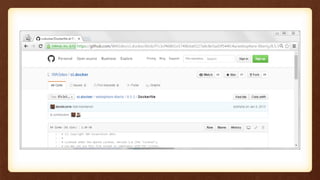
WebSphere and Docker
THE NEXT CHAPTER(S)
David Currie | david_currie@uk.ibm.com | @dcurrie
Kavitha Suresh Kumar | kavisuresh@in.ibm.com | @kavi2002suresh
Contents
• Chapter 1: The Story So Far
• Chapter 2: Liberty Image Evolves
• Chapter 3: WAS traditional
• Chapter 4: Developer Experience
• Chapter 5: Container Platforms
• Chapter 6: Liberty Collectives
The Story So Far
CHAPTER ONE
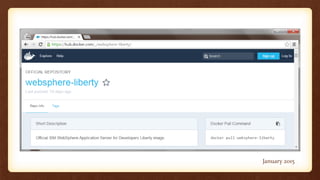
January 2015
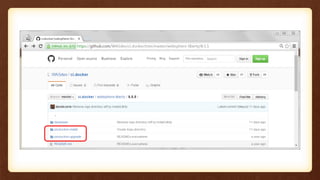
WebSphere Application Server 8.5.5.5
onwards (Liberty and traditional)
supported running under Docker
“
”March 2015
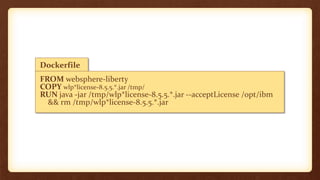
Dockerfile
FROM websphere-liberty
COPY wlp*license-8.5.5.*.jar /tmp/
RUN java -jar /tmp/wlp*license-8.5.5.*.jar --acceptLicense /opt/ibm
&& rm /tmp/wlp*license-8.5.5.*.jar
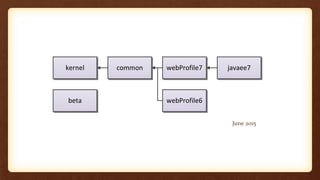
kernel common webProfile7 javaee7
webProfile6beta
June 2015
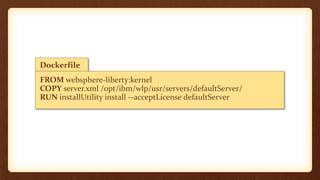
Dockerfile
FROM websphere-liberty:kernel
COPY server.xml /opt/ibm/wlp/usr/servers/defaultServer/
RUN installUtility install --acceptLicense defaultServer
Liberty Image Evolves
CHAPTER TWO
docker stop <container>
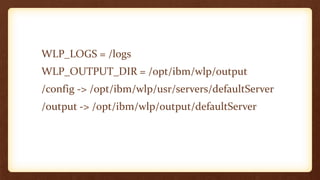
WLP_LOGS = /logs
WLP_OUTPUT_DIR = /opt/ibm/wlp/output
/config -> /opt/ibm/wlp/usr/servers/defaultServer
/output -> /opt/ibm/wlp/output/defaultServer
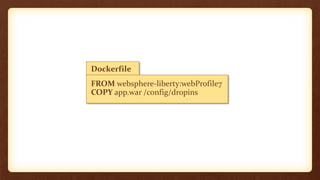
Dockerfile
FROM websphere-liberty:webProfile7
COPY app.war /config/dropins
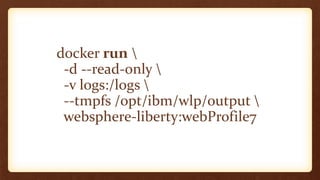
docker run 
-d --read-only 
-v logs:/logs 
--tmpfs /opt/ibm/wlp/output 
websphere-liberty:webProfile7
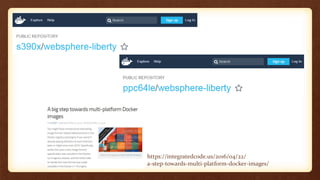
https://integratedcode.us/2016/04/22/
a-step-towards-multi-platform-docker-images/
WAS traditional
CHAPTER THREE
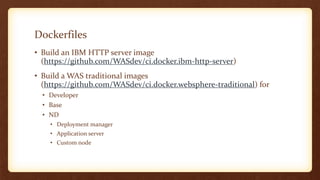
Dockerfiles
• Build an IBM HTTP server image
(https://github.com/WASdev/ci.docker.ibm-http-server)
• Build a WAS traditional images
(https://github.com/WASdev/ci.docker.websphere-traditional) for
• Developer
• Base
• ND
• Deployment manager
• Application server
• Custom node
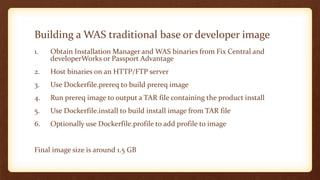
Building a WAS traditional base or developer image
1. Obtain Installation Manager and WAS binaries from Fix Central and
developerWorks or Passport Advantage
2. Host binaries on an HTTP/FTP server
3. Use Dockerfile.prereq to build prereq image
4. Run prereq image to output a TAR file containing the product install
5. Use Dockerfile.install to build install image from TAR file
6. Optionally use Dockerfile.profile to add profile to image
Final image size is around 1.5 GB
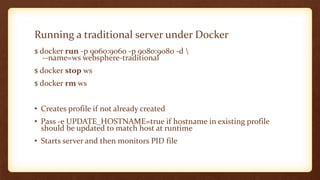
Running a traditional server under Docker
$ docker run -p 9060:9060 -p 9080:9080 -d 
--name=ws websphere-traditional
$ docker stop ws
$ docker rm ws
• Creates profile if not already created
• Pass -e UPDATE_HOSTNAME=true if hostname in existing profile
should be updated to match host at runtime
• Starts server and then monitors PID file
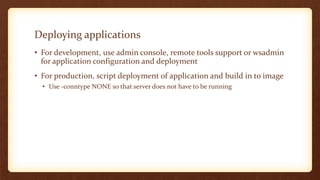
Deploying applications
• For development, use admin console, remote tools support or wsadmin
for application configuration and deployment
• For production, script deployment of application and build in to image
• Use -conntype NONE so that server does not have to be running
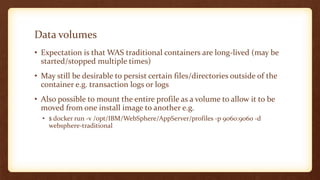
Data volumes
• Expectation is that WAS traditional containers are long-lived (may be
started/stopped multiple times)
• May still be desirable to persist certain files/directories outside of the
container e.g. transaction logs or logs
• Also possible to mount the entire profile as a volume to allow it to be
moved from one install image to another e.g.
• $ docker run -v /opt/IBM/WebSphere/AppServer/profiles -p 9060:9060 -d
websphere-traditional
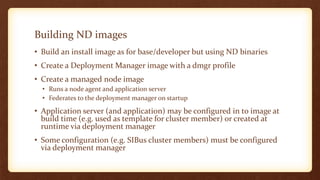
Building ND images
• Build an install image as for base/developer but using ND binaries
• Create a Deployment Manager image with a dmgr profile
• Create a managed node image
• Runs a node agent and application server
• Federates to the deployment manager on startup
• Application server (and application) may be configured in to image at
build time (e.g. used as template for cluster member) or created at
runtime via deployment manager
• Some configuration (e.g. SIBus cluster members) must be configured
via deployment manager
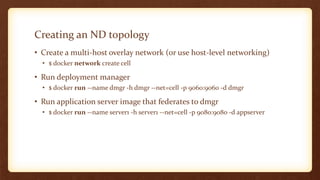
Creating an ND topology
• Create a multi-host overlay network (or use host-level networking)
• $ docker network create cell
• Run deployment manager
• $ docker run --name dmgr -h dmgr --net=cell -p 9060:9060 -d dmgr
• Run application server image that federates to dmgr
• $ docker run --name server1 -h server1 --net=cell -p 9080:9080 -d appserver
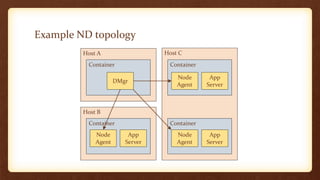
Example ND topology
Host A
Host B
Host C
Container
Container
Container
Container
DMgr
Node
Agent
App
Server
Node
Agent
App
Server
Node
Agent
App
Server
Developer Experience
CHAPTER FOUR
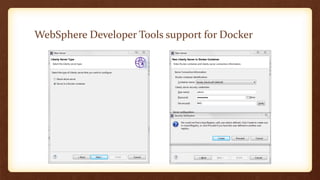
WebSphere Developer Tools support for Docker
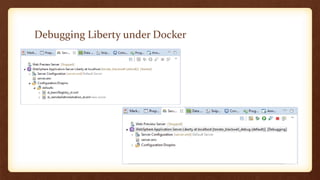
Debugging Liberty under Docker
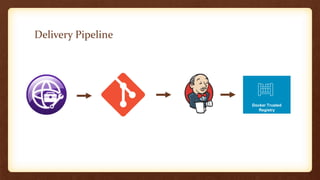
Delivery Pipeline
Docker Trusted
Registry
Container Platforms
CHAPTER FIVE
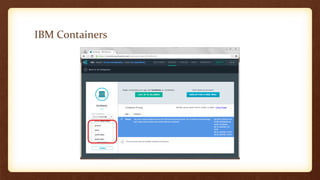
IBM Containers
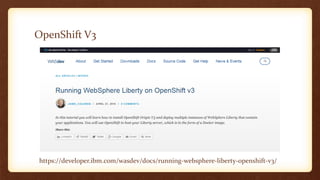
OpenShift V3
https://developer.ibm.com/wasdev/docs/running-websphere-liberty-openshift-v3/
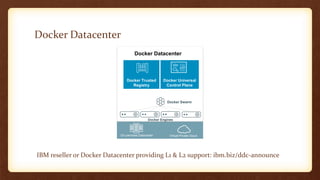
Docker Datacenter
IBM reseller or Docker Datacenter providing L1 & L2 support: ibm.biz/ddc-announce
Docker Universal
Control Plane
Docker Trusted
Registry
On premises Datacenter Virtual Private Cloud
Docker Engines
Docker Swarm
Docker Datacenter
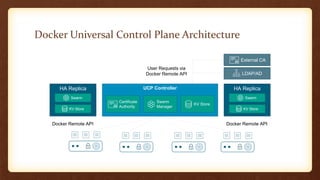
Docker Universal Control Plane Architecture
UCP Controller
Swarm
Manager
Certificate
Authority
KV Store
Docker Remote API Docker Remote API
LDAP/AD
User Requests via
Docker Remote API
External CA
HA Replica
Swarm
KV Store
HA Replica
Swarm
KV Store
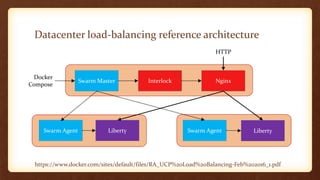
Datacenter load-balancing reference architecture
https://www.docker.com/sites/default/files/RA_UCP%20Load%20Balancing-Feb%202016_1.pdf
Swarm Master NginxInterlock
Liberty Swarm AgentSwarm Agent Liberty
Docker
Compose
HTTP
Interlock/Nginx Compose Configuration
version: '2'
services:
interlock:
image: ehazlett/interlock:1.1.0
command: -D run
ports:
- 8080
volumes:
- /var/run/docker.sock:/var/run/docker.sock
- ucp-node-certs:/certs
restart: always
network_mode: "bridge"
environment:
INTERLOCK_CONFIG: |
ListenAddr = ":8080"
DockerURL = "tcp://ucpfqdn:8888"
TLSCACert = "/certs/ca.pem"
TLSCert = "/certs/cert.pem"
TLSKey = "/certs/key.pem"
[[Extensions]]
Name = "nginx"
ConfigPath = "/etc/nginx/nginx.conf"
PidPath = "/etc/nginx/nginx.pid"
MaxConn = 1024
Port = 80
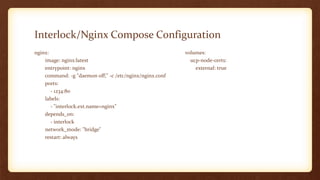
Interlock/Nginx Compose Configuration
nginx:
image: nginx:latest
entrypoint: nginx
command: -g "daemon off;" -c /etc/nginx/nginx.conf
ports:
- 1234:80
labels:
- "interlock.ext.name=nginx"
depends_on:
- interlock
network_mode: "bridge"
restart: always
volumes:
ucp-node-certs:
external: true
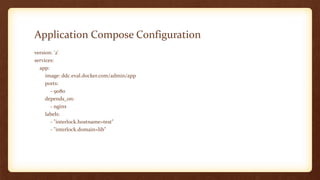
Application Compose Configuration
version: '2'
services:
app:
image: ddc.eval.docker.com/admin/app
ports:
- 9080
depends_on:
- nginx
labels:
- "interlock.hostname=test"
- "interlock.domain=lib"
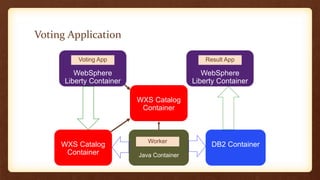
Voting Application
Java Container
WXS Catalog
Container
DB2 Container
WebSphere
Liberty Container
Voting App
WebSphere
Liberty Container
Result App
Worker
WXS Catalog
Container
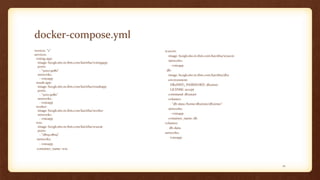
docker-compose.yml
version: "2”
services:
voting-app:
image: bceglc260.in.ibm.com/kavitha/votingapp
ports:
- "5000:9080"
networks:
- voteapp
result-app:
image: bceglc260.in.ibm.com/kavitha/resultapp
ports:
- "5001:9080"
networks:
- voteapp
worker:
image: bceglc260.in.ibm.com/kavitha/worker
networks:
- voteapp
wxs:
image: bceglc260.in.ibm.com/kavitha/wxscat
ports:
- "2809:2809“
networks:
- voteapp
container_name: wxs
wxscon:
image: bceglc260.in.ibm.com/kavitha/wxscon
networks:
- voteapp
db:
image: bceglc260.in.ibm.com/kavitha/db2
environment:
DB2INST1_PASSWORD: db2inst1
LICENSE: accept
command: db2start
volumes:
- "db-data:/home/db2inst1/db2inst1"
networks:
- voteapp
container_name: db
volumes:
db-data:
networks:
voteapp:
41
Liberty Collectives
CHAPTER SIX
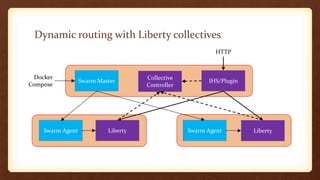
Dynamic routing with Liberty collectives
Swarm Master IHS/Plugin
Collective
Controller
Liberty Swarm AgentSwarm Agent Liberty
Docker
Compose
HTTP
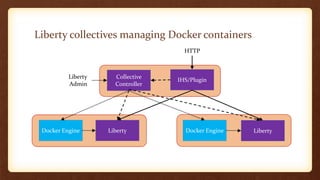
Liberty collectives managing Docker containers
IHS/Plugin
Collective
Controller
Liberty Docker EngineDocker Engine Liberty
Liberty
Admin
HTTP
THE END

WebSphere and Docker

  • 1.
    WebSphere and Docker THENEXT CHAPTER(S) David Currie | david_currie@uk.ibm.com | @dcurrie Kavitha Suresh Kumar | kavisuresh@in.ibm.com | @kavi2002suresh
  • 2.
    Contents • Chapter 1:The Story So Far • Chapter 2: Liberty Image Evolves • Chapter 3: WAS traditional • Chapter 4: Developer Experience • Chapter 5: Container Platforms • Chapter 6: Liberty Collectives
  • 3.
    The Story SoFar CHAPTER ONE
  • 4.
  • 6.
    WebSphere Application Server8.5.5.5 onwards (Liberty and traditional) supported running under Docker “ ”March 2015
  • 8.
    Dockerfile FROM websphere-liberty COPY wlp*license-8.5.5.*.jar/tmp/ RUN java -jar /tmp/wlp*license-8.5.5.*.jar --acceptLicense /opt/ibm && rm /tmp/wlp*license-8.5.5.*.jar
  • 9.
    kernel common webProfile7javaee7 webProfile6beta June 2015
  • 10.
    Dockerfile FROM websphere-liberty:kernel COPY server.xml/opt/ibm/wlp/usr/servers/defaultServer/ RUN installUtility install --acceptLicense defaultServer
  • 11.
  • 12.
  • 13.
    WLP_LOGS = /logs WLP_OUTPUT_DIR= /opt/ibm/wlp/output /config -> /opt/ibm/wlp/usr/servers/defaultServer /output -> /opt/ibm/wlp/output/defaultServer
  • 14.
  • 15.
    docker run -d--read-only -v logs:/logs --tmpfs /opt/ibm/wlp/output websphere-liberty:webProfile7
  • 16.
  • 17.
  • 18.
    Dockerfiles • Build anIBM HTTP server image (https://github.com/WASdev/ci.docker.ibm-http-server) • Build a WAS traditional images (https://github.com/WASdev/ci.docker.websphere-traditional) for • Developer • Base • ND • Deployment manager • Application server • Custom node
  • 19.
    Building a WAStraditional base or developer image 1. Obtain Installation Manager and WAS binaries from Fix Central and developerWorks or Passport Advantage 2. Host binaries on an HTTP/FTP server 3. Use Dockerfile.prereq to build prereq image 4. Run prereq image to output a TAR file containing the product install 5. Use Dockerfile.install to build install image from TAR file 6. Optionally use Dockerfile.profile to add profile to image Final image size is around 1.5 GB
  • 20.
    Running a traditionalserver under Docker $ docker run -p 9060:9060 -p 9080:9080 -d --name=ws websphere-traditional $ docker stop ws $ docker rm ws • Creates profile if not already created • Pass -e UPDATE_HOSTNAME=true if hostname in existing profile should be updated to match host at runtime • Starts server and then monitors PID file
  • 21.
    Deploying applications • Fordevelopment, use admin console, remote tools support or wsadmin for application configuration and deployment • For production, script deployment of application and build in to image • Use -conntype NONE so that server does not have to be running
  • 22.
    Data volumes • Expectationis that WAS traditional containers are long-lived (may be started/stopped multiple times) • May still be desirable to persist certain files/directories outside of the container e.g. transaction logs or logs • Also possible to mount the entire profile as a volume to allow it to be moved from one install image to another e.g. • $ docker run -v /opt/IBM/WebSphere/AppServer/profiles -p 9060:9060 -d websphere-traditional
  • 23.
    Building ND images •Build an install image as for base/developer but using ND binaries • Create a Deployment Manager image with a dmgr profile • Create a managed node image • Runs a node agent and application server • Federates to the deployment manager on startup • Application server (and application) may be configured in to image at build time (e.g. used as template for cluster member) or created at runtime via deployment manager • Some configuration (e.g. SIBus cluster members) must be configured via deployment manager
  • 24.
    Creating an NDtopology • Create a multi-host overlay network (or use host-level networking) • $ docker network create cell • Run deployment manager • $ docker run --name dmgr -h dmgr --net=cell -p 9060:9060 -d dmgr • Run application server image that federates to dmgr • $ docker run --name server1 -h server1 --net=cell -p 9080:9080 -d appserver
  • 25.
    Example ND topology HostA Host B Host C Container Container Container Container DMgr Node Agent App Server Node Agent App Server Node Agent App Server
  • 26.
  • 27.
    WebSphere Developer Toolssupport for Docker
  • 28.
  • 29.
  • 30.
  • 31.
  • 32.
  • 33.
    Docker Datacenter IBM reselleror Docker Datacenter providing L1 & L2 support: ibm.biz/ddc-announce Docker Universal Control Plane Docker Trusted Registry On premises Datacenter Virtual Private Cloud Docker Engines Docker Swarm Docker Datacenter
  • 34.
    Docker Universal ControlPlane Architecture UCP Controller Swarm Manager Certificate Authority KV Store Docker Remote API Docker Remote API LDAP/AD User Requests via Docker Remote API External CA HA Replica Swarm KV Store HA Replica Swarm KV Store
  • 35.
    Datacenter load-balancing referencearchitecture https://www.docker.com/sites/default/files/RA_UCP%20Load%20Balancing-Feb%202016_1.pdf Swarm Master NginxInterlock Liberty Swarm AgentSwarm Agent Liberty Docker Compose HTTP
  • 36.
    Interlock/Nginx Compose Configuration version:'2' services: interlock: image: ehazlett/interlock:1.1.0 command: -D run ports: - 8080 volumes: - /var/run/docker.sock:/var/run/docker.sock - ucp-node-certs:/certs restart: always network_mode: "bridge" environment: INTERLOCK_CONFIG: | ListenAddr = ":8080" DockerURL = "tcp://ucpfqdn:8888" TLSCACert = "/certs/ca.pem" TLSCert = "/certs/cert.pem" TLSKey = "/certs/key.pem" [[Extensions]] Name = "nginx" ConfigPath = "/etc/nginx/nginx.conf" PidPath = "/etc/nginx/nginx.pid" MaxConn = 1024 Port = 80
  • 37.
    Interlock/Nginx Compose Configuration nginx: image:nginx:latest entrypoint: nginx command: -g "daemon off;" -c /etc/nginx/nginx.conf ports: - 1234:80 labels: - "interlock.ext.name=nginx" depends_on: - interlock network_mode: "bridge" restart: always volumes: ucp-node-certs: external: true
  • 38.
    Application Compose Configuration version:'2' services: app: image: ddc.eval.docker.com/admin/app ports: - 9080 depends_on: - nginx labels: - "interlock.hostname=test" - "interlock.domain=lib"
  • 39.
    Voting Application Java Container WXSCatalog Container DB2 Container WebSphere Liberty Container Voting App WebSphere Liberty Container Result App Worker WXS Catalog Container
  • 40.
    docker-compose.yml version: "2” services: voting-app: image: bceglc260.in.ibm.com/kavitha/votingapp ports: -"5000:9080" networks: - voteapp result-app: image: bceglc260.in.ibm.com/kavitha/resultapp ports: - "5001:9080" networks: - voteapp worker: image: bceglc260.in.ibm.com/kavitha/worker networks: - voteapp wxs: image: bceglc260.in.ibm.com/kavitha/wxscat ports: - "2809:2809“ networks: - voteapp container_name: wxs wxscon: image: bceglc260.in.ibm.com/kavitha/wxscon networks: - voteapp db: image: bceglc260.in.ibm.com/kavitha/db2 environment: DB2INST1_PASSWORD: db2inst1 LICENSE: accept command: db2start volumes: - "db-data:/home/db2inst1/db2inst1" networks: - voteapp container_name: db volumes: db-data: networks: voteapp: 41
  • 41.
  • 42.
    Dynamic routing withLiberty collectives Swarm Master IHS/Plugin Collective Controller Liberty Swarm AgentSwarm Agent Liberty Docker Compose HTTP
  • 43.
    Liberty collectives managingDocker containers IHS/Plugin Collective Controller Liberty Docker EngineDocker Engine Liberty Liberty Admin HTTP
  • 44.