Sharon Miller Cindrich Author of  E-Parenting: Keeping Up With Your Tech-Savvy Kids
Today’s Discussion Online dangers parents fear Myths about kids online Healthy online habits Safety strategies for all families
What Color Is A Yield Sign?  pluggedinparent.com
Online Dangers Parents Fear  Predators Bullies Pornography Hate Violence  pluggedinparent.com
Predators Bullies Pornography Hate Violence Top Things Parents Are Afraid Of  At the Mall, A Friend’s House, At School, In the Neighborhood
Fear vs. Fact Understanding the myths about kids online Myth: Kids are smarter than their parents when it comes to the Internet. Fact: Kids may be tech-savvy, but parents are way ahead when it comes to life experience and common sense Myth: Online predators lie about their age lure kids. Fact: In cases where kids connect with adults online, most adults do not grossly exaggerate their age. Myth: Kids receive sexual advances and harassment online from adults they don’t know. Fact: Most often, sexual advances, threats and harassment comes from peers that kids know in real life.
Three Main Things That Keep Kids Safe Behaviors Tools Resources
Behaviors #1 - Put Your Computer In A Main Area of Your Home Find a high traffic area on the main floor Require wireless access in the kitchen or family room Avoid Bedrooms, basements and rooms with locking doors
Behaviors #2 - Create Family Rules, Expectations and Consequences Make rules together with input from kids. Post rules for the Internet near the computer. Use an  Internet contract  to reinforce responsibility. Follow through with consequences.
Behaviors #3 - Lay a Foundation for Communication Visit websites together. Show interest in kids’ online activities. Encourage kids to use the Internet for family projects. Ask about online experiences - good and bad. E-mail and instant message your child. Don’t freak out.
Behaviors #4 - Teach Privacy. Private information can be… Name Location Age Appearance Passwords Address Phone numbers E-mail address School Financial status Photos
Tools #1- Find a parental control product for your family computer. Many security packages come with parental controls and filters.  Safe eyes  is a program you can purchase that is appropriate for young children. Parental controls can help parents block inappropriate sites, set time limits or monitor Internet behavior. K9 Web Protection is a free filter available online.
Tools #2 - Discover browser options. Most popular browsers are Internet Explorer, Firefox and Safari for Apple users. Set parental controls on your browser. Look up instructions at  eHow.com  or visit the company site. Use kid-friendly browsers.  KidZui.com  Firefox, offers  Gubble.com  for kids under 12
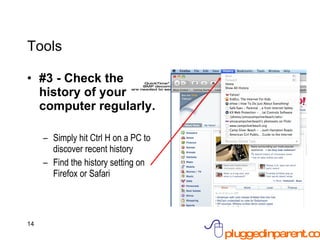
Tools #3 - Check the history of your computer regularly. Simply hit Ctrl H on a PC to discover recent history Find the history setting on Firefox or Safari
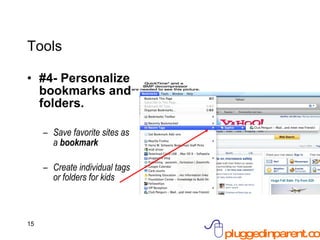
Tools #4- Personalize bookmarks and folders. Save favorite sites as  a  bookmark Create individual tags  or folders for kids
Resources #1 - Look for parent resources on sites. These sites feature excellent information geared directly toward safety. www.MySpace.com   Club Penguin Facebook Bebo Webkinz Teen Second Life
Resources #2- Visit safety sites with your child.
Resources #3 - Find online reviews and communities. NetFamilyNews.org
Resources #4 - Look to traditional sources for help. Teachers  Guidance counselors. Librarians Doctors Other friends Older kids Babysitters Books Magazines Newspapers
Summary The Internet is real life. Participating online is a part of our daily routine, not a  virtual  activity. 21st century parents recognize the challenges of modern life, understand the importance of strong tech skills and the benefits the Internet can provide. Teach and model healthy online habits and skills  Work as a family to create smart safety strategies Combine good behaviors, online tools and new resources Arm children with the skills they need to be successful
Stay Plugged In Now Pre-Ordering on Amazon.com
Sharon Miller Cindrich Author of E-Parenting: Keeping Up With Your Tech-Savvy Kids

E Parenting: How to Keep Kids Safe and Teach Your Family Healthy Online Habits

  • 1.
    Sharon Miller CindrichAuthor of E-Parenting: Keeping Up With Your Tech-Savvy Kids
  • 2.
    Today’s Discussion Onlinedangers parents fear Myths about kids online Healthy online habits Safety strategies for all families
  • 3.
    What Color IsA Yield Sign?  pluggedinparent.com
  • 4.
    Online Dangers ParentsFear Predators Bullies Pornography Hate Violence  pluggedinparent.com
  • 5.
    Predators Bullies PornographyHate Violence Top Things Parents Are Afraid Of At the Mall, A Friend’s House, At School, In the Neighborhood
  • 6.
    Fear vs. FactUnderstanding the myths about kids online Myth: Kids are smarter than their parents when it comes to the Internet. Fact: Kids may be tech-savvy, but parents are way ahead when it comes to life experience and common sense Myth: Online predators lie about their age lure kids. Fact: In cases where kids connect with adults online, most adults do not grossly exaggerate their age. Myth: Kids receive sexual advances and harassment online from adults they don’t know. Fact: Most often, sexual advances, threats and harassment comes from peers that kids know in real life.
  • 7.
    Three Main ThingsThat Keep Kids Safe Behaviors Tools Resources
  • 8.
    Behaviors #1 -Put Your Computer In A Main Area of Your Home Find a high traffic area on the main floor Require wireless access in the kitchen or family room Avoid Bedrooms, basements and rooms with locking doors
  • 9.
    Behaviors #2 -Create Family Rules, Expectations and Consequences Make rules together with input from kids. Post rules for the Internet near the computer. Use an Internet contract to reinforce responsibility. Follow through with consequences.
  • 10.
    Behaviors #3 -Lay a Foundation for Communication Visit websites together. Show interest in kids’ online activities. Encourage kids to use the Internet for family projects. Ask about online experiences - good and bad. E-mail and instant message your child. Don’t freak out.
  • 11.
    Behaviors #4 -Teach Privacy. Private information can be… Name Location Age Appearance Passwords Address Phone numbers E-mail address School Financial status Photos
  • 12.
    Tools #1- Finda parental control product for your family computer. Many security packages come with parental controls and filters. Safe eyes is a program you can purchase that is appropriate for young children. Parental controls can help parents block inappropriate sites, set time limits or monitor Internet behavior. K9 Web Protection is a free filter available online.
  • 13.
    Tools #2 -Discover browser options. Most popular browsers are Internet Explorer, Firefox and Safari for Apple users. Set parental controls on your browser. Look up instructions at eHow.com or visit the company site. Use kid-friendly browsers. KidZui.com Firefox, offers Gubble.com for kids under 12
  • 14.
    Tools #3 -Check the history of your computer regularly. Simply hit Ctrl H on a PC to discover recent history Find the history setting on Firefox or Safari
  • 15.
    Tools #4- Personalizebookmarks and folders. Save favorite sites as a bookmark Create individual tags or folders for kids
  • 16.
    Resources #1 -Look for parent resources on sites. These sites feature excellent information geared directly toward safety. www.MySpace.com Club Penguin Facebook Bebo Webkinz Teen Second Life
  • 17.
    Resources #2- Visitsafety sites with your child.
  • 18.
    Resources #3 -Find online reviews and communities. NetFamilyNews.org
  • 19.
    Resources #4 -Look to traditional sources for help. Teachers Guidance counselors. Librarians Doctors Other friends Older kids Babysitters Books Magazines Newspapers
  • 20.
    Summary The Internetis real life. Participating online is a part of our daily routine, not a virtual activity. 21st century parents recognize the challenges of modern life, understand the importance of strong tech skills and the benefits the Internet can provide. Teach and model healthy online habits and skills Work as a family to create smart safety strategies Combine good behaviors, online tools and new resources Arm children with the skills they need to be successful
  • 21.
    Stay Plugged InNow Pre-Ordering on Amazon.com
  • 22.
    Sharon Miller CindrichAuthor of E-Parenting: Keeping Up With Your Tech-Savvy Kids

Editor's Notes

  • #5 You’ll often hear people talk about the “virtual world” or the “online world” as opposed to the “real world”. We need to get past this classification of the Internet as a world separate from real life. While there are some games that feature completely pretend and virtual worlds and characters, most of the activities we participate online are very real. Shopping, learning, communicating - they are all real activities in our real lives. It’s just htat we use the Internet to facilitate them. Helping kids understand that the Internet is the real world is one step toward helping them stay safe and apply the same behaviors they use in real life to their activities online. parents we are concerned about the same things online…
  • #6 As we are in our daily lives at school, at the park, at a frined’s house or in the eighborhood. We’ve developed ways to deal with these issues in our neighborhoods and schools. We teach our children not to talk to strangers, to trust their instincts, to report bully behavior, to be tolerant and to be respectful. We encourage them to play peacefully and limit their exposure to violence. We have the skills to teach our children the same things, but apply these lessons to the online
  • #11 From the moment your child begins participating online, go with them. Don’t’ limit your conversations to Internet safety - ask them what sites they like, tell them about sites you’ve heard about, ask them to help search for a recipe or family vacation destination. E-mail them. IM them. Show them that you are connected.
  • #12 Explain the difference between privacy and lies.
  • #14 Browsers read the language of a Website and translate into language you can understand. There are dozens of browsers but the most popular are: EI, Firefox and Safari. Keep kids safe by using parental controls on your browser. Type in a Web address for a site that you want to allow your child to visit. Although it won't display the page, Safari will ask you if you want to add this page to your child's bookmarks bar. # Step 8 Click on 'Add Web site' to set the link. # Step 9 Repeat steps 7 and 8 for other Web sites you want your child to be able to access.