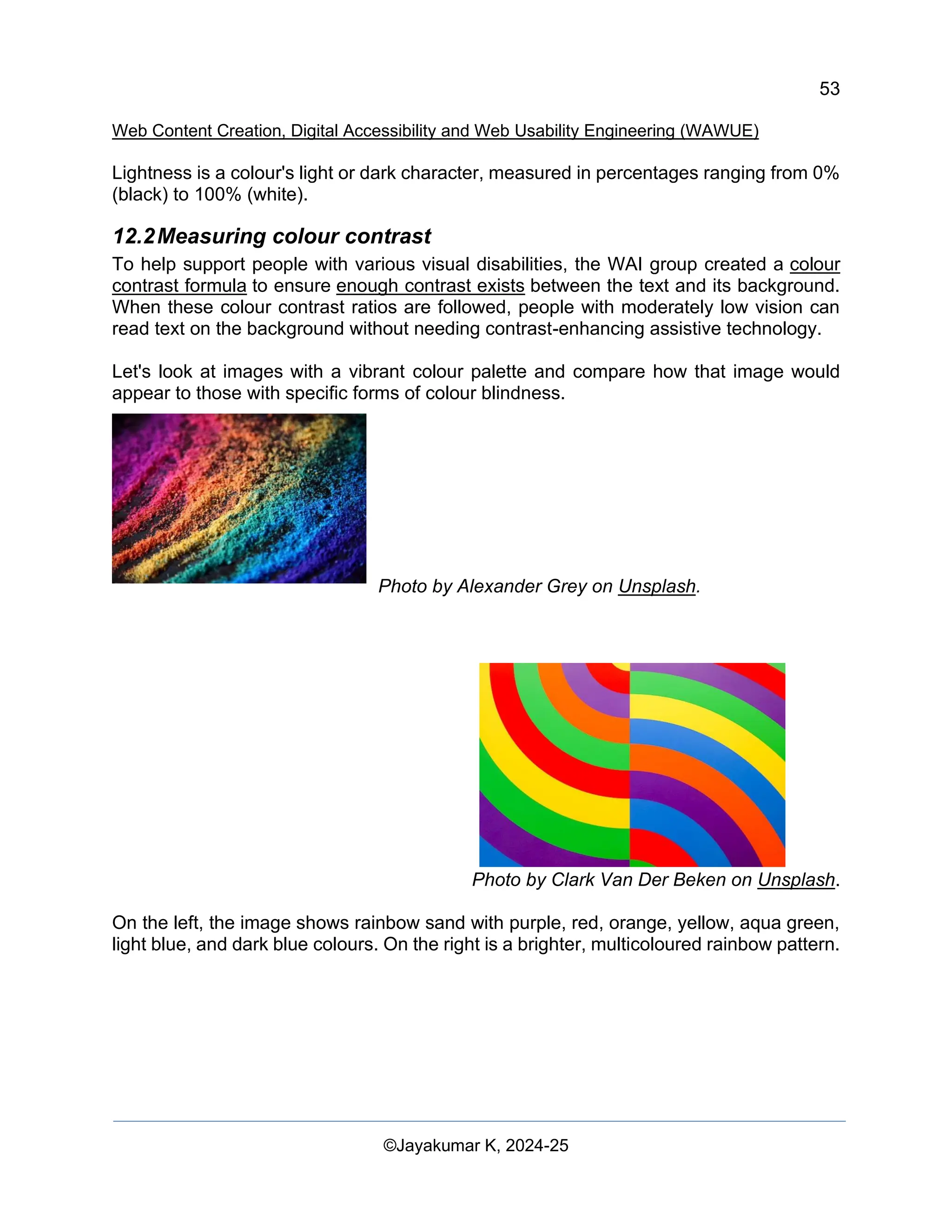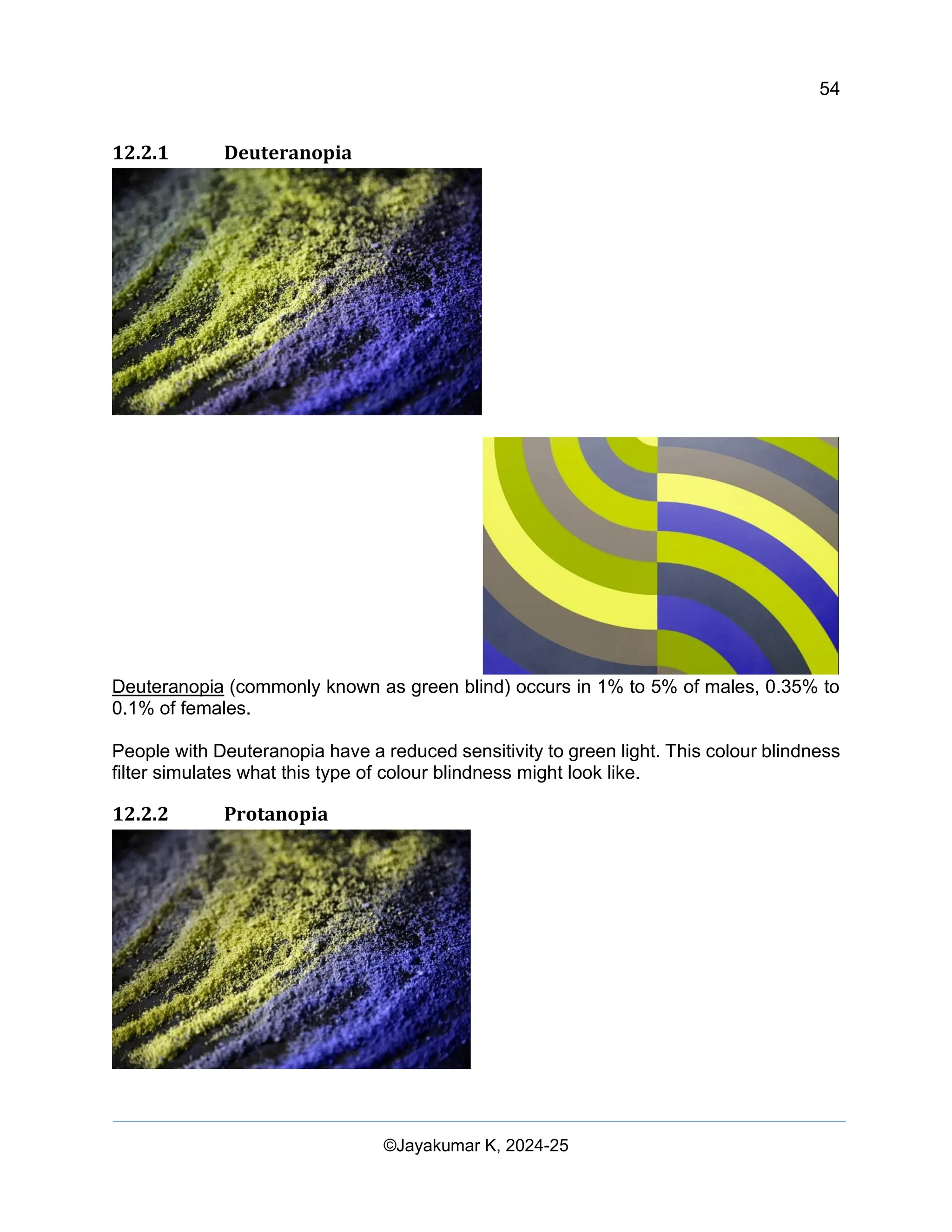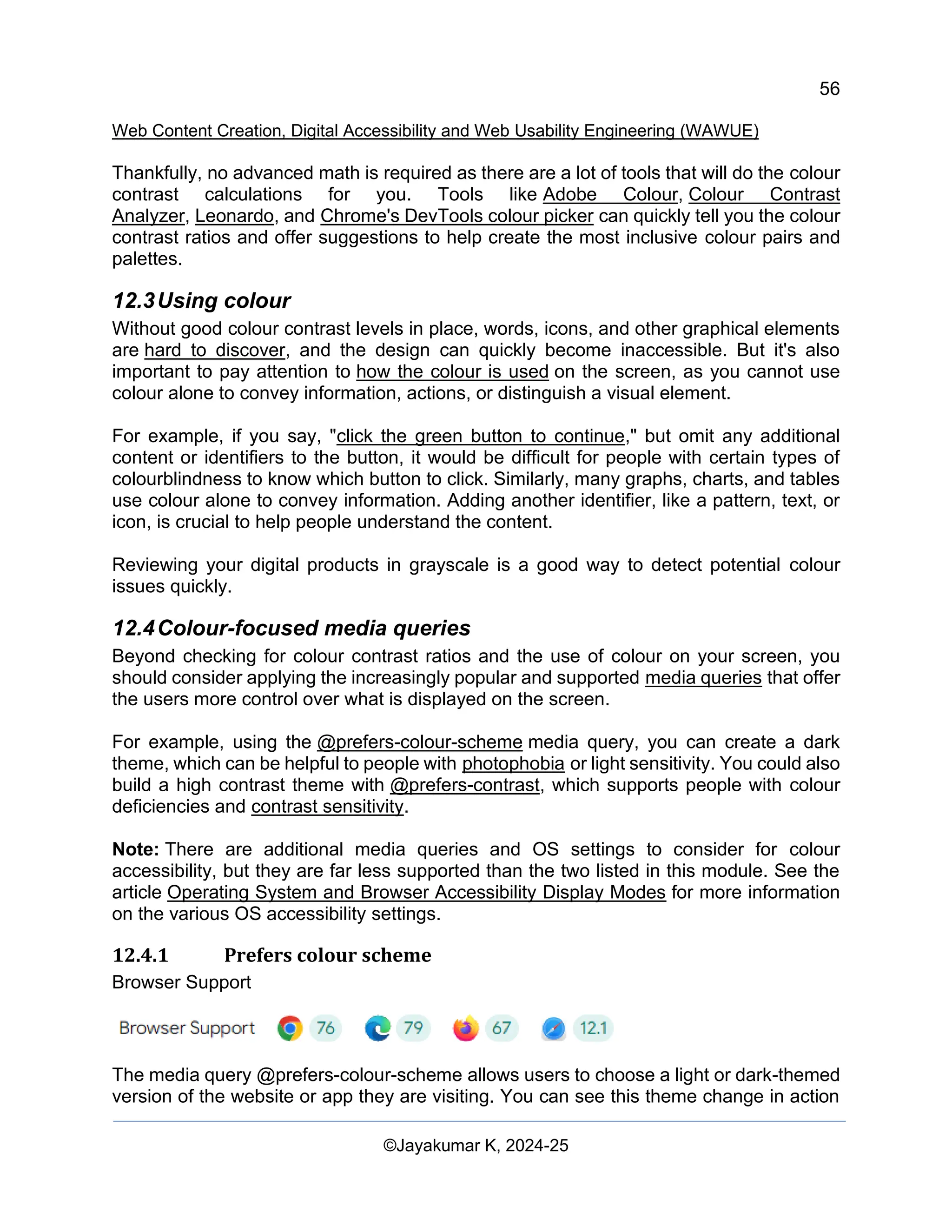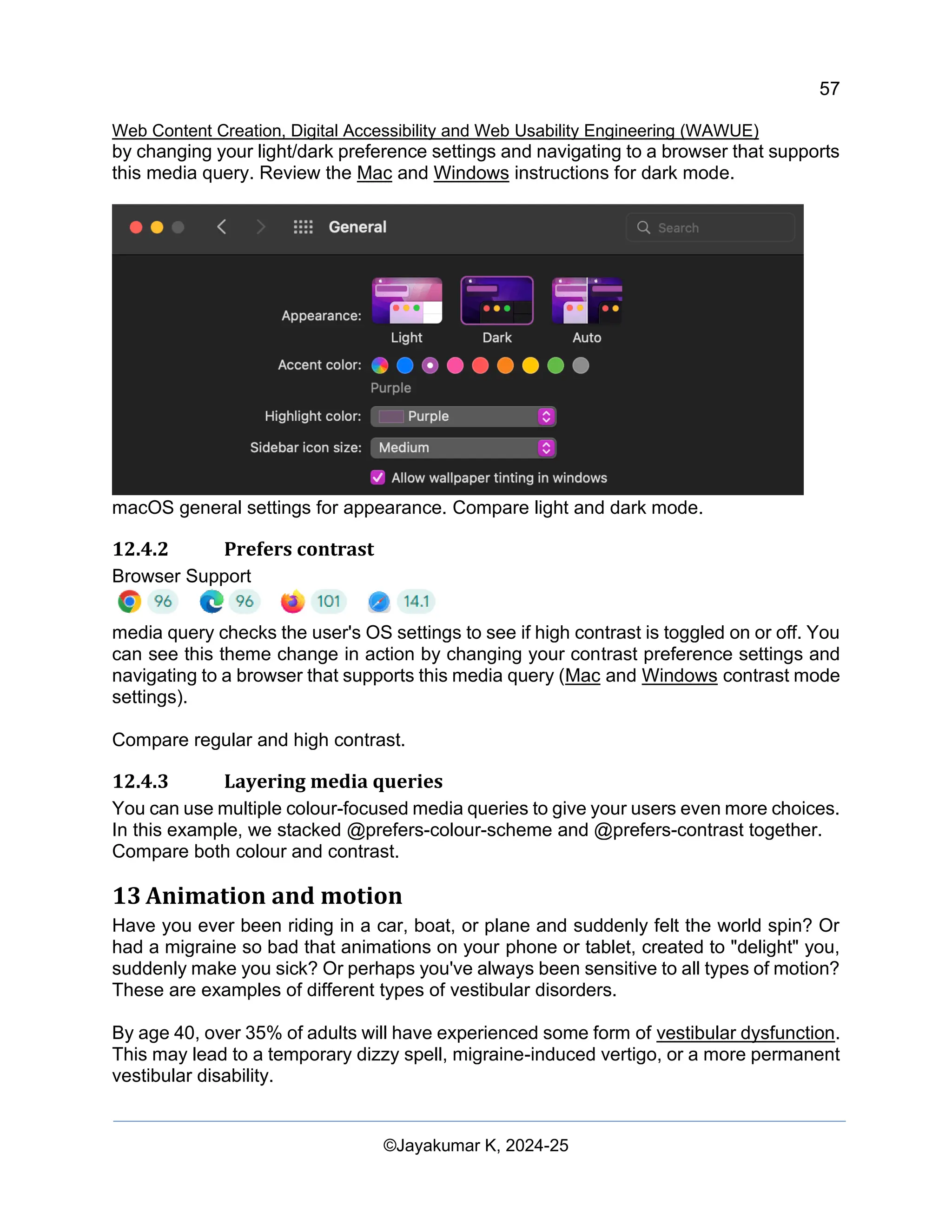
1
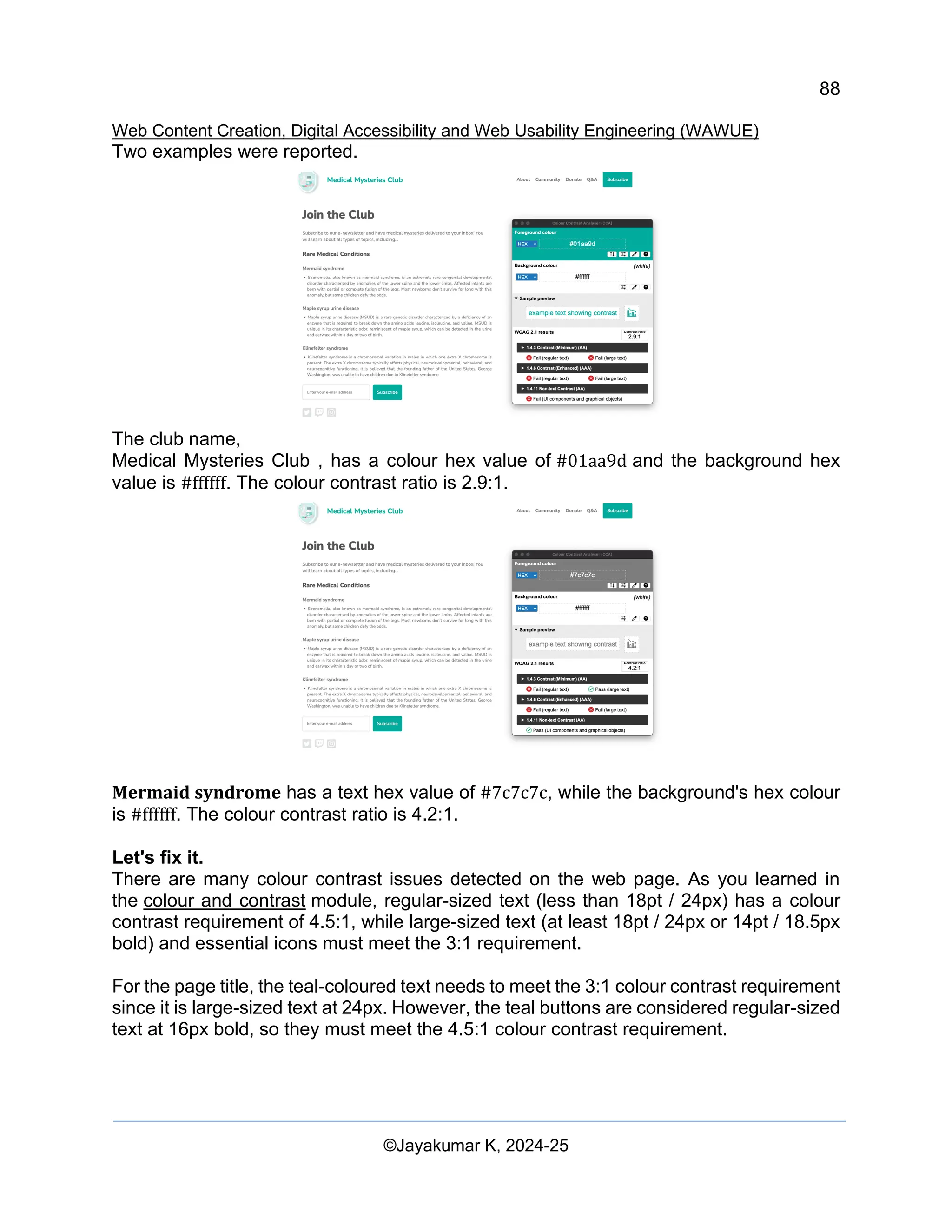
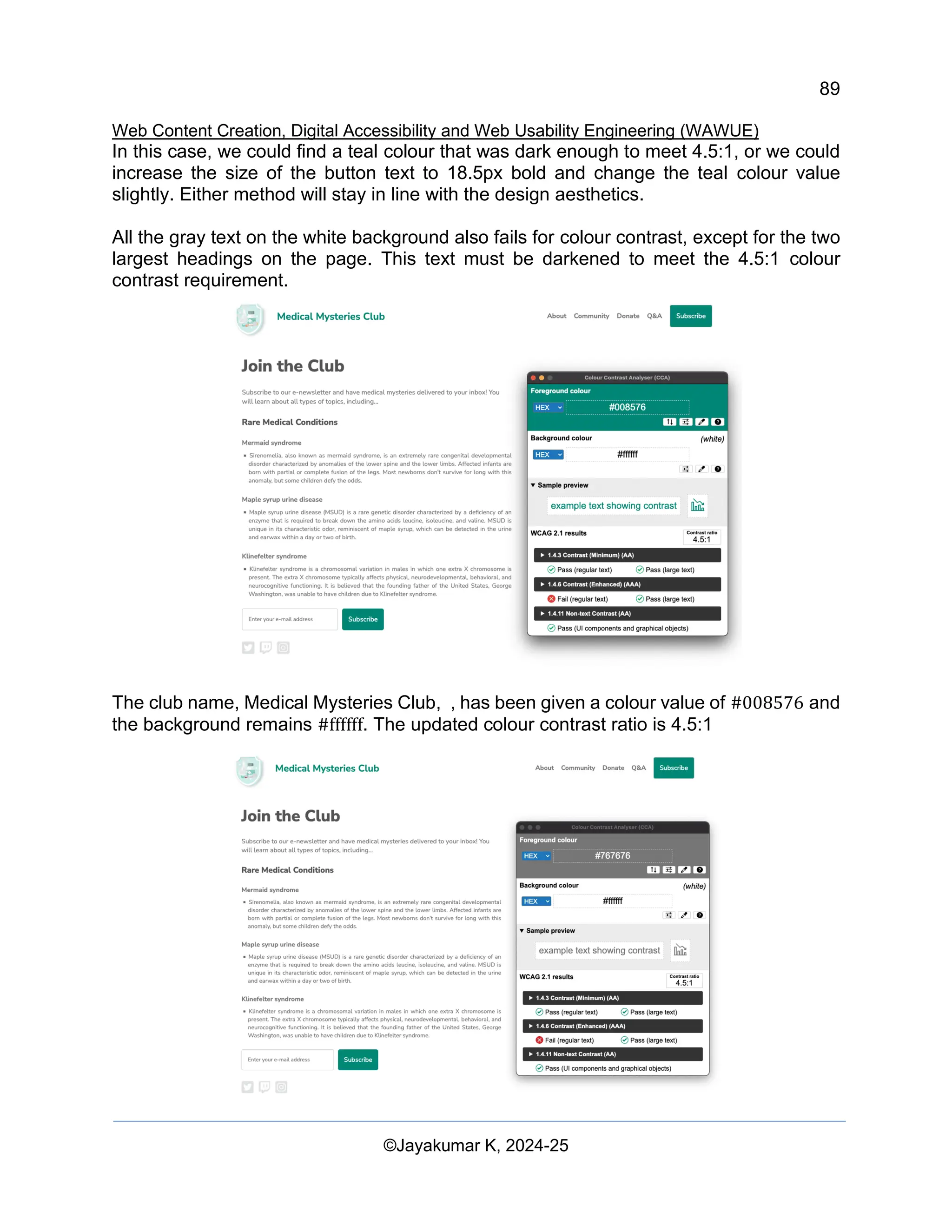
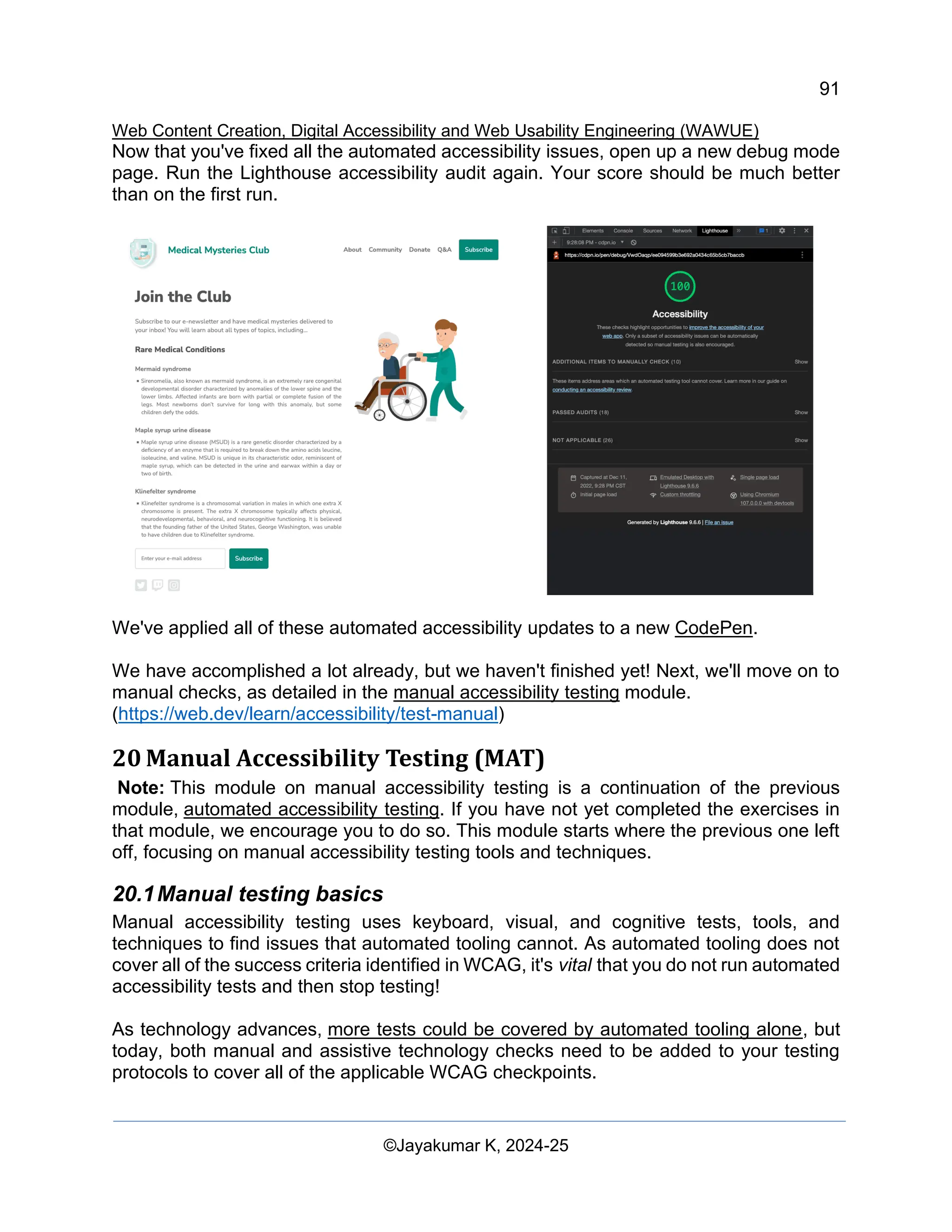
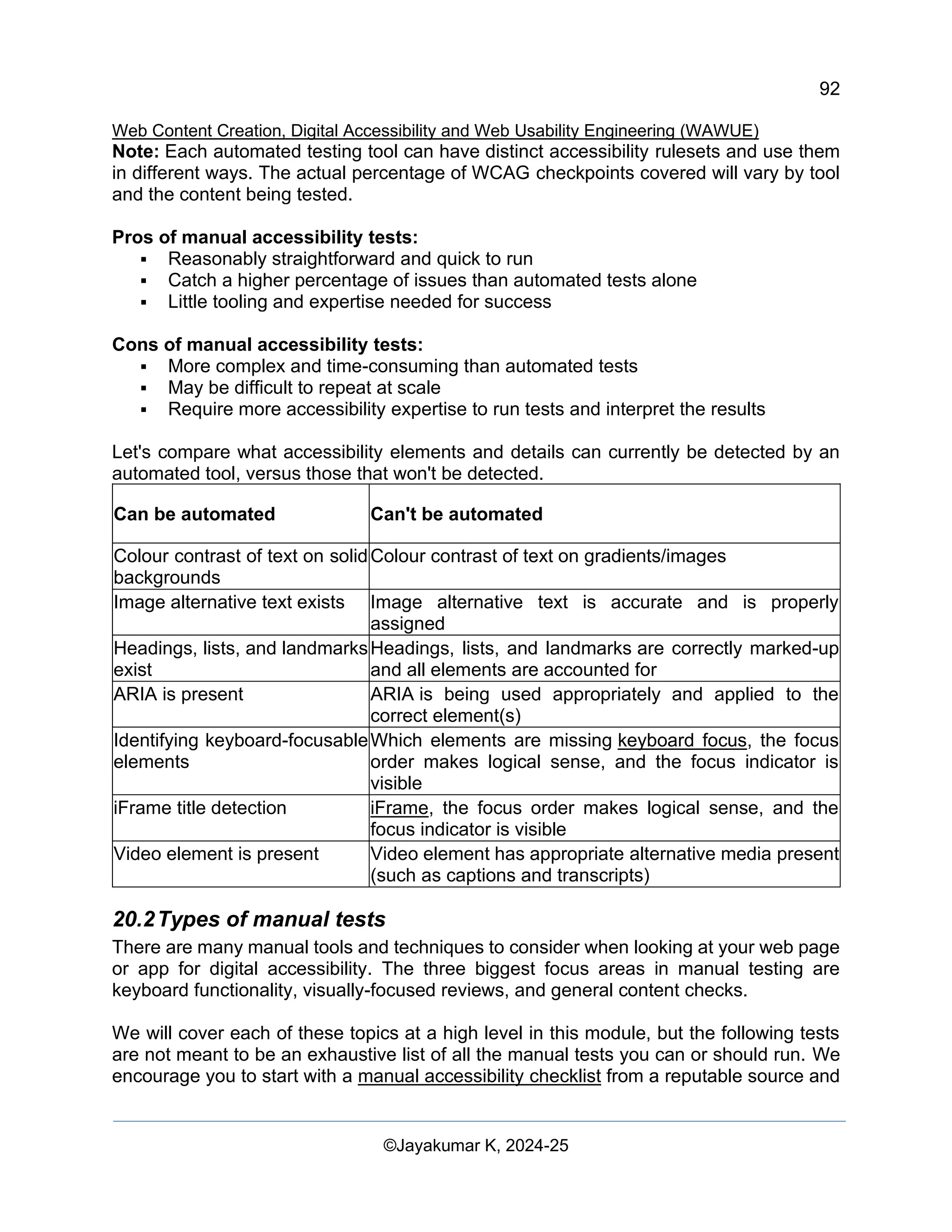
Web Content Creation, Digital Accessibility and Web Usability Engineering (WAWUE)
©Jayakumar K, 2024-25
Web Content Creation, Digital
Accessibility and Web Usability
Engineering (WAWUE)
W3C Structure and Working with Accessible Rich Internet
Applications (ARIA)
Copyright Notice
© Copyright 2024-25, Prepared by Jayakumar K
This book, “Web Content Creation, Digital Accessibility and Web Usability Engineering (WAWUE),”
was meticulously prepared by Jayakumar K exclusively for New Media Training purposes. The content
within this book has been curated from a variety of sources, including books, websites, and blogs related
to Web Usability Engineering. The information and materials ("the Content") presented in this book are
intended solely for personal, non-commercial educational use.
All images, logos, graphics, and their selection and arrangement are the property of their respective content
providers and are protected by international copyright laws. Certain logos are registered trademarks of the
content providers referenced and are not to be infringed upon.
This book may not be resold or used for any commercial purposes.
Please direct any queries, suggestions, or feedback regarding this study material to mail@kjayakumar.in
or kjay_kumar@yahoo.com. For more information about the author, visit www.kjayakumar.in.
2
Web Content Creation, Digital Accessibility and Web Usability Engineering (WAWUE)
©Jayakumar K, 2024-25
Contents
1 Content Impact and effects in web and Social Media 6
1.1 Information Leveraging through Rich Information Mode 6
1.1.1 Lexical Analysis 6
1.1.2 Keyword Density 6
1.1.3 Unicode Format 6
1.1.4 80/20 Rule 6
1.1.5 Use of `<html lang="..">` Tag 7
1.1.6 Content Relevancy 7
1.1.7 Keyword Relevancy 7
1.1.8 Image Optimization 7
1.1.9 Importance of Alt Tag 7
1.1.10 Text Overlay Rule in Social Media 7
1.1.11 Pixel Settings 7
1.2 Readability Test 8
1.2.1 Flesch Kincaid Reading Ease: 8
1.2.2 Flesch Kincaid Grade Level: 9
1.2.3 Gunning Fog Score: 9
1.2.4 Coleman Liau Index: 9
1.2.5 Automated Readability Index (ARI): 10
1.3 How to Apply These in Content Optimization 10
1.3.1 Sentence Length 11
1.3.2 Word Choice 11
1.3.3 Paragraph Structure 11
1.3.4 Use of Headings and Bullet Points 11
1.3.5 Active Voice 11
1.3.6 Read Aloud 11
1.3.7 Ask for Feedback 11
1.3.8 Use Online Tools 12
1.4 Application in Business Content 12
1.5 Benefits for Humans and Bots 12
2 Digital Influence and Online Manipulation Mechanisms 12
2.1 Search Engine Manipulation Effect [SEME] 13
2.2 Canonical Issue 13
2.3 Astroturfing 13
2.4 Streisand Effect 13
3 Digital Accessibility and Web Usability Engineering 14
3.1 Importance of Digital Accessibility and Web Usability Engineering (DAWUE) 14
3.1.1 Individual Impact: 14
3.1.2 Business Impact: 15
3.1.3 Legal Impact: 15
4 Digital Accessibility in Web User Inerfaces 15
4.1 Individual impact 16
4.1.1 Visual impairments 16
4.2 Business impact 17
4.3 Legal impact 18
5 Digital accessibility measurement Process 19
5.1 Introduction to accessibility testing 19
5.2 Web Content Accessibility Guidelines (WCAG) 19
3
Web Content Creation, Digital Accessibility and Web Usability Engineering (WAWUE)
©Jayakumar K, 2024-25
5.3 Accessibility principles 21
5.3.1 Perceivable 21
5.3.2 Operable 21
5.3.3 Understandable 22
5.3.4 Robust 22
6 ARIA and HTML 23
6.1 Introduction to ARIA 23
6.2 The accessibility tree 23
6.3 When to use ARIA 24
6.4 ARIA in HTML 27
6.5 Complexities of ARIA 28
7 Content structure 28
7.1 Landmarks 29
7.2 Headings 30
7.3 Lists 32
7.4 Tables 33
7.5 Layout 33
7.6 Data 34
8 The Document 35
8.1 Page title 35
8.2 Language 36
8.2.1 Page language 36
8.2.2 Section language 37
8.3 iFrames 38
9 Keyboard focus 38
9.1 Focus order 39
9.2 Tabindex 39
9.3 Skip links 40
9.4 Focus indicator 41
9.4.1 Browser default styling 41
9.4.2 Custom styles 42
10 JavaScript 43
10.1 Trigger events 43
10.2 Page titles 43
10.3 Dynamic content 44
10.4 Focus management 45
10.4.1 Component level 45
10.4.2 Page level 45
10.5 State management 46
10.5.1 Component level 46
10.6 Page level 46
11 Images 47
11.1 Image purpose and context 47
11.1.1 Decorative images 48
11.1.2 Empty or null alt 48
11.1.3 Informative images 49
11.1.4 Functional images 50
11.1.5 Complex images 50
11.1.6 Alternative text best practices 51
4
Web Content Creation, Digital Accessibility and Web Usability Engineering (WAWUE)
©Jayakumar K, 2024-25
12 Colour and contrast 51
12.1 Perceiving colour 52
12.2 Measuring colour contrast 53
12.2.1 Deuteranopia 54
12.2.2 Protanopia 54
12.2.3 Achromatopsia or Monochromatism 55
12.2.4 Calculate colour contrast 55
12.3 Using colour 56
12.4 Colour-focused media queries 56
12.4.1 Prefers colour scheme 56
12.4.2 Prefers contrast 57
12.4.3 Layering media queries 57
13 Animation and motion 57
13.1 Flashing and moving content 58
13.2 Pause, stop, or hide movement 58
13.3 Use media queries 59
13.3.1 @prefers-reduced-motion 59
13.3.2 Progressive enhancement for movement 60
13.3.3 Layered media queries 60
13.4 Allow your users to choose 60
14 Typography 60
14.1 Typeface 61
14.1.1 Letter characteristics and kerning 61
14.1.2 Font size and typographic styling 62
14.2 Structure and layout 63
14.2.1 Spacing 63
14.2.2 Content alignment 63
14.2.3 Best practices for structure and layout 63
14.3 Accessible typography takeaways 64
15 Video and audio 64
15.1 Alternative media types 64
15.2 Captions 65
15.3 Transcripts 65
15.4 Audio descriptions 67
15.5 Sign language interpretation 67
16 Forms 68
16.1 Fields 68
16.2 Labels 69
16.3 Descriptions 70
16.4 Errors 70
17 Patterns, components, and design systems 71
17.1 Think critically 71
17.2 Established resources 72
17.3 Browsers and assistive technology (AT) support 73
17.3.1 Other considerations 74
18 Design and user experience 74
18.1 Inclusive design 74
18.2 Personas 76
18.2.1 Incorporating disabilities 76
5
Web Content Creation, Digital Accessibility and Web Usability Engineering (WAWUE)
©Jayakumar K, 2024-25
18.2.2 Disability simulators 76
18.3 Accessibility heuristics 77
18.4 Accessibility annotations 78
19 Automated Accessibility Testing (AAT) 80
19.1 Automated testing basics 81
19.2 Types of Automated Tools 82
19.3 Demo: Automated test 82
20 Manual Accessibility Testing (MAT) 91
20.1 Manual testing basics 91
20.2 Types of manual tests 92
20.3 Keyboard checks 93
20.3.1 Visual checks 93
20.3.2 Content checks 94
20.4 Demo: Manual test 94
21 Assistive Technology Testing (ATT) 100
21.1 Screen reader testing basics 100
21.1.1 Browser compatibility 100
21.1.2 Screen reader commands 101
21.2 Screen reader testing demo 102
22 The Future of Web Usability Engineering in Online Public Relations 106
23 Building Web Usability Engineering Marketing Solutions as a Career 106
23.1 Skills and Qualifications: 106
23.2 Career Paths: 106
23.3 Resources and Networking: 106
23.4 Tips for Success: 107
24 Free Online Courses 107
25 Additional Resources 107
26 Conclusion 107
27 Acronyms Used in this material 108
6
Web Content Creation, Digital Accessibility and Web Usability Engineering (WAWUE)
©Jayakumar K, 2024-25
1 Content Impact and effects in web and Social Media
Content Impact and Effects in Web and Social Media refers to the profound influence
that digital content can have on audience perception, behavior, and interaction across
various online platforms. In today's interconnected world, content is a powerful tool that
can shape opinions, drive engagement, and influence decision-making. This session
explores how well-crafted content can enhance brand visibility, foster community
engagement, and contribute to achieving business objectives. By understanding the
effects of content in web and social media environments, businesses can strategically
leverage their online presence to maximize impact and drive success.
1.1 Information Leveraging through Rich Information Mode
Information Leveraging through Rich Information Mode focuses on the strategic use
of in-depth, well-structured content to enhance user engagement and search engine
visibility. Rich Information Mode refers to the creation of content that is not only
informative and relevant but also enriched with elements like keywords, optimized
images, and readability enhancements that cater to both users and search engines. By
leveraging rich information, businesses can ensure that their content is accessible,
engaging, and effectively indexed, leading to improved online presence, higher search
rankings, and greater audience interaction.
1.1.1 Lexical Analysis
Lexical analysis is a method used to identify duplicate content on the web, essential for
avoiding canonical issues and plagiarism. It helps in maintaining content originality and
relevance, thereby improving search engine rankings.
1.1.2 Keyword Density
Keyword density refers to the percentage of times a keyword or phrase appears on a
webpage compared to the total number of words on the page. While it's essential to
include relevant keywords to improve search engine visibility, excessive keyword density
can lead to keyword stuffing, which can harm the user experience and SEO rankings.
1.1.3 Unicode Format
Unicode is a standard for encoding characters in different writing systems, ensuring
consistency across various platforms and devices. Utilizing Unicode format allows
websites to display text and symbols in different languages and character sets, enhancing
accessibility and global reach.
1.1.4 80/20 Rule
The 80/20 rule, also known as the Pareto Principle, suggests that roughly 80% of
outcomes result from 20% of causes. In the context of content creation and optimization,
this principle implies that a significant portion of results (e.g., website traffic, conversions)
7
Web Content Creation, Digital Accessibility and Web Usability Engineering (WAWUE)
©Jayakumar K, 2024-25
often comes from a smaller portion of efforts (e.g., high-performing content, targeted
marketing strategies).
1.1.5 Use of `<html lang="..">` Tag
The `<html lang="en">` tag is used to declare the primary language as English of a
webpage, providing valuable information to search engines and users about the content
language. Specifying the language helps search engines accurately index and rank the
page for relevant language-specific queries, improving its visibility to the target audience.
1.1.6 Content Relevancy
Content relevancy refers to the alignment between the content of a webpage and the
search intent of users. Creating relevant and valuable content that addresses users'
queries and interests is crucial for maintaining high search engine rankings and attracting
organic traffic.
1.1.7 Keyword Relevancy
Keyword relevancy involves selecting and incorporating relevant keywords and phrases
into website content to improve its visibility in search engine results. Keywords should
align with the topic of the content and match the language used by the target audience,
ensuring relevance and effectiveness in SEO efforts.
1.1.8 Image Optimization
Image optimization involves enhancing images on a webpage to improve loading speed,
user experience, and search engine visibility. Techniques include using descriptive
filenames, optimizing image sizes, adding alt text for accessibility and SEO, and choosing
the appropriate file formats.
1.1.9 Importance of Alt Tag
The alt tag (alternative text) is an attribute added to an HTML image tag that provides a
text description of the image content. Alt tags serve multiple purposes, including
improving web accessibility for users with visual impairments, enhancing SEO by
providing context to search engines, and displaying text in place of images if they fail to
load.
1.1.10 Text Overlay Rule in Social Media
The text overlay rule in social media refers to guidelines or limitations imposed by
platforms on the amount of text allowed in images or videos in paid advertisements or
boosted posts. Adhering to these rules ensures that ads remain visually appealing and
engaging, avoiding clutter and maintaining compliance with platform policies.
1.1.11 Pixel Settings
Pixel settings refer to configurations related to tracking pixels, which are small pieces of
code embedded in webpages to track user interactions and conversions. Proper pixel
8
Web Content Creation, Digital Accessibility and Web Usability Engineering (WAWUE)
©Jayakumar K, 2024-25
settings enable accurate measurement of campaign performance, audience behavior,
and ROI, facilitating data-driven decision-making in digital marketing strategies.
Incorporating these elements into content creation and optimization strategies empowers
businesses and marketers to maximize the impact and effectiveness of their online
presence, driving engagement, conversions, and overall success.
1.2 Readability Test
The Readability Test Tool takes the text on your web page and gives a score for the
most used readability indicators.
• Flesch Kincaid Reading Ease
• Flesch Kincaid Grade Level
• Gunning Fog Score
• Coleman Liau Index
• Automated Readability Index (ARI)
Readability tests are crucial tools in content optimization, especially when aiming to
make your content both accessible to a wide audience and optimized for search engines.
By analyzing your text, these tests provide scores based on several key readability
indicators, helping you to refine your content for better user engagement and search
engine ranking. Below is an explanation of how these readability tests work and their
recommended values.
When creating content for a website or social media, ensuring that the text is both
accessible to human readers and optimized for search engines is crucial. Readability
tests help achieve this by analyzing the text and providing scores based on several widely
recognized readability indicators. These indicators assess how easy it is for humans to
understand the text and help improve its visibility to web and social media bots. Here are
the key indicators used, including their formulas and recommended values:
1.2.1 Flesch Kincaid Reading Ease:
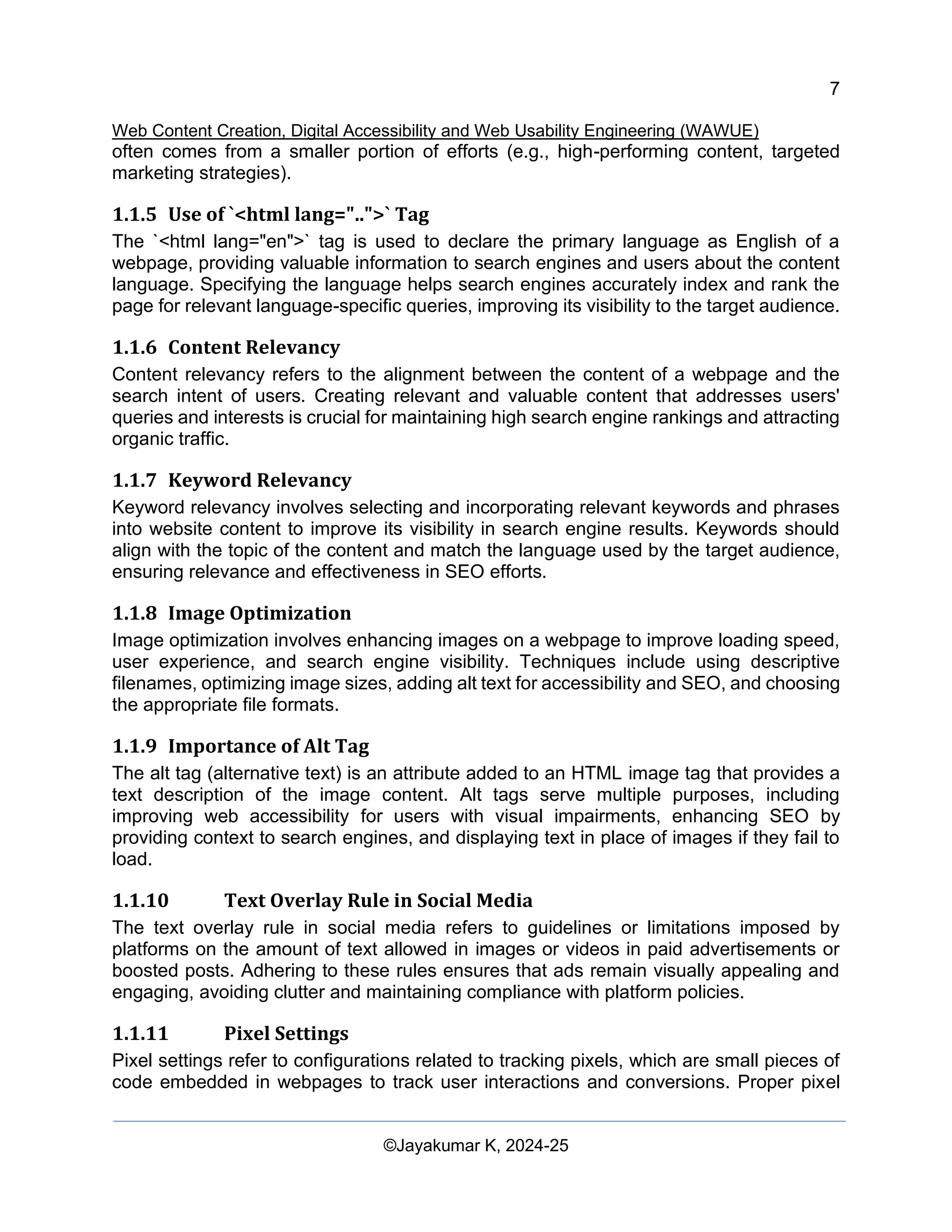
Formula: This test calculates a score that represents how easy it is to read a passage
of text.
Recommended Value: A score between 60-70 is ideal for general web content,
meaning it is easy to read for most people. A higher score indicates simpler text.
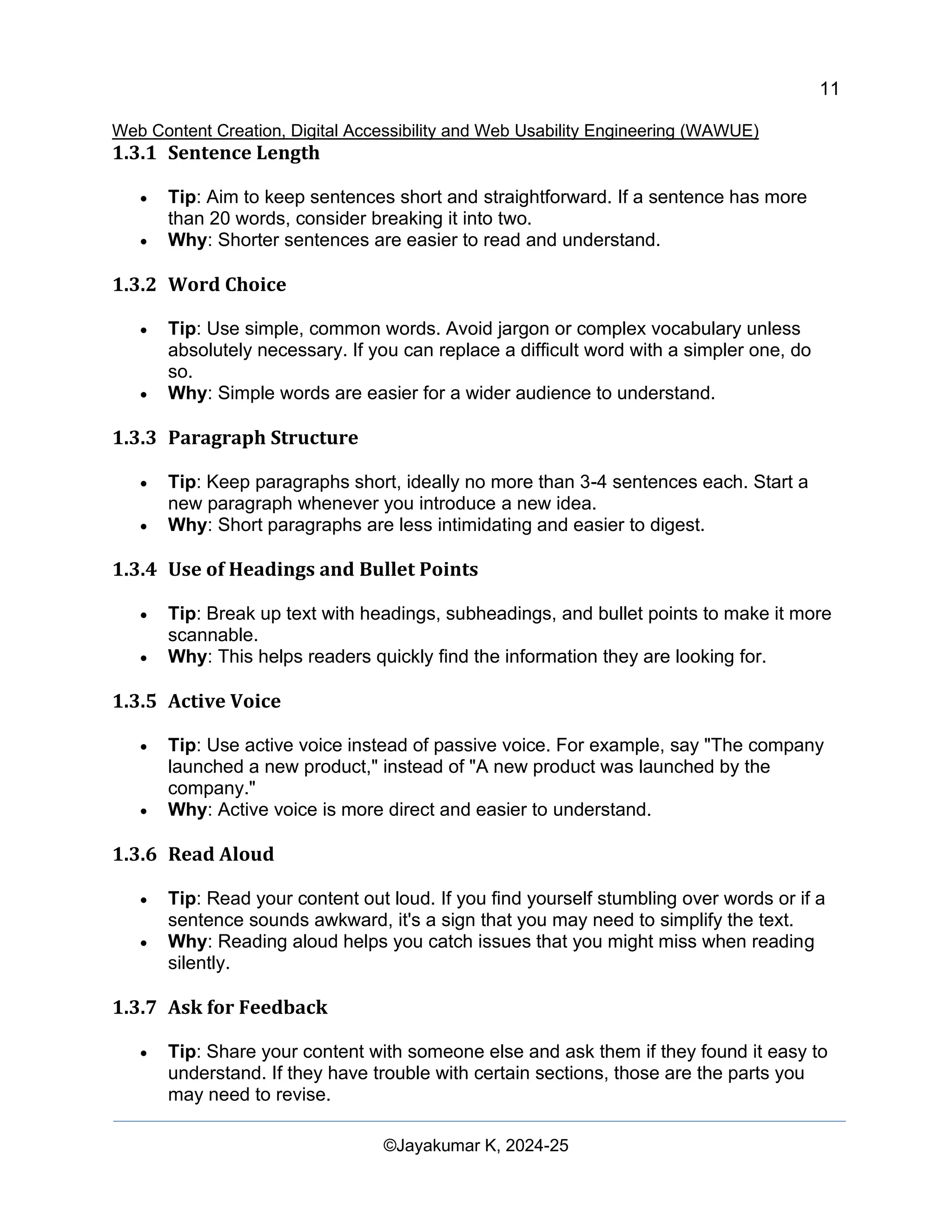
Formula:
9
Web Content Creation, Digital Accessibility and Web Usability Engineering (WAWUE)
©Jayakumar K, 2024-25
A score between 60-70 is considered suitable for general web content, making it
accessible to a broad audience. Scores above 70 are even easier to read.
1.2.2 Flesch Kincaid Grade Level:
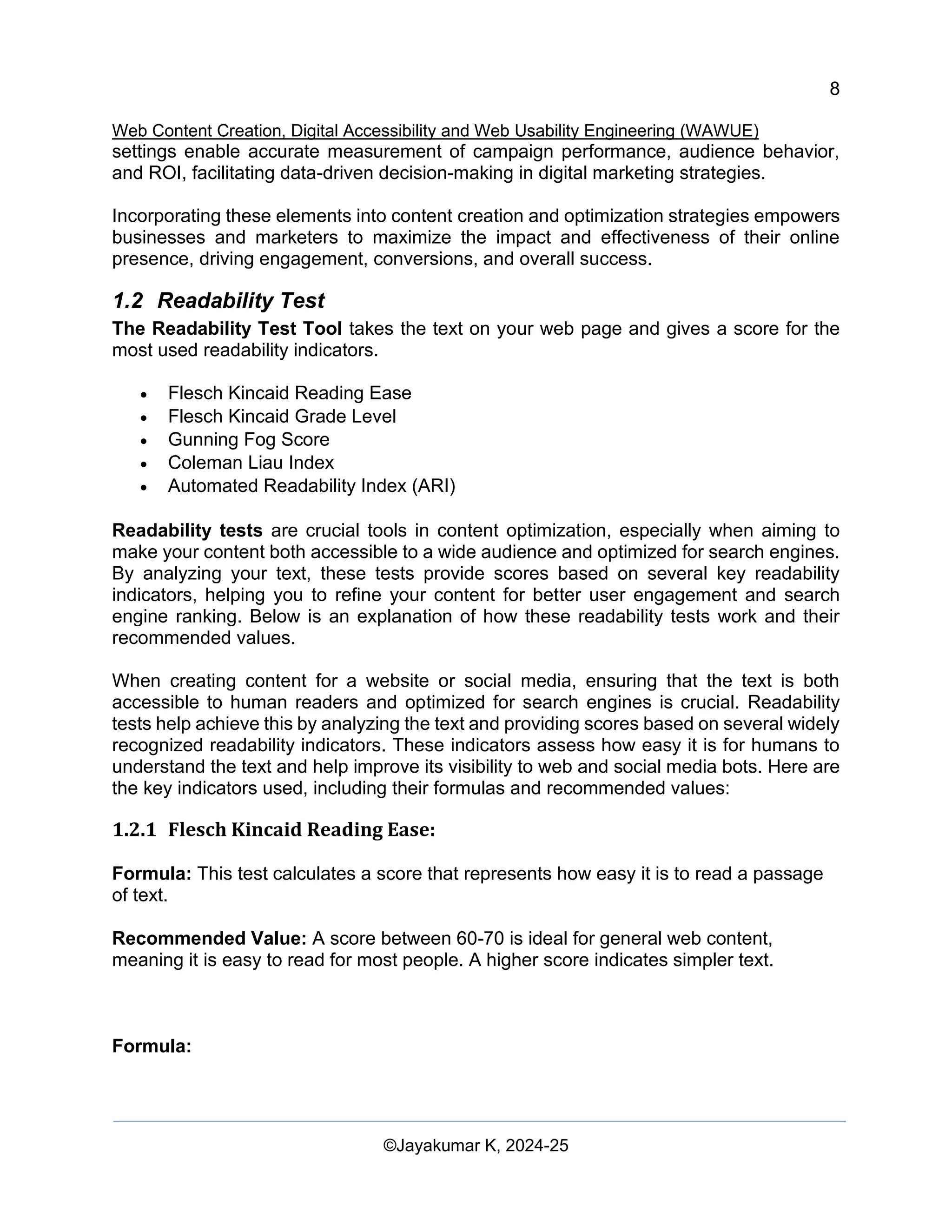
Formula: This formula converts the Flesch Kincaid Reading Ease score into a U.S.
school grade level.
Recommended Value: A grade level score of 8.0 or lower is recommended, meaning
the content is understandable by someone with an 8th-grade reading level or lower,
ensuring broad accessibility.
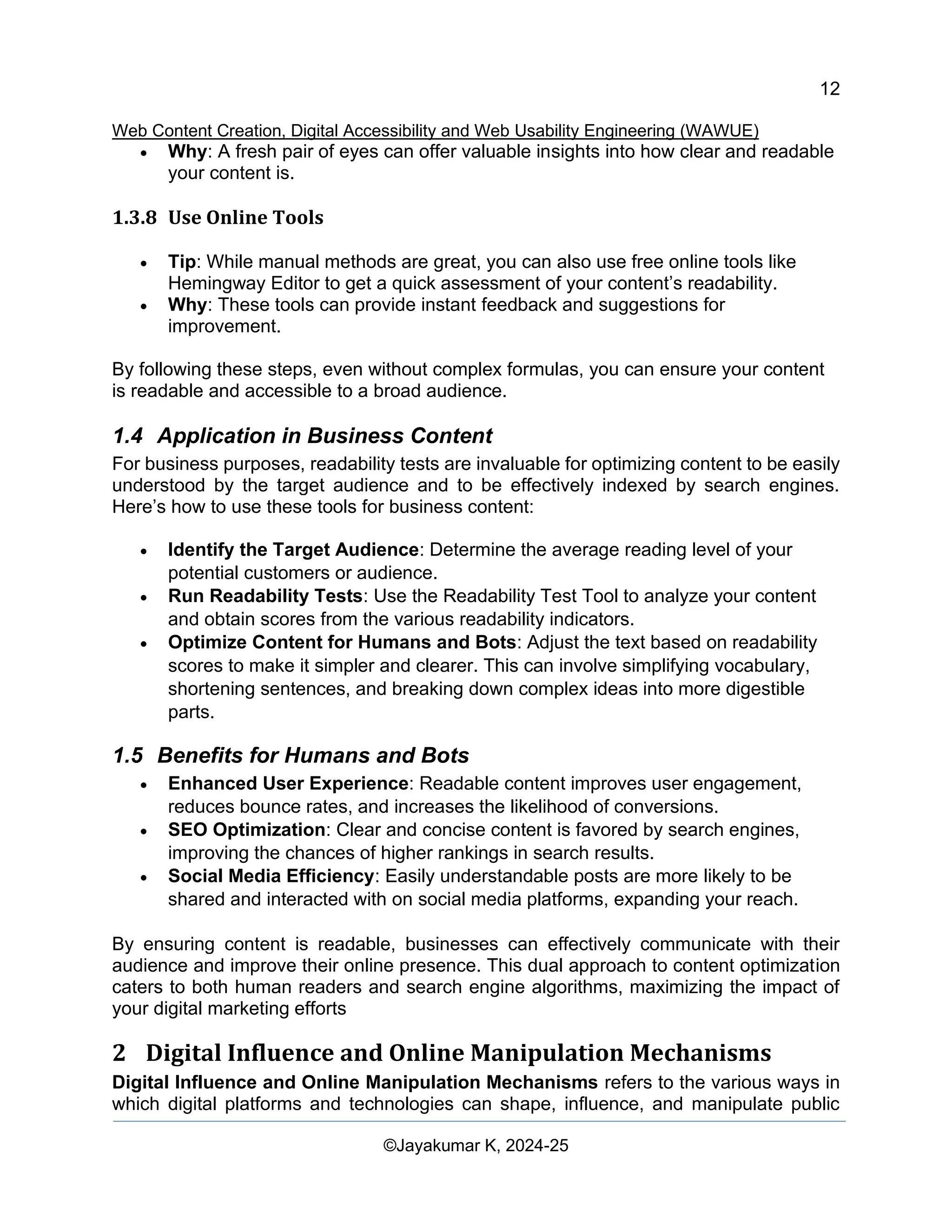
Formula:
A grade level score of 8.0 or lower is recommended for general content to ensure broad
accessibility.
1.2.3 Gunning Fog Score:
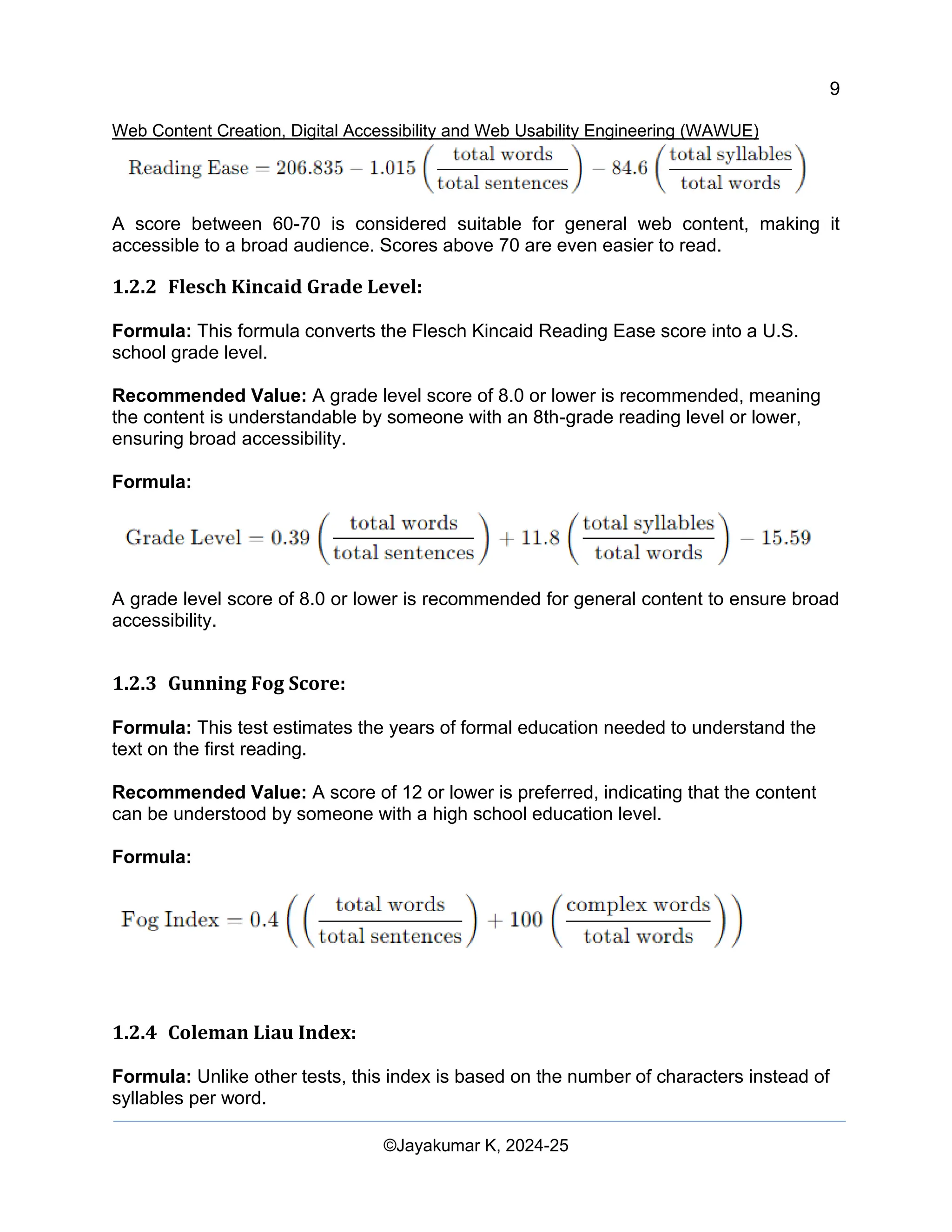
Formula: This test estimates the years of formal education needed to understand the
text on the first reading.
Recommended Value: A score of 12 or lower is preferred, indicating that the content
can be understood by someone with a high school education level.
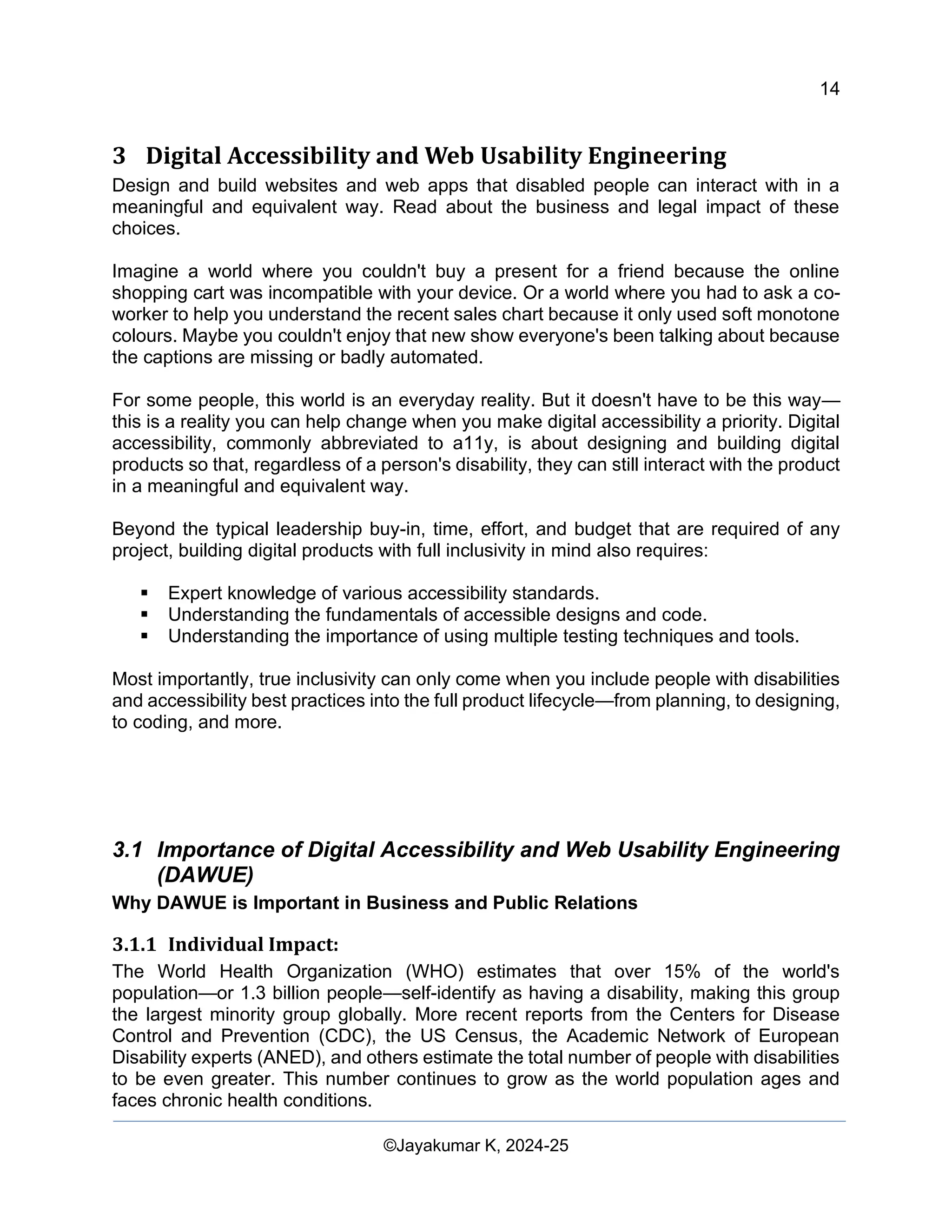
Formula:
1.2.4 Coleman Liau Index:
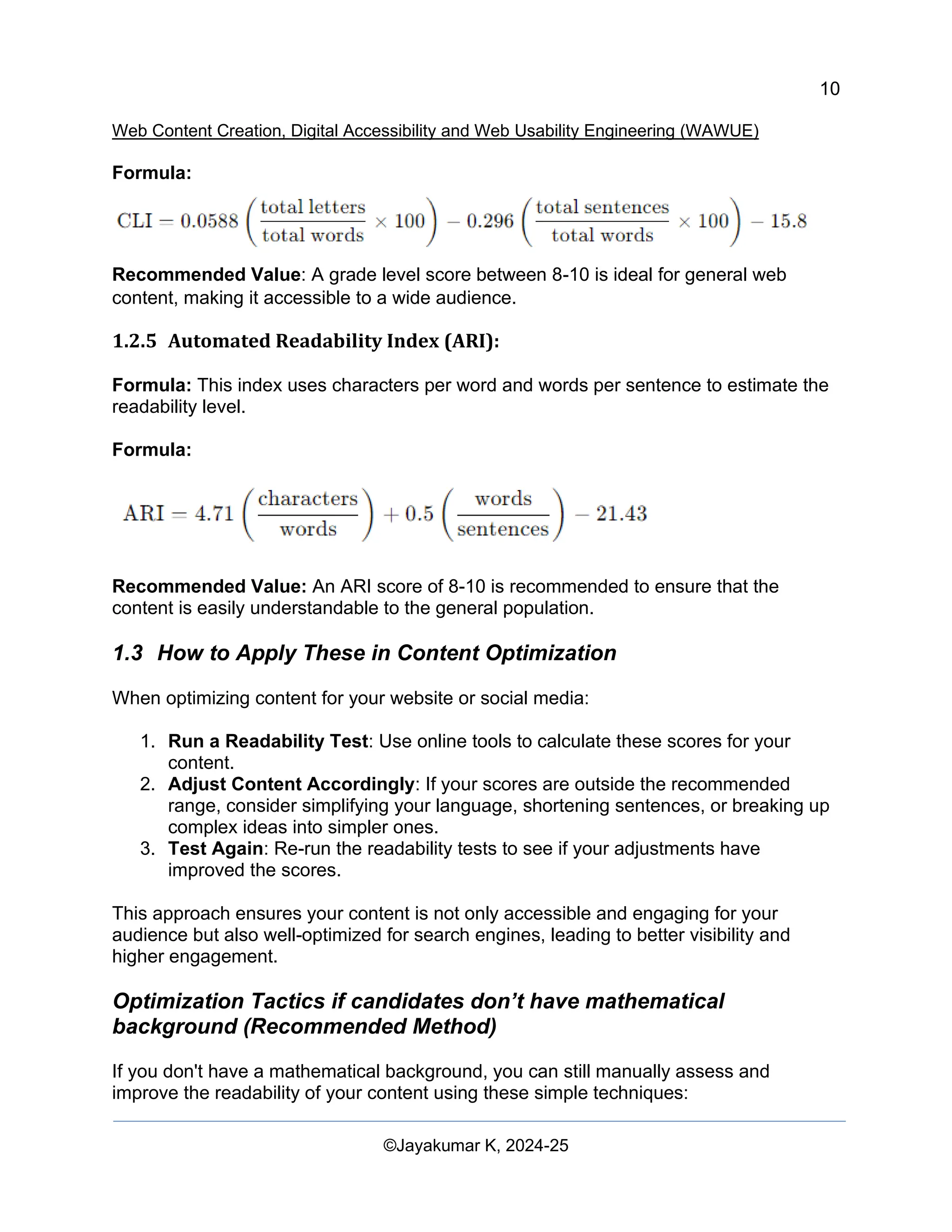
Formula: Unlike other tests, this index is based on the number of characters instead of
syllables per word.
10
Web Content Creation, Digital Accessibility and Web Usability Engineering (WAWUE)
©Jayakumar K, 2024-25
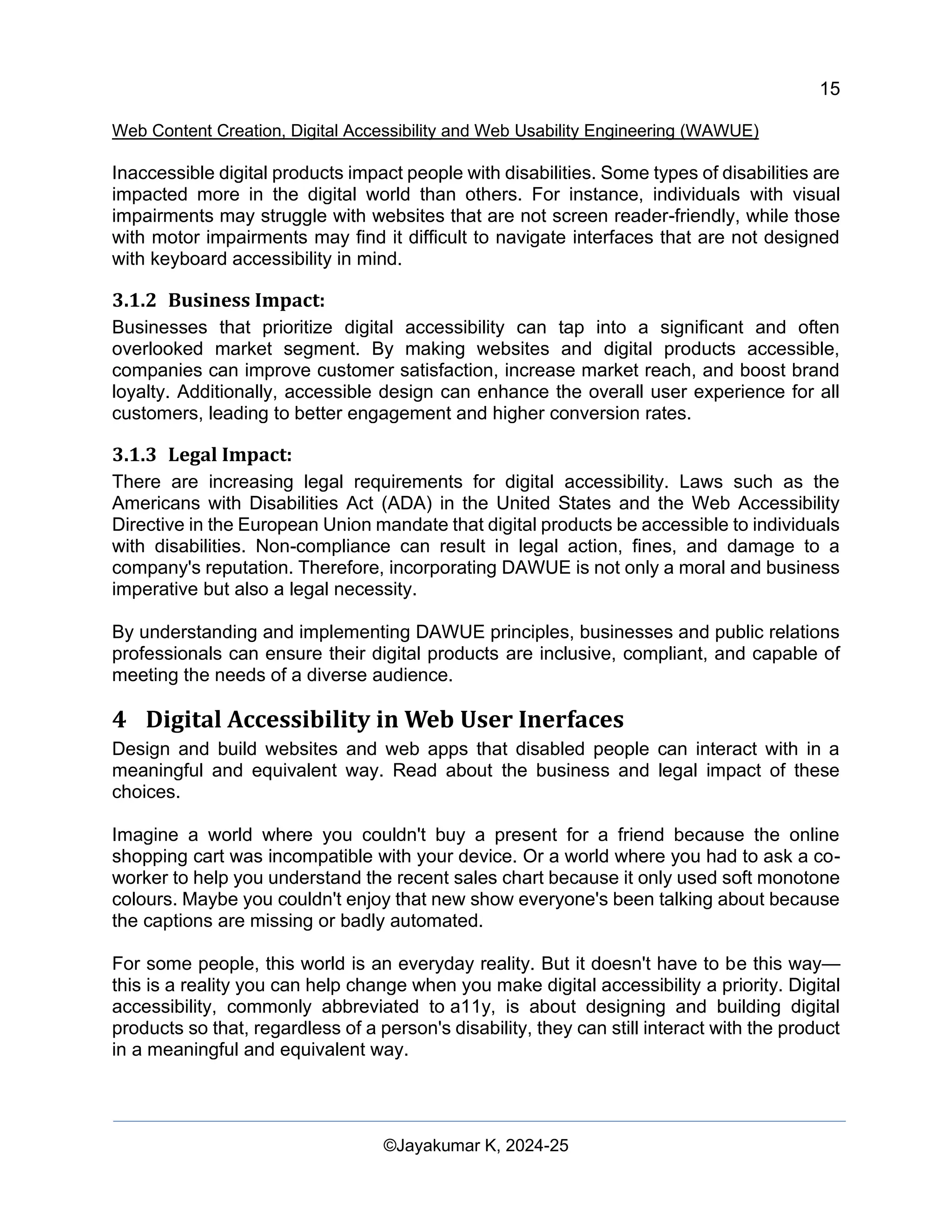
Formula:
Recommended Value: A grade level score between 8-10 is ideal for general web
content, making it accessible to a wide audience.
1.2.5 Automated Readability Index (ARI):
Formula: This index uses characters per word and words per sentence to estimate the
readability level.
Formula:
Recommended Value: An ARI score of 8-10 is recommended to ensure that the
content is easily understandable to the general population.
1.3 How to Apply These in Content Optimization
When optimizing content for your website or social media:
1. Run a Readability Test: Use online tools to calculate these scores for your
content.
2. Adjust Content Accordingly: If your scores are outside the recommended
range, consider simplifying your language, shortening sentences, or breaking up
complex ideas into simpler ones.
3. Test Again: Re-run the readability tests to see if your adjustments have
improved the scores.
This approach ensures your content is not only accessible and engaging for your
audience but also well-optimized for search engines, leading to better visibility and
higher engagement.
Optimization Tactics if candidates don’t have mathematical
background (Recommended Method)
If you don't have a mathematical background, you can still manually assess and
improve the readability of your content using these simple techniques:
11
Web Content Creation, Digital Accessibility and Web Usability Engineering (WAWUE)
©Jayakumar K, 2024-25
1.3.1 Sentence Length
• Tip: Aim to keep sentences short and straightforward. If a sentence has more
than 20 words, consider breaking it into two.
• Why: Shorter sentences are easier to read and understand.
1.3.2 Word Choice
• Tip: Use simple, common words. Avoid jargon or complex vocabulary unless
absolutely necessary. If you can replace a difficult word with a simpler one, do
so.
• Why: Simple words are easier for a wider audience to understand.
1.3.3 Paragraph Structure
• Tip: Keep paragraphs short, ideally no more than 3-4 sentences each. Start a
new paragraph whenever you introduce a new idea.
• Why: Short paragraphs are less intimidating and easier to digest.
1.3.4 Use of Headings and Bullet Points
• Tip: Break up text with headings, subheadings, and bullet points to make it more
scannable.
• Why: This helps readers quickly find the information they are looking for.
1.3.5 Active Voice
• Tip: Use active voice instead of passive voice. For example, say "The company
launched a new product," instead of "A new product was launched by the
company."
• Why: Active voice is more direct and easier to understand.
1.3.6 Read Aloud
• Tip: Read your content out loud. If you find yourself stumbling over words or if a
sentence sounds awkward, it's a sign that you may need to simplify the text.
• Why: Reading aloud helps you catch issues that you might miss when reading
silently.
1.3.7 Ask for Feedback
• Tip: Share your content with someone else and ask them if they found it easy to
understand. If they have trouble with certain sections, those are the parts you
may need to revise.
12
Web Content Creation, Digital Accessibility and Web Usability Engineering (WAWUE)
©Jayakumar K, 2024-25
• Why: A fresh pair of eyes can offer valuable insights into how clear and readable
your content is.
1.3.8 Use Online Tools
• Tip: While manual methods are great, you can also use free online tools like
Hemingway Editor to get a quick assessment of your content’s readability.
• Why: These tools can provide instant feedback and suggestions for
improvement.
By following these steps, even without complex formulas, you can ensure your content
is readable and accessible to a broad audience.
1.4 Application in Business Content
For business purposes, readability tests are invaluable for optimizing content to be easily
understood by the target audience and to be effectively indexed by search engines.
Here’s how to use these tools for business content:
• Identify the Target Audience: Determine the average reading level of your
potential customers or audience.
• Run Readability Tests: Use the Readability Test Tool to analyze your content
and obtain scores from the various readability indicators.
• Optimize Content for Humans and Bots: Adjust the text based on readability
scores to make it simpler and clearer. This can involve simplifying vocabulary,
shortening sentences, and breaking down complex ideas into more digestible
parts.
1.5 Benefits for Humans and Bots
• Enhanced User Experience: Readable content improves user engagement,
reduces bounce rates, and increases the likelihood of conversions.
• SEO Optimization: Clear and concise content is favored by search engines,
improving the chances of higher rankings in search results.
• Social Media Efficiency: Easily understandable posts are more likely to be
shared and interacted with on social media platforms, expanding your reach.
By ensuring content is readable, businesses can effectively communicate with their
audience and improve their online presence. This dual approach to content optimization
caters to both human readers and search engine algorithms, maximizing the impact of
your digital marketing efforts
2 Digital Influence and Online Manipulation Mechanisms
Digital Influence and Online Manipulation Mechanisms refers to the various ways in
which digital platforms and technologies can shape, influence, and manipulate public
13
Web Content Creation, Digital Accessibility and Web Usability Engineering (WAWUE)
©Jayakumar K, 2024-25
perceptions and consumer behaviors. In the modern digital landscape, search engines,
social media, and other online tools play a crucial role in determining the visibility and
credibility of information.
2.1 Search Engine Manipulation Effect [SEME]
The search engine manipulation effect (SEME) refers to the phenomenon where
consumer preferences are influenced by manipulations of search results. In today's digital
age, search engines play a significant role in shaping consumer perceptions and
behaviors. SEME highlights the potential impact of search engine algorithms and ranking
systems on the visibility and popularity of websites, products, and information.
Understanding SEME is crucial for businesses and marketers to navigate the
complexities of search engine optimization (SEO) and ensure ethical and transparent
practices in online visibility strategies.
2.2 Canonical Issue
A canonical issue arises when multiple URLs point to similar or identical content on a
website. This can lead to confusion for search engines, as they may treat each URL as a
separate page, diluting the website's search engine rankings. To address canonical
issues, webmasters can use canonical URLs to inform search engines that certain URLs
are equivalent and should be considered as one. This is achieved through the
implementation of rel-canonical tags, which help consolidate the authority of the preferred
URL and avoid duplicate content penalties.
2.3 Astroturfing
Astroturfing refers to the artificial creation of a grassroots movement or buzz for a product,
service, or political viewpoint. Unlike genuine grassroots movements that arise organically
from the community, astroturfing involves the manipulation of public perception through
orchestrated campaigns and fake endorsements. Astroturfing tactics often involve the use
of fake social media accounts, paid testimonials, and deceptive marketing practices to
create the illusion of widespread support. Recognizing astroturfing is essential for
consumers to make informed decisions and distinguish genuine grassroots movements
from artificially engineered ones.
2.4 Streisand Effect
The Streisand effect is a phenomenon wherein attempts to suppress or censor
information result in its widespread dissemination, often facilitated by the internet. Named
after an incident involving singer Barbara Streisand's attempt to remove photos of her
residence from the internet, the Streisand effect illustrates how efforts to hide information
can backfire, drawing more attention and publicity to the content in question.
Understanding the Streisand effect is essential for individuals and organizations when
considering strategies for managing online reputation and addressing potentially sensitive
information.
14
Web Content Creation, Digital Accessibility and Web Usability Engineering (WAWUE)
©Jayakumar K, 2024-25
3 Digital Accessibility and Web Usability Engineering
Design and build websites and web apps that disabled people can interact with in a
meaningful and equivalent way. Read about the business and legal impact of these
choices.
Imagine a world where you couldn't buy a present for a friend because the online
shopping cart was incompatible with your device. Or a world where you had to ask a co-
worker to help you understand the recent sales chart because it only used soft monotone
colours. Maybe you couldn't enjoy that new show everyone's been talking about because
the captions are missing or badly automated.
For some people, this world is an everyday reality. But it doesn't have to be this way—
this is a reality you can help change when you make digital accessibility a priority. Digital
accessibility, commonly abbreviated to a11y, is about designing and building digital
products so that, regardless of a person's disability, they can still interact with the product
in a meaningful and equivalent way.
Beyond the typical leadership buy-in, time, effort, and budget that are required of any
project, building digital products with full inclusivity in mind also requires:
▪ Expert knowledge of various accessibility standards.
▪ Understanding the fundamentals of accessible designs and code.
▪ Understanding the importance of using multiple testing techniques and tools.
Most importantly, true inclusivity can only come when you include people with disabilities
and accessibility best practices into the full product lifecycle—from planning, to designing,
to coding, and more.
3.1 Importance of Digital Accessibility and Web Usability Engineering
(DAWUE)
Why DAWUE is Important in Business and Public Relations
3.1.1 Individual Impact:
The World Health Organization (WHO) estimates that over 15% of the world's
population—or 1.3 billion people—self-identify as having a disability, making this group
the largest minority group globally. More recent reports from the Centers for Disease
Control and Prevention (CDC), the US Census, the Academic Network of European
Disability experts (ANED), and others estimate the total number of people with disabilities
to be even greater. This number continues to grow as the world population ages and
faces chronic health conditions.
15
Web Content Creation, Digital Accessibility and Web Usability Engineering (WAWUE)
©Jayakumar K, 2024-25
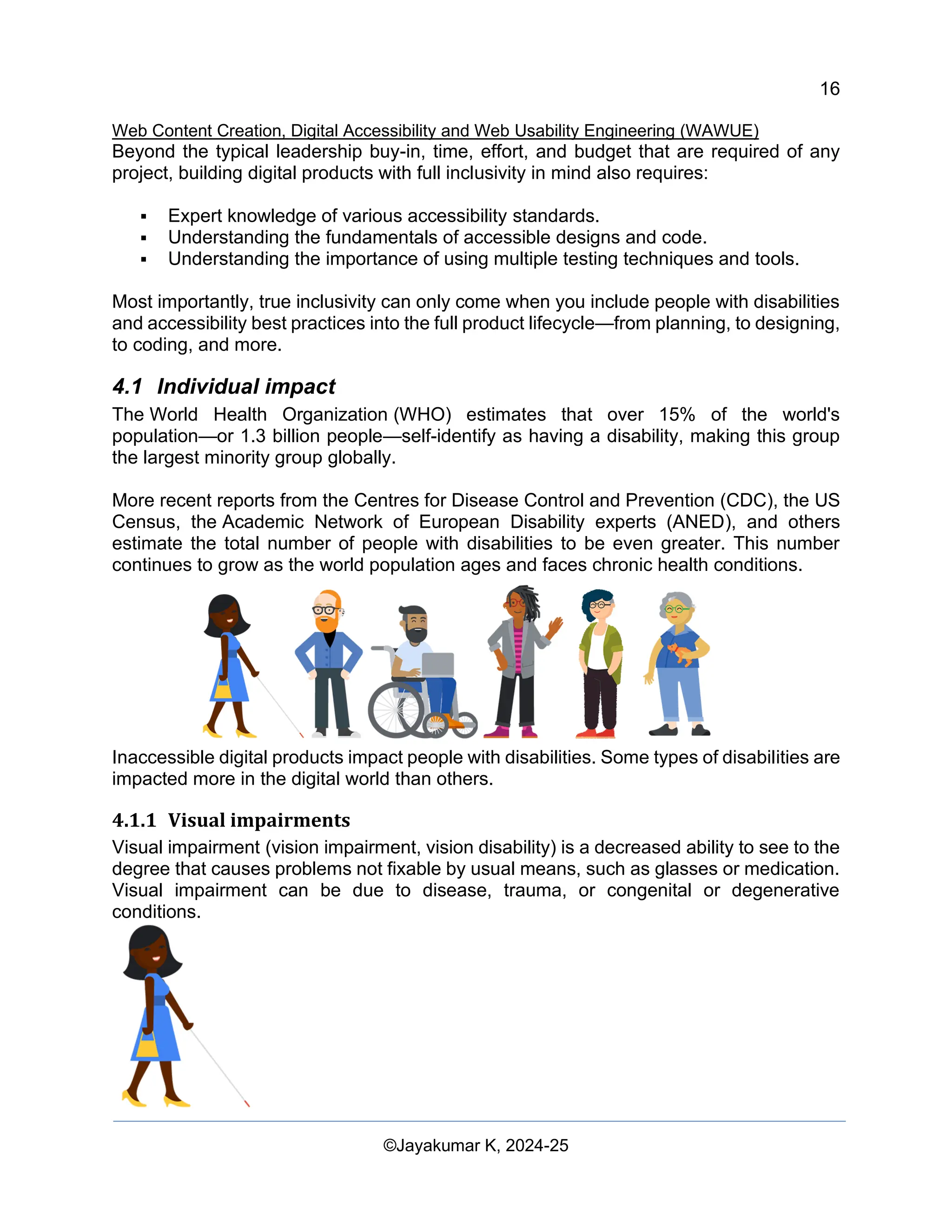
Inaccessible digital products impact people with disabilities. Some types of disabilities are
impacted more in the digital world than others. For instance, individuals with visual
impairments may struggle with websites that are not screen reader-friendly, while those
with motor impairments may find it difficult to navigate interfaces that are not designed
with keyboard accessibility in mind.
3.1.2 Business Impact:
Businesses that prioritize digital accessibility can tap into a significant and often
overlooked market segment. By making websites and digital products accessible,
companies can improve customer satisfaction, increase market reach, and boost brand
loyalty. Additionally, accessible design can enhance the overall user experience for all
customers, leading to better engagement and higher conversion rates.
3.1.3 Legal Impact:
There are increasing legal requirements for digital accessibility. Laws such as the
Americans with Disabilities Act (ADA) in the United States and the Web Accessibility
Directive in the European Union mandate that digital products be accessible to individuals
with disabilities. Non-compliance can result in legal action, fines, and damage to a
company's reputation. Therefore, incorporating DAWUE is not only a moral and business
imperative but also a legal necessity.
By understanding and implementing DAWUE principles, businesses and public relations
professionals can ensure their digital products are inclusive, compliant, and capable of
meeting the needs of a diverse audience.
4 Digital Accessibility in Web User Inerfaces
Design and build websites and web apps that disabled people can interact with in a
meaningful and equivalent way. Read about the business and legal impact of these
choices.
Imagine a world where you couldn't buy a present for a friend because the online
shopping cart was incompatible with your device. Or a world where you had to ask a co-
worker to help you understand the recent sales chart because it only used soft monotone
colours. Maybe you couldn't enjoy that new show everyone's been talking about because
the captions are missing or badly automated.
For some people, this world is an everyday reality. But it doesn't have to be this way—
this is a reality you can help change when you make digital accessibility a priority. Digital
accessibility, commonly abbreviated to a11y, is about designing and building digital
products so that, regardless of a person's disability, they can still interact with the product
in a meaningful and equivalent way.
16
Web Content Creation, Digital Accessibility and Web Usability Engineering (WAWUE)
©Jayakumar K, 2024-25
Beyond the typical leadership buy-in, time, effort, and budget that are required of any
project, building digital products with full inclusivity in mind also requires:
▪ Expert knowledge of various accessibility standards.
▪ Understanding the fundamentals of accessible designs and code.
▪ Understanding the importance of using multiple testing techniques and tools.
Most importantly, true inclusivity can only come when you include people with disabilities
and accessibility best practices into the full product lifecycle—from planning, to designing,
to coding, and more.
4.1 Individual impact
The World Health Organization (WHO) estimates that over 15% of the world's
population—or 1.3 billion people—self-identify as having a disability, making this group
the largest minority group globally.
More recent reports from the Centres for Disease Control and Prevention (CDC), the US
Census, the Academic Network of European Disability experts (ANED), and others
estimate the total number of people with disabilities to be even greater. This number
continues to grow as the world population ages and faces chronic health conditions.
Inaccessible digital products impact people with disabilities. Some types of disabilities are
impacted more in the digital world than others.
4.1.1 Visual impairments
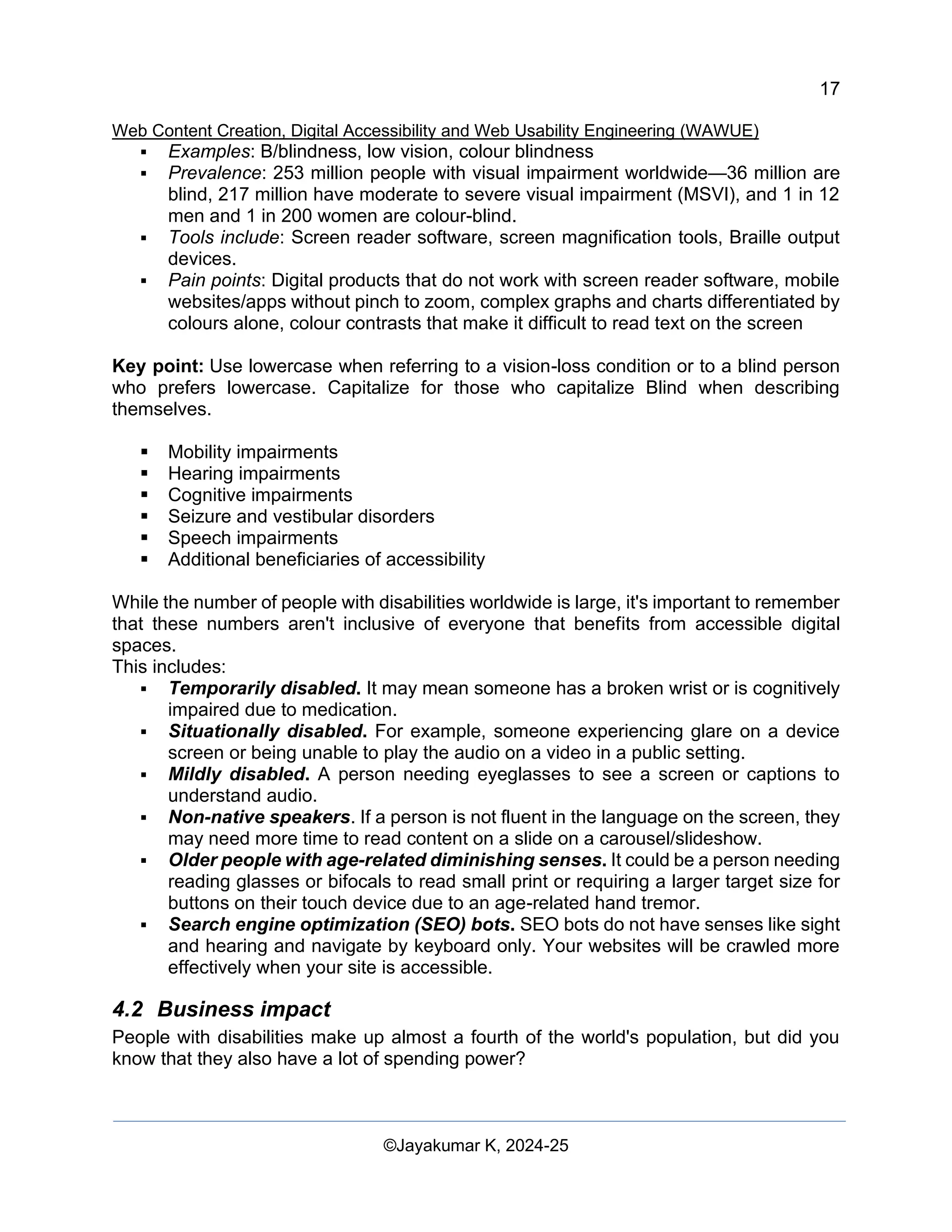
Visual impairment (vision impairment, vision disability) is a decreased ability to see to the
degree that causes problems not fixable by usual means, such as glasses or medication.
Visual impairment can be due to disease, trauma, or congenital or degenerative
conditions.
17
Web Content Creation, Digital Accessibility and Web Usability Engineering (WAWUE)
©Jayakumar K, 2024-25
▪ Examples: B/blindness, low vision, colour blindness
▪ Prevalence: 253 million people with visual impairment worldwide—36 million are
blind, 217 million have moderate to severe visual impairment (MSVI), and 1 in 12
men and 1 in 200 women are colour-blind.
▪ Tools include: Screen reader software, screen magnification tools, Braille output
devices.
▪ Pain points: Digital products that do not work with screen reader software, mobile
websites/apps without pinch to zoom, complex graphs and charts differentiated by
colours alone, colour contrasts that make it difficult to read text on the screen
Key point: Use lowercase when referring to a vision-loss condition or to a blind person
who prefers lowercase. Capitalize for those who capitalize Blind when describing
themselves.
▪ Mobility impairments
▪ Hearing impairments
▪ Cognitive impairments
▪ Seizure and vestibular disorders
▪ Speech impairments
▪ Additional beneficiaries of accessibility
While the number of people with disabilities worldwide is large, it's important to remember
that these numbers aren't inclusive of everyone that benefits from accessible digital
spaces.
This includes:
▪ Temporarily disabled. It may mean someone has a broken wrist or is cognitively
impaired due to medication.
▪ Situationally disabled. For example, someone experiencing glare on a device
screen or being unable to play the audio on a video in a public setting.
▪ Mildly disabled. A person needing eyeglasses to see a screen or captions to
understand audio.
▪ Non-native speakers. If a person is not fluent in the language on the screen, they
may need more time to read content on a slide on a carousel/slideshow.
▪ Older people with age-related diminishing senses. It could be a person needing
reading glasses or bifocals to read small print or requiring a larger target size for
buttons on their touch device due to an age-related hand tremor.
▪ Search engine optimization (SEO) bots. SEO bots do not have senses like sight
and hearing and navigate by keyboard only. Your websites will be crawled more
effectively when your site is accessible.
4.2 Business impact
People with disabilities make up almost a fourth of the world's population, but did you
know that they also have a lot of spending power?
18
Web Content Creation, Digital Accessibility and Web Usability Engineering (WAWUE)
©Jayakumar K, 2024-25
According to the American Institutes for Research (AIR), the total after-tax disposable
income for working-age Americans with disabilities is about $490 billion annually. This
number is similar to other significant market segments in the US, such as the Black ($501
billion) and Latinx ($582 billion) communities. Companies that do not plan for, design, and
build accessible products can lose out on this potential revenue.
While these numbers are impressive, people with disabilities are also part of a larger
network of family members, friends, communities, and institutions. This larger network
often looks for and supports businesses that create accessible digital products. When you
factor in the friends and family of the over 1.3 billion people worldwide who identify as
disabled, the disability market touches 53% of all consumers. It's the world's largest
emerging market.
In addition to money and market shares, businesses focused on disability inclusion as
part of an overall diversity strategy are higher performing and more innovative. There are
many examples of everyday products that evolved from technology developed by, or for,
people with disabilities, including:
▪ Telephones
▪ Typewriters / keyboards
▪ Email
▪ Kitchen utensils
▪ Easy-open pull-out drawers
▪ Automatic door openers
▪ Voice controls
▪ Eye gaze technology
When we look at accessibility as a design or coding challenge, not a begrudging
requirement, innovation is the byproduct. For people without disabilities, such
improvements can increase the overall user experience. For people with disabilities,
these improvements are essential for equal access.
4.3 Legal impact
Beyond the individual and business impact, you should also be aware of the looming legal
impact of not building accessible digital products. Public sector entities in the United
States, such as government-funded programs/schools, airlines, and nonprofits, must
follow certain digital accessibility rules, while many private sector companies do not. In
countries such as Canada, the United Kingdom, Japan, Australia, and the European
Union, stricter digital accessibility laws exist for both public and private companies.
19
Web Content Creation, Digital Accessibility and Web Usability Engineering (WAWUE)
©Jayakumar K, 2024-25
For many disabled people in the US, filing a lawsuit is their only option to bring awareness
and change to digital products. It is estimated that in the US, over ten lawsuits are filed
daily focused on digital accessibility. Many businesses have received multiple digital
accessibility-based lawsuits. And every year, the number of total lawsuits has increased.
E-commerce websites and apps are typically the biggest targets, comprising over 74% of
the lawsuits filed in 2021. If your company has both a physical location and an online
presence, you are more likely to have been part of a lawsuit. In fact, of the top 500 e-
commerce sites, 412 have been served with a lawsuit within the past four years. Often,
the first lawsuit is for the company's website and the second for their mobile app.
While avoiding lawsuits shouldn't be the only reason you focus on making sure your digital
products are accessible, it is an important piece of the conversation.
5 Digital accessibility measurement Process
Digital accessibility means designing and building your digital offerings so that, regardless
of a person's mental or physical ability, they can still interact with your website, app, or
other digital product in a meaningful and equal way.
5.1 Introduction to accessibility testing
There are many ways to test a digital product for accessibility. One fundamental approach
is to evaluate it against a set of accessibility standards.
There are many types of accessibility standards. Typically, your industry, product type,
local/country laws and policies, or overall accessibility goals will dictate which set of
guidelines to follow and levels to meet. If no specific standard is required for your project,
the standard recommendation is to follow the latest version of the Web Content
Accessibility Guidelines (WCAG).
Testing your digital product against an accessibility standard and conformance level is
commonly referred to as an accessibility audit. An accessibility audit uses various
methodologies, techniques, and tools, including design, automated, manual, and
assistive technology (AT) testing.
Perform an accessibility audit to capture the baseline accessibility compliance of a digital
product. But, running it once at the start of a project is not enough to determine if a product
is accessible. You should run this audit multiple times throughout the software product
lifecycle to check for changes in the level of conformance, against a set of pre-determined
accessibility checkpoints or guidelines.
5.2 Web Content Accessibility Guidelines (WCAG)
The Web Content Accessibility Guidelines (WCAG) are an international set of
accessibility standards developed through the W3C, in cooperation with individuals and
organizations. The goal of WCAG is to provide a single shared standard for digital
20
Web Content Creation, Digital Accessibility and Web Usability Engineering (WAWUE)
©Jayakumar K, 2024-25
accessibility that meets the needs of individuals, organizations, and governments
worldwide.
WCAG is primarily intended for web-based and native mobile app designers and
developers. However, many others, including software developers, content
creators/editors, and all levels of management, benefit from understanding and applying
WCAG-based techniques to their process. Additional W3C standards may apply to your
role, including the Authoring Tool Accessibility Guidelines (ATAG) and User Agent
Accessibility Guidelines (UAAG), so make sure you review the W3C list of standards and
use the one(s) most applicable to your role and project.
In terms of accessibility, WCAG is considered the "gold standard" for conformance
testing. The first draft of WCAG was released in 1999. The current version is WCAG 2.1,
released in June 2018, while WCAG 2.2 is scheduled for 2023. A completely revamped
version of the guidelines, WCAG 3.0, is being drafted for a future release, but is not
expected to be a completed W3C standard for a few more years.
The WCAG guidelines have three levels of success criteria: A, AA, and AAA. The success
criteria determine conformance to WCAG. To meet WCAG conformance, the digital
product you are testing needs to meet the success criteria for your target level.
▪ 30: A success criteria
▪ 20: AA success criteria
▪ 28: AAA success criteria
For the current standard (WCAG 2.1), there are 78 success criteria in total, split across
each level. It is important to note that each level is progressive, meaning if your
accessibility goal is AA, you must pass the success criteria for both A and AA to achieve
this level of conformance.
▪ 30: Pass A level
▪ 50: Pass A + AA level
▪ 78: Pass A + AA + AAA level
21
Web Content Creation, Digital Accessibility and Web Usability Engineering (WAWUE)
©Jayakumar K, 2024-25
5.3 Accessibility principles
The WCAG success criteria are a very important set of detailed guidelines that inform
designers and developers how to create accessible
websites and apps. Understanding these guidelines
is critical to address issues that arise in accessibility
compliance testing, but the guidelines quickly
become very technical.
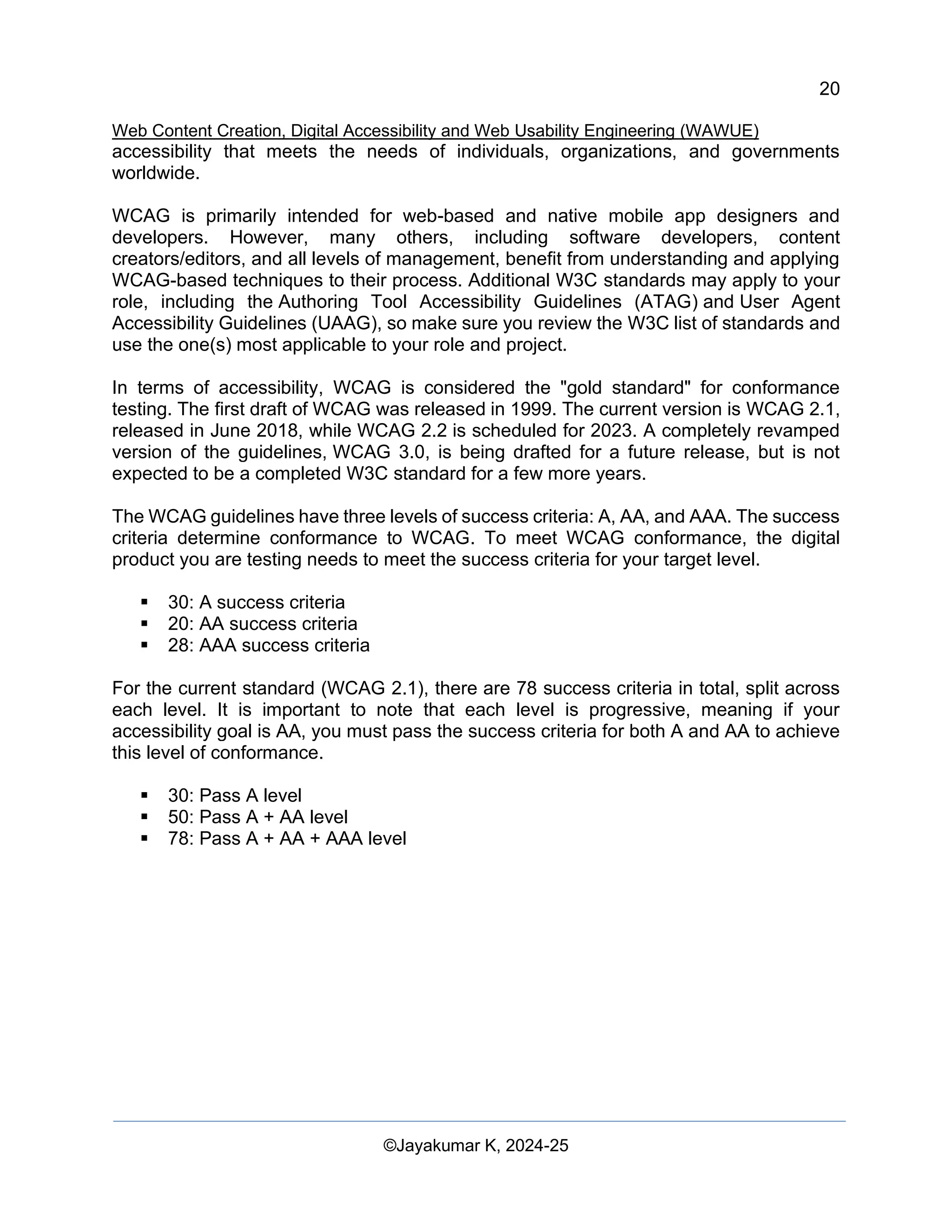
If you are new to this field, start with the principles of
WCAG—Perceivable, Operable, Understandable,
and Robust (POUR). By applying POUR principles to
your digital products, you can focus on how your
products are used by real humans, including people
with disabilities.
5.3.1 Perceivable
The first category in POUR is Perceivable. This
principle states that users must be able to perceive all
essential information on the screen, and it must be
conveyed to multiple senses.
Ask yourself: Is there any content or functionality in your digital product that a person
with a specific disability would not be able to perceive? Be sure to consider all the different
types of disabilities—visual, mobility, hearing, cognitive, and speech impairments,
vestibular and seizure disorders, and more.
Examples of Perceivable:
▪ Adding text alternatives to all non-decorative images and essential icons.
▪ Adding captions, transcripts, and audio descriptions to videos.
▪ Ensuring colour is not the only method of conveying meaning.
5.3.2 Operable
The second category is Operable. For this
principle, users must be able to operate the
digital product's interface. The interface cannot
require interaction that a user cannot perform.
Ask yourself: Can users control the interactive
elements of your digital product? Are there any
focus order issues or keyboard traps? How are
touch interfaces handled?
22
Web Content Creation, Digital Accessibility and Web Usability Engineering (WAWUE)
©Jayakumar K, 2024-25
Examples of Operable:
▪ Adding keyboard and touchscreen support to all active elements.
▪ Ensuring slideshows and videos have all of the necessary controls available.
▪ Giving users enough time to fill out a form or a method to extend the time.
5.3.3 Understandable
The third category of POUR is Understandable. For this principle,
users must understand the information and the operation of the
user interface.
Ask yourself: Is all of the content clearly written? Are all of the
interactions easy to understand? Does the order of the page
make sense—to sighted users, keyboard-only users, screen
reader users?
Examples of Understandable:
▪ Writing simply—don't use a complex word when a simple one will do.
▪ Ensuring your digital product has predictable navigation.
▪ Ensuring error messages are clear and easy to resolve.
5.3.4 Robust
The last category is Robust. This principle
focuses on supporting assistive technologies
and ensuring that, as devices and user agents
evolve, the digital product remains accessible.
Ask yourself: What types of assistive
technology are you supporting? Does your
digital product only work on the newest
browsers or operating systems? Does it work at
all breakpoints and in different device
orientations?
Examples of Robust:
▪ Testing keyboard-only navigation.
▪ Testing with different screen reader technologies.
▪ Ensuring all of the content and functionality can be accessed, regardless of device
size or orientation.
▪ Remember—the whole point of POUR is not about rigidly adhering to hard and
fast rules. Instead, it is a way to help you understand and meet the diverse needs
of your users.
23
Web Content Creation, Digital Accessibility and Web Usability Engineering (WAWUE)
©Jayakumar K, 2024-25
6 ARIA and HTML
Most developers are familiar with the standard
markup language of our modern
web, HyperText Markup Language (HTML).
However, you may be less familiar
with Accessible Rich Internet Applications
(ARIA) (formally called WAI-ARIA): what it is,
how it is used, and when—and when not—to
use it.
HTML and ARIA play important roles in making
digital products accessible, especially when it
comes to assistive technology (AT) such as screen readers. Both are used to convert
content into an alternate format, such as Braille or Text-to-Speech (TTS).
Let's review a short history of ARIA, why it is important, and when and how best to use it.
6.1 Introduction to ARIA
ARIA was first developed in 2008 by the Web Accessibility Initiative (WAI) group—a
subset of the overarching World Wide Web Consortium (W3C), which governs and
regulates the internet.
ARIA is not a true programming language but a set of attributes you can add to HTML
elements to increase their accessibility. These attributes communicate role, state, and
property to assistive technologies via accessibility APIs found in modern browsers. This
communication happens through the accessibility tree.
"WAI-ARIA, the Accessible Rich Internet Applications Suite, defines a way to make web
content and web applications more accessible to people with disabilities. It especially
helps with dynamic content and advanced user interface controls developed with HTML,
JavaScript, and related technologies."
6.2 The accessibility tree
ARIA modifies incorrect or incomplete code to create a better experience for those using
AT by changing, exposing, and augmenting parts of the accessibility tree.
The accessibility tree is created by the browser and based on the standard Document
Object Model (DOM) tree. Like the DOM tree, the accessibility tree contains objects
representing all the markup elements, attributes, and text nodes. The accessibility tree is
also used by platform-specific accessibility APIs to provide a representation that assistive
technologies can understand.
ARIA on its own doesn't change an element's functionality or visual appearance. That
means only AT users will notice differences between a digital product with ARIA and one
24
Web Content Creation, Digital Accessibility and Web Usability Engineering (WAWUE)
©Jayakumar K, 2024-25
without it. That also means that developers alone are responsible for making the
appropriate code and styling changes to make an element as accessible as possible.
The three main features of ARIA are roles, properties, and states/values.
Roles define what an element is or does on the page or app.
<div role="button">Self-destruct</div>
Properties express characteristics or relationships to an object.
<div role="button" aria-describedby="more-info">Self-destruct</div>
<div id="more-info">This page will self-destruct in 10 seconds.</div>
States/values define the current conditions or data values associated with the element.
<div role="button" aria-describedby="more-info" aria-pressed="false">
Self-destruct
</div>
<div id="more-info">
This page will self-destruct in 10 seconds.
</div>
While all three elements of ARIA can be used in one line of code, it's not required. Instead,
layer ARIA roles, properties, and states/values until you've accomplished your final
accessibility goal. Correctly incorporating ARIA into your code base ensures that AT users
will have all the information they need to use your website, app, or other digital product
successfully and equitably.
Recently, Chrome DevTools has created a way to see the full accessibility tree making it
easier for developers to understand how their code impacts accessibility.
6.3 When to use ARIA
In 2014, the W3C officially published the HTML5 recommendation. With it came some big
changes, including the addition of landmark elements such
as <main>, <header>, <footer>, <aside>, <nav>, and attributes like hidden and required.
With these new HTML5 elements and attributes, coupled with increased browser support,
certain parts of ARIA are now less critical.
When the browser supports an HTML tag with an implicit role with an ARIA equivalent,
there is usually no need to add ARIA to the element. However, ARIA still includes many
roles, states, and properties that aren't available in any version of HTML. Those attributes
remain useful for now.
This brings us to the ultimate question: When should you use ARIA? Thankfully the WAI
group has developed the five rules of ARIA to help you decide how to make elements
accessible.
Rule 1: Don't use ARIA
25
Web Content Creation, Digital Accessibility and Web Usability Engineering (WAWUE)
©Jayakumar K, 2024-25
Yes, you read that right. Adding ARIA to an element does not inherently make it more
accessible. The WebAIM Million annual accessibility report found that home pages with
ARIA present averaged 70% more detected errors than those without ARIA, primarily due
to the improper implementation of the ARIA attributes.
There are exceptions to this rule. ARIA is required when an HTML element doesn't have
accessibility support. This could be because the design doesn't allow for a specific HTML
element or the wanted feature/behavior isn't available in HTML. However, these situations
should be scarce.
Don't
<a role="button">Submit</a>
Do
<button>Submit</button>
When in doubt, use semantic HTML elements.
Rule 2: Don't add (unnecessary) ARIA to HTML
In most circumstances, HTML elements work well out of the box and do not need
additional ARIA added to them. In fact, developers using ARIA often have to add
additional code to make the elements functional in the case of interactive elements.
Don't
<h2 role="tab">Heading tab</h2>
Do
<div role="tab"><h2>Heading tab</h2></div>
Do less work and have better-performing code when you use HTML elements as
intended.
Rule 3: Always support keyboard navigation
All interactive (not disabled) ARIA controls must be keyboard accessible. You can add
tabindex= "0" to any element that needs a focus that doesn't normally receive keyboard
focus. Avoid using tab indexes with positive integers whenever possible to prevent
potential keyboard focus order issues.
Don't
<span role="button" tabindex="1">Submit</span>
Do
<span role="button" tabindex="0">Submit</span>
Of course, if you can, use a real <button> element in this case.
26
Web Content Creation, Digital Accessibility and Web Usability Engineering (WAWUE)
©Jayakumar K, 2024-25
Caution: Remember, people with and without visual impairments use keyboard
navigation. Don't add unnecessary tab stops to headings and paragraphs, as these can
add additional challenges for some users who navigate by keyboard alone.
Rule 4: Don't hide focusable elements
Don't add role= "presentation" or aria-hidden= "true" to elements that need to have
focus—including elements with a tabindex= "0". When you add these roles/states to
elements, it sends a message to the AT that these elements are not important and to skip
over them. This can lead to confusion or disrupt users attempting to interact with an
element.
Don't
<div aria-hidden="true"><button>Submit</button></div>
Do
<div><button>Submit</button></div>
Rule 5: Use accessible names for interactive elements
The purpose of an interactive element needs to be conveyed to a user before they know
how to interact with it. Ensure that all elements have an accessible name for people using
AT devices.
Accessible names can be the content surrounded by an element (in the case of an <a>),
alternative text, or a label.
For each of the following code samples, the accessible name is "Red leather boots."
<!-- A plain link with text between the link tags. -->
<a href="shoes.html">Red leather boots</a>
<!-- A linked image, where the image has alt text. -->
<a href="shoes.html"><img src="shoes.png" alt="Red leather boots"></a>
<!-- A checkbox input with a label. -->
<input type="checkbox" id="shoes">
<label for="shoes">Red leather boots</label>
There are many ways to check an element's accessible name, including inspecting the
accessibility tree using Chrome DevTools or testing it with a screen reader.
Note: Coming soon: read more about screen reader testing in the Assistive Technology
module.
27
Web Content Creation, Digital Accessibility and Web Usability Engineering (WAWUE)
©Jayakumar K, 2024-25
6.4 ARIA in HTML
While using HTML elements on their own is best practice, ARIA elements can be added
in certain situations. For example, you may pair ARIA with HTML in patterns that need a
higher level of AT support because of environmental constraints or as a fall-back method
for HTML elements that aren't fully supported by all browsers.
Of course, there are recommendations for implementing ARIA in HTML. Most importantly:
don't override default HTML roles, reduce redundancy, and be aware of unintended side
effects.
Let's look at some examples.
Don't
<a role="heading">Read more</a>
Assigned the wrong role.
Do
<a aria-label="Read more about some awesome article title">Read More</a>
Correct role and an extra link description.
Don't
<ul role="list">...</ul>
Redundant role.
Do
<ul>...</ul>
Redundancy removed
Don't
<details>
<summary role="button">more information</summary>
...
</details>
Potential side effects.
Do
<details>
<summary>more information</summary>
...
</details>
No unintended side effects.
Note: One place in particular where ARIA can be useful is in forms. Check out the Learn
Forms accessibility module.
28
Web Content Creation, Digital Accessibility and Web Usability Engineering (WAWUE)
©Jayakumar K, 2024-25
6.5 Complexities of ARIA
ARIA is complex, and you should always use caution when using it. While the code
examples in this lesson are fairly straightforward, creating accessible custom patterns
can quickly get complicated.
There are many things to pay attention to, including but not limited to: keyboard
interactions, touch interfaces, AT/browser support, translation needs, environmental
constraints, legacy code, and user preferences. A little bit of coding knowledge can be
detrimental—or just plain annoying—if used incorrectly. Remember to keep your code
simple.
Those warnings aside, digital accessibility is not an all-or-nothing situation—it's a
spectrum that allows for some gray areas like this. Multiple coding solutions can be seen
as "correct," depending on the situation. What is important is that you keep learning,
testing, and trying to make our digital world more open to all.
7 Content structure
One of the most important aspects of digital accessibility is the underlying structure of the
page. When you build your website or app using structural elements instead of relying on
styles alone, you give critical context to people using assistive technologies (AT), such as
screen readers.
Structural elements serve as an outline of the content on the screen, but they also act as
anchor points to allow for easier navigation within the content.
When you use semantic HTML elements, the inherent meaning of each element is
passed on to the accessibility tree and used by the AT, giving more meaning to the
content than non-semantic elements. There may be cases where you need to add
additional ARIA attributes to build relationships or to enhance the overall user experience,
but in most situations, one of the 100+ HTML elements available should work fairly well
on its own.
While this module focuses on the most widely used structural elements critical to digital
accessibility, there are certainly additional elements and environmental factors to
consider when building structure into your website or app. These examples are an
introduction to the topic, rather than all-inclusive.
Note: Our Learn HTML course covers the basics of HTML and semantic structure in
great detail. As such, this module builds off of that course material and is focused
specifically on digital accessibility. Likewise, be sure to review the ARIA and HTML
module in this course before diving into this module.
29
Web Content Creation, Digital Accessibility and Web Usability Engineering (WAWUE)
©Jayakumar K, 2024-25
7.1 Landmarks
Users of AT rely on structural elements to give them information about the page's overall
layout. When sectioning off large regions of content, you can use either ARIA landmark
roles or the newer HTML landmark elements to add structural context to your page.
Landmarks ensure content is in navigable regions. It's recommended that you supply at
least one landmark per page.
Some resources suggest combining ARIA and HTML landmarks together to provide
better AT coverage. While this type of redundancy shouldn't cause issues for your users,
test the patterns using a screen reader to be certain. When in doubt, it's best to default to
using only the newer HTML landmark elements, as the browser support is very robust.
Let's compare the HTML landmark elements as mapped to their counterpart ARIA
landmark roles.
Requires inclusion of the name attribute to be accessible. A section must be accessibly-
named for its implicit ARIA role of region to be visible to assistive technology.
HTML landmark element ARIA landmark role
<header> banner
<aside> complementary
<footer> contentinfo
<nav> navigation
<main> main
<form> 1
form
<section> 1
region
Now, let's compare examples of accessible content structure.
Don't
<div>
<div>...</div>
</div>
<div>
<p>Stamp collecting, also known as philately, is
the study of postage stamps, stamped envelopes,
postmarks, postcards, and other materials relating
to postal delivery.</p>
</div>
<div>
<p>© 2022 - Stamps R Awesome</p>
30
Web Content Creation, Digital Accessibility and Web Usability Engineering (WAWUE)
©Jayakumar K, 2024-25
</div>
Do
<header>
<nav>...</nav>
</header>
<main>
<section aria-label="Introduction to stamp collecting">
<p>Stamp collecting, also known as philately, is
the study of postage stamps, stamped envelopes,
postmarks, postcards, and other materials relating
to postal delivery.</p>
</section>
</main>
<footer>
<p>© 2022 - Stamps R Awesome</p>
</footer>
Note: Check out the ARIA Landmarks Example for more information and best practices.
7.2 Headings
When implemented correctly, HTML heading levels form a succinct outline of the overall
page content.
There are six heading levels we can use. Heading level one <h1> is used for the page's
highest and most important information, moving incrementally to heading level
six <h6> for the lowest and least important information.
The sequence of the heading levels is important. Ideally, you won't skip heading levels,
for example, starting a section with an <h1> and immediately following it with an <h5>.
Instead, you should progress to the <h5> in order. Heading level order is especially
important to AT users as this is one of their primary ways to navigate through content.
Note: While you can use ARIA heading roles for heading levels, it's recommended you
use semantic HTML heading levels whenever possible.
To help you adhere to the proper semantic structure and order for headings, consider
decoupling your CSS styles from the heading levels. This allows you more flexibility in
heading styles while maintaining the heading level order. It's critical you don't use styles
alone to create headings, as these aren't seen by AT as a heading.
When we fake headings, the appropriate structure isn't conveyed to AT users.
31
Web Content Creation, Digital Accessibility and Web Usability Engineering (WAWUE)
©Jayakumar K, 2024-25
Headings are also helpful for people with cognitive and attention deficit disorders. It's
important to make the heading content meaningful to help them understand what is most
important on the page.
Don't
<div>
<h3>Stamps</h3>
<p>Stamp collecting, also known as philately, is the study of
postage stamps, stamped envelopes, postmarks, postcards, and
other materials relating to postal delivery.</p>
</div>
<div>
<h3>How do I start a stamp collection?</h3>
<h2>Equipment you will need</h2>
<h4>...</h4>
<h2>How to acquire stamps</h2>
<h4>...</h4>
<h2>Organizations you can join</h2>
<h4>...</h4>
</div>
Do
<header>
<h1>Stamp collecting</h1>
</header>
<main>
<section aria-label="Introduction to stamp collecting">
<h2>What is stamp collecting?</h2>
<p>Stamp collecting, also known as philately, is the study of
postage stamps, stamped envelopes, postmarks, postcards, and
other materials relating to postal delivery.</p>
</section>
<section aria-label="Start a stamp collection">
<h2>How do I start a stamp collection?</h2>
<h3>Required equiment</h3>
<p>...</p>
<h3>How to acquire stamps</h3>
<p>...</p>
<h3>Organizations you can join</h3>
<p>...</p>
</section>
</main>
32
Web Content Creation, Digital Accessibility and Web Usability Engineering (WAWUE)
©Jayakumar K, 2024-25
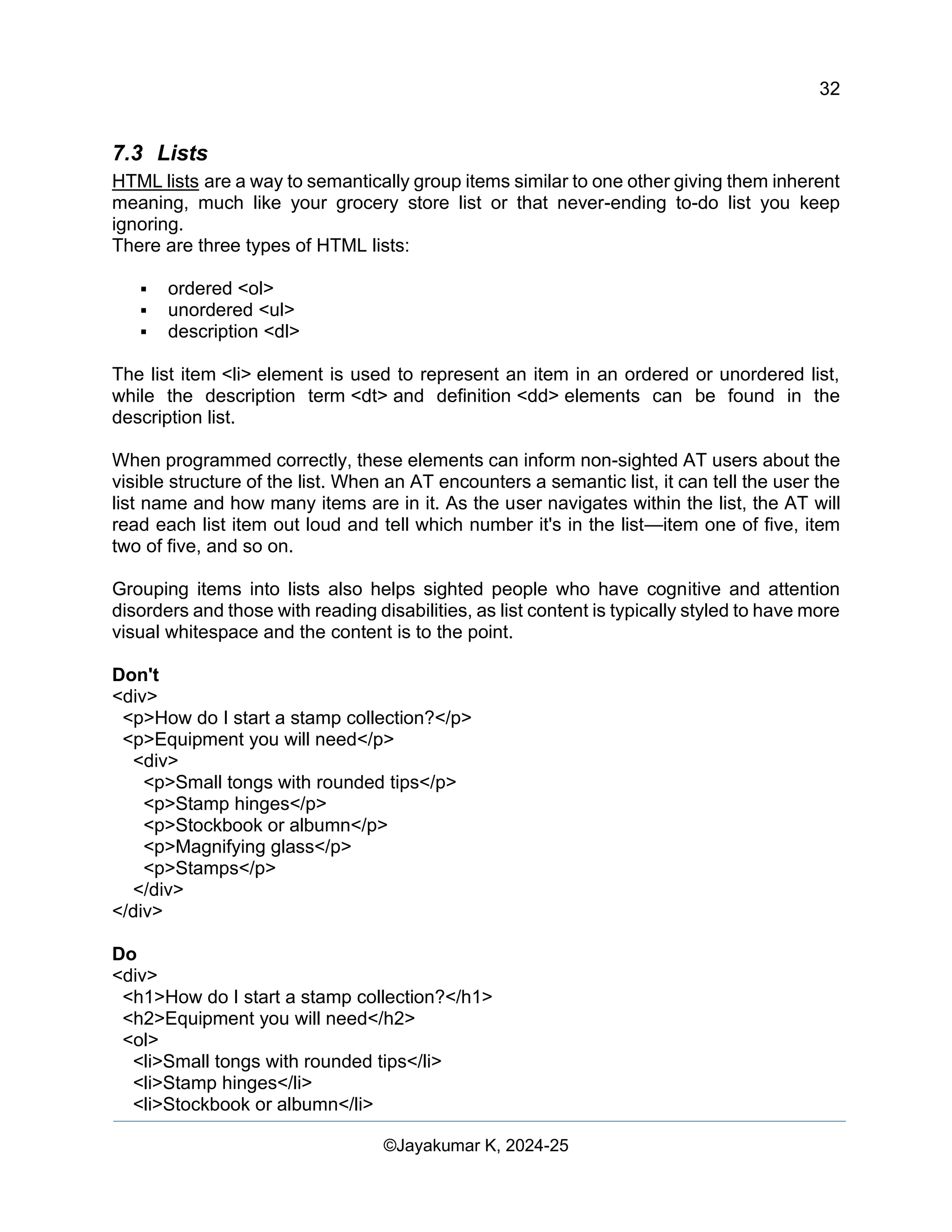
7.3 Lists
HTML lists are a way to semantically group items similar to one other giving them inherent
meaning, much like your grocery store list or that never-ending to-do list you keep
ignoring.
There are three types of HTML lists:
▪ ordered <ol>
▪ unordered <ul>
▪ description <dl>
The list item <li> element is used to represent an item in an ordered or unordered list,
while the description term <dt> and definition <dd> elements can be found in the
description list.
When programmed correctly, these elements can inform non-sighted AT users about the
visible structure of the list. When an AT encounters a semantic list, it can tell the user the
list name and how many items are in it. As the user navigates within the list, the AT will
read each list item out loud and tell which number it's in the list—item one of five, item
two of five, and so on.
Grouping items into lists also helps sighted people who have cognitive and attention
disorders and those with reading disabilities, as list content is typically styled to have more
visual whitespace and the content is to the point.
Don't
<div>
<p>How do I start a stamp collection?</p>
<p>Equipment you will need</p>
<div>
<p>Small tongs with rounded tips</p>
<p>Stamp hinges</p>
<p>Stockbook or albumn</p>
<p>Magnifying glass</p>
<p>Stamps</p>
</div>
</div>
Do
<div>
<h1>How do I start a stamp collection?</h1>
<h2>Equipment you will need</h2>
<ol>
<li>Small tongs with rounded tips</li>
<li>Stamp hinges</li>
<li>Stockbook or albumn</li>
33
Web Content Creation, Digital Accessibility and Web Usability Engineering (WAWUE)
©Jayakumar K, 2024-25
<li>Magnifying glass</li>
<li>Stamps</li>
</ol>
</div>
7.4 Tables
In HTML, tables are generally used for organizing data or page layout.
Depending on the table's purpose, you'll use different semantic structural elements.
Tables can be very complex in structure, but when you stick to the basic semantic rules,
they are fairly accessible without much intervention.
7.5 Layout
In the early days of the internet, layout tables were the primary HTML element used to
build visual structures. Today, we use a mix of semantic and non-semantic elements such
as <div>s and landmarks to create layouts.
While the days of creating layout tables are mostly over, there are times when layout
tables are still used, such as in visually rich emails, newsletters, and advertisements. In
these cases, tables used only for layout must not use structural elements that convey
relationships and add context, such as <th> or <caption>.
Layout tables must also be hidden from AT users with the ARIA presentation role or aria-
hidden state.
Don't
<table>
<caption>My stamp collection</caption>
<tr>
<th>[Stamp Image 1]</th>
<th>[Stamp Image 2]</th>
<th>[Stamp Image 3]</th>
</tr>
</table>
Do
<table role="presentation">
<tr>
<td>[Stamp Image 1]</td>
<td>[Stamp Image 2]</td>
<td>[Stamp Image 3]</td>
</tr>
</table>
34
Web Content Creation, Digital Accessibility and Web Usability Engineering (WAWUE)
©Jayakumar K, 2024-25
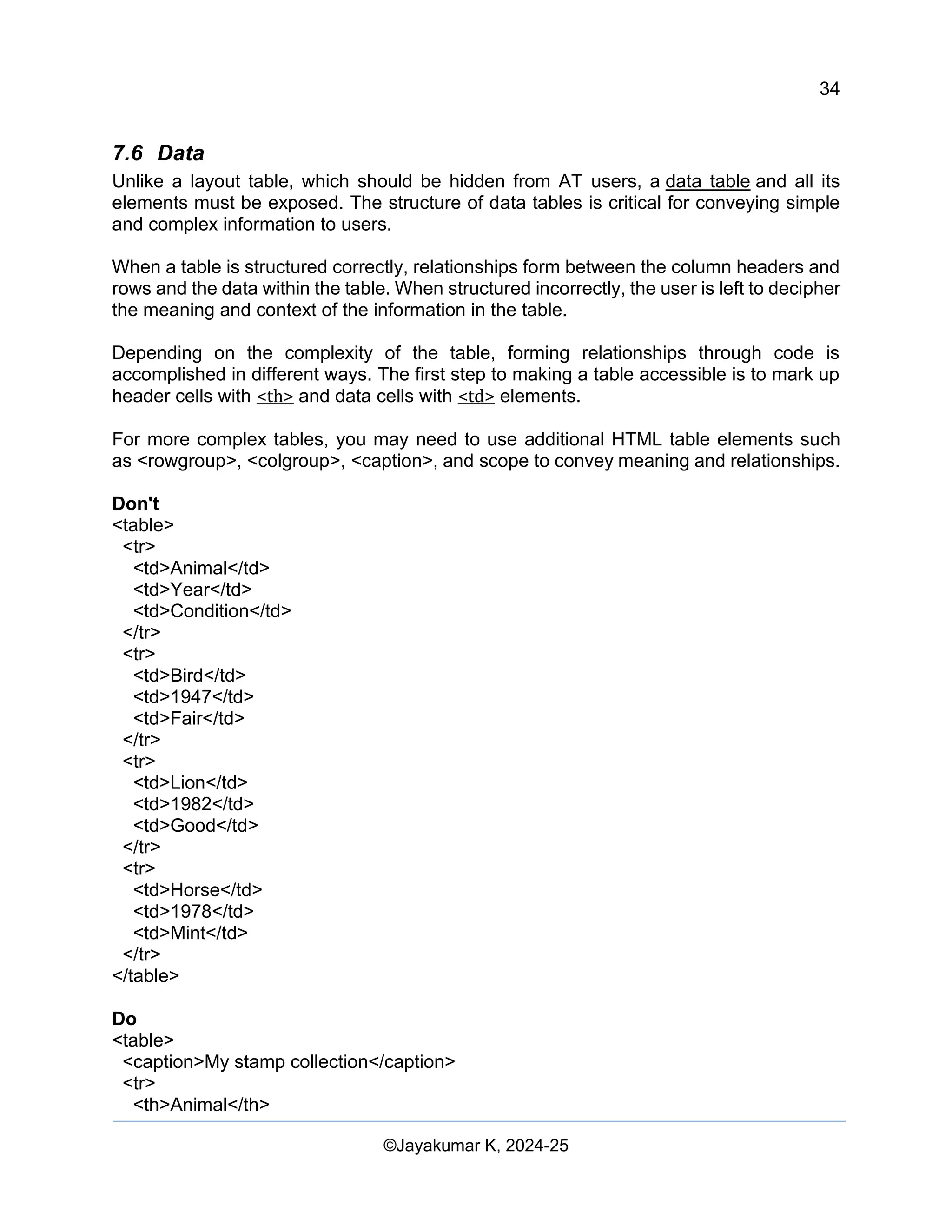
7.6 Data
Unlike a layout table, which should be hidden from AT users, a data table and all its
elements must be exposed. The structure of data tables is critical for conveying simple
and complex information to users.
When a table is structured correctly, relationships form between the column headers and
rows and the data within the table. When structured incorrectly, the user is left to decipher
the meaning and context of the information in the table.
Depending on the complexity of the table, forming relationships through code is
accomplished in different ways. The first step to making a table accessible is to mark up
header cells with <th> and data cells with <td> elements.
For more complex tables, you may need to use additional HTML table elements such
as <rowgroup>, <colgroup>, <caption>, and scope to convey meaning and relationships.
Don't
<table>
<tr>
<td>Animal</td>
<td>Year</td>
<td>Condition</td>
</tr>
<tr>
<td>Bird</td>
<td>1947</td>
<td>Fair</td>
</tr>
<tr>
<td>Lion</td>
<td>1982</td>
<td>Good</td>
</tr>
<tr>
<td>Horse</td>
<td>1978</td>
<td>Mint</td>
</tr>
</table>
Do
<table>
<caption>My stamp collection</caption>
<tr>
<th>Animal</th>
35
Web Content Creation, Digital Accessibility and Web Usability Engineering (WAWUE)
©Jayakumar K, 2024-25
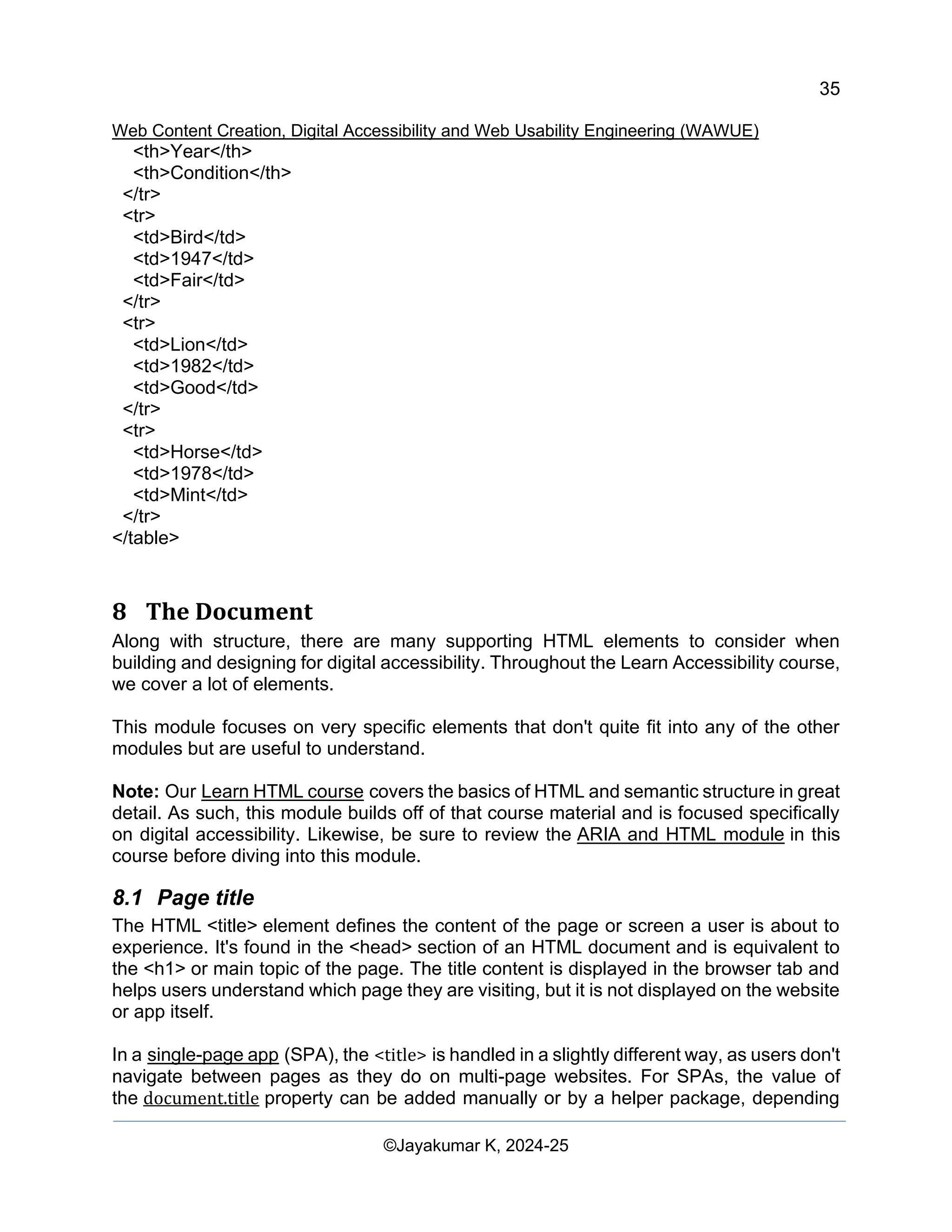
<th>Year</th>
<th>Condition</th>
</tr>
<tr>
<td>Bird</td>
<td>1947</td>
<td>Fair</td>
</tr>
<tr>
<td>Lion</td>
<td>1982</td>
<td>Good</td>
</tr>
<tr>
<td>Horse</td>
<td>1978</td>
<td>Mint</td>
</tr>
</table>
8 The Document
Along with structure, there are many supporting HTML elements to consider when
building and designing for digital accessibility. Throughout the Learn Accessibility course,
we cover a lot of elements.
This module focuses on very specific elements that don't quite fit into any of the other
modules but are useful to understand.
Note: Our Learn HTML course covers the basics of HTML and semantic structure in great
detail. As such, this module builds off of that course material and is focused specifically
on digital accessibility. Likewise, be sure to review the ARIA and HTML module in this
course before diving into this module.
8.1 Page title
The HTML <title> element defines the content of the page or screen a user is about to
experience. It's found in the <head> section of an HTML document and is equivalent to
the <h1> or main topic of the page. The title content is displayed in the browser tab and
helps users understand which page they are visiting, but it is not displayed on the website
or app itself.
In a single-page app (SPA), the <title> is handled in a slightly different way, as users don't
navigate between pages as they do on multi-page websites. For SPAs, the value of
the document.title property can be added manually or by a helper package, depending
36
Web Content Creation, Digital Accessibility and Web Usability Engineering (WAWUE)
©Jayakumar K, 2024-25
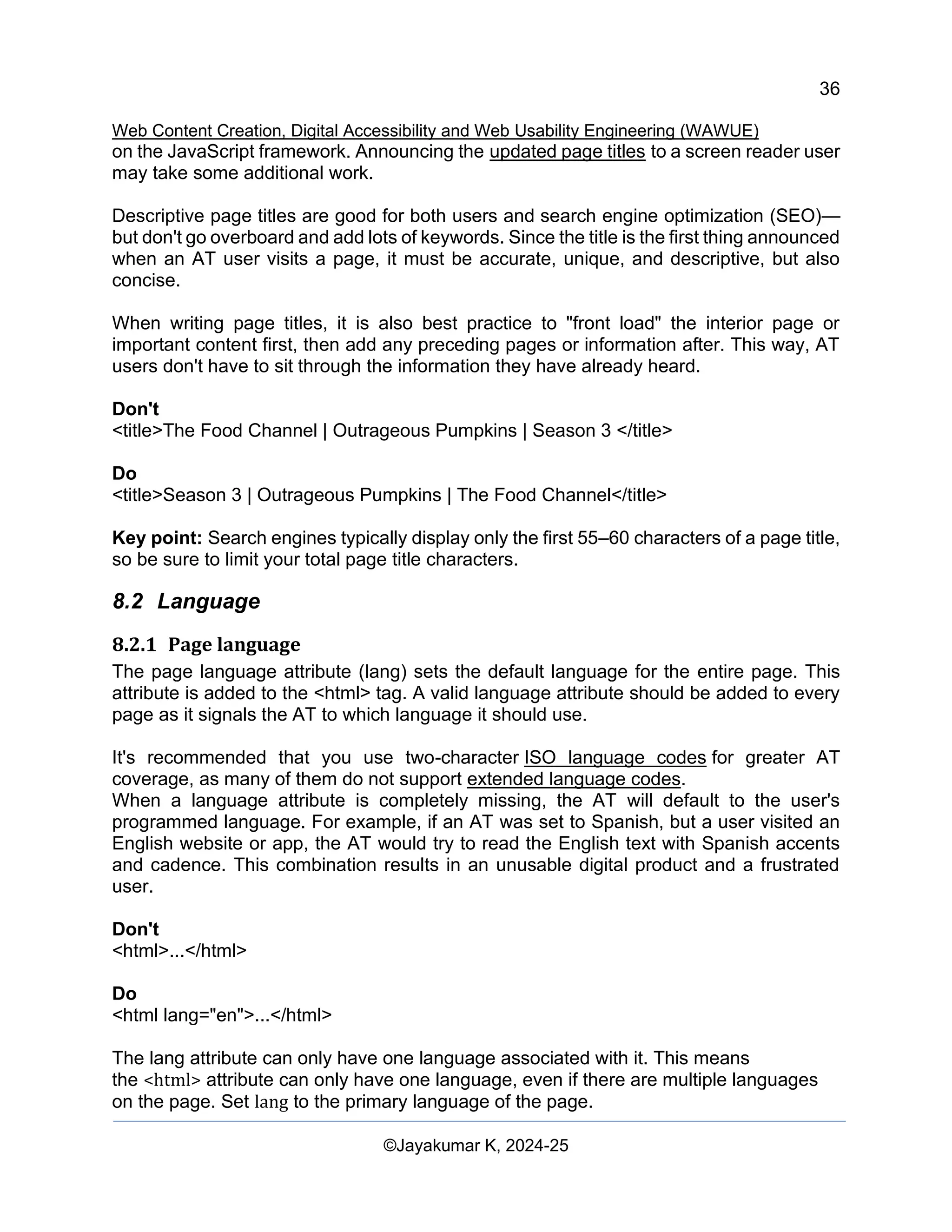
on the JavaScript framework. Announcing the updated page titles to a screen reader user
may take some additional work.
Descriptive page titles are good for both users and search engine optimization (SEO)—
but don't go overboard and add lots of keywords. Since the title is the first thing announced
when an AT user visits a page, it must be accurate, unique, and descriptive, but also
concise.
When writing page titles, it is also best practice to "front load" the interior page or
important content first, then add any preceding pages or information after. This way, AT
users don't have to sit through the information they have already heard.
Don't
<title>The Food Channel | Outrageous Pumpkins | Season 3 </title>
Do
<title>Season 3 | Outrageous Pumpkins | The Food Channel</title>
Key point: Search engines typically display only the first 55–60 characters of a page title,
so be sure to limit your total page title characters.
8.2 Language
8.2.1 Page language
The page language attribute (lang) sets the default language for the entire page. This
attribute is added to the <html> tag. A valid language attribute should be added to every
page as it signals the AT to which language it should use.
It's recommended that you use two-character ISO language codes for greater AT
coverage, as many of them do not support extended language codes.
When a language attribute is completely missing, the AT will default to the user's
programmed language. For example, if an AT was set to Spanish, but a user visited an
English website or app, the AT would try to read the English text with Spanish accents
and cadence. This combination results in an unusable digital product and a frustrated
user.
Don't
<html>...</html>
Do
<html lang="en">...</html>
The lang attribute can only have one language associated with it. This means
the <html> attribute can only have one language, even if there are multiple languages
on the page. Set lang to the primary language of the page.
37
Web Content Creation, Digital Accessibility and Web Usability Engineering (WAWUE)
©Jayakumar K, 2024-25
Don't
<html lang="ar,en,fr,pt">...</html>
Multiple languages are not supported.
Do
<html lang="ar">...</html>
Set only the page's primary language. In this case, the language is Arabic.
8.2.2 Section language
You can also use the language attribute (lang) for language switches in the content itself.
The same basic rules apply as the full-page language attribute, except you add it to the
appropriate in-page element instead of on the <html> tag.
Remember that the language you add to the <html> element cascades down to all the
contained elements, so always set the primary language of the page top-
level lang attribute first.
For any in-page elements written in a different language, add that lang attribute to the
appropriate wrapper element. This will override the top-level language setting until that
element is closed.
Don't
<html lang="en">
<body>...
<div>
<p>While traveling in Estonia this summer, I often asked,
"Kas sa räägid inglise keelt?" when I met someone new.</p>
</div>
</body>
</html>
Do
<html lang="en">
<body>...
<div>
<p>While traveling in Estonia this summer, I often asked,
<span lang="et">"Kas sa räägid inglise keelt?"</span>
when I met someone new.</p>
</div>
</body>
</html>
38
Web Content Creation, Digital Accessibility and Web Usability Engineering (WAWUE)
©Jayakumar K, 2024-25
8.3 iFrames
The iFrame element (<iframe>) is used to host another HTML page or a third party's
content within the page. It essentially puts another webpage within the parent page.
iFrames are commonly used for advertisements, embedded videos, web analytics, and
interactive content.
To make your <iframe> accessible, there are a couple of aspects to consider. First,
each <iframe> with distinct content should include a title element inside the parent tag.
This title supplies AT users with more information about the content inside the <iframe>.
Second, as a best practice, it is good to set the scrolling to "auto" or "yes" in
the <iframe> tag settings. This allows people with low vision to be able to scroll into
content within the <iframe> that they might not otherwise be able to see. Ideally,
the <iframe> container would also be flexible in its height and width.
Don't
<iframe src="https://www.youtube.com/embed/3obixhGZ5ds"></iframe>
Do
<iframe title="Google Pixel - Lizzo in Real Tone"
src="https://www.youtube.com/embed/3obixhGZ5ds"
scrolling="auto">
</iframe>
9 Keyboard focus
Many people use a keyboard—or other software/hardware that mimics the functionality
of a keyboard, such as a switch device—as their primary means of navigation. People
with temporary physical limitations such as sprained wrist or fine motor disabilities like
carpal tunnel, as well as some people without disabilities, may choose to use a keyboard
to navigate a page due to personal preference, efficiency, or broken hardware.
Low-vision or blind users may use a keyboard for navigation combined with their
magnification or screen reader software. However, they may use different keyboard
shortcut commands to navigate a screen than a sighted user would.
Keyboard support for all of these disabilities and circumstances is critical. A large part of
keyboard accessibility is centered around focus. Focus refers to which element on the
screen currently receives input from the keyboard.
In this module, we concentrate on HTML structure and CSS styling for keyboard and
focusable elements. The JavaScript module includes more information on focus
management and keystrokes for interactive elements.
39
Web Content Creation, Digital Accessibility and Web Usability Engineering (WAWUE)
©Jayakumar K, 2024-25
9.1 Focus order
The elements that a keyboard user can navigate to are called focusable elements. Focus
order, also called tab or navigation order, is the order in which elements receive focus.
The default focus order must be logical, intuitive, and match the visual order of a page.
For most languages, the focus order starts at the top of the page and ends at the bottom,
traveling from left to right. However, some languages are read right to left, so the primary
language of the page may warrant a different focus order.
By default, focus order includes naturally focusable HTML elements, such as links,
checkboxes, and text inputs. Naturally focusable HTML elements include built-in tab order
support and basic keyboard event handling.
You can update the focus order to include any elements that don't normally receive focus,
such as non-interactive HTML elements, custom components, or elements with ARIA that
overrides the natural focus semantics.
Note: Your tab key moves the keyboard focus up the DOM. shift + tab moves the focus
down the DOM.
9.2 Tabindex
The focus order begins with elements that have a positive tabindex attribute (if there are
any) and moves from the smallest positive number to the largest (such as 1, 2, 3). It then
proceeds through elements with a tabindex of zero according to their order in the DOM.
Any elements with a negative tabindex are removed from the natural focus order.
When a tabindex of zero (tabindex="0") is applied to normally unfocusable elements, they
are added into the natural focus order of the page according to the way they appear in
the DOM. However, unlike naturally focusable HTML elements, you must provide
additional keyboard support for them to be fully accessible.
Similarly, if you have an element that normally is focusable but is inactive—such as a
button that is inoperative until an input field is filled in—you should add a negative
tabindex (tabindex="-1") to this element. Adding a negative tabindex signals to assistive
technologies and keyboards that this button should be removed from the natural focus
order. But don't worry—you can use JavaScript to add the focus back to the element
when needed.
In this example, a tabindex attribute was added to elements that do not naturally receive
focus. The order of the elements was manipulated using tabindex to illustrate the power
it can have on focus order. This is an example of what not to do!
40
Web Content Creation, Digital Accessibility and Web Usability Engineering (WAWUE)
©Jayakumar K, 2024-25
Watch as a keyboard user tabs through the CodePen HTML.
Caution: As a general rule, you should avoid positive tabindexes. Giving focus to non-
interactive elements and disrupting the normal focus order may confuse and frustrate
your users. It should be rare that a circumstance warrants adding a positive tabindex
(tabindex= "1") to a non-focusable element.
9.3 Skip links
Most websites today have a long list of menu links in the page's main header consistent
from page to page. This is great for general navigation but can make it difficult for
keyboard-only users to easily get to the website's main content without having to tab
multiple times.
One way to jump over redundant or unuseful groups of links is to add a skip link. Skip
links are anchor links that jump to a different section of the same page, using that section's
ID, instead of sending the user to another page on the website or an external resource.
Skip links are typically added as the first focusable element a user will encounter when
arriving at a website and can be visible or visually hidden until a user tabs to it, depending
on what the design calls for.
When a user presses the tab key, and an active skip link is in place, it sends the keyboard
focus to the skip link. The user can click the skip link and jump past the header section
and main navigation. If they choose not to click the skip link and continue to tab down the
DOM, they'll be sent to the next focusable element.
41
Web Content Creation, Digital Accessibility and Web Usability Engineering (WAWUE)
©Jayakumar K, 2024-25
Like all links, it’s important that the skip link includes context about the link's purpose.
Adding the phrase "Skip to main content," lets the user know where the link is taking them.
There are many
code options to
choose from when
providing additional
context to your links,
such as aria-
labelledby, aria-
label, or adding it to
the text content of
the <a> element, as
demonstrated in the
example.
Watch a keyboard
user navigate with
and without a skip
link.
9.4 Focus indicator
As you just learned, focus order is an important aspect of keyboard accessibility. It's also
important to decide how that focus is styled. Because even if the focus order is excellent,
how could a user know where they are on the page without the proper styling?
A visible focus indicator is a vital tool in informing a user about where they are at all times
on the page. It's especially important for your sighted keyboard-only users.
Note: WCAG 2.2's new success criterion, Focus Not Obscured (Minimum), will ensure
that the focus indicator is not hidden beneath other components.
9.4.1 Browser default styling
Today, every modern web browser has a different default visual styling that applies to
focusable elements on your website or app—some more easily visible than others. As a
user tabs through the page, this styling is applied as the element receives keyboard focus.
If you allow the browser to handle the focus styling, it's important to review your code to
confirm that your theme won't override the browser's default styling. An override is often
written as "outline: 0" or "outline: none" in your stylesheet. This tiny piece of code can
remove the browser's default focus indicator styling, which makes it very difficult for users
to navigate your website or app.
Don't
a:focus {
outline: none; /* don't do this! */
}
42
Web Content Creation, Digital Accessibility and Web Usability Engineering (WAWUE)
©Jayakumar K, 2024-25
Do
a:focus {
outline: auto 5px Highlight; /* for non-webkit browsers */
outline: auto 5px -webkit-focus-ring-colour; /* for webkit browsers */
}
9.4.2 Custom styles
Of course, you can go beyond the default browser style and create a custom focus
indicator that complements your theme. When creating a custom focus indicator, you
have a lot of freedom to be creative!
A focus indicator shape can take on many forms, be it an outline, a border, an underline,
a box, a background change, or some other obvious stylistic change that does not rely on
colour alone to indicate the keyboard's focus is active on that element.
You could change a focus indicator style to ensure it isn’t lost in the background. For
example, when a page has a white background, you could set the button focus indicator
to a blue background. When the page has a blue background, you could set that same
button focus style to a white background.
You could change the focus element style based on element type. For example, you could
use a dotted underline for body links but choose a rounded border for a button element.
Note: Depending on how the focus indicator is styled, it may also need to meet
the minimum colour contrast requirements against the background.
We recommend adhering to a 3:1 colour contrast ratio for all focus indicators. This will
meet WCAG 2.2's Focus Appearance (Minimum).
Watch what happens as a
keyboard user tabs through
each styled focus element.
There is no rule about how many
focus indicator styles you have
on one page—but be sure to
keep it to a reasonable number
to avoid unnecessary confusion.
For a website or app to be
considered accessible,
everything that can be accessed with a mouse must also be accessed with a keyboard.
This module focused on the visual aspect of keyboard accessibility, in particular, focus
order and focus indicators.
43
Web Content Creation, Digital Accessibility and Web Usability Engineering (WAWUE)
©Jayakumar K, 2024-25
10 JavaScript
JavaScript plays a major role in almost everything we create—from smaller dynamic
components to full products running on a JavaScript framework, such as React or
Angular.
This use (or overuse) of JavaScript has brought forward many alarming trends, such as
long load times due to large amounts of code, use of non-semantic HTML elements, and
injection of HTML and CSS through JavaScript. And you may be unsure of how
accessibility fits into each of these pieces.
JavaScript can have a huge impact on the accessibility of your site. In this module, we'll
share some general patterns for accessibility that are enhanced by JavaScript, as well as
solutions for accessibility issues that arise from using JavaScript frameworks.
10.1Trigger events
JavaScript events allow users to interact with web content and perform a specific action.
Many people, such as screen reader users, people with fine-motor skill disabilities, people
without a mouse or trackpad, and others, rely on keyboard support to interact with the
web. It's critical that you add keyboard support to your JavaScript actions, as it affects all
of these users.
Let's look at a click event. If an onClick() event is used on a semantic HTML element such
as a <button> or <a>, it naturally includes both mouse and keyboard functionality.
However, keyboard functionality is not automatically applied when an onClick() event is
added to a non-semantic element, such as a generic <div>.
Don't
<div role="button" tabindex="0" onclick="doAction()">Click me!</div>
Do
<button onclick="doAction()">Click me!</button>
Preview this comparison on CodePen.
If a non-semantic element is used for a trigger event, a keydown/keyup event must be
added to detect the enter or space key press. Adding trigger events to non-semantic
elements is often forgotten. Unfortunately, when it's forgotten, the result is a component
that's only accessible via a mouse. Keyboard-only users are left without access to the
associated actions.
10.2Page titles
As we learned in the Document module, the page title is essential for screen reader users.
It tells users what page they are on and whether they have navigated to a new page.
44
Web Content Creation, Digital Accessibility and Web Usability Engineering (WAWUE)
©Jayakumar K, 2024-25
If you use a JavaScript framework, you need to consider how you handle page titles. This
is especially important for single-page apps (SPAs) that load from a
singular index.html file, as transitions or routes (page changes) will not involve a page
reload. Each time a user loads a new page in an SPA, the title won't change by default.
For SPAs, the document.title value can be added manually or with a helper package
(depending on the JavaScript framework). Announcing the updated page titles to a
screen reader user may take some additional work, but the good news is you've got
options, such as dynamic content.
10.3Dynamic content
One of the most powerful JavaScript functionalities is the ability to add HTML and CSS
to any element on the page. Developers can create dynamic applications based on the
actions or behaviors of the users.
Let's say you need to send a message to users when they log in to your website or app.
You want the message to stand out from the white background and relay the message:
"You are now logged in."
You can use the element innerHTML to set the content:
document.querySelector("#banner").innerHTML = '<p>You are now logged in</p>';
You can apply CSS in a similar way, with setAttribute:
document.querySelector("#banner").setAttribute("style", "border-colour:#0000ff;");
With great power comes great responsibility. Unfortunately, JavaScript injection of
HTML and CSS has historically been misused to create inaccessible content. Some
common misuses are listed here:
Possible misuse Correct use
Render large chunks of non-
semantic HTML
Render smaller pieces of semantic HTML
Not allowing time for dynamic
content to be recognized by
assistive technology
Using a setTimeout() time delay to allow users to hear
the full message
Applying style attributes
for onFocus() dynamically
Use :focus for the related elements in your CSS
stylesheet
Applying inline styles may cause
user stylesheets to not be read
properly
Keep your styles in CSS files to keep the consistency
of the theme
Creating very large JavaScript
files that slow down overall site
performance
Use less JavaScript. You may be able to perform similar
functions in CSS (such as animations or sticky
45
Web Content Creation, Digital Accessibility and Web Usability Engineering (WAWUE)
©Jayakumar K, 2024-25
Possible misuse Correct use
navigation), which parse faster and are more
performant
For CSS, toggle CSS classes instead adding inline styles, as this allows for reusability
and simplicity. Use hidden content on the page and toggle classes to hide and show
content for dynamic HTML. If you need to use JavaScript to dynamically add content to
your page, ensure it's simple and concise, and of course, accessible.
10.4Focus management
In the Keyboard focus module, we covered focus order and indicator styles. Focus
management is knowing when and where to trap the focus and when it shouldn't be
trapped.
Focus management is critical for keyboard-only users.
10.4.1 Component level
You can create keyboard traps when a component's focus is not properly managed. A
keyboard trap occurs when a keyboard-only user gets stuck in a component, or the focus
is not maintained when it should be.
One of the most common patterns where users experience focus management issues is
in a modal component. When a keyboard-only user encounters a modal, the user should
be able to tab between the actionable elements of the modal, but they should never be
allowed outside of the modal without explicitly dismissing it. JavaScript is essential to
properly trapping this focus.
10.4.2 Page level
Focus must also be maintained when a user navigates from page-to-page. This is
especially true in SPAs, where there is no browser refresh, and all content dynamically
changes. Anytime a user clicks on a link to go to another page within your application, the
focus is either kept in the same place or potentially placed somewhere else entirely.
When transitioning between pages (or routing), the development team must decide where
the focus goes when the page loads.
There are multiple techniques to achieve this:
• Place focus on the main container with an aria-live announcement.
• Put the focus back to a link to skip to the main content.
• Move the focus to the top-level heading of the new page.
Where you decide to put the focus will depend on the framework you are using and the
content you want to serve up to your users. It may be context- or action-dependent.
46
Web Content Creation, Digital Accessibility and Web Usability Engineering (WAWUE)
©Jayakumar K, 2024-25
10.5State management
Another area where JavaScript is critical to accessibility is state management, or when a
component or page's current visual state is relayed to a low-vision, blind, or deafblind
assistive technology user.
Often, the state of a component or page is managed through ARIA attributes, as
introduced in the ARIA and HTML module. Let's review a few of the most common types
of ARIA attributes used to help manage the state of an element.
10.5.1 Component level
Depending on your page content and what information your users need, there are
many ARIA states to consider when relaying information about a component to the user.
For example, you may use an aria-expanded attribute to tell the user whether a drop-
down menu or list is expanded or collapsed.
Or you might use aria-pressed to indicate that a button has been pressed.
It's important to be selective when applying ARIA attributes. Think through the user flow
to understand what critical information should be conveyed to the user.
10.6Page level
Developers often use a visually hidden area called the ARIA live region to announce
changes on the screen and alert messages to assistive technology (AT) users. This area
can be paired with JavaScript to notify users of dynamic changes to the page without
requiring the entire page to reload.
Historically, JavaScript has struggled to announce content in aria-live and alert regions
due to its dynamic nature. Asynchronously adding content into the DOM makes it hard
for AT to pick up the region and announce it. For the content to be properly read, the live
or alert region must be in the DOM on load, then the text can dynamically be swapped
out.
If you use a JavaScript framework, the good news is almost all of them have a "live
announcer" package that does all the work for you and is fully accessible. There is no
need to worry about creating a live region and dealing with the issues described in the
previous section.
Here are some live packages for common JavaScript frameworks:
▪ React: react-aria-live and react-a11y-announcer
▪ Angular: LiveAnnouncer
▪ Vue: vue-a11y-utils
Modern JavaScript is a powerful language that allows web developers to create robust
web applications. This sometimes leads to over-engineering and, by extension,
47
Web Content Creation, Digital Accessibility and Web Usability Engineering (WAWUE)
©Jayakumar K, 2024-25
inaccessible patterns. By following the JavaScript patterns and tips in this module, you
can make your apps more accessible to all users.
Note: Special thanks to Mark Steadman for providing additional support on this module.
Read more of his accessibility articles.
11 Images
Accessible images may seem like a simple topic at first glance—you add some "alt text"
to an image, and you are done. But, the topic is more nuanced than some people think.
In this section, we'll review:
• How to update the code to make images accessible.
• What information should be shared with users and where to share it.
• Additional ways to improve your images to support people with disabilities.
11.1Image purpose and context
Before even one line of code is written, you must first think about the point of the image
and how it will be used. Asking yourself questions about the purpose and context of the
image can help you determine how best to convey the information to a person
using assistive technology (AT) such as screen readers.
You may ask yourself:
• Is the image essential to understanding the context of the feature or page?
• What type of information is the image trying to convey?
• Is the image simple or complex?
• Does the image elicit emotion or prompt the user to act?
• Or is the image just visual "eye candy" with no real purpose?
A visual flowchart, such as an image decision tree, can help you decide which category
your image belongs to.
Try hiding the images on your site or web app using a browser extension or other
methods. Then ask yourself: "Do I understand the content that remains?" If the answer is
yes, it is most likely a decorative image. If not, the image is instead informative in some
way and contextually necessary. Once you determine the image's purpose, you can
determine the most accurate way to code for it.
48
Web Content Creation, Digital Accessibility and Web Usability Engineering (WAWUE)
©Jayakumar K, 2024-25
11.1.1 Decorative images
A decorative image is a visual element that doesn't add additional context or information
that allows the user to better understand the context. Decorative images are supplemental
and may provide style rather than substance.
If you decide an image is decorative, the image must be programmatically hidden from
ATs. When you program an image to be hidden, it signals to the AT that the image is not
needed to understand the page's content, context, or action. There are many ways to
hide images, including using an empty/null text alternative, applying ARIA, or adding the
image as a CSS background. Below are a few examples of how to hide a decorative
image from users.
Caution: Be mindful when making this choice, as "decorative" can mean different things
to different users. Some AT users want to hear descriptions for every visual on the screen.
Users can choose to skip over your image descriptions if and when they deem them
redundant or verbose, but they cannot imagine descriptions that don't exist. When in
doubt, add descriptions to your images.
11.1.2 Empty or null alt
An empty/null alternative text attribute differs from a missing alternative text attribute. If
the alternative text attribute is missing, the AT might read out the file name or surrounding
content to give the user more information about the image.
49
Web Content Creation, Digital Accessibility and Web Usability Engineering (WAWUE)
©Jayakumar K, 2024-25
Role set to presentation or none
A role set to presentation or none removes an element's semantics from exposure to the
accessibility tree. Meanwhile, aria-hidden= "true" will remove the entire element—and all
of its children—from the accessibility API.
<!-- All of these choices lead to the same result. -->
<img src=".../Ladybug.jpg" role="presentation">
<img src=".../Ladybug.jpg" role="none">
<img src=".../Ladybug.jpg" aria-hidden="true">
Use aria-hidden with caution as it may hide elements that you do not wish to hide.
Images in CSS
When you add a background image with CSS, a screen reader will not detect the image
file. Be sure you want the image to be hidden before applying this method.
11.1.3 Informative images
An informative image is an image that conveys a simple concept, idea, or emotion. Types
of informative images include photos of real-world objects, essential icons, simple
drawings, and images of text.
If your image is informative, you should include programmatic alternative text describing
the purpose of the image. Alternative image descriptions—often abbreviated as "alt
text"—give AT users more context about an image and help them better understand an
image's message or intent.
Simple alternative descriptions using <img> elements are achieved by including
the alt attribute, regardless of the file type it points to, such as .jpg, .png, .svg, and others.
<img src=".../Ladybug_Swarm.jpg" alt="A swarm of red ladybugs is resting on the
leaves of my prize rose bush.">
When you use <svg> elements inline, however, you need to pay attention to accessibility.
First, since SVGs are semantically coded, AT will skip over them by default. If you have
a decorative image, this is not an issue—the AT will ignore it as intended. But if you have
an informative image, an ARIA role="img" needs to be added to the pattern for the AT to
recognize it as an image.
Second, <svg> elements do not use the alt attribute, so different coding methods must
be used instead to add alternative descriptions to your informative images.
<svg role="img"...>
<title>Cartoon drawing of a red, black, and gray ladybug.</title>
</svg>
50
Web Content Creation, Digital Accessibility and Web Usability Engineering (WAWUE)
©Jayakumar K, 2024-25
11.1.4 Functional images
A functional image is connected to an action. An example of a functional image is a logo
that links to the home page, a magnifying glass used as a search button, or a social media
icon that directs you to a different website or app.
Like informative images, functional images must include an alternative description to
inform all users of their purpose. Unlike an informative image, each functional image
needs to describe the image's action—not the visual aspects.
In the logo example, the image is both informative and actionable as it is both an image
that conveys information and behaves as a link. In cases like these, you can add
alternative descriptions to each element—but it is not a requirement.
One way to add alternative descriptions to images is through visually hidden text. When
you use this method, the text will be read by screen readers because it is in the DOM, but
it is visually hidden with the help of custom CSS.
You can see from the code snippet that "Navigate to the homepage" is the wrapper title,
and the image alternative text is "Lovely Ladybugs for your Lawn." When you listen to the
logo code with a screen reader, you hear both the visual and the action conveyed in one
image.
<div title="Navigate to the homepage">
<a href="/">
<img src=".../Ladybug_Logo.png" alt="Lovely Ladybugs for your Lawn"></img>
</a>
</div>
11.1.5 Complex images
A complex image often requires more explanation than a decorative, informational, or
functional image. It requires both a short and a long alternative description to convey the
full message. Complex images include infographics, maps, graphs/charts, and complex
illustrations. As with the other image types, there are different methods you can use to
add alternative descriptions to your complex images.
<img src=".../Ladybug_Anatomy.svg" alt="Diagram of the anatomy of a ladybug."><a
href="ladybug-science.html">Learn more about the anatomy of a ladybug</a>
One way to add additional explanation to an image is to link out to a resource or provide
a jump link to a longer explanation later on the page. This method is a good choice, not
only for AT users but also helps people with disabilities—such as cognitive, learning, and
reading disabilities—who might benefit from having this additional image information
readily available on the screen instead of buried in the code.
51
Web Content Creation, Digital Accessibility and Web Usability Engineering (WAWUE)
©Jayakumar K, 2024-25
Another method you can use is to append the aria-describedby attribute to
the <img> element. You can programmatically link the image to an ID containing a longer
description. This method creates a strong association between the image and the full
description. The extended description can be displayed on the screen or visually hidden—
but consider keeping it visible to support even more people.
One other way to group short alternative descriptions with a longer one is to use the
HTML5 <figure> and <figcaption> elements. These elements act similarly to aria-
describedby in that it semantically groups elements, forming a stronger association
between the image and its description. Adding ARIA role="group" ensures backward
compatibility with older web browsers that don't support the native semantics of
the <figure> element.
11.1.6 Alternative text best practices
Of course, including alternate text is not enough. The text should also be meaningful. For
example, if your image is about a swarm of ladybugs chewing the leaves of your prize
rose bush, but your alternative text reads "bugs," would that convey the full message and
intent of the image? Definitely not.
Alternative descriptions need to capture as much relevant visual information as possible
and be succinct. While there is no limit to the number of characters a screen reader
can read, it is usually advised to cap your alternative text to 150 characters or less
to avoid reader fatigue. If you need to add additional context to the image, you can use
one of the complex image patterns, add caption text, or further describe the image in the
main copy.
Some additional alternative text best practices
(https://www.w3.org/WAI/tutorials/images/tips/) include:
▪ Avoid using words like "image of" or "photo of" in the description, as the screen
reader will identify these file types for you.
▪ When naming your images, be as consistent and accurate as possible. Image
names are a fallback when the alternative text is missing or ignored.
▪ Avoid using non-alpha characters (for example, #, 9, &) and use dashes between
words rather than underscores in your image names or alternative text.
▪ Use proper punctuation whenever possible. Without it, the image descriptions will
sound like one long, never-ending, run-on sentence.
▪ Write alternative text like a human and not a robot. Keyword stuffing does not
benefit anyone—people using screen readers will be annoyed, and search engine
algorithms will penalize you.
12 Colour and contrast
Have you ever tried to read text on a screen and found it difficult to read due to the colour
scheme or struggled to see the screen in a very bright or low-light environment? Or maybe
52
Web Content Creation, Digital Accessibility and Web Usability Engineering (WAWUE)
©Jayakumar K, 2024-25
you are someone with a more permanent colour vision issue, like the estimated 300
million people with colour blindness or the 253 million people with low vision?
As a designer or developer, you need to understand how people perceive colour and
contrast, whether temporary, situationally, or permanently. This will help you best support
their visual needs.
This module will introduce you to some accessible colour and contrast fundamentals.
12.1Perceiving colour
Did you know that objects do not possess colour but reflect wavelengths of light? When
you see colour, your eyes receive and process those wavelengths and convert them to
colours.
When it comes to digital accessibility, we talk about these wavelengths in terms of hue,
saturation, and lightness (HSL). The HSL model was created as an alternative to the RGB
colour model and more closely aligns with how a human perceives colour.
Note: In CSS, a colour can be specified in many ways, such as using colour names, RGB,
RGBa, HEX, HSL, HSLa, HSV, or HSVa values. HSLa is similar to HSL, only an alpha
value has been added. Alpha is a measurement of opacity and is defined as a number
between 0.0 (fully transparent) and 1.0 (fully opaque).
Hue is a qualitative way to describe a colour, such as red, green, or blue, where each hue
has a specific spot on the colour spectrum with values ranging from 0 to 360, with red at
0, green at 120, and blue at 240.
Saturation is the intensity of a colour, measured in percentages ranging from 0% to 100%.
A colour with full saturation (100%) would be very vivid, while a colour with no saturation
(0%) would be grayscale or black and white.
53
Web Content Creation, Digital Accessibility and Web Usability Engineering (WAWUE)
©Jayakumar K, 2024-25
Lightness is a colour's light or dark character, measured in percentages ranging from 0%
(black) to 100% (white).
12.2Measuring colour contrast
To help support people with various visual disabilities, the WAI group created a colour
contrast formula to ensure enough contrast exists between the text and its background.
When these colour contrast ratios are followed, people with moderately low vision can
read text on the background without needing contrast-enhancing assistive technology.
Let's look at images with a vibrant colour palette and compare how that image would
appear to those with specific forms of colour blindness.
Photo by Alexander Grey on Unsplash.
Photo by Clark Van Der Beken on Unsplash.
On the left, the image shows rainbow sand with purple, red, orange, yellow, aqua green,
light blue, and dark blue colours. On the right is a brighter, multicoloured rainbow pattern.
54
Web Content Creation, Digital Accessibility and Web Usability Engineering (WAWUE)
©Jayakumar K, 2024-25
12.2.1 Deuteranopia
Deuteranopia (commonly known as green blind) occurs in 1% to 5% of males, 0.35% to
0.1% of females.
People with Deuteranopia have a reduced sensitivity to green light. This colour blindness
filter simulates what this type of colour blindness might look like.
12.2.2 Protanopia
55
Web Content Creation, Digital Accessibility and Web Usability Engineering (WAWUE)
©Jayakumar K, 2024-25
Protanopia (commonly known as red
blind) occurs in 1.01% to 1.08% of males
and 0.02% of 0.03% of females.
People with Protanopia have a reduced
sensitivity to red light. This colour
blindness filter simulates what this type of
colour blindness might look like.
12.2.3 Achromatopsia or Monochromatism
Achromatopsia or Monochromatism (or complete colour blindness) occurs very, very
rarely.
People with Achromatopsia or Monochromatism have almost no perception of red, green,
or blue light. This colour blindness filter simulates what this type of colour blindness might
look like.
12.2.4 Calculate colour contrast
The colour contrast formula uses the relative luminance of colours to help determine
contrast, which can range from 1 to 21. This formula is often shortened to [colour value]:1.
For example, pure black against pure white has the largest colour contrast ratio at 21:1.
(L1 + 0.05) / (L2 + 0.05) L1 is the relative luminance of the lighter colour, L2 is the
relative luminance of the darker colours
Regular-sized text, including images of text, must have a colour contrast ratio of 4.5:1 to
pass the minimum WCAG requirements for colour. Large-sized text and essential icons
must have a colour contrast ratio of 3:1. Large-sized text is characterized by being at least
18pt / 24px or 14pt / 18.5px bolded. Logos and decorative elements are exempt from
these colour contrast requirements.
56
Web Content Creation, Digital Accessibility and Web Usability Engineering (WAWUE)
©Jayakumar K, 2024-25
Thankfully, no advanced math is required as there are a lot of tools that will do the colour
contrast calculations for you. Tools like Adobe Colour, Colour Contrast
Analyzer, Leonardo, and Chrome's DevTools colour picker can quickly tell you the colour
contrast ratios and offer suggestions to help create the most inclusive colour pairs and
palettes.
12.3Using colour
Without good colour contrast levels in place, words, icons, and other graphical elements
are hard to discover, and the design can quickly become inaccessible. But it's also
important to pay attention to how the colour is used on the screen, as you cannot use
colour alone to convey information, actions, or distinguish a visual element.
For example, if you say, "click the green button to continue," but omit any additional
content or identifiers to the button, it would be difficult for people with certain types of
colourblindness to know which button to click. Similarly, many graphs, charts, and tables
use colour alone to convey information. Adding another identifier, like a pattern, text, or
icon, is crucial to help people understand the content.
Reviewing your digital products in grayscale is a good way to detect potential colour
issues quickly.
12.4Colour-focused media queries
Beyond checking for colour contrast ratios and the use of colour on your screen, you
should consider applying the increasingly popular and supported media queries that offer
the users more control over what is displayed on the screen.
For example, using the @prefers-colour-scheme media query, you can create a dark
theme, which can be helpful to people with photophobia or light sensitivity. You could also
build a high contrast theme with @prefers-contrast, which supports people with colour
deficiencies and contrast sensitivity.
Note: There are additional media queries and OS settings to consider for colour
accessibility, but they are far less supported than the two listed in this module. See the
article Operating System and Browser Accessibility Display Modes for more information
on the various OS accessibility settings.
12.4.1 Prefers colour scheme
Browser Support
The media query @prefers-colour-scheme allows users to choose a light or dark-themed
version of the website or app they are visiting. You can see this theme change in action
57
Web Content Creation, Digital Accessibility and Web Usability Engineering (WAWUE)
©Jayakumar K, 2024-25
by changing your light/dark preference settings and navigating to a browser that supports
this media query. Review the Mac and Windows instructions for dark mode.
macOS general settings for appearance. Compare light and dark mode.
12.4.2 Prefers contrast
Browser Support
media query checks the user's OS settings to see if high contrast is toggled on or off. You
can see this theme change in action by changing your contrast preference settings and
navigating to a browser that supports this media query (Mac and Windows contrast mode
settings).
Compare regular and high contrast.
12.4.3 Layering media queries
You can use multiple colour-focused media queries to give your users even more choices.
In this example, we stacked @prefers-colour-scheme and @prefers-contrast together.
Compare both colour and contrast.
13 Animation and motion
Have you ever been riding in a car, boat, or plane and suddenly felt the world spin? Or
had a migraine so bad that animations on your phone or tablet, created to "delight" you,
suddenly make you sick? Or perhaps you've always been sensitive to all types of motion?
These are examples of different types of vestibular disorders.
By age 40, over 35% of adults will have experienced some form of vestibular dysfunction.
This may lead to a temporary dizzy spell, migraine-induced vertigo, or a more permanent
vestibular disability.
58
Web Content Creation, Digital Accessibility and Web Usability Engineering (WAWUE)
©Jayakumar K, 2024-25
Beyond triggering vertigo, many people find moving, blinking, or scrolling content
distracting. People with ADHD and other attention deficit disorders might be so distracted
by your animated elements that they forget why they even went to your website or app in
the first place.
In this module, we'll look at some of the ways to help better support people with all types
of movement-triggered disorders.
13.1Flashing and moving content
When building animation and motion, you should ask yourself whether the element's
movement is excessive. For example, colours flickering from dark to light or quick
movements on the screen, can cause seizures in people with photosensitive epilepsy. It
is estimated that 3% of people with epilepsy suffer from photosensitivity, and it's more
common in women and younger people.
The WCAG's guidelines on flashing recommend against the following:
▪ Flashes for more than three times in any one second
▪ Flashes below the general flash and red flash threshold.
These flashes may, at best, cause an inability to use a webpage or, at worst, lead to
illness.
For any extreme movement, it is imperative that you test it using the Photosensitive
Epilepsy Analysis Tool (PEAT). PEAT is a free tool to identify if the screen's content,
video, or animations are likely to cause seizures. Not all content needs to be evaluated
by PEAT, but content that contains flashing or rapid transitions between light and dark
background colours should be evaluated, just to be safe.
Another question you should ask yourself about animation and motion is whether the
element's movement is essential to understanding the content or actions on the screen.
If it is not essential, consider removing all movement—even micro-movements—from the
element you are building or designing.
Suppose you believe the element's movement is not essential but could enhance the
user's overall experience, or you cannot remove the movement for another reason. In that
case, you should follow WCAG's guidelines on motion. The guidelines state that you must
build an option for users to pause, stop or hide movement for: non-essential moving,
blinking, or scrolling elements that start automatically, last more than five seconds, and
are part of other page elements.
13.2Pause, stop, or hide movement
Add a pause, stop, or hide mechanism to your page to allows users to turn off potentially
problematic motion animation. You can do this on the screen level or element level.
59
Web Content Creation, Digital Accessibility and Web Usability Engineering (WAWUE)
©Jayakumar K, 2024-25
For example, suppose your digital product includes a lot of animations. Consider adding
an accessible JavaScript toggle to allow users to control their experience. When the
button is toggled to "motion off," all animations are frozen on that screen and all others.
13.3Use media queries
In addition to being selective about your animations, giving your users options to pause,
stop, hide movement, and avoiding infinite animation loops, you can also consider adding
a movement-focused media query. This gives your users even more choice when it
comes to what is displayed on the screen.
13.3.1 @prefers-reduced-motion
Similar to the colour-focused media queries in the colour module, the @prefers-reduced-
motion media query checks the user's OS settings related to animation.
A user may set display preferences to reduce motion. These settings are different across
operating systems, and may be framed positively or negatively. With @prefers-reduced-
motion, you can design a site which respects these preferences.
Browser Support
On MacOS and Android, the user turns the setting on to reduce motion. On MacOS, a
user can set Reduce motion in Settings > Accessibility > Display. Android's setting
60
Web Content Creation, Digital Accessibility and Web Usability Engineering (WAWUE)
©Jayakumar K, 2024-25
is Remove animations. On Windows, the setting is framed positively as Show
animations, which is on by default. A user must turn this setting off to reduce motion.
Note: As each UI uses different language, consider still allowing users to choose for
themselves, rather than guessing how much animation is too much. This may differ on a
situation-by-situation basis.
Alternatively, as shown in the next set of examples, you can code all your animations to
stop moving within five seconds or less instead of playing on an infinite loop.
13.3.2 Progressive enhancement for movement
As designers and developers, we have a lot of choices to make, including default
movement states and how much movement to display. Let's take another look at the last
example on motion.
Suppose we decide the animation is unnecessary for understanding the content on the
screen. In that case, we can choose to set the default state to the reduced motion
animation instead of the full motion version. Unless users specifically ask for animations,
the animations are turned off.
Note: The motion preferences available are dependent on the operating system. Some
allow you to opt-in to animations, while others require you to opt out of the animations.
We cannot predict what level of movement will cause issues for people with seizure,
vestibular, and other visual disorders. Even a small amount of motion on the screen can
trigger dizziness, blurred vision, or worse. So, in the following example, we default to no
animation.
13.3.3 Layered media queries
You can use multiple media queries to give your users even more choices. Let's
use @prefers-colour-scheme, @prefers-contrast, and @prefers-reduced-motion all
together.
13.4Allow your users to choose
While it can be fun to build animation into our digital products to delight users, it's critical
we remember some people will be affected by these designs. Motion sensitivity can affect
anyone, from feeling slight discomfort to causing a debilitating illness or seizure.
You can use a number of different tools to allow the user to decide what's best for them,
rather than guessing how much motion is too much. For example, add a toggle to turn on
or off animation within your site or web app. Consider defaulting such a toggle to off.
14 Typography
Creating and designing accessible content is more than just choosing an easy-to-read
font. Even with accessible font families, people with low vision, cognitive, language, and
learning disabilities may struggle to process the text due to other elements such as font
61
Web Content Creation, Digital Accessibility and Web Usability Engineering (WAWUE)
©Jayakumar K, 2024-25
variations, size, spacing, and kerning—to name a few. This module will look into basic
design considerations to make your content more inclusive and reach even more people.
Note: To learn specific implementation of typography, check out the Learn CSS
Typography module.
14.1Typeface
A major factor that can strongly impact copy accessibility is the typeface. Your choice of
typeface and styling can make or break any page design.
People with reading, learning, and attention disorders like dyslexia and attention-deficit
hyperactivity disorder (ADHD), as well as people with low vision, can all benefit when you
use accessible typefaces.
Choose common typefaces The quickest way to create an accessible design is to
choose a common typeface (for example, Arial, Times New Roman, Calibri, Verdana, and
many others).
Many typeface studies testing people with disabilities show that common typefaces lead
to faster reading speeds and a deeper comprehension level when compared to
uncommon typefaces. While these common typefaces are not inherently more accessible
than other typefaces, some people with disabilities have an easier time reading them
because they have had a lot of experience working with (or around) these typefaces.
In addition to choosing a common typeface, be sure to avoid ornate or handwritten
typefaces, as well as ones with only one character case available (for example, only
uppercase characters). These specialty typefaces with cursive designs, quirky shapes, or
artistic features like thin lines may look nice, but they are much harder for some people
with disabilities to read than common typefaces.
14.1.1 Letter characteristics and kerning
The research on whether serif or sans serif typefaces are easier to read is inconclusive,
but certain numbers, letters, or combinations can confuse people with language-based
learning and cognitive disabilities. For people with these types of disabilities, every letter
and number must be clearly defined and have unique characteristics, so letters are not
confused with a numbers.
Common readability offenders are the uppercase "I" (India), lowercase "l" (lettuce), and
the number "1". Likewise, letter pairs like b/d, p/q, f/t, i/j, m/w, and n/u can sometimes flip
either left-right or up-down for some readers.
The copy's readability also decreases when the letter spacing or kerning is too tight. Pay
special attention to kerning, especially between the problematic letter pair r/n. Otherwise,
words like "yarn" could change to "yam" or "stern" to "stem," entirely changing the
meaning of the copy.
62
Web Content Creation, Digital Accessibility and Web Usability Engineering (WAWUE)
©Jayakumar K, 2024-25
Open source typeface collections like Google Fonts can aid you in selecting the most
inclusive typeface for your next design. If you use Adobe products, you can embed
accessible font families from foundry partners directly into your designs—this includes
select Google Fonts.
When you are looking for your next typeface, pay particular attention to the following:
▪ Use common fonts whenever possible.
▪ Avoid using elaborate or handwritten fonts and those with only one character case.
▪ Pick a typeface with unique characteristics—paying special attention to the
uppercase I, lowercase l, and 1.
▪ Review certain letter combinations to be sure they are not an exact mirror image
of one another.
▪ Check the kerning, especially between the r/n letter pair.
14.1.2 Font size and typographic styling
People often assume that picking out an accessible font family is all there is to creating
inclusive content, but it is also important to consider the font size and how the text is
styled on a page.
For example, people with low vision or colour blindness may be unable to read some of
the copy if it is too small, using an AT—like browser zoom—to read the copy. While other
users, such as those with dyslexia or reading disorders, may have trouble reading italic
text. Screen readers often ignore styling methods, such as bold and italics, so the intent
of these styles is not conveyed to blind or low-vision users.
Don't
h2 {font-size: 16px;}
Do
h2 {font-size: 1rem;}
Since you cannot predict what every user's needs are, when adding fonts to your digital
products, be sure to consider the following guidelines:
▪ Base font sizes should be defined with a relative value (%, rem, or em) to allow
easy resizing.
▪ Limit the number of typeface variations like colour, bold, ALL CAPS, and italics to
increase readability. Instead, use methods to emphasize words in your copy, such
as asterisks, dashes, or highlighting an individual word.
▪ Use markup instead of text on images whenever possible. Screen readers cannot
read embedded text on images (without extra code added), and embedded text
can also become pixelated when magnified by low-vision users.
63
Web Content Creation, Digital Accessibility and Web Usability Engineering (WAWUE)
©Jayakumar K, 2024-25
14.2Structure and layout
While typeface, font size, and typographic styling are important to accessible typography,
the structure and layout of copy on a page can be equally important to a user's
understanding.
Complex layouts can be a real barrier for people with low vision, reading disabilities, and
the 6.1 million people in the US with ADHD. These types of disabilities make it more
difficult for people to keep their place and follow the flow of the copy due to the lack of
clear linear pathways, missing headings, and ungrouped elements.
An important aspect of accessible layout designs is making critical elements distinct from
one another and grouping similar elements together. If the elements are too close, it can
be difficult to tell where one element begins and ends, especially if they have similar
styling.
Think about your copy as a collection of individual bullet points on an outline. This will
help you plan out the overall page structure and enable you to use headings,
subheadings, and lists whenever appropriate.
14.2.1 Spacing
Paragraph, sentence, and word spacing is also important as it helps readers retain their
focus on the copy and adds to the page's overall visual understanding. Long lines of copy
can be a barrier for readers with disabilities, as they have trouble keeping their place and
following the flow of the copy. A narrow block of copy makes it easier for readers to
continue to the next line.
14.2.2 Content alignment
Another frustration for many people with disabilities is reading justified copy. The uneven
spacing between words in justified copy can cause "rivers of space" to form down the
page, making the copy difficult to read.
Text justification can also cause words to be either bunched together or stretched in
unnatural ways, so readers can find it difficult to locate word boundaries.
Thankfully, there are clear guidelines on spacing and tools such as Good Line-Height and
the Golden Ratio Calculator to help make our copy more accessible. Incorporating these
guidelines helps people with attention-deficit disorders, reading, and vision-based
disabilities focus more on the copy and less on the layout.
14.2.3 Best practices for structure and layout
When considering structure and layout, be sure to:
▪ Use elements like headings, subheadings, lists, numbers, quote blocks, and other
visual groupings to break the page into sections.
▪ Use clearly defined paragraphs, sentences, and word spacing.
64
Web Content Creation, Digital Accessibility and Web Usability Engineering (WAWUE)
©Jayakumar K, 2024-25
▪ Build columns of copy that do not exceed 80 characters in width (40 characters for
logograms).
▪ Avoid justified paragraph alignment, which creates "rivers of space" within the
copy.
14.3Accessible typography takeaways
Accessible typography can be boiled down to common-sense design choices based on
your knowledge of your users' needs. Keeping this module in mind as you design and
build out your content will go a long way toward helping you communicate clearly with the
greatest number of people.
Note: Refer to the Typography module for Learn CSS to learn how to implement certain
rules and styles.
15 Video and audio
Have you ever wanted to watch a live event but couldn't find your headphones, so you
turned on the captions? Or maybe you didn't quite catch the last few talking points from
your favorite podcast, so you decided to read the transcript instead? If so, you probably
understand the importance and convenience of having alternative ways to access audio
and video content.
While your role at your company or organization may not require you to create audio and
video content directly, it's important to know the basics of accessibility requirements for
media. This knowledge will help you design and build the appropriate layouts and features
to accommodate users with different environmental and sensory needs, such as the
millions of people with hearing loss or visual impairment worldwide.
15.1Alternative media types
Alternative media types were developed to support the media needs of people with
disabilities. This gives people additional formats to choose from when accessing audio
and video content.
The alternative media types you must include with your media files depend on:
▪ The type of media you are supporting—audio-only, video-only, or video with audio
(multimedia) formats
▪ Whether the media is live or pre-recorded
▪ The version and level of WCAG compliance you are targeting
▪ Any additional media-related user needs
To create accessible audio and video content for websites and apps, there are four main
types of alternative media types: captions, transcripts, audio descriptions, and sign
language interpretation.
65
Web Content Creation, Digital Accessibility and Web Usability Engineering (WAWUE)
©Jayakumar K, 2024-25
15.2Captions
One of the most widely used alternative media types are captions. Captions are written
text synchronized with multimedia content for people who can't hear or understand
spoken words. They are presented in the same language as the main audio track and
include important non-speech information, such as sound effects, background noises,
and essential music.
Captions benefit people who are deaf, hard of hearing, or have cognitive disabilities, but
are useful to many other people as well.
Captions come in two forms—open or closed.
▪ Closed captions (CC) are text on top of a video that can be turned on or off by the
viewer and, depending on the media player, styled in a way that fits the user's
needs.
▪ Open captions (OC) are text burned into the video and cannot be turned off or
styled differently.
One method might be preferable, depending on the situation or how the multimedia will
be consumed.
People often confuse captions with subtitles, but they aren't synonymous. Both are text
synchronized with multimedia content, often appearing at the bottom of the media.
Captions can be thought of as a transcription of dialogue and other essential sounds for
people with disabilities. Subtitles are visual text for people who can hear the audio track
but may not understand what was said, such as when watching a foreign language film.
Note: There are some geographical differences in what are considered captions and
subtitles, so be sure to check the terminology in your location.
Features Subtitles Closed captions
Open
captions
Visual text matches audio track No Yes Yes
Includes essential background
sounds
No Yes Yes
Ability to toggle on/off Yes Yes No
Check out an example of captions in this video, Google — A CODA Story. Toggle the CC
button to On to see the closed captions on this video.
15.3Transcripts
Close cousins to captions, transcripts are detailed, text-based documents that capture all
essential words, sounds, and important visual information in your media. Transcripts
primarily help people who are hard of hearing or deaf, and descriptive transcripts help
people who are deafblind.
66
Web Content Creation, Digital Accessibility and Web Usability Engineering (WAWUE)
©Jayakumar K, 2024-25
Transcripts are also useful for people with cognitive disabilities or for people who want to
review the content at their own speed.
While transcripts are typically more detailed than captions, they are very similar in format
and purpose. They are so similar that many people first add captions to their media, export
them, and then use them as the foundation of their transcripts. Repurposing your captions
to build your transcripts saves time versus creating everything from scratch.
Search bots can't access your captions but can crawl your text transcripts. When you
include transcripts with your media files, your search engine optimization gets a boost.
It's one of those rare exceptions when duplicate content isn't confusing to users or
penalized by search engine algorithms.
Every media player handles transcripts in a different way. Some providers may not have
that functionality built into their media player, and even when they do, some users may
not be able to access the transcript interface. You can ensure you've made your transcript
available to all users by:
▪ Including the transcript text directly in-context, on the page with the embedded
video.
▪ Adding a link to an accessible PDF containing the transcript.
▪ Linking out to the copy on another page.
▪ Including a link to the transcript, wherever it lives, within the video description on
whatever media player platform you've used (such as YouTube or Vimeo).
For example, visit YouTube to “watch Password Problems? | There's no place like
Chrome” and review an example of a transcript.
67
Web Content Creation, Digital Accessibility and Web Usability Engineering (WAWUE)
©Jayakumar K, 2024-25
Under the video title, click ... and select Show transcript from the dropdown menu. The
transcripts will show up to the right or bottom of the video, depending on your screen size.
15.4Audio descriptions
Another alternative media used to support people with disabilities is audio description.
This type of alternative media utilizes a narrator to explain important visual information to
people who can't see the visual content. These descriptions include nonverbal information
such as facial expressions, unspoken actions, and the background environment in video-
only and multimedia content.
Sometimes audio descriptions need to be very detailed due to the large amount of
information that needs to be shared with the viewer. If there aren't enough natural pauses
in the video for audio descriptions, extended audio descriptions are used. In extended
audio descriptions, a video will pause to give a narrator enough time to convey all the
information in the media before playing the rest of the video.
Audio descriptions and extended audio descriptions help people who are blind or have
low vision, but could help people with some cognitive disorders as well.
15.5Sign language interpretation
Another major alternative media type you may encounter is sign language interpretation,
where an interpreter narrates the auditory portion of the audio-only or multimedia content
using sign language. This is very important for many people who are deaf, as sign
language is their first and most fluent language.
68
Web Content Creation, Digital Accessibility and Web Usability Engineering (WAWUE)
©Jayakumar K, 2024-25
Sign language interpretation is often more expressive and detailed than written
documents, providing a much richer experience than captions or transcripts alone.
That said, sign language interpretation can be time-consuming and cost-prohibitive to
many organizations. And even if you have the time and budget to add sign language
interpretation to your media, there are over 300 different sign languages worldwide.
Adding one sign language interpretation to your media wouldn't be enough to support a
global audience.
16 Forms
A form is an element that allows a user to provide data into a field or a group of fields.
Forms can be as simple as a single field or as complicated as a multi-step form element
with multiple fields per page, input validation, and sometimes a CAPTCHA.
Forms are considered one of the most difficult elements to get right from an accessibility
perspective, as they require knowledge of all the elements we have already covered, as
well as additional rules specific just to forms. With some understanding and time, you can
make an accessible form to suit you and your users.
Forms is the last component-specific module in this course. This module will focus on the
form-specific guidelines, but all other guidelines you learned about in the earlier modules,
such as content structure, keyboard focus, and colour contrast, also apply to form
elements.
Note: Review our Learn Forms course to learn how to create better forms. There is
a form accessibility module in that course with additional accessibility-specific form
content.
16.1Fields
The backbone of forms is fields. Fields are small interactive patterns, such as an input or
radio button element, that allow users to enter content or make a choice. There is a wide
variety of form fields to choose from.
The default recommendation is to use established HTML patterns instead of building
something custom with ARIA, as certain features and functionalities—such as field states,
properties, and values—are inherently built into the HTML elements, while you have to
add custom ARIA manually.
Note: If the situation requires you to build custom form fields, be sure to review the ARIA
and HTML, Keyboard focus, and JavaScript modules to understand how to make these
custom form fields as accessible as possible.
ARIA
<div role="form" id="sundae-order-form">
<!-- form content -->
69
Web Content Creation, Digital Accessibility and Web Usability Engineering (WAWUE)
©Jayakumar K, 2024-25
</div>
HTML
<form id="sundae-order-form">
<!-- form content -->
</form>
In addition to choosing the most accessible form field patterns, where applicable, you
should also add HTML autocomplete attributes to your fields. Adding autocomplete
attributes allows a more fine-grained definition or identification of purpose to user agents
and assistive technologies (AT).
Autocomplete attributes allow users to personalize visual presentations, such as showing
a birthday cake icon in a field with the birthday autocomplete attribute (bday) assigned to
it. More generally, autocomplete attributes make filling out forms easier and quicker. This
is especially helpful for people with cognitive and reading disorders and those using ATs,
such as screen readers.
<form id="sundae-order-form">
<p>Name: <input type="name" autocomplete="name"></p>
<p>Telephone: <input type="tel" autocomplete="tel"></p>
<p>Email address: <input type="email" autocomplete="email"></p>
</form>
Lastly, form fields should not produce contextual changes when they receive focus or
user input unless the user has been warned about the behavior before using the
component. For example, a form should not be automatically submitted when a field
receives focus or once a user adds content to the field.
16.2Labels
Labels inform a user about the purpose of a field, if the field is required, and can also
provide information about the field requirements, such as input format. Labels must be
visible at all times and accurately describe the form field to users.
One of the foundational tenets of accessible forms is establishing a clear and accurate
connection between a field and its label. This is true both visually and programmatically.
Without this context, a user might not understand how to fill out the fields in the form.
<form id="sundae-order-form">
<p><label>Name (required): <input type="name" autocomplete="name"
required></label></p>
<p><label>Telephone (required): <input type="tel" autocomplete="tel"
required></label></p>
<p><label>Email address: <input type="email" autocomplete="email"></label></p>
70
Web Content Creation, Digital Accessibility and Web Usability Engineering (WAWUE)
©Jayakumar K, 2024-25
</form>
Additionally, related form fields, such as a mailing address, need to be programmatically
and visually grouped. One method is to use the fieldset/legend pattern to group elements
that are similar.
16.3Descriptions
Field descriptions are similar to labels in purpose in that they are used to give more
context to the field and requirements. Field descriptions are not required for accessibility
if the labels or form instructions are descriptive enough.
However, there are situations in which adding additional information is useful to avoid
form errors, such as relaying information about the minimum length of input for a
password field or telling a user which calendar format to use (such as MM-DD-YYYY).
There are many different methods you can use to add field descriptions to your forms.
One of the best methods is to add an aria-describedby attribute to the form element, in
addition to a <label> element. The screen reader will read both the description and the
label.
If you add the aria-labelledby attribute to your element, the attribute value overrides the
text within your <label>. As always, be sure to test the final code with all of the ATs you
plan to support.
16.4Errors
When creating accessible forms, there's a lot you can do to prevent users from making
form errors. Earlier in this module, we covered clearly marking-up fields, creating
identifying labels, and adding detailed descriptions whenever possible. But no matter how
clear you think your form is, eventually, a user will make a mistake.
When a user encounters a form error, the first step is to make the error known. The field
where the error occurred must be clearly identified, and the error itself must be described
to the user in text.
There are different methods for displaying error messages, such as:
▪ A pop-up modal, inline near where the error occurred
▪ A collection of errors grouped in one larger message at the top of the page
Be sure to pay attention to the keyboard focus and ARIA live region options when
announcing errors.
Whenever possible, offer the user a detailed suggestion on how to fix the error. There are
two attributes available to notify users of errors.
▪ You can use the HTML required attribute. The browser will supply a generic error
message based on the filed validation parameters.
71
Web Content Creation, Digital Accessibility and Web Usability Engineering (WAWUE)
©Jayakumar K, 2024-25
▪ Or you can use the aria-required attribute to share a customized error message to
ATs. Only ATs will receive the message unless you add additional code to make
the message visible to all users.
Once a user thinks all of the errors have been resolved, allow them to resubmit the form
and provide feedback about the results of their submission. An error message tells a user
they have more updates to make, while a success message confirms that they have
resolved all errors and successfully submitted the form.
Note: While WCAG 2.2 is still under development, there are several proposed success
criteria that will focus on more accessible form experiences, such as Target Size
(Minimum), Consistent Help, Accessible Authentication, and Redundant Entry to be
aware of for future projects.
17 Patterns, components, and design systems
Many people use component-driven development using pattern style guides, component
libraries, or full design systems in their development workflow process. Even if you have
not used these tools formally, it's likely you use a similar process to break up a large
design for a website, app, or other digital product into manageable pieces.
Like building a physical structure, it's important to build one piece at a time. First, the
foundation, the structure, walls, windows, roof, and everything in between. Component-
driven development tools allow us to do this for websites, apps, and other digital products.
Some perks to component-driven development include breaking things down into
manageable pieces, so there is less development time with these reusable components.
It allows designers, frontend and backend developers, and QA to work simultaneously.
And clients, designers, PMs, and more, like it because they can preview the build process
and use a living style guide as a reference after the website has launched.
However, when we look at patterns, components, and design systems with accessibility
in mind, some questions arise. How do you know which patterns are best when it comes
to accessibility? Should you use an established pattern/library or create new ones? How
do you know if these patterns will actually help your users?
With the myriad of choices available, it's easy to quickly become confused about this
topic. This module aims to give you general information on how to evaluate patterns,
components, and design systems for accessibility and gives you a starting point to help
you make more accessible choices.
17.1Think critically
Choosing an accessible pattern, component, or design system is not rocket science, but
it does take time and critical thinking. In fact, there's no such thing as "one perfect pattern,"
but there may potentially be many options that could work. It's about learning to choose
the best option for your unique situation.
72
Web Content Creation, Digital Accessibility and Web Usability Engineering (WAWUE)
©Jayakumar K, 2024-25
In the subsequent testing modules, you will learn more about the techniques and methods
on how to evaluate patterns, components, and design systems for accessibility. But
before that stage, you need to step back and ask yourself some fundamental questions,
such as:
▪ Does an established accessible pattern, component, or design system already
exist?
▪ What browsers and assistive technology (AT) am I supporting?
▪ Are there any code/framework limitations or other integrations/factors/user needs
I need to consider?
Depending on your dev environment and user needs, you may have additional or different
questions from these. Consider these questions as your starting point in your accessibility
evaluation.
17.2Established resources
Before building something brand new, do your due diligence and review what already
exists in terms of accessible patterns, components, and design systems. With just a little
research, you might be surprised to find a solution—or multiple—that fits your needs.
Some great resources for accessible patterns, components, and design systems include:
▪ Accessible Components
▪ Deque University ARIA library
▪ Gov.UK Design System
▪ Inclusive Components
▪ MagentaA11y
▪ U.S. Web Design System (USWDS), created for the U.S. federal government
▪ List of accessible patterns from Smashing Magazine
For JavaScript frameworks, the following resources are fairly accessible out of the box or
are easy to customize for accessibility:
▪ When CSS Isn't Enough: JavaScript Requirements For Accessible Components
▪ React
o ReachUI
o Reakit
o Chakra
▪ Angular: Material library
▪ Vue: Vuetensils
However—and this cannot be stressed enough—you should never just copy/paste code
and assume it will fit within your environment and automatically meet your user needs.
This is true of all patterns, components, and design systems, even if labeled as fully
accessible.
All resources should be seen as a starting point. Be sure to test everything!
73
Web Content Creation, Digital Accessibility and Web Usability Engineering (WAWUE)
©Jayakumar K, 2024-25
17.3Browsers and assistive technology (AT) support
After researching a few base patterns, components, or a full design system that might
work for your dev environment, you can move on to assistive technology support. One
major type of AT you will want to focus on when evaluating patterns, components, and
design systems is screen readers.
Screen readers were built with specific browsers in mind and will work best when paired
with these browsers. We'll go into this topic in much more detail in the module on AT
testing, but for pattern evaluation purposes, it is helpful to understand these combinations
exist, so you know what you need in terms of support.
Screen reader OS
Browser
compatibility
Cost
Job Access with Speech
(JAWS)
WindowsChrome, Firefox,
Edge
License require (a free 40-min
version exists)
Non-Visual Desktop
Access (NVDA)
WindowsChrome and
Firefox
Free (requires download)
Narrator WindowsEdge Free (built into Windows
machines)
VoiceOver macOS Safari Free (built into macOS
machines)
Orca Linux Firefox Free (built into Gnome-based
distributions)
TalkBack Android Chrome and
Firefox
Free (built into certain versions
of Android OS)
VoiceOver iOS Safari Free (built into iOS devices)
Browser support is generally complicated, and things get even trickier when you add AT
devices and ARIA specifications to the mix.
But it's not all bad news. Thankfully, great resources such as HTML5
Accessibility, Accessibility Support, and WCAG's Custom Control Accessible
Development Checklist help us to better understand current browser and AT device
support, and even when to use ARIA in the first place.
These resources outline the different HTML and ARIA pattern sub-elements available,
including open-source community tests. You can also review some pattern examples—
for both desktop and mobile browsers/AT devices. As such, these resources can help you
make a more accessible decision regarding patterns, components, and design systems
that you may want to use.
74
Web Content Creation, Digital Accessibility and Web Usability Engineering (WAWUE)
©Jayakumar K, 2024-25
17.3.1 Other considerations
Once you have chosen a few accessible base patterns or components, and factored in
browser and AT device support, you can move on to more specific contextual questions
about the pattern, component, design system, and dev environment.
For example, if you are working in a management system (CMS) or have legacy code,
there may be some limitations to which patterns you can use. Upon review, several
pattern choices may quickly be cut to one or two options.
Many JavaScript frameworks allow developers to use almost any pattern they choose. In
cases like these, you may have fewer restrictions and can choose the most accessible
pattern option.
There are additional considerations to weigh when choosing a pattern, component, or
design system, such as:
▪ Performance
▪ Security
▪ Search engine optimization
▪ Language translation support
▪ Third-party integrations
These factors will undoubtedly play into your pattern choice, but you should also consider
the people creating the content and code itself. The pattern you choose must be robust
enough to handle any potential limitations around editor-generated or user-generated
content, plus be built in a way that developers of all accessibility knowledge can use.
18 Design and user experience
Think about your favorite website or app—what makes it your favorite? Now, think about
a website or app you dislike—what do you not like about it? How users interact with your
design and their experience on your website and app can vary.
That experience can change based on the time of day, the type of device used, if they've
had enough sleep the night before, if they are unwell, if they're using assistive technology,
and so much more. With close to eight billion people worldwide, the possibilities of how
people use and experience your designs are limitless.
18.1Inclusive design
How can we address all of the potential user needs at once? Enter inclusive design.
Inclusive design utilizes a human-centered approach that weaves together inclusivity,
usability, and accessibility into one.
75
Web Content Creation, Digital Accessibility and Web Usability Engineering (WAWUE)
©Jayakumar K, 2024-25
And unlike universal design, which focuses on a single design that as many people can
use as possible, inclusive design principles center on designing for a specific individual
or use case, and then extending that design to others.
There are seven accessibility-focused inclusive design principles:
1. Provide comparable experience: Ensure your interface provides an equal
experience for all, so people can accomplish tasks in a way that suits their needs
without undermining the quality of the content.
2. Consider the situation: Make sure your interface delivers a valuable experience to
people, regardless of their circumstances.
3. Be consistent: Use familiar conventions and apply them in a logical manner.
4. Give control: Ensure people can access and interact with content in their preferred
way.
5. Offer choice: Consider providing different ways for people to complete tasks,
especially those that are complex or non-standard.
6. Prioritize content: Help users focus on core tasks, features, and information by
arranging these elements in the preferred order within the content and layout.
7. Add value: Consider the purpose and significance of features and how they
improve the experience for different users.
76
Web Content Creation, Digital Accessibility and Web Usability Engineering (WAWUE)
©Jayakumar K, 2024-25
18.2Personas
When developing a new design or feature, many teams
rely on user personas to guide them through the
process. Personas are fictitious characters that use
your digital products, often based on quantitative and
qualitative user research.
Personas also offer a quick and inexpensive way to test
and prioritize those features throughout the design and
development process. They help to focus decisions
surrounding site components by adding a layer of real-
world consideration to the conversation to help align
strategy and create goals focused on specific user
groups.
18.2.1Incorporating disabilities
The Persona Spectrum from Microsoft's Inclusive 101
Toolkit.
"People are all different. I can only speak from my
experience. When you meet one Deaf person, then
you've met one Deaf person—not all of us."
Meryl Evans from the ID24 talk Deaf Tech: Travel Through Time from Past to Future.
Personas can be used as an inclusive design tool when you incorporate people with
disabilities into your personas. There are many different ways to do this. You may
create disability-specific personas, add disabilities to existing user personas, or even
create a persona spectrum to reflect the dynamic reality of situational, temporary, and
permanent disabilities.
No matter how you incorporate people with disabilities into your personas, they should
not be based on real people or stereotypes. And personas are never a substitute for user
testing.
18.2.2 Disability simulators
Use extreme caution when using disability simulators to emulate or supplement your
personas.
Disability simulators are a double-edged sword in that they can build sympathy or
empathy—it can depend on the individual, the context in which the simulator is used, and
many other uncontrollable factors. Many accessibility advocates are against using
disability simulator tools and recommend seeking out movies, demos, tutorials, and other
content created by people with disabilities, and learning about their experiences first-
hand.
77
Web Content Creation, Digital Accessibility and Web Usability Engineering (WAWUE)
©Jayakumar K, 2024-25
"I think we need to be completely honest that any simulation activity does not
impact some of the most important understandings we want the sighted to know
in their heart and their head. Blindness is not the characteristic that defines us, that
the misunderstandings and low expectations about blindness are our biggest
obstacle.
Those misunderstandings create artificial barriers that prevent us from fully
participating, and those false limitations build into something that holds us back."
Mark Riccobono, President of the National Federation of the Blind
18.3Accessibility heuristics
Consider adding heuristics into your workflow as you build your personas and designs.
Heuristics are simple rules for interaction design, introduced in 1990 by Jakob Nielsen
and Rolf Molich. These ten principles were developed based on years of experience in
the field of usability engineering, and have been used in design and human-computer
interaction programs ever since.
Fast-forward to 2019, and the design team at Deque created and shared a new set
of heuristics focused on digital accessibility. According to their research, up to 67% of all
accessibility bugs for a website or app can be avoided when accessibility is part of the
design process. That's a huge impact that can be made before even one line of code is
written.
Similar to the original set of heuristics, there are ten accessibility heuristics to consider
when planning your design.
1. Interaction methods and modalities: Users can efficiently interact with the
system using the input method of their choosing (such as a mouse, keyboard,
touch, etc.).
2. Navigation and wayfinding: Users can easily navigate, find content, and
determine where they are at all times within the system.
3. Structure and semantics: Users can make sense of the structure of the content
on each page and understand how to operate within the system.
4. Error prevention and states: Interactive controls have persistent, meaningful
instructions to help prevent mistakes, and provide users with clear error states
which indicate what the problems are and how to fix them whenever errors are
returned.
5. Contrast and legibility: Users can easily distinguish and read text and other
meaningful information.
6. Language and readability: Users can easily read and understand the content.
7. Predictability and consistency: Users can predict each element's purpose. It's
clear how each element relates to the system as a whole.
8. Timing and preservation: Users are given enough time to complete their tasks
and do not lose information if their time (i.e., a session) runs out.
78
Web Content Creation, Digital Accessibility and Web Usability Engineering (WAWUE)
©Jayakumar K, 2024-25
9. Movement and flashing: Users can stop elements on the page that move, flash,
or are animated. Users should not be distracted or otherwise harmed by these
elements.
10.Visual and auditory alternatives: Users can access text-based alternatives for
any visual or auditory content which conveys information.
Once you have a basic understanding of these accessibility heuristics, you can apply it to
a persona or design using the accessibility heuristics worksheet and by following the
instructions provided. This exercise is more enlightening when you gather multiple
perspectives.
An example accessibility heuristic review for the navigation and wayfinding checkpoint
could look like the following:
Checkpoints for navigation and wayfinding Excels (+2 pt) Passes (+1 pt) Fails (-1 pt) N/A (0 pt)
Is a clear, visible indicator set on all active
elements as they receive focus?
✅
Does the page have meaningful title text, with
page-specific information first?
✅
Are the page title element and H1 the same or
similar?
✅
Are there meaningful headings for each major
section?
✅
Is the links' purpose defined from the link text
alone or its immediate context?
✅
Is a skip link provided at the very top of the page
and is it revealed on focus?
✅
Does the organization of navigational elements
facilitate wayfinding?
✅
After everyone on the team looks at the page or component and conducts their
accessibility heuristic review, the totals are tallied up for each checkpoint. At this point,
you can decide how to remedy any found issues or correct any omissions that are
paramount to supporting digital accessibility.
18.4Accessibility annotations
Before you hand off your design to the development team, you should consider
adding accessibility annotations. Annotations, in general, are used to explain creative
choices and describe different aspects of the design. Accessibility annotations focus on
areas where developers can make more accessible programmatic choices with the
guidance of the design team or an accessibility-focused specialist.
Accessibility annotations can be applied during any stage of the design process, from
wireframes to high-fidelity mock-ups. They can include user flows, conditional states, and
79
Web Content Creation, Digital Accessibility and Web Usability Engineering (WAWUE)
©Jayakumar K, 2024-25
functionality. They often utilize symbols and labels to streamline the process and keep
the design as the main focus.
The following design illustrations examples are from Indeed.com's accessibility
annotations kit for Figma.
Action button design differs based on state: default, focus, hover, active, and disabled.
Three icons have alt text highlighted. The icons for "save job" and "not interested" act as
buttons, therefore the alt text is critical to understanding action. The icon next to "Apply
with your Indeed resume" is purely decorative and therefore doesn't need alt text.
80
Web Content Creation, Digital Accessibility and Web Usability Engineering (WAWUE)
©Jayakumar K, 2024-25
Multiple input labels can be associated with each input, to help users understand context.
Depending on your design program, you should have multiple accessibility annotation
starter kits to choose from. Or, if you prefer, you can create your own set. In either case,
you should decide which information needs to be communicated to the hand-off team and
what format works best.
Some areas to consider for accessibility annotations include:
▪ Colour: include contrast ratios of all of the different combinations of colours in the
palette.
▪ Buttons and links: identify default, hover, active, focus, and disabled states.
▪ Skip links: highlight the hidden/visible design aspects and where they link to on
the page.
▪ Images and icons: add alternative text recommendations for essential
images/icons.
▪ Audio and video: highlight areas/links for captions, transcripts, and audio
descriptions.
▪ Headings: add programmatic levels and include everything that looks like a
heading.
▪ Landmarks: highlight the different sections of the design with HTML or ARIA.
▪ Interactive components: identify clickable elements, hover effects, focus area.
▪ Keyboard: identify where the focus should start (alpha stop) and the following tab
order.
▪ Forms: add field labels, helper text, error messages, and success messages.
▪ Accessible names: identify how assistive technology should recognize the
element.
19 Automated Accessibility Testing (AAT)
So far in this course, you have learned about the individual, business, and legal aspects
of digital accessibility, and the basics of digital accessibility conformance. You have
explored specific topics related to inclusive design and coding, including when to use
81
Web Content Creation, Digital Accessibility and Web Usability Engineering (WAWUE)
©Jayakumar K, 2024-25
ARIA versus HTML, how to measure colour contrast, when JavaScript is essential,
amongst other topics.
In the remaining modules, we shift gears from designing and building to testing for
accessibility. We'll utilize a three-step testing process that includes automated, manual,
and assistive technology testing tools and techniques. We'll use the same demo
throughout these testing modules to progress the web page from inaccessible to
accessible.
Each test—automated, manual, and assistive tech—is critical to achieving the most
accessible product possible.
Our tests rely on the Web Content Accessibility Guidelines (WCAG) 2.1 conformance
level A and AA as our standards. Remember that your industry, product type,
local/country laws and policies, or overall accessibility goals will dictate which guidelines
to follow and levels to meet. If you don't require a specific standard for your project, the
recommendation is to follow the latest version of WCAG. Refer back to "How is digital
accessibility measured?" for general information on accessibility audits, conformance
types/levels, WCAG, and POUR.
As you now know, accessibility conformance is not the full story when it comes to
supporting people with disabilities. But, it's a good starting point as it provides a metric
you can test against. We encourage you to take additional actions outside of accessibility
conformance testing, such as running usability tests with people with disabilities, hiring
people with disabilities to work on your team, or consulting an individual or company with
digital accessibility expertise to help you build more inclusive products.
19.1Automated testing basics
Automated accessibility testing uses software to scan your digital product for accessibility
issues against pre-defined accessibility conformance standards.
Pros of automated accessibility tests:
▪ Easy to repeat tests at different stages of the product lifecycle
▪ Just a few steps to run and very quick results
▪ Little accessibility knowledge is required to run the tests or understand the results
Cons of automated accessibility tests:
▪ Automated tools don't catch all of the accessibility errors in your product
▪ Reported false positives (an issue is reported that isn't a true WCAG violation)
▪ Multiple tools may be needed for different product types and roles
Automated testing is a great first step to check your website or app for accessibility, but
not all checks can be automated. We'll go into more detail on how to check the
accessibility of elements that cannot be automated in the manual accessibility
testing module.
82
Web Content Creation, Digital Accessibility and Web Usability Engineering (WAWUE)
©Jayakumar K, 2024-25
19.2Types of Automated Tools
One of the first online automated accessibility testing tools was developed in 1996 by the
Center for Applied Special Technology (CAST), called "The Bobby Report." Today, there
are over 100 automated testing tools to choose from!
Automated tool implementation varies from accessibility browser extensions to code
linters, desktop and mobile applications, online dashboards, and even open-source APIs
you can use to build your own automated tooling.
Which automated tool you decide to use can depend on many factors, including:
▪ Which conformance standards and levels are you testing against? This may
include WCAG 2.1, WCAG 2.0, U.S. Section 508, or a modified list of accessibility
rules.
▪ What type of digital product are you testing? This could be a website, web app,
native mobile app, PDF, kiosk, or other product.
▪ What part of the software development life cycle are you testing your product?
▪ How much time does it take to set up and use the tool? For an individual, team, or
company?
▪ Who is conducting the test: designers, developers, QA, etc.?
▪ How often do you want the accessibility to be checked? What details should be
included in the report? Should issues be directly linked to a ticketing system?
▪ Which tools work best in your environment? For your team?
There are many additional factors to consider as well. Check out WAI's article on
"Selecting Web Accessibility Evaluation Tools" for more information on how to select the
best tool for you and your team.
19.3Demo: Automated test
For the automated accessibility testing demo, we'll be using Chrome's Lighthouse.
Lighthouse is an open-source, automated tool created to improve the quality of web
pages through different types of audits, such as performance, SEO, and accessibility.
Our demo is a website built for a made-up organization, the Medical Mysteries Club. This
site is intentionally made inaccessible for the demo. Some of this inaccessibility may be
visible to you, and some (but not all) will be caught in our automated test.
Step 1
Using your Chrome browser, install the Lighthouse extension.
There are many ways to integrate Lighthouse into your testing workflow. We'll use the
Chrome extension for this demo.
Step 2
83
Web Content Creation, Digital Accessibility and Web Usability Engineering (WAWUE)
©Jayakumar K, 2024-25
We have built a demo in CodePen. View it in debug mode to proceed with the next tests.
This is important, as it removes the <iframe> which surrounds the demo web page, which
may interfere with some testing tools. Learn more about CodePen's debug mode.
Step 3
Open Chrome DevTools and navigate to the Lighthouse tab. Uncheck all of the category
options except for "Accessibility." Keep the mode as the default and choose the device
type you're running the tests on.
84
Web Content Creation, Digital Accessibility and Web Usability Engineering (WAWUE)
©Jayakumar K, 2024-25
Step 4
Click the "Analyze page load" button and give Lighthouse time to run its tests.
Once the tests are complete, Lighthouse displays a score that measures how accessible
the product you're testing is. The Lighthouse score is calculated by the number of issues,
issue types, and the impact on users of the issues detected.
Beyond a score, the Lighthouse report includes detailed information about what issues it
has detected and links to resources to learn more about remedying them. The report also
includes tests that are passed or not applicable and a list of additional items to check
manually.
Note: The automated Lighthouse tests were run in December 2022. Due to changes in
the codebase, browsers, assistive technology, accessibility standards, and/or rulesets,
your test results may vary.
85
Web Content Creation, Digital Accessibility and Web Usability Engineering (WAWUE)
©Jayakumar K, 2024-25
Step 5
Now, let's go through an example of each automated accessibility issue discovered and
fix the relevant styles and markup.
▪ Issue 1: ARIA roles
The first issue states: "Elements with an ARIA [role] that require children to contain a
specific [role] are missing some or all of those required children. Some ARIA parent roles
must contain specific child roles to perform their intended accessibility functions." Learn
more about ARIA role rules (https://dequeuniversity.com/rules/axe/4.4/aria-required-
children)
In our demo, the newsletter subscribe button fails:
<button role="list" type="submit" tabindex="1">Subscribe</button>
Let's fix it.
The "subscribe" button next to the input field has an incorrect ARIA role applied to it. In
this case, the role can be removed completely.
<button type="submit" tabindex="1">Subscribe</button>
Issue 2: ARIA hidden
"[aria-hidden="true"] elements contain focusable descendants. Focusable descendants
within an [aria-hidden="true"] element prevent those interactive elements from being
available to users of assistive technologies like screen readers. Learn more about aria-
hidden rules.
<input type="email" placeholder="Enter your e-mail address" aria-hidden="true"
tabindex="-1" required>
86
Web Content Creation, Digital Accessibility and Web Usability Engineering (WAWUE)
©Jayakumar K, 2024-25
Let's fix it.
The input field had an aria-hidden="true" attribute applied to it. Adding this attribute hides
the element (and everything nested under it) from assistive tech.
<input type="email" placeholder="Enter your e-mail address" tabindex="-1" required>
In this case, you should remove this attribute from the input to allow people using assistive
technology to access and enter information into the form field.
Issue 3: Button name
Buttons do not have an accessible name. When a button doesn't have an accessible
name, screen readers announce it as "button," making it unusable for users who rely on
screen readers. Learn more about button name rules. (
https://dequeuniversity.com/rules/axe/4.4/button-name)
<button role="list" type="submit" tabindex="1">Subscribe</button>
Let's fix it.
When you remove the inaccurate ARIA role from the button element in issue 1, the word
"Subscribe" becomes the accessible button name. This functionality is built into the
semantic HTML button element. There are additional pattern options to consider for more
complex situations.
<button type="submit" tabindex="1">Subscribe</button>
Issue 4: Image alt attributes
Image elements are missing [alt] attributes. Informative elements should aim for short,
descriptive alternate text. Decorative elements can be ignored with an empty alt
attribute. Learn more about image alternative text rules.
(https://dequeuniversity.com/rules/axe/4.4/image-alt)
<a href="index.html">
<img src="https://upload.wikimedia.org/wikipedia/commons/….png">
</a>
Let's fix it.
Since the logo image is also a link, you know from the image module that it is called an
actionable image and requires alternative text information about the purpose of the image.
Normally, the first image on the page is a logo, so you can reasonably assume your AT
users will know this, and you may decide not to add this additional contextual information
to your image description.
<a href="index.html">
<img src="https://upload.wikimedia.org/wikipedia/commons/….png"
alt="Go to the home page.">
87
Web Content Creation, Digital Accessibility and Web Usability Engineering (WAWUE)
©Jayakumar K, 2024-25
</a>
Issue 5: Link text
Links do not have a discernible name. Link text (and alternate text for images, when used
as links) that is discernible, unique, and focusable improves the navigation experience for
screen reader users. Learn more about link text rules.
(https://dequeuniversity.com/rules/axe/4.4/link-name)
<a href="#!"><svg><path>...</path></svg></a>
Let's fix it.
All of the actionable images on the page must include information about where the link
will send users. One method to remedy this issue is to add alternative text to the image
about the purpose, as you did on the logo image in the example above. This works great
for an image using a <img> tag, but <svg> tags cannot use this method.
For the social media icons, which use <svg> tags, you can use a different alternative
description pattern targeting SVGs, add the information between the <a> and <svg> tags
and then hide it visually from users, add a supported ARIA, or other options. Depending
on your environment and code restrictions, one method might be preferable over another.
Let's use the simplest pattern option with the most assistive technology coverage, which
is adding a role="img" to the <svg> tag and including a <title> element.
<a href="#!">
<svg role="img">
<title>Connect on our Twitter page.</title>
<path>...</path>
</svg>
</a>
Issue 6: Colour contrast
Background and foreground colours don't have a sufficient contrast ratio. Low-contrast
text is difficult or impossible for many users to read. Learn more about colour contrast
rules.
88
Web Content Creation, Digital Accessibility and Web Usability Engineering (WAWUE)
©Jayakumar K, 2024-25
Two examples were reported.
The club name,
Medical Mysteries Club , has a colour hex value of #01aa9d and the background hex
value is #ffffff. The colour contrast ratio is 2.9:1.
Mermaid syndrome has a text hex value of #7c7c7c, while the background's hex colour
is #ffffff. The colour contrast ratio is 4.2:1.
Let's fix it.
There are many colour contrast issues detected on the web page. As you learned in
the colour and contrast module, regular-sized text (less than 18pt / 24px) has a colour
contrast requirement of 4.5:1, while large-sized text (at least 18pt / 24px or 14pt / 18.5px
bold) and essential icons must meet the 3:1 requirement.
For the page title, the teal-coloured text needs to meet the 3:1 colour contrast requirement
since it is large-sized text at 24px. However, the teal buttons are considered regular-sized
text at 16px bold, so they must meet the 4.5:1 colour contrast requirement.
89
Web Content Creation, Digital Accessibility and Web Usability Engineering (WAWUE)
©Jayakumar K, 2024-25
In this case, we could find a teal colour that was dark enough to meet 4.5:1, or we could
increase the size of the button text to 18.5px bold and change the teal colour value
slightly. Either method will stay in line with the design aesthetics.
All the gray text on the white background also fails for colour contrast, except for the two
largest headings on the page. This text must be darkened to meet the 4.5:1 colour
contrast requirement.
The club name, Medical Mysteries Club, , has been given a colour value of #008576 and
the background remains #ffffff. The updated colour contrast ratio is 4.5:1
90
Web Content Creation, Digital Accessibility and Web Usability Engineering (WAWUE)
©Jayakumar K, 2024-25
Mermaid syndrome now has a colour value of #767676 and the background
remains #ffffff. The colour contrast ratio is 4.5:1.
Issue 7: list structure
List items (<li>) are not contained within <ul> or <ol> parent elements. Screen readers
require list items (<li>) to be contained within a parent <ul> or <ol> to be announced
properly. Learn more about list rules.
<div class="ul">
<li><a href="#">About</a></li>
<li><a href="#">Community</a></li>
<li><a href="#">Donate</a></li>
<li><a href="#">Q&A</a></li>
<li><a href="#">Subscribe</a></li>
</div>
Let's fix it.
We used a CSS class in this demo to simulate the unordered list instead of using
a <ul> tag. When we wrote this code improperly, we removed the inherent semantic
HTML features built into this tag. By replacing the class with a real <ul> tag and modifying
the related CSS, we resolve this accessibility issue.
<ul>
<li><a href="#">About</a></li>
<li><a href="#">Community</a></li>
<li><a href="#">Donate</a></li>
<li><a href="#">Q&A</a></li>
<li><a href="#">Subscribe</a></li>
</ul>
Issue #8 - tabindex
Some elements have a [tabindex] value greater than 0. A value greater than 0 implies an
explicit navigation ordering. Although technically valid, this often creates frustrating
experiences for users who rely on assistive technologies. Learn more about tabindex
rules. (https://dequeuniversity.com/rules/axe/4.4/tabindex)
<button type="submit" tabindex="1">Subscribe</button>
Let's fix it.
Unless there is a specific reason to disrupt the natural tabbing order on a web page, there
is no need to have a positive integer on a tabindex attribute. To keep the natural tabbing
order, we can either change the tabindex to 0 or remove the attribute altogether.
<button type="submit">Subscribe</button>
Step 6
91
Web Content Creation, Digital Accessibility and Web Usability Engineering (WAWUE)
©Jayakumar K, 2024-25
Now that you've fixed all the automated accessibility issues, open up a new debug mode
page. Run the Lighthouse accessibility audit again. Your score should be much better
than on the first run.
We've applied all of these automated accessibility updates to a new CodePen.
We have accomplished a lot already, but we haven't finished yet! Next, we'll move on to
manual checks, as detailed in the manual accessibility testing module.
(https://web.dev/learn/accessibility/test-manual)
20 Manual Accessibility Testing (MAT)
Note: This module on manual accessibility testing is a continuation of the previous
module, automated accessibility testing. If you have not yet completed the exercises in
that module, we encourage you to do so. This module starts where the previous one left
off, focusing on manual accessibility testing tools and techniques.
20.1Manual testing basics
Manual accessibility testing uses keyboard, visual, and cognitive tests, tools, and
techniques to find issues that automated tooling cannot. As automated tooling does not
cover all of the success criteria identified in WCAG, it's vital that you do not run automated
accessibility tests and then stop testing!
As technology advances, more tests could be covered by automated tooling alone, but
today, both manual and assistive technology checks need to be added to your testing
protocols to cover all of the applicable WCAG checkpoints.
92
Web Content Creation, Digital Accessibility and Web Usability Engineering (WAWUE)
©Jayakumar K, 2024-25
Note: Each automated testing tool can have distinct accessibility rulesets and use them
in different ways. The actual percentage of WCAG checkpoints covered will vary by tool
and the content being tested.
Pros of manual accessibility tests:
▪ Reasonably straightforward and quick to run
▪ Catch a higher percentage of issues than automated tests alone
▪ Little tooling and expertise needed for success
Cons of manual accessibility tests:
▪ More complex and time-consuming than automated tests
▪ May be difficult to repeat at scale
▪ Require more accessibility expertise to run tests and interpret the results
Let's compare what accessibility elements and details can currently be detected by an
automated tool, versus those that won't be detected.
Can be automated Can't be automated
Colour contrast of text on solid
backgrounds
Colour contrast of text on gradients/images
Image alternative text exists Image alternative text is accurate and is properly
assigned
Headings, lists, and landmarks
exist
Headings, lists, and landmarks are correctly marked-up
and all elements are accounted for
ARIA is present ARIA is being used appropriately and applied to the
correct element(s)
Identifying keyboard-focusable
elements
Which elements are missing keyboard focus, the focus
order makes logical sense, and the focus indicator is
visible
iFrame title detection iFrame, the focus order makes logical sense, and the
focus indicator is visible
Video element is present Video element has appropriate alternative media present
(such as captions and transcripts)
20.2Types of manual tests
There are many manual tools and techniques to consider when looking at your web page
or app for digital accessibility. The three biggest focus areas in manual testing are
keyboard functionality, visually-focused reviews, and general content checks.
We will cover each of these topics at a high level in this module, but the following tests
are not meant to be an exhaustive list of all the manual tests you can or should run. We
encourage you to start with a manual accessibility checklist from a reputable source and
93
Web Content Creation, Digital Accessibility and Web Usability Engineering (WAWUE)
©Jayakumar K, 2024-25
develop your own focused manual testing checklist for your specific digital product and
team needs.
Note: Some organizations consider assistive technology (AT) checks to be part of the
manual testing process as there are a lot of overlaps. In this course, we break AT testing
into a separate module, as it's more advanced than other manual tests and deserves a
deeper and separate focus.
20.3Keyboard checks
It's estimated that about 25% of all digital accessibility issues are related to a lack of
keyboard support. As we learned in the keyboard focus module, this affects all types of
users, including sighted keyboard-only users, low-vision/blind screen reader users, and
people using voice recognition software that uses technology that relies on content being
keyboard accessible as well.
Keyboard tests answer questions such as:
• Does the web page or feature require a mouse to function?
• Is the tabbing order logical and intuitive?
• Is the keyboard focus indicator always visible?
• Can you get stuck in an element that shouldn't trap focus?
• Can you navigate behind or around an element that should be trapping focus?
• When closing an element that received focus, did the focus indicator return to a
logical place?
While the impact of keyboard functionality is huge, the testing procedure is quite simple.
All you need to do is set aside your mouse or install a small JavaScript package and test
your website using only your keyboard. The following commands are essential for
keyboard testing.
Key Result
Tab Moves forward one active element to another
Shift + Tab Moves backward one active element to another
Arrows Cycle through related controls
Spacebar Toggles states and moves down the page
Shift + Spacebar Moves up the page
Enter Triggers specific controls
Escape Dismisses dynamically displayed objects
20.3.1 Visual checks
Visual checks focus on visual elements of the page and utilize tools such as screen
magnification or browser zoom to review the website or app for accessibility.
94
Web Content Creation, Digital Accessibility and Web Usability Engineering (WAWUE)
©Jayakumar K, 2024-25
Visual checks can tell you:
▪ Are there colour contrast issues that an automated tool could not pick up, such as
text on top of a gradient or image?
▪ Are there any elements that look like headings, lists, and other structural elements
but are not coded as such?
▪ Are navigation links and form inputs consistent throughout the website or app?
▪ Is there any flashing, strobing, or animation that exceeds the recommendations?
▪ Does the content have proper spacing? For letters, words, lines, and paragraphs?
▪ Can you see all the content using a screen magnifier or browser zoom?
Note: Sometimes, you can't observe the accessibility of a visual element without
additional help. You'll read more about that in our next module on assistive technology
testing. (https://web.dev/learn/accessibility/test-assistive-technology)
20.3.2 Content checks
Unlike visual tests that focus on layouts, movement, and colours, content checks focus
on the words on the page. Not only should you be looking at the copy itself, but you should
review the context to be sure it makes sense to others.
Content checks answer questions such as:
▪ Are page titles, headings, and form labels clear and descriptive?
▪ Are image alternatives concise, accurate, and useful?
▪ Is colour alone used as the only way of conveying meaning or information?
▪ Are links descriptive or do you use generic text such as “read more” or “click here?”
▪ Are there any changes to the language within a page?
▪ Is plain language being used and are all acronyms spelled out when first
referenced?
Some content checks can be automated, in part. For example, you could write a
JavaScript linter that checks for "Click here" and suggests you make a change. However,
these custom solutions often still need a human to change the copy to something
contextual.
20.4Demo: Manual test
So far, we have run automated tests on our demo web page and found and remediated
eight different issue types. We are now ready to run manual checks to see if we can
discover even more accessibility issues.
Step 1
Our updated CodePen demo has all of the automated accessibility updates applied.
View it in debug mode to proceed with the next tests. This is important, as it removes
the <iframe> which surrounds the demo web page, which may interfere with some testing
tools. Learn more about CodePen's debug mode.
95
Web Content Creation, Digital Accessibility and Web Usability Engineering (WAWUE)
©Jayakumar K, 2024-25
Step 2
Start your manual testing process by setting your mouse or trackpad aside and navigate
up and down the DOM using only your keyboard.
Issue 1: Visible focus indicator
You should see the first keyboard issue right away—or rather, you shouldn't see it—as
the visible focus indicator has been removed. When you scan the CSS in the demo, you
should find the dreaded “outline: none” added to the codebase.
:focus {
outline: none;
}
Let's fix it.
As you learned in the Keyboard focus module, you need to remove this line of code to
allow web browsers to add a visible focus for users. You can go one step further and
create a focus indicator styled to meet the aesthetics of your digital product.
:focus {
outline: 3px dotted #008576;
}
Issue 2: Focus order
Once you have modified the focus indicator and it's visible, be sure to tab through the
page. As you do so, you should notice that the form input field used to subscribe to the
newsletter does not receive focus. It has been removed from the natural focus order by a
negative tabindex.
<input type="email" placeholder="Enter your e-mail address" aria-hidden="true"
tabindex="-1" required>
Let's fix it.
Since we would like people to use this field to sign-up for our newsletter, all we need to
do is remove the negative tabindex or set it to zero to allow the input to become keyboard
focusable again.
<input type="email" placeholder="Enter your e-mail address" aria-hidden="true"
required>
Step 3
Once keyboard focus has been checked, we move on to visual and content checks.
Issue 3: Link colour contrast
96
Web Content Creation, Digital Accessibility and Web Usability Engineering (WAWUE)
©Jayakumar K, 2024-25
As you went through the keyboard tests by tabbing up and down the demo page, you
probably noticed the keyboard focused on three visually hidden links in the paragraphs
about the different medical conditions.
For our page to be accessible, links must stand out from the surrounding text and include
a non-colour style change on mouse hover and keyboard focus.
Let's fix it.
A quick solution is to add an underline to the links inside the paragraphs to make them
stand out. This would solve the accessibility issue, but it might not suit the overall design
aesthetics you hope to achieve.
If you choose not to add an underline, you will need to modify the colours in such a way
as to meet the requirements for both the background and copy.
When looking at the demo using a link contrast checker tool, you will see that the link
colour meets the 4.5:1 colour contrast requirement between regular-sized text and the
background. However, non-underlined links must also meet a 3:1 colour contrast
requirement against the surrounding text.
One option is to change the link colour to match the other elements on the page. But if
you change the link colour to green, the body copy must also be modified to meet the
overall colour contrast requirements between all three elements: links, background, and
surrounding text.
97
Web Content Creation, Digital Accessibility and Web Usability Engineering (WAWUE)
©Jayakumar K, 2024-25
When the link and body text is the same, the test fails.
When the link and body text is different, the test passes.
98
Web Content Creation, Digital Accessibility and Web Usability Engineering (WAWUE)
©Jayakumar K, 2024-25
Issue 4: Icon colour contrast
Another missed colour contrast issue is the social media icons. In the colour and
contrast module, you learned that essential icons need to meet a 3:1 colour contrast
against the background. However, in the demo, the social media icons have a contrast
ratio of 1.3:1.
Let's fix it.
To meet the 3:1 colour contrast requirements, the social media icons are changed to a
darker gray.
Note: You may notice that the border around the text input doesn't meet the 3:1 colour
contrast requirement against the background. However, this input has placeholder text
which meets the required colour contrast requirements for its size, according to the non-
text contrast overview page.
Issue 5: Content layout
If you look at the layout of the paragraph content, the text is fully justified. As you learned
in the Typography module, this creates "rivers of space," which may make the text difficult
for some users to read.
p.bullet {
text-align: justify;
}
99
Web Content Creation, Digital Accessibility and Web Usability Engineering (WAWUE)
©Jayakumar K, 2024-25
Let's fix it.
To reset the text alignment in the demo, you can update the code to text-align: left; or
remove that line entirely from the CSS, as left is the default alignment for browsers. Be
sure to test the code, in case other inherited styles remove the default text alignment.
p.bullet {
text-align: left;
}
Step 4
All manual issues have now been addressed in the demo, as shown in this image.
Once you've identified and fixed all the manual accessibility issues outlined in the
previous steps, your page should look similar to our screenshot.
It's possible that you'll find more accessibility issues in your manual checks than we
covered in this module. We'll discover many of these issues in the next module.
100
Web Content Creation, Digital Accessibility and Web Usability Engineering (WAWUE)
©Jayakumar K, 2024-25
Now we have completed the automated and manual testing modules. You can view
our updated CodePen, which has all the automated and manual accessibility fixes
applied.
Now, head over to the last testing module focused on assistive technology testing.
21 Assistive Technology Testing (ATT)
Note: This module is a continuation of the previous two testing modules, automated
accessibility testing and manual accessibility testing. If you have not gone through the
exercises in those modules yet, we encourage you to do so, as this module starts where
they left off.
This module focuses on using assistive technology (AT) for accessibility testing. A person
with disabilities can use AT to help increase, maintain, or improve the capabilities of
performing a task.
In the digital space, ATs can be:
• No/Low-tech: head/mouth sticks, hand-held magnifiers, devices with large buttons
• High-tech: voice-activated devices, eye-tracking devices, adaptive
keyboards/mice
• Hardware: switch buttons, ergonomic keyboards, auto-refreshing Braille device
• Software: text-to-speech programs, live captions, screen readers
We encourage you to use multiple types of ATs in your overall testing workflow.
21.1Screen reader testing basics
In this module, we focus on one of the most popular digital ATs, screen readers. A screen
reader is a piece of software that reads the underlying code of a website or app. It then
converts that information into speech or Braille output for the user.
Screen readers are essential for people who are blind and deafblind, but they also could
benefit people with low vision, reading disorders, or cognitive disabilities.
21.1.1 Browser compatibility
There are multiple screen reader options available. The most popular screen
readers today are JAWS, NVDA, and VoiceOver for desktop computers and VoiceOver
and Talkback for mobile devices.
Depending on your operating system (OS), favorite browser, and the device that you use,
one screen reader may stand out as the best option. Most screen readers are built with
specific hardware and web browsers in mind. When you use a screen reader with a
browser it was not calibrated for, you may encounter more "bugs" or unexpected behavior.
Screen readers work best when used in the following combinations.
101
Web Content Creation, Digital Accessibility and Web Usability Engineering (WAWUE)
©Jayakumar K, 2024-25
Screen reader OS Browser compatibility
Job Access With Speech (JAWS) Windows Chrome, Firefox, Edge
Non-Visual Desktop Access
(NVDA)
Windows Chrome and Firefox
Narrator Windows Edge
VoiceOver macOS Safari
Orca Linux Firefox
TalkBack Android Chrome and Firefox
VoiceOver (for mobile) iOS Safari
ChromeVox ChromeOS Chrome
21.1.2 Screen reader commands
Once you have the proper set-up for your screen reader software for your desktop or
mobile device, you should look at the screen reader documentation (linked in the
preceding table) and run through some essential screen reader commands to familiarize
yourself with the technology. If you have used a screen reader before, consider trying out
a new one!
When using a screen reader for accessibility testing, your goal is to detect problems in
your code that interfere with the usage of your website or app, not to emulate the
experience of a screen reader user. As such, there is a lot you can do with some
foundational knowledge, a few screen reader commands, and a bit—or a lot—of practice.
If you need to further understand the user experience of people using screen readers and
other ATs, you can engage with many organizations and individuals to gain this valuable
insight. Remember that using an AT to test code against a set of rules and asking users
about their experience often yields different results. Both are important aspects to create
fully inclusive products.
Key commands for desktop screen readers
Element NVDA (Windows) VoiceOver (macOS)
Command Insert (NVDA key) Control + Option (VO key)
Stop audio Control Control
Read next/prev ↓ or ↑ VO + → or ←
Start reading NDVA + ↓ VO + A
Element List/Rotor NVDA + F7 VO + U
Landmarks D VO + U
Headings H VO + Command + H
Links K VO + Command + L
Form controls F VO + Command + J
102
Web Content Creation, Digital Accessibility and Web Usability Engineering (WAWUE)
©Jayakumar K, 2024-25
Element NVDA (Windows) VoiceOver (macOS)
Tables T VO + Command + T
Within Tables NDVA + Alt + ↓ ↑ ← → VO + ↓ ↑ ← →
Key commands for mobile screen readers
Element TalkBack (Android) VoiceOver (iOS)
Explore Drag one finger around the screen Drag one finger around the
screen
Select or activate Double tap Double tap
Move up/down Swipe up or down with two fingers Swipe up or down with three
fingers
Change pages Swipe left or right with two fingers Swipe left/right with three
fingers
Next/previous Swipe left/right with one finger Swipe left/right with one finger
21.2Screen reader testing demo
To test our demo, we used a Safari on a laptop running MacOS and capture sound. You
can walk through these steps using any screen reader, but the way you encounter some
errors may be different from how its described in this module.
Step 1
Visit the updated CodePen, which has all the automated and manual accessibility
updates applied.
View it in debug mode to proceed with the next tests. This is important, as it removes
the <iframe> which surrounds the demo webpage, which may interfere with some testing
tools. Learn more about CodePen's debug mode.
Step 2
Activate the screen reader of your choice and go to the demo page. You may consider
navigating through the entire page from top to bottom before focusing on specific issues.
We've recorded the our screen reader for each issue, before and after the fixes are
applied to the demo. We encourage you to run through the demo with your own screen
reader.
Issue 1: Content structure
Headings and landmarks are one of the primary ways people navigate using screen
readers. If these are not present, a screen reader user has to read the entire page to
understand the context. This can take a lot of time and cause frustration. If you try to
navigate by either element in the demo, you will quickly discover that they do not exist.
▪ Landmark example: <div class="main">...</div>
▪ Heading example: <p class="h1">Join the Club</p>
103
Web Content Creation, Digital Accessibility and Web Usability Engineering (WAWUE)
©Jayakumar K, 2024-25
If you have updated everything correctly, there should not be any visual changes, but
your screen reader experience will have dramatically improved.
Listen to the screen reader navigate through this issue.
Let's fix it.
Some inaccessible elements can't be observed by just looking at the site. You may
remember the importance of heading levels and semantic HTML from the Content
structure module. A piece of content may look like a heading, but the content is actually
wrapped in a stylized <div>.
To fix the issue with headings and landmarks, you must first identify each element that
should be marked up as such and update the related HTML. Be sure to update the related
CSS as well.
Landmark example: <main>...</main>
Heading example: <h1>Join the Club</h1>
If you have updated everything correctly, there should not be any visual changes, but
your screen reader experience will have dramatically improved.
Now that we've fixed the content structure, listen to the screen reader navigate through
the demo again.
Issue 2: Link context
It's important to give content to screen reader users about the purpose of a link and if the
link is redirecting them to a new location outside of the website or app.
In our demo, we fixed most of the links when we updated the active image alternative
text, but there are a few additional links about the various rare diseases that could benefit
from additional context—especially since they redirect to a new location.
<a href="https://rarediseases.org/rare-diseases/maple-syrup-urine-disease">
Maple syrup urine disease (MSUD)
</a>
Listen to the screen reader navigate through this issue.
Let's fix it.
To fix this issue for screen reader users, we update the code to add more information,
without affecting the visuals element. Or, to help even more people such as those with
reading and cognitive disorders, we may choose to add additional visual text instead.
There are many different patterns we may consider to add additional link information.
Based on our simple environment that supports just one language, an ARIA label is a
104
Web Content Creation, Digital Accessibility and Web Usability Engineering (WAWUE)
©Jayakumar K, 2024-25
straightforward option in this situation. You may notice that the ARIA label overrides the
original link text, so make sure to include that information in your update.
<a href="https://rarediseases.org/rare-diseases/maple-syrup-urine-disease"
aria-label="Learn more about Maple syrup urine disease on the Rare Diseases
website.">
Maple syrup urine disease (MSUD)
</a>
Now that we've fixed the link context, listen to the screen reader navigate through the
demo again.
Issue 3: Decorative image
In our automated testing module, Lighthouse was unable to pick up on the inline SVG
that acts as the main splash image on our demo page—but the screen reader finds it and
announces it as "image" without additional information. This is true, even without explicitly
adding the role="img" attribute to the SVG.
<div class="section-right">
<svg>...</svg>
</div>
Listen to the screen reader navigate through this issue.
Let's fix it.
To fix this issue, we first need to decide if the image is informative or decorative. Based
on that decision, we need to add the appropriate image alternative text (informative
image) or hide the image from screen reader users (decorative).
We weighed the pros and cons of how best to categorize the image and decided it was
decorative, which means we want to add or modify the code to hide the image. A quick
method is to add a role="presentation" to the SVG image directly. This sends a signal to
the screen reader to skip over this image and not list it in the images group.
<div class="section-right">
<svg role="presentation">...</svg>
</div>
Now that we've fixed the decorative image, listen to the screen reader navigate through
the demo.
Issue 4: Bullet decoration
You may have noticed that the screen reader reads the CSS bullet image under the rare
diseases sections. While not the traditional type of image we discussed in the Images
105
Web Content Creation, Digital Accessibility and Web Usability Engineering (WAWUE)
©Jayakumar K, 2024-25
module, the image still must be modified as it disrupts the flow of the content and could
distract or confuse a screen reader user.
<p class="bullet">...</p>
Listen to the screen reader navigate through this issue.
Let's fix it.
Much like the decorative image example discussed earlier, you can add
a role="presentation" to the HTML with the bullet class to hide it from the screen reader.
Similarly, a role="none" would work. Just be sure not to use aria-hidden: true or you will
hide all of the paragraph information from screen reader users.
<p class="bullet" role="none">...</p>
Issue 5: Form field
In the Forms module, we learned that all form fields must also have a visual and
programmatic label. This label must remain visible at all times.
In our demo, we're missing both a visual and programmatic label on our newsletter sign-
up email field. There is a text placeholder element, but this does not replace the label as
it's not visually persistent and is not fully compatible with all screen readers.
<form>
<div class="form-group">
<input type="email" placeholder="Enter your e-mail address" required>
<button type="submit">Subscribe</button>
</div>
</form>
Listen to the screen reader navigate through this issue.
Let's fix it.
To fix this issue, replace the text placeholder with a look-alike label element. That label
element is programmatically connected to the form field and movement was added with
JavaScript to keep the label visible even when content is added to the field.
<form>
<div class="form-group">
<input type="email" required id="youremail" name="youremail" type="text">
<label for="youremail">Enter your e-mail address</label>
<button type="submit" aria-label="Subscribe to our newsletter">Subscribe</button>
</div>
</form>
106
Web Content Creation, Digital Accessibility and Web Usability Engineering (WAWUE)
©Jayakumar K, 2024-25
Now that we've fixed the form, listen to the screen reader navigate through the demo.
Now you have completed all of the testing for this demo. You can look at all of these
changes in the updated Codepen for this demo.
Now, you can use what you've learned to review the accessibility of your own websites
and apps.
The goal of all of this accessibility testing is to address as many possible issues that a
user may potentially encounter. However, this does not mean that your website or app
will be perfectly accessible when you're finished. You'll find the most success by designing
your website or app with accessibility throughout the process, and incorporating these
tests with your other pre-launch testing.
22 The Future of Web Usability Engineering in Online Public
Relations
The future of web usability engineering in online public relations is set to be
transformative, driven by advancements in technology and an increasing emphasis on
accessibility. As digital interactions become more integral to public relations, the need for
accessible and user-friendly web interfaces will grow. Innovations in artificial intelligence,
machine learning, and ARIA (Accessible Rich Internet Applications) will play significant
roles in creating more intuitive and inclusive web experiences. The adoption of Web
Content Accessibility Guidelines (WCAG) will become standard practice, ensuring that
websites are not only legally compliant but also universally accessible.
23 Building Web Usability Engineering Marketing Solutions as a
Career
23.1Skills and Qualifications:
To build a career in web usability engineering marketing solutions, individuals should
have a strong foundation in web development, knowledge of accessibility standards (such
as WCAG), and proficiency in ARIA. Skills in user experience (UX) design, HTML, CSS,
JavaScript, and understanding of assistive technologies are also essential.
23.2Career Paths:
Careers in this field can include roles such as Web Accessibility Specialist, UX Designer,
Front-End Developer, and Digital Accessibility Consultant. Professionals may work in
various sectors, including tech companies, public relations firms, government agencies,
and non-profits.
23.3Resources and Networking:
Engaging with professional organizations like the International Association of
Accessibility Professionals (IAAP) and participating in accessibility meetups and
conferences can provide valuable networking opportunities. Online forums, LinkedIn
107
Web Content Creation, Digital Accessibility and Web Usability Engineering (WAWUE)
©Jayakumar K, 2024-25
groups, and communities focused on web accessibility can also offer support and
resources.
23.4Tips for Success:
Staying updated with the latest accessibility standards, continually improving technical
skills, and gaining hands-on experience through projects are key to success. Additionally,
advocating for accessibility within organizations and educating others about its
importance can enhance career prospects.
24 Free Online Courses
Several platforms offer free online courses to help individuals enhance their skills in web
usability engineering and accessibility:
1. Coursera: Offers courses on web development and accessibility, including
introductory and advanced topics.
2. edX: Provides courses on digital accessibility and user experience design.
3. W3C: The World Wide Web Consortium offers a free course on web accessibility.
25 Additional Resources
• Web Content Accessibility Guidelines (WCAG): The comprehensive guidelines
for making web content more accessible.
• ARIA Authoring Practices Guide: Best practices for using ARIA in HTML.
• Accessible University: A collection of resources and tutorials for creating
accessible web content.
• A11Y Project: A community-driven effort to make web accessibility easier.
26 Conclusion
Web usability engineering is vital in ensuring that digital experiences are inclusive and
accessible to all. As the field evolves, professionals equipped with the right skills and
knowledge will play a crucial role in shaping the future of online public relations and digital
interactions.
108
Web Content Creation, Digital Accessibility and Web Usability Engineering (WAWUE)
©Jayakumar K, 2024-25
27 Acronyms Used in this material
A
AAT: Automated Accessibility Testing, 80
able, Understandable, and Robust, 21
Acessibility: A11y, 6, 7, 9, 15, 16, 17, 18, 19, 20, 21, 23, 24,
25, 26, 27, 28, 35, 38, 41, 42, 43, 46, 47, 49, 52, 56, 61,
64, 68, 70, 71, 72, 74, 75, 76, 77, 78, 79, 80, 81, 82, 84,
85, 90, 91, 92, 93, 94, 96, 99, 100, 101, 102, 106
ADHD: Attention-Deficit Hyperactivity Disorder, 58, 61, 63
ANED: Academic Network of European Disability experts,
16
AT: Assistive Technology, 19, 23, 24, 26, 27, 28, 29, 30, 32,
33, 34, 36, 38, 46, 47, 48, 49, 50, 62, 69, 72, 73, 74, 86,
93, 100, 101
ATAG: Authoring Tool Accessibility Guidelines, 20
ATT: Assistive Technology Testing, 100
C
CAST: Center for Applied Special Technology, 82
CDC: Centres for Disease Control and Prevention, 16
CODA: Child of Deaf Adults, 65
CSS: Cascading Style Sheets, 30, 38, 43, 44, 45, 48, 49, 50,
52, 61, 64, 72, 90, 95, 99, 103, 104
D
DOM: Document Object Model, 23, 39, 40, 46, 50, 95
H
HEX: Hexadecimal Color, 52
HSL: Hue, Saturation, and Lightness, 52
HSLa: Hue, Saturation, Lightness, Alpha, 52
HSV: Hue, Saturation, and Brightness Value, 52
HSVa: Hue, Saturation, Value, Alpha, 52
HTML: Hyper Text Markup Language, 7
I
IAAP: International Association of Accessibility
Professionals, 106
J
JAWS: Job Access With Speech, 73, 100, 101
M
MAT: Manual Accessibility Testing, 91
N
NVDA: Non-Visual Desktop Access, 73, 100, 101
P
PEAT: Photosensitive Epilepsy Analysis Tool, 58
POUR: Perceivable, Operable, Understandable and Robust,
21, 22, 81
R
RGB: Red, Green and Blue, 52
RGBa: Red, Green, Blue, Alpha, 52
ROI: Return On Investment, 8
S
SEO: Search Engine Optimisation, 6, 7, 13
SPA: Single-Page App, 35, 44
SVG: Scalable Vector Graphics, 104
T
TTS: Text-to-Speech, 23
U
UAAG: User Agent Accessibility Guidelines, 20
URL: Uniform Resource Locator, 13
UX: User Experince, 106
W
W3C: World Wide Web Consortium, 19, 20, 23, 24
WCAG: Web Content Accessibility Guidelines, 19, 20, 21,
41, 42, 55, 58, 64, 71, 73, 81, 82, 91, 92
WHO: World Health Organization, 16

Study Material: Web Content Creation, Digital Accessibility and Web Usability Engineering (WAWUE)

  • 2.
    1 Web Content Creation,Digital Accessibility and Web Usability Engineering (WAWUE) ©Jayakumar K, 2024-25 Web Content Creation, Digital Accessibility and Web Usability Engineering (WAWUE) W3C Structure and Working with Accessible Rich Internet Applications (ARIA) Copyright Notice © Copyright 2024-25, Prepared by Jayakumar K This book, “Web Content Creation, Digital Accessibility and Web Usability Engineering (WAWUE),” was meticulously prepared by Jayakumar K exclusively for New Media Training purposes. The content within this book has been curated from a variety of sources, including books, websites, and blogs related to Web Usability Engineering. The information and materials ("the Content") presented in this book are intended solely for personal, non-commercial educational use. All images, logos, graphics, and their selection and arrangement are the property of their respective content providers and are protected by international copyright laws. Certain logos are registered trademarks of the content providers referenced and are not to be infringed upon. This book may not be resold or used for any commercial purposes. Please direct any queries, suggestions, or feedback regarding this study material to mail@kjayakumar.in or kjay_kumar@yahoo.com. For more information about the author, visit www.kjayakumar.in.
  • 3.
    2 Web Content Creation,Digital Accessibility and Web Usability Engineering (WAWUE) ©Jayakumar K, 2024-25 Contents 1 Content Impact and effects in web and Social Media 6 1.1 Information Leveraging through Rich Information Mode 6 1.1.1 Lexical Analysis 6 1.1.2 Keyword Density 6 1.1.3 Unicode Format 6 1.1.4 80/20 Rule 6 1.1.5 Use of `<html lang="..">` Tag 7 1.1.6 Content Relevancy 7 1.1.7 Keyword Relevancy 7 1.1.8 Image Optimization 7 1.1.9 Importance of Alt Tag 7 1.1.10 Text Overlay Rule in Social Media 7 1.1.11 Pixel Settings 7 1.2 Readability Test 8 1.2.1 Flesch Kincaid Reading Ease: 8 1.2.2 Flesch Kincaid Grade Level: 9 1.2.3 Gunning Fog Score: 9 1.2.4 Coleman Liau Index: 9 1.2.5 Automated Readability Index (ARI): 10 1.3 How to Apply These in Content Optimization 10 1.3.1 Sentence Length 11 1.3.2 Word Choice 11 1.3.3 Paragraph Structure 11 1.3.4 Use of Headings and Bullet Points 11 1.3.5 Active Voice 11 1.3.6 Read Aloud 11 1.3.7 Ask for Feedback 11 1.3.8 Use Online Tools 12 1.4 Application in Business Content 12 1.5 Benefits for Humans and Bots 12 2 Digital Influence and Online Manipulation Mechanisms 12 2.1 Search Engine Manipulation Effect [SEME] 13 2.2 Canonical Issue 13 2.3 Astroturfing 13 2.4 Streisand Effect 13 3 Digital Accessibility and Web Usability Engineering 14 3.1 Importance of Digital Accessibility and Web Usability Engineering (DAWUE) 14 3.1.1 Individual Impact: 14 3.1.2 Business Impact: 15 3.1.3 Legal Impact: 15 4 Digital Accessibility in Web User Inerfaces 15 4.1 Individual impact 16 4.1.1 Visual impairments 16 4.2 Business impact 17 4.3 Legal impact 18 5 Digital accessibility measurement Process 19 5.1 Introduction to accessibility testing 19 5.2 Web Content Accessibility Guidelines (WCAG) 19
  • 4.
    3 Web Content Creation,Digital Accessibility and Web Usability Engineering (WAWUE) ©Jayakumar K, 2024-25 5.3 Accessibility principles 21 5.3.1 Perceivable 21 5.3.2 Operable 21 5.3.3 Understandable 22 5.3.4 Robust 22 6 ARIA and HTML 23 6.1 Introduction to ARIA 23 6.2 The accessibility tree 23 6.3 When to use ARIA 24 6.4 ARIA in HTML 27 6.5 Complexities of ARIA 28 7 Content structure 28 7.1 Landmarks 29 7.2 Headings 30 7.3 Lists 32 7.4 Tables 33 7.5 Layout 33 7.6 Data 34 8 The Document 35 8.1 Page title 35 8.2 Language 36 8.2.1 Page language 36 8.2.2 Section language 37 8.3 iFrames 38 9 Keyboard focus 38 9.1 Focus order 39 9.2 Tabindex 39 9.3 Skip links 40 9.4 Focus indicator 41 9.4.1 Browser default styling 41 9.4.2 Custom styles 42 10 JavaScript 43 10.1 Trigger events 43 10.2 Page titles 43 10.3 Dynamic content 44 10.4 Focus management 45 10.4.1 Component level 45 10.4.2 Page level 45 10.5 State management 46 10.5.1 Component level 46 10.6 Page level 46 11 Images 47 11.1 Image purpose and context 47 11.1.1 Decorative images 48 11.1.2 Empty or null alt 48 11.1.3 Informative images 49 11.1.4 Functional images 50 11.1.5 Complex images 50 11.1.6 Alternative text best practices 51
  • 5.
    4 Web Content Creation,Digital Accessibility and Web Usability Engineering (WAWUE) ©Jayakumar K, 2024-25 12 Colour and contrast 51 12.1 Perceiving colour 52 12.2 Measuring colour contrast 53 12.2.1 Deuteranopia 54 12.2.2 Protanopia 54 12.2.3 Achromatopsia or Monochromatism 55 12.2.4 Calculate colour contrast 55 12.3 Using colour 56 12.4 Colour-focused media queries 56 12.4.1 Prefers colour scheme 56 12.4.2 Prefers contrast 57 12.4.3 Layering media queries 57 13 Animation and motion 57 13.1 Flashing and moving content 58 13.2 Pause, stop, or hide movement 58 13.3 Use media queries 59 13.3.1 @prefers-reduced-motion 59 13.3.2 Progressive enhancement for movement 60 13.3.3 Layered media queries 60 13.4 Allow your users to choose 60 14 Typography 60 14.1 Typeface 61 14.1.1 Letter characteristics and kerning 61 14.1.2 Font size and typographic styling 62 14.2 Structure and layout 63 14.2.1 Spacing 63 14.2.2 Content alignment 63 14.2.3 Best practices for structure and layout 63 14.3 Accessible typography takeaways 64 15 Video and audio 64 15.1 Alternative media types 64 15.2 Captions 65 15.3 Transcripts 65 15.4 Audio descriptions 67 15.5 Sign language interpretation 67 16 Forms 68 16.1 Fields 68 16.2 Labels 69 16.3 Descriptions 70 16.4 Errors 70 17 Patterns, components, and design systems 71 17.1 Think critically 71 17.2 Established resources 72 17.3 Browsers and assistive technology (AT) support 73 17.3.1 Other considerations 74 18 Design and user experience 74 18.1 Inclusive design 74 18.2 Personas 76 18.2.1 Incorporating disabilities 76
  • 6.
    5 Web Content Creation,Digital Accessibility and Web Usability Engineering (WAWUE) ©Jayakumar K, 2024-25 18.2.2 Disability simulators 76 18.3 Accessibility heuristics 77 18.4 Accessibility annotations 78 19 Automated Accessibility Testing (AAT) 80 19.1 Automated testing basics 81 19.2 Types of Automated Tools 82 19.3 Demo: Automated test 82 20 Manual Accessibility Testing (MAT) 91 20.1 Manual testing basics 91 20.2 Types of manual tests 92 20.3 Keyboard checks 93 20.3.1 Visual checks 93 20.3.2 Content checks 94 20.4 Demo: Manual test 94 21 Assistive Technology Testing (ATT) 100 21.1 Screen reader testing basics 100 21.1.1 Browser compatibility 100 21.1.2 Screen reader commands 101 21.2 Screen reader testing demo 102 22 The Future of Web Usability Engineering in Online Public Relations 106 23 Building Web Usability Engineering Marketing Solutions as a Career 106 23.1 Skills and Qualifications: 106 23.2 Career Paths: 106 23.3 Resources and Networking: 106 23.4 Tips for Success: 107 24 Free Online Courses 107 25 Additional Resources 107 26 Conclusion 107 27 Acronyms Used in this material 108
  • 7.
    6 Web Content Creation,Digital Accessibility and Web Usability Engineering (WAWUE) ©Jayakumar K, 2024-25 1 Content Impact and effects in web and Social Media Content Impact and Effects in Web and Social Media refers to the profound influence that digital content can have on audience perception, behavior, and interaction across various online platforms. In today's interconnected world, content is a powerful tool that can shape opinions, drive engagement, and influence decision-making. This session explores how well-crafted content can enhance brand visibility, foster community engagement, and contribute to achieving business objectives. By understanding the effects of content in web and social media environments, businesses can strategically leverage their online presence to maximize impact and drive success. 1.1 Information Leveraging through Rich Information Mode Information Leveraging through Rich Information Mode focuses on the strategic use of in-depth, well-structured content to enhance user engagement and search engine visibility. Rich Information Mode refers to the creation of content that is not only informative and relevant but also enriched with elements like keywords, optimized images, and readability enhancements that cater to both users and search engines. By leveraging rich information, businesses can ensure that their content is accessible, engaging, and effectively indexed, leading to improved online presence, higher search rankings, and greater audience interaction. 1.1.1 Lexical Analysis Lexical analysis is a method used to identify duplicate content on the web, essential for avoiding canonical issues and plagiarism. It helps in maintaining content originality and relevance, thereby improving search engine rankings. 1.1.2 Keyword Density Keyword density refers to the percentage of times a keyword or phrase appears on a webpage compared to the total number of words on the page. While it's essential to include relevant keywords to improve search engine visibility, excessive keyword density can lead to keyword stuffing, which can harm the user experience and SEO rankings. 1.1.3 Unicode Format Unicode is a standard for encoding characters in different writing systems, ensuring consistency across various platforms and devices. Utilizing Unicode format allows websites to display text and symbols in different languages and character sets, enhancing accessibility and global reach. 1.1.4 80/20 Rule The 80/20 rule, also known as the Pareto Principle, suggests that roughly 80% of outcomes result from 20% of causes. In the context of content creation and optimization, this principle implies that a significant portion of results (e.g., website traffic, conversions)
  • 8.
    7 Web Content Creation,Digital Accessibility and Web Usability Engineering (WAWUE) ©Jayakumar K, 2024-25 often comes from a smaller portion of efforts (e.g., high-performing content, targeted marketing strategies). 1.1.5 Use of `<html lang="..">` Tag The `<html lang="en">` tag is used to declare the primary language as English of a webpage, providing valuable information to search engines and users about the content language. Specifying the language helps search engines accurately index and rank the page for relevant language-specific queries, improving its visibility to the target audience. 1.1.6 Content Relevancy Content relevancy refers to the alignment between the content of a webpage and the search intent of users. Creating relevant and valuable content that addresses users' queries and interests is crucial for maintaining high search engine rankings and attracting organic traffic. 1.1.7 Keyword Relevancy Keyword relevancy involves selecting and incorporating relevant keywords and phrases into website content to improve its visibility in search engine results. Keywords should align with the topic of the content and match the language used by the target audience, ensuring relevance and effectiveness in SEO efforts. 1.1.8 Image Optimization Image optimization involves enhancing images on a webpage to improve loading speed, user experience, and search engine visibility. Techniques include using descriptive filenames, optimizing image sizes, adding alt text for accessibility and SEO, and choosing the appropriate file formats. 1.1.9 Importance of Alt Tag The alt tag (alternative text) is an attribute added to an HTML image tag that provides a text description of the image content. Alt tags serve multiple purposes, including improving web accessibility for users with visual impairments, enhancing SEO by providing context to search engines, and displaying text in place of images if they fail to load. 1.1.10 Text Overlay Rule in Social Media The text overlay rule in social media refers to guidelines or limitations imposed by platforms on the amount of text allowed in images or videos in paid advertisements or boosted posts. Adhering to these rules ensures that ads remain visually appealing and engaging, avoiding clutter and maintaining compliance with platform policies. 1.1.11 Pixel Settings Pixel settings refer to configurations related to tracking pixels, which are small pieces of code embedded in webpages to track user interactions and conversions. Proper pixel
  • 9.
    8 Web Content Creation,Digital Accessibility and Web Usability Engineering (WAWUE) ©Jayakumar K, 2024-25 settings enable accurate measurement of campaign performance, audience behavior, and ROI, facilitating data-driven decision-making in digital marketing strategies. Incorporating these elements into content creation and optimization strategies empowers businesses and marketers to maximize the impact and effectiveness of their online presence, driving engagement, conversions, and overall success. 1.2 Readability Test The Readability Test Tool takes the text on your web page and gives a score for the most used readability indicators. • Flesch Kincaid Reading Ease • Flesch Kincaid Grade Level • Gunning Fog Score • Coleman Liau Index • Automated Readability Index (ARI) Readability tests are crucial tools in content optimization, especially when aiming to make your content both accessible to a wide audience and optimized for search engines. By analyzing your text, these tests provide scores based on several key readability indicators, helping you to refine your content for better user engagement and search engine ranking. Below is an explanation of how these readability tests work and their recommended values. When creating content for a website or social media, ensuring that the text is both accessible to human readers and optimized for search engines is crucial. Readability tests help achieve this by analyzing the text and providing scores based on several widely recognized readability indicators. These indicators assess how easy it is for humans to understand the text and help improve its visibility to web and social media bots. Here are the key indicators used, including their formulas and recommended values: 1.2.1 Flesch Kincaid Reading Ease: Formula: This test calculates a score that represents how easy it is to read a passage of text. Recommended Value: A score between 60-70 is ideal for general web content, meaning it is easy to read for most people. A higher score indicates simpler text. Formula:
  • 10.
    9 Web Content Creation,Digital Accessibility and Web Usability Engineering (WAWUE) ©Jayakumar K, 2024-25 A score between 60-70 is considered suitable for general web content, making it accessible to a broad audience. Scores above 70 are even easier to read. 1.2.2 Flesch Kincaid Grade Level: Formula: This formula converts the Flesch Kincaid Reading Ease score into a U.S. school grade level. Recommended Value: A grade level score of 8.0 or lower is recommended, meaning the content is understandable by someone with an 8th-grade reading level or lower, ensuring broad accessibility. Formula: A grade level score of 8.0 or lower is recommended for general content to ensure broad accessibility. 1.2.3 Gunning Fog Score: Formula: This test estimates the years of formal education needed to understand the text on the first reading. Recommended Value: A score of 12 or lower is preferred, indicating that the content can be understood by someone with a high school education level. Formula: 1.2.4 Coleman Liau Index: Formula: Unlike other tests, this index is based on the number of characters instead of syllables per word.
  • 11.
    10 Web Content Creation,Digital Accessibility and Web Usability Engineering (WAWUE) ©Jayakumar K, 2024-25 Formula: Recommended Value: A grade level score between 8-10 is ideal for general web content, making it accessible to a wide audience. 1.2.5 Automated Readability Index (ARI): Formula: This index uses characters per word and words per sentence to estimate the readability level. Formula: Recommended Value: An ARI score of 8-10 is recommended to ensure that the content is easily understandable to the general population. 1.3 How to Apply These in Content Optimization When optimizing content for your website or social media: 1. Run a Readability Test: Use online tools to calculate these scores for your content. 2. Adjust Content Accordingly: If your scores are outside the recommended range, consider simplifying your language, shortening sentences, or breaking up complex ideas into simpler ones. 3. Test Again: Re-run the readability tests to see if your adjustments have improved the scores. This approach ensures your content is not only accessible and engaging for your audience but also well-optimized for search engines, leading to better visibility and higher engagement. Optimization Tactics if candidates don’t have mathematical background (Recommended Method) If you don't have a mathematical background, you can still manually assess and improve the readability of your content using these simple techniques:
  • 12.
    11 Web Content Creation,Digital Accessibility and Web Usability Engineering (WAWUE) ©Jayakumar K, 2024-25 1.3.1 Sentence Length • Tip: Aim to keep sentences short and straightforward. If a sentence has more than 20 words, consider breaking it into two. • Why: Shorter sentences are easier to read and understand. 1.3.2 Word Choice • Tip: Use simple, common words. Avoid jargon or complex vocabulary unless absolutely necessary. If you can replace a difficult word with a simpler one, do so. • Why: Simple words are easier for a wider audience to understand. 1.3.3 Paragraph Structure • Tip: Keep paragraphs short, ideally no more than 3-4 sentences each. Start a new paragraph whenever you introduce a new idea. • Why: Short paragraphs are less intimidating and easier to digest. 1.3.4 Use of Headings and Bullet Points • Tip: Break up text with headings, subheadings, and bullet points to make it more scannable. • Why: This helps readers quickly find the information they are looking for. 1.3.5 Active Voice • Tip: Use active voice instead of passive voice. For example, say "The company launched a new product," instead of "A new product was launched by the company." • Why: Active voice is more direct and easier to understand. 1.3.6 Read Aloud • Tip: Read your content out loud. If you find yourself stumbling over words or if a sentence sounds awkward, it's a sign that you may need to simplify the text. • Why: Reading aloud helps you catch issues that you might miss when reading silently. 1.3.7 Ask for Feedback • Tip: Share your content with someone else and ask them if they found it easy to understand. If they have trouble with certain sections, those are the parts you may need to revise.
  • 13.
    12 Web Content Creation,Digital Accessibility and Web Usability Engineering (WAWUE) ©Jayakumar K, 2024-25 • Why: A fresh pair of eyes can offer valuable insights into how clear and readable your content is. 1.3.8 Use Online Tools • Tip: While manual methods are great, you can also use free online tools like Hemingway Editor to get a quick assessment of your content’s readability. • Why: These tools can provide instant feedback and suggestions for improvement. By following these steps, even without complex formulas, you can ensure your content is readable and accessible to a broad audience. 1.4 Application in Business Content For business purposes, readability tests are invaluable for optimizing content to be easily understood by the target audience and to be effectively indexed by search engines. Here’s how to use these tools for business content: • Identify the Target Audience: Determine the average reading level of your potential customers or audience. • Run Readability Tests: Use the Readability Test Tool to analyze your content and obtain scores from the various readability indicators. • Optimize Content for Humans and Bots: Adjust the text based on readability scores to make it simpler and clearer. This can involve simplifying vocabulary, shortening sentences, and breaking down complex ideas into more digestible parts. 1.5 Benefits for Humans and Bots • Enhanced User Experience: Readable content improves user engagement, reduces bounce rates, and increases the likelihood of conversions. • SEO Optimization: Clear and concise content is favored by search engines, improving the chances of higher rankings in search results. • Social Media Efficiency: Easily understandable posts are more likely to be shared and interacted with on social media platforms, expanding your reach. By ensuring content is readable, businesses can effectively communicate with their audience and improve their online presence. This dual approach to content optimization caters to both human readers and search engine algorithms, maximizing the impact of your digital marketing efforts 2 Digital Influence and Online Manipulation Mechanisms Digital Influence and Online Manipulation Mechanisms refers to the various ways in which digital platforms and technologies can shape, influence, and manipulate public
  • 14.
    13 Web Content Creation,Digital Accessibility and Web Usability Engineering (WAWUE) ©Jayakumar K, 2024-25 perceptions and consumer behaviors. In the modern digital landscape, search engines, social media, and other online tools play a crucial role in determining the visibility and credibility of information. 2.1 Search Engine Manipulation Effect [SEME] The search engine manipulation effect (SEME) refers to the phenomenon where consumer preferences are influenced by manipulations of search results. In today's digital age, search engines play a significant role in shaping consumer perceptions and behaviors. SEME highlights the potential impact of search engine algorithms and ranking systems on the visibility and popularity of websites, products, and information. Understanding SEME is crucial for businesses and marketers to navigate the complexities of search engine optimization (SEO) and ensure ethical and transparent practices in online visibility strategies. 2.2 Canonical Issue A canonical issue arises when multiple URLs point to similar or identical content on a website. This can lead to confusion for search engines, as they may treat each URL as a separate page, diluting the website's search engine rankings. To address canonical issues, webmasters can use canonical URLs to inform search engines that certain URLs are equivalent and should be considered as one. This is achieved through the implementation of rel-canonical tags, which help consolidate the authority of the preferred URL and avoid duplicate content penalties. 2.3 Astroturfing Astroturfing refers to the artificial creation of a grassroots movement or buzz for a product, service, or political viewpoint. Unlike genuine grassroots movements that arise organically from the community, astroturfing involves the manipulation of public perception through orchestrated campaigns and fake endorsements. Astroturfing tactics often involve the use of fake social media accounts, paid testimonials, and deceptive marketing practices to create the illusion of widespread support. Recognizing astroturfing is essential for consumers to make informed decisions and distinguish genuine grassroots movements from artificially engineered ones. 2.4 Streisand Effect The Streisand effect is a phenomenon wherein attempts to suppress or censor information result in its widespread dissemination, often facilitated by the internet. Named after an incident involving singer Barbara Streisand's attempt to remove photos of her residence from the internet, the Streisand effect illustrates how efforts to hide information can backfire, drawing more attention and publicity to the content in question. Understanding the Streisand effect is essential for individuals and organizations when considering strategies for managing online reputation and addressing potentially sensitive information.
  • 15.
    14 Web Content Creation,Digital Accessibility and Web Usability Engineering (WAWUE) ©Jayakumar K, 2024-25 3 Digital Accessibility and Web Usability Engineering Design and build websites and web apps that disabled people can interact with in a meaningful and equivalent way. Read about the business and legal impact of these choices. Imagine a world where you couldn't buy a present for a friend because the online shopping cart was incompatible with your device. Or a world where you had to ask a co- worker to help you understand the recent sales chart because it only used soft monotone colours. Maybe you couldn't enjoy that new show everyone's been talking about because the captions are missing or badly automated. For some people, this world is an everyday reality. But it doesn't have to be this way— this is a reality you can help change when you make digital accessibility a priority. Digital accessibility, commonly abbreviated to a11y, is about designing and building digital products so that, regardless of a person's disability, they can still interact with the product in a meaningful and equivalent way. Beyond the typical leadership buy-in, time, effort, and budget that are required of any project, building digital products with full inclusivity in mind also requires: ▪ Expert knowledge of various accessibility standards. ▪ Understanding the fundamentals of accessible designs and code. ▪ Understanding the importance of using multiple testing techniques and tools. Most importantly, true inclusivity can only come when you include people with disabilities and accessibility best practices into the full product lifecycle—from planning, to designing, to coding, and more. 3.1 Importance of Digital Accessibility and Web Usability Engineering (DAWUE) Why DAWUE is Important in Business and Public Relations 3.1.1 Individual Impact: The World Health Organization (WHO) estimates that over 15% of the world's population—or 1.3 billion people—self-identify as having a disability, making this group the largest minority group globally. More recent reports from the Centers for Disease Control and Prevention (CDC), the US Census, the Academic Network of European Disability experts (ANED), and others estimate the total number of people with disabilities to be even greater. This number continues to grow as the world population ages and faces chronic health conditions.
  • 16.
    15 Web Content Creation,Digital Accessibility and Web Usability Engineering (WAWUE) ©Jayakumar K, 2024-25 Inaccessible digital products impact people with disabilities. Some types of disabilities are impacted more in the digital world than others. For instance, individuals with visual impairments may struggle with websites that are not screen reader-friendly, while those with motor impairments may find it difficult to navigate interfaces that are not designed with keyboard accessibility in mind. 3.1.2 Business Impact: Businesses that prioritize digital accessibility can tap into a significant and often overlooked market segment. By making websites and digital products accessible, companies can improve customer satisfaction, increase market reach, and boost brand loyalty. Additionally, accessible design can enhance the overall user experience for all customers, leading to better engagement and higher conversion rates. 3.1.3 Legal Impact: There are increasing legal requirements for digital accessibility. Laws such as the Americans with Disabilities Act (ADA) in the United States and the Web Accessibility Directive in the European Union mandate that digital products be accessible to individuals with disabilities. Non-compliance can result in legal action, fines, and damage to a company's reputation. Therefore, incorporating DAWUE is not only a moral and business imperative but also a legal necessity. By understanding and implementing DAWUE principles, businesses and public relations professionals can ensure their digital products are inclusive, compliant, and capable of meeting the needs of a diverse audience. 4 Digital Accessibility in Web User Inerfaces Design and build websites and web apps that disabled people can interact with in a meaningful and equivalent way. Read about the business and legal impact of these choices. Imagine a world where you couldn't buy a present for a friend because the online shopping cart was incompatible with your device. Or a world where you had to ask a co- worker to help you understand the recent sales chart because it only used soft monotone colours. Maybe you couldn't enjoy that new show everyone's been talking about because the captions are missing or badly automated. For some people, this world is an everyday reality. But it doesn't have to be this way— this is a reality you can help change when you make digital accessibility a priority. Digital accessibility, commonly abbreviated to a11y, is about designing and building digital products so that, regardless of a person's disability, they can still interact with the product in a meaningful and equivalent way.
  • 17.
    16 Web Content Creation,Digital Accessibility and Web Usability Engineering (WAWUE) ©Jayakumar K, 2024-25 Beyond the typical leadership buy-in, time, effort, and budget that are required of any project, building digital products with full inclusivity in mind also requires: ▪ Expert knowledge of various accessibility standards. ▪ Understanding the fundamentals of accessible designs and code. ▪ Understanding the importance of using multiple testing techniques and tools. Most importantly, true inclusivity can only come when you include people with disabilities and accessibility best practices into the full product lifecycle—from planning, to designing, to coding, and more. 4.1 Individual impact The World Health Organization (WHO) estimates that over 15% of the world's population—or 1.3 billion people—self-identify as having a disability, making this group the largest minority group globally. More recent reports from the Centres for Disease Control and Prevention (CDC), the US Census, the Academic Network of European Disability experts (ANED), and others estimate the total number of people with disabilities to be even greater. This number continues to grow as the world population ages and faces chronic health conditions. Inaccessible digital products impact people with disabilities. Some types of disabilities are impacted more in the digital world than others. 4.1.1 Visual impairments Visual impairment (vision impairment, vision disability) is a decreased ability to see to the degree that causes problems not fixable by usual means, such as glasses or medication. Visual impairment can be due to disease, trauma, or congenital or degenerative conditions.
  • 18.
    17 Web Content Creation,Digital Accessibility and Web Usability Engineering (WAWUE) ©Jayakumar K, 2024-25 ▪ Examples: B/blindness, low vision, colour blindness ▪ Prevalence: 253 million people with visual impairment worldwide—36 million are blind, 217 million have moderate to severe visual impairment (MSVI), and 1 in 12 men and 1 in 200 women are colour-blind. ▪ Tools include: Screen reader software, screen magnification tools, Braille output devices. ▪ Pain points: Digital products that do not work with screen reader software, mobile websites/apps without pinch to zoom, complex graphs and charts differentiated by colours alone, colour contrasts that make it difficult to read text on the screen Key point: Use lowercase when referring to a vision-loss condition or to a blind person who prefers lowercase. Capitalize for those who capitalize Blind when describing themselves. ▪ Mobility impairments ▪ Hearing impairments ▪ Cognitive impairments ▪ Seizure and vestibular disorders ▪ Speech impairments ▪ Additional beneficiaries of accessibility While the number of people with disabilities worldwide is large, it's important to remember that these numbers aren't inclusive of everyone that benefits from accessible digital spaces. This includes: ▪ Temporarily disabled. It may mean someone has a broken wrist or is cognitively impaired due to medication. ▪ Situationally disabled. For example, someone experiencing glare on a device screen or being unable to play the audio on a video in a public setting. ▪ Mildly disabled. A person needing eyeglasses to see a screen or captions to understand audio. ▪ Non-native speakers. If a person is not fluent in the language on the screen, they may need more time to read content on a slide on a carousel/slideshow. ▪ Older people with age-related diminishing senses. It could be a person needing reading glasses or bifocals to read small print or requiring a larger target size for buttons on their touch device due to an age-related hand tremor. ▪ Search engine optimization (SEO) bots. SEO bots do not have senses like sight and hearing and navigate by keyboard only. Your websites will be crawled more effectively when your site is accessible. 4.2 Business impact People with disabilities make up almost a fourth of the world's population, but did you know that they also have a lot of spending power?
  • 19.
    18 Web Content Creation,Digital Accessibility and Web Usability Engineering (WAWUE) ©Jayakumar K, 2024-25 According to the American Institutes for Research (AIR), the total after-tax disposable income for working-age Americans with disabilities is about $490 billion annually. This number is similar to other significant market segments in the US, such as the Black ($501 billion) and Latinx ($582 billion) communities. Companies that do not plan for, design, and build accessible products can lose out on this potential revenue. While these numbers are impressive, people with disabilities are also part of a larger network of family members, friends, communities, and institutions. This larger network often looks for and supports businesses that create accessible digital products. When you factor in the friends and family of the over 1.3 billion people worldwide who identify as disabled, the disability market touches 53% of all consumers. It's the world's largest emerging market. In addition to money and market shares, businesses focused on disability inclusion as part of an overall diversity strategy are higher performing and more innovative. There are many examples of everyday products that evolved from technology developed by, or for, people with disabilities, including: ▪ Telephones ▪ Typewriters / keyboards ▪ Email ▪ Kitchen utensils ▪ Easy-open pull-out drawers ▪ Automatic door openers ▪ Voice controls ▪ Eye gaze technology When we look at accessibility as a design or coding challenge, not a begrudging requirement, innovation is the byproduct. For people without disabilities, such improvements can increase the overall user experience. For people with disabilities, these improvements are essential for equal access. 4.3 Legal impact Beyond the individual and business impact, you should also be aware of the looming legal impact of not building accessible digital products. Public sector entities in the United States, such as government-funded programs/schools, airlines, and nonprofits, must follow certain digital accessibility rules, while many private sector companies do not. In countries such as Canada, the United Kingdom, Japan, Australia, and the European Union, stricter digital accessibility laws exist for both public and private companies.
  • 20.
    19 Web Content Creation,Digital Accessibility and Web Usability Engineering (WAWUE) ©Jayakumar K, 2024-25 For many disabled people in the US, filing a lawsuit is their only option to bring awareness and change to digital products. It is estimated that in the US, over ten lawsuits are filed daily focused on digital accessibility. Many businesses have received multiple digital accessibility-based lawsuits. And every year, the number of total lawsuits has increased. E-commerce websites and apps are typically the biggest targets, comprising over 74% of the lawsuits filed in 2021. If your company has both a physical location and an online presence, you are more likely to have been part of a lawsuit. In fact, of the top 500 e- commerce sites, 412 have been served with a lawsuit within the past four years. Often, the first lawsuit is for the company's website and the second for their mobile app. While avoiding lawsuits shouldn't be the only reason you focus on making sure your digital products are accessible, it is an important piece of the conversation. 5 Digital accessibility measurement Process Digital accessibility means designing and building your digital offerings so that, regardless of a person's mental or physical ability, they can still interact with your website, app, or other digital product in a meaningful and equal way. 5.1 Introduction to accessibility testing There are many ways to test a digital product for accessibility. One fundamental approach is to evaluate it against a set of accessibility standards. There are many types of accessibility standards. Typically, your industry, product type, local/country laws and policies, or overall accessibility goals will dictate which set of guidelines to follow and levels to meet. If no specific standard is required for your project, the standard recommendation is to follow the latest version of the Web Content Accessibility Guidelines (WCAG). Testing your digital product against an accessibility standard and conformance level is commonly referred to as an accessibility audit. An accessibility audit uses various methodologies, techniques, and tools, including design, automated, manual, and assistive technology (AT) testing. Perform an accessibility audit to capture the baseline accessibility compliance of a digital product. But, running it once at the start of a project is not enough to determine if a product is accessible. You should run this audit multiple times throughout the software product lifecycle to check for changes in the level of conformance, against a set of pre-determined accessibility checkpoints or guidelines. 5.2 Web Content Accessibility Guidelines (WCAG) The Web Content Accessibility Guidelines (WCAG) are an international set of accessibility standards developed through the W3C, in cooperation with individuals and organizations. The goal of WCAG is to provide a single shared standard for digital
  • 21.
    20 Web Content Creation,Digital Accessibility and Web Usability Engineering (WAWUE) ©Jayakumar K, 2024-25 accessibility that meets the needs of individuals, organizations, and governments worldwide. WCAG is primarily intended for web-based and native mobile app designers and developers. However, many others, including software developers, content creators/editors, and all levels of management, benefit from understanding and applying WCAG-based techniques to their process. Additional W3C standards may apply to your role, including the Authoring Tool Accessibility Guidelines (ATAG) and User Agent Accessibility Guidelines (UAAG), so make sure you review the W3C list of standards and use the one(s) most applicable to your role and project. In terms of accessibility, WCAG is considered the "gold standard" for conformance testing. The first draft of WCAG was released in 1999. The current version is WCAG 2.1, released in June 2018, while WCAG 2.2 is scheduled for 2023. A completely revamped version of the guidelines, WCAG 3.0, is being drafted for a future release, but is not expected to be a completed W3C standard for a few more years. The WCAG guidelines have three levels of success criteria: A, AA, and AAA. The success criteria determine conformance to WCAG. To meet WCAG conformance, the digital product you are testing needs to meet the success criteria for your target level. ▪ 30: A success criteria ▪ 20: AA success criteria ▪ 28: AAA success criteria For the current standard (WCAG 2.1), there are 78 success criteria in total, split across each level. It is important to note that each level is progressive, meaning if your accessibility goal is AA, you must pass the success criteria for both A and AA to achieve this level of conformance. ▪ 30: Pass A level ▪ 50: Pass A + AA level ▪ 78: Pass A + AA + AAA level
  • 22.
    21 Web Content Creation,Digital Accessibility and Web Usability Engineering (WAWUE) ©Jayakumar K, 2024-25 5.3 Accessibility principles The WCAG success criteria are a very important set of detailed guidelines that inform designers and developers how to create accessible websites and apps. Understanding these guidelines is critical to address issues that arise in accessibility compliance testing, but the guidelines quickly become very technical. If you are new to this field, start with the principles of WCAG—Perceivable, Operable, Understandable, and Robust (POUR). By applying POUR principles to your digital products, you can focus on how your products are used by real humans, including people with disabilities. 5.3.1 Perceivable The first category in POUR is Perceivable. This principle states that users must be able to perceive all essential information on the screen, and it must be conveyed to multiple senses. Ask yourself: Is there any content or functionality in your digital product that a person with a specific disability would not be able to perceive? Be sure to consider all the different types of disabilities—visual, mobility, hearing, cognitive, and speech impairments, vestibular and seizure disorders, and more. Examples of Perceivable: ▪ Adding text alternatives to all non-decorative images and essential icons. ▪ Adding captions, transcripts, and audio descriptions to videos. ▪ Ensuring colour is not the only method of conveying meaning. 5.3.2 Operable The second category is Operable. For this principle, users must be able to operate the digital product's interface. The interface cannot require interaction that a user cannot perform. Ask yourself: Can users control the interactive elements of your digital product? Are there any focus order issues or keyboard traps? How are touch interfaces handled?
  • 23.
    22 Web Content Creation,Digital Accessibility and Web Usability Engineering (WAWUE) ©Jayakumar K, 2024-25 Examples of Operable: ▪ Adding keyboard and touchscreen support to all active elements. ▪ Ensuring slideshows and videos have all of the necessary controls available. ▪ Giving users enough time to fill out a form or a method to extend the time. 5.3.3 Understandable The third category of POUR is Understandable. For this principle, users must understand the information and the operation of the user interface. Ask yourself: Is all of the content clearly written? Are all of the interactions easy to understand? Does the order of the page make sense—to sighted users, keyboard-only users, screen reader users? Examples of Understandable: ▪ Writing simply—don't use a complex word when a simple one will do. ▪ Ensuring your digital product has predictable navigation. ▪ Ensuring error messages are clear and easy to resolve. 5.3.4 Robust The last category is Robust. This principle focuses on supporting assistive technologies and ensuring that, as devices and user agents evolve, the digital product remains accessible. Ask yourself: What types of assistive technology are you supporting? Does your digital product only work on the newest browsers or operating systems? Does it work at all breakpoints and in different device orientations? Examples of Robust: ▪ Testing keyboard-only navigation. ▪ Testing with different screen reader technologies. ▪ Ensuring all of the content and functionality can be accessed, regardless of device size or orientation. ▪ Remember—the whole point of POUR is not about rigidly adhering to hard and fast rules. Instead, it is a way to help you understand and meet the diverse needs of your users.
  • 24.
    23 Web Content Creation,Digital Accessibility and Web Usability Engineering (WAWUE) ©Jayakumar K, 2024-25 6 ARIA and HTML Most developers are familiar with the standard markup language of our modern web, HyperText Markup Language (HTML). However, you may be less familiar with Accessible Rich Internet Applications (ARIA) (formally called WAI-ARIA): what it is, how it is used, and when—and when not—to use it. HTML and ARIA play important roles in making digital products accessible, especially when it comes to assistive technology (AT) such as screen readers. Both are used to convert content into an alternate format, such as Braille or Text-to-Speech (TTS). Let's review a short history of ARIA, why it is important, and when and how best to use it. 6.1 Introduction to ARIA ARIA was first developed in 2008 by the Web Accessibility Initiative (WAI) group—a subset of the overarching World Wide Web Consortium (W3C), which governs and regulates the internet. ARIA is not a true programming language but a set of attributes you can add to HTML elements to increase their accessibility. These attributes communicate role, state, and property to assistive technologies via accessibility APIs found in modern browsers. This communication happens through the accessibility tree. "WAI-ARIA, the Accessible Rich Internet Applications Suite, defines a way to make web content and web applications more accessible to people with disabilities. It especially helps with dynamic content and advanced user interface controls developed with HTML, JavaScript, and related technologies." 6.2 The accessibility tree ARIA modifies incorrect or incomplete code to create a better experience for those using AT by changing, exposing, and augmenting parts of the accessibility tree. The accessibility tree is created by the browser and based on the standard Document Object Model (DOM) tree. Like the DOM tree, the accessibility tree contains objects representing all the markup elements, attributes, and text nodes. The accessibility tree is also used by platform-specific accessibility APIs to provide a representation that assistive technologies can understand. ARIA on its own doesn't change an element's functionality or visual appearance. That means only AT users will notice differences between a digital product with ARIA and one
  • 25.
    24 Web Content Creation,Digital Accessibility and Web Usability Engineering (WAWUE) ©Jayakumar K, 2024-25 without it. That also means that developers alone are responsible for making the appropriate code and styling changes to make an element as accessible as possible. The three main features of ARIA are roles, properties, and states/values. Roles define what an element is or does on the page or app. <div role="button">Self-destruct</div> Properties express characteristics or relationships to an object. <div role="button" aria-describedby="more-info">Self-destruct</div> <div id="more-info">This page will self-destruct in 10 seconds.</div> States/values define the current conditions or data values associated with the element. <div role="button" aria-describedby="more-info" aria-pressed="false"> Self-destruct </div> <div id="more-info"> This page will self-destruct in 10 seconds. </div> While all three elements of ARIA can be used in one line of code, it's not required. Instead, layer ARIA roles, properties, and states/values until you've accomplished your final accessibility goal. Correctly incorporating ARIA into your code base ensures that AT users will have all the information they need to use your website, app, or other digital product successfully and equitably. Recently, Chrome DevTools has created a way to see the full accessibility tree making it easier for developers to understand how their code impacts accessibility. 6.3 When to use ARIA In 2014, the W3C officially published the HTML5 recommendation. With it came some big changes, including the addition of landmark elements such as <main>, <header>, <footer>, <aside>, <nav>, and attributes like hidden and required. With these new HTML5 elements and attributes, coupled with increased browser support, certain parts of ARIA are now less critical. When the browser supports an HTML tag with an implicit role with an ARIA equivalent, there is usually no need to add ARIA to the element. However, ARIA still includes many roles, states, and properties that aren't available in any version of HTML. Those attributes remain useful for now. This brings us to the ultimate question: When should you use ARIA? Thankfully the WAI group has developed the five rules of ARIA to help you decide how to make elements accessible. Rule 1: Don't use ARIA
  • 26.
    25 Web Content Creation,Digital Accessibility and Web Usability Engineering (WAWUE) ©Jayakumar K, 2024-25 Yes, you read that right. Adding ARIA to an element does not inherently make it more accessible. The WebAIM Million annual accessibility report found that home pages with ARIA present averaged 70% more detected errors than those without ARIA, primarily due to the improper implementation of the ARIA attributes. There are exceptions to this rule. ARIA is required when an HTML element doesn't have accessibility support. This could be because the design doesn't allow for a specific HTML element or the wanted feature/behavior isn't available in HTML. However, these situations should be scarce. Don't <a role="button">Submit</a> Do <button>Submit</button> When in doubt, use semantic HTML elements. Rule 2: Don't add (unnecessary) ARIA to HTML In most circumstances, HTML elements work well out of the box and do not need additional ARIA added to them. In fact, developers using ARIA often have to add additional code to make the elements functional in the case of interactive elements. Don't <h2 role="tab">Heading tab</h2> Do <div role="tab"><h2>Heading tab</h2></div> Do less work and have better-performing code when you use HTML elements as intended. Rule 3: Always support keyboard navigation All interactive (not disabled) ARIA controls must be keyboard accessible. You can add tabindex= "0" to any element that needs a focus that doesn't normally receive keyboard focus. Avoid using tab indexes with positive integers whenever possible to prevent potential keyboard focus order issues. Don't <span role="button" tabindex="1">Submit</span> Do <span role="button" tabindex="0">Submit</span> Of course, if you can, use a real <button> element in this case.
  • 27.
    26 Web Content Creation,Digital Accessibility and Web Usability Engineering (WAWUE) ©Jayakumar K, 2024-25 Caution: Remember, people with and without visual impairments use keyboard navigation. Don't add unnecessary tab stops to headings and paragraphs, as these can add additional challenges for some users who navigate by keyboard alone. Rule 4: Don't hide focusable elements Don't add role= "presentation" or aria-hidden= "true" to elements that need to have focus—including elements with a tabindex= "0". When you add these roles/states to elements, it sends a message to the AT that these elements are not important and to skip over them. This can lead to confusion or disrupt users attempting to interact with an element. Don't <div aria-hidden="true"><button>Submit</button></div> Do <div><button>Submit</button></div> Rule 5: Use accessible names for interactive elements The purpose of an interactive element needs to be conveyed to a user before they know how to interact with it. Ensure that all elements have an accessible name for people using AT devices. Accessible names can be the content surrounded by an element (in the case of an <a>), alternative text, or a label. For each of the following code samples, the accessible name is "Red leather boots." <!-- A plain link with text between the link tags. --> <a href="shoes.html">Red leather boots</a> <!-- A linked image, where the image has alt text. --> <a href="shoes.html"><img src="shoes.png" alt="Red leather boots"></a> <!-- A checkbox input with a label. --> <input type="checkbox" id="shoes"> <label for="shoes">Red leather boots</label> There are many ways to check an element's accessible name, including inspecting the accessibility tree using Chrome DevTools or testing it with a screen reader. Note: Coming soon: read more about screen reader testing in the Assistive Technology module.
  • 28.
    27 Web Content Creation,Digital Accessibility and Web Usability Engineering (WAWUE) ©Jayakumar K, 2024-25 6.4 ARIA in HTML While using HTML elements on their own is best practice, ARIA elements can be added in certain situations. For example, you may pair ARIA with HTML in patterns that need a higher level of AT support because of environmental constraints or as a fall-back method for HTML elements that aren't fully supported by all browsers. Of course, there are recommendations for implementing ARIA in HTML. Most importantly: don't override default HTML roles, reduce redundancy, and be aware of unintended side effects. Let's look at some examples. Don't <a role="heading">Read more</a> Assigned the wrong role. Do <a aria-label="Read more about some awesome article title">Read More</a> Correct role and an extra link description. Don't <ul role="list">...</ul> Redundant role. Do <ul>...</ul> Redundancy removed Don't <details> <summary role="button">more information</summary> ... </details> Potential side effects. Do <details> <summary>more information</summary> ... </details> No unintended side effects. Note: One place in particular where ARIA can be useful is in forms. Check out the Learn Forms accessibility module.
  • 29.
    28 Web Content Creation,Digital Accessibility and Web Usability Engineering (WAWUE) ©Jayakumar K, 2024-25 6.5 Complexities of ARIA ARIA is complex, and you should always use caution when using it. While the code examples in this lesson are fairly straightforward, creating accessible custom patterns can quickly get complicated. There are many things to pay attention to, including but not limited to: keyboard interactions, touch interfaces, AT/browser support, translation needs, environmental constraints, legacy code, and user preferences. A little bit of coding knowledge can be detrimental—or just plain annoying—if used incorrectly. Remember to keep your code simple. Those warnings aside, digital accessibility is not an all-or-nothing situation—it's a spectrum that allows for some gray areas like this. Multiple coding solutions can be seen as "correct," depending on the situation. What is important is that you keep learning, testing, and trying to make our digital world more open to all. 7 Content structure One of the most important aspects of digital accessibility is the underlying structure of the page. When you build your website or app using structural elements instead of relying on styles alone, you give critical context to people using assistive technologies (AT), such as screen readers. Structural elements serve as an outline of the content on the screen, but they also act as anchor points to allow for easier navigation within the content. When you use semantic HTML elements, the inherent meaning of each element is passed on to the accessibility tree and used by the AT, giving more meaning to the content than non-semantic elements. There may be cases where you need to add additional ARIA attributes to build relationships or to enhance the overall user experience, but in most situations, one of the 100+ HTML elements available should work fairly well on its own. While this module focuses on the most widely used structural elements critical to digital accessibility, there are certainly additional elements and environmental factors to consider when building structure into your website or app. These examples are an introduction to the topic, rather than all-inclusive. Note: Our Learn HTML course covers the basics of HTML and semantic structure in great detail. As such, this module builds off of that course material and is focused specifically on digital accessibility. Likewise, be sure to review the ARIA and HTML module in this course before diving into this module.
  • 30.
    29 Web Content Creation,Digital Accessibility and Web Usability Engineering (WAWUE) ©Jayakumar K, 2024-25 7.1 Landmarks Users of AT rely on structural elements to give them information about the page's overall layout. When sectioning off large regions of content, you can use either ARIA landmark roles or the newer HTML landmark elements to add structural context to your page. Landmarks ensure content is in navigable regions. It's recommended that you supply at least one landmark per page. Some resources suggest combining ARIA and HTML landmarks together to provide better AT coverage. While this type of redundancy shouldn't cause issues for your users, test the patterns using a screen reader to be certain. When in doubt, it's best to default to using only the newer HTML landmark elements, as the browser support is very robust. Let's compare the HTML landmark elements as mapped to their counterpart ARIA landmark roles. Requires inclusion of the name attribute to be accessible. A section must be accessibly- named for its implicit ARIA role of region to be visible to assistive technology. HTML landmark element ARIA landmark role <header> banner <aside> complementary <footer> contentinfo <nav> navigation <main> main <form> 1 form <section> 1 region Now, let's compare examples of accessible content structure. Don't <div> <div>...</div> </div> <div> <p>Stamp collecting, also known as philately, is the study of postage stamps, stamped envelopes, postmarks, postcards, and other materials relating to postal delivery.</p> </div> <div> <p>© 2022 - Stamps R Awesome</p>
  • 31.
    30 Web Content Creation,Digital Accessibility and Web Usability Engineering (WAWUE) ©Jayakumar K, 2024-25 </div> Do <header> <nav>...</nav> </header> <main> <section aria-label="Introduction to stamp collecting"> <p>Stamp collecting, also known as philately, is the study of postage stamps, stamped envelopes, postmarks, postcards, and other materials relating to postal delivery.</p> </section> </main> <footer> <p>© 2022 - Stamps R Awesome</p> </footer> Note: Check out the ARIA Landmarks Example for more information and best practices. 7.2 Headings When implemented correctly, HTML heading levels form a succinct outline of the overall page content. There are six heading levels we can use. Heading level one <h1> is used for the page's highest and most important information, moving incrementally to heading level six <h6> for the lowest and least important information. The sequence of the heading levels is important. Ideally, you won't skip heading levels, for example, starting a section with an <h1> and immediately following it with an <h5>. Instead, you should progress to the <h5> in order. Heading level order is especially important to AT users as this is one of their primary ways to navigate through content. Note: While you can use ARIA heading roles for heading levels, it's recommended you use semantic HTML heading levels whenever possible. To help you adhere to the proper semantic structure and order for headings, consider decoupling your CSS styles from the heading levels. This allows you more flexibility in heading styles while maintaining the heading level order. It's critical you don't use styles alone to create headings, as these aren't seen by AT as a heading. When we fake headings, the appropriate structure isn't conveyed to AT users.
  • 32.
    31 Web Content Creation,Digital Accessibility and Web Usability Engineering (WAWUE) ©Jayakumar K, 2024-25 Headings are also helpful for people with cognitive and attention deficit disorders. It's important to make the heading content meaningful to help them understand what is most important on the page. Don't <div> <h3>Stamps</h3> <p>Stamp collecting, also known as philately, is the study of postage stamps, stamped envelopes, postmarks, postcards, and other materials relating to postal delivery.</p> </div> <div> <h3>How do I start a stamp collection?</h3> <h2>Equipment you will need</h2> <h4>...</h4> <h2>How to acquire stamps</h2> <h4>...</h4> <h2>Organizations you can join</h2> <h4>...</h4> </div> Do <header> <h1>Stamp collecting</h1> </header> <main> <section aria-label="Introduction to stamp collecting"> <h2>What is stamp collecting?</h2> <p>Stamp collecting, also known as philately, is the study of postage stamps, stamped envelopes, postmarks, postcards, and other materials relating to postal delivery.</p> </section> <section aria-label="Start a stamp collection"> <h2>How do I start a stamp collection?</h2> <h3>Required equiment</h3> <p>...</p> <h3>How to acquire stamps</h3> <p>...</p> <h3>Organizations you can join</h3> <p>...</p> </section> </main>
  • 33.
    32 Web Content Creation,Digital Accessibility and Web Usability Engineering (WAWUE) ©Jayakumar K, 2024-25 7.3 Lists HTML lists are a way to semantically group items similar to one other giving them inherent meaning, much like your grocery store list or that never-ending to-do list you keep ignoring. There are three types of HTML lists: ▪ ordered <ol> ▪ unordered <ul> ▪ description <dl> The list item <li> element is used to represent an item in an ordered or unordered list, while the description term <dt> and definition <dd> elements can be found in the description list. When programmed correctly, these elements can inform non-sighted AT users about the visible structure of the list. When an AT encounters a semantic list, it can tell the user the list name and how many items are in it. As the user navigates within the list, the AT will read each list item out loud and tell which number it's in the list—item one of five, item two of five, and so on. Grouping items into lists also helps sighted people who have cognitive and attention disorders and those with reading disabilities, as list content is typically styled to have more visual whitespace and the content is to the point. Don't <div> <p>How do I start a stamp collection?</p> <p>Equipment you will need</p> <div> <p>Small tongs with rounded tips</p> <p>Stamp hinges</p> <p>Stockbook or albumn</p> <p>Magnifying glass</p> <p>Stamps</p> </div> </div> Do <div> <h1>How do I start a stamp collection?</h1> <h2>Equipment you will need</h2> <ol> <li>Small tongs with rounded tips</li> <li>Stamp hinges</li> <li>Stockbook or albumn</li>
  • 34.
    33 Web Content Creation,Digital Accessibility and Web Usability Engineering (WAWUE) ©Jayakumar K, 2024-25 <li>Magnifying glass</li> <li>Stamps</li> </ol> </div> 7.4 Tables In HTML, tables are generally used for organizing data or page layout. Depending on the table's purpose, you'll use different semantic structural elements. Tables can be very complex in structure, but when you stick to the basic semantic rules, they are fairly accessible without much intervention. 7.5 Layout In the early days of the internet, layout tables were the primary HTML element used to build visual structures. Today, we use a mix of semantic and non-semantic elements such as <div>s and landmarks to create layouts. While the days of creating layout tables are mostly over, there are times when layout tables are still used, such as in visually rich emails, newsletters, and advertisements. In these cases, tables used only for layout must not use structural elements that convey relationships and add context, such as <th> or <caption>. Layout tables must also be hidden from AT users with the ARIA presentation role or aria- hidden state. Don't <table> <caption>My stamp collection</caption> <tr> <th>[Stamp Image 1]</th> <th>[Stamp Image 2]</th> <th>[Stamp Image 3]</th> </tr> </table> Do <table role="presentation"> <tr> <td>[Stamp Image 1]</td> <td>[Stamp Image 2]</td> <td>[Stamp Image 3]</td> </tr> </table>
  • 35.
    34 Web Content Creation,Digital Accessibility and Web Usability Engineering (WAWUE) ©Jayakumar K, 2024-25 7.6 Data Unlike a layout table, which should be hidden from AT users, a data table and all its elements must be exposed. The structure of data tables is critical for conveying simple and complex information to users. When a table is structured correctly, relationships form between the column headers and rows and the data within the table. When structured incorrectly, the user is left to decipher the meaning and context of the information in the table. Depending on the complexity of the table, forming relationships through code is accomplished in different ways. The first step to making a table accessible is to mark up header cells with <th> and data cells with <td> elements. For more complex tables, you may need to use additional HTML table elements such as <rowgroup>, <colgroup>, <caption>, and scope to convey meaning and relationships. Don't <table> <tr> <td>Animal</td> <td>Year</td> <td>Condition</td> </tr> <tr> <td>Bird</td> <td>1947</td> <td>Fair</td> </tr> <tr> <td>Lion</td> <td>1982</td> <td>Good</td> </tr> <tr> <td>Horse</td> <td>1978</td> <td>Mint</td> </tr> </table> Do <table> <caption>My stamp collection</caption> <tr> <th>Animal</th>
  • 36.
    35 Web Content Creation,Digital Accessibility and Web Usability Engineering (WAWUE) ©Jayakumar K, 2024-25 <th>Year</th> <th>Condition</th> </tr> <tr> <td>Bird</td> <td>1947</td> <td>Fair</td> </tr> <tr> <td>Lion</td> <td>1982</td> <td>Good</td> </tr> <tr> <td>Horse</td> <td>1978</td> <td>Mint</td> </tr> </table> 8 The Document Along with structure, there are many supporting HTML elements to consider when building and designing for digital accessibility. Throughout the Learn Accessibility course, we cover a lot of elements. This module focuses on very specific elements that don't quite fit into any of the other modules but are useful to understand. Note: Our Learn HTML course covers the basics of HTML and semantic structure in great detail. As such, this module builds off of that course material and is focused specifically on digital accessibility. Likewise, be sure to review the ARIA and HTML module in this course before diving into this module. 8.1 Page title The HTML <title> element defines the content of the page or screen a user is about to experience. It's found in the <head> section of an HTML document and is equivalent to the <h1> or main topic of the page. The title content is displayed in the browser tab and helps users understand which page they are visiting, but it is not displayed on the website or app itself. In a single-page app (SPA), the <title> is handled in a slightly different way, as users don't navigate between pages as they do on multi-page websites. For SPAs, the value of the document.title property can be added manually or by a helper package, depending
  • 37.
    36 Web Content Creation,Digital Accessibility and Web Usability Engineering (WAWUE) ©Jayakumar K, 2024-25 on the JavaScript framework. Announcing the updated page titles to a screen reader user may take some additional work. Descriptive page titles are good for both users and search engine optimization (SEO)— but don't go overboard and add lots of keywords. Since the title is the first thing announced when an AT user visits a page, it must be accurate, unique, and descriptive, but also concise. When writing page titles, it is also best practice to "front load" the interior page or important content first, then add any preceding pages or information after. This way, AT users don't have to sit through the information they have already heard. Don't <title>The Food Channel | Outrageous Pumpkins | Season 3 </title> Do <title>Season 3 | Outrageous Pumpkins | The Food Channel</title> Key point: Search engines typically display only the first 55–60 characters of a page title, so be sure to limit your total page title characters. 8.2 Language 8.2.1 Page language The page language attribute (lang) sets the default language for the entire page. This attribute is added to the <html> tag. A valid language attribute should be added to every page as it signals the AT to which language it should use. It's recommended that you use two-character ISO language codes for greater AT coverage, as many of them do not support extended language codes. When a language attribute is completely missing, the AT will default to the user's programmed language. For example, if an AT was set to Spanish, but a user visited an English website or app, the AT would try to read the English text with Spanish accents and cadence. This combination results in an unusable digital product and a frustrated user. Don't <html>...</html> Do <html lang="en">...</html> The lang attribute can only have one language associated with it. This means the <html> attribute can only have one language, even if there are multiple languages on the page. Set lang to the primary language of the page.
  • 38.
    37 Web Content Creation,Digital Accessibility and Web Usability Engineering (WAWUE) ©Jayakumar K, 2024-25 Don't <html lang="ar,en,fr,pt">...</html> Multiple languages are not supported. Do <html lang="ar">...</html> Set only the page's primary language. In this case, the language is Arabic. 8.2.2 Section language You can also use the language attribute (lang) for language switches in the content itself. The same basic rules apply as the full-page language attribute, except you add it to the appropriate in-page element instead of on the <html> tag. Remember that the language you add to the <html> element cascades down to all the contained elements, so always set the primary language of the page top- level lang attribute first. For any in-page elements written in a different language, add that lang attribute to the appropriate wrapper element. This will override the top-level language setting until that element is closed. Don't <html lang="en"> <body>... <div> <p>While traveling in Estonia this summer, I often asked, "Kas sa räägid inglise keelt?" when I met someone new.</p> </div> </body> </html> Do <html lang="en"> <body>... <div> <p>While traveling in Estonia this summer, I often asked, <span lang="et">"Kas sa räägid inglise keelt?"</span> when I met someone new.</p> </div> </body> </html>
  • 39.
    38 Web Content Creation,Digital Accessibility and Web Usability Engineering (WAWUE) ©Jayakumar K, 2024-25 8.3 iFrames The iFrame element (<iframe>) is used to host another HTML page or a third party's content within the page. It essentially puts another webpage within the parent page. iFrames are commonly used for advertisements, embedded videos, web analytics, and interactive content. To make your <iframe> accessible, there are a couple of aspects to consider. First, each <iframe> with distinct content should include a title element inside the parent tag. This title supplies AT users with more information about the content inside the <iframe>. Second, as a best practice, it is good to set the scrolling to "auto" or "yes" in the <iframe> tag settings. This allows people with low vision to be able to scroll into content within the <iframe> that they might not otherwise be able to see. Ideally, the <iframe> container would also be flexible in its height and width. Don't <iframe src="https://www.youtube.com/embed/3obixhGZ5ds"></iframe> Do <iframe title="Google Pixel - Lizzo in Real Tone" src="https://www.youtube.com/embed/3obixhGZ5ds" scrolling="auto"> </iframe> 9 Keyboard focus Many people use a keyboard—or other software/hardware that mimics the functionality of a keyboard, such as a switch device—as their primary means of navigation. People with temporary physical limitations such as sprained wrist or fine motor disabilities like carpal tunnel, as well as some people without disabilities, may choose to use a keyboard to navigate a page due to personal preference, efficiency, or broken hardware. Low-vision or blind users may use a keyboard for navigation combined with their magnification or screen reader software. However, they may use different keyboard shortcut commands to navigate a screen than a sighted user would. Keyboard support for all of these disabilities and circumstances is critical. A large part of keyboard accessibility is centered around focus. Focus refers to which element on the screen currently receives input from the keyboard. In this module, we concentrate on HTML structure and CSS styling for keyboard and focusable elements. The JavaScript module includes more information on focus management and keystrokes for interactive elements.
  • 40.
    39 Web Content Creation,Digital Accessibility and Web Usability Engineering (WAWUE) ©Jayakumar K, 2024-25 9.1 Focus order The elements that a keyboard user can navigate to are called focusable elements. Focus order, also called tab or navigation order, is the order in which elements receive focus. The default focus order must be logical, intuitive, and match the visual order of a page. For most languages, the focus order starts at the top of the page and ends at the bottom, traveling from left to right. However, some languages are read right to left, so the primary language of the page may warrant a different focus order. By default, focus order includes naturally focusable HTML elements, such as links, checkboxes, and text inputs. Naturally focusable HTML elements include built-in tab order support and basic keyboard event handling. You can update the focus order to include any elements that don't normally receive focus, such as non-interactive HTML elements, custom components, or elements with ARIA that overrides the natural focus semantics. Note: Your tab key moves the keyboard focus up the DOM. shift + tab moves the focus down the DOM. 9.2 Tabindex The focus order begins with elements that have a positive tabindex attribute (if there are any) and moves from the smallest positive number to the largest (such as 1, 2, 3). It then proceeds through elements with a tabindex of zero according to their order in the DOM. Any elements with a negative tabindex are removed from the natural focus order. When a tabindex of zero (tabindex="0") is applied to normally unfocusable elements, they are added into the natural focus order of the page according to the way they appear in the DOM. However, unlike naturally focusable HTML elements, you must provide additional keyboard support for them to be fully accessible. Similarly, if you have an element that normally is focusable but is inactive—such as a button that is inoperative until an input field is filled in—you should add a negative tabindex (tabindex="-1") to this element. Adding a negative tabindex signals to assistive technologies and keyboards that this button should be removed from the natural focus order. But don't worry—you can use JavaScript to add the focus back to the element when needed. In this example, a tabindex attribute was added to elements that do not naturally receive focus. The order of the elements was manipulated using tabindex to illustrate the power it can have on focus order. This is an example of what not to do!
  • 41.
    40 Web Content Creation,Digital Accessibility and Web Usability Engineering (WAWUE) ©Jayakumar K, 2024-25 Watch as a keyboard user tabs through the CodePen HTML. Caution: As a general rule, you should avoid positive tabindexes. Giving focus to non- interactive elements and disrupting the normal focus order may confuse and frustrate your users. It should be rare that a circumstance warrants adding a positive tabindex (tabindex= "1") to a non-focusable element. 9.3 Skip links Most websites today have a long list of menu links in the page's main header consistent from page to page. This is great for general navigation but can make it difficult for keyboard-only users to easily get to the website's main content without having to tab multiple times. One way to jump over redundant or unuseful groups of links is to add a skip link. Skip links are anchor links that jump to a different section of the same page, using that section's ID, instead of sending the user to another page on the website or an external resource. Skip links are typically added as the first focusable element a user will encounter when arriving at a website and can be visible or visually hidden until a user tabs to it, depending on what the design calls for. When a user presses the tab key, and an active skip link is in place, it sends the keyboard focus to the skip link. The user can click the skip link and jump past the header section and main navigation. If they choose not to click the skip link and continue to tab down the DOM, they'll be sent to the next focusable element.
  • 42.
    41 Web Content Creation,Digital Accessibility and Web Usability Engineering (WAWUE) ©Jayakumar K, 2024-25 Like all links, it’s important that the skip link includes context about the link's purpose. Adding the phrase "Skip to main content," lets the user know where the link is taking them. There are many code options to choose from when providing additional context to your links, such as aria- labelledby, aria- label, or adding it to the text content of the <a> element, as demonstrated in the example. Watch a keyboard user navigate with and without a skip link. 9.4 Focus indicator As you just learned, focus order is an important aspect of keyboard accessibility. It's also important to decide how that focus is styled. Because even if the focus order is excellent, how could a user know where they are on the page without the proper styling? A visible focus indicator is a vital tool in informing a user about where they are at all times on the page. It's especially important for your sighted keyboard-only users. Note: WCAG 2.2's new success criterion, Focus Not Obscured (Minimum), will ensure that the focus indicator is not hidden beneath other components. 9.4.1 Browser default styling Today, every modern web browser has a different default visual styling that applies to focusable elements on your website or app—some more easily visible than others. As a user tabs through the page, this styling is applied as the element receives keyboard focus. If you allow the browser to handle the focus styling, it's important to review your code to confirm that your theme won't override the browser's default styling. An override is often written as "outline: 0" or "outline: none" in your stylesheet. This tiny piece of code can remove the browser's default focus indicator styling, which makes it very difficult for users to navigate your website or app. Don't a:focus { outline: none; /* don't do this! */ }
  • 43.
    42 Web Content Creation,Digital Accessibility and Web Usability Engineering (WAWUE) ©Jayakumar K, 2024-25 Do a:focus { outline: auto 5px Highlight; /* for non-webkit browsers */ outline: auto 5px -webkit-focus-ring-colour; /* for webkit browsers */ } 9.4.2 Custom styles Of course, you can go beyond the default browser style and create a custom focus indicator that complements your theme. When creating a custom focus indicator, you have a lot of freedom to be creative! A focus indicator shape can take on many forms, be it an outline, a border, an underline, a box, a background change, or some other obvious stylistic change that does not rely on colour alone to indicate the keyboard's focus is active on that element. You could change a focus indicator style to ensure it isn’t lost in the background. For example, when a page has a white background, you could set the button focus indicator to a blue background. When the page has a blue background, you could set that same button focus style to a white background. You could change the focus element style based on element type. For example, you could use a dotted underline for body links but choose a rounded border for a button element. Note: Depending on how the focus indicator is styled, it may also need to meet the minimum colour contrast requirements against the background. We recommend adhering to a 3:1 colour contrast ratio for all focus indicators. This will meet WCAG 2.2's Focus Appearance (Minimum). Watch what happens as a keyboard user tabs through each styled focus element. There is no rule about how many focus indicator styles you have on one page—but be sure to keep it to a reasonable number to avoid unnecessary confusion. For a website or app to be considered accessible, everything that can be accessed with a mouse must also be accessed with a keyboard. This module focused on the visual aspect of keyboard accessibility, in particular, focus order and focus indicators.
  • 44.
    43 Web Content Creation,Digital Accessibility and Web Usability Engineering (WAWUE) ©Jayakumar K, 2024-25 10 JavaScript JavaScript plays a major role in almost everything we create—from smaller dynamic components to full products running on a JavaScript framework, such as React or Angular. This use (or overuse) of JavaScript has brought forward many alarming trends, such as long load times due to large amounts of code, use of non-semantic HTML elements, and injection of HTML and CSS through JavaScript. And you may be unsure of how accessibility fits into each of these pieces. JavaScript can have a huge impact on the accessibility of your site. In this module, we'll share some general patterns for accessibility that are enhanced by JavaScript, as well as solutions for accessibility issues that arise from using JavaScript frameworks. 10.1Trigger events JavaScript events allow users to interact with web content and perform a specific action. Many people, such as screen reader users, people with fine-motor skill disabilities, people without a mouse or trackpad, and others, rely on keyboard support to interact with the web. It's critical that you add keyboard support to your JavaScript actions, as it affects all of these users. Let's look at a click event. If an onClick() event is used on a semantic HTML element such as a <button> or <a>, it naturally includes both mouse and keyboard functionality. However, keyboard functionality is not automatically applied when an onClick() event is added to a non-semantic element, such as a generic <div>. Don't <div role="button" tabindex="0" onclick="doAction()">Click me!</div> Do <button onclick="doAction()">Click me!</button> Preview this comparison on CodePen. If a non-semantic element is used for a trigger event, a keydown/keyup event must be added to detect the enter or space key press. Adding trigger events to non-semantic elements is often forgotten. Unfortunately, when it's forgotten, the result is a component that's only accessible via a mouse. Keyboard-only users are left without access to the associated actions. 10.2Page titles As we learned in the Document module, the page title is essential for screen reader users. It tells users what page they are on and whether they have navigated to a new page.
  • 45.
    44 Web Content Creation,Digital Accessibility and Web Usability Engineering (WAWUE) ©Jayakumar K, 2024-25 If you use a JavaScript framework, you need to consider how you handle page titles. This is especially important for single-page apps (SPAs) that load from a singular index.html file, as transitions or routes (page changes) will not involve a page reload. Each time a user loads a new page in an SPA, the title won't change by default. For SPAs, the document.title value can be added manually or with a helper package (depending on the JavaScript framework). Announcing the updated page titles to a screen reader user may take some additional work, but the good news is you've got options, such as dynamic content. 10.3Dynamic content One of the most powerful JavaScript functionalities is the ability to add HTML and CSS to any element on the page. Developers can create dynamic applications based on the actions or behaviors of the users. Let's say you need to send a message to users when they log in to your website or app. You want the message to stand out from the white background and relay the message: "You are now logged in." You can use the element innerHTML to set the content: document.querySelector("#banner").innerHTML = '<p>You are now logged in</p>'; You can apply CSS in a similar way, with setAttribute: document.querySelector("#banner").setAttribute("style", "border-colour:#0000ff;"); With great power comes great responsibility. Unfortunately, JavaScript injection of HTML and CSS has historically been misused to create inaccessible content. Some common misuses are listed here: Possible misuse Correct use Render large chunks of non- semantic HTML Render smaller pieces of semantic HTML Not allowing time for dynamic content to be recognized by assistive technology Using a setTimeout() time delay to allow users to hear the full message Applying style attributes for onFocus() dynamically Use :focus for the related elements in your CSS stylesheet Applying inline styles may cause user stylesheets to not be read properly Keep your styles in CSS files to keep the consistency of the theme Creating very large JavaScript files that slow down overall site performance Use less JavaScript. You may be able to perform similar functions in CSS (such as animations or sticky
  • 46.
    45 Web Content Creation,Digital Accessibility and Web Usability Engineering (WAWUE) ©Jayakumar K, 2024-25 Possible misuse Correct use navigation), which parse faster and are more performant For CSS, toggle CSS classes instead adding inline styles, as this allows for reusability and simplicity. Use hidden content on the page and toggle classes to hide and show content for dynamic HTML. If you need to use JavaScript to dynamically add content to your page, ensure it's simple and concise, and of course, accessible. 10.4Focus management In the Keyboard focus module, we covered focus order and indicator styles. Focus management is knowing when and where to trap the focus and when it shouldn't be trapped. Focus management is critical for keyboard-only users. 10.4.1 Component level You can create keyboard traps when a component's focus is not properly managed. A keyboard trap occurs when a keyboard-only user gets stuck in a component, or the focus is not maintained when it should be. One of the most common patterns where users experience focus management issues is in a modal component. When a keyboard-only user encounters a modal, the user should be able to tab between the actionable elements of the modal, but they should never be allowed outside of the modal without explicitly dismissing it. JavaScript is essential to properly trapping this focus. 10.4.2 Page level Focus must also be maintained when a user navigates from page-to-page. This is especially true in SPAs, where there is no browser refresh, and all content dynamically changes. Anytime a user clicks on a link to go to another page within your application, the focus is either kept in the same place or potentially placed somewhere else entirely. When transitioning between pages (or routing), the development team must decide where the focus goes when the page loads. There are multiple techniques to achieve this: • Place focus on the main container with an aria-live announcement. • Put the focus back to a link to skip to the main content. • Move the focus to the top-level heading of the new page. Where you decide to put the focus will depend on the framework you are using and the content you want to serve up to your users. It may be context- or action-dependent.
  • 47.
    46 Web Content Creation,Digital Accessibility and Web Usability Engineering (WAWUE) ©Jayakumar K, 2024-25 10.5State management Another area where JavaScript is critical to accessibility is state management, or when a component or page's current visual state is relayed to a low-vision, blind, or deafblind assistive technology user. Often, the state of a component or page is managed through ARIA attributes, as introduced in the ARIA and HTML module. Let's review a few of the most common types of ARIA attributes used to help manage the state of an element. 10.5.1 Component level Depending on your page content and what information your users need, there are many ARIA states to consider when relaying information about a component to the user. For example, you may use an aria-expanded attribute to tell the user whether a drop- down menu or list is expanded or collapsed. Or you might use aria-pressed to indicate that a button has been pressed. It's important to be selective when applying ARIA attributes. Think through the user flow to understand what critical information should be conveyed to the user. 10.6Page level Developers often use a visually hidden area called the ARIA live region to announce changes on the screen and alert messages to assistive technology (AT) users. This area can be paired with JavaScript to notify users of dynamic changes to the page without requiring the entire page to reload. Historically, JavaScript has struggled to announce content in aria-live and alert regions due to its dynamic nature. Asynchronously adding content into the DOM makes it hard for AT to pick up the region and announce it. For the content to be properly read, the live or alert region must be in the DOM on load, then the text can dynamically be swapped out. If you use a JavaScript framework, the good news is almost all of them have a "live announcer" package that does all the work for you and is fully accessible. There is no need to worry about creating a live region and dealing with the issues described in the previous section. Here are some live packages for common JavaScript frameworks: ▪ React: react-aria-live and react-a11y-announcer ▪ Angular: LiveAnnouncer ▪ Vue: vue-a11y-utils Modern JavaScript is a powerful language that allows web developers to create robust web applications. This sometimes leads to over-engineering and, by extension,
  • 48.
    47 Web Content Creation,Digital Accessibility and Web Usability Engineering (WAWUE) ©Jayakumar K, 2024-25 inaccessible patterns. By following the JavaScript patterns and tips in this module, you can make your apps more accessible to all users. Note: Special thanks to Mark Steadman for providing additional support on this module. Read more of his accessibility articles. 11 Images Accessible images may seem like a simple topic at first glance—you add some "alt text" to an image, and you are done. But, the topic is more nuanced than some people think. In this section, we'll review: • How to update the code to make images accessible. • What information should be shared with users and where to share it. • Additional ways to improve your images to support people with disabilities. 11.1Image purpose and context Before even one line of code is written, you must first think about the point of the image and how it will be used. Asking yourself questions about the purpose and context of the image can help you determine how best to convey the information to a person using assistive technology (AT) such as screen readers. You may ask yourself: • Is the image essential to understanding the context of the feature or page? • What type of information is the image trying to convey? • Is the image simple or complex? • Does the image elicit emotion or prompt the user to act? • Or is the image just visual "eye candy" with no real purpose? A visual flowchart, such as an image decision tree, can help you decide which category your image belongs to. Try hiding the images on your site or web app using a browser extension or other methods. Then ask yourself: "Do I understand the content that remains?" If the answer is yes, it is most likely a decorative image. If not, the image is instead informative in some way and contextually necessary. Once you determine the image's purpose, you can determine the most accurate way to code for it.
  • 49.
    48 Web Content Creation,Digital Accessibility and Web Usability Engineering (WAWUE) ©Jayakumar K, 2024-25 11.1.1 Decorative images A decorative image is a visual element that doesn't add additional context or information that allows the user to better understand the context. Decorative images are supplemental and may provide style rather than substance. If you decide an image is decorative, the image must be programmatically hidden from ATs. When you program an image to be hidden, it signals to the AT that the image is not needed to understand the page's content, context, or action. There are many ways to hide images, including using an empty/null text alternative, applying ARIA, or adding the image as a CSS background. Below are a few examples of how to hide a decorative image from users. Caution: Be mindful when making this choice, as "decorative" can mean different things to different users. Some AT users want to hear descriptions for every visual on the screen. Users can choose to skip over your image descriptions if and when they deem them redundant or verbose, but they cannot imagine descriptions that don't exist. When in doubt, add descriptions to your images. 11.1.2 Empty or null alt An empty/null alternative text attribute differs from a missing alternative text attribute. If the alternative text attribute is missing, the AT might read out the file name or surrounding content to give the user more information about the image.
  • 50.
    49 Web Content Creation,Digital Accessibility and Web Usability Engineering (WAWUE) ©Jayakumar K, 2024-25 Role set to presentation or none A role set to presentation or none removes an element's semantics from exposure to the accessibility tree. Meanwhile, aria-hidden= "true" will remove the entire element—and all of its children—from the accessibility API. <!-- All of these choices lead to the same result. --> <img src=".../Ladybug.jpg" role="presentation"> <img src=".../Ladybug.jpg" role="none"> <img src=".../Ladybug.jpg" aria-hidden="true"> Use aria-hidden with caution as it may hide elements that you do not wish to hide. Images in CSS When you add a background image with CSS, a screen reader will not detect the image file. Be sure you want the image to be hidden before applying this method. 11.1.3 Informative images An informative image is an image that conveys a simple concept, idea, or emotion. Types of informative images include photos of real-world objects, essential icons, simple drawings, and images of text. If your image is informative, you should include programmatic alternative text describing the purpose of the image. Alternative image descriptions—often abbreviated as "alt text"—give AT users more context about an image and help them better understand an image's message or intent. Simple alternative descriptions using <img> elements are achieved by including the alt attribute, regardless of the file type it points to, such as .jpg, .png, .svg, and others. <img src=".../Ladybug_Swarm.jpg" alt="A swarm of red ladybugs is resting on the leaves of my prize rose bush."> When you use <svg> elements inline, however, you need to pay attention to accessibility. First, since SVGs are semantically coded, AT will skip over them by default. If you have a decorative image, this is not an issue—the AT will ignore it as intended. But if you have an informative image, an ARIA role="img" needs to be added to the pattern for the AT to recognize it as an image. Second, <svg> elements do not use the alt attribute, so different coding methods must be used instead to add alternative descriptions to your informative images. <svg role="img"...> <title>Cartoon drawing of a red, black, and gray ladybug.</title> </svg>
  • 51.
    50 Web Content Creation,Digital Accessibility and Web Usability Engineering (WAWUE) ©Jayakumar K, 2024-25 11.1.4 Functional images A functional image is connected to an action. An example of a functional image is a logo that links to the home page, a magnifying glass used as a search button, or a social media icon that directs you to a different website or app. Like informative images, functional images must include an alternative description to inform all users of their purpose. Unlike an informative image, each functional image needs to describe the image's action—not the visual aspects. In the logo example, the image is both informative and actionable as it is both an image that conveys information and behaves as a link. In cases like these, you can add alternative descriptions to each element—but it is not a requirement. One way to add alternative descriptions to images is through visually hidden text. When you use this method, the text will be read by screen readers because it is in the DOM, but it is visually hidden with the help of custom CSS. You can see from the code snippet that "Navigate to the homepage" is the wrapper title, and the image alternative text is "Lovely Ladybugs for your Lawn." When you listen to the logo code with a screen reader, you hear both the visual and the action conveyed in one image. <div title="Navigate to the homepage"> <a href="/"> <img src=".../Ladybug_Logo.png" alt="Lovely Ladybugs for your Lawn"></img> </a> </div> 11.1.5 Complex images A complex image often requires more explanation than a decorative, informational, or functional image. It requires both a short and a long alternative description to convey the full message. Complex images include infographics, maps, graphs/charts, and complex illustrations. As with the other image types, there are different methods you can use to add alternative descriptions to your complex images. <img src=".../Ladybug_Anatomy.svg" alt="Diagram of the anatomy of a ladybug."><a href="ladybug-science.html">Learn more about the anatomy of a ladybug</a> One way to add additional explanation to an image is to link out to a resource or provide a jump link to a longer explanation later on the page. This method is a good choice, not only for AT users but also helps people with disabilities—such as cognitive, learning, and reading disabilities—who might benefit from having this additional image information readily available on the screen instead of buried in the code.
  • 52.
    51 Web Content Creation,Digital Accessibility and Web Usability Engineering (WAWUE) ©Jayakumar K, 2024-25 Another method you can use is to append the aria-describedby attribute to the <img> element. You can programmatically link the image to an ID containing a longer description. This method creates a strong association between the image and the full description. The extended description can be displayed on the screen or visually hidden— but consider keeping it visible to support even more people. One other way to group short alternative descriptions with a longer one is to use the HTML5 <figure> and <figcaption> elements. These elements act similarly to aria- describedby in that it semantically groups elements, forming a stronger association between the image and its description. Adding ARIA role="group" ensures backward compatibility with older web browsers that don't support the native semantics of the <figure> element. 11.1.6 Alternative text best practices Of course, including alternate text is not enough. The text should also be meaningful. For example, if your image is about a swarm of ladybugs chewing the leaves of your prize rose bush, but your alternative text reads "bugs," would that convey the full message and intent of the image? Definitely not. Alternative descriptions need to capture as much relevant visual information as possible and be succinct. While there is no limit to the number of characters a screen reader can read, it is usually advised to cap your alternative text to 150 characters or less to avoid reader fatigue. If you need to add additional context to the image, you can use one of the complex image patterns, add caption text, or further describe the image in the main copy. Some additional alternative text best practices (https://www.w3.org/WAI/tutorials/images/tips/) include: ▪ Avoid using words like "image of" or "photo of" in the description, as the screen reader will identify these file types for you. ▪ When naming your images, be as consistent and accurate as possible. Image names are a fallback when the alternative text is missing or ignored. ▪ Avoid using non-alpha characters (for example, #, 9, &) and use dashes between words rather than underscores in your image names or alternative text. ▪ Use proper punctuation whenever possible. Without it, the image descriptions will sound like one long, never-ending, run-on sentence. ▪ Write alternative text like a human and not a robot. Keyword stuffing does not benefit anyone—people using screen readers will be annoyed, and search engine algorithms will penalize you. 12 Colour and contrast Have you ever tried to read text on a screen and found it difficult to read due to the colour scheme or struggled to see the screen in a very bright or low-light environment? Or maybe
  • 53.
    52 Web Content Creation,Digital Accessibility and Web Usability Engineering (WAWUE) ©Jayakumar K, 2024-25 you are someone with a more permanent colour vision issue, like the estimated 300 million people with colour blindness or the 253 million people with low vision? As a designer or developer, you need to understand how people perceive colour and contrast, whether temporary, situationally, or permanently. This will help you best support their visual needs. This module will introduce you to some accessible colour and contrast fundamentals. 12.1Perceiving colour Did you know that objects do not possess colour but reflect wavelengths of light? When you see colour, your eyes receive and process those wavelengths and convert them to colours. When it comes to digital accessibility, we talk about these wavelengths in terms of hue, saturation, and lightness (HSL). The HSL model was created as an alternative to the RGB colour model and more closely aligns with how a human perceives colour. Note: In CSS, a colour can be specified in many ways, such as using colour names, RGB, RGBa, HEX, HSL, HSLa, HSV, or HSVa values. HSLa is similar to HSL, only an alpha value has been added. Alpha is a measurement of opacity and is defined as a number between 0.0 (fully transparent) and 1.0 (fully opaque). Hue is a qualitative way to describe a colour, such as red, green, or blue, where each hue has a specific spot on the colour spectrum with values ranging from 0 to 360, with red at 0, green at 120, and blue at 240. Saturation is the intensity of a colour, measured in percentages ranging from 0% to 100%. A colour with full saturation (100%) would be very vivid, while a colour with no saturation (0%) would be grayscale or black and white.
  • 54.
    53 Web Content Creation,Digital Accessibility and Web Usability Engineering (WAWUE) ©Jayakumar K, 2024-25 Lightness is a colour's light or dark character, measured in percentages ranging from 0% (black) to 100% (white). 12.2Measuring colour contrast To help support people with various visual disabilities, the WAI group created a colour contrast formula to ensure enough contrast exists between the text and its background. When these colour contrast ratios are followed, people with moderately low vision can read text on the background without needing contrast-enhancing assistive technology. Let's look at images with a vibrant colour palette and compare how that image would appear to those with specific forms of colour blindness. Photo by Alexander Grey on Unsplash. Photo by Clark Van Der Beken on Unsplash. On the left, the image shows rainbow sand with purple, red, orange, yellow, aqua green, light blue, and dark blue colours. On the right is a brighter, multicoloured rainbow pattern.
  • 55.
    54 Web Content Creation,Digital Accessibility and Web Usability Engineering (WAWUE) ©Jayakumar K, 2024-25 12.2.1 Deuteranopia Deuteranopia (commonly known as green blind) occurs in 1% to 5% of males, 0.35% to 0.1% of females. People with Deuteranopia have a reduced sensitivity to green light. This colour blindness filter simulates what this type of colour blindness might look like. 12.2.2 Protanopia
  • 56.
    55 Web Content Creation,Digital Accessibility and Web Usability Engineering (WAWUE) ©Jayakumar K, 2024-25 Protanopia (commonly known as red blind) occurs in 1.01% to 1.08% of males and 0.02% of 0.03% of females. People with Protanopia have a reduced sensitivity to red light. This colour blindness filter simulates what this type of colour blindness might look like. 12.2.3 Achromatopsia or Monochromatism Achromatopsia or Monochromatism (or complete colour blindness) occurs very, very rarely. People with Achromatopsia or Monochromatism have almost no perception of red, green, or blue light. This colour blindness filter simulates what this type of colour blindness might look like. 12.2.4 Calculate colour contrast The colour contrast formula uses the relative luminance of colours to help determine contrast, which can range from 1 to 21. This formula is often shortened to [colour value]:1. For example, pure black against pure white has the largest colour contrast ratio at 21:1. (L1 + 0.05) / (L2 + 0.05) L1 is the relative luminance of the lighter colour, L2 is the relative luminance of the darker colours Regular-sized text, including images of text, must have a colour contrast ratio of 4.5:1 to pass the minimum WCAG requirements for colour. Large-sized text and essential icons must have a colour contrast ratio of 3:1. Large-sized text is characterized by being at least 18pt / 24px or 14pt / 18.5px bolded. Logos and decorative elements are exempt from these colour contrast requirements.
  • 57.
    56 Web Content Creation,Digital Accessibility and Web Usability Engineering (WAWUE) ©Jayakumar K, 2024-25 Thankfully, no advanced math is required as there are a lot of tools that will do the colour contrast calculations for you. Tools like Adobe Colour, Colour Contrast Analyzer, Leonardo, and Chrome's DevTools colour picker can quickly tell you the colour contrast ratios and offer suggestions to help create the most inclusive colour pairs and palettes. 12.3Using colour Without good colour contrast levels in place, words, icons, and other graphical elements are hard to discover, and the design can quickly become inaccessible. But it's also important to pay attention to how the colour is used on the screen, as you cannot use colour alone to convey information, actions, or distinguish a visual element. For example, if you say, "click the green button to continue," but omit any additional content or identifiers to the button, it would be difficult for people with certain types of colourblindness to know which button to click. Similarly, many graphs, charts, and tables use colour alone to convey information. Adding another identifier, like a pattern, text, or icon, is crucial to help people understand the content. Reviewing your digital products in grayscale is a good way to detect potential colour issues quickly. 12.4Colour-focused media queries Beyond checking for colour contrast ratios and the use of colour on your screen, you should consider applying the increasingly popular and supported media queries that offer the users more control over what is displayed on the screen. For example, using the @prefers-colour-scheme media query, you can create a dark theme, which can be helpful to people with photophobia or light sensitivity. You could also build a high contrast theme with @prefers-contrast, which supports people with colour deficiencies and contrast sensitivity. Note: There are additional media queries and OS settings to consider for colour accessibility, but they are far less supported than the two listed in this module. See the article Operating System and Browser Accessibility Display Modes for more information on the various OS accessibility settings. 12.4.1 Prefers colour scheme Browser Support The media query @prefers-colour-scheme allows users to choose a light or dark-themed version of the website or app they are visiting. You can see this theme change in action
  • 58.
    57 Web Content Creation,Digital Accessibility and Web Usability Engineering (WAWUE) ©Jayakumar K, 2024-25 by changing your light/dark preference settings and navigating to a browser that supports this media query. Review the Mac and Windows instructions for dark mode. macOS general settings for appearance. Compare light and dark mode. 12.4.2 Prefers contrast Browser Support media query checks the user's OS settings to see if high contrast is toggled on or off. You can see this theme change in action by changing your contrast preference settings and navigating to a browser that supports this media query (Mac and Windows contrast mode settings). Compare regular and high contrast. 12.4.3 Layering media queries You can use multiple colour-focused media queries to give your users even more choices. In this example, we stacked @prefers-colour-scheme and @prefers-contrast together. Compare both colour and contrast. 13 Animation and motion Have you ever been riding in a car, boat, or plane and suddenly felt the world spin? Or had a migraine so bad that animations on your phone or tablet, created to "delight" you, suddenly make you sick? Or perhaps you've always been sensitive to all types of motion? These are examples of different types of vestibular disorders. By age 40, over 35% of adults will have experienced some form of vestibular dysfunction. This may lead to a temporary dizzy spell, migraine-induced vertigo, or a more permanent vestibular disability.
  • 59.
    58 Web Content Creation,Digital Accessibility and Web Usability Engineering (WAWUE) ©Jayakumar K, 2024-25 Beyond triggering vertigo, many people find moving, blinking, or scrolling content distracting. People with ADHD and other attention deficit disorders might be so distracted by your animated elements that they forget why they even went to your website or app in the first place. In this module, we'll look at some of the ways to help better support people with all types of movement-triggered disorders. 13.1Flashing and moving content When building animation and motion, you should ask yourself whether the element's movement is excessive. For example, colours flickering from dark to light or quick movements on the screen, can cause seizures in people with photosensitive epilepsy. It is estimated that 3% of people with epilepsy suffer from photosensitivity, and it's more common in women and younger people. The WCAG's guidelines on flashing recommend against the following: ▪ Flashes for more than three times in any one second ▪ Flashes below the general flash and red flash threshold. These flashes may, at best, cause an inability to use a webpage or, at worst, lead to illness. For any extreme movement, it is imperative that you test it using the Photosensitive Epilepsy Analysis Tool (PEAT). PEAT is a free tool to identify if the screen's content, video, or animations are likely to cause seizures. Not all content needs to be evaluated by PEAT, but content that contains flashing or rapid transitions between light and dark background colours should be evaluated, just to be safe. Another question you should ask yourself about animation and motion is whether the element's movement is essential to understanding the content or actions on the screen. If it is not essential, consider removing all movement—even micro-movements—from the element you are building or designing. Suppose you believe the element's movement is not essential but could enhance the user's overall experience, or you cannot remove the movement for another reason. In that case, you should follow WCAG's guidelines on motion. The guidelines state that you must build an option for users to pause, stop or hide movement for: non-essential moving, blinking, or scrolling elements that start automatically, last more than five seconds, and are part of other page elements. 13.2Pause, stop, or hide movement Add a pause, stop, or hide mechanism to your page to allows users to turn off potentially problematic motion animation. You can do this on the screen level or element level.
  • 60.
    59 Web Content Creation,Digital Accessibility and Web Usability Engineering (WAWUE) ©Jayakumar K, 2024-25 For example, suppose your digital product includes a lot of animations. Consider adding an accessible JavaScript toggle to allow users to control their experience. When the button is toggled to "motion off," all animations are frozen on that screen and all others. 13.3Use media queries In addition to being selective about your animations, giving your users options to pause, stop, hide movement, and avoiding infinite animation loops, you can also consider adding a movement-focused media query. This gives your users even more choice when it comes to what is displayed on the screen. 13.3.1 @prefers-reduced-motion Similar to the colour-focused media queries in the colour module, the @prefers-reduced- motion media query checks the user's OS settings related to animation. A user may set display preferences to reduce motion. These settings are different across operating systems, and may be framed positively or negatively. With @prefers-reduced- motion, you can design a site which respects these preferences. Browser Support On MacOS and Android, the user turns the setting on to reduce motion. On MacOS, a user can set Reduce motion in Settings > Accessibility > Display. Android's setting
  • 61.
    60 Web Content Creation,Digital Accessibility and Web Usability Engineering (WAWUE) ©Jayakumar K, 2024-25 is Remove animations. On Windows, the setting is framed positively as Show animations, which is on by default. A user must turn this setting off to reduce motion. Note: As each UI uses different language, consider still allowing users to choose for themselves, rather than guessing how much animation is too much. This may differ on a situation-by-situation basis. Alternatively, as shown in the next set of examples, you can code all your animations to stop moving within five seconds or less instead of playing on an infinite loop. 13.3.2 Progressive enhancement for movement As designers and developers, we have a lot of choices to make, including default movement states and how much movement to display. Let's take another look at the last example on motion. Suppose we decide the animation is unnecessary for understanding the content on the screen. In that case, we can choose to set the default state to the reduced motion animation instead of the full motion version. Unless users specifically ask for animations, the animations are turned off. Note: The motion preferences available are dependent on the operating system. Some allow you to opt-in to animations, while others require you to opt out of the animations. We cannot predict what level of movement will cause issues for people with seizure, vestibular, and other visual disorders. Even a small amount of motion on the screen can trigger dizziness, blurred vision, or worse. So, in the following example, we default to no animation. 13.3.3 Layered media queries You can use multiple media queries to give your users even more choices. Let's use @prefers-colour-scheme, @prefers-contrast, and @prefers-reduced-motion all together. 13.4Allow your users to choose While it can be fun to build animation into our digital products to delight users, it's critical we remember some people will be affected by these designs. Motion sensitivity can affect anyone, from feeling slight discomfort to causing a debilitating illness or seizure. You can use a number of different tools to allow the user to decide what's best for them, rather than guessing how much motion is too much. For example, add a toggle to turn on or off animation within your site or web app. Consider defaulting such a toggle to off. 14 Typography Creating and designing accessible content is more than just choosing an easy-to-read font. Even with accessible font families, people with low vision, cognitive, language, and learning disabilities may struggle to process the text due to other elements such as font
  • 62.
    61 Web Content Creation,Digital Accessibility and Web Usability Engineering (WAWUE) ©Jayakumar K, 2024-25 variations, size, spacing, and kerning—to name a few. This module will look into basic design considerations to make your content more inclusive and reach even more people. Note: To learn specific implementation of typography, check out the Learn CSS Typography module. 14.1Typeface A major factor that can strongly impact copy accessibility is the typeface. Your choice of typeface and styling can make or break any page design. People with reading, learning, and attention disorders like dyslexia and attention-deficit hyperactivity disorder (ADHD), as well as people with low vision, can all benefit when you use accessible typefaces. Choose common typefaces The quickest way to create an accessible design is to choose a common typeface (for example, Arial, Times New Roman, Calibri, Verdana, and many others). Many typeface studies testing people with disabilities show that common typefaces lead to faster reading speeds and a deeper comprehension level when compared to uncommon typefaces. While these common typefaces are not inherently more accessible than other typefaces, some people with disabilities have an easier time reading them because they have had a lot of experience working with (or around) these typefaces. In addition to choosing a common typeface, be sure to avoid ornate or handwritten typefaces, as well as ones with only one character case available (for example, only uppercase characters). These specialty typefaces with cursive designs, quirky shapes, or artistic features like thin lines may look nice, but they are much harder for some people with disabilities to read than common typefaces. 14.1.1 Letter characteristics and kerning The research on whether serif or sans serif typefaces are easier to read is inconclusive, but certain numbers, letters, or combinations can confuse people with language-based learning and cognitive disabilities. For people with these types of disabilities, every letter and number must be clearly defined and have unique characteristics, so letters are not confused with a numbers. Common readability offenders are the uppercase "I" (India), lowercase "l" (lettuce), and the number "1". Likewise, letter pairs like b/d, p/q, f/t, i/j, m/w, and n/u can sometimes flip either left-right or up-down for some readers. The copy's readability also decreases when the letter spacing or kerning is too tight. Pay special attention to kerning, especially between the problematic letter pair r/n. Otherwise, words like "yarn" could change to "yam" or "stern" to "stem," entirely changing the meaning of the copy.
  • 63.
    62 Web Content Creation,Digital Accessibility and Web Usability Engineering (WAWUE) ©Jayakumar K, 2024-25 Open source typeface collections like Google Fonts can aid you in selecting the most inclusive typeface for your next design. If you use Adobe products, you can embed accessible font families from foundry partners directly into your designs—this includes select Google Fonts. When you are looking for your next typeface, pay particular attention to the following: ▪ Use common fonts whenever possible. ▪ Avoid using elaborate or handwritten fonts and those with only one character case. ▪ Pick a typeface with unique characteristics—paying special attention to the uppercase I, lowercase l, and 1. ▪ Review certain letter combinations to be sure they are not an exact mirror image of one another. ▪ Check the kerning, especially between the r/n letter pair. 14.1.2 Font size and typographic styling People often assume that picking out an accessible font family is all there is to creating inclusive content, but it is also important to consider the font size and how the text is styled on a page. For example, people with low vision or colour blindness may be unable to read some of the copy if it is too small, using an AT—like browser zoom—to read the copy. While other users, such as those with dyslexia or reading disorders, may have trouble reading italic text. Screen readers often ignore styling methods, such as bold and italics, so the intent of these styles is not conveyed to blind or low-vision users. Don't h2 {font-size: 16px;} Do h2 {font-size: 1rem;} Since you cannot predict what every user's needs are, when adding fonts to your digital products, be sure to consider the following guidelines: ▪ Base font sizes should be defined with a relative value (%, rem, or em) to allow easy resizing. ▪ Limit the number of typeface variations like colour, bold, ALL CAPS, and italics to increase readability. Instead, use methods to emphasize words in your copy, such as asterisks, dashes, or highlighting an individual word. ▪ Use markup instead of text on images whenever possible. Screen readers cannot read embedded text on images (without extra code added), and embedded text can also become pixelated when magnified by low-vision users.
  • 64.
    63 Web Content Creation,Digital Accessibility and Web Usability Engineering (WAWUE) ©Jayakumar K, 2024-25 14.2Structure and layout While typeface, font size, and typographic styling are important to accessible typography, the structure and layout of copy on a page can be equally important to a user's understanding. Complex layouts can be a real barrier for people with low vision, reading disabilities, and the 6.1 million people in the US with ADHD. These types of disabilities make it more difficult for people to keep their place and follow the flow of the copy due to the lack of clear linear pathways, missing headings, and ungrouped elements. An important aspect of accessible layout designs is making critical elements distinct from one another and grouping similar elements together. If the elements are too close, it can be difficult to tell where one element begins and ends, especially if they have similar styling. Think about your copy as a collection of individual bullet points on an outline. This will help you plan out the overall page structure and enable you to use headings, subheadings, and lists whenever appropriate. 14.2.1 Spacing Paragraph, sentence, and word spacing is also important as it helps readers retain their focus on the copy and adds to the page's overall visual understanding. Long lines of copy can be a barrier for readers with disabilities, as they have trouble keeping their place and following the flow of the copy. A narrow block of copy makes it easier for readers to continue to the next line. 14.2.2 Content alignment Another frustration for many people with disabilities is reading justified copy. The uneven spacing between words in justified copy can cause "rivers of space" to form down the page, making the copy difficult to read. Text justification can also cause words to be either bunched together or stretched in unnatural ways, so readers can find it difficult to locate word boundaries. Thankfully, there are clear guidelines on spacing and tools such as Good Line-Height and the Golden Ratio Calculator to help make our copy more accessible. Incorporating these guidelines helps people with attention-deficit disorders, reading, and vision-based disabilities focus more on the copy and less on the layout. 14.2.3 Best practices for structure and layout When considering structure and layout, be sure to: ▪ Use elements like headings, subheadings, lists, numbers, quote blocks, and other visual groupings to break the page into sections. ▪ Use clearly defined paragraphs, sentences, and word spacing.
  • 65.
    64 Web Content Creation,Digital Accessibility and Web Usability Engineering (WAWUE) ©Jayakumar K, 2024-25 ▪ Build columns of copy that do not exceed 80 characters in width (40 characters for logograms). ▪ Avoid justified paragraph alignment, which creates "rivers of space" within the copy. 14.3Accessible typography takeaways Accessible typography can be boiled down to common-sense design choices based on your knowledge of your users' needs. Keeping this module in mind as you design and build out your content will go a long way toward helping you communicate clearly with the greatest number of people. Note: Refer to the Typography module for Learn CSS to learn how to implement certain rules and styles. 15 Video and audio Have you ever wanted to watch a live event but couldn't find your headphones, so you turned on the captions? Or maybe you didn't quite catch the last few talking points from your favorite podcast, so you decided to read the transcript instead? If so, you probably understand the importance and convenience of having alternative ways to access audio and video content. While your role at your company or organization may not require you to create audio and video content directly, it's important to know the basics of accessibility requirements for media. This knowledge will help you design and build the appropriate layouts and features to accommodate users with different environmental and sensory needs, such as the millions of people with hearing loss or visual impairment worldwide. 15.1Alternative media types Alternative media types were developed to support the media needs of people with disabilities. This gives people additional formats to choose from when accessing audio and video content. The alternative media types you must include with your media files depend on: ▪ The type of media you are supporting—audio-only, video-only, or video with audio (multimedia) formats ▪ Whether the media is live or pre-recorded ▪ The version and level of WCAG compliance you are targeting ▪ Any additional media-related user needs To create accessible audio and video content for websites and apps, there are four main types of alternative media types: captions, transcripts, audio descriptions, and sign language interpretation.
  • 66.
    65 Web Content Creation,Digital Accessibility and Web Usability Engineering (WAWUE) ©Jayakumar K, 2024-25 15.2Captions One of the most widely used alternative media types are captions. Captions are written text synchronized with multimedia content for people who can't hear or understand spoken words. They are presented in the same language as the main audio track and include important non-speech information, such as sound effects, background noises, and essential music. Captions benefit people who are deaf, hard of hearing, or have cognitive disabilities, but are useful to many other people as well. Captions come in two forms—open or closed. ▪ Closed captions (CC) are text on top of a video that can be turned on or off by the viewer and, depending on the media player, styled in a way that fits the user's needs. ▪ Open captions (OC) are text burned into the video and cannot be turned off or styled differently. One method might be preferable, depending on the situation or how the multimedia will be consumed. People often confuse captions with subtitles, but they aren't synonymous. Both are text synchronized with multimedia content, often appearing at the bottom of the media. Captions can be thought of as a transcription of dialogue and other essential sounds for people with disabilities. Subtitles are visual text for people who can hear the audio track but may not understand what was said, such as when watching a foreign language film. Note: There are some geographical differences in what are considered captions and subtitles, so be sure to check the terminology in your location. Features Subtitles Closed captions Open captions Visual text matches audio track No Yes Yes Includes essential background sounds No Yes Yes Ability to toggle on/off Yes Yes No Check out an example of captions in this video, Google — A CODA Story. Toggle the CC button to On to see the closed captions on this video. 15.3Transcripts Close cousins to captions, transcripts are detailed, text-based documents that capture all essential words, sounds, and important visual information in your media. Transcripts primarily help people who are hard of hearing or deaf, and descriptive transcripts help people who are deafblind.
  • 67.
    66 Web Content Creation,Digital Accessibility and Web Usability Engineering (WAWUE) ©Jayakumar K, 2024-25 Transcripts are also useful for people with cognitive disabilities or for people who want to review the content at their own speed. While transcripts are typically more detailed than captions, they are very similar in format and purpose. They are so similar that many people first add captions to their media, export them, and then use them as the foundation of their transcripts. Repurposing your captions to build your transcripts saves time versus creating everything from scratch. Search bots can't access your captions but can crawl your text transcripts. When you include transcripts with your media files, your search engine optimization gets a boost. It's one of those rare exceptions when duplicate content isn't confusing to users or penalized by search engine algorithms. Every media player handles transcripts in a different way. Some providers may not have that functionality built into their media player, and even when they do, some users may not be able to access the transcript interface. You can ensure you've made your transcript available to all users by: ▪ Including the transcript text directly in-context, on the page with the embedded video. ▪ Adding a link to an accessible PDF containing the transcript. ▪ Linking out to the copy on another page. ▪ Including a link to the transcript, wherever it lives, within the video description on whatever media player platform you've used (such as YouTube or Vimeo). For example, visit YouTube to “watch Password Problems? | There's no place like Chrome” and review an example of a transcript.
  • 68.
    67 Web Content Creation,Digital Accessibility and Web Usability Engineering (WAWUE) ©Jayakumar K, 2024-25 Under the video title, click ... and select Show transcript from the dropdown menu. The transcripts will show up to the right or bottom of the video, depending on your screen size. 15.4Audio descriptions Another alternative media used to support people with disabilities is audio description. This type of alternative media utilizes a narrator to explain important visual information to people who can't see the visual content. These descriptions include nonverbal information such as facial expressions, unspoken actions, and the background environment in video- only and multimedia content. Sometimes audio descriptions need to be very detailed due to the large amount of information that needs to be shared with the viewer. If there aren't enough natural pauses in the video for audio descriptions, extended audio descriptions are used. In extended audio descriptions, a video will pause to give a narrator enough time to convey all the information in the media before playing the rest of the video. Audio descriptions and extended audio descriptions help people who are blind or have low vision, but could help people with some cognitive disorders as well. 15.5Sign language interpretation Another major alternative media type you may encounter is sign language interpretation, where an interpreter narrates the auditory portion of the audio-only or multimedia content using sign language. This is very important for many people who are deaf, as sign language is their first and most fluent language.
  • 69.
    68 Web Content Creation,Digital Accessibility and Web Usability Engineering (WAWUE) ©Jayakumar K, 2024-25 Sign language interpretation is often more expressive and detailed than written documents, providing a much richer experience than captions or transcripts alone. That said, sign language interpretation can be time-consuming and cost-prohibitive to many organizations. And even if you have the time and budget to add sign language interpretation to your media, there are over 300 different sign languages worldwide. Adding one sign language interpretation to your media wouldn't be enough to support a global audience. 16 Forms A form is an element that allows a user to provide data into a field or a group of fields. Forms can be as simple as a single field or as complicated as a multi-step form element with multiple fields per page, input validation, and sometimes a CAPTCHA. Forms are considered one of the most difficult elements to get right from an accessibility perspective, as they require knowledge of all the elements we have already covered, as well as additional rules specific just to forms. With some understanding and time, you can make an accessible form to suit you and your users. Forms is the last component-specific module in this course. This module will focus on the form-specific guidelines, but all other guidelines you learned about in the earlier modules, such as content structure, keyboard focus, and colour contrast, also apply to form elements. Note: Review our Learn Forms course to learn how to create better forms. There is a form accessibility module in that course with additional accessibility-specific form content. 16.1Fields The backbone of forms is fields. Fields are small interactive patterns, such as an input or radio button element, that allow users to enter content or make a choice. There is a wide variety of form fields to choose from. The default recommendation is to use established HTML patterns instead of building something custom with ARIA, as certain features and functionalities—such as field states, properties, and values—are inherently built into the HTML elements, while you have to add custom ARIA manually. Note: If the situation requires you to build custom form fields, be sure to review the ARIA and HTML, Keyboard focus, and JavaScript modules to understand how to make these custom form fields as accessible as possible. ARIA <div role="form" id="sundae-order-form"> <!-- form content -->
  • 70.
    69 Web Content Creation,Digital Accessibility and Web Usability Engineering (WAWUE) ©Jayakumar K, 2024-25 </div> HTML <form id="sundae-order-form"> <!-- form content --> </form> In addition to choosing the most accessible form field patterns, where applicable, you should also add HTML autocomplete attributes to your fields. Adding autocomplete attributes allows a more fine-grained definition or identification of purpose to user agents and assistive technologies (AT). Autocomplete attributes allow users to personalize visual presentations, such as showing a birthday cake icon in a field with the birthday autocomplete attribute (bday) assigned to it. More generally, autocomplete attributes make filling out forms easier and quicker. This is especially helpful for people with cognitive and reading disorders and those using ATs, such as screen readers. <form id="sundae-order-form"> <p>Name: <input type="name" autocomplete="name"></p> <p>Telephone: <input type="tel" autocomplete="tel"></p> <p>Email address: <input type="email" autocomplete="email"></p> </form> Lastly, form fields should not produce contextual changes when they receive focus or user input unless the user has been warned about the behavior before using the component. For example, a form should not be automatically submitted when a field receives focus or once a user adds content to the field. 16.2Labels Labels inform a user about the purpose of a field, if the field is required, and can also provide information about the field requirements, such as input format. Labels must be visible at all times and accurately describe the form field to users. One of the foundational tenets of accessible forms is establishing a clear and accurate connection between a field and its label. This is true both visually and programmatically. Without this context, a user might not understand how to fill out the fields in the form. <form id="sundae-order-form"> <p><label>Name (required): <input type="name" autocomplete="name" required></label></p> <p><label>Telephone (required): <input type="tel" autocomplete="tel" required></label></p> <p><label>Email address: <input type="email" autocomplete="email"></label></p>
  • 71.
    70 Web Content Creation,Digital Accessibility and Web Usability Engineering (WAWUE) ©Jayakumar K, 2024-25 </form> Additionally, related form fields, such as a mailing address, need to be programmatically and visually grouped. One method is to use the fieldset/legend pattern to group elements that are similar. 16.3Descriptions Field descriptions are similar to labels in purpose in that they are used to give more context to the field and requirements. Field descriptions are not required for accessibility if the labels or form instructions are descriptive enough. However, there are situations in which adding additional information is useful to avoid form errors, such as relaying information about the minimum length of input for a password field or telling a user which calendar format to use (such as MM-DD-YYYY). There are many different methods you can use to add field descriptions to your forms. One of the best methods is to add an aria-describedby attribute to the form element, in addition to a <label> element. The screen reader will read both the description and the label. If you add the aria-labelledby attribute to your element, the attribute value overrides the text within your <label>. As always, be sure to test the final code with all of the ATs you plan to support. 16.4Errors When creating accessible forms, there's a lot you can do to prevent users from making form errors. Earlier in this module, we covered clearly marking-up fields, creating identifying labels, and adding detailed descriptions whenever possible. But no matter how clear you think your form is, eventually, a user will make a mistake. When a user encounters a form error, the first step is to make the error known. The field where the error occurred must be clearly identified, and the error itself must be described to the user in text. There are different methods for displaying error messages, such as: ▪ A pop-up modal, inline near where the error occurred ▪ A collection of errors grouped in one larger message at the top of the page Be sure to pay attention to the keyboard focus and ARIA live region options when announcing errors. Whenever possible, offer the user a detailed suggestion on how to fix the error. There are two attributes available to notify users of errors. ▪ You can use the HTML required attribute. The browser will supply a generic error message based on the filed validation parameters.
  • 72.
    71 Web Content Creation,Digital Accessibility and Web Usability Engineering (WAWUE) ©Jayakumar K, 2024-25 ▪ Or you can use the aria-required attribute to share a customized error message to ATs. Only ATs will receive the message unless you add additional code to make the message visible to all users. Once a user thinks all of the errors have been resolved, allow them to resubmit the form and provide feedback about the results of their submission. An error message tells a user they have more updates to make, while a success message confirms that they have resolved all errors and successfully submitted the form. Note: While WCAG 2.2 is still under development, there are several proposed success criteria that will focus on more accessible form experiences, such as Target Size (Minimum), Consistent Help, Accessible Authentication, and Redundant Entry to be aware of for future projects. 17 Patterns, components, and design systems Many people use component-driven development using pattern style guides, component libraries, or full design systems in their development workflow process. Even if you have not used these tools formally, it's likely you use a similar process to break up a large design for a website, app, or other digital product into manageable pieces. Like building a physical structure, it's important to build one piece at a time. First, the foundation, the structure, walls, windows, roof, and everything in between. Component- driven development tools allow us to do this for websites, apps, and other digital products. Some perks to component-driven development include breaking things down into manageable pieces, so there is less development time with these reusable components. It allows designers, frontend and backend developers, and QA to work simultaneously. And clients, designers, PMs, and more, like it because they can preview the build process and use a living style guide as a reference after the website has launched. However, when we look at patterns, components, and design systems with accessibility in mind, some questions arise. How do you know which patterns are best when it comes to accessibility? Should you use an established pattern/library or create new ones? How do you know if these patterns will actually help your users? With the myriad of choices available, it's easy to quickly become confused about this topic. This module aims to give you general information on how to evaluate patterns, components, and design systems for accessibility and gives you a starting point to help you make more accessible choices. 17.1Think critically Choosing an accessible pattern, component, or design system is not rocket science, but it does take time and critical thinking. In fact, there's no such thing as "one perfect pattern," but there may potentially be many options that could work. It's about learning to choose the best option for your unique situation.
  • 73.
    72 Web Content Creation,Digital Accessibility and Web Usability Engineering (WAWUE) ©Jayakumar K, 2024-25 In the subsequent testing modules, you will learn more about the techniques and methods on how to evaluate patterns, components, and design systems for accessibility. But before that stage, you need to step back and ask yourself some fundamental questions, such as: ▪ Does an established accessible pattern, component, or design system already exist? ▪ What browsers and assistive technology (AT) am I supporting? ▪ Are there any code/framework limitations or other integrations/factors/user needs I need to consider? Depending on your dev environment and user needs, you may have additional or different questions from these. Consider these questions as your starting point in your accessibility evaluation. 17.2Established resources Before building something brand new, do your due diligence and review what already exists in terms of accessible patterns, components, and design systems. With just a little research, you might be surprised to find a solution—or multiple—that fits your needs. Some great resources for accessible patterns, components, and design systems include: ▪ Accessible Components ▪ Deque University ARIA library ▪ Gov.UK Design System ▪ Inclusive Components ▪ MagentaA11y ▪ U.S. Web Design System (USWDS), created for the U.S. federal government ▪ List of accessible patterns from Smashing Magazine For JavaScript frameworks, the following resources are fairly accessible out of the box or are easy to customize for accessibility: ▪ When CSS Isn't Enough: JavaScript Requirements For Accessible Components ▪ React o ReachUI o Reakit o Chakra ▪ Angular: Material library ▪ Vue: Vuetensils However—and this cannot be stressed enough—you should never just copy/paste code and assume it will fit within your environment and automatically meet your user needs. This is true of all patterns, components, and design systems, even if labeled as fully accessible. All resources should be seen as a starting point. Be sure to test everything!
  • 74.
    73 Web Content Creation,Digital Accessibility and Web Usability Engineering (WAWUE) ©Jayakumar K, 2024-25 17.3Browsers and assistive technology (AT) support After researching a few base patterns, components, or a full design system that might work for your dev environment, you can move on to assistive technology support. One major type of AT you will want to focus on when evaluating patterns, components, and design systems is screen readers. Screen readers were built with specific browsers in mind and will work best when paired with these browsers. We'll go into this topic in much more detail in the module on AT testing, but for pattern evaluation purposes, it is helpful to understand these combinations exist, so you know what you need in terms of support. Screen reader OS Browser compatibility Cost Job Access with Speech (JAWS) WindowsChrome, Firefox, Edge License require (a free 40-min version exists) Non-Visual Desktop Access (NVDA) WindowsChrome and Firefox Free (requires download) Narrator WindowsEdge Free (built into Windows machines) VoiceOver macOS Safari Free (built into macOS machines) Orca Linux Firefox Free (built into Gnome-based distributions) TalkBack Android Chrome and Firefox Free (built into certain versions of Android OS) VoiceOver iOS Safari Free (built into iOS devices) Browser support is generally complicated, and things get even trickier when you add AT devices and ARIA specifications to the mix. But it's not all bad news. Thankfully, great resources such as HTML5 Accessibility, Accessibility Support, and WCAG's Custom Control Accessible Development Checklist help us to better understand current browser and AT device support, and even when to use ARIA in the first place. These resources outline the different HTML and ARIA pattern sub-elements available, including open-source community tests. You can also review some pattern examples— for both desktop and mobile browsers/AT devices. As such, these resources can help you make a more accessible decision regarding patterns, components, and design systems that you may want to use.
  • 75.
    74 Web Content Creation,Digital Accessibility and Web Usability Engineering (WAWUE) ©Jayakumar K, 2024-25 17.3.1 Other considerations Once you have chosen a few accessible base patterns or components, and factored in browser and AT device support, you can move on to more specific contextual questions about the pattern, component, design system, and dev environment. For example, if you are working in a management system (CMS) or have legacy code, there may be some limitations to which patterns you can use. Upon review, several pattern choices may quickly be cut to one or two options. Many JavaScript frameworks allow developers to use almost any pattern they choose. In cases like these, you may have fewer restrictions and can choose the most accessible pattern option. There are additional considerations to weigh when choosing a pattern, component, or design system, such as: ▪ Performance ▪ Security ▪ Search engine optimization ▪ Language translation support ▪ Third-party integrations These factors will undoubtedly play into your pattern choice, but you should also consider the people creating the content and code itself. The pattern you choose must be robust enough to handle any potential limitations around editor-generated or user-generated content, plus be built in a way that developers of all accessibility knowledge can use. 18 Design and user experience Think about your favorite website or app—what makes it your favorite? Now, think about a website or app you dislike—what do you not like about it? How users interact with your design and their experience on your website and app can vary. That experience can change based on the time of day, the type of device used, if they've had enough sleep the night before, if they are unwell, if they're using assistive technology, and so much more. With close to eight billion people worldwide, the possibilities of how people use and experience your designs are limitless. 18.1Inclusive design How can we address all of the potential user needs at once? Enter inclusive design. Inclusive design utilizes a human-centered approach that weaves together inclusivity, usability, and accessibility into one.
  • 76.
    75 Web Content Creation,Digital Accessibility and Web Usability Engineering (WAWUE) ©Jayakumar K, 2024-25 And unlike universal design, which focuses on a single design that as many people can use as possible, inclusive design principles center on designing for a specific individual or use case, and then extending that design to others. There are seven accessibility-focused inclusive design principles: 1. Provide comparable experience: Ensure your interface provides an equal experience for all, so people can accomplish tasks in a way that suits their needs without undermining the quality of the content. 2. Consider the situation: Make sure your interface delivers a valuable experience to people, regardless of their circumstances. 3. Be consistent: Use familiar conventions and apply them in a logical manner. 4. Give control: Ensure people can access and interact with content in their preferred way. 5. Offer choice: Consider providing different ways for people to complete tasks, especially those that are complex or non-standard. 6. Prioritize content: Help users focus on core tasks, features, and information by arranging these elements in the preferred order within the content and layout. 7. Add value: Consider the purpose and significance of features and how they improve the experience for different users.
  • 77.
    76 Web Content Creation,Digital Accessibility and Web Usability Engineering (WAWUE) ©Jayakumar K, 2024-25 18.2Personas When developing a new design or feature, many teams rely on user personas to guide them through the process. Personas are fictitious characters that use your digital products, often based on quantitative and qualitative user research. Personas also offer a quick and inexpensive way to test and prioritize those features throughout the design and development process. They help to focus decisions surrounding site components by adding a layer of real- world consideration to the conversation to help align strategy and create goals focused on specific user groups. 18.2.1Incorporating disabilities The Persona Spectrum from Microsoft's Inclusive 101 Toolkit. "People are all different. I can only speak from my experience. When you meet one Deaf person, then you've met one Deaf person—not all of us." Meryl Evans from the ID24 talk Deaf Tech: Travel Through Time from Past to Future. Personas can be used as an inclusive design tool when you incorporate people with disabilities into your personas. There are many different ways to do this. You may create disability-specific personas, add disabilities to existing user personas, or even create a persona spectrum to reflect the dynamic reality of situational, temporary, and permanent disabilities. No matter how you incorporate people with disabilities into your personas, they should not be based on real people or stereotypes. And personas are never a substitute for user testing. 18.2.2 Disability simulators Use extreme caution when using disability simulators to emulate or supplement your personas. Disability simulators are a double-edged sword in that they can build sympathy or empathy—it can depend on the individual, the context in which the simulator is used, and many other uncontrollable factors. Many accessibility advocates are against using disability simulator tools and recommend seeking out movies, demos, tutorials, and other content created by people with disabilities, and learning about their experiences first- hand.
  • 78.
    77 Web Content Creation,Digital Accessibility and Web Usability Engineering (WAWUE) ©Jayakumar K, 2024-25 "I think we need to be completely honest that any simulation activity does not impact some of the most important understandings we want the sighted to know in their heart and their head. Blindness is not the characteristic that defines us, that the misunderstandings and low expectations about blindness are our biggest obstacle. Those misunderstandings create artificial barriers that prevent us from fully participating, and those false limitations build into something that holds us back." Mark Riccobono, President of the National Federation of the Blind 18.3Accessibility heuristics Consider adding heuristics into your workflow as you build your personas and designs. Heuristics are simple rules for interaction design, introduced in 1990 by Jakob Nielsen and Rolf Molich. These ten principles were developed based on years of experience in the field of usability engineering, and have been used in design and human-computer interaction programs ever since. Fast-forward to 2019, and the design team at Deque created and shared a new set of heuristics focused on digital accessibility. According to their research, up to 67% of all accessibility bugs for a website or app can be avoided when accessibility is part of the design process. That's a huge impact that can be made before even one line of code is written. Similar to the original set of heuristics, there are ten accessibility heuristics to consider when planning your design. 1. Interaction methods and modalities: Users can efficiently interact with the system using the input method of their choosing (such as a mouse, keyboard, touch, etc.). 2. Navigation and wayfinding: Users can easily navigate, find content, and determine where they are at all times within the system. 3. Structure and semantics: Users can make sense of the structure of the content on each page and understand how to operate within the system. 4. Error prevention and states: Interactive controls have persistent, meaningful instructions to help prevent mistakes, and provide users with clear error states which indicate what the problems are and how to fix them whenever errors are returned. 5. Contrast and legibility: Users can easily distinguish and read text and other meaningful information. 6. Language and readability: Users can easily read and understand the content. 7. Predictability and consistency: Users can predict each element's purpose. It's clear how each element relates to the system as a whole. 8. Timing and preservation: Users are given enough time to complete their tasks and do not lose information if their time (i.e., a session) runs out.
  • 79.
    78 Web Content Creation,Digital Accessibility and Web Usability Engineering (WAWUE) ©Jayakumar K, 2024-25 9. Movement and flashing: Users can stop elements on the page that move, flash, or are animated. Users should not be distracted or otherwise harmed by these elements. 10.Visual and auditory alternatives: Users can access text-based alternatives for any visual or auditory content which conveys information. Once you have a basic understanding of these accessibility heuristics, you can apply it to a persona or design using the accessibility heuristics worksheet and by following the instructions provided. This exercise is more enlightening when you gather multiple perspectives. An example accessibility heuristic review for the navigation and wayfinding checkpoint could look like the following: Checkpoints for navigation and wayfinding Excels (+2 pt) Passes (+1 pt) Fails (-1 pt) N/A (0 pt) Is a clear, visible indicator set on all active elements as they receive focus? ✅ Does the page have meaningful title text, with page-specific information first? ✅ Are the page title element and H1 the same or similar? ✅ Are there meaningful headings for each major section? ✅ Is the links' purpose defined from the link text alone or its immediate context? ✅ Is a skip link provided at the very top of the page and is it revealed on focus? ✅ Does the organization of navigational elements facilitate wayfinding? ✅ After everyone on the team looks at the page or component and conducts their accessibility heuristic review, the totals are tallied up for each checkpoint. At this point, you can decide how to remedy any found issues or correct any omissions that are paramount to supporting digital accessibility. 18.4Accessibility annotations Before you hand off your design to the development team, you should consider adding accessibility annotations. Annotations, in general, are used to explain creative choices and describe different aspects of the design. Accessibility annotations focus on areas where developers can make more accessible programmatic choices with the guidance of the design team or an accessibility-focused specialist. Accessibility annotations can be applied during any stage of the design process, from wireframes to high-fidelity mock-ups. They can include user flows, conditional states, and
  • 80.
    79 Web Content Creation,Digital Accessibility and Web Usability Engineering (WAWUE) ©Jayakumar K, 2024-25 functionality. They often utilize symbols and labels to streamline the process and keep the design as the main focus. The following design illustrations examples are from Indeed.com's accessibility annotations kit for Figma. Action button design differs based on state: default, focus, hover, active, and disabled. Three icons have alt text highlighted. The icons for "save job" and "not interested" act as buttons, therefore the alt text is critical to understanding action. The icon next to "Apply with your Indeed resume" is purely decorative and therefore doesn't need alt text.
  • 81.
    80 Web Content Creation,Digital Accessibility and Web Usability Engineering (WAWUE) ©Jayakumar K, 2024-25 Multiple input labels can be associated with each input, to help users understand context. Depending on your design program, you should have multiple accessibility annotation starter kits to choose from. Or, if you prefer, you can create your own set. In either case, you should decide which information needs to be communicated to the hand-off team and what format works best. Some areas to consider for accessibility annotations include: ▪ Colour: include contrast ratios of all of the different combinations of colours in the palette. ▪ Buttons and links: identify default, hover, active, focus, and disabled states. ▪ Skip links: highlight the hidden/visible design aspects and where they link to on the page. ▪ Images and icons: add alternative text recommendations for essential images/icons. ▪ Audio and video: highlight areas/links for captions, transcripts, and audio descriptions. ▪ Headings: add programmatic levels and include everything that looks like a heading. ▪ Landmarks: highlight the different sections of the design with HTML or ARIA. ▪ Interactive components: identify clickable elements, hover effects, focus area. ▪ Keyboard: identify where the focus should start (alpha stop) and the following tab order. ▪ Forms: add field labels, helper text, error messages, and success messages. ▪ Accessible names: identify how assistive technology should recognize the element. 19 Automated Accessibility Testing (AAT) So far in this course, you have learned about the individual, business, and legal aspects of digital accessibility, and the basics of digital accessibility conformance. You have explored specific topics related to inclusive design and coding, including when to use
  • 82.
    81 Web Content Creation,Digital Accessibility and Web Usability Engineering (WAWUE) ©Jayakumar K, 2024-25 ARIA versus HTML, how to measure colour contrast, when JavaScript is essential, amongst other topics. In the remaining modules, we shift gears from designing and building to testing for accessibility. We'll utilize a three-step testing process that includes automated, manual, and assistive technology testing tools and techniques. We'll use the same demo throughout these testing modules to progress the web page from inaccessible to accessible. Each test—automated, manual, and assistive tech—is critical to achieving the most accessible product possible. Our tests rely on the Web Content Accessibility Guidelines (WCAG) 2.1 conformance level A and AA as our standards. Remember that your industry, product type, local/country laws and policies, or overall accessibility goals will dictate which guidelines to follow and levels to meet. If you don't require a specific standard for your project, the recommendation is to follow the latest version of WCAG. Refer back to "How is digital accessibility measured?" for general information on accessibility audits, conformance types/levels, WCAG, and POUR. As you now know, accessibility conformance is not the full story when it comes to supporting people with disabilities. But, it's a good starting point as it provides a metric you can test against. We encourage you to take additional actions outside of accessibility conformance testing, such as running usability tests with people with disabilities, hiring people with disabilities to work on your team, or consulting an individual or company with digital accessibility expertise to help you build more inclusive products. 19.1Automated testing basics Automated accessibility testing uses software to scan your digital product for accessibility issues against pre-defined accessibility conformance standards. Pros of automated accessibility tests: ▪ Easy to repeat tests at different stages of the product lifecycle ▪ Just a few steps to run and very quick results ▪ Little accessibility knowledge is required to run the tests or understand the results Cons of automated accessibility tests: ▪ Automated tools don't catch all of the accessibility errors in your product ▪ Reported false positives (an issue is reported that isn't a true WCAG violation) ▪ Multiple tools may be needed for different product types and roles Automated testing is a great first step to check your website or app for accessibility, but not all checks can be automated. We'll go into more detail on how to check the accessibility of elements that cannot be automated in the manual accessibility testing module.
  • 83.
    82 Web Content Creation,Digital Accessibility and Web Usability Engineering (WAWUE) ©Jayakumar K, 2024-25 19.2Types of Automated Tools One of the first online automated accessibility testing tools was developed in 1996 by the Center for Applied Special Technology (CAST), called "The Bobby Report." Today, there are over 100 automated testing tools to choose from! Automated tool implementation varies from accessibility browser extensions to code linters, desktop and mobile applications, online dashboards, and even open-source APIs you can use to build your own automated tooling. Which automated tool you decide to use can depend on many factors, including: ▪ Which conformance standards and levels are you testing against? This may include WCAG 2.1, WCAG 2.0, U.S. Section 508, or a modified list of accessibility rules. ▪ What type of digital product are you testing? This could be a website, web app, native mobile app, PDF, kiosk, or other product. ▪ What part of the software development life cycle are you testing your product? ▪ How much time does it take to set up and use the tool? For an individual, team, or company? ▪ Who is conducting the test: designers, developers, QA, etc.? ▪ How often do you want the accessibility to be checked? What details should be included in the report? Should issues be directly linked to a ticketing system? ▪ Which tools work best in your environment? For your team? There are many additional factors to consider as well. Check out WAI's article on "Selecting Web Accessibility Evaluation Tools" for more information on how to select the best tool for you and your team. 19.3Demo: Automated test For the automated accessibility testing demo, we'll be using Chrome's Lighthouse. Lighthouse is an open-source, automated tool created to improve the quality of web pages through different types of audits, such as performance, SEO, and accessibility. Our demo is a website built for a made-up organization, the Medical Mysteries Club. This site is intentionally made inaccessible for the demo. Some of this inaccessibility may be visible to you, and some (but not all) will be caught in our automated test. Step 1 Using your Chrome browser, install the Lighthouse extension. There are many ways to integrate Lighthouse into your testing workflow. We'll use the Chrome extension for this demo. Step 2
  • 84.
    83 Web Content Creation,Digital Accessibility and Web Usability Engineering (WAWUE) ©Jayakumar K, 2024-25 We have built a demo in CodePen. View it in debug mode to proceed with the next tests. This is important, as it removes the <iframe> which surrounds the demo web page, which may interfere with some testing tools. Learn more about CodePen's debug mode. Step 3 Open Chrome DevTools and navigate to the Lighthouse tab. Uncheck all of the category options except for "Accessibility." Keep the mode as the default and choose the device type you're running the tests on.
  • 85.
    84 Web Content Creation,Digital Accessibility and Web Usability Engineering (WAWUE) ©Jayakumar K, 2024-25 Step 4 Click the "Analyze page load" button and give Lighthouse time to run its tests. Once the tests are complete, Lighthouse displays a score that measures how accessible the product you're testing is. The Lighthouse score is calculated by the number of issues, issue types, and the impact on users of the issues detected. Beyond a score, the Lighthouse report includes detailed information about what issues it has detected and links to resources to learn more about remedying them. The report also includes tests that are passed or not applicable and a list of additional items to check manually. Note: The automated Lighthouse tests were run in December 2022. Due to changes in the codebase, browsers, assistive technology, accessibility standards, and/or rulesets, your test results may vary.
  • 86.
    85 Web Content Creation,Digital Accessibility and Web Usability Engineering (WAWUE) ©Jayakumar K, 2024-25 Step 5 Now, let's go through an example of each automated accessibility issue discovered and fix the relevant styles and markup. ▪ Issue 1: ARIA roles The first issue states: "Elements with an ARIA [role] that require children to contain a specific [role] are missing some or all of those required children. Some ARIA parent roles must contain specific child roles to perform their intended accessibility functions." Learn more about ARIA role rules (https://dequeuniversity.com/rules/axe/4.4/aria-required- children) In our demo, the newsletter subscribe button fails: <button role="list" type="submit" tabindex="1">Subscribe</button> Let's fix it. The "subscribe" button next to the input field has an incorrect ARIA role applied to it. In this case, the role can be removed completely. <button type="submit" tabindex="1">Subscribe</button> Issue 2: ARIA hidden "[aria-hidden="true"] elements contain focusable descendants. Focusable descendants within an [aria-hidden="true"] element prevent those interactive elements from being available to users of assistive technologies like screen readers. Learn more about aria- hidden rules. <input type="email" placeholder="Enter your e-mail address" aria-hidden="true" tabindex="-1" required>
  • 87.
    86 Web Content Creation,Digital Accessibility and Web Usability Engineering (WAWUE) ©Jayakumar K, 2024-25 Let's fix it. The input field had an aria-hidden="true" attribute applied to it. Adding this attribute hides the element (and everything nested under it) from assistive tech. <input type="email" placeholder="Enter your e-mail address" tabindex="-1" required> In this case, you should remove this attribute from the input to allow people using assistive technology to access and enter information into the form field. Issue 3: Button name Buttons do not have an accessible name. When a button doesn't have an accessible name, screen readers announce it as "button," making it unusable for users who rely on screen readers. Learn more about button name rules. ( https://dequeuniversity.com/rules/axe/4.4/button-name) <button role="list" type="submit" tabindex="1">Subscribe</button> Let's fix it. When you remove the inaccurate ARIA role from the button element in issue 1, the word "Subscribe" becomes the accessible button name. This functionality is built into the semantic HTML button element. There are additional pattern options to consider for more complex situations. <button type="submit" tabindex="1">Subscribe</button> Issue 4: Image alt attributes Image elements are missing [alt] attributes. Informative elements should aim for short, descriptive alternate text. Decorative elements can be ignored with an empty alt attribute. Learn more about image alternative text rules. (https://dequeuniversity.com/rules/axe/4.4/image-alt) <a href="index.html"> <img src="https://upload.wikimedia.org/wikipedia/commons/….png"> </a> Let's fix it. Since the logo image is also a link, you know from the image module that it is called an actionable image and requires alternative text information about the purpose of the image. Normally, the first image on the page is a logo, so you can reasonably assume your AT users will know this, and you may decide not to add this additional contextual information to your image description. <a href="index.html"> <img src="https://upload.wikimedia.org/wikipedia/commons/….png" alt="Go to the home page.">
  • 88.
    87 Web Content Creation,Digital Accessibility and Web Usability Engineering (WAWUE) ©Jayakumar K, 2024-25 </a> Issue 5: Link text Links do not have a discernible name. Link text (and alternate text for images, when used as links) that is discernible, unique, and focusable improves the navigation experience for screen reader users. Learn more about link text rules. (https://dequeuniversity.com/rules/axe/4.4/link-name) <a href="#!"><svg><path>...</path></svg></a> Let's fix it. All of the actionable images on the page must include information about where the link will send users. One method to remedy this issue is to add alternative text to the image about the purpose, as you did on the logo image in the example above. This works great for an image using a <img> tag, but <svg> tags cannot use this method. For the social media icons, which use <svg> tags, you can use a different alternative description pattern targeting SVGs, add the information between the <a> and <svg> tags and then hide it visually from users, add a supported ARIA, or other options. Depending on your environment and code restrictions, one method might be preferable over another. Let's use the simplest pattern option with the most assistive technology coverage, which is adding a role="img" to the <svg> tag and including a <title> element. <a href="#!"> <svg role="img"> <title>Connect on our Twitter page.</title> <path>...</path> </svg> </a> Issue 6: Colour contrast Background and foreground colours don't have a sufficient contrast ratio. Low-contrast text is difficult or impossible for many users to read. Learn more about colour contrast rules.
  • 89.
    88 Web Content Creation,Digital Accessibility and Web Usability Engineering (WAWUE) ©Jayakumar K, 2024-25 Two examples were reported. The club name, Medical Mysteries Club , has a colour hex value of #01aa9d and the background hex value is #ffffff. The colour contrast ratio is 2.9:1. Mermaid syndrome has a text hex value of #7c7c7c, while the background's hex colour is #ffffff. The colour contrast ratio is 4.2:1. Let's fix it. There are many colour contrast issues detected on the web page. As you learned in the colour and contrast module, regular-sized text (less than 18pt / 24px) has a colour contrast requirement of 4.5:1, while large-sized text (at least 18pt / 24px or 14pt / 18.5px bold) and essential icons must meet the 3:1 requirement. For the page title, the teal-coloured text needs to meet the 3:1 colour contrast requirement since it is large-sized text at 24px. However, the teal buttons are considered regular-sized text at 16px bold, so they must meet the 4.5:1 colour contrast requirement.
  • 90.
    89 Web Content Creation,Digital Accessibility and Web Usability Engineering (WAWUE) ©Jayakumar K, 2024-25 In this case, we could find a teal colour that was dark enough to meet 4.5:1, or we could increase the size of the button text to 18.5px bold and change the teal colour value slightly. Either method will stay in line with the design aesthetics. All the gray text on the white background also fails for colour contrast, except for the two largest headings on the page. This text must be darkened to meet the 4.5:1 colour contrast requirement. The club name, Medical Mysteries Club, , has been given a colour value of #008576 and the background remains #ffffff. The updated colour contrast ratio is 4.5:1
  • 91.
    90 Web Content Creation,Digital Accessibility and Web Usability Engineering (WAWUE) ©Jayakumar K, 2024-25 Mermaid syndrome now has a colour value of #767676 and the background remains #ffffff. The colour contrast ratio is 4.5:1. Issue 7: list structure List items (<li>) are not contained within <ul> or <ol> parent elements. Screen readers require list items (<li>) to be contained within a parent <ul> or <ol> to be announced properly. Learn more about list rules. <div class="ul"> <li><a href="#">About</a></li> <li><a href="#">Community</a></li> <li><a href="#">Donate</a></li> <li><a href="#">Q&A</a></li> <li><a href="#">Subscribe</a></li> </div> Let's fix it. We used a CSS class in this demo to simulate the unordered list instead of using a <ul> tag. When we wrote this code improperly, we removed the inherent semantic HTML features built into this tag. By replacing the class with a real <ul> tag and modifying the related CSS, we resolve this accessibility issue. <ul> <li><a href="#">About</a></li> <li><a href="#">Community</a></li> <li><a href="#">Donate</a></li> <li><a href="#">Q&A</a></li> <li><a href="#">Subscribe</a></li> </ul> Issue #8 - tabindex Some elements have a [tabindex] value greater than 0. A value greater than 0 implies an explicit navigation ordering. Although technically valid, this often creates frustrating experiences for users who rely on assistive technologies. Learn more about tabindex rules. (https://dequeuniversity.com/rules/axe/4.4/tabindex) <button type="submit" tabindex="1">Subscribe</button> Let's fix it. Unless there is a specific reason to disrupt the natural tabbing order on a web page, there is no need to have a positive integer on a tabindex attribute. To keep the natural tabbing order, we can either change the tabindex to 0 or remove the attribute altogether. <button type="submit">Subscribe</button> Step 6
  • 92.
    91 Web Content Creation,Digital Accessibility and Web Usability Engineering (WAWUE) ©Jayakumar K, 2024-25 Now that you've fixed all the automated accessibility issues, open up a new debug mode page. Run the Lighthouse accessibility audit again. Your score should be much better than on the first run. We've applied all of these automated accessibility updates to a new CodePen. We have accomplished a lot already, but we haven't finished yet! Next, we'll move on to manual checks, as detailed in the manual accessibility testing module. (https://web.dev/learn/accessibility/test-manual) 20 Manual Accessibility Testing (MAT) Note: This module on manual accessibility testing is a continuation of the previous module, automated accessibility testing. If you have not yet completed the exercises in that module, we encourage you to do so. This module starts where the previous one left off, focusing on manual accessibility testing tools and techniques. 20.1Manual testing basics Manual accessibility testing uses keyboard, visual, and cognitive tests, tools, and techniques to find issues that automated tooling cannot. As automated tooling does not cover all of the success criteria identified in WCAG, it's vital that you do not run automated accessibility tests and then stop testing! As technology advances, more tests could be covered by automated tooling alone, but today, both manual and assistive technology checks need to be added to your testing protocols to cover all of the applicable WCAG checkpoints.
  • 93.
    92 Web Content Creation,Digital Accessibility and Web Usability Engineering (WAWUE) ©Jayakumar K, 2024-25 Note: Each automated testing tool can have distinct accessibility rulesets and use them in different ways. The actual percentage of WCAG checkpoints covered will vary by tool and the content being tested. Pros of manual accessibility tests: ▪ Reasonably straightforward and quick to run ▪ Catch a higher percentage of issues than automated tests alone ▪ Little tooling and expertise needed for success Cons of manual accessibility tests: ▪ More complex and time-consuming than automated tests ▪ May be difficult to repeat at scale ▪ Require more accessibility expertise to run tests and interpret the results Let's compare what accessibility elements and details can currently be detected by an automated tool, versus those that won't be detected. Can be automated Can't be automated Colour contrast of text on solid backgrounds Colour contrast of text on gradients/images Image alternative text exists Image alternative text is accurate and is properly assigned Headings, lists, and landmarks exist Headings, lists, and landmarks are correctly marked-up and all elements are accounted for ARIA is present ARIA is being used appropriately and applied to the correct element(s) Identifying keyboard-focusable elements Which elements are missing keyboard focus, the focus order makes logical sense, and the focus indicator is visible iFrame title detection iFrame, the focus order makes logical sense, and the focus indicator is visible Video element is present Video element has appropriate alternative media present (such as captions and transcripts) 20.2Types of manual tests There are many manual tools and techniques to consider when looking at your web page or app for digital accessibility. The three biggest focus areas in manual testing are keyboard functionality, visually-focused reviews, and general content checks. We will cover each of these topics at a high level in this module, but the following tests are not meant to be an exhaustive list of all the manual tests you can or should run. We encourage you to start with a manual accessibility checklist from a reputable source and
  • 94.
    93 Web Content Creation,Digital Accessibility and Web Usability Engineering (WAWUE) ©Jayakumar K, 2024-25 develop your own focused manual testing checklist for your specific digital product and team needs. Note: Some organizations consider assistive technology (AT) checks to be part of the manual testing process as there are a lot of overlaps. In this course, we break AT testing into a separate module, as it's more advanced than other manual tests and deserves a deeper and separate focus. 20.3Keyboard checks It's estimated that about 25% of all digital accessibility issues are related to a lack of keyboard support. As we learned in the keyboard focus module, this affects all types of users, including sighted keyboard-only users, low-vision/blind screen reader users, and people using voice recognition software that uses technology that relies on content being keyboard accessible as well. Keyboard tests answer questions such as: • Does the web page or feature require a mouse to function? • Is the tabbing order logical and intuitive? • Is the keyboard focus indicator always visible? • Can you get stuck in an element that shouldn't trap focus? • Can you navigate behind or around an element that should be trapping focus? • When closing an element that received focus, did the focus indicator return to a logical place? While the impact of keyboard functionality is huge, the testing procedure is quite simple. All you need to do is set aside your mouse or install a small JavaScript package and test your website using only your keyboard. The following commands are essential for keyboard testing. Key Result Tab Moves forward one active element to another Shift + Tab Moves backward one active element to another Arrows Cycle through related controls Spacebar Toggles states and moves down the page Shift + Spacebar Moves up the page Enter Triggers specific controls Escape Dismisses dynamically displayed objects 20.3.1 Visual checks Visual checks focus on visual elements of the page and utilize tools such as screen magnification or browser zoom to review the website or app for accessibility.
  • 95.
    94 Web Content Creation,Digital Accessibility and Web Usability Engineering (WAWUE) ©Jayakumar K, 2024-25 Visual checks can tell you: ▪ Are there colour contrast issues that an automated tool could not pick up, such as text on top of a gradient or image? ▪ Are there any elements that look like headings, lists, and other structural elements but are not coded as such? ▪ Are navigation links and form inputs consistent throughout the website or app? ▪ Is there any flashing, strobing, or animation that exceeds the recommendations? ▪ Does the content have proper spacing? For letters, words, lines, and paragraphs? ▪ Can you see all the content using a screen magnifier or browser zoom? Note: Sometimes, you can't observe the accessibility of a visual element without additional help. You'll read more about that in our next module on assistive technology testing. (https://web.dev/learn/accessibility/test-assistive-technology) 20.3.2 Content checks Unlike visual tests that focus on layouts, movement, and colours, content checks focus on the words on the page. Not only should you be looking at the copy itself, but you should review the context to be sure it makes sense to others. Content checks answer questions such as: ▪ Are page titles, headings, and form labels clear and descriptive? ▪ Are image alternatives concise, accurate, and useful? ▪ Is colour alone used as the only way of conveying meaning or information? ▪ Are links descriptive or do you use generic text such as “read more” or “click here?” ▪ Are there any changes to the language within a page? ▪ Is plain language being used and are all acronyms spelled out when first referenced? Some content checks can be automated, in part. For example, you could write a JavaScript linter that checks for "Click here" and suggests you make a change. However, these custom solutions often still need a human to change the copy to something contextual. 20.4Demo: Manual test So far, we have run automated tests on our demo web page and found and remediated eight different issue types. We are now ready to run manual checks to see if we can discover even more accessibility issues. Step 1 Our updated CodePen demo has all of the automated accessibility updates applied. View it in debug mode to proceed with the next tests. This is important, as it removes the <iframe> which surrounds the demo web page, which may interfere with some testing tools. Learn more about CodePen's debug mode.
  • 96.
    95 Web Content Creation,Digital Accessibility and Web Usability Engineering (WAWUE) ©Jayakumar K, 2024-25 Step 2 Start your manual testing process by setting your mouse or trackpad aside and navigate up and down the DOM using only your keyboard. Issue 1: Visible focus indicator You should see the first keyboard issue right away—or rather, you shouldn't see it—as the visible focus indicator has been removed. When you scan the CSS in the demo, you should find the dreaded “outline: none” added to the codebase. :focus { outline: none; } Let's fix it. As you learned in the Keyboard focus module, you need to remove this line of code to allow web browsers to add a visible focus for users. You can go one step further and create a focus indicator styled to meet the aesthetics of your digital product. :focus { outline: 3px dotted #008576; } Issue 2: Focus order Once you have modified the focus indicator and it's visible, be sure to tab through the page. As you do so, you should notice that the form input field used to subscribe to the newsletter does not receive focus. It has been removed from the natural focus order by a negative tabindex. <input type="email" placeholder="Enter your e-mail address" aria-hidden="true" tabindex="-1" required> Let's fix it. Since we would like people to use this field to sign-up for our newsletter, all we need to do is remove the negative tabindex or set it to zero to allow the input to become keyboard focusable again. <input type="email" placeholder="Enter your e-mail address" aria-hidden="true" required> Step 3 Once keyboard focus has been checked, we move on to visual and content checks. Issue 3: Link colour contrast
  • 97.
    96 Web Content Creation,Digital Accessibility and Web Usability Engineering (WAWUE) ©Jayakumar K, 2024-25 As you went through the keyboard tests by tabbing up and down the demo page, you probably noticed the keyboard focused on three visually hidden links in the paragraphs about the different medical conditions. For our page to be accessible, links must stand out from the surrounding text and include a non-colour style change on mouse hover and keyboard focus. Let's fix it. A quick solution is to add an underline to the links inside the paragraphs to make them stand out. This would solve the accessibility issue, but it might not suit the overall design aesthetics you hope to achieve. If you choose not to add an underline, you will need to modify the colours in such a way as to meet the requirements for both the background and copy. When looking at the demo using a link contrast checker tool, you will see that the link colour meets the 4.5:1 colour contrast requirement between regular-sized text and the background. However, non-underlined links must also meet a 3:1 colour contrast requirement against the surrounding text. One option is to change the link colour to match the other elements on the page. But if you change the link colour to green, the body copy must also be modified to meet the overall colour contrast requirements between all three elements: links, background, and surrounding text.
  • 98.
    97 Web Content Creation,Digital Accessibility and Web Usability Engineering (WAWUE) ©Jayakumar K, 2024-25 When the link and body text is the same, the test fails. When the link and body text is different, the test passes.
  • 99.
    98 Web Content Creation,Digital Accessibility and Web Usability Engineering (WAWUE) ©Jayakumar K, 2024-25 Issue 4: Icon colour contrast Another missed colour contrast issue is the social media icons. In the colour and contrast module, you learned that essential icons need to meet a 3:1 colour contrast against the background. However, in the demo, the social media icons have a contrast ratio of 1.3:1. Let's fix it. To meet the 3:1 colour contrast requirements, the social media icons are changed to a darker gray. Note: You may notice that the border around the text input doesn't meet the 3:1 colour contrast requirement against the background. However, this input has placeholder text which meets the required colour contrast requirements for its size, according to the non- text contrast overview page. Issue 5: Content layout If you look at the layout of the paragraph content, the text is fully justified. As you learned in the Typography module, this creates "rivers of space," which may make the text difficult for some users to read. p.bullet { text-align: justify; }
  • 100.
    99 Web Content Creation,Digital Accessibility and Web Usability Engineering (WAWUE) ©Jayakumar K, 2024-25 Let's fix it. To reset the text alignment in the demo, you can update the code to text-align: left; or remove that line entirely from the CSS, as left is the default alignment for browsers. Be sure to test the code, in case other inherited styles remove the default text alignment. p.bullet { text-align: left; } Step 4 All manual issues have now been addressed in the demo, as shown in this image. Once you've identified and fixed all the manual accessibility issues outlined in the previous steps, your page should look similar to our screenshot. It's possible that you'll find more accessibility issues in your manual checks than we covered in this module. We'll discover many of these issues in the next module.
  • 101.
    100 Web Content Creation,Digital Accessibility and Web Usability Engineering (WAWUE) ©Jayakumar K, 2024-25 Now we have completed the automated and manual testing modules. You can view our updated CodePen, which has all the automated and manual accessibility fixes applied. Now, head over to the last testing module focused on assistive technology testing. 21 Assistive Technology Testing (ATT) Note: This module is a continuation of the previous two testing modules, automated accessibility testing and manual accessibility testing. If you have not gone through the exercises in those modules yet, we encourage you to do so, as this module starts where they left off. This module focuses on using assistive technology (AT) for accessibility testing. A person with disabilities can use AT to help increase, maintain, or improve the capabilities of performing a task. In the digital space, ATs can be: • No/Low-tech: head/mouth sticks, hand-held magnifiers, devices with large buttons • High-tech: voice-activated devices, eye-tracking devices, adaptive keyboards/mice • Hardware: switch buttons, ergonomic keyboards, auto-refreshing Braille device • Software: text-to-speech programs, live captions, screen readers We encourage you to use multiple types of ATs in your overall testing workflow. 21.1Screen reader testing basics In this module, we focus on one of the most popular digital ATs, screen readers. A screen reader is a piece of software that reads the underlying code of a website or app. It then converts that information into speech or Braille output for the user. Screen readers are essential for people who are blind and deafblind, but they also could benefit people with low vision, reading disorders, or cognitive disabilities. 21.1.1 Browser compatibility There are multiple screen reader options available. The most popular screen readers today are JAWS, NVDA, and VoiceOver for desktop computers and VoiceOver and Talkback for mobile devices. Depending on your operating system (OS), favorite browser, and the device that you use, one screen reader may stand out as the best option. Most screen readers are built with specific hardware and web browsers in mind. When you use a screen reader with a browser it was not calibrated for, you may encounter more "bugs" or unexpected behavior. Screen readers work best when used in the following combinations.
  • 102.
    101 Web Content Creation,Digital Accessibility and Web Usability Engineering (WAWUE) ©Jayakumar K, 2024-25 Screen reader OS Browser compatibility Job Access With Speech (JAWS) Windows Chrome, Firefox, Edge Non-Visual Desktop Access (NVDA) Windows Chrome and Firefox Narrator Windows Edge VoiceOver macOS Safari Orca Linux Firefox TalkBack Android Chrome and Firefox VoiceOver (for mobile) iOS Safari ChromeVox ChromeOS Chrome 21.1.2 Screen reader commands Once you have the proper set-up for your screen reader software for your desktop or mobile device, you should look at the screen reader documentation (linked in the preceding table) and run through some essential screen reader commands to familiarize yourself with the technology. If you have used a screen reader before, consider trying out a new one! When using a screen reader for accessibility testing, your goal is to detect problems in your code that interfere with the usage of your website or app, not to emulate the experience of a screen reader user. As such, there is a lot you can do with some foundational knowledge, a few screen reader commands, and a bit—or a lot—of practice. If you need to further understand the user experience of people using screen readers and other ATs, you can engage with many organizations and individuals to gain this valuable insight. Remember that using an AT to test code against a set of rules and asking users about their experience often yields different results. Both are important aspects to create fully inclusive products. Key commands for desktop screen readers Element NVDA (Windows) VoiceOver (macOS) Command Insert (NVDA key) Control + Option (VO key) Stop audio Control Control Read next/prev ↓ or ↑ VO + → or ← Start reading NDVA + ↓ VO + A Element List/Rotor NVDA + F7 VO + U Landmarks D VO + U Headings H VO + Command + H Links K VO + Command + L Form controls F VO + Command + J
  • 103.
    102 Web Content Creation,Digital Accessibility and Web Usability Engineering (WAWUE) ©Jayakumar K, 2024-25 Element NVDA (Windows) VoiceOver (macOS) Tables T VO + Command + T Within Tables NDVA + Alt + ↓ ↑ ← → VO + ↓ ↑ ← → Key commands for mobile screen readers Element TalkBack (Android) VoiceOver (iOS) Explore Drag one finger around the screen Drag one finger around the screen Select or activate Double tap Double tap Move up/down Swipe up or down with two fingers Swipe up or down with three fingers Change pages Swipe left or right with two fingers Swipe left/right with three fingers Next/previous Swipe left/right with one finger Swipe left/right with one finger 21.2Screen reader testing demo To test our demo, we used a Safari on a laptop running MacOS and capture sound. You can walk through these steps using any screen reader, but the way you encounter some errors may be different from how its described in this module. Step 1 Visit the updated CodePen, which has all the automated and manual accessibility updates applied. View it in debug mode to proceed with the next tests. This is important, as it removes the <iframe> which surrounds the demo webpage, which may interfere with some testing tools. Learn more about CodePen's debug mode. Step 2 Activate the screen reader of your choice and go to the demo page. You may consider navigating through the entire page from top to bottom before focusing on specific issues. We've recorded the our screen reader for each issue, before and after the fixes are applied to the demo. We encourage you to run through the demo with your own screen reader. Issue 1: Content structure Headings and landmarks are one of the primary ways people navigate using screen readers. If these are not present, a screen reader user has to read the entire page to understand the context. This can take a lot of time and cause frustration. If you try to navigate by either element in the demo, you will quickly discover that they do not exist. ▪ Landmark example: <div class="main">...</div> ▪ Heading example: <p class="h1">Join the Club</p>
  • 104.
    103 Web Content Creation,Digital Accessibility and Web Usability Engineering (WAWUE) ©Jayakumar K, 2024-25 If you have updated everything correctly, there should not be any visual changes, but your screen reader experience will have dramatically improved. Listen to the screen reader navigate through this issue. Let's fix it. Some inaccessible elements can't be observed by just looking at the site. You may remember the importance of heading levels and semantic HTML from the Content structure module. A piece of content may look like a heading, but the content is actually wrapped in a stylized <div>. To fix the issue with headings and landmarks, you must first identify each element that should be marked up as such and update the related HTML. Be sure to update the related CSS as well. Landmark example: <main>...</main> Heading example: <h1>Join the Club</h1> If you have updated everything correctly, there should not be any visual changes, but your screen reader experience will have dramatically improved. Now that we've fixed the content structure, listen to the screen reader navigate through the demo again. Issue 2: Link context It's important to give content to screen reader users about the purpose of a link and if the link is redirecting them to a new location outside of the website or app. In our demo, we fixed most of the links when we updated the active image alternative text, but there are a few additional links about the various rare diseases that could benefit from additional context—especially since they redirect to a new location. <a href="https://rarediseases.org/rare-diseases/maple-syrup-urine-disease"> Maple syrup urine disease (MSUD) </a> Listen to the screen reader navigate through this issue. Let's fix it. To fix this issue for screen reader users, we update the code to add more information, without affecting the visuals element. Or, to help even more people such as those with reading and cognitive disorders, we may choose to add additional visual text instead. There are many different patterns we may consider to add additional link information. Based on our simple environment that supports just one language, an ARIA label is a
  • 105.
    104 Web Content Creation,Digital Accessibility and Web Usability Engineering (WAWUE) ©Jayakumar K, 2024-25 straightforward option in this situation. You may notice that the ARIA label overrides the original link text, so make sure to include that information in your update. <a href="https://rarediseases.org/rare-diseases/maple-syrup-urine-disease" aria-label="Learn more about Maple syrup urine disease on the Rare Diseases website."> Maple syrup urine disease (MSUD) </a> Now that we've fixed the link context, listen to the screen reader navigate through the demo again. Issue 3: Decorative image In our automated testing module, Lighthouse was unable to pick up on the inline SVG that acts as the main splash image on our demo page—but the screen reader finds it and announces it as "image" without additional information. This is true, even without explicitly adding the role="img" attribute to the SVG. <div class="section-right"> <svg>...</svg> </div> Listen to the screen reader navigate through this issue. Let's fix it. To fix this issue, we first need to decide if the image is informative or decorative. Based on that decision, we need to add the appropriate image alternative text (informative image) or hide the image from screen reader users (decorative). We weighed the pros and cons of how best to categorize the image and decided it was decorative, which means we want to add or modify the code to hide the image. A quick method is to add a role="presentation" to the SVG image directly. This sends a signal to the screen reader to skip over this image and not list it in the images group. <div class="section-right"> <svg role="presentation">...</svg> </div> Now that we've fixed the decorative image, listen to the screen reader navigate through the demo. Issue 4: Bullet decoration You may have noticed that the screen reader reads the CSS bullet image under the rare diseases sections. While not the traditional type of image we discussed in the Images
  • 106.
    105 Web Content Creation,Digital Accessibility and Web Usability Engineering (WAWUE) ©Jayakumar K, 2024-25 module, the image still must be modified as it disrupts the flow of the content and could distract or confuse a screen reader user. <p class="bullet">...</p> Listen to the screen reader navigate through this issue. Let's fix it. Much like the decorative image example discussed earlier, you can add a role="presentation" to the HTML with the bullet class to hide it from the screen reader. Similarly, a role="none" would work. Just be sure not to use aria-hidden: true or you will hide all of the paragraph information from screen reader users. <p class="bullet" role="none">...</p> Issue 5: Form field In the Forms module, we learned that all form fields must also have a visual and programmatic label. This label must remain visible at all times. In our demo, we're missing both a visual and programmatic label on our newsletter sign- up email field. There is a text placeholder element, but this does not replace the label as it's not visually persistent and is not fully compatible with all screen readers. <form> <div class="form-group"> <input type="email" placeholder="Enter your e-mail address" required> <button type="submit">Subscribe</button> </div> </form> Listen to the screen reader navigate through this issue. Let's fix it. To fix this issue, replace the text placeholder with a look-alike label element. That label element is programmatically connected to the form field and movement was added with JavaScript to keep the label visible even when content is added to the field. <form> <div class="form-group"> <input type="email" required id="youremail" name="youremail" type="text"> <label for="youremail">Enter your e-mail address</label> <button type="submit" aria-label="Subscribe to our newsletter">Subscribe</button> </div> </form>
  • 107.
    106 Web Content Creation,Digital Accessibility and Web Usability Engineering (WAWUE) ©Jayakumar K, 2024-25 Now that we've fixed the form, listen to the screen reader navigate through the demo. Now you have completed all of the testing for this demo. You can look at all of these changes in the updated Codepen for this demo. Now, you can use what you've learned to review the accessibility of your own websites and apps. The goal of all of this accessibility testing is to address as many possible issues that a user may potentially encounter. However, this does not mean that your website or app will be perfectly accessible when you're finished. You'll find the most success by designing your website or app with accessibility throughout the process, and incorporating these tests with your other pre-launch testing. 22 The Future of Web Usability Engineering in Online Public Relations The future of web usability engineering in online public relations is set to be transformative, driven by advancements in technology and an increasing emphasis on accessibility. As digital interactions become more integral to public relations, the need for accessible and user-friendly web interfaces will grow. Innovations in artificial intelligence, machine learning, and ARIA (Accessible Rich Internet Applications) will play significant roles in creating more intuitive and inclusive web experiences. The adoption of Web Content Accessibility Guidelines (WCAG) will become standard practice, ensuring that websites are not only legally compliant but also universally accessible. 23 Building Web Usability Engineering Marketing Solutions as a Career 23.1Skills and Qualifications: To build a career in web usability engineering marketing solutions, individuals should have a strong foundation in web development, knowledge of accessibility standards (such as WCAG), and proficiency in ARIA. Skills in user experience (UX) design, HTML, CSS, JavaScript, and understanding of assistive technologies are also essential. 23.2Career Paths: Careers in this field can include roles such as Web Accessibility Specialist, UX Designer, Front-End Developer, and Digital Accessibility Consultant. Professionals may work in various sectors, including tech companies, public relations firms, government agencies, and non-profits. 23.3Resources and Networking: Engaging with professional organizations like the International Association of Accessibility Professionals (IAAP) and participating in accessibility meetups and conferences can provide valuable networking opportunities. Online forums, LinkedIn
  • 108.
    107 Web Content Creation,Digital Accessibility and Web Usability Engineering (WAWUE) ©Jayakumar K, 2024-25 groups, and communities focused on web accessibility can also offer support and resources. 23.4Tips for Success: Staying updated with the latest accessibility standards, continually improving technical skills, and gaining hands-on experience through projects are key to success. Additionally, advocating for accessibility within organizations and educating others about its importance can enhance career prospects. 24 Free Online Courses Several platforms offer free online courses to help individuals enhance their skills in web usability engineering and accessibility: 1. Coursera: Offers courses on web development and accessibility, including introductory and advanced topics. 2. edX: Provides courses on digital accessibility and user experience design. 3. W3C: The World Wide Web Consortium offers a free course on web accessibility. 25 Additional Resources • Web Content Accessibility Guidelines (WCAG): The comprehensive guidelines for making web content more accessible. • ARIA Authoring Practices Guide: Best practices for using ARIA in HTML. • Accessible University: A collection of resources and tutorials for creating accessible web content. • A11Y Project: A community-driven effort to make web accessibility easier. 26 Conclusion Web usability engineering is vital in ensuring that digital experiences are inclusive and accessible to all. As the field evolves, professionals equipped with the right skills and knowledge will play a crucial role in shaping the future of online public relations and digital interactions.
  • 109.
    108 Web Content Creation,Digital Accessibility and Web Usability Engineering (WAWUE) ©Jayakumar K, 2024-25 27 Acronyms Used in this material A AAT: Automated Accessibility Testing, 80 able, Understandable, and Robust, 21 Acessibility: A11y, 6, 7, 9, 15, 16, 17, 18, 19, 20, 21, 23, 24, 25, 26, 27, 28, 35, 38, 41, 42, 43, 46, 47, 49, 52, 56, 61, 64, 68, 70, 71, 72, 74, 75, 76, 77, 78, 79, 80, 81, 82, 84, 85, 90, 91, 92, 93, 94, 96, 99, 100, 101, 102, 106 ADHD: Attention-Deficit Hyperactivity Disorder, 58, 61, 63 ANED: Academic Network of European Disability experts, 16 AT: Assistive Technology, 19, 23, 24, 26, 27, 28, 29, 30, 32, 33, 34, 36, 38, 46, 47, 48, 49, 50, 62, 69, 72, 73, 74, 86, 93, 100, 101 ATAG: Authoring Tool Accessibility Guidelines, 20 ATT: Assistive Technology Testing, 100 C CAST: Center for Applied Special Technology, 82 CDC: Centres for Disease Control and Prevention, 16 CODA: Child of Deaf Adults, 65 CSS: Cascading Style Sheets, 30, 38, 43, 44, 45, 48, 49, 50, 52, 61, 64, 72, 90, 95, 99, 103, 104 D DOM: Document Object Model, 23, 39, 40, 46, 50, 95 H HEX: Hexadecimal Color, 52 HSL: Hue, Saturation, and Lightness, 52 HSLa: Hue, Saturation, Lightness, Alpha, 52 HSV: Hue, Saturation, and Brightness Value, 52 HSVa: Hue, Saturation, Value, Alpha, 52 HTML: Hyper Text Markup Language, 7 I IAAP: International Association of Accessibility Professionals, 106 J JAWS: Job Access With Speech, 73, 100, 101 M MAT: Manual Accessibility Testing, 91 N NVDA: Non-Visual Desktop Access, 73, 100, 101 P PEAT: Photosensitive Epilepsy Analysis Tool, 58 POUR: Perceivable, Operable, Understandable and Robust, 21, 22, 81 R RGB: Red, Green and Blue, 52 RGBa: Red, Green, Blue, Alpha, 52 ROI: Return On Investment, 8 S SEO: Search Engine Optimisation, 6, 7, 13 SPA: Single-Page App, 35, 44 SVG: Scalable Vector Graphics, 104 T TTS: Text-to-Speech, 23 U UAAG: User Agent Accessibility Guidelines, 20 URL: Uniform Resource Locator, 13 UX: User Experince, 106 W W3C: World Wide Web Consortium, 19, 20, 23, 24 WCAG: Web Content Accessibility Guidelines, 19, 20, 21, 41, 42, 55, 58, 64, 71, 73, 81, 82, 91, 92 WHO: World Health Organization, 16