VISUALVM 
Kulandaivel Ramalingam 
ESB Architect
Visual VM 
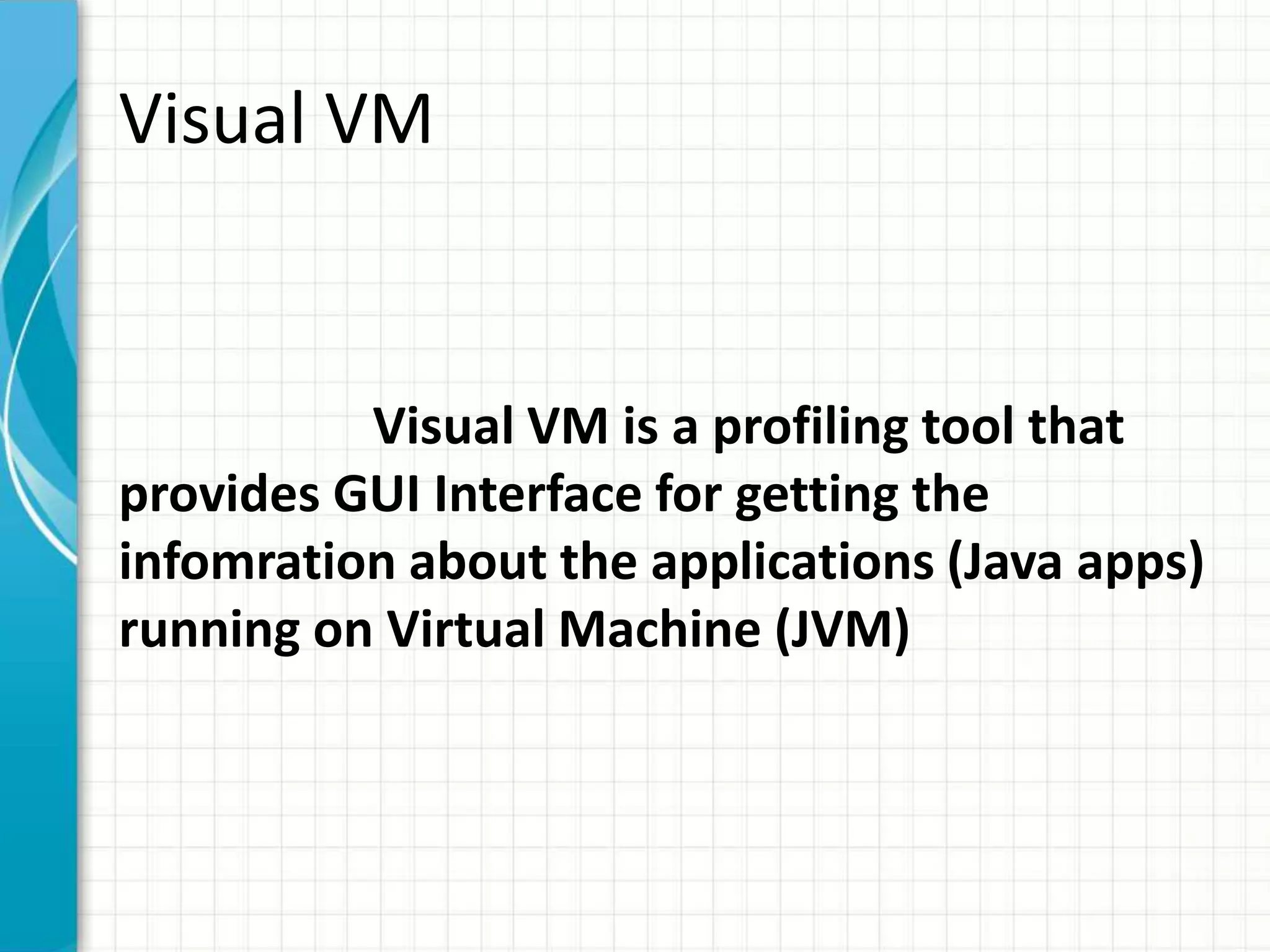
Visual VM is a profiling tool that 
provides GUI Interface for getting the 
infomration about the applications (Java apps) 
running on Virtual Machine (JVM)
Visual VM Setup 
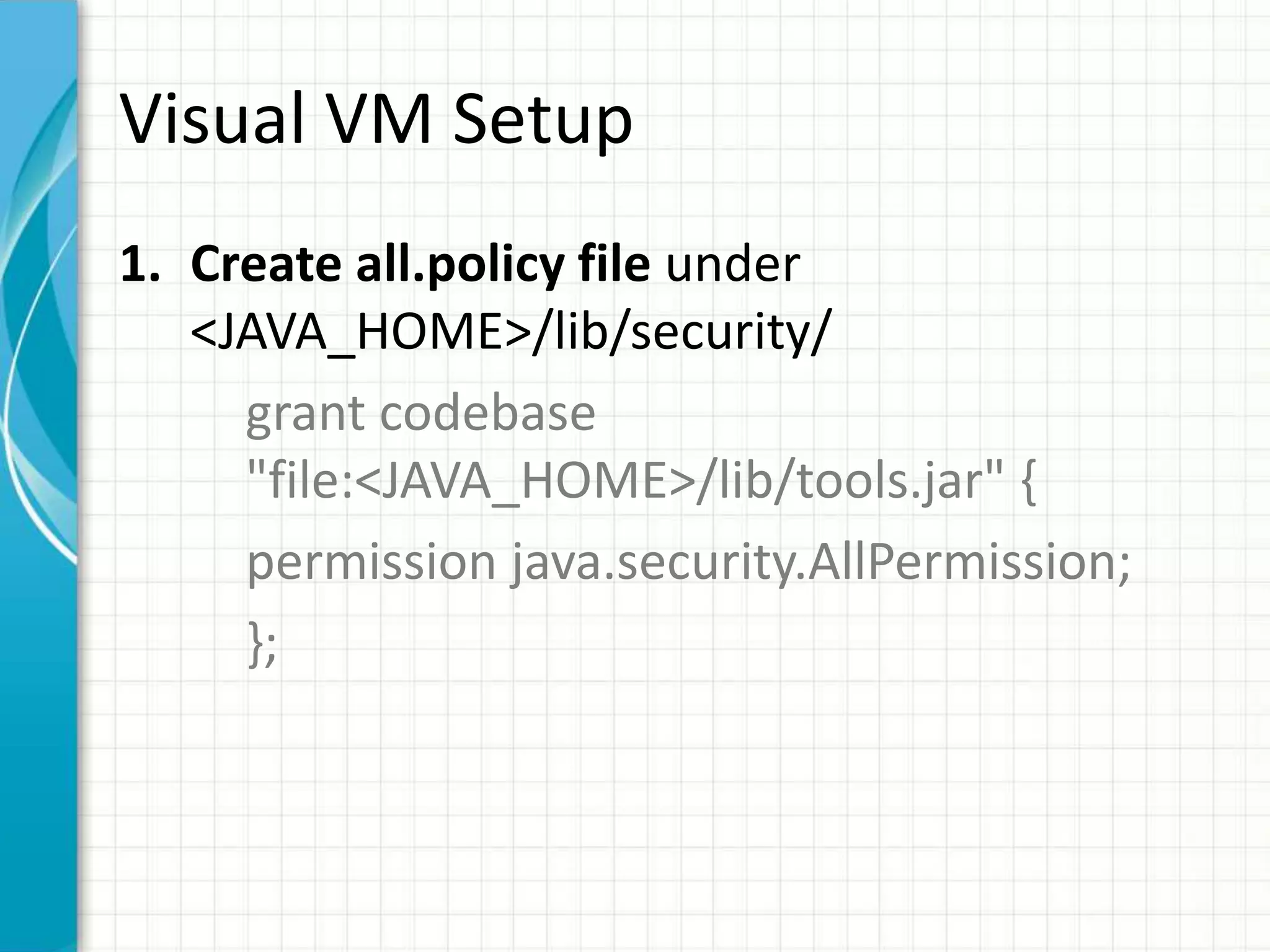
1. Create all.policy file under 
<JAVA_HOME>/lib/security/ 
grant codebase 
"file:<JAVA_HOME>/lib/tools.jar" { 
permission java.security.AllPermission; 
};
Visual VM Setup Contd… 
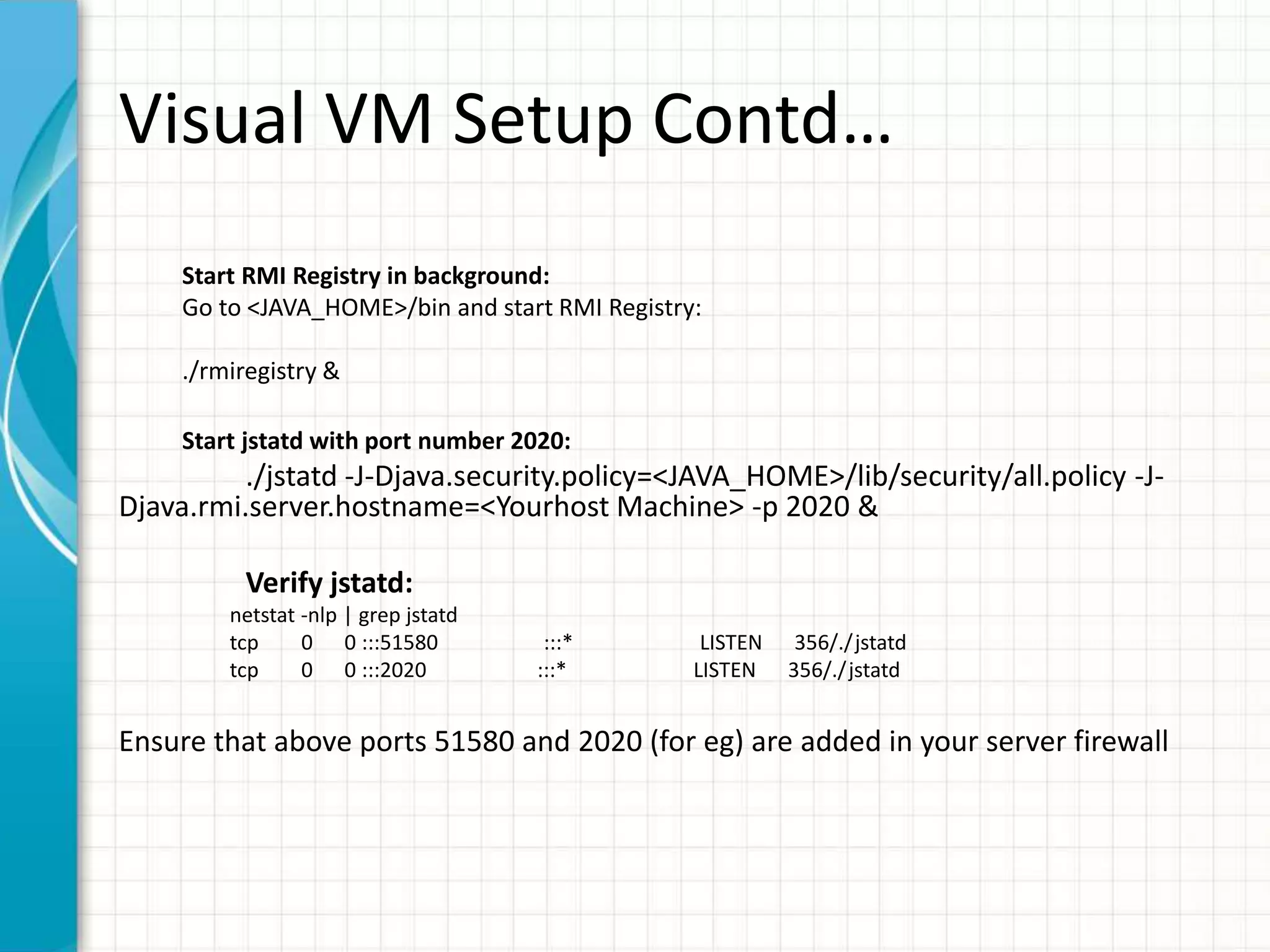
Start RMI Registry in background: 
Go to <JAVA_HOME>/bin and start RMI Registry: 
./rmiregistry & 
Start jstatd with port number 2020: 
./jstatd -J-Djava.security.policy=<JAVA_HOME>/lib/security/all.policy -J-Djava. 
rmi.server.hostname=<Yourhost Machine> -p 2020 & 
Verify jstatd: 
netstat -nlp | grep jstatd 
tcp 0 0 :::51580 :::* LISTEN 356/./ jstatd 
tcp 0 0 :::2020 :::* LISTEN 356/./ jstatd 
Ensure that above ports 51580 and 2020 (for eg) are added in your server firewall
Visual VM Setup Contd… 
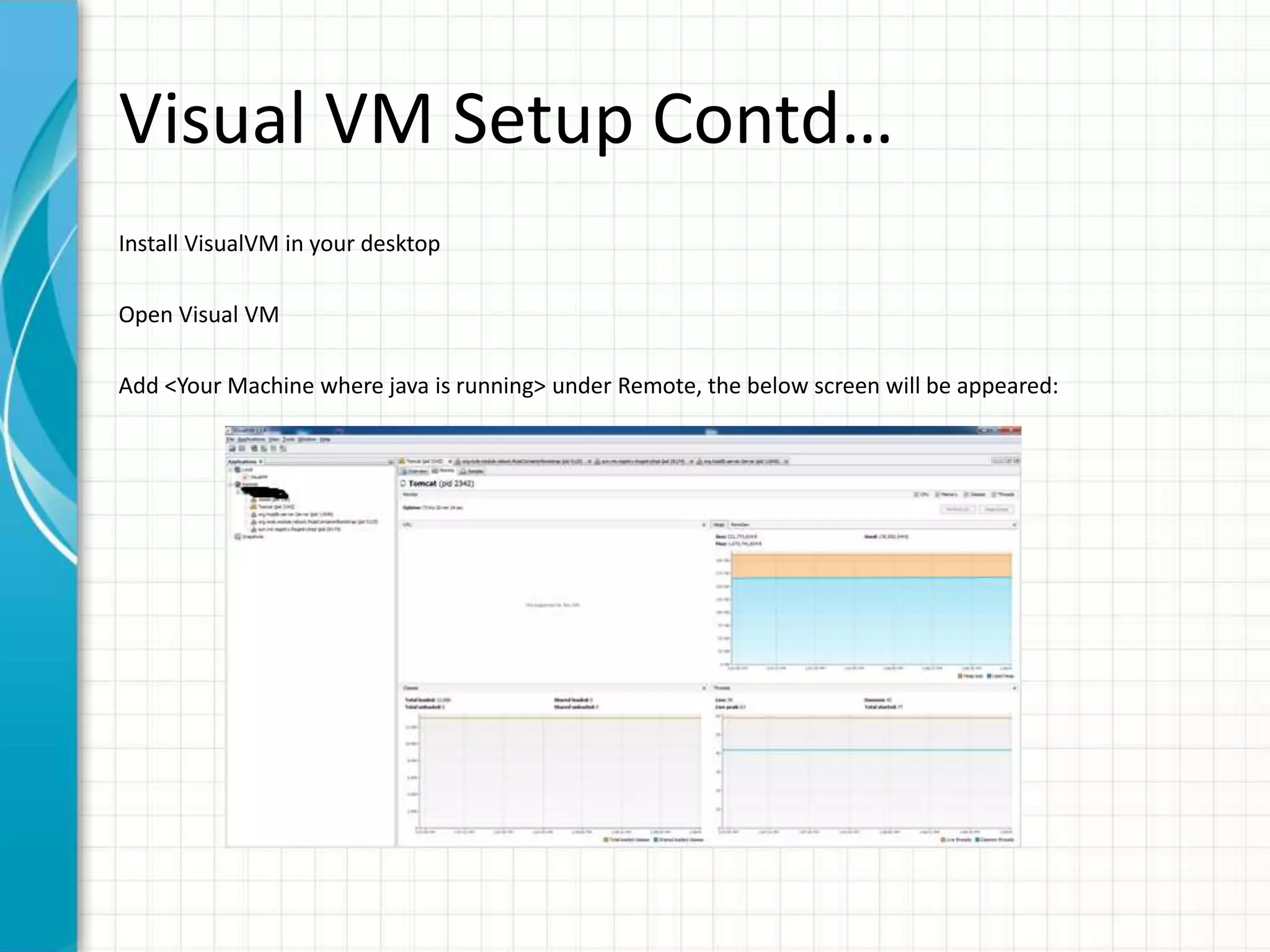
Install VisualVM in your desktop 
Open Visual VM 
Add <Your Machine where java is running> under Remote, the below screen will be appeared:
Visual VM Setup Contd… 
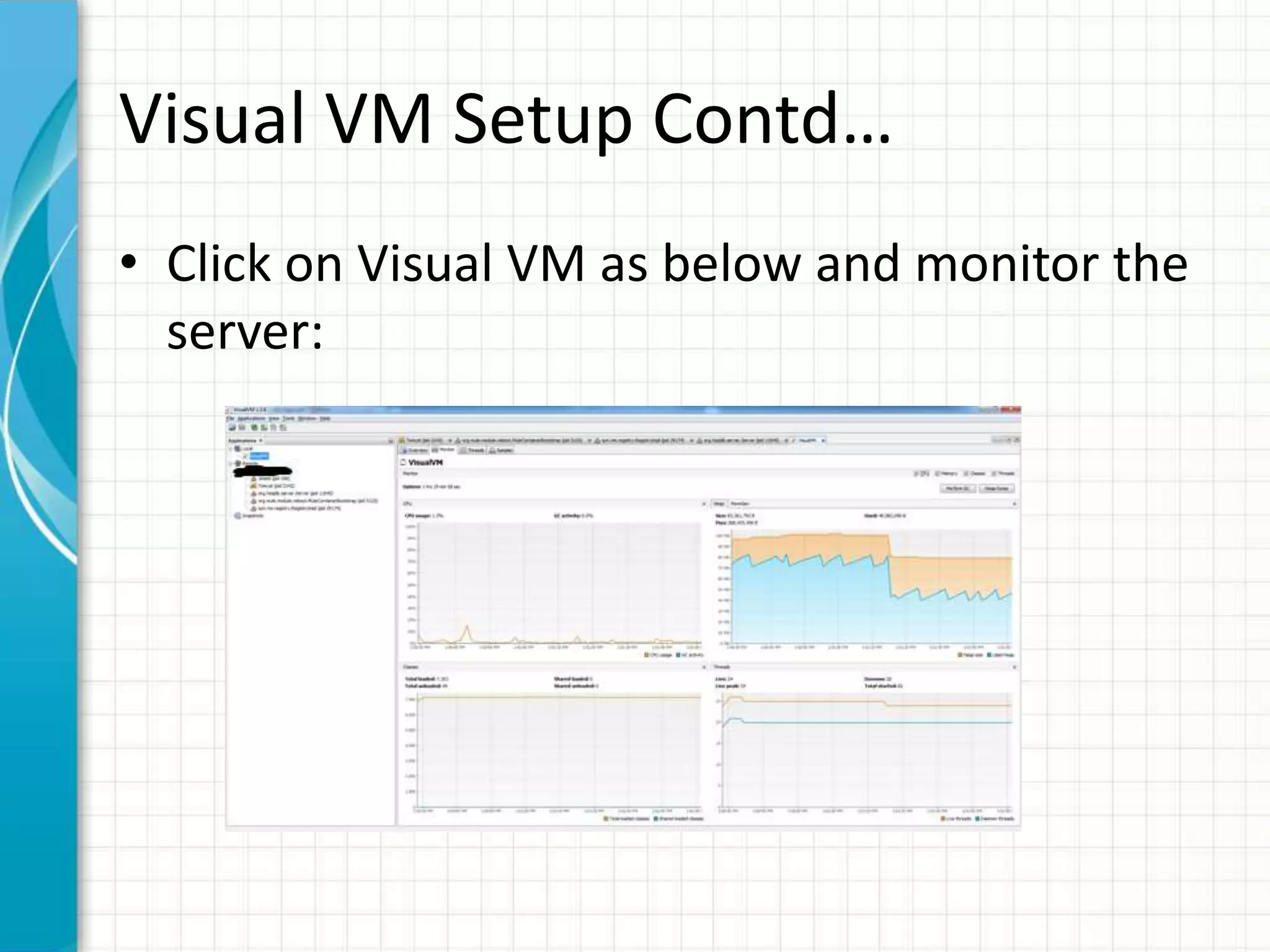
• Click on Visual VM as below and monitor the 
server:
QUESTIONS & THANKS

Visual vm

  • 1.
  • 2.
    Visual VM VisualVM is a profiling tool that provides GUI Interface for getting the infomration about the applications (Java apps) running on Virtual Machine (JVM)
  • 3.
    Visual VM Setup 1. Create all.policy file under <JAVA_HOME>/lib/security/ grant codebase "file:<JAVA_HOME>/lib/tools.jar" { permission java.security.AllPermission; };
  • 4.
    Visual VM SetupContd… Start RMI Registry in background: Go to <JAVA_HOME>/bin and start RMI Registry: ./rmiregistry & Start jstatd with port number 2020: ./jstatd -J-Djava.security.policy=<JAVA_HOME>/lib/security/all.policy -J-Djava. rmi.server.hostname=<Yourhost Machine> -p 2020 & Verify jstatd: netstat -nlp | grep jstatd tcp 0 0 :::51580 :::* LISTEN 356/./ jstatd tcp 0 0 :::2020 :::* LISTEN 356/./ jstatd Ensure that above ports 51580 and 2020 (for eg) are added in your server firewall
  • 5.
    Visual VM SetupContd… Install VisualVM in your desktop Open Visual VM Add <Your Machine where java is running> under Remote, the below screen will be appeared:
  • 6.
    Visual VM SetupContd… • Click on Visual VM as below and monitor the server:
  • 7.

Editor's Notes

  • #2 This template can be used as a starter file for presenting training materials in a group setting. Sections Right-click on a slide to add sections. Sections can help to organize your slides or facilitate collaboration between multiple authors. Notes Use the Notes section for delivery notes or to provide additional details for the audience. View these notes in Presentation View during your presentation. Keep in mind the font size (important for accessibility, visibility, videotaping, and online production) Coordinated colors Pay particular attention to the graphs, charts, and text boxes. Consider that attendees will print in black and white or grayscale. Run a test print to make sure your colors work when printed in pure black and white and grayscale. Graphics, tables, and graphs Keep it simple: If possible, use consistent, non-distracting styles and colors. Label all graphs and tables.
  • #3 Give a brief overview of the presentation. Describe the major focus of the presentation and why it is important. Introduce each of the major topics. To provide a road map for the audience, you can repeat this Overview slide throughout the presentation, highlighting the particular topic you will discuss next.
  • #4 Give a brief overview of the presentation. Describe the major focus of the presentation and why it is important. Introduce each of the major topics. To provide a road map for the audience, you can repeat this Overview slide throughout the presentation, highlighting the particular topic you will discuss next.
  • #5 Give a brief overview of the presentation. Describe the major focus of the presentation and why it is important. Introduce each of the major topics. To provide a road map for the audience, you can repeat this Overview slide throughout the presentation, highlighting the particular topic you will discuss next.
  • #6 Give a brief overview of the presentation. Describe the major focus of the presentation and why it is important. Introduce each of the major topics. To provide a road map for the audience, you can repeat this Overview slide throughout the presentation, highlighting the particular topic you will discuss next.
  • #7 Give a brief overview of the presentation. Describe the major focus of the presentation and why it is important. Introduce each of the major topics. To provide a road map for the audience, you can repeat this Overview slide throughout the presentation, highlighting the particular topic you will discuss next.
  • #8 Microsoft Confidential