Is File Load Taking
Too Long?
About Us
 PLM Mechanic specializes in the technical
  aspects of Oracle’s Agile PLM solution
 We offer the following service:
  – Agile PLM installations and upgrades
                 Is File Load Taking Too Long?
  – Agile PLM maintenance and help desk functions
  – Agile PLM hosting
  – Customization
 PLM Mechanic also has several product
  offerings
Consider using a custom vault
If your company is in the midst of a data migration to Agile
PLM and has been around for a while, chances are you have
quite a few attachments to migrate over. While the
mechanics of file load are not difficult, it can be a time
consuming process. This blog aims to speed up your import by
walking through the use of a custom file vault.

So what is a custom vault? A custom vault is a read only file
system that is attached to the file manager. Files can be
checked out, but when they are checked in, they are copied to
the primary read/write location of the vault. The load process
for a custom vault is much faster because only the reference
to the file is made in the database as compared to adding a
reference as well as the file.
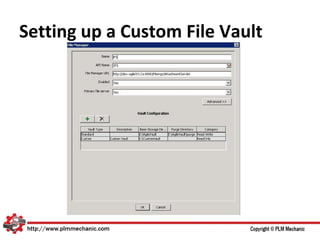
Setting up a Custom File Vault
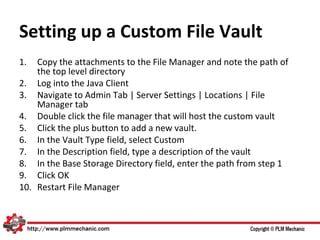
1.  Copy the attachments to the File Manager and note the path of
    the top level directory
2. Log into the Java Client
3. Navigate to Admin Tab | Server Settings | Locations | File
    Manager tab
4. Double click the file manager that will host the custom vault
5. Click the plus button to add a new vault.
6. In the Vault Type field, select Custom
7. In the Description field, type a description of the vault
8. In the Base Storage Directory field, enter the path from step 1
9. Click OK
10. Restart File Manager
Setting up a Custom File Vault
Preparing the File Load file
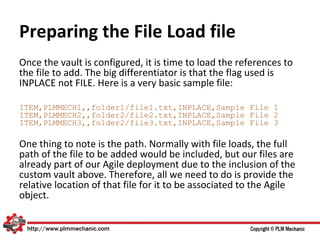
Once the vault is configured, it is time to load the references to
the file to add. The big differentiator is that the flag used is
INPLACE not FILE. Here is a very basic sample file:

ITEM,PLMMECH1,,folder1/file1.txt,INPLACE,Sample File 1
ITEM,PLMMECH2,,folder2/file2.txt,INPLACE,Sample File 2
ITEM,PLMMECH3,,folder2/file3.txt,INPLACE,Sample File 3

One thing to note is the path. Normally with file loads, the full
path of the file to be added would be included, but our files are
already part of our Agile deployment due to the inclusion of the
custom vault above. Therefore, all we need to do is provide the
relative location of that file for it to be associated to the Agile
object.
Preparing the File Load file
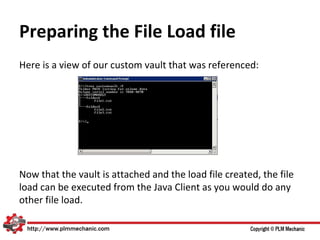
Here is a view of our custom vault that was referenced:


Now that the vault is attached and the load file created, the file
load can be executed from the Java Client as you would do any
other file load.
Preparing the File Load file
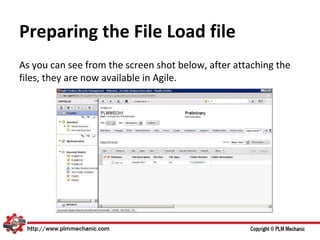
As you can see from the screen shot below, after attaching the
files, they are now available in Agile.
Contact Us
   Web: http://www.plmmechanic.com
   Blog: http://www.plmmechanic.com/blog
   Twitter: @PLMMechanic
   Email: sales@plmmechanic.com
   Phone: 512-827-2262
   Fax: 512-582-2932
Contact Us
   Web: http://www.plmmechanic.com
   Blog: http://www.plmmechanic.com/blog
   Twitter: @PLMMechanic
   Email: sales@plmmechanic.com
   Phone: 512-827-2262
   Fax: 512-582-2932

Is File Load Taking Too Long?

  • 1.
    Is File LoadTaking Too Long?
  • 2.
    About Us  PLMMechanic specializes in the technical aspects of Oracle’s Agile PLM solution  We offer the following service: – Agile PLM installations and upgrades Is File Load Taking Too Long? – Agile PLM maintenance and help desk functions – Agile PLM hosting – Customization  PLM Mechanic also has several product offerings
  • 3.
    Consider using acustom vault If your company is in the midst of a data migration to Agile PLM and has been around for a while, chances are you have quite a few attachments to migrate over. While the mechanics of file load are not difficult, it can be a time consuming process. This blog aims to speed up your import by walking through the use of a custom file vault. So what is a custom vault? A custom vault is a read only file system that is attached to the file manager. Files can be checked out, but when they are checked in, they are copied to the primary read/write location of the vault. The load process for a custom vault is much faster because only the reference to the file is made in the database as compared to adding a reference as well as the file.
  • 4.
    Setting up aCustom File Vault 1. Copy the attachments to the File Manager and note the path of the top level directory 2. Log into the Java Client 3. Navigate to Admin Tab | Server Settings | Locations | File Manager tab 4. Double click the file manager that will host the custom vault 5. Click the plus button to add a new vault. 6. In the Vault Type field, select Custom 7. In the Description field, type a description of the vault 8. In the Base Storage Directory field, enter the path from step 1 9. Click OK 10. Restart File Manager
  • 5.
    Setting up aCustom File Vault
  • 6.
    Preparing the FileLoad file Once the vault is configured, it is time to load the references to the file to add. The big differentiator is that the flag used is INPLACE not FILE. Here is a very basic sample file: ITEM,PLMMECH1,,folder1/file1.txt,INPLACE,Sample File 1 ITEM,PLMMECH2,,folder2/file2.txt,INPLACE,Sample File 2 ITEM,PLMMECH3,,folder2/file3.txt,INPLACE,Sample File 3 One thing to note is the path. Normally with file loads, the full path of the file to be added would be included, but our files are already part of our Agile deployment due to the inclusion of the custom vault above. Therefore, all we need to do is provide the relative location of that file for it to be associated to the Agile object.
  • 7.
    Preparing the FileLoad file Here is a view of our custom vault that was referenced: Now that the vault is attached and the load file created, the file load can be executed from the Java Client as you would do any other file load.
  • 8.
    Preparing the FileLoad file As you can see from the screen shot below, after attaching the files, they are now available in Agile.
  • 9.
    Contact Us  Web: http://www.plmmechanic.com  Blog: http://www.plmmechanic.com/blog  Twitter: @PLMMechanic  Email: sales@plmmechanic.com  Phone: 512-827-2262  Fax: 512-582-2932
  • 10.
    Contact Us  Web: http://www.plmmechanic.com  Blog: http://www.plmmechanic.com/blog  Twitter: @PLMMechanic  Email: sales@plmmechanic.com  Phone: 512-827-2262  Fax: 512-582-2932