[Your company name] presents:Microsoft® Office Visio®2007 TrainingLet’s talk about text
Let’s talk about textCourse contentsOverview: Shapes alone don’t make a diagram
Lesson: Add and edit textThe lesson includes a list of suggested tasks and a set of test questions.
Let’s talk about textOverview: Shapes alone don’t make a diagramShapes, the components that make up any Visio diagram, are highly effective in communicating information, ideas, processes, and so on. But shapes alone don’t make a diagram. Text—long or short, descriptive or instructional—is also essential.This course will talk about text: how to add it to shapes and how to add it on its own. You’ll also learn how to edit text and avoid common pitfalls.
Let’s talk about textCourse goals			Add text to a shape.
Add freestanding text—text that is not associated with a shape—to the page.
Avoid common pitfalls associated with text in Visio, like how to get out of text mode when you don’t need to be in it. Lesson Add and edit text
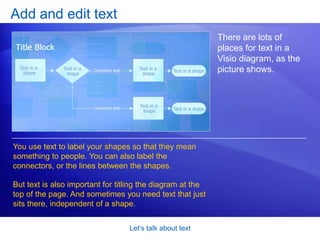
Let’s talk about textAdd and edit textThere are lots of places for text in a Visio diagram, as the picture shows.You use text to label your shapes so that they mean something to people. You can also label the connectors, or the lines between the shapes. But text is also important for titling the diagram at the top of the page. And sometimes you need text that just sits there, independent of a shape.
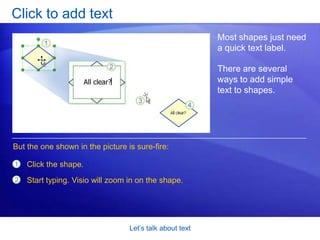
Let’s talk about textClick to add textMost shapes just need a quick text label. There are several ways to add simple text to shapes. But the one shown in the picture is sure-fire:Click the shape.Start typing. Visio will zoom in on the shape.
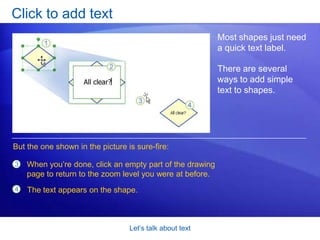
Let’s talk about textClick to add textMost shapes just need a quick text label. There are several ways to add simple text to shapes. But the one shown in the picture is sure-fire:When you’re done, click an empty part of the drawing page to return to the zoom level you were at before. The text appears on the shape.
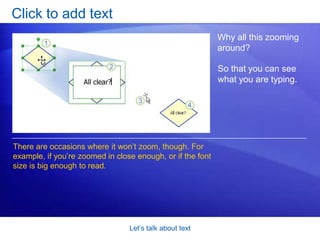
Let’s talk about textClick to add textWhy all this zooming around? So that you can see what you are typing. There are occasions where it won’t zoom, though. For example, if you’re zoomed in close enough, or if the font size is big enough to read.
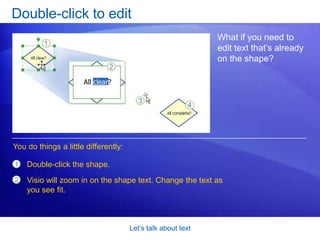
Let’s talk about textDouble-click to editWhat if you need to edit text that’s already on the shape? You do things a little differently: Double-click the shape. Visio will zoom in on the shape text. Change the text as you see fit.
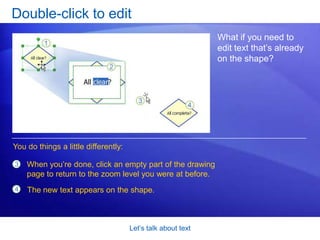
Let’s talk about textDouble-click to editWhat if you need to edit text that’s already on the shape? You do things a little differently: When you’re done, click an empty part of the drawing page to return to the zoom level you were at before. The new text appears on the shape.
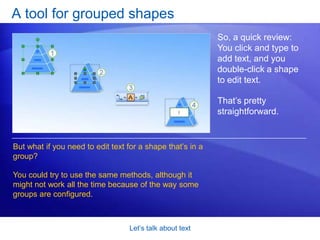
Let’s talk about textA tool for grouped shapesSo, a quick review: You click and type to add text, and you double-click a shape to edit text. That’s pretty straightforward. But what if you need to edit text for a shape that’s in a group? You could try to use the same methods, although it might not work all the time because of the way some groups are configured.
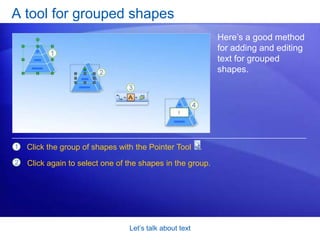
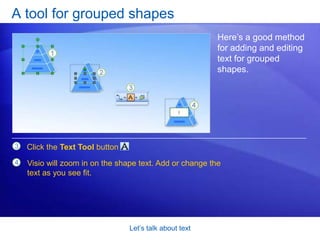
Let’s talk about textA tool for grouped shapesHere’s a good method for adding and editing text for grouped shapes. Click the group of shapes with the Pointer Tool    .Click again to select one of the shapes in the group.
Let’s talk about textA tool for grouped shapesHere’s a good method for adding and editing text for grouped shapes. Click the Text Tool button    .Visio will zoom in on the shape text. Add or change the text as you see fit.
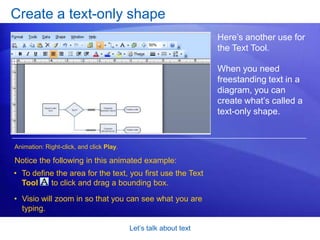
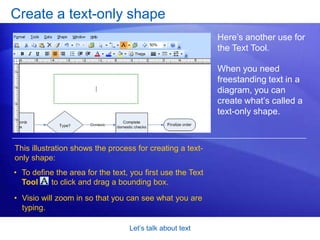
Let’s talk about textCreate a text-only shapeHere’s another use for the Text Tool. When you need freestanding text in a diagram, you can create what’s called a text-only shape. Animation: Right-click, and click Play.Notice the following in this animated example:To define the area for the text, you first use the Text Tool      to click and drag a bounding box.
Visio will zoom in so that you can see what you are typing. Let’s talk about textCreate a text-only shapeHere’s another use for the Text Tool. When you need freestanding text in a diagram, you can create what’s called a text-only shape. This illustration shows the process for creating a text-only shape: To define the area for the text, you first use the Text Tool      to click and drag a bounding box.
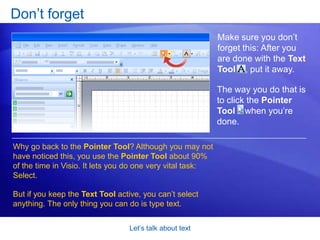
Visio will zoom in so that you can see what you are typing. Let’s talk about textDon’t forgetMake sure you don’t forget this: After you are done with the Text Tool    , put it away. The way you do that is to click the Pointer Tool    when you’re done. Why go back to the Pointer Tool? Although you may not have noticed this, you use the Pointer Tool about 90% of the time in Visio. It lets you do one very vital task: Select. But if you keep the Text Tool active, you can’t select anything. The only thing you can do is type text.
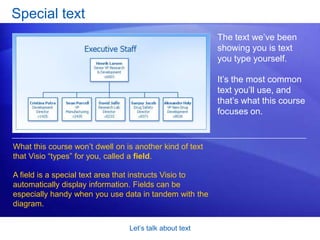
Let’s talk about textSpecial textThe text we’ve been showing you is text you type yourself. It’s the most common text you’ll use, and that’s what this course focuses on. What this course won’t dwell on is another kind of text that Visio “types” for you, called a field. A field is a special text area that instructs Visio to automatically display information. Fields can be especially handy when you use data in tandem with the diagram.
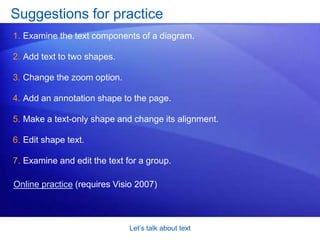
Let’s talk about textSuggestions for practiceExamine the text components of a diagram. Add text to two shapes.Change the zoom option. Add an annotation shape to the page. Make a text-only shape and change its alignment. Edit shape text. Examine and edit the text for a group.  Online practice (requires Visio 2007)
Let’s talk about textTest question 1Most of the time, Visio zooms in when you start typing. When would it not zoom in when you start typing? (Pick one answer.)When you’re typing text for a text-only shape. When you’re typing text for a really big shape. When the text for the shape is big enough to read already.  When you’re typing text for a very skinny line.
Let’s talk about textTest question 1: AnswerWhen the text for the shape is big enough to read already. Visio won’t zoom in if the text is big enough to read or if you’re already zoomed in enough to read the text.
Let’s talk about textTest question 2When you’re done typing, what should you do if you want to return to the zoom level you were at before? (Pick one answer.)Click an empty part of the drawing page.  Stop typing. Press ALT+F6. Press RETURN.
Let’s talk about textTest question 2: AnswerClick an empty part of the drawing page. You can also press ESC.
Let’s talk about textTest question 3When you’re done typing and you want to select a shape and move it, you should always click the Text Tool     again to turn it off. (Pick one answer.)True.False.

Visio training

  • 1.
    [Your company name]presents:Microsoft® Office Visio®2007 TrainingLet’s talk about text
  • 2.
    Let’s talk abouttextCourse contentsOverview: Shapes alone don’t make a diagram
  • 3.
    Lesson: Add andedit textThe lesson includes a list of suggested tasks and a set of test questions.
  • 4.
    Let’s talk abouttextOverview: Shapes alone don’t make a diagramShapes, the components that make up any Visio diagram, are highly effective in communicating information, ideas, processes, and so on. But shapes alone don’t make a diagram. Text—long or short, descriptive or instructional—is also essential.This course will talk about text: how to add it to shapes and how to add it on its own. You’ll also learn how to edit text and avoid common pitfalls.
  • 5.
    Let’s talk abouttextCourse goals Add text to a shape.
  • 6.
    Add freestanding text—textthat is not associated with a shape—to the page.
  • 7.
    Avoid common pitfallsassociated with text in Visio, like how to get out of text mode when you don’t need to be in it. Lesson Add and edit text
  • 8.
    Let’s talk abouttextAdd and edit textThere are lots of places for text in a Visio diagram, as the picture shows.You use text to label your shapes so that they mean something to people. You can also label the connectors, or the lines between the shapes. But text is also important for titling the diagram at the top of the page. And sometimes you need text that just sits there, independent of a shape.
  • 9.
    Let’s talk abouttextClick to add textMost shapes just need a quick text label. There are several ways to add simple text to shapes. But the one shown in the picture is sure-fire:Click the shape.Start typing. Visio will zoom in on the shape.
  • 10.
    Let’s talk abouttextClick to add textMost shapes just need a quick text label. There are several ways to add simple text to shapes. But the one shown in the picture is sure-fire:When you’re done, click an empty part of the drawing page to return to the zoom level you were at before. The text appears on the shape.
  • 11.
    Let’s talk abouttextClick to add textWhy all this zooming around? So that you can see what you are typing. There are occasions where it won’t zoom, though. For example, if you’re zoomed in close enough, or if the font size is big enough to read.
  • 12.
    Let’s talk abouttextDouble-click to editWhat if you need to edit text that’s already on the shape? You do things a little differently: Double-click the shape. Visio will zoom in on the shape text. Change the text as you see fit.
  • 13.
    Let’s talk abouttextDouble-click to editWhat if you need to edit text that’s already on the shape? You do things a little differently: When you’re done, click an empty part of the drawing page to return to the zoom level you were at before. The new text appears on the shape.
  • 14.
    Let’s talk abouttextA tool for grouped shapesSo, a quick review: You click and type to add text, and you double-click a shape to edit text. That’s pretty straightforward. But what if you need to edit text for a shape that’s in a group? You could try to use the same methods, although it might not work all the time because of the way some groups are configured.
  • 15.
    Let’s talk abouttextA tool for grouped shapesHere’s a good method for adding and editing text for grouped shapes. Click the group of shapes with the Pointer Tool .Click again to select one of the shapes in the group.
  • 16.
    Let’s talk abouttextA tool for grouped shapesHere’s a good method for adding and editing text for grouped shapes. Click the Text Tool button .Visio will zoom in on the shape text. Add or change the text as you see fit.
  • 17.
    Let’s talk abouttextCreate a text-only shapeHere’s another use for the Text Tool. When you need freestanding text in a diagram, you can create what’s called a text-only shape. Animation: Right-click, and click Play.Notice the following in this animated example:To define the area for the text, you first use the Text Tool to click and drag a bounding box.
  • 18.
    Visio will zoomin so that you can see what you are typing. Let’s talk about textCreate a text-only shapeHere’s another use for the Text Tool. When you need freestanding text in a diagram, you can create what’s called a text-only shape. This illustration shows the process for creating a text-only shape: To define the area for the text, you first use the Text Tool to click and drag a bounding box.
  • 19.
    Visio will zoomin so that you can see what you are typing. Let’s talk about textDon’t forgetMake sure you don’t forget this: After you are done with the Text Tool , put it away. The way you do that is to click the Pointer Tool when you’re done. Why go back to the Pointer Tool? Although you may not have noticed this, you use the Pointer Tool about 90% of the time in Visio. It lets you do one very vital task: Select. But if you keep the Text Tool active, you can’t select anything. The only thing you can do is type text.
  • 20.
    Let’s talk abouttextSpecial textThe text we’ve been showing you is text you type yourself. It’s the most common text you’ll use, and that’s what this course focuses on. What this course won’t dwell on is another kind of text that Visio “types” for you, called a field. A field is a special text area that instructs Visio to automatically display information. Fields can be especially handy when you use data in tandem with the diagram.
  • 21.
    Let’s talk abouttextSuggestions for practiceExamine the text components of a diagram. Add text to two shapes.Change the zoom option. Add an annotation shape to the page. Make a text-only shape and change its alignment. Edit shape text. Examine and edit the text for a group. Online practice (requires Visio 2007)
  • 22.
    Let’s talk abouttextTest question 1Most of the time, Visio zooms in when you start typing. When would it not zoom in when you start typing? (Pick one answer.)When you’re typing text for a text-only shape. When you’re typing text for a really big shape. When the text for the shape is big enough to read already. When you’re typing text for a very skinny line.
  • 23.
    Let’s talk abouttextTest question 1: AnswerWhen the text for the shape is big enough to read already. Visio won’t zoom in if the text is big enough to read or if you’re already zoomed in enough to read the text.
  • 24.
    Let’s talk abouttextTest question 2When you’re done typing, what should you do if you want to return to the zoom level you were at before? (Pick one answer.)Click an empty part of the drawing page. Stop typing. Press ALT+F6. Press RETURN.
  • 25.
    Let’s talk abouttextTest question 2: AnswerClick an empty part of the drawing page. You can also press ESC.
  • 26.
    Let’s talk abouttextTest question 3When you’re done typing and you want to select a shape and move it, you should always click the Text Tool again to turn it off. (Pick one answer.)True.False.
  • 27.
    Let’s talk abouttextTest question 3: AnswerFalse. To turn off the Text Tool, you have to click the Pointer Tool.
  • 28.
    Let’s talk abouttextQuick Reference CardFor a summary of the tasks covered in this course, view the Quick Reference Card.
  • 29.
    USING THIS TEMPLATESeethe notes pane or view the full notes page (View menu or tab) for detailed help on this template.