Vax, Masks, and The Space Between:
Sharing Meaningful Study Results
2
• If you missed the first two parts of this
series, you might start with the
overview in part one — high-level
results and displays by question
type — and then continue to part two
and focus on ratings, segmenting, and
Cross Tabs.
Data Clean-up
• When you start to review your data,
you’ll sometimes notice that it’s a little
untidy around the edges.
• For example, you might notice that a
large number of people did not answer
a specific question.
• In that case, you might feel the graph
looks a bit awkward. What to do?
4
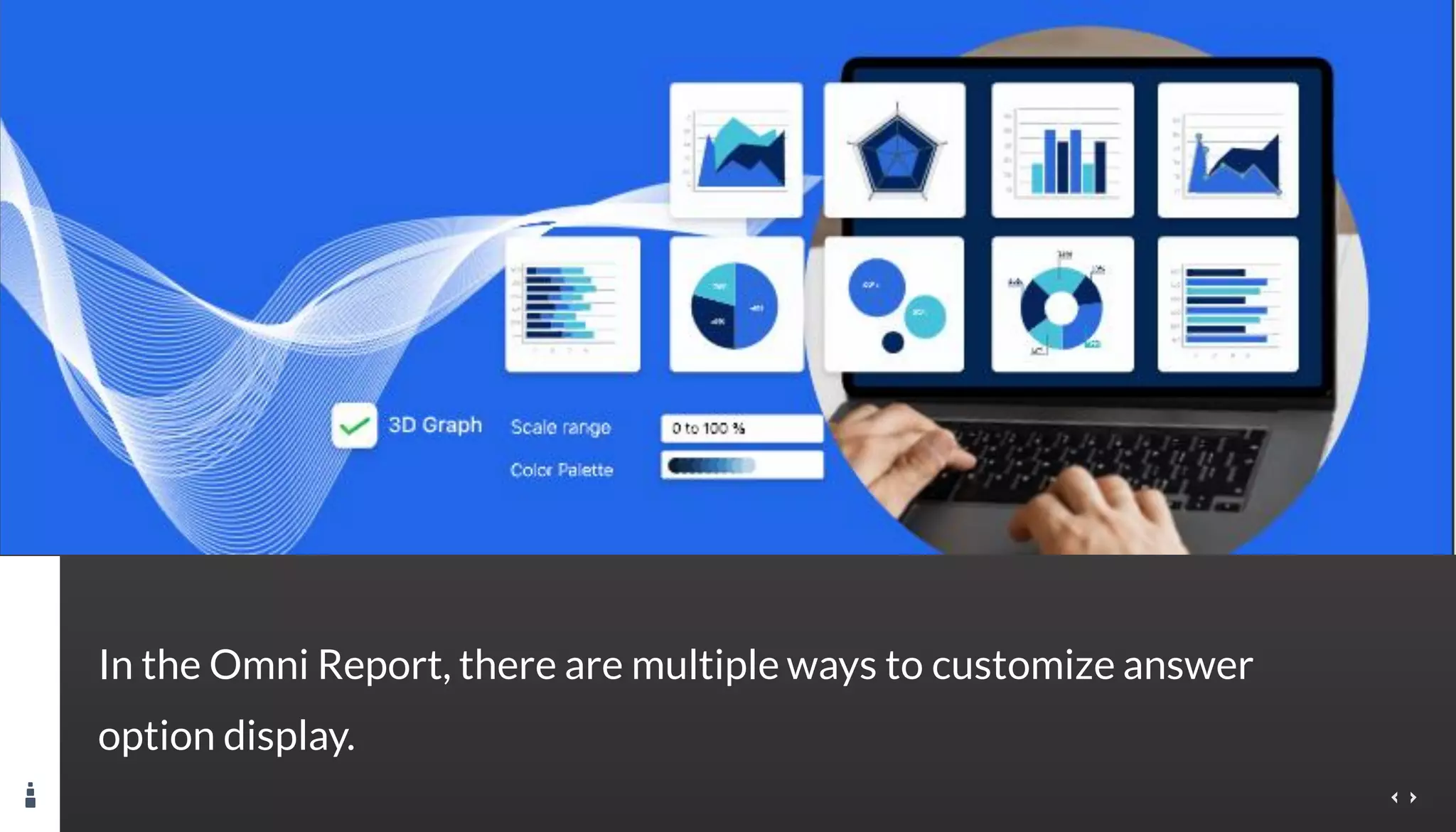
In the Omni Report, there are multiple ways to customize answer
option display.
6
Exclude Answers
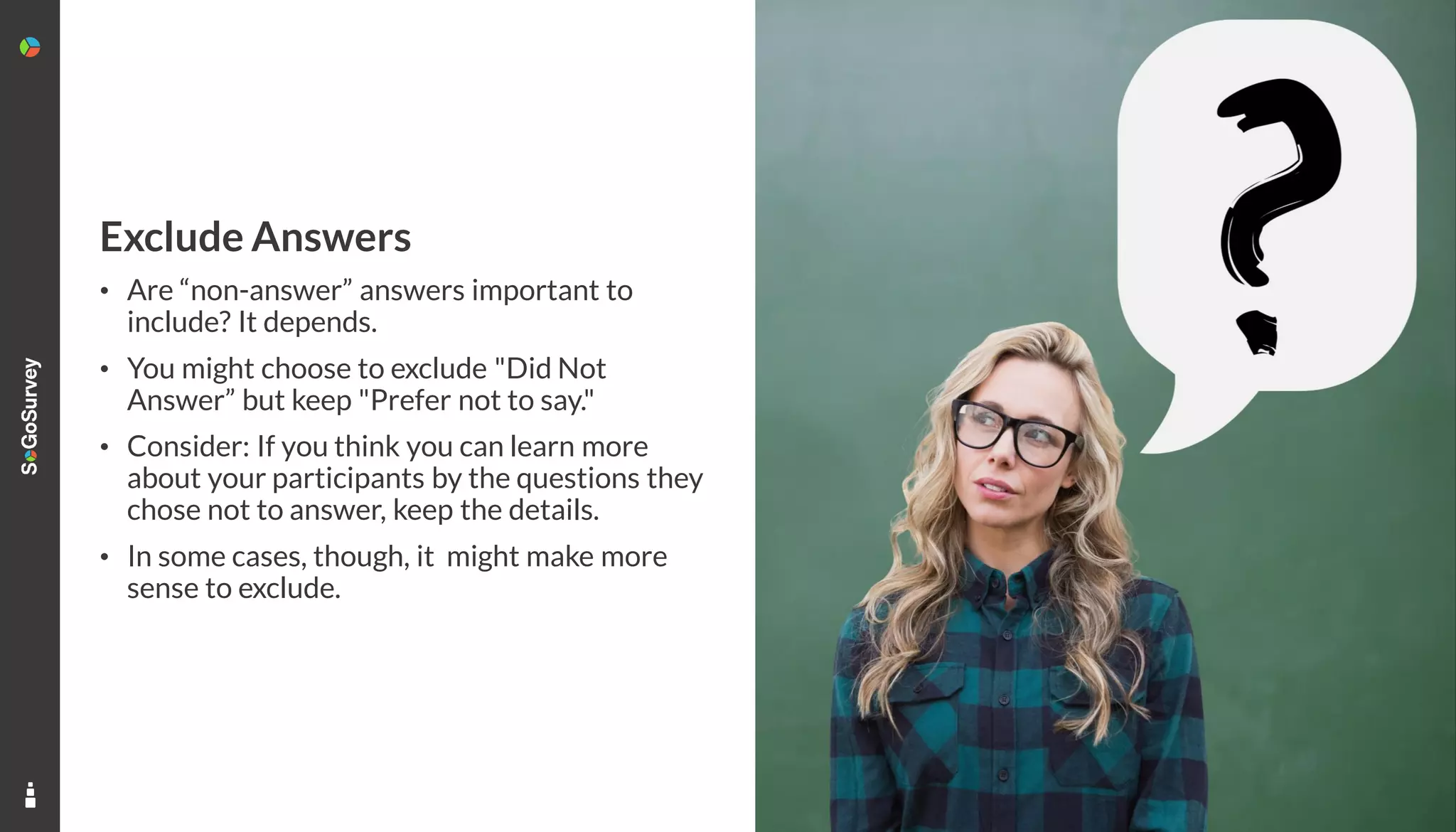
• Are “non-answer” answers important to
include? It depends.
• You might choose to exclude "Did Not
Answer” but keep "Prefer not to say."
• Consider: If you think you can learn more
about your participants by the questions they
chose not to answer, keep the details.
• In some cases, though, it might make more
sense to exclude.
Exclude Answers
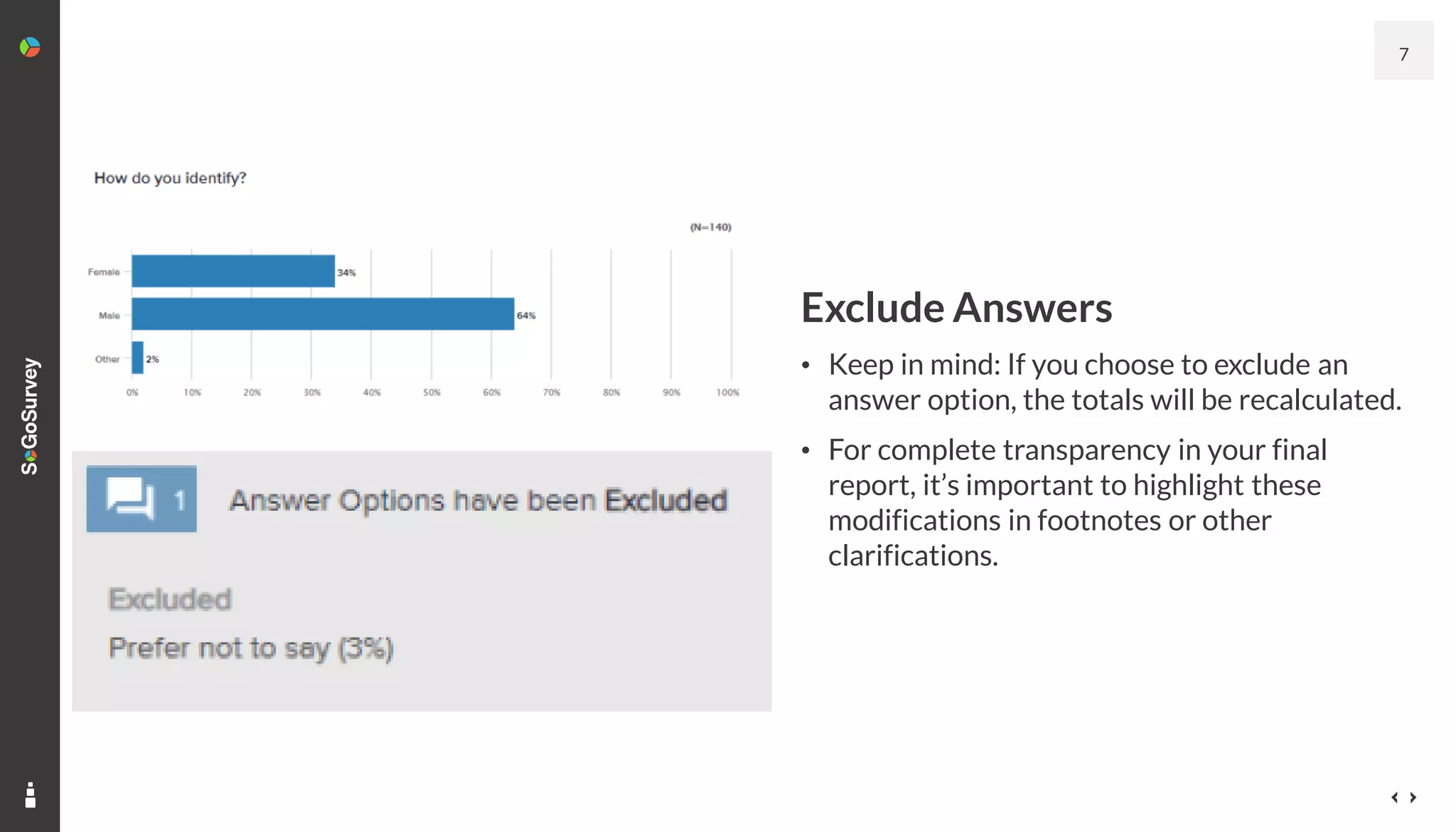
• Keep in mind: If you choose to exclude an
answer option, the totals will be recalculated.
• For complete transparency in your final
report, it’s important to highlight these
modifications in footnotes or other
clarifications.
7
8
Merge Answers
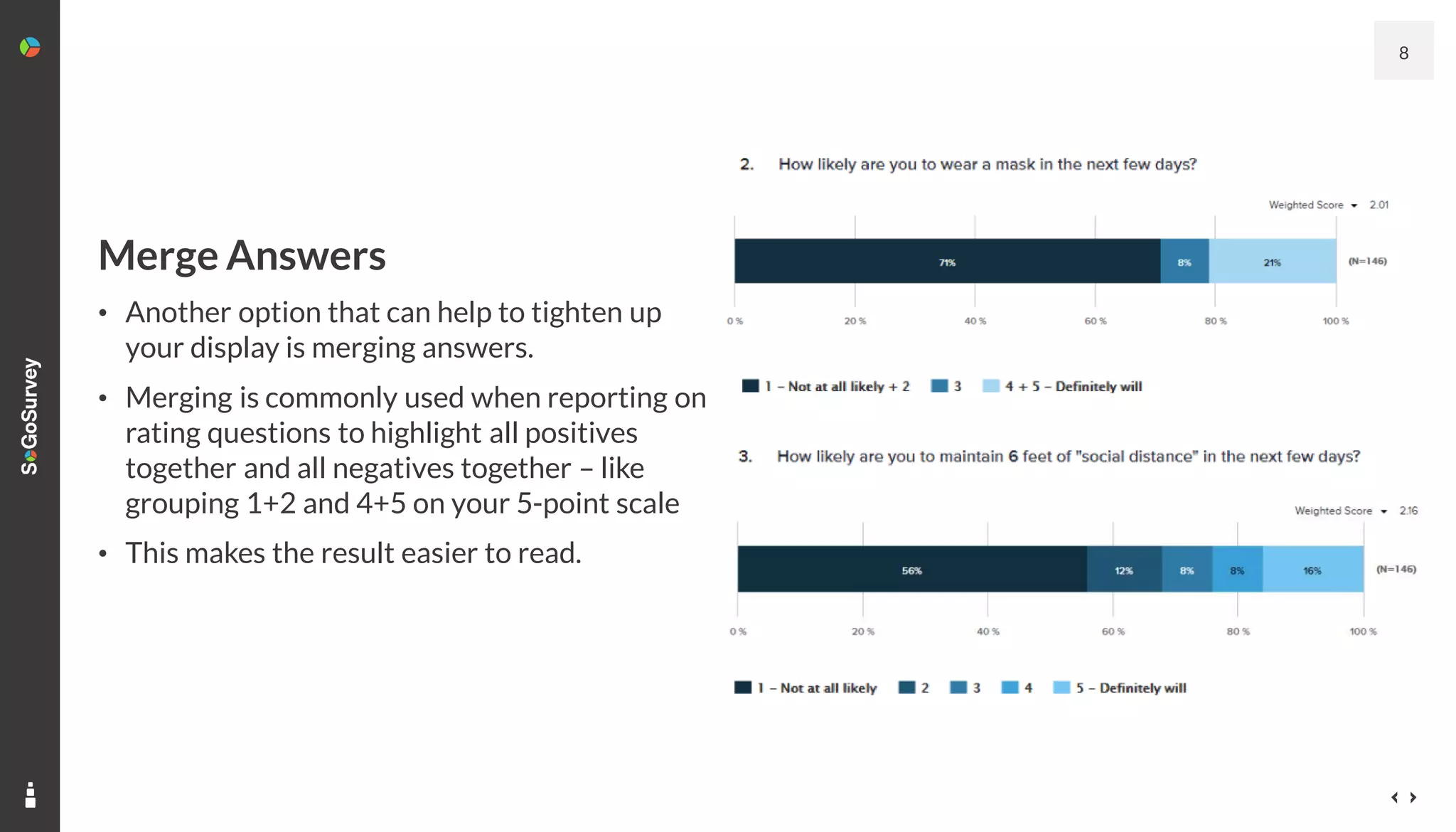
• Another option that can help to tighten up
your display is merging answers.
• Merging is commonly used when reporting on
rating questions to highlight all positives
together and all negatives together – like
grouping 1+2 and 4+5 on your 5-point scale
• This makes the result easier to read.
Sort Answers
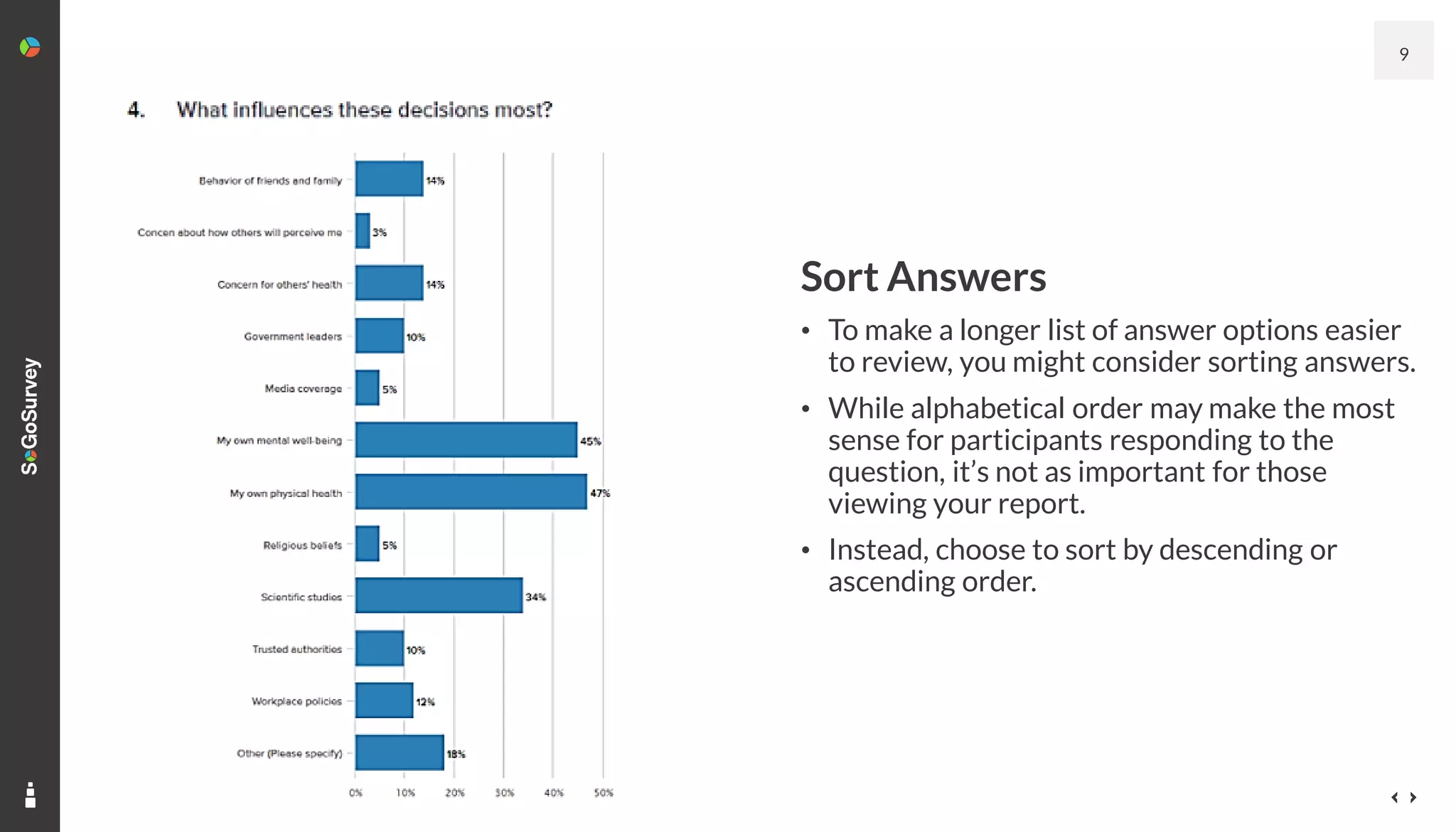
• To make a longer list of answer options easier
to review, you might consider sorting answers.
• While alphabetical order may make the most
sense for participants responding to the
question, it’s not as important for those
viewing your report.
• Instead, choose to sort by descending or
ascending order.
9
10
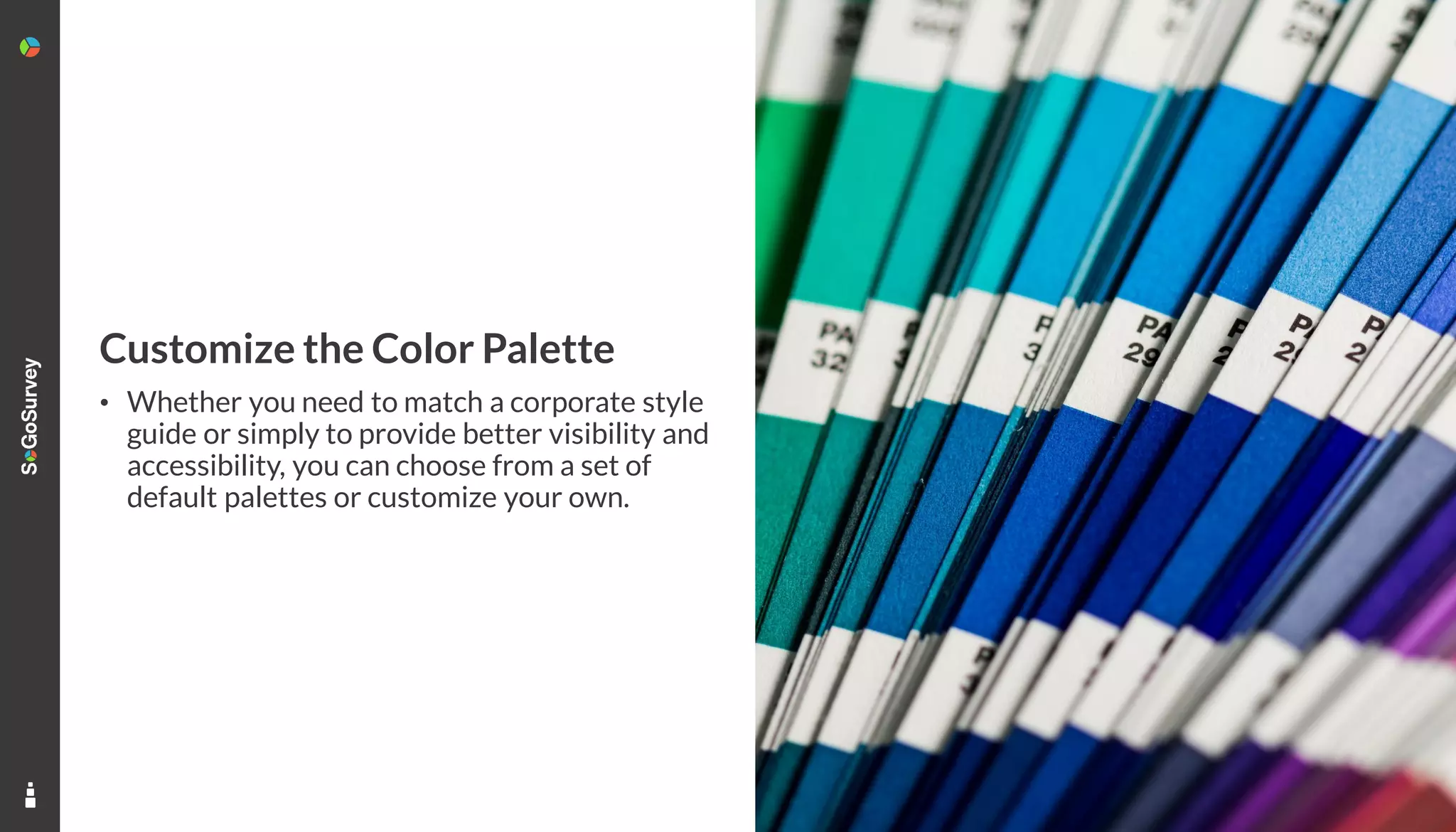
Customize the Color Palette
• Whether you need to match a corporate style
guide or simply to provide better visibility and
accessibility, you can choose from a set of
default palettes or customize your own.
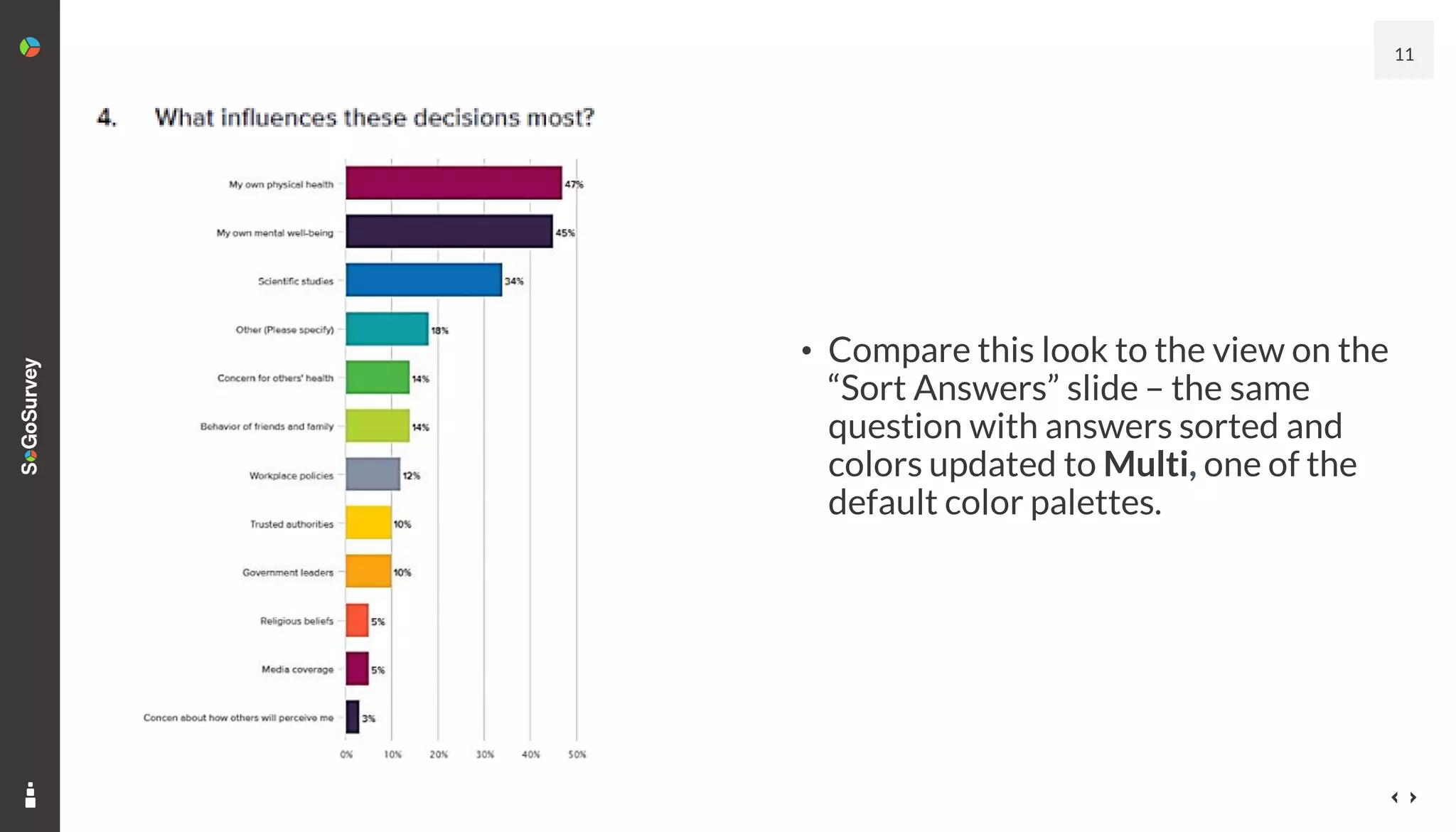
11
• Compare this look to the view on the
“Sort Answers” slide – the same
question with answers sorted and
colors updated to Multi, one of the
default color palettes.
Choose The Right Graph
13
• Switching between multiple types of
graphs and color palettes can help you
to highlight the story you want to tell
with your data.
• Plus, depending on your question type,
you can add a statistical widget, a
trend graph, or a Word Cloud.
14
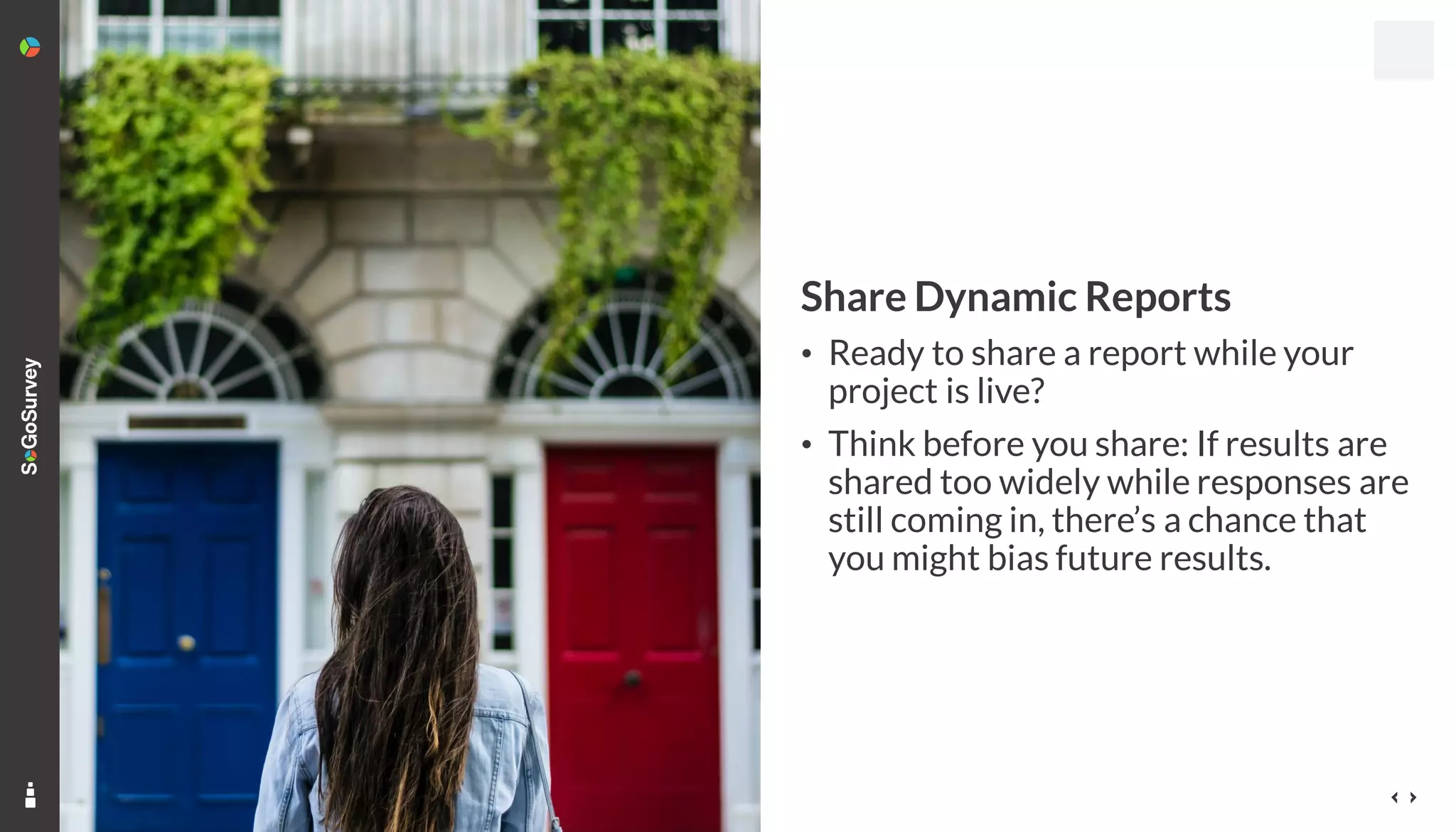
Share Dynamic Reports
• Ready to share a report while your
project is live?
• Think before you share: If results are
shared too widely while responses are
still coming in, there’s a chance that
you might bias future results.
15
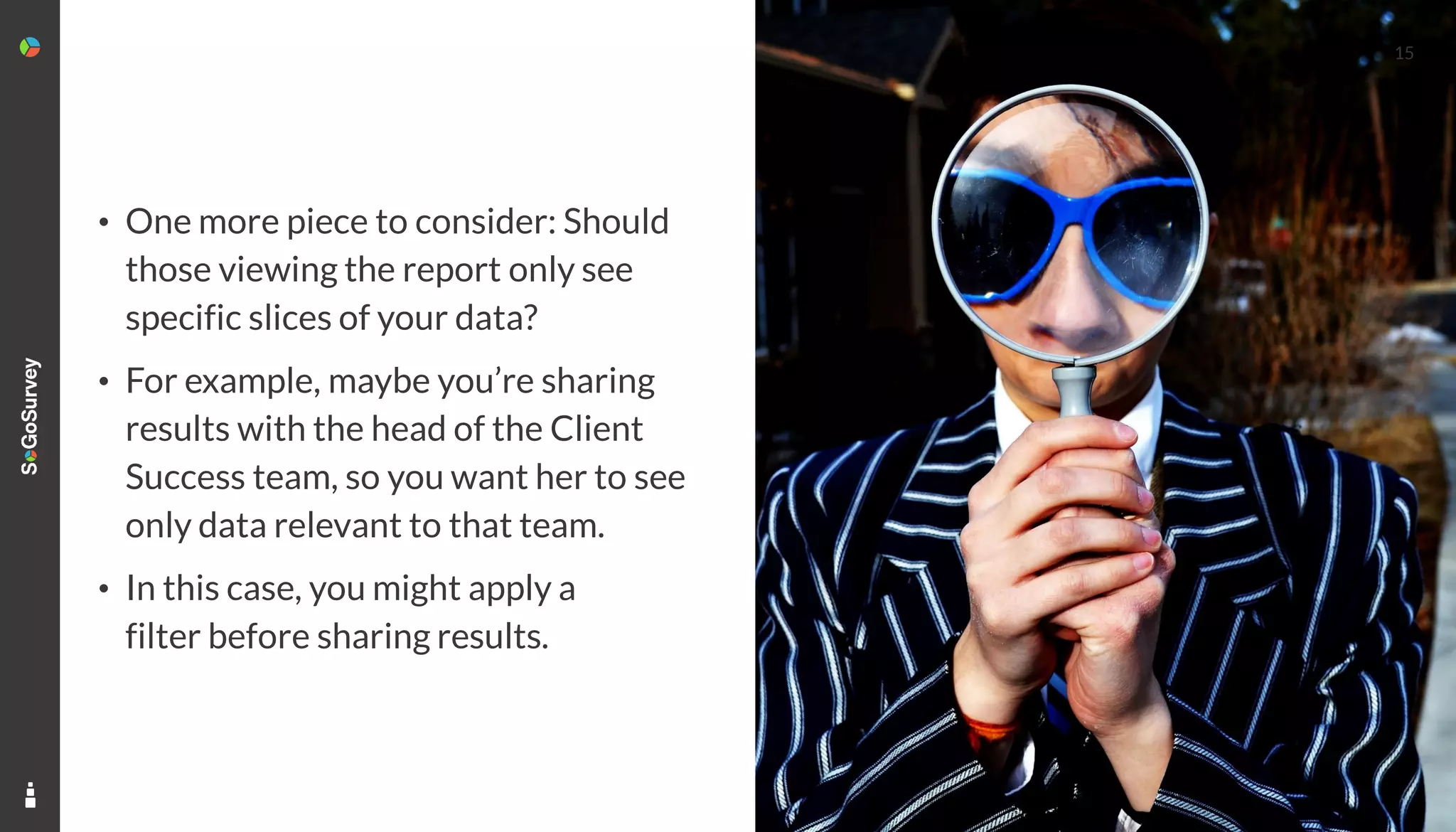
• One more piece to consider: Should
those viewing the report only see
specific slices of your data?
• For example, maybe you’re sharing
results with the head of the Client
Success team, so you want her to see
only data relevant to that team.
• In this case, you might apply a
filter before sharing results.
16
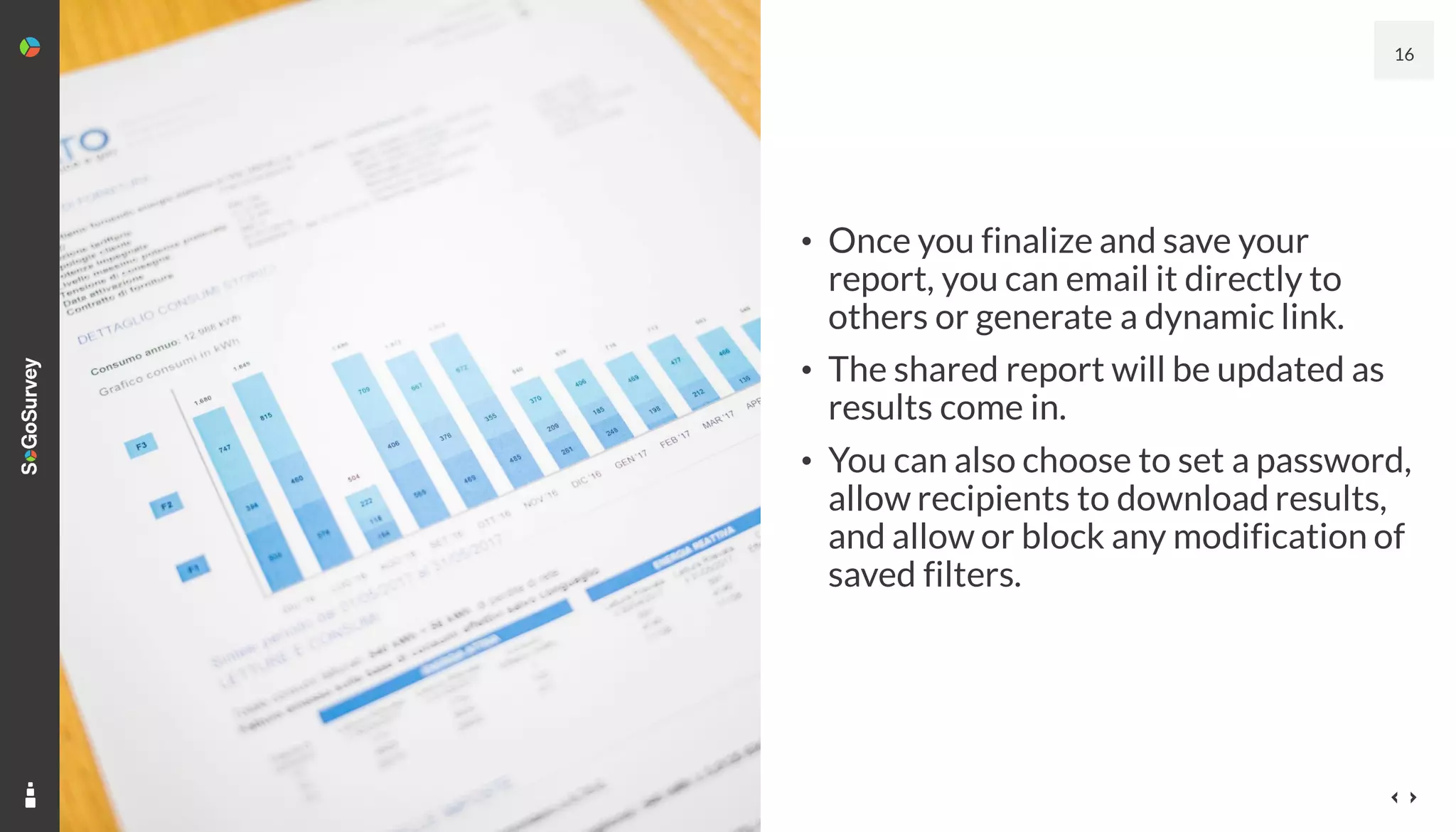
• Once you finalize and save your
report, you can email it directly to
others or generate a dynamic link.
• The shared report will be updated as
results come in.
• You can also choose to set a password,
allow recipients to download results,
and allow or block any modification of
saved filters.
17
Download Reports
• All wrapped up and ready
to present a static report?
• You can create a PowerPoint or
Excel report right away.
• As you create these reports, you’re
downloading native graphs that
can be modified as needed within
their respective programs.
Final Thoughts
19
• Remember that you’ve run your
reports for a reason – make sure your
data is clear and easy to understand.
• Just need raw results? Export in the
format of your choice from Data.
Want more?
Binge watch… Read the full blog… Like some podcasts!
Have we met socially?
Thank you!

Vax, Masks, and The Space Between: Sharing Meaningful Study Results

  • 1.
    Vax, Masks, andThe Space Between: Sharing Meaningful Study Results
  • 2.
    2 • If youmissed the first two parts of this series, you might start with the overview in part one — high-level results and displays by question type — and then continue to part two and focus on ratings, segmenting, and Cross Tabs.
  • 3.
  • 4.
    • When youstart to review your data, you’ll sometimes notice that it’s a little untidy around the edges. • For example, you might notice that a large number of people did not answer a specific question. • In that case, you might feel the graph looks a bit awkward. What to do? 4
  • 5.
    In the OmniReport, there are multiple ways to customize answer option display.
  • 6.
    6 Exclude Answers • Are“non-answer” answers important to include? It depends. • You might choose to exclude "Did Not Answer” but keep "Prefer not to say." • Consider: If you think you can learn more about your participants by the questions they chose not to answer, keep the details. • In some cases, though, it might make more sense to exclude.
  • 7.
    Exclude Answers • Keepin mind: If you choose to exclude an answer option, the totals will be recalculated. • For complete transparency in your final report, it’s important to highlight these modifications in footnotes or other clarifications. 7
  • 8.
    8 Merge Answers • Anotheroption that can help to tighten up your display is merging answers. • Merging is commonly used when reporting on rating questions to highlight all positives together and all negatives together – like grouping 1+2 and 4+5 on your 5-point scale • This makes the result easier to read.
  • 9.
    Sort Answers • Tomake a longer list of answer options easier to review, you might consider sorting answers. • While alphabetical order may make the most sense for participants responding to the question, it’s not as important for those viewing your report. • Instead, choose to sort by descending or ascending order. 9
  • 10.
    10 Customize the ColorPalette • Whether you need to match a corporate style guide or simply to provide better visibility and accessibility, you can choose from a set of default palettes or customize your own.
  • 11.
    11 • Compare thislook to the view on the “Sort Answers” slide – the same question with answers sorted and colors updated to Multi, one of the default color palettes.
  • 12.
  • 13.
    13 • Switching betweenmultiple types of graphs and color palettes can help you to highlight the story you want to tell with your data. • Plus, depending on your question type, you can add a statistical widget, a trend graph, or a Word Cloud.
  • 14.
    14 Share Dynamic Reports •Ready to share a report while your project is live? • Think before you share: If results are shared too widely while responses are still coming in, there’s a chance that you might bias future results.
  • 15.
    15 • One morepiece to consider: Should those viewing the report only see specific slices of your data? • For example, maybe you’re sharing results with the head of the Client Success team, so you want her to see only data relevant to that team. • In this case, you might apply a filter before sharing results.
  • 16.
    16 • Once youfinalize and save your report, you can email it directly to others or generate a dynamic link. • The shared report will be updated as results come in. • You can also choose to set a password, allow recipients to download results, and allow or block any modification of saved filters.
  • 17.
    17 Download Reports • Allwrapped up and ready to present a static report? • You can create a PowerPoint or Excel report right away. • As you create these reports, you’re downloading native graphs that can be modified as needed within their respective programs.
  • 18.
  • 19.
    19 • Remember thatyou’ve run your reports for a reason – make sure your data is clear and easy to understand. • Just need raw results? Export in the format of your choice from Data.
  • 20.
    Want more? Binge watch…Read the full blog… Like some podcasts!
  • 21.
    Have we metsocially?
  • 22.