1.
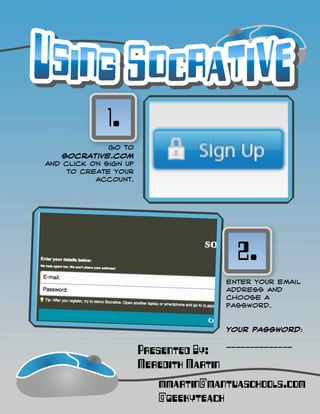
              Go to
    socrative.com
and click on Sign Up
     to create your
           account.


                                           2.
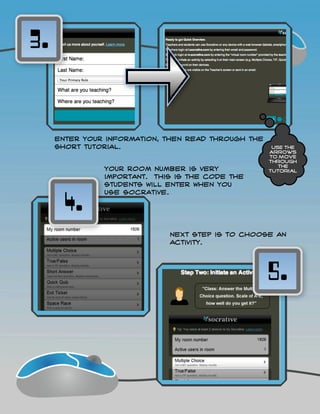
                                         Enter your email
                                         address and
                                         choose a
                                         password.


                                         Your Password:

                                         ______________
                       Presented By:
                       Meredith Martin
                          mmartin@mantuaschools.com
                          @geekyteach
3.


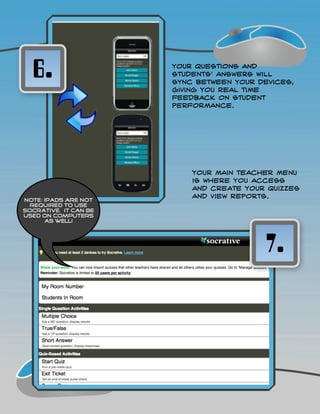
     Enter your information, then read through the
     short tutorial.                                  Use the
                                                     arrows
                                                     to move
                                                     through
                                                        the
               Your room number is very              tutorial
               important. This is the code the
               students will enter when you


       4.
               use Socrative.


                             Next step is to choose an
                             activity.


                                                     5.
6.                   Your questions and
                       students' answers will
                       sync between your devices,
                       giving you real time
                       feedback on student
                       performance.


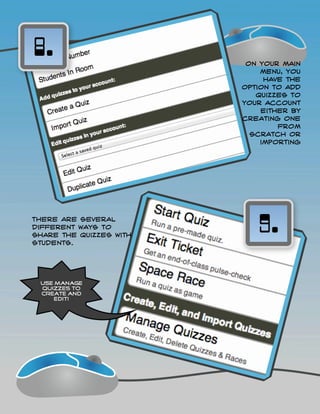
                           Your main teacher menu
                           is where you access
                           and create your quizzes
Note: iPads are not
                           and view reports.
  required to use
Socrative. It can be
used on computers
      as well!


                                          7.
8.                        On your main
                             menu, you
                              have the
                         option to add
                            quizzes to
                         your account
                             either by
                         creating one
                                 from
                           scratch or
                             importing


There are several
different ways to
share the quizzes with
                            9.
students.


 Use Manage
 Quizzes to
 create and
    edit!
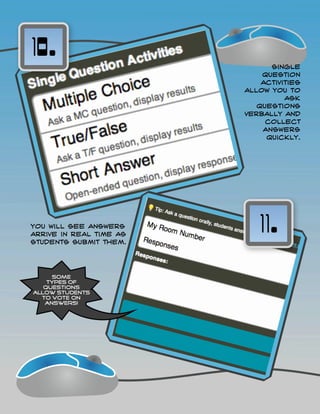
10.
                               Single
                             question
                             activities
                         allow you to
                                   ask
                            questions
                         verbally and
                              collect
                             answers
                              quickly.


You will see answers
arrive in real time as
students submit them.
                            11.
      Some
    types of
   questions
allow students
  to vote on
   answers!
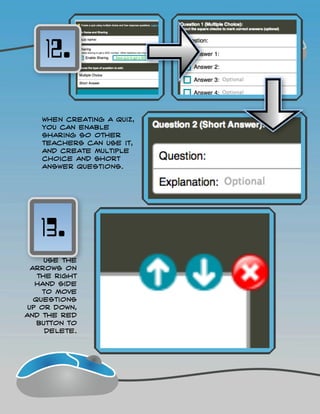
12.

    When creating a quiz,
    you can enable
    sharing so other
    teachers can use it,
    and create multiple
    choice and short
    answer questions.


   13.
      Use the
  arrows on
    the right
   hand side
     to move
   questions
 up or down,
and the red
    button to
      delete.
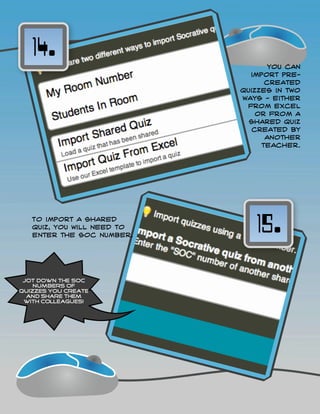
14.
                                   You can
                              import pre-
                                  created
                            quizzes in two
                            ways - either
                             from excel
                                or from a
                              shared quiz
                               created by
                                  another
                                 teacher.


   To import a shared
   quiz, you will need to
   enter the SOC number.
                               15.
 Jot down the SOC
    numbers of
quizzes you create
  and share them
 with colleagues!
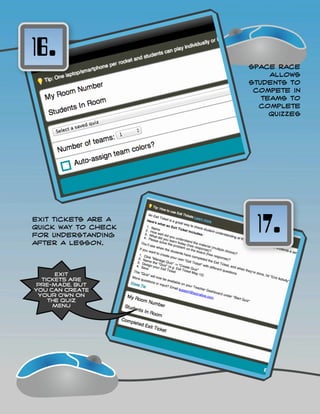
16.
                     Space Race
                          allows
                     students to
                      compete in
                        teams to
                       complete
                          quizzes


Exit tickets are a
quick way to check
for understanding
                      17.
after a lesson.


      Exit
  tickets are
 pre-made, but
you can create
 your own on
    the quiz
     menu
18.
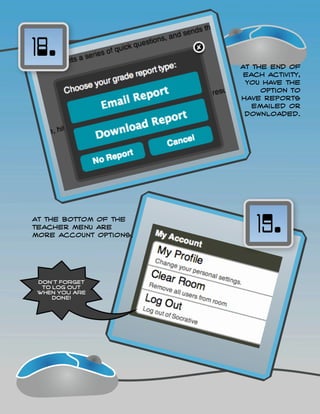
                        At the end of
                         each activity,
                         you have the
                             option to
                        have reports
                           emailed or
                         downloaded.


At the bottom of the
teacher menu are
more account options.
                           19.

 Don't forget
  to log out
 when you are
     done!
20.
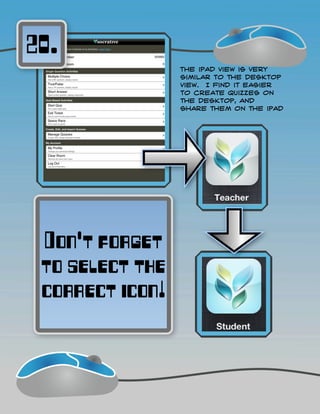
                 The iPad view is very
                 similar to the desktop
                 view. I find it easier
                 to create quizzes on
                 the desktop, and
                 share them on the iPad


 Don't forget
 to select the
 correct icon!

Using Socrative

  • 2.
    1. Go to socrative.com and click on Sign Up to create your account. 2. Enter your email address and choose a password. Your Password: ______________ Presented By: Meredith Martin mmartin@mantuaschools.com @geekyteach
  • 3.
    3. Enter your information, then read through the short tutorial. Use the arrows to move through the Your room number is very tutorial important. This is the code the students will enter when you 4. use Socrative. Next step is to choose an activity. 5.
  • 4.
    6. Your questions and students' answers will sync between your devices, giving you real time feedback on student performance. Your main teacher menu is where you access and create your quizzes Note: iPads are not and view reports. required to use Socrative. It can be used on computers as well! 7.
  • 5.
    8. On your main menu, you have the option to add quizzes to your account either by creating one from scratch or importing There are several different ways to share the quizzes with 9. students. Use Manage Quizzes to create and edit!
  • 6.
    10. Single question activities allow you to ask questions verbally and collect answers quickly. You will see answers arrive in real time as students submit them. 11. Some types of questions allow students to vote on answers!
  • 7.
    12. When creating a quiz, you can enable sharing so other teachers can use it, and create multiple choice and short answer questions. 13. Use the arrows on the right hand side to move questions up or down, and the red button to delete.
  • 8.
    14. You can import pre- created quizzes in two ways - either from excel or from a shared quiz created by another teacher. To import a shared quiz, you will need to enter the SOC number. 15. Jot down the SOC numbers of quizzes you create and share them with colleagues!
  • 9.
    16. Space Race allows students to compete in teams to complete quizzes Exit tickets are a quick way to check for understanding 17. after a lesson. Exit tickets are pre-made, but you can create your own on the quiz menu
  • 10.
    18. At the end of each activity, you have the option to have reports emailed or downloaded. At the bottom of the teacher menu are more account options. 19. Don't forget to log out when you are done!
  • 11.
    20. The iPad view is very similar to the desktop view. I find it easier to create quizzes on the desktop, and share them on the iPad Don't forget to select the correct icon!