We Are Learning: How to use the power keys on a scientific calculator  (powers are also known as indices or exponents) How to use the root keys on a scientific calculator
Important Advice: Different makes and models of calculator have different designs of keys. Yours might not look like the examples in this presentation.  Ask your teacher for advice about  how your calculator works. This presentation was made for students in the United Kingdom. I’ve tried to include alternative terms for students from outside the UK –sorry if there are any problems!
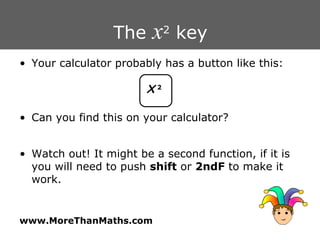
The  x 2  key Your calculator probably has a button like this: Can you find this on your calculator? Watch out! It might be a second function, if it is you will need to push  shift  or  2ndF  to make it work. X   2
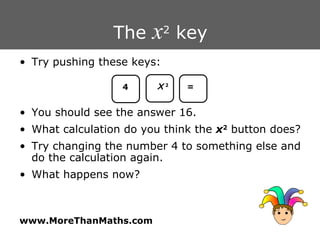
The  x 2  key Try pushing these keys: You should see the answer 16. What calculation do you think the  x 2  button does? Try changing the number 4 to something else and do the calculation again.  What happens now? 4 X   2 =
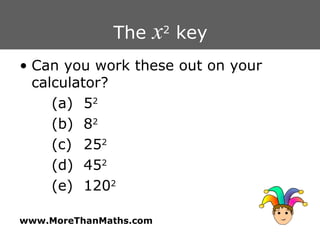
The  x 2  key Can you work these out on your calculator? (a) 5 2 (b) 8 2 (c) 25 2 (d) 45 2 (e) 120 2
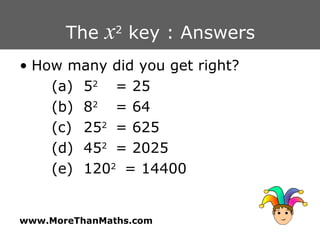
The  x 2  key : Answers How many did you get right? (a) 5 2 = 25 (b) 8 2 = 64 (c) 25 2 = 625 (d) 45 2 = 2025 (e) 120 2  = 14400
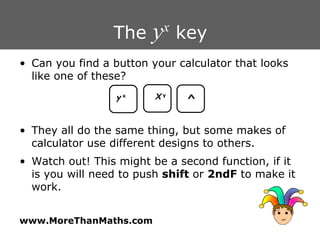
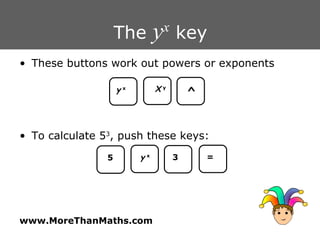
The  y x  key Can you find a button your calculator that looks like one of these? They all do the same thing, but some makes of calculator use different designs to others. Watch out! This might be a second function, if it is you will need to push  shift  or  2ndF  to make it work. y   x X   y ^
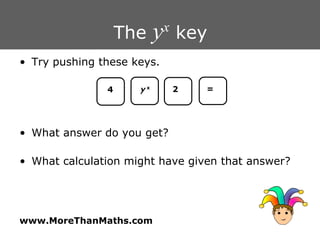
The  y x  key Try pushing these keys. What answer do you get? What calculation might have given that answer? 4 y   x 2 =
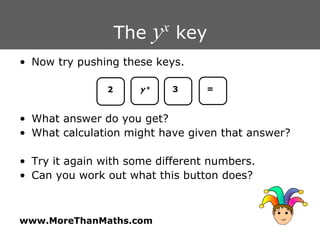
The  y x  key Now try pushing these keys. What answer do you get? What calculation might have given that answer? Try it again with some different numbers. Can you work out what this button does? 2 y   x 3 =
The  y x  key These buttons work out powers or exponents To calculate 5 3 , push these keys: y   x X   y ^ 5 y   x 3 =
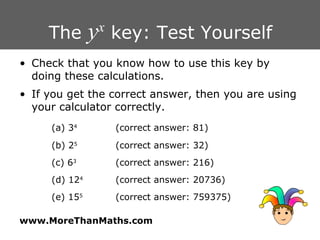
The  y x  key: Test Yourself Check that you know how to use this key by doing these calculations. If you get the correct answer, then you are using your calculator correctly. (a) 3 4 (correct answer: 81) (b) 2 5 (correct answer: 32) (c) 6 3 (correct answer: 216) (d) 12 4 (correct answer: 20736) (e) 15 5 (correct answer: 759375)
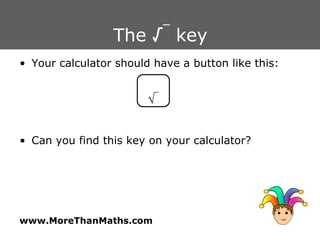
The  √ _  key Your calculator should have a button like this: Can you find this key on your calculator? √ _
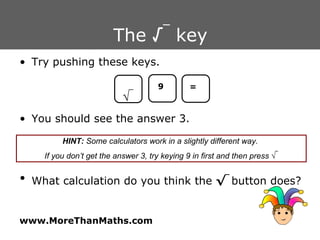
The  √ _  key Try pushing these keys. You should see the answer 3. What calculation do you think the  √ _  button does? HINT:  Some calculators work in a slightly different way.  If you don’t get the answer 3, try keying 9 in first and then press  √ _ 9 = √ _
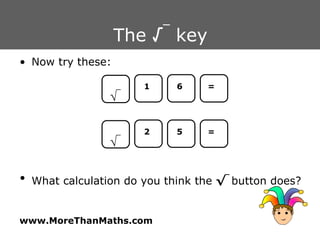
The  √ _  key Now try these: What calculation do you think the  √ _  button does? 2 = √ _ 5 1 = √ _ 6
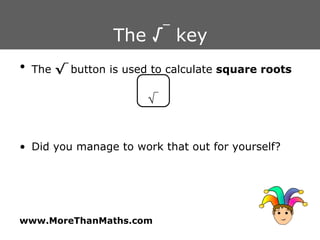
The  √ _  key The  √ _  button is used to calculate  square roots Did you manage to work that out for yourself? √ _
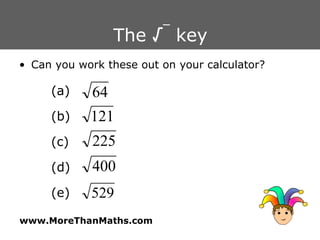
The  √ _  key Can you work these out on your calculator? (a) (b) (c) (d) (e)
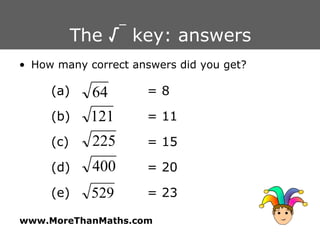
The  √ _  key: answers How many correct answers did you get? (a) = 8 (b) = 11 (c) = 15 (d) = 20 (e) = 23
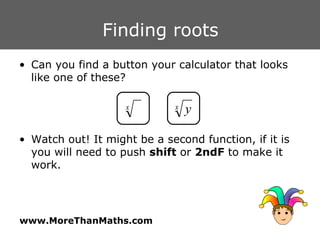
Finding roots Can you find a button your calculator that looks like one of these? Watch out! It might be a second function, if it is you will need to push  shift  or  2ndF  to make it work.
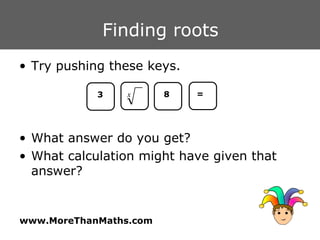
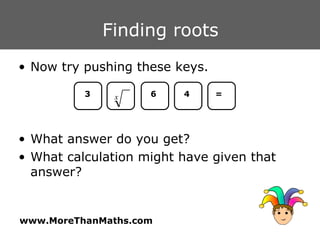
Finding roots Try pushing these keys. What answer do you get? What calculation might have given that answer? 3 8 =
Finding roots Now try pushing these keys. What answer do you get? What calculation might have given that answer? 6 3 = 4
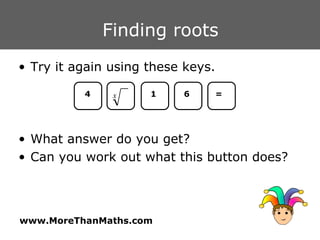
Finding roots Try it again using these keys. What answer do you get? Can you work out what this button does? 1 4 = 6
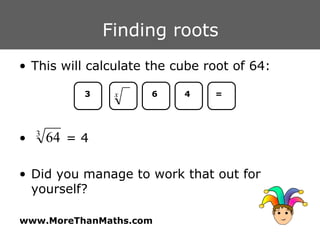
Finding roots This will calculate the cube root of 64: = 4 Did you manage to work that out for yourself? 6 3 = 4
Summary: You should know how to use your calculator to find squares and square roots  You should know which key calculates powers (exponents) and how to use it You should know which key calculates roots and how to use it

Using A Calculator 2

  • 1.
    We Are Learning:How to use the power keys on a scientific calculator (powers are also known as indices or exponents) How to use the root keys on a scientific calculator
  • 2.
    Important Advice: Differentmakes and models of calculator have different designs of keys. Yours might not look like the examples in this presentation. Ask your teacher for advice about how your calculator works. This presentation was made for students in the United Kingdom. I’ve tried to include alternative terms for students from outside the UK –sorry if there are any problems!
  • 3.
    The x2 key Your calculator probably has a button like this: Can you find this on your calculator? Watch out! It might be a second function, if it is you will need to push shift or 2ndF to make it work. X 2
  • 4.
    The x2 key Try pushing these keys: You should see the answer 16. What calculation do you think the x 2 button does? Try changing the number 4 to something else and do the calculation again. What happens now? 4 X 2 =
  • 5.
    The x2 key Can you work these out on your calculator? (a) 5 2 (b) 8 2 (c) 25 2 (d) 45 2 (e) 120 2
  • 6.
    The x2 key : Answers How many did you get right? (a) 5 2 = 25 (b) 8 2 = 64 (c) 25 2 = 625 (d) 45 2 = 2025 (e) 120 2 = 14400
  • 7.
    The yx key Can you find a button your calculator that looks like one of these? They all do the same thing, but some makes of calculator use different designs to others. Watch out! This might be a second function, if it is you will need to push shift or 2ndF to make it work. y x X y ^
  • 8.
    The yx key Try pushing these keys. What answer do you get? What calculation might have given that answer? 4 y x 2 =
  • 9.
    The yx key Now try pushing these keys. What answer do you get? What calculation might have given that answer? Try it again with some different numbers. Can you work out what this button does? 2 y x 3 =
  • 10.
    The yx key These buttons work out powers or exponents To calculate 5 3 , push these keys: y x X y ^ 5 y x 3 =
  • 11.
    The yx key: Test Yourself Check that you know how to use this key by doing these calculations. If you get the correct answer, then you are using your calculator correctly. (a) 3 4 (correct answer: 81) (b) 2 5 (correct answer: 32) (c) 6 3 (correct answer: 216) (d) 12 4 (correct answer: 20736) (e) 15 5 (correct answer: 759375)
  • 12.
    The √_ key Your calculator should have a button like this: Can you find this key on your calculator? √ _
  • 13.
    The √_ key Try pushing these keys. You should see the answer 3. What calculation do you think the √ _ button does? HINT: Some calculators work in a slightly different way. If you don’t get the answer 3, try keying 9 in first and then press √ _ 9 = √ _
  • 14.
    The √_ key Now try these: What calculation do you think the √ _ button does? 2 = √ _ 5 1 = √ _ 6
  • 15.
    The √_ key The √ _ button is used to calculate square roots Did you manage to work that out for yourself? √ _
  • 16.
    The √_ key Can you work these out on your calculator? (a) (b) (c) (d) (e)
  • 17.
    The √_ key: answers How many correct answers did you get? (a) = 8 (b) = 11 (c) = 15 (d) = 20 (e) = 23
  • 18.
    Finding roots Canyou find a button your calculator that looks like one of these? Watch out! It might be a second function, if it is you will need to push shift or 2ndF to make it work.
  • 19.
    Finding roots Trypushing these keys. What answer do you get? What calculation might have given that answer? 3 8 =
  • 20.
    Finding roots Nowtry pushing these keys. What answer do you get? What calculation might have given that answer? 6 3 = 4
  • 21.
    Finding roots Tryit again using these keys. What answer do you get? Can you work out what this button does? 1 4 = 6
  • 22.
    Finding roots Thiswill calculate the cube root of 64: = 4 Did you manage to work that out for yourself? 6 3 = 4
  • 23.
    Summary: You shouldknow how to use your calculator to find squares and square roots You should know which key calculates powers (exponents) and how to use it You should know which key calculates roots and how to use it

Editor's Notes

  • #2 This presentation was adapted from one that I used with my class. There is also a set of work cards, designed for students to use in groups as they work on a chapter. All the resources are available to download via www.morethanmaths.com/m6