Learn how to: Add new rows and columns to a spreadsheet Remove rows and columns from a spreadsheet Add some cells to a spreadsheet
Adding a New Row First I’ll show you how to add a new row to a spreadsheet This is very useful if you want to add an extra row to the middle of a table that you’ve already made
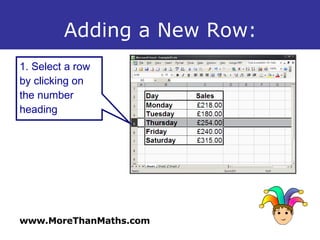
Adding a New Row: 1. Select a row by clicking on the number heading
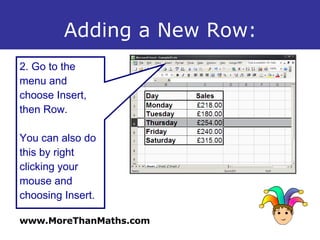
Adding a New Row: 2. Go to the menu and choose Insert, then Row. You can also do this by right clicking your mouse and choosing Insert.
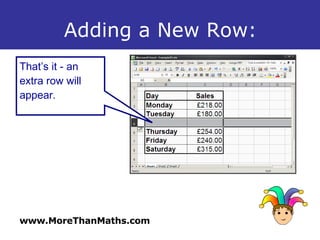
Adding a New Row: That’s it - an extra row will appear.
Adding a New Column Now I’ll show you how to add a new column to a spreadsheet This is also useful if you want to add something to a table It is very similar to adding an extra row – can you work out what we will do differently?
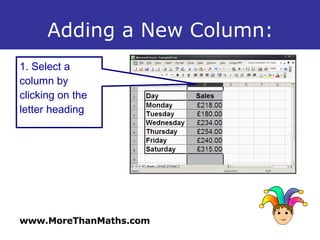
Adding a New Column: 1. Select a column by clicking on the letter heading
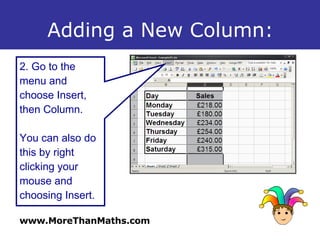
Adding a New Column: 2. Go to the menu and choose Insert, then Column. You can also do this by right clicking your mouse and choosing Insert.
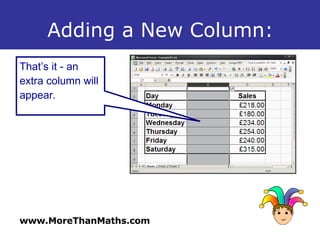
Adding a New Column: That’s it - an extra column will appear.
Deleting a Row or Column Sometimes you want to get rid of a whole row or column from your spreadsheet This section will show you how to do this
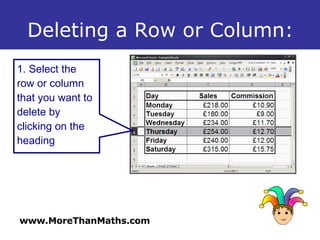
Deleting a Row or Column: 1. Select the row or column that you want to delete by clicking on the heading
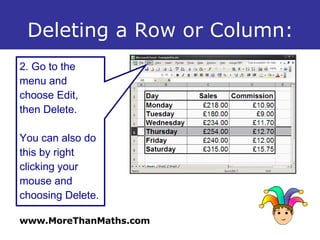
Deleting a Row or Column: 2. Go to the menu and choose Edit, then Delete. You can also do this by right clicking your mouse and choosing Delete.
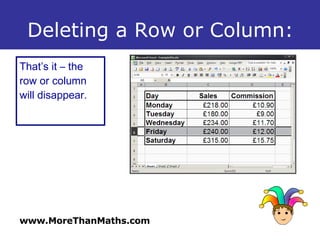
Deleting a Row or Column: That’s it – the row or column will disappear.
Adding just a few cells Sometimes you might need to add just a few extra cells If you have several tables on one sheet this is a good way of adding a line of cells to one table, without messing up all the others.
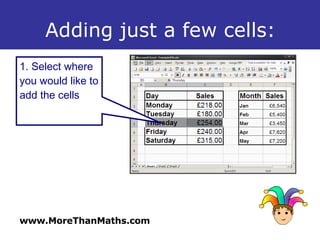
Adding just a few cells: 1. Select where you would like to add the cells
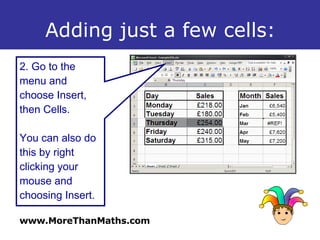
Adding just a few cells: 2. Go to the menu and choose Insert, then Cells. You can also do this by right clicking your mouse and choosing Insert.
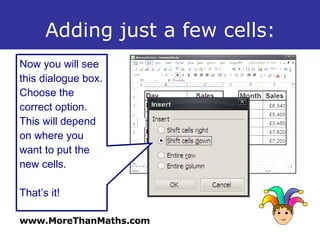
Adding just a few cells: Now you will see this dialogue box. Choose the correct option. This will depend on where you want to put the new cells. That’s it!
Summary: To add a row, first select a row, then choose Insert -> Row To delete a column, first select the column, then choose Edit -> Delete To add a few cells, first select some cells, then choose Insert -> Cells

Spreadsheets: Add/ Delete Rows & Cells

  • 1.
    Learn how to:Add new rows and columns to a spreadsheet Remove rows and columns from a spreadsheet Add some cells to a spreadsheet
  • 2.
    Adding a NewRow First I’ll show you how to add a new row to a spreadsheet This is very useful if you want to add an extra row to the middle of a table that you’ve already made
  • 3.
    Adding a NewRow: 1. Select a row by clicking on the number heading
  • 4.
    Adding a NewRow: 2. Go to the menu and choose Insert, then Row. You can also do this by right clicking your mouse and choosing Insert.
  • 5.
    Adding a NewRow: That’s it - an extra row will appear.
  • 6.
    Adding a NewColumn Now I’ll show you how to add a new column to a spreadsheet This is also useful if you want to add something to a table It is very similar to adding an extra row – can you work out what we will do differently?
  • 7.
    Adding a NewColumn: 1. Select a column by clicking on the letter heading
  • 8.
    Adding a NewColumn: 2. Go to the menu and choose Insert, then Column. You can also do this by right clicking your mouse and choosing Insert.
  • 9.
    Adding a NewColumn: That’s it - an extra column will appear.
  • 10.
    Deleting a Rowor Column Sometimes you want to get rid of a whole row or column from your spreadsheet This section will show you how to do this
  • 11.
    Deleting a Rowor Column: 1. Select the row or column that you want to delete by clicking on the heading
  • 12.
    Deleting a Rowor Column: 2. Go to the menu and choose Edit, then Delete. You can also do this by right clicking your mouse and choosing Delete.
  • 13.
    Deleting a Rowor Column: That’s it – the row or column will disappear.
  • 14.
    Adding just afew cells Sometimes you might need to add just a few extra cells If you have several tables on one sheet this is a good way of adding a line of cells to one table, without messing up all the others.
  • 15.
    Adding just afew cells: 1. Select where you would like to add the cells
  • 16.
    Adding just afew cells: 2. Go to the menu and choose Insert, then Cells. You can also do this by right clicking your mouse and choosing Insert.
  • 17.
    Adding just afew cells: Now you will see this dialogue box. Choose the correct option. This will depend on where you want to put the new cells. That’s it!
  • 18.
    Summary: To adda row, first select a row, then choose Insert -> Row To delete a column, first select the column, then choose Edit -> Delete To add a few cells, first select some cells, then choose Insert -> Cells