HTML Frames
Mr. Madar Bandu
Introduction
• Frames divide a browser window into several
divisions, each division containing a separate
HTML document.
• You can then load and reload single division
without having to reload the entire contents
of the browser window.
• A collection of frames in the browser window
is known as a frameset.
Introduction
• The window is divided up into frames in a
similar pattern to the way tables are
organized: into rows and columns.
• The simplest of framesets might just divide
the screen into two rows, while a complex
frameset could use several rows and columns.
Frame Drawbacks
• Some browsers do not print well from framesets.
• Some smaller devices cannot cope with frames,
often because their screen is not big enough to
be divided up.
• Some time your page will be displayed differently
on different computers due to different screen
resolution.
• The browser's back button might not work as the
user hopes.
• There are still few browsers who do not support
frame technology.
Creating Frames - <frameset>
Element
• The <frameset> tag replaces the <body> element in
frameset documents.
• The <frameset> tag defines how to divide the window
into frames.
• Each frameset defines a set of rows or columns. If you
define frames by using rows then horizontal frames are
created. If you define frames by using columns then
vertical frames are created.
• The values of the rows/columns indicate the amount of
screen area each row/column will occupy.
• Each frame is indicated by <frame> tag and it defines
what HTML document to put into the frame.
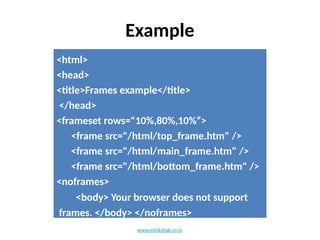
Example
<html>
<head>
<title>Frames example</title>
</head>
<frameset rows="10%,80%,10%“>
<frame src="/html/top_frame.htm" />
<frame src="/html/main_frame.htm" />
<frame src="/html/bottom_frame.htm" />
<noframes>
<body> Your browser does not support
frames. </body> </noframes>
</frameset> www.eshikshak.co.in
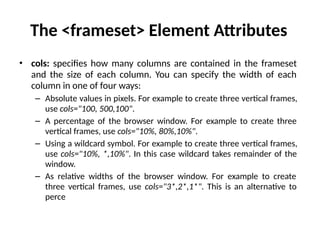
The <frameset> Element Attributes
• cols: specifies how many columns are contained in the frameset
and the size of each column. You can specify the width of each
column in one of four ways:
– Absolute values in pixels. For example to create three vertical frames,
use cols="100, 500,100".
– A percentage of the browser window. For example to create three
vertical frames, use cols="10%, 80%,10%".
– Using a wildcard symbol. For example to create three vertical frames,
use cols="10%, *,10%". In this case wildcard takes remainder of the
window.
– As relative widths of the browser window. For example to create
three vertical frames, use cols="3*,2*,1*". This is an alternative to
perce
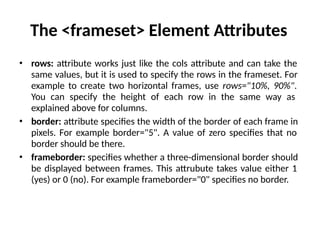
The <frameset> Element Attributes
• rows: attribute works just like the cols attribute and can take the
same values, but it is used to specify the rows in the frameset. For
example to create two horizontal frames, use rows="10%, 90%".
You can specify the height of each row in the same way as
explained above for columns.
• border: attribute specifies the width of the border of each frame in
pixels. For example border="5". A value of zero specifies that no
border should be there.
• frameborder: specifies whether a three-dimensional border should
be displayed between frames. This attrubute takes value either 1
(yes) or 0 (no). For example frameborder="0" specifies no border.
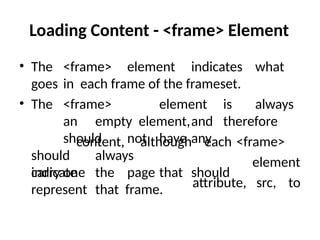
Loading Content - <frame> Element
• The <frame> element indicates what
goes in each frame of the frameset.
• The <frame> element is always
an empty element,and therefore
should not have any
should always
carry one
content, although each <frame>
element
attribute, src, to
indicate the page that should
represent that frame.
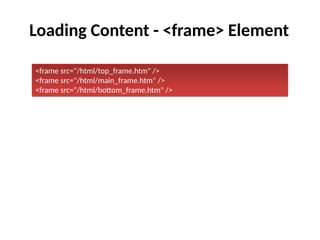
Loading Content - <frame> Element
<frame src="/html/top_frame.htm" />
<frame src="/html/main_frame.htm" />
<frame src="/html/bottom_frame.htm" />
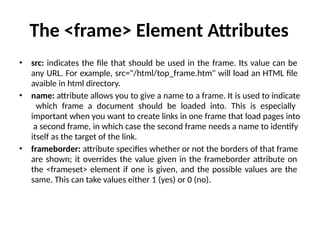
The <frame> Element Attributes
• src: indicates the file that should be used in the frame. Its value can be
any URL. For example, src="/html/top_frame.htm" will load an HTML file
avaible in html directory.
• name: attribute allows you to give a name to a frame. It is used to indicate
which frame a document should be loaded into. This is especially
important when you want to create links in one frame that load pages into
a second frame, in which case the second frame needs a name to identify
itself as the target of the link.
• frameborder: attribute specifies whether or not the borders of that frame
are shown; it overrides the value given in the frameborder attribute on
the <frameset> element if one is given, and the possible values are the
same. This can take values either 1 (yes) or 0 (no).
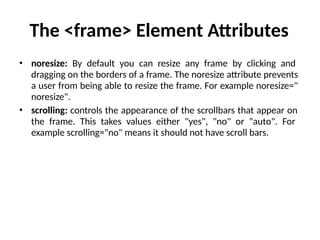
The <frame> Element Attributes
• noresize: By default you can resize any frame by clicking and
dragging on the borders of a frame. The noresize attribute prevents
a user from being able to resize the frame. For example noresize="
noresize".
• scrolling: controls the appearance of the scrollbars that appear on
the frame. This takes values either "yes", "no" or "auto". For
example scrolling="no" means it should not have scroll bars.
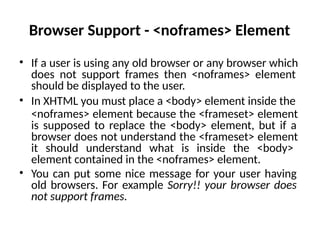
Browser Support - <noframes> Element
• If a user is using any old browser or any browser which
does not support frames then <noframes> element
should be displayed to the user.
• In XHTML you must place a <body> element inside the
<noframes> element because the <frameset> element
is supposed to replace the <body> element, but if a
browser does not understand the <frameset> element
it should understand what is inside the <body>
element contained in the <noframes> element.
• You can put some nice message for your user having
old browsers. For example Sorry!! your browser does
not support frames.
Thank you

HTML FRAMES properties and list of frames in detail

  • 1.
  • 2.
    Introduction • Frames dividea browser window into several divisions, each division containing a separate HTML document. • You can then load and reload single division without having to reload the entire contents of the browser window. • A collection of frames in the browser window is known as a frameset.
  • 3.
    Introduction • The windowis divided up into frames in a similar pattern to the way tables are organized: into rows and columns. • The simplest of framesets might just divide the screen into two rows, while a complex frameset could use several rows and columns.
  • 4.
    Frame Drawbacks • Somebrowsers do not print well from framesets. • Some smaller devices cannot cope with frames, often because their screen is not big enough to be divided up. • Some time your page will be displayed differently on different computers due to different screen resolution. • The browser's back button might not work as the user hopes. • There are still few browsers who do not support frame technology.
  • 5.
    Creating Frames -<frameset> Element • The <frameset> tag replaces the <body> element in frameset documents. • The <frameset> tag defines how to divide the window into frames. • Each frameset defines a set of rows or columns. If you define frames by using rows then horizontal frames are created. If you define frames by using columns then vertical frames are created. • The values of the rows/columns indicate the amount of screen area each row/column will occupy. • Each frame is indicated by <frame> tag and it defines what HTML document to put into the frame.
  • 6.
    Example <html> <head> <title>Frames example</title> </head> <frameset rows="10%,80%,10%“> <framesrc="/html/top_frame.htm" /> <frame src="/html/main_frame.htm" /> <frame src="/html/bottom_frame.htm" /> <noframes> <body> Your browser does not support frames. </body> </noframes> </frameset> www.eshikshak.co.in
  • 7.
    The <frameset> ElementAttributes • cols: specifies how many columns are contained in the frameset and the size of each column. You can specify the width of each column in one of four ways: – Absolute values in pixels. For example to create three vertical frames, use cols="100, 500,100". – A percentage of the browser window. For example to create three vertical frames, use cols="10%, 80%,10%". – Using a wildcard symbol. For example to create three vertical frames, use cols="10%, *,10%". In this case wildcard takes remainder of the window. – As relative widths of the browser window. For example to create three vertical frames, use cols="3*,2*,1*". This is an alternative to perce
  • 8.
    The <frameset> ElementAttributes • rows: attribute works just like the cols attribute and can take the same values, but it is used to specify the rows in the frameset. For example to create two horizontal frames, use rows="10%, 90%". You can specify the height of each row in the same way as explained above for columns. • border: attribute specifies the width of the border of each frame in pixels. For example border="5". A value of zero specifies that no border should be there. • frameborder: specifies whether a three-dimensional border should be displayed between frames. This attrubute takes value either 1 (yes) or 0 (no). For example frameborder="0" specifies no border.
  • 9.
    Loading Content -<frame> Element • The <frame> element indicates what goes in each frame of the frameset. • The <frame> element is always an empty element,and therefore should not have any should always carry one content, although each <frame> element attribute, src, to indicate the page that should represent that frame.
  • 10.
    Loading Content -<frame> Element <frame src="/html/top_frame.htm" /> <frame src="/html/main_frame.htm" /> <frame src="/html/bottom_frame.htm" />
  • 11.
    The <frame> ElementAttributes • src: indicates the file that should be used in the frame. Its value can be any URL. For example, src="/html/top_frame.htm" will load an HTML file avaible in html directory. • name: attribute allows you to give a name to a frame. It is used to indicate which frame a document should be loaded into. This is especially important when you want to create links in one frame that load pages into a second frame, in which case the second frame needs a name to identify itself as the target of the link. • frameborder: attribute specifies whether or not the borders of that frame are shown; it overrides the value given in the frameborder attribute on the <frameset> element if one is given, and the possible values are the same. This can take values either 1 (yes) or 0 (no).
  • 12.
    The <frame> ElementAttributes • noresize: By default you can resize any frame by clicking and dragging on the borders of a frame. The noresize attribute prevents a user from being able to resize the frame. For example noresize=" noresize". • scrolling: controls the appearance of the scrollbars that appear on the frame. This takes values either "yes", "no" or "auto". For example scrolling="no" means it should not have scroll bars.
  • 13.
    Browser Support -<noframes> Element • If a user is using any old browser or any browser which does not support frames then <noframes> element should be displayed to the user. • In XHTML you must place a <body> element inside the <noframes> element because the <frameset> element is supposed to replace the <body> element, but if a browser does not understand the <frameset> element it should understand what is inside the <body> element contained in the <noframes> element. • You can put some nice message for your user having old browsers. For example Sorry!! your browser does not support frames.
  • 14.