Twitter 101
What is it? What’s New?
Presented by: @joanat
St. Edward’s University Instructional Technology Training
Post short updates using 140 characters or less.
Give and receive information in real-time.
Microblog = text messaging + blogging
Signing Up:
1. Register for an account.
2. Edit your Settings.
Best Practices:
• Pick a good username, keep it short
• Fill out your bio
• Provide a homepage URL and picture/photo.
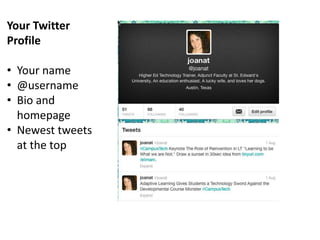
Your Twitter
Profile
• Your name
• @username
• Bio and
homepage
• Newest tweets
at the top
“Tweeting”
1. Click “Home” from the top menu.
2. Type your message in the field.
3. Add a photo, or your location (optional).
4. Click “Tweet”. Easy!
Following & Getting Followed
• Find People to Follow:
1. Click on “Who to Follow” or type a topic in the
Search box (ex: “St. Edward’s University”)
2. On their Profile page, click the button
under their profile picture.
3. Their tweets will appear in order on your Home
screen.
Interacting with Others
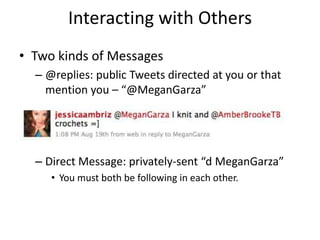
• Two kinds of Messages
– @replies: public Tweets directed at you or that
mention you – “@MeganGarza”
– Direct Message: privately-sent “d MeganGarza”
• You must both be following in each other.
Favorites
• a place to save messages from others you’d
like to keep
– Quotable quotes
– Valuable links
– Positive things about you
– Good for online rep management
Click the star under any tweet to add to your Favorites list.
Retweeting
share interesting tweets from people you follow
Manual Retweet: If you’d like to comment
1. Copy and paste the original tweet.
2. To give credit to the original person, put “RT” plus
the originator’s username at the beginning of the
tweet.
Auto Re-Tweet: republish exactly as it appears.
Hashtags
• Community-driven “Tagging” convention
• Add additional context to your tweets.
• Prefix a word with a hash symbol: #globsoc.
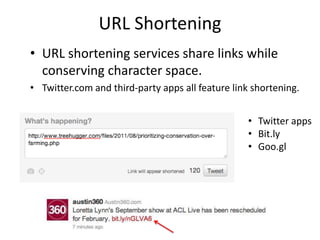
URL Shortening
• URL shortening services share links while
conserving character space.
• Twitter.com and third-party apps all feature link shortening.
• Twitter apps
• Bit.ly
• Goo.gl
Sharing and Viewing Photos
• Attach photos to a tweet
• Take a photo, or upload one from phone/computer
• Popular third party services: TwitPic, Yfrog, Instagram, PicPlz
View photos without leaving Twitter or your
Twitter phone app.
Click to see photo
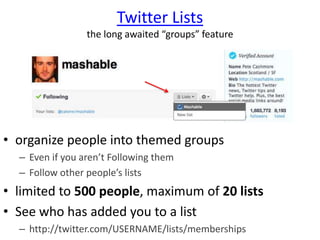
Twitter Lists
the long awaited “groups” feature
• organize people into themed groups
– Even if you aren’t Following them
– Follow other people’s lists
• limited to 500 people, maximum of 20 lists
• See who has added you to a list
– http://twitter.com/USERNAME/lists/memberships
Saving Searches
• Max 25 saved searches per account.
• View saved searches from your homepage.
Why people wouldn’t Follow you:
• No avatar, bio information.
• Disproportionate followers/following/tweet stats.
• Claiming to be someone you’re not.
• Constant shameless self-promotion.
• Fighting, drama, inappropriate language.
• Never engaging with other users.
Best Practices
• Be yourself.
• Provide value (like a blogger).
– interesting, surprising, funny, useful
• Update Frequently.
• Interaction.
– balance tweets, responses, re-tweets.
• Don’t Spam.
– inane messaging, unrelated info
• Integrate with other social/educational efforts.
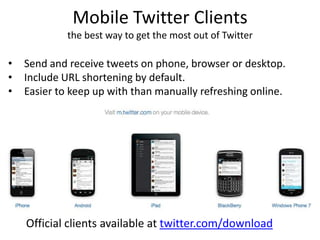
Mobile Twitter Clients
the best way to get the most out of Twitter
• Send and receive tweets on phone, browser or desktop.
• Include URL shortening by default.
• Easier to keep up with than manually refreshing online.
Official clients available at twitter.com/download
Where to go from here?
• Start following people/orgs!
• Practice tweeting, replying, etc.
– Share your Twitter Badge and include the hashtag
#globsoc
• Study up, get questions answered:
– mashable.com/guidebook/twitter
– support.twitter.com
• Download a desktop client:
– twitter.com/download
• How influential are you?
– klout.com
Need Help?
Joana Trimble Gandara
IT Training Manager
joanat@stedwards.edu
@joanat

Twitter Tech Training

  • 1.
    Twitter 101 What isit? What’s New? Presented by: @joanat St. Edward’s University Instructional Technology Training
  • 2.
    Post short updatesusing 140 characters or less. Give and receive information in real-time. Microblog = text messaging + blogging
  • 3.
    Signing Up: 1. Registerfor an account. 2. Edit your Settings. Best Practices: • Pick a good username, keep it short • Fill out your bio • Provide a homepage URL and picture/photo.
  • 4.
    Your Twitter Profile • Yourname • @username • Bio and homepage • Newest tweets at the top
  • 5.
    “Tweeting” 1. Click “Home”from the top menu. 2. Type your message in the field. 3. Add a photo, or your location (optional). 4. Click “Tweet”. Easy!
  • 6.
    Following & GettingFollowed • Find People to Follow: 1. Click on “Who to Follow” or type a topic in the Search box (ex: “St. Edward’s University”) 2. On their Profile page, click the button under their profile picture. 3. Their tweets will appear in order on your Home screen.
  • 7.
    Interacting with Others •Two kinds of Messages – @replies: public Tweets directed at you or that mention you – “@MeganGarza” – Direct Message: privately-sent “d MeganGarza” • You must both be following in each other.
  • 8.
    Favorites • a placeto save messages from others you’d like to keep – Quotable quotes – Valuable links – Positive things about you – Good for online rep management Click the star under any tweet to add to your Favorites list.
  • 9.
    Retweeting share interesting tweetsfrom people you follow Manual Retweet: If you’d like to comment 1. Copy and paste the original tweet. 2. To give credit to the original person, put “RT” plus the originator’s username at the beginning of the tweet. Auto Re-Tweet: republish exactly as it appears.
  • 10.
    Hashtags • Community-driven “Tagging”convention • Add additional context to your tweets. • Prefix a word with a hash symbol: #globsoc.
  • 11.
    URL Shortening • URLshortening services share links while conserving character space. • Twitter.com and third-party apps all feature link shortening. • Twitter apps • Bit.ly • Goo.gl
  • 12.
    Sharing and ViewingPhotos • Attach photos to a tweet • Take a photo, or upload one from phone/computer • Popular third party services: TwitPic, Yfrog, Instagram, PicPlz View photos without leaving Twitter or your Twitter phone app. Click to see photo
  • 13.
    Twitter Lists the longawaited “groups” feature • organize people into themed groups – Even if you aren’t Following them – Follow other people’s lists • limited to 500 people, maximum of 20 lists • See who has added you to a list – http://twitter.com/USERNAME/lists/memberships
  • 14.
    Saving Searches • Max25 saved searches per account. • View saved searches from your homepage.
  • 15.
    Why people wouldn’tFollow you: • No avatar, bio information. • Disproportionate followers/following/tweet stats. • Claiming to be someone you’re not. • Constant shameless self-promotion. • Fighting, drama, inappropriate language. • Never engaging with other users.
  • 16.
    Best Practices • Beyourself. • Provide value (like a blogger). – interesting, surprising, funny, useful • Update Frequently. • Interaction. – balance tweets, responses, re-tweets. • Don’t Spam. – inane messaging, unrelated info • Integrate with other social/educational efforts.
  • 17.
    Mobile Twitter Clients thebest way to get the most out of Twitter • Send and receive tweets on phone, browser or desktop. • Include URL shortening by default. • Easier to keep up with than manually refreshing online. Official clients available at twitter.com/download
  • 18.
    Where to gofrom here? • Start following people/orgs! • Practice tweeting, replying, etc. – Share your Twitter Badge and include the hashtag #globsoc • Study up, get questions answered: – mashable.com/guidebook/twitter – support.twitter.com • Download a desktop client: – twitter.com/download • How influential are you? – klout.com
  • 19.
    Need Help? Joana TrimbleGandara IT Training Manager joanat@stedwards.edu @joanat