Presented by Chad Kafka This Month’s Topic: Advanced iPhoto As you come in and set up, please: Turn on your laptop Connect to WIRELESS in the room Launch iPhoto (Open FINDER window    Applications    iPhoto) Connect to SHARED NETWORK and look for the  TTT PICS  folder  Click and DRAG the TTT Pics folder to your iPhoto window so the    pictures import to iPhoto
Topics for today http://www.apple.com/ilife/iphoto http://fpstech.wikispaces.com Under iLife 09 ADVANCED Downloading Pictures to iPhoto EVENT vs ALBUM EDIT a photo Printing Photos easily Batch Change photo names Resizing Creating Quick Slideshow Create Photo Book (PDF) More iPhoto Resources
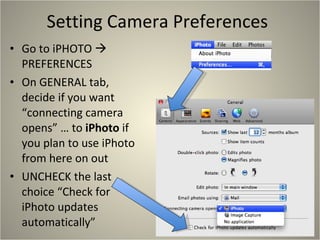
Setting Camera Preferences Go to iPHOTO    PREFERENCES On GENERAL tab, decide if you want “connecting camera opens” … to  iPhoto  if you plan to use iPhoto from here on out UNCHECK the last choice “Check for iPhoto updates automatically”
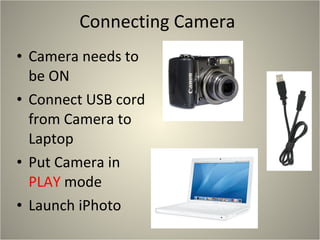
Connecting Camera Camera needs to be ON Connect USB cord from Camera to Laptop Put Camera in  PLAY  mode Launch iPhoto
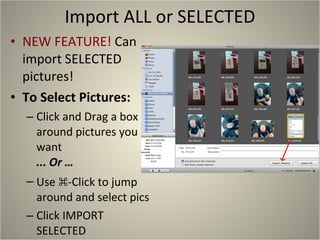
Import ALL or SELECTED NEW FEATURE!  Can import SELECTED pictures! To Select Pictures: Click and Drag a box around pictures you want  ... Or … Use  ⌘ -Click to jump around and select pics Click IMPORT SELECTED
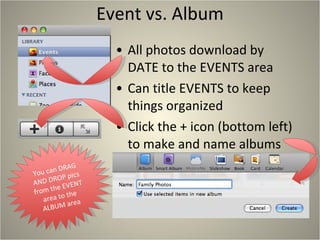
Event vs. Album All photos download by DATE to the EVENTS area Can title EVENTS to keep things organized Click the + icon (bottom left) to make and name albums You can DRAG AND DROP pics from the EVENT area to the ALBUM area
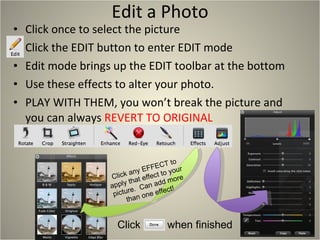
Edit a Photo Click once to select the picture Click the EDIT button to enter EDIT mode Edit mode brings up the EDIT toolbar at the bottom Use these effects to alter your photo. PLAY WITH THEM, you won’t break the picture and you can always  REVERT TO ORIGINAL Click  when finished Click any EFFECT to apply that effect to your picture.  Can add more than one effect!
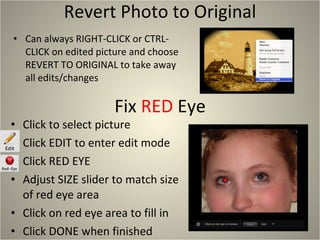
Revert Photo to Original Can always RIGHT-CLICK or CTRL-CLICK on edited picture and choose REVERT TO ORIGINAL to take away all edits/changes Click to select picture Click EDIT to enter edit mode Click RED EYE Adjust SIZE slider to match size of red eye area Click on red eye area to fill in Click DONE when finished Fix  RED  Eye
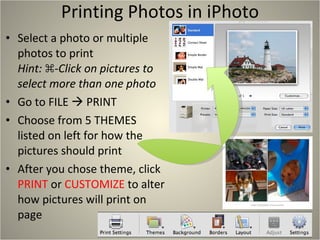
Printing Photos in iPhoto Select a photo or multiple photos to print Hint:  ⌘-Click on pictures to select more than one photo Go to FILE    PRINT Choose from 5 THEMES listed on left for how the pictures should print After you chose theme, click  PRINT  or  CUSTOMIZE  to alter how pictures will print on page
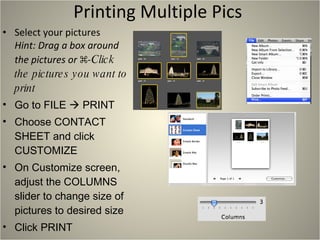
Printing Multiple Pics  Select your pictures  Hint: Drag a box around the pictures or  ⌘-Click the pictures you want to print Go to FILE    PRINT Choose CONTACT SHEET and click CUSTOMIZE On Customize screen, adjust the COLUMNS slider to change size of pictures to desired size Click PRINT
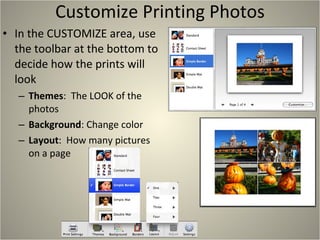
Customize Printing Photos In the CUSTOMIZE area, use the toolbar at the bottom to decide how the prints will look Themes :  The LOOK of the photos Background : Change color Layout :  How many pictures on a page
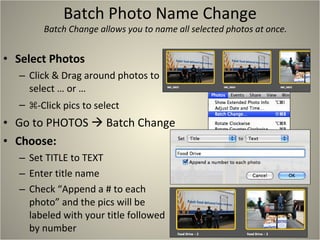
Batch Photo Name Change Select Photos Click & Drag around photos to select … or … ⌘ -Click pics to select Go to PHOTOS    Batch Change Choose: Set TITLE to TEXT Enter title name Check “Append a # to each photo” and the pics will be labeled with your title followed by number Batch Change allows you to name all selected photos at once.
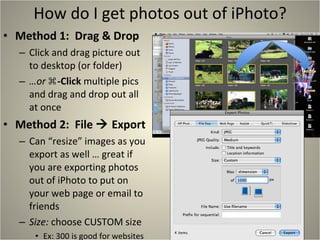
How do I get photos out of iPhoto? Method 1:  Drag & Drop Click and drag picture out to desktop (or folder) … or  ⌘-Click  multiple pics and drag and drop out all at once Method 2:  File    Export Can “resize” images as you export as well … great if you are exporting photos out of iPhoto to put on your web page or email to friends Size:  choose CUSTOM size Ex: 300 is good for websites
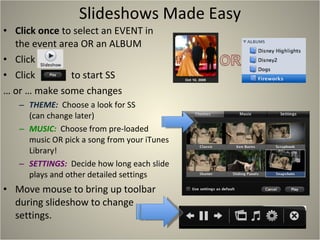
Slideshows Made Easy Click once  to select an EVENT in the event area OR an ALBUM Click  Click  to start SS …  or … make some changes THEME:  Choose a look for SS (can change later) MUSIC:  Choose from pre-loaded music OR pick a song from your iTunes Library! SETTINGS:  Decide how long each slide plays and other detailed settings  Move mouse to bring up toolbar during slideshow to change settings.
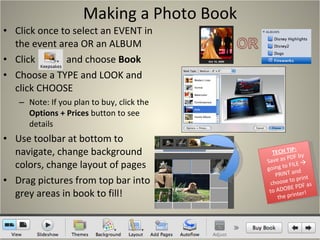
Making a Photo Book Click once to select an EVENT in the event area OR an ALBUM Click  and choose  Book Choose a TYPE and LOOK and click CHOOSE Note: If you plan to buy, click the  Options + Prices  button to see details Use toolbar at bottom to navigate, change background colors, change layout of pages Drag pictures from top bar into grey areas in book to fill! TECH TIP: Save as PDF by going to FILE    PRINT and choose to print to ADOBE PDF as the printer!

TTT-iPhoto Advanced

  • 1.
    Presented by ChadKafka This Month’s Topic: Advanced iPhoto As you come in and set up, please: Turn on your laptop Connect to WIRELESS in the room Launch iPhoto (Open FINDER window  Applications  iPhoto) Connect to SHARED NETWORK and look for the TTT PICS folder Click and DRAG the TTT Pics folder to your iPhoto window so the pictures import to iPhoto
  • 2.
    Topics for todayhttp://www.apple.com/ilife/iphoto http://fpstech.wikispaces.com Under iLife 09 ADVANCED Downloading Pictures to iPhoto EVENT vs ALBUM EDIT a photo Printing Photos easily Batch Change photo names Resizing Creating Quick Slideshow Create Photo Book (PDF) More iPhoto Resources
  • 3.
    Setting Camera PreferencesGo to iPHOTO  PREFERENCES On GENERAL tab, decide if you want “connecting camera opens” … to iPhoto if you plan to use iPhoto from here on out UNCHECK the last choice “Check for iPhoto updates automatically”
  • 4.
    Connecting Camera Cameraneeds to be ON Connect USB cord from Camera to Laptop Put Camera in PLAY mode Launch iPhoto
  • 5.
    Import ALL orSELECTED NEW FEATURE! Can import SELECTED pictures! To Select Pictures: Click and Drag a box around pictures you want ... Or … Use ⌘ -Click to jump around and select pics Click IMPORT SELECTED
  • 6.
    Event vs. AlbumAll photos download by DATE to the EVENTS area Can title EVENTS to keep things organized Click the + icon (bottom left) to make and name albums You can DRAG AND DROP pics from the EVENT area to the ALBUM area
  • 7.
    Edit a PhotoClick once to select the picture Click the EDIT button to enter EDIT mode Edit mode brings up the EDIT toolbar at the bottom Use these effects to alter your photo. PLAY WITH THEM, you won’t break the picture and you can always REVERT TO ORIGINAL Click when finished Click any EFFECT to apply that effect to your picture. Can add more than one effect!
  • 8.
    Revert Photo toOriginal Can always RIGHT-CLICK or CTRL-CLICK on edited picture and choose REVERT TO ORIGINAL to take away all edits/changes Click to select picture Click EDIT to enter edit mode Click RED EYE Adjust SIZE slider to match size of red eye area Click on red eye area to fill in Click DONE when finished Fix RED Eye
  • 9.
    Printing Photos iniPhoto Select a photo or multiple photos to print Hint: ⌘-Click on pictures to select more than one photo Go to FILE  PRINT Choose from 5 THEMES listed on left for how the pictures should print After you chose theme, click PRINT or CUSTOMIZE to alter how pictures will print on page
  • 10.
    Printing Multiple Pics Select your pictures Hint: Drag a box around the pictures or ⌘-Click the pictures you want to print Go to FILE  PRINT Choose CONTACT SHEET and click CUSTOMIZE On Customize screen, adjust the COLUMNS slider to change size of pictures to desired size Click PRINT
  • 11.
    Customize Printing PhotosIn the CUSTOMIZE area, use the toolbar at the bottom to decide how the prints will look Themes : The LOOK of the photos Background : Change color Layout : How many pictures on a page
  • 12.
    Batch Photo NameChange Select Photos Click & Drag around photos to select … or … ⌘ -Click pics to select Go to PHOTOS  Batch Change Choose: Set TITLE to TEXT Enter title name Check “Append a # to each photo” and the pics will be labeled with your title followed by number Batch Change allows you to name all selected photos at once.
  • 13.
    How do Iget photos out of iPhoto? Method 1: Drag & Drop Click and drag picture out to desktop (or folder) … or ⌘-Click multiple pics and drag and drop out all at once Method 2: File  Export Can “resize” images as you export as well … great if you are exporting photos out of iPhoto to put on your web page or email to friends Size: choose CUSTOM size Ex: 300 is good for websites
  • 14.
    Slideshows Made EasyClick once to select an EVENT in the event area OR an ALBUM Click Click to start SS … or … make some changes THEME: Choose a look for SS (can change later) MUSIC: Choose from pre-loaded music OR pick a song from your iTunes Library! SETTINGS: Decide how long each slide plays and other detailed settings Move mouse to bring up toolbar during slideshow to change settings.
  • 15.
    Making a PhotoBook Click once to select an EVENT in the event area OR an ALBUM Click and choose Book Choose a TYPE and LOOK and click CHOOSE Note: If you plan to buy, click the Options + Prices button to see details Use toolbar at bottom to navigate, change background colors, change layout of pages Drag pictures from top bar into grey areas in book to fill! TECH TIP: Save as PDF by going to FILE  PRINT and choose to print to ADOBE PDF as the printer!