Docker workshop
Workshop about the basic usage of Docker
Nicolas DEGARDIN <ndegardin@tribalnova.com>
Summary
1. Preparation
2. The ping example
3. Container
4. Port publishing
5. Volume share
6. Environment variables
7. Dockerfile
8. Docker push
9. Linked container
10. Linked container Dockerfile
11. Vagrant provisioning
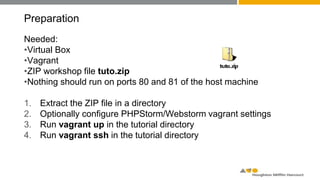
Preparation
Needed:
•Virtual Box
•Vagrant
•ZIP workshop file tuto.zip
(if unavailable, the archive is here: https://hmhco.box.com/docker-tuto)
•Nothing should run on ports 80 and 81 of the host machine
1. Extract the ZIP file in a directory
2. Optionally configure PHPStorm/Webstorm vagrant settings
3. Run vagrant up in the tutorial directory
4. Run vagrant ssh in the tutorial directory
The ping example
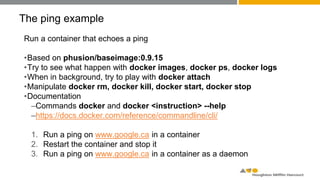
Run a container that echoes a ping
•Based on phusion/baseimage:0.9.15
•Try to see what happen with docker images, docker ps, docker logs
•When in background, try to play with docker attach
•Manipulate docker rm, docker kill, docker start, docker stop
•Documentation
–Commands docker and docker <instruction> --help
–https://docs.docker.com/reference/commandline/cli/
1. Run a ping on www.google.ca in a container
2. Restart the container and stop it
3. Run a ping on www.google.ca in a container as a daemon
The ping example
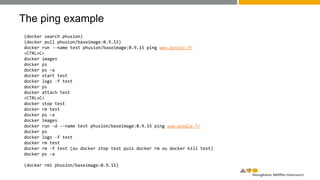
(docker search phusion)
(docker pull phusion/baseimage:0.9.15)
docker run --name test phusion/baseimage:0.9.15 ping www.google.fr
<CTRL+C>
docker images
docker ps
docker ps –a
docker start test
docker logs -f test
docker ps
docker attach test
<CTRL+C>
docker stop test
docker rm test
docker ps –a
docker images
docker run -d --name test phusion/baseimage:0.9.15 ping www.google.fr
docker ps
docker logs -f test
docker rm test
docker rm -f test (ou docker stop test puis docker rm ou docker kill test)
docker ps -a
(docker rmi phusion/baseimage:0.9.15)
Container
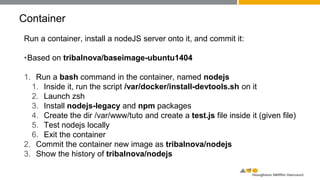
Run a container, install a nodeJS server onto it, and commit it:
•Based on tribalnova/baseimage-ubuntu1404
1. Run a bash command in the container, named nodejs
1. Inside it, run the script /var/docker/install-devtools.sh on it
2. Launch zsh
3. Install nodejs-legacy and npm packages
4. Create the dir /var/www/tuto and create a test.js file inside it (given file)
5. Test nodejs locally
6. Exit the container
2. Commit the container new image as tribalnova/nodejs
3. Show the history of tribalnova/nodejs
Container
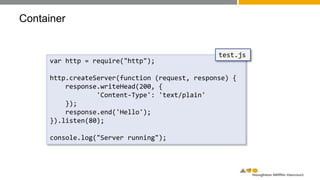
var http = require("http");
http.createServer(function (request, response) {
response.writeHead(200, {
'Content-Type': 'text/plain'
});
response.end('Hello');
}).listen(80);
console.log("Server running");
test.js
Container
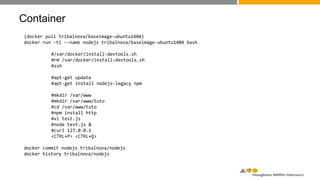
(docker pull tribalnova/baseimage-ubuntu1404)
docker run -ti --name nodejs tribalnova/baseimage-ubuntu1404 bash
#/var/docker/install-devtools.sh
#rm /var/docker/install-devtools.sh
#zsh
#apt-get update
#apt-get install nodejs-legacy npm
#mkdir /var/www
#mkdir /var/www/tuto
#cd /var/www/tuto
#npm install http
#vi test.js
#node test.js &
#curl 127.0.0.1
<CTRL+P> <CTRL+Q>
docker commit nodejs tribalnova/nodejs
docker history tribalnova/nodejs
Port publishing
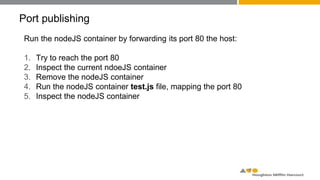
Run the nodeJS container by forwarding its port 80 the host:
1. Try to reach the port 80
2. Inspect the current ndoeJS container
3. Remove the nodeJS container
4. Run the nodeJS container test.js file, mapping the port 80
5. Inspect the nodeJS container
Port publishing
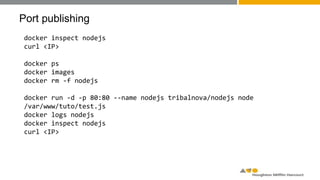
docker inspect nodejs
curl <IP>
docker ps
docker images
docker rm -f nodejs
docker run -d -p 80:80 --name nodejs tribalnova/nodejs node
/var/www/tuto/test.js
docker logs nodejs
docker inspect nodejs
curl <IP>
Volume share
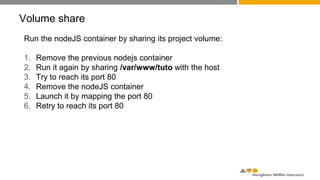
Run the nodeJS container by sharing its project volume:
1. Remove the previous nodejs container
2. Run it again by sharing /var/www/tuto with the host
3. Try to reach its port 80
4. Remove the nodeJS container
5. Launch it by mapping the port 80
6. Retry to reach its port 80
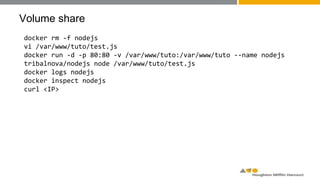
Volume share
docker rm -f nodejs
vi /var/www/tuto/test.js
docker run -d -p 80:80 -v /var/www/tuto:/var/www/tuto --name nodejs
tribalnova/nodejs node /var/www/tuto/test.js
docker logs nodejs
docker inspect nodejs
curl <IP>
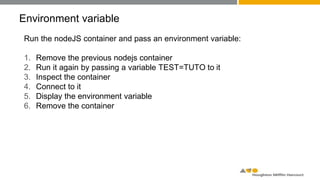
Environment variable
Run the nodeJS container and pass an environment variable:
1. Remove the previous nodejs container
2. Run it again by passing a variable TEST=TUTO to it
3. Inspect the container
4. Connect to it
5. Display the environment variable
6. Remove the container
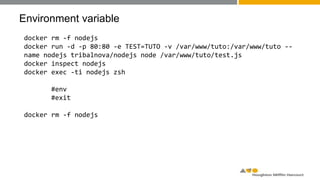
Environment variable
docker rm -f nodejs
docker run -d -p 80:80 -e TEST=TUTO -v /var/www/tuto:/var/www/tuto --
name nodejs tribalnova/nodejs node /var/www/tuto/test.js
docker inspect nodejs
docker exec -ti nodejs zsh
#env
#exit
docker rm -f nodejs
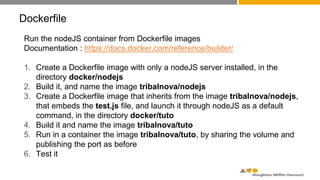
Dockerfile
Run the nodeJS container from Dockerfile images
Documentation : https://docs.docker.com/reference/builder/
1. Create a Dockerfile image with only a nodeJS server installed, in the
directory docker/nodejs
2. Build it, and name the image tribalnova/nodejs
3. Create a Dockerfile image that inherits from the image tribalnova/nodejs,
that embeds the test.js file, and launch it through nodeJS as a default
command, in the directory docker/tuto
4. Build it and name the image tribalnova/tuto
5. Run in a container the image tribalnova/tuto, by sharing the volume and
publishing the port as before
6. Test it
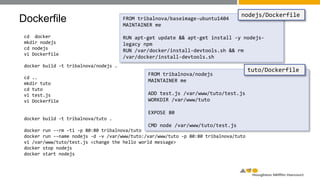
Dockerfile
cd docker
mkdir nodejs
cd nodejs
vi Dockerfile
docker build -t tribalnova/nodejs .
cd ..
mkdir tuto
cd tuto
vi test.js
vi Dockerfile
docker build -t tribalnova/tuto .
docker run --rm -ti -p 80:80 tribalnova/tuto
docker run --name nodejs -d -v /var/www/tuto:/var/www/tuto -p 80:80 tribalnova/tuto
vi /var/www/tuto/test.js <change the hello world message>
docker stop nodejs
docker start nodejs
FROM tribalnova/baseimage-ubuntu1404
MAINTAINER me
RUN apt-get update && apt-get install -y nodejs-
legacy npm
RUN /var/docker/install-devtools.sh && rm
/var/docker/install-devtools.sh
nodejs/Dockerfile
FROM tribalnova/nodejs
MAINTAINER me
ADD test.js /var/www/tuto/test.js
WORKDIR /var/www/tuto
EXPOSE 80
CMD node /var/www/tuto/test.js
tuto/Dockerfile
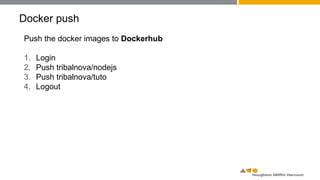
Docker push
Push the docker images to Dockerhub
1. Login
2. Push tribalnova/nodejs
3. Push tribalnova/tuto
4. Logout
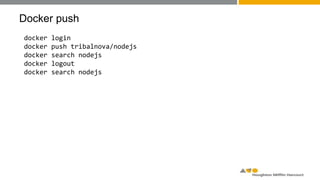
Docker push
docker login
docker push tribalnova/nodejs
docker search nodejs
docker logout
docker search nodejs
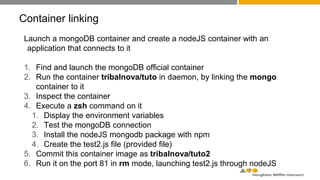
Container linking
Launch a mongoDB container and create a nodeJS container with an
application that connects to it
1. Find and launch the mongoDB official container
2. Run the container tribalnova/tuto in daemon, by linking the mongo
container to it
3. Inspect the container
4. Execute a zsh command on it
1. Display the environment variables
2. Test the mongoDB connection
3. Install the nodeJS mongodb package with npm
4. Create the test2.js file (provided file)
5. Commit this container image as tribalnova/tuto2
6. Run it on the port 81 in rm mode, launching test2.js through nodeJS
Container linking
var http = require("http");
var MongoClient = require('mongodb').MongoClient
var url = 'mongodb://mongo:27017/tuto';
http.createServer(function (request, response) {
response.writeHead(200, {
'Content-Type': 'text/plain'
});
MongoClient.connect(url, function(err, db) {
if(err) throw err;
var collection = db.collection('samples');
collection.insert([
{'hello' : 'world'}, {'et' : 'cetera'}, {'et' : {'cetera':'et cetera'}}
], {w:1}, function(err, result) {
collection.find().toArray(function(err, docs) {
response.end(JSON.stringify(docs));
});
});
});
}).listen(80);
console.log("Server running");
test2.js
Container linking
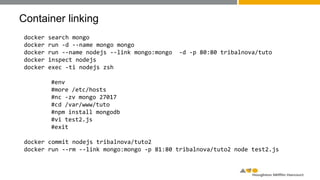
docker search mongo
docker run -d --name mongo mongo
docker run --name nodejs --link mongo:mongo -d -p 80:80 tribalnova/tuto
docker inspect nodejs
docker exec -ti nodejs zsh
#env
#more /etc/hosts
#nc -zv mongo 27017
#cd /var/www/tuto
#npm install mongodb
#vi test2.js
#exit
docker commit nodejs tribalnova/tuto2
docker run --rm --link mongo:mongo -p 81:80 tribalnova/tuto2 node test2.js
Linked container Dockerfile
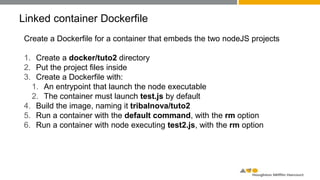
Create a Dockerfile for a container that embeds the two nodeJS projects
1. Create a docker/tuto2 directory
2. Put the project files inside
3. Create a Dockerfile with:
1. An entrypoint that launch the node executable
2. The container must launch test.js by default
4. Build the image, naming it tribalnova/tuto2
5. Run a container with the default command, with the rm option
6. Run a container with node executing test2.js, with the rm option
Linked container Dockerfile
cd docker
mkdir tuto2
<copy files test.js and test2.js inside>
vi Dockerfile
docker build -t tribalnova/tuto2 .
docker run --rm --link mongo:mongo –p 80:80 tribalnova/tuto2
<CTRL+C>
docker run --rm --link mongo:mongo –p 80:80 tribalnova/tuto2 test2.js
FROM tribalnova/nodejs
MAINTAINER me
RUN npm install mongodb
ADD test.js /var/www/tuto/test.js
ADD test2.js /var/www/tuto/test2.js
WORKDIR /var/www/tuto
EXPOSE 80
ENTRYPOINT ["node"]
CMD ["test.js"]
tuto2/Dockerfile
Vagrant provisioner
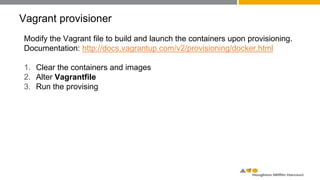
Modify the Vagrant file to build and launch the containers upon provisioning.
Documentation: http://docs.vagrantup.com/v2/provisioning/docker.html
1. Clear the containers and images
2. Alter Vagrantfile
3. Run the provising
Vagrant provisioner
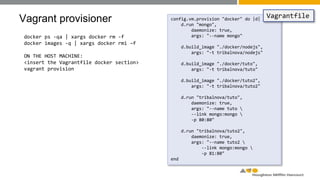
docker ps -qa | xargs docker rm -f
docker images -q | xargs docker rmi –f
ON THE HOST MACHINE:
<insert the Vagrantfile docker section>
vagrant provision
config.vm.provision "docker" do |d|
d.run "mongo",
daemonize: true,
args: "--name mongo"
d.build_image "./docker/nodejs",
args: "-t tribalnova/nodejs"
d.build_image "./docker/tuto",
args: "-t tribalnova/tuto"
d.build_image "./docker/tuto2",
args: "-t tribalnova/tuto2"
d.run "tribalnova/tuto",
daemonize: true,
args: "--name tuto 
--link mongo:mongo 
-p 80:80"
d.run "tribalnova/tuto2",
daemonize: true,
args: "--name tuto2 
--link mongo:mongo 
-p 81:80"
end
Vagrantfile
Tribal Nova Docker workshop

Tribal Nova Docker workshop

  • 1.
    Docker workshop Workshop aboutthe basic usage of Docker Nicolas DEGARDIN <ndegardin@tribalnova.com>
  • 2.
    Summary 1. Preparation 2. Theping example 3. Container 4. Port publishing 5. Volume share 6. Environment variables 7. Dockerfile 8. Docker push 9. Linked container 10. Linked container Dockerfile 11. Vagrant provisioning
  • 3.
    Preparation Needed: •Virtual Box •Vagrant •ZIP workshopfile tuto.zip (if unavailable, the archive is here: https://hmhco.box.com/docker-tuto) •Nothing should run on ports 80 and 81 of the host machine 1. Extract the ZIP file in a directory 2. Optionally configure PHPStorm/Webstorm vagrant settings 3. Run vagrant up in the tutorial directory 4. Run vagrant ssh in the tutorial directory
  • 4.
    The ping example Runa container that echoes a ping •Based on phusion/baseimage:0.9.15 •Try to see what happen with docker images, docker ps, docker logs •When in background, try to play with docker attach •Manipulate docker rm, docker kill, docker start, docker stop •Documentation –Commands docker and docker <instruction> --help –https://docs.docker.com/reference/commandline/cli/ 1. Run a ping on www.google.ca in a container 2. Restart the container and stop it 3. Run a ping on www.google.ca in a container as a daemon
  • 5.
    The ping example (dockersearch phusion) (docker pull phusion/baseimage:0.9.15) docker run --name test phusion/baseimage:0.9.15 ping www.google.fr <CTRL+C> docker images docker ps docker ps –a docker start test docker logs -f test docker ps docker attach test <CTRL+C> docker stop test docker rm test docker ps –a docker images docker run -d --name test phusion/baseimage:0.9.15 ping www.google.fr docker ps docker logs -f test docker rm test docker rm -f test (ou docker stop test puis docker rm ou docker kill test) docker ps -a (docker rmi phusion/baseimage:0.9.15)
  • 6.
    Container Run a container,install a nodeJS server onto it, and commit it: •Based on tribalnova/baseimage-ubuntu1404 1. Run a bash command in the container, named nodejs 1. Inside it, run the script /var/docker/install-devtools.sh on it 2. Launch zsh 3. Install nodejs-legacy and npm packages 4. Create the dir /var/www/tuto and create a test.js file inside it (given file) 5. Test nodejs locally 6. Exit the container 2. Commit the container new image as tribalnova/nodejs 3. Show the history of tribalnova/nodejs
  • 7.
    Container var http =require("http"); http.createServer(function (request, response) { response.writeHead(200, { 'Content-Type': 'text/plain' }); response.end('Hello'); }).listen(80); console.log("Server running"); test.js
  • 8.
    Container (docker pull tribalnova/baseimage-ubuntu1404) dockerrun -ti --name nodejs tribalnova/baseimage-ubuntu1404 bash #/var/docker/install-devtools.sh #rm /var/docker/install-devtools.sh #zsh #apt-get update #apt-get install nodejs-legacy npm #mkdir /var/www #mkdir /var/www/tuto #cd /var/www/tuto #npm install http #vi test.js #node test.js & #curl 127.0.0.1 <CTRL+P> <CTRL+Q> docker commit nodejs tribalnova/nodejs docker history tribalnova/nodejs
  • 9.
    Port publishing Run thenodeJS container by forwarding its port 80 the host: 1. Try to reach the port 80 2. Inspect the current ndoeJS container 3. Remove the nodeJS container 4. Run the nodeJS container test.js file, mapping the port 80 5. Inspect the nodeJS container
  • 10.
    Port publishing docker inspectnodejs curl <IP> docker ps docker images docker rm -f nodejs docker run -d -p 80:80 --name nodejs tribalnova/nodejs node /var/www/tuto/test.js docker logs nodejs docker inspect nodejs curl <IP>
  • 11.
    Volume share Run thenodeJS container by sharing its project volume: 1. Remove the previous nodejs container 2. Run it again by sharing /var/www/tuto with the host 3. Try to reach its port 80 4. Remove the nodeJS container 5. Launch it by mapping the port 80 6. Retry to reach its port 80
  • 12.
    Volume share docker rm-f nodejs vi /var/www/tuto/test.js docker run -d -p 80:80 -v /var/www/tuto:/var/www/tuto --name nodejs tribalnova/nodejs node /var/www/tuto/test.js docker logs nodejs docker inspect nodejs curl <IP>
  • 13.
    Environment variable Run thenodeJS container and pass an environment variable: 1. Remove the previous nodejs container 2. Run it again by passing a variable TEST=TUTO to it 3. Inspect the container 4. Connect to it 5. Display the environment variable 6. Remove the container
  • 14.
    Environment variable docker rm-f nodejs docker run -d -p 80:80 -e TEST=TUTO -v /var/www/tuto:/var/www/tuto -- name nodejs tribalnova/nodejs node /var/www/tuto/test.js docker inspect nodejs docker exec -ti nodejs zsh #env #exit docker rm -f nodejs
  • 15.
    Dockerfile Run the nodeJScontainer from Dockerfile images Documentation : https://docs.docker.com/reference/builder/ 1. Create a Dockerfile image with only a nodeJS server installed, in the directory docker/nodejs 2. Build it, and name the image tribalnova/nodejs 3. Create a Dockerfile image that inherits from the image tribalnova/nodejs, that embeds the test.js file, and launch it through nodeJS as a default command, in the directory docker/tuto 4. Build it and name the image tribalnova/tuto 5. Run in a container the image tribalnova/tuto, by sharing the volume and publishing the port as before 6. Test it
  • 16.
    Dockerfile cd docker mkdir nodejs cdnodejs vi Dockerfile docker build -t tribalnova/nodejs . cd .. mkdir tuto cd tuto vi test.js vi Dockerfile docker build -t tribalnova/tuto . docker run --rm -ti -p 80:80 tribalnova/tuto docker run --name nodejs -d -v /var/www/tuto:/var/www/tuto -p 80:80 tribalnova/tuto vi /var/www/tuto/test.js <change the hello world message> docker stop nodejs docker start nodejs FROM tribalnova/baseimage-ubuntu1404 MAINTAINER me RUN apt-get update && apt-get install -y nodejs- legacy npm RUN /var/docker/install-devtools.sh && rm /var/docker/install-devtools.sh nodejs/Dockerfile FROM tribalnova/nodejs MAINTAINER me ADD test.js /var/www/tuto/test.js WORKDIR /var/www/tuto EXPOSE 80 CMD node /var/www/tuto/test.js tuto/Dockerfile
  • 17.
    Docker push Push thedocker images to Dockerhub 1. Login 2. Push tribalnova/nodejs 3. Push tribalnova/tuto 4. Logout
  • 18.
    Docker push docker login dockerpush tribalnova/nodejs docker search nodejs docker logout docker search nodejs
  • 19.
    Container linking Launch amongoDB container and create a nodeJS container with an application that connects to it 1. Find and launch the mongoDB official container 2. Run the container tribalnova/tuto in daemon, by linking the mongo container to it 3. Inspect the container 4. Execute a zsh command on it 1. Display the environment variables 2. Test the mongoDB connection 3. Install the nodeJS mongodb package with npm 4. Create the test2.js file (provided file) 5. Commit this container image as tribalnova/tuto2 6. Run it on the port 81 in rm mode, launching test2.js through nodeJS
  • 20.
    Container linking var http= require("http"); var MongoClient = require('mongodb').MongoClient var url = 'mongodb://mongo:27017/tuto'; http.createServer(function (request, response) { response.writeHead(200, { 'Content-Type': 'text/plain' }); MongoClient.connect(url, function(err, db) { if(err) throw err; var collection = db.collection('samples'); collection.insert([ {'hello' : 'world'}, {'et' : 'cetera'}, {'et' : {'cetera':'et cetera'}} ], {w:1}, function(err, result) { collection.find().toArray(function(err, docs) { response.end(JSON.stringify(docs)); }); }); }); }).listen(80); console.log("Server running"); test2.js
  • 21.
    Container linking docker searchmongo docker run -d --name mongo mongo docker run --name nodejs --link mongo:mongo -d -p 80:80 tribalnova/tuto docker inspect nodejs docker exec -ti nodejs zsh #env #more /etc/hosts #nc -zv mongo 27017 #cd /var/www/tuto #npm install mongodb #vi test2.js #exit docker commit nodejs tribalnova/tuto2 docker run --rm --link mongo:mongo -p 81:80 tribalnova/tuto2 node test2.js
  • 22.
    Linked container Dockerfile Createa Dockerfile for a container that embeds the two nodeJS projects 1. Create a docker/tuto2 directory 2. Put the project files inside 3. Create a Dockerfile with: 1. An entrypoint that launch the node executable 2. The container must launch test.js by default 4. Build the image, naming it tribalnova/tuto2 5. Run a container with the default command, with the rm option 6. Run a container with node executing test2.js, with the rm option
  • 23.
    Linked container Dockerfile cddocker mkdir tuto2 <copy files test.js and test2.js inside> vi Dockerfile docker build -t tribalnova/tuto2 . docker run --rm --link mongo:mongo –p 80:80 tribalnova/tuto2 <CTRL+C> docker run --rm --link mongo:mongo –p 80:80 tribalnova/tuto2 test2.js FROM tribalnova/nodejs MAINTAINER me RUN npm install mongodb ADD test.js /var/www/tuto/test.js ADD test2.js /var/www/tuto/test2.js WORKDIR /var/www/tuto EXPOSE 80 ENTRYPOINT ["node"] CMD ["test.js"] tuto2/Dockerfile
  • 24.
    Vagrant provisioner Modify theVagrant file to build and launch the containers upon provisioning. Documentation: http://docs.vagrantup.com/v2/provisioning/docker.html 1. Clear the containers and images 2. Alter Vagrantfile 3. Run the provising
  • 25.
    Vagrant provisioner docker ps-qa | xargs docker rm -f docker images -q | xargs docker rmi –f ON THE HOST MACHINE: <insert the Vagrantfile docker section> vagrant provision config.vm.provision "docker" do |d| d.run "mongo", daemonize: true, args: "--name mongo" d.build_image "./docker/nodejs", args: "-t tribalnova/nodejs" d.build_image "./docker/tuto", args: "-t tribalnova/tuto" d.build_image "./docker/tuto2", args: "-t tribalnova/tuto2" d.run "tribalnova/tuto", daemonize: true, args: "--name tuto --link mongo:mongo -p 80:80" d.run "tribalnova/tuto2", daemonize: true, args: "--name tuto2 --link mongo:mongo -p 81:80" end Vagrantfile