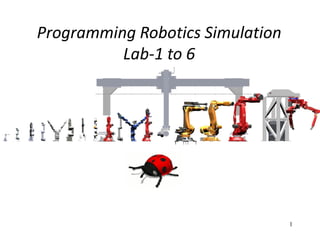
Programming Robotics Simulation
Lab-1 to 6
1
Agenda
1. Getting Started
1. Programming in Webots
2. Building new worlds and new robots
3. More Programming – Sensors and Actuators
2. Programming the simpleBot for a color detecton
3. Programming the URE by adding a camera
1. Where to find Rotation/Translation transform matrices
2. Adding a more sophisticated sensor: camera
4. Understanding both IPR collaboration
5. Programming the Kuka Youbot for another cube position
6. Programming the ABB IRB120 for another drawing
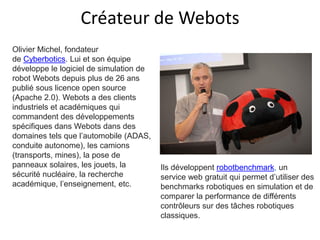
Créateur de Webots
Olivier Michel, fondateur
de Cyberbotics. Lui et son équipe
développe le logiciel de simulation de
robot Webots depuis plus de 26 ans
publié sous licence open source
(Apache 2.0). Webots a des clients
industriels et académiques qui
commandent des développements
spécifiques dans Webots dans des
domaines tels que l’automobile (ADAS,
conduite autonome), les camions
(transports, mines), la pose de
panneaux solaires, les jouets, la
sécurité nucléaire, la recherche
académique, l’enseignement, etc.
Ils développent robotbenchmark, un
service web gratuit qui permet d’utiliser des
benchmarks robotiques en simulation et de
comparer la performance de différents
contrôleurs sur des tâches robotiques
classiques.
LAB 1
First how to use Webots, and what are its capabilities…
Webots Tutorials
Getting Started – Objective: Familarity with Webots (User Guide Chapters 1-4½)‫‏‬
1. Click on the Webots icon!
2. Close all windows except main display window
3. Click on main display window
4. Click the ‘open‫‏‬file’ icon
5. Navigate to:
D:/ProgramFiles/Webots
1. Navigate to:
/projects
1. Navigate to:
/samples
1. Navigate to:
/mybot
Webots Tutorials
Getting Started – continued….
Webots has two concepts:
The World - simulates the world and the robot
The Controller - code for controlling the robot
To simulate a robot in Webots load its world model.
1. Navigate to:
/worlds
1. Click on:
mybot.wbt
Webots Tutorials
Getting Started – continued….‫‏‬
4 windows appear:
Console
Code Editor
- logs important information
- code editor for creating and compiling controllers
Scene Tree Editor - Editor for creating the world
Webots Simulator - Simulatoritself
1. Close all windows except the Webots Simulator
2. Play around with the mouse controls to manipulate the viewing position
of the world
3. Shift-Click on the mouse to manipulate and move objects around
1. Click on the run button
Notice the timing display in the bottom right hand corner – shows how fast the simulator is
running compared to real time
Webots Tutorials
Getting Started – continued….
1. Click on the stop button
2. Click on the ‘Simulation’‫‏‬menu item
This duplicates the icon controls
1. Click‫‏‬on‫‘‏‬fast’‫‏‬and‫‏‬watch‫‏‬the timing control
2. Click on stop
3. Click on the robot
4. Click on the ‘view’‫‏‬menu item
5. Explore the different view options
1. Shift click on the robot and select ‘follow‫‏‬object’‫‏‬
Camera now follows the robot
Getting Started – continued….
1. Click on the ‘tools’‫‏‬menu item
2. Click on the ‘Preferences’
• Click‫‏‬on‫‘‏‬general’ tab
• Always choose ‘startup‫‏‬mode’‫‏‬as‫‘‏‬stop’‫‏‬and‫‏‬click ‘ok’
•Click on the ‘save’button
EXERCISE 1:
Open up and play with some of the other worlds in the
Webots Projects directory and the
Webots samples directory.
Webots Tutorials
Programming In Webots - C code version
Create a local directory to hold your own worlds and controllers
• Click on the ‘Wizard’‫‏‬menu item
• Click on the ‘New‫‏‬Project Directory’
1. Create a controller program template in C
2. On ‘Wizard’ click ‘new‫‏‬Robot controller
3. Build the controller
• Copy the myBot world from webots to your world directory and rename it
(including the ‘textures’ directory).
• Edit the new world and change the controller entry to your controller.
• Open your world in Webots and make sure that your controller is active.
Webots Tutorials
Programming In Webots – continued…..
EXERCISE 2:
Edit the program and type in some‫‘‏‬printf’‫‏‬messages‫‏‬at key points in the execution.
Compile, link and execute the code and check the results in the Webots console.
Example printf: printf(“In‫‏‬reset function….n”);
Note: you may need to add an include statement
#include <stdio.h>
Webots Tutorials
New Worlds and New Robots
Click‫‏‬on‫‘‏‬Scene‫‏‬Tree’‫‏‬in the ‘Tools’menu
Examine:
WorldInfo
Viewpoint
Transform
Walls
Solids
And finally
Differential Wheels
Use the menu options to get documentation.
Webots Tutorials
Programming In Webots – continued…..‫‏‬
How to Get information from the sensors
Add the ‘include’‫‏‬file for the particular sensor
e.g.
#include <webots/distance_sensor.h>
Add some device‫‘‏‬handles’‫‏‬or‫‏‬pointers globally:
e.g. in the ‘main’ function
wb_robot_init(); /* necessary to initialize webots stuff */
/* Get and enable the distance sensors. */
WbDeviceTag ir0 = wb_robot_get_device("ir0");
WbDeviceTag ir1 = wb_robot_get_device("ir1");
Now enable the sensors:
e.g. add:
wb_distance_sensor_enable(ir0, TIME_STEP);
wb_distance_sensor_enable(ir1, TIME_STEP);
Now print the values to the console:
e.g. In the run function add:
printf("ir0: %f ir1: %f n",ir0_value, ir1_value);
Now compile code,
Fix errors,
Revert,
And run
Move an obstacle in
front of the robot to test
Webots Tutorials
Programming In Webots – continued…..
How to Get information from the sensors – continued…..
/* Get distance sensor values */
double ir0_value = wb_distance_sensor_get_value(ir0);
double ir1_value = wb_distance_sensor_get_value(ir1);
LAB 2
Expectation: Automatic detection of the white wall
How to Get image from the camera sensor
// Included libraries: Add the ‘include’‫‏‬file for the particular sensor, e.g.
#include <webots/camera.h>
// After Global defines or at the first line in the main() part
WbDeviceTag cam; unsigned short width, height;
int red, blue, green, gray = 0;
Add some device‫‘‏‬handles’‫‏‬or‫‏‬pointers globally: e.g. in the ‘main’ function
wb_robot_init(); /* necessary to initialize webots stuff */
/* Get the camera device, enable it, and store its width and height */
cam = wb_robot_get_device("camera");
wb_camera_enable(cam, TIME_STEP);
width = wb_camera_get_width(cam);
height = wb_camera_get_height(cam);
/* main loop */
while (wb_robot_step(TIME_STEP) != -1) {
const unsigned char *image;
// 1. Get the image pixels values
image = wb_camera_get_image(cam);
// 2. Handle the image values to extrac RGB and Gray intensities
for (i = 0; i < width; i++) {
for (j = 0; j < height; j++) {
gray += wb_camera_image_get_gray(image, width, i, j);
red += wb_camera_image_get_red(image, width, i, j);
blue += wb_camera_image_get_blue(image, width, i, j);
green += wb_camera_image_get_green(image, width, i, j); }}
How to add a camera
LAB 3
Robot: UR10 from Universal
Expectation: Add camera to arms to make them aware of product’s colors
Figure – Robot UR 10. Les distances sont données en
millimètres.
{
Robot
{ translation IS translation
rotation IS rotation
children [
Transform {
translation -0.0602 0.0601 0.0252
rotation 1 0 0 -3.1415923071795864
…
translation 0 -0.137 0.613
translation 0 0 0.571
rotation 0 1 0 1.570796
…
translation 0 0.135 0
…
translation 0 0 0.12
Universal Robots UR 10: PROTO extraction
Without camera
One sample in the camera scope
LAB 4
Expectation: Explain how the 2 robots IPR have been synchronised…
End ipr1
Def giveCube()*
* Gère la levée du bras jusqu’au point de rencontre avec ipr2.
grabCube()
waitForSignal(IPRCollaboration::GRAB_CUBE)
moveToInitPostion()
Call giveCube()
Start
ipr1
@Positions
End ipr2
Def throwCube***
moveToPosition(gWaitPosition
throwCube()
moveToInitPostion()
Call takeCube()
Start
ipr2
@Positions
emitSignal(GIVE_CUBE)
emitSignal(LEAVE_CUBE)
** Gère l’ouverture et fermeture de la pince et la mise en position de recontre avec
ipr1.
emitSignal(IPRCollaboration::GRAB_CUBE)
Def takeCube**
emitSignal(GRAB_CUBE)
emitSignal(THROW_CUBE)
i<
3
yes
no
i = i+1
i<
3
i = i+1
yes
no
LAB 5
Expectation: Change the current place where the cube is throwed by the
Kuka Robot on the ground to another specific place…
Robot Kuka Youbot
Robot Kuka Youbot
Robot Kuka Youbot
Robot Kuka Youbot
Robot Kuka Youbot
Global Goal: Change the current place where the cube is throwed
by the Kuka Robot on the ground to another specific place…
• First you have to take control of Youbot with your keyboard
• Then find the way how to explain your positioning order
• To understand how to use the Kinect, “play” with the Tower of
Hanoi program (search for Hanoi in the webots world engine)
• And furthermore implement the Kinect sensors in the initial
world… Good Luck !
LAB 6
Expectation: find a way to make the ABB robot IRB120 drawiing a square
and no more a circle on the table…
Real dimensions of IRB120
IRB 120
D-H Parameters
i θi di ai i
1 θ1 290 0 −90°
2 θ2−90° 0 270 0°
3 θ3 0 70 −90°
4 θ4 302 0 90°
5 θ5 0 0 −90°
6 θ6+180° 72 0 0°
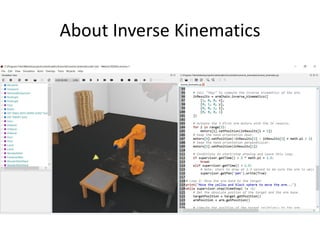
About Inverse Kinematics
ANNEXES
Architecture of a robot
How to change the physical
parameters
Time step  Duty cycle
Webots Tutorials
Robot Controllers and Supervisor Controllers
A robot controller – can use C,C++,Python or Java -> controls one robot
A supervisor controller – can use C or C++ –> controls the world and one or more robots
Webots Tutorials
Colour Blob Tracking using the Camera
The Epuck camera takes picture images.
These are returned as arrays of pixels – the array size depends on how the
camera is configured.
For a 10 (width) * 6 (height) camera – 600 pixels will be returned.
You can get the width and height using the following webots functions:
width = camera_get_width(camera);
height = camera_get_height(camera);
To obtain the image:
image = camera_get_image(camera);
(See EpuckBlob.wbt)
Webots Tutorials
Colour Blob Tracking using the Epuck Camera
Each pixel is returned as a three element code (3 integers).
The code is called RGB meaning red/green/blue.
Each integer can have a value between 0 and 255.
For more ‘redness’‫‏‬the first integer would have a higher value.
For more ‘blueness’‫‏‬the second integer would have a higher value.
For more ‘greenness’‫‏‬the third integer would have a higher value.
Black is 255,255,255 and white is 0,0,0
To get the RGB values do the following:
for (int x = 0; x < width; x++) {
for (int y = 0; y < height; y++) {
red = camera_image_get_red(image, width, x, y);
green = camera_image_get_green(image, width, x, y);
blue = camera_image_get_blue(image, width, x, y);
}}
Webots Tutorials
Programming In Webots – continued…..
How to Drive the Actuators (wheels in this case)
Add the ‘include’‫‏‬file for the particular actuator
e.g.
#include <webots/differential_wheels.h>
Define a default speed:
In the ‘run’‫‏‬function set the wheel speed
e.g.
wb_differential_wheels_set_speed(left_speed, right_speed);
#define DEFAULT_SPEED 60;
In the ‘main’‫‏‬function create some wheel speed variabl
e.g.
double left_speed, right_speed;
Give them some default values:
left_speed = DEFAULT_SPEED;
right_speed= -DEFAULT_SPEED ; // make the robot spin
Now compile code,
Fix errors,
Revert,
And run
Caractérisation de la pince
https://grabcad.com/library/robotiq-3-finger-1
Longueur de prise de pince: 15,5cm
Pour épouser la forme de la canette les
doigts repliés entraineront une prise
plus courte ce qui laissera le temps à la
canette d’arriver dans le giron de la
pince…
500
0.18
Conversion capteur de distance
La détection se fait juste avant la limite
de prise de la pince (longueur de prise
de pince maximale de 15,5cm)
Seuil de
déclenchement du
prog. de 500
(équivalent numérique
sur 1 byte)
Reminder: Modeling sensors
 Capture non-linearities and
noise of sensors.
 However, calibration is often
approximative.
 Most often, sensor response is
defined by a lookup table (here
a proximity sensor):
distance value
lookupTable [ 0 1000 0,
0.1 1000 0.1,
0.2 400 0.1,
0.3 50 0.1,
0.37 30 0 ]
noise
4
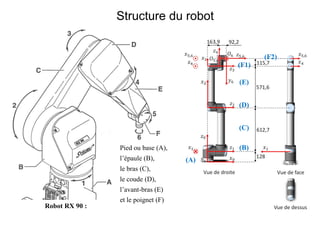
Robot RX 90 :
Structure du robot
Pied ou base (A),
l’épaule (B),
le bras (C),
le coude (D),
l’avant-bras (E)
et le poignet (F)
(A)
(B)
(C)
(F1)
(F2)
(D)
(E)

TP_Webots_7mai2021.pdf

  • 1.
  • 2.
    Agenda 1. Getting Started 1.Programming in Webots 2. Building new worlds and new robots 3. More Programming – Sensors and Actuators 2. Programming the simpleBot for a color detecton 3. Programming the URE by adding a camera 1. Where to find Rotation/Translation transform matrices 2. Adding a more sophisticated sensor: camera 4. Understanding both IPR collaboration 5. Programming the Kuka Youbot for another cube position 6. Programming the ABB IRB120 for another drawing
  • 3.
    Créateur de Webots OlivierMichel, fondateur de Cyberbotics. Lui et son équipe développe le logiciel de simulation de robot Webots depuis plus de 26 ans publié sous licence open source (Apache 2.0). Webots a des clients industriels et académiques qui commandent des développements spécifiques dans Webots dans des domaines tels que l’automobile (ADAS, conduite autonome), les camions (transports, mines), la pose de panneaux solaires, les jouets, la sécurité nucléaire, la recherche académique, l’enseignement, etc. Ils développent robotbenchmark, un service web gratuit qui permet d’utiliser des benchmarks robotiques en simulation et de comparer la performance de différents contrôleurs sur des tâches robotiques classiques.
  • 4.
    LAB 1 First howto use Webots, and what are its capabilities…
  • 5.
    Webots Tutorials Getting Started– Objective: Familarity with Webots (User Guide Chapters 1-4½)‫‏‬ 1. Click on the Webots icon! 2. Close all windows except main display window 3. Click on main display window 4. Click the ‘open‫‏‬file’ icon 5. Navigate to: D:/ProgramFiles/Webots 1. Navigate to: /projects 1. Navigate to: /samples 1. Navigate to: /mybot
  • 6.
    Webots Tutorials Getting Started– continued…. Webots has two concepts: The World - simulates the world and the robot The Controller - code for controlling the robot To simulate a robot in Webots load its world model. 1. Navigate to: /worlds 1. Click on: mybot.wbt
  • 7.
    Webots Tutorials Getting Started– continued….‫‏‬ 4 windows appear: Console Code Editor - logs important information - code editor for creating and compiling controllers Scene Tree Editor - Editor for creating the world Webots Simulator - Simulatoritself 1. Close all windows except the Webots Simulator 2. Play around with the mouse controls to manipulate the viewing position of the world 3. Shift-Click on the mouse to manipulate and move objects around 1. Click on the run button Notice the timing display in the bottom right hand corner – shows how fast the simulator is running compared to real time
  • 8.
    Webots Tutorials Getting Started– continued…. 1. Click on the stop button 2. Click on the ‘Simulation’‫‏‬menu item This duplicates the icon controls 1. Click‫‏‬on‫‘‏‬fast’‫‏‬and‫‏‬watch‫‏‬the timing control 2. Click on stop 3. Click on the robot 4. Click on the ‘view’‫‏‬menu item 5. Explore the different view options 1. Shift click on the robot and select ‘follow‫‏‬object’‫‏‬ Camera now follows the robot
  • 9.
    Getting Started –continued…. 1. Click on the ‘tools’‫‏‬menu item 2. Click on the ‘Preferences’ • Click‫‏‬on‫‘‏‬general’ tab • Always choose ‘startup‫‏‬mode’‫‏‬as‫‘‏‬stop’‫‏‬and‫‏‬click ‘ok’ •Click on the ‘save’button EXERCISE 1: Open up and play with some of the other worlds in the Webots Projects directory and the Webots samples directory.
  • 10.
    Webots Tutorials Programming InWebots - C code version Create a local directory to hold your own worlds and controllers • Click on the ‘Wizard’‫‏‬menu item • Click on the ‘New‫‏‬Project Directory’ 1. Create a controller program template in C 2. On ‘Wizard’ click ‘new‫‏‬Robot controller 3. Build the controller • Copy the myBot world from webots to your world directory and rename it (including the ‘textures’ directory). • Edit the new world and change the controller entry to your controller. • Open your world in Webots and make sure that your controller is active.
  • 11.
    Webots Tutorials Programming InWebots – continued….. EXERCISE 2: Edit the program and type in some‫‘‏‬printf’‫‏‬messages‫‏‬at key points in the execution. Compile, link and execute the code and check the results in the Webots console. Example printf: printf(“In‫‏‬reset function….n”); Note: you may need to add an include statement #include <stdio.h>
  • 12.
    Webots Tutorials New Worldsand New Robots Click‫‏‬on‫‘‏‬Scene‫‏‬Tree’‫‏‬in the ‘Tools’menu Examine: WorldInfo Viewpoint Transform Walls Solids And finally Differential Wheels Use the menu options to get documentation.
  • 13.
    Webots Tutorials Programming InWebots – continued…..‫‏‬ How to Get information from the sensors Add the ‘include’‫‏‬file for the particular sensor e.g. #include <webots/distance_sensor.h> Add some device‫‘‏‬handles’‫‏‬or‫‏‬pointers globally: e.g. in the ‘main’ function wb_robot_init(); /* necessary to initialize webots stuff */ /* Get and enable the distance sensors. */ WbDeviceTag ir0 = wb_robot_get_device("ir0"); WbDeviceTag ir1 = wb_robot_get_device("ir1"); Now enable the sensors: e.g. add: wb_distance_sensor_enable(ir0, TIME_STEP); wb_distance_sensor_enable(ir1, TIME_STEP);
  • 14.
    Now print thevalues to the console: e.g. In the run function add: printf("ir0: %f ir1: %f n",ir0_value, ir1_value); Now compile code, Fix errors, Revert, And run Move an obstacle in front of the robot to test Webots Tutorials Programming In Webots – continued….. How to Get information from the sensors – continued….. /* Get distance sensor values */ double ir0_value = wb_distance_sensor_get_value(ir0); double ir1_value = wb_distance_sensor_get_value(ir1);
  • 15.
    LAB 2 Expectation: Automaticdetection of the white wall
  • 16.
    How to Getimage from the camera sensor // Included libraries: Add the ‘include’‫‏‬file for the particular sensor, e.g. #include <webots/camera.h> // After Global defines or at the first line in the main() part WbDeviceTag cam; unsigned short width, height; int red, blue, green, gray = 0; Add some device‫‘‏‬handles’‫‏‬or‫‏‬pointers globally: e.g. in the ‘main’ function wb_robot_init(); /* necessary to initialize webots stuff */ /* Get the camera device, enable it, and store its width and height */ cam = wb_robot_get_device("camera"); wb_camera_enable(cam, TIME_STEP); width = wb_camera_get_width(cam); height = wb_camera_get_height(cam); /* main loop */ while (wb_robot_step(TIME_STEP) != -1) { const unsigned char *image; // 1. Get the image pixels values image = wb_camera_get_image(cam); // 2. Handle the image values to extrac RGB and Gray intensities for (i = 0; i < width; i++) { for (j = 0; j < height; j++) { gray += wb_camera_image_get_gray(image, width, i, j); red += wb_camera_image_get_red(image, width, i, j); blue += wb_camera_image_get_blue(image, width, i, j); green += wb_camera_image_get_green(image, width, i, j); }} How to add a camera
  • 18.
    LAB 3 Robot: UR10from Universal Expectation: Add camera to arms to make them aware of product’s colors
  • 19.
    Figure – RobotUR 10. Les distances sont données en millimètres. { Robot { translation IS translation rotation IS rotation children [ Transform { translation -0.0602 0.0601 0.0252 rotation 1 0 0 -3.1415923071795864 … translation 0 -0.137 0.613 translation 0 0 0.571 rotation 0 1 0 1.570796 … translation 0 0.135 0 … translation 0 0 0.12 Universal Robots UR 10: PROTO extraction
  • 20.
  • 21.
    One sample inthe camera scope
  • 22.
    LAB 4 Expectation: Explainhow the 2 robots IPR have been synchronised…
  • 24.
    End ipr1 Def giveCube()* *Gère la levée du bras jusqu’au point de rencontre avec ipr2. grabCube() waitForSignal(IPRCollaboration::GRAB_CUBE) moveToInitPostion() Call giveCube() Start ipr1 @Positions End ipr2 Def throwCube*** moveToPosition(gWaitPosition throwCube() moveToInitPostion() Call takeCube() Start ipr2 @Positions emitSignal(GIVE_CUBE) emitSignal(LEAVE_CUBE) ** Gère l’ouverture et fermeture de la pince et la mise en position de recontre avec ipr1. emitSignal(IPRCollaboration::GRAB_CUBE) Def takeCube** emitSignal(GRAB_CUBE) emitSignal(THROW_CUBE) i< 3 yes no i = i+1 i< 3 i = i+1 yes no
  • 25.
    LAB 5 Expectation: Changethe current place where the cube is throwed by the Kuka Robot on the ground to another specific place…
  • 27.
  • 28.
  • 29.
  • 30.
  • 31.
    Robot Kuka Youbot GlobalGoal: Change the current place where the cube is throwed by the Kuka Robot on the ground to another specific place… • First you have to take control of Youbot with your keyboard • Then find the way how to explain your positioning order • To understand how to use the Kinect, “play” with the Tower of Hanoi program (search for Hanoi in the webots world engine) • And furthermore implement the Kinect sensors in the initial world… Good Luck !
  • 32.
    LAB 6 Expectation: finda way to make the ABB robot IRB120 drawiing a square and no more a circle on the table…
  • 33.
    Real dimensions ofIRB120 IRB 120
  • 34.
    D-H Parameters i θidi ai i 1 θ1 290 0 −90° 2 θ2−90° 0 270 0° 3 θ3 0 70 −90° 4 θ4 302 0 90° 5 θ5 0 0 −90° 6 θ6+180° 72 0 0°
  • 35.
  • 36.
  • 37.
  • 38.
    How to changethe physical parameters
  • 39.
    Time step Duty cycle
  • 40.
    Webots Tutorials Robot Controllersand Supervisor Controllers A robot controller – can use C,C++,Python or Java -> controls one robot A supervisor controller – can use C or C++ –> controls the world and one or more robots
  • 41.
    Webots Tutorials Colour BlobTracking using the Camera The Epuck camera takes picture images. These are returned as arrays of pixels – the array size depends on how the camera is configured. For a 10 (width) * 6 (height) camera – 600 pixels will be returned. You can get the width and height using the following webots functions: width = camera_get_width(camera); height = camera_get_height(camera); To obtain the image: image = camera_get_image(camera); (See EpuckBlob.wbt)
  • 42.
    Webots Tutorials Colour BlobTracking using the Epuck Camera Each pixel is returned as a three element code (3 integers). The code is called RGB meaning red/green/blue. Each integer can have a value between 0 and 255. For more ‘redness’‫‏‬the first integer would have a higher value. For more ‘blueness’‫‏‬the second integer would have a higher value. For more ‘greenness’‫‏‬the third integer would have a higher value. Black is 255,255,255 and white is 0,0,0 To get the RGB values do the following: for (int x = 0; x < width; x++) { for (int y = 0; y < height; y++) { red = camera_image_get_red(image, width, x, y); green = camera_image_get_green(image, width, x, y); blue = camera_image_get_blue(image, width, x, y); }}
  • 43.
    Webots Tutorials Programming InWebots – continued….. How to Drive the Actuators (wheels in this case) Add the ‘include’‫‏‬file for the particular actuator e.g. #include <webots/differential_wheels.h> Define a default speed: In the ‘run’‫‏‬function set the wheel speed e.g. wb_differential_wheels_set_speed(left_speed, right_speed); #define DEFAULT_SPEED 60; In the ‘main’‫‏‬function create some wheel speed variabl e.g. double left_speed, right_speed; Give them some default values: left_speed = DEFAULT_SPEED; right_speed= -DEFAULT_SPEED ; // make the robot spin Now compile code, Fix errors, Revert, And run
  • 44.
    Caractérisation de lapince https://grabcad.com/library/robotiq-3-finger-1 Longueur de prise de pince: 15,5cm Pour épouser la forme de la canette les doigts repliés entraineront une prise plus courte ce qui laissera le temps à la canette d’arriver dans le giron de la pince…
  • 45.
    500 0.18 Conversion capteur dedistance La détection se fait juste avant la limite de prise de la pince (longueur de prise de pince maximale de 15,5cm) Seuil de déclenchement du prog. de 500 (équivalent numérique sur 1 byte)
  • 46.
    Reminder: Modeling sensors Capture non-linearities and noise of sensors.  However, calibration is often approximative.  Most often, sensor response is defined by a lookup table (here a proximity sensor): distance value lookupTable [ 0 1000 0, 0.1 1000 0.1, 0.2 400 0.1, 0.3 50 0.1, 0.37 30 0 ] noise 4
  • 47.
    Robot RX 90: Structure du robot Pied ou base (A), l’épaule (B), le bras (C), le coude (D), l’avant-bras (E) et le poignet (F) (A) (B) (C) (F1) (F2) (D) (E)