
Touch-Typing
Start Today!
What is touch-typing?
› Type using all one’s fingers and without looking at the
keys.
What is NOT touch-typing?
› Type without using all one’s fingers.
– Even if you are typing words correctly.
– Even if you are not looking at the keyboard.
Why should you touch-type?
› If the computer is your daily tool then you should use it
properly.
› To increase your productivity and have more success.
– Complete tasks and jobs more quickly
– Have more free time to sit back and think up ideas
– Or just try out alternatives (in terms of coding)
› It looks more professional
Benefits of touch-typing
› Accelerate your typing speed
› Focus of your text and ideas
› Get rid of typos
› Improve your ergonomics
› Save valuable work time
› Be confident with computers
What are the basics?
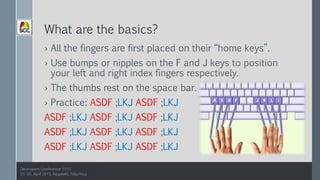
› All the fingers are first placed on their “home keys”.
› Use bumps or nipples on the F and J keys to position
your left and right index fingers respectively.
› The thumbs rest on the space bar.
› Practice: ASDF ;LKJ ASDF ;LKJ
ASDF ;LKJ ASDF ;LKJ ASDF ;LKJ
What’s next?
› You can practice other keys combination
› But with my method, practice can be done with your daily
typing.
› Yes, we are all very busy… and lazy!
How to start?
› Get the finger guide printed and stick it in front of your
working space just above the screen (or on the left or right
of your screen).
› Stop looking at the keyboard while you are typing.
› Instead, look at the finger guide.
› Remember to always refer to the finger guide in case of
errors.
› The secret is to STOP looking at the keyboard.
The finger guide overview
Demo, Practice and Interactions
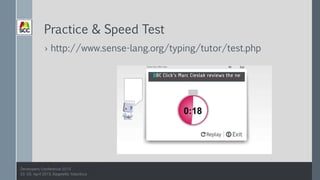
Practice & Speed Test
› http://www.sense-lang.org/typing/tutor/test.php
Thank you for your time
› You can reach me on social networks and E-Mail
plus.google.com/+KishanBhugul
mu.linkedin.com/in/kbhugul
twitter.com/kbhugul
Kishan.Bhugul@gmail.com

Touch-Typing, Start Today!

  • 1.
  • 2.
    What is touch-typing? ›Type using all one’s fingers and without looking at the keys.
  • 3.
    What is NOTtouch-typing? › Type without using all one’s fingers. – Even if you are typing words correctly. – Even if you are not looking at the keyboard.
  • 4.
    Why should youtouch-type? › If the computer is your daily tool then you should use it properly. › To increase your productivity and have more success. – Complete tasks and jobs more quickly – Have more free time to sit back and think up ideas – Or just try out alternatives (in terms of coding) › It looks more professional
  • 5.
    Benefits of touch-typing ›Accelerate your typing speed › Focus of your text and ideas › Get rid of typos › Improve your ergonomics › Save valuable work time › Be confident with computers
  • 6.
    What are thebasics? › All the fingers are first placed on their “home keys”. › Use bumps or nipples on the F and J keys to position your left and right index fingers respectively. › The thumbs rest on the space bar. › Practice: ASDF ;LKJ ASDF ;LKJ ASDF ;LKJ ASDF ;LKJ ASDF ;LKJ ASDF ;LKJ ASDF ;LKJ ASDF ;LKJ ASDF ;LKJ ASDF ;LKJ ASDF ;LKJ
  • 7.
    What’s next? › Youcan practice other keys combination › But with my method, practice can be done with your daily typing. › Yes, we are all very busy… and lazy!
  • 8.
    How to start? ›Get the finger guide printed and stick it in front of your working space just above the screen (or on the left or right of your screen). › Stop looking at the keyboard while you are typing. › Instead, look at the finger guide. › Remember to always refer to the finger guide in case of errors. › The secret is to STOP looking at the keyboard.
  • 9.
  • 10.
    Demo, Practice andInteractions
  • 11.
    Practice & SpeedTest › http://www.sense-lang.org/typing/tutor/test.php
  • 12.
    Thank you foryour time › You can reach me on social networks and E-Mail plus.google.com/+KishanBhugul mu.linkedin.com/in/kbhugul twitter.com/kbhugul Kishan.Bhugul@gmail.com