TOUCHSCREEN UX
DESIGN WORKSHOP
Kirsten Miller, UX Lead, Razorfish
AGENDA
I.
‣ Introductions and
overview
‣ Warm-up exercise
‣ Fingers, hands, and touch
targets
II.
‣ Activity zones
‣ App structures
‣ Smartphone exercise
III.
‣ Scrolling, taps, and
chrome
‣ Multitouch and gestures
‣ Final exercise
‣ Tools and further reading
‣ Wrap up
LOTS OF STUFF!
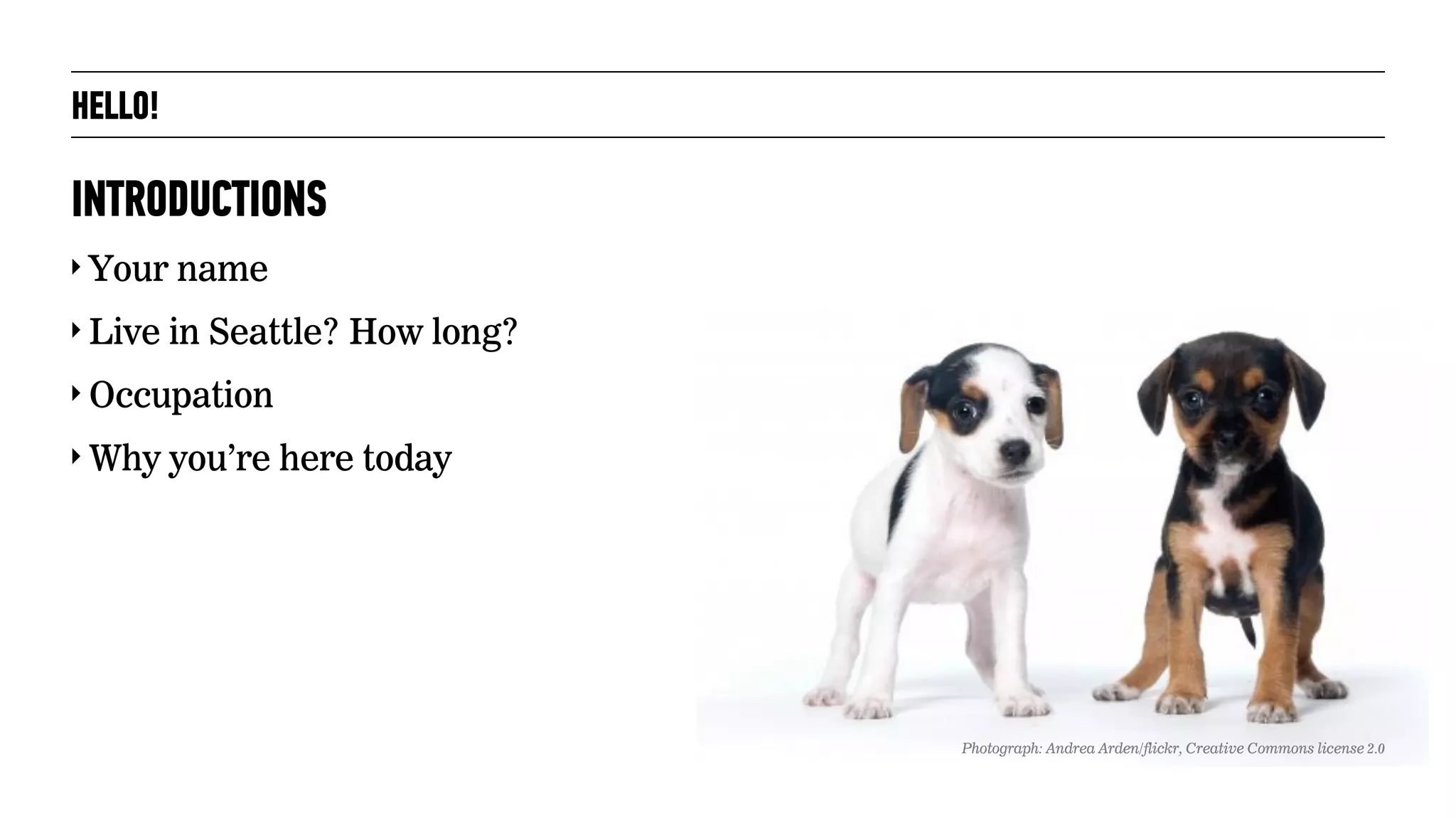
‣ Your name
‣ Live in Seattle? How long?
‣ Occupation
‣ Why you’re here today
INTRODUCTIONS
HELLO!
Photograph: Andrea Arden/flickr, Creative Commons license 2.0
TOUCHSCREEN UX DESIGN WORKSHOP
WE’LL COVER:
TOUCHSCREEN UX DESIGN WORKSHOP
‣ How designing user experiences for
touchscreens is different from designing
experiences for pointing device environments
WE’LL COVER:
TOUCHSCREEN UX DESIGN WORKSHOP
‣ How designing user experiences for
touchscreens is different from designing
experiences for pointing device environments
‣ How people interact with touchscreens
WE’LL COVER:
TOUCHSCREEN UX DESIGN WORKSHOP
‣ How designing user experiences for
touchscreens is different from designing
experiences for pointing device environments
‣ How people interact with touchscreens
‣ Guidelines for making touchscreen
experiences usable
WE’LL COVER:
TOUCHSCREEN UX DESIGN WORKSHOP
‣ How designing user experiences for
touchscreens is different from designing
experiences for pointing device environments
‣ How people interact with touchscreens
‣ Guidelines for making touchscreen
experiences usable
‣ Discussion of organizing concepts for
touchscreen/small screen experiences
WE’LL COVER:
TOUCHSCREEN UX DESIGN WORKSHOP
‣ How designing user experiences for
touchscreens is different from designing
experiences for pointing device environments
‣ How people interact with touchscreens
‣ Guidelines for making touchscreen
experiences usable
‣ Discussion of organizing concepts for
touchscreen/small screen experiences
‣ Guidelines on incorporating multi-touch and
gestures
WE’LL COVER:
TOUCHSCREEN UX DESIGN WORKSHOP
‣ How designing user experiences for
touchscreens is different from designing
experiences for pointing device environments
‣ How people interact with touchscreens
‣ Guidelines for making touchscreen
experiences usable
‣ Discussion of organizing concepts for
touchscreen/small screen experiences
‣ Guidelines on incorporating multi-touch and
gestures
WE’LL COVER: SORRY, WE WON’T COVER:
TOUCHSCREEN UX DESIGN WORKSHOP
‣ How designing user experiences for
touchscreens is different from designing
experiences for pointing device environments
‣ How people interact with touchscreens
‣ Guidelines for making touchscreen
experiences usable
‣ Discussion of organizing concepts for
touchscreen/small screen experiences
‣ Guidelines on incorporating multi-touch and
gestures
WE’LL COVER:
‣ Platform, OS differences
SORRY, WE WON’T COVER:
TOUCHSCREEN UX DESIGN WORKSHOP
‣ How designing user experiences for
touchscreens is different from designing
experiences for pointing device environments
‣ How people interact with touchscreens
‣ Guidelines for making touchscreen
experiences usable
‣ Discussion of organizing concepts for
touchscreen/small screen experiences
‣ Guidelines on incorporating multi-touch and
gestures
WE’LL COVER:
‣ Platform, OS differences
‣ In-depth discussion of screen resolution or
responsive design considerations
SORRY, WE WON’T COVER:
TOUCHSCREEN UX DESIGN WORKSHOP
‣ How designing user experiences for
touchscreens is different from designing
experiences for pointing device environments
‣ How people interact with touchscreens
‣ Guidelines for making touchscreen
experiences usable
‣ Discussion of organizing concepts for
touchscreen/small screen experiences
‣ Guidelines on incorporating multi-touch and
gestures
WE’LL COVER:
‣ Platform, OS differences
‣ In-depth discussion of screen resolution or
responsive design considerations
‣ Coding/development
SORRY, WE WON’T COVER:
WARM-UP EXERCISE!
TOUCHSCREEN UX DESIGN WORKSHOP
Photograph: William Warby/flickr, Creative Commons license 2.0
TOUCHSCREEN UX DESIGN WORKSHOP
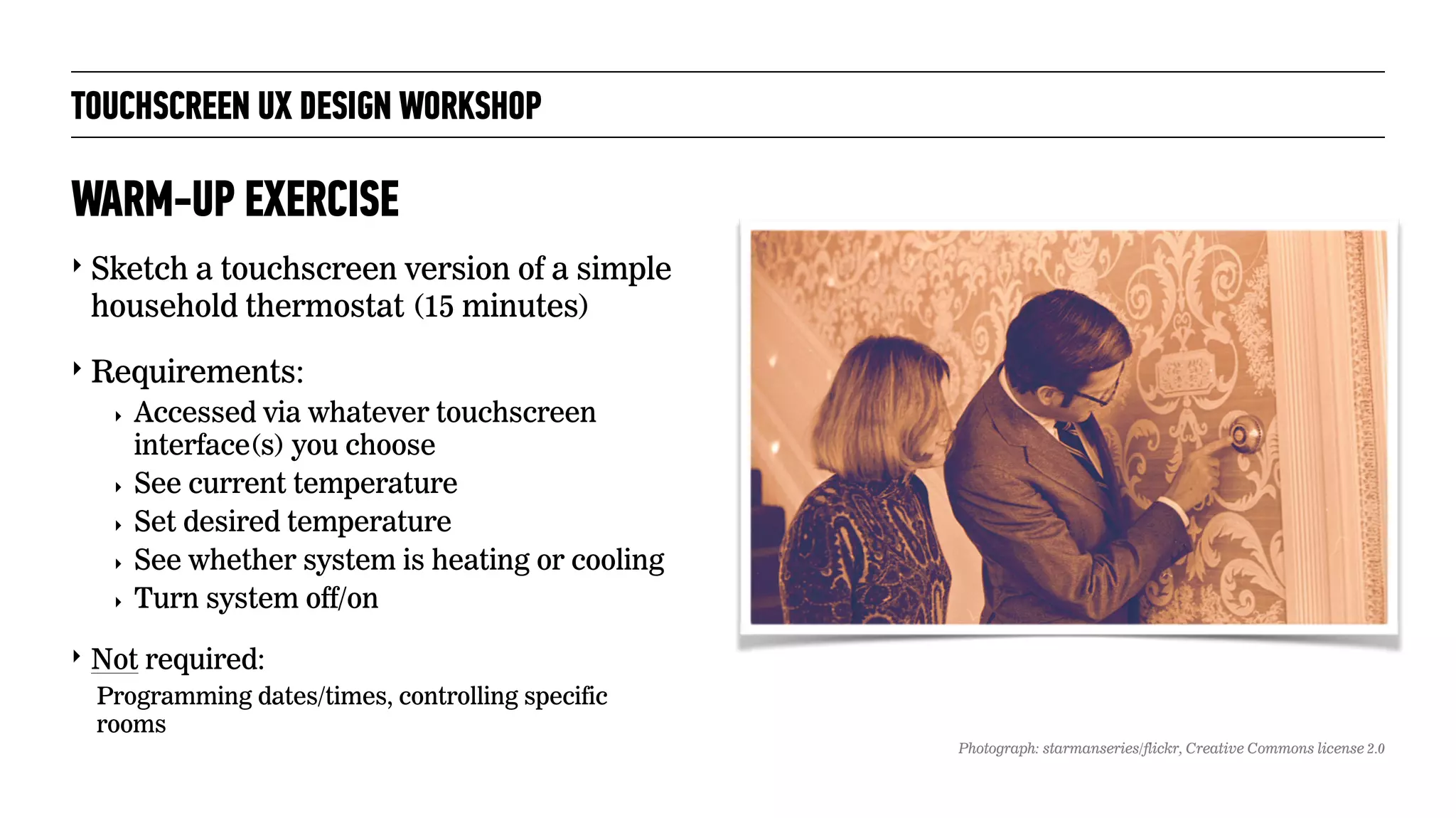
‣ Sketch a touchscreen version of a simple
household thermostat (15 minutes)
‣ Requirements:
‣ Accessed via whatever touchscreen
interface(s) you choose
‣ See current temperature
‣ Set desired temperature
‣ See whether system is heating or cooling
‣ Turn system off/on
‣ Not required:
Programming dates/times, controlling specific
rooms
WARM-UP EXERCISE
Photograph: starmanseries/flickr, Creative Commons license 2.0
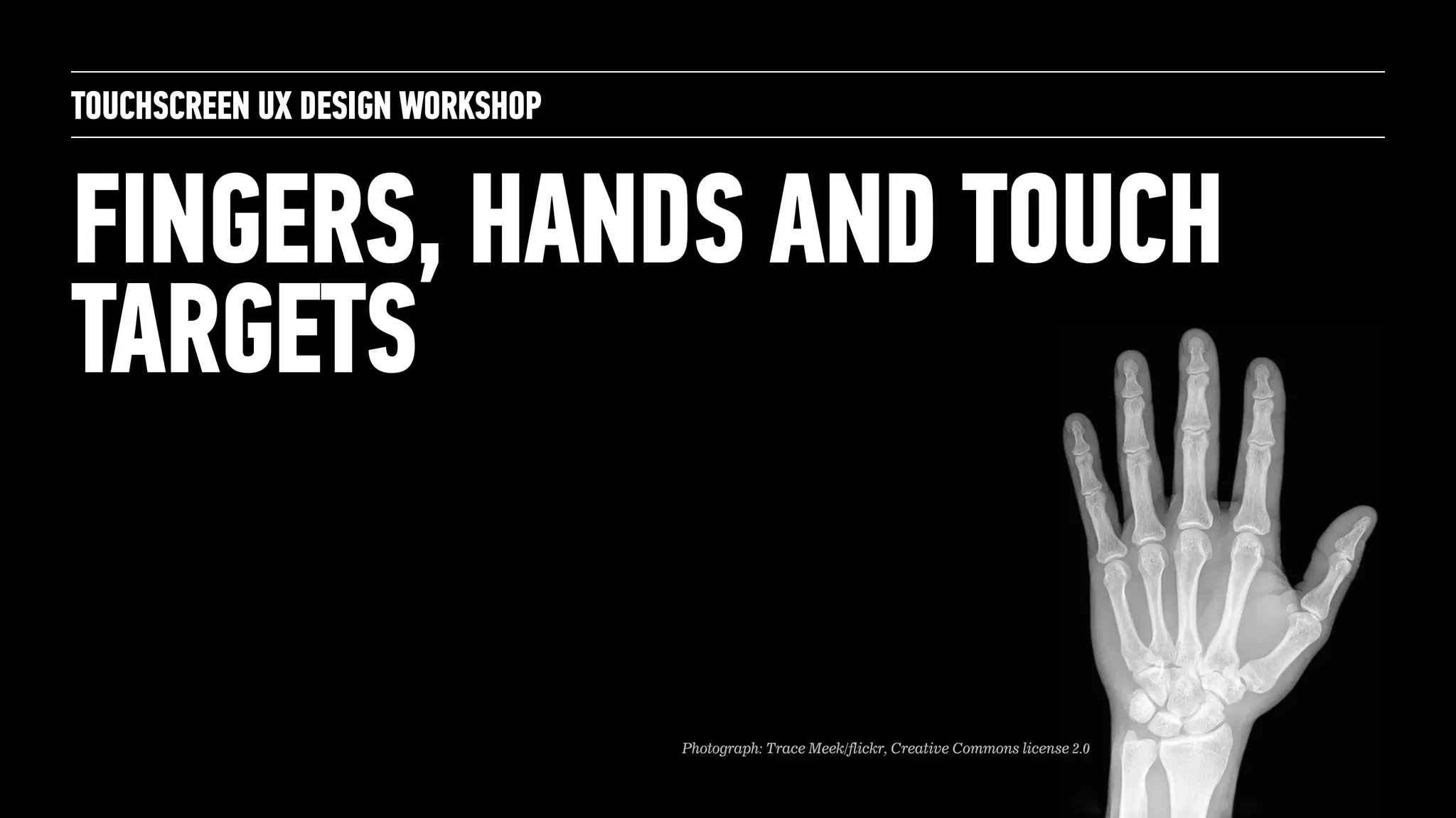
FINGERS, HANDS AND TOUCH
TARGETS
TOUCHSCREEN UX DESIGN WORKSHOP
Photograph: Trace Meek/flickr, Creative Commons license 2.0
TOUCHSCREEN UX DESIGN WORKSHOP
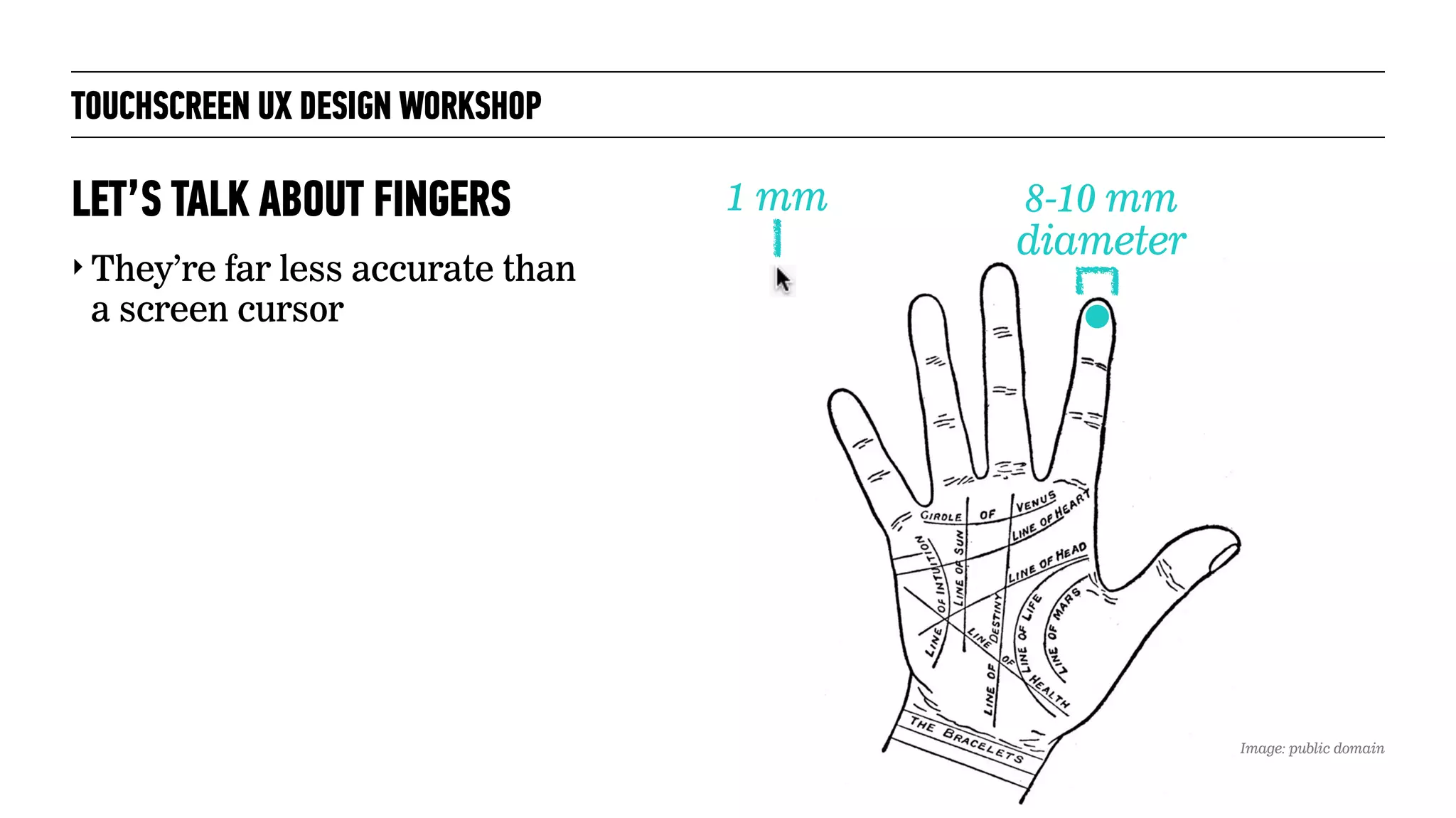
‣ They’re far less accurate than
a screen cursor
LET’S TALK ABOUT FINGERS 1 mm 8-10 mm
diameter
Image: public domain
TOUCHSCREEN UX DESIGN WORKSHOP
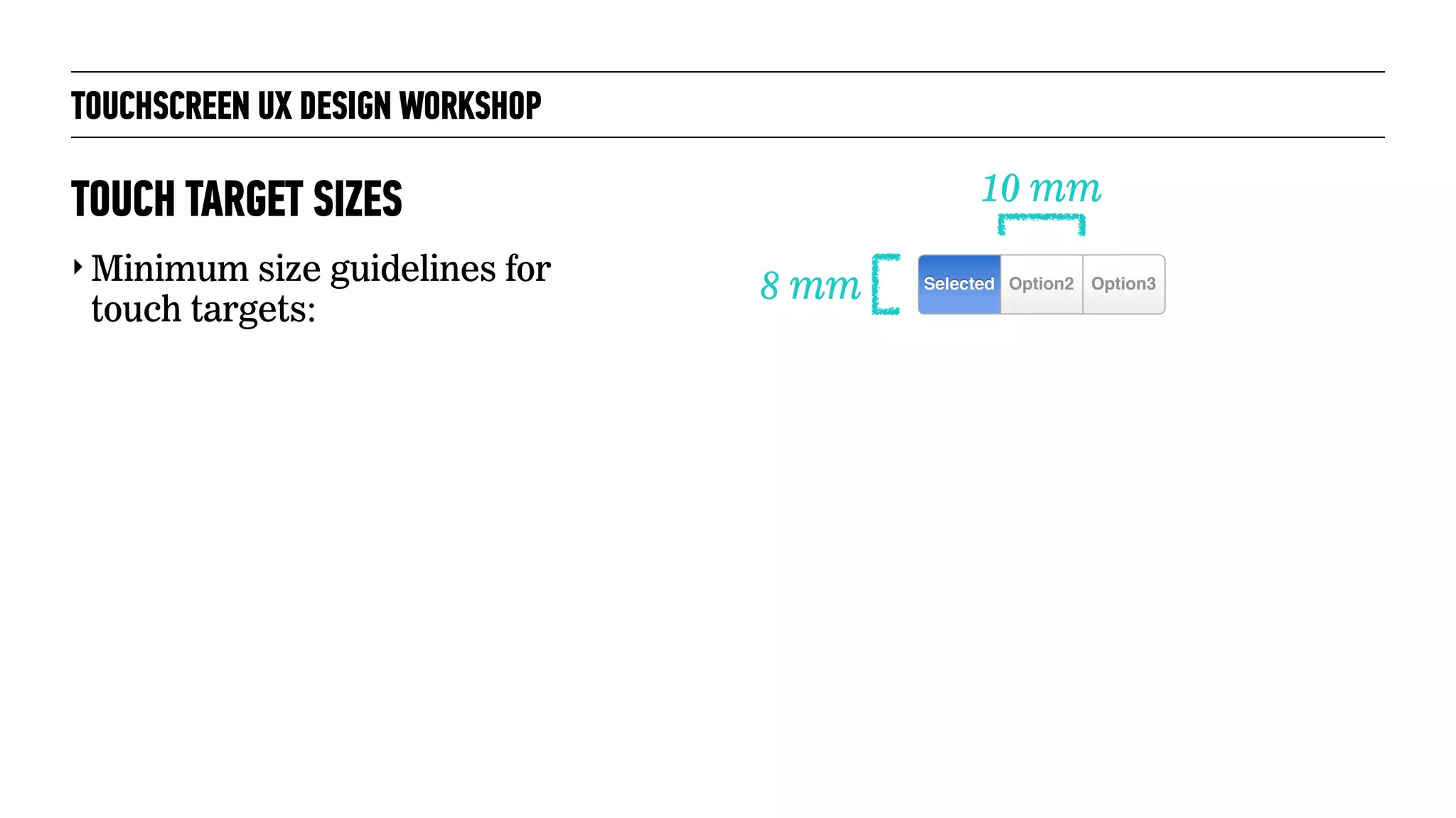
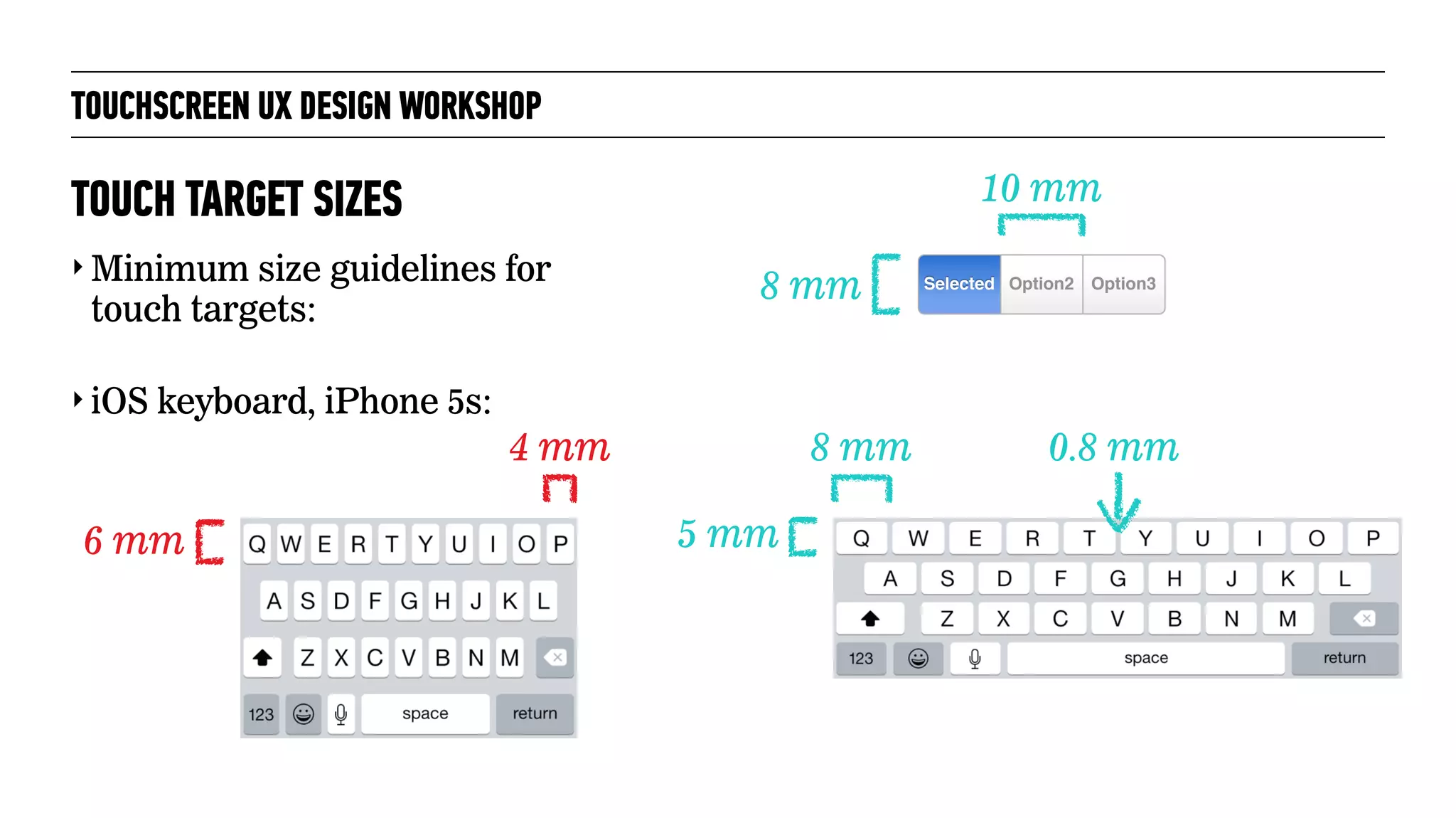
‣ Minimum size guidelines for
touch targets:
TOUCH TARGET SIZES
8 mm
10 mm
Option3Selected Option2
TOUCHSCREEN UX DESIGN WORKSHOP
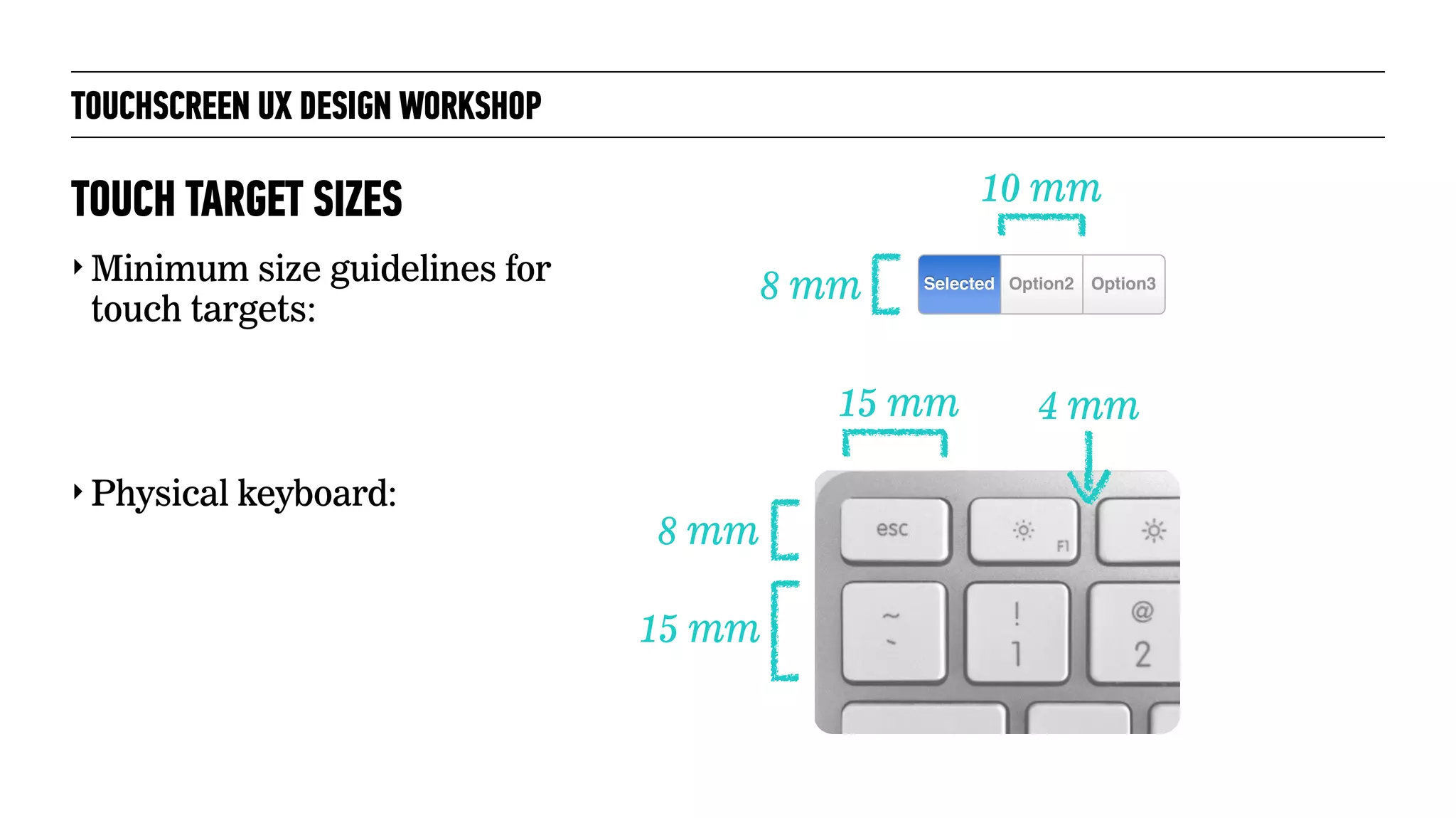
‣ Minimum size guidelines for
touch targets:
‣ Physical keyboard:
TOUCH TARGET SIZES
8 mm
10 mm
Option3Selected Option2
8 mm
15 mm 4 mm
15 mm
TOUCHSCREEN UX DESIGN WORKSHOP
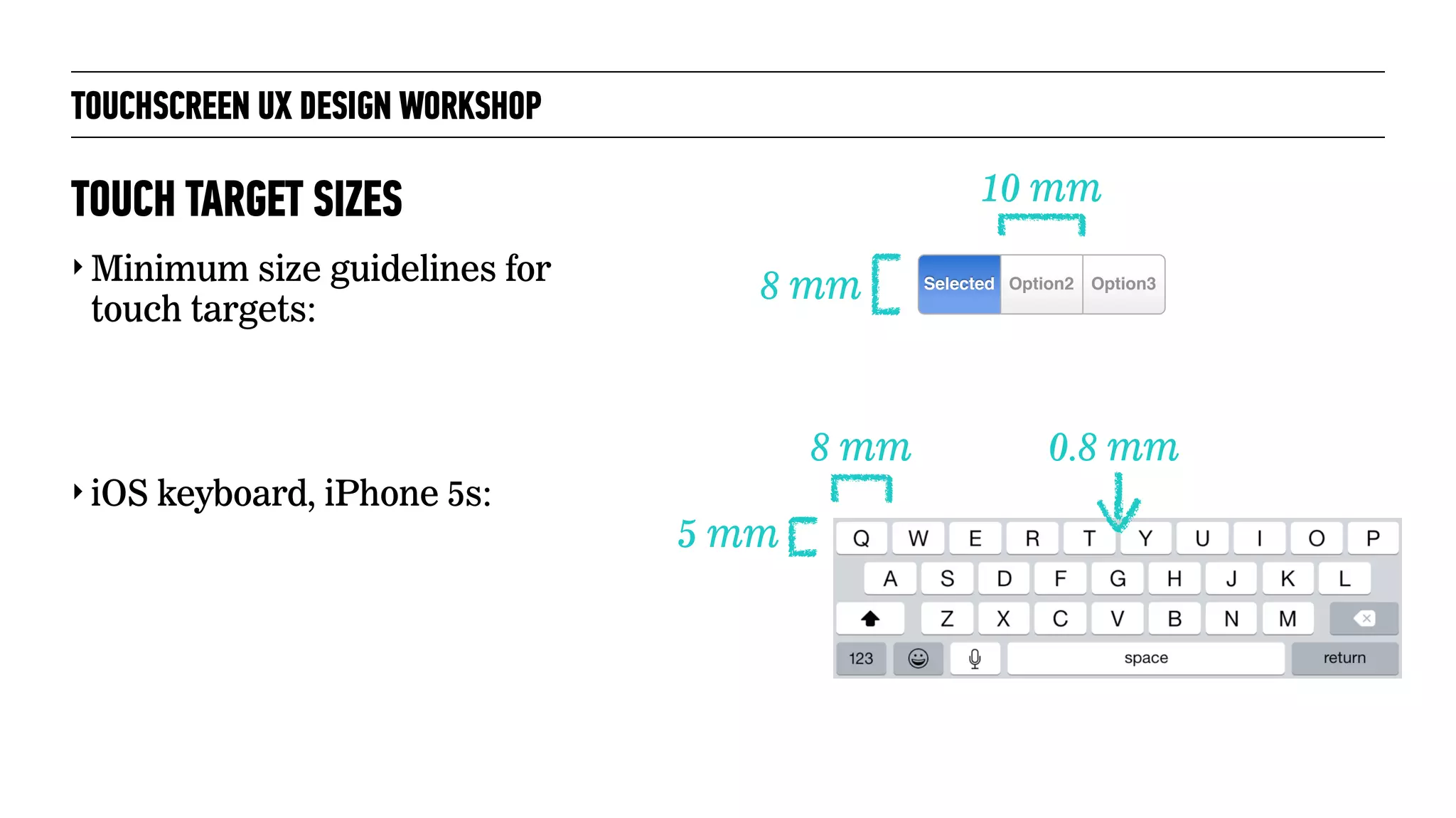
‣ Minimum size guidelines for
touch targets:
‣ iOS keyboard, iPhone 5s:
TOUCH TARGET SIZES
8 mm
10 mm
Option3Selected Option2
5 mm
8 mm 0.8 mm
TOUCHSCREEN UX DESIGN WORKSHOP
‣ Minimum size guidelines for
touch targets:
‣ iOS keyboard, iPhone 5s:
TOUCH TARGET SIZES
8 mm
10 mm
Option3Selected Option2
5 mm
8 mm 0.8 mm4 mm
6 mm
TOUCHSCREEN UX DESIGN WORKSHOP
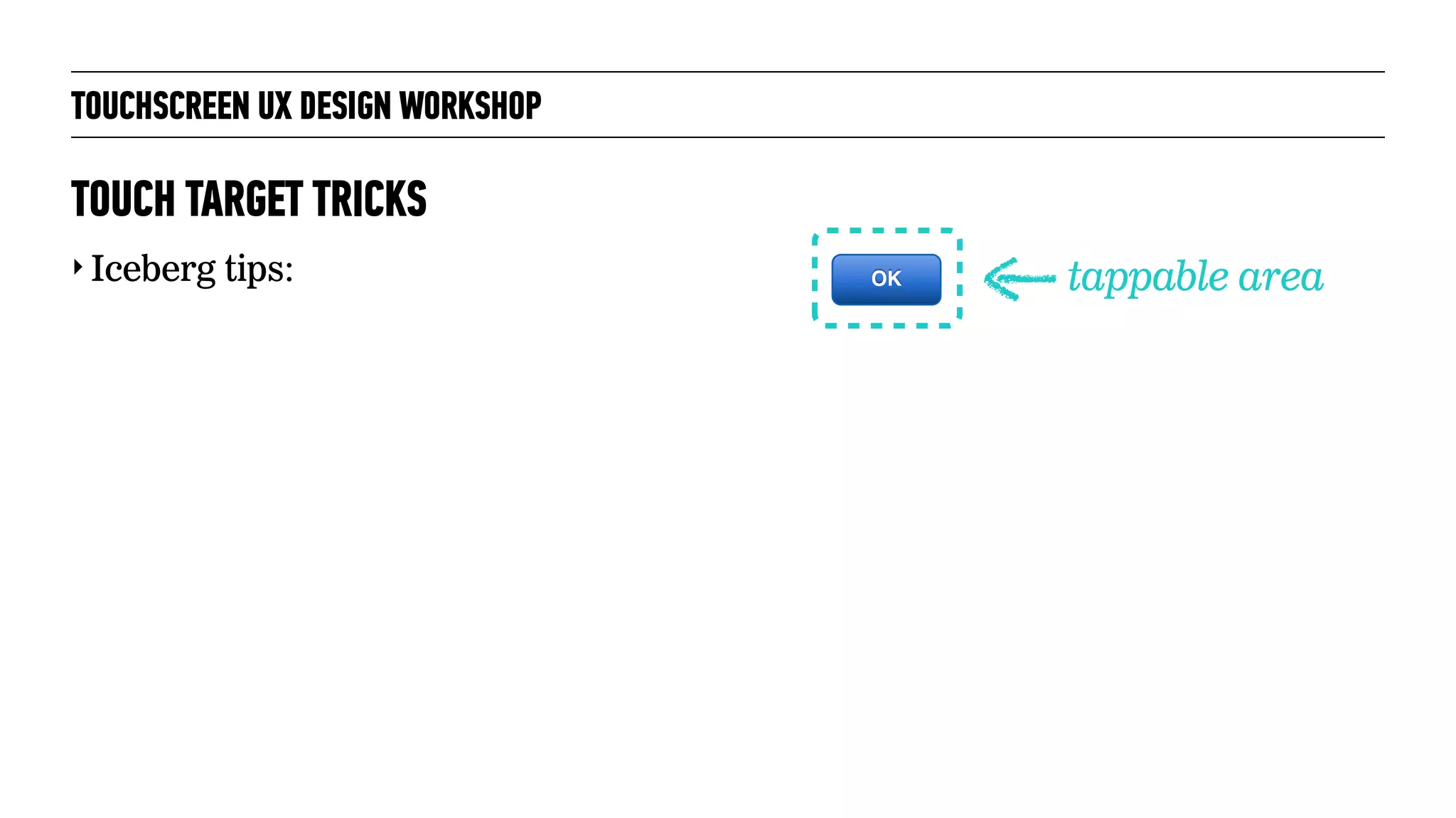
‣ Iceberg tips:
TOUCH TARGET TRICKS
OK tappable area
TOUCHSCREEN UX DESIGN WORKSHOP
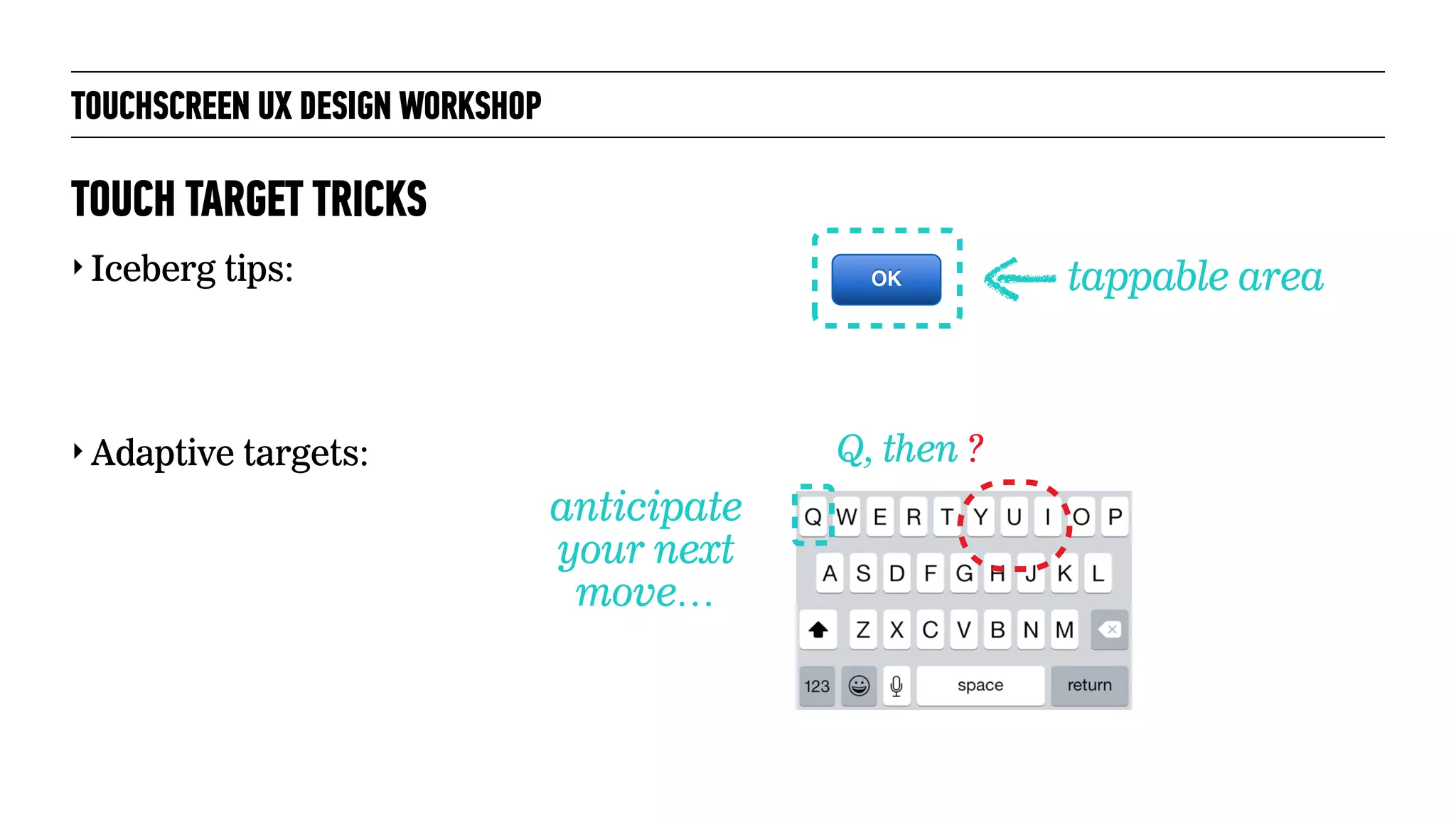
‣ Iceberg tips:
‣ Adaptive targets:
TOUCH TARGET TRICKS
tappable area
Q, then ?
anticipate
your next
move…
OK
TOUCHSCREEN UX DESIGN WORKSHOP
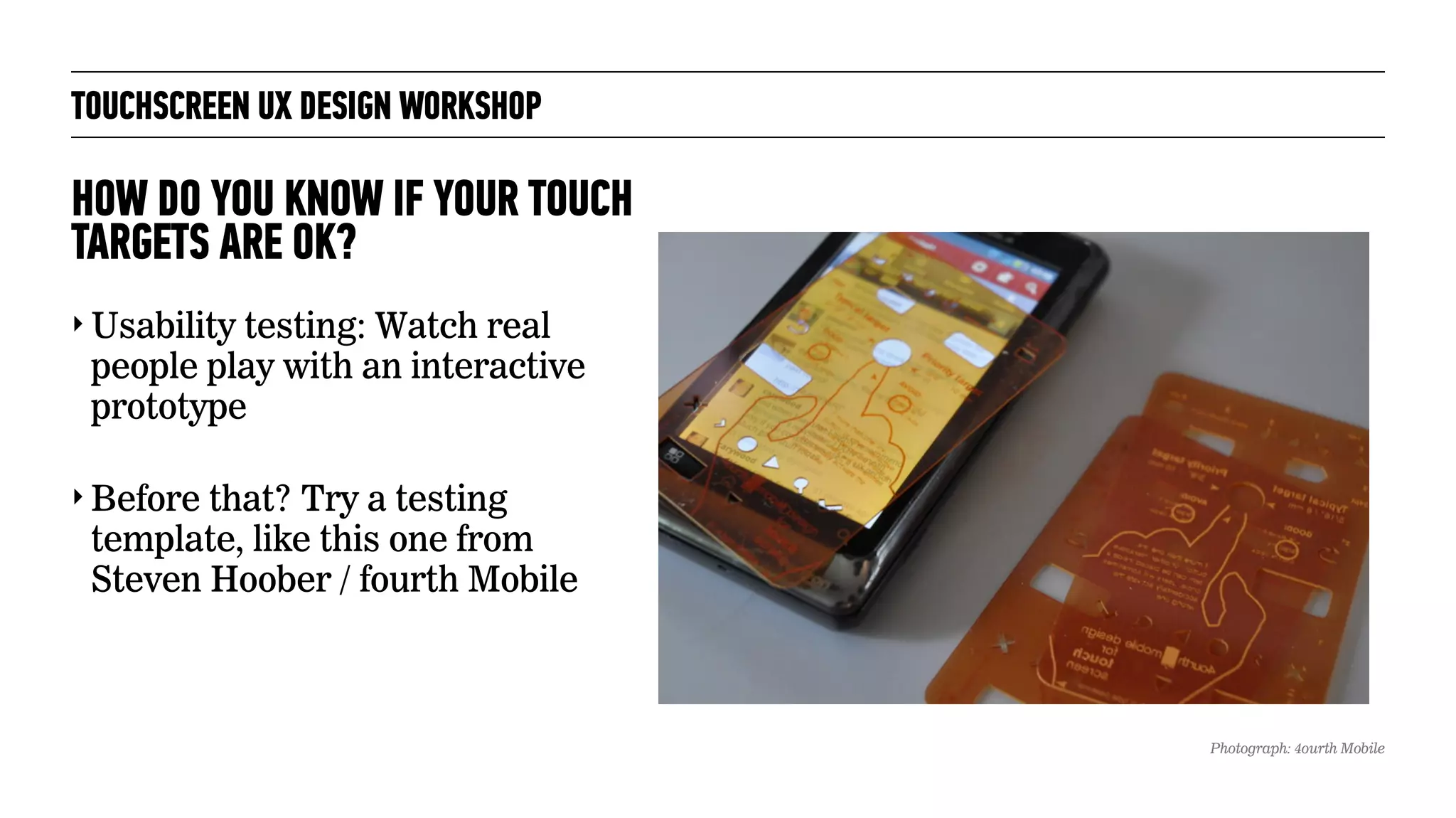
‣ Usability testing: Watch real
people play with an interactive
prototype
‣ Before that? Try a testing
template, like this one from
Steven Hoober / fourth Mobile
HOW DO YOU KNOW IF YOUR TOUCH
TARGETS ARE OK?
Photograph: 4ourth Mobile
TOUCHSCREEN UX DESIGN WORKSHOP
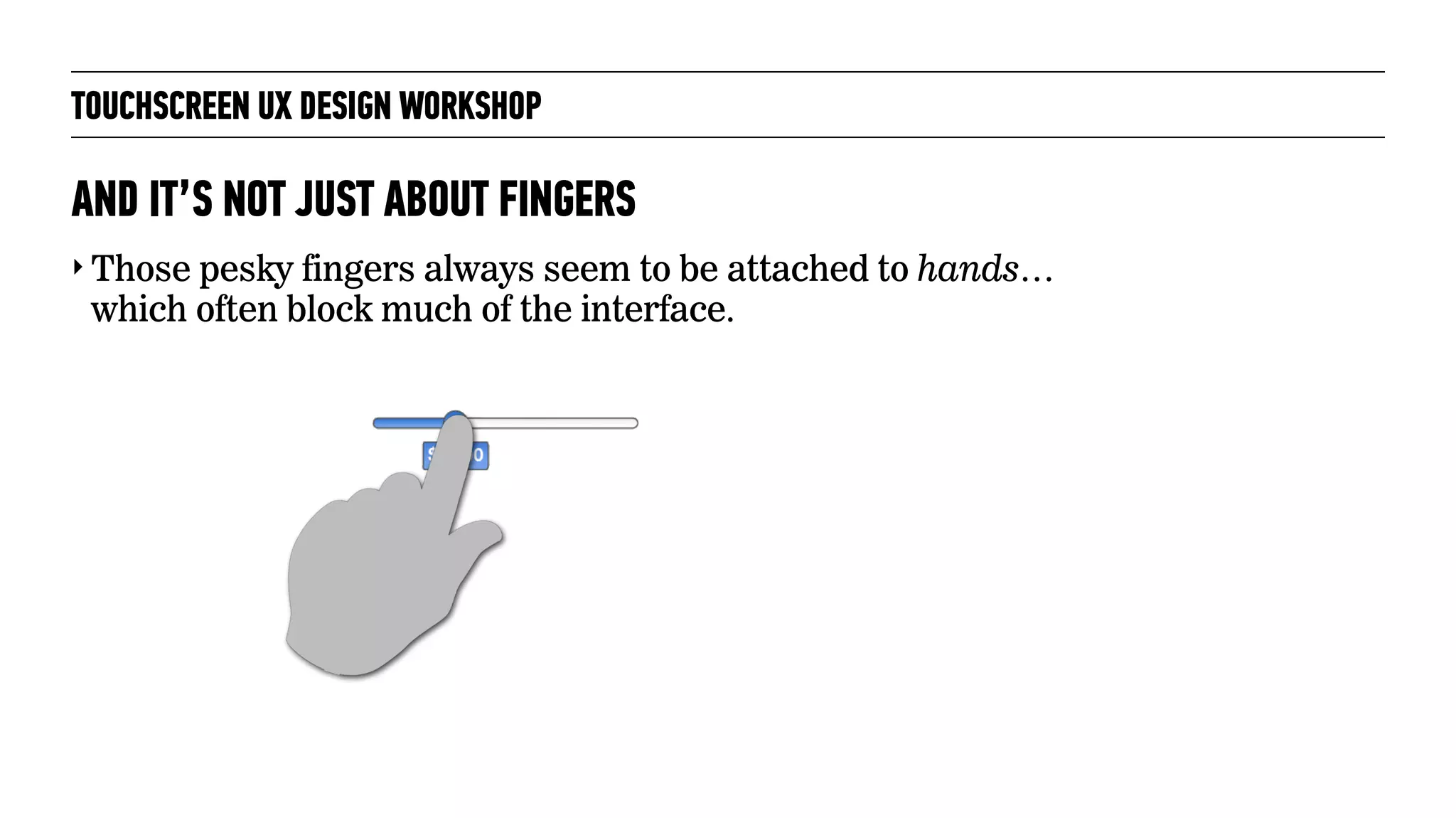
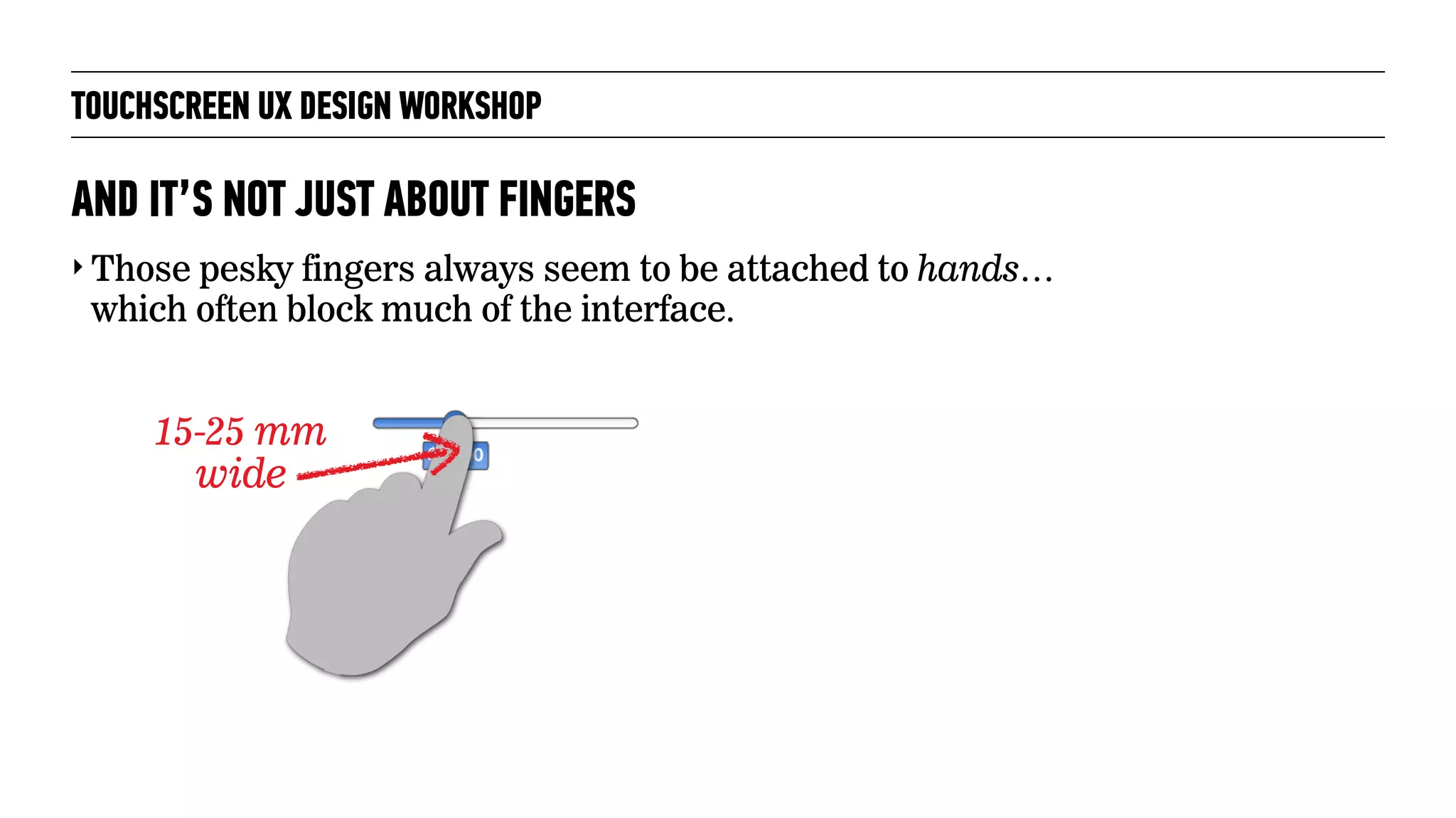
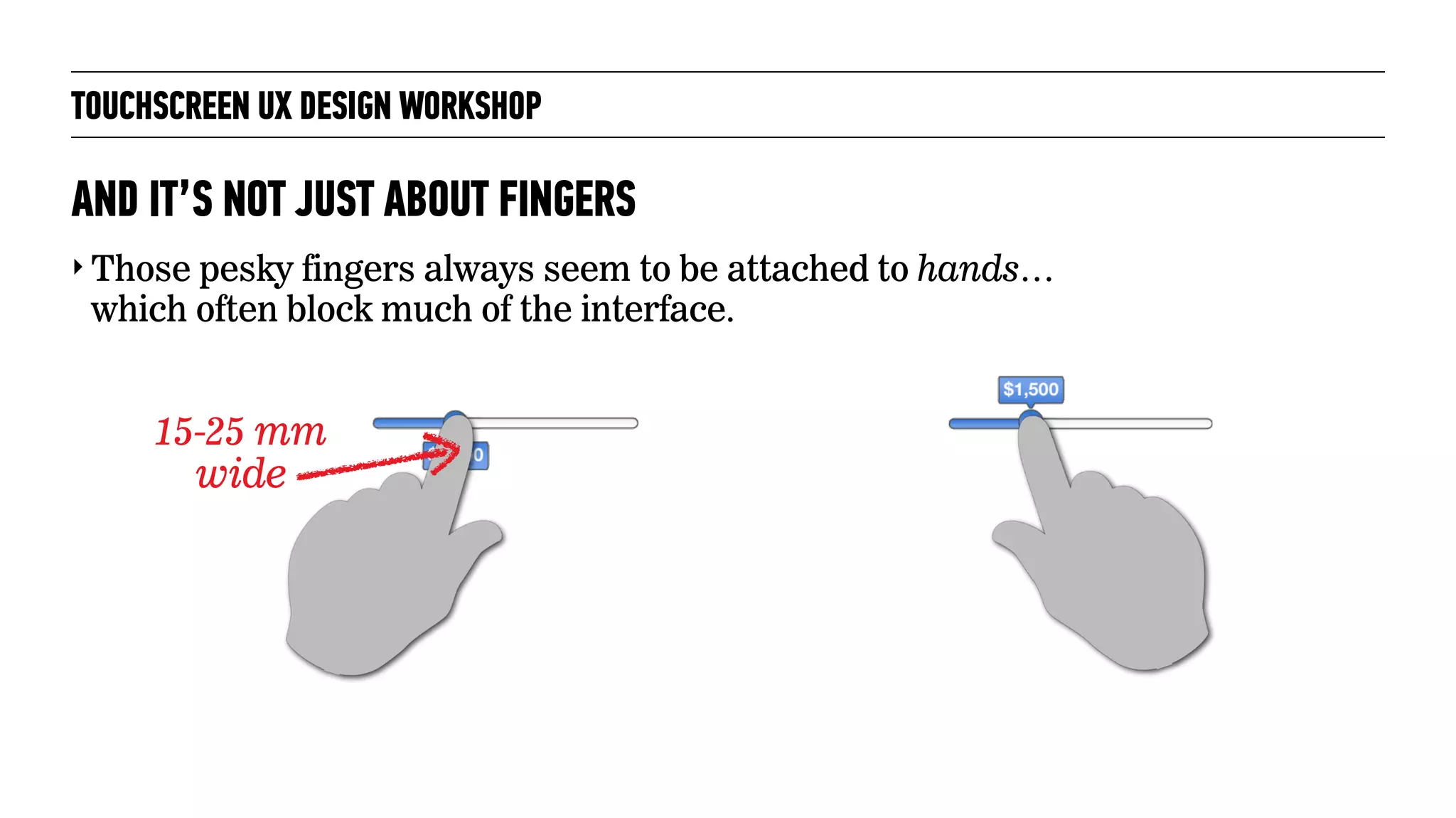
‣ Those pesky fingers always seem to be attached to hands…
which often block much of the interface.
AND IT’S NOT JUST ABOUT FINGERS
TOUCHSCREEN UX DESIGN WORKSHOP
‣ Those pesky fingers always seem to be attached to hands…
which often block much of the interface.
AND IT’S NOT JUST ABOUT FINGERS
TOUCHSCREEN UX DESIGN WORKSHOP
‣ Those pesky fingers always seem to be attached to hands…
which often block much of the interface.
AND IT’S NOT JUST ABOUT FINGERS
15-25 mm
wide
TOUCHSCREEN UX DESIGN WORKSHOP
‣ Those pesky fingers always seem to be attached to hands…
which often block much of the interface.
AND IT’S NOT JUST ABOUT FINGERS
15-25 mm
wide
TOUCHSCREEN UX DESIGN WORKSHOP
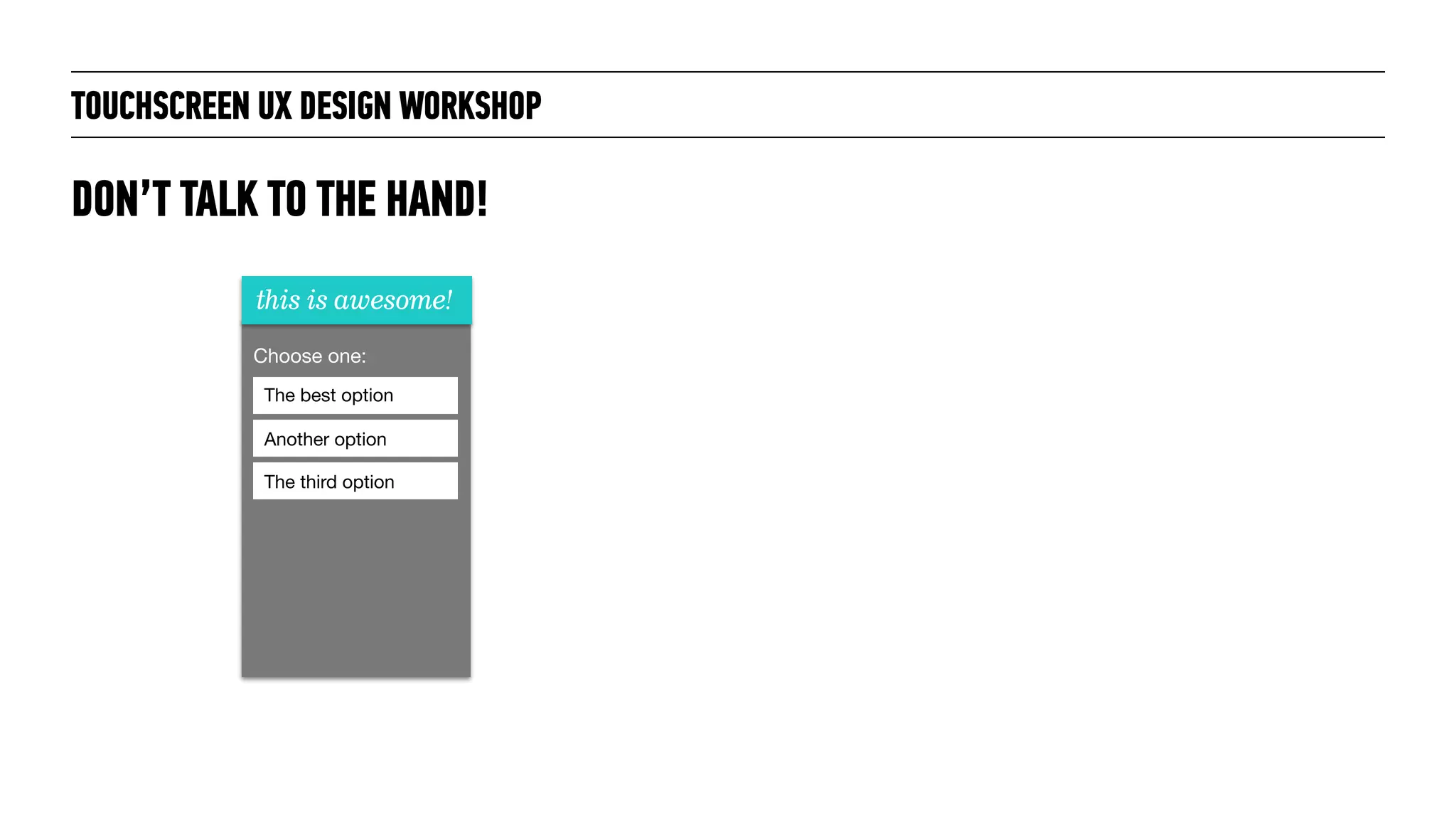
DON’T TALK TO THE HAND!
this is awesome!
Choose one:
The best option
Another option
The third option
TOUCHSCREEN UX DESIGN WORKSHOP
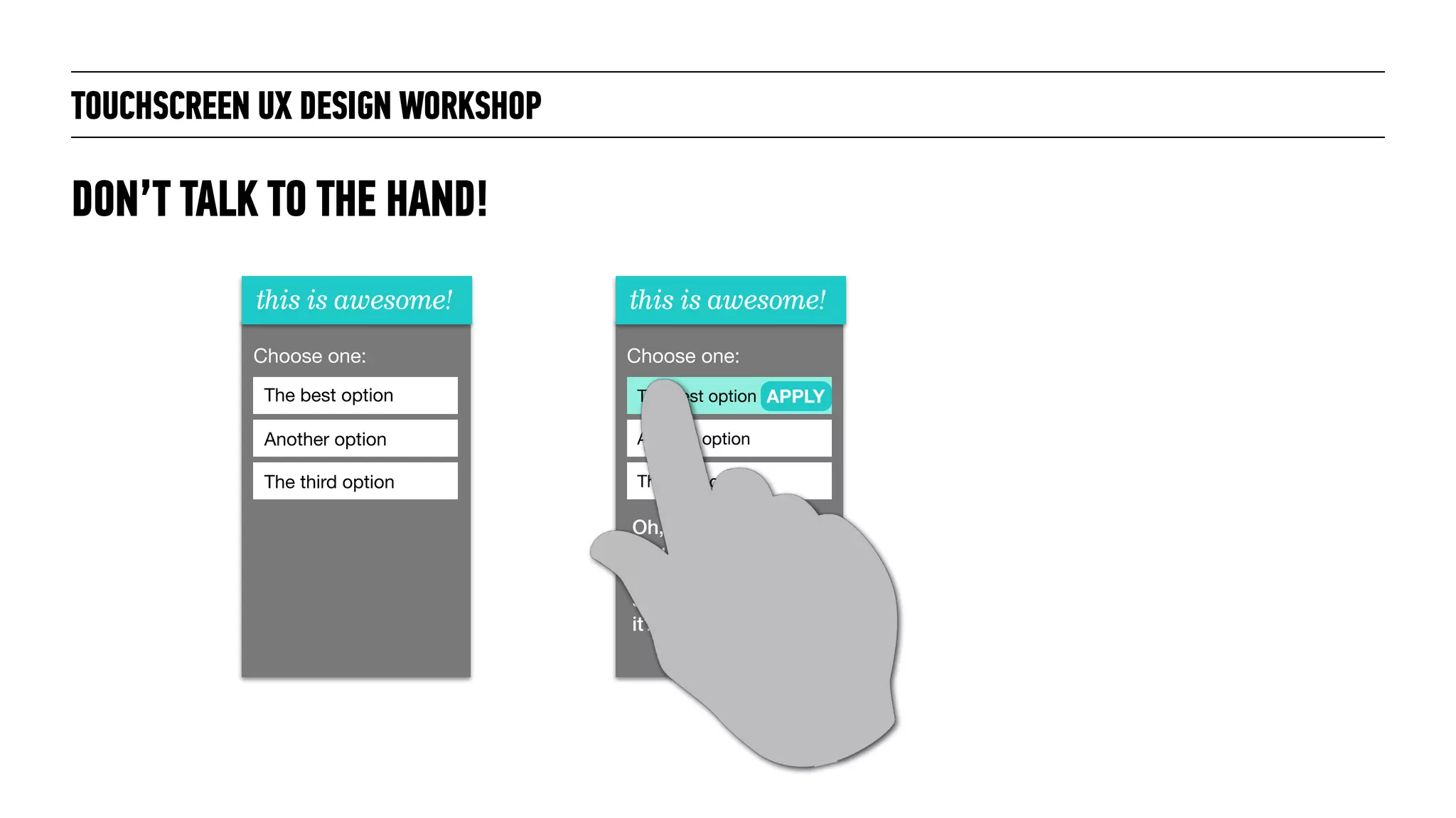
DON’T TALK TO THE HAND!
this is awesome!
Choose one:
The best option
Another option
The third option
this is awesome!
Choose one:
The best option
Another option
The third option
APPLY
Oh, hey! The action
you selected can’t
be undone. Are you
sure you want to do
it?
TOUCHSCREEN UX DESIGN WORKSHOP
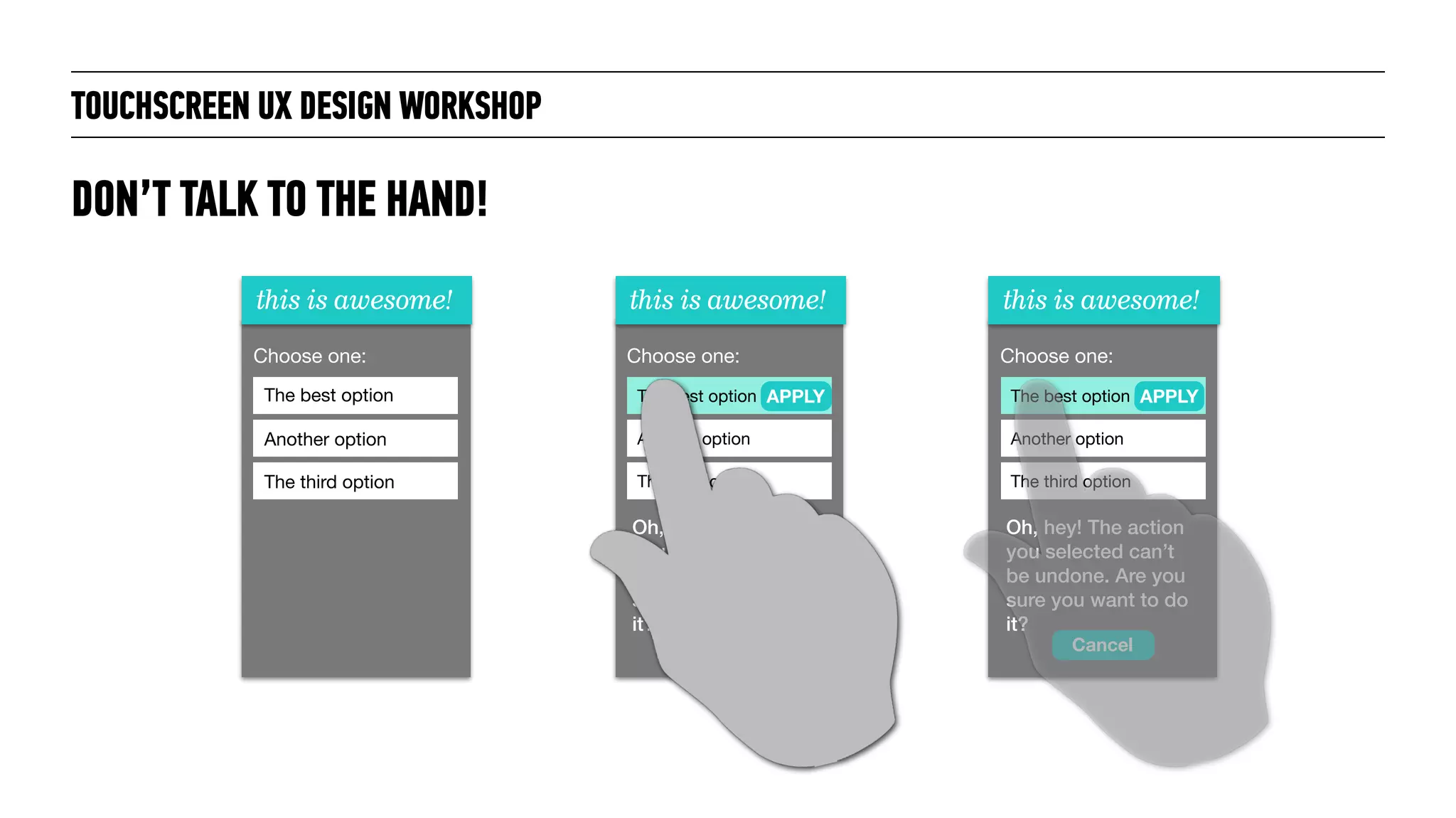
DON’T TALK TO THE HAND!
this is awesome!
Choose one:
The best option
Another option
The third option
this is awesome!
Choose one:
The best option
Another option
The third option
APPLY
Oh, hey! The action
you selected can’t
be undone. Are you
sure you want to do
it?
this is awesome!
Choose one:
The best option
Another option
The third option
Oh, hey! The action
you selected can’t
be undone. Are you
sure you want to do
it?
APPLY
Cancel
TOUCHSCREEN UX DESIGN WORKSHOP
Photograph: Faith Goble/flickr, Creative Commons license 2.0
BREAK!
ACTIVITY ZONES
TOUCHSCREEN UX DESIGN WORKSHOP
Photograph: Faith Goble/flickr, Creative Commons license 2.0
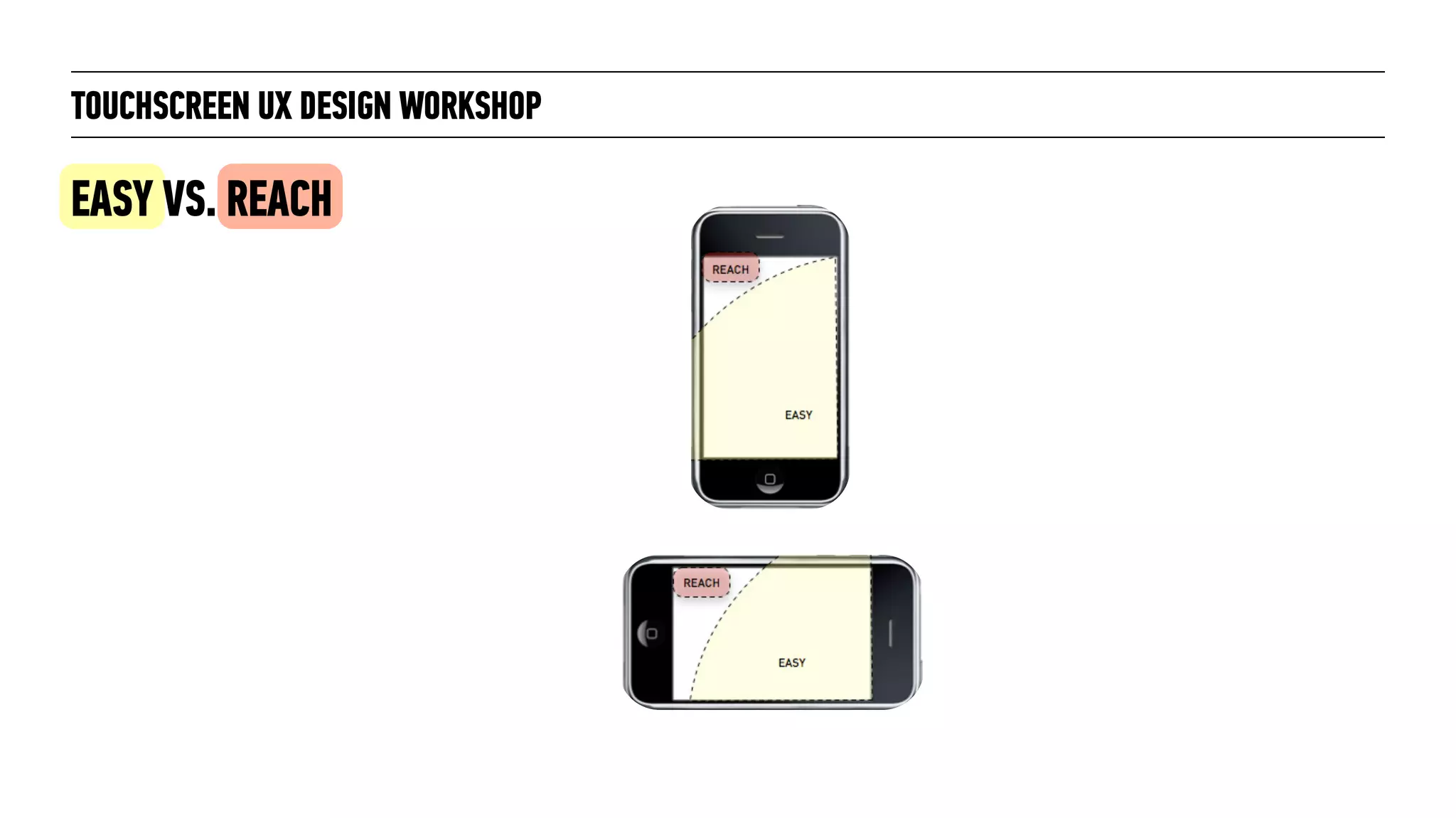
“Some of the best [touchscreen apps] have
placed controls in ways that best match
the ergonomics of our hands while holding
[the devices]…
Put the high-use controls in the Easy
zones, and controls that are less used (and
certainly those you don’t want accidentally
pressed) in the Reach zones.
Dan Saffer

Author of Designing for Interaction and
Microinteractions
TOUCHSCREEN UX DESIGN WORKSHOP
EASY VS. REACH
“
“Some of the best [touchscreen apps] have
placed controls in ways that best match
the ergonomics of our hands while holding
[the devices]…
Put the high-use controls in the Easy
zones, and controls that are less used (and
certainly those you don’t want accidentally
pressed) in the Reach zones.
Dan Saffer

Author of Designing for Interaction and
Microinteractions
TOUCHSCREEN UX DESIGN WORKSHOP
EASY VS. REACH
“
“Some of the best [touchscreen apps] have
placed controls in ways that best match
the ergonomics of our hands while holding
[the devices]…
Put the high-use controls in the Easy
zones, and controls that are less used (and
certainly those you don’t want accidentally
pressed) in the Reach zones.
Dan Saffer

Author of Designing for Interaction and
Microinteractions
TOUCHSCREEN UX DESIGN WORKSHOP
EASY VS. REACH
“
TOUCHSCREEN UX DESIGN WORKSHOP
EASY VS. REACH
TOUCHSCREEN UX DESIGN WORKSHOP
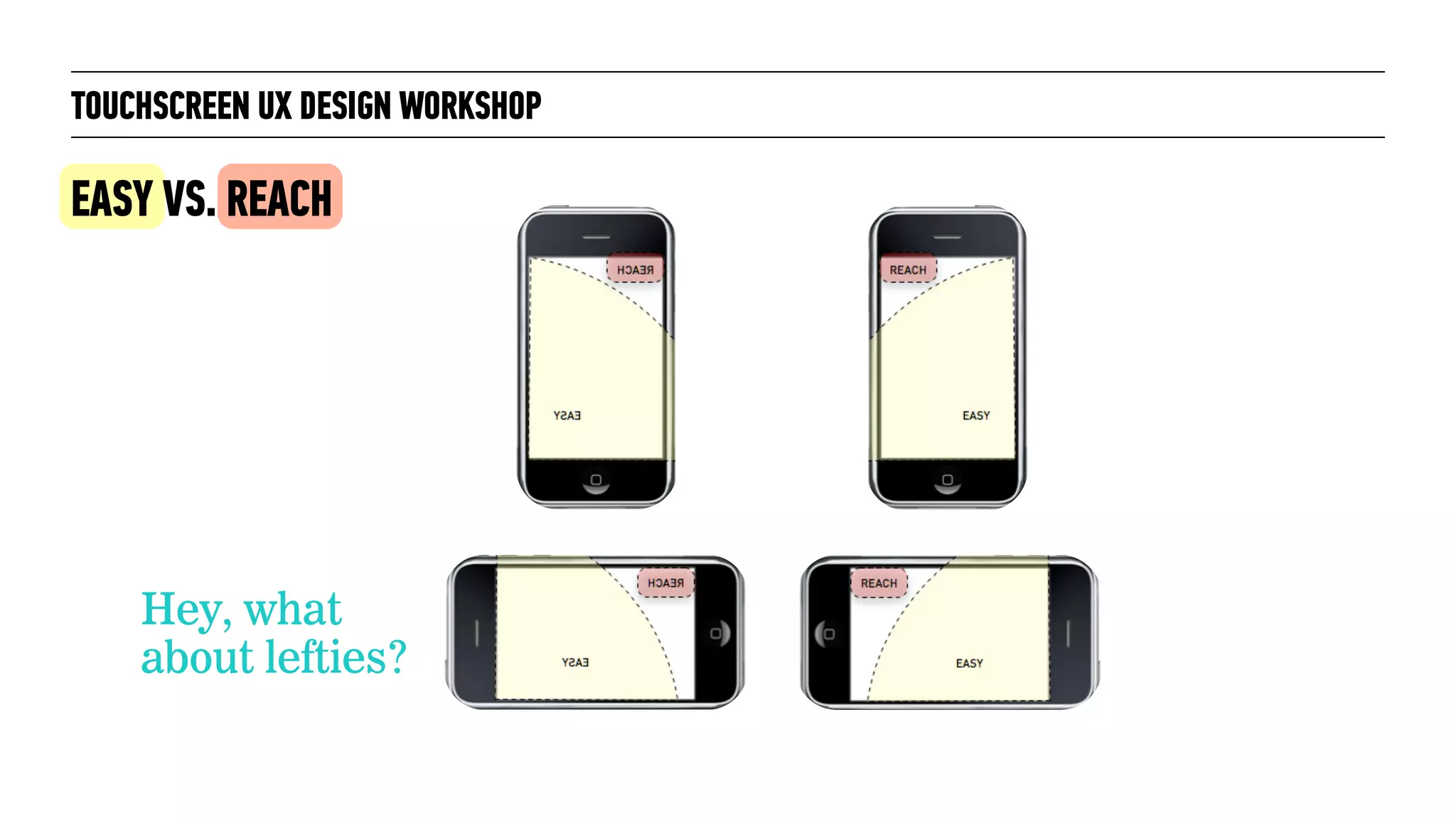
Hey, what
about lefties?
EASY VS. REACH
TOUCHSCREEN UX DESIGN WORKSHOP
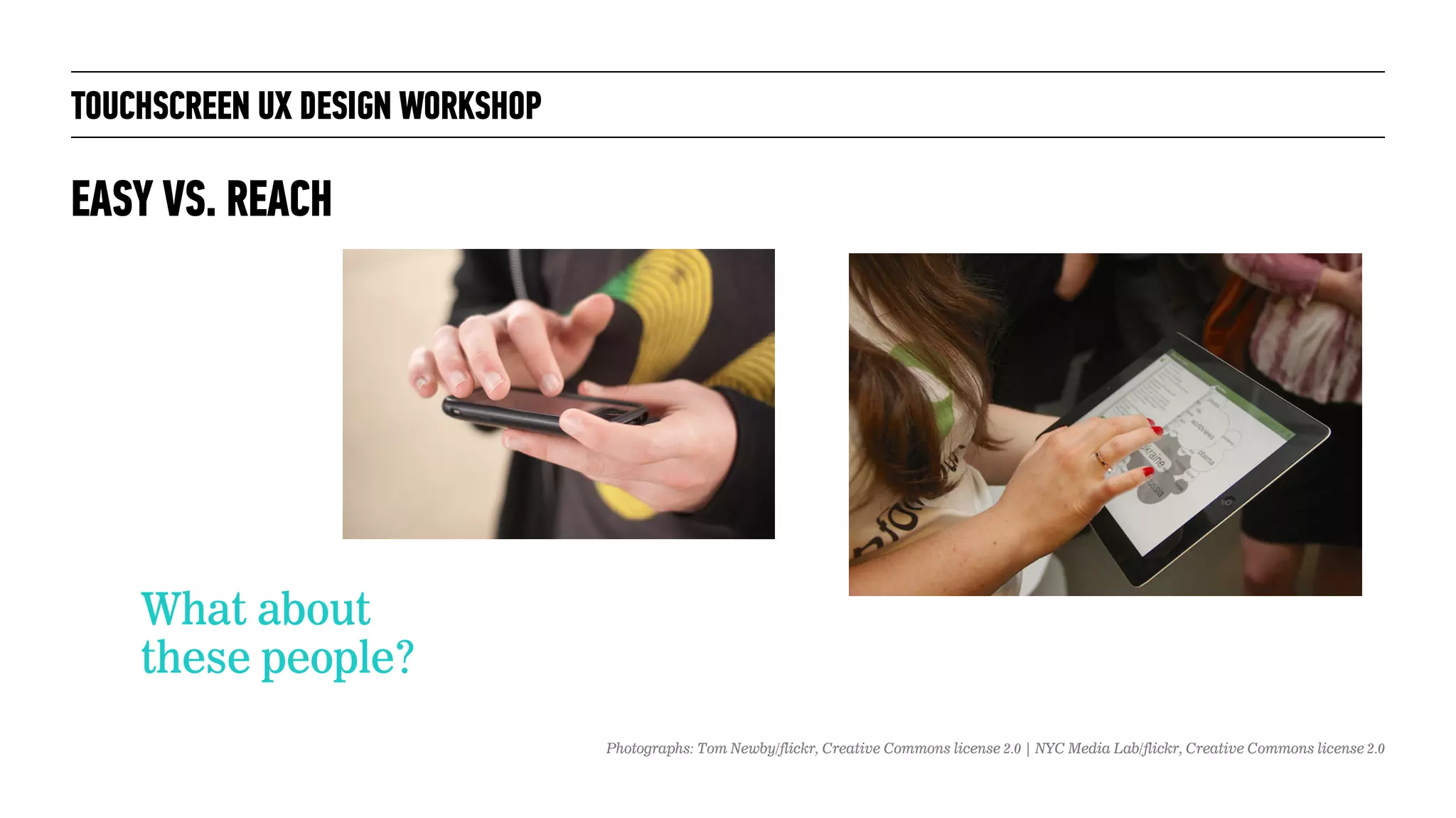
What about
these people?
EASY VS. REACH
Photographs: Tom Newby/flickr, Creative Commons license 2.0 | NYC Media Lab/flickr, Creative Commons license 2.0
TOUCHSCREEN UX DESIGN WORKSHOP
A BRIEF SURVEY, PART 1
Photographs: N i c o l a /flickr, Creative Commons license 2.0 | r. nial bradshaw/flickr, Creative Commons license 2.0 | Tony Hughes, public domain
TOUCHSCREEN UX DESIGN WORKSHOP
A BRIEF SURVEY, PART 1
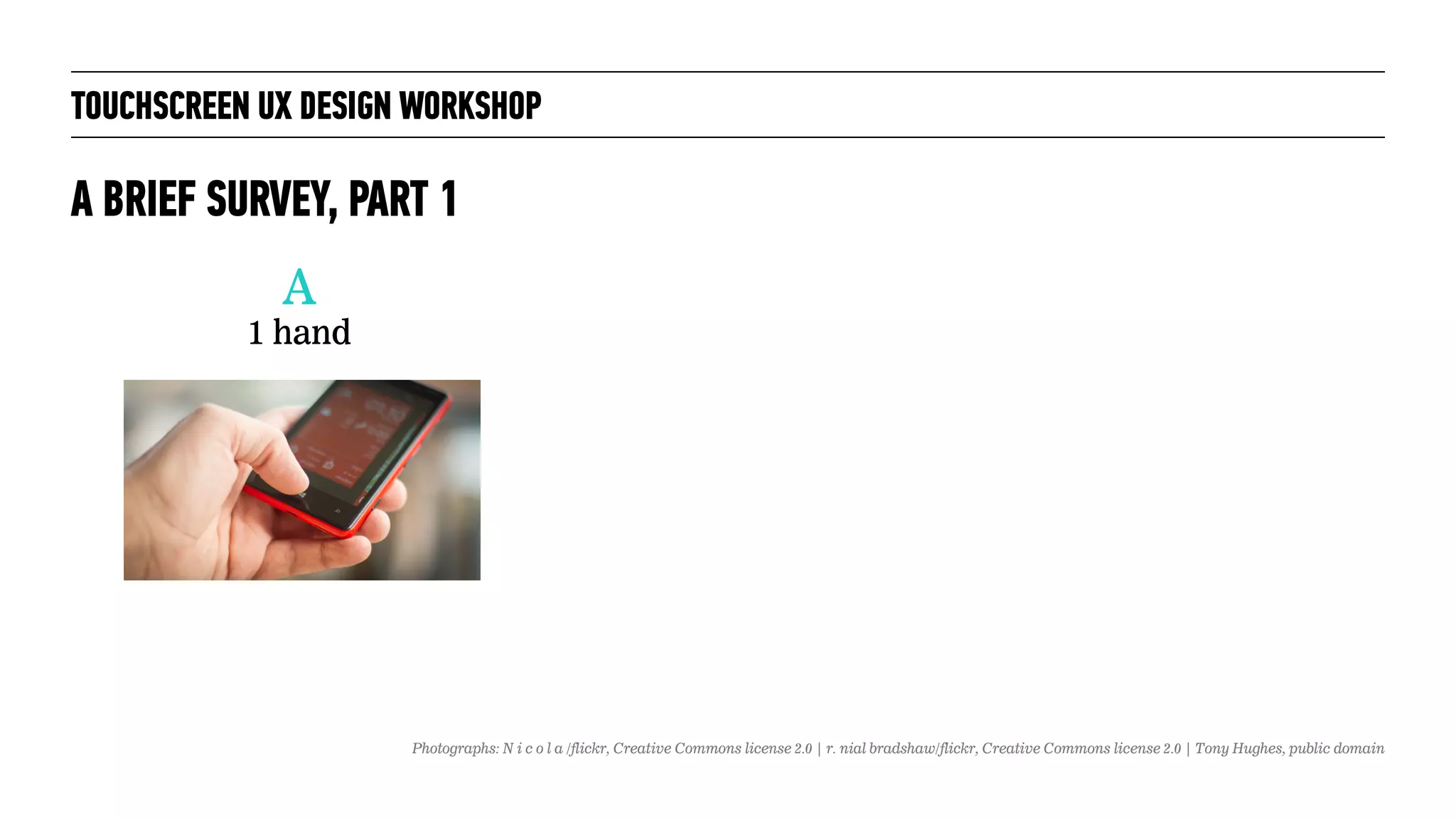
A
1 hand
Photographs: N i c o l a /flickr, Creative Commons license 2.0 | r. nial bradshaw/flickr, Creative Commons license 2.0 | Tony Hughes, public domain
TOUCHSCREEN UX DESIGN WORKSHOP
A BRIEF SURVEY, PART 1
A
1 hand
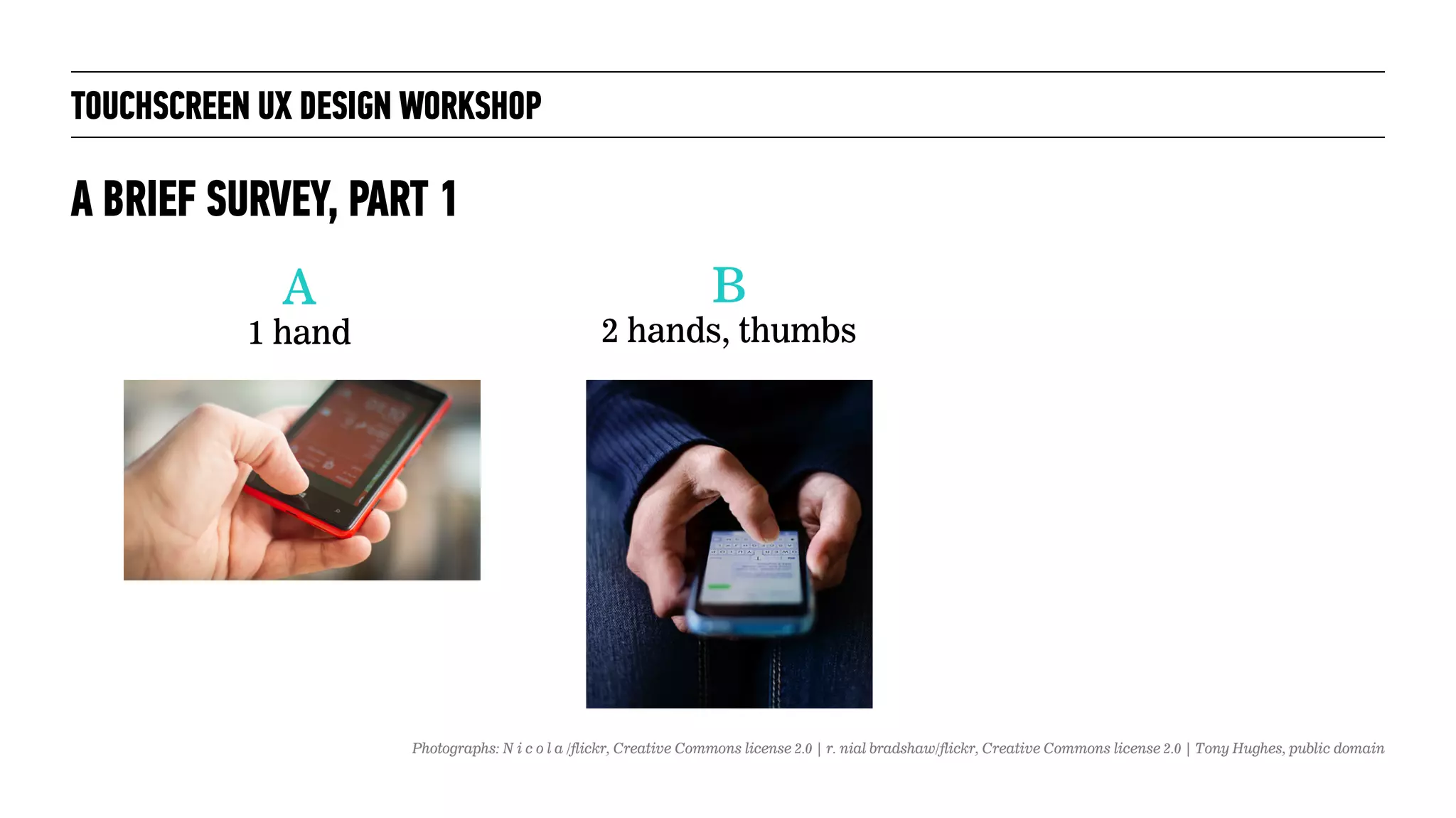
B
2 hands, thumbs
Photographs: N i c o l a /flickr, Creative Commons license 2.0 | r. nial bradshaw/flickr, Creative Commons license 2.0 | Tony Hughes, public domain
TOUCHSCREEN UX DESIGN WORKSHOP
A BRIEF SURVEY, PART 1
A
1 hand
B
2 hands, thumbs
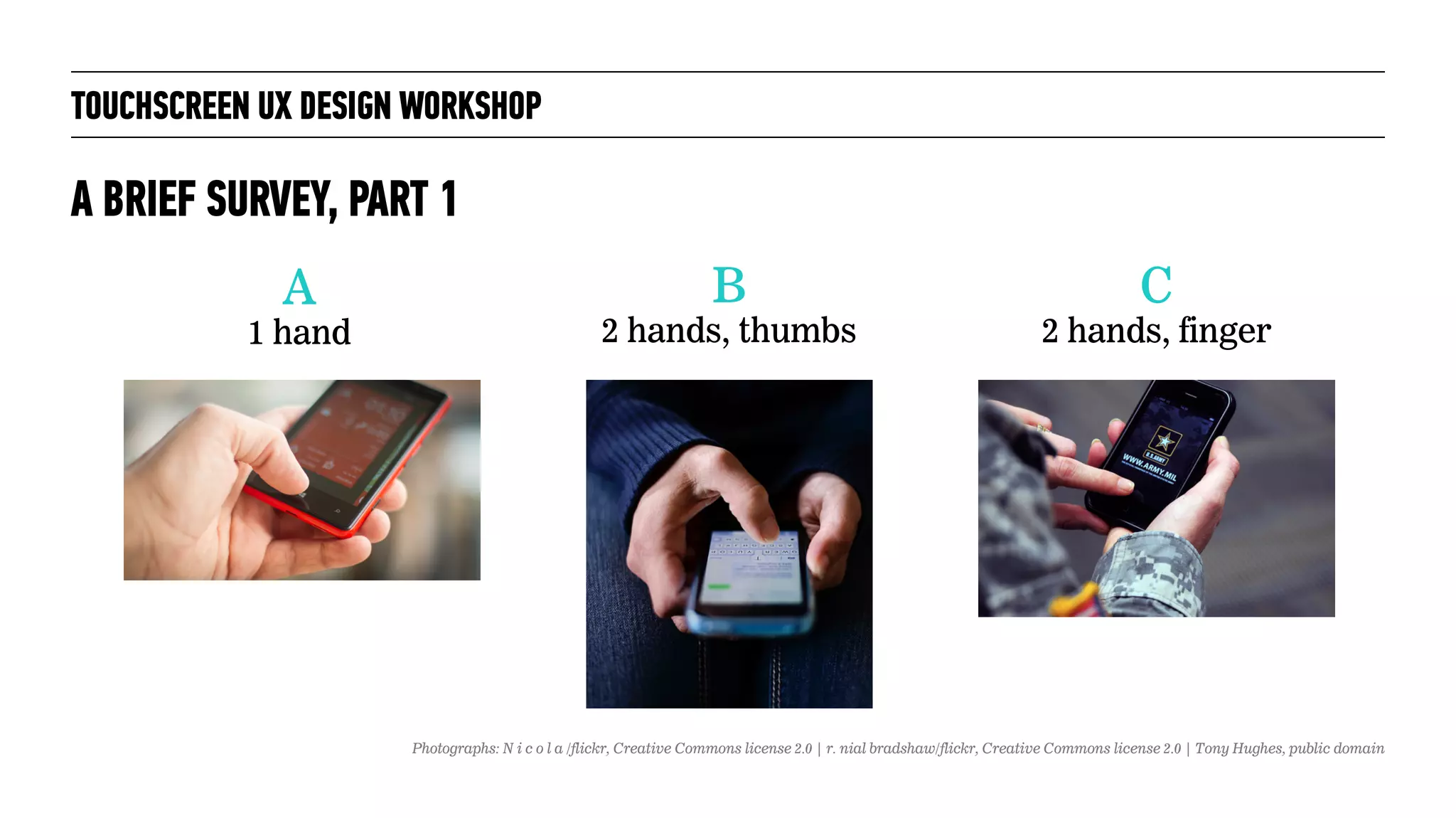
C
2 hands, finger
Photographs: N i c o l a /flickr, Creative Commons license 2.0 | r. nial bradshaw/flickr, Creative Commons license 2.0 | Tony Hughes, public domain
TOUCHSCREEN UX DESIGN WORKSHOP
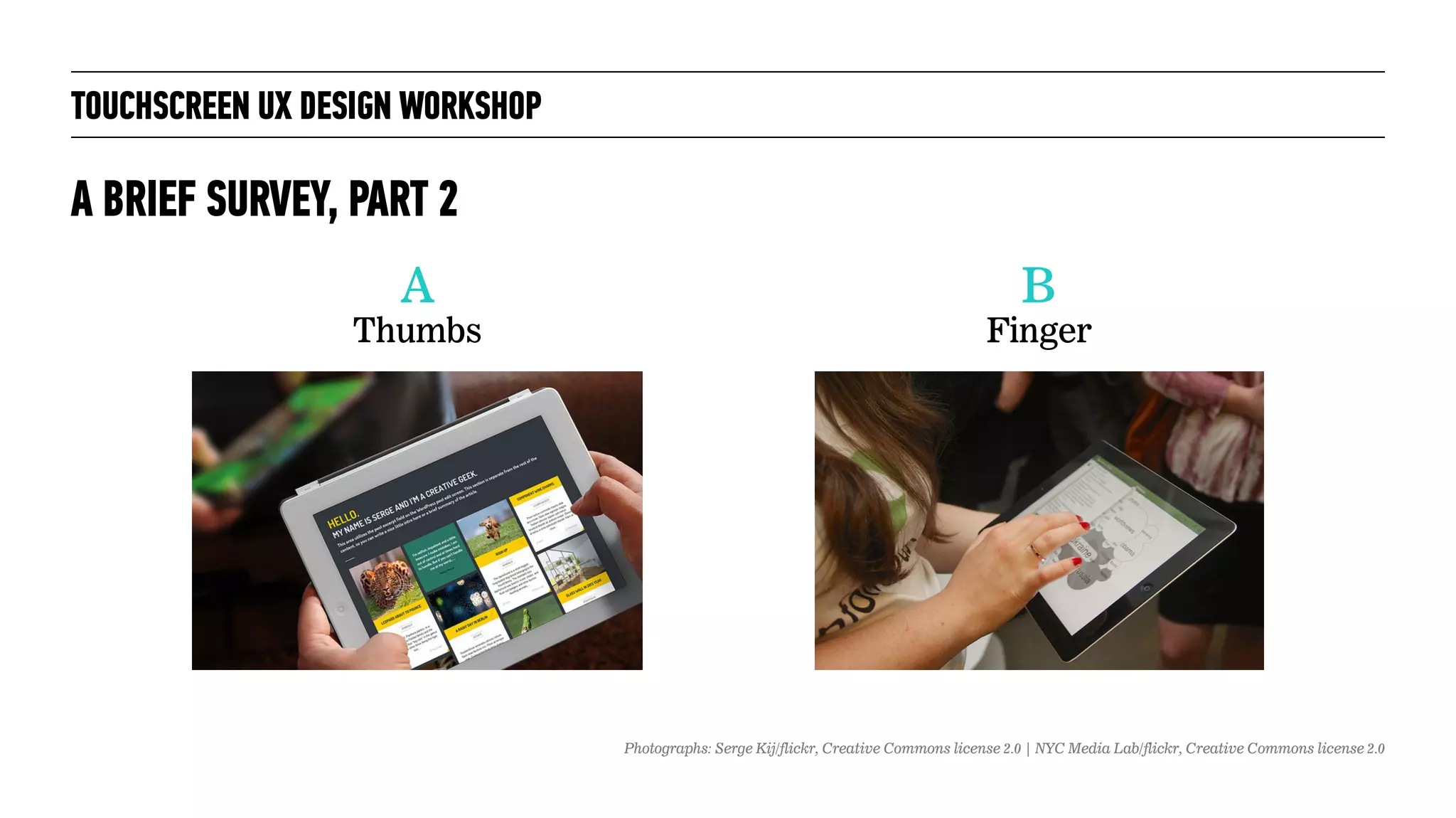
A BRIEF SURVEY, PART 2
A
Thumbs
B
Finger
Photographs: Serge Kij/flickr, Creative Commons license 2.0 | NYC Media Lab/flickr, Creative Commons license 2.0
TOUCHSCREEN UX DESIGN WORKSHOP
SOME REAL RESEARCH
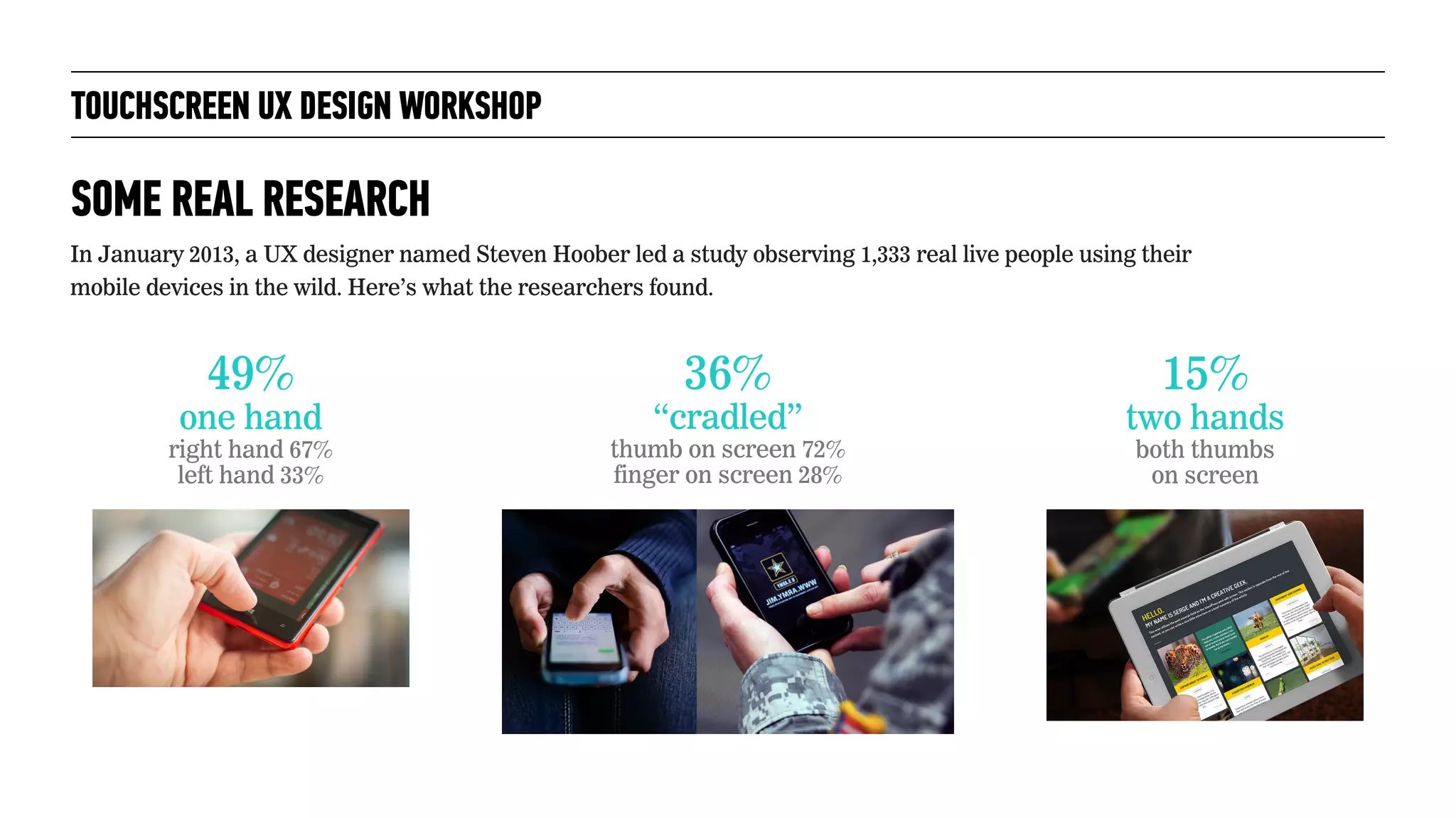
In January 2013, a UX designer named Steven Hoober led a study observing 1,333 real live people using their
mobile devices in the wild. Here’s what the researchers found.
TOUCHSCREEN UX DESIGN WORKSHOP
SOME REAL RESEARCH
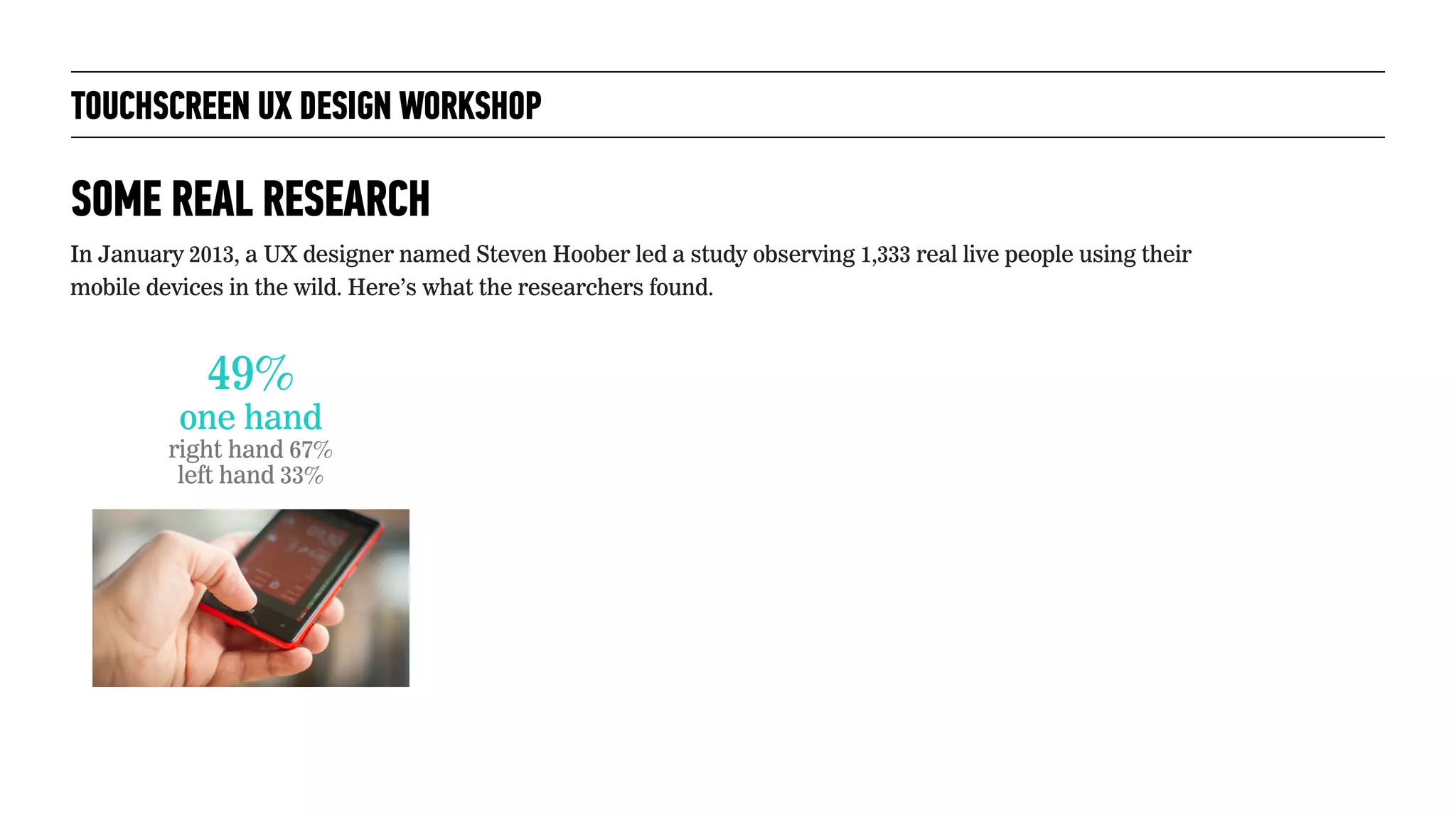
In January 2013, a UX designer named Steven Hoober led a study observing 1,333 real live people using their
mobile devices in the wild. Here’s what the researchers found.
49%
one hand
right hand 67%
left hand 33%
TOUCHSCREEN UX DESIGN WORKSHOP
SOME REAL RESEARCH
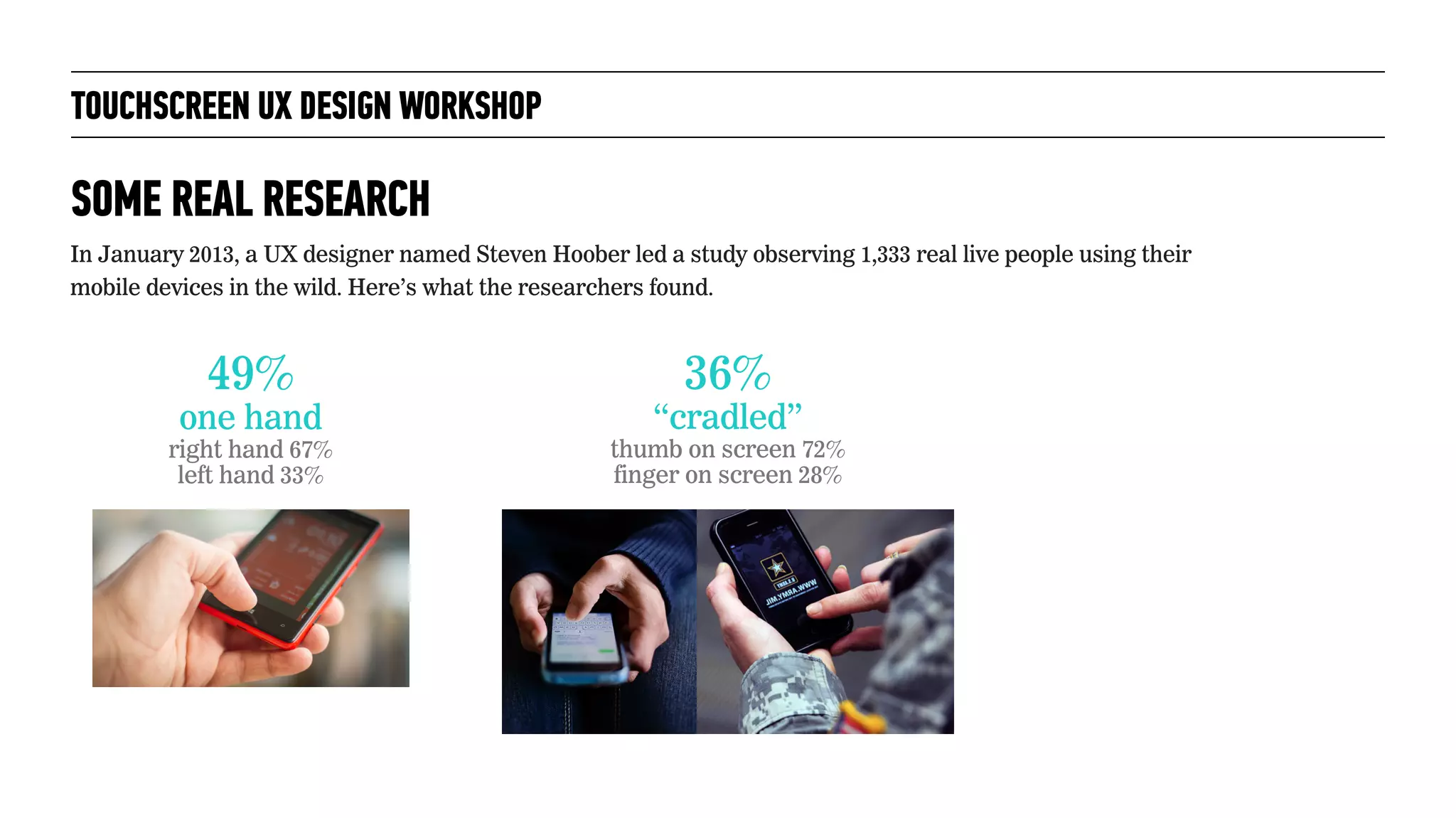
In January 2013, a UX designer named Steven Hoober led a study observing 1,333 real live people using their
mobile devices in the wild. Here’s what the researchers found.
49%
one hand
right hand 67%
left hand 33%
36%
“cradled”
thumb on screen 72%
finger on screen 28%
TOUCHSCREEN UX DESIGN WORKSHOP
SOME REAL RESEARCH
In January 2013, a UX designer named Steven Hoober led a study observing 1,333 real live people using their
mobile devices in the wild. Here’s what the researchers found.
49%
one hand
right hand 67%
left hand 33%
36%
“cradled”
thumb on screen 72%
finger on screen 28%
15%
two hands
both thumbs 

on screen
TOUCHSCREEN UX DESIGN WORKSHOP
SOME REAL RESEARCH
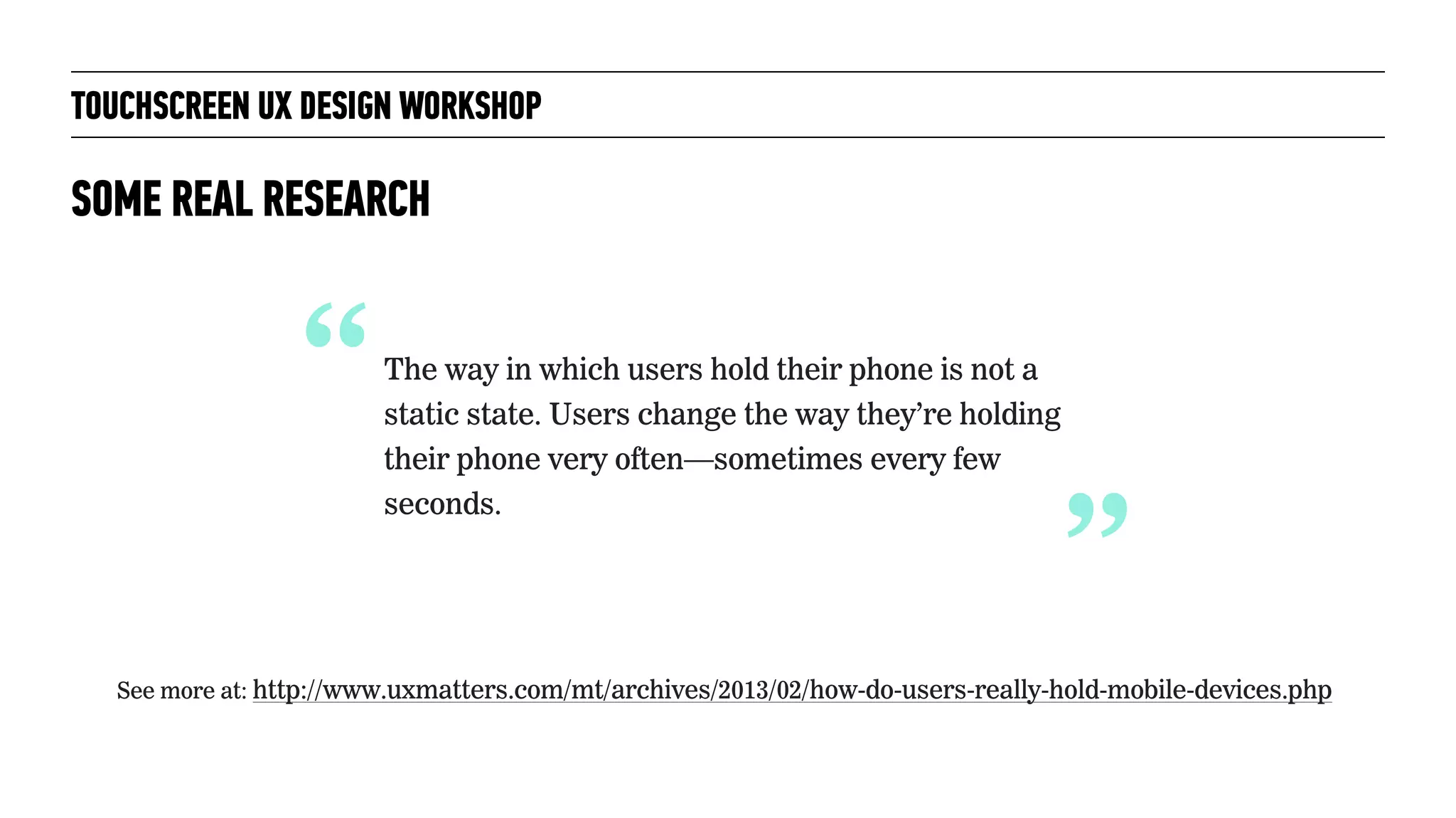
“The way in which users hold their phone is not a
static state. Users change the way they’re holding
their phone very often—sometimes every few
seconds.
“
See more at: http://www.uxmatters.com/mt/archives/2013/02/how-do-users-really-hold-mobile-devices.php
APP STRUCTURES
TOUCHSCREEN UX DESIGN WORKSHOP
Photograph: USGS Bee Inventory and Monitoring Lab/flickr, Creative Commons license 2.0
TOUCHSCREEN UX DESIGN WORKSHOP
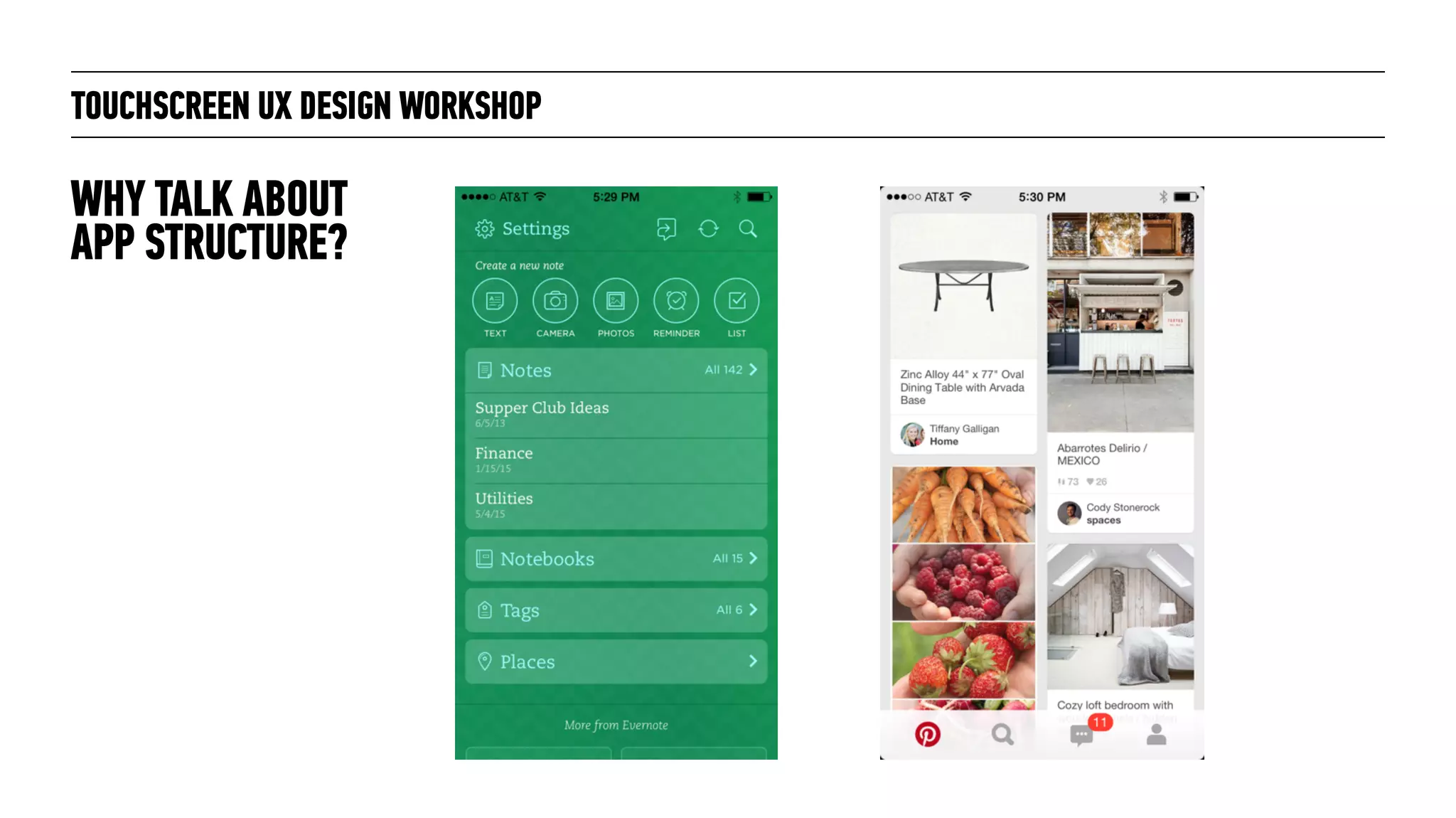
WHY TALK ABOUT
APP STRUCTURE?
TOUCHSCREEN UX DESIGN WORKSHOP
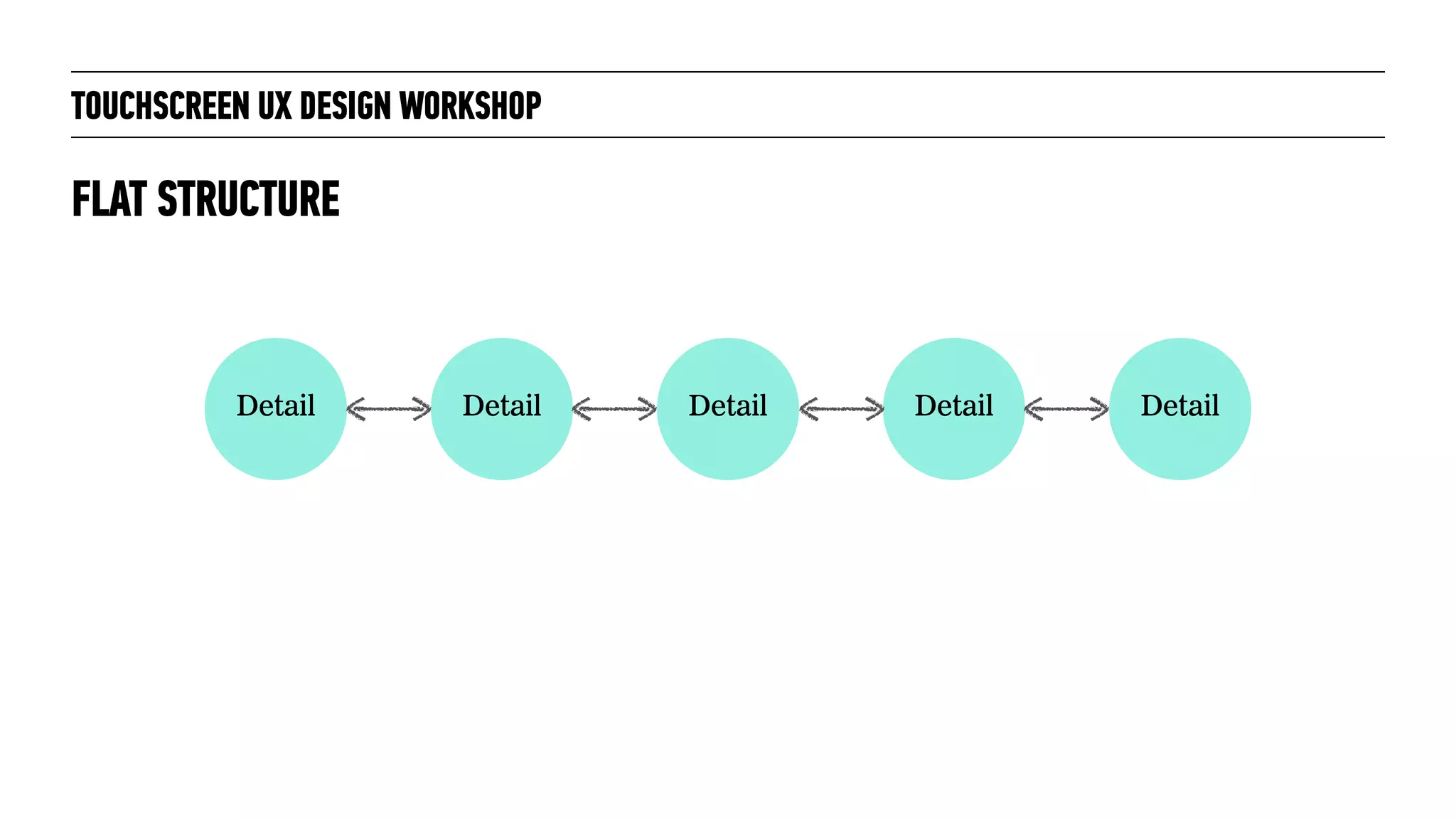
FLAT STRUCTURE
Detail Detail Detail Detail Detail
TOUCHSCREEN UX DESIGN WORKSHOP
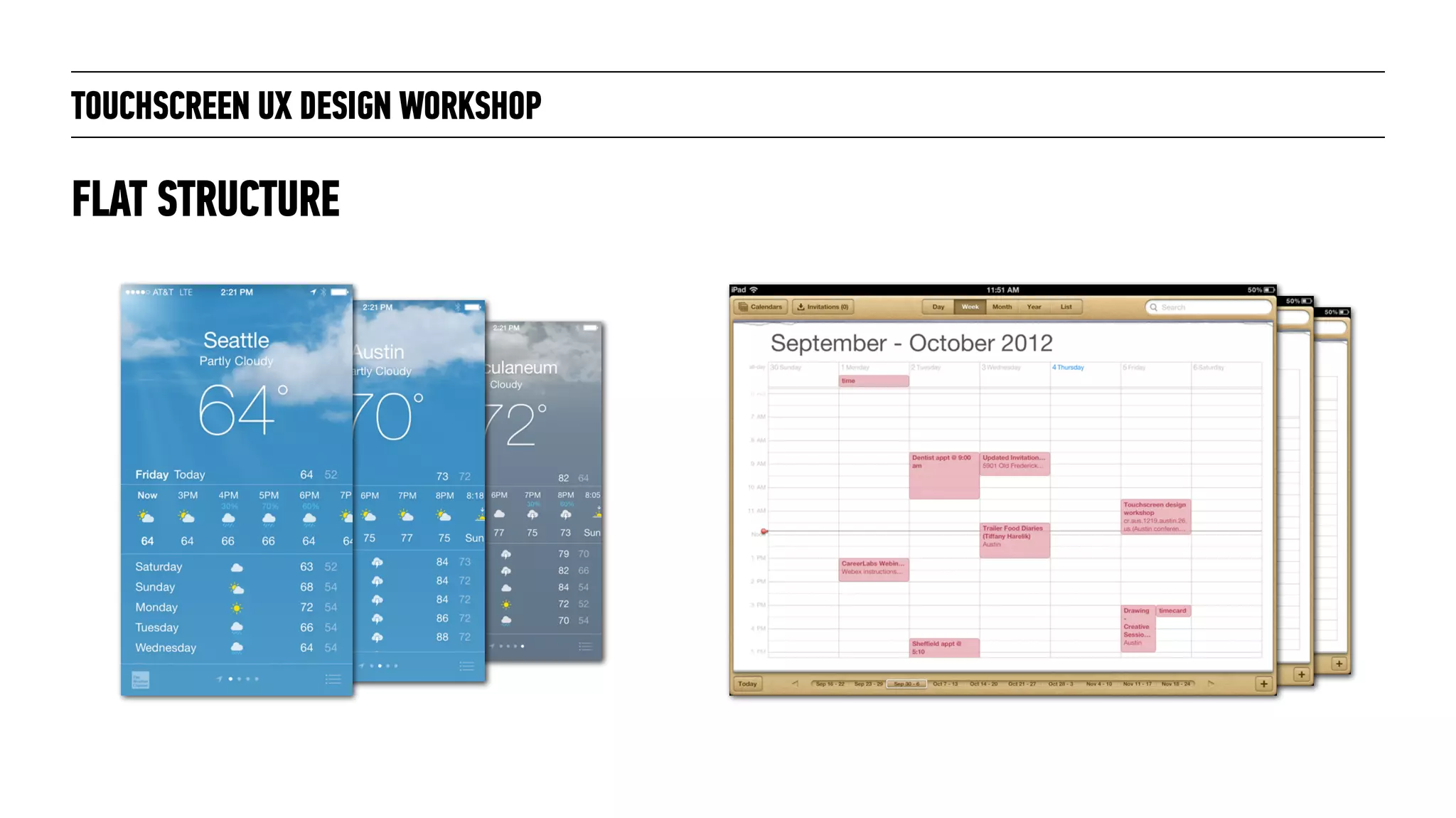
FLAT STRUCTURE
TOUCHSCREEN UX DESIGN WORKSHOP
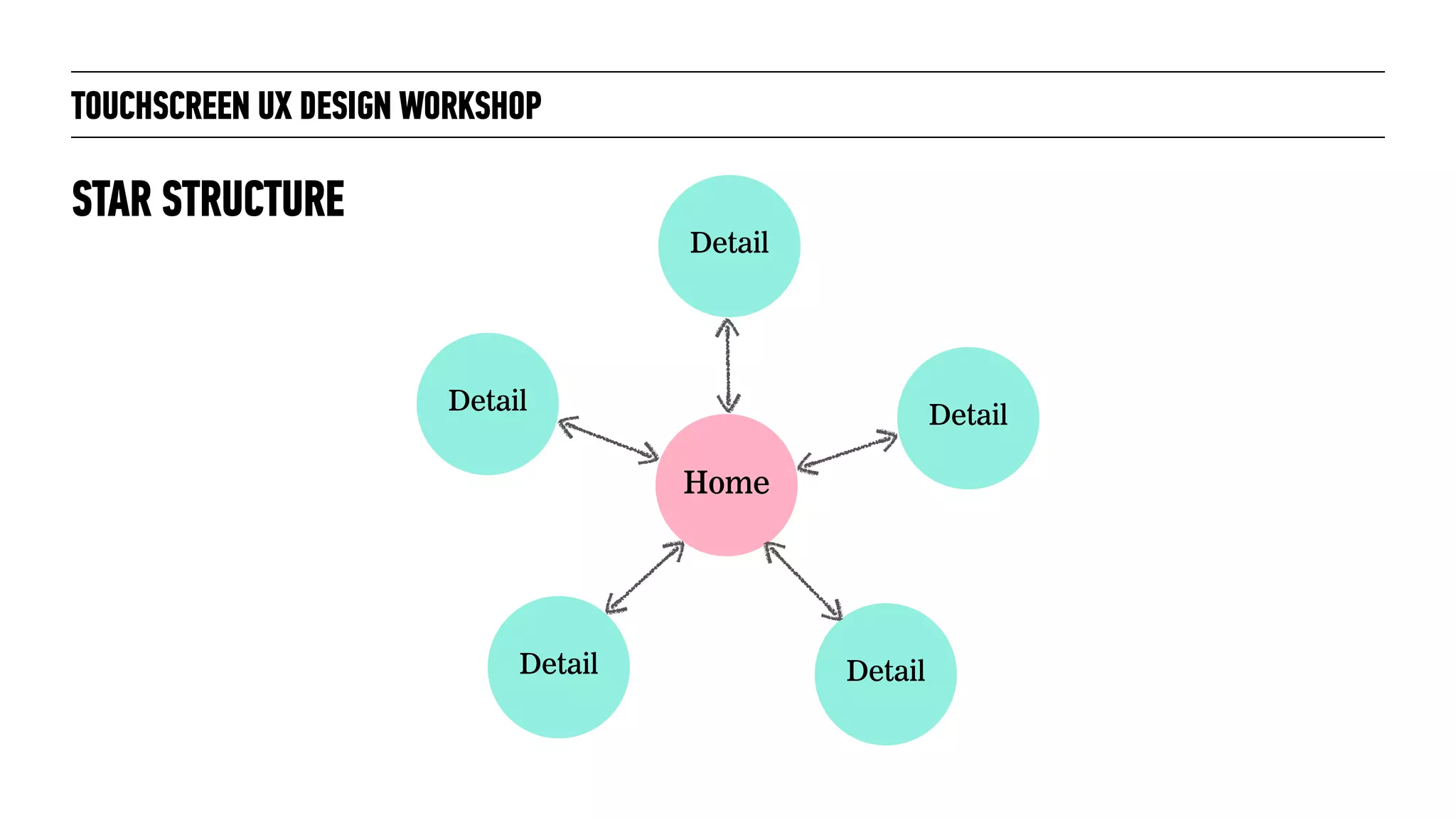
STAR STRUCTURE
Detail
Detail
Home
Detail
Detail
Detail
TOUCHSCREEN UX DESIGN WORKSHOP
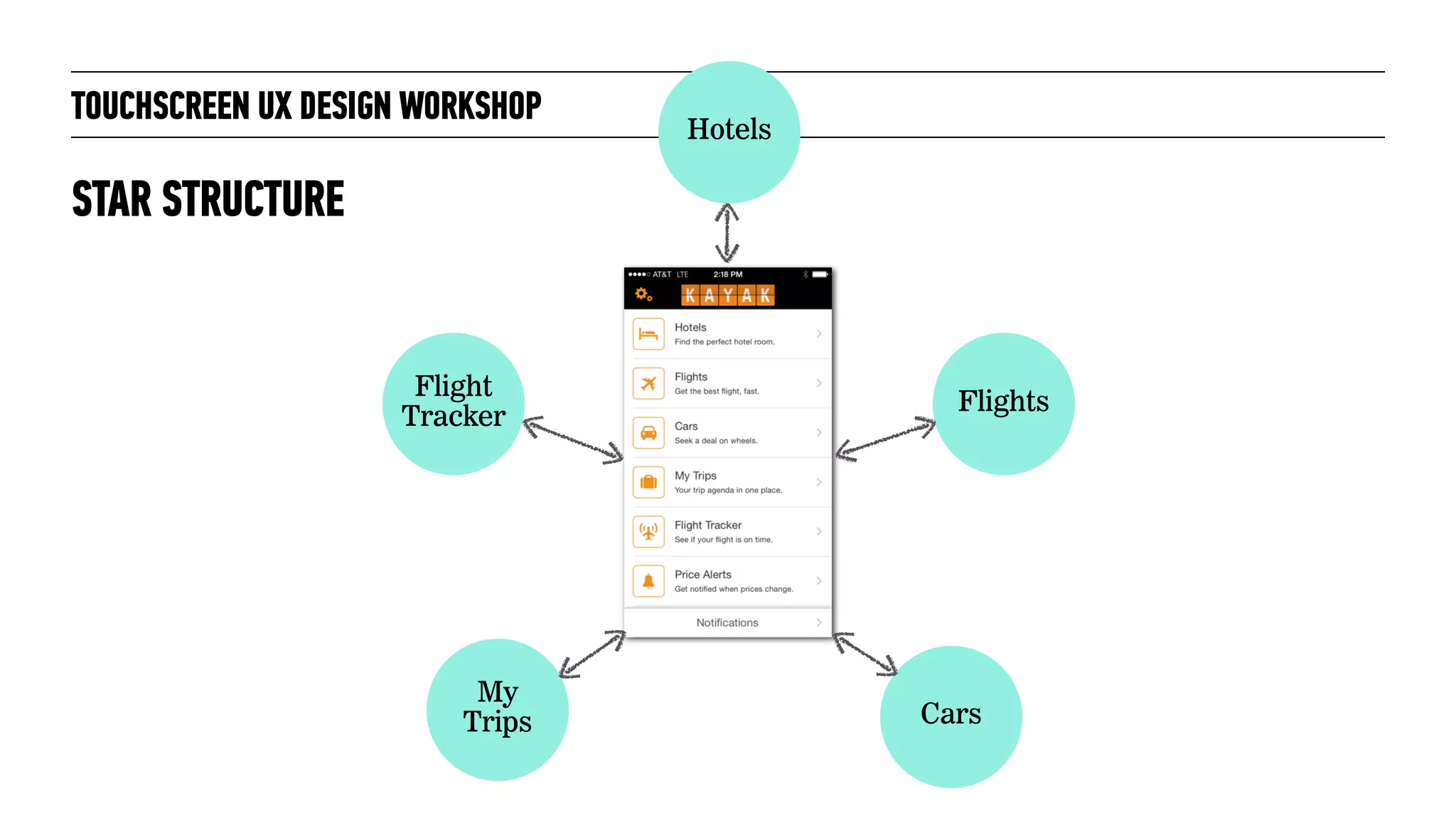
STAR STRUCTURE
Flight
Tracker
My
Trips Cars
Flights
Hotels
TOUCHSCREEN UX DESIGN WORKSHOP
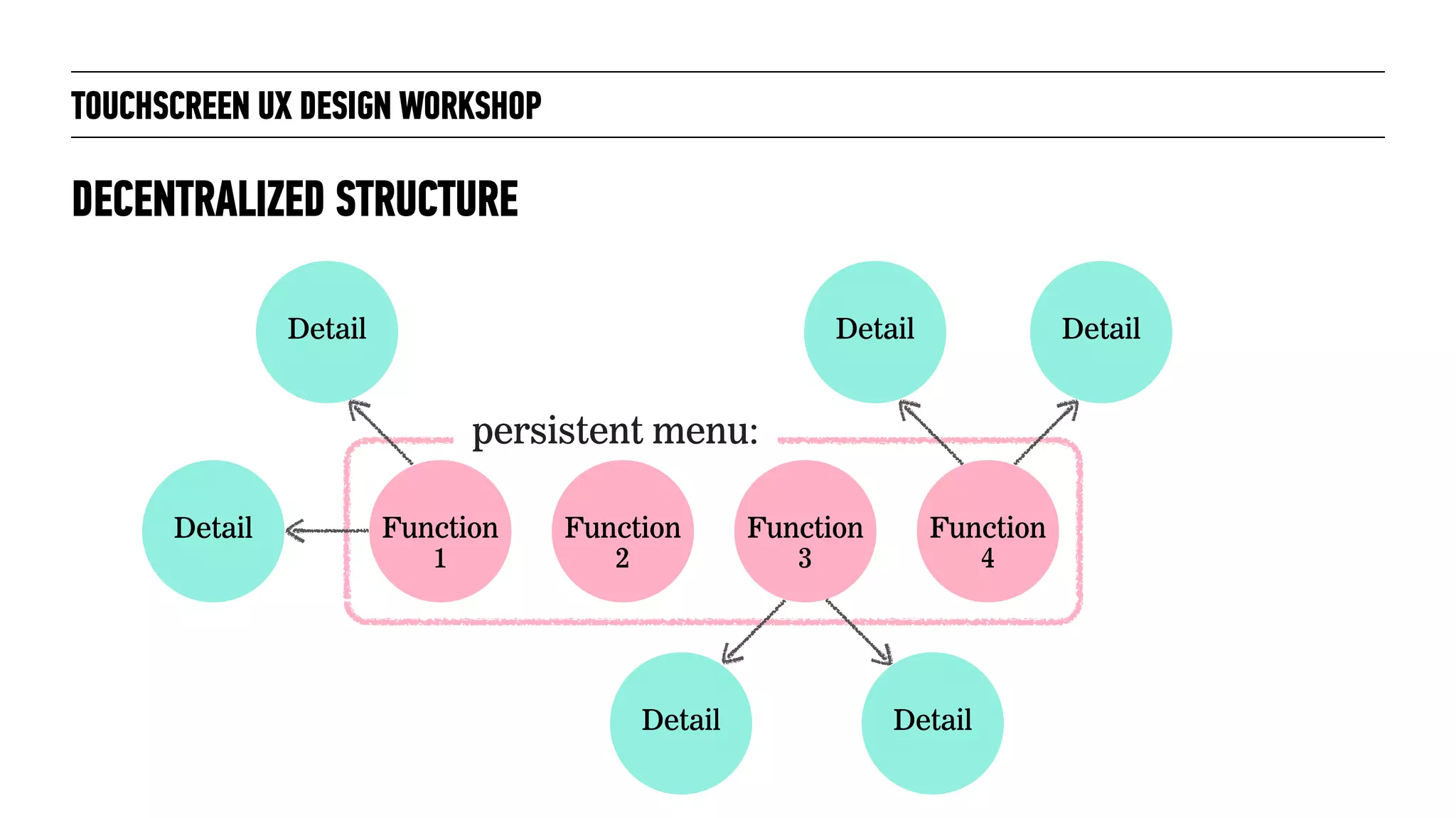
DECENTRALIZED STRUCTURE
Detail
Detail Function
1
DetailDetail
Detail
Function
2
Function
3
Function
4
Detail
persistent menu:
TOUCHSCREEN UX DESIGN WORKSHOP
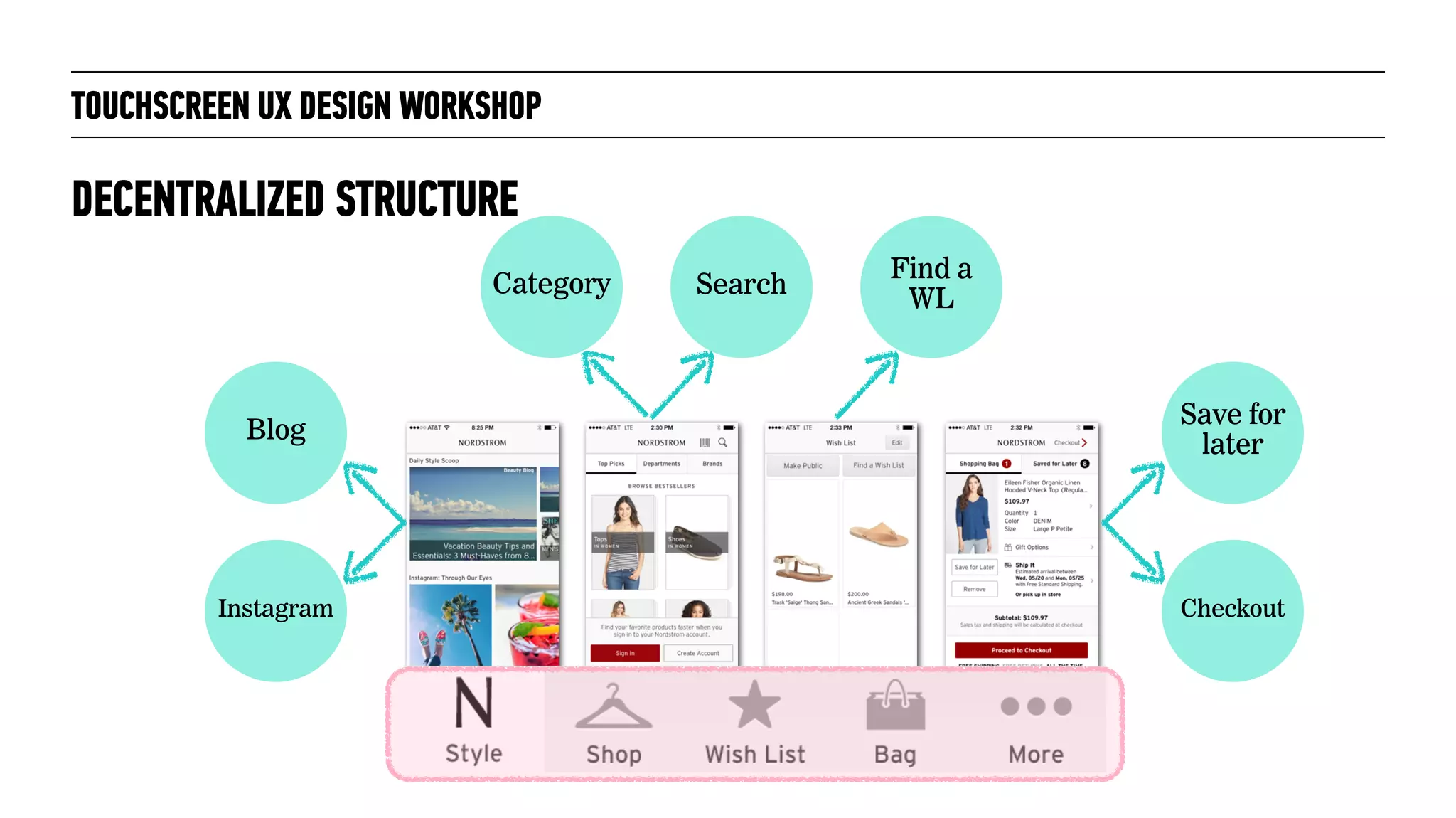
DECENTRALIZED STRUCTURE
Blog
Instagram
Category Search
Find a
WL
Save for
later
Checkout
SMARTPHONE APP EXERCISE!
TOUCHSCREEN UX DESIGN WORKSHOP
Photograph: Janet Ramsden/flickr, Creative Commons license 2.0
TOUCHSCREEN UX DESIGN WORKSHOP
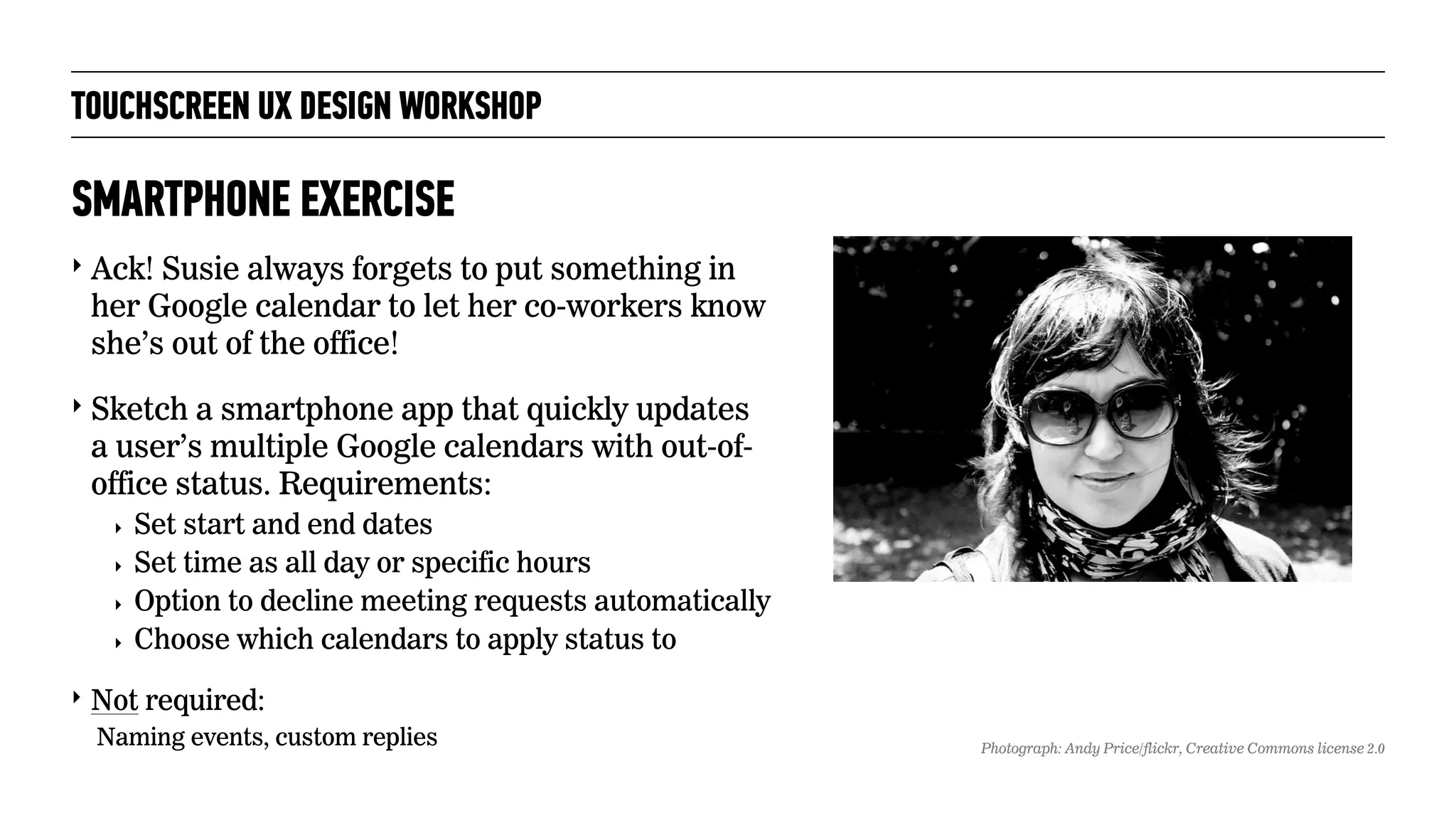
‣ Ack! Susie always forgets to put something in
her Google calendar to let her co-workers know
she’s out of the office!
‣ Sketch a smartphone app that quickly updates
a user’s multiple Google calendars with out-of-
office status. Requirements:
‣ Set start and end dates
‣ Set time as all day or specific hours
‣ Option to decline meeting requests automatically
‣ Choose which calendars to apply status to
‣ Not required:
Naming events, custom replies
SMARTPHONE EXERCISE
Photograph: Andy Price/flickr, Creative Commons license 2.0
TOUCHSCREEN UX DESIGN WORKSHOP
Photograph: Faith Goble/flickr, Creative Commons license 2.0
BREAK!
TOUCHSCREEN UX DESIGN WORKSHOP
Photograph: Faith Goble/flickr, Creative Commons license 2.0
SCROLLING, TAPS AND
CHROME
TOUCHSCREEN UX DESIGN WORKSHOP
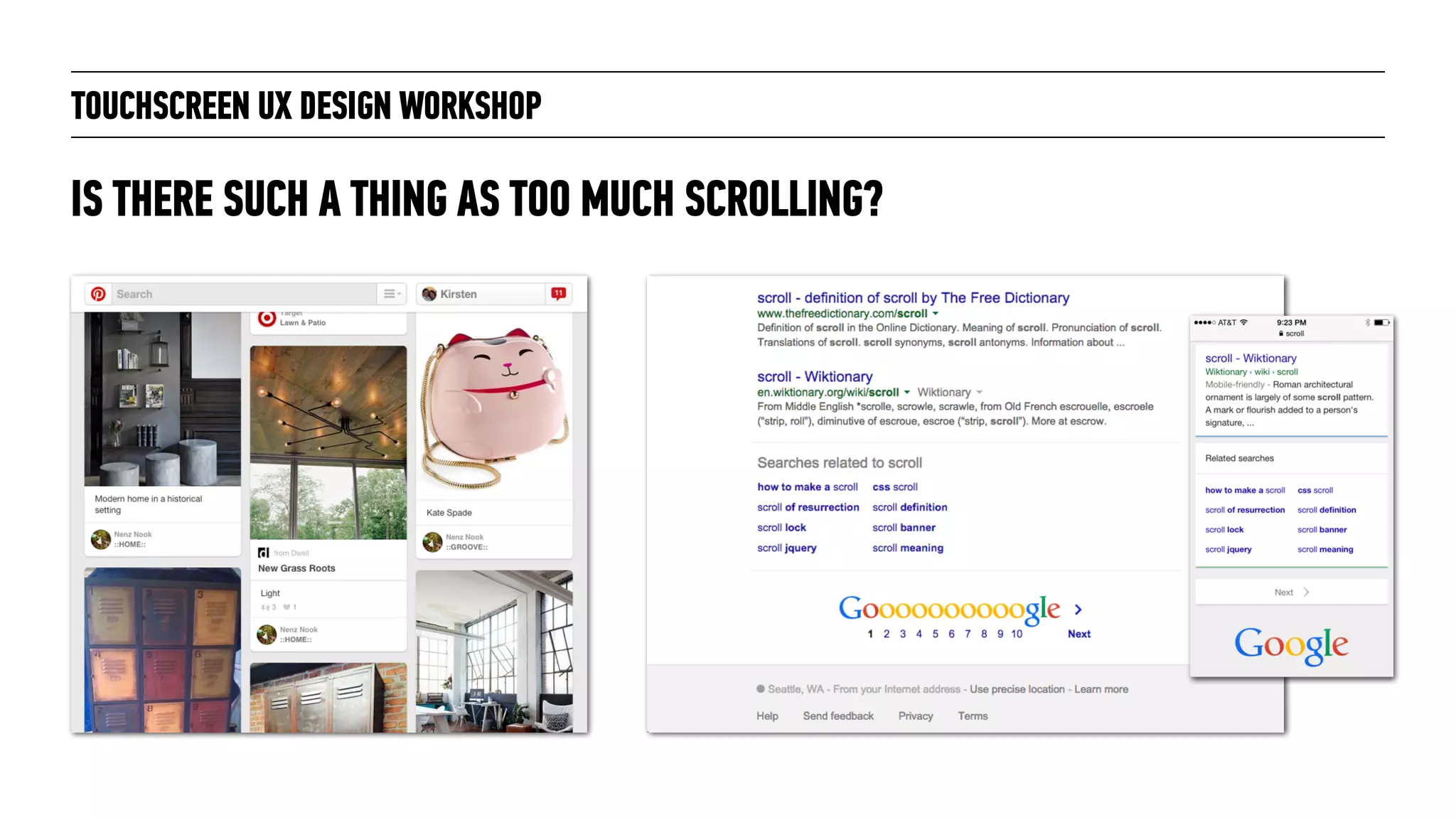
IS THERE SUCH A THING AS TOO MUCH SCROLLING?
TOUCHSCREEN UX DESIGN WORKSHOP
IS THERE SUCH A THING AS TOO MUCH SCROLLING?
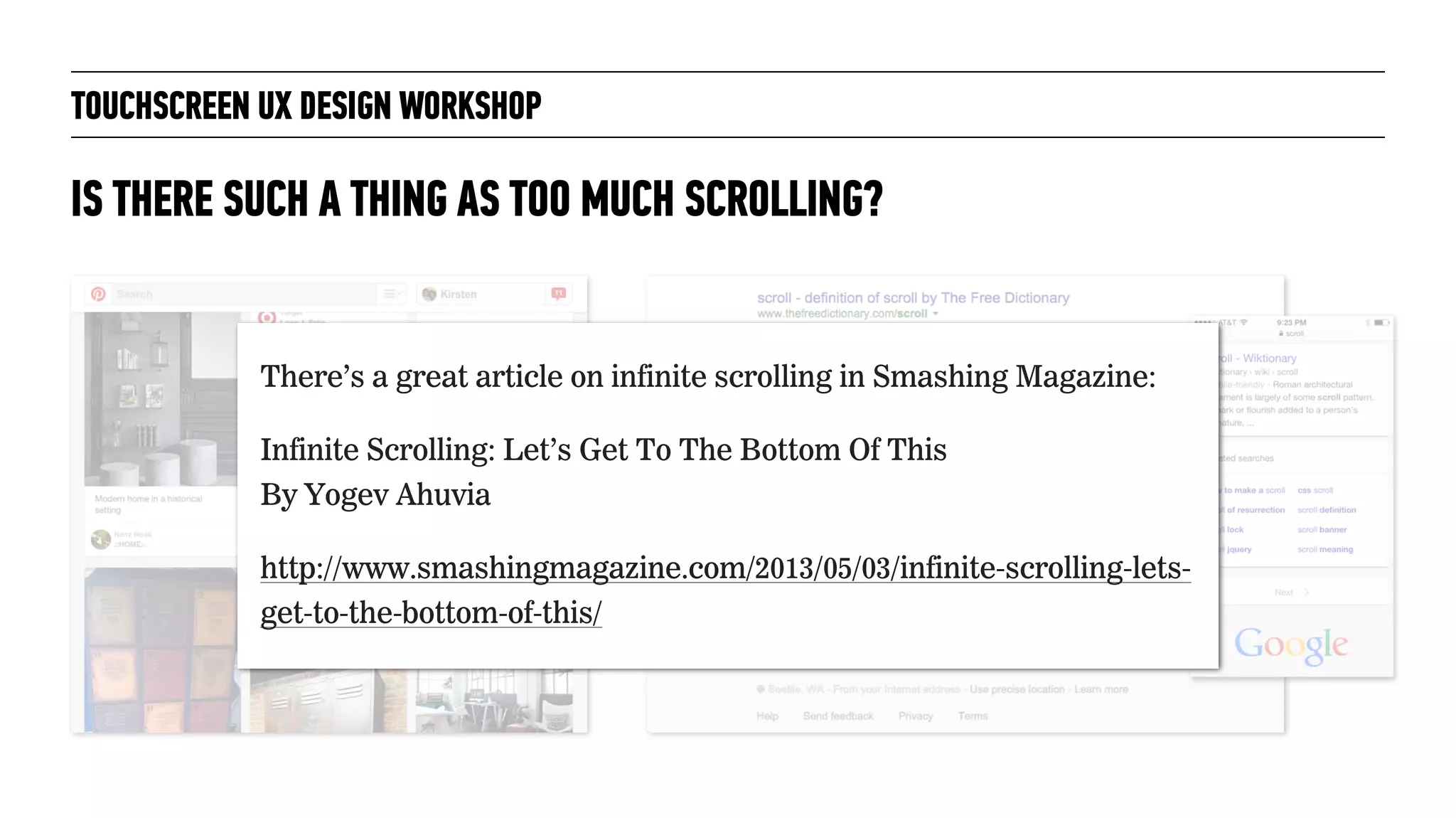
There’s a great article on infinite scrolling in Smashing Magazine:
Infinite Scrolling: Let’s Get To The Bottom Of This

By Yogev Ahuvia
http://www.smashingmagazine.com/2013/05/03/infinite-scrolling-lets-
get-to-the-bottom-of-this/
TOUCHSCREEN UX DESIGN WORKSHOP
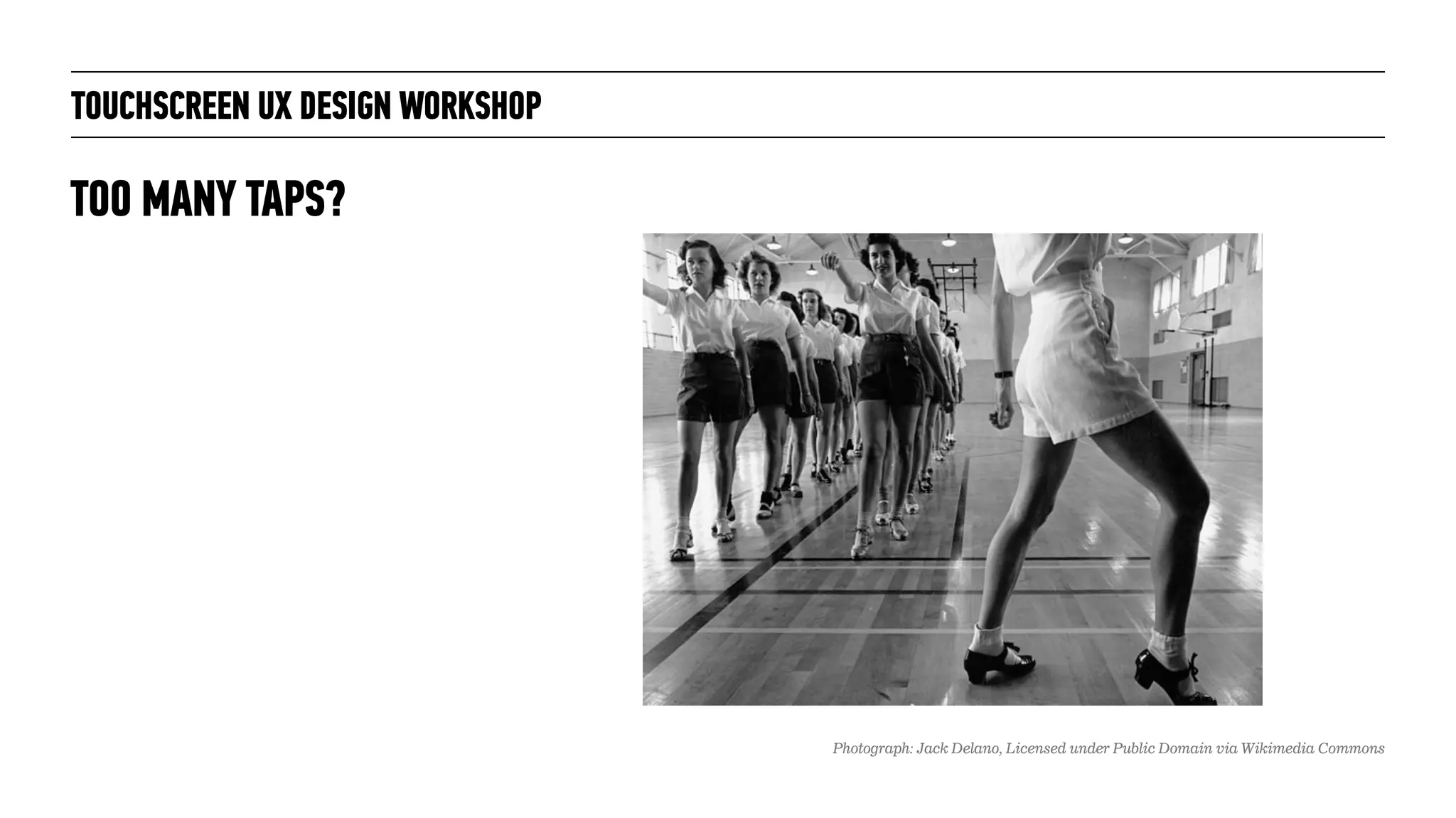
TOO MANY TAPS?
Photograph: Jack Delano, Licensed under Public Domain via Wikimedia Commons
TOUCHSCREEN UX DESIGN WORKSHOP
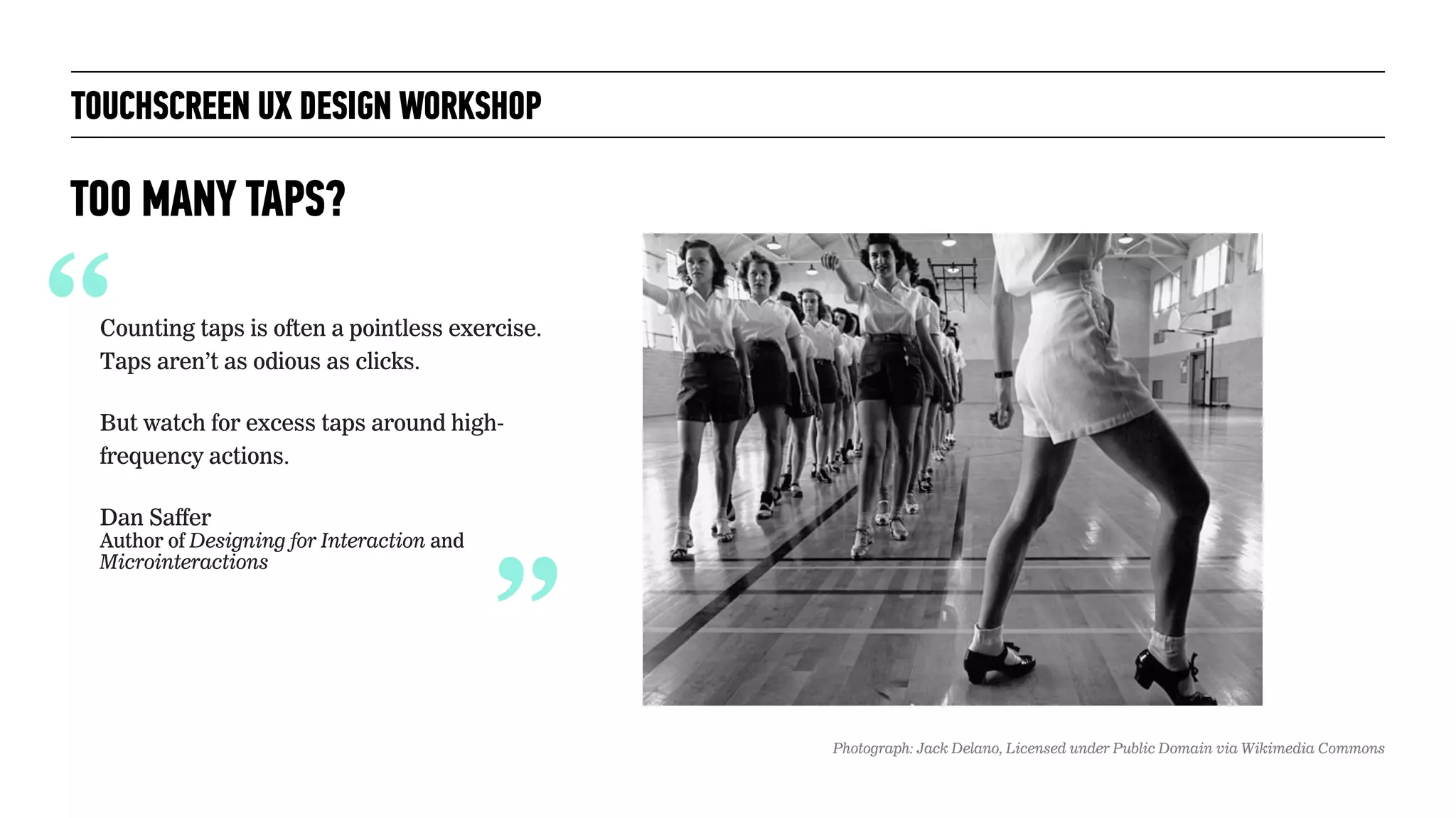
TOO MANY TAPS?
“Counting taps is often a pointless exercise.
Taps aren’t as odious as clicks.
But watch for excess taps around high-
frequency actions.
Dan Saffer

Author of Designing for Interaction and
Microinteractions
“
Photograph: Jack Delano, Licensed under Public Domain via Wikimedia Commons
TOUCHSCREEN UX DESIGN WORKSHOP
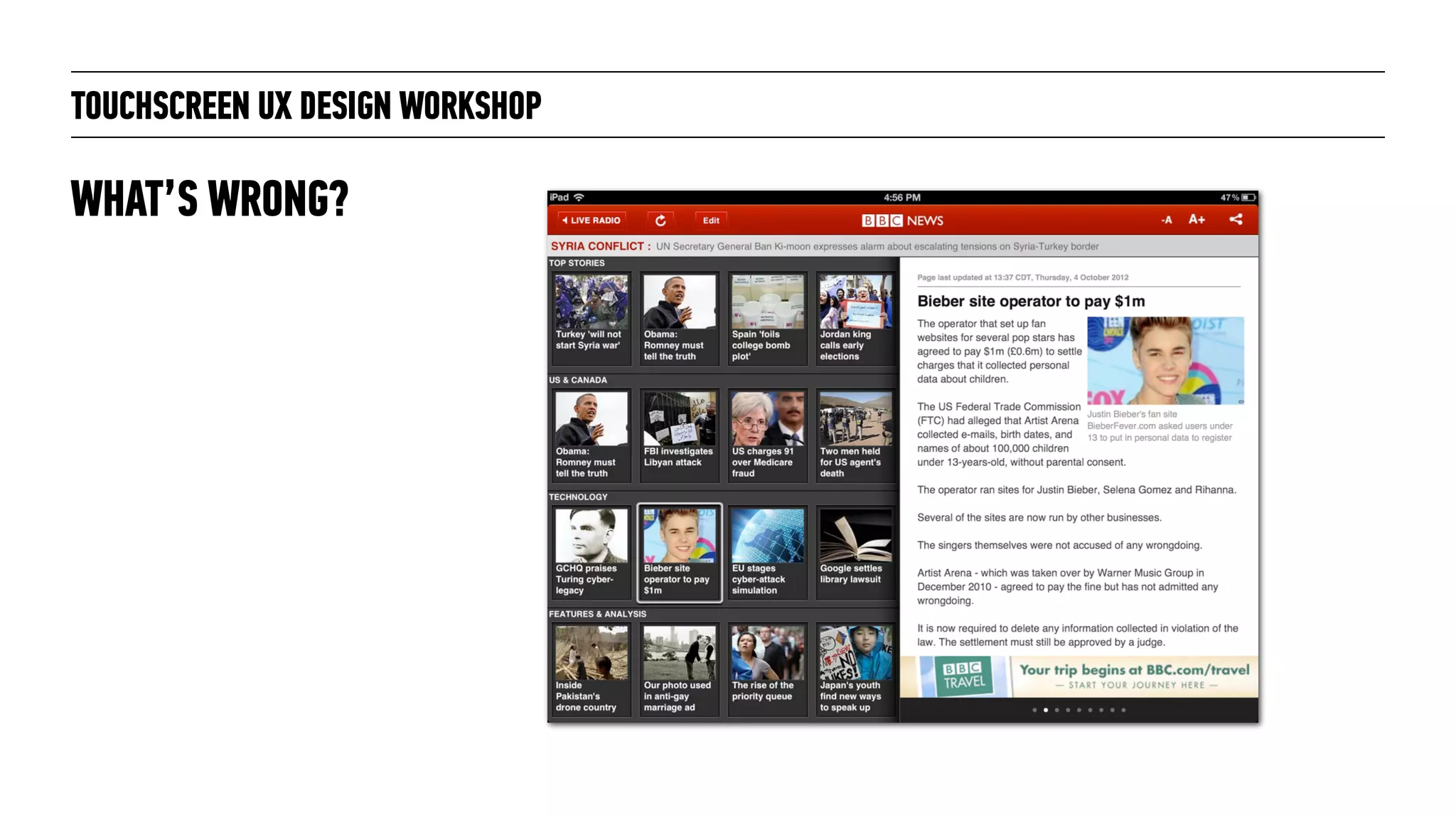
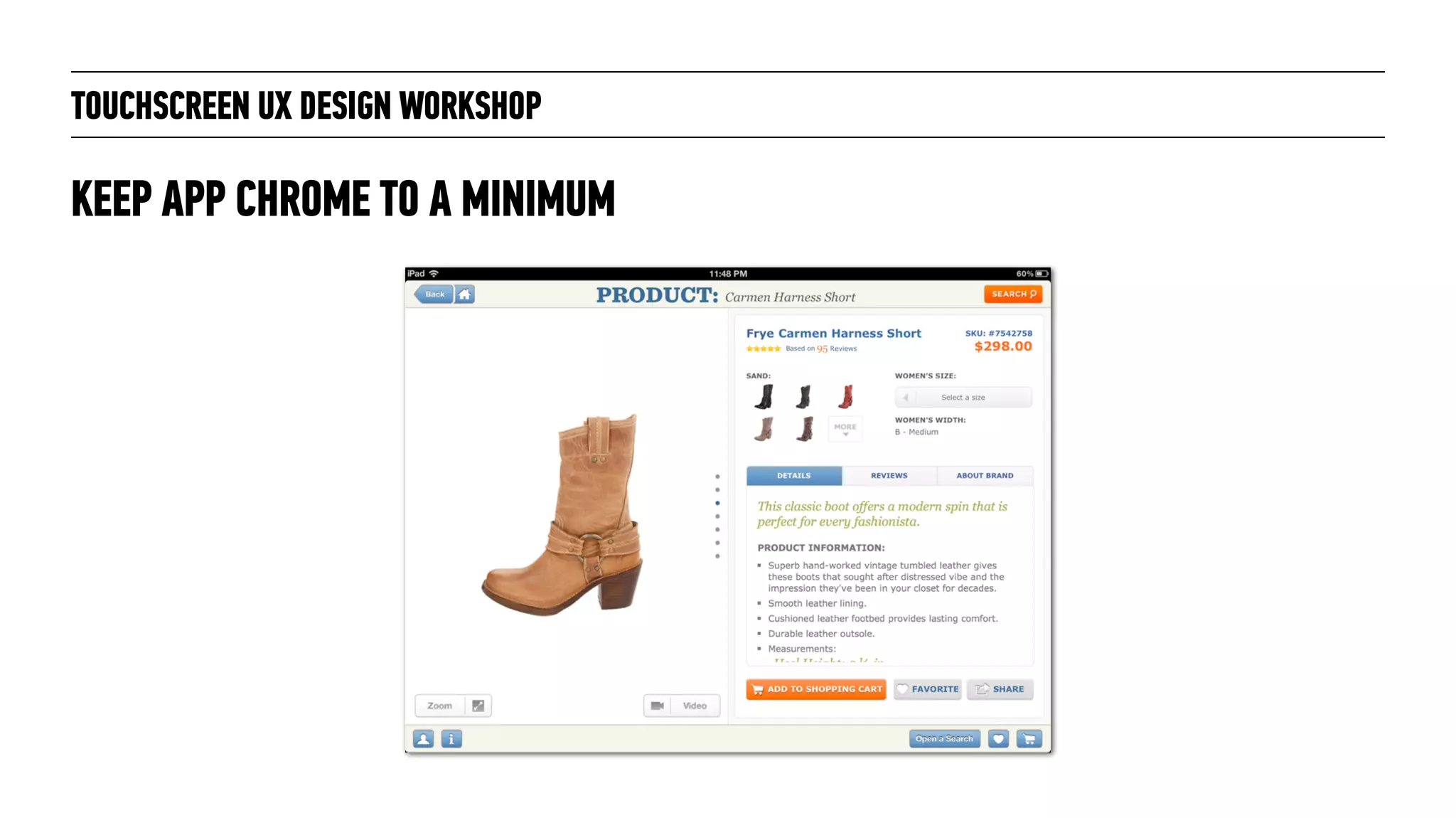
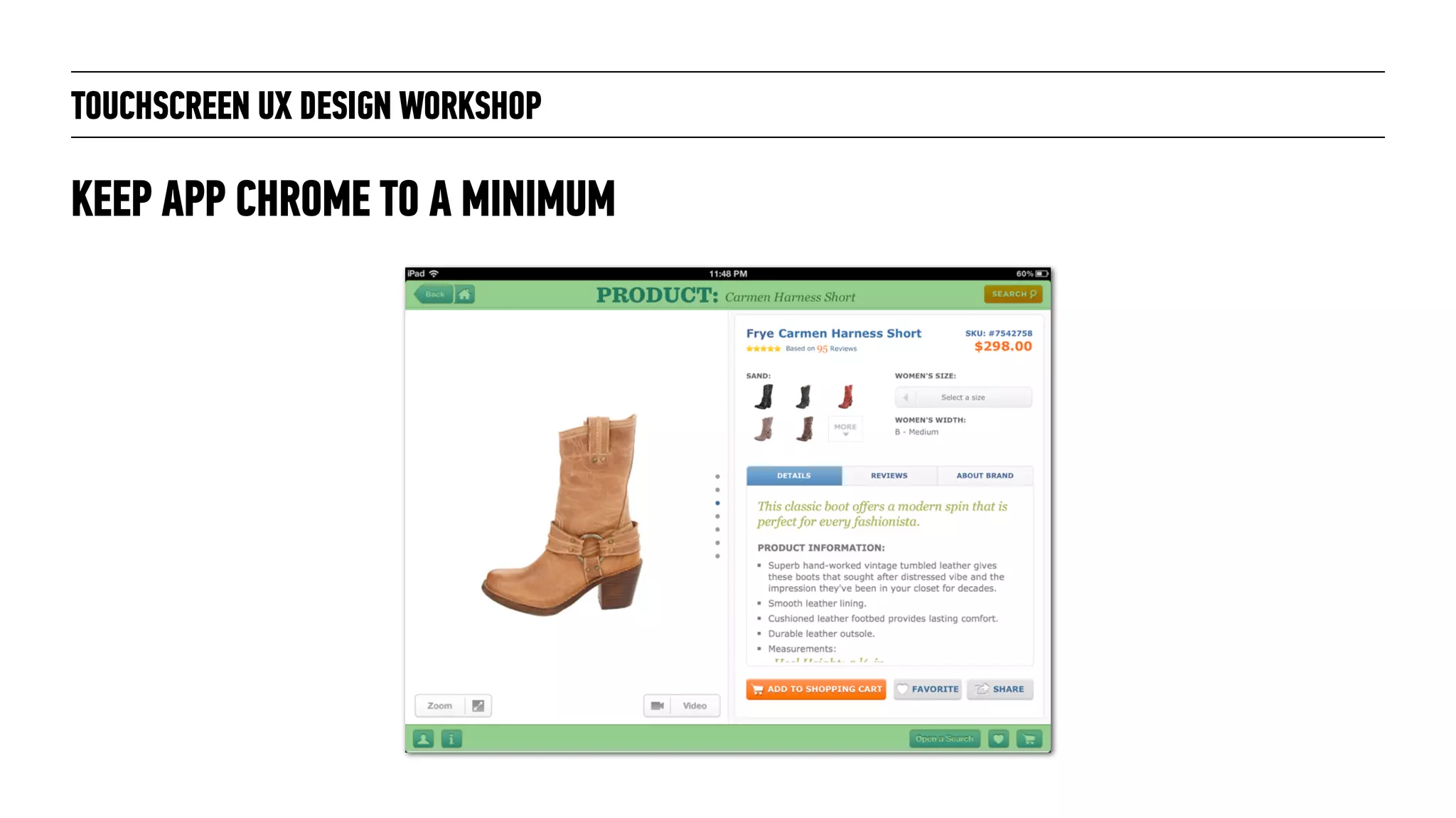
WHAT’S WRONG?
TOUCHSCREEN UX DESIGN WORKSHOP
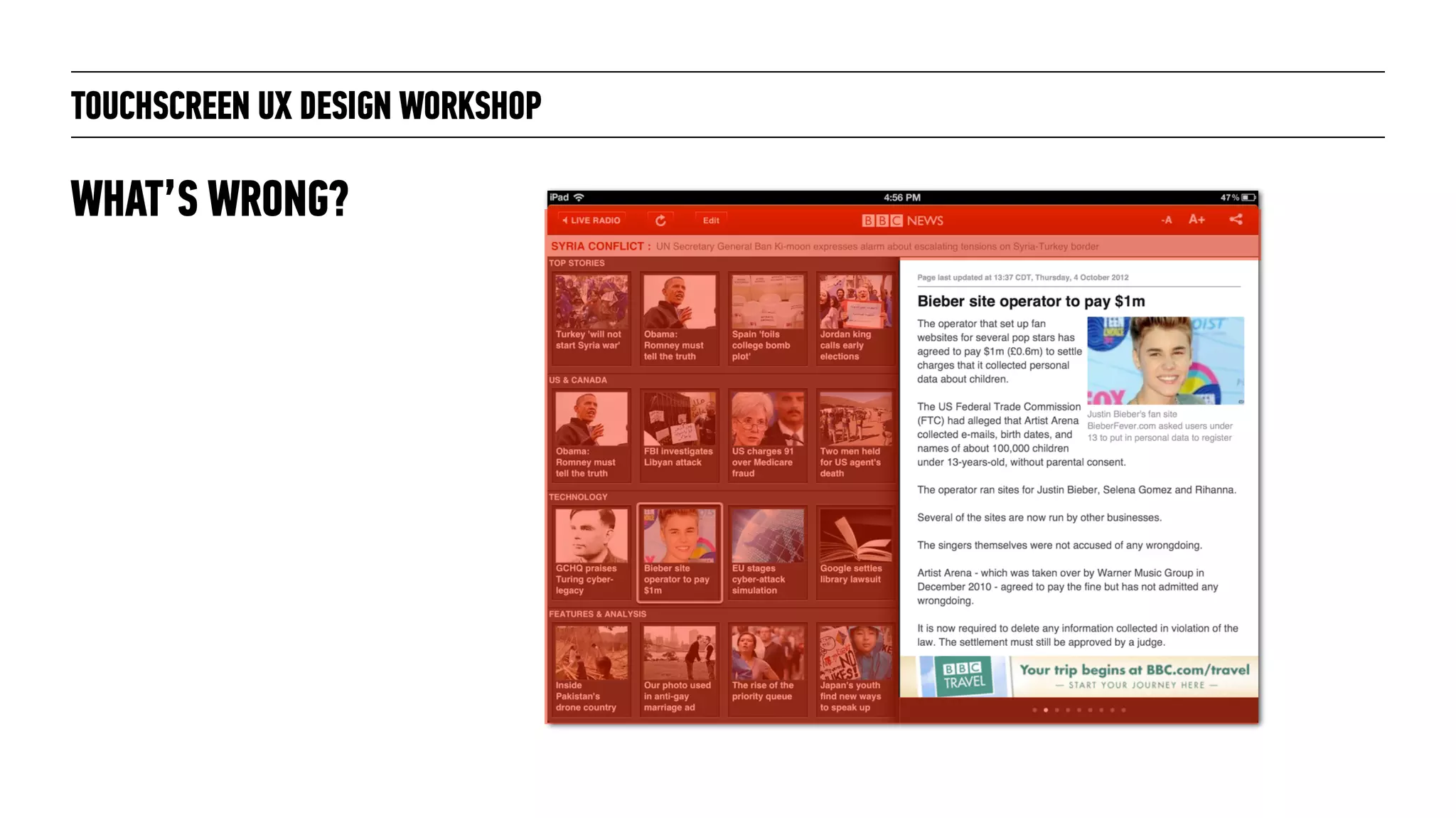
WHAT’S WRONG?
TOUCHSCREEN UX DESIGN WORKSHOP
KEEP APP CHROME TO A MINIMUM
TOUCHSCREEN UX DESIGN WORKSHOP
KEEP APP CHROME TO A MINIMUM
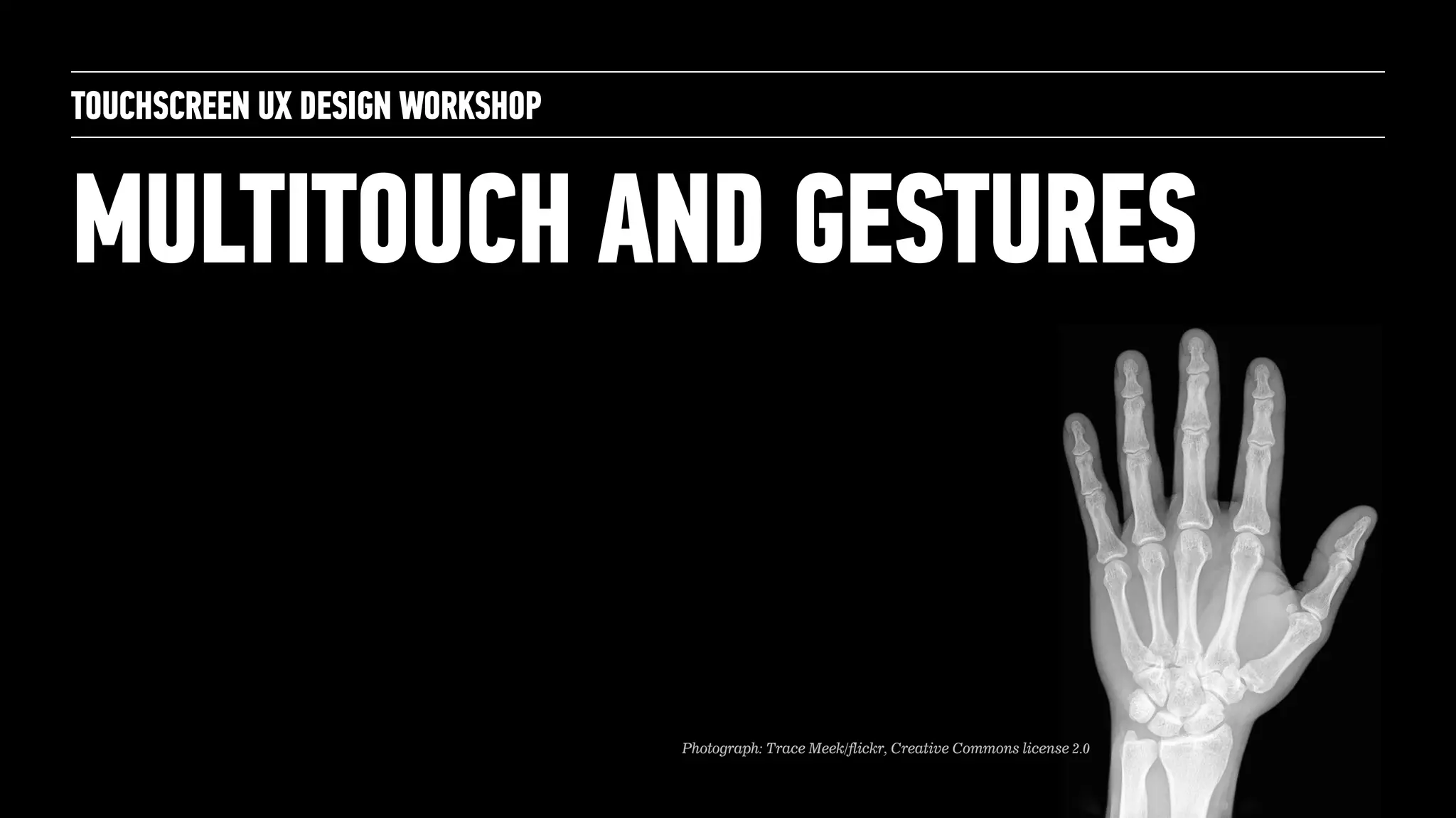
MULTITOUCH AND GESTURES
TOUCHSCREEN UX DESIGN WORKSHOP
Photograph: Trace Meek/flickr, Creative Commons license 2.0
TOUCHSCREEN UX DESIGN WORKSHOP
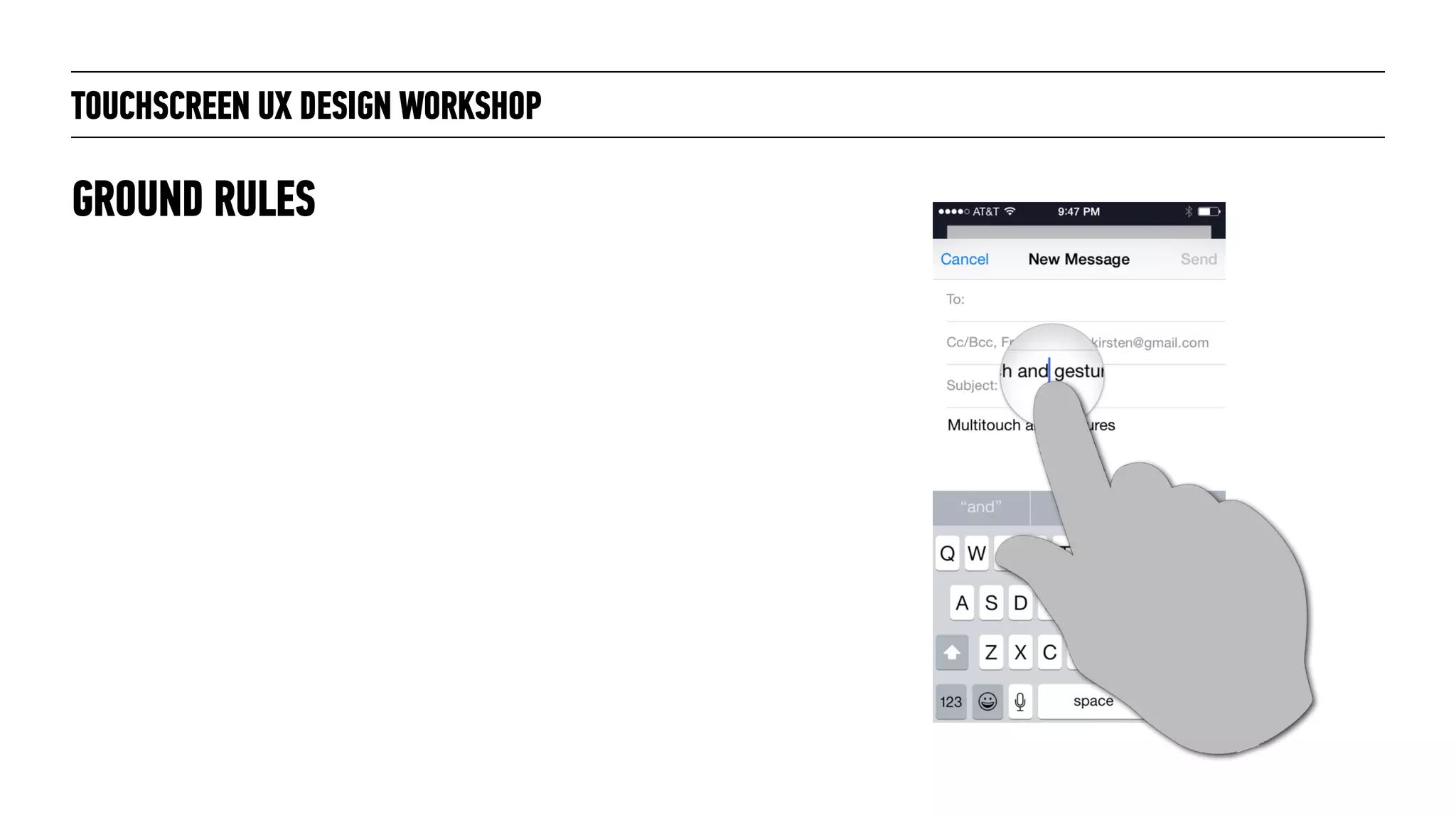
GROUND RULES
TOUCHSCREEN UX DESIGN WORKSHOP
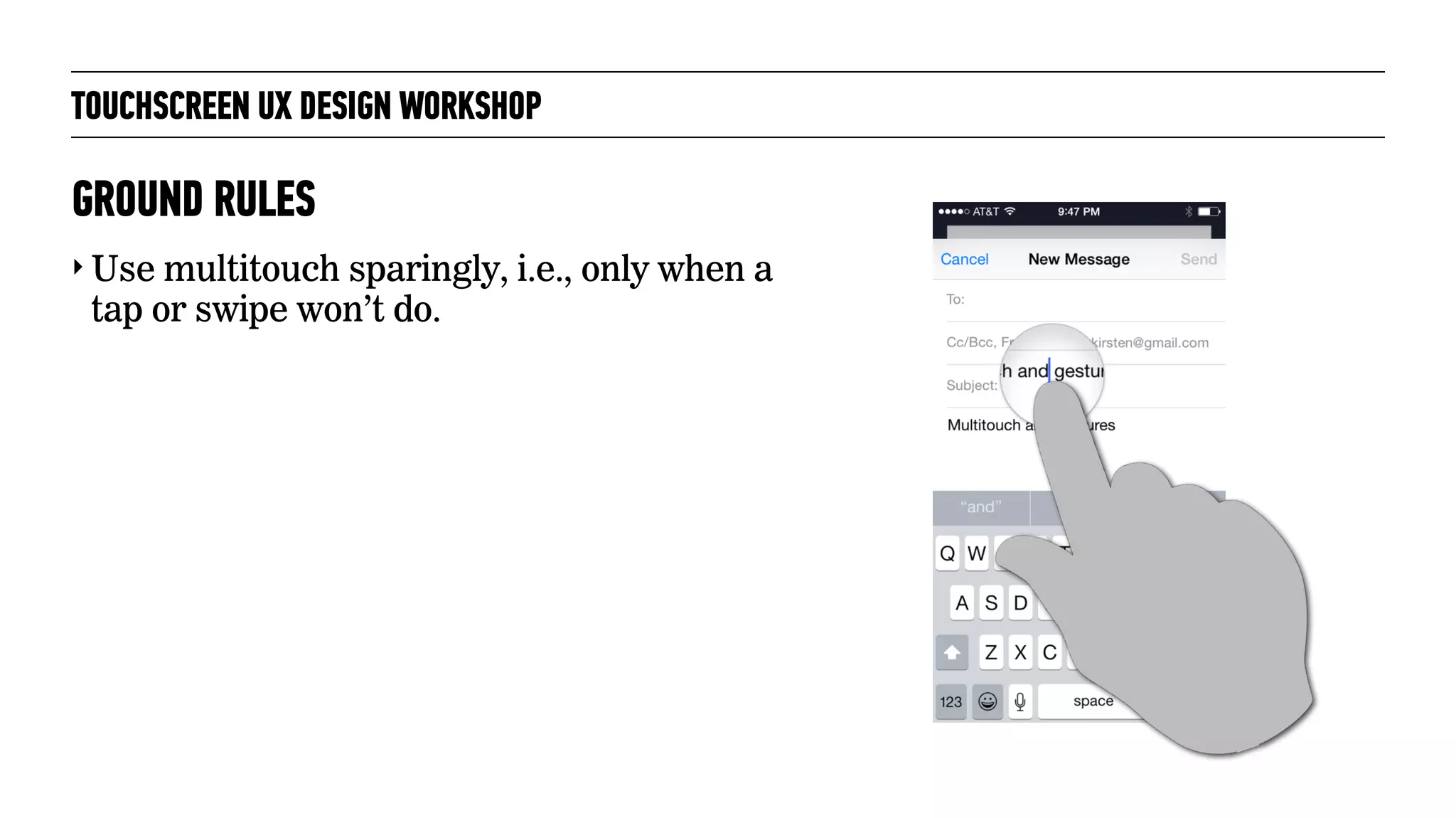
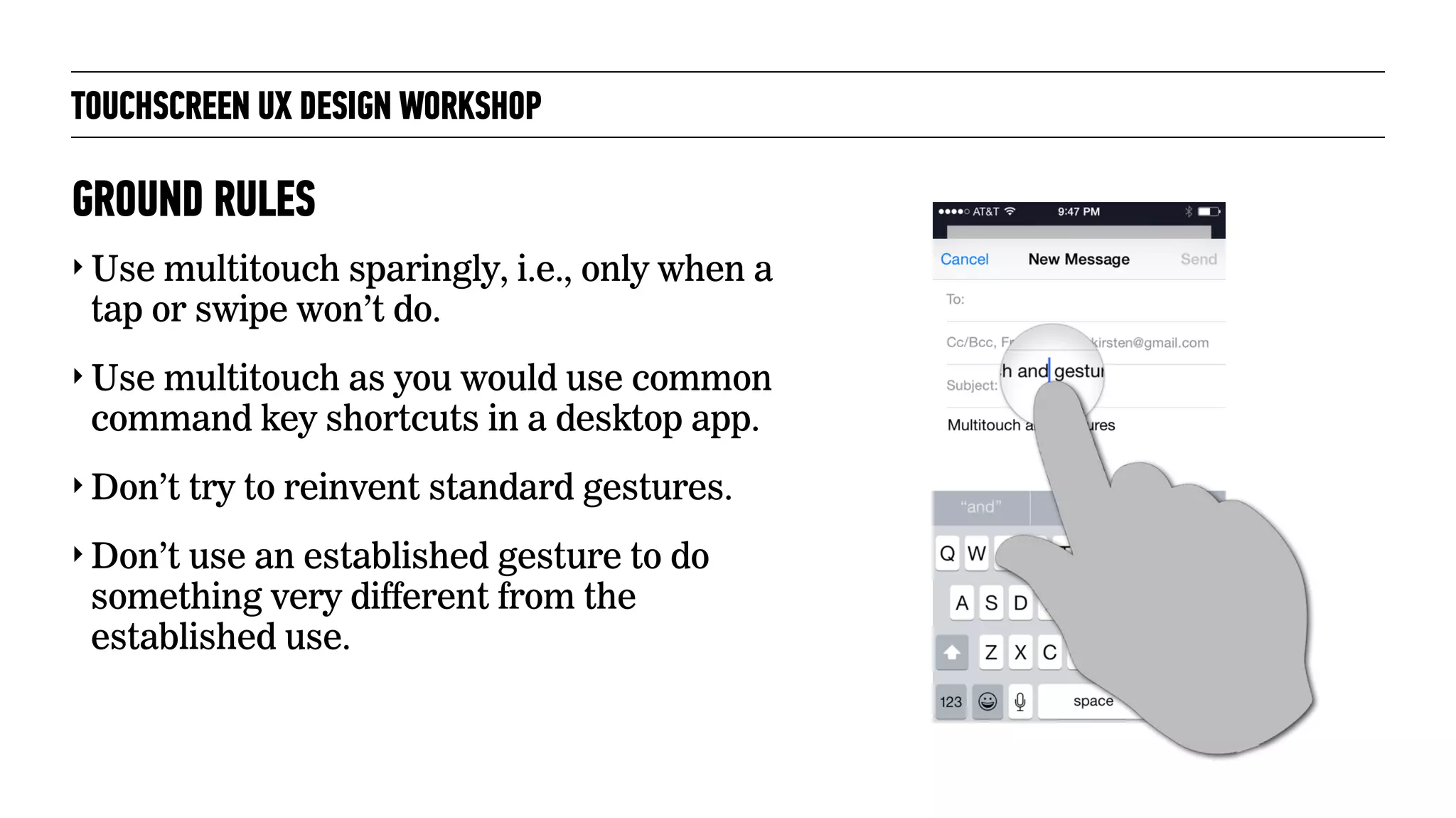
‣ Use multitouch sparingly, i.e., only when a
tap or swipe won’t do.
GROUND RULES
TOUCHSCREEN UX DESIGN WORKSHOP
‣ Use multitouch sparingly, i.e., only when a
tap or swipe won’t do.
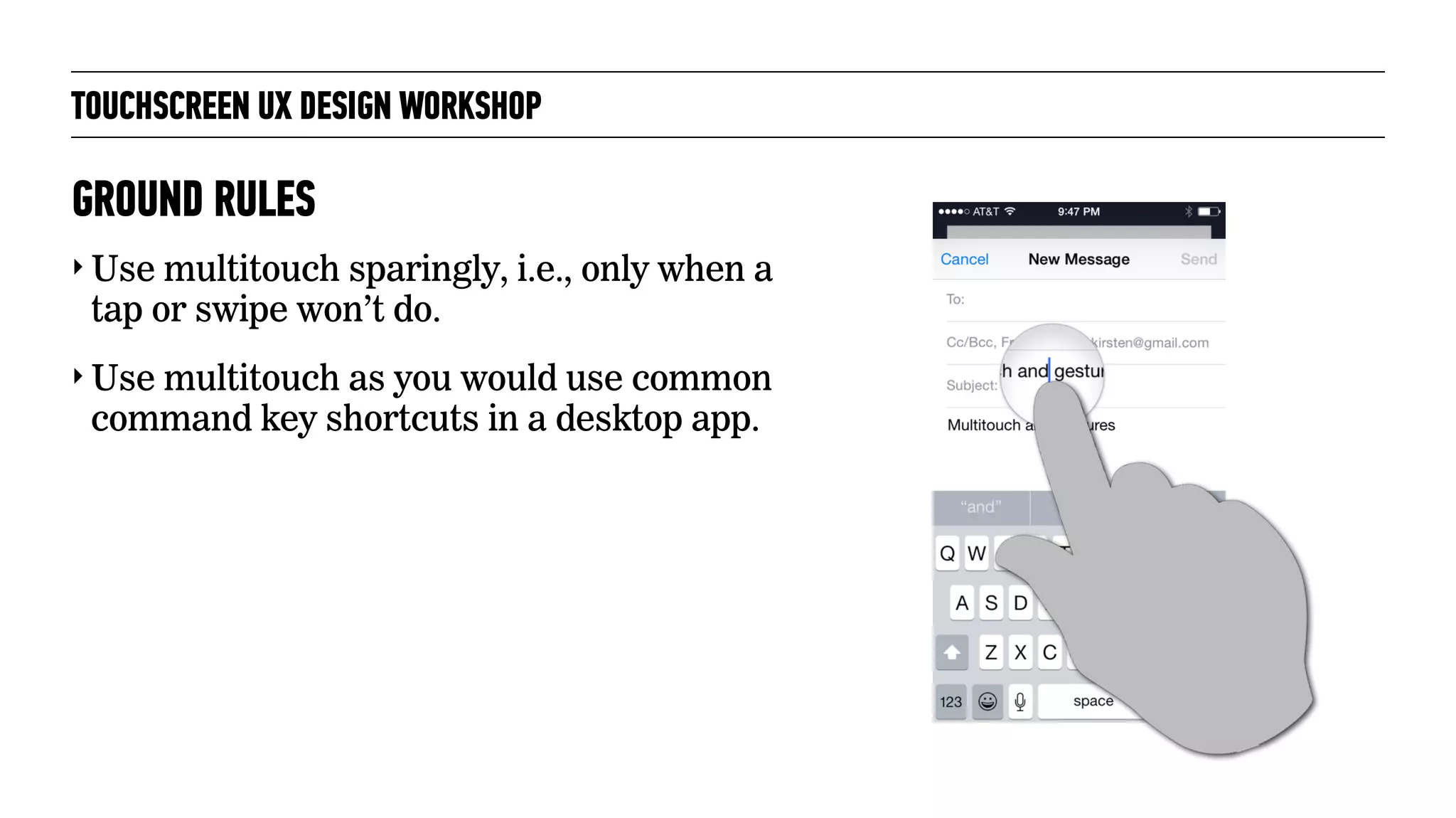
‣ Use multitouch as you would use common
command key shortcuts in a desktop app.
GROUND RULES
TOUCHSCREEN UX DESIGN WORKSHOP
‣ Use multitouch sparingly, i.e., only when a
tap or swipe won’t do.
‣ Use multitouch as you would use common
command key shortcuts in a desktop app.
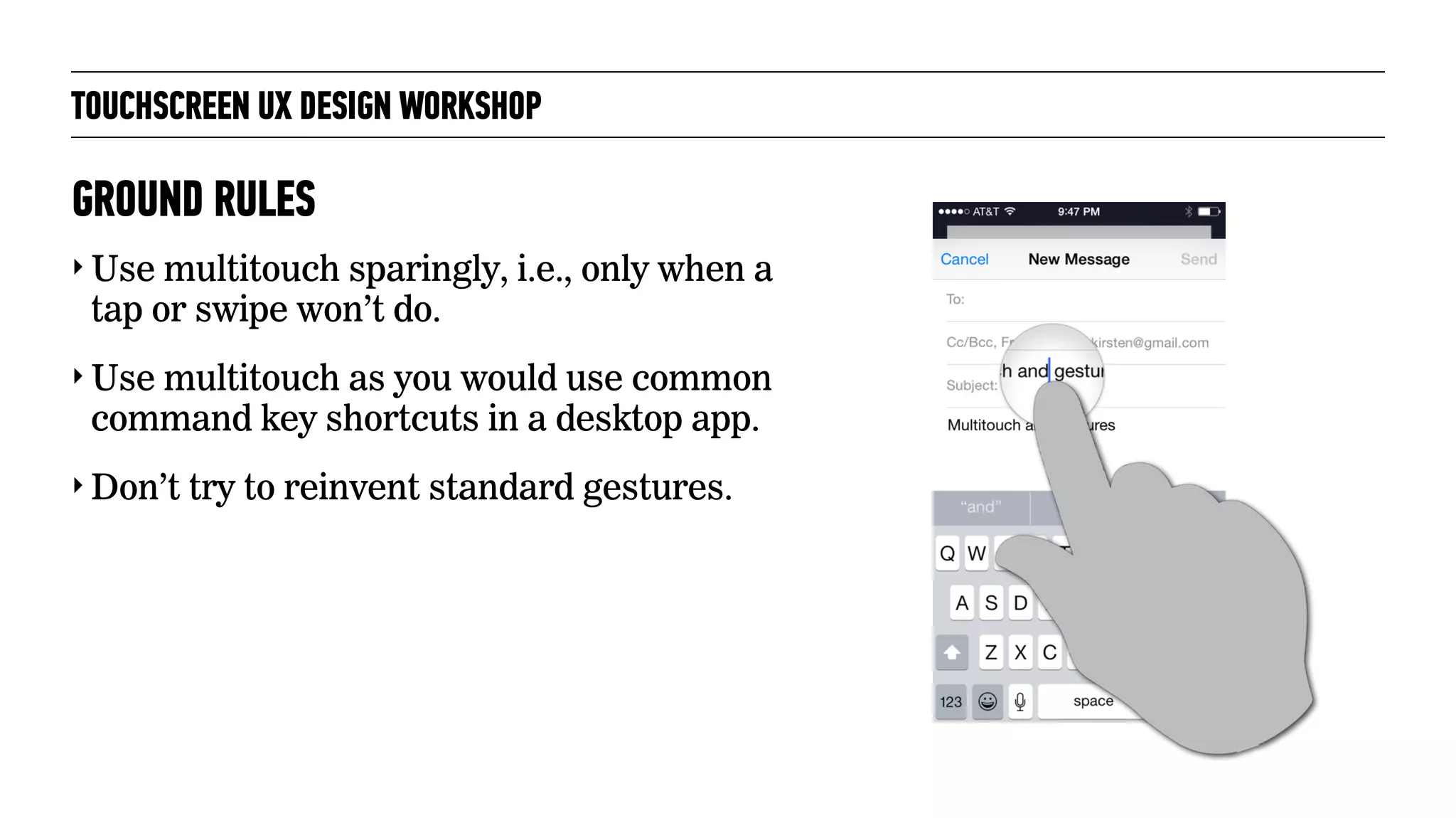
‣ Don’t try to reinvent standard gestures.
GROUND RULES
TOUCHSCREEN UX DESIGN WORKSHOP
‣ Use multitouch sparingly, i.e., only when a
tap or swipe won’t do.
‣ Use multitouch as you would use common
command key shortcuts in a desktop app.
‣ Don’t try to reinvent standard gestures.
‣ Don’t use an established gesture to do
something very different from the
established use.
GROUND RULES
TOUCHSCREEN UX DESIGN WORKSHOP
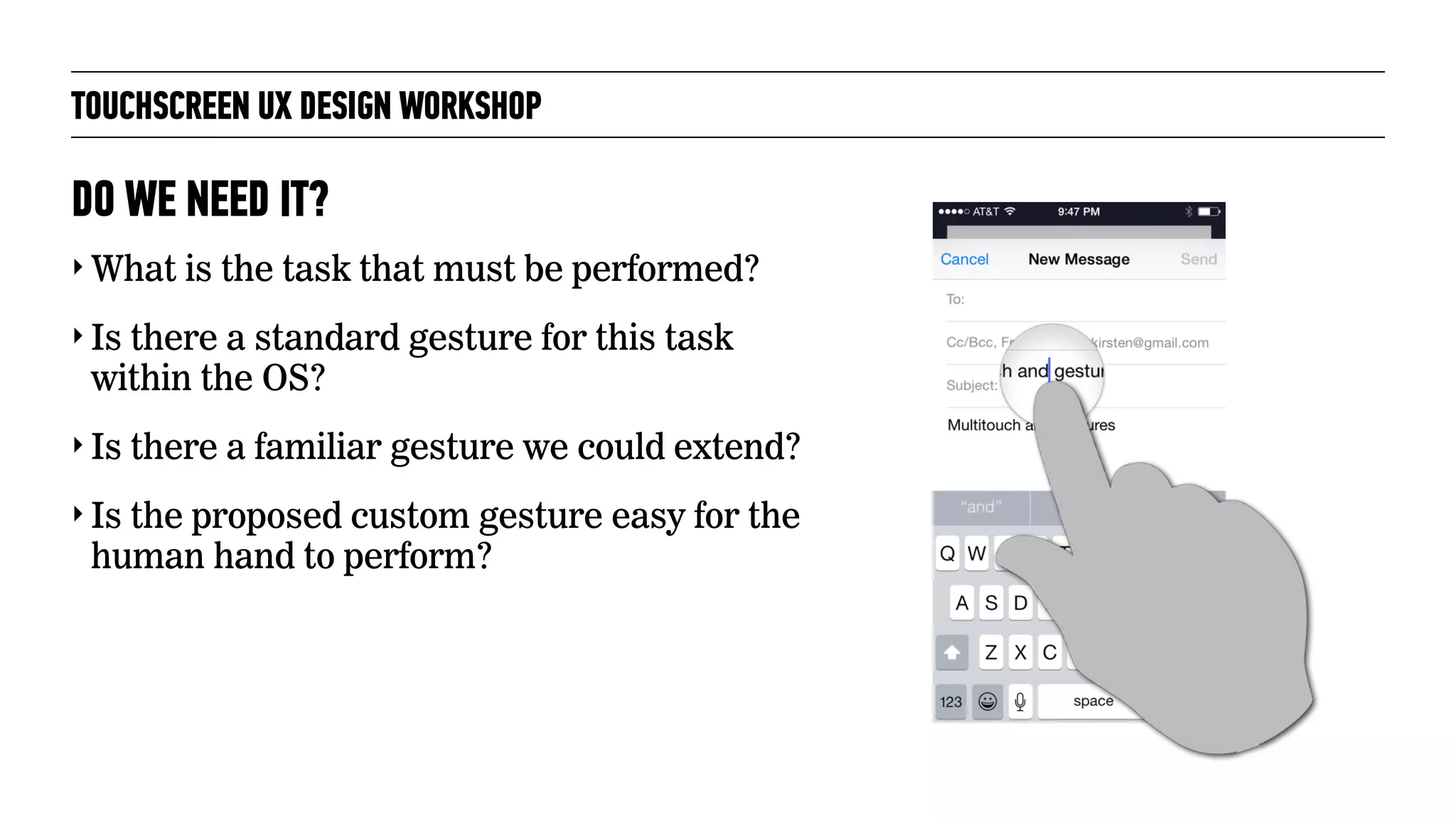
‣ What is the task that must be performed?
‣ Is there a standard gesture for this task
within the OS?
‣ Is there a familiar gesture we could extend?
‣ Is the proposed custom gesture easy for the
human hand to perform?
DO WE NEED IT?
TOUCHSCREEN UX DESIGN WORKSHOP
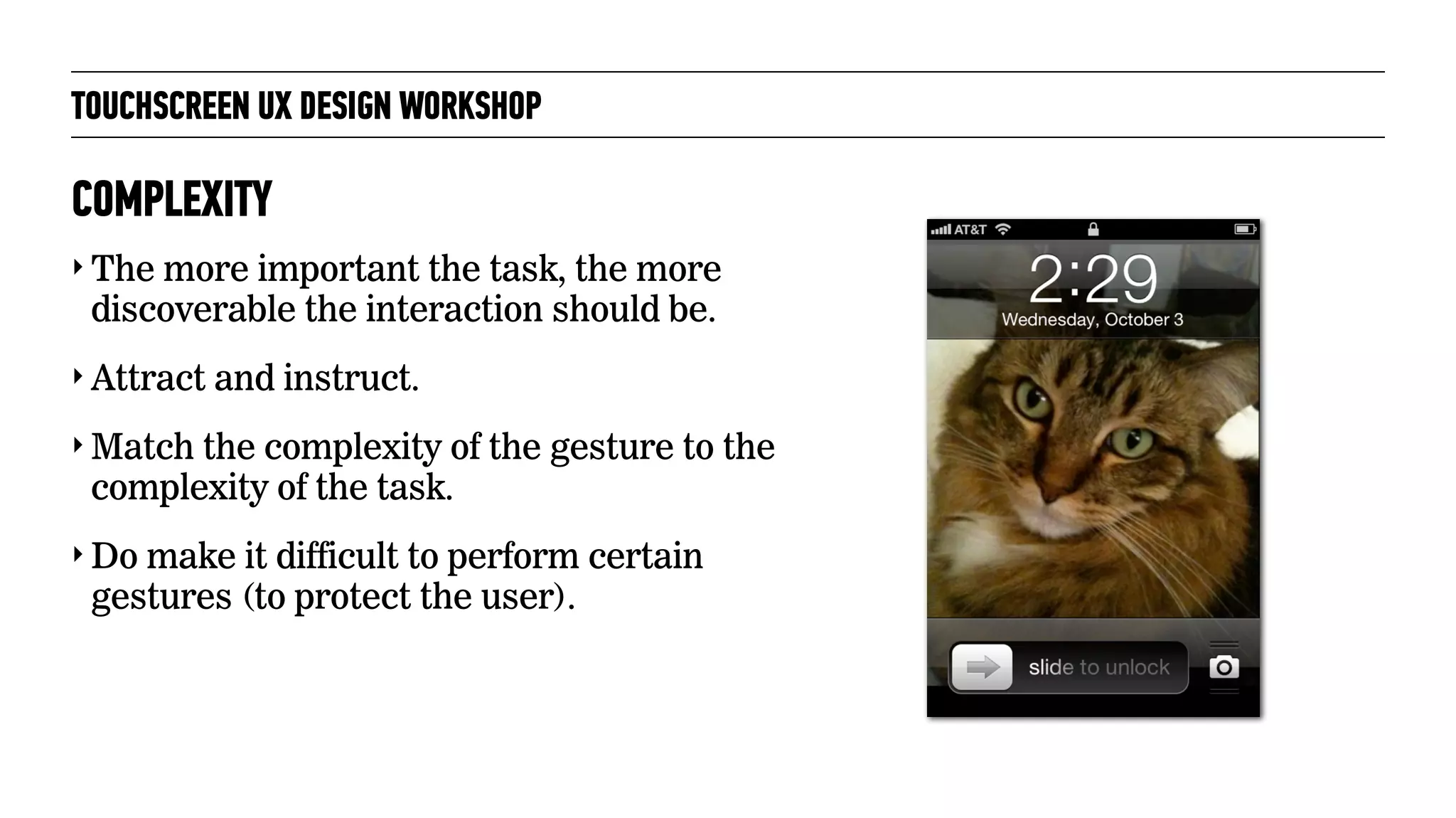
‣ The more important the task, the more
discoverable the interaction should be.
‣ Attract and instruct.
‣ Match the complexity of the gesture to the
complexity of the task.
‣ Do make it difficult to perform certain
gestures (to protect the user).
COMPLEXITY
MULTITOUCH / GESTURE
EXERCISE!
TOUCHSCREEN UX DESIGN WORKSHOP
Photograph: Janet Ramsden/flickr, Creative Commons license 2.0
TOUCHSCREEN UX DESIGN WORKSHOP
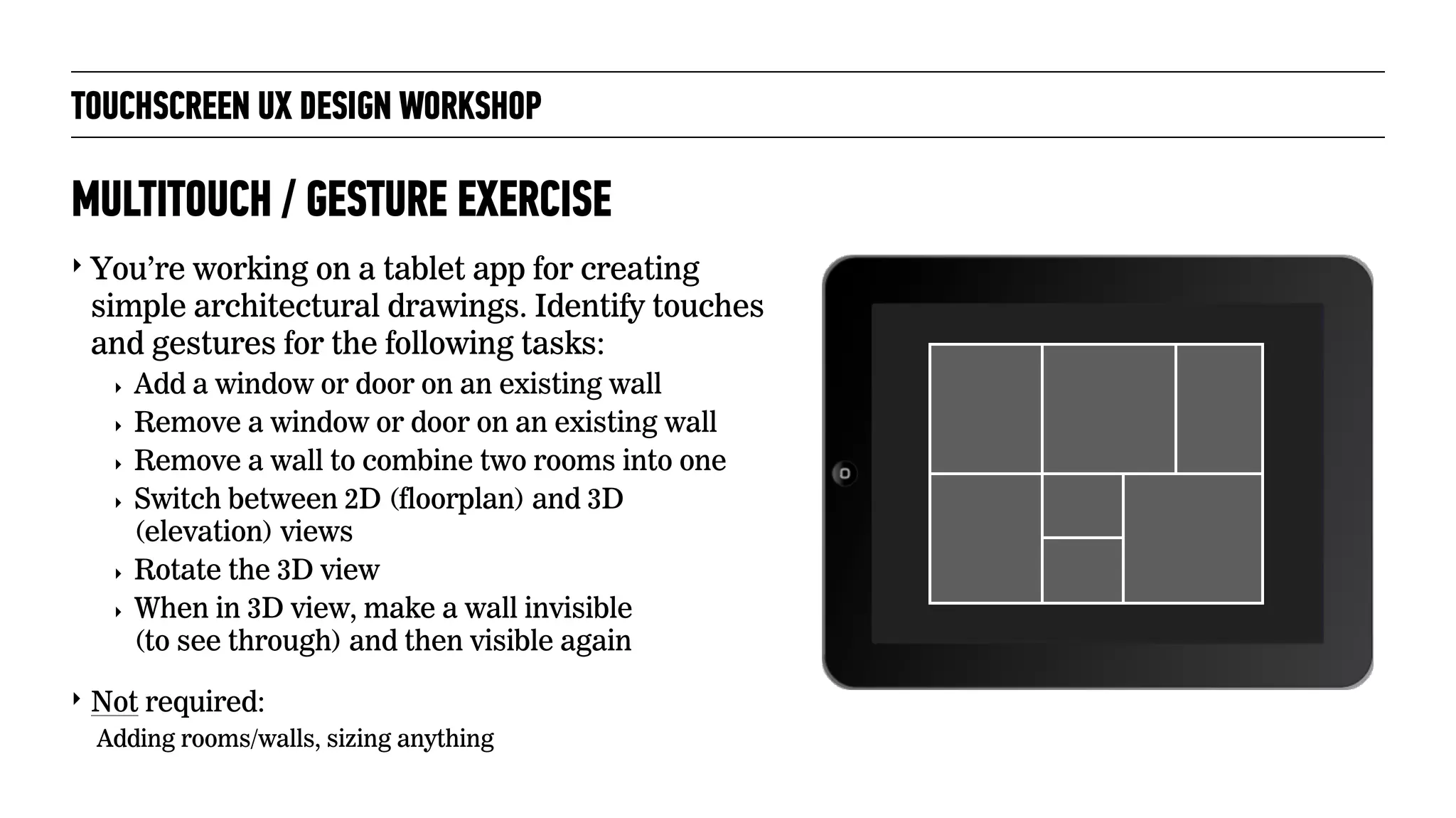
‣ You’re working on a tablet app for creating
simple architectural drawings. Identify touches
and gestures for the following tasks:
‣ Add a window or door on an existing wall
‣ Remove a window or door on an existing wall
‣ Remove a wall to combine two rooms into one
‣ Switch between 2D (floorplan) and 3D 

(elevation) views
‣ Rotate the 3D view
‣ When in 3D view, make a wall invisible 

(to see through) and then visible again
‣ Not required:
Adding rooms/walls, sizing anything
MULTITOUCH / GESTURE EXERCISE
PROTOTYPING
TOUCHSCREEN UX DESIGN WORKSHOP
Photograph: William Warby/flickr, Creative Commons license 2.0
TOUCHSCREEN UX DESIGN WORKSHOP
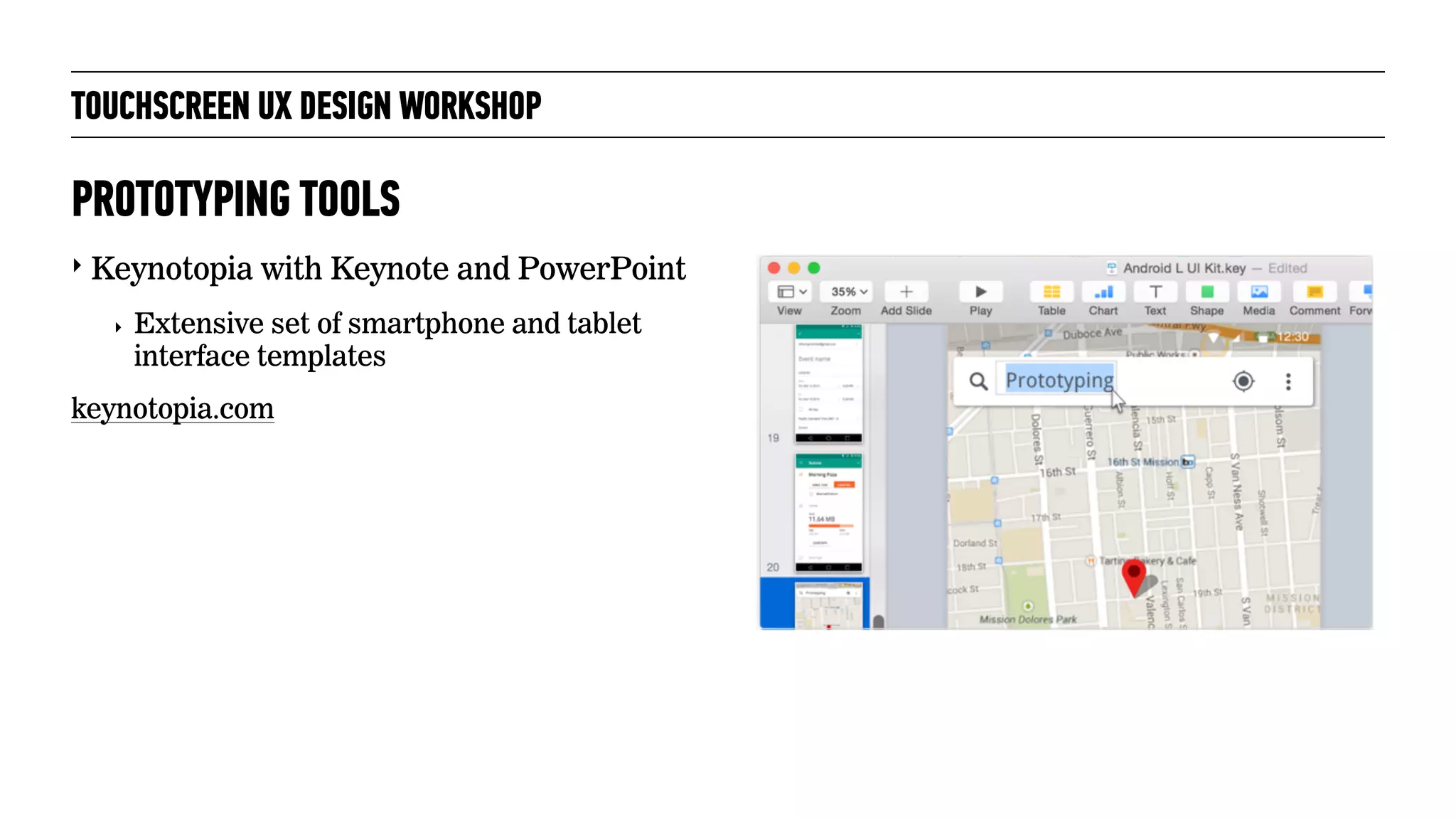
‣ Keynotopia with Keynote and PowerPoint
‣ Extensive set of smartphone and tablet
interface templates
keynotopia.com
PROTOTYPING TOOLS
TOUCHSCREEN UX DESIGN WORKSHOP
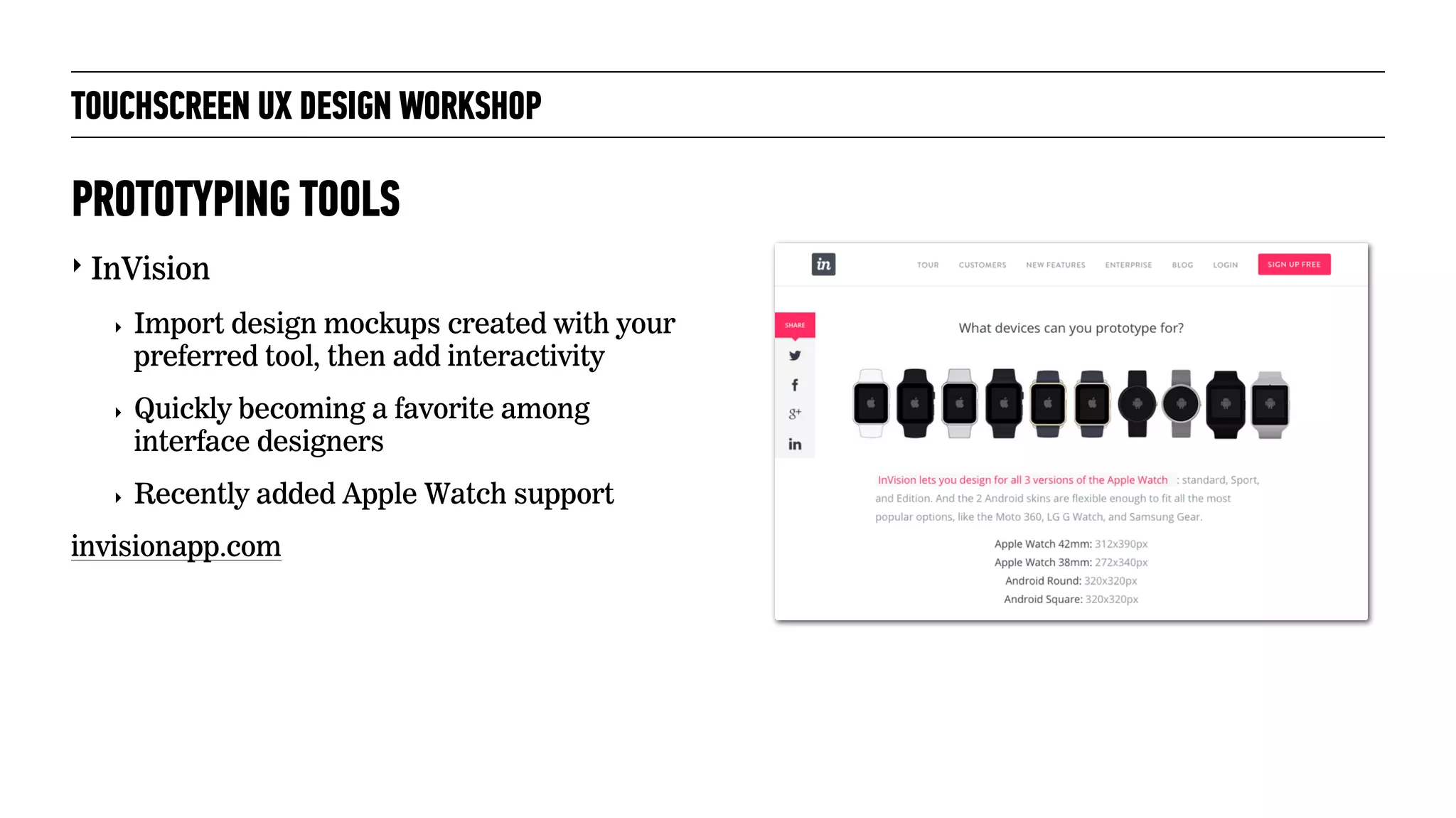
‣ InVision
‣ Import design mockups created with your
preferred tool, then add interactivity
‣ Quickly becoming a favorite among
interface designers
‣ Recently added Apple Watch support
invisionapp.com
PROTOTYPING TOOLS
TOUCHSCREEN UX DESIGN WORKSHOP
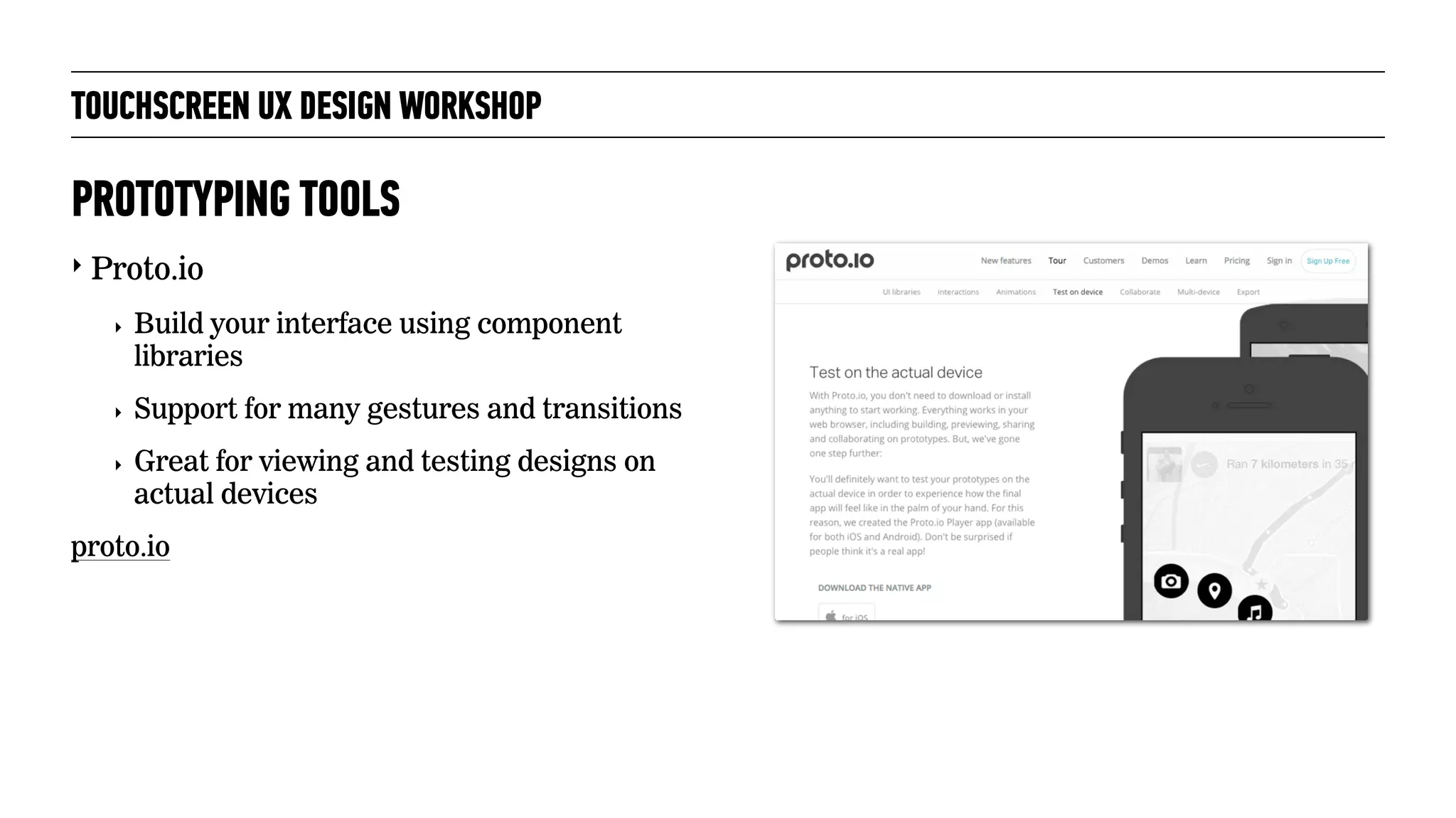
‣ Proto.io
‣ Build your interface using component
libraries
‣ Support for many gestures and transitions
‣ Great for viewing and testing designs on
actual devices
proto.io
PROTOTYPING TOOLS
CONTINUE LEARNING!
TOUCHSCREEN UX DESIGN WORKSHOP
Photograph: Faith Goble/flickr, Creative Commons license 2.0
TOUCHSCREEN UX DESIGN WORKSHOP
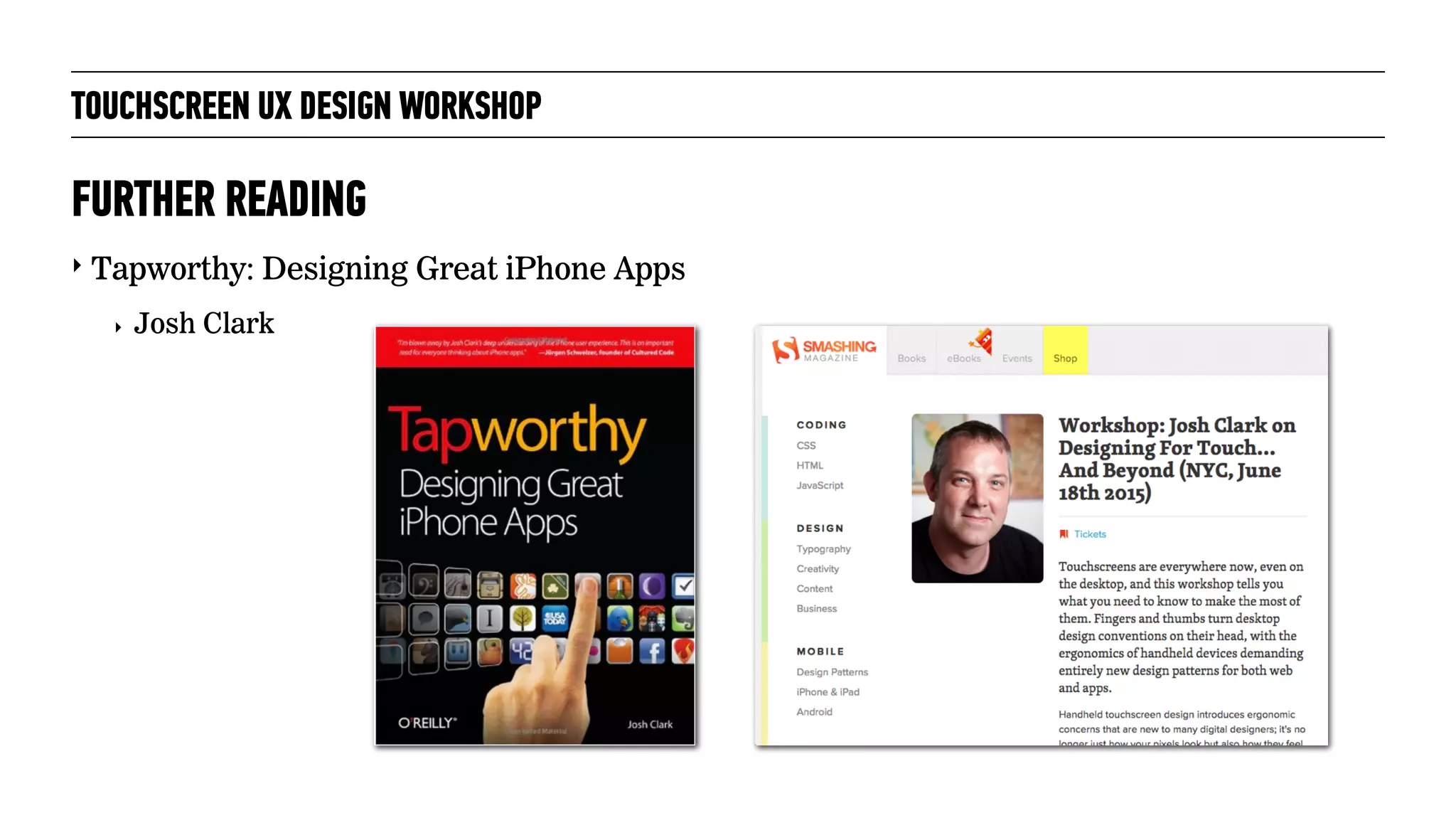
‣ Tapworthy: Designing Great iPhone Apps
‣ Josh Clark
FURTHER READING
TOUCHSCREEN UX DESIGN WORKSHOP
‣ Mobile Design Pattern Gallery
‣ Theresa Neil
FURTHER READING
TOUCHSCREEN UX DESIGN WORKSHOP
‣ Microinteractions
‣ Dan Saffer
‣ odannyboy.com
‣ Dan’s web site
FURTHER READING
TOUCHSCREEN UX DESIGN WORKSHOP
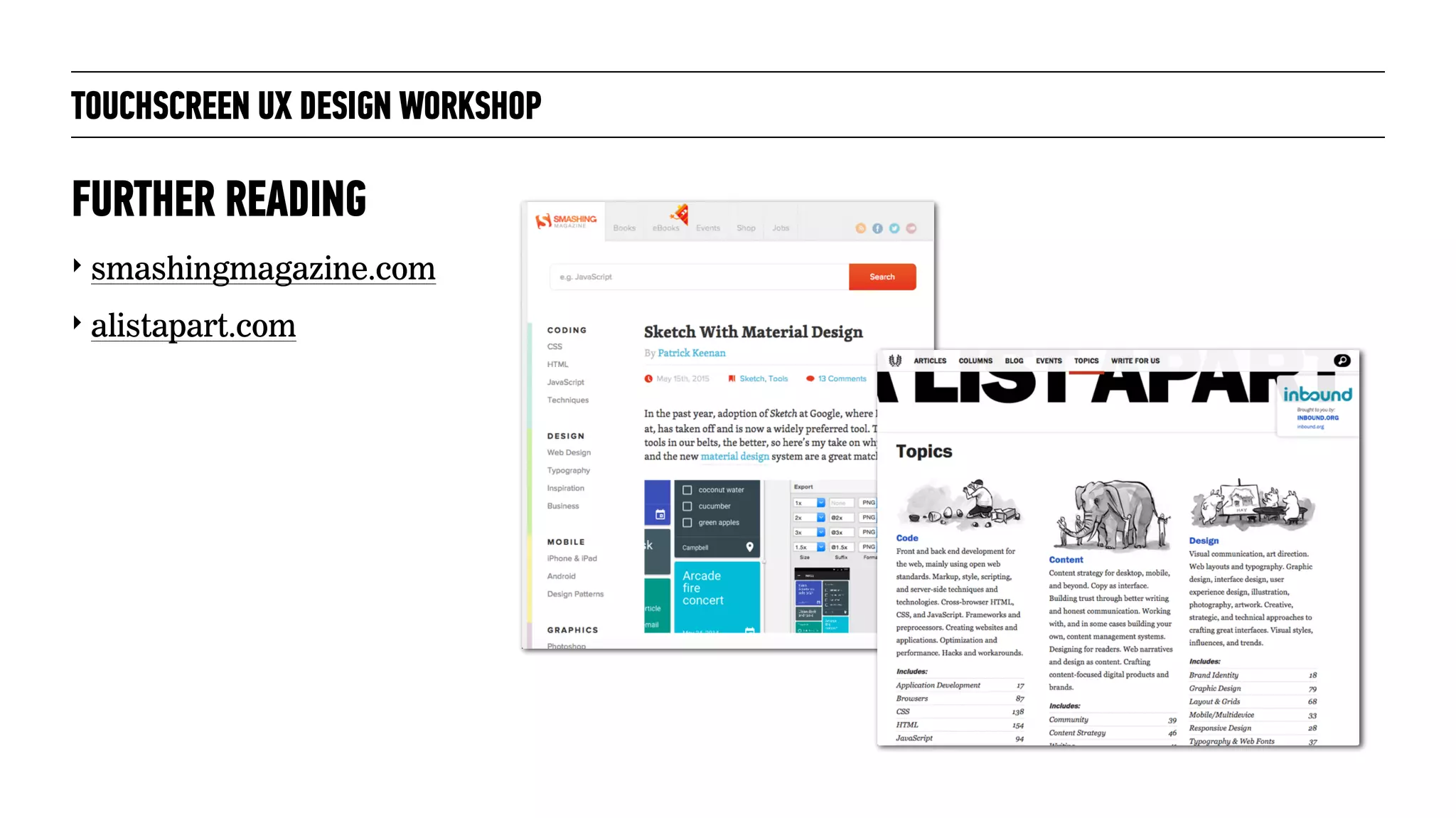
‣ smashingmagazine.com
‣ alistapart.com
FURTHER READING
TOUCHSCREEN UX
DESIGN WORKSHOP
Kirsten Miller, UX Lead, Razorfish

Touchscreen UX design workshop

  • 1.
    TOUCHSCREEN UX DESIGN WORKSHOP KirstenMiller, UX Lead, Razorfish
  • 2.
    AGENDA I. ‣ Introductions and overview ‣Warm-up exercise ‣ Fingers, hands, and touch targets II. ‣ Activity zones ‣ App structures ‣ Smartphone exercise III. ‣ Scrolling, taps, and chrome ‣ Multitouch and gestures ‣ Final exercise ‣ Tools and further reading ‣ Wrap up LOTS OF STUFF!
  • 3.
    ‣ Your name ‣Live in Seattle? How long? ‣ Occupation ‣ Why you’re here today INTRODUCTIONS HELLO! Photograph: Andrea Arden/flickr, Creative Commons license 2.0
  • 4.
    TOUCHSCREEN UX DESIGNWORKSHOP WE’LL COVER:
  • 5.
    TOUCHSCREEN UX DESIGNWORKSHOP ‣ How designing user experiences for touchscreens is different from designing experiences for pointing device environments WE’LL COVER:
  • 6.
    TOUCHSCREEN UX DESIGNWORKSHOP ‣ How designing user experiences for touchscreens is different from designing experiences for pointing device environments ‣ How people interact with touchscreens WE’LL COVER:
  • 7.
    TOUCHSCREEN UX DESIGNWORKSHOP ‣ How designing user experiences for touchscreens is different from designing experiences for pointing device environments ‣ How people interact with touchscreens ‣ Guidelines for making touchscreen experiences usable WE’LL COVER:
  • 8.
    TOUCHSCREEN UX DESIGNWORKSHOP ‣ How designing user experiences for touchscreens is different from designing experiences for pointing device environments ‣ How people interact with touchscreens ‣ Guidelines for making touchscreen experiences usable ‣ Discussion of organizing concepts for touchscreen/small screen experiences WE’LL COVER:
  • 9.
    TOUCHSCREEN UX DESIGNWORKSHOP ‣ How designing user experiences for touchscreens is different from designing experiences for pointing device environments ‣ How people interact with touchscreens ‣ Guidelines for making touchscreen experiences usable ‣ Discussion of organizing concepts for touchscreen/small screen experiences ‣ Guidelines on incorporating multi-touch and gestures WE’LL COVER:
  • 10.
    TOUCHSCREEN UX DESIGNWORKSHOP ‣ How designing user experiences for touchscreens is different from designing experiences for pointing device environments ‣ How people interact with touchscreens ‣ Guidelines for making touchscreen experiences usable ‣ Discussion of organizing concepts for touchscreen/small screen experiences ‣ Guidelines on incorporating multi-touch and gestures WE’LL COVER: SORRY, WE WON’T COVER:
  • 11.
    TOUCHSCREEN UX DESIGNWORKSHOP ‣ How designing user experiences for touchscreens is different from designing experiences for pointing device environments ‣ How people interact with touchscreens ‣ Guidelines for making touchscreen experiences usable ‣ Discussion of organizing concepts for touchscreen/small screen experiences ‣ Guidelines on incorporating multi-touch and gestures WE’LL COVER: ‣ Platform, OS differences SORRY, WE WON’T COVER:
  • 12.
    TOUCHSCREEN UX DESIGNWORKSHOP ‣ How designing user experiences for touchscreens is different from designing experiences for pointing device environments ‣ How people interact with touchscreens ‣ Guidelines for making touchscreen experiences usable ‣ Discussion of organizing concepts for touchscreen/small screen experiences ‣ Guidelines on incorporating multi-touch and gestures WE’LL COVER: ‣ Platform, OS differences ‣ In-depth discussion of screen resolution or responsive design considerations SORRY, WE WON’T COVER:
  • 13.
    TOUCHSCREEN UX DESIGNWORKSHOP ‣ How designing user experiences for touchscreens is different from designing experiences for pointing device environments ‣ How people interact with touchscreens ‣ Guidelines for making touchscreen experiences usable ‣ Discussion of organizing concepts for touchscreen/small screen experiences ‣ Guidelines on incorporating multi-touch and gestures WE’LL COVER: ‣ Platform, OS differences ‣ In-depth discussion of screen resolution or responsive design considerations ‣ Coding/development SORRY, WE WON’T COVER:
  • 14.
    WARM-UP EXERCISE! TOUCHSCREEN UXDESIGN WORKSHOP Photograph: William Warby/flickr, Creative Commons license 2.0
  • 15.
    TOUCHSCREEN UX DESIGNWORKSHOP ‣ Sketch a touchscreen version of a simple household thermostat (15 minutes) ‣ Requirements: ‣ Accessed via whatever touchscreen interface(s) you choose ‣ See current temperature ‣ Set desired temperature ‣ See whether system is heating or cooling ‣ Turn system off/on ‣ Not required: Programming dates/times, controlling specific rooms WARM-UP EXERCISE Photograph: starmanseries/flickr, Creative Commons license 2.0
  • 16.
    FINGERS, HANDS ANDTOUCH TARGETS TOUCHSCREEN UX DESIGN WORKSHOP Photograph: Trace Meek/flickr, Creative Commons license 2.0
  • 17.
    TOUCHSCREEN UX DESIGNWORKSHOP ‣ They’re far less accurate than a screen cursor LET’S TALK ABOUT FINGERS 1 mm 8-10 mm diameter Image: public domain
  • 18.
    TOUCHSCREEN UX DESIGNWORKSHOP ‣ Minimum size guidelines for touch targets: TOUCH TARGET SIZES 8 mm 10 mm Option3Selected Option2
  • 19.
    TOUCHSCREEN UX DESIGNWORKSHOP ‣ Minimum size guidelines for touch targets: ‣ Physical keyboard: TOUCH TARGET SIZES 8 mm 10 mm Option3Selected Option2 8 mm 15 mm 4 mm 15 mm
  • 20.
    TOUCHSCREEN UX DESIGNWORKSHOP ‣ Minimum size guidelines for touch targets: ‣ iOS keyboard, iPhone 5s: TOUCH TARGET SIZES 8 mm 10 mm Option3Selected Option2 5 mm 8 mm 0.8 mm
  • 21.
    TOUCHSCREEN UX DESIGNWORKSHOP ‣ Minimum size guidelines for touch targets: ‣ iOS keyboard, iPhone 5s: TOUCH TARGET SIZES 8 mm 10 mm Option3Selected Option2 5 mm 8 mm 0.8 mm4 mm 6 mm
  • 22.
    TOUCHSCREEN UX DESIGNWORKSHOP ‣ Iceberg tips: TOUCH TARGET TRICKS OK tappable area
  • 23.
    TOUCHSCREEN UX DESIGNWORKSHOP ‣ Iceberg tips: ‣ Adaptive targets: TOUCH TARGET TRICKS tappable area Q, then ? anticipate your next move… OK
  • 24.
    TOUCHSCREEN UX DESIGNWORKSHOP ‣ Usability testing: Watch real people play with an interactive prototype ‣ Before that? Try a testing template, like this one from Steven Hoober / fourth Mobile HOW DO YOU KNOW IF YOUR TOUCH TARGETS ARE OK? Photograph: 4ourth Mobile
  • 25.
    TOUCHSCREEN UX DESIGNWORKSHOP ‣ Those pesky fingers always seem to be attached to hands… which often block much of the interface. AND IT’S NOT JUST ABOUT FINGERS
  • 26.
    TOUCHSCREEN UX DESIGNWORKSHOP ‣ Those pesky fingers always seem to be attached to hands… which often block much of the interface. AND IT’S NOT JUST ABOUT FINGERS
  • 27.
    TOUCHSCREEN UX DESIGNWORKSHOP ‣ Those pesky fingers always seem to be attached to hands… which often block much of the interface. AND IT’S NOT JUST ABOUT FINGERS 15-25 mm wide
  • 28.
    TOUCHSCREEN UX DESIGNWORKSHOP ‣ Those pesky fingers always seem to be attached to hands… which often block much of the interface. AND IT’S NOT JUST ABOUT FINGERS 15-25 mm wide
  • 29.
    TOUCHSCREEN UX DESIGNWORKSHOP DON’T TALK TO THE HAND! this is awesome! Choose one: The best option Another option The third option
  • 30.
    TOUCHSCREEN UX DESIGNWORKSHOP DON’T TALK TO THE HAND! this is awesome! Choose one: The best option Another option The third option this is awesome! Choose one: The best option Another option The third option APPLY Oh, hey! The action you selected can’t be undone. Are you sure you want to do it?
  • 31.
    TOUCHSCREEN UX DESIGNWORKSHOP DON’T TALK TO THE HAND! this is awesome! Choose one: The best option Another option The third option this is awesome! Choose one: The best option Another option The third option APPLY Oh, hey! The action you selected can’t be undone. Are you sure you want to do it? this is awesome! Choose one: The best option Another option The third option Oh, hey! The action you selected can’t be undone. Are you sure you want to do it? APPLY Cancel
  • 32.
    TOUCHSCREEN UX DESIGNWORKSHOP Photograph: Faith Goble/flickr, Creative Commons license 2.0 BREAK!
  • 33.
    ACTIVITY ZONES TOUCHSCREEN UXDESIGN WORKSHOP Photograph: Faith Goble/flickr, Creative Commons license 2.0
  • 34.
    “Some of thebest [touchscreen apps] have placed controls in ways that best match the ergonomics of our hands while holding [the devices]… Put the high-use controls in the Easy zones, and controls that are less used (and certainly those you don’t want accidentally pressed) in the Reach zones. Dan Saffer
 Author of Designing for Interaction and Microinteractions TOUCHSCREEN UX DESIGN WORKSHOP EASY VS. REACH “
  • 35.
    “Some of thebest [touchscreen apps] have placed controls in ways that best match the ergonomics of our hands while holding [the devices]… Put the high-use controls in the Easy zones, and controls that are less used (and certainly those you don’t want accidentally pressed) in the Reach zones. Dan Saffer
 Author of Designing for Interaction and Microinteractions TOUCHSCREEN UX DESIGN WORKSHOP EASY VS. REACH “
  • 36.
    “Some of thebest [touchscreen apps] have placed controls in ways that best match the ergonomics of our hands while holding [the devices]… Put the high-use controls in the Easy zones, and controls that are less used (and certainly those you don’t want accidentally pressed) in the Reach zones. Dan Saffer
 Author of Designing for Interaction and Microinteractions TOUCHSCREEN UX DESIGN WORKSHOP EASY VS. REACH “
  • 37.
    TOUCHSCREEN UX DESIGNWORKSHOP EASY VS. REACH
  • 38.
    TOUCHSCREEN UX DESIGNWORKSHOP Hey, what about lefties? EASY VS. REACH
  • 39.
    TOUCHSCREEN UX DESIGNWORKSHOP What about these people? EASY VS. REACH Photographs: Tom Newby/flickr, Creative Commons license 2.0 | NYC Media Lab/flickr, Creative Commons license 2.0
  • 40.
    TOUCHSCREEN UX DESIGNWORKSHOP A BRIEF SURVEY, PART 1 Photographs: N i c o l a /flickr, Creative Commons license 2.0 | r. nial bradshaw/flickr, Creative Commons license 2.0 | Tony Hughes, public domain
  • 41.
    TOUCHSCREEN UX DESIGNWORKSHOP A BRIEF SURVEY, PART 1 A 1 hand Photographs: N i c o l a /flickr, Creative Commons license 2.0 | r. nial bradshaw/flickr, Creative Commons license 2.0 | Tony Hughes, public domain
  • 42.
    TOUCHSCREEN UX DESIGNWORKSHOP A BRIEF SURVEY, PART 1 A 1 hand B 2 hands, thumbs Photographs: N i c o l a /flickr, Creative Commons license 2.0 | r. nial bradshaw/flickr, Creative Commons license 2.0 | Tony Hughes, public domain
  • 43.
    TOUCHSCREEN UX DESIGNWORKSHOP A BRIEF SURVEY, PART 1 A 1 hand B 2 hands, thumbs C 2 hands, finger Photographs: N i c o l a /flickr, Creative Commons license 2.0 | r. nial bradshaw/flickr, Creative Commons license 2.0 | Tony Hughes, public domain
  • 44.
    TOUCHSCREEN UX DESIGNWORKSHOP A BRIEF SURVEY, PART 2 A Thumbs B Finger Photographs: Serge Kij/flickr, Creative Commons license 2.0 | NYC Media Lab/flickr, Creative Commons license 2.0
  • 45.
    TOUCHSCREEN UX DESIGNWORKSHOP SOME REAL RESEARCH In January 2013, a UX designer named Steven Hoober led a study observing 1,333 real live people using their mobile devices in the wild. Here’s what the researchers found.
  • 46.
    TOUCHSCREEN UX DESIGNWORKSHOP SOME REAL RESEARCH In January 2013, a UX designer named Steven Hoober led a study observing 1,333 real live people using their mobile devices in the wild. Here’s what the researchers found. 49% one hand right hand 67% left hand 33%
  • 47.
    TOUCHSCREEN UX DESIGNWORKSHOP SOME REAL RESEARCH In January 2013, a UX designer named Steven Hoober led a study observing 1,333 real live people using their mobile devices in the wild. Here’s what the researchers found. 49% one hand right hand 67% left hand 33% 36% “cradled” thumb on screen 72% finger on screen 28%
  • 48.
    TOUCHSCREEN UX DESIGNWORKSHOP SOME REAL RESEARCH In January 2013, a UX designer named Steven Hoober led a study observing 1,333 real live people using their mobile devices in the wild. Here’s what the researchers found. 49% one hand right hand 67% left hand 33% 36% “cradled” thumb on screen 72% finger on screen 28% 15% two hands both thumbs 
 on screen
  • 49.
    TOUCHSCREEN UX DESIGNWORKSHOP SOME REAL RESEARCH “The way in which users hold their phone is not a static state. Users change the way they’re holding their phone very often—sometimes every few seconds. “ See more at: http://www.uxmatters.com/mt/archives/2013/02/how-do-users-really-hold-mobile-devices.php
  • 50.
    APP STRUCTURES TOUCHSCREEN UXDESIGN WORKSHOP Photograph: USGS Bee Inventory and Monitoring Lab/flickr, Creative Commons license 2.0
  • 51.
    TOUCHSCREEN UX DESIGNWORKSHOP WHY TALK ABOUT APP STRUCTURE?
  • 52.
    TOUCHSCREEN UX DESIGNWORKSHOP FLAT STRUCTURE Detail Detail Detail Detail Detail
  • 53.
    TOUCHSCREEN UX DESIGNWORKSHOP FLAT STRUCTURE
  • 54.
    TOUCHSCREEN UX DESIGNWORKSHOP STAR STRUCTURE Detail Detail Home Detail Detail Detail
  • 55.
    TOUCHSCREEN UX DESIGNWORKSHOP STAR STRUCTURE Flight Tracker My Trips Cars Flights Hotels
  • 56.
    TOUCHSCREEN UX DESIGNWORKSHOP DECENTRALIZED STRUCTURE Detail Detail Function 1 DetailDetail Detail Function 2 Function 3 Function 4 Detail persistent menu:
  • 57.
    TOUCHSCREEN UX DESIGNWORKSHOP DECENTRALIZED STRUCTURE Blog Instagram Category Search Find a WL Save for later Checkout
  • 58.
    SMARTPHONE APP EXERCISE! TOUCHSCREENUX DESIGN WORKSHOP Photograph: Janet Ramsden/flickr, Creative Commons license 2.0
  • 59.
    TOUCHSCREEN UX DESIGNWORKSHOP ‣ Ack! Susie always forgets to put something in her Google calendar to let her co-workers know she’s out of the office! ‣ Sketch a smartphone app that quickly updates a user’s multiple Google calendars with out-of- office status. Requirements: ‣ Set start and end dates ‣ Set time as all day or specific hours ‣ Option to decline meeting requests automatically ‣ Choose which calendars to apply status to ‣ Not required: Naming events, custom replies SMARTPHONE EXERCISE Photograph: Andy Price/flickr, Creative Commons license 2.0
  • 60.
    TOUCHSCREEN UX DESIGNWORKSHOP Photograph: Faith Goble/flickr, Creative Commons license 2.0 BREAK!
  • 61.
    TOUCHSCREEN UX DESIGNWORKSHOP Photograph: Faith Goble/flickr, Creative Commons license 2.0 SCROLLING, TAPS AND CHROME
  • 62.
    TOUCHSCREEN UX DESIGNWORKSHOP IS THERE SUCH A THING AS TOO MUCH SCROLLING?
  • 63.
    TOUCHSCREEN UX DESIGNWORKSHOP IS THERE SUCH A THING AS TOO MUCH SCROLLING? There’s a great article on infinite scrolling in Smashing Magazine: Infinite Scrolling: Let’s Get To The Bottom Of This
 By Yogev Ahuvia http://www.smashingmagazine.com/2013/05/03/infinite-scrolling-lets- get-to-the-bottom-of-this/
  • 64.
    TOUCHSCREEN UX DESIGNWORKSHOP TOO MANY TAPS? Photograph: Jack Delano, Licensed under Public Domain via Wikimedia Commons
  • 65.
    TOUCHSCREEN UX DESIGNWORKSHOP TOO MANY TAPS? “Counting taps is often a pointless exercise. Taps aren’t as odious as clicks. But watch for excess taps around high- frequency actions. Dan Saffer
 Author of Designing for Interaction and Microinteractions “ Photograph: Jack Delano, Licensed under Public Domain via Wikimedia Commons
  • 66.
    TOUCHSCREEN UX DESIGNWORKSHOP WHAT’S WRONG?
  • 67.
    TOUCHSCREEN UX DESIGNWORKSHOP WHAT’S WRONG?
  • 68.
    TOUCHSCREEN UX DESIGNWORKSHOP KEEP APP CHROME TO A MINIMUM
  • 69.
    TOUCHSCREEN UX DESIGNWORKSHOP KEEP APP CHROME TO A MINIMUM
  • 70.
    MULTITOUCH AND GESTURES TOUCHSCREENUX DESIGN WORKSHOP Photograph: Trace Meek/flickr, Creative Commons license 2.0
  • 71.
    TOUCHSCREEN UX DESIGNWORKSHOP GROUND RULES
  • 72.
    TOUCHSCREEN UX DESIGNWORKSHOP ‣ Use multitouch sparingly, i.e., only when a tap or swipe won’t do. GROUND RULES
  • 73.
    TOUCHSCREEN UX DESIGNWORKSHOP ‣ Use multitouch sparingly, i.e., only when a tap or swipe won’t do. ‣ Use multitouch as you would use common command key shortcuts in a desktop app. GROUND RULES
  • 74.
    TOUCHSCREEN UX DESIGNWORKSHOP ‣ Use multitouch sparingly, i.e., only when a tap or swipe won’t do. ‣ Use multitouch as you would use common command key shortcuts in a desktop app. ‣ Don’t try to reinvent standard gestures. GROUND RULES
  • 75.
    TOUCHSCREEN UX DESIGNWORKSHOP ‣ Use multitouch sparingly, i.e., only when a tap or swipe won’t do. ‣ Use multitouch as you would use common command key shortcuts in a desktop app. ‣ Don’t try to reinvent standard gestures. ‣ Don’t use an established gesture to do something very different from the established use. GROUND RULES
  • 76.
    TOUCHSCREEN UX DESIGNWORKSHOP ‣ What is the task that must be performed? ‣ Is there a standard gesture for this task within the OS? ‣ Is there a familiar gesture we could extend? ‣ Is the proposed custom gesture easy for the human hand to perform? DO WE NEED IT?
  • 77.
    TOUCHSCREEN UX DESIGNWORKSHOP ‣ The more important the task, the more discoverable the interaction should be. ‣ Attract and instruct. ‣ Match the complexity of the gesture to the complexity of the task. ‣ Do make it difficult to perform certain gestures (to protect the user). COMPLEXITY
  • 78.
    MULTITOUCH / GESTURE EXERCISE! TOUCHSCREENUX DESIGN WORKSHOP Photograph: Janet Ramsden/flickr, Creative Commons license 2.0
  • 79.
    TOUCHSCREEN UX DESIGNWORKSHOP ‣ You’re working on a tablet app for creating simple architectural drawings. Identify touches and gestures for the following tasks: ‣ Add a window or door on an existing wall ‣ Remove a window or door on an existing wall ‣ Remove a wall to combine two rooms into one ‣ Switch between 2D (floorplan) and 3D 
 (elevation) views ‣ Rotate the 3D view ‣ When in 3D view, make a wall invisible 
 (to see through) and then visible again ‣ Not required: Adding rooms/walls, sizing anything MULTITOUCH / GESTURE EXERCISE
  • 80.
    PROTOTYPING TOUCHSCREEN UX DESIGNWORKSHOP Photograph: William Warby/flickr, Creative Commons license 2.0
  • 81.
    TOUCHSCREEN UX DESIGNWORKSHOP ‣ Keynotopia with Keynote and PowerPoint ‣ Extensive set of smartphone and tablet interface templates keynotopia.com PROTOTYPING TOOLS
  • 82.
    TOUCHSCREEN UX DESIGNWORKSHOP ‣ InVision ‣ Import design mockups created with your preferred tool, then add interactivity ‣ Quickly becoming a favorite among interface designers ‣ Recently added Apple Watch support invisionapp.com PROTOTYPING TOOLS
  • 83.
    TOUCHSCREEN UX DESIGNWORKSHOP ‣ Proto.io ‣ Build your interface using component libraries ‣ Support for many gestures and transitions ‣ Great for viewing and testing designs on actual devices proto.io PROTOTYPING TOOLS
  • 84.
    CONTINUE LEARNING! TOUCHSCREEN UXDESIGN WORKSHOP Photograph: Faith Goble/flickr, Creative Commons license 2.0
  • 85.
    TOUCHSCREEN UX DESIGNWORKSHOP ‣ Tapworthy: Designing Great iPhone Apps ‣ Josh Clark FURTHER READING
  • 86.
    TOUCHSCREEN UX DESIGNWORKSHOP ‣ Mobile Design Pattern Gallery ‣ Theresa Neil FURTHER READING
  • 87.
    TOUCHSCREEN UX DESIGNWORKSHOP ‣ Microinteractions ‣ Dan Saffer ‣ odannyboy.com ‣ Dan’s web site FURTHER READING
  • 88.
    TOUCHSCREEN UX DESIGNWORKSHOP ‣ smashingmagazine.com ‣ alistapart.com FURTHER READING
  • 89.
    TOUCHSCREEN UX DESIGN WORKSHOP KirstenMiller, UX Lead, Razorfish