1
2
Theme Plays an Important Role
 Making presentations with
PowerPoint or Google Slides is a
common homework task for
individual assignments and group
projects in college.
 Most students learn how to use the
basics of these programs while in
high school, and there are hundreds
of articles on the web about how to
use them.
 Even when you know how to make a
slideshow, it can still be difficult to
figure out what you want your final
project to look like.
3
Themes and Backgrounds Are
Quick and Easy!
 If you want to quickly and easily change the
appearance of a slide, themes and
backgrounds are the answer. These PowerPoint
features can take your slides from boring to
captivating with a couple clicks of your mouse.
The difference can be dramatic, and it's so
easy! The lesson will introduce you to themes
and backgrounds when creating PowerPoint
slides.
 You can take two different approaches when
adding a theme or a background to your slide.
So, let me explain. The first approach is to add
a theme, or a pre-designed look to your slide.
You can modify colors or variances of the
theme, but the design stays the same. Themes
are one way to quickly jazz up your slides.
4
Design tab
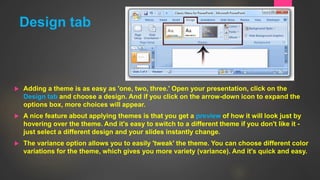
 Adding a theme is as easy as 'one, two, three.' Open your presentation, click on the
Design tab and choose a design. And if you click on the arrow-down icon to expand the
options box, more choices will appear.
 A nice feature about applying themes is that you get a preview of how it will look just by
hovering over the theme. And it's easy to switch to a different theme if you don't like it -
just select a different design and your slides instantly change.
 The variance option allows you to easily 'tweak' the theme. You can choose different color
variations for the theme, which gives you more variety (variance). And it's quick and easy.
5
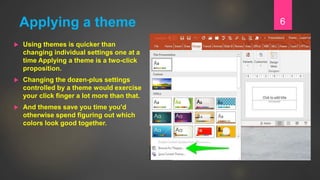
Applying a theme
 Using themes is quicker than
changing individual settings one at a
time Applying a theme is a two-click
proposition.
 Changing the dozen-plus settings
controlled by a theme would exercise
your click finger a lot more than that.
 And themes save you time you'd
otherwise spend figuring out which
colors look good together.
6
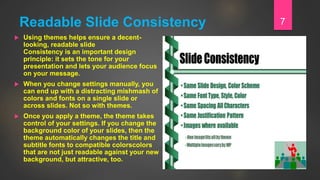
Readable Slide Consistency
 Using themes helps ensure a decent-
looking, readable slide
Consistency is an important design
principle: it sets the tone for your
presentation and lets your audience focus
on your message.
 When you change settings manually, you
can end up with a distracting mishmash of
colors and fonts on a single slide or
across slides. Not so with themes.
 Once you apply a theme, the theme takes
control of your settings. If you change the
background color of your slides, then the
theme automatically changes the title and
subtitle fonts to compatible colorscolors
that are not just readable against your new
background, but attractive, too.
7
Using Themes
 Using themes lets you create a consistent look and feel across
Microsoft Office-produced materials
You can use the same themes you use in PowerPoint in Word and
Excel, too. When you apply the same theme to your Word documents,
Excel spreadsheets, and PowerPoint slides, you end up with a
consistently presented, harmonious whole.
8
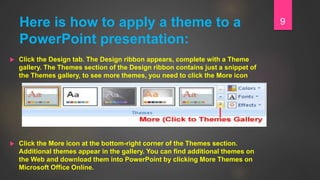
Here is how to apply a theme to a
PowerPoint presentation:
 Click the Design tab. The Design ribbon appears, complete with a Theme
gallery. The Themes section of the Design ribbon contains just a snippet of
the Themes gallery, to see more themes, you need to click the More icon
 Click the More icon at the bottom-right corner of the Themes section.
Additional themes appear in the gallery. You can find additional themes on
the Web and download them into PowerPoint by clicking More Themes on
Microsoft Office Online.
9
Cont....
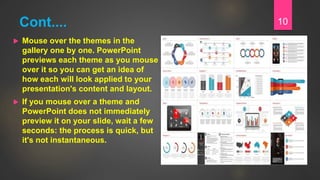
 Mouse over the themes in the
gallery one by one. PowerPoint
previews each theme as you mouse
over it so you can get an idea of
how each will look applied to your
presentation's content and layout.
 If you mouse over a theme and
PowerPoint does not immediately
preview it on your slide, wait a few
seconds: the process is quick, but
it's not instantaneous.
10
Click a theme
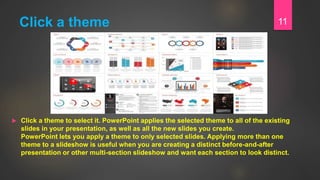
 Click a theme to select it. PowerPoint applies the selected theme to all of the existing
slides in your presentation, as well as all the new slides you create.
PowerPoint lets you apply a theme to only selected slides. Applying more than one
theme to a slideshow is useful when you are creating a distinct before-and-after
presentation or other multi-section slideshow and want each section to look distinct.
11
 Having a theme for your project is
important to keep things organized,
both on the slide and in the way you
present the information you are
putting on each slide.
 Themes help connect everything
within a slideshow by having
matching colors and fonts. This can
make understanding the overall
meaning of a slideshow easier for
both other students and your
instructor if you make sure to use a
theme with easy-to-read fonts and
font sizes.
12
How to Pick a Great Topic Theme?
 Picking the right theme can be of great
importance for both your presentation in
general and possibly for the grade you
will receive for it.
 Most presentation homework
assignments come with some sort of
prompt on the rubric that will give a
good idea of what sort of topic you
should pick, but they rarely, if ever,
mention what kind of theme you should
pick.
13
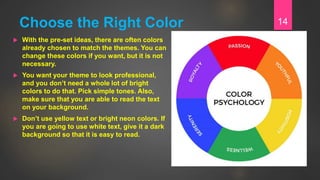
Choose the Right Color
 With the pre-set ideas, there are often colors
already chosen to match the themes. You can
change these colors if you want, but it is not
necessary.
 You want your theme to look professional,
and you don’t need a whole lot of bright
colors to do that. Pick simple tones. Also,
make sure that you are able to read the text
on your background.
 Don’t use yellow text or bright neon colors. If
you are going to use white text, give it a dark
background so that it is easy to read.
14
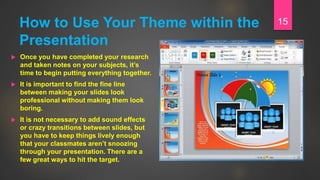
How to Use Your Theme within the
Presentation
 Once you have completed your research
and taken notes on your subjects, it’s
time to begin putting everything together.
 It is important to find the fine line
between making your slides look
professional without making them look
boring.
 It is not necessary to add sound effects
or crazy transitions between slides, but
you have to keep things lively enough
that your classmates aren’t snoozing
through your presentation. There are a
few great ways to hit the target.
15
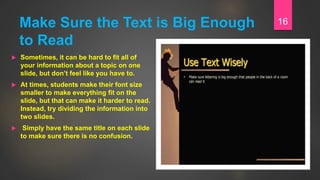
Make Sure the Text is Big Enough
to Read
 Sometimes, it can be hard to fit all of
your information about a topic on one
slide, but don’t feel like you have to.
 At times, students make their font size
smaller to make everything fit on the
slide, but that can make it harder to read.
Instead, try dividing the information into
two slides.
 Simply have the same title on each slide
to make sure there is no confusion.
16
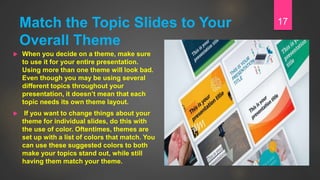
Match the Topic Slides to Your
Overall Theme
 When you decide on a theme, make sure
to use it for your entire presentation.
Using more than one theme will look bad.
Even though you may be using several
different topics throughout your
presentation, it doesn’t mean that each
topic needs its own theme layout.
 If you want to change things about your
theme for individual slides, do this with
the use of color. Oftentimes, themes are
set up with a list of colors that match. You
can use these suggested colors to both
make your topics stand out, while still
having them match your theme.
17
Use Pictures
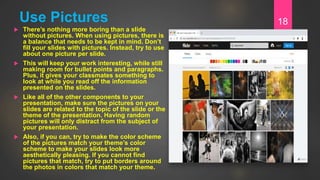
 There’s nothing more boring than a slide
without pictures. When using pictures, there is
a balance that needs to be kept in mind. Don’t
fill your slides with pictures. Instead, try to use
about one picture per slide.
 This will keep your work interesting, while still
making room for bullet points and paragraphs.
Plus, it gives your classmates something to
look at while you read off the information
presented on the slides.
 Like all of the other components to your
presentation, make sure the pictures on your
slides are related to the topic of the slide or the
theme of the presentation. Having random
pictures will only distract from the subject of
your presentation.
 Also, if you can, try to make the color scheme
of the pictures match your theme’s color
scheme to make your slides look more
aesthetically pleasing. If you cannot find
pictures that match, try to put borders around
the photos in colors that match your theme.
18
Conclusion
 In conclusion, a theme helps to tie everything in your presentation together. Does having a
good theme play an important role in your presentation? Of course, it does! It makes
everything in your custom made presentation match in both color and style. Plus, when
you pick a theme instead of going with the boring black and white default, your project will
look less boring to yourself, your classmates, and your instructor, as well.
19
THANK YOU20

Themes and backgrounds

  • 1.
  • 2.
  • 3.
    Theme Plays anImportant Role  Making presentations with PowerPoint or Google Slides is a common homework task for individual assignments and group projects in college.  Most students learn how to use the basics of these programs while in high school, and there are hundreds of articles on the web about how to use them.  Even when you know how to make a slideshow, it can still be difficult to figure out what you want your final project to look like. 3
  • 4.
    Themes and BackgroundsAre Quick and Easy!  If you want to quickly and easily change the appearance of a slide, themes and backgrounds are the answer. These PowerPoint features can take your slides from boring to captivating with a couple clicks of your mouse. The difference can be dramatic, and it's so easy! The lesson will introduce you to themes and backgrounds when creating PowerPoint slides.  You can take two different approaches when adding a theme or a background to your slide. So, let me explain. The first approach is to add a theme, or a pre-designed look to your slide. You can modify colors or variances of the theme, but the design stays the same. Themes are one way to quickly jazz up your slides. 4
  • 5.
    Design tab  Addinga theme is as easy as 'one, two, three.' Open your presentation, click on the Design tab and choose a design. And if you click on the arrow-down icon to expand the options box, more choices will appear.  A nice feature about applying themes is that you get a preview of how it will look just by hovering over the theme. And it's easy to switch to a different theme if you don't like it - just select a different design and your slides instantly change.  The variance option allows you to easily 'tweak' the theme. You can choose different color variations for the theme, which gives you more variety (variance). And it's quick and easy. 5
  • 6.
    Applying a theme Using themes is quicker than changing individual settings one at a time Applying a theme is a two-click proposition.  Changing the dozen-plus settings controlled by a theme would exercise your click finger a lot more than that.  And themes save you time you'd otherwise spend figuring out which colors look good together. 6
  • 7.
    Readable Slide Consistency Using themes helps ensure a decent- looking, readable slide Consistency is an important design principle: it sets the tone for your presentation and lets your audience focus on your message.  When you change settings manually, you can end up with a distracting mishmash of colors and fonts on a single slide or across slides. Not so with themes.  Once you apply a theme, the theme takes control of your settings. If you change the background color of your slides, then the theme automatically changes the title and subtitle fonts to compatible colorscolors that are not just readable against your new background, but attractive, too. 7
  • 8.
    Using Themes  Usingthemes lets you create a consistent look and feel across Microsoft Office-produced materials You can use the same themes you use in PowerPoint in Word and Excel, too. When you apply the same theme to your Word documents, Excel spreadsheets, and PowerPoint slides, you end up with a consistently presented, harmonious whole. 8
  • 9.
    Here is howto apply a theme to a PowerPoint presentation:  Click the Design tab. The Design ribbon appears, complete with a Theme gallery. The Themes section of the Design ribbon contains just a snippet of the Themes gallery, to see more themes, you need to click the More icon  Click the More icon at the bottom-right corner of the Themes section. Additional themes appear in the gallery. You can find additional themes on the Web and download them into PowerPoint by clicking More Themes on Microsoft Office Online. 9
  • 10.
    Cont....  Mouse overthe themes in the gallery one by one. PowerPoint previews each theme as you mouse over it so you can get an idea of how each will look applied to your presentation's content and layout.  If you mouse over a theme and PowerPoint does not immediately preview it on your slide, wait a few seconds: the process is quick, but it's not instantaneous. 10
  • 11.
    Click a theme Click a theme to select it. PowerPoint applies the selected theme to all of the existing slides in your presentation, as well as all the new slides you create. PowerPoint lets you apply a theme to only selected slides. Applying more than one theme to a slideshow is useful when you are creating a distinct before-and-after presentation or other multi-section slideshow and want each section to look distinct. 11
  • 12.
     Having atheme for your project is important to keep things organized, both on the slide and in the way you present the information you are putting on each slide.  Themes help connect everything within a slideshow by having matching colors and fonts. This can make understanding the overall meaning of a slideshow easier for both other students and your instructor if you make sure to use a theme with easy-to-read fonts and font sizes. 12
  • 13.
    How to Picka Great Topic Theme?  Picking the right theme can be of great importance for both your presentation in general and possibly for the grade you will receive for it.  Most presentation homework assignments come with some sort of prompt on the rubric that will give a good idea of what sort of topic you should pick, but they rarely, if ever, mention what kind of theme you should pick. 13
  • 14.
    Choose the RightColor  With the pre-set ideas, there are often colors already chosen to match the themes. You can change these colors if you want, but it is not necessary.  You want your theme to look professional, and you don’t need a whole lot of bright colors to do that. Pick simple tones. Also, make sure that you are able to read the text on your background.  Don’t use yellow text or bright neon colors. If you are going to use white text, give it a dark background so that it is easy to read. 14
  • 15.
    How to UseYour Theme within the Presentation  Once you have completed your research and taken notes on your subjects, it’s time to begin putting everything together.  It is important to find the fine line between making your slides look professional without making them look boring.  It is not necessary to add sound effects or crazy transitions between slides, but you have to keep things lively enough that your classmates aren’t snoozing through your presentation. There are a few great ways to hit the target. 15
  • 16.
    Make Sure theText is Big Enough to Read  Sometimes, it can be hard to fit all of your information about a topic on one slide, but don’t feel like you have to.  At times, students make their font size smaller to make everything fit on the slide, but that can make it harder to read. Instead, try dividing the information into two slides.  Simply have the same title on each slide to make sure there is no confusion. 16
  • 17.
    Match the TopicSlides to Your Overall Theme  When you decide on a theme, make sure to use it for your entire presentation. Using more than one theme will look bad. Even though you may be using several different topics throughout your presentation, it doesn’t mean that each topic needs its own theme layout.  If you want to change things about your theme for individual slides, do this with the use of color. Oftentimes, themes are set up with a list of colors that match. You can use these suggested colors to both make your topics stand out, while still having them match your theme. 17
  • 18.
    Use Pictures  There’snothing more boring than a slide without pictures. When using pictures, there is a balance that needs to be kept in mind. Don’t fill your slides with pictures. Instead, try to use about one picture per slide.  This will keep your work interesting, while still making room for bullet points and paragraphs. Plus, it gives your classmates something to look at while you read off the information presented on the slides.  Like all of the other components to your presentation, make sure the pictures on your slides are related to the topic of the slide or the theme of the presentation. Having random pictures will only distract from the subject of your presentation.  Also, if you can, try to make the color scheme of the pictures match your theme’s color scheme to make your slides look more aesthetically pleasing. If you cannot find pictures that match, try to put borders around the photos in colors that match your theme. 18
  • 19.
    Conclusion  In conclusion,a theme helps to tie everything in your presentation together. Does having a good theme play an important role in your presentation? Of course, it does! It makes everything in your custom made presentation match in both color and style. Plus, when you pick a theme instead of going with the boring black and white default, your project will look less boring to yourself, your classmates, and your instructor, as well. 19
  • 20.