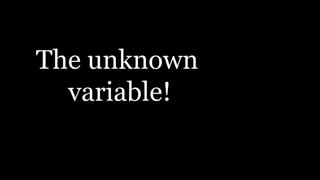
The unknown
variable!
This is the stage where I was deciding my preferred font for the
Masthead of the film. The idea was to chose a font which
complements the style and genre of the film ‘Unchanged variable’. I
was looking at different fonts on Photoshop, preferably the sans serif
fonts mainly because that particular style of a font suits the title of the
movie and its genre. I was looking for something noticeable but not too
dramatic at the same time. These are examples of the fonts which
particularly inspired me because of their appearance. My main idea
of a font was for it to be in a sans serif font as shown by this illustration.
I was particularly inspired by different fonts of different films, in
terms of the font. Film covers such as Thirst and Sinister. Looking at
these film mastheads, being in the horror genre, the font and their
colours are very complimentary in emphasizing the film genres.
At this stage, I chose a
background to
emphasise the genre of
the film. I also selected
a ‘Trajan’ font mainly
because I wanted a
font with hooks. At this
stage I chose a white
font. My aim was to
create a metallic
textured font in a grey
colour, therefore the
colours black (as the
background) and
white (as the text) will
allow me to create this
grey, metallic textured
effect on the text.
I opened a new layer
and filled the new
layer with a light grey
colour as illustrated.
The grey colour will
enable the grey,
metallic texture on
the text, which is
what I am looking for.
I then added noise
(texture) to the grey
layer (Filter – Noise –
Add Noise). I put the
noise level to 150
and made sure that
sure the Gaussian
and Monochromatic
are selected. All this
contributed in
adding the texture
on this layer. The
noise is the first part
of the metal texture.
At this stage, I
selected the Blur tool
then Motion Blur. I set
the angle to -10 and
the pixels to 200. this
is to blur the noise
which creates a
brush metal effect.
I cropped out the
edges (left and right)
where there are sharp
textures, so that there
is even texture
This is the result after
cropping.
Now the texture is even
across the whole layer.
On layer 1, I went on
the layers tool and
selected ‘Create
Clipping Mask’. This
created a grey texture
onto the text.
AT this stage, I
followed these steps:
Layer Style – Bevel
and Emboss –
Technique – Chisel
Hard - Depth – 500 –
Size – 7.
This created this
effect on the text.
In order for this text to
stand out even more in
terms of colour and
effect, I followed these
steps:
Gloss Contour- Ring –
Anti Aliased
Gradient Overlay –
Opacity to 70% . All of
these steps contributed
to achieving this shiny,
metallic textured effect
on the text, which Is
what I was aiming to
achieve.
I changed the order of the text
to create a more dramatic
appearance as illustrated.

The Unknown Variable Text Progression on Photoshop

  • 1.
  • 2.
    This is thestage where I was deciding my preferred font for the Masthead of the film. The idea was to chose a font which complements the style and genre of the film ‘Unchanged variable’. I was looking at different fonts on Photoshop, preferably the sans serif fonts mainly because that particular style of a font suits the title of the movie and its genre. I was looking for something noticeable but not too dramatic at the same time. These are examples of the fonts which particularly inspired me because of their appearance. My main idea of a font was for it to be in a sans serif font as shown by this illustration. I was particularly inspired by different fonts of different films, in terms of the font. Film covers such as Thirst and Sinister. Looking at these film mastheads, being in the horror genre, the font and their colours are very complimentary in emphasizing the film genres.
  • 3.
    At this stage,I chose a background to emphasise the genre of the film. I also selected a ‘Trajan’ font mainly because I wanted a font with hooks. At this stage I chose a white font. My aim was to create a metallic textured font in a grey colour, therefore the colours black (as the background) and white (as the text) will allow me to create this grey, metallic textured effect on the text.
  • 4.
    I opened anew layer and filled the new layer with a light grey colour as illustrated. The grey colour will enable the grey, metallic texture on the text, which is what I am looking for.
  • 5.
    I then addednoise (texture) to the grey layer (Filter – Noise – Add Noise). I put the noise level to 150 and made sure that sure the Gaussian and Monochromatic are selected. All this contributed in adding the texture on this layer. The noise is the first part of the metal texture.
  • 6.
    At this stage,I selected the Blur tool then Motion Blur. I set the angle to -10 and the pixels to 200. this is to blur the noise which creates a brush metal effect.
  • 7.
    I cropped outthe edges (left and right) where there are sharp textures, so that there is even texture
  • 8.
    This is theresult after cropping. Now the texture is even across the whole layer.
  • 9.
    On layer 1,I went on the layers tool and selected ‘Create Clipping Mask’. This created a grey texture onto the text.
  • 10.
    AT this stage,I followed these steps: Layer Style – Bevel and Emboss – Technique – Chisel Hard - Depth – 500 – Size – 7. This created this effect on the text.
  • 11.
    In order forthis text to stand out even more in terms of colour and effect, I followed these steps: Gloss Contour- Ring – Anti Aliased Gradient Overlay – Opacity to 70% . All of these steps contributed to achieving this shiny, metallic textured effect on the text, which Is what I was aiming to achieve.
  • 12.
    I changed theorder of the text to create a more dramatic appearance as illustrated.