Social Media for Small Business


                The New Facebook
                     Timeline
What’s New

   Cover Image
   Tab/App Images
   Custom Tabs
   Activity Log
   New Post Types
   Highlighting Posts – Pin, Star, Highlight
   Page Layout – Admin Panel


                                                2
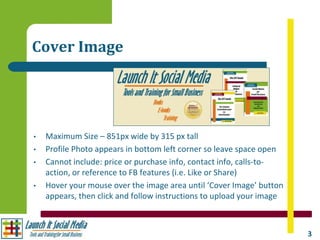
Cover Image


•   Maximum Size – 851px wide by 315 px tall
•   Profile Photo appears in bottom left corner so leave space open
•   Cannot include: price or purchase info, contact info, calls-to-
    action, or reference to FB features (i.e. Like or Share)
•   Hover your mouse over the image area until ‘Cover Image’ button
    appears, then click and follow instructions to upload your image


                                                                       3
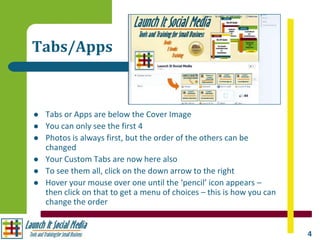
Tabs/Apps


   Tabs or Apps are below the Cover Image
   You can only see the first 4
   Photos is always first, but the order of the others can be
    changed
   Your Custom Tabs are now here also
   To see them all, click on the down arrow to the right
   Hover your mouse over one until the ‘pencil’ icon appears –
    then click on that to get a menu of choices – this is how you can
    change the order


                                                                        4
Tab/Apps Images
   The App Images can all be changed except
    Photos
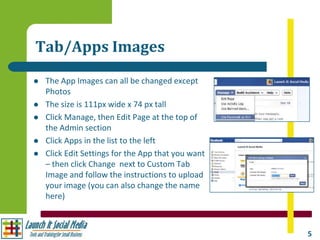
   The size is 111px wide x 74 px tall
   Click Manage, then Edit Page at the top of
    the Admin section
   Click Apps in the list to the left
   Click Edit Settings for the App that you want
    – then click Change next to Custom Tab
    Image and follow the instructions to upload
    your image (you can also change the name
    here)


                                                    5
Custom Tabs

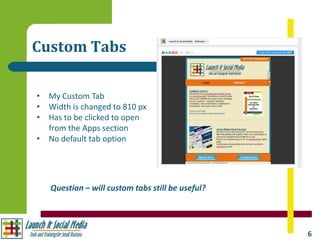
• My Custom Tab
• Width is changed to 810 px
• Has to be clicked to open
  from the Apps section
• No default tab option


   Question – will custom tabs still be useful?


                                                  6
Activity Log

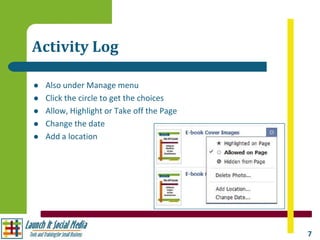
   Also under Manage menu
   Click the circle to get the choices
   Allow, Highlight or Take off the Page
   Change the date
   Add a location


                                            7
New Post Types

   Status - no change
   Photo/Video – no change
   Event – will take you to the Create Event form
   Milestone – a new option
     –   Use for important events and updates in your business
     –   Can go back in time and add previous milestones
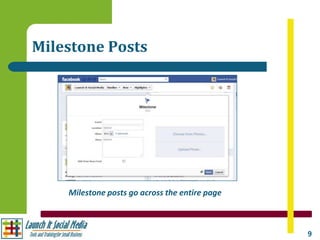
     –   Milestone posts go all the way across the page
   Question – to create a poll
   Offer – new option in beta testing
     –   More info at Help – Visit Help Center – Create and Manage Pages - Offers


                                                                                    8
Milestone Posts


    Milestone posts go across the entire page


                                                9
Highlighting Posts

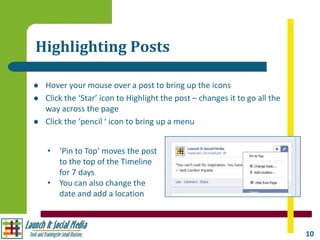
   Hover your mouse over a post to bring up the icons
   Click the ‘Star’ icon to Highlight the post – changes it to go all the
    way across the page
   Click the ‘pencil ‘ icon to bring up a menu


    • ‘Pin to Top’ moves the post
      to the top of the Timeline
      for 7 days
    • You can also change the
      date and add a location


                                                                             10
Admin Panel

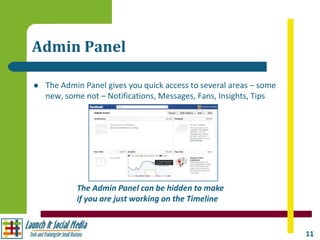
   The Admin Panel gives you quick access to several areas – some
    new, some not – Notifications, Messages, Fans, Insights, Tips


            The Admin Panel can be hidden to make
            if you are just working on the Timeline


                                                                     11
Admin Panel

   Notifications – the same as you see on your personal Profile
   Messages – NEW – fans can now send direct messages to the
    page that don’t appear on the News Feed or Timeline
   Fans – update on latest new fans
   Insights – gives you information on how your page is working
   Tips – tips from Facebook – changes regularly
   Menus to further information
     –   Manage
     –   Build Your Audience
     –   Help


                                                                   12
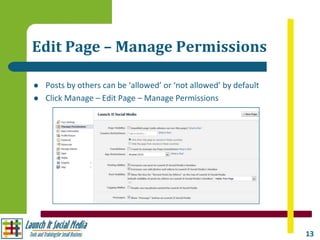
Edit Page – Manage Permissions

   Posts by others can be ‘allowed’ or ‘not allowed’ by default
   Click Manage – Edit Page – Manage Permissions


                                                                   13
Thank You

   Thank you for taking the time to watch my
    presentation. My own Facebook Page Timeline is
    a work-in-progress, but you can check it out …
    –   www.facebook.com/launchitsocialmedia


   For more information, please check out the
    following pages…
    –   Website – www.launchitsocialmedia.com
    –   Blog – www.launchitsocialmedia.com/blog


                                                     14

The New Facebook Timeline

  • 1.
    Social Media forSmall Business The New Facebook Timeline
  • 2.
    What’s New  Cover Image  Tab/App Images  Custom Tabs  Activity Log  New Post Types  Highlighting Posts – Pin, Star, Highlight  Page Layout – Admin Panel 2
  • 3.
    Cover Image • Maximum Size – 851px wide by 315 px tall • Profile Photo appears in bottom left corner so leave space open • Cannot include: price or purchase info, contact info, calls-to- action, or reference to FB features (i.e. Like or Share) • Hover your mouse over the image area until ‘Cover Image’ button appears, then click and follow instructions to upload your image 3
  • 4.
    Tabs/Apps  Tabs or Apps are below the Cover Image  You can only see the first 4  Photos is always first, but the order of the others can be changed  Your Custom Tabs are now here also  To see them all, click on the down arrow to the right  Hover your mouse over one until the ‘pencil’ icon appears – then click on that to get a menu of choices – this is how you can change the order 4
  • 5.
    Tab/Apps Images  The App Images can all be changed except Photos  The size is 111px wide x 74 px tall  Click Manage, then Edit Page at the top of the Admin section  Click Apps in the list to the left  Click Edit Settings for the App that you want – then click Change next to Custom Tab Image and follow the instructions to upload your image (you can also change the name here) 5
  • 6.
    Custom Tabs • MyCustom Tab • Width is changed to 810 px • Has to be clicked to open from the Apps section • No default tab option Question – will custom tabs still be useful? 6
  • 7.
    Activity Log  Also under Manage menu  Click the circle to get the choices  Allow, Highlight or Take off the Page  Change the date  Add a location 7
  • 8.
    New Post Types  Status - no change  Photo/Video – no change  Event – will take you to the Create Event form  Milestone – a new option – Use for important events and updates in your business – Can go back in time and add previous milestones – Milestone posts go all the way across the page  Question – to create a poll  Offer – new option in beta testing – More info at Help – Visit Help Center – Create and Manage Pages - Offers 8
  • 9.
    Milestone Posts Milestone posts go across the entire page 9
  • 10.
    Highlighting Posts  Hover your mouse over a post to bring up the icons  Click the ‘Star’ icon to Highlight the post – changes it to go all the way across the page  Click the ‘pencil ‘ icon to bring up a menu • ‘Pin to Top’ moves the post to the top of the Timeline for 7 days • You can also change the date and add a location 10
  • 11.
    Admin Panel  The Admin Panel gives you quick access to several areas – some new, some not – Notifications, Messages, Fans, Insights, Tips The Admin Panel can be hidden to make if you are just working on the Timeline 11
  • 12.
    Admin Panel  Notifications – the same as you see on your personal Profile  Messages – NEW – fans can now send direct messages to the page that don’t appear on the News Feed or Timeline  Fans – update on latest new fans  Insights – gives you information on how your page is working  Tips – tips from Facebook – changes regularly  Menus to further information – Manage – Build Your Audience – Help 12
  • 13.
    Edit Page –Manage Permissions  Posts by others can be ‘allowed’ or ‘not allowed’ by default  Click Manage – Edit Page – Manage Permissions 13
  • 14.
    Thank You  Thank you for taking the time to watch my presentation. My own Facebook Page Timeline is a work-in-progress, but you can check it out … – www.facebook.com/launchitsocialmedia  For more information, please check out the following pages… – Website – www.launchitsocialmedia.com – Blog – www.launchitsocialmedia.com/blog 14