THE BIOSKETCH FORMAT,
SCIENCV AND THE PAPER FORM
Thomas Zucker-Scharff
December 29, 2014
Albert Einstein Cancer Center
Why is the new Biosketch format
better?
• Any researcher may register
• Leverages data from existing systems
• Data is owned by the researcher
• Researcher controls what data is public
• Researcher edits and maintains information
• Researcher provides own data to describe
research outcomes
• Researcher has ultimate control over data in
biosketch
When must you use the new NIH
biosketch format?
On December 5, 2014, the NIH issued NOT-OD-
15-032, which shifted the mandatory deadline
for utilizing the new biosketch format
from January 25, 2015 to May 25, 2015.
The new biosketch format will be required for
all applications submitted on or after May 25,
2015.
Using the SciENcv system to save
yourself work
• Create an online biosketch from your eRA Commons
data and your My Bibliography references
• This will fill automatically
– the first part of the biosketch
– Section B – Positions and Honors
– Section D – Research Support
• Section A – Personal Statement – you will need to
write this yourself and it should change for each grant
• Section C – Contribution to Science – is not currently
ready to fill out online. Generate the online
document in word format and edit to enter Section C
in properly
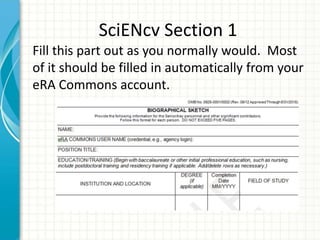
SciENcv Section 1
Fill this part out as you normally would. Most
of it should be filled in automatically from your
eRA Commons account.
SciENcv – Personal Statement
(Section A)
• Fill out this section and tell the granting agency why
you are the best person in the role for which you are
applying using some or all of the following
– Training
– Previous work
– Technical expertise
– Collaborations
– Past performance in this or related field
– Up to 4 peer reviewed publications that highlight your
qualifications and experience for the project
• If you include these in Section D, then all you need to do is cut
and paste to include them here
– Impediments to past productivity (optional)
SciENcv – Positions and Honors
(Section B)
• List chronologically (newest first)
• List all positions
• List any honors
• Include membership on any Federal
Government public advisory committees
SciENcv – Contribution to Science
(Section C)
• historical background that frames the scientific problem
• central finding(s)
• influence of the finding(s) on the progress of science or the
application of those finding(s) to health or technology
• your specific role
• reference up to four peer-reviewed publications or other
non-publication research products for each contribution
• description of each contribution should be no longer than
one half page including figures and citations
• URL to a full list of your published work
– publicly available digital database
• SciENcv
• My Bibliography
Briefly describe up to five of your most significant
contributions to science
SciENcv – Research Support
(Section D)
• Selected ongoing projects for past 3 years
• Selected completed projects for past 3 years
• Begin with projects most relevant to proposed
• Indicate overall goals and responsibilities of key
personnel
• Do not include
– Number of person months
– Direct costs
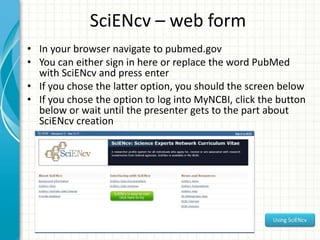
SciENcv – web form
• In your browser navigate to pubmed.gov
• You can either sign in here or replace the word PubMed
with SciENcv and press enter
• If you chose the latter option, you should the screen below
• If you chose the option to log into MyNCBI, click the button
below or wait until the presenter gets to the part about
SciENcv creation
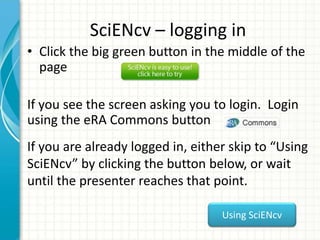
SciENcv – logging in
• Click the big green button in the middle of the
page
If you see the screen asking you to login. Login
using the eRA Commons button
If you are already logged in, either skip to “Using
SciENcv” by clicking the button below, or wait
until the presenter reaches that point.
Using SciENcv
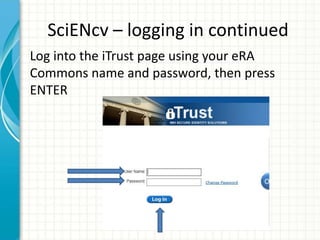
SciENcv – logging in continued
Log into the iTrust page using your eRA
Commons name and password, then press
ENTER
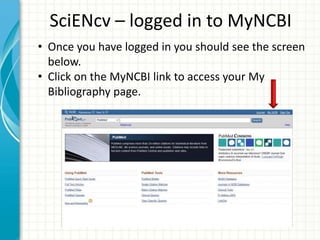
SciENcv – logged in to MyNCBI
• Once you have logged in you should see the screen
below.
• Click on the MyNCBI link to access your My
Bibliography page.
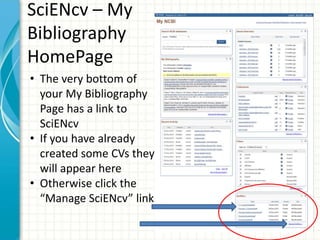
SciENcv – My
Bibliography
HomePage
• The very bottom of
your My Bibliography
Page has a link to
SciENcv
• If you have already
created some CVs they
will appear here
• Otherwise click the
“Manage SciENcv” link
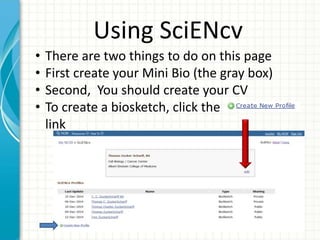
Using SciENcv
• There are two things to do on this page
• First create your Mini Bio (the gray box)
• Second, You should create your CV
• To create a biosketch, click the
link
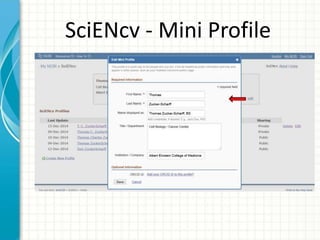
SciENcv - Mini Profile
SciENcv – Creating a new profile
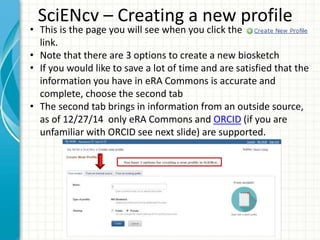
• This is the page you will see when you click the
link.
• Note that there are 3 options to create a new biosketch
• If you would like to save a lot of time and are satisfied that the
information you have in eRA Commons is accurate and
complete, choose the second tab
• The second tab brings in information from an outside source,
as of 12/27/14 only eRA Commons and ORCID (if you are
unfamiliar with ORCID see next slide) are supported.
ORCID (Open Researcher and
Contributor ID)
What is ORCID?
ORCID provides a persistent digital identifier that
distinguishes you from every other researcher and,
through integration in key research workflows such
as manuscript and grant submission, supports
automated linkages between you and your
professional activities ensuring that your work is
recognized (from the ORCID.org homepage).
SciENcv – using an external source
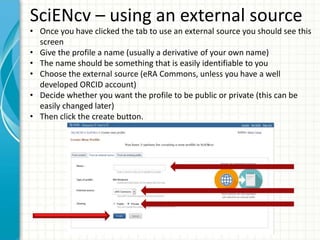
• Once you have clicked the tab to use an external source you should see this
screen
• Give the profile a name (usually a derivative of your own name)
• The name should be something that is easily identifiable to you
• Choose the external source (eRA Commons, unless you have a well
developed ORCID account)
• Decide whether you want the profile to be public or private (this can be
easily changed later)
• Then click the create button.
SciENcv – Created profile
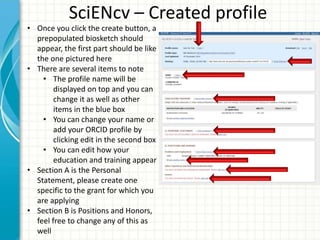
• Once you click the create button, a
prepopulated biosketch should
appear, the first part should be like
the one pictured here
• There are several items to note
• The profile name will be
displayed on top and you can
change it as well as other
items in the blue box
• You can change your name or
add your ORCID profile by
clicking edit in the second box
• You can edit how your
education and training appear
• Section A is the Personal
Statement, please create one
specific to the grant for which you
are applying
• Section B is Positions and Honors,
feel free to change any of this as
well
SciENcv – Created profile –
Bottom of page
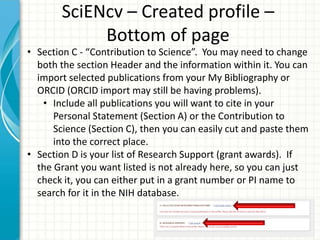
• Section C - “Contribution to Science”. You may need to change
both the section Header and the information within it. You can
import selected publications from your My Bibliography or
ORCID (ORCID import may still be having problems).
• Include all publications you will want to cite in your
Personal Statement (Section A) or the Contribution to
Science (Section C), then you can easily cut and paste them
into the correct place.
• Section D is your list of Research Support (grant awards). If
the Grant you want listed is not already here, so you can just
check it, you can either put in a grant number or PI name to
search for it in the NIH database.
SciENcv - downloading
• When you are finished editing, you will need
to download the form to incorporate it as
part of the grant you are submitting
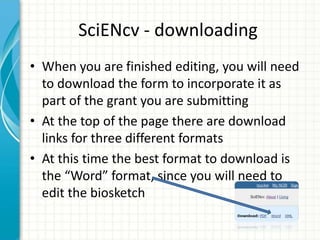
• At the top of the page there are download
links for three different formats
• At this time the best format to download is
the “Word” format, since you will need to
edit the biosketch
SciENcv – Downloading Continued
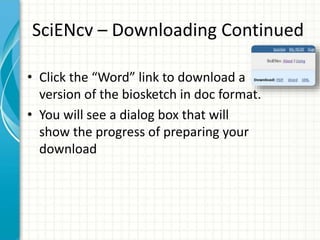
• Click the “Word” link to download a
version of the biosketch in doc format.
• You will see a dialog box that will
show the progress of preparing your
download
Downloading Continued
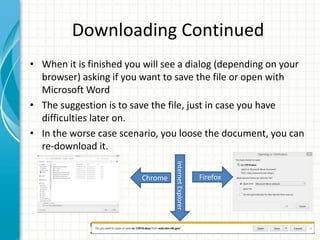
• When it is finished you will see a dialog (depending on your
browser) asking if you want to save the file or open with
Microsoft Word
• The suggestion is to save the file, just in case you have
difficulties later on.
• In the worse case scenario, you loose the document, you can
re-download it.
FirefoxInternetExplorerChrome
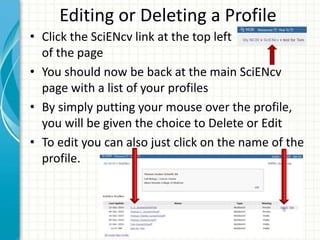
Editing or Deleting a Profile
• Click the SciENcv link at the top left
of the page
• You should now be back at the main SciENcv
page with a list of your profiles
• By simply putting your mouse over the profile,
you will be given the choice to Delete or Edit
• To edit you can also just click on the name of the
profile.
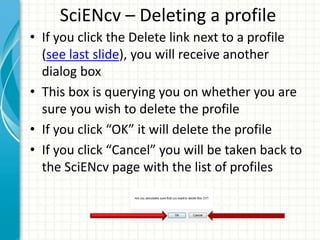
SciENcv – Deleting a profile
• If you click the Delete link next to a profile
(see last slide), you will receive another
dialog box
• This box is querying you on whether you are
sure you wish to delete the profile
• If you click “OK” it will delete the profile
• If you click “Cancel” you will be taken back to
the SciENcv page with the list of profiles
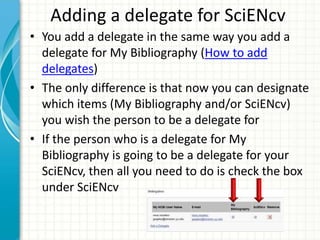
Adding a delegate for SciENcv
• You add a delegate in the same way you add a
delegate for My Bibliography (How to add
delegates)
• The only difference is that now you can designate
which items (My Bibliography and/or SciENcv)
you wish the person to be a delegate for
• If the person who is a delegate for My
Bibliography is going to be a delegate for your
SciENcv, then all you need to do is check the box
under SciENcv
Things to watch out for
• Make sure your eRA Commons is linked to
your My NCBI account (click here for
instructions)
• No grants will appear in an RPPR if you have
not linked them to the grant in question in
My Bibliography (how to link awards to
publications)
• How come my publications from ORCID won’t
import and what can I do?
The Changes
• The page limit has changed from 4 pages to 5. If
your download from SciENcv says four at the
top, just change it to five.
• Section C is now called Contribution to Science.
If you use the online utility you will need to
change this.
– Try to think ahead and include all the references you
are going to use in this section and in Section A in
Section C. In that way all you will need to do is cut
and paste.
• The manner in which the first part’s lines are
drawn are slightly different – don’t worry about
that.
Summary
• Create appropriate accounts
– NCBI and link it to your eRA Commons account
• Make sure all your publications are in your My Bibliography
or your ORCID account
– A Delegate can take care of your publications if you designate them
as a delegate in MyNCBI (different from eRA Commons delegate)
• Link your publications to funding sources
• Make sure all your NIH funded, peer reviewed publications
published after April of 2008 are compliant with the NIH
Public Access Policy (see Making your publications compliant
if you do not know how to do this)
Resources for SciENcv
• Library Resources for SciENcv
– Des Moines University
– University of Washington
– University of Pittsburgh
– Brown University ORCID LibGuide
– Fox Chase Cancer Center
• Official Notice (NOT-OD-15-032) from the NIH
• Official SciENcv help pages: Youtube Video, Background Information,
FAQs, Feedback (email)
• Presentations from the NIH SciENcv page
• Penn State SciENcv info guide
• Washington University School of Medicine SciENcv guide
• Einstein Guide to SciENcv
QUESTIONS?

The Biosketch format, SciENcv and the paper

  • 1.
    THE BIOSKETCH FORMAT, SCIENCVAND THE PAPER FORM Thomas Zucker-Scharff December 29, 2014 Albert Einstein Cancer Center
  • 2.
    Why is thenew Biosketch format better? • Any researcher may register • Leverages data from existing systems • Data is owned by the researcher • Researcher controls what data is public • Researcher edits and maintains information • Researcher provides own data to describe research outcomes • Researcher has ultimate control over data in biosketch
  • 3.
    When must youuse the new NIH biosketch format? On December 5, 2014, the NIH issued NOT-OD- 15-032, which shifted the mandatory deadline for utilizing the new biosketch format from January 25, 2015 to May 25, 2015. The new biosketch format will be required for all applications submitted on or after May 25, 2015.
  • 4.
    Using the SciENcvsystem to save yourself work • Create an online biosketch from your eRA Commons data and your My Bibliography references • This will fill automatically – the first part of the biosketch – Section B – Positions and Honors – Section D – Research Support • Section A – Personal Statement – you will need to write this yourself and it should change for each grant • Section C – Contribution to Science – is not currently ready to fill out online. Generate the online document in word format and edit to enter Section C in properly
  • 5.
    SciENcv Section 1 Fillthis part out as you normally would. Most of it should be filled in automatically from your eRA Commons account.
  • 6.
    SciENcv – PersonalStatement (Section A) • Fill out this section and tell the granting agency why you are the best person in the role for which you are applying using some or all of the following – Training – Previous work – Technical expertise – Collaborations – Past performance in this or related field – Up to 4 peer reviewed publications that highlight your qualifications and experience for the project • If you include these in Section D, then all you need to do is cut and paste to include them here – Impediments to past productivity (optional)
  • 7.
    SciENcv – Positionsand Honors (Section B) • List chronologically (newest first) • List all positions • List any honors • Include membership on any Federal Government public advisory committees
  • 8.
    SciENcv – Contributionto Science (Section C) • historical background that frames the scientific problem • central finding(s) • influence of the finding(s) on the progress of science or the application of those finding(s) to health or technology • your specific role • reference up to four peer-reviewed publications or other non-publication research products for each contribution • description of each contribution should be no longer than one half page including figures and citations • URL to a full list of your published work – publicly available digital database • SciENcv • My Bibliography Briefly describe up to five of your most significant contributions to science
  • 9.
    SciENcv – ResearchSupport (Section D) • Selected ongoing projects for past 3 years • Selected completed projects for past 3 years • Begin with projects most relevant to proposed • Indicate overall goals and responsibilities of key personnel • Do not include – Number of person months – Direct costs
  • 10.
    SciENcv – webform • In your browser navigate to pubmed.gov • You can either sign in here or replace the word PubMed with SciENcv and press enter • If you chose the latter option, you should the screen below • If you chose the option to log into MyNCBI, click the button below or wait until the presenter gets to the part about SciENcv creation
  • 11.
    SciENcv – loggingin • Click the big green button in the middle of the page If you see the screen asking you to login. Login using the eRA Commons button If you are already logged in, either skip to “Using SciENcv” by clicking the button below, or wait until the presenter reaches that point. Using SciENcv
  • 12.
    SciENcv – loggingin continued Log into the iTrust page using your eRA Commons name and password, then press ENTER
  • 13.
    SciENcv – loggedin to MyNCBI • Once you have logged in you should see the screen below. • Click on the MyNCBI link to access your My Bibliography page.
  • 14.
    SciENcv – My Bibliography HomePage •The very bottom of your My Bibliography Page has a link to SciENcv • If you have already created some CVs they will appear here • Otherwise click the “Manage SciENcv” link
  • 15.
    Using SciENcv • Thereare two things to do on this page • First create your Mini Bio (the gray box) • Second, You should create your CV • To create a biosketch, click the link
  • 16.
  • 17.
    SciENcv – Creatinga new profile • This is the page you will see when you click the link. • Note that there are 3 options to create a new biosketch • If you would like to save a lot of time and are satisfied that the information you have in eRA Commons is accurate and complete, choose the second tab • The second tab brings in information from an outside source, as of 12/27/14 only eRA Commons and ORCID (if you are unfamiliar with ORCID see next slide) are supported.
  • 18.
    ORCID (Open Researcherand Contributor ID) What is ORCID? ORCID provides a persistent digital identifier that distinguishes you from every other researcher and, through integration in key research workflows such as manuscript and grant submission, supports automated linkages between you and your professional activities ensuring that your work is recognized (from the ORCID.org homepage).
  • 19.
    SciENcv – usingan external source • Once you have clicked the tab to use an external source you should see this screen • Give the profile a name (usually a derivative of your own name) • The name should be something that is easily identifiable to you • Choose the external source (eRA Commons, unless you have a well developed ORCID account) • Decide whether you want the profile to be public or private (this can be easily changed later) • Then click the create button.
  • 20.
    SciENcv – Createdprofile • Once you click the create button, a prepopulated biosketch should appear, the first part should be like the one pictured here • There are several items to note • The profile name will be displayed on top and you can change it as well as other items in the blue box • You can change your name or add your ORCID profile by clicking edit in the second box • You can edit how your education and training appear • Section A is the Personal Statement, please create one specific to the grant for which you are applying • Section B is Positions and Honors, feel free to change any of this as well
  • 21.
    SciENcv – Createdprofile – Bottom of page • Section C - “Contribution to Science”. You may need to change both the section Header and the information within it. You can import selected publications from your My Bibliography or ORCID (ORCID import may still be having problems). • Include all publications you will want to cite in your Personal Statement (Section A) or the Contribution to Science (Section C), then you can easily cut and paste them into the correct place. • Section D is your list of Research Support (grant awards). If the Grant you want listed is not already here, so you can just check it, you can either put in a grant number or PI name to search for it in the NIH database.
  • 22.
    SciENcv - downloading •When you are finished editing, you will need to download the form to incorporate it as part of the grant you are submitting • At the top of the page there are download links for three different formats • At this time the best format to download is the “Word” format, since you will need to edit the biosketch
  • 23.
    SciENcv – DownloadingContinued • Click the “Word” link to download a version of the biosketch in doc format. • You will see a dialog box that will show the progress of preparing your download
  • 24.
    Downloading Continued • Whenit is finished you will see a dialog (depending on your browser) asking if you want to save the file or open with Microsoft Word • The suggestion is to save the file, just in case you have difficulties later on. • In the worse case scenario, you loose the document, you can re-download it. FirefoxInternetExplorerChrome
  • 25.
    Editing or Deletinga Profile • Click the SciENcv link at the top left of the page • You should now be back at the main SciENcv page with a list of your profiles • By simply putting your mouse over the profile, you will be given the choice to Delete or Edit • To edit you can also just click on the name of the profile.
  • 26.
    SciENcv – Deletinga profile • If you click the Delete link next to a profile (see last slide), you will receive another dialog box • This box is querying you on whether you are sure you wish to delete the profile • If you click “OK” it will delete the profile • If you click “Cancel” you will be taken back to the SciENcv page with the list of profiles
  • 27.
    Adding a delegatefor SciENcv • You add a delegate in the same way you add a delegate for My Bibliography (How to add delegates) • The only difference is that now you can designate which items (My Bibliography and/or SciENcv) you wish the person to be a delegate for • If the person who is a delegate for My Bibliography is going to be a delegate for your SciENcv, then all you need to do is check the box under SciENcv
  • 28.
    Things to watchout for • Make sure your eRA Commons is linked to your My NCBI account (click here for instructions) • No grants will appear in an RPPR if you have not linked them to the grant in question in My Bibliography (how to link awards to publications) • How come my publications from ORCID won’t import and what can I do?
  • 29.
    The Changes • Thepage limit has changed from 4 pages to 5. If your download from SciENcv says four at the top, just change it to five. • Section C is now called Contribution to Science. If you use the online utility you will need to change this. – Try to think ahead and include all the references you are going to use in this section and in Section A in Section C. In that way all you will need to do is cut and paste. • The manner in which the first part’s lines are drawn are slightly different – don’t worry about that.
  • 30.
    Summary • Create appropriateaccounts – NCBI and link it to your eRA Commons account • Make sure all your publications are in your My Bibliography or your ORCID account – A Delegate can take care of your publications if you designate them as a delegate in MyNCBI (different from eRA Commons delegate) • Link your publications to funding sources • Make sure all your NIH funded, peer reviewed publications published after April of 2008 are compliant with the NIH Public Access Policy (see Making your publications compliant if you do not know how to do this)
  • 31.
    Resources for SciENcv •Library Resources for SciENcv – Des Moines University – University of Washington – University of Pittsburgh – Brown University ORCID LibGuide – Fox Chase Cancer Center • Official Notice (NOT-OD-15-032) from the NIH • Official SciENcv help pages: Youtube Video, Background Information, FAQs, Feedback (email) • Presentations from the NIH SciENcv page • Penn State SciENcv info guide • Washington University School of Medicine SciENcv guide • Einstein Guide to SciENcv
  • 32.

Editor's Notes

  • #33 Microsoft Confidential