Testlink Processes &
Workflow
NAVYUG INFOSOLUTIONS
SURBHI SAXENA
P a g e 2 | 18
Table of Contents
Testlink Processes...................................................................................................................... 4
Testlink Workflow...................................................................................................................... 5
Step 1: Login into web app......................................................................................................... 6
Step 2: Create Test Project......................................................................................................... 7
Step 3: Create A Test Plan.......................................................................................................... 8
Step 4: Create Build ................................................................................................................... 8
Step 5: Create Requirement Specification Operation................................................................. 9
Step 6: Create Requirement Operation...................................................................................... 9
Step 7: Create Test Suites ....................................................................................................... 10
Step 8: Create Test Cases........................................................................................................ 10
Step 9: Map Test Cases with Test Plan..................................................................................... 11
Step 10: Assign Test Case......................................................................................................... 12
Step 11: Test Case Execution................................................................................................... 12
Step 12: Log Bug in Trac if any ................................................................................................. 13
Step 13: Test Reports and Metrics ........................................................................................... 14
Report: Bug per test case screenshot....................................................................................... 14
Report: Test result matrix screenshot...................................................................................... 15
Report: Charts screenshot ....................................................................................................... 15
User role available in Testlink .................................................................................................. 16
Steps to import test cases / test Suite...................................................................................... 16
Reference Link ......................................................................................................................... 18
P a g e 3 | 18
Revision History-
Approval List-
S. No. Name Role Approval / Review Date
1. Sadhvi Singh QA Lead 12-sep-2016
2. Vishal Singh QA Lead 12-sep-2016
Version Date Author Description of Changes
Version_0.1 5-sep-2016 Surbhi Saxena Testlink Workflow
Version_0.2 29-sep-2016 Surbhi Saxena Processes with steps and
screenshot added
Version_0.3 6-Oct-16 Surbhi Saxena Table of content added
P a g e 4 | 18
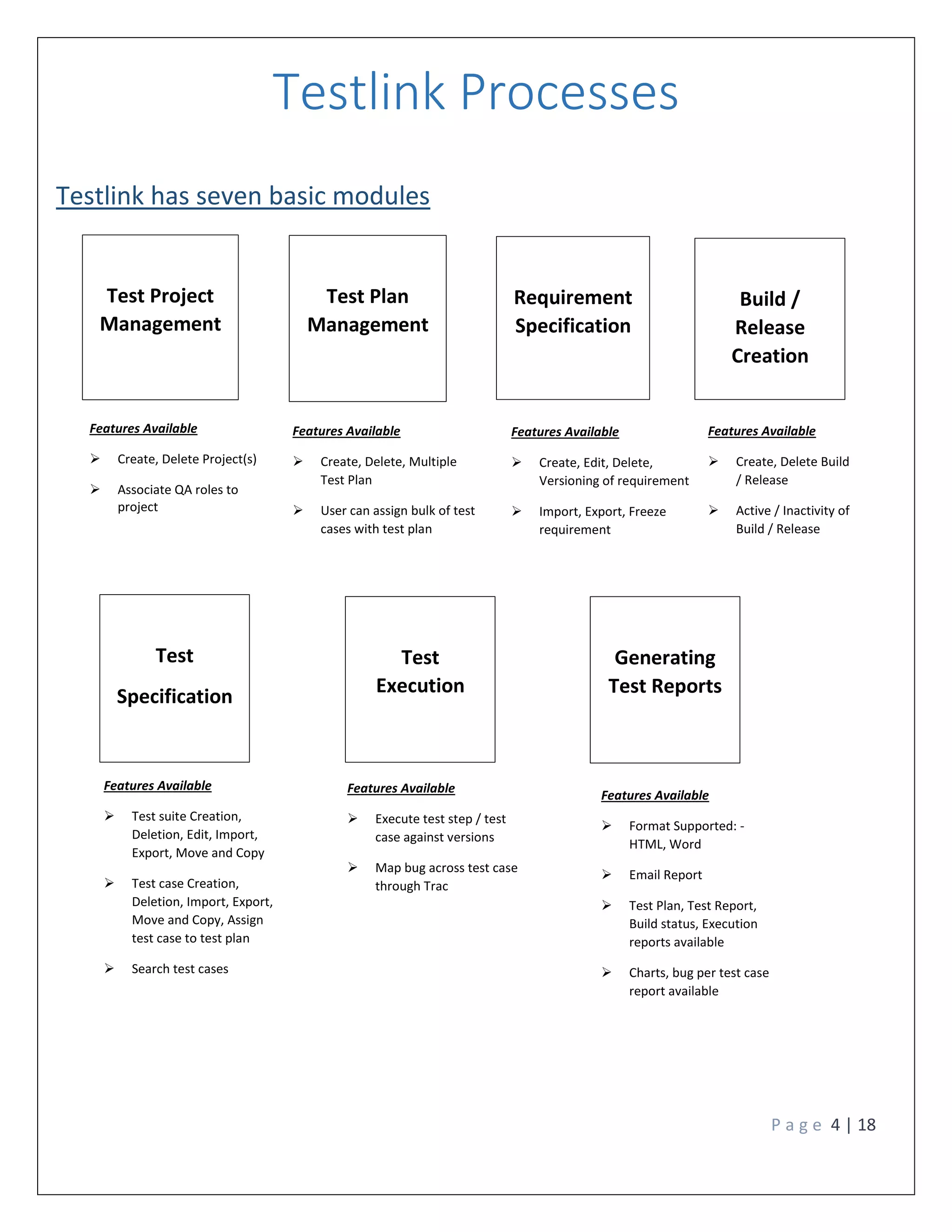
Testlink Processes
Testlink has seven basic modules
Test Project
Management
Test Plan
Management
Requirement
Specification
Build /
Release
Creation
Test
Specification
Test
Execution
Generating
Test Reports
Features Available
 Create, Delete Project(s)
 Associate QA roles to
project
Features Available
 Create, Delete, Multiple
Test Plan
 User can assign bulk of test
cases with test plan
Features Available
 Create, Edit, Delete,
Versioning of requirement
 Import, Export, Freeze
requirement
Features Available
 Create, Delete Build
/ Release
 Active / Inactivity of
Build / Release
Features Available
 Test suite Creation,
Deletion, Edit, Import,
Export, Move and Copy
 Test case Creation,
Deletion, Import, Export,
Move and Copy, Assign
test case to test plan
 Search test cases
Features Available
 Execute test step / test
case against versions
 Map bug across test case
through Trac
Features Available
 Format Supported: -
HTML, Word
 Email Report
 Test Plan, Test Report,
Build status, Execution
reports available
 Charts, bug per test case
report available
P a g e 5 | 18
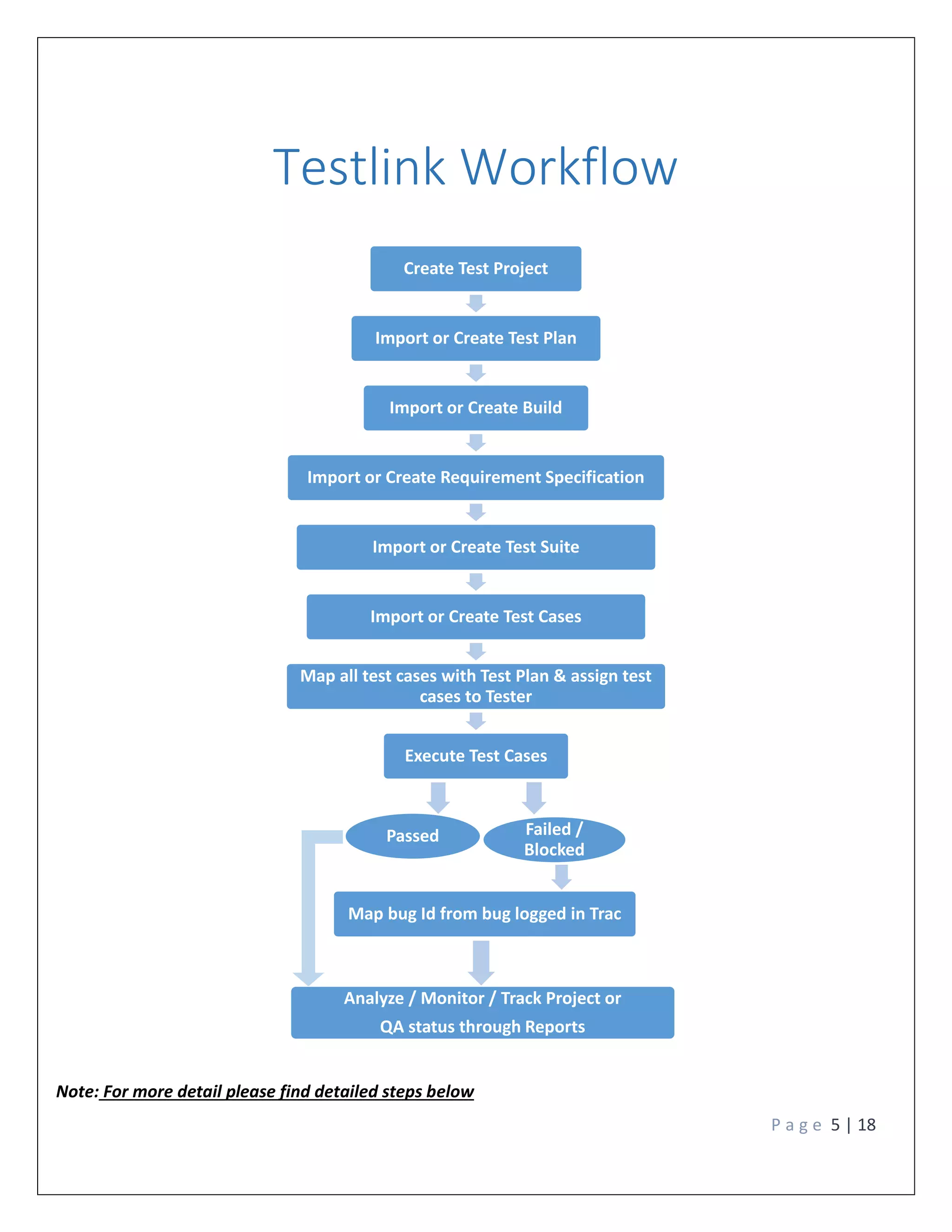
Testlink Workflow
Note: For more detail please find detailed steps below
Create Test Project
Import or Create Test Plan
Import or Create Build
Import or Create Requirement Specification
Import or Create Test Suite
Import or Create Test Cases
Map all test cases with Test Plan & assign test
cases to Tester
Execute Test Cases
Passed Failed /
Blocked
Map bug Id from bug logged in Trac
Analyze / Monitor / Track Project or
QA status through Reports
P a g e 6 | 18
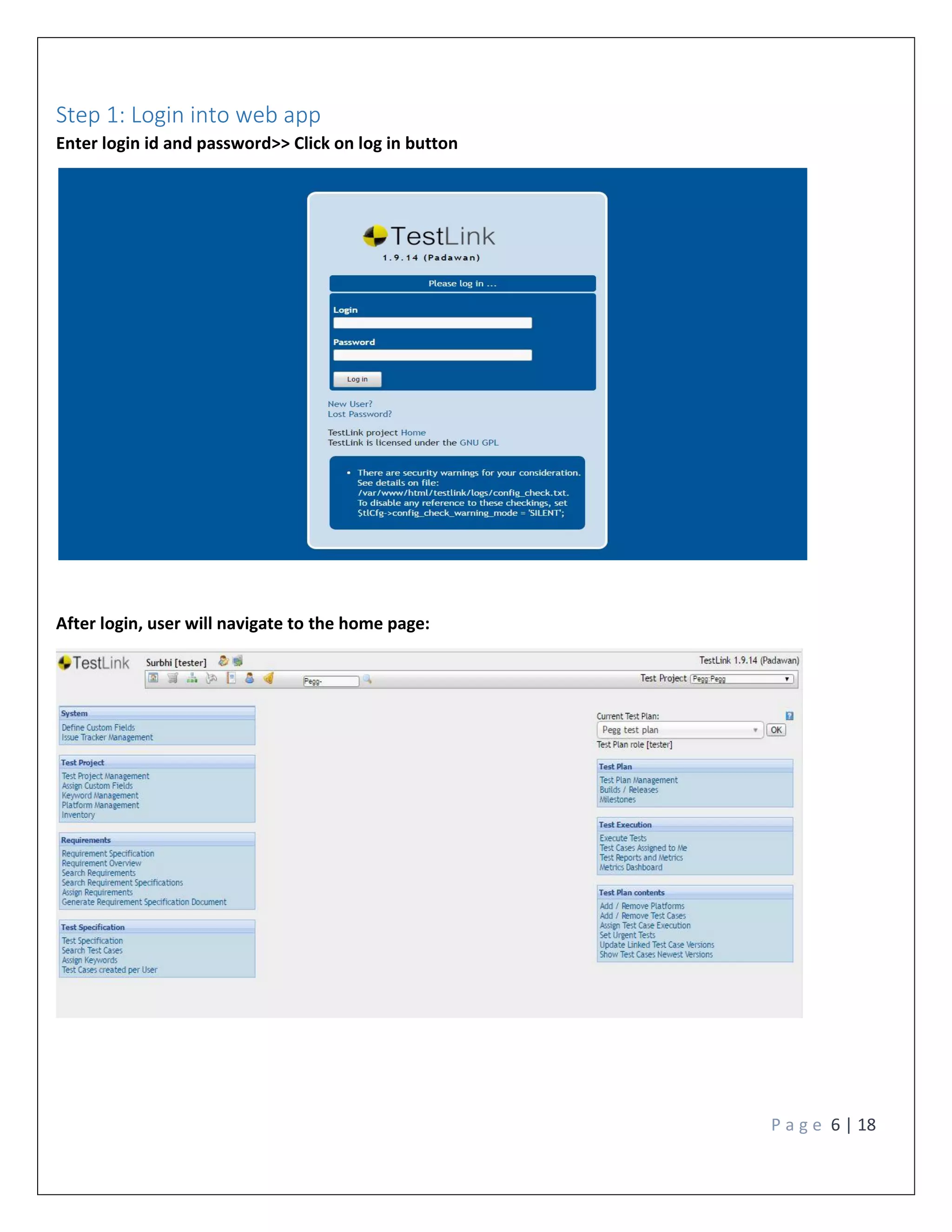
Step 1: Login into web app
Enter login id and password>> Click on log in button
After login, user will navigate to the home page:
P a g e 7 | 18
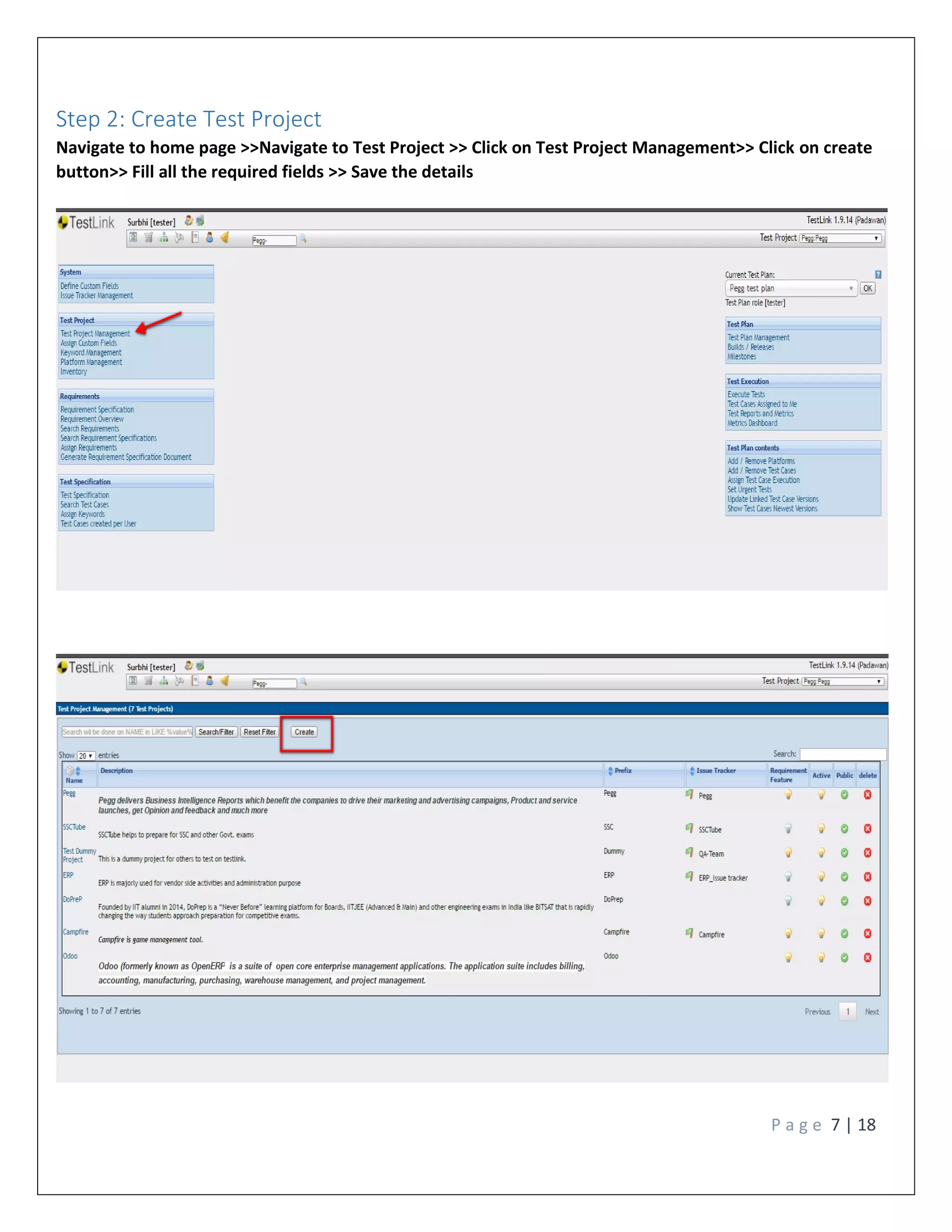
Step 2: Create Test Project
Navigate to home page >>Navigate to Test Project >> Click on Test Project Management>> Click on create
button>> Fill all the required fields >> Save the details
P a g e 8 | 18
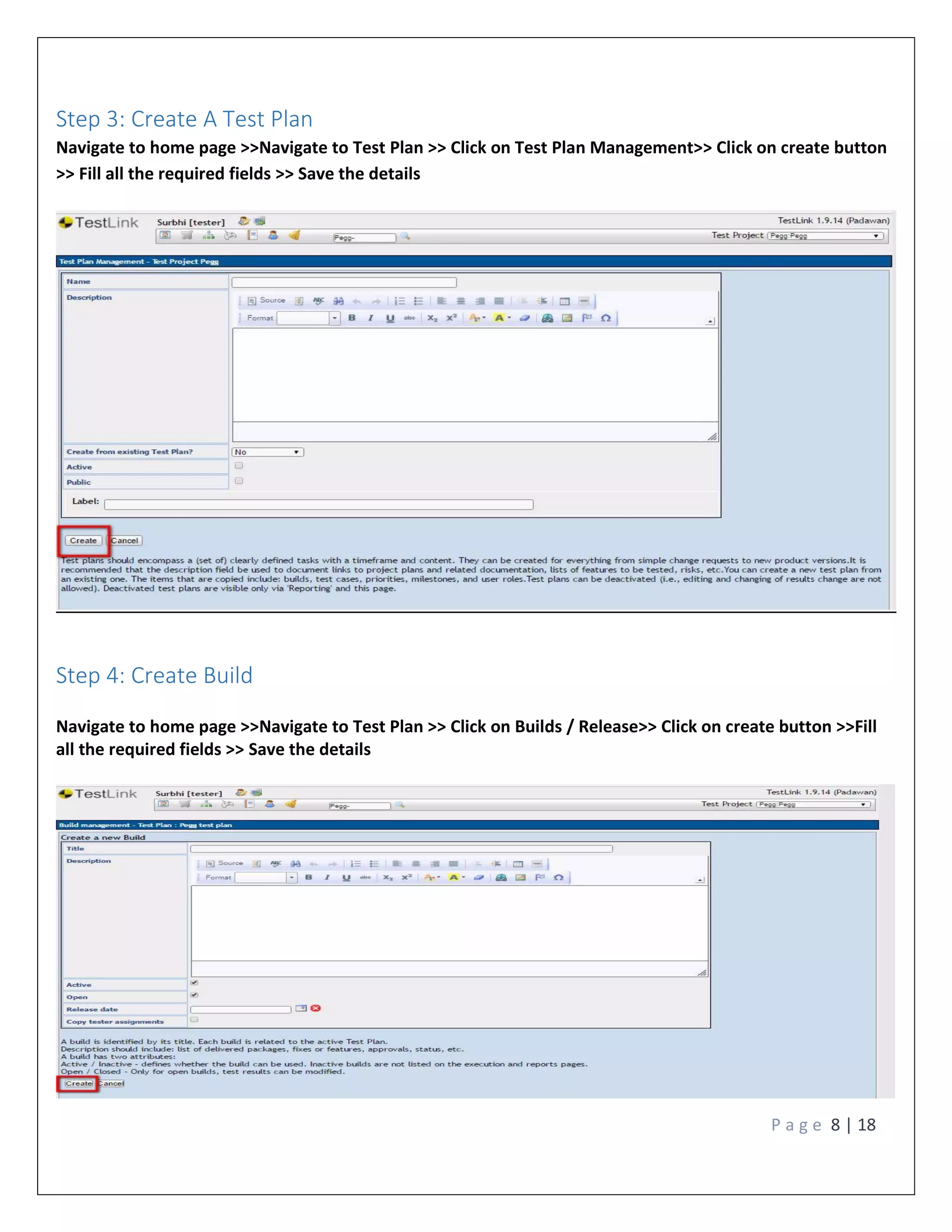
Step 3: Create A Test Plan
Navigate to home page >>Navigate to Test Plan >> Click on Test Plan Management>> Click on create button
>> Fill all the required fields >> Save the details
Step 4: Create Build
Navigate to home page >>Navigate to Test Plan >> Click on Builds / Release>> Click on create button >>Fill
all the required fields >> Save the details
P a g e 9 | 18
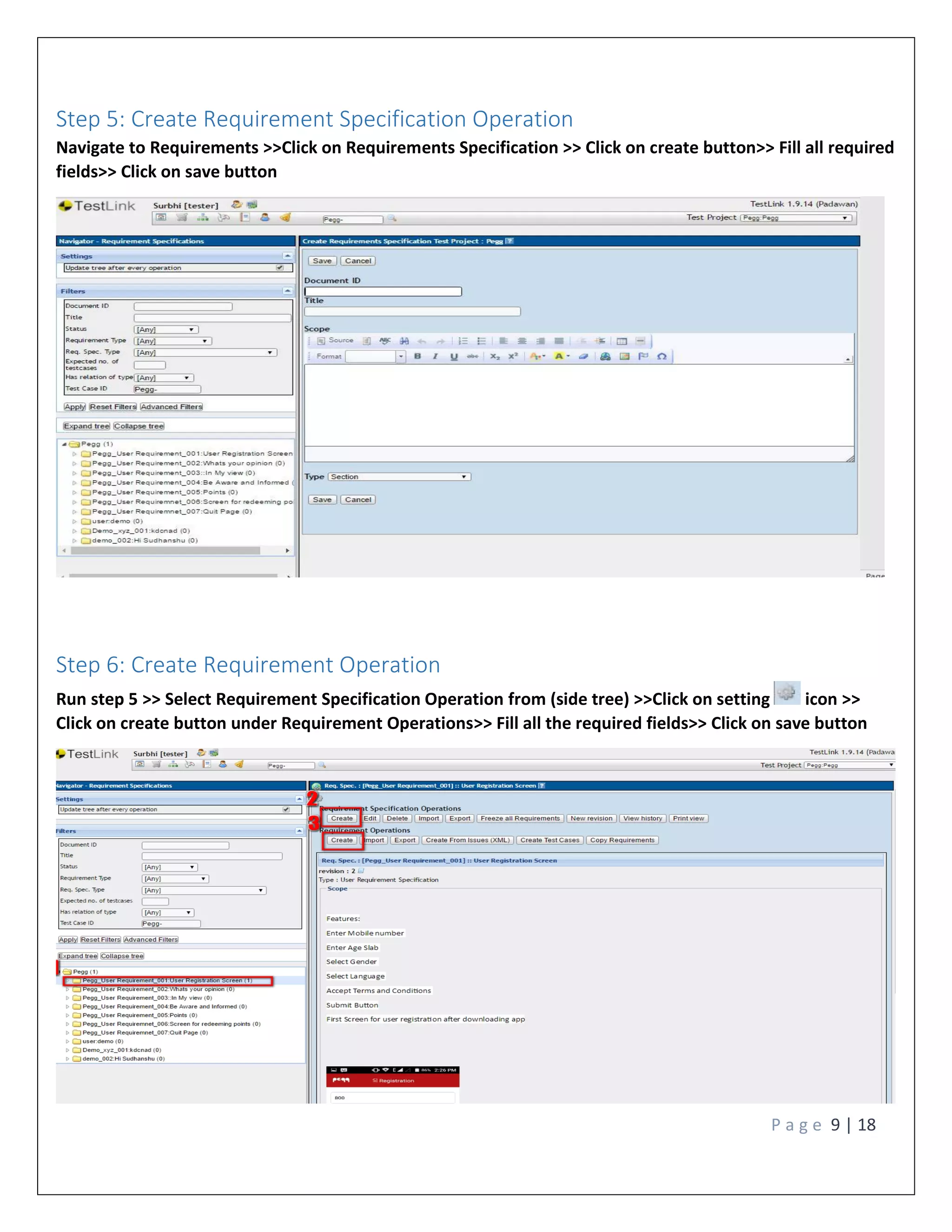
Step 5: Create Requirement Specification Operation
Navigate to Requirements >>Click on Requirements Specification >> Click on create button>> Fill all required
fields>> Click on save button
Step 6: Create Requirement Operation
Run step 5 >> Select Requirement Specification Operation from (side tree) >>Click on setting icon >>
Click on create button under Requirement Operations>> Fill all the required fields>> Click on save button
P a g e 10 | 18
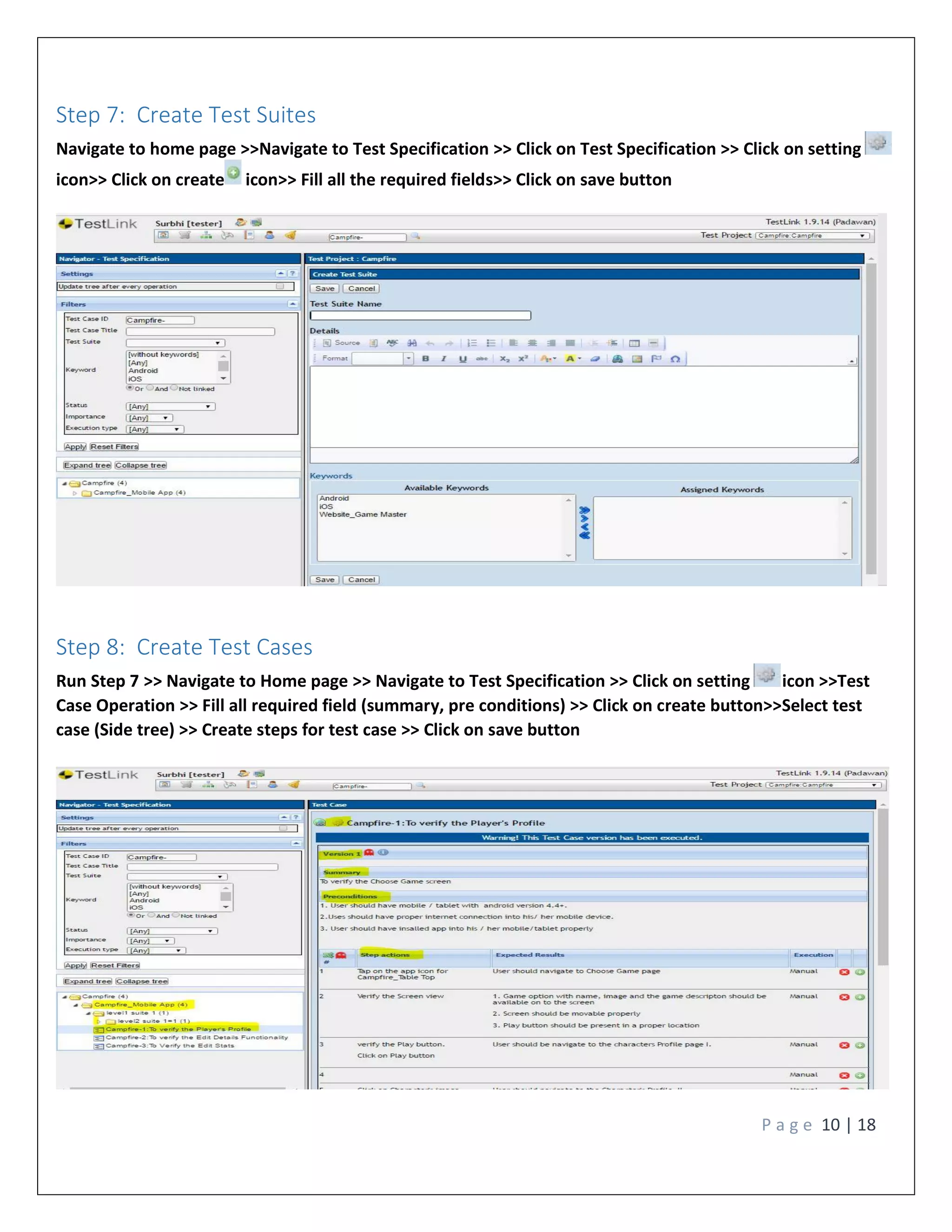
Step 7: Create Test Suites
Navigate to home page >>Navigate to Test Specification >> Click on Test Specification >> Click on setting
icon>> Click on create icon>> Fill all the required fields>> Click on save button
Step 8: Create Test Cases
Run Step 7 >> Navigate to Home page >> Navigate to Test Specification >> Click on setting icon >>Test
Case Operation >> Fill all required field (summary, pre conditions) >> Click on create button>>Select test
case (Side tree) >> Create steps for test case >> Click on save button
P a g e 11 | 18
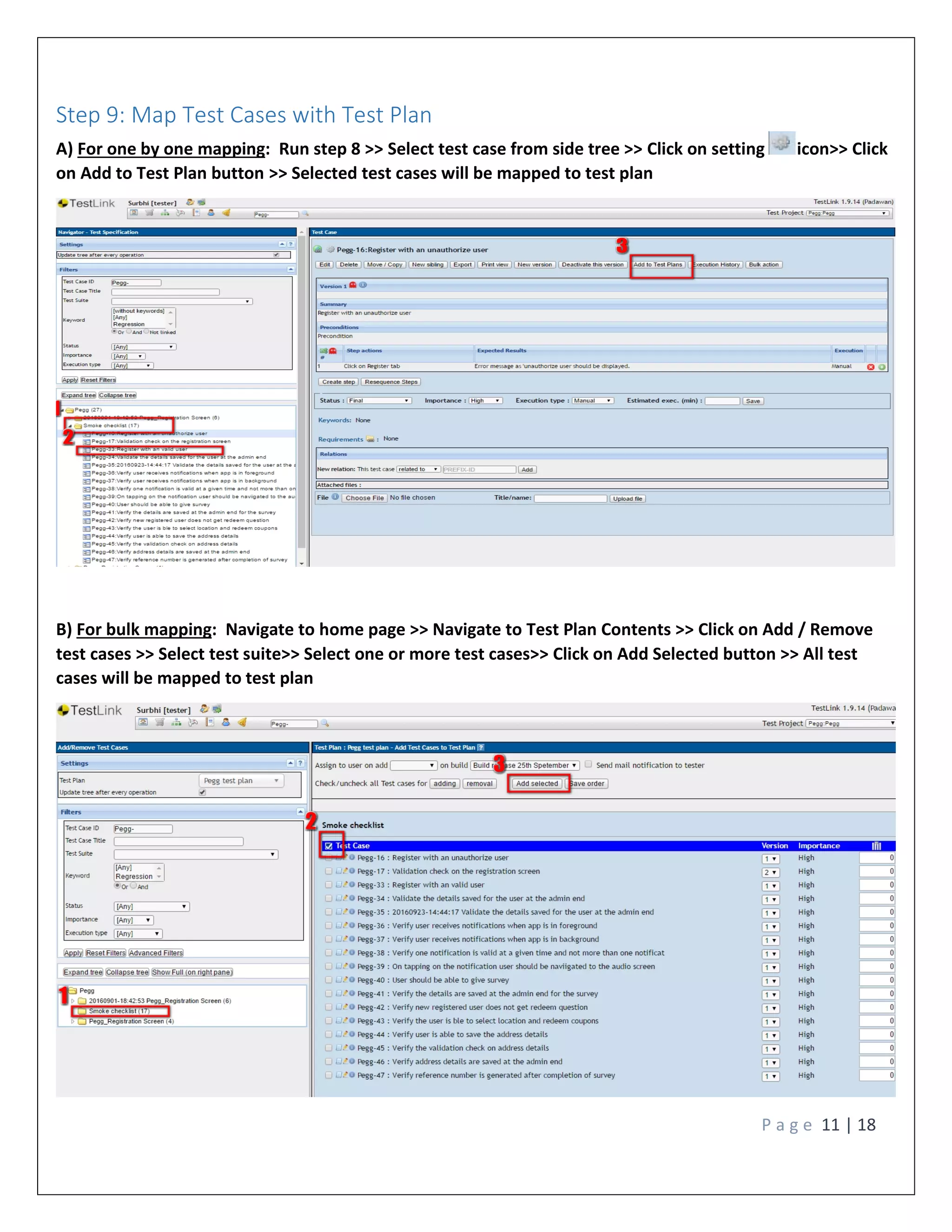
Step 9: Map Test Cases with Test Plan
A) For one by one mapping: Run step 8 >> Select test case from side tree >> Click on setting icon>> Click
on Add to Test Plan button >> Selected test cases will be mapped to test plan
B) For bulk mapping: Navigate to home page >> Navigate to Test Plan Contents >> Click on Add / Remove
test cases >> Select test suite>> Select one or more test cases>> Click on Add Selected button >> All test
cases will be mapped to test plan
P a g e 12 | 18
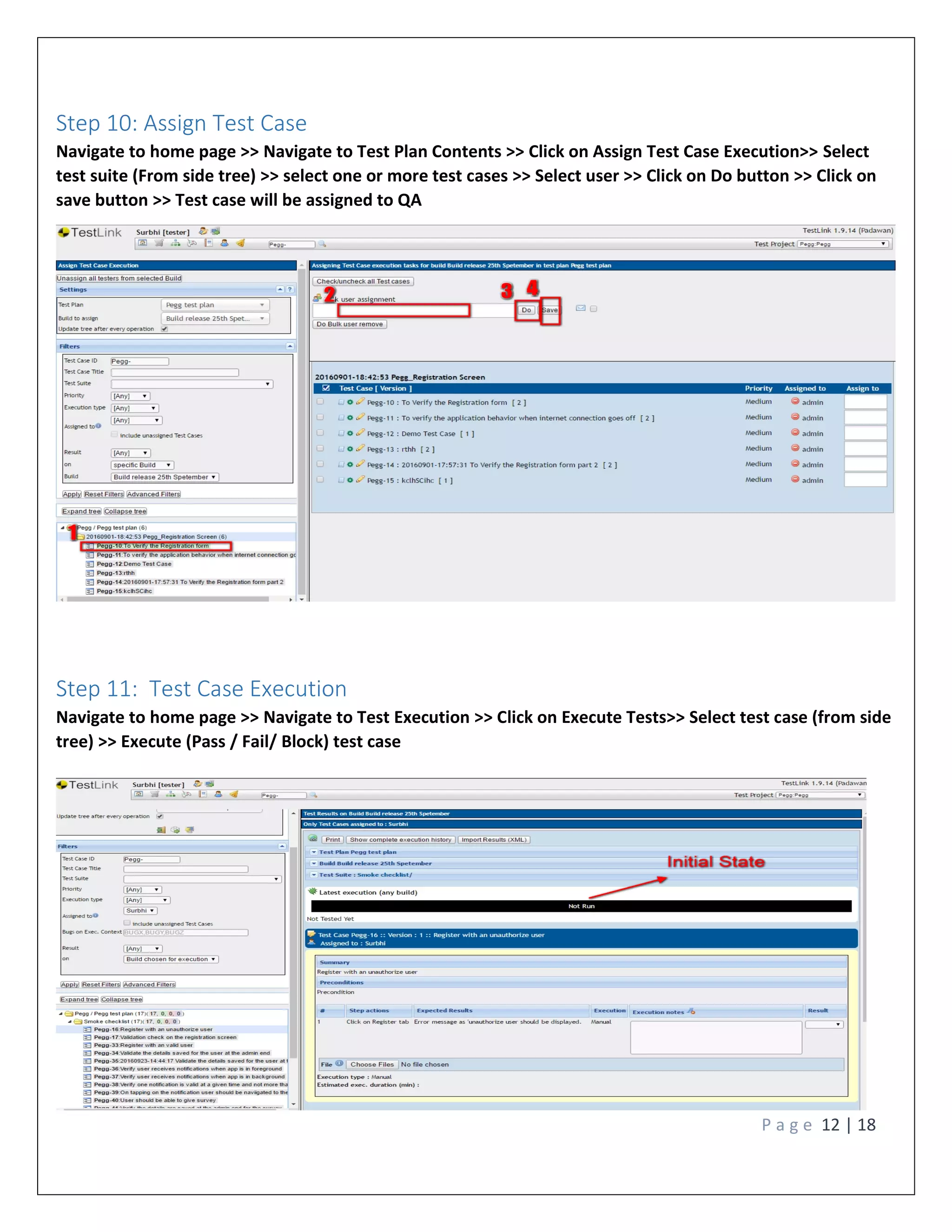
Step 10: Assign Test Case
Navigate to home page >> Navigate to Test Plan Contents >> Click on Assign Test Case Execution>> Select
test suite (From side tree) >> select one or more test cases >> Select user >> Click on Do button >> Click on
save button >> Test case will be assigned to QA
Step 11: Test Case Execution
Navigate to home page >> Navigate to Test Execution >> Click on Execute Tests>> Select test case (from side
tree) >> Execute (Pass / Fail/ Block) test case
P a g e 13 | 18
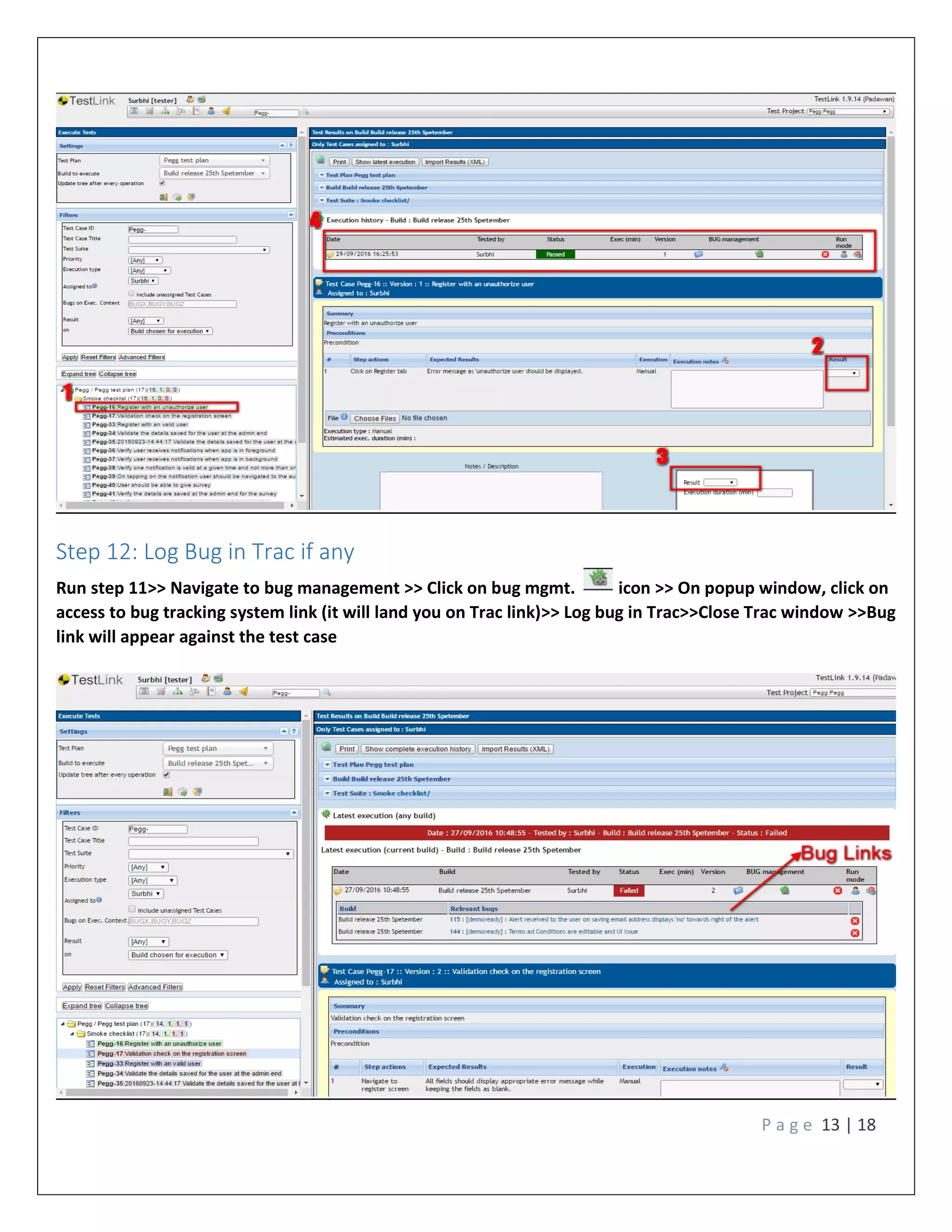
Step 12: Log Bug in Trac if any
Run step 11>> Navigate to bug management >> Click on bug mgmt. icon >> On popup window, click on
access to bug tracking system link (it will land you on Trac link)>> Log bug in Trac>>Close Trac window >>Bug
link will appear against the test case
P a g e 14 | 18
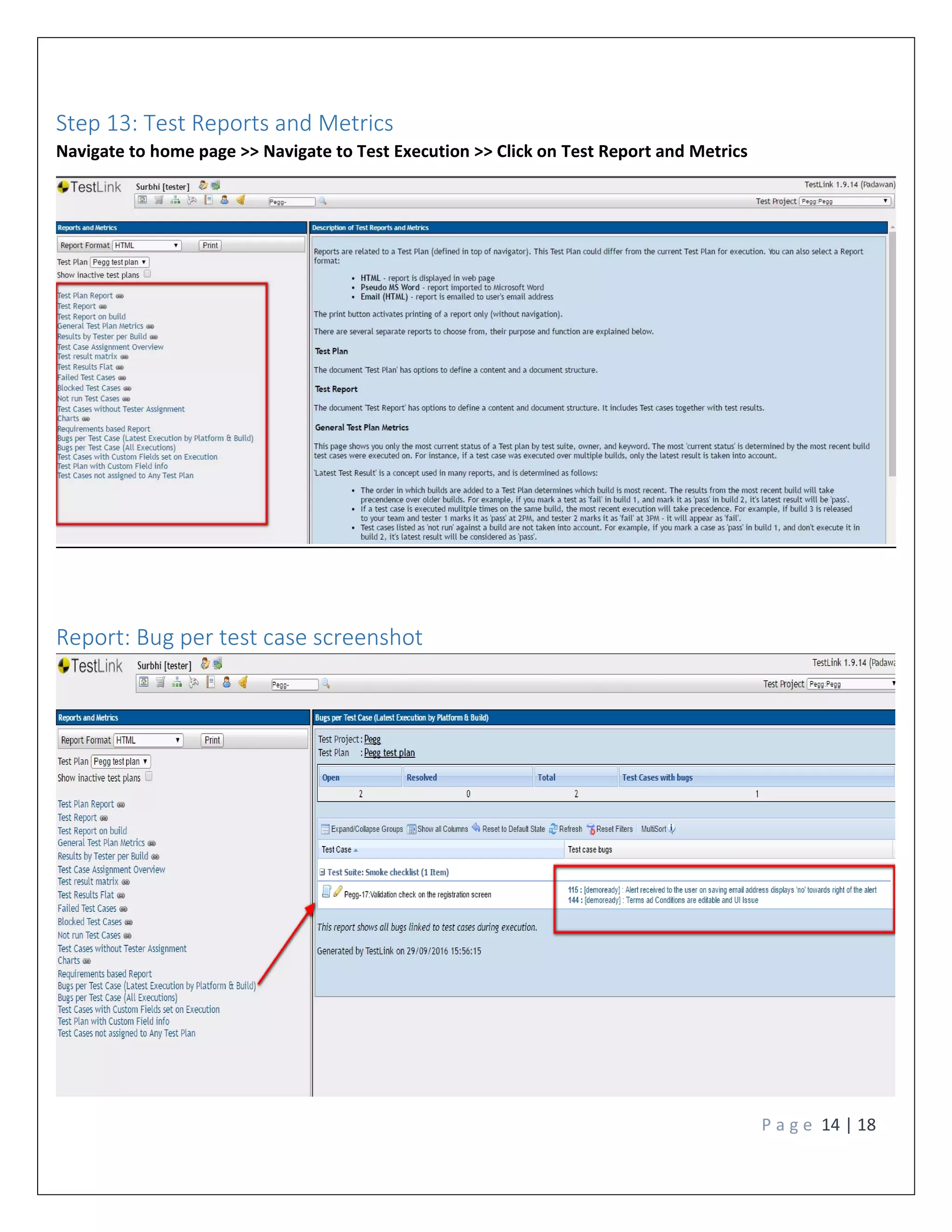
Step 13: Test Reports and Metrics
Navigate to home page >> Navigate to Test Execution >> Click on Test Report and Metrics
Report: Bug per test case screenshot
P a g e 15 | 18
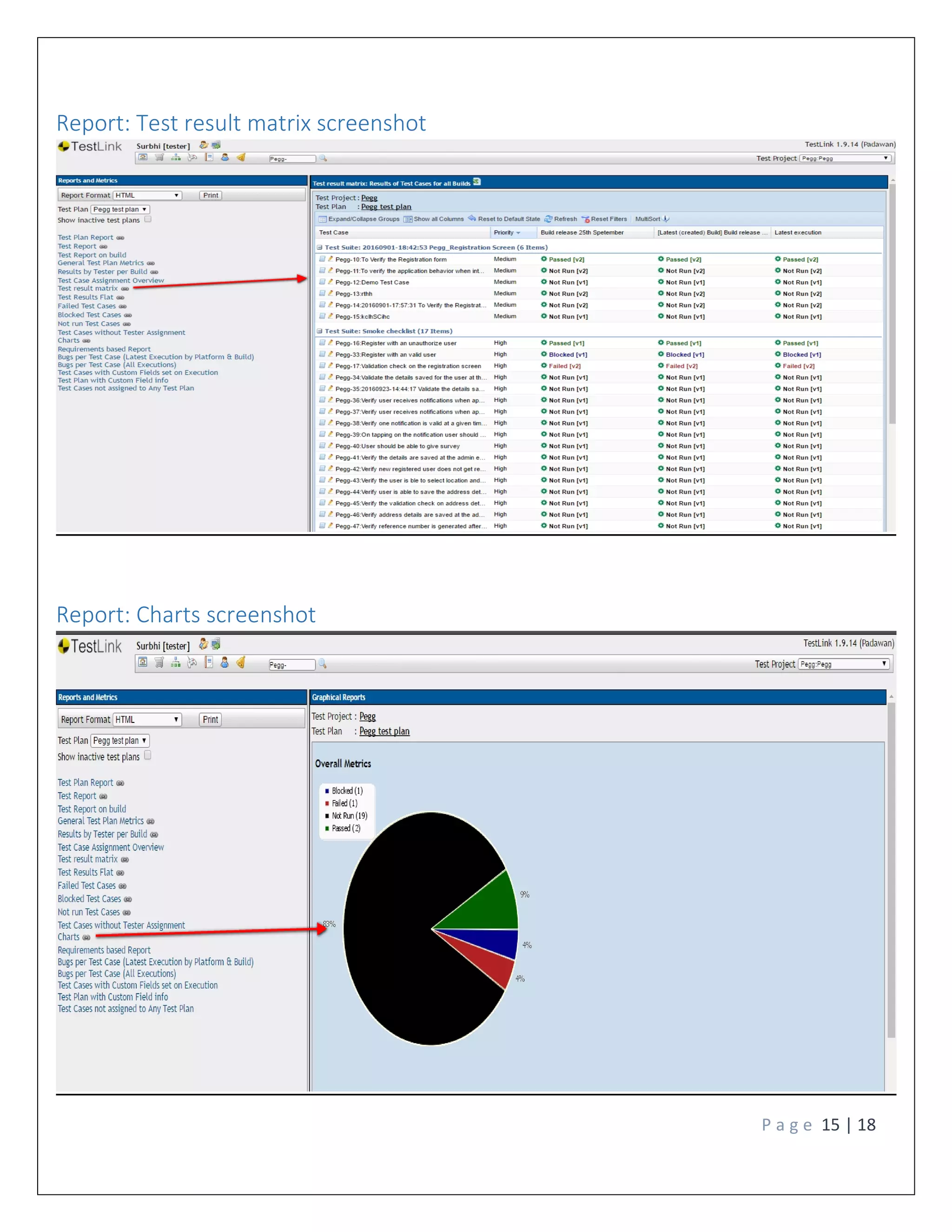
Report: Test result matrix screenshot
Report: Charts screenshot
P a g e 16 | 18
User role available in Testlink
 Guest Tester
 Senior Tester
 Leader
 Admin
Note: Roles & Responsibilities can change or are customizable through rights available in Testlink
Steps to import test case / test suite
Pre Conditions:
1. Ex-Converter should be installed on user’s machine [https://sourceforge.net/pro-
jects/ex-converter/] for Version 1.2.1
2. User should have “Source Excel File” (Excel file with desired test cases or test suites)
Steps:
Step 1: Launch Ex-Converter
Step 2: Select desired template type radio button for Test Cases / Test Suites.
Step 3: Select “Source Excel File” From hard disk.
Step 4: Select “Destination XML File” or create a new XML file.
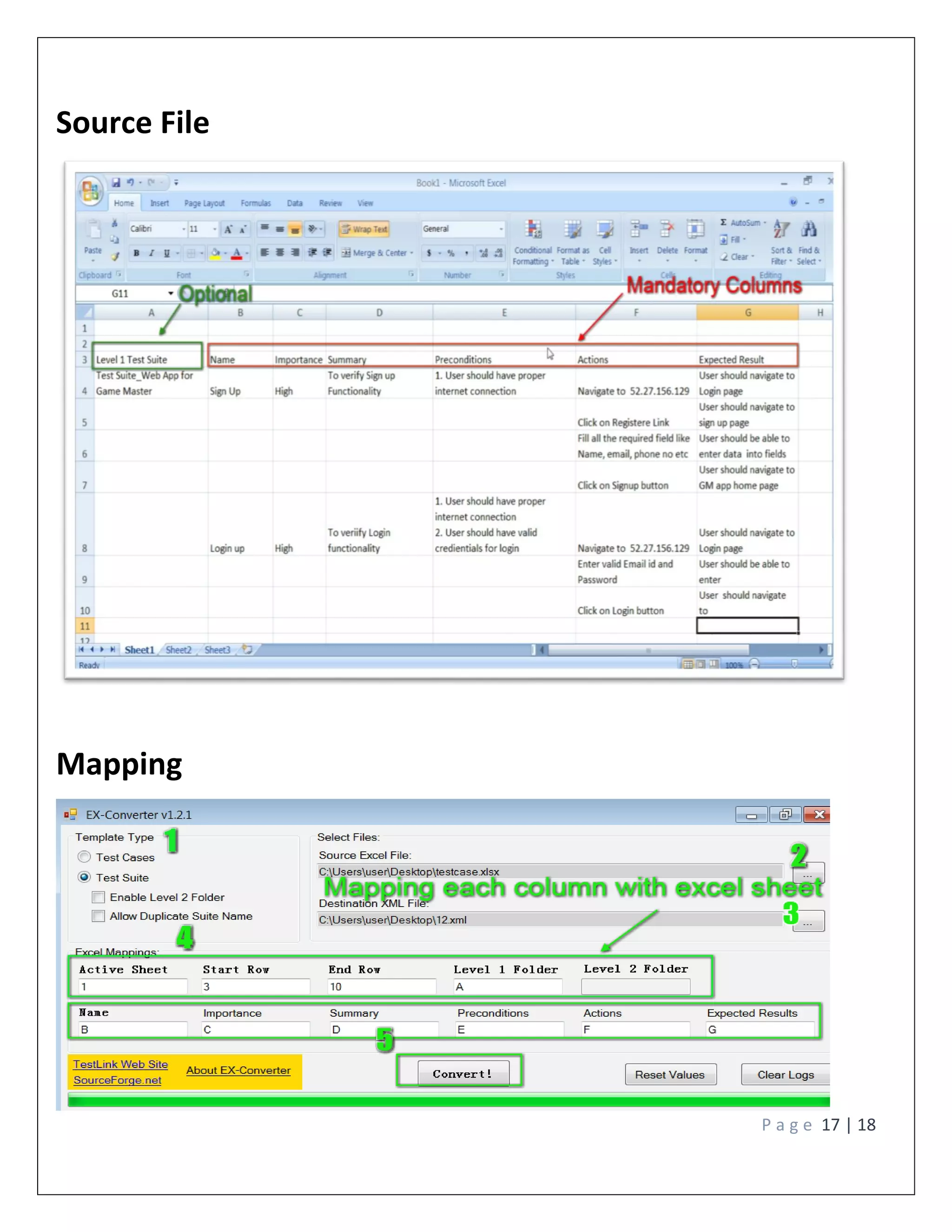
Step 5: Enter ‘1’ under ‘Active Sheet’, since sheet in use is the first one of the Excel file
Step 5: Map all fields with your “Source Excel File”. Let say your test cases starts form row 3
and ends on 10th
row so enter ‘3’ in ’Start Row’ and ‘10’ in ‘End. Map other field corresponding
to the source file.
Note: Please find below mapping screenshot
P a g e 17 | 18
Source File
Mapping
P a g e 18 | 18
Step 6. Click on Convert button and check log if needed.
Step7. Now, navigate to Testlink web page >> Test Specification tab >> Your desired test suite
or test suite operations >> Click on import button >> Choose your XML file and upload it. It will
upload all your test cases under desired test suite
Reference Link
1. http://www.guru99.com/testlink-tutorial-complete-guide.html
2. https://www.youtube.com/watch?v=P2zWScVjuag
3. http://www.softwaretestinghelp.com/testlink-tutorial-1/
4. https://www.google.co.in/webhp?sourceid=chrome-in-
stant&ion=1&espv=2&ie=UTF-8#q=Exconverter+Quick+tutorial

Testlink_Version 0.3

  • 1.
    Testlink Processes & Workflow NAVYUGINFOSOLUTIONS SURBHI SAXENA
  • 2.
    P a ge 2 | 18 Table of Contents Testlink Processes...................................................................................................................... 4 Testlink Workflow...................................................................................................................... 5 Step 1: Login into web app......................................................................................................... 6 Step 2: Create Test Project......................................................................................................... 7 Step 3: Create A Test Plan.......................................................................................................... 8 Step 4: Create Build ................................................................................................................... 8 Step 5: Create Requirement Specification Operation................................................................. 9 Step 6: Create Requirement Operation...................................................................................... 9 Step 7: Create Test Suites ....................................................................................................... 10 Step 8: Create Test Cases........................................................................................................ 10 Step 9: Map Test Cases with Test Plan..................................................................................... 11 Step 10: Assign Test Case......................................................................................................... 12 Step 11: Test Case Execution................................................................................................... 12 Step 12: Log Bug in Trac if any ................................................................................................. 13 Step 13: Test Reports and Metrics ........................................................................................... 14 Report: Bug per test case screenshot....................................................................................... 14 Report: Test result matrix screenshot...................................................................................... 15 Report: Charts screenshot ....................................................................................................... 15 User role available in Testlink .................................................................................................. 16 Steps to import test cases / test Suite...................................................................................... 16 Reference Link ......................................................................................................................... 18
  • 3.
    P a ge 3 | 18 Revision History- Approval List- S. No. Name Role Approval / Review Date 1. Sadhvi Singh QA Lead 12-sep-2016 2. Vishal Singh QA Lead 12-sep-2016 Version Date Author Description of Changes Version_0.1 5-sep-2016 Surbhi Saxena Testlink Workflow Version_0.2 29-sep-2016 Surbhi Saxena Processes with steps and screenshot added Version_0.3 6-Oct-16 Surbhi Saxena Table of content added
  • 4.
    P a ge 4 | 18 Testlink Processes Testlink has seven basic modules Test Project Management Test Plan Management Requirement Specification Build / Release Creation Test Specification Test Execution Generating Test Reports Features Available  Create, Delete Project(s)  Associate QA roles to project Features Available  Create, Delete, Multiple Test Plan  User can assign bulk of test cases with test plan Features Available  Create, Edit, Delete, Versioning of requirement  Import, Export, Freeze requirement Features Available  Create, Delete Build / Release  Active / Inactivity of Build / Release Features Available  Test suite Creation, Deletion, Edit, Import, Export, Move and Copy  Test case Creation, Deletion, Import, Export, Move and Copy, Assign test case to test plan  Search test cases Features Available  Execute test step / test case against versions  Map bug across test case through Trac Features Available  Format Supported: - HTML, Word  Email Report  Test Plan, Test Report, Build status, Execution reports available  Charts, bug per test case report available
  • 5.
    P a ge 5 | 18 Testlink Workflow Note: For more detail please find detailed steps below Create Test Project Import or Create Test Plan Import or Create Build Import or Create Requirement Specification Import or Create Test Suite Import or Create Test Cases Map all test cases with Test Plan & assign test cases to Tester Execute Test Cases Passed Failed / Blocked Map bug Id from bug logged in Trac Analyze / Monitor / Track Project or QA status through Reports
  • 6.
    P a ge 6 | 18 Step 1: Login into web app Enter login id and password>> Click on log in button After login, user will navigate to the home page:
  • 7.
    P a ge 7 | 18 Step 2: Create Test Project Navigate to home page >>Navigate to Test Project >> Click on Test Project Management>> Click on create button>> Fill all the required fields >> Save the details
  • 8.
    P a ge 8 | 18 Step 3: Create A Test Plan Navigate to home page >>Navigate to Test Plan >> Click on Test Plan Management>> Click on create button >> Fill all the required fields >> Save the details Step 4: Create Build Navigate to home page >>Navigate to Test Plan >> Click on Builds / Release>> Click on create button >>Fill all the required fields >> Save the details
  • 9.
    P a ge 9 | 18 Step 5: Create Requirement Specification Operation Navigate to Requirements >>Click on Requirements Specification >> Click on create button>> Fill all required fields>> Click on save button Step 6: Create Requirement Operation Run step 5 >> Select Requirement Specification Operation from (side tree) >>Click on setting icon >> Click on create button under Requirement Operations>> Fill all the required fields>> Click on save button
  • 10.
    P a ge 10 | 18 Step 7: Create Test Suites Navigate to home page >>Navigate to Test Specification >> Click on Test Specification >> Click on setting icon>> Click on create icon>> Fill all the required fields>> Click on save button Step 8: Create Test Cases Run Step 7 >> Navigate to Home page >> Navigate to Test Specification >> Click on setting icon >>Test Case Operation >> Fill all required field (summary, pre conditions) >> Click on create button>>Select test case (Side tree) >> Create steps for test case >> Click on save button
  • 11.
    P a ge 11 | 18 Step 9: Map Test Cases with Test Plan A) For one by one mapping: Run step 8 >> Select test case from side tree >> Click on setting icon>> Click on Add to Test Plan button >> Selected test cases will be mapped to test plan B) For bulk mapping: Navigate to home page >> Navigate to Test Plan Contents >> Click on Add / Remove test cases >> Select test suite>> Select one or more test cases>> Click on Add Selected button >> All test cases will be mapped to test plan
  • 12.
    P a ge 12 | 18 Step 10: Assign Test Case Navigate to home page >> Navigate to Test Plan Contents >> Click on Assign Test Case Execution>> Select test suite (From side tree) >> select one or more test cases >> Select user >> Click on Do button >> Click on save button >> Test case will be assigned to QA Step 11: Test Case Execution Navigate to home page >> Navigate to Test Execution >> Click on Execute Tests>> Select test case (from side tree) >> Execute (Pass / Fail/ Block) test case
  • 13.
    P a ge 13 | 18 Step 12: Log Bug in Trac if any Run step 11>> Navigate to bug management >> Click on bug mgmt. icon >> On popup window, click on access to bug tracking system link (it will land you on Trac link)>> Log bug in Trac>>Close Trac window >>Bug link will appear against the test case
  • 14.
    P a ge 14 | 18 Step 13: Test Reports and Metrics Navigate to home page >> Navigate to Test Execution >> Click on Test Report and Metrics Report: Bug per test case screenshot
  • 15.
    P a ge 15 | 18 Report: Test result matrix screenshot Report: Charts screenshot
  • 16.
    P a ge 16 | 18 User role available in Testlink  Guest Tester  Senior Tester  Leader  Admin Note: Roles & Responsibilities can change or are customizable through rights available in Testlink Steps to import test case / test suite Pre Conditions: 1. Ex-Converter should be installed on user’s machine [https://sourceforge.net/pro- jects/ex-converter/] for Version 1.2.1 2. User should have “Source Excel File” (Excel file with desired test cases or test suites) Steps: Step 1: Launch Ex-Converter Step 2: Select desired template type radio button for Test Cases / Test Suites. Step 3: Select “Source Excel File” From hard disk. Step 4: Select “Destination XML File” or create a new XML file. Step 5: Enter ‘1’ under ‘Active Sheet’, since sheet in use is the first one of the Excel file Step 5: Map all fields with your “Source Excel File”. Let say your test cases starts form row 3 and ends on 10th row so enter ‘3’ in ’Start Row’ and ‘10’ in ‘End. Map other field corresponding to the source file. Note: Please find below mapping screenshot
  • 17.
    P a ge 17 | 18 Source File Mapping
  • 18.
    P a ge 18 | 18 Step 6. Click on Convert button and check log if needed. Step7. Now, navigate to Testlink web page >> Test Specification tab >> Your desired test suite or test suite operations >> Click on import button >> Choose your XML file and upload it. It will upload all your test cases under desired test suite Reference Link 1. http://www.guru99.com/testlink-tutorial-complete-guide.html 2. https://www.youtube.com/watch?v=P2zWScVjuag 3. http://www.softwaretestinghelp.com/testlink-tutorial-1/ 4. https://www.google.co.in/webhp?sourceid=chrome-in- stant&ion=1&espv=2&ie=UTF-8#q=Exconverter+Quick+tutorial