1
3/31/2020
qTest <> TestProject Integration
2
Agenda
• What is TestProject?
• How the integration works:
• Single sign on from qTest into TestProject
• qTest project hierarchy flows into TestProject
• TestProject test cases flow into qTest Test Design
• TestProject test results flow into qTest Test Execution
• How should I schedule my tests in TestProject?
• Q&A
3
Are You a Good Fit for TestProject?
 Are you testing Web, Mobile, or API’s?
 Are you currently using open source tools like Selenium, Appium?
 Do you have a mix of non-technical and technical?
 Do you have a mix of development environments (Mac, Windows, Linux)?
 Are you interested in a cloud based testing solution?
 Are you wanting to create a best of breed delivery pipeline?
 Do you want a free, community based solution?
You’ll Enjoy Today’s Webinar
4
Deliver a free, community focused platform to thank our
users for making Tricentis #1 in software testing
5
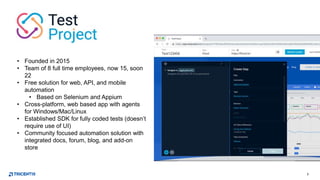
• Founded in 2015
• Team of 8 full time employees, now 15, soon
22
• Free solution for web, API, and mobile
automation
• Based on Selenium and Appium
• Cross-platform, web based app with agents
for Windows/Mac/Linux
• Established SDK for fully coded tests (doesn’t
require use of UI)
• Community focused automation solution with
integrated docs, forum, blog, and add-on
store
6
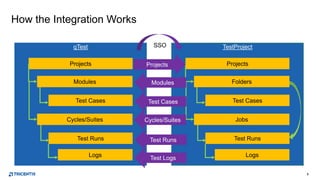
How the Integration Works
TestProjectqTest
ProjectsProjects
Test Cases
Folders
Jobs
Test Runs
Logs
Projects
Test Cases
Modules
Cycles/Suites
Test Runs
Logs
Modules
Test Cases
Cycles/Suites
Test Runs
Test Logs
Projects
SSO
7
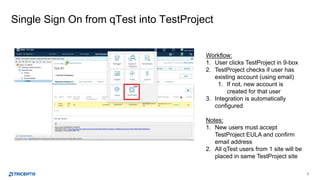
Single Sign On from qTest into TestProject
Workflow:
1. User clicks TestProject in 9-box
2. TestProject checks if user has
existing account (using email)
1. If not, new account is
created for that user
3. Integration is automatically
configured
Notes:
1. New users must accept
TestProject EULA and confirm
email address
2. All qTest users from 1 site will be
placed in same TestProject site
8
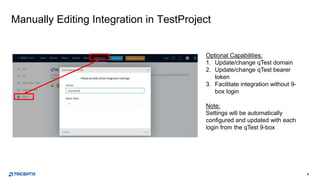
Manually Editing Integration in TestProject
Optional Capabilities:
1. Update/change qTest domain
2. Update/change qTest bearer
token
3. Facilitate integration without 9-
box login
Note:
Settings will be automatically
configured and updated with each
login from the qTest 9-box
9
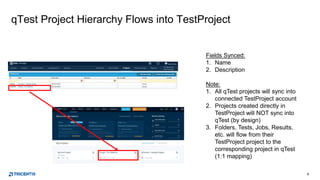
qTest Project Hierarchy Flows into TestProject
Fields Synced:
1. Name
2. Description
Note:
1. All qTest projects will sync into
connected TestProject account
2. Projects created directly in
TestProject will NOT sync into
qTest (by design)
3. Folders, Tests, Jobs, Results,
etc. will flow from their
TestProject project to the
corresponding project in qTest
(1:1 mapping)
10
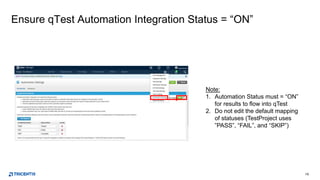
Ensure qTest Automation Integration Status = “ON”
Note:
1. Automation Status must = “ON”
for results to flow into qTest
2. Do not edit the default mapping
of statuses (TestProject uses
”PASS”, “FAIL”, and “SKIP”)
11
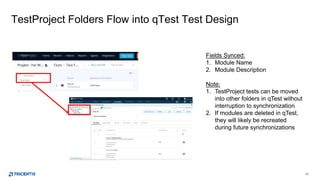
TestProject Folders Flow into qTest Test Design
Fields Synced:
1. Module Name
2. Module Description
Note:
1. TestProject tests can be moved
into other folders in qTest without
interruption to synchronization
2. If modules are deleted in qTest,
they will likely be recreated
during future synchronizations
12
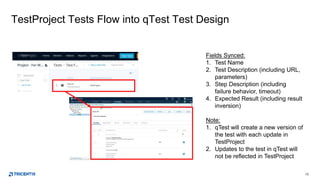
TestProject Tests Flow into qTest Test Design
Fields Synced:
1. Test Name
2. Test Description (including URL,
parameters)
3. Step Description (including
failure behavior, timeout)
4. Expected Result (including result
inversion)
Note:
1. qTest will create a new version of
the test with each update in
TestProject
2. Updates to the test in qTest will
not be reflected in TestProject
13
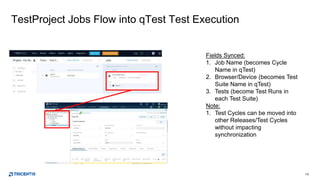
TestProject Jobs Flow into qTest Test Execution
Fields Synced:
1. Job Name (becomes Cycle
Name in qTest)
2. Browser/Device (becomes Test
Suite Name in qTest)
3. Tests (become Test Runs in
each Test Suite)
Note:
1. Test Cycles can be moved into
other Releases/Test Cycles
without impacting
synchronization
14
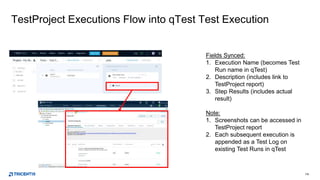
TestProject Executions Flow into qTest Test Execution
Fields Synced:
1. Execution Name (becomes Test
Run name in qTest)
2. Description (includes link to
TestProject report)
3. Step Results (includes actual
result)
Note:
1. Screenshots can be accessed in
TestProject report
2. Each subsequent execution is
appended as a Test Log on
existing Test Runs in qTest
15
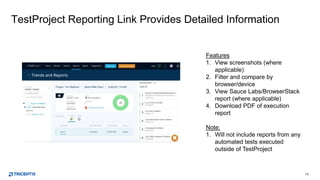
TestProject Reporting Link Provides Detailed Information
Features
1. View screenshots (where
applicable)
2. Filter and compare by
browser/device
3. View Sauce Labs/BrowserStack
report (where applicable)
4. Download PDF of execution
report
Note:
1. Will not include reports from any
automated tests executed
outside of TestProject
16
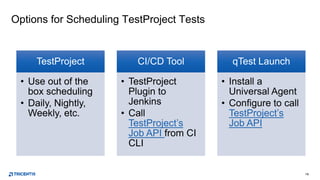
Options for Scheduling TestProject Tests
TestProject
• Use out of the
box scheduling
• Daily, Nightly,
Weekly, etc.
CI/CD Tool
• TestProject
Plugin to
Jenkins
• Call
TestProject’s
Job API from CI
CLI
qTest Launch
• Install a
Universal Agent
• Configure to call
TestProject’s
Job API
17
Q&A

qTest <> TestProject Integration Webinar

  • 1.
  • 2.
    2 Agenda • What isTestProject? • How the integration works: • Single sign on from qTest into TestProject • qTest project hierarchy flows into TestProject • TestProject test cases flow into qTest Test Design • TestProject test results flow into qTest Test Execution • How should I schedule my tests in TestProject? • Q&A
  • 3.
    3 Are You aGood Fit for TestProject?  Are you testing Web, Mobile, or API’s?  Are you currently using open source tools like Selenium, Appium?  Do you have a mix of non-technical and technical?  Do you have a mix of development environments (Mac, Windows, Linux)?  Are you interested in a cloud based testing solution?  Are you wanting to create a best of breed delivery pipeline?  Do you want a free, community based solution? You’ll Enjoy Today’s Webinar
  • 4.
    4 Deliver a free,community focused platform to thank our users for making Tricentis #1 in software testing
  • 5.
    5 • Founded in2015 • Team of 8 full time employees, now 15, soon 22 • Free solution for web, API, and mobile automation • Based on Selenium and Appium • Cross-platform, web based app with agents for Windows/Mac/Linux • Established SDK for fully coded tests (doesn’t require use of UI) • Community focused automation solution with integrated docs, forum, blog, and add-on store
  • 6.
    6 How the IntegrationWorks TestProjectqTest ProjectsProjects Test Cases Folders Jobs Test Runs Logs Projects Test Cases Modules Cycles/Suites Test Runs Logs Modules Test Cases Cycles/Suites Test Runs Test Logs Projects SSO
  • 7.
    7 Single Sign Onfrom qTest into TestProject Workflow: 1. User clicks TestProject in 9-box 2. TestProject checks if user has existing account (using email) 1. If not, new account is created for that user 3. Integration is automatically configured Notes: 1. New users must accept TestProject EULA and confirm email address 2. All qTest users from 1 site will be placed in same TestProject site
  • 8.
    8 Manually Editing Integrationin TestProject Optional Capabilities: 1. Update/change qTest domain 2. Update/change qTest bearer token 3. Facilitate integration without 9- box login Note: Settings will be automatically configured and updated with each login from the qTest 9-box
  • 9.
    9 qTest Project HierarchyFlows into TestProject Fields Synced: 1. Name 2. Description Note: 1. All qTest projects will sync into connected TestProject account 2. Projects created directly in TestProject will NOT sync into qTest (by design) 3. Folders, Tests, Jobs, Results, etc. will flow from their TestProject project to the corresponding project in qTest (1:1 mapping)
  • 10.
    10 Ensure qTest AutomationIntegration Status = “ON” Note: 1. Automation Status must = “ON” for results to flow into qTest 2. Do not edit the default mapping of statuses (TestProject uses ”PASS”, “FAIL”, and “SKIP”)
  • 11.
    11 TestProject Folders Flowinto qTest Test Design Fields Synced: 1. Module Name 2. Module Description Note: 1. TestProject tests can be moved into other folders in qTest without interruption to synchronization 2. If modules are deleted in qTest, they will likely be recreated during future synchronizations
  • 12.
    12 TestProject Tests Flowinto qTest Test Design Fields Synced: 1. Test Name 2. Test Description (including URL, parameters) 3. Step Description (including failure behavior, timeout) 4. Expected Result (including result inversion) Note: 1. qTest will create a new version of the test with each update in TestProject 2. Updates to the test in qTest will not be reflected in TestProject
  • 13.
    13 TestProject Jobs Flowinto qTest Test Execution Fields Synced: 1. Job Name (becomes Cycle Name in qTest) 2. Browser/Device (becomes Test Suite Name in qTest) 3. Tests (become Test Runs in each Test Suite) Note: 1. Test Cycles can be moved into other Releases/Test Cycles without impacting synchronization
  • 14.
    14 TestProject Executions Flowinto qTest Test Execution Fields Synced: 1. Execution Name (becomes Test Run name in qTest) 2. Description (includes link to TestProject report) 3. Step Results (includes actual result) Note: 1. Screenshots can be accessed in TestProject report 2. Each subsequent execution is appended as a Test Log on existing Test Runs in qTest
  • 15.
    15 TestProject Reporting LinkProvides Detailed Information Features 1. View screenshots (where applicable) 2. Filter and compare by browser/device 3. View Sauce Labs/BrowserStack report (where applicable) 4. Download PDF of execution report Note: 1. Will not include reports from any automated tests executed outside of TestProject
  • 16.
    16 Options for SchedulingTestProject Tests TestProject • Use out of the box scheduling • Daily, Nightly, Weekly, etc. CI/CD Tool • TestProject Plugin to Jenkins • Call TestProject’s Job API from CI CLI qTest Launch • Install a Universal Agent • Configure to call TestProject’s Job API
  • 17.