What is
TestProject
and
it’s feature
● Cloud-based and community-powered test
automation tool.
● Built on top of open source automation
tools like Selenium and Appium, by
removing the complexity of managing and
installing drivers for each platform.
● Supports Web/Mobile (Android and iOS)
Application across Windows/Mac/Linux
platforms.
● Powerful and smart in-web recorder.
● Provides Java, Python and C# SDKs for
creating tests and shared addons.
● Easy integration with CI/CD tools like
Jenkins.
● Also integrates with Test Management tools
like qTest and team collaboration tools like
Slack to get real time notification of test
executions.
● Test Analytics with detailed reports.
● Moreover its FREE.
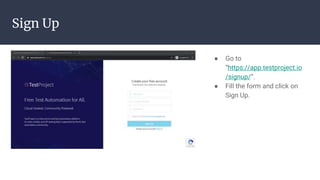
Sign Up
● Go to
“https://app.testproject.io
/signup/”.
● Fill the form and click on
Sign Up.
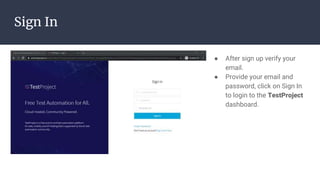
Sign In
● After sign up verify your
email.
● Provide your email and
password, click on Sign In
to login to the TestProject
dashboard.
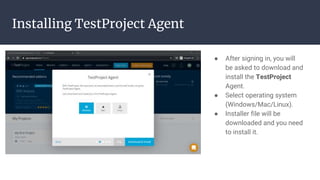
Installing TestProject Agent
● After signing in, you will
be asked to download and
install the TestProject
Agent.
● Select operating system
(Windows/Mac/Linux).
● Installer file will be
downloaded and you need
to install it.
Installing TestProject Agent
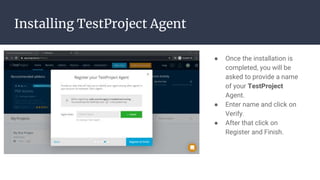
● Once the installation is
completed, you will be
asked to provide a name
of your TestProject
Agent.
● Enter name and click on
Verify.
● After that click on
Register and Finish.
Installing TestProject Agent
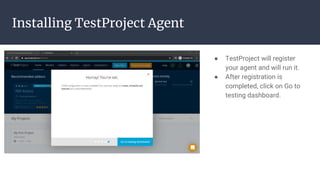
● TestProject will register
your agent and will run it.
● After registration is
completed, click on Go to
testing dashboard.
How to create Project:
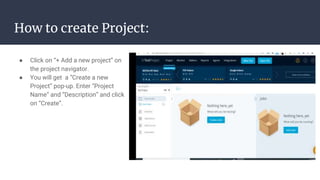
● Click on “+ Add a new project” on
the project navigator.
● You will get a “Create a new
Project” pop-up. Enter “Project
Name” and “Description” and click
on “Create”.
How to create Test Case:
● Click on “New Test”. You will be asked to select the type of test. i.e mobile application
test or a web application test.
● Select “Web” and click on “Next” button.
● Enter “Name” of the test and “Description”. Click on the “Next” button.
● Click on “Web Application” dropdown and then click on “Add a new application for
testing”.
● Enter name of the application and its URL. Click on “Finish”.
● Select the application you have just added and click on the “Next” button.
● Now, select the “Record” option and click on “Start recording” to record your first test on
TestProject.
NOTE: Recording will start in a new window/instance of the browser.
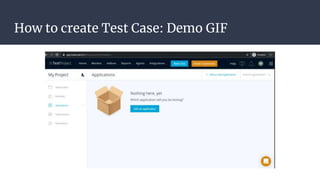
How to create Test Case: Demo GIF
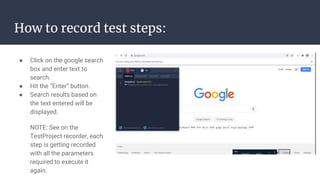
How to record test steps:
● Click on the google search
box and enter text to
search.
● Hit the “Enter” button.
● Search results based on
the text entered will be
displayed.
NOTE: See on the
TestProject recorder, each
step is getting recorded
with all the parameters
required to execute it
again.
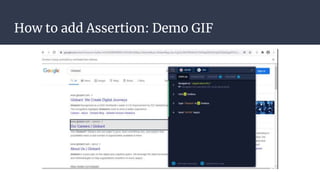
How to add Assertion:
● Click on “Test Case” to open it.
● Click on the “‘Record” button and the TestProject recorder will open again in the new
browser window.
● Hover over the element you wish to verify/assert.
● Eg. URL displayed on the Google Search Result
● Double Shift (Press Shift Key Twice) to freeze/lock the element.
● Click on the “Validations” option. (You will see list of assertion available)
● Click on “Is Present”. This assertion will verify if the element is present on the page or not.
● Now, click on “Save Step” to add the assertion step.
● Close the browser window and your test will be displayed on TestProject.
How to add Assertion: Demo GIF
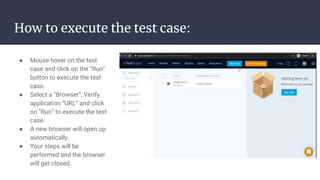
How to execute the test case:
● Mouse hover on the test
case and click on the “Run”
button to execute the test
case.
● Select a “Browser”, Verify
application “URL” and click
on “Run” to execute the test
case.
● A new browser will open up
automatically.
● Your steps will be
performed and the browser
will get closed.
How to get the Test Report:
● Mouse hover on the test case
and click on the “Report”
button.
● Test Report page will be
opened, with all parameters
like browsers, start time, end
time, result of each step and
final status of the test case
with the screenshot (if your
test case is failed)
● Click on “Full Report” to
download the PDF of the
detailed report.
TestProject - Demo
● Creating and managing projects
● Managing project team
● Creating and managing tests (Recording Mode)
● Validations/Assertions
● Parameterization
● Jobs to schedule test runs
● Test Reports
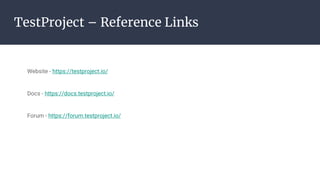
TestProject – Reference Links
Website - https://testproject.io/
Docs - https://docs.testproject.io/
Forum - https://forum.testproject.io/

Introduction to "TestProject" tool and first testcase with TestProject

  • 2.
    What is TestProject and it’s feature ●Cloud-based and community-powered test automation tool. ● Built on top of open source automation tools like Selenium and Appium, by removing the complexity of managing and installing drivers for each platform. ● Supports Web/Mobile (Android and iOS) Application across Windows/Mac/Linux platforms. ● Powerful and smart in-web recorder. ● Provides Java, Python and C# SDKs for creating tests and shared addons. ● Easy integration with CI/CD tools like Jenkins. ● Also integrates with Test Management tools like qTest and team collaboration tools like Slack to get real time notification of test executions. ● Test Analytics with detailed reports. ● Moreover its FREE.
  • 3.
    Sign Up ● Goto “https://app.testproject.io /signup/”. ● Fill the form and click on Sign Up.
  • 4.
    Sign In ● Aftersign up verify your email. ● Provide your email and password, click on Sign In to login to the TestProject dashboard.
  • 5.
    Installing TestProject Agent ●After signing in, you will be asked to download and install the TestProject Agent. ● Select operating system (Windows/Mac/Linux). ● Installer file will be downloaded and you need to install it.
  • 6.
    Installing TestProject Agent ●Once the installation is completed, you will be asked to provide a name of your TestProject Agent. ● Enter name and click on Verify. ● After that click on Register and Finish.
  • 7.
    Installing TestProject Agent ●TestProject will register your agent and will run it. ● After registration is completed, click on Go to testing dashboard.
  • 8.
    How to createProject: ● Click on “+ Add a new project” on the project navigator. ● You will get a “Create a new Project” pop-up. Enter “Project Name” and “Description” and click on “Create”.
  • 9.
    How to createTest Case: ● Click on “New Test”. You will be asked to select the type of test. i.e mobile application test or a web application test. ● Select “Web” and click on “Next” button. ● Enter “Name” of the test and “Description”. Click on the “Next” button. ● Click on “Web Application” dropdown and then click on “Add a new application for testing”. ● Enter name of the application and its URL. Click on “Finish”. ● Select the application you have just added and click on the “Next” button. ● Now, select the “Record” option and click on “Start recording” to record your first test on TestProject. NOTE: Recording will start in a new window/instance of the browser.
  • 10.
    How to createTest Case: Demo GIF
  • 11.
    How to recordtest steps: ● Click on the google search box and enter text to search. ● Hit the “Enter” button. ● Search results based on the text entered will be displayed. NOTE: See on the TestProject recorder, each step is getting recorded with all the parameters required to execute it again.
  • 12.
    How to addAssertion: ● Click on “Test Case” to open it. ● Click on the “‘Record” button and the TestProject recorder will open again in the new browser window. ● Hover over the element you wish to verify/assert. ● Eg. URL displayed on the Google Search Result ● Double Shift (Press Shift Key Twice) to freeze/lock the element. ● Click on the “Validations” option. (You will see list of assertion available) ● Click on “Is Present”. This assertion will verify if the element is present on the page or not. ● Now, click on “Save Step” to add the assertion step. ● Close the browser window and your test will be displayed on TestProject.
  • 13.
    How to addAssertion: Demo GIF
  • 14.
    How to executethe test case: ● Mouse hover on the test case and click on the “Run” button to execute the test case. ● Select a “Browser”, Verify application “URL” and click on “Run” to execute the test case. ● A new browser will open up automatically. ● Your steps will be performed and the browser will get closed.
  • 15.
    How to getthe Test Report: ● Mouse hover on the test case and click on the “Report” button. ● Test Report page will be opened, with all parameters like browsers, start time, end time, result of each step and final status of the test case with the screenshot (if your test case is failed) ● Click on “Full Report” to download the PDF of the detailed report.
  • 16.
    TestProject - Demo ●Creating and managing projects ● Managing project team ● Creating and managing tests (Recording Mode) ● Validations/Assertions ● Parameterization ● Jobs to schedule test runs ● Test Reports
  • 17.
    TestProject – ReferenceLinks Website - https://testproject.io/ Docs - https://docs.testproject.io/ Forum - https://forum.testproject.io/