DATE : - 07/27/2019
SysInternal Suite
A Windows Utility
PREPARED FOR: DR. PARAG H. RUGHANI
PREPARED BY: AKSHAY KOSHTI
MSC. CYBER SECURITY
BATCH: 2019-2021
1 | P a g e
TABLE OF CONTENTS
Introduction to SysInternal Utilities..............................................................................................................2
Various Types of Utilities:..............................................................................................................................2
How to execute the utilities. .........................................................................................................................3
Files and Disk Utilities. ..................................................................................................................................4
1. AccessChk..........................................................................................................................................4
2. AccessEnum ......................................................................................................................................5
3. Diskview ............................................................................................................................................6
Networking Utilities: .....................................................................................................................................7
1. PSFILE................................................................................................................................................7
2. PSPING ..............................................................................................................................................8
3. Whois ................................................................................................................................................9
Process Utilities...........................................................................................................................................10
1. Process explorer..............................................................................................................................10
2. Process monitor ..............................................................................................................................11
3. VNMap ............................................................................................................................................12
Security Utilities..........................................................................................................................................13
1. Autologon........................................................................................................................................13
2. LOGONSESSION...............................................................................................................................13
3. PSLOGLIST .......................................................................................................................................14
System information.....................................................................................................................................15
1. Core Info..........................................................................................................................................15
2. LoadOrder .......................................................................................................................................16
3. RamMap..........................................................................................................................................17
Miscellaneous .............................................................................................................................................18
1. RegDelNull.......................................................................................................................................18
2. Hex2dec...........................................................................................................................................18
3. Bginfo ..............................................................................................................................................19
List of figures...............................................................................................................................................20
2 | P a g e
INTRODUCTION TO SYSINTERNAL UTILITIES
The SysInternals utilities are free, advanced administrative, diagnostic, and troubleshooting utilities for
the Microsoft Windows platform written by the founders of SysInternals: (Mark Russinovich and Bryce
Cogswell). Since Microsoft’s acquisition of SysInternals in July 2006, these utilities have been available
for download from Microsoft’s TechNet website.
Among the hallmarks of a SysInternals utility are that it
• Serves unmet needs of a significant IT pro or developer audience
• Is intuitive and easy to use
• Is packaged as a single executable image that does not require installation and can be run from
anywhere, including from a network location or removable media
• Does not leave behind any significant incidental data after it has run
The SysInternals Suite is a set of over 70 advanced diagnostic and troubleshooting utilities for the
Microsoft Windows platform. The SysInternals utilities cover a broad range of functionality across many
aspects of the Windows operating system.
VARIOUS TYPES OF UTILITIES:
These utilities can be classified into various groups as shown below: -
1. Files and Disk Utilities
Acceschk, AccessEnum, Cacheset, contig, Disk2vhd, DiskExt, DiskMon, DiskView, Disk Usage,
EFSDump, LDMDump, MoveFile, NTFSInfo, PageDefrag, PendMoves, SDelete, RegMon, Sigcheck,
Streams, Sync, VolumeID, etc…
2. Networking Utilities
AD Explorer, AD Insight, AdRestore, PipeList, PsFile, PsPing, ShareEnum, TCPView, Whois.
3. Process Utilities
Autoruns, Handle, ListDLLs, PortMon, ProcDump, Process Explorer, Process Monitor, PsExec,
PsGetSid, PsKill, PsList, PsService, PsSuspend, PsTools, ShellRunas, VMMap, etc..
4. Security Utilities
Autologon, , LogonSessions, NewSID, PsLoggedOn, PsLogList, Rootkit Revealer, Sysmon, etc…
5. System Information.
ClockRes, Coreinfo, Livekd, LoadOrder, ProcFeatures, Psinfo, RAMMap, WinObj, etc...
6. Miscellaneous
Bginfo, Bluescreen Screen Saver, Cpustres, Ctrl2Cap, DebugView, Desktops, Hex2dec,
NotMyFault, PsPasswd, PsShutdown, RegDelNull, Registry Usage, Reghide, Reglump, Strings,
Testlimit, ZoomIt, etc...
3 | P a g e
HOW TO EXECUTE THE UTILITIES.
There are various methods the utilities could be executed. Some of them are discussed below:-
1. Downloading the utilities from the website (https://docs.microsoft.com/en-us/sysinternals/) and
running them directly, few of the utilities supports direct execution with an GUI interface while
other are executed in the Command Prompt of the system. There are various utilities that requires
admin rights to perform their execution.
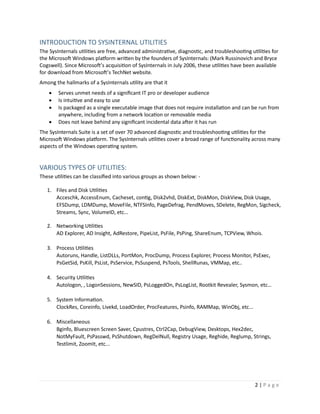
2. Running the utilities directly from the web - To run a utility using SysInternal Live from Internet
Explorer, type http://live.sysinternals.com/ utilityname.exe in the address bar ( refer to the Image
below for example,).
FIGURE 1 : LIVE SYSINTERNAL UTILITIES)
4 | P a g e
FILES AND DISK UTILITIES.
1. ACCESSCHK
As a part of ensuring that they've created a secure environment Windows administrators often need to
know what kind of accesses specific users or groups have to resources including files, directories,
Registry keys, global objects and Windows services. AccessChk quickly answers these questions with an
intuitive interface and output.
Using Accesschk
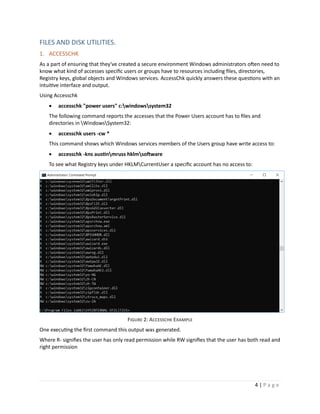
• accesschk "power users" c:windowssystem32
The following command reports the accesses that the Power Users account has to files and
directories in WindowsSystem32:
• accesschk users -cw *
This command shows which Windows services members of the Users group have write access to:
• accesschk -kns austinmruss hklmsoftware
To see what Registry keys under HKLMCurrentUser a specific account has no access to:
FIGURE 2: ACCESSCHK EXAMPLE
One executing the first command this output was generated.
Where R- signifies the user has only read permission while RW signifies that the user has both read and
right permission
5 | P a g e
2. ACCESSENUM
AccessEnum gives you a full view of your file system and Registry security settings in seconds, making it
the ideal tool for helping you for security holes and lock down permissions where necessary.
AccessEnum uses standard Windows security APIs to populate its listview with read, write and deny
access information.
Refer to the Image below for the output of the utility.
FIGURE 3: ACCESSENUM GUI
This Utility list outs read, write and deny access of a particular folder.
A Unicode Text file could also be generated that specifies the path, and the type of the access that is
available for it.
Refer to the image for a detailed view.
6 | P a g e
3. DISKVIEW
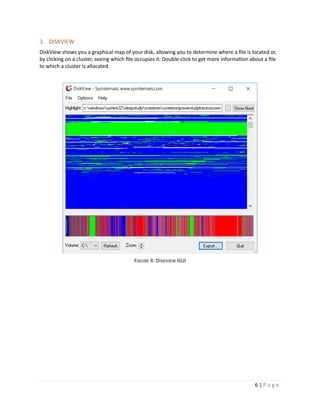
DiskView shows you a graphical map of your disk, allowing you to determine where a file is located or,
by clicking on a cluster, seeing which file occupies it. Double-click to get more information about a file
to which a cluster is allocated.
FIGURE 4: DISKVIEW GUI
7 | P a g e
NETWORKING UTILITIES:
1. PSFILE
The "net file" command shows you a list of the files that other computers have opened on the system
upon which you execute the command, however it truncates long path names and doesn't let you see
that information for remote systems. PsFile is a command-line utility that shows a list of files on a
system that are opened remotely, and it also allows you to close opened files either by name or by a
file identifier.
FIGURE 5: PSFILE EXAMPLE
If there are no files or directories opened remotely the following output will be generated or else the
list with the files and directories will be shown. The remote files and directories could be
closed/suspended with the help of other widows’ utilities.
8 | P a g e
2. PSPING
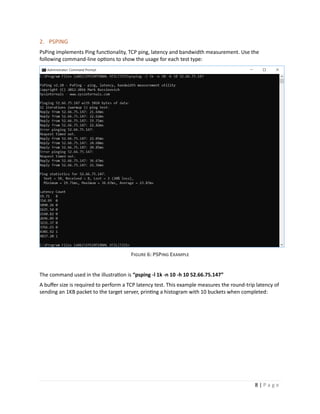
PsPing implements Ping functionality, TCP ping, latency and bandwidth measurement. Use the
following command-line options to show the usage for each test type:
FIGURE 6: PSPING EXAMPLE
The command used in the illustration is “psping -l 1k -n 10 -h 10 52.66.75.147”
A buffer size is required to perform a TCP latency test. This example measures the round-trip latency of
sending an 1KB packet to the target server, printing a histogram with 10 buckets when completed:
9 | P a g e
3. WHOIS
Whois performs the registration record for the domain name or IP address that you specify.
Usage
Usage: whois [-v] domainname [whois.server]
Where -v prints whois information for referrals.
FIGURE 7: WHOIS EXAMPLE
In the example above the sample data for www.google.com is obtained using the whois utility.
10 | P a g e
PROCESS UTILITIES
1. PROCESS EXPLORER
Process Explorer shows you information about which handles and DLLs processes have opened or
loaded.
The Process Explorer display consists of two sub-windows. The top window always shows a list of the
currently active processes (refer image A), including the names of their owning accounts, whereas the
information displayed in the bottom window (Refer image B) depends on the mode that Process
Explorer is in: if it is in handle mode you'll see the handles that the process selected in the top window
has opened; if Process Explorer is in DLL mode you'll see the DLLs and memory-mapped files that the
process has loaded. Process Explorer also has a powerful search capability that will quickly show you
which processes have particular handles opened or DLLs loaded.
FIGURE 8: (A) PROCESS EXPLORER GUI
FIGURE 9: (B) PROCESS EXPLORER GUI
11 | P a g e
2. PROCESS MONITOR
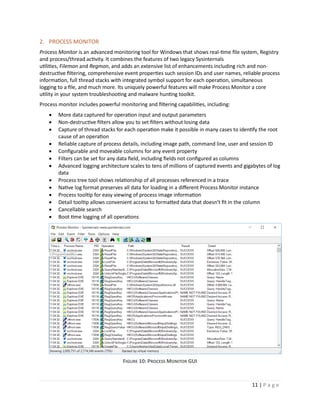
Process Monitor is an advanced monitoring tool for Windows that shows real-time file system, Registry
and process/thread activity. It combines the features of two legacy Sysinternals
utilities, Filemon and Regmon, and adds an extensive list of enhancements including rich and non-
destructive filtering, comprehensive event properties such session IDs and user names, reliable process
information, full thread stacks with integrated symbol support for each operation, simultaneous
logging to a file, and much more. Its uniquely powerful features will make Process Monitor a core
utility in your system troubleshooting and malware hunting toolkit.
Process monitor includes powerful monitoring and filtering capabilities, including:
• More data captured for operation input and output parameters
• Non-destructive filters allow you to set filters without losing data
• Capture of thread stacks for each operation make it possible in many cases to identify the root
cause of an operation
• Reliable capture of process details, including image path, command line, user and session ID
• Configurable and moveable columns for any event property
• Filters can be set for any data field, including fields not configured as columns
• Advanced logging architecture scales to tens of millions of captured events and gigabytes of log
data
• Process tree tool shows relationship of all processes referenced in a trace
• Native log format preserves all data for loading in a different Process Monitor instance
• Process tooltip for easy viewing of process image information
• Detail tooltip allows convenient access to formatted data that doesn't fit in the column
• Cancellable search
• Boot time logging of all operations
FIGURE 10: PROCESS MONITOR GUI
12 | P a g e
3. VNMAP
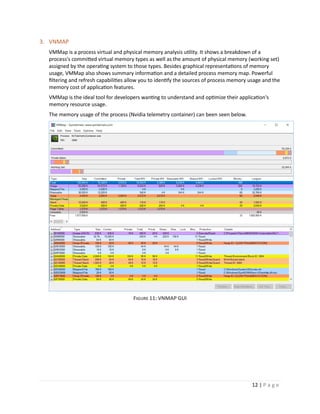
VMMap is a process virtual and physical memory analysis utility. It shows a breakdown of a
process's committed virtual memory types as well as the amount of physical memory (working set)
assigned by the operating system to those types. Besides graphical representations of memory
usage, VMMap also shows summary information and a detailed process memory map. Powerful
filtering and refresh capabilities allow you to identify the sources of process memory usage and the
memory cost of application features.
VMMap is the ideal tool for developers wanting to understand and optimize their application's
memory resource usage.
The memory usage of the process (Nvidia telemetry container) can been seen below.
FIGURE 11: VNMAP GUI
13 | P a g e
SECURITY UTILITIES
1. AUTOLOGON
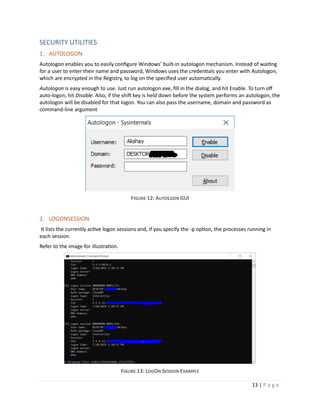
Autologon enables you to easily configure Windows’ built-in autologon mechanism. Instead of waiting
for a user to enter their name and password, Windows uses the credentials you enter with Autologon,
which are encrypted in the Registry, to log on the specified user automatically.
Autologon is easy enough to use. Just run autologon.exe, fill in the dialog, and hit Enable. To turn off
auto-logon, hit Disable. Also, if the shift key is held down before the system performs an autologon, the
autologon will be disabled for that logon. You can also pass the username, domain and password as
command-line argument
FIGURE 12: AUTOLGON GUI
2. LOGONSESSION
It lists the currently active logon sessions and, if you specify the -p option, the processes running in
each session.
Refer to the image for illustration.
FIGURE 13: LOGON SESSION EXAMPLE
14 | P a g e
3. PSLOGLIST
PSLoglist is a clone of ELOGDUMP except that PSLoglist allows you to login to remote systems in
situations your current set of security credentials would not permit access to the event log, and
psloglist retrieves message strings from the computer on which the event log you view resides.
usage: psloglist [- ] [computer[,computer[,...] | @file [-u username [-p password]]] [-s [-t delimiter]] [-
m #|-n #|-h #|-d #|-w][-c][-x][-r][-a mm/dd/yy][-b mm/dd/yy][-f filter] [-i ID[,ID[,...] | -e ID[,ID[,...]]] [-o
event source[,event source][,..]]] [-q event source[,event source][,..]]] [-l event log file] <eventlog>
Parameter Description
@file Execute the command on each of the computers listed in the file.
-a Dump records timestamped after specified date.
-b Dump records timestamped before specified date.
-c Clear the event log after displaying.
-d Only display records from previous n days.
-c Clear the event log after displaying.
-e Exclude events with the specified ID or IDs (up to 10).
-f Filter event types with filter string (e.g. "-f w" to filter warnings).
-h Only display records from previous n hours.
-i Show only events with the specified ID or IDs (up to 10).
-l Dump records from the specified event log file.
-m Only display records from previous n minutes.
-n Only display the number of most recent entries specified.
-o Show only records from the specified event source (e.g. "-o cdrom").
-p Specifies optional password for user name. If you omit this you will be prompted to enter a
hidden password.
-q Omit records from the specified event source or sources (e.g. "-q cdrom").
-r SDump log from least recent to most recent.
-s This switch has PsLogList print Event Log records one-per-line, with comma delimited fields. This
format is convenient for text searches, e.g. psloglist
-t The default delimeter is a comma, but can be overriden with the specified character.
-u Specifies optional user name for login to remote computer.
-w Wait for new events, dumping them as they generate (local system only).
-x Dump extended data
eventlog eventlog
FIGURE 14: PSLOGLIST SAMPLE
15 | P a g e
SYSTEM INFORMATION
1. CORE INFO
Coreinfo is a command-line utility that shows you the mapping between logical processors and the
physical processor, NUMA node, and socket on which they reside, as well as the cache’s assigned to
each logical processor. It uses the Windows’ GetLogicalProcessorInformation function to obtain this
information and prints it to the screen, representing a mapping to a logical processor with an asterisk
e.g. ‘*’. Coreinfo is useful for gaining insight into the processor and cache topology of your system.
Usage: coreinfo [-c][-f][-g][-l][-n][-s][-m][-v]
Parameter- usage
-c: dump information on screen
-f: dump core feature information
-g: Dump information on groups.
-l: Dump information on caches.
-n: Dump information on NUMA nodes.
-s: Dump information on sockets.
-m: Dump NUMA access cost.
-v: Dump only virtualization-related features including support for second level address translation.
Refer to the image below for the illustration
FIGURE 15: CORE INFO EXAMPLE
16 | P a g e
2. LOADORDER
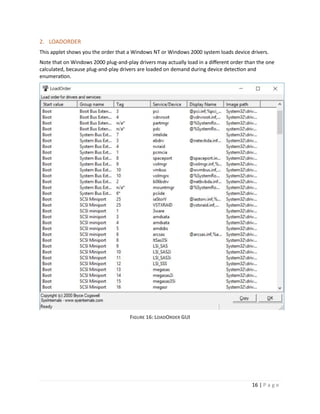
This applet shows you the order that a Windows NT or Windows 2000 system loads device drivers.
Note that on Windows 2000 plug-and-play drivers may actually load in a different order than the one
calculated, because plug-and-play drivers are loaded on demand during device detection and
enumeration.
FIGURE 16: LOADORDER GUI
17 | P a g e
3. RAMMAP
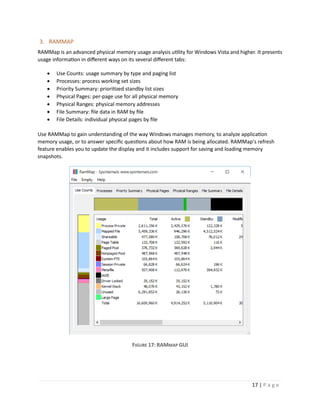
RAMMap is an advanced physical memory usage analysis utility for Windows Vista and higher. It presents
usage information in different ways on its several different tabs:
• Use Counts: usage summary by type and paging list
• Processes: process working set sizes
• Priority Summary: prioritized standby list sizes
• Physical Pages: per-page use for all physical memory
• Physical Ranges: physical memory addresses
• File Summary: file data in RAM by file
• File Details: individual physical pages by file
Use RAMMap to gain understanding of the way Windows manages memory, to analyze application
memory usage, or to answer specific questions about how RAM is being allocated. RAMMap’s refresh
feature enables you to update the display and it includes support for saving and loading memory
snapshots.
FIGURE 17: RAMMAP GUI
18 | P a g e
MISCELLANEOUS
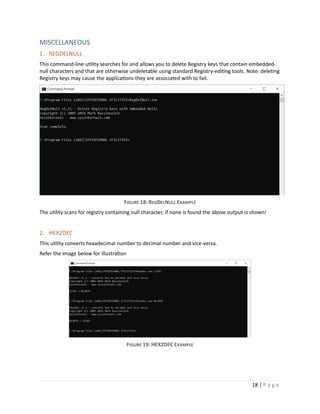
1. REGDELNULL
This command-line utility searches for and allows you to delete Registry keys that contain embedded-
null characters and that are otherwise undeletable using standard Registry-editing tools. Note: deleting
Registry keys may cause the applications they are associated with to fail.
FIGURE 18: REGDELNULL EXAMPLE
The utility scans for registry containing null character, if none is found the above output is shown!
2. HEX2DEC
This utility converts hexadecimal number to decimal number and vice-versa.
Refer the image below for illustration
FIGURE 19: HEX2DEC EXAMPLE
19 | P a g e
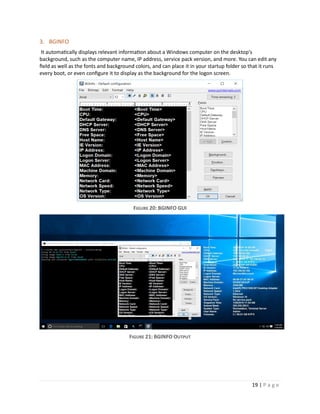
3. BGINFO
It automatically displays relevant information about a Windows computer on the desktop's
background, such as the computer name, IP address, service pack version, and more. You can edit any
field as well as the fonts and background colors, and can place it in your startup folder so that it runs
every boot, or even configure it to display as the background for the logon screen.
FIGURE 20: BGINFO GUI
FIGURE 21: BGINFO OUTPUT
20 | P a g e
LIST OF FIGURES
Figure 1 : Live SysInternal utilities)................................................................................................................3
Figure 2: Accesschk Example.........................................................................................................................4
Figure 3: Accessenum Gui.............................................................................................................................5
Figure 4: Diskview GUI ..................................................................................................................................6
Figure 5: PSFile example ...............................................................................................................................7
Figure 6: PSPing Example..............................................................................................................................8
Figure 7: WHOIS example .............................................................................................................................9
Figure 8: (A) Process explorer GUI ..............................................................................................................10
Figure 9: (B) Process explorer GUI ..............................................................................................................10
Figure 10: Process Monitor GUI..................................................................................................................11
Figure 11: VNMAP GUI................................................................................................................................12
Figure 12: AutoLgon GUI.............................................................................................................................13
Figure 13: LogOn Session Example..............................................................................................................13
Figure 14: PSLoglist Sample ........................................................................................................................14
Figure 15: Core Info Example ......................................................................................................................15
Figure 16: LoadOrder GUI ...........................................................................................................................16
Figure 17: RAMmap GUI .............................................................................................................................17
Figure 18: RegDelNull Example...................................................................................................................18
Figure 19: HEX2DEC Example......................................................................................................................18
Figure 20: BGINFO GUI................................................................................................................................19
Figure 21: BGINFO Output ..........................................................................................................................19

Sysinternals utilities : a brief introduction to

  • 1.
    DATE : -07/27/2019 SysInternal Suite A Windows Utility PREPARED FOR: DR. PARAG H. RUGHANI PREPARED BY: AKSHAY KOSHTI MSC. CYBER SECURITY BATCH: 2019-2021
  • 2.
    1 | Pa g e TABLE OF CONTENTS Introduction to SysInternal Utilities..............................................................................................................2 Various Types of Utilities:..............................................................................................................................2 How to execute the utilities. .........................................................................................................................3 Files and Disk Utilities. ..................................................................................................................................4 1. AccessChk..........................................................................................................................................4 2. AccessEnum ......................................................................................................................................5 3. Diskview ............................................................................................................................................6 Networking Utilities: .....................................................................................................................................7 1. PSFILE................................................................................................................................................7 2. PSPING ..............................................................................................................................................8 3. Whois ................................................................................................................................................9 Process Utilities...........................................................................................................................................10 1. Process explorer..............................................................................................................................10 2. Process monitor ..............................................................................................................................11 3. VNMap ............................................................................................................................................12 Security Utilities..........................................................................................................................................13 1. Autologon........................................................................................................................................13 2. LOGONSESSION...............................................................................................................................13 3. PSLOGLIST .......................................................................................................................................14 System information.....................................................................................................................................15 1. Core Info..........................................................................................................................................15 2. LoadOrder .......................................................................................................................................16 3. RamMap..........................................................................................................................................17 Miscellaneous .............................................................................................................................................18 1. RegDelNull.......................................................................................................................................18 2. Hex2dec...........................................................................................................................................18 3. Bginfo ..............................................................................................................................................19 List of figures...............................................................................................................................................20
  • 3.
    2 | Pa g e INTRODUCTION TO SYSINTERNAL UTILITIES The SysInternals utilities are free, advanced administrative, diagnostic, and troubleshooting utilities for the Microsoft Windows platform written by the founders of SysInternals: (Mark Russinovich and Bryce Cogswell). Since Microsoft’s acquisition of SysInternals in July 2006, these utilities have been available for download from Microsoft’s TechNet website. Among the hallmarks of a SysInternals utility are that it • Serves unmet needs of a significant IT pro or developer audience • Is intuitive and easy to use • Is packaged as a single executable image that does not require installation and can be run from anywhere, including from a network location or removable media • Does not leave behind any significant incidental data after it has run The SysInternals Suite is a set of over 70 advanced diagnostic and troubleshooting utilities for the Microsoft Windows platform. The SysInternals utilities cover a broad range of functionality across many aspects of the Windows operating system. VARIOUS TYPES OF UTILITIES: These utilities can be classified into various groups as shown below: - 1. Files and Disk Utilities Acceschk, AccessEnum, Cacheset, contig, Disk2vhd, DiskExt, DiskMon, DiskView, Disk Usage, EFSDump, LDMDump, MoveFile, NTFSInfo, PageDefrag, PendMoves, SDelete, RegMon, Sigcheck, Streams, Sync, VolumeID, etc… 2. Networking Utilities AD Explorer, AD Insight, AdRestore, PipeList, PsFile, PsPing, ShareEnum, TCPView, Whois. 3. Process Utilities Autoruns, Handle, ListDLLs, PortMon, ProcDump, Process Explorer, Process Monitor, PsExec, PsGetSid, PsKill, PsList, PsService, PsSuspend, PsTools, ShellRunas, VMMap, etc.. 4. Security Utilities Autologon, , LogonSessions, NewSID, PsLoggedOn, PsLogList, Rootkit Revealer, Sysmon, etc… 5. System Information. ClockRes, Coreinfo, Livekd, LoadOrder, ProcFeatures, Psinfo, RAMMap, WinObj, etc... 6. Miscellaneous Bginfo, Bluescreen Screen Saver, Cpustres, Ctrl2Cap, DebugView, Desktops, Hex2dec, NotMyFault, PsPasswd, PsShutdown, RegDelNull, Registry Usage, Reghide, Reglump, Strings, Testlimit, ZoomIt, etc...
  • 4.
    3 | Pa g e HOW TO EXECUTE THE UTILITIES. There are various methods the utilities could be executed. Some of them are discussed below:- 1. Downloading the utilities from the website (https://docs.microsoft.com/en-us/sysinternals/) and running them directly, few of the utilities supports direct execution with an GUI interface while other are executed in the Command Prompt of the system. There are various utilities that requires admin rights to perform their execution. 2. Running the utilities directly from the web - To run a utility using SysInternal Live from Internet Explorer, type http://live.sysinternals.com/ utilityname.exe in the address bar ( refer to the Image below for example,). FIGURE 1 : LIVE SYSINTERNAL UTILITIES)
  • 5.
    4 | Pa g e FILES AND DISK UTILITIES. 1. ACCESSCHK As a part of ensuring that they've created a secure environment Windows administrators often need to know what kind of accesses specific users or groups have to resources including files, directories, Registry keys, global objects and Windows services. AccessChk quickly answers these questions with an intuitive interface and output. Using Accesschk • accesschk "power users" c:windowssystem32 The following command reports the accesses that the Power Users account has to files and directories in WindowsSystem32: • accesschk users -cw * This command shows which Windows services members of the Users group have write access to: • accesschk -kns austinmruss hklmsoftware To see what Registry keys under HKLMCurrentUser a specific account has no access to: FIGURE 2: ACCESSCHK EXAMPLE One executing the first command this output was generated. Where R- signifies the user has only read permission while RW signifies that the user has both read and right permission
  • 6.
    5 | Pa g e 2. ACCESSENUM AccessEnum gives you a full view of your file system and Registry security settings in seconds, making it the ideal tool for helping you for security holes and lock down permissions where necessary. AccessEnum uses standard Windows security APIs to populate its listview with read, write and deny access information. Refer to the Image below for the output of the utility. FIGURE 3: ACCESSENUM GUI This Utility list outs read, write and deny access of a particular folder. A Unicode Text file could also be generated that specifies the path, and the type of the access that is available for it. Refer to the image for a detailed view.
  • 7.
    6 | Pa g e 3. DISKVIEW DiskView shows you a graphical map of your disk, allowing you to determine where a file is located or, by clicking on a cluster, seeing which file occupies it. Double-click to get more information about a file to which a cluster is allocated. FIGURE 4: DISKVIEW GUI
  • 8.
    7 | Pa g e NETWORKING UTILITIES: 1. PSFILE The "net file" command shows you a list of the files that other computers have opened on the system upon which you execute the command, however it truncates long path names and doesn't let you see that information for remote systems. PsFile is a command-line utility that shows a list of files on a system that are opened remotely, and it also allows you to close opened files either by name or by a file identifier. FIGURE 5: PSFILE EXAMPLE If there are no files or directories opened remotely the following output will be generated or else the list with the files and directories will be shown. The remote files and directories could be closed/suspended with the help of other widows’ utilities.
  • 9.
    8 | Pa g e 2. PSPING PsPing implements Ping functionality, TCP ping, latency and bandwidth measurement. Use the following command-line options to show the usage for each test type: FIGURE 6: PSPING EXAMPLE The command used in the illustration is “psping -l 1k -n 10 -h 10 52.66.75.147” A buffer size is required to perform a TCP latency test. This example measures the round-trip latency of sending an 1KB packet to the target server, printing a histogram with 10 buckets when completed:
  • 10.
    9 | Pa g e 3. WHOIS Whois performs the registration record for the domain name or IP address that you specify. Usage Usage: whois [-v] domainname [whois.server] Where -v prints whois information for referrals. FIGURE 7: WHOIS EXAMPLE In the example above the sample data for www.google.com is obtained using the whois utility.
  • 11.
    10 | Pa g e PROCESS UTILITIES 1. PROCESS EXPLORER Process Explorer shows you information about which handles and DLLs processes have opened or loaded. The Process Explorer display consists of two sub-windows. The top window always shows a list of the currently active processes (refer image A), including the names of their owning accounts, whereas the information displayed in the bottom window (Refer image B) depends on the mode that Process Explorer is in: if it is in handle mode you'll see the handles that the process selected in the top window has opened; if Process Explorer is in DLL mode you'll see the DLLs and memory-mapped files that the process has loaded. Process Explorer also has a powerful search capability that will quickly show you which processes have particular handles opened or DLLs loaded. FIGURE 8: (A) PROCESS EXPLORER GUI FIGURE 9: (B) PROCESS EXPLORER GUI
  • 12.
    11 | Pa g e 2. PROCESS MONITOR Process Monitor is an advanced monitoring tool for Windows that shows real-time file system, Registry and process/thread activity. It combines the features of two legacy Sysinternals utilities, Filemon and Regmon, and adds an extensive list of enhancements including rich and non- destructive filtering, comprehensive event properties such session IDs and user names, reliable process information, full thread stacks with integrated symbol support for each operation, simultaneous logging to a file, and much more. Its uniquely powerful features will make Process Monitor a core utility in your system troubleshooting and malware hunting toolkit. Process monitor includes powerful monitoring and filtering capabilities, including: • More data captured for operation input and output parameters • Non-destructive filters allow you to set filters without losing data • Capture of thread stacks for each operation make it possible in many cases to identify the root cause of an operation • Reliable capture of process details, including image path, command line, user and session ID • Configurable and moveable columns for any event property • Filters can be set for any data field, including fields not configured as columns • Advanced logging architecture scales to tens of millions of captured events and gigabytes of log data • Process tree tool shows relationship of all processes referenced in a trace • Native log format preserves all data for loading in a different Process Monitor instance • Process tooltip for easy viewing of process image information • Detail tooltip allows convenient access to formatted data that doesn't fit in the column • Cancellable search • Boot time logging of all operations FIGURE 10: PROCESS MONITOR GUI
  • 13.
    12 | Pa g e 3. VNMAP VMMap is a process virtual and physical memory analysis utility. It shows a breakdown of a process's committed virtual memory types as well as the amount of physical memory (working set) assigned by the operating system to those types. Besides graphical representations of memory usage, VMMap also shows summary information and a detailed process memory map. Powerful filtering and refresh capabilities allow you to identify the sources of process memory usage and the memory cost of application features. VMMap is the ideal tool for developers wanting to understand and optimize their application's memory resource usage. The memory usage of the process (Nvidia telemetry container) can been seen below. FIGURE 11: VNMAP GUI
  • 14.
    13 | Pa g e SECURITY UTILITIES 1. AUTOLOGON Autologon enables you to easily configure Windows’ built-in autologon mechanism. Instead of waiting for a user to enter their name and password, Windows uses the credentials you enter with Autologon, which are encrypted in the Registry, to log on the specified user automatically. Autologon is easy enough to use. Just run autologon.exe, fill in the dialog, and hit Enable. To turn off auto-logon, hit Disable. Also, if the shift key is held down before the system performs an autologon, the autologon will be disabled for that logon. You can also pass the username, domain and password as command-line argument FIGURE 12: AUTOLGON GUI 2. LOGONSESSION It lists the currently active logon sessions and, if you specify the -p option, the processes running in each session. Refer to the image for illustration. FIGURE 13: LOGON SESSION EXAMPLE
  • 15.
    14 | Pa g e 3. PSLOGLIST PSLoglist is a clone of ELOGDUMP except that PSLoglist allows you to login to remote systems in situations your current set of security credentials would not permit access to the event log, and psloglist retrieves message strings from the computer on which the event log you view resides. usage: psloglist [- ] [computer[,computer[,...] | @file [-u username [-p password]]] [-s [-t delimiter]] [- m #|-n #|-h #|-d #|-w][-c][-x][-r][-a mm/dd/yy][-b mm/dd/yy][-f filter] [-i ID[,ID[,...] | -e ID[,ID[,...]]] [-o event source[,event source][,..]]] [-q event source[,event source][,..]]] [-l event log file] <eventlog> Parameter Description @file Execute the command on each of the computers listed in the file. -a Dump records timestamped after specified date. -b Dump records timestamped before specified date. -c Clear the event log after displaying. -d Only display records from previous n days. -c Clear the event log after displaying. -e Exclude events with the specified ID or IDs (up to 10). -f Filter event types with filter string (e.g. "-f w" to filter warnings). -h Only display records from previous n hours. -i Show only events with the specified ID or IDs (up to 10). -l Dump records from the specified event log file. -m Only display records from previous n minutes. -n Only display the number of most recent entries specified. -o Show only records from the specified event source (e.g. "-o cdrom"). -p Specifies optional password for user name. If you omit this you will be prompted to enter a hidden password. -q Omit records from the specified event source or sources (e.g. "-q cdrom"). -r SDump log from least recent to most recent. -s This switch has PsLogList print Event Log records one-per-line, with comma delimited fields. This format is convenient for text searches, e.g. psloglist -t The default delimeter is a comma, but can be overriden with the specified character. -u Specifies optional user name for login to remote computer. -w Wait for new events, dumping them as they generate (local system only). -x Dump extended data eventlog eventlog FIGURE 14: PSLOGLIST SAMPLE
  • 16.
    15 | Pa g e SYSTEM INFORMATION 1. CORE INFO Coreinfo is a command-line utility that shows you the mapping between logical processors and the physical processor, NUMA node, and socket on which they reside, as well as the cache’s assigned to each logical processor. It uses the Windows’ GetLogicalProcessorInformation function to obtain this information and prints it to the screen, representing a mapping to a logical processor with an asterisk e.g. ‘*’. Coreinfo is useful for gaining insight into the processor and cache topology of your system. Usage: coreinfo [-c][-f][-g][-l][-n][-s][-m][-v] Parameter- usage -c: dump information on screen -f: dump core feature information -g: Dump information on groups. -l: Dump information on caches. -n: Dump information on NUMA nodes. -s: Dump information on sockets. -m: Dump NUMA access cost. -v: Dump only virtualization-related features including support for second level address translation. Refer to the image below for the illustration FIGURE 15: CORE INFO EXAMPLE
  • 17.
    16 | Pa g e 2. LOADORDER This applet shows you the order that a Windows NT or Windows 2000 system loads device drivers. Note that on Windows 2000 plug-and-play drivers may actually load in a different order than the one calculated, because plug-and-play drivers are loaded on demand during device detection and enumeration. FIGURE 16: LOADORDER GUI
  • 18.
    17 | Pa g e 3. RAMMAP RAMMap is an advanced physical memory usage analysis utility for Windows Vista and higher. It presents usage information in different ways on its several different tabs: • Use Counts: usage summary by type and paging list • Processes: process working set sizes • Priority Summary: prioritized standby list sizes • Physical Pages: per-page use for all physical memory • Physical Ranges: physical memory addresses • File Summary: file data in RAM by file • File Details: individual physical pages by file Use RAMMap to gain understanding of the way Windows manages memory, to analyze application memory usage, or to answer specific questions about how RAM is being allocated. RAMMap’s refresh feature enables you to update the display and it includes support for saving and loading memory snapshots. FIGURE 17: RAMMAP GUI
  • 19.
    18 | Pa g e MISCELLANEOUS 1. REGDELNULL This command-line utility searches for and allows you to delete Registry keys that contain embedded- null characters and that are otherwise undeletable using standard Registry-editing tools. Note: deleting Registry keys may cause the applications they are associated with to fail. FIGURE 18: REGDELNULL EXAMPLE The utility scans for registry containing null character, if none is found the above output is shown! 2. HEX2DEC This utility converts hexadecimal number to decimal number and vice-versa. Refer the image below for illustration FIGURE 19: HEX2DEC EXAMPLE
  • 20.
    19 | Pa g e 3. BGINFO It automatically displays relevant information about a Windows computer on the desktop's background, such as the computer name, IP address, service pack version, and more. You can edit any field as well as the fonts and background colors, and can place it in your startup folder so that it runs every boot, or even configure it to display as the background for the logon screen. FIGURE 20: BGINFO GUI FIGURE 21: BGINFO OUTPUT
  • 21.
    20 | Pa g e LIST OF FIGURES Figure 1 : Live SysInternal utilities)................................................................................................................3 Figure 2: Accesschk Example.........................................................................................................................4 Figure 3: Accessenum Gui.............................................................................................................................5 Figure 4: Diskview GUI ..................................................................................................................................6 Figure 5: PSFile example ...............................................................................................................................7 Figure 6: PSPing Example..............................................................................................................................8 Figure 7: WHOIS example .............................................................................................................................9 Figure 8: (A) Process explorer GUI ..............................................................................................................10 Figure 9: (B) Process explorer GUI ..............................................................................................................10 Figure 10: Process Monitor GUI..................................................................................................................11 Figure 11: VNMAP GUI................................................................................................................................12 Figure 12: AutoLgon GUI.............................................................................................................................13 Figure 13: LogOn Session Example..............................................................................................................13 Figure 14: PSLoglist Sample ........................................................................................................................14 Figure 15: Core Info Example ......................................................................................................................15 Figure 16: LoadOrder GUI ...........................................................................................................................16 Figure 17: RAMmap GUI .............................................................................................................................17 Figure 18: RegDelNull Example...................................................................................................................18 Figure 19: HEX2DEC Example......................................................................................................................18 Figure 20: BGINFO GUI................................................................................................................................19 Figure 21: BGINFO Output ..........................................................................................................................19