Welcome to your IT Induction
September 2014
We hope you have an enjoyable and successful year
 Discuss the Acceptable Use Policy and sign it
 Log onto the college network
 How to save your work
 Locate student portal (Moodle)
 Access e-ILP
 Locate group timetable (CELCAT)
 Access college e-mail account/push emails
 OneDrive
 Access Moodle Classrooms
 Printing
 Student E passport
 Stay safe online - videos
 Plenary Activities
Induction Objectives:
Tutor
notes
Them – Us – Respect – Engage – Achieve
3
Acceptable User Policy
CONTACT IT support: (servicedesk@Sparsholt.ac.uk)
You should only use college IT equipment for your own studies, research,
college work and projects.
When using the College IT services you must:
• Comply with the law at all times
• Not interfere with anybody else's use of these facilities and services.
• If you think your account has been compromised change the password
and contact the IT service desk for advice.
Know the key points of the college acceptable use policy and sign it.
(register)
Acceptable use policy - acceptance is by default, by logging on to the
network
2
Log in
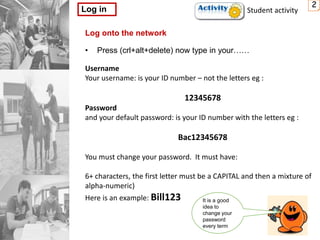
Log onto the network
• Press (crl+alt+delete) now type in your……
Username
Your username: is your ID number – not the letters eg :
12345678
Password
and your default password: is your ID number with the letters eg :
Bac12345678
You must change your password. It must have:
6+ characters, the first letter must be a CAPITAL and then a mixture of
alpha-numeric)
Here is an example: Bill123 It is a good
idea to
change your
password
every term
Student activity
There are several ways to save your work when you are in college.
The most important thing to remember is to save your work regularly.
Save your work
 Save to your OneDrive account – 25GB (log in using your
college email address)
Navigate to find your z drive and save your work (3GB – please
note no access out of college)
X Not on the c drive and NOT ON THE DESKTOP
 Save to a memory stick
3
Save your work
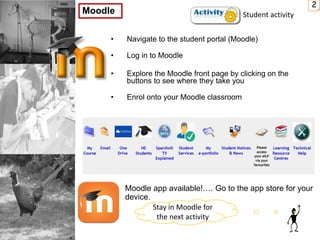
• Navigate to the student portal (Moodle)
• Log in to Moodle
• Explore the Moodle front page by clicking on the
buttons to see where they take you
• Enrol onto your Moodle classroom
2
Moodle
Moodle app available!…. Go to the app store for your
device.
Student activity
Stay in Moodle for
the next activity
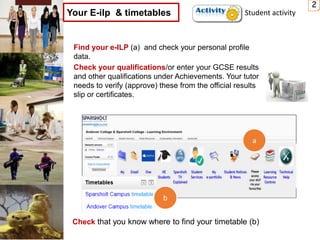
Find your e-ILP (a) and check your personal profile
data.
Check your qualifications/or enter your GCSE results
and other qualifications under Achievements. Your tutor
needs to verify (approve) these from the official results
slip or certificates.
2
Your E-ilp & timetables
Check that you know where to find your timetable (b)
a
b
Student activity
Please note your teacher will only email you
via your college email
And remember you should only email staff
from your college email and not your personal
account.
2
Email
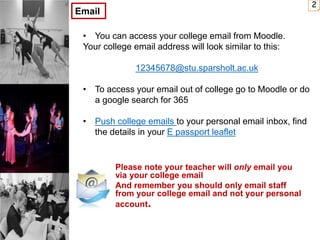
• You can access your college email from Moodle.
Your college email address will look similar to this:
12345678@stu.sparsholt.ac.uk
• To access your email out of college go to Moodle or do
a google search for 365
• Push college emails to your personal email inbox, find
the details in your E passport leaflet
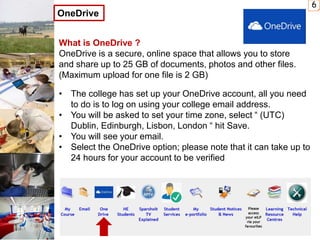
What is OneDrive ?
OneDrive is a secure, online space that allows you to store
and share up to 25 GB of documents, photos and other files.
(Maximum upload for one file is 2 GB)
• The college has set up your OneDrive account, all you need
to do is to log on using your college email address.
• You will be asked to set your time zone, select “ (UTC)
Dublin, Edinburgh, Lisbon, London “ hit Save.
• You will see your email.
• Select the OneDrive option; please note that it can take up to
24 hours for your account to be verified
6
OneDrive
0
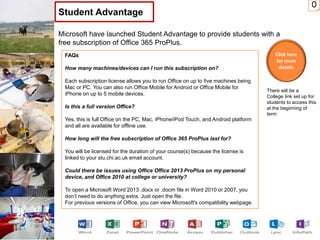
Microsoft have launched Student Advantage to provide students with a
free subscription of Office 365 ProPlus.
Student Advantage
FAQs
How many machines/devices can I run this subscription on?
Each subscription license allows you to run Office on up to five machines being
Mac or PC. You can also run Office Mobile for Android or Office Mobile for
iPhone on up to 5 mobile devices.
Is this a full version Office?
Yes, this is full Office on the PC, Mac, iPhone/iPod Touch, and Android platform
and all are available for offline use.
How long will the free subscription of Office 365 ProPlus last for?
You will be licensed for the duration of your course(s) because the license is
linked to your stu.chi.ac.uk email account.
Could there be issues using Office Office 2013 ProPlus on my personal
device, and Office 2010 at college or university?
To open a Microsoft Word 2013 .docx or .docm file in Word 2010 or 2007, you
don’t need to do anything extra. Just open the file.
For previous versions of Office, you can view Microsoft's compatibility webpage.
Click here
for more
details
There will be a
College link set up for
students to access this
at the beginning of
term
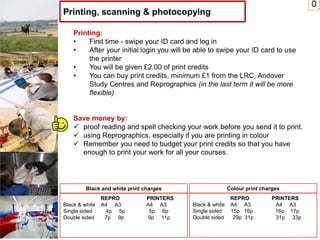
Printing:
• First time - swipe your ID card and log in
• After your initial login you will be able to swipe your ID card to use
the printer
• You will be given £2.00 of print credits
• You can buy print credits, minimum £1 from the LRC, Andover
Study Centres and Reprographics (in the last term it will be more
flexible)
Save money by:
 proof reading and spell checking your work before you send it to print.
 using Reprographics, especially if you are printing in colour
 Remember you need to budget your print credits so that you have
enough to print your work for all your courses.
0
REPRO PRINTERS
Black & white A4 A3 A4 A3
Single sided 4p 5p 5p 6p
Double sided 7p 9p 9p 11p
Black and white print charges
REPRO PRINTERS
Black & white A4 A3 A4 A3
Single sided 15p 16p 16p 17p
Double sided 29p 31p 31p 33p
Colour print charges
Printing, scanning & photocopying
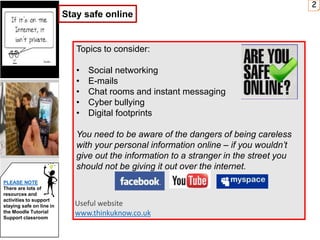
Topics to consider:
• Social networking
• E-mails
• Chat rooms and instant messaging
• Cyber bullying
• Digital footprints
You need to be aware of the dangers of being careless
with your personal information online – if you wouldn’t
give out the information to a stranger in the street you
should not be giving it out over the internet.
Useful website
www.thinkuknow.co.uk
2
PLEASE NOTE
There are lots of
resources and
activities to support
staying safe on line in
the Moodle Tutorial
Support classroom
Stay safe online
0
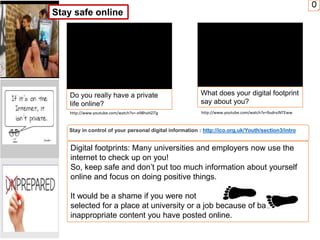
Do you really have a private
life online?
What does your digital footprint
say about you?
Stay in control of your personal digital information : http://ico.org.uk/Youth/section3/intro
Digital footprints: Many universities and employers now use the
internet to check up on you!
So, keep safe and don’t put too much information about yourself
online and focus on doing positive things.
It would be a shame if you were not
selected for a place at university or a job because of bad or
inappropriate content you have posted online.
Stay safe online
http://www.youtube.com/watch?v=-e98hxHZiTg http://www.youtube.com/watch?v=9udrvJNTEww
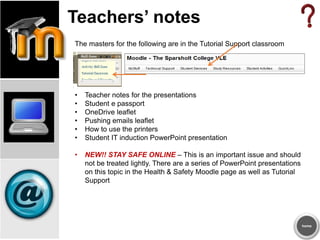
Teachers’ notes
The masters for the following are in the Tutorial Support classroom
• Teacher notes for the presentations
• Student e passport
• OneDrive leaflet
• Pushing emails leaflet
• How to use the printers
• Student IT induction PowerPoint presentation
• NEW!! STAY SAFE ONLINE – This is an important issue and should
not be treated lightly. There are a series of PowerPoint presentations
on this topic in the Health & Safety Moodle page as well as Tutorial
Support
home
How much can you remember?
Teachers:
There are some quizzes/activities at the end of this presentation, choose
the one that best suits your audience.
Quiz 1
Word search
Quiz 2
Anagrams
Quiz 3
Spin the wheel
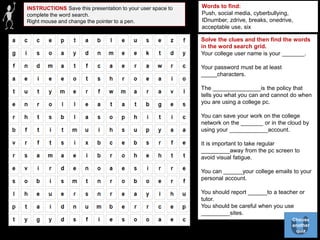
INSTRUCTIONS Save this presentation to your user space to
complete the word search.
Right mouse and change the pointer to a pen.
Words to find:
Push, social media, cyberbullying,
IDnumber, zdrive, breaks, onedrive,
acceptable use, six
Solve the clues and then find the words
in the word search grid.
Your college user name is your _______.
Your password must be at least
_____characters.
The _______________is the policy that
tells you what you can and cannot do when
you are using a college pc.
You can save your work on the college
network on the _______ or in the cloud by
using your ____________account.
It is important to take regular
_________away from the pc screen to
avoid visual fatigue.
You can ______your college emails to your
personal account.
You should report ______to a teacher or
tutor.
You should be careful when you use
_________sites.
Choose
another
quiz
Q5 privacy
Q2 Print
credits
Q6 E
passport
Q1
OneDrive
Q3 Digital
footprint Q4
cyberbully
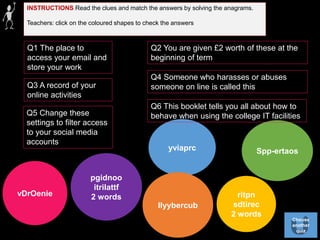
INSTRUCTIONS Read the clues and match the answers by solving the anagrams.
Teachers: click on the coloured shapes to check the answers
yviaprc
llyybercub
vDrOenie
pgidnoo
itrilattf
2 words ritpn
sdtirec
2 words
Spp-ertaos
Q1 The place to
access your email and
store your work
Q2 You are given £2 worth of these at the
beginning of term
Q3 A record of your
online activities
Q4 Someone who harasses or abuses
someone on line is called this
Q5 Change these
settings to filter access
to your social media
accounts
Q6 This booklet tells you all about how to
behave when using the college IT facilities
Choose
another
quiz
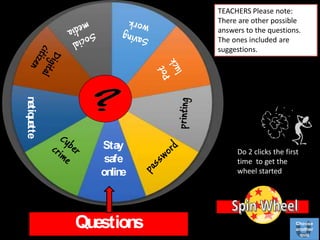
Questions
Do 2 clicks the first
time to get the
wheel started
TEACHERS Please note:
There are other possible
answers to the questions.
The ones included are
suggestions.
Stay
safe
online
netiquette
Choose
another
quiz

Studentinduction2014

  • 1.
    Welcome to yourIT Induction September 2014 We hope you have an enjoyable and successful year
  • 2.
     Discuss theAcceptable Use Policy and sign it  Log onto the college network  How to save your work  Locate student portal (Moodle)  Access e-ILP  Locate group timetable (CELCAT)  Access college e-mail account/push emails  OneDrive  Access Moodle Classrooms  Printing  Student E passport  Stay safe online - videos  Plenary Activities Induction Objectives: Tutor notes Them – Us – Respect – Engage – Achieve
  • 3.
    3 Acceptable User Policy CONTACTIT support: (servicedesk@Sparsholt.ac.uk) You should only use college IT equipment for your own studies, research, college work and projects. When using the College IT services you must: • Comply with the law at all times • Not interfere with anybody else's use of these facilities and services. • If you think your account has been compromised change the password and contact the IT service desk for advice. Know the key points of the college acceptable use policy and sign it. (register) Acceptable use policy - acceptance is by default, by logging on to the network
  • 4.
    2 Log in Log ontothe network • Press (crl+alt+delete) now type in your…… Username Your username: is your ID number – not the letters eg : 12345678 Password and your default password: is your ID number with the letters eg : Bac12345678 You must change your password. It must have: 6+ characters, the first letter must be a CAPITAL and then a mixture of alpha-numeric) Here is an example: Bill123 It is a good idea to change your password every term Student activity
  • 5.
    There are severalways to save your work when you are in college. The most important thing to remember is to save your work regularly. Save your work  Save to your OneDrive account – 25GB (log in using your college email address) Navigate to find your z drive and save your work (3GB – please note no access out of college) X Not on the c drive and NOT ON THE DESKTOP  Save to a memory stick 3 Save your work
  • 6.
    • Navigate tothe student portal (Moodle) • Log in to Moodle • Explore the Moodle front page by clicking on the buttons to see where they take you • Enrol onto your Moodle classroom 2 Moodle Moodle app available!…. Go to the app store for your device. Student activity Stay in Moodle for the next activity
  • 7.
    Find your e-ILP(a) and check your personal profile data. Check your qualifications/or enter your GCSE results and other qualifications under Achievements. Your tutor needs to verify (approve) these from the official results slip or certificates. 2 Your E-ilp & timetables Check that you know where to find your timetable (b) a b Student activity
  • 8.
    Please note yourteacher will only email you via your college email And remember you should only email staff from your college email and not your personal account. 2 Email • You can access your college email from Moodle. Your college email address will look similar to this: 12345678@stu.sparsholt.ac.uk • To access your email out of college go to Moodle or do a google search for 365 • Push college emails to your personal email inbox, find the details in your E passport leaflet
  • 9.
    What is OneDrive? OneDrive is a secure, online space that allows you to store and share up to 25 GB of documents, photos and other files. (Maximum upload for one file is 2 GB) • The college has set up your OneDrive account, all you need to do is to log on using your college email address. • You will be asked to set your time zone, select “ (UTC) Dublin, Edinburgh, Lisbon, London “ hit Save. • You will see your email. • Select the OneDrive option; please note that it can take up to 24 hours for your account to be verified 6 OneDrive
  • 10.
    0 Microsoft have launchedStudent Advantage to provide students with a free subscription of Office 365 ProPlus. Student Advantage FAQs How many machines/devices can I run this subscription on? Each subscription license allows you to run Office on up to five machines being Mac or PC. You can also run Office Mobile for Android or Office Mobile for iPhone on up to 5 mobile devices. Is this a full version Office? Yes, this is full Office on the PC, Mac, iPhone/iPod Touch, and Android platform and all are available for offline use. How long will the free subscription of Office 365 ProPlus last for? You will be licensed for the duration of your course(s) because the license is linked to your stu.chi.ac.uk email account. Could there be issues using Office Office 2013 ProPlus on my personal device, and Office 2010 at college or university? To open a Microsoft Word 2013 .docx or .docm file in Word 2010 or 2007, you don’t need to do anything extra. Just open the file. For previous versions of Office, you can view Microsoft's compatibility webpage. Click here for more details There will be a College link set up for students to access this at the beginning of term
  • 11.
    Printing: • First time- swipe your ID card and log in • After your initial login you will be able to swipe your ID card to use the printer • You will be given £2.00 of print credits • You can buy print credits, minimum £1 from the LRC, Andover Study Centres and Reprographics (in the last term it will be more flexible) Save money by:  proof reading and spell checking your work before you send it to print.  using Reprographics, especially if you are printing in colour  Remember you need to budget your print credits so that you have enough to print your work for all your courses. 0 REPRO PRINTERS Black & white A4 A3 A4 A3 Single sided 4p 5p 5p 6p Double sided 7p 9p 9p 11p Black and white print charges REPRO PRINTERS Black & white A4 A3 A4 A3 Single sided 15p 16p 16p 17p Double sided 29p 31p 31p 33p Colour print charges Printing, scanning & photocopying
  • 12.
    Topics to consider: •Social networking • E-mails • Chat rooms and instant messaging • Cyber bullying • Digital footprints You need to be aware of the dangers of being careless with your personal information online – if you wouldn’t give out the information to a stranger in the street you should not be giving it out over the internet. Useful website www.thinkuknow.co.uk 2 PLEASE NOTE There are lots of resources and activities to support staying safe on line in the Moodle Tutorial Support classroom Stay safe online
  • 13.
    0 Do you reallyhave a private life online? What does your digital footprint say about you? Stay in control of your personal digital information : http://ico.org.uk/Youth/section3/intro Digital footprints: Many universities and employers now use the internet to check up on you! So, keep safe and don’t put too much information about yourself online and focus on doing positive things. It would be a shame if you were not selected for a place at university or a job because of bad or inappropriate content you have posted online. Stay safe online http://www.youtube.com/watch?v=-e98hxHZiTg http://www.youtube.com/watch?v=9udrvJNTEww
  • 14.
    Teachers’ notes The mastersfor the following are in the Tutorial Support classroom • Teacher notes for the presentations • Student e passport • OneDrive leaflet • Pushing emails leaflet • How to use the printers • Student IT induction PowerPoint presentation • NEW!! STAY SAFE ONLINE – This is an important issue and should not be treated lightly. There are a series of PowerPoint presentations on this topic in the Health & Safety Moodle page as well as Tutorial Support home
  • 15.
    How much canyou remember? Teachers: There are some quizzes/activities at the end of this presentation, choose the one that best suits your audience. Quiz 1 Word search Quiz 2 Anagrams Quiz 3 Spin the wheel
  • 16.
    INSTRUCTIONS Save thispresentation to your user space to complete the word search. Right mouse and change the pointer to a pen. Words to find: Push, social media, cyberbullying, IDnumber, zdrive, breaks, onedrive, acceptable use, six Solve the clues and then find the words in the word search grid. Your college user name is your _______. Your password must be at least _____characters. The _______________is the policy that tells you what you can and cannot do when you are using a college pc. You can save your work on the college network on the _______ or in the cloud by using your ____________account. It is important to take regular _________away from the pc screen to avoid visual fatigue. You can ______your college emails to your personal account. You should report ______to a teacher or tutor. You should be careful when you use _________sites. Choose another quiz
  • 17.
    Q5 privacy Q2 Print credits Q6E passport Q1 OneDrive Q3 Digital footprint Q4 cyberbully INSTRUCTIONS Read the clues and match the answers by solving the anagrams. Teachers: click on the coloured shapes to check the answers yviaprc llyybercub vDrOenie pgidnoo itrilattf 2 words ritpn sdtirec 2 words Spp-ertaos Q1 The place to access your email and store your work Q2 You are given £2 worth of these at the beginning of term Q3 A record of your online activities Q4 Someone who harasses or abuses someone on line is called this Q5 Change these settings to filter access to your social media accounts Q6 This booklet tells you all about how to behave when using the college IT facilities Choose another quiz
  • 18.
    Questions Do 2 clicksthe first time to get the wheel started TEACHERS Please note: There are other possible answers to the questions. The ones included are suggestions. Stay safe online netiquette Choose another quiz