Steps to the State Project Slide Project Requirements Scoring Rubric Research your State Creating the outline of your state Final touches Sample Project
State Project 2009 Assignment:  Create one (1) PowerPoint Slide that demonstrates the physical and human characteristics of your state. Requirements  (spelling counts): Your Name (first & last) Period Date Name of State State Flag 8-12 pictures showing the human & physical characteristics of your state. Your state’s Capital City with a star representing the location. Optional:  Provide a locator map showing the relative location of your state in the USA.
Scoring Rubric 10 _State Title (SPELLING COUNTS) 10 _Your Name (first & last) 10 _Period & Date (5 each) 10 _State Flag outside the state outline 10 _Capital City & star are easy to see 5 _Outline of your state can be seen 5 _Transparent/clean edges 40 _Photos:  8-12 quality images representing the state. 5_Extra Credit  points for the USA Outline Locator Map. 00 100 Total Possible Points
Create an outline of your State In order Follow the instructions on the next few slides!
1. From the State Project part of the Moodle, click on “Outline Maps.” Find your state and click on it. While viewing the PDF file, make your state as large as you can to have it still fit in the screen  and  leave a nice white border around the edge!
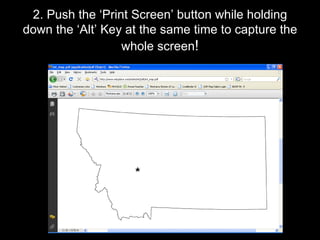
2. Push the ‘Print Screen’ button while holding down the ‘Alt’ Key at the same time to capture the whole screen !
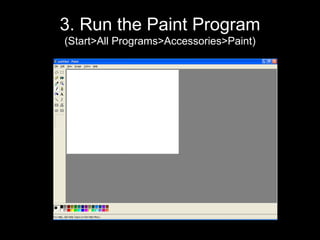
3. Run the Paint Program (Start>All Programs>Accessories>Paint)
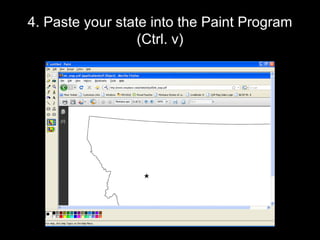
4. Paste your state into the Paint Program (Ctrl. v)
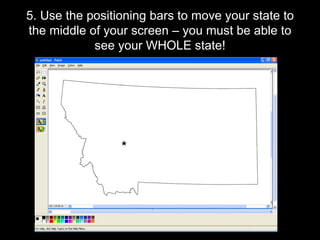
5. Use the positioning bars to move your state to the middle of your screen – you must be able to see your WHOLE state!
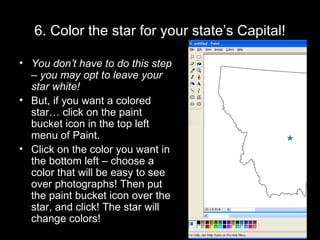
6. Color the star for your state’s Capital! You don’t have to do this step – you may opt to leave your star white! But, if you want a colored star… click on the paint bucket icon in the top left menu of Paint. Click on the color you want in the bottom left – choose a color that will be easy to see over photographs! Then put the paint bucket icon over the star, and click! The star will change colors!
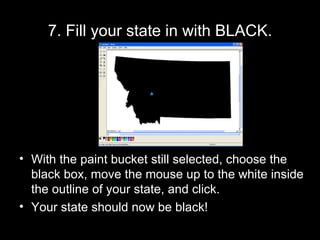
7. Fill your state in with BLACK. With the paint bucket still selected, choose the black box, move the mouse up to the white inside the outline of your state, and click. Your state should now be black!
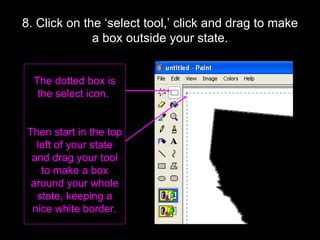
8. Click on the ‘select tool,’ click and drag to make a box outside your state. The dotted box is the select icon.  Then start in the top left of your state and drag your tool to make a box around your whole state, keeping a nice white border.
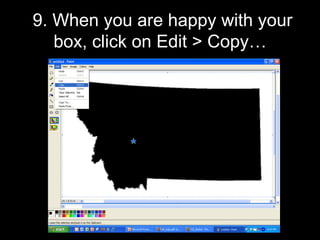
9. When you are happy with your box, click on Edit > Copy…
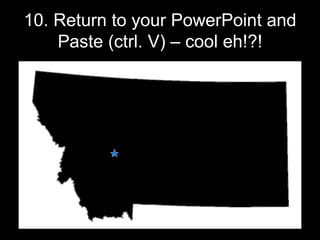
10. Return to your PowerPoint and Paste (ctrl. V) – cool eh!?!
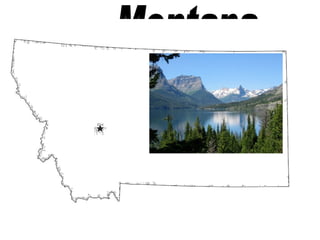
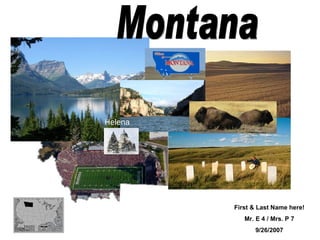
Montana First & Last Name here! Mr. E 4 / Mrs. P 7 9/26/2007
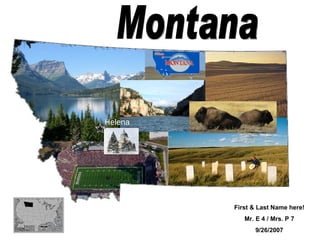
Helena Montana First & Last Name here! Mr. E 4 / Mrs. P 7 9/26/2007
Helena First & Last Name here! Mr. E 4 / Mrs. P 7 9/26/2007 Montana
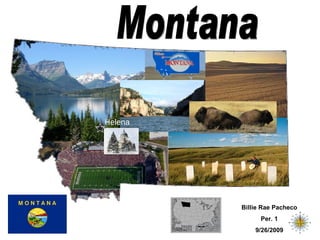
Helena Billie Rae Pacheco Per. 1 9/26/2009 Montana

State_Project_Draft

  • 1.
    Steps to theState Project Slide Project Requirements Scoring Rubric Research your State Creating the outline of your state Final touches Sample Project
  • 2.
    State Project 2009Assignment: Create one (1) PowerPoint Slide that demonstrates the physical and human characteristics of your state. Requirements (spelling counts): Your Name (first & last) Period Date Name of State State Flag 8-12 pictures showing the human & physical characteristics of your state. Your state’s Capital City with a star representing the location. Optional: Provide a locator map showing the relative location of your state in the USA.
  • 3.
    Scoring Rubric 10_State Title (SPELLING COUNTS) 10 _Your Name (first & last) 10 _Period & Date (5 each) 10 _State Flag outside the state outline 10 _Capital City & star are easy to see 5 _Outline of your state can be seen 5 _Transparent/clean edges 40 _Photos: 8-12 quality images representing the state. 5_Extra Credit points for the USA Outline Locator Map. 00 100 Total Possible Points
  • 4.
    Create an outlineof your State In order Follow the instructions on the next few slides!
  • 5.
    1. From theState Project part of the Moodle, click on “Outline Maps.” Find your state and click on it. While viewing the PDF file, make your state as large as you can to have it still fit in the screen and leave a nice white border around the edge!
  • 6.
    2. Push the‘Print Screen’ button while holding down the ‘Alt’ Key at the same time to capture the whole screen !
  • 7.
    3. Run thePaint Program (Start>All Programs>Accessories>Paint)
  • 8.
    4. Paste yourstate into the Paint Program (Ctrl. v)
  • 9.
    5. Use thepositioning bars to move your state to the middle of your screen – you must be able to see your WHOLE state!
  • 10.
    6. Color thestar for your state’s Capital! You don’t have to do this step – you may opt to leave your star white! But, if you want a colored star… click on the paint bucket icon in the top left menu of Paint. Click on the color you want in the bottom left – choose a color that will be easy to see over photographs! Then put the paint bucket icon over the star, and click! The star will change colors!
  • 11.
    7. Fill yourstate in with BLACK. With the paint bucket still selected, choose the black box, move the mouse up to the white inside the outline of your state, and click. Your state should now be black!
  • 12.
    8. Click onthe ‘select tool,’ click and drag to make a box outside your state. The dotted box is the select icon. Then start in the top left of your state and drag your tool to make a box around your whole state, keeping a nice white border.
  • 13.
    9. When youare happy with your box, click on Edit > Copy…
  • 14.
    10. Return toyour PowerPoint and Paste (ctrl. V) – cool eh!?!
  • 15.
    Montana First &Last Name here! Mr. E 4 / Mrs. P 7 9/26/2007
  • 16.
    Helena Montana First& Last Name here! Mr. E 4 / Mrs. P 7 9/26/2007
  • 17.
    Helena First &Last Name here! Mr. E 4 / Mrs. P 7 9/26/2007 Montana
  • 18.
    Helena Billie RaePacheco Per. 1 9/26/2009 Montana