INTRODUCTION
TO
STAAD.Pro
DEPARTMENT OF CIVIL ENGINEERING, IIT ROORKEE
Contents
1.Introduction
2.Geometry
3.Aditional tools for Modeling
4.Properties
5.Constants ,supports and other specifications
6.Loading
7.Analysis
8.Post processing
9.Design
Module 1 Introduction to STAAD Pro
 STAAD Software
Method of Analysis
Starting STAAD Pro
Creating New File
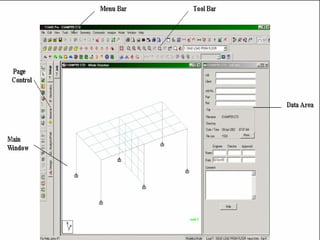
STAAD Pro Screen
Opening and closing a Existing STAAD Pro file.
Saving & Saving As
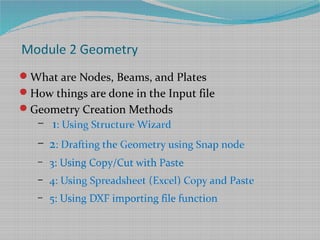
Module 2 Geometry
What are Nodes, Beams, and Plates
How things are done in the Input file
Geometry Creation Methods
– 1: Using Structure Wizard
– 2: Drafting the Geometry using Snap node
– 3: Using Copy/Cut with Paste
– 4: Using Spreadsheet (Excel) Copy and Paste
– 5: Using DXF importing file function
Module 3 Additional tools for modeling
Translational Repeat
Circular Repeat
Mirror
Rotate
Move
Insert Node
Add Beam Between Mid-Points
Add Beam by Perpendicular Intersection
Delete
Undo/Redo
Zooming/Panning
Dimensioning
Module 4 Properties
Property Types
Type 1: Prismatic
Viewing Cross-Section
Type 2: Built-In Steel Table
Type 3: Thickness
General Notes About Property Assigning
Module 5 Constants, Supports, and Specifications
Material Constants
Geometry Constant
Supports
How to Assign Supports
Editing Supports
Specifications
Module 6 Loading
How to Create Primary Load ?
Individual Loads:
Self weight
Members
Area Load
Floor Load
Plate Loads
Node
How to Create Manual Combinations ?
Module 7 Analysis
Perform Analysis Command
Module 8 Post Processing
Results
Node Displacement
Node Reactions
Beam Forces
Beam Stresses
Beam Graphs
Animation
Other Ways: Double-Clicking a Beam
Feel free to contact:
gauravmaroo@gmail.com
reference
www.reiusa.com

Staadpresentation1 159

  • 1.
  • 2.
    Contents 1.Introduction 2.Geometry 3.Aditional tools forModeling 4.Properties 5.Constants ,supports and other specifications 6.Loading 7.Analysis 8.Post processing 9.Design
  • 5.
    Module 1 Introductionto STAAD Pro  STAAD Software Method of Analysis Starting STAAD Pro Creating New File STAAD Pro Screen Opening and closing a Existing STAAD Pro file. Saving & Saving As
  • 7.
    Module 2 Geometry Whatare Nodes, Beams, and Plates How things are done in the Input file Geometry Creation Methods – 1: Using Structure Wizard – 2: Drafting the Geometry using Snap node – 3: Using Copy/Cut with Paste – 4: Using Spreadsheet (Excel) Copy and Paste – 5: Using DXF importing file function
  • 12.
    Module 3 Additionaltools for modeling Translational Repeat Circular Repeat Mirror Rotate Move Insert Node
  • 13.
    Add Beam BetweenMid-Points Add Beam by Perpendicular Intersection Delete Undo/Redo Zooming/Panning Dimensioning
  • 14.
    Module 4 Properties PropertyTypes Type 1: Prismatic Viewing Cross-Section Type 2: Built-In Steel Table Type 3: Thickness General Notes About Property Assigning
  • 15.
    Module 5 Constants,Supports, and Specifications Material Constants Geometry Constant Supports How to Assign Supports Editing Supports Specifications
  • 16.
    Module 6 Loading Howto Create Primary Load ? Individual Loads: Self weight Members Area Load Floor Load Plate Loads Node How to Create Manual Combinations ?
  • 17.
  • 18.
    Module 8 PostProcessing Results Node Displacement Node Reactions Beam Forces Beam Stresses Beam Graphs Animation Other Ways: Double-Clicking a Beam
  • 20.
    Feel free tocontact: gauravmaroo@gmail.com
  • 21.